
How To Use Nedbank Online Banking
|
|
|
- Dominick Alexander
- 5 years ago
- Views:
Transcription
1 Nedbank Internet Banking FAQs TABLE OF CONTENTS 1 DOCUMENT CONTROL 2 WHAT NEW FUNCTIONALITY IS AVAILABLE? 3 SECURITY 4 ENQUIRIES 5 STATEMENTS 6 PREPAID SERVICES 7 BENEFICIARIES 8 INVESTMENTS 9 TECHNICAL ERROR 10 PRINTING VOUCEHRS 11 INFO PAGE 12 E-STATEMENTS FIELD 13 NOTIFICATIONS 14 HOMELOAN AND INVESTMENTS USED TO CREATE A SELF SERVICE BANKING PROFILE 15 RECURRING TRANSACTIONS 16 FUTURE DATED TRANSACTIONS 17 VERIFY PAYMENTS 18 EDITING OF STATEMENT DELIVERY OPTIONS 19 AMEX CARD FUNCTIONALITY 20 STATEMENT FUNCTIONALITY 21 WHAT IS THE NEDBANK INTERNET BANKING ADDRESS? 22 WHAT IS THE DIFFERENCE BETWEEN A PAYMENT AND A TRANSFER? 23 A TECHNICAL ERROR HAS OCCURRED 24 HOW DO I LINK ONE OF MY OWN ACCOUNTS? 25 SECURITY

2 26 ERROR: PROFILE/PIN/PASSWORD COMBINATION ERROR 27 I HAVE FORGOTTEN MY PASSWORD 28 I HAVE FORGOTTEN MY PIN 29 I HAVE FORGOTTEN MY PROFILE NUMBER? 30 IT IS THE FIRST TIME I AM LOGGING INTO INTERNET BANKING. WHAT DO I DO? 31 HOW DO I GET A PROFILE NUMBER? 32 I HAVE RECEIVED AN WITH LINKS INTO IN SHOULD I DO? 33 HOW DO I ENSURE MY LOGIN PAGE IS SECURE? 34 MY PIN HAS BEEN COMPROMISED: WHAT DO I DO? 35 WHAT IS TRUSTEER RAPPORT? 36 WHAT IS SMS AUTHORISATION? 37 HOW LONG WILL IT TAKE TO RECEIVE MY SMS REFERENCE NUMBER? 38 HOW CAN I APPLY FOR SMS FUNCTIONALITY? 39 WHAT DO I NEED TO KNOW ABOUT SMS AUTHORISATION AND THE REFERENCE NUMBER? 40 I DO NOT HAVE A CELLPHONE. WILL I STILL BE ABLE TO DO MY BANKING? 41 I RECEIVED AN SMS REFERENCE NUMBER AND I AM NOT A NEDBANK CUSTOMER. WHAT DO I DO? 42 WHAT TYPES OF NOTIFICATIONS CAN I RECEIVE? 43 CAN I SEND THE PAYMENT NOTIFICATION TO MYSELF? 44 CAN I STORE NOTIFICATION DETAILS FOR MY BENEFICIARIES? 45 CAN I RESEND A PAYMENT NOTIFICATION? 46 HOW MUCH DO THE NOTIFICATIONS COST? 47 HOW DO I REPRINT A PROOF OF PAYMENT/TRANSFER CONFIRMATION? 48 HOW WOULD I SEARCH FOR A FAILED TRANSACTION? (FAILED PAYMENT/TRANSFER/ PURCHASE)

3 49 I WOULD LIKE TO SORT MY ACCOUNTS AND/ OR MY BENEFICIARIES ALPHABETICALLY/NUMERICALLY? 50 WHAT ACCOUNTS CAN I GET STATEMENTS FOR? 51 WHAT DO I NEED TO DO TO RECEIVE MY STATEMENTS VIA OR CHANGE MY POSTAL ADDRESS? 52 WHAT IS A MULTIPLE STATEMENT DOWNLOAD? 53 HOW WOULD I PERFORM A RECURRING PAYMENT TO A BENEFICIARY OR BANKAPPROVED BENEFICIARY? 54 HOW WOULD I PERFORM A FUTURE DATED PAYMENT TO A BENEFICIARY OR MAKE A ONCEOFF PAYMENT? 55 HOW WOULD I PERFORM A TAX AND UIF PAYMENT? 56 HOW DO I PERFORM MULTIPLE PAYMENTS? 57 HOW WOULD I AMEND/MAINTAIN A FUTURE DATED PAYMENT? 58 HOW WOULD I AMEND/MAINTAIN A RECURRING PAYMENT? 59 WHAT IS SECURE MESSAGING? 60 WHAT IS THE NEDBANK APP SUITE? 61 WHAT IS My Financial Life? 62 CAN I MAKE PAYMENTS FROM MY AMEX CARD? 63 HOW DO I MAKE A FUTURE DATED TRANSFER? 64 HOW DO I PERFORM MULTIPLE TRANSFERS? 65 HOW WOULD I AMEND/MAINTAIN A FUTURE DATED TRANSFER? 66 CAN I MAKE TRANSFERS FROM MY AMEX CARD? 67 HOW WOULD I PERFORM A RECURRING TRANSFER BETWEEN LINKED ACCOUNTS? 68 HOW WOULD I AMEND/MAINTAIN A RECURRING TRANSFER? 69 HOW DO I PREPAID PURCHASE ON INTERNET BANKING? 70 HOW DO I MAKE A FUTURE DATED AIRTIME PURCHASE ON INTERNET BANKING? 71 HOW DO I CHANGE/EDIT/DELETE A FUTURE DATED AIRTIME PURCHASE?
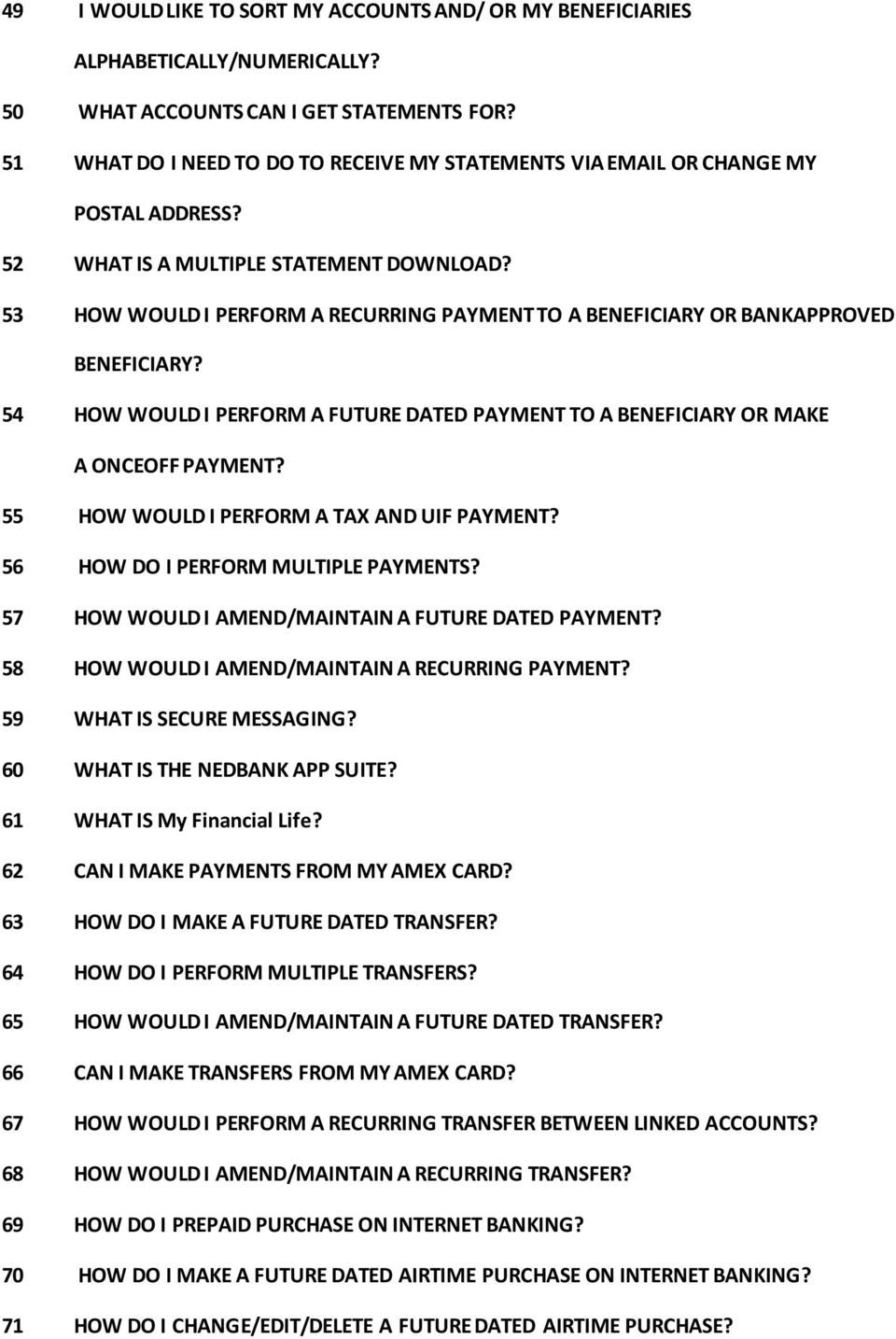
4 72 HOW DO I MAKE A RECURRING AIRTIME PURCHASES ON INTERNET BANKING? 73 HOW DO I CHANGE/EDIT/DELETE A RECURRING AIRTIME PURCHASE? 74 WHAT HAS CHNAGED IN THE EXTENDED BENEFICIARY PURCHASE HISTORY? 75 WHAT IS MY DAILY LIMIT FOR PURCHASING AIRTIME? 76 I PURCHASED AIRTIME AND MY CELL PHONE HAS NOT BEEN TOPPED UP? 77 WHAT WILL I BE CHARGED WHEN I PURCHASE AIRTIME? 78 HOW DO I ADD A BENEFICIARY? 79 HOW DO I CREATE A BENEFICIARY LIST? 80 HOW WOULD I VIEW A HISTORY OF PAYMENTS MADE TO A SPECIFIC BENEFICIARY? 81 WHAT TYPE OF BENEFICIARIES CAN BE ADDED ONLINE? 82 HOW DO I INCREASE OR DECREASE MY PAYMENT/TRANSFER LIMIT? 83 WHAT IS MY DAILY PAYMENT/TRANSFER LIMIT? 84 WHAT DOES THE INVESTMENT FUNCTIONALITY LET ME DO? 85 HOW DO APPLY FOR AN INVESTMENT ACCOUNT? 86 WHAT TYPE OF INVESTMENTS CAN I APPLY FOR? 87 ARE THERE FEES TO OPEN AN INVESTMENT? 88 WHAT IS A FIXED DEPOSIT? 89 WHEN CAN I REINVEST A FIXED DEPOSIT? 90 ARE THERE ANY FEES TO REINVEST A FIXED DEPOSIT? 91 HOW DO I REINVEST A FIXED DEPOSIT? 92 WHY WOULD/SHOULD I REINVEST A FIXED DEPOSIT? 93 WHEN CAN I PAY OUT A FIXED DEPOSIT? 94 HOW DO I PAY OUT A FIXED DEPOSIT? 95 ARE THERE ANY FEES TO PAY OUT A FIXED DEPOSIT? 96 WHAT DOES THE MAINTENANCE FUNCTION ON AN INVESTMENT ACCOUNT LET ME DO? 97 HOW DO I MAINTAIN AN INVESTMENT ACCOUNT? 98 ARE THERE FEES TO GIVE NOTICE OF A WITHDRAWAL?

5 99 HOW DO I GIVE NOTICE OF A WITHDRAWAL? 100 WHAT IS NOTICE OF A WITHDRAWAL? 101 WHEN CAN I CANCEL A NOTICE OF WITHDRAWAL? 102 ARE THERE FEES TO CANCEL A NOTICE OF WITHDRAWAL? 103 HOW DO I CANCEL A NOTICE OF WITHDRAWAL? 104 HOW DO I CREATE AN INVESTMENT STOP ORDER? 105 WHY WOULD I CREATE AN INVESTMENT STOP ORDER? 106 IS THERE A FEE TO CREATE AN INVESTMENT STOP ORDER? 107 HOW DO I MAINTAIN AN INVESTMENT STOP ORDER? 108 WHY WOULD I MAINTAIN AN INVESTMENT STOP ORDER? 109 IS THERE A FEE TO MAINTAIN AN INVESTMENT STOP ORDER? 110 WHAT IS MPESA? 111 CAN I OPEN AN MPESA ACCOUNT VIA INTERNET BANKING? 112 I TRANSFERRED MONEY TO THE WRONG CELLPHONE NUMBER WHAT MUST I DO? 113 I TRANSFERRED MONEY AND IT NEVER GOT TO THE CELLPHONE NUMBER I SPECIFIED WHAT MUST I DO? 114 HOW LONG WILL IT TAKE THE TRANSFER TO GET TO MY MPESA ACCOUNT? 115 HOW DO I DO AN MPESA TRANSFER? 116 HOW WILL I KNOW IF THE PAYMENT IS SUCCESSFUL? 117 ARE MPESA PAYMENTS REAL TIME? 118 WHAT IS MY AVAILABLE TRANSFER LIMIT? 119 CAN I DO RECURRING AND OR FUTURE DATED MPESA? 120 CAN I SEND NOTIFICATIONS? 121 CAN I SEND MONEY TO NON VODACOM NUMBERS? 122 IF I RECEIVE A PAYMENT NOTIFICATION FROM NEDBANK, CAN I VERIFY THAT IT IS GENUINE? 122. WHAT CAN I DO WITH THE enotes SERVICE ON INTERNET BANKING?

6 1 DOCUMENT CONTROL AND GLOSSARY? Document Glossary Acronym MFL PFM NCC HNW BP Definition My Financial Life Personal Finance Management Nedbank Contact Centre High Net Worth Banking Platform Document Control Version Change Responsible Date Version 1.0 Final Sam Okumu 01/04/2013

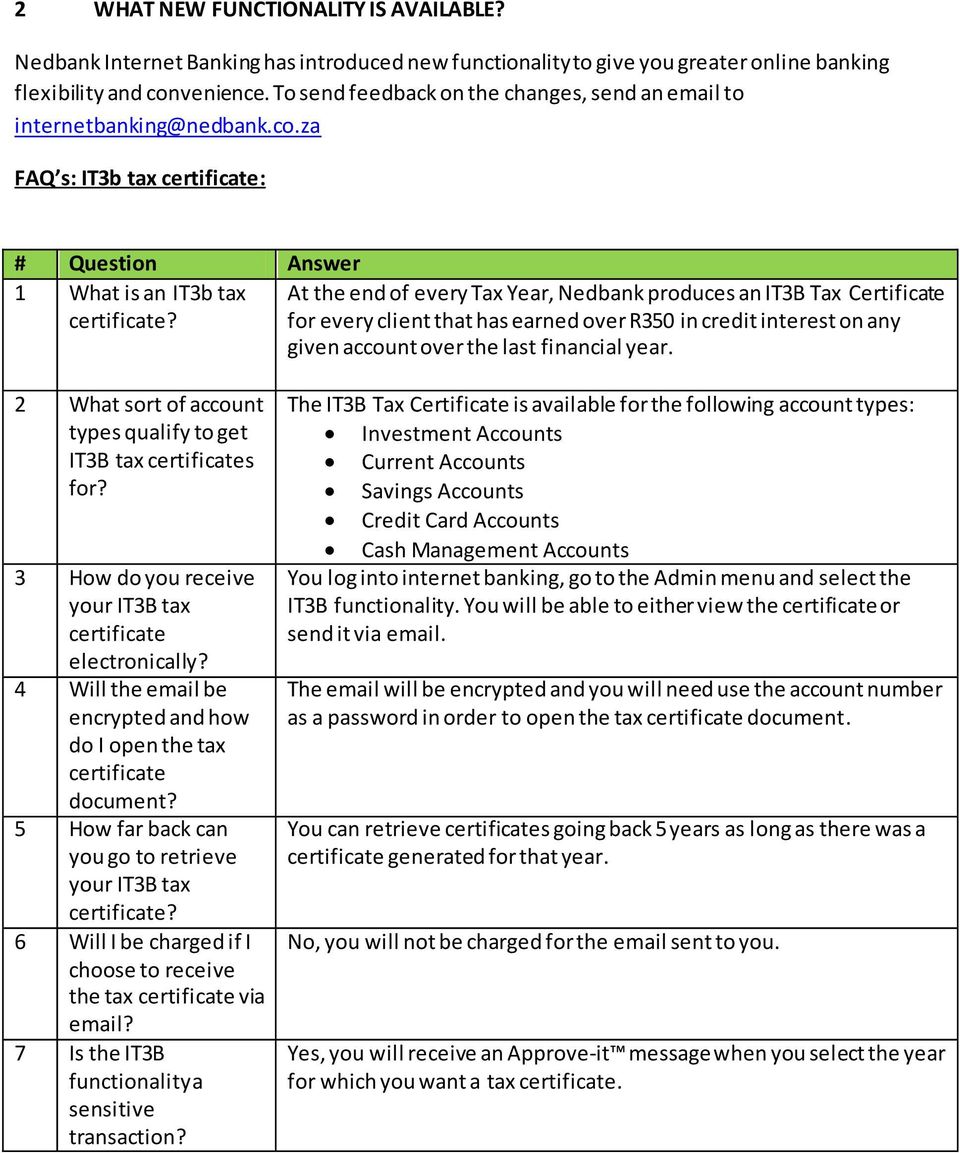
7 2 WHAT NEW FUNCTIONALITY IS AVAILABLE? Nedbank Internet Banking has introduced new functionality to give you greater online banking flexibility and convenience. To send feedback on the changes, send an to FAQ s: IT3b tax certificate: # Question Answer 1 What is an IT3b tax certificate? At the end of every Tax Year, Nedbank produces an IT3B Tax Certificate for every client that has earned over R350 in credit interest on any given account over the last financial year. 2 What sort of account types qualify to get IT3B tax certificates for? 3 How do you receive your IT3B tax certificate electronically? 4 Will the be encrypted and how do I open the tax certificate document? 5 How far back can you go to retrieve your IT3B tax certificate? 6 Will I be charged if I choose to receive the tax certificate via ? 7 Is the IT3B functionality a sensitive transaction? The IT3B Tax Certificate is available for the following account types: Investment Accounts Current Accounts Savings Accounts Credit Card Accounts Cash Management Accounts You log into internet banking, go to the Admin menu and select the IT3B functionality. You will be able to either view the certificate or send it via . The will be encrypted and you will need use the account number as a password in order to open the tax certificate document. You can retrieve certificates going back 5 years as long as there was a certificate generated for that year. No, you will not be charged for the sent to you. Yes, you will receive an Approve-it message when you select the year for which you want a tax certificate.
8 FAQ s: Profile Limit Maintenance # Question Answer 1 What is Profile limit maintenance? This functionality allows you to manage your Prepaids, Payment and Transfer limits online and at your convenience. 2 What are my limits and why would I want to set or change them? Your limits for Payments, Prepaids and Transfers are set the moment you receive a self service banking profile. This will be the requested or default amounts governing your Payments, Transfers and Prepaid. This functionality allows you to either increase or decrease this limit by yourself once you log into internet banking. 3 What are my default limits and what can I increase them too? 4 What happens if I want to increase my limits beyond the maximum? 5 Is the the Profile limit maintenance functionality a sensitive transaction? 6 I did not receive the approve it message to authenticate me, what should I do? 7 How do I access the Profile limit maintenance functionality? You may want to change this limit because you need to make a payment that s larger than the current maximum amount set for you. Conversely, you will also be able to decrease any of those amounts as well. Default limits: - Payments: R Transfers: R Prepaids: R1000 Limit change range: Payments and Transfers: R1 R Prepaid: R You will be able to go to the branch and request a change above R However this only applies to Payments and Transfers. For Prepaids, the max limits is R1000 and cannot be changed beyond that even at the branch Yes, for your safety and to minimise the risk on your profile, Profile limit maintenance is a sensitive transaction and will require you to have SMS Authorisation if you want to use it. If you register at the branch for SMS Authorisation, whenever you use Profile limit maintenance, you will receive either an Approve-it message to authorise the transaction If approve it message does not come through it will automatically resort to sending you a one time pin(otp) When you log into Internet Banking, go to the admin menu and select the Maintain Profile limits menu item and access the functionality

9 FAQ s: Additional prepaids and Re-investments options: # Question Answer 1 What additional The following additional prepaids are now available: Prepaids are now - MTN SMS and data bundles available? - Cell C SMS and data bundles - Vodacom BIS - Telkom prepaid landline 2 What additional Reinvestment options are now available? The following additional re-investment options are now available: Full Capital plus Part Interest: The ability to reinvest the full capital together with part of the client s interest accumulated over the period and to pay the balance of the interest out to a valid disposal account specified by the client. Part Capital plus Part Interest: The ability to reinvest part of the client s capital and part of the interest and to pay the balance of the interest and capital out to a valid disposal account specified by the client. Full Capital plus Additional Capital and No Interest: The ability to reinvest the initial capital as well as additional capital to the same investment. The additional capital to be debited from a Nedbank Transactional Product only. Part Capital plus Full Interest: The ability to reinvest part of the client s capital and all the interest accumulated over the period of the investment and to pay out the balance of the capital to a valid disposal account specified by the client. Full Capital plus Additional Capital plus Full Interest: The ability to reinvest the initial capital as well as additional capital and all the interest accumulated over the period of the investment. The additional capital to be debited from a Nedbank Transactional Product only. Full Capital plus Additional Capital plus Part Interest: The ability to reinvest the initial capital as well as additional capital and part of the interest earned over the period of the investment and to pay out the balance of the interest into a valid disposal account specified by the client. The additional capital to be debited from a Nedbank Transactional Product only.

10 3 SECURITY What is Approve-it? Approve-it is an enhanced security feature that will enable you to authenticate sensitive internet banking transactions using your cellphone. A message will be sent to your cellphone requesting you to authenticate the transaction by selecting one of the following options: 1 - To accept the transaction and proceed with the transaction 9 - To reject the transaction SMS-authorised users If you currently already receive OTP messages, you will also automatically receive Approve-it messages. No Registration is necessary and you will not be charged for the service. Non-SMS-activated users If you did not receive OTP messages in the past because you were not registered for SMS authentication you will not receive Approve-it messages and will only be able to do transactions that do not require authentication (e.g. paying a beneficiary). If you would like to receive Approve-it messages, you will need to register for SMS authentication at your nearest branch. This will then enable you to receive Approve-it messages. For further information, call the Nedbank Contact Centre on or or go to the Nedbank Website 4 ENQUIRIES How would I search for a failed transaction? (Failed payment/transfer/airtime purchase) Case: Client has made payments/transfer/ purchased airtime and wants to find out which were unsuccessful or a client purchases airtime and wants to find out why the transaction failed E.g.: Client set up a future dated payment/transfer and the payment/transfer was not processed. _ Currently failed transactions can only be viewed on Current and Savings accounts. _ In the Enquiry menu option, the client clicks on View Failed Transactions and selects either Failed Payments or Failed Transfers. _ The client would be given the option to search for failed transactions for the last 90 days. _ The client can select the date range From To and clicks on Search.

11 _ The following would be displayed: Number, Return Date, From Account, Beneficiary Name, To Account, Branch Code, Amount and Reason Description. _ The client has the option to Print or Export the list. _ In order to view the details of failed transaction the client can click on the hyperlinked 'Return Date". _ The client can Print the details of the failed transaction. 5 STATEMENTS Can I maintain statement delivery options for an account that is in a restricted status? NO, statement delivery options cannot be maintained for accounts that are in a restricted status. 6 PREPAID SERVICES How do I purchase SMS and Data Bundles, Vodacom BIS or the Vodacom Big Bonus Voucher? The option to purchase SMS and Data bundles now applies to both Vodacom and MTN. Vodacom however also offers big bonus vouchers and Vodacom BIS. MTN additionally offers several Nokia smart bundle vouchers So Select Prepaid Services.Prepaid Purchase. Select Corrent Option(Purchase now, future date or recurring). Select Vodacom as ServiceProvider, Select SMS, data or voucher bundle under prepaid type. Capture all other appropriate fields and make the purchase. When purchasing prepaids can I view the prepaid units or bundle volumes purchased? Yes, when making prepaid purchases clients will be able to view units/ volumes of the purchased prepaid. What is Future Dated Prepaid? Purchasing a Prepaid at a future date. Future dated purchases may be loaded up to 366 days in advance On loading future dated purchases you will be able to print a purchase notification. A Purchase confirmation will only be available once the payment has been successfully processed. 8 INVESTMENTS Can I access Internet Banking using my investments account? Yes, clients that only have investments accounts with Nedbank will be able to access internet banking (with profile, pin and password) to view transactional information on their accounts.

12 9 TECHNICAL ERROR What do I do if I receive a technical error? In the event that a Technical Error is received on Internet Banking, the Nedbank Contact Centre (NCC) would need to be contacted on or International and the following details supplied to the agent so that it can be investigated: The profile number on which the problem occurred. The date and time the problem occurred. The sequence of events leading up to the problem occurring. The browser and operating system on the PC where the problem occurred 10 PRINTING VOUCHERS How do I print a voucher? The user is able to print the voucher directly after the purchase now has been completed, (and theservice Provider has issued the voucher). Alternatively, Select Enquiries on the main menu, then Search for Transaction and select the Account number and Service Provider or any other appropriate search criteria and do a search. This will return the transactions related to the search and you can select the transaction if its listed and print that voucher again 11 INFO PAGE How do I turn On / Off the Information Notice Page? The Info page is used by the bank to communicate relevant information to clients after they log into their internet banking session. The client will NOT have the option to turn the Information page on or off. This will be done and controlled at the channel level as and when it s needed. 12 E-STATEMENTS FIELD What is the character length for the E-statements Field? 120 characters 13 NOTIFICATIONS How do I Capture, save and store notification details for a new and existing beneficiary at beneficiary level? o When capturing a new beneficiary you have an option to save notification details (up to three types: cellphone, fax and ) and choose the default one of the three types: o For existing Beneficiaries: go to beneficiaries, maintain beneficiary, select beneficiary to add notification to

13 How do I capture, save and store notification details for all payments and prepaid, sms and data bundle transactions? After you make a once-off payment or prepaid, on the complete screen you are asked if you would like to save as beneficiary select 'yes' and you have an option to add notifications on the maintain beneficiary screen How do I maintain and or delete notification details at beneficiary level? Beneficiaries, maintain beneficiaries, select beneficiary to delete/maintain and select the delete button or change details and continue I received a technical error when attempting to capture, save, store, maintain and or delete notification details? In the event that a Technical Error is received on Internet Banking, the Nedbank Contact Centre (NCC) would need to be contacted on or International and the following details supplied to the agent so that it can be investigated: The profile number on which the problem occurred. The date and time the problem occurred. The sequence of events leading up to the problem occurring. The browser and operating system on the PC where the problem occurred How do I view History of Notifications? Select Enquiries, search for transactions and select type of transaction and account, upon clicking search you have an option to print or view your notifications for a specific or transaction or resend it How do I verify the authenticity of a payment or prepaid Notification? If you receive a notification and want to verify that it is indeed a genuine payment and notification, you can do the following: On the internet banking home page (the screen where you log on). Look at the top of the page and one of the tabs there is an option to Verify Payment'. Fill in ALL the fields and search(click on the Verify button) 14 HOMELOAN AND INVESTMENTS USED TO CREATE A PROFILE Can a profile be created with only a homeloan account? Yes Can a profile be created with only an investment account? Yes

14 What is the monthly service fees for a profile with only a homeloan / investment account linked to the profile? Subscription fee is waived as per the product owners, until such time if the client adds a transaction account to the profile Technical error received when attempting to create a new profile with a homeloan or investment account. A client cannot open a profile through internet banking, they have to go into a branch or contact NCC to create a new profile. They should thus not experience this type of technical error However if a technical error is received after a profile was opened at the Branch or NCC and the client is attempting to use Internet Banking,Client needs to contact the NCC or branch and supply them with the error code received. However if the error is a Technical Error, the Nedbank Contact Centre (NCC) would need to be contacted on or International and the following details supplied to the agent so that it can be investigated: The profile number on which the problem occurred. The date and time the problem occurred. The sequence of events leading up to the problem occurring. The browser and operating system on the PC where the problem occurred What can be done with a standalone homeloan account on the profile? View statement only What can be done with a standalone investment account on the profile? View statements and make transfers only 15 RECURRING TRANSACTIONS This option allows you to capture recurring payments to 3rd parties, transfers between linked accounts and purchasing of various prepaid services. Recurring transactions will be available on a frequency of Weekly and Monthly for up to 1 year in advance and for a period of 1 year, for example: Payment To: Amount Frequency TodaysDate StartDate EndDate Joe Bloggs R100 Monthly 17/09/ /01/ /12/ FUTURE DATED TRANSACTIONS This option has now changed to allow the capturing of future dated transactions for up to 1 year in advance and includes payments to 3rd parties, transfers between linked accounts and purchasing of various prepaid services for example: Payment To: Amount TodaysDate Payment Date

15 Joe Bloggs R100 17/09/ /01/ IF I RECEIVE A PAYMENT NOTIFICATION FROM NEDBANK, CAN I VERIFY THAT IT IS GENUINE? Yes you can. If you go to the internet banking home page, look at the tabs at the top and one of them states Verify Payment. Click on this to access the functionality. This functionality allows you to verify the authenticity of a payment notification sent form the Nedbank system to a 3rd party. This enables the client that received the payment notification with corresponding reference number details to verify that this payment notification was generated by the Nedbank Notifications system 18 EDITING OF STATEMENT DELIVERY OPTIONS This option allows you to maintain the statement delivery options on your linked current, savings or Credit Card account. You have the following options available: estatements sent to up to 2 addresses supplied by you. Do Not Send which will stop the delivery of statements for the nominated account. Postal which will allow you to set the deliver address to the postal address we have for you on record. 19 AMEX CARD FUNCTIONALITY Payments and Transfers to and from American Express (AMEX) cards are now available. 20 STATEMENT FUNCTIONALITY Enhancements to statement functionality have been made and the following features are available: Multiple account statement downloads available on the All Balances screen. Current and Savings account statement search via a date range. Enhanced Credit Card statements that include: Statements available for up to 6 months. Increased number of transactions per statement. Search for statements for nearest billing cycle. General/Product Information 21 WHAT IS THE NETBANK ADDRESS? There are two branded websites for Netbank, namely Nedbank and BoE. They can be access by using the following addresses: Nedbank: Via the Internet Banking link on the site BoE:

16 Via the BoE24/7 link on the site. 22 WHAT IS THE DIFFERENCE BETWEEN A PAYMENT AND A TRANSFER? A transfer is a movement of funds between your own linked Nedbank accounts. A payment is a movement of funds to a third-party account e.g. Edgars, the municipality, etc. 23 A TECHNICAL ERROR HAS OCCURRED In the event that a Technical Error is received on Internet Banking, the Self Banking Contact Centre would need to be contacted on or International and the following details supplied to the agent so that it can be investigated: The profile number on which the problem occurred. The date and time the problem occurred. The sequence of events leading up to the problem occurring. The browser and operating system on the PC where the problem occurred. 24 HOW DO I LINK ONE OF MY OWN ACCOUNTS TO MY PRIMARY ACCOUNT? In order to link one of your own accounts to your profile you will need to visit your nearest branch with your ID book and they will assist you, or if you have a private banker assigned to your portfolio you can request that they do it on your behalf. Alternatively, you can contact telephone banking for assitance 25 SECURITY Note: When making any enquiries that require access to sensitive information such as profile numbers, accounts numbers etc. clients are required to go through an identification process where they will be asked to confirm certain details such as IDnumber, physical address etc. Calls to the Self Service Banking Contact Centre are recorded for quality and security reasons. 26 ERROR: PROFILE/PIN/PASSWORD COMBINATION ERROR If you receive an error stating the Profile/Pin/Password combination is incorrect this could mea n any of the following: The profile number is incorrect. Verify that the profile number you are entering is correct. The pin number is incorrect. Verify that the pin number being entered is only 4 numeric digits and that it is the correct pin number for the profile number. The password is incorrect. Verify that the password being entered is the correct password for the profile number. If this error persists, call the Self Service Banking Contact Centre on or the international number

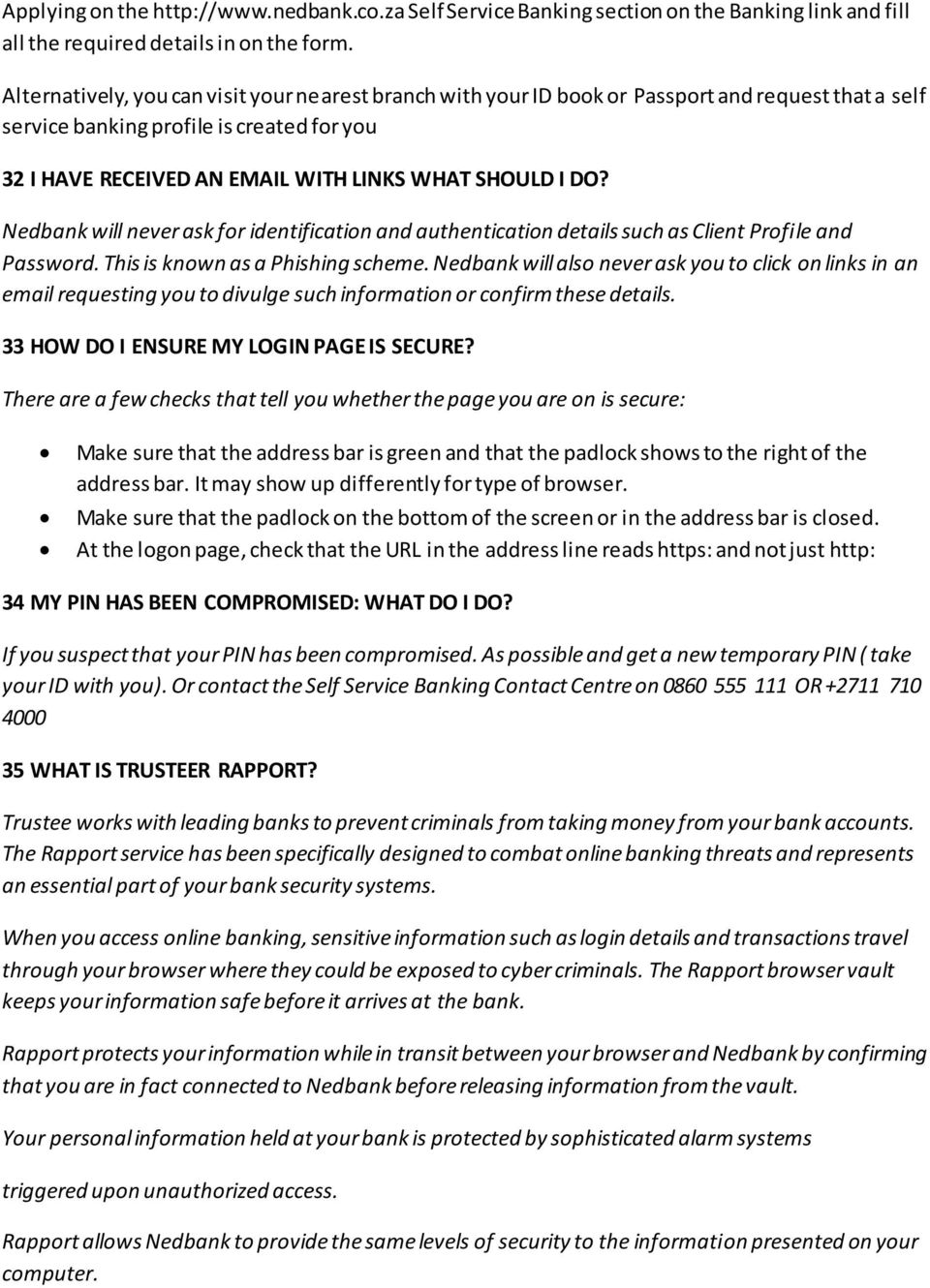
17 27 I HAVE FORGOTTEN MY PASSWORD If you have forgotten your password, contact the Self Service Banking Contact Centre on or the international number and request that they reset it for you. Once the password has been reset you are required to log onto Internet Banking with just your profile and pin number and you will be prompted to create a new password. 28 I HAVE FORGOTTEN MY PIN If you have forgotten your pin: Contact the Self Service Banking Contact Centre on or the international number and request that they reset it for you. If you contact the Self Service Banking Contact Centre to reset your pin, your profile limits for payments, transfers and prepaid transactions will be set to R1.00 and you will need to visit a branch to increase the limits again. Once the pin has been reset you are required to log onto Internet Banking with just your profile number and the new pin that has been issued to you and you will be prompted to create a permanent pin and a new password. 29 I HAVE FORGOTTEN MY PROFILE NUMBER? If you have forgotten your profile number: Contact the Self Service Banking Contact Centre on or the international number to request it or Alternatively, you are able to visit your nearest branch where the branch staff can confirm it or create you a new profile. 30 IT IS THE FIRST TIME I AM LOGGING INTO INTERNET BANKING. WHAT DO I DO? When logging onto Internet Banking for the first time: You would have been issued a profile number and temporary pin number. The temporary pin number is only valid for 7 days When logging on for the first time you only need to enter in the profile number and the temporary pin number to log on. You will be prompted to create a permanent pin and password which for security reasons you should not disclose to anyone You will also be required to accept the Electronic Banking Terms & Conditions, Notice and the SMS Notice the first time you log onto Internet Banking. 31 HOW DO I GET A PROFILE NUMBER? If you have not been registered for Internet Banking you can do so by:

18 Applying on the Self Service Banking section on the Banking link and fill all the required details in on the form. Alternatively, you can visit your nearest branch with your ID book or Passport and request that a self service banking profile is created for you 32 I HAVE RECEIVED AN WITH LINKS WHAT SHOULD I DO? Nedbank will never ask for identification and authentication details such as Client Profile and Password. This is known as a Phishing scheme. Nedbank will also never ask you to click on links in an requesting you to divulge such information or confirm these details. 33 HOW DO I ENSURE MY LOGIN PAGE IS SECURE? There are a few checks that tell you whether the page you are on is secure: Make sure that the address bar is green and that the padlock shows to the right of the address bar. It may show up differently for type of browser. Make sure that the padlock on the bottom of the screen or in the address bar is closed. At the logon page, check that the URL in the address line reads https: and not just http: 34 MY PIN HAS BEEN COMPROMISED: WHAT DO I DO? If you suspect that your PIN has been compromised. As possible and get a new temporary PIN ( take your ID with you). Or contact the Self Service Banking Contact Centre on OR WHAT IS TRUSTEER RAPPORT? Trustee works with leading banks to prevent criminals from taking money from your bank accounts. The Rapport service has been specifically designed to combat online banking threats and represents an essential part of your bank security systems. When you access online banking, sensitive information such as login details and transactions travel through your browser where they could be exposed to cyber criminals. The Rapport browser vault keeps your information safe before it arrives at the bank. Rapport protects your information while in transit between your browser and Nedbank by confirming that you are in fact connected to Nedbank before releasing information from the vault. Your personal information held at your bank is protected by sophisticated alarm systems triggered upon unauthorized access. Rapport allows Nedbank to provide the same levels of security to the information presented on your computer.
19 SMS Authorisation 36 WHAT IS SMS AUTHORISATION? SMS Authorisation is a service that you register for at the bank if you want to receive Approve-it messages(ussd NI or OTP) and do sensitive transactions. By registering for SMS Authorisation, you will be able to perform additional services on internet banking and these services are referred to as sensitive transactions. Approve-it provides additional security when you try to perform any one of the sensitive transactions listed below: Payments Pay Now Once off Payments Instant Payments Make payment Payments Future dated Once off Payments Recurring payments Bank Approved Beneficiaries Prepaid Services Prepaid Purchases - Purchase Now Prepaid Services Prepaid Purchases Recurring Purchases Prepaid Services Prepaid Purchases - Future dated purchases Prepaid Services Register Meter - Electricity Beneficiaries Add Beneficiary Admin Statement Delivery Options Investments Maturing fixed deposits Reinvest fixed deposits Investments Maturing fixed deposits Payout fixed deposits Investments Maintain investments Investments Notice of withdrawal Give notice of withdrawal Investments Notice of withdrawal Cancel notice of withdrawal enotes Activating and Maintaining 37 HOW LONG WILL IT TAKE TO RECEIVE MY SMS REFERENCE NUMBER? The reference number(if you receiving an OTP message)should take a few seconds to reach your Cellphone. However, if it does happen to take longer than a few seconds (due to network traffic) you may continue with other banking transactions while awaiting your reference number. Please note, reference numbers will never include the alpha character `O' but could include a zero.

20 38 HOW CAN I APPLY FOR SMS FUNCTIONALITY? The SMS authorisation facility initially requires you to personally visit a branch, register your details and provide your Cellphone number. You are required to have you ID with you when visiting the branch. Allow 24 hours for the facility to be activated. 39 WHAT DO I NEED TO KNOW ABOUT SMS AUTHORISATION AND THE REFERENCE NUMBER? The following details are important to SMS authorisation and reference numbers: Reference numbers will never include the alpha character `O' but could include a zero. You will only receive an Approve-it reference number via SMS while in the process of transacting when additional authorisation is required. Only one SMS reference number will be generated and required per online banking session, irrespective of the number of once-off payments made or beneficiaries added or sensitive transactions being performed. SMS reference numbers are unique, so the same reference number will never be used more than once. There are no charges for SMS reference numbers. SMS authorisation does not apply to inter account transfers or payments to beneficiaries already loaded on the profile. 40 I DO NOT HAVE A CELLPHONE. WILL I STILL BE ABLE TO DO MY BANKING? Yes. SMS authorisation is only required when using certain functionality (see Sensitive transa ctions list) or refer to list below: Payments Pay Now Once off Payments Instant Payments Make payment Payments Future dated Once off Payments Recurring payments Bank Approved Beneficiaries Prepaid Services Prepaid Purchases - Purchase Now Prepaid Services Prepaid Purchases Recurring Purchases Prepaid Services Prepaid Purchases - Future dated purchases Prepaid Services Register Meter - Electricity Beneficiaries Add Beneficiary Admin Statement Delivery Options

21 Investments Maturing fixed deposits Reinvest fixed deposits Investments Maturing fixed deposits Payout fixed deposits Investments Maintain investments Investments Notice of withdrawal Give notice of withdrawal Investments Notice of withdrawal Cancel notice of withdrawal enotes Activating and Maintaining If you do not have a Cellphone your nearest branch will be able to update your beneficiary profile on your behalf or you can use the other Self Service Banking options like Agent Assisted Telephone Banking. Contact the Self Service Banking Call centre as per below: To access telephone banking please do the following: Dial , Select the option for self service banking telephone banking I RECEIVED AN SMS REFERENCE NUMBER AND I AM NOT TRANSACTING OR I HAVE NOT TRANSACTED ALL DAY. WHAT DO I DO? If you receive an SMS reference number and you are not transacting, contact the Self Service Banking Contact Centre immediately on or International and notify a consultant that answers the call. The standard procedure will be to lock the profile by resetting the pin number and once that is done you are urged to log onto Internet Banking using the new pin number together with your profile number and change the pin and password to something new and different from the previous credentials. If you suspect there have been fraudulent transactions going off your linked accounts, report all the details to the contact centre agent for investigation. 41 I RECEIVED AN SMS REFERENCE NUMBER AND I AM NOT A NEDBANK CUSTOMER. WHAT DO I DO? If you receive an SMS reference number and you are not a Nedbank customer, contact the Self Service Banking Contact Centre immediately on or International and notify a consultant. Notifications 42 WHAT TYPES OF NOTIFICATIONS CAN I RECEIVE?
22 When making a payment (once-off, own-defined beneficiary or bank-defined beneficiary) from one of your linked accounts you can send one of the following types of payment notifications to a destination supplied by you: - Enter the address of the intended recipient for the payment notification. The address can be up to 120 characters Fax- Enter the fax number of the intended recipient for the payment notification. SMS Enter the mobile number of the intended recipient for the payment notification. 43 CAN I SEND THE PAYMENT NOTIFICATION TO MYSELF? Yes, payment notifications can be sent to any recipient defined by you. For future dated and recurring payments the recipient and/or notification type can be amended( or even deleted)before the effective date of the payment. 44 CAN I STORE NOTIFICATION DETAILS FOR MY BENEFICIARIES? Yes, you can store the details when creating the beneficiary and the chosen default option(sms, Fax or ) will be prepopulated each time a payment is being made. 45 CAN I RESEND A PAYMENT NOTIFICATION? Yes, payment notifications can be resent to any destination via Fax, or SMS defined by you.in order to do so you would: Under the "Enquiry" menu the client selects Search for Transactions The client would then be presented with the appropriate search criteria fields The client selects Account Number as it is a mandatory field and fills in any of the other criteria and then clicks on Search. The client can search for transaction made in the last 90 days. The website will then display the transactions based on the search criteria entered. The client may Cancel search, Print the table of transactions, Print Selected Proof of Transactions by selecting the relevant transaction/s or send notifications any destination via Fax, or SMS. 46 HOW MUCH DO THE NOTIFICATIONS COST? Notifications are priced differently for each notification type and will be charged for each payment notification sent out. If a notification is resent, it will be charged for again. The pricing for notifications can be found on the Rates and Fees page on ( Enquiries
23 47 HOW DO I REPRINT A PROOF OF PAYMENT/TRANSFER CONFIRMATION? Case: The client would like a printout of a payment(s) that they have done e.g.: The client had made a payment(s) but did not print a copy of it and now requires it. Under the "Enquiry" menu the client selects Search for Transactions The client would then be given the appropriate search criteria The client selects Account Number as it is a mandatory field and fills in any of the other criteria and then clicks on Search. The client can search for transaction made in the last 90 days. The website will then display the transactions based on the search criteria entered. The client may Cancel search, Print the table of transactions or Print Selected Proof of Transactions by selecting the relevant transaction/s. 48 HOW WOULD I SEARCH FOR A FAILED TRANSACTION? (FAILED PAYMENT/TRANSFER/PREPAID PURCHASE) Case: Client has made payments/ transfers and wants to find out which were unsuccessful or not processed. e.g. Client set up a future dated payment/transfer and the payment/transfer was not processed. Currently failed transactions can only be viewed on Current and Savings accounts. In the Enquiry menu option, the client clicks on View Failed Transactions and selects either Failed Payments or Failed Transfers The client would be given the option to search for failed transactions for the last 90 days. The client can select the appropriate search criteria The client has the option to Print or Export the list. In order to view the details of failed transaction the client can click on the hyperlinked 'Return Date". The client can Print the details of the failed transaction. 49 I WOULD LIKE TO SORT MY ACCOUNTS AND/ OR MY BENEFICIARIES ALPHABETICALLY/NUMERICALLY? The client can sort their accounts and beneficiaries, either alphabetically or numerically. If the sort is saved, the lists will display the saved sort order when next the client logs on to internet banking. If the client chooses NOT to save the sort, thenthe original sort order will be displayed when next the client logs onto to internet banking. To sort the list of accounts:
24 The client selects "Enquiries" and "All Balances" from the main menu. The client can choose to sort by the appropriate sort criteria fields available To sort the list, the client can click on any of the underlined/hyperlinked column headings in the table depending on how the client would like to sort the list. To save this sort order, the client clicks the "Save Sort" button. (This sort order will be displayed to the client in the future). To sort the list of beneficiaries: The client has two options; they can sort their Beneficiaries on the "All Balances" screen or using the "Beneficiaries" option in the main menu. The client selects "Enquiries" and "All Balances" from the main menu. The client clicks on the hyperlinked text, "I want to see my beneficiaries on this page as well". The client can choose to sort by the available sort criteria columns To sort the list, the client can click on any of the underlined/hyperlinked column headings in the table depending on how the client would like to sort the list. To save this sort order, the client clicks the "Save Sort" button. (This sort order will be displayed to the client in the future). OR The client selects "Beneficiaries", "Maintain" and "Beneficiaries" option from the main menu. The client can choose to sort by the available sort criteria columns To sort the list, the client can click on any of the underlined/hyperlinked column headings in the table depending on how the client would like to sort the list. To save this sort order, the client clicks the "Save Sort" button. (This sort order will be displayed to the client in the future). Statements 50 WHAT ACCOUNTS CAN I GET STATEMENTS FOR? Current and savings accounts (5 years) Credit Cards (6 Months) Investments (Last 18 transactions) Home loans (Last 10 transactions)
25 51 WHAT DO I NEED TO DO TO RECEIVE MY STATEMENTS VIA OR CHANGE MY POSTAL ADDRESS? estatements are currently only available for currentand credit card accounts and there are no costs applicable to the service. Note that you cannot maintain delivery options on Restricted Accounts. For other viable accounts, to change the statement delivery options for your current account, follow these steps: From the Admin menu select the Statement Delivery Options item. Type in the SMS Reference number received on the Cellphone number registered on the profile. Read through and accept the estatement indemnity notice. Select whether to apply delivery to all accounts listed or whether to apply addresses to accounts where is the existing delivery option. Choose whether to have statements delivered to the postal address currently listed on the specific account, to up to 2 addresses or to Do Not Send to suppress the delivery of statements for that account. Confirm the statement delivery options chosen. 52 WHAT IS A MULTIPLE STATEMENT DOWNLOAD? You can select multiple accounts from the all balances screen for statement export or print. Once these accounts are selected you are able to export or print these statements without having to access each account individually. Payments 53 HOW WOULD I PERFORM A RECURRING PAYMENT TO A BENEFICIARY OR BANK-APPROVED BENEFICIARY? Case: A client could like to make a recurring payment on a specific date and for a specific number of payments.e.g. A client pays school fees every month for the same amount and on the same day every month for the entire year. Beneficiary Payment: The client selects Recurring Payment and then My Beneficiaries from the menu. Select the beneficiary list and then the beneficiary to pay. The My Statement Description and Beneficiary Statement Description fields are automatically populated with the information captured against the beneficiary. Select whether to include a notification by SMS, Fax or Enter an amount for the payment. Select the frequency that the payment should occur on, i.e. Monthly or Weekly.
26 If Weekly is selected you will be required to select the day the payment should occur on. If Monthly is selected you will be required to select the day of the month the payment should occur on. Select the Start Date that the payment should start on. This can be for up to 1 year in advance. Select the End Date or the number of occurrences for the payment. This can be for a total of up to 1 year after the start date. If Add PaymentsTo List is clicked the payment will appear in the list below and the form will be cleared so a new payment can be captured. Click on Load Payments to move to the confirm screen where payment(s) can be edited, deleted or confirmed. Click on Confirm Payments to complete the payment(s). On the completed screen you can print a proof of payment for the captured payment(s) or select the Capture more Payments option. Bank-approved Beneficiary: The client selects Recurring Payment and then Bank-approved Beneficiaries from the menu. They will be required to enter a one-time password that they will receive on the Cellphone number registered on their CIS number. Select the first letter of the beneficiary to pay and then the actual beneficiary to be paid. Enter the My Statement Description and Beneficiary Statement Description fields accordingly. Select whether to include a notification by SMS, Fax or and enter the appropriate information for the notification. Enter an amount for the payment. Select the frequency that the payment should occur on, i.e. Monthly or Weekly. If Weekly is selected you will be required to select the day the payment should occur on. If Monthly is selected you will be required to select the day of the month the payment should occur on. Select the Start Date that the payment should start on. This can be for up to 1 year in advance. Select the End Date or the number of occurrences for the payment. This can be for a total of up to 1 year after the start date. If Add PaymentsTo List is clicked the payment will appear in the list below and the form will be cleared so a new payment can be captured.
27 Click on Load Payments to move to the confirm screen where payment(s) can be edited, deleted or confirmed. Click on Confirm Payments to complete the payment(s). On the completed screen you can print a proof of payment for the captured payment(s) or select the Capture more Payments option. 54 HOW WOULD I PERFORM A FUTURE DATED PAYMENT TO A BENEFICIARY OR MAKE A ONCEOFF PAYMENT? Case: A client would like to make a payment but would like that payment only to be processed sometime in the future. e.g. Client is going on a holiday and would like a payment to be made to a beneficiary/or onceoff at the end of the month. Beneficiary payment: The client selects the beneficiary list and the selects the beneficiary The My Statement Description and Beneficiary Description fields would automatically be populated. The client enters an amount The Proof of Payment field is ticked by default the client has the option to deselect this field, if the client does not want to print the proof of payment. Select Make Payment (If it is a single payment) or Add Payment to list below (If the client wants to process multiple payments) If the client selects Add Payment to list below the selected payment would show in the table below. Once the client clicks on Make Payment(s), there are the options to Confirm Payments, Edit or Delete. If the client clicks on Confirm, the payment will be completed. On the Completed screen the option to Print selected notification or Make another payment are available. Once-off payment: Under the Payment option, the client selects Future dated payments and then selects onceoff. SMS authenticated clients will need to enter the SMS reference number received on their
28 Cellphone. The client selects the date in the 'Payment Date' field (This is the date that payment will be processed). The client nominates the account to be debited in the From Account field. The client then selects the 'Account type' Then enters the account number and other relevant fields. Enter the My Statement Description and Beneficiary Description fields. Then enter the amount The Proof of Payment field is ticked by default the client has the option to deselect this field, if they do not want to print the proof of payment. Select Make Payment (If it is a single payment) or Add Payment to list below (If the client wants to process multiple payments). If the client selects Add Payment to list below the selected payment would show in the table below. Once the client clicks on Make Payment(s), there are the options to Confirm Payments, Edit or Delete. If the client clicks on Confirm, the payment will be completed. On the Completed screen the options to Print selected payment notifications, Add selected payments as beneficiaries or Make another payment are available. 55 HOW WOULD I PERFORM A TAX AND UIF PAYMENT? Case: Client needs to make a payment to SARS. Note: Client would need to register on SARSE-Filing and set up the payment from the efiling website. Tax and UIF payments are setup on the SARS efiling website, before they can be processed using internet banking. (The client will have to register on the efiling website. The payment is captured on efiling and only processed using internet banking). Under the Payment option, the client selects ebill Payments. The list of Tax and/or UIF payment(s) set up using efiling will be displayed. There is an option to print the list of payments or delete selected payment(s). To process the payment the client must click on the hyperlinked payment. The client would then be given the option to process the payment now by selecting Pay Now or in the future by selecting the Future Date payment option.
29 If the client selects Future Dated Payment a date must be selected when the client requires the payment to be processed. The client nominates the account to be debited in the From Account field. The Proof of Payment field is ticked by default the client has the option to deselect this field, if they do not want to print the proof of payment. Once the client clicks on Make Payment, there are the options to Confirm Payments, Cancel or Edit. If the client clicks on Confirm, the payment will be completed. On the Completed screen the option to Print selected proof of payment(s) and Make another payment are available. 56 HOW DO I PERFORM MULTIPLE PAYMENTS? Case: Client wants to make multiple payments to different listed beneficiaries in one go rather than making multiple single payments e.g. A client with a small business needs to make salary payments. The client selects Payment now or future dated payments from the "Payments" option in the main menu. Once all the relevant fields have been completed the client must click on the "Add payment to list below" button. The payment will be added to the table. The client then has the option to add more payments to the list. A maximum of 20 payments can be added to a list. The client will then click on the 'Make payments' button. The confirm screen will be displayed; the client must click on the 'Confirm' button to complete the payment process. 57 HOW WOULD I AMEND/MAINTAIN A FUTURE DATED PAYMENT? Case: The client captured a future dated payment and would like to change some of the information e.g. The client had set up a future dated payment but needs to change the amount of that payment. The client selects Maintain Payments from the Payment option in the main menu. A list of future dated payments is displayed. There is an option to Filter the payments using the filter criteria. The fields which can be used are the Account Number, Date From To and Payment Type (All payments / Taxpayments) The search will only display future dated transactions based on the search criteria.
30 Select the "Print" option to print the list of payments or "Delete Selected" to delete the specific payment/s. To edit/amend a payment the client can click the hyperlinked "My statement description (DR)" field. Only certain fields can be edited. (If the client wants to edit, for example the "To Account" the payment must be deleted and re-captured). The client then clicks on the "Update Payment" button and then the "Confirm" button to complete the process. The client has the option to Print the payment notification. 58 HOW WOULD I AMEND/MAINTAIN A RECURRING PAYMENT? Case: The client captured a recurring payment and would like to change some of the information.e.g. The client had set up a recurring payment but needs to change the frequency of that payment. The client selects Maintain Payments, Recurring from the Payment option in the main menu. A list of recurring payments is displayed. There is an option to Filter the payments using the filter criteria. The fields which can be used are the Account Number, Date From To and Payment Type (All payments / Tax payments) The search will only display recurring transactions based on the search criteria. Select the "Print" option to print the list of payments or "Delete Selected" to delete the speci fic payment/s. To edit/amend a payment the client can click the hyperlinked "My statement description (DR)" field. Only certain fields can be edited. (If the client wants to edit, for example the "To Account" the payment must be deleted and re-captured). The client then clicks on the "Update Payment" button and then the "Confirm" button to complete the process. The client has the option to Print the payment notification.
31 59 WHAT IS SECURE MESSAGING? FAQ s: Secure Messaging: # Question Answer 1 What is Secure Secure Messaging is a basic process of sending a secure message from Messaging? Internet Banking to the NCC to resolve those queries. 2 What sort of query can I send in my Secure Message? 3 How much will Secure Messaging cost me? 4 Is secure messaging a sensitive transaction i.e. do I need to have SMS Authorisation to use it? 5 Do I need to have a Nedbank Profile, Pin and Password? 6 When I log into internet banking, how do I access secure messaging? 7 What services are available to me under the secure messaging menu? 8 When I send a secure message, how will the NCC get back to me? The secure message service is based on free-text, which means you will be able to ask any financial query, either related or unrelated to your accounts. The secure messaging service is free and does not add any additional charge to your normal internet banking service fee. No, secure messaging is not a sensitive transaction and you will be able to access this service even if you are not SMS Authorised i.e. you don t need Approve-it to access secure messaging. Yes, you need to have a self service banking profile and be able to access internet banking since the service is only available after you log into internet banking. After you log into internet banking: - Click on the Admin Menu - Choose the secure messaging option - Select the secure messaging function that you want to to perform You will be able to: - Send a secure message - View the status of your secure message - Search through your previously stored secure messages When you send a secure message, you will have the option to choose a method for the NCC to get back to you. You will be able to choose the following options: - SMS - Phone - - Fax Please note: That if the NCC needs to call you back and they need to authenticate that it is you before responding to your query, they may have to call you back on your CIS registered cellphone number and ask you authentication related questions before responding to your query
32 9 Is the secure messaging system secure and safe? Nedbank has employed state-of-the-art security systems and processes to ensure your secure messaging experience is safe and secure. We use the robust Internet Banking security that is Profile, Password and Pin protected. In addition, all phishing and audit related trails will be available to track if needed. Furthermore, if deemed necessary and to further authenticate you(if a query is sensitive), the NCC may call you back on your CIS registered cellphone number and ask you authentication related questions before responding to your query. 11 How long will it take to get a response to my Secure message? 12 How long can my secure message be? 13 How many messages can I send and how long will this information remain on my profile? 14 Will I be able to follow up with the NCC regarding my query? 15 Will I get a status update on the progress of my query online? The Nedbank Contact Centre will contact you within 2 working days on receipt of your query on weekdays between 08:00 and 16:30 and Saturdays between 08:00 and 12:00. These times exclude public holidays and Sundays. The secure message can be up to a maximum of 500 characters There is no limit to the number of secure messages you can send. These messages will be stored for up to five years. When you send a secure message, a unique reference number is provided to you. If you contact the NCC to follow up on the progress of your query, this number is also to track and provide you with feedback Yes, if you log into internet banking, select secure messaging and View status of secure message. You will see the reference number related to this message as well as the following there status types: - Pending - In Progress - Resolved 60 WHAT IS THE NEDBANK APP SUITE? FAQ s: The Nedbank App Suite and Internet Banking: # Question Answer 1 What is the Nedbank App Suite? Nedbank brings you the Nedbank App Suite which provides you with a unique, device-adaptable and customisable banking experience. We help you achieve your goals by giving you the ability to choose from a selection of convenient and secure tools and NedApps designed to suit your needs.. 2 How do I get the Nedbank App Suite? The Nedbank App Suite is available for download from the following app stores for smartphones or from the Nedbank website: Apple application store (App Store)
33 Android application store (Play Shop) Java enabled devices Blackberry App World. Note: Search for Nedbank in the respective App Stores. 3 What device does the Nedbank Application run on? It runs on most Smart phones and Java enabled cellphones. A version for tablets will be available at a later stage. Note:. If the client uses a hybrid device i.e. the tablet is also the client s phone on which he receives SMS s when using internet banking, the Nedbank Application can be downloaded on that device 4 I did not receive the approve it message to authenticate me, what should I do? 5 How much does the Nedbank Application cost? If approve it message does not come through it will automatically divert to a one time pin The Nedbank Application is free however there are costs associated to the data usage for download as well as using of the application. Consult your service provider for these costs There are transactional cost associated to the banking functions which are the same as the costs on Internet Banking, consult the retail pricing guide. The T&C s of the Nedbank Application will cover that data usage is as per any other App the customer might use on their device. The Nedbank Application is less than ± 700KB (Java Phones) and ± 1.5 MB (Smart Phones). 6 What do I get in the Nedbank App Suite? Ned Apps activation using a passkey from alternative channel Capability to add & remove Ned Apps from home screen as you choose Capability to manage security( ecert) pin Retail: Banking View account balances & transaction history Once off payments Payments to your beneficiaries Add beneficiaries Update, view & delete beneficiary details Transfers Buy prepaid products 1. Vodacom, Airtime, Data and SMS 2. MTN, Airtime 3. Cell C, Airtime
34 4. 8.ta, Airtime 5. Virgin Mobile, Airtime Lead Forms Account opening lead form Current, Saving, Credit Card Locators Locate your nearest Branch or ATM Get directions to Branch and ATM locations from where you are Forex Rates Forex Rates Tables Calculators Finance Calculators Home loan, Motor Vehicle, Personal Loan and Forex Contacts Branch contact details List of important contact details Corporate/Business Banking: Batch Authorisation Password Reset Wealth: Share trading 7 Can I use the Nedbank Application if I am not a Nedbank client? 8 Do I need to have a Profile, Pin and Password? Yes, you can use it to: - Locate branches and ATM s - Financial calculators - Forex table e.g. what is the rate of the rand against the dollar - Forex calculator - Apply for a new Cheque, Savings or Credit Card account The Nedbank App uses it s own PIN number that you will create to access secure functionality. This PIN( Passkey ) is created by accessing Internet Banking and enrolling for the Nedbank App. Once this is done you will only require the PIN number you created to access the application going forward. Note: The customer selected Nedbank Application Pin is applicable to the Nedbank Application only`. Note: Share Trading and Business Banking and Corporate clients have different credentials to access online services.
35 9 Why do I still need to go to internet banking when I download the suite at my App store? 10 How do I enrol or activate the Nedbank App suite when I log into Internet Banking? You need to log into Internet Banking to enrol and obtain a Passkey. This Passkey activation process is required to access the Banking functionality on the Nedbank App Suite. The Passkey generated on this secure site must be entered into the Activate NedApps option available on the Nedbank App Suite. By performing the Passkey activation process you will gain access to the secure banking functionality on the Nedbank App Suite. Once the Passkey is entered, you will be required to create a PIN that will be used to access all the secure functionality on the Nedbank App Suite. Select Activate Banking below to indicate that you would like to activate the Banking functionality on the Nedbank App Suite Log into Internet Banking Select the Apply Online menu Select the Nedbank App suite option and Activate This will present you with the Capture screen and read the Instructions and follow the necessary Passkey activation process Once the process is complete, you can print the passkey by clicking on the Print button or you may make a note of it. This passkey will expire in 10 hours
36 61 WHAT IS My Financial Life? FAQ s: My Financial Life and Internet Banking: # Question Answer 1 What is My Financial Life? My Financial Life is a Personal Finance Management tool that connects you to all the financial institutions that you have a relationship with and enables you to get a clearer picture of your finances in one secure place. The core functions of PFM are: Account Aggregation, both internally and externally; Budgeting tool, with alerts; Categorisation of spend; know where your money is going. 2 What is account aggregation? 3 Where do I get the Nedbank My Financial Life tool? It is a method that involves compiling information from different accounts, which may include bank accounts, credit card accounts, and investment accounts into a single place. Clients with internet banking profile: My Financial Life is available from internet banking Login using your Profile, Password and Pin. Navigate to the Service tab Click on the My Financial Life menu item When the pop up window opens to inform you that your internet banking session will close and you will be linked to My Financial Life, click Yes or if you have changed your mind, click No Non-Nedbank Clients or Clients with no internet banking profile Go to: 4 Why does my Internet Banking session need to close when I choose to go to My Financial Life? 5 How much does My Financial Life cost? 6 Can I use the Tool if I am not a Nedbank client? Your internet banking session closes in order to maintain its security. Having it remain open in the background would compromise the security of your internet banking session. If you need to go back to Internet Bnaking, you will need to log in again. The My Financial Life tool is free however since the tool is on the internet, internet data usage will be required to be able to use the tool. Over time, however, we will be introducing additional functionality which may have a fee associated with it, should you wish to make use of it. Yes, the tool is available for use by both Nedbank and Non-Nedbank clients.
37 7 Do I need to have a Nedbank Profile, Pin and Password 8 What do I get with My Financial Life? Non-Nedbank Clients or Clients with no internet banking profile can register for the My Financial Life tool without a Profile, Pin and Password Go to: Clients with a Nedbank profile can register for the My Financial Life tool with their Profile, Pin and Password on Although in both instances a Nedbank ID and user name will be required Consolidated view of your financial portfolio Categorized spending to help you see where you are spending your money A Budgeting tool to help you manage your money Tracking tool to help you track your spending Goal alerts that help notify you when you reach certain milestones or when your reaching planned thresholds Other useful personal finance management tools 62 CAN I MAKE PAYMENTS FROM MY AMEX CARD? Yes you are now able to perform payments from your AMEX card previously you were only able to perform transactions to this account type. Transfers 63 HOW DO I MAKE A FUTURE DATED TRANSFER? Under the Transfer option, the client selects Future dated transfers The client selects the Transfer Date field (This is the date that transfer will be processed). The client nominates the account to be debited in the From Account field. The client then selects the account to be credited in the To Account field. The client enters an amount The Proof of Transfer field is ticked by default the client has the option to deselect this field, if the user does not want to print the proof of transfer. Select Make Transfer (If it is a single transfer) or Add Transfer to list below (If the client wants to process multiple transfers) If the client selects Add Transfer to list below the selected transfer would show in the table below. Once the client clicks on Make Transfer(s), there are the options to Confirm Transfers, Edit or Delete. If the client clicks on Confirm, the transfer will be completed. On the Completed screen the option to Print selected transfer notifications and Make another transfer are available.
38 64 HOW DO I PERFORM MULTIPLE TRANSFERS? The client selects Transfer now or future dated transfers from the "Transfers" option in the main menu. Once all the relevant fields have been completed the client must click on the "Add transfer to list below" button. The transfer will be added to the table. The client then has the option to add more transfers to the list. A maximum of 20 transfers can be added to a list. The client will then click on the 'Make transfers' button. The confirm screen will be displayed; the client must click on the 'Confirm' button to complete the transfer process. 65 HOW WOULD I AMEND/MAINTAIN A FUTURE DATED TRANSFER? The client selects the "Maintain Future Dated Transfers" from the "Transfers" option in the main menu. A list of future dated transfers is displayed. There is an option to Filter the transfers using the filter criteria. The fields which can be used are the Account Number, Date From To. The search will only display future dated transactions based on the search criteria. Select the "Print" option to print the list of transfers or "Delete Selected" to delete the specific transfer/s. To edit/amend a transfer the client can click the hyperlinked "From account" field. The client then clicks on the "Update Transfer" button and the "Confirm" button to complete the process. 66 CAN I MAKE TRANSFERS FROM MY AMEX CARD? Yes you are now able to perform transfers from your AMEX card previously you were only able to perform transactions to this account type. 67 HOW WOULD I PERFORM A RECURRING TRANSFER BETWEEN LINKED ACCOUNTS? Case: A client could like to make a recurring transfer on a specific date and for a specific number of payments.e.g. A client transfers funds into their savings account every month for the same amount and on the same day every month for the entire year. The client selects Transfers and then Recurring Transfers from the menu.
39 Select the From account from the list. Select the To account from the list. Enter an amount into the Amount field. Select the frequency that the transfer should occur on, i.e. Monthly or Weekly. If Weekly is selected you will be required to select the day the transfer should occur on. If Monthly is selected you will be required to select the day of the month the transfer should occur on. Select the Start Date that the payment should start on. This can be for up to 1 year in advance. Select the End Date or the number of occurrences for the payment. This can be for a total of up to 1 year after the start date. If Add Transfer to List is clicked the transfer will appear in the list below and the form will be cleared so a new transfer can be captured. Click on Load Transfers to move to the confirm screen where transfer(s) can be edited, deleted or confirmed. Click on Confirm Transfers to complete the transfer(s). On the completed screen you can print a proof of transfer for the captured payment(s) or select the Capture More transfers option. 68 HOW WOULD I AMEND/MAINTAIN A RECURRING TRANSFER? Case: The client captured a recurring transfer and would like to change some of the information e.g. The client had set up a recurring payment but needs to change the frequency of that payment. The client selects Maintain Transfers, Recurring from the Transfer option in the main menu. A list of recurring transfers is displayed. There is an option to Filter the transfers using the filter criteria. The fields which can be used are the Account Number, Date From To and Amount. The search will only display recurring transactions based on the search criteria. Select the "Print" option to print the list of transfers or "Delete Selected" to delete the specific transfer(s). To edit/amend a transfer the client can click the hyperlinked "From account" field. The client then clicks on the "Update Transfer" button and then the "Confirm" button to complete the process. The client has the option to Print the transfer notification.
40 Prepaid Services 69 HOW DO I PREPAID PURCHASE ON INTERNET BANKING? Please note: to purchase airtime for a 3rd party, you are required to have the SMS authorisation facility activated on your profile. This can be done at your nearest branch. Select Prepaid Services from the main menu Then select Prepaid Purchases. You have the option to purchase prepaids now or for a future or recurring date. Capture the required information in the various fields Sending a notification either via SMS, Fax or is available. Capture the notification detail You may capture a single prepaid purchase transaction, to proceed with the purchase click on the Make purchase button. Alternatively you may capture multiple airtime purchases: If so click on the Add purchase to list below button. A maximum of 20 purchases are allowed in the list. Click Make purchases to proceed. The Purchase confirm screen is displayed. Verify if the details are correct, then Click on the Confirm purchases button to complete the airtime purchase(s). The Purchase airtime completed screen is displayed. There is an option to print a proof of purchase, click on the Print selected proof of purchase button. 70 HOW DO I MAKE A FUTURE DATED AIRTIME PURCHASE ON INTERNET BANKING? Please note: to purchase airtime for a 3rd party, you are required to have the SMS authorisation facility activated on your profile. This can be done at your nearest branch. Select Prepaid Services from the main menu Then select Airtime Purchases. You have the option to purchase airtime now or for a future date. Select the future dated option Select a date in the future when you would like the purchase transaction to be effected. Capture the required information in the various fields Sending a notification either via SMS, Fax or is available.
41 Capture the notification detail depending on your selection You may capture a single airtime purchase transaction, to proceed with the purchase click on the Load purchase button. Alternatively you may capture multiple airtime purchases: If so click on the Add purchase to list below button. A maximum of 20 purchases are allowed in the list. Click Load purchases to proceed. The Future dated- prepaid purchase confirm screen is displayed. Verify if the details are correct, then click on the Confirm purchases button to complete the set-up of the prepaid purchase(s) transaction(s). The Future dated - purchase airtime completed screen is displayed. There is an option to print a notification for the transaction (s), click on the Print selected notification button. (Note: A confirmation for the purchase transaction(s) will only be available when transaction is processed, depending on the date selected. The notification, (via SMS, fax or ) will only be sent when the transactions is processed. For notification charges refer to the pricing link on the internet banking logon page). 71 HOW DO I CHANGE/EDIT/DELETE A FUTURE DATED AIRTIME PURCHASE? Please note: a future dated purchase transaction can only be edited or deleted up to one day before the transaction is processed. Select Prepaid Services from the main menu Then select Maintain Purchases A list of future dated purchases will be displayed. To search for specific transactions, enter the applicable search criteria in the Filter purchases section. The option to Print the list or to Delete selected transactions is available. To edit the transaction details click on the hyperlinked My statement description (DR) field. Fields that are not greyed out may be edited. Click on the Update purchase button to proceed. The Maintain purchase confirm screen is displayed. Verify that the details are correct, and then click on the Confirm purchase button.
42 The Maintain purchase complete screen is displayed. Click on the Print selected purchase notification button to print the purchase notification. 72 HOW DO I MAKE A RECURRING AIRTIME PURCHASES ON INTERNET BANKING? Please note: to purchase airtime for a 3rd party, you are required to have the SMS authorisation facility activated on your profile. This can be done at your nearest branch. Select Prepaid Services from the main menu Then select Prepaid purchases. You have the option to make a prepaid purchase now, for a future date or as a recurring top-up. Select the recurring option Capture the required information in the various fields Sending a notification either via SMS, Fax or is available Capture the notification detail depending on your selection Select the frequency that the top-up should occur on, i.e. Monthly or Weekly. If Weekly is selected you will be required to select the day the top-up should occur on. If Monthly is selected you will be required to select the day of the month the payment should occur on. Select the Start Date that the top-up should start on. This can be for up to 1 year in advance. Select the End Date or the number of occurrences for the top-up. This can be for a total of up to 1 year after the start date. You may capture a single prepaid purchase transaction, to proceed with the purchase click on the Load purchase button. Alternatively you may capture multiple prepaid purchases: If so click on the Add purchase to list below button. A maximum of 20 purchases are allowed in the list. Click Load purchases to proceed. The Recurring - purchase confirm screen is displayed. Verify if the details are correct, then click on the Confirm purchases button to complete the set-up of the prepaid purchase(s) transaction(s). The Recurring - purchase completed screen is displayed. There is an option to print a notification for the transaction (s), click on the Print selected notification button.
43 (Note: A confirmation for the purchase transaction(s) will only be available when transaction is processed, depending on the date selected. The notification, (via SMS, fax or ) will only be sent when the transactions is processed. For notification charges refer to the pricing/charges link on the internet banking logon page). 73 HOW DO I CHANGE/EDIT/DELETE A RECURRING AIRTIME PURCHASE? Please note: a future dated purchase transaction can only be edited or deleted up to one day before the transaction is processed. Select Prepaid Services then select Maintain Purchases and then Recurring. A list of recurring purchases will be displayed. To search for specific transactions, enter the applicable search criteria in the Filter purchases section. The option to Print the list or to Delete selected transactions is available. To edit the transaction details click on the hyperlinked My statement description (DR) field. Fields that are not greyed out may be edited. Click on the Update purchase button to proceed. The Maintain purchase confirm screen is displayed. Verify that the details are correct then click on the Confirm purchase button. The Maintain purchase complete screen is displayed. Click on the Print selected purchase notification button to print the purchase notification. 74 WHAT HAS CHNAGED IN EXTENDED BENEFICIARY PURCHASE HISTORY? FAQ s: Extended Beneficiary Purchase History: # Question Answer 1 What has changed in the functionality, Search for Transactions? Clients can now enter search criteria for transactions processed in the last 12 months(365 days) previously they would only be able to search for transactions going back 3 months(90 days) 2 What has changed in the functionality, View failed transactions? 3 What has changed in the functionality, Beneficiary payment history? Clients can now enter search criteria for transactions that failed in the last 12 months(365 days) previously they would only be able to search for transactions that failed in the last 3 months(90 days) Clients can now enter search criteria for the last 10 payments made the last 12 months(365 days). Note: Beneficiary history will only reflect payments made after the beneficiary was added
44 Purchasing prepaids(e.g airtime, SMS and Data bundles) for cell phones is the first phase that being implemented for prepaid services. The functionality will be enhanced in the near future to cater for several prepaid types 75 WHAT IS MY DAILY LIMIT FOR PURCHASING AIRTIME? Currently, a daily limit of R1000 is available for prepaid purchases. (Please note: the prepaid limit forms part of the daily payment limit) 76 I PURCHASED AIRTIME AND MY CELL PHONE HAS NOT BEEN TOPPED UP? Contact the Self Service Call Centre for assistance on Alternatively contact the relevant service provider call centre which can be provided to you by the Self Service Call Centre 77 WHAT WILL I BE CHARGED WHEN I PURCHASE AIRTIME? To view the charges for prepaid purchase, Internet banking logon page, under the pricing/charges link to view the applicable charges. Beneficiaries 78 HOW DO I ADD A BENEFICIARY? Case: The client wants to add a beneficiary to their profile.e.g. The client wants to make payments to a 3rd party from their Nedbank account(s)linked to their profile, e.g. Edgars, Woolworths, School Fees, etc. NOTE: In order to add beneficiaries to a profile from Internet Banking, the client needs to be SMS Authorised. Clients need to visit a branch with their ID to enable this functionality. The client selects Beneficiaries, Add Beneficiary from the menu. Respond to the Approve-it message or Type in the SMS Reference number received on the Cellphone number registered on the profile. Type in the Beneficiary Name. This field will be used when viewing the list of beneficiaries linked to the profile. Select the account type from the drop-down. This is the account you will be paying into and could be a Nedbank account (Savings, Current, Investment, Homeloan), a Credit Card or an account with another bank. If Account with another bank is selected from the drop-down, select the bank with which the account is held, where applicable the first letter of the branch in which the account is held and then
45 the branch in which the account is held by means of selecting it from the list or typing in the branch number. Type in the account number for the beneficiary. Type a description for the My Statement Description field which will be the narrative listed on your statements. Type in the Beneficiary Statement Description which will be the narrative listed on the beneficiaries statement. 79 HOW DO I CREATE A BENEFICIARY LIST? Case: The client wants to create a beneficiary list for payment.e.g. the client wants to group specific beneficiaries in a list to pay on a weekly or monthly basis like. a salaries list or a list for retail accounts, like Edgars, Woolworths etc. Under the Beneficiaries option in the main menu, the client selects 'Create Beneficiary List' The Master list is the default list which the client can use to create sub-lists.(all the beneficiaries are displayed in the Master list). The client would enter the name of the list the user wants to create in the "Name New List" field. (E.g. Retail Stores). The client selects the beneficiary and clicks on the "Add" button to have that beneficiary added to the new list. The client can remove any of the beneficiaries in the list by selecting the beneficiary and then clicking on the "Remove" button. Once the client has completed the selection of beneficiaries to be added to the list, s/he must click on the "Create New List" button. The list is then created and the option to "Create another list" is available. 80 HOW WOULD I VIEW A HISTORY OF PAYMENTS MADE TO A SPECIFIC BENEFICIARY? Case: The client would like a list of payments that they have done to a specific beneficiary. e.g. The client wants to review all payments made to Edgars. The client selects "Beneficiary payment history" from the Payments options in the main menu. The client selects the Beneficiary List and then the specific Beneficiary to view the payment history. The last payments made to the beneficiary will be displayed. The client has the option to print the list of transactions. By ticking the "Select" column the client has the option to "Print selected proof of transactions". 81 WHAT TYPE OF BENEFICIARIES CAN BE ADDED ONLINE?
46 You may add any beneficiary to your profile provided that you have activated the SMS facility on your profile. The following beneficiaries may be added to your profile: Beneficiaries with other South African bank accounts Nedbank accounts Bank Approved Beneficiaries. A bank approved beneficiary is a company or institution with which Nedbank has a special payment agreement for your convenience (e.g. Telkom). When paying an 'bank approved beneficiary', you don't need the beneficiary's banking details; just select the beneficiary from the list provided. Credit Card accounts Admin 82 HOW DO I INCREASE OR DECREASE MY PAYMENT/TRANSFER LIMIT? To increase your payment and transfer limits you will need to visit your branch or relationship manager. Please remember to take along your ID book to authenticate yourself. 83 WHAT IS MY DAILY PAYMENT/TRANSFER LIMIT? For security reasons you are allocated a daily maximum limit for transfers and payments. This limit is usually arranged with your branch, at the time the profile is issued. Internet Banking displays the daily limit and the limit available on most screens. Investments 84 WHAT DOES THE INVESTMENT FUNCTIONALITY LET ME DO? The investment functionality will allow you to do the following: Apply for investment account Reinvest Fixed Deposits Pay-out Fixed Deposits Maintain Investments Accounts Give notice of a withdrawal Cancel a withdrawal Create and Maintain Investment stop order 85 HOW DO APPLY FOR AN INVESTMENT ACCOUNT? To apply for an investment account you will first need to read accept the FAIS Notice and Terms and Conditions and enter in the one-time-password received on the Cellphone number registered on the profile. Do the following to open the investment account: Select Open new investment account from the Investments menu item. Read and accept the FAIS Notice and Terms and Conditions.
47 Select the From account that will fund the investment Select the Product Type Use the following guidelines for each investment account type: Just Save: Select Investor Number. Investment Term (N/A) Expected Maturity Date (N/A cant input data) Interest Frequency (N/A) Interest Days (between 1 and 31) Amount (R value not less than R to open account) Current Interest Rate (N/A) Interest Disposal (Select Linked Account or Capitalise) Capital Disposal (Select Account) Would you like to create a stop order (Y or N) If Y: Stop Order Day (1-31) Stop Order Debit Account (Select from list) Stop Order Amount (R50 and up) Open account or Cancel Fixed Deposit: Select Investor Number Investment Term (1 and 60 Months) Expected Maturity Date (N/A cant input data) Interest Frequency (Monthly/Quarterly/Half Yearly/ Annually/Expiry) Interest Days (between 1 and 31) Amount (R value not less than R1000 to open account) Current Interest Rate (N/A)
48 Interest Disposal (Select Linked Account or Capitalise) Capital Disposal (Select Account) Would you like to create a stop order (N/A) Open account or Cancel NEDTERM: Select Investor Number (range of 3 numbers) Investment Term (N/A) Expected Maturity Date (N/A cant input data) Interest Frequency (N/A) Interest Days (between 1 and 31) Amount (R value not less than R1000 to open account) Current Interest Rate (N/A) Interest Disposal (Select Linked Account or Capitalise) Capital Disposal (Select Account) Would you like to create a stop order (Y or N) If Y: Stop Order Day (1-31) Stop Order Debit Account (Select from list) Stop Order Amount (R100 and up) Open account or Cancel 88 day Fixed Deposit: Select Investor Number (range of 3 numbers)? Investment Term (N/A) Expected Maturity Date (N/A cant input data) Interest Frequency (N/A) Interest Days (between 1 and 31) Amount
49 Current Interest Rate (N/A) Interest Disposal (Select Linked Account or Capitalise) Capital Disposal (Select Account) Would you like to create a stop order (N/A) Open account or Cancel Equity Linked 36: Select Investor Number (range of 3 numbers) Investment Term (N/A) Expected Maturity Date (N/A cant input data) Interest Frequency (N/A) Interest Days (between 1 and 31) Amount (R value not less than R10000 to open account) Current Interest Rate (N/A) Interest Disposal (Select Linked Account or Capitalise) Capital Disposal (Select Account) Would you like to create a stop order (N/A) Open account or Cancel Nedbank Prime Select Select Investor Number Investment Term (Months 1 to 60) Expected Maturity Date (N/A cant input data) Interest Frequency (Monthly/Quarterly/Half Yearly/ Annually/Expiry) Interest Days (between 1 and 31) Amount (R value not less than R1000 to open account) Current Interest Rate (N/A) Interest Disposal (Select Linked Account) Capital Disposal (Select Account)
50 Would you like to create a stop order (N/A) Open account or Cancel 88 Day Prime Select Select Investor Number (range of 3 numbers) Investment Term (N/A) Expected Maturity Date (N/A cant input data) Interest Frequency (Monthly/Expiry) Interest Days (between 1 and 31) Amount (R value not less than R1000 to open account) Current Interest Rate (N/A) Interest Disposal (Select Linked Account) Capital Disposal (Select Account where funds will go after maturity) Would you like to create a stop order (N/A) Open account or Cancel Easy Access Deposit Select Investor Number (range of 3 numbers) Investment Term (Months 1-60) Expected Maturity Date (N/A cant input data) Interest Frequency (Monthly/Quarterly/Half Yearly/ Annually/Expiry) Interest Days (between 1 and 31) Amount Current Interest Rate (N/A) Interest Disposal (Select Linked Account) Capital Disposal (Select Account where funds will go after maturity) Would you like to create a stop order (N/A) Open account or Cancel 88 Day Easy Access Deposit
51 Select Investor Number (range of 3 numbers) Investment Term (N/A) Expected Maturity Date (N/A cant input data) Interest Frequency (Monthly.Expiry) Interest Days (between 1 and 31) Amount (R value not less than R1000 to open account) Current Interest Rate (N/A) Interest Disposal (Select Linked Account) Capital Disposal (Select Account) Would you like to create a stop order (N/A) Open account or Cancel 88 Day Premier Plus Select Investor Number (range of 3 numbers) Investment Term (N/A) Expected Maturity Date (N/A cant input data) Interest Frequency (Monthly/Expiry) Interest Days (between 1 and 31) Amount Current Interest Rate (N/A) Interest Disposal (Select Linked Account) Capital Disposal (Select Account) Would you like to create a Stop order (N/A) Open account or Cancel Just Invest Select Investor Number (range of 3 numbers)
52 Investment Term (N/A) Expected Maturity Date (N/A cant input data) Interest Frequency (N/A) Interest Days (between 1 and 31) Amount (R value not less than R5000 to open account) Current Interest Rate (N/A) Interest Disposal (Select Linked Account) Capital Disposal (Select Account or Capitalise) Would you like to create a stop order (Y or N) If Y: Stop Order Day (1-31) Stop Order Debit Account (Select from list) Stop Order Amount (R500 and up) Open account or Cancel 86 WHAT TYPE OF INVESTMENTS CAN I APPLY FOR? Just Save Fixed Deposit NEDTERM 88 Day Fixed Deposit Equity Linked 36 Nedbank Prime Select 88 Day Prime Select Easy Access Deposit 88 Day Easy Access Deposit 88 Day Premier Plus Just Invest 87 ARE THERE FEES TO OPEN AN INVESTMENT? No, there are no fees to open an investment account 88 WHAT IS A FIXED DEPOSIT? For more information on fixed deposits, please contact the Self Service Banking Contact Centre on or International or view more information on the Nedbank website.
53 89 WHEN CAN I REINVEST A FIXED DEPOSIT? For more information on fixed deposits, please contact the Self Service Banking Contact Centre on or International or view more information on the Nedbank website. 90 ARE THERE ANY FEES TO REINVEST A FIXED DEPOSIT? No, there are no fees to reinvest a fixed deposit. 91 HOW DO I REINVEST A FIXED DEPOSIT? To reinvest a fixed deposit, you will first need to read accept the FAIS Notice and Terms and Conditions and respond to the Approve-it message or enter in the reference number received on the Cellphone number registered for the profile. Do the following to reinvest the fixed deposit: Select Maturing Fixed Deposits and then Reinvest Fixed Deposit from the Investments menu item. Enter the reference Number sent to the cell phone Read and accept the FAIS Notice and Terms & Conditions. Select Investment to Reinvest Select to either reinvest on Same Product or different product If The Same: Select The amount (Full/Full including Interest/Part Amount) if part amount enter amount Select Interest disposal (select account) Select Capital Disposal (select account or none) Select Open account or cancel Confirm or cancel on confirmation screen If you select different: Follow same steps as opening new investment 92 WHY WOULD/SHOULD I REINVEST A FIXED DEPOSIT? For more information on fixed deposits, please contact the Self Service Banking Contact Centre on or International or view more information on the Nedbank website. 93 WHEN CAN I PAY OUT A FIXED DEPOSIT? For more information on fixed deposits, please contact the Self Service Banking Contact Centre on or International or view more information on the Nedbank website.
54 94 HOW DO I PAY OUT A FIXED DEPOSIT? To pay out a fixed deposit, you will first need to read accept the FAIS Notice and Terms and Conditions and respond to the Approve-it message or enter in the reference number received on the Cellphone number registered for the profile. Do the following to pay out the fixed deposit: Select Maturing Fixed Deposits and then Reinvest Fixed Deposit from the Investments menu item. Enter reference Number sent to the cell phone Read and accept the FAIS Notice and Terms & Conditions. Select Capital disposal (select account) Investment number (NA) Investor Number (N/A) Amount (N/A) Submit or Cancel Confirm or Cancel 95 ARE THERE ANY FEES TO PAY OUT A FIXED DEPOSIT? No, there are no fees associated with paying out a fixed deposit. 96 WHAT DOES THE MAINTENANCE FUNCTION ON AN INVESTMENT ACCOUNT LET ME DO? It allows you to change certain aspects of your investment like, interest days, Interest disposal, Capital disposal. 97 HOW DO I MAINTAIN AN INVESTMENT ACCOUNT? Select Maintain Investments from the Investments menu item. Enter reference number sent to the cell phone Select Investment Make Changes Submit changes Confirm Changes 98 ARE THERE FEES TO GIVE NOTICE OF A WITHDRAWAL? No, there are no fees associated with giving a notice of withdrawal. 99 HOW DO I GIVE NOTICE OF A WITHDRAWAL?
55 To give notice of a withdrawal, do the following: Select Investments Tab Select Notice of Withdrawal Select give notice of withdrawal Enter Reference number sent to cell phone Select investment Enter Withdrawal Amount Enter due date Select capital disposal account Select submit confirm transaction 100 WHAT IS NOTICE OF A WITHDRAWAL? It is submitting of a date and amount that you would like to withdraw on an investment. 101 WHEN CAN I CANCEL A NOTICE OF WITHDRAWAL? When a withdrawal has been submitted and as long as it is within the date period allowed for the investment. 102 ARE THERE FEES TO CANCEL A NOTICE OF WITHDRAWAL? No, there are no fees to cancel a notice of withdrawal. 103 HOW DO I CANCEL A NOTICE OF WITHDRAWAL? Select Investments Tab Select Notice of Withdrawal Select cancel notice of withdrawal Enter Reference number sent to cell phone Select investment Select cancel withdrawal Submit and confirm or Cancel 104 HOW DO I CREATE AN INVESTMENT STOP ORDER? Select Investments Tab Select Investment Stop Order Select create stop order Enter SMS reference number Select an Investment account Select a from account Select a stop order day Enter a stop order amount in line with Product rule Submit and confirm or Cancel
56 105 WHY WOULD I CREATE AN INVESTMENT STOP ORDER? This is done to fund an investment on a monthly basis for a defined amount of money; it is done to grow the value of the investment and subsequent interest earned. 106 IS THERE A FEE TO CREATE AN INVESTMENT STOP ORDER? No, there is no fee to create an investment stop order. 107 HOW DO I MAINTAIN AN INVESTMENT STOP ORDER? Select Investments Tab Select Investment Stop Order Select maintain stop order Enter SMS reference number Select an Investment account Select a from account Select a stop order day Enter a stop order amount in line with Product rule Submit and confirm or Cancel 108 WHY WOULD I MAINTAIN AN INVESTMENT STOP ORDER? This is done to change the account the stop order is coming off, or the amount or the day or to cancel it 109 IS THERE A FEE TO MAINTAIN AN INVESTMENT STOP ORDER? No, there is no fee associated with maintaining an investment stop order. MPESA/Mobile Payments 110 WHAT IS MPESA M PESA is a fast, simple and affordable way to send money. It is like having cash in your hand and does not require a traditional bank account but simply uses a customer Cell phone number to send money and make mobile payments 111 CAN I OPEN AN MPESA ACCOUNT VIA INTERNET BANKING? No You can't, this needs to be done at an MPESA outlet OR Nedbank Branch 112 I TRANSFERRED MONEY TO THE WRONG CELLPHONE NUMBER WHAT MUST I DO?
57 You will need to contact Vodacom and ask them to try recover your money, this is not guaranteed. Their number is If the transaction is reversed, Nedbank will reverse the funds into your bank account and notify you via SMS. Then you can re-do the transaction with the correct cell phone number 113 I TRANSFERRED MONEY AND IT NEVER GOT TO THE CELLPHONE NUMBER I SPECIFIED WHAT MUST I DO? Please supply all the details of the transaction as well as Profile and submit the case to the Self Service Banking Contact Centre on or International HOW LONG WILL IT TAKE THE TRANSFER TO GET TO MY MPESA ACCOUNT? M-PESA Payments can take place be and processed during the following times: Weekdays between 00:00am and 8:00am to be processed before 12:00pm (Not including Public Holidays) Weekdays between 09:00am and 16:00pm to be processed before 17:00pm (Not including Public Holidays) Weekend and Public holidays transactions will be processed the next working day before 12:00pm (Not including Public Holidays) 115 HOW DO I DO AN MPESA TRANSFER? To make an M-PESA payment: Simply select the from account (account that will be debited) Enter the destination cell phone number (please ensure this is entered correctly, Nedbank cannot be held responsible if the incorrect number is entered) Enter the statement description you wish to appear on your statement Enter an amount for the transaction and confirm. Once the transaction is confirmed select complete to finalise the transaction A notification will be sent to the recipient once the transaction is successfully processed via Vodacom. (This depends on the time the transaction was made Should the transaction fail the money will return to your account up to a day later, this is again dependent on when the transaction was done 116 HOW WILL I KNOW IF THE PAYMENT IS SUCCESSFUL?
58 Only once the recipient gets an SMS from Vodacom advising of the MPESA funds being available is the transaction completed, in the future Nedbank will also send a SMS to both parties advising of the transaction 117 ARE MPESA PAYMENTS REAL TIME? Yes they are. 118 WHAT IS MY AVAILABLE TRANSFER LIMIT? R1000 a day, this limit also forms part of your prepaid and payment limits so will impacted should these limits be depleted 119 CAN I DO RECURRING AND OR FUTURE DATED MPESA? NO, at the moment you cannot, this will change in the future when the service is further enhanced 120 CAN I SEND NOTIFICATIONS? No, because the transactions are not real time we can not immediately confirm if the transaction is successful 121 CAN I SEND MONEY TO NON VODACOM NUMBERS? Yes you can, however will not be able to open an MPESA account on that SIM, you will be required to get a Vodacom SIM. To draw money from a Non Vodacom SIM visit an MPESA outlet to draw cash 122 IF I RECEIVE A PAYMENT NOTIFICATION FROM NEDBANK, CAN I VERIFY THAT IT IS GENUINE? Yes you can. If you go to the internet banking home page, look at the tabs at the top and one of them states Verify Payment. Click on this to access the functionality. This functionality allows you to verify the authenticity of a payment notification sent form the Nedbank system to a 3rd party. This enables the client that received the payment notification with corresponding reference number details to verify that this payment notification was generated by the Nedbank Notifications system WHAT CAN I DO WITH THE enotes SERVICE ON INTERNET BANKING? The enote service will notify you as a client of transactional activity and the status of the balance on their account via SMS. Staying in touch with what is happening on one s account will provide you with peace of mind and allow you to detect any unusual activity immediately You can activate or deactivate any applicable accounts linked to your profile on internet banking for enotes and also set up the low balance or threshold amount linked to that account.
59
How To Use Nedbank Online Banking On A Bank Card On A Nedbok Account On A Pc Or Macbook Or Ipa (For A Credit Card) On A Mobile Phone Or Ipad Or Ipam (For An Android)
 Nedbank Internet Banking User Guide Table of contents 1 Application for internet banking 3 2 Logon first-time user 3 3 Logon existing user 3 4 All balances 3 5 Balance enquiry 4 6 Statements 4 7 Statements
User Guide. Absa Online. Live easy. Prosper.
 User Guide Absa Online Live easy. Prosper. Contents Register for Absa Online (internet banking) 3 Benefits of registering 3 How to register 4 Logon for the first time 6 General logon 7 Set payment limits
Internet Banking - FAQ -
 Internet Banking - FAQ - About Hong Leong Connect services Q1. What is Hong Leong Connect? A1. Hong Leong Connect brings you a host of digital banking services offered by Hong Leong Bank (Cambodia) Plc.
About Connect by Hong Leong Bank
 About Connect by Hong Leong Bank Q1. What is Connect? A1. Connect brings you a host of digital banking services offered by Hong Leong Bank Vietnam (HLBVN) to its customers. At present, Connect offers Online
Our website Internet Banking
 Our website Internet Banking A safe and efficient way of accessing your People s Choice Credit Union accounts, paying bills and transferring money. 1 Contents 1. Security, system requirements and cookies...3
ONLINE BANKING - FAQ -
 ONLINE BANKING - FAQ - About Hong Leong Connect services... 3 Registering for Hong Leong Connect Online Banking... 5 Login Hong Leong Connect Online Banking... 9 Manage My Accounts... 12 Payments & Transfers...
Business Online Banking & Bill Pay Guide to Getting Started
 Business Online Banking & Bill Pay Guide to Getting Started What s Inside Contents Security at Vectra Bank... 4 Getting Started Online... 5 Welcome to Vectra Bank Business Online Banking. Whether you re
Our website Internet Banking
 Our website Internet Banking A safe and efficient way of accessing your People s Choice Credit Union accounts, paying bills and transferring money. 1 Contents 1. Security, system requirements and cookies...3
Mobile & Connect. Cellphone Banking - Frequently Asked Questions. USSD &.mobi Namibia
 Mobile & Connect Cellphone Banking - Frequently Asked Questions USSD &.mobi Namibia General Cellphone Banking Q: Are there any special requirements I need before I start using Cellphone Banking from FNB?
A guide to Internet Banking
 A guide to Internet Banking 1 www.beyondbank.com.au Contents Getting Started Register for Internet Banking 3 Log in to Internet Banking 4 Using Internet Banking for the First Time 5 Setting up your Internet
Personal Online Banking & Bill Pay. Guide to Getting Started
 Personal Online Banking & Bill Pay Guide to Getting Started What s Inside Contents Security at Vectra Bank... 4 Getting Started Online... 5 Welcome to Vectra Bank Online Banking. Whether you re at home,
STATE BANK OF BIKANER & JAIPUR
 (Cover Page) STATE BANK OF BIKANER & JAIPUR RETAIL INTERNET BANKING User Manual Dear Customer, We take this opportunity to thank you for availing of our Internet banking services. You can experience a
Basic ebusiness Banking User Guide
 Basic ebusiness Banking User Guide 1 Welcome: Welcome to Chemical Bank s ebusiness Banking system. With ebusiness Banking, you can access your accounts 24-hours a day, seven days a week; anywhere an Internet
Cathay Business Online Banking
 Cathay Business Online Banking A QUICK GUIDE TO CATHAY BUSINESS ONLINE BANKING R6119 CATHAY 8_5x11 Cover V2.indd 1 6/11/13 5:50 PM Welcome Welcome to Cathay Business Online Banking (formerly known as Cathay
Business Online Banking Quick Users Guide
 Business Online Banking Quick Users Guide Business Online Banking Quick Users Guide Table of Contents Overview 2 First Time Login 2 Security 4 Contact Points 4 Registering your Browser / Computer 5 Adding,
Common Questions about NetTeller Internet Banking
 Common Questions about NetTeller Internet Banking 1. What is NetTeller Online Banking? NetTeller Online Banking allows our customers a secure and convenient access to their accounts using the Internet
e@syfile TM Employer USER GUIDE
 e e@syfile Employer User Guide e@syfile Employer User Guide e@syfile Employer User Guide e@syfile Employer User Guide 2012 e@syfi e@syfile TM Employer USER GUIDE MAY 2012 I r User Guide e@syfile Employer
2013 Eon Technologies. 24 Banking Personal Internet Banking U S E R G U I D E
 24 Banking Personal Internet Banking U S E R G U I D E CONFIDENTIALITY STATEMENT All materials on this document are protected as the copyrights, trademarks and/ or other intellectual properties owned by
Zimbabwe. Online Banking User s Guide
 User s Guide Dear Customer, Thank you for choosing our services and welcome to the world of next generation financial services. Standard Chartered allows you to perform banking with a click of a button
/ 1. Online Banking User Guide SouthStateBank.com / (800) 277-2175
 / 1 Online Banking User Guide SouthStateBank.com / (800) 277-2175 Welcome Thank you for using South State s Online Banking. Whether you are a first time user or an existing user, this guide will walk you
/ 1. Online Banking User Guide SouthStateBank.com / (800) 277-2175
 / 1 Online Banking User Guide SouthStateBank.com / (800) 277-2175 Welcome Thank you for using South State s Online Banking. Whether you are a first time user or an existing user, this guide will walk you
How do I contact someone if my question is not answered in this FAQ?
 Help Where may I find the answers to my Internet Banking questions? How do I contact someone if my question is not answered in this FAQ? Enrolling How do I enroll in Internet Banking? Logging In How do
Online Banking. Customer Information
 Online Banking Customer Information PRIVACY & SECURITY FOR YOUR NETTELLER ACCOUNT Protect Your NetTeller Online Banking Account Information While Farmers Bank & Trust works to protect your banking privacy,
Net Banking is like having access to branch at any time and being able to get a lot of the services that you get in a branch at your PC.
 How is Net Banking of use to me? Net Banking is like having access to branch at any time and being able to get a lot of the services that you get in a branch at your PC. With YES BANK Net Banking you can
U.S. Bank Secure Mail
 U.S. Bank Secure Mail @ Table of Contents Getting Started 3 Logging into Secure Mail 5 Opening Your Messages 7 Replying to a Message 8 Composing a New Message 8 1750-All Introduction: The use of email
How To Create An Overseas Telegraphic Transfer
 VELOCITY@OCBC 2.0 BUSINESS INTERNET BANKING USER GUIDE 1 of 131 1 Contents 1. Log in to Velocity@ocbc 2.0 4 2. View Trade Finance portfolio 12 3. View and download a bank statement 15 4. Create a Letter
NASDAQ Web Security Entitlement Installation Guide November 13, 2007
 November 13, 2007 Table of Contents: Copyright 2006, The Nasdaq Stock Market, Inc. All rights reserved.... 2 Chapter 1 - Entitlement Overview... 3 Hardware/Software Requirements...3 NASDAQ Workstation...3
MyState Business Internet Banking User Guide
 MyState Business Internet Banking User Guide 1 Welcome to MyState Business Internet Banking The following links and information will help you make the most of your MyState Business Internet Banking. Contents
HertSFX. User Guide V2.04. Hertfordshire s Secure File Exchange Portal. (Jan 2014) HertSFX User Guide V2.04 Jan 2014 Page 1 of 17
 Hertfordshire s Secure File Exchange Portal User Guide V2.04 (Jan 2014) HertSFX User Guide V2.04 Jan 2014 Page 1 of 17 CONTENTS 1. About HertSFX... 3 2. HertSFX Limitations... 3 3. Getting Started... 3
Reload Mobile Money FAQs 1. Buying a Reload card. Activation of a Reload account
 Reload Mobile Money FAQs 1. What is Reload Mobile Money and Visa Card? Reload is a prepaid Mobile Money account that is activated using your cellular phone number and giving you access to your funds via
A Quick and Easy Guide to PERSONAL ONLINE BANKING
 A Quick and Easy Guide to PERSONAL ONLINE BANKING WELCOME Whether you re at home, at work or on the road, BancFirst is available 4 hours a day, 7 days a week with Personal Online Banking. These services
EXTERNAL GUIDE GUIDE FOR TAX PRACTITIONERS ON EFILING
 GUIDE FOR TAX PRACTITIONERS ON TABLE OF CONTENTS 1 PURPOSE 3 2 INTRODUCTION 3 3 LEGISLATION BACKGROUND 3 4 OFFENCES 3 5 REGISTRATION PROCESS 4 6 TAX PRACTITIONER USER FUNCTIONALITY 10 6.1 REGISTER NEW
New U-Direct: Quick Guide/Frequently Asked Questions
 Outline New U-Direct: Quick Guide/Frequently Asked Questions 1. Getting Started 1.1. How can I enroll for Internet Banking (U-Direct)? 1.2. Why is my U-Direct Login Page not loading properly? 1.3. How
Cathay Business Online Banking. User Guide. Version 1.0
 Cathay Business Online Banking User Guide Version 1.0 07/2013 Disclaimer: The information and materials in these pages, including text, graphics, links, or other items are provided as is and available.
a. StarToken controls the loss due to you losing your Internet banking username and password.
 1. What is StarToken? StarToken is the next generation Internet banking security solution that is being offered by Bank of India to all its Internet Banking customers (Retail as well as Corporate). StarToken
Hong Leong Bank Connect Online Banking - FAQs. General
 Hong Leong Bank Connect Online Banking - FAQs General Q1. What is Hong Leong Bank (HLB) Connect? A1. HLB Connect brings you a host of digital banking services offered by HLB. At the moment, HLB Connect
Business Internet Banking
 Business Internet Banking user guide COMMERCIAL BANKING Business Internet Banking / USER GUIDE 1 Dear Customer, Thank you for choosing Business Internet Banking (BIB) from HSBC to conduct your business
Contents. 4 Welcome to ATBOnline Business. 5 How to Use This Guide
 Contents 4 Welcome to ATBOnline Business 5 How to Use This Guide 6 Roles and Entitlements in ATBOnline Business 6 Administrator Role 6 User Roles 6 Transaction Limits 7 User Procedures 7 Accessing ATBOnline
Online Banking User Guide
 TABLE OF CONTENTS TABLE OF CONTENTS... 1 INTRODUCTION... 4 QUICK REFERENCE... 4 LOG ON... 4 SECURITY PROFILE... 4 ENTITLEMENTS... 4 LOG ON... 5 ENTER YOUR USERNAME... 5 REVIEW SECURE IMAGE AND PHRASE,
Online Banking Frequently Asked Questions
 HOME BANKING Q. What is Freedom's Home Banking? A. Freedom s Home Banking allows you to bank anywhere, at any time, electronically. Our system allows you to securely access your accounts by way of any
User Guide. The App from Absa. Live easy. Prosper.
 User Guide The App from Absa Live easy. Prosper. Contents Register for the App from Absa 3 Benefits of downloading the App 3 How to download and register for the App Link the App to your Absa Online banking
Access Softek, Inc. Mobile Finance Manager (MFM)
 Access Softek, Inc. Mobile Finance Manager (MFM) User Guide for Windows Mobile Devices Table Of Contents 1. Introduction...1 1.1. Product Features - Convenient and Secure...1 2. Installing MFM...2 3. Using
How do you buy SMS Bundles on Cellphone Banking?
 How do you buy SMS Bundles on Cellphone Banking? Dial *120*321# The welcome screen will display and request you to select reply / answer on your Cellphone and key in your 5 digit Mobile PIN Select Prepaid.
Getting started on Bankline: administrators guide
 Getting started on Bankline: administrators guide This guide explains what happens next, and what you need to do to start using Bankline as an administrator Your role as an administrator Administrator
Online Services User Guide
 Online Services User Guide Welcome to online banking! Whether you re online or using a mobile device, access your accounts whenever and wherever it s convenient for you. Log In: BankMidwest.com Online
Online Banking & Bill Pay. Quick Start G uide. Step-by-step, how-to instructions plus easy-to-read screen shots and help information
 Online Banking & Bill Pay Quick Start G uide Step-by-step, how-to instructions plus easy-to-read screen shots and help information Welcome -- Online System Security Welcome to Online Banking and Bill Pay!
Online Bill Payment & Presentment User Guide
 Table of Contents Alerts and Notifications... 4 Add an email Notification...4 Cancel an email Notification...5 Automatic Payments... 6 Add a Standard Automatic Payment Rule...6 Add an Automatic Payment
Reporting User Guide. Version Oct 2011 Page 1 of 65
 Version Oct 2011 Page 1 of 65 Table of Contents Purpose...3 1. Quick Balances...3 1.1. Quick Balances Setup...3 2. Scheduled Statement Reporting...5 2.1. Scheduled Daily Operating Account Statement...5
Complete Citibank Online Internet Banking Manual
 Complete Citibank Online Internet Banking Manual 2 Contents 1. INTRODUCTION... 5 2. STARTING AT CITIBANK ONLINE... 5 2.1. REGISTER FOR THE FIRST TIME... 5 2.2. EASY SIGN ON... 6 2.2.1. ACCESS BLOCKING,
What s Inside. Welcome to Busey ebank
 What s Inside Security............................ Getting Started...................... 5 Account Access...................... 6 Account Detail...................... 7 Transfer Funds......................
Westpac Live Quick Reference Guides
 Westpac Live Quick Reference Guides Accounts Overview How do I conduct a transaction search? How do I generate an online service fees report? How do I look up a merchant for a transaction? How do I dispute
Optum ID Migration for Provider Express Users
 Introducing Optum ID FREQUENTLY ASKED QUESTIONS Optum ID Migration for Provider Express Users 1. What is Optum ID? A1. Optum ID is a centralized, secure identity management solution that enables a single
USER MANUAL FOR INTERNET BANKING (IB) SERVICE
 USER MANUAL FOR INTERNET BANKING (IB) SERVICE Content: Introduction and General questions. Accessing and using Internet Banking. 1. Log In, Log Out and Printing screen/transaction information 2. Inquiries
e@syfile PAYE SOFTWARE USER MANUAL
 e@syfile PAYE SOFTWARE USER MANUAL Your desktop tax helper e@syfile PAYE SOFTWARE USER MANUAL 1 CONTENTS 1. OVERVIEW...3 2. THE E@syFile PROCESS...4 2.1 INSTALLING e@syfile AND REGISTERING... 4 2.2 ACCESSING
First Financial Bank Online Banking User Guide
 First Financial Bank Online Banking User Guide Table of Contents INTRODUCTION...5 ACCESSING ONLINE BANKING...5 Enrolling in Online Banking...5 Logging In... 11 GETTING AROUND... 13 Home Page... 13 Home
Setting up CU@Round On line Account
 Setting up CU@Round On line Account Created Date: October 6, 2009 Purpose: This document is a step by step process on how to set up a member s CU@Round online account. Note: The member will need the following
Encrypted Email Users Guide. Revised 6/8/2015
 Encrypted Email Users Guide Revised 6/8/2015 Contents Encrypted email service overview Registering, activating and maintaining an account Online Help Accessing the encrypted email portal screens Downloading
BUILDING A BETTER LIFE
 MAKE BUILDING A BETTER LIFE HAPPEN For more information: visit any Nedbank and speak to a friendly consultant; use SMS banking dial *120*001#; call 0860 555 111; or go to nedbank.co.za. CONTENTS Be more
Online and Mobile Banking User Guide and FAQs
 Online and Mobile Banking User Guide and FAQs First Time Online Banking Enrollment... 1 Enhanced Multi-Factor Authentication emfa... 2 Browser Compatibility... 8 edocuments... 9 Summary/Home... 9 Alerts...12
Cash Management. Getting Started Guide
 Cash Management Getting Started Guide Table of Contents Accessing Cash Management Online... 3 Multifactor Authentication... 3 Navigation... 5 Administration... 5 Manage Users... 6 User Activity Reports...
FAQs about Cyberbanking Mobile Phone. Q1: What services are available via Cyberbanking Mobile Phone?
 FAQs about Cyberbanking Mobile Phone Introduction Q1: What services are available via Cyberbanking Mobile Phone? Via Cyberbanking Mobile Phone, you can: Check your account balances See details of all transactions
HSBC. Business Internet Banking. User Guide. Issued by HSBC Bank (Vietnam) Ltd.
 1 HSBC Business Internet Banking User Guide Issued by HSBC Bank (Vietnam) Ltd. Contents 1. INTRODUCTION 2. OVERVIEW 2.1. Users 2.2. Administration Control 3. HOW TO START 3.1. Application 3.2. Registration
Online Timesheets Guide for Contractors
 Online Timesheets Guide for Contractors Table Of Contents 1. Welcome To Online Timesheets Page 2 2. Email Activation Page 2 3. Logging Onto The Online Timesheet Portal Page 2 4. Online Timesheet Portal
LEARNING MANAGEMENT SYSTEM User Manual
 LEARNING MANAGEMENT SYSTEM User Manual Social Work Workforce Development Training Team updated 07-01-15 2 CONTENTS FORGOTTEN PASSWORD... 8 PERSONAL DETAILS... 11 Forename, Surname and Email... 11 Equal
Conexa enabler. Administration Manual. Version 1.1 November 2007
 Conexa enabler System Conexa enabler Administration Manual Version 1.1 November 2007 Level 2, 75 Queen St, PO Box 7170, Wellesley St, Auckland, New Zealand. Conexa enabler Administration 1 of 28 Version
The Welcome screen displays each time you log on to PaymentNet; it serves as your starting point or home screen.
 PaymentNet Cardholder Quick Reference Card Corporate Card ffwelcome to PaymentNet The Welcome screen displays each time you log on to PaymentNet; it serves as your starting point or home screen. PaymentNet
CanMobile. CanMobile is mobile banking service provided by Canara Bank. It helps you to do following banking transactions:
 CanMobile Frequently Asked Questions 1. What is CanMobile? CanMobile is mobile banking service provided by Canara Bank. It helps you to do following banking transactions: Balance Enquiry of accounts enabled
First Financial Bank Online Banking Quick Reference. February, 2013
 February, 2013 PURPOSE... 2 SUPPORT... 2 ACCESSING ONLINE BANKING... 2 Getting to the Online Banking Site... 2 Requesting Enrollment in Online Banking... 2 Logging in for the First Time... 2 Registering
External Funds Transfer FAQs
 External Funds Transfer FAQs How do I sign up for this service? Frequently Asked Questions during Registration and Sign Up The sign-up process for this service is quite simple. Step 1: Complete a short
Member FAQ. General Information: Security:
 General Information: Security: Why did you change Robins Federal Online Banking? Great question! We listened to an overwhelming response from you, our members that we needed to make these changes. We are
NEW USER REGISTRATION AND EMAIL VERIFICATION
 NEW USER REGISTRATION AND EMAIL VERIFICATION The Children s Treatment (CT) or Residential Treatment (RT) organization must have an assigned Departmental Vendor Number (DVN), a PIN number issued to the
FREQUENTLY ASKED QUESTIONS ONLINE BANKING
 FREQUENTLY ASKED QUESTIONS ONLINE BANKING 1. Why is the bank changing the Online Banking system? Legence Bank strives to be on the forefront of technology. We believe our customers deserve a great, user-friendly
Business Manager Company Administrator s Guide Peoples Bank Customer Support 800.584.8859
 Peoples Bank Business Manager Company Administrator s Guide Peoples Bank Customer Support 800.584.8859 Revised 08/2012 Table of Contents About Business Manager... 4 Overview... 4 Access Business Manager...
Telstra Wholesale Digital Certificates
 Telstra Wholesale Digital Certificates LinxOnline User Guide Issue Number 2, 31 July 2007 Version 2, 31 July 2007 TW Digital Certificate Management User Guide Copyright 2007, Telstra Corporation Limited.
Online Business Banking FREQUENTLY ASKED QUESTIONS
 Online Business Banking FREQUENTLY ASKED QUESTIONS» BSP Online Business Banking» Frequently Asked Questions GENERAL Q. What is BSP Online? A. BSP Online allows customers to securely access their BSP Bank
Cash Management 5.0 User Guide
 Cash Management 5.0 User Guide Accessing Cash Management Online Banking Access Cash Management using www.busey.com as you always have. 1. Enter your company ID as assigned by your financial institution
evantage is free and available to all clients of Equity Trust Company. All you have to do is enroll into evantage to gain access to it.
 evantage Information - General Information On this page: evantage Information - General Information Overview What can evantage do (features) Hours of operation Who is eligible to enroll When is the account
Electronic approvals for forms
 Click on any of the boxes below to explore more detail, including answers to frequently asked questions, video quick links, and more. Electronic approvals for wires Electronic approvals for forms Security
MySagePay. User Manual. Page 1 of 48
 MySagePay User Manual Page 1 of 48 Contents About this guide... 4 Getting started... 5 Online help... 5 Accessing MySagePay... 5 Supported browsers... 5 The Administrator account... 5 Creating user accounts...
iphone and Android Apps Guide iphone and Android Apps Guide
 iphone and Android Apps Guide A safe and efficient way of accessing your People s Choice Credit Union accounts, paying bills and transferring money. 1 Contents. 1. Mobile Banking using the People s Choice
MyTax Illinois Help. General use information... 5. Access and logon information... 12
 MyTax Illinois Help General use information... 5 Install Adobe Reader... 5 Enable Pop-ups in My Browser... 5 Determine Your Current Browser... 6 Change Browser Font Size... 6 Browsers that You Can Use...
PaymentNet Federal Card Solutions Cardholder FAQs
 PaymentNet Federal Card Solutions It s easy to find the answers to your questions about PaymentNet! June 2014 Frequently Asked Questions First Time Login How do I obtain my login information?... 2 How
onecard Smart Data OnLine Getting Started Guide for Program Administrators
 Smart Data OnLine Getting Started Guide for Program Administrators Table of contents Introduction 3 Login 4 Company site configuration 6 Set-up Tasks 7 Creating a reporting structure 9 Cost allocation
DPH TOKEN SELF SERVICE SITE INSTRUCTIONS:
 DPH TOKEN SELF SERVICE SITE INSTRUCTIONS: The purpose of this document is to provide users with assistance on resolving connection issues with Department of Public Health (DPH) Entrust tokens. These instructions
Online Banking User Guide
 Online Banking User Guide Page 1 of 14 Set Up and Access to Online Banking How do I set up Online Banking? To enroll in Online Banking, complete the following: 1. Go to https://www.cobnks.com. 2. Under
Internet Bank with certificates First steps
 Internet Bank with certificates First steps 2 Content BEFORE YOU START...3 Minimum requirements for your computer...3 Support for service Internet Bank...3 Useful links...3 Security...3 Parameters of certificates...3
Personal Internet Banking FAQs
 Enrollment How do I enroll for Consumer Internet Banking and are there any fees? - This service is free to all of our consumer customers. (Please note, internet service provider fees may apply.) Simply
Online Banking & Bill Pay. Quick Start Guide. Step-by-step instructions PLUS easy-to-read screen shots and helpful tips.
 Online Banking & Bill Pay Quick Start Guide Step-by-step instructions PLUS easy-to-read screen shots and helpful tips. Welcome -- Online System Security Welcome to Online Banking and Bill Pay! Whether
Gate City Bank Online Business Banking i
 Gate City Bank Online Business Banking i Table Of Contents Table of Contents Online Business Banking... 5 Online Business Banking Overview... 5 Features and Services... 5 FREE* Online Business Banking...
ACHieve Access 4.3 User Guide for Corporate Customers
 ACHieve Access 4.3 User Guide for Corporate Customers January 2015 Citizens Bank 1 February 2015 Table of Contents SECTION 1: OVERVIEW... 4 Chapter 1: Introduction... 5 How to Use This Manual... 5 Overview
ANZ Internet Banking for Business. Customer User Guide 03.13
 ANZ Internet Banking for Business Customer User Guide 03.13 Contents Viewing your accounts and activity 3 Logging on to ANZ Internet Banking for Business 3 Viewing account activity 3 Downloading account
Frequently asked questions.
 Frequently asked questions. What is Bath Online? Bath Online is the online savings service from Bath Building Society that provides you with 24-hour access to view your existing savings accounts and the
Version 2.0 01.10.15. BSP Personal Internet Banking Online Help
 BSP Personal Internet Banking FAQ Version 2.0 01.10.15 Version 1.0_ 24.09.15 BSP Personal Internet Banking Online Help Table of Contents 1. What is BSP Internet Banking?... 5 2. How do I apply for BSP
Quick Reference Guide
 Quick Reference Guide Business Internet Banking COMMERCIAL BANKING 3 Summary of Business Internet Banking functionalities Utilities Authorisation module Access and security controls Cash Management Account
CWBdirect Business Online Banking. User Guide
 CWBdirect Business Online Banking User Guide Table of Contents CWBdirect Business Online Banking... 2 Introduction... 2 Convenience... 2 Flexibility... 2 Security... 2 Login... 2 First-time login... 3
Wakefield Council Secure email and file transfer User guide for customers, partners and agencies
 Wakefield Council Secure email and file transfer User guide for customers, partners and agencies The nature of the work the council carries out means that we often deal with information that is sensitive
Personal Internet Online Banking Frequently Asked Questions
 Personal Internet Online Banking Frequently Asked Questions What is First National Bank s Internet Online Banking? With First National Bank s Online Banking, you can conduct through your personal computer
Schools CPD Online General User Guide Contents
 Schools CPD Online General User Guide Contents New user?...2 Access the Site...6 Managing your account in My CPD...8 Searching for events...14 Making a Booking on an Event...20 Tracking events you are
Application Installation/Setup
 Application Installation/Setup Q: Who is allowed to use the iphone or Android Mobile Banking Applications? A: Any customer with personal accounts may access the App. The customer must also be in good standing