
How To Use A Power Supply On A Powerline 2.2 (Ai)
|
|
|
- Alexina Manning
- 5 years ago
- Views:
Transcription
1 KNX/EIB Product documentation Issue: x1220 Push button sensor 3 comfort 1-gang Push button sensor 3 comfort 2-gang (1+1) Push button sensor 3 comfort 3-gang Push button sensor 3 comfort 4-gang (1+3) Push button sensor 3 comfort 6-gang (3+3)

2 KNX/EIB Product documentation Content 1 Product definition Product catalogue Accessories 2 Installation, electrical connection and operation Safety instructions Device components Fitting and electrical connection Commissioning Operation Technical data Software description Software specification Software "Push button sensor 3 comfort" Scope of functions Notes on software Object table al description Operation concept and button evaluation General settings Rockers and pushbutton functions Switching function Dimming function Blind function Value transmitter function Scene extension function channel operation function Controller extension function Status LED Brightness setting for status LEDs and labelling field illumination Scene control Scene definition and scene recall Storing scenes Disabling function Controller extension Connection to room temperature controller Button function "Operating mode switch-over" Button function "Presence button" Button function "Setpoint shift" Room temperature measurement Alarm signalling Delivery state Parameters Appendix Index Page 2 of 113

3 Product definition 1 Product definition 1.1 Product catalogue Product name: Push button sensor 3 comfort 1-gang / Push button sensor 3 comfort 2-gang (1+1) / Push button sensor 3 comfort 3-gang / Push button sensor 3 comfort 4- gang (1+3) / Push button sensor 3 comfort 6-gang (3+3) Use: Design: Sensor UP (concealed) / / / / When its buttons are pushed, the comfort pushbutton sensor sends telegrams to the KNX / EIB, depending on the ETS parameter settings. These can be, for instance, telegrams for switching or pushbutton control, for dimming or for controlling blinds. It is also possible to program value transmitter functions, such as dimming value transmitters, light scene extensions, temperature value transmitters or brightness value transmitters. Integrated into the pushbutton sensor comfort is a scene module that can be used to control lighting and shading systems or various other facilities as needed by pressing just a single button. KNX / EIB actuators can be controlled in up to 8 scenes via up to 8 outputs by means of switching or value commands. It is also possible to use separate bus telegrams to disable the device or individual buttons, or to display an alarm. The pushbutton comfort can be used as a controller extension, i.e. as an operation and display element of a room temperature controller. As a supplement to the controller extension the pushbutton sensor has an integrated temperature sensor that makes it possible to measure and forward the local room temperature. The push button sensor comfort consists of up to 6 control surfaces, depending on the device variant. The operation concept of an operating area can be configured in the ETS either as a rocker function or alternatively as a pushbutton function. With the rocker function, one operating area is divided into two actuation pressure points (left / right) with the same basic function. With the push-button function a control surface is either divided into 2 adjacent, functionally-separate actuation pressure points (2 buttons), or alternatively a control surface can be evaluated as single-surface operation (only a single large button). If a control surface is used as a single rocker function, then it is also possible to trigger special functions using full-surface operation. The comfort pushbutton sensor has two status LEDs per operating area. These status LEDs can either be switched on or off permanently, or can function as a status indicator for a button or rocker. As an alternative, the LEDs can also be activated via separate communication objects. The LEDs can either indicate the switching status of an object statically or by flashing, signal operating states of room temperature controllers, or indicate results of logical value comparison operations. The colour of the status LEDs (red, green, blue) can be configured in the ETS either globally or separately, as required. Optionally a superposed function can be activated via the bus, in which the colour and display information of individual status LEDs can be changed according to priority. The labelling field of the pushbutton can be illuminated. If no or a wrong application has been loaded into the pushbutton sensor with the ETS, the backlighting flashes with a frequency of approx Hz to indicate an error, and in this case the pushbutton sensor does not work. Alternatively, communication object control can be used to change the brightness of all status LEDs and the labelling field illumination. This allows, for example, reduction of the brightness during the nighttime hours to a value configured in the ETS. Page 3 of 113
4 Product definition The device's programming mode is indicated by a separate programming LED, which is located on the front below the decorative covers directly adjacent to the programming button. In this manner the device can be commissioned easily with the ETS even in the installed state. Project planning and commissioning of the device is performed using the ETS 3.0d with Patch A or newer versions. The pushbutton sensor comfort must be plugged onto the flush-mounted bus coupling unit 3 (see Accessories). Only the combination of this bus coupling unit and the pushbutton sensor cover results in a functional unit. Plugging the pushbutton sensor onto a flush-mounted bus coupling unit 1 or 2 (older generation) is not possible. Page 4 of 113
5 2 Installation, electrical connection and operation Installation, electrical connection and operation 2.1 Safety instructions Electrical devices may only be fitted and installed by electrically skilled persons. The applicable accident prevention regulations must be observed. Failure to observe the instructions may cause damage to the device and result in fire and other hazards. Make sure during the installation that there is always sufficient insulation between the mains voltage and the bus. A minimum distance of at least 4 mm must be maintained between bus conductors and mains voltage cores. The device may not be opened or operated outside the technical specifications. Page 5 of 113
6 Installation, electrical connection and operation 2.2 Device components picture 1: Device components Pushbutton sensors 3 comfort - 1gang, 2gang and 3gang variants (1) Control surfaces (1 x rocker switch or 2 x button left and right / colours depend on design) (2) Status LED (2 x per control surface left and right / colour configurable) (3) Labelling field with backlighting (39 x 54 mm) (4) Central web (colours depend on design) Page 6 of 113

7 Installation, electrical connection and operation picture 2: Device components Pushbutton sensors 3 comfort - 4gang and 6gang variants (1) Control surfaces (1 x rocker switch or 2 x button left and right / colours depend on design) (2) Status LED (2 x per control surface left and right / colour configurable) (3) Labelling field with backlighting (39 x 54 mm) (4) Central web (colours depend on design) Dimensions (1-gang & 3-gang): Width (W): 55 mm / Height (H): 55 mm / Depth (D): 10 mm Dimensions (2-gang, 4-gang & 6-gang): Width (W): 55 mm / Height (H): 126 mm / Depth (D): 10 mm i Specifications without flush-mounted bus coupling unit, without fastening brackets and without design frame. i Neutral inscription panels are included with the devices as part of the scope of supply. If necessary, individual labels can be created using optionally available labelling sheets (see Accessories) and labelling software, or on the Internet at marking.gira.com. Page 7 of 113

8 2.3 Fitting and electrical connection Installation, electrical connection and operation Fitting and connecting a device for device variants 1-gang and 3-gang picture 3: Device fitting using the example of a push button 3 comfort 1-gang (5) Flush-mounted bus coupling unit 3 with supporting frame (6) Design frame (7) Pushbutton sensor cover (8) Fit bolt for anti-theft protection (included with the pushbutton sensor cover) (10) Inscription panel (11) Rocker cover The pushbutton sensor cover must be plugged onto a flush-mounted bus coupling unit 3. Antidismantling protection is provided by screwing to the supporting frame of the bus coupling unit. o Connect the bus coupling unit (5) with the KNX/EIB bus cable and fasten in place in an appliance box. o Remove the rocker covers (11) and inscription panels (10) from the pushbutton sensor cover (7). o Position the design frame (6) in front of the bus coupling unit and carefully plug the pushbutton sensor cover into the bus coupling unit. o Screw the pushbutton sensor cover to the supporting frame of the bus coupling unit. Use the screw (8) provided. o If necessary, label the inscription signs. Optionally the separately available labelling sheets (see Accessories) can be used. o Finally, mount the rocker covers together with the labelling panel by snapping them on. Page 8 of 113
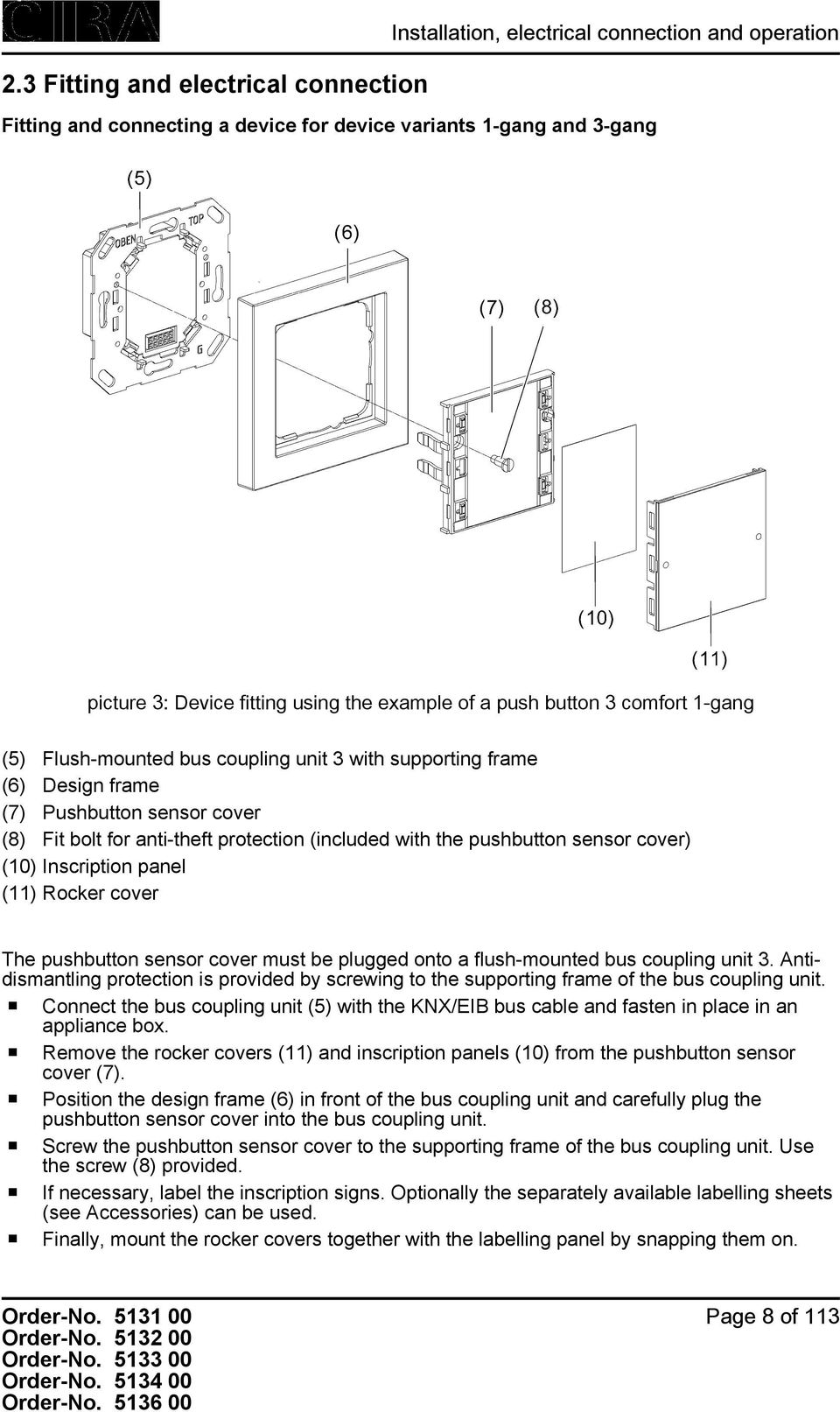
9 Installation, electrical connection and operation i Before final fitting of the rocker covers, the physical address has to be loaded into the device (see page 11-12). Fitting and connecting a device for device variants 2-gang, 4-gang and 6-gang picture 4: Device fitting using the example of a push button 3 comfort 2-gang (with frame and without central bar) (5) Flush-mounted bus coupling unit 3 with supporting frame (6) Design frame (7) Pushbutton sensor cover (8) Fit bolt for anti-theft protection (included with the pushbutton sensor cover) (9) Screw and anchor set for mechanical fastening and for anti-theft protection (included with the pushbutton sensor cover) (10) Inscription panel (11) Rocker cover Page 9 of 113

10 Installation, electrical connection and operation The pushbutton sensor cover must be plugged onto a flush-mounted bus coupling unit 3. Antidismantling protection is provided by screwing to the supporting frame of the bus coupling unit. In addition, the lower part of the pushbutton sensor cover is screwed to the wall, or in the case of mounting on 2 appliance boxes, to a second supporting frame. Mounting requires a design frame 2gang without central web. o Connect the bus coupling unit (5) with the KNX/EIB bus cable and fasten in place in an appliance box. o Remove the rocker covers (11) and inscription panels (10) from the pushbutton sensor cover (7). For mounting on only one appliance box, the lower part of the pushbutton sensor cover is screwed to the wall with the aid of the supplied screw and anchor set (9). To do this, proceed as follows: o Position the design frame 2gang without central web (6) in front of the bus coupling unit and carefully plug the pushbutton sensor cover into the bus coupling unit. o Mark the drill hole positions on the wall. Do this by using the pushbutton sensor cover as a template. o Pull the pushbutton sensor off of the flush-mounted bus coupling unit again. Drill holes (Ø 5mm) and insert the anchors. i The use of the anchors depends on the properties of the surface. o Position the design frame 2gang without central web in front of the bus coupling unit and carefully plug the pushbutton sensor cover into the bus coupling unit again. o Screw the pushbutton sensor cover to the supporting frame of the bus coupling unit. Use the screw (8) provided. o In addition, fasten the lower part of the pushbutton sensor cover in the predrilled holes with the aid of the wall screws (9). o If necessary, label the inscription signs. Optionally the separately available labelling sheets (see Accessories) can be used. o Finally, mount the rocker covers together with the labelling panel by snapping them on. For mounting on two appliance boxes, the lower part of the pushbutton sensor cover is screwed to a second supporting frame (see Accessories). To do this, proceed as follows: o Mount the second supporting frame on the lower appliance box. o Position the design frame 2gang without central web (6) in front of the bus coupling unit and the second supporting frame and carefully plug the pushbutton sensor cover into the bus coupling unit. o Screw the pushbutton sensor cover to the supporting frame of the bus coupling unit. Use the screw (8) provided. o Screw the lower part of the pushbutton sensor cover to the second supporting frame. Do this using the screws included in the scope of supply of the supporting frame. o If necessary, label the inscription signs. Optionally the separately available labelling sheets (see Accessories) can be used. o Finally, mount the rocker covers together with the labelling panel by snapping them on. i Before final fitting of the rocker covers, the physical address has to be loaded into the device (see page 11-12). Page 10 of 113
11 Installation, electrical connection and operation 2.4 Commissioning Loading the physical address and application software The commissioning of the device is basically confined to programming of the physical address and the application data with the ETS. Project planning and commissioning of the device using the ETS 3.0d with Patch A or newer versions. The device is connected and ready for operation. An appropriate device must be created and configured in the ETS project. picture 5: Arrangement of the programming button and LED on the front of the device The programming button is located on the front of the device behind a labelling panel (picture 5). Before final fitting of the rocker covers, the physical address has to be loaded into the device. o Detach the control surface over the programming button/led, if the rocker covers are already fitted. o Activating Programming mode: press the programming button (12). The programming LED (13) lights up red. o Program the physical address with the help of the ETS. The programming LED goes out. o Load the application data into the device using the ETS. Page 11 of 113
12 Installation, electrical connection and operation o Mount control surface(s). i If the device was programmed with incorrect application data, then backlighting of the labelling field flashes slowly. In this case, the device will not function after start-up. Page 12 of 113
13 2.5 Operation Installation, electrical connection and operation Operating areas The pushbutton sensor 3 comfort consists of up to 6 control surfaces, depending on the device variant. The operation concept of an operating area can be configured in the ETS either as a rocker function or alternatively as a pushbutton function. With the rocker function, one operating area is divided into two neighbouring actuation pressure points with the same basic function. In the push-button function either a control surface is divided into 2 functionally separate actuation pressure points (2 buttons), or a control surface is evaluated as single-surface operation (only one large button). If a control surface is used as a single rocker function, then it is also possible to trigger special functions using full-surface operation. When its buttons are pushed, the comfort pushbutton sensor sends telegrams to the KNX / EIB, depending on the ETS parameter settings. These can be, for instance, telegrams for switching or pushbutton control, for dimming or for controlling blinds. It is also possible to program value transmitter functions, such as dimming value transmitters, light scene extensions, temperature value transmitters or brightness value transmitters. Moreover, the pushbutton sensor has functions which are not immediately linked with the rockers or buttons and which must therefore be additionally enabled by the corresponding parameters. These include the thermostat extension function, pushbutton function disable, the internal scenes and the display of alarm signals. The comfort pushbutton sensor has two status LEDs per operating area. These status LEDs can either be switched on or off permanently, or can function as a status indicator for a button or rocker. As an alternative, the LEDs can also be activated via separate communication objects. The LEDs can either indicate the switching status of an object statically or by flashing, signal operating states of room temperature controllers, or indicate results of logical value comparison operations. The colour of the status LEDs (red, green, blue) can be configured in the ETS either globally or separately, as required. Optionally a superposed function can be activated via the bus, in which the colour and display information of individual status LEDs can be changed according to priority. The labelling field of the pushbutton can be illuminated. If no application has been loaded into the pushbutton sensor with the ETS, the backlighting flashes with a frequency of approx Hz to indicate an error, and in this case the pushbutton sensor does not work. i Configuration of the operating areas (button or rocker function and button arrangement) is described in detail in the chapter "Software description" (see chapter Operation concept and button evaluation). Page 13 of 113
14 Technical data 3 Technical data General Safety class III Mark of approval KNX/EIB Ambient temperature C Storage/transport temperature C KNX/EIB supply KNX medium TP 1 Commissioning mode S mode Rated voltage DC 21 V V SELV (Via bus coupler 3) Power consumption typical 150 mw (Via bus coupler 3) Connection mode 10 pole male connector strip Page 14 of 113

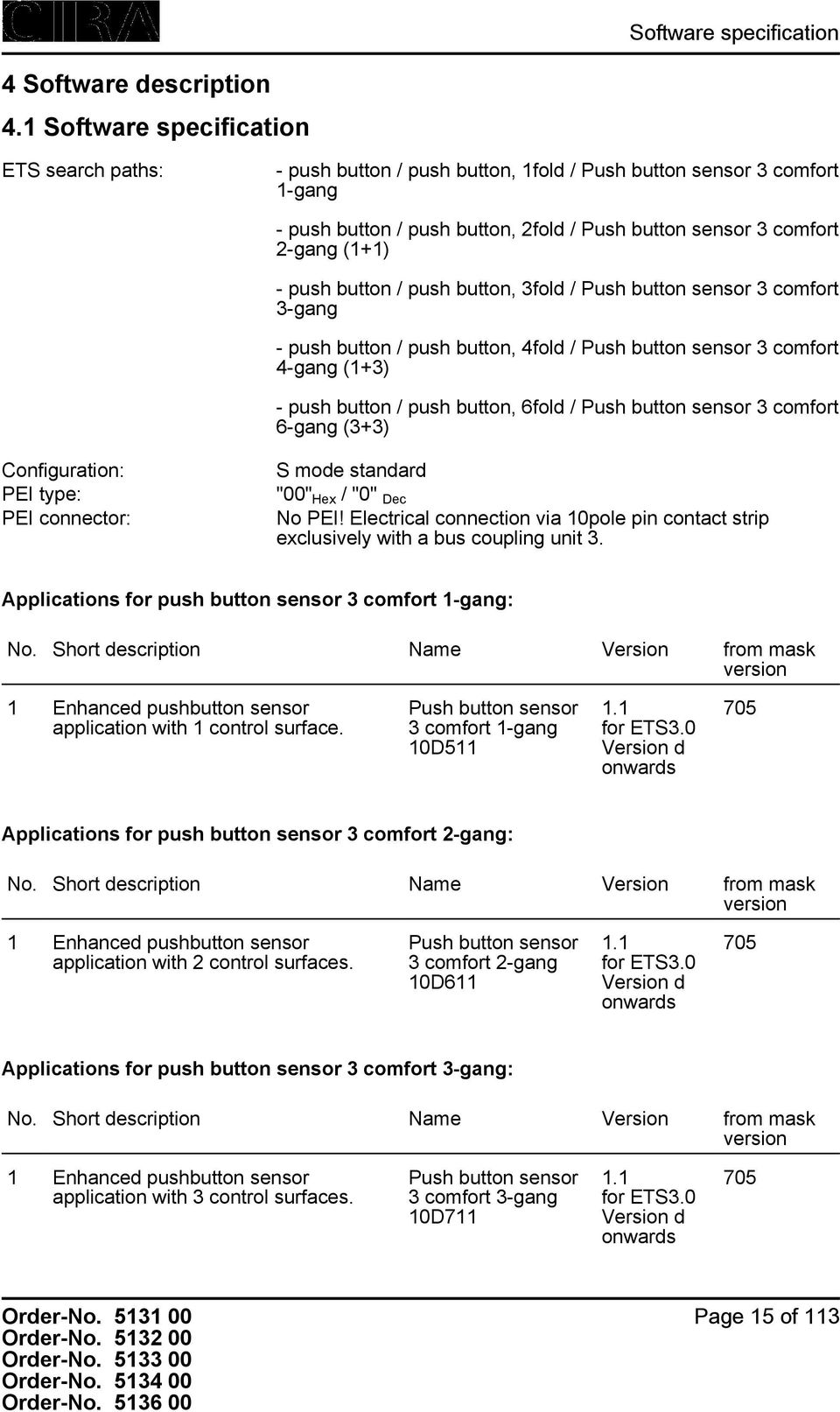
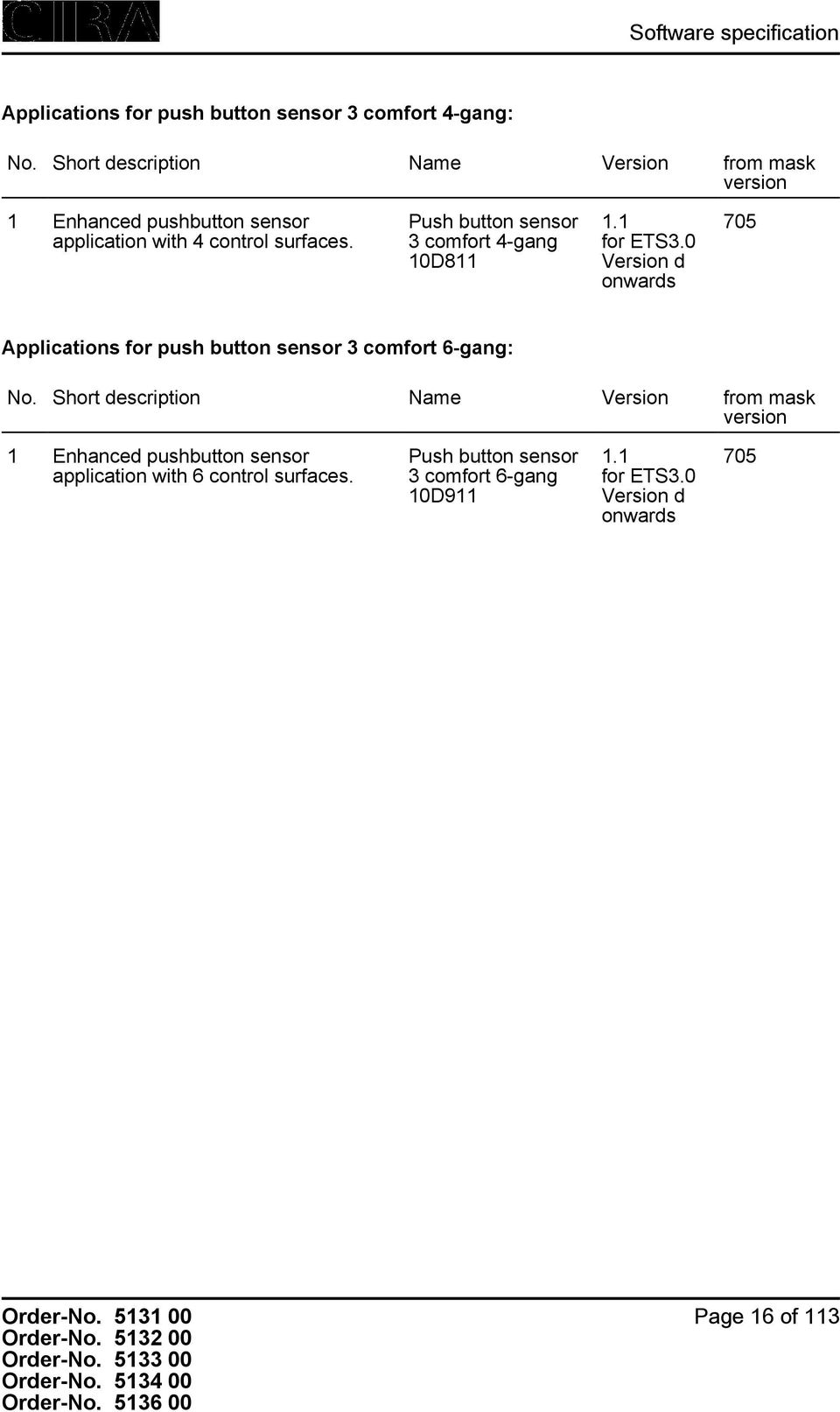
15 Software specification 4 Software description 4.1 Software specification ETS search paths: - push button / push button, 1fold / Push button sensor 3 comfort 1-gang - push button / push button, 2fold / Push button sensor 3 comfort 2-gang (1+1) - push button / push button, 3fold / Push button sensor 3 comfort 3-gang - push button / push button, 4fold / Push button sensor 3 comfort 4-gang (1+3) - push button / push button, 6fold / Push button sensor 3 comfort 6-gang (3+3) Configuration: PEI type: PEI connector: S mode standard "00" Hex / "0" Dec No PEI! Electrical connection via 10pole pin contact strip exclusively with a bus coupling unit 3. Applications for push button sensor 3 comfort 1-gang: No. Short description Name Version from mask version 1 Enhanced pushbutton sensor application with 1 control surface. Push button sensor 3 comfort 1-gang 10D for ETS3.0 Version d onwards 705 Applications for push button sensor 3 comfort 2-gang: No. Short description Name Version from mask version 1 Enhanced pushbutton sensor application with 2 control surfaces. Push button sensor 3 comfort 2-gang 10D for ETS3.0 Version d onwards 705 Applications for push button sensor 3 comfort 3-gang: No. Short description Name Version from mask version 1 Enhanced pushbutton sensor application with 3 control surfaces. Push button sensor 3 comfort 3-gang 10D for ETS3.0 Version d onwards 705 Page 15 of 113
16 Software specification Applications for push button sensor 3 comfort 4-gang: No. Short description Name Version from mask version 1 Enhanced pushbutton sensor application with 4 control surfaces. Push button sensor 3 comfort 4-gang 10D for ETS3.0 Version d onwards 705 Applications for push button sensor 3 comfort 6-gang: No. Short description Name Version from mask version 1 Enhanced pushbutton sensor application with 6 control surfaces. Push button sensor 3 comfort 6-gang 10D for ETS3.0 Version d onwards 705 Page 16 of 113
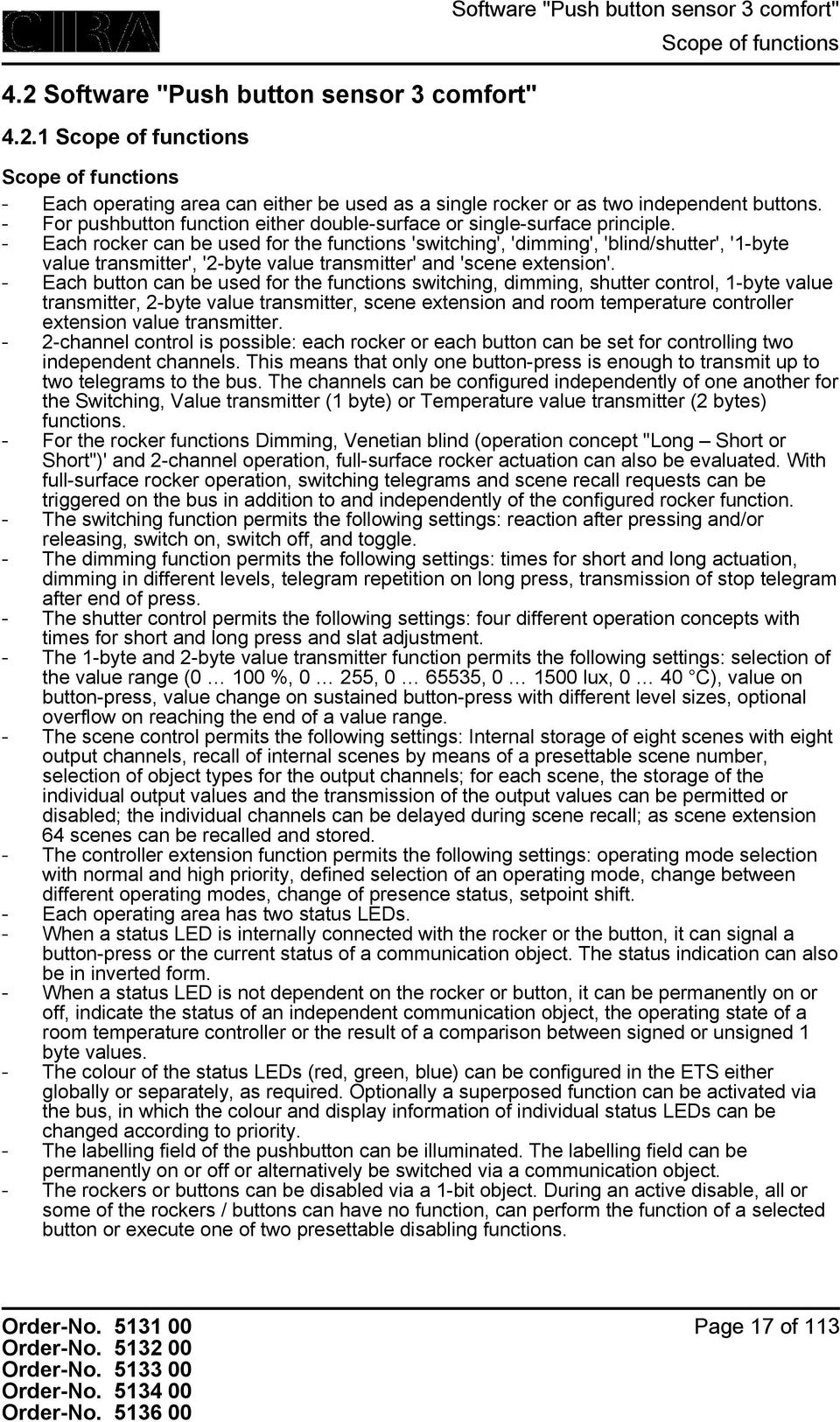
17 4.2 Software "Push button sensor 3 comfort" Scope of functions Software "Push button sensor 3 comfort" Scope of functions Scope of functions - Each operating area can either be used as a single rocker or as two independent buttons. - For pushbutton function either double-surface or single-surface principle. - Each rocker can be used for the functions 'switching', 'dimming', 'blind/shutter', '1-byte value transmitter', '2-byte value transmitter' and 'scene extension'. - Each button can be used for the functions switching, dimming, shutter control, 1-byte value transmitter, 2-byte value transmitter, scene extension and room temperature controller extension value transmitter. - 2-channel control is possible: each rocker or each button can be set for controlling two independent channels. This means that only one button-press is enough to transmit up to two telegrams to the bus. The channels can be configured independently of one another for the Switching, Value transmitter (1 byte) or Temperature value transmitter (2 bytes) functions. - For the rocker functions Dimming, Venetian blind (operation concept "Long Short or Short")' and 2-channel operation, full-surface rocker actuation can also be evaluated. With full-surface rocker operation, switching telegrams and scene recall requests can be triggered on the bus in addition to and independently of the configured rocker function. - The switching function permits the following settings: reaction after pressing and/or releasing, switch on, switch off, and toggle. - The dimming function permits the following settings: times for short and long actuation, dimming in different levels, telegram repetition on long press, transmission of stop telegram after end of press. - The shutter control permits the following settings: four different operation concepts with times for short and long press and slat adjustment. - The 1-byte and 2-byte value transmitter function permits the following settings: selection of the value range (0 100 %, 0 255, , lux, 0 40 C), value on button-press, value change on sustained button-press with different level sizes, optional overflow on reaching the end of a value range. - The scene control permits the following settings: Internal storage of eight scenes with eight output channels, recall of internal scenes by means of a presettable scene number, selection of object types for the output channels; for each scene, the storage of the individual output values and the transmission of the output values can be permitted or disabled; the individual channels can be delayed during scene recall; as scene extension 64 scenes can be recalled and stored. - The controller extension function permits the following settings: operating mode selection with normal and high priority, defined selection of an operating mode, change between different operating modes, change of presence status, setpoint shift. - Each operating area has two status LEDs. - When a status LED is internally connected with the rocker or the button, it can signal a button-press or the current status of a communication object. The status indication can also be in inverted form. - When a status LED is not dependent on the rocker or button, it can be permanently on or off, indicate the status of an independent communication object, the operating state of a room temperature controller or the result of a comparison between signed or unsigned 1 byte values. - The colour of the status LEDs (red, green, blue) can be configured in the ETS either globally or separately, as required. Optionally a superposed function can be activated via the bus, in which the colour and display information of individual status LEDs can be changed according to priority. - The labelling field of the pushbutton can be illuminated. The labelling field can be permanently on or off or alternatively be switched via a communication object. - The rockers or buttons can be disabled via a 1-bit object. During an active disable, all or some of the rockers / buttons can have no function, can perform the function of a selected button or execute one of two presettable disabling functions. Page 17 of 113
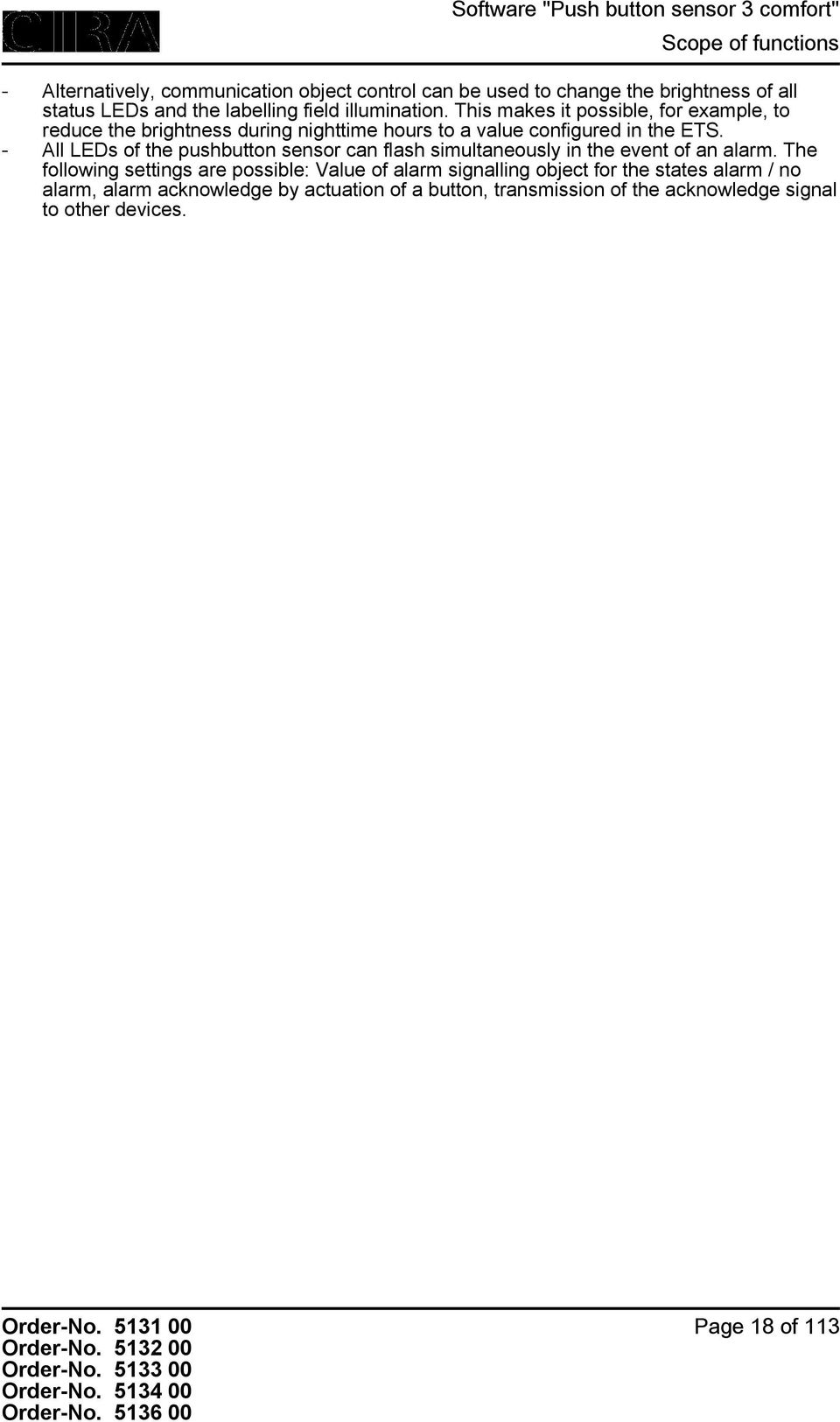
18 Scope of functions - Alternatively, communication object control can be used to change the brightness of all status LEDs and the labelling field illumination. This makes it possible, for example, to reduce the brightness during nighttime hours to a value configured in the ETS. - All LEDs of the pushbutton sensor can flash simultaneously in the event of an alarm. The following settings are possible: Value of alarm signalling object for the states alarm / no alarm, alarm acknowledge by actuation of a button, transmission of the acknowledge signal to other devices. Page 18 of 113
19 Notes on software Notes on software ETS project design and commissioning For configuration and commissioning of the device, ETS3.0 from Version "d" Patch "A" onwards or ETS4 is required. Through use of these ETS version, advantages are gained with regard to the programming process and the parameter presentation. The necessary product database is offered in the *.VD4 format. Device combination with a bus coupling unit 3 The pushbutton sensor must be plugged onto the flush-mounted bus coupling unit 3 (see Accessories). Only the combination of this bus coupling unit and the pushbutton sensor cover results in a functional unit. The device configuration is not programmed into the bus coupling unit. Therefore it is possible to operate devices that have already been put into operation on any desired third-generation bus coupling units. This can simplify commissioning significantly, because programming of the devices no longer has to be performed on the same bus coupling unit that the pushbutton sensor will later be plugged onto in the building. i Plugging the pushbutton sensor onto a flush-mounted bus coupling unit 1 or 2 (older generation) is not possible in some cases, and generally not intended, and as a result the device combination will not function. Page 19 of 113
20 Object table Object table Number of communication objects: Number of addresses (max): 120 Number of assignments (max): 120 Dynamic table management 43 (1x variant) 51 (2x variant) 59 (3x variant) 67 (4x variant) 75 (6x variant) (max. object number 86 - gaps in between) Yes Maximum table length 240 Objects for rocker or button function : Switching Object h 0 Switching Name Rocker/button 1 1,2 Type 1-bit DPT 1.xxx Flag C, W, T, (R) 3 Description 1-bit object for transmission of switching telegrams (ON, OFF). : Dimming Object h 0 Switching Name Rocker/button 1 1,2 Type 1-bit DPT 1.xxx Flag C, W, T, (R) 3 Description 1-bit object for transmission of switching telegrams (ON, OFF). : Dimming Object h 18 Dimming Name Rocker/button 1 1,2 Type 4-bit DPT Flag C, W, T, (R) 3 Description 4-bit object for the transmission of relative dimming telegrams. 1: The number of rockers or buttons depends on the planned device variant. 2: The objects have been described for rocker 1 or button 1 as an example. The objects for the other rockers/buttons are defined in the same way by shifting the object number and changing the object name. 3: For reading, the R-flag must be set. The last value written to the object via the bus or by the device will be read. Page 20 of 113

21 Object table : Venetian blind Object h 0 Short time operation Name Rocker/button 1 1,2 Type 1-bit DPT Flag C, -, T, (R) 3 Description 1-bit object for the transmission of telegrams with which a Venetian blind or shutter drive motor can be stopped or with which the blind slats can be adjusted by short time operation. : Venetian blind Object h 18 Long-time operation Name Rocker/button 1 1,2 Type 1-bit DPT Flag C, W, T, (R) 3 Description 1-bit object for the transmission of telegrams with which a Venetian blind or shutter drive motor can be can be moved upwards or downwards. : 1-byte value transmitter Object h 0 Value Name Rocker/button 1 1,2 Type 1 byte DPT 5.xxx Flag C, W, T, (R) 3 Description 1-byte object for the transmission of values from 0 to 255 (corresponding to values from 0 % to 100 %). If the adjustment of the value is enabled, the object can transmit telegrams cyclically after long actuation with which the value can be reduced or increased by a presettable amount. : 2-byte value transmitter Object h 0 Value Name Rocker/button 1 1,2 Type 2 byte DPT 7.xxx Flag C, W, T, (R) 3 Description 2-byte object for the transmission of values from 0 to If the adjustment of the value is enabled, the object can transmit cyclical telegrams after a long press with which the value can be reduced or increased by an adjustable amount. 1: The number of rockers or buttons depends on the planned device variant. 2: The objects have been described for rocker 1 or button 1 as an example. The objects for the other rockers/buttons are defined in the same way by shifting the object number and changing the object name. 3: For reading, the R-flag must be set. The last value written to the object via the bus or by the device will be read. Page 21 of 113
22 Object table : 2-byte value transmitter Object h 0 Temperature value Name Rocker/button 1 1,2 Type 2 byte DPT Flag C, W, T, (R) 3 Description 2 -byte object for the transmission of a temperature value from 0 C to 40 C. If the adjustment of the value is enabled, the object can transmit telegrams cyclically after a long press with which the value can be reduced or increased by 1 K. : 2-byte value transmitter Object h 0 Brightness value Name Rocker/button 1 1,2 Type 2 byte DPT Flag C, W, T, (R) 3 Description 2-byte object for the transmission of a brightness level value from 0 to 1500 lux. If the adjustment of the value is enabled, the object can transmit cyclical telegrams after a long press with which the value can be reduced or increased by 50 lux. : Scene extension Object h 0 Scene extension Name Rocker/button 1 1,2 Type 1 byte DPT Flag C, -, T, (R) 3 Description 1-byte object for recalling or for storing one of 64 scenes max. from a scene pushbutton sensor. : 2-channel operation Object h 0 Channel 1 switching Name Rocker/button 1 1,2 Type 1-bit DPT 1.xxx Flag C, W, T, (R) 3 Description 1-bit object for the transmission of switching telegrams, if 2-channel operation is activated. 1: The number of rockers or buttons depends on the planned device variant. 2: The objects have been described for rocker 1 or button 1 as an example. The objects for the other rockers/buttons are defined in the same way by shifting the object number and changing the object name. 3: For reading, the R-flag must be set. The last value written to the object via the bus or by the device will be read. Page 22 of 113
23 Object table : 2-channel operation Object h 0 Channel 1 value Name Rocker/button 1 1,2 Type 1 byte DPT 5.xxx Flag C, -, T, (R) 3 Description 1-byte object for the transmission of value telegrams, if 2-channel operation is activated. : 2-channel operation Object h 0 Channel 1 value Name Rocker/button 1 1,2 Type 2 byte DPT Flag C, -, T, (R) 3 Description 2-byte object for the transmission of value telegrams, if 2-channel operation is activated. : 2-channel operation Object h 18 Channel 2 switching Name Rocker/button 1 1,2 Type 1-bit DPT 1.xxx Flag C, W, T, (R) 3 Description 1-bit object for the transmission of switching telegrams, if 2-channel operation is activated. : 2-channel operation Object h 18 Channel 2 value Name Rocker/button 1 1,2 Type 1 byte DPT 5.xxx Flag C, -, T, (R) 3 Description 1-byte object for the transmission of value telegrams, if 2-channel operation is activated. : 2-channel operation Object h 18 Channel 2 value Name Rocker/button 1 1,2 Type 2 byte DPT 9,001 Flag C, -, T, (R) 3 Description 2-byte object for the transmission of value telegrams, if 2-channel operation is activated. 1: The number of rockers or buttons depends on the planned device variant. 2: The objects have been described for rocker 1 or button 1 as an example. The objects for the other rockers/buttons are defined in the same way by shifting the object number and changing the object name. 3: For reading, the R-flag must be set. The last value written to the object via the bus or by the device will be read. Page 23 of 113
24 Object table Objects for full-surface operation with rocker function (with dimming, venetian blind and 2-channel operation) : Full-surface operation Object h 1 Switching Name Rocker 1 fullsurface operation 1,2 Type 1-bit DPT 1.xxx Flag C, W, T, (R) 3 Description 1-bit object for the transmission of switching telegrams (ON, OFF) when there is full-surface operation of an operating area. : Full-surface operation Object h 1 Scene extension Name Rocker 1 fullsurface operation 1,2 Type 1 byte DPT Flag C, -, T, (R) 3 Description 1-byte object for recalling or for storing one of 64 scenes max. from a scene pushbutton sensor in case of full-surface operation of an operating area. Objects for status LED : Status LED in case of rocker function Object h 36 Switching Name Status LED 1 4,2 Type 1-bit DPT 1.xxx Flag C, W, -, (R) 5 Description 1-bit object for activation of the status LED. : Status LED in case of rocker function Object h 36 Value Name Status LED 1 4,2 Type 1 byte DPT 5.xxx, 6.xxx, Flag C, W, -, (R) 5 Description 1-byte object for activation of the status LED. 1: The number of rockers or buttons depends on the planned device variant. 2: The objects have been described for rocker 1 or button 1 as an example. The objects for the other rockers/buttons are defined in the same way by shifting the object number and changing the object name. 3: For reading, the R-flag must be set. The last value written to the object via the bus or by the device will be read. 4: The number of status LEDs depends on the configured device variant. 5: For reading, the R-flag must be set. The last value written to the object via the bus will be read. Page 24 of 113
25 Object table : Status LED in case of rocker function Object h 37 Switching Name Status LED 1 1,2 Type 1-bit DPT 1.xxx Flag C, W, -, (R) 3 Description 1-bit object for activation of the status LED. : Status LED in case of rocker function Object h 37 Value Name Status LED 1 1,2 Type 1 byte DPT 5.xxx, 6.xxx, Flag C, W, -, (R) 3 Description 1-byte object for activation of the status LED. : Status LED in case of pushbutton function Object h 36 Switching Name Status LED 1 1,2 Type 1-bit DPT 1.xxx Flag C, W, -, (R) 3 Description 1-bit object for activation of the status LED. : Status LED in case of pushbutton function Object h 36 Value Name Status LED 1 1,2 Type 1 byte DPT 5.xxx, 6.xxx, Flag C, W, -, (R) 3 Description 1-byte object for activation of the status LED. : Superposed function for the status LED Object h 75 Superposed switching function Name Status LED 1 1,2 Type 1-bit DPT 1.xxx Flag C, W, -, (R) 3 Description 1-byte object for forced-control activation of the status LED. This can be used to change the colour and display information of individual status LEDs according to priority. 1: The number of status LEDs depends on the configured device variant. 2: The objects have been described for rocker 1 or button 1 as an example. The objects for the other rockers/buttons are defined in the same way by shifting the object number and changing the object name. 3: For reading, the R-flag must be set. The last value written to the object via the bus will be read. Page 25 of 113
26 Object table : Superposed function for the status LED Object h 75 Superposed value function Name Status LED 1 1,2 Type 1 byte DPT 5.xxx, 6.xxx, Flag C, W, -, (R) 3 Description 1-byte object for forced-control activation of the status LEDs. This can be used to change the colour and display information of individual status LEDs according to priority. Objects for disabling functions : Switching Object h 16, 17 Switching Name Disabling function 1 / 2 Type 1-bit DPT 1.xxx Flag C, W, T, (R) 3 Description 1-bit object for transmission of switching telegrams (ON, OFF). : Dimming Object h 16, 17 Switching Name Disabling function 1 / 2 Type 1-bit DPT 1.xxx Flag C, W, T, (R) 3 Description 1-bit object for transmission of switching telegrams (ON, OFF). : Dimming Object h 34, 35 Dimming Name Disabling function 1 / 2 Type 4-bit DPT Flag C, W, T, (R) 3 Description 4-bit object for the transmission of relative dimming telegrams. 1: The number of status LEDs depends on the configured device variant. 2: The objects have been described for rocker 1 or button 1 as an example. The objects for the other rockers/buttons are defined in the same way by shifting the object number and changing the object name. 3: For reading, the R-flag must be set. The last value written to the object via the bus will be read. Page 26 of 113
27 Object table : Venetian blind Object h 16, 17 Short time operation Name Disabling function 1 / 2 Type 1-bit DPT Flag C, -, T, (R) 1 Description 1-bit object for the transmission of telegrams with which a Venetian blind or shutter drive motor can be stopped or with which the blind slats can be adjusted by short time operation. : Venetian blind Object h 34, 35 Long-time operation Name Disabling function 1 / 2 Type 1-bit DPT Flag C, W, T, (R) 1 Description 1-bit object for the transmission of telegrams with which a Venetian blind or shutter drive motor can be can be moved upwards or downwards. : 1-byte value transmitter Object h 16, 17 Value Name Disabling function 1 / 2 Type 1 byte DPT 5.xxx Flag C, W, T, (R) 1 Description 1-byte object for the transmission of values from 0 to 255 (corresponding to values from 0 % to 100 %). If the adjustment of the value is enabled, the object can transmit telegrams cyclically after long actuation with which the value can be reduced or increased by a presettable amount. : 2-byte value transmitter Object h 16, 17 Value Name Disabling function 1 / 2 Type 2 byte DPT 7.xxx Flag C, W, T, (R) 1 Description 2-byte object for the transmission of values from 0 to If the adjustment of the value is enabled, the object can transmit cyclical telegrams after a long press with which the value can be reduced or increased by an adjustable amount. : 2-byte value transmitter Object h 16, 17 Temperature value Name Disabling function 1 / 2 Type 2 byte DPT Flag C, W, T, (R) 1 Description 2 -byte object for the transmission of a temperature value from 0 C to 40 C. If the adjustment of the value is enabled, the object can transmit telegrams cyclically after a long press with which the value can be reduced or increased by 1 K. 1: For reading, the R-flag must be set. The last value written to the object via the bus will be read. Page 27 of 113
28 Object table : 2-byte value transmitter Object h 16, 17 Brightness value Name Disabling function 1 / 2 Type 2 byte DPT Flag C, W, T, (R) 1 Description 2-byte object for the transmission of a brightness level value from 0 to 1500 lux. If the adjustment of the value is enabled, the object can transmit cyclical telegrams after a long press with which the value can be reduced or increased by 50 lux. : Scene extension Object h 16, 17 Scene extension Name Disabling function 1 / 2 Type 1 byte DPT Flag C, -, T, (R) 1 Description 1-byte object for recalling or for storing one of 64 scenes max. from a scene pushbutton sensor. : 2-channel operation Object h 16, 17 Channel 1 switching Name Disabling function 1 / 2 Type 1-bit DPT 1.xxx Flag C, W, T, (R) 1 Description 1-bit object for the transmission of switching telegrams, if 2-channel operation is activated. : 2-channel operation Object h 16, 17 Channel 1 value Name Disabling function 1 / 2 Type 1 byte DPT 5.xxx Flag C, -, T, (R) 1 Description 1-byte object for the transmission of value telegrams, if 2-channel operation is activated. : 2-channel operation Object h 16, 17 Channel 1 value Name Disabling function 1 / 2 Type 2 byte DPT Flag C, -, T, (R) 1 Description 2-byte object for the transmission of value telegrams, if 2-channel operation is activated. 1: For reading, the R-flag must be set. The last value written to the object via the bus will be read. Page 28 of 113
29 Object table : 2-channel operation Object h 34, 35 Channel 2 switching Name Disabling function 1 / 2 Type 1-bit DPT 1.xxx Flag C, W, T, (R) 1 Description 1-bit object for the transmission of switching telegrams, if 2-channel operation is activated. : 2-channel operation Object h 34, 35 Channel 2 value Name Disabling function 1 / 2 Type 1 byte DPT 5.xxx Flag C, -, T, (R) 1 Description 1-byte object for the transmission of value telegrams, if 2-channel operation is activated. : 2-channel operation Object h 34, 35 Channel 2 value Name Disabling function 1 / 2 Type 2 byte DPT Flag C, -, T, (R) 1 Description 2-byte object for the transmission of value telegrams, if 2-channel operation is activated. : Disabling function Object h 54 Disabling Name Button disabling Type 1-bit DPT Flag C, W, -, (R) 1 Description 1-bit object by means of which the pushbutton sensor can be disabled and enabled again (polarity configurable). Objects for operation LED / labelling field illumination : Operation LED / labelling field illumination Object h 52 Switching Name Operation LED / labelling field illumination Type 1-bit DPT Flag C, W, -, (R) 1 Description 1-bit object for switching the operation LED/labelling field illumination on or off. The telegram polarity can be configured. 1: For reading, the R-flag must be set. The last value written to the object via the bus will be read. Page 29 of 113
30 Object table : LED brightness night reduction Object h 53 Switching Name LED night reduction Type 1-bit DPT Flag C, W, -, (R) 1 Description 1-bit object for activating and deactivating the night reduction (changed brightness of all LEDs). This makes it possible, for example, to reduce the brightness during nighttime hours to a value configured in the ETS ("1" = night reduction ON; "0" = night reduction OFF). Objects for alarm message : Alarm signal Object h 56 Switching Name Alarm signal Type 1-bit DPT 1.xxx Flag C, W, -, (R) 1 Description 1-bit object for the reception of an alarm signalling (polarity configurable). : Alarm signal Object h 57 Switching Name Alarm message acknowledge Type 1-bit DPT 1.xxx Flag C, -, T, (R) 2 Description 1-bit object for transmitting the acknowledgement of an alarm signalling (polarity configurable). Objects for the controller extension : Controller extension Object h 58 Operating mode switch-over Name Controller extension Type 1 byte DPT Flag C, W, T, (R) 2 Description 1-byte object for changing over a room temperature controller between the Comfort, Standby, Night and Frost/heat protection operating modes. 1: For reading, the R-flag must be set. The last value written to the object via the bus will be read. 2: For reading, the R-flag must be set. The last value written to the object via the bus or by the device will be read. Page 30 of 113
31 Object table : Controller extension Object h 59 Forced operating mode switch-over Name Controller extension Type 1 byte DPT Flag C, W, T, (R) 1 Description 1-byte object for changing over a room temperature controller under forced control between the Automatic, Comfort, Standby, Night and Frost / heat protection operating modes : Controller extension Object h 60 Presence button Name Controller extension Type 1-bit DPT Flag C, W, T, (R) 1 Description 1-bit object for switching over the presence status of a room temperature controller (polarity configurable) : Controller extension Object h 61 Setpoint shift specification Name Controller extension Type 1 byte DPT Flag C, -, T, (R) 1 Description 1-byte object for presetting a basic setpoint shift for a controller. x 0 y (0 = no shift active); integral numbers Value object (increase level value) Value object 62 1 (decrease level value) The possible range of values (x to y) is fixed by the setpoint adjusting range in connection with the level value on the room temperature controller. : Controller extension Object h 62 Current setpoint shift Name Controller extension Type 1 byte DPT Flag C, W, T, (R) 1 Description 1-byte object used by the extension unit for receiving the current setpoint shift of the room temperature controller. x 0 y (0 = no shift active); integral numbers The possible range of values (x to y) is fixed by the setpoint adjusting range in connection with the level value on the room temperature controller. 1: For reading, the R-flag must be set. The last value written to the object via the bus or by the device will be read. Page 31 of 113
32 Object table : Controller extension Object h 63 Controller status Name Controller extension Type 1 byte DPT Not defined Flag C, W, T, (R) 1 Description 1-byte object used by the extension unit for receiving the current state of operation of the controller. Status LEDs that can be used to indicate a status independently of a button function can display one of the various information units which are grouped in this byte (bit-oriented evaluation). Object for light scene function : Light scene function Object h Switching Name Scene output 1 2 Type 1-bit DPT Flag C, W, T, (R) 1 Description 1-bit objects for controlling up to eight actuator groups (ON, OFF). : Light scene function Object h Value Name Scene output 1 2 Type 1 byte DPT Flag C, W, T, (R) 1 Description 1-byte objects for controlling up to eight actuator groups (0 255). : Light scene function Object h 74 Extension unit input Name Scene Type 1 byte DPT Flag C, W, -, (R) 3 Description 1-byte object with which one of the eight internally stored scenes can be recalled or stored again. 1: For reading, the R-flag must be set. The last value written to the object via the bus or by the device will be read. 2: Scene outputs 2 8 see scene output 1, shift of the object number (66 + number of scene output - 1). 3: For reading, the R-flag must be set. The last value written to the object via the bus will be read. Page 32 of 113
33 al description al description Operation concept and button evaluation Operating areas The pushbutton sensor 3 comfort consists of up to 6 control surfaces, depending on the device variant. The operation concept of an operating area can be configured in the ETS either as a rocker function or alternatively as a pushbutton function. With the rocker function, one operating area is divided into two neighbouring actuation pressure points with the same basic function. In the push-button function either a control surface is divided into 2 functionally separate actuation pressure points (2 buttons), or a control surface is evaluated as single-surface operation (only one large button). If a control surface is used as a single rocker function, then it is also possible to trigger special functions using full-surface operation. When its buttons are pushed, the comfort pushbutton sensor sends telegrams to the KNX / EIB, depending on the ETS parameter settings. These can be, for instance, telegrams for switching or pushbutton control, for dimming or for controlling blinds. It is also possible to program value transmitter functions, such as dimming value transmitters, light scene extensions, temperature value transmitters or brightness value transmitters. Moreover, the pushbutton sensor has functions which are not immediately linked with the rockers or buttons and which must therefore be additionally enabled by the corresponding parameters. These include the thermostat extension function, pushbutton function disable, the internal scenes and the display of alarm signals. The comfort pushbutton sensor has two status LEDs per operating area. These status LEDs can either be switched on or off permanently, or can function as a status indicator for a button or rocker. As an alternative, the LEDs can also be activated via separate communication objects. The LEDs can either indicate the switching status of an object statically or by flashing, signal operating states of room temperature controllers, or indicate results of logical value comparison operations. The colour of the status LEDs (red, green, blue) can be configured in the ETS either globally or separately, as required. Optionally a superposed function can be activated via the bus, in which the colour and display information of individual status LEDs can be changed according to priority. The labelling field of the pushbutton can be illuminated. If no or a wrong application has been loaded into the pushbutton sensor with the ETS, the backlighting flashes with a frequency of approx Hz to indicate an error, and in this case the pushbutton sensor does not work. Operating area as rocker function In the rocker operating concept, two adjacent actuation pressure points are used as a rocker. The two pressure points are then termed the left and right rocker buttons. Pressing the buttons affect the communication objects assigned to the rocker. Usually, pressing both sides of a socket can directly opposite reactions (e.g. switching: left ON - right OFF / Venetian blind: left UP - right DOWN). Page 33 of 113
34 al description picture 6: Rocker operation, left picture 7: Rocker operation, right (1) Operating area (16) Rocker Full-surface operation Depending on the function setting of a rocker, full-surface operation can also be optionally configured. This allows execution of additional functions, separate from the basic rocker function. Full-surface operation is simultaneous operation of both actuation pressure points (left / right) of a rocker. Page 34 of 113
35 al description picture 8: Full-surface rocker operation (1) Operating area (16) Rocker Operating area as button function With the pushbutton function, a distinction is made whether the operating area is divided into two separate and functionally independent buttons (double-surface operation), or whether an operating area functions as a single "large" button (single-surface operation). The parameter "Button evaluation" on the parameter page "Operation concept..." configures either double-surface or single-surface operation for each button pair. In double-surface operation the buttons are configured independently of each other, and can fulfil completely different functions (e.g. switching: TOGGLE thermostat operating mode: Comfort). i Full-surface actuation of an operating area is not possible as a pushbutton function. picture 9: Example for button actuation with configured double-surface operation (1) Operating area (17) Left button of the operating area (18) Right button of the operating area Page 35 of 113
36 al description In single-surface operation, the entire control surface is evaluated only as a single "large" button. This button is configured independently of the other buttons or rockers of the pushbutton sensor and can fulfil various functions (e.g. Switching: TOGGLE). picture 10: Example of button actuation in configured single-surface operation (1) Operating area (17) Button of the operating area i With single-surface operation, the operating area can be actuated anywhere. i An operating area is always created in the ETS as a button pair. However, because in single-surface operation only one button functionally exists, the second button of the button pair has no function and is physically not present. During configuration in the ETS it is shown as a "not present" button without any further button parameters. Only the status LED of this button which is physically not used can be configured separately and if needed also activated via its own communication object. The physically present button which is to be evaluated in single-surface operation is always created as a button with an uneven button number. If, for example, the first operating area of a pushbutton sensor is configured to single-surface operation, then button 1 can be configured in the ETS. Button 2 is then the physically not present button without parameters. Page 36 of 113
37 al description General settings Labelling field illumination The labelling field illumination of the comfort pushbutton sensor is used for different display functions which are in part fixed default functions... - In a non-programmed device (delivery state), the labelling field illumination flashes at a slow rate of 0.75 Hz. - To confirm the detection of a full-surface press with the rocker function, the LED flashes with 8 Hz, too. The application software allows the setting of addition functions using the ETS parameter " of the labelling field illumination" on the "General" parameter page... - For orientation, the labelling field illumination can be switched permanently on or off. - The LED can display the status of a separate communication object. Here the labelling field illumination can also be activated as flashing with a frequency of approx. 2 Hz. - The labelling field illumination can be switched on by pressing any desired button and switched off again automatically after a delay time has elapsed. Here the parameter "Time for automatic switch-off" defines the delay until switch-off after the last button-press. Each button-press re-initiates the delay time. - The illumination can flash together with all other status LEDs with a frequency of about 2 Hz, when the communication object for the alarm signalling is active. If several of the above states occur at the same time, the following priority is taken into account: 1. Display of a valid full-surface actuation with the rocker function. 2. Display of an alarm. 3. Configuration of " of the labelling field illumination". Transmission delay After the application program or the physical address is loaded or after the bus voltage is switched on, the push-button sensor for the room temperature controller extension unit can transmit telegrams automatically. The pushbutton sensor then tries to retrieve values from the room temperature controller by means of read telegrams for the objects "Operating mode switch-over", "Forced operating mode switch-over", "Presence button", "Current setpoint shift" and "Controller status" in order to update the object states. If in addition to the pushbutton sensor there are still other devices installed in the bus which transmit telegrams immediately after a reset, it may be useful to activate the transmit delay for automatically transmitting objects on the "General" page in order to reduce the bus load. When transmit delay is activated, the pushbutton sensor determines the value of its individual delay from the device number of its physical address (phys. address: area.line.device number). This value can be about 30 seconds maximum. Without setting a special time delay, this principle prevents multiple pushbutton sensors from trying to transmit telegrams to the bus at the same time. i The transmit delay is not active for the rocker and button functions of the pushbutton sensor. Page 37 of 113
38 Rockers and pushbutton functions Software "Push button sensor 3 comfort" al description The following contains descriptions of the various functions that can be configured for each rocker or each button of the pushbutton sensor Switching function For each rocker or each button with the function set to "Switching", the ETS indicates a 1-bit communication object. The parameters of the rocker or button permit fixing the value this object is to adopt on pressing and / or on releasing (ON, OFF, TOGGLE toggling of the object value). No distinction is made between a brief or long press. The status LEDs can be configured independently (see chapter Status LED). Page 38 of 113
39 Dimming function Software "Push button sensor 3 comfort" al description For each rocker or each button with the function set to "Dimming", the ETS indicates a 1-bit object and a 4-bit object. Generally, the pushbutton sensor transmits a switching telegram after a brief press and a dimming telegram after a long press. In the standard parameterisation, the pushbutton sensor transmits a telegram for stopping the dimming action after a long press. The time needed by the pushbutton sensor to detect an actuation as a long actuation can be set in the parameters. The status LEDs can be configured independently (see chapter Status LED). Single-surface and double-surface operation in the dimming function In the rocker function, the device is preprogrammed for double-surface operation for the dimming function. This means that the pushbutton sensor transmits a telegram for switching on after a brief press and a telegram for increasing the brightness after a long press ("Brighter"). Similarly, the pushbutton sensor transmits a telegram for switching off after a brief press and a telegram for reducing the brightness after a long press ("Darker"). In the separate buttons function, the device is preprogrammed for single-surface dimming function. In this mode, the pushbutton sensor transmits on each brief press ON and OFF telegrams in an alternating pattern ("TOGGLE"). After a long press, the pushbutton sensor transmits "brighter" and "darker" telegrams in an alternating pattern. The parameter "Command on pressing the button" or Command on pressing the rocker" on the parameter pages of the buttons or rockers defines the single-surface or double-surface dimming function. For the rocker and also for the button function, the command issued on pressing the button or rocker can basically be selected at the user's discretion. If the actuator can be controlled from several sensors, a faultless single-surface operation requires that the addressed actuator reports its switching state back to the 1-bit object of the button or rocker and that the 4-bit objects of the pushbutton sensors are interlinked. The pushbutton sensor would otherwise not be able to detect that the actuator has been addressed from another sensor, in which case it would have to be actuated twice during the next use in order to produce the desired reaction. Advanced parameters For the dimming function, the pushbutton sensor can be programmed with advanced parameters which are hidden in the standard view for greater clarity. If necessary, these advanced parameters can be activated and thus be made visible. The advanced parameters can be used to determine whether the pushbutton sensor is to cover the full adjusting range of the actuator with one dimming telegram continuously ("Increase brightness by 100 %", "Reduce brightness by 100 %) or whether the dimming range is to be divided into several small levels (100 %, 100 %, 50 %, 25 %, 6 %, 3%). In the continuous dimming mode (100%), the pushbutton sensor transmits a telegram only at the beginning of the long press to start the dimming process and generally a stop telegram after the end of the press. For dimming in small levels it may be useful if the pushbutton sensor repeats the dimming telegram in case of a sustained press for a presettable time (parameter " Telegram repetition"). The stop telegram after the end of the press is then not needed. When the parameters are hidden ("Advanced parameters = deactivated"), the dimming range is set to 100 %, the stop telegram is activated and the telegram repetition is deactivated. Full-surface operation When a rocker is used for dimming, the pushbutton sensor needs some time at the beginning of each operation in order to distinguish between a short and a long operation. When full-surface Page 39 of 113
40 al description operation is enabled, the pushbutton sensor can make use of this time span to evaluate the otherwise invalid simultaneous actuation of both actuation points. The pushbutton sensor detects a full-surface operation of a rocker, if an operating area is depressed over a large area so that both actuation points of the rocker are actuated. When the pushbutton sensor has detected a valid full-surface actuation, the labelling field illumination flashes quickly at a rate of about 8 Hz for the duration of such actuation. Fullsurface operation must have been detected before the first telegram has been transmitted by the dimming function (switching or dimming). If this is not so, even a full-surface operation will be interpreted as a wrong operation and not be executed. Full-surface actuation is independent. It has a communication object of its own an can optionally be used for switching (ON, OFF, TOGGLE toggling of the object value) or for scene recall without or with storage function. In the last case, a press on the full surface causes a scene to be recalled in less than a second. If the pushbutton sensor is to send the telegram for storing a scene, full-surface actuation must be maintained for more than five seconds. If full-surface actuation ends between the first and the fifth second, the pushbutton sensor will not send any telegrams. If the status LEDs of the rocker are used as "button-press displays", they will light up for three seconds during transmission of the storage telegram. i Full-surface actuation cannot be configured in the push-button functions. There it is possible to configure the single-surface principle, which also allows an operating area to be depressed at the centre or over a large area. Page 40 of 113
41 Blind function Software "Push button sensor 3 comfort" al description For each rocker or each button with the function set to "Venetian blind" the ETS indicates the two 1-bit objects "STEP operation" and "MOVE operation". The status LEDs can be configured independently (see chapter Status LED). Operation concept for the Venetian blind function For the control of Venetian blind, roller shutter, awning or similar drives, the pushbutton sensor supports four operation concepts in which the telegrams are transmitted in different time sequences. The pushbutton can therefore be used to operate a wide variety of drive configurations. The different operation concepts are described in detail in the following chapters. picture 11: Operation concept "short long short" Operation concept "short long short": In the operation concept "short long short", the pushbutton sensor shows the following behaviour: - Immediately on pressing the button, the pushbutton sensor transmits a short time telegram. Pressing the button stops a running drive and starts time T1 ("time between short time and long time command"). No other telegram will be transmitted, if the key is released within T1. This short time serves the purpose of stopping a continuous movement. The "time between short time and long time command" in the pushbutton sensor should be selected shorter than the short time operation of the actuator to prevent a jerky movement of the blind. - If the button is kept depressed longer than T1, the pushbutton sensor transmits a long time telegram after the end of T1 for starting up the drive and time T2 ("slat adjusting time") is started. - If the button is released within the slat adjusting time, the pushbutton sensor sends another short time telegram. This function is used for adjusting the slats of a blind. The function permits stopping the slats in any position during their rotation. The "slat adjusting time" should be chosen as required by the drive for a complete rotation of the slats. If the "slat adjusting time" is selected longer than the complete running time of the drive, a pushbutton function is possible as well. This means that the drive is active only when the button is kept depressed. - If the button is kept depressed longer than T2, the pushbutton sensor transmits no further telegram. The drive remains on until the end position is reached. Page 41 of 113
42 al description picture 12: Operation concept "long short" Operation concept "long short": If the operation concept "long short" is selected, the pushbutton sensor shows the following behaviour: - Immediately on pressing the button, the pushbutton sensor transmits a long time telegram. The drive begins to move and time T1 ("slat adjusting time") is started. - If the button is released within the slat adjusting time, the pushbutton sensor transmits a short time telegram. This function is used for adjusting the slats of a blind. The function permits stopping the slats in any position during their rotation. The "slat adjusting time" should be chosen as required by the drive for a complete rotation of the slats. If the "slat adjusting time" is selected longer than the complete running time of the drive, a pushbutton function is possible as well. This means that the drive is active only when the button is kept depressed. - If the button is kept depressed longer than T1, the pushbutton sensor transmits no further telegram. The drive remains on until the end position is reached. picture 13: Operation concept "short long" Operation concept "short long": In the operation concept "short long", the pushbutton sensor shows the following behaviour: - Immediately on pressing the button, the pushbutton sensor transmits a short time telegram. Pressing the button stops a running drive and starts time T1 ("time between short time and long time command"). No other telegram will be transmitted, if the key is released within T1. This short time serves the purpose of stopping a continuous movement. The "time between short time and long time command" in the pushbutton sensor should be selected shorter than the short time operation of the actuator to prevent a jerky movement of the blind. - If the button is kept depressed longer than T1, the pushbutton sensor transmits a long time telegram after the end of T1 for starting the drive. - No further telegram is transmitted when the button is released. The drive remains on until the end position is reached. Page 42 of 113
43 al description picture 14: Operation concept "long short or short" Operation concept "long short or short": In the operation concept "long short or short", the pushbutton sensor shows the following behaviour: - Immediately on pressing the button, the pushbutton sensor starts time T1 ("time between short time and long time command") and waits. If the button is released again before T1 has elapsed, the pushbutton sensor transmits a short time telegram. This telegram can be used to stop a running drive. A stationary drive rotates the slats by one level. - If the button is kept depressed after T1 has elapsed, the pushbutton sensor transmits a long time telegram and starts time T2 ("slat adjusting time"). - If the button is released within T2, the pushbutton sensor sends another short time telegram. This function is used for adjusting the slats of a blind. The function permits stopping the slats in any position during their rotation. The "slat adjusting time" should be chosen as required by the drive for a complete rotation of the slats. If the "slat adjusting time" is selected longer than the complete running time of the drive, a pushbutton function is possible as well. This means that the drive is active only when the button is kept depressed. - If the button is kept depressed longer than T2, the pushbutton sensor transmits no further telegram. The drive remains on until the end position is reached. i In this operation concept, the pushbutton sensor will not transmit a telegram immediately after depressing one side of the rocker. This principle permits detecting a full-surface operation when the sensor is configured as a rocker. Single and double-surface Venetian blind function With an operating area as a rocker, the double-surface Venetian blind function is preset. This means that the pushbutton sensor transmits a telegram for a upward movement, fo example after an actuation of the left actuation point and a telegram for a downward movement after an actuation of the right actuation point. In the separate buttons function, the device is preprogrammed for single-surface Venetian blind function. In this case, the pushbutton sensor alternates between the directions of the long time telegram (TOGGLE) on each long actuation of the sensor. Several short time telegrams in succession have the same direction. The parameter "Command on pressing the button" or Command on pressing the rocker" on the parameter pages of the buttons or rockers defines the single-surface or double-surface Venetian blind principle. For the button function, the command issued on pressing the button can basically be selected at the user's discretion. If the actuator can be controlled from several sensors, a faultless single-surface actuation requires that the long time objects of the pushbutton sensors are interlinked. The pushbutton sensor would otherwise not be able to detect that the actuator has been addressed from another sensor, in which case it would have to be actuated twice during the next use in order to produce the desired reaction. Full-surface operation with Venetian blind function When a rocker is configured for Venetian blind operation and if the operation concept "long short or short" is used, the pushbutton sensor needs some time at the beginning of each operation in order to distinguish between a short and a long operation. When full-surface Page 43 of 113
44 al description operation is enabled, the pushbutton sensor can make use of this time span to evaluate the otherwise invalid simultaneous actuation of both actuation points. The pushbutton sensor detects a full-surface operation of a rocker, if an operating area is depressed over a large area so that both actuation points of the rocker are actuated. When the pushbutton sensor has detected a valid full-surface actuation, the labelling field illumination flashes quickly at a rate of about 8 Hz for the duration of such actuation. Fullsurface operation must have been detected before the first telegram has been transmitted by the Venetian blind function (short time or long time). If this is not so, even a full-surface operation will be interpreted as a wrong operation and not be executed. Full-surface actuation is independent. It has a communication object of its own an can optionally be used for switching (ON, OFF, TOGGLE toggling of the object value) or for scene recall without or with storage function. In the last case, a press on the full surface causes a scene to be recalled in less than a second. If the pushbutton sensor is to send the telegram for storing a scene, full-surface actuation must be maintained for more than five seconds. If full-surface actuation ends between the first and the fifth second, the pushbutton sensor will not send any telegrams. If the status LEDs of the rocker are used as "button-press displays", they will light up for three seconds during transmission of the storage telegram. i Full-surface actuation cannot be configured in the push-button functions. There it is possible to configure the single-surface principle, which also allows an operating area to be depressed at the centre or over a large area. Page 44 of 113
45 Value transmitter function For each rocker or each button with the function set to "1-byte value transmitter" or "2-byte value transmitter", the ETS indicates a corresponding object. On the press of a button, the configured value or the value last stored internally by a value change (see below) will be transmitted to the bus. In case of the rocker function, different values can be configured or varied for both actuation points. The status LEDs can be configured independently (see chapter Status LED). Value ranges The "" parameter determines the value range used by the pushbutton. As a 1-byte value transmitter, the pushbutton sensor can optionally transmit integers from or relative values within a range of % (e.g. as dimming value transmitter). As a 2-byte value transmitter, the pushbutton sensor can optionally transmit integers from , temperature values within a range of 0 40 C or brightness values from lux. For each of these ranges, the value that can be transmitted to the bus for each actuation of a rocker or button is configurable. Adjustment by means of long button-press If the value adjustment feature has been enabled in the ETS, the button must be kept depressed for more than 5 seconds in order to vary the current value of the value transmitter. The value adjustment function continues to be active until the button is released again. In a value adjustment, the pushbutton sensor distinguishes between the following options... - The "Starting value in case of value adjustment" parameter defines the original starting value for the adjustment. Adjustment can begin from the value configured in the ETS, from the final value of the last adjustment cycle or from the current value of the communication object, with the last option not being available for the temperature and brightness value transmitter. - The parameter "Direction of value adjustment" defines whether the values will always be increased ("upwards"), always reduced ("downwards") or alternately increased and reduced ("toggling"). - For the value transmitters 0 255, % and , the "level size" by which the current value is to be changed during the value adjustment can be specified. In case of the temperature and the brightness value transmitter, the level size specifications (1 C and 50 lux) are fixed. - The parameter "Time between two telegrams" can be used in connection with the step size to define the time required to cycle through the full respective value range. This value defines the time span between two value transmissions. - If, during the value adjustment, the pushbutton sensor detects that the preset level size would result in the limits being exceeded with the next telegram, it adapts the level size once in such a way that the respective limit value is transmitted together with last telegram. Depending on the setting of the parameter "Value adjustment with overflow", the pushbutton sensor stops the adjustment at this instance or inserts a pause consisting of two levels and then continues the adjustment beginning with the other limit value. Lower numerical limit Upper numerical limit 1-byte value transmitter byte value transmitter % 0 % (value = 0) 100 % (value = 255) 2-byte value transmitter byte value transmitter Temperature value 0 C 40 C 2-byte value transmitter Brightness value 0 lux 1,500 lux Table 1: Value range limits for the different value transmitters Software "Push button sensor 3 comfort" al description i During a value adjustment, the newly adjusted values are only in the volatile RAM memory of the pushbutton sensor. Therefore, the stored values are replaced by the preset values programmed in the ETS when a reset of the pushbutton sensor occurs (bus voltage failure or ETS programming). Page 45 of 113
46 i With the 1-byte value transmitter in the "Value transmitter %" function, the level size of the adjustment will also be indicated in "%". If the starting value of the communication object is used, it may happen in this case during value adjustment that the value last received via the object must be rounded and adapted before a new value can be calculated on the basis of the level size and transmitted. Due to the computation procedure used, the new calculation of the value may be slightly inaccurate. Value adjustment examples - Value transmitter 1-byte (all other value transmitters identical) - = value transmitter Value configured in the ETS ( ) = Level size (1...10) = 5 - Start on value adjustment = same as configured value - Direction of value adjustment = toggling (alternating) - Time between two telegrams = 0.5 s Example 1: Value adjustment with overflow? = No Software "Push button sensor 3 comfort" al description picture 15: Example of value adjustment without value range overflow Example 2: Value adjustment with overflow? = Yes picture 16: Example of value adjustment with value range overflow Page 46 of 113
47 al description Scene extension function For each rocker or button with the function set to "scene extension unit" the ETS indicates the "" parameter which distinguishes between the following settings... - "Scene extension without storage function", - "Scene extension with storage function", - "Recall of internal scene without storage function", - "Recall of internal scene extension with storage function". In the scene extension function, the pushbutton sensor transmits a preset scene number (1 64) via a separate communication object to the bus after a button-press. This feature permits recalling scenes stored in other devices and also storing them, if the storage function is used. The recall of an internal scene does not result in a telegram being transmitted to the bus. For this reason, the corresponding communication object is missing. This function can rather be used to recall and with the storage function also to store the up to 8 scenes stored internally in the pushbutton sensor. In the setting "... without storage function", a button-press triggers the simple recall of a scene. If the status LED is configured as button-press display, it will be switched on for the configured ON time. A long button-press has no further or additional effect. In the setting "... with storage function", the pushbutton sensor monitors the length of the actuation. A button-press of less than a second results in a simple recall of the scene as mentioned above. If the status LED is configured as button-press display, it will be switched on for the configured ON time. After a button-press of more than five seconds, the pushbutton sensor generates a storage instruction. In the scene extension function, a storage telegram is in this case transmitted to the bus. If configured for the recall of an internal scene, the sensor will store the internal scene. The internal scene control module will then request the current scene values for the actuator groups used from the bus (see chapter Scene control). An operation lasting between one and five seconds will be discarded as invalid. The parameter "Scene number" specifies which of the maximum of 8 internal or 64 external scenes is to be used after a button-press. In case of the rocker function, two different scene numbers can be assigned. The status LEDs can be configured independently (see chapter Status LED). Page 47 of 113
48 al description channel operation function In some situations it is desirable to control two different functions with a single button-press and to transmit different telegrams, i.e. to operate two function channels at a time. This is possible with the "2-channel operation" function. For both channels, the parameters " channel 1" and " channel 2" can be used to determine the communication object types to be used. The following types are available for selection - Switching (1 bit) - Value transmitter (1-byte) - Value transmitter % (1-byte) - Temperature value transmitter (2 bytes) The object value the pushbutton sensor is to transmit on a button-press can be selected depending on the selected object type. The "Switching (1 bit)" type permits selecting whether an ON or an OFF telegram is to be transmitted or whether the object value is be switched over (TOGGLE) and transmitted on the press of a button. The configuration as "Value transmitter (1 byte)" or as "Value transmitter % (1 byte)" permits entering the object value freely within a range from 0 to 255 or from 0% to 100%. The "Temperature value transmitter (2 bytes)" permits selecting a temperature value between 0 C and 40 C. In this case, the adjustment of the object value on a long button-press is not possible as the determination of the actuation length is needed for the adjustable operation concepts. Unlike in the other rocker and button functions, the application software assigns the "Telegram acknowledge" function instead of the "Button-press display" function to the status LED. In this mode, the status LED lights up for approx. 250 ms with each telegram transmitted. Alternatively, the status LEDs can be configured independently (see chapter Status LED). Operation concept channel 1 or channel 2 In this operation concept, exactly one telegram will be transmitted on each press of a button. - On a brief press the pushbutton sensor transmits the telegram for channel 1. - On a long press the pushbutton sensor transmits the telegram for channel 2. picture 17: Example of operation concept "Channel 1 or Channel 2" The time required for distinguishing between a short and a long operation is defined by the parameter "Time between channel 1 and channel 2". If the button is pressed for less than the configured time, only the telegram to channel 1 is transmitted. If the length of the button-press exceeds the time between channel 1 and channel 2, only the telegram to channel 2 will be Page 48 of 113
49 al description transmitted. This concept provides the transmission of only one channel. To indicate that a telegram has been transmitted, the status LED lights up for approx. 250 ms in the "Telegram acknowledge" setting. In this operation concept, the pushbutton sensor will not transmit a telegram immediately after the rocker has been depressed. This principle also permits the detection of full-surface operation. The settings that are possible with full-surface operation are described below. Operation concept channel 1 and channel 2 With this operation concept, one or alternatively two telegrams can be transmitted on each button-press. - On a brief press the pushbutton sensor transmits the telegram for channel 1. - A long press causes the pushbutton sensor to transmit first the telegram for channel 1 and then the telegram for channel 2. picture 18: Example for operation concept "Channel 1 and channel 2" The time required for distinguishing between a short and a long operation is defined by the parameter "Time between channel 1 and channel 2". In this operation concept, a button-press sends this telegram is immediately to channel 1. If the button is held depressed for the configured time, the telegram for the second channel is transmitted as well. If the button is released before the time has elapsed, no further telegram will be transmitted. This operation concept, too, offers the configurable possibility of having the transmission of a telegram signalled by the status LED (setting "Telegram acknowledge"). Full-surface operation with 2-channel operation When a rocker is programmed for 2-channel operation and if the operation concept "channel 1 or channel 2" is used, the pushbutton sensor needs some time at the beginning of each operation in order to distinguish between a short and a long operation. When full-surface operation is enabled, the pushbutton sensor can make use of this time span to evaluate the otherwise invalid simultaneous actuation of both actuation points. The pushbutton sensor detects a full-surface operation of a rocker, if an operating area is depressed over a large area so that both actuation points of the rocker are actuated. When the pushbutton sensor has detected a valid full-surface actuation, the labelling field illumination flashes quickly at a rate of about 8 Hz for the duration of such actuation. The fullsurface operation must have been detected before the first telegram has been transmitted by the 2-channel function. If this is not so, even a full-surface operation will be interpreted as a wrong operation and not be executed. Page 49 of 113
50 al description Controller extension function The controller extension can be used to control a KNX/EIB room temperature controller. Typical KNX/EIB room temperature controllers generally offer different ways of influencing the room temperature control... - Operating mode switch: Switching over between different modes of operation (e.g. "Comfort", "Night"...) with different setpoint temperatures assigned to each mode by the controller - Presence status: Signalling the presence of a person in a room. The signalling may also be combined with a configured switch-over in the mode of operation. - Setpoint shift: Readjustment of the setpoint temperature in steps which are referred in each case to the configured setpoint temperature of the current mode of operation. The controller extension is operated using the push-button functions of the device. In this way, it is possible to completely control a room temperature controller by changing the operating mode, by predefining the presence situation or by readjusting the setpoint shift. For this purpose, the buttons of the pushbutton sensor selected as extension operation buttons must be configured for the "Controller extension" function. For further information, see the "Controller extension" chapter (see page 63). i It should be noted that an extension operation is possible with a button configuration. The controller extension function must be enabled in the "General" parameter node. Page 50 of 113
51 al description Status LED Basic function Each control surface on the pushbutton sensor has two status LEDs. The parameters " of the left status LED" and " of the right status LED" on the "Status LED" parameter pages define the basic functions of these status indicators. Depending on the configuration of the rockers or buttons, the possible LED functions available differ slightly. The display parameters "Possible LED functions" on the parameter pages of the status LEDs show the specific LED functions that can be configured. If LED functions other than the possible ones are configured, the affected status LEDs will not have any function during subsequent operation of the pushbutton sensor (always OFF). i The parameter pages of the status LEDs are subordinated to the rocker switches or buttons, and each of them contains the status LEDs assigned to the rocker switches or buttons (for buttons only one LED each / for rocker switches two LEDs each). The following LED functions are available for selection in the configuration... - "always OFF" This setting can be selected for every rocker switch/push-button function. - "always ON" This setting can be selected for every rocker switch/push-button function. - "button-press display" This setting cannot be selected for the rocker switch/push-button functions "No function" and "2-channel operation". - "telegram acknowledgment" This setting can only be selected for the rocker switch/push-button function "2-channel operation". - "status display (switching object)" This setting can only be selected for the rocker switch/push-button functions "Switching" and "Dimming". - "inverted status display (switching object)" This setting can only be selected for the rocker switch/push-button functions "Switching" and "Dimming". - "activation via separate LED object" This setting can be selected for every rocker switch/push-button function. - "operating mode display (KNX controller)" This setting can be selected for every rocker switch/push-button function. - "controller status indicator (activate controller extension!)" This setting can be selected for every rocker switch/push-button function. - "setpoint value shift indicator (only with setpoint shift)" This setting can only be selected for the rocker switch/push-button function "Controller extension - Setpoint shift". - "presence status" This setting can only be selected for the rocker switch/push-button function "Controller extension - Presence button". - "inverted presence status" This setting can only be selected for the rocker switch/push-button function "Controller extension - Presence button". - "comparator without sign (1 byte)" This setting can be selected for every rocker switch/push-button function. - "comparator with sign (1 byte)" This setting can be selected for every rocker switch/push-button function. i Besides the functions that can be set separately for each status LED, all status LEDs are also used for alarm signalling. If this is active, all LEDs of the pushbutton sensor flash simultaneously. After deactivation of the alarm signalling, all LEDs will immediately return to the state corresponding to their configuration and communication objects. Page 51 of 113
52 al description Status LED function "always OFF" or "always ON": The corresponding status LED is always switched off or always switched on depending on the parameter setting. of the status LED "Button-press display" or "Telegram acknowledgement": A status LED used as button-press display is switched on by the sensor each time the corresponding rocker or button is pressed. The parameter "ON time of status LEDs as actuation indicators" on the parameter page "General" specifies for how long the LED is switched on in common for all status LEDs. The status LED lights up when the rocker or button is pressed even if the telegram is transmitted by the sensor only when the button or rocker is released. With the function "2-channel operation" the option "Button-press display" is replaced by "Telegram acknowledge". In this case the status LED is illuminated when both channels are transmitted for about 250 ms each. of the status LED "activation via separate LED object", "status display", and "inverted status display": The status LEDs can be linked in the rocker or button functions "switching" and "dimming" also with the object used for switching and thus signal the current switching state of the actuator group. Alternatively each status LED can indicate the state of a separate LED communication object. Here the LED can be switched on or off statically via the 1-bit object value received, or also activated as flashing. If multiple status LEDs are configured to "flashing" and switched on, they will flash synchronously. Both for the status indication of the LED object and also for the status indication of the switching object it is possible to indicate or evaluate the inverted object value. After a bus reset or after ETS programming, the value of the LED object is always "OFF". of status LED as "operating mode display (KNX controller)": For switching over between different modes of operation, new room temperature controller can make use of two communication objects of the "HVAC-Mode" data type. One of these objects can switch over with normal priority between the "Comfort", "Standby", "Night", "Frost/ heat protection" operating modes. The second object has a higher priority. It permits switching over between "Automatic", "Comfort", "Standby", "Night", "Frost/heat protection". Automatic means in this case that the object with the lower priority is active. If a status LED is to indicate the operating mode, the communication object of the status LED must be linked with the matching object of the room temperature controller. The desired operating mode which the LED is to indicate can then be selected with the parameter "Status LED on with". The LED is then lit up when the corresponding operating mode has been activated at the controller. After a bus reset or after ETS programming, the value of the LED object is always "0" (Automatic). of status LED as "controller status display": If a status LED is to indicate the status of a room temperature controller, the controller extension must have been activated on parameter page "General". The status LED is then internally linked directly with the 1-byte object "Controller status" of the controller extension. This object must then be linked via a group address with the corresponding communication object of the controller. The object "Controller status" combines eight different information units in a bit-oriented way in a byte. For this reason it is important to select in the "Status LED on with" parameter which information is to be indicated, i.e. which bit is to be evaluated. Page 52 of 113
53 The following can be selected... - Bit 0: Comfort mode - Bit 1: Standby mode - Bit 2: Night mode - Bit 3: Frost/heat protection - Bit 4: Controller disabled - Bit 5: Heating / cooling (heating = 1 / cooling = 0) - Bit 6: Controller inactive (dead zone operation) - Bit 7: Frost alarm Software "Push button sensor 3 comfort" al description Description of bit-oriented status messages of the room temperature controller (active = ON) Comfort mode: Active if operating mode "Comfort" or a comfort extension is activated. Standby mode: Active if the "Standby" operating mode is activated. Night mode: Active if the "Night" operating mode is activated. Frost/heat protection: Active if the "Frost/heat protection" operating mode is activated. Controller disabled: Active if controller disable is activated (dew point mode). Heating/cooling: Active if heating is activated and inactive if cooling is activated. (As a rule inactive with controller disabled.) Controller inactive: Active with the "heating and cooling" operating mode when the measured room temperature lies within the dead zone. This status information is as a rule always "0" for the individual operating modes "heating" or "cooling"! (Inactive if controller is disabled.) Frost alarm: Active if the measured room temperature reaches or drops below + 5 C. of the status LEDs "Setpoint value shift indicator" and "Presence status": With these LED functions, too, the controller extension must have been activated on parameter page "General", in order for a status LED to indicate the setpoint shift or the presence status of a room temperature controller. When a setpoint shift is indicated the LED evaluates the value of the object "Controller extension - Current setpoint shift" and switches either on or off, depending on the parameter configuration in the ETS (see page 67). This object must be linked via a group address with the object of the controller with the same function. When indicating the presence status the LED evaluates the state of the object "Controller extension - Presence button" and indicates it directly (presence mode on = LED on / presence mode off = LED off). This object, too, must be linked via a group address with the same object of the controller. i The communication objects "Presence button", "Current setpoint shift" and "Controller status" of the controller extension update themselves automatically after a reset of the push-button sensor, if the parameter "Value request from controller extension?" on parameter page "General" is set to "Yes". Updating is effected by means of a value read telegram to the room temperature controller. The thermostat must answer the request with a value return telegram. If the pushbutton sensor does not receive the answer, the status LED remains off (object value "0"). In this case, the object must first be actively rewritten by the bus after a reset before a status information can be indicated by the LED. This is also the case, when the "Value request from controller extension?" is set to "No". Page 53 of 113
54 al description of status LED as "comparator": The status LED can indicate whether a configured comparison value is greater than, equal to or less than the 1-byte object value of the status object. This comparator can be used for unsigned (0 255) or for signed integers ( ). The data format of the comparison is defined by the function of the status LED. The status LED lights up only if the comparison is "true". i After a bus reset or after ETS programming, the value of the LED object is always "0". Page 54 of 113
55 Colour setting and superposed function Software "Push button sensor 3 comfort" al description With the pushbutton sensor comfort the colours of the status LEDs can be adjusted. The colours red, green or blue can be selected in the ETS. In the colour configuration a distinction is made between whether all of the status LEDs of the pushbutton sensor have the same colour (common colour setting), or whether alternatively various colours can be configured for the LEDs (separate colour setting). The difference is as follows... - All status LEDs have the same colour. If common colour setting is desired, then the parameter "Colour selection of all status LEDs" on parameter page "General" must be configured to the settings "red", "green" or "blue". The status LEDs light up later during operation of the pushbutton sensor unchangeably in the configured colour, if they are switched on. - The status LEDs have various colours. If separate colour setting is desired, then the parameter "Colour selection of all status LEDs" on parameter page "General" must be configured to the setting "Colour selection per rocker switch/button". In this case additional parameters become visible on the parameter pages of the individual status LEDs. The parameters "Colour of the status LED" can then be used individually to define the desired colour for each status LED. The LED lights up in the configured colour if it is subsequently switched on regularly in operation of the pushbutton sensor in accordance with the basic configuration " of the status LED". In addition, with separate colour setting it is possible to configure a superposed function separately for each status LED. The superposed function can be used change the colour of a status LED via a communication object during operation of the device. It is also possible here to change the display function. The superposed function of a status LED is enabled when the parameter with the same name is configured to "enabled" on the corresponding parameter page. When a superposed function is enabled, additional parameters and a communication object become visible in the ETS. It is thus possible to configure which colour the status LED should have when a superposed function is active, and which display function is then executed. The parameter "Selection of the superposed LED function" defines the display function, and thus the data format of the object. The following selections are available: "Activation via separate LED object" (1-bit) or alternatively "Comparator without / with sign" (1-byte). The fundamental function of these superposed display functions is the same as the functions of the basic display of a status LED (see page 51). In accordance with the selection of the display function and the parameter configuration resulting from it, the superposed function can be switched on or off via the 1-bit or 1-byte object. The status LED will only light up in the superposed colour when a function is switched on. When a superposed function is switched off the status LED will be activated according to its basic configuration (regular colour and display function). i The superposed function is initially always inactive after a device reset. The superposed function is only executed when a telegram is received via the corresponding object. i Regardless of the basic configuration of the status LED and the superposed function, the LEDs always flash red when a display alarm message is active. An alarm message has a higher priority and thus overrides the basic display and the superposed function. After deactivation of the alarm signalling, all LEDs will immediately return to the state corresponding to their configuration and communication objects. i During colour configuration it must be ensured that different colours are configured for the basic display and the superposed function. If this is not done (the colours are the same), then when the display is static it is not possible to determine which display function is being indicated. Page 55 of 113
56 al description i When the superposed function is activated via a 1-bit object it is possible to have the status LED flash in the superposed colour. During flashing the status LED switches cyclically between the "switched-on" and "switched-off" states. No colour change is performed between the regular colour and the superposed colour. Page 56 of 113
57 al description Brightness setting for status LEDs and labelling field illumination The brightness of all status LEDs and the labelling field illumination of the pushbutton sensor can be defined in the ETS. The parameter "Brightness for all LEDs" on the parameter page "General" can be used to set the regular lighting brightness of all LEDs in 6 levels (level 0 = OFF, level 1 = dark, etc. Level 5 = bright). Optionally the brightness can be changed during operation of the pushbutton sensor, controlled by a 1-bit communication object. Changing may be advisable, for example, to reduce the brightness during nighttime hours. If change-over of the brightness via the object is required, then it is necessary to set the parameter "Night reduction for reduced brightness" on the parameter page "General" to "Yes". In this case the communication object "LED night reduction" becomes visible in the ETS. As soon as a "1" telegram is received via this object, the pushbutton sensor redirects to the "Brightness for all LEDs during night reduction" configured in the ETS. If a "0" telegram is received via the object, the pushbutton sensor redirects back to the regular brightness. The change-over of the LED brightness is always performed softly by means of a brief dimming process. Dimming up to a higher level value results in quicker dimming than with dimming to a lower level value. This results in a slow soft dimming that is pleasing for the human eye. The dimming speeds are fixed and therefore not changeable. If in the event of an active night reduction there is a change of state in the display function of any desired status LED or of the labelling field illumination (e.g. ON after OFF), then all switched-on LEDs of the pushbutton sensor are switched on with the regular brightness for a duration of 30 seconds. In this manner it is possible in night operation, especially with heavily reduced brightness values or even with switched-off LEDs, to identify status changes more easily or in any case. i In the ETS it is possible to perform configuration in accordance with the possible selection of required stage values for the regular and reduced brightness. No check is made whether a reduced brightness level is configured for the reduced brightness level. This also makes it possible to use the object to switch over the object to larger brightness levels in comparison to the regular brightness. It is recommended, however, to set the brightness value for the night reduction lower than the regular brightness. i After a device reset the regular brightness for switched-on LEDs is always valid. A changeover via the night reduction only takes place if the corresponding object is written by a telegram after a reset. i When the status LED is activated via the regular display function or via the superposed function, it is possible to let the status LED flash. The same applies for the labelling field illumination. During flashing the LEDs switch synchronously between the "switched-on" and "switched-off" states in the active brightness. This is not interpreted as a change of state of the display function, by means of which the brightness is therefore also not switched over automatically. i When a display alarm message (see chapter Alarm signalling) is active the status LEDs and the labelling field illumination of the pushbutton sensor always flash with the regular brightness. The pushbutton sensor automatically deactivates the night reduction for the duration of the display alarm message, and tracks it again, when the alarm message is switched off and the object for the night reduction is still "1"-active. Page 57 of 113
58 al description Scene control The pushbutton sensor can be used in two different ways as part of a scene control system... - Each rocker or button can work as a scene extension. This feature makes it possible to recall or to store scenes which may be stored in other devices (see chapter Scene extension function). - The pushbutton can independently store up to eight scenes with eight actuator groups. These internal scenes can be recalled or stored by the rockers or buttons (internal scene recall) and also by the communication object "scene extension". In the following subsections the internal scene function will be dealt with in greater detail Scene definition and scene recall If the internal scenes are to be used, the parameter "Scene function" on parameter page "Scenes" must be set to "Yes". When the scene function is activated, the ETS automatically renames the "Scenes" page "Scene data types". The matching data types for the eight scene outputs must then be selected and adapted to the actuator groups used. The types "Switching", "Value (0 255)" or "Value / blind position (0 100 %)" can be selected. As a rule, Venetian blinds are controlled via two scene outputs. One output controls the blind height and the other one adjusts the slat position. The ETS sets the corresponding communication objects and the parameters of the scene commands on the following parameter pages "Scene 1" to "Scene 8". It is possible that the values for the individual scenes preset by the parameters are modified later on with the storage function (see chapter Storing scenes) when the system is in operation. If the application program is then loaded again with the ETS, these locally adapted values will normally be overwritten by the parameters. Due to the fact that it may take considerable efforts to readjust the values for all scenes in the system, the parameter "Overwrite scene values during ETS download?" offers the possibility of retaining the scene values stored in operation. The scene parameters can be set on the parameter page of each individual scene ("Scene "). The setting options are the same for all 8 scenes. These internal scenes can be recalled directly via the rockers or buttons (function "recall internal scene") and also by another bus device via the "Extension input" communication object. This 1 byte communication object supports the evaluation of up to 64 scene numbers. For this reason, it must be specified in ETS which of the external scene numbers (1 64) is to recall the internal scene (1 8). If the same scene number is listed for several internal scenes, it is always only the first of these scenes that will be activated (scene with the lowest scene number). In some situations there may be the requirement that a group of actuators is not controlled by all, but only by certain scenes. A classroom, for instance, may require open blinds for the "Welcome" and "Break" scenes, closed blinds in the "PC presentation" scene and no change in the "Discussion" scene. In this example, the parameter "Permit transmission?" can be set to "No" for the "Discussion" scene. The scene output is then deactivated during the corresponding scene. Page 58 of 113
59 al description The parameter "Transmit delay" permits entering an individual waiting time for each scene output. This transmit delay can be used in different situations... - When the actuators participating in a scene transmit status messages automatically or when several scene buttons are used to increase the number of channels within the scenes, the recall of a scene may result for a short time in high bus loading. The transmit delay helps to reduce the bus load at the time of scene recall. - Sometimes, it is desirable that an action is started only after another action has ended. This can be for instance the lighting which is to shut off only after the blinds/shutters have been raised. The transmit delay can be set separately for each scene output. The transmit delay defines the time delay between the individual telegrams during a scene recall. The setting specifies how much time must pass after the first scene telegram before the second is transmitted. After transmission of the second scene telegram, the configured time must again pass before the third is transmitted. The delay continues as follows for each additional scene telegram. The transmit delay for the first scene telegram starts immediately after the scene has been recalled. The transmit delay between telegrams can also be deactivated (setting "0"). The telegrams are then transmitted at the shortest possible time interval. In this case, however, the order of the telegrams transmitted can deviate from the numbering of the scene outputs. i When a new scene recall (also with the same scene number) occurs during a current scene recall - even in consideration of the pertaining transmit delays - the scene processing started first will be aborted and the newly received scene number will be processed. A running scene is also aborted when a scene is being stored! i During a scene recall - even if delayed - the operating areas of the push button sensor are normally operational. Page 59 of 113
60 Storing scenes Software "Push button sensor 3 comfort" al description For each output of a scene, the user can define a corresponding scene value in the ETS which is then transmitted to the bus during a scene recall. During the ongoing operation of the system it may be necessary to adapt these preset values and to save the adapted values in the pushbutton sensor. This can be ensured by the storage function of the scene control. The value storage function for the corresponding scene number is enabled with the parameter "Permit storing?" ("Yes") or disabled ("No"). When the storage function is disabled, the object value of the corresponding output is not sampled during storage. A scene storage process can be initiated in two different ways... - by a long press on a rocker or button of an operating area configured as "scene extension" - by a storage telegram to the extension object. During a storage process, the pushbutton sensor reads the current object values of the connected actuators. This is carried out by means of eight read telegrams (ValueRead) addressed to the devices in the scene which return their own value (ValueResponse) as a reaction to the request. The returned values are received by the pushbutton sensor and taken over permanently into the scene memory. Per scene output, the pushbutton sensor waits one second for a response. If no answer is received during this time, the value for this scene output remains unchanged and the pushbutton sensor scans the next output. In order to enable the pushbutton sensor to read the object value of the actuator addressed when a scene is stored, the read flag of the corresponding actuator object must be set. This should be done only for one actuator out of an actuator group so that the value response is unequivocal. The stored values overwrite those programmed into the pushbutton sensor with the ETS. The storage process will always be executed completely by the pushbutton sensor and cannot not be aborted before it has ended. Recalling scenes in the course of a storage process is not possible, the operating areas of the pushbutton sensor remaining nevertheless normally operational. Page 60 of 113
61 al description Disabling function Configuration With the 1-bit communication object "Key disabling", the operating areas of the pushbutton sensor can be partly or completely disabled. During a disable, the rockers or buttons can also temporarily execute other functions. An active disable applies only to the functions of the rockers or buttons. The functions of the status LED, scene function and the alarm signalling are not affected by the disabling function. The disabling function and the pertaining parameters and communication objects are enabled if the parameter "Disabling function?" is set to "Yes" on the "Disabling" parameter page. You can parameterize the polarity of the disabling object. In case of polarity inversion (disabled = 0 / enabled = 1), the disabling function is not activated immediately after a bus reset or after ETS programming (object value = "0"). There must first be an object update "0" until the disabling function will be activated. Telegram updates from "0" to "0" or from "1" to "1" on the "button disabling" object remain without effect. Configuring the reaction during a disable In an active disable, either all buttons of the device or only individual buttons may be affected by the disable. Moreover, it is possible to set in the ETS whether disabled buttons have no response when pressed, or alternatively whether they respond like a different button of the device. This can be used to limit the control function of the pushbutton sensor completely or partially. The disabling function must have been enabled in advance. o Set the parameter "Button assignment of the buttons for disabling function" to "All buttons assigned" The disabling function affects all buttons. As soon as any button of the device is pressed while a disabling function is active, the "Behaviour when a disabling function is active" is executed. o Set the parameter "Button assignment of the buttons for disabling function" to "Individual buttons assigned" The disabling function affects only the buttons that are assigned on the "Disable - Button selection" parameter page. As soon as one of the assigned buttons is pressed while a disabling function is active, the "Behaviour when a disabling function is active" for this button is executed. All other, non-disabled buttons respond normally when pressed. o Set the parameter "Behaviour when a disabling function is active" to "No response when pressed". The disabled buttons do not respond when pressed. The status LEDs of the disabled buttons remain off if the display function is configured to "Button-press display" or "Telegram acknowledgement". o Set the parameter "Behaviour when a disabling function is active" to "No response when pressed like...". Also configure the parameters "All assigned right buttons behave like" and "All assigned left buttons behave like" to the required button number or disabling function as a reference button. Page 61 of 113
62 al description All buttons assigned to the disabling function behave as defined in the parameters for the two specified reference buttons of the pushbutton sensor. Different or identical reference buttons can be configured separately for all the left and right operating buttons. The two "virtual" disabling functions of the pushbutton sensor can also be configured as a reference button. The telegrams are transmitted to the bus via the communication objects of the specified reference buttons. The status LEDs of the reference buttons are controlled according to their function. The status LEDs of the disabled buttons remain off if the display function is configured to "Button-press display" or "Telegram acknowledgement". i If a button evaluation is taking place at the time of activation / deactivation of a disabling function, this function is aborted immediately and with it also the pertaining button function. It is first necessary to release all buttons before a new button function can be executed if so permitted by the state of disabling. Page 62 of 113
63 al description Controller extension Connection to room temperature controller The controller extension can be used to control a KNX/EIB room temperature controller. The controller extension function is enabled with the parameter "Controller extension" on the "General" page The controller extension itself is not involved in the regulating process. With it, the user can operate the single-room regulation from different places in the room. It can also be used to adjust central heating control units which are located, for instance, in a distribution box. Typical KNX/EIB room temperature controllers generally offer different ways of influencing or visualising the room temperature control... - Switching over between different modes of operation (e.g. "Comfort", "Night"...) with different setpoint temperatures assigned to each mode by the thermostat. - Signalling the presence of a person in a room. The signalling may also be combined with a configured switch-over in the mode of operation. - Readjustment of the setpoint temperature in steps which are referred in each case to the configured setpoint temperature of the current mode of operation (basic setpoint shift). The pushbutton sensor permits, by means of its control keys, the complete control of a room temperature controller by changing the operating mode, by predefining the presence situation or by readjusting the setpoint shift. For this purpose, the buttons of the pushbutton sensor selected as extension operation buttons must be configured for the "Controller extension" function. i It should be noted that an extension operation is possible only if one control surface is configured as a button and if the controller extension function has been enabled on the "General" page. In all other cases, controller extension operating does not function. In addition, the pushbutton sensor can independent of the controller extension function indicate the state of one or more room temperature controllers with the status LEDs of the rockers or buttons. This feature permits the indication of modes of operation or the bit-oriented evaluation of different status objects of controllers (see page 51). In case of the controller extension functions "Setpoint shift" or "Presence function", the status LEDs can also signal the state of the corresponding functions directly. Communication objects The controller extension can work properly only if all extension objects are linked with the objects of the same function in the room temperature controller. The controller extension with the objects exists only once in the pushbutton sensor (indication in the object name "Controller extension"). All button functions configured for the controller extension act on the objects belonging to the extension. Objects with the same function can be linked together using identical group addresses, meaning that multiple controller extensions can affect one main controller. The communication objects "Operating mode selection", "Forced operating mode switch-over", "Presence button", "Current setpoint shift" and "Controller status" of the controller extension Page 63 of 113
64 al description update themselves automatically after a reset of the pushbutton sensor or after ETS programming, if the parameter "Value request from controller extension?" on the "General" parameter page is set to "Yes". Updating is effected by means of a ValueRead telegram to the room temperature controller. This must answer the request with a ValueResponse telegram. If the pushbutton sensor does not receive all or some of the answers, the affected objects are initialised with "0". In this case, the objects must first be actively rewritten by the bus after a reset. This is also the case, when the "Value request from controller extension?" is set to "No". Page 64 of 113
65 Button function "Operating mode switch-over" Software "Push button sensor 3 comfort" al description switch-over of the controller operating mode can be effected in accordance with the standard function block for room temperature controllers defined in the KNX handbook with two 1-byte communication objects. The operating mode can be switched over with the normal and with the forced objects. The "Operating mode selection" object offers a selection between the following operating modes... - Comfort mode - Standby mode - Night mode - Frost / heat protection The "Forced operating mode switch over" communication object has a higher priority. It permits forced switching between the following modes of operation... - Auto (normal operating mode switch-over) - Comfort mode - Standby mode - Night mode - Frost / heat protection The operating mode transmitted to the bus on a button press of the controller extension is defined by the parameter "Operating mode on pressing the button". Depending on the configured functionality, it is possible that... - Either one of the above-mentioned modes is activated (single selection) on the press of the button, - Or the device is switched over between two or three modes (multiple selection). i Notes on multiple selection: In order to ensure that a change-over from one operating mode to another works properly even from different locations, the operating mode objects of the controller and those of all controller extension push-button sensors must be interlinked and have their "Write" flag set. In the objects concerned, this flag is set by default By checking the linked operating mode switch-over object, the controller extension knows which of the possible operating modes is active. Based on this information, the device switches over into the next operating mode in sequence when a button is pressed. In the event that none of the possible operating modes is active, the next operating mode in the sequence is set to '"Comfort" mode (in case of "Standby - >Night" to "Standby" mode). As far as switching over between the forced operating modes and "Auto" is concerned, the device switches into the "Auto" operating mode when none of the configured operating modes is active. i It is not possible to program a reaction on release of the button. A long button-press is evaluated in the same way as short one and switches into the corresponding operating mode insofar as this is acceptable for the controller. i If a status LED is to indicate the current operating mode, the status LED function must be programmed for "Operating mode indication" and its status object be linked with the corresponding group address for operating mode switch-over with normal or high priority (see page 51). Page 65 of 113
66 Button function "Presence button" Software "Push button sensor 3 comfort" al description All buttons with their function set to "Presence button" are internally linked with the "Presence button" object of the controller extension. The parameter "Presence function on pressing the button" defines the object value transmitted to the bus on pressing a button. In order to ensure that the object value transmitted in the "Presence TOGGLE" setting is always the correct one, the presence object of the room temperature controller and the "Presence button" objects of the controller extension pushbutton sensors must be interlinked and have their "Write" flag set. In the extension objects concerned, this flag is set by default. It is not possible to program a reaction on release of the button. A long button-press is evaluated in the same way as short one and switches into the corresponding presence mode insofar as this is acceptable for the controller. The status LED of the presence button can indicate both the presence status (setting "Button function indication active / inactive") and also the actuation of the button. In addition, the usual setting possibilities of the status LED are configurable as well (see page 51). Page 66 of 113
67 Button function "Setpoint shift" Software "Push button sensor 3 comfort" al description The setpoint shift is another available function of the controller extension. It makes use of two 1-byte communication objects with data point type 6,010 (integer with sign). This extension function allows shifting of the basic setpoint for the temperature on a room temperature controller by pressing a button. The control on the extension is as a rule the same as a control on the main controller. A button configured as a setpoint shifting button reduces or increases the setpoint shift value on each press by one step respectively. The direction of the value adjustment is defined by the parameter "Setpoint shift on pressing the button". Releasing the button and a long press have no other functions. Communication with the main controller point: In order to enable the pushbutton sensor to effect a setpoint shift in a room temperature controller, the controller must have input and output objects for setpoint shifting. In this case, the output object of the controller must be linked with the input object of the extension unit and the input object of the controller must be linked with the output object of the extension via an independent group address (see page 63). All objects are of the same data point type and have the same value range. A setpoint shift is interpreted by count values: a shift in positive direction is expressed by positive values whereas a shift in negative direction is represented by negative object values. An object value of "0" means that no setpoint shift has been activated. Via the "Current setpoint shift" object of the controller extensions, which is linked with the room temperature controller, the extensions are enabled to determine the current setpoint shift position. Starting from the value of the communication object, each button-press on an extension will adjust the setpoint in the corresponding direction by one count value level. Each time the setpoint is adjusted, the new shift is transmitted to the room temperature controller via the "Controller extension setpoint value specification" object of the controller extension. The controller itself checks the received value for the minimum and maximum temperature limits (see controller documentation) and adjusts the new setpoint shift if the values are valid. When the new count value is accepted as valid, the controller transfers this value to its output object for setpoint shifting and retransmits the value to the extension as positive feedback. Due to the standard data point type used as the output and input object of the controller extension and the weighting of the individual level by the controller itself, each extension unit is able to determine whether a shift took place, in which direction it took place and by how many levels the setpoint was shifted. This requires that the communication objects are connected on all controller extensions and the controller. The information for the step value as feedback from the controller enables the extension to continue the adjustment anytime at the right point. The extension units can likewise react to a reset of the setpoint shifting function by the controller. The status LED of a setpoint shifting button can indicate both the setpoint shifting status (setting "Setpoint value shift indicator") and also the actuation of the button. In addition, the usual setting possibilities of the status LED are configurable as well (see page 51). For setpoint shifting status indication, the controller makes use of the step count value which is transmitted to the extension and evaluated for switching of the status LED. The "Status LED" parameter defines the switching behaviour: The LED can be permanently off and light up only after a shift has been detected (setting "ON,..."). As an alternative, the LED can be permanently on and go out only after a shift has been detected (setting "OFF,..."). It can also be distinguished whether the LED is ON or OFF only if... - there has been shifting at all, - only a positive shift has been detected, - only a negative shift has been detected. Page 67 of 113
68 al description Room temperature measurement Temperature detection measured value formation The push button features an integrated temperature sensor. This temperature sensor can be used to measure the ambient temperature and forward it to a room temperature controller via a 2-byte object. Alternatively, the temperature measurement can be supplemented by means of an external sensor. This external temperature sensor is connected to the device via the bus by means of an additional 2-byte communication object (for example an additional pushbutton sensor or a KNX/EIB room thermostat). The "Temperature detection" parameter in the "Room temperature measurement" parameter node specifies the sensors that are used to detect the room temperature. The following settings are possible... - "internal temperature sensor" The temperature sensor integrated in the push button is activated. Thus, the actual temperature value is determined only locally on the device. - "internal and external temperature sensor" With this setting the internal as well as the external temperature sensor is active. The external sensor must either be a KNX/EIB room thermostat coupled via the 2-byte object "External temperature sensor" or another bus device with temperature detection. The room temperature controller can request the current temperature value cyclically. For this the parameter "Request time for external sensors..." must be set to a value > "0". The request interval can be configured within the limits of 1 minute to 255 minutes. When evaluating the internal and the external sensors, the real actual temperature is made up from the two measured temperature values. The weighting of the temperature values is defined by the "Creation of measuring value internal against external" parameter. Depending on the different locations of the sensors or a possible non-uniform heat distribution inside the room, it is thus possible to adjust the actual temperature measurement. Often, those temperature sensors that are subject to negative external influences (for example, unfavourable location because of exposure to sun or heater or door / window directly next to it) are weighted less heavily. Example: The push button has been installed next to the entrance door (internal sensor). An additional external temperature sensor has been mounted on an inner wall in the middle of the room below the ceiling. Internal sensor: 21.5 C External sensor: 22.3 C Determination of measured value: 30 % to 70 % -> T Result internal = T internal 0.3 = 6.45 C, -> T Result external = T external = 22.3 C 0.7 = C -> T Result actual = T Result internal + T Result external = C Temperature calibration of the measurement values In some cases during room temperature measurement, it may be necessary to adjust the temperature values of the internal and the external sensor. Adjustment becomes necessary, for example, if the temperature measured by the sensors stays permanently below or above the actual temperature in the vicinity of the sensor. To determine the temperature deviation, the actual room temperature should be detected with a reference measurement using a calibrated temperature measuring device. The parameter "Internal sensor adjustment..." and "External sensor calibration..." on the parameter page "Room temperature measurement" can be used to configure the positive Page 68 of 113
69 al description (temperature increase, factors: ) or negative (temperature decrease, factors ) temperature calibration in levels of 0.1 K. Thus, the calibration is made only once statically and is the same for all operating modes of the controller. i The measured value has to be increased, if the value measured by the sensor lies below the actual room temperature. The measured value has to be decreased, if the value measured by the sensor lies above the actual room temperature. i The pushbutton sensor always transmits the calibrated temperature value to the controller. When determining the measured value using the internal and external sensor, the two adjusted values are used to calculate the actual value. Transmission of room temperature The determined room temperature can be transmitted to the bus via the 2-byte object "Measured room temperature". The parameter "Transmission after room temperature change by..." on the parameter page "Room temperature control" specifies the temperature value by which the actual value has to change in order to have the actual room temperature value transmitted automatically via the object. Possible temperature value changes lie within a range of 0.1 K and 25.5 K. If "0" is selected, the automatic transmission of the room temperature. In addition, the actual value can be transmitted periodically. The "Cyclical transmission of the room temperature" parameter determines the cycle time (1 to 255 minutes). The value "0" will deactivate the periodical transmission of the room temperature value. Setting the "Read" flag on the "Measured room temperature" object makes it possible to read out the current actual value at any time over the bus. It has to be pointed out that with deactivated periodical transmission and deactivated automatic transmission, no more room temperature telegrams will be transmitted in case of a change. Following the return of bus voltage or reprogramming via the ETS the object value will be updated according to the determined room temperature value and transmitted on the bus. In case a temperature value telegram has not been received from the external sensor via the object "External temperature sensor" when evaluating an external temperature sensor, only the value provided by the internal sensor will be transmitted. For this reason, the external temperature sensor should always transmit the current value after a reset. Page 69 of 113
70 al description Alarm signalling Alarm signal display The push button sensor permits signalling of a alarm which might be, for instance, a burglar or a fire alarm from a KNX/EIB central alarm unit. An alarm is signalled by all status LEDs and of the labelling field illumination of the pushbutton sensor flashing synchronously. This alarm indication can be separately enabled with the parameter "Alarm message indication" on parameter page "Alarm messages" so that it can be used. When alarm signalling is enabled, the ETS displays the communication object "Alarm signalling" and further alarm function parameters. The alarm signalling object is used as an input for activating or deactivating alarm signal displaying. The polarity of the object can be selected. When the object value corresponds to the "Alarm" condition, all status LEDs and the labelling field illumination are always flashing with a frequency of approx. 2 Hz. If there is an alarm, the behaviour of the labelling field illumination as configured in the ETS and the status LED for normal operation have no significance. The LEDs adopt their originally configured behaviour only after the alarm signalling function has been deactivated. Changes of the state of the LEDs during an alarm - if they are controlled by separate LED objects or if they signal push-button functions - are internally stored and recovered at the end of the alarm. i Regardless of the colour configuration of the status LED in normal operation and with a superposed function, the LEDs always flash red when a display alarm message is active. i When a display alarm message is active the status LEDs and the labelling field illumination of the pushbutton sensor always flash with the regular brightness. The pushbutton sensor automatically deactivates the night reduction for the duration of the display alarm message, and tracks it again, when the alarm message is switched off and the object for the night reduction is still "1"-active. Apart from the possibility of deactivating an alarm signal via the alarm object, it can also be deactivated locally by a button-press on the pushbutton sensor itself. The "Reset alarm signalling by a button-press?" parameter defines the button response during an alarm - If this parameter is set to "Yes", active alarm signal displaying can be deactivated by a button-press on the pushbutton sensor. This button-press does not cause the configured function of the pressed button to be executed. Only after then next button-press will the configuration of the button be evaluated and a telegram be transmitted to the bus, if applicable. - If "No" has been selected, alarm signalling can only be deactivated via the alarm signalling object. A button-press will always directly execute the configured button function. If alarm signalling can be deactivated by a button-press, the parameter "Acknowledge alarm signalling by" defines whether an additional alarm acknowledge telegram is to be transmitted to the bus via the separate object "Alarm signalling acknowledge" after triggering by this buttonpress. Such an acknowledge telegram can, for instance, be sent via a 'listening' group address to the "Alarm signalling" objects of other pushbutton sensors in order to reset the alarm status there as well. Attention must be paid during resetting of an alarm to the selectable polarity of the acknowledge object. i Notes on the polarity of the alarm object: If the setting is "Alarm when OFF and alarm reset when ON", the alarm object must be actively written by the bus with "0" to activate the alarm after a reset or after programming with the ETS. Page 70 of 113
71 al description i An active alarm signal is not stored so that the alarm signalling is generally deactivated after a device reset or after programming with the ETS. Page 71 of 113
72 Delivery state Delivery state Delivery state and non run-capable application As long as pushbutton sensor has not yet been programmed with application data by means of the ETS, the labelling field illumination flashes at a slow rate (approx Hz). When any of the buttons or rockers is pressed, the appropriate status LED lights up briefly for the duration of the button actuation (button-press display). Each time a button is pressed the colour of the status LED changes starting with red, then to green and blue. This condition persists until the application is programmed into the device. By slow flashing of its labelling field illumination (approx Hz), the pushbutton sensor can also indicate that a wrong application has been programmed into its memory. Applications are non run-capable if they are not intended for use with the pushbutton sensor in the ETS product database. Attention must also be paid to the fact that the pushbutton sensor variant is compatible with the one in the project (e.g. 4x version created in the ETS project and also installed). The labelling field illumination flashes slowly also if the application program of the touch sensor has been removed from the device by the ETS. In both cases, the pushbutton sensor is not operational. Page 72 of 113
73 Parameters Parameters Description Values Comment h General Transmit delay after reset or bus voltage return Yes No After the application program or the physical address is loaded or after the bus voltage is switched on, the pushbutton sensor for the room temperature controller extension unit can transmit telegrams automatically. The pushbutton sensor then tries to retrieve values from the room temperature controller by means of read telegrams for the objects "Operating mode switch-over", "Forced operating mode switch-over", "Presence button", "Current setpoint shift" and "Controller status" in order to update the object states. If there are still other bus devices besides the pushbutton sensor transmitting telegrams immediately after a reset, it may be useful to activate the transmit delay for automatically transmitting objects in order to reduce the bus load. When transmit delay is activated (setting: "Yes"), the pushbutton sensor computes the time delay from its device ID in the physical address. The sensor then waits 30 seconds maximum before transmitting telegrams. Controller extension Enabled Disabled This parameter enables the communication objects and the parameter page for the room temperature controller extension. In addition, at least one rocker must be divided into two buttons to permit full use of the controller extension features. Value request from controller extension? Yes No In order to enable the pushbutton sensor to transmit the correct values after a press on the buttons representing the controller extension, the "Operating mode selection", "Forced operating mode switch-over", "Active setpoint shift", "Presence button" and "Controller status" communication objects can transmit read requests after a reset. This parameter is only visible, if the parameter "Controller extension" is set to "enabled". Page 73 of 113
74 Room temperature measurement enabled disabled Software "Push button sensor 3 comfort" Parameters The push button features an integrated temperature sensor. This temperature sensor can be used to measure the ambient temperature and forward it to a room temperature controller via a 2-byte object. With the "Enabled" setting this parameter enables room temperature measurement. Colour selection of all status LEDs red green blue Colour selection per rocker switch/button The colour of the status LED can be selected here. In the colour configuration a distinction is made between whether all of the status LEDs of the pushbutton sensor have the same colour (setting "red", "green" or "blue"), or whether alternatively various colours can be configured for the LEDs ("Colour selection per rocker switch/button" setting). With colour selection per rocker switch or button it is possible to set the colour on the parameter pages of the individual status LEDs. Light period of status LED for button-press display 1 sec 2 sec 3 sec 4 sec 5 sec This parameter defines the switch-on time the status LED is lit up to indicate actuation. The setting concerns all status LEDs whose function is set to "Button-press display". of operation LED / labelling field illumination always OFF always ON control via object automatic switch-off This parameter defines the function of the operation LED / labelling field illumination. The operation LED / labelling field illumination can be permanently on or off or alternatively be switched via a communication object. Optionally the operation LED / labelling field illumination can be switched on by pressing any desired button and switched off again automatically after a delay time has elapsed. Here the parameter "Time for automatic switchoff" defines the delay until switch-off after the last button-press. Each buttonpress re-initiates the delay time. Activation via object value 1 = static ON / 0 = static OFF 1 = static OFF / 0 = static ON 1 = flashing / 0 = static OFF If the " of the operation LED / labelling field illumination" is set to "Control via object", then the telegram polarity of the 1-bit object "Operation LED / Labelling field illumination" can be specified at this point. The LED or illumination can be switched on or off statically. In addition, the Page 74 of 113
75 Parameters 1 = static OFF / 0 = flashing received switching telegram can be evaluated in such a way that the LED or illumination flashes. Time for automatic switch-off Minutes (0...20) If the " of the operation LED / labelling field illumination" is set to "Automatic switch-off", the delay before switch-off after the last button-press can be configured here. Setting the delay time minutes. Seconds (0...59) Setting the delay time seconds. Brightness for all LEDs Level 0 (OFF) Level 1 (dark) Level 2 Level 3 Level 4 Level 5 (bright) The brightness of all status LEDs and the operation LED / labelling field illumination of the pushbutton sensor can be defined. The regular lighting brightness of all LEDs can be set here in 6 levels. Night reduction for reduced LED brightness? Yes No Optionally the brightness can be changed during operation of the pushbutton sensor, controlled by a 1-bit communication object. Changing may be advisable, for example, to reduce the brightness during nighttime hours. If change-over of the brightness via the object is required, then it is necessary to set this parameter to "Yes". In this case the communication object "LED night reduction" becomes visible in the ETS. As soon as a "1" telegram is received via this object, the pushbutton sensor redirects to the "Brightness for all LEDs during night reduction" configured in the ETS. If a "0" telegram is received via the object, the pushbutton sensor redirects back to the regular brightness. Brightness for all LEDs in night reduction Level 0 (OFF) Level 1 (dark) Level 2 Level 3 Level 4 Level 5 (bright) Setting the reduced LED brightness. Only visible for "Night reduction for reduced LED brightness?" = "YES". h Operation concept Operation concept of buttons 1 and 2 (The same parameters Rocker function (rocker 1) Button function For each operating area, the user can independently specify whether it is to be used as a rocker with a common basic function or as two different buttons with Page 75 of 113
76 Parameters are available for the other operating areas / button pairs.) completely independent functions. Depending on this setting, the ETS displays different communication objects and parameter pages. Button evaluation (The same parameters are available for the other operating areas / button pairs.) Single area operation (only as button 1) Double-area operation (as buttons 1 + 2) If the operation concept of an operating area is configured as "pushbutton function", this parameter can be used to specify whether single-surface or double-surface operation should be implemented. In single-surface operation, the entire operating area is evaluated only as a single "large" button. The surface can be depressed at any desired point in order to execute the underlying pushbutton function. In this setting, the button with the even button number of the button pair (e.g. button 2) is inactive and physically not present. In double-surface operation, the operating area is divided into two mutually independent buttons. h Rocker 1 (buttons 1/2) (only if " of buttons 1 and 2 = as one rocker (rocker 1)"!) Switching Dimming Venetian blind 1-byte value transmitter 2-byte value transmitter Scene extension 2-channel operation This parameter is used to define the basic function of the rocker. Depending on this choice, the ETS displays different communication objects and parameters for this rocker. The following parameters are only valid for the rocker function "Switching"... Command on pressing left rocker No reaction ON OFF TOGGLE These parameters specify the reaction when the left rocker is pressed or released. Command on releasing left rocker No reaction ON OFF TOGGLE Command on pressing right rocker No reaction ON OFF These parameters specify the reaction when the right rocker is pressed or released. Page 76 of 113
77 Parameters TOGGLE Command on releasing right rocker No reaction ON OFF TOGGLE The following parameters are only valid for the rocker function "Dimming"... Command on pressing left rocker No reaction Brighter (ON) Darker (OFF) Brighter / darker (TOGGLE) Brighter (TOGGLE) Darker (TOGGLE) This parameter defines the reaction when the left rocker is pressed. If the pushbutton sensor is to toggle on a brief press, the corresponding switching objects of other sensors with the same function must be linked with one another. In the "Brighter/darker (TOGGLE)" setting, the dimming objects must be interlinked as well so that the pushbutton sensor can send the correct telegram on the next button-press. Command on pressing right rocker No reaction Brighter (ON) Darker (OFF) Brighter / darker (TOGGLE) Brighter (TOGGLE) Darker (TOGGLE) This parameter defines the reaction when the right rocker is pressed. If the pushbutton sensor is to toggle on a brief press, the corresponding switching objects of other sensors with the same function must be linked with one another. In the "Brighter/darker (TOGGLE)" setting, the dimming objects must be interlinked as well so that the pushbutton sensor can send the correct telegram on the next button-press. Time between switching and dimming, left rocker ( x 1 ms) This parameter defines how long the left rocker must be pressed for the pushbutton sensor to send a dimming telegram. Time between switching and dimming, right rocker ( x 1 ms) This parameter defines how long the right rocker must be pressed for the pushbutton sensor to send a dimming telegram. Advanced parameters Activated Deactivated When the advanced parameters are activated, the ETS shows the following parameters. Page 77 of 113
78 Parameters Advanced parameters activated... Increase brightness by 1.5 % 3 % 6 % 12.5 % 25 % 50 % 100 % This parameter sets the relative dimming level when the brightness is increased. On each button-press, the brightness is changed at maximum by the configured level. Especially with smaller dimming levels it is advisable for the pushbutton sensor to repeat the dimming telegrams automatically (see "telegram repetition"). Reduce brightness by 1.5 % 3 % 6 % 12.5 % 25 % 50 % 100 % This parameter sets the relative dimming level when the brightness is reduced. On each button-press, the brightness is changed at maximum by the configured level. Especially with smaller dimming levels it is advisable for the pushbutton sensor to repeat the dimming telegrams automatically (see "telegram repetition"). Transmit stop telegram? yes no On "Yes" the pushbutton sensor transmits a telegram for stopping the dimming process when the rocker is released. When the pushbutton sensor transmits telegrams for dimming in smaller levels, the stop telegram is generally not needed. Telegram repeat? Yes No This parameter can be used to activate telegram repetition for dimming. With the button held down, the pushbutton sensor will then transmit the relative dimming telegrams (in the programmed level width) until the button is released. Time between two telegrams 200 ms 300 ms 400 ms 500 ms 750 ms 1 sec 2 sec This parameter defines the interval at which the dimming telegrams are automatically repeated in the telegram repetition mode. This parameter is visible only if "Telegram repetition = Yes"! Full-surface operation Enabled Disabled When the full-surface operation is enabled, the ETS shows the following parameters. Page 78 of 113
79 Parameters for full-surface operation Switching Scene recall without storage function Scene recall with storage function In case of full-surface operation, this parameter defines the function that is to be used. The ETS shows the corresponding communication object and the other parameters. If the pushbutton sensor is to recall a scene with storage function by fullsurface actuation, it will make a distinction between a brief press (less than 1 s), a sustained press (longer than 5 s) and an invalid button-press (between 1 s and 5 s). A brief press recalls the scene, a sustained press stores a scene and an invalid fullsurface operation is ignored. This parameter is visible only if "Fullsurface actuation = enabled"! Command for fullsurface operation ON OFF TOGGLE This parameter defines the value of the transmitted telegram when a full-surface operation has been sensed. "TOGGLE" changes over the current object value. This parameter is visible only if "Fullsurface actuation = enabled"! Scene number (1 64) 1, 2,, 64 This parameter defines the scene number which is to be transmitted to the bus after a scene recall or during storage of a scene. This parameter is visible only if "Fullsurface actuation = enabled"! The following parameters are only valid for the rocker function "Venetian blind"... Command on pressing rocker Left rocker: UP / Right rocker: DOWN Left rocker: DOWN / Right rocker: UP Left rocker: TOGGLE / Right rocker: TOGGLE This parameter defines the running direction of a drive after a button-press. If the setting is "TOGGLE", the direction is changed after each long time command. If several pushbuttons are to control the same drive, the long time objects of the pushbuttons must be interlinked for a correct change of the running direction. Operation concept short long short long short short long For Venetian blind control, four different operation concepts can be selected. For these concepts, the ETS shows further parameters. Page 79 of 113
80 Parameters long short or short Time between short time and long time command, left rocker ( x 100 ms) This parameter sets the time after which the long time operation will be evaluated on pressing the top (or left-hand) button of the rocker. This parameter is not visible with "Operation concept = long short"! Time between short time and long time command, right rocker ( x 100 ms) This parameter sets the time after which the long time operation will be evaluated on pressing the bottom (or right-hand) button of the rocker. This parameter is not visible with "Operation concept = long short"! Slat adjusting time, left rocker ( x 100 ms) Time during which a transmitted long time telegram can be terminated by releasing the left button of the rocker (short time). This function serves to adjust the slats of a blind. This parameter is not visible with "Operation concept = long short"! Slat adjusting time, right rocker ( x 100 ms) Time during which a transmitted long time telegram can be terminated by releasing the right button of the rocker (short time). This function serves to adjust the slats of a blind. This parameter is not visible with "Operation concept = long short"! Full-surface operation Enabled Disabled When the full-surface operation is enabled, the ETS shows the following parameters. Full-surface operation can only be programmed if "Operation concept = long short or short"! for full-surface operation Switching Scene recall without storage function Scene recall with storage function In case of full-surface operation, this parameter defines the function that is to be used. The ETS shows the corresponding communication object and the other parameters. If the pushbutton sensor is to recall a scene with storage function by fullsurface actuation, it will make a distinction between a brief press (less than 1 s), a sustained press (longer than Page 80 of 113
81 Parameters 5 s) and an invalid button-press (between 1 s and 5 s). A brief press recalls the scene, a sustained press stores a scene and an invalid fullsurface operation is ignored. This parameter is visible only if "Fullsurface actuation = enabled"! Command for fullsurface operation ON OFF TOGGLE This parameter defines the value of the transmitted telegram when a full-surface operation has been sensed. "TOGGLE" changes over the current object value. This parameter is visible only if "Fullsurface actuation = enabled"! Scene number (1 64) 1, 2,, 64 This parameter defines the scene number which is to be transmitted to the bus after a scene recall or during storage of a scene. This parameter is visible only if "Fullsurface actuation = enabled"! The following parameters are only valid for the rocker function "Value transmitter 1-byte"... Left rocker / right, no function Left rocker: / Right rocker: Left rocker: % / Right rocker: % Left rocker: / Right rocker: No function Left rocker: % / Right rocker: No function Left rocker: No function / right rocker: Left rocker: No function / right rocker: % A rocker configured as "Value transmitter 1 byte" permits selecting whether the values to be transmitted are interpreted as integers from 0 to 255 or as a percentage from 0 % to 100 %. The following parameters and their settings depend on this distinction. Value, left rocker (0 255) This parameter defines the object value when the left rocker is pressed. Visible only if " = "! Value, right rocker (0 255) This parameter defines the object value when the right rocker is pressed. Page 81 of 113
82 Visible only if " = "! Parameters Value, left rocker (0 100 %) This parameter defines the object value when the left rocker is pressed. Visible only if " = %"! Value, right rocker (0 100 %) This parameter defines the object value when the right rocker is pressed. Visible only if " = %"! Value adjustment by long button-press Enabled Disabled If value adjustment by long button-press is enabled, the ETS shows further parameters. Value adjustment begins, when the button is held down for more than 5 s. In this case, the respective status LED flashes as a sign that a new telegram has been transmitted. Starting value in case of value adjustment Same as configured value Same as value after last adjustment Same as value from communication object Value adjustment can begin with different starting values. After each long press, the pushbutton sensor always starts with the value configured in the ETS. After a long press, the pushbutton sensor starts with the value transmitted by itself or by another device with this group address as the last value. After a long press, the pushbutton sensor starts with the value transmitted by itself or by another device with this group address as the last value. This parameter is only visible if "Value adjustment by long button-press = enabled"! Direction of value adjustment Upwards Downwards Toggling (alternating) With a long press, the pushbutton sensor can either vary the values always in the same direction or it stores the direction of the last adjustment and reverses it on the next button-press. This parameter is only visible if "Value adjustment by long button-press = enabled"! Level size (1 15) In a value adjustment, the pushbutton sensor determines the new telegram value from the previous value and the Page 82 of 113
83 Parameters preset level size. If the value falls below the lower limit of the adjustment range (0 or 0 %) or if it exceeds the upper limit (255 or 100%), the sensor adapts the level size of the last level automatically. This parameter is only visible if "Value adjustment by long button-press = enabled"! Time between two telegrams 0.5 sec 1 sec 2 sec 3 sec In a value adjustment, the pushbutton sensor determines the new telegram value from the previous value and the preset level size. If the value falls below the lower limit of the adjustment range (0 or 0 %) or if it exceeds the upper limit (255 or 100%), the sensor adapts the level size of the last level automatically. This parameter is only visible if "Value adjustment by long button-press = enabled"! Value adjustment with overflow Yes No If value adjustment is to be effected without overflow (setting "No") and if the pushbutton sensor reaches the lower limit of the adjustment range (0 or 0 %) or the upper limit (255 or 100 %) during value adjustment, the adjustment will be stopped automatically by the sensor. If the value adjustment with overflow is programmed (setting "Yes") and if the pushbutton sensor reaches the lower or the upper limit, it will transmit the value of this range limit and then add a pause the duration of which corresponds to two levels. Thereafter, the pushbutton sensor transmits a telegram with the value of the other range limit and continues the value adjustment in the same direction. The following parameters are only valid for the rocker function "Value transmitter 2-byte"... Temperature value transmitter Brightness value transmitter Value transmitter ( ) A rocker configured as "Value transmitter 1 byte" permits selecting whether the values to be transmitted are to be interpreted as temperature values (0 C to 40 C), as brightness values (0 lux to 1500 lux) or as integers (0 to 65535). The following parameters and their settings depend on this selection Page 83 of 113
84 Parameters Temperature value (0 40 C) Left rocker This parameter defines the object value when the left rocker is pressed. This is only visible if " = Temperature value transmitter"! Temperature value (0 40 C) Right rocker This parameter defines the object value when the right rocker is pressed. This is only visible if " = Temperature value transmitter"! Brightness value Left rocker 0, 50, , 1500 lux This parameter defines the object value when the left rocker is pressed. This is only visible if " = Brightness value transmitter"! Brightness value Right rocker 0, 50, , 1500 lux This parameter defines the object value when the right rocker is pressed. This is only visible if " = Brightness value transmitter"! Value ( ) Left rocker This parameter defines the object value when the left rocker is pressed. This is only visible if " = Value transmitter ( )"! Value ( ) Right rocker This parameter defines the object value when the right rocker is pressed. This is only visible if " = Value transmitter ( )"! Value adjustment by long button-press Enabled Disabled If value adjustment by long button-press is enabled, the ETS shows further parameters. Value adjustment begins, when the button is held down for more than 5 s. In this case, the respective status LED flashes as a sign that a new telegram has been transmitted. Starting value in case of value adjustment Value adjustment can begin with different starting values. Same as configured value After each long press, the pushbutton sensor always starts with the value configured in the ETS. Same as value after last adjustment After a long press, the pushbutton sensor starts with the value transmitted Page 84 of 113
85 Parameters Same as value from communication object by itself or by another device with this group address as the last value. After a long press, the pushbutton sensor starts with the value transmitted by itself or by another device with this group address as the last value. This setting selectable only if "ality = Value transmitter ( )! This parameter is only visible if "Value adjustment by long button-press = enabled"! Direction of value adjustment Upwards Downwards Toggling (alternating) With a long press, the pushbutton sensor can either vary the values always in the same direction or it stores the direction of the last adjustment and reverses it on the next button-press. This parameter is only visible if "Value adjustment by long button-press = enabled"! Level size 1 C For temperature values the level size of the adjustment is permanently set to 1 C. This parameter is only visible if " = Temperature value transmitter" and "Value adjustment by long button-press = enabled"! Level size 50 lux For brightness values, the level size of the adjustment is fixed to 50 lux. This parameter is only visible if " = Brightness value transmitter" and "Value adjustment by long button-press = enabled"! Level size This parameter sets the level size of the value adjustment for the 2-byte value transmitter. This parameter is only visible if " = Value transmitter ( )" and "Value adjustment by long button-press = enabled"! Time between two telegrams 0.5 sec 1 sec This parameter defines the interval at which the pushbutton sensor transmits Page 85 of 113
86 Parameters 2 sec 3 sec new telegrams during a value adjustment. This parameter is only visible if "Value adjustment by long button-press = enabled"! Value adjustment with overflow Yes No If value adjustment is to be effected without overflow (setting "No") and if the pushbutton sensor reaches the lower limit of the adjustment range (0 C, 0 lux, 0) or the upper limit (40 C, 1500 lux, 65535) during value adjustment, the adjustment will be stopped automatically by the sensor. If the value adjustment with overflow is programmed (setting "Yes") and if the pushbutton sensor reaches the lower or the upper limit, it will transmit the value of this range limit and then add a pause the duration of which corresponds to two levels. Thereafter, the push-button sensor transmits a telegram with the value of the other range limits and continues the value adjustment in the same direction. The following parameters are only valid for the rocker function "Scene extension"... Scene extension without storage function Scene extension with storage function Recall of internal scene extension without storage function Recall of internal scene with storage function This parameter defines the functionality of the extension. If the pushbutton sensor is used as a scene extension, the scenes can either be stored in one or in several other KNX/EIB devices (e.g. light scene pushbutton sensor). During a scene recall or in a storage function, the pushbutton sensor transmits a telegram with the respective scene number via the extension object of the rocker. During the recall of an internal scene, a scene stored internally in the pushbutton sensor is recalled or stored again. In this case, the sensor transmits no telegram to the bus via a scene extension object. For this setting, the internal scene function must be enabled. Scene number (1 64) Left rocker In accordance with the KNX standard, objects with data type "Scene Control" can recall or store up to 64 scenes by their numbers. The parameter defines the scene number to be transmitted when a left button is Page 86 of 113
87 pressed. Parameters Scene number (1 64) Right rocker In accordance with the KNX standard, objects with data type "Scene Control" can recall or store up to 64 scenes by their numbers. The parameter defines the scene number to be transmitted when a right button is pressed. Scene number (1 8) Left rocker This parameter defines the number of the internal scene which is recalled or stored when a left button is pressed. Scene number (1 8) Right rocker This parameter defines the number of the internal scene which is recalled or stored when a right button is pressed. The following parameters are only valid for the rocker function "2-channel operation"... Operation concept Channel 1 or channel 2 Channel 1 and channel 2 This parameter defines the 2-channel operation concept. If the setting "Channel 1 or channel 2" is selected, the pushbutton sensor decides dependent on the button-press duration which of the channels will be used. If the setting "Channel 1 and channel 2" is selected, the pushbutton sensor transmits only the telegram of channel 1 on a short button-press and both telegrams on a sustained button-press. channel 1 (2) No function Switching (1 bit) Value transmitter (1-byte) Value transmitter % (1-byte) Temperature value transmitter (2-bytes) This parameter defines the channel function and specifies which other parameters and which communication object are to be displayed for channel 1 (2). Command of the button for channel 1 (2) Left rocker ON OFF TOGGLE This parameter defines the object value transmitted to the bus, when the lefthand rocker is pressed. This is only visible if " channel 1 (2) = Switching (1 bit)"! Page 87 of 113
88 Command of the button for channel 1 (2) Right rocker ON OFF TOGGLE Software "Push button sensor 3 comfort" Parameters This parameter defines the object value transmitted to the bus, when the righthand rocker is pressed. This is only visible if " channel 1 (2) = Switching (1 bit)"! Value of the button for Channel 1 (2) Left rocker ( ) This parameter defines the object value transmitted to the bus, when the lefthand rocker is pressed. It is only visible if " channel 1 (2) = Value transmitter (1 byte)"! Value of the button for Channel 1 (2) Right rocker ( ) This parameter defines the object value transmitted to the bus, when the righthand rocker is pressed. It is only visible if " channel 1 (2) = Value transmitter (1 byte)"! Value of the button for Channel 1 (2) Left rocker (0 100 %) This parameter defines the object value transmitted to the bus, when the lefthand rocker is pressed. It is only visible if " channel 1 (2) = Value transmitter % (1- byte)"! Value of the button for Channel 1 (2) Right rocker (0 100 %) This parameter defines the object value transmitted to the bus, when the righthand rocker is pressed. It is only visible if " channel 1 (2) = Value transmitter % (1- byte)"! Temperature value of the button for channel 1 (2) Left rocker (0 40 C) This parameter defines the temperature value transmitted to the bus when the left-hand rocker is pressed. It is only visible if " channel 1 (2) = Temperature value transmitter (2 bytes)"! Temperature value of the button for channel 1 (2) Right rocker (0 40 C) This parameter defines the temperature value transmitted to the bus when the right-hand rocker is pressed. It is only visible if " channel 1 (2) = Temperature value transmitter (2 bytes)"! Time between channel 1 and channel Depending on the selected operation concept, this parameter defines the Page 88 of 113
89 Parameters Left rocker (1 255 x 100 ms) interval at which the push-button transmits the telegram for channel 1 and the telegram for channel 2 when the left side of the rocker is pressed. Time between channel 1 and channel 2 Right rocker (1 255 x 100 ms) Depending on the selected operation concept, this parameter defines the interval at which the push-button transmits the telegram for channel 1 and the telegram for channel 2 when the right side of the rocker is pressed. Full-surface operation Enabled Disabled When the full-surface operation is enabled, the ETS shows the following parameters. Full-surface operation can only be programmed if "Operation concept = Channel 1 or channel 2"! for full-surface operation Switching Scene recall without storage function Scene recall with storage function In case of full-surface operation, this parameter defines the function that is to be used. The ETS shows the corresponding communication object and the other parameters. If the pushbutton sensor is to recall a scene with storage function by fullsurface actuation, it will make a distinction between a brief press (less than 1 s), a sustained press (longer than 5 s) and an invalid button-press (between 1 s and 5 s). A brief press recalls the scene, a sustained press stores a scene and an invalid fullsurface operation is ignored. This parameter is visible only if "Fullsurface actuation = enabled"! Command for fullsurface operation ON OFF TOGGLE This parameter defines the value of the transmitted telegram when a full-surface operation has been sensed. "TOGGLE" changes over the current object value. This parameter is visible only if "Fullsurface actuation = enabled"! Scene number (1 64) 1, 2,, 64 This parameter defines the scene number which is to be transmitted to the bus after a scene recall or during storage of a scene. This parameter is visible only if "Fullsurface actuation = enabled"! Page 89 of 113
90 h Rocker 2 (Buttons 3/4) Rocker n, see Rocker 1! h Button 1 (only if " of buttons 1 and 2 = as separate buttons"!) No function Switching Dimming Venetian blind 1-byte value transmitter 2-byte value transmitter Scene extension 2-channel operation Controller extension * *: Must have been enabled under "General"! Software "Push button sensor 3 comfort" Parameters This parameter defines the basic function of the button. Depending on this setting, the ETS displays different communication objects and parameters for this button. The following parameters are only valid for the pushbutton function "Switching"... Command on pressing the button Command on releasing the button No reaction ON OFF TOGGLE No reaction ON OFF TOGGLE These parameters specify the reaction when the button is pressed or released. The following parameters are only valid for the pushbutton function "Dimming"... Command on pressing the button Brighter (ON) Darker (OFF) Brighter / darker (TOGGLE) Brighter (TOGGLE) Darker (TOGGLE) This parameter defines the reaction when the button is pressed. If the pushbutton sensor is to toggle on a brief press, the corresponding switching objects of other sensors with the same function must be linked with one another. In the "Brighter/darker (TOGGLE)" setting, the dimming objects must be interlinked as well so that the pushbutton sensor can send the correct telegram on the next button-press. Time between switching and dimming ( x 1 ms) This parameter defines how long the button must be pressed for the pushbutton sensor to transmit a dimming telegram. Advanced parameters Activated Deactivated When the advanced parameters are activated, the ETS shows the following parameters. Page 90 of 113
91 Parameters Advanced parameters activated... Increase brightness by 1.5 % 3 % 6 % 12.5 % 25 % 50 % 100 % This parameter sets the relative dimming level when the brightness is increased. On each button-press, the brightness is changed at maximum by the configured level. Especially with smaller dimming levels it is advisable for the pushbutton sensor to repeat the dimming telegrams automatically (see "telegram repetition"). Reduce brightness by 1.5 % 3 % 6 % 12.5 % 25 % 50 % 100 % This parameter sets the relative dimming level when the brightness is reduced. On each button-press, the brightness is changed at maximum by the configured level. Especially with smaller dimming levels it is advisable for the pushbutton sensor to repeat the dimming telegrams automatically (see "telegram repetition"). Transmit stop telegram? yes no On "Yes" the pushbutton sensor transmits a telegram for stopping the dimming process when the rocker is released. When the pushbutton sensor transmits telegrams for dimming in smaller levels, the stop telegram is generally not needed. Telegram repeat? Yes No This parameter can be used to activate telegram repetition for dimming. With the button held down, the pushbutton sensor will then transmit the relative dimming telegrams (in the programmed level width) until the button is released. Time between two telegrams 200 ms 300 ms 400 ms 500 ms 750 ms 1 sec 2 sec This parameter defines the interval at which the dimming telegrams are automatically repeated in the telegram repetition mode. This parameter is visible only if "Telegram repetition = Yes"! The following parameters are only valid for the pushbutton function "Venetian blind"... Command on pressing the button DOWN UP TOGGLE This parameter defines the running direction of a drive after a button-press. If the setting is "TOGGLE", the direction Page 91 of 113
92 Parameters is changed after each long time command. If several pushbuttons are to control the same drive, the long time objects of the pushbuttons must be interlinked for a correct change of the running direction. Operation concept short long short long short short long long short or short For Venetian blind control, four different operation concepts can be selected. For these concepts, the ETS shows further parameters. Time between shorttime and long-time command ( x 100 ms) This parameter sets the time after which the long time operation will be evaluated on pressing the top (or left-hand) button of the rocker. This parameter is not visible with "Operation concept = long short"! Slat adjusting time ( x 100 ms) Time during which a transmitted long time telegram can be terminated by releasing the top (or left-hand) button of the rocker (short time). This function serves to adjust the slats of a blind. This parameter is not visible with "Operation concept = long short"! The following parameters are only valid for the push-button function "value transmitter 1 byte"... Value transmitter Value transmitter % A button configured as "Value transmitter 1 byte" permits selecting whether the values to be transmitted are interpreted as integers from 0 to 255 or as a percentage from 0 % to 100 %. The following parameters and their settings depend on this distinction. Value (0 255) This parameter defines the object value when the button is pressed. Visible only if " = "! Value (0 100 %) This parameter defines the object value when the button is pressed. Visible only if " = %"! Page 92 of 113
93 Parameters Value adjustment by long button-press Enabled Disabled If value adjustment by long button-press is enabled, the ETS shows further parameters. Value adjustment begins, when the button is held down for more than 5 s. In this case, the respective status LED flashes as a sign that a new telegram has been transmitted. Starting value in case of value adjustment Same as configured value Same as value after last adjustment Same as value from communication object Value adjustment can begin with different starting values. After each long press, the pushbutton sensor always starts with the value configured in the ETS. After a long press, the pushbutton sensor starts with the value transmitted by itself or by another device with this group address as the last value. After a long press, the pushbutton sensor starts with the value transmitted by itself or by another device with this group address as the last value. This parameter is only visible if "Value adjustment by long button-press = enabled"! Direction of value adjustment Upwards Downwards Toggling (alternating) With a long press, the pushbutton sensor can either vary the values always in the same direction or it stores the direction of the last adjustment and reverses it on the next button-press. This parameter is only visible if "Value adjustment by long button-press = enabled"! Level size (1 15) In a value adjustment, the pushbutton sensor determines the new telegram value from the previous value and the preset level size. If the value falls below the lower limit of the adjustment range (0 or 0 %) or if it exceeds the upper limit (255 or 100%), the sensor adapts the level size of the last level automatically. This parameter is only visible if "Value adjustment by long button-press = enabled"! Time between two telegrams 0.5 sec 1 sec In a value adjustment, the pushbutton sensor determines the new telegram Page 93 of 113
94 Parameters 2 sec 3 sec value from the previous value and the preset level size. If the value falls below the lower limit of the adjustment range (0 or 0 %) or if it exceeds the upper limit (255 or 100%), the sensor adapts the level size of the last level automatically. This parameter is only visible if "Value adjustment by long button-press = enabled"! Value adjustment with overflow Yes No If value adjustment is to be effected without overflow (setting "No") and if the pushbutton sensor reaches the lower limit of the adjustment range (0 or 0 %) or the upper limit (255 or 100 %) during value adjustment, the adjustment will be stopped automatically by the sensor. If the value adjustment with overflow is programmed (setting "Yes") and if the pushbutton sensor reaches the lower or the upper limit, it will transmit the value of this range limit and then add a pause the duration of which corresponds to two levels. Thereafter, the pushbutton sensor transmits a telegram with the value of the other range limit and continues the value adjustment in the same direction. The following parameters are only valid for the push-button function "value transmitter 2 byte"... Temperature value transmitter Brightness value transmitter Value transmitter ( ) A button configured as "Value transmitter 1 byte" permits selecting whether the values to be transmitted are to be interpreted as temperature values (0 C to 40 C), as brightness values (0 lux to 1500 lux) or as integers (0 to 65535). The following parameters and their settings depend on this selection. Temperature value (0 40 C) This parameter defines the object value when the button is pressed. This is only visible if " = Temperature value transmitter"! Brightness value 0, 50, , 1500 lux This parameter defines the object value when the button is pressed. This is only visible if " = Brightness value transmitter"! Page 94 of 113
95 Parameters Value ( ) This parameter defines the object value when the button is pressed. This is only visible if " = Value transmitter ( )"! Value adjustment by long button-press Enabled Disabled If value adjustment by long button-press is enabled, the ETS shows further parameters. Value adjustment begins, when the button is held down for more than 5 s. In this case, the respective status LED flashes as a sign that a new telegram has been transmitted. Starting value in case of value adjustment Value adjustment can begin with different starting values. Same as configured value After each long press, the pushbutton sensor always starts with the value configured in the ETS. Same as value after last adjustment Same as value from communication object After a long press, the pushbutton sensor starts with the value transmitted by itself or by another device with this group address as the last value. After a long press, the pushbutton sensor starts with the value transmitted by itself or by another device with this group address as the last value. This setting selectable only if " = Value transmitter ( )"! This parameter is only visible if "Value adjustment by long button-press = enabled"! Direction of value adjustment Upwards Downwards Toggling (alternating) With a long press, the pushbutton sensor can either vary the values always in the same direction or it stores the direction of the last adjustment and reverses it on the next button-press. This parameter is only visible if "Value adjustment by long button-press = enabled"! Level size 1 C For temperature values the level size of the adjustment is permanently set to 1 C. This parameter is only visible if " = Temperature value transmitter" and "Value adjustment by long button-press = enabled"! Page 95 of 113
96 Parameters Level size 50 lux For brightness values, the level size of the adjustment is fixed to 50 lux. This parameter is only visible if " = Brightness value transmitter" and "Value adjustment by long button-press = enabled"! Level size This parameter sets the level size of the value adjustment for the 2-byte value transmitter. This parameter is only visible if " = Temperature value transmitter" and "Value adjustment by long button-press = enabled"! Time between two telegrams 0.5 sec 1 sec 2 sec 3 sec This parameter defines the interval at which the pushbutton sensor transmits new telegrams during a value adjustment. This parameter is only visible if "Value adjustment by long button-press = enabled"! Value adjustment with overflow Yes No If value adjustment is to be effected without overflow (setting "No") and if the pushbutton sensor reaches the lower limit of the adjustment range (0 C, 0 lux, 0) or the upper limit (40 C, 1500 lux, 65535) during value adjustment, the adjustment will be stopped automatically by the sensor. If the value adjustment with overflow is programmed (setting "Yes") and if the pushbutton sensor reaches the lower or the upper limit, it will transmit the value of this range limit and then add a pause the duration of which corresponds to two levels. Thereafter, the push-button sensor transmits a telegram with the value of the other range limits and continues the value adjustment in the same direction. The following parameters are only valid for the pushbutton function "scene extension"... Scene extension without storage function This parameter defines the functionality of the extension. If the pushbutton sensor is used as a Page 96 of 113
97 Parameters Scene extension with storage function Recall of internal scene extension without storage function Recall of internal scene with storage function scene extension, the scenes can either be stored in one or in several other KNX/EIB devices (e.g. light scene pushbutton sensor). During a scene recall or in a storage function, the pushbutton sensor transmits a telegram with the respective scene number via the extension object of the rocker. During the recall of an internal scene, a scene stored internally in the pushbutton sensor is recalled or stored again. In this case, the sensor transmits no telegram to the bus via a scene extension object. For this setting, the internal scene function must be enabled. Scene number (1 64) In accordance with the KNX standard, objects with data type "Scene Control" can recall or store up to 64 scenes by their numbers. The parameter defines the scene number to be transmitted when the button is pressed. Scene number (1 8) This parameter defines the number of the internal scene which is recalled or stored when a button is pressed. The following parameters are only valid for the pushbutton function "2-channel operation"... Operation concept Channel 1 or channel 2 Channel 1 and channel 2 This parameter defines the 2-channel operation concept. If the setting "Channel 1 or channel 2" is selected, the pushbutton sensor decides dependent on the button-press duration which of the channels will be used. If the setting "Channel 1 and channel 2" is selected, the pushbutton sensor transmits only the telegram of channel 1 on a short button-press and both telegrams on a sustained button-press. channel 1 (2) No function Switching (1 bit) Value transmitter (1-byte) Value transmitter % (1-byte) Temperature value transmitter (2 bytes) This parameter defines the channel function and specifies which other parameters and which communication object are to be displayed for channel 1 (2). Page 97 of 113
98 Command of the button for channel 1 (2) ON OFF TOGGLE Software "Push button sensor 3 comfort" Parameters This parameter defines the object value transmitted to the bus when the button is pressed. This is only visible if " channel 1 (2) = Switching (1 bit)"! Value of the button for Channel 1 (2) (0 255) This parameter defines the object value transmitted to the bus when the button is pressed. It is only visible if " channel 1 (2) = Value transmitter (1 byte)"! Value of the button for Channel 1 (2) (0 100 %) This parameter defines the object value transmitted to the bus when the button is pressed. It is only visible if " channel 1 (2) = Value transmitter % (1 byte)"! Temperature value of the button for channel 1 (2) (0 40 C) This parameter defines the temperature value transmitted to the bus when the button is pressed. It is only visible if " channel 1 (2) = Temperature value transmitter (2 bytes)"! Time between channel 1 and channel 2 (1 255 x 100 ms) Depending on the selected operation concept, this parameter defines the interval at which the pushbutton transmits the telegram for channel 1 and the telegram for channel 2 when the button is pressed. The following parameters are only valid for the pushbutton function "Controller extension"... Operating mode switch-over Forced oper. mode switchover Presence button Setpoint shift A controller extension can optionally switch over the operating mode with normal or high priority, change the presence state or change the current room temperature value. With regard to the setting of this parameter, the ETS shows further parameters. Operating mode when the following button is pressed Comfort mode Standby mode If the controller extension is to switch over the operating mode of the room temperature controller with normal priority, the extension can when Page 98 of 113
99 Parameters Night mode Frost/heat protection mode Comfort mode -> Standby mode -> Comfort mode -> Night mode -> Standby mode -> Night mode -> Comfort mode -> Standby mode -> Night mode -> actuated either activate a defined mode of operation or change over between different modes of operation. In order for this change to work properly, the controller extension should request the current state of the extension objects after a reset or after re-programming (set parameter under "General" to "Value request from controller extension = Yes"). This parameter is only visible if " = operating mode switchover"! Forced operating mode when the following button is pressed Auto (Normal operating mode change-over) Comfort mode Standby mode Night mode Frost/heat protection mode Comfort mode -> Standby mode -> Comfort mode -> Night mode -> Standby mode -> Night mode -> Comfort mode -> Standby mode -> Night mode -> Auto -> Comfort mode -> Auto -> Standby mode -> Auto -> Night mode -> Auto -> Frost/heat protection mode -> If the controller extension is to switch over the operating mode of the room temperature controller with high priority, the extension can when actuated either enable the switch-over with normal priority (auto), switch on a defined mode of operation with a high priority or change over between different operating modes. In order for this change to work properly, the controller extension should request the current state of the extension objects after a reset or after re-programming (set parameter under "General" to "Value request from controller extension = Yes"). This parameter is only visible if " = forced operating mode switch-over"! Presence OFF On pressing a key, the controller extension can switch the presence state Page 99 of 113
100 Presence function when the following button is pressed Presence ON Presence TOGGLE Software "Push button sensor 3 comfort" Parameters of the room temperature controller either on or off in a defined way or change over between both states ("Presence TOGGLE"). In order for this change-over to work properly, the controller extension should request the current state of the extension objects after a reset or after re-programming (set parameter under "General" to "Value request from controller extension? = Yes"). This parameter is only visible if " = presence button"! Setpoint shift on pressing the button Reduce setpoint value (level size) Increase setpoint (level size) This parameter defines the direction of the setpoint shift on the extension. For a setpoint value shift, the controller extension makes use of the two communication objects "Setpoint shift specification" and "Current setpoint shift". The "Current setpoint shift" communication object informs the extension about the current state of the room temperature controller. Based on this value and the respective parameter, the controller extension determines the new level size which it transmits via the "Setpoint shift specification" communication object to the room temperature controller. This parameter is only visible if " = Setpoint shift"! h Button 2... Button n, see Button 1! h Bx - Status LED h Rx - Status LED of left / right status LED Always OFF Always ON Button-press display Telegram acknowledgment Irrespective of the pushbutton or rocker function, the status LED is switched off permanently. Irrespective of the pushbutton or rocker function, the status LED is switched on permanently. The status LED indicates a button actuation. The ON time is set on the parameter page "General" in common for all status LEDs that are configured as actuation displays. The status LED indicates the transmission of a telegram in 2-channel Page 100 of 113
101 Parameters Status indication (switching object) Inverted status display (switching object) Activation via separate LED object Operating mode display (KNX controller) Controller status indication (activate controller extension!) Setpoint value shift display Presence status Inverted presence status operation. This setting can only be configured for the pushbutton or rocker function "2- channel operation". The status LED indicates the state of the communication object "Switching". If the object value is "ON", the status LED is illuminated. If the object value is "OFF" the status LED is switched off. This setting can only be configured for the pushbutton or rocker function "Switching" or "Dimming. The status LED indicates the state of the communication object "Switching". If the object value is "OFF", the status LED is illuminated. If the object value is "ON" the status LED is switched off. This setting can only be configured for the pushbutton or rocker function "Switching" or "Dimming. The status LED indicates the state of its own, separate 1-bit LED object. This setting causes the additional parameter "Activation of the status LED via object value" to be shown. The status LED indicates the state of a KNX room temperature controller via a separate 1-byte communication object. This setting causes the additional parameter "Status LED ON with" to be shown. The status LED indicates the state of the controller extension. This setting causes the additional parameter "Status LED ON with" to be shown. The status LED indicates the state of a setpoint shift in case of controller extension operation. This setting causes the additional parameter "Status LED" to be shown. This setting can only be configured in the pushbutton function "Controller extension" and with the button function "Setpoint shift". The status LED indicates the state of the presence button in case of controller extension operation. The LED lights up if the presence function is activated. The LED is off if the presence function is inactive. This setting can only be configured in the pushbutton function "Controller extension" and with the button function "Presence button". Page 101 of 113
102 Parameters Comparator without sign (1-byte) Comparator with sign (1-byte) The status LED indicates the state of the presence button in case of controller extension operation. The LED lights up if the presence function is inactive. The LED is off if the presence function is activated. This setting can only be configured in the pushbutton function "Controller extension" and with the button function "Presence button". The status LED is activated depending on a comparison. In this configuration there is a separate 1-byte communication object available via which the unsigned reference value ( ) is received. This setting causes the additional parameter "Status LED ON with" to be shown. The status LED is activated depending on a comparison. In this configuration there is a separate 1-byte communication object available via which the positive or negative reference value ( ) is received. This setting causes the additional parameter "Status LED ON with" to be shown. The display parameters "Possible LED functions" on the parameter pages of the status LEDs show the specific LED functions that can be configured. If LED functions other than the possible ones are configured, the affected status LEDs will not have any function during subsequent operation of the pushbutton sensor (always OFF). The function of the status LED = "Display via separate LED object"... Activation of the status LED via object value 1 = LED static ON / 0 = LED static OFF 1 = LED static OFF / 0 = LED static ON 1 = LED flashes / 0 = LED static OFF 1 = LED static OFF / 0 = LED flashes If the " of status LED..." is set to "Control via separate LED object", then the telegram polarity of the 1-bit object "Status LED" can be specified at this point. The LED can be switched on or off statically. In addition, the received switching telegram can be evaluated in such a way that the LED flashes. Page 102 of 113
103 Parameters If the function of status LED = "Operating mode display (KNX controller)"... Status LED ON with Automatic mode Comfort mode Standby mode Night mode Frost/heat protection mode The values of a communication object with data type "HVAC Mode" are defined as follows: 0 = Automatic 1 = Comfort 2 = Standby 3 = Night 4 = Frost/heat protection The value "Automatic" is used only by the "forced operating mode switch-over" objects. The status LED is illuminated when the object receives the value configured here. The function of the status LED = "Controller status indication"... Status LED ON with Comfort mode Standby mode Night mode Frost/heat protection mode Controller disabled Heating / cooling Controller inactive (deadband operation) Frost alarm The "Controller status" communication object of the controller extension function includes eight bits of information in one byte. This parameter defines which bit is to be indicated by the LED. The controller status can be indicated only if the controller extension is enabled (parameter page "General")! If the function of status LED = "Comparator without sign"... Status LED ON with Reference value greater than received value Reference value less than received value Reference value equal to received value The status LED indicates whether the configured reference value is greater or less than or equal to the value of the "Status LED" object". Reference value (0 255) This parameter defines the reference value to which the value of the "Status LED" object is compared. Page 103 of 113
104 Parameters If the function of status LED = "Comparator with sign"... Status LED ON with Reference value greater than received value Reference value less than received value Reference value equal to received value The status LED indicates whether the configured reference value is greater or less than or equal to the value of the "Status LED" object". Reference value ( ) This parameter defines the reference value to which the value of the "Status LED" object is compared. With "Colour selection of all status LEDs" = "Colour selection per rocker switch/button"... Colour or the status LED red green blue If separate colour settings for the status LEDs are required, then this parameter can be used individually to define the desired colour for each status LED. The LED lights up in the configured colour if it is subsequently switched on regularly in operation of the pushbutton sensor in accordance with the basic configuration " of the status LED". This parameter is only visible if the parameter "Colour selection of all status LEDs" on parameter page "General" is set to "Colour selection per rocker switch/button". Superposed function Enabled Disabled With separate colour setting it is additionally possible to configure a superposed function separately for each status LED. The superposed function can be used change the colour of a status LED via a communication object during operation of the device. It is also possible here to change the display function. The superposed function of a status LED is enabled when this parameter is configured to "enabled". Colour of the status LED for superposed function red green blue If the superposed function is enabled, this parameter can be used to define the desired superposed colour. The LED lights up in the configured colour if the Page 104 of 113
105 Parameters superposed function is later activated in operation of the pushbutton sensor. This parameter is only visible if the parameter "Superposed function" is set to "enabled". Selection of the superposed LED function Activation via separate LED object Comparator without sign (1-byte) Comparator with sign (1-byte) With the superposed function the status LED indicates the state of a separate 1-bit LED object. This setting causes the additional parameter "Activation of the status LED via object value" to be shown. In the superposed function the status LED is activated depending on a comparison. In this configuration there is a separate 1-byte communication object available via which the unsigned reference value ( ) is received. This setting causes the additional parameter "Superposed function ON with" to be shown. In the superposed function the status LED is activated depending on a comparison. In this configuration there is a separate 1-byte communication object available via which the positive or negative reference value ( ) is received. This setting causes the additional parameter "Superposed function ON with" to be shown. Activation of the status LED via object value 1 = superposed Funct. ON / 0 = superposed Funct. OFF 1 = superposed Funct. OFF / 0 = superposed Funct. ON 1 = superposed Funct. flashes / 0 = superposed Funct. OFF If the "Selection of the superposed LED function" is set to "Activation via separate LED object", this parameter can be used to specify the telegram polarity of the "Superposed polarity" 1- bit object of the status LED concerned. The superposed function can be switched on or off statically. In addition, the received switching telegram can be evaluated in such a way that the LED flashes when a superposed function is active. 1 = superposed Funct. OFF / 0 = superposed Funct. flashes Superposed function ON when Reference value greater than received value Reference value less than received value In the superposed function the status LED indicates whether the configured reference value is greater or less than or equal to the value of the "Superposed value function" object". Page 105 of 113
106 Parameters Reference value equal to received value This parameter is only visible when " Selection of the superposed LED function" = "Comparator without sign" / " Comparator with sign". Reference value (0 255) This parameter defines the reference value to which the value of the "Superposed value function" object is compared. This parameter is only visible when "Selection of the superposed LED function" = "Comparator without sign". Reference value ( ) This parameter defines the reference value to which the value of the "Superposed value function" object is compared. This parameter is only visible when "Selection of the superposed LED function" = "Comparator with sign". h Disabling Disabling function? Yes No With this parameter, the disabling function of the pushbutton sensor can be centrally activated. If "Yes", the ETS shows further communication object and parameters. Polarity of disabling object Disable = 1 / Enable = 0 Disable = 0 / Enable = 1 This parameter defines the value of the disabling object at which the disabling function is active. Button assignment of the buttons for disabling function All buttons assigned Individual buttons assigned In an active disable, either all buttons of the device or only individual buttons may be affected by the disable. This can be used to limit the control function of the pushbutton sensor completely or only partially. Setting "All buttons assigned": The disabling function affects all buttons. As soon as any button of the device is pressed while a disabling function is active, the "Behaviour when a disabling function is active" is executed. "Individual buttons assigned" setting: the disabling function affects only the buttons that are assigned on the "Disable - Button selection" parameter Page 106 of 113
107 Parameters page. As soon as one of the assigned buttons is pressed while a disabling function is active, the "Behaviour when a disabling function is active" for this button is executed. All other, nondisabled buttons respond normally when pressed. Behaviour when the disabling function is active No reaction to buttonpress Reaction to a button-press like... This parameter can be used to set whether disabled buttons have no response when pressed, or alternatively whether they respond like a different button of the device or like a virtual disabling function. Setting "No reaction to button-press": The disabled buttons do not respond when pressed. Setting "Reaction to a button-press like...": All buttons assigned to the disabling function behave as defined in the parameters for the two specified reference buttons of the pushbutton sensor. Different or identical buttons can be configured separately for all the right and left operating buttons. The two virtual disabling functions of the pushbutton sensor can also be configured as a reference button. The telegrams are transmitted to the bus via the communication objects of the specified reference buttons. All assigned right buttons behave as Button 1 Button 2 (Selection depends on device variant!) Disabling function 1 Disabling function 2 If a specific button function is to be assigned during disabling to all or to individual buttons, this parameter can be used to select the desired button the function of which will then be executed. During disabling, all the right buttons behave like the one configured here. The desired functions can either correspond to the function of an existing button or they can be configured as special disabling functions. This parameter is only visible with "Behaviour when a disabling function is active" = "Reaction to a button-press like..."! All assigned left buttons behave as Button 1 Button 2 (Selection depends on device variant!) Disabling function 1 If a specific button function is to be assigned during disabling to all or to individual buttons, this parameter can be used to select the desired button the function of which will then be executed. During disabling, all the left buttons behave like the one configured here. Page 107 of 113
108 Parameters Disabling function 2 The desired functions can either correspond to the function of an existing button or they can be configured as special disabling functions. This parameter is only visible with "Behaviour when a disabling function is active" = "Reaction to a button-press like..."! h Disable button selection (Only visible with "Button assignment of the buttons for disabling function" = "Individual buttons assigned"!) Selection of the buttons for the behaviour when the disabling function is active. Button 1? Button 2? (Selection depends on device variant!) Yes No Yes No The user can specify for each button separately whether it will be affected by the disabling function during the disabling state. h Disabling function 1 disable / Disabling function 2 disable. With the exception of the status LED control, the parameters available for the two disabling functions are the same as those for the button functions. h Scenes / scene data types (name of parameter page changes with scene function activated). Scene function? Yes No The pushbutton sensor can handle internally eight scenes with eight actuator groups. This parameter activates the scene function and the other parameters and communication objects, if needed. Overwrite scene values during ETS download yes No If the values of the actuator groups that have been changed on site by the customer are to be reset to the values preset in the ETS during an application download by the ETS, the setting "Yes" must be chosen. If "No" is selected, the ETS values will not overwrite the scene values stored in the pushbutton sensor, if any. Page 108 of 113
109 Parameters Data types Scene output 1... Scene output 8 Switching Value (0 255) Value / position of Venetian blind (0 100 %) Switching Value (0 255) Value / position of Venetian blind (0 100 %) The pushbutton sensor has an independent communication object for each of the eight actuator groups. With these parameters, the object type can be set separately for each output. h Scene 1 Name of the scene (max. 40 characters) Scene 1, max. 40 characters long text This parameter gives the scene a name for identification. This name serves merely as an aid in the ETS and is not programmed into the device. Recall via extension object with scene number If the internal scenes are to be recalled via the extension object, a definite number is required for each of them. This parameter serves to specify the extension number of the first scene. If several internal scenes have the same scene number, only the first scene with this number can be called up. Scene output 1 Switching command ON OFF This parameter can be used to predefine the switching command of the first scene output. This parameter is only visible if "Data types scene output 1 = switching"! Scene output 1 Value (0 255) This parameter can be used to predefine the value of the first scene output. This parameter is only visible if "Data types scene output 1 = switching"! Scene output 1 Value / position of Venetian blind (0 100 %) This parameter can be used to predefine the value of the first scene output. This parameter is only visible if "Data types scene output 1 = switching"! Page 109 of 113
110 Scene output 1 Allow save? yes No Software "Push button sensor 3 comfort" Parameters If the user is to be given the possibility of changing the value of the actuator group (scene output) within this scene and of storing it during regular operation, this parameter must be set to "Yes". Scene output 1 Allow transmission? yes No If the state of an actuator group is to remain unchanged during the recall of a scene, this parameter can be set to "No". In this case, the pushbutton sensor does not transmit a telegram via the scene output concerned during the recall of the scene. The scene output is deactivated for this scene. Scene output 1 Transmit delay ( * 100 ms) (0 = deactivated) When the pushbutton sensor sends the telegrams to the various scene outputs, it can insert a presettable waiting time of 2 min. max. before each telegram. This can be used to reduce bus loading, but also to have certain lamps switched on only after the shutters are really closed. If no delay is selected, the pushbutton sensor sends the output telegrams with maximum speed. With this setting it may happen in some cases that the telegram sequence is not compatible with output numbering. Scene outputs 2 8 see scene output 1! h Scenes 2 8 see scene 1! h Alarm signalling Alarm signal display Activated Deactivated This parameter can be used to enable alarm signal displaying. When alarm signalling is enabled, the ETS displays further parameters and up to two further communication objects. Polarity of the alarm signalling object Alarm when ON and alarm reset when OFF Alarm when OFF and alarm reset when ON The alarm signalling object is used as an input for activating or deactivating alarm signal displaying. If the object value corresponds to the "Alarm" state, all status LEDs and the operation LEDs or the labelling field Page 110 of 113
111 Parameters illumination flash with a frequency of approx. 2 Hz. If the setting is "Alarm when OFF and alarm reset when ON", the object must first be actively written by the bus with "0" to activate the alarm after a reset. An alarm signal is not stored so that the alarm signalling is generally deactivated after a reset or after programming with the ETS. Reset alarm signalling by a button-press? yes No If this parameter is set to "Yes", active alarm signal displaying can be deactivated by a button-press on the pushbutton sensor. This button-press does not cause the configured function of the pressed button to be executed. Only after then next button-press will the configuration of the button be evaluated and a telegram be transmitted to the bus, if applicable. If "No" has been selected, alarm signalling can only be deactivated via the alarm signalling object. A buttonpress will always execute the configured button function. Use the alarm acknowledge object? Yes No If alarm signalling can be deactivated by a button-press, this parameter defines whether an additional alarm acknowledge telegram is to be transmitted to the bus via the separate object "Alarm signalling acknowledge" after triggering by this button-press. A telegram can, for instance, be sent via this object to the "Alarm signalling" objects of other pushbutton sensors in order to reset the alarm status there as well (observe the polarity of the acknowledge object!). Acknowledge alarm signalling by OFF telegram ON telegram This parameter sets the polarity of the "Alarm signalling acknowledge" object. This parameter presetting depends on the selected polarity of the alarm message object. Page 111 of 113
112 Appendix 5 Appendix 5.1 Index B brightness button function C Colour setting commissioning , 19 communication objects controller extension D Delivery state Device combination Device components Device fitting Dimensions Dimming Switching T Temperature calibration Temperature detection Transmission delay V value transmitter Venetian blind E ETS , 19 ETS search paths: F Full-surface operation I inscription panels L Labelling field illumination O Operating areas , 33 P product database R rocker function room temperature S Scene extension Scene function Scope of functions status LEDs superposed function Page 112 of 113
113 Appendix Gira Giersiepen GmbH & Co. KG Elektro-Installations- Systeme Industriegebiet Mermbach Dahlienstraße Radevormwald Postfach Radevormwald Deutschland Tel +49(0) Fax +49(0) Page 113 of 113
Push button 2, 3, 5gang with room thermostat (RTR) and display flush-mounted 756627xx, 756637xx, 756657xx
 756627xx, 756637xx, 756657xx Documentation Product name: Push button 2-, 3-, 5- gang RTR + display Design: UP (flush-mounting type) ETS search path: Push button / Push button xgang / Push button xgang
B.IQ push button 3-5gang with room thermostat and display V2, flush-mounted 7566359x, 7566459x, 7566559x
 B.IQ push button 3-5gang with room Product name: Design: ETS search path: B.IQ push button 3-, 4-, 5gang with room thermostat and display V2 Flush-mounted Push button / B.IQ / B.IQ push button xgang with
Glass sensor 2gang with room thermostat Glass sensor 3gang with room thermostat
 KNX/EIB Product documentation Glass sensor 2gang with room thermostat Glass sensor 3gang with room thermostat Issue: 16.01.2009 65750120 Page 1 of 240 KNX/EIB Product documentation Content 1 Product definition...
Light scene push button 8gang comfort flush-mounted 751688xx
 751688xx Documentation Product name: Light scene push button 8gang comfort Design: flush-mounting type (Up) ETS search path: Push button / Push button general / Light scene push button 8gang comfort Functional
Push button 3gang standard flush-mounted 751633xx
 Documentation Product name: Push button 3gang standard Design: device (up) ETS search path: Push button / Push button 3gang / Push button 3gang standard Functional description: The push button 3gang standard
Inwall 4 Input / 4 Output Module
 Inwall 4 Input / 4 Output Module IO44C02KNX Product Handbook Product: Inwall 4 Input / 4 Output Module Order Code: IO44C02KNX 1/27 INDEX 1. General Introduction... 3 2. Technical data... 3 2.1 Wiring Diagram...
Operating instructions. RCD flat 4-fold, 6-fold
 Operating instructions 1. Safety instructions Electrical equipment must be installed and fitted by qualified electricians only. Observe the current accident prevention regulations. Failure to observe the
ABB i-bus EIB Shutter Actuators JA/S 2.230.1, JA/S 4.230.1, JA/S 8.230.1, JA/S 4.230.1M, JA/S 8.230.1M, JA/S 4.24.1
 Product Manual ABB i-bus EIB Shutter Actuators JA/S 2.230.1, JA/S 4.230.1, JA/S 8.230.1, JA/S 4.230.1M, JA/S 8.230.1M, JA/S 4.24.1 Intelligent Installation Systems Contents Page 1 Introduction.......................................
Inwall Room Temperature Unit
 Inwall Room Temperature Unit TM11B01KNX TM11B11KNX TM11B21KNX Product Handbook Product: Inwall Room Temperature Unit Order Code: TM11B01KNX TM11B11KNX TM11B21KNX Application Program ETS: TM11B_1KNX Inwall
Product and functional description
 Product and functional description The KNX / DALI gateway N 141/02 is a 4 MU wide, DINrail mounted KNX device with one DALI interface to which up to 64 DALI actuators (e.g. DALI ballasts) can be connected
Busch-Watchdog Presence EIB Type: 6131-74-102-500
 Type: 6131-74-102-500 Contents Technical data 2-2 Application programs (List) 2-3 Circuit diagrams 2-3 in combination with Bus coupler FM (6120-102): Switch Value Cyclic Monitoring /3 2-4 Switch Value
Tebis application software
 Tebis application software Input products / ON / OFF output / RF dimmer Electrical / Mechanical characteristics: see product user manual Product reference Product designation TP device RF devices WYC81xQ
Tebis KNX Product Documentation. DALI Gateway. Date of issue: 21.11.2006 64540020.111. Order no. 6 4540 020 Page 1 of 131
 Tebis KNX Product Documentation DALI Gateway Date of issue: 21.11.2006 64540020.111 Order no. 6 4540 020 Page 1 of 131 Tebis KNX Product Documentation Table of Contents 1 Product definition... 3 1.1 Product
Product and Application Description
 Technical Product - Information Product and Application Description The room temperature controller UP 237K and UP 252K are available in the following colors, matching the design of the wall switch design
Transmitter Actuator 230V wave UP 560. Operation
 Transmitter ctuator 230V wave UP 560 5WG3 560-201 Product- and pplication Description Diagram The transmitter actuator 230V wave UP 560 (Diagram ) is a flush-mounted device with radio communication for
KNX/EIB Product documentation. Master Control. Issue: 23.10.2008 1353702x. Order-No. 7574 00 1X Page 1 of 222
 KNX/EIB Product documentation Master Control Issue: 23.10.2008 1353702x Page 1 of 222 KNX/EIB Product documentation Content 1 Product definition... 4 1.1 Product catalogue... 4 1.2 Function... 4 1.3 Accessories...
Unica for KNX system 226
 Unica for KNX system 6 P117504 Greater flexibility and comfort, better energy efficiency with KNX More and more electronic appliances are needed for modern comfortable homes that contain everything from
Installation Instructions. Thermo Call TC3
 Installation Instructions Thermo Call TC3 1 2 # 24990A 965 082 AMP 3 4 # 98393A # 67769A sw Improper installation or repair of Webasto heating and cooling systems can cause fire or the leakage of deadly
Installation and Operating Manual p. 23. Radio push button 2 channel: HM-PB-2-WM55-2
 Installation and Operating Manual p. 23 Radio push button 2 channel: HM-PB-2-WM55-2 1. English edition 10/2013 Documentation 2013 eq-3 Ltd., Hong Kong All rights reserved. No parts of this manual may be
ABB i-bus EIB / KNX DALI-Gateway DG/S 8.1
 Product manual ABB i-bus EIB / KNX DALI-Gateway DG/S 8.1 Intelligent Installation Systems This manual describes the function of the DALI-Gateway DG/S 8.1 with the application program Dim Slave Lightscenes
ABB i-bus KNX Fan Coil Controller FC/S 1.1
 Product manual ABB i-bus KNX Fan Coil Controller FC/S 1.1 Intelligent Installation Systems Contents Page 1 Introduction... 2 2 Device technology... 3 3 Application and planning 3.1 Heating, ventilation
PRODUCT MANUAL LUMENTO X4 LED. LED Controller ZN1DI-RGBX4. Program version: 1.0 Manual edition: a
 PRODUCT MANUAL LUMENTO X4 LED LED Controller ZN1DI-RGBX4 Program version: 1.0 Manual edition: a INDEX 1. Introduction...3 1.1. Lumento X4... 3 1.2. Installation... 4 2. Configuration...6 3. ETS Parameterization...7
Switch Actuator, 8-fold, 10 A, MDRC AT/S 8.10.1, GH Q631 0075 R0111
 , GH Q631 0075 R0111 The 8-fold switch actuator is a DIN rail mounted device for insertion in the distribution board. It is connected to the EIB via a bus terminal. In the event of bus voltage failure,
ABB i-bus EIB Universal Interfaces US/U 4.2 US/U 2.2
 Product Manual ABB i-bus EIB US/U 4.2 US/U 2.2 Intelligent Installation Systems Intelligent and limitless Contents Page 1 General............................................. 3 1.1 Product and functional
KNX Gateway RGK02-5023E-01
 KNX Gateway RGK02-5023E-01 Table of contents Page 1 General Information 1.1 Technical data 5 1.2. Intended Use 6 1.3 Specifications 6 1.4 Compatibility 6 1.5 Scope of delivery 6 2 Information about the
KNX Powerline PL 110. KNX Association
 KNX Powerline PL 110 Table of Contents 1 Introduction...3 2 Standardisation...3 3 Transmission Process...4 3.1 Phase Coupling...5 3.2 Telegram Transmission...6 3.2.1 Training Sequence...6 3.2.2 Preamble
ABB i-bus EIB Logic Module LM/S 1.1
 Product Manual ABB i-bus EIB Logic Module LM/S 1.1 Intelligent Installation System Contents page 1 General... 3 1.1 About this manual... 3 1.2 Product and functional overview... 3 2 Device technology...
Shutter Actuator Standard, 4-fold, 230 VAC, MDRC RA/S 4.230.1, GH Q631 0076 R0111. ABB i-bus EIB
 , GH Q631 0076 R0111 2CDC 071 240 F0003 The Shutter Actuator Standard is used to control a maximum of four independent 230 VAC drives for positioning shutters, blinds, awnings and other hangings as well
ABB i-bus EIB / KNX EIB Monitoring Unit EUB/S 1.1
 Product Manual ABB i-bus EIB / KNX EIB Monitoring Unit EUB/S 1.1 Intelligent Installation Systems This manual describes the function of the EIB monitoring module EUB/S 1.1 with the Application program
Installation Instructions. ThermoCall TC4. Entry/Advanced
 Installation Instructions ThermoCall TC4 Entry/Advanced Thermo Call TC4 1 2 # 24990A 965 082 AMP 3 4 # 98393A # 67769A Thermo Call TC4 5 ThermoCall TC4 Entry 1 2 3 4 5 6 7 8 9 10 11 12 sw Please refer
Heating Actuators in the MIX2 Series HMG 6 T, HME 6 T and FIX2 HM 12 T
 Heating Actuators in the MIX2 Series HMG 6 T, HME 6 T and FIX2 HM 12 T HMG 6 T 4930240 HME 6 T 4930245 HM 12 T 4940245 Updated: Dec-14 (subject to change) Page 1 of 61 Contents 1 Contents 2 FUNCTIONAL
KNX R. Rain Sensor. Installation and Adjustment
 EN KNX R Rain Sensor Installation and Adjustment 1 Content 1. Description... 3 1.1. Technical specifications... 3 2. Installation and commissioning... 4 2.1. Installation notes... 4 2.2. Location... 4
ABB i-bus EIB / KNX Switch Actuator Modules for the Room Controller SA/M 2.6.1 ES/M 2.230.1, ES/M 2.24.1
 Product Manual ABB i-bus EIB / KNX Switch Actuator Modules for the Room Controller SA/M 2.6.1 ES/M 2.230.1, ES/M 2.24.1 Intelligent Installation Systems This manual describes the function of the Switch
PRESENCE DETECTOR PD-C360i/24 KNX ECO (EP10425844)
 In the Master function, the remote control entries will be acknowledged as follows: acknowledged 3 x with the red LED In the Slave function, each detection is acknowledged 2 x with the green LED. 6 TEST
DALI RC BASIC SO. Control unit Operating instructions
 DALI RC BASIC SO Control unit Operating instructions Contents Safety... 4 General instructions 4 Safety instructions 4 Description... 5 Purpose and application 5 Function 5 Light control 5 Brightness
Mounting and operating instructions. Surface-mounted hands-free feature home station 1250..
 Mounting and operating instructions Surface-mounted hands-free feature home station 1250.. Device description The surface-mounted hands-free feature home station is a prefabricated unit and is part of
Radio Thermostat Clock Part Number: 30800009. Installation & User Instructions. Suitable for all Ferroli Combination Boilers
 Radio Thermostat Clock Part Number: 30800009 Installation & User Instructions Suitable for all Ferroli Combination Boilers 2 Short Description Short description Radio Thermostat Clock - Transmitter The
KNX L. Brightness Sensor. Technical specifications and installation instructions Item number 70119
 EN KNX L Brightness Sensor Technical specifications and installation instructions Item number 70119 Elsner Elektronik GmbH Control and Automation Engineering Herdweg 7 D 75391 Gechingen Phone +49 (0) 70
Movement/monitoring 1307/1.0 (6325xx)
 /monitoring 1307/1.0 (6325xx) General In the following the device will be referred to as the movement detector. The movement block will only switch off when there is no more movement in front of the device
ZME_05459 Wall Blind Control Set for Busch-Jaeger DURO 2000 Firmware Version : 1.8
 ZME_05459 Wall Blind Control Set for Busch-Jaeger DURO 2000 Firmware Version : 1.8 Quick Start A This device is a Z-Wave Actuator. Triple click one of the buttons on the device will include the device.
KNX L. Brightness Sensor. Installation and Adjustment. Item number 70119
 EN KNX L Brightness Sensor Item number 70119 Installation and Adjustment 1 Content 1. Description... 3 1.1. Technical specifications... 3 2. Installation and commissioning... 4 2.1. Installation notes...
Product Manual. ABB i-bus KNX Data Logging Unit BDB/S 1.1. Intelligent Installation Systems ABB
 Product Manual ABB i-bus KNX Data Logging Unit BDB/S 1.1 Intelligent Installation Systems ABB This manual describes the function of the Data Logging Unit BDB/S 1.1. Subject to changes and errors excepted.
Product Manual. ABB i-bus KNX. Universal Dim Actuator, MDRC UD/S 2.300.2. Intelligent Installation Systems ABB
 Product Manual ABB i-bus KNX Universal Dim Actuator, MDRC UD/S 2.300.2 Intelligent Installation Systems ABB UD/S 2.300.2 Universal Dim Actuator, MDRC This manual describes the function of the Universal
Z-Wave.Me Wall Controller
 Z-Wave.Me Wall Controller ZME_06443: Wall Controller Firmware Version 1.1 1 General Information about Z- Wave Safe: Generally radio systems build a direct link between the transmitter and the receiver.
Advantium 2 Plus Alarm
 ADI 9510-B Advantium 2 Plus Alarm INSTALLATION AND OPERATING INSTRUCTIONS Carefully Read These Instructions Before Operating Carefully Read These Controls Corporation of America 1501 Harpers Road Virginia
MAKING MODERN LIVING POSSIBLE. living connect. Installation and User Guide. Danfoss heating
 MAKING MORN LIVING POSSIBLE Danfoss heating living connect Installation and User Guide Contents 1.0 System overview... 3 2.0 Overview of display and control buttons... 3 3.0 Installation - step by step...
Analogue Input, 4-fold, MDRC AE/S 4.1, GH Q605 0054 R0001
 Analogue Input, -fold, MDRC, GH Q605 005 R0001 The analogue input is a DIN rail mounted device for insertion in the distribution board. It is connected to the EIB via the bus connecting terminal supplied.
Technical Manual MDT Rain sensor
 9/2012 Technical Manual MDT Rain sensor SCN-RS1R1.01 Technical Manual Rain sensor SCN RS1R1.01 1.1. Settings at the ETS Software Selection at the product database: Manufacturer: MDT Technologies Product
DUAL SENSING DIGITAL THERMOSTAT PRODUCT INSTRUCTIONS. Construction Automotive Industry
 DUAL SENSING DIGITAL THERMOSTAT PRODUCT INSTRUCTIONS www.rehau.com Construction Automotive Industry SCOPE This guide gives instruction regarding REHAU Programmable Digital Thermostat installation and operation.
Operating instructions. AS-i Profibus gateway AC1411 / AC1412 7390884/00 04/2014
 Operating instructions AS-i Profibus gateway AC1411 / AC1412 7390884/00 04/2014 Contents 1 Preliminary note 4 1.1 Notes on this document 4 1.2 Symbols used 4 2 Safety instructions 4 2.1 General 4 2.2 Installation
ABB i-bus EIB / KNX Analogue Input AE/S 4.2
 Product Manual ABB i-bus EIB / KNX Analogue Input AE/S 4.2 Intelligent Installation Systems This manual describes the functionality of Analogue Input AE/S 4.2. Subject to changes and errors excepted. Exclusion
Mureva Assembly surface mounted wiring devices
 1.0 Waterproof Assembly surface Switches P124543 P124547 External dimensions : 72 x 72 x 47 mm.. Assembly surface rockers become illuminated using bulbs and indicators in option. They can carry a label
contents Leading the way in intelligent automation INELS Wireless? Why Click Accessories Complete control
 Wireless Control Systems Accessories Leading the way in intelligent automation contents Range Overview Typical Installations Transmitters Combined Modules Accessories Programming Switching & Dimmer Functions
ETS4 Diagnostics. KNX Association
 ETS4 Diagnostics Table of Contents 1 Diagnostics and fault location... 3 2 Diagnostics: Individual addresses...... 4 2.1 Devices in Programming Mode... 4 2.2 Checking if an address exists and locating
ELABOTrainingsSysteme. Aus- und Weiterbildung GmbH. Home and Building Control KNX / EIB. www.elabo-ts.com
 Aus- und Weiterbildung GmbH Home and Building Control KNX / EIB www.elabo-ts.com Design and commissioning of KNX/EIB systems www.elabo-ts.com Hardware page 2-5 Software page 6-9 Projects page 10-15 LOGO!
FL ballasts Electronic dimming. PCA T5 BASIC lp Y II, 14 80 W BASIC T5
 T5 TC-L PCA T5 BASIC lp Y II, 1 80 W BASIC T5 Product description Processor-controlled ballast with y II inside Highest possible energy class CELMA EEI = A1 BAT 1 Noise-free precise control via DSI signal,
KNX Panasonic Air Conditioners
 IntesisBox KNX Panasonic Air Conditioners Gateway for Panasonic ECOi and PACi system integration into KNX networks Up to 30 Outdoor units Up to 64 Indoor units PA-AC-KNX-64/128 EIA485 U1U2 line U1U2 line
IntesisBox KNX Modbus RTU master
 IntesisBox KNX RTU master Gateway for integration of RTU devices into KNX control systems. Integrate RTU devices (Chillers, Roof Tops, electricity meters, heating floors, heat pumps, PLCs ) into KNX control
DALIX PROGRAMMING MANUAL. Gateway KNX-DALI V1.0 TECHNICAL SUPPORT. Tel (+34) 985 113 339 [email protected]
 Gateway KNX-DALI DALIX V1.0 PROGRAMMING MANUAL Parque Tecnológico de Asturias, Parcela 50, 33428 Llanera Asturias - Spain Tel (+34) 985 118 859 Fax (+34) 984 283 560 [email protected] www.ingeniumsl.com
Security. Alarm central unit. Ref.-No. KNX Alarm central unit EAM 4000
 Security Alarm Central Unit 3 4 Technical KNX Alarm central unit EAM 4000 ETS-product family: Alarm system Product type: Alarm central unit The alarm central unit is a modern alarm system using the KNX
SENSORS. Fiber Optic Sensors - S70. Advanced fiber optic amplifiers for high speed and low contrast applications
 Fiber Optic Sensors - S7 Advanced fiber optic amplifiers for high speed and low contrast applications DIN rail mountable models with dual digital displays speed models: 2 μs...5 ms Super high speed models:
PRODUCT MANUAL IRSC. IRSC-Plus. Air-Conditioning controller ZN1CL-IRSC. Program version: 5.14 Manual edition: 5.14_a
 PRODUCT MANUAL IRSC IRSC-Plus. Air-Conditioning controller ZN1CL-IRSC Program version: 5.14 Manual edition: 5.14_a INDEX Document updates... 3 1. Introduction... 4 1.1. IRSC controller... 4 1.2. Installation...
Product data base 2.63 (ETS2 1.2 ETS3.0c / vd2-file) Instabus KNX/EIB System
 Audio Audio actuator 4fold 0531 00 Audio actuator 4fold Audio actuator mono Audio actuator stereo Communication Infrared 0588.. IR converter IR transmission/reception C00701 Radio 0868 00 Radio-instabus
HERZ-Thermal Actuators
 HERZ-Thermal Actuators Data Sheet 7708-7990, Issue 1011 Dimensions in mm 1 7710 00 1 7710 01 1 7711 18 1 7710 80 1 7710 81 1 7711 80 1 7711 81 1 7990 00 1 7980 00 1 7708 11 1 7708 10 1 7708 23 1 7709 01
2013 Wireless Video Intercom INSTALLATION GUIDE
 2013 Wireless Video Intercom INSTALLATION GUIDE INDEX System configuration and wiring VL-SWD501 System Component.. 4 VL-SWD501EX wiring schematic diagram VL-SWD501EX wiring type and length... 5.... 6 Door
Product Manual. ABB i-bus KNX IP Interface IPS/S 2.1. Intelligent Installation Systems ABB
 Product Manual ABB i-bus KNX IP Interface IPS/S 2.1 Intelligent Installation Systems ABB This manual describes the function of the IP Interface IPS/S 2.1 with the application program IP Interface. Subject
IntesisBox KNX Modbus TCP master
 IntesisBox KNX TCP master Gateway for integration of TCP slave devices into KNX control systems. Integrate any TCP slave device into KNX. KNX TCP slave EIB Bus IntesisBox Ethernet slave LinkBoxEIB Configuration
B.IQ push-button with room temperature regulation and display OPERATING AND ASSEMBLY MANUAL
 B.IQ push-button with room temperature regulation and display OPERATING AND ASSEMBLY MANUAL This guide is valid for B.IQ push-buttons with room temperature regulation and display (hereinafter push-button
DALI DIM/CONVERTER CONTROL (DC NV) 1 10V (0-10 V) analog DALI Converter with (Multi-) Sensor-control and 1 and 2-Switch dim functions
 DAI DIM/COVERTER COTRO (DC V) 1 10V (0-10 V) analog DAI Converter with (Multi-) Sensor-control and 1 and 2-Switch dim functions Dim-and Switch Functions: The DAI Dim/Converter Control DC V is suitable
Wireless Home Security Alarm System AM 500
 Wireless Home Security Alarm System AM 500 12 MONTH GUARANTEE Installation & Operating Instructions INTRODUCTION The AM500 is a simple self-contained alarm system. It protects the home by sounding a siren
ZME_RC2 Z-Wave Remote Control
 ZME_RC2 Z-Wave Remote Control Firmware Version : 1.1 Quick Start S This device is a Z-Wave Remote Control with the logical function of a sensor. Push the "Include" button behind the slider on the back
Stove Guard Kit User Manual
 Stove Guard Kit User Manual Innohome improves the Safety of your Home. inno home www.innohome.com Stove Guard Kit User Manual Stove Guard Kit User Manual Congratulations! You now own one of the most intelligent
AN500T, AN1000, AN1000T, AN1500, AN1500T AN2000, AN2000T
 Product Instruction Manual Accona AN500T, AN1000, AN1000T, AN1500, AN1500T AN2000, AN2000T Panel heater v16.5/5 Version 3.2 Jan 2015 Contents 1. Important safety points 2. Installation 2.1. Wall mounting
Application software. Fan coil actuator 2gang RMD. Electrical / Mechanical characteristics : see product information
 Application software Fan coil actuator 2gang RMD Electrical / Mechanical characteristics : see product information Order number Product designation Application software ref. TP device RF devices TYF642F
tidesmarine Smart Seal Temperature Alarm System Generation II Installation Instructions Starboard side cable
 tidesmarine Smart Seal Temperature Alarm System Generation II Installation Instructions Starboard side cable Port side cable (with black cable tie attached) Power cable Preparing for Installation 1 Overall
Operating instructions Diffuse reflection sensor. OJ50xx 701396 / 01 07 / 2004
 Operating instructions Diffuse reflection sensor OJ50xx 7096 / 0 07 / 004 Contents Preliminary note. Symbols used Function and features Installation. Installation of the supplied mounting fixture 4 4 Electrical
Product Information. Gateway For Connecting EnDat Encoders to PROFIBUS-DP
 Product Information Gateway For Connecting EnDat Encoders to PROFIBUS-DP April 2012 PROFIBUS Gateway For Connecting EnDat Encoders Encoders with EnDat interface for connection via gateway All absolute
Electronic Control Devices The European Product Catalogue 2007
 FX14 Field Controller (1/4) FX14 Field Controller The FX14 is an equipment field controller in the Facility Explorer range of products. The controller is designed specifically for commercial Heating, Ventilating,
P03/3-Modbus and P03/3-Mod bus-gps
 EN P03/3-Modbus and P03/3-Mod bus-gps Weather Stations for Mod bus Technical specifications and installation instructions from version 2.0 Elsner Elektronik GmbH Control and Automation Engineering Herdweg
Instruction Manual Service Program ULTRA-PROG-IR
 Instruction Manual Service Program ULTRA-PROG-IR Parameterizing Software for Ultrasonic Sensors with Infrared Interface Contents 1 Installation of the Software ULTRA-PROG-IR... 4 1.1 System Requirements...
Rutenbeck Network Connection Box Cat. 5, shielded. Cable installation. UAE Connection Box Cat. 5 Operating Instructions.
 Rutenbeck Network Connection Box Cat. 5, shielded 1-gang, 1 x 8-pole Order No.: 0180 00 2-gang, 2 x 8-pole Order No.: 0178 00 1-gang, (especially for channel construction) Order No.: 0802 00 2-gang, (especially
Wespot. SecNurse A NEW GENERATION TECHNICAL AIDS USER S GUIDE
 Wespot SecNurse A NEW GENERATION TECHNICAL AIDS USER S GUIDE EN This manual is published by OPTEX, without any warranty. Improvements and changes to this manual necessitated by typographical errors, inaccuracies
Mounting and Operating Instructions. TV gateway 2610..
 Mounting and Operating Instructions TV gateway 2610.. Table of contents Device description... 3 Connection to a television... 4 Connection to a BK system (cable connection)... 5 Connection to the world
Drayton Digistat +2RF/+3RF
 /+3RF Programmable Room Thermostat Wireless Model: RF700/22090 Model: RF701/22092 Power Supply: Battery - Thermostat Mains - Digistat SCR Invensys Controls Europe Customer Service Tel: 0845 130 5522 Customer
The application is now available in 8 languages. (German, English, French, Spanish, Italian, Russian, Dutch, Polish)
 Product: Room Master, Premium Type: RM/S 2.1 Current application program: Room Master, Premium/2.5a ======================================================================================= to: Room Master,
PRODUCT MANUAL. InZennio Z38i. KNX Touch Panel ZN1VI-TP38i. Program version: 2.2 Manual edition: a
 PRODUCT MANUAL InZennio Z38i KNX Touch Panel ZN1VI-TP38i Program version: 2.2 Manual edition: a INDEX Document updates... 3 1. Introduction... 4 1.1. InZennio Z38i... 4 1.2. Installation... 5 2. Configuration...
IntesisBox KNX - LON
 IntesisBox KNX - Gateway for integration of devices into KNX systems. Integrate Air Conditioning from the main manufacturers (DAIKIN, Mitsubishi Electric, Mitsubishi Heavy Industries, Toshiba, Fujitsu,
GSM HOME SECURITY SYSTEM
 Cell /Mobile phone home security system GSM HOME SECURITY SYSTEM Model : GSM-120 TABLE OF CONTENTS 1. FEATURES... 1 2. APPLICATION... 2 3. SPECIFICATIONS... 3 4. FRONT PANEL & LAYOUT DESCRIPTION...6 5.
MODEL 5010 DUAL CHANNEL SMOKE/FIRE DETECTION MODULE
 DESCRIPTION MODEL 5010 DUAL CHANNEL SMOKE/FIRE DETECTION MODULE DESCRIPTION The SST Model 5010 Two Channel Smoke/Fire Detection Module provides two independent detection input channels for the NOVA-5000
Electrical data Nominal voltage AC/DC 24 V Nominal voltage frequency
 echnical data sheet NV24A--RE Communicative globe valve actuator for 2-way and 3-way globe valves Actuating force 1000 N Nominal voltage AC/DC 24 V Control Modulating DC (0)2...10 V Variable Nominal stroke
Building Service Management System instabus EIB
 Training & Didactic Systems Building Service Management System instabus EIB Catalog WA2E/07.01 Catalog WA2E/07.01 Table of Contents Page Introduction to instabus EIB 4 Configuration Proposals for instabus
INSTALLATION AND OPERATION MANUAL
 ECO-WORTHY INSTALLATION AND OPERATION MANUAL INSTALLATION AND OPERATION MANUAL www.eco-worthy.com ECO-WORTHY Solar tracker ECO-WORTHY 400 Solar Tracker Owner s Manual Manual User Installation instructions
1 Safety instructions. 2 Device components. 3 Function. Leader in Led solutions. Compact presence detector. Operating instructions
 Compact presence detector Operating instructions 1 Safety instructions Electrical equipment may only be installed and fitted by electrically skilled persons. Failure to observe the instructions may cause
TECHNICAL DATASHEET Incremental Encoder RI 58-D / RI 58TD
 Direct mounting without coupling Flexible hollow shaft design up to diameter 4 mm Through hollow shaft or as end shaft (blind shaft) Easy installation by means of clamping shaft or blind shaft Short overall
Sturdy aluminium housing, anodized in blue Female connector for optical fiber (please order optical fiber separately) Mounting holes
 SI-COLO Series SI-COLO2-LWL-HAMP-COL4 - Big measuring range: typ. 25 mm... 40 mm (with optical fiber and attachment optics KL-14 or KL-17) - Large assortment of optical fibers available (reflected or transmitted
VX 2400 Dimmer User's Manual
 TM VX 2400 Dimmer User's Manual 21-2119C Manual Revision 1.01 Software Version 1.0 10 March 1994 Table of Contents 1. General Description...3 1.1. Standard Features:...3 2. Installing Options...4 2.1.
COLOR VIDEO DOOR PHONE CDV-71BE/D
 COLOR VIDEO DOOR PHONE CDV-71BE/D 513-11, Sangdaewon-dong, Jungwon-gu, Seongnam-si, Gyeonggi-do, Korea Int l Business Dept. : Tel.; +82-31-7393-540~550 Fax.; +82-31-745-2133 Web site : www.commax.com Printed
Product and Applications Description. Application Programs. Example of Operation. GAMMA instabus Technical Product-Information.
 Product and Applications Description The power supply units N 125/x2 can supply DC 24 V power from an additional pair of terminals (yellowwhite). This DC 24 V output voltage can be used to power e.g. an
IntesisBox KNX Mitsubishi Heavy Industries AC
 IntesisBox KNX Mitsubishi Heavy Industries AC Gateway for integration of Mitsubishi Heavy Indsutries (MHI) Air Conditioners with KNX control systems. 1. Main Features Direct connection to KNX TP-1 (EIB)
SIMATIC NET. CP 243-2 AS-Interface Master B C. Preface Contents. Technical Description and Installation Instructions Interface to the User Program
 Preface Contents SIMATIC NET CP 243-2 AS-Interface Master Manual Technical Description and Installation Instructions Interface to the User Program 2 in the S7-200 CPU Access to the Data of the AS-i Slaves