
Glass sensor 2gang with room thermostat Glass sensor 3gang with room thermostat
|
|
|
- Dwayne Barnett
- 10 years ago
- Views:
Transcription
1 KNX/EIB Product documentation Glass sensor 2gang with room thermostat Glass sensor 3gang with room thermostat Issue: Page 1 of 240

2 KNX/EIB Product documentation Content 1 Product definition Product catalogue Accessories Fitting, electrical connection and operation Safety instructions Device components Fitting and electrical connection Commissioning Operation Basic display Basic setpoint shift Second operating level Technical data Software description Software specifications Software "Glass sensor x with RTR 16Bx11" Scope of functions Software information table table, push button sensor function section table, controller function section Display object table al description Push button Operation concept and button evaluation of the display buttons "Switching" function "Dimming" function "Venetian blind" function "Value transmitter" function "Scene extension" function "2-channel operation" "Controller extension" function "Fan control" function "Controller operating mode" function "Setpoint shift" function Status LED Disabling function Transmission delay Alarm signal Room thermostat Operating modes and operating mode switchover Control algorithms and calculation of command values Adapting the control algorithms Operating mode switchover Temperature setpoints Room temperature measurement Command value and status output Fan control Disable functions of the room temperature regulator Valve protection Room temperature controller extension Page 2 of 240

3 KNX/EIB Product documentation Connection to room temperature controller Operating functions Display functions Room temperature measurement Behaviour after a device restart Light scene function Delivery state Display Displayed information Display control Parameters General parameters Parameters on the push button sensor function section Parameter for the controller function section Parameters for the display Parameter on scene function Appendix Index Page 3 of 240

4 Product definition 1 Product definition 1.1 Product catalogue Product name: Glass sensor 2gang with RTR and display / Glass sensor 3gang with RTR and display Use: Design: Order-No. Sensor UP (concealed) xx / xx 1.2 The glass sensor consists of several sensor areas, which can be operated by touching them with your finger. With the sensor surfaces, a distinction is made between the display buttons and the buttons of the push button sensor function. The display buttons are located immediately to the left and right of the display and operate predefined functions of the integrated room temperature controller or the controller extension. In addition, these buttons can also be used to activate the Cleaning function to clean the glass surface. The buttons beneath are allocated to the push button sensor function. The number of these buttons depends on the device variant. The push button sensor function is an independent function section of the device with its own parameter blocks in the ETS. Push button sensor functionality: When a sensor area is pressed, the glass sensor sends telegrams to the KNX / EIB, depending on the ETS parameter settings. These can be, for instance, telegrams for switching or momentary-contact control, for dimming or for shutter control. It is also possible to program value transmitter functions, such as dimming value transmitters, light scene extensions, temperature value transmitters or brightness value transmitters. In conjunction with a room temperature controller equipped with a 1-byte object for switching the modes of operation, the glass sensor can be used as a full-featured controller extension. The device can also be used for presence detection or for setpoint shifting purposes and to display different controller states. In the ETS, the control concept of the operating areas can either be configured as a rocker function or as a button function. With the rocker function, two neighbouring sensor buttons are assigned an identical function. For the button function, each sensor area is evaluated separately, meaning that different functions can be executed. When two sensors surfaces are combined into one rocker, it is also possible to trigger special functions by a press on the whole surface. Full-surface operation is simultaneous operation of both sensor areas (left / right) of the rocker. Next to each sensor surface, there is a status LED, which can be connected to the control function, according to the function of the rocker or button. Each status LEDs can then also signal completely independent display information, operating states of room temperature controllers or indicate the results of logic value comparisons, flash or be permanently switched on or off. Room temperature controller functionality The glass sensor for single-room temperature control. Depending on the operating mode, the current temperature setpoint and on the room temperature, a command value for heating or cooling control can be sent to the KNS / EIB for the control circuit. In addition to the heating or cooling basic level, activating an additional heater and/or cooling unit means that an additional heating or cooling unit can be used. In this connection, you can set the temperature setpoint difference between the basic and the additional level by a parameter in the ETS. For major deviations between the temperature setpoint and the actual temperature, you can activate this additional level to heat up or cool down the room faster. You can assign different control algorithms to the basic and additional levels. For heating and cooling functions, you can select continuous or switching PI or switching 2-point control algorithms. The room temperature can be recorded either by the internal or by an external temperature Page 4 of 240

5 Product definition sensor. Combined temperature recording by both sensors can also be configured. Optionally, a wired floor temperature/remote sensor can be connected directly to the glass sensor, which can either be used as a temperature sensor for measuring the room temperature, or alternatively can be used to limit the floor temperature. The regulator distinguishes between different operating modes (comfort, standby, night, frost/ heat protection) each with their won temperature set values for heating or cooling. General: A bus coupling unit is already permanently integrated in the glass sensor, allowing the device to be connected directly to the bus cable during commissioning. When used, an operation LED can either serve as an orientation light (also flashing), or can be activated via a separate communication object. When the push button sensor is in the programming mode, the operation LED flashes with a frequency of about 8 Hz. The same flashing rate is also used for indicating that a rocker has been actuated by a press on the full surface. In this case the LED returns to the programmed behaviour after the actuation. If no or a wrong application has been loaded into the push button sensor, the operation LED flashes with a frequency of about 0.75 Hz to indicate an error. The device does not then work. Page 5 of 240

6 Product definition 1.3 Accessories Wall box 2gang Floor temperature sensor/remote sensor Order-No.1870 Order-No.0161 Page 6 of 240

7 2 Fitting, electrical connection and operation Fitting, electrical connection and operation 2.1 Safety instructions Electrical equipment must be installed and fitted by qualified electricians. Observe the current accident prevention regulations. Failure to observe the instructions may cause damage to the device and result in fire and other hazards. Do not use sharp objects for cleaning. Do not use sharp cleaning agents, acids or organic solvents. Do not operate the device with sharp or pointed objects. The surface could be damaged. The device may not be opened or operated outside the technical specifications. During installation, adequate insulation between the mains voltage and the bus must be ensured! A minimum distance of at least 4 mm must be maintained between bus conductors and mains voltage cores. Page 7 of 240

8 Fitting, electrical connection and operation 2.2 Device components picture 1: Device components, front side - 2x device variant Page 8 of 240

9 Fitting, electrical connection and operation picture 2: Device components, front side - 3x device variant (1) Sensor areas on left and right for display operation (display buttons) (2) LED display with backlighting (3) Sensor areas, left, for push button sensor operation (number depending on the device variant) (4) Sensor areas, right, for push button sensor operation (number depending on the device variant) (5) Status LED (white / 1 x for each sensor area for push button sensor operation) (6) Operation LED (blue) Page 9 of 240

10 Fitting, electrical connection and operation picture 3: Device components, rear side (7) Screwless terminal connection for additional power supply (8) Screwless terminal connection for wired floor temperature/remote sensors (optional accessories) (9) Screwless terminal connection for KNX/EIB bus cable (10) Adhesion points for adhesive dots Dimensions: Width (W): 85 mm / Height (H): 160 mm / Depth (D): 5 mm (without adapter ring and concealed housing) Page 10 of 240

11 Fitting, electrical connection and operation 2.3 Fitting and electrical connection Preparing the device for mounting on a smooth substrate The adhesive dots prevent the glass sensor from slipping when mounted on smooth surfaces. o Free the adhesion points for the adhesive dots on the rear side of the glass sensor (10) from impurities (picture 3). o Remove the adhesive dots from the carrier film and stick them to the four adhesion points. o Free the substrate of impurities. o Before mounting the glass sensor, remove the protective film from the adhesive dots. i Before completing mounting, align the glass sensor and press it in the area of the adhesive dots, in order to fix it in place. DANGER! Electric shock in case of accidental contact with live parts. Electric shocks can be fatal. Before working on the device, disconnect the power supply and cover up live parts in the working environment. Fitting and connecting the device i Use the double installation socket for the glass sensor. Mounting on single concealed sockets is not possible. For increased removal protection or to increase the shadow gap to the wall, use the enclosed adapter ring (12). For this, lock the adapter ring onto the device from behind. Note marking TOP. The double installation socket for the glass sensor has been installed in the installation location. Bus voltage and an additional power supply are available at the installation location using separate connection cables. KNX/EIB-conformant connection terminals are installed on both connection cables. Ensure correct polarity / colour assignment! i The yellow and white wire pair of the KNX/EIB bus cable can be used to provide an additional power supply. o If necessary, measure the surface compensation. With deeper installation sockets, adjusting the retaining pegs (13) on the threaded pins (14) allows a surface compensation of up to 20 mm. Unscrew the retaining pegs by the surface compensation x, so that they are at a distance of 15 mm + x from the socket for the threaded pins. i When the adapter ring is used, the distance for the surface compensation is 20 mm + x from the socket for the threaded pins. Page 11 of 240

12 Fitting, electrical connection and operation picture 4: Fastening on concealed appliance box (11) Glass surface (12) Adapter ring (13) Retaining peg (14) Threaded pin (15) Friction spring in appliance box (16) Installation socket for the glass sensor (accessory) o Connect the additional power supply to the screwless terminal (7). o Connect KNX/EIB bus line to screwless terminal (9). o If necessary, connect the wired floor temperature/remote sensor (17) to the screwless terminal (8) (picture 5). The floor temperature/remote sensor is an optionally available accessory. Page 12 of 240

13 Fitting, electrical connection and operation picture 5: Connection of the optionally available floor temperature/remote sensor i Programming button and LED are accessible only from the back of the device. If possible load the physical address into the device before final mounting (see chapter 2.4. Commissioning). o Insert the device with the threaded pins (14) into the friction springs (15) of the installation socket (16) and push it in until the retaining pegs noticeably lock into place. o Align the device and push it in in the area of the retaining points to fix it. Mounting the device with increased dismantling protection For increased dismantling protection, the adapter ring is firmly screwed to the appliance box or the wall and the device secured using a securing screw on the bottom of the adapter ring. o Lever the friction spring seats (19) out of the installation socket, in order to reveal the screw holes of the installation socket. o Align the adapter ring (12) and screw it to the appliance box or the wall. Note marking TOP. Use the enclosed set of screws. o Connect the additional power supply to the screwless terminal (7). o Connect KNX/EIB bus line to screwless terminal (9). o If necessary, connect the wired floor temperature/remote sensor (17) to the screwless terminal (8) (picture 5). The floor temperature/remote sensor is an optionally available accessory. i Programming button and LED are accessible only from the back of the device. If possible load the physical address into the device before final mounting(see chapter 2.4. Commissioning). o Attach the device onto the adapter ring until it locks in place. Page 13 of 240

14 Fitting, electrical connection and operation o Tighten the securing screw (18) on the bottom of the adapter ring. Use a Pozi-Drive screwdriver, size 0. picture 6: Fastening on concealed appliance box with increased dismantling protection Dismantling the device o If available, slacken the securing screw (18) on the bottom edge of the adapter ring (12). Use a Pozi-Drive screwdriver, size 0. o Press the enclosed dismantling too in the centre of the glass sensor. o Using the dismantling tool, pull the glass sensor evenly out of the anchoring - friction springs or adapter ring. o Disconnect the connection cables. Page 14 of 240

15 Fitting, electrical connection and operation 2.4 Commissioning Programming the physical address The start-up procedure of the device is basically confined to programming of the physical address and the application data with the ETS. Project planning and commissioning of the device using the ETS 3.0d with Patch A or newer versions. The device is connected and ready for operation. The rear side of the device must be accessible. Therefore, the device may not have been installed on the appliance box (see chapter 2.3. Fitting and electrical connection). An appropriate device must be set up and configured in the ETS project. picture 7: Programming buttons and LED on the rear side of the device (20) Programming button (21) Programming LED (red) o Press the Programming button (20). The programming LED (21) lights up and "Pd" is shown on the display. The device displays the programming status in this way. o Program the physical address with the help of the ETS. The programming LED goes out. o Write the physical address on the device label. o Load the application data into the device using the ETS. i When the physical address has been programmed, the device can finally be mounted (see chapter 2.3. Fitting and electrical connection). Page 15 of 240

16 Fitting, electrical connection and operation 2.5 Operation The device consists of several sensor areas, which can be operated by touching them with your finger. With the sensor surfaces, a distinction is made between the display buttons (1) and the buttons of the push button sensor function (3) and (4) (picture 2). The display buttons are located immediately to the left and right of the display and operate predefined functions of the integrated room temperature controller or the controller extension. In addition, these buttons can also be used to activate the Cleaning function to clean the glass surface. The buttons beneath are allocated to the push button sensor function. The number of these buttons depends on the device variant. The push button sensor function is an independent function section of the device with its own parameter blocks in the ETS. The reaction of the device when a sensor area of the push button sensor function is touched depends on the configuration in the ETS (see chapter Operation concept and button evaluation). The function of the display buttons depends on the ETS configuration of the integrated room temperature controller... - Room temperature controller (main controller) switched on The basic setpoint of the internal controller can be adjusted using the display buttons. In addition, the menu items of the second operation level, which affect the controller, can be opened and operated. In necessary, the cleaning function can also be activated. Access to the menu items in the second operating level using the display buttons is primarily dependent on the parameter settings of the second operating level and the controller mode in the ETS. - Controller extension switched on: The basic setpoint of an external controller can be adjusted using the display buttons. In the display, the setpoint shift is displayed as a relative value. In addition, it is possible to switch to the second operating level, in order to activate the Cleaning function as necessary. In the function as a controller extension, adjustment of additional parameters in the second operating level is not possible using the display buttons. - Neither main controller not controller extension switched on: It is only possible to switch to the second operating level using the display buttons, in order to activate the Cleaning function as necessary. Controller operation is not possible. This chapter describes local operation of the display buttons for shifting the basic setpoint or to change various parameters of the integrated room temperature controller in the second operating level. In addition, it also explains how the cleaning function can be activated Basic display During device operation, the basic display of the display can show up to four different display functions. This means that is possible to display the time and day, or the setpoint temperature, the actual temperature (room temperature) or the external temperature (picture 8). The information is shown separately on the display. It is possible to switch between the information automatically after set times or in controlled manner using a communication object. These properties, and the actually visible display information, are configured in the ETS before the device is configured (see chapter Display). There is no need to operate the device using the display buttons to switch the display information in the basic display. Page 16 of 240

17 Fitting, electrical connection and operation picture 8: Possible display information of the basic display (22) Time and day display (23) Actual temperature display (lights up together with the symbol Ÿ) (24) External temperature display (lights up together with the symbol ) (25) Setpoint temperature display If the left or right display button is actuated in the basic display, then the display for the basic setpoint shift is activated (see chapter Basic setpoint shift). Page 17 of 240

18 Fitting, electrical connection and operation Basic setpoint shift The basic setpoint shift is used to make short-term or permanent changes to the setpoint temperature. It directly affects the basic setpoint configured in the ETS or specified by communication object of the same name. picture 9: Basic setpoint shift using display buttons (26) Basic display (27) Display for setpoint value shift + Actuation of the right display button. - Actuation of the left display button. 20 s Automatic jump back after 20 s without further operation of the display buttons. The basic display (26) is visible. o Press the left or right display button. The display shows the current setpoint temperature (27). Depending on the ETS configuration of the device, the display is either an absolute temperature value or a relative temperature value change. o Reduce setpoint temperature: press the left display button -. - or - o Increase setpoint temperature: press the right display button +. The setpoint temperature is adjusted in levels of 0.5 C. A long button-press will continue the adjustment. The icon in the display shows that the setpoint temperature was adjusted. The system returns to the basic display automatically after approx. 20 s has elapsed or when any sensor area of the push button sensor function section is pressed. The value adjusted using the display buttons is only then applied as the valid temperature value for the room temperature controller. Page 18 of 240

19 Fitting, electrical connection and operation i In addition to the shift of the basic setpoint using the display buttons, it is possible to use any function button of the push button sensor function section to carry out a shift. For this a function button should be configured to "Setpoint shift" in the ETS (see chapter "Setpoint shift" function). In contrast to the setpoint shift using the display buttons, a long press of the function buttons does not permit continuous adjustment. In addition, the adjusted temperature values become valid immediately on each button press. This display of the setpoint shift always remains active for 20 s. i Pressing both display buttons at the same time shows no reaction, if a basic setpoint shift was carried out using the display buttons before that and is still shown in the display. If the setpoint shift is executed using the function buttons of the push button sensor, or the basic display is active again, then pressing both display buttons at the same time opens the second operating level (see chapter Second operating level). i Depending on the ETS configuration, a basic setpoint shift can only be temporarily active, or, alternatively, be applied permanently. With permanent application, the shift also maintains validity even after switchover the operating mode or the respecification of a basic setpoint using the communication object. i The temperature range, settable with a basic setpoint shift, is defined in the ETS. It is possible to shift the current setpoint by a maximum of +/- 10 C. It has to be considered that a shift of the displayed setpoint temperature (temperature offset of the basic temperature) will directly affect the basic setpoint and as a result shift all other temperature setpoints. A positive shift is possible up to the configured heat protection temperature. A negative shift is possible up to the set frost protection temperature. The setpoint temperatures of frost or heat protection mode cannot be shifted. i The local basic setpoint shift on the device is not possible if neither the integrated room temperature controller nor the controller extension are switched on in the ETS. Page 19 of 240

20 2.5.3 Second operating level Fitting, electrical connection and operation Various settings of the integrated room temperature controlled can be made in the second operating level. In addition, the Cleaning function for cleaning the glass surface can be activated in this operating level. The second operating level consists of a main menu and several submenus. The menu is operated using the two display buttons. A distinction must be made between two different button operation concepts: - On the one hand, the display buttons can be actuated individually. This either adjusts the values or changes the menu item. Display icons next to the buttons show which function is executed when the button is pressed. Value adjustment is made clear using the - and + icons, a change of the menu item using. and,. - On the other hand, both display buttons can be actuated together. This confirms settings, such as temperature value adjustments, and transfers them to the device memory. If, in the second operating level, none of the display buttons is pressed for at least 20 s, then the second operating level is exited completely and the system automatically jumped back to the basic display. An exception to this is the Cleaning function, in which a return to the basic display only takes place after 60 s. If a setting was changed before this and not yet confirmed, then the change is rejected on the automatic return and not applied. The same behaviour is achieved by pressing any button of the push button sensor function section. Displaying the main menu Additional submenus can be accessed from the main menu of the second operating level (picture 10). Page 20 of 240

21 Fitting, electrical connection and operation picture 10: Main menu of the second operating level (27) Display for setpoint value shift (28) "Cleaning function" menu item (29) "Operating mode switch" menu item (30) "Heating mode temperature change" menu item (31) "Cooling mode temperature change" menu item +/ Actuation of the right display button., - Actuation of the left display button. -& Simultaneous actuation of the left and right display button s Automatic jump back after 20 s without further operation of the display buttons. The basic display (26) is visible. o At the same time, press the display buttons + and - simultaneously for at least 3 s. The main menu of the second operating level is opened. The display shows the first menu item CL60. o Pressing the display button, opens the additional menu items in sequence. i Pressing the left display button. in the main menu opens the submenus, depending on the selected menu item. Page 21 of 240
22 Fitting, electrical connection and operation i In the ETS, it is possible to hide the menu items "Operating mode" (29) and "Temperature change" (30) & (31). In this case, the menu items of the main menu are invisible. The menu item "Cleaning function" is always visible and can be selected, even if the room temperature controller or controller extension are deactivated. Cleaning the glass surface Activating the Cleaning function blocks the sensor area evaluation for 60 s to prevent unintentional actions from being executed when the glass surface is being cleaned. picture 11: Submenu of the cleaning function (26) Basic display (28) "Cleaning function" menu item in the main menu of the second operating level. Actuation of the left display button The main menu of the second operating level is displayed. o Press the right display button, to select the menu item CL60 (28) for the Cleaning function, assuming that this menu item has not already been selected (picture 11). o Press the left display button.. All the sensor areas on the device are blocked for 60 s. All the status LEDs flash. Page 22 of 240
23 Fitting, electrical connection and operation The display shows the time remaining until the end of the Cleaning function. After 60 s, the device automatically reverts to the basic display (26). The block has been removed and normal operation is possible again. i Cleaning with a lightly moistened, lint-free cloth, possibly with a mild glass cleaner. Do not use sharp objects or abrasive cleaning agents, e.g. scouring powder. i The Cleaning function can always be executed, even if the room temperature controller or controller extension are deactivated in the ETS. Setting the operating mode In the second operating level of the device, the operating mode of the integrated room temperature controller can be switched, influencing the setpoint temperature. picture 12: Submenu for operating mode selection (26) Basic display (29) "Operating mode switch" menu item in the main menu of the second operating level Page 23 of 240
24 Fitting, electrical connection and operation (32) "Operating mode selection" submenu, Actuation of the right display button.. Actuation of the left display button. -& Simultaneous actuation of the left and right display button s Automatic jump back after 20 s without further operation of the display buttons. The main menu of the second operating level is displayed. o Using the right display button,, select the menu item for the operating mode switch (29) (picture 12). i In the ETS, it is possible to hide the menu item "Operating mode switch" (29). In this case, the menu item in the main menu is invisible. o Press the left display button.. The submenu "Operating mode switch" (32) is shown and the active operating mode is displayed with its setpoint temperature (without taking a basic setpoint shift into account). The corresponding display icon flashes. o Press the right display button, to select the required operating mode. o Press the left display button.. The setting is saved. The display switches back to the main menu of the second operating level (29). The setpoint temperature for the room is set according to the new operating mode. i If the device is working as a controller extension, then it is not possible to switch the operating mode in the second operating level. Activating comfort extension With automatic changeover of the operating modes, e.g. by an external timer, it is nevertheless possible to retain the comfort mode for some time. This is made possible by the comfort extension (see chapter Operating mode switchover). The comfort extension is subject to a time limit. The device is in the operating mode Night or Frost/heat protection. A presence button is planned on the device in the ETS or additional bus devices available in the KNX/EIB installation, which have a presence button (e.g. controller extensions) and connected to the local device using group addresses. o Press the presence button. The display shows the icons or. The comfort extension is active for the time set in the ETS. Once the programmed time expires, the original operating mode Night or Frost/heat protection is restored. Changing setpoint temperatures In the second operating level of the device, it is possible to change the setpoint temperatures for the Comfort, Standby and Night modes separately for heating and cooling. Page 24 of 240
25 Fitting, electrical connection and operation picture 13: Submenu for changing the setpoint temperatures (26) Basic display (30) "Heating mode temperature change" menu item (31) "Cooling mode temperature change" menu item (33) "Temperature change" submenu +/ Actuation of the right display button., -/ Actuation of the left display button.. -& Simultaneous actuation of the left and right display button. + Page 25 of 240
26 Fitting, electrical connection and operation 20 s Automatic jump back after 20 s without further operation of the display buttons. The main menu of the second operating level is displayed. o Using the right display button,, select the menu item for the temperature change of heating mode (30) or cooling mode (31) (picture 13). i The operation of the "Heating mode temperature change" and "Cooling mode temperature change" menus is identical. Therefore, the following section will only deal with menu operation using the example of the "Heating mode temperature change" menu. i In the ETS, it is possible to hide the menu items "Heating mode temperature change" and "Cooling mode temperature change". In this case, both menu items of the main menu are invisible. o Press the left display button.. The "Temperature change" submenu (33) is shown and the setpoint temperature of the Comfort mode displayed. o Press the right display button, to select the required operating mode. o Press the left display button.. The setpoint temperature flashes. o Reduce setpoint temperature: press the left display button -. - or - o Increase setpoint temperature: press the right display button +. i The setpoint temperatures for Standby and Night modes are adjusted in levels of 0.5 C. The setpoint temperature for Comfort mode (basic setpoint) is adjusted in levels of 1 C. The deadband shift (Cooling comfort temperature in the "Heating and cooling" mode) takes place in levels of 0.5 C. o Apply changes: press the + and - sensor buttons simultaneously. The set setpoint temperature for the set operating mode is saved. The display switches back to the main menu of the second operating level (30) or (31). The operating mode active before the setting remains intact and is not changed by changing the setpoint temperature of another operating mode. - or - o Do not apply change: press any sensor button of the push button sensor function (3) or (4). The set setpoint temperature for the set operating mode is not saved. The display switches back to the main menu of the second operating level (30) or (31). The last operating mode before the setting remains intact. i If the setpoint temperature should be changed for other operating modes, repeat the described operating levels. i It is possible in the ETS to block the setting of the individual temperature values for heating and cooling. In this case the individual temperature values are visible but cannot however be adjusted. Page 26 of 240
27 Fitting, electrical connection and operation i When changing the setpoint temperatures in the second operating level, it should be noted that all the temperature values of the controller are derived from the basic setpoint (see chapter Temperature setpoints). When adjusting the basic setpoint, all the other setpoint temperature values (Standby, Night) are also changed - also for cooling operation. The basic setpoint is set directly in the individual operating modes "Heating" or "Cooling" using the appropriate comfort temperature. In the combined operating mode "Heating and cooling", the basic setpoint is set either directly (asymmetrical deadband) or indirectly (symmetrical deadband) using the comfort temperature for heating according to the deadband positions configured in the ETS. In the combined operating mode "Heating and cooling" the setpoint temperatures for cooling mode can be derived from the comfort setpoint temperature of heating mode while taking the deadband into account. Adjusting the comfort setpoint temperature for cooling mode in the second operating level affects the size of the deadband. With an asymmetrical deadband position, only the temperature values for cooling mode are shifted. With a symmetrical deadband position, the setpoint temperatures of the heating mode are also shifted. i Changes to the comfort temperature for heating (= change of the basic setpoint) in the second operating level are only applied internally to the device. The transmission of a new temperature value via the "Basic setpoint" object does not take place after a local change on the device. If the basic setpoint is changed, then only a new setpoint temperature is transmitted to the bus using the communication object of the same name. Page 27 of 240
28 Technical data 3 Technical data General Protection class IP 20 Safety class III Mark of approval KNX / EIB Ambient temperature C Storage/transport temperature C KNX/EIB supply KNX medium TP 1 Commissioning mode S mode Rated voltage KNX DC 21 V V SELV Power consumption KNX typical 150 mw Connection mode KNX Terminal Additional power supply Rated voltage Power consumption Internal clock Resolution, clock Rate deviation DC V SELV max. 0.5 W 1 min max. 8 min/day Internal temperature sensor Measuring range 0 C to +40 C ±1% Resolution: 0.1 K Relative humidity 0 % % (No thawing) Floor temperature/remote sensor input Floor temperature/remote sensor (accessories) Page 28 of 240
29 Software specifications 4 Software description 4.1 Software specifications ETS search paths: Push button / Push button 2gang / Glass sensor 2gang with RTR and display Push button / Push button 3gang / Glass sensor 3gang with RTR and display BAU used: TP-UART + µc KNX/EIB type class: 3b device with cert. Physical layer + stack Configuration: S-mode standard PEI type: "00" Hex / "0" Dec PEI connector: No connector Application for double glass sensor: No. Short description Version from screen version 1 Multifunctional room temperature controller / push button sensor application: Up to four sensor areas for the push button sensor function. Two sensor areas for operating the display. Double glass sensor RTR 16B for ETS3.0 Version d onwards 705 Application for triple glass sensor: No. Short description Version from screen version 1 Multifunctional room temperature controller / push button sensor application: Up to six sensor areas for the push button sensor function. Two sensor areas for operating the display. Triple glass sensor RTR 16B for ETS3.0 Version d onwards 705 Page 29 of 240
30 4.2 Software "Glass sensor x with RTR 16Bx11" Scope of functions Software "Glass sensor x with RTR 16Bx11" Scope of functions General functions - The operation LED can be permanently on or off or alternatively be switched via a communication object. - Internal clock to display the time and weekday on the device display. The time information is made available to the device using a communication object (e.g. by a KNX/EIB timer switch). Automatic time request possible after a device restart. - LED display with switchable backlighting. On the display, icons signal various operating states of the integrated room temperature controller or the controller extension. In addition, up to four display functions (time, actual temperature, setpoint temperature, external temperature) can be shown on the display either alternating over time or controlled by a communication object. - Integrated scene control. Internal storage of up to eight scenes with eight output channels, recall of internal scenes by means of a presettable scene number, selection of object types for the output channels; for each scene, the storage of the individual output values and the transmission of the output values can be permitted or inhibited; the individual channels can be delayed during scene recall; as scene extension, 64 scenes can be recalled and stored. s of the integrated push button sensor - Selectable evaluation of a sensor area as a button or evaluation of two neighbouring sensor areas as a rocker. - Each rocker can be used for the functions 'switching', 'dimming', 'Venetian blind', '1 byte value transmitter', '2-byte value transmitter', 'scene extension' and '2-channel operation'. - Each button can be used for the functions 'switching', 'dimming', 'Venetian blind', '1 byte value transmitter', '2-byte value transmitter', 'scene extension' and '2-channel operation', 'controller extension', 'fan controller', 'controller operating mode' and 'setpoint shift'. The 'fan controller', 'controller operating mode' and 'setpoint shift' functions are used to operate the integrated room temperature controller. - 2-channel operating function: each rocker or each button can be set for controlling two independent channels. This means that only one button-press is enough to transmit up to two telegrams to the bus. The channels can be configured independently of one another for the Switching, Value transmitter (1 byte) or Temperature value transmitter (2 bytes) functions. - For the rocker functions Dimming, Venetian blind (operation concept "Long Short or Short")' and 2-channel operation, full-surface rocker actuation can also be evaluated. With full-surface rocker operation, switching telegrams and scene recall requests can be triggered on the bus in addition to and independently of the configured rocker function. - The switching function permits the following settings: reaction after pressing and/or releasing, switching on and off and toggling. - The dimming function permits the following settings: times for short and long actuation, dimming in different levels, telegram repetition on long press, transmission of stop telegram after end of press. - The blind control permits the following settings: four different operation concepts with times for short and long press and slat adjustment. - The 1-byte a 2-byte value transmitter function permits the following settings: selection of the value range (0 100 %, 0 255, , lux, 0 40 C), value on button-press, value change on sustained button-press with different level sizes. - The controller extension function permits the following settings to operate an external room temperature controller: operating mode switchover with normal and high priority, defined selection of an operating mode, change between different operating modes, change of presence status, setpoint shift. - There is as status LED available for each sensor area. When a status LED is internally connected with the rocker or the button, it can signal a button-press or the current status of a communication object. The status can also be indicated in inverted form. When a status LED is not dependent on the rocker or button, it can be permanently on or off, indicate the status of an independent communication object, the operating state of a room thermostat or the result of a comparison between signed or unsigned 1 byte values. Page 30 of 240
31 Scope of functions - The rockers or buttons can be disabled via a 1-bit object. The following settings are possible: polarity of the disabling object, behaviour at the beginning and at the end of disabling. During an active disable, all or some of the rockers / buttons can have no function, can perform the function of a selected button or execute one of two presettable disabling functions. - A delay to the automatically transmitted communication objects of the controller external after a device reset can be configured. The delay time is automatically produced by the subscriber address (physical address). - All LEDs of the push button sensor can flash simultaneously in the event of an alarm. The following settings are possible: Value of alarm signalling object for the states alarm / no alarm, alarm acknowledge by actuation of a button, transmission of the acknowledge signal to other devices. s of the integrated room temperature controller - Various operating modes can be activated: Comfort, Standby, Night and Frost/heat protection - Each operating mode can be assigned its own temperature setpoints (for heating and/or cooling). - Comfort extension possible using presence button in Night or Frost/heat protection mode. Configurable duration of the comfort mode extension. - Operating mode switchover via 1-byte object according to KONNEX or using up to four individual 1-bit objects. - Frost/heat protection switchover via window status. - Display of room temperature regulator information via the device display - Display buttons to operate the controller (setpoint shift and second operating level to change the operating mode of the setpoint temperatures). - Operating modes "Heating", "Cooling", "Heating and cooling" each with or without additional level. - Various control types can be configured for each heating or cooling level: PI control (permanent or switching PWM) or 2-point control (switching). - Control parameter for PI controller (if desired: proportional range, reset time) and 2-point controller (hysteresis) adjustable. - The temperature setpoints for the additional level are derived via a configurable level offset from the values of the basic level. - Automatic or object oriented switchover between "Heating" and "Cooling". - Temporary setpoint shifting or permanent setpoint shifting through operation of the display buttons on the device or via communication objects possible (e.g. using a controller extension). Display of the setpoint offset in the device display either absolute (discrete temperature value) or relative (positive or negative temperature shift). - Complete (1-byte) or partial (1-bit) status information configurable and transmissible on the bus via objects. - Deactivating the controller or the additional level possible using separate 1-bit objects. - Internal and external temperature sensor for room temperature measurement possible. - Configurable internal to external determination of measured value and enabled external sensor for room temperature measurement. Settable polling time of the external temperature sensor. - Optional connection of a wired temperature/remote sensor on the rear side of the device. It is possible to choose whether the temperature/remote sensor is used for room temperature measurement or for a floor temperature limit (only in heating mode). - The room temperature measurement (actual value) can be adjusted separately for the internal and external sensor using parameters. - The actual and setpoint temperatures can be output on the bus if a configurable deviation is detected (also periodically). - Separate or shared command value output in heating and cooling mode. This produces one or two command value objects for each level. - Normal or inverted command value output configurable - Automatic transmission and cycle time for command value output configurable Page 31 of 240
32 Scope of functions - Floor temperature limit possible in heating mode. Thus temperature-controlled switch-off of a floor heater as protective function. - Setpoint temperature limit possible in cooling mode. If necessary, the controller limits the setpoint temperature to specific values and prevents an adjustment beyond statutory limits. s of the integrated controller extension - Alternatively to the function of the room temperature regulator, the extension mode can be activated. This allows control of an external room temperature controller. - Full control of the controller (operating modes, presence functions and setpoint shift). - Full-featured display of the controller status on the display of the extension (heating / cooling indication, setpoint shift, room temperature, setpoint temperature and current operating mode). - Room temperature measurement also possible on the extension. Page 32 of 240
33 Software information Software information ETS project design and commissioning For configuration and commissioning of the device, at least ETS3.0d with Patch A is required. Advantages with regard to downloading (significantly shorter loading times) and parameter programming using the integrated database plug-in can be expected only if this ETS patch version or later versions are used. The necessary product database is offered in the *.VD4 format. No product database is available for ETS2 and older versions of ETS3. Page 33 of 240
34 table table table, push button sensor function section Number of communication objects: Number of addresses (max): 254 Number of assignments (max): 255 Dynamic table management 78 (2x variant) 84 (3x variant) (max. object number gaps in between) Yes Maximum table length 509 s for rocker or button function (push button sensor function section) : Switching h 2 Switching T.rocker/T.button 1 1,2 1 bit 1.xxx C, W, T, (R) 3 1-bit object for the transmission of switching telegrams (ON, OFF). : Dimming h 2 Switching T.rocker/T.button 1 1,2 1 bit 1.xxx C, W, T, (R) 3 1-bit object for the transmission of switching telegrams (ON, OFF). : Dimming h 20 Dimming T.rocker/T.button 1 1,2 4-bit 3,007 C, W, T, (R) 3 4-bit object for the transmission of relative dimming telegrams. : Venetian blind h 2 Short time operation T.rocker/T.button 1 1,2 1 bit 1,007 C, -, T, (R) 3 1-bit object for the transmission of telegrams with which a Venetian blind or shutter drive motor can be stopped or with which the Venetian blind slats can be adjusted by short time operation. 1: The number of rockers or buttons depends on the planned device variant. 2: The objects have been described for rocker 1 or button 1 as an example. The objects for the rockers/buttons of the basic device and the module rockers/buttons are defined in the same way by shifting the object number and changing the object name. 3: For readout, the R flag must be set. The last value written to the object via the bus will be read. Page 34 of 240
35 table : Venetian blind h 20 Long time operation T.rocker/T.button 1 1,2 1 bit 1,008 C, W, T, (R) 3 1-bit object for the transmission of telegrams with which a Venetian blind or shutter drive motor can be can be moved up or down. : 1 byte value transmitter h 2 Value T.rocker/T.button 1 1,2 1 byte 5.xxx C, W, T, (R) 3 1-byte object for the transmission of values from 0 to 255 (corresponding to values from 0 % to 100 %). If the adjustment of the value is enabled, the object can transmit telegrams cyclically after long actuation with which the value can be reduced or increased by a presettable amount. : 2-byte value transmitter h 2 Value T.rocker/T.button 1 1,2 2-byte 7,xxx C, W, T, (R) 3 2-byte object for the transmission of values from 0 to If the adjustment of the value is enabled, the object can transmit cyclical telegrams after a long press with which the value can be reduced or increased by an adjustable amount. : 2-byte value transmitter h 2 Temperature value T.rocker/T.button 1 1,2 2-byte C, W, T, (R) 3 2-byte object for the transmission of a temperature value from 0 C to 40 C. If the adjustment of the value is enabled, the object can transmit telegrams cyclically after a long press with which the value can be reduced or increased by 1 K. 1: The number of rockers or buttons depends on the planned device variant. 2: The objects have been described for rocker 1 or button 1 as an example. The objects for the rockers/buttons of the basic device and the module rockers/buttons are defined in the same way by shifting the object number and changing the object name. 3: For readout, the R flag must be set. The last value written to the object via the bus will be read. Page 35 of 240
36 table : 2-byte value transmitter h 2 Brightness value T.rocker/T.button 1 1,2 2-byte 9,004 C, W, T, (R) 3 2-byte object for the transmission of a brightness level value from 0 lux to If the adjustment of the value is enabled, the object can transmit cyclical telegrams after a long press with which the value can be reduced or increased by 50 lux. : Scene extension h 2 Scene extension T.rocker/T.button 1 1,2 1 byte C, -, T, (R) 3 1-byte object for recalling or for storing one of 64 scenes max. from a scene push button sensor. : 2-channel operation h 2 Channel 1 switching T.rocker/T.button 1 1,2 1 bit 1.xxx C, W, T, (R) 3 1-bit object for the transmission of switching telegrams, if 2-channel operation is activated. : 2-channel operation h 2 Channel 1 value T.rocker/T.button 1 1,2 1 byte 5.xxx C, -, T, (R) 3 1-byte object for the transmission of value telegrams, if 2-channel operation is activated. : 2-channel operation h 2 Channel 1 value T.rocker/T.button 1 1,2 2-byte C, -, T, (R) 3 2-byte object for the transmission of value telegrams, if 2-channel operation is activated. 1: The number of rockers or buttons depends on the planned device variant. 2: The objects have been described for rocker 1 or button 1 as an example. The objects for the rockers/buttons of the basic device and the module rockers/buttons are defined in the same way by shifting the object number and changing the object name. 3: For readout, the R flag must be set. The last value written to the object via the bus will be read. Page 36 of 240
37 table : 2-channel operation h 20 Channel 2 switching T.rocker/T.button 1 1,2 1 bit 1.xxx C, W, T, (R) 3 1-bit object for the transmission of switching telegrams, if 2-channel operation is activated. : 2-channel operation h 20 Channel 2 value T.rocker/T.button 1 1,2 1 byte 5.xxx C, -, T, (R) 3 1-byte object for the transmission of value telegrams, if 2-channel operation is activated. : 2-channel operation h 20 Channel 2 value T.rocker/T.button 1 1,2 2-byte C, -, T, (R) 3 2-byte object for the transmission of value telegrams, if 2-channel operation is activated. s for full-surface operation with rocker function (for dimming, Venetian blind and 2-channel operation) : Full-surface operation h 3 Switching T.rocker 1 full-surface actuation 1,2 1 bit 1.xxx C, W, T, (R) 3 1-bit object for the transmission of switching telegrams (ON, OFF) for fullsurface operation of a sensor area. 1: The number of rockers or buttons depends on the planned device variant. 2: The objects have been described for rocker 1 or button 1 as an example. The objects for the rockers/buttons of the basic device and the module rockers/buttons are defined in the same way by shifting the object number and changing the object name. 3: For readout, the R flag must be set. The last value written to the object via the bus will be read. Page 37 of 240
38 table : Full-surface operation h 3 Scene extension T.rocker 1 full-surface actuation 1,2 1 byte C, -, T, (R) 3 1-byte object for recalling or for storing one of 64 scenes max. from a scene push button sensor for full-surface operation of a sensor area. s for status LED : Status LED in case of rocker function h 38 Status LED left T.rocker 1 1,2 1 bit 1.xxx C, W, -, (R) 3 1-bit object for activation of the status LED. : Status LED in case of rocker function h 38 Status LED left T.rocker 1 1,2 1 byte 5.xxx, 6.xxx, C, W, -, (R) 3 1-byte object for activation of the status LED. : Status LED in case of rocker function h 39 Status LED right T.rocker 1 1,2 1 bit 1.xxx C, W, -, (R) 3 1-bit object for activation of the status LED. : Status LED in case of rocker function h 39 Status LED right T.rocker 1 1,2 1 byte 5.xxx, 6.xxx, C, W, -, (R) 3 1-byte object for activation of the status LED. 1: The number of rockers or buttons depends on the planned device variant. 2: The objects have been described for rocker 1 or button 1 as an example. The objects for the rockers/buttons of the basic device and the module rockers/buttons are defined in the same way by shifting the object number and changing the object name. 3: For readout, the R flag must be set. The last value written to the object via the bus will be read. Page 38 of 240
39 table : Status LED in case of push button function h 38 Status LED T.button 1 1,2 1 bit 1.xxx C, W, -, (R) 3 1-bit object for activation of the status LED. : Status LED in case of push button function h 38 Status LED T.button 1 1,2 1 byte 5.xxx, 6.xxx, C, W, -, (R) 3 1-byte object for activation of the status LED. s for disabling functions (push button sensor function section) : Switching h 16, 17 Switching T.Disabling function 1 / 2 1 bit 1.xxx C, W, T, (R) 3 1-bit object for the transmission of switching telegrams (ON, OFF). : Dimming h 16, 17 Switching T.Disabling function 1 / 2 1 bit 1.xxx C, W, T, (R) 3 1-bit object for the transmission of switching telegrams (ON, OFF). : Dimming h 34, 35 Dimming T.Disabling function 1 / 2 4-bit C, W, T, (R) 3 4-bit object for the transmission of relative dimming telegrams. 1: The number of rockers or buttons depends on the planned device variant. 2: The objects have been described for rocker 1 or button 1 as an example. The objects for the rockers/buttons of the basic device and the module rockers/buttons are defined in the same way by shifting the object number and changing the object name. 3: For readout, the R flag must be set. The last value written to the object via the bus will be read. Page 39 of 240
40 table : Venetian blind h 16, 17 Short time operation T.Disabling function 1 / 2 1 bit C, -, T, (R) 1 1-bit object for the transmission of telegrams with which a blind or shutter drive motor can be stopped or with which the blind slats can be adjusted by short time operation. : Venetian blind h 34, 35 Long time operation T.Disabling function 1 / 2 1 bit C, W, T, (R) 1 1-bit object for the transmission of telegrams with which a blind or shutter drive motor can be can be moved up or down. : 1-byte value transmitter h 16, 17 Value T.Disabling function 1 / 2 1 byte 5.xxx C, W, T, (R) 1 1-byte object for the transmission of values from 0 to 255 (corresponding to values from 0 % to 100 %). If the adjustment of the value is enabled, the object can transmit telegrams cyclically after long actuation with which the value can be reduced or increased by a presettable amount. : 2-byte value transmitter h 16, 17 Value T.Disabling function 1 / 2 2-byte 7.xxx C, W, T, (R) 1 2-byte object for the transmission of values from 0 to If the adjustment of the value is enabled, the object can transmit cyclical telegrams after a long press with which the value can be reduced or increased by an adjustable amount. : 2-byte value transmitter h 16, 17 Temperature value T.Disabling function 1 / 2 2-byte C, W, T, (R) 1 2 -byte object for the transmission of a temperature value from 0 C to 40 C. If the adjustment of the value is enabled, the object can transmit telegrams cyclically after a long press with which the value can be reduced or increased by 1 K. 1: For readout, the R flag must be set. The last value written to the object via the bus will be read. Page 40 of 240
41 table : 2-byte value transmitter h 16, 17 Brightness value T.Disabling function 1 / 2 2-byte C, W, T, (R) 1 2-byte object for the transmission of a brightness level value from 0 lux to If the adjustment of the value is enabled, the object can transmit cyclical telegrams after a long press with which the value can be reduced or increased by 50 lux. : Scene extension h 16, 17 Scene extension T.Disabling function 1 / 2 1 byte C, -, T, (R) 1 1-byte object for recalling or for storing one of 64 scenes max. from a scene push button sensor. : 2-channel operation h 16, 17 Channel 1 switching T.Disabling function 1 / 2 1 bit 1.xxx C, W, T, (R) 1 1-bit object for the transmission of switching telegrams, if 2-channel operation is activated. : 2-channel operation h 16, 17 Channel 1 value T.Disabling function 1 / 2 1 byte 5.xxx C, -, T, (R) 1 1-byte object for the transmission of value telegrams, if 2-channel operation is activated. : 2-channel operation h 16, 17 Channel 1 value T.Disabling function 1 / 2 2-byte C, -, T, (R) 1 2-byte object for the transmission of value telegrams, if 2-channel operation is activated. 1: For readout, the R flag must be set. The last value written to the object via the bus will be read. Page 41 of 240
42 table : 2-channel operation h 34, 35 Channel 2 switching T.Disabling function 1 / 2 1 bit 1.xxx C, W, T, (R) 1 1-bit object for the transmission of switching telegrams, if 2-channel operation is activated. : 2-channel operation h 34, 35 Channel 2 value T.Disabling function 1 / 2 1 byte 5.xxx C, -, T, (R) 1 1-byte object for the transmission of value telegrams, if 2-channel operation is activated. : 2-channel operation h 34, 35 Channel 2 value T.Disabling function 1 / 2 2-byte C, -, T, (R) 1 2-byte object for the transmission of value telegrams, if 2-channel operation is activated. : Disabling function h 54 Disabling T.Disabling function 1 / 2 1 bit C, W, -, (R) 1 1-bit object by means of which the push button sensor can be disabled and enabled again (polarity configurable). for operation LED : Operation LED h 52 Switching T.Operation LED 1 bit C, W, -, (R) 1 1-bit object for switching the operation LED on or off (polarity configurable). 1: For readout, the R flag must be set. The last value written to the object via the bus will be read. Page 42 of 240
43 table s for alarm signalling : Alarm signalling h 56 Switching T.Alarm signalling 1 bit 1.xxx C, W, -, (R) 1 1-bit object for the reception of an alarm signalling (polarity configurable). : Alarm signalling h 57 Switching T.Alarm signalling acknowledge 1 bit 1.xxx C, -, T, (R) 1 1-bit object for transmitting the acknowledgement of an alarm signalling (polarity configurable). s for the controller extension : Controller extension h 58 Operating mode selection T.Controller extension 1-byte C, W, T, (R) 1 1-byte object for switching over a room thermostat between the Comfort, Standby, Night and Frost / heat protection operating modes. : Controller extension h 59 Forced operating mode switchover T.Controller extension 1 byte C, W, T, (R) 1 1-byte object for switching over a room thermostat under forced control between the Comfort, Standby, Night and Frost / heat protection operating modes. : Controller extension h 60 Presence button T.Controller extension 1 bit C, W, T, (R) 1 1-bit object for switching over the presence status of a room thermostat (polarity configurable) 1: For readout, the R flag must be set. The last value written to the object via the bus will be read. Page 43 of 240
44 table : Controller extension h 61 Setpoint shift specification T.Controller extension 1 byte 6,010 C, -, T, (R) 1 1-byte object for presetting a basic setpoint shift for a controller. x 0 y (0 = no shift active); integral numbers Value object (increase level value) Value object 62 1 (decrease level value) The possible range of values (x to y) is fixed by the setpoint adjusting range to the 'upper limit' or to the 'lower limit' (configurable) in combination with the level value on the room thermostat. : Controller extension h 62 Current setpoint shift T.Controller extension 1 byte C, W, -, (R) 1 1-byte object used by the extension unit for receiving the current setpoint shift of the room thermostat. x 0 y (0 = no shift active); integral numbers The possible range of values (x to y) is fixed by the setpoint adjusting range to the 'upper limit' or to the 'lower limit' (configurable) in combination with the level value on the room thermostat. : Controller extension h 63 Controller status T.Controller extension 1 byte C, W, -, (R) 1 1-byte object used by the extension unit for receiving the current state of operation of the controller. Status LEDs that can be used to indicate a status independently of a button function can display one of the various information units which are grouped in this byte (bit-oriented evaluation). for light scene function : Light scene function h Switching T.Scene output bit C, W, T, (R) 1 1-bit objects for controlling up to eight actuator groups (ON, OFF). 1: For readout, the R flag must be set. The last value written to the object via the bus will be read. 2: Non-standardised DP type (in accordance with KNX AN 097/07 rev 3). 3: Scene outputs 2 8 see scene output 1, shift of the object number (66 + number of scene output - 1). Page 44 of 240
45 table : Light scene function h Value T.Scene output byte C, W, T, (R) 2 1-byte objects for controlling up to eight actuator groups (0 255). : Light scene function h 74 extension unit input T.Scene 1 byte C, W, -, (R) 2 1-byte object with which one of the eight internally stored scenes can be recalled or stored again. 1: Scene outputs 2 8 see scene output 1, shift of the object number (66 + number of scene output - 1). 2: For readout, the R flag must be set. The last value written to the object via the bus will be read. Page 45 of 240
46 table, controller function section Software "Glass sensor x with RTR 16Bx11" table for room temperature measurement (Part 1) : Room temperature measurement h 64 Actual temperature R.Output 2-byte C, W, T, R 2-byte object for the display of the actual temperature (room temperature), which is determined by the controller or controller extension. Possible value range: C to C / Measurement range of internal temperature sensor: 0 C to +40 C +/-1 %. : Room temperature measurement h 65 External temperature sensor R.Input 2-byte C, W, -, (R) 1 2-byte object for coupling an external room temperature sensor or a controller extension. Thus cascading of multiple temperature sensors for room temperature measurement. Possible range of values: C to C. This object is only available in this way when the temperature/remote sensor connected to the device does not have an effect on the room temperature measurement (parameter-dependent). : h 65 Room temperature measurement / temperature measurement of wired temperature/remote sensor Temperature/remote sensor R.Output 2-byte C, -, -, R 2-byte object to follow up the temperature value detected by the wired temperature/remote sensor for room temperature measurement. This object can be read out as necessary. It may not be written ("Write" flag not set). This object is only available in this way when the temperature/remote sensor connected to the device has an effect on the room temperature measurement (parameter-dependent). 1: For readout, the R flag must be set. The last value written to the object via the bus will be read. Page 46 of 240
47 for setpoint temperature specification Software "Glass sensor x with RTR 16Bx11" table : Setpoint temperature specification h 80 Basic setpoint R.Input 2-byte C, W, -, (R) 1 2-byte object for external setting of basic setpoint. Depending on the control option, the possible range of values is limited by the configured frost protection and/or heat protection temperature. The temperature values received are automatically rounded off and adjusted to the level value of the basic setpoint shift (0.5 K). s for operating mode switchover : Operating mode switchover h 82 Operating mode switchover R.Input 1 byte C, W, T, (R) 1 1-byte object for switchover of the operating mode of the controller according to the KNX specification. This object is only then available in this way when the operating mode switchover is to take place over 1 byte (parameterdependent). : Operating mode switchover h 82 Comfort mode R.Input 1 bit C, W, T, (R) 1 1-bit object for switchover into the "Comfort" operating mode. This object is only then available in this way when the operating mode switchover is to take place over 4 x 1 bit (parameter-dependent). : Operating mode switchover h 83 Standby mode R.Input 1 bit C, W, T, (R) 1 1-bit object for switchover into the "Standby" operating mode. This object is only then available in this way when the operating mode switchover is to take place over 4 x 1 bit (parameter-dependent). 1: For readout, the R flag must be set. The last value written to the object via the bus will be read. Page 47 of 240
48 table : Operating mode switchover h 84 Night mode R.Input 1 bit C, W, T, (R) 1 1-bit object for switchover into the "Night" operating mode. This object is only then available in this way when the operating mode switchover is to take place over 4 x 1 bit (parameter-dependent). : Operating mode switchover h 85 Frost / heat protection R.Input 1 bit C, W, T, (R) 1 1-bit object for switchover into the "Frost / heat protection" operating mode. This object is only then available in this way when the operating mode switchover is to take place over 4 x 1 bit (parameter-dependent). : Operating mode switchover h 86 Operating mode forced object R.Input 1 byte C, W, T, (R) 1 1-byte object for forced switchover (highest priority) of the operating mode of the controller according to the KNX specification. This object is only then available in this way when the operating mode switchover is to take place over 1 byte (parameter-dependent). : Operating mode switchover presence detection h 87 Presence object R.Input / Output 1 bit C, W, T, (R) 1 1-bit object (bidirectional) which transmits the status of the presence button (if a presence button can be configured) on the bus or which a presence detector can be linked to the controller. Polarity: presence detected = "1", presence not detected = "0". : Operating mode switchover window status h 88 Window status R.Input 1 bit C, W, -, (R) 1 1-bit object for the coupling of window contacts. Polarity: Window open = "1", window closed = "0". 1: For readout, the R flag must be set. The last value written to the object via the bus will be read. Page 48 of 240
49 table for operating mode switchover : Operating mode switchover h 89 Heating / cooling switchover R.Output 1 bit C, -, T, (R) 1 1 bit object to transmit the automatically set operating mode of the controller ("Heating" or "Cooling" modes). value "1" = Heating; value "0" = Cooling. This object is only then available in this way when the operating mode switchover is to take place automatically (parameter-dependent). : Operating mode switchover h 89 Heating / cooling switchover R.Input / Output 1 bit C, W, T, (R) 1 1 bit object to switch the operating mode of the controller ("Heating" or "Cooling" modes). value "1" = Heating; value "0" = Cooling. This object is only then available in this way when the operating mode switchover is to take place manually (not automatically by the controller) (parameterdependent). for controller status (Part 1) : Controller status h 90 Controller status R.Output 1 bit C, -, T, (R) 1 1-bit object for single status feedback of configured controller functions. This object is only available in this way when a part of the controller status is to be transmitted singly as 1-bit information (parameter-dependent). : Controller status h 90 Controller status R.Output 1 byte C, -, T, (R) 1 1-byte object for collective status feedback of the controller. This object is only available in this way when the controller status is to be transmitted singly as 1- byte information (parameter-dependent). 1: For readout, the R flag must be set. The last value written to the object via the bus will be read. 2: Non-standardised DP type (in accordance with KNX AN 097/07 rev 3). Page 49 of 240
50 s for heating / cooling signal functions Software "Glass sensor x with RTR 16Bx11" table : Heating energy signal h 91 Heating indication R.Output 1 bit C, -, T, (R) 1 1-bit object for the controller to indicate a request for heating energy. value = "1": energy request, object value = "0": no energy request. : Cooling energy signal h 92 Cooling signal R.Output 1 bit C, -, T, (R) 1 1-bit object for the controller to indicate a request for cooling energy. value = "1": energy request, object value = "0": no energy request. s for controller disabling functions : Disable controller h 94 Disable controller R.Input 1 bit C, W, -, (R) 1 1-bit object for deactivating the controller (activating dew point operation). Polarity: Controller deactivated = "1", controller activated = "0". : Disable controller h 95 Disable additional level R.Input 1 bit C, W, -, (R) 1 1-bit object for deactivating the additional level of the controller. Polarity: Additional level deactivated = "1", additional level activated = "0". This object is only available in this way, if two-level heating or cooling operation is configured. 1: For readout, the R flag must be set. The last value written to the object via the bus will be read. Page 50 of 240
51 for heating command value output and combined valve heating/cooling table : Command value h 96 Command value for heating / command value, basic heating R.Output 1 byte C, -, T, (R) 1 1-byte object to output the continuous command value of the heating mode. In two-level heating mode, command value output for the basic heating. This object is only available in this way, if the type of control is configured to "Continuous PI control". : Command value h 96 Command value for heating (PWM) / command value, basic heating (PWM) R.Output 1 bit C, -, T, (R) 1 1-bit object to output the PWM command value of the heating mode. In twolevel heating mode, command value output for the basic heating. This object is only available in this way, if the type of control is configured to "Switching PI control (PWM)". : Command value h 96 Command value for heating / command value, basic heating R.Output 1 bit C, -, T, (R) 1 1-bit object to output the switching command value of the heating mode. In two-level heating mode, command value output for the basic heating. This object is only available in this way, if the type of control is configured to "Switching 2 point control". : Command value h 96 Command value for heating/ cooling / command value, basic level R.Output 1 byte C, -, T, (R) 1 1-byte object to output the combined continuous command value of the heating and cooling mode. In two-level heating/cooling mode, command value output for the basic level This object is only available in this way, if the command values for heating and cooling mode are output to a shared object (parameter-dependent). The type of control must also be configured to "Continuous PI control". 1: For readout, the R flag must be set. The last value written to the object via the bus will be read. Page 51 of 240
52 table : Command value h 96 Command value for heating/ cooling (PWM) / command value, basic level (PWM) R.Output 1 bit C, -, T, (R) 1 1-bit object to output the combined PWM command value of the heating and cooling mode. In two-level heating/cooling mode, command value output for the basic level This object is only available in this way, if the command values for heating and cooling mode are output to a shared object (parameterdependent). The type of control must also be configured to "Switching PI control (PWM)". : Command value h 96 Command value for heating/ cooling / command value, basic level R.Output 1 bit C, -, T, (R) 1 1-bit object to output the combined switching command value of the heating and cooling mode. In two-level heating/cooling mode, command value output for the basic level This object is only available in this way, if the command values for heating and cooling mode are output to a shared object (parameterdependent). The type of control must also be configured to "Switching 2-point control". for command value output, additional heating and combined valve additional heating/cooling : Command value h 97 Command value, additional heating R.Output 1 byte C, -, T, (R) 1 1-byte object to output the continuous command value for additional heating in two-level operation. This object is only available in this way, if the type of control is configured to "Continuous PI control". : Command value h 97 Command value, additional heating (PWM) R.Output 1 bit C, -, T, (R) 1 1-bit object to output the continuous PWM command value for additional heating in two-level operation. This object is only available in this way, if the type of control is configured to "Switching PI control (PWM)". 1: For readout, the R flag must be set. The last value written to the object via the bus will be read. Page 52 of 240
53 table : Command value h 97 Command value, additional heating R.Output 1 bit C, -, T, (R) 1 1-byte object to output the switching command value for additional heating in two-level operation. This object is only available in this way, if the type of control is configured to "Switching 2 point control". : Command value h 97 Command value, additional level R.Output 1 byte C, -, T, (R) 1 1-byte object to output the combined continuous command value for additional level in two-level operation. This object is only available in this way, if the command values for heating and cooling mode are output to a shared object (parameter-dependent). The type of control must also be configured to "Continuous PI control". : Command value h 97 Command value, additional level (PWM) R.Output 1 bit C, -, T, (R) 1 1-bit object to output the combined switching PWM command value for additional level in two-level operation. This object is only available in this way, if the command values for heating and cooling mode are output to a shared object (parameter-dependent). The type of control must also be configured to "Switching PI control (PWM)". : Command value h 97 Command value, additional level R.Output 1 bit C, -, T, (R) 1 1-bit object to output the combined switching command value for additional level in two-level operation. This object is only available in this way, if the command values for heating and cooling mode are output to a shared object (parameter-dependent). The type of control must also be configured to "Switching 2-point control". 1: For readout, the R flag must be set. The last value written to the object via the bus will be read. Page 53 of 240
54 table for command value output, cooling : Command value h 98 Command value for cooling / command value, basic cooling R.Output 1 byte C, -, T, (R) 1 1-byte object to output the continuous command value of the cooling mode. In two-level cooling mode, command value output for the basic cooling. This object is only available in this way, if the type of control is configured to "Continuous PI control". : Command value h 98 Command value for cooling (PWM) / command value, basic cooling (PWM) R.Output 1 bit C, -, T, (R) 1 1-bit object to output the PWM command value of the cooling mode. In twolevel cooling mode, command value output for the basic cooling. This object is only available in this way, if the type of control is configured to "Switching PI control (PWM)". : Command value h 98 Command value for cooling / command value, basic cooling R.Output 1 bit C, -, T, (R) 1 1-bit object to output the switching command value of the cooling mode. In two-level cooling mode, command value output for the basic cooling. This object is only available in this way, if the type of control is configured to "Switching 2 point control". for command value output, additional cooling : Command value h 99 Command value, additional cooling R.Output 1 byte C, -, T, (R) 1 1-byte object to output the continuous command value for additional cooling in two-level operation. This object is only available in this way, if the type of control is configured to "Continuous PI control". 1: For readout, the R flag must be set. The last value written to the object via the bus will be read. Page 54 of 240
55 table : Command value h 99 Command value, additional cooling (PWM) R.Output 1 bit C, -, T, (R) 1 1-bit object to output the continuous PWM command value for additional cooling in two-level operation. This object is only available in this way, if the type of control is configured to "Switching PI control (PWM)". : Command value h 99 Command value, additional cooling R.Output 1 bit C, -, T, (R) 1 1-byte object to output the switching command value for additional cooling in two-level operation. This object is only available in this way, if the type of control is configured to "Switching 2 point control". for additional PWM heating command value output and combined valve PWM additional heating/cooling : Command value h 100 PWM command value for heating / PWM command value, basic heating R.Output 1 byte C, -, T, (R) 1 1-byte object to output the internal continuous command value of a PWM controller of the heating mode. In two-level heating mode, command value output for the basic heating. This object is only available in this way, if the type of control is configured to "Switching PI control (PWM)". In addition to the switching 1 bit command value of the PWM, the calculated continuous command value of the controller can also be transmitted to the bus and displayed, e.g. in a visualisation. 1: For readout, the R flag must be set. The last value written to the object via the bus will be read. Page 55 of 240
56 table : Command value h 100 PWM command value for heating/cooling / PWM command value, basic level R.Output 1 byte C, -, T, (R) 1 1-byte object to output the combined continuous command value of a PWM controller of the heating and cooling mode. In two-level heating/cooling mode, command value output for the basic level This object is only available in this way, if the command values for heating and cooling mode are output to a shared object (parameter-dependent). The type of control must also be configured to "Switching PI control (PWM)". In addition to the switching 1 bit command value of the PWM, the calculated continuous command value of the controller can also be transmitted to the bus and displayed, e.g. in a visualisation. for additional command value output, PWM additional heating and combined valve PWM additional heating/cooling : Command value h 101 PWM command value, additional heating R.Output 1 byte C, -, T, (R) 1 1-byte object to output the internal continuous command value of a PWM controller for additional heating in two-level operation. This object is only available in this way, if the type of control is configured to "Continuous PI control". In addition to the switching 1 bit command value of the PWM, the calculated continuous command value of the controller can also be transmitted to the bus and displayed, e.g. in a visualisation. : Command value h 101 PWM command value, additional level R.Output 1 byte C, -, T, (R) 1 1-byte object to output the combined continuous command value of a PWM controller for additional level in two-level operation. This object is only available in this way, if the command values for heating and cooling mode are output to a shared object (parameter-dependent). The type of control must also be configured to "Switching PI control (PWM)". In addition to the switching 1 bit command value of the PWM, the calculated continuous command value of the controller can also be transmitted to the bus and displayed, e.g. in a visualisation. 1: For readout, the R flag must be set. The last value written to the object via the bus will be read. Page 56 of 240
57 for additional command value output, PWM cooling Software "Glass sensor x with RTR 16Bx11" table : Command value h 102 PWM command value for cooling / PWM command value, basic cooling R.Output 1 byte C, -, T, (R) 1 1-byte object to output the internal continuous command value of a PWM controller of the cooling mode. In two-level cooling mode, command value output for the basic cooling. This object is only available in this way, if the type of control is configured to "Switching PI control (PWM)". In addition to the switching 1 bit command value of the PWM, the calculated continuous command value of the controller can also be transmitted to the bus and displayed, e.g. in a visualisation. for additional command value output, PWM additional cooling : Command value h 103 PWM command value, additional cooling R.Output 1 byte C, -, T, (R) 1 1-byte object to output the internal continuous command value of a PWM controller for additional cooling in two-level operation. This object is only available in this way, if the type of control is configured to "Switching PI control (PWM)". In addition to the switching 1 bit command value of the PWM, the calculated continuous command value of the controller can also be transmitted to the bus and displayed, e.g. in a visualisation. for outputting the setpoint temperature : Setpoint temperature h 104 Setpoint temperature R.Output 2-byte C, -, T, R 2-byte object for the output of the current temperature setpoint. Depending on the control option, the possible range of values is limited by the configured frost protection and/or heat protection temperature. 1: For readout, the R flag must be set. The last value written to the object via the bus will be read. Page 57 of 240
58 table for basic setpoint shift : Basic setpoint shift h 106 Current setpoint shift R.Output 1 byte C, -, T, R 1-byte object for giving feedback on the current basic setpoint shift. x 0 y (0 = no shift active); integral numbers. The possible range of values (x to y) is fixed within the preset limits of the setpoint (configurable) in combination with the level value (0.5 C) : Basic setpoint shift h 107 Setpoint shift specification R.Input 1 byte C, W, -, (R) 1 1-byte object to specify a basic setpoint shift, e.g. using a controller extension. x 0 y (0 = no shift active); integral numbers. The possible range of values (x to y) is fixed within the preset limits of the setpoint (configurable) in combination with the level value (0.5 C) In case the limits of the value range are exceeded by the preset external value, the controller will automatically reset the received value to the minimum and maximum limits. for controller status (Part 2) : Controller status h 108 Status signal addition R.Output 1 byte C, -, T, (R) 1 1-byte object for extended collective status feedback of the controller. For connecting controller extensions. for room temperature measurement (Part 2) : Room temperature measurement h 109 Actual temperature not adjusted R.Output 2-byte C, -, T, R 2-byte object for following-up the determined and unadjusted room temperature value. 1: For readout, the R flag must be set. The last value written to the object via the bus will be read. 2: Non-standardised DP type. Page 58 of 240
59 table s for fan control (Part 1) : Fan control h 110 Ventilation, automatic/manual R.Input 1 bit C, W, T, (R) 1 1-bit object to switch the operating mode of the fan controller (configurable polarity). When the operating mode is switched using a button function, a telegram matching the current status is transmitted to the bus. : Fan control h 111 Ventilation, fan level 1-3 R.Output 1 bit C, -, T, R 1-byte object for value-guided activation of the fan levels. This object is only then available in this way when the fan control is to take place over 1 byte (parameter-dependent). : Fan control h 111 Ventilation, fan level 1 R.Output 1 bit C, -, T, R 1-bit object for switching activation of the first fan level. T his object is only then available in this way when the fan control is to take place over 3 x 1 byte and at least one fan level is enabled (parameter-dependent). : Fan control h 112 Ventilation, fan level 2 R.Output 1 bit C, -, T, R 1-bit object for switching activation of the second fan level. T his object is only then available when the fan control is to take place over 3 x 1 byte and at least two fan levels are enabled (parameter-dependent). : Fan control h 113 Ventilation, fan level 3 R.Output 1 bit C, -, T, R 1-bit object for switching activation of the third fan level. T his object is only then available when the fan control is to take place over 3 x 1 byte and at least three fan levels are enabled (parameter-dependent). 1: For readout, the R flag must be set. The last value written to the object via the bus will be read. Page 59 of 240
60 table : Fan control h 119 Ventilation, forced position R.Input 1 bit C, W, -, (R) 1 1-bit object for activation of the fan forced position. Polarity: Forced position ON = "1"; Forced position OFF = "0". : Fan control h 120 Ventilation, level limit R.Input 1 bit C, W, -, (R) 1 1-bit object for activation of the fan level limitation. Polarity: Fan level limitation ON = "1"; Fan level limitation OFF = "0". : Fan control h 121 Ventilation, fan protection R.Input 1 bit C, W, -, (R) 1 1-bit object for activating the fan protection. Polarity: Fan protection ON = "1" / Fan protection OFF = "0". for detecting the outdoor temperature : Outdoor temperature h 122 Outdoor temperature R.Input 2-byte C, W, T, (R) 1 2-byte object for detecting the outdoor temperature The received value is used solely for the display. Possible range of values: C to C. for limiting the setpoint temperature : Setpoint temperature limit h 123 Limit of cooling setpoint temperature R.Input 1 bit C, W, -, (R) 1 1-bit object for activating the setpoint temperature limit. Polarity: Setpoint temperature limit ON = "1"; Setpoint temperature limit OFF = "0". 1: For readout, the R flag must be set. The last value written to the object via the bus will be read. Page 60 of 240
61 table for limiting the floor temperature : Floor temperature limitation h 124 Floor temperature R.Input 2-byte C, W, -, (R) 1 2-byte object for coupling an external temperature sensor for floor temperature limitation. This object is only available in this way when the temperature/ remote sensor connected to the device does not have an effect on the floor temperature limitation (parameter-dependent). : h 124 Floor temperature limitation / temperature measurement of wired temperature/ remote sensors Temperature/remote sensor R.Output 2-byte C, -, -, R 2-byte object to follow up the temperature value detected by the wired temperature/remote sensor for floor temperature limitation. This object can be read out as necessary. It may not be written ("Write" flag not set). This object is only available in this way when the temperature/remote sensor connected to the device has an effect on the floor temperature limitation (parameterdependent). s for fan control (Part 2) : Fan control h 129 Ventilation visualisation R.Output 1 byte C, -, T, R 1-byte object for additional value-guided feedback of the active fan level. Value meaning: "0" = Fan OFF, "1" = level 1 active, "2" = level 2 active, "3" = level 3 active. 1: For readout, the R flag must be set. The last value written to the object via the bus will be read. Page 61 of 240
62 table Display object table s for display control : Time h 130 Time D.Input 3 byte C, W, T, (R) 1 3-byte object for receiving the current time via the bus. The time can be shown on the display (parameter-dependent). : Backlighting h 133 Backlighting On/Off D.Input 1 bit C, W, -, (R) 1 1-bit object to switch the backlighting of the LED display (polarity configurable). : Recall display information h 135 Recall display information D.Input 1 bit C, W, -, (R) 1 1-bit object for targeted recall of display information (parameter-dependent). This object is only available in this why when the display information is to be recalled via a switching object. : Recall display information h 135 Recall display information D.Input 1 byte C, W, -, (R) 1 1-byte object for value-guided recall of display information. This object is only available in this why when the display information is to be recalled via a value object. 1: For readout, the R flag must be set. The last value written to the object via the bus will be read. Page 62 of 240
63 Additional objects for display control with a controller extension Software "Glass sensor x with RTR 16Bx11" table : Command value h 100 Command value for heating D. Input Controller ext. 1 bytes C, W, -, (R) 1 1-byte object to evaluate the continuous command value of the heating mode on the controller extension. This object is only available in this way, if the adaptation of control is configured to "Continuous PI control" in the controller extension. This object should be connected to the main controller object with the same function. : Command value h 100 Command value for heating/ cooling D. Input Controller ext. 1 bytes C, W, -, (R) 1 1-byte object to evaluate the combined continuous command value of the heating and cooling mode on the controller extension. This object is only available in this way, if the controller outputs the command values for heating and cooling mode to a shared object and the mode adaptation of control is configured to "Continuous PI control" in the controller extension. This object should be connected to the main controller object with the same function. : Command value h 100 Command value for heating (PWM) D. Input Controller ext. 1 bit C, W, -, (R) 1 1-byte object to evaluate the switching PWM command value of the heating mode on the controller extension. This object is only available in this way, if the adaptation of control is configured to "Switching PI control (PWM)" in the controller extension. This object should be connected to the main controller object with the same function. : Command value h 100 Command value for heating/ cooling (PWM) D. Input Controller ext. 1 bit C, W, -, (R) 1 1-bit object to evaluate the combined switching PWM command value of the heating and cooling mode on the controller extension. This object is only available in this way, if the controller outputs the command values for heating and cooling mode to a shared object and the mode adaptation of control is configured to "Switching PI control (PWM)" in the controller extension. This object should be connected to the main controller object with the same function. 1: For readout, the R flag must be set. The last value written to the object via the bus will be read. Page 63 of 240
64 table : Command value h 100 Command value for heating D. Input Controller ext. 1 bit C, W, -, (R) 1 1-byte object to evaluate the switching command value of the heating mode on the controller extension. This object is only available in this way, if the adaptation of control is configured to "Switching 2-point control" in the controller extension. This object should be connected to the main controller object with the same function. : Command value h 100 Command value for heating/ cooling D. Input Controller ext. 1 bit C, W, -, (R) 1 1-bit object to evaluate the combined switching command value of the heating and cooling mode on the controller extension. This object is only available in this way, if the controller outputs the command values for heating and cooling mode to a shared object and the mode adaptation of control is configured to "Switching 2-point control" in the controller extension. This object should be connected to the main controller object with the same function. : Command value h 102 Command value for cooling D. Input Controller ext. 1 byte C, W, -, (R) 1 1-byte object to evaluate the continuous command value of the cooling mode on the controller extension. This object is only available in this way, if the adaptation of control is configured to "Continuous PI control" in the controller extension. This object should be connected to the main controller object with the same function. : Command value h 102 Command value for cooling (PWM) D. Input Controller ext. 1 bit C, W, -, (R) 1 1-bit object to evaluate the switching PWM command value of the cooling mode on the controller extension. This object is only available in this way, if the adaptation of control is configured to "Switching PI control (PWM)" in the controller extension. This object should be connected to the main controller object with the same function. 1: For readout, the R flag must be set. The last value written to the object via the bus will be read. Page 64 of 240
65 table : Command value h 102 Command value for cooling D. Input Controller ext. 1 bit C, W, -, (R) 1 1-bit object to evaluate the switching command value of the cooling mode on the controller extension. This object is only available in this way, if the adaptation of control is configured to "Switching 2-point control" in the controller extension. This object should be connected to the main controller object with the same function. : Display of setpoint temperature h 104 Setpoint temperature D. Input Controller ext. 2-byte C, S, -, byte object for the display of the current temperature setpoint. This object should be connected to the main controller object of the same name. : Controller status display h 108 Status signal addition D. Input Controller ext. 1 byte C, W, T, (R) 1 1-byte object to display various controller states on the controller extension. This object should be connected to the main controller object of the same name. : Fan display h 129 Ventilation visualisation D. Input Controller ext. 1 byte C, W, T, R 1-byte object to display the active fan level on the controller extension. This object should be connected to the object of the same name in the main controller.value meaning: "0" = Fan OFF, "1" = level 1 active, "2" = level 2 active, "3" = level 3 active. 1: For readout, the R flag must be set. The last value written to the object via the bus will be read. 2: Non-standardised DP type. Page 65 of 240
66 al description al description Push button Operation concept and button evaluation Introduction The device consists of several sensor areas, which can be operated by touching them with your finger. The number of sensor areas depends on the device variant used. picture 14: Button arrangement (using the example of the triple display variant) With the sensor surfaces, a distinction is made between the display buttons (1) and the buttons of the push button sensor function (3) and (4). The display buttons are located immediately to the left and right of the display and operate predefined functions of the integrated room temperature controller or the controller extension. In addition, these buttons can also be used to activate the Cleaning function to clean the glass surface. The buttons beneath are allocated to the push button sensor function. The number of these buttons depends on the device variant. The push button sensor function is an independent function section of the device with its own parameter blocks in the ETS. In the ETS, the control concept of the buttons for the push button sensor function can either be configured as a rocker function or alternatively as a button function in the parameter node "Push button sensor -> Rocker/button selection". With the rocker function, two neighbouring sensor areas (3) and (4) are assigned an identical function. For the button function, each sensor area is evaluated separately, meaning that different functions can be executed. When two sensors surfaces are combined into one rocker, it is also possible to trigger special functions by a press on the whole surface. Full-surface operation is simultaneous operation of both sensor areas (left / right) of the rocker. Page 66 of 240
67 al description Next to each sensor surface, there is a status LED, which can be connected to the control function, according to the function of the rocker or button. It may, however, also be used for signalling completely independent display information, flash or be permanently on or off. The operation LED (6) can also signal the switching state of its own object, flash or be permanently on or off. Besides functions that can be set using the ETS, the operation LED also indicates that the push button sensor is in the programming mode for commissioning or diagnosis purposes. i Both display buttons have no status LEDs. i Pressing several rockers or buttons at the same time will be considered as a wrong operation. Not included in this is the special rocker function "Full surface operation" or operation of the display buttons (basic setpoint shift and second operating level). Button pair as rocker function In the rocker operating concept, two adjacent sensor areas are used as a rocker. The two sensor areas are then termed the left and right rocker buttons. Pressing the buttons affect the communication objects assigned to the rocker. Usually, pressing both sides of a socket can directly opposite reactions (e.g. switching: left ON - right OFF / Venetian blind: left UP - right DOWN). picture 15: Rocker operation, left Page 67 of 240
68 al description picture 16: Rocker operation, right (3) Left button of the rocker (4) Right button of the rocker (34) Rocker Full-surface operation with rocker function Depending on the function setting of a rocker, full-surface operation can also be optionally configured. This allows execution of additional functions, separate from the basic rocker function. Full-surface operation is simultaneous operation of both sensor areas (left / right) of a rocker. picture 17: Full-surface rocker operation (3) Left button of the rocker (4) Right button of the rocker Page 68 of 240
69 al description (34) Rocker i Full-surface operation can only be configured in the rocker function. Button pair as button function In the button operating concept, two adjacent sensor areas are divided up into two separate buttons. The buttons can be configured independently of one another and can fulfil completely different functions (e.g. switching: TOGGLE - Controller operating mode: Comfort). picture 18: Button operation (3) Left button (irrespective of the right button) (4) Right button (irrespective of the left button) Page 69 of 240
70 of the display buttons Software "Glass sensor x with RTR 16Bx11" al description The display buttons are located to the left and right of the display and operate predefined functions of the integrated room temperature controller or the controller extension. In addition, these buttons can also be used to activate the Cleaning function to clean the glass surface. The function of the display buttons depends on the configuration of the room temperature controller. A distinction is made between the settings of the "Room temperature controller function" parameter in the "Room temperature controller" parameter node with regard to their effect on the scope of function of the display buttons as follows... - "Enabled" setting: The basic setpoint of the internal controller can be adjusted using the display buttons. In addition, the menu items of the second operation level, which affect the controller, can be opened and operated. In necessary, the cleaning function can also be activated. Access to the menu items in the second operating level using the display buttons is primarily dependent on the parameter settings of the second operating level and the controller mode. - "Controller extension" setting: The basic setpoint of an external controller can be adjusted using the display buttons. In the display, the setpoint shift is displayed as a relative value. In addition, it is possible to switch to the second operating level, in order to activate the Cleaning function as necessary. In the function as a controller extension, adjustment of additional parameters in the second operating level is not possible using the display buttons. - "Switched off" setting: It is only possible to switch to the second operating level using the display buttons, in order to activate the Cleaning function as necessary. Controller operation is not possible. i The operation of the display buttons and the menu guidance in the second operating level is described in detail in the chapter "Operation" (see page 16). Additional information, in particular on the basic setpoint shift and setting the controller temperature values can be found in the chapters "Room temperature controller " (see page 95) and "Room temperature controller extension" (see page 152). Page 70 of 240
71 "Switching" function Software "Glass sensor x with RTR 16Bx11" al description For each rocker or each button with the function set to "Switching", the ETS indicates a 1-bit communication object. The parameters of the rocker or button permit fixing the value this object is to adopt on pressing and / or on releasing (ON, OFF, TOGGLE toggling of the object value). No distinction is made between a brief or long press. The status LEDs can be configured independently (see chapter Status LED ). Page 71 of 240
72 "Dimming" function Software "Glass sensor x with RTR 16Bx11" al description For each rocker or each button with the function set to "Dimming", the ETS indicates a 1-bit object and a 4-bit object. Generally, the push button sensor transmits a switching telegram after a brief press and a dimming telegram after a long press. In the standard configuration, the push button sensor transmits a telegram for stopping the dimming action after a long press. The time needed by the push button sensor to detect an actuation as a long actuation can be set in the parameters. The status LEDs can be configured independently (see chapter Status LED ). Single-surface and double-surface operation in the dimming function As a rocker, the device is preprogrammed for double-surface actuation for the dimming function. This means that the push button sensor transmits a telegram for switching on after a brief press and a telegram for increasing the brightness after a long press of the left button. Similarly, the push button sensor transmits a telegram for switching off after a brief press and a telegram for reducing the brightness after a long press on the right button. As a button, the device is preprogrammed for single-surface actuation for the dimming function. In this mode, the push button sensor transmits on each brief press ON and OFF telegrams in an alternating pattern ("TOGGLE"). After a long press, the push button sensor transmits "brighter" and "darker" telegrams in an alternating pattern. The parameter "Command on pressing the button" or Command on pressing the rocker" on the parameter pages of the buttons or rockers defines the single-surface or double-surface operation principle for the dimming function. For the rocker and also for the button function, the command issued on pressing the button or rocker can basically be selected at the user's discretion. Advanced parameters For the dimming function, the push button sensor can be programmed with advanced parameters which are hidden in the standard view for greater clarity. If necessary, these advanced parameters can be activated and thus be made visible. The advanced parameters can be used to determine whether the push button sensor is to cover the full adjusting range of the actuator with one dimming telegram continuously ("Increase brightness by 100 %", "Reduce brightness by 100 %) or whether the dimming range is to be divided into several small levels (50 %, 25 %, 12.5 &, 6 %, 3 %, 1.5 %). In the continuous dimming mode (100%), the push button sensor transmits a telegram only at the beginning of the long press to start the dimming process and generally a stop telegram after the end of the press. For dimming in small levels it may be useful if the push button sensor repeats the dimming telegram in case of a sustained press for a presettable time (parameter "Telegram repetition"). The stop telegram after the end of the press is then not needed. When the parameters are hidden ("Advanced parameters = deactivated"), the dimming range is set to 100 %, the stop telegram is activated and the telegram repetition is deactivated. Full-surface operation When a rocker is used for dimming, the push button sensor needs some time at the beginning of each operation in order to distinguish between a short and a long operation. When the fullsurface operation is enabled in the ETS, the push button sensor can make use of this time span to evaluate the otherwise invalid simultaneous actuation of both actuation points. The push button sensor detects a full-surface operation of a rocker if a operating area is depressed over a large area so that both buttons of the rocker are actuated. When the push button sensor has detected a valid full-surface actuation, the operation LED flashes quickly at a rate of about 8 Hz for the duration of such actuation. Full-surface operation must have been detected before the first telegram has been transmitted by the dimming function (switching or dimming). If this is not so, even a full-surface operation will be interpreted as a wrong operation and not be executed. Full-surface actuation is independent. It has a communication object of its own an can optionally be used for switching (ON, OFF, TOGGLE toggling of the object value) or for scene recall without or with storage function. In the last case, the full-surface actuation causes a scene to be recalled in less than a second. If the push button sensor is to transmit the telegram for storing a scene, full-surface actuation must be maintained for more than five seconds. If the full-surface Page 72 of 240
73 al description actuation ends between the first and the fifth second, the push button sensor will not transmit any telegrams. If the status LEDs of the rocker are used as "button-press displays", they will light up for three seconds during transmission of the storage telegram. i Full-surface actuation cannot be configured in the button functions. Page 73 of 240
74 "Venetian blind" function Software "Glass sensor x with RTR 16Bx11" al description For each rocker or button with the function set to "Venetian blind", the ETS indicates the two 1-bit objects "Short time operation" and "Long time operation". The status LEDs can be configured independently (see chapter Status LED ). Operation concept for the Venetian function For the control of Venetian blind, roller shutter, awning or similar drives, the push button sensor supports four operation concepts in which the telegrams are transmitted in different time sequences. The push button can therefore be used to operate a wide variety of drive configurations. The different operation concepts are described in detail in the following chapters. picture 19: Operation concept "short long short" Operation concept "short long short": In the operation concept "short long short", the push button sensor shows the following behaviour: - Immediately on pressing the button, the push button sensor transmits a short time telegram. Pressing the button stops a running drive and starts time T1 ("time between short time and long time command"). If the button is released within T1, no further telegram will be transmitted. This short time serves the purpose of stopping a continuous move. The "time between short time and long time command" in the push button sensor should be selected shorter than the short time operation of the actuator to prevent a jerky movement of the blind. - If the button is kept depressed longer than T1, the push button sensor transmits a long time telegram after the end of T1 for starting up the drive and time T2 ("slat adjustment time") is started. - If the button is released within the slat adjustment time, the push button sensor sends another short time telegram. This function is used for adjusting the slats of a blind. The function permits stopping the slats in any position during their rotation. The "slat adjustment time" should be chosen as required by the drive for a complete rotation of the slats. If the slat adjustment time is selected longer than the complete running time of the drive, a push button function is possible as well. This means that the drive is active only when the button is kept depressed. - If the button is kept depressed longer than T2, the push button sensor transmits no further telegram. The drive remains on until the end position is reached. Page 74 of 240
75 al description picture 20: Operation concept "long short" Operation concept "long short": If the operation concept "long short" is selected, the push button sensor shows the following behaviour: - Immediately on pressing the button, the push button sensor transmits a long time telegram. The drive begins to move and time T1 ("slat adjustment time") is started. - If the button is released within the slat adjustment time, the push button sensor transmits a short time telegram. This function is used for adjusting the slats of a blind. The function permits stopping the slats in any position during their rotation. The "slat adjustment time" should be chosen as required by the drive for a complete rotation of the slats. If the slat adjustment time is selected longer than the complete running time of the drive, a push button function is possible as well. This means that the drive is active only when the button is kept depressed. - If the button is kept depressed longer than T1, the push button sensor transmits no further telegram. The drive remains on until the end position is reached. picture 21: Operation concept "short long" Operation concept "short long" In the operation concept "short long", the push button sensor shows the following behaviour: - Immediately on pressing the button, the push button sensor transmits a short time telegram. Pressing the button stops a running drive and starts time T1 ("time between short time and long time command"). If the button is released within T1, no further telegram will be transmitted. This short time serves the purpose of stopping a continuous move. The "time between short time and long time command" in the push button sensor should be selected shorter than the short time operation of the actuator to prevent a jerky movement of the blind. - If the button is kept depressed longer than T1, the push button sensor transmits a long time telegram after the end of T1 for starting the drive. - No further telegram is transmitted when the button is released. The drive remains on until the end position is reached. Page 75 of 240
76 al description picture 22: Operation concept "long short or short" Operation concept "long short or short": In the operation concept "long short or short", the push button sensor shows the following behaviour: - Immediately on pressing the button, the push button sensor starts time T1 ("time between short time and long time command") and waits. If the button is released again before T1 has elapsed, the push button sensor transmits a short time telegram. This telegram can be used to stop a running drive. A stationary drive rotates the slats by one level. - If the button is kept depressed after T1 has elapsed, the push button sensor transmits a long time telegram and starts time T2 ("slat adjustment time"). - If the button is released within T2, the push button sensor sends another short time telegram. This function is used for adjusting the slats of a blind. The function permits stopping the slats in any position during their rotation. The "slat adjustment time" should be chosen as required by the drive for a complete rotation of the slats. If the slat adjustment time is selected longer than the complete running time of the drive, a push button function is possible as well. This means that the drive is active only when the button is kept depressed. - If the button is kept depressed longer than T2, the push button sensor transmits no further telegram. The drive remains on until the end position is reached. i In this operation concept, the push button sensor will not transmit a telegram immediately after depressing one side of the rocker. This principle permits detecting a full-surface operation when the sensor is configured as a rocker. Single-surface and double-surface operation in the Venetian blind function As a rocker, the device is preprogrammed for double-surface actuation for the Venetian blind function. This means, for example, that the push button sensor transmits a telegram for moving up on pressing the left button and a telegram for moving down on pressing the right button. As a button, the device is preprogrammed for single-surface actuation for the Venetian blind function. In this case, the push button sensor alternates between the directions of the long time telegram (TOGGLE) on each long actuation of the sensor. Several short time telegrams in succession have the same direction. The parameter "Command on pressing the button" or Command on pressing the rocker" on the parameter pages of the buttons or rockers defines the single-surface or double-surface operation principle for the Venetian blind function. For the button function, the command issued on pressing the button can basically be selected at the user's discretion. Full-surface operation with Venetian blind function When a rocker is configured for Venetian blind operation and if the operation concept "long short or short" is used, the push button sensor needs some time at the beginning of each operation in order to distinguish between a short and a long operation. When the full-surface operation is enabled, the push button sensor can make use of this time span to evaluate the otherwise invalid simultaneous actuation of both actuation points. The push button sensor detects a full-surface operation of a rocker if a operating area is depressed over a large area so that both buttons of the rocker are actuated. When the push button sensor has detected a valid full-surface actuation, the operation LED flashes quickly at a rate of about 8 Hz for the duration of such actuation. Full-surface operation must have been detected before the first telegram has been transmitted by the Venetian blind function (short time or long time). If this is not so, even a full-surface operation will be Page 76 of 240
77 al description interpreted as a wrong operation and not be executed. Full-surface actuation is independent. It has a communication object of its own an can optionally be used for switching (ON, OFF, TOGGLE toggling of the object value) or for scene recall without or with storage function. In the last case, the full-surface actuation causes a scene to be recalled in less than a second. If the push button sensor is to send the telegram for storing a scene, full-surface actuation must be maintained for more than five seconds. If full-surface actuation ends between the first and the fifth second, the push button sensor will not send any telegrams. If the status LEDs of the rocker are used as "button-press displays", they will light up for three seconds during transmission of the storage telegram. i Full-surface actuation cannot be configured in the button functions. Page 77 of 240
78 "Value transmitter" function Software "Glass sensor x with RTR 16Bx11" al description For each rocker or button with the function set to "1-byte value transmitter" or "2-byte value transmitter" the ETS indicates a corresponding object. On the press of a button, the configured value or the value last stored internally by a value change (see below) will be transmitted to the bus. In case of the rocker function, different values can be configured or varied for both buttons. The status LEDs can be configured independently (see chapter Status LED ). Value ranges The "" parameter determines the value range used by the push button. As a 1-byte value encoder, the push button sensor can optionally transmit integers from or relative values within a range of % (e.g. as dimming value transmitter). As a 2-byte value encoder, the push button sensor can optionally transmit integers from , temperature values within a range of 0 40 C or brightness values from lux. For each of these ranges, the value that can be transmitted to the bus for each actuation of a rocker or button is configurable. Adjustment by means of long button-press If the value adjustment feature has been enabled in the ETS, the button must be kept depressed for more than 5 seconds in order to vary the current value of the value transmitter. The value adjustment function continues to be active until the button is released again. In a value adjustment, the push button sensor distinguishes between the following options... - The "Starting value in case of value adjustment" parameter defines the original starting value for the adjustment. Adjustment can begin from the value configured in the ETS, from the final value of the last adjustment cycle or from the current value of the communication object, with the last option not being available for the temperature and brightness value transmitter. - The parameter "Direction of value adjustment" defines whether the values will always be increased ("upwards"), always reduced ("downwards") or alternately increased and reduced ("toggling"). - For the value transmitters 0 255, % and , the "level size" by which the current value is to be changed during the value adjustment can be specified. In case of the temperature and the brightness value transmitter, the level size specifications (1 C and 50 lux) are fixed. - The parameter "Time between two telegrams" can be used in conjunction with the level size to define the time required to cycle through the full respective value range. This value defines the time span between two value transmissions. - If, during the value adjustment, the push button sensor detects that the preset level size would result in the limits being exceeded with the next telegram, it adapts the level size once in such a way that the respective limit value is transmitted together with last telegram. Depending on the setting of the parameter "Value adjustment with overflow", the push button sensor stops the adjustment at this instance or inserts a pause consisting of two levels and then continues the adjustment beginning with the other limit value. Page 78 of 240
79 al description Lower numerical limit Upper numerical limit 1-byte value transmitter byte value transmitter % 0 % (value = 0) 100 % (value = 255) 2-byte value transmitter byte value transmitter Temperature value 0 C 40 C 2-byte value transmitter Brightness value 0 lux 1,500 lux Table 1: Value range limits for the different value encoders i During a value adjustment, the newly adjusted values are only in the volatile RAM memory of the push button sensor. Therefore, the stored values are replaced by the preset values programmed in the ETS when a reset of the push button sensor occurs (bus voltage failure or ETS programming). i During a value adjustment, the status LED of the corresponding button is switched off irrespective of configuration. The status LED will then light up for approx. 250 ms whenever a new value is transmitted. i With the 1-byte value encoder in the "Value transmitter %" function, the level size of the adjustment will also be indicated in "%". If the starting value of the communication object is used, it may happen in this case during value adjustment that the value last received via the object must be rounded and adapted before a new value can be calculated on the basis of the level size and transmitted. Due to the computation procedure used, the new calculation of the value may be slightly inaccurate. Value adjustment examples Configuration example: - Value transmitter 1-byte (all other value transmitters identical) - = value transmitter Value configured in the ETS ( ) = level size (1...10) = 5 - Start on value adjustment = same as configured value - Direction of value adjustment = switchover (alternating) - Time between two telegrams = 0.5 s Example 1: Value adjustment with overflow? = No picture 23: Example of value adjustment without value range overflow Example 2: value adjustment with overflow? = Yes Page 79 of 240
80 al description picture 24: Example of value adjustment with value range overflow Page 80 of 240
81 al description "Scene extension" function For each rocker or button with the function set to "scene extension unit" the ETS indicates the "" parameter which distinguishes between... - "Scene extension without storage function" - "Scene extension with storage function" - "Recall of internal scene without storage function" - "Recall of internal scene extension with storage function". In the scene extension function, the push button sensor transmits a preset scene number (1 64) via a separate communication object to the bus after a button-press. This feature permits recalling scenes stored in other devices and also storing them, if the storage function is used. The recall of an internal scene does not result in a telegram being transmitted to the bus. For this reason, the corresponding communication object is missing. This function can rather be used to recall and with the storage function also to store the up to 8 scenes stored internally in the device. In the setting "... without storage function", a button-press triggers the simple recall of a scene. If the status LED is configured as button-press display, it will be switched on for the configured ON time. A long button-press has no further or additional effect. In the setting "... with storage function", the push button sensor monitors the length of the actuation. A button-press of less than a second results in a simple recall of the scene as mentioned above. If the status LED is configured as button-press display, it will be switched on for the configured ON time. After a button-press of more than five seconds, the push button sensor generates a storage instruction. In the scene extension function, a storage telegram is in this case transmitted to the bus. If configured for the recall of an internal scene, the sensor will store the internal scene. An actuation lasting between one and five seconds will be discarded as invalid. The parameter "Scene number" specifies which of the maximum of 8 internal or 64 external scenes is to be used after a button-press. In case of the rocker function, two different scene numbers can be assigned. The status LEDs can be configured independently (see chapter Status LED ). Page 81 of 240
82 al description "2-channel operation" In some situations it is desirable to control two different functions with a single button-press and to transmit different telegrams, i.e. to operate two function channels at a time. This is possible with the "2-channel operation" function. For both channels, the parameters " channel 1" and " channel 2" can be used to determine the communication object types to be used. The following types are available for selection - Switching (1 bit) - Value transmitter (1 byte) - Value transmitter % (1 byte) - Temperature value transmitter (2 bytes) The object value the push button sensor is to transmit on a button-press can be selected depending on the selected object type. The "Switching (1 bit)" type permits selecting whether an ON or an OFF telegram is to be transmitted or whether the object value is be switched over (TOGGLE) and transmitted on the press of a button. The configuration as "Value transmitter (1 byte)" or as "Value transmitter % (1 byte)" permits entering the object value freely within a range from 0 to 255 or from 0% to 100%. The "Temperature value transmitter (2 bytes)" permits selecting a temperature value between 0 C and 40 C. In this case, the adjustment of the object value on a long button-press is not possible as the determination of the actuation length is needed for the adjustable operation concepts. Unlike in the other rocker and button functions, the application software assigns the "Telegram acknowledge" function instead of the "Button-press display" function to the status LED. In this mode, the status LED lights up for approx. 250 ms with each telegram transmitted. As an alternative, the status LEDs can be configured independently (see chapter Status LED ). Operation concept channel 1 or channel 2 In this operation concept, exactly one telegram will be transmitted on each press of a button. - On a brief press the push button sensor transmits the telegram for channel 1. - On a long press the push button sensor transmits the telegram for channel 2. picture 25: Example of operation concept "Channel 1 or Channel 2" The time required for distinguishing between a short and a long actuation is defined by the parameter "Time between channel 1 and channel 2". If the button is pressed for less than the Page 82 of 240
83 al description configured time, only the telegram to channel 1 is transmitted. If the length of the button-press exceeds the time between channel 1 and channel 2, only the telegram to channel 2 will be transmitted. This concept provides the transmission of only one channel. To indicate that a telegram has been transmitted, the status LED lights up for approx. 250 ms in the "Telegram acknowledge" setting. In this operation concept, the push button sensor will not transmit a telegram immediately after the rocker has been depressed. This principle also permits the detection of full-surface operation. The settings that are possible with full-surface operation are described below. Operation concept channel 1 and channel 2 With this operation concept, one or alternatively two telegrams can be transmitted on each button-press. - On a brief press the push button sensor transmits the telegram for channel 1. - A long press causes the push button sensor to transmit first the telegram for channel 1 and then the telegram for channel 2. picture 26: Example for operation concept "Channel 1 and channel 2" The time required for distinguishing between a short and a long actuation is defined by the parameter "Time between channel 1 and channel 2". In this operation concept, a button-press sends this telegram is immediately to channel 1. If the button is held depressed for the configured time, the telegram for the second channel is transmitted as well. If the button is released before the time has elapsed, no further telegram will be transmitted. This operation concept, too, offers the configurable possibility of having the transmission of a telegram signalled by the status LED (setting "Telegram acknowledge"). Full-surface operation with 2-channel operation When a rocker is programmed for 2-channel operation and if the operation concept "channel 1 or channel 2" is used, the push button sensor needs some time at the beginning of each operation in order to distinguish between a short and a long operation. When the full-surface operation is enabled, the push button sensor can make use of this time span to evaluate the otherwise invalid simultaneous actuation of both actuation points. The push button sensor detects a full-surface operation of a rocker if a operating area is depressed over a large area so that both buttons of the rocker are actuated. When the push button sensor has detected a valid full-surface actuation, the operation LED flashes quickly at a rate of about 8 Hz for the duration of such actuation. The full-surface operation must have been detected before the first telegram has been transmitted by the 2- channel function. If this is not so, even a full-surface operation will be interpreted as a wrong operation and not be executed. Page 83 of 240
84 "Controller extension" function Software "Glass sensor x with RTR 16Bx11" al description For controlling of a KNX/EIB room thermostat, the controller extension function can be activated. The controller extension function is enabled using the "Controller extension" setting of the parameter "Room temperature controller function" in the "Room temperature controller" parameter node. The controller extension is operated using the button functions of the device. In this way, it is possible to completely control a room temperature controller by changing the mode operation, by predefining the presence situation or by readjusting the setpoint shift. For this purpose, the buttons of the push button sensor selected as extension operation buttons must be configured for the "Controller extension" function. The operating function of the controller extension is described in detail in the chapter "Room temperature controller extension" (see page 152). i It should be noted that an extension operation is possible with a button configuration. The controller extension function must be enabled in the "Room temperature controller" parameter node. In all other cases, the controller extension function is not operational in the "Touch sensor" function section. Page 84 of 240
85 "Fan control" function Software "Glass sensor x with RTR 16Bx11" al description The room temperature controller can be supplemented with a fan controller. This makes it possible to control the fan from heating and cooling systems operated by circulating air, such as fan coil units (FanCoil units), depending on the command value calculated in the controller or using manual operation. The fan controller distinguishes between Automatic and Manual operation. It is possible to switch the fan operating mode and the fan operation using a button on the device, which is configured to the "Fan controller" function. The operating function of the fan controller is described in detail in the chapter "Room temperature controller" (see page ). i It should be noted that fan control is only possible with a button configuration. The fan controller must be enabled in the "Room temperature -> Controller general" parameter node. Otherwise the fan control in the "Push button sensor" function section has no function. Page 85 of 240
86 "Controller operating mode" function Software "Glass sensor x with RTR 16Bx11" al description The "Controller operating mode" button function can be used to control the internal room temperature controller. If this button function is used, it is possible to switch over the operating mode by pressing the button. In the controller operating mode, a distinction is made between two functions, specified by the "Button function" parameter. On the one hand, the operating mode (Comfort, Standby, Night, Frost/heat protection) can be switched over and influenced ("Operating mode switchover" setting). On the other hand it is possible to activate the presence function ("Presence button" setting). The presence function allows activation of Comfort mode or a comfort extension on the internal controller. The operating mode switchover and the presence function are described in detail in the chapter "Operating mode switchover" (see page 109). i It should be noted that the "Controller operating mode" function is only possible with a button configuration. The room temperature controller function must be enabled using the parameter of the same name in the "Room temperature control" parameter node. Otherwise the operation of the controller operating mode in the "Push button sensor" function section has no function. In controller extension operation, the "Controller operating mode" button function also has no function. Here, the "Controller extension" button function can be used, allowing setting of the operating mode. Page 86 of 240
87 "Setpoint shift" function Software "Glass sensor x with RTR 16Bx11" al description The "Setpoint shift" button function can be used to control the internal room temperature controller. If this button function is used, it is possible to shift the setpoint temperature of the controller in a positive or negative direction by pressing the button. The basic setpoint shift is described in detail in the chapter "Temperature setpoints" (see page 128) and "Operation" (see page 16). i It should be noted that the "Setpoint shift" function is only possible with a button configuration. The room temperature controller function must be enabled using the parameter of the same name in the "Room temperature control" parameter node. Otherwise the operation of the setpoint shift in the "Push button sensor" function section has no function. In controller extension operation, the "Setpoint shift" button function also has no function. Here, the "Controller extension" button function can be used, allowing a setpoint shift. i When a function button for the setpoint shift is pressed, the current shift is displayed on the device display in the same way as for operation using the display buttons. In addition, the hand symbol lights up in the display when there is an active shift. The adjusted temperature value is instantly accepted as the new setpoint when a function button is pressed. The setpoint shift display remains active for another 20 s after the last button actuation. In contrast to the setpoint shift using the display buttons, the setpoint shift display does not switch back to the basic display when any other function button is actuated. In addition, the setpoint shift display is not terminated prematurely on a switchover of the display using the communication object of the same name. Pressing other function buttons during the 20 s display time of the setpoint shift cause the stored functions (e.g. switching, dimming, Venetian blind, etc.) to be executed! Page 87 of 240
88 Status LED Software "Glass sensor x with RTR 16Bx11" al description Each button on the device has a Status LED (exception: display buttons). Depending on the configuration of the rockers or buttons, the possible LED functions available differ slightly. Each status LED distinguishes the following options... - Always OFF, - Always ON, - Activation via separate LED object, - Comparator without sign (1 byte), - Comparator with sign (1 byte) These options are generally available even if the buttons have no function assigned. If a function has been assigned to the rocker or button, the ETS displays moreover the option - Button-press display...which in the function "2-channel operation" is replaced by - telegram acknowledge. If the rocker or the button is used for switching or dimming or to control the fan or setpoint shift, the following options... - Status display - Inverted status display....can be set. In addition, the Status LEDs may possess the following option, if a controller extension, a fan controller, a controller operating mode switchover or a setpoint shift is not configured... - Operating mode indication (KNX controller). If a button is used for the operation of a controller extension and the "Presence button" function is used, then... - Button function active / inactive display...can be set. i Besides the functions that can be set separately for each status LED, all status LEDs are also used together with the operation LED for alarm signalling. If this is active, all LEDs of the push button sensor flash simultaneously. After deactivation of the alarm signalling, all LEDs will immediately return to the state corresponding to their configuration and communication objects. Status LED function "always OFF" or "always ON" A status LED used as button-press display is switched on by the sensor each time the corresponding rocker or button is pressed. The parameter "ON time of status LEDs as actuation displays" on the parameter node "General" specifies for how long the LED is switched on in common for all status LEDs. The status LED lights up when the rocker or button is pressed even if the telegram is transmitted by the sensor only when the button or rocker is released. With the function "2-channel operation" the option "Button-press display" is replaced by Page 88 of 240
89 al description "Telegram acknowledge". In this case the status LED is illuminated when both channels are transmitted for about 250 ms each. of the status LED "Activation via separate LED object", "Status display", and "Inverted status display" Each status LED can indicate the status of a separate LED communication object independently of the rocker or push button configuration. Here the LED can be switched on or off statically via the received 1-bit object value, or also activated by flashing.each status LED can indicate the state of a separate LED communication object independently of the rocker or push button configuration. Here the LED can be switched on or off statically via the 1-bit object value received, or also activated as flashing. Additionally, the status LEDs can be linked in the rocker or button functions "Switching" or "Dimming" also with the object used for switching and thus signal the current switching state of the actuator group. In this LED setting, an active function can be signalled using the functions "Fan control" or "Setpoint shift". With fan control, the status LED is then controlled either in Automatic or Manual mode according to the button function. With a setpoint shift, the LED signals an active shift in a positive or negative direction. For the status displays, there is also the option of displaying the active status in inverted form. After a device reset, the value of an LED object is always "OFF". of status LED as "operating mode display (KNX controller)" For switching over between different modes of operation, new room thermostats can make use of two communication objects of the "HVAC-Mode" data type. One of these objects can switch over with normal priority between the modes of operation "comfort", standby", "night", " frost/heat protection". The second object has a higher priority. It permits switching over between "automatic", "comfort", "standby", "night", "frost/heat protection". Automatic means in this case that the object with the lower priority is active. If a status LED is to indicate the operating mode, the communication object of the status LED must be linked with the matching object of the room thermostat. The desired mode which the LED is to indicate can then be selected with the parameter "Status LED on with". The LED is then lit up when the corresponding mode of operation has been activated at the controller. After a device reset, the value of the LED object is always "0" (Automatic). of status LED as "comparator" The status LED can indicate whether a configured comparison value is greater than, equal to or less than the 1-byte object value of the status object. This comparator can be used for unsigned (0 255) or for signed integers ( ). The data format of the comparison is defined by the function of the status LED. The status LED lights up only if the comparison is "true". i After a device reset, the value of the LED object is always "0". Page 89 of 240
90 al description Disabling function Disabling function configuration With the 1-bit communication object "T.Button disabling", the sensor surfaces of the push button sensor can be partly or completely disabled. During a disable, the rockers or buttons can also temporarily execute other functions. An active disable applies only to the functions of the rockers or buttons. The functions of the status LED, room temperature control, scene function and the alarm signal are not affected by the disabling function. The disabling function and the pertaining parameters and communication objects are enabled if the parameter "Disabling function?" in the parameter node "Disable" is set to "Yes". The polarity of the disabling object can be configured. In case of polarity inversion (disabled = 0 / enabled = 1), the disabling function is not activated immediately after a device reset (object value = "0"). There must first be an object update "0" until the disabling function will be activated. i During an active disable, the Disable symbol œ is lit up on the display. i Telegram updates from "0" to "0" or from "1" to "1" on the "button disabling" object remain without effect. Configuring the reaction at the beginning and end of a disable. If the disabling function is used, the reaction of the push button sensor on activation and deactivation of the disabling function can be preset separately in the parameters of the push button sensor (parameter "Reaction of push button sensor at the beginning / end of disabling"). In this connection it is irrelevant which of the sensor surfaces is influenced and possibly also locked by disabling. The push button sensor always shows the configured behaviour. The disabling function must have been enabled in advance. o Set the parameter "Reaction of push button sensor at the beginning / end of disabling" to "No reaction". The push button sensor shows no reaction at the beginning and at the end of disabling. The sensor only adopts the state as provided for by the "Behaviour during active disabling". o Set the parameter "Reaction of push button sensor at the beginning / end of disabling" to "Internal scene recall scene 1 8". The push button sensor recalls one of the up to 8 internal scenes. Scene storage is not possible. o Set the parameter "Reaction of push button sensor at the beginning / end of disabling" to "Reaction as button >> X << / >> Y << when pressed / released". The push button sensor executes the function assigned to any "target button" in nondisabled state. Target buttons are operating buttons of the push button sensor which may be configured for rocker or for button operation. The target buttons are configured separately for the beginning (X) of for the end (Y) of disabling. Both buttons of a rocker are always treated as two separate buttons. The action configured for the respective target button is executed. If the target button is configured in such a way that it has no function or does not transmit a telegram on pressing or releasing of the button, then there is also no reaction to disabling or to re-enabling. If the selected target button is part of a configured rocker, the behaviour preset for the respective rocker side (left rocker or right) will be used. The telegrams are transmitted to the bus via the required communication object of the target button. The following table shows all possible telegram reactions of the push button sensor with respect to the target button function. Page 90 of 240
91 of >>target button<< Reaction "like >>target button<< on pressing" Reaction "like >>target button<< on releasing" Switching / switchover Switching telegram Switching telegram Dimming Switching telegram No telegram Venetian blind Long time telegram No telegram Scene extension Scene recall telegram No telegram 1-byte value transmitter Value telegram No telegram 2-byte value transmitter Value telegram No telegram Temperature value transmitter Temperature value telegram No telegram Brightness value transmitter Brightness value telegram No telegram 2-channel operation Channel 1: 1-bit object type 2-channel operation Channel 1: 1-byte object type 2-channel operation Channel 1: 2-byte object type Controller extension Operating mode switchover Controller extension Motion detection Controller extension Setpoint shift Switching telegram Value telegram Temperature value telegram Operating mode telegram Presence telegram level value telegram Software "Glass sensor x with RTR 16Bx11" No telegram No telegram No telegram No telegram No telegram No telegram No function No telegram No telegram al description Table 2: Telegram reactions of the push button sensor with respect to the target button function i The display buttons cannot be configured as target buttons at the beginning or end of a disable. o Set the parameter "Reaction of push button sensor at the beginning / end of disabling" to "Reaction as disabling function 1 / 2 when pressed / released". The push button sensor executes the function assigned to either of the two "virtual" disabling functions. The disabling functions are internal button functions with independent communication objects and independent parameters. Except for the status LED, the setting possibilities available for disabling function 1 and disabling function 2 are the same as for the buttons. The respective configuration of the predefined disabling function will be executed. If no function or no telegram is configuration in the disabling function on pressing or releasing of a button, then there is also no reaction to disabling or to re-enabling. Also, for this setting, Table 2 shows all possible telegram reactions of the push button sensor depending on the configuration of the disabling function. The telegrams are transmitted to the bus via the required communication object of the disabling function. Configuring the reaction during a disable Irrespective of the behaviour shown by the push button sensor at the beginning or at the end of disabling, the control buttons can be separately influenced during disabling. The disabling function must have been enabled. o Set the parameter "Behaviour during active disabling" to "All buttons without function". Page 91 of 240
92 al description In this case, the push button sensor, including the display buttons, is completely locked during disabling. Pressing a button has no effect. The status LEDs of the disabled buttons are without function (no button-press indication either). Only the "always ON" or "always OFF" state remains unaffected by the disabling function. o Set the parameter "Behaviour during active disabling" to "all buttons behave like". Continue to configure the parameters "During disable, all left / right buttons behave like" to the required button number or disabling function. All buttons behave as defined in the parameters for the two specified reference buttons of the push button sensor. Different or identical reference buttons can be configured separately for all the left and right operating buttons. The two "virtual" disabling functions of the push button sensor can also be configured as a reference button. The telegrams are transmitted to the bus via the communication objects of the specified reference buttons. The status LEDs of the reference buttons are controlled according to their function. The status LEDs of the disabled buttons are without function (no buttonpress indication either). Only the "Always ON" or "Always OFF" state remains unaffected by the disabling function. o Set the parameter "Behaviour during active disabling" to "Individual buttons without function". In the "Disable - Button selection" parameter node, specify the buttons to which the disable is to apply. Only the individually specified buttons are locked during disabling. The other control buttons remain unaffected by disabling. The status LEDs of the disabled buttons are without function (no button-press indication either). Only the "Always ON" or "Always OFF" state remains unaffected by the disabling function. In this setting, the display buttons can only be jointly disabled. o Set the parameter "Behaviour during active disabling" to "Individual buttons behave like". In the "Disable - Button selection" parameter node, specify the buttons to which the disable is to apply. Continue to configure the parameters "During disable, all left / right buttons behave like" to the required button number or disabling function. Only the individually specified buttons behave as defined in the parameters of the two specified reference buttons of the push button sensor. Different or identical reference buttons can be configured separately for all the left and right operating buttons. The two "virtual" disabling functions of the push button sensor can also be configured as a reference button. The buttons that will be disabled are defined in the parameters on the "Disable - buttons selection" parameter node. The telegrams are transmitted to the bus via the communication objects of the specified reference buttons. The status LEDs of the reference buttons are controlled in conformity with their function. The status LEDs of the disabled buttons are without function (no buttonpress indication either). Only the "always ON" or "always OFF" state remains unaffected by the disabling function. In this configuration, the display buttons can be allocated to the Disable function independently of one another, allowing, for example, the display buttons to execute any other push button sensor function. If an undisabled display button carries out a setpoint shift, or the second operating level was activated using a double button-press, then the originally disabled display button is enabled and temporarily reassigned to the display function for the time the setpoint shift is displayed or the second operating level. i If a button evaluation is taking place at the time of activation / deactivation of a disabling function, this function is aborted immediately and with it also the pertaining button function. It is first necessary to release all buttons before a new button function can be executed if so permitted by the state of disabling. Page 92 of 240
93 Transmission delay Software "Glass sensor x with RTR 16Bx11" al description After a reset (e.g. after loading of an application program or the physical address or after switchon of the bus voltage), the device can automatically transmit telegrams for the "Controller extension" function. The controller extension then attempts to retrieve values from the room temperature controller by means of read telegrams in order to update the object states (see chapter Behaviour after a device restart). This update takes place for all the transmitting objects with the name "T.Controller extension" and additionally for the objects "D.Input controller ext. status signal addition" and "D.Input controller ext. ventilation visualisation". After a device reset, the telegrams for room temperature measurements are also automatically transmitted to the bus. If, in addition to the push-button sensor, there are still other devices installed in the bus which transmit telegrams immediately after a reset, it may be useful to activate the transmit delay for automatically transmitting objects of the controller and extension and the room temperature measurement in the "General" parameter node in order to reduce the bus load. When transmit delay is activated, the push button sensor determines the value of its individual delay from the device number of its physical address (phys. address: area.line.device number). This value can be about 30 seconds maximum. Without setting a special delay, this principle prevents multiple push button sensors from trying to transmit telegrams to the bus at the same time. i The transmit delay is not active for the rocker and button functions of the push button sensor. In addition, the controller objects are not influenced by the transmission delay. Page 93 of 240
94 Alarm signal Software "Glass sensor x with RTR 16Bx11" al description The push button sensor permits signalling of a alarm which might be, for instance, a burglar or a fire alarm from a KNX/EIB central alarm unit. An alarm is signalled by all status LEDs and of the operation LED of the push button sensor flashing synchronously. The alarm can be separately enabled with the parameter "Alarm signal display" on parameter node "Alarm signalling" so that it can be used. When alarm signalling is enabled, the ETS displays the communication object "T.Alarm signalling" and further alarm function parameters. The alarm signalling object is used as an input for activating or deactivating alarm signal displaying. The polarity of the object can be selected. When the object value corresponds to the "Alarm" condition, all status LEDs and the operation LED are always flashing with a frequency of approx. 2 Hz. If there is an alarm, the basic configurations of the LED have no significance. The LEDs adopt their originally configured behaviour only after the alarm signalling function has been deactivated. Changes of the state of the LEDs during an alarm - if they are controlled by separate LED objects or if they signal button functions - are internally stored and recovered at the end of the alarm. Apart from the possibility of deactivating an alarm signal via the alarm object, it can also be deactivated locally by a button-press on the push button sensor itself. The "Reset alarm signalling by a button-press?" parameter defines the button response during an alarm - If this parameter is set to "Yes", active alarm signal displaying can be deactivated by a button-press on the push button sensor (also using display buttons). This button-press does not cause the configured function of the pressed button to be executed. Only after then next button-press will the configuration of the button be evaluated and a telegram be transmitted to the bus, if applicable. - If "No" has been selected, alarm signalling can only be deactivated via the alarm signalling object. A button-press will always directly execute the configuration button function. If alarm signalling can be deactivated by a button-press, the parameter "Acknowledge alarm signalling by" defines whether an additional alarm acknowledge telegram is to be transmitted to the bus via the separate object "Alarm signalling acknowledge" after triggering by this buttonpress. Such an acknowledge telegram can, for instance, be sent via a 'listening' group address to the "Alarm signalling" objects of other push button sensors in order to reset the alarm status there as well. Attention must be paid during resetting of an alarm to the selectable polarity of the acknowledge object. i Notes on the polarity of the alarm object: if the setting is "Alarm when OFF and alarm reset when ON", the alarm object must be actively written by the bus with "0" to activate the alarm after a device reset. i An active alarm signal is not stored so that the display alarm is generally deactivated after a device reset. i If there is a display alarm, the backlighting of the display does not flash. i A newly incoming alarm signal is not indicated, if a setpoint shift or the second operating level are shown on the display at this time. The alarm is only then displayed when the operation of the setpoint shift or the second operating level was terminated manually or after a set time. Page 94 of 240
95 Room thermostat Software "Glass sensor x with RTR 16Bx11" al description The glass sensor can be used for single-room temperature control. Depending on the operating mode, the current temperature setpoint and on the room temperature, command values for heating or cooling control and fan control can be transmitted to the KNS / EIB. Usually, these command values are then converted by a suitable KNX/EIB actuator, e.g. heating or switching actuators or directly by bus-compatible actuating drives, evaluated and converted to physical variables for air conditioning control. The room temperature controller is an independent function section of the glass sensor. It has its own parameter and object range in the ETS configuration. Therefore, the room temperature controller can be switched on or off, irrespective of the push button sensor function. The controller function section of the glass sensor can either work as a main controller or as a controller extension. As the main controller, the room temperature controller function is fully switched on and the control algorithm activated. Only the main controller transmits control value telegrams. A controller extension itself is not involved in the regulating process. With it, the user can operate the single-room controller, i.e. the main controller from different places in the room. In this way, any number of operating extensions can be set up. In this chapter, the functions of the room temperature controller are described as a main controller Operating modes and operating mode switchover Introduction The room temperature regulator distinguishes between two different modes. The modes specify whether you want the regulator to use its variable to trigger heating systems ("heating" single operating mode) or cooling systems ("cooling" single operating mode). You can also activate mixed operation, with the regulator being capable of switching over between "Heating" and "Cooling" either automatically or, alternatively, controlled by a communication object. In addition, you can establish two-level control operation to control an additional heating or cooling unit. For two-level control, separate command values will be calculated as a function of the temperature deviation between the setpoint and the actual value and transmitted to the bus for the basic and additional levels. The parameter "Controller operating mode" in the "Room temperature control -> Controller general" specifies the operating mode and, if necessary, enables the additional level(s). "Heating" or "cooling" single operating modes In the single "Heating" or "Cooling" modes without any additional level, the controller will always work with one command value and, alternatively, when the additional level is enabled, it will use two command value in the configured mode. Depending on the room temperature determined and on the specified setpoint temperatures of the operating modes (see chapter Operating mode switchover), the room temperature controller will automatically decide whether heating or cooling energy is required and calculates the command value for the heating or cooling system. Page 95 of 240
96 "Heating and cooling" mixed mode Software "Glass sensor x with RTR 16Bx11" al description In the "Heating and cooling" mixed mode, the controller is capable of triggering heating and cooling systems. In this connection, you can set the switchover behaviour of the modes... - "Switchover between heating and cooling" parameter in the "Room temperature controller -> Controller general" parameter branch set to "Automatic". In this case, a heating or cooling mode will be automatically activated, depending on the room temperature determined and on the given temperature basic setpoint, or on the deadband, respectively. If the room temperature is within the preset deadband neither heating nor cooling will take place (both command values = "0"). In this connection, the display will read the heating temperature setpoint of the activated operating mode when you actuate the display buttons. If the room temperature is higher than the cooling temperature setpoint cooling will take place. If the room temperature is lower than the cooling temperature setpoint heating will take place. When the heating/cooling mode is changed automatically, the information can be actively sent to the bus via the object, "Heating/cooling switchover", to indicate whether the regulator is working in the heating mode ("1" telegram) or in the cooling mode ("0" telegram). In this connection, the "automatic heating/cooling switchover transmission" parameter specifies when an operating mode switchover will be transmitted... - Setting "On switching modes": in this case, a telegram will be transmitted solely on changing from heating to cooling (object value = "0") or from cooling to heating (object value = "1"), respectively. - Setting "On changing the output command value": with this setting, the current mode will be transmitted whenever the output command value changes. If the command value = "0" the mode which was active last will be transmitted. If the room temperature determined is within the deadband, the mode activated last will be retained in the object until a switchover into the other mode takes place, if necessary. In addition, the object value can be output in cycles when automatic switchover is being carried out. The "Cyclical transmission heating/cooling switchover" parameter enables cyclic transmission (factor > "0" setting) and specifies the cycle time. With an automatic operating mode switchover, it should be noted that, under certain circumstances, there will be continuous switching over between heating and cooling if the deadband is too small. For this reason, you should, if possible, not set the deadband (temperature difference between the setpoint temperatures for the comfort heating and cooling modes) below the default value (2 K). Page 96 of 240
97 al description - "Switchover between heating and cooling" parameter in the "Room temperature controller -> Controller general" parameter branch set to "Via object". In this case, the operating mode is controlled via the object "Heating/cooling switchover", irrespective of the deadband. This type of switchover can, for example, become necessary if both heating and cooling should be carried out through a one-pipe system (heating and cooling system). For this, the temperature of the medium in the single-duct system must be changed via the system control. Afterwards the heating/cooling mode is set via the object (often the single-duct system uses cold water for cooling during the summer, hot water for heating during the winter). The "Heating/cooling switchover" object has the following polarities: "1": heating; "0" cooling. After a reset, the object value will be "0", and the "Heating/cooling switchover after reset mode" set in the ETS being activated. You can use the "Heating/cooling switchover after reset" parameter to set which mode you want to activate after a reset. For the "Heating" or "Cooling" settings, the regulator will activate the configured heating/cooling switchover immediately after the initialisation phase. If you have configured "Heating/ cooling switchover before reset" the mode which was selected before the reset will be activated. If a switchover is made through the object the mode will first be changed into the one specified to be activated after a reset. A switchover into the other mode will only take place after the device receives an object update, if necessary. Information on the setting "Operating mode before reset": frequent changing of the operating mode (e. g. several times a day) during running operation can adversely affect the life of the device as the read-only memory (EEPROM) used has been designed for less frequent write access events only. It is not possible to heat and cool at the same time (command value > "0"). Only with PWM is it possible that a short-time 'command value overlapping' could occur during the transition between heating and cooling, due to the matching of the command value at the end of a time cycle. However, such overlapping will be corrected at the end of a PWM time cycle. Only if heating or cooling energy is required in one of the modes and, consequently, the command value is > "0" the " " or " " symbol will appear on the display. Heating/cooling indication Depending on the set operating mode, separate objects can be used to signal whether the controller is currently demanding heating or cooling energy and is thus actively heating or cooling. As long as the heating command value is > "0", a "1" telegram will be transmitted through the "Heating" signal object. The signal telegram is only reset when the command value is "0" ("0" telegram is transmitted). The same applies to the signal object for cooling. i With 2-point control, it should be noted that the or symbols will light up on the display or that the message objects for heating and cooling will already become active as soon as the temperature falls short of the temperature setpoint in case of heating or exceeds the temperature setpoint in case of cooling. In this case, the configured hysteresis is not taken into account. The signal objects can be enabled by the "Heating signal" or "Cooling signal" parameters in the "Room temperature control -> Command value and status output" parameter branch. The control algorithm controls the signal objects. Please note that the command value is recalculated every 30 s, followed by an updating of the signal objects. Page 97 of 240
98 Control algorithms and calculation of command values al description Introduction To facilitate convenient temperature control in living or business spaces a specific algorithm which controls the installed heating or cooling systems is required. Taking account of the preset temperature setpoints and the actual room temperature, the regulator thus determines command values which trigger the heating or the cooling system. The control system (control circuit) consists of a room temperature controller, an actuator or switching actuator (when ETA electrothermal drives are used), the actual heating or cooling element (e. g. radiator or cooling ceiling) and of the room. This results in a controlled system (picture 27). picture 27: Controlled system of single-room temperature control (35) Setpoint temperature specification (36) Room temperature controller (37) Control algorithm (38) Command value (39) Valve control (actuating drive, ETA, heating actuator,...) (40) Heat / cold exchanger (radiator, cooling ceiling, FanCoil,...) (41) Fault variable (sunlight penetration, outdoor temperature, lighting systems,...) (42) Room (43) Actual temperature (room temperature) The controller measures the actual temperature (43) and compares it with the given setpoint temperature (35). With the aid of the selected control algorithm (37), the command value (38) is then calculated from the difference between the actual and the setpoint temperature. The command value controls valves or fans for heating or cooling systems (39), meaning that heating or cooling energy in the heat or cold exchangers (40) is passed into the room (42). Regular readjustment of the command value means that the controller is able to compensate for setpoint / actual temperature differences caused by external influences (41) in the control circuit. In addition, the flow temperature of the heating or cooling circuit influences the control system which necessitates adaptations of the command value. The room temperature controller facilitates either proportional/integral (PI) control as a continuously working or switching option, or, alternatively, switching 2-point control. In some practical cases, it can become necessary to use more than one control algorithm. For example, in bigger systems using floor heating, one control circuit which solely triggers the floor heating can be used to keep the latter at a constant temperature. The radiators on the wall, and possibly even in a side area of the room, will be controlled separately by an additional level with its own control algorithm. In such cases, distinction must be made between the different types of control, as floor heating systems, in most cases, require control parameters which are different to those of radiators on the wall, for example. It is possible to configure up to four independent control algorithms in two-level heating and cooling operation. The command values calculated by the control algorithm are output via the "Heating command Page 98 of 240
99 al description value" or "Cooling command value" communication objects. Depending on the control algorithm selected for the heating and/or cooling mode, the format of the command value objects is, among other things, also specified. 1-bit or 1-byte actuating objects can be created in this way (see chapter Command value and status output). The control algorithm is specified by the parameters " of heating control" or " of cooling control" in the "Room temperature control -> Controller general" parameter branch and, if necessary, also with a distinction of the basic and additional stages. Continuous PI control PI control is an algorithm which consists of a proportional and of an integral part. Through the combination of these control properties, you can obtain room temperature control as quickly and precisely as possible without or only with low deviations. When you use this algorithm, the room temperature regulator will calculate a new continuous command value in cycles of 30 seconds and send it to the bus via a 1-byte value object if the calculated command value value has changed by a specified percentage. You can use the "Automatic transmission at modification by " parameter in the "Room temperature controller -> Command value and status output" parameter branch to set the change interval in percent. picture 28: Continuous PI control An additional heating or cooling level as PI control works in the same way as the PI control of the basic level, with the exception that the setpoint will shift, taking account of the configured level width. Special features of the PI control If the room temperature deviation between the actual value and the setpoint is high enough to have a 100 % command value the room temperature controller will work with this maximum control value until the room temperature measured has reached its setpoint. This particular behaviour is known as 'clipping'. This way, rapid heating up of undercooled rooms or quick cooling in overheated rooms will be achieved. In two-stage heating or cooling systems, this control behaviour also applies to the command values of the additional levels. Switching PI control With this type of control, the room temperature will also be kept constant by the PI control algorithm. Taking the mean value for a given time, the same behaviour of the control system will result as you would obtain with a continuous controller. The difference compared with continuous control is only the way how the command value is output. The command value calculated by the algorithm in cycles of every 30 seconds is internally converted into a pulsewidth-modulated (PWM) command value signal and sent to the bus via a 1-bit switching object after the cycle time has elapsed. The mean value of the command value signal resulting from this modulation is a measure for the averaged position of the control valve, thus being a Page 99 of 240
100 al description reference to the room temperature set, taking account of the cycle time which you can set through the "Cycle time of the switching command value " parameter in the "Room temperature control -> Command value and status output" parameter branch. A shift of the mean value, and thus a change in the heating capacity, can be obtained by changing the duty factor of the switch-on and switch-off pulses of the command value signal. The duty factor will be adapted by the controller only at the end of a time period, depending on the command value calculated. This applies to any change of the command value, regardless of what the ratio is by which the command value changes (the "Automatic transmission at modification by " and "Cycle time for automatic transmission..." parameters will have no function in this case). Each command value calculated last during an active time period will be converted. Even after you have changed the setpoint temperature, for example, by switching over the operating mode, the command value will still be adapted after the end of an active cycle time. The diagram below shows the command value switching signal output according to the internally calculated command value (first of all, a command value of 30 %, then of 50 %, with the command value output not being inverted). picture 29: Switching PI control For a command value of 0 % (permanently off) or of 100 % (permanently on), a command value telegram corresponding to the command value ("0" or "1") will always be sent after a cycle time has elapsed. 'Clipping' (see page 99) will also be active for this type of control. For switching PI control, the controller will always use continuous command values for internal calculation. Such continuous values can additionally be sent to the bus via a separate 1-byte value object, for example, as status information for visualisation purposes (if necessary, also separately for the additional levels). The status value objects will be updated at the same time as the command value is output and will only take place after the configured cycle time has elapsed. The "Automatic transmission at modification by..." and "Cycle time for automatic transmission..." parameters will have no function in this case. An additional heating or cooling level as switching PI control works in the same way as the PI control of the basic stage, with the exception that the setpoint will shift, taking account of the configured level width. All PWM control options will use the same cycle time. Cycle time: The pulse-width-modulated command values are mainly used for triggering electrothermal drives (ETA). In this connection, the room temperature controller sends the switching command values telegrams to a switching actuator equipped with semiconductor switching elements which the drives are connected to (e.g. heating actuator or room actuator). By setting the cycle time of the PWM signal on the controller, you can adapt the control to the drives used. The cycle time sets the switching frequency of the PWM signal and allows adaptation to the adjusting cycle times (the adjusting time it takes the drive to bring the valve from its completely closed to its completely opened position) of the actuators used. In addition to the adjusting cycle time, take account of the dead time (the time in which the actuators do not show any response Page 100 of 240
101 al description when being switched or off). If different actuators with different adjusting cycle times are used, take account of the longest of the times. Always note the information given by the manufacturers of the actuators. During cycle time configuration, a distinction can always be made between two cases... Case 1: Cycle time > 2 x adjusting cycle time of the electrothermal drives used (ETA) In this case, the switch-on or switch-off times of the PWM signal are long enough for the actuators to have sufficient time to fully open or fully close within a given time period. Advantages: The desired mean value for the command value and thus for the required room temperature will be set relatively precisely, even for several actuators triggered at the same time. Disadvantages: It should be noted, that, due to the full valve lift to be continuously 'swept', the life expectancy of the actuators can diminish. For very long cycle times (> 15 minutes) with less sluggishness in the system, the heat emission into the room, for example, in the vicinity of the radiators, can possibly be non-uniform and be found disturbing. i This setting is recommended for sluggish heating systems (such as underfloor heating). i Even for a bigger number of triggered actuators, maybe of different types, this setting can be recommended to be able to obtain a better mean value of the adjusting travels of the valves. Case 2: Cycle time < adjusting cycle time of the electrothermal drives used (ETA) In this case, the switch-on or switch-off times of the PWM signal are too short for the actuators to have enough time to fully open or fully close within a given period. Advantages: This setting ensures continuous water flow through the radiators, thus facilitating uniform heat emission into the room. If only one actuator is triggered the regulator can continuously adapt the command value to compensate the mean value shift caused by the short cycle time, thus setting the desired room temperature. Disadvantages: If more than one actuator is triggered at the same time the desired mean value will become the command value, which will result in a very poor adjustment of the required room temperature, or in adjustment of the latter with major deviations, respectively. The continuous flow of water through the valve, and thus the continuous heating of the drives causes changes to the dead times of the drives during the opening and closing phase. The short cycle time and the dead times means that the required variable (mean value) is only set with a possibly large deviation. For the room temperature to be regulated constantly after a set time, the controller must continually adjust the command value to compensate for the mean value shift caused by the short cycle time. Usually, the control algorithm implemented in the controller (PI control) ensures that control deviations are compensated. i This setting is recommended for quick-reaction heating systems (such as surface radiators). 2-point control 2-point control represents a very simple temperature control. For this type of control, two hysteresis temperature values are set. The actuators are triggered by the regulator via switch- Page 101 of 240
102 al description on and switch-off command value commands (1-bit type). A continuous command value is not calculated for this type of control. The room temperature is also evaluated by this type of control in cycles every 30 seconds. Thus the command values change, if required, only at these times. The disadvantage of a continuously varying temperature as a result of this option is in contrast with the advantage of this very simple 2-point room temperature control. For this reason, quick-reaction heating or cooling systems should not be triggered by a 2-point control system, for this can lead to very high overshooting of the temperature, thus resulting in loss of comfort. When presetting the hysteresis limits, you should distinguish between the operating modes. "Heating" or "cooling" single operating modes: In heating mode, the controller will turn on the heating when the room temperature has fallen below a preset limit. In heating mode, the controller will only turn off the heating once a preset temperature limit has been exceeded. In cooling mode, the controller will turn on the cooling system when the room temperature has exceeded a preset limit. The control system will only turn off the cooling system once the temperature has fallen below a preset limit. In this connection, variable "1" or "0" will be output, depending on the switching status, if the temperature exceeds or falls below the hysteresis limits. The hysteresis limits of both operating modes can be configured in the ETS. i It has to be pointed out that the " " or " " symbols will light up on the display or that the message objects for heating and cooling will already become active as soon as the temperature falls short of the temperature setpoint in case of heating or exceeds the temperature setpoint in case of cooling. In this case the hysteresis is not being considered. The following two images each show a 2-point control for the individual operating modes "Heating" (picture 30) or "Cooling" (picture 31). The images take two temperature setpoints, one-stage heating or cooling and non-inverted command value output. picture 30: 2-point control for the single "Heating" operating mode Page 102 of 240
103 al description picture 31: 2-point control for the single "Cooling" operating mode An additional 2-point control heating or cooling level works exactly the same as the 2-point control of the basic level. The difference is that the setpoint and the hysteresis values will shift by taking into account the configured level offset. "Heating and cooling" mixed mode: In the mixed mode, distinction is made whether the switchover between heating and cooling is to be effected automatically or in a controlled way through the object. - With automatic operating mode switchover, in the heating mode, the controller will turn on the heating when the room temperature has fallen below a preset hysteresis limit. In this case, as soon as the room temperature exceeds the setpoint of the current operating mode, the control will turn off the heating in the heating mode. In the same way, in cooling mode, the controller will turn on the cooling system when the room temperature has exceeded a preset hysteresis limit. As soon as the room temperature falls below the setpoint of the current operating mode, the control will turn off the cooling system in the cooling mode. Thus, in mixed mode, there is no upper hysteresis limit for heating or no lower one for cooling, respectively, for these values would be in the deadband. Within the deadband, neither heating nor cooling will take place. - With operating mode switchover via the object, in the heating mode, the controller will turn on the heating when the room temperature has fallen below a preset hysteresis limit. The control system will only turn off the heating in the heating mode once the preset upper hysteresis limit has been exceeded. In the same way, in cooling mode, the controller will turn on the cooling system when the room temperature has exceeded a preset hysteresis limit. The control system will only turn off the cooling system in the cooling mode once the temperature has fallen below the preset lower hysteresis limit. As with the individual modes of heating or cooling, there are two hysteresis limits per operating mode. Although there is a deadband for the calculation of the temperature setpoints for cooling, it has no influence of the calculation of the two-point control value, as the operating mode is switched over "manually" through the corresponding object. Within the hysteresis spans, it thus will be possible to request heating or cooling energy for temperature values that are located within the deadband. i Also with an automatic operating mode switch, an upper hysteresis limit for heating and a lower hysteresis limit for cooling can be configured in the ETS for 2-point control, although they have no function. Page 103 of 240
104 al description The following two images show 2-point control for the mixed operating modes "Heating" and "Cooling", distinguishing between heating mode (picture 32) and cooling mode (picture 33). The images take two temperature setpoints, a non-inverted command value output and an automatic operating mode switchover. When the operating mode is switched via the object, an upper hysteresis for heating and a lower hysteresis for cooling and be configured. picture 32: 2-point control for mixed "Heating and cooling" mode with active heating operation. picture 33: 2-point control for mixed "Heating and cooling" mode with active cooling operation. Depending on the switching state, the command value "1" or "0" will be output, if the values exceed or remain under the hysteresis limits. i It has to be pointed out that the " " or " " symbols will light up on the display or that the message objects for heating and cooling will already become active as soon as the temperature falls short of the temperature setpoint in case of heating or exceeds the temperature setpoint in case of cooling. In this case the hysteresis is not being considered. An additional 2-point control heating or cooling level works exactly the same as the 2-point control of the basic level. The difference is that the setpoint and the hysteresis values will shift by taking into account the configured level offset. Page 104 of 240
105 Adapting the control algorithms Software "Glass sensor x with RTR 16Bx11" al description Adapting the PI controller There are several systems available, which may heat or cool a room. One option is to uniformly heat or cool the surroundings via heat transfer media (preferably water or oil) in combination with room air convection. Such systems are used, for example, with wall mounted heaters, underfloor heating or cooling ceilings. Alternatively or additionally forced air systems may heat or cool rooms. In most cases such systems are electrical forced hot air systems, forced cool air systems or refrigerating compressors with fan. Due to the direct heating of the room air such heating and cooling systems work quite swiftly. The control parameters need to be adjusted so that the PI control algorithm may efficiently control all common heating and cooling systems thus making the room temperature control work as fast as possible and without deviation. Certain factors can be adjusted with a PI control that can influence the control behaviour quite significantly at times. For this reason, the room temperature regulator can be set to predefined experience values for the most common heating and cooling systems. In case the selection of a corresponding heating or cooling system does not yield a satisfactory result with the default values, the adaptation can optionally be optimised using control parameters. Predefined control parameters for the heating or cooling level and, if applicable, also for the additional levels are adjusted via the " of heating" or " of cooling" parameters. These fixed values correspond to the practical values of a properly planned and executed air conditioning system and will result in an ideal behaviour of the temperature control. The heating and cooling types shown in the following tables can be specified for heating and cooling operation. of heating Heat water heating Proportional range (preset) Reset time (preset) Recommended PI control type 5 Kelvin 150 minutes Continuous / PWM 15 min. Recommended PWM cycle time Underfloor heating 5 Kelvin 240 minutes PWM min. Electrical heating 4 Kelvin 100 minutes PWM min. Fan coil unit 4 Kelvin 90 minutes Continuous --- Split unit (split climate control unit) 4 Kelvin 90 minutes PWM min. Table 3: Predefined control parameters and recommend control types for heating systems Cooling type Proportional range (preset) Reset time (preset) Recommended PI control type Recommended PWM cycle time Cooling ceiling 5 Kelvin 240 minutes PWM min. Fan coil unit 4 Kelvin 90 minutes Continuous --- Split unit (split climate control unit) 4 Kelvin 90 minutes PWM min. Table 4: Predefined control parameters and recommend control types for cooling systems If the " of heating" or " of cooling" parameters are set to "Via control parameters" it will be possible to adjust the control parameter manually. The control may be considerably influenced by presetting the proportional range for heating or for cooling (P component) and the reset time for heating or for cooling (I component). Page 105 of 240
106 al description i Even small adjustments of the control parameters will lead to noticeable different control behaviour. i The adaptation should start with the control parameter setting for the corresponding heating or cooling system according to the fixed values mentioned in Tables 3 & 4. picture 34: of the command value of a PI controller y: Command value x d : Control difference (x d = x set - x act ) P = 1/K : Configurable proportional band K = 1/P : Gain factor T N : Configurable reset time PI control algorithm: Command value y = K x d [1 + (t / T N )] Deactivation of the reset time (setting = "0") -> P control algorithm: Command value y = K x d Parameter setting P: Small proportional range P: Large proportional range Effect Large overshoot in case of setpoint changes (possibly permanently), quick adjustment to the setpoint No (or small) overshoot but slow adjustment T N : Short reset time Fast compensation of control deviations (ambient conditions), risk of permanent oscillations T N : Long reset time Slow compensation of control deviations Table 5: Effects of the settings for the control parameters Page 106 of 240
107 Adapting the 2-point control Software "Glass sensor x with RTR 16Bx11" al description 2-point control represents a very simple temperature control. For this type of control, two hysteresis temperature values are set. The upper and lower temperature hysteresis limits can be adjusted via parameters. It has to be considered that - A small hysteresis will lead to small temperature variations but to a higher bus load. - A large hysteresis switches less frequently but will cause uncomfortable temperature variations. picture 35: Effects of the hysteresis on the switching behaviour of the command value of 2-point control Page 107 of 240
108 al description Operating mode switchover Introduction - The operating modes The room temperature controller has various operating modes. The selection of these modes will, for example, facilitate the activation of different temperature set values, depending on the presence of a person, on the state of the heating or cooling system, on the time of the day, or on the day of the week. The following operating modes can be distinguished - Comfort mode Comfort mode is usually activated if persons are in a room, and the room temperature should, for this reason, be adjusted to an adequately convenient value. The switch to this operating mode can take place either by pressing a button or with presence control, for example, using a PIR monitor on the wall or a motion detector on the ceiling. The activated Comfort mode will be indicated on the display by the symbol. - Standby mode If a room is not used during the day because persons are absent, you can activate the Standby mode. Thereby, you can adjust the room temperature on a standby value, thus to save heating or cooling energy, respectively. The activated standby mode will be indicated on the display by the symbol. - Night mode During the night hours or during the absence of persons for a longer time, it mostly makes sense to adjust the room temperature to lower values for heating systems (e.g. in bedrooms). In this case, cooling system can be set to higher temperature values, if air conditioning is not required (e.g. in offices). For this purpose, you can activate the Night mode. The activated Night mode will be indicated on the display by the symbol. - Frost/heat protection Frost protection will be required if, for example, the room temperature must not fall below critical values while the window is open. Heat protection can be required where the temperature rises too much in an environment which is always warm, mainly due to external influences. In such cases, you can activate the Frost/heat protection mode and prescribe some temperature setpoint of its own for either option, depending on whether "Heating" or "Cooling" has been selected, to prevent freezing or overheating of the room. The activated Frost/heat protection mode will be indicated on the display by the symbol. - Comfort extension (temporary Comfort mode) You can activate the comfort prolongation option from the night or frost/heat protection mode (not triggered by the "Window status" object) and use it to adjust the room temperature to a comfort value for some time if, for example, the room is also 'used' during the night hours. This mode can exclusively be activated by a presence button or also by the presence object, respectively. The comfort extension option will be automatically deactivated after a definable time has elapsed, or by pressing the presence button once more, or by receiving a presence object value = 0, respectively. You cannot retrigger this extension. The activated comfort extension option will be indicated on the display by the or symbols. i You can assign an own temperature setpoint to the "Heating" or "Cooling" operating modes for each operating mode. Page 108 of 240
109 Operating mode switchover Software "Glass sensor x with RTR 16Bx11" al description You can activate or switch over the operating modes in various ways. Depending on one another in priority, activation or switching over is possible by - Local operation on the push button sensor using the display buttons (if enabled), - Local operation on the push button sensor using button function (controller operating mode) and configured operating mode switchover, - The KNX/EIB communication objects separately available for each operating mode or alternatively through the KONNEX objects. In the last case, also through a controller extension. The following section describes the individual options for switching over the operating modes in more detail. Switching over the operating mode using display buttons The display buttons can be used to activated the second operating level (see chapter 2.5. Operation). At this point, is possible to activate the "Comfort", "Standby", "Night" or "Frost/heat protection (absence)" operating modes from the "Operating mode switchover" menu. In the second operating level, it is not possible to switch over to the comfort extension. i The presence signal, the window status and the forced object for operating mode switchover (see following sections) have a higher priority than the switchover via the second operating level. Therefore, switchovers by evaluating the appropriate objects have priority. Switching over the operating mode using button function As soon as a button of the push button sensor is configured to "Controller operating mode", the "Operating mode switchover" function can be configured in the button parameters. In this case, a further definition is required in the ETS configuration as to which operating mode is activated when a button is pressed. The "Comfort", "Standby", "Night" and "Frost/heat protection" modes are available for this purpose. To be able to activate the comfort extension, it is possible to use a presence button either optionally or in addition. The presence button, just as with the operating mode switchover, a button function of the push button sensor for the controller operating mode. The presence button means it is possible to change to the comfort extension or to deactivate it prematurely when Night or Frost/heat protection mode (not activated by the "Window status" object) has been activated. Also, it is possible to switch over from the Standby to the Comfort mode when the presence button is pressed. The function of the status LED of a button can always be configured, irrespective of the button function. For example, it is possible that the controller status LED displays the operating mode of the controller or is controlled by a separate communication object. With the "Presence button" button function, the "Active operating mode display" and "Inactive operating mode display" settings can be selected, using which the status LED immediately displays the presence status of the controller. Switchover of the operating mode using KNX/EIB communication objects A distinction is made whether the operating modes should be switched over via separate 1-bit objects or, alternatively, by the 1-byte KONNEX objects. Page 109 of 240
110 al description The "Operating mode switchover" parameter in the "Room temperature control -> Controller general" parameter branch specifies the switching method as follows... - Operating mode switchover "Via switching (4 x 1 bit)" There is a separate 1-bit switchover object for each operating mode. Each of these objects allows the current operating mode to be switched over or to be set, depending on the priority. Taking account of the priority, a specific hierarchy will result from the operating mode switchover by the objects, a distinction being made between presence detection by the presence button (picture 36) or the motion detector (picture 37). In addition, the status of the window in the room can be evaluated using the "Window status" object, meaning that, when the window is open, the controller can switch to Frost/heating protection mode, irrespective of the set operating mode, in order to save energy (see page 116). Table 6 also shows the status of the communication objects and the resulting operating mode. picture 36: Operating mode switchover through 4 x 1-bit objects with presence button picture 37: Operating mode switchover through 4 x 1-bit objects with motion detector Page 110 of 240
111 "Window status" Software "Glass sensor x with RTR 16Bx11" Presence button Motion detector Resulting operating mode 1 X X X Frost/ heat protection 0 1 X X Comfort mode X Standby mode Night mode As parameter * X X X X 1 X - Frost/ heat protection 1 X X X Comfort extension 0 1 X X Comfort mode X Comfort mode Comfort extension Comfort mode/ extension ** 1 X X X 0-0 Frost/ heat protection 0 1 X X 0-0 Comfort mode X 0-0 Standby mode Night mode As parameter * X X X X 1 - X Frost/heat protection X X X X 0-1 Comfort mode Table 6: Status of the communication objects and the resulting operating mode al description X: Status irrelevant -: Not possible *: Operating mode as parameter "Operating mode, when all bit objects = 0 (preferential position)". **: Dependent on the last active operating mode. i When switching over an operating mode, for example through local operation, the objects "Comfort mode", "Standby mode", "Night mode" and "Frost/heat protection" are updated by the controller and can be read out when the appropriate Read flags are set. If the "Transmit" flag has been set for these objects the current values will, in addition, be automatically transmitted to the bus when they are changed. After bus voltage recovery or after initialisation of the controller, the object which corresponds to the selected operating mode will be updated and its value actively transmitted to the bus if the "Transmit" flag has been set. i A switch over through the objects has the same importance as a local switchover on the push button sensor (second operating level, button as controller operation). An operating mode set by an object can therefore be shifted by an operating mode switchover on the device, if no higher-priority mode (e.g. window contact / motion detector) is activated. Page 111 of 240
112 al description i When configuring a presence button: the presence object will be active ("1") for the period of an active comfort extension. The presence object will be automatically deleted ("0") if the comfort extension is stopped after the extension time has elapsed, or if the operating mode has been changed by a higher-priority operation through the switchover objects or by local operation. The controller therefore automatically resets the status of the presence button when an object is received via the operating mode objects. - Operating mode switchover through "value" (2 x 1 byte): There is a common 1-byte switchover object for all operating modes. During the running time, the operating mode can be switched over through this value object immediately after the receipt of only one telegram. In this connection, the value received will set the operating mode. In addition, a second 1-byte object is available which, by forced control and through higher level, can set an operating mode, irrespective of any other switchover options. According to the KONNEX specification, both 1-byte objects have been implemented. Taking account of the priority, a specific hierarchy will result from the operating mode switchover by the objects, a distinction being made between presence detection by the presence button (picture 38) or the motion detector (picture 39). In addition, the status of the window in the room can be evaluated using the "Window status" object, meaning that, when the window is open, the controller can switch to Frost/heating protection mode, irrespective of the set operating mode, in order to save energy (see page 116). Table 7 also shows the status of the communication objects and the resulting operating mode. picture 38: Operating mode switchover through KONNEX object with presence button Page 112 of 240
113 al description picture 39: Operating mode switchover through KONNEX object with motion detector value "Operating mode switchover" value "Forced object operating mode" "Window status" Presence button Motion detector Resulting operating mode X 0 Undefined status, no change Comfort mode Standby mode Night mode Frost/heat protection Comfort mode Comfort mode Comfort extension Comfort extension Comfort mode Standby mode Night mode Frost/heat protection X Comfort mode X X Frost/heat protection Page 113 of 240
114 X 00 1 X - Frost/heat protection X 01 X X X Comfort mode X 02 X X X Standby mode X 03 X X X Night mode X 04 X X X Frost/heat protection Table 7: Status of the communication objects and the resulting operating mode al description X: Status irrelevant -: Not possible i When switching over an operating mode, for example through local operation, the KONNEX switching object is updated by the controller and can be read out when the "Read" flag is set. If the "Transmit" flag has been set for this object the current value will, in addition, be automatically transmitted to the bus when it is changed. After bus voltage recovery or after initialisation of the controller, the value will be actively transmitted to the bus if the "Transmit" flag has been set. The "Transmit" flag must always be set when using controller extensions. i Switching by the KONNEX object "Operating mode switchover" has the same priority as a local switchover on the push button sensor. An operating mode set by the object (e.g. by a controller extension) can therefore be shifted by an operating mode switchover on the device, if no higher-priority mode (e.g. window contact / motion detector) or the KONNEX forced object is activated. The KONNEX forced object will always have the highest priority. i When configuring a presence button: the presence object will be active ("1") for the period of an active comfort extension. The presence object will be automatically deleted ("0") if the comfort extension is stopped after the extension time has elapsed, or if the operating mode has been changed by a higher-priority operation through the switchover objects or by local operation or a forced operating mode is deactivated by the KONNEX forced object (forced object -> "00"). The controller therefore automatically resets the status of the presence button when an object value is received via the operating mode objects or the forced object is reset. Page 114 of 240
115 Additional information on the Presence function / Comfort extension al description With presence detection, the room temperature controller can quickly switch over to a comfort extension upon push button actuation or go into the Comfort mode when movement by a person in the room is detected. In this connection, the "Presence detection" parameter in the "Room temperature controller -> Controller functionality" parameter node sets whether presence detection should be movement-controlled by a motion detector or manual through button actuation... - Presence detection by the presence button If the presence button is configured for presence detection, you can select the "Presence button" setting in the "Controller operating mode" push button sensor button functions. In addition, the "Presence object" is enabled. In this way, you can actuate the presence button or use a presence object value = "1" to switch over to comfort prolongation when the night or the frost/heat protection mode is active (not activated by the "window status" object). The prolongation will be automatically deactivated as soon as the configured "Length of comfort prolongation" time has elapsed. If you press the presence button once more, or if the presence object receives a value ="0", you can deactivate the comfort prolongation earlier. You cannot re-trigger such prolongation time. If you have set the length of comfort prolongation to "0" in the ETS, you cannot activate a comfort prolongation from the night or frost/heat protection mode. In this case, the operating mode will not be changed, although the presence function has been activated. If the standby mode is active you can actuate the presence button or use a presence object value = "1" to switch over to the comfort mode. This will also be the case if you have configured the length of comfort prolongation to "0". The comfort mode will remain active as long as the presence function remains active, or until another operating mode comes into effect. The presence object or the presence function, respectively, will always be deleted whenever a switchover to a different operating mode takes place, or after a forced mode has been deactivated (associated with KONNEX forced switchover). A presence function activated before a device reset (programming operation, bus voltage failure) is always deleted, along with the object value, after the reset. - Presence detection by the motion detector If a motion detector is configured for motion detection, then the controller only evaluates the "Presence object". With this object, it is possible to integrate motion detectors into room temperature control. If a movement is detected ("1" telegram) the controller will switch over into the Comfort mode. In this connection, it is irrelevant what has been set by the switchover objects or by local operation directly on the device. Only a window contact or the KONNEX forced object are of higher priority. After the movement delay time has elapsed in the motion detector ("0" telegram), the controller will return to the mode which was active before presence detection, or it will compensate the telegrams of the operating mode objects received during presence detection, respectively. During active presence detection, you cannot change the operating mode on the room temperature controller. A presence function activated before a device reset (programming operation, bus voltage failure) is always deleted, along with the object value, after the reset. In this case, the motion detector must transmit a new "1" telegram to the controller to activate the presence function. i If the motion detector is configured for presence detection, it is always possible to configure the presence button in the "Controller operating mode" push button sensor button functions. However, this configuration then has no effect. Page 115 of 240
116 al description Additional information on the window status The room temperature controller offers various options to switch over into the frost/heat protection mode. In addition to the switchover by the corresponding operating mode switchover object, a window contact can activate frost/heat protection. With these options, the window contact has higher priority. A telegram having the value of = "1" (open window) sent to the "Window status" object will activate the frost/heat protection mode. If this is the case, this operating mode cannot be oversteered by the operating mode switchover objects (with the exception of the KONNEX override object). Only a telegram with the value of = "0" (closed window) will reset the window status and deactivate the frost/heat protection mode, if it wasn't set in another way. The operating mode set before the opening of the window or that mode carried by the bus while the window was open is then activated. Additional information on the operating mode after a reset In the ETS, it is possible to use the "Operating mode after reset" parameter in the "Room temperature controller / Controller general" parameter node to set which operating mode should be activated after bus voltage recovery or reprogramming by the ETS. The following settings are possible... - "Comfort operation" -> The comfort mode will be activated after the initialisation phase. - "Standby operation" -> The standby mode will be activated after the initialisation phase. - "Night operation" -> The night mode will be activated after the initialisation phase. - "Frost/heat protection operation" -> The frost/heat protection mode will be activated after the initialisation phase. The objects associated with the activated operating mode will be updated after a reset. Page 116 of 240
117 al description Temperature setpoints Overview of the setpoint temperatures Depending on the operating mode, different cases should be distinguished when specifying the setpoint temperature, which then have an impact on the setpoint specifications and the dependencies of the setpoint temperatures. Setpoints for "Heating" mode picture 40: Setpoint temperatures in the operating mode "Heating" (recommended specification) In this operating mode, the setpoint temperatures for Comfort, Standby and Night mode and the frost protection temperature can be preset (picture 40). The following applies T Standby setpoint heating T Comfort setpoint heating or T Night setpoint heating T Comfort setpoint heating The standby and night set-temperatures are derived after the reduction temperatures configured in the ETS from the comfort set-temperature (basic setpoint). It is also possible to adjust other decrease temperatures directly via local control in the second operating level on the controller, if enabled in the ETS, by changing the setpoint temperature values for Night and Standby mode. The frost protection is supposed to prevent the heating system from freezing. For this reason the frost protection temperature should be set to a smaller value than the night temperature for heating (default: +7 C). In principle, however, it is possible to select frost protection temperature values between +7 C and +40 C. The possible range of values for a set-temperature lies between C and C for "heating" and is bounded by the frost protection temperature in the lower range. The level offset configured in ETS will be additionally considered in a two-level heating mode (picture 41). Page 117 of 240
118 al description picture 41: Setpoint temperatures in the operating mode "Basic and additional heating" (recommended specification) T Comfort setpoint additional level heating T Comfort setpoint basic level heating T Standby setpoint additional level heating T Standby setpoint basic level heating T Standby setpoint heating T Comfort setpoint heating or T Comfort setpoint additional level heating T Comfort setpoint basic level heating T Night setpoint additional level heating T Night setpoint basic level heating T Night setpoint heating T Comfort setpoint heating Setpoints for the "cooling" operating mode picture 42: Setpoint temperatures in the operating mode "Cooling" (recommended specification) The setpoint temperatures for Comfort, Standby and Night mode exist in this mode and the heat protection temperature can be preset (picture 42). The following applies T Comfort setpoint cooling T Standby setpoint cooling or T Comfort setpoint cooling T Night setpoint cooling Page 118 of 240
119 al description The standby and night set-temperatures are derived after the configured increase temperatures from the comfort set-temperature (basic setpoint). The heat protection is supposed to ensure that the temperature does not exceed the maximum permissible room temperature in order to protect system components. For this reason, the heat protection temperature should be set to a larger value than the night temperature (default: +35 C). In principle, however, it is possible to select heat protection temperature values between +7 C and +45 C. The possible range of values for a set-temperature lies between C and C for "cooling" and is bounded by the heat protection temperature in the upper range. The level offset configured in ETS will be additionally considered in a two-level cooling mode (picture 43). picture 43: Setpoint temperatures in the operating mode "Basic and additional cooling" (recommended specification) T Comfort setpoint basic level heating T Comfort setpoint additional level heating T Standby setpoint basic level heating T Standby setpoint additional level heating T Comfort setpoint cooling T Standby setpoint cooling or T Comfort setpoint basic level heating T Comfort setpoint additional level heating T Night setpoint basic level heating T Night setpoint additional level heating T Comfort setpoint cooling T Night setpoint cooling Page 119 of 240
120 al description Setpoints for the "heating and cooling" operating mode picture 44: Setpoint temperatures in the operating mode "Heating and cooling" with symmetrical deadband (recommended specification) Page 120 of 240
121 al description picture 45: Setpoint temperatures in the operating mode "Heating and cooling" with asymmetrical deadband (recommended specification) For this heating/cooling mode, the set-temperatures of both heating/cooling modes exist for comfort, standby and night mode as well as the deadband. A distinction is made in the deadband position with combined heating and cooling. A symmetrical (picture 44) or an asymmetrical (picture 45) deadband position can be configured. In addition, the frost protection and the heat protection temperatures can be preset. The following applies T Standby setpoint heating T Comfort setpoint heating T Comfort setpoint cooling T Standby setpoint cooling or T Night setpoint heating T Comfort setpoint heating T Comfort setpoint cooling T Night setpoint cooling The set-temperatures for "Standby" and "Night" are derived from the comfort setpoint temperatures for heating or cooling. The temperature increase (for cooling) and the temperature decrease (for heating) of both operating modes can be preset in ETS. The comfort temperatures itself are derived from the deadband and the basic setpoint. The frost protection is supposed to prevent the heating system from freezing. For this reason the frost protection temperature should be to a set smaller value than the night temperature for heating (default: +7 C). In principle, however, it is possible to select frost protection temperature values between +7 C and +40 C. The heat protection is supposed to prevent the temperature from exceeding the maximum permissible room temperature in order to protect system components. For this reason the heat protection temperature should be set to a larger value than the night temperature for cooling (default: +35 C). In principle, however, it is possible to select heat protection temperature values between +7 C and +45 C. The possible range of values for a set-temperature ("heating and cooling") lies between + 7 C and C and is bounded by the frost protection temperature in the lower range and by the heat protection temperature in the upper range. The level offset configured in ETS will be additionally considered in a two-level heating or cooling mode (picture 46). Page 121 of 240
122 al description picture 46: Setpoint temperatures in the operating mode "Basic and additional heating and cooling" with symmetrical deadband (recommended specification) Page 122 of 240
123 al description picture 47: Setpoint temperatures in the operating mode "Basic and additional heating and cooling" with asymmetrical deadband (recommended specification) T Comfort setpoint add. level Heating T Comfort setpoint basic level Heating T Comfort setpoint basic level Cooling T Comfort setpoint add. level Cooling T Standby setpoint add. level Heating T Standby setpoint basic level Heating T Standby setpoint basic level Cooling T Standby setpoint add. level Cooling T Standby setpoint heating T Comfort setpoint heating T Comfort setpoint cooling T Standby setpoint cooling or T Comfort setpoint add. level Heating T Comfort setpoint basic level Heating T Comfort setpoint basic level Cooling T Comfort setpoint add. level Cooling T Night setpoint add. level Heating T Night setpoint basic level Heating TNight setpoint basic level Cooling T Night setpoint add. level Cooling T Night setpoint heating T Comfort setpoint heating T Comfort setpoint cooling T Night setpoint cooling deadband and deadband positions in the combined heating and cooling operating mode The comfort setpoint temperatures for heating and cooling are derived from the basic setpoint in consideration of the adjusted deadband. The deadband (temperature zone for which there is neither heating nor cooling) is the difference between the comfort setpoint temperatures. Page 123 of 240
124 al description The "deadband between heating and cooling", "deadband position" parameters as well as the "Basic temperature after reset" parameter are preset in the ETS configuration. One distinguishes between the following settings... - deadband = "symmetrical" The deadband preset in the ETS is divided into two parts at the basic setpoint. The comfort setpoint temperatures are derived directly from the basic setpoint resulting from the half deadband. The following applies... T Basic setpoint ½T deadband = T Comfort heating setpoint and T Basic setpoint ½T deadband = T Comfort heating setpoint -> T Comfort cooling setpoint T Comfort heating setpoint = T deadband -> TComfort cooling setpoint TComfort heating setpoint - deadband position = "Asymmetrical" With this setting the comfort setpoint temperature for heating equals the basic setpoint. The deadband preset in the ETS is effective only from the basic setpoint in the direction of comfort temperature for cooling. Thus the comfort setpoint temperature for cooling is derived directly from the comfort setpoint for heating. The following applies... TBasic setpoint = TComfort heating setpoint -> T Basic setpoint + T deadband = T Comfort heating setpoint -> T Comfort cooling setpoint T Comfort heating setpoint = T deadband -> T Comfort cooling setpoint T Comfort heating setpoint Setpoint presettings in the ETS Temperature setpoints can be preset for each operating mode in the ETS as part of first configuration. It is possible to configure the setpoints for the "Comfort", "Standby" and "Night" modes in the ETS plug-in. If desired, the setpoint temperatures can be subsequently adjusted via local control during operation or controlled by KNX/EIB communication objects. The "Frost/heat protection" operating mode allows the separate configuration of two temperature setpoints for heating (frost protection) and cooling (heat protection) solely in the ETS. These temperature values cannot be changed later during controller operation. When presetting the setpoint temperatures for comfort, standby and night mode, attention has to be paid to the fact that all setpoints depend on each other as all values are derived from the basic temperature (basic setpoint) (see page 117). The "Basic temperature after reset" parameter in the "Setpoint" parameter page determines the basic setpoint, which is loaded when the device is programmed via the ETS. Taking into account the "Reduce / increase the setpoint temperature in standby mode" or "Reduce / increase the setpoint temperature in night mode" parameters the temperature setpoints for the standby and night mode are derived from this value depending on the heating or cooling operating mode. The deadband will be additionally considered for the "Heating and cooling"operating mode. In two-level control mode, all set-temperatures of the additional level are derived from the setpoint temperatures of the basic level. The setpoint temperatures of the additional level are determined by subtracting the "Difference between basic and additional levels", which is permanently configured in the ETS, from the setpoints of the basic level in heating mode or by adding the setpoints in cooling mode. If the temperature setpoints of the basic level are changed by setting a new basic setpoint, the setpoint temperatures of the additional level will be indirectly and automatically changed as well. Both levels will heat or cool with the same command value at the same time when the setpoint difference is "0". Page 124 of 240
125 al description Limitation of the setpoint temperatures in cooling mode In accordance with German statutory requirements, the temperature at the workplace should be a maximum of 26 C, or at least 6 K below outdoor temperatures of 32 C. Exceeding these limits is only permissible in exception circumstances. To meet these requirements, the room temperature controller offers a setpoint temperature limit, which is only effective in cooling mode. If necessary, the controller limits the setpoint temperature to specific values and prevents an adjustment beyond the limits. The "Setpoint temperature limit in cooling mode" parameter in the "Room temperature controller -> Controller general -> Setpoint values" parameter node activates the limit and its function. The following settings are possible... - Setting "Only difference to outdoor temperature" In this setting, the outdoor temperature is monitored and compare to the active setpoint temperature. The maximum temperature difference to the outdoor temperature can be specified in the range between 1 K and 15 K. The specification is made using the "Difference to outdoor temperature in cooling mode" parameter. The value can be set in levels of 1 K. If the outdoor temperature rises above 32 C in the sense of the statutory requirements, then the controller activates the setpoint temperature limit. It then permanently monitors the outdoor temperature and raises the setpoint temperature so that is beneath the outdoor temperature by the amount configured. Should the outdoor temperature continue rise, the controller raises the setpoint temperature until the required difference to the outdoor temperature is achieved. It is then not possible to undershoot the raised setpoint, e.g. by changing the basic setpoint change. The change to the setpoint temperature limit is temporary. It only applies for as long as the outdoor temperature exceeds 32 C. With the setpoint temperature limit, the configured temperature difference relates to the setpoint temperature of the Comfort mode for cooling. In other operating modes, the temperature distance to Comfort mode must be taken into account. Example... In the ETS, the difference to the outdoor temperature is set as 6 K. The Standby setpoint temperature is configured to 2 K higher than the Comfort setpoint temperature. The result of this is that, for command value limiting, the setpoint temperature in Standby mode may only be a maximum of 4 K below the outdoor temperature. The setpoint temperature limit applies to Night mode in the same way. i The automatic setpoint temperature raising by the setpoint temperature limit goes only as far as the configured heat protection temperature. Therefore the heat protection temperature can never be exceeded. i A basic setpoint shift never affects an active setpoint temperature limit with differential measurement to the outdoor temperature. In this case, the setpoint temperature limit only works with the unshifted basic setpoint. A setpoint shift active before the limitation is restored after the limitation, if it was not reset in another way, e.g. by an operating mode switchover. Page 125 of 240
126 al description - Setting "Only max. setpoint temperature" In this setting, no setpoint temperatures are permitted in Cooling mode related to the Comfort, Standby and Night modes, which are greater than the maximum setpoints configured in the ETS. The maximum setpoint temperature is specified in the "Max. setpoint temperature in Cooling mode" parameter and be configured within the limits 20 C to 35 C in 1 C levels. With an active limit, no larger setpoint can be set in Cooling mode, e.g. by a basic setpoint change or a setpoint shift. However, heat protection is not influenced by the setpoint temperature limit. The maximum setpoint temperature configured in the ETS generally relates to the Comfort setpoint temperature of Cooling mode. In other operating modes, the temperature distance to Comfort mode must be taken into account. Example... The maximum setpoint temperature is configured to 26 C. The Standby setpoint temperature is configured to 2 K higher than the Comfort setpoint temperature. The result of this is that, for command value limiting, the setpoint temperature in Standby mode is limited to 28 C. The setpoint temperature limit applies to Night mode in the same way. - Setting "Max. setpoint temperature and difference to outdoor temperature" This setting is a combination of the two above-mentioned settings. In the downward direction, the setpoint temperature is limited by the maximum outdoor temperature difference, whilst in the upward direction, the limit is made by the maximum setpoint. The maximum setpoint temperature has priority over the outdoor temperature difference. This means that the controller keeps on raising the setpoint temperature upwards according to the difference to the outdoor temperature configured in the ETS until the maximum setpoint temperature or the heat protection temperature is exceeded. Then the setpoint is limited to the maximum value. i The setpoint display of the push button sensor always shows the setpoint of the controller, taking the setpoint limit into account. A setpoint limit enabled in the ETS can be activated or deactivated as necessary using a 1-bit object. For this, the "Activation of the setpoint temperature limit via object in cooling mode" parameter can be set to "Yes". In this case, the controller only takes the setpoint limit into account, if it has been enabled via the object "Cooling setpoint temp. limit" ("1" telegram). If the limitation is not enabled ("0" telegram), the cooling setpoint temperatures are not limited. After a device reset (bus voltage return, programming operation), the object value is "0", meaning that the setpoint limit is inactive. i The setpoint limit has no function in Heating mode. Adjusting the basic temperature / temperature for Comfort mode With the setpoint temperatures for Comfort, Standby and Night mode, attention has to be paid to the fact that all setpoints depend on each other as all values are derived from the basic temperature (basic setpoint). The "Basic temperature after reset" parameter in the "Room temperature measurement -> Controller general -> Setpoint" parameter page determines the basic setpoint, which is loaded when the device is programmed via the ETS. The 2-byte object "Basic setpoint" provides the option of changing the basic temperature, and thus all the dependent setpoint temperatures 'at a later date'. A change via the object must always be enabled in the ETS by configuring the parameter "Change the basic temperature setpoint via bus" to "Approve". If the basic setpoint adjustment via the bus is disabled, the "Basic setpoint" object will be hidden (setting "deactivated"). Page 126 of 240
127 al description i The push button module rounds the temperature values received via the "basic setpoint" object and matches them to the level value of the basic setpoint shift (0.5 K). In addition or as an alternative, the basic setpoint can also be changed using local operation in the second operating level of the push button sensor. The basic setpoint is set directly in the individual operating modes "Heating" or "Cooling" using the appropriate comfort temperature. In the combined operating mode "Heating and cooling", the basic setpoint is set either directly (asymmetrical deadband) or indirectly (symmetrical deadband) using the comfort temperature for heating according to the deadband positions configured in the ETS. The comfort setpoint temperature for cooling is then derived directly from the comfort setpoint for heating, taking the deadband into account. The adjustment option of the basic setpoint in the second operating level must be enabled in the ETS. Local adjustment must be enabled using parameters in the parameter node "Room temperature control -> Controller general -> Second operating level". i The deadband position (symmetrical / asymmetrical) in "Heating and cooling" cannot be changed with local adjustment. One has to distinguish between two cases, defined by "Apply change to basic temperature setpoint permanently" parameter, if the basic setpoint has been adjusted, via local operation or via the object... - Case 1: The basic setpoint adjustment is permanently accepted ("Yes" setting): If, with this setting, the basic temperature setpoint is adjusted, the controller saves the value permanently to the EEPROM. Saving in this device memory takes place without a decimal point (e.g. basic setpoint value specification by object = 21.5 C -> 21 C saved)! The newly adjusted value will overwrite the basic temperature originally configured via the ETS after a reset! This is the only way to keep the adjusted basic setpoint even after switching-over the operating mode or after a reset. With this setting, it should be noted that frequent adjustments of the basic temperature (e.g. several times a day) can affect the product life of the device as the non-volatile storage (EEPROM) is designed for less frequent write access. In addition, the "Basic setpoint" object is not bidirectional, meaning that a basic setpoint changed by local operation is not signalled back to the KNX/EIB. A previously saved basic setpoint remains active after the return of bus voltage, providing that the device was not programmed by the ETS. - Case 2: The basic setpoint adjustment is temporarily accepted ("No" setting): The basic setpoint, which was set on the room temperature controller or received via the object, stays only temporarily active in the current operating mode. In case of a bus voltage failure or following a switchover into another operating mode (e.g. comfort followed by standby), the basic setpoint set via local control or received via the object will be discarded and replaced by the value which was originally configured in the ETS. i With local operation in the second operating level, it must be taken into account that temperature changes, made using the display buttons, are only saved to the device when the operating level is exited by pressing both display buttons simultaneously. No save takes place when the second operating level is exited (no button pressed for 20 s). The controller does not detect an adjustment of the temperature value and therefore does not apply the change. Page 127 of 240
128 al description Adjusting the temperatures for Standby and Night mode A basic setpoint change has an impact on the temperature setpoints for Standby and Night mode. Since the setpoint temperatures for the "Standby" and "Night" operating modes are derived from the Comfort setpoint temperature, the Standby and Night temperatures will shift in linear fashion by the change of the basic setpoint value. The shift takes place taking the increase or decrease values for Standby and Night mode either configured in the ETS or made indirectly locally into account. In addition or alternatively to a basic setpoint change, it is possible, through local operation on the push button sensor in the second operating level, to set other temperature values for Standby and Night mode to those configured in the ETS. In this case, the originally configured decrease or increase values will be replaced by the new values resulting from the locally adjusted temperature setpoints. Independently of the "Accept modification of the basic temperature setpoint value permanently" parameter, the temperature setpoints for the standby or night mode will always be stored in the non-volatile EEPROM memory. Local adjustment must be enabled using parameters in the parameter node "Room temperature control -> Controller general -> Second operating level". Basic setpoint shift In addition to the setting of individual temperature setpoints via the ETS, it is possible to shift the basic setpoint within a settable range anytime via local operation or via the basic setpoint object at any time, either using the display buttons or with the "Setpoint shift" button function, if this is configured to a function button of the push button sensor. Each time a button is pressed, the basic setpoint is shifted upwards or downwards by one level (depending on the button operation and configuration). A long press of the display button will continue the adjustment. If a function button is pressed for setpoint shifting, the adjustment only takes place in levels (not continuously). The symbol on the display indicates that a basic setpoint shifting has been set. The adjusted temperature value is instantly accepted as the new setpoint when a function button is pressed. When an adjustment is made using the display buttons, the value is only valid if no further adjustment takes place within 20 s or another function button is pressed as confirmation. The adjustable temperature range for a basic setpoint shift is defined via the "Upward setting option of basic setpoint temperature" or "Downward setting option of basic setpoint temperature" parameters. It is possible to shift the current setpoint by a maximum of +/- 10 K. The incremental distance of a setpoint shift is permanently set to 0.5 K. The push button module rounds the temperature values received via the "basic setpoint" object and matches them to the level value. i It has to be considered that a shifting of the displayed setpoint temperature (temperature offset of the basic temperature) will directly affect the basic setpoint and as a result shift all other temperature setpoints. A positive shift is possible up to the configured heat protection temperature. A negative shift is possible up to the set frost protection temperature. The setpoint temperatures of frost or heat protection mode cannot be shifted. Page 128 of 240
129 al description Whether a basic setpoint shifting only affects the currently active operating mode or whether it influences all other set-temperatures of the remaining operating modes is determined by the "Accept modification of shift of basic setpoint value permanently" parameter in the "Setpoints" parameter page... - "No" setting: The basic setpoint shifting carried out is in effect for only as long as the operating mode or heating/cooling mode has not changed or the basic setpoint is maintained. Otherwise the setpoint shifting will be reset to "0". - "Yes" setting: In general, the shifting of the basic setpoint carried out affects all operating modes. The shifting is maintained even after switchover the operating mode or the heating/cooling mode or readjusting the basic setpoint. i Since the value for the basic setpoint shift is stored exclusively in volatile memory (RAM), the shift will get lost in case of a reset (e.g. bus voltage failure). i A setpoint shift does not affect the temperature setpoints for frost or heat protection! Communication objects for the basic setpoint shift: The controller tracks the current setpoint shift in the communication object "Current setpoint shift" via the controller with a 1 byte counter value (acc. to KNX representation of positive and negative values in a double complement). By connecting to this object the controller extensions are also able to display the current setpoint shift. As soon as there is an adjustment by one temperature increment in positive direction, the controller counts up the value by one digit. The counter value will be counted down by one digit, if there is a negative adjustment of the temperature. Thus the possible range of values for the object is determined by the setpoint s adjustment options. A value of "0" means that no setpoint shift has been adjusted. Example: Starting situation: current setpoint temperature = 21.0 C / Counter value in "Current setpoint shift" = "0" (no active setpoint shift) After the setpoint shift: -> A setpoint shift by one temperature increment in the positive direction will count up the value in the "Current setpoint shift" object by one = "1". -> Current set-temperature = 21.5 C -> An additional setpoint shift by one temperature increment in the positive direction will again count up the value in the "Current setpoint shift" object by one = "2". -> Current set-temperature = 22.0 C -> A setpoint shift by one temperature increment in the negative direction will count down the value in the "Current setpoint shift" object by one = "1". -> Current set-temperature = 21.5 C -> An additional setpoint shift by one temperature increment in the negative direction will again count down the value in the "Current setpoint shift" object by one = "0". -> Current set-temperature = 21.0 C -> An additional setpoint shift by one temperature increment in the negative direction will again count down the value in the "Current setpoint shift" object by one = "-1". -> Current set-temperature = 20.5 C etc.... In addition, the controller s setpoint shift can be externally adjusted via the communication object "Preset setpoint shift". This object has the same data point type and range of values as the object "Current setpoint offset" (see above). By connecting to the "Setpoint shift specification" object the controller extensions are able to directly adjust the current setpoint shift of the controller. As soon as the controller receives a value, it will adjust the setpoint shift correspondingly. Values that lie within the possible value range of the basic setpoint shift can be Page 129 of 240
130 al description directly jumped to. The controller monitors the received value independently. As soon as the external preset value exceeds the limits of the adjustment options for the setpoint shift in positive or negative direction, the controller will correct the received value and adjust the setpoint shift to maximum. Depending on the direction of the shift, the value feedback is set to the maximum value via the communication object "Current setpoint shift". i When a function button for the setpoint shift is pressed on the device, the current shift is displayed on the device display in the same way as for operation using the display buttons. Transmitting the setpoint temperature The setpoint temperature, which is given by the active operating mode or has been subsequently adjusted, can be actively transmitted onto the bus via the 2-byte "Set temperature" object. The "Transmission at setpoint temperature modification by..." parameter in the "Room temperature controller functions -> controller general -> setpoint values" parameter node determines the temperature value by which the setpoint has to change in order to have the setpoint temperature value transmitted automatically via the object. Possible temperature value changes lie within a range of 0.1 K and 25.5 K. The setting "0" at this point will deactivate the automatic transmission of the setpoint temperature. In addition, the setpoint can be transmitted cyclically. The "Cyclical transmission of setpoint temperature" parameter determines the cycle time (1 to 255 minutes). The value "0" will deactivate the periodical transmission of the setpoint temperature value. It has to be pointed out that with deactivated periodical transmission and deactivated automatic transmission, no setpoint temperature telegrams will be transmitted. Setting the "Read" flag on the "Setpoint temperature" object makes it possible to read out the current setpoint. Following the return of bus voltage or after reprogramming via the ETS, the object value will be initialised according to the current setpoint temperature value and actively transmitted to the bus. Page 130 of 240
131 Room temperature measurement Software "Glass sensor x with RTR 16Bx11" al description Basic principles The room temperature regulator periodically measures the actual temperature of the room and compares it with the given setpoint temperature of the active operating mode. The control algorithm calculates the adjusted command value from the difference between actual and setpoint temperatures. In order to ensure a fault-free and effective room temperature control, it is very important to determine the exact actual temperature. The room temperature controller possesses an integrated temperature sensor, using which the room temperature can be detected. Alternatively (e.g. if the room temperature controller has been installed in an unfavourable location or operates in difficult conditions, for example, in a moist atmosphere) or in addition (e.g. in large rooms or halls), a second temperature sensor can be used to determine the actual value. This second sensor can either be a room thermostat coupled via the KNX/EIB or a controller extension with temperature recording (external sensor). Alternatively, it is possible to connect a wired temperature/remote sensor directly to the push button sensor (see chapter 1.3. Accessories). When choosing the installation location of the controller or the external sensor, the following points should be considered... - The controller or temperature sensor should not be used in multiple combinations, especially together with concealed dimmers. - Do not install the temperature sensor in the area of large electrical consumers (avoid heat influences). - The push button sensor should not be installed in the vicinity of radiators or cooling systems. - The temperature sensor should not be exposed to direct sun. - The installation of sensors on the inside of an outside wall might have a negative impact on the temperature measurement. - Temperature sensors should be installed at least 30 cm away from doors, windows or ventilation units and at least 1.5 m above the floor. i Room temperature measurement by the device is always active, irrespective of the "Room temperature control" or "Controller extension" functions and can thus be used independently (e.g. for simple measurement and display of a room temperature without control). External sensor connection The push button sensor offers the option of direct connection of a wired temperature/remote sensor. In addition, the rear side of the device housing can offer an additional connection option between the connections for the bus cable and the additional power supply (picture 5). The optionally available temperature/remote sensor (17) can be connected to the 2-pole plug connection (8) (see chapter 1.3. Accessories). Page 131 of 240
132 al description picture 48: Connection for wired temperature/remote sensor (8) Plug connection for wired temperature/remote sensor (17) Wired temperature/remote sensor (optionally-available accessory part) Page 132 of 240
133 al description If a wired temperature/remote sensor is connected to the push button sensor, the sensor connection must be activated in the device software. For this, the ETS parameter "Temperature/remote sensor connected" in the "Room temperature controller -> Controller general -> Room temperature measurement" parameter node should be set to "Yes". If this parameter is configured to "No", then the sensor connection is inactive. The wired temperature sensor can execute two alternative functions. The "Temperature/remote sensor used for" parameter specifies the type of use as follows... - "Room temperature measurement" setting The wired temperature sensor is used to measure the local room temperature. This means that the sensor is evaluated exclusively as an external sensor for room temperature measurement (see page ). IMPORTANT: in this case, the "Temperature/remote sensor" communication object may not be written with other telegrams by other bus subscribers (do not set the "Write" flag). This would otherwise cause an incorrect temperature evaluation. Additional extensions for room temperature measurement cannot then be implemented. However, the object can be read out meaning that the unadjusted (!) temperature value of the remote sensor can, for example, be displayed separately in a visualisation. - "Temperature limiter (underfloor heater)" setting The wired temperature sensor is used to measure the temperature of an underfloor heating system. This permits temperature limitation (see page ). IMPORTANT: in this case, the "Temperature/remote sensor" communication object may not be written with other telegrams by other bus subscribers (do not set the "Write" flag). This would otherwise cause an incorrect temperature evaluation. Temperature detection measured value formation The "Temperature detection" parameter in the "Room temperature controller -> Controller general -> Room temperature measurement" parameter node specifies the sensors to detect the room temperature. The following settings are possible... - "Internal sensor" The temperature sensor integrated in the room temperature controller is activated. Thus, the actual temperature value is determined only locally on the device. When configured as such, the control will start directly after a device reset. Page 133 of 240
134 al description - "External sensor" or "Temperature/remote sensor" The actual temperature is determined solely via the external temperature sensor or by the wired temperature/remote sensor. The internal sensor is inactive. In this case, the sensor can either be a wired temperature sensor connected to the controller or, alternatively, a KNX/EIB room thermostat coupled via the 2-byte object "External temperature sensor" or a controller extension with temperature detection. IMPORTANT: if the wired temperature/remote sensor is used to measure the room temperature, the "Temperature/remote sensor" communication object visible in the ETS may not be written to by other bus subscribers (do not set the "Write" flag). This would otherwise cause an incorrect temperature evaluation. Additional extensions for room temperature measurement cannot then be implemented. However, in this case, the object may be read out (set the "Read" flag). If the wired sensor is not used, i.e. the external temperature value is received by the KNX/ EIB, then the room temperature controller can request the current temperature value cyclically. For this the parameter "Request time for external sensors..." must be set to a value > "0". The request interval can be configured within the limits of 1 minute to 255 minutes. The room temperature controller will wait for a valid temperature telegram from the external temperature sensor after a reset until the control starts and a command value or fan level, if applicable, is output. - "Internal and external sensor" or "Internal sensor and temperature/remote sensor" In this setting, the internal as well as the external temperature sensor or the temperature/ remote sensor are active. The sensor can either be a wired temperature sensor connected to the controller or, alternatively, a KNX/EIB room thermostat coupled via the 2-byte object "External temperature sensor" or a controller extension with temperature detection. IMPORTANT: if the wired temperature sensor is used to measure the room temperature, the "Temperature/remote sensor" communication object visible in the ETS may not be written to by other bus subscribers. This would otherwise cause an incorrect temperature evaluation. Additional extensions for room temperature measurement cannot then be implemented. However, in this case, the object may be read out (set the "Read" flag). If the wired sensor is not used, i.e. the external temperature value is received by the KNX/ EIB, then the room temperature controller can request the current temperature value cyclically. For this the parameter "Request time for external sensors..." must be set to a value > "0". The request interval can be configured within the limits of 1 minute to 255 minutes. The room temperature controller will wait for a valid temperature telegram from the external temperature sensor after a reset until the control starts and a command value or fan level, if applicable, is output. On evaluating the internal and the external sensor / remote sensor, the real actual temperature is made up from the two measured temperature values. The weighting of the temperature values is defined by the "Creation of measuring value internal against external" parameter. Depending on the different locations of the sensors or a possible nonuniform heat distribution inside the room, it is thus possible to adjust the actual temperature measurement. Often, those temperature sensors that are subject to negative external influences (for example, unfavourable location because of exposure to sun or heater or door / window directly next to it) are weighted less heavily. Example: a room temperature controller is installed next to the entrance to the room (internal sensor). An additional external temperature sensor has been mounted on an inner wall in the middle of the room below the ceiling. Internal sensor: 21.5 C External sensor: 22.3 C Determination of measured value: 30 % to 70 % -> T Result internal = T internal 0.3 = 6.45 C, -> T Result external = T external = 22.3 C 0.7 = C -> T Result actual = T Result internal + T Result external = C Page 134 of 240
135 al description Calibrating the measured values In some cases during room temperature measurement, it may be necessary to adjust the temperature values of the internal and the external sensor of the wired temperature/remote sensor. Adjustment becomes necessary, for example, if the temperature measured by the sensors stays permanently below or above the actual temperature in the vicinity of the sensor. To determine the temperature deviation, the actual room temperature should be detected with a reference measurement using a calibrated temperature measuring device. The parameter "Internal sensor adjustment..." and/or "External sensor adjustment..." / "Temperature/remote sensor adjustment..." in the "Room temperature control -> Controller general -> Room temperature measurement" parameter node can be used to configure the positive (temperature increase, factors: ) or a negative (temperature decrease, factors: ) temperature calibration in levels of 0.1 K. Thus, the calibration is made only once statically and is the same for all operating modes of the controller. i The measured value has to be increased, if the value measured by the sensor lies below the actual room temperature. The measured value has to be decreased, if the value measured by the sensor lies above the actual room temperature. i During room temperature control, the controller always uses the adjusted temperature value to calculate the command values. The adjusted temperature value is transmitted to the bus via the "Actual temperature" object (see "Transmission of the actual temperature"). When determining the measured value using the internal and external sensor, the two adjusted values are used to calculate the actual value. If necessary, the unadjusted room temperature of the internal temperature sensor can additionally be transmitted to the bus as an information value (object "Actual temperature, unadjusted") and, for example, be evaluated in other bus devices or displayed in visualisations. i Temperature adjustment only affects the room temperature measurement. A wired temperature sensor for limiting the temperature of an underfloor heating system is not adjusted by the named parameters. Transmission of the actual temperature The determined actual temperature can be actively transmitted to the bus via the 2-byte "Actual temperature" object. The "Transmission at room temperature modification by..." parameter in the "Room temperature control-> Room temperature measurement" parameter node specifies the temperature value by which the actual value has to change in order to have the actual temperature value transmitted automatically via the object. Possible temperature value changes lie within a range of 0.1 K and 25.5 K. Setting to "0" at this point will deactivate the automatic transmission of the actual temperature. In addition, the actual value can be transmitted periodically. The "Cyclical transmission of the room temperature" parameter determines the cycle time (1 to 255 minutes). The value "0" will deactivate the periodical transmission of the actual-temperature value. Setting the "Read" flag on the "actual-temperature" object makes it possible to read out the current actual value at any time over the bus. It has to be pointed out that with deactivated periodical transmission and deactivated automatic transmission, no more actual temperature telegrams will be transmitted. Following the return of bus voltage, new programming via the ETS, the object value will be updated according to the actual temperature value and transmitted on the bus. In case a temperature value telegram has not been received from the external sensor via the object "External temperature sensor" when evaluating an external temperature sensor, only the value provided by the internal sensor will be transmitted. If only the external sensor is used, then the value "0" is located in the "Actual temperature" object after a reset. For this reason, the external temperature sensor should always transmit the current value after a reset. During room temperature control, the controller always uses the adjusted temperature value to calculate the command values. The adjusted temperature value is transmitted to the bus via the "Actual temperature" object. If necessary, the unadjusted room temperature can additionally be Page 135 of 240
136 al description transmitted to the bus as an information value via the object "Actual temperature, unadjusted" and, for example, be displayed in visualisations. The object for the unadjusted temperature is updated and transmitted at the same times as the "Actual temperature" object. Underfloor heating temperature limit The temperature limit can be activated in the controller in order to protect an underfloor heating system. If the temperature limit is enabled in the ETS, the controller continuously monitors the floor temperature. Should the floor temperature exceed a specific limit value on heating, the controller immediately switches the command value off, switching the heating off and cooling system. Only when the temperature falls below the limit value, minus a hysteresis of 1 K, will the controller add the most recently calculated command value. In the ETS, the temperature limit can be activated by setting the "Underfloor heating temperature limit available" parameter in the "Room temperature controller -> Controller general -> Room temperature measurement" to "Yes". i It should be noted that the temperature limit only affects command values for heating. Thus, the temperature limit requires the controller operating modes "Heating" or "Heating and cooling" (see chapter Operating modes and operating mode switchover). The temperature limit cannot be configured in "Cooling" mode. The temperature limit can also be used in a two-level controller with basic and additional levels. However, it must then be specified in the ETS to which level the limit shall apply. The limit can then either apply to the basic level or to the additional level for heating using the "Affects" parameter. The underfloor heating temperature to be monitored can be fed into the controller in two ways... - Feed by KNX/EIB communication object "Floor temperature". As soon as the temperature limit is enabled in the ETS, the 2-byte object "Floor temperature" becomes visible. This object can be used to inform the controller of the current floor temperature using suitable temperature value telegrams from other bus devices (e.g. analogue input with temperature sensor, etc.). - Feed by wired temperature/remote sensor. In this case, the wired temperature sensor connected directly on the room temperature controller is used to measure the temperature of an underfloor heating system (see page 131). For this, the parameter "Temperature/remote sensor used for" in the "Room temperature controller -> Controller general -> Room temperature measurement" parameter node should be configured to "Temperature limiter (underfloor heating)". IMPORTANT: in this case, the "Temperature/remote sensor" communication object may not be written with other telegrams by other bus subscribers (do not set the "Write" flag). This would otherwise cause an incorrect temperature evaluation. The maximum limit temperature, which the underfloor heating system may reach, is specified in the ETS using the "Maximum underfloor heating system temperature" parameter. The temperature can be set to a value between 20 and 70 C. If this temperature is exceeded, the controller switches the underfloor heating system off using the command value. As soon as the floor temperature has fallen 1 K under the limit temperature, the controller switches the command value on again, assuming that this is intended in the control algorithm. The 1 K hysteresis is fixed and cannot be changed. Page 136 of 240
137 al description i Depending on the configuration, the temperature may have a strong impact on the controller behaviour. Poor configuration of the limit temperature (limit temperature near to the room/setpoint temperature) means that it is possible that the specified setpoint temperature for the room can never be reached! Page 137 of 240
138 Command value and status output Software "Glass sensor x with RTR 16Bx11" al description Command value objects The format of the command value objects are determined depending on the control algorithm selected for heating and / or cooling and, if applicable, also for the additional levels. 1 bit or 1 byte command value objects can be created in the ETS. The control algorithm calculates the command values in intervals of 30 seconds and outputs them via the objects. With the pulse width modulated PI control (PWM) the command value is updated, if required, solely at the end of a time cycle. Possible object data formats for the command values separately for both heating/cooling modes, for the basic and the additional level or for both control circuits are - Continuous PI control: 1 byte - Switching PI control: 1 bit + additionally 1 byte (for example for the status indication with visualisations), - Switching 2-point control: 1 bit. Depending on the selected heating/cooling mode, the controller is able to address heating and / or cooling systems, to determine command values and to output them via separate objects. One distinguishes between two cases for the "Heating and cooling" mixed mode... - Case 1: Heating and cooling system are two separate systems In this case the "Transmit heating and cooling command value to one common object" parameter should be set to "No" in the "Room temperature controller -> Controller functions" parameter node. Thus, there are separate objects available for each command value, which can be separately addressed via the individual systems. This setting allows to define separate types of control for heating and cooling. - Case 2: Heating and cooling system are a combined system In this case the "Transmit heating and cooling command value to one common object" parameter may be set, if required, to "Yes". This will transmit the command values for heating and cooling to the same object. In case of a two-level control, another shared object will be enabled for the additional levels for heating and cooling. With this setting it is only possible to define the same type of control for heating and for cooling as the control and the data format must be identical. The (" of heating / cooling") control parameter for cooling and heating still has to be defined separately. A combined command value object may be required, for example, if heating as well as cooling shall take place via a single-duct system (combined heating and cooling system). For this, the temperature of the medium in the single-duct system must be changed via the system control. Afterwards the heating/cooling mode is set via the object (often the singleduct system uses cold water for cooling during the summer, hot water for heating during the winter). If required, the command value can be inverted before the transmission to the KNX/EIB. With output via a combined object, the parameters "Output of heating command value", "Output of cooling command value" or "Output of command values..." output the command value in inverted fashion according to the object data format. The parameters for inverting the additional level(s) are additionally available in the two-level control. The following applies For continuous command values: -> Not inverted: Command value 0 % %, value > Inverted: Command value 0 % %, value For switching command values: -> Not inverted: Command value off / on, value 0 / 1 -> Inverted: Command value off / on, value 1 / 0 Page 138 of 240
139 Automatic transmission Software "Glass sensor x with RTR 16Bx11" On automatic transmission, a distinction is made with regard to the type of control... al description - Continuous PI control: In case of a continuous PI control, the room temperature controller calculates a new command value periodically every 30 seconds and outputs it to the bus via a 1-byte value object. The change interval of the command value can be determined in percent according to which a new command value is to be output on the bus via the "Automatic transmission at modification by..." parameter in the "Room temperature controller -> Controller general -> Command values and status output" parameter node. The change interval can be configured to "0" so that a change in the command value will not result in an automatic transmission. In addition to the command value output following a change, the current command value value may be periodically transmitted on the bus. In addition to the times when changes are to be expected, other command value telegrams will be output according to the active value after a configurable cycle time. This ensures that during a periodic access control of the command value in servo drive or in the addressed switching actuator, telegrams are received within the control interval. The time interval predetermined by the "Cycle time for automatic transmission..." parameter should correspond to the control interval in the actuator (cycle time in the controller is preferably to be configured smaller). The "0" setting will deactivate the periodic transmission of the command value. If the periodic and the automatic transmission are both deactivated, no command value telegrams will be transmitted in case of a change! - Switching PI control (PWM): In case of a switching PI control (PWM), the room temperature controller calculates a new command value internally every 30 seconds. The update of the command value, however, takes place, if required, solely at the end of a PWM cycle. The "Automatic transmission at modification by..." and "Cycle time for automatic transmission..." parameters are not enabled with this control algorithm. The parameter "Cycle time of the switching command value..." defines the cycle time of the PWM command value signal. - 2-point control: In case of a 2-point control, the room temperature and thus the hysteresis values are evaluated periodically every 30 seconds, so that the command values, if required, will change solely during these times. The "Automatic transmission at modification by..." parameter is not enabled as this control algorithm does not calculate continuous command values. In addition to the command value output following a change, the current command value value may be periodically transmitted on the bus. In addition to the times when changes are to be expected, other command value telegrams will be output according to the active value after a configurable cycle time. This ensures that during a periodic access control of the command value in servo drive or in the addressed switching actuator, telegrams are received within the control interval. The time interval predetermined by the "cycle time for automatic transmission..." parameter should correspond to the control interval in the actuator (cycle time in the controller is preferably to be configured smaller). The "0" setting will deactivate the periodic transmission of the command value. Page 139 of 240
140 Controller status Software "Glass sensor x with RTR 16Bx11" al description The room temperature regulator can send out its current status to the KNX/EIB. For this purpose, an optional collective status signal (1 byte type) or, alternatively, one of up to eight single status signals (1 bit type) are available. The "Controller status" parameter in the "Room temperature controller -> Controller general -> Command value and status output" parameter branch will enable the status signal and set the status format... - "Controller status" = "Controller general": The 1-byte "Controller status" object contains the entire status information (see Table 8). The status will be actively transmitted to the bus in cycles every 30 seconds (provided that the "Transmission" flag has been set), but only on changes. The status can be read out by setting the "Read" flag. Bit of the status telegram Meaning 0 On "1": Comfort operation activated 1 On "1": Standby mode active 2 On "1": Night mode active 3 On "1": Frost/heat protection mode active 4 On "1": Controller disabled 5 On "1": Heating, on "0": Cooling 6 On "1": Controller inactive (deadband) 7 On "1": Frost alarm (T Room +5 C) Table 8: Bit encoding of the 1 byte status telegram - "Status indication of controller" = "Transmit individual state": The 1 bit status object "Controller status,..." contains the status information selected by the "Single status" parameter (see Table 9). The status will be actively transmitted to the bus in cycles every 30 seconds (provided that the "Transmission" flag has been set), but only on changes. The status can be read out by setting the "Read" flag. Configuration for "Single status" Comfort mode activated Comfort mode / extension active Meaning on "1" Meaning on "0" No comfort mode Standby mode activated Standby mode activated No standby mode Night mode activated Night mode activated No night mode Frost/heat protection active Frost/heat protection active No frost/heat protection Controller disabled Controller disabled (dew point operation) Controller not disabled Heating / cooling: Heating mode Cooling mode Controller inactive Controller inactive (deadband) Controller active Frost alarm Frost alarm (T Room +5 C) Table 9: Meaning of the 1-bit single status signals No frost alarm (T Room > +5 C) Page 140 of 240
141 al description Meaning of the status signals: Comfort-mode -> Is active if operating mode "Comfort " or a comfort extension " " or " " is activated. Standby -> Is active if the "Standby " operating mode is activated. Night-mode -> Is active if the "Night " operating mode is activated. Frost/heat protection -> Is active if the "Frost/heat protection " operating mode is activated. Controller disabled -> Is active if controller disable is activated š (dew point mode). Heating / cooling -> Is active if heating is activated and inactive if cooling is activated. Inactive if controller is disabled. Controller inactive -> Is active in the "Heating and cooling" operation mode when the measured room temperature lies within the deadband. This status information is always "0" for the individual "Heating" or "Cooling" operating modes. Inactive if controller is disabled. Frost alarm -> Is active if the detected room temperature reaches or exceeds + 5 C. This status signal will have no special influence on the control behaviour. i Upon a reset, status object will be updated after the initialisation phase. After this, the status will be updated cyclically every 30 seconds in parallel with the command value calculation of the regulator command values. Additional controller status The additional controller status is a 1-byte object, in whose value various information is collected in orientated to bits. In this way, controller statuses, which are not available via the 'normal' 1-bit or 1-byte controller status, can be displayed on other KNX/EIB devices or processed further (see Table 10). For example, controller extensions can evaluate the additional status information, in order to be able to display all the necessary controller status information on the extension display. The 1-byte object "Status signal addition" is a pure visualisation object, which cannot be written. Bit of the status telegram Meaning on "1" Meaning on "0" 0 Normal operating mode Forced operating mode 1 Comfort extension active No comfort extension 2 Presence (Motion detector) No presence (Motion detector) 3 Presence (Presence button) No presence (Presence button) 4 Window opened No window opened 5 Additional level active Additional level inactive 6 Heat protection active Heat protection inactive 7 Controller disabled (dew point operation) Table 10: Bit encoding of the 1 byte additional status telegram Controller not disabled Page 141 of 240
142 al description i Upon a reset, the additional status object will be updated after the initialisation phase. After this, the status will be updated cyclically every 30 seconds in parallel with the command value calculation of the regulator command values. Page 142 of 240
143 al description Fan control Operating mode and fan levels The room temperature controller can be supplemented with a fan controller. This makes it possible to control the fan from heating and cooling systems operated by circulating air, such as fan coil units (FanCoil units), depending on the command value calculated in the controller or using manual operation. If necessary, the fan controller can be enabled separately by setting the "Fan controller available" parameter in the "Room temperature control -> Controller general" parameter node to "Yes". When the function is enabled additional parameters will appear in the ETS in the "Room temperature control -> Controller general -> Fan controller" as well as additional communication objects. If the fan controller is enabled, the symbol becomes visible in the display after the device is commissioned (ETS programming operation). i The fan controller works only in conjunction with PI controllers with continuous or switching (PWM) command value output. In 2-point control, the fan controller is inactive, even if the function is enabled in the ETS. Depending on the operating mode of the room temperature control, as configured in the ETS (see chapter Operating modes and operating mode switchover), various controller command values can be used as the basis for fan control. The "Fan operating mode" parameter specifies which command value of the controller controls the fan controller. With one-level room temperature control, it is possible to select whether the fan is activated during heating and/or during cooling. With two-level room temperature control, it is also possible for the fan controller to be set to the basic level or the additional level during heating and cooling. However, under no circumstances is it possible to use the basic and additional levels simultaneously for a fan controller within an operating mode. Fan coil units are as a rule equipped with filters, and have multi-level blowers whose speed and thus ventilation output can be varied by means of fan level inputs. Three-level fans are often encountered in practice. For this reason, the fan controller of the room temperature controller supports up to three fan level outputs, for which the actually used number of levels (1...3) is set using the "Number of fan levels" parameter. The controller controls the levels of a fan using bus telegrams. Usually, the fan level telegrams are received and evaluated by simple switching actuators. The electrical control of the fan level inputs of a fan coil unit takes place via these actuators. Depending on the data format of the objects of the controlled actuators, the switchover between the fan levels can either take place via up to three separate 1-bit objects or, alternatively, via one 1-byte object. The "Fan level switchover via" parameter defines the data format of the controller. With the 1-bit objects, each fan level discreetly receives its own object. With the 1-byte object, the active fan level is expressed by a value (see Table 11). Fan level Fan OFF value Table 11: Value meaning for 1 byte fan level object Due to fan motors' inertia, as a rule there is a limit to how short the time intervals for switching the fan levels can be, i.e. there is a limit to how quickly the fan speed can be varied. Often the technical information for a fan coil unit specifies change-over times that the fan controller must maintain for each fan level switchover. The switchover direction, i.e. whether the level is being increased or decreased, does not play any role here. With a switchover via the 1-bit objects, when the fan level is changed by the controller, the Page 143 of 240
144 al description active fan level is first switched off before the new level is switched on. If the fan controller is working in automatic mode, the settable "Waiting time on level switchover" is maintained on switching the levels over. For this short time, the fan level objects all receive the status "0 - Fan off". A new level is only then switched on when the waiting time has elapsed. Only one fan level output is ever switched on (changeover principle). With switching via the 1-byte object, on changing the fan level, the switchover takes place directly into the new level, without setting the "OFF" status. If the fan controller is working in automatic mode, the settable "Waiting time on level switchover" (dwell time) is always taken into account on switching the levels over. With rapid level switchover, the switch to the new level only takes place once the waiting time has elapsed. i The change from level 1 to OFF always takes place immediately, without a waiting time. An optionally-configured switch-on level is applied directly. i In manual mode, the "Waiting time on level switchover" is only significant for the switch-on level. Here, the fan levels can be switched over without a delay through manual operation. i When changing from manual operation to automatic operation, the waiting time is taken into account in the case of a connected level change. The fan level active in the current controller operating state is shown with using symbols in the display of the device. In both automatic and manual operation (for a function description, please see the section "Automatic operation / manual operation"), the display takes place in the following manner... Fan OFF Fan level 1 active Fan level 2 active Fan level 3 active i The fans of a fan coil unit are - as described above - controlled by the fan level objects of the controller. The electromechanical valves for heating and/or cooling, integrated into the blower devices, can be controlled via suitable switching actuators using the objects "Heating signal" or "Cooling signal" (see page 97). i The 1-byte object "Ventilation visualisation" can, if necessary, also be evaluated by other bus devices (e.g. visualisation - panel / PC software). It always transmit the current fan level as a 1-byte value, either automatically on a change or passively on reading out (value explanation according to Table 9). i The objects of the fan levels are only updated by the controller. These objects may not be written to by other bus subscribers. Reading out is possible. i After a device reset, the fan level objects and the visualisation object are updated and the status transmitted to the bus. Automatic operation / manual operation The fan controller distinguishes between automatic and manual operation. The switchover between the two operation modes takes place using the 1-bit object "Ventilation, auto/manual" or through the local operation of a button on the device configured for "Fan control". The parameter "Interpretation object fan control automatic/manual" in the fan control parameter group defines with which switching value the automatic or manual operation is set via the communication object. Automatic mode is always active after a device reset. i The "Ventilation, auto/manual" object transmits actively ("Transmit" flag set). When the operating mode is switched using local operation, the valid status is transmitted to the bus. Page 144 of 240
145 al description i Updates to the object value "Automatic mode active" -> "Automatic mode active" or "Manual mode active" -> "Manual mode active" do not produce any reaction. Automatic mode: The command value of the controller is used internally in the device for automatic control of the fan levels. As a transition between the levels, there are threshold values, defined according to the command value of the controller, which can be set using parameters in the ETS. If the command value exceeds the threshold value of a level, the appropriate level is activated. If the command value sinks below a threshold value, minus the configured hysteresis, then the switchover takes place into the next lowest fan level. The hysteresis value applies to all the threshold values. The threshold values for the individual fan levels can be freely configured in the range of %. The threshold values are not checked for plausibility in the ITS, meaning that incorrect configuration is possible. For this reason, it must be ensured that the threshold values, compared to the level value, are configured in a rising direction (level 1 threshold value > level 2 threshold value > level 3 threshold value). When the command value changes, and thus the fan level, it is only possible to switch directly into neighbouring levels (exception: switch-on level). Thus, in Automatic operation, it is only possible, for example, to switch from level 2 down to level 1 or up to level 3. If the command value change exceeds or undershoots the threshold values of multiple fan levels, then, starting with the current fan level, all the fan levels are activated in succession until the fan level specified by the command value is reached. If the fan is switched off by the automatic system, then it runs on for the time configured as "Fan run-on time, heating" or "Fan run-on time, cooling", providing that these run-on times are configured in the ETS. i In automatic mode, the fan level objects are updated according to the internal command value calculation (cyclically every 30 seconds) plus the waiting time configured for level switchover. Telegram transmission only takes place when the object values of the fan levels are changed. After a device reset, the fan level objects are updated and the status transmitted to the bus. i If a switch-on level is configured in the ETS ("Start-up via level" parameter), then, before the automatic activation of a fan level, it is possible to switch to a level, specified in the ETS and usually higher, for a brief time according to the command value (see section "Switchon level"). i The command value evaluated by the fan controller in Automatic mode can be optionally limited by in the top and bottom command value ranges by the parameters "Command value is 0% until internal command value is greater than" and "Command value is 100% as soon as internal command value is greater than". In addition, the command value can also be raised by a constant value by the "Command value offset" parameter (see page ). Manual operation: With the local actuation of a button configured to " = Fan control" and "Button function = Manual control" on the device, the controller makes a distinction as to whether it was in automatic or manual mode at the time the button was pressed. If the controller is in automatic mode, then pressing a button switches to manual mode. The parameter "Fan level on switchover to manual" then decides whether the fan level most recently set in automatic mode is maintained, the fan is switched off or a defined fan level is set (see also next section "Switch-on level"). If, at the time the button is pressed, the manual controller is already active, then the controller switches to the next highest fan level without a delay. If the fan is in the highest level, then pressing a button switches it back to the OFF level. From there, every additional press causes the fan level to be raised. The switch-on level is ignored. If the fan is switched off manually from the highest level, then it runs on for the time configured as "Fan run-on time, heating" or "Fan run-on time, cooling", providing that these run-on times are configured in the ETS. If, during the run-on time, the manual control button is pressed again, the controller will terminate the run-on time. The fan switches off briefly and then switches immediately to level 1. Page 145 of 240
146 al description i The 1-bit object "Ventilation, auto/manual" only allows switchover between automatic and manual operation. It is not possible to switch the fan levels on using the object. This function is reserved solely for local operation. i Local actuation of a button configured to " = Fan control" and "Button function = Automatic" on the device deactivates manual operation and causes the controller to switch over to automatic operation. i When changing from manual operation to automatic operation, the waiting time configured in the ETS is taken into account in the case of a connected level change. i The parameter "Fan level on switching over to manual" is not checked for plausibility in the ETS, meaning that an implausible configuration is possible. For this reason, care should be taken to ensure that there is no level in the configuration which is higher than the actual fan levels. If a level which does not exist is to be configured for the switchover to manual control, then the fan controller switches over to the maximum possible level when switching over to manual operation. i In manual operation, the switch-on level only functions in certain situations (see next section "Switch-on level"). Switch-on level The fan can, if it was switched off before and should now start up, be switched on at a defined switch-on level. This switch-on level can be any of the available fan levels, and is set in the ETS using the "Start-up via level" parameter. The switch-on level is generally one of the higher fan levels of a fan coil unit, so that at the beginning of a heating or cooling process the fan can start up correctly (reliable start-up of the fan motor through transfer of a higher torque, and thus a higher fan speed). The switch-on level remains active for the "Waiting time on level switchover" configured in the ETS. In automatic operation, the controller only switches to the fan level specified by the command value, when the waiting time has elapsed. There is no switchover if, after the waiting time has elapsed, the fan level specified by the command value equals the switch-on level. i If the controlled fan requires a longer period of time for the start-up, then the waiting time in the ETS should be configured to higher values (possible time range 100 ms s). It should be noted that the waiting time is also taken into account on each level switchover in automatic operation (see page ). The switch-on level is always taken into account by the fan controller in automatic mode on switching the fan on (if it was previously switched off by the command value evaluation) and, in certain situations, after activation of manual operation. On switching to manual operation, the behaviour of the fan depends on the settings of the parameter "Fan level on switching over to manual" and "Start-up via level" and the previous fan level in automatic operation as follows... - If, due to the "Fan level on switchover to manual" parameter, a defined level from level 1 to level 3 is requested, the controller will set this level on activating manual operation. In this case, the parameter "Start-up via level" is not taken into account if the fan was most recently switched off in automatic operation. Page 146 of 240
147 al description - If, due to the "Fan level on switchover to manual" parameter, "Fan level OFF" is requested, the controller will switch the fan off during the changeover to manual operation. On subsequent pressing of the button for manual control, the "Start-up via level" parameter is taken into account and the switch-on level set. Then, the controller waits in this level until further manual operation. - If, due to the "Fan level on switchover to manual" parameter, no defined level is requested ("No change" setting) and the fan was switched off during automatic operation, then it will remain switched off on changing over to manual operation. On subsequent pressing of the button for manual control, the fan is switched to the first level. The "Start-up via level" parameter is thus not taken into account. i A configured switch-on level is applied directly without a waiting time. i With a fan switchover via the 1-bit objects, when the fan level is changed by the controller, the active fan level is first switched off before the new level is switched on. In this case, the switch-off of a fan level and the subsequent changeover to a new fan level is not evaluated as a fan start-up, also meaning that the switch-on level is not set In automatic operation, the switch-on level is only then taken into account, if the fan was switched off previously by the command value evaluation (command value < level 1 threshold value minus hysteresis) and then it to start up using a new command value. i The start-up via the switch-on level also takes place after a switchover from manual operation to automatic operation, providing that the fan was most recently switched off in manual operation and, in automatic operation, a new command value requires the fan to be switched on. i The parameter "Start-up via level" is not checked for plausibility in the ETS, meaning that an implausible configuration is possible. For this reason, care should be taken to ensure that there is no switch-on level in the configuration which is higher than the actual fan levels. The fan controller automatically corrects a faulty configuration, but controlling level 1 for the start-up, meaning that the fan starts up normally without a switch-on level. Fan level limit To reduce the fan noise of a fan coil, the fan level limit can be activated. The level limit reduces the sound emissions by limiting the maximum fan level to a fan level value specified in the ETS by the "Level limit" parameter (limit level). The limitation can be switched on and off via a 1-bit "Fan, level limit" object, and thus activated in accordance with requirements, for example via a timer during night-time hours in order to reduce noise in bedrooms, or via "manual" operation of a push button when a "quiet room" is needed (auditorium or the like). The limitation of the fan level is activated by receipt of a "1" telegram via the object "Fan, level limitation". Deactivation is therefore achieved through the receipt of a "0" telegram. While a limitation is active, the fan controller prevents the fan from being switched to a higher level than the limitation level. If, at the instant that the limit is activated, the fan is running at a level that is greater than the limit level, then the fan level is immediately reduced to the limitation value. In this case the switching sequence of the individual levels and the waiting time configured in the ETS are also taken into account in the level switchover. The limit level can be one of the available lower fan levels; the largest fan level (level 3) cannot be selected. The level controller distinguishes between Automatic and Manual operation. i The fan level limit overdrives the switch-on level. As a result, when the fan is switched on, if the limit is active, the level has an active limit and the switch-on limit is not started. In this case, the limit level is jumped to without waiting. i The level limit has no effect with an activated fan forced position. Page 147 of 240
148 al description i The parameter "Level limit" is not checked for plausibility in the ETS, meaning that an implausible configuration is possible. For this reason, care should be taken to ensure that there is no limit level in the configuration which is higher than the actual fan levels. If a higher limit level is configured, then the limit has no effect. Forced fan position The controller provides the option of activating a forced fan position via the bus. With an active forced position, the fan levels can neither be controlled nor switched over in either automatic or manual mode. The fan remains in the forced state until the forced position is removed using the bus. In this manner, it is possible to switch the fan to a locked and controlled state, for example for servicing purposes. As soon as a "1" telegram is received via the 1-bit object "Ventilation, forced position", the controller immediately sets the fan level configured in the ETS without delay. The fan can also be completely switched off. The only special feature when activating the forced position is the fact that the fan controller is in automatic operation and a waiting time elapses, due to a previous level switchover. In this case, the fan controller only switches to the forced position level without the waiting time elapsing. The forced position is dominant. For this reason, if connect be overdriven from automatic mode, manual mode, the level limit or fan protection. Only when the forced position is removed does the fan control begin to control the fan levels according to the active operating mode. The removal takes place when a "0" telegram is received via the object "Ventilation, forced position". The fan always switches itself off first. In automatic operation, the controller then evaluates the active command value and, when the waiting time configured in the ETS has elapsed, switches to the required fan level, taking an optionallyconfigured switch-on level into account. In manual operation, the fan first remains switched off. The fan level is only raised when the manual control button is pressed again. If a switch-on level is configured, the controller will, when a button is pressed, switch to the switch-on level and remain there until further operation occurs. i The parameter "Behaviour with forced position" is not checked for plausibility in the ETS, meaning that an implausible configuration is possible. For this reason, care should be taken to ensure that there is no fan level in the configuration which is higher than the actual fan levels. If a higher level is configured for behaviour in a forced position than there are fan levels, then the fan controller with start up the maximum possible level when the forced position is activated. i The forced fan position does not influence the control algorithm integrated in the controller. The command values of the PI controller continue to be transmitted to the bus, even with a forced fan. Command value limit values and command value offset In automatic operation, the command value of the controller is used internally in the device to control the fan levels, according to the fan operating mode. As a transition between the levels, there are threshold values, defined according to the command value of the controller, which can be set using parameters in the ETS. The evaluation of the controller command values can be specially influenced for automatic fan control. The command value to be evaluated for the fan controller can be influenced by the "Command value is 0% until internal command value is greater than" parameter in the lower command value range. The fan controller only evaluates the command value according to the configured threshold values when the internal command value of the controller exceeds the configured limit value. With smaller command values, the fan remains at a standstill. In the same way, the command value to be evaluated for the fan controller can be limited by the "Command value is 100% as soon as internal command value is greater than" parameter in the upper command value range. In this case, the controller evaluates command values which exceed the configured limit value as 100 %. This means that the fan works at full power even with command values not at the maximum. Page 148 of 240
149 al description The "Command value offset" parameter allows configuration of a constant command value offset for the fan. The fan controller always adds the configured offset to the command value to be evaluated. The effect of this is that the fan turns at greater power then required by the command value, according to the threshold values. The result of this is that, even if the command value is switched off, the fan will continue to work when the first command value threshold value is exceeded by the offset. i A configured command value offset cannot not affect a command value of greater than 100%. The maximum command value of the fan controllers is therefore defined as 100 %. Fan protection The fan protection function allows the fan of a fan coil unit, which has not been active for some time, to be temporarily switched to the maximum level. In this way, the controller fan motors can be protected against stiffness. In addition, the fan blades and the heat exchanger of the fan coil unit are protected against dust against dust. If the fan protection is to be used, it must be enabled using the parameter of the same name in the ETS. Fan protection can then be activated or deactivated directly using the 1-bit communication object "Ventilation, fan protection", for example using a KNX/EIB time switch. If the fan protection object has the switching value "1", then the fan protection function is active. The fan then works at the highest possible fan level and overdrives automatic and manual operation. Fan protection can then be switched off again using the "0" switching value in the communication object. The reaction of the fan to switching fan protection depends on the operating mode of the automatic fan system. In automatic operation, the fan switches back to the level determined by the command value of the room temperature controller. In manual operation, the fan switches off and can then be switched on again by additional manual actuation. The "Start-up via level" parameter is taken into account here. i Even if the fan controller is inactive due to the controller operating mode, it is possible to activate the fan using fan protection. i With an active level limit, the maximum fan level of fan protection is specified by the limit level. i For reasons of safety, fan protection is not carried out with an active forced position. i If fan run-on times are configured in the ETS, then the fan is switched off after a delay when fan protection is deactivated. Page 149 of 240
150 Disable functions of the room temperature regulator Software "Glass sensor x with RTR 16Bx11" al description Certain operation conditions may require the deactivation of the room temperature control. For example, the controller can be switched-off during the dew point mode of a cooling system or during maintenance work on the heating or cooling system. The "Via object" setting in the "Switch off controller (dew point operation)" parameter in the "Room temperature control -> Controller functionality" parameter node enables the 1-bit "Disable controller" object. In addition, the controller disable function can be switched off when set to "No". In case a "1" telegram is received via the enabled disable object, the room temperature controller will be completely deactivated. In this case all command values = "0" and the "Dew point operation" š symbol lights up on the device display (wait for 30 sec command value update interval!). The controller, however, can be operated in this case. The additional level can be separately disabled when in two-level heating or cooling mode. When set to "Yes", the "Additional level disabling object" parameter in the "Room temperature controller -> Controller general" parameter node will enable the 1 bit "Disable additional level" object. In addition, the disable function of the additional level can be switched off when set to "No". In case a "1" telegram is received via the enabled disable object, the room temperature controller is completely deactivated by the additional level. The command value of the additional level is "0" while the basic level continues to operate. i A disable is always deleted after a reset (return of bus voltage, ETS programming operation). Page 150 of 240
151 Valve protection Valve protection may be carried out periodically in order to prevent the addressed control valves of the heater or cooling system to become calcified or stuck. When set to "Yes", the "Valve protection" parameter in the "Room temperature controller -> Controller functionality" parameter node activates valve protection. This type of protection is generally started not only for non-active command value outputs, i.e. for outputs which have not requested any heating or cooling energy over the past 24 hours. By taking into account the following configuration, the controller will periodically set the command value to the maximum value once a day for a duration of approx. 5 minutes... Command value output not inverted: -> 1-bit command value: "1", 1-byte command value: "255" Command value output inverted: -> 1-bit command value: "0", 1-byte command value: "0" Thus even long closed valves will be opened briefly on a regular basis. Software "Glass sensor x with RTR 16Bx11" al description i A controller disable has no influence on the valve protection. This means that valve protection is carried out, even when the controller is disabled. i The controller checks the 24 hr time cycle for valve protection using its internal clock. With a time-synchronised clock, valve protection takes place each day at 8.00 in the morning. If the time signal has not be synchronised via the bus for a long time, then the time is hidden in the display. However, the clock continues to run internally with the deviation to be expected. This means that the valve protection time may shift continually with an unsynchronised clock. Page 151 of 240
152 Room temperature controller extension Software "Glass sensor x with RTR 16Bx11" al description The glass sensor can be used for single-room temperature control. Depending on the operating mode, the current temperature setpoint and on the room temperature, command values for heating or cooling control and fan control can be sent to the KNS / EIB. Usually, these command values are then converted by a suitable KNX/EIB actuator, e.g. heating or switching actuators or directly by bus-compatible actuating drives, evaluated and converted to physical variables for air conditioning control. The room temperature controller is an independent function section of the glass sensor. It has its own parameter and object range in the ETS configuration. Therefore, the room temperature controller can be switched on or off, irrespective of the push button sensor function. The controller function section of the glass sensor can either work as a main controller or as a controller extension. As the main controller, the room temperature controller function is fully switched on and the control algorithm activated. Only the main controller transmits control value telegrams. A controller extension itself is not involved in the regulating process. With it, the user can operate the single-room controller, i.e. the main controller from different places in the room. In this way, any number of operating extensions can be set up. In this chapter, the functions of the room temperature controller are described as an extension Connection to room temperature controller The controller extension function can be activated to control a KNX/EIB room temperature controller. The controller extension function is enabled using the "Controller extension" setting of the parameter "Room temperature controller function" in the "Room temperature controller" parameter node. Typical KNX/EIB room temperature controllers generally offer different ways of influencing or visualising the room temperature control... - Switching over between different modes of operation (e.g. "Comfort", "Night"...) with different setpoint temperatures assigned to each mode by the thermostat. - Signalling the presence of a person in a room. The signalling may also be combined with a configured switchover in the mode of operation. - Readjustment of the setpoint temperature in levels which are referred in each case to the configured setpoint temperature of the current operating mode (basic setpoint shift). The controller extension is operated using the button functions of the device ("Push button sensor" function section). In this way, it is possible to completely control a room temperature controller by changing the mode operation, by predefining the presence situation or by readjusting the setpoint shift. For this purpose, the buttons of the push button sensor selected as extension operation buttons must be configured for the "Controller extension" function (see chapter Operating functions). i It should be noted that an extension operation is possible with a button configuration. The controller extension function must be enabled in the "Room temperature controller" parameter node. In all other cases, the controller extension function is not operational in the "Touch sensor" function section. Besides the operating function, the controller extension also possesses a display function. As on the main controller, various items of status information of the temperature controller can be shown on the main controller. As the displayed states and information and also some operating functions are strongly dependent on the configuration of the main controller, the controller Page 152 of 240
153 al description extension must also be configured and thus match the functions of the main controller. These functions are matched by parameters in the parameter node "Room temperature control" (see chapter Display functions). In addition to the status display on the device display, the push button sensor can independently of the controller extension function indicate the state of one or more room temperature controller with the status LEDs of the rockers or buttons. This feature permits the indication of modes of operation or the bit-oriented evaluation of different status objects of controllers. In case of the controller extension functions "Setpoint shift" or "Presence function", the status LEDs can also signal the state of the corresponding functions directly (see chapter Status LED ). Communication objects The controller extension can work properly only if all extension objects are linked with the objects of the same function in the room temperature controller. The controller extension with the objects exists only once in the push button sensor (indication in the object name "T.Controller extension"). All button functions configured for the controller extension act on the objects belonging to the extension. s with the same function can be linked together using identical group addresses, meaning that multiple controller extensions can affect one main controller. Table 12 shows all the communication objects of the controller extension and explains the function and the necessary connections to the objects of the main controller. With some objects, (e. g. "Controller status") care should be taken to ensure that the data formats (1 Bit, 1 Byte) agree. on the controller extension T.Controller extension Operating mode switchover T.Controller extension Forced operating mode switchover T.Controller extension Presence button T.Controller extension Setpoint shift specification T.Controller extension Current setpoint shift T.Controller extension Controller status D.Input controller extension Command value for heating on the main controller R.Input Operating mode switchover R.Input Operating mode forced object R.Input / Output Presence object R.Input Setpoint shift specification R.Output Current setpoint shift R.Output Controller status R.Output Command value for heating / Meaning Switchover and transmission of the operating mode to the main controller. Switchover and transmission of the forced operating mode to the main controller. Switchover and transmission of the presence status to the main controller. Also for activating the status LED of a presence button. For setting a new counter value to adjust the setpoint for the main controller. For receiving the counter value to adjust the setpoint of the main controller. To show different symbols in the display. Also for controlling the status LED of a function button to switchover the operating mode. Display of the heating symbol (from 3 % command value) Page 153 of 240
154 D.Input controller extension Command value for cooling D.Input controller extension Command value for heating/cooling D.Input controller extension Setpoint temperature D.Input controller extension Status signal addition D.Input controller extension Ventilation visualisation R.Output Command value for cooling R.Output Command value for heating/ cooling R.Output Setpoint temperature R.Output Status signal addition R.Output Ventilation visualisation Software "Glass sensor x with RTR 16Bx11" al description Display of the cooling symbol (from 3 % command value) Display of the heating or cooling symbol (from 3 % command value) Display of setpoint temperature in the display. Shows a comfort extension in the display. Shows the fan levels in the display, if fan control is activated in the main controller. Table 12: Communication objects of the controller extension i The actual room temperature can be detected by the communication objects of the room temperature measurement system, which are also available in the controller extension, and then shown in the display. Page 154 of 240
155 al description Operating functions Operating mode switchover Switchover of the controller operating mode can be effected in accordance with the standard function disable for room thermostats defined in the Konnex handbook with two 1-byte communication objects. The operating mode can be switched over with the normal and with the forced object. The "T.Controller extension operating mode selection" object offers a selection between the following operating modes... - Comfort mode - Standby mode - Night mode - Frost / heat protection The "T.Controller extension forced operating mode switch over" communication object has a higher priority. It permits forced switching between the following modes of operation... - Auto (normal operating mode switchover) - Comfort mode - Standby mode - Night mode - Frost / heat protection The operating mode transmitted to the bus on a button press of the controller extension is defined by the parameter "Operating mode on pressing the button". Depending on the configured functionality, it is possible that... - Either one of the above-mentioned modes is activated (single selection) on the press of the button, - Or the device is switched over between two or three modes (multiple selection). i Notes on multiple selection: In order to ensure that a switchover from one mode into another works properly even from different locations, the operating mode objects of the controller and those of all controller extension push button sensors must be interlinked and have their "Write" flag set. In the objects concerned this flag is set by default By checking the linked operating mode switchover object, the controller extension knows which of the possible operating modes is active. Based on this information, the device switches over into the next operating mode in sequence when a button is pressed. In the event that none of the possible operating modes is active, the next operating mode in the sequence is set to '"Comfort" mode (in case of "Standby - >Night" to "Standby" mode). As far as switching over between the forced operating modes and "Auto" is concerned, the device switches into the "Auto" operating mode when none of the configured operating modes is active. i It is not possible to program a reaction on release of the button. A long button-press is evaluated in the same way as short one and switches into the corresponding mode of operation in so far as this is acceptable for the controller. i If a status LED is to indicate the current mode of operation, the status LED function must be programmed for "Operating mode indication" and its status object be linked with the corresponding group address for operating mode switchover with normal or high priority. Presence button All buttons with their function set to "Presence button" are internally linked with the "T.Controller extension presence button" object. The parameter "Presence function on pressing the button" defines the object value transmitted to the bus on pressing a button. In order to ensure that the object value transmitted in the "Presence TOGGLE" setting is always Page 155 of 240
156 al description the correct one, the presence object of the room thermostat and the "Presence button" objects of the controller extension push button sensors must be interlinked and have their "Write" flag set. In the extension objects concerned this flag is set by default. It is not possible to program a reaction on release of the button. A long button-press is evaluated in the same way as short one and switches into the corresponding mode of operation in so far as this is acceptable for the controller. The status LED of the presence button can indicate both the presence status (setting "Button function indication active / inactive") and also the actuation of the button. In addition, the usual setting possibilities of the status LED are configurable as well. Setpoint shift The setpoint shift is another available function of the controller extension. It makes use of two 1-byte communication objects with data point type 6,010 (integer with sign). This extension function allows shifting of the basic setpoint for the temperature on a room thermostat by pressing a button. Operation of the extension is generally the same as the operation of the main controller. A button configured as a setpoint shift button reduces or increases the setpoint shift value on each press by one level as specified by the main controller. The direction of the value adjustment is defined by the parameter "Setpoint shift on pressing the button". Releasing the button and a long press have no other functions. Communication with main controller: In order to enable the main controller to effect a setpoint shift in a room thermostat, the controller must have input and output objects for setpoint shifts. In this case, the output object of the controller must be linked with the input object of the extension unit and the input object of the controller must be linked with the output object of the extension via an independent group address (see chapter Connection to room temperature controller). All objects are of the same data point type and have the same value range. A setpoint shift is interpreted by count values: a shift in positive direction is expressed by positive values whereas a shift in negative direction is represented by negative object values. An object value of "0" means that no setpoint shift has been activated. Via the "T.Main controller current setpoint shift", the extensions are enabled to determine the current setpoint shift position. Starting from the value of the communication object, each buttonpress on an extension will adjust the setpoint in the corresponding direction by one count value level. Each time the setpoint is adjusted, the new shift is transmitted to the room temperature controller via the "T.Controller extension setpoint value specification" object of the controller extension. The controller itself checks the received value for the minimum and maximum temperature limits (see controller documentation) and adjusts the new setpoint shift if the values are valid. When the new count value is accepted as valid, the controller transfers this value to its output object for the setpoint shift and retransmits the value to the extension as positive feedback. Due to the standard data point type used as the output and input object of the controller extension and the weighting of the individual level by the controller itself, each extension unit is able to determine whether a shift took place, in which direction it took place and by how many levels the setpoint was shifted. This requires that the communication objects are connected on all controller extensions and the controller. The information for the level value as feedback from the controller enables the extension to continue the adjustment anytime at the right point. The extension units can likewise react to a reset of the setpoint shifting function by the controller. Page 156 of 240
157 al description i For the controller extension to be able to specify the setpoint shift correctly, the extension must also be configured and matched to the functions of the main controller. This function match is carried out using the "Upward setting option of basic setpoint temperature" and "Downward setting option of the basic setpoint temperature" parameters in the "Room temperature control" parameter node. These parameters must agree with the settings of the parameters of the same name in the main controller. i When a button for the setpoint shift is pressed, the current shift is displayed on the device display in the same way as for operation using the display buttons. However, with the controller extension, only a relative setpoint shift can be shown in the display (no absolute temperature value for setpoint shift). If a standardised display of the setpoint shift is required on the main controller and on the extension, then the main controller must also be configured to a relative display. Page 157 of 240
158 al description Display functions Display of the controller operating mode The controller extension can display the current operating mode of the controller. Just like on the controller itself the mode is indicated by the (comfort), (standby), (night) and (frost/heat protection) symbols. A comfort extension / can also be shown in the display. This display information is obtained from the communication objects "T.Controller extension controller status" and "D.Input controller extension status signal addition". These objects should be connected to the main controller objects with the same function (see chapter Connection to room temperature controller). It is not possible to use the display information to distinguish whether the operating mode has been set via a forced object or via the normal operating switchover in case of a KONNEX switchover. It is possible to switch over the operating mode using the control function of the controller extension (see chapter Operating functions). i It is not possible to switch the controller operating mode in the second operating level on a controller extension in local operation. Display of a setpoint shift The controller extension can indicate on the display whether a basic setpoint shift has been adjusted on the controller. If a basic setpoint shift is active, the extensions will show the hand symbol on the display. This requires that the "T.Controller extension current setpoint shifting" communication object is connected to the object of the same function in the main controller (see chapter Connection to room temperature controller). A basic setpoint shift can also be set using the operating function of the controller extension (see chapter Operating functions). If one of the display buttons is pressed on the controller extension, then the setpoint shift is shown in the display. This display is always relative (no absolute temperature value). If a standardised display of the setpoint shift is required on the main controller and on the extension, then the main controller must also be configured to a relative display. Display of setpoint temperature The controller extension can display the setpoint temperature of the room temperature controller. If this display is required, then the communication object "D.Input controller ext. setpoint temperature" should be linked with the object of the same function in the main controller. In addition, the display of the extension must be configured for the display of the temperature setpoint. For this, display information in the "Display" parameter block must be configured to "Setpoint temperature" (see chapter Displayed information). i On the controller extension, the setpoint temperature will always be displayed as an absolute temperature value. Display of the heating and cooling signals The main controller can show on the display that heating and cooling energy is requested by the heating or cooling systems. This is indicated by the symbol for heating or by the symbol for cooling for command values of 3 % or higher. With smaller command values, the symbols are deactivated on the controller extensions. For the display to function, the communication objects for the controller command values of heating mode and/or cooling mode of the extension and main controller must be connected (see chapter Connection to room temperature controller). Page 158 of 240
159 al description The command value format are strongly dependent on the configuration of the main controller. For the controller extension to be able to evaluate the command value telegrams correctly, the extension must also be configured and thus matched to the functions of the main controller. These functions are matched by the following parameters in the parameter node "Room temperature control"... "Controller operating mode", "Controller transmits heating and cooling command values to a shared object" (only on "Controller operating mode" = "Heating and cooling"), "Control type", "Controller outputs command value... in inverted form". Fan levels display As on a main controller, a controller extension can also show the current fan level of a fan controller in the display. There is no difference in the control function of the fan symbol, compared with the main controller function (see chapter Fan control). For the fan level display to function, the communication object "D.Input controller extension ventilation visualisation" must be connected to the object of the same function of the main controller (see chapter Connection to room temperature controller). The fan level display must be enabled separately on the controller extension using the "Controller fan control available" parameter. In addition, it is necessary to set with how many fan levels (1...3) the main controller works. Page 159 of 240
160 Room temperature measurement Software "Glass sensor x with RTR 16Bx11" al description Room temperature measurement by the device is always active, irrespective of the "Room temperature control" or "Controller extension" functions and can thus be used independently (e. g. for simple measurement and display of a room temperature without control). With a controller extension, the function of the room temperature measurement by the internal or external sensor or by the wire temperature/remote sensor is as described in the chapter "Room temperature controller" (see chapter Room temperature measurement). Page 160 of 240
161 Behaviour after a device restart Software "Glass sensor x with RTR 16Bx11" al description The different display and operating functions of the controller extension are controlled via different communication objects as described in the previous chapters. A main controller must transmit the current status to the extensions, i.e. updating the communication objects so that, after a programming operation or after the return of bus voltage, all the status information is available for the initialisation of the extension. This takes place automatically for some objects during the initialisation of the main controller. To ensure that all the objects are initialised correctly, some communication objects of the controller extension can also initialise automatically after a device restart as an option. For this, the parameter "Value request from controller extension?" the parameter node "Room temperature control" can be set to "Yes". The update takes place after a reset by means of a ValueRead telegram to the room temperature controller. The controller must answer the request with a ValueResponse telegram. If the extension does not receive all or some of the answers, the affected objects are initialised with "0". In this case, after a reset the objects must first be actively rewritten by the bus by other bus subscribers, e.g. through automatic transmission by the main controller. This is also always the case when the "Value request from controller extension?" is configured to "No". The automatic update takes place for all the transmitting objects with the name "T.Controller extension" and additionally for the objects "D.Input controller ext. status signal addition" and "D.Input controller ext. ventilation visualisation". i The automatic update can take place with a delay after a device reset. If there are still other bus devices besides the push button sensor transmitting telegrams immediately after a reset, it may be useful to activate the transmit delay for in order to reduce the bus load (see chapter Transmission delay). i During commissioning, all extensions should be put into operation first. Only then should the main controller be connected and programmed. For larger KNX/EIB installations, where the extensions are sometimes distributed over several lines, the remaining lines should also be initialised after a reset of one line. Page 161 of 240
162 al description Light scene function Scene control The push button sensor can be used in two different ways as part of a scene control system... - Each rocker or button can work as a scene extension. This feature makes it possible to recall or to store scenes which may be stored in other devices (see chapter "Scene extension" function). - The push button can independently store up to eight scenes with eight actuator groups. These internal scenes can be recalled or stored by the rockers or buttons (internal scene recall) and also by the communication object "T. scene extension input". In the following subsections the internal scene function will be dealt with in greater detail. Scene definition and scene recall If the internal scenes are to be used, the parameter "Scene function?" in the parameter node "Scenes" must be set to "Yes". The matching data types for the eight scene outputs must then be selected and adapted to the actuator groups used. The types "Switching", "Value (0 255)" or "Value / blind position (0 100 %)" can be selected. As a rule, blinds are controlled via two scene outputs. One output controls the blind height and the other one adjusts the slat position. There is a separate parameter node available in the ETS for each scene output. The data types can be selected in this node using the parameters of the same name. The ETS sets the corresponding communication objects and the additional parameters of the scene commands. The scene parameters can be set in the parameter node of a scene output for each individual scene ("scene 1 8"). The setting options are the same for all 8 scenes. It is possible that the values for the individual scenes preset by the parameters are modified later on with the storage function (see page ) when the system is in operation. If the application program is then loaded again with the ETS, these locally adapted values will normally be overwritten by the parameters. Due to the fact that it may take considerable efforts to readjust the values for all scenes in the system, the parameter "Overwrite scene values during ETS download?" offers the possibility of retaining the scene values stored in operation without overwriting them. These internal scenes can be recalled directly via the rockers or buttons (function "Recall internal scene") and also by another bus device via the "T. scene extension input" communication object. This 1 byte communication object supports the evaluation of up to 64 scene numbers. For this reason it must be specified which of the external scene numbers (1 64) is to recall the internal scene (1 8). This specification is made using the parameters "Recall scene via extension object with scene number" in the "Scenes" parameter node. If the same scene number is listed for several internal scenes at this point, it is always only the first of these scenes that will be activated (scene with the lowest scene number). In some situations there may be the requirement that a group of actuators is not controlled by all, but only by certain scenes. A classroom, for instance, may require open blinds for the "Welcome" and "Break" scenes, closed blinds in the "PC presentation" scene and no change in the "Discussion" scene. In this example, the parameter "Permit transmission?" in the parameter node of a scene output can be set to "No" for the "Discussion" scene. The scene output is then deactivated during the corresponding scene. Page 162 of 240
163 al description The parameter "Transmit delay" permits an individual waiting time for each scene output. This transmit delay can be used in different situations... - When the actuators participating in a scene transmit status messages automatically or when several scene buttons are used to increase the number of channels within the scenes, the recall of a scene may result for a short time in high bus loading. The transmit delay helps to reduce the bus load at the time of scene recall. - Sometimes, it is desirable that an action is started only after another action has ended. This can be for instance the lighting which is to shut off only after the blinds/shutters have been raised. The transmit delay can be set separately for each scene output in the parameter group of a scene. The transmit delay defines the time between the individual telegrams during a scene recall. The setting specifies how much time must pass after the first scene telegram before the second is transmitted. After transmission of the second scene telegram, the configured time must again pass before the third is transmitted and so forth... The transmit delay for the scene telegram of the first output starts immediately after the scene has been recalled. The transmit delay between telegrams can also be deactivated (setting "0"). The telegrams are then transmitted at the shortest possible time interval. In this case, however, the order of the telegrams transmitted can deviate from the numbering of the scene outputs. i When a new scene recall (also with the same scene number) occurs during a current scene recall - even in consideration of the pertaining transmit delays - the scene processing started first will be aborted and the newly received scene number will be processed. A running scene is also aborted when a scene is being stored! i During a scene recall - even if delayed - the operating areas of the push button sensor are operational. Storing scenes For each output of a scene, the user can define a corresponding scene value in the ETS which is then transmitted to the bus during a scene recall. During the regular operation of the system it may be required to adapt these preset values and to store the adapted values in the push button sensor. This can be ensured by the storage function of the scene control. The value storage function for the corresponding scene number is enabled with the parameter "Permit storing?" ("Yes") or disabled ("No"). When the storage function is disabled, the object value of the corresponding output is not sampled during storage. A scene storage process can be initiated in two different ways... - by a long press on a rocker or button of a operating area configured as "Scene extension", - by a storage telegram to the extension object. During a storage process, the push button sensor reads the current object values of the connected actuators. This is carried out by means of eight read telegrams (ValueRead) addressed to the devices in the scene which return their own value (ValueResponse) as a reaction to the request. The returned values are received by the push button sensor and taken over permanently into the scene memory. Per scene output, the push button sensor waits one second for a response. If no answer is received during this time, the value for this scene output remains unchanged and the push button sensor scans the next output. In order to enable the push button sensor to read the object value of the actuator addressed when a scene is stored, the read flag of the corresponding actuator object must be set. This should be done only for one actuator out of an actuator group so that the value response is Page 163 of 240
164 al description unequivocal. The stored values overwrite those programmed into the push button sensor with the ETS. i The storage process will always be executed completely by the push button sensor and cannot not be aborted before it has ended. i Recalling scenes in the course of a storage process is not possible, the buttons or rockers of the push button sensor remain nevertheless operational. Page 164 of 240
165 al description Delivery state Delivery state and non runable application For as long as the device has not yet been programmed with application data by means of the ETS, the operation LED flashes at a slow rate (approx Hz). If the left display button is actuated, the icons - and. and all the 'interior segments of the display light up. In the same way, if the right display button is actuated, the icons + and, and all the 'interior segments of the display light up. If any of the buttons on the push button sensor function section is pressed, the corresponding status LED lights up for the length of the button press. This condition persists until the application is programmed into the device. By slow flashing of its operation LED (approx Hz), the device can also indicate that a wrong application has been programmed into its memory. Applications are non run-capable if they are not intended for use with the device in the ETS product database. Attention must also be paid to the fact that the push button sensor variant is compatible with the one in the project (e.g. 3-gang version created in the ETS project and also installed). In both cases, the push button sensor and the integrated room temperature controller are not operational. Unloading of the application program by the ETS completely deactivates the device function. In this case, the device is not reset to the delivery state described above. The buttons and the status LED do not have a function. Only the Operation LED flashes slowly and the display shows "np". Page 165 of 240
166 al description Display Introduction On the front side of the device, behind the glass surface, there is an LED display (2) with switchable backlighting (picture 49). On the display, icons signal various operating states of the integrated room temperature controller or the controller extension. In addition, up to four pieces of display information (time, actual temperature, setpoint temperature, external temperature) can be shown on the display either alternating over time or controlled by a communication object. To the left and right of the display, there are two sensor areas (1), the display buttons. The display buttons can be used to influence the display and - depending on the controller function configured in the ETS - shift the setpoint temperature or recall the second operating level (see chapter 2.5. Operation). picture 49: Device display and display buttons (1) Sensor areas on left and right for display operation (display buttons) (2) LED display Displayed information Symbols Table 13 clarifies the meaning of all the display symbols. The symbols signal various states of the integrates room temperature controller or the controller extension and the display operation. Icon Meaning "Comfort" operating mode active. Can flash when setting the operating mode in the second operating level. "Standby" operating mode active. Can flash when setting the operating mode in the second operating level. š "Night" operating mode active. Can flash when setting the operating mode in the second operating level. "Frost/heat protection" operating mode active. Flashes on frost alarm (T Room <= + 5 C). The controller is in dew point operation. The controller is thus disabled. A "Night comfort extension" is active. A "Frost/heat protection comfort extension" is active. A basic setpoint shift in the positive or negative direction is active. Display of a fan controller configured in the ETS (impeller) with display of the active fan level (points),,. Page 166 of 240
167 The controller uses this symbol to signal that heating energy is being fed to the room (Heating command value > 3%). If only "+" is lit, the controller is in heating mode without requesting heating energy. This symbol is also visible in the second operating level for setpoint temperature settings for heating operation. The controller uses this symbol to signal that cooling energy is being fed to the room (Heating command value > 3%). If only "-" is lit, the controller is in cooling mode without requesting cooling energy. This symbol is also visible in the second operating level for setpoint temperature settings for cooling operation. œ Ÿ A button disable is active. In the basic display, the room temperature is shown in the display. In the basic display, the outdoor temperature is shown in the display Weekday display 1=Mon, 2=Tue, 3=Wed, 4=Thu, 5=Fri, 6=Sat, 7=Sun - This symbol is active if a value change should be made in the negative direction. It is always displayed together with the "+" symbol. + This symbol is active if a value change should be made in the positive direction. It is always displayed together with the "-" symbol. OK This symbol is active if, in the second operating level, a menu selection is possible using the neighbouring display button. It is always displayed together with the symbol. This symbol is active if, in the second operating level, menu navigation is possible using the neighbouring display button. It is always displayed together with the "OK" symbol. Table 13: Meaning of the display symbols Software "Glass sensor x with RTR 16Bx11" al description Display information In addition to the symbols, it is possible to use the numeric display to show up to four display functions in the display. This means that is possible to display the time and day, the setpoint temperature, the actual temperature or the outdoor temperature. In the ETS, it is possible to configure which of this information is actually shown in the display. Firstly, it is necessary to specify how much display information should be shown. For this, the parameter "Amount of display information" in the "Display" parameter node should be set to the required number (1...4). For each piece of display information, additional parameter nodes are then shown in the ETS. In the parameter nodes of the display information, the parameters "Display information 1...4" can be configured further to specify whether the time and the day, the setpoint temperature, the actual temperature or the outdoor temperature is displayed as information. The information is shown separately on the display. It is possible to switch between the information automatically after set times or in controlled manner using a communication object (see chapter Display control). Page 167 of 240
168 al description picture 50: Possible display information of the display (22) Time and day display (23) Actual temperature display (lights up together with the symbol Ÿ) (24) External temperature display (lights up together with the symbol ) (25) Setpoint temperature display Display of temperature values The room temperature reading has a resolution of 0.1 C and covers a range from C to C. The reading will refresh as soon as the determined room temperature changes within the resolution interval. Should the room temperature reach or go below + 5 C, the symbol also flashes in the display as a temperature alarm. The outside temperature reading has a resolution of 0.1 C and also covers a range from C to C. The temperature display will refresh as soon as a temperature value telegram is received via the "Outdoor temperature" object. After a device reset, the display shows "---" until a telegram is received. If configured, the outside temperature will only be read on the display and cannot be used for any further temperature or variable calculation in the controller. The setpoint temperature is displayed as an absolute temperature value. The currently adjusted setpoint temperature of the active operating mode is displayed. The device always rounds the display to half degrees and shows the rounded-off temperature in the display. Its possible temperature range depends on the configured mode and is given by the fixed values for the frost and/or heat protection temperature. The reading will refresh once a new setpoint temperature for the controller results (e. g. from a change of the operating mode or of the basic setpoint, etc.). Display of time information The device possesses an internal clock, set using a communication object. The internal calculation of the current time is primarily influenced by the scope of the internally planned functions and the resulting data traffic. This may cause particularly large time deviations. For this reason, the internal clock should be synchronised on a regular basis. We recommend using, for example, an external KNX/EIB clock with DCF 77 receiver, to set the clock once an hour via the bus and thus keep the deviations as small as possible. The weekday information is provided by the received time signal. After a device reset, the display shows "--:--" until a time signal is received. The same reading will appear unless the internal clock has been updated via the bus at least once a day (updating check at 4:00 a.m.). In both cases, the time is invalid until the first or a new time telegram is received. If the time is invalid, an optional automatic time poll can take place. For this, the "Request time" parameter in the "General" parameter node of the ETS can be set to "Yes". In this case, if the time information is invalid, the device will request time once only by sending a read telegram to the bus. The read request should the be confirmed by an other bus subscriber using an answer telegram. The time is always displayed in the 24-hour format. Special display information When Programming mode is enabled, the display shows "Pd". If the application program has Page 168 of 240
169 been unloaded by the ETS, "np" is signalled in the display. Software "Glass sensor x with RTR 16Bx11" al description Page 169 of 240
170 al description Display control Backlighting The function of the display backlighting is specified in the parameter of the same name in the "Display" parameter node. The backlighting can be permanently switched on or off. In addition, it can also be switched according to events. Possible events with which backlighting can be activated are... - Actuation of any sensor area, - The normal or inverted value of a switching telegram via the 1-bit communication object "Backlighting on / off". If the lighting is switched on by actuating a sensor area, the device switches the lighting off automatically when the switch-off time configured in the ETS. The switch-off time is retriggered by each sensor area operation. When the backlighting is switched by the communication object, the lighting remains switched on according to the switching value (not inverted: "0" = OFF / "1" = ON; inverted: "0" = ON" / "1" = OFF). Lighting activation by actuation of a sensor area can be combined with switching via the object. In this case, lighting is switched on automatically when a sensor area is actuated and switched off against after the switch-off time configured in the ETS has elapsed. In addition, the lighting can also be switched by the communication, independently of actuation on the device. In this case, the lighting is no longer switched off automatically when the time has elapsed. The switchoff can then only take place using a switch-off telegram in accordance with the normal or inverted telegram polarity. It is not possible to switch-off backlighting switched on by actuation early using a switching telegram. Switching over the display Up to four pieces of display information (time, actual temperature, setpoint temperature, external temperature) can be shown on the display (see chapter Displayed information). The individual pieces of information are shown separately in the numeric display. If more than one piece of information is configured in the ETS and is to be displayed, then the display must be switched over during operation. It is possible to switch between the information automatically after set times or, independently of this, in controlled manner using a communication object... - Switchover by time: If more than one piece of display information is configured in the ETS, the "Cyclical display function changeover" parameter is visible. At this point, the display time for information can be specified. The next piece of information is displayed when this time has elapsed. When the last piece of information has been reached, there is a changeover to the first piece of information. For each piece of display information, it is possible to specify whether it is included in the time cycle, i.e. should be recalled automatically. The first piece of information is always included in the changeover. If additional pieces of information are not to be displayed automatically. the "Display X in cyclical changeover" parameter in the Display function parameter node should be set to "No". Page 170 of 240
171 al description - Switchover by communication object: In addition to the changeover by time, the information display can also be controlled by a communication object. If more than one piece of display information is configured in the ETS, the "Recall display functions" parameter is visible. This parameter can be used to specify the data format of the recall object. With recall by a switching object, it is possible to define in the ETS which display information should be displayed with object control. In so doing, a telegram value "1" can select one of up to four pieces of information. When recalled using a value object, the received telegram value immediately specifies the display information to be recalled. Any piece of information defined in the ETS can be recalled with a value of "1" to "4". If the opened page is not planned or a value is recalled, which cannot be assigned to any piece of information, then the telegram is ignored. Recall of a piece of display information by the object overdrives the display through the time changeover. In both data formats, the value "0" re-enables the cyclical information changeover. Information recalled via the object is shown in the display until a "0" is received via the object. i A piece of display information recalled by the communication object is overdriven as soon as the device is operated locally at this time (e.g. setpoint shift, second operating level). At the end of local operation, the display information is shown which was most recently recalled via the object by an object value not equal to "0". If no valid information recall has taken place through the object, then the cyclical changeover takes place at the end of local operation. i W hen the communication object is used to switch the display information, the reception of a "0" telegram always resets the cycle time of the automatic changeover. The display always jumps back to the first piece of information. Page 171 of 240
172 Parameters Parameters General parameters Values Comment h General Transmit delay after reset or bus voltage return Yes No After a device reset, the device can automatically transmit telegrams for the "Controller extension" function. The controller extension then attempts to retrieve values from the room temperature controller by means of read telegrams in order to update the object states. If there are still other devices installed in the bus which transmit telegrams immediately after a reset, it may be useful here to activate the transmit delay for automatically transmitting objects of the controller and extension and the room temperature measurement in order to reduce the bus load. When transmit delay is activated (setting: "Yes"), the device computes the delay from its device ID in the physical address. There is a maximum delay of 30 seconds before the telegrams are transmitted. Light period of status LED for button-press display 1 s 2 s 3 s 4 s 5 s This parameter defines the time the status LED is lit up to indicate actuation. The setting concerns all status LEDs whose function is set to "Button-press display". of operation LED Always OFF Always ON Control via object Flashing This parameter defines the function of the operation LED. The operation LED is always off. The operation LED is always on, for instance, as orientation lighting. The operation LED is controlled by a separate communication object. The operation LED flashes permanently with a frequency of about 0.75 Hz. Besides the function set here, the operation LED can display different states by means of other flashing rates. These comprise Programming mode, the confirmation of full-surface actuation or the message that an application has not been loaded Page 172 of 240
173 Control of the operation LED via the object value Request time 1 = LED static ON / 0 = LED static OFF 1 = LED static OFF / 0 = LED static ON 1 = LED flashes / 0 = LED static OFF 1 = LED static OFF / 0 = LED flashes No Yes Software "Glass sensor x with RTR 16Bx11" Parameters If the " of the operation LED" is set to "Control via object", then the telegram polarity of the 1-bit object "T. Operation LED" can be specified at this point. The LED can be switched on or off statically. In addition, the received switching telegram can be evaluated in such a way that the LED flashes. The device possesses an internal clock, set using a communication object. The internal calculation of the current time is primarily influenced by the scope of the internally planned functions and the resulting data traffic. This may cause particularly large time deviations. For this reason, the internal clock should be synchronised on a regular basis. The device will consider the internal time invalid for as long as no time telegram is received after a device reset, or if there has been no update for a day. In this case, an optional automatic time poll can take place. For this, the automatic time poll can be activated using the "Yes" setting here. In so doing, if the time information is invalid, the device will request the time once only by sending a read telegram to the bus. The read request should the be confirmed by an other bus subscriber using an answer telegram. Page 173 of 240
174 Parameters on the push button sensor function section Values Comment h Push button sensor -> Rocker/button selection of buttons 1 and 2 (The same parameters are available for the other sensor areas of the device.) Rocker function (rocker 1) Button function Software "Glass sensor x with RTR 16Bx11" Parameters The operating concept of the buttons for the push button sensor function can either be configured as a rocker function or alternatively as a button function here. With the rocker function, two neighbouring sensor buttons are assigned an identical function. For the button function, each sensor area is evaluated separately, meaning that different functions can be executed. When two sensors surfaces are combined into one rocker, it is also possible to trigger special functions by a press on the whole surface. h Push button sensor -> Rocker/button selection -> Rocker 1 (buttons 1/2) (only if " of buttons 1 and 2 = as one rocker (rocker 1)"!) Switching Dimming Venetian blind 1-byte value transmitter 2-byte value transmitter Scene extension 2-channel operation This parameter is used to define the basic function of the rocker. Depending on this choice, the ETS displays different communication objects and parameters for this rocker. The following parameters are only valid for the rocker function "Switching"... Command on pressing left rocker Command on releasing left rocker Command on pressing right rocker Command on releasing right rocker No reaction ON OFF TOGGLE No reaction ON OFF TOGGLE No reaction ON OFF TOGGLE No reaction ON OFF TOGGLE These parameters specify the reaction when the left rocker is pressed or released. These parameters specify the reaction when the right rocker is pressed or released. The following parameters are only valid for the rocker function "Dimming"... Command on pressing left rocker No reaction Brighter (ON) Darker (OFF) Brighter / darker (TOGGLE) Brighter (TOGGLE) Darker (TOGGLE) This parameter defines the reaction when the left rocker is pressed. If the push button sensor is to toggle on a brief press, the corresponding switching objects of other sensors with the same function must be linked with one another. In the "Brighter/darker (TOGGLE)" setting, the dimming objects Page 174 of 240
175 Parameters must be interlinked as well so that the push button sensor can send the correct telegram on the next button-press. Command on pressing right rocker No reaction Lighter (ON) Darker (OFF) Brighter / darker (TOGGLE) Brighter (TOGGLE) Darker (TOGGLE) This parameter defines the reaction when the right rocker is pressed. If the push button sensor is to toggle on a brief press, the corresponding switching objects of other sensors with the same function must be linked with one another. In the "Brighter/darker (TOGGLE)" setting, the dimming objects must be interlinked as well so that the push button sensor can send the correct telegram on the next button-press. Time between switching and dimming, left rocker ( x 1 ms) This parameter defines how long the left rocker must be pressed for the push button sensor to send a dimming telegram. Time between switching and dimming, right rocker ( x 1 ms) This parameter defines how long the right rocker must be pressed for the push button sensor to send a dimming telegram. Advanced parameters Activated Deactivated When the advanced parameters are activated, the ETS shows the following parameters. Advanced parameters activated... Increase brightness by 1.5 % 3 % 6 % 12.5 % 25 % 50 % 100 % This parameter sets the relative dimming level when the brightness is increased. On each button-press, the brightness is changed at maximum by the configured level. Especially with smaller dimming levels it is advisable for the push button sensor to repeat the dimming telegrams automatically (see "telegram repetition"). Reduce brightness by 1.5 % 3 % 6 % 12.5 % 25 % 50 % 100 % This parameter sets the relative dimming level when the brightness is reduced. On each button-press, the brightness is changed at maximum by the configured level. Especially with smaller dimming levels it is advisable for the push button sensor to repeat the dimming telegrams automatically (see "telegram repetition"). Page 175 of 240
176 Parameters Transmit stop telegram? Yes No On "Yes" the push button sensor transmits a telegram for stopping the dimming process when the rocker is released. When the push button sensor transmits telegrams for dimming in smaller levels, the stop telegram is generally not needed. Telegram repeat? Yes No This parameter can be used to activate telegram repetition for dimming. With the button held down, the push button sensor will then transmit the relative dimming telegrams (in the programmed level width) until the button is released. Time between two telegrams Full-surface operation 200 ms 300 ms 400 ms 500 ms 750 ms 1 s 2 s Enabled Disabled This parameter defines the interval at which the dimming telegrams are automatically repeated in the telegram repetition mode. Visible only if "Telegram repetition = Yes"! When the full-surface operation is enabled, the ETS shows the following parameters. for full-surface operation Switching Scene recall without storage function Scene recall with storage function In case of full-surface operation, this parameter defines the function that is to be used. The ETS shows the corresponding communication object and the other parameters. If the push button sensor is to recall a scene with storage function by fullsurface actuation, it will make a distinction between a brief press (less than 1 s), a sustained press (longer than 5 s) and an invalid button-press (between 1 s and 5 s). A brief press recalls the scene, a sustained press stores a scene and an invalid fullsurface operation is ignored. Visible only if "Full-surface operation = enabled"! Command for fullsurface operation ON OFF TOGGLE This parameter defines the value of the transmitted telegram when a full-surface operation has been sensed. "TOGGLE" switches over the current object value. Visible only if "Full-surface operation = enabled"! Page 176 of 240
177 Parameters Scene number (1 64) 1, 2,, 64 This parameter defines the scene number which is to be transmitted to the bus after a scene recall or during storage of a scene. Visible only if "Full-surface operation = enabled"! The following parameters are only valid for the rocker function "Venetian blind"... Command on pressing rocker Left rocket: UP / Right rocker: DOWN Left rocker: DOWN / Right rocker: UP Left rocket: TOGGLE / Right rocker: TOGGLE This parameter defines the running direction of a drive after a button-press. If the setting is "TOGGLE", the direction is changed after each long time command. If several push buttons are to control the same drive, the long time objects of the push buttons must be interlinked for a correct change of the running direction. Operation concept short long short long short: short long long short: For Venetian blind control, four different operation concepts can be selected. For these concepts, the ETS shows further parameters. Time between short time and long time command, left rocker ( x 100 ms) This parameter sets the time after which the long time operation will be evaluated on pressing the left button of the rocker. This parameter is not visible with "Operation concept = long short"! Time between short time and long time command, right rocker ( x 100 ms) This parameter sets the time after which the long time operation will be evaluated on pressing the right button of the rocker. This parameter is not visible with "Operation concept = long short"! Slat adjustment time, left rocker ( x 100 ms) Time during which a transmitted long time telegram can be terminated by releasing the left button of the rocker (short time). This function serves to adjust the slats of a blind. This parameter is not visible with "Operation concept = long short"! Slat adjustment time, right rocker ( x 100 ms) Time during which a transmitted long time telegram can be terminated by releasing the right button of the rocker (short time). This function serves to adjust the slats of a blind. Page 177 of 240
178 Parameters This parameter is not visible with "Operation concept = long short"! Full-surface operation Enabled Disabled When the full-surface operation is enabled, the ETS shows the following parameters. Full-surface operation can only be programmed if "Operation concept = long short or short"! for full-surface operation Switching Scene recall without storage function Scene recall with storage function In case of full-surface operation, this parameter defines the function that is to be used. The ETS shows the corresponding communication object and the other parameters. If the push button sensor is to recall a scene with storage function by fullsurface actuation, it will make a distinction between a brief press (less than 1 s), a sustained press (longer than 5 s) and an invalid button-press (between 1 s and 5 s). A brief press recalls the scene, a sustained press stores a scene and an invalid fullsurface operation is ignored. Visible only if "Full-surface operation = enabled"! Command for fullsurface operation ON OFF TOGGLE This parameter defines the value of the transmitted telegram when a full-surface operation has been sensed. "TOGGLE" switches over the current object value. Visible only if "Full-surface operation = enabled"! Scene number (1 64) 1, 2,, 64 This parameter defines the scene number which is to be transmitted to the bus after a scene recall or during storage of a scene. Visible only if "Full-surface operation = enabled"! The following parameters are only valid for the rocker function "Value transmitter 1 byte"... Left rocker / right, no function Left rocker: / Right rocker: Left rocker: % / Right rocker: % Left rocker: / Right rocker: No function A rocker configured as "Value transmitter 1 byte" permits selecting whether the values to be transmitted are interpreted as integers from 0 to 255 or as a percentage from 0 % to 100 %. The following parameters and their settings depend on this distinction. Page 178 of 240
179 Parameters Left rocker: % / Right rocker: No function Left rocker: No function / right rocker: Left rocker: No function / right rocker: % Value, left rocker (0 255) This parameter defines the object value when the left rocker is pressed. Visible only if " = 0 255"! Value, right rocker (0 255) This parameter defines the object value when the right rocker is pressed. Visible only if " = 0 255"! Value, left rocker (0 100 %) This parameter defines the object value when the left rocker is pressed. Visible only if " = %"! Value, right rocker (0 100 %) This parameter defines the object value when the right rocker is pressed. Visible only if " = %"! Value adjustment by long button-press Enabled Disabled If value adjustment by long button-press is enabled, the ETS shows further parameters. Value adjustment begins, when the button is being held down for more than 5 s. In this case, the respective status LED flashes as a sign that a new telegram has been transmitted. Starting value in case of value adjustment Same as configured value Same as value after last adjustment Same as value from communication object Value adjustment can begin with different starting values. After each long press, the push button sensor always starts with the value configured in the ETS. After a long press, the push button sensor starts with the value transmitted by itself or by another device with this group address as the last value. After a long press, the push button sensor starts with the value transmitted by itself or by another device with this group address as the last value. Visible only if "Value adjustment by long button-press = enabled"! Page 179 of 240
180 Parameters Direction of value adjustment Upwards Downwards Toggling (alternating) With a long press, the push button sensor can either vary the values always in the same direction or it stores the direction of the last adjustment and reverses it on the next button-press. Visible only if "Value adjustment by long button-press = enabled"! level size (1 15) In a value adjustment, the push button sensor determines the new telegram value from the previous value and the preset level size. If the value falls below the lower limit of the adjustment range (0 or 0 %) or if it exceeds the upper limit (255 or 100%), the sensor adapts the level size of the last level automatically. Visible only if "Value adjustment by long button-press = enabled"! Time between two telegrams 0.5 s 1 s 2 s 3 s In a value adjustment, the push button sensor determines the new telegram value from the previous value and the preset level size. If the value falls below the lower limit of the adjustment range (0 or 0 %) or if it exceeds the upper limit (255 or 100%), the sensor adapts the level size of the last level automatically. Visible only if "Value adjustment by long button-press = enabled"! Value adjustment with overflow Yes No If value adjustment is to be effected without overflow (setting "No") and if the push button sensor reaches the lower limit of the adjustment range (0 or 0 %) or the upper limit (255 or 100 %) during value adjustment, the adjustment will be stopped automatically by the sensor. If the value adjustment with overflow is programmed (setting "Yes") and if the push button sensor reaches the lower or the upper limit, it will transmit the value of this range limit and then add a pause the duration of which corresponds to two levels. Thereafter, the push button sensor transmits a telegram with the value of the other range limits and continues the value adjustment in the same direction. The following parameters are only valid for the rocker function "Value transmitter 2-byte"... Temperature value transmitter A rocker configured as "Value transmitter 1 byte" permits selecting whether the values to be transmitted are Page 180 of 240
181 Parameters Brightness value transmitter Value transmitter ( ) to be interpreted as temperature values (0 C to 40 C), as brightness values (0 lux to 1500 lux) or as integers (0 to 65535). The following parameters and their settings depend on this selection. Temperature value (0 40 C) Left rocker This parameter defines the object value when the left rocker is pressed. Visible only if " = Temperature value transmitter"! Temperature value (0 40 C) Right rocker This parameter defines the object value when the right rocker is pressed. Visible only if " = Temperature value transmitter"! Brightness value Left rocker 0, 50, , 1500 lux This parameter defines the object value when the left rocker is pressed. Visible only if " = Brightness value transmitter"! Brightness value Right rocker 0, 50, , 1500 lux This parameter defines the object value when the right rocker is pressed. Visible only if " = Brightness value transmitter"! Value ( ) Left rocker This parameter defines the object value when the left rocker is pressed. Visible only with " = Value transmitter ( )"! Value ( ) Right rocker This parameter defines the object value when the right rocker is pressed. Visible only with " = Value transmitter ( )"! Value adjustment by long button-press Enabled Disabled If value adjustment by long button-press is enabled, the ETS shows further parameters. Value adjustment begins, when the button is being held down for more than 5 s. In this case, the respective status LED flashes as a sign that a new telegram has been transmitted. Starting value in case of value adjustment Same as configured value Value adjustment can begin with different starting values. Page 181 of 240
182 Parameters Same as value after last adjustment Same as value from communication object After each long press, the push button sensor always starts with the value configured in the ETS. After a long press, the push button sensor starts with the value transmitted by itself or by another device with this group address as the last value. After a long press, the push button sensor starts with the value transmitted by itself or by another device with this group address as the last value. This setting selectable only if " = Value transmitter ( )"! Visible only if "Value adjustment by long button-press = enabled"! Direction of value adjustment Upwards Downwards Toggling (alternating) With a long press, the push button sensor can either vary the values always in the same direction or it stores the direction of the last adjustment and reverses it on the next button-press. Visible only if "Value adjustment by long button-press = enabled"! level size 1 C For temperature values the level size of the adjustment is permanently set to 1 C. Visible only if "ality = Temperature value transmitter" and "Value adjustment by long button-press = enabled"! level size 50 lux For brightness values, the level size of the adjustment is fixed to 50 lux. Visible only if "ality = Brightness value transmitter" and "Value adjustment by long button-press = enabled"! level size This parameter sets the level size of the value adjustment for the 2-byte value transmitter. Visible only if "ality = Temperature value transmitter" and "Value adjustment by long button-press = enabled"! Time between two telegrams 0.5 s 1 s This parameter defines the interval at which the push button sensor transmits Page 182 of 240
183 Parameters 2 s 3 s new telegrams during a value adjustment. Visible only if "Value adjustment by long button-press = enabled"! Value adjustment with overflow Yes No If value adjustment is to be effected without overflow (setting "No") and if the push button sensor reaches the lower limit of the adjustment range (0 C, 0 lux, 0) or the upper limit (40 C, 1500 lux, 65535) during value adjustment, the adjustment will be stopped automatically by the sensor. If the value adjustment with overflow is programmed (setting "Yes") and if the push button sensor reaches the lower or the upper limit, it will transmit the value of this range limit and then add a pause the duration of which corresponds to two levels. Thereafter, the push button sensor transmits a telegram with the value of the other range limits and continues the value adjustment in the same direction. The following parameters are only valid for the rocker function "Scene extension"... Scene extension without storage function Scene extension with storage function Recall of internal scene extension without storage function Recall of internal scene with storage function This parameter defines the functionality of the extension. If the push button sensor is used as a scene extension, the scenes can either be stored in one or in several other KNX/EIB devices (e.g. light scene push button sensor). During a scene recall or in a storage function, the push button sensor transmits a telegram with the respective scene number via the extension object of the rocker. During the recall of an internal scene, a scene stored internally in the device is recalled or stored again. In this case, the sensor transmits no telegram to the bus via a scene extension object. For this setting, the internal scene function must be enabled. Scene number (1 64) Left rocker In accordance with the KNX standard, objects with data type "Scene Control" can recall or store up to 64 scenes by their numbers. The parameter defines the scene number to be transmitted when a left button is pressed In accordance with the KNX standard, objects with data type "Scene Page 183 of 240
184 Parameters Scene number (1 64) Right rocker Control" can recall or store up to 64 scenes by their numbers. The parameter defines the scene number to be transmitted when a right button is pressed. Scene number (1 8) Left rocker This parameter defines the number of the internal scene which is recalled or stored when a left button is pressed. Scene number (1 8) Right rocker This parameter defines the number of the internal scene which is recalled or stored when a right button is pressed. The following parameters are only valid for the rocker function "2-channel operation"... Operation concept Channel 1 or channel 2 Channel 1 and channel 2 This parameter defines the 2-channel operation concept. If the setting "Channel 1 or channel 2" is selected, the push button sensor decides dependent on the button-press duration which of the channels will be used. If the setting "Channel 1 and channel 2" is selected, the push button sensor transmits only the telegram of channel 1 on a short button-press and both telegrams on a sustained button-press. channel 1 (2) Command of the button for channel 1 (2) Left rocker No function Switching (1 bit) Value transmitter (1-byte) Value transmitter % (1-byte) Temperature value transmitter (2-bytes) ON OFF TOGGLE This parameter defines the channel function and specifies which other parameters and which communication object are to be displayed for channel 1 (2). This parameter defines the object value transmitted to the bus, when the lefthand rocker is pressed. Visible only if " channel 1 (2) = Switching (1 bit)"! Command of the button for channel 1 (2) Right rocker ON OFF TOGGLE This parameter defines the object value transmitted to the bus, when the righthand rocker is pressed. Visible only if " channel 1 (2) = Switching (1 bit)"! Value of the button for Channel 1 (2) Left rocker ( ) This parameter defines the object value transmitted to the bus, when the lefthand rocker is pressed. Visible only if " channel 1 (2) = value transmitter (1 byte)"! Page 184 of 240
185 Parameters Value of the button for Channel 1 (2) Right rocker ( ) This parameter defines the object value transmitted to the bus, when the righthand rocker is pressed. Visible only if " channel 1 (2) = value transmitter (1 byte)"! Value of the button for Channel 1 (2) Left rocker (0 100 %) This parameter defines the object value transmitted to the bus, when the lefthand rocker is pressed. Visible only if " channel 1 (2) = value transmitter % (1 byte)"! Value of the button for Channel 1 (2) Right rocker (0 100 %) This parameter defines the object value transmitted to the bus, when the righthand rocker is pressed. Visible only if " channel 1 (2) = value transmitter % (1 byte)"! Temperature value of the button for channel 1 (2) Left rocker (0 40 C) This parameter defines the temperature value transmitted to the bus when the left-hand rocker is pressed. Visible only if " channel 1 (2) = Temperature value transmitter (2 bytes)"! Temperature value of the button for channel 1 (2) Right rocker (0 40 C) This parameter defines the temperature value transmitted to the bus when the right-hand rocker is pressed. Visible only if " channel 1 (2) = Temperature value transmitter (2 bytes)"! Time between channel 1 and channel 2 Left rocker (1 255 x 100 ms) Depending on the selected operation concept, this parameter defines the interval at which the sensor transmits the telegram for channel 1 and the telegram for channel 2 when the left side of the rocker is pressed. Time between channel 1 and channel 2 Right rocker (1 255 x 100 ms) Depending on the selected operation concept, this parameter defines the interval at which the sensor transmits the telegram for channel 1 and the telegram for channel 2 when the right side of the rocker is pressed. Full-surface operation Enabled Disabled When the full-surface operation is enabled, the ETS shows the following parameters. Page 185 of 240
186 Parameters Full-surface operation can only be programmed if "Operation concept = Channel 1 or channel 2"! for full-surface operation Switching Scene recall without storage function Scene recall with storage function In case of full-surface operation, this parameter defines the function that is to be used. The ETS shows the corresponding communication object and the other parameters. If the push button sensor is to recall a scene with storage function by fullsurface actuation, it will make a distinction between a brief press (less than 1 s), a sustained press (longer than 5 s) and an invalid button-press (between 1 s and 5 s). A brief press recalls the scene, a sustained press stores a scene and an invalid fullsurface operation is ignored. Visible only if "Full-surface operation = enabled"! Command for fullsurface operation ON OFF TOGGLE This parameter defines the value of the transmitted telegram when a full-surface operation has been sensed. "TOGGLE" switches over the current object value. Visible only if "Full-surface operation = enabled"! Scene number (1 64) 1, 2,, 64 This parameter defines the scene number which is to be transmitted to the bus after a scene recall or during storage of a scene. Visible only if "Full-surface operation = enabled"! h Push button sensor -> Rocker/button selection -> Rockers 2... n, see rocker 1! h Push button sensor -> Rocker/button selection -> Button 1 (only if " of buttons 1 and 2 = as separate buttons"!) No function Switching Dimming Venetian blind 1-byte value transmitter 2-byte value transmitter Scene extension 2-channel operation Controller extension * Fan control Controller operating mode Setpoint shift *: Must be enabled under "Room temperature control". This parameter defines the basic function of the button. Depending on this setting, the ETS displays different communication objects and parameters for this button. Page 186 of 240
187 The following parameters are only valid for the push button function "Switching"... Command on pressing the button Command on releasing the button No reaction ON OFF TOGGLE No reaction ON OFF TOGGLE These parameters specify the reaction when the button is pressed or released. The following parameters are only valid for the push button function "Dimming"... Command on pressing the button No reaction Brighter (ON) Darker (OFF) Brighter / darker (TOGGLE) Brighter (TOGGLE) Darker (TOGGLE) Software "Glass sensor x with RTR 16Bx11" Parameters This parameter defines the reaction when the button is pressed. If the push button sensor is to toggle on a brief press, the corresponding switching objects of other sensors with the same function must be linked with one another. In the "Brighter/darker (TOGGLE)" setting, the dimming objects must be interlinked as well so that the push button sensor can send the correct telegram on the next button-press. Time between switching and dimming ( x 1 ms) This parameter defines how long the button must be pressed for the push button sensor to send a dimming telegram. Advanced parameters Activated Deactivated When the advanced parameters are activated, the ETS shows the following parameters. Advanced parameters activated... Increase brightness by 1.5 % 3 % 6 % 12.5 % 25 % 50 % 100 % This parameter sets the relative dimming level when the brightness is increased. On each button-press, the brightness is changed at maximum by the configured level. Especially with smaller dimming levels it is advisable for the push button sensor to repeat the dimming telegrams automatically (see "telegram repetition"). Reduce brightness by 1.5 % 3 % 6 % 12.5 % 25 % 50 % 100 % This parameter sets the relative dimming level when the brightness is reduced. On each button-press, the brightness is changed at maximum by the configured level. Especially with smaller dimming levels it is advisable for the push button sensor to repeat the dimming telegrams automatically (see "telegram repetition"). Page 187 of 240
188 Parameters Transmit stop telegram? Yes No For "Yes" the push button sensor transmits a telegram for stopping the dimming process when the rocker is released. When the push button sensor transmits telegrams for dimming in smaller levels, the stop telegram is generally not needed. Telegram repeat? Yes No This parameter can be used to activate telegram repetition for dimming. With the button held down, the push button sensor will then transmit the relative dimming telegrams (in the programmed level width) until the button is released. Time between two telegrams 200 ms 300 ms 400 ms 500 ms 750 ms 1 s 2 s This parameter defines the interval at which the dimming telegrams are automatically repeated in the telegram repetition mode. Visible only if "Telegram repetition = Yes"! The following parameters are only valid for the push button function "Venetian blind"... Command on pressing the button DOWN UP TOGGLE This parameter defines the running direction of a drive after a button-press. If the setting is "TOGGLE", the direction is changed after each long time command. If several push buttons are to control the same drive, the long time objects of the push buttons must be interlinked for a correct change of the running direction. Operation concept short long short long short: short long long short: For blind control, four different operation concepts can be selected. For these concepts, the ETS shows further parameters. Time between shorttime and long-time command ( x 100 ms) This parameter sets the time after which the long time operation will be evaluated on pressing the button. This parameter is not visible with "Operation concept = long short"! Slat moving time ( x 100 ms) Time during which a transmitted long time telegram can be terminated by Page 188 of 240
189 Parameters releasing the button (short time). This function serves to adjust the slats of a blind. This parameter is not visible with "Operation concept = long short"! The following parameters are only valid for the push button function "Value transmitter 1 byte"... Value transmitter Value transmitter % A button configured as "Value transmitter 1 byte" permits selecting whether the values to be transmitted are interpreted as integers from 0 to 255 or as a percentage from 0 % to 100 %. The following parameters and their settings depend on this distinction. Value (0 255) This parameter defines the object value when the button is pressed. Visible only if " = 0 255"! Value (0 100 %) This parameter defines the object value when the button is pressed. Only visible in case of "function = %"! Value adjustment by long button-press Enabled Disabled If value adjustment by long button-press is enabled, the ETS shows further parameters. Value adjustment begins, when the button is being held down for more than 5 s. In this case, the respective status LED flashes as a sign that a new telegram has been transmitted. Starting value in case of value adjustment Same as configured value Same as value after last adjustment Same as value from communication object Value adjustment can begin with different starting values. After each long press, the push button sensor always starts with the value configured in the ETS. After a long press, the push button sensor starts with the value transmitted by itself or by another device with this group address as the last value. After a long press, the push button sensor starts with the value transmitted by itself or by another device with this group address as the last value. Visible only if "Value adjustment by long button-press = enabled"! Page 189 of 240
190 Parameters Direction of value adjustment Upwards Downwards Toggling (alternating) With a long press, the push button sensor can either vary the values always in the same direction or it stores the direction of the last adjustment and reverses it on the next button-press. Visible only if "Value adjustment by long button-press = enabled"! level size (1 15) In a value adjustment, the push button sensor determines the new telegram value from the previous value and the preset level size. If the value falls below the lower limit of the adjustment range (0 or 0 %) or if it exceeds the upper limit (255 or 100%), the sensor adapts the level size of the last level automatically. Visible only if "Value adjustment by long button-press = enabled"! Time between two telegrams 0.5 s 1 s 2 s 3 s In a value adjustment, the push button sensor determines the new telegram value from the previous value and the preset level size. If the value falls below the lower limit of the adjustment range (0 or 0 %) or if it exceeds the upper limit (255 or 100%), the sensor adapts the level size of the last level automatically. Visible only if "Value adjustment by long button-press = enabled"! Value adjustment with overflow Yes No If value adjustment is to be effected without overflow (setting "No") and if the push button sensor reaches the lower limit of the adjustment range (0 or 0 %) or the upper limit (255 or 100 %) during value adjustment, the adjustment will be stopped automatically by the sensor. If the value adjustment with overflow is programmed (setting "Yes") and if the push button sensor reaches the lower or the upper limit, it will transmit the value of this range limit and then add a pause the duration of which corresponds to two levels. Thereafter, the push button sensor transmits a telegram with the value of the other range limits and continues the value adjustment in the same direction. The following parameters are only valid for the push button function "Value transmitter 2 byte"... Temperature value transmitter Brightness value transmitter A button configured as "Value transmitter 1 byte" permits selecting whether the values to be transmitted are to be interpreted as temperature values (0 C to 40 C), as brightness values (0 lux to 1500 lux) or as integers Page 190 of 240
191 Parameters Value transmitter ( ) (0 to 65535). The following parameters and their settings depend on this selection. Temperature value (0 40 C) This parameter defines the object value when the button is pressed. Visible only if " = Temperature value transmitter"! Brightness value 0, 50, , 1500 lux This parameter defines the object value when the button is pressed. Visible only if " = Brightness value transmitter"! Value ( ) This parameter defines the object value when the button is pressed. Visible only with " = Value transmitter ( )"! Value adjustment by long button-press Enabled Disabled If value adjustment by long button-press is enabled, the ETS shows further parameters. Value adjustment begins, when the button is being held down for more than 5 s. In this case, the respective status LED flashes as a sign that a new telegram has been transmitted. Starting value in case of value adjustment Value adjustment can begin with different starting values. Same as configured value After each long press, the push button sensor always starts with the value configured in the ETS. Same as value after last adjustment Same as value from communication object After a long press, the push button sensor starts with the value transmitted by itself or by another device with this group address as the last value. After a long press, the push button sensor starts with the value transmitted by itself or by another device with this group address as the last value. This setting selectable only if "ality = Value transmitter ( )! Visible only if "Value adjustment by long button-press = enabled"! Direction of value adjustment Upwards Downwards With a long press, the push button sensor can either vary the values always in the same direction or it stores the direction of the last adjustment and Page 191 of 240
192 Parameters Toggling (alternating) reverses it on the next button-press. Visible only if "Value adjustment by long button-press = enabled"! level size 1 C For temperature values the level size of the adjustment is permanently set to 1 C. Visible only if "ality = Temperature value transmitter" and "Value adjustment by long button-press = enabled"! level size 50 lux For brightness values, the level size of the adjustment is fixed to 50 lux. Visible only if "ality = Brightness value transmitter" and "Value adjustment by long button-press = enabled"! level size This parameter sets the level size of the value adjustment for the 2-byte value transmitter. Visible only if "ality = Temperature value transmitter" and "Value adjustment by long button-press = enabled"! Time between two telegrams 0.5 s 1 s 2 s 3 s This parameter defines the interval at which the push button sensor transmits new telegrams during a value adjustment. Visible only if "Value adjustment by long button-press = enabled"! Value adjustment with overflow Yes No If value adjustment is to be effected without overflow (setting "No") and if the push button sensor reaches the lower limit of the adjustment range (0 C, 0 lux, 0) or the upper limit (40 C, 1500 lux, 65535) during value adjustment, the adjustment will be stopped automatically by the sensor. If the value adjustment with overflow is programmed (setting "Yes") and if the push button sensor reaches the lower or the upper limit, it will transmit the value of this range limit and then add a pause the duration of which corresponds to two levels. Thereafter, the push button sensor transmits a telegram with the Page 192 of 240
193 Parameters value of the other range limits and continues the value adjustment in the same direction. The following parameters are only valid for the push button function "scene extension"... Scene extension without storage function Scene extension with storage function Recall of internal scene extension without storage function Recall of internal scene with storage function This parameter defines the functionality of the extension. If the push button sensor is used as a scene extension, the scenes can either be stored in one or in several other KNX/EIB devices (e.g. light scene push button sensor). During a scene recall or in a storage function, the push button sensor transmits a telegram with the respective scene number via the extension object of the rocker. During the recall of an internal scene, a scene stored internally in the device is recalled or stored again. In this case, the sensor transmits no telegram to the bus via a scene extension object. For this setting, the internal scene function must be enabled. Scene number (1 64) In accordance with the KNX standard, objects with data type "Scene Control" can recall or store up to 64 scenes by their numbers. The parameter defines the scene number to be transmitted when the button is pressed. Scene number (1 8) This parameter defines the number of the internal scene which is recalled or stored when a button is pressed. The following parameters are only valid for the push button function "2-channel operation"... Operation concept Channel 1 or channel 2 Channel 1 and channel 2 This parameter defines the 2-channel operation concept. If the setting "Channel 1 or channel 2" is selected, the push button sensor decides dependent on the button-press duration which of the channels will be used. If the setting "Channel 1 and channel 2" is selected, the push button sensor transmits only the telegram of channel 1 on a short button-press and both telegrams on a sustained button-press. channel 1 (2) No function Switching (1 bit) Value transmitter (1-byte) Value transmitter 0 This parameter defines the channel function and specifies which other parameters and which communication object are to be displayed for channel 1 (2). Page 193 of 240
194 Command of the button for channel 1 (2) 100 % (1-byte) Temperature value transmitter (2-bytes) ON OFF TOGGLE Software "Glass sensor x with RTR 16Bx11" Parameters This parameter defines the object value transmitted to the bus when the button is pressed. Visible only if " channel 1 (2) = Switching (1 bit)"! Value of the button for Channel 1 (2) (0 255) This parameter defines the object value transmitted to the bus when the button is pressed. Visible only if " channel 1 (2) = value transmitter (1 byte)"! Value of the button for Channel 1 (2) (0 100 %) This parameter defines the object value transmitted to the bus when the button is pressed. Visible only if " channel 1 (2) = value transmitter % (1 byte)"! Temperature value of the button for channel 1 (2) (0 40 C) This parameter defines the temperature value transmitted to the bus when the button is pressed. Visible only if " channel 1 (2) = Temperature value transmitter (2 bytes)"! Time between channel 1 and channel 2 (1 255 x 100 ms) Depending on the selected operation concept, this parameter defines the interval at which the push button transmits the telegram for channel 1 and the telegram for channel 2 when the button is pressed. The following parameters are only valid for the push button function "Controller extension"... Operating mode switchover Forced operating mode switchover Presence button Setpoint shift A controller extension can optionally switch over the operating mode with normal or high priority, change the presence state or change the current room temperature value. With regard to the setting of this parameter, the ETS shows further parameters. The "Controller extension" button function is only active when the controller extension is activated on the "Room temperature control" parameter page. Operating mode when the following button is pressed Comfort mode Standby mode If the controller extension is to switch over the operating mode of the room temperature controller with normal Page 194 of 240
195 Parameters Night mode Frost/heat protection mode Comfort mode -> Standby mode -> Comfort mode -> Night mode -> Standby mode -> Night mode -> Comfort mode -> Standby mode -> Night mode -> priority, the extension can when actuated either activate a defined mode of operation or change over between different modes of operation. In order for this change to work properly, the controller extension should request the current state of the extension objects after a reset or after reprogramming (set parameter of the controller extension under "Room temperature controller" to "Value request from controller extension? = Yes"). Only visible is " = operating mode switchover"! Forced operating mode when the following button is pressed Auto (Normal operating mode switchover) Comfort mode Standby mode Night mode Frost/heat protection mode Comfort mode -> Standby mode -> Comfort mode -> Night mode -> Standby mode -> Night mode -> Comfort mode -> Standby mode -> Night mode -> Auto -> Comfort mode -> Auto -> Standby mode -> If the controller extension is to switch over the operating mode of the room temperature controller with high priority, the extension can when actuated either enable the switchover with normal priority (auto), switch on a defined mode of operation with a high priority or change over between different operating modes. In order for this change to work properly, the controller extension should request the current state of the extension objects after a reset or after reprogramming (set parameter of the controller extension under "Room temperature controller" to "Value request from controller extension? = Yes"). Visible only if " = Forced operating mode switch over"! Presence function when the following button is pressed Presence OFF Presence ON Presence TOGGLE On pressing the button, the controller extension can switch the presence state of the room thermostat either on or off in a defined way or change over between both states ("Presence TOGGLE"). In order for this switch to work properly, the controller extension should request the current state of the extension objects after a reset or after reprogramming (set parameter of the controller extension under "Room temperature controller" to Page 195 of 240
196 "Value request from controller extension? = Yes"). Parameters With the "Setpoint shift" function"... Setpoint shift on pressing the button Reduce setpoint value (level size) Increase setpoint value (level size) This parameter defines the direction of the setpoint shift on the extension. For a setpoint value shift, the controller extension makes use of the two communication objects "Setpoint shift output" and "Setpoint shift input". The "Setpoint shift input" communication object informs the extension about the current state of the room temperature controller. Based on this value and the respective parameter, the controller extension determines the new level size which it transmits via the "Setpoint shift output" communication object to the room temperature controller. The following parameters are only valid for the push button function "Fan control"... Button function No function Automatic mode Manual control The fan controller distinguishes between automatic and manual operation. The switchover between the two operation modes takes place using the 1-bit object "Ventilation, auto/manual" or through the operation of a button on the device configured for "Fan control". The button is deactivated. It is not possible to influence the fan operating mode by pressing a button. Pressing a button with this setting deactivates manual operation and causes the controller to switch over to automatic fan control. Should automatic operating already be active when the button is pressed, then the device will not show any new reaction to the actuation. When a button with this setting is pressed, the controller determines whether it is in automatic or manual operation at the time the button is pressed. If the controller is in automatic mode, then pressing a button switches to manual mode. If, at the time the button is pressed, the manual controller is already active, then the controller switches to the next highest fan level without a delay. If the fan is in the highest level, then pressing a button switches it back to the OFF level. From there, every additional button-press causes the fan level to be raised. Page 196 of 240
197 The following parameters are only valid for the push button function "Controller operating mode"... Button function No function Operating mode switchover Presence button Software "Glass sensor x with RTR 16Bx11" Parameters The "Controller operating mode" button function can be used to control the internal room temperature controller. If this button function is used, it is possible to switch over the operating mode by pressing the button. In the controller operating mode, a distinction is made between two functions, specified by this parameter. On the one hand, the operating mode (Comfort, Standby, Night, Frost/heat protection) can be switched over and influenced ("Operating mode switchover" setting). On the other hand it is possible to activate the Presence function ("Presence button" setting). The Presence function allows activation of Comfort mode or a comfort extension on the internal controller. Operating mode button actuation Comfort mode Standby mode Night mode Frost/heat protection mode Comfort mode -> Standby mode Comfort mode -> Night mode Standby mode -> Night mode Comfort mode -> Standby mode -> Night mode Here, there is a specification of which operating mode is activated when a button is pressed. It is possible to switch between various operating modes. Only visible with "Button function = Operating mode switchover". Presence button actuation Presence OFF Presence ON Presence TOGGLE Pressing the button can either switch the presence status of the room temperature controller on or off or toggle it. Only visible on button function = presence button The following parameters are only valid for the push button function "Setpoint shift"... Button actuation No function Reduce setpoint Increase setpoint The "Setpoint shift" button function can be used to control the internal room temperature controller. If this button function is used, it is possible to shift the basic setpoint temperature of the controller in a positive direction Page 197 of 240
198 Parameters ("Increase setpoint" setting) or in a negative direction ("Reduce setpoint" setting) by pressing the button. h Push button sensor -> Rocker/button selection -> Buttons 2... n, see button 1! The following parameters are valid for the status LED of the buttons or rockers... of status LED (With the rocker function, the parameters for the left and right status LED are separate and configurable). Always OFF Always ON Irrespective of the push button or rocker function, the status LED is switched off permanently. Irrespective of the push button or rocker function, the status LED is switched on permanently. Button-press display The status LED indicates a button actuation. The ON-time is set on the parameter page "General" in common for all status LEDs that are configured as actuation displays. Telegram acknowledgement The status LED indicates the transmission of a telegram in 2-channel operation. This setting can only be configured for the push button or rocker function "2- channel operation". Status display (switching object) In the "Switching" and "Dimming" button functions, the status LED signals the status of the "Switching" object and, in the "Fan controller" and "Setpoint shift" button functions, it signals the status of the button function. In the "Switching" and "Dimming" functions, the object value is evaluated as following: "ON" -> "LED illuminated / OFF" -> LED goes out. Inverted status display (switching object) In the "Switching" and "Dimming" button functions, the status LED signals the inverted status of the "Switching" object and, in the "Fan controller" and "Setpoint shift" button functions, it signals the inverted status of the button function. In the "Switching" and "Dimming" functions, the object value is evaluated as following: "OFF" -> "LED Page 198 of 240
199 Parameters illuminated / ON" -> LED goes out. Activation via separate LED object Button function active display The status LED indicates the state of its own, separate 1-bit LED object. This setting causes the additional parameter "Activation of the status LED via object value" to be shown. The status LED indicates the state of the presence button in case of controller extension operation. The LED lights up if the presence function is activated. The LED is off if the presence function is inactive. This setting can only be configured in the push button function "Controller extension" and with the button function "Presence button". Button function inactive display The status LED indicates the state of the presence button in case of controller extension operation. The LED lights up if the presence function is inactive. The LED is off if the presence function is activated. This setting can only be configured in the push button function "Controller extension" and with the button function "Presence button". Operating mode display (KNX controller) Comparator without sign (1-byte) Comparator with sign (1-byte) The status LED indicates the state of a KNX room temperature controller via a separate 1-byte communication object. This setting causes the additional parameter "Status LED ON with" to be shown. The setting cannot be configured with the button functions "Controller extension", "Fan control", "Controller operating mode switchover" or "Setpoint shift". The status LED is activated depending on a comparison. In this configuration there is a separate 1-byte communication object available via which the unsigned reference value ( ) is received. This setting causes the additional parameter "Status LED ON with" to be shown. The status LED is activated depending on a comparison. In this configuration there is a separate 1-byte communication object available via which the positive or negative reference value ( ) is received. This setting causes the additional parameter "Status LED ON with" to be shown. Page 199 of 240
200 Parameters The presetting of the parameter " of status LED" depends on the configured push button or rocker function. The function of the status LED = "Indication via separate LED object"... Activation of the status LED via object value 1 = LED static ON / 0 = LED static OFF 1 = LED static OFF / 0 = LED static ON 1 = LED flashes / 0 = LED static OFF 1 = LED static OFF / 0 = LED flashes If the " of status LED..." is set to "Control via separate LED object", then the telegram polarity of the 1-bit object "Status LED" can be specified at this point. The LED can be switched on or off statically. In addition, the received switching telegram can be evaluated in such a way that the LED flashes. If the function of status LED = "Operating mode display (KNX controller)"... Status LED ON with Automatic mode Comfort mode Standby mode Night mode Frost/heat protection mode The values of a communication object with data type "HVAC Mode" are defined as follows: 0 = Automatic 1 = Comfort 2 = Standby 3 = Night 4 = frost/heat protection The value "Automatic" is used only by the "forced operating mode switchover" objects. The status LED is illuminated when the object receives the value configured here. If the function of status LED = "Comparator without sign"... Status LED ON with Reference value greater than received value Reference value less than received value The status LED indicates whether the configured reference value is greater or less than or equal to the value of the "Status LED" object". Reference value (0 255) Reference value equal to received value This parameter defines the reference value to which the value of the "Status LED" object is compared. Page 200 of 240
201 Parameters If the function of status LED = "Comparator with sign"... Status LED ON with Reference value greater than received value Reference value less than received value The status LED indicates whether the configured reference value is greater or less than or equal to the value of the "Status LED" object". Reference value ( ) Reference value equal to received value This parameter defines the reference value to which the value of the "Status LED" object is compared. h Push button sensor -> Disable Disabling function? Yes No With this parameter, the disabling function of the push button sensor can be centrally activated. If "Yes", the ETS shows further communication object and parameters. Polarity of disabling object Disable = 1 / enable = 0 Disable = 0 / enable = 1 This parameter defines the value of the disabling object at which the disabling function is active. Reaction of push button sensor at the beginning of the disabling function No reaction Reaction as button >>X<< when pressed Reaction as button >>X<< when released Reaction as disabling function 1 when pressed Reaction as disabling function 1 when released Reaction as disabling function 2 when pressed Reaction as disabling function 2 when released Internal scene recall scene 1 Internal scene recall scene 2 Internal scene recall scene 3 Besides disabling of rocker and button functions, the push button sensor can also and in addition trigger a specific function at the time of activation of the disabling state. This function can... correspond to the function assigned to any of the buttons in the non-disabled state ("Reaction as button >>X<< "), be defined on the following parameter pages ("Reaction as disabling function "), recall a scene stored internally in the push button sensor ("Internal scene recall "). Page 201 of 240
202 Parameters Internal scene recall scene 4 Internal scene recall scene 5 Internal scene recall scene 6 Internal scene recall scene 7 Internal scene recall scene 8 Button >>X<< Button 1 Button 2 Button 6 * If the push button sensor is to perform the function of a specific button at the beginning of the disabling state, this button will be selected here. Visible only if "Reaction of push button sensor at the beginning of the disabling function = Reaction as button >>X<< on pressing / releasing"! *: The number of buttons depends on the configured device variant! Behaviour during active disabling All buttons without function All buttons behave as Individual buttons without function Individual buttons behave as While disabling is active... all buttons or only individually selected buttons can be disabled (" no function"), all buttons or only individually selected buttons can be restricted to a specific function (" behave like"). In this case, the ETS shows further parameters. All buttons with even numbers behave during disabling as Button 1 Button 2 Button 6 * Disabling function 1 Disabling function 2 If a specific button function is to be assigned during disabling to all or to individual buttons, this parameter can be used to select the desired button the function of which will then be executed. During disabling, all buttons with even numbers (2, 4, 6, ) behave like the one configured here. The desired functions can either correspond to the function of an existing button or they can be configured as special disabling functions. Visible only if "Behaviour during active disabling = all buttons behave like" or "Behaviour during active disabling = individual buttons behave like"! *: The number of buttons depends on the configured device variant! Page 202 of 240
203 Parameters All buttons with odd numbers behave during disabling like Button 1 Button 2 Button 6 * Disabling function 1 Disabling function 2 If a specific button function is to be assigned during disabling to all or to individual buttons, this parameter can be used to select the desired button the function of which will then be executed. During disabling, all buttons with odd numbers (1, 3, 5, ) behave like the one configured here. The desired functions can either correspond to the function of an existing button or they can be configured as special disabling functions. Visible only if "Behaviour during active disabling = all buttons behave like" or "Behaviour during active disabling = individual buttons behave like"! *: The number of buttons depends on the configured device variant! Reaction of push button sensor at the end of disabling No reaction Reaction as button >>Y<< when pressed Reaction as button >>Y<< when released Reaction as disabling function 1 when pressed Reaction as disabling function 1 when released Reaction as disabling function 2 when pressed Reaction as disabling function 2 when released Internal scene recall scene 1 Internal scene recall scene 2 Internal scene recall scene 3 Internal scene recall scene 4 Internal scene recall scene 5 Internal scene recall scene 6 Internal scene recall scene 7 Besides disabling of rocker and button functions, the push button sensor can also trigger a special function immediately at the end of disabling. This function can... correspond to the function assigned to any of the buttons in the non-disabled state ("Reaction as button >>X<< "), be defined on the following parameter pages ("Reaction as disabling function "), recall a scene stored internally in the push button sensor ("Internal scene recall "). Page 203 of 240
204 Parameters Internal scene recall scene 8 Button >>Y<< Button 1 Button 2 Button 6 * If the push button sensor is to perform the function of a specific button at the end of the disabling state, this button will be selected here. Visible only if "Reaction of push button sensor at the end of disabling = Reaction as button >>Y<< on pressing / releasing"! *: The number of buttons depends on the configured device variant! h Push button sensor -> Disable -> Disable - Button selection (visible only if "Behaviour during active disabling = individual buttons without function" or "Behaviour during active disabling = individual buttons behave as"! Selection of buttons to be disabled. Left display button? Right display button? Button 1 left? Button 2 right? Button 6 right? * Yes No The user can specify for each button separately whether it will be affected by the disabling function during the disabling state. *: The number of buttons depends on the configured device variant! h Push button sensor -> Disable -> Disable - Disable function 1 / Disable - Disable function 2. With the exception of the status LED control, the parameters available for the two disabling functions are the same as those for the button functions. h Push button sensor -> Alarm signal Alarm signal display Activated Deactivated This parameter can be used to enable alarm signal displaying. When alarm signalling is enabled, the ETS displays further parameters and up to two further communication objects. Polarity of the alarm signalling object Alarm when ON and alarm reset when OFF Alarm when OFF and alarm reset when ON The alarm signalling object is used as an input for activating or deactivating alarm signal displaying. If the object value corresponds to the "Alarm" state, all status LEDs and the operation LEDs flash with a frequency of approx. 2 Hz. If the setting is "Alarm when OFF and alarm reset when ON", the object must first be actively written by the bus with Page 204 of 240
205 Parameters "0" to activate the alarm after a reset. An alarm signal is not stored so that the alarm signalling is generally deactivated after a reset or after programming with the ETS. Reset alarm signalling by a button-press? Yes No If this parameter is set to "Yes", active alarm signal displaying can be deactivated by a button-press on the push button sensor. This button-press does not cause the configured function of the pressed button to be executed. Only after then next button-press will the configuration of the button be evaluated and a telegram be transmitted to the bus, if applicable.applicable. If "No" has been selected, alarm signalling can only be deactivated via the alarm signalling object. A buttonpress will always execute the configured button function. Use the alarm acknowledge object? Yes No If alarm signalling can be deactivated by a button-press, this parameter defines whether an additional alarm acknowledge telegram is to be transmitted to the bus via the separate object "Alarm signalling acknowledge" after triggering by this button-press. A telegram can, for instance, be sent via this object to the "Alarm signalling" objects of other push button sensors in order to reset the alarm status there as well (observe the polarity of the acknowledge object!). Acknowledge alarm signalling by OFF telegram ON telegram This parameter sets the polarity of the "Alarm signalling acknowledge" object. This parameter presetting depends on the selected polarity of the alarm signalling object. Page 205 of 240
206 Parameter for the controller function section Values Comment h Room temperature control Room temperature controller function Switched-off Switched-on Controller extension Software "Glass sensor x with RTR 16Bx11" Parameters The controller function block integrated in the device can either work as a main controller or, alternatively, as a controller extension. The setting of this parameter has a major impact on the function and on the other parameters and objects displayed in the ETS. The controller function block is switched off completely. No room temperature control and controller extension function can be executed by the device. It is only possible to switch to the second operating level using the display buttons of the device, in order to activate the Cleaning function as necessary. Controller operation is not possible. The controller function block works as a main controller. The internal control algorithm is active, meaning that the device can be used for single-room temperature control. The basic setpoint of the internal controller can be adjusted using the display buttons of the device. In addition, the menu items of the second operation level, which affect the controller, can be opened and operated. In necessary, the cleaning function can also be activated. The controller function block works as a controller extension. A controller extension itself is not involved in the regulating process. With it, the user can operate the single-room controller, i.e. the main controller from different places in the room. Any number of controller extensions can be controlled by a main controller. The basic setpoint of an external controller can be adjusted using the display buttons. In the display, the setpoint shift is displayed as a relative value. In addition, it is possible to switch to the second operating level, in order to activate the Cleaning function as necessary. In the function as a controller extension, adjustment of additional parameters in the second operating level is not possible using the display buttons. h Room temperature control (addition for controller extension) Page 206 of 240
207 Value request from controller extension? Yes No Software "Glass sensor x with RTR 16Bx11" Parameters To ensure that all the objects are updated correctly, some communication objects of the controller extension can also initialise automatically after a device restart. For this, this parameter can be set to "Yes". The update takes place after a reset by means of a ValueRead telegram to the room temperature controller. The controller must answer the request with a ValueResponse telegram. Controller operating mode Heating Cooling Heating and cooling Besides the operating function, the controller extension also possesses a display function. As on the main controller, various items of status information of the temperature controller can be shown on the main controller. As the displayed states and information and also some operating functions are strongly dependent on the configuration of the main controller, the controller extension must also be configured and thus match the functions of the main controller. If should be ensured that the settings match those of the main controller. Due to the controller operating mode setting, some parameters may not be visible. Controller sends Heating and Cooling command values to a shared object of heating control of cooling control Controller outputs Heating command value in inverted fashion Controller outputs Cooling command value in inverted fashion Fan controller variable available Number of fan levels Yes No Continuous PI control Switching PI control (PWM) 2-point control Continuous PI control Switching PI control (PWM) 2-point control Yes No Yes No Yes No No fan levels 1 fan level 2 fan levels 3 fan levels 0 K + 1 K Page 207 of 240
208 Parameters Upward adjustment of basic setpoint temperature + 2 K + 3 K + 4 K + 5 K + 6 K + 7 K + 8 K + 9 K + 10 K Downward adjustment of basic setpoint temperature 0 K + 1 K + 2 K + 3 K + 4 K + 5 K + 6 K + 7 K + 8 K + 9 K + 10 K Setpoint shift display Relative display This parameter cannot be set. The basic setpoint shift display on the controller extension is always relative. h Room temperature measurement -> Controller general Controller operating mode Heating Cooling Heating and cooling Basic and additional heating Basic and additional cooling Basic and additional heating and cooling The room temperature regulator distinguishes between two different modes. The modes specify whether you want the regulator to use its variable to trigger heating systems ("heating" single operating mode) or cooling systems ("cooling" single operating mode). You can also activate mixed operation, with the regulator being capable of switching over between "Heating" and "Cooling" either automatically or, alternatively, controlled by a communication object. In addition, you can establish two-level control operation to control an additional heating or cooling unit. For two-level control, separate control values will be calculated as a function of the temperature deviation between the setpoint and the actual value and transmitted to the bus for the basic and additional levels. This parameter specifies the operating mode and, if necessary, enables the additional level(s). Fan controller available Yes No The room temperature controller can be supplemented with a fan controller using this parameter. By enabling the fan controller ("Yes" setting), it is possible to Page 208 of 240
209 Parameters control the fan from heating and cooling systems operated by circulating air, such as fan coil units (FanCoil units), depending on the command value calculated in the controller or using manual operation. When the function is enabled additional parameters will appear in the ETS in the "Room temperature control -> Controller general -> Fan controller" as well as additional communication objects. Fan control is not possible with switching 2- point controllers. Fan operating mode Heating Cooling Heating and cooling Basic heating Additional heating Basic cooling Additional cooling Basic heating and cooling Basic heating and additional cooling Basic cooling and additional heating Additional heating and cooling Depending on the operating mode of the room temperature control, as configured in the ETS, various controller command values can be used as the basis for fan control. The "Fan operating mode" parameter specifies which command value of the controller controls the fan controller. With one-level room temperature control, it is possible to select whether the fan is activated during heating and/or during cooling. With two-level room temperature control, it is also possible for the fan controller to be set to the basic level or the additional level during heating and cooling. However, under no circumstances is it possible to use the basic and additional levels simultaneously for a fan controller within an operating mode. This basic setting of this parameter depends on the selected controller operating mode. Additional level disabling object Yes No The additional levels can be separately disabled via the bus. The parameter enables the disable object as necessary. This parameter is only visible in twolevel heating and cooling operation. Transmit heating and cooling command values to one common object Yes No If the parameter is set to "Yes", the command value will be transmitted on a shared object during heating or cooling. This function is used, if the same heating system is used to cool the room in the summer and used to heat the room in the winter. This parameter is only visible with "heating and cooling" mixed mode, if applicable, with additional levels. Page 209 of 240
210 Parameters of heating control (if applicable, for basic and additional level) of heating (if applicable, for basic and additional level) Continuous PI control Switching PI control (PWM) Switching 2 point control (ON/OFF) Hot water heater (5 K / 150 min) Underfloor heating (5 K / 240 min) Electric heating (4 K / 100 min) Fan convector (4 K / 90 min) Split unit (4 K / 90 min) via control parameter Selecting a control algorithm (PI or 2 point) with data format (1 byte or 1 bit) for the heating system. Adapting the PI algorithm to different heating systems using predefined values for the proportional range and reset time control parameters. With the "Using control parameters" setting, it is possible to set the control parameters in a manner deviating from the predefined values within specific limits. This parameter is only visible on " of heating control = Continuous PI control". Proportional range heating ( ) * 0.1 K , 50 Separate setting of the "Proportional range" control parameter. This parameter is only visible on " of heating = via control parameter" and the heating control type "PI controller". Reset time heating ( ) * 1 min; 0 = inactive , 150 Separate setting of the "Reset time" control parameter. This parameter is only visible on " of heating = via control parameter" and the heating control type "PI controller". Top hysteresis of the 2-point controller heating ( ) * 0.1 K , 5 Definition of top hysteresis (switch-off temperatures) of the heating. This parameter is only visible on " of heating control = Switching 2-point control (ON/OFF)". Bottom hysteresis of the 2-point controller heating ( ) * 0.1 K , -5 Definition of bottom hysteresis (switchon temperatures) of the heating. This parameter is only visible on " of heating control = Switching 2-point control (ON/OFF)". of cooling control (if applicable, for basic and additional level) Continuous PI control Switching PI control (PWM) Switching 2 point control (ON/OFF) Cooling ceiling (5 K / 240 min) Selecting a control algorithm (PI or 2 point) with data format (1 byte or 1 bit) for the cooling system. Adapting the PI algorithm to different cooling systems using predefined values Page 210 of 240
211 Parameters of cooling (if applicable, for basic and additional level) Electric heating (4 K / 100 min) Fan convector (4 K / 90 min) Split unit (4 K / 90 min) via control parameter for the proportional range and reset time control parameters. With the "Using control parameters" setting, it is possible to set the control parameters in a manner deviating from the predefined values within specific limits. This parameter is only visible on " of cooling control = PI control". Proportional range heating ( ) * 0.1 K , 50 Separate setting of the "Proportional range" control parameter. This parameter is only visible on " of cooling = via control parameter" and the cooling control type "PI controller". Reset time heating ( ) * 1 min; 0 = inactive , 150 Separate setting of the "Reset time" control parameter. This parameter is only visible on " of cooling = via control parameter" and the cooling control type "PI controller". Top hysteresis of the 2- point controller cooling ( ) * 0.1 K , 5 Definition of top hysteresis (switch-on temperatures) of the cooling. This parameter is only visible on " of cooling control = Switching 2-point control (ON/OFF)". Bottom hysteresis of the 2-point controller heating ( ) * 0.1 K , -5 Definition of bottom hysteresis (switchoff temperatures) of the cooling. This parameter is only visible on " of cooling control = Switching 2-point control (ON/OFF)". Operating mode selection Via value (1 byte) Via switching (4 x 1 bit) The switchover of the operating modes via the bus takes place according to the KNX specification via a 1 byte value object. In addition, a higher-ranking forced object is available for this setting. The classic switchover of the operating modes via the bus is via four separate 1- bit objects. Operating mode after reset Comfort mode Standby mode Night mode Frost/heat protection mode This parameter specifies which operating mode is set immediately after a device reset. Comfort mode Standby mode This parameter specifies which operating mode is activated when all 1 Page 211 of 240
212 Parameters Operating mode when all bit objects = 0 (Preferred position) Night mode Frost/heat protection mode Last state before change to 0 bit operating mode objects have the value"0". This parameter is only visible with the 4 x 1 bit operating mode switchover. Switch between heating and cooling Automatic Via object (heating/cooling switchover) In a configured mixed mode it is possible to switch over between heating and cooling. Depending on the operating mode and the room temperature, the switchover takes place automatically. The switchover takes place only via the object "Heating / cooling switchover". Heating / cooling mode after a reset Heating Cooling Operating mode before reset The preset mode for after the return of the bus voltage is specified here. Only visible on "Switchover between heating and cooling = via object"! Automatic heating/ cooling switchover transmission On changing the operating mode On changing the output value Here, it is possible to specify when a telegram is transmitted automatically onto the bus via the object "Heating / cooling switchover". Only visible on "Switchover between heating and cooling = automatic". Cyclical transmission heating/cooling switchover ( ) * 1 min; 0 = inactive , 0 This parameter specifies whether the current object status of the "Heating / cooling switchover" object should be output cyclically to the bus on an automatic switchover. The cycle time can be set here. The "0" setting deactivates the periodic transmission of the object value. Only visible on "Switchover between heating and cooling = automatic". h Room temperature measurement -> Controller general -> Room temperature measurement Temperature/remote sensor connected? Yes No The push button sensor offers the option of direct connection of a wired temperature/remote sensor. This sensor can be used for room temperature measurement of to limit floor temperatures. If a wired temperature/remote sensor is connected to the push button sensor, the sensor connection must be activated in the device software. To do this, set this parameter to "Yes". If this parameter is configured to "No", then the sensor connection is inactive. Page 212 of 240
213 Temperature/remote sensor used for Room temperature measurement Temperature limited (Underfloor heating) Software "Glass sensor x with RTR 16Bx11" Parameters The wired temperature sensor can execute two alternative functions. The "Temperature/remote sensor used for" parameter specifies the type of use. The wired temperature sensor is used to measure the local room temperature. This means that the sensor is evaluated exclusively as an external sensor for room temperature measurement. The wired temperature sensor is used to measure the temperature of an underfloor heating system. This permits temperature limitation. The parameter is permanently set to "Room temperature measurement" and cannot be changed, if the operating mode is configured as "Cooling", meaning that no floor temperature limitation is possible. Temperature detection Internal sensor External sensor Internal and external sensor Temperature/remote sensor Internal sensor and temp./ remote sensor This parameter specifies which sensor is used for room temperature measurement. Only the temperature sensor integrated in the device detects the room temperature. This selection cannot be selected when the wired temperature/ remote sensor is used for room temperature measurement. Only a KNX/EIB temperature sensor (e. g. controller extension) coupled via the "External temperature sensor" object detects the room temperature. This selection cannot be selected when the wired temperature/remote sensor is used for room temperature measurement. The sensor integrated in the device and a KNX/EIB temperature sensor (e.g. controller extension) coupled via the "External temperature sensor" object detect the room temperature. This selection cannot be selected when the wired temperature/remote sensor is used for room temperature measurement. Only the wired temperature/remote sensor detects the room temperature. This selection cannot be selected when the wired temperature/remote sensor is used for floor temperature limitation. The sensor integrated in the device and the wired temperature/remote sensor detect the room temperature. This selection cannot be selected when the wired temperature/remote sensor is used for floor temperature limitation. Page 213 of 240
214 Parameters The presetting of this parameter depends on the enabling and use of the wired temperature/remote sensor. Determination of measured value from internal / external ratio 10% to 90 % 20% to 80 % 30% to 70 % 40% to 60 % 50% to 50 % 60% to 40 % 70% to 30 % 80% to 20 % 90% to 10 % The weighting of the measured temperature value for the internal and external sensors is specified here. That results in an overall value, which will be used for the further evaluation of the room temperature. If the wired temperature/remote sensor is used for room temperature measurement, this parameter defines the weighting between the wired and internal sensors. Internal sensor calibration ( ) * 0.1 K , 0 Determines the value by which the internal sensor s room temperature value is calibrated. This parameter is only visible when the temperature recording system requires an internal sensor. External sensor calibration ( ) * 0.1 K , 0 Determines the value by which the external sensor s room temperature value is calibrated. This parameter is only visible when the temperature recording system requires an external sensor. Temperature/remote sensor calibration ( ) * 0.1 K , 0 Determines the value by which the wired temperature/remote sensor s room temperature value is calibrated. This parameter is only visible when the temperature recording system requires an a temperature/remote sensor. Polling time for external sensors ( ) * 1 min; 0 = inactive , 0 The polling time for the external sensor s temperature value is specified here. In the "0" setting, the external sensor is not automatically polled by the controller. In this case, the sensor must transmit its temperature value itself. This parameter is not visible when the wired temperature/remote sensor is used for room temperature measurement. Transmission at room temperature modification by (0..255) * 0.1 K; 0 = No automatic transmission , 3 Determines the size of the value change of the room temperature after which the current values are automatically transmitted on the bus via the "Actual temperature" object. Page 214 of 240
215 Parameters Cyclical transmission of room temperature ( ) * 1 min; 0 = inactive , 15 This parameter specifies whether and when the determined room temperature of the first control circuit is to be periodically output via the "Actual temperature" object. Underfloor heating temperature limit available Yes No The temperature limit can be activated in the controller in order to protect an underfloor heating system. If the temperature limit is enabled here ("Yes" setting), the controller continuously monitors the floor temperature. Should the floor temperature exceed a specific limit value on heating, the controller immediately switches the command value off, switching the heating off and cooling system. Only when the temperature falls below the limit value, minus a hysteresis of 1 K, will the controller add the most recently calculated command value. The presetting of this parameter depends on the enabling and use of the wired temperature/remote sensor. The floor temperature can either be fed to the controller using a separate object or using the wired temperature/remote sensor (depending on the parameter "Temperature/remote sensor used for"). It should be noted that the temperature limit only affects command values for heating. Thus, the temperature limit requires the controller operating modes "Heating" or "Heating and cooling". Effect on Heating, basic level Heating, additional level The temperature limit can also be used in a two-level controller with basic and additional levels. It must then be specified here to which level the limit shall apply. Either the basic level or to the additional level for heating can be limited. This parameter can only be set in twolevel control operation. Maximum temperature, underfloor heating * 1 C , 30 The maximum limit temperature, which the underfloor heating system may reach, is specified here. If this temperature is exceeded, the controller switches the underfloor heating system off using the command value. As soon as the floor temperature has fallen 1 K under the limit temperature, the controller switches the command value on again, assuming that this is intended in the control algorithm. The 1 K Page 215 of 240
216 hysteresis is fixed and cannot be changed. Parameters h Room temperature measurement -> Controller general -> Fan controller Number of fan levels No fan levels 1 fan level 2 fan levels 3 fan levels The fan controller of the room temperature controller supports up to three fan level outputs, for which the actually used number of levels (1...3) is set using this parameter. Fan level switchover via Via switching objects (3 x 1 Bit) via value object (1-byte) Depending on the data format of the objects of the controlled actuators, the switchover between the fan levels can either take place via up to three separate 1-bit objects or, alternatively, via a one 1-byte object. The "Fan level switchover via" parameter defines the data format of the controller. With the 1- bit objects, each fan level discreetly receives its own object. With the 1-byte object, the active fan level is expressed by a value ("0" = Fan OFF / "1" = Level 1 / "2" = Level 2 / "3" = Level 3). Fan OFF threshold value -> Level 1, * 1 % Fan level 1 threshold value -> Level 2, * 1 % Fan level 2 threshold value -> Level 3, * 1 % Hysteresis between threshold values, *1% 0 100, 1 In automatic operation, the command value of the controller is used internally in the device for automatic control of the fan levels. As a transition between the levels, there are threshold values, defined according to the command value of the controller, which can be set here. If the command value exceeds the threshold value of a level, the appropriate level is activated. If the command value sinks below a threshold value, minus the configured hysteresis, then the switchover takes place into the next lowest fan level , , , 3 If the command value of the room temperature controller has undershot the threshold value minus the hysteresis, the fan controller switches back to the previous level. Waiting time for level switchover *0.1 s 1 255, 2 Due to fan motors' inertia, as a rule there is a limit to how short the time intervals for switching the fan levels can Page 216 of 240
217 Parameters be, i.e. there is a limit to how quickly the fan speed can be varied. If the fan controller is working in automatic mode, the settable "Waiting time on level switchover" is maintained on switching the levels over. Level limit (max. fan level) No level limit Fan level 1 Fan level 2 To reduce the fan noise of a fan coil, the fan level limitation can be activated. The level limit reduces the sound emissions by limiting the maximum fan level to a fan level value configured here (limitation level). The limit can be switched on and off using the "Fan, level limit" 1-bit object and thus activated as necessary. The parameter "Level limit" is not checked for plausibility in the ETS, meaning that an implausible configuration is possible. For this reason, care should be taken to ensure that there is no limit level in the configuration which is higher than the actual fan levels. If a higher limit level is configured, then the limit has no effect. Behaviour on forced position No forced position Fan level 1 Fan level 2 Fan level 3 Fan level OFF The controller provides the option of activating a forced fan position via the bus. With an active forced position, the fan levels can neither be controlled nor switched over in either automatic or manual mode. The fan remains in the forced state until the forced position is removed using the bus. In this manner, it is possible to switch the fan to a locked and controlled state, for example for servicing purposes. As soon as the forced position is activated, the controller jumps to the fan level configured in this parameter without any waiting time. The fan can also be completely switched off. interpretation, automatic/manual fan control 0=Automatic mode, 1=Manual mode 1=Automatic mode, 0=Manual mode The parameter specifies the polarity of the object for the switch over between automatic and manual fan control. Automatic mode is always active after a device reset. Fan level on switchover to manual No change Fan level 1 Fan level 2 Fan level 3 On switching from automatic operation to manual operation, this parameter then decides whether the fan level most recently set in automatic operation is Page 217 of 240
218 Parameters Fan level OFF maintained, the fan is switched off or a defined fan level is set. The parameter "Fan level on switching over to manual" is not checked for plausibility in the ETS, meaning that an implausible configuration is possible. For this reason, care should be taken to ensure that there is no level in the configuration which is higher than the actual fan levels. If a level which does not exist is to be configured for the switchover to manual control, then the fan controller switches over to the maximum possible level when switching over to manual operation. Heating fan run-on time, *0.1 s, 0=Inactive 0 255, 0 If the fan is switched-off in automatic or manual operation, it runs on for the time configured at this point, provided that a factor of more than "0" is set. This parameter applies to the controller operating mode "Heating" (if necessary, in the basic and additional levels). Cooling fan run-on time, *0.1 s, 0=Inactive 0 255, 0 If the fan is switched-off in automatic or manual operation, it runs on for the time configured at this point, provided that a factor of more than "0" is set. This parameter applies to the controller operating mode "Cooling" (if necessary, in the basic and additional levels). Fan protection Yes No The fan protection function allows the fan of a fan coil unit, which has not been active for some time, to be temporarily switched to the maximum level. In this way, the controller fan motors can be protected against stiffness. In addition, the fan blades and the heat exchanger of the fan coil unit are protected against dust against dust. If the fan protection is to be used, it must be enabled using the "Yes" setting at this point. Start-up using level Fan level OFF Fan level 1 Fan level 2 Fan level 3 The fan can, if it was switched off before and should now start up, be switched on at a defined switch-on level. This switchon level can be any of the available fan levels, and is set using this parameter. The switch-on level is usually one of the higher fan levels of a blower convector. The switch-on level remains active for the "Waiting time on level switchover" configured in the ETS. Page 218 of 240
219 Parameters The parameter "Start-up via level" is not checked for plausibility in the ETS, meaning that an implausible configuration is possible. For this reason, care should be taken to ensure that there is no switch-on level in the configuration which is higher than the actual fan levels. The fan controller automatically corrects a faulty configuration, but controlling level 1 for the start-up, meaning that the fan starts up normally without a switch-on level. Command value is 0%, until internal command value is greater than, *1% , 1 The command value evaluated by the fan controller in automatic operation can be optionally limited by this parameter in the bottom command value range. Command value is 100%, as soon as internal command value is greater than, *1% Command value offset, *1% , 99 The command value evaluated by the fan controller in Automatic mode can be optionally limited by this parameter in the top command value range , 0 The command value evaluated by the fan controller in Automatic mode can be optionally raised by the static offset configured here. Should the calculation produce a value of over 100 %, then the command value is limited to the maximum value. h Room temperature control -> Controller general -> Command value and status output Automatic transmission at modification by ( ) * 1 %; 0 = inactive , 3 This parameter determines the size of the command value change that will automatically transmit continuous command value telegrams via the command value objects. Thus this parameter only affects command values which are configured to "Continuous PI control" and to the 1 byte additional command value objects of the "Switching PI controller (PWM)". Cycle time of the switching command value ( ) * 1 min , 15 This parameter specifies the cycle time for the pulse width modulated command value (PWM). Thus this parameter only affects command values which are configured to "Switching PI controller (PWM)". Cycle time for automatic transmission , 10 This parameter determines the time interval for the cyclical transmission of the command values via the command Page 219 of 240
220 Parameters ( ) * 1 min; 0 = inactive value objects. This parameter only affects command values which are configured to "Continuous PI controller" or "Switching PI controller (PWM)". Output of the heating command value Inverted (under current, this means closed) Normal (under current, this means opened) At this point, it is possible to specify whether the command value telegram for heating is output normally or in inverted form. This parameter is only visible if the operating mode "Heating" or "Heating and cooling" is configured and not twolevel operation. Output of the heating basic level command value Inverted (under current, this means closed) Normal (under current, this means opened) At this point, it is possible to specify whether the command value telegram for the heating basic level is output normally or in inverted form. This parameter is only visible if the operating mode "Heating" or "Heating and cooling" is configured along with two-level operation. Output of the heating additional level command value Inverted (under current, this means closed) Normal (under current, this means opened) At this point, it is possible to specify whether the command value telegram for the heating additional level is output normally or in inverted form. This parameter is only visible if the operating mode "Heating" or "Heating and cooling" is configured along with two-level operation. Output of the cooling command value Inverted (under current, this means closed) Normal (under current, this means opened) At this point, it is possible to specify whether the command value telegram for cooling is output normally or in inverted form. This parameter is only visible if the operating mode "Cooling" or "Heating and cooling" is configured and not twolevel operation. Output of the cooling basic level command value Inverted (under current, this means closed) Normal (under current, this means opened) At this point, it is possible to specify whether the command value telegram for the cooling basic level is output normally or in inverted form. This parameter is only visible if the operating mode "Cooling" or "Heating and cooling" is configured along with two-level operation. Output of the cooling additional level command value Inverted (under current, this means closed) At this point, it is possible to specify whether the command value telegram for the cooling additional level is output Page 220 of 240
221 Parameters Normal (under current, this means opened) normally or in inverted form. This parameter is only visible if the operating mode "Cooling" or "Heating and cooling" is configured along with two-level operation. Heating signal Yes No Depending on the set operating mode, a separate object can be used to signal whether the controller is currently demanding heating energy and is thus actively heating. The "Yes" setting here enables the signalling function for heating. Cooling signal Yes No Depending on the set operating mode, a separate object can be used to signal whether the controller is currently demanding cooling energy and is thus actively cooling. The "Yes" setting here enables the signalling function for cooling. Controller status No status Controller general Transmit individual state The controller can output its current operating status. A distinction is made whether the status signal is transmitted to the bus via a 1 byte telegram or a 1 bit telegram. In the "Controller general" setting, various status signals of the controller are output as a collective signal via an object of 1 byte. Each bit represents one piece of status information. In the setting "Transmit individual status", the controller status is transmitted onto the bus as a single 1 bit status signal. The "Single status" parameter specifies the status information to be transmitted individually. Single status Comfort mode Active Standby mode activated Night mode activated Frost/heat protection active Controller disabled Heating / cooling Controller inactive Frost alarm Here, the status information is defined, which is to be transmitted onto the bus as the controller status. This parameter is only visible if the parameter "Controller status" is set to "Transmit single status". h Room temperature measurement -> Controller general -> Setpoints Basic temperature after reset ( ) * 1 C , 3 This parameter defines the temperature value to be applies as the basic setpoint after commissioning by the ETS. All the Page 221 of 240
222 Parameters temperature setpoints are derived from the basic setpoint. Permanently apply change to basic setpoint shift No Yes In addition to the setting of individual temperature setpoints via the ETS, the user is able to shift the basic setpoint within a settable range anytime via local control or via the basic setpoint object, either using the display buttons or with the "Setpoint shift" button function, if this is configured to a function button of the push button sensor. Whether a basic setpoint shifting only affects the currently active operating mode or whether it influences all other setpoint temperatures of the remaining operating modes is determined by this parameter. In the "Yes" setting, the shift of the basic setpoint carried out affects all operating modes. The shift is maintained even after switchover the operating mode or the heating/cooling mode or readjusting the basic setpoint. In the "No" setting, the basic setpoint shift carried out is in effect for only as long as the operating mode or heating/ cooling mode has not changed or the basic setpoint is maintained. Otherwise the setpoint shift will be reset to "0". Changing of the basic temperature setpoint value via bus Deactivated Approve Here, it is possible to specify if it is possible to change the basic setpoint via the bus. In the "Approve" setting, the "Basic setpoint" object is visible in the ETS. Accept modification of the basic temperature setpoint value permanently No Yes One has to distinguish between two cases, defined by this parameter, if the basic setpoint has been adjusted, (via local operation or via the object): In the "Yes" setting, the controller saves the basic setpoint permanently in the EEPROM. The newly adjusted value will overwrite the basic temperature originally configured via the ETS after a reset! This is the only way to keep the adjusted basic setpoint even after switchover the operating mode or after a reset. In the "No" setting, the basic setpoint, which was set on the room temperature controller or received via the object, stays only temporarily active in the current operating mode. In case of a bus Page 222 of 240
223 Parameters voltage failure or following a switchover into another operating mode (e.g. comfort followed by standby), the basic setpoint set via local control or received via the object will be discarded and replaced by the value which was originally configured in the ETS. Frost protection setpoint temperature (7...40) * 1 C , 7 This parameter specifies the setpoint temperature for frost protection. The parameter is only visible in "Heating" or "Heating and cooling" modes (if necessary with additional levels). Heat protection setpoint temperature (7...45) * 1 C , 35 This parameter specifies the setpoint temperature for heat protection. The parameter is only visible in "Cooling" or "Heating and cooling" modes (if necessary with additional levels). deadband position Symmetrical Asymmetrical The comfort setpoint temperatures for "Heating and cooling" modes are derived from the basic setpoint in consideration of the adjusted deadband. The deadband (temperature zone for which there is neither heating nor cooling) is the difference between the comfort setpoint temperatures. Symmetrical setting: the deadband preset in the ETS plug-in is divided in two parts at the basic setpoint. The comfort setpoint temperatures are derived directly from the basic setpoint resulting from the half deadband (Basic setpoint - 1/2 deadband = Heating comfort temperature or Basic setpoint + 1/2 deadband = Cooling comfort temperature). Asymmetrical setting: with this setting the comfort setpoint temperature for heating equals the basic setpoint! The preset deadband is effective only from the basic setpoint in the direction of comfort temperature for cooling. Thus the comfort setpoint temperature for cooling is derived directly from the comfort setpoint for heating. The parameter is only visible in "Heating and cooling" modes (if necessary with additional levels). deadband between heating and cooling K 1.0 K... The comfort setpoint temperatures for heating and cooling are derived from the basic setpoint in consideration of the adjusted deadband. The deadband Page 223 of 240
224 Parameters 2.0 K K 12.5 K (temperature zone for which there is neither heating nor cooling) is the difference between the comfort setpoint temperatures. It is set using this parameter. The parameter is only visible in "Heating and cooling" modes (if necessary with additional levels). Difference between basic and additional levels ( ) * 0.1 K , 20 In a two-level control mode, it is necessary to determine the temperature difference to the basic level with which the additional level is to be incorporated into the control. This parameter defines the level spacing. The parameter can only be seen in twolevel control operation. Transmission at setpoint temperature change by ( ) * 0.1 K , 1 Determines the size of the value change required to automatically transmit the current value via the "Setpoint temperature" object. In the "0" setting, the setpoint temperature is not transmitted automatically when there is a change. Cyclical transmission of setpoint temperature ( ) * 1 min; 0 = inactive , 0 This parameter determines whether the setpoint temperature is to be transmitted periodically via the "Setpoint temperature" object. Definition of the cycle time by this parameter In the "0" setting, the setpoint temperature is not transmitted automatically cyclically. Upward adjustment of basic setpoint temperature 0 K + 1 K + 2 K + 3 K + 4 K + 5 K + 6 K + 7 K + 8 K + 9 K + 10 K The top temperature range, settable with a basic setpoint shift, is defined by this parameter. It is possible to shift the current setpoint by a maximum of +/- 10 K. The step spacing of a setpoint shift is permanently set to 0.5 K. Downward adjustment of basic setpoint temperature 0 K + 1 K + 2 K + 3 K + 4 K + 5 K The lower temperature range, settable with a basic setpoint shift, is defined by this parameter. It is possible to shift the current setpoint by a maximum of +/- 10 K. The step spacing of a setpoint shift is permanently set to 0.5 K. Page 224 of 240
225 Parameters + 6 K + 7 K + 8 K + 9 K + 10 K Setpoint shifting display Absolute display Relative display The basic setpoint shift display is dependent on this parameter. When setting the basic setpoint shift, the absolute display shows the currently adjusted setpoint temperature of the active operating mode. The device always rounds the display to half degrees and shows the rounded-off temperature in the display. The relative display will only show the current setpoint shift in C without also reading the setpoint temperature derived from it. Example: Setpoint temperature without shift: 21.0 C (display: 0) -> new setpoint shift: +0.5 C -> display: +0.5 C. This representation corresponds to the adjusting wheel of a conventional room temperature controller. Lower the setpoint temperature during standby mode (heating) K K K K K The value by which the standby setpoint temperature for heating is lowered compared to the heating comfort temperature. The parameter is only visible in "Heating" or "Heating and cooling" modes (if necessary with additional levels). Lower the setpoint temperature during Night mode (heating) K K K K K The value by which the night setpoint temperature for heating is lowered compared to the heating comfort temperature. The parameter is only visible in "Heating" or "Heating and cooling" modes (if necessary with additional levels). Raise the setpoint temperature during standby mode (cooling) K K K K K The value by which the standby setpoint temperature for cooling is lowered compared to the cooling comfort temperature. The parameter is only visible in "Cooling" or "Heating and cooling" modes (if necessary with additional levels). Raise the setpoint temperature during Night mode (cooling) K K The value by which the night temperature for cooling is lowered compared to the cooling comfort Page 225 of 240
226 Parameters K K K temperature. The parameter is only visible in "Cooling" or "Heating and cooling" modes (if necessary with additional levels). Setpoint temperature limit in cooling operation No limit Only difference to outdoor temperature Only max. setpoint temperature Max. setpoint and difference to outdoor temperature Optionally, the setpoint temperature limit can be enabled here, which is only effective in cooling operation. If necessary, the controller limits the setpoint temperature to specific values and prevents an adjustment beyond the limits. "Only difference to outdoor temperature" setting, the outdoor temperature is monitored and compared to the active setpoint temperature in this setting. The specification of the maximum temperature difference to the outdoor temperature is made using the "Difference to outdoor temperature in cooling mode" parameter. If the outdoor temperature rises above 32 C, then the controller activates the setpoint temperature limit. It then permanently monitors the outdoor temperature and raises the setpoint temperature so that is beneath the outdoor temperature by the amount configured. Should the outdoor temperature continue rise, the controller raises the setpoint temperature until the required difference to the outdoor temperature is achieved, or, at most, the heat protection temperature. It is then not possible to undershoot the raised setpoint, e.g. by changing the basic setpoint change. The change to the setpoint temperature limit is temporary. It only applies for as long as the outdoor temperature exceeds 32 C. "Only max. setpoint temperature" setting: In this setting, no setpoint temperatures are permitted in Cooling mode related to the Comfort, Standby and Night modes, which are greater than the maximum setpoints configured in the ETS. The maximum temperature setpoint is specified by the "Max. setpoint temperature in cooling operation" parameter. With an active limit, no larger setpoint can be set in cooling operation, e.g. by a basic setpoint change or a setpoint shift. However, heat protection is not influenced by the setpoint temperature limit. Page 226 of 240
227 Parameters "Max. setpoint temperature and difference to outdoor temperature" setting: This setting is a combination of the two above-mentioned settings. In the downward direction, the setpoint temperature is limited by the maximum outdoor temperature difference, whilst in the upward direction, the limit is made by the maximum setpoint. The maximum setpoint temperature has priority over the outdoor temperature difference. This means that the controller keeps on raising the setpoint temperature upwards according to the difference to the outdoor temperature configured in the ETS until the maximum setpoint temperature or the heat protection temperature is exceeded. Then the setpoint is limited to the maximum value. Activation of the setpoint temperature limit in cooling operation via object No Yes A setpoint limit enabled in the ETS can be activated or deactivated as necessary using a 1-bit object. For this, this parameter can be set to "Yes". In this case, the controller only takes the setpoint limit into account, if it has been enabled via the object "Cooling setpoint temp. limit" ("1" telegram). If the limitation is not enabled ("0" telegram), the cooling setpoint temperatures are not limited. This parameter is visible only if setpoint temperature monitoring is enabled. Difference to outdoor temperature in cooling operation 1 K 15 K, 6 K This parameter defines the maximum difference between the setpoint temperature in Comfort mode and the outdoor temperature with an active setpoint temperature limit. This parameter is visible only if setpoint temperature monitoring is enabled. However, this is only if the "Setpoint temperature limit in cooling operation" is then set to "Only different to outdoor temperature" or "Max. setpoint temperature and difference to outdoor temperature". Max. setpoint temperature in cooling operation 20 C 35 C, 26 C This parameter defines the maximum setpoint temperature in Comfort mode with an active setpoint temperature limit. This parameter is visible only if setpoint temperature monitoring is enabled. However, this is only if the "Setpoint temperature limit in cooling operation" is then set to "Only max. setpoint temperature" or "Max. setpoint temperature and difference to outdoor Page 227 of 240
228 temperature". Parameters h Room temperature control -> Controller general -> Second operating level "Operating mode" menu visible in the second operating level Yes No Here, it is possible to specify whether the operating mode switchover shall appear in the menu of the second operating level of the device. In the "Yes" setting, local operation of the display buttons can switch over the operating mode. In "No", this local switchover is not possible. The menu is then hidden. "Temperature change" menu visible in the second operating level Yes No Here, it is possible to specify whether the setpoint temperature change shall appear in the menu of the second operating level of the device. In the "Yes" setting, local operation of the display buttons can switch over to the appropriate submenu. In "No", this local switchover is not possible. The menu is then hidden. Comfort mode temperature change (heating) Disabled Enabled If the temperature change menu is enabled, it is possible to specify here, whether the setpoint temperature for the Comfort heating mode can be set using local operation ("Enabled" setting) or not ("Disabled" setting). However, if the function is disabled, the setpoint temperature can only be read off in the menu but not changed. Only visible in "Heating" or "Heating and cooling" operating modes (if necessary with additional levels). In this configuration, the basic setpoint is changed by the comfort value for heating. Comfort mode temperature change (cooling) Disabled Enabled If the temperature change menu is enabled, it is possible to specify here, whether the setpoint temperature for the Comfort cooling mode can be set using local operation ("Enabled" setting) or not ("Disabled" setting). However, if the function is disabled, the setpoint temperature can only be read off in the menu but not changed. Only visible in "Cooling" operating mode (if necessary with additional levels). In this configuration, the basic setpoint is changed by the comfort value for cooling. Page 228 of 240
229 Comfort mode temperature / deadband shift change (cooling) Disabled Enabled Software "Glass sensor x with RTR 16Bx11" Parameters If the temperature change menu is enabled, it is possible to specify here, whether the setpoint temperature for the Comfort cooling mode can be set using local operation ("Enabled" setting) or not ("Disabled" setting). However, if the function is disabled, the setpoint temperature can only be read off in the menu but not changed. Only visible in "Heating and cooling" operating mode (if necessary with additional levels). In this configuration, the deadband shift is changed by the comfort value for cooling. Standby mode temperature change (heating) Disabled Enabled If the temperature change menu is enabled, it is possible to specify here, whether the setpoint temperature for the Standby heating mode can be set using local operation ("Enabled" setting) or not ("Disabled" setting). However, if the function is disabled, the setpoint temperature can only be read off in the menu but not changed. Only visible in "Heating" or "Heating and cooling" operating modes (if necessary with additional levels). Standby mode temperature change (cooling) Disabled Enabled If the temperature change menu is enabled, it is possible to specify here, whether the setpoint temperature for the Standby cooling mode can be set using local operation ("Enabled" setting) or not ("Disabled" setting). However, if the function is disabled, the setpoint temperature can only be read off in the menu but not changed. Only visible in "Cooling" or "Heating and cooling" operating modes (if necessary with additional levels). Night mode temperature change (heating) Disabled Enabled If the temperature change menu is enabled, it is possible to specify here, whether the setpoint temperature for the Night heating mode can be set using local operation ("Enabled" setting) or not ("Disabled" setting). However, if the function is disabled, the setpoint temperature can only be read off in the menu but not changed. Only visible in "Heating" or "Heating and cooling" operating modes (if necessary with additional levels). Page 229 of 240
230 Night mode temperature change (cooling) Disabled Enabled Software "Glass sensor x with RTR 16Bx11" Parameters If the temperature change menu is enabled, it is possible to specify here, whether the setpoint temperature for the Night cooling mode can be set using local operation ("Enabled" setting) or not ("Disabled" setting). However, if the function is disabled, the setpoint temperature can only be read off in the menu but not changed. Only visible in "Cooling" or "Heating and cooling" operating modes (if necessary with additional levels). h Room temperature measurement -> Controller functionality Presence detection Presence button Motion detector In the "Presence button" setting, presence detection takes place using a button on the device or via the presence object (e.g. other push button sensors). When the presence button is pressed, the comfort extension is activated. In the "Motion detector" setting, presence detection takes place using an external motion detector, coupled to the presence object. Comfort mode is recalled when a presence is detected. Comfort mode remains active until the motion detector ceases to detect movement. In this setting, a presence button on the device has no function. Length of the comfort extension ( ) * 1 min; 0 = OFF , 30 When the presence button is pressed, the controller switches to Comfort mode for the length of time specified here. When this time has elapsed, it switches back automatically. In the "0" setting, the comfort extension is switched off, meaning that it cannot be activated from Night or Frost/heat protection mode. In this case, the operating mode will not be changed, although the presence function has been activated. This parameter is only visible when presence detection is configured to "Presence button". Switch off controller (dew point operation) No Via bus This parameter enables the "Disable controller" object. If the controller is disabled, there is no control until enabled (command values = 0). An activated controller disable (dew point operation) is shown in the display. Valve protection No Yes Valve protection may be carried out periodically in order to prevent the addressed control valves of the heater or cooling system from becoming Page 230 of 240
231 Parameters calcified or stuck. The "Yes" setting in this parameter activates valve protection. This type of protection is generally started not only for non-active command value outputs, i.e. for outputs which have not requested any heating or cooling energy over the past 24 hours. The controller will periodically set the command value to the maximum value once a day for a duration of approx. 5 minutes. Page 231 of 240
232 Parameters Parameters for the display Values Comment h Display Backlighting Always off Always on Switch on through buttonpress Switching object Inverted switching object Switch on through buttonpress or switching object Switch on through buttonpress or inv. switching object The backlighting can be permanently on or off or alternatively be switched according to events. If the lighting is switched on by actuating a sensor area, the device switches the lighting off automatically when the switch-off time configured in the ETS. The switch-off time is retriggered by each sensor area operation- When the backlighting is switched by the communication object, the lighting remains switched on according to the switching value (not inverted: "0" = OFF / "1" = ON; inverted: "0" = ON" / "1" = OFF). Lighting activation by actuation of a sensor area can be combined with switching via the object. In this case, lighting is switched on automatically when a sensor area is actuated and switched off against after the switch-off time configured in the ETS has elapsed. In addition, the lighting can also be switched by the communication, independently of actuation on the device. In this case, the lighting is no longer switched off automatically when the time has elapsed. The switch-off can then only take place using a switch-off telegram in accordance with the normal or inverted telegram polarity. Automatic switch-off after 15 s 30 s 45 s 1.0 min 1.5 min 1 hr The backlighting of the display is switched off automatically after the time set here, if it has been switched on by a button-press. This parameter is only visible when the backlighting is to be switched on by button-press. Amount of display information 1 piece of display information 2 pieces of display information 3 pieces of display information 4 pieces of display information In addition to the symbols, it is possible to use the numeric display to show up to four display functions in the display. This means that is possible to display the time and day, the setpoint temperature, the actual temperature or the outdoor temperature. It is possible to configure which of this information is actually shown in the display using this parameter. For each piece of display information, additional parameter nodes are then shown in the ETS. Page 232 of 240
233 Parameters Cyclical changeover of display information ( s) , 5 This parameter specifies after how long a changeover of display information takes place on the display. The cyclical changeover only applies to display information included in the changeover. Inclusion is carried out using the parameters of the appropriate display function. This parameter is only visible if more than one piece of display information is enabled. Recall display information No recall Via switching object Via value object (1-byte) In addition to the changeover by time, the information display can also be controlled by a communication object. This parameter can be used to enable the recall object and specify its data format. With recall by a 1-bit switching object, it is also possible to define in the ETS which display information should be displayed with object control. When recalled using a 1-byte value object, the received telegram value immediately specifies the display information to be recalled. Any piece of information defined in the ETS can be recalled with a value of "1" to "4". If the opened page is not planned or a value is recalled, which cannot be assigned to any piece of information, then the telegram is ignored. This parameter is only visible if more than one piece of display information is enabled. Display information via switching object Display 1 Display 2 Display 3 Display 4 (The display selection is dynamically adjusted by the ETS according to the enabled display information). Here, it is possible to specify the display information to be recalled using the switching object. This parameter is only visible if more than one piece of display information is enabled and the "Recall display information" is set to "Via switching object". h Display -> Display 1 Display X with cyclical changeover x = 1, 2, 3, 4 No Yes This parameter specifies whether the display information is to be included in the cyclical changeover ("Yes" setting). Display information 1 is always included in the cyclical changeover. Page 233 of 240
234 Parameters Display information 1 Time Setpoint temperature Actual temperature (room temperature) Outdoor temperature Here, it is possible to select which piece of information is to be displayed. This parameter presetting depends on the selected display information. h Display -> Display 2, 3, 4 (see Display 1) Page 234 of 240
235 Parameters Parameter on scene function Values Comment h Scenes Scene function? Yes No The device can internally handle eight scenes with eight actuator groups. This parameter activates the scene function and the other parameters and communication objects, if needed. Overwrite scene values during ETS download Yes No If the values of the actuator groups that have been changed on site by the used are to be reset to the values preset in the ETS during an application download by the ETS, the setting "Yes" must be chosen. If "No" is selected, the ETS values will not overwrite the scene values stored in the push button sensor, if any. Scene 1 Recall via extension object with scene number If the internal scenes are to be recalled via the extension object, a definite number is required for each of them. This parameter serves to specify the extension number of the first scene. Scene 2 Recall via extension object with scene number If the internal scenes are to be recalled via the extension object, a definite number is required for each of them. This parameter serves to specify the extension number of the second scene. Scene 3 Recall via extension object with scene number If the internal scenes are to be recalled via the extension object, a definite number is required for each of them. This parameter serves to specify the extension number of the third scene. Scene 4 Recall via extension object with scene number If the internal scenes are to be recalled via the extension object, a definite number is required for each of them. This parameter serves to specify the extension number of the fourth scene. Scene 5 Recall via extension object with scene number If the internal scenes are to be recalled via the extension object, a definite number is required for each of them. This parameter serves to specify the extension number of the fifth scene. Page 235 of 240
236 Parameters Scene 6 Recall via extension object with scene number If the internal scenes are to be recalled via the extension object, a definite number is required for each of them. This parameter serves to specify the extension number of the sixth scene. Scene 7 Recall via extension object with scene number If the internal scenes are to be recalled via the extension object, a definite number is required for each of them. This parameter serves to specify the extension number of the seventh scene. Scene 8 Recall via extension object with scene number If the internal scenes are to be recalled via the extension object, a definite number is required for each of them. This parameter serves to specify the extension number of the eighth scene. h Scene output 1 Data type Scene 1 Switching command Switching Value (0 255) Value / position of Venetian blind (0 100 %) ON OFF Selection of the data format of the scene output. The switching command of the first scene can be predefined here. This parameter is only visible on "Data type = Switching". Scene 1 Value (0 255) The value of the first scene can be predefined here. This parameter is only visible on "Data type = Value ( )". Scene 1 Value / position of blind (0 100 %) The value of the first scene can be predefined here. This parameter is only visible on "Data type = Value / Venetian blind ( %)". Scene 1 Permit storing? Yes No If the user is to be given the possibility of changing the value of the scene and of storing it during regular operation, this parameter must be set to "Yes". Scene 1 Permit transmission? Yes No If the state of an actuator group is to remain unchanged during the recall of a scene, this parameter can be set to "No". In this case, the push button Page 236 of 240
237 Parameters sensor does not transmit a telegram via the scene output concerned during the recall of the scene. The scene output is deactivated for this scene. Scene 1 Transmit delay ( * 100 ms) (0 = deactivated) When the push button sensor sends the telegrams to the various scene outputs, it can insert a presettable waiting time of 2 min. max. before each telegram. The bus load can be reduced by this. In this way, it is possible to have certain lamps switched on only after the shutters are really closed. If no delay is selected ("0" setting), the push button sensor sends the output telegrams with maximum speed. With this setting it may happen in some cases that the telegram sequence is not compatible with output numbering. Scenes 2 8 see scene 1! h Scene output (see Scene output 1) Page 237 of 240
238 Appendix 5 Appendix 5.1 Index 2 2-point control A Activating comfort extension Adapting the 2-point control Adapting the PI controller Additional controller status Adjusting the basic temperature / temperature for Comfort mode Adjusting the temperatures for Standby and Night mode alarm Automatic operation Automatic transmission B Backlighting basic display Basic principles basic setpoint shift Basic setpoint shift Button pair as button function Button pair as rocker function C Calibrating the measured values Certain Changing setpoint temperatures Cleaning the glass surface Comfort extension Command value limit values Command value objects command value offset Communication objects Continuous PI control Controller operating mode Controller status D Delivery state and non runable application Disabling function configuration Dismantling the device Display information Display of a setpoint shift Display of setpoint temperature Display of the controller operating mode Display of the heating and cooling signals Displaying the main menu E ETS project design and.. 33 commissioning ETS search paths External sensor connection F Fan level limit Fan levels display Fan protection Fitting and connecting the device Forced fan position Full-surface operation with rocker.. 68 function H Heating/cooling indication I Introduction , 95, 98 Introduction - The operating modes L Limitation of the setpoint temperatures in cooling mode M manual operation mixed mode Mounting the device with increased.. 13 dismantling protection O operating mode after a reset Operating mode and fan levels Operating mode switchover , 155 Overview of the setpoint temperatures P Presence button Presence function R Room temperature measurement Page 238 of 240
239 Appendix S Scene control Scene definition scene recall second operating level Setpoint presettings in the ETS Setpoint shift , 156 Setting the operating mode single operating modes Status LED Storing scenes Switching over the display Switching PI control Switch-on level Symbols T Temperature detection measured value formation Transmission of the actual temperature Transmitting the setpoint temperature U Underfloor heating temperature limit V Valve protection W window status Page 239 of 240
240 Appendix Berker GmbH & Co. KG Klagebach Schalksmühle/Germany Telefon + 49 (0) 2355/905-0 Telefax + 49 (0) 2355/ Page 240 of 240
How To Use A Power Supply On A Powerline 2.2 (Ai)
 KNX/EIB Product documentation Issue: 05.08.2010 629x1220 Push button sensor 3 comfort 1-gang Push button sensor 3 comfort 2-gang (1+1) Push button sensor 3 comfort 3-gang Push button sensor 3 comfort 4-gang
Push button 2, 3, 5gang with room thermostat (RTR) and display flush-mounted 756627xx, 756637xx, 756657xx
 756627xx, 756637xx, 756657xx Documentation Product name: Push button 2-, 3-, 5- gang RTR + display Design: UP (flush-mounting type) ETS search path: Push button / Push button xgang / Push button xgang
B.IQ push button 3-5gang with room thermostat and display V2, flush-mounted 7566359x, 7566459x, 7566559x
 B.IQ push button 3-5gang with room Product name: Design: ETS search path: B.IQ push button 3-, 4-, 5gang with room thermostat and display V2 Flush-mounted Push button / B.IQ / B.IQ push button xgang with
Light scene push button 8gang comfort flush-mounted 751688xx
 751688xx Documentation Product name: Light scene push button 8gang comfort Design: flush-mounting type (Up) ETS search path: Push button / Push button general / Light scene push button 8gang comfort Functional
Push button 3gang standard flush-mounted 751633xx
 Documentation Product name: Push button 3gang standard Design: device (up) ETS search path: Push button / Push button 3gang / Push button 3gang standard Functional description: The push button 3gang standard
Inwall 4 Input / 4 Output Module
 Inwall 4 Input / 4 Output Module IO44C02KNX Product Handbook Product: Inwall 4 Input / 4 Output Module Order Code: IO44C02KNX 1/27 INDEX 1. General Introduction... 3 2. Technical data... 3 2.1 Wiring Diagram...
Inwall Room Temperature Unit
 Inwall Room Temperature Unit TM11B01KNX TM11B11KNX TM11B21KNX Product Handbook Product: Inwall Room Temperature Unit Order Code: TM11B01KNX TM11B11KNX TM11B21KNX Application Program ETS: TM11B_1KNX Inwall
Operating instructions. RCD flat 4-fold, 6-fold
 Operating instructions 1. Safety instructions Electrical equipment must be installed and fitted by qualified electricians only. Observe the current accident prevention regulations. Failure to observe the
Tebis application software
 Tebis application software Input products / ON / OFF output / RF dimmer Electrical / Mechanical characteristics: see product user manual Product reference Product designation TP device RF devices WYC81xQ
Tebis KNX Product Documentation. DALI Gateway. Date of issue: 21.11.2006 64540020.111. Order no. 6 4540 020 Page 1 of 131
 Tebis KNX Product Documentation DALI Gateway Date of issue: 21.11.2006 64540020.111 Order no. 6 4540 020 Page 1 of 131 Tebis KNX Product Documentation Table of Contents 1 Product definition... 3 1.1 Product
Unica for KNX system 226
 Unica for KNX system 6 P117504 Greater flexibility and comfort, better energy efficiency with KNX More and more electronic appliances are needed for modern comfortable homes that contain everything from
KNX/EIB Product documentation. Master Control. Issue: 23.10.2008 1353702x. Order-No. 7574 00 1X Page 1 of 222
 KNX/EIB Product documentation Master Control Issue: 23.10.2008 1353702x Page 1 of 222 KNX/EIB Product documentation Content 1 Product definition... 4 1.1 Product catalogue... 4 1.2 Function... 4 1.3 Accessories...
MAKING MODERN LIVING POSSIBLE. living connect. Installation and User Guide. Danfoss heating
 MAKING MORN LIVING POSSIBLE Danfoss heating living connect Installation and User Guide Contents 1.0 System overview... 3 2.0 Overview of display and control buttons... 3 3.0 Installation - step by step...
ABB i-bus EIB Shutter Actuators JA/S 2.230.1, JA/S 4.230.1, JA/S 8.230.1, JA/S 4.230.1M, JA/S 8.230.1M, JA/S 4.24.1
 Product Manual ABB i-bus EIB Shutter Actuators JA/S 2.230.1, JA/S 4.230.1, JA/S 8.230.1, JA/S 4.230.1M, JA/S 8.230.1M, JA/S 4.24.1 Intelligent Installation Systems Contents Page 1 Introduction.......................................
Heating Actuators in the MIX2 Series HMG 6 T, HME 6 T and FIX2 HM 12 T
 Heating Actuators in the MIX2 Series HMG 6 T, HME 6 T and FIX2 HM 12 T HMG 6 T 4930240 HME 6 T 4930245 HM 12 T 4940245 Updated: Dec-14 (subject to change) Page 1 of 61 Contents 1 Contents 2 FUNCTIONAL
ABB i-bus EIB / KNX Analogue Input AE/S 4.2
 Product Manual ABB i-bus EIB / KNX Analogue Input AE/S 4.2 Intelligent Installation Systems This manual describes the functionality of Analogue Input AE/S 4.2. Subject to changes and errors excepted. Exclusion
Product and Application Description
 Technical Product - Information Product and Application Description The room temperature controller UP 237K and UP 252K are available in the following colors, matching the design of the wall switch design
Product and functional description
 Product and functional description The KNX / DALI gateway N 141/02 is a 4 MU wide, DINrail mounted KNX device with one DALI interface to which up to 64 DALI actuators (e.g. DALI ballasts) can be connected
DALI RC BASIC SO. Control unit Operating instructions
 DALI RC BASIC SO Control unit Operating instructions Contents Safety... 4 General instructions 4 Safety instructions 4 Description... 5 Purpose and application 5 Function 5 Light control 5 Brightness
ABB i-bus KNX Fan Coil Controller FC/S 1.1
 Product manual ABB i-bus KNX Fan Coil Controller FC/S 1.1 Intelligent Installation Systems Contents Page 1 Introduction... 2 2 Device technology... 3 3 Application and planning 3.1 Heating, ventilation
Shutter Actuator Standard, 4-fold, 230 VAC, MDRC RA/S 4.230.1, GH Q631 0076 R0111. ABB i-bus EIB
 , GH Q631 0076 R0111 2CDC 071 240 F0003 The Shutter Actuator Standard is used to control a maximum of four independent 230 VAC drives for positioning shutters, blinds, awnings and other hangings as well
Product Manual. ABB i-bus KNX Data Logging Unit BDB/S 1.1. Intelligent Installation Systems ABB
 Product Manual ABB i-bus KNX Data Logging Unit BDB/S 1.1 Intelligent Installation Systems ABB This manual describes the function of the Data Logging Unit BDB/S 1.1. Subject to changes and errors excepted.
Movement/monitoring 1307/1.0 (6325xx)
 /monitoring 1307/1.0 (6325xx) General In the following the device will be referred to as the movement detector. The movement block will only switch off when there is no more movement in front of the device
Switch Actuator, 8-fold, 10 A, MDRC AT/S 8.10.1, GH Q631 0075 R0111
 , GH Q631 0075 R0111 The 8-fold switch actuator is a DIN rail mounted device for insertion in the distribution board. It is connected to the EIB via a bus terminal. In the event of bus voltage failure,
MAKING MODERN LIVING POSSIBLE. living connect. Installation and User Guide. Danfoss Heating Solutions
 MAKING MODERN LIVING POSSIBLE living connect Installation and User Guide Danfoss Heating Solutions 2 living connect Thank you for buying a Danfoss product Danfoss Heating Solutions 3 Contents 1. System
Stove Guard Kit User Manual
 Stove Guard Kit User Manual Innohome improves the Safety of your Home. inno home www.innohome.com Stove Guard Kit User Manual Stove Guard Kit User Manual Congratulations! You now own one of the most intelligent
Installation Instructions. Thermo Call TC3
 Installation Instructions Thermo Call TC3 1 2 # 24990A 965 082 AMP 3 4 # 98393A # 67769A sw Improper installation or repair of Webasto heating and cooling systems can cause fire or the leakage of deadly
ABB i-bus EIB Logic Module LM/S 1.1
 Product Manual ABB i-bus EIB Logic Module LM/S 1.1 Intelligent Installation System Contents page 1 General... 3 1.1 About this manual... 3 1.2 Product and functional overview... 3 2 Device technology...
Busch-Watchdog Presence EIB Type: 6131-74-102-500
 Type: 6131-74-102-500 Contents Technical data 2-2 Application programs (List) 2-3 Circuit diagrams 2-3 in combination with Bus coupler FM (6120-102): Switch Value Cyclic Monitoring /3 2-4 Switch Value
PRODUCT MANUAL LUMENTO X4 LED. LED Controller ZN1DI-RGBX4. Program version: 1.0 Manual edition: a
 PRODUCT MANUAL LUMENTO X4 LED LED Controller ZN1DI-RGBX4 Program version: 1.0 Manual edition: a INDEX 1. Introduction...3 1.1. Lumento X4... 3 1.2. Installation... 4 2. Configuration...6 3. ETS Parameterization...7
ABB i-bus EIB / KNX DALI-Gateway DG/S 8.1
 Product manual ABB i-bus EIB / KNX DALI-Gateway DG/S 8.1 Intelligent Installation Systems This manual describes the function of the DALI-Gateway DG/S 8.1 with the application program Dim Slave Lightscenes
ABB i-bus EIB / KNX Switch Actuator Modules for the Room Controller SA/M 2.6.1 ES/M 2.230.1, ES/M 2.24.1
 Product Manual ABB i-bus EIB / KNX Switch Actuator Modules for the Room Controller SA/M 2.6.1 ES/M 2.230.1, ES/M 2.24.1 Intelligent Installation Systems This manual describes the function of the Switch
1 Safety instructions. 2 Device components. 3 Function. Leader in Led solutions. Compact presence detector. Operating instructions
 Compact presence detector Operating instructions 1 Safety instructions Electrical equipment may only be installed and fitted by electrically skilled persons. Failure to observe the instructions may cause
1 Safety instructions. 2 Device components. Facility Pilot Server. Art. No. : FAPV-SERVER-REG Art. No. : FAPVSERVERREGGB. Operating instructions
 Facility Pilot Server Art. No. : FAPV-SERVER-REG Facility Pilot Server Art. No. : FAPVSERVERREGGB Operating instructions 1 Safety instructions Electrical equipment may only be installed and fitted by electrically
PRESENCE DETECTOR PD-C360i/24 KNX ECO (EP10425844)
 In the Master function, the remote control entries will be acknowledged as follows: acknowledged 3 x with the red LED In the Slave function, each detection is acknowledged 2 x with the green LED. 6 TEST
IH 17025 E Sigma Island 90
 INSTRUCTIONS FOR USE Kitchen extractor hood Type: IH 17025 E Sigma Island 90 Dear Customer!! You are now a user of the newest generation kitchen extractor hood type IH 17025 E Sigma Island 90. This hood
KNX Gateway RGK02-5023E-01
 KNX Gateway RGK02-5023E-01 Table of contents Page 1 General Information 1.1 Technical data 5 1.2. Intended Use 6 1.3 Specifications 6 1.4 Compatibility 6 1.5 Scope of delivery 6 2 Information about the
HERZ-Thermal Actuators
 HERZ-Thermal Actuators Data Sheet 7708-7990, Issue 1011 Dimensions in mm 1 7710 00 1 7710 01 1 7711 18 1 7710 80 1 7710 81 1 7711 80 1 7711 81 1 7990 00 1 7980 00 1 7708 11 1 7708 10 1 7708 23 1 7709 01
Application software. Fan coil actuator 2gang RMD. Electrical / Mechanical characteristics : see product information
 Application software Fan coil actuator 2gang RMD Electrical / Mechanical characteristics : see product information Order number Product designation Application software ref. TP device RF devices TYF642F
Transmitter Actuator 230V wave UP 560. Operation
 Transmitter ctuator 230V wave UP 560 5WG3 560-201 Product- and pplication Description Diagram The transmitter actuator 230V wave UP 560 (Diagram ) is a flush-mounted device with radio communication for
ABB i-bus EIB Universal Interfaces US/U 4.2 US/U 2.2
 Product Manual ABB i-bus EIB US/U 4.2 US/U 2.2 Intelligent Installation Systems Intelligent and limitless Contents Page 1 General............................................. 3 1.1 Product and functional
TABLE 1: Wiring Terminals. Connect to... 1C 1H 2C 2H 1H1C 2H1C 2H2C 3H2C
 Installation TURN OFF POWER TO THE SYSTEM AT THE MAIN POWER PANEL TO AVOID ELECTRICAL SHOCK. Installation should be carried out by an electrician or a qualified technician. 1.1 Find a Location for the
Installation and Operating Manual p. 23. Radio push button 2 channel: HM-PB-2-WM55-2
 Installation and Operating Manual p. 23 Radio push button 2 channel: HM-PB-2-WM55-2 1. English edition 10/2013 Documentation 2013 eq-3 Ltd., Hong Kong All rights reserved. No parts of this manual may be
B.IQ push-button with room temperature regulation and display OPERATING AND ASSEMBLY MANUAL
 B.IQ push-button with room temperature regulation and display OPERATING AND ASSEMBLY MANUAL This guide is valid for B.IQ push-buttons with room temperature regulation and display (hereinafter push-button
COMPUTHERM Q7 Programmable, digital room thermostat. Operating Instructions
 COMPUTHERM Q7 Programmable, digital room thermostat Operating Instructions GENERAL DESCRIPTION OF THE THERMOSTAT The COMPUTHERM Q7 type switched-mode room thermostat is suitable to regulate the overwhelming
Operating instructions Diffuse reflection sensor. OJ50xx 701396 / 01 07 / 2004
 Operating instructions Diffuse reflection sensor OJ50xx 7096 / 0 07 / 004 Contents Preliminary note. Symbols used Function and features Installation. Installation of the supplied mounting fixture 4 4 Electrical
Installation Instructions. ThermoCall TC4. Entry/Advanced
 Installation Instructions ThermoCall TC4 Entry/Advanced Thermo Call TC4 1 2 # 24990A 965 082 AMP 3 4 # 98393A # 67769A Thermo Call TC4 5 ThermoCall TC4 Entry 1 2 3 4 5 6 7 8 9 10 11 12 sw Please refer
PRODUCT MANUAL. InZennio Z38i. KNX Touch Panel ZN1VI-TP38i. Program version: 2.2 Manual edition: a
 PRODUCT MANUAL InZennio Z38i KNX Touch Panel ZN1VI-TP38i Program version: 2.2 Manual edition: a INDEX Document updates... 3 1. Introduction... 4 1.1. InZennio Z38i... 4 1.2. Installation... 5 2. Configuration...
KRONOS GA11 WEEKLY-PROGRAMMING DIGITAL CHRONOTHERMOSTAT FOR THE REMOTE CONTROL OF HOT AIR GENERATORS THROUGH BRAHMA INTERFACE BOARD APPLICATION
 KRONOS GA11 WEEKLY-PROGRAMMING DIGITAL CHRONOTHERMOSTAT FOR THE REMOTE CONTROL OF HOT AIR GENERATORS THROUGH BRAHMA INTERFACE BOARD APPLICATION The digital chronothermostat Brahma Kronos series integrates
User Manual THR840DUK Digital Thermostat
 User Manual THR840DUK Digital Thermostat 50051982-001 Rev. A WARNING: This product must be correctly installed and configured to work properly (see pages 12-24). If you are not experienced in wiring electrical
User and installation manual
 User and installation manual aquaero 5 The information contained in this manual is subject to change without prior notice. All rights reserved. Current as of April 2011 ENGLISH: PAGE 1 DEUTSCH: SEITE 13
AN500T, AN1000, AN1000T, AN1500, AN1500T AN2000, AN2000T
 Product Instruction Manual Accona AN500T, AN1000, AN1000T, AN1500, AN1500T AN2000, AN2000T Panel heater v16.5/5 Version 3.2 Jan 2015 Contents 1. Important safety points 2. Installation 2.1. Wall mounting
ABB i-bus KNX Security Terminals MT/U 2.12.2, MT/S 4.12.2M and 8.12.2M Product Manual
 ABB i-bus KNX Security Terminals MT/U 2.12.2, MT/S 4.12.2M and 8.12.2M Product Manual Contents Contents Page 1 General 3 1.1 Use of the product manual...3 1.1.1 Structure of the product manual...3 1.1.2
Product and Applications Description. Application Programs. Example of Operation. GAMMA instabus Technical Product-Information.
 Product and Applications Description The power supply units N 125/x2 can supply DC 24 V power from an additional pair of terminals (yellowwhite). This DC 24 V output voltage can be used to power e.g. an
Technical data. General specifications. Indicators/operating means. 30 Hz Multiplex operation 30 Hz / n, n = number of sensors, n 5
 Model Number Single head system Features Parameterization interface for the application-specific adjustment of the sensor setting via the service program ULTRA 000 programmable switch outputs Hysteresis
IntesisBox KNX Modbus RTU master
 IntesisBox KNX RTU master Gateway for integration of RTU devices into KNX control systems. Integrate RTU devices (Chillers, Roof Tops, electricity meters, heating floors, heat pumps, PLCs ) into KNX control
GSM HOME SECURITY SYSTEM
 Cell /Mobile phone home security system GSM HOME SECURITY SYSTEM Model : GSM-120 TABLE OF CONTENTS 1. FEATURES... 1 2. APPLICATION... 2 3. SPECIFICATIONS... 3 4. FRONT PANEL & LAYOUT DESCRIPTION...6 5.
ABB i-bus EIB / KNX EIB Monitoring Unit EUB/S 1.1
 Product Manual ABB i-bus EIB / KNX EIB Monitoring Unit EUB/S 1.1 Intelligent Installation Systems This manual describes the function of the EIB monitoring module EUB/S 1.1 with the Application program
Operating instructions Optical distance sensor O1D100 O1D103 704991 / 00 08 / 2012
 Operating instructions Optical distance sensor UK O1D100 O1D103 704991 / 00 08 / 2012 Contents 1 Preliminary note4 1.1 Symbols used 4 1.2 Warning signs used 4 2 Safety instructions 4 3 Functions and features
B/S/H/ Error codes and service programmes PH
 1 ERROR CODES AND APPLIANCE MESSAGES... 3 1.1 Complete overview of all error codes (in order)... 3 Automatic switch-off... 3 Display is dark and any individual LEDs are lit... 3 E 005... 3 E 011... 3 E
DUAL SENSING DIGITAL THERMOSTAT PRODUCT INSTRUCTIONS. Construction Automotive Industry
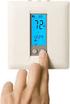 DUAL SENSING DIGITAL THERMOSTAT PRODUCT INSTRUCTIONS www.rehau.com Construction Automotive Industry SCOPE This guide gives instruction regarding REHAU Programmable Digital Thermostat installation and operation.
Product Manual. ABB i-bus KNX IP Interface IPS/S 2.1. Intelligent Installation Systems ABB
 Product Manual ABB i-bus KNX IP Interface IPS/S 2.1 Intelligent Installation Systems ABB This manual describes the function of the IP Interface IPS/S 2.1 with the application program IP Interface. Subject
Electronic Control Devices The European Product Catalogue 2007
 FX14 Field Controller (1/4) FX14 Field Controller The FX14 is an equipment field controller in the Facility Explorer range of products. The controller is designed specifically for commercial Heating, Ventilating,
Product Manual. ABB i-bus KNX. Universal Dim Actuator, MDRC UD/S 2.300.2. Intelligent Installation Systems ABB
 Product Manual ABB i-bus KNX Universal Dim Actuator, MDRC UD/S 2.300.2 Intelligent Installation Systems ABB UD/S 2.300.2 Universal Dim Actuator, MDRC This manual describes the function of the Universal
Mureva Assembly surface mounted wiring devices
 1.0 Waterproof Assembly surface Switches P124543 P124547 External dimensions : 72 x 72 x 47 mm.. Assembly surface rockers become illuminated using bulbs and indicators in option. They can carry a label
Owner s Guide Guide du propriétaire Guía para el usuario TH115-AF-GB-10. Programmable thermostat Thermostat programmable Termostato programable
 Owner s Guide Guide du propriétaire Guía para el usuario TH115-AF-GB-10 Programmable thermostat Thermostat programmable Termostato programable Read and save these instructions. Veuillez lire le mode d
Time switch D21-1-channel 4 126 31 / 32 / 33-047 61 / 63 / 6047 60. General information. Overview. Set language
 Time switch D21-1-channel 4 126 31 / 32 / 33-047 61 / 63 / 6047 60! Safety notes GB This product should be installed in line with installation rules, preferably by a qualified electrician. Incorrect installation
Power Socket (2 Gang)
 Version 2.1 Power Socket (2 Gang) Model No. LW270 Instruction Manual Connect Series www.lightwaverf.house EC DECLARATION OF CONFORMITY Responsible Authority: LightwaveRF PLC, Innovation Campus Birmingham
STERILIZERS, LABORATORY DRYING OVENS
 TS9026 TS9053 TS9135 TS9430 TS 9000 SERIES: STERILIZERS, LABORATORY DRYING OVENS Series TS9000 consists of four different cabinets available in sizes from 26 litres to 430 litres. Interior housing and
24 Wide Screen LED Monitor with HDMI
 24 Wide Screen LED Monitor with HDMI USER MANUAL L24LE11B_MANUAL_EN_R1 Please read this manual carefully before using, and keep it for future reference. TABLE OF CONTENTS GETTING STARTED Monitor Stand
COLOR VIDEO DOOR PHONE CDV-71BE/D
 COLOR VIDEO DOOR PHONE CDV-71BE/D 513-11, Sangdaewon-dong, Jungwon-gu, Seongnam-si, Gyeonggi-do, Korea Int l Business Dept. : Tel.; +82-31-7393-540~550 Fax.; +82-31-745-2133 Web site : www.commax.com Printed
Technical Manual. FAN COIL CONTROLLER COOLING or HEATING ANALOG or PWM Art. 119914 631001A
 COOLING or HEATING ANALOG or PWM Art. 119914 631001A TOTAL AUTOMATION GENERAL TRADING CO. LLC SUITE NO.506, LE SOLARIUM OFFICE TOWER, SILICON OASIS, DUBAI. UAE. Tel. +971 4 392 6860, Fax. +971 4 392 6850
KNX R. Rain Sensor. Installation and Adjustment
 EN KNX R Rain Sensor Installation and Adjustment 1 Content 1. Description... 3 1.1. Technical specifications... 3 2. Installation and commissioning... 4 2.1. Installation notes... 4 2.2. Location... 4
2013 Wireless Video Intercom INSTALLATION GUIDE
 2013 Wireless Video Intercom INSTALLATION GUIDE INDEX System configuration and wiring VL-SWD501 System Component.. 4 VL-SWD501EX wiring schematic diagram VL-SWD501EX wiring type and length... 5.... 6 Door
Drayton Digistat +2RF/+3RF
 /+3RF Programmable Room Thermostat Wireless Model: RF700/22090 Model: RF701/22092 Power Supply: Battery - Thermostat Mains - Digistat SCR Invensys Controls Europe Customer Service Tel: 0845 130 5522 Customer
HEAT PUMP PROGRAMMABLE THERMOSTAT
 HEAT PUMP PROGRAMMABLE THERMOSTAT SA PM 3 COOL TEMP Form 44014-01 r010408 Model 43168 Owners Manual 1 Congratulations! Heat Pump Programmable Thermostat Model 43168 THERMOSTAT CONTROLS Switches & Buttons...15
The application is now available in 8 languages. (German, English, French, Spanish, Italian, Russian, Dutch, Polish)
 Product: Room Master, Premium Type: RM/S 2.1 Current application program: Room Master, Premium/2.5a ======================================================================================= to: Room Master,
Application software. 3-channel LED KNX controller Electrical / Mechanical characteristics : see product information. Application software ref.
 Application software 3-channel LED KNX controller Electrical / Mechanical characteristics : see product information Order number Product designation Application software ref. TP device RF devices TYB673A
contents Leading the way in intelligent automation INELS Wireless? Why Click Accessories Complete control
 Wireless Control Systems Accessories Leading the way in intelligent automation contents Range Overview Typical Installations Transmitters Combined Modules Accessories Programming Switching & Dimmer Functions
Analogue Input, 4-fold, MDRC AE/S 4.1, GH Q605 0054 R0001
 Analogue Input, -fold, MDRC, GH Q605 005 R0001 The analogue input is a DIN rail mounted device for insertion in the distribution board. It is connected to the EIB via the bus connecting terminal supplied.
WIRELESS HOME ALARM SYSTEM (WHA1)
 WIRELESS HOME ALARM SYSTEM (WHA1) IMPORTANT : PLEASE READ THIS MANUAL CAREFULLY BEFORE ATTEMPTING TO INSTALL AND OPERATE THIS ALARM SYSTEM. SAFETY Please note: Before you start to install this alarm, we
Technical Manual MDT Rain sensor
 9/2012 Technical Manual MDT Rain sensor SCN-RS1R1.01 Technical Manual Rain sensor SCN RS1R1.01 1.1. Settings at the ETS Software Selection at the product database: Manufacturer: MDT Technologies Product
e-4 AWT07MLED 7 Q TFT LCD MONITOR (LED Backlighted) USER MANUAL
 Thank you for purchasing our product. Please read this User s Manual before using the product. Change without Notice AWT07MLED 7 Q TFT LCD MONITOR (LED Backlighted) USER MANUAL e-4 SAFETY PRECAUTIONS Federal
SENSORS. Fiber Optic Sensors - S70. Advanced fiber optic amplifiers for high speed and low contrast applications
 Fiber Optic Sensors - S7 Advanced fiber optic amplifiers for high speed and low contrast applications DIN rail mountable models with dual digital displays speed models: 2 μs...5 ms Super high speed models:
KNX L. Brightness Sensor. Installation and Adjustment. Item number 70119
 EN KNX L Brightness Sensor Item number 70119 Installation and Adjustment 1 Content 1. Description... 3 1.1. Technical specifications... 3 2. Installation and commissioning... 4 2.1. Installation notes...
ABB STOTZ-KONTAKT GmbH. ABB i-bus KNX Weather Unit, Weather Sensor
 ABB STOTZ-KONTAKT GmbH ABB i-bus KNX Weather Unit, Weather Sensor 2CDC 504 057 N0204 Seite 1 Weather Unit (WZ/S 1.1), Weather Sensor (WES/A 2.1) Overview Weather Unit WZS/1.1 MDRC Application program Sensor
KNX TH65-AP. Thermo-Hygrometer. Technical specifications and installation instructions Item number 70184
 EN KNX TH65-AP Thermo-Hygrometer Technical specifications and installation instructions Item number 70184 Elsner Elektronik GmbH Control and Automation Engineering Herdweg 7 D 75391 Gechingen Phone +49
Instruction Manual Service Program ULTRA-PROG-IR
 Instruction Manual Service Program ULTRA-PROG-IR Parameterizing Software for Ultrasonic Sensors with Infrared Interface Contents 1 Installation of the Software ULTRA-PROG-IR... 4 1.1 System Requirements...
RDJ10RF/SET. Wireless room temperature controller with 24-hour time switch and LCD. Programmable, for heating systems
 3 072 RDJ10RF RCR10/433 Wireless room temperature controller with 24-hour time switch and LCD Programmable, for heating systems RDJ10RF/SET Operating modes: Automatic, Comfort, Energy Saving, and Frost
ABB i-bus KNX Switch Actuator, x-fold, 16/20 A, MDRC SA/S x.16.6.1, 2CDG 110 1xx R0011
 , 2CDG 110 1xx R0011 SA/S 8.16.6.1 2CDC 071 006 S0010 The 16/20 A Switch actuators are modular installation devices in Pro M Design for installation in the distribution board. The devices are especially
IDDERO HCx-KNX TOUCH PANELS. User Guide. www.iddero.com 130122-02
 IDDERO HCx-KNX TOUCH PANELS User Guide www.iddero.com 130122-02 TABLE OF CONTENTS 1 INTRODUCTION... 3 2 OVERVIEW... 3 2.1 System Components... 3 2.2 Basic Operation... 4 2.3 Install Mode... 5 3 USER INTERFACE...
SECTION G2: CABLE PROCESSOR MODULE MAINTENANCE
 SECTION G2: CABLE PROCESSOR MODULE MAINTENANCE Cable Processor Module overview WARNING! When tipping the Cable Processor Module back, (after removing the toggle arm pin), use extreme caution not to drop
IntesisBox KNX Modbus TCP master
 IntesisBox KNX TCP master Gateway for integration of TCP slave devices into KNX control systems. Integrate any TCP slave device into KNX. KNX TCP slave EIB Bus IntesisBox Ethernet slave LinkBoxEIB Configuration
Application Unit, MDRC AB/S 1.1, GH Q631 0030 R0111
 , GH Q631 0030 R0111 SK 0010 B 98 The application unit is a DIN rail mounted device for insertion in the distribution board. The connection to the EIB is established via a bus connecting terminal at the
ELECTRIC POSITION for electric heat, then confirm with Fan Test below.
 Troubleshooting Poor Temperature Regulation This page lists problems that may affect the temperature performance of your LUX thermostat with suggested resolutions. For more detailed information please
ELECTRIC CENTRAL HEATING FLOW BOILER
 ELECTRIC CENTRAL HEATING FLOW BOILER EKCO.T Used product can t be treated as general communal waste. Disassembled appliance has to be delivered to the collection point of electrical and electronic equipment
How To Control A Power Supply With A Mini Transmitter And Switch (Power Supply)
 transmitter (2 wire) / switch for continuous or On/Off Control Indication, monitoring, transmitting and continuous or On/Off control in one device Output signal 4...20 ma, 2-wire for continuous control
HWS100 Wireless Home Security System
 4902000 HWS100 Wireless Home Security System Owner s Manual WARNING: Security system devices cannot compensate for loss of life or property. Company is not responsible for any loss or intrusion. CONTENTS
Aerona Air Source Heat Pumps
 ADDENDUM to INSTALLATION INSTRUCTIONS for Aerona Air Source Heat Pumps DOC.87-05/05 Rev.04 March 2013 ATTENTION INSTALLERS - UPDATED INFORMATION! Your Grant Aerona Air Source Heat Pump has a number of
Portable Air Conditioner
 Portable Air Conditioner Owner's Manual Model:3 in 1 12,000 Btu/h Series 3 Please read this owner s manual carefully before operation and retain it for future reference. CONTENTS 1. SUMMARY...1 2. PORTABLE