
About The Service...5 Calling Features and Functions...9
|
|
|
- Corey Ellis
- 10 years ago
- Views:
Transcription
1
2 Table of Contents About The Service Operator Assistance Directory Assistance Troubleshoot the Service (TTY) - Message Relay Service Emergency Service... 5 Additional Lines... 5 Directory Listings (White and Yellow Pages)... 6 Expanded Local Calling Area... 6 Long Distance Plans... 6 Ported Numbers (Keep your current phone number)... 7 Prepaid Calling Cards... 7 Protection From Power Outages... 7 Touchtone Support... 7 Unlisted Name & Phone Number... 8 Calling Features and Functions...9 Anonymous Call Rejection... 9 Auto Attendant... 9 Automatic Recall Call Display Caller Id Block Caller Id Presentation Call Guard Call Forwarding Call Trace Call Waiting Do Not Disturb Distinct Ring /Additional Number
3 Distinct Ring Voic Distinct Call Waiting Tones Find me/follow me (Line Hunting) Hunt Group - Multi Line (Overline) Intercompany Codes Reminder Calls/Wake-Up Calls Selective Call Rejection Way Calling/Call Transfer Voic CityWest Customer Information Billing Policy Agreement to Pay Customer Liability For Calls Security Deposit Policy NSF Cheque Charge and Denied Credit Charge Overdue Accounts Suspension or Termination of Service/Disconnection Policy Acceptable Use Policy Directory Policy Telephone Service Privacy Privacy and Call Management Features Disclosure of Subscriber Listing Information Unlisted Numbers Monitoring of Customer Service Calls Confidentiality of Customer Records Contacting CityWest Cable and Telephone Corporation Customer Service and Support Prince Rupert Office Terrace Office
4 Talkin bout a revolution CityWest is proud to offer you a choice for your business phone service. CityWest Business Phone service offers the same reliability you re used to plus enhanced features and superior quality - all at a better price! CityWest uses digital technology to carry your voice over an advanced fibre-optic network, back to our control centre and then we pass it on seamlessly to the public telephone network! And rest assured that along the way we back-up the power source so that you still have dial-tone service during a power outage. Thank you for choosing CityWest Business Phone. 4
5 About The Service Here s some general information on your CityWest Business Phone service. 0 Operator Assistance 411 Directory Assistance 611 Troubleshoot the Service If you are experiencing trouble with your CityWest Business Phone Service and you are still able to make calls, please dial 611 to be routed to the CityWest customer support centre. To reach the support centre directly through a cellphone or another phone service dial: Port Edward: Terrace: Kitimat: (TTY) - Message Relay Service The Message Relay Service provides telephone accessibility to persons with hearing and/or speech problems who use TTY devices. A person using a TTY device can place a call via the Message Relay Service by dialling 711. A person can place a call to someone using a TTY via the Message Relay Service by dialling 711. There is no charge for local calls. 911 Emergency Service To contact Emergency Services (fire department, police, ambulance), dial 911. CityWest Business Phone service fully supports the enhanced 911 (E911) Emergency Services by making the customer s name, address and telephone number available to the Emergency Centre serving a customer s area. Additional Lines From a standalone line for your fax or alarm system, to a multiline business group, additional CityWest business lines provide excellent value for your money. Call today for solutions to your additional line needs. 5
6 Directory Listings (White and Yellow Pages) White Pages All CityWest Home or Business Phone customers are listed alphabetically in the white pages directory. If you would like to request a change to your white page listing information please contact CityWest customer service. Please note, that telephone directories are printed once per year. Any new listings or changes to directory listings must be submitted by CityWest prior to the cut-off date in order for the change to be reflected in the next printing. These listing changes would be reflected in 411 directory assistance, but would not be in the local phone book until the following year. Yellow Pages CityWest Business customers receive a single line plain entry in the yellow pages free of charge. Customers can purchase additional headings, including bolding or highlighting in the yellow or white pages or advertise in the YellowPages. To make these arrangements, you should contact a YellowPages representative at , or go online at Expanded Local Calling Area All calls between Terrace and Kitimat are treated like a local call. Think of it as a bonus for being a CityWest Phone customer. For an additional charge of $5 per month, you can add Prince Rupert/Port Edward into your local calling area. Stay tuned for more communities that you can add to your local area as well. Long Distance Plans We have the long distance plan that is just right for your life style! Whether you call internationally or simply across the Province we have a long distance plan that will save you money with the added convenience of being billed to your phone, Internet or Digital TV bill. Talk for 5 Anytime No monthly fee. Call anywhere in Canada and the U.S. anytime of day any day of the week for only 5 cents per minute. There is no minimum fee, and no monthly Long Distance admin fee. Just pay as you talk. Talk for 5 International - $4 per month. For those with global connections pay $4 per month and enjoy 5 cent per minute calling anytime to Canada, the U.S. and to over 70 countries worldwide. 6
7 Ported Numbers (Keep your current phone number) CityWest Business Phone customers are able to keep their current phone number when switching to CityWest. This is called porting your phone number. In general, numbers from outside your local exchange cannot be ported. To find out if your current number is portable, you can simply contact CityWest Customer Service. Prepaid Calling Cards CityWest s Prepaid calling cards are a convenient, flexible way of making long distance phone calls when you re away from your business. You can stay connected with friends, family and business contacts anywhere in Canada and the USA. Calling Collect When calling collect from your Business Phone, please call Protection From Power Outages Your CityWest Business Phone Modem has a built-in battery to provide standby power to your telephone. In addition, CityWest s Fibre/Coaxial network is equipped with standby power to service your premise in the event of a power outage. The total standby power on the network is rated to provide uninterrupted service for 2 hours. Note: cordless phones require external power to operate. In the event of a power failure these telephones will not work. Some corded phones require external power to operate extra features such as Call Display. During a power failure these functions would not be available, but these phones would still be able to make and receive calls without external power. Touchtone Support Most phones are TouchTone compatible. That means you can navigate through Interactive Voice Response (IVR) systems (Press 1 for Press 2 for etc). CityWest Business Phone Service supports TouchTone phones as well as the older pulse or rotary dial devices. 7
8 Unlisted Name & Phone Number ($1.95 per month) The phone number does NOT appear in the Telephone book white pages or through Canada 411 online ( On outgoing calls the Number IS displayed by default, the Name is NOT displayed. The new Arris TM402P Terminal powers your Home Telephone and provides High Speed Internet as well. With its integrated lithium-ion battery backup, this next-gen terminal is part of the equation that allows CityWest to take cable to your home to the next level of telecommunications and connectivity. 8
9 Calling Features and Functions CityWest offers a variety of features and functions that can be included in your monthly service package. The following outlines each of these features and how they are used. Anonymous Call Rejection (Free) Automatically reject all calls from numbers withholding identification (i.e. telemarketers using unknown name and/or number display). If anonymous callers contact you, they ll hear a message that instructs them to hang up, remove their identity block and call again. Press *77 to activate Press *87 to deactivate Auto Attendant ($6 per month) The Auto Attendant service is intended for Business Group customers who want to provide an automated means of directing incoming calls to the appropriate person within the organization, typically to offload this task from a receptionist. There are four main elements to the service. 1. A hierarchy of Interactive Voice Response (IVR) menus that enable callers to choose from a list of options. These options direct the caller to the most appropriate department or person within the organization to handle that type of call, or to a number outside the Business Group if appropriate. 2. A schedule of business hours and holidays that controls the presentation of IVR menus, so that a different set of announcements and menus can be presented outside business hours and during holidays. 3. A cut-through call routing capability that enables a caller to dial direct to a person in the organization by dialing the appropriate extension number. 4. A dial-by-name capability that enables a caller to dial direct to a person in the organization by entering the first few letters of the person s name. In addition, there is a set of administrative capabilities including the Business Group Web Interface (provided by CommPortal or Web Self-Care) and a 9
10 Telephone Admin Interface. These enable a customer to set up and configure the menu structure, the associated announcements, and the schedule information. Automatic Recall ($6 per month) Plays a recording telling you the last number who called you. Press *69 to hear the last number who called you. Press 1 if you want to call the number. Call Display (Free) See the name and number of the incoming caller before you answer the phone. To use this feature, you require a Call Display compatible telephone with a display screen. Note: The service is always enabled. Caller Id Block (Free) Block the display of your name and phone number on the display screen of the person you are calling. Press *67 to activate, wait for second dial tone and then dial the number you want to call. Please contact a CityWest Customer Service Representative if you are interested in permanently blocking your name and phone number from being displayed. Caller Id Presentation (Free) If you have Caller ID blocked permanently, you can temporarily allow your name and number to be displayed to the person you are calling on a per call basis. Press *82 to activate, wait for second dial tone and then dial the number you want to call. Your name and number will be displayed on that particular call. After the call is completed your caller ID block is automatically restored. Call Guard (Free) Restrict outgoing calls made from your line i.e. Long Distance, or 900 calls. Callers would have to enter a PIN code in order to dial these restricted types of calls. 10
11 Press *341 to bar all but emergency calls. Press *351 to enable all calls. Press *342 to bar all national and international long distance calls. Press *352 to enable. Press *343 to bar international calls only. Press *353 to enable. Press *344 to bar all operator calls. Press *354 to enable. Press *346 to bar all premium rate calls. Press *356 to enable. Call Forwarding ($6 per month) Unconditional Call Forward This service forwards all calls regardless of whether the line is busy or there is no reply. Press *72 and wait for the second dial tone Dial the number to where calls should be forwarded Press *73 to deactivate. Busy Call Forward This service forwards calls only if the line is busy Press *90 and wait for the second dial tone Dial the number to where calls should be forwarded Press *91 to deactivate. Delayed Call Forward This service forwards calls if there is no reply within a specified delay period (# of rings). Press *92 and wait for the second dial tone Dial the number to where calls should be forwarded Press *93 to deactivate 11
12 Selective Call Forward This service forwards calls from specific calling numbers Press *63 and wait for the second dial tone Dial the number to where calls should be forwarded Press *83 to deactivate While Call Forward is in effect: You may still make calls from your phone. Callers will receive a busy signal if the number that your calls are forwarded to is busy. Calls that are unanswered at the forwarded number will not route to your CityWest Voic . Call Waiting is deactivated. You will hear an announcement that the feature is successfully activated if you try to set up Call Forward when it s already in operation. Call Trace (Free by request) Request a trace of the last person who called you. Allows the user to trace and report a nuisance call. Information about the trace will only be released to the appropriate law enforcement officials. Press *57, after you have hung up the phone. Stay on the line and listen for a recording that tells you if Call Trace was activated and if the call was successfully traced. Note: Contact the police if you wish to take action on a traced call. Call Waiting (Free) When you are on the phone and a second call comes in, a Call Waiting tone will sound to notify you that a second caller is trying to reach you. Press *FLASH or LINK on your telephone, to accept the Call Waiting call. Press *FLASH or LINK again, to go between both callers. Press *70 to deactivate Call Waiting before making another call. If you hang up while a call is still on hold, your telephone will instantly ring, allowing you to reconnect the on hold call. 12
13 Do Not Disturb ($6 per month) Allows the subscriber to block his or her line temporarily to prevent incoming calls. Press *78 to activate (*79 to deactivate). Distinct Ring /Additional Number ($6 per month) Distinct Ring allows you to add an additional phone number to your existing phone line. Each number has its own distinctive ring, indicating which number is being called. Distinct Ring is also useful for a fax machine. Distinct Ring Voic ($4 per month) Works the same as voic on your primary phone number, offering a separate Standard Voic system for your additional phone number. Note: The *98 shortcut code will allow you to access the Voic for your primary phone number only. Therefore in order to access the Voic for your additional numbers you will need to dial the voic access number set-up for your community. Distinct Call Waiting Tones ($6 per month) Works the same as Call Waiting on your primary phone number, but has a distinctive tone that alerts you that a second caller is trying to reach you on your additional phone number. You must subscribe to Call Waiting for this feature to work. This service allows you to assign a Distinctive Ring or Call Waiting Tone to up to 12 telephone numbers. To program numbers into your distinctive ring list dial *61 and follow the prompts as it guides you through the set-up. To de-activate dial *81 and follow the prompts. Find me/follow me (Line Hunting) ($6 per account per month) This service allows the subscriber to specify a list of numbers; if the subscriber s line is busy when a call comes in, these numbers are called in sequence until one is not busy and can accept the call. The number can be a CityWest number or outside numbers such as a cellular phone. 13
14 Note: when using outside numbers, any answer including voic or fax machine pick-up will trigger an answer signal, and stop the hunting process for the call. Hunt Group - Multi Line (Overline) ($6 per line per month) The Multi Line Hunt Group (MLHG), sometimes called an overline, is a set of lines within a Business Group (MLHG Members), so that calls to the group are passed to a non-busy line within the Hunt Group, or may be added to a queue if all lines are busy. A MLHG can have up to 32 MLHG Member child objects, each corresponding to a Business Group Line that can accept calls to the MLHG. Intercompany Codes ($6 per account per month) Intercompany codes allow Business Group Lines and PBXs to call other lines within the business group by dialing a code rather than having to dial the full telephone number. This is also known as extension dialing and intercompany codes are also known as extension numbers. Intercompany codes are defined in ranges of at least one code. You will configure the intercompany code for the first directory number in the range, and City West will automatically assign incremental codes to the other directory numbers in the range. Note: Intercompany codes can have distinctive ringing and billing for intercom calls. Caller ID shows the intercompany code, not full phone number Reminder Calls/Wake-Up Calls ($6 per month) You can ask your CityWest Business Phone Service to call you back to serve as a reminder or wake-up call. For onetime reminders. Press *310 to turn reminders on. Press *311 to turn reminders off. Press *312 to disable one reminder Press *313 to check reminders 14
15 For regular reminders. Press *314 to turn reminders on. Press *315 to turn reminders off. Press *316 to disable one reminder Press *317 to check reminders Selective Call Rejection ($6 per month) Block specific phone numbers that you do not wish to receive calls from. Anyone trying to call your phone from a number that you have blocked will simply get a recording advising them that you are not presently accepting calls from their number. Press *60 to activate (*80 to deactivate). Wait through the two to three second delay, then follow the prompts. 3-Way Calling/Call Transfer (Free) This service enables the subscriber to talk to transfer a call to another subscriber or talk with two other subscribers on the same call. To add the third person, quickly press and release the receiver button (hang-up button) to put the current caller on hold. When you hear a dial tone, enter the third person s phone number. When you are ready to connect the two callers, quickly press and release the receiver button. If you would like to leave the call, you may hang-up and the two other parties will remain connected. If the third person did not answer or you wish to disconnect them, again quickly press and release the receiver button and you will be reconnected to the original caller. Voic (Free) With Voic service, you do not miss a call. When your phone is busy or you are away from your phone, calls are forwarded to your Voic box where the caller can leave a message. The message is stored for you to retrieve at your convenience. Standard Voic This feature comes included with CityWest Business Phone. Press *98 to access your Voic from your business phone without having to dial the local access number. 15
16 Voic Features (Standard Voic ) Personal Greeting Length Mailbox size Maximum number of messages Maximum message length Future delivery message delay (days) Ability to send messages to other users Number of contact groups 10 Maximum Number of contacts per group 65 How long messages are saved in trash folder How long unread messages are stored How long are saved messages retained Maximum # of additional numbers 2 Outdial notifications allowed 1 min. 100,000 KB Unlimited 1 min. N/A Yes 14 days 14 days Unlimited How to Access your Voic You can access your voic direct from your CityWest phone or using any other phone. Press *98 to access your voic directly from your CityWest phone. Dial the voic access number set-up for your community to access your voic from your cellphone, or from any other telephone. Then you will need to enter the 10-digit phone number for the mailbox you wish to access. Voic Access Numbers: Port Edward: (MAIL) Terrace: (MAIL) Kitimat: (MAIL) How to set up your Voic for the first time First-time sign-in involves three steps: first you must create your PIN, then you must record your recorded name and finally you must choose a greeting to play to callers before they leave a message. The greeting and recorded name are played each time a caller accesses your mailbox to leave a message. Press * 98 or dial the voic access number for your community. Yes 16
17 Listen to the recorded instructions and follow the Voic set-up prompts. Note: You can end the set-up process at any time by hanging up the phone and you will be prompted to complete the remaining steps in the set-up process. Create Your PIN First, to secure your account, you must set up a new PIN. A prompt asks you to enter a new PIN, and explains the length of PIN allowed. Enter a new PIN, pressing # when finished. Confirm the new PIN by re-entering it and pressing #. Note: If you wish to change your PIN Press *319. If you forget your PIN, please dial 611 for assistance. Record Your Name Next, you are prompted to record your name. This is used for some systemgenerated announcements, for example when greeting your callers or when you leave messages for others. Record your name and press # when finished. An announcement plays your recording back to you. Press 1 if you want to re-record it. Press # if you want to keep it. Note: If your recording is too long, you will be asked to re-record a shorter version. Choose a Greeting Once you have successfully recorded your name, you are prompted to select a greeting. This is the last step in setting up your Voic . You can use a number of different types of greeting. Press 1 to record your own personal greeting. Press 2 to use a system-generated greeting that announces your recorded name. Press 3 to use a system-generated greeting that reads out your phone number. Press 4 to use a system-generated greeting that neither announces your name nor reads out your phone number. 17
18 Press 1 to make a change. Press # to save it and use it as your greeting. Mailbox Main Menu: The Main Menu is the starting point for using your Voic box. Press * 98 to enter, and you will be notified of the number of new, skipped and saved messages in your mailbox. The prompt choices are: Press 1 to listen to your messages, if you have messages. Press 2 to send a new message to another CityWest Business Phone subscriber. Press 3 to work with your greetings. Press 4 to change your mailbox settings. Press 6 to manage any erased messages. Press 7 to log in again as a different subscriber. Press 0 to listen to helpful hints. Press * to exit the Main Menu. Message Notification The Voic system notifies you when you have new messages. The choice of indicator depends on the type of telephone you use. When new messages arrive, you hear a stutter-tone upon lifting the phone receiver. If your phone has a message waiting light, the message light is lit as well. If you are away from your phone and want to know whether messages arrived, the Voic system will inform you upon entering your Voic box. Listening to Your Messages: Press * 98 to enter the Main Menu, then choose option 1. After each message has played, you have the choice of the following options. You can also select these options at any time during the playback of the message: Press 1 to play the message again from the beginning. Press 2 to save the message and go to the next message. This will store the message and mark it as a saved message. Press 3 to erase the message. Press 4 to reply to the message. 18
19 Press 5 to forward the message to another CityWest Business Phone subscriber. Press 11 to return to the previous message. Press # to leave the message as new and go to the next message. Press 66 to hear details of the date and time of the message, and the caller s name or number. Press * to go back to the Main Menu. Note The Voic box is entirely voice instruction driven. All activities performed within the mailbox are guided by introductory verbal instructions. When you are familiar with the mailbox menus, you can enter the menu choices immediately and bypass the verbal instructions. Using the Skip PIN feature: The Voic system allows you to control whether your password (PIN) is required to access your mailbox through your business phone. Access from any other phone will always require your password. Dial into your mailbox. Press 4 to go to Mailbox Settings. Press 3 from the Security Options menu to change whether or not you need to enter your PIN at login. Note This feature saves time, but significantly reduces the security of your account. It means that any person with access to your phone will be able to listen to your Voic messages, and to assume your identity when sending messages. Helpful Hints While navigating through the voic menus you can press the following common keys at any point. They behave in the same way whichever menu you are listening to. Press 8 to pause all activity for 30 seconds, and then you return to the beginning of the section you are listening to. While the activity is paused, you can also press any key to return to the beginning of the section without having to wait for 30 seconds. Press * to perform one of two functions, depending on what you are doing at the time. When recording a message or entering numbers, it cancels the 19
20 current input, and you are prompted to enter the input again. Otherwise, it takes you back one step on the menu system. Press # to perform one of two functions, depending on what you are doing at the time. When recording a message or entering numbers, # is used to indicate the end of your input. Otherwise, it is used to move forward to the next list of menu options. i.e. if you don t wait for the attendant to finish talking, press # to skip to the list of menu options. Press 0 on the main menu to hear more helpful hints about your CityWest Voic feature. 20
21 CityWest Customer Information Billing Policy CityWest Cable and Telephone Corp. will invoice for flat fee phone services once per month. Regular monthly service fees are billed and payable in advance of receiving the service. Disconnection of the basic service will be prorated. Long distance and other usage charges are billed each month as close to the period of usage as possible. Bills for services will be mailed once per month and payments are due on or before the date printed on the bill. Agreement to Pay All charges shown on a customer s bill are payable on the Due Date. If a bill is lost or not received, customers are still responsible for making the required payment. Collections proceedings will begin when the customer s account becomes past due. If CityWest Cable and Telephone Corp. fails to bill or under-bills, we will correctly bill customers within one year of the date the charge was incurred. Customers may negotiate payment arrangements on disputed amounts, under reasonable circumstances and CityWest will not charge customers interest on the full amount of any correction. If customers are over-billed for a recurring charge, CityWest Cable and Telephone Corp. will credit customers back to the date of the error. If customers do not dispute a charge within one year of the date of an itemized statement that shows the charge, customers lose the right to have the excess credited for the period prior to that statement. Non-recurring charges that should not have been billed or were over-billed will be credited, provided customers dispute the amount within one year of the date of the bill. CityWest will not suspend or stop service for a disputed amount unless there exists reasonable grounds to believe the dispute is to avoid or delay otherwise rightful payment. If service is stopped for non-payment, reconnection charges will apply. Customer Liability For Calls The customer is liable to CityWest for charges for all calls originating at the customer s telephone number, regardless of who may originate such calls, and for all calls received at the customer s telephone number, the charges for which are accepted by any person receiving such calls, regardless of who may accept such charges. 21
22 Security Deposit Policy We may require a security deposit based on our credit policy. In 12-month intervals or whenever customers request, CityWest will review the appropriateness of keeping a security deposit. A security deposit will be credited to a customer s account after at least 12 consecutive months in good standing on all accounts with CityWest. If services are terminated, CityWest will apply the security deposit against any outstanding balance and refund any remaining balance. NSF Cheque Charge and Denied Credit Charge A service fee will be charged to a customer s account each time a cheque is returned, or a preauthorized withdrawal or a credit card payment is denied, for whatever reason. The service charge is subject to change from time to time. Overdue Accounts Any balance unpaid after the Due Date may be subject to a late payment charge of 1.25% per month. A service charge will be levied if a pre-authorized payment is denied or if a cheque is returned. A fee will be charged if administration and/ or account processing activities have occurred due to non-payment. Suspension or Termination of Service/Disconnection Policy 1. CityWest may suspend or terminate service if: Customers fail to pay an account that is past due; Customers fail to provide or maintain a reasonable deposit or alternative when required to do so; Customers fail to comply with the terms of a deferred payment agreement; Customers fail to provide the Company with reasonable entry and access, at reasonable hours, to install, inspect, repair and remove its facilities and to perform necessary maintenance in cases of network affecting disruptions involving Customer provided facilities; Customers use or permit others to use any of CityWest s services for the purpose of making annoying or offensive calls or for a purpose or manner that would constitute a criminal offence, give rise to civil liability, or otherwise violate any applicable local, provincial, federal or international law, or for the purposes of encouraging or assisting others to do any of the foregoing; 22
23 Customers rearrange, disconnect, remove, repair or otherwise interfere with CityWest s equipment or facilities (except in cases of emergency) or if termination or suspension is necessary to protect CityWest s facilities, equipment or network; Customers violate any provision of CityWest s Terms of Service; Customers harass, threaten, or otherwise act unreasonably towards CityWest or its employees or agents; or Customers fail to provide payment when requested by CityWest. 2. Where there is a payment to prevent suspension or termination of service, or to reconnect service, and that payment is returned by the bank or declined, CityWest may immediately, and without further notice, suspend or terminate service. 3. Suspension or termination does not affect a customer s obligation to pay any amount owed to CityWest. Upon termination, any balance owing shall become due at once. Service charges will continue to accrue during any suspension of service. 4. Where customers have paid in advance for service, CityWest will rebate the portion that was paid for service for the period after the termination date. Any such rebate will first be applied in payment of any amounts owed to CityWest. 5. Subject to CityWest s right to refuse service, CityWest will restore service, without undue delay, where the grounds for suspension or termination no longer exist, or a payment or deferred payment agreement has been negotiated. Reconnection charges shall apply. 6. Where it becomes apparent that suspension or termination occurred in error or was otherwise improper, CityWest will restore service during business hours on the next working day, at the latest, unless exceptional circumstances do not permit this, and no reconnection charges will apply. 7. In the event of suspension or termination of service, all features and services, except emergency 911 service and access to CityWest s office, will also be suspended or terminated. 23
24 8. CityWest cannot guarantee the availability or resumption of any previous telephone numbers following a termination of a customer s service. 9. Customers shall reimburse CityWest for reasonable collection fees and/or pickup charges in the event that CityWest finds it necessary to enforce collection and/or preserve and protect its rights under its Terms of Service. 10. If service is terminated for non-payment, reconnection charges will apply. Acceptable Use Policy CityWest Cable and Telephone Corp. may suspend or terminate all or part of a service and service agreement if it determines that a customer is abusive with an unlimited use plan. Directory Policy At our discretion and subject to availability, customers will be provided, without charge, up to one copy per telephone number of the most recent telephone directory for both White and Yellow pages. The contents of directories may not be published or reproduced in any form without the Directory Publisher s written consent. In the case of errors or omissions in directory listings (White and Yellow pages), whether or not the error or omission is with regard to a name, address, telephone number, or listing mark, CityWest and the Directory Publisher s liability is limited to refunding or cancelling any charge associated with such listings for the period during which the error or omission occurred. Telephone Service Privacy CityWest supports a policy that protects Customer information, but also provides telephone services that help to balance the privacy interests of callers and the people they call. Privacy and Call Management Features Call Management services such as Call Display, Call Return, Call Answer and Visual Call Waiting provide telephone number information to the called party. If customers have concerns with these features or wish to deactivate them when placing calls, customers may need to contact our Customer Sales & Service for information (service charges may apply). 24
25 Call Management features that are designed to help protect a customer s privacy and are offered by CityWest include: Delivery of the privacy indicator when invoked by an end customer; Provision of per line call display blocking to qualified end customer; Disallowance of Call Return to a blocked number; Enforcement of the CRTC s restriction on Automatic Dialling Announcing Devices, Automatic Dialling Devices and unsolicited facsimiles; and Provision of universal Call Trace; Disclosure of Subscriber Listing Information In accordance with CRTC requirements, CityWest makes customers names, addresses and telephone numbers available to publishers of paper and electronic directories and to providers of operator services. The name, address and telephone number can be omitted from these directories/services by requesting, and paying for, an unlisted telephone number. Unlisted Numbers Unlisted numbers do not appear in the telephone directory and are not available from directory assistance operators. Unlisted numbers are included in provincial emergency 911 databases. Monitoring of Customer Service Calls In order to provide exceptional customer service, we train our Customer Sales and Service Representatives on an ongoing basis. As such, if customers have a telephone conversation with our representatives, we may monitor or record the call for coaching and quality control purposes. Confidentiality of Customer Records Unless customers provide express consent, or disclosure is pursuant to a legal power, all customer information kept by CityWest, other than a customer s name, address and listed telephone number, is confidential and may not be disclosed by CityWest to anyone other than: a. the customer; 25
26 b. a person who, in our reasonable judgment, is seeking the information as a customer s agent; c. another telephone company, provided the information is required for the efficient and cost effective provision of telephone service and disclosure is made on a confidential basis with the information to be used only for that purpose; d. a company involved in supplying customers with telephone or telephone directory related services, provided the information is required for that purpose and disclosure is made on a confidential basis with the information to be used only for that purpose; e. an agent we retain in the collection of a customer s account or to evaluate the customer s creditworthiness, provided the information is required for, and is to be used only for, that purpose; or f. a public authority or agent of a public authority, if in the reasonable judgment of CityWest, it appears that there is imminent danger to life or property that could be avoided or minimized by disclosure of the information. Express consent, may be given to customers, when customers provide: a. Written consent; b. Oral confirmation verified by an independent third party; c. Electronic confirmation through the use of a toll-free number; d. Electronic confirmation via the Internet; e. Oral consent, where an audio recording of the consent is retained by the carrier; or f. Consent through other methods, as long as an objective documented record of customer consent is created by customers or by an independent third party. Customers may request, in writing, access to any of their personal information that CityWest holds. We will provide the information requested if CityWest is provided sufficient details of the information sought, to allow us to comply with the request and if reimbursement is given to the Company for costs, if unusual expenses are incurred to provide the information. 26
27 27
28 Contacting CityWest Cable and Telephone Corporation Customer Service and Support Toll- free phone: or (Port Edward Customers) Telephone troubles: dial 611 from your home phone or dial: Port Edward: Terrace: Kitimat: Web: Prince Rupert Office 248 Third Ave W Prince Rupert, BC V8J 1L1 Phone: Terrace Office 2709 Kalum Street Terrace, BC V8G 2M4 Phone: Kitimat Office 2709 Kalum Street Terrace, BC V8G 2M4 Phone: Printed August/
WELCOME TO. Westman Business Phone
 WELCOME TO Westman Business Phone This User Guide outlines Westman Business Phone service in detail and provides information on our calling features and functions. Westman is pleased to bring you Business
Welcome To. Westman Home Phone
 Welcome To Westman Home Phone This User Guide outlines Westman Home Phone service in detail and provides information on our calling features and functions. Westman is pleased to bring you Home Phone service,
FLEXITY SOLUTIONS INC. Terms of Service
 1 Term of Service FLEXITY SOLUTIONS INC. Terms of Service For the purpose of these Terms of Service ( Terms of Service ), they set out the rights, obligations and limitations of FlexITy Solutions ( FlexITy
TELEPHONE USER GUIDE
 TELEPHONE USER GUIDE ADD DELTA CABLE LONG DISTANCE TO YOUR BUNDLE. SO MANY WAYS TO SAVE. It s never been easier to save. Get an Delta Cable plan that s right for you. 5 $ 20 $ 30 per minute Canada/US Anytime
YOUR HOME PHONE. Horry Telephone Cooperative, Inc.
 YOUR HOME PHONE Horry Telephone Cooperative, Inc. CONTENTS Calling Features Anonymous Call Rejection page 4 Automatic Busy Redial page 4 Automatic Call Return page 5 Call Forwarding page 6 Call Forwarding
EastLink Telephone Customer Guide
 EastLink Telephone Customer Guide Simcoe eastlink.ca It s for you! Welcome to EastLink Telephone. In appearance, your EastLink Telephone service doesn t look any different. Same dial tone. Same phone
Table Of COnTenT. 1 Advanced Cable Communications. Contact Us...2. Welcome...3. Calling Features...4-11. Frequently Asked Questions...
 Table Of COnTenT Contact Us...2 Welcome...3 Calling Features...4-11 Frequently Asked Questions...12-17 Other Services...18 1 Advanced Cable Communications CONTACT US EMAIL US: [email protected] TelePHOne
PHONE USER 1 GUIDE. Morristown (MUS) Local Customer Calling FROM: Morristown (Area Code 423): 307, 317, 318, 522, 581, 585, 586, 587
 PHONE USER 1 GUIDE Local Calling Area Windstream has defined the following local calling area. All calls to these areas are included in your local monthly charge. Calls outside of this area will be billed
Reject calls from callers who block their Caller ID information so their calls don't even ring on your line.
 Anonymous Call Rejection Reject calls from callers who block their Caller ID information so their calls don't even ring on your line. TO ACTIVATE ANONYMOUS CALL REJECTION 1. 2. Press *77 (on a rotary phone,
For customers in AL, FL, GA, SC, TN. wowforbusiness.com. Business Services PHONE FEATURES. User Guide BPG.U.1303.O
 wowforbusiness.com Business Services PHONE FEATURES User Guide BPG.U.0.O ANONYMOUS CALL REJECTION. It s easy to activate and start blocking anonymous calls. Simply lift the receiver and press *.. When
Contents. WOW! Phone Reference Guide
 WOW! Phone Reference Guide Intro to WOW! Phone P-1 WOW! Phone Features P-1 Call Waiting P-1 Call Forwarding P-1 3-Way Calling P-1 Call Return P-1 Anonymous Call Rejection P-2 Caller ID P-2 Caller ID Block
Home Phone Quick Start Guide. Review these helpful instructions to understand your Midco home phone service and its many convenient features.
 Home Phone Quick Start Guide Review these helpful instructions to understand your Midco home phone service and its many convenient features. 1 Contents Equipment and Features.......................................................
VOICE MAIL USER GUIDE NEVER MISS A MESSAGE. windstream.com 1.877.481.9463
 VOICE MAIL USER GUIDE NEVER MISS A MESSAGE windstream.com 1.877.481.9463 Windstream is a registered service mark of Windstream Corporation. 2009 Windstream Corporation WS VM-METAS 01/09 Table Of Contents
VOICE MAIL USER GUIDE NEVER MISS A MESSAGE. windstream.com 1.877.481.9463
 VOICE MAIL USER GUIDE NEVER MISS A MESSAGE windstream.com 1.877.481.9463 Windstream is a registered service mark of Windstream Corporation. 2009 Windstream Corporation WS VM-METAS 01/09 Table Of Contents
All Rights Reserved. Release 5.6, March 2009
 All Rights Reserved The use, disclosure, modification, transfer or transmittal of this work for any purpose, in any form, or by any means, without the written permission from IDT/Net2Phone is strictly
www.metrocast.com/business
 www.metrocast.com/business All Rights Reserved The use, disclosure, modification, transfer or transmittal of this work for any purpose, in any form, or by any means, without the written permission from
Digital Phone @ Home Tutorial
 Digital Phone @ Home Tutorial 2 Table of Contents Quick Start Guide... 4 Making Phone Calls... 5 Voicemail Setup... 6 Setup instructions:... 6 To Check Messages:... 6 Quick Key Reference:... 6 Customer
BP_UserGuide_1113. Business Phone User Guide
 BP_UserGuide_1113 Business Phone User Guide Contents Welcome to Shaw Business Phone 2 Voicemail 6 Call Forward 7 Call Forward Busy 8 Call Forward No Answer 9 Call Waiting 10 Multi-line Hunting 12 Call
Voicemail Plus User Guide
 Voicemail Plus User Guide Version: 2.0_US Revised: 25 September 2007 Notices Copyright 2007 Vonage. All rights reserved. No part of this documentation may be reproduced in any form or by any means or used
How To Use Fairpoint.Com On A Cell Phone On A Pc Or Landline Phone On An Iphone Or Ipad Or Ipa Or Ipo Or Cell Phone (For A Cell) On A Landline Or Cellphone On A
 Definition FairPoint Communications Hosted PBX is easy to use and manage. Hosted PBX is packed with a wide variety of useful standard, advanced and business group calling features, including voicemail.
Hosted PBX Calling Features and Voice Mail Guide
 Definition FairPoint Communications Hosted PBX is easy to use and manage. Hosted PBX is packed with a wide variety of useful standard, advanced and business group calling features, including voicemail.
Welcome to Cogeco Business Digital Phone Service
 Welcome Welcome to Cogeco Business Digital Phone Service Congratulations on choosing Cogeco Business Digital Phone Service. 1 Your decision to subscribe to our digital quality phone service is a smart
BP_UserGuide_0113. Business Phone User Guide
 BP_UserGuide_0113 Business Phone User Guide Contents Welcome to Shaw Business Phone 2 Voicemail 6 Call Forward 7 Call Forward Busy 8 Call Forward No Answer 9 Call Waiting 10 Multi-line Hunting 12 Call
COMCAST DIGITAL VOICE USER GUIDE
 COMCAST DIGITAL VOICE USER GUIDE WELCOME TO COMCAST DIGITAL VOICE Go ahead. Pick up your phone. Call your neighbor. Your best friend across the country. Or your cousin in Europe. Now that you have Comcast
Welcome to Comcast Digital Voice
 Welcome to Comcast Digital Voice Go ahead. Pick up your phone. Call your neighbor. Your best friend across the country. Or your cousin in Europe. Now that you have Comcast Digital Voice, you can enjoy
Wightman s. Home Phone. Quick Reference Guide
 Wightman s Home Phone Quick Reference Guide Welcome to Wightman Telecom! We would like to thank you for making the decision to join Wightman Telecom as one of our valued customers. Our goal is to prove
Bristol: (276) 821-6200 Abingdon: (276) 698-3210 Toll Free: 877-835-1272 www.bvu-optinet.com
 Bristol: (276) 821-6200 Abingdon: (276) 698-3210 Toll Free: 877-835-1272 www.bvu-optinet.com TABLE OF CONTENTS Contact Information...1 Safety Line...1 Favorite Five...2 Caller ID...2 Call Forwarding...2
Telephone Users Guide. Equipment, Features & Voice Mail
 Telephone Users Guide Equipment, Features & Voice Mail TABLE OF CONTENTS WELCOME TO ARMSTRONG TELEPHONE Our Commitment to You Identifying Our Employees Dialing 911 - Your Safety Is Important HOW TO MAKE
CALL MANAGEMENT SERVICES. User Guide. 1 888 télébec telebec.com
 CALL MANAGEMENT SERVICES User Guide 888 télébec telebec.com QUICK REFERENCE Télébec Call Management Services - Important Codes Service Activation Cancellation Call Blocking 6 7 Call Forwarding 7 2 7 3
Bringing value back to voice. Your guide to LUS Fiber Phone
 Bringing value back to voice Your guide to LUS Fiber Phone 1 LUS Fiber puts Lafayette s premier fiber optic phone system right in your hand. You re about to discover the total phone-service satisfaction
To activate Anonymous Call Rejection: 1. Lift the receiver and listen for dial tone. 2. Dial *77. 3. Listen for confirmation tone, hang up.
 Anonymous Call Rejection Anonymous Call Rejection allows a customer to deny any calls from ringing the line if the calling party has blocked the identification number. The calling party receives a message
Quick Start. Guide. The area s ONLY 100% fiber optic network. epbfi.com
 Quick Start Guide The area s ONLY 100% fiber optic network epbfi.com Welcome to Fi Phone SM from EPB Fiber Optics SM With your new Fi Phone service, you ll enjoy crystal clear call quality and many great
Welcome to Cogeco Home Phone Service
 Welcome Welcome to Cogeco Home Phone Service By choosing to get your phone service from Cogeco, you have made an important decision about the quality of your connections. Unlike third-party voice over
Bringing value back to voice. Your Guide to Broadband for Business
 BROADBAND FOR BUSINESS Bringing value back to voice. Your Guide to Broadband for Business TELEPHONE Service 1 Business Phone Services from LUS Fiber connect you to affordability and opportunity. You re
Calling Features User Guide
 CONNECTING OUR COMMUNITY WITH THE LATEST COMMUNICATIONS TECHNOLOGY West Central Calling Features User Guide 2 TABLE OF CONTENTS CALL FORWARDING SERVICES 4 4 4 4 Call Forwarding Call Forward Busy Call Forward
Businessuserguide eastlink.ca/business
 Maritimes/NL Businessuserguide eastlink.ca/business Thank you, for choosing EastLink - One of Canada s 50 Best Managed Companies. EastLink prides itself on delivering innovative and reliable business
HPUG_1014. Shaw Home Phone. User Guide
 HPUG_1014 Shaw Home Phone. User Guide Hello. Welcome to the wonderful world of Shaw Home Phone. This tiny book tells you every detail you need to know to use all of your new phone features like a superstar.
Guide to Your Telephone Service
 Guide to Your Telephone Service OPTIONS AND FEATURES AVAILABLE WITH EPLUS BROADBAND TELEPHONE SERVICE 422-7500 Table of Contents Included in this guide is a comprehensive list of features and services
Home Phone Service Guide calling features and services tips and instructions
 Home Phone Service Guide calling features and services tips and instructions Primus Home Phone Service Inside your guide to Primus Home Phone Service Services included with Primus Home Phone Service: 911,
For customers in IN, IL, OH, MI. wowforbusiness.com. Business Services PHONE FEATURES. User Guide BPGM.U.1506.R
 wowforbusiness.com Business Services PHONE FEATURES User Guide BPGM.U.1506.R Anonymous Call Rejection 1. It s easy to activate and start blocking anonymous calls. Simply lift the receiver and press *77.
Fi Phone Quick Start Guide
 Quick Start Guide Fi Phone Quick Start Guide This guide answers some frequently asked questions about how to get the most out of your home telephone service. If you find that you need help with your service,
For customers in AL, FL, GA, KS, SC, TN. wowforbusiness.com. Business Services PHONE FEATURES. User Guide BPGS.U.1506.R
 wowforbusiness.com Business Services PHONE FEATURES User Guide BPGS.U.1506.R Anonymous Call Rejection 1. It s easy to activate and start blocking anonymous calls. Simply lift the receiver and press *77.
Custom Calling Features
 Quick Reference HOW TO USE: PRESS: Speed Calling 8 *74 Speed Calling 30 *75 Call Return *69 Repeat Dialing *66 Call Trace *57 Call Forwarding *72 Preferred Call Forwarding *63 Call Forwarding Remove Activation
Business User Guide. Western. /business
 Business User Guide Western /business Thank You for choosing Eastlink - One of Canada s 50 Best Managed Companies. Eastlink prides itself on delivering innovative and reliable business solutions to our
Vonage Voicemail Plus. User Guide
 Vonage Voicemail Plus User Guide Version:. Revised 08 DEC 006 Vonage documentation is considered proprietary and is made available for business operations and review by employees and regulatory agencies.
Call Answer Service. User Guide. outside front cover
 Call Answer Service User Guide outside front cover 204 225-9999 toll-free Call Answer access number from anywhere in Manitoba 1 866 GET-MSGS toll-free Call Answer access number from anywhere in Canada
Digital Voice Services User Guide
 Digital Voice Services User Guide 2 P a g e * Feature Access Codes *11 Broadworks Anywhere (pulling call to alternate phone) *62 Access Voicemail *72 Call Forwarding Always Activation *73 Call Forwarding
Clear Choice Communications. Digital Voice Services User Guide
 Clear Choice Communications Digital Voice Services User Guide 2 P a g e * Feature Access Codes *62 Access Voicemail *72 Call Forwarding Always Activation *73 Call Forwarding Always Deactivation *90 Call
ADVANCED PHONE SERVICE
 table of contents ADVANCED PHONE SERVICE USER GUIDE December 2009 Version 1-800-360-8555 northerntel.ca/telephony What is NorthernTel Advanced Phone Service 2 What is included with the NorthernTel Advanced
User Guide Verizon CentraNet CustoPAK
 User Guide Verizon CentraNet CustoPAK Telephone Number Verizon Telephone Number Switch Type: GTD-5 5ESS DMS 100 DMS 10 2008 Verizon. All Rights Reserved. 3056-0708 Thank You for Selecting Verizon CentraNet
Digital Voice Services Residential User Guide
 Digital Voice Services Residential User Guide 2 P a g e * Feature Access Codes *11 Broadworks Anywhere (pulling call to alternate phone) *62 Access Voicemail *72 Call Forwarding Always Activation *73 Call
TekTalk WELCOME GUIDE
 TekTalk WELCOME GUIDE Follow these instructions for an accurate guide to your TekTalk hardware setup. 1 2 3 4 5 When first connecting TekTalk, connect the included Ethernet cable to an available Ethernet
BellSouth Complete Choice for Business plan
 BellSouth Complete Choice for Business plan BellSouth Complete Choice for Business plan Customized to your exact business needs Here s the all-in-one local calling plan where you can customize your local
BUSINESS VOICEMAIL User Guide
 BUSINESS VOICEMAIL User Guide Voicemail BASICS You may interact with your Voicemail Service from any Touch-Tone telephone. You can receive messages 24 hours a day, 7 days a week. You may have a total of
Calling FEATURES. User s Guide. Call *123 or 336-463-5022 or visit yadtel.com
 Calling FEATURES User s Guide Call * or 6-6-50 or visit yadtel.com Table of Contents QUICK REFERENCE GUIDE... KEEP IN TOUCH Call Waiting.... 5 Cancel Call Waiting.... 5 Three-Way Calling.... 6 Usage Sensitive
How To Set Up Your Voice Mail On A Cell Phone
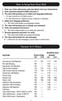 How to Setup Your Voice Mail Enter your Voice mail access code (see below) from your home phone. Enter password (default is 0000) and press #. The voice mail prompts you to select your language preference.
CALLING FEATURE USER GUIDE
 CALLING FEATURE USER GUIDE 1801 N Main St, in the Palace Mall ** Mitchell, SD 57301 Phone: (605) 990-1000 Fax: (605) 990-1010 Homepage: www.mitchelltelecom.com Calling Feature User Guide Mitchell Telecom
Orbitel. Residential Digital Phone Service User s Guide
 Orbitel Residential Digital Phone Service User s Guide All Rights Reserved Copyright 2005 The use, disclosure, modification, transfer, or transmittal of this work for any purpose, in any form, or by any
Hawaiian Telcom Calling Services USER GUIDE. qqq qqq. qqq * 69 * 6 9 * 8 9 * 7 7 * 8 7 * 6 6 * 8 6 * 6 0 * 8 0 * 7 2 * 7 3 * 9 0 * 9 1 * 9 2 * 9 3
 Quick Reference Guide Hawaiian Telcom Calling Services USER GUIDE Feature To Use To Cancel * 69 * 6 9 * 8 9 Anonymous Call Rejection * 7 7 * 8 7 Busy Redial * 6 6 * 8 6 Call Block * 6 0 * 8 0 Call Forwarding
Anonymous Call Rejection Refuse calls from those who have blocked their numbers.
 How to Use Your Digital Voice Features Effective 01/12/15 To learn how to use your voice features, locate your service by selecting from the Quick Links that follow, or, you can find the same instructions
Anonymous Call Rejection
 Anonymous Call Rejection Don t waste time taking calls you don t want. Anonymous Call Rejection (ACR) allows you to block incoming calls from people who use *67 to block their phone number as well as calls
Northland Phone Service RESIDENTIAL AND BUSINESS USER GUIDE
 Northland Phone Service RESIDENTIAL AND BUSINESS USER GUIDE Important 911 Information Access to 911 emergency services via our Home Phone service is very similar to traditional 911 service access, but
Verizon Business National Unified Messaging Service Enhanced Service Guide
 USER GUIDE Voice Verizon Business National Unified Messaging Service Enhanced Service Guide What Is Unified Messaging? Verizon Business National Unified Messaging Service is an interactive voicemail system
It s What We Do. Telephone Get Going Guide
 It s What We Do. Telephone Get Going Guide Welcome and Introduction Welcome to Astound telephone services brought to you by Astound Broadband! This Get Going Guide will familiarize you with our telephone
YOUR BUSINESS PHONE IS NOW A BUSINESS TOOL. Welcome to Comcast Business Class Voice
 YOUR BUSINESS PHONE IS NOW A BUSINESS TOOL. Welcome to Comcast Business Class Voice Table of Contents Welcome to Comcast Business Class Voice........................................... 4 Messages Online
MERLIN MAIL VOICE MESSAGING SYSTEM Release 2
 585-320-704 Issue 1 June 1991 MERLIN MAIL VOICE MESSAGING SYSTEM Release 2 Systems Administrator s Guide for Merlin II Communications System Release 3 1991 AT&T All Rights Reserved Printed in USA Issue
All Rights Reserved. Copyright 2009
 IMPORTANT NOTICE CONCERNING EMERGENCY 911 SERVICES Your service provider, not the manufacturer of the equipment, is responsible for the provision of phone services through this equipment. Any services
Commercial Telephone User Guide
 Commercial Telephone User Guide ing WELCOME Packages Welcome to Ciello. We are pleased to provide you with our quality service and support. We value relationships with our customers and look forward to
VZE-RS-E-5/13. user guide. Instructions on Using Verizon Calling Features
 VZE-RS-E-5/13 user guide Instructions on Using Verizon Calling Features Table of Contents *69...2-3 Anonymous Call Rejection...4 Additional Lines...4 Busy Redial...4-5 Call Block...5 Call Forwarding...6
PHONE SERVICE QUICK GUIDE PHONE SERVICE QUICK GUIDE
 PHONE SERVICE 1 Your new United Phone service is powered by the area s only fiber network, so you ll enjoy crystal-clear call quality and a variety of advanced features. We ve created this handy guide
Calling Feature Guide
 Calling Feature Guide Automatic Call Back *66 Mid Century Automatic Call Back will continually dial a busy number automatically for up to 30 minutes. When the line becomes free your phone will ring alerting
VERIZON VOICE MAIL USER GUIDE DC/DE/MD/NJ/PA/VA REGION BUSINESS
 VERIZON VOICE MAIL USER GUIDE DC/DE/MD/NJ/PA/VA REGION BUSINESS ABOUT YOUR VERIZON BUSINESS VOICE MAIL SERVICE Business Voice Mail service can be a benefit to your business and to callers who need to leave
VIP (Traditional) Home Phone Calling Features
 VIP (Traditional) Home Phone Calling Features This document details each calling feature and its usage. Please note that this document applies only to our VIP Home Phone service for Kitchener-Waterloo,
1. Power Light: indicates whether AC power is available to the unit. 2. DS (Downstream): indicates downstream connectivity
 Wave Phone works just like other home phone services you may be used to, though it does require some equipment that you may not be familiar with. A Wave Technician will connect a small device called a
Time Warner Cable Business Class Phone User Guide
 Features of Business Class Phone Caller ID When you receive a call, the name and telephone number of the person calling you is shown on your Caller ID display screen. To use Caller ID: 1. When you receive
Calling Features User Guide
 Calling Features User Guide www.etczone.com 866-ETC-4YOU 1 SUNMAN BATESVILLE GREENSBURG BROOKVILLE LIBERTY (812) 623-2122 (812) 932-1000 (812) 222-1000 (765) 547-1000 (765) 223-1000 Today s fast-paced
CallNotes Voice Mail. Business User Guide
 CallNotes Voice Mail Business User Guide Welcome to AT&T CallNotes Voice Mail Welcome to CallNotes Voice Mail, an easy to use, easy to set up business messaging tool. Before CallNotes Voice Mail can work
VoIP Services User Guide
 VoIP Services User Guide Table of Contents Overview of Services 3 Service Numbers 4 Line Services and Codes 5 Voice Mail 12 Overview of Services This guide is about Tera-Byte's VoIP services for residential
User Guide. Home Voice Mail. Takes your messages even when you re on the phone.
 User Guide Home Voice Mail Takes your messages even when you re on the phone. 0 Verizon. All Rights Reserved. VS-HVM-CNS-E 0/ Verizon offers four types of Home Voice Mail service: Standard HVM Multiple
Note: You will not be notified when or how many calls have been rejected.
 Anonymous Call Rejection When you ve turned this service on, any callers who have blocked their number from your Caller ID display will hear an announcement that you do not accept anonymous calls. All
Home Phone Features User Guide
 Home Phone Features User Guide You re sure when it s Sears Connect. TM Connect to the important things in life Sears Connect home phone service is a great way to stay connected to the important things
Welcome home. phone service guide. calling features and services tips and instructions
 Welcome home phone service guide calling features and services tips and instructions Primus Local Home Phone Service Inside your guide to Primus Local Home Phone Service Services included with Primus Local
Using Verizon Calling Features User Guide
 VZ-CFG-E-07-14 Instructions on Using Verizon Calling Features User Guide Table of Contents Before you begin...2 *69...2-3 Additional Lines... 4 Anonymous Call Rejection/Anonymous Call Block... 4 Busy Redial...4-5
CALL FORWARDING (Activate *72 / Deactivate *73) Call Forwarding is a service that automatically forwards all calls to any number you choose.
 St. Joseph Cablevision would like to thank you for making our Digital Phone service part of your home. As a St. Joseph Cablevision customer, you have access to one of the most advanced broadband communications
Guide to Your Telephone Service
 Guide to Your Telephone Service OPTIONS AND FEATURES AVAILABLE WITH EPLUS BROADBAND TELEPHONE SERVICE 422-7500 Table of Contents Included in this guide is a comprehensive list of features and services
Analog Business Phone User Guide
 Analog Business Phone User Guide Emergency To dial 911 for emergency service, you must dial the Outside Access Digit first (usually 9) + 911. Customer Service / Technical Support (919) 459-2300, option
WTC Online VoIP Phone Settings (WEB)
 Page 1 WTC Online VoIP Phone Settings (WEB) To access the system, go to www.mywtc.ca and enter the information requested under Online Phone Settings and click on the appropriate "Submit" button. If you
WTC Communications Hosted PBX User Guide
 WTC Communications Hosted PBX User Guide Version 7.13.1 Section Subject Page 3 Making Calls...5 3.1 Internal...5 3.2 External...5 3.3 Emergency Calls...5 3.4 Speaker Phone...5 3.5 Ending Calls...5 4 Answering
D I G I T A L P H O N E S E R V I C E F E A T U R E S G U I D E DIGITAL P H O N E S E R V I C E. ACN 2007 useng_featuresguide_prdpv_w_092507
 D I G I T A L P H O N E S E R V I C E F E A T U R E S G U I D E DIGITAL P H O N E S E R V I C E ACN 2007 useng_featuresguide_prdpv_w_092507 TABLE OF CONTENTS Making Phone Calls... 2 Accessing Your Account
Custom Calling Features 3 DEF 5. Custom Calling Features User s Manual
 Custom Calling Features 1 2 4 GHI 7 PQRS ABC 3 DEF 5 JKL 8 TUV * 0 6 MNO 9 WXYZ # Custom Calling Features User s Manual Table of Contents This user guide provides instruction for the following Custom-Advanced
Featureline and Featureline Corporate
 Featureline and Featureline Corporate Site User Guide Offices worldwide The telecommunications services described in this publication are subject to availability and may be modified from time to time.
Voicemail User Guide UCLA INFORMATION TECHNOLOGY SERVICES
 Voicemail User Guide UCLA INFORMATION TECHNOLOGY SERVICES 1 Introduction UCLA Voicemail is a dynamic communications tool that provides you with a personal voice mailbox accessible from any touch-tone telephone
Northland Phone Service RESIDENTIAL AND BUSINESS USER GUIDE
 Northland Phone Service RESIDENTIAL AND BUSINESS USER GUIDE Important 911 Information Access to 911 emergency services via our Home Phone service is very similar to traditional 911 service access, but