
CDKN User Manual
|
|
|
- Ashley McCarthy
- 10 years ago
- Views:
Transcription

1 CDKN-7402 User Manual

2

3 FCC INFORMATION This equipment has been tested and found to comply with the limits for a Class B digital device, pursuant to Part 15 of the FCC Rules. These limits are designed to provide reasonable protection against harmful interference in a residential installation. This equipment generates, uses and can radiate radio frequency energy and, if not installed and used in accordance with the instructions, may cause harmful interference to radio communications. However, there is no guarantee that interference will not occur in a particular installation. If this equipment does cause harmful interference to radio or television reception which can be determined by turning the equipment off and on, the user is encouraged to try to correct the interference by one or more of the following measures: Increase the separation between the equipment and receiver. Connect the equipment into an outlet on a circuit different from that to which the receiver is connected. Consult the dealer or an experienced radio/tv technician for help. Only shielded interface cable should be used. Finally, any changes or modifications to the equipment by the user not expressly approved by the grantee or manufacturer could void the user's authority to operate such equipment. TABLE OF CONTENTS 1 YOUR DIGITAL SET-TOP BOX 1.1 Set-Top Box Details Getting Started Front Panel Rear Panel Remote Control Universal Remote Control VIEW PROGRAMS 2.1 Program Information Zap Browser Program Guide Portal Options Pay-Per-View and Video-On-Demand MENU FEATURES 3.1 Purchases Favorites Parental Controls Timers System Menu CAUTION: TO REDUCE THE RISK OF ELECTRIC SHOCK DO NOT REMOVE COVER (OR BACK). NO USER-SERVICEABLE PARTS INSIDE. REFER SERVICING TO QUALIFIED SERVICE PERSONNEL. The lightning flash with arrowhead symbol, within an equilateral triangle, is intended to alert the user to the presence of uninsulated dangerous voltage within the product's enclosure that may be of sufficient magnitude to constitute a risk of electric shock to persons. The exclamation point within an equilateral triangle is intended to alert the user to the presence of important operating and maintenance (servicing) instructions in the literature accompanying the product. 4 TROUBLE SHOOTING 4.1 Onscreen Help Message Screens Problem Solving APPENDIX A Universal Remote Codes

4 1 Your Digital Set-Top Box 1.1 Set-Top Box Details CDKN-7402 This Digital Set-Top Box has been manufactured by Prime Electronics & Satellitics, Inc. Conditional Access Technology by System Software: Livewire Version 3.0 Developed by Nagravision Set-Top Solutions IP Television Middleware by: Web Browser Technology by: Under Licensing and Resale Agreements with Nagravision User Manual v Nagravision SA. All Rights Reserved. In order to provide you with the best user experience available, there will be periodic upgrades to the system software. The examples and explanations used in this manual are subject to availability and are for demonstration purposes only and are subject to change without notification and may not accurately represent what you will see onscreen. Dolby and the double-d symbol are registered trademarks of Dolby Laboratories. HDMI, the HDMI logo and High-Definition Multimedia Interface are trademarks or registered trademarks of HDMI Licensing LLC. 1. For IP customers, connect the ETHERNET line from your modem to the back of your Digital Set-Top Box (IPTV IN). 2. Connect a COAX cable (CABLE OUT TO TV/VCR), HDMI cable (HD OUTPUT), Component (Y, Pb, R) or RCA cables (VIDEO, AUDIO L-R) between the Digital Set-Top Box and your television. (For the best results, please consult any documentation which came with your television set.) 3. Plug the Power Cord into the back of the Digital Set-Top Box and then into a convenient power outlet. A surge protected power supply is recommended. 4. Remove the rear battery cover of your Remote Control supplied with the Digital Set-Top Box. Properly install the two AAA size batteries (supplied) into your Remote Control. 5. Turn-on your television using the POWER button on your TV. If you have connected your Digital Set-Top Box using a COAX Cable, make sure your TV is tuned to the correct input channel. 1.2 Getting Started 6. You should see the Software Start-Up Screen on the TV. Your Digital TV Software will load and you are now ready to watch TV. If you do not see the Software Start-Up Screen or live video, check your connections from your TV and your cable source again. If you still don't see the Software Start-Up Screen or live video, please refer to the Problem Solving section (4.3) for the most common problems. NOTE: Periodically, your Set-Top Box may need to download and update its software. During this process you will see the Software Upgrade Progress Screen during Start-Up. Your Digital Set-Top Box 4 LIVEWIRE OS LIVEWIRE OS 5 Your Digital Set-Top Box

5 1.3 Front Panel 1.4 Rear Panel Volume Up/Down Buttons Decreases or Increases the level of audio Power Button Switches Power On or into Stand-By Mode Channel Up/Down Buttons Navigates through the channel lineup LED Display Displays the time Displays the Channel Number upon channel change Smart Card Panel Hidden Panel is behind the right front of your Digital Set-Top Box CABLE IN RF Input (Cable Customers Only) (Coax Cable) This is used to connect the cable from the wall to the Digital Set-Top Box. OUT TO TV/VCR RF Output (Coax Cable) This can be used to connect to a TV or VCR using a Coax Cable to the Digital Set-Top Box. HD/SD OUTPUT Component Output (Y, Pb, Pr- Green, Blue and Red RCA Connectors) Connects to a TV. Stereo Audio Outputs (Audio R-L-Red and White RCA Connectors) Right (Red) and Left (White) connect into a TV, VCR or Hi Fi. SD OUTPUT Video Output (Yellow RCA Connector) connects into a TV or VCR. Stereo Audio Outputs (Audio R-L-Red and White RCA Connectors) Right (Red) and Left (White) connect into a TV, VCR or Hi Fi. Composite S-Video Output (S-Video Connector) S-Video out to S- Video into a TV or VCR. HD OUTPUT HDMI Output (HDMI Cable) Connects to a High Definition TV. DIGITAL AUDIO OUT SPDIF Output (Orange RCA Connector) Used with a home cinema receiver or amplifier. SPDIF Output (Optical Connector) Used with a home cinema receiver or amplifier. IPTV IN RJ45 Jack (RJ45 Connector) Connects to Ethernet IPTV service. POWER Power Supply Input Your Digital Set-Top Box 6 LIVEWIRE OS LIVEWIRE OS 7 Your Digital Set-Top Box

6 1.5 Remote Control POWER VOLUME FAV+ MUTE CHANNEL/ PAGE (Up or Down) MENU GUIDE ARROWS (Up, Down, Left, Right) SEL/OK EXIT INFO WEB PORTAL HELP DONE VOLUME PPV LAST 0-9 Switches Power On or into Stand-By Mode. Increases or decreases volume levels. Rotates Favorite Lists between All Channels, currently selected Theme and any of the active Custom Favorite Lists. Cancels the audio. In SURF MODE, selects the previous and next available channels. While using channel lists, menu screens, or program lists, scrolls one page up or down. Opens the MENU FEATURES screen of the MENU SYSTEM. Displays the PROGRAM GUIDE. While using the MENU SYSTEM and PROGRAM GUIDE, arrows will move the onscreen highlight up, down, left, or right. While in INFO MODE, arrows will browse through the channel lineup (Up & Down) and the next available program (Right). While inside a text window, the Up and Down arrows will scroll through the characters A-Z and numbers 0-9. Use the Left and Right arrows to navigate through the text window. Confirms a selection. In SURF MODE displays the OPTION MENU. Returns video to full screen from any INFO, MENU SYSTEM, PORTAL or PROGRAM GUIDE screen. Displays various information about the current program. (Red) Displays the WEB BROWSER. (Green) Displays the MAIN PORTAL screen. (Yellow) Displays the HELP AND INFORMATION for the current screen. (Blue) Automatically selects DONE or CANCEL onscreen and saves any changes you have made to the current screen. Increases or decreases volume levels. Displays Pay-Per-View feature. Switches between the current and previous channel. In the MENU SYSTEM and PROGRAM GUIDE, LAST returns to the previous screen. Enters Channel Numbers, PIN-Code Numbers and various Characters. POWER FAVORITES VOLUME + (Up) and - (Down) MUTE MENU ARROWS (Up, Down, Left, Right) EXIT PORTAL WEB PAY-PER-VIEW 0-9 CHANNEL/PAGE (Up and Down) GUIDE SELECT/OPTION INFO HELP DONE LAST All Remote Control Features are subject to availability. Your Digital Set-Top Box 8 LIVEWIRE OS LIVEWIRE OS 9 Your Digital Set-Top Box

7 1.6 Universal Remote Control IPTV AUX POWER TV INPUT VOD DVR MENU GUIDE ARROWS (Up, Down, Left, Right) SEL/OPT EXIT INFO WEB PORTAL HELP DONE VOLUME FAV+ MUTE CHANNEL/ PAGE (Up or Down) RECORD LAST PLAY/PAUSE LIVE TV SKIP BACK STOP SKIP FORWARD 0-9 PPV CALLER ID Activates remote to control the Digital Set-Top Box (IPTV MODE). Activates the remote to control an auxiliary device (AUXILIARY MODE). Switches Power On or into Stand-By Mode. Activates remote to control a TV (TV MODE). Selects the Video Source (i.e. Video 1, Video 2, etc.) Displays the VIDEO ON DEMAND service. Displays the DVR Playlist. Opens the MENU FEATURES screen of the MENU SYSTEM. Displays the PROGRAM GUIDE. While using the MENU SYSTEM and PROGRAM GUIDE, arrows will move the onscreen highlight up, down, left, or right. While in INFO MODE, arrows will browse through the channel lineup (Up & Down) and the next available program (Right). While inside a text window, the Up and Down arrows will scroll through the characters A-Z and numbers 0-9. Use the Left and Right arrows to navigate through the text window. Confirms a selection. In SURF MODE displays the OPTION MENU. Returns video to full screen from any INFO, MENU SYSTEM, PORTAL or PROGRAM GUIDE screen. Displays various information about the current program. (Red) Displays the WEB BROWSER. (Green) Displays the MAIN PORTAL screen. (Yellow) Displays the HELP AND INFORMATION for the current screen. (Blue) Automatically selects DONE or CANCEL onscreen and saves any changes you have made to the current screen. Increases or decreases volume levels. Rotates Favorite Lists between All Channels, currently selected Theme and any of the active Custom Favorite Lists. Cancels the audio. In SURF MODE, selects the previous and next available channels. While using channel lists, menu screens, or program lists, scrolls one page up or down. Sets the DVR, or a VCR to record. Switches between the current and previous channel. In the MENU SYSTEM and PROGRAM GUIDE, LAST returns to the previous screen. Instructs the DVR, a VCR or a DVD player to Play or Pause. Directs the DVR to display Live TV. Instructs the DVR or DVD player to replay the current scene or track. Instructs a DVR, a VCR or a DVD player to Stop. Instructs the DVR or DVD player to skip to the next scene or track. Enters Channel Numbers, PIN-Code Numbers and various Characters. Displays Pay-Per-View feature. Displays Caller ID feature. POWER AUXILIARY IPTV VIDEO-ON-DEMAND MENU ARROWS (Up, Down, Left, Right) EXIT PORTAL WEB FAVORITES VOLUME CHANNEL/PAGE + (Up) and - (Down) (Up and Down) MUTE RECORD REWIND LIVE TV SKIP BACK STOP 0-9 PAY-PER-VIEW All Remote Control Features are subject to availability. TV INPUT DVR GUIDE SELECT/OPTION INFO HELP DONE PLAY/PAUSE LAST FAST FORWARD SKIP FORWARD CALLER ID Your Digital Set-Top Box 10 LIVEWIRE OS LIVEWIRE OS 11 Your Digital Set-Top Box

8 2 View Programs 2.1 Program Information You can view information about the current program by pressing the "INFO" button on the remote control. Each time you press the button, more information about the program will be displayed onscreen. To exit INFO MODE, continue to press the INFO button until the information screens disappear, or press EXIT at any time. Program Information is subject to availability and may include: TIP: You can access INFO MODE, by pressing the Up, Down, or Right arrows on your remote. 2.2 Zap Browser Channel Logo or Name Start and end time Channel Number Start and End Time Short and Long Descriptions Program Theme Program Rating Program Time Remaining CHANNEL LINEUP NAVIGATION NOTE: Even if you are not in INFO MODE, your screen will display information about the current program each time you change the channel. This information will briefly remain onscreen and automatically disappear. In any active INFO MODE you can use the Up and Down arrows on the remote to scroll through the channel lineup and view program information without changing your current channel. This way, you can evaluate what is on other channels without leaving your current program. When pressing the Up or Down arrows on the remote, you can view program information, the logos of previous and following available channels the one currently tuned, as well as the current time, day of the week, and the Current Favorites List. Use the Right arrow button to preview information for the next program on your currently highlighted channel. Use the Up and Down arrow buttons to scroll through the channel lineup for information on all programs in the next time slot. Use the Left arrow button to return to the current time slot. While viewing program information, press SEL/OPT to select and tune to a program. If you select for a program in the next time slot, your Digital Set-Top Box will provide options for that program. NOTE: You can use the Program Guide (Section 2.3) to set timers for future programs in advance. With a timer set, your Digital Set-Top Box will automatically tune to that program when it becomes available. Use numbers 0-9 on your remote control to enter a specific channel number, and your Digital Set-Top Box will tune to that channel after a brief delay. Press SEL/OPT to tune to a channel manually, without a delay. Use the CHANNEL/PAGE UP or CHANNEL/PAGE DOWN buttons to tune to the next or previous available channel. The screen will remain in the INFO MODE you have selected. To exit INFO MODE, continue to press the INFO button until the information screens disappear, or press EXIT at any time. View Programs 12 LIVEWIRE OS LIVEWIRE OS 13 View Programs

9 2.3 Program Guide USING THE PROGRAM GUIDE Press GUIDE on your remote control to display a list of all available channels and their programs. Use the arrow buttons to move the gold highlight onscreen and choose a program. You can make a selection by pressing SEL/OPT. Once you make a selection, you will be given a full description of the program and the following two options: VIEW NOW for current programs or SET TIMER for future programs to view the program when it becomes available. NOTE: All information provided in the PROGRAM GUIDE is subject to availability. UNDERSTANDING THE PROGRAM GUIDE While viewing the GUIDE your screen displays the CURRENT CHANNEL INFO for the tuned program and may include the following information: Current Channel Number Current Short Channel Name Current Time Current Favorite List Name As you highlight a program, the GUIDE may provide the following information: Channel Number Program Start Time Program End Time Program Theme Program Rating (If Available) Channel Name or Logo Program Name Short Program Description The LEFT COLUMN lets you scroll through the channels available in your current channel lineup and displays all programs currently playing. The LEFT COLUMN displays the following information: Current Date Channel Numbers Short Channel Names Current Program Names The RIGHT COLUMN displays the upcoming programs available on the currently highlighted channel. Scroll down to show all the programs scheduled for the day or select DAY SHIFTER to quickly jump ahead 24 hours. The right column displays the following information: Date of the Highlighted Program Program Start Times Program Names DAY SHIFTER When you move the cursor inside the RIGHT COLUMN, the list will begin with the current program. From this position, use the "Up" arrow on your remote control to start the DAY SHIFTER feature, or press the LAST button on your remote control to automatically highlight the DAY SHIFTER. Once the current date is highlighted, use the "Right" arrow to skip ahead 24 hours from the current time. Each time you press the "Right" button, the display will skip ahead another 24 hours. Use the Left arrow to return to the current date. At any time while using the DAY SHIFTER, use the "Down" arrow to browse through the programs available that day. NOTE: To return to the DAY SHIFTER feature once you have started browsing in the future program list, you can select the LAST button on your remote control. You can also start over by returning to the LEFT COLUMN by pressing the Left arrow and return to the current day s programming program information. continues... View Programs 14 LIVEWIRE OS LIVEWIRE OS 15 View Programs

10 ...continued from previous page NAVIGATING IN THE PROGRAM GUIDE Each time you activate the Program Guide by pressing GUIDE on the remote control, it begins by displaying the information about the current channel and program you are tuned to. Note that the CURRENT CHANNEL INFO corresponds to the description in the top left INFO WINDOW. Use the "Up" and "Down" arrows on your remote control to scroll through the channel lineup in the LEFT COLUMN. The RIGHT COLUMN displays future programs available on the channel that you have highlighted in the LEFT COLUMN. Use the Right" arrow on your remote control to browse inside the RIGHT COLUMN. Use the "Up" and "Down" arrows to scroll through future programs. You can return to the LEFT COLUMN by pressing the "Left" arrow at any time. To scroll more quickly through the Channel Lineup, use the CHANNEL/PAGE UP or CHANNEL/PAGE DOWN button on your remote control to scroll one page at a time. You can also use the numbers 0-9 on your remote control to enter a specific channel number, and the PROGRAM GUIDE will highlight that channel after a brief delay. NOTE: Depending on program length, the RIGHT COLUMN may not immediately display all future programs. However, when you move the cursor into the RIGHT COLUMN, your Digital Set-Top Box will access and display all available future program information. 2.4 Portal USING THE PORTAL From the MAIN MENU you can access the PORTAL HOME. It displays various themes of programming easily accessible by Theme and recognizable Channel Logos. You can also access the PORTAL HOME directly by pressing the PORTAL button on your remote control. PORTAL HOME To access various Theme Portals from the PORTAL HOME, use the arrow buttons to highlight various THEME LOGOS and press the SEL/OPT button to navigate to a THEME PORTAL which feature channel LINEUPS arranged by themes. THEME PORTALS While in a THEME PORTAL, use the arrow buttons on your remote control to highlight a CHANNEL LOGO and press the SEL/OPT button to view current programming on that channel within the viewer in the top right corner. Press the SEL/OPT button again to tune to that channel. The PORTAL feature also allows you to navigate between THEME PORTALS and the PORTAL HOME. 2.4 Options USING THE OPTIONS SCREEN While viewing any program, you can access available options directly by pressing SEL/OPT on your remote control. Available program options may include Additional Audio, Additional Video and/or Subtitles. ADDITIONAL AUDIO, VIDEO AND SUBTITLES If additional audio, video and/or subtitles are a available for the program you are viewing, you will see icons for ADDITIONAL AUDIO and/or ADDITIONAL VIDEO on the screen. Activate the OPTIONS screen by pressing SEL/OPT on your remote control. Then use the arrow buttons on your remote control to navigate and select available options. Select SEL/OPT onscreen to activate changes. The changes will only affect your currently viewed program, and will default back to normal once the program is complete. NOTE: OPTIONS are subject to availability. View Programs 16 LIVEWIRE OS LIVEWIRE OS 17 View Programs

11 2.5 Pay-Per-View and Video-On-Demand Menu Features 3 PPV AND VOD Subject to availability, your Digital Set-Top Box may allow you to purchase PAY-PER-VIEW and VIDEO-ON-DEMAND events directly onscreen. When you tune to a PPV Channel or a VOD Service, be certain to follow the onscreen instructions. You may be able to access these services directly by pressing the PPV or VOD buttons on your remote control. TIP: If you are considering purchasing a PPV Program at a future time or date, use the PROGRAM GUIDE to set a timer by highlighting the future PPV Program and pressing OK on your remote control. You will then be given the option to set a timer. Press OK on your remote control to choose "SET TIMER" onscreen. Please note, this will only set a timer and NOT purchase the event. MENU FEATURES Access the Main Menu at any time by pressing the MENU button on the remote control. MAIN MENU Portal (Section 2.4) Program Guide (Section 2.3) Purchases Favorites Parental Controls Timers System Menu TIP: Press the DONE button on your remote control to automatically select DONE or CANCEL on the current screen that you are viewing and save any changes that you have made to the current screen. Please note that using the LAST button will only return you to the previous menu and NOT SAVE any changes you have made on the current screen. 3.1 Purchases With the PURCHASES feature you can keep track of PAY-PER-VIEW or VIDEO-ON-DEMAND events that have been purchased on your account. The menu will list the event name, date of the event, starting time, and the purchase price. This feature is useful to confirm that events have been purchased and also keep track of what events are being purchased and viewed in your household. View Programs 18 LIVEWIRE OS LIVEWIRE OS 19 Menu Features

12 3.2 Favorites SELECT FAVORITE LIST OR BROWSE BY THEME Display All Channels: Quickly reset your current mode to include all available channels. Channel Themes: Choose from a variety of different themes for browsing, such as Movies/Series, Sports, or Family/Kids. Edit Current Favorites: Opens the EDIT FAVORITE Menu Page, where you can change the name or channel lineup of any of your eight custom favorites list. NOTE: If you are browsing in All Channels or Channel Themes and would like to edit a custom favorite channel list, you must first highlight the custom favorite channel list you would like to edit. CHANNEL THEMES You can choose from a variety of different pre-set themes for browsing, such as Movies/Series, Sports, or Family/Kids. Select "DONE" onscreen to confirm your selection. EDIT FAVORITE To change the name of a favorite list, select Edit Name onscreen. A cursor will then appear inside the TEXT WINDOW. Use the Up and Down arrow buttons on your remote control to scroll through the alphabet. Press the Right arrow on your remote control to move to the next letter. Press the Left arrow on your remote control to return to the previous letter. You can also include numbers 0 through 9 and a space in the new name. You may also use the alphanumeric keys on your remote control. When finished, press the Right arrow on your remote control to exit the TEXT WINDOW and highlight the SAVE button onscreen. Press "OK" on your remote control to save changes to the name. Scroll through the channel lineup using the CHANNEL/PAGE UP or CHANNEL/PAGE DOWN buttons onscreen or on your remote control. Select DONE onscreen to confirm channel lineup choices. TIP: You can use the FAV+ button on your remote control to cycle through CUSTOM FAVORITE LISTS in the EDIT FAVORITE screen. 3.3 Parental Controls RESTRICT ACCESS TO PROGRAMMING BY CHANNEL OR PROGRAM RATING PARENTAL PIN-CODE To access the PARENTAL CONTROLS screen, enter your PIN-Code using numbers 0-9 on your remote control, then select ENTER onscreen. NOTE: The first time you set the PIN-Code, the numbers will appear in the TEXT WINDOW. The next time, the PIN-Code will appear as asterisks. PARENTAL CONTROLS Parental Control Status: Turns parental controlled channels and rating blocks on or off. Block Channels: Opens the CHANNEL BLOCK screen that lists all available channels. Block Ratings: Opens the RATINGS BLOCK screen that lists all available program ratings. You can specify that all programs of any selected rating will be blocked from view. Lock Set-Top Box Panel: Locks the Digital Set-Top Box front panel buttons. Block Adult Channels: Blocks from view any adult channels. Select DONE onscreen to confirm Parental Control status and return to the MENU FEATURES screen. BLOCK CHANNELS Select DONE onscreen to confirm blocked channels and return to the PARENTAL CONTROLS main screen. BLOCK RATINGS You can specify that all programs of any selected rating will be blocked from view. Select the ratings of the programs that you would like blocked. Select DONE onscreen to confirm blocked ratings and return to the PARENTAL CONTROLS main screen. Menu Features 20 LIVEWIRE OS LIVEWIRE OS 21 Menu Features

13 3.2 Timers REVIEW SET-TIMERS With TIMERS feature, you can review the number of timers that you have set through the PROGRAM GUIDE. You have the ability to cancel any timer that is in the list. This may come in handy if you are trying to set a new timer and have received a notice that a timer has been previously set and would like to cancel the old timer. 3.3 System Menu PERSONALIZE YOUR DIGITAL SET-TOP BOX BY USING THE SYSTEM MENU The System Menu features menu screens that allow you to customize your Digital Set- Top Box, change your System PIN-Code and view information about your System Software. Access the System Menu at any time by pressing the MENU button on the remote control. Scroll down the menu list and select SYSTEM MENU by pressing the SEL/OPT button on the remote control. SYSTEM MENU FEATURES Video Settings System PIN-Code Installation VIDEO SETTINGS Screen Resolution: Use this screen to set the correct format for your SD or HD television. If necessary, please refer to any documentation that came with your Television. Video Format: Use this screen to set how you want your video formatted depending upon what type of television you have and your personal preferences. In the VIDEO FORMAT sub-menu, you can make selections depending upon your TV TYPE and how you prefer your Video signal formatted: Standard 4:3: Select this option if your TV is standard format Widescreen 16:9: Select this option if you have a widescreen TV and would like video to display full screen if it is available. Letterbox: Choose this option if you prefer the Digital Set-Top Box to preserve the original aspect ratio of your television programming. Select DONE onscreen to confirm general settings and return to the SYSTEM MENU. SYSTEM PIN-CODE To change your PIN-Code, first enter your current PIN-Code using numbers 0-9 on your remote control, then select ENTER onscreen. You will then be asked to enter your new PIN-Code twice to confirm your change. Use the numbers 0-9 on your remote control, then select ENTER onscreen each time. After the second time your PIN-Code will be changed. Select "CANCEL" onscreen to return to the SYSTEM MENU and not change you PIN-Code. NOTE: You may not use 4 equal digits, for example, "0000". Please keep you PIN-Code in a safe place. If you have forgotten or lost your PIN-Code, please check in with customer service. INSTALLATION View System Information: This information will be useful if it becomes necessary to contact the customer service for assistance. Access the Installation Menu at any time by pressing the MENU button on the remote control. Scroll down the menu list and select SYSTEM MENU by pressing the SEL/OPT button on the remote control. Scroll down again and select INSTALLATION by pressing the SEL/OPT button on the remote control. continues... Menu Features 22 LIVEWIRE OS LIVEWIRE OS 23 Menu Features

14 ...continued from previous page Installation Sub-Menu Features: System Info Conditional Access Tuning Status Reset System System Info 1, 2 and 3: The information on these screens indicate details about your Digital Set-Top Box, System Software, Data Collection, Number of TV Channels, and your System Clock. NOTE: Use the CHANNEL/PAGE UP or CHANNEL/PAGE DOWN buttons onscreen or on your remote control to access SYSTEM INFO 2 and 3 or select DONE onscreen to return to the INSTALLATION sub-menu. Conditional Access: This menu provides details about the conditional access security for your Digital Set-Top Box. Tuning Status: With this screen you can quickly see if your Digital Set- Top Box is correctly connected to your operator. Reset System: To reset your system to the original factory defaults, enter your PIN-Code using the numbers 0-9 on your remote control, then select ENTER onscreen. You will be asked to confirm your choice. WARNING: This will erase all customization, including: PIN-Code, Favorites, Parental Controls and other General Settings. Trouble Shooting ACCESS HELP AND INFORMATION FOR EACH MENU SCREEN 4.1 Onscreen Help Each MENU SCREEN has a screen-specific help and information page. Access this page at any time by pressing the HELP button on your remote control, or by using the arrow buttons to select HELP (Yellow) located at the bottom of each MENU SCREEN. Select DONE onscreen to exit HELP AND INFORMATION and return to the MENU SCREEN you came from. TIPS: Press the HELP button on your remote control to display the HELP AND INFORMATION for the current screen you are viewing. Use the LAST button on your remote control to return to the previous menu screen without saving changes. Use the EXIT button on your remote control to return video to full screen from any INFO, MENU SYSTEM or PROGRAM GUIDE screen without saving changes. Select CANCEL onscreen to return to the INSTALLATION screen without resetting the system. continues... Menu Features 24 LIVEWIRE OS LIVEWIRE OS 25 Menu Features

15 4.2 Message Screens RECEIVE CHANNEL BLOCK AND TROUBLE SHOOTING MESSAGES ONSCREEN Your Digital Set-Top Box can diagnose most problems that may occur with the video and audio signal, as well as the status of the Smart Card that controls your access to programming. Each MESSAGE SCREEN will provide a tip on what to do in case of trouble. Also, channels or programs that are BLOCKED display a notification message. MESSAGES you may receive onscreen may include the following: Signal Problem Access Denied Video Not Ready Audio Not Ready System Data Not Ready Parental Lock CALLER ID If available, your Digital Set-Top Box can be used to identify the caller and number of incoming phone calls. Once read, you can remove the CALLER ID window by pressing the OK button on your remote. You can disable the CALLER ID feature when you do not want notification (such as when recording a program) in the GENERAL SETTINGS Menus. REPAIR SERVICE 4.3 Problem Solving If you need help installing your Digital Set-Top Box, cannot solve Digital Set-Top Box problems after you have reviewed the following section, are having trouble with your connection, or have forgotten your PIN-code, please contact your customer service representative. MESSENGER SCREENS If available, specific messages regarding your account, line-up changes, temporary outages and weather patterns can be transmitted directly to your Digital Set-Top Box by way of MESSENGER SCREENS. Once read, some MESSENGER SCREENS are temporary, and go away after a few seconds, or are removed by pressing the OK button on your remote. Others may require you to contact your service and address certain issues in order to be removed. Trouble Shooting 26 LIVEWIRE OS LIVEWIRE OS 27 Trouble Shooting

16 PROBLEM POSSIBLE CAUSE SUGGESTIONS No LED lights appear on the front panel display of your Digital Set-Top Box. The Digital Set-Top Box does not respond to your Remote Control. LED Lights display on the front panel of the Digital Set-Top Box, but nothing is displayed on the TV. Your box is not plugged in properly. 1. The Digital Set-Top Box is in standby mode. 2. Something, such as furniture, is blocking the path between the Remote Control and the Digital Set-Top Box. 3. The batteries in the Remote Control need to be replaced. The Digital Set-Top Box is not hooked up properly to your television set. Make sure the power cord is plugged in correctly and the power outlet is working properly. Check that nothing is blocking the front panel of your Digital Set-Top Box. Press the POWER button on the Remote Control. This will bring the Digital Set-Top Box out of standby mode. If this does not work, your Digital Set-Top Box may be at fault. But if this works, you should replace the batteries on your Remote Control. If replacing the batteries properly (check the + and - position) doesn t work, then your Remote Control may have problems. If your system is connected by Coax Cables, switch your TV to the channel you have selected as its channel for the Digital Set-Top Box. NOTE: If you have not yet manually tuned your TV or turned your TV on, you need to do this first. The Nagravision Universal Remote Control is already programmed to control your Digital Set-Top Box. Code Setup Manual Code Setup (TV and AUX) 1) Turn on the electronic devices (TV, VCR, DVD, etc. ) that you want to program the universal remote control to operate. 2) Press and hold down [TV] or [AUX] button for 3 seconds until LED indicator lights and remains illuminnated on remote control. 3) From the setup code list, press the 3-digit code for your brand device. 4) If the device turns off when you enter the 3-digit code, press the [TV] or [AUX] button to confirm. 5) The indicator light will flash 3 times and then turn off. Auto Code Setup (TV and AUX) 1) Turn on the electronic devices (TV, VCR, DVD, etc. ) that you want to program the universal remote control to operate. 2) Press [TV] or [AUX] button and hold both down until the red light on your remote control comes on. 3) Press and release the [CHANNEL/PAGE +] button (or [CHANNEL/PAGE -] button) until the device turns off. 4) As soon as device turns off, press the [TV] or [AUX] button to confirm. 5) The indicator light will flash 3 times and then turn off. Appendix Universal Remote Codes Code Information To identify the 3-digit setup codes stored under auto setup or manual setup, follow these steps: 1) Press [TV] or [AUX] button until LED indicator lights on the remote control. 2) Press [INFO]. The red light on your remote control will blink the code numbers with a 2 second interval between each digit of the code. Example: For code 143, the LED indicator light on the remote control will blink 1 time then 4 times, then 3 times. NOTE: For 0, the remote will flash 4 times in rapid succession. Total Reset To reset your remote control to its factory default settings, follow these steps: 1) Press [TV] or [AUX] button until LED indicator lights on remote control. 2) Enter the code ) The remote control returns to factory defaults after the LED indicator light on the remote control blinks 3 times. Trouble Shooting 28 LIVEWIRE OS LIVEWIRE OS 29 Universal Remote Codes

17 TV CODES ADMIRAL: 220,160,081, 072,161 ADVENT: 231 AIWA: 213 AKAI: 146,001,049,050 AMARK: 143,131 AMPRO: 073,157,167 AMSTRAD: 052 ANAM: 242,131,080, 056,043 AOC: 058,004,001,131 APEX: 247 AUDIOVOX: 076 BLAUPUNKT: 088 BROKSONIC: 241 CAIRN: 201 CANDEL: 004,003, 002,001 CAPEHRT: 058 CETRONIC: 043 CITIZEN: 143,103,101, 043,004,003,002,001 CLASSIC: 043 CONCERTO: 004 CONTEC: 051,043,079 CORNEA SYSTEM: 246 CORONADO: 143 CRAIG: 043 CROWN: 143,043 CURTIS MATHES: 143, 101,004,001 CXC: 043 DAEWOO: 143,127,125, 114,103,076,043,027, 016, 004, 069 DAYTRON: 143,004 DELL: 036 DWIN: 177 DYNASTY: 043 DYNATECH: 062 DYNEX: 068 EIKI: 187 ELECTRO HOME: 196, 143,076,024 EMERSON: 245,155,154, 143,096,076,051,048, 047,043,028,005,004, 001,077,079,151,153 ESA: 049,050 FISHER: 057,007 FUJITSU: 244,198, 117,118 FUNAI: 245,043,028 FUTURETECH: 043 GATEWAY: 041, 202 GE: 220,165,160,155, ,073,056,034,009, 008,004,001,091,130, 157,206 GRADIENTE: 218,110 HAIER: 203 HALL MARK: 004 HITACHI:143,075,072, 023,012,011,010,009, 004,158,166 INFINITY: 249,164 INSIGNIA: 054 JBL: 249,164 JC PENNEY: 160,143, 101,065,030,024,009, 008,004,001,156 JENSEN: 013 JVC: 237,230,145,083, 070,038,034,199 KEC: 043 KENWOOD: 070,001 KLOSS: 059, 002 KMC: 143 KTV: 250,154,143, 043,001 LG(GOLDSTAR):143, 127,119,106,004,102, 113,116,131 LODGENET: 072 LOEWE: 249 LOGIK: 072 LUXMAN: 069 LXI: 249,164,160,081, 052,015,007,166 MAGNAVOX: 249,205, 223,222,216,210,164, 160,127,094,064,063, 060,059,004,003,001, 218,219,014,039,108 MARANTZ: 249,164,001 MATSUI: 164 MEMOREX: 096,072, 007,004 METZ: 088 MGA: 042,028,024, 004,001 MINERVA: 088 MITSUBISHI: 225,146, 124,109,042,040,031, 028,021,024,004,191 MOTOROLA: 217 MTC: 101,062,004,001 NAD: 025,015 NEC: 056,040,024,019, 016,001,130,132,134 NIKEI: 043 OLEVIA: 045 ONKING: 043 ONWA: 043 OPTONICA: 081,019 ORION: 096 PANASONIC: 250,249, 238,236,227,164,080, 056,034,017,033,092 PHILCO: 164,064,063, 060,059,056,024,004, 003,001 PHILIPS: 249,205,164, 127,093,066,059,038, 005,004, 003,001 PIONEER: 135,025,023, 018,001,116,190 PORTLAND: 143,004 PROSCAN: 197,165,220, 160,144,161,167 PROTON: 173,171,143, 131,058,004,193 QUASAR: 250,056,044, 034,017,092 RADIO SHACK: 143,127, 043,019,004 RCA: 228,220,165,160, 152,144,074,065,056, 024,023,004,001,156, 161,208 REALISTIC: 047,043,019, 007,077 ROCTEC: 186 RUNCO: 182,168,073, 157,169,178,179,180,181 SAMPO: 202,058, 004,001 SAMSUNG: 251,248,209, 160,143,127,105,101, 089,004,079,121,026 SANSUI: 078,097 SANYO: 082,057,053, 020,007,166,187 SCEPTRE: 035,253,070 SCOTT: 143,048,043, 028,004 SEARS: 165,160,143, 094,082,057,030,028, 015,007,004,166 SELECO: 189,200 SHARP: 207,170,143, 081,029,028,022,019, 004,067,175,254, SIEMENS: 088 SIGNATURE: 072 SONY: 194,147,139,070, 006,085,126,185 SOUNDESIGN: 043,028, 004,003 SPECTRICON: 131 SSS: 043,004 SUPRE MACY: 002 SYLVANIA: 249,245,240, 229,226,211,164,160, 127,064,063,060,059, 003,001,069 SYMPHONIC: 245 TANDY: 081 TATUNG: 062,056 TECHNICS: 080,034 TECHWOOD: 004 TEKNIKA: 143,101,072, 043,028,024,004,003,002 TELEFUNKEN: 037,071, 086,087 TELERENT: 072 TERA: 172 THOMAS: 245 TMK: 004 TOSHIBA: 232,138,101, 062,040,032,030,015, 007,122 TOTEVISION: 143 UNIVERSAL: 009,008 VIDEO CONCEPTS: 146 VIDIKRON: 184,174,188 VIDTECH: 004 VIORE: 046 VISIO: 100 WARDS: 249,164,143,074,072, 064,063,060,034,028, 019,009,008,004 WESTING HOUSE: 245, 076,061,055,054,252 YAMAHA: 004,001 YORK: 004 YUPITERU: 043 ZENITH: 103,095,073, 072,157,120 ZONDA: 131 VCR CODES AIWA: 161,034 AKAI: 146,125,124,046, 043,016 AMPRO: 072 ANAM: 145 AUDIO DYNAMICS: 043, 039,012 BROKSONIC: 129, 037 CANON: 145 CAPEHART: 108 CRAIG: 135,104,001 CURTIS MATHES: 145,041 DAEWOO: 117,112,111,108,010, 007,005 DAYTRON: 108 DBX: 043,039,012 DYNATECH: 053,034 ELECTROHOME: 059 EMERSON: 167,131,129,117,106, 145,046,037,036,034, 025,006 FISHER: 010,009, 008,001 FUNAI: 034 GE: 147,144,109,107, 145,072 GO VIDEO: 168,155,136, 132,104 HARMAN KARDON: 046,012 HITACHI: 160,043,034, 026,020 INSTANT REPLAY: 145 JC PENNEY: 106,104, 145,020,012 JCL: 145 JENSEN: 043 JVC: 152,130,145,060, 048,043,012 KENWOOD: 048,047, 034,014 LG(GOLDSTAR): 123, 114,106,020,012 LLOYD: 034 LXI: 106,034,009,001 MAGIN: 104 MAGNAVOX: 164,156, 145,067,041,034 MARANTZ: 145,069, 067,012 MARTA: 106 MATSUI: 030 MEI: 145 MEMOREX: 145,139, 106,104,072,053,034, 014,010,001 MGA: 059,046 MINOLTA: 020 MITSUBISHI: 223,203, 151,061,059,046,020 MOTOROLA: 201 MTC: 104,034 MULTI TECH: 034,024 NEC: 048,043,039,012 NORDMENDE: 043 OPTONICA: 053 ORION: 025 PANASONIC: 211,202, 145,074,070 PENTAX: 145,020 PHILCO: 145,067,034 PHILIPS: 106,145,071 PILOT: 106 PIONEER: 048,021,020 PORTLAND: 108 PROSCAN: 205,204 PULSAR: 072 QUARTZ: 041,002 QUASAR: 145 RADIO SHACK: 123 RCA: 209,158,147,145, 144,109,107,104,041, 034,020 REALISTIC: 106,104, 145,053,034,014,010, 008,001 RICO: 058 RUNCO: 148 SALORA: 014 SAMSUNG: 208,168, 125,112,109,107,104, 145,032 SANSUI: 135,048,043 SANYO: 104,014,010, 007,001 SCOTT: 131,129,112,037 SEARS: 112,106,020, 014,010,009,008,001 SHARP: 215,165,159, 145,053 SHINTOM: 024 SIGNATURE: 034 SONY: 212,206,154,153, 145,078,076,058,057, 056,053,052,001 SOUNDESIGN: 034 STS: 020 SYLVANIA: 220,219,218, 145,067,059,034 SYMPHONIC: 034 TANDY: 034,010 TATUNG: 043,039 TEAC: 043,039,034 TECHNICS: 145,070 TEKNIKA: 106,145, 034,019 THOMAS: 034 TMK: 006 TOSHIBA: 221,131,113, 112,082,059,047,020,008 TOTEVISION: 106,104 UNITECH: 104 VECTOR RESEARCH: 012 VICTOR: 048 VIDEO CONCEPTS: 046,034,012 VIDEOSONIC: 104 WARDS: 131,104,145, 053,034,024,020,001 YAMAHA: 043,039, 034,012 ZENITH: 167,106,080, 072,058,056,048,034 DVD CODES APEX DIGITAL: 453,520 BROKSONIC: 317 CYBERHOME: 465, 320,304 DAEWOO: 493,471 DENON: 540,526 EMERSON: 458,450,448 GE: 543,531 GO VIDEO: 314,460,302 GRADIENTE: 501,492 HARMON KARDON: 525,518,473 HUMAX: 490,491, 401,403 JVC: 538,312 KENWOOD: 524 KLH: 523 LG(GOLDSTAR) : 549, 547,541,535 LITE ON: 321 MAGNAVOX: 537,463, 468,316 MARANTZ: 468 MEMOREX: 308 MITSUBISHI: 527 NAD: 521 ONKYO: 533,301 PANASONIC: 534,528, 467,452,449 PHILIPS: 537,466,468, 316,307 PIONEER: 530,529, 489,315,400 PROCEED: 519 PROSCAN: 531,529 RCA: 543,531,470,319 SAMSUNG: 548,461, 313,305 SANSUI: 317 SANYO: 306 SHARP: 522,502 SONY: 544,532,504,469, 303,309,404,405 SYLVANIA: 472,450 THOMSON: 543,531 TIVO: 491,400,401,402, 403,404,405 TOSHIBA: 550,545,533, 490,494,451,311,318,401 YAMAHA: 546,534 ZENITH: 547,541, 535,314 Universal Remote Codes 30 LIVEWIRE OS LIVEWIRE OS 31 Universal Remote Codes

18

Synergy V Universal / DVR Remote Control Model RT-U62CD
 Synergy V Universal / DVR Remote Control Model RT-U62CD Programming And Operating Instructions Rev. 09/04 2004 CONTEC CORPORATION - 1 - 1. Introduction Your Synergy V Universal / DVR remote control is
INSTALLING BATTERIES IN REMOTE TYPE A
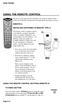 USING THE REMOTE CONTROL The next several pages provide instructions for using the remote control. Follow the instructions that pertain to the appropriate model type you have. REMOTE A INSTALLING BATTERIES
Synergy V Universal / DVR Remote Control Model RC-U63CDR
 Synergy V Universal / DVR Remote Control Model RC-U63CDR Programming And Operating Instructions (Part # 9-542-906) 2007, Contec Holdings, LLC, Rev. 06/07-1 - 1. Introduction Your Synergy V Universal /
TEK PARTNER TM UNIVERSAL REMOTE CONTROL USER S MANUAL
 TEK PARTNER TM UNIVERSAL REMOTE CONTROL USER S MANUAL Congratulations! Your TEK PARTNER TM Universal Remote Control is a state-of-the-art device which integrates many different infra-red remote controls.
Evolution Digital HD Set-Top Box Important Safety Instructions
 Evolution Digital HD Set-Top Box Important Safety Instructions 1. Read these instructions. 2. Keep these instructions. 3. Heed all warnings. 4. Follow all instructions. 5. Do not use this apparatus near
CAUTION RISK OF ELECTRIC SHOCK NO NOT OPEN
 Evolution Digital HD Set-Top Box Important Safety Instructions 1. Read these instructions. 2. Keep these instructions. 3. Heed all warnings. 4. Follow all instructions. 5. Do not use this apparatus near
Watch Remote Manual.0814.qxd 8/14/01 4:49 PM Page 1. Watch Remote Control
 Watch Remote Manual.0814.qxd 8/14/01 4:49 PM Page 1 Watch Remote Control Watch Remote Manual.0814.qxd 8/14/01 4:49 PM Page 2 Watch Remote Manual.0814.qxd 8/14/01 4:49 PM Page 3 Operation range of your
UNIVERSAL REMOTE CONTROL
 Cox Manual 11/27/01 7:14 PM Page 1 UNIVERSAL REMOTE CONTROL User s Guide 4th Draft Cox Manual 11/27/01 7:14 PM Page 2 TABLE OF CONTENTS Introduction................................ 3 Features And Functions......................
CABLE ONE ALL DIGITAL
 CABLE ONE ALL DIGITAL The world is going All Digital and so is Cable ONE. With the switch from analog to digital technology, Cable ONE will be able to add new channels, especially more HD channels, and
HD udta Quick-Start Guide
 HD udta Quick-Start Guide Vyve Broadband HD Set-Top Box Important Safety Instructions 1. Read these instructions. 2. Keep these instructions. 3. Heed all warnings. 4. Follow all instructions. 5. Do not
About the Remote Control... page 2
 TABLE OF CONTENTS About the Remote Control... page 2 Remote Control Signals: UHF or IR...page 2 Installing Batteries in the Remote Control...page 3 Remote Control Modes...page 3 Using the Remote Control
text_dishpvr.fm Page 1 Tuesday, March 2, 2004 12:35 PM Remote Control Basics... 2
 text_dishpvr.fm Page 1 Tuesday, March 2, 2004 12:35 PM TABLE OF CONTENTS Remote Control Basics... 2 Models Supported by this Guide... 2 UHF and IR Signals... 3 Installing Batteries... 3 Converting the
Digital Cable TV. User Guide
 Digital Cable TV User Guide T a b l e o f C o n T e n T s DVR and Set-Top Box Basics............... 2 Remote Playback Controls................ 4 What s on TV.......................... 6 Using the OK Button..................
Fi TV Gold Quick Start Guide
 Quick Start Guide Fi TV Gold Quick Start Guide Welcome to Fi TV! We re happy that you chose EPB Fiber Optics to bring the best movies, sports, news and television programming into your home and we will
Problem: Remote is not working A remote control may not be responding as expected when a customer presses certain buttons
 Welcome to Comcast! We are proud to be the exclusive broadband digital video provider for the University of Alabama. The digital cable service provided in your dorm room gives you additional channel offerings,
TROUBLESHOOTING TABLES REMOTE CONTROL DEVICE CODES
 Troubleshooting and Device Codes What you ll find in this chapter: TROUBLESHOOTING TABLES REMOTE CONTROL DEVICE CODES 119 Troubleshooting Tables TROUBLESHOOTING TABLES Use these tables if you have problems
Digital Satellite Receiver
 USER GUIDE Digital Satellite Receiver Models DSR207, DSR317, DSR505, and DSR530 CONTENTS IMPORTANT SAFETY INSTRUCTIONS...1 DSR BASICS SYMBOLS/ICONS...6 Front Panel...6 Back Panel...7 CONNECTING YOUR DSR...10
OCE-0024B_Rev05 2007.3.9 9:35 AM 페이지1 Owner s Manual
 Owner s Manual Thank You! TM Thank you for purchasing the MX-50 Pre-Programmed and Learning Remote Control. This manual is designed to assist you step-by-step as you setup the MX-50 to replace all of your
Fi TV Gold Quick Start Guide
 Quick Start Guide Fi TV Gold Quick Start Guide Welcome to Fi TV! We re happy that you chose EPB Fiber Optics to bring the best movies, sports, news and television programming into your business and we
User s Reference Manual
 User s Reference Manual 1 5 6 6 6 7 9 9 10 11 11 11 13 14 14 15 16 17 17 19 21 21 21 21 21 21 21 21 23 23 24 24 24 24 Table of Contents Welcome Digital Cable Box (Set-Top Box) Motorola DCT6412 Recording
URC 4080/4081 VIDEO EXPERT
 URC 4080/4081 VIDEO EXPERT User s Guide TABLE OF CONTENTS Introduction........................... 3 Features And Functions...................... 4 Key Charts............................... 5 Installing
REV3-16.11.19.03 TV Guide Interactive. We Make TV Better SM i
 REV3-16.11.19.03 TV Guide Interactive. We Make TV Better SM i TV Guide Interactive Reference Manual Revision Date: November 19, 2003 TV Guide Interactive, Inc. 7140 South Lewis Tulsa, Oklahoma 74136 CONFIDENTIAL
CINEMATE 1 SR DIGITAL HOME THEATER SPEAKER SYSTEM. Operating Guide Guía del usuario Guide d utilisation
 CINEMATE 1 SR DIGITAL HOME THEATER SPEAKER SYSTEM Operating Guide Guía del usuario Guide d utilisation Notice This equipment has been tested and found to comply with the limits for a Class B digital device,
Movie Cube N150H. User s Manual
 Movie Cube N150H User s Manual (v1.0) TABLE OF CONTENTS 1. Main Features... 4 1.1 Front panel... 4 1.2 Back panel... 4 2. Remote Control... 5 3. Welcome Page... 6 4. Installation Guide... 6 5. Program...
DIGITAL CABLE & DVR QUICK GUIDE. cable television made simple
 DIGITAL CABLE & DVR QUICK GUIDE Grande Communications cable television made simple Table of Contents TABLE OF CONTENTS Using Your Remote remote Control 1 programming the Remote 2 Interactive Program Guide
RCN DIGITAL CABLE USERS GUIDE
 RCN DIGITAL CABLE USERS GUIDE WELCOME Congratulations! Thanks to your new Digital Cable Service, you now have access to the most cutting-edge cable television services available, only from RCN. At RCN,
VIZIO Universal Remote Control User Guide
 Table of Contents Chapter 1 - Introduction 2 Chapter 2 - Remote Control Button Description 3 2.1 - Key Remote Control Functions 3 2.2 - Insertion of Batteries in the Remote Control 6 2.3 - Remote Control
Digital Television User Guide
 Digital Television User Guide Table of Contents THE HURONTEL HOME BUNDLE >> Finally you can receive Home Phone (with Calling Features), High Speed Fibre Optic Internet and 100% Digital TV including 1 Digital
Verizon FiOS TV User Guide
 Verizon FiOS TV User Guide Welcome to Verizon FiOS TV Congratulations. You made a great choice by subscribing to FiOS SM TV. It s going to revolutionize your television experience. As a Verizon FiOS TV
Model IRC 550 Universal Remote Control
 Model IRC 550 Universal Remote Control Programming and Operating Instructions To have a clearer idea of the features and capabilities of your remote control, take a moment to read these instructions. Save
(2012 10 24) manual_tocomsat duo LITE.indd 20-1 2012-10-24 7:44:57
 (2012 10 24) manual_tocomsat duo LITE.indd 20-1 2012-10-24 7:44:57 TABLE OF CONTENTS Table of Contents Table of Contents Safety Warning General Information Package Contents & Features Front Panel Rear
DVR Guide. Dual Tuner HD-Capable DVR. You go get the popcorn. Your show waits for you.
 DVR Guide Dual Tuner HD-Capable DVR You go get the popcorn. Your show waits for you. USING YOUR REMOTE CONTROL TV: When programmed, enables control of your TV. Cable: Enables control of your digital cable
CONTENTS Remote Description... 2 Programming Instructions... 3 Programming Codes... 6 More Information... 10
 REMOTE MANUAL Product Type: Universal IR Remote Model Line: ZEN100-700 (all) Product Year: 1999/2000 Manual Part #: Electronic Version Only NOTE: This manual was designed to help you program your Zenith
Please click on the Table of Contents item you are interested in to go directly to the information. Connections and Devices...5
 Please click on the Table of Contents item you are interested in to go directly to the information. Connections and Devices...5 MTS HDTV Set-Top Box General Information and Maintenance... 5 Connecting
Getting Started With The. Explorer
 Getting Started With The Explorer 8300 and 8300HD DVR Record your favorite programs when you re busy Record one program and watch another Record two live programs while watching a third program you recorded
USER GUIDE MANUAL DCT700. One-way Application
 USER GUIDE MANUAL DCT700 One-way Application CAUTION: CAUTION RISK OF ELECTRIC SHOCK TO REDUCE THE RISK OF ELECTRIC SHOCK, DO NOT REMOVE COVER (OR BACK). NO USER-SERVICEABLE PARTS INSIDE. REFER SERVICING
MANUAL. Go to our website and watch the setup video for set up instructions and to better understand your device: www.streamboxtv.
 MANUAL Go to our website and watch the setup video for set up instructions and to better understand your device: www.streamboxtv.com/setup Table of Contents 1. What s Inside your Shipping box...3 2. Streambox
Manufactured under license from Dolby laboratories. Dolby and the double-d symbol are trademarks of Dolby Laboratories.
 Getting Started Thank you for selecting NETGEAR products. After installing your device, locate the serial number on the label and use it to register your product at https://my.netgear.com. You must register
User s Reference Manual
 User s Reference Manual Welcome to i-guide. Introducing the all-new interactive program guide from TV Guide and your cable system. i-guide TM is intuitive, intelligent and inspiring. It unlocks a world
Set Top Box User Guide. Global Reach with a Local Touch
 Set Top Box User Guide Global Reach with a Local Touch Table of Contents REMOTE SET UP 3 SET TOP BOX DIAGRAM 4 SET TOP BOX SETTINGS 5 TURN ON/OFF 5 TV INPUT SETTINGS 5 ADJUSTING THE VOLUME 5 RESETTING
Welcome to Verizon FiOS TV
 Welcome to Verizon FiOS TV Congratulations. You made a great choice by subscribing to FiOS TV. It s going to revolutionize your television experience. As a Verizon FiOS TV subscriber, you can unleash the
THE ANSWER BOOK support.cableone.net
 THE ANSWER BOOK WELCOME TO We re happy that you ve chosen us to entertain you and simplify your life. As a Cable ONE subscriber, you ll find that we offer a wide array of services for everyone in your
USER GUIDE 152772/6-14/8116
 USER GUIDE 152772/6-14/8116 June 2014 CONTENTS Equipment 4 Connected-Home DVR/Standard Set-Top Box Wireless Set-Top Box Wireless Access Point Remote Controls Residential Gateway Getting Started 12 Turn
2005 by Mediacom Communications Corporation. All Rights Reserved. Mediacom Communications assumes no liability nor responsibility for the use of any
 2005 by Mediacom Communications Corporation. All Rights Reserved. Mediacom Communications assumes no liability nor responsibility for the use of any content, materials, or techniques included in this guide.
TEK PARTNER UNIVERSAL REMOTE CONTROL
 TEK PARTNER UNIVERSAL REMOTE CONTROL SPECIFICATIONS... 2 SETUP... 3 PROGRAMMING... 3 POWER SCAN... 3 ID RECALL... 4 VOLUME PUNCH THROUGH... 4 MASTER POWER... 4 MENU MODE... 4 FREQUENTLY ASKED QUESTIONS...
PORTABLE ALARM CLOCK. Dual Alarm. FM Radio. Wake-up Sounds. USB Phone Charger G-1CR
 G-BUZZ PORTABLE ALARM CLOCK Dual Alarm FM Radio Wake-up Sounds USB Phone Charger G-1CR Welcome Alarm clocks can be boring. Get ready to shake things up with your new G-BUZZ. Slap the snooze for more ZZZ
Your Digital Adapter Easy Setup Guide
 Your Digital Adapter Easy Setup Guide Connect with the future of TV You re about to step up to a world of even better picture and sound, and this Easy Setup Guide is here to help every step of the way.
2008 PVR Remote Functionality Guide V1.1
 2008 PVR Remote Functionality Guide V1.1 1. LED Indications 1 2. Basic Colour Button Functionality 1 3. Shift Functionality 1 4. Programming 2 4.1. Programming a Device onto your Remote Control 2 4.1.1.
High-Definition Microdisplay TV
 HP Pavilion md5020n/md5820n/md5880n/md6580n High-Definition Microdisplay TV User s Guide Copyright 2005 Hewlett-Packard Development Company, L.P. Reproduction, adaptation or translation without prior written
The Parts of the System
 2 The Parts of the System THE RECEIVER THE RECEIVER FRONT PANEL Power Light This green light on the receiver front panel lights up when the receiver is turned ON. This light flashes when the receiver memory
WELCOME TO. Your step-by-step guide to getting the most out of your Internet, Phone and TV services. VyveBroadband.com
 WELCOME TO Your step-by-step guide to getting the most out of your Internet, Phone and TV services. VyveBroadband.com Thank you for turning your Vyve on! We know you re pretty busy, so we went ahead and
The Future of Television Entertainment has Arrived PRTC Digital TV
 The Future of Television Entertainment has Arrived PRTC Digital TV Your Guide to PRTC s Digital TV & Whole Home DVR Service P O W E R E D B Y M I C R O S O F T M E D I A R O O M TM P A L M E T T O R U
ENJOY ENTERTAINMENT BETTER
 TV ENJOY ENTERTAINMENT BETTER 1 2 Table Of Contents 4 Setting Up Your Remote Control 5 Find Channels/Search 7 Aspect Ratio Settings 8 Output Resolution Settings 9 Parental Control 10 Menu Bar 10 Settings
ABOUT YOUR SATELLITE RECEIVER
 2 Satellite Receiver ABOUT YOUR SATELLITE RECEIVER This chapter gives you an overview and a description of your satellite receiver. SATELLITE RECEIVER OVERVIEW SINGLE AND DUAL MODES REMOTE CONTROL SATELLITE
Welcome to life on. Get started with this easy Self-Installation Guide.
 Welcome to life on Get started with this easy Self-Installation Guide. Welcome to a network that s light years ahead. Welcome to life on FiOS. Congratulations on choosing Verizon FiOS! You re just a few
ATLAS DVR/PVR 5-DEVICE Universal Remote Control
 ATLAS DVR/PVR 5-DEVICE Universal Remote Control User s Guide Atlas DVD/PVR Manual 2/14/03 5:00 PM Page 2 TABLE OF CONTENTS Introduction...................................... 3 Features And Functions............................
IPTV. Watching TV and Educational Content. IPTV Set-Top-Box Installation Guide
 IPTV Watching TV and Educational Content IPTV Set-Top-Box Installation Guide Table of Contents PACKAGE CONTENTS...2 QUICK START: CONNECTING THE IPTV SET-TOP BOX...2 CLOSED CAPTION...3 REMOTE CONTROL...3
A25/CND. User s Reference Manual
 A25/CND. User s Reference Manual Welcome to i-guide. Introducing the new interactive program guide from Prevue and your cable system. i-guide TM is intuitive, intelligent and inspiring. It unlocks a world
User Guide. QIP27xx Series Set-Top Terminals. Standard- Definition Watch and Record DVR
 User Guide QIP27xx Series Set-Top Terminals Standard- Definition Watch and Record DVR CAUTION RISK OF ELECTRIC SHOCK CAUTION: TO REDUCE THE RISK OF ELECTRIC SHOCK, DO NOT REMOVE COVER (OR BACK). NO USER-SERVICEABLE
WOW! CABLE REFERENCE GUIDE
 TABLE OF CONTENTS WOW! CABLE REFERENCE GUIDE TABLE OF CONTENTS WOW! DIGITAL TV OPERATION The WOW! Digital TV Remote...C-1 The WOW! Atlas Universal Remotes...C-3 Getting Started...C-5 Using the Interactive
Welcome to a bigger, faster, more powerful world.
 Welcome to a bigger, faster, more powerful world. User Guide charter.com/welcome 1 LEGAL POLICIES & TERMS AND CONDITIONS FOR CHARTER RESIDENTIAL SERVICES You may obtain a copy of the Terms and Conditions
AVR 158. Audio/video receiver. Quick-Start Guide ENGLISH
 158 Audio/video receiver ENGLISH Quick-Start Guide 158 Introduction, Speaker Placement and Connection Introduction Thank you for choosing a harman kardon product! This quick-start guide contains all the
Digital Cable Your guide to home entertainment with a personal touch
 Your guide to home entertainment with a personal touch 1.888.345.1111 Sudbury 560.1565 eastlink.ca Exciting New Services Welcome to Home Entertainment Questions? We Have the Answers As one of EastLink
XFINITY TV DIGITAL SET-TOP BOX User Guide
 XFINITY TV DIGITAL SET-TOP BOX User Guide Contents 3 Welcome to XFINITY TV 4 XFINITY TV Quick Start Guide 5 Using Your Remote Control 6-12 Using Your On-Screen Guide Main Menu and Quick Menu TV Listings
inside i-guidetm user reference manual
 inside i-guidetm user reference manual Copyright 2010 Rovi Corporation. All rights reserved. Rovi and the Rovi logo are trademarks of Rovi Corporation and/or its subsidiaries. This document contains confidential
Using the System ORDER YOUR BELL EXPRESSVU PROGRAMMING. Page 3-1
 Using the System ORDER YOUR BELL EXPRESSVU PROGRAMMING This procedure notifies the Bell ExpressVu Customer Service Call Centre that your system is on-line and installed. You need to have your services
TDSTV USER GUIDE. 1-866-44-TDSTV www.tdstv.com. Broadband. Digital TV. Phone.
 TDSTV USER GUIDE Broadband. Digital TV. Phone. 1-866-44-TDSTV www.tdstv.com WELCOME TO TDS TV! We re happy to have you as a customer. Now you can enjoy hundreds of the best television and audio channels,
RR-939B REMOTE CONTROL TÉLÉCOMMANDE FERNBEDIENUNG MANDO A DISTANCIA COMANDO A DISTANZA AFSTANDSBEDIENING FJERNBETJENING
 RR-B REMTE CNTRL TÉLÉCMMANDE FERNBEDIENUNG MAND A DISTANCIA CMAND A DISTANZA AFSTANDSBEDIENING FJERNBETJENING AUD TAPE DVD SAT TV VCR CBL PWER BAND VL CH T / V SURRUND + N SCREEN C. DELAY TRACK TRACK +
Charter Digital Cable and Charter HD Easy Install Guide
 Charter Digital and Charter HD Easy Install Guide Your guide to installing and setting up your Charter HD and Digital Charter Digital and Charter HD Easy Install Guide -888-GET CHARTER (-888-8-7) charter.com
DIGITAL / HD GUIDE. Using Your Interactive Digital / HD Guide. 1-866-WAVE-123 wavebroadband.com
 DIGITAL / HD GUIDE Using Your Interactive Digital / HD Guide 1-866-WAVE-123 wavebroadband.com Using Your Interactive Digital/HD Guide Wave s Digital/HD Guide unlocks a world of greater choice, convenience
Getting Started. Table of Contents. Quick User Guide - English
 Getting Started This Quick User Guide helps you get started with the IRIScan TM Anywhere Wifi. Please read this guide before operating this scanner and its software. All information is subject to change
User s Reference Manual
 A25 User s Reference Manual Welcome to i-guide. Introducing the new interactive program guide from TV Guide and your cable system. i-guide TM is intuitive, intelligent and inspiring. It unlocks a world
IMPORTANT SAFETY INSTRUCTIONS
 IMPORTANT SAFETY INSTRUCTIONS Before you install or use the apparatus, you must read and understand these Important Safety Instructions. At all times when using the apparatus you must follow these Important
Hargray s. Digital Television. powered by Ericsson Mediaroom
 Hargray s Digital Television powered by Ericsson Mediaroom Hargray Digital Television powered by Ericsson Mediaroom Watch What Hargray Digital Television Service Can Do For Your Home Entertainment. Welcome
This product may be protected by one or more of the following U.S. Patents: 6,418,556; 7,100,185; 5,809,204; 6,396,546; 5,940,073; and 6,239,794.
 DVR user manual Copyright 2010 Rovi Corporation. All rights reserved. Rovi and the Rovi logo are trademarks of Rovi Corporation. Passport is a registered trademark of Rovi Corporation and/or its subsidiaries.
VAST TV. Enjoy watching the channels you love.
 VAST TV Vast is committed to providing you with quality advanced broadband services at a great value. Choose from a variety of TV packages and enjoy more entertainment with Vast OnDemand, digital music
User Guide. Fiber TV V3-0216
 User Guide Fiber TV V3-0216 Table of contents Say Hello to Fiber TV 2 Your Fiber TV Digital Receiver 3 Your Remote Control 4 Programming Your Remote 5 Using Your Fiber TV Service 6 High Definition TV 6
Connections and Setup
 12 Connections and Setup HOW TO CONNECT YOUR SATELLITE RECEIVER Use the information in this chapter to connect your receiver to other equipment. CONNECTING TO THE NEARBY HDTV (TV1) CONNECTING TO THE REMOTE
THIS IS GOING TO BE EXCITING. AND EASY.
 FiOS TV USER GUIDE 2015 WELCOME TO FiOS TV. NOW YOU CAN Record More Shows. Watch In More Places. Store More Recordings. THIS IS GOING TO BE EXCITING. AND EASY. 1 ALL YOU NEED TO KNOW ABOUT FiOS TV Your
NeoTV Streaming Player (NTV200)
 NeoTV Streaming Player (NTV200) User Manual 350 East Plumeria Drive San Jose, CA 95134 USA February 2012 202-10841-03 v1.0 2012 NETGEAR, Inc. All rights reserved No part of this publication may be reproduced,
ZaapTV HD509N. User s Guide. How to use the HD509N set-top box
 ZaapTV HD509N User s Guide How to use the HD509N set-top box Contents 1. Safety... 1 2. Appearance... 4 3. Rear Panel Connection... 5 4. Remote... 7 5 First Time Set-Up... 9 6. Network Settings... 10 6.1
LINE IN, LINE OUT TO TV, VIDEO IN, VIDEO OUT
 1 Based on the information you provided we are unable to match you with a specific hookup recommendation. For your convenience this document provides the four most common hookup configurations for the
DVB-T2 DIGITAL TV BOX
 DVB-T2 DIGITAL TV BOX QUALITY OF DIGITAL TELEVISION MT4159 User Manual EN 2 Index Index...2 Introduction...3 Front panel...3 Rear panel...3 Remote control...4 Hardware configuration...5 Connecting tuner
User s Manual. High Definition Cable Receiver Personal Video Recorder
 User s Manual High Definition Cable Receiver Personal Video Recorder Important safety instructions Safety Warnings CAUTION RISK OF ELECTRIC SHOCK DO NOT OPEN CAUTION : To reduce the risk of electrical
User Guide. Plaza HDR S freesat digital HD TV recorder
 User Guide Plaza HDR S freesat digital HD TV recorder CONGRATULATIONS on buying a Manhattan Plaza HDR S freesat receiver. This high performance unit lets you record and watch the best of digital TV and
Quick Start Guide English
 Quick Start Guide 1. Checking Accessories Quick Start Guide User s Manual Remote Control & Batteries Manual & Quick Start Guide HUMAX Wi-Fi USB Adapter (Supplied with HDR-2000T/1TB/WD) HDMI Cable Ethernet
How To Watch Tv On Tv On Pc Or Mac (For Pc) On A Pc Or Ipad (For Mac) On Tv Or Ipa) On Pc (For Blackburn) On An Iphone Or Ipro (For Whiteford
 Cisco Videoscape Voyager Vantage Client User Interface Table of Contents Introducing the Cisco Videoscape Voyager Vantage Client User Interface... 6 Welcome... 6 About the AT8500 AllTouch IR Universal
let us guide you Your Interactive Program Guide (IPG) will help you get the most out of all CentraCom Digital Cable has to offer.
 let us guide you Your Interactive Program Guide (IPG) will help you get the most out of all CentraCom Digital Cable has to offer. Using Your Remote Using Your Cable Set-Top Box Accessing Your IPG Menus
passport guide user manual
 passport guide user manual Copyright 2013 Rovi Corporation. All rights reserved. Rovi and the Rovi logo are trademarks of Rovi Corporation. Passport is a registered trademark of Rovi Corporation and/or
Wireless Genie Mini MODEL C41W
 Wireless Genie Mini MODEL C41W Installation Guide OVERVIEW See the panels that follow for complete instructions. This Installation Guide will show you how to connect your DIRECTV Wireless Genie Mini Client
Big Sandy Broadband DVR Guide
 Big Sandy Broadband DVR Guide Contents Big Sandy Broadband DVR Don t Miss a Thing 3 Control Live TV 3 Playback Controls Using the Video Control Buttons 4 Playback Controls Using the Remote Control Arrow
DTA INSTALLATION PROCESS & USER GUIDE FOR CHARTER BUSINESS CUSTOMERS
 DTA INSTALLATION PROCESS & USER GUIDE FOR CHARTER BUSINESS CUSTOMERS This guide is intended for owners or managers and front desk personnel. This guide is not intended for guests. Customer Care 1-800-314-7195
Set-up one component at a time, and you ll move quickly through your system.
 Congratulations! With your new WR7 universal remote, you now have the power to control your home entertainment system with just one easy-to-use control. Thousands of audio and video component codes have
Media Gateway Hardware
 Media Gateway Hardware Getting to Know Your Media Gateway E-1 Media Gateway Front Panel E-1 Media Gateway Back Panel E-2 Media Player Front Panel E-2 Media Player Back Panel E-3 MP 2050 Front E-3 MP 2050
DIRECTV Digital Satellite Receiver Operating Instructions TZ-DBS01
 DIRECTV Digital Satellite Receiver Operating Instructions TZ-DBS01 For product assistance, please call: 1-888-726-2377 or send e-mail to: [email protected] TQB2AA0366 10301 PRINTED IN MEXICO
Easy Connect Guide Digital Adapter. Say hello to your TV s new best friend.
 Easy Connect Guide Digital Adapter Say hello to your TV s new best friend. Connect with the future of TV You re about to step up to a world of even better picture and sound, and this Easy Connect Guide
LINE IN, LINE OUT AUDIO IN, AUDIO OUT FIXED, VARIABLE TO TV, VIDEO IN, VIDEO OUT. 2010 Sony Electronics Inc. All rights reserved.
 Based on the information you provided we are unable to match you with a specific hookup recommendation. For your convenience this document provides the four most common hookup configurations for the devices
2-in-1 Universal Remote Control
 2-in-1 Universal Remote Control Owner s Manual Please read before using this equipment. ˆ Contents Features... 3 Introduction... 4 Preparation... 5 Installing Batteries... 5 Setting Up Your Remote Control...
Explorer HDTV Setup Wizard User s Guide
 Explorer HDTV Setup Wizard User s Guide In This Guide Introducing the Setup Wizard... 2 Picture Formats... 3 Setting Up Your HDTV With the Setup Wizard... 7 Easy Setup Instructions... 11 Advanced Setup