
AT&T Small Business System Speakerphone with Digital Answering System and Caller ID/Call Waiting 984
|
|
|
- Lydia Banks
- 10 years ago
- Views:
Transcription
1 984CIB_(Rev9)ml_ /24/06 8:07 PM Page 1 USER S MANUAL Part 2 AT&T Small Busness System Speakerphone wth Dgtal Answerng System and Caller ID/Call Watng 984 For Customer Servce Or Product Informaton, Vst Our Web Ste At Please also read Part 1 Important product nformaton 2006 Advanced Amercan Telephones. All rghts reserved. AT&T and the Globe Desgn are trademarks of AT&T Corp., lcensed to Advanced Amercan Telephones.

2 984CIB_(Rev9)ml_ /24/06 8:07 PM Page 2

3 984CIB_(Rev9)ml_ /24/06 8:07 PM Page I Contents Product overvew...1 Before you begn...2 Parts lst...2 Tools needed...2 DSL users...4 Glossary...5 Programmable features lst...8 Audble sgnals...12 Installaton...13 Battery nstallaton...13 Table/desk nstallaton...15 Wall nstallaton...17 Convenence ports...21 Menu operaton...22 Menu structure...23 Shortcut to language menu...24 Rapd scroll...24 Feature setup...25 Set one touch preference...25 Assgn an extenson number to your phone...26 Turn the rnger on or off for each lne...27 Select the rnger type...28 Set delay rng...29 Turn auto-mute on or off...30 Set dal mode...31 Turn hold remnder on or off...31 Set the tme and date...32 Turn lne usage on or off for each lne...33 Assgn the prme lne (lne preference)...34 Set automatc mode...35 Set the scroll rate...36 Turn screen backlght on or off...37 Turn COVM ndcators on or off for each lne...38 Reset COVM ndcator...39 Program home and local area codes...40 Assgn the lne group for ths phone...41 Erase all settngs and return the phone to default settngs...42 Set answerng system status...43 Set your phone for sngle phone operaton...44 Set answer delay...45 Set auto-attendant pckup delay...46 Set auto-attendant day and nght tmes...47 Turn toll saver on or off...49 Program the remote code...50 Set message length...51 Turn audble message alert on or off...52 Turn montor on or off...53 Turn DTAD ntercept on or off...54 Set ths phone to be the Centrex console phone...55 Set the Centrex console delayed rng tme...56 Set the dsplay language...56 Telephone operaton...57 Make or answer a call...57 Swtch between handset, headset and speakerphone...59 Tmer...59 Call prvacy...60 Do not dsturb...60 Volume...61 Redal...61 Redal stack...62 Auto redal...62 Hold...63 Swtch between lnes...63 Mute...64 Flash...64 Temporary tone dalng...64 Contents

4 984CIB_(Rev9)ml_ /24/06 8:07 PM Page II Contents Conference calls...65 Transfer a call...66 Low battery ndcator...67 Lghts and what they mean...68 One touch operaton...70 Store a number n a one touch locaton...71 Revew a one touch entry...73 Dal a one touch number...74 Drectory operaton...75 Menu structure...75 Store a name and number n the drectory...76 Revew drectory entres...79 Edt a drectory entry...80 Dal a number from the drectory...81 Remove a name and number from the drectory...81 Remove all entres from the drectory...82 Intercom operaton...83 Basc ntercom operatons...84 Make an ntercom call wth the handset...85 Make an ntercom call wth the speakerphone or headset...86 Answer an ntercom call...87 End an ntercom or page call...87 Page a specfc extenson (sngle-phone page)...88 Answer a sngle-phone page...88 Page all system phones...89 Answer a system-wde page...89 Make an ntercom conference call...90 Room montor...90 Caller ID operaton...91 Menu structure...92 Caller ID dsplay...92 Call watng...93 Calls receved on two or more lnes smultaneously...93 Dsplay screen messages...94 Message watng and NEW CALL lght...95 Call hstory...95 Remove calls from call hstory...97 Dal a number from call hstory...98 Save a name and number from call hstory to the drectory...99 Save a number from call hstory to a one touch locaton Answerng system DTAD operaton Turn answerng system on or off Enter DTAD mode Menu structure Record an outgong announcement Revew an outgong announcement Remove an outgong announcement Montor ncomng calls Intercept an ncomng message Lsten to your messages Remove messages Record a memo Record a phone conversaton Audble message alert Answerng system Auto-attendant operaton Auto-attendant sequence for callers Revew an auto-attendant outgong announcement Record an auto-attendant outgong announcement...113

5 984CIB_(Rev9)ml_ /24/06 8:07 PM Page III Remove an auto-attendant outgong announcement Usng multple auto-attendants Answerng system Remote operaton Connect wth the answerng system Remote commands Addng a fax machne Usng a fax swtch General product care Techncal specfcatons In case of dffculty Expandng the phone system Lne groups Prvate lnes Centrex operaton Setup checklst Enable the console phone Console operaton Set rng delay duraton Answer a delayed rng Pck up another staton s lne Index Contents

6 984CIB_(Rev9)ml_ /24/06 8:07 PM Page IV

7 984CIB_(Rev9)ml_ /24/06 8:07 PM Page 1 Product overvew Ths AT&T Small Busness System Speakerphone wth Dgtal Answerng System and Caller ID/Call Watng 984 s expandable to a 16-extenson telephone system. The 984 s compatble wth AT&T 945, 974, 944, 955 and 964 telephones. (See Before you begn startng on page 2 and Expandng the phone system begnnng on page 128 for detals.) The 984 s hearng-ad compatble and can be connected to up to four ncomng telephone lnes. Ths phone features a speakerphone for hands-free use and a headset jack compatble wth most two-band 2.5mm headsets (sold separately). The 984 allows pagng, ntercom and call transfers between system phones and s capable of connectng three partes n a conference call. Ths phone also features a 32-number memory for faster dalng and has a drectory whch can store up to 200 addtonal numbers wth names. Ths phone has a caller ID feature whch supports caller ID wth call watng servce. (Caller ID servces are subscrber servces avalable from many local telephone companes for a fee.) There are two convenence ports avalable for connectng the phone to another devce such as a fax machne or modem. Your 984 also features a bult-n dgtal answerng system whch can store approxmately 20 mnutes of messages, memos, phone calls and announcements for a total of up to 99 messages. You can access the answerng system from a remote, non-system touch tone phone or from another system phone. Ths 984 telephone s equpped to functon as an auto-attendant n a mult-phone system. An auto-attendant phone can pck up and redrect ncomng calls to other extensons n your phone system. You may desgnate more than one auto-attendant for your phone system. (See Answerng system Auto-attendant operaton begnnng on page 110 for detals.) The 984 s compatble wth Centrex servce. Centrex s a specal subscrber servce whch may be avalable from your local telephone company for a fee. If you subscrbe to Centrex servce, refer to the Centrex operaton secton of ths manual, begnnng on page 131. Ths user's manual contans detaled nstructons for nstallng, programmng and operatng your AT&T Small Busness System Speakerphone wth Dgtal Answerng System and Caller ID/Call Watng 984. Please be sure to read Before you begn startng on page 2 before nstallng ths phone. Product overvew 1

8 984CIB_(Rev9)ml_ /24/06 8:07 PM Page 2 For Customer Servce Or Product Informaton, Vst Our Web Ste At 2006 Advanced Amercan Telephones. All rghts reserved. AT&T and the Globe Desgn are trademarks of AT&T Corp., lcensed to Advanced Amercan Telephones. Before you begn Parts lst Your box should nclude: Before you begn USER S MANUAL Part 2 AT&T Small Busness System Speakerphone wth Dgtal Answerng System and Caller ID/Call Watng Please also read Part 1 Important product nformaton Ths user s manual QUICK START GUIDE AT&T Small Busness System Speakerphone wth Dgtal Answerng System and Caller ID/Call Watng 984 Ths Quck Start Gude provdes basc nstructons. For addtonal nstallaton optons and complete nstructons whch allow you to use all features of ths phone, refer to your AT&T Small Busness System Speakerphone wth Dgtal Answerng System and Caller ID/Call Watng 984 User's Manual, Part 2. Installaton Installaton of a DSL spltter may be requred to use the advanced features of ths telephone f you have DSL (dgtal subscrber lne) servce. Please see DSL users startng on page 4 of your User s Manual, Part 2 for detals. If you are nstallng multple phones n your phone system, you must nstall and program one set at a tme. Each phone MUST be assgned a unque extenson number. Battery nstallaton Install a 9V alkalne battery (purchased separately) n order to use some features of ths telephone n the event of a power falure. If power fals and a workng battery s nstalled, all four lnes of ths phone wll work only to answer calls wth the handset or headset, and to dal calls usng the dal pad keys and the one touch or redal features. No other features wll work untl power s restored. 1. Remove the wedge from the undersde of the base unt. Press on the tabs and pull the wedge away from the phone. contnued on page 2 1 Quck start gude Wallet card One short lne cord Two long lne cords Handset Base unt wth wedge attached Coled handset cord Power adapter Tools needed You wll also need a small Phllps head screw drver to nstall your phone. 2

9 984CIB_(Rev9)ml_ /24/06 8:07 PM Page 3 Ths 984 telephone s fully compatble wth any AT&T Four-Lne Small Busness System Speakerphone 945 or 974 unts you may have nstalled. You can use a total of /974/984 unts together as extensons n your phone system. Ths 984 telephone s also compatble wth any AT&T 964/955/944 phones you have prevously nstalled. Ths 984 telephone s NOT compatble wth any 843, 853, 854, 874, or 954 telephones you may have prevously nstalled. NOTE: If you have one or more 964, 955, or 944 phone(s) nstalled n the same phone system wth ths 984 telephone, you can have only 12 extensons and 15 telephone lnes n the phone system. You must have a modular telephone jack and an electrcal outlet not controlled by a wall swtch near where you re nstallng the phone. The total length of telephone wrng used n ths system MUST NOT be more than 600 feet as t may cause nterference wth the advanced features of ths telephone. Identfy the number of phone lnes you ll use. Plan the layout of your phone system. All connected phones must have the same lne 1 phone number for the ntercom and pagng features to work. Every ndvdual phone n your telephone system MUST be assgned a unque extenson number for the ntercom feature to work. If you try to assgn the same extenson number to a second phone, you wll hear a repeatng short rng and the screen dsplay wll nclude EXThXXhshalreadyhusedhAssgnhnewhEXTh#hf the phone s n dle mode. If the phone s n the programmng mode, you wll hear the repeatng short rng only. See Assgn an extenson number to your phone on page 26 of ths manual for drectons. Decde f you want a prvate lne. A prvate lne does not appear on all connected phones. Choose your settng for each feature. You wll need to program the features after nstallaton. See Programmable features lst begnnng on page 8 for a bref descrpton of the features. See the Feature setup secton begnnng on page 25 for programmng nstructons. Before you begn 3

10 984CIB_(Rev9)ml_ /24/06 8:07 PM Page 4 Before you begn DSL users Connectng a DSL (dgtal subscrber lne) to L1/L2 may nterfere wth the advanced features of ths telephone, (such as ntercom, hold, and lne prvacy,) whch work by sendng data sgnals over lne 1. These data sgnals are sent at some of the same frequences as those used by your DSL servce. Also, DSL lnes usually have mcroflters, whch keep the DSL sgnals from nterferng wth your telephone's sound qualty. These same mcroflters wll also block the data sgnals that ths telephone system uses to support some telephone system features. Therefore, the advanced features of ths phone may not work properly when DSL mcroflters are nstalled on L1/L2 of your phone system. However, you can use a DSL spltter to prevent these problems. For only one or two DSL lnes, nstall t/them nto L3/L4 on the back of the phone. If your system wll only use two or three phone lnes, plug a sngle non-dsl telephone lne nto L1/L2. (Turn off the L2 lne usage lghts.) Be sure to use the mcroflter(s,) whch were probably provded when DSL was nstalled, on lnes 3 and/or 4 f the lnes have DSL, to protect the sound qualty. If you have two telephone lnes, one of whch s DSL, whch both appear at a sngle wall jack, use a Trplex adapter to separate the lnes at the wall jack. Call 1 (800) f you need help dong ths. If you must nstall a DSL lne nto L1/L2 on the back of the phone, use a DSL spltter. Lnes 1 and 2 share a telephone jack, so f you need to nstall a DSL lne for telephone lne 1 or lne 2, you wll need addtonal equpment to avod nterference. Any telephone lne connected to L1/L2 cannot have a mcroflter. It must have a DSL spltter. Use a dual lne DSL spltter or a two-lne DSL flter. Call 1 (800) f you need help dong ths. Installaton, by your DSL servce provder or other professonal, of a DSL spltter (not a mcroflter) as close as possble to the protecton block or network nterface (where the telephone lne enters the house) may resolve DSL nterference. (It may be necessary to use a DSL spltter ntended for outdoor use.) A DSL spltter allows the data and voce sgnals to use the same telephone lne wthout nterferng wth each other. AT&T cannot supply the DSL spltter. Please contact your DSL servce provder or professonal contractor for detals about obtanng and nstallng a DSL spltter. Your DSL servce provder may requre you to bear any nstallaton costs. AT&T and the manufacturer of ths product have no afflaton wth your DSL provder and the type or qualty of servces they offer. Installaton must be performed at your own expense and AT&T cannot troubleshoot or provde nstallaton support. 4

11 984CIB_(Rev9)ml_ /24/06 8:07 PM Page 5 NOTE: If your DSL servce provder cannot supply a DSL spltter, t s possble to purchase an outdoor DSL spltter over the Internet. If you are a new DSL customer, your DSL servce provder wll probably ask you f you have more than one telephone lne n your home or busness, or f you are nstallng a phone system. If you answer yes, your DSL servce provder wll probably advse you that you need a spltter. In most cases, your DSL servce provder wll supply you wth the proper spltter for your specfc stuaton. The DSL spltter, nstalled properly, should help overcome any nterference between the DSL sgnal and the sgnals sent by your phone system. AT&T shall not be responsble for the cost of nstallaton, any damages, lost busness, drect or ndrect expenses accrued or assocated wth nstallaton, or other compatblty ssues whch may arse as a result of usng ths product whle you subscrbe to DSL servce. Before you begn Glossary Auto-attendant: The 984 phone n your mult-phone system s desgnated to pck up a rngng lne automatcally after a selected number of rngs. The auto-attendant plays the selected outgong announcement and redrects the call f the caller enters an extenson number. You can desgnate up to 16 auto-attendants n your phone system. Caller ID: Caller dentfcaton s a subscrber servce avalable from most local telephone companes for a fee. When you subscrbe to caller dentfcaton, you can see who s callng before you answer the phone f you and the caller are both n areas offerng caller ID servce wth compatble equpment. Caller ID wth call watng: Ths s a sngle, combned subscrber servce whch may be avalable from your local telephone company. If you subscrbe to ths servce, you can use your 984 telephone to see who s callng even whle you are on another call (as long as your caller s n an area wth caller ID servce and both telephone companes use compatble equpment). Centrex servce: A specal subscrber servce whch may be avalable from your local telephone company for a fee. Ths 984 telephone can be used wth Centrex servce. COVM: Central Offce Voce Mal s a subscrber voce message servce whch may be avalable from your local telephone company. Ths servce may be called by another name n your area (e.g. call answerng). contnued on page 6 5

12 984CIB_(Rev9)ml_ /24/06 8:07 PM Page 6 Glossary contnued from page 5 Before you begn DND: When actvated, the Do Not Dsturb (DND) feature prevents nterruptons durng a call. DTAD: The Dgtal Telephone Answerng Devce s a sophstcated, tapeless answerng system bult nto the 984 telephone. Home area code: Ths s the area code for your telephone number. Most users smply dal the seven dgts of a phone number to make a call wthn ther own area code and 11 dgts outsde of ther area code. If ths apples to you, you should enter your own area code nto the unt as the home area code. After programmng, f you receve a call from wthn your home area code, the screen wll dsplay the seven dgts of the phone number. You may, however, lve n a regon where for calls wthn your own area code, you must dal 10 dgts (that s, the area code and phone number). If ths apples to you, enter 000 for the home area code and enter your area code as a local area code. After programmng, f you receve a call from wthn your area code, the screen dsplays the 10 dgts of the phone number. Be sure to follow the drectons under Program home and local area codes on page 40 durng feature setup. Lne group: A group of system phones sharng some lnes wthn a mult-phone system. Local area code: Most users dal 11 dgts to make calls outsde ther home area codes. If ths apples to you, you do not need to program any local area codes. However, f you dal only 10 dgts to make calls to some areas outsde your home area code (wthout dalng 1), then program these local area codes nto the phone. Up to fve local area codes can be programmed. See Program home and local area codes on page 40 durng feature setup for nstructons. After programmng, f you receve a call from one of these local area codes, the screen dsplays the 10 dgts of the phone number. Navgaton buttons: These are the buttons used when programmng your 984 phone and for scrollng through feature optons (E, +, -, >, <). 6

13 984CIB_(Rev9)ml_ /24/06 8:07 PM Page 7 Phone system: Two or more system phones combned to form an nteractng system of shared lnes. You can have up to 16 system phones n the system. NOTE: If you have one or more 964, 955, or 944 phone(s) nstalled n the same phone system wth ths 984 telephone, you can have only 12 extensons n the phone system. Prme lne: Ths s the lne on your phone you desgnate to be selected automatcally when you lft the handset, press K, or press h. System phone: Any 944, 945, 955, 964, 974 or 984 phone n your phone system (also called an extenson). Before you begn 7

14 984CIB_(Rev9)ml_ /24/06 8:07 PM Page 8 Before you begn Programmable features lst Default settngs ndcated by *. Feature: Functon: Optons: One touch Choose default mode Intercom* or telephone preference for one touch (EXT) buttons. Extenson no. Assgn an extenson 11*-26 number to ths phone. Rnger on/off Turn the rnger on or On* or off off for each lne. Rnger type Select a rng pattern Type 1*, 2, 3, 4 for ths phone. Delay rng Select desred tme Off*, 2, 4, 6, up to to delay central 30 seconds offce rng. Auto-mute Turn auto-mute on On* or off or off (sounds at ths extenson wll be heard automatcally when paged). Tone/pulse Set the dal mode for Tone* or pulse touch tone or dal pulse (rotary) dalng. Hold remnder Turn on or off the On* or off audble remnder that a call at ths extenson s on hold. Tme/date Set the tme and date. 01:00 AM 01/01 Sunday* Lne usage Turn lne usage on On* or off or off for each lne. NOTE: One rng lasts about sx seconds, two rngs last twelve seconds, and so on. 8

15 984CIB_(Rev9)ml_ /24/06 8:07 PM Page 9 Programmable features lst Default settngs ndcated by *. Feature: Functon: Optons: Prme lne Assgn a lne on ths Lne 1*, 2, 3, 4 phone to be selected automatcally when you lft the handset, press K,or press h. Automatc Choose default mode Speakerphone* or mode for calls connected headset wth the handset n the base unt. Before you begn Scroll rate Set the scrollng Very slow, slow, speed for rapd medum*, fast, or scroll. very fast LCD backlght Turn the screen On* or off dsplay backlght on or off. COVM on/off Turn COVM (message/ On or off* voce mal) ndcators on or off for each lne. COVM reset Clear COVM ndcators N/A when they are lt but no new messages are watng. Area codes Program one home 1-3 dgts, empty* and up to fve local area codes for use wth caller ID features. Lne group Assgn your phone Lne group 4*-15 or to a lne group. PRV (prvate) NOTE: One rng lasts about sx seconds, two rngs last twelve seconds, and so on. contnued on page 10 9

16 984CIB_(Rev9)ml_ /24/06 8:07 PM Page 10 contnued from page 9 Before you begn Programmable features lst Default settngs ndcated by *. Feature: Functon: Optons: Reset all Return all features N/A to default settngs. Answer status Turn the answerng On*, off, or system on or off, or auto-attendant set ths phone to be an auto-attendant. Set answer status to on to actvate answerng system n a sngle phone system. Set answer status to auto-attendant to actvate answerng system and auto-attendant functons for a mult-phone system. Sngle phone Specfy whether ths On or off* phone s sngle (on) or part of a mult-phone system (off). Answer delay Set the length of tme seconds. ths phone rngs before 15 seconds* the answerng system pcks up the call. Auto ATT delay Specfy how long an 6*-30 seconds auto-attendant wats before pckng up ncomng calls. Day/nght tmes Specfy tmes to be Day: 09:00 AM* consdered day or Nght: 06:00 PM* nght for auto attendant features. NOTE: One rng lasts about sx seconds, two rngs last twelve seconds, and so on. 10

17 984CIB_(Rev9)ml_ /24/06 8:07 PM Page 11 Programmable features lst Default settngs ndcated by *. Feature: Functon: Optons: Toll saver Turn toll saver On or off* on or off. Remote code Program the code Three dgts, 111* (password) needed for remote access to some features of your phone. Message length Set maxmum length Unlmted*, 1 mnute, of recorded messages. or greetng only Before you begn Message alert Turn the audble On or off* message alert on or off. Montor Choose whether On* or off ncomng messages can be heard over the speaker as they are recorded. DTAD ntercept Choose whether On or off* messages can be ntercepted by other phones durng recordng. Console Specfy whether your On or off* phone s the Centrex console phone for your phone system. CSL delay rng Set the tme to delay Off*, 2, 4, 6, up to rng for Centrex 30 seconds console phone. Language Select the language Englsh*, Spansh, or for screen dsplays. French NOTE: One rng lasts about sx seconds, two rngs last twelve seconds, and so on. 11

18 984CIB_(Rev9)ml_ /24/06 8:07 PM Page 12 Before you begn Audble sgnals When you hear: A rapd double-rng pattern, repeatng A long sngle rng, repeatng A short sngle rng, repeatng A short sngle tone, repeatng It means: You have an ncomng ntercom call. You have an ncomng transferred call. The extenson number you just programmed has already been assgned. Choose another number for ths extenson. The extenson you are pagng s n DND mode. A long sngle tone, repeatng A very long sngle tone, repeatng The extenson you are callng or pagng s busy. The extenson you are callng s ether rngng or n DND mode. 12

19 984CIB_(Rev9)ml_ /24/06 8:07 PM Page 13 Installaton If you are nstallng multple phones n your telephone system, you must nstall and program one set at a tme. If more than one extenson s assgned the same extenson number, a repeatng short rng (error rng) sounds at the extenson you are programmng and the screen dsplay ncludes EXThXXhshalreadyhusedhAssgnhnewhEXTh#hf the phone s n dle mode. If the phone s n the programmng mode, you wll hear the repeatng short rng only. Assgn a dfferent extenson number from 11 to 26 (see Assgn an extenson number to your phone on page 26). Battery nstallaton Install a 9V alkalne battery (purchased separately) n order to use some features of ths telephone n the event of a power falure. If power fals and a workng battery s nstalled, all four lnes of ths phone wll work only to answer calls wth the handset or headset, and to dal calls usng the key pad and the one touch or redal features. No other features wll work untl power s restored. Installaton 1. Remove the wedge from the undersde of the base unt. Press on the tabs n the drecton of the arrows and pull the wedge away from the phone. 2. Remove the battery compartment screw wth a small Phllps head screwdrver. contnued on page 14 13

20 984CIB_(Rev9)ml_ /24/06 8:07 PM Page 14 Battery nstallaton contnued from page 13 Installaton 3. Pull on the tab to remove the battery compartment cover. 4. Insert a 9V battery (purchased separately) followng the polarty markngs n the battery compartment. Polarty markngs 5. Replace the battery compartment cover and the screw. 6. If you are wall mountng the phone, turn to Wall nstallaton begnnng on page 17. (You wll not need the wedge; store t n case you use the phone on a table or desk n the future.) OR If you are usng the phone on a table or desk, reattach the wedge to the base unt by sldng the tabs nto the holes as shown. Snap the wedge onto the base. Then, turn to Table/desk nstallaton begnnng on page

21 984CIB_(Rev9)ml_ /24/06 8:07 PM Page 15 Table/desk nstallaton For best results, follow the drectons n Battery nstallaton begnnng on page 13 before nstallng the phone. Recommended wrng confguraton for phone system Installaton NOTE: The total length of telephone wre used n your system should not be more than 600 feet as t may cause nterference wth the advanced features of ths telephone. NOTE: Users should use ONLY the lne cords provded. 1. Connect the telephone lne cords to the telephone and wall jacks as shown n the followng llustraton on page 16. contnued on page 16 15
22 984CIB_(Rev9)ml_ /24/06 8:07 PM Page 16 Table/desk nstallaton contnued from page 15 Installaton Four one-lne jacks (To use ths nstallaton opton, you ll need to purchase two two-lne adapters. Adapters are avalable at retal stores or by callng 1 (800) ) Modular telephone jacks lnes 3 and 4 Modular telephone jacks lnes 1 and 2 Two-lne adapters Telephone lne cords L3/L4 jack Two two-lne jacks L1/L2 jack Modular telephone jack lnes 3 and 4 Modular telephone jack lnes 1 and 2 Telephone lne cords L3/L4 jack L1/L2 jack 2. Connect the handset cord. Plug one end of the coled handset cord nto the jack on the left sde of the phone. Plug the other end nto the handset and hang up. 16
23 984CIB_(Rev9)ml_ /24/06 8:07 PM Page Connect the power adapter to the telephone. Use only the power adapter provded wth ths product. To obtan a replacement, call 1 (800) Plug one end of the power adapter nto the jack labeled POWER on the back of the phone. Plug the other end nto a standard electrcal outlet not controlled by a wall swtch. Power jack Standard electrcal outlet Power adapter Installaton 4. Intalzaton. If no battery s nstalled when you connect the power cord, the phone runs a quck self-test and the screen dsplays Intalzng for about seven seconds. NOTE: The phone wll run through ths same ntalzaton any tme t s reconnected to AC power f a workng battery s not nstalled (for example, after a power falure or when the unt has been unplugged). 5. Check for dal tone. Lft the handset and lsten for a dal tone. If you cannot hear a dal tone, turn to In case of dffculty begnnng on page 121. Wall nstallaton For best results, follow the drectons n Battery nstallaton begnnng on page 13 before nstallng the phone. 1. If the wedge s stll attached to the undersde of the base unt, follow step 1 n Battery nstallaton on page 13 to remove the wedge. contnued on page 18 17
24 984CIB_(Rev9)ml_ /24/06 8:07 PM Page 18 Wall nstallaton contnued from page 17 Installaton 2. Reverse the handset tab. Hold down the swtchhook, then pull out the handset tab and rotate t 180 degrees. Push the handset tab down nto the grooves so t settles nto poston. Swtchhook Handset tab 3. Connect the telephone lne cords to the telephone as shown. L3/L4 jack L1/L2 jack 4. Connect the handset cord. Plug one end of the coled handset cord nto the jack on the left sde of the phone. Plug the other end nto the handset and hang up. 5. Connect the power adapter to the telephone. Use only the power adapter provded wth ths product. To obtan a replacement, call 1 (800) Plug one end of the power adapter nto the jack labeled POWER on the back of the phone. Plug the power adapter nto a standard electrcal outlet not controlled by a wall swtch. Standard electrcal outlet Power jack Power adapter 18
25 984CIB_(Rev9)ml_ /24/06 8:07 PM Page Connect the telephone lne cords to the wall jacks as shown n the followng llustraton and mount the phone on the wall. NOTE: Users should use ONLY the lne cords provded. Four one-lne jacks (To use ths nstallaton opton, you ll need to purchase two two-lne adapters. You wll also need to purchase and nstall a blank wall plate. Adapters and blank wall plates are avalable at retal stores or by callng 1 (800) ) Installaton Modular telephone jacks lnes 3 and 4 Two-lne adapters Blank wall plate Power adapter Standard electrcal outlet Modular telephone Jacks lnes 1 and 2 contnued on page 20 19
26 984CIB_(Rev9)ml_ /24/06 8:07 PM Page 20 Wall nstallaton contnued from page 19 Installaton Two two-lne jacks (To use ths llustraton opton, you may want to use the short lne cord for lnes 1 and 2.) Modular telephone jack lnes 3 and 4 Modular telephone jack lnes 1 and 2 Power adapter Standard electrcal outlet 7. Intalzaton. If no battery s nstalled when you connect the power cord, the phone runs a quck self-test and the screen dsplays Intalzng for about seven seconds. NOTE: The phone wll run through ths same ntalzaton any tme t s reconnected to AC power f a workng battery s not nstalled (for example, after a power falure or when the unt has been unplugged). 8. Check for dal tone. Lft the handset and lsten for a dal tone. If you cannot hear a dal tone, turn to In case of dffculty begnnng on page
27 984CIB_(Rev9)ml_ /24/06 8:07 PM Page 21 Convenence ports If you want to connect another devce (such as a modem or fax machne) to the wall jack, you can use the jacks on the phone labeled AUX. These convenence ports use lnes 3 and 4; a call pcked up on lne 3 or 4 at another extenson may nterrupt fax, modem, or message transmsson. Four one-lne jacks Modular telephone jacks lnes 3 and 4 wth a two-lne adapter Modular telephone jacks lnes 1 and 2 wth a two-lne adapter Standard electrcal outlet Installaton Power adapter AUX L4 jack AUX L3 jack Two two-lne jacks L1/L2 jack L3/L4 jack Modular telephone jack lnes 3 and 4 Modular telephone jack lnes 1 and 2 Standard electrcal outlet Power adapter AUX L4 jack AUX L3 jack L1/L2 jack L3/L4 jack 21
28 984CIB_(Rev9)ml_ /24/06 8:07 PM Page 22 Menu operaton Menu operaton k m j o Feature setup, memory programmng and some ndvdual feature operatons for the 984 use menus shown n the screen dsplay. Use the navgaton buttons (<, >, +, -, E) to begn, end and move through menu operatons (for example, feature setup). Press E to actvate a menu operaton. The frst menu tem for ths topc or data wll appear n lne four of the screen. For example, the screen dsplays: Menu topc or data FEATUREHSETUP Menu tem ONEHTOUCHHHHHHHx Menu ndcator NOTE: If you do not press a key to contnue menu operatons wthn 30 seconds, the telephone automatcally exts the menu. When x s dsplayed, you can press the - or + button repeatedly to move through the menu. Press E to choose the menu tem currently dsplayed. Ths may be a lower level menu, an acton, or a feature settngs screen. For example: Menu ONE TOUCH Current settng Feature () INTERCOM PREFERENCEHHHHHx When () s dsplayed, you can press the > or < button to scroll through settng choces. Press E to store the settng, or press - to store the settng and show the next opton for the feature currently dsplayed. To return to the man menu, press the - or + button untl the screen dsplay ncludes MAIN MENU or EXIT. Then, press E. To ext programmng mode, press and hold E. NOTE: If the phone beeps twce, repeat the steps to program the feature. 22
29 984CIB_(Rev9)ml_ /24/06 8:07 PM Page 23 j Menu structure Use the menu operaton to set up the values for the 984 features. Access the menu by pressng E when the phone s dle. The menu structure for the feature setup menu s shown below. One touch Preference Intercom Telephone Program Pause Tone Flash Cancel Vew Done Man menu Phone settngs Extenson no. Rnger on/off Rnger type Delay rng Auto-mute Tone/pulse Hold remnder Man menu Tme/date Hour Mnute AM/PM Month Date Day of week Man menu Specal optons Lne usage Prme lne Automatc mode Scroll rate LCD backlght COVM on/off COVM reset Area codes Lne group Reset all Man menu DTAD/AA Answer status Sngle phone Answer delay Auto ATT delay Day/nght tmes Toll saver Remote code Message length Message alert Montor DTAD ntercept Man menu Centrex Console CSL delay rng Man menu Language Englsh Espanol Franças Ext Menu operaton 23
30 984CIB_(Rev9)ml_ /24/06 8:07 PM Page 24 Menu operaton k m j o Shortcut to language menu Ths phone comes programmed for Englsh screen dsplays. If you need to change the screen language to Spansh or French, you can use these steps to reach the LANGUAGE menu more quckly. 1. Press E to begn feature setup. 2. Press + twce. The screen dsplay ncludes LANGUAGE and the current settng. 3. Press < or > to scroll through the language choces (Englsh, Espanol, or Franças). When the language you want to use s dsplayed, press - to save your choce. The screen dsplay ncludes EXIT. 4. Press E to return to the dle screen. NOTE: You can ext feature setup and return to the dle screen any tme. Smply press and hold E. m k o Rapd scroll You can scroll through menu tems or settng choces more quckly usng ths feature. Press and hold the desred scroll button (+, -, > or <). The screen wll scroll through your choces at the rate you program durng feature setup. See Set the scroll rate on page 36 for programmng nstructons. 24
31 984CIB_(Rev9)ml_ /24/06 8:07 PM Page 25 Feature setup k n o Set one touch preference Choose whether pressng an EXT button automatcally ntates an ntercom or one touch call. If you want to place one touch calls usng only one button, set ths feature to TELEPHONE. If you want to place ntercom calls usng only one button, set ths feature to INTERCOM. See One touch operaton begnnng on page 70 and Intercom operaton begnnng on page 83 for detals about one touch and ntercom calls. 1. Press E to begn feature setup. 2. Press E. The screen dsplay ncludes PREFERENCE and the current settng. 3. Press < or > to toggle between INTERCOM and TELEPHONE. 4. When the correct settng s shown, press - to save your choce. The screen dsplay ncludes PROGRAM. 5. Press and hold E to return to the dle screen. NOTE: You can ext feature setup and return to the dle screen any tme. Smply press and hold E. Feature setup 25
32 984CIB_(Rev9)ml_ /24/06 8:07 PM Page 26 Feature setup k n o Assgn an extenson number to your phone Every ndvdual phone n your telephone system MUST be assgned a unque extenson number for the ntercom feature to work. 1. Press E to begn feature setup. 2. Press - untl the screen dsplay ncludes PHONE SETTINGS. 3. Press E. The screen dsplay ncludes EXTENSION NO and the current settng. 4. Press < or > to change the extenson number (11h h26). 5. When the desred extenson number s shown, press - to save your choce. The screen dsplay ncludes RINGER ON/OFF. NOTE: If you duplcate an extenson number already n use, you wll hear a repeatng short rng (error rng) and the screen dsplay wll nclude EXThXXhs alreadyhusedhassgnhnewhexth#hf the phone s n dle mode. If the phone s n the programmng mode, you wll hear the repeatng short rng only. Repeat steps 1-5 at the rngng phone to assgn a dfferent extenson number (from 11-26). 6 Proceed to step 5 on page 27 to set the next feature (rnger on or off). OR Press and hold E to return to the dle screen. NOTE: You can ext feature setup and return to the dle screen any tme. Smply press and hold E. 26
33 984CIB_(Rev9)ml_ /24/06 8:07 PM Page 27 k o j Turn the rnger on or off for each lne 1. Press E to begn feature setup. 2. Press - untl the screen dsplay ncludes PHONE SETTINGS. 3. Press E. The screen dsplay ncludes EXTENSION NO. 4. Press - untl the screen dsplay ncludes RINGER ON/OFF. 5. Press E. The screen dsplay ncludes L1 RINGER and the current settng. 6. Press < or > to toggle between On and Off for the lne shown. 7. When the desred settng for ths lne s shown, press - to save your choce. The screen dsplay wll nclude the current rnger settng for the next lne (L1h...hL4). 8. Repeat steps 6 and 7 to turn the rnger on or off for other lnes at ths phone. 9. When you are fnshed settng the rnger, press - untl the screen dsplay ncludes DONE. 10. Press E. The screen dsplay ncludes RINGER ON/OFF. 11. Proceed to step 4 on page 28 to set the next feature (rnger type). OR Press and hold E to return to the dle screen. NOTE: You can ext feature setup and return to the dle screen any tme. Smply press and hold E. Feature setup 27
34 984CIB_(Rev9)ml_ /24/06 8:07 PM Page 28 Feature setup k n o Select the rnger type You can choose a rng pattern for ncomng phone calls. NOTE: Incomng ntercom calls use rnger type 1 and cannot be changed. 1. Press E to begn feature setup. 2. Press - untl the screen dsplay ncludes PHONE SETTINGS. 3. Press E. The screen dsplay ncludes EXTENSION NO. 4. Press - untl the screen dsplay ncludes RINGER TYPE. 5. Press E. The screen dsplay ncludes L1 RINGER TYPE and the current settng. 6. Press < or > to change the rnger type (Type 1h htype 4) for the lne shown. 7. When the desred settng for ths lne s shown, press - to save your choce and move to the next lne wth ts rnger type. 8. Repeat steps 6 and 7 to set rnger types for other lnes on ths phone (L1h...hL4). 9. When you are fnshed settng the rnger type, press - untl the screen dsplay ncludes DONE. 10. Press E. The screen dsplay ncludes RINGER TYPE. 11. Proceed to step 4 on page 29 to set the next feature (delay rng). OR Press and hold E to return to the dle screen. NOTE: You can ext feature setup and return to the dle screen any tme. Smply press and hold E. 28
35 984CIB_(Rev9)ml_ /24/06 8:07 PM Page 29 k o j Set delay rng Set the length of tme before ncomng calls wll rng at ths extenson. NOTE: If you choose to set a delayed rng on a phone wth voce mal servce, the phone may not rng at all before voce mal pcks up the call. 1. Press E to begn feature setup. 2. Press - untl the screen dsplay ncludes PHONE SETTINGS. 3. Press E. The screen dsplay ncludes EXTENSION NO. 4. Press - untl the screen dsplay ncludes DELAY RING and the current settng. 5. Press < or > to change the delay rng settng (Off, 02 sech h30 sec). 6. When the correct delay settng s shown, press - to save your choce. The screen dsplay ncludes AUTO-MUTE. 7. Proceed to step 5 on page 30 to set the next feature (auto-mute). OR Press and hold E to return to the dle screen. NOTE: You can ext feature setup and return to the dle screen any tme. Smply press and hold E. Feature setup 29
36 984CIB_(Rev9)ml_ /24/06 8:07 PM Page 30 Feature setup k n o Turn auto-mute on or off Choose whether sounds at ths extenson wll be heard automatcally n response to a page (auto-mute off) or only when M s pressed. Auto-mute off permts handsfree conversaton and room montorng; auto-mute on protects prvacy. 1. Press E to begn feature setup. 2. Press - untl the screen dsplay ncludes PHONE SETTINGS. 3. Press E. The screen dsplay ncludes EXTENSION NO. 4. Press - untl the screen dsplay ncludes AUTO-MUTE and the current settng. 5. Press < or > to toggle between On and Off. 6. When the correct settng s shown, press - to save your choce. The screen dsplay ncludes TONE/PULSE. 7. Proceed to step 5 of Set dal mode on page 31 to set the next feature (tone/pulse). OR Press and hold E to return to the dle screen. NOTE: You can ext feature setup and return to the dle screen any tme. Smply press and hold E. 30
37 984CIB_(Rev9)ml_ /24/06 8:07 PM Page 31 k n o Set dal mode 1. Press E to begn feature setup. 2. Press - untl the screen dsplay ncludes PHONE SETTINGS. 3. Press E. The screen dsplay ncludes EXTENSION NO. 4. Press - untl the screen dsplay ncludes TONE/PULSE and the current settng. 5. Press < or > to toggle between Tone and Pulse. 6. When the correct settng s shown, press - to save your choce. The screen dsplay ncludes HOLD REMINDER. 7. Proceed to step 5 below to set the next feature (hold remnder). OR Press and hold E to return to the dle screen. NOTE: You can ext feature setup and return to the dle screen any tme. Smply press and hold E. Feature setup k n o Turn hold remnder on or off 1. Press E to begn feature setup. 2. Press - untl the screen dsplay ncludes PHONE SETTINGS. 3. Press E. The screen dsplay ncludes EXTENSION NO. 4. Press - untl the screen dsplay ncludes HOLD REMINDER and the current settng. 5. Press < or > to toggle between On and Off. 6. When the correct settng s shown, press - to save your choce. The screen dsplay ncludes MAIN MENU. 7. Press and hold E to return to the dle screen. NOTE: You can ext feature setup and return to the dle screen any tme. Smply press and hold E. 31
38 984CIB_(Rev9)ml_ /24/06 8:07 PM Page 32 Feature setup k n o Set the tme and date 1. Press E to begn feature setup. 2. Press - untl the screen dsplay ncludes TIME/DATE. 3. Press E. The screen dsplay ncludes HOUR and the current hour settng. 4. Press < or > untl the correct hour s shown. 5. Press - to save the hour settng. The screen dsplay ncludes MINUTE and the current mnute settng. 6. Press < or > untl the correct mnute s shown. 7. Press - to save the mnute settng. The screen dsplay ncludes AM/PM and the current settng. 8. Press < or > to toggle between AM and PM. 9. Press - to save the AM/PM settng. The screen dsplay ncludes MONTH and the number of the current month settng. 10. Press < or > untl the number of the correct month s shown. 11. Press - to save the correct month settng. The screen dsplay ncludes DATE and the current day of the month settng. 12. Press < or > untl the correct day of the month s shown. 13. Press - to save the day of the month. The screen dsplay ncludes DAY OF WEEK and the current settng. 14. Press < or > untl the correct day of the week s shown. 15. Press - to save the tme/date settng. The screen dsplay ncludes MAIN MENU. 16. Press and hold E to return to the dle screen. NOTE: In settng the 29th day of February (whch runs every four years), you can frst set the month and day to ether Jan 29 or Mar 29, DO NOT swtch the date tem, and then ONLY change the month to Feb. The LCD on the base unt wll show Feb 29 after settng. 32 NOTE: You can ext feature setup and return to the dle screen any tme. Smply press and hold E.
39 984CIB_(Rev9)ml_ /24/06 8:07 PM Page 33 k n o Turn lne usage on or off for each lne If you are not usng all four phone lnes at ths extenson, you need to turn off lne usage for the unused lnes. If you expand to a second, thrd or fourth lne, turn lne usage back on. Lne 1 must be turned on for the ntercom to work. NOTE: You may use any combnaton of lnes. Lnes used do not need to be n order. For example, lne usage can be turned on for lnes 1 and 3 and turned off for lnes 2 and 4. You may also restrct the use of certan lnes on ths phone to ntercom and pagng only, by turnng off lne usage for each lne you want restrcted. When lne usage s turned off, that lne cannot be used to answer ncomng calls or to make outgong or transfer calls. 1. Press E to begn feature setup. 2. Press - untl the screen dsplay ncludes SPECIAL OPTIONS. 3. Press E. The screen dsplay ncludes LINE USAGE. 4. Press E. The screen dsplay ncludes L1 USAGE and the current settng for ths lne. 5. Press < or > to toggle between On and Off for the lne shown. 6. Press - to save the current settng for ths lne and move to the next lne wth ts current lne usage settng. 7. Repeat steps 5 and 6 to set lne usage for other lnes at ths extenson. 8. When you are fnshed settng lne usage, press - untl the screen dsplay ncludes DONE. 9. Press E. The screen dsplay ncludes LINE USAGE. 10. Proceed to step 4 on page 34 to set up the next feature (prme lne). OR Press and hold E to return to the dle screen. NOTE: You can ext feature setup and return to the dle screen any tme. Smply press and hold E. Feature setup 33
40 984CIB_(Rev9)ml_ /24/06 8:07 PM Page 34 Feature setup k n o Assgn the prme lne (lne preference) 1. Press E to begn feature setup. 2. Press - untl the screen dsplay ncludes SPECIAL OPTIONS. 3. Press E. The screen dsplay ncludes LINE USAGE. 4. Press - untl the screen dsplay ncludes PRIME LINE and the current settng. 5. Press < or > to scroll through the lne choces (Lne1h...hLne4). 6. When the lne you wsh to set as prme s dsplayed, press - to save your choce. The screen dsplay ncludes AUTOMATIC MODE. 7. Proceed to step 5 on page 35 to set the next feature (automatc mode). OR Press and hold E to return to the dle screen. NOTE: You can ext feature setup and return to the dle screen any tme. Smply press and hold E. 34
41 984CIB_(Rev9)ml_ /24/06 8:07 PM Page 35 k n o Set automatc mode Choose the mode (headset or speakerphone) to be used automatcally when you press a LINE button wth the handset n the base unt. 1. Press E to begn feature setup. 2. Press - untl the screen dsplay ncludes SPECIAL OPTIONS. 3. Press E. The screen dsplay ncludes LINE USAGE. 4. Press - untl the screen dsplay ncludes AUTOMATIC MODE and the current settng. 5. Press < or > to toggle between Speakerphone and Headset. 6. When the desred mode s dsplayed, press - to save your choce. The screen dsplay ncludes SCROLL RATE. 7. Proceed to step 5 on page 36 to set the next feature (scroll rate). OR Press and hold E to return to the dle screen. NOTE: You can ext feature setup and return to the dle screen any tme. Smply press and hold E. Feature setup 35
42 984CIB_(Rev9)ml_ /24/06 8:07 PM Page 36 Feature setup k n o Set the scroll rate You can choose the speed for the rapd scroll feature. (See Rapd scroll on page 24 for detals.) 1. Press E to begn feature setup. 2. Press - untl the screen dsplay ncludes SPECIAL OPTIONS. 3. Press E. The screen dsplay ncludes LINE USAGE. 4. Press - untl the screen dsplay ncludes SCROLL RATE and the current settng. 5. Press < or > to change the settng (Very Slow, Slow, Medum, Fast, or Very Fast). 6. When the correct scroll rate s shown, press - to save your choce. The screen dsplay ncludes LCD BACKLIGHT. 7. Proceed to step 5 on page 37 to set the next feature (LCD backlght). OR Press and hold E to return to the dle screen. NOTE: You can ext feature setup and return to the dle screen any tme. Smply press and hold E. 36
43 984CIB_(Rev9)ml_ /24/06 8:07 PM Page 37 k n o Turn screen backlght on or off 1. Press E to begn feature setup. 2. Press - untl the screen dsplay ncludes SPECIAL OPTIONS. 3. Press E. The screen dsplay ncludes LINE USAGE. 4. Press - untl the screen dsplay ncludes LCD BACKLIGHT and the current settng. 5. Press < or > to toggle between On and Off. 6. When the correct settng s shown, press - to save your choce. The screen dsplay ncludes COVM ON/OFF. 7. Proceed to step 5 on page 38 to set the next feature (COVM on/off). OR Press and hold E to return to the dle screen. NOTE: You can ext feature setup and return to the dle screen any tme. Smply press and hold E. Feature setup 37
44 984CIB_(Rev9)ml_ /24/06 8:07 PM Page 38 Feature setup k n o Turn COVM ndcators on or off for each lne If you subscrbe to voce mal servce wth your local telephone servce provder, turn the COVM ndcator on to have the screen dsplay the approprate lne numbers when there are messages watng. If you do not subscrbe to voce mal servce, turn the COVM ndcators off for each lne. 1. Press E to begn feature setup. 2. Press - untl the screen dsplay ncludes SPECIAL OPTIONS. 3. Press E. The screen dsplay ncludes LINE USAGE. 4. Press - untl the screen dsplay ncludes COVM ON/OFF. 5. Press E. The screen dsplay ncludes L1 COVM ON/OFF and the current settng. 6. Press < or > to toggle between On and Off for the lne shown. 7. When the correct settng s shown, press - to save your choce. The screen dsplay ncludes COVM ON/OFF for the next lne and the current settng. 8. Repeat steps 6 and 7 to turn the COVM ndcator on or off for other lnes at ths extenson. 9. When you are fnshed settng the COVM ndcators, press - untl the screen dsplay ncludes DONE. 10. Press E. The screen dsplay ncludes COVM ON/OFF. 11. Press - untl the screen dsplay ncludes COVM RESET, then proceed to step 5 on page 39 to clear the COVM ndcators. OR Press and hold E to return to the dle screen. NOTE: You can ext feature setup and return to the dle screen any tme. Smply press and hold E. 38
45 984CIB_(Rev9)ml_ /24/06 8:07 PM Page 39 m j Reset COVM ndcator If a COVM ndcator remans on when there are no messages on that lne, you may have receved a false sgnal from your local telephone servce provder. You can clear the ndcator manually. 1. Press E to begn feature setup. 2. Press - untl the screen dsplay ncludes SPECIAL OPTIONS. 3. Press E. The screen dsplay ncludes LINE USAGE. 4. Press - untl the screen dsplay ncludes COVMhRESET. 5. Press E. The screen dsplay ncludes L1 COVM RESET. 6. Press + or - to scroll through the COVM Reset menu (L1hCOVMhRESETh...hL4hCOVM RESET, or ALLhCOVMhRESEThandhDONE). 7. When the lne you want to reset s dsplayed, press E to remove the message watng ndcator. You can clear all the lnes at once by choosng ALLhCOVMhRESET. The screen dsplay ncludes Reset! 8. Press - untl the screen dsplay ncludes DONE. 9. Press E. The screen dsplay ncludes COVM RESET. 10. Press - untl the screen dsplay ncludes AREA CODES, then proceed to step 5 on page 40 to program the home or local area codes. OR Press and hold E to return to the dle screen. NOTE: You can ext feature setup and return to the dle screen any tme. Smply press and hold E. Feature setup 39
46 984CIB_(Rev9)ml_ /24/06 8:07 PM Page 40 Feature setup n Program home and local area codes You can program ths phone to recognze one home and up to fve local area codes. See Home area code and Local area code on page 6 for defntons. 1. Press E to begn feature setup. 2. Press - untl the screen dsplay ncludes SPECIAL OPTIONS. 3. Press E. The screen dsplay ncludes LINE USAGE. 4. Press - untl the screen dsplay ncludes AREA CODES. 5. Press E. The screen dsplay ncludes HOME AC and a prompt to enter a home area code (1-3 dgts). 6. Use the dal pad keys to enter your home area code, then press -. The screen dsplay ncludes LOCAL AC1 and a prompt to enter a local area code (1-3 dgts). If you need to enter any local area codes, use the dal pad keys and then press - to scroll to the next screen (LOCALhAC2,hLOCALhAC3,hLOCAL AC4,handhLOCALhAC5). NOTE: If you must dal the area code to place calls wthn your own area code, enter 000 for the home area code and enter your area code as a local area code. 7. When you are fnshed enterng all of the area codes you need to program, press - untl the screen dsplay ncludes DONE. 8. Press E. The screen dsplay ncludes AREA CODES. 9. Press - untl the screen dsplay ncludes LINE GROUP, then proceed to step 5 on page 41 to assgn the lne group. OR Press and hold E to return to the dle screen. NOTE: You can ext feature setup and return to the dle screen any tme. Smply press and hold E. 40
47 984CIB_(Rev9)ml_ /24/06 8:07 PM Page 41 k n o Assgn the lne group for ths phone 1. Press E to begn feature setup. 2. Press - untl the screen dsplay ncludes SPECIAL OPTIONS. 3. Press E. The screen dsplay ncludes LINE USAGE. 4. Press - untl the screen dsplay ncludes LINE GROUP and the current settng. 5. Press > or < to scroll through the lne group choces (Lne 04h...hLne 15, or PRV). 6. When the lne group you want s shown, press - to save your choce. The screen dsplay ncludes RESET ALL. 7. Proceed to step 5 on page 42 to reset all feature settngs to default values. OR Press and hold E to return to the dle screen. NOTE: You can ext feature setup and return to the dle screen any tme. Smply press and hold E. Feature setup 41
48 984CIB_(Rev9)ml_ /24/06 8:07 PM Page 42 Erase all settngs and return the phone to default settngs Feature setup n If you reset all features to the default settngs, all prevous feature programmng and one touch entres wll be erased. You wll need to program your preferences for every feature agan and re-enter numbers n one touch locatons. You cannot undo the RESET ALL command. 1. Press E to begn feature setup. 2. Press - untl the screen dsplay ncludes SPECIAL OPTIONS. 3. Press E. The screen dsplay ncludes LINE USAGE. 4. Press - untl the screen dsplay ncludes RESET ALL. 5. Press E. The screen dsplay ncludes ENTER:Reset all? 6. Press E to confrm the command. The screen dsplays Reset! A tone sounds and the screen returns to showng RESET ALL. 7. Press and hold E to return to the dle screen. NOTE: You can ext feature setup and return to the dle screen any tme. Smply press and hold E. 42
49 984CIB_(Rev9)ml_ /24/06 8:07 PM Page 43 n k o Set answerng system status Turn the answerng functon on or off, or set ths phone to be an auto-attendant for your mult-phone system. Set answer status to On to actvate the answerng system n a sngle phone system. Set answer status to AutoAttendant to actvate the answerng system and auto-attendant functons for a mult-phone system. NOTE: The auto-attendant feature only works wth a mult-phone system. If ths phone s the only telephone n your system, DO NOT select AutoAttendant for the answer status. 1. Press E to begn feature setup. 2. Press - untl the screen dsplay ncludes DTAD/AA. 3. Press E. The screen dsplay ncludes ANSWER STATUS and the current settng. 4. Press < or > to scroll through the choces (On, Off, or AutoAttendant). When the correct settng s shown, press - to save your choce. The screen dsplay ncludes SINGLE PHONE. 5. Proceed to step 5 on page 44 to set the next feature (sngle phone). OR Press and hold E to return to the dle screen. NOTE: You can ext feature setup and return to the dle screen any tme. Smply press and hold E. Feature setup 43
50 984CIB_(Rev9)ml_ /24/06 8:07 PM Page 44 Set your phone for sngle phone operaton Feature setup k n o If ths phone s the only telephone n your phone system (sngle phone), you MUST turn ths feature on for the answerng system to work. If you are usng ths phone as part of a mult-phone system, leave sngle phone off (default settng). 1. Press E to begn feature setup. 2. Press - untl the screen dsplay ncludes DTAD/AA. 3. Press E. The screen dsplay ncludes ANSWERxSTATUS. 4. Press - untl the screen dsplay ncludes SINGLExPHONE and the current settng. 5. Press < or > to toggle between Off and On. When the correct settng s shown, press - to save your choce. The screen dsplay ncludes ANSWERxDELAY. 6. Proceed to step 5 on page 45 to set the next feature (answer delay). OR Press and hold E to return to the dle screen. NOTE: You can ext feature setup and return to the dle screen any tme. Smply press and hold E. 44
51 984CIB_(Rev9)ml_ /24/06 8:07 PM Page 45 k n o Set answer delay Choose how long ths phone rngs before the answerng system pcks up a call. One rng s about sx seconds. 1. Press E to begn feature setup. 2. Press - untl the screen dsplay ncludes DTAD/AA. 3. Press E. The screen dsplay ncludes ANSWERxSTATUS. 4. Press - untl the screen dsplay ncludes ANSWERxDELAY and the current settng. 5. Press < or > to scroll through the choces (02 sech...h60 sec). When the correct settng s shown, press - to save your choce. The screen dsplay ncludes AUTO ATT DELAY. 6. Proceed to step 5 on page 46 to set the next feature (auto-attendant delay). OR Press and hold E to return to the dle screen. Feature setup NOTE: You can ext feature setup and return to the dle screen any tme. Smply press and hold E. 45
52 984CIB_(Rev9)ml_ /24/06 8:07 PM Page 46 Feature setup k n o Set auto-attendant pckup delay If ths phone s a desgnated auto-attendant, you can choose how long the auto-attendant wats before pckng up ncomng calls. One rng s about sx seconds. 1. Press E to begn feature setup. 2. Press - untl the screen dsplay ncludes DTAD/AA. 3. Press E. The screen dsplay ncludes ANSWERxSTATUS. 4. Press - untl the screen dsplay ncludes AUTOxATTxDELAY. 5. Press < or > to scroll through the choces (06 sech...h30 sec). When the correct settng s shown, press - to save your choce. The screen dsplay ncludes DAY/NIGHTxTIMES. 6. Proceed to step 5 on page 47 to set the next feature (day and nght tmes). OR Press and hold E to return to the dle screen. NOTE: You can ext feature setup and return to the dle screen any tme. Smply press and hold E. 46
53 984CIB_(Rev9)ml_ /24/06 8:07 PM Page 47 k n o Set auto-attendant day and nght tmes The auto-attendant feature only works wth a mult-phone system. If you have more than one phone n your system, you MUST program the hours for day and nght tme so the answerng system plays the correct outgong announcement. Please see Answerng system Auto-attendant operaton begnnng on page 110 for a detaled descrpton of ths feature. 1. Press E to begn feature setup. 2. Press - untl the screen dsplay ncludes DTAD/AA. 3. Press E. The screen dsplay ncludes ANSWERXSTATUS. 4. Press - untl the screen dsplay ncludes DAY/NIGHT TIMES. 5. Press E. The screen dsplay ncludes DAYxTIME. 6. Press E to start to change the day tme settng. The screen dsplay ncludes HOUR and the current settng. OR Press - and skp to step 11 on page 48 to leave the day tme settng as t s and begn to change the nght tme settng. 7. Press < or > untl the correct day tme hour s shown. Then, press - to save the day tme hour settng. The screen dsplay ncludes MINUTE and the current settng. 8. Press < or > untl the correct day tme mnute s shown. Then, press - to save the day tme mnute settng. The screen dsplay ncludes AM/PM and the current settng. contnued on page 48 Feature setup 47
54 984CIB_(Rev9)ml_ /24/06 8:07 PM Page 48 Set auto-attendant day and nght tmes contnued from page 47 Feature setup k n o 9. Press < or > to toggle between AM and PM. When the correct settng s shown, press - to save the day tme settng. The screen dsplay ncludes DAY TIME and DONE. 10. Press E and then press -, the screen dsplay ncludes NIGHT TIME. 11. Press E to change the nght tme settng. The screen dsplay ncludes HOUR and the current settng. 12. Press < or > untl the correct nght tme hour s shown. Then, press - to save the nght tme hour settng. The screen dsplay ncludes MINUTE and the current settng. 13. Press < or > untl the correct nght tme mnute s shown. Then, press - to save the nght tme mnute settng. The screen dsplay ncludes AM/PM and the current settng. 14. Press < or > to toggle between PM and AM. When the correct settng s shown, press - to save the nght tme settng. The screen dsplay ncludes NIGHT TIME and DONE. 15. Press E and the screen dsplay ncludes NIGHT TIME. Press - and the screen dsplays DONE. 16. Press E untl the screen dsplays DAY/NIGHT TIMES. Press - untl the screen dsplay ncludes TOLL SAVER, then proceed to step 5 on page 49 to set the toll saver. OR Press and hold E to return to the dle screen. NOTE: You can ext feature setup and return to the dle screen any tme. Smply press and hold E. 48
55 984CIB_(Rev9)ml_ /24/06 8:07 PM Page 49 k n o Turn toll saver on or off When toll saver s turned on, the answerng system pcks up ncomng calls wthn eght seconds f there s at least one new message. When there are no new messages, the answerng system pcks up the ncomng call n the tme you set as the answer delay (see Set answer delay on page 45 for detals). 1. Press E to begn feature setup. 2. Press - untl the screen dsplay ncludes DTAD/AA. 3. Press E. The screen dsplay ncludes ANSWER STATUS. 4. Press - untl the screen dsplays ncludes TOLL SAVER and the current settng. 5. Press < or > to toggle between Off and On. 6. When the desred settng s shown, press - to save your choce. The screen dsplay ncludes REMOTE CODE. 7. Proceed to step 5 on page 50 to set the next feature (remote code). OR Press and hold E to return to the dle screen. NOTE: You can ext feature setup and return to the dle screen any tme. Smply press and hold E. Feature setup 49
56 984CIB_(Rev9)ml_ /24/06 8:07 PM Page 50 Feature setup n Program the remote code You can change the remote code (password) used to access your phone remotely. 1. Press E to begn feature setup. 2. Press - untl the screen dsplay ncludes DTAD/AA. 3. Press E. The screen dsplay ncludes ANSWERxSTATUS. 4. Press - untl the screen dsplay ncludes REMOTE CODE and the current code. 5. Use the dal pad to enter a three-dgt remote code, then press - to save the new code. The screen dsplay ncludes MESSAGE LENGTH. 6. Proceed to step 5 on page 51 to set the next feature (message length). OR Press and hold E to return to the dle screen. NOTE: You can ext feature setup and return to the dle screen any tme. Smply press and hold E. 50
57 984CIB_(Rev9)ml_ /24/06 8:07 PM Page 51 k n o Set message length You can select the maxmum length for the messages callers can record when the answerng functon s on. If you choose Unlmted, the caller can record a message of any length, up to the amount of tme remanng for all messages, memos and announcements. If you choose Greetng Only, the caller wll hear the selected outgong announcement but wll not be able to record a message. If you choose 1 mnute, the caller can record a message up to one mnute long. 1. Press E to begn feature setup. 2. Press - untl the screen dsplay ncludes DTAD/AA. 3. Press E. The screen dsplay ncludes ANSWERxSTATUS. 4. Press - untl the screen dsplay ncludes MESSAGExLENGTH and the current settng. 5. Press < or > to scroll through the choces (Unlmted, 1 mnute, or Greetng Only). When the desred message length s dsplayed, press - to save your choce. The screen dsplay ncludes MESSAGE ALERT. 6. Proceed to step 5 on page 52 to set the next feature (audble message alert). OR Press and hold E to return to the dle screen. NOTE: You can ext feature setup and return to the dle screen any tme. Smply press and hold E. Feature setup 51
58 984CIB_(Rev9)ml_ /24/06 8:07 PM Page 52 Feature setup k n o Turn audble message alert on or off 1. Press E to begn feature setup. 2. Press - untl the screen dsplay ncludes DTAD/AA. 3. Press E. The screen dsplay ncludes ANSWERxSTATUS. 4. Press - untl the screen dsplay ncludes MESSAGE ALERT and the current settng. 5. Press < or > to toggle between Off and On. When the correct settng s shown, press - to save your choce. The screen dsplay ncludes MONITOR. 6. Proceed to step 5 on page 53 to set the next feature (montor). OR Press and hold E to return to the dle screen. NOTE: You can ext feature setup and return to the dle screen any tme. Smply press and hold E. 52
59 984CIB_(Rev9)ml_ /24/06 8:07 PM Page 53 k n o Turn montor on or off If you wsh to hear ncomng messages as they are recorded, turn the montor feature on. 1. Press E to begn feature setup. 2. Press - untl the screen dsplay ncludes DTAD/AA. 3. Press E. The screen dsplay ncludes ANSWERxSTATUS. 4. Press - untl the screen dsplay ncludes MONITOR and the current settng. 5. Press < or > to toggle between On and Off. When the correct settng s shown, press - to save your choce. The screen dsplay ncludes DTADxINTERCEPT. 6. Proceed to step 5 on page 54 to set the next feature (DTAD ntercept). OR Press and hold E to return to the dle screen. NOTE: You can ext feature setup and return to the dle screen any tme. Smply press and hold E. Feature setup 53
60 984CIB_(Rev9)ml_ /24/06 8:07 PM Page 54 Feature setup k n o Turn DTAD ntercept on or off If you want other phones connected to lne 1 on ths extenson to be able to pck up a call whle the caller s recordng a message, turn DTAD ntercept on. For nstructons to use ths feature, see Intercept an ncomng message on page Press E to begn feature setup. 2. Press - untl the screen dsplay ncludes DTAD/AA. 3. Press E. The screen dsplay ncludes ANSWERxSTATUS. 4. Press - untl the screen dsplay ncludes DTADxINTERCEPT and the current settng. 5. Press < or > to toggle between Off and On. When the correct settng s shown, press - to save your choce. The screen dsplay ncludes MAINxMENU. 6. Press and hold E to return to the dle screen. NOTE: You can ext feature setup and return to the dle screen any tme. Smply press and hold E. 54
61 984CIB_(Rev9)ml_ /24/06 8:07 PM Page 55 You wll need to program the next two features f ths phone s the desgnated console phone for your centrex system. k n o Set ths phone to be the Centrex console phone NOTE: Ths feature s for use wth Centrex systems only. 1. Press E to begn feature setup. 2. Press - untl the screen dsplay ncludes CENTREX. 3. Press E. The screen dsplay ncludes CONSOLE and the current settng. 4. Press < or > to toggle between On and Off. 5. Press - to save your choce. The screen dsplay ncludes CSL DELAY RING. 6. Proceed to step 5 of Set the Centrex console delayed rng tme on page 56 to change the next feature (console delayed rng). OR Press and hold E to return to the dle screen. NOTE: You can ext feature setup and return to the dle screen any tme. Smply press and hold E. Feature setup 55
62 984CIB_(Rev9)ml_ /24/06 8:07 PM Page 56 Feature setup k n o Set the Centrex console delayed rng tme NOTE: Ths feature s for use wth Centrex systems only. Set the length of tme the phone wll route your calls to the Centrex console phone. One rng s about sx seconds. 1. Press E to begn feature setup. 2. Press - untl the screen dsplay ncludes CENTREX. 3. Press E. The screen dsplay ncludes CONSOLE. 4. Press - untl the screen dsplay ncludes CSL DELAY RING and the current settng. 5. Press < or > to scroll through the choces (Off,h02 sech...h30hsec). 6. Press - to save your choce. The screen dsplay ncludes MAIN MENU. 7. Press and hold E to return to the dle screen. NOTE: You can ext feature setup and return to the dle screen any tme. Smply press and hold E. k n o Set the dsplay language 1. Press E to begn feature setup. 2. Press - untl the screen dsplay ncludes LANGUAGE and the current settng. 3. Press < or > to scroll through the language choces (Englsh, Espanol, or Franças). When the language you want to use s dsplayed, press - to save your choce. The screen dsplay ncludes EXIT. 4. Press E to return to the dle screen. NOTE: You can ext feature setup and return to the dle screen any tme. Smply press and hold E. 56
63 984CIB_(Rev9)ml_ /24/06 8:07 PM Page 57 Telephone operaton NOTE: Ths phone comes programmed to use lne 1 (default prme lne) for calls f you do not press a LINE button. (To change the prme lne, see Assgn the prme lne on page 34 of ths manual.) When you answer a call, the phone automatcally selects the rngng lne. Make or answer a call NOTE: Ths phone wll automatcally make and answer calls n the mode (speakerphone or headset) you programmed (see Set automatc mode on page 35). Follow the drectons below to choose a mode manually. If the phone s n use on one lne, any other calls made or answered wll use the same mode already n use. NOTE: If you dal a phone number longer than 15 dgts, the screen wll dsplay only the last 13 dgts. Handset To make a call, lft the handset and dal the call. To answer a call, lft the handset. Replace the handset to end the call. To overrde automatc lne selecton, press the LINE button for the lne you wsh to select, then lft the handset. Telephone operaton contnued on page 58 57
64 984CIB_(Rev9)ml_ /24/06 8:07 PM Page 58 Make or answer a call contnued from page 57 Telephone operaton k k Speakerphone To make a call, press and release the desred LINE button or K. The SPEAKER lght goes on. Wat for a dal tone, then dal the call. Press K to end the call. To answer a call, press K or press the LINE button of the ncomng call. Press K agan to end the call. NOTE: If headset s programmed as the default mode (see Set automatc mode on page 35), you must press K to actvate the speakerphone. Headset You can use ths phone hands-free when you nstall any ndustry standard two-band 2.5mm headset or other compatble, electroncally solated headset. The headsets must be purchased separately. Headsets are avalable by callng customer servce at 1 (800) For best results, use an AT&T two-band 2.5mm headset. Make sure the headset s plugged nto the headset jack. You wll hear a double-beep f you press h when the headset s not plugged n. NOTE: If headset s programmed as the default mode, (see Set automatc mode on page 35) but the headset s not plugged n, the phone wll swtch to speakerphone. To make a call, press and release h or press the desred LINE button and then press h. The HEADSET lght turns on. Wat for a dal tone, then dal the call. Press h to end the call. To answer a call, press h. Press h agan to end the call. NOTE: If speakerphone s programmed as the default mode (See Set automatc mode on page 35), you must press h to actvate the headset. 58
65 984CIB_(Rev9)ml_ /24/06 8:07 PM Page 59 k k Swtch between handset, headset and speakerphone To swtch from handset to headset or speakerphone, press h or K, then replace the handset. (In order to use the headset, t must be plugged n.) To swtch from speakerphone to handset, lft the handset. (Do not press K or the call wll be dsconnected.) To swtch from headset to handset when the handset s n the base unt, lft the handset. To swtch from headset to handset when the handset s off-hook, press h agan. To swtch from headset to speakerphone, press K. To swtch from speakerphone to headset, nsert the headset plug nto the jack, and press h. To overrde automatc lne selecton, press and release a LINE button. Ths actvates the speakerphone or headset, whchever s programmed as the default mode. Telephone operaton Tmer When you make or answer a call, the tmer automatcally starts. The screen dsplays the elapsed tme n mnutes and seconds for the frst hour (up to 59:59) and then begns agan. The tmer stops automatcally when you hang up and the recorded tme s dsplayed for about 10 seconds. The tmer also stops when you place a call on hold and resets to 00:00 when you release hold. 59
66 984CIB_(Rev9)ml_ /24/06 8:07 PM Page 60 Telephone operaton Call prvacy To ensure call prvacy, ths phone allows only one set at a tme to use a lne. Cancel call prvacy Durng the call, press the LINE button for the call. You ll hear a short beep. Others can now jon the call. Restore call prvacy Press the LINE button agan durng the call. You ll hear a double-beep. The other phones wll be dropped from the call. NOTE: call prvacy s automatcally restored when you end the call. NOTE: When a non-system phone answers a call, any other system phone can pck up the call by pressng the LINE button. Once a system phone pcks up the call, call prvacy s actvated and no other system phones can lsten to the call unless call prvacy s canceled, but non-system phones whch share that lne can stll jon the call. p Do not dsturb When you actvate do not dsturb (DND), you wll not hear pagng tones, voce pagng, or ncomng call rngs. Instead, the LINE lght flashes and the INTERCOM lght goes on to sgnal an ncomng call or page. If you receve an ntercom call, the INTERCOM lght flashes, and the number of the ntercom extenson callng you appears on the dsplay. 1. Press N to prevent nterruptons. The DND lght goes on and the screen dsplay ncludes DND. 2. Press N agan to resume normal call alerts. The DND lght goes off and the screen no longer shows DND. When callers start and ntercom call to a system phone wth DND feature actvated, they wll hear very long beeps, the same tone as f the system phone s just rngng. 60
67 984CIB_(Rev9)ml_ /24/06 8:07 PM Page 61 j l j Volume Handset/speakerphone/headset volume control When you are on a call, press VOLUME + to ncrease call volume. Press VOLUME - to decrease volume. You wll hear a beep when you reach the mnmum or maxmum level. Rnger volume When the phone s rngng, press VOLUME + or VOLUME - to adjust the rnger volume. Ths phone has four rnger volume levels. As you adjust the rnger, you wll hear the rng change. Turnng rnger off You may turn the rnger on or off for each lne. For detaled nstructons, see Turn the rnger on or off for each lne on page 27. Redal The last number daled from ths extenson (up to 32 dgts) s stored n redal memory untl you dal another number. Handset To dal the same number agan, lft the handset, lsten for the dal tone, then press R. Speakerphone or headset To dal the same number agan, press a LINE button, then press R. The phone automatcally dals the last number. NOTE: You must go off hook (lft handset or press a LINE button for speakerphone or headset) before you press R. If you press R wthout gong off hook, the screen dsplays the redal memory stack. (See Redal stack on page 62.) NOTE: You wll experence a one-second delay before the call s daled when usng the redal feature. Ths s normal. Telephone operaton 61
68 984CIB_(Rev9)ml_ /24/06 8:07 PM Page 62 Telephone operaton lm mmm m j l mmm m k k Redal stack The last sx numbers daled from ths extenson are automatcally stored n the redal memory stack. You can revew the numbers n the redal memory and dal one f you wsh. 1. When the phone s not on a call, press R. 2. Press + or - to scroll through the last sx numbers daled at ths extenson. 3. When the number you want to call s dsplayed, press E or a LINE button. The call s daled automatcally usng the mode (headset or speakerphone) you programmed as the automatc mode. (See Set automatc mode on page 35.) NOTE: If you do not place a call wthn 30 seconds, the screen returns to dle. Auto redal Ths phone can automatcally redal a number every 60 seconds up to ten tmes. When the phone automatcally redals the number, t always uses the lne you orgnally used to dal the call. 1 Follow the nstructons under Redal stack above to fnd the number you want to call. 2 Press a LINE button. OR Press E. The phone wll dal the call. 3 When the other lne rngs or the other party answers, lft the handset. OR Press K. OR Press h and speak wth the other party. NOTE: You wll hear a double-beep f you press h when the headset s not plugged n. To cancel auto redal, press any button except VOLUME + or VOLUME -. 62
69 984CIB_(Rev9)ml_ /24/06 8:07 PM Page 63 l Hold Whle on a call, press and release H. The LINE lght for the lne on hold flashes slowly n green, and a double-beep sounds every 30 seconds to remnd you the call s on hold. (To turn off the remnder beep, see Turn hold remnder on or off on page 31.) If you were usng the handset, you can replace the handset n the base unt wthout dsconnectng the call. If you were usng the speakerphone, the speakerphone s automatcally turned off when you press H. To release hold, press and release the LINE button of the call on hold. NOTE: The phone automatcally dsconnects a call on hold after 20 mnutes. To keep a call on hold longer than 20 mnutes, release hold before 20 mnutes and then place the call on hold agan. NOTE: You cannot put an ntercom call on hold. NOTE: If a lne s n use, pressng I wll place the lne on hold and actvate the ntercom. Telephone operaton l Swtch between lnes 1. Press and release H to keep a call on the frst lne. 2. Press and release the LINE button of another lne to make or answer another call. NOTE: If you swtch lnes wthout pressng H frst, you wll drop the call. 63
70 984CIB_(Rev9)ml_ /24/06 8:07 PM Page 64 Telephone operaton p k Mute Mute allows you to hear the other party, but the other party can t hear you. To actvate ths feature, press and release M. The MUTE lght goes on. To return to the conversaton, press and release M agan. NOTE: Swtchng from handset to speakerphone or headset, or from speakerphone or headset to handset, changng lnes, and puttng a call on hold also cancel mute. Flash Use F nstead of the swtchhook to actvate telephone company subscrber servces such as call watng or three-way callng. Temporary tone dalng If you have dal pulse (rotary) servce, you can change from dal pulse to touch tone dalng durng a call by pressng t. 1. Dal the number. 2. Press and release t. Buttons pressed after ths send touch tone sgnals. 3. After you hang up, the phone automatcally returns to pulse servce. 64
71 984CIB_(Rev9)ml_ /24/06 8:07 PM Page 65 p p Conference calls Ths feature lets you set up a three-party call by usng two lnes at the same tme. You can also jon an ntercom call wth a call on an outsde lne. The outsde lne call must be establshed frst because an ntercom call cannot be placed on hold. 1. Make or answer a call. 2. Press and release H. 3. Call someone on another lne. 4. When ths call s answered, press C. The three-party conference begns mmedately. 5. To end a conference call, hang up. All partes wll dsconnect. To talk prvately wth one party: 1. Press H to place both lnes on hold. 2. Press a LINE button to talk prvately wth the person on that lne. 3. Press C to resume the conference call. NOTE: An ntercom call cannot be placed on hold. To drop one lne: Press the LINE button of the party you want to keep. The other lne wll be dropped. Telephone operaton NOTE: Occasonally, the far-end partes on a conference call mght not hear one another. NOTE: If you are experencng dffculty n usng the conference features on ths phone, please consder usng AT&T s complete lne of teleconference servces to fnd a soluton that best meets your needs. AT&T TeleConference Servces reduces travel tme and expense whle ncreasng productvty wherever people are located allowng you to host truly vrtual meetngs and share mportant nformaton n real tme.. To sgn up for AT&T TeleConference Servces, go to: for detals. 65
72 984CIB_(Rev9)ml_ /24/06 8:07 PM Page 66 Telephone operaton p n Transfer a call You can transfer a call you answer to any other system phone. Once you transfer a call, t can be pcked up at any other system phone, not just at the extenson you called. For nformaton about usng the dsplay screen menus, see Menu operaton begnnng on page 22. NOTE: If a transferred call s not pcked up wthn 20 mnutes, the phone wll automatcally dsconnect the call. Blnd transfer Whle on a call: 1. Press t. The screen dsplay s smlar to: Ths extenson 12:08PMH12/26 EXTH11 Transfer 2. Press the EXT button for the extenson where you re transferrng the call. OR Dal the extenson number where you re transferrng the call. The screen dsplay s smlar to: Extenson called 12:08PM 12/26 EXTH11 TransferH12 3. Hang up. Your phone remnds you wth a double-beep every 30 seconds when a transferred call has not been answered. NOTE: If you do not dal an extenson wthn 10 seconds, the transfer s automatcally canceled. 66
73 984CIB_(Rev9)ml_ /24/06 8:07 PM Page 67 l p p n Transfer a call and speak to the recevng party Whle on a call: 1. Press H. 2. Press I. The screen dsplay s smlar to: Ths extenson 12:08PMH12/26 EXTH11 INTERCOMHTO _ PAGEHHHHHHHHHHHx 3. Press E. The screen dsplay s smlar to: 12:08PM 12/26 EXTH11 Pagng PAGE 4. Press the EXT button for the extenson where you re transferrng the call. The screen dsplay s smlar to: Extenson called 12:08PMH12/26 EXTH11 PAGEH12 Telephone operaton When the other party answers, you can announce the call. 5. Press T, then press the EXT button for the extenson where you re transferrng the call. 6. Hang up. NOTE: If you do not dal an extenson wthn 10 seconds, the transfer s automatcally canceled. Answer a transferred call When you hear a long transfer rng, pck up the handset or press the LINE button of the call to use the speakerphone or headset. Low battery ndcator The screen dsplays LOW BATT when the battery needs to be replaced, or when no battery s nstalled. 67
74 984CIB_(Rev9)ml_ /24/06 8:07 PM Page 68 Lghts and what they mean Lght: Status: Means: Lne On steadly, Ths lne s n use at ths green extenson. Telephone operaton On steadly, red Flashng slowly, green Flashng slowly, red Flashng quckly, green Trple flash, green Ths lne s n use at another extenson. Ths lne s on hold at ths extenson. Ths lne s on hold at another extenson. Ths lne s rngng. OR You are transferrng a call from ths extenson. A call on ths lne s beng transferred at another extenson. INTERCOM Flashng slowly The ntercom s n use at another extenson. Flashng quckly On steadly You have an ncomng ntercom call. You are on an ntercom call. MUTE On Ths phone s muted. SPEAKER On You are on a speakerphone call. Flashng slowly Ths phone s dalng an auto redal call. HEADSET On You are on a headset call. DND On Do not dsturb s turned on. 68
75 984CIB_(Rev9)ml_ /24/06 8:07 PM Page 69 Lghts and what they mean Lght: Status: Means: (AUTO)REDIAL On steadly The phone s watng to redal an auto redal call. Flashng slowly Ths phone s dalng an auto redal call. DTAD On steadly Answerng functon s turned on. Flashng slowly Answerng functon s turned on and you have new messages. NEW CALL On steadly There s a new call n call hstory. Flashng slowly There s a message watng. Telephone operaton 69
76 984CIB_(Rev9)ml_ /24/06 8:07 PM Page 70 One touch operaton One touch operaton Ths telephone has 32 one touch locatons where you can store phone numbers you wsh to dal usng fewer keys than usual. You can store up to 24 dgts n each locaton. The steps used to dal numbers stored n one touch locatons vary accordng to how you programmed the one touch preference. See Set one touch preference on page 25 and Dal a one touch number on page 74 for more detals. The frst 16 locatons can be accessed usng only the EXT buttons. To access the remanng 16 locatons, press W and then the EXT button for the desred locaton. NOTE: The EXT buttons are also used to place ntercom calls. See Intercom operaton begnnng on page 83 for detals. You may wsh to wrte the names or telephone numbers of one touch entres on the drectory card, usng the lght gray spaces for the frst 16 locatons and the dark gray spaces for the second 16 locatons. EXT buttons 16 one touch locatons (all lght gray spaces) l 16 lower one touch locatons (all dark gray spaces) p LOWER button 70
77 984CIB_(Rev9)ml_ /24/06 8:07 PM Page 71 p l n Store a number n a one touch locaton For nformaton about usng the dsplay screen menus, see Menu operaton page Press E to enter the feature menu. The screen dsplays ONE TOUCH. 2. Press E. The screen dsplay ncludes PREFERENCE and the current settng. 3. Press - untl the screen dsplay ncludes PROGRAM. 4. Press E. The screen dsplay ncludes <Enter number>. 5. Enter the phone number usng the dal pad keys. OR Press R to copy the last number daled from ths extenson to ths locaton. The screen wll show the number as you enter t. You can press < to backspace. 6. When you are fnshed enterng the number, choose a one touch locaton: Press the EXT button. OR Press W, then press the EXT button. The screen dsplays the number entered and Stored! NOTE: Only the last number daled from ths extenson can be coped to a one touch locaton. The other numbers n the redal stack cannot be coped. NOTE: You can ext storng a number at any tme. Press - untl the screen shows CANCEL, then press E. OR Press and hold E. contnued on page 72 One touch operaton 71
78 984CIB_(Rev9)ml_ /24/06 8:07 PM Page 72 Store a number n a one touch locaton contnued from page 71 One touch operaton n Store a pause n a one touch entry You can nclude a pause whle storng a dalng sequence whch requres one durng actual dalng. Whle you are enterng the number to be stored, the screen dsplay ncludes PAUSE. Press E where you want to store a pause. Each pause counts as one dgt. Contnue storng the number as usual. Store temporary touch tone sgnals n a one touch entry If you have dal pulse (rotary) servce, you can store a dalng sequence whch ncludes the touch tone sgnals requred for some specal servces. Whle you are enterng the number to be stored, the screen dsplay ncludes PAUSE. When you want to begn storng temporary tone sgnals, press - untl the screen dsplay ncludes TONE, then press E. All numbers you enter after ths wll send touch tone sgnals durng dalng. Store a flash n a one touch entry You can store the flash sgnal requred by some specal servces as part of a dalng sequence. Whle you are enterng the number to be stored, the screen dsplay ncludes PAUSE. When you want to enter a flash sgnal, press - untl the screen dsplay ncludes FLASH, then press E. Contnue storng the number as usual. 72
79 984CIB_(Rev9)ml_ /24/06 8:07 PM Page 73 l n Revew a one touch entry For more nformaton about usng the dsplay screen menus, see Menu operaton on page Press E to enter the feature menu. The screen dsplay ncludes ONEHTOUCH. 2. Press E. The screen dsplay ncludes PREFERENCE. 3. Press - untl the screen dsplay ncludes VIEW. 4. Press E. 5. Press the EXT button. OR Press W, then the EXT button for the entry you want to revew. The screen dsplays the number stored n that locaton. If there s no number stored n ths locaton, the screen dsplay ncludes <empty>. 6. Press and hold E to return to the dle screen. NOTE: You can ext one touch revew at any tme. Smply press and hold E. One touch operaton 73
80 984CIB_(Rev9)ml_ /24/06 8:07 PM Page 74 One touch operaton l k k n Dal a one touch number Ths phone comes wth One touch preference programmed to INTERCOM. These nstructons apply only f you have not changed One touch preference. NOTE: To change One touch preference, see Set one touch preference on page 25 of ths manual. If One touch preference s set to INTERCOM: 1. Lft the handset. OR Press K. OR Press h and lsten for the dal tone. 2. Press the EXT button. OR Press W, then press the EXT button for the number you want to call. The screen dsplays the number as t s daled. If One touch preference s set to TELEPHONE, you do not need to go off hook and lsten for a dal tone before you dal a one touch number. You can smply: 1. Press the EXT button. OR Press W, then press the EXT button for the number you want to call. The screen dsplays the number as t s daled usng the speakerphone or headset as programmed for automatc mode. (See Set automatc mode on page 35.) 74
81 984CIB_(Rev9)ml_ /24/06 8:07 PM Page 75 Drectory operaton k m j o Ths 984 telephone can store up to 200 names and phone numbers n the drectory. Names can be up to 16 characters long and numbers can be 24 dgts long. Because drectory entres are stored n alphabetcal order, you may wsh to enter names wth the last name frst n order to mantan consstency wth the nformaton stored automatcally through the caller ID functon of ths system. To enter drectory mode, press D. The screen dsplays: If there are already 200 stored entres, the screen dsplay ncludes DIRECTORY FULL! If you try to vew drectory entres when there are no entres, the screen dsplays no entres. To work wth the drectory, press E. The screen wll dsplay menu choces on the bottom lne. To ext drectory mode at any tme, press D. Menu structure DIRECTORYXFULLXX XXXXXXXXXXXXXXXX XXXXXXXXXXXXXXXx VIEWXENTRIESXXXx Use the navgaton buttons (<, >, +, -, E) to move through menu operatons. See Menu operaton on page 22 for nformaton about movng through menus n the screen dsplay. The menu structure for the drectory s shown below. Drectory operaton VIEW ENTRIES DIAL EDIT NAME DONE CANCEL EDIT NUMBER DONE PAUSE TONE FLASH CANCEL MAIN MENU ADD ENTRY ENTER NUMBER DONE PAUSE TONE FLASH CANCEL 75
82 984CIB_(Rev9)ml_ /24/06 8:07 PM Page 76 Drectory operaton k n o Store a name and number n the drectory 1. Press D to begn workng wth the drectory. 2. Press - untl the screen dsplay ncludes ADD ENTRY. 3. Press E. The screen dsplay ncludes (Enter name).. 4. Use the dal pad keys and the chart below to enter the letters, dgts or symbols you wsh to store. Press the key repeatedly untl the character you want s shown on the screen. For example, press 2 once for A, twce for B, three tmes for C, and four tmes for 2. Press > to move to the next character or space. Press < to backspace. The name wll appear on screen as you enter t. PRESS: ONCE TWICE 3 TIMES 4 TIMES 5 TIMES 6 TIMES 7 TIMES 8 TIMES 1, - ' &. ( ) 1 2 A B C 2 3 D E F 3 4 G H I 4 5 J K L 5 6 M N O 6 7 P Q R S 7 8 T U V 8 9 W X Y Z 9 * * 0 0 # # 5. When you are fnshed enterng the name, press E to move on to enter the phone number. The screen dsplays the name you entered and (Enter number). 76
83 984CIB_(Rev9)ml_ /24/06 8:07 PM Page 77 j l k o 6. Use the dal pad keys to enter the phone number you wsh to store. OR Press R to copy the last number daled at ths extenson onto the screen. Press < to backspace. The number wll appear on the second lne of the screen as you enter t. 7. When you are fnshed enterng the number, press E to store the name and number n the drectory. The screen brefly dsplays the name and number you stored and Saved! Then the screen wll automatcally return to nclude ADD ENTRY. NOTE: You can ext the drectory at any tme wthout storng the entry, smply press D. Store a pause n a drectory number You can nclude a pause n a number stored n the drectory. When you reach the place n the dalng sequence where you wsh to enter a pause, press - untl the screen dsplays: JIMTERXNAMELLXX 555_ XXXXXXXXXXXXXXx PAUSEXNUMBERXXXx Drectory operaton Press E to store a two-second pause. Then contnue enterng the number. Each pause counts as one dgt. If you want to save the number n the drectory, press - to reach DONE and then press E to save. contnued on page 78 77
84 984CIB_(Rev9)ml_ /24/06 8:07 PM Page 78 Store a name and number n the drectory contnued from page 77 Drectory operaton l Store a temporary tone sgnal n a drectory number If you have dal pulse (rotary) servce, you can store tone sgnals n a drectory number. When you reach the place n the dalng sequence where you wsh tone dalng to begn, press - untl the screen dsplays: JIMTERXNAMELLXX 555_ XXXXXXXXXXXXXXx TONEXXNUMBERXXXx Press E. All dgts entered after ths wll send tone sgnals. If you want to save the number n the drectory, press - to reach DONE and then press E to save. Store a flash n a drectory number You can store the swtchhook flash needed to access some custom-callng servces n a drectory number. When you reach the place n the dalng sequence where you wsh to enter a flash, press - untl the screen dsplays: JIMTERXNAMELLXX 555_ XXXXXXXXXXXXXXx FLASHXNUMBERXXXx Press E to store the flash, then contnue enterng the number. Each flash counts as one dgt. If you want to save the number n the drectory, press - to reach DONE and then press E to save. 78
85 984CIB_(Rev9)ml_ /24/06 8:07 PM Page 79 m Revew drectory entres 1. Press D and then E to begn workng wth the drectory entres. 2. Press + or - to scroll through the drectory entres. OR Press the dal pad key for the frst character of the entry you wsh to revew untl the character you are lookng for s dsplayed. Then press + or - to scroll through the entres begnnng wth ths character. If there s no entry for the character you chose, the screen wll dsplay No Entres for X (where X refers to the dsplayed character). NOTE: You can ext the drectory at any tme wthout storng the entry; smply press D. Drectory operaton 79
86 984CIB_(Rev9)ml_ /24/06 8:07 PM Page 80 Drectory operaton m k Edt a drectory entry 1. Fnd the drectory entry you wsh to change by followng the drectons under Revew drectory entres on page When the entry you want to edt s dsplayed, press E. The screen dsplay ncludes DIAL. 3. Press - untl the screen dsplay ncludes EDIT NAME. 4. Press E and start to edt the name usng the dal pad keys. (See the nstructons n step 4 of Store a name and number n the drectory on page 76 for detals.) 5. Press E to save the new name n the drectory. The screen dsplay brefly ncludes Saved! The screen automatcally returns to showng the new name you stored and the number. 6. Press E and then press - untl the screen dsplay ncludes EDIT NUMBER. OR Press D to save the new name and return to the dle screen wthout changng the number stored n ths drectory entry. 7. Press E to begn edtng the number usng the dal pad keys. Press < to backspace. The number wll appear on the second lne of the screen as you enter t. 8. Press E to store the new number n the drectory. The screen dsplay brefly ncludes Saved! The screen automatcally returns to showng the new name and number you stored. NOTE: You can ext the drectory at any tme wthout storng the entry; smply press D. 80
87 984CIB_(Rev9)ml_ /24/06 8:07 PM Page 81 n Dal a number from the drectory 1. Fnd the entry for the number you wsh to call by followng the drectons under Revew drectory entres on page Press E. The screen dsplay ncludes DIAL. 3. Press E. The phone wll automatcally select an dle lne and dal the call. OR Press the LINE button for the lne you wsh to use. The call wll be daled n the mode (speakerphone or headset) you programmed (see Set automatc mode on page 35). Remove a name and number from the drectory 1. Fnd the entry for the number you wsh to call by followng the drectons under Revew drectory entres on page When the entry you wsh to delete s dsplayed, press r. The screen dsplay ncludes Removed! The screen automatcally advances to the next drectory entry. NOTE: Once an entry s removed from the drectory, t cannot be restored. Drectory operaton 81
88 984CIB_(Rev9)ml_ /24/06 8:07 PM Page 82 Drectory operaton Remove all entres from the drectory 1. Press D to begn workng wth the drectory. 2. Press r. The screen dsplay ncludes Remove all? 3. Press r agan wthn three seconds to confrm the command and remove all drectory entres. The screen brefly dsplays Removng... and then AllxRemoved! The screen automatcally returns to: DIRECTORYXFULLXX XXXXXXXXXXXXXXXX XXXXXXXXXXXXXXXx ADDWENTRYESXXXXx NOTE: Once the entres are removed from the drectory, they cannot be restored. 82
89 984CIB_(Rev9)ml_ /24/06 8:07 PM Page 83 Intercom operaton Ths 984 telephone s fully compatble wth any AT&T Four-Lne Small Busness System Speakerphone 945 or 974 unts you may have nstalled. You can use a total of /974/984 unts together as extensons n your phone system. Ths 984 telephone s also compatble wth any AT&T 964/955/944 phones you have prevously nstalled. Ths 984 telephone s NOT compatble wth any 843, 853, 854, 874, or 954 telephones you may have prevously nstalled. NOTE: If you have one or more 964, 955, or 944 phone(s) nstalled n the same phone system wth ths 984 telephone, you can only have 12 extensons n the phone system. Each ndvdual phone n your telephone system MUST be assgned a unque extenson number for the ntercom feature to work. See Assgn an extenson number to your phone on page 26 for nstructons. NOTE: If you subscrbe to DSL servce, please read DSL users begnnng on page 4 for nformaton about mnmzng problems wth ths phone caused by DSL sgnals. Ths ntercom features both a sngle-phone page and a system-wde page. A sngle-phone page alerts only one phone. A system-wde page alerts all system phones. Any phone wth the Do not dsturb (DND) feature actvated wll not receve a page. An ntercom call rngs at the extenson called wth a repeatng double-rng pattern. A sngle-phone page automatcally actvates the speakerphone on the recevng phone. You can deactvate the speakerphone by lftng the handset. Intercom operaton NOTE: If a lne s n use, pressng I wll place the lne on hold and actvate the ntercom. 83
90 984CIB_(Rev9)ml_ /24/06 8:07 PM Page 84 Basc ntercom operatons Operaton: Functon: INTERCOM Any two extensons connected to lne 1 can rng each other. Intercom operaton PAGE PAGE ALL CONFERENCE Lets you announce over the speaker of the phone you re callng. The person you ve called can respond just by talkng. Lets you announce to all phones n the system at the same tme (system-wde page). Lets you connect another ntercom call wth an outsde lne. 84
91 984CIB_(Rev9)ml_ /24/06 8:07 PM Page 85 l j n Make an ntercom call wth the handset 1. If One touch preference s set to INTERCOM, skp to step 2. OR If One touch preference s set to TELEPHONE, press I. 2. Press the EXT button for the party you wsh to call, then lft the handset. The screen dsplay s smlar to: Extenson called 12:08PMH12/26 INTERCOMHTOH15 If the extenson you called s dle or set to Do not dsturb, you wll hear long beeps. If the other extenson s on a call, you wll hear a busy sgnal. NOTE: The ntercom call s automatcally canceled f you do not press an EXT button wthn 10 seconds. NOTE: When you drect an ntercom call to one extenson, any extenson n the system can answer the call by pressng I. Intercom operaton 85
92 984CIB_(Rev9)ml_ /24/06 8:07 PM Page 86 Intercom operaton l j n Make an ntercom call wth the speakerphone or headset Wth the handset n the base unt: 1. If One touch preference s set to INTERCOM, skp to step 2. OR If One touch preference s set to TELEPHONE, press I. The phone wll automatcally actvate the lne n the mode (headset or speakerphone) you programmed (see Set automatc mode on page 35). 2. Press the EXT button of the party you wsh to reach. The screen dsplay s smlar to: Extenson called 12:08PMH12/26 INTERCOMHTOH15 If the extenson you called s dle or set to Do not dsturb, you wll hear long beeps. If the other extenson s busy, you wll hear a busy sgnal. NOTE: The ntercom call s automatcally canceled f you do not press an EXT button wthn 10 seconds. NOTE: When you drect an ntercom call to one extenson, any extenson n the system can answer the call by pressng I. 86
93 984CIB_(Rev9)ml_ /24/06 8:07 PM Page 87 j k k j k k Answer an ntercom call NOTE: An ntercom call can be answered at any extenson n the phone system by pressng I. When you receve an ntercom call, you wll hear a repeatng double-rng pattern and your screen dsplays INTERCOM FROM wth the extenson number of the caller. Answer the ntercom call by lftng the handset, or by pressng I, K or h to take the call hands-free. NOTE: If you press I to answer the call, the phone wll automatcally use the mode (speakerphone or headset) you programmed as the automatc mode (see Set automatc mode on page 35). End an ntercom or page call To end the ntercom or page call, press I. OR Hang up or press K or h agan. Intercom operaton 87
94 984CIB_(Rev9)ml_ /24/06 8:07 PM Page 88 Intercom operaton l j n Page a specfc extenson (sngle-phone page) 1. Press I. The screen dsplay s smlar to: Ths extenson 12:08PMH12/26 EXTH11 INTERCOMHTO _ PAGEHHHHHHHHHHHx 2. Press E. The screen dsplay s smlar to: 12:08PMH12/26 EXTH11 Pagng PAGE 3. Press the EXT button for the party you wsh to page. The screen dsplay s smlar to: Extenson paged 12:08PMH12/26 EXTH11 PAGEH15 Answer a sngle-phone page Auto-mute off When your extenson receves a page, the phone beeps and the speakerphone s automatcally actvated. Answer the call by smply speakng. If you are on the headset, you can answer the page by pressng h and speakng through the headset. k k Auto-mute on The MUTE lght wll be on. Lft the handset or press M to temporarly deactvate auto-mute and answer the page. 88
95 984CIB_(Rev9)ml_ /24/06 8:07 PM Page 89 j n p Page all system phones 1. Press I. The screen dsplay s smlar to: 12:08PMH12/26 EXTH11 INTERCOMHTO _ PAGEHHHHHHHHHHHx 2. Press - untl the screen dsplay s smlar to: 3. Press E. The screen dsplay s smlar to: Once the page s automatcally answered, speak and your voce wll be heard at all dle extensons n your phone system. Answer a system-wde page 12:08PMH12/26 EXTH11 INTERCOMHTO _ PAGEHALLHHHHHHHx 12:08PMH12/26 EXTH11 PAGEHALL NOTE: Only one extenson can answer a system-wde page. Intercom operaton When you receve a system-wde page, your phone beeps and the screen shows the pagng extenson wth a dsplay smlar to: j k k 12:08PMH12/26 PAGEHALLHFROMH12 1. Press I to answer the page. The screen dsplay s smlar to: 12:08PMH12/26 INTERCOMHFROMH12 2. To end, press and release K or h. 89
96 984CIB_(Rev9)ml_ /24/06 8:07 PM Page 90 Make an ntercom conference call A system phone on a two-way conversaton on an outsde lne can nvte a thrd party at an ntercom extenson nto the conversaton. Follow the drectons under Conference calls on page 65, makng sure to establsh the non-ntercom call frst. Intercom operaton l j n NOTE: You cannot put an ntercom conference call on hold. Room montor You can actvate the speaker of another phone to montor sounds n that room. The auto-mute feature must be turned off at the phone you want to montor. (See Turn auto-mute on or off on page 30 for nstructons.) 1. Press I. The screen dsplay s smlar to: 12:08PMH12/26 EXTH11 INTERCOMHTO _ PAGEHHHHHHHHHHHx 2. Press E. The screen dsplay s smlar to: 12:08PMH12/26 EXTH11 Pagng PAGE 3. Press the EXT button for the telephone you want to montor. The screen dsplay s smlar to: 12:08PMH12/26 EXTH11 PAGEH15 The party at the extenson beng montored wll hear the ntercom rng as wth any page call, sgnalng that the speakerphone has been actvated. 90
97 984CIB_(Rev9)ml_ /24/06 8:07 PM Page 91 Caller ID operaton Ths telephone has a Caller ID feature that works wth caller dentfcaton servce provded by your local telephone company. There s a fee for ths servce, and t may not be avalable n all areas. Ths phone can provde nformaton only f both you and the caller are n areas offerng caller dentfcaton servce, and f both telephone companes use compatble equpment. When you use ths phone wth caller ID servce, you can see who s callng before you answer the phone. If you subscrbe to caller ID wth call watng, a combned servce avalable through many local telephone companes, you can see who s tryng to reach you even when you re on another call. Ths servce may be called by dfferent names (such as caller ID wth vsual call watng) by dfferent local telephone companes and may not be avalable n all areas. NOTE: You must subscrbe to combned caller ID wth call watng as a sngle servce to see caller ID nformaton for a call watng call. Check wth your telephone company for ts avalablty. Ths phone assgns each ncomng call a number from 1 to 200. The most recent call wll have the hghest number. (For example, f two calls have been receved, call number 002 s the most recent.) When the call hstory s full, the earlest call nformaton s automatcally deleted to make room for new ncomng call nformaton. The format of phone numbers dsplayed wll depend on the home and local area codes you programmed. (See Home area code and Local area code on page 6 for explanatons of area codes. See Program home and local area codes on page 40 for programmng nstructons.) If the call came from wthn your home area code, the screen dsplays only the seven dgt number (wthout an area code). If the call came from one of your local area codes, the screen dsplays 10 dgts (area code plus the seven-dgt number). If the call dd not come from any of the area codes you programmed, (1) phone numbers wth 10 or more dgts wll automatcally have a 1 nserted and dsplayed before the number and, (2) phone numbers wth fewer than 10 dgts wll be dsplayed wthout a 1. Caller ID operaton 91
98 984CIB_(Rev9)ml_ /24/06 8:07 PM Page 92 m k n o Menu structure Use the navgaton buttons (<, >, +, -, E) to move through menu operatons. See Menu operaton on page 22 for nformaton about movng through menus n the screen dsplay. The menu structure for call hstory s shown below. Caller ID operaton DIAL COPY TO DIR COPY TO 1-TOUCH Caller ID dsplay When you receve ncomng caller ID nformaton, the screen dsplay s smlar to: 12:08PMX12/26 L2 JOHN SMITH PAGEHHHHHHHHHHHx The tme and date of the call, the caller s name and phone number are ncluded n the dsplay f sent by the caller s telephone company. The ncomng lne number of the call also appears on screen (L2 n the above example). Other messages may appear on screen. See Dsplay screen messages on page 94 for more nformaton. Caller ID nformaton wll appear on the screen as long as the phone rngs or untl the caller hangs up, or when the call s answered at another extenson n your phone system, or when another extenson whch answered the call hangs up. If you subscrbe to caller ID servce, ths phone automatcally resets the tme and date each tme new call nformaton s receved. You can set the tme and date yourself f you wsh. (See Set the tme and date on page 32.) 92
99 984CIB_(Rev9)ml_ /24/06 8:07 PM Page 93 j Call watng If you subscrbe to caller ID wth call watng servce and you receve a call watng call, the screen dsplays call nformaton for the call smlar to: L2X(CallWatng) JOHN SMITH PAGEHHHHHHHHHHHx k o 1. Press F to access the call watng call. 2. To swtch back to the orgnal call, press F agan. Calls receved on two or more lnes smultaneously Your screen can dsplay the caller ID nformaton for only one call at a tme, but you can swtch between the nformaton for two or more rngng lnes by pressng < or >. For example, f Lne 3 of the phone s rngng, the screen dsplays the caller ID nformaton for Lne 3: 12:08PMX12/26 L3 JOHN SMITH PAGEHHHHH HHHHHHx Caller ID operaton If the phone begns to rng on Lne 1, the screen wll dsplay the new caller s nformaton after t s receved: 12:08PMX12/26 L1 MARY BROWN PAGEHHHHHHHHHHHx Press < or > to revew the caller ID nformaton for the frst call and the screen dsplays: 12:08PMX12/26 L3 JOHN SMITH PAGEHHHHHHHHHHHx Pressng < or > repeatedly wll allow you to swtch between all of the ncomng call nformaton. See Dsplay screen messages on page 94 for nformaton about other possble messages. 93
100 984CIB_(Rev9)ml_ /24/06 8:07 PM Page 94 Dsplay screen messages Dsplay: Means: Caller ID operaton Prvate Name Prvate Number Unknown Name Unknown Number Out of Area The other party s blockng name nformaton. The other party s blockng telephone number nformaton. Your phone company s unable to receve nformaton about ths caller s name. Your phone company s unable to receve nformaton about ths caller s number. The call nformaton s unavalable. 94
101 984CIB_(Rev9)ml_ /24/06 8:07 PM Page 95 Message watng and NEW CALL lght Ths lght stays on when you have receved call nformaton but have not yet revewed t. If you subscrbe to a voce mal servce, ths lght flashes when you have unretreved messages watng. The screen also dsplays nformaton about the number of new calls and voce mal messages watng. CID:100/198 Indcates 100 new caller ID messages and 198 total caller ID messages. L2 The call came n on lne 2. 12:08PM 12/26 L2 EXTX22 CID:100/198XCOVM XXXXXXXXXXXX1X34 COVM There s voce mal message watng 1 34 nformaton on lnes 1, 3 and 4. NOTE: You have to set COVM on to receve notfcaton of "message watng". Caller ID operaton Call hstory Vew call hstory summary 1. Press C. The screen dsplays the numbers of total calls and new calls n call hstory: CALLXHISTORY 198XCalls 115XNew 2. Press C agan to ext call hstory mode. contnued on page 96 95
102 984CIB_(Rev9)ml_ /24/06 8:07 PM Page 96 Call hstory contnued from page 95 m Revew records n call hstory 1. Press C. The screen dsplays the numbers of total calls and new calls n call hstory: CALLXHISTORY 198XCalls 115XNew Caller ID operaton 2. Press - to vew the prevous (most recent) caller s nformaton. OR Press + to vew the earlest caller s nformaton. The screen dsplays the caller nformaton: 10:27AM 11/12 Tme and date of the call L3 The call came n on lne 3 JOHN SMITH Caller s name 10:27AMX11/12XL3 JOHN SMITH CL#001 NEW Caller s phone number CL#001 NEW Ths s the frst (earlest) record n call hstory Ths s new, prevously unrevewed call nformaton See Dsplay screen messages on page 94 for nformaton about other possble messages. NOTE: To ext call hstory at any tme wthout savng changes, press C. 96
103 984CIB_(Rev9)ml_ /24/06 8:07 PM Page 97 Remove calls from call hstory Remove a specfc call record from call hstory 1. Locate the call record you wsh to delete followng the nstructons under Revew records n call hstory on page Press R. The screen dsplay ncludes Removed! Then the screen dsplays the prevous record n call hstory. If there are no records n call hstory, the screen dsplays: CALLXHISTORY 000XCalls 000XNew Remove all calls from call hstory 1. Press C. The screen dsplays the numbers of total calls and new calls n call hstory. 2. Press r. The screen dsplay ncludes Remove all? 3. Press r agan wthn three seconds to confrm the command and delete all records from call hstory. The screen dsplay ncludes Removng... and then ALL Removed! The screen automatcally returns to the call hstory summary. NOTE: To ext call hstory at any tme wthout savng changes, press C. Caller ID operaton 97
104 984CIB_(Rev9)ml_ /24/06 8:07 PM Page 98 n Dal a number from call hstory As you revew call hstory records, you can dal a dsplayed phone number. 1. Locate the number you wsh to call n call hstory (see Revew records n call hstory on page 96). The screen dsplay s smlar to: Caller ID operaton k n o 10:27AMX11/12XL3 JOHN SMITH CL#001 NEW 2. Press E. The screen dsplay ncludes DIAL. 3. Press E. The phone wll automatcally select an dle lne and dal the call. OR Press the LINE button for the lne you wsh to use. The call wll be daled n the mode (speakerphone or headset) you programmed (see Set automatc mode on page 35). Dal optons You can change the format of a number n call hstory before you dal. 1. Follow the drectons n steps 1 and 2 of Dal a number from call hstory above. The screen dsplay ncludes DIAL. 2. Press - untl the screen dsplay ncludes DIAL ALTERNATE. 3. Press < or > to scroll through the alternate dalng formats (seven-dgt number, area code + seven-dgt number, 1 + area code + seven-dgt number, or 1 + seven-dgt number). The screen dsplays the alternate formats on the thrd lne. 4. When the format you want to use s dsplayed, dal the call as descrbed n step 3 of Dal a number from call hstory above. 98
105 984CIB_(Rev9)ml_ /24/06 8:07 PM Page 99 n Save a name and number from call hstory to the drectory 1. Locate the call hstory record number you wsh to save (see Revew records n call hstory on page 96). The screen dsplay s smlar to: 10:27AMX11/12XL3 JOHN SMITH CL#001 NEW NOTE: If a call hstory record does not nclude a phone number, t cannot be saved to the drectory. 2. Press E. The screen dsplay ncludes DIAL. 3. Press - untl the screen dsplay ncludes COPY TO DIR. 4. Press E to save the name and number to the drectory. The screen dsplays the name, number and added to DIR! The screen automatcally returns to the call record just revewed. NOTE: To ext call hstory at any tme wthout savng changes, press C. Caller ID operaton 99
106 984CIB_(Rev9)ml_ /24/06 8:07 PM Page 100 n n Save a number from call hstory to a one touch locaton 1. Locate the call hstory record you wsh to save (see Revew records n call hstory on page 96). The screen dsplay s smlar to: 10:27AMX11/12XL3 JOHN SMITH CL#001 NEW Caller ID operaton p NOTE: If a call hstory record does not nclude a phone number, t cannot be saved to the drectory. 2. Press E. The screen dsplay ncludes DIAL. 3. Press - untl the screen dsplay ncludes COPY TO 1-TOUCH. 4. Press E to begn to save the number. The screen dsplay ncludes Press 1-TOUCH. 5. Press the EXT button where you want to save the number. OR Press W, then press the EXT button. The screen dsplays the number and saved to 1-TOUCH. The screen automatcally returns to the call record just revewed. NOTE: To ext call hstory at any tme wthout savng changes, press C. 100
107 984CIB_(Rev9)ml_ /24/06 8:07 PM Page 101 Answerng system DTAD operaton The answerng system can store approxmately 20 mnutes of messages, memos and announcements, for up to 99 messages n total. Turn answerng system on or off The answerng functon of ths phone s programmable. See Set answerng system status on page 43 of Feature setup for programmng nstructons. Enter DTAD mode Press d to access answerng system features whether the answerng functon s turned on or off. The screen dsplay s smlar to: DTAD 21xMessages PLAYxNEWxMSGSxxx If DTAD memory s full and the system cannot store addtonal messages, the screen dsplay s smlar to: DTADxFULL! 21xMessages PLAYxNEWxMSGSxxx When the answerng system s on and there are new messages, the DTAD lght flashes. When the answerng system s actve (programmng, message playback or takng a call), the dal pad keys are dsabled. To ext DTAD and return to dle screen, press d. Ans. Sys. DTAD operaton 101
108 984CIB_(Rev9)ml_ /24/06 8:07 PM Page 102 m k n o Menu structure Use the navgaton buttons (<, >, +, -, E) to move through menu operatons. See Menu operaton on page 22 for nformaton about movng through menus n the screen dsplay. The menu structure for DTAD operaton s shown below. Ans. Sys. DTAD operaton PLAY NEW MSGS PLAY ALL MSGS RECORD CALL RECORD MEMO OGM PLAY&RECORD ANS-OGM AA Day-OGM AA Nght-OGM AA Aux-OGM PLAY RECORD EXIT REMOVE ALL MSGS 102
109 984CIB_(Rev9)ml_ /24/06 8:07 PM Page 103 Record an outgong announcement NOTE: If you choose not to record an outgong announcement, the answerng system plays a pre-recorded announcement. The pre-recorded announcement for ANS-OGM s, "Hello, please leave your message after the tone." The pre-recorded auto attendant outgong announcements are descrbed n the Answerng system Auto-attendant operaton secton of ths manual, begnnng on page 110. k n o 1. Press d to access the answerng system. 2. Press - untl the screen dsplay ncludes OGMxPLAY&RECORD. 3. Press E. The screen dsplay ncludes PLAY and the current announcement settng. 4. Press < or > to choose the outgong announcement you want to record (ANS-OGM, AA Day-OGM, AA Nght-OGM, or AA Aux-OGM). 5. When the desred announcement s shown, press - untl the screen dsplay ncludes RECORD and the selected announcement. 6. Press E. After the system beeps, speak toward the phone n a normal tone of voce wthout any background nose. Whle you are recordng, the screen dsplay ncludes Recordng and the selected announcement. 7. To stop recordng, press E. The system automatcally plays back your announcement. NOTE: To ext DTAD and return to the dle screen at any tme, press d. Ans. Sys. DTAD operaton 103
110 984CIB_(Rev9)ml_ /24/06 8:07 PM Page 104 Ans. Sys. DTAD operaton k n o Revew an outgong announcement 1. Press d to access the answerng system. 2. Press - untl the screen dsplay ncludes OGMXPLAY&RECORD. 3. Press E. The screen dsplay ncludes PLAY and the current announcement settng. 4. Press < or > to choose the outgong announcement you want to revew (ANS-OGM, AA Day-OGM, AA Nght-OGM, or AA Aux-OGM). 5. When the desred announcement s shown, press E. The announcement starts to play and the screen dsplay ncludes Playng and the selected announcement. 6. Press E to stop playback. The screen dsplay ncludes PLAY. 7. Repeat steps 4-6 to revew another outgong announcement. OR Press d to ext and return to the dle screen. NOTE: To ext DTAD and return to the dle screen at any tme, press d. 104
111 984CIB_(Rev9)ml_ /24/06 8:07 PM Page 105 k n o Remove an outgong announcement NOTE: When you erase your announcement, the system returns to the pre-recorded announcement untl you record a new one. 1. Press d to access the answerng system. 2. Press - untl the screen dsplay ncludes OGMxPLAY&RECORD. 3. Press E. The screen dsplay ncludes PLAY and the current announcement settng. 4. Press < or > to choose the outgong announcement you want to record (ANS-OGM, AA Day-OGM, AA Nght-OGM, or AA Aux- OGM). 5. When the desred announcement s shown, press E. The announcement starts to play and the screen dsplay ncludes Playng and the selected announcement. 6. Whle the outgong announcement plays, press r twce to erase the announcement. NOTE: To ext DTAD and return to the dle screen at any tme, press d. Montor ncomng calls When a caller s recordng an ncomng message, you can hear t through the speaker f you have programmed the montor to be on (see Turn montor on or off on page 53). Ans. Sys. DTAD operaton Intercept an ncomng message If DTAD ntercept s turned on (see Turn DTAD ntercept on or off on page 54), you can pck up a call whle the caller s recordng a message. You must use a phone connected to the same ncomng lne as the caller s usng. At a system phone, answer the call as usual. To answer the call at a non-system phone, press #1. The DTAD stops recordng when you pck up the call. 105
112 984CIB_(Rev9)ml_ /24/06 8:07 PM Page 106 Lsten to your messages The dle screen dsplays the numbers of total and new messages on the answerng system. For example, ths screen dsplay ndcates that you have 11 new and a total of 21 messages stored on the answerng system. 12:08PMx12/26 EXT22 DTAD:11/21 Ans. Sys. DTAD operaton n Play new messages 1. Press d. The screen dsplay ncludes PLAYxNEWxMSGS. 2. Press E. The answerng system plays back only new messages n the order they were receved. The DTAD announces the tme and date each message was receved. The screen shows the number of the current message durng playback. 3. Press E at any tme to stop message playback. The screen dsplay ncludes PLAY and the current message number. 4. Press E to resume message playback. OR Press - untl the screen dsplay ncludes EXITxMSGxPLAY. Then, press E to ext message playback. The screen returns to: DTAD 21xMessages PLAYxNEWxMSGSxxx Play all messages 1. Press d. The screen dsplay ncludes PLAYxNEWxMSGS. 2. Press - untl the screen dsplay ncludes PLAYxALLxMSGS. 106
113 984CIB_(Rev9)ml_ /24/06 8:07 PM Page 107 k o n 3. Press E. The answerng system plays back all messages n the order they were receved. The DTAD announces the tme and date each message was receved. The screen shows the number of the current message durng playback. 4. Press E at any tme to stop message playback. The screen dsplay ncludes PLAY and the current message number. 5. Press E to resume message playback. OR Press - untl the screen dsplay ncludes EXITxMSGxPLAY. Then, press E to ext message playback. The screen returns to: DTAD 21xMessages PLAYxALLxMSGSxxx Repeat a message Durng message playback, press < to return to the prevous message. The screen dsplays the current message number so you can see whch message you ve chosen. After you press <, the DTAD plays only the prevous message and message playback ends. Skp to next message Durng message playback, press > to skp to the next message. The screen dsplays the current message number so you can see whch message you ve chosen. After you press >, the DTAD plays only the next message and message playback ends. Save messages The DTAD automatcally saves your messages untl you remove them. The answerng system can store approxmately 20 mnutes of messages, memos and announcements, for up to 99 messages n total. If DTAD memory s full and the answerng system cannot store addtonal messages, the screen dsplay ncludes DTAD FULL! You need to remove messages to make room for new ones. NOTE: To ext DTAD and return to the dle screen at any tme, press d. Ans. Sys. DTAD operaton 107
114 984CIB_(Rev9)ml_ /24/06 8:07 PM Page 108 Remove messages Remove a selected message You can remove a message whle lstenng to t. Press r whle the message you want to erase s playng. The screen dsplay ncludes Removed! and the message number you erased. The answerng system mmedately plays the next message. Ans. Sys. DTAD operaton n n Remove all messages 1. Press d to access the answerng system. 2. Press - untl the screen dsplay ncludes REMOVExALLxMSGS. 3. Press E. The screen dsplay ncludes Removexall? 4. Press E agan wthn three seconds to confrm the command. The screen dsplays AllxRemoved! brefly and then changes to dsplay RECORDxMEMO. NOTE: If you try to remove all messages when you have new (unrevewed) messages, you wll hear an error tone. The DTAD wll not remove any messages. NOTE: To ext DTAD and return to the dle screen at any tme, press d. Record a memo You can record a memo to be played back later wth the ncomng messages. 1. Press d to access the answerng system. 2. Press - untl the screen dsplay ncludes RECORDxMEMO. 3. Press E. After the beep, start recordng your memo. The screen dsplay ncludes Memo Recordng. 4. Press E to stop recordng. The screen dsplays the number of messages and RECORD MEMO. NOTE: To ext DTAD and return to the dle screen at any tme, press d. 108
115 984CIB_(Rev9)ml_ /24/06 8:07 PM Page 109 Record a phone conversaton You can record both partes on a phone conversaton to play back later wth ncomng messages. NOTE: Ths phone does not sound warnng beeps to let the other party know that the call s beng recorded. To ensure that you are n complance wth any state and federal regulatons about recordng a telephone call, you should nform the other party that you are recordng the call before startng the recordng process. n 1. Whle on a call, press d. The screen ncludes RECORDxCALL. 2. Press E to begn recordng the conversaton. The screen dsplay ncludes a tmer whch counts the length of your recordng. 3. Press E to stop recordng. NOTE: To ext DTAD and return to the dle screen at any tme, press d. Audble message alert Program the audble message alert to On f you want the phone to beep every 30 seconds to notfy you of the new messages. (See Turn audble message alert on or off on page 52.) The audble message alert does not sound whle you are on a call. Ans. Sys. DTAD operaton 109
116 984CIB_(Rev9)ml_ /24/06 8:07 PM Page 110 Ans. Sys.Auto-ATT operaton Answerng system Auto-attendant operaton NOTE: The auto-attendant feature only works wth a mult-phone system. If ths phone s the only telephone n your system, DO NOT select AutoAttendant for the answer status. You can set ths phone to functon as an auto-attendant for a mult-phone system. A phone desgnated as an auto-attendant wll pck up and redrect ncomng calls to other extensons n the system. To set ths phone to be an auto-attendant, follow the nstructons to Set answerng system status on page 43 of Feature setup and choose AutoAttendant n step 4. Each auto-attendant can pck up only one lne at a tme, so you may wsh to have more than one auto-attendant wthn your telephone system. You can desgnate up to 16 auto-attendants n your system. (See Usng multple auto-attendants on page 115 for further nformaton.) When you desgnate a phone to be an auto-attendant, you wll need to program the day and nght tmes (see Set auto-attendant day and nght tmes on page 47 n Feature setup). The auto-attendant wll use the tmes you program to determne whch outgong announcement to play. There are three dfferent auto-attendant outgong announcements avalable. You can choose to record your own auto-attendant outgong announcements or use the pre-recorded announcements lsted here. The auto-attendant day outgong announcement (AA Day-OGM), plays durng the day tme you program. The pre-recorded announcement s: Thank you for callng our company. If you know your party s extenson, you may dal t at any tme. For a company drectory, please dal zero. The auto-attendant nght outgong announcement (AA Nght-OGM), plays durng the nght tme you program. The pre-recorded announcement s: Thank you for callng our company. We are currently closed. If you would lke to leave a message and you know your party s extenson, you may dal t now. For a company drectory, please dal zero. The auto-attendant auxlary outgong announcement (AA Aux-OGM), plays when an outsde caller presses 0 on ther phone after hearng the day or nght announcement. The pre-recorded announcement s: Please enter the extenson number. 110
117 984CIB_(Rev9)ml_ /24/06 8:07 PM Page 111 NOTE: If you wll be retanng the pre-recorded auto-attendant day and nght outgong announcements, you MUST record your drectory of extenson assgnments as the auto-attendant auxlary outgong announcements (See Record an auto-attendant outgong announcement on page 113 for nstructons.) Auto-attendant sequence for callers When you set ths phone to be an auto-attendant, t automatcally pcks up a rngng lne after the pckup tme you programmed (see Set auto attendant pckup delay on page 46 n Feature setup), and plays the approprate auto-attendant outgong announcement. When a caller enters an extenson number after hearng the announcements, the auto-attendant transfers the call to that extenson and announces to the caller, Callng that extenson, please wat. The auto-attendant contnues to montor the call after t s transferred. If the requested extenson doesn t pck up wthn 66 seconds, the unt announces, That extenson s not answerng. Please enter the extenson number. The auto-attendant wll try to transfer the call up to three tmes. If the call s not pcked up by any extenson durng those attempts, the call s dropped. NOTE: If someone at the requested extenson pcks up the call and subsequently places the call on hold agan, that extenson must pck up the call agan wthn 20 mnutes or the call wll be dropped. Ths apples when each tme the same call s placed on hold. If the caller does not enter an extenson number after hearng the announcement, the auto-attendant wats about 12 seconds, then transfers the call to extenson 11. If the call s not pcked up after 66 seconds, the auto-attendant wll answer the call agan, play Please enter the extenson number, and wat 12 seconds for the entry. If the caller stll doesn t enter an extenson number, the auto-attendant announces, That extenson s not answerng, and drops the call. If the caller presses 0 after hearng the message, the auto attendant auxlary outgong message plays. The caller can then decde to enter an extenson number or not and the auto-attendant responds as descrbed above. Ans. Sys.Auto-ATT operaton 111
118 984CIB_(Rev9)ml_ /24/06 8:07 PM Page 112 Ans. Sys.Auto-ATT operaton k n o Revew an auto-attendant outgong announcement 1. Press d to access the answerng system. 2. Press - untl the screen dsplay ncludes OGMxPLAY&RECORD. 3. Press E. The screen dsplay ncludes PLAY and the current announcement settng. 4. Press < or > to choose the outgong announcement you want to revew (ANS-OGM, AA Day-OGM, AA Nght-OGM, or AA Aux-OGM). 5. When the desred announcement s shown, press E. The announcement starts to play and the screen dsplay ncludes Playng and the selected announcement. 6. Press E to stop playback. NOTE: To ext DTAD and return to the dle screen at any tme, press d. 112
119 984CIB_(Rev9)ml_ /24/06 8:07 PM Page 113 Record an auto-attendant outgong announcement NOTE: If you choose not to record an outgong announcement, the answerng system plays a prerecorded announcement. The pre-recorded auto-attendant outgong announcements are descrbed on page 110. k n o 1. Press d to access the answerng system. 2. Press - untl the screen dsplay ncludes OGMxPLAY&RECORD. 3. Press E. The screen dsplay ncludes PLAY and the current announcement settng. 4. Press < or > to choose the outgong announcement you want to revew (ANS-OGM, AA Day-OGM, AA Nght-OGM, or AA Aux-OGM). 5. When the desred announcement s shown, press - untl the screen dsplay ncludes RECORD and the selected announcement. 6. Press E. After the system beeps, speak toward the phone n a normal tone of voce wthout any background nose. Whle you are recordng, the screen dsplay ncludes Recordng and the selected announcement. 7. To stop recordng, press E. The system automatcally plays back your announcement. NOTE: To ext DTAD and return to the dle screen at any tme, press d. Ans. Sys.Auto-ATT operaton 113
120 984CIB_(Rev9)ml_ /24/06 8:07 PM Page 114 Remove an auto-attendant outgong announcement NOTE: When you erase your announcement, the system returns to the pre-recorded announcement untl you record a new one. Ans. Sys.Auto-ATT operaton k n o 1. Press d to access the answerng system. 2. Press - untl the screen dsplay ncludes OGMxPLAY&RECORD. 3. Press E. The screen dsplay ncludes PLAY and the current announcement settng. 4. Press < or > to choose the outgong announcement you want to revew (ANS-OGM, AA Day-OGM, AA Nght-OGM, or AA Aux-OGM). 5. When the desred announcement s shown, press E. The announcement starts to play and the screen dsplay ncludes Playng and the selected announcement. 6. Whle the outgong announcement plays, press r twce to erase the announcement. NOTE: To ext DTAD and return to the dle screen at any tme, press d. 114
121 984CIB_(Rev9)ml_ /24/06 8:07 PM Page 115 Usng multple auto-attendants You may wsh to set one or more addtonal phones to act as auto-attendant(s) when the prmary auto-attendant s turned off or busy. An auto-attendant s busy when someone at that extenson s: programmng the phone, or accessng messages, or on an ntercom call, or dalng from the drectory or call hstory, or usng any of the lnes to make or answer a call, or when the DTAD s recordng a message at that extenson. You can choose a partcular extenson to always be the prmary auto-attendant by settng that extenson to have the shortest auto-attendant pckup delay and settng the pckup delays of other auto-attendants n the order you choose. Otherwse, the prmary auto-attendant may change as the system automatcally assgns ncomng calls among actve auto-attendants. NOTE: When multple auto-attendants are used, program the pckup tmes wth at least three seconds among them to avod more than one auto-attendant tryng to pck up a sngle call at the same tme. To program pckup tmes, see Set auto-attendant pckup delay on page 46 n Feature setup. Ans. Sys.Auto-ATT operaton 115
122 984CIB_(Rev9)ml_ /24/06 8:07 PM Page 116 Answerng system Remote operaton You can access many features of ths answerng system when you are away from your phone. The remote commands are the same whether you are callng from a remote, non-system touch tone phone or from another extenson n the phone system. Only the method for connectng wth the answerng system dffers. Ans. Sys. remote operaton Connect wth the answerng system From a touch tone phone outsde the telephone system 1. Dal your telephone number. 2. When the DTAD outgong announcement begns to play, enter your remote code (see Program the remote code on page 50 n Feature setup). 3. Enter the remote commands (see Remote commands on page 117). 4. To ext remote operaton, hang up. The answerng system wll automatcally dsconnect your call f you do not enter a command wthn 20 seconds. From another extenson wthn the telephone system 1. Page the extenson of the answerng system you wsh to reach (see Page a specfc extenson on page 88 n Intercom operaton). 2. Enter your remote code wthn 20 seconds. (See Program the remote code on page 50 n Feature setup). 3. Enter the remote commands (see Remote commands on page 117). 4. To ext remote operaton, hang up. The answerng system wll automatcally dsconnect your call f you do not enter a command wthn 20 seconds. 116
123 984CIB_(Rev9)ml_ /24/06 8:07 PM Page 117 Remote commands Play messages 1. Press 1 to play new messages. OR Press 1t to play all messages. 2. To replay the prevous message, press 2. To skp to the next message, press 3. To stop message playback, press 8. To save messages, hang up. Remove messages To remove a selected message, press ## whle the message s playng. OR To remove all messages, press #t. Record a memo Press 9 to record a memo to be played back wth other ncomng messages. Revew outgong announcements 1. Press 4 to hear the auto-attendant day outgong announcement. OR Press 5 to hear the auto-attendant nght outgong announcement. OR Press 6 to hear the auto-attendant auxlary outgong announcement. OR Press 7 to hear the DTAD outgong announcement. 2. Press 8 to stop message playback. Turn off the answerng functon Press 0. To ext remote operaton, hang up. Ans. Sys. remote operaton 117
124 984CIB_(Rev9)ml_ /24/06 8:07 PM Page 118 Addng a fax machne Addng a fax machne NOTE: Do not connect a fax machne to lne 1. Dong so wll nterrupt the telephone s ntercom data channel. You may wsh to use a fax machne wth your phone. Choose lne 2, 3 or 4 for the fax machne, and connect t accordng to the manufacturer s nstructons for nstallaton and use. That lne s telephone number s your fax number. The same lne can be used for outgong calls (ncomng faxes wll get a busy sgnal when the lne s n use). Set your fax machne to answer on the frst rng (follow manufacturer s nstructons). To prevent the fax lne from rngng at all the extensons, turn the rnger off for that lne at other extensons (see Turn the rnger on or off for each lne on page 27). NOTE: If you are usng a fax swtch, or a fax machne wth a bult-n fax swtch, see Usng a fax swtch below. Usng a fax swtch A fax swtch lets the telephone know, before the phone rngs, whether an ncomng call s a voce call or a fax call. Some fax machnes have a bult-n fax swtch. Usng a fax swtch may affect the operaton of the LINE lghts or other system features. 118
125 984CIB_(Rev9)ml_ /24/06 8:07 PM Page 119 General product care To keep your phone workng and lookng good, follow these gudelnes: Avod puttng t near heatng applances and devces that generate electrcal nose (for example, motors or fluorescent lamps). DO NOT expose t to drect sunlght or mosture. Avod droppng the phone and/or other rough treatment. Clean wth a soft cloth. Never use a strong cleanng agent or abrasve powder because ths wll damage the fnsh. Retan the orgnal packagng n case you need to shp t at a later date. General product care 119
126 984CIB_(Rev9)ml_ /24/06 8:07 PM Page 120 Techncal specfcatons Techncal specfcatons REN 0.3B Power adapter Battery Intercom sgnal frequency Input: AC 120V, 60Hz Output: DC 12V, 500mA One 9V alkalne battery requred Data 455 KHz Techncal specfcatons 120
127 984CIB_(Rev9)ml_ /24/06 8:07 PM Page 121 In case of dffculty If you have dffculty operatng ths phone, try the suggestons below. For customer servce, vst our webste at or call 1 (800) Have the seral number, found on the undersde of your phone avalable when contactng customer servce. Please retan your recept as your proof of purchase. To purchase accessores or replacement parts, please contact customer servce by vstng our webste at or callng 1 (800) Telephone operaton Problem Telephone does not work properly. Problem No dal tone. Problem Telephone does not rng. Soluton Ths 984 telephone s not compatble wth any 843, 853, 854, 874, or 954 telephones you may have prevously nstalled. Soluton Make sure all plugs are connected properly. Inspect the lne cord connectons at the modular jack(s) and at the telephone. Also nspect the coled handset cord connecton at both ends. Make sure a lne s selected. Make sure HOLD s not actvated. If you do not hear a dal tone when you press h, make sure the headset s frmly connected at the jack. Soluton Make sure the Do not dsturb (DND) feature s not actvated. Make sure the rngers are turned on. If there are several non-system phones on the lne that don't rng, dsconnect some of them. Havng too many phones connected can also result n low rnger volume for non-system telephones. If the INTERCOM lght flashes but you don t hear a pagng sgnal, make sure the Do not dsturb feature s not actvated. 121 In case of dffculty
128 984CIB_(Rev9)ml_ /24/06 8:07 PM Page 122 Telephone operaton Problem Soluton A repeatng short rng The extenson number you chose s (error rng) sounds already assgned. Begn agan and choose when you assgn an a dfferent extenson number from 11 to extenson number 26 (see Assgn an extenson number to your phone whle n to your phone on page 26). the progammng mode. You MUST assgn a dfferent extenson number to every phone n your system. In case of dffculty Problem Intercom pagng sgnal not receved. Problem Cannot jon a conversaton n progress. Problem Error tone (fast busy sgnal) heard when makng a page call. Soluton Make sure you have programmed your ntercom extenson number correctly. Lne 1 must be connected at all extensons, and must be the same telephone number/lne for pagng and ntercom to work properly. Soluton The call prvacy feature prevents another set on the system from nterruptng a conversaton. Make sure you press the LINE button to release prvacy. (See Call prvacy on page 60.) Soluton The Do not dsturb feature s actvated at the extenson you are callng. Problem A double beep sounds every 30 seconds. Soluton There s a call on hold at ths extenson. Press and release the LINE button of the call on hold to return to the call and turn off the remnder beep. 122
129 984CIB_(Rev9)ml_ /24/06 8:07 PM Page 123 Telephone operaton Problem LINE lghts reman on when no lne s connected. Problem Tone sgnals do not actvate a remote devce. Soluton Make sure the phone s programmed for that lne to be absent. (See Turn lne usage on or off for each lne on page 33.) Make sure that your lne groups are programmed properly. (See Assgn the lne group for ths phone on page 41.) Dsconnect all other devces (fax, modem, credt card reader, etc.) from any lnes connected to your phone. These devces can nterfere wth the telephone s data lnks. Make sure the total length of telephone wrng used n your phone system s less than 600 feet as t may cause nterference wth the advanced features of ths telephone. If you are a DSL servce subscrber, please see DSL users begnnng on page 4 for detals. Soluton Tone sgnalng does not work durng conference calls. In case of dffculty 123
130 984CIB_(Rev9)ml_ /24/06 8:07 PM Page 124 Telephone operaton Problem Operaton durng a power falure. Soluton Ths phone wll operate durng a power falure f a workng battery has been nstalled. You wll be able to answer calls wth the handset or headset, and dal calls usng the dal pad keys and the one touch or redal features. No other features wll work untl power s restored. All programmng s retaned durng a power falure. In case of dffculty Problem The screen dsplays Powerfal. Problem Dsplay screen s blank. Problem Intercom, hold, call prvacy or other advanced features do not work properly. Soluton The phone has been dsconnected from AC power. When power s restored, a key s pressed, or the phone s taken off the hook, the screen wll return to the usual dsplay. One touch and redal numbers are retaned untl power s restored. Soluton Make sure the power cord s connected to both the phone and an electrcal outlet not controlled by a wall swtch. Soluton If you are a DSL customer, you may need to arrange for nstallaton of a spltter. See DSL users begnnng on page 4 for detals. 124
131 984CIB_(Rev9)ml_ /24/06 8:07 PM Page 125 Caller ID operaton Problem No caller ID nformaton whle on a call. Problem No caller ID nformaton s receved. Problem NEW CALL lght flashes. Problem Screen dsplays COVM. Soluton You must subscrbe to combned caller ID wth call watng as a sngle servce to see call watng nformaton. Soluton Caller ID nformaton s transmtted by the telephone company between the frst and second rngs. Allow your phone to rng at least twce to receve caller ID nformaton. Soluton Make sure you have revewed all messages on all lnes. You may have receved a false sgnal from the central offce. To clear, see Reset COVM ndcator on page 39 n Feature setup. Soluton The screen dsplays COVM when the COVM ndcator s turned on for at least one lne, whether or not there are messages watng, and whether or not you have voce mal servce. If you subscrbe to voce mal servce wth your local telephone company, but prefer not to dsplay COVM on the screen, turn off the COVM ndcator for each lne. If you do not subscrbe to voce mal servce, turn off the COVM ndcator for all lnes. See Turn COVM ndcators on or off for each lne on page 38 n Feature setup for detaled nstructons. In case of dffculty 125
132 984CIB_(Rev9)ml_ /24/06 8:07 PM Page 126 Caller ID operaton Problem COVM lne ndcator remans on. Soluton Make sure you have revewed all messages on that lne. You may have receved a false sgnal from the central offce. To clear, see Reset COVM ndcator on page 39 n Feature setup. Answerng system operaton In case of dffculty Problem Soluton Messages If message length s programmed to 1 are ncomplete. mnute, messages longer than ths duraton wll be cut off. See Set message length begnnng on page 51 n Feature setup to change message length to Unlmted. Problem Answerng system does not answer after correct number of rngs. Problem Answerng system wll not record messages. Soluton See Set answer delay begnnng on page 45 n Feature setup to change how long the phone rngs before the answerng system pcks up a call. DTAD features only work when the answerng functon s turned on. See Set answerng system status on page 43 n Feature setup. If a fax machne that shares a lne wth the answerng functon s turned on, the answer delay must be programmed to allow the fax machne to answer calls frst. Soluton When DTAD memory s full, saved messages must be deleted before new messages can be recorded. Make sure message length s NOT set to Greetng Only. (See Set message length begnnng on page 51 and choose Unlmted or 1 mnute.) 126
133 984CIB_(Rev9)ml_ /24/06 8:07 PM Page 127 Answerng system operaton Problem Answerng system does not respond to remote commands. Problem Incomng calls are dropped by auto-attendant. Problem Soluton Make sure you are callng from a touch tone phone. When you dal a number, you should hear tones. If you hear clcks nstead, the phone s not a touch tone telephone. There may be nose or nterference on the phone lne you are usng. Press dal buttons frmly. You mght be callng from a phone that sends tones whch are too short for ths 984 telephone to detect. Soluton Make sure you have recorded the auto-attendant outgong announcements and your drectory of extenson assgnments. (See Answerng system Auto-attendant operaton begnnng on page 110.) Soluton Dffculty nterceptng DTAD ntercept must be turned on. a call durng (See Turn DTAD ntercept on or off message recordng. on page 54.) You must use a phone connected to the lne of the ncomng call. If you are usng a non-system phone, press #1 to ntercept the ncomng call. In case of dffculty 127
134 984CIB_(Rev9)ml_ /24/06 8:07 PM Page 128 Expandng the phone system Maxmum number of unts allowed to be connected n the phone system 1. Wth the use of ONLY 984, 974 and 945 telephones n a system, ths combnaton allows a maxmum number of 16 unts to be connected n the system. 2. If the combnaton ncludes any of the 944, 955 and 964 telephones, the maxmum number of phones that can be connected to the system s 12 unts. Expandng the phone system Maxmum number of telephone lnes allowed to be connected to the system 1. Wth the use of ONLY 984, 974 and 945 telephones n a system, ths combnaton allows a maxmum number of 19 phone lnes to be connected to the system. 2. If the combnaton ncludes any of the 944, 955 and 964 telephones, the maxmum number of telephone lnes that can be connected to the system s 15. NOTE: All 984 features work as descrbed earler n ths manual. NOTE: Please refer to page 15 for the dagram of the Recommended wrng confguraton for phone system. Lne groups Your 984 telephone s noted for ts lne-sharng feature. The four-lne CO key ndcators show the lne status by dsplayng dfferent colors and modes (on / off / flashng). To have an accurate lne status ndcaton, all unts whch are connected to the system MUST have ther Lne 1 jacks connected to the same telephone lne (.e.tl1), Lne 2 jacks connected to the same telephone lne (TL2), and Lne 3 jacks connected accordngly to (TL3). 128
135 984CIB_(Rev9)ml_ /24/06 8:07 PM Page 129 There are 12 lne group numbers to select, 1-4. Refer to the table below for the varous lne-group combnaton whch results from usng 16 unts and 7 telephone lnes. Intercom Extensons Telephone Lnes n System TL 1 TL 2 TL 3 TL 4 TL 5 TL 6 TL 7 EXT 11 EXT 12 EXT 13 EXT 14 EXT 15 EXT 16 EXT 17 EXT 18 EXT 19 EXT 20 EXT 21 EXT 22 EXT 23 EXT 24 EXT 25 EXT 26 All L1, L2 & L3 jacks are to be connected to the same correspondng Telephone Lnes (TL1,TL2 & TL3). Lne Group Number Group 4 Group 6 Group 4 Group 5 Group 4 Group 6 Group 5 Group 5 Group 7 Group 7 Group 6 Group 4 Group 5 Group 4 Group 6 Group 7 Example of Functon Marketng Procurement Marketng Engneerng Marketng Procurement Engneerng Engneerng Admnstraton Admnstraton Procurement Marketng Engneerng Marketng Procurement Admnstraton These can be set n Opton Menu Specal Optons Lne Group NOTE: The L1 jacks of all the unts must be connected to the same correspondng telephone lne (TL1) to ensure proper functonng of the phone system. NOTE: The L2 jacks of all the unts must be connected to the same correspondng telephone lne (TL2). Lkewse, the L3 jacks to the same correspondng telephone lne (TL3). If the L1- L3 jacks are not properly connected to ther telephone lnes, the four-lne CO key status ndcators wll NOT reflect the actual telephone lne status. Expandng the phone system NOTE: For all unts connected to TL1, the total length of telephone wrng MUST NOT exceed 600 feet when used n ths phone system. 129
136 984CIB_(Rev9)ml_ /24/06 8:07 PM Page 130 Prvate lnes Ths feature allows you to set a prvate lne (drect lne) to the Lne 4 jack of each unt. In ths case, all 16 unts can have ther own prvate lnes, and the connecton of 16 unts together adds up to a total of 19 telephone lnes. The table below shows an example of how 16 extensons are connected to add up to 19 telephone lnes. Telephone Lnes (TLs) n System Expandng the phone system Intercom Extensons TL1 TL2 TL3 TL4 TL5 TL6 TL7 TL8 TL9 TL10 TL11 TL12 TL13 TL14 TL15 TL16 TL17 TL18 TL19 EXT 11 EXT 12 EXT 13 EXT 14 EXT 15 EXT 16 EXT 17 EXT 18 EXT 19 EXT 20 EXT 21 EXT 22 EXT 23 EXT 24 EXT 25 EXT 26 To L1 Jack To L2 Jack To L3 Jack To L4 jack TL4 to TL19 are prvate lnes NOTE: To program a prvate lne n a lne group, press E to begn feature setup and then select SPECIALhOPTIONS. Enter the Lne group menu and select PRV to set the prvate lne. NOTE: If the unt (extenson) s not set to PRV, the Lne 4 status ndcator wll be unable to dsplay a correct lne status. 130
137 984CIB_(Rev9)ml_ /24/06 8:07 PM Page 131 Centrex operaton Setup checklst Before expandng your system or nstallng for Centrex, revew the nstallaton checklst. If you have Centrex, contact your local telephone company for further nformaton about Centrex servce. The phone number for lne 1 must be the same on all phones n order for the ntercom and pagng features to work. Determne the number of phones that wll be on the system. Identfy the phone that wll be the console phone. Identfy the prvate lne for the console phone. The console phone must have ts own prvate lne. Ths lne s not shared wth any other phone. Follow the regular nstallaton nstructons n ths manual. Enable the console phone. Store the Centrex pckup codes and the seven-dgt phone numbers n one touch locatons. (See One touch operaton begnnng on page 70.) Enable the console phone Determne whch phone wll be the console phone for your system and program the console followng the drectons to Set ths phone to be the Centrex console phone on page 55. It s recommended that Lne 4 of the console be programmed as a prvate lne, to be sure a lne s avalable for Centrex access. Console operaton Once another system phone has enabled ts delayed rng, the console phone wll receve those calls. All the 984 features work n the same manner as descrbed n ths manual. The console phone can pck up other Centrex lnes through Centrex swtchng. You can store the Centrex pckup codes and the seven-dgt phone number of each staton, except for the console phone, n the one touch locatons. Centrex operaton 131
138 984CIB_(Rev9)ml_ /24/06 8:07 PM Page 132 Set rng delay duraton Ths feature allows other system telephones calls to rng at the console phone. After a specfed rng delay, the calls wll rng at the console phone. (See Set the Centrex console delayed rng tme on page 56.) Answer a delayed rng The console phone rngs and the screen dsplays the extenson number of the ntercom sendng the delayed rng. 1. Select a free lne. 2. Enter the Centrex pckup code. 3. Enter the seven-dgt phone number of the extenson sendng the delayed rng. NOTE: If the console s usng another lne and receves a delayed rng, the console phone can put the other lne on hold and follow steps 1 3. If the console s on an ntercom call, the ntercom call should be ended before pckng up the rngng phone. Centrex operaton Pck up another staton s lne 1. Choose a free Centrex lne. 2. Enter the Centrex pckup code. 3. Enter the seven-dgt phone number of the lne you want. 132
139 984CIB_(Rev9)ml_ /24/06 8:07 PM Page 133 Index + [984] 6, 22, 24, 62, 75, 92, [984] 6, 22, 24, 62, 75, 92, 102 < [984] 6, 22, 24, 75, 92, 102 > [984] 6, 22, 24, 75, 92, 102 () [984] 22 x [984] 22 A AA, Aux-/Day-/Nght-OGM, 103, 110 AM/PM 32 Announcements 51, 101 ANS-OGM, 103 Answer a call 57 58, 87 Answer delay 10, 45, 49, 126 Answer status 10, 43, 110 Answerng system 6, 10, 43 45, 47, 49, 51, 69, 101, , , 116, 117, 126 Answerng system, does not answer after correct number of rngs, 126 does not respond to remote commands, 127 wll not record messages, 126 AREA CODES 9, 40 Audble message alert 11, 52, 109 AUTO ATT DELAY 10, 45 Auto redal 62, 68 R 62, 71, 77 Auto-attendant 5, 10, 43, 46 47, , 115 Auto-attendant, auxlary outgong announcement, day outgong announcement, 110 nght outgong announcement, 110 outgong announcement, 110, pckup delay, 46, 111, 115 Auto-mute 8, 30, 88, 90 Automatc lne selecton 57, 59 Automatc mode 9, 35, 62, 74, 87 Aux L3/L4 jack 21 B Base Battery, 13 14, 17, 20, 120, 124 compartment, Blnd transfer 66 C Call, hstory, 69, 91 92, , 115 nformaton, prvacy, 60 record, 97 volume, 61 watng Caller, ID, 5, 9, 75, 91 93, 95 ID wth call watng, 5, 91, 93 dentfcaton, 5, 91 nformaton, 96 CANCEL 71 Cannot jon a conversaton n progress 122 Central Offce Voce Mal 5 Index 133
140 984CIB_(Rev9)ml_ /24/06 8:07 PM Page 134 Index Centrex, 5, 55 56, console delayed rng, 56 console phone, 11, 55 pckup code, Conference call 65, 123 Console phone 11, See also Centrex console phone Convenence ports 21 COVM, 5, 125 ndcator 9, on or off, 9, 38 reset, 39 CSL DELAY RING 11 D DTAD, 6, , , 126 ntercept, 11, 54, 105, 127 memory, 101, 107, 126 outgong announcement, 116 Date, set 32 Day tme 47, 110 DAY/NIGHT TIMES 10, 47 Default mode 58, 59 Default settngs 42 Delayed rng 29, Dal, mode, 31 optons, 98 pad keys, 76 77, pulse (rotary), 64, 72, 78 tone, 17, 20, 58, 61, 74, 121 Dalng sequence 72, Dffculty nterceptng a call durng message recordng 127 Dgtal subscrber lne/dsl Drectory, 75 82, 99 card, 70 full, 75 of extenson assgnments, 111, 127 Dsplay screen s blank 124 DND, 6, 12, 60, 68 (Do not dsturb) 6, 68, 83, , lght, 60 Double beep sounds every 30 seconds 122 DSL, flters, 4 servce, 4 5, 83 spltter, 4 5 DTAD, full, 107 lght, 69, 101 E Englsh 24, 56 E 6, 22, 62, 67, 75, Erase all settngs 42 Error rng 13, 26 Error tone (fast busy sgnal) heard when makng a ntercom call 122 Espanol 24, 56 EXT button 25, 66 67, 70 71, 73 74, 85 86, 88, 90, 100 Extenson, 3, 13, 33, 60, 66 68, 83, 85 90, 118, 122, 127, 129 number, 3, 8, 12 13, 83, 87, 117, 128
141 984CIB_(Rev9)ml_ /24/06 8:07 PM Page 135 F Fax, 123 machne, 21, 118, 126 swtch, 118 Feature setup menu Flash 64, 72, 78 Franças 24, 56 G Greetng Only 51 H Hands-free 30, 58, 87 Handset, 2, 7, 9, 13, 16 18, 20, 35, 57 59, 61, 63 64, 67, 74, 83, 85 88, 121, 124 cord, 2, 16, 18,121 tab, 18 Headset 1, 9, 13, 35, 57 59, 61 62, 64, 67 68, 74, 81, 86 88, 98, 121, 124 jack, 1, 58 lght, 58, 68 Hearng-ad 1 Hold, 63, 121, 124 remnder, 8, 31, 63 Home area code 6, 9, 91 Hour, set 32 I Idle screen 106 Incomng, call, 33, 46, 49, 58, 60, 105, 118, 127 calls are dropped by auto attendant, 127 ntercom call, 12, 68 messages, 11, 53, 105, , 117 Intalzng 17, 20 Intercom, 12, 25 26, 33, 83, 84, 85 87, 90, 122, 124, 130. See also Centrex console phone call, 28, 63, 65, 68, 70, Intercom, conference call, 90 lght, 60, 68, 121 Intercom pagng sgnal not receved 122 L L1/L2 jack 16 L3/L4 jack 16 Language 11, 24, 56 LCD Backlght 9, 37 Lne, 1 phone number, 3 button, 35, 57 60, 62 63, 65, 81, 98, 122 cords, 2, 15 16, 18 20, 121 group, 6, 9, 40 41, 123, lght, 60, 63, 68, 118, 123 lghts reman on, 123 preference, 34. See also prme lne Lne usage, 33, 123 Local area code 6, 9, 91 LOW BATT 67 W 70, 71, M Make a call Memo 51, 101, 108, Index
142 984CIB_(Rev9)ml_ /24/06 8:07 PM Page 136 Index Menu, tem, 22 operaton, 22 23, 75, 92, 102 MESSAGE, ALERT, 11, 52 LENGTH, 11, 51 Message, playback, watng lght, 95 Messages, 11, 49, 51, 53, 69, 101, , 117, 126 are ncomplete, 126 Mcroflters 4 Mnute, set 32 Montor 11, 53, 105 Month, set 32 Mult-phone system 6, 10, 43 44, 47, 110 Mute, 64, 68 lght, 64, 68, 88 N Navgaton buttons 6, 22, 75, 92, 102 NEW CALL lght 69, 95 Nght tme 47, 110 Non-system phone 60, 105, 121, 127 O One touch, 13, 25, 70 74, 100, 124 (EXT) buttons, 8 locatons, 42, 70 71, 130 number, 74 preference, 8, 25, 70, 74, Outgong, announcement, 5, 47, 51, , , 113, 117 calls, 118 or transfer calls, 33 Outsde lne 65, 84, 90 P Pagng, 3, 33, 60, 67, 88 90, only, 33 Page, all, 84 call, 90 Password 11, 50 Pause 72, 77 Phone system 3 4, 6, 11, 44, 60, 83, 87, 89, 123, 128 Power, adapter, 2, 17 21, 120 cord, 17, 20, 124 falure, 13, 17, 20, 124 jack, 17, 18 Pre-recorded announcement 103, 105, 110, Prmary auto-attendant 115 Prme lne 7, 9, 34, 57 Prvacy 30, 122 Prvate, lne, 3, Name, 94 Number, 94 PRV 9, 41, 130 Pulse
143 984CIB_(Rev9)ml_ /24/06 8:07 PM Page 137 R Rapd scroll 9, 24, 36 Redal, 13, 61 62, 69, 124 memory, 61, 62 Remnder beep 63, 122 Remote code 11, 23, 50, 116 Remote commands , 127 Remove all? 82, 97 Removed! 81, 97, 108 Repeatng short rng (error rng) sounds at all extensons 122 RESET ALL Reset! 39, 42 Return to the conversaton 64 Rng, delay, 132 pattern, 8, 28, 83, 87 Rnger, 27, 118, 121 on/off, 8, 23, 27, 118 type, 8, 23, 28 volume, 61 Room montor 30, 90 S Save messages 107, 117 Screen, backlght, 37 dsplay, 11, 22 Screen dsplays Powerfal 124 Scroll, button, 24 rate, 9, 23, 36 Sngle, phone (system), 10, 43 phone page, 83, 88 Speaker, 11, 68, 84, 90, 105 SPEAKER lght 58 Speakerphone 1, 9, 35, 57 59, 61 64, 67 68, 74, 81, 83, 86 88, 90, 98 Spltter 4 5, 124 Stored! 71 Swtch lnes 63 Swtchhook 18, 64, 78 System, phone, 1, 6 7, 60, 66, 83, 89 90, 105, 121, 127, 131 wde page, 83 84, 89 T Telephone does not rng 121 Telephone, lnes, 1, 3, system, 1, 3, 13, 26, 83, 110, 116 wrng, 3, 123, 129 Temporary tone, 64, 72, 78 sgnal, 72, 78 Three-party call 65 Three-way callng 64 Tme, set tme/date, 8, 23, 32 Tmer 59, 109 Toll Saver 11, t 64 Tone sgnals do not actvate a remote devce 123 Touch tone 8, 64, 72, Index
144 984CIB_(Rev9)ml_ /24/06 8:07 PM Page 138 Transfer, calls, rng, 67 Two-lne adapter 16, 19, 21 U Unknown, Name, 94 Number, 94 Unlmted 11, 51, 126 Unused lnes 33 V Voce mal (servce), 29, 38, 95, 125 VOLUME +, - 61 Index 138
145 984CIB_(Rev9)ml_ /24/06 8:07 PM Page 139 In case of dffculty, vst our servce center at or call 1 (800) Advanced Amercan Telephones. All rghts reserved. AT&T and the Globe Desgn are trademarks of AT&T Corp., lcensed to Advanced Amercan Telephones. Prnted n Sngapore. Issue 4AT&T 05/06
AT&T Small Business System Speakerphone with Intercom and Caller ID/Call Waiting 974
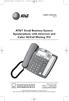 974CIB_(Rev11-12)ml24.05.06 5/24/06 9:29 PM Page II USER S MANUAL Part 2 AT&T Small Business System Speakerphone with Intercom and Caller ID/Call Waiting 974 For Customer Service Or Product Information,
AT&T Small Business System Speakerphone with Digital Answering System and Caller ID Call Waiting 984
 USER S MANUAL Part 2 AT&T Small Business System Speakerphone with Digital Answering System and Caller ID Call Waiting 984 Please also read Part 1 Important Product Information 2004 Advanced American Telephones.
Four-Line Small Business System Speakerphone 945
 945 CIB 2ATT 3/14/05 9:58 AM Page III USER S MANUAL Part 2 Four-Line Small Business System Speakerphone 945 Please also read Part 1 Important Product Information 2005 Advanced American Telephones. All
CISCO SPA500G SERIES REFERENCE GUIDE
 CISCO SPA500G SERIES REFERENCE GUIDE Part of the Csco Small Busness Pro Seres, the SIP based Csco SPA504G 4-Lne IP phone wth 2-port swtch has been tested to ensure comprehensve nteroperablty wth equpment
Four-Line Intercom Speakerphone 964
 1 USER S MANUAL Part 2 Four-Line Intercom Speakerphone 964 2000 Advanced American Telephones. All rights reserved. Printed in Indonesia. 850002940 Issue 1AT&T 6/00 Please also read Part 1 Important Product
Four-Line Intercom Speakerphone 944
 1 USER S MANUAL Part 2 Four-Line Intercom Speakerphone 944 Please also read Part 1 Important Product Information AT&T and the globe symbol are registered trademarks of AT&T Corp. licensed to Advanced American
Four-Line Intercom Speakerphone 955
 1 USER S Revised: August 3, 2000 MANUAL Part 2 Four-Line Intercom Speakerphone 955 2000 Advanced American Telephones. All rights reserved. Printed in Indonesia. 850004037 Issue 1AT&T 8/00 Please also read
AT&T Small Business System Speakerphone with Intercom and Caller ID/Call Waiting 974
 974QSG_(Rev14)ml_23.5.06 5/23/06 11:28 AM Page 1 QUICK START GUIDE AT&T Small Business System Speakerphone with Intercom and Caller ID/Call Waiting 974 This Quick Start Guide provides basic instructions.
Four-Line Small Business System Speakerphone 945
 945QSG_(rev22)ml23.5.06 5/23/06 11:29 AM Page 1 QUICK START GUIDE Four-Line Small Business System Speakerphone 945 This Quick Start Guide provides basic instructions. For additional installation options
Hosted Voice Self Service Installation Guide
 Hosted Voce Self Servce Installaton Gude Contact us at 1-877-355-1501 [email protected] www.earthlnk.com 2015 EarthLnk. Trademarks are property of ther respectve owners. All rghts reserved. 1071-07629
VRT012 User s guide V0.1. Address: Žirmūnų g. 27, Vilnius LT-09105, Phone: (370-5) 2127472, Fax: (370-5) 276 1380, Email: info@teltonika.
 VRT012 User s gude V0.1 Thank you for purchasng our product. We hope ths user-frendly devce wll be helpful n realsng your deas and brngng comfort to your lfe. Please take few mnutes to read ths manual
4-Line small business system. 1080 with digital answering system and. 1070 with caller ID/call waiting 1040 speakerphone. Installation guide
 Installation guide 4-Line small business system 1080 with digital answering system and caller ID/call waiting 1070 with caller ID/call waiting 1040 speakerphone Congratulations on purchasing your new AT&T
1080 with digital answering system. 1070 with Caller ID/Call waiting. 1040 speakerphone
 Installation guide 4-Line small business system 1080 with digital answering system and Caller ID/Call waiting 1070 with Caller ID/Call waiting 1040 speakerphone 1 Congratulations on purchasing your new
User s manual. speakerphone/ answering system and answering system with caller ID/call waiting caller ID/ call waiting
 User s manual 1080 Corded 4-Line small telephone/ business small system business with digital system/ speakerphone/ answering system and answering system with caller ID/call waiting caller ID/ call waiting
CISCO IP PHONE 7940/7960 REFERENCE GUIDE
 CISCO IP PHONE 7940/7960 REFERENCE GUIDE The Csco IP Phone 7960G or 7940G s a full-feature telephone that provdes voce communcaton over the same data network. TABLE OF CONTENTS CISCO 7940/7960 PHONE OVERVIEW...........
User s manual. speakerphone/ answering system and answering system with caller ID/call waiting caller ID/ call waiting
 User s manual 1080 Corded 4-Line small telephone/ business small system business with digital system/ speakerphone/ answering system and answering system with caller ID/call waiting caller ID/ call waiting
User s manual. 1070 4-Line small business system with caller ID/call waiting and speakerphone
 User s manual 1070 4-Line small business system with caller ID/call waiting and speakerphone 7 1 Congratulations on purchasing your new AT&T product. Before using this AT&T product, please read the Important
User s manual. 1080 4-Line small business system with digital answering system and caller ID/call waiting
 User s manual 1080 4-Line small business system with digital answering system and caller ID/call waiting Congratulations on purchasing your new AT&T product. Before using this AT&T product, please read
Vembu StoreGrid Windows Client Installation Guide
 Ser v cepr ov dered t on Cl enti nst al l at ongu de W ndows Vembu StoreGrd Wndows Clent Installaton Gude Download the Wndows nstaller, VembuStoreGrd_4_2_0_SP_Clent_Only.exe To nstall StoreGrd clent on
2.4 GHz Dual Handset Cordless Telephone Answering System 2255 with Caller ID/Call Waiting
 USER S MANUAL Part 2 2.4 GHz Dual Handset Cordless Telephone Answering System 2255 with Caller ID/Call Waiting Please also read Part 1 Important Product Information AT&T and the globe symbol are registered
User s manual. 1070 4-Line small business system with caller ID/call waiting and speakerphone
 User s manual 1070 4-Line small business system with caller ID/call waiting and speakerphone 7 Congratulations on purchasing your new AT&T product. Before using this AT&T product, please read the Important
User s manual. 1040 4-Line small business system with speakerphone
 User s manual 1040 4-Line small business system with speakerphone 1 Congratulations on purchasing your new AT&T product. Before using this AT&T product, please read the Important product information on
User s manual. 1070 4-Line small business system with caller ID/call waiting and speakerphone
 User s manual 100 4-Line small business system with caller ID/call waiting and speakerphone 1 Congratulations on purchasing your new AT&T product. Before using this AT&T product, please read the Important
Quick reference guide. 1070 4-Line small business system with caller ID/ call waiting and speakerphone
 Quick reference guide 1070 4-Line small business system with caller ID/ call waiting and speakerphone 7 This quick reference guide provides basic instructions For additional installation options and complete
Quick reference guide. 1080 4-Line small business system with digital answering system and caller ID/call waiting
 Quick reference guide 1080 4-Line small business system with digital answering system and caller ID/call waiting This quick reference guide provides basic instructions. For additional installation options
VIP X1600 M4S Encoder module. Installation and Operating Manual
 VIP X1600 M4S Encoder module en Installaton and Operatng Manual VIP X1600 XFM4 VIP X1600 Table of Contents en 3 Table of Contents 1 Preface 7 1.1 About ths Manual 7 1.2 Conventons n ths Manual 7 1.3 Intended
User s manual. 993 Two-line speakerphone with caller ID/call waiting
 User s manual 993 Two-line speakerphone with caller ID/call waiting Congratulations on purchasing your new AT&T product Before using this AT&T product, please read the Important product information on
User s manual. ML17939/ML17959 Two-line corded telephone/ answering system with caller ID/call waiting
 User s manual ML17939/ML17959 Two-line corded telephone/ answering system with caller ID/call waiting Congratulations on purchasing your new AT&T product. Before using this AT&T product, please read Important
Quick reference guide. 1040 4-Line small business system with speakerphone
 Quick reference guide 1040 4-Line small business system with speakerphone This quick reference guide provides basic instructions For additional installation options and complete instructions that enable
User s manual. ML17929 Two-line corded telephone with caller ID/call waiting
 User s manual ML17929 Two-line corded telephone with caller ID/call waiting Congratulations on purchasing your new AT&T product. Before using this AT&T product, please read Important safety information
DEFINING %COMPLETE IN MICROSOFT PROJECT
 CelersSystems DEFINING %COMPLETE IN MICROSOFT PROJECT PREPARED BY James E Aksel, PMP, PMI-SP, MVP For Addtonal Informaton about Earned Value Management Systems and reportng, please contact: CelersSystems,
User s manual. Corded telephone. w w w.v t e c h c a n a d a. c o m. Big Button Big Display. Model:CD1281 DIR CID
 User s manual w w w.v t e c h c a n a d a. c o m DIR CID Model:CD1281 Corded telephone Big Button Big Display Congratulations on purchasing your new VTech product. Before using this telephone, please read
How To Use A Ppanasonic Cell Phone With A Cell Phone From A Cellphone From Alexa (Panasonic) For A Long Distance Phone From An Older Model (Panoramos) For An Extra Money (Panamontani
 INTERCOM PLEASE READ BEFORE USE AND SAVE. Integrated Telephone System Operating Instructions Model No. KX-TS8B KX-TS8W Pulse-or-tone dialing capability KX-TS8W LINE Caller ID Compatible Panasonic World
VideoJet X20 Network Video Server. Installation and Operating Manual
 VdeoJet X20 Network Vdeo Server en Installaton and Operatng Manual VdeoJet X20 VdeoJet X20 Table of Contents en 3 Table of Contents 1 Preface 7 1.1 About ths Manual 7 1.2 Conventons n ths Manual 7 1.3
Canon NTSC Help Desk Documentation
 Canon NTSC Help Desk Documentaton READ THIS BEFORE PROCEEDING Before revewng ths documentaton, Canon Busness Solutons, Inc. ( CBS ) hereby refers you, the customer or customer s representatve or agent
Updating the E5810B firmware
 Updatng the E5810B frmware NOTE Do not update your E5810B frmware unless you have a specfc need to do so, such as defect repar or nstrument enhancements. If the frmware update fals, the E5810B wll revert
User s manual. CL4939 Big button big display telephone/answering system with caller ID/ call waiting
 User s manual CL4939 Big button big display telephone/answering system with caller ID/ call waiting Congratulations on purchasing your new AT&T product. Before using this AT&T product, please read the
EP4300 4 Line Intercom Speakerphone with Caller ID and Jumbo Pivoting Display
 EP4300 4 Line Intercom Speakerphone with Caller ID and Jumbo Pivoting Display User s Guide Please read before using telephone Getting Started Congratulations! You ve purchased a HGC EP4300 System Intercom
Models: CS6449/CS6449-2/ CS6449-3. User s manual. w w w.v t e c h c a n a d a. c o m
 Models: CS6449/CS6449-2/ CS6449-3 User s manual w w w.v t e c h c a n a d a. c o m Congratulations on purchasing your new VTech product. Before using this telephone, please read Important safety instructions
Speakerphone/ Answering System 1855
 ATT-1855CIB-d04.qxd 3/19/05 5:08 PM Page 1 User Manual (Part 2) Speakerphone/ Answering System 1855 with Caller ID & Call Waiting CALLER ID ATT-1855CIB-d04.qxd 3/19/05 5:08 PM Page 2 User Manual (Part
User s manual. TL86109 DECT 6.0 2-line corded/cordless telephone/ answering system with BLUETOOTH wireless technology
 User s manual TL86109 DECT 6.0 2-line corded/cordless telephone/ answering system with BLUETOOTH wireless technology Congratulations on purchasing your new AT&T product. Before using this AT&T product,
User s Manual. w w w. v t e c h p h o n e s. c o m. Model: ia5874, ia5876, ia5877
 User s Manual w w w. v t e c h p h o n e s. c o m Model: ia5874, ia5876, ia5877 Table of Contents GETTING STARTED................... 4 Before You Begin..................... 4 Parts Check List:...................
GENESYS BUSINESS MANAGER
 GENESYS BUSINESS MANAGER e-manager Onlne Conference User Account Admnstraton User Gude Ths User Gude contans the followng sectons: Mnmum Requrements...3 Gettng Started...4 Sgnng On to Genesys Busness Manager...7
Quick start guide. ML17939/17959 Two-line corded telephone/ answering system with caller ID/call waiting
 Quick start guide ML17939/17959 Two-line corded telephone/ answering system with caller ID/call waiting Installation preparation You must install the power adapter before using the telephone. See pages
User s manual. w w w. v t e c h p h o n e s. c o m. Models: mi6885/mi6889/mi6890
 User s manual w w w. v t e c h p h o n e s. c o m Models: mi6885/mi6889/mi6890 Table of contents Getting started...................... 5 Parts checklist for mi6885............... 5 Parts checklist for
User s manual SynJ SB67138 DECT 6.0 4-line corded/cordless small business system
 User s manual SynJ SB67138 DECT 6.0 4-line corded/cordless small business system Congratulations on your purchase of this AT&T product. Before using this AT&T product, please read the Important safety
Models: CS6328-2/CS6328-3/ CS6328-4/CS6328-5/ CS6329/CS6329-2/ CS6329-3/CS6329-4/ CS6329-5. User s manual. w w w.v t e c h p h o n e s.
 Models: CS6328-2/CS6328-3/ CS6328-4/CS6328-5/ CS6329/CS6329-2/ CS6329-3/CS6329-4/ CS6329-5 User s manual w w w.v t e c h p h o n e s. c o m Congratulations on purchasing your new VTech product. Before
How To Use An At&T Phone At&Ts At&Ty Phone At Home On A Cell Phone (Cell Phone) At&Terra) At &T At&S Phone (Phone) At Andt At &S Phone At And
 User s manual CL84109/CL84209/CL84309 DECT 6.0 corded/cordless telephone/answering system with caller ID/call waiting Congratulations on your purchase of this AT&T product. Before using this AT&T product,
Part 2. Copyright 1998 Philips Consumer Communications L.P. All rights reserved. Printed in Mexico. Issue 1AT&T 848229506
 2 User's Manual for Two-Line Digital Answering System Telephone with Speakerphone 1872 Fold open this paper for information about this telephone's installation and operation. Please read Part 1 Important
User s manual. CL4939 Big button big display telephone/answering system with caller ID/call waiting
 User s manual CL4939 Big button big display telephone/answering system with caller ID/call waiting Congratulations on purchasing your new AT&T product. Before using this AT&T product, please read the Important
Printed in China. Issue 4 AT&T 12/11. Message Guard is a registered trademark of Advanced American Telephones.
 www.telephones.att.com 2011 Advanced American Telephones. All Rights Reserved. AT&T and the AT&T logo are trademarks of AT&T Intellectual Property licensed to Advanced American Telephones, San Antonio,
User s manual. EL52100/EL52110 DECT 6.0 cordless telephone/answering system with caller ID/ call waiting
 User s manual EL52100/EL52110 DECT 6.0 cordless telephone/answering system with caller ID/ call waiting Congratulations on purchasing your new AT&T product. Before using this AT&T product, please read
Laser Distancer LD 420. Operating instructions
 Laser Dstancer LD 40 en Operatng nstructons Table of Contents Instrument Set-up - - - - - - - - - - - - - - - - - - - - - - - Introducton- - - - - - - - - - - - - - - - - - - - - - - - - - - - - - - Overvew
Printed in China. Issue 1.2 AT&T 03/07. Advanced American Telephones. AT&T and the AT&T logo are trademarks of AT&T Knowledge Ventures, licensed to
 2007 Advanced American Telephones. All rights reserved. AT&T and the AT&T logo are trademarks of AT&T Knowledge Ventures, licensed to Advanced American Telephones. Printed in China. Issue 1.2 AT&T 03/07
Venture Multiline Communications
 THREE LINE TELEPHONE WITH ANSWERING User Guide Venture Multiline Communications Welcome to Venture the 3 Line phone/system with a built-in Telephone Answering Device (TAD). The Venture is a fully customizable
Easy Fit Siren-Based Alarm system (EF-BX)
 Easy Ft Sren-Based Alarm system (EF-BX) Installaton Programmng Operatng Keep ths manual safe for reference and future mantenance Introducton Contents Thank you for choosng the Yale Wreless Alarm System.
User s manual. CL4940 Big button/big display telephone/ answering system with caller ID/ call waiting
 User s manual CL4940 Big button/big display telephone/ answering system with caller ID/ call waiting Congratulations on your purchase of this AT&T product. Before using this AT&T product, please read the
Model No. KX-TGP500. Model No. KX-TGP550
 User Guide SIP Cordless Phone Model No. KX-TGP500 Model No. KX-TGP550 Model shown is KX-TGP500. Model shown is KX-TGP550. Thank you for purchasing a Panasonic product. You can configure some of the features
User s manual SynJ SB67158 DECT 6.0 4-line corded/cordless small business system
 User s manual SynJ SB67158 DECT 6.0 4-line corded/cordless small business system Congratulations on your purchase of this AT&T product. Before using this AT&T product, please read the Important safety
User s manual. 1856 Speakerphone/ answering system with caller ID/call waiting
 User s manual 1856 Speakerphone/ answering system with caller ID/call waiting Congratulations on purchasing your new AT&T product. Before using this AT&T product, please read the Important product information
CL82109/CL82209/CL82309/ CL82359/CL82409/CL82509/ CL82609/CL82659/CL82859 DECT
 User s manual CL82109/CL82209/CL82309/ CL82359/CL82409/CL82509/ CL82609/CL82659/CL82859 DECT 6.0 corded/cordless telephone/answering system with caller ID/call waiting Congratulations on your purchase
Model No. KX-TGP500. Model No. KX-TGP550
 Panasonic Telephone Systems KX-TGP500/KX-TGP550 KX-TGP500, KXTGP500, TGP500, KX-TGP550, KXTGP550, TGP550 www.voicesonic.com Phone 877-289-2829 User Guide SIP Cordless Phone Model No. KX-TGP500 Model No.
Quick start guide. CL4939 Big button big display telephone/answering system with caller ID/ call waiting
 Quick start guide CL4939 Big button big display telephone/answering system with caller ID/ call waiting Introduction This quick start guide provides you basic installation and use instructions A limited
User s Guide EKT-824
 User s Guide EKT-824 The Communiqué Telephone Station Table of Contents Introduction 3 About This Guide 3 The Basics Answering and Making Calls 4 Answering an External Call 4 Answering an Internal Call
Model 25425. 4-Line Intercom Speakerphone with Answering System and Caller ID User s Guide. Quick Guide on Pgs. 7-13
 4-Line Intercom Speakerphone with Answering System and Caller ID User s Guide Quick Guide on Pgs. 7-13 Please read this manual before operating product for the first time. Model 25425 Important Information
EE31 Series. Manual. Logger & Visualisation Software. BA_EE31_VisuLoggerSW_01_eng // Technical data are subject to change V1.0
 EE31 Seres Manual Logger & Vsualsaton Software BA_EE31_VsuLoggerSW_01_eng // Techncal data are subject to change V1.0 Logger & Vsualsaton Software - EE31 Seres GENERAL Ths software has been developed by
IT09 - Identity Management Policy
 IT09 - Identty Management Polcy Introducton 1 The Unersty needs to manage dentty accounts for all users of the Unersty s electronc systems and ensure that users hae an approprate leel of access to these
10.2 Future Value and Present Value of an Ordinary Simple Annuity
 348 Chapter 10 Annutes 10.2 Future Value and Present Value of an Ordnary Smple Annuty In compound nterest, 'n' s the number of compoundng perods durng the term. In an ordnary smple annuty, payments are
Models: LS6425/LS6425-2/ LS6425-3/ LS6425-4/ LS6426-3/LS6426-4. User s manual. w w w.v t e c h p h o n e s. c o m
 Models: LS6425/LS6425-2/ LS6425-3/ LS6425-4/ LS6426-3/LS6426-4 User s manual w w w.v t e c h p h o n e s. c o m Congratulations on purchasing your new VTech product. Before using this telephone, please
User s manual TONE TONE
 User s manual EL52103/EL52113/EL52203/ EL52213/EL52253/EL52303/ EL52313/EL52333/EL52353/ EL52403/EL52503 DECT 6.0 cordless telephone/ answering system with caller ID/call waiting TONE TONE Congratulations
USER GUIDE. Cisco Small Business Pro. SPA 504G IP Phone for 8x8 Virtual Office
 USER GUIDE Cisco Small Business Pro SPA 504G IP Phone for 8x8 Virtual Office Cisco and the Cisco Logo are trademarks of Cisco Systems, Inc. and/or its affiliates in the U.S. and other countries. A listing
Aastra 480i Broadsoft SIP VoIP Telephone User s Guide
 Aastra 480i Broadsoft SIP VoIP Telephone User s Guide Initial Start-Up/Restart The first time you plug in your phone and every time you restart your phone it automatically goes through the start-up process.
Alarm Task Script Language
 Alarm Task Scrpt Language Verson 5.51 en Scrpt Language Alarm Task Scrpt Language Table of Contents 3 Table of contents 1 Introducton 4 2 Defntons 5 2.1 Actons 5 2.2 Events and states 5 2.3 Alarm Task
Venture Multiline Communications System
 THREE LINE TELEPHONE User Guide Venture Multiline Communications System Introduction...1 Your Venture phone... 2 Key descriptions... 3 Unpacking the phone... 4 Getting started...5 Preparing for the installation...
2-Line Intercom Speakerphone DECT6.0 Corded/Cordless Handset Telephone Answering System User s Guide 25255RE2
 2-Line Intercom Speakerphone DECT6.0 Corded/Cordless Handset Telephone Answering System User s Guide 25255RE2 ViSYS Equipment Approval Information Your telephone equipment is approved for connection to
EL52200/EL52210/EL52250/ EL52300/EL52350/EL52400/ EL52450/EL52500/EL52510 DECT 6.0 cordless telephone/ answering system with caller ID/call waiting
 User s manual EL52200/EL52210/EL52250/ EL52300/EL52350/EL52400/ EL52450/EL52500/EL52510 DECT 6.0 cordless telephone/ answering system with caller ID/call waiting Congratulations on purchasing your new
We assume your students are learning about self-regulation (how to change how alert they feel) through the Alert Program with its three stages:
 Welcome to ALERT BINGO, a fun-flled and educatonal way to learn the fve ways to change engnes levels (Put somethng n your Mouth, Move, Touch, Look, and Lsten) as descrbed n the How Does Your Engne Run?
CORTELCO 2740 Four-Line Telephone / Caller ID / Type II Set Instruction Manual
 CORTELCO 2740 Four-Line Telephone / Caller ID / Type II Set Instruction Manual 1 Table of Contents Why VoiceManager SM with Cortelco Phones?... 2 Cortelco 2740 Telephone Set Main Features... 3 Telephone
AT&T MERLIN COMMUNICATIONS SYSTEM ADMINISTRATION MANUAL: MODELS 206 AND 410 WITH FEATURE PACKAGE 1
 AT&T MERLIN COMMUNICATIONS SYSTEM ADMINISTRATION MANUAL: MODELS 206 AND 410 WITH FEATURE PACKAGE 1 Table of Contents Page How to Use This Manual The MERLIN Voice Terminal Setting the Control Unit Model
To manage leave, meeting institutional requirements and treating individual staff members fairly and consistently.
 Corporate Polces & Procedures Human Resources - Document CPP216 Leave Management Frst Produced: Current Verson: Past Revsons: Revew Cycle: Apples From: 09/09/09 26/10/12 09/09/09 3 years Immedately Authorsaton:
PRO-CRIMPER* III Hand Crimping Tool Assembly 90800-1 with Die Assembly 90800-2
 PRO-CRIMPER* III Hand Crmpng Tool Assembly 90800-1 wth Assembly 90800-2 Instructon Sheet 408-4007 19 APR 11 PROPER USE GUIDELINES Cumulatve Trauma Dsorders can result from the prolonged use of manually
5.8 GHz 2-Line Corded/Cordless Answering System EP5962
 OLUME 91-000302-050-000_EP5962Englishmanual_Sep.02,2005.qxd 2/13/1950 7:21 PM Page 1 User Manual (Part 2) 5.8 GHz 2-Line Corded/Cordless Answering System EP5962 with Caller ID & Call Waiting SPEAKER SPEAKER
Digital 8-Line Multihandset System User s Guide
 Digital 8-Line Multihandset System User s Guide 25825 Equipment Approval Information Your telephone equipment is approved for connection to the Public Switched Telephone Network and is in compliance with
An Alternative Way to Measure Private Equity Performance
 An Alternatve Way to Measure Prvate Equty Performance Peter Todd Parlux Investment Technology LLC Summary Internal Rate of Return (IRR) s probably the most common way to measure the performance of prvate
Vista. Vista 150 User Guide
 Vista Vista 150 User Guide TABLE of CONTENTS Call Waiting Display 1 Installing your Vista telephone 2 Checking your telephone 2 Key reference 3 Personalizing your telephone 3 Options 4 Visual Call Waiting
2.4 GHz Corded/Cordless Answering System E2562
 ATT-2562CIB-d4.qxd 12/29/2003 6:19 PM Page 1 User Manual (Part 2) 2.4 GHz Corded/Cordless Answering System E2562 with Caller ID & Call Waiting ATT-2562CIB-d4.qxd 12/29/2003 6:19 PM Page 2 You must install
Easy Fit SmartPhone alarm system (HSA6092) V3 onward
 Easy Ft SmartPhone alarm system (HSA6092) V3 onward Installaton Programmng Operatng Keep ths manual safe for reference and future mantenance Introducton Contents Thank you for choosng the Wreless Alarm
VoIP Quick Start Guide
 VoIP Quick Start Guide 53i 55i 57i Please note that, at the University of Minnesota, the symbols indicated for each key have been replaced with the name of each key. ANSWER A CALL To ANSWER a ringing
User s manual. EL52109 DECT 6.0 cordless telephone/ answering system with caller ID/call waiting
 User s manual EL52109 DECT 6.0 cordless telephone/ answering system with caller ID/call waiting Congratulations on purchasing your new AT&T product. Before using this AT&T product, please read the Important
OfficeSuite Mitel IP Phone User Reference Guide Release 4.1
 OfficeSuite Mitel IP Phone User Reference Guide Release 4.1 2004-2009 Broadview Networks & Natural Convergence Inc. All rights reserved. Table of Contents TABLE OF CONTENTS...I INTRODUCTION...4 WHAT'S
Tuition Fee Loan application notes
 Tuton Fee Loan applcaton notes for new part-tme EU students 2012/13 About these notes These notes should be read along wth your Tuton Fee Loan applcaton form. The notes are splt nto three parts: Part 1
Operating Instructions
 2.4GHz Expandable Cordless Phone System Operating Instructions Model No. KX-TG2770S Pulse-or-tone dialing capability Preparation Telephone System PLEASE READ BEFORE USE AND SAVE. Caller ID Compatible Charge
TAD-729. 900 MHz Digital Caller ID Call Waiting Cordless Speakerphone with Digital Answerer OWNER S MANUAL. Cat. No. 43-729 A
 Cat. No. 43-729 A OWNER S MANUAL Please read before using this equipment. TAD-729 900 MHz Digital Caller ID Call Waiting Cordless Speakerphone with Digital Answerer FEATURES WARNING: To reduce the risk
Trivial lump sum R5.0
 Optons form Once you have flled n ths form, please return t wth your orgnal brth certfcate to: Premer PO Box 2067 Croydon CR90 9ND. Fll n ths form usng BLOCK CAPITALS and black nk. Mark all answers wth
4 Line Intercom Speakerphone User s Guide. Please read this manual before operating this product for the first time.
 4 Line Intercom Speakerphone User s Guide Please read this manual before operating this product for the first time. Model 25413/14 Important Information Equipment Approval Information Your telephone equipment
Small pots lump sum payment instruction
 For customers Small pots lump sum payment nstructon Please read these notes before completng ths nstructon About ths nstructon Use ths nstructon f you re an ndvdual wth Aegon Retrement Choces Self Invested