
1080 with digital answering system with Caller ID/Call waiting speakerphone
|
|
|
- Basil Floyd
- 10 years ago
- Views:
Transcription
1 Installation guide 4-Line small business system 1080 with digital answering system and Caller ID/Call waiting 1070 with Caller ID/Call waiting 1040 speakerphone 1
2 Congratulations on purchasing your new AT&T product. Before using this AT&T product, please read the Important product information in your User s manual. Please thoroughly read the installation guide for all the installation and troubleshooting information you need to install and setup your new AT&T product. You can also visit our website at or call 1 (800) In Canada, dial 1 (866) The form on the next page will help you to inventory your new sets. Please have this with you if you need to call customer service Advanced American Telephones. All rights reserved. AT&T and the AT&T logo are trademarks of AT&T Intellectual Property II, L.P. d/b/a AT&T Intellectual Property licensed to Advanced American Telephones. Printed in China.

3 4-line small business system Model, (circle one) Location Serial number, (found on the bottom of the telephone base) Purchase date and place

4 STOP! Do you receive DSL, (Digital subscriber line,) service for highspeed internet access through your telephone line(s) from your telephone company? If so, you will need to add either DSL splitters and/or microfilters to your installation. See page 9. For customer service or product information, visit our website at or call 1 (800) In Canada, dial 1 (866) CAUTION: To reduce the risk of fire or injury to persons or damage to the telephone, read and follow these instructions carefully: Use only alkaline 9V batteries (size 1604A, purchased separately). Do not dispose of the battery in a fire. Like other batteries of this type, it could explode if burned. Check with local codes for special disposal instructions. Do not open or mutilate the battery. Released electrolyte is corrosive and may cause damage to the eyes or skin. It may be toxic if swallowed. Exercise care in handling batteries in order not to create a short circuit. Do not allow conductive materials such as rings, bracelets, or keys to touch the battery. The battery or conductor may overheat and cause harm. Use the battery identified for use with this product only in accordance with the instructions and limitations specified in this manual. Observe proper polarity orientation between the battery and metallic contacts. Do not disassemble your telephone. There are no user-serviceable parts inside. Refer to qualified service personnel for servicing.
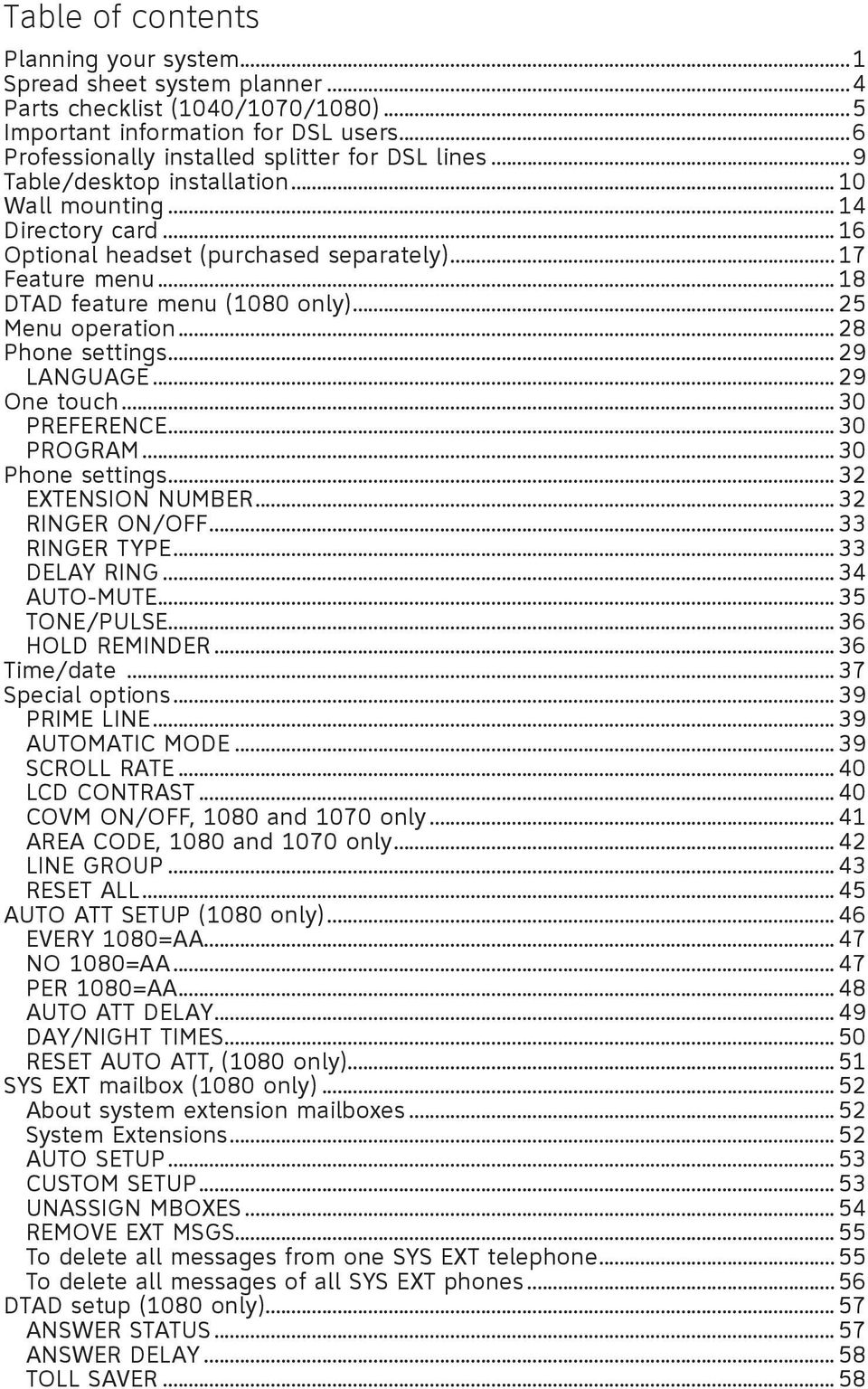
5 Table of contents Planning your system...1 Spread sheet system planner...4 Parts checklist (1040/1070/1080)...5 Important information for DSL users...6 Professionally installed splitter for DSL lines...9 Table/desktop installation Wall mounting Directory card Optional headset (purchased separately) Feature menu DTAD feature menu (1080 only) Menu operation Phone settings LANGUAGE One touch PREFERENCE PROGRAM Phone settings EXTENSION NUMBER RINGER ON/OFF RINGER TYPE DELAY RING AUTO-MUTE TONE/PULSE HOLD REMINDER Time/date Special options PRIME LINE AUTOMATIC MODE SCROLL RATE LCD CONTRAST COVM ON/OFF, 1080 and 1070 only AREA CODE, 1080 and 1070 only LINE GROUP RESET ALL AUTO ATT SETUP (1080 only) EVERY 1080=AA NO 1080=AA PER 1080=AA AUTO ATT DELAY DAY/NIGHT TIMES RESET AUTO ATT, (1080 only) SYS EXT mailbox (1080 only) About system extension mailboxes System Extensions AUTO SETUP CUSTOM SETUP UNASSIGN MBOXES REMOVE EXT MSGS To delete all messages from one SYS EXT telephone To delete all messages of all SYS EXT phones DTAD setup (1080 only) ANSWER STATUS ANSWER DELAY TOLL SAVER... 58
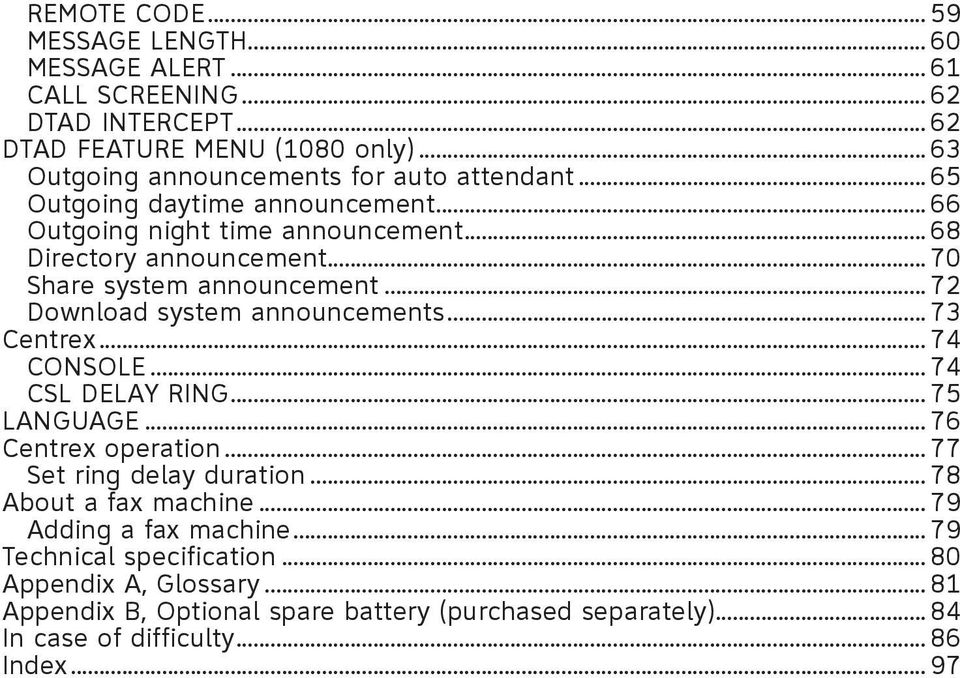
6 REMOTE CODE MESSAGE LENGTH MESSAGE ALERT CALL SCREENING DTAD INTERCEPT DTAD FEATURE MENU (1080 only) Outgoing announcements for auto attendant Outgoing daytime announcement Outgoing night time announcement Directory announcement Share system announcement Download system announcements Centrex CONSOLE CSL DELAY RING LANGUAGE Centrex operation Set ring delay duration About a fax machine Adding a fax machine Technical specification Appendix A, Glossary Appendix B, Optional spare battery (purchased separately) In case of difficulty Index... 97
7 Planning your system Your system can have up to 16 telephones (models 1040, 1070 or 1080, purchased separately) and up to 19 telephone numbers. Your system can have all the system features (intercom call, voice page, call transfer, multiple telephone conference call, DTAD mailbox, and auto-attendant system). To set up a small business system Purchase your telephones (models 1040, 1070 or 1080), arrange for your telephone lines, and purchase any line outlet adapters and additional telephone line cords you might need. To order them, visit our website at or call 1 (800) In Canada, dial 1 (866) NOTES: All connected phones must have the same line 1 phone number for the intercom and paging features to work. Line 1 Line 1, 2 Line 2 Line 3 Line 3, 4 Line 4 System telephone System telephone System telephone System telephone You must have modular telephone jacks and electrical outlets not controlled by wall switches near where you are installing the phones. To use the auto-attendant function (see the Auto attendant operation section on the 1080 user s manual), you must purchase at least one 1080 telephone, and it must be set up as Extension 11 (see the EXTENSION NUMBER section on page 32). The total length of telephone wiring used in Line 1 MUST NOT be more than 600 feet as it may cause interference with the advanced features of this telephone. Continued on next page 1
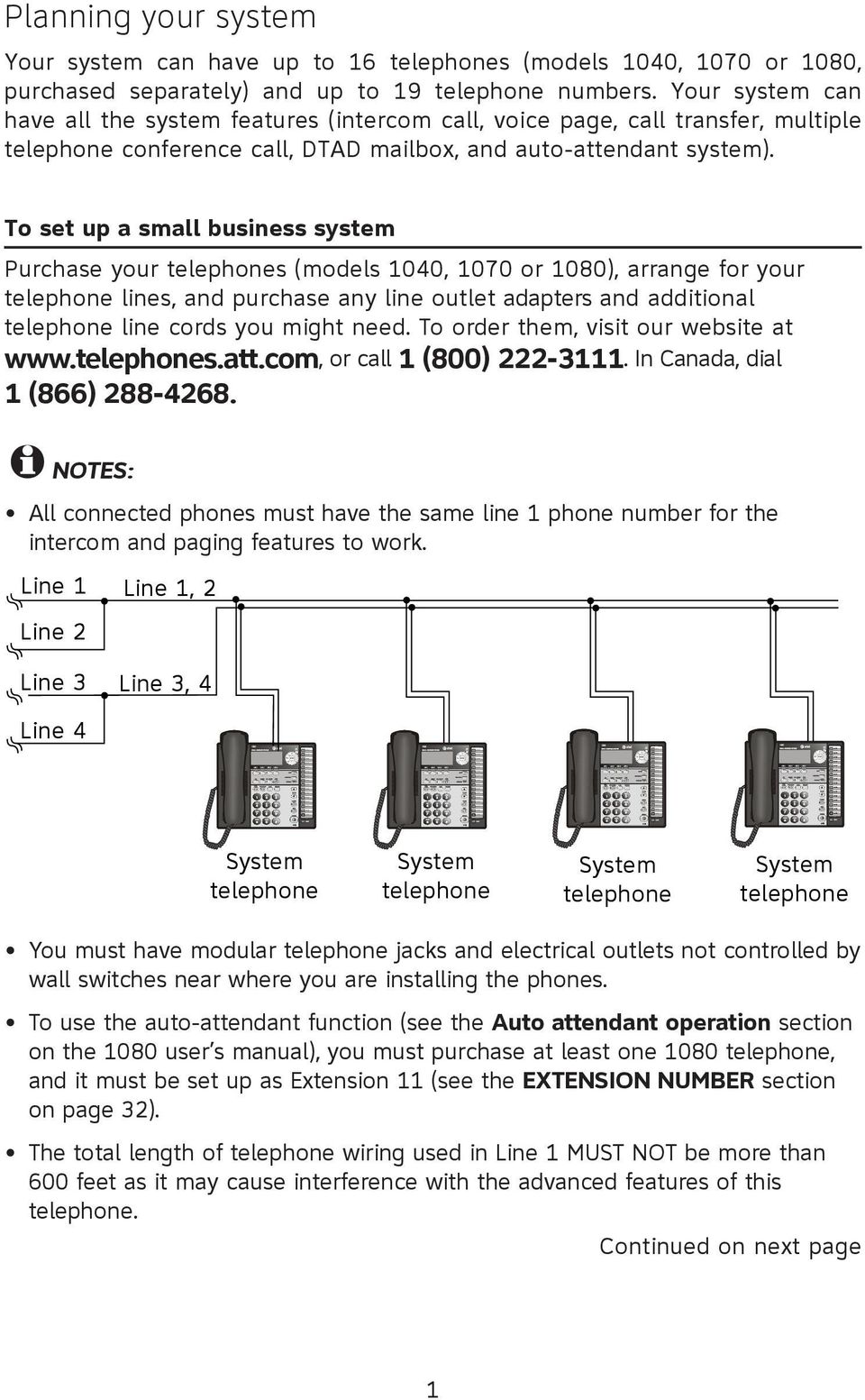
8 Planning your system Continued from previous page If your establishment has single-line phone jacks, (page 11), you must purchase two-line adapters (model 16598, part number ). If you have two or three phone lines, you will need one two-line adapter for each phone. If you have four phone lines, you will need two two-line adapters for each phone. If you have one-line phone jacks, and four phone lines, you will also need to purchase one short telephone line (model 51920, part number ) or equivalent for each phone. If some phones are being wall mounted, you may need more short telephone line cords. To order them, visit our website at or call 1 (800) In Canada, dial 1 (866) If you have DSL service, and if you have more than three telephones, you probably need to have a DSL splitter installed at your location by your DSL provider. Please see page 9 of this guide. Assign a different system extension number EXT XX to each system telephone (see the EXTENSION NUMBER section on page 32). We recommend assigning EXT 11 to an auto-attendant telephone. Every individual phone in your telephone system MUST be assigned a unique extension number for the intercom feature to work. If you try to assign the same extension number to a second phone, you will hear a repeating short ring and the screen will display ASSIGN NEW EXT #. See the EXTENSION NUMBER section on page 32 for directions. If you want an auto attendant, assign at least one 1080 telephone as that auto-attendant (see the Auto attendant operation section on the 1080 user s manual). If you subscribe to Centrex service provided by your local telephone company, assign that 1080 telephone as a console at the same time (see the Centrex section on the user s manual). Your 1080 telephone probably shares it telephone lines with other extensions. Each telephone line button has LEDs, (lights,) to show the line status, (in use, on hold, or ringing.) To have an accurate line status indication, all units MUST have their Line 1 jacks connected to the same telephone line (i.e. L1), Line 2 jacks connected to the same telephone line (L2), and Line 3 jacks connected accordingly to (L3). System telephones have their own private telephone numbers, or several extensions can share the same number, and be part of a line group. Only Line 4 can be a private line. Select PRIVATE LINE in the LINE GROUP menu on this telephone (see the LINE GROUP section on page 43). Continued on next page 2

9 Planning your system Continued from previous page All extensions that share the same line should share the same line group number (4-15). See Optional spare battery, page 84 for information about installing spare batteries to maintain basic telephone features in case of a power failure. Refer to the Feature setup section, page 18, to customize each system telephone. The chart on the following page will help you plan your system. - List the extension number, location, and model for each phone. - For each 1080, decide whether you want it to be an auto attendant. - Decide which phone numbers each extension should have. - Plan your line groups. This is necessary only if all telephone lines are not attached to all telephones. See LINE GROUP, page 43, for more information. - Decide which 1070 and 1040 extensions will be assigned to which 1080 system extension mailbox (see the Forwarding to DTAD mailbox section on the 1070 or 1040 user s manual). - Decide if there is any phones will have private lines. A private line only appears on one set. - Write your phone numbers in the spaces at the top of the chart. You may want to make copies of this chart, in case your needs change. 3
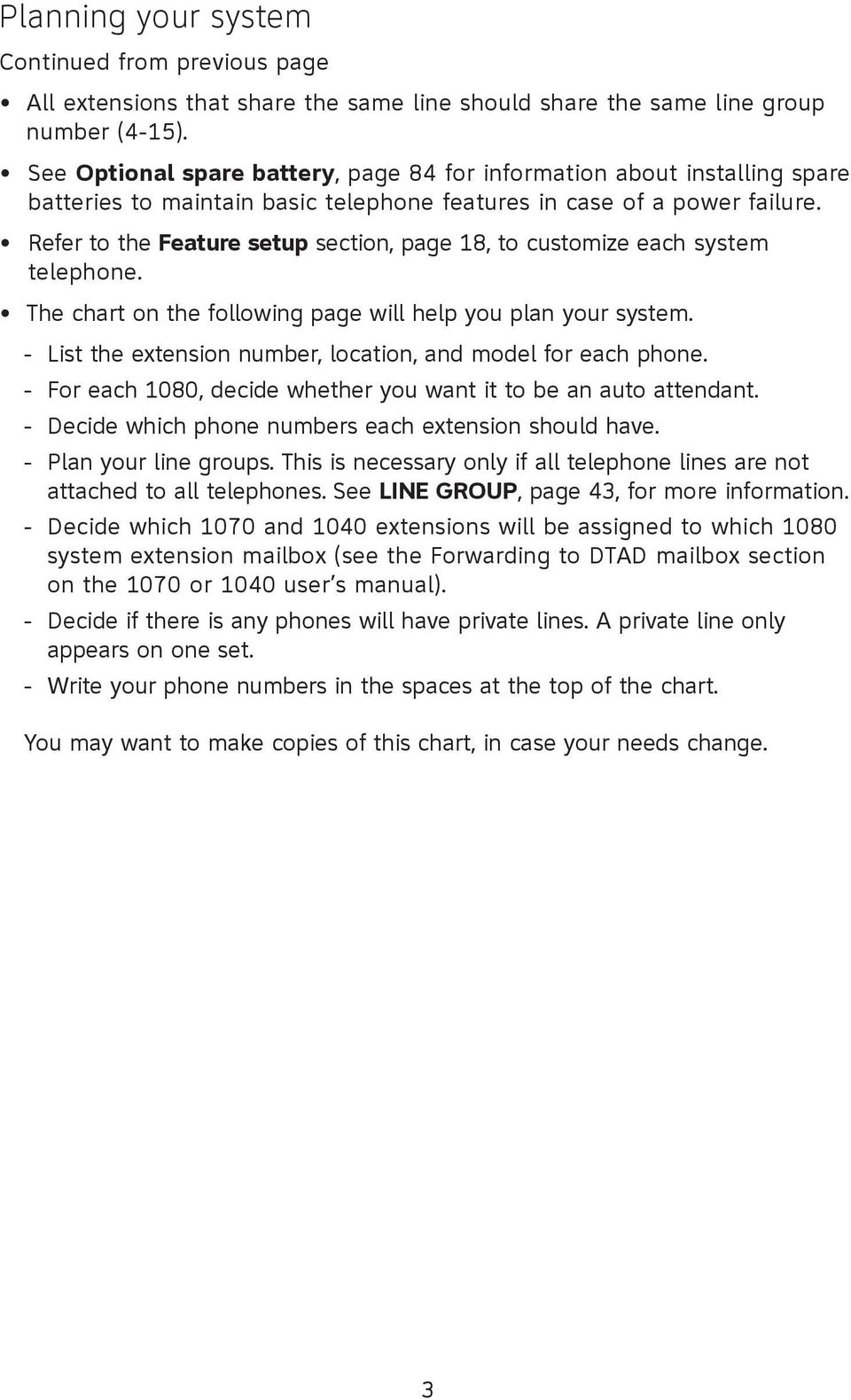
10 System planner 4

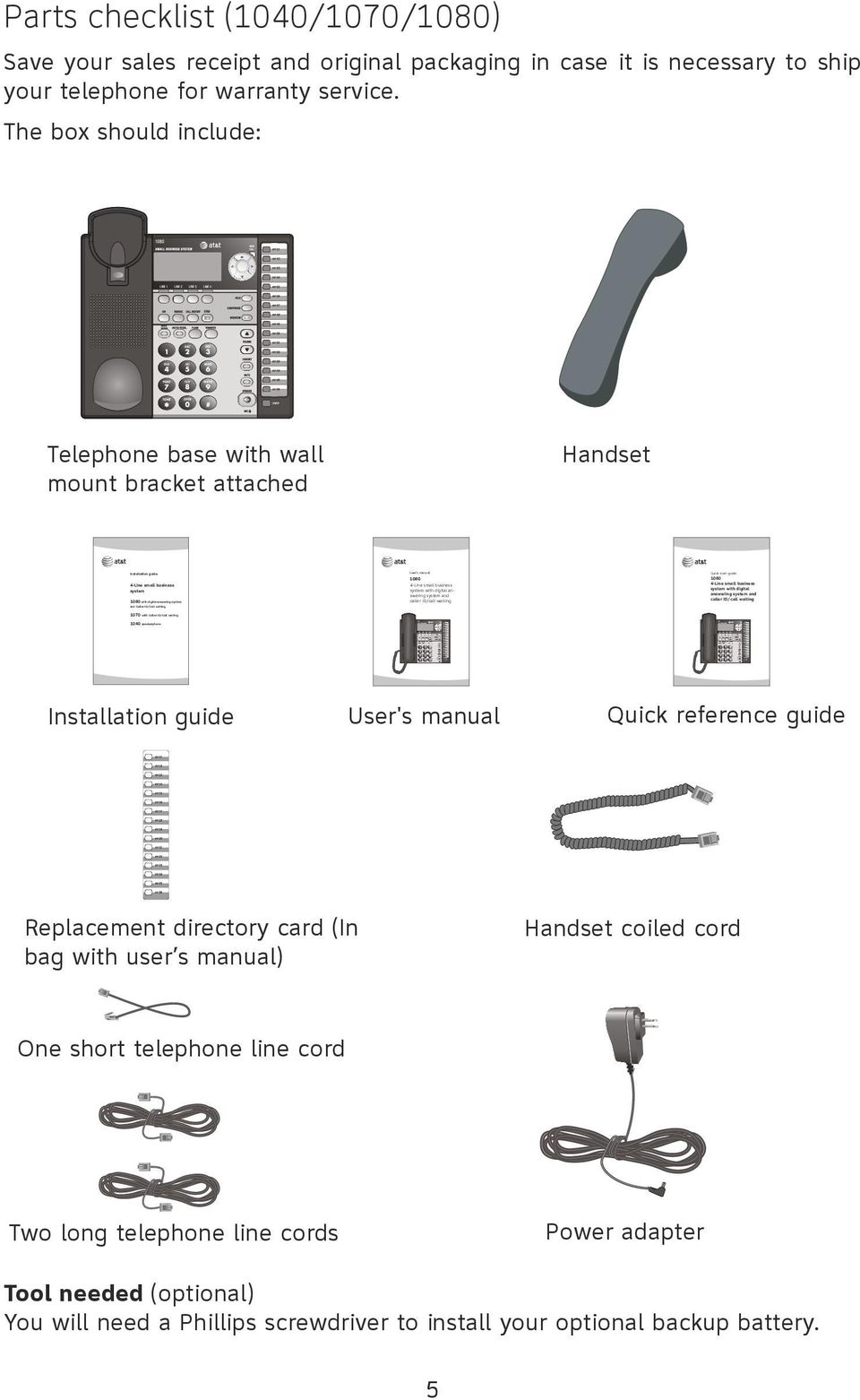
11 Parts checklist (1040/1070/1080) Save your sales receipt and original packaging in case it is necessary to ship your telephone for warranty service. The box should include: User s manual Quick start guide 1080 Small business system telephone/4-line/ answering system with caller ID/call waiting 1080 Small business system telephone/4-line/ answering system with caller ID/call waiting Telephone base with wall mount bracket attached Handset ENTER Installation guide start guide 4-Line small Quick business 1080 system Small business system 1080 with digitaltelephone/4-line/ answering system answering system with and Caller ID/Call waiting caller ID/call waiting 1070 with Caller ID/Call waiting system ne/ m with aiting User s manual Quick start guide 1080 Corded telephone/ 4-Line small business small system/ systembusiness with digital anspeakerphone/ swering system and answering system with caller ID/call waiting caller ID/ call waiting Line small business system with digital answering system and caller ID/call waiting 1040 speakerphone User s manual 1 Quick start guide 1080 Small business system telephone/4-line/ answering system with caller ID/call waiting Installation guide 1080 Small business system telephone/4-line/ answering system with caller ID/call waiting 1 User's manual 1 Quick reference guide ENTER ENTER Replacement directory card (In bag with user s manual) Handset coiled cord One short telephone line cord 4 Power adapter Two long telephone line cords 4 Tool needed (optional) You will need a Phillips screwdriver to install 4 your optional backup battery.
12 Important information for DSL users Do you receive DSL, (Digital subscriber line,) service for high-speed internet access through your telephone line(s) from your telephone company? If so, you will need to add either DSL splitters and/or microfilters to your installation. Without these DSL splitters and/or microfilters, your telephone service will interfere with your data receptions, and your data reception will interfere with your telephone sound quality and advanced features, (such as intercom, hold, and line privacy) which work by sending data signals over Line 1. If your system meets any of the following three criteria, you will need DSL splitter(s) installed, (one for each DSL line,) near where the telephone lines come into the building, which will probably require a professional installer. 1) Are there more than three telephones in your system? If so, you probably need the help of a professional installer. If more than three telephones, (and this means any telephones, not just your 1040, 1070, and 1080 small business sets,) are connected to any of your telephone lines, for every telephone line with more than three sets, you will need to have a DSL splitter installed near where the phone lines come into the building. This usually requires a professional installer. 2) Do you need line 1 to be a DSL line? If so, you probably need the help of a professional installer. The same telephone line must be connected to all the sets Line 1 jacks and the small business telephone system information is carried on Line 1. This information and the internet access information cannot coexist on the same telephone line without a DSL splitter which should be installed near where the phone lines come into the building. This usually requires a professional installer. Microfilters cannot be used on Line 1, as they interfere with the business system telephone communication. 3) Do you have an alarm system? If so, you probably need the help of a professional installer. Alarm systems also send information through the telephone lines that they are attached to, and the information form the phone system and the alarm system cannot coexist. If you have fewer than four telephones, and if Line 1 can be a non-dsl line and if there is no alarm system, you can just use microfilters between the telephones and the telephone wall jacks, (one for each DSL line on each phone.) Optional background information: High-speed data access can be provided over your telephone lines because high-frequency data signals are used by the internet modems, and the low-frequency voice signals are used in the telephones. However, most telephones need to have the highfrequency signals removed so that the voice can sound good, and so that the interactions among the phones in a system can work properly. You will need either DSL splitters or filters to remove these signals. 6 Continued on next page

13 Important information for DSL users Continued from previous page Splitters are used to separate the high-frequency signals from the lowfrequency signals, so that the telephone line cords that come out of the splitters only have the right frequencies for the devices they are attached to. Although some splitters can be installed by end users, most DSL splitters are installed by the telephone company. Microfilters can be used at each individual phone jack or telephone set, and they are frequently provided for free by the service providers for self installation. However, if more than three microfilters are installed on system phones, the sound quality and advanced features operation may suffer. If you have more than three telephones, you will probably need to have your telephone company install the DSL splitter near where your telephone lines come into the building. For only one or two DSL lines, install it/them into the L3/L4 jack on the back of the telephone. If your system will only use two or three telephone lines, plug a single non- DSL telephone line into the L1/L2 jack. Be sure to use the microfilter(s), which were probably provided when DSL was installed, on lines 3 and/or 4 if the lines have DSL, to protect the sound quality. If there are two telephone lines, one of which is DSL, and both appear at a single wall jack, use a triplex adapter to separate the lines at the wall jack. If you need help doing this, visit our website at or call 1 (800) In Canada, dial 1 (866) If you must install a DSL line into the L1/L2 jack on the back of the telephone, use a DSL splitter. Lines 1 and 2 share a telephone jack. If it is necessary to install a DSL line for telephone line 1 or line 2, you will need additional equipment to avoid interference. Any telephone line connected to the L1/L2 jack cannot have a microfilter. It must have a DSL splitter. A DSL splitter allows the data and voice signals to use the same telephone line without interfering with each other. Use a dual line DSL splitter or a two-line DSL filter. If you need help doing this, visit our website at or call 1 (800) In Canada, dial 1 (866) Installing a DSL splitter (not a microfilter) as close as possible to the protection block or network interface (where the telephone line enters the house) may resolve DSL interference. (It may be necessary to use a DSL splitter intended for outdoor use.) Continued on next page 7
14 Important information for DSL users Continued from previous page AT&T cannot supply the DSL splitter. Please contact your DSL service provider or professional contractor for details about obtaining and installing a DSL splitter. Your DSL service provider may require you to bear any installation costs. AT&T and the manufacturer of this product have no affiliation with your DSL provider and the type or quality of services they offer. Installation must be performed at your own expense and AT&T cannot provide installation or aftersale support. NOTE: If your DSL service provider cannot supply a DSL splitter, it is possible to purchase an outdoor DSL splitter over the internet. If you are a new DSL customer, your DSL service provider will probably ask you whether you have more than one telephone line in your home or business, or whether you are installing a telephone system. If you answer yes, your DSL service provider will probably advise you that you will need a splitter. In most cases, your DSL service provider will supply you with the proper splitter for your specific situation. When installed properly, the DSL filter help eliminate any interference between the DSL signal and the signals sent by your telephone system. AT&T shall not be responsible for the cost of installation, any damages, lost business, direct or indirect expenses accrued or associated with installation, or other compatibility issues which may arise as a result of using this product while you subscribe to DSL service. 8

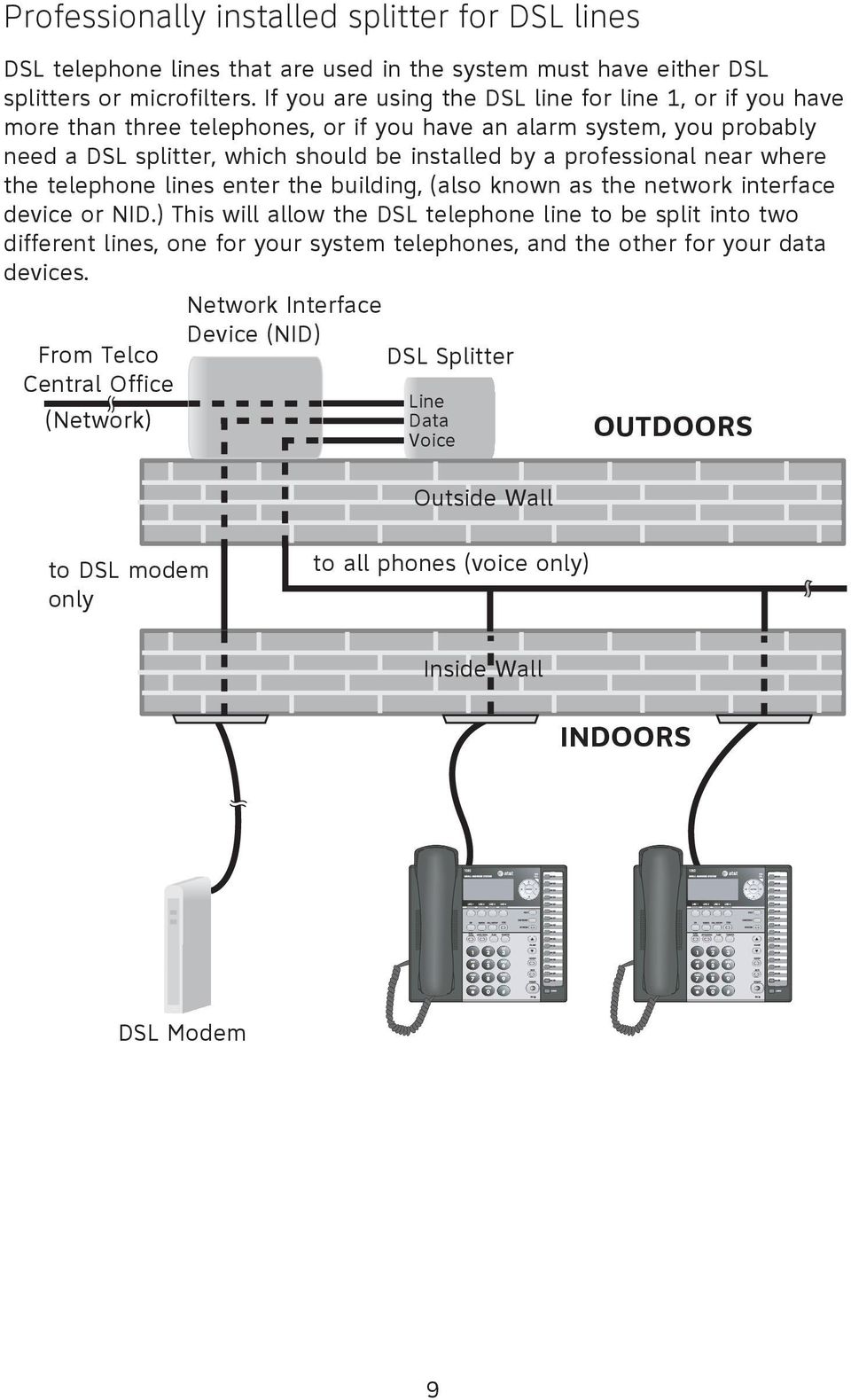
15 Professionally installed splitter for DSL lines DSL telephone lines that are used in the system must have either DSL splitters or microfilters. If you are using the DSL line for line 1, or if you have more than three telephones, or if you have an alarm system, you probably need a DSL splitter, which should be installed by a professional near where the telephone lines enter the building, (also known as the network interface device or NID.) This will allow the DSL telephone line to be split into two different lines, one for your system telephones, and the other for your data devices. From Telco Central Office (Network) Network Interface Device (NID) DSL Splitter Line Data Voice Outside Wall OUTDOORS to DSL modem only to all phones (voice only) Inside Wall INDOORS DSL Modem 9
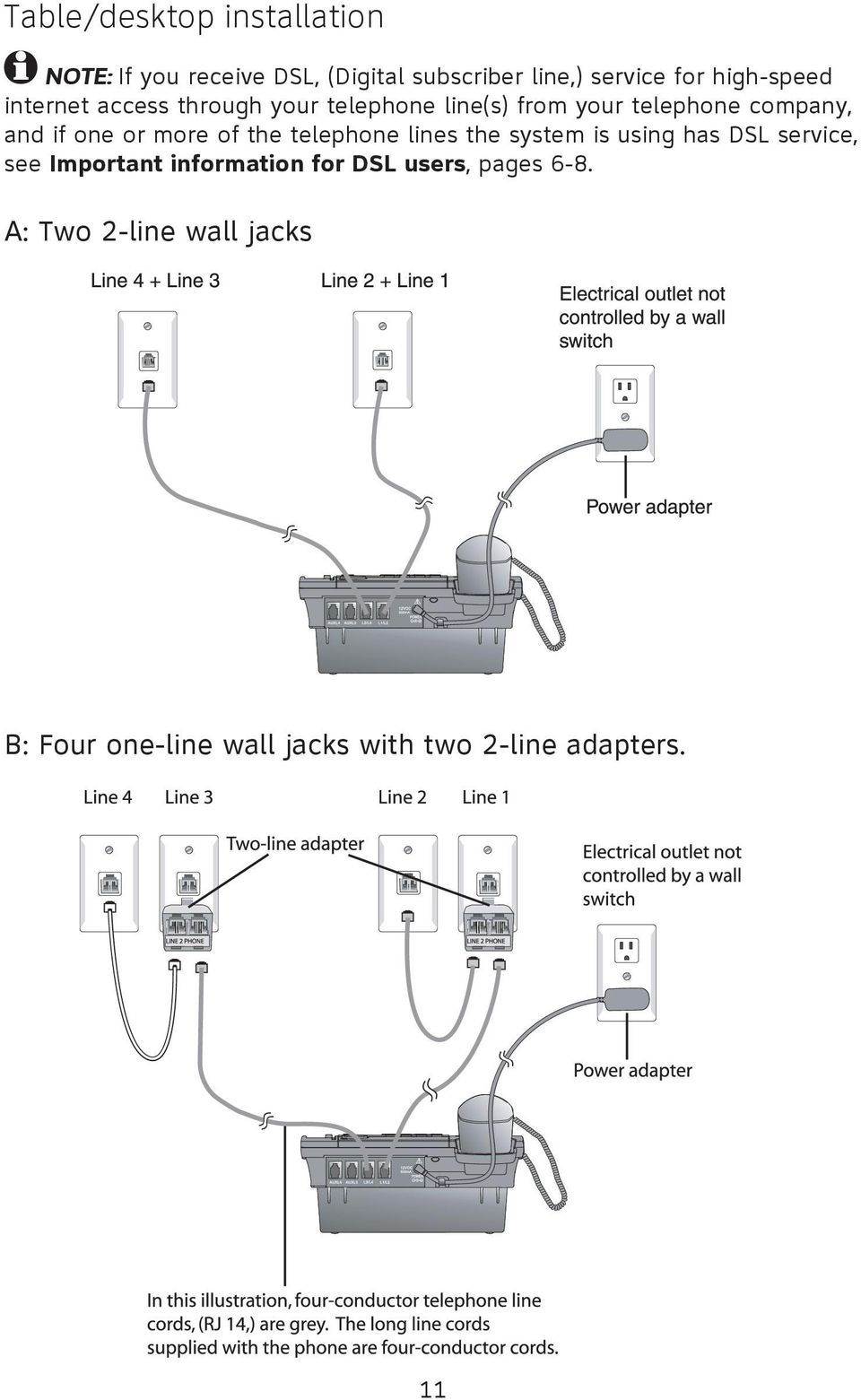
16 Table/desktop installation 1. Connect the two long telephone line cords to the telephone. How the telephone line cords are connected to the wall is determined by whether you have two-line telephone wall jacks or one-line telephone wall jacks at your business and whether you receive DSL, (Digital subscriber line,) service for high-speed internet access through your telephone line(s) from your telephone company. If one or more of the telephone lines has DSL service, see Important information for DSL users, pages 6-8. Use only the line cords that come with the phones. If you need additional cords, call 1 (800) In Canada, call 1 (866) If you have two-line wall jacks, you can just plug the line cords into the wall jacks. Use the Illustration A on page 11. If you have one-line wall jacks, you ll need to purchase one or two two-line adapters. Adapters are available at retail stores or by calling 1 (800) In Canada, call 1 (866) You will need two adapters if you have four telephone lines and use the AUX jacks, (on the back of the telephone,) for equipment like FAX machines. You will also need an additional short 2- or 4- conductor telephone line cord for this installation. Use the Illustration B on page 11. You will need one adapter if you can use the both the AUX jacks for installing your phones. Use the Illustration C on page 12. NOTE: To purchase 2-line adapters (model 16598, part # ), you can visit our website at or call 1 (800) In Canada, dial 1 (866) You may also be able to purchase 2-line adapters at some electronic and hardware stores. 10
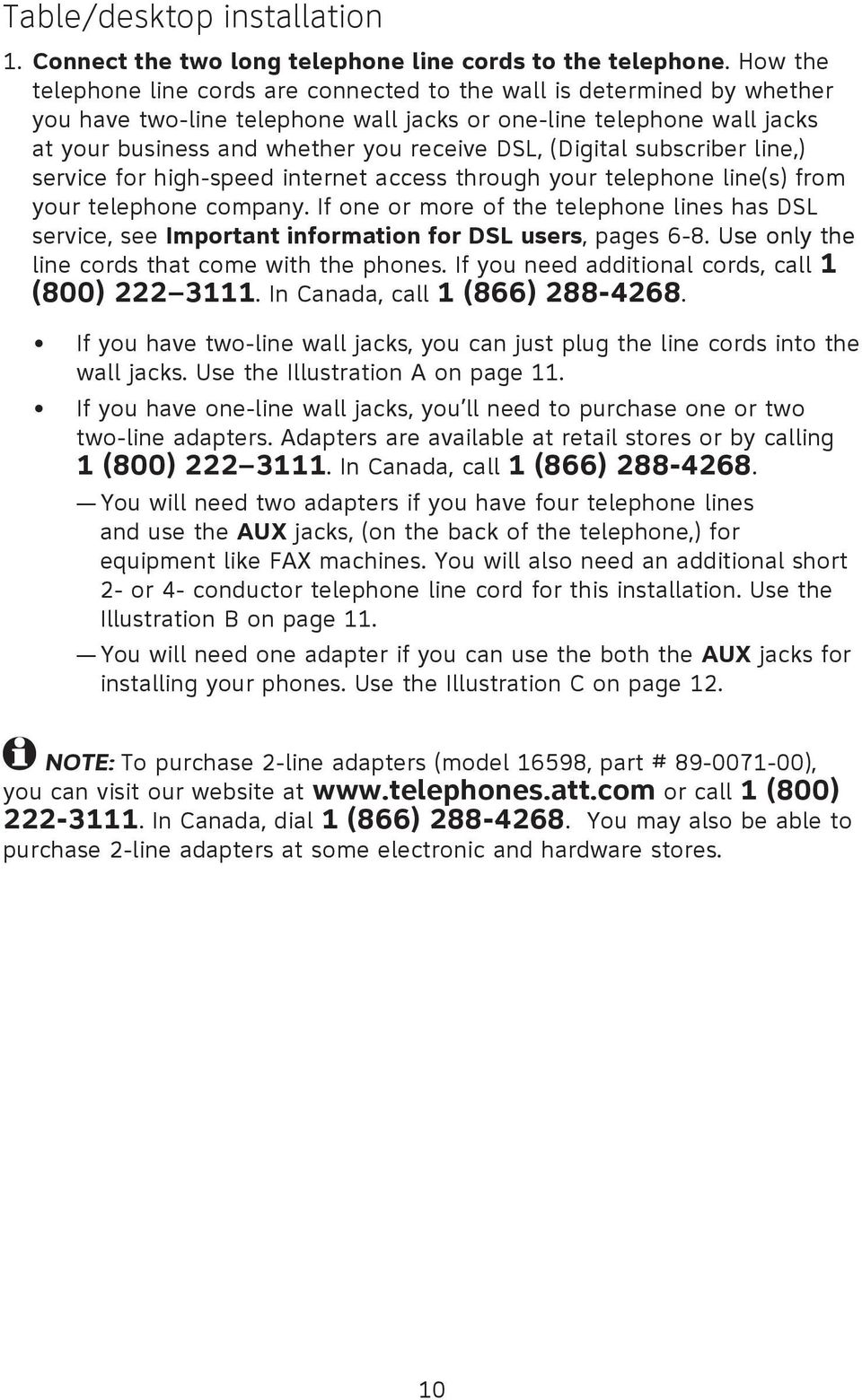
17 Table/desktop installation NOTE: If you receive DSL, (Digital subscriber line,) service for high-speed internet access through your telephone line(s) from your telephone company, and if one or more of the telephone lines the system is using has DSL service, see Important information for DSL users, pages 6-8. A: Two 2-line wall jacks B: Four one-line wall jacks with two 2-line adapters. 11
18 Table/desktop installation C: Four one-line wall jacks with one 2-line adapter, using the telehone AUX jacks. 2. Connect the power adapter to the telephone. Plug the small end of the power adapter into the jack labeled POWER on the back of the phone. Plug the large end into a standard electrical outlet not controlled by a wall switch. Use only the power adapter provided with this product. To obtain a replacement, call 1 (800) In Canada, call 1 (866) NOTES: 1. The phone will run through initialization any time it is reconnected to AC power if a working battery is not installed (for example, after a power failure or when the unit has been unplugged). See page 84, Optional spare battery. 2. Power each set up individually so that each set is assigned a unique extension number. If the sets are powered up at the same time, the same extension numbers could be assigned to more than one set. Please see page 32 for information on assigning extension numbers. 12

19 Table/desktop installation 3. Check the extension number. Once the Line 1 telephone line and AC power attached to the set, the set will automatically assign the next available extension number, and show it in the second line of the display. Plug in the phones in the same order as the extension numbers you planned on the system planner, (see page 4.) 4. Connect the handset cord. Plug one end of the coiled handset cord into the HANDSET jack on the left side of the phone. Plug the other end into the handset and hang up. 5. Check for dial tone. Lift the handset and listen for a dial tone. If you cannot hear a dialtone, please see In case of difficulty beginning on page 86 for details. 6. Identify lines. To identify the telephone lines, press [ SPEAKER], then the [LINE 1] key. Call one of the telephone numbers. If there is a busy signal, it confirms that line 1 is the number called. If line 2 rings, line 2 is the number called. Use the same steps to identify the other two telephone lines. AT&T shall not be responsible for the cost of installation, any damages, lost business, direct or indirect expenses accrued or associated with installation, or other compatibility issues which may arise as a result of using this product while you subscribe to DSL, Fiber optic, VoIP, (Voice over Internet Protocol,) or cable telephone service. 13

20 Wall mounting The telephone base comes with the bracket mounted for table/desktop use. If wall mounting is desired, a telephone outlet wall mounting plate with mounting studs is required. This mounting plate with studs may be available for purchase from many hardware or consumer electronics retailers and may require professional installation. Getting started NOTE: You will not need the bracket for wall mounting. 1. Press on the tabs in the direction of the arrows and pull the bracket away from the telephone Spare base. You battery will not need installation the bracket for wall mounting. 2. Reverse the handset tab Hold down the switchhook, then pull out the handset tab and rotate it 180 degrees. Push the handset tab down into the grooves so it settles into position. Switchhook Handset tab 7 NOTE: If you receive DSL, (Digital subscriber line,) service for high-speed internet access through your telephone line(s) from your telephone company, and if one or more of the telephone lines the system is using has DSL service, see Important information for DSL users, pages

21 Wall mounting 3. Route the telephone line cords and the power cord through slots. (You may use a shorter telephone line cord) line 3 + line 4 Modular telephone line jack Wall mount plate Electrical outlet not controlled by a wall switch Power adapter line 1 + line 2 Modular telephone line jack 4. Place the telephone base mounting plate (a) just above the mounting studs, lines 1 and 2 then slide the telephone base (b) down until it is secured. a b 15
22 Directory card To write names and/or phone numbers on the directory card, follow the steps below: 1. Remove the clear plastic cover by inserting a small item such as paperclip into the hole on the lower right corner. 2. Pull out the directory card. 3. Write the information on the directory card. 4. Replace the directory card and then the plastic cover. NOTE: There is a replacement directory card in the telephone package. You can use it to replace the current one on the telephone if necessary. 16
23 Optional headset (purchased separately) For hands-free telephone conversations, use any industry-standard 2.5mm headset (purchased separately). For best results, use an AT&T 2.5mm headset. To order an AT&T 2.5mm headset, visit our website at or call 1 (800) In Canada, dial 1 (866) Plug a 2.5mm headset into the HEADSET jack on the side of the telephone base (beneath a small rubber flap). NOTE: If the sound quality of the headset is unsatisfactory, try unplugging it, and firmly plugging it in again. 17
24 Feature menu The table on the following pages provides a summary of the feature menu for this telephone. It lists the features and their possible settings. Default settings are underlined. Use the instructions below for getting around in the feature menu. 1. To enter the feature programming menu, press [ENTER] when the phone is idle. You will see FEATURE SETUP. 2. Press [ ] or [ ] to move among the different feature categories. When you see a category that you want to customize, press [ENTER]. 3. Press [ ] or [ ] to get to a specific feature. 4. Use [ ] or [ ] to change a setting for that feature, or the dial pad to enter numbers. 5. To save the setting, press [ENTER]. To save the setting and move to the next feature, press [ ]. -OR- -OR- To save the selection and exit, press and hold [ENTER]. Rapid scroll You can scroll through menu items or setting choices more quickly by pressing and holding the scroll button ([ ], [ ], [ ] or [ ]). The screen will scroll through your choices at the rate you set during feature setup. See Scroll rate on page 40 for setting instructions. For more detailed instructions on using the feature setup menu, see the user s manual. This telephone comes factory set for English screen displays. If it is necessary to change the screen language to Spanish or French, see page
25 Feature menu All default settings are underlined ONE TOUCH Feature Function Options PREFERENCE PROGRAM VIEW PHONE SETTINGS EXTENSION NO RINGER ON/OFF Assign the buttons on the right of the phone, the one-touch keys, as intercom or outside call shortcut keys, and enter and view the outside phone numbers. Assign the one-touch keys as intercom or outside call shortcut keys. Store a telephone number into a onetouch memory location. View telephone numbers stored in one-touch memory locations. INTERCOM, TELEPHONE up to 24 digits (including pause and #) N/A Customize the telephone functions for this phone. Assign an extension number to this phone, although this is usually done automatically when a set is initially setup. Turn the outside ringer on or off for each line ON, OFF RINGER TYPE Select a ring pattern for this phone. Type 1, 2, 3, 4 DELAY RING AUTO-MUTE TONE/PULSE HOLD REMINDER Set the length of time before incoming outside calls will ring. One ring cycle lasts about six seconds. When on, sounds at this telephone are not heard in response to a single page until you answer the page. Set the dial mode for touch tone or dial pulse (rotary) dialing. Turn on or off the audible reminder that a call at this extension is on hold. OFF, 2, 4, 6, 8, 10, 12, 14, 16, 18, 20, 22, 24, 26, 28, 30 SEC ON, OFF TONE, PULSE ON, OFF 19
26 Feature menu Feature Function Options TIME/DATE YEAR, MONTH, DATE, HOUR, MINUTE, AM/PM SPECIAL OPTIONS PRIME LINE AUTOMATIC MODE Set the date and time. Set the clock. Set the date and time. For the 1080 and 1070, incoming caller ID will update the clock setting automatically. Default: 1:00 AM 1/01, 2007 Customize some multi-line functions, display behavior, Central Office Voice Mail (COVM) setup, and Area Code setup. Assign a line on this phone to be selected automatically when you lift the handset, press [ SPEAKER] or press [HEADSET] to make or answer a call. Choose the mode (speakerphone or headset) to be used after selecting a line key to make or answer an outside call, or when [INTERCOM] is pressed to make or answer an intercom or voice page call. Line 1, 2,3, 4 SPEAKERPHONE, HEADSET SCROLL RATE LCD CONTRAST COVM ON/OFF (1080 AND 1070 only) Choose the speed for the rapid scroll feature. Adjust the screen contrast to one of eight levels to maximize readability in different lighting conditions. Turn COVM on for the line if you subscribe to Central Office Voice Mail (COVM) services provided by your local telephone company for that line. VERY SLOW, SLOW, MEDIUM, FAST, VERY FAST LEVEL 1 LEVEL 8 Default: LEVEL 4 ON, OFF 20
27 Feature menu Feature Function Options COVM RESET (1080 AND 1070 ONLY) AREA CODES (1080 AND 1070 only) LINE GROUP RESET ALL AUTO ATT SETUP (1080 only) EVERY 1080=AA NO 1080=AA PER 1080=AA AUTO ATT DELAY DAY/NIGHT TIMES RESET AUTO ATT Clear Central Office Voice Mail (COVM) indicator when the telephone indicates there is voice mail when you have none, or you have accessed your voice mail from a remote location (while away from home). Set one home area code and up to five local area codes for use with caller ID features. Assign the telephone to a line group. If all the extensions in your system have the same telephone lines connected in the same order, this feature does not apply. This feature will return all feature settings for this phone to their factory settings. Voice messages on 1080 extensions will not be erased. N/A 3 digits, empty PRIVATE LINE, LINE 04 LINE 15 N/A Designate a desired phone as an Auto Attendant (AA) and control the timing of the AA features. Make all 1080 telephones Auto Attendants. No 1080 telephones will be auto attendants. Assign a desired 1080 telephone as an auto attendant. Specify how long an auto attendant waits before picking up incoming calls. Specify times to be considered day or night for auto attendant features. Return auto attendant setup for all telephones to default. N/A N/A YES, NO 6 30 SEC Default: Day 9:00AM, Night 6:00PM N/A 21
28 Feature menu Feature Function Options SYS EXT MAILBOX (1080 only) Assign 1070 and 1040 telephones to use a desired 1080 telephone as a voice message mailbox. AUTO SETUP Automatically assigns all 1070 and 1040 telephones to individual 1080 mailboxes. If a 1070 or 1040 telephone is already using a specific 1080 telephone as a mailbox, that assignment will remain. CUSTOM SETUP UNASSIGN MAILBOXES Assign a desired 1080 telephone as the mailbox for 1070 and 1040 system telephones. Cancels the auto attendant mailbox function for this 1080 telephone. Any 1070 or 1040 telephones assigned to its mailbox will now have no mailbox, although the messages will still be there. N/A Current autoattendant phone extension numbers N/A REMOVE EXT MSGS Delete all messages for a specific 1070 or 1040 telephone that uses this 1080 mailbox, or delete all 1070 and 1040 messages in this 1080 mailbox. N/A DTAD SETUP (1080 only) ANSWER STATUS ANSWER DELAY Control the Answering System functions. Turn the answering system on or off for recording private messages meant for this 1080 extension. Set the length of time this telephone rings before the answering system picks up the call. One ring cycle lasts about six seconds. ON, OFF SEC 22
29 Feature menu Feature Function Options TOLL SAVER REMOTE CODE MESSAGE LENGTH MESSAGE ALERT CALL SCREENING When turned on, the answering system picks up incoming calls within 11 seconds if there is at least one new private message. Set the code (password) needed for remote access to some features of your phone, which also allows people at 1070 and 1040 telephones, and non-system telephones, to listen to their messages. Set maximum length of recorded incoming messages. Turn the audible message alert on or off. Choose whether incoming messages can be heard over the speaker as they are recorded. ON, OFF Default: MINUTE, UNLIMITED, GREETINGS ONLY ON, OFF ON, OFF DTAD INTERCEPT NO ANS CALL FWD (1070 AND 1040 ONLY) CALL FORWARD Choose whether private messages can be intercepted by other system telephones during recording. ON, OFF Set up the call forwarding options to the DTAD mailbox Turn on or off the call forwarding function OFF, FWD TO DTAD FWD DELAY TIME Set the delay time before an auto attendant transferred call is forwarded to the DTAD mailbox 1080 phone. 15 SEC (02-40) 23
30 Feature menu Feature Function Options CENTREX Set up a Centrex console telephone. CONSOLE CSL DELAY RING LANGUAGE LANGUAGE Specify whether your telephone is the Centrex console telephone. Set the time to delay ring for the Centrex console telephone. One ring cycle lasts about six seconds. Choose the display language. Select the language for screen displays. ON, OFF OFF, 2, 4, 6, 8, 10, 12, 14, 16, 18, 20, 22, 24, 26, 28, 30 SEC English, Spanish, French 24
31 DTAD feature menu (1080 only) Use the features in this menu to listen to and delete incoming messages, and to record and review outgoing messages. To enter the DTAD menu: 1. Press [DTAD] when the phone is idle. You will see DTAD FEATURE. 2. Press [ ] or [ ] to move among the different DTAD categories. When you see a category that you want to customize, press [ENTER]. 3. Press [ ] or [ ] to get to a specific feature. 4. You may need to use [ ] or [ ] to choose a subfeature. 5. Press [ENTER] when the feature is correct. NOTE: Press [ ] to get out of the feature, press [DTAD] or press and hold [ENTER] to exit setup. For more detailed instructions on using the DTAD feature menu, see 1080 user s manual. 25
32 DTAD feature menu (1080 only) Feature PRIVATE MSGS PLAY NEW MSGS PLAY ALL MSGS REMOVE ALL MSGS PRIVATE OGM CENTRAL MSGS PLAY NEW MSGS PLAY ALL MSGS REMOVE ALL MSGS RECORD CALL RECORD MEMO SYSTEM OGMS AA DAY-OGM Function Play and delete private messages, and record an outgoing message for the private message mailbox. Play back new private messages. Play back all private messages. Delete all private messages. Record the private outgoing message. The prerecorded message is, "Hello. Please leave a message after the tone. Play and delete central (general) messages. Play back new central messages. Play back all central messages. Delete all central messages. Record an ongoing telephone conversation. Record a message from the 1080 telephone. Record, share and download the outgoing announcements played when the auto attendant answers a call. Record the auto attendant system message. For day time, the default message is, "Thank you for calling our company. If you know your party's extension, you may dial it at any time. For our company directory, please dial 0. To leave a message, please dial 9." 26
33 DTAD feature menu (1080 only) Feature AA NIGHT-OGM AA DIR-OGM SHARE OGMS DOWNLOAD OGMS RECORD TIME Function Record the auto attendant system message. For night time, the default message is, "Thank you for calling our company. We are currently closed. If you would like to leave a message and you know your party's extension, you may dial it now. For our company directory, please dial 0. To leave a message, please dial 9." Record a directory of extension assignments for your business. Share your self-recorded auto-attendant announcements with other auto attendants in the system. Download shared auto-attendant announcements to other auto attendants in the system. Find out how much record time remains. 27
34 Menu operation Feature setup, memory programming and some individual feature operations for the 1040, 1070, 1080 use menus shown in the display. Use the navigation keys ([ ], [ ], [ ], [ ], [ENTER]) to begin, end and move through menu operations. The menu operation you are accessing (for example, feature setup) will be on the top line of the display. Access the menu by pressing [ENTER] when the telephone is idle. Press [ ] or [ ] until you see the feature menu options. Press [ENTER] to select an item. Press and hold [ENTER] to save the settings and exit. When you select a menu choice. The first menu item for this topic or data will appear in line four of the screen. NOTE: If you do not press a key to continue menu operations within 30 seconds, the telephone automatically exits the menu. When is displayed, you can press the [ ] or [ ] button repeatedly to move through the menu. Press [ENTER] to choose the menu item currently displayed. This may be a lower level menu, an action, or a feature settings screen. When is displayed, you can press the [ ] or [ ] button to scroll through setting choices. Press [ENTER] to store the setting, or press [ ] to store the setting and show the next option for the feature currently displayed. To return to the main menu, press the [ ] or [ ] button until the screen display includes MAIN MENU or EXIT. Then, press [ENTER]. To exit programming mode, press and hold [ENTER]. NOTE: If the phone beeps twice, repeat the steps to program the feature. The following pages describe the feature operations you can change. Except for Language, they appear in the same order as that of the feature menu tables that began on page
35 Phone settings Language FEATURE SETUP ENGLISH LANGUAGE CONFIG FUNCIONES Espanol IDIOMA CONFIG. FONCT. Français LANGUE This telephone comes factory set for English displays. If it is necessary to change the display language to Spanish or French, follow these steps to reach the LANGUAGE menu: 1. Press [ENTER]. 2. Press [ ] until you see LANGUAGE. 3. Press [ ] or [ ] to select the desired language used in all menus and screen displays (ENGLISH, Espanol or Français). 4. To move to the next feature, press [ ]. -OR- To exit setup, press and hold [ENTER]. 29
36 One touch Assign the buttons on the right side of the phone, the one-touch keys, as intercom or outside call shortcut keys, and enter and view the outside phone numbers. Preference ONE TOUCH TELEPHONE PREFERENCE Assign the one-touch keys as intercom or outsidecall shortcut keys. 1. Press [ENTER]. 2. Press [ENTER] again to enter the ONE TOUCH menu. 3. Press [ ] or [ ] until you see PREFERENCE. 4. Press [ ] or [ ] to highlight INTERCOM or TELEPHONE. INTERCOM is the default setting. 5. To move to the next feature, press [ ]. -OR- To exit setup, press and hold [ENTER]. Program ONE TOUCH PROGRAM Store a telephone number into a one-touch memory location. 1. Press [ENTER]. 2. Press [ ] or [ ] until you see ONE TOUCH. Press [ENTER]. 3. Press [ ] or [ ] until you see PROGRAM. Press [ENTER]. 4. Press dialpad keys to enter up to 24 digits. You can include a pause while storing a dialing sequence which requires one during actual dialing. Press [ ] or [ ] until you see PAUSE, then press [ENTER] when you want to store a pause. The screen will display P. Each pause counts as one digit. Continue storing the number as usual. continued on next page 30
37 One touch continued from previous page PROGRAM PAUSE PROGRAM TONE PROGRAM FLASH PROGRAM DELETE CHAR PROGRAM CANCEL Store a signal for switching to temporary tone dialing, required for some special services, if you have dial pulse (rotary) service. Press [ ] or [ ] until you see TONE, then press [ENTER]. A T will appear on the screen. All numbers you enter after this will send touch-tone signals during dialing. You can store the flash signal required by some special services as part of a dialing sequence. Press [ ] or [ ] until you see FLASH, then press [ENTER]. An F will appear on the screen. Continue storing the number as usual. To erase the last digit, scroll to DELETE CHAR and then press [ENTER]. Press [REMOVE]. To copy the most recently dialed number from redial, press [(AUTO) REDIAL]. Only the last number dialed from this extension can be copied to a one-touch location. The other numbers in the redial shack cannot be copied. To cancel programming, scroll to CANCEL and then press [ENTER]. 5. Press the desired one-touch key to store the telephone number in a location. Press [LOWER], then the desired one-touch key to store the telephone number in the lower location. 6. To move to the next feature, press [ ]. -OR- -OR- -OR- To exit, press and hold [ENTER]. 31
38 Phone settings Customize the telephone functions for this phone. Extension number PHONE SETTING 11 EXTENSION NO Every individual phone in your telephone system MUST be assigned a unique extension number for the intercom feature to work. The assignment is done automatically when the phone is initially setup. If you want to change the extension number, follow the instructions below. 1. Press [ENTER]. 2. Press [ ] or [ ] until you see PHONE SETTINGS. Press [ENTER]. 3. Press [ ] or [ ] until you see EXTENSION NO. 4. Press [ ] or [ ] to choose a desired number (11 through 26). If the current extension number is already used, the screen will display ID IN USE. Press [ ] or [ ] to choose another extension number. 5. To move to the next feature, press [ ]. -OR- To exit setup, press and hold [ENTER]. 32
39 Phone settings Ringer on/off RINGER ON/OFF ON L1 RINGER This feature controls whether there is audible alerting for outside calls on a line. 1. Press [ENTER]. 2. Press [ ] or [ ] until you see PHONE SETTINGS. Press [ENTER]. 3. Press [ ] or [ ] until you see RINGER ON/OFF. Press [ENTER]. 4. Press [ ] or [ ] to select the desired line (L1 RINGER, L2 RINGER, L3 RINGER or L4 RINGER). 5. Press [ ] or [ ] to turn the ringer ON or OFF. ON is the default setting. 6. To move to the next line, press [ ]. -OR- To exit setup, press and hold [ENTER]. Ringer type RINGER TYPE TYPE 1 L1 RINGER TYPE Use this feature to choose one of four ringer types for incoming calls. You can choose different ringer types for the different lines so you can easily identify which line is ringing. 1. Press [ENTER]. 2. Press [ ] or [ ] until you see PHONE SETTINGS. Press [ENTER]. 3. Press [ ] or [ ] until you see RINGER TYPE. Press [ENTER]. 4. Press [ ] or [ ] to highlight the desired line (L1 RINGER TYPE, L2 RINGER TYPE, L3 RINGER TYPE or L4 RINGER TYPE). 5. Press [ ] or [ ] to highlight the desired ringer type (TYPE 1, TYPE 2, TYPE 3 or TYPE 4). 6. To move to the next line, press [ ]. -OR- To exit setup, press and hold [ENTER]. 33
40 Phone settings Delay ring PHONE SETTINGS OFF DELAY RING This feature allows you to set the length of time before incoming calls will ring at this telephone. 1. Press [ENTER]. 2. Press [ ] or [ ] until you see PHONE SETTINGS. Press [ENTER]. 3. Press [ ] or [ ] until you see DELAY RING. 4. Press [ ] or [ ] to choose a setting, OFF or 2-30 seconds. If OFF is selected, the telephone will ring immediately when a call is received. If OFF is not selected, the telephone will ring after the desired ring delay time. A ring cycle lasts about six seconds. 5. To move to the next feature, press [ ]. -OR- To exit setup, press and hold [ENTER]. NOTE: For the 1080 only, if the answering system (DTAD) delay time (ANSWER DELAY, see the ANSWER DELAY section on the 1080 user s manual) is shorter than the delay ring time, the answering system will answer the calls without the telephone ringing. 34
41 Phone settings Auto-MUTE PHONE SETTINGS ON AUTO-MUTE Choose whether sound at this extension will be heard automatically in response to a page (automute off) or only when [MUTE] is pressed. Choose auto-mute OFF to permit hands-free conversation and room monitoring (see the Room monitor section on the user s manual). Choose auto-mute ON to protect privacy (see the page a specific extension section on the user's manual). 1. Press [ENTER]. 2. Press [ ] or [ ] until you see PHONE SETTINGS. Press [ENTER]. 3. Press [ ] or [ ] until you see AUTO-MUTE. 4. Press [ ] or [ ] to highlight ON or OFF. 5. To move to the next feature, press [ ]. -OR- To exit setup, press and hold [ENTER]. 35
42 Phone settings Tone/pulse This feature allows you to choose tone (Touch-Tone) or pulse (Dial-Pulse) dialing. The factory setting is TONE. Change this to PULSE (rotary) only if you do not have touch-tone dialing service. PHONE SETTINGS TONE TONE/PULSE 1. Press [ENTER]. 2. Press [ ] or [ ] until you see PHONE SETTINGS. Press [ENTER]. 3. Press [ ] or [ ] until you see TONE/PULSE. 4. Press [ ] or [ ] to choose TONE or PULSE. 5. To move to the next feature, press [ ]. -OR- To exit setup, press and hold [ENTER]. HOLD reminder This feature allows you to turn the hold reminder tone on or off. If ON is selected, when an outside call is on hold (see the HOLD section on the user s manual), a double beep will sound every 30 seconds to remind you. PHONE SETTINGS ON HOLD REMINDER 1. Press [ENTER]. 2. Press [ ] or [ ] until you see PHONE SETTINGS. Press [ENTER]. 3. Press [ ] or [ ] until you see HOLD REMINDER. 4. Press [ ] or [ ] to choose ON or OFF. 5. To move to MAIN MENU, press [ ]. -OR- To exit setup, press and hold [ENTER]. 36
43 Time/date When the telephone is idle, the screen will display the date and time. The time can be set manually or, for 1080 and 1070 extensions, with incoming caller ID information. Even if you have caller ID, you must set the year once for voice messages to have the correct day of the week. TIME/DATE = 2007 YEAR 1. Press [ENTER]. 2. Press [ ] or [ ] until you see TIME/DATE. 3. Press [ENTER] to see YEAR. Press the dialpad keys to enter the correct year. 4. Press [ ] until you see MONTH. Press the dialpad keys to enter the correct month. 5. Press [ ] until you see DATE. Press the dialpad keys to enter the correct date. 6. Press [ ] until you see HOUR. Press the dialpad keys to enter the correct hour (12-hour clock format). 7. Press [ ] until you see MINUTE. Press the dialpad keys to enter the correct minute. 8. Press [ ] until you see AM/PM. Press [ ] or [ ] to highlight AM or PM. 9. To move to MAIN MENU, press [ ]. -OR- To exit setup, press and hold [ENTER]. NOTE: For the 1080 and 1070 extensions, caller ID provides the time and date. Set the year so that the day of the week can be calculated from the caller ID information. After you set the time once, it will be updated automatically with incoming caller ID information. The time will be set automatically only if you subscribe to caller ID service provided by your local telephone company (see the About caller ID section on the 1080 or 1070 user s manual). continued on next page 37
44 Time/date continued from previous page Setting the clock in this menu will also set the time for the answering system. Before playing each message, the answering system announces the day and time the message was received (see the Private message playback section on the 1080 user s manual). Before using the answering system, use this menu to set the year. If you do not have caller ID, you will also have to set the date and time, so that messages are dated correctly. 38
45 Special options Customize some multi-line functions, display settings, Central Office Voice Mail (COVM) setup, and, for 1070 & 1080 users, caller ID/area code setup. Prime LINE SPECIAL OPTIONS LINE 1 PRIME LINE This feature allows you to choose which line will be automatically selected each time you lift the handset, press [ SPEAKER] or [HEADSET] (if a headset is connected) to make or answer an outside call. 1. Press [ENTER]. 2. Press [ ] or [ ] until you see SPECIAL OPTIONS. Press [ENTER]. 3. Press [ ] or [ ] until you see PRIME LINE. 4. Press [ ] or [ ] to choose the desired line (LINE 1, LINE 2, LINE 3 or LINE 4). 5. To move to the next feature, press [ ]. -OR- To exit setup, press and hold [ENTER]. Automatic mode SPECIAL OPTIONS SPEAKERPHONE AUTOMATIC MODE This feature allows you to choose the mode (speakerphone or headset) to be used after selecting a line key to make or answer an outside call, or when [INTERCOM] is pressed to make or answer an intercom or voice page call (see the Intercom operation section on the user s manual). If you lift the handset, the handset mode will be used. 1. Press [ENTER]. NOTE: If HEADSET is selected, but no headset is connected, when a line key is pressed the speakerphone will be used. 2. Press [ ] or [ ] until you see SPECIAL OPTIONS. Press [ENTER]. 3. Press [ ] or [ ] until you see AUTOMATIC MODE. 4. Press [ ] or [ ] to choose SPEAKERPHONE or HEADSET. 5. To move to the next feature, press [ ]. -OR- To exit setup, press and hold [ENTER]. 39
46 Special options Scroll rate SPECIAL OPTIONS MEDIUM SCROLL RATE You can choose the speed for the rapid scroll feature (See Rapid scroll on page 18 for details.) 1. Press [ENTER]. 2. Press [ ] or [ ] until you see SPECIAL OPTIONS. Press [ENTER]. 3. Press [ ] or [ ] until you see SCROLL RATE. 4. Press [ ] or [ ] to choose the desired scrolling speed VERY SLOW, SLOW, MEDIUM, FAST or VERY FAST. 5. To move to the next feature, press [ ]. -OR- To exit setup, press and hold [ENTER]. LCD contrast This feature allows you to adjust the screen contrast to one of eight levels to optimize readability in different lighting conditions. 1. Press [ENTER]. SPECIAL OPTIONS LEVEL-4 LCD CONTRAST 2. Press [ ] or [ ] until you see SPECIAL OPTIONS. Press [ENTER]. 3. Press [ ] or [ ] until you see LCD CONTRAST. 4. Press [ ] or [ ] to select the screen contrast level (1-8). 5. To move to the next feature, press [ ]. -OR- To exit setup, press and hold [ENTER]. 40
47 Special options COVM ON/OFF, 1080 and 1070 only If you subscribe to voice mail service with your local telephone service provider, turn the COVM (Central Office Voice Mail,) indicator on to have the screen display the appropriate telephone line number(s) when there are telephone company messages waiting. If you do not subscribe to voice mail service, turn the COVM indicator off for each line. COVM ON/OFF OFF L1 COVM ON/OFF NOTE: For more information on COVM, see the Call waiting and message waiting section on the 1070 or 1080 user s manual. 1. Press [ENTER]. 2. Press [ ] or [ ] until you see SPECIAL OPTIONS. Press [ENTER]. 3. Press [ ] or [ ] until you see COVM ON/OFF. Press [ENTER]. 4. Press [ ] or [ ] to select the line with voice mail services (L1, L2, L3 or L4). 5. Press [ ] or [ ] to select ON or OFF. 6. Repeat step 4 and 5 to turn the COVM indicator ON or OFF for other lines at this extension. 7. When you have finished setting the COVM indicator, press [ ] until the screen displays DONE. 8. Press [ENTER]. The screen includes COVM ON/OFF. 9. To move to the next feature, press [ ]. -OR- To exit setup, press and hold [ENTER]. 41
48 Special options AREA CODES, 1080 and 1070 only You can program this phone to recognize one home and up to five local area codes. If you simply dial the last seven digits of a telephone number to make a call within your own area code, you should enter your own area code into the telephone as the home area code. Then if you receive a call from within your home area code, the screen will display the seven digits of the telephone number. If for calls within your own home area code you must dial 10 digits (that is, the area code and telephone number), enter 000 for the home area code and enter your area code as a local area code. Then if you receive a call from within your area code, the screen displays the 10 digits of the telephone number. If you ever have to dial 10-digit phone numbers, (the area code with the 7-digit phone number), for other nearby area codes, enter those area codes as local area codes. AREA CODES =908 HOME AC 1. Press [ENTER]. 2. Press [ ] or [ ] until you see SPECIAL OPTIONS. Press [ENTER]. 3. Press [ ] or [ ] until you see AREA CODES. Press [ENTER]. 4. Press [ ] or [ ] to choose HOME AC to set the home area code, or choose LOCAL AC1 (AC2, AC3, AC4, or AC5) to set the local area codes. 5. Use the dialpad keys to enter the 3-digit area code. Enter 000 for your home area code if you never dial 7-digit numbers. 6. If you need to dial 10-digit phone numbers, press [ ] and use the dialpad keys to enter the 3-digit local area code. 7. Press [ ] to highlight DONE then press [ENTER]. To move to the next feature, press[ ]. -OR- To exit setup, press and hold [ENTER]. 42
49 Special options LINE group If all the extensions in your system are connected to all lines, you can ignore this feature. If there are extensions that have a private (not shared) telephone line connected to line 4, choose PRIVATE LINE. If you choose PRIVATE LINE, intercom, hold, call privacy, and other advanced features may not work correctly. Also, no messages can be recorded on the 1080 auto attendant mailbox for private lines on 1040 or 1070 telephone sets. If there are lines that some, but not all, sets share, connect them to line 4. Make sure that all those extensions have the same line group number, (LINE 04 - LINE 15). Correctly assigning each group its own line group number will allow the Line 4 indicator lights, hold, call transfer, and even ringing to work properly. There is an example of a line group installation on the next page. SPECIAL OPTIONS PRIVATE LINE LINE GROUP 1. Press [ENTER]. 2. Press [ ] or [ ] until you see SPECIAL OPTIONS. Press [ENTER]. 3. Press [ ] or [ ] until you see LINE GROUP. 4. Press [ ] or [ ] to scroll through the line group choices (LINE LINE 15, or PRIVATE LINE). 5. To move to the next feature, press [ ]. -OR- To exit setup, press and hold [ENTER]. continued on next page 43
50 Special options continued from previous page Line group example There are 12 line group numbers to select (4-15). Refer to the table below for the various line-group combination which results from using 16 units and 7 telephone lines. Intercom Extensions Telephone Lines in System TL 1 TL 2 TL 3 TL 4 TL 5 TL 6 TL 7 Line Group Number Example of Funcation EXT 11 P P P P Group 4 Marketing EXT 12 P P P P Group 6 Procurement EXT 13 P P P P Group 4 Marketing EXT 14 P P P P Group 5 Engineering EXT 15 P P P P Group 4 Marketing EXT 16 P P P P Group 6 Procurement EXT 17 P P P P Group 5 Engineering EXT 18 P P P P Group 5 Engineering EXT 19 P P P P Group 7 Administration EXT 20 P P P P Group 7 Administration EXT 21 P P P P Group 6 Procurement EXT 22 P P P P Group 4 Marketing EXT 23 P P P P Group 5 Engineering EXT 24 P P P P Group 4 Marketing EXT 25 P P P P Group 6 Procurement EXT 26 P P P P Group 7 Administration 44
51 Special options Reset all SPECIAL OPTIONS RESET ALL RESET ALL ENTER: RESET ALL? This feature will return all feature settings for this phone to their factory settings and erase the redial stack and all one-touch entries. Voice messages left in a 1080 mailbox will not be erased. STOP If you reset all features to the default settings, all previous feature programming and one-touch entries will be erased. You will need to program your preferences for every feature again and reenter numbers in one-touch locations. You cannot undo the RESET ALL command. 1. Press [ENTER]. 2. Press [ ] or [ ] until you see SPECIAL OPTIONS. Press [ENTER]. 3. Press [ ] or [ ] until you see RESET ALL. Press [ENTER]. 4. The screen will display RESET ALL? Press [ENTER] within three seconds to confirm and reset all settings. If you do nothing, the screen will eventually time out, and no changes will be made. 5. To exit setup, press and hold [ENTER]. 45
52 AUTO ATT SETUP (1080 only) Set up the programmable auto attendant to answer outside calls, provide callers with company directories, and record voice messages for a multiphone system. There are many decisions to make when you are setting up a 1080 phone as an auto attendant You have to decide which 1080 phones should be auto attendants. Remember that when these phones are recording messages, they will not be available for making or answering calls. EVERY 1080=AA lets you make all 1080 phones auto attendants. Use NO 1080=AA to make sure that no 1080 phones are auto attendants. Use PER 1080=AA to assign 1080 sets as auto attendants individually. Use AUTO ATT DELAY to specify how long a 1080 auto attendant will ring before it answers a call.be sure to make this delay different for every auto attendant, so only one 1080 phone will try to answer a call at a time. If an auto attendant is active, adjust the delay times for different features to let the auto attendant system answer outside calls. The answering system answer delay time (ANSWER DELAY, page 58) of all 1080 telephones in the same system must be longer than the auto attendant answer delay time (AUTO ATT DELAY, page 49). You can set the system to deliver different messages, depending on the time of day. Program DAY/NIGHT TIMES on one set to control all the auto attendants in the system. If you need to want to erase all the auto-attendant programming on all the phones, you can use RESET AUTO ATT to do that. All auto-attendant programming will be erased. You may wish to set one or more additional phones to act as auto attendant(s) when the primary auto attendant is turned off or busy. An auto attendant is busy when someone at that extension is: programming the phone, or accessing messages, or on an intercom call, or dialing from the directory or call history, or using any of the lines to make or answer a call, or when the DTAD is recording a message at that extension. You can choose a particular extension to always be the primary auto attendant by setting that extension to have the shortest auto attendant pickup delay and setting the pickup delays of other auto attendants in the order you choose. Otherwise, the primary auto attendant may change as the system automatically assigns incoming calls among active auto attendants. 46
53 AUTO ATT SETUP (1080 only) Every 1080 = AA Make all 1080 phones auto attendants. AUTO ATT SETUP EVERY 1080 = AA 1. Press [ENTER] on any 1080 system telephone. 2. Press [ ] or [ ] until you see AUTO ATT SETUP. Press [ENTER]. 3. Press [ ] or [ ] until you see EVERY 1080=AA. Press [ENTER]. 4. The screen will show CONFIRM? Press [ENTER] within three seconds to confirm the selection. 5. To move to the next feature, press [ ]. -OR- To exit setup, press and hold [ENTER]. No 1080 = AA No 1080 phones will be in auto attendants mode. AUTO ATT SETUP NO 1080 = AA 1. Press [ENTER] on any 1080 system telephone. 2. Press [ ] or [ ] until you see AUTO ATT SETUP. Press [ENTER]. 3. Press [ ] or [ ] until you see NO 1080 = AA. Press [ENTER]. 4. The screen will show CONFIRM? Press [ENTER] within three seconds to confirm the selection. 5. To move to the next feature, press [ ]. -OR- To exit setup, press and hold [ENTER]. 47
54 AUTO ATT SETUP (1080 only) Per 1080 = AA Assign an individual 1080 phone as an auto attendant. This feature allows you to assign individual 1080 telephone(s) as auto attendant(s). 1. Press [ENTER] on any 1080 system telephone. PER 1080 = AA NO EXT# 11 = AA? 2. Press [ ] or [ ] until you see AUTO ATT SETUP. Press [ENTER]. 3. Press [ ] or [ ] until you see PER 1080 = AA. Press [ENTER]. 4. Press [ ] or [ ] to highlight the extension number of the desired 1080 telephone. 5. Press [ ] or [ ] to highlight the desired setting, YES to make this 1080 an auto attendant, NO so that it will not be an auto attendant. When the auto attendant setting is on, the [DTAD] light on the telephone base is lit. 6. To move to the next extension, press [ ]. -OR- To exit setup, press and hold [ENTER]. NOTE: The auto attendant will not answer calls when the extension is busy. 48
55 AUTO ATT SETUP (1080 only) AUTO ATT delay Choose how long this phone rings before the auto attendant picks up a call. One ring cycle lasts about six seconds. AUTO ATT SETUP 06 SEC AUTO ATT DELAY 1. Press [ENTER]. 2. Press [ ] or [ ] until you see AUTO ATT SETUP. Press [ENTER]. 3. Press [ ] or [ ] until you see AUTO ATT DELAY. 4. Press [ ] or [ ] to choose the desired setting (6 30 seconds). 5. To move to the next feature, press [ ]. -OR- To exit setup, press and hold [ENTER]. NOTES: The DTAD answer delay time (ANSWER DELAY, page 58) of all 1080 telephones in the same system must be longer than the auto attendant answer delay time (AUTO ATT DELAY). If multiple auto attendants are assigned in the same system, you must select different AUTO ATT DELAY settings for these telephones (at least three seconds among them so they do not all answer calls at the same time). 49
56 AUTO ATT SETUP (1080 only) DAY/NIGHT TIMES Specify times to be considered day or night for auto attendant features. The auto attendant feature only works with a multi-phone system. If you need to have different outgoing messages at different times of the day, you MUST program the hours for day and night time so the answering system plays the correct auto attendant outgoing announcement. 1. Press [ENTER]. AUTO ATT SETUP DAY/NIGHT TIMES DAY/NIGHT TIMES DAY TIME DAY/NIGHT TIMES NIGHT TIME NOTE: It is only necessary to set the auto attendant day and night time once in an auto attendant telephone. This setting will affect all other auto attendant telephones (if you have any) in the same system. 2. Press [ ] or [ ] until you see AUTO ATT SETUP. Press [ENTER]. 3. Press [ ] or [ ] until you see DAY/NIGHT TIMES. Press [ENTER]. 4. Press [ ] or [ ] until you see DAY TIME. Press [ENTER]. 5. Press [ ] or [ ] to choose the desired hour. Press [ ]. 6. Press [ ] or [ ] to choose the desired minute. Press [ ]. 7. Press [ ] or [ ] to choose AM or PM. 8. Press [ ] or [ ] until you see DONE. Press [ENTER] to finish the day time setting. 9. Press [ ] or [ ] until you see NIGHT TIME. Press [ENTER]. 10. Press [ ] or [ ] to choose the desired hour. Press [ ]. 11. Press [ ] or [ ] to choose the desired minute. Press [ ]. 12. Press [ ] or [ ] to choose AM or PM. 13. Scroll to and select DONE to return to the DAY TIME or NIGHT TIME menu. -OR- To exit setup, press and hold [ENTER]. 50
57 AUTO ATT SETUP (1080 only) RESET AUTO ATT, (1080 only) AUTO ATT SETUP RESET AUTO ATT RESET AUTO ATT ENTER: CONFIRM? Return auto attendant setup for all phones to default. STOP If this menu is confirmed on a 1080 telephone, all settings in the AUTO ATT SETUP menu and SYS EXT MAILBOX menu of all 1080 telephones will return to the factory settings. 1. Press [ENTER] on the desired 1080 system telephone. 2. Press [ ] or [ ] until you see AUTO ATT SETUP. Press [ENTER]. 3. Press [ ] or [ ] until you see RESET AUTO ATT. Press [ENTER]. 4. The screen will display CONFIRM? Press [ENTER] within three seconds to confirm the command and reset all settings. If you do nothing, the screen will eventually time out, and no changes will be made. 5. To move to MAIN MENU, press [ ]. -OR- To exit setup, press and hold [ENTER]. NOTE: Resetting the auto attendant will cancel call forwarding from all 1040 or 1070 phones. See the 1070 or 1040 user s manual. 51
58 SYS EXT mailbox (1080 only) About system extension mailboxes If a 1080 telephone is an auto attendant (page 45), it can be a system extension (SYS EXT), mailbox for 1070 and 1040 telephones in the system. When the 1080 phone is a SYS EXT mailbox, it can answer calls transferred by the auto attendant system and record caller s messages for its SYS EXT telephones. These messages are called extension messages. Each extension message can be up to one minute. System Extensions If you want one or more of your 1080 telephones to automatically record messages directed to individual 1070 and 1040 telephones, you need to customize these features. By doing this, you will be linking specific 1080 phones with specific 1040 and 1070 system extensions. Use AUTO SETUP to randomly assign all the 1040 and 1070 extensions to all the 1080 auto-attendant mailboxes. Any 1040 and 1070 extension can be assigned to only one 1080 auto attendant. If you want to control which 1040 and 1070 phones are assigned to a particular 1080 system extension, use CUSTOM SETUP. You will select a 1040 or 1070 set, and then decide which 1080 auto attendant mailbox to assign to it. If you don t want a 1080 set to record messages for its 1040 and 1070 extensions, you can UNASSIGN MBOXES. That 1080 set will not longer be a system extension mailbox, and its 1040 and 1070 sets will no longer have a system extension mailbox. If the 1080 system extension mailbox is getting full, messages for a specific 1040 or 1070 set, or all 1040 and 1070 messages can be removed by using REMOVE EXT MSGS. 52
59 SYS EXT mailbox (1080 only) Auto setup SYS EXT MAILBOX AUTO SETUP AUTO SETUP PLEASE WAIT! Automatically assigns all 1070 and 1040 phones to individual 1080 mailboxes. If a 1070 or 1040 phone is already using a specific 1080 phone as a mailbox, that assignment will remain. 1. Press [ENTER] on any 1080 telephone. 2. Press [ ] or [ ] until you see SYS EXT MAILBOX. Press [ENTER]. 3. Press [ ] or [ ] until you see AUTO SETUP. Press [ENTER]. 4. The screen will show PLEASE WAIT! with a beep to confirm. 5. To move to the next feature, press [ ]. -OR- To exit setup, press and hold [ENTER]. SYS EXT MAILBOX CUSTOM SETUP CUSTOM SETUP PLEASE WAIT! CUSTOM SETUP MAILBOX #12 EXT #13 MAILBOX NOTE: If the 1080 phone is the SYS EXT mailbox for other extensions, it will answer transferred calls from its extension telephones with a preset outgoing message. You can neither delete nor replace this outgoing message. Custom setup Individually assign 1070 and 1040 phones to a 1080 SYS EXT mailbox. 1. Press [ENTER] on any 1080 telephone. 2. Press [ ] or [ ] until you see SYS EXT MAILBOX. Press [ENTER]. 3. Press [ ] or [ ] until you see CUSTOM SETUP. Press [ENTER], and the screen will show PLEASE WAIT! to confirm. 4. Press [ ] or [ ] to choose the extension number of the desired 1070 or 1040 phone. 5. Press [ ] or [ ] to select the extension number of the desired 1080 system extension mailbox, or choose NONE to turn the system extension mailbox off. 6. Press [ ] highlight DONE then press [ENTER]. To move to the next feature, press [ ]. -OR- To exit setup, press and hold [ENTER]. 53
60 SYS EXT mailbox (1080 only) Unassign Mboxes UNASSIGN MBOXES ENTER: CONFIRM? Cancel the auto attendant mailbox function for all 1080 phones. Any 1070 or 1040 phones assigned to 1080 mailboxes will now have no mailboxes, although the already-recorded messages will still be there. 1. Press [ENTER] on any 1080 telephone in the system. 2. Press [ ] or [ ] until you see SYS EXT MAILBOX. Press [ENTER]. 3. Press [ ] or [ ] until you see UNASSIGN MBOXES. Press [ENTER]. 4. The screen will display CONFIRM? Press [ENTER] within three seconds to confirm the command and unassign the mailboxes. If you do nothing, the screen will eventually time out, and no changes will be made. 5. To move to the next feature, press [ ]. -OR- To exit setup, press and hold [ENTER]. 54
61 SYS EXT mailbox (1080 only) REMOVE ext msgs SYS EXT MAILBOX Delete all messages for a specific 1070 or 1040 phone that uses this 1080 mailbox, or delete all 1070 and 1040 messages in this 1080 mailbox. REMOVE EXT MSGS To delete all messages from one SYS EXT telephone 1. Press [ENTER] on the 1080 mailbox phone. 2. Press [ ] or [ ] until you see SYS EXT MAILBOX. Press [ENTER]. 3. Press [ ] or [ ] until you see REMOVE EXT MSGS. Press [ENTER]. REMOVE EXT MSGS MESSAGES: 02/06 13 MSGS PER EXT 4. Press [ ] or [ ] to choose the extension number of the desired 1070 or 1040 system telephone. The telephone will show the message counter MESSAGES: XX/YY for the desired 1070 or 1040 system telephone. 5. Press [ENTER]. The screen will display REMOVE ALL? 6. Press [ENTER] within three seconds to confirm the command and delete all messages of the desired extension telephone. If you do nothing, the screen will eventually time out, and no changes will be made. 7. To move to MAIN MENU, press [ ]. -OR- To exit setup, press and hold [ENTER]. 55
62 SYS EXT mailbox (1080 only) To delete all messages of all SYS EXT phones 1. Press [ENTER] on the 1080 telephone. REMOVE EXT MSGS ALL EXTS MSG MSGS PER EXT 2. Press [ ] or [ ] until you see SYS EXT MAILBOX. Press [ENTER]. 3. Press [ ] or [ ] until you see REMOVE EXT MSGS. Press [ENTER]. 4. Press [ ] or [ ] to choose ALL EXTS MSG. 5. Press [ENTER]. The screen will display REMOVE ALL? 6. Press [ENTER] within three seconds to confirm the command and delete all messages of all extension phones assigned to that 1080 mailbox. If you do nothing, the screen will eventually time out, and no changes will be made. 7. To move to MAIN MENU, press [ ]. -OR- To exit setup, press and hold [ENTER]. 56
63 DTAD setup (1080 only) Answer status DTAD SETUP ON ANSWER STATUS Follow the steps below so that the 1080 phone will record private messages (not the SYS EXT messages meant for the associated 1070 and 1040 phones). 1. Press [ENTER]. 2. Press [ ] or [ ] until you see DTAD SETUP. Press [ENTER]. The screen will display ANSWER STATUS. 3. Press [ ] or [ ] to choose ON to turn the answering system on, or OFF to turn the answering system off. 4. To move to the next feature, press [ ]. -OR- To exit setup, press and hold [ENTER]. NOTE: If the ANSWER STATUS setting is OFF, the 1080 phone can still record central messages and extension messages. 57
64 DTAD setup (1080 only) Answer delay DTAD SETUP 15 SEC ANSWER DELAY NOTE: For the auto attendant to work properly, you must make sure that the DTAD answer delay time is longer than the auto attendant answer delay time (page 49). Set the length of time this phone rings before the answering system picks up the call. One ring cycle lasts about six seconds. 1. Press [ENTER]. 2. Press [ ] or [ ] until you see DTAD SETUP. Press [ENTER]. 3. Press [ ] or [ ] until you see ANSWER DELAY. 4. Press [ ] or [ ] to choose the desired setting (12 40 seconds). 5. To move to the next feature, press [ ]. -OR- To exit setup, press and hold [ENTER]. Toll saver DTAD SETUP ON TOLL SAVER NOTE: If the toll saver feature is ON, for the auto attendant to work properly, you must make sure that the auto-attendant delay time (page 49) is shorter than 11 seconds. When toll saver is turned on, the answering system picks up incoming calls within eleven seconds if there are any new private messages. When there are no new messages, the answering system picks up the incoming call in the time you set as the answer delay. (See Answer delay section above on this page for details). To turn toll saver on or off: 1. Press [ENTER]. 2. Press [ ] or [ ] until you see DTAD SETUP. Press [ENTER]. 3. Press [ ] or [ ] until you see TOLL SAVER. 4. Press [ ] or [ ] to choose ON or OFF. 5. To move to the next feature, press [ ]. -OR- To exit setup, press and hold [ENTER]. 58
65 DTAD setup (1080 only) Remote code DTAD SETUP = 111 REMOTE CODE Select a three-digit number to allow remote access from another telephone (away from your home, page 59) and internal access from the SYS EXT telephones (See 1070 or 1040 user's manual for details). This code is 111 by default. 1. Press [ENTER]. 2. Press [ ] or [ ] until you see DTAD SETUP. Press [ENTER]. 3. Press [ ] or [ ] until you see REMOTE CODE. 4. Press and hold [ ] to delete the current code. Press the dial pad keys to enter a three-digit remote access code ( ). 5. To move to the next feature, press [ ]. -OR- To exit setup, press and hold [ENTER]. 59
66 DTAD setup (1080 only) Message length Set the maximium length of recorded messages. DTAD SETUP 1 MINUTE MESSAGE LENGTH. You can select the maximum length for the messages callers can record. If you choose UNLIMITED, the caller can record a message of any length, up to the amount of time remaining for all messages, memos and announcements. If you choose GREETING ONLY, the caller will hear the selected outgoing announcement but will not be able to record a message. If you choose 1 MINUTE, the caller can record a message up to one minute. 1. Press [ENTER]. 2. Press [ ] or [ ] until you see DTAD SETUP. Press [ENTER]. 3. Press [ ] or [ ] until you see MESSAGE LENGTH. 4. Press [ ] or [ ] to choose the desired setting. 5. To move to the next feature, press [ ]. -OR- To exit setup, press and hold [ENTER]. NOTE: Only incoming messages can be limited to one minute. Memos and two-way conversation messages are unlimited (up to the amount of time remaining). 60
67 DTAD setup (1080 only) Message alert Turn the audible message alert on or off. DTAD SETUP ON MESSAGE ALERT If the message alert tone is on, the telephone will beep every 30 seconds when there are new private or central messages. 1. Press [ENTER]. 2. Press [ ] or [ ] until you see DTAD SETUP. Press [ENTER]. 3. Press [ ] or [ ] until you see MESSAGE ALERT. 4. Press [ ] or [ ] to choose ON or OFF. 5. To move to the next feature, press [ ]. -OR- To exit setup, press and hold [ENTER]. 61
68 DTAD setup (1080 only) Call screening DTAD SETUP ON CALL SCREENING Choose whether incoming messages can be heard over the speaker when they are being recorded. If you turn call screening on, you will hear the incoming private message on your telephone when a call comes in. 1. Press [ENTER]. 2. Press [ ] or [ ] until you see DTAD SETUP. Press [ENTER]. 3. Press [ ] or [ ] until you see CALL SCREENING. 4. Press [ ] or [ ] to choose ON or OFF. 5. To move to the next feature, press [ ]. -OR- To exit setup, press and hold [ENTER]. NOTE: If the Do Not Disturb (DND) feature is active (page 18 of the 1080 user s manual), the call screening feature will be disabled automatically. DTAD intercept DTAD SETUP ON DTAD INTERCEPT Choose whether private incoming messages can be intercepted by other phones. Someone at the 1080 phone which is recording the message can always intercept the call. If DTAD intercept is on when a caller leaves a message, someone on another system telephone sharing the same line can answer the call by pressing the corresponding line key. 1. Press [ENTER]. 2. Press [ ] or [ ] until you see DTAD SETUP. Press [ENTER]. 3. Press [ ] or [ ] until you see DTAD INTERCEPT. 4. Press [ ] or [ ] to choose ON or OFF. 5. To move to MAIN MENU, press [ ]. -OR- To exit setup, press and hold [ENTER]. 62
69 DTAD FEATURE MENU (1080 only) Setup the answering system in DTAD FEATURE menu. The DTAD FEATURE menu allows you to: Play or remove incoming private messages, and record your outgoing announcement for your private mailbox. Play or remove central messages. Record a 2-way conversation. Record a memo or reminder into your private mailbox. Record, share or download announcements for the auto attendant. Check the remaining record time. DTAD FEATURE PRIVATE MSGS Press [DTAD] to access the DTAD FEATURE menu. Press [DTAD] to return to the idle screen at any time. 63
70 DTAD FEATURE MENU (1080 only) Here is the menu structure for the DTAD FEATURE menu: Feature Menu PRIVATE MSGS Function PLAY NEW MSGS Play back new private messages. PLAY ALL MSGS REMOVE ALL MSGS PRIVATE OGM CENTRAL MSGS PLAY NEW MSGS PLAY ALL MSGS REMOVE ALL MSGS RECORD CALL RECORD CALL RECORD MEMO RECORD MEMO SYSTEM OGMS AA DAY-OGM AA NIGHT-OGM AA DIR-OGM SHARE OGMS DOWNLOAD OGMS RECORD TIME RECORD TIME Play back all private messages. Delete all private messages. Record the private announcement. Play back new central messages.. Play back all central messages. Delete all central messages. Record two-way conversations. Record memos. Record the auto attendant system announcements. For details, see Outgoing announcements for auto attendant. Share your self-recorded auto-attendant announcements with other auto attendants in the system. Download shared auto-attendant announcements to other auto attendants in the system. Select to see how much record time remains. 64
71 DTAD FEATURE MENU (1080 only) Outgoing announcements for auto attendant If your system has an auto attendant, you will need to program the day and night times (see Day/night times on page 50). The auto attendant will use the times you program to determine which announcement to play. There are three different auto attendant announcements available. You can choose to record your own auto attendant announcements or use the pre-recorded announcements listed here. You can use SYSTEM OGMS to record your own announcements, share your announcements with the system or download shared announcements from the system. The auto attendant outgoing daytime announcement (AA DAY-OGM) plays during the day time you program. The pre-recorded announcement is: Thank you for calling our company. If you know your party s extension, you may dial it at any time. For a company directory, please dial zero. To leave a message, please dial nine. The auto attendant outgoing night time announcement (AA NIGHT-OGM) plays during the night time you program. The pre-recorded announcement is: Thank you for calling our company. We are currently closed. If you would like to leave a message and you know your party s extension, you may dial it now. For a company directory, please dial zero. To leave a message, please dial nine. The auto attendant directory announcement (AA DIR-OGM) plays when an outside caller presses [0] on their phone after hearing the day or night announcement. The pre-recorded announcement is: Please enter the extension number. NOTE: You can retain the pre-recorded auto attendant day and night announcements, but you MUST record your directory of extension assignments as the auto attendant directory announcements. 65
72 DTAD FEATURE MENU (1080 only) Outgoing daytime announcement SYSTEM OGMS AA DAY-OGM RECORD Microphone SYSTEM OGMS AA DAY-OGM RECORDING 00:20 STOP NOTE: The answering system uses the AUTOMATIC MODE set on page 39 to record system outgoing messages. If the AUTOMATIC MODE is SPEAKERPHONE (default), face the microphone (the MIC opening) on the telephone to record system outgoing announcements. If the AUTOMATIC MODE is HEADSET, use the headset microphone to record system outgoing announcements. To record the daytime announcement The 1080 has a pre-recorded daytime announcement. Thank you for calling our company. If you know your party s extension, you may dial it at any time. For a company directory please dial 0. To leave a message please dial 9. You can use this announcement, or replace it with a recording of your own using the steps below. 1. Press [DTAD] on a system telephone assigned as auto attendant. 2. Press [ ] or [ ] until you see SYSTEM OGMS. Press [ENTER]. 3. Press [ ] or [ ] until you see AA DAY-OGM. 4. Press [ ] or [ ] until you see RECORD. Press [ENTER]. Speak facing the telephone from about nine inches away. The elapsed time (in seconds) will be shown on the screen when recording. You can record an announcement up to 75 seconds long. Announcements shorter than three seconds long will not be recorded. 5. When the recording is finished, press [ENTER]. The recorded announcement will be played and the screen will show PLAYING. 6. Press [ENTER] to skip the play. -OR- After the recording has been played, the screen will go back to the AA DAY-OGM menu. 7. Press [DTAD] to exit the DTAD feature menu. 66
73 SYSTEM OGMS AA DAY-OGM PLAY DTAD FEATURE MENU (1080 only) Outgoing daytime announcement To play the daytime announcement 1. Press [DTAD]. 2. Press [ ] or [ ] until you see SYSTEM OGMS. Press [ENTER]. 3. Press [ ] or [ ] until you see AA DAY-OGM. 4. Press [ ] or [ ] until you see PLAY. Press [ENTER]. The current daytime announcement will be played. To stop playing, press [ENTER]. 5. Press [DTAD] to exit the DTAD feature menu. To delete the daytime announcement 1. During the daytime announcement playback, press [REMOVE]. The screen will display REMOVE?. 2. Press [REMOVE] again to delete your daytime announcement. 3. Press [DTAD] D] to exit the DTAD feature menu. When your outgoing announcement is deleted, calls will be answered with the preset daytime announcement described on the previous page. 67
74 DTAD FEATURE MENU (1080 only) Outgoing night time announcement SYSTEM OGMS AA NIGHT-OGM RECORD Microphone SYSTEM OGMS AA NIGHT-OGM RECORDING 00:20 STOP To record the night time announcement The default outgoing night time announcement is Thank you for calling our company. We are currently closed. If you would like to leave a message and you know your party s extension, you may dial it now. For a company directory please dial 0. To leave a message, please dial 9. You can use this message, or replace it with a recording of your own. 1. Press [DTAD] on the system telephone assigned as auto attendant. 2. Press [ ] or [ ] until you see SYSTEM OGMS. Press [ENTER]. 3. Press [ ] or [ ] until you see AA NIGHT-OGM. 4. Press [ ] or [ ] until you see RECORD. Press [ENTER]. Speak facing the telephone from about nine inches away. The elapsed time (in seconds) will be shown on the screen when recording. You can record an announcement of up to 75 seconds. Announcements shorter than three seconds long will not be recorded. 5. When the recording is finished, press [ENTER] to select the displayed STOP. Your recorded announcement will play back. 6. Press [DTAD] to exit the DTAD feature menu. 68
75 SYSTEM OGMS AA NIGHT-OGM PLAY DTAD FEATURE MENU (1080 only) Outgoing night time announcement To play the night time announcement 1. Press [DTAD]. 2. Press [ ] or [ ] until you see SYSTEM OGMS. Press [ENTER]. 3. Press [ ] or [ ] until you see AA NIGHT-OGM. 4. Press [ ] or [ ] until you see PLAY. Press [ENTER]. The current night time announcement will be played. To stop playing, press [ENTER]. 5. Press [DTAD] to exit the DTAD feature menu. To delete the night time announcement 1. During the night time announcement playback, press [REMOVE]. The screen will display REMOVE?. 2. Press [REMOVE] again to delete your night time announcement. 3. Press [DTAD] D] to exit the DTAD feature menu. When your outgoing announcement is deleted, calls will be answered with the preset night time announcement described on the previous page. 69
76 SYSTEM OGMS AA DIR-OGM RECORD Microphone SYSTEM OGMS AA DIR-OGM RECORDING 00:20 STOP DTAD FEATURE MENU (1080 only) Directory announcement To record the directory announcement The default directory announcement is Please enter the extension number. You can use this announcement, or replace it with a recording of your own. This is the announcement callers will hear when they press [0] to listen to the company directory, so if you are using the pre-recorded daytime and/or night time auto-attendant recordings, or recording your own announcements that direct users to dial [0] for a directory, record your directory. You might record something like, This is XYZ Company. To purchase new parts, dial 16. To talk to customer service, dial 17. To talk to an associate, dial 18. To talk to Joe, dial Press [DTAD] on a system telephone assigned as auto attendant. 2. Press [ ] or [ ] until you see SYSTEM OGMS. Press [ENTER]. 3. Press [ ] or [ ] until you see AA DIR-OGM. 4. Press [ ] or [ ] until you see RECORD. Press [ENTER]. Speak facing the telephone from about nine inches away. The elapsed time (in seconds) will be shown on the screen when recording. You can record an message of up to 75 seconds. Announcements shorter than three seconds long will not be recorded. 5. When the recording is finished, press [ENTER] to select the displayed STOP. Your recorded announcement will be played back. 6. Press [DTAD] to exit the DTAD feature menu. 70
77 SYSTEM OGMS AA DIR-OGM PLAY DTAD FEATURE MENU (1080 only) Directory announcement To play the directory announcement 1. Press [DTAD]. 2. Press [ ] or [ ] until you see SYSTEM OGMS. Press [ENTER]. 3. Press [ ] or [ ] until you see AA DIR-OGM. 4. Press [ ] or [ ] until you see PLAY. Press [ENTER]. The current directory announcement will be played. To stop playing, press [ENTER]. 5. Press [DTAD] to exit the DTAD feature menu. To delete the directory announcement 1. During the direcotry announcement playback, press [REMOVE]. The screen will display REMOVE?. 2. Press [REMOVE] again to delete your directory announcement. 3. Press [DTAD] D] to exit the DTAD feature menu. When your announcement is deleted, calls will be answered with the preset directory announcement described on the previous page. 71
78 DTAD FEATURE MENU (1080 only) Share system announcements If the auto-attendant announcements of your own are recorded, you can share them with the other auto attendants in the system. SYSTEM OGMS ON SHARE OGMS 1. Press [DTAD]. 2. Press [ ] or [ ] until you see SYSTEM OGMS. Press [ENTER]. 3. Press [ ] or [ ] until you see SHARE OGMS. 4. Press [ ] or [ ] to select ON if you want to share the auto-attendant announcements with the other auto attendants. 5. Press [ ] until you see EXIT, then press [ENTER]. Press [ ] to move to the next DTAD feature. -OR- Press [DTAD] to exit the DTAD feature menu. 72
79 DTAD FEATURE MENU (1080 only) Download system announcements SYSTEM OGMS DOWNLOAD OGMS DOWNLOAD OGMS FROM EXT#15 DOWNLOAD If there are auto-attendant announcements shared in the system, you can download them to other auto attendants. 1. Press [DTAD]. 2. Press [ ] or [ ] until you see SYSTEM OGMS. Press [ENTER]. 3. Press [ ] or [ ] until you see DOWNLOAD OGMS. 4. Press [ENTER]. DOWNLOAD OGMS DOWNLOADING PLEASE WAIT! 07 SECONDS NOTE: If there are no shared announcements, the screen will show NO SHARED OGMS IN SYSTEM! 5. Press [ ] or [ ] to choose the extension number of the desired auto attendant. 6. Press [ENTER]. The screen will show DOWNLOADING PLEASE WAIT! NOTE: If the screen shows FAILED! or SYSTEM BUSY!, the downloading has failed. Press [DTAD] to exit the DTAD feature menu. Wait for a while then start from step 1 again. 7. Wait for about one minute until the screen shows SUCCESS! 8. Press [ ] to show EXIT then press [ENTER]. Press [ ] to move to the next SYSTEM OGMS feature. -OR- Press [DTAD] to exit the DTAD feature menu. 73
80 Centrex This feature is for use with the Centrex system only. You will need to program the next two features if this phone is the destination console phone for your Centrex system. For more information on using Centrex, (a service provided by your service provider for a fee), see pages Console Specify whether this 1080 phone is the Centrex console phone. CENTREX ON CONSOLE 1. Press [ENTER] on the desired system telephone to be assigned as a console. 2. Press [ ] or [ ] until you see CENTREX. Press [ENTER]. 3. Press [ ] or [ ] until you see CONSOLE. 4. Press [ ] or [ ] to choose ON to set this telephone as a console. On the other system telephones, choose OFF. 5. To move to the next feature, press [ ]. -OR- To exit setup, press and hold [ENTER]. NOTE: On the Centrex console phone, make sure to assign a private telephone number to line 4 and select PRIVATE LINE in the LINE GROUP menu (see the LINE GROUP section on page 43). 74
81 Centrex CSL delay ring Set the length of time before this phone will route a call to the Centrex console phone. One ring cycle lasts about six seconds. CENTREX 02 SEC CSL DELAY RING 1. Press [ENTER] on the desired system telephone for the Centrex service (except the console telephone). 2. Press [ ] or [ ] until you see CENTREX. Press [ENTER]. 3. Press [ ] or [ ] until you see CSL DELAY RING. 4. Press [ ] or [ ] to choose the desired delay time (2 30 seconds). On the console telephone, choose OFF. 5. To move to MAIN MENU, press [ ]. -OR- To exit setup, press and hold [ENTER]. NOTE: If you want the DTAD to answer calls, the CSL DELAY RING time should be longer than the ANSWER DELAY time (page 58) on the same 1080 telephone. 75
82 FEATURE SETUP ENGLISH LANGUAGE CONFIG FUNCIONES EspaNol IDIOMA Language This telephone comes factory set for English displays. If it is necessary to change the display language to Spanish or French, follow these steps to reach the LANGUAGE menu: 1. Press [ENTER]. 2. Press [ ] or [ ] until you see LANGUAGE. 3. Press [ ] or [ ] to select the desired language used in all menus and screen displays (ENGLISH, EspaNol or Français). 4. To exit setup, press and hold [ENTER]. CONFIG. FONCT. Français LANGUE 76
83 Centrex operation Setup checklist Before expanding your system or installing for Centrex, review the Spread sheet system planner on page 4. If you have Centrex, contact your local telephone company for further information about Centrex service. The phone number for line 1 must be the same on all phones in order for the intercom and paging features to work. Identify the phone that will be used as the console phone. Follow the regular installation instructions in this manual. Enable the console phone. Store the Centrex pickup codes and the seven- or ten-digit phone numbers, as directed by your phone company, in the one-touch locations. (See One-touch operation beginning on page 30.) Enable the console phone Determine which phone will be the console phone for your system and program the console following the directions to Console section on page 74. Console operation Once another system phone has enabled its delayed ring, the console phone will receive those calls. All the 1080 features work in the same manner as described in this manual. The console phone can pick up other Centrex lines through Centrex switching. You can store the Centrex pickup codes and the seven- or ten-digit phone number (as directed by your phone company) of each station, except for the console phone, in the one-touch locations. 77
84 Centrex operation Set ring delay duration This feature allows other system telephones calls to ring at the console phone. After a specified ring delay, the calls will ring at the console phone. (See CSL delay RING on page 75.) 78
85 About a fax machine Adding a fax machine You may wish to use a fax machine with your phone. Choose line 3 or 4 for the fax machine, and connect it according to the manufacturer s instructions for installation and use. That line s telephone number is your fax number. The same line can be used for outgoing calls, (incoming faxes will get a busy signal when the line is in use). Set your fax machine to answer on the first ring (follow manufacturer s instructions). To prevent the fax line from ringing at all the extensions, turn the ringer off for that line at other extensions (see Ringer ON/OFF on page 33). NOTES: 1. Do not connect a fax machine to line 1. Doing so will interrupt the telephone s intercom data channel. 2. If you are using a fax switch, or a fax machine with a built-in fax switch, see Using a fax switch, below. Using a fax switch A fax switch lets the telephone know, before the phone rings, whether an incoming call is a voice call or a fax call. Some fax machines have a built-in fax switch. Using a fax switch may affect the operation of the LINE lights or other system features. 79
86 Technical specification Operating temperature 32 F 122 F 0 C 50 C Power adapter input AC120V 60Hz Power adapter output Backup battery (purchased separately) Headset jack Wiring limitation DC12V 500mA Alkaline 9V, size 1604A 2.5mm, ohm No more than 600 feet REN 0.3B System signal carrier frequency 1.7 MHz 80
87 Appendix A Glossary Auto Attendant: A 1080 telephone in your multi-telephone system is assigned to pick up a ringing line automatically after a selected number of rings. The Auto Attendant plays the selected auto attendant message and redirects the call if the caller enters an extension number. You can assign up to 16 Auto Attendants in your telephone system. Caller ID: Caller identification is a subscriber service available from most local telephone companies for a fee. When you subscribe to caller identification, you can see who s calling before you answer the phone if you and the caller are both in areas offering caller ID service with compatible equipment. Caller ID with call waiting: This is a single, combined subscriber service which may be available from your local telephone company. If you subscribe to this service, you can use your 1080 telephone to see who s calling even while you are on another call (as long as your caller is in an area with caller ID service and both telephone companies use compatible equipment). Central message: When a call is answered by the auto attendant, and a caller presses [9], a central message, one not intended for any particular extension, is created. Centrex service: This is a special subscriber service which may be available from your local telephone company for a fee. This 1080 telephone can be used with Centrex service. COVM: Central Office Voice Mail is a subscriber voice message service which may be available from your local telephone company. This service may be called by another name in your area (e.g. call answering). DND: When activated, the Do Not Disturb (DND) feature prevents interruptions during a call. DSL: Digital subscriber line, (DSL) service is available from your telephone company for a fee. It allows you to receive high-speed internet through your telephone line(s). Some special equipment, splitters and/or filters, are required for the telephone and data service to work properly together. DTAD: The Digital Telephone Answering Device is a sophisticated, tapeless answering system built into the 1080 telephone. In some installations, messages for your phone can be recorded on a 1080 in your system. continued on next page 81
88 Appendix A Glossary continued from previous page Home area code: This is the area code for your telephone number. Users simply dial the seven digits of a telephone number to make a call within their own area code and 11 digits outside of their area code. If this applies to you, you should enter your own area code into the telephone as the home area code. After setting, if you receive a call from within your home area code, the screen will display the last seven digits of the telephone number. You may, however, live in a region where for calls within your own area code, you must dial 10 digits (that is, the area code and telephone number). If this applies to you, enter 000 for the home area code and enter your area code as a local area code. After setting, if you receive a call from within your area code, the screen displays the 10 digits of the telephone number. For details, see the Area codes section (page 42). Line group: A group of system telephones sharing some lines within a multitelephone system. Local area code: Most users dial 11 digits to make calls outside their home area codes. If this applies to you, you do not need to program any local area codes. However, if you dial only 10 digits to make calls to some areas outside your home area code (without dialing 1), then set these local area codes on the telephone. Up to five local area codes can be set. For details, see the Area codes section (page 42). After setting, if you receive a call from one of these local area codes, the screen displays the 10 digits of the telephone number. Mailbox: A place to store answering system messages. The 1080 phone can have separate mailboxes for private messages, central messages, and system extension messages. Navigation keys: These are the buttons used when programming your 1080 phone and for scrolling through feature options ([ENTER], [ ], [ ], [ ], [ ]). Prime line: This is the line on the telephone you assign to be selected automatically when you lift the handset, press [ SPEAKER] or press [HEADSET] to answer or make a call. continued on next page 82
89 Appendix A Glossary continued from previous page Private message: Messages that did not come through the auto attendant. If the 1080 is not an auto attendant, or if it has a private line, or if the ANSWER DELAY is shorter than the AUTO ATT DELAY, and if DTAD SETUP ANSWER STATUS is on, callers will leave private messages. System extension message: The messages recorded for individual 1070 and 1040 telephones that are associated with a 1080 phone s auto attendant mailbox (pages 45-49). System telephone: Any 1080, 1070 or 1040 telephone in your telephone system (also called an extension). Telephone system (or business system): Two or more system telephones combined to form an interacting system of shared lines. You can have up to 16 system telephones in the system. 83
90 Appendix B Optional spare battery (purchased separately) Install a 9V alkaline battery (purchased separately) in order to use some features of this telephone in the event of a power failure. If power fails and a working battery is installed, all four lines of this phone will work only to answer calls with the handset, and to dial calls using the dialpad and the one touch or redial features. No other features will work until AC power is restored. After your set has an extension number, you can unplug the telephone line and install a spare battery. NOTES: Use disposable alkaline batteries only. Do not use rechargeable batteries. When there is AC power and there is no spare battery or the spare battery is low, the screen will show LOW BATT. Getting started 1. Unplug all telephone line cords from this set. Getting started Getting started Spare battery installation 2. Press on the tabs installation in the direction of the arrows and pull the bracket away from Spare battery Spare battery installation the telephone base. started are battery installation 3. Remove the battery compartment screw with a Phillips screwdriver Press as shown in the picture and then pull out the battery door. 7 Polarity label Polarity label + Polarity label
91 Appendix B Optional spare battery (purchased separately) 5. Insert a new alkaline battery (9V, size 1064A, purchased separately) following the polarity label in the battery compartment. Polarity label Replace the battery compartment cover and tighten the screw. Replace the battery compartment screw with a Phillips screwdriver. 7. For desktop mode, reattach the bracket to the telephone base by sliding the tabs into the holes as shown. Snap the bracket into the telephone base. Then see pages 11 and 12 to reinstall the telephone line cord. + NOTES: If there is a power failure when a working battery is installed: The telephone screen will show AC FAIL. You can use the handset to make or answer outside calls. The handset volume will be at the minimum level and only the two lowest levels will be available for the ringer volume. 85
92 In case of difficulty If you have difficulty with your telephone, please try the suggestions below. For Customer Service, visit our website at or call 1 (800) In Canada, dial 1 (866) Have the serial number, found on the underside of your phone, available when contacting customer service. Please retain your receipt as your proof of purchase. To purchase accessories or replacement parts, please contact customer service by visiting our website at or calling 1 (800) In Canada, dial 1 (866) My telephone appears to be dead. Make sure the power adapter is securely plugged into an outlet not controlled by a wall switch. Make sure the telephone line cords are plugged firmly into the telephone base and the jack. Unplug the telephone s electrical power. Wait for approximately 15 seconds, then plug it back in. Allow up to one minute for the telephone to synchronize. This system is not compatible with any other AT&T 4-line small business telephones, except for the 1080, 1070 and 1040 telephones. System features, (intercom, transfer, hold release, etc.) do not work with my old AT&T 4-line telephones (984, 974, 945, etc.). This system is not compatible with any other AT&T 4-line small business telephones, except for the 1080, 1070 and 1040 telephones. Make sure that the LINE GROUP assignment is correct. See page 43. Intercom, hold, call privacy or other advanced features do not work properly. If you have fiber optic service, (digital service to the building, analog service within the building,) VoIP (Voice over the Internet) service, or cable telephone service, the router that the system uses may interfere with system communication. If you subscribe to DSL service, you need to have a DSL splitter installed. See Important information for DSL users section on page 6 in this manual. Make sure that the LINE GROUP assignment is correct. See page
93 In case of difficulty If Line 1 is a DSL line, have a professional install a splitter on the telephone line. See the installation guide and contact your DSL service provider for more information. If the wiring for your system is greater than 600 feet, some of the advanced features may not work properly. You may have to remove some of the phones from remote areas. Check to make sure that each telephone set has a unique extension number. If the sets receive AC power at the same time, either at initial installation or after a power failure, the extension numbers may be the same. Refer to the EXTENSION NUMBER section on page 32. There is no dial tone. I cannot dial out. First, try all the suggestions of My telephone appears to be dead on page 86. The telephone line cord might be malfunctioning. Try installing a new telephone line cord. Disconnect the telephone base from the telephone jack and connect a different telephone. If there is no dial tone on the telephone either, the problem is in your wiring or local service. Contact your local telephone company. Make sure a line is selected. Press a line button or speakphone. Make sure the [HOLD] key is not pressed. If there is no dial tone when the [HEADSET] key is pressed, make sure the headset is firmly connected in the HEADSET jack. First, try all the above suggestions in There is no dial tone on this page. Make sure there is a dial tone before dialing. It is normal if the telephone takes a second or two to synchronize before producing a dial tone. Wait an extra second before dialing. Check that all the telephones connected to the same telephone line are hung up. Make sure the telephone is set to the correct dial mode (pulse dial or tone dial) for the service in your area. Refer to the TONE/PULSE section of the user s manual to set the dial mode. 87
94 In case of difficulty If the other telephones in your home are having the same problem, the problem is in the wiring or local service. Contact your local telephone company (charges may apply). If you are using the speakerphone, eliminate any background noise. Noise from a television, radio, or other appliances may cause the telephone to not dial out properly. If you cannot eliminate the background noise, first try muting the telephone before dialing, or dialing from another room in your home with less background noise. I cannot page or make intercom calls. Make sure you dialed the extension correctly. Make sure Line 1 is connected and has the same phone number on all system phones. The destination telephone may be on an external call. Wait and try again. Make sure the Do Not Disturb function is turned off on the destination system telephone (see the DO NOT DISTURB section on the user s manual). Make sure the [INTERCOM] light is off before you making a page or Intercom call. If the light is on, the system is busy or the intercom is unavailable. Try again when the intercom light goes out. Make sure the telephone line cord connected to line jack L1/L2 was provided with the telephone. Check to make sure that each telephone set has a unique extension number. If the sets receive AC power at the same time, either at initial installation or after a power failure, the extension numbers may be the same. Refer to the EXTENSION NUMBER section on page 32. I cannot transfer outside calls. If you are on a conference call with another telephone in the same system (see the Conference calls section on the user s manual) the call cannot be transferred. If the destination telephone is on an outside call or intercom call with another system telephone, the call cannot be transferred. 88
95 In case of difficulty All extensions must have the same outside telephone line connected to Line 1. Make sure the telephone line cord connected to line jack L1/L2 was provided with the telephone. Check to make sure that each telephone set has a unique extension number. If the sets receive AC power at the same time, either at initial installation or after a power failure, the extension numbers may be the same. Refer to the EXTENSION NUMBER section on page 32. Make sure that the LINE GROUP assignment is correct. See page 43. LOW BATT is displayed on screen. No spare battery is installed or the spare battery needs to be replaced. Remove and re-install the battery. The telephone does not ring when there is an incoming call. Make sure the ringer is on (page 33). Make sure the telephone line cord(s) and the power adapter are plugged in properly (See pages 11-15). There may be too many extension telephones on the telephone line to allow all of them to ring simultaneously. Try unplugging one phone at a time until the phones start ringing. Test a working telephone at the same telephone jack. If another telephone has the same problem, the problem is in the telephone jack. Contact your local telephone company (charges may apply). The telephone line cord might be malfunctioning. Try installing a new telephone line cord. Make sure the Do Not Disturb feature is not activated (see the DO NOT DISTURB section on the user s manual) Make sure the ringer delay time (page 34) is not longer than the answer delay time of the answering system (see the ANSWER DELAY section on page 58). This would cause the answering system to answer the call before the phone rings. If you are on a call, there will be a beep to alert you of incoming calls on the other lines. Make sure that the LINE GROUP assignment is correct. See page
96 In case of difficulty Cannot join a conversation in progress. The call privacy feature prevents another set on the system from interrupting a conversation. Make sure you press the LINE button to release privacy. (See the Call privacy section on the user s manual.) The call privacy feature does not work. In some installations that have fiber optic service (digital service to the building, analog service within the building) the signals to the extensions may not support the call privacy feature. Error tone (fast busy signal) is heard when making a page call. The Do Not Disturb feature is activated at the extension you are calling. A double beep sounds every 30 seconds. Operation during a power failure. There is a call on hold at this extension. Press and release the LINE button of the call on hold to return to the call and turn off the reminder beep. This phone will operate during a power failure if a working battery has been installed. You will be able to answer calls with the handset, and dial calls using the dial pad keys and the one-touch or redial features. No other features will work until power is restored. All programming is retained during a power failure. The screen displays AC FAIL. Display screen is blank. The phone has been disconnected from AC power. When AC power is restored, the screen will return to the usual display. One touch and redial numbers are retained until power is restored. Make sure the power cord is connected to both the phone and an electrical outlet not controlled by a wall switch. 90
97 In case of difficulty My calls fade out or cut in and out when I am using the telephone. If you have a headset plugged into the telephone, try unplugging it and firmly plugging it in again. Disconnect the telephone base from the modular jack and plug in another corded telephone. If calls are still not clear, the problem is probably in the wiring or local service. Contact your local service company (charges may apply). If you are using the speakerphone when this problem occurs, eliminate any background noise. Noise from the television, radio, or other appliances may cause the speakerphone to cut in and out. Try engaging the [mute] button when you are not speaking or eliminating the background noise. If you subscribe to DSL service, you need to have a DSL splitter installed. See Important information for DSL users section on page 6 in this manual. If you have Digital Subscriber Line, (DSL,) service, and you have more than three telephone sets, and you have installed microfilters, you may need to have a DSL splitter installed by your DSL service provider. The sound quality of the headset is poor Unplug it and and firmly plug it in again. I hear other calls when using the telephone. Disconnect the telephone base from the telephone jack. Plug in a different telephone. If you still hear other calls, the problem is probably in the wiring or local service. Call your local telephone company. Make sure you are using the round black cords that came with the phone. These cords help prevent crosstalk (hearing other calls). 91
98 In case of difficulty My caller ID features are not working properly (1070 and 1080 only). Caller ID is a subscription service. You must subscribe to this service from your local telephone company for this feature to work on your telephone. The caller may not be calling from an area which supports caller ID. Both you and the caller s telephone companies must use equipment which are compatible with caller ID service. Make sure the area codes are set correctly on the telephone (page 42). Reset the phone. See Common cure for electronic equipment on this page. COVM line indicator remains on (1070 and 1080 only). Make sure you have reviewed all messages on that line. You may have received a false signal from the central office. To clear, see COVM reset section on the 1080 or 1070 user s manual. The system does not receive caller ID or the system does not display caller ID during call waiting (1070 and 1080 only). Make sure you subscribe to caller ID with call waiting features services provided by the local telephone company. The caller may not be calling from an area which supports caller ID. Both you and the caller s telephone companies must use equipment which are compatible with caller ID service. If your phone is currently in use and a new call comes in, you must press the [ ] to see the new call. This procedure will allow you to see call waiting caller ID and caller ID from other lines on the phone. Make sure the telephone line cords were provided with the telephone. If you subscribe to DSL service you need to have a DSL splitter installed. See Important information for DSL users section on page 6 in this manual. 92
99 In case of difficulty Common cure for electronic equipment: If the telephone is not responding normally, try the following (in the order listed): 1. Disconnect the power to the telephone base. 2. Disconnect the spare battery (if the set has one). 3. Wait a few minutes before connecting power to the telephone base. 4. Re-install the spare battery (if the set has one). 5. Wait for the telephone to synchronize its connection. This may take up to one minute. The answering system does not answer at the correct time (1080 only). For private messages, make sure the answering system is on. ON is selected in ANSWER STATUS (see the ANSWER STATUS section on the 1080 user s manual). If Toll Saver is activated, the number of rings changes to eleven seconds when there are new messages waiting (see the TOLL SAVER section on page 58 of this manual). If you subscribe to the Centrex service provided by your local telephone company, make sure the ANSWER DELAY time (see the ANSWER DELAY on page 58 of this manual) is shorter than the CSL DELAY RING time on the same telephone (see the CSL DELAY RING section on page 75 of this manual). If a 1080 extension is on a phone call, or recording, or playing any type of message or announcement, it will not be able to answer incoming calls. The outgoing announcement is not clear (1080 only). When recording the announcement, make sure you speak in a normal tone of voice about nine inches from the telephone base. If HEADSET is selected in the AUTOMATIC MODE menu and a headset is connected on the telephone, you need to speak into the microphone of the headset to record the announcement (page 39). Make sure there is no background noise (television, music, traffic, etc.) when recording. 93
100 In case of difficulty The answering system does not record messages (1080 only). Make sure the answering system is on. If the memory is full, the system will announce "Memory full" then hang up. You need to delete some old messages in order to make room for new messages. If GREETING ONLY is selected in the MESSAGE LENGTH menu, the answering system will only play back the outgoing announcement. It will not record incoming private messages (See the MESSAGE LENGTH section on the 1080 user s manual.). If you subscribe to the Centrex service provided by your local telephone company, make sure the ANSWER DELAY time (see the ANSWER DELAY section on the 1080 user s manual.) is shorter than the CSL DELAY RING time on the same telephone (see the CSL DELAY RING section on the user s manual). Some messages on the answering system are cut off (1080 only). If a caller reaches the maximum recording time you set for each message (see the MESSAGE LENGTH section on the 1080 user s manual), the system will disconnect and part of the message may be lost. If the caller pauses for more than seven seconds, the system stops recording and disconnects the call. If the memory on the system becomes full during a message, the system stops recording and disconnects the call. If the caller s voice is very soft, the system may stop recording and disconnect the call. If the DTAD INTERCEPT feature is on and another telephone answers the call on that line, the message will stop recording (see the DTAD INTERCEPT section on the 1080 user s manual) 94
101 In case of difficulty The messages on the system are very difficult to hear (1080 only). The answering system does not respond to remote access commands. The auto attendant does not answer after the correct number of rings (1080 only). If HEADSET is selected in the AUTOMATIC MODE menu and a headset is connected on the telephone, you need to use the headset to hear messages (page 39). Press [ VOLUME] on the telephone base to increase the volume. Make sure you are using the correct remote access code (see the REMOTE CODE section on page 59 of this manual). Make sure you are calling from a touch-tone telephone (away from home). When dialing a number, you should hear tones. If you hear clicks, then it is not a touch-tone telephone and cannot activate the answering system. The answering system may not detect the remote access code when your announcement is playing. Wait until the announcement is over before entering the code. There may be interference on the telephone line you are using. Press the dial pad keys firmly when dialing. Make sure that there is an auto attendant telephone. (see the AUTO ATT SETUP section on page 46 of this manual) Make sure the answering system answer delay time (see the ANSWER DELAY section on page 58 of this manual) of all 1080 telephones in the same system are longer than the auto attendant answer delay time (see the AUTO ATT DELAY section on page 49 of this manual). If you subscribe to the Centrex service provided by your local telephone company, make sure the CSL DELAY RING time (see the CSL DELAY RING section on page 75 of this manual) is longer than the AUTO ATT DELAY (see the AUTO ATT DELAY section on page 49 of this manual) and ANSWER DELAY time (see the ANSWER DELAY section on page 58 of this manual) on all system telephones Only the calls from the public lines (shared lines of all system phones) can be answered by the auto attendant system (see the Auto attendant operation section on the 1080 user s manual). If all auto-attendant extensions are being used, the system cannot answer incoming calls. 95
102 In case of difficulty The auto attendant announcement is not correct (1080 only). The auto attendant does not respond when callers dial an extension (1080 only). Make sure the day/night announcements are set up and recorded. Make sure that the DAY and NIGHT times that you entered are appropriate. (see the DAY/NIGHT TIME section on page 50 of this manual). Make sure directory announcement is recorded correctly to suit your company s needs (see the Directory announcement section on the 1080 user s manual). Make sure the caller is calling from a touch-tone telephone. If the caller hears clicks rather than tones, the commands will not be recognized. The auto attendant may not detect the callers' commands when the announcement is playing. Wait until the announcement is over before entering the code. There may be interference on the telephone line callers are using. Press the dial pad keys firmly when dialing. 96
103 Index A AC fail, 85 Answer delay time, 58 Answer status, 57 Area code, 42 SYS EXT mailbox, 52 Assign console, 74 Auto attendant setup, Auto attendant delay time, 49 Auto-mute, 35 Automatic mode, 39 C Call screening, 62 Central message, 81 Centrex service, 74 Console delay ring, 75 COVM, 41, 81 D Day outgoing announcement, 66 Day time, 50 Directory announcement, 70 Directory card, 16 DSL, 9 DTAD, DTAD intercept, 62 Do not disturb, 81 Download system announcement, 73 E Extension number, 32 F Fax machine, 79 H Headset, 17 Hold reminder, 36 I In case of difficulty, L Language, 29 Line group, 43 M Message length, 60 N Night outgoing announcement, 68 Night time, 50 O One-touch, 30 preference, 30 P Prime line, 39 Private line, 43 R Remote access, 59 Reset settings, 45 Reset auto attendant, 51 Ringer delay, 34 Ringer on or off, 33 Ringer type, 33 S Scroll rate, 40 Share system, 52 System extension mailbox, 52 T Technical specifications, 80 Toll saver, 58 97
104 Advanced American Telephones. All rights reserved. AT&T and the AT&T logo are trademarks of AT&T Intellectual Property II, L.P. d/b/a AT&T Intellectual Property licensed to Advanced American Telephones. Printed in China. Issue 3 AT&T 11/07.
4-Line small business system. 1080 with digital answering system and. 1070 with caller ID/call waiting 1040 speakerphone. Installation guide
 Installation guide 4-Line small business system 1080 with digital answering system and caller ID/call waiting 1070 with caller ID/call waiting 1040 speakerphone Congratulations on purchasing your new AT&T
AT&T Small Business System Speakerphone with Digital Answering System and Caller ID Call Waiting 984
 USER S MANUAL Part 2 AT&T Small Business System Speakerphone with Digital Answering System and Caller ID Call Waiting 984 Please also read Part 1 Important Product Information 2004 Advanced American Telephones.
User s manual. speakerphone/ answering system and answering system with caller ID/call waiting caller ID/ call waiting
 User s manual 1080 Corded 4-Line small telephone/ business small system business with digital system/ speakerphone/ answering system and answering system with caller ID/call waiting caller ID/ call waiting
AT&T Small Business System Speakerphone with Intercom and Caller ID/Call Waiting 974
 974CIB_(Rev11-12)ml24.05.06 5/24/06 9:29 PM Page II USER S MANUAL Part 2 AT&T Small Business System Speakerphone with Intercom and Caller ID/Call Waiting 974 For Customer Service Or Product Information,
User s manual. 1070 4-Line small business system with caller ID/call waiting and speakerphone
 User s manual 100 4-Line small business system with caller ID/call waiting and speakerphone 1 Congratulations on purchasing your new AT&T product. Before using this AT&T product, please read the Important
Four-Line Small Business System Speakerphone 945
 945 CIB 2ATT 3/14/05 9:58 AM Page III USER S MANUAL Part 2 Four-Line Small Business System Speakerphone 945 Please also read Part 1 Important Product Information 2005 Advanced American Telephones. All
User s manual. 1070 4-Line small business system with caller ID/call waiting and speakerphone
 User s manual 1070 4-Line small business system with caller ID/call waiting and speakerphone 7 1 Congratulations on purchasing your new AT&T product. Before using this AT&T product, please read the Important
User s manual. speakerphone/ answering system and answering system with caller ID/call waiting caller ID/ call waiting
 User s manual 1080 Corded 4-Line small telephone/ business small system business with digital system/ speakerphone/ answering system and answering system with caller ID/call waiting caller ID/ call waiting
User s manual. 1080 4-Line small business system with digital answering system and caller ID/call waiting
 User s manual 1080 4-Line small business system with digital answering system and caller ID/call waiting Congratulations on purchasing your new AT&T product. Before using this AT&T product, please read
Four-Line Intercom Speakerphone 964
 1 USER S MANUAL Part 2 Four-Line Intercom Speakerphone 964 2000 Advanced American Telephones. All rights reserved. Printed in Indonesia. 850002940 Issue 1AT&T 6/00 Please also read Part 1 Important Product
User s manual. 1040 4-Line small business system with speakerphone
 User s manual 1040 4-Line small business system with speakerphone 1 Congratulations on purchasing your new AT&T product. Before using this AT&T product, please read the Important product information on
User s manual. 1070 4-Line small business system with caller ID/call waiting and speakerphone
 User s manual 1070 4-Line small business system with caller ID/call waiting and speakerphone 7 Congratulations on purchasing your new AT&T product. Before using this AT&T product, please read the Important
Four-Line Intercom Speakerphone 944
 1 USER S MANUAL Part 2 Four-Line Intercom Speakerphone 944 Please also read Part 1 Important Product Information AT&T and the globe symbol are registered trademarks of AT&T Corp. licensed to Advanced American
Four-Line Intercom Speakerphone 955
 1 USER S Revised: August 3, 2000 MANUAL Part 2 Four-Line Intercom Speakerphone 955 2000 Advanced American Telephones. All rights reserved. Printed in Indonesia. 850004037 Issue 1AT&T 8/00 Please also read
Quick reference guide. 1080 4-Line small business system with digital answering system and caller ID/call waiting
 Quick reference guide 1080 4-Line small business system with digital answering system and caller ID/call waiting This quick reference guide provides basic instructions. For additional installation options
User s manual. 993 Two-line speakerphone with caller ID/call waiting
 User s manual 993 Two-line speakerphone with caller ID/call waiting Congratulations on purchasing your new AT&T product Before using this AT&T product, please read the Important product information on
Quick reference guide. 1070 4-Line small business system with caller ID/ call waiting and speakerphone
 Quick reference guide 1070 4-Line small business system with caller ID/ call waiting and speakerphone 7 This quick reference guide provides basic instructions For additional installation options and complete
User s manual. ML17929 Two-line corded telephone with caller ID/call waiting
 User s manual ML17929 Two-line corded telephone with caller ID/call waiting Congratulations on purchasing your new AT&T product. Before using this AT&T product, please read Important safety information
2.4 GHz Dual Handset Cordless Telephone Answering System 2255 with Caller ID/Call Waiting
 USER S MANUAL Part 2 2.4 GHz Dual Handset Cordless Telephone Answering System 2255 with Caller ID/Call Waiting Please also read Part 1 Important Product Information AT&T and the globe symbol are registered
AT&T Small Business System Speakerphone with Intercom and Caller ID/Call Waiting 974
 974QSG_(Rev14)ml_23.5.06 5/23/06 11:28 AM Page 1 QUICK START GUIDE AT&T Small Business System Speakerphone with Intercom and Caller ID/Call Waiting 974 This Quick Start Guide provides basic instructions.
Quick reference guide. 1040 4-Line small business system with speakerphone
 Quick reference guide 1040 4-Line small business system with speakerphone This quick reference guide provides basic instructions For additional installation options and complete instructions that enable
User s manual. ML17939/ML17959 Two-line corded telephone/ answering system with caller ID/call waiting
 User s manual ML17939/ML17959 Two-line corded telephone/ answering system with caller ID/call waiting Congratulations on purchasing your new AT&T product. Before using this AT&T product, please read Important
Four-Line Small Business System Speakerphone 945
 945QSG_(rev22)ml23.5.06 5/23/06 11:29 AM Page 1 QUICK START GUIDE Four-Line Small Business System Speakerphone 945 This Quick Start Guide provides basic instructions. For additional installation options
User s manual. Corded telephone. w w w.v t e c h c a n a d a. c o m. Big Button Big Display. Model:CD1281 DIR CID
 User s manual w w w.v t e c h c a n a d a. c o m DIR CID Model:CD1281 Corded telephone Big Button Big Display Congratulations on purchasing your new VTech product. Before using this telephone, please read
Quick start guide. ML17939/17959 Two-line corded telephone/ answering system with caller ID/call waiting
 Quick start guide ML17939/17959 Two-line corded telephone/ answering system with caller ID/call waiting Installation preparation You must install the power adapter before using the telephone. See pages
Part 2. Copyright 1998 Philips Consumer Communications L.P. All rights reserved. Printed in Mexico. Issue 1AT&T 848229506
 2 User's Manual for Two-Line Digital Answering System Telephone with Speakerphone 1872 Fold open this paper for information about this telephone's installation and operation. Please read Part 1 Important
Printed in China. Issue 4 AT&T 12/11. Message Guard is a registered trademark of Advanced American Telephones.
 www.telephones.att.com 2011 Advanced American Telephones. All Rights Reserved. AT&T and the AT&T logo are trademarks of AT&T Intellectual Property licensed to Advanced American Telephones, San Antonio,
User s manual. CL4940 Big button/big display telephone/ answering system with caller ID/ call waiting
 User s manual CL4940 Big button/big display telephone/ answering system with caller ID/ call waiting Congratulations on your purchase of this AT&T product. Before using this AT&T product, please read the
User s manual SynJ SB67138 DECT 6.0 4-line corded/cordless small business system
 User s manual SynJ SB67138 DECT 6.0 4-line corded/cordless small business system Congratulations on your purchase of this AT&T product. Before using this AT&T product, please read the Important safety
Quick start guide. CL4939 Big button big display telephone/answering system with caller ID/ call waiting
 Quick start guide CL4939 Big button big display telephone/answering system with caller ID/ call waiting Introduction This quick start guide provides you basic installation and use instructions A limited
How To Use A Ppanasonic Cell Phone With A Cell Phone From A Cellphone From Alexa (Panasonic) For A Long Distance Phone From An Older Model (Panoramos) For An Extra Money (Panamontani
 INTERCOM PLEASE READ BEFORE USE AND SAVE. Integrated Telephone System Operating Instructions Model No. KX-TS8B KX-TS8W Pulse-or-tone dialing capability KX-TS8W LINE Caller ID Compatible Panasonic World
Models: CS6449/CS6449-2/ CS6449-3. User s manual. w w w.v t e c h c a n a d a. c o m
 Models: CS6449/CS6449-2/ CS6449-3 User s manual w w w.v t e c h c a n a d a. c o m Congratulations on purchasing your new VTech product. Before using this telephone, please read Important safety instructions
User s manual. 1856 Speakerphone/ answering system with caller ID/call waiting
 User s manual 1856 Speakerphone/ answering system with caller ID/call waiting Congratulations on purchasing your new AT&T product. Before using this AT&T product, please read the Important product information
Speakerphone/ Answering System 1855
 ATT-1855CIB-d04.qxd 3/19/05 5:08 PM Page 1 User Manual (Part 2) Speakerphone/ Answering System 1855 with Caller ID & Call Waiting CALLER ID ATT-1855CIB-d04.qxd 3/19/05 5:08 PM Page 2 User Manual (Part
How To Use An At&T Phone At&Ts At&Ty Phone At Home On A Cell Phone (Cell Phone) At&Terra) At &T At&S Phone (Phone) At Andt At &S Phone At And
 User s manual CL84109/CL84209/CL84309 DECT 6.0 corded/cordless telephone/answering system with caller ID/call waiting Congratulations on your purchase of this AT&T product. Before using this AT&T product,
User s manual. CL2940 Big button/big display telephone with speakerphone/caller ID/ call waiting
 User s manual CL2940 Big button/big display telephone with speakerphone/caller ID/ call waiting Congratulations on your purchase of this AT&T product. Before using this AT&T product, please read Important
User s manual. CL4939 Big button big display telephone/answering system with caller ID/ call waiting
 User s manual CL4939 Big button big display telephone/answering system with caller ID/ call waiting Congratulations on purchasing your new AT&T product. Before using this AT&T product, please read the
Printed in China. Issue 1.2 AT&T 03/07. Advanced American Telephones. AT&T and the AT&T logo are trademarks of AT&T Knowledge Ventures, licensed to
 2007 Advanced American Telephones. All rights reserved. AT&T and the AT&T logo are trademarks of AT&T Knowledge Ventures, licensed to Advanced American Telephones. Printed in China. Issue 1.2 AT&T 03/07
User s manual. w w w. v t e c h p h o n e s. c o m. Models: mi6885/mi6889/mi6890
 User s manual w w w. v t e c h p h o n e s. c o m Models: mi6885/mi6889/mi6890 Table of contents Getting started...................... 5 Parts checklist for mi6885............... 5 Parts checklist for
Models: CS6328-2/CS6328-3/ CS6328-4/CS6328-5/ CS6329/CS6329-2/ CS6329-3/CS6329-4/ CS6329-5. User s manual. w w w.v t e c h p h o n e s.
 Models: CS6328-2/CS6328-3/ CS6328-4/CS6328-5/ CS6329/CS6329-2/ CS6329-3/CS6329-4/ CS6329-5 User s manual w w w.v t e c h p h o n e s. c o m Congratulations on purchasing your new VTech product. Before
User s manual. CL4939 Big button big display telephone/answering system with caller ID/call waiting
 User s manual CL4939 Big button big display telephone/answering system with caller ID/call waiting Congratulations on purchasing your new AT&T product. Before using this AT&T product, please read the Important
User s manual SynJ SB67158 DECT 6.0 4-line corded/cordless small business system
 User s manual SynJ SB67158 DECT 6.0 4-line corded/cordless small business system Congratulations on your purchase of this AT&T product. Before using this AT&T product, please read the Important safety
EP4300 4 Line Intercom Speakerphone with Caller ID and Jumbo Pivoting Display
 EP4300 4 Line Intercom Speakerphone with Caller ID and Jumbo Pivoting Display User s Guide Please read before using telephone Getting Started Congratulations! You ve purchased a HGC EP4300 System Intercom
User s Manual. w w w. v t e c h p h o n e s. c o m. Model: ia5874, ia5876, ia5877
 User s Manual w w w. v t e c h p h o n e s. c o m Model: ia5874, ia5876, ia5877 Table of Contents GETTING STARTED................... 4 Before You Begin..................... 4 Parts Check List:...................
User s manual. TL86109 DECT 6.0 2-line corded/cordless telephone/ answering system with BLUETOOTH wireless technology
 User s manual TL86109 DECT 6.0 2-line corded/cordless telephone/ answering system with BLUETOOTH wireless technology Congratulations on purchasing your new AT&T product. Before using this AT&T product,
User s Guide EKT-824
 User s Guide EKT-824 The Communiqué Telephone Station Table of Contents Introduction 3 About This Guide 3 The Basics Answering and Making Calls 4 Answering an External Call 4 Answering an Internal Call
User s manual. EL52100/EL52110 DECT 6.0 cordless telephone/answering system with caller ID/ call waiting
 User s manual EL52100/EL52110 DECT 6.0 cordless telephone/answering system with caller ID/ call waiting Congratulations on purchasing your new AT&T product. Before using this AT&T product, please read
Venture Multiline Communications
 THREE LINE TELEPHONE WITH ANSWERING User Guide Venture Multiline Communications Welcome to Venture the 3 Line phone/system with a built-in Telephone Answering Device (TAD). The Venture is a fully customizable
5.8 GHz Corded/Cordless Telephone/Answering System E5908 with Caller ID & Call Waiting
 User s Manual 5.8 GHz Corded/Cordless Telephone/Answering System E5908 with Caller ID & Call Waiting Congratulations on your purchase of this AT&T product. Before using this telephone system, please read
CL82109/CL82209/CL82309/ CL82359/CL82409/CL82509/ CL82609/CL82659/CL82859 DECT
 User s manual CL82109/CL82209/CL82309/ CL82359/CL82409/CL82509/ CL82609/CL82659/CL82859 DECT 6.0 corded/cordless telephone/answering system with caller ID/call waiting Congratulations on your purchase
5.8 GHz Corded/Cordless Telephone/Answering System E5909B with Caller ID & Call Waiting
 User's Manual 5.8 GHz Corded/Cordless Telephone/Answering System E5909B with Caller ID & Call Waiting Congratulations on your purchase of this AT&T product. Before using this telephone system, you must
5.8 GHz Cordless Telephone/Answering System E5945B
 User s manual 5.8 GHz Cordless Telephone/Answering System E5945B with Caller ID & Call Waiting Congratulations on your purchase of this AT&T product. Before using this telephone system, you must read Important
Models: LS6425/LS6425-2/ LS6425-3/ LS6425-4/ LS6426-3/LS6426-4. User s manual. w w w.v t e c h p h o n e s. c o m
 Models: LS6425/LS6425-2/ LS6425-3/ LS6425-4/ LS6426-3/LS6426-4 User s manual w w w.v t e c h p h o n e s. c o m Congratulations on purchasing your new VTech product. Before using this telephone, please
Complete user s manual
 Complete user s manual www.vtechphones.com Models: CS6619/CS6619-2 Congratulations on purchasing your new VTech product. Before using this telephone, please read Important safety instructions on page 53
Model 25425. 4-Line Intercom Speakerphone with Answering System and Caller ID User s Guide. Quick Guide on Pgs. 7-13
 4-Line Intercom Speakerphone with Answering System and Caller ID User s Guide Quick Guide on Pgs. 7-13 Please read this manual before operating product for the first time. Model 25425 Important Information
Venture Multiline Communications System
 THREE LINE TELEPHONE User Guide Venture Multiline Communications System Introduction...1 Your Venture phone... 2 Key descriptions... 3 Unpacking the phone... 4 Getting started...5 Preparing for the installation...
User s manual. EL52109 DECT 6.0 cordless telephone/ answering system with caller ID/call waiting
 User s manual EL52109 DECT 6.0 cordless telephone/ answering system with caller ID/call waiting Congratulations on purchasing your new AT&T product. Before using this AT&T product, please read the Important
ISDN 970 Telephone USER MANUAL. Copyright 1999 Lucent Technologies Inc. All rights reserved. Printed in Mexico. Issue L3 847937794
 ISDN 970 Telephone USER MANUAL Copyright 1999 Lucent Technologies Inc. All rights reserved. Printed in Mexico. Issue L3 847937794 Table of Contents ABOUT ISDN... 3 ISDN TERMS... 3 A GUIDE TO THIS MANUAL...
Model No. KX-TGP500. Model No. KX-TGP550
 User Guide SIP Cordless Phone Model No. KX-TGP500 Model No. KX-TGP550 Model shown is KX-TGP500. Model shown is KX-TGP550. Thank you for purchasing a Panasonic product. You can configure some of the features
CL2909 Speakerphone with caller ID/call waiting
 User s manual CL2909 Speakerphone with caller ID/call waiting Congratulations on purchasing your new AT&T product. Before using this AT&T product, please read the Important safety information on pages
Model No. KX-TGP500. Model No. KX-TGP550
 Panasonic Telephone Systems KX-TGP500/KX-TGP550 KX-TGP500, KXTGP500, TGP500, KX-TGP550, KXTGP550, TGP550 www.voicesonic.com Phone 877-289-2829 User Guide SIP Cordless Phone Model No. KX-TGP500 Model No.
EL52200/EL52210/EL52250/ EL52300/EL52350/EL52400/ EL52450/EL52500/EL52510 DECT 6.0 cordless telephone/ answering system with caller ID/call waiting
 User s manual EL52200/EL52210/EL52250/ EL52300/EL52350/EL52400/ EL52450/EL52500/EL52510 DECT 6.0 cordless telephone/ answering system with caller ID/call waiting Congratulations on purchasing your new
5.8 GHz 2-Line Corded/Cordless Answering System EP5962
 OLUME 91-000302-050-000_EP5962Englishmanual_Sep.02,2005.qxd 2/13/1950 7:21 PM Page 1 User Manual (Part 2) 5.8 GHz 2-Line Corded/Cordless Answering System EP5962 with Caller ID & Call Waiting SPEAKER SPEAKER
User s manual TONE TONE
 User s manual EL52103/EL52113/EL52203/ EL52213/EL52253/EL52303/ EL52313/EL52333/EL52353/ EL52403/EL52503 DECT 6.0 cordless telephone/ answering system with caller ID/call waiting TONE TONE Congratulations
TAD-729. 900 MHz Digital Caller ID Call Waiting Cordless Speakerphone with Digital Answerer OWNER S MANUAL. Cat. No. 43-729 A
 Cat. No. 43-729 A OWNER S MANUAL Please read before using this equipment. TAD-729 900 MHz Digital Caller ID Call Waiting Cordless Speakerphone with Digital Answerer FEATURES WARNING: To reduce the risk
Digital 8-Line Multihandset System User s Guide
 Digital 8-Line Multihandset System User s Guide 25825 Equipment Approval Information Your telephone equipment is approved for connection to the Public Switched Telephone Network and is in compliance with
CORTELCO 2740 Four-Line Telephone / Caller ID / Type II Set Instruction Manual
 CORTELCO 2740 Four-Line Telephone / Caller ID / Type II Set Instruction Manual 1 Table of Contents Why VoiceManager SM with Cortelco Phones?... 2 Cortelco 2740 Telephone Set Main Features... 3 Telephone
User s manual. TL92278/TL92328/TL92378 DECT 6.0 cordless telephone/answering system with BLUETOOTH wireless technology
 User s manual TL92278/TL92328/TL92378 DECT 6.0 cordless telephone/answering system with BLUETOOTH wireless technology Congratulations on your purchase of this AT&T product. Before using this AT&T product,
Motorola C12A. Digital Cordless Telephone with Digital Answering Machine. For C1211A, C1212A, C1213A and C1214A
 Digital Cordless Telephone with Digital Answering Machine Motorola C12A For C1211A, C1212A, C1213A and C1214A Warning: Charge the handset for 24 hours before use. Welcome... to your new Motorola C12A Digital
AT&T MERLIN COMMUNICATIONS SYSTEM USER S GUIDE MODELS 206, 410 AND 820 WITH FEATURE PACKAGE 2
 AT&T MERLIN COMMUNICATIONS SYSTEM USER S GUIDE MODELS 206, 410 AND 820 WITH FEATURE PACKAGE 2 Table of Contents Page Page Available Features Key to Symbols Placing and Answering Calls Line Buttons and
2-Line Intercom Speakerphone DECT6.0 Corded/Cordless Handset Telephone Answering System User s Guide 25255RE2
 2-Line Intercom Speakerphone DECT6.0 Corded/Cordless Handset Telephone Answering System User s Guide 25255RE2 ViSYS Equipment Approval Information Your telephone equipment is approved for connection to
Operating Instructions
 PLEASE READ BEFORE USE AND SAVE. Integrated Telephone System Model No. KX-T7FXW Pulse-or-tone dialing capability Operating Instructions Preparation Basic Operation Advanced Operation Useful Information
AT&T MERLIN COMMUNICATIONS SYSTEM ADMINISTRATION MANUAL: MODELS 206 AND 410 WITH FEATURE PACKAGE 1
 AT&T MERLIN COMMUNICATIONS SYSTEM ADMINISTRATION MANUAL: MODELS 206 AND 410 WITH FEATURE PACKAGE 1 Table of Contents Page How to Use This Manual The MERLIN Voice Terminal Setting the Control Unit Model
User s manual CM18445. 4-Line Small Business System Main Console
 Go to www.vtechphones.com to register your product for enhanced warranty support and the latest VTech product news. CM18445 4-Line Small Business System Main Console User s manual Congratulations on your
Operating Instructions
 Operating Instructions Integrated Telephone Answering System Model No. KX-TS4300 This unit is compatible with Caller ID. To use this feature, you must subscribe to the appropriate service offered by your
Operating Instructions
 Integrated Telephone System Model No. KX-TS05HGW PLEASE READ BEFORE USE AND SAVE. Pulse-or-tone dialing capability Operating Instructions Preparation Basic Operation Advanced Operation Useful Information
Operating Instructions
 PQQX04YA-0 0..8 8: AM y[w PLEASE READ BEFORE USE AND SAVE. Integrated Telephone System Model No. KX-T78JXW Pulse-or-tone dialing capability Operating Instructions LINE Preparation Basic Operation Advanced
 DO NOT RETURN THIS PRODUCT TO THE STORE! Please read the following important information For Siemens Customer Care, product operation information, or for problem resolution, call toll-free 1-888-777-0211
Optus VoIP IP Handset Quick Start Guide.
 Optus VoIP IP Handset Quick Start Guide. Congratulations on your new IP Handset The Linksys SPA-942 is a functionally powerful and easy to use business phone featuring a high resolution graphical display,
IP Phone System: Cisco 7960G and 7940G
 IP Phone System: Cisco 7960G and 7940G Table of Contents: IP Phone System 7940G and 7960G CISCO IP PHONE ROAD MAP...1 NAVIGATE THE PHONE SYSTEM AND USE THE LCD SCREEN...2 SOFT KEYS... 2 USE THE NAVIGATION
User s manu al. TR1909 Trimline telephone with caller ID/call waiting
 User s manu al TR1909 Trimline telephone with caller ID/call waiting Congratulations on purchasing your new AT&T product. Before using this AT&T product, please read the Important safety information on
2.4 GHz Corded/Cordless Answering System E2562
 ATT-2562CIB-d4.qxd 12/29/2003 6:19 PM Page 1 User Manual (Part 2) 2.4 GHz Corded/Cordless Answering System E2562 with Caller ID & Call Waiting ATT-2562CIB-d4.qxd 12/29/2003 6:19 PM Page 2 You must install
Vista. Vista 150 User Guide
 Vista Vista 150 User Guide TABLE of CONTENTS Call Waiting Display 1 Installing your Vista telephone 2 Checking your telephone 2 Key reference 3 Personalizing your telephone 3 Options 4 Visual Call Waiting
BT Paragon 550. User Guide
 BT Paragon 550 User Guide Section Welcome to your BT Paragon 550 corded digital telephone and answering machine Directory lets you store up to 100 names and numbers for easy dialling. Send and receive
Using Your CapTel Model 200
 Using Your CapTel Model 200 305-014207 5/09 IMPORTANT! Dialing 911 in an Emergency To reach help as quickly as possible in an emergency, all 1-Line CapTel calls placed to 911 connect directly to Emergency
Telephone User guide. XBLUE Networks X16. X16 User Guide - 52 - Index. XBLUE Networks Copyright 2007
 Index XBLUE Networks Copyright 2007 XBLUE Networks X16 Telephone User guide - 52 - Index Revision Table Revision Description of Changes Date Released Preliminary Release PAL 11/2007 Page 13 There was a
Home Phone with Answering Machine Sonus 1500. Quick set-up and user guide
 Home Phone with Answering Machine Sonus 1500 Quick set-up and user guide 2 Important please read first Only use the line cord, power supply and rechargeable batteries supplied with your phone. Make sure
BT Freestyle 750. User Guide
 BT Freestyle 750 User Guide Welcome to your BT Freestyle 750 Digital Cordless Telephone Answering Machine Answering machine with up to 15 minutes digital recording time and helpful voice prompts. 50 Name
4 Line Intercom Speakerphone User s Guide. Please read this manual before operating this product for the first time.
 4 Line Intercom Speakerphone User s Guide Please read this manual before operating this product for the first time. Model 25413/14 Important Information Equipment Approval Information Your telephone equipment
AT&T SPIRIT. Communications System User Manual
 AT&T SPIRIT Communications System User Manual Table of Contents How to Use this Manual 2 Key to Symbols 4 Ringing Patterns 5 Groups (2448 System) 5 Indicator Light Patterns 5 Parts of the Telephones 6
How To Use A Mitel 5340 Ip Phone
 silhouette Mitel IP Phone User Reference Guide Release 4.0 Final Contents Introduction...1 Setting your language...1 Setting your language for the web interface...1 Setting your language for the phone
Optus VoIP IP Handset Quick Start Guide.
 Optus VoIP IP Handset Quick Start Guide. Congratulations on your new IP Handset The Linksys SPA-942 is a functionally powerful and easy to use business phone featuring a high resolution graphical display,
User Guide BT914 Amplified Big Button Cordless Phone with Bluetooth Connectivity
 User Guide BT914 Amplified Big Button Cordless Phone with Bluetooth Connectivity 2 IMPORTANT SAFETY INSTRUCTIONS Congratulations on purchasing your new Clarity product. Before using this telephone, please
OfficeSuite Mitel IP Phone User Reference Guide Release 4.1
 OfficeSuite Mitel IP Phone User Reference Guide Release 4.1 2004-2009 Broadview Networks & Natural Convergence Inc. All rights reserved. Table of Contents TABLE OF CONTENTS...I INTRODUCTION...4 WHAT'S
Technical Guide for Installation and Maintenance
 EV4500 ET4300 810-ECA 800-EFM Technical Guide for Installation and Maintenance Please read before using telephone. Getting Started Technical Guide for Installation and Maintenance What is the Epic System?
Operating Instructions
 2.4GHz Expandable Cordless Phone System Operating Instructions Model No. KX-TG2770S Pulse-or-tone dialing capability Preparation Telephone System PLEASE READ BEFORE USE AND SAVE. Caller ID Compatible Charge
BCT Communication Systems Inc.
 BCT Communication Systems Inc. Basic Operating Instructions For the Panasonic PBX Telephone System Making Calls To an Extension: 1. Lift the handset of your telephone 2. Press the INTERCOM key 3. Dial
Complete user s manual
 Complete user s manual CL82113/CL82213/CL82263/ CL82313/CL82363/CL82413/ CL82463 DECT 6.0 cordless telephone/ answering system with caller ID/call waiting Congratulations on your purchase of this AT&T