
OfficeSuite Mitel IP Phone User Reference Guide Release 4.1
|
|
|
- Elfrieda Greer
- 10 years ago
- Views:
Transcription
1 OfficeSuite Mitel IP Phone User Reference Guide Release Broadview Networks & Natural Convergence Inc. All rights reserved.

2

3 Table of Contents TABLE OF CONTENTS...I INTRODUCTION...4 WHAT'S NEW IN RELEASE USING THE PHONE SYSTEM...5 Using Mitel 5340 IP phones... 5 Mitel 5330 IP phone...5 Mitel 5340 IP phone...6 Initial setup for 5340 phone service...7 Answering a call on the 5340 phone...8 Making a call on the 5340 phone...10 Using features via the 5340 phone...11 Voice mail on the 5340 phone...26 Volume control on the 5340 phone...26 Using the Mitel 5224/5324 IP phone Mitel 5224/5324 IP Phone...27 Initial set-up for 5224/5324 phone service...28 Answering a call on the 5224/5324 phone...29 Making a call on the 5224/5324 phone...31 Using features via the 5224/5324 phone...33 Voice mail on the 5224/5324 phone...51 Volume control on the 5224/5324 phone...52 Using the Mitel 5212/5312 IP Phone Mitel 5212/5312 IP phone...53 Initial set-up for Mitel 5212/5312 IP phone service...53 Answering a call on the 5212/5312 IP phone...54 Making a call on the 5212/5312 IP phone...56 Using features via the 5212/5312 IP phone...57 Voice mail on 5212/5312 IP phone...73 Volume control on the 5212/5312 IP phone...73 Using Mitel 5304 phones Mitel 5304 IP phone...74 Initial setup for 5304 phone service...75 Answering a call on the 5304 phone...76 Making a call on the 5304 phone...77 Using features via the 5304 phone...79 Voice mail on the 5304 phone...94 Volume control on the 5304 phone...95 Using a headset...95 Connect and configure the headset...96 Answer a Call with the headset...96 End a Call with the headset...96 Mute the headset...96 Make a call with the headset...96 Switch to the handset...96 i

4 Using a Programmable Key Module Using other phones... Error! Bookmark not defined. Compatible peripherals matrix PERSONALIZING PHONE USAGE VIA THE WEB...97 Web login To stop the security alert at log in...98 Forgotten PIN...99 Change PIN...99 Web logout Quick set-up Change user details Record your name for the Auto Attendant Permissions Permission types Configure phone Program memory keys Program memory keys on PKM Programmable memory key features Select key mapping profile Print phone labels Call Coverage Twinning Call groups Join/leave call groups Directories View the internal directory View the external directory Sort directory list Find a person in the internal directory Find an entry in the external directory Click to Call Print a directory Voice Mail Enable Message Waiting Indicator Configure notification of voice messages Configure forwarding of voice messages Configure dial-0 destination Configure timezone for voice mail Reset voice mail PIN Web pages My settings Company directories ii
5 GETTING MORE HELP PHONE MESSAGES GLOSSARY INDEX... ERROR! BOOKMARK NOT DEFINED. iii

6 Introduction This document is provided as a reference guide for the use and configuration of your Mitel 5212/5312 IP Phone, Mitel 5224/5324 IP phone, Mitel 5340 IP phone, and Mitel 5304 IP phone and the phone system features. The document has two main sections: 1. Using the phone system on page 5 provides information on The phones and their features Making and answering calls Using the phones features 2. Personalizing phone usage via the web on page 97 provides information on customizing your phone based on your personal preference. Information includes how to Set up your call coverage Program your memory keys Change your PIN Record your name announcement for the auto attendant View your personal information Customizations are performed using a web interface. NOTE: The information in this document is also accessible online in the web interface by selecting the Help button at the top or bottom of any page. Context-sensitive help is available by selecting the icon on any page. What's new in Release 4.1 The following changes between Release 4.0 and Release 4.1 are visible to the telephone end users: Mitel 5330 IP Phone - The telephone users can now use the Mitel 5330 IP phone. See Mitel 5330 IP phone on page 5. Mitel 5312 IP Phone - The telephone users can now use the Mitel 5312 IP phone. This is a replacement for the Mitel 5212 IP Phone but is identical in functionality to the Mitel 5212 IP phone. See Using Mitel 5212/5312 IP phones on page 52. Mitel 5324 IP Phone - The telephone users can now use the Mitel 5324 IP phone. This is a replacement for the Mitel 5224 IP Phone but is identical in functionality to the Mitel 5224 IP phone. See Using the Mitel 5224/5324 IP phone on page 27. Mitel 5304 IP Phone - The telephone users can now use the Mitel 5304 IP phone. See Using Mitel 5304 IP phones on page 74. Voice Mail control - The telephone users can now control many of the voice mail settings through the web interface. See Voice Mail on page 118. Call Pickup Groups - If provisioned by the administrator, telephone users can use call pickup groups. See Call pickup on the 5212/5312 phone on page 62, Call pickup on the 5224/5324 phone on page 38, 4

7 Call pickup on the 5340 phone on page 15, and Call pickup on the 5304 phone on page 83. Twinning on/off key - Telephone users can now program a memory key as a toggle to activate or deactivate their twinning. See Twinned Calls on the 5212/5312 phone on page 72, Twinned Calls on the 5224/5324 phone on page 51, Twinned calls on the 5340 phone on page 25, and Twinned Calls on the 5304 phone on page 94. Using the phone system This section explains your phone features and how to use them after they have been enabled through the web interface. The Mitel 5330 and 5340 IP phones provide support for all the user functionality. The phones also include Memory key label LCD display. The setup and operation of this phone is described in Using Mitel 5340 IP phones on page 5. The Mitel 5224/5324 IP Phone has the same functionality without the Memory key label LCD display. The setup and operation of this phone is described in Using the Mitel 5224/5324 IP phone on page 27. The Mitel 5212/5312 IP Phone has a smaller set of memory and feature keys than the others. This phone s setup and operation are described in Using the Mitel 5212/5312 IP Phone on page 52. The Mitel 5304 IP Phone is similar to the 5212/5312 IP phone but with less memory keys and less LEDs. This phone's setup and operation are described in Using Mitel 5304 IP phones on page 74. Programmable Key Modules (PKMs) can be added to the Mitel 5224/5324 IP phones to provide additional programmable memory keys - see Using a Programmable Key Module on page 96. Using Mitel 5340 IP phones This section describes the Mitel 5330 and 5340 IP phones. To set up your new phone service, see Initial setup for 5340 phone service on page 7. For a description of the Mitel 5330 IP phone, see Mitel 5330 IP phone on page 5. For a description of the Mitel 5340 IP phone, see Mitel 5340 IP phone on page 6. Other than the different number of programmable memory keys, the functionality of the Mitel 5330 and 5340 IP phones are the same. Other topics covered in this section are: Answering a call on the 5340 phone on page 8, Making a call on the 5340 phone on page 10, Using features via the 5340 phone on page 11, Volume control on the 5340 phone on page 26, and Voice mail on the 5340 phone on page 26. Mitel 5330 IP phone The Mitel 5330 IP phone has the following features: Handsfree speakerphone Date/Time Display 2-line 20-character backlit Information Area Display 3 pages of 8 (total 24) multi-function memory keys with color LEDs 5

8 Memory key label LCD display Fixed function keys Mute and Speaker keys Message Waiting Lamp Dedicated headset jack Wall mountable Figure 1: Mitel 5330 IP Phone The Information Area Display shows information about the current telephone call (such as name and number). There are three softkeys. The meaning of each softkey is displayed directly beside the key. There are three pages of 8 memory keys. The icons at the bottom of the phone indicate which page is current. The page navigation buttons can be used to switch pages. The memory key labels are also displayed beside each one. Mitel 5340 IP phone The Mitel 5340 IP phone has the following features: Handsfree speakerphone Date/Time Display 2-line 20-character backlit Information Area Display 3 pages of 16 (total 48) multi-function memory keys with color LEDs Memory key label LCD display 6 Fixed function keys Mute and Speaker keys 6
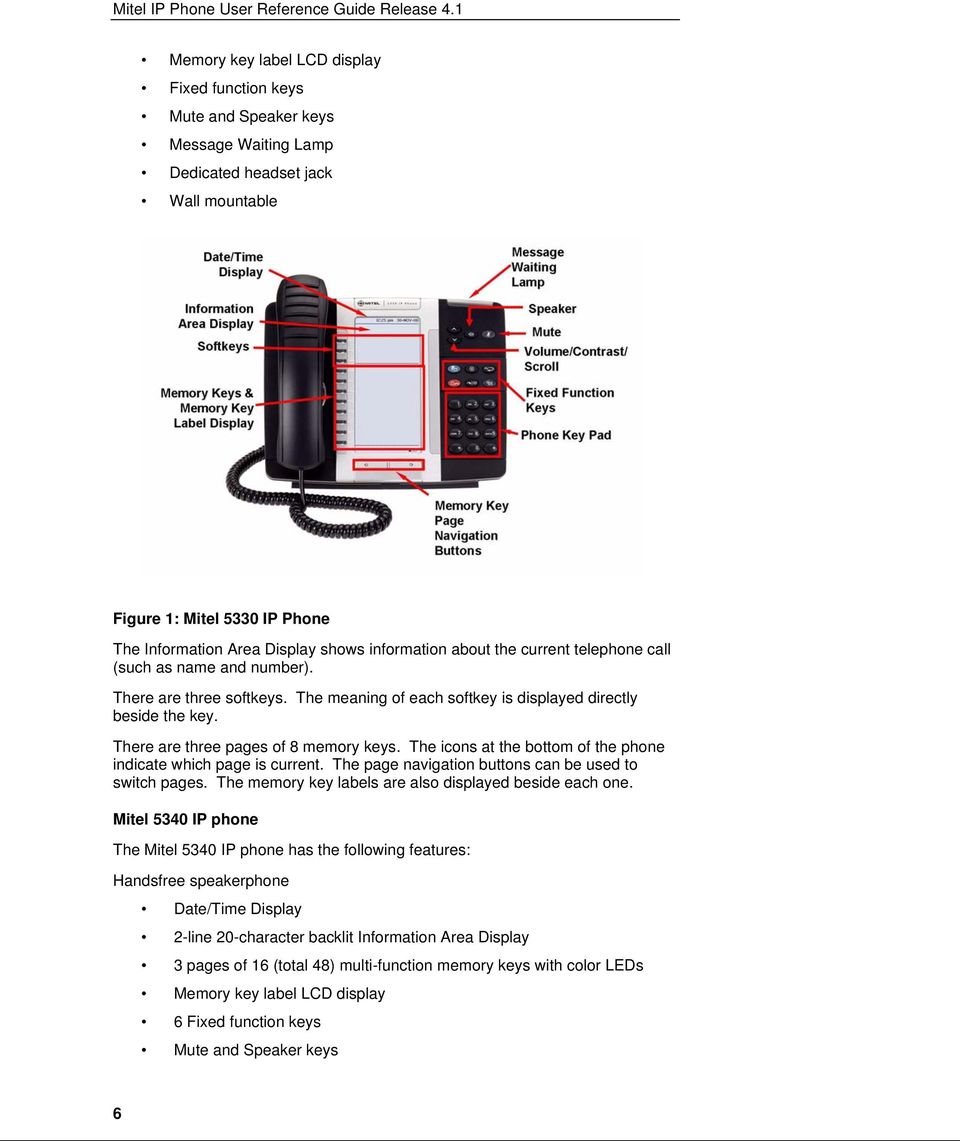
9 Message Waiting Lamp Dedicated headset jack Wall mountable Figure 2: Mitel 5340 IP Phone The Information Area Display shows information about the current telephone call (such as name and number). There are six softkeys (the three on the right are currently not used). The meaning of each softkey is displayed directly beside the key. There are three pages of 16 memory keys. The icons at the bottom of the phone indicate which page is current. The page navigation buttons can be used to switch pages. The memory key labels are also displayed beside each one Initial setup for 5340 phone service To set up your new phone service, follow these steps: 1. Activate your phone. See Activating a 5340 phone on page Perform a Quick Set-up. See Quick set-up on page 100. Activating a 5340 phone To activate a phone you need (1) an extension, (2) a phone, and (3) a PIN. The administrator can provide you with an extension and an initial PIN. To activate your phone, follow these steps: 1. Disconnect your computer from the network. 2. Plug the phone into the network. 7
10 3. Plug the computer into the phone at the port marked PC. 4. Connect one end of the phone power pack into your phone and the other end into a power outlet. NOTE: Note: If your network is configured with Power Over Ethernet (POE), the above step is not necessary. 5. Wait for the Information Display Area to show "Logged Out" (this may take 30 seconds or more). 6. Press the ACTIVATE softkey. The Information Display Area will prompt you for your "Extension:" 7. Enter your extension. 8. If you have login/logout privileges, the Information Display Area will prompt you for your "PIN:" Enter your PIN, then press the ENTER softkey. 9. If you do not have login/logout privileges, the Information Area Display will show your extension Press the YES softkey. You have now successfully activated the phone, and can make calls. See Quick set-up on page 100 for information about initial settings you should configure through the web interface. Answering a call on the 5340 phone When an incoming call is received on a phone, several things happen: (1) the phone rings, (2) a Line Appearance flashes, and (3) the Information Area Display shows the phone number of the caller and, if known, the name of the caller. You can answer an incoming call by picking up the handset, pressing the flashing Line Appearance key, pressing the ANSWER softkey, or by pressing the key. Because the Mitel 5340 IP phone has multiple pages of programmable memory keys, it is possible that the call could appear on a Line Appearance key located on a different page from the one being displayed. In this case, you can still answer the call by picking up the handset, pressing the ANSWER softkey, or by pressing the key. You can pull back a call that has been answered by a twinned target phone by pressing the corresponding Line Appearance key. See Twinned calls on the 5340 phone on page 25 Using the 5340 handset To answer your phone using the handset, follow these steps: 1. Lift the handset. NOTE: Note: If you choose to ignore the incoming call and select a different line appearance, the line appearance continues to flash but the phone stops ringing. 8
11 To end the call while using the handset, choose one of the following: Press the END softkey. Replace the handset. Using the 5340 speakerphone To switch from the handset to the speakerphone during a call, follow these steps: 1. Press the key. 2. Replace the handset. To end a call while using the speakerphone, choose one of the following: Press the END softkey. Press the key. Switch from speakerphone to handset on the 5340 phone To switch from the speakerphone to the handset during a call, pick up the handset. To end the call while using the handset, choose one of the following: Press the END softkey. Replace the handset. Answering a second call on the 5340 phone A second incoming call causes three things to happen: (1) the phone rings once (only if you are using the handset), (2) a line appearance flashes, and (3) the Information Area Display shows the number and name of the caller, if known. If the name of the caller is unknown, either the phone number or "Unknown Caller" is displayed. To answer a second call, choose one of the following: Press the flashing Line Appearance key. This puts the active call on hold and answers the second call. End the first call by replacing the handset. The phone will start ringing. Pick up the handset again to answer the second call. To switch between two active calls, press the flashing Line Appearance key. This puts the active call on hold, and activates the other call. NOTE: Note: If the display shows )) prior to the number calling, this indicates that it is a second call. Answering a call group call on the 5340 phone When an incoming call to a call group is received on a phone, the second line of the Information Display Area shows the name of the group that was called. The first line continues to display the number and name of the caller, if known. 321: Robin Jones 9
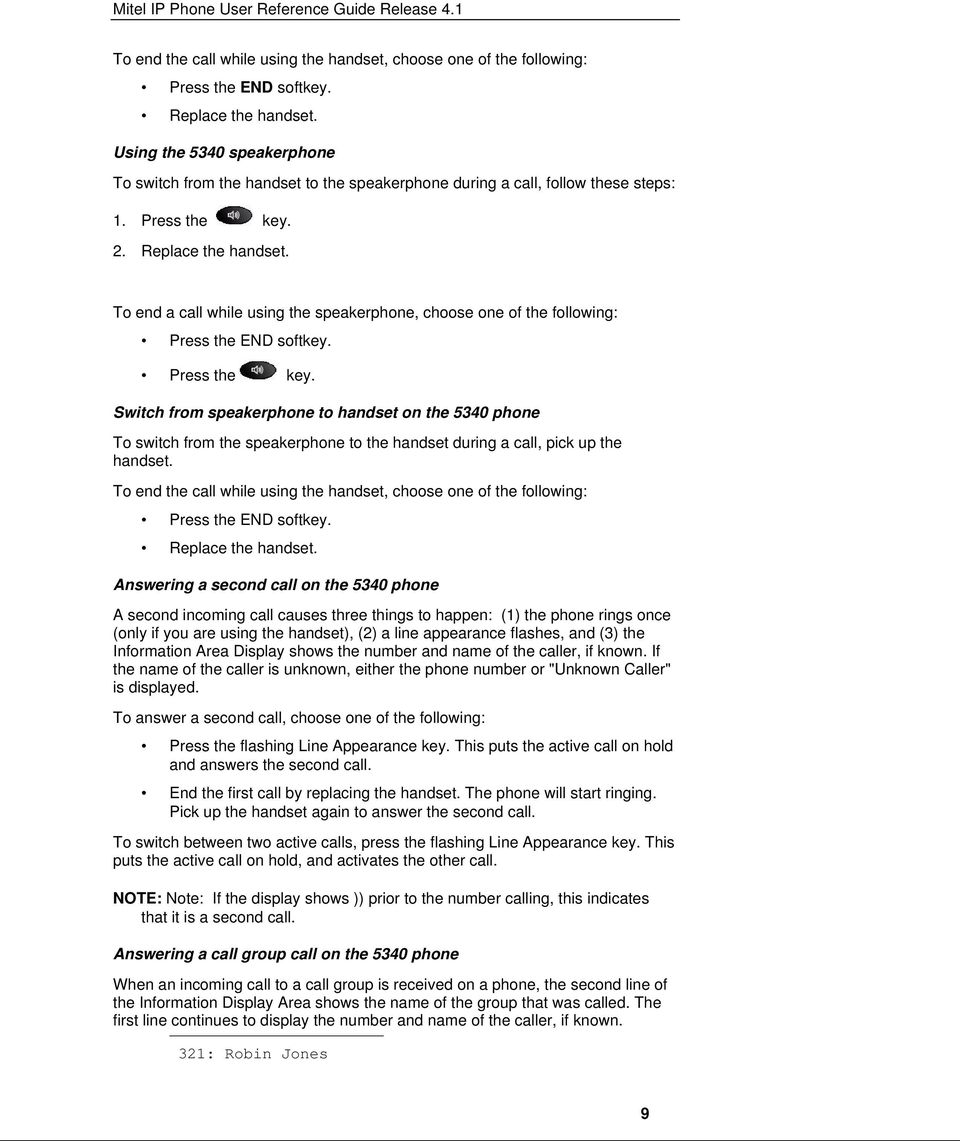
12 For: Sales Group You can answer an incoming call group call by using the handset or the speakerphone. Making a call on the 5340 phone To make a call, follow these steps: 1. Lift the handset. This will select the next available Line Appearance. You can also start dialing the number without lifting the handset. This will automatically select the next available Line Appearance and operate in speakerphone mode. 2. To make an internal call, dial the extension. To make an external call, dial the prefix required for external dialing (usually 9) followed by the number you want to call. When you finish dialing the number the call is placed. If you place an internal call, the Information Area Display shows the extension and name of the connected party once the call is answered. If you place an external call, the Information Area Display shows the name of the connected party, or if the name is unknown, the phone number. 3. To end the call, choose one of the following: Press the END softkey. Replace the handset. NOTE: Note: To use the speakerphone for step 1, press an available Line Appearance key or the key instead of lifting the handset. 4. To end the call before you have completed dialing, choose one of the following: Replace the handset if using the handset. Select the key if using the speakerphone. Press the END softkey. Making a second call on the 5340 phone To make a second call while on an active call, follow these steps: 1. Press any available Line Appearance key. This puts the active call on hold, and provides dial tone for a second call. 2. To make an internal call, dial the extension. To make an external call, dial the prefix required for external dialing (usually 9) followed by the number you want to call. 3. When you finish dialing the number the call is placed. 4. If you place an internal call, the Information Area Display shows the extension and name of the connected party once the call is answered. If you 10
13 place an external call, the Information Area Display shows the name of the connected party, or if the name is unknown, just the phone number. 5. To switch between two active calls, press the flashing Line Appearance key. This puts the active call on hold, and activates the other call. Ending one call keeps the second call on hold. To reconnect to the second call, press the flashing Line Appearance key. Using features via the 5340 phone This section explains the features available from your phone. Some of these features must be pre-programmed in order to be available. To learn how to program features to keys see Program memory keys on page way call on the 5340 phone Using 3-Way Call, you can set up a phone call among three separate parties. To activate 3-Way Call, follow these steps: 1. While on an active call, press the CONF softkey. This places the first call on hold, and selects an available Line Appearance. The Information Area Display prompts you to enter who to "Conf with:" 2. Enter the phone number of the third party. 3. The system dials the number and displays a "Calling" message along with the caller ID. 4. When the third party answers the call, the Information Area Display updates with the caller ID. 5. Press the CONF softkey again. The 3-Way Call is now activated. NOTE: Notes: Until the CONF softkey is pressed a second time, the first party will remain on hold and you can talk with the second party privately. By putting a 3-Way Call on hold, the other parties can continue talking. You can use the key instead of the CONF softkey. When using this key you must press twice to activate a 3-way call or you will initiate a transfer instead. If you want the option to leave the conference and leave the two parties connected (when both parties are external), you must have the permission Redirect Inbound Call to External Number enabled. Once the 3-Way Call is established, you can use the transfer feature to transfer both parties to another party. Joining two calls on the 5340 phone The 3-way call feature allows you to conference together two calls on your phone's Line appearances. To activate a 3-way call in these circumstances, follow these steps: 1. While on an active call, press the CONF softkey. 2. Select the Line Appearance of the person on hold that is to be connected. 3. Press the CONF softkey again. The 3-Way Call is now activated. 11

14 Account codes on the 5340 phone Users can enter account codes against incoming and outgoing calls to associate those calls with a particular client or account. Once entered, account codes are logged in the call records kept by Broadview Networks and can be provided to you on request. Your administrator can enable and disable the Account Code feature for your business and specify the minimum and maximum valid account code length. NOTE: To use the Account Code feature, a user must have a memory key programmed with the Account Code feature or be using a phone key profile that has been programmed with the Account Code feature. Account code entry on the 5340 phone Account codes can be entered against incoming and outgoing calls to associate those calls with a particular client or account. Account code entry is accepted before a call is placed or during a call. To enter an account code before you place a call, follow these steps: 1. Select the Account Code key. 2. Enter the account number using the phone keypad. 3. Press the CALL softkey to start your call. The next available line appearance is selected, dialtone is heard and your phone display updates. 4. Proceed with making your call. To enter an account code during a call, follow these steps: 1. Select the Account Code key. 2. Enter the account number using the phone keypad. You hear a tone as you press the phone keys, but the person on the other end does not. The Information Area Display shows the account code entered. 3. Press the ENTER softkey when you have finished entering the account code. NOTE: Notes: You can re-enter an account code for a call multiple times. The last account code entered is the account code that will be assigned to the call. To cancel the account code entry, press the QUIT softkey. If you enter an account code with an invalid length, the Information Area Display briefly shows "Invalid Account Code". Contact your system administrator to determine the valid account code length for your business. You cannot assign an account code to a call once it has been completed. Account code speed entry on the 5340 phone Account code entry is accepted before a call is placed or during a call. To use this feature, it must be enabled for your business and you must have a memory key programmed with Account Code and a pre-programmed account code. See Program memory keys on page
15 To enter a pre-programmed account code before you place a call, follow these steps: 1. Select the Account Code key. The Information Area Display briefly shows the account code that has been pre-programmed. 2. The next available line appearance is selected, dialtone is heard and your phone display updates. 3. Proceed with making your call. To enter a pre-programmed account code during a call, follow these steps: 1. Select the Account Code key. The Information Area Display briefly shows the account code that has been pre-programmed. NOTE: You can re-enter an account code for a call multiple times. The last account code entered is the account code that will be assigned to the call. To cancel account code entry before the call is placed, replace the handset (or, if using the speakerphone, press the key). Account code speed entry during a call cannot be cancelled. If the pre-programmed account code has an invalid length, the phone LCD briefly displays "Invalid Account Code". Contact your system administrator to determine the valid account code length for your business. You cannot assign an account code to a call once it has been completed. Call Lists on the 5340 phone Call list on the 5340 phone Call list keeps a list of the calls that you make and receive. The call list is accessible from your phone. You can redial any calls that you made from the call list. See Redial on the 5340 phone on page 14. You may be able to dial a number from your incoming call list if it is supported by Broadview Networks. To view the list of incoming calls received, follow these steps: 1. Press the CALLS softkey on your phone. If you have programmed one of your programmable keys as Incoming Calls List, you can press this key instead. The caller's name of the most recent call that you received is displayed. If the name of the caller is not known, the number will be displayed. 2. Use the keys to navigate the list. 3. Press the TIME softkey if you wish to display the time and date of the call. 4. Press the NUMBER softkey if you wish to display the number of the caller. 5. Press the NAME softkey if you wish to display the name of the caller again. If the name is not known, this option is not available. 6. Press the QUIT softkey to exit from the call list. To call a number from your incoming calls list (only available if dialing from the incoming call list is supported by Broadview Networks): 13
16 1. Press the CALLS softkey on your phone (or the Incoming Calls List programmed key). The caller's name of the most recent call that you received is displayed. 2. Use the keys to navigate the list. 3. Press the DIAL softkey to make a call to the displayed number. The next available Line Appearance is selected and the system will attempt to dial the displayed number by prefixing it with the appropriate digits for external dialing (usually "9" or "91" depending on configuration). If the number can be dialed as such, you will hear ringing once the call has been placed. If the number cannot be dialed as such, the call will fail and you will have to dial the number manually remembering to include the proper prefix digits. NOTE: Notes: The position of the call in the call list is displayed in front of the phone number. The * symbol beside the position of the call means that the call was not answered. If the call was answered by a member of your call pickup group, then the call will show as unanswered (with a *) on your phone and answered (without a *) on the call pickup group member's phone that answered the call. *CALLS means that there has been at least one unanswered call since the last time you viewed the list of calls you received. Redial on the 5340 phone Using Redial you can view a list of calls that were made and also redial a number in that list without using the keypad. The maximum amount of numbers in your redial list is typically ten but is dependant on Broadview Networks. To use Redial, follow these steps: 1. Press the REDIAL softkey or the key. The number that you most recently dialed is displayed. 2. Use the keys to navigate the list (if required). 3. Press the TIME softkey if you wish to display the time and date of the call. 4. Press the NUMBER softkey if you wish to display the number dialed. 5. Once the required number is displayed, press the DIAL softkey to make the call. The next available Line Appearance is selected and you will hear ringing once the number has been dialed. NOTE: Notes: The * symbol beside the position number means that the call was not answered. The position of the call in the call list is displayed in front of the phone number. Press the QUIT softkey or the key to exit from the call list. 14
17 Call pickup on the 5340 phone Using the call pickup feature, you can answer incoming calls for other members of your call pickup group. To use this feature, you must be a member of a call pickup group and have a memory key programmed as Pickup. See Program memory keys on page 104. When a call comes into any member of your call pickup group, their phone will ring and your Pickup key will flash. To answer the call, follow these steps: 1. Lift the handset. 2. Press the Pickup key. or 1. Press the Pickup key to answer the call in speaker mode. You can also join and leave your pickup group with a Join/Leave group key or via the web interface. When you leave the group, this disables other group members from picking up your calls; however, you can still pickup other members' calls. NOTE: You cannot pick up calls to a member of your call pickup group if the call does not result in the member phone ringing. For example, if the called member is either logged out or has no available Line Appearances, then you cannot pick up the call. Company speed dial on the 5340 phone Using Company Speed Dial, you can call a number from the External Directory by pressing a single memory key on your phone. To use this feature, you must have a phone key programmed with Company Speed Dial. See Program memory keys on page 104. To make a call using the company speed dial, choose one of the following: Press the Company Speed Dial key for the number you want to call. The system will select the next available Line Appearance for you and activate the speakerphone. Activate the speakerphone and press the Company Speed Dial key. Select an available Line Appearance. This will activate the speakerphone. Press the Company Speed Dial key Lift the handset and press the Company Speed Dial key for the number you want to call. Directory on the 5340 phone Using the Directory, you can view the Internal Directory on your phone's LCD screen and make calls. You can access the directory with the phone on-hook or off-hook. To view the directory, follow these steps: 1. Press the MENU softkey. The phone displays the menu options. 15
18 2. Press the DIR softkey. The system displays the first name in the directory on the first line of the Information Area Display. 3. Use one of the following options to locate the person that you would like to call: Press the number on the keypad for the appropriate first letter of the person's last name. For example, press "5" twice for "K". Scroll down or up, using the keys to find the name you want. 4. Once the correct name is displayed, press the DIAL softkey. Forwarding your 5340 phone Using the forwarding features, you can forward your phone by following the procedures described in the following sections: Forwarding your 5340 phone to auto attendant on page 16 Forwarding your 5340 phone to co-worker on page 16 Forwarding your 5340 phone to coverage on page 16 Forwarding your 5340 phone to number on page 17 Forwarding your 5340 phone to prompt on page 17. Forwarding your 5340 phone to auto attendant Using Forward to Auto Attendant, you can send all incoming calls to a selected auto attendant. Press the Forward to AA key once to turn the feature on. Press the key a second time to turn the feature off. The LED on the programmed key indicates when the phone is being forwarded. To use this feature, you must have a key programmed with Forward to Auto Attendant. See Program memory keys on page 104. NOTE: Note: If you have this feature turned on when you log out of your phone all your calls will be forwarded to the auto attendant. Forwarding your 5340 phone to co-worker Using Forward to Co-worker, you can send all incoming calls to a selected coworker. Press the Forward to Co-worker key once to turn the feature on. Press the key a second time to turn the feature off. The LED on the programmed key indicates when the phone is being forwarded. To use this feature, you must have a key programmed with Forward to Coworker. See Program memory keys on page 104. NOTE: Note: If you have this feature turned on when you log out of your phone all your calls will be forwarded to your co-worker. Forwarding your 5340 phone to coverage Using Forward to Coverage, you can send all incoming calls to the option you selected from My Call Coverage. Press the Forward to Coverage key once to 16
19 turn the feature on. Press the key a second time to turn the feature off. The LED on the programmed key indicates when the phone is being forwarded. To use this feature, you must have a key programmed with Forward to Coverage. See Program memory keys on page 104. NOTE: Note: If you have this feature turned on when you log out of your phone all your calls will be forwarded to coverage. Forwarding your 5340 phone to number Using Forward to Number, you can send all incoming calls to a preset phone number. Press the Forward to Number key once to turn the feature on. Press the key a second time to turn the feature off. The LED on the programmed key indicates when the phone is being forwarded. To use this feature, you must have a key programmed with Forward to Number. See Program memory keys on page 104. NOTE: Note: If you forward your phone to an external phone number, you must have permission to make that external call and Redirect Inbound Call to External Number permission. See Permissions on page 102 for instructions on how to view your call permissions. If you have this feature turned on when you log out of your phone all your calls will be forwarded to the number defined. Forwarding your 5340 phone to prompt Using Forward to Prompt, you can send all incoming calls to a phone number that you have entered via your phone. The LED on the programmed key indicates when the phone is being forwarded. To forward to prompt, follow these steps: 1. Press the Forward to Prompt key on your phone. The system will ask you to enter a phone number. 2. Enter the phone number on the phone keypad. 3. Press the ENTER softkey. To change the phone number for the forward to prompt, repeat the above three steps. To turn forward to prompt off, follow these steps: 1. Press the Forward to Prompt key. 2. Press the FWDOFF softkey. NOTE: Notes: To use this feature, you must have a key programmed with Forward to Prompt. See Program memory keys on page 104. The system stores internal extensions, therefore you do not need to press the ENTER softkey. If you forward your phone to an external phone number, you must have permission to make that external call and Redirect Inbound Call to External Number permission. See Permissions on page 102 for instructions on how to view your call permissions. 17

20 If you have this feature turned on when you log out of your phone all your calls will be forwarded to the prompt defined. Handsfree answerback on the 5340 phone Using Handsfree answerback, you can have intercom calls automatically answered so that you have a two-way speech connection. See Intercom to coworker on the 5340 phone on page 18. Press the Handsfree answerback key to turn the feature on. Press the key a second time to turn the feature off. The LED on the programmed key indicates when the Handsfree answerback feature is turned on. To be able to activate and deactivate this feature with a key, you must have a key programmed with Handsfree answerback. See Program memory keys on page 104. You can also enable the feature without a key by checking the box for Handsfree Answerback on your Personal Details page (see Change user details on page 101). Hold on the 5340 phone Using Hold, you can put an active call on hold, and make other calls. The LED of the Line Appearance key flashes to indicate the call is on hold. To place a call on hold, follow these steps: 1. While on an active call, press the key. 2. The indicator light next to the active Line Appearance changes from green to red and flashes slowly. 3. To remove the call from hold, press the Line Appearance key. Intercom calls on the 5340 phone Using the intercom features, you can make a page to a selected co-worker that is broadcast through the speaker on your co-worker's phone. Intercom to co-worker on the 5340 phone Using Intercom to Co-worker, you can make a page to a selected co-worker that is broadcast through the speaker on your co-worker's phone. Pick up the handset or select a Line Appearance key, then press the Intercom to Coworker key to start the page to your co-worker. If you press the Intercom to Coworker key with no line active, the next available line appearance key will automatically be selected. Note that if your phone is active on a call or in a ringing state, you must select an available line appearance key before pressing the Intercom to Co-worker key. If your co-worker has the Handsfree Answerback feature configured and activated, then you will also be able to hear your co-worker speak. (See Handsfree answerback on the 5340 phone on page 18) To use this feature, you must have a key programmed with Intercom to Coworker. See Program memory keys on page

21 Intercom to prompt on the 5340 phone Using Intercom to Prompt, you can make a page to any co-worker whose number you enter on the phone. To make a call with Intercom to prompt, follow these steps: 1. Press the Intercom to Prompt key on your phone. The system will ask you to enter a phone number. If your phone is already active on a call or ringing, you need to press an available Line Appearance key or put the current call on hold before you can use the Intercom to Prompt feature. 2. Enter the phone number of your co-worker on the phone keypad. You will then be connected to your co-worker and you can speak through their speaker. If your co-worker has the Handsfree Answerback feature configured and activated, then you will also be able to hear your co-worker speak. (See Handsfree answerback on the 5340 phone on page 18). To use this feature, you must have a key programmed with Intercom to Prompt. See Program memory keys on page 104. Internal 5340 phone settings To configure internal 5340 phone settings (such as display brightness and contrast), select the key and follow the prompts. Join/Leave group on the 5340 phone Using the Join/Leave Group feature you can join a Broadcast, Pickup, Hunt or Rollover call group of which you are a member, using your phone. For Broadcast, Hunt and Rollover groups, only the phones of members who are joined in the group will ring when the call group is called. For Call Pickup groups, other phones in the group will be notified only if the phone being called is joined in the group. See Call groups on page 116. Press the Join/Leave Group key once to turn the feature on. Press the key a second time to turn the feature off. The LED on the programmed key indicates when you are logged into the call group. To use this feature, you must have a key programmed with Join/Leave Group. See Program memory keys on page 104. Line Appearance key on the 5340 phone Line Appearance keys are required in order to receive incoming calls and to make outgoing calls. The LED on the programmed key indicates the status of the Line Appearance. Key is unlit - the Line Appearance is available for an incoming or outgoing call. Key is flashing green with a ring tone - an incoming call is available to be answered. Key is flashing red without a ring tone - a call is on hold. Key is solid - a call is active. If this is green, then a call is active. If this is red, then a twinned call is active on the twinned target phone. 19
22 When you have multiple Line Appearance keys, they are ordered from bottom to top, right to left. An incoming call will appear on the first available Line Appearance key. Your phone will normally have two or three pre-programmed Line Appearances. To be able to handle more simultaneous calls, you must program additional keys with Line Appearance. See Program memory keys on page 104. NOTE: Note: You can only program Line Appearance keys on page one of the three programmable pages. Login on the 5340 phone Using Login, you can enter your extension into any phone and take ownership of that phone. By doing this, you can direct all incoming calls for your extension to that phone. You must have the appropriate privileges to log out of a phone. You can only log in to an unassigned phone (a phone without a user logged in). If a phone has a user logged in, you can log the user out by following the procedure described in Logout on the 5340 phone. An unassigned phone displays "Logged Out". To log in to a phone, follow these steps: 1. Press the ACTIVATE softkey on an unassigned phone (a phone without a user logged in) The system prompts you to enter an extension. 2. Enter your extension. The system prompts you to enter your PIN. 3. Enter your PIN. Press the # key or the ENTER softkey once you have finished entering your PIN. The system verifies that the PIN is valid and then it logs you into the phone. NOTE: Notes: If you log in while you are logged in to another phone, the system will log you out of the original phone. You cannot log in or out, or activate a phone, while the phone is on an active call. If you are not logged into a phone, all calls to your extension will go directly to call coverage. If you have not been assigned the privileges required to log out of your phone you will not be prompted for a PIN when you log in. You will not be prompted for a PIN when you log in to a phone with a location extension. Logout from the 5340 phone To log out of a phone, follow these steps when your phone has no calls connected: 1. Press the MENU softkey. 2. Press the LOGOUT softkey. The phone displays a confirmation message. 3. Press the YES softkey to proceed. The phone will display the message "Logout successful", confirming that you are logged out of the phone and the system. Incoming calls will be forwarded to Call Coverage. The phone returns to a logged out/unassigned idle state. 20
23 NOTE: Notes: If your phone has been locked you cannot log out of the phone. The LOGOUT softkey is not be displayed on your phone. Contact your system administrator for assistance. You cannot log in or out, or activate a phone, while the phone is on an active call. You can use the key instead of the QUIT softkey. After you have logged out of the phone, callers to your extension will be directed to your call coverage target. If no call coverage target is set, the phone will ring until the caller hangs up. If the primary member of a Monitor Group logs out of the phone, calls to the Monitor Group will still ring any secondary phones and will redirect to the primary member's call coverage target after the configured number of rings. For more information about Monitor Groups, see Monitor call on the 5340 phone on page 21. If a logged out phone has twinning configured, the twinning target phone will ring and the call will be redirected to the logged-out phone's call coverage target after the configured number of rings. Monitor groups on the 5340 phone Using the Monitor Groups feature, your calls can be monitored and answered by other users or you can have your phone monitored for activity. To enable the Monitor feature, contact your administrator and provide a list of users that you would like to have monitor your calls or phone. The administrator will create a Monitor group in your name with the people in your list as members of the group. There is no other action that needs to be taken on your part. If you requested to have your calls monitored, calls to one or more of your Line Appearances will automatically ring on your Monitor group member phones provided that they have configured the appropriate number of Monitor Call or Monitor Call Silent keys on their phone. When a member of your Monitor group has answered one of your calls, the Line Appearance on your phone will still indicate the state of the call. A flashing key without a ring tone indicates that the call is on hold. A lit key indicates that the Line Appearance is in use. If you requested to have your phone monitored, when your phone is in use the group members phones will show a lit LED against the Monitor Phone key they have configured on their phone. NOTE: Notes: If you are part of a Monitor Group, you can put a call on hold and either the primary group member or other phones in the group can pick up the call. Your call coverage still applies when you are in a monitor group. A Monitor Phone key also acts a speed dial to the monitored extension. Monitor Groups is only applicable to users who are using Mitel IP phones. Monitor call on the 5340 phone Using the Monitor Call or Monitor Call Silent feature, you can monitor and pick up calls occurring on another user's phone. To use this feature, You must be a member of a Monitor group. A Monitor group defines the user that is being monitored (primary group member) and which users 21
24 can monitor calls for the primary group member (secondary group members). Only the administrator can add a Monitor group or change the members of an existing Monitor group. You must have the same number of phone keys programmed with Monitor Call or Monitor Call Silent as the number of simultaneous calls that you want to monitor on the primary group member's phone. The maximum number of simultaneous calls that you can monitor for one Monitor Primary equals the number of Line Appearances that the Monitor Primary has programmed on their phone. For example, if you have one Monitor Call/Monitor Call Silent key programmed for a Monitor Primary, you will only be able to monitor one incoming or outgoing call at a time. If you have two Monitor Call/Monitor Call Silent keys programmed for a Monitor Primary, you will be able to monitor two incoming or outgoing calls at a time and so on. There is no direct correspondence between a Monitor Call/Monitor Call Silent key and a Line Appearance key on the Monitor Primary's phone. The Line Appearance that the first call occurs on (not necessarily the first Line Appearance) will be monitored by the first Monitor Call/Monitor Call Silent key, the Line Appearance that the second call occurs on (not necessarily the second line appearance) will be monitored by the second Monitor Call/Monitor Call Silent key and so on. See Program memory keys on page 104. The Monitor Call/Monitor Call Silent key indicates the state of the Line Appearance on the primary group member's phone that is being monitored. The only difference between Monitor Call and Monitor Call Silent is that your phone will not ring to indicate an incoming call to the Primary member. For example: A flashing Monitor Call key with a ring tone indicates an incoming call to the Line Appearance. A flashing Monitor Call key without a ring tone indicates that the call is on hold. A flashing Monitor Call Silent key without a ring tone indicates an incoming call to the Line Appearance or that the call is on hold. A lit Monitor Call/Monitor Call Silent key indicates that the Line Appearance is in use. To answer a call occurring on the primary group member's phone, follow these steps: 1. When the Monitor Call/Monitor Call Silent key is flashing, lift the handset. 2. Press the Monitor Call/Monitor Call Silent key. or 1. Press the Monitor Call/Monitor Call Silent key to answer the call in speaker mode. NOTE: Note: By putting a call on hold, either the primary group member or other Monitor phones can pick up the call. Monitor phone on the 5340 phone Using the Monitor Phone feature, your phone can be monitored by other users. To enable the Monitor Phone feature, contact your administrator and provide a 22
25 list of users that you would like to have monitor your phone. The administrator will create a Monitor group in your name with the people in your list as members of the group. There is no other action that needs to be taken on your part. When you are using your phone, members of your call group will be able to see that the phone is in use provided that they have programmed a memory key to view activity on your phone. When you use your phone a member of your Monitor group will see the LED of the memory key that they have programmed to monitor your phone light up. Mute on the 5340 phone Using Mute, you can silence any sound from the phone. This does not prevent incoming sound from being heard. Press the key during a call to activate Mute. The LED on the key indicates when Mute is active. One touch speed dial on the 5340 phone Using One Touch Speed Dial, you can make a call to a pre-programmed number. To use this feature, a programmable key must be programmed as a One Touch Speed Dial. See Program memory keys on page 104. To use One Touch Speed Dial, choose one of the following: Lift the handset and press the One Touch Speed Dial key. Press an available Line Appearance key, to activate the speakerphone, and then press the One Touch Speed Dial key. Press the One Touch Speed Dial key. This will select an available Line Appearance and activate the speakerphone. Page on the 5340 phone Using Page, you can send a page to all of the phones at your site. The page is broadcast through the speaker of each available phone. To use this feature, you must have a memory key programmed as a Page key. See Program memory keys on page 104. To page all of the phones at your site, follow these steps: 1. Select a memory key programmed with the Page feature. 2. Your Information Area Display shows "Calling: Site Page" while the system identifies the available phones at your site. When the system is ready for you to begin your page, you will hear an alert tone and the Information Area Display shows the number of phones being paged. 3. Speak into the handset or the speakerphone. 4. To end the page, you have the following options: Replace the handset if using the handset. Select the key. Select the END softkey. NOTE: Note: A page will not be broadcast on phones that are busy. 23
26 If you select Page while there is already a page in progress, the system will wait until the page in progress is completed before your page is started. Your Information Area Display will show "Calling: Site Page" and you will hear ringing while you are waiting. On the phones receiving a page, the phone LCD screen displays the name of the user who originated the page and an END softkey. The user receiving the page can stop the page to their phone by selecting the END softkey. Park and retrieve on the 5340 phone Using Park and Retrieve, you can put a call on hold at a park location so that it can be retrieved from any other phone at your business. To use this feature, a memory key must be programmed as a Park/Retrieve key. See Program memory keys on page 104. To put a call on hold at a park location, follow this step: 1. While on an active call, select a memory key programmed with the Park/Retrieve feature. The system places the call on hold at a park location. The park location is displayed on your Information Area Display. You are no longer connected with the caller and your phone returns to the idle state. To retrieve a parked call, follow these steps: 1. From an idle phone, lift the handset. This will select the next available Line Appearance. Select a memory key programmed with the Park/Retrieve feature. The Information Area Display prompts you for the "Park Location:". 2. Enter the required park location using the phone keypad. The system connects you with the caller who was on hold at the park location. The Information Area Display shows the caller's name (if known) or number. NOTE: Notes: To cancel the retrieval of the parked call, press the QUIT softkey. If you enter a park location where there is no caller on hold, the Information Area Display will briefly show "No Parked Call". There are nine park locations available (1 through 9). If all park locations are in use when you try to park a call, the Information Area Display will briefly show "Park Locations Full" and the call will be placed on hold. If the call is left parked for 30 seconds, the phone of the person who parked the call will beep and the Information Area Display will briefly show "Call parked at: " with the park location number to remind you that a call that you parked has not been retrieved. Speaker on the 5340 phone Using Speaker, you can turn the speakerphone on your phone on and off. To use Speaker, press the key. Transfer call on the 5340 phone Using Transfer, you can transfer a call from one phone to another. To transfer a call, follow these steps: 24
27 1. While on an active call, press the TRANS softkey. The system places the call on hold, and the Information Area Display prompts you with the "Transfer To:" message. 2. Enter the extension or phone number of the person to whom you want to transfer the call, or press a One-Touch Speed Dial key, or press a Line Appearance key that has a call on hold. 3. Press the TRANSFER softkey once you hear ringing. You can also press the TRANSFER softkey after the additional party has answered. The Information Area Display shows the message "Transfer Complete" for approximately five seconds before returning to an idle state. If you enter an invalid extension during a transfer, the Information Area Display shows "Invalid Extension". To reconnect with the original caller, follow these steps: 1. Press the END softkey. 2. Press the flashing Line Appearance key. 3. Try to transfer the call again. If you choose not to complete the transfer, press the QUIT softkey, then press the flashing Line Appearance key to retrieve the original call. NOTE: Note: You can use the TRANSFER softkey. key instead of the TRANS or Transfer to voice mail from the 5340 phone If your administrator has configured an auto attendant for voice mail deposit, you can transfer a caller directly to a co-worker's voice mail box. To transfer a call to voice mail, follow these steps: 1. While on an active call, press the key or the TRANS softkey. The system places the call on hold, and the Information Area Display prompts you with the "Transfer To:" message. 2. Enter the extension of the auto attendant that your administrator has created for voice mail deposit. 3. Select the auto attendant voice mail deposit option and enter the extension of the co-worker to whom you are transferring. 4. Press the TRANSFER softkey (or the key) to complete the transfer. The Information Area Display shows the message "Transfer Complete" for approximately five seconds before returning to an idle state. Twinned calls on the 5340 phone If you have configured your phone to be twinned to another external phone (the twinning target), then incoming calls will simultaneously ring the other phone as well. 25
28 If you answer the call on your desk phone, the twinning target phone will stop ringing. If you answer the call on your twinning target phone, the Line Appearance key on your desk phone will remain lit. To pull back the call to your desk phone, simply press the corresponding Line Appearance key. The call will be disconnected from the twinning target phone and you will be connected on your desk phone. Note that if neither your desk phone nor the twinning target phone answer an incoming call, your call coverage setting will determine what happens to the call (see Call coverage on page 115). If the other phone has a voice message service associated with it, then your twinning target phone's voice message service may answer the call first. If you want to avoid this situation, then you should ensure that your call coverage is configured to answer calls before the twinning target phone's voice message service. To toggle twinning on or off, you can use the web interface (see Twinning on page 115) or you can configure a memory key as Twinning On/Off (see Program memory keys on page 104). Once you have a Twinning On/Off key configured, press the key once to turn the feature on. Press the key a second time to turn the feature off. The LED on the programmed key indicates when your twinning is active. Voice mail on the 5340 phone Using the key, you can connect directly to voice mail to retrieve messages or manage voice mail options such as changing your voice mail greeting. The Message Waiting Lamp on the phone will light up if messages are waiting. If your administrator has created an auto attendant with a voice mail retrieval option and associated it to an external number, you can access your mail box from any phone by dialing the external number and then selecting the voice mail retrieval option. You are prompted for your extension, then connected to your voice mail box. Using the web interface, you can control many of the settings for your voice mailbox. See Voice Mail on page 118. Volume control on the 5340 phone Use volume control to change ring volume, handset volume, and speaker volume. NOTE: Note: The ring, handset, and speaker volumes return to their default settings if the phone loses power. Change ring volume on the 5340 phone To change the ring volume on your phone, follow these steps: 1. From another phone, make a call to your extension. 2. While your phone is ringing, repeatedly press the keys until the ring volume is at the level you want. 26
29 Change handset volume on the 5340 phone To change the volume of the sound you hear through the handset, follow these steps: 1. Lift the handset. You will hear dial tone. 2. Repeatedly press the keys until the volume is at the level you want. 3. Replace the handset. Change speaker volume on the 5340 phone To change the volume of the sound you hear through the speaker, follow these steps: 1. Press the key. You will hear dial tone. 2. Repeatedly press the keys until the volume is at the level you want. Using the Mitel 5224/5324 IP phone This section describes the Mitel 5224 and 5324 IP phones. To set up your new phone service, see Initial set-up for 5224/5324 phone service on page 28. For a description of your phone, see Mitel 5224/5324 IP phone on page 27. The Mitel 5224 and 5324 IP phone functionality is the same. Other topics covered in this section are: Answering a call on the 5224/5324 phone on page 29, Making a call on the 5224/5324 phone on page 31, Using features via the 5224/5324 phone on page 33, Volume control on the 5224/5324 phone on page 52, and Voice mail on the 5224/5324 phone on page 51. Mitel 5224/5324 IP Phone The Mitel 5224 IP Phone has the following features: Handsfree speakerphone operation (full duplex) Two-line, 20-character backlit display. Three context-sensitive softkeys for additional features 24 programmable multi-function memory keys with color LEDs Six fixed function keys, including Directory, Cancel, Redial, Hold, Transfer/Conference, and Message Mute and Speaker keys Dedicated headset jack Arrow keys for Ringer Volume/Contrast up/down controls and scrolling Support for peripherals, such as the Mitel IP Programmable Key Module 12, Mitel IP Programmable Key Module
30 Message waiting lamp Two-position tilting stand Wall mountable Figure 3: Mitel 5224 IP Phone Initial set-up for 5224/5324 phone service To set up your new phone service, follow these steps: 1. Activate your phone. See Activating a 5224/5324 phone on page Perform a Quick Set-up through the web interface. See Quick set-up on page 100. Activating a 5224/5324 phone To activate a Mitel phone you need (1) an extension number, (2) a phone, and (3) a PIN. Your administrator can provide you with an extension number and initial PIN. To activate your phone, follow these steps: 1. Disconnect your computer from the network. 2. Plug the phone into the network. 3. Plug the computer into the phone at the port marked PC. 4. Connect one end of the phone power pack into your phone and the other end into a power outlet. NOTE: Note: If your network is configured with Power Over Ethernet (POE), the above step is not necessary. 28
31 5. Wait for the phone to display the following (this may take 30 seconds or more): Logged Out ACTIVATE 6. Press the ACTIVATE softkey. The display will show: Extension: QUIT 7. Enter your extension. 8. If you have login/logout privileges, the display will show: PIN: ENTER QUIT Enter your PIN, then press the ENTER softkey. 9. If you do not have login/logout privileges, the display will show Extension: 314 YES NO Press the YES softkey. 10. The display will show : Extension: 314 REDIAL CALLS MENU You have now successfully activated the phone, and can make calls. See Quick Set Up on page 100 for information about initial settings you should configure through the web interface. Answering a call on the 5224/5324 phone When an incoming call is received on a phone, several things happen: (1) the phone rings, (2) a Line Appearance flashes, and (3) the LCD displays the phone number of the caller and, if known, the name of the caller. You can answer an incoming call by picking up the handset, pressing the flashing Line Appearance key, pressing the ANSWER softkey, or by pressing the key. 321: Robin Jones 29
32 ANSWER You can pull back a call that has been answered by a twinned target phone by pressing the corresponding Line Appearance key. See Twinned calls on the 5224/5324 phone on page 51. Using the 5224/5324 handset To answer your phone using the handset, follow these steps: 1. Lift the handset. You have now answered the call. The LCD displays the caller s number and name (if known). 321: Robin Jones TRANS CONF END NOTE: If you choose to ignore the incoming call and select a different line appearance, the line appearance continues to flash but the phone stops ringing. 2. To end the call while using the handset, choose one of the following: Press the END softkey. Replace the handset. Using the 5224/5324 speakerphone To switch from the handset to the speakerphone during a call, follow these steps: 1. Press the key. 2. Replace the handset. To end a call while using the speakerphone, choose one of the following: Press the END softkey. Press the key. Switching from speakerphone to handset on the 5224/5324 phone To switch from the speakerphone to the handset during a call, pick up the handset. To end the call while using the handset, choose one of the following: Press the END softkey. Replace the handset. Answering a second call on the 5224/5324 phone A second incoming call causes three things to happen: (1) the phone rings once (only if you are using the handset), (2) a line appearance flashes, and (3) the 30
33 LCD displays the number and name of the caller, if known. If the name of the caller is unknown, either the phone number or Unknown Caller is displayed. ))321: Robin Jones To answer a second call, choose one of the following: Press the flashing Line Appearance key. This puts the active call on hold and answers the second call. End the first call by replacing the handset. The phone will start ringing. Pick up the handset again to answer the second call. To switch between two active calls, press the flashing Line Appearance key. This puts the active call on hold, and activates the other call. NOTE: If the display shows )) prior to the number calling, this indicates that it is a second call. Answering a call group call on the 5224/5324 phone When an incoming call to a call group is received on a phone, the second line of the phone LCD displays the name of the group that was called. The first line continues to display the number and name of the caller, if known.. 321: Robin Jones For: Sales Group To answer an incoming call group call, use the handset or speakerphone. Making a call on the 5224/5324 phone To make a call, follow these steps: 1. Lift the handset. This will select the next available Line Appearance. You can also start dialing the number without lifting the handset. This will automatically select the next available Line Appearance and operate in speakerphone mode. REDIAL CALLS DIR 2. To make an internal call, dial the extension. To make an external call, dial the prefix required for external dialing (usually 9 ) followed by the number you want to call
34 When you finish dialing, the number the call will be placed. Calling: Robin Jones END If you place an internal call, your LCD displays the extension and name of the connected party once the call is answered. If you place an external call, the LCD displays the name of the connected party, or if the name is unknown, the phone number. 320: Robin Jones TRANS CONF END 3. To end the call, choose one of the following: Press the END softkey. Replace the handset. NOTE: To use the speakerphone for step 1, press an available Line Appearance key or the key instead of lifting the handset. 4. To end a call before you have completed dialing, choose one of the following: Replace the handset if using the handset. Select the key if using the speakerphone. Press the End softkey. Making a second call on the 5224/5324 phone To make a second call, while on an active call, follow these steps: 1. Press any available Line Appearance key. This puts the active call on hold, and provides dial tone for a second call. 2. To make an internal call, dial the extension. To make an external call, dial the prefix required for external dialing (usually 9 ) followed by the number you want to call When you finish dialing the number, the call will be placed. Calling: Robin Jones END 4. If you place an internal call, your LCD screen displays the extension and name of the connected party once the call is answered. If you place an 32
35 external call, the LCD displays the name of the connected party, or if the name is unknown, just the phone number. 320: Robin Jones TRANS CONF END 5. To switch between two active calls, press the flashing Line Appearance key. This puts the active call on hold and activates the other call. Ending one call keeps the second call on hold. To reconnect to the second call, press the flashing Line Appearance key. Using features via the 5224/5324 phone This section explains the features available from your phone. Some of these features must be pre-programmed in order to be available. To learn how to program features to keys, see Program memory keys on page way call on the 5224/5324 phone Using 3-Way Call, you can set up a phone call among three separate parties. To activate 3-Way Call, follow these steps: 1. While on an active call, press the CONF softkey. This places the first call on hold, and selects an available Line Appearance. The LCD screen displays: Conf with: DIR QUIT 2. Enter the phone number of the third party. 3. The system dials the number and displays a Calling message along with the caller ID on the first line of the LCD screen. Calling:Lesley Gr QUIT 4. When the third party answers the call, the LCD will show that a connection is established. Lesley Greene CONF QUIT 5. Press the CONF softkey again. The 3-Way Call is now activated. The LCD displays: 3-Way Call TRANSFER END 33
36 NOTE: Until the CONF softkey is pressed a second time, the first party will remain on hold and you can talk with the second party privately. By putting a 3-Way Call on hold, the other parties can continue talking. You can use the key instead of the CONF softkey. When using this key you must press twice to activate a 3-way call or you will initiate a transfer instead. If you want the option to leave the conference and leave the two parties connected (when both parties are external), you must have the permission Redirect Inbound Call to External Number enabled. Once the 3-Way Call is established, you can use the transfer feature to transfer both parties to another party. Joining two calls on the 5224/5324 phone The 3-way call feature allows you to conference together two calls on your phone's line appearances. To activate a 3-way call in these circumstances, follow these steps: 1. While on an active call, press the CONF softkey. 2. Select the Line Appearance of the person on hold that is to be connected. 3. Press the CONF softkey again. The 3-Way Call is now activated. Account codes on the 5224/5324 phone Users can enter account codes against incoming and outgoing calls to associate those calls with a particular client or account. Once entered, account codes are logged in the call records kept by Broadview Networks and can be provided to you on request. Your administrator can enable and disable the Account Code feature for your business and specify the minimum and maximum valid account code length. NOTE: To use the Account Code feature, a user must have a memory key programmed with the Account Code feature or be using a phone key profile that has been programmed with the Account Code feature. Account code entry on the 5224/5324 phone Account codes can be entered against incoming and outgoing calls to associate those calls with a particular client or account. Account code entry is accepted before a call is placed or during a call. To enter an account code before you place a call, follow these steps: 1. Select the Account Code key. The LCD displays: Account Code: CALL QUIT 2. Enter the account number using the phone keypad. The LCD displays the account code entered: Account Code: 1234 CALL QUIT 34
37 3. Press the CALL softkey to start your call. The next available line appearance is selected, dial tone is heard and your phone LCD updates. 4. Proceed with making your call. To enter an account code during a call, follow these steps: 1. Select the Account Code key. The LCD displays: Account Code: ENTER QUIT 2. Enter the account number using the phone keypad. You hear a tone as you press the phone keys, but the person on the other end does not. The LCD displays the account code entered: Account Code:1234 ENTER QUIT 3. Press the ENTER softkey when you have finished entering the account code. NOTE: You can re-enter an account code for a call multiple times. The last account code entered is the account code that will be assigned to the call. If you enter an account code with an invalid length, the phone LCD briefly displays "Invalid Account Code". Contact your system administrator to determine the valid account code length for your business. You cannot assign an account code to a call once it has been completed. Account code speed entry on the 5224/5324 phone Account code entry is accepted before a call is placed or during a call. To use this feature, it must be enabled for your business, and you must have a memory key programmed with Account Code and a pre-programmed account code. To enter a pre-programmed account code before you place a call, follow these steps: 1. Select the Account Code key. The LCD briefly displays the account code that has been pre-programmed: Account Code: The next available line appearance is selected, dial tone is heard and your phone LCD updates. REDIAL CALLS DIR 3. Proceed with making your call. 35
38 To enter a pre-programmed account code during a call, follow these steps: Select the Account Code key. The LCD briefly displays the account code that has been pre-programmed: Account Code: NOTE: You can re-enter an account code for a call multiple times. The last account code entered is the account code that will be assigned to the call. NOTE: To cancel account code entry before the call is placed, replace the handset (or, if using the speakerphone, press the key. Account code speed entry during a call cannot be cancelled. If the pre-programmed account code has an invalid length, the phone LCD briefly displays "Invalid Account Code". Contact your system administrator to determine the valid account code length for your business. You cannot assign an account code to a call after it has been completed. Call lists on the 5224/5324 phone Call list on the 5224/5324 phone Call list keeps a list of the calls that you make and receive. The call list is accessible from your phone. You can redial any calls that you made from the call list. See Redial on the 5224/5324 phone on page 37. You may be able to dial a number from your incoming call list if it is supported by Broadview Networks. To view the list of incoming calls received, follow these steps: 1. Press the CALLS softkey on your phone. If you have programmed one of your programmable keys as Incoming Calls List, you can press this key instead. The most recent call that you received is displayed. 1: John Doe DIAL TIME QUIT If the name of the caller is not known, the number will be displayed. 2. Use the keys to navigate the list. 3. Press the TIME softkey if you wish to display time and date of the call. 4. Press the NUMBER softkey if you wish to display the number of the caller. 5. Press the NAME softkey if you wish to display the name of the caller again. If the name is not known, this option is not available. 6. Press the QUIT softkey to exit from the call list. 36
39 To call a number from your incoming calls list, follow these steps (only available if dialing from the incoming call list is supported by Broadview Networks): 1. Press the CALLS softkey on your phone (or the Incoming Calls List programmed key). The most recent call that you received is displayed. 1: John Doe DIAL TIME QUIT 2. Use the keys to navigate the list. 3. Press the DIAL softkey to make a call to the displayed number. The next available Line Appearance is selected and the system will attempt to dial the displayed number by prefixing it with the appropriate digits for external dialing (usually "9" or "91" depending on configuration). If the number can be dialed as such, you will hear ringing once the call has been placed. If the number cannot be dialed as such, the call will fail and you will have to dial the number manually, including the proper prefix digits NOTE: The position of the call in the call list is displayed in front of the phone number. The * symbol beside the position of the call means that the call was not answered. If the call was answered by a member of your call pickup group, then the call will show as unanswered (with a *) on your phone and answered (without a *) on the call pickup group member's phone that answered the call. *CALLS means that there has been at least one unanswered call since the last time you viewed the list of calls you received. Redial on the 5224/5324 phone Using Redial you can view a list of calls that were made and also redial a number in that list without using the keypad. The maximum amount of numbers in your redial list is typically ten but is dependent on Broadview Networks. To use Redial, follow these steps: 1. Press the REDIAL softkey on your phone, or press. The number that you most recently dialed is displayed. *1: DIAL TIME QUIT 2. Use the keys to navigate the list (if required). 3. Press the TIME softkey if you wish to display the time and date of the call. 4. Press the NUMBER softkey if you wish to display the number dialed. 37
40 5. Once the required number is displayed, press the DIAL softkey to make the call. The next available Line Appearance is selected and you will hear ringing once the number has been dialed. NOTE: The * symbol beside the position number means that the call was not answered. The position of the call in the call list is displayed in front of the phone number. Press the QUIT softkey to exit from the call list or press. Call pickup on the 5224/5324 phone Using the call pickup feature, you can answer incoming calls for other members of your call pickup group. To use this feature, you must be a member of a call pickup group and have a memory key programmed as Pickup. When a call comes into any member of your call pickup group, their phone will ring and your Pickup key will flash. To answer the call, follow these steps: 1. Lift the handset. 2. Press the Pickup key. or 1. Press the Pickup key to answer the call in speaker mode. You can also join and leave your pickup group with a Join/Leave group key or via the web interface. When you leave the group, this disables other group members from picking up your calls; however, you can still pickup other members' calls. See Join/leave group on the 5224/5324 phone on page 43 and Join/leave call groups on page 116. NOTE: You cannot pick up calls to a member of your call pickup group if the call does not result in the member phone ringing. For example, if the called member is either logged out or has no available Line Appearances, then you cannot pick up the call. Company speed dial on the 5224/5324 phone Using Company Speed Dial, you can call a number from the External Directory by pressing a single memory key on your phone. To use this feature, you must have a phone key programmed with Company Speed Dial. See Program memory keys on page 104. To make a call using the company speed dial, choose one of the following: Press the Company Speed Dial key for the number you want to call. The system selects the next available Line Appearance for you and activates the speakerphone. Activate the speakerphone and press the Company Speed Dial key. Select an available Line Appearance. This activates the speakerphone. Press the Company Speed Dial key. 38
41 Lift the handset and press the Company Speed Dial key for the number you want to call. Directory on the 5224/5324 phone Using the Directory, you can view the Internal Directory of your company on your phone s LCD screen and make calls. You can access the directory with the phone on-hook or off-hook. To view the directory, follow these steps: 1. Press the MENU softkey. The phone displays the menu options. MENU LOGOUT DIR QUIT 2. Press the DIR softkey. The system displays the first name in the directory on the first line of the LCD. NOTE: You can also press the key to access the Directory. Andrews Kim DIAL NUMBER QUIT 3. Use one of the following options to locate the person that you would like to call: Press the number on the keypad for the appropriate first letter of the person s last name. For example, press 5 twice for K. K: Kennedy Pat DIAL NUMBER QUIT Scroll down or up, using the keys to find the name you want. Knowles Erin DIAL NUMBER QUIT 4. When the correct name is displayed, press the DIAL softkey. NOTE: Press the NUMBER softkey to display the extension. Press the NAME softkey to display the name again. If you have initiated a call but not started dialing yet, the phone LCD will display the DIR softkey in place of the MENU softkey. REDIAL CALLS DIR Proceed by selecting the DIR softkey. 39
42 Forwarding your 5224/5324 phone You can forward your phone by using any of the forwarding features. In each case, you must program a memory key with the appropriate feature. See Program memory keys on page 104. You can forward your phone by following the procedure described in the following sections: Forward your 5224/5324 phone to auto attendant on page 40 Forward your 5224/5324 phone to co-worker on page 40 Forward your 5224/5324 phone to coverage on page 40 Forward your 5224/5324 phone to number on page 41 Forward your 5224/5324 phone to prompt on page 41 Forward your 5224/5324 phone to auto attendant Using Forward to Auto Attendant, you can send all incoming calls to a selected auto attendant. Press the Forward to AA key once to turn the feature on. Press the key a second time to turn the feature off. The LED on the programmed key indicates when the phone is being forwarded. To use this feature, you must have a memory key programmed with Forward to AA. NOTE: If you have this feature turned on when you log out of your phone all your calls will be forwarded to the auto attendant. Forward your 5224/5324 phone to co-worker Using Forward to Co-worker, you can send all incoming calls to a selected coworker. Press the Forward to Co-worker key once to turn the feature on. Press the key a second time to turn the feature off. The LED on the programmed key indicates when the phone is being forwarded. To use this feature, you must have a memory key programmed with Forward to Co-worker. NOTE: If you have this feature turned on when you log out of your phone all your calls will be forwarded to your co-worker. Forward your 5224/5324 phone to coverage Using Forward to Coverage, you can send all incoming calls to the option you selected for your call coverage, e.g., auto attendant, voice mail, another number. (See Call Coverage on page 115). Press the Forward to Coverage key once to turn the feature on. Press the key a second time to turn the feature off. The LED on the programmed key indicates when the phone is being forwarded. To use this feature, you must have a memory key programmed with Forward to Coverage. NOTE: If you have this feature turned on when you log out of your phone all your calls will be forwarded to coverage. 40
43 Forward your 5224/5324 phone to number Using Forward to Number, you can send all incoming calls to a preset phone number. Press the Forward to Number key once to turn the feature on. Press the key a second time to turn the feature off. The LED on the programmed key indicates when the phone is being forwarded. To use this feature, you must have a memory key programmed with Forward to Number. NOTE: If you forward a phone to an external phone number, you must have permission to make that external call and Redirect Inbound Call to External Number permission. See Permissions on page 102 for instructions on how to view your call permissions. NOTE: If you have this feature turned on when you log out of your phone all your calls will be forwarded to the defined number. Forward your 5224/5324 phone to prompt Using Forward to Prompt, you can send all incoming calls to a phone number that you have entered via your phone. The LED on the programmed key indicates when the phone is being forwarded. To forward to prompt, follow these steps: 1. Press the Forward to Prompt key on your phone. The system will ask you to enter a phone number. 2. Enter the phone number on the phone keypad. 3. Press the ENTER softkey. To change the phone number for the forward to prompt, repeat the above three steps. 1. To turn forward to prompt off, follow these steps: 2. Press the Forward to Prompt key. 3. Press the FWDOFF softkey. NOTE: To use this feature, you must have a key programmed with Forward to Prompt. The system stores internal extensions, therefore you do not need to press the ENTER softkey. If you forward a phone to an external phone number, you must have permission to make that external call and Redirect Inbound Call to External Number permission. See Permissions on page 102 for instructions on how to view your call permissions. NOTE: If you have this feature turned on when you log out of your phone all your calls will be forwarded to the defined prompt. 41
44 Handsfree answerback on the 5224/5324 phone Using Handsfree answerback, you can have intercom calls automatically answered so that you have a two-way speech connection. See Intercom calls on the 5224/5324 phone on page 42. Press the Handsfree answerback key to turn the feature on. Press the key a second time to turn the feature off. The LED on the programmed key indicates when the Handsfree answerback feature is turned on. To be able to activate and deactivate this feature with a key, you must have a key programmed with Handsfree answerback. You can also enable the feature without a key by checking the box for Handsfree answerback on your Personal Details page. See Change user details on page 101. Hold on the 5224/5324 phone Using Hold, you can put an active call on hold, and make other calls. The Line Appearance key will flash to indicate the call is on hold. To place a call on hold, follow these steps: 1. While on an active call, press the key. 2. The indicator light next to the active Line Appearance changes from green to red and flashes slowly. 3. To remove the call from hold, press the Line Appearance key. Intercom Calls on the 5224/5324 phone Intercom to co-worker on the 5224/5324 phone Using Intercom to Co-worker, you can make a page to a selected co-worker that is broadcast through the speaker on your co-worker's phone. Pick up the handset or select a Line Appearance key, then press the Intercom to Co-worker key to start the page to your co-worker. If you press the Intercom to Co-worker key with no line active, the next available line appearance key will automatically be selected. Note that if your phone is active on a call or in a ringing state, you must select an available line appearance key before pressing the Intercom to Co-worker key. If your co-worker has the Handsfree Answerback feature configured and activated, then you will also be able to hear your co-worker speak. See Handsfree answerback on the 5224/5324 phone on page 42. To use this feature, you must have a key programmed with Intercom to Coworker. Intercom to prompt on the 5224/5324 phone Using Intercom to Prompt, you can make a page to any co-worker whose number you enter on the phone. To make a call with Intercom to prompt, follow these steps: 42
45 1. Press the Intercom to Prompt key on your phone. The system will ask you to enter a phone number. If your phone is already active on a call or ringing, you need to press an available Line Appearance key or put the current call on hold before you can use the Intercom to Prompt feature. 2. Enter the phone number of your co-worker on the phone keypad. You will then be connected to your co-worker and you can speak through their speaker. If your co-worker has the Handsfree Answerback feature configured and activated, then you will also be able to hear your co-worker speak. See Handsfree answerback on the 5224/5324 phone on page 42. To use this feature, you must have a key programmed with Intercom to Prompt. Join/Leave group on the 5224/5324 phone Using the Join/Leave Group feature you can join a Broadcast, Call Pickup, Hunt, or Rollover call group of which you are a member, using your phone. For Broadcast, Hunt and Rollover groups, only the phones of members who are joined in the group ring when the call group is called. For Call Pickup groups, other phones in the group will be notified only if the phone being called is joined in the group. Press the Join/Leave Group key once to turn the feature on. Press the key a second time to turn the feature off. The LED on the programmed key indicates when you are logged into the call group. To use this feature, you must have a key programmed with Join/Leave Group. Line appearance on the 5224/5324 phone Line Appearance keys are required in order to receive incoming calls and to make outgoing calls. The LED on the programmed key indicates the status of the Line Appearance. Key is unlit the Line Appearance is available for an incoming or outgoing call. Key is flashing green with a ring tone an incoming call is available to be answered. Key is flashing red without a ring tone a call is on hold. Key is solid If this is green, then a call is active. If this is red, then a twinned call is active on the twinned target phone. When you have multiple Line Appearance keys, they are ordered from bottom to top, right to left. An incoming call will appear on the first available Line Appearance key. Your phone will normally have two or three pre-programmed Line Appearances. To be able to handle more simultaneous calls, you must program additional keys with Line Appearance. Login on the 5224/5324 phone Using Login, you can enter your extension into any phone and take ownership of the phone. By doing this, you can direct all incoming calls for your extension to that phone. You must have the appropriate privileges to be able to log out of a phone. 43
46 You can only log in to an unassigned phone (a phone without a user logged in). If a phone has a user logged in, you can log the user out by following procedure in Logout from the 5224/5324 phone on page 45. An unassigned phone shows the following on its display: Logged Out ACTIVATE To log in to a phone, follow these steps: 1. Press the ACTIVATE softkey on an unassigned phone (a phone without a user logged in). Extension: QUIT 2. Enter your extension. Extension: 314 QUIT PIN: ENTER QUIT 3. Enter your PIN. PIN: ***** ENTER QUIT 4. Press the # key or the ENTER softkey once you have finished entering your PIN. The system verifies that the PIN is valid and then it logs you into the phone. Extension: 314 REDIAL CALLS MENU NOTE: If you log in while you are logged in to another phone, the system will log you out of the original phone. You cannot log in or out, or activate a phone, while the phone is on an active call. If you are not logged into a phone, all calls to your extension go directly to call coverage. If you have not been assigned the privileges required to log out of your phone, you are not prompted for a PIN when you log in. You are not prompted for a PIN when you log in to a phone with a location extension. 44
47 Logout from the 5224/5324 phone To log out of a phone, follow these steps when your phone has no calls connected. At the start, the display should display the following: Extension: 314 REDIAL CALLS MENU 1. Press the MENU softkey. MENU LOGOUT DIR QUIT 2. Press the LOGOUT softkey The LCD displays a confirmation message. Confirm Logout YES NO 3. Press the YES softkey to proceed. The LCD will display the message Logout successful, confirming that you are logged out of the phone and the system. Incoming calls will be forwarded to Call Coverage. The display will return to a logged out/unassigned idle state. Logout Successful Logged Out ACTIVATE NOTE: If your phone has been locked you cannot log out of the phone. The LOGOUT softkey will not be displayed on your phone. Contact your system administrator for assistance. You cannot log in or out, or activate a phone, while the phone is on an active call. You can press the key instead of the QUIT softkey. After you have logged out of the phone, callers to your extension will be directed to your call coverage target. If no call coverage target is set, the phone will ring until the caller hangs up. If the primary member of a Monitor Group logs out of the phone, calls to the Monitor Group will still ring any secondary phones and will redirect to the primary member s call coverage target after the configured number of rings. For more information about Monitor Groups, see Monitor groups on the 5224/5324 phone on page 46. If a logged out phone has twinning configured, the twinning target phone will ring and the call wil be redirected to the logged-out phone s call coverage target after the configured number of rings. 45
48 Monitor groups on the 5224/5324 phone Using the Monitor Groups feature, your calls can be monitored and answered by other users or you can have your phone monitored for activity. To enable the Monitor feature, contact your administrator and provide a list of users that you would like to have monitor your calls or phone. The administrator will create a Monitor group in your name with the people in your list as members of the group. There is no other action that needs to be taken on your part. If you requested to have your calls monitored, calls to one or more of your Line Appearances will automatically ring on your Monitor group member phones provided that they have configured the appropriate number of Monitor Calls or Monitor Call Silent keys on their phone. When a member of your Monitor group has answered one of your calls, the Line Appearance on your phone will still indicate the state of the call. A flashing key without a ring tone indicates that the call is on hold. A lit key indicates that the Line Appearance is in use. If you requested to have your phone monitored, when your phone is in use the group member s phones will show a lit LED against the Monitor Phone key they have configured on their phone. NOTE: If you are part of a Monitor group, you can put a call on hold and either the primary group member or other phones in the group can pick up the call. Your call coverage still applies when you are in a monitor group. A Monitor Phone key also acts a speed dial to the monitored extension. Monitor Groups is only applicable to users who are using Mitel IP phones. Monitor call on the 5224/5324 phone Using the Monitor Call or Monitor Call Silent feature, you can monitor and pick up calls occurring on another user s phone. To use this feature, You must be a member of a Monitor group. A Monitor group defines the user that is being monitored (primary group member) and which users can monitor calls for the primary group member (secondary group members). Only the administrator can add a Monitor group or change the members of an existing Monitor group. You must have the same number of phone keys programmed with Monitor Call or Monitor Call Silent as the number of simultaneous calls that you want to monitor on the primary group member's phone. The maximum number of simultaneous calls that you can monitor for one Monitor Primary equals the number of Line Appearances that the Monitor Primary has programmed on their phone. For example, if you have one Monitor Call/Monitor Call Silent key programmed for a Monitor Primary, you will only be able to monitor one incoming or outgoing call at a time. If you have two Monitor Call/Monitor Call Silent keys programmed for a Monitor Primary, you will be able to monitor two incoming or outgoing calls at a time and so on. There is no direct correspondence between a Monitor Call/Monitor Call Silent key and a Line Appearance key on the Monitor Primary's phone. The Line Appearance that the first call occurs on (not necessarily the first Line Appearance) will be monitored by the first Monitor Call/Monitor Call Silent key; the Line Appearance that the second call occurs 46
49 on (not necessarily the second line appearance) will be monitored by the second Monitor Call/Monitor Call Silent key and so on. The Monitor Call/Monitor Call Silent key indicates the state of the Line Appearance on the primary group member s phone that is being monitored. The only difference between Monitor Call and Monitor Call Silent is that your phone will not ring to indicate an incoming call to the Primary member. For example: A flashing Monitor Call key with a ring tone indicates an incoming call to the Line Appearance. A flashing Monitor Call key without a ring tone indicates that the call is on hold. A flashing Monitor Call Silent key without a ring tone indicates an incoming call to the Line Appearance or that the call is on hold. A lit Monitor Call/Monitor Call Silent key indicates that the Line Appearance is in use. To answer a call occurring on the primary group member's phone, follow these steps: 1. When the Monitor Call/Monitor Call Silent key is flashing, lift the handset. 2. Press the Monitor Call/Monitor Call Silent key or 1. Press the Monitor Call/Monitor Call Silent key to answer the call in speaker mode. NOTE: By putting a call on hold, either the primary group member or other Monitor phones can pick up the call. Monitor Phone on the 5224/5324 phone Using the Monitor Phone feature, your phone activity can be monitored by other users. To enable the Monitor Phone feature, contact your administrator and provide a list of users that you would like to have monitor your phone. The administrator will create a Monitor group in your name with the people in your list as members of the group. There is no other action that needs to be taken on your part. When you are using your phone members of your call group will be able to see that the phone is in use provided that they have programmed a memory key to view activity on your phone. When you use your phone a member of your Monitor group will see the LED of the memory key that they have programmed to monitor your phone light up. Mute on the 5224/5324 phone Using Mute you can silence any sound from the phone. This does not prevent incoming sound from being heard. Press the key during a call to activate Mute. The LED on the key indicates when Mute is active. 47
50 One-Touch speed dial on the 5224/5324 phone Using One-Touch Speed Dial, you can make a call to a pre-programmed number. To use this feature, a programmable key must be programmed as a One-Touch Speed Dial. To use One Touch Speed Dial, choose one of the following: Lift the handset and press the One Touch Speed Dial key. Press an available Line Appearance key, to activate the speakerphone, and then press the One Touch Speed Dial key. Press the One Touch Speed Dial key. This will select an available Line Appearance and activate the speakerphone. Page on the 5224/5324 phone Using Page, you can send a page to all of the phones at your site. The page is broadcast through the speaker of each available phone. To use this feature, you must have a memory key programmed as a Page key. To page all of the phones at your site, follow these steps: 1. Select a memory key programmed with the Page feature. Your phone LCD displays "Calling: Site Page" while the system identifies the available phones at your site. Calling: Site Page 2. When the system is ready for you to begin your page, you will hear an alert tone and the phone LCD screen displays the number of phones being paged. Paging: 7 of 10 END 3. Speak into the handset or the speakerphone. 4. To end the page, you have the following options: Replace the handset if using the handset. Select the key. Select the END softkey. NOTE: A page is not broadcast on phones that are busy. If you select Page while there is already a page in progress, the system waits until the page in progress is completed before your page is started. Your phone displays "Calling: Site Page" and you hear ringing while you are waiting. On the phones receiving a page, the phone LCD screen displays the name of the user who originated the page and an END softkey. The user receiving the page can stop the page to their phone by selecting the END softkey. 48
51 Page from: Karen Gr END Park and retrieve on the 5224/5324 phone Using Park and Retrieve, you can put a call on hold at a park location so that it can be retrieved from any other phone at your business. To use this feature, a memory key must be programmed as a Park/Retrieve key To put a call on hold at a park location, follow this step: 1. While on an active call, select a memory key programmed with the Park/Retrieve feature. The system places the call on hold at a park location. The park location is displayed on your phone LCD. Parked at: 4 You are no longer connected with the caller and your phone returns to the idle state. To retrieve a parked call, follow these steps: 1. From an idle phone, lift the handset. This will select the next available Line Appearance. Select a memory key programmed with the Park/Retrieve feature. The phone LCD screen displays: Park Location: QUIT 2. Enter the required park location using the phone keypad.. The system connects you with the caller who was on hold at the park location. The LCD screen now displays the caller s name (if known) or number. Robin Jones TRANS CONF END NOTE: To cancel the retrieval of the parked call, press the QUIT softkey. If you enter a park location where there is no caller on hold, the phone LCD will briefly display "No Parked Call". There are nine park locations available (1 through 9). If all park locations are in use when you try to park a call, the phone LCD will briefly display "Park Locations Full" and the call will be placed on hold. If the call is left parked for 30 seconds, the phone of the person who parked the call will beep and the phone s LCD will briefly display "Call parked at: " with the park location number to remind you that the call has not been retrieved. 49
52 Speaker on the 5224/5324 phone Using Speaker, you can turn the speakerphone on your phone on and off. To use Speaker, press the key. Transfer call on the 5224/5324 phone Using Transfer, you can transfer a call from one phone to another. To transfer a call, follow these steps: 1. While on an active call, press the TRANS softkey. The system places the call on hold, and the LCD screen displays: Transfer To: DIR QUIT 2. Enter the extension or phone number of the person to whom you want to transfer the call, or press a One-Touch Speed Dial key, or press a Line Appearance key that has a call on hold. Transfer To:415 QUIT 3. Press the TRANSFER softkey once you hear ringing. You can also press the TRANSFER softkey after the additional party has answered. The LCD screen displays the message Transfer Complete for approximately five seconds before returning to an idle state. If you enter an invalid extension during a transfer, the LCD screen displays Invalid Extension. To reconnect with the caller, follow these steps: 1. Press the END softkey. 2. Press the flashing Line Appearance key. 3. Try to transfer the call again. If you choose not to complete the transfer, press the QUIT softkey, then press the flashing Line Appearance key to retrieve the original call. NOTE: You can use the softkey. key instead of the TRANS or TRANSFER Transferring a call to voice mail from the 5224/5324 phone If your administrator has configured an auto attendant for voice mail deposit, you can transfer a call directly to a co-workers voice mail box. To transfer a call to voice mail, follow these steps: 1. While on an active call, press the key, or the TRANS softkey. The system places the call on hold, and the LCD will display: 50
53 Transfer To: DIR QUIT 2. Enter the extension of the auto attendant that your administrator has created for voice mail deposit. Transfer To: 701 QUIT 3. Select the auto attendant voice mail deposit option and enter the extension of the co-worker to whom you are transferring. 4. Select the TRANSFER softkey (or the key) to complete the transfer. The LCD displays the message Transfer Complete for approximately five seconds before returning to an idle state. Twinned calls on the 5224/5324 phone If you have configured your phone to be twinned to another phone (the twinning target), then incoming calls will ring at the same time on the other phone. See Twinning on page 115 for details on how to configure the twinning option for your phone. If you answer the call on your desk phone, the twinning target phone will stop ringing. If you answer the call on your twinning target phone, the Line Appearance key on your desk phone will remain lit. To pull back the call to your desk phone, simply press the corresponding Line Appearance key. The call disconnects from the twinning target phone and connects to the desk phone. Note that if neither your desk phone nor the twinning target phone answers an incoming call, your call coverage setting will determine what happens to the call. If the other phone has a voice message service associated with it, then your twinning target phone's voice message service may answer the call first. If you want to avoid this situation, then you should ensure that your call coverage is configured to answer calls before the twinning target phone voice mail service. To toggle twinning on or off, you can use the web interface or you can configure a memory key as Twinning On/Off (see Program memory keys on page 104). Once you have a Twinning On/Off key configured, press the key once to turn the feature on. Press the key a second time to turn the feature off. The LED on the programmed key indicates when your twinning is active. Voice mail on the 5224/5324 phone Using the key, you can connect directly to voice mail to retrieve messages or manage voice mail options such as changing your voice mail greeting. The Message Waiting Lamp on the phone will light up if messages are waiting. 51
54 If your administrator has created an auto attendant with a voice mail retrieval option and associated it to an external number, you can access your mail box from any phone by dialing the external number and then selecting the voice mail retrieval option. You are prompted for your extension, then connected to your voice mail box. Using the web interface, you can control many of the settings for your voice mailbox. See Voice Mail on page 118. Volume control on the 5224/5324 phone Use volume control to change ring volume, handset volume, and speaker volume. NOTE: The ring, handset, and speaker volumes return to their default settings if the phone loses connectivity to power. Changing ring volume on the 5224/5324 phone To change the ring volume on your phone, follow these steps: 1. From another phone, make a call to you extension. 2. While your phone is ringing, repeatedly press the key until the ring volume is at the level you want. Changing handset volume on the 5224/5324 phone To change the volume of the sound you hear through the handset, follow these steps: 1. Lift the handset. You will hear dialtone. 2. Repeatedly press the key until the volume is at the level you want. 3. Replace the handset. Changing speaker volume on the 5224/5324 phone To change the volume of the sound you hear through the speaker, follow these steps: 1. Press the key. You will hear dialtone. 2. Repeatedly press the keys until the volume is at the level you want. Using the Mitel 5212/5312 IP Phone This section describes the Mitel 5212/5312 IP phones. To set up your new phone service, see Initial set-up for 5212/5312 phone service on page 53. For a description of your phone, see Mitel 5212/5312 IP Phone on page 53. The Mitel 5212 and 5312 IP phone functionality is the same. Other topics covered in this section are: Answering a call on the 5212/5312 phone on page 54, Making a call on the 5212/5312 phone on page 56, Using 52
55 features via the 5212/5312 phone on page 57, Volume control on the 5212/5312 phone on page 73 and Voice mail on the 5212/5312 phone on page 73. Mitel 5212/5312 IP phone The Mitel 5212/5312 IP phone has the following features: Handsfree speaker phone (half duplex) 2-line, 20-character backlit LCD display 12 multi-function memory keys with color LEDs 6 fixed function keys, including Directory, Cancel, Redial, Hold, Transfer/Conference, and Message Mute and Speaker keys Dedicated headset jack Wall mountable Figure 3: Mitel 5212/5312 IP Phone Initial set-up for Mitel 5212/5312 IP phone service To set up your new phone service, follow these steps: 1. Activate your phone. See Activating a Mitel 5212/5312 phone on page Perform a Quick Set-up. See Quick Set Up on page
56 Activating a Mitel 5212/5312 IP phone To activate a 5212/5312 phone you must physically connect the phone, then log in with your extension and PIN number. To activate your phone, follow these steps: 1. Unplug your computer from the network. 2. Plug the phone into the network (through the supplied power pack or from power over the Ethernet; consult the documentation provided in the box). 3. Plug the computer into the phone. 4. Plug the phone power pack into an outlet. 5. Wait for the phone to display the following (this may take 30 seconds or more): LOGGED OUT *00 to Login 6. Enter *00. The phone will display the following: Extension: 7. Enter your extension. The phone will display the following: PIN: Enter pin press # 8. Enter your PIN, then the # key. The phone will display the following: Extension: 314 You have now successfully activated the phone, and can make calls. Answering a call on the 5212/5312 IP phone When an incoming call is received on a phone, several things happen: (1) the phone rings, (2) a Line Appearance flashes, and (3) the LCD displays the phone number of the caller and, if know, the name of the caller. 321: Robin Jones You can answer an incoming call by using the handset or the speakerphone. 54
57 You can pull back a call that has been answered by a twinned target phone by pressing the corresponding Line Appearance key. See Twinned calls on the 5212/5312 phone on page 72. Using the 5212/5312 handset To answer your phone using the handset, follow these steps: 1. Lift the handset. Alternatively, you may choose to use one of the following methods: - Press the flashing Line Appearance key. - Press the key. You have now answered the call. The LCD displays the caller's name (if known). 321: Robin Jones NOTE: If you choose to ignore the incoming call and select a different line appearance, the line appearance continues to flash but the phone stops ringing. Using the 5212/5312 speakerphone To switch from the handset to the speakerphone during a call, follow these steps: 1. Press the key. 2. Replace the handset. 3. To end a call while using the speakerphone, press the key. Switch from speakerphone to handset on the 5212/5312 phone To switch from the speakerphone to the handset during a call, pick up the handset. To end the call while using the handset, replace the handset. Answering a second call on the 5212/5312 IP phone A second incoming call causes three things to happen: (1) the phone rings once (only if you are using the handset), (2) a line appearance flashes, and (3) the LCD displays the number and the name of the caller, if the caller is known. ))321: Robin Jones To answer a second call, choose one of the following: Press the flashing Line Appearance key. This puts the active call on hold and answers the second call. 55
58 End the first call by replacing the handset. The phone will start ringing. Pick up the handset again to answer the second call. To switch between two active calls, press the flashing Line Appearance key. This puts the active call on hold, and activates the other call. NOTE: If the display shows )) prior to the number calling, this indicates that it is a second call. Making a call on the 5212/5312 IP phone To make a call, follow these steps: 1. Lift the handset. This will select the next available Line Appearance. You can also start dialing the number without lifting the handset. This will automatically select the next available Line Appearance and operate in speakerphone mode. 2. To make an internal call, dial the extension. To make an external call, dial the prefix required for external dialing (usually 9) followed by the number you want to call. 320 When you finish dialing the number, the call is placed. Calling: Robin Jones If you place an internal call, your LCD displays the extension and name of the connected party once the call is answered. If you place an external call, the LCD screen displays the name of the connected party, or if the name is unknown, the phone number. 320: Robin Jones 3. To end the call, replace the handset. NOTE: To use the speakerphone for step 1, press an available Line Appearance key or the key instead of lifting the handset. To end the call before you have completed dialing, choose one of the following: Replace the handset if using the handset. Select the key if using the speakerphone. 56
59 Making a second call on the 5212/5312 IP phone To make a second call while on an active call, follow these steps: 1. Press any available Line Appearance key. This puts the active call on hold and provides dial tone for a second call. 2. To make an internal call, dial the extension. To make an external call, dial the prefix required for external dialing (usually 9) followed by the number you want to call When you finish dialing the number, the call is placed. Calling: Robin Jones 4. If you place an internal call, the LCD displays the extension and name of the connected party once the call is answered. If you place an external call, the LCD screen displays the name of the connected party, or if the name is unknown, just the phone number. 320: Robin Jones 5. To switch between two active calls, press the flashing Line Appearance key. This puts the active call on hold and activates the other call. Ending one call keeps the second call on hold. To reconnect to the second call, press the flashing Line Appearance key. Using features via the 5212/5312 IP phone This section explains the features available from your 5212 IP phone. Some of these features must be pre-programmed in order to be available. To learn how to program features to keys, see Program memory keys on page way call on the 5212/5312 IP phone Using 3-Way Call, you can set up a phone call among three separate parties. To activate 3-Way Call, follow these steps: 1. While on an active call, press the key twice. This places the first call on hold, and selects an available Line Appearance. The LCD screen displays: Conf with: 57
60 2. Enter the phone number of the third party. The system dials the number and displays a "Calling" message along with the caller ID on the first line of the LCD screen. Calling: Lesley Greene 3. When the third party answers the call, the LCD shows that a connection is established.. Lesley Greene 4. Press the key again. The 3-Way Call is now activated. The LCD screen displays:. 3-Way Call NOTE: Until the key is pressed again, the first party will remain on hold and you can talk with the second party privately. By putting a 3-Way Call on hold, the other parties can continue talking. If you want the option to leave the conference and leave the two parties connected (when both parties are external), you must have the permission Redirect Inbound Call to External Number enabled. Once the 3-Way Call is established, you can use the transfer feature to transfer both parties to another party. Joining two calls on the 5212/5312 IP phone The 3-way call feature allows you to conference together two calls on your phone's Line appearances. To activate a 3-way call in these circumstances, follow these steps: 1. While on an active call, press the key twice. 2. Select the Line Appearance of the person on hold that is to be connected. 3. Press the key again. The 3-Way Call is now activated. Account codes on the 5212/5312 IP phone Account codes can be entered against incoming and outgoing calls to associate those calls with a particular client or account. Account code entry is accepted 58
61 before a call is placed or during a call. You must have a memory key programmed with Account Code. Account code entry on the 5212/5312 IP phone To enter an account code before you place a call, follow these steps: 1. Select the Account Code key. The LCD displays: Account Code: 2. Enter the account number using the phone keypad. The LCD displays the account code entered: Account Code: Press the # key to start your call. The next available line appearance is selected, dial tone is heard and your phone LCD updates. 4. Proceed with making your call. To enter an account code during a call, follow these steps: 1. Select the Account Code key. The LCD displays: Account Code: 2. Enter the account number using the phone keypad. You hear a tone as you press the phone keys, but the person on the other end does not. The LCD displays the account code entered: Account Code: Press the # key when you have finished entering the account code. NOTE: You can re-enter an account code for a call multiple times. The last account code entered is the account code that will be assigned to the call. If you enter an account code with an invalid length, the phone LCD briefly displays "Invalid Account Code". Contact your system administrator to determine the valid account code length for your business. You cannot assign an account code to a call once it has been completed. Account code speed entry on the 5212/5312 IP phone Account code entry is accepted before a call is placed or during a call. To use this feature, it must be enabled for your business and you must have a memory key programmed with Account Code and a pre-programmed account code. 59
62 To enter a pre-programmed account code before you place a call, follow these steps: 1. Select the Account Code key. The LCD briefly displays the account code that has been pre-programmed: Account Code: The next available line appearance is selected, dial tone is heard and your phone LCD updates. 3. Proceed with making your call. To enter a pre-programmed account code during a call, follow this step: 1. Select the Account Code key. The LCD briefly displays the account code that has been pre-programmed: Account: NOTE: You can re-enter an account code for a call multiple times. The last account code entered is the account code that will be assigned to the call. To cancel account code entry before the call is placed, replace the handset (or press the key if using the speakerphone). Account code speed entry during a call cannot be cancelled. If the pre-programmed account code has an invalid length, the phone LCD briefly displays "Invalid Account Code". Contact your system administrator to determine the valid account code length for your business. You cannot assign an account code to a call once it has been completed. Call list on the 5212/5312 phone Call list keeps a list of the calls that you make and receive. The call list is accessible from your phone. You can redial any calls that you made from the call list. See Redial on the 5212/5312 IP phone on page 61. You may be able to dial a number from your incoming call list if it is supported by Broadview Networks. To use the feature, you must first have one of your programmable memory keys programmed as an Incoming Calls List key. To view the list of incoming calls received, follow these steps with your phone onhook: 1. Press the Incoming Calls List key on your phone. The most recent call that you received is displayed: 1:
63 2. Use the keys to navigate the list. 3. Press the Incoming Calls List key to exit from the call list. To call a number from your incoming calls list: 1. Press the Incoming Calls List programmed key. The most recent call that you received is displayed: 1: Use the keys to navigate the list. 3. Press the key to make a call to the displayed number. If you are on-hook, the next available Line Appearance is selected and the speakerphone is activated. The system will attempt to dial the displayed number by prefixing it with the appropriate digits for external dialing (usually "9" or "91" depending on configuration). If the number can be dialed as such, you will hear ringing once the call has been placed. If the number cannot be dialed as such, the call will fail and you will have to dial the number manually remembering to include the proper prefix digits. NOTE: The position of the call in the call list is displayed in front of the phone number. The * symbol beside the position of the call means that the call was not answered. If the call was answered by a member of your call pickup group, then the call will show as unanswered (with a *) on your phone and answered (without a *) on the call pickup group member's phone that answered the call. Redial on the 5212/5312 IP phone Using the key, you can view a list of calls that were made and also redial a number in that list without using the keypad. The maximum amount of numbers in your redial list is typically ten but is dependent on Broadview Networks. To use Redial, follow these steps: 1. Press the key. The number that you most recently dialed is displayed: *1:
64 2. Use the Arrow keys to navigate the list (if required). 3. Once the required number is displayed, press the key to make the call. The next available Line Appearance is selected and you will hear ringing once the number has been dialed. NOTE: * means that the call was not answered. The position of the call in the call list is displayed in front of the phone number. Press the exit from the call list. key to Call pickup on the 5212/5312 phone Using the call pickup feature, you can answer incoming calls for other members of your call pickup group. To use this feature, you must be a member of a call pickup group and have a memory key programmed as Pickup. When a call comes into any member of your call pickup group, their phone will ring and your Pickup key will flash. To answer the call, follow these steps: 1. Lift the handset. 2. Press the Pickup key. or 1. Press the Pickup key to answer the call in speaker mode. You can also join and leave your pickup group with a Join/Leave group key or via the web interface. When you leave the group, this disables other group members from picking up your calls; however, you can still pickup other members' calls. See Join/Leave group on the 5212/5312 phone on page 66 and Join/leave call groups on page 116. NOTE: You cannot pick up calls to a member of your call pickup group if the call does not result in the member phone ringing. For example, if the called member is either logged out or has no available Line Appearances, then you cannot pick up the call. Company speed dial on the 5212/5312 IP phone Using Company Speed Dial, you can call a number from the External Directory by pressing a single memory key on your phone. To use this feature, you must have a phone key programmed with Company Speed Dial. To make a call using the company speed dial, choose one of the following: Press the Company Speed Dial key for the number you want to call. The system will select the next available Line Appearance for you and activate the speakerphone. Activate the speakerphone and press the Company Speed Dial key. 62
65 Select an available Line Appearance. This will activate the speakerphone. Press the Company Speed Dial key Lift the handset and press the Company Speed Dial key for the number you want to call. Directory on the 5212/5312 IP phone Using the Directory, you can view the Internal Directory on your phone's LCD screen and make calls. You can access the directory with the phone on-hook or off-hook. To view the directory, follow these steps: 1. Press the key. 2. Use one of the following options to locate the person that you would like to call: Andrews Kim Press the number on the keypad for the appropriate first letter of the person's last name. For example, press "5" twice for "K": K: Kennedy Pat. Scroll down or up, using the Arrow keys, to find the name you want: Knowles Erin 3. Once the correct name is displayed, press the key to dial the number. Forwarding your 5212/5312 IP phone You can forward your phone by using any of the forwarding features. In each case, you must program a memory key with the appropriate feature. See Program memory keys on page 104. You can forward your phone by following the procedure described in the following sections: Forward your 5212/5312 IP phone to auto attendant on page 63 Forward your 5212/5312 IP phone to co-worker on page 64 Forward your 5212/5312 IP phone to coverage on page 64 Forward your 5212/5312 IP phone to number on page 64 Forward your 5212/5312 IP phone to prompt on page 64 Forward your 5212/5312 IP phone to auto attendant 63
66 Using Forward to Auto Attendant, you can send all incoming calls to a selected auto attendant. Press the Forward to AA key once to turn the feature on. Press the key a second time to turn the feature off. The LED on the programmed key indicates when the phone is being forwarded. To use this feature, you must have a key programmed with Forward to AA. NOTE: If you have this feature turned on when you log out of your phone, all your calls will be forwarded to the auto attendant. Forward your 5212/5312 IP phone to co-worker Using Forward to Co-worker, you can send all incoming calls to a selected coworker. Press the Forward to Co-worker key once to turn the feature on. Press the key a second time to turn the feature off. The LED on the programmed key indicates when the phone is being forwarded. To use this feature, you must have a key programmed with Forward to Coworker. NOTE: If you have this feature turned on when you log out of your phone all your calls will be forwarded to your co-worker. Forward your 5212/5312 IP phone to coverage Using Forward to Coverage, you can send all incoming calls to the option you selected for your Call Coverage (see Call Coverage on page 115). Press the Forward to Coverage key once to turn the feature on. Press the key a second time to turn the feature off. The LED on the programmed key indicates when the phone is being forwarded. To use this feature, you must have a key programmed with Forward to Coverage. NOTE: If you have this feature turned on when you log out of your phone all your calls will be forwarded to coverage. Forward your 5212/5312 IP phone to number Using Forward to Number, you can send all incoming calls to a preset phone number. Press the Forward to Number key once to turn the feature on. Press the key a second time to turn the feature off. The LED on the programmed key indicates when the phone is being forwarded. To use this feature, you must have a key programmed with Forward to Number. NOTE: If you forward your phone to an external phone number, you must have permission to make that external call and Redirect Inbound Call to External Number permission. For instructions about how to view your call permissions, see Permissions on page 102. If you have this feature turned on when you log out of your phone, all your calls will be forwarded to the number defined. Forward your 5212/5312 IP phone to prompt 64
67 Using Forward to Prompt, you can send all incoming calls to a phone number that you have entered via your phone. The LED on the programmed key indicates when the phone is being forwarded. To forward to prompt, follow these steps: 1. Press the Forward to Prompt key on your phone. The system will ask you to enter a phone number. 2. Enter the phone number on the phone keypad. 3. Press the # key on the keypad. To change the phone number for the forward to prompt, repeat the above three steps. To turn forward to prompt off, follow these steps: 1. Press the Forward to Prompt key. 2. Press the # key on the keypad. NOTE: To use this feature, you must have a key programmed with Forward to Prompt. The system stores internal extensions, therefore you do not need to press the # key for extensions. If you forward a phone to an external phone number, you must have permission to make that external call and Redirect Inbound Call to External Number permission. See Permissions on page 102 for instructions on how to view your call permissions. NOTE: If you have this feature turned on when you log out of your phone all your calls will be forwarded to the numbered you entered. Handsfree answerback on the 5212/5312 phone Using Handsfree answerback, you can have intercom calls automatically answered so that you have a two-way speech connection. See Intercom calls on the 5212/5312 Phone on page 66. Press the Handsfree answerback key to turn the feature on. Press the key a second time to turn the feature off. The LED on the programmed key indicates when the Handsfree answerback feature is turned on. To be able to activate and deactivate this feature with a key, you must have a key programmed with Handsfree answerback. See Program memory keys on page 104. You can also enable the feature without a key by checking the box for Handsfree answerback on your Personal Details page. See Change user details on page 101. Hold on the 5212/5312 IP phone Using Hold, you can put an active call on hold, and make other calls. The LED of the Line Appearance key flashes to indicate the call is on hold. To place a call on hold, follow these steps: 65
68 1. While on an active call, press the key. The indicator light next to the active Line Appearance changes from green to red and flashes slowly. 2. To remove the call from hold, press the Line Appearance key. Intercom calls on the 5212/5312 phone You can make intercom calls to a co-worker and to a prompt. Intercom to co-worker on the 5212/5312 phone Using Intercom to Co-worker, you can make a page to a selected co-worker that is broadcast through the speaker on your co-worker's phone. Pick up the handset or select a Line Appearance key, then press the Intercom to Co-worker key to start the page to your co-worker. If you press the Intercom to Co-worker key with no line active, the next available line appearance key will automatically be selected. Note that if your phone is active on a call or in a ringing state, you must select an available line appearance key before pressing the Intercom to Co-worker key. If your co-worker has the Handsfree Answerback feature configured and activated, then you will also be able to hear your co-worker speak. See Handsfree Answerback on the 5212/5312 phone on page 65. To use this feature, you must have a key programmed with Intercom to Coworker. See Program memory keys on page 104. Intercom to prompt on the 5212/5312 phone Using Intercom to Prompt, you can make a page to any co-worker whose number you enter on the phone. To make a call with Intercom to prompt, follow these steps: 1. Press the Intercom to Prompt key on your phone. The system will ask you to enter a phone number. If your phone is already active on a call or ringing, press an available Line Appearance key or put the current call on hold before you can use the Intercom to Prompt feature. 2. Enter the phone number of your co-worker on the phone keypad. You will then be connected to your co-worker and you can speak through their speaker. If your co-worker has the Handsfree Answerback feature configured and activated, then you will also be able to hear your co-worker speak. See Handsfree Answerback on the 5212/5312 phone on page 65. To use this feature, you must have a key programmed with Intercom to Prompt. Join/Leave group on the 5212/5312 IP phone Using the Join/Leave Group feature you can join a Broadcast, Call Pickup, Hunt, or Rollover call group of which you are a member, using your phone. For Broadcast, Hunt and Rollover groups, only the phones of members who are joined in the group will ring when the call group is called. For Call Pickup groups, 66
69 other phones in the group will be notified only if the phone being called is joined in the group. Press the Join/Leave Group key once to turn the feature on. Press the key a second time to turn the feature off. The LED on the programmed key indicates when you are logged into the call group. To use this feature, you must have a key programmed with Join/Leave Group. Line appearance on the 5212/5312 IP phone Line Appearance keys are required in order to receive incoming calls and to make outgoing calls. The LED on the programmed key indicates the status of the Line Appearance. Key is unlit - the Line Appearance is available for an incoming or outgoing call. Key is flashing green with a ring tone - an incoming call is available to be answered. Key is flashing red without a ring tone - a call is on hold. Key is solid - If this is green, then a call is active. If this is red, then a twinned call is active on the twinned target phone. When you have multiple Line Appearance keys, they are ordered from bottom to top. An incoming call will appear on the first available Line Appearance key. Your phone will normally have two or three pre-programmed Line Appearances. To be able to handle more simultaneous calls, you must program additional keys with Line Appearance. Monitor Groups on 5212/5312 IP phone Using the Monitor Groups feature, your calls can be monitored and answered by other users or you can have your phone monitored for activity. To enable the Monitor feature, contact your administrator and provide a list of users that you would like to have monitor your calls or phone. The administrator will create a Monitor group in your name with the people in your list as members of the group. There is no other action that needs to be taken on your part. If you requested to have your calls monitored, calls to one or more of your Line Appearances will automatically ring on your Monitor group member phones provided that they have configured the appropriate number of Monitor Calls or Monitor Call Silent keys on their phone. When a member of your Monitor group has answered one of your calls, the Line Appearance on your phone will still indicate the state of the call. A flashing key without a ring tone indicates that the call is on hold. A lit key indicates that the Line Appearance is in use. If you requested to have your phone monitored, when your phone is in use the group members phones will show a lit LED against the Monitor Phone key they have configured on their phone. NOTE: By putting a call on hold, either the primary group member or other phones in the group can pick up the call. Your call coverage still applies when you are in a monitor group. 67
70 A Monitor Phone key also acts a speed dial to the monitored extension. Monitor Groups is only applicable to users who are using Mitel IP phones. Monitor Call on the 5212/5312 IP phone Using the Monitor Call or Monitor Call Silent feature, you can monitor and pick up calls occurring on another user's phone. To use this feature: You must be a member of a Monitor group. A Monitor group defines the user that is being monitored (primary group member) and which users can monitor calls for the primary group member (secondary group members). Only the administrator can add a Monitor group or change the members of an existing Monitor group. You must have the same number of phone keys programmed with Monitor Call or Monitor Call Silent as the number of simultaneous calls that you want to monitor on the primary group member's phone. The maximum number of simultaneous calls that you can monitor for one Monitor Primary equals the number of Line Appearances that the Monitor Primary has programmed on their phone. For example, if you have one Monitor Call/Monitor Call Silent key programmed for a Monitor Primary, you will only be able to monitor one incoming or outgoing call at a time. If you have two Monitor Call/Monitor Call Silent keys programmed for a Monitor Primary, you will be able to monitor two incoming or outgoing calls at a time and so on. There is no direct correspondence between a Monitor Call/Monitor Call Silent key and a Line Appearance key on the Monitor Primary's phone. The Line Appearance that the first call occurs on (not necessarily the first Line Appearance) will be monitored by the first Monitor Call/Monitor Call Silent key, the Line Appearance that the second call occurs on (not necessarily the second line appearance) will be monitored by the second Monitor Call/Monitor Call Silent key and so on. The Monitor Call/Monitor Call Silent key indicates the state of the Line Appearance on the primary group members phone that is being monitored. The only difference between Monitor Call and Monitor Call Silent is that your phone will not ring to indicate an incoming call to the Primary member. For example: A flashing Monitor Call key with a ring tone indicates an incoming call to the Line Appearance. A flashing Monitor Call key without a ring tone indicates that the call is on hold. A flashing Monitor Call Silent key without a ring tone indicates an incoming call to the Line Appearance or that the call is on hold. A lit Monitor Call/Monitor Call Silent key indicates that the Line Appearance is in use. To pick up a call occurring on the primary group member's phone, follow these steps: 1. When the Monitor Call/Monitor Call Silent key is flashing, lift the handset. 2. Press the Monitor Call/Monitor Call Silent key. or 68
71 Press the Monitor Call/Monitor Call Silent key to answer the call in speaker mode. NOTE: By putting a call on hold, either the primary group member or other Monitor phones can pick up the call. Monitor Phone on 5212/5312 IP phone Using the Monitor Phone feature, your phone can be monitored by other users. To enable the Monitor Phone feature, contact your administrator and provide a list of users that you would like to have monitor your phone. The administrator will create a Monitor group in your name with the people in your list as members of the group. There is no other action that needs to be taken on your part. When you are using your phone members of your call group will be able to see that the phone is in use provided that they have programmed a memory key to view activity on your phone. When you use your phone a member of your Monitor group will see the LED of the memory key that they have programmed to monitor your phone light up. Mute on the 5212/5312 IP phone Using Mute, you can silence any sound from the phone. This does not prevent incoming sound from being heard. Press the key during a call to activate Mute. The LED on the key indicates when Mute is active. One touch speed dial on the 5212/5312 IP phone Using One Touch Speed Dial, you can make a call to a pre-programmed number. To use this feature, a programmable key must be programmed as a One Touch Speed Dial. To use One Touch Speed Dial, choose one of the following: Lift the handset and press the One Touch Speed Dial key. Press an available Line Appearance key, to activate the speakerphone, and then press the One Touch Speed Dial key. Press the One Touch Speed Dial key. This will select an available Line Appearance and activate the speakerphone. Page on the 5212/5312 IP phone Using Page, you can send a page to all of the phones at your site. The page is broadcast through the speaker of each available phone. To use this feature, you must have a memory key programmed as a Page key. To page all of the phones at your site, follow these steps: 1. Select a memory key programmed with the Page feature. Your phone LCD screen displays "Calling: Site Page" while the system identifies the available phones at your site. Calling: Site Page 69
72 2. When the system is ready for you to begin your page, you will hear an alert tone and the phone LCD screen displays the number of phones being paged. Paging: 7 of Speak into the handset or the speakerphone. 4. To end the page, you have the following options: Replace the handset if using the handset. Select the key if using the speakerphone. NOTE: A page is not broadcast on phones that are busy. If you select Page while there is already a page in progress, the system waits until the page in progress is completed before your page is started. Your phone displays "Calling: Site Page" and you hear ringing while you are waiting. Park and retrieve on the 5212/5312 IP phone Using Park and Retrieve, you can put a call on hold at a park location so that it can be retrieved from any other phone at your business. To use this feature, a memory key must be programmed as a Park/Retrieve key. To put a call on hold at a park location, follow these steps: 1. While on an active call, select a memory key programmed with the Park/Retrieve feature. The system places the call on hold at a park location. The park location is displayed on your phone LCD screen: Parked at: 4 You are no longer connected with the caller and your phone returns to the idle state. To retrieve a parked call, follow these steps: 1. From an idle phone, lift the handset. This will select the next available Line Appearance. Select a memory key programmed with the Park/Retrieve feature. The phone LCD screen displays: Park Location: 2. Enter the required park location using the phone keypad. 70
73 The system connects you with the caller who was on hold at the park location. The LCD screen now displays the caller's name (if known) or number. Robin Jones NOTE: To cancel the retrieval of the parked call, press the key. If you enter a park location where there is no caller on hold, the phone LCD will briefly display "No Parked Call". There are nine park locations available (1 through 9). If all park locations are in use when you try to park a call, the phone LCD will briefly display "Park Locations Full" and the call will be placed on hold. If the call is left parked for 30 seconds, the phone of the person who parked the call will beep and the phone s LCD will briefly display "Call parked at: " with the park location number to remind you that the call has not been retrieved. Speaker on the 5212/5312 IP phone Using Speaker, you can turn the speakerphone on your phone on and off. To use Speaker, press the key. Transfer call on the 5212/5312 IP phone Using Transfer, you can transfer a call from one phone to another. To transfer a call, follow these steps: 1. While on an active call, press the key. The system places the call on hold, and the LCD screen displays: Transfer To: 2. Enter the extension or phone number of the person to whom you wish to transfer, or press a One-Touch Speed Dial button. Transfer To: Press the key once you hear ringing. The LCD screen displays the message "Transfer Complete" for approximately five seconds before returning to an idle state. NOTE: Instead of pressing the key immediately you can wait until the 71
74 destination answers and then press the key. If you enter an invalid extension during a transfer, the LCD screen displays "Invalid Extension". To reconnect with the caller, follow these steps: 1. Press the key. 2. Press the flashing Line Appearance key. 3. Try to transfer the call again. If you choose not to complete the transfer, press the the flashing Line Appearance key to retrieve the original call. key, then press Transfer to voice mail from the 5212/5312 IP phone If your administrator has configured an auto attendant for voice mail deposit, you can transfer a caller directly to a co-worker's voice mail box. To transfer a call to voice mail, follow these steps: 1. While on an active call, press the key. The system places the call on hold, and the LCD screen displays: Transfer To: 2. Enter the extension of the auto attendant that your administrator has created for voice mail deposit. 3. Select the auto attendant voice mail deposit option and enter the extension of the co-worker to whom you are transferring. 4. Press the key to complete the transfer. The LCD displays the message "Transfer Complete" for approximately five seconds before returning to an idle state. Twinned Calls on the 5212/5312 IP phone If you have configured your phone to be twinned to another external phone (the twinning target), then incoming calls will ring the other phone as well. See Twinning on page 115 for details on how to configure the twinning option for your phone If you answer the call on your desk phone, the twinning target phone will stop ringing. If you answer the call on your twinning target phone, the Line Appearance key on your desk phone will remain lit. To pull back the call to your desk phone, simply press the corresponding Line Appearance key. The call will be dropped from the twinning target phone and you will be connected on your desk phone. Note that if neither your desk phone nor the twinning target phone answers an incoming call, your call coverage setting will determine what happens to the call 72
75 (See Call Coverage on page 115). If the other phone has a voice message service associated with it, then your twinning target phone's voice message service may answer the call first. If you want to avoid this situation, then you should ensure that your call coverage is configured to answer calls before the twinning target phone s voice message service. To toggle twinning on or off, you can use the web interface (see Twinning on page 115) or you can configure a memory key as Twinning On/Off (see Program memory keys on page 104). Once you have a Twinning On/Off key configured, press the key once to turn the feature on. Press the key a second time to turn the feature off. The LED on the programmed key indicates when your twinning is active. Voice mail on 5212/5312 IP phone To access your voice mail box for message retrieval or mail box administration such as changing your voice mail greeting or password, press the and follow the audio instructions. key If your administrator has created an auto attendant with a voice mail retrieval option and associated it to an external number, you can access your mail box from any phone by dialing the external number and then selecting the voice mail retrieval option. You are prompted for your extension, then connected to your voice mail box. Volume control on the 5212/5312 IP phone Use volume control to change ring volume, handset volume, and speaker volume. NOTE: The ring, handset, and speaker volumes return to their default settings if the phone loses power. Change ring volume on the 5212/5312 IP phone To change the ring volume on your phone, follow these steps: 1. From another phone, make a call to your extension. 2. While it is ringing, repeatedly press the keys until the ring volume is at the level you want. Change handset volume on 5212/5312 IP phone To change the volume of the sound you hear through the handset, follow these steps: 1. Lift the handset. You will hear dialtone. 2. Repeatedly press the keys until the volume is at the level you want. 73
76 3. Replace the handset. Change speaker volume on 5212/5312 IP phone To change the volume of the sound you hear through the speaker, follow these steps: 1. Press the Speaker button. You will hear dialtone. 2. Repeatedly press the keys until the volume is at the level you want. Using Mitel 5304 phones This section describes the Mitel 5304 IP phones. To set up your new phone service, see Initial setup for 5304 phone service on page 75. For a description of your phone, see Mitel 5304 IP Phone on page 74. Other topics covered in this section are: Answering a call on the 5304 phone on page 76 Making a call on the 5304 phone on page 77 Using features via the 5304 phone on page 79 Volume control on the 5304 phone on page 95 Voice mail on the 5304 phone on page 94 Mitel 5304 IP phone The Mitel 5304 IP phone has the following features: Nine (9) programmable keys - Two (2) Programmable keys with LEDs. These are dedicated as Line Appearance keys. - Seven (7) Programmable keys without LEDs Lamp for Messaging waiting and alerting Speaker (however, no microphone) Supports G.711 and G729 Sets conform to new ROHS Standards Power Over Ethernet (POE) powered The 5304 does not support 5412, 5448 PKMs nor does it support the 5310 conference unit. 74
77 Figure 5: Mitel 5304 IP Phone Initial setup for 5304 phone service To set up your new phone service, follow these steps: Activate your phone. See Activating a 5304 phone on page 75. Perform a Quick Set-up. See Quick set-up on page 100. Activating a 5304 phone To activate a 5304 phone you must physically connect the phone, then log in with your extension and PIN number. To activate your phone, follow these steps: 1. Unplug your computer from the network. 2. Plug the phone into the network (through the supplied power pack - consult the documentation provided in the box). 3. Plug the computer into the phone. 4. Plug the phone power pack into an outlet. 75
78 5. Wait for the phone to display the following (this may take 30 seconds or more): LOGGED OUT *00 to Login 6. Enter *00. The phone will display the following: Extension: 7. Enter your extension. The phone will display the following: PIN: Enter pin press # 8. Enter your PIN, then the # key. The phone will display the following: Extension: 314 You have now successfully activated the phone, and can make calls. Answering a call on the 5304 phone When an incoming call is received on a phone, several things happen: (1) the phone rings, (2) a Line Appearance flashes, and (3) the LCD displays the phone number of the caller and, if know, the name of the caller. 321: Robin Jones You can answer an incoming call by using the handset or the speakerphone. See Using the 5304 handset on page 76 and Using the 5304 speakerphone on page 77. You can pull back a call that has been answered by a twinned target phone by pressing the corresponding Line Appearance key. See Twinned calls on the 5304 phone on page 94. Using the 5304 handset To answer your phone using the handset, follow these steps: 1. Lift the handset. Alternatively, you may choose to use one of the following methods: Press the flashing Line Appearance key. Pick up the handset. 76
79 You have now answered the call. The LCD displays the caller's name (if known). 321: Robin Jones NOTE: If you choose to ignore the incoming call and select a different line appearance, the line appearance continues to flash, but the phone stops ringing. Using the 5304 speakerphone To answer a call on the speakerphone, follow these steps: 1. Press the flashing Line Appearance key. 2. Note that there is no microphone on the 5304 set (only in the handset), so you are effectively muted. To end a call while using the speakerphone, lift then replace the handset. Switch from speakerphone to handset on the 5304 phone To switch from the speakerphone to the handset during a call, pick up the handset. To end the call while using the handset, replace the handset. Answering a second call on the 5304 phone A second incoming call causes three things to happen: (1) the phone rings once (only if you are using the handset), (2) a line appearance flashes, and (3) the LCD displays the number and name of the caller, if known. ))321: Robin Jones To answer a second call, choose one of the following: Press the flashing Line Appearance key. This puts the active call on hold and answers the second call. End the first call by replacing the handset. The phone will start ringing. Pick up the handset again to answer the second call. To switch between two active calls, press the flashing Line Appearance key. This puts the active call on hold and activates the other call. NOTE: If the display shows )) prior to the number calling, this indicates that it is a second call. Making a call on the 5304 phone To make a call, follow these steps: 1. Lift the handset. This will select the next available Line Appearance. 77
80 2. To make an internal call, dial the extension. To make an external call, dial the prefix required for external dialing (usually 9) followed by the number you want to call. 320 When you finish dialing the number the call is placed. Calling: Robin Jones If you place an internal call, your LCD displays the extension and name of the connected party once the call is answered. If you place an external call, the LCD screen displays the name of the connected party, or if the name is unknown, the phone number. 320: Robin Jones 3. To end the call, replace the handset. NOTE: To end the call before you have completed dialing, replace the handset. Making a second call on the 5304 phone To make a second call while on an active call, follow these steps: 1. Press any available Line Appearance key. This puts the active call on hold, and provides dial tone for a second call. 2. To make an internal call, dial the extension. To make an external call, dial the prefix required for external dialing (usually 9) followed by the number you want to call When you finish dialing the number the call is placed. Calling: Robin Jones 4. If you place an internal call, the LCD displays the extension and name of the connected party once the call is answered. If you place an external call, the LCD screen displays the name of the connected party, or if the name is unknown, just the phone number. 320: Robin Jones 78
81 5. To switch between two active calls, press the flashing Line Appearance key. This puts the active call on hold, and activates the other call. Ending one call keeps the second call on hold. To reconnect to the second call, press the flashing Line Appearance key. Using features via the 5304 phone This section explains the features available from your phone. Some of these features must be pre-programmed in order to be available. To learn how to program features to keys, see Program memory keys on page way call on the 5304 phone Using 3-Way Call, you can set up a phone call among three separate parties. You must have a Transfer/Conference memory key programmed to use this feature. See Program memory keys on page 104. To activate 3-Way Call, follow these steps: 1. While on an active call, press the Transfer/Conference key twice. This places the first call on hold, and selects an available Line Appearance. The LCD screen displays: Conf with: 2. Enter the phone number of the third party. The system dials the number and displays a "Calling" message along with the caller ID on the first line of the LCD screen. Calling: Lesley Gr 3. When the third party answers the call, the LCD shows that a connection is established. Lesley Greene 4. Press Transfer/Conference key again. The 3-Way Call is now activated. The LCD screen displays: 3-Way Call NOTE: Until the Transfer/Conference key is pressed again, the first party will remain on hold and you can talk with the second party privately. NOTE: By putting a 3-Way Call on hold, the other parties can continue talking. 79
82 NOTE: If you want the option to leave the conference and leave the two party's connected (when both parties are external), you must have the permission Redirect Inbound Call to External Number enabled. NOTE: Once the 3-Way Call is established, you can use the Transfer feature to transfer both parties to another party. Joining two calls on the 5304 phone The 3-way call feature allows you to conference together two calls on your phone's Line appearances. You must have a Transfer/Conference memory key programmed to use this feature. See Program memory keys on page 104. To activate a 3-way call in these circumstances, follow these steps: 1. While on an active call, press the Transfer/Conference key twice. 2. Select the Line Appearance of the person on hold that is to be connected. 3. Press the Transfer/Conference key again. The 3-Way Call is now activated. Account codes on the 5304 phone Account codes can be entered against incoming and outgoing calls to associate those calls with a particular client or account. Account code entry is accepted before a call is placed or during a call. You must have a memory key programmed with the Account Code feature. Account code entry on the 5304 phone To enter an account code before you place a call, follow these steps: 1. Select the Account Code key. The LCD displays: Account Code: 2. Enter the account number using the phone keypad. The LCD displays the account code entered:. Account Code: Press the # key to start your call. The next available line appearance is selected, dialtone is heard and your phone LCD updates. 4. Proceed with making your call. To enter an account code during a call, follow these steps: 1. Select the Account Code key. The LCD displays: Account Code: 80
83 2. Enter the account number using the phone keypad. You hear a tone as you press the phone keys, but the person on the other end does not. The LCD displays the account code entered: Account Code: Press the # key when you have finished entering the account code. NOTE: You can re-enter an account code for a call multiple times. The last account code entered is the account code that will be assigned to the call. NOTE: If you enter an account code with an invalid length, the phone LCD briefly displays "Invalid Account Code". Contact your system administrator to determine the valid account code length for your business. NOTE: You cannot assign an account code to a call once it has been completed. Account code speed entry on the 5304 phone Account code entry is accepted before a call is placed or during a call. To use this feature, it must be enabled for your business and you must have a memory key programmed with Account Code and a pre-programmed account code. See Program memory keys on page 104. To enter a pre-programmed account code before you place a call, follow these steps: 1. Select the Account Code key. The LCD briefly displays the account code that has been pre-programmed: Account Code: The next available line appearance is selected, dialtone is heard and your phone LCD updates. 3. Proceed with making your call. To enter a pre-programmed account code during a call, follow these steps: 1. Select the Account Code key. The LCD briefly displays the account code that has been pre-programmed: Account Code: NOTE: You can re-enter an account code for a call multiple times. The last account code entered is the account code that will be assigned to the call. NOTE: To cancel account code entry before the call is placed, replace the handset. Account code speed entry during a call cannot be cancelled. 81
84 NOTE: If the pre-programmed account code has an invalid length, the phone LCD briefly displays "Invalid Account Code". Contact your system administrator to determine the valid account code length for your business. NOTE: You cannot assign an account code to a call once it has been completed. Call lists on the 5304 phone Call list on the 5304 phone Call list keeps a list of the calls that you make and receive. The call list is accessible from your phone. You can redial any calls that you made from the call list. See Redial on the 5304 phone on page 83. You may be able to dial a number from your incoming call list if it is supported by Broadview Networks. To use the feature, you must first have one of your programmable memory keys programmed as an Incoming Calls List key and another programmed as Redial List/Dial. See Program memory keys on page 104. To view the list of incoming calls received, follow these steps with your phone onhook: 1. Press the Incoming Calls List key on your phone. The most recent call that you received is displayed: 1: Use arrow/scroll keys to navigate the list. 3. Press the Incoming Calls List key to exit from the call list. To call a number from your incoming calls list: 1. Press the Incoming Calls List programmed key. The most recent call that you received is displayed: 1: Use the arrow/scroll keys to navigate the list. 3. Press the Redial List/Dial key to make a call to the displayed number. If you are on-hook, the next available Line Appearance is selected and the speakerphone is activated. The system will attempt to dial the displayed number by prefixing it with the appropriate digits for external dialing (usually "9" or "91" depending on configuration). If the number can be dialed as such, you will hear ringing once the call has been placed. If the number cannot be dialed as such, the call will fail and you will have to dial the number manually remembering to include the proper prefix digits. NOTE: The position of the call in the call list is displayed in front of the phone number. 82
85 NOTE: * beside the position of the call means that the call was not answered. NOTE: If the call was answered by a member of your call pickup group, then the call will show as unanswered (with a *) on your phone and answered (without a *) on the call pickup group member's phone that answered the call. Redial on the 5304 phone You must program a Redial List/Dial memory key to be able to use this feature. See Program memory keys on page 104. Using the Redial List/Dial key, you can view a list of calls that were made and also redial a number in that list without using the keypad. The maximum amount of numbers in your redial list is typically ten but is dependant on Broadview Networks. To use Redial, follow these steps: 1. Press the Redial List/Dial key. The number that you most recently dialed is displayed. *1: Use the arrow/scroll keys to navigate the list (if required). 3. Once the required number is displayed, press the Redial List/Dial key to make the call. If you are on-hook, the next available Line Appearance is selected and the speakerphone is activated. You will hear ringing once the number has been dialed. NOTE: * means that the call was not answered. NOTE: The position of the call in the call list is displayed in front of the phone number. NOTE: Lift and replace the handset to exit from the call list. Call pickup on the 5304 phone Using the call pickup feature, you can answer incoming calls for other members of your call pickup group. To use this feature, you must be a member of a call pickup group and have a memory key programmed as Pickup. See Program memory keys on page 104. When a call comes into any member of your call pickup group, their phone will ring. To answer the call, follow these steps: 1. Lift the handset. 2. Press the Pickup key. You can also join and leave your pickup group with a Join/Leave group key or via the web interface. When you leave the group, this disables other group members from picking up your calls; however, you can still pickup other 83
86 members' calls. See Join/Leave Group on the 5304 phone on page 88 and Join/leave call groups on page 116. NOTE: You cannot pick up calls to a member of your call pickup group if the call does not result in the member phone ringing. For example, if the called member is either logged out or has no available Line Appearances, then you cannot pick up the call. Company speed dial on the 5304 phone Using Company Speed Dial, you can call a number from the External Directory by pressing a single memory key on your phone. To use this feature, you must have a phone key programmed with Company Speed Dial. See Program memory keys on page 104. To make a call using the company speed dial, lift the handset and press the Company Speed Dial key for the number you want to call. Directory on the 5304 phone Using the directory, you can view the internal directory on your phone's LCD screen and make calls. To view the directory, you must first have one of your programmable memory keys programmed as a Directory key. To dial a number from the directory list, you must have another programmable memory key programmed as a Redial List/Dial key. See Program memory keys on page 104. You can access the directory with the phone on-hook or off-hook. To use the directory, follow these steps: 1. Press the Directory key. Andrews Kim 2. Use one of the following options to locate the person that you would like to call: - Press the number on the keypad for the appropriate first letter of the person's last name. For example, press "5" twice for "K". K: Kennedy Pat - Scroll down or up, using the Arrow keys, to find the name you want.. Knowles Erin 3. Once the correct name is displayed, press the Redial List/Dial key. Forwarding the 5304 phone Using the following features, you can forward your phone: 84
87 Forward your 5304 phone to auto attendant on page 85 Forward your 5304 phone to co-worker on page 85 Forward your 5304 phone to coverage on page 85 Forward your 5304 phone to number on page 85 Forward your 5304 phone to prompt on page 86 Forward the 5304 phone to auto attendant Using Forward to Auto Attendant, you can send all incoming calls to a selected auto attendant. Press the Forward to AA key once to turn the feature on. Press the key a second time to turn the feature off. The display will briefly show that the forwarding has been turned on. Note that there is no permanent visual indication to show that your phone is in a forwarded state. To use this feature, you must have a key programmed with Forward to AA. See Program memory keys on page 104. NOTE: If you have this feature turned on when you log out of your phone all your calls will be forwarded to the auto attendant. Forward your 5304 phone to co-worker Using Forward to Co-worker, you can send all incoming calls to a selected coworker. Press the Forward to Co-worker key once to turn the feature on. Press the key a second time to turn the feature off. The display will briefly show that the forwarding has been turned on. Note that there is no permanent visual indication to show that your phone is in a forwarded state. To use this feature, you must have a key programmed with Forward to Coworker. See Program memory keys on page 104. NOTE: If you have this feature turned on when you log out of your phone all your calls will be forwarded to your co-worker. Forward your 5304 phone to coverage Using Forward to Coverage, you can send all incoming calls to the option you selected from My Call Coverage. Press the Forward to Coverage key once to turn the feature on. Press the key a second time to turn the feature off. The display will briefly show that the forwarding has been turned on. Note that there is no permanent visual indication to show that your phone is in a forwarded state. To use this feature, you must have a key programmed with Forward to Coverage. See Program memory keys on page 104. NOTE: If you have this feature turned on when you log out of your phone all your calls will be forwarded to coverage. Forward your 5304 phone to number Using Forward to Number, you can send all incoming calls to a preset phone number. Press the Forward to Number key once to turn the feature on. Press the key a second time to turn the feature off. The display will briefly show that the forwarding has been turned on. Note that there is no permanent visual indication to show that your phone is in a forwarded state. 85
88 To use this feature, you must have a key programmed with Forward to Number. See Program memory keys on page 104. NOTE: If you forward your phone to an external phone number, you must have permission to make that external call and Redirect Inbound Call to External Number permission. See Permissions on page 102 for instructions on how to view your call permissions. NOTE: If you have this feature turned on when you log out of your phone all your calls will be forwarded to the number defined. Forward your 5304 phone to prompt Using Forward to prompt, you can send all incoming calls to a phone number that you have entered via your phone. The display will briefly show that the forwarding has been turned on. Note that there is no permanent visual indication to show that your phone is in a forwarded state. To forward to prompt, follow the steps: 1. Press the Forward to Prompt key on your phone. The system will ask you to enter a phone number. 2. Enter the phone number on the phone keypad. 3. Press the # key on the keypad. To change the phone number for the forward to prompt, repeat the above three steps. To turn forward to prompt off, follow these steps: 1. Press the Forward to Prompt key. 2. Press the # key on the keypad. NOTE: To use this feature, you must have a key programmed with Forward to Prompt. NOTE: The system stores internal extensions; therefore, you do not need to press the # key for extensions. NOTE: If you forward a phone to an external phone number, you must have permission to make that external call and Redirect Inbound Call to External Number permission. See Permissions on page 102 for instructions on how to view your call permissions. NOTE: If you have this feature turned on when you log out of your phone, all your calls will be forwarded to the number you entered. Handsfree answerback on the 5304 phone Using Handsfree answerback, you can have intercom calls automatically answered on your phone. See Intercom to co-worker on the 5304 phone on page 87. Since there is no handsfree microphone in the phone, you must lift the handset to be able to speak to the caller. 86
89 Press the Handsfree answerback key to turn the feature on. Press the key a second time to turn the feature off. The display will briefly show that the Handsfree answerback feature has been turned on or off. Note that there is no permanent visual indication to show that the Handsfree answerback feature is turned on. To be able to activate and deactivate this feature with a key, you must have a key programmed with Handsfree answerback. See Program memory keys on page 104. You can also enable the feature without a key by checking the box for Handsfree Answerback on your Personal Details page (see Change user details on page 101). Hold on the 5304 phone Using Hold, you can put an active call on hold, and make other calls. The LED of the Line Appearance key flashes to indicate the call is on hold. To place a call on hold, follow these steps: 1. While on an active call, press another Line Appearance key. 2. The indicator light next to the originally active Line Appearance flashes slowly. 3. To remove the call from hold, press the original Line Appearance key. Intercom calls on the 5304 phone Intercom to co-worker on the 5304 phone Using Intercom to Co-worker, you can make a page to a selected co-worker that is broadcast through the speaker on your co-worker's phone. Pick up the handset or select a Line Appearance key, then press the Intercom to Coworker key to start the page to your co-worker. If you press the Intercom to Coworker key with no line active, the next available Line Appearance key will automatically be selected. Note that if your phone is active on a call or in a ringing state, you must select an available Line Appearance key before pressing the Intercom to Co-worker key. In all cases, you must lift the handset to be able to speak to your co-worker. If your co-worker has the Handsfree Answerback feature configured and activated, then you will also be able to hear your co-worker speak. (See Handsfree answerback on the 5304 phone on page 86) To use this feature, you must have a key programmed with Intercom to Coworker. See Program memory keys on page 104. Intercom to prompt on the 5304 phone Using Intercom to Prompt, you can make a page to any co-worker whose number you enter on the phone. To make a call with Intercom to prompt, follow these steps: 1. Lift the handset. 87
90 2. Press the Intercom to Prompt key on your phone. The system will ask you to enter a phone number. If your phone is already active on a call or ringing, you need to press an available Line Appearance key or put the current call on hold before you can use the Intercom to Prompt feature. 3. Enter the phone number of your co-worker on the phone keypad. You will then be connected to your co-worker and you can speak through their speaker. If your co-worker has the Handsfree Answerback feature configured and activated, then you will also be able to hear your co-worker speak. (See Handsfree answerback on the 5304 phone on page 86). To use this feature, you must have a key programmed with Intercom to Prompt. See Program memory keys on page 104. Join/Leave group on the 5304 phone Using the Join/Leave group feature, you can join or leave a Broadcast, Call Pickup, Hunt, or Rollover call group of which you are a member, using your phone. For Broadcast, Hunt and Rollover groups, only the phones of members who are joined in the group will ring when the call group is called. For Call Pickup groups, other phones in the group will be notified only if the phone being called is joined in the group. See Call groups on page 116. Press the Join/Leave Group key once to turn the feature on. Press the key a second time to turn the feature off. The display will briefly show whether you successfully joined or left the group. Note that there is no permanent visual indication to show that your phone is in a group. To use this feature, you must have a key programmed with Join/Leave Group. See Program memory keys on page 104. Line Appearance key on the 5304 phone Line Appearance keys are required in order to receive incoming calls and to make outgoing calls. The LED on the programmed key indicates the status of the Line Appearance. Key is unlit - the Line Appearance is available for an incoming or outgoing call. Key is flashing with a ring tone - an incoming call is available to be answered. Key is flashing without a ring tone - a call is on hold. Key is solid - a call is active or a twinned call is active on the twinned target phone. When you have multiple Line Appearance keys, they are ordered from bottom to top. An incoming call will appear on the first available Line Appearance key. Your phone will normally have two pre-programmed Line Appearances. To be able to handle more simultaneous calls, you must program additional keys with Line Appearance. See Program memory keys on page 104. Only the first two (bottom two) programmable memory keys on the 5304 phone have LEDs. You can still program other programmable memory keys as Line 88
91 Appearances; however, any additional Line Appearance keys will have no visual indication of its state. Monitor Groups on the 5304 phone Using the Monitor Groups feature, your calls can be monitored and answered by other users or you can have your phone monitored for activity. To enable the Monitor feature, contact your administrator and provide a list of users that you would like to have monitor your calls or phone. The administrator will create a Monitor group in your name with the people in your list as members of the group. There is no other action that needs to be taken on your part. If you requested to have your calls monitored, calls to one or more of your Line Appearances will automatically ring on your Monitor group member phones provided that they have configured the appropriate number of Monitor Call or Monitor Call Silent keys on their phone. See Monitor Call on the 5304 phone on page 89. When a member of your Monitor group has answered one of your calls, the Line Appearance on your phone will still indicate the state of the call. A flashing key without a ring tone indicates that the call is on hold. A lit key indicates that the Line Appearance is in use. If you requested to have your phone monitored, when your phone is in use the group members phones will show a lit LED against the Monitor Phone key they have configured on their phone. NOTE: By putting a call on hold, either the primary group member or other phones in the group can pick up the call. NOTE: Your call coverage still applies when you are in a monitor group. NOTE: A Monitor Phone key also acts a speed dial to the monitored extension. NOTE: Monitor Groups is only applicable to users who are using Mitel IP phones. Monitor Call on the 5304 phone Using the Monitor Call or Monitor Call Silent feature, you can monitor and pick up calls occurring on another user's phone. To use this feature, You must be a member of a Monitor group. A Monitor group defines the user that is being monitored (primary group member) and which users can monitor calls for the primary group member (secondary group members). Only the administrator can add a Monitor group or change the members of an existing Monitor group. You must have the same number of phone keys programmed with Monitor Call or Monitor Call Silent as the number of simultaneous calls that you want to monitor on the primary group member's phone. The maximum number of simultaneous calls that you can monitor for one Monitor Primary equals the number of Line Appearances that the Monitor Primary has programmed on their phone. For example, if you have one Monitor Call/Monitor Call Silent key programmed for a Monitor Primary, you will only be able to monitor one incoming or outgoing 89
92 call at a time. If you have two Monitor Call/Monitor Call Silent keys programmed for a Monitor Primary, you will be able to monitor two incoming or outgoing calls at a time and so on. There is no direct correspondence between a Monitor Call/Monitor Call Silent key and a Line Appearance key on the Monitor Primary's phone. The Line Appearance that the first call occurs on (not necessarily the first Line Appearance) will be monitored by the first Monitor Call/Monitor Call Silent key, the Line Appearance that the second call occurs on (not necessarily the second line appearance) will be monitored by the second Monitor Call/Monitor Call Silent key and so on. See Program memory keys on page 104. Because the programmable memory keys on the 5304 phone do not have LEDs, only the Monitor Call key is appropriate and it is only useful for answering calls. When a call comes into the Primary member of the Monitor group, your phone will ring but your Line Appearance keys will not flash. To pick up a call occurring on the primary group member's phone, follow these steps: 1. Lift the handset. 2. Press the Monitor Call key. or 1. Press the Monitor Call key to answer the call in speaker mode. (Note that since there is no microphone, the call will be effectively muted until you pick up the handset.) NOTE: By putting a call on hold, either the primary group member or other Monitor phones can pick up the call. Monitor Phone on the 5304 phone Using the Monitor Phone feature, your phone can be monitored by other users. To enable the Monitor Phone feature, contact your administrator and provide a list of users that you would like to have monitor your phone. The administrator will create a Monitor group in your name with the people in your list as members of the group. There is no other action that needs to be taken on your part. When you are using your phone members of your call group will be able to see that the phone is in use provided that they have programmed a memory key to view activity on your phone. When you use your phone a member of your Monitor group will see the LED of the memory key that they have programmed to monitor your phone light up. Although the Monitor Phone key can be programmed on a 5304 phone, the monitoring capability does not apply because the programmable memory keys do not have LEDs. However, the ability to use the Monitor Phone key as a speed dial key will work without the LED. Mute on the 5304 phone Since the 5304 phone does not have a handsfree microphone, the phone is effectively muted (no sound is transmitted to the other party) whenever the handset is on-hook. This does not prevent incoming sound from being heard. 90
93 One touch speed dial on the 5304 phone Using One Touch Speed Dial, you can make a call to a pre-programmed number. To use this feature, a programmable key must be programmed as a One Touch Speed Dial. See Program memory keys on page 104. To use One Touch Speed Dial, choose one of the following: Lift the handset and press the One Touch Speed Dial key. Press an available Line Appearance key, to activate the speakerphone, and then press the One Touch Speed Dial key. Note that the call is effectively muted until you pick up the handset. Press the One Touch Speed Dial key. This will select an available Line Appearance and activate the speakerphone. Note that the call is effectively muted until you pick up the handset. Page on the 5304 phone Using Page, you can send a page to all of the phones at your site. The page is broadcast through the speaker of each available phone. To use this feature, you must have a memory key programmed as a Page key. See Program memory keys on page 104. To page all of the phones at your site, follow these steps: 1. Lift the handset 2. Select a memory key programmed with the Page feature. 3. Your phone LCD screen displays "Calling: Site Page" while the system identifies the available phones at your site. Calling: Site Page When the system is ready for you to begin your page, you will hear an alert tone and the phone LCD screen displays the number of phones being paged.. Paging: 7 of Speak into the handset. To end the page, replace the handset. NOTE: A page will not be broadcast on phones that are busy. NOTE: If you select Page while there is already a page in progress, the system will wait until the page in progress is completed before your page is started. Your phone will display "Calling: Site Page" and you will hear ringing while you are waiting. 91
94 Park and retrieve on the 5304 phone Using Park and Retrieve, you can put a call on hold at a park location so that it can be retrieved from any other phone at your business. To use this feature, a memory key must be programmed as a Park/Retrieve key. See Program memory keys on page 104. To put a call on hold at a park location, follow these steps: 1. While on an active call, select a memory key programmed with the Park/Retrieve feature. The system places the call on hold at a park location. The park location is displayed on your phone LCD screen. Parked at: 4 You are no longer connected with the caller and your phone returns to the idle state. To retrieve a parked call, follow these steps: 1. From an idle phone, lift the handset. This will select the next available Line Appearance. Select a memory key programmed with the Park/Retrieve feature. The phone LCD screen displays: Park Location: 2. Enter the required park location using the phone keypad. The system connects you with the caller who was on hold at the park location. The LCD screen now displays the caller's name (if known) or number. Robin Jones NOTE: To cancel the retrieval of the parked call, replace the handset. NOTE: If you enter a park location where there is no caller on hold, the phone LCD will briefly display "No Parked Call". NOTE: There are nine park locations available (1 through 9). If all park locations are in use when you try to park a call, the phone LCD will briefly display "Park Locations Full" and the call will be placed on hold. NOTE: If the call is left parked for 30 seconds, the phone of the person who parked the call will beep and the phone's LCD will briefly display "Call parked at: " with the park location number to remind you that the call that you parked has not been retrieved. 92
95 Speaker on the 5304 phone To use the speaker on your phone, select a Line Appearance key while the handset is on-hook. Note that since there is no handsfree microphone, this effectively mutes the call. Transfer call on the 5304 phone You must program a Transfer/Conference memory key to be able to use this feature. See Program memory keys on page 104. Using Transfer, you can transfer a call from one phone to another. To transfer a call, follow these steps: 1. While on an active call, press the Transfer/Conference key. The system places the call on hold, and the LCD screen displays: Transfer To: 2. Enter the extension or phone number of the person to whom you wish to transfer, or press a One-Touch Speed Dial button. Transfer To: Press the Transfer/Conference key once you hear ringing. The LCD screen displays the message "Transfer Complete" for approximately five seconds before returning to an idle state. NOTE: Instead of pressing the Transfer/Conference key immediately, you can wait until the destination answers and then press the key. If you enter an invalid extension during a transfer, the LCD screen displays "Invalid Extension". To reconnect with the caller, follow these steps: 1. Press the flashing Line Appearance key. 2. Try to transfer the call again. Transfer to voice mail from the 5304 phone You must program a Transfer/Conference memory key to be able to use this feature. See Program memory keys on page 104. If your administrator has configured an auto attendant for voice mail deposit, you can transfer a caller directly to a co-worker's voice mail box. To transfer a call to voice mail, follow these steps: 1. While on an active call, press the Transfer/Conference key. The system places the call on hold, and the LCD screen displays: Transfer To: 93
96 2. Enter the extension of the auto attendant that your administrator has created for voice mail deposit. Transfer To: Select the auto attendant voice mail deposit option and enter the extension of the co-worker to whom you are transferring. 4. Press the Transfer/Conference key to complete the transfer. The LCD displays the message "Transfer Complete" for approximately five seconds before returning to an idle state. Twinned Calls on the 5304 phone If you have configured your phone to be twinned to another external phone (the twinning target), then incoming calls will simultaneously ring the other phone as well. See Twinning on page 115 for details on how to configure the twinning option for your phone. If you answer the call on your desk phone, the twinning target phone will stop ringing. If you answer the call on your twinning target phone, the Line Appearance key on your desk phone will remain lit. To pull back the call to your desk phone, simply press the corresponding Line Appearance key. The call will be disconnected from the twinning target phone and you will be connected on your desk phone. Note that if neither your desk phone nor the twinning target phone answers an incoming call, your call coverage setting will determine what happens to the call (See Call Coverage on page 115.). If the other phone has a voice message service associated with it, then your twinning target phone's voice message service may answer the call first. If you want to avoid this situation, then you should ensure that your call coverage is configured to answer calls before the twinning target phone's voice message service. To toggle twinning on or off, you can use the web interface (see Twinning on page 115) or you can configure a memory key as Twinning On/Off (see Program memory keys on page 104). Once you have a Twinning On/Off key configured, press the key once to turn the feature on. Press the key a second time to turn the feature off. The display will briefly show whether your twinning has been turned on or off. Note that there is no permanent visual indication to show that your twinning is on. Voice mail on the 5304 phone You must have a Voice Mail memory key programmed to use this feature. See Program memory keys on page 104. To access your voice mail box for message retrieval or mail box administration such as changing your voice mail greeting or password, press the Voice Mail key and follow the audio instructions. If your administrator has created an auto attendant with a voice mail retrieval option and associated it to an external number, you can access your mail box from any phone by dialing the external number and then selecting the voice mail 94
97 retrieval option. You are prompted for your extension, then connected to your voice mail box. Using the web interface, you can control many of the settings for your voice mailbox. See Voice Mail on page 118. Volume control on the 5304 phone Use volume control to change ring volume, handset volume, and speaker volume. NOTE: The ring, handset, and speaker volumes return to their default settings if the phone loses power. Change ring volume on the 5304 phone To change the ring volume on your phone, follow these steps: 1. From another phone, make a call to your extension. 2. While it is ringing, repeatedly press the scroll/arrow keys until the ring volume is at the level you want. Change handset volume on the 5304 phone To change the volume of the sound you hear through the handset, follow these steps: 1. Lift the handset. You will hear dial tone. 2. Repeatedly press the scroll/arrow keys until the volume is at the level you want. 3. Replace the handset. Change speaker volume on the 5304 phone To change the volume of the sound you hear through the speaker, follow these steps: 1. With the handset on-hook, press an idle Line Appearance key. You will hear dial tone. 2. Repeatedly press the scroll/arrow keys until the volume is at the level you want. Using a headset The Mitel 5212, 5224, 5312, 5324, 5330, and 5340 IP phones support the use of specially designed headsets made by Plantronics. The following headset types are available: Monaural over-the ear Binaural over-the head with voice tube Binaural over the head with noise canceling microphone Some headsets are all supplied with a control switch that can be used to mute the microphone. 95
98 Connect and configure the headset To connect the headset to the Mitel 5340, 5224/5324 or 5212/5312 IP phone, follow these steps: 1. Plug the headset into the headset jack on the back of the set. 2. Remove the handset from the cradle. You can hook it over the top of the set cradle. 3. If using a Mitel 5340 or 5224/5324 IP phone, press the DIR softkey, then the QUIT softkey to take the phone to an on-hook (or idle) state. If using a Mitel 5212/5312 IP phone, press the key, then press the key to take the phone to an onhook (or idle) state. Answer a Call with the headset To answer a call while using the headset, press the Line Appearance key or the ANSWER softkey. End a Call with the headset To end a call while using the headset on the Mitel 5224/5324 or 5340 IP phone, press the END softkey To end a call while using the headset on the Mitel 5212/5312 IP phone, press the key. Mute the headset To mute the microphone, press and hold the control switch if it has one. Make a call with the headset To make a call while using the headset, press a Line Appearance key and dial the number. line. You can also use dial, directory dial, and speed dial features. See the section for making a call for your phone model in this guide. Switch to the handset To divert the operation back to the handset, the user can either Disconnect the headset from the phones jack or Use an external headset adapter box which has a dedicated headset/handset switch. Using a Programmable Key Module A Programmable Key Module (PKM) provides additional memory keys to those provided on your phone. The system supports the Mitel 5412 PKM which provides an extra 12 additional memory keys and the Mitel 5448 PKM which provides an additional 48 memory keys. If required you can have up to two 5448 PKM units on one phone. The PKMs can be attached to Mitel 5224 or 5324 IP phones. 96
99 To attach the PKM, follow the instructions that are provided in the box. To program the memory keys on the PKM, see the section Program memory keys on PKM on page 104. Compatible peripherals matrix The following table summarizes which peripheral devices are supported for each of the listed phone models in the left hand column. Mitel IP Phone model PKM 5412 PKM 5448 Headset Line Interface Module 5224 Yes Yes Yes Yes 5304 No No No No 5324 Yes Yes Yes Yes 5340 No No Yes No Personalizing phone usage via the web Using Internet Explorer 6 or later or Mozilla Firefox or later, individual phone users can personalize their phone systems using the web administration interface. With the exception of the Login page, all of the web pages share the same layout. On each web page, you will see a header, footer, a left pane, and a right pane. The left pane shows the choices for navigating the pages. The right pane shows the details. 97
100 Figure 7: User Home page on page 97 illustrates the user window: Figure 7: User Home page You should always use the appropriate left hand menu link or button or link on your screen to navigate through the web interface. You should never use the "Back" button on your browser since the information and actions from a previous page may no longer be valid. Web login To log in to the web administration interface, you need four things: (1) your extension, (2) your PIN, (3) the Login URL, and (4) a web browser (Internet Explorer 6.0 or later or Firefox or later) which connects to the Internet. These are all available from your administrator. To log in to the web administration interface, follow these steps: 1. Type the Login URL in a web browser. 2. Type your User ID (your extension) in the Login screen. Check the Remember my User ID check box to avoid entering this information each time you log in. To disable this option, deselect the Remember my User ID check box. 3. Type your PIN. 4. Select the Login button. NOTE: If you are logged into the application and attempt to log in again, the application logs you out of the first session and logs you in to a new session. The system displays the message, "System has detected older open session for this user, which has been invalidated upon current login. You will be logged out of the web if your computer is idle for 30 minutes or more. To stop the security alert at log in A Security Alert may appear when you log in if the security certificate that is being used has not been identified as a trusted source on your computer. If you trust the source and do not want to see the Security Alert each time you log in, follow these steps: 98
101 1. Select the View Certificate button on the Security Alert window. 2. Select the Install Certificate button on the Certificate window. 3. Follow the install certificate prompts. 4. Select the OK button on the Certificate window. 5. Select the Yes button on the Security Alert window. Forgotten PIN If you forget your PIN, a new one can be sent to you by . To request a new PIN, follow these steps on the login page: 1. Type your User ID. 2. Select Forgot Your PIN? A new PIN will be sent to the address specified on your My Personal Details page. If you do not receive an with your PIN, contact your administrator. NOTE: You will not receive a new PIN by if you have not entered a valid address on your Personal Details page or if your company has not been configured for PIN notification. Contact your system administrator to request a new PIN. Change PIN Your PIN is used for logging into your phone as well as logging into the web interface. To change your PIN, follow these steps: 1. Select My Personal Details in the Navigation pane. 2. Select the Save and Change PIN button at the bottom of the page. A Change PIN pop-up window will be displayed. 3. Type your old PIN. 4. Type a new PIN. 5. Type the new PIN again. 6. Select the Save button. You will be returned to the My Personal Details page appears with the message Successfully Saved confirming that your PIN has been changed. The Change PIN window refreshes, clearing all fields, and displaying an error message in the following cases: You enter an invalid old PIN. The error message will read, Invalid old PIN. You enter a new PIN that does not meet the criteria. The error message will read, New PIN is not valid according to the specified rules. The new PIN you re-typed does not match the new PIN. The error message will read, Please correctly re-type your PIN. NOTE: A PIN must consist of between four to ten digits. A PIN is numeric and 99
102 must not contain spaces, letters, or special characters. Your new PIN cannot be the same as your old PIN. NOTE: This PIN is not the same as the PIN used for voice mail. See Reset voice mail PIN on page 121 for details on how to change your voice mail PIN. Web logout To log out of the Web, follow these steps: 1. Select Logout in a Global Navigation menu bar from any screen in the application. 2. The Logout page will be displayed, with the message, You are now successfully logged out of application name. A link to the Login page is provided. NOTE: Closing all browser windows automatically logs you out of the Web. You will be logged out of the Web if your computer is idle for 30 minutes or more. Quick set-up To quickly set up your phone service, follow the steps provided below: To record your name for the Auto Attendant Name prompt, follow these steps: 1. Log in to the web interface (see Web login on page 98). 2. Select the My Personal Details option in the navigation pane. 3. Select the Record button on the Personal Details page. A Record Prompt pop-up window is displayed. Confirm that the extension displayed matches that of the phone you will be using. If the extension does not match, type the appropriate extension. 4. Select the Call button. 5. When your phone rings, lift your handset to answer. 6. Listen to a brief set of audio instructions, "Please record your message after the tone. When you are finished, press "#" for more options." 7. When you hear the tone, say your name into the handset to record your name announcement. 8. Press the # key when you are finished. 9. Choose from the following options: To replay greeting press 1. To save greeting press 2. To re-record greeting press 3. To exit without saving press *. 10. Press 2 to save the name announcement. 11. Replace the handset. 100
103 12. Select the Close button on the pop-up window. To set-up Call Coverage, follow these steps: 1. Select My Call Coverage in the navigation pane. 2. Select one of the following options: My Voice Mail, My Auto Attendant, My Co-worker, or Another Phone Number. 3. If you selected My Auto Attendant, choose an auto attendant from the dropdown list. If you selected My Co-Worker, choose a co-worker from the dropdown list. If you selected Another Phone Number, enter a phone number for call coverage. 4. Choose the number of rings. 5. Select the Save button to save the information. NOTE: External numbers entered as Another Phone Number for Call Coverage must include the appropriate prefix for external dialing. This prefix is usually the number "9". Contact the system administrator for assistance. Change user details All user details, except extensions and permissions, can be changed. To change your personal user details, follow these steps: 1. Select My Personal Details in the Navigation pane. The Personal Details page is displayed with your personal details in the My Information section. 2. Make the changes of your choice in the following fields: First Name, Last Name, , Home Phone, Mobile Phone. You cannot make changes to the Extension field. 3. Select the Save button to save the information. Record your name for the Auto Attendant Callers hear your recorded name announcement as confirmation when they use the auto attendant name directory to contact you. NOTE: The recorded announcement is for the auto attendant. It is not your voice mail greeting. To record, or re-record your name announcement, follow these steps: 1. Log in to the web administration interface. 2. Select Personal Details in the left menu. 3. Select the Record button in the Automated Attendant Prompt section. A Record Prompt pop-up window is displayed. 4. Confirm that the extension displayed matches the phone you want to use. If the extension is not the same, enter an alternate extension. 5. Select the Call button. 6. When your phone rings, lift the handset to answer. 101
104 7. Listen to a brief set of audio instructions: Please record your message after the tone. When you are finished, press # for more options. 8. When you hear the tone, record your name into the handset. 9. When you are finished, press the # key. The system plays the following set of options: To listen to the recording, press 1. To save the recording, press 2. To re-record, press 3. To exit without saving changes, press *. 10. Press 2 to save the name announcement. 11. Replace the handset. 12. Select the Close button on the pop-up window. Permissions Permissions control what types of calls you can make at different times. To view your permissions, follow these steps: 1. Select My Personal Details in the navigation pane. 2. The Personal Details page will be displayed. Your permissions can be found in the My Permissions section of the page. 3. Permission types are displayed in a table on the vertical axis, and Business Hours on the horizontal. NOTE: Only the system administrator can change permissions and business hours. Permission types The permission types are shown in Table 1: Table 1: Permission types Call Type Definition Emergency (911) Calls to the number used to report an emergency. In North America, this number is 911. This permission is active for all users at all times. Internal Calls to another extension within the same business. International International calls to which long-distance charges apply. 102
105 Local (external) Calls within the local calling area of your business. No longdistance charges apply. Long Distance Calls outside the local calling area of your business and outside of your region. Long-distance charges apply. Operator Assisted Calls in which the operator is involved, typically resulting in long-distance charges. Regional Calls outside the local calling area of your business and within your region. Long-distance charges apply. Toll Free (1-800) Long-distance calls to which no charges apply. Typically, these numbers begin with Toll Premium Calls to a toll number to which charges apply. Typically, these numbers begin with Other Redirect inbound call to external number Allow call coverage, three-way calls, transfer or forward of external calls to an external phone number. Prerequisite: permission to make the external call itself. Select Long Distance Provider Include a long-distance provider code as part of the dialed digits for a long distance call. Prerequisite: permission for Long Distance and/or International calls. Select Regional Provider Include a long-distance provider code as part of the dialed digits for a long-distance call within your region. Prerequisite: permission for Regional calls. Configure phone To view your phone s current configuration, select My Phone in the Navigation pane. The following options are provided to make configuring your phone easier: Program memory keys to quickly activate features from the phone. See Program memory keys on page 104. Select a key mapping profile to configure keys. See Select key mapping profile on page
106 Print phone labels for all the programmed phone keys. See Print phone labels on page 114. Program memory keys Any features that you that you assign to the memory keys will remain associated with your extension regardless of which phone model you log into. This means that if you program memory keys on the web interface when selecting a model with a large number of programmable memory keys (such as the Mitel 5224 IP phone), and then log in to a model that has fewer programmable memory keys (such as the Mitel 5212 IP Phone), then some of the keys (the left hand column) will not be visible to you (although any of the programmed memory keys could be active). To program features to memory keys, follow these steps: 1. Select My Phone in the left menu. The My Phone page appears. 2. Select the phone model from the Phone Model drop-down list. The phone model that you are currently logged into will have an * beside the name. Supported phone models include: Mitel 5224 IP Phone, Mitel 5304 IP Phone, IP Phone, Mitel 5324 IP Phone and Mitel 5340 IP phone. 3. For Mitel 5340 phones, select the appropriate Page number. 4. Select the memory key that you want to program by selecting the appropriate button icon. The Program Memory Key Details page appears. 5. Complete the following fields (See Programmable memory key features on page 105 for a description of each of the features): Feature: Select the feature to be programmed. Label: (Optional) Type in a description. If no description is typed the system default will be applied. Details: Select from a drop-down list or type in the required number without any spaces or characters. Not all features require this field. Status: (Only appears with the Forward features). Select Active or Inactive. You will be able to activate or deactivate the feature by pressing this memory key on the phone once it is programmed. 6. Select the Save button to save the information. 7. Select the Close Window button to close the window. Your phone key profile is updated. 8. Repeat steps 3-7 for each memory key to be programmed. NOTE: To cancel your changes, select the Close Window button instead of the Save button in step 6. Program memory keys on PKM To program the memory keys on a Programmable Key Module (PKM), follow these steps: 104
107 1. Select My Phone in the left menu. The My Phone page appears. 2. Select the PKM module from the Phone Model drop-down list. Your options are: Mitel 5412 PKM, Mitel 5448 PKM-1, or Mitel 5448 PKM-2. Only choose the Mitel 5448 PKM -2 if this is the second PKM unit to be attached to the phone. You should not combine a 5412 PKM with a 5448 PKM as this is not a supported configuration. 3. If you are programming a Mitel 5448 PKM, select the section of keys that you want to program. The choice is Left Bank or Right Bank. 4. Select the memory key that you want to program by moving the mouse over the button and left-click. The Program Memory Key Details page appears. 5. Complete the following fields: Feature: Select the feature to be programmed. You cannot program a Line Appearance on a PKM. Label: (Optional) Type in a description. If no description is typed the system default will be applied. Details: Select from a drop-down list or type in the required number without any spaces or characters. Not all features require this field. Status: Only appears with certain features. Select Active or Inactive. You will be able to activate or deactivate the feature by pressing this memory key on the phone once it is programmed. 6. Select the Save button to save the information or select the Close Window button to cancel your changes. 7. Select the Close Window button to close the window. Your phone key profile is updated. 8. Repeat steps 3-7 for each memory key to be programmed. NOTE: To cancel your changes, select the Close Window button instead of the Save button in step 6. NOTE: The LEDs on the PKM are the same as on the phone except that they are always red. Programmable memory key features Table 2 shows the features available to program on a memory key by a user and a description of the fields required. Only the memory keys on your phone can be custom configured. Options that require an LED memory key are labeled LED. Table 2: Programmable memory key options 105
108 Feature Description Default Label Details Status Default Assign the default option if you have customized a preset key configuration and want to return a previously customized key back to its default value. Unassigned N/A N/A Account Code Assign the Account Code option to a memory key to associate an account code to a call before or during the call. Note: The Account Code option is not displayed if the Account Codes feature is not enabled for your business. Account Code 1. Leave the details box blank if you want to be prompted for an account code after selecting the Account Code key. N/A 2. Type an account code if you want the Account Code key to behave like an Account Code Speed Dial key. In this case when you select the Account Code key, the account code that you entered is automatically assigned to the call. Company Speed Dial Assign the Company Speed Dial option to a memory key to dial one of the phone numbers in your External Directory by pressing the memory key. Select one of the names from this list to enable the Company Speed Dial option. N/A Note: The Company Speed Dial option is displayed if the administrator has configured the system with speed dials. Directory Assign the Directory option to a memory key to access the internal directory. This is only appropriate for Mitel 5304 IP phones. Directory N/A N/A 106
109 Feature Description Default Label Details Status Forward to AA (LED) Assign the Forward to AA (Auto Attendant) option to a memory key to forward all incoming calls to the Auto Attendant. To turn the Forward to AA feature on and off, select the associated memory key. When the memory key LED is lit, the feature is enabled. Forward to (AA number) Select one of the Auto Attendants from this list to enable the Forward to AA option. Select Active or Inactive Note: This option is displayed when the administrator has configured the system with auto attendants. Forward to Coworker (LED) Assign the Forward to Co-worker option to a memory key to forward all incoming calls to a co-worker. To turn the Forward to Co-worker feature on and off, select the associated memory key. When the memory key LED is lit, the feature is enabled. Forward to ***(Extensio n number) Select a user from this list to enable the Forward to Co-worker option. Select Active or Inactive Forward to Coverage (LED) Assign the Forward to Coverage option to a memory key to forward all incoming calls directly to the call coverage you have set up. To turn the Forward to Coverage feature on and off, select the associated memory key. When the memory key LED is lit, the feature is enabled. Forward to Coverage None Select Active or Inactive Forward to Number (LED) Assign the Forward to Number option to a memory key to forward all incoming calls to a user defined phone number. To turn the Forward to Number feature on and off, select the associated memory key. When the memory key LED is lit, the feature is enabled. Forward to *****(number entered in details field) Type the phone number that you want to have your calls forwarded to into the text box to enable the Forward to Number option. Select Active or Inactive Note: If you forward your phone to an external phone number, you must have permission to make that external call and Redirect Inbound 107
110 Feature Description Default Label Details Status Call to External Number permission. Forward to Prompt (LED) Assign the Forward to Prompt option to a memory key to forward all incoming calls to a user defined phone number. To turn the Forward to Prompt feature on, select the associated memory key and, using the phone keypad, type in the number to which you would like to have your calls forwarded. When the memory key LED is lit, the feature is enabled. To turn the Forward to Prompt feature off, select the associated memory key and then the FWDOFF softkey or the # key on the telephone keypad. Forward to *****(number entered in details field) Type the phone number that you want to have your calls forwarded to into the details box. Note: If you forward your phone to an external phone number, you must have permission to make that external call and Redirect Inbound Call to External Number permission. Select Active or Inactive Handsfree Answerba ck (LED) Assign the Handsfree Answerback option to a memory key so that your phone can automatically answer an intercom call and set up a two-way speech path. Handsfree Answerback N/A Select Active or Inactive Note: This option is displayed if the administrator has made it available to you. 108
111 Feature Description Default Label Details Status Incoming Calls List Assign the Incoming Calls List option to a memory key to allow you to see the list of recently received incoming calls to your extension. This has the same function as the CALLS softkey. Incoming Calls List N/A N/A Intercom to Co- Worker (LED) Assign the Intercom to Co-Worker option to a memory key to allow you to make a page directly to a co-worker's phone. Intercom to *** (Coworker's extension) Select a user from this list to enable the Intercom to Co-Worker option. N/A Intercom to Prompt (LED) Assign the Intercom to Prompt option to a memory key to allow you to make a page to a co-worker's number that you enter from your phone s keypad after pressing the key. Intercom to Prompt N/A N/A Join/Leav e Group (LED) Assign the Join/Leave Group option to a memory key to join and leave the selected Call Group by selecting the programmed memory key. The memory key LED is lit when you have joined the selected Call Group. Join/leave Group Select a Call Group from this list to enable the Join/Leave Group option. Note: The Join/Leave Group option is not displayed if you are not a member of a call group. N/A Line Appearan ce (LED) Assign the Line Appearance option to a memory key to have a phone line from which you can receive calls, place calls and keep calls on hold. Note: Line Appearances are ordered bottom to top, right to left. Incoming calls will be presented on the first available Line Appearance based on the above order. Line (followed by a number) Note:You cannot program a Line Appearance on a PKM. Note: You cannot program a Line Appearance on pages two or three of a Mitel 5340 IP Phone. N/A 109
112 Feature Description Default Label Details Status Monitor Call (LED) Assign the Monitor Call option to a memory key to monitor and answer calls occurring on another user s phone. For 5224/5324 phones, see Monitor call on the 5224/5324 phone on page 46. For the 5212/5312 phone, see Monitor call on page 68. For the 5304 phone, see Monitor Call on the 5304 phone on page 89. For the 5340 phone, see Monitor call on the 5340 IP phone on page 21. Note that a Monitor Call Silent option is also available. Monitor Call *** (extension number of user monitored) Select the name of the user this key will be monitoring. Note: The Monitor call option is not displayed if you are not a member of a monitor group. N/A Note: Program the same number of Monitor Call keys as the number of simultaneous calls that you want to monitor on the other user's phone. The maximum number of simultaneous calls that can be monitored equals the number of Line Appearances the other user has programmed on their phone. When you program multiple Monitor Call keys for the same Monitor group, they are ordered bottom to top, right to left. The first Monitor Call key will monitor the first call placed or received by the other user (not necessarily the first Line Appearance) and so on. Example: Number of Line Appearances programmed on the "monitored" user's phone: 4 Monitor Call keys programmed: 2 1. The "monitored" user selects his fourth Line Appearance to make a call when none of his other Line Appearances are in use. The first Monitor Call key is used to monitor this call. 2. An incoming call is received on the "monitored" user s first Line Appearance while the fourth Line Appearance is still in use. The second Monitor Call key is used to monitor this call. 3. A second incoming call is received on the "monitored" user s second Line Appearance while first and fourth Line Appearances still in use. This call is not monitored as there are only two Monitor Call keys programmed and they are both in use. 110
113 Feature Description Default Label Details Status Monitor Call Silent (LED) Assign the Monitor Call Silent option to a memory key to monitor and answer calls occurring on another user s phone. For 5224/5324 phones, see Monitor call on the 5224/5324 phone on page 46. For the 5304 phone, see Monitor Call on the 5304 phone on page 89. For the 5340 phone, see Monitor call on the 5340 IP phone on page 21. Note that a Monitor Call option is also available. Monitor Call Silent *** (extension number of user monitored) Select the name of the user this key will be monitoring. If the list is empty you cannot program this feature to a key. Note: The Monitor Call Silent option is not displayed if you are not a member of a monitor group. N/A Note: Monitor Call Silent behaves the same as Monitor Call with the exception that ringing is not used to indicate an incoming call. The Monitor Call Silent option can be used together with or independent of the Monitor Call option. Refer to the Monitor Call entry in this table for details related to programming this option. 111
114 Feature Description Default Label Details Status Monitor Phone (LED) Assign the Monitor Phone option to a memory key to monitor another user s phone to see when their phone is active. Any key that is assigned to monitor another phone also acts as a speed-dial to that phone. Note: Monitor Phone does not allow you to pick-up calls on another user s line. Monitor phone *** (extension number of user) Select the name of the user this key will be monitoring. Note: The Monitor phone option is not displayed if you are not a member of a monitor group. N/A One Touch Speed Dial Assign the One Touch Speed Dial option to a memory key to dial a user defined phone number by pressing the associated memory key. Type the phone number that you want to dial to enable the One Touch Speed Dial option. N/A Page Assign the Page option to a memory key so that you can send a page to all of the phones at your site. The page is broadcast through the speaker of each available phone. Page None N/A Park/ Retrieve Assign the Park/Retrieve option to a memory key to put a call on hold at a park location such that it can be retrieved from any other phone at your business that has a memory key configured with the Park/Retrieve option. When you are on an active call, selecting a memory key programmed Park/Retrieve None N/A 112
115 Feature Description Default Label Details Status with the Park/Retrieve feature will park the call. When your phone is idle, selecting a memory key programmed with the Park/Retrieve feature will allow you to retrieve a parked call by entering the park location. Pickup Assign the Pickup option to a memory key to allow you to answer an incoming call to any member of the call pickup group. Pickup Selecting Pickup displays the available pickup groups in the Details list. Select a pickup group from the list to enable the Pickup option Note: The Pickup option is not displayed if you are not a member of a call pickup group. N/A Redial List / Dial Assign the Redial List / Dial option to a phone to display the list of recently dialled calls. The key can also be used to Dial a number displayed on the LCD display (Call lists, Redial lists, and Directory displays). This is only appropriate for Mitel 5304 IP phones. Redial List / Dial N/A N/A Transfer / Conferen ce Assign the Transfer / Conference key to a phone to allow transferring and conferencing of calls. Press once to transfer a call and twice to make a threeway call. This is only appropriate for Mitel 5304 IP phones. Transfer / Conference N/A N/A 113
116 Feature Description Default Label Details Status Twinning On/Off (LED) Assign the Twinning On/Off option to a memory key to allow you to activate or deactivate your twinning feature. Twinning On/Off N/A Select Active or Inactive Unassign ed An Unassigned memory key has no action associated with it. Unassigned None N/A Voice Mail Assign the Voice Mail option to a memory key to allow access to the Voice Mail system. This is only appropriate for Mitel 5304 IP phones. Voice Mail N/A N/A Select key mapping profile To help with the programming of your phone keys, choose a key mapping profile with a number of pre-programmed keys. Selecting a Key Mapping Profile will remove any programming you may have done to your memory keys. To select a Key Mapping Profile, follow these steps: 1. Select My Phone in the Navigation pane. 2. Select a Key Profile from the Current Key Profile drop-down list. 3. Select the Reset button. Your memory keys will be updated to contain the set of keys defined in the key profile. Print phone labels Using Print Phone Labels, you can customize and print labels for the programmable keys on your phone. 1. Select My Phone in the Navigation pane. 2. Select the Print Key Labels button at the bottom of the Information pane. A new window will open. A PDF Template file will open with templates and instructions for the phone labels. 114
117 NOTE: Note that each box has a limited space. If the label for that key exceeds the size available, a + sign will appear next to the key. Reduce the number of characters in the label to eliminate the + sign. 3. Customize the labels and select the Print icon. You can cut out the labels and insert them under the plastic covers on your phone. You can save the file to your local drive for future use. 4. Close the browser window. Call Coverage Using Call Coverage, you can decide how your calls should be handled when you cannot answer them, including when you are logged out of your phone. To view your Call Coverage options, select the My Call Coverage option in the Navigation pane. If allowed for your phone, this page also allows you to set the twinning option which allows you to ring another phone (such as your cell phone) simultaneously with your desk phone. To set-up or change Call Coverage, follow these steps: 1. Select one of the following options: My Voice Mail Auto Attendant, and select an Auto Attendant from the drop-down list My Co-worker, and select a Co-worker from the drop-down list Another Phone Number, and enter a phone number (including 9 and 1 if it is an outside call). 2. Select how many times you want the phone to ring before going to the coverage option. 3. Select the Save button to save the information. 4. To disable Call Coverage, select the No Call Coverage checkbox and then select the Save button to save the information. NOTE: If you log out of your phone, the call coverage option that you last set up will apply unless you had call forwarding turned on. If the Call Coverage option of your choice no longer exists (an Auto Attendant or Co-worker), your call coverage will default to No Call Coverage. If you cannot select My Voice Mail, it is because your phone has not been configured for voice mail. See the system administrator. If you configure your call coverage to an external phone number you must have permission to make that external call and Redirect Inbound Call to External Number permission. Twinning If the option is allowed by your administrator, you can configure twinning which allows you to ring another phone (such as your cell phone) simultaneously with your desk phone. To view your Twinning options, select the My Call Coverage option in the Navigation pane. 115
118 Follow these steps to set your twinning parameters: 1. Select the Activate Twinning checkbox 2. In the Twinning Target field, enter the phone number of the phone you want to ring in addition to your desk phone. Enter the number as you would normally dial it from your desk phone, including prefix digits. Do not configure your Twinning Target to be your own company phone number. 3. Enter the maximum number of simultaneous calls you want sent to your twinning target in the Maximum # of simultaneous calls to Target field. Note that your desk phone can receive as many simultaneous calls as its number of Line Appearance keys. 4. Select the Save button to save the information Call groups Incoming calls to a call group have the opportunity to be answered by any member of the call group. The way the call is presented to the group members depends on the call group type. The five types of call groups are as follows: Broadcast group all phones in the group ring simultaneously. Pickup group - calls to any member of the group can be answered by any other member who presses their pickup key. Monitor group - all phones in the group ring simultaneously when a call comes in to the primary member of the group. Hunt group phones in the group ring in sequence. Rollover group first available phone in the group rings. In all cases, the first phone that picks up answers the call and stops the other phones from ringing or being notified. To view call groups of which you are a member, select My Call Groups in the Navigation pane. To view the members of a particular call group, select the Name of the call group from the list. NOTE: Only the administrator can add a call group, or change the members of an existing call group. Join/leave call groups You can join and leave a call group of which you are a member if the call group has been configured to allow joining and leaving. For Broadcast, Hunt and Rollover groups, only the phones of members who are joined in the group will ring when the call group is called. For Call Pickup groups, other phones in the group will be notified only if the phone being called is joined in the group.. To join or leave a call group of which you are a member using the web interface, follow these steps: 1. Select My Call Groups in the Navigation pane. Your status for each call group will be displayed in the Status column. 116
119 2. Select In Group to leave or Out of Group to join. NOTE: Join and leave steps apply to Broadcast, Call Pickup, Hunt and Rollover groups only. If your status is not displayed as a link, it means that you do not have permission to leave the call group. Selecting this status will not cause a change. See the administrator. You can also join/leave a call group (except a Monitor group) via a programmed join/leave memory key on your phone. Directories The phone system has two directories: the Internal Directory and the External Directory. Using each directory, you can sort users find users call users print the directory View the internal directory To view the Internal Directory, select Internal Directory in the Navigation pane. View the external directory To view the External Directory, select External Directory in the Navigation pane. Sort directory list You can sort a directory from either directory page. To sort a list, select the column header of the field that you want to sort on. To reverse the sorting order, select the column header a second time. Find a person in the internal directory To find a person, follow these steps: 1. Select Internal Directory in the Navigation pane. 2. Type a First Name or Last Name in the appropriate field. You can enter the first few letters followed by a * to search for multiple names starting with the same letters. 3. Select the Search button. Your search results are displayed. If there are multiple results, you can sort the results. NOTE: To restore the entire directory list, select the Show All button. Find an entry in the external directory To find an entry in the external directory, follow these steps: 1. Select External Directory in the Navigation pane. 117
120 2. Type a Name or Phone Number in the appropriate field. You can enter the first few letters/numbers followed by a * to search for multiple entries. 3. Select the Search button. Your search results are displayed. If there are multiple results, you can sort the results. NOTE: To restore the entire directory list, select the Show All button. Click to Call To call a person or entry in the internal or external directory, follow these steps: 1. Select Internal Directory or External Directory in the Navigation pane. 2. Select a Phone Number or Extension to select a specific person or entry. A Calling pop-up window is displayed with the Originating Extension set to your extension. 3. Confirm that the Destination Number displayed matches the phone number you want to use. If the number is not the same, enter an alternate number. 4. Select the Call button. The call is initiated on the selected phone in speaker mode. When the party you are calling answers the call, you can continue the call in speaker mode or you can lift the handset. NOTE: If your call is not answered, terminate the call on your phone by lifting and replacing the handset or by selecting the Speaker key. Print a directory To print a directory, follow these steps: 1. Select Internal Directory or External Directory in the Navigation pane. Sorting the directory first will control the order of users in the printed directory. 2. Select the Print List button to display a printable version of the directory. 3. Select Print button in the browser window. 4. Return to the directory by selecting the Close Window button. Voice Mail The voice mail system provides voice messaging capabilities and various features that you can control through the web interface. If this capability is enabled and you have a voice mailbox, you will be presented with an extra web page - "My Voice Mail" on the web interface. By logging in to the web interface and selecting this new page, you will then be presented with the various features that you can control. You can access your voic system from your phone as well. Voice mail on the 5224/5324 phone on page 51, Voice mail on the 5340 phone on page 26 and Voice mail on the 5304 phone on page
121 Enable Message Waiting Indicator To enable the Message Waiting Indicator lamp on your phone, follow these steps: 1. Select My Voice Mail in the left menu. 2. In the Receiving Voice Mail section, check the checkbox for Use phone Message Waiting Indicator. 3. Select the Save button to save the information. If this is enabled, your phone's Message Waiting lamp will be on whenever you have a phone message waiting for you. To disable the Message Waiting Indicator lamp on your phone, follow these steps: 1. Select My Voice Mail in the left menu. 2. In the Receiving Voice Mail section, uncheck the checkbox for Use phone Message Waiting Indicator. 3. Select the Save button to save the information. Configure notification of voice messages To configure the system to send you an whenever a voice message is deposited in your voice mailbox, follow these steps: 1. Select My Voice Mail in the left menu. 2. In the Receiving Voice Mail section, check the box for Send a notification to this address. 3. Fill in the address to which you want the notifications sent. 4. Select the Save button to save the information. Note that this only sends a notification to your address. It does not send the voice message. To configure the sending of the voice message, see Configure forwarding of voice messages on page 119. To configure the system so that it does not send you an whenever a voice message is deposited in your voice mailbox, follow these steps: 1. Select My Voice Mail in the left menu. 2. In the Receiving Voice Mail section, uncheck the box for Send a notification to this address. 3. Select the Save button to save the information. Configure forwarding of voice messages To configure the system to send you an containing the voice message when it is deposited in your voice mailbox, follow these steps: 1. Select My Voice Mail in the left menu. 2. In the Receiving Voice Mail section, check the box for Send a copy of the Voice Mail as an attachment to this address. 119
122 3. Select delete or keep to indicate if you want a copy of the voice mail kept on the voice mail system. If you select keep, then you will also be able to retrieve the message using your phone's message retrieval key. Voice mail on the 5224/5324 phone on page 51, Voice mail on the 5340 phone on page 26 and Voice mail on the 5304 phone on page Fill in the address to which you want the voice message sent. 5. Select the Save button to save the information. NOTE: If you configure your voice mails to be ed and deleted from the voice mail system, then you must also disable the Message Waiting Indicator. See Enable Message Waiting Indicator on page 119. To configure the system so that it does not send you an containing the voice message when it is deposited in your voice mailbox, follow these steps: 1. Select My Voice Mail in the left menu. 2. In the Receiving Voice Mail section, uncheck the box for Send a copy of the Voice Mail as an attachment to this address. 3. Select the Save button to save the information. Configure dial-0 destination To configure the system so that callers to your voice mailbox can press "0" to be redirected to a specific number, follow these steps: 1. Select My Voice Mail in the left menu. 2. In the Dial-0 destination section, check the box for Enable dial-0 option. 3. Select one of the following: The default configured by my administrator My Co-worker, and select a Co-worker from the drop-down list Call Group, and select a Call Group from the drop-down list. Auto Attendant, and select an Auto Attendant from the drop-down list 4. Select the Save button to save the information. To configure the system so that callers to your voice mailbox cannot press "0" to be redirected, follow these steps: 1. Select My Voice Mail in the left menu. 2. In the Dial-0 destination section, uncheck the box for Enable dial-0 option. 3. Select the Save button to save the information. Configure timezone for voice mail When retrieving and playing back your voice messages, the system may indicate the date and time when the messages were deposited. To configure the timezone that the system uses for playback of your voice messages, follow these steps: 1. Select My Voice Mail in the left menu. 120
123 2. In the Time Zone section, select the appropriate timezone from the pulldown list. 3. Select the Save button to save the information. Reset voice mail PIN To reset your voice mail PIN, follow these steps: 1. Select My Voice Mail in the left menu. 2. In the Voice Mail PIN section, enter your new PIN in each of the two boxes. 3. Select the Save button to save the information. Your voice mail PIN must be between four and ten digits. NOTE: Note that this is not the same as the PIN which is used for logging into your phone and the web interface. See Change PIN on page 99. NOTE: Note that if your browser is configured to auto-fill the fields for resetting the PIN, it may fill in the other PIN which is used for logging into the web interface. To avoid this, clear the field and fill in the correct Voice mail PIN value. Web pages This section describes the web administration pages. My settings The My Settings page acts as your home page, and is the first page you see when you log in. You will find a number of quick links listed here for common user actions: View and edit my personal details - See Change user details on page 101. Change my PIN - See Change PIN on page 99. View and edit programmable keys on my phone - See Configure phone on page 103. View and edit call coverage options - See Call Coverage on page 115. View the internal directory - See View the internal directory on page 117. View the external directory - See View the external directory on page 117. View my call groups - See Call groups on page 116. My personal details Using the My Personal Details page, you can perform the following tasks: View and edit your personal data including your name, , home phone number, and mobile phone number. See Change user details on page
124 Record your name announcement. See Record your name for the Auto Attendant on page 101. View your call permissions See Permissions on page 102. Change your PIN. See Change PIN on page 99. My phone Using the My Phone page, you can perform the following tasks: View and change the settings of your phone keys. See Program memory keys on page 104. Select a default profile. See Select key mapping profile on page 114. Print phone key labels. See Print phone labels on page 114. For users of non-mitel phones, refer to the phone documentation for details regarding its configuration. My call coverage Using the My Call Coverage page, you can perform the following tasks: View and change your call coverage settings. See Call coverage on page 115. If allowed for your phone, you can also view and edit your twinning options. See Twinning on page 115. My call groups Using the My Call Groups page, you can perform the following tasks: View all Call Groups to which you belong. See Call groups on page 116. View the members of Call Groups to which you belong. See Call groups on page 116. Join and leave Call Groups. See Join/leave call groups on page 116. My voice mail If the voice mail capability is enabled and you have a voice mailbox, you will be presented with an extra web page - "My Voice Mail" on the web interface. By logging in to the web interface and selecting this new page, you will then be presented with the various features that you can control. You can configure the following: Your Message Waiting Indicator (MWI) - See Enable Message Waiting Indicator on page notification of voice message - See Configure notification of voice messages on page forwarding of voice messages - See Configure forwarding of voice messages on page 119. Your dial-0 destination - See Configure dial-0 destination on page
125 The timezone used for playback of voice message information - See Configure timezone for voice mail on page 120. Reset your voic PIN - See Reset voice mail PIN on page 121. Company directories Internal directory Using the Internal Directory page, you can search for and view all internal users and locations. External directory Using the External Directory page, you can search and view all entries in the External Directory/Speed Dials list. Getting more help Select Getting more help at the top of the Help window to access additional help. Phone Messages The LCD on the phones will display various messages that can indicate problems that are occurring. The purpose of this section is to provide the most common messages and the possible causes.. Phone Message Cause Resolution Extension *** --- Phone has lost its link to the call server. Check your phone connection. Contact your system administrator. Where the first - is flashing Call not allowed The user does not have the correct call permissions to make the call.. Check your call permissions. See Permissions on page 102. Contact your system administrator. User will also hear fast busy tone. Busy The device called is busy on a different call Try the call again at a later time. 123
126 User will hear a busy tone. Invalid Extension The extension dialed is not valid. Check the number and dial the correct extension. Subscriber Unavailable The person being called is logged out and has not set up call coverage Try the call at a later time. User will hear a busy tone. Device Offline The device at the extension dialed does not currently have a connection. Try the call again at a later time. If the problem persists contact your system administrator. User will hear a busy tone. Device Disabled The device being called has been disabled. Contact your system administrator. User will hear fast busy tone. Call Forward Max Reached The maximum number of times that the call can be forwarded has been reached. Advise caller that you are unable to forward the call. User will hear busy tone. 124
127 No Lines Available There is no Line Appearance Available. Disconnect a call on one of your Line Appearance keys currently in use, then try again. or Program an additional Line Appearance key (see Program memory keys on page 104). User will hear busy tone. Invalid Feature Code The user has entered an incorrect feature access code. Check the access code and try the call again. User will hear a fast busy tone. All Phones Busy This will normally be seen when trying to page. Try the page again at a later time and/or contact your system administrator. User will hear a busy tone. Own Number User dialed the same extension number as that of the device they are dialing from. 125
128 Glossary 3-way call: A feature that connects three phones so that 3 parties can participate in a phone call. Auto attendant: An automated answering system that performs telephone attendant functions such as answering a call and transferring callers to a specific user without the assistance of a live attendant. The automated answering system provides instructions to the user using voice commands and the user activates these features by pressing keys on their phone. Broadcast group: A call group where incoming calls are directed to multiple phones. All available phone lines ring simultaneously until the call has been answered or forwarded to the call coverage for the broadcast group. A broadcast group has a member list that defines the phones to which the incoming call should be directed. Call coverage: Call Coverage defines how calls should be handled when the intended recipient cannot answer them. For example, call coverage can be configured to send calls to voice mail if they are not answered. Call group: Call groups allow incoming calls to be routed to multiple users. There are three types of call groups; broadcast groups, hunt groups and MONITOR groups. Each call group type routes calls to group members differently. Users can join or leave the call groups to which they belong. Call groups are also associated with call coverage so that calls can be handled even when not answered by a group member. Call permission profile: Call permission profiles store preset call permission configurations. Different profiles can be saved for different types of users to make configuration of their phone service faster and easier. Administrators assign call permission profiles to users. Call routing: Call routing defines how incoming calls to a company should be directed. Each phone number is associated with either a user, location, call group or auto attendant. Feature key: A key on a phone that has been pre-programmed with a specified feature. Feature keys are not user configurable. Handset: The combination of a microphone and earpiece that is attached to a telephone device, typically through a flexible cord. Hold: A feature that allows a user to temporarily halt a call in progress. While a call is on hold, the caller will hear silence. 126
129 Hunt group (linear): A call group where incoming calls are routed sequentially to each available phone in the hunt group member list starting with the first member on the list. Each phone rings in turn for a prescribed number of rings after which the call is passed to the next available member s line. This continues until the call is answered or forwarded to call coverage. A hunt group has a member list that defines the phones to which the incoming call should be directed. Hunt group (circular): A call group where incoming calls are routed sequentially to each available phone in the hunt group member list starting with the member who follows the last member on the list whose phone rang. Each phone rings in turn for a prescribed number of rings after which it is passed to the next available member s line. This continues until the call is answered or forwarded to call coverage. A hunt group has a member list that defines the phones to which the incoming call should be directed. Key pad: The keys on the phone that can be used for dialing. LCD: The display window on the phone. LED: An indicator light on a memory or feature key on the phone that indicates the state of the feature associated with the key. Line appearance: A memory key that has been programmed with the Line Appearance feature. A line appearance key is used to make and receive calls. Location: Locations represent phones that are not associated with any single user. For example, a telephone in a conference room is entered into the phone system as a location. Login: The act of establishing a session between a user and the phone or the web administration interface. To login, the user must provide their user id and PIN. Logout: The act of ending a session between a user and the phone or the web administration interfaces. To logout, the user selects the logout softkey on the phone or the Logout link in the web administration interface. Memory key: A key on the phone that can be programmed by a user with a selected feature. Monitor group: A call group where incoming calls to a users phone can be monitored and answered by another user on another phone. Both phones will ring until the call is either answered by either user or forwarded to the call coverage for the primary user. Monitor groups have primary and secondary group members. The group members must have the appropriate memory key configuration on their phones in order for this feature to be enabled. 127
130 Monitor primary: The member of a Monitor group whose phone is being monitored by the other group members. The monitor group inherits the name and extension of the primary member. Monitor secondary: A member of a Monitor group whose phone can be configured to monitor and answer calls occurring on the primary s phone. PIN: A numeric code that is required for secure login to a phone or the web interface. This code is specific to a user and should not be shared between users. Phone key profile: Phone key profiles store preset memory key configurations. Different profiles can be saved for different types of users to make configuration of their phones faster and easier. Phone key profiles can be selected by users and administrators. Site: A site refers to the physical location of a company office. A company may have more than one site. Softkey: The three keys on the phone directly below the LCD. Pressing these keys activates the feature that is described directly above the key in the LCD. Softkeys can redefine their function depending on the state of the phone. Speakerphone: A combination microphone/loudspeaker that is part of a phone and allows a user to have a hands-free conversation. Speed dial: A pre-programmed phone number in the phone system. User id: The means by which the phone system identifies a user. This phone system uses a users extension for the user id. User: A person who is using the phone system. Voice mail: A system that can store spoken messages so that the intended recipient can retrieve them at a later date. 128
Mitel IP Phone User Reference Guide Release 5.0
 830 Parkview Drive North, El Segundo, CA 90245 Tel: 310 747 3232 Fax: 310 747 3233 WWW.UNIVOIP.COM OfficeConnect Mitel IP Phone User Reference Guide Release 5.0 Note: The information contained in this
OfficeSuite Cloud-Based Phone System Mitel IP Phone User Reference Guide Release 5.0 Final
 OfficeSuite Cloud-Based Phone System Mitel IP Phone User Reference Guide Release 5.0 Final Note: The information contained in this document is the property of Broadview Networks Inc. and is disclosed to
silhouette Cloud-Based Phone System Mitel IP Phone User Reference Guide Release 5.0 Final
 silhouette Cloud-Based Phone System Mitel IP Phone User Reference Guide Release 5.0 Final Contents Introduction...1 Setting your language...1 Setting your language for the web interface...1 Setting your
How To Use A Mitel 5340 Ip Phone
 silhouette Mitel IP Phone User Reference Guide Release 4.0 Final Contents Introduction...1 Setting your language...1 Setting your language for the web interface...1 Setting your language for the phone
MITEL IP PHONE USER REFERENCE GUIDE Release 4.0
 MITEL IP PHONE USER REFERENCE GUIDE Release 4.0 Simple as your phone. Smart as the internet. NOTICE The information contained in this document is believed to be accurate in all respects but is not warranted
Administrator Reference Guide Release 5.0. OfficeConnect
 830 Parkview Drive North, El Segundo, CA 90245 Tel: 310 747 3232 Fax: 310 747 3233 WWW.UNIVOIP.COM OfficeConnect Administrator Reference Guide Release 5.0 Note: The information contained in this document
networkwcs Hosted PBX Release 6.4 Mitel IP Phone Reference Guide January 2015
 networkwcs Hosted PBX Release 6.4 Mitel IP Phone Reference Guide January 2015 Wholesale Carrier Services Inc. 12350 NW 39th Street Coral Springs, FL 33065 T: 800.940.5600 Note: The information contained
Cisco Unified IP Phone 6945 User Guide for Cisco Unified Communications Manager Express Version 8.8 (SCCP)
 Cisco Unified IP Phone 6945 User Guide for Cisco Unified Communications Manager Express Version 8.8 (SCCP) First Published: July 22, 2011 Last Modified: July 22, 2011 Americas Headquarters Cisco Systems,
How To Use A 9608 Phone On A Cell Phone On Sim Sims 2 (Satellite) On A Sims 3 (Cell Phone) On An Iphone Or Ipad Or Ipa 2 (Cellphone) On Sims 4
 AVAYA 9608 SIP DESKPHONE INSTRUCTIONS MESSAGE WAITING INDICATOR YOUR PHONE 9608 PHONE INSTRUCTIONS If there are messages in your Avaya Voice Mailbox, the light on the top right corner of your telephone
TABLE: The 2420 Telephone Components
 2420 Telephone TABLE: The 2420 Telephone Components 1. Display, Call Appearance and Feature buttons: Call Appearance Keys allow the user to handle multiple calls and the display shows call information.
VoIP Handset User Manual. Digital Voice Quality Business Grade Handset Easy Plug & Play
 Digital Voice Quality Business Grade Handset Easy Plug & Play Table of Contents 1.0 Getting Started... 1 1.1 Unpacking the box... 1 1.2 Assembling the Phone... 2 2.0 Phone Button Features... 3 3.0 Phone
TABLE OF CONTENTS TABLE OF CONTENTS. 1. Introduction:
 TABLE OF CONTENTS TABLE OF CONTENTS 1. Introduction: General... 4 Telephone Layout... 4 Key Definitions... 5 IP Telephone Log In/Out Hot Desking... 16 Speed Dial Programming Personal or Station... 17 Speed
2 Session buttons. 1 Phone Screen
 1 Phone Screen 2 Session buttons Shows information about your phone, including directory number (extension), call information (for example caller ID, icons for an active call or call on hold) and available
For customers in AL, FL, GA, KS, SC, TN. wowforbusiness.com MATRIX USER GUIDE. For Cisco SPA504 & SPA509 IP Phones MGCP.U.1304.O
 wowforbusiness.com MATRIX USER GUIDE For Cisco SPA504 & SPA509 IP Phones MGCP.U.1304.O Matrix User Guide Table of Contents Getting Started...3 CommPortal...3 Support...3 Understanding Your Phone s Lines
NEC SV8100 Telephone System User Guide (for SV8100 12-button and 24-button phones with CAP/PARK keys)
 NEC SV8100 Telephone System User Guide (for SV8100 12-button and 24-button phones with CAP/PARK keys) KEYS AND BUTTONS ON YOUR PHONE Incoming Call/Message Waiting indicator light Flashes red quickly when
Ipiphony Phone System. User Manual. 1 P a g e
 Ipiphony Phone System User Manual 1 P a g e About this Guide This guide explains how to use the basic features of your new Aastra phones. Not all features listed are available by default. Contact your
Cloud Voice Service. Cisco Unified IP Phone 7942G User Guide. (Version 1.0)
 Cisco Unified IP Phone 7942G User Guide (Version 1.0) Table of Content 1. Phone Set Features and Functions... 2 1.1 Operation for IP Phone 7942G... 3 1.2 Adjusting the Height of the Footstand... 4 2. Preference
NEC SV8100 Telephone System User Guide (for SV8100 12-button and 24-button phones)
 NEC SV8100 Telephone System User Guide (for SV8100 12-button and 24-button phones) KEYS AND BUTTONS ON YOUR PHONE Incoming Call/Message Waiting indicator light Flashes red quickly when a call is ringing
Polycom SoundPoint 320/321 Quick Guide
 Polycom SoundPoint 320/321 Quick Guide ISC Netwking & Telecommunications University of Pennsylvania October 2009, v2 Contents Features... 3 Phone Basics... 4 Making Calls... 4 Answering Calls... 4 Ending
Cisco IP Phone 7941 and 7961 User Guide
 Cisco IP Phone 7941 and 7961 User Guide Depending on configuration, programmable buttons provide access to: Phone lines (line buttons) Speed-dial numbers (speed-dial buttons) 1 The buttons illuminate to
Using the Cisco IP Phone 7940/7960
 CHAPTER 3 Using the Cisco IP Phone 7940/7960 Your Cisco IP Phone 7940/7960 provides features you might not have had before on an office phone. You can learn how to use these features by exploring the available
Cloud Voice Service Cisco Unified IP Phone 6921 User Guide. (Version 1.0)
 Cisco Unified IP Phone 6921 User Guide (Version 1.0) Table of Content 1 Phone Set Features and Functions... 3 1.1 Operation for IP Phone 6921... 3 2 Location of Control... 4 3 Preference Setup... 6 3.1
AVAYA 9608/9611G SIP DESKPHONE INSTRUCTIONS
 AVAYA 9608/9611G SIP DESKPHONE INSTRUCTIONS MESSAGE WAITING INDICATOR PHONE DISPLAY NAVIGATION ARROWS and the OK BUTTON PHONE BUTTON MESSAGE BUTTON CONTACTS HISTORY HOME HEADSET SPEAKER VOLUME BUTTON MUTE
7971 Basic Phone Overview
 7971 Basic Phone Overview 1 Programmable buttons Configurable buttons that provide access to various phone features 2 Footstand button Allows you to adjust the angle of the phone base. Awakens the touchscreen
AVAYA 9608 & 9611G IP DESKPHONE INSTRUCTIONS
 AVAYA 9608 & 9611G IP DESKPHONE INSTRUCTIONS 1 MESSAGE WAITING INDICATOR PHONE DISPLAY NAVIGATION ARROWS and the OK BUTTON PHONE BUTTON MESSAGE BUTTON CONTACTS HISTORY HOME HEADSET SPEAKER VOLUME BUTTON
USER GUIDE. Cisco Small Business Pro. SPA 500 Series IP Phones Models 504G, 508G, and 509G. Provided by
 USER GUIDE Cisco Small Business Pro SPA 500 Series IP Phones Models 504G, 508G, and 509G Provided by Understanding Your Phoneʼs Lines and Buttons Use the following graphic and table to identify the parts
Cisco IP Phone 7960G and Cisco IP Phone 7940G for Cisco IOS Telephony Services
 CHAPTER 1 Cisco IP Phone 7960G and Cisco IP Phone 7940G for Cisco IOS Telephony Services Button Legend The Cisco IP Phone 7960G and the Cisco IP Phone 7940G differ only in the number of available line
Vertical 4-Line Desk Phone Quick Reference Guide ACC-1145 PUG
 ACC-1145 PUG Vertical 4-Line Desk Phone Quick Reference Guide Table of Contents INTRODUCTION TO YOUR XCELERATOR DESK PHONE... 2 WELCOME... 2 DESK PHONE... 2 HOW TO USE YOUR XCELERATOR DESK PHONE... 3 Answering
Cisco SPA 500 Series IP Phones
 Cisco SPA 500 Series IP Phones Cisco Small Business Pro SPA 500 Series IP Phones Models 502G, 504G, 508G, and 509G Cisco SPA 500 Series IP Phones User Guide 1 P age Table of Contents Getting Started...
Avaya 9608 IP Phone Quick Reference User Guide
 Avaya 9608 IP Phone Quick Reference User Guide The phone supports 24 programmable call appearance/feature buttons. The labels for these are displayed in the main display and can be controlled by the adjacent
Aastra 480i Broadsoft SIP VoIP Telephone User s Guide
 Aastra 480i Broadsoft SIP VoIP Telephone User s Guide Initial Start-Up/Restart The first time you plug in your phone and every time you restart your phone it automatically goes through the start-up process.
Polycom Conference Phone Quick Reference Guide ACC-1144 PUG
 ACC-1144 PUG Polycom Conference Phone Quick Reference Guide Table of Contents INTRODUCTION TO YOUR POLYCOM CONFERENCE PHONE... 2 WELCOME... 2 CONFERENCE PHONE... 2 HOW TO USE YOUR POLYCOM CONFERENCE PHONE...
Polycom 2-Line Desk Phone Quick Reference Guide
 Polycom 2-Line Desk Phone Quick Reference Guide ACC-1142 PUG Table of Contents INTRODUCTION TO YOUR POLYCOM 2-LINE DESK PHONE... 2 WELCOME... 2 DESK PHONE... 2 HOW TO USE YOUR POLYCOM 2-LINE DESK PHONE...
Information Systems Cisco 7940/7942 IP Phone Quick Reference Guide
 Information Systems Cisco 7940/7942 IP Phone Quick Reference Guide Contents Page: Cisco 7940/7942 IP Phone Quick Reference Guide Contents 2 Introduction 3 Phone Overview 3 How Do I: 4 Place a Call? 4 Put
1. Primary Phone Line 2. Programmable Button Indicators 3. Soft Key Labels 4. Status Line 5. Call Activity Area 6. Phone Tab 7.
 CISCO IP 7975 Series QUICK REFRENCE 1. Programmable Buttons 2. Foot stand Button 3. Display Button 4. Messages Button 5. Directies Button 6. Help Button 7. Settings Button 8. Services Button 9. Volume
CISCO IP PHONE 6945 Series User Guide
 CISCO IP PHONE 6945 Series User Guide Notes Page 15 VOICE MAIL Setting up Voice Mail for the First Time: Press the messages key on your phone. Follow the recorded instruction to record your name, record
Cloud Voice Service Remote Extension for Cisco Unified IP Phone 7942G User Guide
 Cloud Voice Service Remote Extension for Cisco Unified IP Phone 7942G User Guide (Version 1.0) Table of Content 1. Phone Set Features and Functions... 2 1.1 Setup the IP Phone... 3 1.2 Adjusting the Height
Information Systems Cisco 7965 IP Phone Quick Reference Guide
 Information Systems Cisco 7965 IP Phone Quick Reference Guide Contents Cisco 7965 IP Phone Quick Reference Guide Contents Page 2 Introduction 3 Overview of Phone 3 How Do I: 4 Place a Call? 4 Put a Call
Information Systems Cisco 7945 IP Phone Quick Reference Guide
 Information Systems Cisco 7945 IP Phone Quick Reference Guide Contents Cisco 7945 IP Phone Quick Reference Guide Contents Page 2 Introduction 3 Overview of Phone 3 How Do I: 4 Place a Call? 4 Put a Call
Office of Telecommunications. Using Your Temple University Voice Over IP Phone
 Office of Telecommunications Using Your Temple University Voice Over IP Phone Version 2.0 January 2015 Table of Contents Page Aastra 6737i Telephone... 5 Feature Overview... 5 Key Descriptions... 7 Aastra
CISCO IP 7962 Series QUICK REFRENCE
 CISCO IP 7962 Series QUICK REFRENCE 1. Programmable Buttons 2. Phone Screen 3. Foot stand Button 4. Messages Button 5. Directies Button 6. Help Button 7. Settings Button 8. Services Button 9. Volume Button
eircom advantage IP Professional phone user guide
 eircom advantage IP Professional phone user guide DM Specifications subject to change without notice. Facilities described may or may not be supported by your network. eircom advantage is the registered
Model SPA 303G Quick Start Guide
 mydatavo Model SPA 303G Quick Start Guide Welcome Thank you for choosing Datavo as your business solutions provider. This guide describes how to install your phone and how to perform some basic tasks.
State of Illinois Central Management Services. Training provided to you by Netech Corporation
 State of Illinois Central Management Services Training provided to you by Netech Corporation The phone Basic Calling Functions Making calls, transferring calls Features Call Logs, Corporate Directory Video
Napa Valley College Cisco Telephone User Guide
 Napa Valley College Cisco Telephone User Guide Button Legend 1 Programmable buttons Depending on configuration, programmable buttons provide access to: Phone lines (line buttons) Speed-dial numbers (speed-dial
Cisco IP 7961 Telephone & Unity Voicemail User s Guide
 Cisco IP 7961 Telephone & Unity Voicemail User s Guide Office of Information Technology Telecommunications and Network Operations Table of Contents General Information...1 Understanding Lines vs. Calls...2
Setting up & using your IP Telephone
 Setting up & using your IP Telephone Version: 1.8 Last Edited: 09/02/15 Welcome to your new IP Telephone! In order to help you get acquainted with your new phone this helpsheet provides a basic description
Cisco 7941 / 7961 IP Phone User Guide
 Cisco 7941 / 7961 IP Phone User Guide Emergency To dial 911 for emergency service, you must dial the Outside Access Digit first (usually 9) + 911. Customer Service / Technical Support (919) 459-2300, option
Cisco IP Phone Models 7941 and 7945 Quick Reference Guide December 23, 2011
 Emergency Calls Dial 911 or 3 911 Cisco IP Phone Models 7941 and 7945 Quick Reference Guide December 23, 2011 Place a Call Lift handset (or press the Speaker button, the line button, or New Call soft key)
Polycom SoundPoint IP 550
 Polycom SoundPoint IP 550 User Guide For training/documentation, please visit us @ http://customertraining.verizonbusiness.com or call 1 800 662 1049 2009 Verizon. All Rights Reserved. The Verizon and
DIVERTING CALLS: EXTENSION DIVERT... 36 Diverting all calls from your extension... 36 Diverting your calls while you are at another extension (Follow
 Contents WELCOME...1 USING THIS DOCUMENT...1 BT CONTACT DETAILS...1 ABOUT YOUR BT QUANTUM TELEPHONES...2 BT QUANTUM SYSTEMPHONES...2 BT 8568 Digital Systemphone...2 BT 8528 Digital Systemphone...5 BT 5360
Quick Reference Guide
 Dialing Plan Fill in these important numbers for your dialing plan. Cisco IP 8941/8945 Phone for ADP Network Phone Enterprise Quick Reference Guide Number Description My Direct Dial or Extension Operator/Attendant
Polycom SoundPoint 650 Quick Guide
 Polycom SoundPoint 650 Quick Guide ISC Networking & Telecommunications University of Pennsylvania October 2009, v.2 Contents Icons and Indicator Lights Telephone Icons 4 Envelope/Message Waiting Icon.4
Featuring the Vertical Xcelerator IP Phone System DESK PHONE USER GUIDE V1.5
 Featuring the Vertical Xcelerator IP Phone System DESK PHONE USER GUIDE V1.5 For Service Purchased After May 1 st 2009 Table of Contents INTRODUCTION TO YOUR XCELERATOR DESK PHONE... 2 WELCOME... 2 XCELERATOR
How To Use A Cell Phone On A Sim Sims 2.2 (Sprinting) And Sims 1 (Cell Phone) With A Sims 3.2.2 On A Iphone Or Ipod) With An Ipod
 LINKSYS SPA941 / SPA942 User Guide Emergency To dial 911 for emergency service, you must dial the Outside Access Digit first (usually 9) + 911. Customer Service / Technical Support (919) 459-2300, option
Cisco 504 IP Phone. Quick User guide. Produced by: The Nomis Support Desk. [email protected]
 Cisco 504 IP Phone Quick User guide Produced by: The Nomis Support Desk 0844 880 0018 [email protected] Nomis Connections, Connections House, 11a Kings Road, Fleet, Hampshire, GU51 3AA 0844
SIP-T22P User s Guide
 SIP-T22P User s Guide Thank you for choosing this T-22 Enterprise IP Phone. This phone is especially designed for active users in the office environment. It features fashionable and sleek design, and abundant
Quickstart Guide. Cisco IP Phone 7800 Series
 Quickstart Guide Cisco IP Phone 7800 Series Cisco IP Phone 7800 Series Features 1 2 1) Handset light strip 17 16 15 14 3 4 5 6 7 8 9 10 11 2) Phone screen 3) Softkey button 4) Navigation and select button
Overview of IP Phone. 1 Handset Pick up to place or answer a call. 2 Message Waiting Indicator
 Overview of IP Phone 1 Handset Pick up to place or answer a call. 2 Message Waiting Indicator Displays solid red when you have a new voice mail message. Flashes red during an incoming call. 3 LCD Screen
Polycom SoundPoint IP 650
 Polycom SoundPoint IP 650 User Guide For training/documentation, please visit us @ http://customertraining.verizonbusiness.com or call 1 800 662 1049 2009 Verizon. All Rights Reserved. The Verizon and
D-Term Series E User Guide
 D-Term Series E User Guide Table of Contents Keys and Lamps... 2 Tones... 3 Making and Receiving Calls... 4 Hold... 5 Transfer... 6 Conference Calls... 6 Soft Keys... 7 Feature Keys... 8 Speed Dial Keys...
NEC SV-8100 Multiline Telephone User Guide All Digital and IP Phones w/inmail Voice Mail
 Version 2.50G NEC SV-8100 Multiline Telephone User Guide All Digital and IP Phones w/inmail Voice Mail NEC SV-8100 - User Introduction for Display Phone TO TRANSFER A CALL DIRECTLY TO A MAILBOX: Press
Place a call using the handset Pick up the handset and enter a number. An Overview of Your Phone, page 8 Place a call using the speakerphone
 Basic Call Handling You can perform basic call-handling tasks using a range of features and services. Feature availability can vary; see your system administrator for more information. Placing a Call Basic
NITSUKO DS01 TELEPHONE USER S GUIDE
 NITSUKO DS01 TELEPHONE USER S GUIDE 2003-2004 Version 1.1 TABLE OF CONTENTS PAGES INTRODUCTION TELEPHONE FEATURES. TELEPHONE SERVICES.. VOICE MAIL. TELEPHONE FREQUENTLY ASKED QUESTIONS (FAQs) ADVANCED
TruConnect. Hosted PBX User Guide. Quick Start Guide - Page 2. Table of Contents - Page 5. 1-800-768-1212 www.truvista.net
 TruConnect Hosted PBX User Guide R R Quick Start Guide - Page 2. Table of Contents - Page 5. 1-800-768-1212 www.truvista.net TruConnect User Guide Page 1. Hosted TruConnect IP PBX Quick Reference Guide
Using the Cisco IP Phone System
 Using the Cisco IP Phone System Chapter 0 The Cisco IP Phones 7970 and 7960G are full-feature telephones that provide voice communication over the same data network that your computer uses, allowing you
Quick Reference Book. Cisco 7940 & 7960 Series IP Phones. Business Feature Set T6000 Release 6.0 SCCP Protocol
 Quick Reference Book Cisco 7940 & 7960 Series IP Phones Business Feature Set T6000 Release 6.0 SCCP Protocol 2007 Red Gap Communications, Inc. All rights reserved. Revision 20070309 Important Phone Numbers
User Guide. IP Multimedia 1110, 1120, 1140 & 1150 phones
 User Guide IP Multimedia 1110, 1120, 1140 & 1150 phones Content 1. IP Phone buttons & usage 2. Logging on / off your IP Phone 3. Changing your password 4. Making a call 5. Receiving a call 6. Placing a
IP Phone 7941/7961 User Manual
 IP Phone 7941/7961 User Manual IP Phone User Manual IP Phone User Manual...2 IP Phone Introduction...3 Setting Up Your IP Phone...3 Locating Buttons and Hardware...5 Using Help on Your Phone...7 Choosing
CISCO 7912 TELEPONE USER GUIDE
 Release 5.6.2 CISCO 7912 TELEPONE USER GUIDE WWW www.tekelec.com Tekelec, Inc. 3605 E. Plano Parkway, Suite 100 Plano, TX 75074 2005 Tekelec, Inc. All rights reserved. T100, T300, T6000, T7000, T8000,
3904 USER GUIDE. Stores one phone number per key for quick dial.
 AUTO DIAL To Program NOTE To Dial CALL PARK - Park a call - Retrieve the call CALL PICKUP Without Call Pickup key With Call Pickup key CALLING PARTY PRIVACY Stores one phone number per key for quick dial.
9608/9611 IP Phone User Guide
 CTI INSIGHT www.cons ol tech.com 9608/9611 IP Phone User Guide Answering and Making Calls Placing a call Lift the handset and dial the number. Answering a call Lift the handset If you are using a headset,
End User Phone Training 7945/7965 Reference Guide
 End User Phone Training 7945/7965 Reference Guide Page 1 Navigation (Scroll) The user may display his/her last calls out using the blue navigation button. Please note that the phone handset will display
1608 PHONE INSTRUCTIONS FOR IP OFFICE. 1 Proprietary to CPCS 1608 Document
 1 Proprietary to CPCS 1608 Document CALL HANDLING FEATURES PLACING A CALL To Place an Outside Call Lift the handset and dial the number. To place a call using a headset, press the Headset button and dial
4406D+, 4412D+. 4424D+, and 4424LD+ Telephones User s Guide
 4406D+, 4412D+. 4424D+, and 4424LD+ Telephones User s Guide Back Panels: Programming and Feature Codes Displays Front Panels: Your Telephone Call Handling Using Features Programming and Feature Codes 555-710-127
Guide to using your CISCO IP 6941 phone at Imperial College
 Cisco IP Phone 6941 Cisco IP 6941 Phone Screen 1. Header Displays date, time and extension number 2. Programmable feature button - Shows feature button programming depending on your confi guration 3. Primary
ISDN 970 Telephone USER MANUAL. Copyright 1999 Lucent Technologies Inc. All rights reserved. Printed in Mexico. Issue L3 847937794
 ISDN 970 Telephone USER MANUAL Copyright 1999 Lucent Technologies Inc. All rights reserved. Printed in Mexico. Issue L3 847937794 Table of Contents ABOUT ISDN... 3 ISDN TERMS... 3 A GUIDE TO THIS MANUAL...
IP Phone System: Cisco 7960G and 7940G
 IP Phone System: Cisco 7960G and 7940G Table of Contents: IP Phone System 7940G and 7960G CISCO IP PHONE ROAD MAP...1 NAVIGATE THE PHONE SYSTEM AND USE THE LCD SCREEN...2 SOFT KEYS... 2 USE THE NAVIGATION
Avaya 9650 IP Telephone End User Guide
 Avaya 9650 IP Telephone End User Guide 9650 IP Telephone End User Guide 1 P age Table of Contents About Your Telephone... 3 9650 IP Telephone Button/Feature Descriptions... 3 About Application Buttons,
2616 TELEPHONE. Listed below are the basic key functions that can be added to the phone.
 2616 TELEPHONE The 2616 Telephone is a multi-line, digital, business phone that has a display. The display provides additional information such as the telephone number calling and the building and room
User Guide for Cisco Unified IP Phones 7961G and 7941G
 User Guide for Cisco Unified IP Phones 7961G and 7941G Common Phone Tasks Softkey Definitions View online help on the phone Press. Place a call Redial a number Switch to the handset during a call Switch
Nortel VoIP Phone User Guide An overview of features
 Nortel VoIP Phone User Guide An overview of features IP Phone 1120E Click phone for enlarged and labeled picture. IP Phone 1140E Click phone for enlarged and labeled picture. Basic Phone Functions Adjusting
How To Use A Cisco Phone With A Cell Phone On A Small Business Ip Phone (Pa300) Or A Small Cell Phone (Ppa500) With A Microsoft Ip Phone (Spa500) On A Business Plan (Small Business)
 USER GUIDE Cisco Small Business Cisco SPA300 Series and SPA500 Series IP Phones with Cisco Unified Communications UC320W Phone Models: SPA301, SPA303, SPA501G, SPA502G, SPA504G, SPA508G, SPA509G, SPA525G,
NEC Dterm Series E - 16 Line Display
 NEC Dterm Series E - 16 Line Display The smart, sensible model for those who need information displayed at the desktop perfect for administrative use, general tasks or Automatic Call Distribution (ACD)
PN 58009805, Rev A 3300 ICP 6.1
 USER GUIDE PN 58009805, Rev A 3300 ICP 6.1 Contents ABOUT YOUR PHONE 1 Elements of Your Phone 4 Selecting Menu Options 7 Using Your IP Phone in Remote Mode 7 About Feature Access Codes 7 For Users on Resilient
Cisco Unified IP Phone User Guide for Cisco Unified Communications Manager 8.5 (SCCP and SIP)
 Cisco Unified IP Phone User Guide for Cisco Unified Communications Manager 8.5 (SCCP and SIP) For Cisco Unified IP Phone 8941 and 8945 Americas Headquarters Cisco Systems, Inc. 170 West Tasman Drive San
2 line (1 symbol, 1 display) / 16 character display
 Aastra Office 60 & 60IP Overview of the phone 2 line (1 symbol, 1 display) / 16 character display Message and Phone Status LEDs Absence Redial Phone Book Loudspeaker Microphone key Volume (+ / -) Call
Your Phones Display and Buttons. Using Your Phone. Personalising Your Phone. Call Handling Features
 Your Phones Display and Buttons Using Your Phone Using Line Keys Using Busy Lamp Fields Handling Missed Calls Do Not Disturb Making Calls Taking Calls Taking Multiple Calls Accessing Voicemail Personalising
3102 Business Telephone Guide for 3Com Asterisk. Part Number 900-0469-01 Rev AB Published January 2008 http://www.3com.com/
 3102 Business Telephone Guide for 3Com Asterisk Part Number 900-0469-01 Rev AB Published January 2008 http://www.3com.com/ 3Com Corporation 350 Campus Drive Marlborough, MA 01752-3064 Copyright 2007-2008,
Calls. Make Calls. Make a Call. Procedure
 Make, page 1 Answer, page 4 Mute Your Audio, page 6 Hold, page 6 Forward, page 8 Transfer, page 8 Conference and Meetings, page 9 Multiple Lines, page 10 Mobile Devices and Your Desk Phone, page 11 Make
Using Basic Call Management Functions
 Using Basic Call Management Functions This chapter provides instructions on using your basic phone functions. It includes the following sections: Managing the Audio Source and Volume, page 28 Answering
NEC SV-8100. Multiline Telephone User Guide All Digital and IP Phones w/um-8000 Voice Mail
 NEC SV-8100 Multiline Telephone User Guide All Digital and IP Phones w/um-8000 Voice Mail NEC SV-8100 - User Introduction for Display Phone TO TRANSFER A CALL DIRECTLY TO A MAILBOX: Press Transfer Dial
D-Term ACD-IP User Guide
 D-Term ACD-IP User Guide Table of Contents Keys and Lamps... 2 Tones... 3 Making and Receiving Calls... 4 Hold... 5 Transfer... 6 Conference Calls... 6 ACD Functions... 7 Logon... 7 Work... 7 Call Recover...
Centrex Service Feature Phone M5216 User Guide. (Version 2.0)
 Centrex Service Feature Phone M5216 User Guide (Version 2.0) Table of Content 1 Phone Set Features and Functions... 4 2 Voice Call Operation... 5 2.1 Answering a call on a Directory Number (DN)... 5 2.2
Don't cradle the handset! 8 Protect your hearing 9 Adjust the viewing angle 9
 USER GUIDE 3300 ICP 7.0 Contents ABOUT YOUR PHONE 1 Elements of Your Phone 4 Selecting Menu Options 7 Using Your IP Phone in Remote Mode 7 About Feature Access Codes 7 For Users on Resilient 3300 ICP Systems
ABOUT YOUR PHONE... 1 TIPS FOR YOUR COMFORT AND SAFETY... 2. Don't cradle the handset!... 2 Protect your hearing... 2 Adjusting the viewing angle...
 USER GUIDE Contents ABOUT YOUR PHONE... 1 TIPS FOR YOUR COMFORT AND SAFETY... 2 Don't cradle the handset!... 2 Protect your hearing... 2 Adjusting the viewing angle... 2 CUSTOMIZING YOUR PHONE... 4 Ringer
Faculty & Staff Quick Reference Guide to Smith College Telephone & Voicemail Systems
 Faculty & Staff Quick Reference Guide to Smith College Telephone & Voicemail Systems Table of Contents New Employees...2 Setting up Voicemail...3 - Accessing the Voicemail System - Changing your Password
SIP Software for IP Phone 1140E Quick Reference
 For a complete user guide, refer to SIP Software Release 3.0 for IP Phone 1140E User Guide (NN43113-101). IP Phone 1140E Fixed Keys The IP Phone 1140E is available with either icon fixed keys or English
Cisco Unified IP Phone 3905 User Guide for Cisco Unified Communications Manager Express Version 8.8 (SIP)
 Cisco Unified IP Phone 3905 User Guide for Cisco Unified Communications Manager Express Version 8.8 (SIP) First Published: July 22, 2011 Last Modified: July 22, 2011 Americas Headquarters Cisco Systems,