
APPLYING PRE-CALCULUS/CALCULUS SHARP EL Graphing Calculator DAVID P. LAWRENCE
|
|
|
- Alexia Glenn
- 9 years ago
- Views:
Transcription
1 APPLYING PRE-CALCULUS/CALCULUS SHARP U S I N G T H E EL-9600 Graphing Calculator DAVID P. LAWRENCE

2 Applying PRE-CALCULUS/CALCULUS using the SHARP EL-9600 GRAPHING CALCULATOR David P. Lawrence Southwestern Oklahoma State University This Teaching Resource has been developed specifically for use with the Sharp EL-9600 graphing calculator. The goal for preparing this book was to provide mathematics educators with quality teaching materials that utilize the unique features of the Sharp graphing calculator. This book, along with the Sharp graphing calculator, offers you and your students 10 classroom-tested, topic-specific lessons that build skills. Each lesson includes Introducing the Topic, Calculator Operations, Method of Teaching, explanations for Using Blackline Masters, For Discussion, and Additional Problems to solve. Conveniently located in the back of the book are 33 reproducible Blackline Masters. You ll find them ideal for creating handouts, overhead transparencies, or to use as student activity worksheets for extra practice. Solutions to the Activities are also included. We hope you enjoy using this resource book and the Sharp EL-9600 graphing calculator in your classroom. Other books are also available: Applying STATISTICS using the SHARP EL-9600 Graphing Calculator Applying PRE-ALGEBRA and ALGEBRA using the SHARP EL-9600 Graphing Calculator Applying TRIGONOMETRY using the SHARP EL-9600 Graphing Calculator Graphing Calculators: Quick & Easy! The SHARP EL-9600 CALCULUS USING THE SHARP EL-9600 i

3 CONTENTS CHAPTER TOPIC PAGE 1 Evaluating Limits 1 2 Derivatives 7 3 Tangent Lines 13 4 Graphs of Derivatives 19 5 Optimization 25 6 Shading and Calculating Areas Represented by an Integral 31 7 Programs for Rectangular and Trapezoidal Approximation of Area 37 8 Hyperbolic Functions 43 9 Sequences and Series Graphing Parametric and Polar Equations 53 Blackline Masters 59 Solutions to the Activities 94 Dedicated to my grandma, Carrie Lawrence Special thanks to Ms. Marina Ramirez and Ms. Melanie Drozdowski for their comments and suggestions. Developed and prepared by Pencil Point Studio. Copyright 1998 by Sharp Electronics Corporation. All rights reserved. This publication may not be reproduced, stored in a retrieval system, or transmitted in any form or by any means, electronic, mechanical, photocopying, recording, or otherwise without written permission. The blackline masters in this publication are designed to be used with appropriate duplicating equipment to reproduce for classroom use. First printed in the United States of America in ii CALCULUS USING THE SHARP EL-9600

4 Chapter one EVALUATING LIMITS Introducing the Topic The concept of a limit is one of the basic building blocks of calculus. An understanding of limits is also necessary when investigating the behavior of a function near a vertical or horizontal asymptote and the end behavior of functions in precalculus. The limits you and your students consider in this chapter fall into one of three categories: lim f(x), the limit of a function f(x) as x increases without bound. This x limit is an indicator of the positive end behavior of the function. lim f(x), the limit of a function f(x) as x decreases without bound. This x - limit is an indicator of the negative end behavior of the function. When either of these two limits exist; that is, the values of f(x) get closer and closer to a specific number L as x gets larger and larger or as x gets smaller and smaller, the line y = L, is a horizontal asymptote of the function. lim f(x), the limit of a function f(x) as x gets very close to, but does not x a equal, the value x=a. This limit describes the behavior of the function Evaluating Limits/CALCULUS USING THE SHARP EL

5 near x=a rather than at x=a. The limit of f(x) as x approaches a exists and equals L, written lim f(x)=l, provided that for all values of x in x a the domain of f(x), the values of f(x) get closer and closer to L as x approaches a from each side of a. When lim f(x) does not exist in the sense that the values of f(x) increase x a and/or decrease without bound as the values of x approach a, the line x=a is a vertical asymptote of the function. This chapter investigates graphical and numerical methods of evaluating limits, provided those limits exist. These methods can, in many cases, give very accurate approximations of limits. However, they do not prove the existence of limits. You should consult a calculus text for methods of formal evaluation of limits. Calculator Operations After turning your calculator on, prepare for the investigations in this chapter by setting the calculator to floating point decimal display by pressing 2ndF SET UP, touching C FSE, and double touching 1 Float Pt. Set the calculator to rectangular coordinates by touching E COORD and double touching 1 Rect. Press 2ndF QUIT to exit the SET UP menu. INVESTIGATING LIMITS GRAPHICALLY Observing the graph of a function is useful for gathering information as to whether or not a limit exists. If the limit does exist, a graph is helpful in providing information that allows you to estimate the value of the limit or check an algebraically determined value. Consider, for instance, the function f(x) = (2x + 2)/(x 2 1). Press Y= CL to access and clear the Y1 prompt. Press ENTER CL to clear the remaining prompts. Construct a graph of f(x) in the Decimal viewing window by first entering Y1= (2x + 2)/(x 2 1) with the keystrokes a/b 2 X/θ/T/n + 2 X/θ/T/n x 2 1, and then press ZOOM, touch A ZOOM, touch on the screen, and touch 7 Dec to see the graph. 2 Evaluating Limits/CALCULUS USING THE SHARP EL-9600

6 Notice that even though (2x + 2)/(x 2 1) is not defined at x = - 1 (as evidenced by the hole in the graph at that point), the functional values appear to be getting closer and closer to - 1. A careful observation of the graph leads to the following estimates: lim f(x) 0, lim f(x) -1, lim f(x) does not exist, and lim f(x) 0. x - x - 1 x 1 x It also appears that the line y = 0 is a horizontal asymptote and the line x = 1 is a vertical asymptote for this function. INVESTIGATING LIMITS NUMERICALLY Tables of functional values sometimes provide more detailed information than a graph when investigating limits. The Sharp EL-9600 has a TABLE feature to assist you in constructing a numerical table of values. Press TABLE to access the TABLE feature. Notice the table provides the x values and their corresponding y values according to Y1. You can change the table settings by pressing 2ndF TBLSET. Evaluating Limits/CALCULUS USING THE SHARP EL

7 You can change the table start value and the table step value. Verify the following values using the the TABLE feature. x gets smaller and smaller x ,000 y y = f(x) appears to get closer and closer to 0 This provides evidence that lim f(x) = 0. x - x approaches - 1 from the left x approaches - 1 from the right x y y=f(x) gets closer and closer to -1 from above y=f(x) gets closer and closer to - 1 from below This provides evidence that lim f(x) = - 1. x - 1 Method of Teaching Use Blackline Master 1.1 to create an overhead or handout for investigating the limit of a function using a graph. Be certain students understand that this method provides estimates of limits and does not constitute proof that a limit exists or does not exist. Use Blackline Master 1.2 to create an overhead or handout for numerically investigating the limit of a function using the TABLE feature. If students cannot establish a pattern using the values indicated on the Blackline Masters, they should evaluate the function at other values of x until a pattern is established or until they can determine that the function either increases or decreases without bound. Use Blackline Master 1.3 to create a worksheet for the students. Use the topics For Discussion to supplement the worksheets. Using Blackline Master 1.3 Problem 1 At points where there is a jump discontinuity in the function (the limit from the left differs from the limit from the right), you may find it necessary to set the calculator to dot mode by pressing 2ndF FORMAT, touching E STYLE1, and 4 Evaluating Limits/CALCULUS USING THE SHARP EL-9600

8 double touching 2 Dot. Do this whenever the pieces of the graph appear connected at the point of discontinuity. Problem 2 Discuss with students why the line x = 3 is a vertical asymptote and why the line y = 1 is a horizontal asymptote for f(x). Also discuss the difference in the nature of the two discontinuities at x = 3 and x = - 3. Problem 3 The equation in this example is called a logistics equation, and it represents limited population growth. Discuss with students why the independent variable in the function must be x for graphing. After drawing the graph, students can press TRACE, and press or to trace the graph and estimate lim p(x) to x be 10,000. The answer to the first question is obtained by using the TABLE feature or the CALC feature when viewing the graph. Students should let x take on larger and larger values to obtain lim p(x)=10,000. x For Discussion A function f(x) is said to be continuous at a value x = a if: f(a) exists, lim f(x) exists, and x a lim f(x) = f(a) x a Discuss with students why the function in Blackline Master 1.3, f(x)= x + 1 /(x+1), is continuous at all values of x except x= - 1. Also discuss why the function f(x)=(x 2 +2x 3)/(x 2 9), is continuous at all values except x = - 3 and x = 3, and why the function p(t)=10,000/(1 + 15e -t/4 ), is continuous at all values of t. Evaluating Limits/CALCULUS USING THE SHARP EL

9 Additional Problems In problems 1-4, evaluate the limits using numerical methods. Use a graph of the function to estimate the values of x where f(x) is not continuous. 1. lim f(x) if f(x) = (8 + x 3 )/(x + 2) x lim f(x) if f(x) = (x 2.5)/ 2.5 x x lim f(x) and lim f(x) if f(x) = (1 + x) 1/x x 0 x 4. lim f(x) if f(x)=(2300x)/(500 x) x 5. Mary is taking a typing class. Suppose the number of words per minute W that Mary can type after t weeks of practice is given by the equation W(t)=85(1 e -0.3t ). a. If the class lasts 6 weeks, how many words per minute can Mary type at the end of the class? b. If Mary gets a job that requires her to type (and therefore continue practicing), will she ever be able to type 100 words per minute? 6 Evaluating Limits/CALCULUS USING THE SHARP EL-9600

10 Chapter two DERIVATIVES Introducing the Topic The derivative is one of the fundamental tools of calculus used to study functions and solve problems. The derivative of a function tells us the rate at which the values of f(x) are changing as x changes. The ratio [f(x) f(x)]/(x a) gives the average rate of change of a function f(x) with respect to the variable x. Provided it exists, lim [f(x) f(a)]/(x a) is called the instantaneous rate of x a change of f(x) with respect to the variable x at a, or more simply, the derivative f (a). If the limit does not exist, we say that f(x) is not differentiable at a. Graphically, the average rate of change is the slope of the secant line joining the points (x, f(x)) and (a, f(a)) for x /a, while the derivative f (a) gives the slope of the tangent line to the function f(x) at x = a. Chapter 3 offers a program to further investigate the geometrical interpretation of a derivative as the slope of a the tangent line. Calculator Operations Prepare for the investigations in this chapter by setting the calculator to radian measure by pressing 2ndF SET UP, touching B DRG, and double touching Derivatives/CALCULUS USING THE SHARP EL
![The ratio [f(x) f(x)]/(x a) gives the average rate of change of a function f(x) with respect to the variable x.](/docs-images/49/18301670/images/page_10.jpg "Provided it exists, lim [f(x) f(a)]/(x a) is called the instantaneous rate of x a change of f(x) with respect to the variable x at a, or more simply, the derivative f (a).")
11 2 Rad. Set the calculator to floating point decimal display by touching C FSE and double touching 1 Float Pt. Set the calculator to rectangular coordinates by touching E COORD and double touching 1 Rect. Press 2ndF QUIT to exit the SET UP menu. DERIVATIVES USING THE LIMIT DEFINITION Consider the function f(x) = x 2. To find the derivative of this function at x = 2 using the definition f (2) = lim [f(x) f(2)]/(x 2) = lim (x 2 4)/(x 2), provided x 2 x 2 the limit exists, use the TABLE feature that was discussed in Chapter 1 to verify the entries for the values of the quotient (x 2 4)/(x 2) in the table below: (Table entries are rounded to five decimal places.) x approaches 2 from the left x approaches 2 from the right x y The quotient gets closer and closer to 4 from below The quotient gets closer and closer to 4 from above It certainly appears that lim (x 2 4)/(x 2) = f (2) = 4 x 2 DERIVATIVES USING THE d/dx FUNCTION The calculator has a built-in function denoted by d/dx that uses numerical methods to estimate the derivative of a function at a given value. The entry form of the derivative function is d/dx (f(x), a). For instance, to estimate f (2) for f(x) = x 2 + using the derivative function, press MATH, touch A CALC, double touch 05 d/dx( press X/θ/T/n x 2, 2 ) to input: d/dx(x 2, 2). Press ENTER to compute. 8 Derivatives/CALCULUS USING THE SHARP EL-9600

12 DERIVATIVES USING THE DERIVATIVE TRACE Your calculator can also display values calculated by the derivative function on the graphics screen as you trace the function. The values that are displayed are the values calculated by the derivative function d/dx. To activate this y trace, press 2ndF FORMAT, touch D Y, and double touch 1 ON. Press 2ndF QUIT to exit the FORMAT menu. Now, press Y= CL and enter the function for Y1 by pressing X/θ/T/n x 2. Draw the graph by pressing WINDOW EZ, touching 5, touching on the screen, double touching 7-5<x<5, and double touching 4-10<Y<10. Press TRACE to activate the derivative trace and press to observe the values calculated by the derivative trace as the trace cursor moves along the graph. Turn off the derivative trace by pressing 2ndF FORMAT, touch D Y, and double touch 2 OFF. Press 2ndF QUIT to exit the FORMAT menu. Method of Teaching Use Blackline Master 2.1 to create an overhead or handout for investigating the derivative of a function using the limit definition. Use Blackline Master 2.2 to create an overhead or handout for investigating the built-in derivative function d/dx, and use Blackline Master 2.3 to create an overhead or handout for using the derivative trace. Be certain that students understand the d/dx function and the y trace give approximations to the derivative of the function at y, not the exact value of lim x a [f(x) f(a)]/(x a). Use the topics For Discussion to supplement the worksheets. Derivatives/CALCULUS USING THE SHARP EL

13 Using Blackline Master 2.1 The first problem demonstrated above under Calculator Operations is addressed on Blackline Master 2.1 as Activity 1. In Activity 2, students should be able to determine from the graph of (2x 3 2)/(x 1) that the limit as x approaches 1 exists. Be certain they notice that this quotient is not defined at x = 1, as evidenced by the hole in the graph at x = 1. Activity 3 asks the students to find f ( - 3). Discuss with them that the limit definition of the derivative gives f (3)= lim [f (x) f ( - 3)]/(x 3) = x -3 lim (2x )/(x + 3) provided the limit exists. After determining from the graph x - 3 that the limit certainly seems to exist, students should create a table of values, letting x approach - 3 from both the left and right, to see that f ( - 3) appears to be 54. Using Blackline Master 2.2 The second problem demonstrated above under Calculator Operations is addressed on Blackline Master 2.2 as Activity 1. In Activity 2, students should approximate the value of f ( - 1) with d/dx(2x 3, 1). Activity 3 asks students to determine that f (0) does not exist for f (x)= x, have them construct a graph of y= x, and point out that the derivative of a function does not exist where the graph comes to a v. This is a good example to show that continuity does not imply differentiability since x is continuous, but not differentiable, at x = 0. Using Blackline Master 2.3 The third problem demonstrated above under Calculator Operations is addressed on Blackline Master 2.3 as Activity 1. In Activity 2, students should look for a pattern in the y = f (x) values as they relate to the x values or the y = f(x) values to discover a rule for f (x). Discuss with students that this method only provides an estimate for the rule for f (x), not a proof of that rule or that f (x) exists for all values of x. In Activity 3, students should realize that f (0) does not exist because the values of d/dx(x1/3/(x 2 +1), 0), as displayed by the f trace, increase without bound as x approaches 0 from either side of Derivatives/CALCULUS USING THE SHARP EL-9600

14 For Discussion The derivative of a function f(x) is often defined as: f (x) = lim [f(x + x) f(x)]/ x. x 0 If you substitute x=a+ x in the definition of the derivative given at the beginning of this chapter, f (a) = lim [f(x) f(a)]/(x a), you obtain f (a) = lim [f(a + x) x a x 0 f(a)]/ x, the derivative of f(x) evaluated at x = a. Discuss with the students that x used in this definition has the same meaning as the Dx used in the d/dx function and the y trace. Additional Problems 1. Use the limit definition of the derivative to determine if f (1) exists for f(x) =2x 3. If f (1) exists, find its value. If it does not exist, explain why not. 2. Use the limit definition of the derivative to determine if f (1) exists for f(x) = x 1. If f (1) exists, find its value. If it does not exist, explain why not. 3. Use values obtained with the derivative function d/dx to determine if f (0) exists for f(x) = 2x/(x + 1). If f (0) exists, estimate its value. If it does not exist, explain why not. 4. Use values obtained with the derivative function d/dx to determine if f (0) exists for f(x) = sin (πx). If f (0) exists, estimate its value. If it does not exist, explain why not. 5. For each of the following, enter the X parameters in the WINDOW screen and then press ZOOM, and double touch 1 Auto to construct a graph of the function y = f(x) over the indicated interval, and then use the y trace to complete the table of values for y = f (x). (Round table entries to 3 decimal places.) Use the pattern you view in the table of values to determine a formula for f (x). Derivatives/CALCULUS USING THE SHARP EL

15 a. f(x)=e x ( < x < 6.3) x y y b. f(x)= 1/2 x 2 x y y ( < x < 6.3) c. f(x)=ln x, x>0 (0 < x <12.6) x y y Derivatives/CALCULUS USING THE SHARP EL-9600

16 Chapter three TANGENT LINES Introducing the Topic In this chapter, you and your students will learn how to program the Sharp EL-9600 graphing calculator, execute the program and use the program to find tangent lines to a curve. Further, you and your students will learn how to draw a tangent line to a curve at a point. A tangent line to a curve is the line that intersects the graph in only one point and its slope represents the slope of the curve at that point. The TANGENT program computes the tangent line to a curve at a particular point. The function is entered for Y1. Calculator Operations Turn the calculator on and press 2ndF PRGM to enter the programming menu. The menu consists of commands to execute, edit, and create new programs. Touch C NEW and press ENTER to open a new program. Tangent Lines/CALCULUS USING THE SHARP EL

17 The calculator is now locked in ALPHA mode and is prepared to accept a name for the new program. Name the new program TANGENT by pressing T A N G E N T ENTER. You can now enter in the TANGENT program. Please note that you must press ENTER at the end of each line. If you make a mistake, use the calculator s editing features to correct the error. Enter the following program: PROGRAM KEYSTROKES (Input the point at which the tangent line is to be drawn) Input X 2ndF PRGM A 3 X/θ/T/n ENTER (Find the slope of the tangent line) d/dx(y1, X) M MATH A 0 5 VARS A ENTER A 1, X/θ/T/n ) STO ALPHA M ENTER (Compute the point of intersection for the curve and tangent line) Y1(X) Y VARS A ENTER 1 ( X/θ/T/n ) STO ALPHA Y ENTER (Compute the y intercept) - M X+Y B ( ) ALPHA M X/θ/T/n + ALPHA Y STO ALPHA B ENTER (Display the equation for the line) ClrT 2ndF PRGM C 1 ENTER 14 Tangent Lines/CALCULUS USING THE SHARP EL-9600

18 Print TANGENT 2ndF PRGM A 1 2ndF PRGM 2 2ndF ALPHA LINE= T A N G E N T SPACE L I N E = ENTER Print Y=MX+B 2ndF PRGM 1 2ndF PRGM 2 ALPHA Y ALPHA = ALPHA M X/θ/T/n + ALPHA B ENTER Print M= 2ndF PRGM 1 2ndF PRGM 2 ALPHA M ALPHA = ENTER Print M 2ndF PRGM 1 ALPHA M ENTER Print B= 2ndF PRGM 1 2ndF PRGM 2 ALPHA B ALPHA = ENTER Print B 2ndF PRGM 1 ALPHA B ENTER End 2ndF PRGM 6 ENTER Press 2ndF QUIT to save the program and exit the editing mode. Before executing the TANGENT program, you need to enter the function of interest for Y1. Enter f(x) = x 3 -x 2 +1 for Y1 by pressing Y= CL X/θ/T/n a b 3 X/θ/T/n x ENTER. Tangent Lines/CALCULUS USING THE SHARP EL

19 Execute the TANGENT program by pressing 2ndF PRGM, touching A EXEC, and double touching TANGENT. Enter an X value for the point at which you desire the tangent line to be found. Enter an X of 1 by pressing 1 ENTER. You should then see the following equation for the tangent line to the curve at x = 1. You can repeat this process for other x values. Press ENTER to execute the program over and over again. Press CL to clear the screen. If you receive an error statement, press or to go to the line within the program in which the error occurs. Compare your line with the correct one above to find the error. Correct the error using the editing features of the calculator and save the program by pressing 2ndF QUIT. Try executing the program again. Method of Teaching Use Blackline Masters 3.1 and 3.2 to create overheads for entering and executing the TANGENT program. Go over in detail how to enter the program and what the different program lines are doing. Have the students enter the program and execute it (correcting any errors). Use Blackline Masters 3.3 to create a worksheet for the students on how to draw tangent lines on a graph. Use the topics For Discussion to supplement the worksheets. Using Blackline Master 3.3 To draw the tangent line on a displayed graph, you must first enter the graph for Y1. Enter the function f(x) = x 3 x for Y1 by pressing Y= CL X/θ/T/n a b 3 X/θ/T/n x ENTER. 16 Tangent Lines/CALCULUS USING THE SHARP EL-9600

20 Graph the function by pressing ZOOM, touching A ZOOM, touching screen, and touching 7 Dec. on the Draw the tangent line at x = 1 by pressing 2ndF DRAW, touching A DRAW, double touching 5 T_line(, move the tracer right to x =1 by pressing repeatedly, and then press ENTER. Tangent Lines/CALCULUS USING THE SHARP EL

21 For Discussion You and your students can discuss what occurs when the tangent line is horizontal. Additional Problems Find and graph the tangent lines for the following functions at the given point. Remember to graph in the decimal window so your tracer will find the x integer. 1. f(x) = x 2 at x = 2 2. f(x) = sin x at x = 1 3. f(x)= tan x at x = f(x) = x at x = 1 5. f(x) = -(x 2) at x = 2 18 Tangent Lines/CALCULUS USING THE SHARP EL-9600
22 Chapter four GRAPHS OF DERIVATIVES Introducing the Topic In this chapter, you and your students will explore connections between the graph of a function and the graph of the first and second derivatives of the function. Calculator Operations Prepare for the investigations in this chapter by setting the graphing calculator to radian measure by pressing 2ndF SET UP, touching B DRG, and double touching 2 Rad. Set the calculator to floating point decimal display by touching C FSE and double touch 1 FloatPt. Set the calculator to rectangular graphing by touching E COORD, and double touching 1 Rect. Press 2ndF QUIT to exit the SET UP menu. Also, choose sequential graphing by pressing 2ndF FORMAT, touching F STYLE2, and double touching 1 Sequen. Set the calculator to connected mode by touching E STYLE1 and double touching 1 Connect. Press 2ndF QUIT to exit the FORMAT menu. The built-in derivative function d/dx can be used to draw the graph of the derivative of a function at all points where the derivative exists. Graphs of Derivatives/CALCULUS USING THE SHARP EL
23 Using the calculator, students can easily draw the graphs of many functions and their derivatives to discover connections between the graphs of f(x), f (x), and f (x). For instance, suppose that f(x)=2x 3 7x 2 70x Press Y= CL to access and clear Y1. Press ENTER CL to clear additional Y prompts. Enter f(x) for Y1 by pressing 2 X/θ/T/n a b 3 7 X/θ/T/n x X/θ/T/n Graph the function by pressing WINDOW EZ, touching 5, double touching 5-10<X<10, and double touching 1-500<X<500. To determine the point at which the relative maximum occurs, press TRACE 2ndF CALC, and double touch 4 Maximum. The maximum occurs at X= , Y = Find the point at which the relative minimum occurs with 2ndF CALC, and double touch 3 Minimum. The minimum occurs at X= 4.776, Y = Combining this information with a view of the graph, we see that f(x) is increasing from - to and from to while f(x) is decreasing for x between and Next, construct the graph of f (x). Press Y= ENTER and input d/dx(y1) in the Y2 location with the keystrokes MATH, touch A CALC, double touch 05 d/dx ( press VARS ENTER, touch A XY, double touch 1 Y1, and press ) ENTER. Press GRAPH to obtain the graphs of f(x) and f (x). 20 Graphs of Derivatives/CALCULUS USING THE SHARP EL-9600
24 We now want to find the two x-intercepts of f(x). Press TRACE to place the tracer on the graph of the derivative. Then, press 2ndF CALC and double touch 5 X_Incpt to obtain X = Press 2ndF CALC and double touch 5 X_Incpt again to obtain the other x-intercept at X = Comparing these values to the x-coordinates of the points at which the maxima and minima of f(x) occur, we see they are almost identical. Calculus theory tells us that these are exactly the same values. However, you may view a slight difference in trailing decimal places due to the numerical approximation routines used by the calculator. For convenience, we will round answers to three decimal places. Where is f (x) positive? The graph of the derivative is above the x-axis for x< and x> Notice this is where the graph of the function f(x) is increasing. Where is f (x) negative? The graph of the derivative is below the x-axis for <x< Notice this is where the graph of f(x) is decreasing. Next, find the minimum point of f (x) by first making sure the trace cursor is on the graph of the derivative, pressing 2ndF CALC, and double touching 3 Minimum. The minimum of the derivative occurs at the point X = 1.167, Y = Look at the graph of the function of the derivative and observe that this appears to be the point at which the function bends a different way ; that is, the point at which f(x) changes concavity and is called the point of inflection. Find the point of inflection directly by moving the cursor to the original function and pressing 2ndF CALC, touching on the screen, and touching 7 Inflec. Let s now add the graph of the second derivative, f (x), to the picture. Press Y= ENTER ENTER, and input d/dx(y2) in the Y3 location with the keystrokes MATH, touch A CALC, double touch 05 d/dx( press VARS ENTER, touch A XY, double touch 2 Y2, and press ) ENTER. Press GRAPH to obtain the graphs of f(x), f (x), and f (x). Graphs of Derivatives/CALCULUS USING THE SHARP EL
25 (Notice that the graph of f (x) takes longer to draw than the graph of f(x) and that the graph of f (x) takes even longer to appear on the screen. This is because the calculator is determining functional values of the derivatives using numerical approximations before plotting the points and connecting them to draw the graph. In fact, the graph of f (x) may at times appear jagged for this reason. Students should realize that since this function is a cubic, its derivative is a quadratic, and the second derivative is therefore a line. Your students may sometimes prefer entering algebraically-calculated derivatives rather than using the calculator-generated derivatives.) Where is f (x) zero? After pressing TRACE to place the tracer on the graph of the second derivative, press 2ndF CALC and double touch 5 X_Incpt to find that f (x)= 0 at X= Calculus theory tells us that this is exactly the x-value of the point where the function f (x) changes concavity; that is, the inflection point. Find the y-value of this point by pressing to move the cursor to the original function. Press 2ndF CALC, double touch 1 Value, and enter by pressing ENTER. The calculator provides a y value of To the left of the point (1.167, ) the function is concave down (curved downward) and to the right of the inflection point, f (x) is concave up (curved upward). The connections we have discovered between the graphs of f (x), f (x), and f (x) are summarized in the tables on the next page. 22 Graphs of Derivatives/CALCULUS USING THE SHARP EL-9600
26 Interval f (x) is f (x) is f (x) is x < increasing, concave positive negative down < x < decreasing, concave negative negative down < x < decreasing, concave negative positive up x > increasing, concave positive positive up x-value of point f (x) has f (x) has f (x) has x = relative maximum x-intercept - x = inflection point minimum x-intercept x = relative minimum x-intercept - Method of Teaching Use Blackline Masters 4.1, 4.2, and 4.3 to create overheads or handouts for investigating how the first and second derivatives of a function can be used to find where the graph of the function is increasing/decreasing and changes concavity. Also, use the Blackline Masters for investigating connections between the graph of a function and its first and second derivatives. Use Blackline Masters 4.4 to create a worksheet for the students. Inform the students of inaccuracies in the calculator-generated values of higher derivatives using the d/dx( operation, and they need to find the derivatives by hand to enter them in Y2, etc. Using Blackline Master 4.4 In Activity 1, students should trace the graph of Y3 to see that it lies on the x- axis except for at x=0 where f (x) does not exist. When students use the d/dx function to construct the graph of the second derivative of (9-X 2 ) in Activity 2, inaccuracies occur. In the two figures below, the one on the left shows the graph of Y1= (9-X 2 ), Y2=d/dx(Y1), and Y3=d/dx(Y2). The figure on the right shows the graphs of Y1= (9-X 2 ), Y2=-X/ (9-X 2 )= f (x) obtained by the power and chain rules, and Y3=d/dx(Y2). Both figures were drawn using the default viewing window. Graphs of Derivatives/CALCULUS USING THE SHARP EL
27 For Discussion The derivative function d/dx is very reliable when graphing the first derivative of a function. However, if you want it to graph second and/or higher order derivatives that are computed from a calculator-generated derivative, inaccuracies may sometimes result due to limitations of the numerical approximation techniques and the technology. Additional Problems Construct the graphs of f(x), f (x), and f (x) for each of the following functions. Use these graphs of the first and/or second derivatives to identify where the function f(x) is increasing, decreasing, concave up, concave down, and where any relative maxima or minima occur. 1. f(x) = 5x 2 x 3 + 4x 2 2. f(x) = e -x 2 3. f(x) = x 4. f(x) = x 3 24 Graphs of Derivatives/CALCULUS USING THE SHARP EL-9600
28 Chapter five OPTIMIZATION Introducing the Topic In this chapter, you and your students will learn to apply procedures for finding maxima and minima to solve real-world problems. The calculator s CALC function can be used to approximate such values with a high degree of accuracy in a precalculus course, and finding exact values of maxima and minima is one of the most important applications of first derivatives in a calculus course. Calculator Operations Prepare for the investigations in this chapter by setting the calculator to radian measure by pressing 2ndF SET UP, touching B DRG, and double touching 2 Rad. Set the calculator to floating point decimal display by touching C FSE and double touch 1 FloatPt. Set the calculator to rectangular graphing by touching E COORD, and double touching 1 Rect. Press 2ndF QUIT to exit the SET UP menu. Instructions given in this chapter are appropriate for either a precalculus or calculus course. However, if you are using this manual in a calculus course, you can have students enter the function in each problem in Y1, d/dx(y1) in Y2, and graph the function and the calculator-generated derivative in an appropriate Optimization/CALCULUS USING THE SHARP EL
29 viewing window. Students should then enter their algebraically-determined derivative in Y3 and press GRAPH. If only two graphs are observed, it is very probable that the algebraically-determined derivative has been correctly computed. Consider the following application. A new product was introduced through a television advertisement appearing during the Super Bowl. Suppose that the proportion of people that purchased the product x days after the advertisement appeared is given by f(x)= (5.3x)/(x ). When did maximum sales occur and what proportion of people purchased the product at that time? To answer this question using a graph of f(x), first find a suitable domain and range for the problem situation. Since x is the number of days after the advertisement appeared, x 0, and because y is a proportion, 0 y 1. Next, press Y= CL to clear the Y1 prompt. Press ENTER CL to clear additional prompts. Enter f(x) in the Y1 location with the keystrokes a/b 5 3 X/θ/T/n X/θ/T/n x Let s examine the graph for the first 25 days after the advertisement appeared. Press WINDOW, enter Xmin= 0, Xmax= 25, Xscl= 5, Ymin= 0, Ymax= 1, Yscl= 1. Press GRAPH to obtain: When did maximum sales occur and what proportion of people purchased the product at that time? Press 2ndF CALC and double touch 4 Maximum to find X = 3.873, Y= We see from the graph that a relative (local) maximum occurs at this point. Is it the absolute maximum? Press WINDOW and change Xmax to 100. Press GRAPH to view the graph of the function. Repeat the procedure for Xmax = 500. The graph certainly does not appear to have any functional values greater than Y= Optimization/CALCULUS USING THE SHARP EL-9600
30 (Calculus students should realize that since f(x) is a continuous function, the absolute maximum occurs at a point where either f (x)= 0 or f (x) does not exist or at an endpoint of the interval. They can therefore obtain the definite answer that the absolute maximum occurs at X= 3.873, Y= ) You may wish to have students express their answers to problems in this chapter in sentence form. If so, an appropriate answer is The maximum sales occurred days after the advertisement first appeared, and the proportion of people that purchased the product at that time is.684. Let s look at another example. A metal container with no top in the form of a right circular cylinder is being designed to hold 185 in 3 of liquid. If the material for the container costs 14 per square inch and the cost of welding the seams around the circular bottom and up the side cost 5 per inch, find the radius of the container with the smallest cost. What is the minimum cost? You will need these formulas: Cylinder: Circular Base: Volume= πr 2 h Area= πr 2 Lateral Surface Area= 2πrh Circumference= 2πr Now, the area of the container = area of lateral surface + area of bottom = 2 πrh + πr 2 length of welds = h + 2πR $ cost of container =.14(area of container) +.05(length of welds) =.14(2πrh + πr 2 ) +.05(h + 2πr) Next, we know that 183 = πr 2 h, so h = 183/(πr 2 ). Substituting this in the cost equation, we find $ cost of container =.14(2πr(183/(πr 2 )) + πr 2 ) +.05(183/(πr 2 ) + 2πr). Recall that the independent variable in the graphing mode must be called x. Press Y= and clear any previously-entered functions with CL, and either type in the $ cost of container in its current form with r = x or type in the simplified Optimization/CALCULUS USING THE SHARP EL
31 version, 51.24/x +.14πx /(πx 2 ) +.1πx, in Y1 with the keystrokes a/b X/θ/T/n ndF π X/θ/T/n x 2 + a/b ndF π X/θ/T/n x ndF π X/θ/T/n. What window settings do we use? Since x is the radius of the container, we know that x > 0. The cost Y1 will also be greater than 0. A little experimenting leads to a viewing window of 0< x < 10 and 0 < y< 50. Enter the viewing window and press GRAPH to view the graph of the cost function: To find the minimum cost, press 2ndF CALC and double touch 3 Minimum to obtain X= 3.799, Y= Changing Xmax to increasingly larger values shows that the costs continue to increase past this point. Therefore, the radius of the container with the smallest cost is inches. The minimum cost of the container is $ Method of Teaching Use Blackline Master 5.1 to create an overhead or handout for investigating a maximization problem. Use Blackline Master 5.2 to create an overhead or handout for investigating a minimization problem. Use Blackline Master 5.3 to create an overhead or handout for further investigation of optimization problems. Caution students that they should always check their answers to real-world problems to see if they make sense. Use the topics For Discussion to supplement the worksheets. 28 Optimization/CALCULUS USING THE SHARP EL-9600
32 Using Blackline Master 5.3 The problems discussed above under Calculator Operations are shown on Blackline Master 5.1 and 5.2. Blackline Master 5.3 provides two additional activities. In Activity 2, students need to realize that part of the region that is along the wall of the house requires no fence. They then need to minimize the perimeter function f(w) = 2w + 675/w. Students should express this function in terms of x, draw the graph in a viewing window such as 0 < x < 75, 0 < y < 200, and press 2ndF CALC and double touch 3 Minimum to find the minimum width. Some students may choose to work with the function f(l ) = 2(675/l ) + l. The method is the same. For Discussion Discuss the terms relative (local) maxima or minima and absolute maximum or minimum with students. Calculator-generated graphs only show a portion of the graph of a function, so we can just verify that relative maxima or minima exist. While calculus students have methods to justify that the y-coordinate of a point is an absolute maximum or minimum, precalculus students can only form an educated opinion by observing the behavior of the graph for increasing values of x. Additional Problems 1. The sum of two whole numbers is 52. What is the smallest possible value of the sum of their squares? 2. Rancher Johnson has 250 meters of fencing. What is the largest possible area of a rectangular corral that he can enclose with the fencing? Allow 3 meters for a gate (on one of the longer sides of the corral) that is not made from the fencing. Optimization/CALCULUS USING THE SHARP EL
33 3. The formula h = - 16t 2 + v o t + h o gives the height h feet above the ground that an object propelled vertically upward from an initial height h o feet with an initial velocity of v o feet per second is t seconds after it is propelled upward. (Assume air resistance is negligible.) a. Find the maximum height attained by a toy rocket that is shot vertically upward from ground level at an initial velocity of 30 feet per second. b. Find the time it takes a ball that is thrown vertically upward with an initial velocity of 12 feet per second from a cliff that is 200 feet above ground level to reach its maximum height. 4. A voltage, measured in volts, applied to a certain electronic circuit for t seconds is given by the equation v(t) = 1.5 e cos (2t). What is the maximum voltage during a 3 second time interval? 5. A rectangular bin, designed to hold 16 cubic feet of grain, is to be constructed with a square base and no top. The cost for the base of the bin is 20 per square foot and the cost for each of the sides is 12 per square foot. Find the dimensions that minimize construction costs. 30 Optimization/CALCULUS USING THE SHARP EL-9600
34 Chapter six SHADING AND CALCULATING AREAS REPRESENTED BY AN INTEGRAL Introducing the Topic In this chapter, you and your students will learn to use the calculator s numerical integrate function to approximate the definite integral of a function over a specified interval. Calculus students learn that the connection between definite integrals and the geometric concept of area is this: If f is a continuous function for a x b and f(x) 0 for a x b, the area of the b region between y = f(x) and the x-axis from x = a to x = b is given by f(x)dx. a An example of a function and the region satisfying these conditions is shown in the figure below: Shading and Calculating Areas Represented by an Integral/CALCULUS USING THE SHARP EL
35 Calculator Operations Prepare for the investigations in this chapter by setting the calculator to radian measure by pressing 2ndF SET UP, touching B DRG, and double touching 2 Rad. Set the calculator to floating point decimal display by touching C FSE and double touch 1 FloatPt. Set the calculator to rectangular graphing by touching E COORD, and double touching 1 Rect. Press 2ndF QUIT to exit the SET UP menu. Let s use the calculator to find an estimate of 1 2x dx. 0 Access the numerical integrate function by pressing CL MATH, touch A CALC, and double touch 06 to see: + The blinking cursor is on the lower box asking for input of the lower limit of integration. Enter 0. Press and input 1 for the upper limit of integration by pressing 1. Next, press 2 X/θ/T/n to input the integrand. The expression is incomplete and will result in an error message without the dx, so press MATH and double touch 07 dx. Press ENTER to view: 32 Shading and Calculating Areas Represented by an Integral/CALCULUS USING THE SHARP EL-9600
36 You can interpret this result geometrically by graphing the function over the indicated interval and shading the region whose area is represented by the integral. Press Y= CL to access and clear the Y1 prompt. Clear additional prompts by pressing ENTER CL. Enter f(x) in Y1 with the keystrokes 2 X/θ/T/n. Press WINDOW and enter Xmin= 0 and Xmax= 1. Draw the graph by pressing ZOOM, touching A ZOOM, and double touching 1 Auto. Next, to shade the region whose area is the value of the definite integral, press 2ndF DRAW, touch G SHADE, and double touch 1 Set to access the shading screen: Since Y1= 2X is the function on the top, press to move to the upper bound, and touch Y1 on the screen to place Y1 in the position. Since we are only dealing with one function, leave the lower bound location empty. Press GRAPH to view the shaded region: Notice that the area of the region between f(x)= 2x and the x-axis from x = 0 to x = 1 is the area of the shaded triangle. This area equals 1/2 base height = 1/2 (1)(2) = 1. Shading and Calculating Areas Represented by an Integral/CALCULUS USING THE SHARP EL
37 1 Therefore, the calculator s approximation to 2x dx gives, in this instance, 0 the exact value of the area. You will generally find the numerical approximation given by the calculator is fairly accurate for most functions you use in a beginning calculus course. You can also use these ideas to find the area between two curves. If f and g are continuous functions for a x b andf(x) g(x) for a x b, the area of the region between y = f(x), y = g(x), and the vertical lines x = b and x = b b is given by f(x) g(x) dx. a An example of two functions and a region satisfying these conditions is shown in the figure below: b The area of the shaded region equals f(x) g(x) dx. a b b The area also equals f(x)dx g(x)dx. a a Students can choose either form of entry, but instructions in this chapter are given for the single integral. Let s calculate and draw a graph of the area of the region between f(x) = 5x - x and g(x) = e x + 5. First, construct a graph to verify that the conditions for using an integral to calculate the area in this situation are satisfied. Press 2ndF DRAW, touch G SHADE, and double touch 2 INITIAL. You should do this before beginning each new problem. Return to and clear the Y prompts by pressing Y= CL. Clear additional prompts if necessary. Input f(x) in Y1 with the keystrokes 5 X/θ/T/n X/θ/T/n x ENTER. 34 Shading and Calculating Areas Represented by an Integral/CALCULUS USING THE SHARP EL-9600
38 Input g(x) in Y2 with the keystrokes 2ndF e x X/θ/T/n + 5. A little experimenting leads to a viewing window such as the one obtained with x 6.3, - 10 y 30. Your viewing window should clearly show the region between f(x) and g(x) and, if applicable, display the intersections of the functions. Enter the viewing window and press GRAPH to view the graphs. Shade the region between the two curves by pressing 2ndF DRAW, touch G SHADE, and double touch 1 SET. Touch Y2 since Y2 is the function on the bottom, pressing Press GRAPH to view the shaded region:, and touch Y1 since Y1 is the function on the top. Next, find the limits of integration. Press 2ndF CALC and double touch 2 Intsct. Do this twice to obtain the x-coordinates of the two points of intersection. You should obtain X = and X = Press CL, press MATH, touch A CALC, double touch 06, enter in the lower box, press, enter in the upper box, press, enter the function on the top, 5x x , press (, and then enter the function on the bottom, e x + 5. Close the parentheses by pressing ) and complete the integral expression by pressing MATH and double touch 07 dx. Press ENTER to obtain the area Method of Teaching Use Blackline Master 6.1 to create an overhead or handout for investigation of shading a region and calculating an area represented by an integral. Use Blackline Master 6.2 to create an overhead or handout for investigating shading the region between two curves and calculating its area. Shading and Calculating Areas Represented by an Integral/CALCULUS USING THE SHARP EL
39 Use Blackline Master 6.3 to create an overhead or handout for investigating the average value of a function. Use the topics For Discussion to supplement the worksheets. Using Blackline Master 6.3 In order to better explain the concept of average value, you can tell students that the average value of a non-negative continuous function f(x) over the interval a x b equals the height of the rectangle whose base is b a and whose area is the same as the area under the graph of f from a to b. For Discussion Explain to the students the concept of negative and positive area and discuss how this might affect calculations and shading. Additional Problems In problem 1-3, use the calculator s numerical integration function to obtain an approximation to the specified area. Draw a graph and shade the region whose area you have approximated: 1. the area bounded by f(x)= x 3 2x and the x-axis for 2.4 < x < the area bounded by f(x)= e -x and the x-axis for - 2 < x < the area between f(x)= sin x, g(x)= cos x, and the vertical line x = π/4 and x =3π/4. 4. Find the average value of the function f(x) = 1/x over the interval 1 x Find xdx Shading and Calculating Areas Represented by an Integral/CALCULUS USING THE SHARP EL-9600
40 Chapter seven PROGRAMS FOR RECTANGULAR AND TRAPEZOIDAL APPROXIMATION OF AREA Introducing the Topic In this chapter, you and your students will review how to program the Sharp graphing calculator, execute a program, and use a program to calculate the area under a curve using rectangular and trapezoidal approximations. Simpson s approximation was used in the last chapter. The RECTAPP program approximates the definite integral of a function using rectangles. When doing rectangle approximation, three estimates can be found. These are found by creating rectangles from the left endpoints of the given partition, right endpoints, and midpoint. The continuous function is entered within the program. The lower limit of the definite integral is entered as A, the upper limit as B, and the number of intervals in the partition as N. The TRAPAPP program approximates the definite integral of a function using trapezoids (trapezoid rule). Once again, the continuous function is entered within the program, the lower limit of the definite integral is entered as A, the upper limit as B, and the number of intervals in the partition as N. Rectangular and Trapezoidal Approximation of Area/CALCULUS USING THE SHARP EL
41 Calculator Operations Turn the calculator on and set to radian mode by pressing 2ndF SET UP, touch B DRG, double touch 2 Rad. Press 2ndF QUIT to exit the SET UP menu. Press 2ndF PRGM to enter programming mode. Touch C NEW to enter a new program, followed by ENTER. Name the new program RECTAPP by pressing R E C T A P P followed by ENTER. You can now enter in the RECTAPP program. Remember to press ENTER at the end of each line. If you make a mistake, use the calculator s editing features to make corrections. Enter the following program: PROGRAM KEYSTROKES (Input the number of intervals in the partition) Input N 2ndF PRGM A 3 ALPHA N ENTER (Input the lower limit of the definite integral) Input A 2ndF PRGM 3 ALPHA A ENTER Y1(A) L VARS A ENTER A 1 ( ALPHA A ) STO ALPHA L ENTER (Input the upper limit of the definite integral) Input B 2ndF PRGM 3 ALPHA B ENTER Y1(B) R VARS ENTER 1 ( ALPHA B ) STO ALPHA R ENTER (Compute the width of intervals in the partition) (B A)/N W ( ALPHA B ALPHA A ) ALPHA N STO ALPHA W ENTER (Compute first midpoint) A+W/2 X ALPHA A + ALPHA W 2 STO X/θ/T/n ENTER Y1(X) M VARS ENTER 1 ( X/θ/T/n ) STO ALPHA M ENTER A+W X ALPHA A + ALPHA W STO X/θ/T/n ENTER (Calculate the approximations) Label LOOP 2ndF PRGM B 1 2ndF A-LOCK L O O P ALPHA ENTER 38 Rectangular and Trapezoidal Approximation of Area/CALCULUS USING THE SHARP EL-9600
42 Y1(X)+L L VARS ENTER 1 ( X/θ/T/n ) + ALPHA L STO ALPHA L ENTER Y1(X)+R R VARS ENTER 1 ( X/θ/T/n ) + ALPHA R STO ALPHA R ENTER X+W/2 X X/θ/T/n + ALPHA W 2 STO X/θ/T/n ENTER Y1(X)+M M VARS ENTER 1 ( X/θ/T/n ) + ALPHA M STO ALPHA M ENTER X+W/2 X X/θ/T/n + ALPHA W 2 STO X/θ/T/n ENTER If X<BGoto 2ndF PRGM B 3 X/θ/T/n MATH F 5 ALPHA B LOOP 2ndF PRGM B 2 2ndF A-LOCK L O O P ENTER ClrT 2ndF PRGM C 1 ENTER Print LEFT= 2ndF PRGM A 1 2ndF PRGM 2 2ndF A-LOCK L E F T = 2ndF PRGM 2 ENTER Print W*L 2ndF PRGM 1 ALPHA W ALPHA L ENTER Print MID= 2ndF PRGM 1 2ndF PRGM 2 2ndF A-LOCK M I D = 2ndF PRGM 2 ENTER Print W*M 2ndF PRGM 1 ALPHA W ALPHA M ENTER Print RIGHT= 2ndF PRGM 1 2ndF PRGM 2 2ndF A-LOCK R I G H T = 2ndF PRGM 2 ENTER Print W*R 2ndF PRGM 1 ALPHA W ALPHA R ENTER End 2ndF PRGM 6 ENTER Press 2ndF QUIT to save the program and exit the editing mode. Method of Teaching Use Blackline Masters 7.1 through 7.4 to create overheads and worksheets for entering and executing the RECTAPP and TRAPAPP programs. Go over in detail how to enter the program and what the different program lines are doing. Have the students enter the programs and execute them (correcting any errors). Use the topics For Discussion to supplement the worksheets. Rectangular and Trapezoidal Approximation of Area/CALCULUS USING THE SHARP EL
43 Using Blackline Masters Enter the function you wish to approximate, say f(x) = cos x, by pressing Y= CL cos X/θ/T/n. Press ENTER CL to clear additional prompts. To execute the RECTAPP program, press 2ndF PRGM A, highlight the RECTAPP program, and press ENTER. You will be prompted to enter the number of intervals desired N, followed by lower limit A and upper limit B. Enter N of 5 by pressing 5 ENTER, followed by A of 0 and B of 1. You should then see the following display of left, midpoint and right rectangular approximations for the area under the cosine function between 0 and 1 with 5 intervals in the partition. You can repeat this process for a different number of partitions, different limits, or another function. Press ENTER to execute the program over and over again. Press CL to exit the program. If you receive an error statement, press or to go to the line within the program in which the error occurs. Compare your line with the correct one above to find the error. Correct the error using the editing features of the calculator and save the program by pressing 2ndF QUIT. Try executing the program again. Repeat the process to enter the following TRAPAPP program. 40 Rectangular and Trapezoidal Approximation of Area/CALCULUS USING THE SHARP EL-9600
44 PROGRAM KEYSTROKES (Input the number of intervals in the partition) Input N 2ndF PRGM A 3 ALPHA N ENTER (Input the lower limit of the definite integral) Input A 2ndF PRGM 3 ALPHA A ENTER Y1(A) L VARS A ENTER A 1 ( ALPHA A ) STO ALPHA L ENTER (Input the upper limit of the definite integral) Input B 2ndF PRGM 3 ALPHA B ENTER Y1(B) R VARS ENTER 1 ( ALPHA B ) STO ALPHA R ENTER 0 Z 0 STO ALPHA Z ENTER (Compute the width of intervals in the partition) (B A)/N W ( ALPHA B ALPHA A ) ALPHA N STO ALPHA W ENTER A+W X ALPHA A + ALPHA W STO X/θ/T/n ENTER (Calculate the approximation) Label LOOP 2ndF PRGM B 1 2ndF A-LOCK L O O P ALPHA ENTER 2Y1(X)+Z Z 2 VARS ENTER 1 ( X/θ/T/n ) + ALPHA Z STO ALPHA Z ENTER X+W X X/θ/T/n + ALPHA W STO X/θ/T/n ENTER If X<BGoto 2ndF PRGM 3 X/θ/T/n MATH F 5 ALPHA B LOOP 2ndF PRGM 2 2ndF A-LOCK L O O P ENTER ClrT 2ndF PRGM C 1 ENTER Print TRAP= 2ndF PRGM A 1 2ndF PRGM 2 2ndF A-LOCK T R A P = 2ndF PRGM 2 ENTER Print (W/2) 2ndF PRGM 1 ( ALPHA W 2 ) (L+Z+R) ( ALPHA L + ALPHA Z + ALPHA R ) ENTER End 2ndF PRGM 6 ENTER Rectangular and Trapezoidal Approximation of Area/CALCULUS USING THE SHARP EL
45 Execution of the TRAPAPP program for an n of 5, an a of 0, and a b of 1 should result in the trapezoidal approximation of for the area under the cosine function between 0 and 1 with 5 intervals in the partition. For Discussion You and your students can discuss how you can change the functions, the relationships between the approximations, and the changes in the approximations when the number of intervals is increased for a fixed function and interval. 42 Rectangular and Trapezoidal Approximation of Area/CALCULUS USING THE SHARP EL-9600
46 Chapter eight HYPERBOLIC FUNCTIONS Introducing the Topic In this chapter, you and your students will learn how to graph and evaluate hyperbolic functions on the Sharp EL The hyperbolic functions are defined the same as trigonometric functions, except the hyperbolic functions use a hyperbola instead of a circle. In trigonometry, the coordinates of any point on the unit circle can be defined (x, y) = (cos t, sin t) where t is the measure of the arc from (x, y) to (1, 0). In radians, the central angle = t and twice the area of the shaded region equals t. Whereas, with hyperbolic functions the coordinates of any point on the unit hyperbola can be defined as (x, y) = (cosh t, sinh t). Once again, t is the measure of the arc from (x, y) to (1, 0) and t equals twice the area of the shaded region. Hyperbolic Functions/CALCULUS USING THE SHARP EL
47 The four additional hyperbolic functions are defined in terms of hyperbolic sine and hyperbolic cosine. The six hyperbolic functions are expressed as y = sinh x, y = cosh x, y = tanh x, y = csch x, y = sech x, and y = coth x. Calculator Operations Turn the calculator on and press Y= CL to access and clear the Y1 prompt. Press ENTER CL to remove additional expressions. The calculator should be setup in radian measurement with rectangular coordinates. To complete this setup, press 2ndF SET UP touch B DRG, double touch 2 Rad, touch E COORD, and double touch 1 Rect. Press 2nd QUIT to exit the SET UP menu and return to the Y prompts. To enter the hyperbolic sine function ( y = sinh x ) for Y1, press MATH, touch A CALC, touch on the screen, double touch 15 sinh, and press X/θ/T/n. Enter the viewing window by pressing ZOOM, touching F HYP, and double touching 1 sinh x. 44 Hyperbolic Functions/CALCULUS USING THE SHARP EL-9600
48 The remaining five hyperbolic functions can be graphed in a similar manner. Method of Teaching Use the Blackline Master 8.1 to create an overhead for graphing the hyperbolic sine function. Go over in detail how hyperbolic functions are derived and how to graph them. Follow the hyperbolic sine function demonstration with the hyperbolic cosine demonstration discussed in Using Blackline Master 8.1 and appearing on Blackline Master 8.1. Next, use the Blackline Masters 8.2 and 8.3 to create worksheets for the students. Have the students graph the remaining four hyperbolic functions. Use the topics For Discussion to supplement the worksheets. Using Blackline Master 8.1 The problem discussed above under Calculator Operations is presented on Blackline Master 8.1. The following problem also appears on the Blackline Master. Graph the hyperbolic cosine function by pressing Y= CL to remove the hyperbolic sine function. To enter the hyperbolic cosine function ( y = cosh x ) for Y1, press MATH, touch on the screen, double touch 16 cosh x, press X/θ/T/n. Use the same viewing window as before ( < x < 6.5 by - 10 < y < 10) and press GRAPH to view the graph. Hyperbolic Functions/CALCULUS USING THE SHARP EL
49 For Discussion You and your students can discuss how the hyperbolic functions differ from the trigonometric functions and why. Where do the hyperbolic functions increase and decrease? What are their domain and ranges? Does periodicity exist? Why or why not? EVALUATION OF HYPERBOLIC FUNCTIONS Evaluating hyperbolic functions is easy on the Sharp EL-9600 graphing calculator. First, access the home or computational screen by pressing CL. Second, enter the expression to be evaluated, for example sinh 1. Enter sinh 1 by pressing MATH, touching pressing 1 ENTER. + on the screen, double touching 15 sinh, and 46 Hyperbolic Functions/CALCULUS USING THE SHARP EL-9600
50 Chapter nine SEQUENCES AND SERIES Introducing the Topic In this chapter, you and your students will learn how to create a table for and graph of a sequence. You will also examine recursive sequences, including the Fibonnoci sequence. In addition, you will learn how to calculate the partial sum of a series. Calculator Operations Turn the calculator on and set the calculator to sequence mode by pressing 2ndF SET UP, touching E COORD, and double touching 4 Seq. Press 2ndF QUIT Y= to access the sequence prompts. Clear any sequences by pressing CL. Sequences and Series/CALCULUS USING THE SHARP EL
51 Enter the sequence generator a n = n 2 n for u(n) by pressing X/θ/T/n x 2 X/θ/T/n ENTER. Enter n 1 = 1 for u(nmin) by pressing 1 ENTER. View a table of sequence values by pressing TABLE. Graph the sequence by first setting the format to time and dot modes. Do this by pressing 2ndF FORMAT, touching G TYPE, double touching 2 Time, touching E STYLE1, and double touching 2 Dot. Press 2ndF QUIT to exit the FORMAT menu. Enter the viewing window by pressing WINDOW EZ, double touching 3, double touching 5-1<X<10, and double touching 2-10<Y< Sequences and Series/CALCULUS USING THE SHARP EL-9600
52 Enter the recursive sequence generator a n = a n 1 + 2n for u(n) by pressing Y= CL 2ndF u ( X/θ/T/n 1 ) + 2 X/θ/T/n ENTER. Enter a 1 = 1 by pressing 1 ENTER. View a table of sequence values by pressing TABLE. Graph the sequence in the same window as above by pressing GRAPH. Sequences and Series/CALCULUS USING THE SHARP EL
53 Method of Teaching Use Blackline Master 9.1 to create an overhead or worksheet for entering a sequence, generating a table for the sequence, and graphing the sequence. Use Blackline Master 9.2 to create an overhead or worksheet for entering a recursive sequence, generating a table, and graphing. Use Blackline Master 9.3 to create a worksheet on entering the Fibonocci sequence, making a table for it, and graphing it. Use the topics For Discussion to supplement the worksheets. Using Blackline Master 9.3 The Fibonnoci sequence is the sequence where the previous two terms are added together to form the next term. The first two terms of the sequence are a1 = 1 and a2 = 1. Enter the Fibonnoci sequence generator a n = a n 1 + a n 2 for u(n) by pressing Y= CL 2ndF u ( X/θ/T/n 1 ) + 2ndF u ( X/θ/T/n 2 ) ENTER. Enter a 1 = 1 and a 2 = 1 by pressing 2ndF { 1, 1 2ndF } ENTER. Notice that upon entry, the comma disappears from the sequence screen. View a table of sequence values by pressing TABLE. 50 Sequences and Series/CALCULUS USING THE SHARP EL-9600
54 Graph the sequence in the same window as before by pressing GRAPH. Find the partial sum of a series, 1/X, for the first 10 terms. Return the SET UP to rectangular mode by pressing 2ndF SET UP, touching E COORD, and double touching 1 Rect. Press 2ndF QUIT to exit the SET UP menu. First + find the sequence of the first 10 terms of series 1/X by first pressing CL 2ndF LIST, touching A OPE, and double touching 5 seq(. Enter the generator 1/X by pressing 1 X/θ/T/n,. Enter the lower and upper bounds for the sequence by pressing 1, 1 0 ). Find the sequence by pressing ENTER. Press to see more of the sequence. Sequences and Series/CALCULUS USING THE SHARP EL
55 Find the partial sum of the first 10 terms by pressing 2ndF LIST, double touching 6 cumul, and pressing 2ndF ANS ENTER. Press to move right in the sequence of partial sums until the last term is seen. This is the partial sum of the first 10 terms. For Discussion You and your students can discuss how to store a sequence into a list, and perform other calculations of the list. 52 Sequences and Series/CALCULUS USING THE SHARP EL-9600
56 Chapter ten GRAPHING PARAMETRIC AND POLAR EQUATIONS Introducing the Topic In this chapter, you and your students will learn how to graph polar (R = f(θ)) and parametric equations on the Sharp EL The ordered pairs of polar functions are defined as a R (radius, distance from origin) in terms of an angle measurement in radians (measured from the initial ray beginning at the origin and passing through (1,0)). Whereas, the ordered pairs of a parametric function are defined as X and Y, but both X and Y are in terms of another variable T (usually time). Calculator Operations Turn the calculator on and press 2ndF SET UP, touch E COORD, and double touch 3 Polar to change to polar mode. While in the SET UP menu, the calculator should be setup in radian mode. To complete this setup, touch B DRG, and double touch 2 Rad. Graphing Parametric and Polar Equations/CALCULUS USING THE SHARP EL
57 Press 2ndF QUIT to exit the SET UP menu. Make sure calculator is in connected mode by pressing 2ndF FORMAT, touching E STYLE1, and double touching 1 Connect. While in the FORMAT menuset the calculator to display polar coordinates when tracing by touching B CURSOR and double touching 2 PolarCoord. Also, set the calculator to display the expression during tracing by touching C EXPRESS and double touching 1 ON. Press 2ndF QUIT to exit the FORMAT menu. Press Y= to access the R1 prompt. Press CL to remove an old R1 expression. Press ENTER CL to clear additional R prompts. Enter the polar function r = 2(1 cos θ) for R1, by pressing 2 ( 1 cos X/θ/T/n ). Notice, when in polar mode the X/θ/T/n key provides a θ for equation entry. 54 Graphing Parametric and Polar Equations/CALCULUS USING THE SHARP EL-9600
58 Now, graph the polar function in the Decimal viewing window by pressing ZOOM, touching A ZOOM, touching on the screen, and touching 7 Dec. This particular shape of curve is called a cardoid. Trace the curve by pressing TRACE. Notice the expression is displayed at the top of the screen. Graphing Parametric and Polar Equations/CALCULUS USING THE SHARP EL
59 Method of Teaching Use Blackline Masters 10.1 and 10.2 to create overheads for graphing polar and parametric equations. Go over in detail how to change modes, adjust the format, and graph equations. Use Blackline Masters 10.3 and 10.4 to create a worksheets for the students. Have the students graph the four equations (2 polar, 2 parametric). Use the topics For Discussion to supplement the worksheets. Engage the trace feature by pressing TRACE, followed by and. Tracing will assist you in discussing the topics. Using Blackline Master 10.2 The problem discussed above under Calculator Operations is presented on Blackline Master The following discussion appears on Blackline Master Turn the calculator on and press 2ndF SET UP, touch E COORD, and double touch 2 Param to change to parametric mode. Press 2ndF QUIT to exit the SET UP menu. Make sure calculator is set to display rectangular coordinates when tracing by pressing 2ndF FORMAT, touching B CURSOR and double touching 1 RectCoord. Press 2ndF QUIT to exit the FORMAT menu. To enter the parametric function X1T = 2(cos T) 3, Y1T = 2(sin T) 3, press Y= CL 2 ( cos X/θ/T/n ) a b 3 ENTER CL 2 ( sin X/θ/T/n ) a b 3 ENTER. Notice, when in parametric mode the X/θ/T/n key provides a T for equation entry. 56 Graphing Parametric and Polar Equations/CALCULUS USING THE SHARP EL-9600
60 Now, graph the parametric function in the Decimal viewing window by pressing ZOOM, touching A ZOOM, touching on the screen, and touching 7 Dec. Press TRACE and notice the expression and T values now appear on the range screen. For Discussion You and your students can use the calculator to discuss how functions are generated from t = 0 or θ = 0 through their maximum (use the trace feature). Additional Problems Graph the following equations: 1. R1 = 2sin (3θ) (three leaved rose or propeller) Decimal viewing window. 2. R1 = 3 sin θ (circle) Decimal viewing window. 3. X1T = sin T Y1T = cos (2T) Default viewing window. 4. X1T = 3T2 Y1T = T3 3T - 3 < t < 3, 0 < x < 12.6, < y < 3.1 Graphing Parametric and Polar Equations/CALCULUS USING THE SHARP EL
61 CONTENTS OF REPRODUCIBLE BLACKLINE MASTERS Use these reproducible Blackline Masters to create handouts, overhead transparencies, and activity worksheets. EVALUATING LIMITS BLACKLINE MASTERS DERIVATIVES BLACKLINE MASTERS TANGENT LINES BLACKLINE MASTERS GRAPHS OF DERIVATIVES BLACKLINE MASTERS OPTIMIZATION BLACKLINE MASTERS SHADING AND CALCULATING AREAS REPRESENTED BY AN INTEGRAL BLACKLINE MASTERS PROGRAMS FOR RECTANGULAR AND TRAPEZOIDAL APPROXIMATION OF AREA BLACKLINE MASTERS HYPERBOLIC FUNCTIONS BLACKLINE MASTERS SEQUENCES BLACKLINE MASTERS GRAPHING PARAMETRIC AND POLAR EQUATIONS BLACKLINE MASTERS KEYPAD FOR THE SHARP EL Blackline Masters/CALCULUS USING THE SHARP EL
62 NAME CLASS DATE 1.1 EVALUATING LIMITS GRAPHICALLY 1. Set the calculator to floating point decimal display by pressing 2ndF SET UP, touching C FSE, and double touching 1 Float Pt. Set the calculator to rectangular coordinates by touching E COORD and double touching 1 Rect. Press 2ndF QUIT to exit the set up menu. (2x + 2) 2. Consider the function f(x) = (x 2 1). Press Y= CL to access and clear the Y1 prompt. Press ENTER CL to clear the remaining prompts. 3. Construct a graph of f(x) in the Decimal viewing window by first entering (2x + 2) Y1= (x 2 1) with the keystrokes a/b 2 X/θ/T/n + 2 X/θ/T/n x 2 1, and then press ZOOM, touch A ZOOM, touch on the screen, and touch 7 Dec to see the graph. Copyright 1998, Sharp Electronics Corporation. Permission is granted to photocopy for educational use only. (2x + 2) 4. Notice that even though (x is not defined at x = - 2 1) 1 (as evidenced by the hole in the graph at that point), the functional values appear to be getting closer and closer to - 1. A careful observation of the graph leads to the following estimates: lim f(x) = 0, x - lim f(x) = - 1, x - 1 lim f(x) does not exist, x 1 and lim f(x) = 0. x 5. It also appears that the line y = 0 is a horizontal asymptote and the line x = 1 is a vertical asymptote for this function. 60 Blackline Masters/CALCULUS USING THE SHARP EL-9600
63 NAME CLASS DATE 1.2 EVALUATING LIMITS NUMERICALLY 1. Tables of functional values sometimes provide more detailed information than a graph when investigating limits. The Sharp EL-9600 has a TABLE feature to assist you in constructing a numerical table of values. Press TABLE to access the TABLE feature. 2. Notice the table provides the x values and their corresponding y-values according to Y1. You can change the table settings by pressing 2ndF TBLSET. You can change the table start value and the table step value. Verify the following values using the the TABLE feature. x gets smaller and smaller x ,000 y y = f(x) appears to get closer and closer to 0 This provides evidence that lim f(x) = 0. x x approaches -1 from the left x approaches -1 from the right x y y = f(x) gets closer and closer to - 1 from above This provides evidence that lim f(x) = - 1. x - 1 y = f(x) gets closer and closer to - 1 from below Blackline Masters/CALCULUS USING THE SHARP EL Copyright 1998, Sharp Electronics Corporation. Permission is granted to photocopy for educational use only.
64 NAME CLASS DATE 1.3 EVALUATING LIMITS (x + 1) 1. Consider the graph of f(x) = in a decimal viewing window. (x + 1) Trace the graph for values of x less than x = - 1. Describe the values of f(x) for x < - 1. Describe the values of y = f(x) for x > - 1. Do you feel this behavior of the function continues for all values of x; that is, as x gets smaller and smaller and as x gets larger and larger? (x 2 + 2x 3) 2. Use the TABLE feature with f(x) = (x 2 9) to estimate the following limits. Copyright 1998, Sharp Electronics Corporation. Permission is granted to photocopy for educational use only. lim f(x) = x - lim f(x) = x - 3 lim f(x) = x 3 lim f(x) = x 3. The population of fish in a certain small lake at time t months after it is 10,000 stocked is given by p(t) =. Due to a limited supply of food (1 + 15e -t/4 ) and oxygen, the growth of the population is limited. Find the size of the population 20 days after the lake is stocked and the limiting value of the size of the population of fish. 62 Blackline Masters/CALCULUS USING THE SHARP EL-9600
65 NAME CLASS DATE 2.1 DERIVATIVES USING THE LIMIT DEFINITION Activity 1 1. Set the calculator to radian measure by pressing 2ndF SET UP, touching B DRG, and double touching 2 Rad. Set the calculator to floating point decimal display by touching C FSE and double touching 1 Float Pt. Set the calculator to rectangular coordinates by touching E COORD and double touching 1 Rect. Press 2ndF QUIT to exit the SET UP menu. 2. Consider the function f(x) = x 2 at x = 2 where f (2) = [f(x) f(2)] (x 2 4) lim = lim. x 2 (x 2) x 2 (x 2) 3. (x 2 4) Enter Y1= and use the TABLE feature to verify the following table. (x 2) x y Activity 2 1. Consider the function f(x) =2 x 3 at x = 1 where f (1) equals [f(x) f(1)] (2x 3 2) lim = lim. x 1 (x 1) x 1(x 1) 2. (2x 3 2) Enter Y1 = and use the TABLE feature to build the following table. (x 1) x y (2x 3 2) It appears that lim = f (1)= x 1 (x 1). Activity 3 1. Consider the function f(x) =2 x 3 at x = - 3. f ( - 3)= Blackline Masters/CALCULUS USING THE SHARP EL Copyright 1998, Sharp Electronics Corporation. Permission is granted to photocopy for educational use only.
66 NAME CLASS DATE 2.2 DERIVATIVES USING THE d/dx FUNCTION Activity 1 1. The calculator has a built-in function denoted by d/dx that uses numerical methods to estimate the derivative of a function at a given value. The entry form of the derivative function is d/dx (f(x), a). 2. Estimate f (2) for f(x) = x 2 using the derivative function. Press MATH, touch A CALC, double touch 05 d/dx(, press X/θ/T/n x 2, 2 ) to input: d/dx (X 2, 2). Press ENTER to compute. + Copyright 1998, Sharp Electronics Corporation. Permission is granted to photocopy for educational use only. Activity 2 1. Estimate f (1) for f(x) = 2x 3 using the derivative function. 2. f (1) = Activity 3 1. Investigate f (0) for f(x) = x using the derivative function. Complete the following table. x f (x) What is your conclusion regarding f (0)? 64 Blackline Masters/CALCULUS USING THE SHARP EL-9600
67 NAME CLASS DATE 2.3 DERIVATIVES USING THE DERIVATIVES TRACE Activity 1 1. Activate the derivative trace by pressing 2ndF FORMAT, touch D Y', and double touch 1 ON. Press 2ndF QUIT to exit the FORMAT menu. 2. Press Y= CL and enter the function for Y1 by pressing X/θ/T/n x Draw the graph by pressing WINDOW EZ, touching 5, touching on the screen, double touching 7-5<x<5, and touching 4-10<Y< Press TRACE to activate the trace and press to the values for the derivative. Activity 2 1. Enter f(x) for Y1 and construct the graph by pressing ZOOM, touching A ZOOM, touching on the screen, and touching 7 Dec. Press ZOOM, touching A ZOOM, and double touching 1 Auto. 2. Complete the following tables of values. Use the pattern you view in the table of values to determine a formula for f (x). a. f(x) = e 2x b. f(x) = 2.5 x 2 x y y x y y Remember to turn off the derivative trace. Blackline Masters/CALCULUS USING THE SHARP EL Copyright 1998, Sharp Electronics Corporation. Permission is granted to photocopy for educational use only.
68 NAME CLASS DATE 3.1 TANGENT LINES Enter and execute a program for finding a tangent line to a curve at a given point. 1. Turn the calculator on and press 2ndF PRGM to enter the programming menu. 2. Touch C NEW and press ENTER to open a new program. 3. Name the new program TANGENT by pressing T A N G E N T ENTER. 4. Press ENTER at the end of each line. If you make a mistake, use the calculator's editing features to correct the error. Enter the following program: Copyright 1998, Sharp Electronics Corporation. Permission is granted to photocopy for educational use only. PROGRAM KEYSTROKES Input X 2ndF PRGM A 3 X/θ/T/n ENTER d (Y1,X) M MATH A 0 5 VARS A ENTER A 1, X/θ/T/n ) dx STO ALPHA M ENTER Y1(X) Y VARS A ENTER 1 ( X/θ/T/n ) STO ALPHA Y ENTER - M X+Y B ( ) ALPHA M X/θ/T/n + ALPHA Y STO ALPHA B ENTER ClrT 2ndF PRGM C 1 ENTER Print 2ndF PRGM A 1 2ndF PRGM 2 2ndF "TANGENT ALPHA T A N G E N T SPACE LINE= L I N E = ENTER Print 2ndF PRGM 1 2ndF PRGM 2 ALPHA Y ALPHA "Y=MX+B = ALPHA M X/θ/T/n + ALPHA B ENTER 66 Blackline Masters/CALCULUS USING THE SHARP EL-9600
69 NAME CLASS DATE 3.2 TANGENT LINES Continue to enter the TANGENT program. Print "M= 2ndF PRGM 1 2ndF PRGM 2 ALPHA M ALPHA = ENTER Print M 2ndF PRGM 1 ALPHA M ENTER Print "B= 2ndF PRGM 1 2ndF PRGM 2 ALPHA B ALPHA = ENTER Print B 2ndF PRGM 1 ALPHA B ENTER End 2ndF PRGM 6 ENTER 5. Press 2ndF QUIT to save the program and exit the editing mode. 6. Enter f(x) =x 3 x 2 +1 for Y1 by pressing Y= CL X/θ/T/n a b 3 X/θ/T/n x ENTER. 7. Execute the TANGENT program by pressing 2ndF PRGM, touching A EXEC, and double touching TANGENT. 8. Enter an X of 1 by pressing 1 ENTER. You should then see the equation for the tangent line to the curve at x = You can repeat this process for other x values. Press ENTER to execute the program over and over again. 10. If you receive an error statement, press or to go to the line within the program in which the error occurs. Compare your line with the correct one above to find the error. Correct the error using the editing features of the calculator and save the program by pressing 2ndF QUIT. Try executing the program again. Blackline Masters/CALCULUS USING THE SHARP EL Copyright 1998, Sharp Electronics Corporation. Permission is granted to photocopy for educational use only.
70 NAME CLASS DATE 3.3 TANGENT LINES Draw the tangent line to a function at a given point. 1. To draw the tangent line on a displayed graph, you must first enter the graph for Y1. Enter the function f(x) = x 3 x for Y1 by pressing Y= CL X/θ/T/n a b 3 X/θ/T/n x ENTER. 2. Graph the function by pressing ZOOM, touching A ZOOM, touching on the screen, and touching 7 Dec. Copyright 1998, Sharp Electronics Corporation. Permission is granted to photocopy for educational use only. 3. Draw the tangent line at x = 1 by pressing 2ndF DRAW, touching A DRAW, double touching 5 T_line(, move the tracer right to x =1 by pressing repeatedly, and then press ENTER. 68 Blackline Masters/CALCULUS USING THE SHARP EL-9600
71 NAME CLASS DATE 4.1 DERIVATIVES 1. Set the graphing calculator to radian measure, floating point decimal display, and rectangular graphing by pressing 2ndF SET UP, touching B DRG, double touching 2 Rad, touching C FSE, double touch 1 FloatPt, touching E COORD, and double touching 1 Rect. Press 2ndF QUIT to exit the SET UP menu. 2. Choose sequential graphing and connected mode by pressing 2ndF FORMAT, touching F STYLE2, double touching 1 Sequen, touching E STYLE1 and double touching 1 Connect. Press 2ndF QUIT to exit the FORMAT menu. 3. Consider f(x) = 2x 3 7x 2 70x Press Y= CL to access and clear Y1. Press ENTER CL to clear additional Y prompts. Enter f(x) for Y1 by pressing 2 X/θ/T/n a b 3 7 X/θ/T/n x X/θ/T/n Graph the function by pressing WINDOW EZ, touching 5, double touching 5-10 < X < 10, and double touching < Y < To determine the point at which the relative maximum occurs, press TRACE 2ndF CALC, and double touch 4 Maximum. 6. Find the point at which the relative minimum occurs by pressing 2ndF CALC, and double touch 3 Minimum. 7. Combining this information with a view of the graph, we see that f(x) is increasing from - to and from to while f(x) is decreasing for x between and Blackline Masters/CALCULUS USING THE SHARP EL Copyright 1998, Sharp Electronics Corporation. Permission is granted to photocopy for educational use only.
72 NAME CLASS DATE 4.2 GRAPHS OF DERIVATIVES d 1. Graph f (x) by pressing Y= ENTER and input dx (Y1) in the Y2 location with the keystrokes MATH, touch A CALC, double touch 05 d/dx(, press VARS ENTER, touch A XY, double touch 1 Y1, and press ) ENTER. Press GRAPH to obtain the graphs of f(x) and f (x). 2. We now want to find the two x-intercepts of f (x). Press TRACE to place the tracer on the graph of the derivative. Then, press 2ndF CALC and double touch 5 X_Incpt. Press 2ndF CALC and double touch 5 X_Incpt again to obtain the other x-intercept. 3. Comparing these values to the x-coordinates of the points at which the maxima and minima of f(x) occur, we see they are almost identical. 4. Where is f (x) positive? Notice this is where the graph of f(x) is increasing. Where is f (x) negative? Notice this is where f(x) is decreasing. Copyright 1998, Sharp Electronics Corporation. Permission is granted to photocopy for educational use only. 5. Next, find the minimum point of f (x) by first making sure the trace cursor is on the graph of the derivative, pressing 2ndF CALC, and double touching 3 Minimum. 6. Look at f(x) and observe that this appears to be the point at which the function bends a different way. 7. Find the point of inflection directly by moving the cursor to the original function and pressing 2ndF CALC, touching on the screen, and double touching 7 Inflec. 70 Blackline Masters/CALCULUS USING THE SHARP EL-9600
73 NAME CLASS DATE 4.3 GRAPHS OF DERIVATIVES 1. Graph the second derivative by pressing Y= ENTER ENTER, and input d/dx (Y2) in the Y3 location with the keystrokes MATH, touch A CALC, double touch 05 d/dx(, press VARS ENTER, touch A XY, double touch 2 Y2, and press ) ENTER. 2. Press GRAPH to obtain the graphs of f(x), f (x), and f (x). Where is f (x). zero? After pressing TRACE to place the tracer on the second derivative, press 2ndF CALC and double touch 5 X_Incpt to find that f (x). = 0 at X= Find the y-value of this point of inflection by pressing to move the cursor to the original function. Press 2ndF CALC, double touch 1 Value, and enter The connections we have discovered between the graphs of f(x), f (x), and f (x) are summarized in the tables below. Blackline Masters/CALCULUS USING THE SHARP EL Copyright 1998, Sharp Electronics Corporation. Permission is granted to photocopy for educational use only.
74 NAME CLASS DATE 4.4 GRAPHS OF DERIVATIVES In each activity below, press Y= and enter f(x) in Y1, d/dx (Y1) in Y2, and d/dx (Y2) in Y3. Activity 1 1. Choose the dot graphing mode by pressing 2ndF FORMAT, touch E STYLE1, and double touch 2 Dot. Press 2ndF QUIT to exit the the FORMAT menu. Press ZOOM, touch to set the Decimal viewing window. on the screen, and touch 7 Dec 2. Use the graphs of f(x), f (x), and f (x) to fill in the information in the tables below for the function f(x)= x+1. Copyright 1998, Sharp Electronics Corporation. Permission is granted to photocopy for educational use only. Activity 2 1. Continue with the dot graphing mode and Decimal viewing window. Use the graphs of f(x), f (x), and f (x) to fill in the information in the tables below for the function f(x) = (9 x 2 ). 72 Blackline Masters/CALCULUS USING THE SHARP EL-9600
75 NAME CLASS DATE 5.1 OPTIMIZATION 1. Set the calculator to radian measure by pressing 2ndF SET UP, touching B DRG, and double touching 2 Rad. Set the calculator to floating point decimal display by touching C FSE and double touch 1 FloatPt. Set the calculator to rectangular graphing by touching E COORD, and double touching 1 Rect. Press 2ndF QUIT to exit the SET UP menu. 2. A new product was introduced through a television advertisement appearing during the Super Bowl. Suppose that the proportion of people that purchased the product x days after the advertisement appeared is given by (5.3x) f(x) =. When did maximum sales occur and what proportion of (x ) people purchased the product at that time? 3. Press Y= CL to clear the Y1 prompt. Press ENTER CL to clear additional prompts. Enter f(x) in the Y1 location with the keystrokes a/b 5 3 X/θ/T/n X/θ/T/n x Let s examine the graph for the first 25 days after the advertisement appeared. Press WINDOW, enter Xmin = 0, Xmax = 25, Xscl = 5, Ymin = 0, Ymax = 1, Yscl = Press GRAPH to view the graph. 6. When did maximum sales occur and what proportion of people purchased the product at that time? Press 2ndF CALC and double touch 4 Maximum. 7. Is it the absolute maximum? Press WINDOW and change Xmax to 100. Press GRAPH to view the graph of the function. Repeat the procedure for Xmax= The maximum sales occurred days after the advertisement first appeared, and the proportion of people that purchased the product at that time is. Blackline Masters/CALCULUS USING THE SHARP EL Copyright 1998, Sharp Electronics Corporation. Permission is granted to photocopy for educational use only.
76 NAME CLASS DATE 5.2 OPTIMIZATION 1. A metal container with no top in the form of a right circular cylinder is being designed to hold 183 in 3 of liquid. If the material for the container costs 14 per square inch and the cost of welding the seams around the circular bottom and up the side cost 5 per inch, find the radius of the container with the smallest cost. What is the minimum cost? 2. The area of the container is equal to the area of lateral surface + area of bottom (2πrh + πr 2 ). The length of welds is equal to h + 2πR. The cost of the container is equal to.14(area of container) +.05(length of welds). Therefore, cost is equal to.14(2πrh + πr 2 ) +.05(h + 2πr). We know that 183 = πr h, so h =. (πr 2 ) 3. Substituting this in the cost equation, we find cost of the container is.14(2πr( 183 ) + πr 2 ) +.05( 183 ) + 2πr). (πr 2 ) (πr 2 ) Copyright 1998, Sharp Electronics Corporation. Permission is granted to photocopy for educational use only. 4. Press Y= and clear any previously-entered functions with CL. Enter the simplified expression πx πx, in Y1 with the x (πx 2 ) keystrokes: a/b X/θ/T/n ndF π X/θ/T/n x 2 + a/b ndF π X/θ/T/n x ndF π X/θ/T/n. 5. Set the viewing window to 0 < x < 10 and 0 < y < 50. Enter the viewing window and press GRAPH to view the graph of the cost function. 6. To find the minimum cost, press 2ndF CALC and double touch 3 Minimum. The radius of the container with the smallest cost is inches. The minimum cost of the container is $. 74 Blackline Masters/CALCULUS USING THE SHARP EL-9600
77 NAME CLASS DATE 5.3 OPTIMIZATION In each activity, choose a viewing window appropriate for the problem situation. Use the graph of the function to find the optimal solution. Activity 1 A rumor about a new dress code spreads through a school. The proportion of students who have heard the rumor at time t days since the rumor started is 6.4t given by p(t) =. (t ) 1. Because t is the number of days since the rumor started, let t. Because p(t) is a proportion, let p(t). 2. Graph the proportion of students who heard the rumor. Indicate your viewing window in the blanks provided: Xmin =, Xmax =, Xscl =, Ymin =, Ymax =, Yscl =. 3. What is the largest proportion of students who heard the rumor? 4. How many days after the rumor started had the largest proportion heard? Activity 2 Lee is going to put a fence around part of the back yard. In order to have room for a tool shed and the family dog, a rectangular region whose area is approximately 675 square feet needs to be fenced. The back of the house is to be used as one side of the fenced-in portion. 1. Sketch the region to be fenced, indicating what your variable(s) represent. Write an equation representing the amount of fence Lee will buy. 2. What dimensions will minimize the amount of fence Lee will buy? feet by feet Blackline Masters/CALCULUS USING THE SHARP EL Copyright 1998, Sharp Electronics Corporation. Permission is granted to photocopy for educational use only.
78 NAME CLASS DATE 6.1 SHADING AND CALCULATING AREAS REPRESENTED BY AN INTEGRAL 1. Set the calculator to radian measure by pressing 2ndF SET UP, touching B DRG, and double touching 2 Rad. Set the calculator to floating point decimal display by touching C FSE and double touch 1 FloatPt. Set the calculator to rectangular graphing by touching E COORD, and double touching 1 Rect. Press 2ndF QUIT to exit the SET UP menu Find an estimate of 2x dx Integrate a function by pressing MATH, touch A CALC, and double touch Copyright 1998, Sharp Electronics Corporation. Permission is granted to photocopy for educational use only. 4. Enter 0 for the lower limit. Press, input 1 for the upper limit, and press. Next, press 2 X/θ/T/n to input the integrand. Enter the dx by pressing MATH and double touching 07 dx. Press ENTER to compute. 5. Shade the region by first pressing Y= CL to access and clear the Y1 prompt. Clear additional prompts by pressing ENTER CL. 6. Enter f(x) in Y1 with the keystrokes 2 X/θ/T/n. Press WINDOW and enter Xmin = 0 and Xmax = 1. Draw the graph by pressing ZOOM, touching A ZOOM, and double touching 1 Auto. 7. Shade the region by first pressing 2ndF DRAW, touch G SHADE, and double touch 1 Set to access the shading screen. 8. Since Y1= 2X is the function on the top, press, and touch Y1 on the screen. Since we are only dealing with one function, leave the lower bound location empty. Press GRAPH to view the shaded region. 76 Blackline Masters/CALCULUS USING THE SHARP EL-9600
79 NAME CLASS DATE 6.2 SHADING AND CALCULATING AREAS REPRESENTED BY AN INTEGRAL 1. Calculate and draw a graph of the area of the region between f(x) = 5x x and g(x) = e x First, press 2ndF DRAW, touch G SHADE, and double touch 2 INITIAL. Return to and clear the Y prompts by pressing Y= CL. Clear additional prompts if necessary. 3. Input f(x) in Y1 with the keystrokes 5 X/θ/T/n X/θ/T/n x ENTER. Input g(x) in Y2 with the keystrokes 2ndF e x X/θ/T/n Enter the viewing window < x < 6.3 and - 10 < y < 30. Your viewing window should clearly show the region between f(x) and g(x) and, if applicable, display the intersections of the functions. Press GRAPH to view the graphs. 5. Shade the region between the two curves by pressing 2ndF DRAW, touch G SHADE, and double touch 1 SET. Touch Y2 since Y2 is the function "on the bottom," pressing, and touch Y1 since Y1 is the function on the top." Press GRAPH to view the shaded region. 6. Next, find the limits of integration. Press TRACE 2ndF CALC and double touch 2 Intsct. Do this twice to obtain the x-coordinates of the two points of intersection Press CL, press MATH, touch A CALC, double touch 06, enter the lower bound, press, enter the upper bound, press, enter the function on the top, 5x x , press (, enter the function on the bottom, e x + 5, press ), press MATH and double touch 07 dx. Press ENTER to obtain the area. Blackline Masters/CALCULUS USING THE SHARP EL Copyright 1998, Sharp Electronics Corporation. Permission is granted to photocopy for educational use only.
80 NAME CLASS DATE 6.3 SHADING AND CALCULATING AREAS REPRESENTED BY AN INTEGRAL The average value of a continuous function y = f(x) over the interval from x = a to x = b is given by ( 1 ) bf(x) dx. (b a) a Activity 1 1. Use the calculator s numeric integration function to approximate 0 (x+2) 2 dx Graph the region whose area this integral represents. Shade the region. Sketch the shaded region below. Copyright 1998, Sharp Electronics Corporation. Permission is granted to photocopy for educational use only. 3. Find the average value of f(x) = (x+2) 2 over the interval - 4 x 0. Activity 2 The temperature at time t, measured in hours since midnight over a 24-hour period on a certain day in June at Newark airport, is approximated by the function f(t) = sin(.26t 2.3) degrees Fahrenheit. 1. Enter f(t) in Y1. Construct an autoscaled graph over the interval 0 t Find the minimum and maximum temperatures over a 24-hour period and the approximate hour t which they occur. minimum= F at, maximum= F at. 3. Find the average temperature over the 24-hour period. F 78 Blackline Masters/CALCULUS USING THE SHARP EL-9600
81 NAME CLASS DATE 7.1 PROGRAM FOR RECTANGULAR APPROXIMATION OF AREA Set up and enter a program: 1. Turn the calculator on and set to radian mode by pressing 2ndF SET UP, touch B DRG, double touch 2 Rad. Press 2ndF QUIT to exit the SET UP menu. 2. Press 2ndF PRGM to enter programming mode. Touch C NEW to enter a new program, followed by ENTER. Name the new program RECTAPP by pressing R E C T A P P followed by ENTER. 3. You can now enter in the RECTAPP program. Remember to press ENTER at the end of each line. If you make a mistake, use the calculator's editing features to make corrections. Enter the following program: PROGRAM KEYSTROKES Input N 2ndF PRGM A 3 ALPHA N ENTER Input A 2ndF PRGM 3 ALPHA A ENTER Y1(A) L VARS A ENTER A 1 ( ALPHA A ) STO ALPHA L ENTER Input B 2ndF PRGM 3 ALPHA B ENTER Y1(B) R VARS ENTER 1 ( ALPHA B ) STO ALPHA R ENTER (B A)/N W ( ALPHA B ALPHA A ) ALPHA N STO ALPHA W ENTER A+W/2 X ALPHA A + ALPHA W 2 STO X/θ/T/n ENTER Blackline Masters/CALCULUS USING THE SHARP EL Copyright 1998, Sharp Electronics Corporation. Permission is granted to photocopy for educational use only.
82 NAME CLASS DATE 7.2 PROGRAM FOR RECTANGULAR APPROXIMATION OF AREA Entering a program (cont.) Copyright 1998, Sharp Electronics Corporation. Permission is granted to photocopy for educational use only. Y1(X) M VARS ENTER 1 ( X/θ/T/n ) STO ALPHA M ENTER A+W X ALPHA A + ALPHA W STO X/θ/T/n ENTER Label LOOP 2ndF PRGM B 1 2ndF A-LOCK L O O P ALPHA ENTER Y1(X)+L L VARS ENTER 1 ( X/θ/T/n ) + ALPHA L STO ALPHA L ENTER Y1(X)+R R VARS ENTER 1 ( X/θ/T/n ) + ALPHA R STO ALPHA R ENTER X+W/2 X X/θ/T/n + ALPHA W 2 STO X/θ/T/n ENTER Y1(X)+M M VARS ENTER 1 ( X/θ/T/n ) + ALPHA M STO ALPHA M ENTER X+W/2 X X/θ/T/n + ALPHA W 2 STO X/θ/T/n ENTER If X<BGoto 2ndF PRGM 3 X/θ/T/n LOOP MATH F 5 ALPHA B 2ndF PRGM 2 2ndF A-LOCK L O O P ENTER ClrT 2ndF PRGM C 1 ENTER Print "LEFT=" 2ndF PRGM A 1 2ndF PRGM 2 2ndF A-LOCK L E F T = 2ndF PRGM 2 ENTER Print W L 2ndF PRGM 1 ALPHA W ALPHA L ENTER 80 Blackline Masters/CALCULUS USING THE SHARP EL-9600
83 NAME CLASS DATE 7.3 PROGRAMS FOR RECTANGULAR AND TRAPEZOIDAL APPROXIMATION OF AREA Entering a program (cont.) Print "MID=" 2ndF PRGM 1 2ndF PRGM 2 2ndF A-LOCK M I D = 2ndF PRGM 2 ENTER Print W*M 2ndF PRGM 1 ALPHA W ALPHA M ENTER Print "RIGHT=" 2ndF PRGM 1 2ndF PRGM 2 2ndF A-LOCK R I G H T = 2ndF PRGM 2 ENTER Print W*R 2ndF PRGM 1 ALPHA W ALPHA R ENTER End 2ndF PRGM 6 ENTER Press 2ndF QUIT to save the program and exit the editing mode. Executing a program Enter the function you wish to approximate, say f(x) = cos x, by pressing Y= CL cos X/θ/T/n. Press ENTER CL to clear additional prompts. To execute the RECTAPP program, press 2ndF PRGM A, highlight the 'RECTAPP' program, and press ENTER. Enter 'N' of 5 by pressing 5 ENTER, followed by 'A' of 0 and 'B' of 1. You will see a display of left, midpoint and right rectangular approximations for the area under the cosine function between 0 and 1 with 5 intervals in the partition. TRAPAPP program. PROGRAM KEYSTROKES Input N 2ndF PRGM A 3 ALPHA N ENTER Blackline Masters/CALCULUS USING THE SHARP EL Copyright 1998, Sharp Electronics Corporation. Permission is granted to photocopy for educational use only.
84 NAME CLASS DATE 7.4 TRAPEZOIDAL APPROXIMATION OF AREA Input A 2ndF PRGM 3 ALPHA A ENTER Y1(A) L VARS A ENTER A 1 ( ALPHA A ) STO ALPHA L ENTER Input B 2ndF PRGM 3 ALPHA B ENTER Y1(B) R VARS ENTER 1 ( ALPHA B ) STO ALPHA R ENTER 0 Z 0 STO ALPHA Z ENTER (B A)/N W ( ALPHA B ALPHA A ) ALPHA N STO ALPHA W ENTER A+W X ALPHA A + ALPHA W STO X/θ/T/n ENTER Label LOOP 2ndF PRGM B 1 2ndF A-LOCK L O O P ALPHA ENTER Copyright 1998, Sharp Electronics Corporation. Permission is granted to photocopy for educational use only. 2Y1(X)+Z Z 2 VARS ENTER 1 ( X/θ/T/n ) + ALPHA Z STO ALPHA Z ENTER X+W X X/θ/T/n + ALPHA W STO X/θ/T/n ENTER If X<BGoto 2ndF PRGM 3 X/θ/T/n LOOP MATH F 5 ALPHA B 2ndF PRGM 2 2ndF A-LOCK L O O P ENTER ClrT 2ndF PRGM C 1 ENTER Print "TRAP=" 2ndF PRGM A 1 2ndF PRGM 2 2ndF A-LOCK T R A P = 2ndF PRGM 2 ENTER Print (W/2) 2ndF PRGM 1 ( ALPHA (L+Z+R) W 2 ) ( ALPHA L + ALPHA Z + ALPHA R ) ENTER End 2ndF PRGM 6 ENTER 82 Blackline Masters/CALCULUS USING THE SHARP EL-9600
85 NAME CLASS DATE 8.1 HYPERBOLIC FUNCTIONS Steps for graphing the hyperbolic sine function. 1. Turn the calculator on and press Y= CL to access and clear the Y1 prompt. Press ENTER CL to remove additional expressions. 2. The calculator should be setup in radian measurement with rectangular coordinates. To complete this setup, press 2ndF SET UP, touch B DRG, double touch 2 Rad, touch E COORD, and double touch 1 Rect. Press 2nd QUIT to exit the SET UP menu and return to the Y prompts. 3. To enter the hyperbolic sine function ( y = sinh x ) for Y1, press MATH, touch A CALC, touch X/θ/T/n. on the screen, double touch 15 sinh, and press 4. Enter the viewing window by pressing ZOOM, touching F HYP, and double touching 1 sinh x. Steps for graphing the hyperbolic cosine function. 1. Press Y= CL to remove the hyperbolic sine function. 2. To enter the hyperbolic cosine function ( y = cosh x ) for Y1, press MATH, touch on the screen, double touch 16 cosh x, press X/θ/T/n. 3. Use the same viewing window as before ( x 6.5 by - 10 y 10) and press GRAPH to view the graph. Blackline Masters/CALCULUS USING THE SHARP EL Copyright 1998, Sharp Electronics Corporation. Permission is granted to photocopy for educational use only.
86 NAME CLASS DATE 8.2 HYPERBOLIC FUNCTIONS Activity 1 Graph the hyperbolic tangent function. 1. Turn the calculator on and press Y= CL to access and clear the Y1 prompt. Press ENTER CL to remove additional expressions. 2. The calculator should be setup in radian measurement with rectangular coordinates. To complete this setup, press 2ndF SET UP, touch B DRG, double touch 2 Rad, touch E COORD, and double touch 1 Rect. Press 2nd QUIT to exit the SET UP menu and return to the Y prompts. 3. To enter the hyperbolic tangent function ( y = tanh x ) for Y1, press MATH, touch A CALC, touch press X/θ/T/n. on the screen, double touch 17 tanh, and Copyright 1998, Sharp Electronics Corporation. Permission is granted to photocopy for educational use only. 4. Enter the viewing window by pressing ZOOM, touching F HYP, and double touching 3 tanh x. 5. Sketch the graph in the box provided. Activity 2 Graph the hyperbolic cotangent function. Repeat the steps for Activity 1 for the hyperbolic cotangent function. Enter the hyperbolic cotangent function (y = coth x) as y = 1/tanh x. Continue to use the tanh viewing window. 84 Blackline Masters/CALCULUS USING THE SHARP EL-9600
87 NAME CLASS DATE 8.3 HYPERBOLIC FUNCTIONS Activity 3 Graph the hyperbolic secant function. Repeat the steps for Activity 1 for the hyperbolic secant function. Enter the hyperbolic secant function (y = sech x) as y = 1/cosh x. Continue to use the tanh viewing window. Activity 4 Graph the hyperbolic cosecant function. Repeat the steps for Activity 1 for the hyperbolic cosecant function. Enter the hyperbolic cosecant function (y = csch x) as y = 1/sinh x. Continue to use the tanh viewing window. Blackline Masters/CALCULUS USING THE SHARP EL Copyright 1998, Sharp Electronics Corporation. Permission is granted to photocopy for educational use only.
88 NAME CLASS DATE 9.1 SEQUENCES 1. Turn the calculator on and set the calculator to sequence mode by pressing 2ndF SET UP, touching E COORD, and double touching 4 Seq. 2. Press 2ndF QUIT Y= to access the sequence prompts. Clear any sequences by presing CL. 3. Enter the sequence generator a n = n 2 n for u(n) by pressing X/θ/T/n x 2 X/θ/T/n ENTER. Enter n 1 = 1 for u(nmin) by pressing 1 ENTER. 4. View a table of sequence values by pressing TABLE. Copyright 1998, Sharp Electronics Corporation. Permission is granted to photocopy for educational use only. 5. Graph the sequence by first setting the format to time and dot modes. Do this by pressing 2ndF FORMAT,touching G TYPE, double touching 2 Time, touching E STYLE1, and double touching 2 Dot. Press 2ndF QUIT to exit the FORMAT menu. Enter the viewing window by pressing WINDOW EZ, double touching 3, double touching 5-1<X<10, and double touching 2-10<Y< Blackline Masters/CALCULUS USING THE SHARP EL-9600
89 NAME CLASS DATE 9.2 SEQUENCES 1. Enter the recursive sequence generator a n = a n 1 + 2n for u(n) by pressing Y= CL 2ndF u ( X/θ/T/n 1 ) + 2 X/θ/T/n ENTER. Enter a 1 = 1 by pressing 1 ENTER. 2. View a table of sequence values by pressing TABLE. 3. Graph the sequence in the same window as 9.1 by pressing GRAPH. Blackline Masters/CALCULUS USING THE SHARP EL Copyright 1998, Sharp Electronics Corporation. Permission is granted to photocopy for educational use only.
90 NAME CLASS DATE 9.3 SEQUENCES Activity 1 The Fibonnoci sequence is the sequence where the previous two terms are added together to form the next term. The first two terms are a 1 = 1 and a 2 = Enter the Fibonnoci sequence generator a n = a n 1 + a n 2 for u(n) by pressing Y= CL 2ndF u ( X/θ/T/n 1 ) + 2ndF u ( X/θ/T/n 2 ) ENTER. Enter a 1 = 1 and a 2 = 1 by pressing 2ndF { 1, 1 2ndF } ENTER. 2. View a table of sequence values by pressing TABLE. 3. Graph the sequence in the same window as 9.1 by pressing GRAPH. Activity 2 Find the partial sum of a series, 1/X, for the first 10 terms. Copyright 1998, Sharp Electronics Corporation. Permission is granted to photocopy for educational use only. 1. Return the SET UP to rectangular mode by pressing 2ndF SET UP, touching E COORD, and double touching 1 Rect. Press 2ndF QUIT to exit the SET UP menu. 2. First find the sequence of the first 10 terms of series 1/X by first pressing + CL 2ndF LIST, touching A OPE, and double touching 5 seq(. Enter the generator 1/X by pressing 1 X/θ/T/n,. Enter the lower and upper bounds for the sequence by pressing 1, 1 0 ). Find the sequence by pressing ENTER. Press to see more of the sequence. 3. Find the partial sum of the first 10 terms by pressing 2ndF LIST, double touching 6 cumul, and pressing 2ndF ANS ENTER. Press to move right in the sequence of partial sums until the last term is seen. This is the partial sum of the first 10 terms. 88 Blackline Masters/CALCULUS USING THE SHARP EL-9600
91 NAME CLASS DATE 10.1 GRAPHING POLAR EQUATIONS Steps for graphing a polar function: 1. Turn the calculator on and press 2ndF SET UP, touch E COORD, and double touch 3 Polar to change to polar mode. While in the SET UP menu, the calculator should be setup in radian mode. To complete this setup, touch B DRG, and double touch 2 Rad. Press 2ndF QUIT to exit the SET UP menu. 2. Make sure calculator is in connected mode by pressing 2ndF FORMAT, touching E STYLE1, and double touching 1 Connect. While in the FORMAT menu, set the calculator to display polar coordinates when tracing, by touching B CURSOR and double touching 2 PolarCoord. Also, set the calculator to display the expression during tracing by touching C EXPRESS and double touching 1 ON. Press 2ndF QUIT to exit the FORMAT menu. 3. Press Y= to access the R1 prompt. Press CL to remove an old R1 expression. Press ENTER CL to clear additional R prompts. 4. Enter the polar function r = 2(1 cos θ) for R1, by pressing 2 ( 1 cos X/θ/T/n ). Notice, when in polar mode the X/θ/T/n key provides a θ for equation entry. 5. Now, graph the polar function in the Decimal viewing window by pressing ZOOM, touching A ZOOM, touching on the screen, and touching 7 Dec. 6. This particular shape of curve is called a cardoid. Trace the curve by pressing TRACE. Notice the expression is displayed at the top of the screen. Blackline Masters/CALCULUS USING THE SHARP EL Copyright 1998, Sharp Electronics Corporation. Permission is granted to photocopy for educational use only.
92 NAME CLASS DATE 10.2 GRAPHING PARAMETRIC EQUATIONS Steps for graphing a parametric function: 1. Turn the calculator on and press 2ndF SET UP, touch E COORD, and double touch 2 Param to change to parametric mode. Press to exit the SET UP menu. 2ndF QUIT 2. Make sure calculator is set to display rectangular coordinates when tracing by pressing 2ndF FORMAT, touching B CURSOR and double touching 1 RectCoord. Press 2ndF QUIT to exit the FORMAT menu. 3. To enter the parametric function X1T = 2(cos T) 3, Y1T = 2(sin T) 3, press Y= CL 2 ( cos X/θ/T/n ) a b 3 ENTER CL 2 ( sin X/θ/T/n ) a b 3 ENTER. Notice, when in parametric mode the X/θ/T/n key provides a T for equation entry. 4. Now, graph the parametric function in the Decimal viewing window by Copyright 1998, Sharp Electronics Corporation. Permission is granted to photocopy for educational use only. pressing ZOOM, touching A ZOOM, touching on the screen, and touching 7 Dec. 5. Press TRACE and notice the expression and T values now appear on the range screen. 90 Blackline Masters/CALCULUS USING THE SHARP EL-9600
93 NAME CLASS DATE 10.3 GRAPHING POLAR EQUATIONS Activity 1 Graph the following polar functions. Sketch what you see in the box provided. 1. r = cos θ (limacon) Decimal viewing window. 2. r = (4sin (2θ)) (leminscate) Decimal viewing window. Blackline Masters/CALCULUS USING THE SHARP EL Copyright 1998, Sharp Electronics Corporation. Permission is granted to photocopy for educational use only.
94 NAME CLASS DATE 10.4 GRAPHING PARAMETRIC EQUATIONS Activity 2 Graph the following parametric functions. 1. X1T = T sin T (cycloid) Y1T = 1 cos T Decimal viewing window Copyright 1998, Sharp Electronics Corporation. Permission is granted to photocopy for educational use only. 2. X1T = 2 cos T (ellipse) Y1T = sin T Decimal viewing window 92 Blackline Masters/CALCULUS USING THE SHARP EL-9600
95 KEYPAD FOR THE SHARP EL-9600 GRAPHING CALCULATOR EL-9600 Equation Editor STAT PLOT < u L4 L1 Y = SOLVER + OFF ON 2nd F sin -1 A sin Exp G, L Q V O SPLIT i v L5 L M TBL SET PRGM DRAW MATRIX STAT A-LOCK TOOL = ALPHA MATH cos -1 B tan -1 C cos tan H a b a I a b R W w L6 L ( ) SUB GRAPH TABLE WINDOW CLIP SHIFT/CHANGE SLIDE SHOW EZ FORMAT CALC INS DEL SET UP BS QUIT CL x -1 D 10 x E e x F x 2 log In RCL J π K OPTION STO VARS X/θ/T/n N S X : { ( LIST + + O SPACE ENTRY ANS e ZOOM T Y } EXE ENTER TRACE ) P FINANCE U Z Keypad/CALCULUS USING THE SHARP EL Copyright 1998, Sharp Electronics Corporation. Permission is granted to photocopy for educational use only.
96 SOLUTIONS TO SELECTED ACTIVITIES 1. EVALUATING LIMITS ADDITIONAL PROBLEMS 1. 12; continuous for all values of x except x = does not exist; continuous for all values of x except x = e and 1; continuous for all values of x>-1 except x= ; continuous for all values of x except x = wpm; No, 95 BLACKLINE MASTER f(x) = -1, f(x) = 1, Yes 2. 1, 2/3, does not exist, 1 3. p(20)=9082, DERIVATIVES ADDITIONAL PROBLEMS does not exist e -x, x, 1/x BLACKLINE MASTER 2.1 ACTIVITY ACTIVITY BLACKLINE MASTER 2.2 ACTIVITY ACTIVITY 3 1. does not exist BLACKLINE MASTER 2.3 ACTIVITY e 2x, 5x 3. TANGENT LINES ADDITIONAL PROBLEMS 1. y = 4x 4 2. y =.54x y = 1.298x y =.5x y = 1 4. GRAPHS OF DERIVATIVES ADDITIONAL PROBLEMS 1. x <.361 dec, concave up relative min at x = <x<1.667 inc, concave up inflection point at x = <x<3.694 inc, concave down relative max at x = x>3.69 dec, concave down 2. x < inc, concave up inflection point at x = <x<0 inc, concave down relative min at x = 0 0<x<.707 dec, concave down inflection point at x =.707 x>.707 dec, concave up 3. x>0 inc, concave down no max or min 4. x<0 dec, concave up relative min at x=0 x<0 inc, concave up BLACKLINE MASTER 4.4 ACTIVITY 1 2. decreasing, negative, 0 increasing, positive, 0 minimum, does not exist, does not exist ACTIVITY 2 1. increasing, concave down, positive, negative decreasing, concave down, positive, negative maximum, x-intercept, maximum 5. OPTIMIZATION ADDITIONAL PROBLEMS m ft,.375 seconds v 5. x 2.678, y BLACKLINE MASTER ,.684 BLACKLINE MASTER , BLACKLINE MASTER 5.3 ACTIVITY , 0, , 25, 5, 0, 1, days ACTIVITY 2 1. amount of fence = 2w + l = 2w + 675/w 2. w , l SHADING AND CALCULATING AREAS REPRESENTED BY AN INTEGRAL ADDITIONAL PROBLEMS BLACKLINE MASTER 6.3 ACTIVITY ACTIVITY , , Answer Key/CALCULUS USING THE SHARP EL-9600
97
Getting to know your TI-83
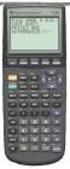 Calculator Activity Intro Getting to know your TI-83 Press ON to begin using calculator.to stop, press 2 nd ON. To darken the screen, press 2 nd alternately. To lighten the screen, press nd 2 alternately.
Pre-Calculus Graphing Calculator Handbook
 Pre-Calculus Graphing Calculator Handbook I. Graphing Functions A. Button for Functions This button is used to enter any function to be graphed. You can enter up to 10 different functions at a time. Use
EL-9650/9600c/9450/9400 Handbook Vol. 1
 Graphing Calculator EL-9650/9600c/9450/9400 Handbook Vol. Algebra EL-9650 EL-9450 Contents. Linear Equations - Slope and Intercept of Linear Equations -2 Parallel and Perpendicular Lines 2. Quadratic Equations
Guide for Texas Instruments TI-83, TI-83 Plus, or TI-84 Plus Graphing Calculator
 Guide for Texas Instruments TI-83, TI-83 Plus, or TI-84 Plus Graphing Calculator This Guide is designed to offer step-by-step instruction for using your TI-83, TI-83 Plus, or TI-84 Plus graphing calculator
correct-choice plot f(x) and draw an approximate tangent line at x = a and use geometry to estimate its slope comment The choices were:
 Topic 1 2.1 mode MultipleSelection text How can we approximate the slope of the tangent line to f(x) at a point x = a? This is a Multiple selection question, so you need to check all of the answers that
Math 120 Final Exam Practice Problems, Form: A
 Math 120 Final Exam Practice Problems, Form: A Name: While every attempt was made to be complete in the types of problems given below, we make no guarantees about the completeness of the problems. Specifically,
Academic Support Center. Using the TI-83/84+ Graphing Calculator PART II
 Academic Support Center Using the TI-83/84+ Graphing Calculator PART II Designed and Prepared by The Academic Support Center Revised June 2012 1 Using the Graphing Calculator (TI-83+ or TI-84+) Table of
Unit 7 Quadratic Relations of the Form y = ax 2 + bx + c
 Unit 7 Quadratic Relations of the Form y = ax 2 + bx + c Lesson Outline BIG PICTURE Students will: manipulate algebraic expressions, as needed to understand quadratic relations; identify characteristics
Answer Key for the Review Packet for Exam #3
 Answer Key for the Review Packet for Eam # Professor Danielle Benedetto Math Ma-Min Problems. Show that of all rectangles with a given area, the one with the smallest perimeter is a square. Diagram: y
FX 115 MS Training guide. FX 115 MS Calculator. Applicable activities. Quick Reference Guide (inside the calculator cover)
 Tools FX 115 MS Calculator Handouts Other materials Applicable activities Quick Reference Guide (inside the calculator cover) Key Points/ Overview Advanced scientific calculator Two line display VPAM to
Part V: Texas Instruments TI-92, TI-92 Plus, Voyage 200
 Part V: Texas Instruments TI-92, TI-92 Plus, Voyage 200 V.1 Getting started with the TI-92, TI-92 Plus, Voyage 200 Note: All keystroke sequences given for the Voyage 200 are applicable to the TI-92 and
MA107 Precalculus Algebra Exam 2 Review Solutions
 MA107 Precalculus Algebra Exam 2 Review Solutions February 24, 2008 1. The following demand equation models the number of units sold, x, of a product as a function of price, p. x = 4p + 200 a. Please write
7.2 Quadratic Equations
 476 CHAPTER 7 Graphs, Equations, and Inequalities 7. Quadratic Equations Now Work the Are You Prepared? problems on page 48. OBJECTIVES 1 Solve Quadratic Equations by Factoring (p. 476) Solve Quadratic
Estimating the Average Value of a Function
 Estimating the Average Value of a Function Problem: Determine the average value of the function f(x) over the interval [a, b]. Strategy: Choose sample points a = x 0 < x 1 < x 2 < < x n 1 < x n = b and
Solving Quadratic Equations
 9.3 Solving Quadratic Equations by Using the Quadratic Formula 9.3 OBJECTIVES 1. Solve a quadratic equation by using the quadratic formula 2. Determine the nature of the solutions of a quadratic equation
Investigating Area Under a Curve
 Mathematics Investigating Area Under a Curve About this Lesson This lesson is an introduction to areas bounded by functions and the x-axis on a given interval. Since the functions in the beginning of the
6.2 Solving Nonlinear Equations
 6.2. SOLVING NONLINEAR EQUATIONS 399 6.2 Solving Nonlinear Equations We begin by introducing a property that will be used extensively in this and future sections. The zero product property. If the product
1.3. Maximum or Minimum of a Quadratic Function. Investigate A
 < P1-6 photo of a large arched bridge, similar to the one on page 292 or p 360-361of the fish book> Maximum or Minimum of a Quadratic Function 1.3 Some bridge arches are defined by quadratic functions.
Slope and Rate of Change
 Chapter 1 Slope and Rate of Change Chapter Summary and Goal This chapter will start with a discussion of slopes and the tangent line. This will rapidly lead to heuristic developments of limits and the
Introductory Handbook for the TI-89 Titanium
 Introductory Handbook for the TI-89 Titanium Note: This handbook will, for the most part, work for the standard TI-89 as well. The color-coding used on the TI-89 differs from the color-coding used on the
2.1 Increasing, Decreasing, and Piecewise Functions; Applications
 2.1 Increasing, Decreasing, and Piecewise Functions; Applications Graph functions, looking for intervals on which the function is increasing, decreasing, or constant, and estimate relative maxima and minima.
Introduction to Quadratic Functions
 Introduction to Quadratic Functions The St. Louis Gateway Arch was constructed from 1963 to 1965. It cost 13 million dollars to build..1 Up and Down or Down and Up Exploring Quadratic Functions...617.2
7.1 Graphs of Quadratic Functions in Vertex Form
 7.1 Graphs of Quadratic Functions in Vertex Form Quadratic Function in Vertex Form A quadratic function in vertex form is a function that can be written in the form f (x) = a(x! h) 2 + k where a is called
Analyzing Piecewise Functions
 Connecting Geometry to Advanced Placement* Mathematics A Resource and Strategy Guide Updated: 04/9/09 Analyzing Piecewise Functions Objective: Students will analyze attributes of a piecewise function including
MATH 121 FINAL EXAM FALL 2010-2011. December 6, 2010
 MATH 11 FINAL EXAM FALL 010-011 December 6, 010 NAME: SECTION: Instructions: Show all work and mark your answers clearly to receive full credit. This is a closed notes, closed book exam. No electronic
a. all of the above b. none of the above c. B, C, D, and F d. C, D, F e. C only f. C and F
 FINAL REVIEW WORKSHEET COLLEGE ALGEBRA Chapter 1. 1. Given the following equations, which are functions? (A) y 2 = 1 x 2 (B) y = 9 (C) y = x 3 5x (D) 5x + 2y = 10 (E) y = ± 1 2x (F) y = 3 x + 5 a. all
Higher Education Math Placement
 Higher Education Math Placement Placement Assessment Problem Types 1. Whole Numbers, Fractions, and Decimals 1.1 Operations with Whole Numbers Addition with carry Subtraction with borrowing Multiplication
1.1 Practice Worksheet
 Math 1 MPS Instructor: Cheryl Jaeger Balm 1 1.1 Practice Worksheet 1. Write each English phrase as a mathematical expression. (a) Three less than twice a number (b) Four more than half of a number (c)
TI-83 GRAPHING CALCULATOR BASIC OPERATIONS by Carolyn Meitler Concordia University Wisconsin
 TI-83 GRAPHING CALCULATOR BASIC OPERATIONS by Carolyn Meitler Concordia University Wisconsin B-1 Getting Started Press ON to turn on the calculator. Press 2nd + to get the MEMORY screen (shown at the right).
= f x 1 + h. 3. Geometrically, the average rate of change is the slope of the secant line connecting the pts (x 1 )).
 Math 1205 Calculus/Sec. 3.3 The Derivative as a Rates of Change I. Review A. Average Rate of Change 1. The average rate of change of y=f(x) wrt x over the interval [x 1, x 2 ]is!y!x ( ) - f( x 1 ) = y
Answer Key for California State Standards: Algebra I
 Algebra I: Symbolic reasoning and calculations with symbols are central in algebra. Through the study of algebra, a student develops an understanding of the symbolic language of mathematics and the sciences.
Factoring Polynomials
 UNIT 11 Factoring Polynomials You can use polynomials to describe framing for art. 396 Unit 11 factoring polynomials A polynomial is an expression that has variables that represent numbers. A number can
Understanding Basic Calculus
 Understanding Basic Calculus S.K. Chung Dedicated to all the people who have helped me in my life. i Preface This book is a revised and expanded version of the lecture notes for Basic Calculus and other
Solutions to old Exam 1 problems
 Solutions to old Exam 1 problems Hi students! I am putting this old version of my review for the first midterm review, place and time to be announced. Check for updates on the web site as to which sections
Introduction to the Graphing Calculator
 Unit 0 Introduction to the Graphing Calculator Intermediate Algebra Update 2/06/06 Unit 0 Activity 1: Introduction to Computation on a Graphing Calculator Why: As technology becomes integrated into all
5.1 Derivatives and Graphs
 5.1 Derivatives and Graphs What does f say about f? If f (x) > 0 on an interval, then f is INCREASING on that interval. If f (x) < 0 on an interval, then f is DECREASING on that interval. A function has
Solutions to Exercises, Section 5.1
 Instructor s Solutions Manual, Section 5.1 Exercise 1 Solutions to Exercises, Section 5.1 1. Find all numbers t such that ( 1 3,t) is a point on the unit circle. For ( 1 3,t)to be a point on the unit circle
2.3 Maximum and Minimum Applications
 Section.3 155.3 Maximum and Minimum Applications Maximizing (or minimizing) is an important technique used in various fields of study. In business, it is important to know how to find the maximum profit
Student Performance Q&A:
 Student Performance Q&A: 2008 AP Calculus AB and Calculus BC Free-Response Questions The following comments on the 2008 free-response questions for AP Calculus AB and Calculus BC were written by the Chief
Calculus 1st Semester Final Review
 Calculus st Semester Final Review Use the graph to find lim f ( ) (if it eists) 0 9 Determine the value of c so that f() is continuous on the entire real line if f ( ) R S T, c /, > 0 Find the limit: lim
1.7 Graphs of Functions
 64 Relations and Functions 1.7 Graphs of Functions In Section 1.4 we defined a function as a special type of relation; one in which each x-coordinate was matched with only one y-coordinate. We spent most
Solutions to Homework 10
 Solutions to Homework 1 Section 7., exercise # 1 (b,d): (b) Compute the value of R f dv, where f(x, y) = y/x and R = [1, 3] [, 4]. Solution: Since f is continuous over R, f is integrable over R. Let x
MATH 21. College Algebra 1 Lecture Notes
 MATH 21 College Algebra 1 Lecture Notes MATH 21 3.6 Factoring Review College Algebra 1 Factoring and Foiling 1. (a + b) 2 = a 2 + 2ab + b 2. 2. (a b) 2 = a 2 2ab + b 2. 3. (a + b)(a b) = a 2 b 2. 4. (a
How To Use The Ti-83+/84+ Calculator For Math 111
 Using the TI-83+/84+ Graphing Calculator in Math 111 at Tacoma Community College Version 1.0 Scott MacDonald Copyright c 2005 by Scott MacDonald Permission is given to reproduce this document in whole
Calculus 1: Sample Questions, Final Exam, Solutions
 Calculus : Sample Questions, Final Exam, Solutions. Short answer. Put your answer in the blank. NO PARTIAL CREDIT! (a) (b) (c) (d) (e) e 3 e Evaluate dx. Your answer should be in the x form of an integer.
5-3 Polynomial Functions. not in one variable because there are two variables, x. and y
 y. 5-3 Polynomial Functions State the degree and leading coefficient of each polynomial in one variable. If it is not a polynomial in one variable, explain why. 1. 11x 6 5x 5 + 4x 2 coefficient of the
ALGEBRA 2: 4.1 Graph Quadratic Functions in Standard Form
 ALGEBRA 2: 4.1 Graph Quadratic Functions in Standard Form Goal Graph quadratic functions. VOCABULARY Quadratic function A function that can be written in the standard form y = ax 2 + bx+ c where a 0 Parabola
Readings this week. 1 Parametric Equations Supplement. 2 Section 10.1. 3 Sections 2.1-2.2. Professor Christopher Hoffman Math 124
 Readings this week 1 Parametric Equations Supplement 2 Section 10.1 3 Sections 2.1-2.2 Precalculus Review Quiz session Thursday equations of lines and circles worksheet available at http://www.math.washington.edu/
Polynomial Degree and Finite Differences
 CONDENSED LESSON 7.1 Polynomial Degree and Finite Differences In this lesson you will learn the terminology associated with polynomials use the finite differences method to determine the degree of a polynomial
Casio FX-9750G Plus. with the. Activities for the Classroom
 PRE-CALCULUS with the Casio FX-9750G Plus Evaluating Trigonometric Functions Graphing Trigonometric Functions Curve Fitting with Sine Regression Amplitude and Period Evaluating Inverse Trigonometric Functions
Calculus with Parametric Curves
 Calculus with Parametric Curves Suppose f and g are differentiable functions and we want to find the tangent line at a point on the parametric curve x f(t), y g(t) where y is also a differentiable function
MATH 60 NOTEBOOK CERTIFICATIONS
 MATH 60 NOTEBOOK CERTIFICATIONS Chapter #1: Integers and Real Numbers 1.1a 1.1b 1.2 1.3 1.4 1.8 Chapter #2: Algebraic Expressions, Linear Equations, and Applications 2.1a 2.1b 2.1c 2.2 2.3a 2.3b 2.4 2.5
Average rate of change of y = f(x) with respect to x as x changes from a to a + h:
 L15-1 Lecture 15: Section 3.4 Definition of the Derivative Recall the following from Lecture 14: For function y = f(x), the average rate of change of y with respect to x as x changes from a to b (on [a,
Parallel and Perpendicular. We show a small box in one of the angles to show that the lines are perpendicular.
 CONDENSED L E S S O N. Parallel and Perpendicular In this lesson you will learn the meaning of parallel and perpendicular discover how the slopes of parallel and perpendicular lines are related use slopes
Thnkwell s Homeschool Precalculus Course Lesson Plan: 36 weeks
 Thnkwell s Homeschool Precalculus Course Lesson Plan: 36 weeks Welcome to Thinkwell s Homeschool Precalculus! We re thrilled that you ve decided to make us part of your homeschool curriculum. This lesson
Visualizing Differential Equations Slope Fields. by Lin McMullin
 Visualizing Differential Equations Slope Fields by Lin McMullin The topic of slope fields is new to the AP Calculus AB Course Description for the 2004 exam. Where do slope fields come from? How should
Chapter. Numerical Calculations
 Chapter 3 Numerical Calculations 3-1 Before Performing a Calculation 3-2 Differential Calculations 3-3 Quadratic Differential Calculations 3-4 Integration Calculations 3-5 Maximum/Minimum Value Calculations
+ 4θ 4. We want to minimize this function, and we know that local minima occur when the derivative equals zero. Then consider
 Math Xb Applications of Trig Derivatives 1. A woman at point A on the shore of a circular lake with radius 2 miles wants to arrive at the point C diametrically opposite A on the other side of the lake
GeoGebra. 10 lessons. Gerrit Stols
 GeoGebra in 10 lessons Gerrit Stols Acknowledgements GeoGebra is dynamic mathematics open source (free) software for learning and teaching mathematics in schools. It was developed by Markus Hohenwarter
6 EXTENDING ALGEBRA. 6.0 Introduction. 6.1 The cubic equation. Objectives
 6 EXTENDING ALGEBRA Chapter 6 Extending Algebra Objectives After studying this chapter you should understand techniques whereby equations of cubic degree and higher can be solved; be able to factorise
100. In general, we can define this as if b x = a then x = log b
 Exponents and Logarithms Review 1. Solving exponential equations: Solve : a)8 x = 4! x! 3 b)3 x+1 + 9 x = 18 c)3x 3 = 1 3. Recall: Terminology of Logarithms If 10 x = 100 then of course, x =. However,
PRE-CALCULUS GRADE 12
 PRE-CALCULUS GRADE 12 [C] Communication Trigonometry General Outcome: Develop trigonometric reasoning. A1. Demonstrate an understanding of angles in standard position, expressed in degrees and radians.
Polynomials. Dr. philippe B. laval Kennesaw State University. April 3, 2005
 Polynomials Dr. philippe B. laval Kennesaw State University April 3, 2005 Abstract Handout on polynomials. The following topics are covered: Polynomial Functions End behavior Extrema Polynomial Division
(1) S = R, where S is the sum, i is the rate of interest per compounding
 Solving Annuity Formulas for Interest Rate Iterative Routines on the TI 83/84 Floyd Vest Basic to mathematics of finance is the formula for the sum of an ordinary annuity. The formula in traditional terminology
EASY STEPS TO SUCCESS: A GRAPHING CALCULATOR GUIDE
 EASY STEPS TO SUCCESS: A GRAPHING CALCULATOR GUIDE TO ACCOMPANY MATHEMATICAL APPLICATIONS FOR THE MANAGEMENT, LIFE, AND SOCIAL SCIENCES EIGHTH EDITION HARSHBARGER/REYNOLDS LISA S. YOCCO Georgia Southern
Review of Fundamental Mathematics
 Review of Fundamental Mathematics As explained in the Preface and in Chapter 1 of your textbook, managerial economics applies microeconomic theory to business decision making. The decision-making tools
Angles and Quadrants. Angle Relationships and Degree Measurement. Chapter 7: Trigonometry
 Chapter 7: Trigonometry Trigonometry is the study of angles and how they can be used as a means of indirect measurement, that is, the measurement of a distance where it is not practical or even possible
South Carolina College- and Career-Ready (SCCCR) Pre-Calculus
 South Carolina College- and Career-Ready (SCCCR) Pre-Calculus Key Concepts Arithmetic with Polynomials and Rational Expressions PC.AAPR.2 PC.AAPR.3 PC.AAPR.4 PC.AAPR.5 PC.AAPR.6 PC.AAPR.7 Standards Know
Examples of Tasks from CCSS Edition Course 3, Unit 5
 Examples of Tasks from CCSS Edition Course 3, Unit 5 Getting Started The tasks below are selected with the intent of presenting key ideas and skills. Not every answer is complete, so that teachers can
AP Calculus AB First Semester Final Exam Practice Test Content covers chapters 1-3 Name: Date: Period:
 AP Calculus AB First Semester Final Eam Practice Test Content covers chapters 1- Name: Date: Period: This is a big tamale review for the final eam. Of the 69 questions on this review, questions will be
is the degree of the polynomial and is the leading coefficient.
 Property: T. Hrubik-Vulanovic e-mail: [email protected] Content (in order sections were covered from the book): Chapter 6 Higher-Degree Polynomial Functions... 1 Section 6.1 Higher-Degree Polynomial Functions...
Characteristics of the Four Main Geometrical Figures
 Math 40 9.7 & 9.8: The Big Four Square, Rectangle, Triangle, Circle Pre Algebra We will be focusing our attention on the formulas for the area and perimeter of a square, rectangle, triangle, and a circle.
AP Calculus AB 2003 Scoring Guidelines
 AP Calculus AB Scoring Guidelines The materials included in these files are intended for use y AP teachers for course and exam preparation; permission for any other use must e sought from the Advanced
SAT Subject Test Practice Test II: Math Level II Time 60 minutes, 50 Questions
 SAT Subject Test Practice Test II: Math Level II Time 60 minutes, 50 Questions All questions in the Math Level 1 and Math Level Tests are multiple-choice questions in which you are asked to choose the
Functions Modeling Change: A Precalculus Course. Marcel B. Finan Arkansas Tech University c All Rights Reserved
 Functions Modeling Change: A Precalculus Course Marcel B. Finan Arkansas Tech University c All Rights Reserved 1 PREFACE This supplement consists of my lectures of a freshmen-level mathematics class offered
7.7 Solving Rational Equations
 Section 7.7 Solving Rational Equations 7 7.7 Solving Rational Equations When simplifying comple fractions in the previous section, we saw that multiplying both numerator and denominator by the appropriate
Display Format To change the exponential display format, press the [MODE] key 3 times.
![Display Format To change the exponential display format, press the [MODE] key 3 times.](/thumbs/25/6796588.jpg "Display Format To change the exponential display format, press the [MODE] key 3 times.") Tools FX 300 MS Calculator Overhead OH 300 MS Handouts Other materials Applicable activities Activities for the Classroom FX-300 Scientific Calculator Quick Reference Guide (inside the calculator cover)
Tools FX 300 MS Calculator Overhead OH 300 MS Handouts Other materials Applicable activities Activities for the Classroom FX-300 Scientific Calculator Quick Reference Guide (inside the calculator cover)
SAT Subject Math Level 2 Facts & Formulas
 Numbers, Sequences, Factors Integers:..., -3, -2, -1, 0, 1, 2, 3,... Reals: integers plus fractions, decimals, and irrationals ( 2, 3, π, etc.) Order Of Operations: Arithmetic Sequences: PEMDAS (Parentheses
HIGH SCHOOL: GEOMETRY (Page 1 of 4)
 HIGH SCHOOL: GEOMETRY (Page 1 of 4) Geometry is a complete college preparatory course of plane and solid geometry. It is recommended that there be a strand of algebra review woven throughout the course
MATH 100 PRACTICE FINAL EXAM
 MATH 100 PRACTICE FINAL EXAM Lecture Version Name: ID Number: Instructor: Section: Do not open this booklet until told to do so! On the separate answer sheet, fill in your name and identification number
http://school-maths.com Gerrit Stols
 For more info and downloads go to: http://school-maths.com Gerrit Stols Acknowledgements GeoGebra is dynamic mathematics open source (free) software for learning and teaching mathematics in schools. It
Graphing Trigonometric Skills
 Name Period Date Show all work neatly on separate paper. (You may use both sides of your paper.) Problems should be labeled clearly. If I can t find a problem, I ll assume it s not there, so USE THE TEMPLATE
10.1. Solving Quadratic Equations. Investigation: Rocket Science CONDENSED
 CONDENSED L E S S O N 10.1 Solving Quadratic Equations In this lesson you will look at quadratic functions that model projectile motion use tables and graphs to approimate solutions to quadratic equations
Mathematics 31 Pre-calculus and Limits
 Mathematics 31 Pre-calculus and Limits Overview After completing this section, students will be epected to have acquired reliability and fluency in the algebraic skills of factoring, operations with radicals
Estimated Pre Calculus Pacing Timeline
 Estimated Pre Calculus Pacing Timeline 2010-2011 School Year The timeframes listed on this calendar are estimates based on a fifty-minute class period. You may need to adjust some of them from time to
Algebra II End of Course Exam Answer Key Segment I. Scientific Calculator Only
 Algebra II End of Course Exam Answer Key Segment I Scientific Calculator Only Question 1 Reporting Category: Algebraic Concepts & Procedures Common Core Standard: A-APR.3: Identify zeros of polynomials
I. Turn it on: Press É
 Graphing Calculator Guide for the TI-83/84 Plus The following pages describe how to use the calculator to graph functions, use some of the matrix menu, use scientific notation, and other various keys.
In the Herb Business, Part III Factoring and Quadratic Equations
 74 In the Herb Business, Part III Factoring and Quadratic Equations In the herbal medicine business, you and your partner sold 120 bottles of your best herbal medicine each week when you sold at your original
Scatter Plot, Correlation, and Regression on the TI-83/84
 Scatter Plot, Correlation, and Regression on the TI-83/84 Summary: When you have a set of (x,y) data points and want to find the best equation to describe them, you are performing a regression. This page
Mathematics as Problem Solving The students will demonstrate the ability to gather information from a graphical representation of an equation.
 Title: Another Way of Factoring Brief Overview: Students will find factors for quadratic equations with a leading coefficient of one. The students will then graph these equations using a graphing calculator
4. How many integers between 2004 and 4002 are perfect squares?
 5 is 0% of what number? What is the value of + 3 4 + 99 00? (alternating signs) 3 A frog is at the bottom of a well 0 feet deep It climbs up 3 feet every day, but slides back feet each night If it started
AP CALCULUS AB 2008 SCORING GUIDELINES
 AP CALCULUS AB 2008 SCORING GUIDELINES Question 1 Let R be the region bounded by the graphs of y = sin( π x) and y = x 4 x, as shown in the figure above. (a) Find the area of R. (b) The horizontal line
ALGEBRA I (Common Core)
 The University of the State of New York REGENTS HIGH SCHOOL EXAMINATION ALGEBRA I (Common Core) Wednesday, August 12, 2015 8:30 to 11:30 a.m. MODEL RESPONSE SET Table of Contents Question 25...................
MATH 10034 Fundamental Mathematics IV
 MATH 0034 Fundamental Mathematics IV http://www.math.kent.edu/ebooks/0034/funmath4.pdf Department of Mathematical Sciences Kent State University January 2, 2009 ii Contents To the Instructor v Polynomials.
MATH 132: CALCULUS II SYLLABUS
 MATH 32: CALCULUS II SYLLABUS Prerequisites: Successful completion of Math 3 (or its equivalent elsewhere). Math 27 is normally not a sufficient prerequisite for Math 32. Required Text: Calculus: Early
Section 3.1 Quadratic Functions and Models
 Section 3.1 Quadratic Functions and Models DEFINITION: A quadratic function is a function f of the form fx) = ax 2 +bx+c where a,b, and c are real numbers and a 0. Graphing Quadratic Functions Using the
PROBLEM SET. Practice Problems for Exam #1. Math 1352, Fall 2004. Oct. 1, 2004 ANSWERS
 PROBLEM SET Practice Problems for Exam # Math 352, Fall 24 Oct., 24 ANSWERS i Problem. vlet R be the region bounded by the curves x = y 2 and y = x. A. Find the volume of the solid generated by revolving
Name Summer Assignment for College Credit Math Courses 2015-2016
 Name Summer Assignment for College Credit Math Courses 015-016 To: All students enrolled in Pre-AP PreCalculus and Dual Credit PreCalculus at El Campo High School College math classes utilizes skills and