
Casio FX-9750G Plus. with the. Activities for the Classroom
|
|
|
- Molly Miller
- 9 years ago
- Views:
Transcription
1 PRE-CALCULUS with the Casio FX-9750G Plus Evaluating Trigonometric Functions Graphing Trigonometric Functions Curve Fitting with Sine Regression Amplitude and Period Evaluating Inverse Trigonometric Functions Graphing Inverse Trigonometric Functions Trigonometric Applications Parametric Equations Polar Equations Limits Tangent Lines Integration Activities for the Classroom All activities in this resource are also compatible with the Casio CFX-9850G Series.

2 PRE-CALCULUS with the Casio FX-9750G Plus David P. Lawrence

3 2005 by CASIO, Inc. 570 Mt. Pleasant Avenue Dover, NJ PCALC The contents of this book can be used by the classroom teacher to make reproductions for student use. All rights reserved. No part of this publication may be reproduced or utilized in any form by any means, electronic or mechanical, including photocopying, recording, or by any information storage or retrieval system without permission in writing from CASIO. Printed in the United States of America. Design, production, and editorial by Pencil Point Studio

4 Contents Activity 1: Employment Cycles Teaching Notes Student Activity Solutions and Screen Shots Activity 2: Monthly Temperatures Teaching Notes Student Activity Solutions and Screen Shots Activity 3: Pure Tones Teaching Notes Student Activity Solutions and Screen Shots Activity 4: Total Internal Reflection Teaching Notes Student Activity Solutions and Screen Shots Activity 5: Damped Pendulum Teaching Notes Student Activity Solutions and Screen Shots Activity 6: Area Of A Triangle And Circular Sector Teaching Notes Student Activity Solutions and Screen Shots Activity 7: Projectile Motion Teaching Notes Student Activity Solutions and Screen Shots Pre-calculus with the Casio fx-9750g PLUS iii

5 Activity 8: Rose Petals Teaching Notes Student Activity Solutions and Screen Shots Activity 9: Take It To The Limit Teaching Notes Student Activity Solutions and Screen Shots Activity 10: Slope of Curves Teaching Notes Student Activity Solutions and Screen Shots Activity 11: Up and Down Teaching Notes Student Activity Solutions and Screen Shots Activity 12: Area Under A Curve Teaching Notes Student Activity Solutions and Screen Shots Appendix: Resources of Interest iv Pre-calculus with the Casio fx-9750g PLUS

6 Activity 1 Employment Cycles Teaching Notes Topic Area: Evaluating and Graphing Trigonometric Functions NCTM Standards: Compute fluently by developing fluency in operations with real numbers using technology for more-complicated cases Understand functions by interpreting representations of functions Objective To evaluate and graph a trigonometric function Getting Started In this activity the students will learn how to evaluate and graph a trigonometric function. Trigonometric functions are periodic, cyclical or circular functions with the angle measurement ( ) in degrees or radians. The sine (sin) and cosine (cos) relationships map the angle measurement ( ) to the y and x coordinates of the point on the unit circle that represents the angle. For example, the sine relationship for the unit circle is defined to be: sin = y / r = y / 1 = y. The additional trigonometric relationships of tangent (tan), cotangent (cot), secant (sec) and cosecant (csc) are defined in terms of the sine and cosine relationships. For example, tan = sin / cos = y / x. The trigonometric functions are defined by letting the independent variable (x) be the angle measurement and letting the dependent variable (y) be the evaluation of the trigonometric relationship at the angle. Therefore, the six trigonometric functions are: y = sin x, y = cos x, y = tan x, y = cot x, y = sec x, and y = csc x. The graph of the sine function appears as follows on the Casio fx-9750g PLUS: Copyright Casio, Inc. Activity 1 Pre-calculus with the Casio fx-9750g PLUS 1

7 Name Class Date Activity 1 Employment Cycles Introduction The sine function is often used to model cyclical or periodic behavior. There are many applications for the sine function where measure data goes up and down. One of these applications is in modeling employment cycles. When you look at the employment of some industries over a period of years, the number of employees may go up and down. In this activity, you will work with a model that represents the employment cycle for a particular industry. In the employment model, y = 1.5sin (2x + 0.3) + 6, y is the number of employees (in hundreds) and x is time in years since the analysis began. Problems and Questions 1. Using the model, estimate number of employees for each quarter for the three years. Remember time is in terms of years. Therefore, to calculate the number of employees at the end of the first quarter you will need to enter an x of.25. Round the number of employees to the nearest whole person. Beginning = End of 1st quarter = End of 2nd quarter = End of 3rd quarter = End of 1st year = End of 5th quarter = End of 6th quarter = End of 7th quarter = End of 2nd year = End of 9th quarter = End of 10th quarter = End of 11th quarter = End of 3rd year = 2 Pre-calculus with the Casio fx-9750g PLUS Activity 1 Copyright Casio, Inc.

8 Name Class Date Activity 1 Employment Cycles 2. Graph the employment model from time = 0 to time = 4 years. 3. What viewing window did you use to see the graph? Xmin = Ymin = Xmax = Ymax = 4. Using the trace feature, what appears to be the largest number of employees? 5. What appears to be the least number of employees? 6. What is the baseline or "average" employment? 7. What is the period or length of the employment cycle? Copyright Casio, Inc. Activity 1 Pre-calculus with the Casio fx-9750g PLUS 3

9 Solutions and Screen Shots for Activity 1 1. To estimate number of employees for each month of the first year you will need to use the Run Menu. Enter the Run Menu from the MAIN MENU by pressing 1 or use the arrow keys to highlight RUN and press EXE. A blank screen should appear. If it does not, press AC/ON to clear the screen. Make sure the calculator is in radian mode by pressing SHIFT SETUP and arrow down to highlight Angle. Press F2 (Rad) to select radians. Press EXIT to exit the Set Up screen. Calculate the beginning number of employees by entering 0 for x and calculating the expression 1.5sin (2(0) + 0.3) + 6. Enter and calculate this by pressing 1. 5 sin ( 2 ( 0 ) +. 3 ) + 6 EXE. The beginning number of employees is approximately 644. Find the number of employees for the end of the second quarter by entering.25 for x. Do this by editing the previous calculation. To recall the previous expression press AC/ON and the up arrow once. Arrow left to the 0 and press DEL. Insert the.25 by pressing SHIFT INS Press EXE to find the number of employees at the end of the first quarter. The number of employees at the end of the first quarter is approximately 708. Repeat for the additional quarters. The answers will be end of 2nd quarter = 745, end of 3rd quarter = 746, end of 1st year = 712, end of 5th quarter = 650, end of 6th quarter = 576, end of 7th quarter = 508, end of 2nd year = 463, end of 9th quarter = 451, end of 10th quarter = 475, end of 11th quarter = 530, and end of 3rd year = Pre-calculus with the Casio fx-9750g PLUS Activity 1 Copyright Casio, Inc.

10 Solutions and Screen Shots for Activity 1 2. Graph the employment model y = 1.5sin (2x + 0.3) + 6 by pressing MENU 5 (GRAPH) and entering the expression for Y1. Enter the expression by pressing 1. 5 sin ( 2 X,,T +. 3 ) + 6. To graph the model from time = 0 to time = 4, press SHIFT F3 (VWIN) to access the View Window screen. Enter 0 for Xmin and 4 for Xmax by pressing 0 EXE 4 EXE Press EXIT to exit the View Window screen and press F6 (DRAW) F2 (ZOOM) F5 (AUTO) to view the graph. 3. Press SHIFT F3 (VWIN) to obtain the View Window screen. The window parameters are Xmin = 0, Xmax = 4, Ymin = 4.5, and Ymax = 7.5. Copyright Casio, Inc. Activity 1 Pre-calculus with the Casio fx-9750g PLUS 5

11 Solutions and Screen Shots for Activity 1 4. Press EXIT to exit the View Window screen and press F6 (DRAW) to view the graph of the model. Press F1 (Trace) to enter the trace mode. A tracer will appear on the curve. Press the left arrow key to move the tracer to the peak of curve. You will have to watch the y-values at the bottom of the screen to see the maximum y-value. The largest number of employees is estimated to be Press the right arrow key to move the tracer to the valley of curve. You will have to watch the y-values at the bottom of the screen to see the y-value. The least number of employees is estimated to be The baseline or "average" employment is the horizontal line of symmetry between the peaks and valleys of the graph. This value can be found by averaging the minimum and maximum values for the model. The base line or "average" employment is ( ) / 2 = 600. To calculate this average press MENU 1 (RUN) ( ) 2 EXE. 6 Pre-calculus with the Casio fx-9750g PLUS Activity 1 Copyright Casio, Inc.

12 Solutions and Screen Shots for Activity 1 7. The period or length of the employment cycle would be twice the distance from the peak to the valley. The peak or largest employment occurred at an x or time value of.63. The valley or least employment occurred at an x or time value of Twice the distance between the peak and valley is 2( ) =. Calculate this by pressing 2 ( ) EXE. The period or length of the employment cycle is a little over 3 years. Copyright Casio, Inc. Activity 1 Pre-calculus with the Casio fx-9750g PLUS 7

13 Activity 2 Monthly Temperatures Teaching Notes Topic Area: Curve Fitting with Sine Regression NCTM Standards: Use mathematical models to represent and understand quantitative relationships Understand functions by interpreting representations of functions Compute fluently by developing fluency in operations with real numbers using technology for more-complicated cases Objective To compute a sine curve that best "fits" the given data Getting Started In this activity, the students will learn how to compute the best-fitting sine curve for a given set of monthly temperatures. Typically, in the course of a year, the monthly temperatures will rise and fall and lend themselves to curve fitting with a sine regression. Regression is the process of finding the best-fitting curve through the minimization of error. The monthly temperatures for a city are provided in the table below. Month Temp. o F Pre-calculus with the Casio fx-9750g PLUS Activity 2 Copyright Casio, Inc.

14 Name Class Date Activity 2 Monthly Temperatures Introduction The sine function is often used to model cyclical or periodic behavior. There are many applications for the sine function where measure data goes up and down. One of these applications is in modeling monthly temperatures. Typically, in the course of a year, the monthly temperatures will rise and fall and lend themselves to curve fitting with a sine regression. Regression is the process of finding the bestfitting curve through the minimization of error. In this activity, you will learn how to compute the best-fitting sine curve for a given set of monthly temperatures. The monthly temperatures for a city are provided in the table below. Month Temp. o F The months are represented by 1 for January through 12 for December. Problems and Questions 1. Draw the scatter plot for the data in the window [-1,13,1,-1,100,10]. 2. Calculate the best-fitting sine curve for the given data. y = 3. Graph the model with the scatter plot in the window [-1,13,1,-1,100,10]. 4. Using the graphical solver, find the maximum average temperature according to the model found by the regression. 5. Using the graphical solver, find the minimum average temperature according to the model found by the regression. 6. What is the baseline or "average" temperature for the city? 7. Using the graphical solver, find the average temperature for the middle of July. Copyright Casio, Inc. Activity 2 Pre-calculus with the Casio fx-9750g PLUS 9

15 Solutions and Screen Shots for Activity 2 1. To draw the scatter plot for the data you must first enter the data in STAT mode. Enter the STAT mode from the MAIN MENU by pressing 2 or using the arrow keys to highlight STAT and press EXE. If old data exists in List 1 and List 2, then clear them by pressing the up arrow key to highlight List 1 and press F6 F4 (DEL-A) F1 (YES). Repeat for List 2. Enter the month data into List 1 and the temperature data into List 2. Do this by pressing 1 EXE and repeating for all of the month data. Press the right arrow key and enter the temperature data. Set up the scatter plot by pressing F6 F1 (GRPH) F6 (SET). Set the Graph Type to Scatter by pressing the down arrow key to highlight Graph Type and press F1 (Scat). Set the XList to List1 by pressing the down arrow key to highlight XList and press F1 (List1). Set the YList to List2 by pressing the down arrow key to highlight Ylist and press F2 (List2). 10 Pre-calculus with the Casio fx-9750g PLUS Activity 2 Copyright Casio, Inc.

16 Solutions and Screen Shots for Activity 2 Press EXIT to exit the StatGraph1 set up screen. Press F4 (SEL) to make sure StatGraph1 is turned on. If it is off, press F1 (On) to set the StatGraph1 to DrawOn. Press EXIT to exit the draw select screen. Enter the viewing window by pressing SHIFT F3 (V-WIN) and enter the window parameters of [-1,13,1,-1,100,10]. Do this by pressing (-) 1 EXE 1 3 EXE 1 EXE (-) 1 EXE EXE 1 0 EXE. Press EXIT to exit the View Window screen. Press F1 (GRPH) F1 (GPH1) to view the scatter plot in the viewing window. 2. Calculate the best-fitting sine curve by pressing F6 F5 (Sin). The best-fitting sine curve is approximately y = sin(.5x 1.96) Copyright Casio, Inc. Activity 2 Pre-calculus with the Casio fx-9750g PLUS 11
![Enter the viewing window by pressing SHIFT F3 (V-WIN) and enter the window parameters of [-1,13,1,-1,100,10]. Do this by pressing (-) 1 EXE 1 3 EXE 1 EXE (-) 1 EXE 1 0 0 EXE 1 0 EXE.](/docs-images/49/17969653/images/page_16.jpg "Press EXIT to exit the View Window screen. Press F1 (GRPH) F1 (GPH1) to view the scatter plot in the viewing window. 2. Calculate the best-fitting sine curve by pressing F6 F5 (Sin).")
17 Solutions and Screen Shots for Activity 2 3. Graph the model with the scatter plot in the window [-1,13,1,-1,100,10] by pressing F5 (COPY) EXE to copy the equation into Y1. If you were to return to the graph entry screen it would look like the screen below. Do not return to this screen. Press F6 (DRAW) to graph the model with the scatter plot. 4. To use the graphical solver, you will need to return to Graph mode. Do this by pressing EXIT MENU 5 (GRAPH). Press F6 (DRAW) to view the graph of the model. Find the maximum average temperature by pressing F5 (G-Solv) F2 (MAX). The average temperature for July is reported with a 7 for the month data. Therefore, 7.0 is considered to be the end of July or July 31st. A value of 7.1 would indicate the maximum average temperature occurs early in August with an average of about 82 o F. 12 Pre-calculus with the Casio fx-9750g PLUS Activity 2 Copyright Casio, Inc.

18 Solutions and Screen Shots for Activity 2 5. Use the graphical solver to find the minimum average temperature according to the model by pressing F5 (G-Solv) F3 (MIN). The minimum average temperature of about 36 o F occurs at an x value of.78 which is less than 1. A value of 1 would indicate the end of January. So a value of.78 indicates the minimum average temperature occurs in late January. 6. The baseline or "average" temperature for the city is the horizontal line of symmetry between the maximum and minimum average temperatures. This value can be found by averaging the minimum and maximum values. The base line or "average" temperature is ( ) / 2 = 59 o F. To calculate this average press MENU 1 (RUN) ( ) 2 EXE. 7. To use the graphical solver to find the average temperature for the middle of July, you will need to return to the Graph mode. Do this by pressing MENU 5 (GRAPH). Draw the sine curve again by pressing F6 (DRAW). The middle of July would be represented by an x-value of 6.5. To find the y-value or average temperature for the x-value of 6.5, press F5 (G-Solv) F6 F1 (Y-CAL) and then press 6. 5 EXE. The average temperature for the middle of July is 81 o F. Copyright Casio, Inc. Activity 2 Pre-calculus with the Casio fx-9750g PLUS 13

19 Activity 3 Pure Tones Teaching Notes Topic Area: Amplitude and Period NCTM Standards: Use mathematical models to represent and understand quantitative relationships Understand functions by interpreting representations of functions Compute fluently by developing fluency in operations with real numbers using technology for more-complicated cases Objective To graph the sine curve representing different pure tones Getting Started In this activity, the students will learn how to graph sine curves that represent pure tones. Sounds are vibrations caused by a source and picked up by our ears. Sound waves are usually represented graphically by the sine wave y = Asin(Tx) where A is the amplitude and T is the angular frequency. Frequency is defined to be the number of wave cycles per second and amplitude is the size of the cycles. According to Fourier theory, all sounds are made up of sine waves at differing frequencies and amplitudes. Therefore, sounds can be created by adding different sine waves together. A pure tone is a sound with a single sine wave that has a fixed frequency and amplitude. The frequency of a sound is in terms of Hertz (Hz), for example a piano will play an A above middle C at 440 Hz. This sound is said to take on the form of a 440 Hz sine wave which is represented by the equation y = sin (2π 440x). Below is the graph of this sine curve in the window [0, 0.01,1,-1,1,1]. 14 Pre-calculus with the Casio fx-9750g PLUS Activity 3 Copyright Casio, Inc.

20 Name Class Date Activity 3 Pure Tones Introduction In this activity, you will learn how to graph sine curves that represent pure tones. Sounds are vibrations caused by a source and picked up by our ears. Sound waves are usually represented graphically by the sine wave y = Asin(Tx) where A is the amplitude and T is the angular frequency. Frequency is defined to be the number of wave cycles per second and amplitude is the size of the cycles. According to Fourier theory, all sounds are made up of sine waves at differing frequencies and amplitudes. Therefore, sounds can be created by adding different sine waves together. A pure tone is a sound with a single sine wave that has a fixed frequency and amplitude. The frequency of a sound is in terms of Hertz (Hz), for example a piano will play an A above middle C at 440 Hz. This sound is said to take on the form of a 440 Hz sine wave which is represented by the equation y = sin (2π 440x). Problems and Questions 1. Draw the 440 Hz sine wave in the window for the data in the window [0, 0.01,1,-1,1,1]. 2. What is the amplitude and period of the 440 Hz sine wave? amplitude = period = 3. Graph the 440 Hz sine wave in the window [0, 0.01,1,-2,2,1] using the Dynamic Function and the equation y = Asin (2π 440x). Vary the amplitude A from 0.5 to 2 with an increment of 0.5. Describe what you see when the amplitude changes. Copyright Casio, Inc. Activity 3 Pre-calculus with the Casio fx-9750g PLUS 15

21 Name Class Date Activity 3 Pure Tones 4. Graph the 440 Hz sine wave in the window [0, 0.01,1,-1,1,1] using the Dynamic Function and the equation y = sin (2π Hx). Vary the Hertz H from 440 to 470 with an increment of 10. Describe what you see when the Hertz changes. 5. This sine wave has a very short period. The display of the graph takes on some interesting forms in larger windows. Draw the graph in the following windows: [0,0.1,1,-1,1,1] [0,0.5,1,-1,1,1] [0,1,1,-1,1,1] [0,5,1,-1,1,1] [0,10,1,-1,1,1] Describe what is happening in the last window? 16 Pre-calculus with the Casio fx-9750g PLUS Activity 3 Copyright Casio, Inc.
22 Solutions and Screen Shots for Activity 3 1. To draw the 440 Hz sine wave in the given window, press MENU 5 (GRAPH) and enter the sine equation by pressing sin ( 2 SHIFT π X,,T ) EXE. Enter the viewing window by pressing SHIFT F3 (V-WIN) 0 EXE. 0 1 EXE 1 EXE (-) 1 EXE 1 EXE 1 EXE. To view the graph press EXIT F6 (DRAW). 2. In the general sine function f(x) = A sin (Bx), the amplitude for the sine curve is the coefficient A in front of the sine function. In our function, it an implied 1. Therefore, the amplitude of this sine curve is 1. The period of a sine curve is determined by the coefficient B of the variable inside the argument of the function. The period of a sine function is 2π/B. In our case, you divide 2π by the coefficient of 2π 440. The resulting period is 1/440 or Find this by pressing MENU 1 (RUN) AC/ON EXE. Copyright Casio, Inc. Activity 3 Pre-calculus with the Casio fx-9750g PLUS 17
23 Solutions and Screen Shots for Activity 3 3. To enter the 440 Hz sine wave in the Dynamic Function, press MENU 6 (DYNA) and press ALPHA A sin ( 2 SHIFT π X,,T ) EXE. Set the viewing window, by pressing SHIFT F3 (V-WIN) 0 EXE. 0 1 EXE 1 EXE (-) 2 EXE 2 EXE 1 EXE. Set the variable A from 0.5 to 2 with an increment of 0.5 by pressing EXIT F4 (VAR) F2 (RANG). 5 EXE 2 EXE. 5 EXE. Set the speed to Stop&Go by pressing EXIT F3 (SPEED) F1 (SEL). Draw the graph by pressing EXIT F6 (DYNA). The calculator will display "One Moment Please!" while it calculates the graphs. This first graph to appear is when A = 0.5. Press EXE to view the next graph when A = 1. Press EXE to view each additional graph. 18 Pre-calculus with the Casio fx-9750g PLUS Activity 3 Copyright Casio, Inc.
24 Solutions and Screen Shots for Activity 3 As the amplitude increases, the height of the graph also increases. 4. To enter the new Hz sine wave in the Dynamic Function, press EXIT three times and press sin ( 2 SHIFT π ALPHA H X,,T ) EXE. Set the viewing window, by pressing SHIFT F3 (V-WIN) 0 EXE. 0 1 EXE 1 EXE (-) 1 EXE 1 EXE 1 EXE. Set the variable H from 440 to 470 with an increment of 10 by pressing EXIT F4 (VAR) F2 (RANG) EXE EXE 1 0 EXE. Copyright Casio, Inc. Activity 3 Pre-calculus with the Casio fx-9750g PLUS 19
25 Solutions and Screen Shots for Activity 3 Draw the graph by pressing EXIT F6 (DYNA). The calculator will display "One Moment Please!" while it calculates the graphs. This first graph to appear is when H = 440 Hz. Press EXE to view the next graph when H = 450 Hz. Press EXE to view each additional graph. The graphs demonstrate as the Hz value is increased the period of the sine wave decreases. (Watch the movement of the fifth peak from the left.) 5. To graph the sine wave in different windows, press EXIT twice and then MENU 5 (GRAPH). Re-enter the sine equation by pressing sin ( 2 SHIFT π X,,T ) EXE. Enter the first viewing window by pressing SHIFT F3 (V-WIN) 0 EXE. 1 EXE 1 EXE (-) 1 EXE 1 EXE 1 EXE. To view the graph press EXIT F6 (DRAW). 20 Pre-calculus with the Casio fx-9750g PLUS Activity 3 Copyright Casio, Inc.
26 Solutions and Screen Shots for Activity 3 Repeat to view in the other windows. As the window gets larger horizontally, the calculator has a harder time showing all the cycles, so it finally shows a sine curve similar to the one in a smaller viewing window. Copyright Casio, Inc. Activity 3 Pre-calculus with the Casio fx-9750g PLUS 21
27 Activity 4 Total Internal Reflection Teaching Notes Topic Area: Evaluating and Graphing Inverse Trigonometric Functions NCTM Standards: Compute fluently by developing fluency in operations with real numbers using technology for more-complicated cases Understand functions by interpreting representations of functions Objective To evaluate and graph an inverse trigonometric function Getting Started In this activity, the students will learn how to evaluate and graph an inverse trigonometric function. Inverse trigonometric functions are found by swapping the range and domain of the corresponding trigonometric function. For example, the domain of the sine function becomes the range of the inverse sine function and the range of the sine function becomes the domain of the inverse trigonometric function. The inverse sine function is denoted using arcsin or sin -1. Total internal reflection (TIR) occurs when all of the light of a beam within a medium strikes a boundary and is reflected inside the medium, instead of exiting the medium. For TIR to occur, the light source must be in a more dense medium and hit a less dense boundary. Examples of a more dense medium might be water or a diamond in comparison to a less dense boundary such as air. Also for TIR to occur, the angle in which the light strikes the boundary must be greater than or equal to a value determined by the two mediums in use. This value is called the critical angle for the two mediums. The critical angle ( ) for the two mediums can be determined by using the formula = sin -1 (n r / n i ) where n r and n r are indices of refraction, the ratio of (n r / n i ) is less than 1.0, and is in degrees. The value n r is the index of refraction for the the less dense refractive medium and n i is the index of refraction for the more dense incident medium. Several indices of refraction are given in the table below: Medium Index Air 1.00 Ice 1.31 Water 1.33 Ethanol 1.36 Glycerine 1.47 Crown Glass 1.50 Polystyrene 1.59 Flint Glass 1.75 Diamond Pre-calculus with the Casio fx-9750g PLUS Activity 3 Copyright Casio, Inc.
28 Name Class Date Activity 4 Total Internal Reflection Introduction In this activity, the students will learn how to evaluate and graph an inverse trigonometric function. The inverse sine function is denoted using arcsin or sin -1. Total internal reflection (TIR) occurs when all of the light of a beam within a medium strikes a boundary and is reflected inside the medium, instead of exiting the medium. For TIR to occur, the light source must be in a more dense medium and hit a less dense boundary. Examples of a more dense medium might be water or a diamond in comparison to a less dense boundary such as air. Also for TIR to occur, the angle in which the light strikes the boundary must be greater than or equal to a value determined by the two mediums in use. This value is called the critical angle for the two mediums. The critical angle ( ) for the two mediums can be determined by using the formula = sin -1 (n r / n i ) where n r and n r are indices of refraction, the ratio of (n r / n i ) is less than 1.0, and is in degrees. The value n r is the index of refraction for the the less dense refractive medium and n i is the index of refraction for the more dense incident medium. Problems and Questions 1. Using the formula, find the critical angle for the given boundaries: a. water (n i = 1.33) - air (n r = 1.00) boundary b. diamond (n i = 2.42) - water (n r = 1.33) boundary c. crowned glass (n i = 1.50) - ice (n r = 1.31) boundary 2. Graph the model for the fixed refractive medium (air) (n r = 1) and a variable incident medium (n i = x) from n i = x = 1 to x = Using the trace feature, what is the critical angle for: a. a polystyrene (x = 1.59) - air boundary? = b. a flint glass (x = 1.75) - air boundary? = 4. Use the graphical solver feature to find the index of reflection for the incident medium, that would produce a critical angle of: a. 45 o n i = b. 60 o n i = Copyright Casio, Inc. Activity 4 Pre-calculus with the Casio fx-9750g PLUS 23
29 Solutions and Screen Shots for Activity 4 1. To find the critical angle for the given boundaries you will need to use the Run Menu. Enter the Run Menu from the MAIN MENU by pressing 1 (RUN) or use the arrow keys to highlight RUN and press EXE. A blank screen should appear. If it does not, press AC/ON to clear the screen. Make sure the calculator is in degree mode by pressing SHIFT SETUP and arrow down to highlight Angle. Press F1 (Deg) to select. Press EXIT to exit the Set Up screen. Calculate the critical angle for the water (n i = 1.33) - air (n r = 1.00) boundary by calculating the expression sin -1 (1/ 1.33). Enter and calculate this by pressing SHIFT sin -1 ( ) EXE. The critical angle for the water - air boundary is o. Repeat for the other two boundaries. The critical angle for the diamond water boundary is o and the critical angle for the crowned glass ice boundary is o. 24 Pre-calculus with the Casio fx-9750g PLUS Activity 4 Copyright Casio, Inc.
30 Solutions and Screen Shots for Activity 4 2. To graph the model for the fixed refractive medium (air) (n r = 1) and a variable incident medium (n i = x) press MENU 5 (GRAPH) and enter the expression y = sin -1 (1/x) for Y1. Enter the expression by pressing SHIFT sin -1 ( 1 X,,T ). To graph the model from x = 1 to x = 3, press SHIFT F3 (VWIN) to access the View Window screen. Enter 1 for Xmin and 3 for Xmax by pressing 1 EXE 3 EXE. Press EXIT to exit the View Window screen and press F6 (DRAW) F2 (ZOOM) F5 (AUTO) to view the graph. 3. To use the trace feature to find the critical angle for a polystyrene (x = 1.59) / air boundary, press F1 (Trace) to enter the trace mode. A tracer will appear on the curve. Press the left arrow key to move the tracer near x = The critical angle is approximately 39 o. Copyright Casio, Inc. Activity 4 Pre-calculus with the Casio fx-9750g PLUS 25
31 Solutions and Screen Shots for Activity 4 Find the critical angle for a flint glass (x = 1.75) / air boundary, by pressing the right arrow key to move the tracer near The critical angle is approximately 35 o. 4. To use the graphical solver feature to find the index of reflection for the incident medium, that would produce a critical angle of 45 o, press F5 (G-Solv) F6 F2 (X-CAL) and press 4 5 EXE. The incident medium would need to have an index of reflection of approximately n i = Repeat for 60 o. The incident medium would need to have an index of reflection of approximately n i = Pre-calculus with the Casio fx-9750g PLUS Activity 4 Copyright Casio, Inc.
32 Activity 5 Damped Pendulum Teaching Notes Topic Area: Trigonometric Applications NCTM Standards: Compute fluently by developing fluency in operations with real numbers using technology for more-complicated cases Understand functions by interpreting representations of functions Objective To evaluate and graph a model for a damped pendulum Getting Started In this activity, the students will learn how to evaluate and graph a model for a damped pendulum. A pendulum is a weight located on one end of a rod, wire, or string/rope that is attached on the other end to a fixed position. When pushed, the pendulum s weight will swing back and forth, under the influence of gravity, over the lowest or center point. In a perfect setting, the pendulum would not be met with air resistance or friction and it s motion would continue indefinitely and if the motion was tracked it would form a regular periodic curve. However, we do not live in a perfect setting, so the motion of the pendulum is damped or slowed by friction. The motion of a damped pendulum is modeled by a sine function whose amplitude is decreasing as time increases. This amplitude decreases in proportion to an exponential function with a base less than 1. The model for a particular damped pendulum is: y = (0.85) X 1.03 sin (3.5 X - 1.8) where y is the distance (in feet) and direction (negative is left, positive is right) away from the center point 0, and x is time passed in seconds. The graph of the damped pendulum s motion is shown below: Copyright Casio, Inc. Activity 5 Pre-calculus with the Casio fx-9750g PLUS 27
33 Name Class Date Activity 5 Damped Pendulum Introduction A pendulum is a weight located on one end of a rod, wire, or string/rope that is attached on the other end to a fixed position. When pushed, the pendulum s weight will swing back and forth, under the influence of gravity, over the lowest or center point In a perfect setting, the pendulum would not be met with air resistance or friction and it s motion would continue indefinitely and if the motion was tracked it would form a regular periodic curve. However, we do not live in a perfect setting, so the motion of the pendulum is damped or slowed by friction. The motion of a damped pendulum is modeled by a sine function whose amplitude is decreasing as time increases. This amplitude decreases in proportion to an exponential function with a base less than 1. The model for a particular damped pendulum is: y = (0.85) X 1.03 sin (3.5 X - 1.8) where y is the distance (in feet) and direction (negative is left, positive is right) away from the center point 0, and x is time passed in seconds. Problems and Questions 1. Using the formula, find the position of the damped pendulum for the given time: a. x = 2 seconds y = b. x = 4 seconds y = c. x = 6 seconds y = d. x = 8 seconds y = 2. Graph the model for the motion of the damped pendulum from x = -0.1 seconds to 10 seconds, and from y = -2 feet to 2 feet. Draw your graph in the box below. 3. Using the solver feature, find the initial position of the pendulum. This is represented by the y-intercept of the curve. The initial position is feet to the left/right (choose one) of the center point. 4. Using the trace feature, find the first five peaks of the graph which represent the first five right-hand swing positions of the damped pendulum. Then, find the ratio for each successive peak change by dividing the latter peak height by the previous peak height. What did you find? 28 Pre-calculus with the Casio fx-9750g PLUS Activity 5 Copyright Casio, Inc.
34 Name Class Date Activity 5 Damped Pendulum a. peak 1, x = y = b. peak 2, x = y = "y ratio 2" = "y peak 2" "y peak 1" = c. peak 3, x = y = "y ratio 3" = "y peak 3" "y peak 2" = d. peak 4, x = y = "y ratio 4" = "y peak 4" "y peak 3" = e. peak 5, x = y = "y ratio 5" = "y peak 5" "y peak 4" = 5. Find the ratio for each successive peak change by dividing the previous peak time by the latter peak time. What did you find? "x ratio 2" = "x peak 1" "x peak 2" = "x ratio 3" = "x peak 2" "x peak 3" = "x ratio 4" = "x peak 3" "x peak 4" = "x ratio 5" = "x peak 4" "x peak 5" = 6. Increase Xmax in the viewing window, and determine at what elapsed time has the pendulum virtually stopped (peak is less than.05). x = Copyright Casio, Inc. Activity 5 Pre-calculus with the Casio fx-9750g PLUS 29
35 Solutions and Screen Shots for Activity 5 1. To find the position for the damped pendulum for the given time you will need to use the Run Menu. Enter the Run Menu from the MAIN MENU by pressing 1 (RUN) or use the arrow keys to highlight RUN and press EXE. A blank screen should appear. If it does not, press AC/ON to clear the screen. Make sure the calculator is in radian mode by pressing SHIFT SETUP and arrow down to highlight Angle. Press F2 (Rad) to select. Press EXIT to exit the Set Up screen. Calculate the position for the damped pendulum at 2 seconds by calculating the expression: (1.03) sin (3.5 (2) - 1.8) Enter and calculate this by pressing. 8 5 ^ sin ( ) EXE. The position of the pendulum at x = 2 seconds is feet or feet to the left of center. Repeat for the other three times. Do this by pressing the right arrow key to replay the expression and then press the right arrow key to highlight the 2 and press 4. Do this for both x or 2 values. Press EXE to see the answer. Repeat for x = 6 and x = 8. The position of the pendulum at x = 4 seconds is feet or 0.19 feet to the left of center. The position of the pendulum at x = 6 seconds is 0.13 feet or.13 feet to the right of center. 30 Pre-calculus with the Casio fx-9750g PLUS Activity 5 Copyright Casio, Inc.
36 Solutions and Screen Shots for Activity 5 The position of the pendulum at x = 8 seconds is feet or feet to the right of center. 2. To graph the model for the motion of the damped pendulum press MENU 5 (GRAPH) and enter the expression y = 0.85 X 1.03 sin (3.5 X - 1.8) for Y1. Enter the expression by pressing. 8 5 ^ X,,T sin ( 3. 5 X,,T 1. 8 ) EXE. To graph the model from x = -0.1 seconds to 10 seconds, and from y = -2 feet to 2 feet, press SHIFT F3 (VWIN) to access the View Window screen. Enter -0.1 for Xmin and 10 for Xmax by pressing (-). 1 EXE 1 0 EXE 1 EXE. Enter -2 for Ymin and 2 for Ymax by pressing (-) 2 EXE 2 EXE 1 EXE. Press EXIT to exit the View Window screen and press F6 (DRAW) to view the graph. Copyright Casio, Inc. Activity 5 Pre-calculus with the Casio fx-9750g PLUS 31
37 Solutions and Screen Shots for Activity 5 3. To use the graphical solver feature to find the initial position of the pendulum, represented by the y-intercept of the curve, press F5 (G-Solv) F4 (Y-ICPT). The initial position was 1 foot to the left of the center point. 4. To use the trace feature to find the first five peaks of the graph which represent the first five right-hand swing positions of the damped pendulum, press F1 (Trace) to enter the trace mode. A tracer will appear on the curve. Press the left arrow key to move the tracer to the first peak at x = seconds. The peak occurs at.881 feet. Press the right arrow key to move the tracer to the second and third peaks. The peaks occur at x = seconds and y = feet and x = seconds and y = feet respectively. 32 Pre-calculus with the Casio fx-9750g PLUS Activity 5 Copyright Casio, Inc.
38 Solutions and Screen Shots for Activity 5 Press the right arrow key to move the tracer to the fourth and fifth peaks. The peaks occur at x = seconds and y = feet and x = seconds and y = feet respectively. To find the ratio for each successive peak change, return to the Run menu by pressing MENU 1 (RUN). Divide the "y peak 2" =.652 by "y peak 1" =.881 by pressing EXE. The "y ratio 2" =.74. Repeat for the other ratios. The resulting ratios are virtually the same, therefore the friction is damping the pendulum in a proportional manner. In other words, the pendulum is slowing down in a constant manner. 5. To find the ratio for each successive peak change, divide the previous peak time by the latter peak time. The first ratio (x ratio 2) is found by dividing "x peak 1" = by "x peak 2" = Do this by pressing EXE. The "x ratio 2" =.. Repeat for the other ratios. The resulting ratios are increasing, which means the time interval between peaks is decreasing. Copyright Casio, Inc. Activity 5 Pre-calculus with the Casio fx-9750g PLUS 33
39 Solutions and Screen Shots for Activity 5 6. To find when the pendulum has virtually stopped, you must return to the graph. Do this by pressing MENU 5 (GRAPH). Increase the Xmax to 20 by pressing SHIFT F3 (V-Window), pressing the down arrow key and pressing 2 0 EXE. Press EXE F6 (DRAW) to view the graph. Press F1 (Trace) and a tracer will appear on the curve. Press the right arrow and find the peak values. The eleventh peak is y = The elapsed time in which the the pendulum has virtually stopped (a peak less than 0.05) is x = seconds. 34 Pre-calculus with the Casio fx-9750g PLUS Activity 5 Copyright Casio, Inc.
40 Activity 6 Area Of A Triangle And Circular Sector Teaching Notes Topic Area: Trigonometric Applications NCTM Standards: Compute fluently by developing fluency in operations with real numbers using technology for more-complicated cases Understand functions by interpreting representations of functions Objective To calculate the area of a triangle and a circular sector using trigonometry Getting Started In this activity, the students will learn how to calculate the area of a triangle and a circular sector using trigonometry. The area of a triangle is defined to be one-half of the product of the lengths of two sides (a, b) and the sine of the angle (C ) included between those two sides. The formula looks like: area = 0.5 a b sin C a c b Another useful formula for finding the area of a triangle is Heron s formula. In this formula, all you need to know is the length of the three sides (a, b, c) to find the area of the triangle. Heron s formula looks like: area = [ s(s a)(s b)(s c) where s = 0.5 (a + b + c) a c The area of a circular sector is defined to be one-half of the product of the radius (r) squared and the central angle. The formula looks like: b area = 0.5 r 2 or r r Copyright Casio, Inc. Activity 6 Pre-calculus with the Casio fx-9750g PLUS 35
41 Name Class Date Activity 6 Area Of A Triangle And Circular Sector Introduction In this activity, you will learn how to calculate the area of a triangle and a circular sector using trigonometry. The area of a triangle is defined to be one-half of the product of the lengths of two sides (a, b) and the sine of the angle (C ) included between those two sides. The formula looks like: area = 0.5 a b sin C a c b Another useful formula for finding the area of a triangle is Heron s formula. In this formula, all you need to know is the length of the three sides (a, b, c) to find the area of the triangle. Heron s formula looks like: area = [ s(s a)(s b)(s c) where s = 0.5 (a + b + c) a c The area of a circular sector is defined to be one-half of the product of the radius (r) squared and the central angle. The formula looks like: b area = 0.5 r 2 or r r Problems and Questions 1. Find the area of the following triangles for the given values using the formula in the Run Menu. a. a = 5, b = 7, C = 35 o area = b. b = 10, c = 8, A = 28 o area = c. a = 6, c = 4, B = 40 o area = 36 Pre-calculus with the Casio fx-9750g PLUS Activity 6 Copyright Casio, Inc.
42 Name Class Date Activity 6 Area Of A Triangle And Circular Sector 2. Find the area of the following triangles for the given values using Heron s formula in the Solver feature. a. a = 5, b = 7, c = 10 s = area = b. a = 10, b = 8, c = 6 s = area = c. a = 6, b = 4, c = 8 s = area = 3. Find the area of the following circular sectors for the given values using the formula in the Solve feature. a. r = 8, = π/5 area = b. r = 10, = 2π/3 area = c. r = 7, = 4π/9 area = Copyright Casio, Inc. Activity 6 Pre-calculus with the Casio fx-9750g PLUS 37
43 Solutions and Screen Shots for Activity 6 1. To find the area of a triangle for the given values, you will need to use the Run Menu. Enter the Run Menu from the MAIN MENU by pressing 1 (RUN) or use the arrow keys to highlight RUN and press EXE. A blank screen should appear. If it does not, press AC/ON to clear the screen. Make sure the calculator is in degree mode by pressing SHIFT SETUP and arrow down to highlight Angle. Press F1 (Deg) to select. Press EXIT to exit the Set Up screen. Calculate the area of a triangle given a = 5, b = 7, and C = 35 o. Do this by calculating the expression sin 35. Enter and calculate this by pressing sin 3 5 EXE. The area is approximately Calculate the area of a triangle given b = 10, c = 8, A = 28 o. Do this by calculating the expression sin 28. Enter and calculate this by pressing sin 2 8 EXE. The area is approximately Calculate the area of a triangle given a = 6, c = 4, B = 40 o. Do this by calculating the expression sin 40. Enter and calculate this by pressing sin 4 0 EXE. The area is approximately Pre-calculus with the Casio fx-9750g PLUS Activity 6 Copyright Casio, Inc.
44 Solutions and Screen Shots for Activity 6 2. To use the Solver feature to find the area of a triangle for the given values, you will need to use the Equation Menu. Enter the Equation Menu from the MAIN MENU by pressing A (EQUA) or use the arrow keys to highlight EQUA and press EXE. The Equation menu will appear. Press F3 (Solv) to access the Solver feature. If an equation is already present, press F2 (DEL) F1 (YES) to delete it. Enter Heron s formula into the calculator by pressing ALPHA H SHIFT = SHIFT ( ALPHA S ( ALPHA S ALPHA A ) ( ALPHA S ALPHA B ) ( ALPHA S ALPHA C ) ). We used a H for the value of Heron s formula for the area. Copyright Casio, Inc. Activity 6 Pre-calculus with the Casio fx-9750g PLUS 39
45 Solutions and Screen Shots for Activity 6 Press EXE to store the equation. Calculate the area of a triangle given a = 5, b = 7, and c = 10. First, find the value of s, which is s =.5(a + b + c) =.5( ) =.5(22) = 11. Enter the values for s, a, b, and c by pressing the down arrow key followed by 1 1 EXE 5 EXE 7 EXE 1 0 EXE. To find the area, press the up arrow key to highlight the H and then press F6 (SOLV). The area is approximately Calculate the area of a triangle given a = 10, b = 8, c = 6. Press F1 (REPT) to return to the variable entry screen. Find the value of s, which is s =.5(a + b + c) =.5( ) =.5(24) = 12. Enter the values for s, a, b, and c by pressing the down arrow key followed by 1 2 EXE 1 0 EXE 8 EXE 6 EXE. 40 Pre-calculus with the Casio fx-9750g PLUS Activity 6 Copyright Casio, Inc.
46 Solutions and Screen Shots for Activity 6 To find the area, press the up arrow key to highlight the H and then press F6 (SOLV). The area is 24. Calculate the area of a triangle given a = 6, b = 4, c = 8. Press F1 (REPT) to return to the variable entry screen. Find the value of s, which is s =.5(a + b + c) =.5( ) =.5(18) = 9. Enter the values for s, a, b, and c by pressing the down arrow key followed by 9 EXE 6 EXE 4 EXE 8 EXE. To find the area, press the up arrow key to highlight the H and then press F6 (SOLV). The area is To use the Solver feature to find the area of a circular sector for the given values, you will need to use the Equation Menu. Enter the Equation Menu from the MAIN MENU by pressing A (EQUA) or use the arrow keys to highlight EQUA and press EXE. Copyright Casio, Inc. Activity 6 Pre-calculus with the Casio fx-9750g PLUS 41
47 Solutions and Screen Shots for Activity 6 The Equation menu will appear. Press F3 (Solv) to access the Solver feature. If an equation is already present, press F2 (DEL) F1 (YES) to delete it. Enter formula to find the area of a circular sector by pressing ALPHA A SHIFT =. 5 ALPHA R x 2 ALPHA T. We use variable R for r, and T for. Press EXE to store the equation. 42 Pre-calculus with the Casio fx-9750g PLUS Activity 6 Copyright Casio, Inc.
48 Solutions and Screen Shots for Activity 6 If necessary, you may change the angle mode of the calculator by pressing SHIFT SETUP F2 (Rad). Press EXIT to return to the variable entry screen. Calculate the area of a triangle given r = 8 and = π/5. Enter the values for r and by pressing the down arrow key followed by 8 EXE SHIFT π 5 EXE. To find the area, press the up arrow key to highlight the A and then press F6 (SOLV). The area is approximately Press F1 (REPT) to return to the variable entry screen. Calculate the area of a triangle given r = 10, 2 = 2π/3. Enter the values for r and by pressing the down arrow key followed by 1 0 EXE 2 SHIFT π 3 EXE. Copyright Casio, Inc. Activity 6 Pre-calculus with the Casio fx-9750g PLUS 43
49 Solutions and Screen Shots for Activity 6 To find the area, press the up arrow key to highlight the A and then press F6 (SOLV). The area is approximately Press F1 (REPT) to return to the variable entry screen. Calculate the area of a triangle given r = 7, 2 = 4π/9. Enter the values for r and by pressing the down arrow key followed by 7 EXE 4 SHIFT π 9 EXE. To find the area, press the up arrow key to highlight the A and then press F6 (SOLV). The area is approximately Pre-calculus with the Casio fx-9750g PLUS Activity 6 Copyright Casio, Inc.
50 Activity 7 Projectile Motion Teaching Notes Topic Area: Parametric Equations NCTM Standards: Compute fluently by developing fluency in operations with real numbers using technology for more-complicated cases Understand functions by interpreting representations of functions Objective To evaluate and graph a set of parametric equations that model the motion of a projectile Getting Started In this activity, the students will learn how to evaluate and graph a set of parametric equations that model the motion of a projectile. In parametric equations, the x and y coordinates are generated by separate functions of a third variable t (usually time). Parametric equations are represented as x = f(t) and y = g(t). A projectile is an object moving on a path, like a ball that is thrown or a missile thatis fired. The model for projectile motion assumes no air resistance and the object is traveling on a parabolic path. The x-axis represents the ground and the x- coordinate represents the distance traveled horizontally at any time t. The y-coordinate represents the height of the object at time t. The parametric equations for projectile motion are: x = v cos( ) t y = v sin( ) t g t 2 /2 where v is the initial velocity (ft/sec) of the object, is the initial angle (radians) of trajectory from the ground, t is elapsed time in seconds, and g is the acceleration due to gravity (32 ft/sec 2 ). The graph of the activity s projectile is shown below: Copyright Casio, Inc. Activity 7 Pre-calculus with the Casio fx-9750g PLUS 45
51 Name Class Date Activity 7 Projectile Motion Introduction In this activity, you will learn how to evaluate and graph a set of parametric equations that model the motion of a projectile. In parametric equations, the x and y-coordinates are generated by separate functions of a third variable t (usually time). Parametric equations are represented as x = f(t) and y = g(t). A projectile is an object moving on a path, like a ball that is thrown or a missile thatis fired. The model for projectile motion assumes no air resistance and the object is traveling on a parabolic path. The x-axis represents the ground and the x- coordinate represents the distance traveled horizontally at any time t. The y-coordinate represents the height of the object at time t. The parametric equations for projectile motion are: x = v cos( ) t y = v sin( ) t g t 2 /2 where v is the initial velocity (ft/sec) of the object, is the initial angle (radians) of trajectory from the ground, t is elapsed time in seconds, and g is the acceleration due to gravity (32 ft/sec 2 ). Problems and Questions Investigate a projectile that is fired at an angle of 60 o (= π/3) to the ground with an initial velocity of 200 ft/sec. 1. Using the information provided, find the set of parametric equations. x = y = 2. Using the equations, find the coordinates of the projectile after 2 seconds. x = y = 3. Graph the parametric equations from x = -100 to 1500 feet, scale 100; from y = -100 to 500 feet, scale 100; and from t = 0 to 15 seconds, pitch 0.1. Draw your graph in the window below. 46 Pre-calculus with the Casio fx-9750g PLUS Activity 7 Copyright Casio, Inc.
52 Name Class Date Activity 7 Projectile Motion 4. Using the trace feature, find the maximum height of the projectile. At what time is the maximum height reached. Maximum height = Time it was achieved = 5. Using the trace feature, find the point of impact for the projectile. What is the range of the projectile (x value at impact)? What is the time of flight (t value at impact)? Range of projectile = Time of flight = 6. Repeat the investigation for a projectile that is fired at an angle of 45 o (= π/4) to the ground with an initial velocity of 100 ft/sec. a. Parametric Equations are: x = y = b. Coordinates of the projectile after 2 seconds: x = y = c. Graph from x = -10 to 500 feet, scale 10; from y = -10 to 100 feet, scale 10; and from t = 0 to 10 seconds, pitch 0.1. Draw your graph in the window below. Maximum height = Time it was achieved = Range of projectile = Time of flight = Copyright Casio, Inc. Activity 7 Pre-calculus with the Casio fx-9750g PLUS 47
53 Solutions and Screen Shots for Activity 7 1. Plug in the given information to find parametric equations: x = 200 cos(π/3) t, y = 200 sin(π/3) t 32 t 2 /2. Simplify the equations by calculating the coefficients. Enter the Run Menu from the MAIN MENU by pressing 1 (RUN) or use the arrow keys to highlight RUN and press EXE. A blank screen should appear. If it does not, press AC/ON to clear the screen. Make sure the calculator is in radian mode by pressing SHIFT SETUP and arrow down to highlight Angle. Press F2 (Rad) to select. Press EXIT to exit the Set Up screen. Find the coefficients by pressing cos ( SHIFT π 3 ) EXE sin ( SHIFT π ) 3 EXE. The simplified equations are x = 100t, y = 173.2t 16t Using the equations, find the coordinates of the projectile after 2 seconds. Do this by plugging in 2 for t in the equations and using the Run menu to calculate the coordinates: x = 100 (2), y = (2) 16 (2) 2. Enter the Run menu by pressing MENU 1 (RUN). Calculate the coordinates by pressing AC/ON EXE x 2 EXE. 48 Pre-calculus with the Casio fx-9750g PLUS Activity 7 Copyright Casio, Inc.
54 Solutions and Screen Shots for Activity 7 The coordinates of the projectile after 2 seconds is x = 200 feet and y = feet. 3. To graph the parametric equations, press MENU 5 (GRAPH) and delete equations by highlighting them and pressing F2 (DEL) F1 (YES). Change the type of graph to parametric by pressing F3 (TYPE) F3 (Parm). Enter the parametric equations by pressing X,,T EXE X,,T 1 6 X,,T x 2 EXE. To graph the model from x = -100 to 1500 feet, scale 100; from y = -100 to 500 feet, scale 100; and from t = 0 to 15 seconds, scale 0.1; press SHIFT F3 (VWIN) to access the View Window screen. Enter -100 for Xmin, 1500 for Xmax, and 100 for Xscale by pressing (-) EXE EXE EXE. Enter -100 for Ymin, 500 for Ymax, and 100 for Yscale by pressing (-) EXE EXE EXE. Enter 0 for Tmin, 15 for Tmax, and 0.1 for Tpitch by pressing the down arrow followed by 0 EXE 1 5 EXE. 1 EXE. Press EXIT to exit the View Window screen and press F6 (DRAW) to view the graph. Copyright Casio, Inc. Activity 7 Pre-calculus with the Casio fx-9750g PLUS 49
55 Solutions and Screen Shots for Activity 7 4. To use the trace feature to find the maximum height of the projectile, press F1 (Trace) and a tracer will appear on the screen at t = 0. Press the right arrow key to move the tracer to find the maximum height (y) reached. The maximum height reached is approximately feet at a time of 5.4 seconds. 5. Continue tracing to find the approximate point of impact (near y = 0). The range of the projectile is approximately 1080 feet with a time of flight of around 10.8 seconds. 6. To repeat the investigation for a projectile that is fired at an angle of 45 o (= π/4) to the ground with an initial velocity of 100 ft/sec, first find the simplified parametric equations: x = 100 cos(π/4) t, y = 100 sin(π/4) t 32 t 2 /2. Using the Run Menu, find the coefficients by pressing cos ( SHIFT π 4 ) EXE sin ( SHIFT π 4 ) EXE. 50 Pre-calculus with the Casio fx-9750g PLUS Activity 7 Copyright Casio, Inc.
56 Solutions and Screen Shots for Activity 7 The simplified equations are x = 70.7 t, y = 70.7 t 16 t 2. Use the equations to find the coordinates of the projectile after 2 seconds. Do this by plugging in 2 for t in the equations and using the Run menu to calculate the coordinates: x = 70.7 (2), y = 70.7 (2) 16 (2) 2. Calculate the coordinates from the RUN menu by pressing EXE x 2 EXE. The coordinates of the projectile after 2 seconds is x = feet and y = 77.4 feet. To graph the parametric equations, press MENU 5 (GRAPH) and and enter the parametric equations by pressing X,,T EXE X,,T 1 6 X,,T x 2 EXE. To graph the model from x = -100 to 1500 feet, scale 100; from y = -100 to 500 feet, scale 100; and from t = 0 to 15 seconds, scale 0.1; press SHIFT F3 (VWIN) to access the View Window screen. Enter -100 for Xmin, 1500 for Xmax, and 100 for Xscale by pressing (-) EXE EXE EXE. Enter -100 for Ymin, 500 for Ymax, and 100 for Yscale by pressing (-) EXE EXE EXE. Enter 0 for Tmin, 10 for Tmax, and 0.1 for Tpitch by pressing the down arrow followed by 0 EXE 1 0 EXE. 1 EXE. Copyright Casio, Inc. Activity 7 Pre-calculus with the Casio fx-9750g PLUS 51
57 Solutions and Screen Shots for Activity 7 Press EXIT to exit the View Window screen and press F6 (DRAW) to view the graph. Use the trace feature to find the maximum height of the projectile by pressing F1 (Trace) and a tracer will appear on the screen at t = 0. Press the right arrow key to move the tracer to find the maximum height (y) reached. The maximum height reached is approximately 78.1 feet at a time of 2.2 seconds. Continue tracing to find the approximate point of impact (near y = 0). The range of the projectile is approximately 311 feet with a time of flight of around 4.4 seconds. Change the type of graph back to Y= by pressing MENU 5 (GRAPH) F3 (TYPE) F1 (Y=). 52 Pre-calculus with the Casio fx-9750g PLUS Activity 7 Copyright Casio, Inc.
58 Activity 8 Rose Petals Teaching Notes Topic Area: Polar Equations NCTM Standards: Compute fluently by developing fluency in operations with real numbers using technology for more-complicated cases Understand functions by interpreting representations of functions Objective To convert between polar and rectangular coordinates, graph polar equations To determine characteristics of the general model for rose petal graphs Getting Started In this activity, the students will learn how to convert between polar and rectangular coordinates, graph polar equations, and determine characteristics of the general model for rose petal graphs. In polar equations, the location of a point in a plane is determined by the polar coordinates (r, ) and not rectangular coordinates (x,y). In polar coordinates, r represents the distance from the origin to the point, and represents the angle from the positive horizontal axis to the ray connecting the origin and the point in the plane. The relationship between rectangular coordinates and polar coordinates can be expressed in the following equations: x = r cos and y = r sin, or r = (x 2 + y 2 ) and = tan -1 (y/x). Polar equations can generate some beautiful curves. One family of these curves is rose petals. The general model for rose petal curves is r = a + b cos (k ), where a, b and k are constants. The graph of the basic rose petal, r = cos(1 ), is shown below Copyright Casio, Inc. Activity 8 Pre-calculus with the Casio fx-9750g PLUS 53
59 Name Class Date Activity 8 Rose Petals Introduction In this activity, you will learn how to convert between polar and rectangular coordinates, graph polar equations, and determine characteristics of the general model for rose petal graphs. In polar equations, the location of a point in a plane is determined by the polar coordinates (r, ) and not rectangular coordinates (x,y). In polar coordinates, r represents the distance from the origin to the point, and represents the angle from the positive horizontal axis to the ray connecting the origin and the point in the plane. The relationship between rectangular coordinates and polar coordinates can be expressed in the following equations: x = r cos and y = r sin, or r = (x 2 + y 2 ) and = tan -1 (y/x). Polar equations can generate some beautiful curves. One family of these curves is rose petals. The general model for rose petal curves is r = a + b cos (k ), where a, b and k are constants. Problems and Questions 1. Convert the point in the plane represented by the rectangular coordinates (2, 1) to polar coordinates. r = = 2. Convert the point in the plane represented by the polar coordinates (1, π/3) to rectangular coordinates. x = y = 3. Graph the basic rose petal (one petal), r = cos(1 ) in the initial window. Draw the graph in the window below. 54 Pre-calculus with the Casio fx-9750g PLUS Activity 8 Copyright Casio, Inc.
60 Name Class Date Activity 8 Rose Petals 4. Using the trace feature, where does the graph begin ( =0)? From this initial point, which direction does the graph generate? 5. When the leading constant is increased from 1 to 2, and 3 respectively, what happens to the graph? 6. When the coefficient of the cosine is increased from 1 to 2, and 3 respectively, what happens to the graph? 7. When the coefficient of the is increased from 1 to 2, 3, and 4 respectively, what happens to the graph? Copyright Casio, Inc. Activity 8 Pre-calculus with the Casio fx-9750g PLUS 55
61 Solutions and Screen Shots for Activity 8 1. Convert the point in the plane represented by the rectangular coordinates (2, 1) to polar coordinates by entering the Run Menu from the MAIN MENU. Do this by pressing 1 (RUN) or use the arrow keys to highlight RUN and press EXE. A blank screen should appear. If it does not, press AC/ON to clear the screen. Make sure the calculator is in radian mode by pressing SHIFT SETUP and arrow down to highlight Angle. Press F2 (Rad) to select. Press EXIT to exit the Set Up screen. Find the polar coordinates by calculating r = (x 2 + y 2 ) = ( ) = 5 and = tan -1 (y/x) = tan -1 (1/2). Do this by pressing SHIFT 5 EXE SHIFT tan -1 ( 1 2 ) EXE. The rectangular coordinates (2,1) are equivalent to the polar coordinates (2.236, 0.46). 2. To convert the point in the plane represented by the polar coordinates (1, π/3) to rectangular coordinates, calculate x = r cos = 1 cos(π/3) and y = r sin = 1 sin(π/3). Do this in the RUN menu by pressing AC/ON cos ( SHIFT π 3 ) EXE sin ( SHIFT π 3 ) EXE. The polar coordinates (1, π/3) are equivalent to the rectangular coordinates (0.5, 0.866). 56 Pre-calculus with the Casio fx-9750g PLUS Activity 8 Copyright Casio, Inc.
62 Solutions and Screen Shots for Activity 8 3. To graph the basic rose petal (one petal), r = cos(1 ) in the initial window, press MENU 5 (GRAPH) and delete equations by highlighting them and pressing F2 (DEL) F1 (YES). Change the type of graph to polar by pressing F3 (TYPE) F2 (r =). Enter the polar equation by pressing 1 + cos X,,T EXE. To graph the model in an initial window, press SHIFT F3 (VWIN) to access the View Window screen. Press F1 (INIT) to set the initial window. Arrow down and make sure the range is from 0 to 2π = Press EXIT to exit the View Window screen and press F6 (DRAW) to view the graph. Copyright Casio, Inc. Activity 8 Pre-calculus with the Casio fx-9750g PLUS 57
63 Solutions and Screen Shots for Activity 8 4. To use the trace feature to find where does the graph begin ( =0), press F1 (Trace). The graph begins at the point (x,y) = (2,0) = (r, ). Press the right arrow key to see how the graph is generated as is increased. From the initial point, the graph is generated upward. 5. Press EXIT to return to the graph entry screen. Enter r2 = 2 + cos and r3 = 3 + cos. Do this by pressing down arrow followed by 2 + cos X,,T EXE 3 + cos X,,T EXE. These represent increasing the leading constant from 1 to 2, and 3 respectively. Press F6 (DRAW) to see the graphs. 58 Pre-calculus with the Casio fx-9750g PLUS Activity 8 Copyright Casio, Inc.
64 Solutions and Screen Shots for Activity 8 As you increase the leading constant, the graph maintains its overall shape but increases in size. 6. Press EXIT to return to the graph entry screen. Enter r2 = 1 + 2cos and r3 = 1 + 3cos. Do this by pressing the arrow key to highlight r2 and pressing cos X,,T EXE cos X,,T EXE. These represent increasing the cosine coefficient from 1 to 2, and 3 respectively. Press F6 (DRAW) to see the graphs. As you increase the cosine coefficient, the petal of the graph increases, and an interior petal that appears and gets larger. 7. Press EXIT to return to the graph entry screen. Enter r2 = 1 + cos (2 ) and delete r3. Do this by pressing the arrow key to highlight r2 and pressing 1 + cos ( 2 X,,T ) EXE F2 (DEL) F1 (YES). These represent increasing the coefficient from 1 to 2. Press F6 (DRAW) to see the graphs. Copyright Casio, Inc. Activity 8 Pre-calculus with the Casio fx-9750g PLUS 59
65 Solutions and Screen Shots for Activity 8 As you increase the coefficient, the number petals increases from 1 to 2 petals. Verify with a coefficient of 3. Press EXIT to return to the graph entry screen. Enter r2 = 1 + cos (3 ). Do this by pressing the arrow key to highlight r2 and pressing 1 + cos ( 3 X,,T ) F2 EXE. These represent increasing the coefficient from 1 to 3. Press F6 (DRAW) to see the graphs. Again, as you increase the coefficient, the number petals increases from 1 to 3 petals 60 Pre-calculus with the Casio fx-9750g PLUS Activity 8 Copyright Casio, Inc.
66 Activity 9 Take It To The Limit Teaching Notes Topic Area: Limits NCTM Standards: Understand functions by interpreting representations of functions Objective To investigate the limit of a function using the graphing and/or table features of the calculator Getting Started In this activity, the students will learn how to investigate the limit of a function. The limit concept is foundational to the study of calculus. Limits are typically used to investigate the end behavior of a function and the behavior of a function at interesting points, such as near vertical asymptotes. These three limits are defined as: lim f(x) where we investigate the positive end behavior of the function as x x increases without bound lim x - f(x) where we investigate the negative end behavior of the function as x decreases without bound, and lim x c f(x) where we investigate the behavior of the function very close to a point c but not at the point c. In these kinds of limits, we approach very close to c from both sides of c. The limit is said to exist at c if we approach the same value as we approach c from both sides. The overall limit is said not to exist if we approach different values on each side of c. This activity provides graphical and numerical methods for evaluating limits. We can achieve very accurate approximations using these methods, however they do not prove the existence of limits. The pre-calculus text will often provide methods for formal evaluation of limits. Looking at the graph or table of a function is often useful to see whether or not a limit exists. If the limit does exist, a graph or table is helpful in estimating the value of the limit. Copyright Casio, Inc. Activity 9 Pre-calculus with the Casio fx-9750g PLUS 61
67 Name Class Date Activity 9 Take It To The Limit Introduction In this activity, you will learn how to investigate the limit of a function. The limit concept is foundational to the study of calculus. Limits are typically used to investigate the end behavior of a function and the behavior of a function at interesting points, such as near vertical asymptotes. These three limits are defined as: lim f(x) where we investigate the positive end behavior of the function as x x increases without bound lim x - f(x) where we investigate the negative end behavior of the function as x decreases without bound, and lim x c f(x) where we investigate the behavior of the function very close to a point c but not at the point c. In these kinds of limits, we approach very close to c from both sides of c. The limit is said to exist at c if we approach the same value as we approach c from both sides. The overall limit is said not to exist if we approach different values on each side of c. This activity provides graphical and numerical methods for evaluating limits. We can achieve very accurate approximations using these methods, however they do not prove the existence of limits. The pre-calculus text will often provide methods for formal evaluation of limits. Looking at the graph or table of a function is often useful to see whether or not a limit exists. If the limit does exist, a graph or table is helpful in estimating the value of the limit. Problems and Questions 1. Use a graph in an initial window to investigate the following limits of f(x) = (x + 1)/(x 2-1). Draw the graph in window provided below: lim a. x 1 f(x)= lim b. x - 1 f(x)= lim c. x f(x)= d. lim x - f(x)= 62 Pre-calculus with the Casio fx-9750g PLUS Activity 9 Copyright Casio, Inc.
68 Name Class Date Activity 9 Take It To The Limit 2. Use tables to investigate the following limits of f(x) = (x 3 + 1)/(x + 1). Complete the tables provided below. a. lim f(x)= x - 1 x y b. lim f(x)= x x ,000 y c. lim f(x)= x - x ,000 y 3. Use a graph in the initial window to investigate lim x 2 f(x), where f(x) = (x 2)/ 2 x. Draw the graph in window provided below: a. lim x 2 f(x)= b. lim f(x)= x c. lim f(x)= x - Copyright Casio, Inc. Activity 9 Pre-calculus with the Casio fx-9750g PLUS 63
69 Solutions and Screen Shots for Activity 9 1. To graph the function, f(x) = (x + 1)/(x 2-1) in the initial window, press MENU 5 (GRAPH) and delete equations by highlighting them and pressing F2 (DEL) F1 (YES). Make sure the type of graph is Y= by pressing F3 (TYPE) F1 (Y=). Enter the function by pressing ( X,,T + 1 ) ( X,,T x 2 1 ). To graph the model in an initial window, press SHIFT F3 (VWIN) to access the View Window screen. Press F1 (INIT) to set the initial window. Press EXIT to exit the View Window screen and press F6 (DRAW) to view the graph. Use the tracer to investigate lim x 1 f(x). Press F1 (Trace) to place a tracer on the curve. Press the right arrow key to move the tracer near x = 1. As x approaches 1 from the left, the curve (y) is approaching -. As x approaches 1 from the right, the curve (y) is approaching. Therefore, the overall limit, lim x 1 f(x) does not exist. This is shown in the following screen shots. The limit does not exist because there is a vertical asymptote at x = Pre-calculus with the Casio fx-9750g PLUS Activity 9 Copyright Casio, Inc.
70 Solutions and Screen Shots for Activity 9 Use the tracer to investigate lim x - 1 f(x). Press the left arrow key to move the tracer near x = -1. As x approaches -1 from the left, the curve (y) is approaching As x approaches 1 from the right, the curve (y) is also approaching Therefore, the overall limit, lim x - 1 f(x) is This is shown in the following screen shots. If you move the tracer away, and look real close, you will the hole in the graph at x = -1. Use the tracer to investigate limx - f(x). Press the left arrow key to move the tracer near x = -10. The viewing window will shift to allow you to see the tracer. As x approaches -10, the curve (y) is approaching 0 or the x-axis. We can only approach the negative end behavior of the graph from the right. Therefore, the limit, limx - f(x) is 0. This is shown in the following screen shot. Use the tracer to investigate limx f(x). Press the right arrow key to move the tracer near x = 10. The viewing window will shift to allow you to see the tracer. As x approaches 10, the curve (y) is approaching 0 or the x-axis. We can only approach the positive end behavior of the graph from the left. Therefore, the limit, limx f(x) is 0. This is shown in the following screen shot. Overall, the x-axis serves as a horizontal asymptote. Copyright Casio, Inc. Activity 9 Pre-calculus with the Casio fx-9750g PLUS 65
71 Solutions and Screen Shots for Activity 9 2. To use a table to investigate the limits of f(x) = (x 3 + 1)/(x + 1), press MENU 7 (TABLE) and delete equations by highlighting them and pressing F2 (DEL) F1 (YES). Enter the function by pressing ( X,,T ^ ) ( X,,T + 1 ). Press F6 (TABL) to view the table screen. Use the table to investigate lim x - 1 f(x). Enter for x by pressing (-) EXE. Press the down arrow key to move to the next row in the table. Repeat for additional values of x. Enter the y-values in the table given in the activity. From the table we can see that as x approaches -1 from the left, the curve (y) is approaching 3. As x approaches -1 from the right, the curve (y) is also approaching 3. Therefore, the overall limit, lim x - 1 f(x) is 3. The completed table should appear as follows: x y Pre-calculus with the Casio fx-9750g PLUS Activity 9 Copyright Casio, Inc.
72 Solutions and Screen Shots for Activity 9 Now, use the table to investigate limx f(x). Enter 10 for x by pressing 1 0 EXE. Press the down arrow key to move to the next row in the table. Repeat for additional values of x. Enter the y-values in the table given in the activity. From the table we can see that as x approaches-, the curve (y) is approaching. We can only approach the positive end behavior of the graph from the left. The limx f(x) does not exist. The completed table should appear as follows: x ,000 y 91 2,451 9,901 62, , , Now, use the table to investigate limx - f(x). Enter -10 for x by pressing (-) 1 0 EXE. Press the down arrow key to move to the next row in the table. Repeat for additional values of x. Enter the y-values in the table given in the activity. From the table we can see that as x approaches, the curve (y) is approaching. We can only approach the negative end behavior of the graph from the right. The limx - f(x) does not exist. The completed table should appear as follows: x ,000 y 111 2,551 10,101 62, , Copyright Casio, Inc. Activity 9 Pre-calculus with the Casio fx-9750g PLUS 67
73 Solutions and Screen Shots for Activity 9 3. To graph the function, f(x) = (x 2)/ 2 x in the initial window, press MENU 5 (GRAPH) and delete equations by highlighting them and pressing F2 (DEL) F1 (YES). Enter the function by pressing ( X,,T 2 ) OPTN F5 (NUM) F1 (Abs) ( 2 X,,T ). To graph the model in an initial window, press SHIFT F3 (VWIN) to access the View Window screen. Press F1 (INIT) to set the initial window. Press EXIT to exit the View Window screen and press F6 (DRAW) to view the graph. Use the tracer to investigate lim x 2 f(x). Press F1 (Trace) to place a tracer on the curve. Press the right arrow key to move the tracer near x = 2. As x approaches 2 from the left, the curve (y) is approaching -1. As x approaches 2 from the right, the curve (y) is approaching 1. Therefore, the overall limit, lim x 2 f(x) does not exist. This is shown in the following screen shots. The limit does not exist because there is a break in the graph at x = Pre-calculus with the Casio fx-9750g PLUS Activity 9 Copyright Casio, Inc.
74 Solutions and Screen Shots for Activity 9 Use the tracer to investigate limx f(x). Press the right arrow key to move the tracer near x = 6. We can only approach the positive end behavior of the graph from the left. As x approaches 6 from the left, the curve (y) is staying at y = 1. Therefore, limx f(x) is 1. This is shown in the following screen shot. Use the tracer to investigate limx - f(x). Press the left arrow key to move the tracer near x = -6. We can only approach the negative end behavior of the graph from the right. As x approaches -6 from the right, the curve (y) is staying at y = -1. Therefore, limx - f(x) is -1. This is shown in the following screen shot. Copyright Casio, Inc. Activity 9 Pre-calculus with the Casio fx-9750g PLUS 69
75 Activity 10 Slope of Curves Teaching Notes Topic Area: Tangent Lines NCTM Standards: Understand functions by interpreting representations of functions Compute fluently by developing fluency in operations with real numbers using technology for more-complicated cases Objective To graph and interpret tangent lines to a curve at points of interest Getting Started In this activity the students will learn how to investigate the tangent lines to a curve at a point of interest (x 1, y 1 ). A tangent line is the line that intersects the curve at the point of interest (x 1, y 1 ) and its slope (m tan ) represents the slope of the curve at the point. The tangent line will be graphed by the calculator and an approximation for its slope will be made. In general, it takes two points to determine a line and to calculate its slope. The problem is that a tangent line is defined to intersect the curve only at the one point of interest (x 1, y 1 ). Therefore, an approximation of the tangent line is made by a secant line, where we choose a second point (x 2, y 2 ) that is close to the point of interest. These approximations become more accurate by choosing points closer and closer to the point of interest (x 1, y 1 ). In fact, the slope of the tangent line (m tan ) is defined to be the limit of the secant line slopes as the second point (x 2, y 2 ) approaches the point of interest (x 1, y 1 ). Formulas of interest are: m sec = y 2 y 1 = f(x 2 ) f(x 1 ) x 2 x 1 x 2 x 1 m sec m tan = lim x 2 x 1 f(x 2 ) f(x 1 ) x 2 x 1 70 Pre-calculus with the Casio fx-9750g PLUS Activity 10 Copyright Casio, Inc.
76 Name Class Date Activity 10 Slope of Curves Introduction In this activity you will learn how to investigate the tangent lines to a curve at a point of interest (x 1, y 1 ). A tangent line is the line that intersects the curve at the point of interest (x 1, y 1 ) and its slope (m tan ) represents the slope of the curve at the point. The tangent line will be graphed by the calculator and an approximation for its slope will be made. In general, it takes two points to determine a line and to calculate its slope. The problem is that a tangent line is defined to intersect the curve only at the one point of interest (x 1, y 1 ). Therefore, an approximation of the tangent line is made by a secant line, where we choose a second point (x 2, y 2 ) that is close to the point of interest. These approximations become more accurate by choosing points closer and closer to the point of interest (x 1, y 1 ). In fact, the slope of the tangent line (m tan ) is defined to be the limit of the secant line slopes as the second point (x 2, y 2 ) approaches the point of interest (x 1, y 1 ). Formulas of interest are: m sec = y 2 y 1 = f(x 2 ) f(x 1 ) x 2 x 1 x 2 x 1 m sec m tan = lim f(x 2 ) f(x 1 ) x 2 x 1 Problems and Questions 1. Graph the function f(x) = x 3 x in an initial window. 2. Use the graphing calculator to graph the tangent lines to the function f(x) = x 3 x at x = -1, 0 and 1. Draw what you see in the boxes provided below: x = -1 x = 0 x = 1 3. Given the function f(x) = x 3 x 2 + 1, use the zoom and trace features, to zoom in on the points of interest (x = -1, 0, and 1) and approximate the slope of the tangent line using m sec at these points. a. point of interest is (-1, ), second point used is (, ) m sec = Copyright Casio, Inc. Activity 10 Pre-calculus with the Casio fx-9750g PLUS 71
77 Name Class Date Activity 10 Slope of Curves b. point of interest is (0, ), second point used is (, ) m sec = c. point of interest is (1, ), second point used is (, ) m sec = 4. Graph the function f(x) = x in an initial window. 5. Use the graphing calculator to graph the tangent lines to the function f(x) = x at x = 1 and 2. Draw what you see in the boxes provided below: x = 1 x = 2 6. Given the function x, use the zoom and trace features, to zoom in on the points of interest (x = 1 and 2) and approximate the slope of the tangent line using m sec at these points. a. point of interest is (1, ), second point used is (, ) m sec = b. point of interest is (2, ), second point used is (, ) m sec = 72 Pre-calculus with the Casio fx-9750g PLUS Activity 10 Copyright Casio, Inc.
78 Solutions and Screen Shots for Activity Graph the function f(x) = x 3 x by pressing MENU 5 (GRAPH) and entering the expression for Y1. Enter the expression by pressing X,,T ^ 3 X,,T x EXE. To graph the function in an initial window, press SHIFT F3 (VWIN) F1 (INIT). Press EXIT to exit the View Window screen and press F6 (DRAW) to view the graph. 2. Graph the tangent line to the function f(x) = x 3 x at x = -1 by pressing SHIFT F4 (SKTCH) F2 (Tang) and pressing the left arrow key to move the tracer to x = -1. Press EXE to view the tangent line at x = -1. Clear the tangent line by pressing SHIFT F4 (SKTCH) F1 (Cls). Repeat to graph the tangent lines at x = 0 and x = 1. Copyright Casio, Inc. Activity 10 Pre-calculus with the Casio fx-9750g PLUS 73
79 Solutions and Screen Shots for Activity Viewing the graph in an initial window, press F1 (Trace) to place a tracer on the curve. Press the left arrow key to move the tracer to x = -1. Zoom in on the point (-1, -1) by pressing F2 (Zoom) F3 (IN). Press SHIFT F1 (TRCE) to place the tracer back on the curve. Move the tracer once to the right by pressing the right arrow key. The second point is (-0.95, ). The approximate the slope of the tangent line at x = -1 is m sec = [ (-1)] / [-0.95 (-1)] = 4.8. A more accurate approximate can be found by zooming in twice on (-1, -1) and then tracing to get the second point. Return to the initial window by pressing SHIFT F3 (VWIN) F1 (INIT) EXIT F6 (DRAW). Repeat the process to approximate the slope of the tangent line at x = Pre-calculus with the Casio fx-9750g PLUS Activity 10 Copyright Casio, Inc.
80 Solutions and Screen Shots for Activity 10 The point of interest is (0, 1) and the second point is (0.05, ). The approximate slope of the tangent line at x = 0 is m sec = [ ] / [0.05 0] = Repeat the process to approximate the slope of the tangent line at x = 1. The point of interest is (1, 1) and the second point is (1.05, ). The approximate the slope of the tangent line at x = 1 is m sec = [ ] / [1.05 1] = Graph the function f(x) = x by pressing MENU 5 (GRAPH) and entering the expression for Y1. Enter the expression by pressing SHIFT X,,T EXE. To graph the function in an initial window, press SHIFT F3 (VWIN) F1 (INIT). Press EXIT to exit the View Window screen and press F6 (DRAW) to view the graph. Copyright Casio, Inc. Activity 10 Pre-calculus with the Casio fx-9750g PLUS 75
81 Solutions and Screen Shots for Activity Graph the tangent line to the function f(x) = x at x = 1 by pressing SHIFT F4 (SKTCH) F2 (Tang) and pressing the right arrow key to move the tracer to x = 1. Press EXE to view the tangent line at x = -1. Clear the tangent line by pressing SHIFT F4 (SKTCH) F1 (Cls). Repeat to graph the tangent line at x = Viewing the graph in an initial window, press F1 (Trace) to place a tracer on the curve. Press the right arrow key to move the tracer to x = 1. Zoom in on the point (1, 1) by pressing F2 (Zoom) F3 (IN). Press SHIFT F1 (TRCE) to place the tracer back on the curve. Move the tracer once to the right by pressing the right arrow key. The second point is (1.05, ). The approximate slope of the tangent line at x = 1 is m sec = [ ] / [1.05 1] = Return to the initial window by pressing SHIFT F3 (VWIN) F1 (INIT) EXIT F6 (DRAW). Repeat the process to approximate the slope of the tangent line at x = 2. The point of interest is (2, ) and the second point is (2.05, ). The approximate the slope of the tangent line at x = 1 is m sec = [ ] / [2.05 2] = Pre-calculus with the Casio fx-9750g PLUS Activity 10 Copyright Casio, Inc.
82 Activity 11 Up and Down Teaching Notes Topic Area: Trigonometric Applications NCTM Standards: Understand functions by interpreting representations of functions Compute fluently by developing fluency in operations with real numbers using technology for more-complicated cases Objective To calculate and graph the derivative at a given point, and graph and interpret a derivative Getting Started In this activity, the students will learn how to calculate the derivative at a given point, and graph and interpret a derivative. The derivative is the basic tool of calculus and tells us the instantaneous rate of change for a function at a given point. In addition, the derivative f (x) can be used to find characteristics of the original function f(x). When the function describes the position at time t of a moving object, the derivative describes the velocity of the object at any given moment. The definition of a derivative f (x) is defined by the formula: f (x) = lim f(x) f(a) x a x a where a is the point of interest and f (x) is called the derivative of the function f(x) with respect to x. A projectile is an object moving on a path, like a ball that is thrown or a missile that is fired. The model for projectile motion assumes no air resistance and the object is traveling on a parabolic path. The x-axis represents the ground and the x-coordinate represents the time. The equation for projectile motion is: y = s + (v sin( ))x 0.5 g x 2 where y is the vertical height of the projectile In the equation, s is the initial height (ft) of the object, v is the initial velocity (ft/sec) of the object, is the initial angle (radians) of trajectory from the ground, x is elapsed time in seconds, and g is the acceleration due to gravity (32 ft/sec 2 ). Copyright Casio, Inc. Activity 11 Pre-calculus with the Casio fx-9750g PLUS 77
83 Name Class Date Activity 11 Up and Down Introduction In this activity, you will learn how to calculate the derivative at a given point, and graph and interpret a derivative. The derivative is the basic tool of calculus and tells us the instantaneous rate of change for a function at a given point. In addition, the derivative f (x) can be used to find characteristics of the original function f(x). When the function describes the position at time t of a moving object, the derivative describes the velocity of the object at any given moment. The definition of a derivative f (x) is defined by the formula: f (x) = lim f(x) f(a) x a x a where a is the point of interest and f (x) is called the derivative of the function f(x) with respect to x. A projectile is an object moving on a path, like a ball that is thrown or a missile that is fired. The model for projectile motion assumes no air resistance and the object is traveling on a parabolic path. The x-axis represents the ground and the x-coordinate represents the time. The equation for projectile motion is: y = s + (v sin( ))x 0.5 g x 2 where y is the vertical height of the projectile In the equation, s is the initial height (ft) of the object, v is the initial velocity (ft/sec) of the object, is the initial angle (radians) of trajectory from the ground, x is elapsed time in seconds, and g is the acceleration due to gravity (32 ft/sec 2 ). Problems and Questions 1. Calculate the slope of f(x) = x 3 x at x = -1, 0, and 1. f (-1) = f (0) = f (1) = 2. Graph the function f(x) = x 3 x in an initial window. Draw what you see in the box provided below: 78 Pre-calculus with the Casio fx-9750g PLUS Activity 11 Copyright Casio, Inc.
84 Name Class Date Activity 11 Up and Down 3. For the function f(x) = x 3 x 2 + 1, graph the derivative f (x) in the same window. Draw what you see in the box provided below: 4. For the function f(x) = x 3 x 2 + 1, engage the tracer on the graph of the derivative and find the slope of f(x) at x = -1, 0, and 1. f (-1) = f (0) = f (1) = 5. For the function f(x) = x 3 x 2 + 1, when the graph of the derivative f (x) is above the x-axis or positive, the original function f(x) is increasing (going up) or decreasing (going down)? When the graph of the derivative f (x) is below the x-axis or negative, the original function f(x) is increasing (going up) or decreasing (going down)? When the graph of the derivative f (x) intersects the x-axis or is zero, what is the original function f(x) doing? 6. A cannon fires a cannon ball with an initial velocity of 700 ft/sec, at an angle of 45 o from the ground, with the muzzle 4 feet off the ground. Graph the cannon ball s motion and use the derivative trace to find the velocity of the cannon ball at its highest point of travel? What is the velocity of the cannon ball at its point of impact? Copyright Casio, Inc. Activity 11 Pre-calculus with the Casio fx-9750g PLUS 79
85 Solutions and Screen Shots for Activity To calculate the slope of f(x) = x 3 x at x = -1 you will need to use the Run Menu. Enter the Run Menu from the MAIN MENU by pressing 1 or use the arrow keys to highlight RUN and press EXE. A blank screen should appear. If it does not, press AC/ON to clear the screen. Calculate the slope at -1 by using the calculator s differential function with a format of d/dx(f(x), x, dx). In the differential function, f(x) is the function of interest, x is the point of interest, and dx is the differential or error value. For the first calculation, enter the expression d/dx(x^3 x2 + 1, -1, 1 E -5). Do this by pressing OPTN F4 (CALC) F2 (d/dx) X,,T ^ 3 X,,T x 2 + 1, (-) 1, 1 EXP (-) 5 ) EXE. The slope at -1, f (-1) = 5. Find the slope at 0 and 1 by editing the previous calculation. To recall the previous expression press AC/ON and the up arrow once. Arrow right to the -1 and press DEL to delete -1. Insert 0 by pressing SHIFT INS 0. Press EXE to find the slope at 0, f (0) = 0. Repeat for x = 1. The slope at 1, f (1) = Graph the function f(x) = x 3 x by pressing MENU 5 (GRAPH) and entering the expression for Y1. Enter the expression by pressing X,,T ^ 3 X,,T x EXE. 80 Pre-calculus with the Casio fx-9750g PLUS Activity 11 Copyright Casio, Inc.
86 Solutions and Screen Shots for Activity 11 To graph the function in an initial window, press SHIFT F3 (VWIN) F1 (INIT). Press EXIT to exit the View Window screen and press F6 (DRAW) to view the graph. 3. To graph the derivative f (x), you will use the differential function as before, except you will use the variable x instead of a point of interest. Enter the derivative for Y2 by pressing EXIT, arrow down to Y2, OPTN F2 (CALC) F1 (d/dx) X,,T ^ 3 X,,T x2 + 1, X,,T, 1 EXP (-) 5 ) EXE. Press F6 (DRAW) to graph the derivative. This takes a little longer than a regular graph. 4. Press F1 (Trace) to place a tracer on the function. Press the up arrow key to move the tracer to the graph of the derivative. The tracer is located at x = 0. The y-value is the derivative, or slope of the function at 0. f (0) = 0 Copyright Casio, Inc. Activity 11 Pre-calculus with the Casio fx-9750g PLUS 81
87 Solutions and Screen Shots for Activity 11 Press the left arrow key to move the tracer along the graph of the derivative to x = -1. The slope of the function, f (-1) = 5. Press the right arrow key to move the tracer along the graph of the derivative to x = 1. The slope of the function, f (1) = When the graph of the derivative f (x) is above the x-axis or positive, the original function f(x) is increasing or going up. When the graph of the derivative f (x) is below the x-axis or negative, the original function f(x) is decreasing or going down). When the graph of the derivative f (x) intersects the x-axis or is zero, the original function f(x) has a slope of 0. This occurs twice and on the left the original function has a peak or maximum, and on the right the original function has a valley or minimum. 6. The equation for the cannon ball s motion is: y = 4 + (700 sin(π/4 ))x 16x 2 = 4 + (350 2)x 16x 2 Press MENU 5 (GRAPH) and delete any the expressions by pressing F2 (DEL) F1 (YES). Enter the expression for Y1 by pressing 4 + ( SHIFT 2 ) X,,T 1 6 X,,T x 2 EXE. 82 Pre-calculus with the Casio fx-9750g PLUS Activity 11 Copyright Casio, Inc.
88 Solutions and Screen Shots for Activity 11 Graph the function in the window [-1, 35, 5, -100, 4000, 1000] by pressing SHIFT F3 (VWIN) (-) 1 EXE 3 5 EXE 5 EXE (-) EXE EXE EXE. Press EXIT to exit the View Window screen and press F6 (DRAW) to view the graph. Turn on the derivative trace by pressing SHIFT SETUP and arrow down to Derivative. Press F1 (On) to turn the derivative trace on. Press EXIT F6 (DRAW) to return to the graph. Press F1 (Trace) to place the tracer on the curve. Notice the derivative/vertical velocity of the function at the point of the tracer is now displayed. Use the arrow keys to move the tracer left and right near the peak of the curve. Watch the y-values to find the highest point on the curve. The vertical velocity of the cannon ball at its highest point of travel is between 5 ft/sec and -3 ft/sec. If we zoomed in on the peak, it would be virtually 0. The positive derivative indicates the cannon ball is going up and the negative derivative indicates the cannon ball is falling. The cannon ball has not stopped, the horizontal velocity is not zero, in fact it is nearly 495 ft/sec. Copyright Casio, Inc. Activity 11 Pre-calculus with the Casio fx-9750g PLUS 83
89 Solutions and Screen Shots for Activity 11 Press the right arrow key to move the tracer near y = 0. Zoom in to get a better approximate by pressing F2 (Zoom) F3 (IN). Press SHIFT F1 (TRCE) to put the tracer back on the curve. The vertical velocities on each side of y = 0 is 492 and 497 ft/sec. The vertical velocity at impact is approximately 495 ft/sec, which is the same velocity at the time it is fired, which is also the fixed horizontal velocity during the entire flight of the cannon ball. 84 Pre-calculus with the Casio fx-9750g PLUS Activity 11 Copyright Casio, Inc.
90 Activity 12 Area Under A Curve Teaching Notes Topic Area: Integration NCTM Standards: Understand functions by interpreting representations of functions Compute fluently by developing fluency in operations with real numbers using technology for more-complicated cases Objective To calculate area and perform integration using the graphing calculator Getting Started In this activity, the students will learn how to calculate area and perform integration using the graphing calculator. In pre-calculus, students learn the relationship between integration and area. The basis for integration and to find area is to approximate the area using rectangles, whose width is determined by a sub-interval on the x-axis, and whose height is determined by the function. Several approximation methods are used to find area. Usually, as you increase the number of subintervals, you find a better approximation for the area. The first of these approximation methods is rectangular approximation, where the rectangle s height is determined by the left endpoint of the sub- interval or the right endpoint of the sub-interval, or the midpoint of the sub-interval. Often a better approximation is trapezoidal approximation, where the top is sloped like a trapezoid instead of flat like a rectangle. Usually, the best approximation method is Simpson s approximation which uses a curved top to approximate. Using the limit as the number of sub-intervals increases without bound, or the width of the sub-intervals tends toward zero, the result is an anti-derivative or integral. When f is a continuous function on an interval [a,b], and f(x) 0 on the interval, the area of a region between the function and the x-axis can be represented as: b f(x)dx a Copyright Casio, Inc. Activity 12 Pre-calculus with the Casio fx-9750g PLUS 85
91 Name Class Date Activity 12 Area Under A Curve Introduction In this activity, you will learn how to calculate area and perform integration using the graphing calculator. In pre-calculus, you learn the relationship between integration and area. The basis for integration and to find area is to approximate the area using rectangles, whose width is determined by a sub-interval on the x-axis, and whose height is determined by the function. Several approximation methods are used to find area. Usually, as you increase the number of sub-intervals, you find a better approximation for the area. The first of these approximation methods is rectangular approximation, where the rectangle s height is determined by the left endpoint of the sub- interval or the right endpoint of the sub-interval, or the midpoint of the sub-interval. Often a better approximation is trapezoidal approximation, where the top is sloped like a trapezoid instead of flat like a rectangle. Usually, the best approximation method is Simpson s approximation which uses a curved top to approximate. Using the limit as the number of sub-intervals increases without bound, or the width of the sub-intervals tends toward zero, the result is an anti-derivative or integral. When f is a continuous function on an interval [a,b], and f(x) 0 on the interval, the area of a region between the function and the x-axis can be represented as: b f(x)dx a Problems and Questions 1. Use Simpson s approximation to find the following areas bounded by the x-axis and f(x) = e x on the interval [0,1]. Simpson s approximation requires an even number of sub-intervals. The integration function requires you to enter the number n to determine the number of sub-intervals, where the number of sub-intervals is 2 n. Find Simpson s approximation for the area when: a. n = 2, four sub-intervals, area = b. n = 3, eight sub-intervals, area = c. n = 4, sixteen sub-intervals, area = 2. Find the area bounded by the x-axis and f(x) = e x on the interval [0,1] using the regular integration function (Gauss-Kronrod). area 3. Use the Sketch feature in an initial window to find the area bounded by the x-axis and f(x) = 0.5 x on the interval [-2,2]. Draw what you see in the box provided on the next page. 86 Pre-calculus with the Casio fx-9750g PLUS Activity 12 Copyright Casio, Inc.
92 Name Class Date Activity 12 Area Under A Curve area 4. Graph f(x) = x 2 x in an initial window and then find the area bounded by the x-axis and f(x) on the interval [-1,1] using the integration function within the graphical solver. Copyright Casio, Inc. Activity 12 Pre-calculus with the Casio fx-9750g PLUS 87
93 Solutions and Screen Shots for Activity To find the Simpson s approximation for an area, you will need to use the Run Menu. Enter the Run Menu from the MAIN MENU by pressing 1 or use the arrow keys to highlight RUN and press EXE. A blank screen should appear. If it does not, press AC/ON to clear the screen. Change the calculator to find a Simpson s approximation by pressing SHIFT SETUP and arrow down to highlight Integration. Press F2 (Simp) to change to Simpson s approximation. Press EXIT to return to the computation screen. To find the area bounded by the x-axis and f(x) = e x on the interval [0,1] use the integration function with the format of (f(x), a, b, n). In the format, f(x) is the boundary function, a is the left endpoint, and b the right endpoint. For the first calculation, enter the expression (e x, 0, 1, 2). Do this by pressing OPTN F4 (CALC) F4 ( dx) SHIFT e x X,,T, 0, 1, 2 ) EXE. The approximation for the area, given n = 2 or four sub-intervals is Find the approximation for n = 3 and 4 by editing the previous calculation. To recall the previous expression press AC/ON and the up arrow once. Arrow right to the 2 and press 3 to typeover 3. Press EXE to find the approximation for the area, given n =3 or eight sub-intervals is Repeat for n = 4. The approximation for the area, given n =4 or sixteen sub-intervals is Pre-calculus with the Casio fx-9750g PLUS Activity 12 Copyright Casio, Inc.
94 Solutions and Screen Shots for Activity Change the calculator back to the regular integration function (Gauss-Kronrod) by pressing SHIFT SETUP and arrow down to highlight Integration. Press F1 (Gaus) to change to Gauss-Kronrod integration. Press EXIT AC/ON to return to and clear the computation screen. To find the area bounded by the x-axis and f(x) = e x on the interval [0,1] use the integration function with the format of (f(x), a, b, n). In the format, f(x) is the boundary function, a is the left endpoint, and b the right endpoint. For the calculation, enter the expression (e x, 0, 1). Do this by pressing OPTN F4 (CALC) F4 ( dx) SHIFT e x X,,T, 0, 1 ) EXE. The area is approximately From the RUN menu, set an initial window by pressing SHIFT F3 (VWIN) F1 (INIT). Copyright Casio, Inc. Activity 12 Pre-calculus with the Casio fx-9750g PLUS 89
95 Solutions and Screen Shots for Activity 12 Press EXIT to exit the View Window screen. Access the graphical integration within the Sketch feature by pressing SHIFT F4 (SKTCH) F5 (GRPH) F5 (G dx). The format for the G dx function is Graph f(x), a, b where f(x) is the boundary function, a is the left endpoint, and b the right endpoint. For the calculation, enter the expression Graph.5x 2 +1, -2, 2. Do this by pressing. 5 X,,T x 2 + 1, (-) 2, 2 Press EXE to sketch and calculate the area. The area is approximately To graph f(x) = x 2 x 3 + 1, you must enter the Graph menu by pressing MENU 5 (GRAPH) and then delete any the expressions by pressing F2 (DEL) F1 (YES). Enter f(x) = x 2 x for Y1 by pressing X,,T x2 X,,T ^ EXE. 90 Pre-calculus with the Casio fx-9750g PLUS Activity 12 Copyright Casio, Inc.
96 Solutions and Screen Shots for Activity 12 To graph the function in an initial window, press SHIFT F3 (VWIN) F1 (INIT). Press EXIT to exit the View Window screen and press F6 (DRAW) to view the graph. To find the area bounded by the x-axis and f(x) on the interval [-1,1] using the integration function within the graphical solver, press F5 (G-Solv) F6 ( ) F3 ( dx). A tracer will appear on the graph and you will be prompted to enter the lower bound for the integration. Press the left arrow key and move the tracer to -1 and press EXE. Then press the right arrow key and move the tracer to 1. Press EXE to graph and calculate the area. The area is approximately Copyright Casio, Inc. Activity 12 Pre-calculus with the Casio fx-9750g PLUS 91
97 Appendix Resources of Interest The following web site may be helpful. Casio EA-200 Information This links to the Casio Education Australia website where the programs are located. Follow the instructions in the back of this book for downloading programs from the internet onto your calculator. Casio Education An education based website sponsored by Casio, Inc. From this site you will find links to purchasing calculators, free downloads of programs and curriculum, and Casio Rewards program and monthly student contests. Charlie Watson Site This is a rather large database of calculator programs on the Casio. Along the right-hand side of the screen is a list of categories for the programs that may be of interest. You can download the programs and link them to the calculator. 92 Pre-calculus with the Casio fx-9750g PLUS Copyright Casio, Inc.
Getting to know your TI-83
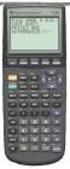 Calculator Activity Intro Getting to know your TI-83 Press ON to begin using calculator.to stop, press 2 nd ON. To darken the screen, press 2 nd alternately. To lighten the screen, press nd 2 alternately.
South Carolina College- and Career-Ready (SCCCR) Pre-Calculus
 South Carolina College- and Career-Ready (SCCCR) Pre-Calculus Key Concepts Arithmetic with Polynomials and Rational Expressions PC.AAPR.2 PC.AAPR.3 PC.AAPR.4 PC.AAPR.5 PC.AAPR.6 PC.AAPR.7 Standards Know
Trigonometry Review with the Unit Circle: All the trig. you ll ever need to know in Calculus
 Trigonometry Review with the Unit Circle: All the trig. you ll ever need to know in Calculus Objectives: This is your review of trigonometry: angles, six trig. functions, identities and formulas, graphs:
Activity 6 Graphing Linear Equations
 Activity 6 Graphing Linear Equations TEACHER NOTES Topic Area: Algebra NCTM Standard: Represent and analyze mathematical situations and structures using algebraic symbols Objective: The student will be
Calculator Notes for the TI-Nspire and TI-Nspire CAS
 CHAPTER 13 Calculator Notes for the Note 13A: Unit Circle Complete the following steps to graph the unit circle using parametric equations. a. Make sure your handheld is in Degree mode. If you need help
Semester 2, Unit 4: Activity 21
 Resources: SpringBoard- PreCalculus Online Resources: PreCalculus Springboard Text Unit 4 Vocabulary: Identity Pythagorean Identity Trigonometric Identity Cofunction Identity Sum and Difference Identities
Trigonometric Functions: The Unit Circle
 Trigonometric Functions: The Unit Circle This chapter deals with the subject of trigonometry, which likely had its origins in the study of distances and angles by the ancient Greeks. The word trigonometry
For another way to generate recursive sequences, see Calculator Note 1D.
 !"# If you want to do further calculation on a result you ve just found, and that result is the first number in the expression you now want to evaluate, you can simply continue the expression. For example,
D.3. Angles and Degree Measure. Review of Trigonometric Functions
 APPENDIX D Precalculus Review D7 SECTION D. Review of Trigonometric Functions Angles and Degree Measure Radian Measure The Trigonometric Functions Evaluating Trigonometric Functions Solving Trigonometric
Trigonometry LESSON ONE - Degrees and Radians Lesson Notes
 210 180 = 7 6 Trigonometry Example 1 Define each term or phrase and draw a sample angle. Angle Definitions a) angle in standard position: Draw a standard position angle,. b) positive and negative angles:
PRE-CALCULUS GRADE 12
 PRE-CALCULUS GRADE 12 [C] Communication Trigonometry General Outcome: Develop trigonometric reasoning. A1. Demonstrate an understanding of angles in standard position, expressed in degrees and radians.
Solutions to Exercises, Section 5.1
 Instructor s Solutions Manual, Section 5.1 Exercise 1 Solutions to Exercises, Section 5.1 1. Find all numbers t such that ( 1 3,t) is a point on the unit circle. For ( 1 3,t)to be a point on the unit circle
1. Introduction sine, cosine, tangent, cotangent, secant, and cosecant periodic
 1. Introduction There are six trigonometric functions: sine, cosine, tangent, cotangent, secant, and cosecant; abbreviated as sin, cos, tan, cot, sec, and csc respectively. These are functions of a single
Thnkwell s Homeschool Precalculus Course Lesson Plan: 36 weeks
 Thnkwell s Homeschool Precalculus Course Lesson Plan: 36 weeks Welcome to Thinkwell s Homeschool Precalculus! We re thrilled that you ve decided to make us part of your homeschool curriculum. This lesson
Georgia Department of Education Kathy Cox, State Superintendent of Schools 7/19/2005 All Rights Reserved 1
 Accelerated Mathematics 3 This is a course in precalculus and statistics, designed to prepare students to take AB or BC Advanced Placement Calculus. It includes rational, circular trigonometric, and inverse
Birmingham City Schools
 Activity 1 Classroom Rules & Regulations Policies & Procedures Course Curriculum / Syllabus LTF Activity: Interval Notation (Precal) 2 Pre-Assessment 3 & 4 1.2 Functions and Their Properties 5 LTF Activity:
Math Placement Test Practice Problems
 Math Placement Test Practice Problems The following problems cover material that is used on the math placement test to place students into Math 1111 College Algebra, Math 1113 Precalculus, and Math 2211
Academic Support Center. Using the TI-83/84+ Graphing Calculator PART II
 Academic Support Center Using the TI-83/84+ Graphing Calculator PART II Designed and Prepared by The Academic Support Center Revised June 2012 1 Using the Graphing Calculator (TI-83+ or TI-84+) Table of
Guide for Texas Instruments TI-83, TI-83 Plus, or TI-84 Plus Graphing Calculator
 Guide for Texas Instruments TI-83, TI-83 Plus, or TI-84 Plus Graphing Calculator This Guide is designed to offer step-by-step instruction for using your TI-83, TI-83 Plus, or TI-84 Plus graphing calculator
ANALYTICAL METHODS FOR ENGINEERS
 UNIT 1: Unit code: QCF Level: 4 Credit value: 15 ANALYTICAL METHODS FOR ENGINEERS A/601/1401 OUTCOME - TRIGONOMETRIC METHODS TUTORIAL 1 SINUSOIDAL FUNCTION Be able to analyse and model engineering situations
Trigonometry Hard Problems
 Solve the problem. This problem is very difficult to understand. Let s see if we can make sense of it. Note that there are multiple interpretations of the problem and that they are all unsatisfactory.
Finding Equations of Sinusoidal Functions From Real-World Data
 Finding Equations of Sinusoidal Functions From Real-World Data **Note: Throughout this handout you will be asked to use your graphing calculator to verify certain results, but be aware that you will NOT
Pre-Calculus Graphing Calculator Handbook
 Pre-Calculus Graphing Calculator Handbook I. Graphing Functions A. Button for Functions This button is used to enter any function to be graphed. You can enter up to 10 different functions at a time. Use
Algebra and Geometry Review (61 topics, no due date)
 Course Name: Math 112 Credit Exam LA Tech University Course Code: ALEKS Course: Trigonometry Instructor: Course Dates: Course Content: 159 topics Algebra and Geometry Review (61 topics, no due date) Properties
Projectile motion simulator. http://www.walter-fendt.de/ph11e/projectile.htm
 More Chapter 3 Projectile motion simulator http://www.walter-fendt.de/ph11e/projectile.htm The equations of motion for constant acceleration from chapter 2 are valid separately for both motion in the x
1 TRIGONOMETRY. 1.0 Introduction. 1.1 Sum and product formulae. Objectives
 TRIGONOMETRY Chapter Trigonometry Objectives After studying this chapter you should be able to handle with confidence a wide range of trigonometric identities; be able to express linear combinations of
The University of the State of New York REGENTS HIGH SCHOOL EXAMINATION MATHEMATICS B. Thursday, January 29, 2004 9:15 a.m. to 12:15 p.m.
 The University of the State of New York REGENTS HIGH SCHOOL EXAMINATION MATHEMATICS B Thursday, January 9, 004 9:15 a.m. to 1:15 p.m., only Print Your Name: Print Your School s Name: Print your name and
Definition: A vector is a directed line segment that has and. Each vector has an initial point and a terminal point.
 6.1 Vectors in the Plane PreCalculus 6.1 VECTORS IN THE PLANE Learning Targets: 1. Find the component form and the magnitude of a vector.. Perform addition and scalar multiplication of two vectors. 3.
APPLYING PRE-CALCULUS/CALCULUS SHARP EL-9600. Graphing Calculator DAVID P. LAWRENCE
 APPLYING PRE-CALCULUS/CALCULUS SHARP U S I N G T H E EL-9600 Graphing Calculator DAVID P. LAWRENCE Applying PRE-CALCULUS/CALCULUS using the SHARP EL-9600 GRAPHING CALCULATOR David P. Lawrence Southwestern
Section 5-9 Inverse Trigonometric Functions
 46 5 TRIGONOMETRIC FUNCTIONS Section 5-9 Inverse Trigonometric Functions Inverse Sine Function Inverse Cosine Function Inverse Tangent Function Summar Inverse Cotangent, Secant, and Cosecant Functions
Simple Harmonic Motion Experiment. 1 f
 Simple Harmonic Motion Experiment In this experiment, a motion sensor is used to measure the position of an oscillating mass as a function of time. The frequency of oscillations will be obtained by measuring
Find the length of the arc on a circle of radius r intercepted by a central angle θ. Round to two decimal places.
 SECTION.1 Simplify. 1. 7π π. 5π 6 + π Find the measure of the angle in degrees between the hour hand and the minute hand of a clock at the time shown. Measure the angle in the clockwise direction.. 1:0.
Angles and Quadrants. Angle Relationships and Degree Measurement. Chapter 7: Trigonometry
 Chapter 7: Trigonometry Trigonometry is the study of angles and how they can be used as a means of indirect measurement, that is, the measurement of a distance where it is not practical or even possible
V. Systems of Equations and Inequalities
 VIRGINIA DEPARTMENT OF EDUCATION Worksheets to accompany Videos VIRGINIA STANDARDS OF LEARNING MATHEMATICS AND THE TEXAS INSTRUMENT GRAPHING CALCULATOR Worksheets for SIX PROGRAMS Written by Ellen S. Hook
Periodic wave in spatial domain - length scale is wavelength Given symbol l y
 1.4 Periodic Waves Often have situations where wave repeats at regular intervals Electromagnetic wave in optical fibre Sound from a guitar string. These regularly repeating waves are known as periodic
Right Triangle Trigonometry
 Section 6.4 OBJECTIVE : Right Triangle Trigonometry Understanding the Right Triangle Definitions of the Trigonometric Functions otenuse osite side otenuse acent side acent side osite side We will be concerned
Period of Trigonometric Functions
 Period of Trigonometric Functions In previous lessons we have learned how to translate any primary trigonometric function horizontally or vertically, and how to Stretch Vertically (change Amplitude). In
Graphing Trigonometric Skills
 Name Period Date Show all work neatly on separate paper. (You may use both sides of your paper.) Problems should be labeled clearly. If I can t find a problem, I ll assume it s not there, so USE THE TEMPLATE
Prentice Hall Mathematics: Algebra 2 2007 Correlated to: Utah Core Curriculum for Math, Intermediate Algebra (Secondary)
 Core Standards of the Course Standard 1 Students will acquire number sense and perform operations with real and complex numbers. Objective 1.1 Compute fluently and make reasonable estimates. 1. Simplify
Solutions to old Exam 1 problems
 Solutions to old Exam 1 problems Hi students! I am putting this old version of my review for the first midterm review, place and time to be announced. Check for updates on the web site as to which sections
Polynomial Degree and Finite Differences
 CONDENSED LESSON 7.1 Polynomial Degree and Finite Differences In this lesson you will learn the terminology associated with polynomials use the finite differences method to determine the degree of a polynomial
Calculator Notes for the TI-89, TI-92 Plus, and Voyage 200
 CHAPTER 8 Note 8A Changing Mode Calculator Notes for the TI-89, TI-92 Plus, and Voyage 200 For your work in this chapter, check and change, if necessary, three settings. a. Press MODE. In the first line,
http://school-maths.com Gerrit Stols
 For more info and downloads go to: http://school-maths.com Gerrit Stols Acknowledgements GeoGebra is dynamic mathematics open source (free) software for learning and teaching mathematics in schools. It
RIGHT TRIANGLE TRIGONOMETRY
 RIGHT TRIANGLE TRIGONOMETRY The word Trigonometry can be broken into the parts Tri, gon, and metry, which means Three angle measurement, or equivalently Triangle measurement. Throughout this unit, we will
Practice Test SHM with Answers
 Practice Test SHM with Answers MPC 1) If we double the frequency of a system undergoing simple harmonic motion, which of the following statements about that system are true? (There could be more than one
Part V: Texas Instruments TI-92, TI-92 Plus, Voyage 200
 Part V: Texas Instruments TI-92, TI-92 Plus, Voyage 200 V.1 Getting started with the TI-92, TI-92 Plus, Voyage 200 Note: All keystroke sequences given for the Voyage 200 are applicable to the TI-92 and
Physics 231 Lecture 15
 Physics 31 ecture 15 Main points of today s lecture: Simple harmonic motion Mass and Spring Pendulum Circular motion T 1/f; f 1/ T; ω πf for mass and spring ω x Acos( ωt) v ωasin( ωt) x ax ω Acos( ωt)
ALGEBRA 2/TRIGONOMETRY
 ALGEBRA /TRIGONOMETRY The University of the State of New York REGENTS HIGH SCHOOL EXAMINATION ALGEBRA /TRIGONOMETRY Thursday, January 9, 015 9:15 a.m to 1:15 p.m., only Student Name: School Name: The possession
Algebra. Exponents. Absolute Value. Simplify each of the following as much as possible. 2x y x + y y. xxx 3. x x x xx x. 1. Evaluate 5 and 123
 Algebra Eponents Simplify each of the following as much as possible. 1 4 9 4 y + y y. 1 5. 1 5 4. y + y 4 5 6 5. + 1 4 9 10 1 7 9 0 Absolute Value Evaluate 5 and 1. Eliminate the absolute value bars from
FX 115 MS Training guide. FX 115 MS Calculator. Applicable activities. Quick Reference Guide (inside the calculator cover)
 Tools FX 115 MS Calculator Handouts Other materials Applicable activities Quick Reference Guide (inside the calculator cover) Key Points/ Overview Advanced scientific calculator Two line display VPAM to
Functions Modeling Change: A Precalculus Course. Marcel B. Finan Arkansas Tech University c All Rights Reserved
 Functions Modeling Change: A Precalculus Course Marcel B. Finan Arkansas Tech University c All Rights Reserved 1 PREFACE This supplement consists of my lectures of a freshmen-level mathematics class offered
Higher Education Math Placement
 Higher Education Math Placement Placement Assessment Problem Types 1. Whole Numbers, Fractions, and Decimals 1.1 Operations with Whole Numbers Addition with carry Subtraction with borrowing Multiplication
= f x 1 + h. 3. Geometrically, the average rate of change is the slope of the secant line connecting the pts (x 1 )).
 Math 1205 Calculus/Sec. 3.3 The Derivative as a Rates of Change I. Review A. Average Rate of Change 1. The average rate of change of y=f(x) wrt x over the interval [x 1, x 2 ]is!y!x ( ) - f( x 1 ) = y
Microsoft Excel Tutorial
 Microsoft Excel Tutorial by Dr. James E. Parks Department of Physics and Astronomy 401 Nielsen Physics Building The University of Tennessee Knoxville, Tennessee 37996-1200 Copyright August, 2000 by James
Calculator Notes for the CFX-9850GB Plus
 CHAPTER 1 Calculator Notes for the Note 1A Entering Lists The calculator contains six folders, each with six preset lists. You can enter 255 elements into a list if enough memory is available. You can
TI-Nspire CAS Graphing Calculator
 TI-Nspire CAS Graphing Calculator Contents Opening a New Document 2 Setting Auto/Approximate Mode 2 Setting Degree Mode 2 Copying and Pasting a Expression or Equation 3 Accessing the Catalogue 3 Defining
Pre-Calculus Semester 1 Course Syllabus
 Pre-Calculus Semester 1 Course Syllabus The Plano ISD eschool Mission is to create a borderless classroom based on a positive student-teacher relationship that fosters independent, innovative critical
Topic Area: Circles. Definitions. Formulas Distance Formula: D = ( x x ) + ( y ) Equation of a Circle: Activity 8 Algebra II with the Casio fx-9750gii
 Where Did That Come From? Teacher Notes Topic Area: Circles NCTM Standards: Use symbolic algebra to represent and explain mathematical relationships. Use geometric models to gain insights into, and answer
Give an expression that generates all angles coterminal with the given angle. Let n represent any integer. 9) 179
 Trigonometry Chapters 1 & 2 Test 1 Name Provide an appropriate response. 1) Find the supplement of an angle whose measure is 7. Find the measure of each angle in the problem. 2) Perform the calculation.
Pre Calculus Math 40S: Explained!
 www.math40s.com 7 Part I Ferris Wheels One of the most common application questions for graphing trigonometric functions involves Ferris wheels, since the up and down motion of a rider follows the shape
Slope and Rate of Change
 Chapter 1 Slope and Rate of Change Chapter Summary and Goal This chapter will start with a discussion of slopes and the tangent line. This will rapidly lead to heuristic developments of limits and the
Simple Harmonic Motion(SHM) Period and Frequency. Period and Frequency. Cosines and Sines
 Simple Harmonic Motion(SHM) Vibration (oscillation) Equilibrium position position of the natural length of a spring Amplitude maximum displacement Period and Frequency Period (T) Time for one complete
G. GRAPHING FUNCTIONS
 G. GRAPHING FUNCTIONS To get a quick insight int o how the graph of a function looks, it is very helpful to know how certain simple operations on the graph are related to the way the function epression
Estimated Pre Calculus Pacing Timeline
 Estimated Pre Calculus Pacing Timeline 2010-2011 School Year The timeframes listed on this calendar are estimates based on a fifty-minute class period. You may need to adjust some of them from time to
Lesson 3 Using the Sine Function to Model Periodic Graphs
 Lesson 3 Using the Sine Function to Model Periodic Graphs Objectives After completing this lesson you should 1. Know that the sine function is one of a family of functions which is used to model periodic
AP1 Oscillations. 1. Which of the following statements about a spring-block oscillator in simple harmonic motion about its equilibrium point is false?
 1. Which of the following statements about a spring-block oscillator in simple harmonic motion about its equilibrium point is false? (A) The displacement is directly related to the acceleration. (B) The
correct-choice plot f(x) and draw an approximate tangent line at x = a and use geometry to estimate its slope comment The choices were:
 Topic 1 2.1 mode MultipleSelection text How can we approximate the slope of the tangent line to f(x) at a point x = a? This is a Multiple selection question, so you need to check all of the answers that
Analog and Digital Signals, Time and Frequency Representation of Signals
 1 Analog and Digital Signals, Time and Frequency Representation of Signals Required reading: Garcia 3.1, 3.2 CSE 3213, Fall 2010 Instructor: N. Vlajic 2 Data vs. Signal Analog vs. Digital Analog Signals
Introduction Assignment
 PRE-CALCULUS 11 Introduction Assignment Welcome to PREC 11! This assignment will help you review some topics from a previous math course and introduce you to some of the topics that you ll be studying
4.3 & 4.8 Right Triangle Trigonometry. Anatomy of Right Triangles
 4.3 & 4.8 Right Triangle Trigonometry Anatomy of Right Triangles The right triangle shown at the right uses lower case a, b and c for its sides with c being the hypotenuse. The sides a and b are referred
y cos 3 x dx y cos 2 x cos x dx y 1 sin 2 x cos x dx
 Trigonometric Integrals In this section we use trigonometric identities to integrate certain combinations of trigonometric functions. We start with powers of sine and cosine. EXAMPLE Evaluate cos 3 x dx.
Readings this week. 1 Parametric Equations Supplement. 2 Section 10.1. 3 Sections 2.1-2.2. Professor Christopher Hoffman Math 124
 Readings this week 1 Parametric Equations Supplement 2 Section 10.1 3 Sections 2.1-2.2 Precalculus Review Quiz session Thursday equations of lines and circles worksheet available at http://www.math.washington.edu/
SAMPLE. Computer Algebra System (Classpad 330 using OS 3 or above) Application selector. Icolns that access working zones. Icon panel (Master toolbar)
 A P P E N D I X B Computer Algebra System (Classpad 330 using OS 3 or above) B.1 Introduction For reference material on basic operations of the calculator, refer to the free downloadable documentation
Simple Harmonic Motion
 Simple Harmonic Motion 1 Object To determine the period of motion of objects that are executing simple harmonic motion and to check the theoretical prediction of such periods. 2 Apparatus Assorted weights
The Fourier Analysis Tool in Microsoft Excel
 The Fourier Analysis Tool in Microsoft Excel Douglas A. Kerr Issue March 4, 2009 ABSTRACT AD ITRODUCTIO The spreadsheet application Microsoft Excel includes a tool that will calculate the discrete Fourier
AP Physics C. Oscillations/SHM Review Packet
 AP Physics C Oscillations/SHM Review Packet 1. A 0.5 kg mass on a spring has a displacement as a function of time given by the equation x(t) = 0.8Cos(πt). Find the following: a. The time for one complete
Solving Simultaneous Equations and Matrices
 Solving Simultaneous Equations and Matrices The following represents a systematic investigation for the steps used to solve two simultaneous linear equations in two unknowns. The motivation for considering
PHY121 #8 Midterm I 3.06.2013
 PHY11 #8 Midterm I 3.06.013 AP Physics- Newton s Laws AP Exam Multiple Choice Questions #1 #4 1. When the frictionless system shown above is accelerated by an applied force of magnitude F, the tension
Trigonometric Functions
 Trigonometric Functions 13A Trigonometry and Angles 13-1 Right-Angle Trigonometry 13- Angles of Rotation Lab Explore the Unit Circle 13-3 The Unit Circle 13-4 Inverses of Trigonometric Functions 13B Applying
Chapter 3 Falling Objects and Projectile Motion
 Chapter 3 Falling Objects and Projectile Motion Gravity influences motion in a particular way. How does a dropped object behave?!does the object accelerate, or is the speed constant?!do two objects behave
Unit 7 Quadratic Relations of the Form y = ax 2 + bx + c
 Unit 7 Quadratic Relations of the Form y = ax 2 + bx + c Lesson Outline BIG PICTURE Students will: manipulate algebraic expressions, as needed to understand quadratic relations; identify characteristics
I. Turn it on: Press É
 Graphing Calculator Guide for the TI-83/84 Plus The following pages describe how to use the calculator to graph functions, use some of the matrix menu, use scientific notation, and other various keys.
AS COMPETITION PAPER 2008
 AS COMPETITION PAPER 28 Name School Town & County Total Mark/5 Time Allowed: One hour Attempt as many questions as you can. Write your answers on this question paper. Marks allocated for each question
Programming Your Calculator Casio fx-7400g PLUS
 Programming Your Calculator Casio fx-7400g PLUS Barry Kissane Programming Your Calculator: Casio fx-7400g PLUS Published by Shriro Australia Pty Limited 72-74 Gibbes Street, Chatswood NSW 2067, Australia
TRIGONOMETRY FOR ANIMATION
 TRIGONOMETRY FOR ANIMATION What is Trigonometry? Trigonometry is basically the study of triangles and the relationship of their sides and angles. For example, if you take any triangle and make one of the
Spring Simple Harmonic Oscillator. Spring constant. Potential Energy stored in a Spring. Understanding oscillations. Understanding oscillations
 Spring Simple Harmonic Oscillator Simple Harmonic Oscillations and Resonance We have an object attached to a spring. The object is on a horizontal frictionless surface. We move the object so the spring
Function Name Algebra. Parent Function. Characteristics. Harold s Parent Functions Cheat Sheet 28 December 2015
 Harold s s Cheat Sheet 8 December 05 Algebra Constant Linear Identity f(x) c f(x) x Range: [c, c] Undefined (asymptote) Restrictions: c is a real number Ay + B 0 g(x) x Restrictions: m 0 General Fms: Ax
SAT Subject Math Level 2 Facts & Formulas
 Numbers, Sequences, Factors Integers:..., -3, -2, -1, 0, 1, 2, 3,... Reals: integers plus fractions, decimals, and irrationals ( 2, 3, π, etc.) Order Of Operations: Arithmetic Sequences: PEMDAS (Parentheses
In order to describe motion you need to describe the following properties.
 Chapter 2 One Dimensional Kinematics How would you describe the following motion? Ex: random 1-D path speeding up and slowing down In order to describe motion you need to describe the following properties.
How Does My TI-84 Do That
 How Does My TI-84 Do That A guide to using the TI-84 for statistics Austin Peay State University Clarksville, Tennessee How Does My TI-84 Do That A guide to using the TI-84 for statistics Table of Contents
EL-9650/9600c/9450/9400 Handbook Vol. 1
 Graphing Calculator EL-9650/9600c/9450/9400 Handbook Vol. Algebra EL-9650 EL-9450 Contents. Linear Equations - Slope and Intercept of Linear Equations -2 Parallel and Perpendicular Lines 2. Quadratic Equations
Section 2.4 Law of Sines and Cosines
 Section.4 Law of Sines and osines Oblique Triangle A triangle that is not a right triangle, either acute or obtuse. The measures of the three sides and the three angles of a triangle can be found if at
B) 286 m C) 325 m D) 367 m Answer: B
 Practice Midterm 1 1) When a parachutist jumps from an airplane, he eventually reaches a constant speed, called the terminal velocity. This means that A) the acceleration is equal to g. B) the force of
Graphs of Polar Equations
 Graphs of Polar Equations In the last section, we learned how to graph a point with polar coordinates (r, θ). We will now look at graphing polar equations. Just as a quick review, the polar coordinate
ENGINEERING COUNCIL DYNAMICS OF MECHANICAL SYSTEMS D225 TUTORIAL 1 LINEAR AND ANGULAR DISPLACEMENT, VELOCITY AND ACCELERATION
 ENGINEERING COUNCIL DYNAMICS OF MECHANICAL SYSTEMS D225 TUTORIAL 1 LINEAR AND ANGULAR DISPLACEMENT, VELOCITY AND ACCELERATION This tutorial covers pre-requisite material and should be skipped if you are
GeoGebra. 10 lessons. Gerrit Stols
 GeoGebra in 10 lessons Gerrit Stols Acknowledgements GeoGebra is dynamic mathematics open source (free) software for learning and teaching mathematics in schools. It was developed by Markus Hohenwarter
Maximum Range Explained range Figure 1 Figure 1: Trajectory Plot for Angled-Launched Projectiles Table 1
 Maximum Range Explained A projectile is an airborne object that is under the sole influence of gravity. As it rises and falls, air resistance has a negligible effect. The distance traveled horizontally
Mathematics as Problem Solving The students will demonstrate the ability to gather information from a graphical representation of an equation.
 Title: Another Way of Factoring Brief Overview: Students will find factors for quadratic equations with a leading coefficient of one. The students will then graph these equations using a graphing calculator
04 Mathematics CO-SG-FLD004-03. Program for Licensing Assessments for Colorado Educators
 04 Mathematics CO-SG-FLD004-03 Program for Licensing Assessments for Colorado Educators Readers should be advised that this study guide, including many of the excerpts used herein, is protected by federal
Project: OUTFIELD FENCES
 1 Project: OUTFIELD FENCES DESCRIPTION: In this project you will work with the equations of projectile motion and use mathematical models to analyze a design problem. Two softball fields in Rolla, Missouri