
Introduction to the Graphing Calculator
|
|
|
- Hope Marshall
- 10 years ago
- Views:
Transcription
1 Unit 0 Introduction to the Graphing Calculator

2 Intermediate Algebra Update 2/06/06 Unit 0 Activity 1: Introduction to Computation on a Graphing Calculator Why: As technology becomes integrated into all parts of society, many mathematical problems can now be solved using computers and graphing calculators. Learning to use technology to solve mathematical problems is one of our goals in Intermediate Algebra. Using technology effectively is much more than punching buttons on a computer keyboard or calculator. This activity will introduce you to computing on a Texas Instruments (TI) graphing calculator. You will see that learning to use a calculator involves a good understanding of the order of operations. You will have to interpret where to put parenthesis in order to tell the calculator what to do. This involves analysis and forethought on your part. Learning Objectives: 1) Use the 2 nd and the ALPHA keys to access additional calculator functions. 2) Use the MATH menu to work with fractions. 2) Use the calculator to evaluate expressions with hidden or implied parenthesis. Warm-Up: Notes: Each button on the calculator has two or more functions. One is printed on the button, the others are in color and in smaller font above the button. These functions can be accessed by first pushing the 2 nd key or the ALPHA key, whichever corresponds to the color of the function you want to access. 1. Practice turning the calculator on and off, using the 2 nd key as necessary. Notice that the 2 nd key puts a small arrow in the cursor. 2. This semester we will be working with lists of data. To keep track of the lists, we will name them. Typing a name requires the use of the ALPHA key. Practice typing the word math by using the ALPHA key. Notice that the ALPHA key puts a small A in the cursor. Delete the h in math by using the left arrow < and DEL (On the TI-89 just hit the next to the CLEAR button.) Now erase the rest of the word in one swipe by hitting CLEAR. Group Exercise: 1) Working with fractions by using menus: Find the exact answer to then follow the instructions on the next page to do this problem on your calculator.

3 Instructions for working with fractions on the TI-calculators TI-83 TI-86 TI-89 Type ENTER To convert the approximate decimal answer to an exact fraction, choose the MATH menu by hitting MATH. Within the MATH menu, choose >FRAC (Since this is the first option, it will be highlighted already; choose it by hitting ENTER.) Type ENTER To convert the approximate decimal answer to an exact fraction, choose the MATH menu by hitting MATH. (MATH is in yellow above the X, so hit 2 nd then X.) Within the MATH menu, choose MISC by hitting F5. Hit MORE to scroll through this submenu. Choose >Frac by hitting F1. Then hit ENTER. See the note on the next page for a short-cut. To do fractions on the TI-89, choose the appropriate MODE by hitting MODE and move to the second page of this menu by hitting F2. Use the arrows to scroll down to Exact/Approx. Use the right arrow to choose AUTO and hit ENTER. Now hit ENTER a second time to return to the home screen. AUTO mode will automatically give fraction answers. Type ENTER To convert to decimal answers, hit the green diamond before ENTER. A special note to TI-86 users: Since we will be working with fractions quite a bit, you may want to set up the following fraction short-cut on your calculator. You will only need to do this once. Choose CATLG/VARS by hitting 2 nd CUSTOM. Choose CATALOG by hitting F1. Choose the CUSTOM menu by hitting F3. Scroll down until the cursor points to >Frac. Then hit any F key to paste the >Frac command into the CUSTOM menu. Now QUIT out of the CUSTOM menu by hitting 2 nd EXIT. Now let s add the fractions using this short-cut. Type ENTER. Hit CUSTOM and choose the F key underneath the >Frac and hit ENTER. 2. Using parenthesis in computation: a) Compute ( 2 3 ) 4 by hand and leave your answer in fraction form. i.) Check your answer by computing ( 2 3) 4 with the calculator; use parentheses and convert your answer to fraction form. ii.) Now try the same keystrokes without the parenthesis: 2 3 ^ 4. Do you get the same answer? Convert your answer to a fraction. How does the calculator interpret the instructions 2 3 ^ 4?

4 b) Approximate! +1 using mental math. Is it more than or less than 2? Why? i.) Check your estimate by computing! +1 with the calculator. Note that this problem has hidden or implied parenthesis inside the square root, i.e. (! +1). The TI-83 and TI-89 will automatically open parenthesis after you hit hit and then ( before typing! +1. ; TI-86 users will have to ii.) Try to convert this answer to a fraction. What happens? Why can t the calculator convert this answer to a fraction? c) Approximate 2 3π using mental math. Is your approximation an underestimate or overestimate? How do you know? i.) Check your estimate by computing 2 3! with the calculator. Note that this problem also has hidden or implied parenthesis, i.e. 2 ( 3! ). ii.) Try to convert this answer to a fraction. What happens? Why can t the calculator convert this answer to a fraction? iii.) Now try the same keystrokes without the parenthesis: 2^3!". Do you get the same answer? How does the calculator interpret the instructions 2^3!"? d) Compute by hand. i.) Check your answer by computing with the calculator. Where are the hidden or implied parenthesis in this expression? ii.) Now try the same key strokes without parenthesis; enter Do you get the same answer? How does the calculator interpret the instructions ? e) Compute by hand the value of x 2 when x = -4. Is your answer positive or negative? Why? i.) Use your calculator to compute the value of x 2 when x = -4. Where are the hidden or implied parenthesis? ii.) Now try the same keystrokes without parenthesis; enter - 4 ^ 2. Do you get the same answer? How does the calculator interpret the instructions - 4 ^ 2?

5 Practice: Use your calculator to evaluate the following expressions. Enter the entire expression before hitting ENTER so that you make yourself practice the use of hidden parenthesis. Check your work by 1) working the problem by hand and 2) by comparing with a classmate. In the box with each problem, enter the expression just as you did in the calculator. 1) b 2! a 2 where b = 5 and a = - 4 Remember: only hit ENTER once to make yourself practice with hidden parenthesis! 2) b 2! 5 where b = -7 2 hidden parenthesis! Remember: only hit ENTER once to make yourself practice with 3) b 2! 5 2 where b = 3 Remember: only hit ENTER once! 3) b 2! 4ac where a =3, b = 5, c = 2 Remember: only hit ENTER once! 4) b 2 + 2ac 2 where a = -2, b = -8, c = 7 Remember: only hit ENTER once! 5) b + b 2! 4ac 2a where a =3, b =- 5, c = 2 Remember: only hit ENTER once! You can do it!! )

6 Intermediate Algebra Update 1/07/05 Unit 0 Activity 2: Introduction to Graphing on a Graphing Calculator Why: To be mathematically literate in today s society, you need to be able to analyze and interpret graphs. So in Intermediate Algebra we will investigate mathematical ideas by constructing graphs. This activity will introduce you to graphing with a Texas Instruments (TI) graphing calculator. Again you will find the effective use of technology involves a lot of critical thinking. Learning Objectives: 3) Use the menus of the graphing calculator to generate a graph. 4) Produce a graph with a window that is appropriate to the problem scenario. Warm-Up: Corporate profits, in billions of dollars, can be modeled by the equation y = x, where x is the years from Analyze the graph of this equation to answer the following questions. Corporate Profits 1. To generate this graph what is XMIN? XMAX? XSCL? 2. What is YMIN? YMAX? YSCL? Profits (billions of dollars) 3. What were corporate profits in 1990? 4. When were corporate profits double the 1990 figure? Years after Circle what you would change in the window settings to answer the following questions. Then circle increase or decrease to describe how you would change the setting you circled. You do not need to answer the questions. a. What year does this model predict corporations will have a profit of a trillion dollars? XMIN XMAX XSCL YMIN YMAX YSCL INCREASE DECREASE b. According to this model, when did corporations break even? XMIN XMAX XSCL YMIN YMAX YSCL INCREASE DECREASE c. When were corporations operating at a loss of 200 billion? XMIN XMAX XSCL YMIN YMAX YSCL INCREASE DECREASE d. What will corporate profits be in the year 2010? XMIN XMAX XSCL YMIN YMAX YSCL INCREASE DECREASE

7 Group Exercise: 1) Graphing an equation: Graphing an equation requires two steps: 1) entering the equation and 2) setting an appropriate window to view the graph. Let s learn to graph on the graphing calculator by reproducing the previous graph of corporate profits STEP 1: Follow the instructions to enter the equation. TI-83 Plus TI-86 TI-89 Enter the equation by hitting Graph Choose y= by hitting F1. Type-in the equation using x-var for the variable x. Enter the equation by hitting Y = (first blue key in top row) Type-in the equation using X,T,!,n for the variable x. Enter the equation by choosing Y = ; hit the green diamond then F1, Type-in the equation. STEP 2: Follow the instructions to set a window. TI-83 Plus TI-86 TI-89 Set a window to view the graph by hitting Window (second blue key in top row). Enter values for XMIN, XMAX, XSCL, etc. Now graph by hitting Graph (last blue key in top row). Now set a window to view the graph by hitting 2 nd F2 (You hit 2 nd because WIND is in the top row of the menu.) Set XMIN, XMAX, etc. Now choose Graph by hitting F5. Now set a window to view the graph by hitting the green diamond and F2 to choose WINDOW. Set XMIN, XMAX, etc. Now choose GRAPH by hitting the green diamond and F3. Practice: 1) Set your window to standard settings (XMIN = -10, XMAX =10, XSCL = 1; YMIN = -10, YMAX = 10, YSCL = 1). Graph the equation y = x 2 + x! 14. a) A complete graph of this equation will show a parabola. Change the settings of your window so that you can see the two x-intercepts (where the graph crosses the x-axis), the y- intercept, and the vertex (low point). Record your new settings below. XMIN XMAX XSCL YMIN YMAX YSCL b) Find the exact values of the x-intercepts by following the instructions below. TI-83 Plus TI-86 TI-89 After graphing the equation, choose Calc (2 nd, Trace). Choose #2 (Zero) Left Bound? [Use the arrows to move the cursor so the x-coordinate is to left of x-intercept, press ENTER]; Right Bound? [Move the cursor so the x-coordinate is to right of x- intercept, press ENTER ]; Guess? [Locate cursor near the x- intercept. Press ENTER] Calculator tells you the x- and y- coordinates of the x-intercept. After graphing the equation, stay in the graph menu, hit More (on Key pad). Choose Math (F1) Root (F1) Left Bound? [Move the cursor so the x-coordinate is to left of x- intercept, press ENTER]; Right Bound? [Move the cursor so the x-coordinate is to right of x- intercept, press ENTER]; Guess? [Locate cursor near the x- intercept. Press ENTER] Calculator tells you the x- and y- coordinates of the x-intercept. After graphing the equation, stay in the graph menu, choose Math F5. Choose Zero by pressing #2 Lower Bound? [Move the cursor so the x-coordinate is to left of x- intercept, press ENTER]; Upper Bound? [Move the cursor so the x-coordinate is to right of x- intercept, press ENTER]; Calculator tells you the x- and y- coordinates of the x-intercept. c) Find the exact value of the vertex by using the same instructions as above but this time choose minimum (TI-83 or TI-89) or FMIN on the TI-86.

8 2) A grocery store sells 4,000 cases of canned soup per year. By averaging costs to purchase soup and pay storage costs, the owner has determined that if c cases are ordered at a time, the yearly inventory cost in dollars I = g(c) can be modeled by 10, 000 I = g(c) = c + 3c. a) Reproduce this graph on your calculator. b) Use your calculator to find the number of cases of soup that should be purchased to minimize inventory costs. Yearly Inventory Cost Cases of Soup Ordered 3) A biologist takes several measurements of the amount of contaminant in a lake after a chemical spill and constructs the following model y =!48.75x + 645, where x is the number of hours after the spill and y is the concentration of contaminant in milligrams per milliliter. a) Graph this equation on your calculator. Find a window that makes sense given the context of this problem and that allows you to see the x-intercept and the y-intercept. Keep a transcript of the window settings you use and briefly explain your reasoning as you change settings in order to be able to see the intercepts. 1 st settings: XMIN XMAX XSCL YMIN YMAX YSCL Circle the settings need to change. How will you change the setting? Why? 2 nd settings: XMIN XMAX XSCL YMIN YMAX YSCL Circle the settings need to change. How will you change the setting? Why? Keep a transcript of the rest of your settings and your reasoning as you change them on the back of this page. b) Transcribe your graph into the grid. Clearly label the axes with a description of the variable and clearly show the scale. c) How much contaminant was originally released into the lake? Show this point on your graph. d) How long does it take the lake to be cleared of contaminant? Show this point on your graph.

Academic Support Center. Using the TI-83/84+ Graphing Calculator PART II
 Academic Support Center Using the TI-83/84+ Graphing Calculator PART II Designed and Prepared by The Academic Support Center Revised June 2012 1 Using the Graphing Calculator (TI-83+ or TI-84+) Table of
Math Tools Cell Phone Plans
 NATIONAL PARTNERSHIP FOR QUALITY AFTERSCHOOL LEARNING www.sedl.org/afterschool/toolkits Math Tools Cell Phone Plans..............................................................................................
Pre-Calculus Graphing Calculator Handbook
 Pre-Calculus Graphing Calculator Handbook I. Graphing Functions A. Button for Functions This button is used to enter any function to be graphed. You can enter up to 10 different functions at a time. Use
Getting to know your TI-83
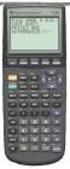 Calculator Activity Intro Getting to know your TI-83 Press ON to begin using calculator.to stop, press 2 nd ON. To darken the screen, press 2 nd alternately. To lighten the screen, press nd 2 alternately.
Guide for Texas Instruments TI-83, TI-83 Plus, or TI-84 Plus Graphing Calculator
 Guide for Texas Instruments TI-83, TI-83 Plus, or TI-84 Plus Graphing Calculator This Guide is designed to offer step-by-step instruction for using your TI-83, TI-83 Plus, or TI-84 Plus graphing calculator
Introductory Handbook for the TI-89 Titanium
 Introductory Handbook for the TI-89 Titanium Note: This handbook will, for the most part, work for the standard TI-89 as well. The color-coding used on the TI-89 differs from the color-coding used on the
I. Turn it on: Press É
 Graphing Calculator Guide for the TI-83/84 Plus The following pages describe how to use the calculator to graph functions, use some of the matrix menu, use scientific notation, and other various keys.
Unit 7 Quadratic Relations of the Form y = ax 2 + bx + c
 Unit 7 Quadratic Relations of the Form y = ax 2 + bx + c Lesson Outline BIG PICTURE Students will: manipulate algebraic expressions, as needed to understand quadratic relations; identify characteristics
Part V: Texas Instruments TI-92, TI-92 Plus, Voyage 200
 Part V: Texas Instruments TI-92, TI-92 Plus, Voyage 200 V.1 Getting started with the TI-92, TI-92 Plus, Voyage 200 Note: All keystroke sequences given for the Voyage 200 are applicable to the TI-92 and
Basic Use of the TI-84 Plus
 Basic Use of the TI-84 Plus Topics: Key Board Sections Key Functions Screen Contrast Numerical Calculations Order of Operations Built-In Templates MATH menu Scientific Notation The key VS the (-) Key Navigation
How To Use The Ti-83+/84+ Calculator For Math 111
 Using the TI-83+/84+ Graphing Calculator in Math 111 at Tacoma Community College Version 1.0 Scott MacDonald Copyright c 2005 by Scott MacDonald Permission is given to reproduce this document in whole
Activity 6 Graphing Linear Equations
 Activity 6 Graphing Linear Equations TEACHER NOTES Topic Area: Algebra NCTM Standard: Represent and analyze mathematical situations and structures using algebraic symbols Objective: The student will be
In the Herb Business, Part III Factoring and Quadratic Equations
 74 In the Herb Business, Part III Factoring and Quadratic Equations In the herbal medicine business, you and your partner sold 120 bottles of your best herbal medicine each week when you sold at your original
Basic Graphing Functions for the TI-83 and TI-84
 Basic Graphing Functions for the TI-83 and TI-84 The primary benefits of the TI-83 and TI-84 are the abilities to graph functions and to identify properties those functions possess. The purpose of this
This unit has primarily been about quadratics, and parabolas. Answer the following questions to aid yourselves in creating your own study guide.
 COLLEGE ALGEBRA UNIT 2 WRITING ASSIGNMENT This unit has primarily been about quadratics, and parabolas. Answer the following questions to aid yourselves in creating your own study guide. 1) What is the
EASY STEPS TO SUCCESS: A GRAPHING CALCULATOR GUIDE
 EASY STEPS TO SUCCESS: A GRAPHING CALCULATOR GUIDE TO ACCOMPANY MATHEMATICAL APPLICATIONS FOR THE MANAGEMENT, LIFE, AND SOCIAL SCIENCES EIGHTH EDITION HARSHBARGER/REYNOLDS LISA S. YOCCO Georgia Southern
FACTORING QUADRATICS 8.1.1 and 8.1.2
 FACTORING QUADRATICS 8.1.1 and 8.1.2 Chapter 8 introduces students to quadratic equations. These equations can be written in the form of y = ax 2 + bx + c and, when graphed, produce a curve called a parabola.
Lesson 3 Using the Sine Function to Model Periodic Graphs
 Lesson 3 Using the Sine Function to Model Periodic Graphs Objectives After completing this lesson you should 1. Know that the sine function is one of a family of functions which is used to model periodic
Calculator Notes for the TI-89, TI-92 Plus, and Voyage 200
 CHAPTER 1 Note 1A Reentry Calculator Notes for the TI-89, TI-92 Plus, and Voyage 200 If you want to do further calculation on a result you ve just found, and that result is the first number in the expression
Scatter Plot, Correlation, and Regression on the TI-83/84
 Scatter Plot, Correlation, and Regression on the TI-83/84 Summary: When you have a set of (x,y) data points and want to find the best equation to describe them, you are performing a regression. This page
Graphing Quadratic Functions
 Problem 1 The Parabola Examine the data in L 1 and L to the right. Let L 1 be the x- value and L be the y-values for a graph. 1. How are the x and y-values related? What pattern do you see? To enter the
Slope & y-intercept Discovery Activity
 TI-83 Graphing Calculator Activity Slope & y-intercept Discovery Activity Justin Vallone 11/2/05 In this activity, you will use your TI-83 graphing calculator to graph equations of lines. Follow the steps
LAYOUT OF THE KEYBOARD
 Dr. Charles Hofmann, LaSalle [email protected] Dr. Roseanne Hofmann, MCCC [email protected] ------------------------------------------------------------------------------------------------- DISPLAY CONTRAST
Introduction to the TI-Nspire CX
 Introduction to the TI-Nspire CX Activity Overview: In this activity, you will become familiar with the layout of the TI-Nspire CX. Step 1: Locate the Touchpad. The Touchpad is used to navigate the cursor
1.3. Maximum or Minimum of a Quadratic Function. Investigate A
 < P1-6 photo of a large arched bridge, similar to the one on page 292 or p 360-361of the fish book> Maximum or Minimum of a Quadratic Function 1.3 Some bridge arches are defined by quadratic functions.
How Does My TI-84 Do That
 How Does My TI-84 Do That A guide to using the TI-84 for statistics Austin Peay State University Clarksville, Tennessee How Does My TI-84 Do That A guide to using the TI-84 for statistics Table of Contents
6.2 Solving Nonlinear Equations
 6.2. SOLVING NONLINEAR EQUATIONS 399 6.2 Solving Nonlinear Equations We begin by introducing a property that will be used extensively in this and future sections. The zero product property. If the product
SAMPLE. Computer Algebra System (Classpad 330 using OS 3 or above) Application selector. Icolns that access working zones. Icon panel (Master toolbar)
 A P P E N D I X B Computer Algebra System (Classpad 330 using OS 3 or above) B.1 Introduction For reference material on basic operations of the calculator, refer to the free downloadable documentation
Quickstart for Desktop Version
 Quickstart for Desktop Version What is GeoGebra? Dynamic Mathematics Software in one easy-to-use package For learning and teaching at all levels of education Joins interactive 2D and 3D geometry, algebra,
DATA HANDLING AND ANALYSIS ON THE TI-82 AND TI-83/83 PLUS GRAPHING CALCULATORS:
 DATA HANDLING AND ANALYSIS ON THE TI-82 AND TI-83/83 PLUS GRAPHING CALCULATORS: A RESOURCE FOR SCIENCE AND MATHEMATICS STUDENTS John L. McClure Scott A. Sinex Barbara A. Gage Prince George s Community
Graphing Calculator Workshops
 Graphing Calculator Workshops For the TI-83/84 Classic Operating System & For the TI-84 New Operating System (MathPrint) LEARNING CENTER Overview Workshop I Learn the general layout of the calculator Graphing
Getting Started with Excel 2008. Table of Contents
 Table of Contents Elements of An Excel Document... 2 Resizing and Hiding Columns and Rows... 3 Using Panes to Create Spreadsheet Headers... 3 Using the AutoFill Command... 4 Using AutoFill for Sequences...
Mathematics as Problem Solving The students will demonstrate the ability to gather information from a graphical representation of an equation.
 Title: Another Way of Factoring Brief Overview: Students will find factors for quadratic equations with a leading coefficient of one. The students will then graph these equations using a graphing calculator
Equations, Lenses and Fractions
 46 Equations, Lenses and Fractions The study of lenses offers a good real world example of a relation with fractions we just can t avoid! Different uses of a simple lens that you may be familiar with are
The degree of a polynomial function is equal to the highest exponent found on the independent variables.
 DETAILED SOLUTIONS AND CONCEPTS - POLYNOMIAL FUNCTIONS Prepared by Ingrid Stewart, Ph.D., College of Southern Nevada Please Send Questions and Comments to [email protected]. Thank you! PLEASE NOTE
Intro to Excel spreadsheets
 Intro to Excel spreadsheets What are the objectives of this document? The objectives of document are: 1. Familiarize you with what a spreadsheet is, how it works, and what its capabilities are; 2. Using
(1) S = R, where S is the sum, i is the rate of interest per compounding
 Solving Annuity Formulas for Interest Rate Iterative Routines on the TI 83/84 Floyd Vest Basic to mathematics of finance is the formula for the sum of an ordinary annuity. The formula in traditional terminology
Definition: A vector is a directed line segment that has and. Each vector has an initial point and a terminal point.
 6.1 Vectors in the Plane PreCalculus 6.1 VECTORS IN THE PLANE Learning Targets: 1. Find the component form and the magnitude of a vector.. Perform addition and scalar multiplication of two vectors. 3.
TI-83/84 Plus Graphing Calculator Worksheet #2
 TI-83/8 Plus Graphing Calculator Worksheet #2 The graphing calculator is set in the following, MODE, and Y, settings. Resetting your calculator brings it back to these original settings. MODE Y Note that
Quadratic Functions Applications
 Quadratic Functions Applications CA 8.0 Students solve and graph quadratic equations by using the quadratic formula. Students apply these techniques in solving word problems. Today you will be investigating/experiencing
Introduction to Quadratic Functions
 Introduction to Quadratic Functions The St. Louis Gateway Arch was constructed from 1963 to 1965. It cost 13 million dollars to build..1 Up and Down or Down and Up Exploring Quadratic Functions...617.2
Casio 9860 Self-Guided Instructions TABLE-GRAPH Mode
 Casio 9860 Self-Guided Instructions TABLE-GRAPH Mode Instructions Screenshots Investigating Algebraic Systems in TABLE and GRAPH Modes One of the real advantages of the Graphic Calculator is the speed
Saving Money for Finance Students by Utilizing the TVM Capabilities of Graphing Calculators
 Saving Money for Finance Students by Utilizing the TVM Capabilities of Graphing Calculators Glenna Sumner, Ph.D. Assistant Professor of Economics Abstract Michael Lloyd, Ph.D. Professor of Mathematics
EL-9650/9600c/9450/9400 Handbook Vol. 1
 Graphing Calculator EL-9650/9600c/9450/9400 Handbook Vol. Algebra EL-9650 EL-9450 Contents. Linear Equations - Slope and Intercept of Linear Equations -2 Parallel and Perpendicular Lines 2. Quadratic Equations
APPLYING PRE-CALCULUS/CALCULUS SHARP EL-9600. Graphing Calculator DAVID P. LAWRENCE
 APPLYING PRE-CALCULUS/CALCULUS SHARP U S I N G T H E EL-9600 Graphing Calculator DAVID P. LAWRENCE Applying PRE-CALCULUS/CALCULUS using the SHARP EL-9600 GRAPHING CALCULATOR David P. Lawrence Southwestern
TI-83 GRAPHING CALCULATOR GUIDEBOOK
 TI-83 GRAPHING CALCULATOR GUIDEBOOK TI-GRAPH LINK, Calculator-Based Laboratory, CBL, CBL 2, Calculator-Based Ranger, CBR, Constant Memory, Automatic Power Down, APD, and EOS are trademarks of Texas Instruments
1.2 GRAPHS OF EQUATIONS. Copyright Cengage Learning. All rights reserved.
 1.2 GRAPHS OF EQUATIONS Copyright Cengage Learning. All rights reserved. What You Should Learn Sketch graphs of equations. Find x- and y-intercepts of graphs of equations. Use symmetry to sketch graphs
Creating A Grade Sheet With Microsoft Excel
 Creating A Grade Sheet With Microsoft Excel Microsoft Excel serves as an excellent tool for tracking grades in your course. But its power is not limited to its ability to organize information in rows and
6.5 Factoring Special Forms
 440 CHAPTER 6. FACTORING 6.5 Factoring Special Forms In this section we revisit two special product forms that we learned in Chapter 5, the first of which was squaring a binomial. Squaring a binomial.
ALGEBRA 2: 4.1 Graph Quadratic Functions in Standard Form
 ALGEBRA 2: 4.1 Graph Quadratic Functions in Standard Form Goal Graph quadratic functions. VOCABULARY Quadratic function A function that can be written in the standard form y = ax 2 + bx+ c where a 0 Parabola
EXCEL Tutorial: How to use EXCEL for Graphs and Calculations.
 EXCEL Tutorial: How to use EXCEL for Graphs and Calculations. Excel is powerful tool and can make your life easier if you are proficient in using it. You will need to use Excel to complete most of your
7.1 Graphs of Quadratic Functions in Vertex Form
 7.1 Graphs of Quadratic Functions in Vertex Form Quadratic Function in Vertex Form A quadratic function in vertex form is a function that can be written in the form f (x) = a(x! h) 2 + k where a is called
Topic Area: Circles. Definitions. Formulas Distance Formula: D = ( x x ) + ( y ) Equation of a Circle: Activity 8 Algebra II with the Casio fx-9750gii
 Where Did That Come From? Teacher Notes Topic Area: Circles NCTM Standards: Use symbolic algebra to represent and explain mathematical relationships. Use geometric models to gain insights into, and answer
Overview. Observations. Activities. Chapter 3: Linear Functions Linear Functions: Slope-Intercept Form
 Name Date Linear Functions: Slope-Intercept Form Student Worksheet Overview The Overview introduces the topics covered in Observations and Activities. Scroll through the Overview using " (! to review,
USING A TI-83 OR TI-84 SERIES GRAPHING CALCULATOR IN AN INTRODUCTORY STATISTICS CLASS
 USING A TI-83 OR TI-84 SERIES GRAPHING CALCULATOR IN AN INTRODUCTORY STATISTICS CLASS W. SCOTT STREET, IV DEPARTMENT OF STATISTICAL SCIENCES & OPERATIONS RESEARCH VIRGINIA COMMONWEALTH UNIVERSITY Table
Using Your TI-89 in Elementary Statistics
 Using Your TI-89 in Elementary Statistics Level of Handout: Target: Intermediate users of the TI-89. If you are a new user, pair up with someone in the class that is a bit familiar with the TI-89. You
Graphing Linear Equations in Two Variables
 Math 123 Section 3.2 - Graphing Linear Equations Using Intercepts - Page 1 Graphing Linear Equations in Two Variables I. Graphing Lines A. The graph of a line is just the set of solution points of the
Excel Guide for Finite Mathematics and Applied Calculus
 Excel Guide for Finite Mathematics and Applied Calculus Revathi Narasimhan Kean University A technology guide to accompany Mathematical Applications, 6 th Edition Applied Calculus, 2 nd Edition Calculus:
Linear Equations. 5- Day Lesson Plan Unit: Linear Equations Grade Level: Grade 9 Time Span: 50 minute class periods By: Richard Weber
 Linear Equations 5- Day Lesson Plan Unit: Linear Equations Grade Level: Grade 9 Time Span: 50 minute class periods By: Richard Weber Tools: Geometer s Sketchpad Software Overhead projector with TI- 83
TIME VALUE OF MONEY. Hewlett-Packard HP-12C Calculator
 SECTION 1, CHAPTER 6 TIME VALUE OF MONEY CHAPTER OUTLINE Clues, Hints, and Tips Present Value Future Value Texas Instruments BA II+ Calculator Hewlett-Packard HP-12C Calculator CLUES, HINTS, AND TIPS Present
Maple Quick Start. Introduction. Talking to Maple. Using [ENTER] 3 (2.1)
![Maple Quick Start. Introduction. Talking to Maple. Using [ENTER] 3 (2.1)](/thumbs/19/376447.jpg "Maple Quick Start. Introduction. Talking to Maple. Using [ENTER] 3 (2.1)") Introduction Maple Quick Start In this introductory course, you will become familiar with and comfortable in the Maple environment. You will learn how to use context menus, task assistants, and palettes
Introduction Maple Quick Start In this introductory course, you will become familiar with and comfortable in the Maple environment. You will learn how to use context menus, task assistants, and palettes
TI-Nspire Technology Version 3.2 Release Notes
 TI-Nspire Technology Version 3.2 Release Notes Release Notes 1 Introduction Thank you for updating your TI Nspire products to Version 3.2. This version of the Release Notes has updates for all of the following
Graphing Linear Equations
 Graphing Linear Equations I. Graphing Linear Equations a. The graphs of first degree (linear) equations will always be straight lines. b. Graphs of lines can have Positive Slope Negative Slope Zero slope
2.5 Transformations of Functions
 2.5 Transformations of Functions Section 2.5 Notes Page 1 We will first look at the major graphs you should know how to sketch: Square Root Function Absolute Value Function Identity Function Domain: [
http://school-maths.com Gerrit Stols
 For more info and downloads go to: http://school-maths.com Gerrit Stols Acknowledgements GeoGebra is dynamic mathematics open source (free) software for learning and teaching mathematics in schools. It
In this section, you will develop a method to change a quadratic equation written as a sum into its product form (also called its factored form).
 CHAPTER 8 In Chapter 4, you used a web to organize the connections you found between each of the different representations of lines. These connections enabled you to use any representation (such as a graph,
GeoGebra. 10 lessons. Gerrit Stols
 GeoGebra in 10 lessons Gerrit Stols Acknowledgements GeoGebra is dynamic mathematics open source (free) software for learning and teaching mathematics in schools. It was developed by Markus Hohenwarter
CONVERT QUADRATIC FUNCTIONS FROM ONE FORM TO ANOTHER (Standard Form <==> Intercept Form <==> Vertex Form) (By Nghi H Nguyen Dec 08, 2014)
 CONVERT QUADRATIC FUNCTIONS FROM ONE FORM TO ANOTHER (Standard Form Intercept Form Vertex Form) (By Nghi H Nguyen Dec 08, 2014) 1. THE QUADRATIC FUNCTION IN INTERCEPT FORM The graph of the quadratic
3.2 The Factor Theorem and The Remainder Theorem
 3. The Factor Theorem and The Remainder Theorem 57 3. The Factor Theorem and The Remainder Theorem Suppose we wish to find the zeros of f(x) = x 3 + 4x 5x 4. Setting f(x) = 0 results in the polynomial
1.2 Break-Even Analysis and Market Equilibrium
 Math 142 c Roberto Barrera, Fall 2015 1 1.2 Break-Even Analysis and Market Equilibrium Mathematical models of cost, revenue, and profits Two types of costs: 1. Fixed costs: 2. Variable costs: Total cost:
TI-83 GRAPHING CALCULATOR BASIC OPERATIONS by Carolyn Meitler Concordia University Wisconsin
 TI-83 GRAPHING CALCULATOR BASIC OPERATIONS by Carolyn Meitler Concordia University Wisconsin B-1 Getting Started Press ON to turn on the calculator. Press 2nd + to get the MEMORY screen (shown at the right).
14 Financial. Functions. Financial Functions 14-1. Contents
 14 Financial Functions Contents Getting Started: Financing a Car... 14-2 Getting Started: Computing Compound Interest... 14-3 Using the TVM Solver... 14-4 Using the Financial Functions... 14-5 Calculating
Solving Systems of Equations Using Mathcad Charles Nippert Solving A System of Equations By Symbolically Figure 1 After Step 1
 Solving Systems of Equations Using Mathcad Charles Nippert This set of notes is written to help you learn how to solve simultaneous equations using Mathcad. You will solve a system of 2 simultaneous linear
Procedure for Graphing Polynomial Functions
 Procedure for Graphing Polynomial Functions P(x) = a n x n + a n-1 x n-1 + + a 1 x + a 0 To graph P(x): As an example, we will examine the following polynomial function: P(x) = 2x 3 3x 2 23x + 12 1. Determine
Charting LibQUAL+(TM) Data. Jeff Stark Training & Development Services Texas A&M University Libraries Texas A&M University
 Charting LibQUAL+(TM) Data Jeff Stark Training & Development Services Texas A&M University Libraries Texas A&M University Revised March 2004 The directions in this handout are written to be used with SPSS
Q&As: Microsoft Excel 2013: Chapter 2
 Q&As: Microsoft Excel 2013: Chapter 2 In Step 5, why did the date that was entered change from 4/5/10 to 4/5/2010? When Excel recognizes that you entered a date in mm/dd/yy format, it automatically formats
Lab 3. GIS Data Entry and Editing.
 Lab 3. GIS Data Entry and Editing. The goal: To learn about the vector (arc/node) and raster data types entry and editing. Objective: Create vector and raster datasets and visualize them. Software for
EXCEL PIVOT TABLE David Geffen School of Medicine, UCLA Dean s Office Oct 2002
 EXCEL PIVOT TABLE David Geffen School of Medicine, UCLA Dean s Office Oct 2002 Table of Contents Part I Creating a Pivot Table Excel Database......3 What is a Pivot Table...... 3 Creating Pivot Tables
Graphing Parabolas With Microsoft Excel
 Graphing Parabolas With Microsoft Excel Mr. Clausen Algebra 2 California State Standard for Algebra 2 #10.0: Students graph quadratic functions and determine the maxima, minima, and zeros of the function.
MS Access: Advanced Tables and Queries. Lesson Notes Author: Pamela Schmidt
 Lesson Notes Author: Pamela Schmidt Tables Text Fields (Default) Text or combinations of text and numbers, as well as numbers that don't require calculations, such as phone numbers. or the length set by
V. Systems of Equations and Inequalities
 VIRGINIA DEPARTMENT OF EDUCATION Worksheets to accompany Videos VIRGINIA STANDARDS OF LEARNING MATHEMATICS AND THE TEXAS INSTRUMENT GRAPHING CALCULATOR Worksheets for SIX PROGRAMS Written by Ellen S. Hook
Tutorial for the TI-89 Titanium Calculator
 SI Physics Tutorial for the TI-89 Titanium Calculator Using Scientific Notation on a TI-89 Titanium calculator From Home, press the Mode button, then scroll down to Exponential Format. Select Scientific.
Activity 5. Two Hot, Two Cold. Introduction. Equipment Required. Collecting the Data
 . Activity 5 Two Hot, Two Cold How do we measure temperatures? In almost all countries of the world, the Celsius scale (formerly called the centigrade scale) is used in everyday life and in science and
Years after 2000. US Student to Teacher Ratio 0 16.048 1 15.893 2 15.900 3 15.900 4 15.800 5 15.657 6 15.540
 To complete this technology assignment, you should already have created a scatter plot for your data on your calculator and/or in Excel. You could do this with any two columns of data, but for demonstration
SYSTEMS OF EQUATIONS AND MATRICES WITH THE TI-89. by Joseph Collison
 SYSTEMS OF EQUATIONS AND MATRICES WITH THE TI-89 by Joseph Collison Copyright 2000 by Joseph Collison All rights reserved Reproduction or translation of any part of this work beyond that permitted by Sections
Creating a Gradebook in Excel
 Creating a Spreadsheet Gradebook 1 Creating a Gradebook in Excel Spreadsheets are a great tool for creating gradebooks. With a little bit of work, you can create a customized gradebook that will provide
TI-Nspire CAS Graphing Calculator
 TI-Nspire CAS Graphing Calculator Contents Opening a New Document 2 Setting Auto/Approximate Mode 2 Setting Degree Mode 2 Copying and Pasting a Expression or Equation 3 Accessing the Catalogue 3 Defining
A Quick Algebra Review
 1. Simplifying Epressions. Solving Equations 3. Problem Solving 4. Inequalities 5. Absolute Values 6. Linear Equations 7. Systems of Equations 8. Laws of Eponents 9. Quadratics 10. Rationals 11. Radicals
How To Use Spss
 1: Introduction to SPSS Objectives Learn about SPSS Open SPSS Review the layout of SPSS Become familiar with Menus and Icons Exit SPSS What is SPSS? SPSS is a Windows based program that can be used to
Calculator Notes for the TI-89, TI-92 Plus, and Voyage 200
 CHAPTER 8 Note 8A Changing Mode Calculator Notes for the TI-89, TI-92 Plus, and Voyage 200 For your work in this chapter, check and change, if necessary, three settings. a. Press MODE. In the first line,
What are the place values to the left of the decimal point and their associated powers of ten?
 The verbal answers to all of the following questions should be memorized before completion of algebra. Answers that are not memorized will hinder your ability to succeed in geometry and algebra. (Everything
8.9 Intersection of Lines and Conics
 8.9 Intersection of Lines and Conics The centre circle of a hockey rink has a radius of 4.5 m. A diameter of the centre circle lies on the centre red line. centre (red) line centre circle INVESTIGATE &
HSPA 10 CSI Investigation Height and Foot Length: An Exercise in Graphing
 HSPA 10 CSI Investigation Height and Foot Length: An Exercise in Graphing In this activity, you will play the role of crime scene investigator. The remains of two individuals have recently been found trapped
For another way to generate recursive sequences, see Calculator Note 1D.
 !"# If you want to do further calculation on a result you ve just found, and that result is the first number in the expression you now want to evaluate, you can simply continue the expression. For example,
Finance Application for the TI-89 / TI-92 Plus
 Finance Application for the TI-89 / TI-92 Plus Important Information 2 Where to Find Installation Instructions 3 The Time-Value-of-Money (TVM) Solver 4 Editing Values in the TVM Solver 5 Calculating TVM
Polynomials. Dr. philippe B. laval Kennesaw State University. April 3, 2005
 Polynomials Dr. philippe B. laval Kennesaw State University April 3, 2005 Abstract Handout on polynomials. The following topics are covered: Polynomial Functions End behavior Extrema Polynomial Division
price quantity q The Supply Function price quantity q
 Shown below is another demand function for price of a pizza p as a function of the quantity of pizzas sold per week. This function models the behavior of consumers with respect to price and quantity. 3