
Different ways to access
|
|
|
- Erick Reed
- 10 years ago
- Views:
Transcription
1 Check your & schedule meetings is the and calendar service for staff and students. Your address When you log in to your account, your first message will be from the Postmaster informing you of your address. It will be based on your name, e.g. Different ways to access At work: Use Outlook 2010/11/13 to access your UCL and schedule meetings with colleagues. At home: Log in via the web using Outlook Web App (OWA). On the move: Synchronise your mobile device with your and calendar. When you log in to OWA Remember: you must append your user ID e.g. live.ucl.ac.uk and Calendar

2 Top tip! How to set a signature According to UCL protocol, signatures should contain your work title, department, as well as phone number, address and relevant web address where appropriate. To set one up Outlook Web App (OWA) Click on the settings button on the top-right corner and select Options. Select Settings from the left hand window pane and click on the mail tab. Outlook 2010/13 In a new message window, in the Include group, click on the Signature button and select Signatures... Outlook for Mac 2011 In a new message window, select the Message tab. Select Edit Signatures Example signature Cathy Brown Faculty Manager Arts and Humanities; Social and Historical Sciences Tel: Internal: Mobile: [email protected] Any variations or additions to this format should be agreed by the relevant Head of Professional Services or Faculty Manager. Top tip

3 Enhance your learning & teaching Find out how technology can help the student learning experience. Learning & Teaching Engage your students We are here to help you use technology to enhance the learning of your students within and beyond the classroom. E-Learning is now widely used across UCL, through for example Moodle, our virtual learning environment, lecture recording, online assessment and feedback, voting handsets and distance learning. UCL extend, our public facing learning portal can even help you engage with learners outside of UCL for Life Learning, CPD or Executive Education. We are keen to work with individuals, departments and communities such as the E-Learning Champions network to develop your ideas and enhance student learning. Top 5 ideas popular with students: Record your lectures and put them online (automatically if you wish) via the Lecturecast service available in UCL s larger lecture rooms. Voting handsets encourage better student engagement in large classes. Use Moodle to develop simple online quizzes to help students check their progress. The Turnitin service, also via Moodle, enables you to provide online feedback and helps check for potential plagiarism. Moodle forums can simplify your communications with students, and provide a space for group discussion and feedback. Learning & Teaching

4 Top tip! Try Lecturecast Lecturecast is UCL s automated system for recording lectures and making them available via Moodle. It is very popular with students who use it to review, in detail, the content of lectures and tag segments to look at again at revision time. How to get started Visit the Lecturecast information page via: Top tip You don t have to record a whole lecture either, Lecturecast s downloadable personal capture software lets you make screen recordings with voice-over on your own computer. Many lecturers are using this to provide supplementary material and extra feedback to students. Some are even using this approach to experiment with flipping, creating online material for students to view materials in advance, to make the most of their face-to-face time. Here you can book recordings, learn how to get access to the personal recording software and find links to more detailed guides.

5 SWITCH ON LOG IN LEARN MORE LONDON S GLOBAL UNIVERSITY ucl.ac.uk/lynda

6 FREE unlimited access to over 3,000 video tutorials and training courses for staff and students. Learn business, software, technology and creative skills to achieve personal and professional goals. Types of courses available include: Management Fundamentals Personal Productivity Office and Adobe Educational Delivery Social Media Multi-media Tools Careers Skills Coding Data Management lynda.com is available through any web browser or download the app for your mobile device. Download from Windows Store

7 Access central IT systems Your user ID and password is your key to our IT systems. Keep your details safe! User ID & Password Credentials You will be issued with a personal user ID and password. These credentials will give you access to UCL wide IT facilities. Your user ID is 7 characters long and looks something like: ucaaxxx Your password We ve set an initial password for you to get you up and running. But you should now change it to something only you know. Do this using the MyAccount service: You will need to change your password every 150 days. Reminders will be sent to your account. Register with us Sign up for the User Authentication Service. It will allow you to obtain a new password quickly in the event that you forget your current one. It may seem unimportant now, but in the future, you ll be glad that you did! Confused about how to log in? For all systems you need your UCL password, but you may need to enter your user ID in different formats: (Outlook Web App): <userid>@live.ucl.ac.uk Staff desktop and student computer rooms: <userid> only Wireless: <[email protected]> Your User ID and Password

8 Top tip! How to choose a password Do: choose a password that is 8 characters long Don t: base your password on a dictionary word Do: use at least three of the following different types of characters: Lowercase Uppercase Numbers Symbols Need an example? A simple approach is to think of a memorable sentence (8 words long), then form a password by taking one or more characters from each word. Remember to use upper and lowercase letters and punctuation! So, for example: Phrase: Chickens carried him off, kicking and screaming! Password: CcHo,k&s Phrases that can be visualised however silly they might be are often easiest to remember. Use your imagination, but not our example! Note: If you are planning to use UCL Administrative Systems, your password should additionally NOT contain: (at) symbol or start with either a space or (double quote). Top tip Don t: base your password on your personal details

9 Research IT Services Supporting your research. We develop, deliver and operate services to assist UCL researchers in meeting their objectives at each stage of the research lifecycle, from funding through to publication and dissemination. Your UCL profile IRIS (Institutional Research Information Service) is the internal and public research portal for UCL. Use IRIS to maintain your own researcher profile and to identify the research activities of others. Your publications list Assistance with other Research IT Services Find out how else we can help you. Our range of services include: Research Services, Research Software Development and Research Data Services. Training We run various courses ranging from using the Legion High Performance Computing cluster to Software Carpentry Bootcamps. Research IT Services Research IT The Research Publications System (RPS) is designed to provide UCL researchers with a single point of entry for keeping their publications up to date. It integrates with both IRIS and Discovery, UCL s open access full-text repository.

10 Top tip! Talk to us about the service Talk to us about how the Research Data Service can provide safe, resilient storage for your research project data. We can provide support for coordinated endto-end research workflows encompassing the use of both data storage and computational resources. We can help you plan in advance how you are going to manage, store and preserve data beyond the lifetime of your research project and allow its re-use and citation by the wider academic community. By using the Research Data Storage and Research Data Archive services you will fully comply with both UCL s and UK funding bodies policies and requirements to make publicly funded research data freely accessible to the widest possible audience, removing this burden from you. Top tip [email protected]

11 Disability IT support Do you have a disability and need advice on assistive technology? Assistive technology Do you have a disability and need advice on assistive technology? Contact the Disability IT Support Analyst who can advise you on software and hardware to meet your needs. Ergonomics Do you have questions about workstation health or ergonomics? Learn about the simple adjustments that can make your workstation more comfortable. The Student Enabling IT Suite For students with disabilities, we have a dedicated computer workroom equipped with an up-to-date range of software and technology. For access and to book inductions please contact the Disability Service on either [email protected] or contact Contact details Disability IT Services Disability IT Disability IT Support Analyst The Disability IT Support Analyst is here to help you. Whether you have a temporary challenge which is affecting your work or an long term issue, the Disability IT Support Analyst can provide support. M.Farmer [email protected] Tel: (int ) Location: SEnIT Suite, South Wing (lower ground floor near print room café.)

12 Top tip! Are you sitting comfortably? Bad habits and incorrect posture can lead to aches and pains. Maintain good posture at your workstation by following these tips. Shoulders relaxed Arms relaxed at sides with upper and lower arms forming a 90-degree angle Lower back supported Viewing distance between inches Keep wrists straight and fingers relaxed Top of monitor at or slightly below seated eye level Home row of keys should be at or slightly above elbow height Mouse should be next to the keyboard at the same height Top tip Thighs parallel to the floor forming a 90-degree angle with the lower leg Feet flat on the floor

13 Connect on or off campus eduroam is the wireless service connecting you around campus. You can also connect remotely. Wireless access on campus eduroam is a free wireless service and available throughout campus. Connection guides Follow the instructions online on how to connect for your device. You will need your user ID and password. Will you have guests visiting UCL? Your visitors can also be provided wireless access through our UCLGuest service. When you connect to wireless Remember: you must append your user ID e.g. [email protected] Connect from outside UCL The UCL Remote Access VPN Service provides a resilient, secure means of accessing private UCL corporate central services from off-site locations. Examples of services available via Remote VPN: Connect to the network Campus Connections MyView MyFinance Central Filestore Management Systems Database Servers UCL MS Key Management Servers UCL Desktop data/applications

14 Top tip! Did you know? You can connect to wireless at other institutions eduroam is a JANET Roaming Service (JRS) that enables you to use your UCL credentials (e.g. [email protected]) to access the internet from UCL or any participating institution. Top tip The instructions for connecting are the same regardless of location. However, it is recommended you (a) check eduroam works here at UCL and (b) search on eduroam participating organisations

15 It s for you-hooo! Telephony Services has a one-stop shop solution for your mobile telephony needs, conference calls and your desk phone. Telephony Services Telephony service If you need anything from a headset to a call centre or just some simple advice, us on [email protected] Mobile phones Use our online service to choose from a range of handsets and contracts and manage your mobile phone. Conference and collaboration We have conferencing solutions to provide a simple voice conference from your desk, a national or international option and options to share your desktop or provide full video conferencing. See online for further details. Out of office voice mail messages UCL s voic facility is not provided by default. You will need to request this for your number. There is no charge for voic accounts. Dialling Colleagues Many UCL buildings are connected together and we use extension numbers of 5 digits, please try to use the internal system rather than using the long exchange number. Anything starting with a 9 is an external call. Telephony Services

16 Top tip! How to find UCL contact numbers You can find other contact numbers by using the UCL directory or the Global Address Book via your program. Find people using the UCL Directory Go to: Enter the name of the person you are looking for. Find people in your program Outlook Web App (OWA): Click on the People button (top right) > select Directory (left side). Important numbers UCL emergency number: 222 UCL switchboard: 100 Maintenance Emergency/Security Control: ISD Service Desk: Estates Helpdesk: Top tip Outlook 2010/13: On the Home tab, in the Find group, click on Address Book. Outlook 2011: On the Home tab, click on Find a Contact. 222

17 Your desktop Access your desktop at work or from home. Desktop services Our desktop service gives you access to your files, applications and desktop from anywhere in the world as long as you have an internet connection. Where to save your work Keep your files safe on the central filestore which is backed up every night. When you log on: You only need to enter your user ID. Do not append Desktop Services You can also use a shared data area (S: drive) which can be accessed by colleagues in your department and useful for collaborating. Desktop Services

18 Top tip!...new desktop service rolling out in 2015 We will be rolling out a new desktop service for staff during The new desktop plans to unite everyone under a single service for easier collaboration, administration, maintenance and management. Top tip The service will also allow you to access your applications and files from anywhere, whether you are onsite or accessing remotely.

19 Print anywhere on campus Centrally managed print services. Print, copy, scan This is called the service. Send your print job from one of our desktop services or your own computer or laptop. Then use any device around campus to print your document. You can also use any device to copy, scan and fax quickly and easily. You can even your print job from your mobile device and collect from any print device connected to the service. in your department? The first time you use Register your UCL ID card You only need to enter user ID. It does not be appended Any time after that: All you need to do is swipe your UCL ID card to log in. Print, copy, scan Check whether your department is using the service (at present not all departments are). If not, contact your local IT support team to find out the printing arrangements for your department.

20 Top tip! How to print in colour Go to Print (Ctrl + P or File > Print) Top tip Choose Options or Properties and select Image Options. Remove the checkmark from the Xerox Black and White Conversion box. Select OK and Print.

21 Tools to help you with your administrative functions From finance to conference bookings. Administrative Applications Systems to help Will you be performing admin functions as part of your role? You will likely need access to some of the systems we run to help you do your job. Examples of some of the systems available to you are: Financial management HR processes Archiving and records management Alumni and fundraising information Recording visitors Booking rooms Portico the student information System Access to admin services You will need to register for some of these services. Help guides and information are available online. Most administrative applications require your UCL user ID and password. Administrative applications
22 Top tip! Use the website to find admin services Top tip Go to: You can list by: System Process or Unit Once you start using the application will begin to remember the systems you have visited in the past; to enable you quick access back to those systems.
23 Make sure your computer is secure with free anti-virus software Access free software & get good deals on hardware. Hardware & Software Hardware purchasing If you need new hardware, don t run off to PC World to buy your new equipment. On our website, we offer recommendations for corporate IT equipment. We also provide managed desktop services where we can order, install and support the equipment for you. Discounted software for home Through UCL software agreements, you can get discounted or free software for use on personal machines. For discounted Microsoft Windows and Office software see ucl.onthehub.com. For other software see swdb.ucl.ac.uk and look under the licences for each product. UCL licensed software Download free anti-virus software plus any site-licensed software to which you are entitled from the software database. Hardware & Software
24 Top tip! Use Software Database to find out which applications are available on our desktop services and for personal use. Top tip Go to: Search for a variety of software to discover what is available to you. We have information on how to install and activate products, whether it s free or needs payment. Did you know we have resources from vendors on how to get more out of their products?
25 Get creative! Your one-stop shop for all your creative and media requirements. Design and photography Comprehensive design and photographic service which supports UCL-wide learning & teaching, promotional and PR activities. Poster production Academic poster printing service now expanded to include promotional and exhibition quality printing. Video & audio production and delivery Digitisation and scanning service State-of-the-art digitisation facility incorporating film, document and book scanning equipment which provide high quality digital imagery for research and archival purposes. Imagestore An online image library containing images of UCL activities for use in print, web and presentations. Creative Media Services Creative Media Services A broadcast quality service, with live streaming, location and studio production facilities for all your audio & video requirements.
26 Top tip! For Design... For Posters... For Photography... For Video... Design: Be open minded, especially to new design concepts and ideas and always check that you are complying with the UCL Visual Identity guidelines. Posters: For academic posters, always provide both PowerPoint (.ppt) and PDF (.pdf) files where possible. However, remember that what you see on screen is not necessarily what you will see in print so allow time for amendments which we are happy to help with. Video: The process can be time consuming, so contact us in plenty of time before you need your production, that way we can help you better plan and prepare. Top tip Photography: We are here to give advice if you want to produce your own images, although wherever possible try to use professionally produced imagery taken in high resolution. Your final output, web or print will be much improved. Image shows the UCL Pearson Studio.
27 Help with your website Let us help you create a great website. Web & Mobile Services Websites Will you be maintaining a website as part of your role? We provide advice and assistance on all aspects of websites, from content management and user experience, through design and development, to training and on-going support. And remember, your website is very important so make sure you spend time managing it! So let us help you make your website as successful as possible. Web & Mobile Services
28 Top tip! Lots to consider... There s a lot to consider when you decide to design or redesign a website including: What are the purposes of the website? Top tip Who are the users and what are their top tasks on the website? How do you write content that s suitable for the web? How can you make sure that the website has a high ranking in Google? Who will keep the website up to date?
29 Brush up on your IT skills Practical tools and resources to help you. Course Programme We have an extensive course programme including Office and Adobe products, website content management, data analysis software, bibliographical tools and more. Online resources Prefer to learn at your own pace? Peruse our selection of course materials, videos and other online learning materials to help you develop your skills. Find out more overleaf. One to one help We hold regular drop-in sessions during term time where you can get individual support with your IT needs. IT Training Services European Computer Driving Licence (ECDL) IT Training ECDL is an internationally recognised qualification. Gain certification of your IT skills through this accredited programme.
30 Top tip! Learn at your own pace: free resources for UCL staff and students Virtual Training Company (VTC) Virtual Training Company (VTC) offers a wide range of video tutorials on Microsoft Office, Adobe products, programming, project management, graphic design, multimedia and much more. Top tip ISD IT Training ISD IT Training is our Moodle course containing all of the training materials and sample files used in our classroom courses as well as essential pre-learning for some sessions. Activ Online Learning Activ Online Learning is a Moodle course providing interactive learning materials for the Microsoft Office suite to support the European Computer Driving Licence.
31 Information Security Helping you protect your information. Keep your password secure! Look after your login details. If someone else uses them, they may cause you and others a great deal of trouble. UCL will never ask you to reveal your password. Ignore all s asking for passwords. Your responsibilities As a member of staff you are bound by the UCL Information Security Policy. Learn the basics Our Information Security Awareness course on Moodle has information on phishing, protecting data, passwords, and policies. Log into Moodle, search for Information Security Awareness, and self-enrol. Information Security Information Security
32 Top tip! Tips to help you protect your information. Use strong passwords include numbers, upper and lower case letters and symbols. Ensure that your machine(s) are fully up to date, including your operating system, applications, your browser, and any plugins. Ensure your anti-virus software is up to date and firewall is enabled. Handling sensitive information If you are handling confidential or sensitive information, check our guide on encryption encryption For further advice, please contact us. Top tip Be wary when reading your do not click on any links or attachments in unsolicited . Back up your data regularly Make sure your backup is not located in the same place as your working files. Put a pin code on your mobile device e.g. phone or tablet.
33 IT for School of Life & Medical Sciences Have you joined the School of Life & Medical Sciences? If so, we can help with your IT Being part of SLMS gives you access to a broad range of speciality IT services in addition to the central IT offerings. Local IT Staff IT for SLMS staff provide support to the faculties of: Life Sciences Medical Sciences Brain Sciences Population Health Sciences Local contacts listed here: isd/itforslms/about/contact IT Solutions IT for SLMS can provide or facilitate a range of services across SLMS: Research including secure data handling & information governance Learning and Teaching including e-learning and audio visual support Medical Illustration providing clinical and general photography, design, print and video services Infrastructure including hardware, datacentres and related services. IT for SLMS IT for SLMS
34 Top tip! How to find us... IT for SLMS has a range of locally based support available centrally and across the School of Life and Medical Sciences. Top tip To find out more visit the website at Medical Illustration Services can be contacted directly on and
35 Need to contact us? We re here to help. Need to report a problem? The Service Desk is your first point of contact for all requests and queries. Tel: (internal: 25000) Visit: DMS Watson Library, Malet Place [email protected] Hours of support: Telephone Support: 8:30am 5:30pm Monday Friday Out of Hours Telephone Support: 5:30pm 8:30am Monday Friday, including overnight, weekends, all UK Bank Holidays and UCL closure days. (Note: vacation times vary) ISD Service Desk DMS Watson Front Desk: 9:30am 5pm Monday Friday Service Desk Other ways to find information Online: Follow us on Service news:
36 Top tip! Use the Service Desk Portal Top tip The Service Desk portal is your single point for submitting a problem/request and you can track any outstanding tickets you may have open. To access the portal, visit:
37 IT Essentials All you need to know about IT at UCL for new members of staff. IT Essentials
38 Who we are and what we do Central IT services are provided for you by Information Services Division. Top tip You can: Find out more about what we offer online: Follow us on Find out more about us at: Keep up to date with news and developments:
39 Did you find this useful? Help us to improve this induction pack. Please help us improve this pack for others, by answering the following questions: 1. Did this pack answer your questions about IT at UCL? Yes No If no, what information was missing? 2. How would you prefer to receive this information? Feedback Form Printed (like this pack) Online 3. What did you think about the amount of content on each card? Too much Too little About right, I looked online for more detail Thanks for the help 4. Any other comments?
40 Please place this card in your department s internal post after filling in the form. To: ISD Website & Communications UCL Information Services Division The Podium 1st floor Gower Street London WC1E 6BT Thank you Return to ISD
This presentation covers the essential information about IT services and facilities which all new students will need to get started.
 This presentation covers the essential information about IT services and facilities which all new students will need to get started. 1 Most of the information is covered in more depth on the Information
GETTING STARTED ON THE WINDOWS SERVICE A GUIDE FOR NEW STAFF MEMBERS
 Your Login ID: GETTING STARTED ON THE WINDOWS SERVICE A GUIDE FOR NEW STAFF MEMBERS CONTENTS 1.0 Introduction... 3 1.1 Welcome to Edinburgh Napier University from Information Services!... 3 1.2 About Information
This presenta,on covers the essen,al informa,on about IT services and facili,es which all new students will need to get started.
 This presenta,on covers the essen,al informa,on about IT services and facili,es which all new students will need to get started. 1 Most of the informa,on is covered in more depth on the Informa,on Services
UCL Remote Access VPN Service Mac OS X User Guide
 INFORMATION SERVICES DIVISION (ISD) NETWORK SERVICES GROUP UCL Remote Access VPN Service Mac OS X User Guide Version 3.0 Date 14 th November 2012 Author MC Document Details N/A Last Updated 05 November
Introduction to Computing @ WSU
 Introduction to Computing @ WSU Table of Contents 1 - Information Technology (IT) Security... 2 Information to Remember... 2 2 - Malware... 2 Information to Remember... 3 3 - Firewalls... 3 Information
Faculty technology Reference Guide
 Faculty technology Reference Guide 2015-2016 CONTACTS CENTER FOR INSTRUCTION AND TECHNOLOGY (CIT): 422-2223 Basement of School of Education [ [email protected] ] CLASSROOM TECHNOLOGY: 422-6668 Lone Mountain
Security considerations are denoted by a lock icon.
 About This Guide This guide introduces you to some of the technology resources available at the University of Iowa, with the aim of making those resources easily accessible to you. It is an overview of
Corporate Information & Computing Services. IT Services For University Staff.
 Corporate Information & Computing Services. IT Services For University Staff. Working at the University of Sheffield This guide will help you get started with the key IT services provided by Corporate
Lync 2010 June 2012 Document S700
 Lync 2010 June 2012 Document S700 Contents Introduction to Lync 2010... 3 Instant Messaging and Presence Status... 3 Presence... 3 Contact Management... 3 Instant Messaging... 3 Conversation history...
OCS Client Installation - Quick Start Guide. Web Conferencing & Secure Instant Messaging via Microsoft Office Communications Server 2007
 OCS Client Installation - Quick Start Guide Web Conferencing & Secure Instant Messaging via Microsoft Office Communications Server 2007 MailStreet Live Support: 866-461-0851 Document Revision: March, 2010
UCL Remote Access VPN Service Windows User Guide
 INFORMATION SERVICES DIVISION (ISD) NETWORK SERVICES GROUP UCL Remote Access VPN Service Windows User Guide Version 3.0 Date 6 th July 2011 Author MC Document Details N/A Last Updated 05 November 2015
Outlook Data File navigate to the PST file that you want to open, select it and choose OK. The file will now appear as a folder in Outlook.
 Migrate Archived Outlook Items Outlook includes archiving functionality that is used to free up space on the mail server by moving older items from the mail server to PST files stored on your computer
About This Guide. Security considerations are denoted by a lock icon.
 About This Guide This guide introduces students to some of the technology resources available at the University of Iowa, with the aim of making those resources easily accessible. It is an overview of the
Basic Citrix Manual. Windows Computers and Laptops. Version 1.3. Created by Joshua Lindemann
 Basic Citrix Manual Version 1.3 Created by Joshua Lindemann Table of Contents Technology Services Help Desk... 3 Background... 4 Citrix Virtual Environment... 4 Wireless Access... 4 Security... 4 Configuring
UCL Remote Access VPN Service Microsoft Windows XP User Guide
 INFORMATION SERVICES DIVISION (ISD) NETWORK SERVICES GROUP UCL Remote Access VPN Service Microsoft Windows XP User Guide Version 0.2 Date 27 th July 2011 Author MC Document Details N/A Last Updated 13
Essentials. IT services for undergraduate and. taught postgraduate students 2015/16
 Essentials IT services for undergraduate and taught postgraduate students 2015/16 Getting Started Activate your computing account This guide will help you to get started with the IT services you will use
Basic Citrix Manual. Apple Computers and Laptops. Version 1.3. Created by Joshua Lindemann
 Basic Citrix Manual Version 1.3 Created by Joshua Lindemann Table of Contents Technology Services Help Desk... 3 Background... 4 Citrix Virtual Environment... 4 Wireless Access... 4 Security... 4 Configuring
Vancouver Community College Web Orientation
 Access the myvcc Web Portal The myvcc portal provides a secure environment for VCC students to: Access VCC s Moodle online learning environment Access your student email (Microsoft Office365) Check your
IT services for staff
 IT services for staff 2015 Get started with campus IT Connect to University Wi-Fi Your email and filestore Academic and Research tools Access IT services off campus IT help and support Welcome 2 3 4 5
New Student Orientation Information Technology Packet
 New Student Orientation Information Technology Packet Welcome Welcome to the College of Nursing (CoN)! The Information Technology (IT) Department provides technical support to students, faculty, and staff.
Skype for Business. User Guide. Contents
 Skype for Business User Guide Contents What is Skype for Business... 2 Accessing Skype for Business... 2 Starting Skype for Business for the first time... 2 Subsequent access to Skype for Business... 3
New Employee Technology Orientation
 New Employee Technology Orientation Policies Division of Information Technology Services Policies IT@Sam has several policies with which you should familiarize yourself. Those policies can be found online
Monash technology essentials for students 2016
 Monash technology essentials for students 2016 AUSTRALIA CHINA INDIA ITALY MALAYSIA SOUTH AFRICA esolutions is your central Information Communications and Technology (ICT) group at Monash University. We
Evoko Room Manager. System Administrator s Guide and Manual
 Evoko Room Manager System Administrator s Guide and Manual 1 1. Contents 1. Contents... 2 2. Read this first! Introduction to this Guide... 6 3. User Guide... 6 4. System Architecture Overview... 8 ----
How do I Install and Configure MS Remote Desktop for the Haas Terminal Server on my Mac?
 Enterprise Computing & Service Management How do I Install and Configure MS Remote Desktop for the Haas Terminal Server on my Mac? In order to connect remotely to a PC computer from your Mac, we recommend
Remote Working Policy for Juniper Users
 Remote Working Policy for Juniper Users 1 Introduction The Local Authority supports Remote Access to facilitate managers and employees to maximise their time and resources, and to provide anytime, anywhere
Skype for Business User Guide
 Skype for Business User Guide Contents Accessing Skype for Business... 2 Starting Skype for Business for the first time... 2 Subsequent access to Skype for Business... 3 Customising Skype for Business
Web Conferencing with Microsoft Lync TM. Quick Start Guide
 Web Conferencing with Microsoft Lync TM Quick Start Guide Web Conferencing with Microsoft Lync i Contents Participate in Online Meetings with Lync Web App... 1 Check Your Meeting Readiness... 1 Join the
Hosted SharePoint. OneDrive for Business. OneDrive for Business with Hosted SharePoint. Secure UK Cloud Document Management from Your Office Anywhere
 OneDrive for Business with Hosted SharePoint Secure UK Cloud Document Management from Your Office Anywhere Cloud Storage is commonplace but for businesses that want secure UK Cloud based document and records
Getting Started with Microsoft Office Live Meeting. Published October 2007 Last Update: August 2009
 Getting Started with Microsoft Office Live Meeting Published October 2007 Last Update: August 2009 Information in this document, including URL and other Internet Web site references, is subject to change
Common Student Computing Environment
 Getting started Computer clusters www.gla.ac.uk/services /it/forstudents University central provision University Library McMillan Reading Room Fraser Building Social Sciences College provision Stair Building
Getting Started with Microsoft Office Live Meeting. Published October 2007
 Getting Started with Microsoft Office Live Meeting Published October 2007 Information in this document, including URL and other Internet Web site references, is subject to change without notice. Unless
Information Technology Services technology immersion for new employees
 Information Technology Services technology immersion for new employees Technology Immersion At CWRU The ITS Mission: To provide for the information technology needs of the campus community We re always
UniCom & Skype for Business Windows User Guide
 UniCom & Skype for Business Windows User Guide Downloading Skype Required equipment and how to test it Initiating a call Answering a call Disconnecting a call Placing and removing a call from Hold Transfer
Quick Start Guide to Logging in to Online Banking
 Quick Start Guide to Logging in to Online Banking Log In to Internet Banking: Note: The first time you log in you are required to use your Customer ID. Your Customer ID is the primary account holder s
Using UWyo Wireless vs. WyoLync
 Winter 2013 In this issue: Lync - Making Conference Calls Simple IT - Helping You Stretch Your Dollar Windows OS Update Avoiding Phishing Top 4 Reasons to Use UWyo Wireless vs UW Guest Microsoft Updates
How to Host WebEx Meetings
 How to Host WebEx Meetings Instructions for ConnSCU Faculty and Staff using ConnSCU WebEx BEFORE YOU BEGIN PLEASE READ! On 7/30/15, the ConnSCU WebEx site was upgraded to a new version. Although the new
Introduction to Computer Facilities
 Introduction to Computer Facilities Contacting IT Support Email Phone Offices Webpage [email protected] 1818 UTAS - IT Service Desk 3987 Newnham Campus 3161 Newnham Campus 1949 Sandy Bay Campus
to Information Services
 Welcome to Information Services Information Services is at the heart of all University activities. We are responsible for IT and Library services on campus and provide support to all University staff and
GGR272: GEOGRAPHIC INFORMATION AND MAPPING I. Course Outline
 DESCRIPTION GGR272: GEOGRAPHIC INFORMATION AND MAPPING I Course Outline This course is an introduction to digital mapping and spatial analysis using a geographic information system (GIS). Students learn
Unified Communications Using Microsoft Office Live Meeting 2007
 Unified Communications Using Microsoft Office Live Meeting 2007 Text version of online course. Contents Unified Communications... 1 About Microsoft Office Live Meeting 2007... 3 Copyright Information...
SGUL VPN Connection Guide for Windows 10
 SGUL VPN Connection Guide for Windows 10 2016-01-22 First draft 2016-01-29 Second draft 2016-04-01 First release v1.0 Regulations Before connecting to the network, you should familiarize yourself with
Microsoft Office & Lync Tech Tips
 Microsoft Office & Lync Tech Tips Tech Tip - Using Conversation View in Outlook There are several ways to sort or organize your e-mails within Outlook. Sorting by sender, subject, received date and size
Working Offsite Guide - Staff
 Working Offsite Guide - Staff Q: Where can I get help when working Offsite? A: Guides on how to use our services are located here - http://www.uhi.ac.uk/en/lis You can contact the IT helpdesk via the details
Teleworking Technology Guide and Checklist. UW Information Technology. November 2012
 Teleworking Technology Guide and Checklist UW Information Technology November 2012 1 Contents Teleworking Technology Guide for UW Faculty and Staff... 3 UW Information Technology Service Catalog and IT
Online Systems at COTR. Learn about COTRs Online Systems, how to log into them, activate your accounts and set up your passwords.
 2015 Online Systems at COTR Learn about COTRs Online Systems, how to log into them, activate your accounts and set up your passwords. Table of Contents Online Systems at COTR... 2 Logging into Online Systems
INTRODUCTION OF IPAD USE AT UT. Introduction of ipad use at the University of Twente... 1. Content... 1. 1. Introduction... 2
 CONTENT INTRODUCTION OF IPAD USE AT UT Introduction of ipad use at the University of Twente... 1 Content... 1 1. Introduction... 2 2. BEFORE YOU GET STARTED... 2 3. Setting to work... 2 3.1. Purchase...
elearning at Ramsay Online Orientation Program Guide Version 2.0 Please email any elearning questions to [email protected].
 elearning at Ramsay Online Orientation Program Guide Version 2.0 Please email any elearning questions to [email protected] Table of contents Introduction to elearning... 3 Ergonomics... 3
Reviewer Guide Core Functionality
 securing your personal data Sticky Password Reviewer Guide Core Functionality Sticky Password is the password manager for the entire lifecycle of your passwords. Strong passwords the built-in password
Zoom Guide Book. The Office of Academic Technology http://academictech.ottawa.edu/ LEADER GUIDE
 The Office of Academic Technology http://academictech.ottawa.edu/ Zoom Guide Book LEADER GUIDE Documentation and screenshots are based on Zoom version 2.5.XXXX About Zoom: Zoom is a cloud-based conferencing
@ my fingertips FAST Leave Management System guide
 @ my fingertips FAST Leave Management System guide Welcome to the FAST Leave Management System! The new leave management system is here The Human Resources Service is committed to providing support staff
BT CLOUD VOICE. CUSTOMER ADMINISTRATOR GUIDE.
 BT CLOUD VOICE. CUSTOMER ADMINISTRATOR GUIDE. A comprehensive guide to setting up and using the many features of BT Cloud Voice, and how they can help you get the very best out of your business. WHAT S
Get In, Get Unpacked, Get Connected.
 Corporate Information & Computing Services. Get In, Get Unpacked, Get Connected. WELCOME to your New Home and to Unlimited Free Internet Welcome to your new university accommodation and to unlimited free
2013 EDITION. V-Camp Student. Guide. INTERACTIVE GUIDE Use the buttons shown below to navigate throughout this interactive PDF BACK
 V-Camp Student Guide INTERACTIVE GUIDE Use the buttons shown below to navigate throughout this interactive PDF BACK 03 EDITION V-Camp Student Guide Table of Contents Unit : Table of Contents...iii How
Getting Started with Zoom
 Getting Started with Zoom The Institute of Agriculture has recently purchased a site license for a new cloud-based video conferencing service known as Zoom. If you have ever connected to a GoToMeeting,
Your guide to using new media
 Your guide to using new media A comprehensive guide for the charity and voluntary sector with tips on how to make the most of new, low cost communication tools such as social media and email marketing.
UniCom with Office Communicator and Live Meeting. Quick Start Guide
 UniCom with Office Communicator and Live Meeting Quick Start Guide Table of Contents Understanding UniCom and Office Communicator... 1 What is UniCom?... 1 What Is Office Communicator?... 1 Who Can Use
IT Information Packet
 IT Information Packet Welcome to the University of Mount Olive! Beginning college is an exciting time where you will be experiencing many new things in a short amount of time. We understand that technology
RingCentral Office@Hand from AT&T Desktop App for Windows & Mac. User Guide
 RingCentral Office@Hand from AT&T Desktop App for Windows & Mac User Guide RingCentral Office@Hand from AT&T User Guide Table of Contents 2 Table of Contents 3 Welcome 4 Download and install the app 5
TWO WAYS TO SCHEDULE A SCOPIA VIDEO CONFERENCE BASED MEETING. 1- SCOPIA USER PORTAL 2- OUTLOOK SCOPIA MEETING PLUG-IN
 TWO WAYS TO SCHEDULE A SCOPIA VIDEO CONFERENCE BASED MEETING. 1- SCOPIA USER PORTAL 2- OUTLOOK SCOPIA MEETING PLUG-IN USING IVIEW SCOPIA USER PORTAL TO SCHEDULE A MEETING: GO TO: http://iview.utoledo.edu:8080/
Media Services University Systems
 Audio Visual Rental and Support Video Conferencing Facilities Webcasting Video Recording Video on Demand Computer Help Desk Classrooms Audio Visual Rental and Support Consultation and design expertise
How do I Install and Configure MS Remote Desktop for the Haas Terminal Server on my Mac?
 How do I Install and Configure MS Remote Desktop for the Haas Terminal Server on my Mac? In order to connect remotely to a PC computer from your Mac, we recommend the MS Remote Desktop for Mac client.
[Type text] SERVICE CATALOGUE
![[Type text] SERVICE CATALOGUE](/thumbs/27/10065796.jpg "[Type text] SERVICE CATALOGUE") [Type text] SERVICE CATALOGUE IT Services 1 IT Support and Management Services SERVICE AREA: SERVICE DESK Users can contact the Service Desk via the phone or an online web form for all their ICT service
[Type text] SERVICE CATALOGUE IT Services 1 IT Support and Management Services SERVICE AREA: SERVICE DESK Users can contact the Service Desk via the phone or an online web form for all their ICT service
What are Hosted Desktops?
 Hosted Desktops An introduction to Hosted Desktops from Your Office Anywhere Hosted Desktops from Your Office Anywhere provide Flexibility, Reliability and Security and offer genuine cost savings against
Student Access Reference Guide
 Student Access Reference Guide Table of Contents Student Access Overview... 2 Logging on to the Student Portal... 3 Password Security Question Setup... 4 Need Help Signing In... 6 Navigating the Student
WebEx what is it and how can I use it?
 For assistance, contact the Solutions Centre at (403) 329-2490, or [email protected], or in person in E610, University Hall. WebEx what is it and how can I use it? 1. WebEx Overview 2. Setting up a WebEx Meeting
Quick Start Guide. Web Conferencing & Secure Instant Messaging via Microsoft Office Communications Server 2007. Apptix Live Support: 866-428-0128
 Quick Start Guide Web Conferencing & Secure Instant Messaging via Microsoft Office Communications Server 2007 Apptix Live Support: 866-428-0128 Quick Start Guide / Introduction Page 2 of 6 Quick Start
Carl H. Lindner College of Business
 Carl H. Lindner College of Business Information Technology Overview Autumn 2013 Shannon Funk Director of Information Technology [email protected] LCB IT Team Shannon Funk Director of Information Technology
Scheduling WebEx Meetings
 Scheduling WebEx Meetings Instructions for ConnSCU Faculty and Staff using ConnSCU WebEx BEFORE YOU BEGIN PLEASE READ! On 7/30/15, the ConnSCU WebEx site was upgraded to a new version. Although the new
Office of Information Technology Resources Handbook for NSC Employees
 NEVADA STATE COLLEGE Office of Information Technology Resources Handbook for NSC Employees Becoming Familiar with NSC s IT Resources and Policies Office of Information Technology Summer 2012 Table of Contents
BUSINESS VOICEEDGE TECHNICAL ADMINISTRATOR USER GUIDE WELCOME TO BUSINESS VOICEEDGE INTRODUCTION TO VOICEEDGE PHONES
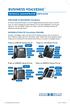 BUSINESS VOICEEDGE TECHNICAL ADMINISTRATOR USER GUIDE WELCOME TO BUSINESS VOICEEDGE As the technical administrator, you can manage features and passwords for all end users as well as manage key group features
How To Use Uniflow
 One platform for all your print, scan and device management Manage all Printing & Scanning with one single Platform. Incorporating uniflow into your document processes will lead to real improvements in
ONE INTEGRATED PLATFORM FOR ALL YOUR PRINT, SCAN AND DEVICE MANAGEMENT. uniflow canon.com.au/business
 ONE INTEGRATED PLATFORM FOR ALL YOUR PRINT, SCAN AND DEVICE MANAGEMENT uniflow canon.com.au/business INTEGRATED, PRODUCTIVE CONTROL OF PRINTING, COPYING SCANNING, AND FAXING uniflow is an integrated print
For Windows. 2012 Microsoft Corporation. All rights reserved.
 For Windows 1 About Microsoft Lync... 4 Lync Window... 5 Audio... 6 Set up your audio device... 6 Make a call... 6 Answer a call... 7 Use audio call controls... 7 Check voicemail... 7 Invite more people
Access Database Hosting. An introduction to Cloud Hosting Access databases from Your Office Anywhere
 Access Database Hosting An introduction to Cloud Hosting Access databases from Your Office Anywhere Microsoft Access is a powerful way of creating bespoke database applications for either your own business
Faculty & Staff Guide for Outlook Web App (OWA) Prepared by Information Technology Division Lehman College July 11, 2013
 im Faculty & Staff Guide for Outlook Web App (OWA) Prepared by Information Technology Division Lehman College July 11, 2013 Lehman College, CUNY 1 Information Technology Division Table of Contents Introduction...
CREATING YOUR ONLINE PRESENCE
 CREATING YOUR ONLINE PRESENCE Congratulations on signing up for your webhosting package, you ve just completed the first and most important step in establishing your online presence. There are just a few
Kaspersky Password Manager
 Kaspersky Password Manager User Guide Dear User, Thank you for choosing our product. We hope that you will find this documentation useful and that it will provide answers to most questions that may arise.
Information Technology Department. Miller School of Medicine New User Guide
 Information Technology Department Miller School of Medicine New User Guide EDUCATION & COMMUNICATIONS Miller School of Medicine New User Guide 1051 NW 14 th Street #165, Miami, FL 33136 (305) 243-5999
DESKTOP RECORDING. Ailsa Dickie (ITS) www.elearning.uq.edu.au
 DESKTOP RECORDING Ailsa Dickie (ITS) www.elearning.uq.edu.au Page 2 of 61 Table of Contents How can Desktop recording be used in Teaching and Learning?... 6 Desktop recording options at UQ... 6 PCAP...
UniCom Enterprise Phone (Polycom CX600) User Guide
 UniCom Enterprise Phone (Polycom CX600) User Guide 1 6 What is UniCom Enterprise?...1 Frequently Used Make a Call...6 What is Microsoft Lync?...1 Call Functions Use Call Controls...7 Who can use UniCom
BUSINESS VOICEEDGE TECHNICAL ADMINISTRATOR USER GUIDE WELCOME TO BUSINESS VOICEEDGE INTRODUCTION TO VOICEEDGE PHONES
 BUSINESS VOICEEDGE TECHNICAL ADMINISTRATOR USER GUIDE WELCOME TO BUSINESS VOICEEDGE As the technical administrator, you can manage features and passwords for all end users as well as manage key group features
HHPS 584 01W Administration in Sport and Recreation Programs (Online) Fall, 2015
 HHPS 584 01W Administration in Sport and Recreation Programs (Online) Fall, 2015 Instructor: Dr. Anthony Rosselli Office Location: Field House 100C Office Hours: Online or by appointment Office Phone:
Galveston College Wireless Network Users Setup Guide Version 1.0
 Galveston College Wireless Network Users Setup Guide Version 1.0 TABLE OF CONTENT 1 DOCUMENT CONTROL RECORD... 3 2 ISSUE AND AMENDMENT RECORD... 3 3 GENERAL... 3 3.1 INTRODUCTION...3 3.2 OBJECTIVE... 3
IT@DUSON. IT Service Desk
 IT@DUSON Technology plays a key role in the learning process for nursing students at Duke. This is your guide to the technology used at the Duke School of Nursing and how to request assistance for all
Student IT Guide 2015-2016
 Student IT Guide 2015-2016 Welcome Welcome to North Kent College, whether you are returning or joining us for the first time, we hope that you will enjoy learning with us. This guide is designed to help
REMOTELY ACCESS YOUR FILES WITH THE FLAGLER FILECONNECT SYSTEM
 REMOTELY ACCESS YOUR FILES WITH THE FLAGLER FILECONNECT SYSTEM This document explains the various ways to connect to your network files and group share data. In addition, staff and full-time faculty are
Getting Started. Sign in and get started. If you re already logged on to your organization s network, sign in by starting Lync.
 Getting Started Sign in and get started If you re already logged on to your organization s network, sign in by starting Lync. 1. On the Windows taskbar, click Start, click All Programs, click Microsoft