
Person Calling dials Main line number First additional number Second additional number
|
|
|
- Willis Lane
- 10 years ago
- Views:
Transcription
1 Call Waiting While you re on a call, Call Waiting alerts you that you have another incoming call. s If two calls are on a line at one time, anyone calling will receive a busy signal. The Call Waiting beep doesn t have to be answered. After 10 seconds there is one reminder beep and if not answered, the calling party will continue to hear ringing. How it alerts you 1. A beep tone indicates another call is waiting. Only you hear the tone, the caller hears a normal ringing tone. 2. You will hear a reminder beep tone 10 seconds later. 3. Depress the hook switch or flash button for 1 second to place your first call on hold and you will be connected to the second caller. Alternate between calls 1. Depress and release the hook switch or flash button once for each transfer. Each conversation is private and cannot be heard by the other caller. Terminate either call 1. Simply hang up. Your telephone will ring and when you answer, you will be connected with the other caller. The call you discontinued will no longer be on the line. Cancel Call Waiting Cancel Call Waiting when you don t want a call interrupted or when your computer is using the telephone line. If you cancel Call Waiting, anyone calling while you are on the line will receive a busy signal. Activate prior to making a call 1. Lift the handset and listen for the normal dial tone. 2. Dial 70 and listen for a second dial tone. Call Waiting is disabled for the duration of the call and will automatically be turned back on when you hang up. Activate while on a call 1. Depress the hook switch or flash button to obtain a second dial tone. 2. Dial 70 and listen for a confirmation tone. The system will automatically re-establish the original connection. When your call is completed, hang up and call waiting is automatically restored. Custom Ringing Custom Ringing allows two additional different phone numbers to be assigned to a main line. A unique ring is assigned to each number. SRT s office will set up the service for you. Person Calling dials Main line number First additional number Second additional number Called party with Call Waiting hears Normal single tone 2 short tones Short long short Called party hears Normal ring 2 short rings Short long short
2 Three-way Calling Turn an everyday phone call into a three-way conversation. If the call to the third party is not completed or if someone else answers the phone and the person you want to speak with is unavailable, depress the hook switch or flash button twice to resume your conversation with your first caller. To add a third party 1. Place the person you re talking with on hold by depressing the hook switch or flash button for about one second. 2. Listen for the dial tone. Then dial the number of the third party you wish to add to your conversation. When the third party answers, you may talk privately before completing your threeway connection. 3. When your third party is on the line, press the hook switch or flash button once to get back to your held party. Now all three parties will be on the line. To disconnect the third party 1. Press the hook switch or flash button for about one second. You will now have only the original party on the line. 2. If either of the other two people hang up, you can continue to talk to the remaining party. To disconnect completely 1. Simply hang up. Call Forwarding Forward your calls to another phone. s Once you ve activated Call Forwarding, you will hear one short ring each time a call is forwarded. You can still make outgoing calls from the phone. To change the number your calls are forwarded to, cancel the feature and set it up again. To set up Call Forwarding 1. Lift the handset, listen for the dial tone and dial Listen for a second dial tone. 3. Dial the number you want your calls to be forwarded to. Speed Calling codes may be used if you have this feature. To cancel Call Forwarding 1. Lift the handset, listen for the dial tone and dial Listen for two beeps which indicate call forwarding is cancelled, then hang up. Selective Call Forwarding Create a list of up to 12 specific telephone numbers from which calls will be forwarded to a number of your choice. When someone on your list calls you, their call will ring at the forwarding number. All other calls not included on your Selective Call Forwarding list will ring to your line as usual. To Access Selective Call Forwarding 1. Listen for dial tone and dial 63 to access the main menu. 2. Continue following the prompts to establish your list. 3. Press 3 to turn the service on/off. s You must also subscribe to Call Forwarding for this service to work. Area limitations may apply when establishing your list. When forwarding your calls to a long distance number, normal toll charges apply.
3 Caller ID Number Caller ID Name & Number See the telephone number or name and number of the person calling before you answer the phone. Identify annoying or harassing calls and select the calls you choose to answer. How to use 1. When receiving a call, wait until your telephone completes the first ring as calls are identified between the first and second rings. 2. The telephone number, or name & number, will automatically appear on your phone display. s I f private appears on your phone display, the caller may have blocked their name and number from displaying. I f unknown number or out of area appears, the caller is in an area that does not support the Caller ID service. The caller s number can be identified even when they don t leave a message. Call Waiting Caller ID See who s calling when you re on another call. Your phone display unit must be compatible with Call Waiting Caller ID. How to use 1. When you are on the phone, you will hear a distinct Call Waiting tone. 2. The caller s name and/or number will show on your phone display. 3. You can choose whether or not to answer the call. Caller ID Block Prevent your name and telephone number from being displayed to the person you re calling. Choose permanent Caller ID Block or block your calls on a per-call basis. For per-call blocking you MUST dial 67 before each call you place otherwise, your name and telephone number will be displayed to the person receiving your call. How to use Per-Call Blocking 1. Listen for the dial tone and dial Dial the number you wish to call. 3. The person you call will not be able to see your name and number displayed on their phone display screen, instead, private will be displayed. (not guaranteed outside local area) To Deactivate Caller ID Block If you subscribe to permanent Caller ID Block and you wish to unblock your line on a per-call basis, do the following: 1. Listen for the dial tone and dial Dial the number you wish to call. 3. The person you ve called will be able to see your name and number on their phone display unit.
4 Speed Call 8 Call your 8 most frequently dialed numbers quickly, easily and accurately. Remember to keep a list of your Speed Call numbers. To store or change your Speed Call numbers 1. Listen for a dial tone and dial Dial the Speed Call number (0 through 9) you have selected and the complete telephone number it will represent (example ), then depress the # button. Remember to include the 1 + area code for long distance entries. 3. Repeat the above steps for each number to be stored. To use a Speed Call number 1. Listen for a dial tone and press the button. 2. Dial the appropriate one-digit speed call number and your call will be dialed automatically. Speed Call 30 Call your 30 most frequently dialed numbers quickly, easily and accurately. Remember to keep a list of your Speed Call numbers. To store or change your Speed Call numbers 1. Listen for a dial tone and dial Dial the Speed Call number (00 through 29) you have selected and the complete telephone number it will represent (example ), then depress the # button. Remember to include the 1 + area code for long distance entries. 3. Repeat the above steps for each number to be stored. To use a Speed Call number 1. Listen for a dial tone and press the button. 2. Dial the appropriate two-digit speed call number and your call will be dialed automatically. My Speed Call list Speed call Speed Call
5 Customer Originated Trace Trace harassing calls and at your request, your local law enforcement agency will investigate. This should only be used to trace life threatening calls or calls which are of a harassing nature in which you may want to press charges. How to use 1. When you receive a harassing or threatening call, hang up. Immediately pick up the handset and listen for the dial tone. 2. Dial 57 and listen for a message indicating that you have successfully activated the tracing feature. 3. Hang up. 4. The number you traced will be recorded at the law enforcement agency. If you decide to follow up on the matter, you will need to work directly with your local law enforcement agency for further investigation. s Customer Originated Trace must be used immediately after you hang up on the call you want traced. If you receive another call or a call waiting tone before activating a trace, you will trace the wrong call. It is a good idea to keep note of the date and time you activated a trace. The traced number will only be available to your local law enforcement agency. Under no circumstances will you be given the traced number. Anonymous Call Rejection You can reject incoming calls from calling parties who choose to keep their number private. The calling party will receive an announcement informing them that the person they are attempting to reach does not accept calls from blocked numbers. To Activate Anonymous Call Rejection 1. Listen for dial tone and dial A confirmation tone will indicate the service is activated. To Deactivate Anonymous Call Rejection 1. Listen for dial tone and dial A confirmation tone will indicate the service is deactivated. Calls from areas that do not support the Caller ID service will not be rejected. These calls will show on your Caller ID display as out of area or unknown caller. Call Wake-up Your telephone can be used as an alarm clock. How to use 1. Lift the handset, listen for the dial tone and dial You will receive a confirmation tone. 3. Dial a four digit wake-up time, plus the number of rings desired, plus the # sign. The desired time must be entered in 24 hour format. Example: Enter 0700 for 7:00 a.m. or 1830 for 6:30 p.m. The time must be entered daily. The desired number of rings can range from 2-9, but must be entered in a two digit format. Example: If you desire three rings, dial 03. If you do not enter a desired ring count, you will automatically receive 9 rings. To cancel a Wake-Up call 1. Lift the handset, listen for a dial tone and dial After you hear a confirmation tone, hang up.
6 Last Call Return Dial the last number that called you. How to use 1. Listen for dial tone and dial 69. You will hear a message describing the steps required to complete the callback. If the line is busy 1. You will hear a message telling you the line is busy and how to proceed. Hang up and your phone will continue to place the call every minute up to 30 minutes. 2. A distinctive callback ring alerts you when the line becomes available. 3. Pick up the handset and wait for the called party to answer. To cancel 1. Listen for dial tone and dial 89. You will hear a recording telling you that Last Call Return is deactivated. 2. Hang up. Distinctive Ring Call Waiting Create a list of up to 12 specific telephone numbers from which calls will ring in a unique pattern. When someone on your list calls you, their call will ring with a different tone. If you re on the phone and another caller from your list calls, the Call Waiting tone will be unique from a regular Call Waiting beep. All other calls not included on your Distinctive Ring Call Waiting list will ring to your line as normal. To Access Distinctive Ring Call Waiting 1. Listen for dial tone and dial 61 to access the main menu. 2. Continue following the prompts to establish your list. 3. Press 3 to turn the service on/off. s You must also subscribe to Call Waiting for this service to work. Area limitations may apply when establishing your list. Warm Line Warm Line allows a person to knock the phone off the hook in any emergency, assuring them that an automatic call to a predetermined number will alert someone to their situation. When your telephone is lifted off-hook and normal dialing has not started before the end of the time delay period, the predetermined stored number is automatically dialed by SRT s central office switching equipment. SRT s office will set up this service for you.
7 Call Forward Remote Activation Activate and deactivate your Call Forwarding from another telephone number. s You must also subscribe to Call Forwarding for this service to work. Pressing # after each entry will speed up the process. To Set PIN Number This must be done from the phone on which you have Call Forward Remote Activation. 1. Listen for dial tone and dial 97 to access the main menu. 2. Voice prompt will ask for the access code of the feature you want to change. 3. Dial Enter your current PIN (last four digits of your telephone number). 5. Enter new PIN. 6. Re-enter new PIN and hang up. To Activate Call Forward Remote Activation 1. Dial the telephone number to access Call Forward Remote Activation: Enter your 7 digit phone number that has remote activation service, followed by the PIN number. 3. Dial 72 and the telephone number where you want your calls forwarded (include area code if necessary). 4. To confirm, dial 1 and hang up. To Deactivate Call Forward Remote Activation 1. Repeat steps 1 and 2 above. 2. Press 73 and hang up. Continuous Redial Keep redialing busy numbers and be notified when the line becomes available. You may place other calls while Continuous Redial attempts to reach a busy number. How to use 1. After calling a number and reaching a busy signal, hang up. Lift the handset again and listen for the dial tone and dial 66. You will hear a message indicating that you have activated the service. Hang up. 2. Your phone will continue to call the busy line for up to 30 minutes. 3. A distinctive callback ring alerts you when the line becomes free. When you hear the distinctive ring, lift the handset and wait for the called party to answer. To cancel 1. Listen for the dial tone and dial Listen for a confirmation message and hang up.
8 Call Transfer You can transfer a call to another party and hang up making your line available for other calls. If you transfer a call out of your local service area, you will accumulate toll charges as long as the other two parties remain connected. To Transfer a Call 1. With a call in progress, press the hook switch or flash button. This will put the call on hold. 2. Listen for a confirmation tone and dial the telephone number where you want to transfer the call. 3. You can announce the call or hang up and the two parties will be connected. 5. If you press the hooks witch or flash again, you ve established a 3-way call. If you reach a busy signal, unanswered ringing line, or wrong number while attempting to transfer a call, press the flash button once to join the busy signal, ringing line, or wrong number with you and the original party. Press the flash button again to drop the busy signal, ringing line, or wrong number. You will remain connected to your original party. Selective Call Rejection Create a list of up to 12 telephone numbers from which you do not wish to receive calls. Calls from telephone numbers included in your list will receive an announcement informing them that you are not accepting calls at this time. To Create your Selective Call Rejection List 1. Listen for the dial tone and dial 60 to access the main menu. 2. Continue following the prompts to establish your list. 3. Long distance numbers must be programmed as a private entry immediately after the call takes place. Listen for dial tone and dial 60 followed by #, 01, #. 4. Press 3 to turn the service on/off. s Area limitations may apply when establishing your list. Selective Call Rejection takes precedence over Selective Call Forwarding and Anonymous Call Rejection. Create Your Personal Telephone List Some calling features require you to create a personal telephone list. This is achieved by dialing the access code for each service to gain entry to the instructions. Each service requires its own list. Once established, your list will remain intact, even if you don t have the feature activated. You can modify and update your list as often as you like without activating your service. Simply access the main menu and follow the prompts. These features require a personal telephone list Selective Call Rejection Selective Call Acceptance Selective Call Forwarding Distinctive Ring Call Waiting To Add a Private Entry 1. Access the main menu and dial #, 01, #. This will add the last incoming call to your list, even though you don t know the telephone number. If it was previously added, the system will indicate that it is already on your list. To Delete a Private Entry from Your List 1. Access the main menu and dial All Private Entries will be deleted. You cannot selectively remove a Private Entry
9 Selective Call Acceptance Screen incoming calls by creating a list of up to 12 telephone numbers from which you are willing to accept calls. Calls from telephone numbers not included in your list will receive an announcement informing them that you are not accepting calls at this time. To Create your Selective Call Rejection List 1. Listen for the dial tone and dial 60 to access the main menu. 2. Continue following the prompts to establish your list. 3. Long distance numbers must be programmed as a private entry immediately after the call takes place. Listen for dial tone and dial 60 followed by #, 01, #. 4. Press 3 to turn the service on/off. s Area limitations may apply when establishing your list. Selective Call Rejection takes precedence over Selective Call Forwarding and Anonymous Call Rejection. Simultaneous Ring (SIM Ring) Program up to four additional telephone numbers to ring at the same time with SIM Ring. For example, a call made to you at your home can ring your wireless phone, your office phone, your lake cabin phone and your friend s phone, all at the same time. The first one to answer accepts the call. Pressing # after each entry will speed up the entry process. To Access SIM Ring 1. Listen for dial tone and dial 80 to access the main menu. 2. Continue following the prompts to establish your list. 4. Press 3 to turn the service on/off. To Access SIM Ring Remotely 1. Listen for dial tone and dial Enter your telephone number including the area code. 3. Enter your PIN (defaults to last four digits of your telephone number) and follow the prompts. To Change your PIN (Personal Identification Number) This must be done from the phone you have SIM Ring activated on. 1. Listen for dial tone and dial 97 to access the main menu. 2. The voice prompt will ask for the access code for the feature you want to change. 3. Dial 80 and enter your current PIN (last four digits of your telephone number). 4. Enter a new PIN. 5. Re-enter the new PIN and then hang up. Shortcuts to use with various calling features Shortcuts may be used with the following features: Anonymous Call Rejection, Distinctive Ring Call Waiting, Selective Call Acceptance, Selective Call Forwarding, and Selective Call Rejection. Shortcut Listen to your entries... 1 Turn on/off... 3 Add an entry... # Remove an entry... Remove ALL entries Remove private entries Listen to instructions... 0 Save list or exit...hang Up
10 Voice Mail Voice Mail is an inexpensive easy-to-use, automated recording service that allows you to make, receive, answer and distribute your messages from any touch tone telephone. All of your messages are date and time stamped and are of great voice quality. Voice Mail costs just a few dollars a month and there is no equipment to buy or maintain. Call SRT to activate Voice Mail Service. Voice Mail is an optional service and charges will apply. Refer to the following two pages for residential and business flow charts. To activate your mailbox for the first time: 1. Dial Enter your password (the last 4 digits of your phone number) 3. Follow a series of three steps: Change your password Record your name Record your greeting To access your mailbox from your telephone: 1. Dial Enter your password 3. Follow the prompts Details below are for the Primary Residential Voice Mail service however, the options available and numbers associated with each option will vary depending on the Voice Mail package you have. Primary Residential Voice Mail: Maximum Number of Greetings...1 Length of Greeting seconds Maximum Number of Messages...15 Length of Message seconds Saved Messages...21 days To access your mailbox from another telephone that has a voice mailbox: 1. Dial Press # 3. Enter your ten digit mailbox number (701-XXX-XXXX) 4. During the greeting press 5. Enter your password 6. Follow the prompts To access your mailbox from another telephone that does not have a voice mailbox: 1. Dial the voice mail access number for your exchange (see the list below) 2. Enter your mailbox number (701-XXX-XXXX) 3. During the greeting press 4. Enter your password 5. Follow the prompts Call and ask about Voice Mail Enhancements such as Constant Touch, Multi-User Mailbox, Multiple Greetings, Operator Revert, Direct Dial, Automatic Callback and Message Notification. Antler Berthold Butte Carpio Deering Des Lacs Donnybrook Glenburn Karlsruhe Landa Lansford Martin Maxbass Metigoshe Minot/Burlington/Surrey Minot AFB Mohalla Newburg Sawyer Sherwood South Prairie Tolley Towner Upham Velva Westhope
11 Voice Mail - Residential Flow Chart
12 Voice Mail - Business Flow Chart
Calling FEATURES. User s Guide. Call *123 or 336-463-5022 or visit yadtel.com
 Calling FEATURES User s Guide Call * or 6-6-50 or visit yadtel.com Table of Contents QUICK REFERENCE GUIDE... KEEP IN TOUCH Call Waiting.... 5 Cancel Call Waiting.... 5 Three-Way Calling.... 6 Usage Sensitive
CUSTOM CALLING FEATURES
 CUSTOM CALLING FEATURES Anonymous Call Rejection (*77 & *87) Blocks a private or anonymous call from ringing onto your line. Callers who block their name and/or phone number from being displayed on a Caller
Note: You will not be notified when or how many calls have been rejected.
 Anonymous Call Rejection When you ve turned this service on, any callers who have blocked their number from your Caller ID display will hear an announcement that you do not accept anonymous calls. All
Reject calls from callers who block their Caller ID information so their calls don't even ring on your line.
 Anonymous Call Rejection Reject calls from callers who block their Caller ID information so their calls don't even ring on your line. TO ACTIVATE ANONYMOUS CALL REJECTION 1. 2. Press *77 (on a rotary phone,
Call Waiting. Cancel Call Waiting
 PhoneFeatures 1 Call Waiting Cancel Call Waiting 2 Three-Way Calling Personal Ringing 3 Speed Calling Call Transfer 4 Call Hold Call Forwarding 5 Call Forwarding Don t Answer Call Forwarding Busy Line
Bristol: (276) 821-6200 Abingdon: (276) 698-3210 Toll Free: 877-835-1272 www.bvu-optinet.com
 Bristol: (276) 821-6200 Abingdon: (276) 698-3210 Toll Free: 877-835-1272 www.bvu-optinet.com TABLE OF CONTENTS Contact Information...1 Safety Line...1 Favorite Five...2 Caller ID...2 Call Forwarding...2
RESIDENTIAL PHONE FEATURES
 RESIDENTIAL PHONE FEATURES User Guide Athens-Dec 9/10 Caller ID The Telephone display screen will show you the caller s name and telephone number, usually after the first complete ring. The service also
Custom Calling Features and how they work
 Custom Calling Features and how they work Call Forwarding (Basic) This feature means your phone can transfer incoming calls to another number of your choice. Call Forwarding is great for the business person
CALLING FEATURE USER GUIDE
 CALLING FEATURE USER GUIDE 1801 N Main St, in the Palace Mall ** Mitchell, SD 57301 Phone: (605) 990-1000 Fax: (605) 990-1010 Homepage: www.mitchelltelecom.com Calling Feature User Guide Mitchell Telecom
Calling Features User Guide 1
 Calling Features User Guide 1 The services listed in this guide are for traditional telephone service and may not be available or work the same on other technologies. Call 611 from your Lumos Networks
Calling Features User Guide
 CONNECTING OUR COMMUNITY WITH THE LATEST COMMUNICATIONS TECHNOLOGY West Central Calling Features User Guide 2 TABLE OF CONTENTS CALL FORWARDING SERVICES 4 4 4 4 Call Forwarding Call Forward Busy Call Forward
YOUR HOME PHONE. Horry Telephone Cooperative, Inc.
 YOUR HOME PHONE Horry Telephone Cooperative, Inc. CONTENTS Calling Features Anonymous Call Rejection page 4 Automatic Busy Redial page 4 Automatic Call Return page 5 Call Forwarding page 6 Call Forwarding
Custom Calling Features
 Quick Reference HOW TO USE: PRESS: Speed Calling 8 *74 Speed Calling 30 *75 Call Return *69 Repeat Dialing *66 Call Trace *57 Call Forwarding *72 Preferred Call Forwarding *63 Call Forwarding Remove Activation
Q (With a rotary dial phone, skip this step R70. Custom Calling Features. Call Waiting. Call Forwarding. Cancel Call Waiting. Long Distance Alert
 www.gctel.com Custom Calling Features There may be a charge for these services. Listen for two beeps. Call Forwarding is now discontinued. Call Forwarding This feature means your phone can transfer incoming
Calling Feature Instructions
 Rainier Connect Calling Feature Instructions Anonymous Call Rejection (*77) Call Forward Busy (*90) Call Forward No Answer (*92) Also known as Block the Blocker and Privacy Block it blocks private or anonymous
This service allows you to talk to the 3rd party before transferring the original called party to them. To use Attended Call transfer:
 Calling Features Attend Call Transfer Auto Redial Anonymous Call Rejection Call Blocking Call Forward Busy Line Call Forward Don't Answer Call Forwarding Remote Access Call Forwarding Universal Call Holding
Anonymous Call Rejection Refuse calls from those who have blocked their numbers.
 How to Use Your Digital Voice Features Effective 01/12/15 To learn how to use your voice features, locate your service by selecting from the Quick Links that follow, or, you can find the same instructions
Calling Features User Guide
 Calling Features User Guide Enjoy Great Pay-Per-Use Features No matter what TDS phone service you have, you can also enjoy these great pay-per-use features: *66 Repeat Dialing Tired of receiving a busy
CALLING FEATURES. Speed Calling - 8 Number - Allows you to call any one of the eight frequently called numbers by dialing just one digit.
 Calling features from ToledoTel, offer advanced capabilities that are simple to use. This is a quick reference of the features available for your individual line, and easyto-follow instructions for using
Calling Features. Connected. Instructional Manual. Your pathway to the world
 Calling Features Instructional Manual Connected Your pathway to the world 328 W Main St New Auburn, WI 54757 Phone (715)237-2605 Web: www.citizens-tel.net Call Waiting Allows you to never have to miss
Custom Calling Features 3 DEF 5. Custom Calling Features User s Manual
 Custom Calling Features 1 2 4 GHI 7 PQRS ABC 3 DEF 5 JKL 8 TUV * 0 6 MNO 9 WXYZ # Custom Calling Features User s Manual Table of Contents This user guide provides instruction for the following Custom-Advanced
Calling Features User Guide
 Calling Features User Guide www.etczone.com 866-ETC-4YOU 1 SUNMAN BATESVILLE GREENSBURG BROOKVILLE LIBERTY (812) 623-2122 (812) 932-1000 (812) 222-1000 (765) 547-1000 (765) 223-1000 Today s fast-paced
Custom Calling Features
 Anonymous Call Rejection Anonymous Call Rejection rejects calls from callers who block their Caller ID information, so the calls don t even ring through on your line. To Activate Call Rejection: Pick up
To activate Anonymous Call Rejection: 1. Lift the receiver and listen for dial tone. 2. Dial *77. 3. Listen for confirmation tone, hang up.
 Anonymous Call Rejection Anonymous Call Rejection allows a customer to deny any calls from ringing the line if the calling party has blocked the identification number. The calling party receives a message
Guide to Your Telephone Service
 Guide to Your Telephone Service OPTIONS AND FEATURES AVAILABLE WITH EPLUS BROADBAND TELEPHONE SERVICE 422-7500 Table of Contents Included in this guide is a comprehensive list of features and services
For customers in IN, IL, OH, MI. wowforbusiness.com. Business Services PHONE FEATURES. User Guide BPGM.U.1506.R
 wowforbusiness.com Business Services PHONE FEATURES User Guide BPGM.U.1506.R Anonymous Call Rejection 1. It s easy to activate and start blocking anonymous calls. Simply lift the receiver and press *77.
CENTREX service. user reference guide. Clearly different.
 CENTREX service user reference guide Clearly different. TABLE OF CONTENTS This user s guide provides instructions for using Centrex features. A check in the circle next to a feature means that your Centrex
For customers in AL, FL, GA, KS, SC, TN. wowforbusiness.com. Business Services PHONE FEATURES. User Guide BPGS.U.1506.R
 wowforbusiness.com Business Services PHONE FEATURES User Guide BPGS.U.1506.R Anonymous Call Rejection 1. It s easy to activate and start blocking anonymous calls. Simply lift the receiver and press *77.
How To Use Your Calling Features. A Simple Guide META. 011910sip
 How To Use Your Calling Features A Simple Guide 011910sip META Unconditional Call Forwarding (Call Forwarding) How to activate Unconditional Call Forwarding: 1. 72 followed by the number to which your
PHONE USER 1 GUIDE. Morristown (MUS) Local Customer Calling FROM: Morristown (Area Code 423): 307, 317, 318, 522, 581, 585, 586, 587
 PHONE USER 1 GUIDE Local Calling Area Windstream has defined the following local calling area. All calls to these areas are included in your local monthly charge. Calls outside of this area will be billed
For customers in AL, FL, GA, SC, TN. wowforbusiness.com. Business Services PHONE FEATURES. User Guide BPG.U.1303.O
 wowforbusiness.com Business Services PHONE FEATURES User Guide BPG.U.0.O ANONYMOUS CALL REJECTION. It s easy to activate and start blocking anonymous calls. Simply lift the receiver and press *.. When
ADVANCED AND CUSTOM CALLING FEATURES
 ADVANCED AND CUSTOM CALLING FEATURES Call Waiting Call Waiting Alert: This feature alerts you of new incoming calls when you are already on a call. You will hear a short beep when the second call is received,
VIP (Traditional) Home Phone Calling Features
 VIP (Traditional) Home Phone Calling Features This document details each calling feature and its usage. Please note that this document applies only to our VIP Home Phone service for Kitchener-Waterloo,
Calling Features WABASH MUTUAL TELEPHONE COMPANY 419-942-1111
 Calling Features WABASH MUTUAL TELEPHONE COMPANY 419-942-1111 900 NUMBER BLOCKING FREE Blocks 900 or Premium calls from being made from your phone. ANONYMOUS CALL REJECTION $1.00 This service automatically
COMCAST DIGITAL VOICE USER GUIDE
 COMCAST DIGITAL VOICE USER GUIDE WELCOME TO COMCAST DIGITAL VOICE Go ahead. Pick up your phone. Call your neighbor. Your best friend across the country. Or your cousin in Europe. Now that you have Comcast
Anonymous Call Rejection
 Anonymous Call Rejection Don t waste time taking calls you don t want. Anonymous Call Rejection (ACR) allows you to block incoming calls from people who use *67 to block their phone number as well as calls
FEATURE & INFORMATION GUIDE
 FEATURE & INFORMATION GUIDE LOCAL PHONE Windstream is a registered service mark of Windstream Corporation. 2007 WindstreamCorporation WS F&I ENG 07/07 001519 English_F&I_Guide.indd 1-2 7/23/07 4:31:53
It s What We Do. Telephone Get Going Guide
 It s What We Do. Telephone Get Going Guide Welcome and Introduction Welcome to Astound telephone services brought to you by Astound Broadband! This Get Going Guide will familiarize you with our telephone
All Rights Reserved. Release 5.6, March 2009
 All Rights Reserved The use, disclosure, modification, transfer or transmittal of this work for any purpose, in any form, or by any means, without the written permission from IDT/Net2Phone is strictly
Telephone User Guide. Mt. Angel. Telephone
 Telephone User Guide Mt. Angel Telephone 4Welcome Thank You for Choosing Mt. Angel Telephone! Additional information about your telephone service may be found in the white pages of the North Willamette
managedip Hosted TDS Table of Contents Calling Features User Guide
 Table of Contents Anonymous Call Rejection... 2 Automatic Callback... 2 Call Forwarding... 3 Call Park/Directed Call Park... 7 Call Park Retrieve... 8 Call Pickup... 8 Call Retrieve... 8 Call Return...
How To Use Fairpoint.Com On A Cell Phone On A Pc Or Landline Phone On An Iphone Or Ipad Or Ipa Or Ipo Or Cell Phone (For A Cell) On A Landline Or Cellphone On A
 Definition FairPoint Communications Hosted PBX is easy to use and manage. Hosted PBX is packed with a wide variety of useful standard, advanced and business group calling features, including voicemail.
Hosted PBX Calling Features and Voice Mail Guide
 Definition FairPoint Communications Hosted PBX is easy to use and manage. Hosted PBX is packed with a wide variety of useful standard, advanced and business group calling features, including voicemail.
Calling Features WABASH MUTUAL TELEPHONE COMPANY 419-942-1111
 Calling Features WABASH MUTUAL TELEPHONE COMPANY 419-942-1111 900 NUMBER BLOCKING FREE Blocks 900 or Premium calls from being made from your phone. ANONYMOUS CALL REJECTION $1.00 This service automatically
CALL MANAGEMENT SERVICES. User Guide. 1 888 télébec telebec.com
 CALL MANAGEMENT SERVICES User Guide 888 télébec telebec.com QUICK REFERENCE Télébec Call Management Services - Important Codes Service Activation Cancellation Call Blocking 6 7 Call Forwarding 7 2 7 3
Home Phone Features User Guide
 Home Phone Features User Guide You re sure when it s Sears Connect. TM Connect to the important things in life Sears Connect home phone service is a great way to stay connected to the important things
www.metrocast.com/business
 www.metrocast.com/business All Rights Reserved The use, disclosure, modification, transfer or transmittal of this work for any purpose, in any form, or by any means, without the written permission from
BellSouth Complete Choice for Business plan
 BellSouth Complete Choice for Business plan BellSouth Complete Choice for Business plan Customized to your exact business needs Here s the all-in-one local calling plan where you can customize your local
Bringing value back to voice. Your Guide to Broadband for Business
 BROADBAND FOR BUSINESS Bringing value back to voice. Your Guide to Broadband for Business TELEPHONE Service 1 Business Phone Services from LUS Fiber connect you to affordability and opportunity. You re
Home Phone Service Guide calling features and services tips and instructions
 Home Phone Service Guide calling features and services tips and instructions Primus Home Phone Service Inside your guide to Primus Home Phone Service Services included with Primus Home Phone Service: 911,
ACN CALLING PLAN FEATURES ALABAMA GEORGIA FLORIDA KENTUCKY LOUISIANA NORTH CAROLINA SOUTH CAROLINA TENNESSEE
 ACN CALLING PLAN FEATURES ALABAMA GEORGIA FLORIDA KENTUCKY LOUISIANA NORTH CAROLINA SOUTH CAROLINA TENNESSEE USING YOUR NEW FEATURES ACN customers can select from a variety of calling features each designed
Bringing value back to voice. Your guide to LUS Fiber Phone
 Bringing value back to voice Your guide to LUS Fiber Phone 1 LUS Fiber puts Lafayette s premier fiber optic phone system right in your hand. You re about to discover the total phone-service satisfaction
We thank you for being our customer, we take pride in providing superior and reliable Commercial Voice services to our customers.
 Welcome to USA Communications Commercial Voice. We thank you for being our customer, we take pride in providing superior and reliable Commercial Voice services to our customers. This document should answer
Voice Feature Guide. Technical Support (24/7/365) - (334) 203-1605
 Voice Feature Guide OPS Voice Features Guide Revision: April, 2015 Technical Support (24/7/365) - (334) 203-1605 http://www.opelikapower.com NECESSARY EQUIPMENT AND SOFTWARE Equipment: Residential: Plain
Contents. Note: Feature commands and/or functionality may vary dependent on the telephone equipment you choose to use with this product.
 Contents Address Book 4 Anonymous Call Rejection 5 Call Block 5 Call Forward 6-7 Call Hold 7 Call Log 8 Call Return 8 Call Waiting 9 Caller ID 10 Outbound Caller ID Block 10 Outbound Caller ID Deactivation
How To Set Up Your Voice Mail On A Cell Phone
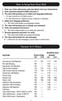 How to Setup Your Voice Mail Enter your Voice mail access code (see below) from your home phone. Enter password (default is 0000) and press #. The voice mail prompts you to select your language preference.
VZE-RS-E-5/13. user guide. Instructions on Using Verizon Calling Features
 VZE-RS-E-5/13 user guide Instructions on Using Verizon Calling Features Table of Contents *69...2-3 Anonymous Call Rejection...4 Additional Lines...4 Busy Redial...4-5 Call Block...5 Call Forwarding...6
Calling Feature Guide
 Calling Feature Guide Automatic Call Back *66 Mid Century Automatic Call Back will continually dial a busy number automatically for up to 30 minutes. When the line becomes free your phone will ring alerting
CALL FORWARDING (Activate *72 / Deactivate *73) Call Forwarding is a service that automatically forwards all calls to any number you choose.
 St. Joseph Cablevision would like to thank you for making our Digital Phone service part of your home. As a St. Joseph Cablevision customer, you have access to one of the most advanced broadband communications
Advanced Calling Features Guide
 Advanced Calling Features Guide AUTOMATIC CALLBACK Use: Save time by not calling busy numbers over and over. Description: Calls the last number dialed without having to redial the number. If the redialed
PLAN B. Call Forwarding Allows you to redirect all calls to another telephone number.
 989-453-4321 * 1-800-292-0614 * E-mail: [email protected] SERVING: PIGEON, TWINING, ALBA, AND LAKES OF THE NORTH PLAN B Automatic Recall This feature allows a subscriber to place a call to the source of
Calling Feature Instructions Digital Phone By Telephone
 Calling Feature Instructions Digital Phone By Telephone Digital Phone Feature Management By Telephone Instructions This document describes how to manage Digital Phone features using your telephone keypad.
Address Book. Store all of your contacts in your online Address Book.
 Contents Address Book 4 Anonymous Call Rejection 5 Call Block 5 Call Forward 6-7 Call Logs 7 Call Return 7 Call Waiting 8 Caller ID 9 Do Not Disturb 10 Find Me 11 Outbound Caller ID Block 9 Selective Call
Hawaiian Telcom Calling Services USER GUIDE. qqq qqq. qqq * 69 * 6 9 * 8 9 * 7 7 * 8 7 * 6 6 * 8 6 * 6 0 * 8 0 * 7 2 * 7 3 * 9 0 * 9 1 * 9 2 * 9 3
 Quick Reference Guide Hawaiian Telcom Calling Services USER GUIDE Feature To Use To Cancel * 69 * 6 9 * 8 9 Anonymous Call Rejection * 7 7 * 8 7 Busy Redial * 6 6 * 8 6 Call Block * 6 0 * 8 0 Call Forwarding
Phone User Guide. Dear FiberNET Phone Customer,
 Phone User Guide Dear FiberNET Phone Customer, Thank you for choosing MUS FiberNET as your broadband services provider. As a FiberNET Telephone service user, you receive your local phone service from Windstream
Resale Features Guide (Verizon West Footprint)
 Resale Features Guide (Verizon West Footprint) Here are a few tips to assist you in using this guide The touch call/touch-tone pad is the numbered push button pad you use to dial. With some calling services,
UNLIMITED LOCAL WITH LONG DISTANCE PHONE FEATURES REFERENCE GUIDE
 UNLIMITED LOCAL WITH LONG DISTANCE PHONE FEATURES REFERENCE GUIDE Thank You Thank you for considering Unlimited Local with Long Distance Phone service from MCTV. We appreciate your business, and will continue
It s What We Do. Telephone Get Going Guide
 It s What We Do. Telephone Get Going Guide Welcome and Introduction Welcome to Astound telephone services brought to you by Astound Broadband! This Get Going Guide will familiarize you with our telephone
Centrex21. Instruction Guide
 Centrex21 Instruction Guide Welcome Thank you for selecting Qwest Centrex 21. Now your business can take advantage of this great package of functions and calling features, no matter what kind of phone
A Quick Reference to Telephone Features and Services
 A Quick Reference to Telephone Features and Services Table of Contents I. Individual Features A. Call Waiting B. Cancel Call Waiting C. Three-Way Calling D. Speed Calling E. Call Return F. Repeat Dialing
Anonymous Call Rejection
 Contents Anonymous Call Rejection 4 Call Block 5 Call Forward 6-7 Call Return 8 Call Waiting 9 Caller ID 10-11 Do Not Disturb 12 Find Me 13 Selective Call Forwarding 14 Speed Dial 15 Three-Way Calling
Guide to Your Telephone Service
 Guide to Your Telephone Service OPTIONS AND FEATURES AVAILABLE WITH EPLUS BROADBAND TELEPHONE SERVICE 422-7500 Table of Contents Included in this guide is a comprehensive list of features and services
Clear Choice Communications. Digital Voice Services User Guide
 Clear Choice Communications Digital Voice Services User Guide 2 P a g e * Feature Access Codes *62 Access Voicemail *72 Call Forwarding Always Activation *73 Call Forwarding Always Deactivation *90 Call
VoIP Services User Guide
 VoIP Services User Guide Table of Contents Overview of Services 3 Service Numbers 4 Line Services and Codes 5 Voice Mail 12 Overview of Services This guide is about Tera-Byte's VoIP services for residential
Business Telephone User Guide
 Business Telephone User Guide 1 Proud to provide Conway s Electric, Water, Cable, Internet and Telephone services. Welcome to Conway Corporation Business Telephone Service We take pride in providing superior
Business Phone Service. Calling Features & Instruction Guide
 Business Phone Service Calling Features & Instruction Guide HUNTING Hunting is a system that routes phone calls through your phone lines until an idle line is found. CALLER ID PER CALL BLOCKING (67) Pressing
Digital Voice Services Residential User Guide
 Digital Voice Services Residential User Guide 2 P a g e * Feature Access Codes *11 Broadworks Anywhere (pulling call to alternate phone) *62 Access Voicemail *72 Call Forwarding Always Activation *73 Call
Wightman s. Home Phone. Quick Reference Guide
 Wightman s Home Phone Quick Reference Guide Welcome to Wightman Telecom! We would like to thank you for making the decision to join Wightman Telecom as one of our valued customers. Our goal is to prove
Digital Voice Services User Guide
 Digital Voice Services User Guide 2 P a g e * Feature Access Codes *11 Broadworks Anywhere (pulling call to alternate phone) *62 Access Voicemail *72 Call Forwarding Always Activation *73 Call Forwarding
Centrex CustoPAK USER GUIDE. Telephone Number. Verizon Telephone Number. Switch Type: 1A 5E DMS 100 EWSD DMS 10
 Centrex CustoPAK USER GUIDE Telephone Number Verizon Telephone Number Switch Type: 1A 5E DMS 100 EWSD DMS 10 Table of Contents Introduction to This Guide... 3 Overview of Your CustoPAK System... 5 Terms
TRANS-VIDEO PHONE SERVICE
 TRANS-VIDEO PHONE SERVICE FEATURE GUIDE telephone number username password Manage your account online at: www.trans-video.net/voice.html CONTENTS Address Book Anonymous Call Rejection Call Block Call Logs
User Guide Verizon Centrex CustoPAK
 User Guide Verizon Centrex CustoPAK Telephone Number Verizon Telephone Number Switch Type: 1A 0 EWSD 2008 Verizon. All Rights Reserved. 3001-0708 Table of Contents Introduction to This Guide... 3 Overview
User Guide Verizon CentraNet Service
 User Guide Verizon CentraNet Service EASY STEPS TO GET YOU STARTED. 2008 Verizon. All Rights Reserved. C9000-0708 Thank You for Selecting Verizon CentraNet Service i Table of Contents switches CENTRANET
PHONE SERVICE QUICK GUIDE PHONE SERVICE QUICK GUIDE
 PHONE SERVICE 1 Your new United Phone service is powered by the area s only fiber network, so you ll enjoy crystal-clear call quality and a variety of advanced features. We ve created this handy guide
Using Verizon Calling Features User Guide
 VZ-CFG-E-07-14 Instructions on Using Verizon Calling Features User Guide Table of Contents Before you begin...2 *69...2-3 Additional Lines... 4 Anonymous Call Rejection/Anonymous Call Block... 4 Busy Redial...4-5
User Guide Verizon CentraNet CustoPAK
 User Guide Verizon CentraNet CustoPAK Telephone Number Verizon Telephone Number Switch Type: GTD-5 5ESS DMS 100 DMS 10 2008 Verizon. All Rights Reserved. 3056-0708 Thank You for Selecting Verizon CentraNet
HPUG_1014. Shaw Home Phone. User Guide
 HPUG_1014 Shaw Home Phone. User Guide Hello. Welcome to the wonderful world of Shaw Home Phone. This tiny book tells you every detail you need to know to use all of your new phone features like a superstar.
Digital Telephone User Guide
 Digital Telephone User Guide 1 Proud to provide Conway s Electric, Water, Cable, Internet and Telephone services. Welcome to Conway Corporation Digital Telephone Service We take pride in providing superior
Cox Digital Telephone Quick Guide
 Cox Digital Telephone Quick Guide Managing Your Calls Voice Mail Phone Tools Quick Reference Guides 2010 CoxCom, Inc. dba Cox Communications Arizona. All rights reserved. Welcome People love choices. Digital
BellSouth Centrex USER GUIDE DMS 5ESS 1AESS EWSD
 BellSouth Centrex USER GUIDE DMS 5ESS 1AESS EWSD INTRODUCTION Welcome to BellSouth Centrex service! Your service has been carefully designed to meet your current communications needs. BellSouth Centrex
Office Voice User Guide. User Guide
 Office Voice User Guide User Guide Contents Anonymous Call Rejection 3 Call Block 3 Call Forward 4 Call Return 5 Call Waiting 5 Caller ID 6 Do Not Disturb 7 Find Me 7 Last Number Redial 8 Selective Call
RESIDENTIAL DIGITAL VOICE USER GUIDE
 WELCOME Welcome to USA Communications Digital Voice. We thank you for being our customer; we take pride in providing superior and reliable Residential Digital Voice services to our customers. This document
Orbitel. Residential Digital Phone Service User s Guide
 Orbitel Residential Digital Phone Service User s Guide All Rights Reserved Copyright 2005 The use, disclosure, modification, transfer, or transmittal of this work for any purpose, in any form, or by any
CALLING FEATURE USER GUIDE
 Quick Start CALLING FEATURE USER GUIDE FEATURE ACTIVATE CANCEL Call Waiting hookswitch (or flash) 3- Way Calling hookswitch (or flash) *69 Call Return (Automatic Recall) *69 *89 Cancel Call Waiting *70
# $ %&' ( $" )% %! $" )$) %! &%& $'('!
 !!" # $ %&' ( $" )% %! $" )$) %! &%& $'('! Contents Anonymous Call Rejection 3 Call Block 3 Call Forward 4 Call Return 5 Call Waiting 5 Caller ID 6 Do Not Disturb 7 Find Me 7 Last Number Redial 8 Selective
How Call Forwarding Works
 Learn to use the call forwarding features of you Cox Digital Telephone service. Note: Changing settings for Call Forwarding Busy, Call Forwarding No Answer, and Call Forwarding, is not recommended for
Home Phone Features Manual Last Update: March 12, 2010
 Home Phone Features Manual Last Update: March 12, 2010 Table of Contents Introduction... 2 Calling Features Call Display. 3 Call Waiting. 3 Voicemail. 4 Call Return.. 5 3-Way Calling.... 6 Call Forwarding..
Getting Started 2. How to Use Voice Mail 4
 Getting Started 2 How to Use Voice Mail 4 Voice Mail Messages 4 Retrieving Voice Mail Messages 4 Reply to a Voice Mail Message 5 Listening Options 5 Forward a Voice Mail Message 6 Record and Send a Voice
VOICE MAIL USER GUIDE NEVER MISS A MESSAGE. windstream.com 1.877.481.9463
 VOICE MAIL USER GUIDE NEVER MISS A MESSAGE windstream.com 1.877.481.9463 Windstream is a registered service mark of Windstream Corporation. 2009 Windstream Corporation WS VM-METAS 01/09 Table Of Contents