
Address Book. Store all of your contacts in your online Address Book.
|
|
|
- Beverly Neal
- 9 years ago
- Views:
Transcription
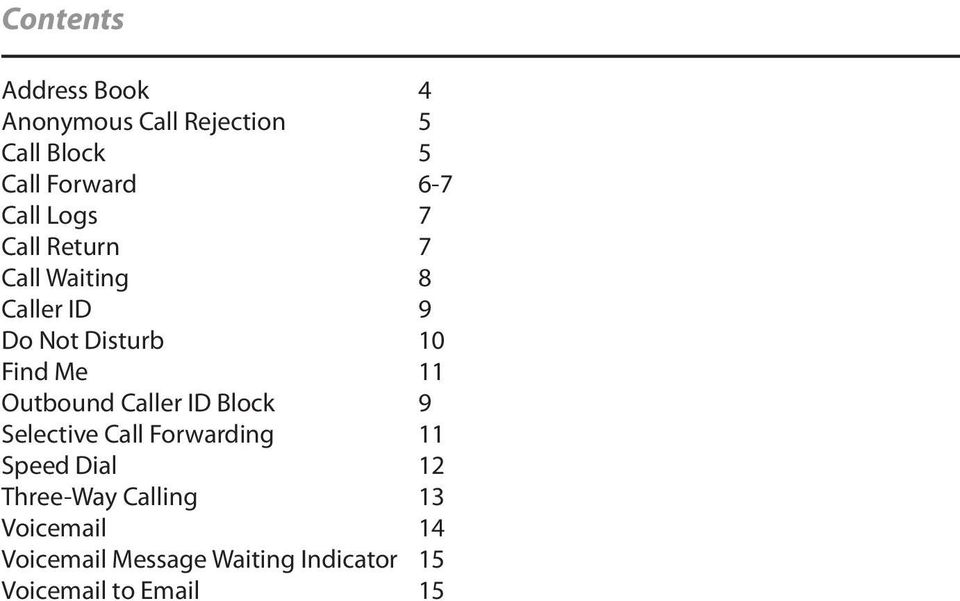
1 Contents Address Book 4 Anonymous Call Rejection 5 Call Block 5 Call Forward 6-7 Call Logs 7 Call Return 7 Call Waiting 8 Caller ID 9 Do Not Disturb 10 Find Me 11 Outbound Caller ID Block 9 Selective Call Forwarding 11 Speed Dial 12 Three-Way Calling 13 Voic 14 Voic Message Waiting Indicator 15 Voic to 15
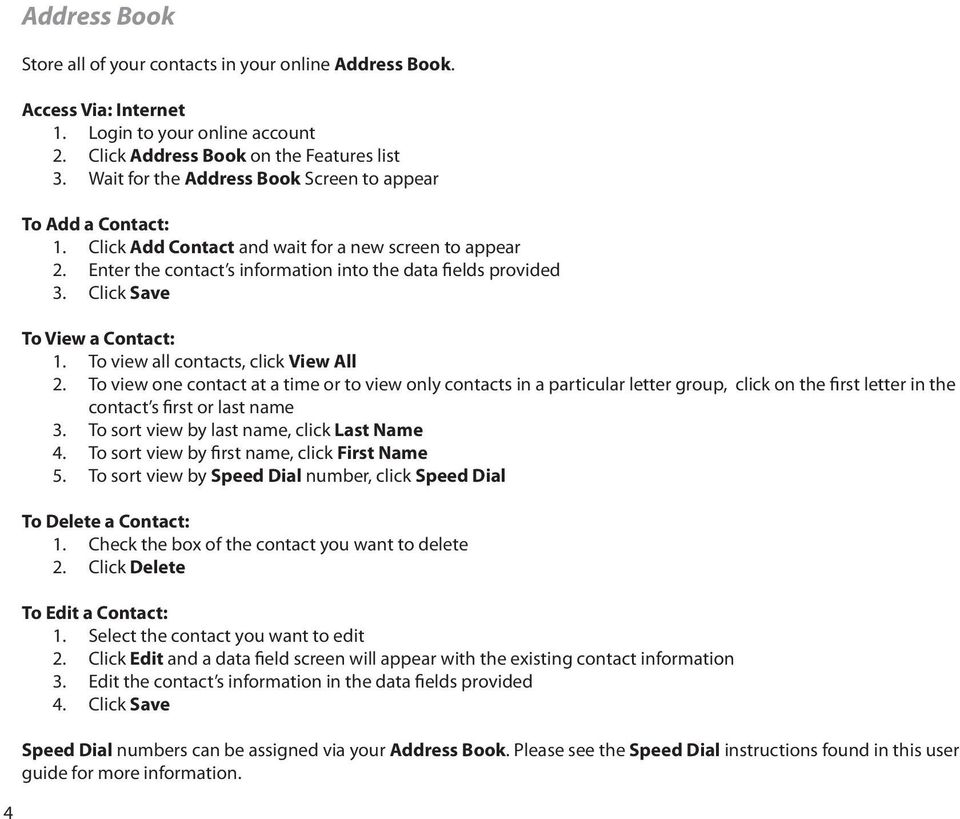
2 4 Address Book Store all of your contacts in your online Address Book. 2. Click Address Book on the Features list 3. Wait for the Address Book Screen to appear To Add a Contact: 1. Click Add Contact and wait for a new screen to appear 2. Enter the contact s information into the data fields provided 3. Click Save To View a Contact: 1. To view all contacts, click View All 2. To view one contact at a time or to view only contacts in a particular letter group, click on the first letter in the contact s first or last name 3. To sort view by last name, click Last Name 4. To sort view by first name, click First Name 5. To sort view by Speed Dial number, click Speed Dial To Delete a Contact: 1. Check the box of the contact you want to delete 2. Click Delete To Edit a Contact: 1. Select the contact you want to edit 2. Click Edit and a data field screen will appear with the existing contact information 3. Edit the contact s information in the data fields provided 4. Click Save Speed Dial numbers can be assigned via your Address Book. Please see the Speed Dial instructions found in this user guide for more information.
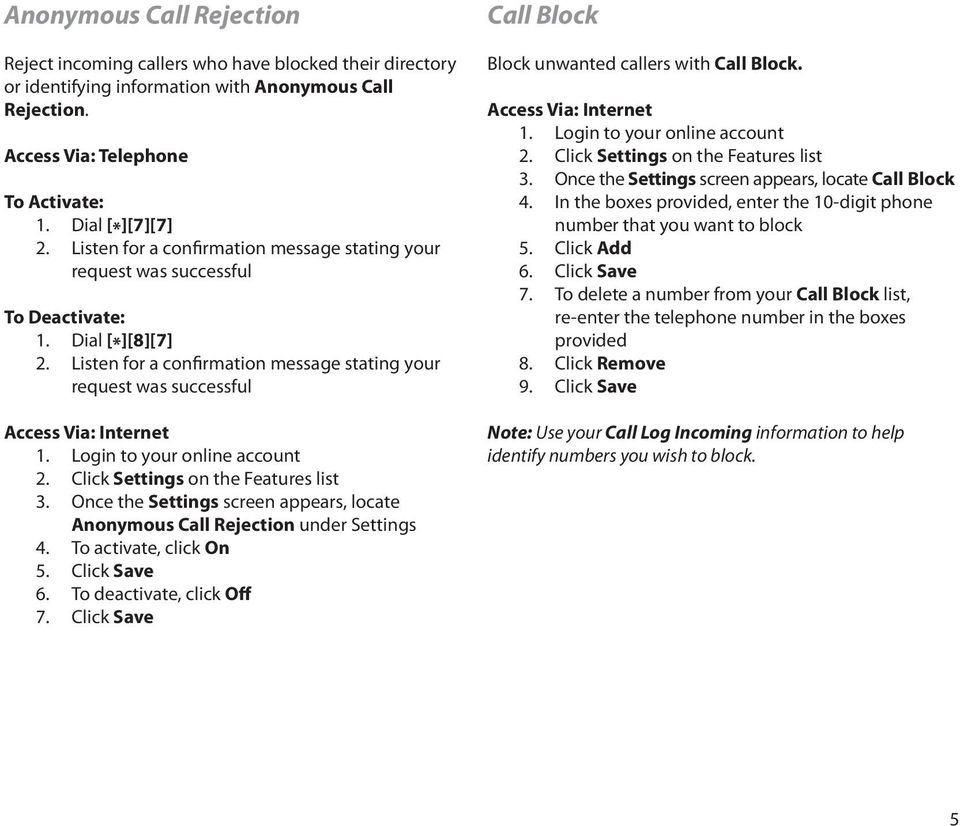
3 Anonymous Call Rejection Reject incoming callers who have blocked their directory or identifying information with Anonymous Call Rejection. To Activate: 1. Dial [*][7][7] 2. Listen for a confirmation message stating your request was successful To Deactivate: 1. Dial [*][8][7] 2. Listen for a confirmation message stating your request was successful 3. Once the Settings screen appears, locate Anonymous Call Rejection under Settings 4. To activate, click On 6. To deactivate, click Off Call Block Block unwanted callers with Call Block. 3. Once the Settings screen appears, locate Call Block 4. In the boxes provided, enter the 10-digit phone number that you want to block 5. Click Add 6. Click Save 7. To delete a number from your Call Block list, re-enter the telephone number in the boxes provided 8. Click Remove 9. Click Save Note: Use your Call Log Incoming information to help identify numbers you wish to block. 5
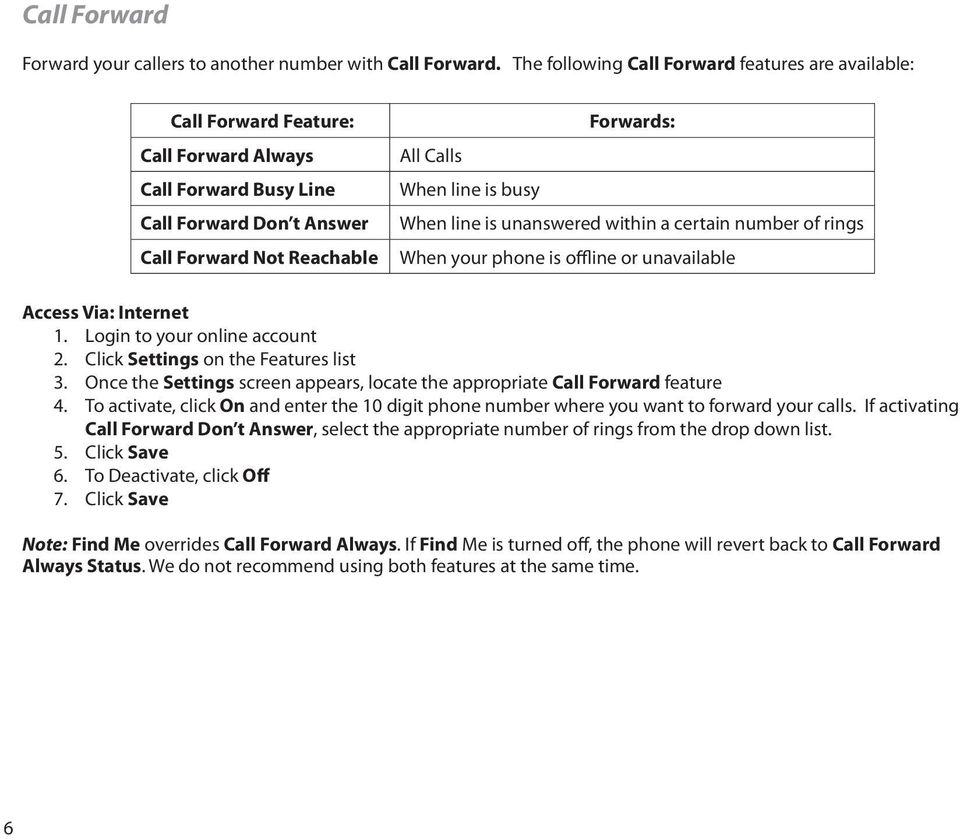
4 Call Forward Forward your callers to another number with Call Forward. The following Call Forward features are available: Call Forward Feature: Call Forward Always Call Forward Busy Line Call Forward Don t Answer Call Forward Not Reachable Forwards: All Calls When line is busy When line is unanswered within a certain number of rings When your phone is offline or unavailable 3. Once the Settings screen appears, locate the appropriate Call Forward feature 4. To activate, click On and enter the 10 digit phone number where you want to forward your calls. If activating Call Forward Don t Answer, select the appropriate number of rings from the drop down list. 6. To Deactivate, click Off Note: Find Me overrides Call Forward Always. If Find Me is turned off, the phone will revert back to Call Forward Always Status. We do not recommend using both features at the same time. 6
5 Call Forward continued Telephone instructions: Call Forward Feature: To Activate via Telephone: To Deactivate via Telephone: Then: Call Forward Always Call Forward Not Reachable Call Forward Busy Line Call Forward Don t Answer 1. Dial [*][7][2] and wait for the tone 2. Enter the destination s 10 digit phone number followed by the [#] key 1. Dial [*][9][4] 2. Enter the destination s 10 digit phone number followed by the [#] key Dial [*][7][3] Dial [*][9][5] Telephone Activation/Deactivation is not available Please set through your online account. Listen for a confirmation message Call Logs Review records of all your incoming and outgoing calls with your Call Logs. Call Log information is updated every forty-five (45) minutes. 2. Click Call Logs on the feature list and a screen will display your incoming and outgoing calls 3. To view your incoming calls, click Incoming 4. To view your outgoing calls, click Outgoing Call Return Dial the last incoming caller with Call Return. 1. Dial [ * ][6][9] 2. The number of the last incoming caller will be dialed Note: The Call Return feature does not verify the number of the last incoming call. It only dials the number. 7
![Enter the destination s 10 digit phone number followed by the [#] key Dial [*][7][3] Dial [*][9][5] Telephone Activation/Deactivation is not available Please set through your online account.](/docs-images/48/18557988/images/page_5.jpg "Listen for a confirmation message Call Logs Review records of all your incoming and outgoing calls with your Call Logs. Call Log information is updated every forty-five (45) minutes. 2.")
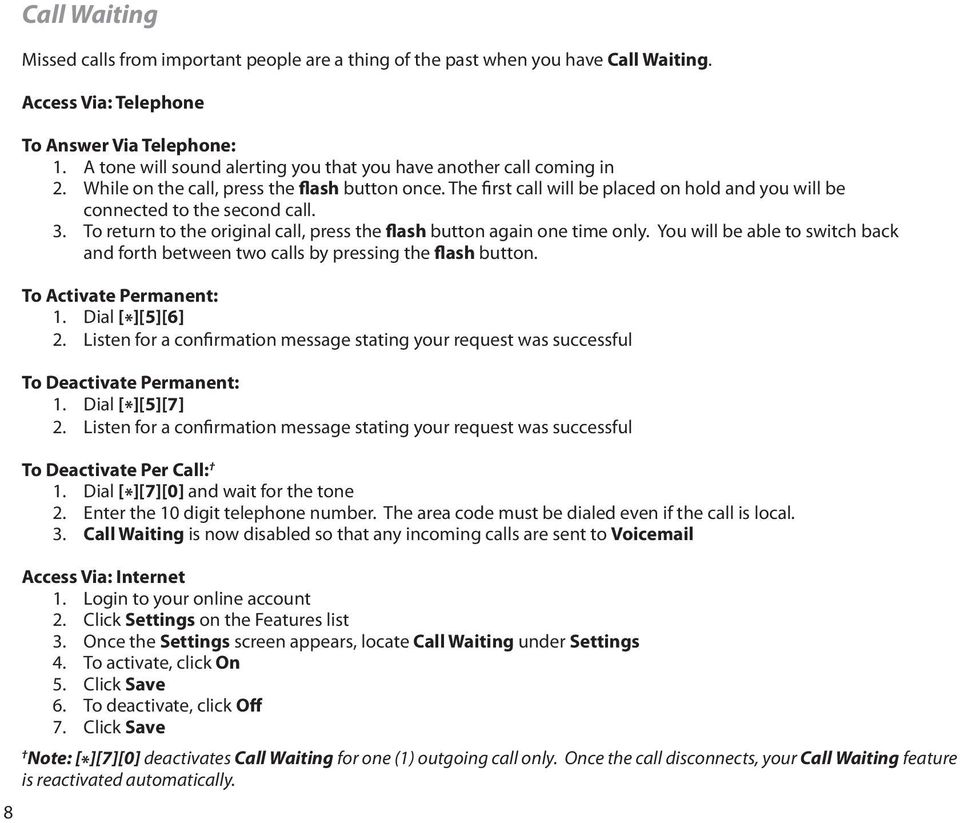
6 8 Call Waiting Missed calls from important people are a thing of the past when you have Call Waiting. To Answer Via Telephone: 1. A tone will sound alerting you that you have another call coming in 2. While on the call, press the flash button once. The first call will be placed on hold and you will be connected to the second call. 3. To return to the original call, press the flash button again one time only. You will be able to switch back and forth between two calls by pressing the flash button. To Activate Permanent: 1. Dial [*][5][6] 2. Listen for a confirmation message stating your request was successful To Deactivate Permanent: 1. Dial [*][5][7] 2. Listen for a confirmation message stating your request was successful To Deactivate Per Call: 1. Dial [*][7][0] and wait for the tone 2. Enter the 10 digit telephone number. The area code must be dialed even if the call is local. 3. Call Waiting is now disabled so that any incoming calls are sent to Voic 3. Once the Settings screen appears, locate Call Waiting under Settings 4. To activate, click On 6. To deactivate, click Off Note: [ * ][7][0] deactivates Call Waiting for one (1) outgoing call only. Once the call disconnects, your Call Waiting feature is reactivated automatically.
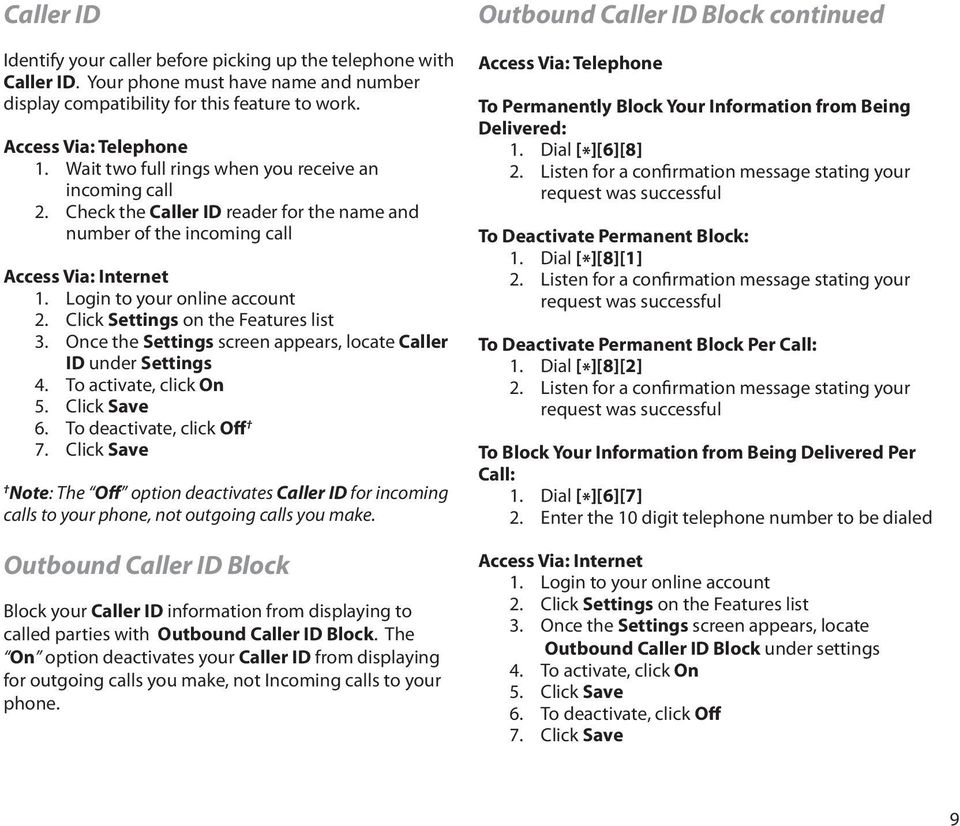
7 Caller ID Identify your caller before picking up the telephone with Caller ID. Your phone must have name and number display compatibility for this feature to work. 1. Wait two full rings when you receive an incoming call 2. Check the Caller ID reader for the name and number of the incoming call 3. Once the Settings screen appears, locate Caller ID under Settings 4. To activate, click On 6. To deactivate, click Off Note: The Off option deactivates Caller ID for incoming calls to your phone, not outgoing calls you make. Outbound Caller ID Block Block your Caller ID information from displaying to called parties with Outbound Caller ID Block. The On option deactivates your Caller ID from displaying for outgoing calls you make, not Incoming calls to your phone. Outbound Caller ID Block continued To Permanently Block Your Information from Being Delivered: 1. Dial [*][6][8] 2. Listen for a confirmation message stating your request was successful To Deactivate Permanent Block: 1. Dial [*][8][1] 2. Listen for a confirmation message stating your request was successful To Deactivate Permanent Block Per Call: 1. Dial [*][8][2] 2. Listen for a confirmation message stating your request was successful To Block Your Information from Being Delivered Per Call: 1. Dial [*][6][7] 2. Enter the 10 digit telephone number to be dialed 3. Once the Settings screen appears, locate Outbound Caller ID Block under settings 4. To activate, click On 6. To deactivate, click Off 9
8 Do Not Disturb Incoming callers will receive a message stating you are busy and be sent to your Voic when you have activated Do Not Disturb. To Activate: 1. Dial [*][7][8] 2. Listen for a confirmation message stating your request was successful 3. All incoming calls will receive a message you are busy and be sent to your Voic To Deactivate: 1. Dial [*][7][9] 2. Listen for a confirmation message stating your request was successful 3. All incoming calls will now ring to your phone 3. Once the Settings screen appears, locate Do Not Disturb 4. To activate, click On 6. To deactivate, click Manual Off Note: To help you remember your Do Not Disturb feature is on, check the Ring Reminder box and every call will ring just one time. 10
![Dial [*][7][9] 2. Listen for a confirmation message stating your request was successful 3. All incoming calls will now ring to your phone 3.](/docs-images/48/18557988/images/page_8.jpg "Once the Settings screen appears, locate Do Not Disturb 4. To activate, click On 6.")
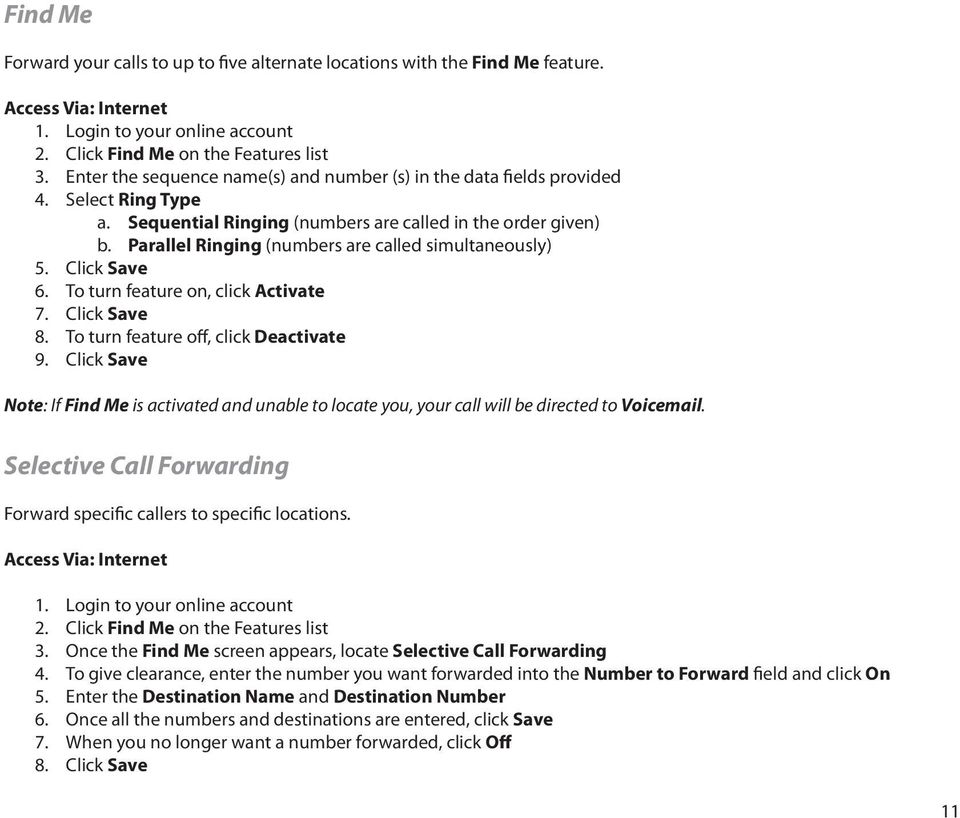
9 Find Me Forward your calls to up to five alternate locations with the Find Me feature. 2. Click Find Me on the Features list 3. Enter the sequence name(s) and number (s) in the data fields provided 4. Select Ring Type a. Sequential Ringing (numbers are called in the order given) b. Parallel Ringing (numbers are called simultaneously) 6. To turn feature on, click Activate 8. To turn feature off, click Deactivate 9. Click Save Note: If Find Me is activated and unable to locate you, your call will be directed to Voic . Selective Call Forwarding Forward specific callers to specific locations. 2. Click Find Me on the Features list 3. Once the Find Me screen appears, locate Selective Call Forwarding 4. To give clearance, enter the number you want forwarded into the Number to Forward field and click On 5. Enter the Destination Name and Destination Number 6. Once all the numbers and destinations are entered, click Save 7. When you no longer want a number forwarded, click Off 8. Click Save 11
10 Speed Dial Enter frequently dialed numbers for quick and simple access Set up Via: Internet 2. Click Address Book on the Features list and wait for the Address Book screen to appear New Entries: 1. Click Add Contact and wait for a new screen to appear 2. Enter contact information and then select a Speed Dial code from the drop down list 3. Click Save Modify Existing Contacts: 1. Click Edit and wait for the contact s information to appear 2. Select a Speed Dial code from the drop down list 3. Click Save Set up Speed Dial via Telephone: 1. Listen for a dial tone 2. Dial [*][7][5] and wait for the tone 3. Select a code from 01 through 20 and dial the code and the telephone number (Example: ) 4. Listen for a confirmation message stating your request was successful Dialing Instructions: 1. Listen for a dial tone 2. Dial # and the specific 2 digit Speed Dial code for the number you wish to call and the call will be connected 12

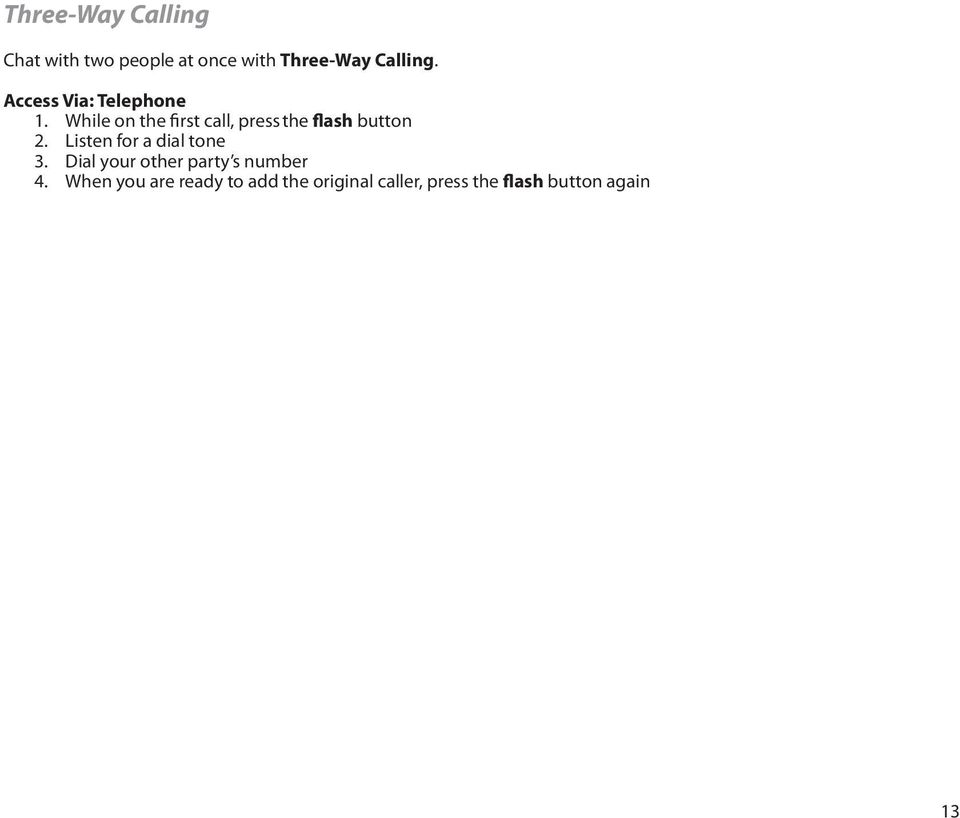
11 Three-Way Calling Chat with two people at once with Three-Way Calling. 1. While on the first call, press the flash button 2. Listen for a dial tone 3. Dial your other party s number 4. When you are ready to add the original caller, press the flash button again 13
12 Voic Whether you are on another call, not at home, or just too busy, we will send the caller to your own personal Voic inbox. You can retrieve your messages at a time that is convenient to you by phone, online account, and now via . To Set Up: 1. Dial [*][9][8] from your phone 2. Enter your temporary passcode [8642] and press the [#] key 3. You ll receive a prompt telling you the passcode has expired, and prompting you to enter a permanent passcode and press [#] 4. Once you ve entered the permanent passcode and pressed [#], you ll receive another prompt asking you to re-enter it and press [#] 5. Follow the rest of the prompts to record your name and greetings To Access: 1. Dial [*][9][8] from your phone. To access from a remote location, dial your home telephone number and press [*] when the greeting begins to play. 2. Enter your passcode and press the [#] key [8] To change your passcode [9] To exit the voice portal [#] To repeat this menu Access Voic box options: [1] To listen to your messages [2] To change your mailbox busy greeting [3] To change your mailbox no answer greeting [5] To compose and send a new message [7] To delete all messages [*] To go to the ComPilot voice portal [#] To repeat this menu 2. Click Voic on the options list 3. The Voic option at the bottom of the page will display your message list 4. Click on the sound icon to the right of the message and the message will play in your computer s media program (i.e., Media Player, itunes or Quicktime Player) 5. To delete a message, click Delete Main Voic Menu Options: [1] To access your Voic box [3] Record your name 14
![Enter your temporary passcode [8642] and press the [#] key 3. You ll receive a prompt telling you the passcode has expired, and prompting you to enter a permanent passcode and press [#] 4.](/docs-images/48/18557988/images/page_12.jpg "Once you ve entered the permanent passcode and pressed [#], you ll receive another prompt asking you to re-enter it and press [#] 5.")
13 Voic Message Waiting Indicator Receive notifications when you have received a new Voic message with Message Waiting Indicator. Message Waiting Indicator will remain on the phone until the new message has been played. Audible MWI: Notifies you in the form of a stutter dial tone when a message is waiting to be retrieved. Visual MWI: Notifies you by triggering a light and/or notice on the display of your telephone when a message is waiting to be retrieved. The Visual MWI requires you to have a compatible telephone. Set up Via: Internet 2. Click Profile on the options list and locate Message Waiting Indicator 3. To activate, click On 4. To deactivate, click Off Voic to Set up Via: Internet 2. Click Profile on the options list and locate Voic to 3. Enter the address where you would like your Voic messages forwarded. 4. Click Save Note: These s may not be accepted by your provider. If you do not receive your new Voic messages via , try adding autofwd@ipvoic .com to your account contact list to unblock the notifications. If you are still experiencing issues, you may be unable to use this feature with your existing provider at this time. 15

TRANS-VIDEO PHONE SERVICE
 TRANS-VIDEO PHONE SERVICE FEATURE GUIDE telephone number username password Manage your account online at: www.trans-video.net/voice.html CONTENTS Address Book Anonymous Call Rejection Call Block Call Logs
Contents. Note: Feature commands and/or functionality may vary dependent on the telephone equipment you choose to use with this product.
 Contents Address Book 4 Anonymous Call Rejection 5 Call Block 5 Call Forward 6-7 Call Hold 7 Call Log 8 Call Return 8 Call Waiting 9 Caller ID 10 Outbound Caller ID Block 10 Outbound Caller ID Deactivation
Anonymous Call Rejection
 Contents Anonymous Call Rejection 4 Call Block 5 Call Forward 6-7 Call Return 8 Call Waiting 9 Caller ID 10-11 Do Not Disturb 12 Find Me 13 Selective Call Forwarding 14 Speed Dial 15 Three-Way Calling
Please let us know if you need anything. Our customer service number is 1-866-311-5900. We re always happy to help.
 Dear Valued Customer, We are proud to welcome you to the EvenLink s Crystal Clear Digital Phone service. Our network reliability, customer support and value pricing are a great combination. We appreciate
Office Voice User Guide. User Guide
 Office Voice User Guide User Guide Contents Anonymous Call Rejection 3 Call Block 3 Call Forward 4 Call Return 5 Call Waiting 5 Caller ID 6 Do Not Disturb 7 Find Me 7 Last Number Redial 8 Selective Call
Features & Instructions Guide For Your New VoIP Services
 Features & Instructions Guide For Your New VoIP Services Coast Communications 349 Damon Rd NE Ocean Shores, WA 98569 Phone: 360-289-2252 Fax: 360-289-2750 Email: [email protected] WELCOME This Guide
# $ %&' ( $" )% %! $" )$) %! &%& $'('!
 !!" # $ %&' ( $" )% %! $" )$) %! &%& $'('! Contents Anonymous Call Rejection 3 Call Block 3 Call Forward 4 Call Return 5 Call Waiting 5 Caller ID 6 Do Not Disturb 7 Find Me 7 Last Number Redial 8 Selective
SMALL BUSINESS USER GUIDE
 SMALL BUSINESS USER GUIDE TABLE OF CONTENTS Anonymous Call Rejection 4 Anywhere 5 Call Block 6 Call Forwarding 7 Call Logs 8 Call Return 8 Call Transfer 8 Call Waiting 9 Caller ID 9 Do Not Disturb 10 Find
Features GUIDE. Getting Started with NewWave BUSINESS ADVANTAGE. NewWave Business Solutions Center Contact us today with any questions! 1.866.460.
 Features GUIDE NewWave Business Solutions Center Contact us today with any questions! newwavebusiness.com Getting Started with NewWave BUSINESS ADVANTAGE VIRTUAL FAX To Setup Virtual Fax: 2. Click Settings
Digital Telephone User Guide
 Digital Telephone User Guide 1 Proud to provide Conway s Electric, Water, Cable, Internet and Telephone services. Welcome to Conway Corporation Digital Telephone Service We take pride in providing superior
Digital Voice Services User Guide
 Digital Voice Services User Guide 2 P a g e * Feature Access Codes *11 Broadworks Anywhere (pulling call to alternate phone) *62 Access Voicemail *72 Call Forwarding Always Activation *73 Call Forwarding
Digital Voice Services Residential User Guide
 Digital Voice Services Residential User Guide 2 P a g e * Feature Access Codes *11 Broadworks Anywhere (pulling call to alternate phone) *62 Access Voicemail *72 Call Forwarding Always Activation *73 Call
Clear Choice Communications. Digital Voice Services User Guide
 Clear Choice Communications Digital Voice Services User Guide 2 P a g e * Feature Access Codes *62 Access Voicemail *72 Call Forwarding Always Activation *73 Call Forwarding Always Deactivation *90 Call
Business Voice Feature Guide
 Business Voice Feature Guide TABLE OF CONTENTS Account / Authorization Codes 1 Advanced Hunting 2 Anonymous Call Rejection 2 Anywhere 3 Auto Attendant 4 Call Block 6 Caller ID 6 Call Forwarding 7 Call
Hosted PBX Admin and End User Guide
 Hosted PBX Admin and End User Guide 3/11/15 CONTENTS Account / Authorization Codes 2 Advanced Hunting 3 Anonymous Call Rejection 3 Anywhere 4 Auto Attendant 5 Call Block 7 Caller ID 7 Call Forwarding 8
WiLine Networks. Phone Feature Guide
 WiLine Networks Phone Feature Guide Copyright Disclaimer Trademarks and patents Copyright 2009, WiLine Networks All rights reserved. This document may not be copied or otherwise reproduced, in whole or
Business Telephone User Guide
 Business Telephone User Guide 1 Proud to provide Conway s Electric, Water, Cable, Internet and Telephone services. Welcome to Conway Corporation Business Telephone Service We take pride in providing superior
Business Voice Services Voicemail * Guide
 Voicemail * Guide You can access your business voicemail using any phone. IMPORTANT: FIRST-TIME LOGIN INSTRUCTIONS The first time you log in, you will need to use the Voicemail Wizard to set a password
Anonymous Call Rejection
 Anonymous Call Rejection Don t waste time taking calls you don t want. Anonymous Call Rejection (ACR) allows you to block incoming calls from people who use *67 to block their phone number as well as calls
managedip Hosted TDS Table of Contents Calling Features User Guide
 Table of Contents Anonymous Call Rejection... 2 Automatic Callback... 2 Call Forwarding... 3 Call Park/Directed Call Park... 7 Call Park Retrieve... 8 Call Pickup... 8 Call Retrieve... 8 Call Return...
All Rights Reserved. Release 5.6, March 2009
 All Rights Reserved The use, disclosure, modification, transfer or transmittal of this work for any purpose, in any form, or by any means, without the written permission from IDT/Net2Phone is strictly
Contents How do I gain access to the Horizon website... 2 Logging in as the End User... 2 How do I customise my Dashboard?... 2 How do I initially
 Contents How do I gain access to the Horizon website... 2 Logging in as the End User... 2 How do I customise my Dashboard?... 2 How do I initially configure my user access?... 2 The Dashboard... 3 How
1 P a g e. Digital Voice Services Business User Guide
 1 P a g e Digital Voice Services Business User Guide Feature Access Codes *62 Voice Portal *86 Direct Voice Mail Retrieval *77 Anonymous Call Rejection Activation *87 Anonymous Call Rejection Deactivation
We thank you for being our customer, we take pride in providing superior and reliable Commercial Voice services to our customers.
 Welcome to USA Communications Commercial Voice. We thank you for being our customer, we take pride in providing superior and reliable Commercial Voice services to our customers. This document should answer
CUSTOM CALLING FEATURES
 CUSTOM CALLING FEATURES Anonymous Call Rejection (*77 & *87) Blocks a private or anonymous call from ringing onto your line. Callers who block their name and/or phone number from being displayed on a Caller
Time Warner Cable Business Class Phone User Guide
 Features of Business Class Phone Caller ID When you receive a call, the name and telephone number of the person calling you is shown on your Caller ID display screen. To use Caller ID: 1. When you receive
RESIDENTIAL DIGITAL VOICE USER GUIDE
 WELCOME Welcome to USA Communications Digital Voice. We thank you for being our customer; we take pride in providing superior and reliable Residential Digital Voice services to our customers. This document
Premium Digital Voice Solution. User Guide
 Premium Digital Voice Solution User Guide Table of Contents How to Log into Account Portal & Changing your Password 1 How to Download Toolbar 2 Utilizing Voice Mail 3 Feature Guide & How to Configure
D I G I T A L P H O N E S E R V I C E F E A T U R E S G U I D E DIGITAL P H O N E S E R V I C E. ACN 2007 useng_featuresguide_prdpv_w_092507
 D I G I T A L P H O N E S E R V I C E F E A T U R E S G U I D E DIGITAL P H O N E S E R V I C E ACN 2007 useng_featuresguide_prdpv_w_092507 TABLE OF CONTENTS Making Phone Calls... 2 Accessing Your Account
Anonymous Call Rejection Refuse calls from those who have blocked their numbers.
 How to Use Your Digital Voice Features Effective 01/12/15 To learn how to use your voice features, locate your service by selecting from the Quick Links that follow, or, you can find the same instructions
YOUR HOME PHONE. Horry Telephone Cooperative, Inc.
 YOUR HOME PHONE Horry Telephone Cooperative, Inc. CONTENTS Calling Features Anonymous Call Rejection page 4 Automatic Busy Redial page 4 Automatic Call Return page 5 Call Forwarding page 6 Call Forwarding
Digital Voice Services User Guide
 Digital Voice Services User Guide * Feature Access Codes *72 Call Forwarding Always Activation *73 Call Forwarding Always Deactivation *90 Call Forwarding Busy Activation *91 Call Forwarding Busy Deactivation
HOME PHONE GET TO KNOW FEATURES THAT ANSWER THE CALL MANAGING VOICEMAIL WITH VOICEZONE
 HOME PHONE GET TO KNOW FEATURES THAT ANSWER THE CALL MANAGING VOICEMAIL WITH VOICEZONE Just sign in to My Account and you can manage Voicemail and more, online and on your time. Activate Voicemail. Use
www.metrocast.com/business
 www.metrocast.com/business All Rights Reserved The use, disclosure, modification, transfer or transmittal of this work for any purpose, in any form, or by any means, without the written permission from
Welcome to. User Guide for Digital Cable TV Digital Telephone and High Speed Internet. www.norwoodlight.com 781-948-1150
 Welcome to User Guide for Digital Cable TV Digital Telephone and High Speed Internet www.norwoodlight.com 781-948-1150 CONTENTS Digital Phone Features Address Book... 3 Instant Replay...13 Anonymous Call
Outlook Integrated Toolbar Guide
 Outlook Integrated Toolbar Guide Guide Description This guide will introduce you to the Outlook Toolbar that can be used to administer some of the advanced features of your phone. The toolbar gives convenient
Contents. WOW! Phone Reference Guide
 WOW! Phone Reference Guide Intro to WOW! Phone P-1 WOW! Phone Features P-1 Call Waiting P-1 Call Forwarding P-1 3-Way Calling P-1 Call Return P-1 Anonymous Call Rejection P-2 Caller ID P-2 Caller ID Block
Digital Phone User Guide. 911 S. Primrose, Suite E, Monrovia, CA 91016 877-899-8898 championbroadband.com
 Digital Phone User Guide 911 S. Primrose, Suite E, Monrovia, CA 91016 877-899-8898 championbroadband.com Champion Digital Phone User Guide Welcome to the Champion Broadband Digital Phone Calling Plan.
VoIP Services User Guide
 VoIP Services User Guide Table of Contents Overview of Services 3 Service Numbers 4 Line Services and Codes 5 Voice Mail 12 Overview of Services This guide is about Tera-Byte's VoIP services for residential
Business Feature Pack
 Business Feature Pack Purpose: To provide an explanation and example of each feature and service that Bright House Networks Business Solutions offers. Each item will provide the reader with the following:
Calling FEATURES. User s Guide. Call *123 or 336-463-5022 or visit yadtel.com
 Calling FEATURES User s Guide Call * or 6-6-50 or visit yadtel.com Table of Contents QUICK REFERENCE GUIDE... KEEP IN TOUCH Call Waiting.... 5 Cancel Call Waiting.... 5 Three-Way Calling.... 6 Usage Sensitive
NGT Hosted Digital Voice. User Guide
 NGT Hosted Digital Voice User Guide December 2009 Getting Started Making Calls Using Your NGT Hosted Digital Voice service Domestic Dial as you normally would. You can also reference your local telephone
Digital Voice Services Business User Guide
 Digital Voice Services Business User Guide 2 P a g e * Feature Access Codes *11 Broadworks Anywhere (pulling call to alternate phone) *62 Access Voicemail *72 Call Forwarding Always Activation *73 Call
It s What We Do. Telephone Get Going Guide
 It s What We Do. Telephone Get Going Guide Welcome and Introduction Welcome to Astound telephone services brought to you by Astound Broadband! This Get Going Guide will familiarize you with our telephone
Note: You will not be notified when or how many calls have been rejected.
 Anonymous Call Rejection When you ve turned this service on, any callers who have blocked their number from your Caller ID display will hear an announcement that you do not accept anonymous calls. All
TalkBroadband TM Quick Feature Guide
 5-way Calling To include an additional party or parties to the current call: Flash (press quickly and release) the receiver button The call is placed on hold and you hear dial tone. Dial the phone number
Premium Feature Pack
 Premium Feature Pack Purpose: To provide an explanation and example of each feature and service that Bright House Networks Business Solutions offers. Each item will provide the reader with the following:
RiOffice Users Manual
 RiOffice Users Manual Rio Networks 9/23/2009 Contents Available Services... 4 Core PBX Features... 4 Voicemail Features... 4 Call Center Features... 4 Call Features... 4 Using Your Phone... 5 Phone Layout...
WTC Communications Hosted PBX User Guide
 WTC Communications Hosted PBX User Guide Version 7.13.1 Section Subject Page 3 Making Calls...5 3.1 Internal...5 3.2 External...5 3.3 Emergency Calls...5 3.4 Speaker Phone...5 3.5 Ending Calls...5 4 Answering
Feature Reference. Features: Call Forwarding Call Waiting Conference Calling Outbound Caller ID Block Last Call Return VoiceMail
 Feature Reference This document will provide you with information on and how to use the following features of your phone service with Standard Broadband. Features: Call Forwarding Call Waiting Conference
ACN CALLING PLAN FEATURES ALABAMA GEORGIA FLORIDA KENTUCKY LOUISIANA NORTH CAROLINA SOUTH CAROLINA TENNESSEE
 ACN CALLING PLAN FEATURES ALABAMA GEORGIA FLORIDA KENTUCKY LOUISIANA NORTH CAROLINA SOUTH CAROLINA TENNESSEE USING YOUR NEW FEATURES ACN customers can select from a variety of calling features each designed
Call Answer/Message Manager with Aliant Voicemail Online
 Call Answer/Message Manager with Aliant Voicemail Online Call Answer/Message Manager automatically takes a message when you re away, on the telephone or on Dial up Internet. You ll enjoy the convenience
Bristol: (276) 821-6200 Abingdon: (276) 698-3210 Toll Free: 877-835-1272 www.bvu-optinet.com
 Bristol: (276) 821-6200 Abingdon: (276) 698-3210 Toll Free: 877-835-1272 www.bvu-optinet.com TABLE OF CONTENTS Contact Information...1 Safety Line...1 Favorite Five...2 Caller ID...2 Call Forwarding...2
TruConnect. Hosted PBX User Guide. Quick Start Guide - Page 2. Table of Contents - Page 5. 1-800-768-1212 www.truvista.net
 TruConnect Hosted PBX User Guide R R Quick Start Guide - Page 2. Table of Contents - Page 5. 1-800-768-1212 www.truvista.net TruConnect User Guide Page 1. Hosted TruConnect IP PBX Quick Reference Guide
VIP (Traditional) Home Phone Calling Features
 VIP (Traditional) Home Phone Calling Features This document details each calling feature and its usage. Please note that this document applies only to our VIP Home Phone service for Kitchener-Waterloo,
Person Calling dials Main line number First additional number Second additional number
 Call Waiting While you re on a call, Call Waiting alerts you that you have another incoming call. s If two calls are on a line at one time, anyone calling will receive a busy signal. The Call Waiting beep
Analog Business Phone User Guide
 Analog Business Phone User Guide Emergency To dial 911 for emergency service, you must dial the Outside Access Digit first (usually 9) + 911. Customer Service / Technical Support (919) 459-2300, option
Phone User Guide. Dear FiberNET Phone Customer,
 Phone User Guide Dear FiberNET Phone Customer, Thank you for choosing MUS FiberNET as your broadband services provider. As a FiberNET Telephone service user, you receive your local phone service from Windstream
Orbitel. Residential Digital Phone Service User s Guide
 Orbitel Residential Digital Phone Service User s Guide All Rights Reserved Copyright 2005 The use, disclosure, modification, transfer, or transmittal of this work for any purpose, in any form, or by any
Online Control Panel User Guide. Document Version 1.0
 Online Control Panel User Guide Document Version 1.0 Table of Contents 1 About This Guide...8 2 Profile...9 2.1 Access Profile Menu... 9 2.2 Profile... 10 2.3 Addresses... 12 2.4 Passwords... 13 2.4.1
Call Answer Service. User Guide. outside front cover
 Call Answer Service User Guide outside front cover 204 225-9999 toll-free Call Answer access number from anywhere in Manitoba 1 866 GET-MSGS toll-free Call Answer access number from anywhere in Canada
BUSINESS PHONE USER S MANUAL
 Wire your business for success Find great business services inside. BUSINESS PHONE USER S MANUAL INSIDE: - PHONE PLANS - HOW TO ACCESS YOUR FEATURES ONLINE CLICK BUSINESS.CABLEONE.NET TODAY! BUSINESS CARE
Shaw Business SmartVoice Online Feature Management User Guide
 Shaw Business SmartVoice Online Feature Management User Guide Contents SmartVoice End User Portal User Guide... 3 Logging into the portal... 3 Calling Features...4 Managing incoming calls...4 Alternate
Big Sandy Res Premium Hosted VoIP Solution. Product Feature Guide
 Big Sandy Res Premium Hosted VoIP Solution Product Feature Guide January 2007 Big Sandy Res Premium Features Alternate Numbers Anonymous Call Rejection Automatic Callback (intragroup) Call Forwarding (Always,
Calling Features User Guide
 CONNECTING OUR COMMUNITY WITH THE LATEST COMMUNICATIONS TECHNOLOGY West Central Calling Features User Guide 2 TABLE OF CONTENTS CALL FORWARDING SERVICES 4 4 4 4 Call Forwarding Call Forward Busy Call Forward
HPUG_1014. Shaw Home Phone. User Guide
 HPUG_1014 Shaw Home Phone. User Guide Hello. Welcome to the wonderful world of Shaw Home Phone. This tiny book tells you every detail you need to know to use all of your new phone features like a superstar.
All Rights Reserved. Copyright 2009
 IMPORTANT NOTICE CONCERNING EMERGENCY 911 SERVICES Your service provider, not the manufacturer of the equipment, is responsible for the provision of phone services through this equipment. Any services
Optimum Lightpath Hosted Voice User Guide
 Optimum Lightpath Hosted Voice User Guide V10-12-10 Table of Contents 1. Making and Answering Calls... 6 1.1 Internally... 6 1.2 Externally... 6 1.3 Emergency Calls... 6 1.4 Speaker Phone... 6 1.5 Ending
Voicemail Plus User Guide
 Voicemail Plus User Guide Version: 2.0_US Revised: 25 September 2007 Notices Copyright 2007 Vonage. All rights reserved. No part of this documentation may be reproduced in any form or by any means or used
vsuite Home Phone Feature Reference
 vsuite Home Phone Feature Reference Below is a list of features that are included with your new vsuite telephone service. Should you have any questions or problems with a feature please feel free to contact
COMCAST DIGITAL VOICE USER GUIDE
 COMCAST DIGITAL VOICE USER GUIDE WELCOME TO COMCAST DIGITAL VOICE Go ahead. Pick up your phone. Call your neighbor. Your best friend across the country. Or your cousin in Europe. Now that you have Comcast
Business Phone Service. Calling Features & Instruction Guide
 Business Phone Service Calling Features & Instruction Guide HUNTING Hunting is a system that routes phone calls through your phone lines until an idle line is found. CALLER ID PER CALL BLOCKING (67) Pressing
Custom Calling Features
 Anonymous Call Rejection Anonymous Call Rejection rejects calls from callers who block their Caller ID information, so the calls don t even ring through on your line. To Activate Call Rejection: Pick up
CALLING FEATURE USER GUIDE
 CALLING FEATURE USER GUIDE 1801 N Main St, in the Palace Mall ** Mitchell, SD 57301 Phone: (605) 990-1000 Fax: (605) 990-1010 Homepage: www.mitchelltelecom.com Calling Feature User Guide Mitchell Telecom
Wightman s. Home Phone. Quick Reference Guide
 Wightman s Home Phone Quick Reference Guide Welcome to Wightman Telecom! We would like to thank you for making the decision to join Wightman Telecom as one of our valued customers. Our goal is to prove
For customers in AL, FL, GA, SC, TN. wowforbusiness.com. Business Services PHONE FEATURES. User Guide BPG.U.1303.O
 wowforbusiness.com Business Services PHONE FEATURES User Guide BPG.U.0.O ANONYMOUS CALL REJECTION. It s easy to activate and start blocking anonymous calls. Simply lift the receiver and press *.. When
Single-User VoIP Service User Manual. Version 20080501 Revised 20110202
 Single-User VoIP Service User Manual Version 20080501 Revised 20110202 Table of Contents Table of Contents... 2 Your VoIP Service... 2 Who Should Read this Manual... 2 Basic Features... 2 Optional Features...
PHONE SERVICE QUICK GUIDE PHONE SERVICE QUICK GUIDE
 PHONE SERVICE 1 Your new United Phone service is powered by the area s only fiber network, so you ll enjoy crystal-clear call quality and a variety of advanced features. We ve created this handy guide
FEATURE & INFORMATION GUIDE
 FEATURE & INFORMATION GUIDE LOCAL PHONE Windstream is a registered service mark of Windstream Corporation. 2007 WindstreamCorporation WS F&I ENG 07/07 001519 English_F&I_Guide.indd 1-2 7/23/07 4:31:53
Reject calls from callers who block their Caller ID information so their calls don't even ring on your line.
 Anonymous Call Rejection Reject calls from callers who block their Caller ID information so their calls don't even ring on your line. TO ACTIVATE ANONYMOUS CALL REJECTION 1. 2. Press *77 (on a rotary phone,
INTEGRATED COMMUNICATIONS SOLUTION USER GUIDE BUSINESS SOLUTIONS. How can we help
 INTEGRATED COMMUNICATIONS SOLUTION USER GUIDE BUSINESS SOLUTIONS How can we help you? GET THE POWER OF BUSINESS + WORKING FOR YOU. Keep this user guide handy for quick and easy reference to the many features
Guide to Your Telephone Service
 Guide to Your Telephone Service OPTIONS AND FEATURES AVAILABLE WITH EPLUS BROADBAND TELEPHONE SERVICE 422-7500 Table of Contents Included in this guide is a comprehensive list of features and services
RESIDENTIAL PHONE FEATURES
 RESIDENTIAL PHONE FEATURES User Guide Athens-Dec 9/10 Caller ID The Telephone display screen will show you the caller s name and telephone number, usually after the first complete ring. The service also
CCI Hosted Voice Services Special Calling Features Quick Reference Guide
 CCI Hosted Voice Services Special Calling Features Quick Reference Guide Feature Access Code Calls NOTE: Feature access codes provided in this guide are examples. Anonymous Call Rejection Activation 1.
BP_UserGuide_0113. Business Phone User Guide
 BP_UserGuide_0113 Business Phone User Guide Contents Welcome to Shaw Business Phone 2 Voicemail 6 Call Forward 7 Call Forward Busy 8 Call Forward No Answer 9 Call Waiting 10 Multi-line Hunting 12 Call
Guide to Your Telephone Service
 Guide to Your Telephone Service OPTIONS AND FEATURES AVAILABLE WITH EPLUS BROADBAND TELEPHONE SERVICE 422-7500 Table of Contents Included in this guide is a comprehensive list of features and services
Home Phone Quick Start Guide. Review these helpful instructions to understand your Midco home phone service and its many convenient features.
 Home Phone Quick Start Guide Review these helpful instructions to understand your Midco home phone service and its many convenient features. 1 Contents Equipment and Features.......................................................
Northland Phone Service RESIDENTIAL AND BUSINESS USER GUIDE
 Northland Phone Service RESIDENTIAL AND BUSINESS USER GUIDE Important 911 Information Access to 911 emergency services via our Home Phone service is very similar to traditional 911 service access, but
Getting to Know Your Cisco VoIP Phone 303G, 504G, 508G and 514G
 Getting to Know Your Cisco VoIP Phone 303G, 504G, 508G and 514G Getting to know your new phone is easy. This guide will help you get started. You ll learn how to: Use the feature buttons Navigate your
Home Voice Mail. User Guide. 2014 Frontier Communications Corporation. HVM_UG_0414
 Home Voice Mail User Guide 2014 Frontier Communications Corporation. HVM_UG_0414 Basic Standard OnePoint Voice Mail Greeting 5 minutes 5 minutes 5 minutes Busy Greeting Message Storage 30 days 30 days
Commercial Telephone User Guide
 Commercial Telephone User Guide ing WELCOME Packages Welcome to Ciello. We are pleased to provide you with our quality service and support. We value relationships with our customers and look forward to
CALL FORWARDING (Activate *72 / Deactivate *73) Call Forwarding is a service that automatically forwards all calls to any number you choose.
 St. Joseph Cablevision would like to thank you for making our Digital Phone service part of your home. As a St. Joseph Cablevision customer, you have access to one of the most advanced broadband communications
Voice over IP Phone Feature Guide
 Voice over IP Phone Feature Guide STANDARD FEATURES Caller ID Caller ID displays an incoming caller s telephone number on your handset or softphone. There is no further action required as this feature
Calling Feature Guide
 Calling Feature Guide Automatic Call Back *66 Mid Century Automatic Call Back will continually dial a busy number automatically for up to 30 minutes. When the line becomes free your phone will ring alerting
Snom Phone Quick Start Guide
 Snom Phone Quick Start Guide Today s Phone Company 1.866.342.4283 www.megagate.com Table of Contents 1. Quick Reference information... 3 2. Introduction... 4 3. Making Calls... 5 3.1 Internally... 5 3.2
Q (With a rotary dial phone, skip this step R70. Custom Calling Features. Call Waiting. Call Forwarding. Cancel Call Waiting. Long Distance Alert
 www.gctel.com Custom Calling Features There may be a charge for these services. Listen for two beeps. Call Forwarding is now discontinued. Call Forwarding This feature means your phone can transfer incoming
This service allows you to talk to the 3rd party before transferring the original called party to them. To use Attended Call transfer:
 Calling Features Attend Call Transfer Auto Redial Anonymous Call Rejection Call Blocking Call Forward Busy Line Call Forward Don't Answer Call Forwarding Remote Access Call Forwarding Universal Call Holding
SmartVoice. PRI, CAS & SIP DID Features. Quick Reference Feature Guide
 Quick Reference Feature Guide SmartVoice PRI, CAS & SIP DID Features Quick Reference CODE FUNCTION Activate 72 76 78 94 67 82 21 40 98 22 55 62 Feature Access Code Calls (Always) Busy Call Forward No Answer
To activate Anonymous Call Rejection: 1. Lift the receiver and listen for dial tone. 2. Dial *77. 3. Listen for confirmation tone, hang up.
 Anonymous Call Rejection Anonymous Call Rejection allows a customer to deny any calls from ringing the line if the calling party has blocked the identification number. The calling party receives a message