
VALKEE BRIGHT LIGHT HEADSET
|
|
|
- Gillian Ball
- 9 years ago
- Views:
Transcription
1 VALKEE BRIGHT LIGHT HEADSET MY VALKEE SOFTWARE INSTALLATION AND TROUBLESHOOTING GUIDE Valkee Oy Rev. 1.1

2 CONTENTS INSTALLATION GUIDE FOR MY VALKEE SOFTWARE... 2 APPLE MAC REQUIREMENTS... 2 MICROSOFT WINDOWS REQUIREMENTS... 2 INSTALLATION ON APPLE MAC COMPUTER... 3 INSTALLATION ON WINDOWS VISTA AND WINDOWS 7 COMPUTERS INSTALLATION ON WINDOWS XP COMPUTER TROUBLESHOOTING ON WINDOWS COMPUTERS THINGS TO TRY IF INSTALLATION FAILS CONTACTING VALKEE FOR SUPPORT CHECKING BROWSER PLUGIN INSTALLATION (WINDOWS XP, VISTA, 7 AND 8) CHECKING DEVICE DRIVER INSTALLATION UNINSTALLING BROWSER PLUGIN (WINDOWS XP) UNINSTALLING DEVICE DRIVER (WINDOWS XP) INSTALLING BROWSER PLUGIN MANUALLY (WINDOWS XP, VISTA, 7, 8) INSTALLING DEVICE DRIVER MANUALLY (WINDOWS XP) DEVICE DRIVER INSTALLATION PROBLEM, MISSING ROOT CERTIFICATE (WINDOWS XP) Valkee Oy Rev 1.1 1

3 INSTALLATION GUIDE FOR MY VALKEE SOFTWARE Installation of My Valkee software on your computer allows you to change the light therapy settings of your Valkee bright light headset, such as dose and power. After installation, the settings can be changed in My Valkee web site. APPLE MAC REQUIREMENTS OPERATING SYSTEM AND COMPUTER Mac OS X 10.5 to OS X 10.8 (Leopard, Snow Leopard, Lion, Mountain Lion) Apple Mac computer with Intel processor INTERNET BROWSER Safari, Firefox, Chrome, Opera (11.x and up) MICROSOFT WINDOWS REQUIREMENTS OPERATING SYSTEM Windows XP, Windows Vista, Windows 7 or Windows 8 INTERNET BROWSER Internet Explorer (7.x and up), Safari, Firefox, Chrome, Opera (11.x and up) Valkee Oy Rev 1.1 2

4 INSTALLATION ON APPLE MAC COMPUTER NOTE: These instructions describe how to install My Valkee software into your Mac computer using Safari browser. If you encounter any problems when installing the software using one of the other supported browsers, please try to install the software using Safari instead. After installation, you can use any of the supported browsers to access My Valkee web site. 1. Open in your browser. You can change the language of the site to Finnish or English in the upper right corner. 2. Click the Register button. Valkee Oy Rev 1.1 3

5 3. On the Registering page fill out the required data and then click Continue. 4. From the Download plugin page you can download the required software for adjusting your bright light headset settings. Select your operating system, click Mac. Valkee Oy Rev 1.1 4

6 5. Your browser will download the installation file to its default location. Click Save if there is a popup question. 6. Press Cmd+Alt+L to access your download window. In the download window double click on the downloaded Valkee.pkg to install the required software. NOTE: On Mac OS X 10.8 (Mountain Lion) the following message box may appear after double clicking Valkee.pkg. In this case follow the instructions here. Otherwise continue to step 7. Click OK to close the popup. Open the download window again by pressing Cmd+Alt+L. Keep Ctrl-button pressed down and click Valkee.pkg. Select Show in Finder from the popup menu. A window opens showing Downloads-folder. Valkee Oy Rev 1.1 5

7 Keep Ctrl-button pressed down and click Valkee.pkg. Select Open from the popup menu. The following message box appears: Click Open. Continue to step 7. Valkee Oy Rev 1.1 6

8 7. A security warning will appear for Install Valkee. Close your browser. Click Continue to install the software. 8. Click Continue at the Introduction window. Read the License Agreement and click Continue if you accept the terms. Valkee Oy Rev 1.1 7

9 9. Select the destination of your installation and click Continue. 10. Click Install on the Installation type window to run standard install to your selected destination. Valkee Oy Rev 1.1 8

10 11. Enter your user name and password and click Install Software on the appearing window. 12. The software will now start the installation process. After the installation is complete, restart the browser by clicking Restart. Valkee Oy Rev 1.1 9

11 13. Open in your browser. Click Login. 14. Login with the username and password given in step 3. Valkee Oy Rev
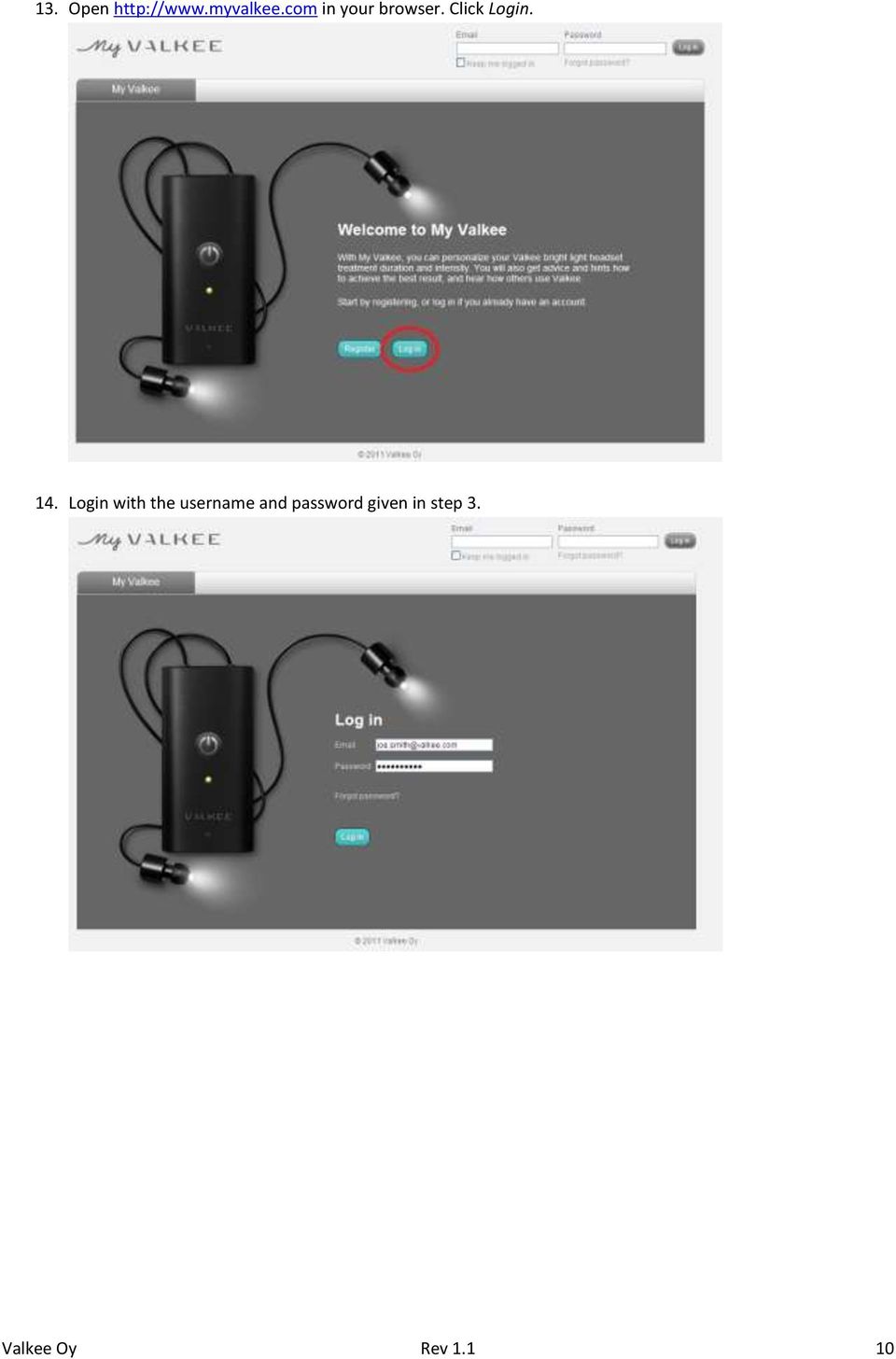
12 15. Connect the bright light headset to the USB port of your computer via the USB cable included in the package. 16. Congratulations, you have successfully installed the required software! Now you are able to adjust the settings of your bright light headset on the following page: You can always return to this page by opening your browser on address logging in and plugging in your device. Valkee Oy Rev

13 INSTALLATION ON WINDOWS VISTA AND WINDOWS 7 COMPUTERS 1. Open in your browser. You can change the language of the site to Finnish or English in the upper right corner. 2. Click the Register button. Valkee Oy Rev

14 3. On the Registering page fill out the required data and then click Continue. 4. From the Download plugin page you can download the required software for adjusting your bright light headset settings. Select your operating system, click Windows Valkee Oy Rev

15 5. Your browser will download the installation file Valkee exe to its default location. Click Save if there is a popup question. Firefox: Internet Explorer: Valkee Oy Rev

16 Safari: 6. In Firefox, Google Chrome and Internet Explorer push CTRL+J, in Safari push Ctrl+Alt+L to access your download window. In the download window double click on the downloaded Valkee exe to install the required software. 7. A windows security warning will appear for installer program Valkee exe. Click Run. 8. Close your browser. Accept the license agreement and click Install on the Valkee Bright Light Software License Agreement window: Valkee Oy Rev

17 9. The software will now start the setup process and you will be able to follow it by the appearing windows: Valkee Oy Rev

18 10. Open in your browser. Click Login. 11. Login with the username and password given in step 3. Valkee Oy Rev

19 12. Connect your bright light headset to the USB port of your computer via the USB cable included in the package. 13. After you have connected the device windows new device driver installation will automatically start. You can see the following messages at your taskbar. Valkee Oy Rev

20 14. Congratulations, you have successfully installed the required software! Now you are able to adjust the settings of your bright light headset on the following page: You can always return to this page by opening your browser on address logging in and plugging in your device. Valkee Oy Rev

21 INSTALLATION ON WINDOWS XP COMPUTER 1. Open in your browser. You can change the language of the site to Finnish or English in the upper right corner. 2. Click the Register button. Valkee Oy Rev
22 3. On the Registering page fill out the required data and then click Continue. 4. From the Download plugin page you can download the required software for adjusting your bright light headset settings. Select your operating system, click Windows Valkee Oy Rev


23 5. The following steps differs slightly between different browsers. Please follow instructions for the browser you are using. a. MICROSOFT INTERNET EXPLORER: File Download - Security Warning window for My Valkee software installer (Valkee exe) appears. Click Run. Proceed to step 6. b. MOZILLA FIREFOX: Open file dialog for My Valkee software installer (Valkee exe) will open. Click Save File. If the Downloads window did not open automatically, open it by pressing CTRL+J. Double click Valkee exe to start My Valkee software installer. Valkee Oy Rev

24 Open File Security Warning window will appear. Click Run. Proceed to step 6. c. GOOGLE CHROME: The browser will start downloading My Valkee software installer (Valkee exe). Press CTRL+J when the download is complete. This will open Downloads tab. Double click Valkee exe to start the installer. Open File Security Warning window will appear. Click Run. Proceed to step 6. Valkee Oy Rev
25 6. Close your browser. Accept the license agreement and click Install on the Valkee Bright Light Software License Agreement window. 7. The software will now start the setup process and you will be able to follow it by the appearing windows: Valkee Oy Rev
26 8. Open in your browser. Click Login. 9. Login with the username and password given in step 3. Valkee Oy Rev

27 10. Connect your bright light headset to the USB port of your computer via the USB cable included in the package. 11. After you have connected the device windows new device driver installation will automatically start. You can see the following message at your taskbar and Welcome to the Found New Hardware Wizard will open. Select No, not this time to the question if Windows can connect to Windows Update. Click Next. Valkee Oy Rev

28 12. Select Install the software automatically. Click Next. Valkee Oy Rev
29 13. The hardware wizard will search for the location of the device driver and install it. Valkee Oy Rev
30 14. Congratulations, you have successfully installed the required software! Now you are able to adjust the settings of your bright light headset on the following page: You can always return to this page by opening your browser on address logging in and plugging in your device. Valkee Oy Rev
31 TROUBLESHOOTING ON WINDOWS COMPUTERS This section describes how to troubleshoot installation problems of My Valkee software on Windows computers. Follow these instructions if you encounter any problems during installation of the software or if you cannot change settings of your device after installation. My Valkee requires two components to work correctly, a browser plugin and a device driver. Both are usually installed automatically by the software installer Valkee exe. This section describes how you can check if the plugin and the driver are working properly and how to try to fix possible problems. THINGS TO TRY IF INSTALLATION FAILS Make sure you are logged in with a user name which has administrator rights to the computer. You cannot install the software as a normal user Try a different browser. Uninstall all and reinstall. Install plugin or driver manually Update root certificates (Windows XP only) CONTACTING VALKEE FOR SUPPORT If nothing else helps, contact Valkee for further assistance. Send to [email protected]. Please include information about what browser and operating system you are using. Include version numbers also if possible. Valkee Oy Rev
32 CHECKING BROWSER PLUGIN INSTALLATION (WINDOWS XP, VISTA, 7 AND 8) 1. Open in your browser and log in. If the following screen appears, the browser plugin is working correctly. Continue to checking device driver installation (CHECKING DEVICE DRIVER INSTALLATION). If the following screen appears instead, the browser plugin is not working correctly. Continue to step Depending on the browser you wish to use for My Valkee, select one of the following: Valkee Oy Rev
33 INTERNET EXPLORER: In Microsoft Internet Explorer click Tools menu or Tools icon and select Manage Add-ons. On middle left, select All add-ons in Show drop down list. Click Toolbars and Extensions. If you cannot find Valkee Bright Light Device plugin in the list, the plugin is not installed. Install plugin manually as described in INSTALLING DEVICE DRIVER MANUALLY (WINDOWS XP). However, if the plugin is in the list, but is disabled as seen in the picture, first select the plugin by clicking its name and then enable it by clicking Enable button on the lower right corner. The plugin should work properly after it has been enabled. Verify this as described in step 1. Valkee Oy Rev
34 FIREFOX: In Mozilla Firefox click CTRL+SHIFT+A to open Add-ons Manager. Select Plugins from the left menu. If you cannot find Valkee Valkee Bright Light Device plugin in the list as shown in the picture, the plugin is not installed. Install plugin manually as described in INSTALLING BROWSER PLUGIN MANUALLY (WINDOWS XP, VISTA, 7, 8). However, if the plugin is in the list, but is disabled as seen in the picture, enable it by clicking Enable button on the right. The plugin should work properly after it has been enabled. Verify this as described in step 1. Valkee Oy Rev
35 CHROME: In Google Chrome type to the address bar chrome://plugins. If you cannot find Valkee Version: Valkee Bright Light Device plugin in the list as shown in the picture, the plugin is not installed. Install plugin manually as described in INSTALLING BROWSER PLUGIN MANUALLY (WINDOWS XP, VISTA, 7, 8). Valkee Oy Rev
36 However, if the plugin is in the list, but is disabled as seen in the picture, enable it by clicking Enable. The plugin should work properly after it has been enabled. Verify this as described in step If the plugin does not work even after doing the operations described here, please try to use another browser to connect to For example, if you were using Microsoft Internet Explorer, use Mozilla Firefox instead. Valkee Oy Rev
37 CHECKING DEVICE DRIVER INSTALLATION This section describes how to check if the device driver was installed successfully. Because the procedure is different between Windows XP and other Windows versions, it is described here separately for different Windows versions. WINDOWS XP 1. Connect the bright light headset to the computer through USB cable. If the Found New Hardware Wizard starts, cancel it. Valkee Oy Rev
38 2. Click Start menu and right click on My Computer. Select Manage from the list. Valkee Oy Rev
39 3. Select Device Manager from the left side menu. 4. The device driver is correctly installed if Valkee NPT-1100 is listed under Valkee Bright Light Devices at the right side list without any error signs. 5. The device driver installation was not successful if Valkee NPT-1100 is listed under Other devices with a yellow question mark or under Valkee Bright Light Device but with a yellow exclamation mark. 6. If the driver is not installed correctly, please uninstall the device driver as described in UNINSTALLING DEVICE DRIVER (WINDOWS XP) and reinstall it manually as described in INSTALLING DEVICE DRIVER MANUALLY (WINDOWS XP). Valkee Oy Rev
40 UNINSTALLING BROWSER PLUGIN (WINDOWS XP) 1. Close all browsers. 2. Click Start menu and select Control Panel. At Control Panel select Add or Remove Programs. Search for Valkee Bright Light Device plugin from the list of programs and click Remove. 3. Search for Valkee Bright Light Device plugin from the list. Click Remove. 4. Restart your computer. You have uninstalled the browser plugin. Valkee Oy Rev
41 UNINSTALLING DEVICE DRIVER (WINDOWS XP) 1. Connect the bright light headset to the computer through USB cable. Click cancel at Found New Hardware Wizard window. 2. Click Start menu and right click on My Computer. Select Manage from the list. Valkee Oy Rev
42 3. Select Device Manager from the left side menu. Find Valkee Bright Light Device and Valkee NPT-1100 at the right side list. Valkee Oy Rev
43 4. Right click on Valkee NPT-1100 and select Uninstall. Valkee Bright Light Device will disappear from the list. 5. Restart your computer. You have uninstalled the device driver. Valkee Oy Rev
44 INSTALLING BROWSER PLUGIN MANUALLY (WINDOWS XP, VISTA, 7, 8) 1. Enter into your browser. If the browser asks if you want to Run or Save the file, choose Save. 2. Press CTRL + J in your browser. This will open the downloads window. 3. Double click ValkeePlugin msi. This will start manual installation of the plugin. Follow the instructions of the installer. 4. Restart your browser. You have successfully installed the browser plugin. Valkee Oy Rev

45 INSTALLING DEVICE DRIVER MANUALLY (WINDOWS XP) 1. Make sure the bright light headset is not connected to the computer. 2. Enter into your browser. If the browser asks if you want to Run or Save the file, choose Save. 3. Press CTRL + J in your browser, it will open the downloads windows. Double click npt1x msi. This will start a manual installation of the driver. 4. Connect the bright light headset to the computer. Found new hardware wizard will start. Rest of the installation is same as normal XP installation. Follow steps in INSTALLATION ON WINDOWS XP COMPUTER 5. You have installed the device driver. Go to and log in. You should be ready to adjust your device. Valkee Oy Rev
46 DEVICE DRIVER INSTALLATION PROBLEM, MISSING ROOT CERTIFICATE (WINDOWS XP) NOTE: This applies to Windows XP only. If the driver did not install correctly even after trying to reinstall it manually as described above, the most likely reason is that the root certificates are not up to date. Windows uses root certificates to check the digital signature of the driver and if they do not match the driver installation fails. Windows XP does not always update the root certificates automatically. In this case the user has to update them manually. Update the root certificates as described here: 1. Go to Microsoft website 982a-92f4d5dce2ef [Update for Root Certificates [April 2012] (KB931125)] Follow the instructions of the website and install the update for root certificates. 2. After installation restart your computer. 3. Reinstall the device driver as instructed in INSTALLING DEVICE DRIVER MANUALLY (WINDOWS XP). Valkee Oy Rev
Adobe Reader Settings
 Adobe Reader Settings Table of Contents Adobe 9 and X (10) Reader Settings...2 For Adobe Reader X (10)... 5 Adobe Reader XI (11)...7 Internet Explorer 8 and 9... 8 Google Chrome... 9 Mozilla Firefox...
Installing Citrix for Mac
 Installing Citrix for Mac 1) Go to: http://receiver.citrix.com. 2) Click on Download Receiver. 3) On the bottom left hand corner of your computer screen, the Citrix Download should appear. Click on that
Silverlight is a browser plug-in that lets you view certain types of rich media, such as high quality videos or interactive web apps.
 SPOT Your Potential Troubleshooting Guide. Silverlight is a browser plug-in that lets you view certain types of rich media, such as high quality videos or interactive web apps. SPOT your Potential requires
Install and End User Reference Guide for Direct Access to Citrix Applications
 Install and End User Reference Guide for Direct Access to Citrix Applications Version 1.0 7/26/2013 This remote access end user reference guide provides an overview of how to install Citrix receiver (a
Citrix Client Install Instructions
 Citrix Client Install Instructions If you are using Citrix remotely, Information Technology Services recommends updating Citrix client to the newest version available online. You must be an administrator
8x8 Click2Pop User Guide
 USER GUIDE 8x8 User Guide Getting Started with April 2014 Contents Introduction... 3 What s new.... 3 8x8.... 3 Here is how works...4 8x8 Click2Connect.... 4 Requirements.... 4 Installation on Microsoft
Wireless Printing Setup Guide
 Temple University Beasley School of Law Wireless Printing Setup Guide Updated August, 2012 Temple Law Computer Services 8/27/2012 Table of Contents Computer Operating System Page Windows 7 2 Windows Vista
Instructions for Department of Public Health (DPH) WebConnect (Mac)
 Instructions for Department of Public Health (DPH) WebConnect (Mac) UCSF at SFGH Computing and Network Services Hours of Operation: Monday Friday 8 AM to 5PM Pacific Time Website: http://tiny.ucsf.edu/sfghcns
ATTENTION: End users should take note that Main Line Health has not verified within a Citrix
 Subject: Citrix Remote Access using PhoneFactor Authentication ATTENTION: End users should take note that Main Line Health has not verified within a Citrix environment the image quality of clinical cal
PC Troubleshooting Steps
 PC Troubleshooting Steps This FAQ is designed to help PC users to go through various troubleshooting steps to allow them to view the FerrisConnect Learn/Vista sites appropriately. Compatible Browsers Check
How To Sync Google Drive On A Mac Computer With A Gmail Account On A Gcd (For A Student) On A Pc Or Mac Or Mac (For An Older Person) On An Ipad Or Ipad (For Older People) On
 Installation and Setup of Google Drive for Students on Mac OS X Purpose: This guide will lead you through the Google Drive Installation and Configuration. Pre-requisites: 1) ODU Student Gmail account 2)
FAQ: troubleshooting Java for Saba Web Access
 FAQ: troubleshooting Java for Saba Web Access Published: 06/11/2013 Introduction 2 TOC 3 Contents What are the Java requirements for using Saba Meeting?...4 How do I check if I have a supported version
mystanwell.com Installing Citrix Client Software Information and Business Systems
 mystanwell.com Installing Citrix Client Software Information and Business Systems Doc No: 020/12 Revision No: Revision Date: Page: 1 of 16 Contents Overview... 3 1. Microsoft Internet Explorer... 3 2.
Remote Access End User Reference Guide for SHC Portal Access
 Remote Access End User Reference Guide for SHC Portal Access Version 2.0 6/7/2012 This remote access end user reference guide provides an overview of how to install Citrix receiver, which is a required
Mac OS X Secure Wireless Setup Guide
 Mac OS X Secure Wireless Setup Guide Requirements: Apple computer with built-in AirPort card capable of WPA2-Enterprise encryption Mac OS X Snow Leopard version 10.6.0 or greater or Mac OS X Lion version
Downloading and Installing Interactive Reporting (Hyperion) Web Client
 Use the links below to skip to a specific section in the document: Downloading and Installing Interactive Reporting (Hyperion) Web Client... 1 Introduction... 1 Setup... 1 Identifying the version of Internet
Section 1.0 Getting Started with the Vālant EMR. Contents
 Section 1.0 Getting Started with the Vālant EMR Contents Getting Started with the Valant EMR application:... 2 Hardware Requirements for the Vālant EMR:... 3 Software Requirements for the Vālant EMR:...
Spontania User Setup Guide
 Spontania User Setup Guide ClearOne 5225 Wiley Post Way Suite 500 Salt Lake City, UT 84116 Telephone 1.800.945.7730 1.801.975.7200 Spontania Support 1.801.974.3612 TechSales 1.800.705.2103 FAX 1.801.977.0087
MyNetFone Virtual Fax. Virtual Fax Installation
 Table of Contents MyNetFone Virtual Fax MyNetFone Virtual Fax Installation... 1 Changing the SIP endpoint details for the fax driver... 11 Uninstalling Virtual Fax... 13 Virtual Fax Installation Follow
MED ACCESS USER INSTRUCTIONS FOR INSTALLING THE CITRIX RECEIVER FOR ACCESS TO ALBERTA NETCARE VIA PLB
 MED ACCESS USER INSTRUCTIONS FOR INSTALLING THE CITRIX RECEIVER FOR ACCESS TO ALBERTA NETCARE VIA PLB Last Updated: February 18, 2012. Med Access Support Alberta Netcare Portal Support Alberta Health Services
SHC Client Remote Access User Guide for Citrix & F5 VPN Edge Client
 SHC Client Remote Access User Guide for Citrix & F5 VPN Edge Client Version 1.1 1/15/2013 This remote access end user reference guide provides an overview of how to install Citrix receiver (a required
Optimal Browser Settings for Internet Explorer Running on Microsoft Windows
 Optimal Browser Settings for Internet Explorer Running on Microsoft Windows If you have Internet Explorer 7 or 8: Each time you log in to our web site, it evaluates whether you are using the same computer
FTP Over SSL (FTPS) Core FTP LE. Installing Core FTP LE"
 FTP Over SSL (FTPS) Gordon State College has setup FTP Over SSL (also known as FTPS ) to allow students, faculty, and staff to access resources from our Servers from off-campus using an encrypted connection.
Below are the instructions for downloading the Dartfish Software Files from the website:
 Below are the instructions for downloading the Dartfish Software Files from the website: 1. TO ACCESS THE FILES TO DOWNLOAD - Using the computer that you wish to install the Dartfish software on, connect
Three Rivers Community College Wireless Network
 Three Rivers Community College Wireless Network TRCC s Information Technology Division offers free wireless network connectivity for students. The network grants students high-speed access to the Internet
CLEARONE DOCUMENT 801-000-002 (REVISION 1.0) October, 2008. with Converge Pro Units
 APPLICATION NOTES Converge Pro Products CLEARONE DOCUMENT 801-000-002 (REVISION 1.0) October, 2008. Troubleshooting USB Connections with Converge Pro Units Description This document explains how to connect
1. Right click using your mouse on the desktop and select New Shortcut.
 offers 3 login page styles: Standard Login, List Login or Quick Time Punch. Each login page can be saved as a shortcut to your desktop or as a bookmark for easy fast login access. For quicker access to
Citrix Receiver 11.8 for Macintosh OS X
 1. Document Control Record Document title Document Owner Citrix Receiver 11.8 for Macintosh OS X Rayna McKinley 2. Issue and Amendment Record Issue Date Revised by Comments 1 8/15/2013 Rayna McKinley Original
VPN Service Access Manual. Rev.1.3
 VPN Service Access Manual Rev.1.3 0 System Requirements VPN service supports the following terminal environments. OS Windows Vista SP2 Windows 7 SP1 Windows 8 Windows 8.1 Apple Mac OS X 10.7.x Apple Mac
Troubleshooting Guide
 Troubleshooting Guide Before you start troubleshooting: Power down the Tooway modem for 60 seconds. Connect a computer directly (via Ethernet cable) to the Tooway modem Power the Tooway modem and wait
E-PLAN FREQUENTLY ASKED QUESTIONS
 1. I cannot view drawings even when I am using Internet Explorer A. Ensure you are using Internet Explorer Version 11 or higher. When you are viewing drawings in ProjectDox, please make sure you are using
Instructions for Accessing the Hodges University Virtual Lab
 Instructions for Accessing the Hodges University Virtual Lab Table of Contents Adding the VLAB as a Trusted Site... 3 Accessing the VLAB using Windows 8... 5 Using Internet Explorer and Windows 8 to Access
8x8 Virtual Office Click2Pop for eagent Setup Guide
 8x8 Virtual Office April 2012 Table of Contents 8x8 Click2Pop for eagent... 3 8x8 Click2Pop provides eagent CRM with two functions:... 3 Requirements.... 3 Installation... 3 Start the Application and Integrate
First Advisors Login Guide
 WebLink Login Guide First Advisors Login Guide In order to conform to the Federal Financial Institutions Examination Council (FFIEC) Authentication Guidance, our First Advisors site requires you to step
XEN Web Portal Instructions
 XEN Web Portal Instructions Hi Everyone! Please use this document for help on accessing the new BearCom Xen Web Portal This document contains instructions for users of Internet Explorer, Firefox, Chrome
How To Install the Virtual Learning App
 Table of Contents Installation Instructions... 2 MAC: Using Firefox... 2 MAC: Using Chrome... 6 Disabling PepperFlash... 9 MAC: Using Safari Unsafe Mode We Can t Control So Use Firefox or Chrome... 11
isupplier PORTAL ACCESS SYSTEM REQUIREMENTS
 TABLE OF CONTENTS Recommended Browsers for isupplier Portal Recommended Microsoft Internet Explorer Browser Settings (MSIE) Recommended Firefox Browser Settings Recommended Safari Browser Settings SYSTEM
Technology Services Group Procedures. IH Anywhere guide. 0 P a g e
 VDI Pilot Technology Services Group Procedures IH Anywhere guide 0 P a g e Installation Disable Apple Security Table of Contents IH Anywhere for Apple OSX (MAC)... 2 1. Installation... 2 Disable Apple
ADA Applicant Business Process Guide
 Objectives ADA Applicant Business Process Guide The purpose of this document is to give you an understanding of how to apply and maintain an applicant account at the American Dental Association (ADA).
ARCHER & GREINER. Citrix Client Install Instructions - For ALL Citrix Users. BigHand Client Install Instructions - For BigHand Users Only
 ARCHER & GREINER Citrix Client Install Instructions - For ALL Citrix Users BigHand Client Install Instructions - For BigHand Users Only Table of Contents Citrix Client Install Instructions - For ALL Citrix
Video conferencing with its multiple simultaneous video chats demands a good deal from your computer. The following platforms are required:
 VIDEO CONFERENCING TECHNICAL REQUIREMENTS AND SETUP TUTORIAL Conferences are conducted through the class website. No special conferencing software or service is required. Participation requires that your
Flexible Identity Federation
 Flexible Identity Federation User guide version 1.0.1 Publication History Date Description Revision 2015.09.25 initial release 1.0.0 2015.12.10 minor corrections 1.0.1 Copyright Orange Business Services
Verizon Internet Security Suite Powered by McAfee. Installation Guide for Business Users (Mac)
 Verizon Internet Security Suite Powered by McAfee Installation Guide for Business Users (Mac) ii Contents Introduction 3 System requirements 5 Installing Verizon Internet Security Suite 7 Signing in to
HYPERLINK Internet PC setup guide. HYPERLINK Internet support helpdesk at 1-866-302-5525.
 HYPERLINK Internet support helpdesk at 1-866-302-5525. Congratulations on your new residence and welcome to HYPERLINK Internet service. In a few short moments you will be connected to one of the fastest
Table of Contents. 1. Overview... 3. 1.1 Materials Required. 3 1.2 System Requirements. 3 1.3 User Mode 3. 2. Installation Instructions..
 Table of Contents 1. Overview..... 3 1.1 Materials Required. 3 1.2 System Requirements. 3 1.3 User Mode 3 2. Installation Instructions.. 4 2.1 Installing the On Call Diabetes Management Software. 4 2.2
MITA VPN Client Software Installation Guide
 01. Introduction Welcome to the Installation of MITA Virtual Private Network Installation Guide. The system allows access to the MAGNET services from your Internet connection in a secure manner. Before
CONNECT-TO-CHOP USER GUIDE
 CONNECT-TO-CHOP USER GUIDE VERSION V8 Table of Contents 1 Overview... 3 2 Requirements... 3 2.1 Security... 3 2.2 Computer... 3 2.3 Application... 3 2.3.1 Web Browser... 3 2.3.2 Prerequisites... 3 3 Logon...
Using desktop ANYWHERE
 Using desktop ANYWHERE A facility for students and staff which provides access to University IT facilities from most computers which have a connection to the Internet. Using a web browser you can access:
OBIEE : Browser and Operating System Compatibility. Including Known Issues and Solutions
 OBIEE : Browser and Operating System Compatibility Including Known Issues and Solutions Contents PREFACE... 2 SUPPORTED BROWSERS AND OPERATING SYSTEMS... 3 SUMMARY OF KNOWN BROWSER/OS ISSUES:... 4 ISSUE
TxEIS Browser Settings
 TxEIS Browser Settings Updated May 2016 The TxEIS Browser Settings document lists supported browsers and recommended browser settings which will allow you to utilize the TxEIS system at its fullest potential
The Rush 24/7 Podcast for itunes 9
 The Rush 24/7 Podcast for itunes 9 System Requirements In order to run the Rush 24/7 Podcast for itunes 9, please see the system requirements here: http://www.apple.com/itunes/download/ Initial Setup of
CANON FAX L360 SOFTWARE MANUAL
 CANON FAX L360 SOFTWARE MANUAL Before You Begin the Installation: a Checklist 2 To ensure a smooth and successful installation, take some time before you begin to plan and prepare for the installation
Installing the VMware View client to access MOVE
 Installing the VMware View client to access MOVE Purpose: The purpose of this document is to guide you through the installation of the VMware Horizon View Client and accessing the MOVE environment. Pre
Digital Persona Fingerprint Reader Installation
 Digital Persona Fingerprint Reader Installation The link to download the Fingerprint Reader Software for AXIS-ACH is http://corpcu.com/fingerprint-reader-software This will begin the download for the drivers.
Installing VPN for PC v1.3
 Follow these instructions to access your Public/Private folders from home. Please Note: If you are having connectivity issues after installing or upgrading VPN, please refer to Troubleshooting Connectivity
Deposit Direct. Getting Started Guide
 Deposit Direct Getting Started Guide Table of Contents Before You Start... 3 Installing the Deposit Direct application for use with Microsoft Windows Vista... 4 Running Programs in Microsoft Windows Vista...
Remote Access Services Microsoft Windows - Installation Guide
 Remote Access Services Microsoft Windows - Installation Guide Version 3.1 February 23, 2015 1 P age Contents GETTING STARTED... 3 JAVA VERIFICATION, INSTALLATION, AND CONFIGURATION... 3 Windows XP... 3
Manual of UPClink VPN.UPC.EDU (For Windows 7)
 Manual of UPClink VPN.UPC.EDU (For Windows 7) SYSTEM REQUIREMENTS Required software: - Windows operating Systems Windows Vista Service Pack 1 or 2 for 32/64 bits Windows 7 for 32/64 bits Windows XP Professional
Passport installation Windows 8 + Firefox
 Passport installation Windows 8 + Firefox OS Version Windows 8 System Type 32-bit and 64-bit Browser name & version Firefox 23 Before you begin Check you have Anti Virus software installed on your computer
The UC Learning Center: Disabling Pop-Up Blockers
 The UC Learning Center: Disabling Pop-Up Blockers In order to launch online courses within the UC Learning Center all pop-up blockers must be turned off. This guide will walk you through disabling pop-up
Verizon Internet Security Suite Multi-Device Powered by McAfee. Installation Guide for Multi Devices for Residential Users
 Verizon Internet Security Suite Multi-Device Powered by McAfee Installation Guide for Multi Devices for Residential Users Contents Introduction 3 System requirements 4 Installing Verizon Internet Security
Portal Instructions for Mac
 Portal Instructions for Mac Table of Contents Introduction... 1 Preparing Safari... 2 Advanced Access Instructions... 3 Installing Java... 3 Setting the Default Browser... 3 Installing the Browser Plug-in...
XConsole GUI setup communication manual September 2010.
 XConsole GUI setup communication manual September 2010. XConsole is compatible with Microsoft XP, Vista and Windows 7. The software will also work if using Boot camp on a Mac. IMPORTANT NOTES: - Do NOT
Contents. VPN Instructions. VPN Instructions... 1
 VPN Instructions Contents VPN Instructions... 1 Download & Install Check Point VPN Software... 2 Connect to FPUA by VPN... 6 Connect to Your Computer... 8 Determine Your Machine Type... 10 Identify 32-bit
How to Disable Common Pop-Up Blockers
 How to Disable Common Pop-Up Blockers Listed below are some of the most popular pop-up blocking software packages, and instructions to enable pop-up windows with them. Pop-up windows must be enabled to
Square 1 Remote Deposit Scanner Installation + Use // Quick Start Guide
 Square 1 Remote Deposit Scanner Installation + Use // Quick Start Guide The Check Clearing for the 21st Century Act (Check 21) allows organizations to convert the paper checks they receive into electronic
Disable the Launcher Plugin
 3. Plug the patch gable into the splitter on line out and then into the splitter on microphone. 4. Plug your microphone into the microphone splitter, and then plug your speakers into the line out splitter.
Parallels Transporter Agent
 Parallels Transporter Agent User's Guide Copyright 1999-2015 Parallels IP Holdings GmbH and its affiliates. All rights reserved. Parallels IP Holdings GmbH Vordergasse 59 8200 Schaffhausen Switzerland
The Texture Mill User Guide
 Version 1.0 The Texture Mill User Guide User Guide Table of Contents Introduction... 3 1 Getting Started... 3 1.1 Registration... 3 1.2 Installation... 3 1.3 Enable / Disable plug-in for Blender... 4 1.4
USB Driver Installation for Windows XP
 USB Driver Installation for Windows XP USB Serial Converter Driver Installation for Windows XP CAUTION: You must use the drivers on the CD-ROM supplied with your USB Device. DO NOT download drivers from
Web Conferencing Version 8.3 Troubleshooting Guide
 System Requirements General Requirements Web Conferencing Version 8.3 Troubleshooting Guide Listed below are the minimum requirements for participants accessing the web conferencing service. Systems which
Getting Started with VMware Horizon View (Remote Desktop Access)
 Getting Started with VMware Horizon View (Remote Desktop Access) Use The Links Below To Navigate This Document Using VMware Horizon View with Tablet and Smartphone APP or Mobile Web Browser Walk Through
Accessing Citrix on a MAC using OS X (Mountain Lion and Newer)
 These instructions are specifically designed for OS X Mountain Lion and Mavericks. Earlier versions of the OS will require a different installation. These instructions assume that there are no Java, Citrix
DOE VPN Client Installation and Setup Guide March 2011
 DOE VPN Client Installation and Setup Guide March 2011 Table of Contents Introduction... 3 System Requirements... 3 Microsoft Windows... 3 Mac OS X... 4 Windows... 4 Installation for the Cisco AnyConnect
ReadyTalk Google Calendar Gadget
 ReadyTalk Google Calendar Gadget User s Guide Page 1 Contents 1. ReadyTalk Google Calendar Gadget... 2 2. Download and Installation Instructions... 2 3. Validate and Setup your ReadyTalk Account... 4 4.
Standard Client Configuration Requirements
 Test Developer s Studio (TDS) Standard Client Configuration Requirements Information Technologies (IT) Content Applications Development Group (CADG) Version 1.0 February 20, 2008 Copyright 2008 by NCS
Installing the Driver of your Plotter- / Engraver
 Installing the Driver of your Plotter- / Engraver By installing your plotter / engraver software the driver for your device will be pre-installed. When the device is switched on after the software setup,
E M A I L S E T - U P G U I D E
 E M A I L S E T - U P G U I D E In our effort to help eliminate unwanted Spam, your email system hosted on our SplashWeb server, has additional security features. Unfortunately, this does make setting
Hi-Speed USB Flash Disk User s Manual Guide
 Hi-Speed USB Flash Disk User s Manual Guide System Requirements Windows 98, ME, 2000, XP, Mac OS 10.1, Linux 2.4 or above AMD or Intel Pentium 133MHz or better based computer USB 1.1, USB 2.0 or higher
The MLS Guide to installing Silverlight on your Microsoft Windows or Apple Macintosh Operating System
 MLS 2009 The MLS Guide to installing Silverlight on your Microsoft or Apple Macintosh Operating System This document covers the compatibility of the Silverlight client interfaces. The Management interface
Sophos UTM. Remote Access via PPTP Configuring Remote Client
 Sophos UTM Remote Access via PPTP Configuring Remote Client Product version: 9.300 Document date: Tuesday, October 14, 2014 The specifications and information in this document are subject to change without
If you see "Skip installation of the current version and test the currently installed version of Java" then select that hyperlink.
 Workstation, Browser, Java, Connections, Proxy Servers, & Firewall Information March 2, 2015 Contents I. Workstation and Browser Configurations A. Internet Explorer B. Mozilla Firefox C. Google Chrome
How to install USB driver (MICRO/I)
 How to install USB driver (MICRO/I) Install on Windows XP 1. Connect the USB port on HG3G series and the USB port on PC. 2. Windows displays Found new Hardware Wizard. Select No, not this time and press
Windows and MAC User Handbook Remote and Secure Connection Version 1.01 09/19/2013. User Handbook
 Windows and MAC User Handbook How to Connect Your PC or MAC Remotely and Securely to Your U.S. Department of Commerce Account Developed for You by the Office of IT Services (OITS)/IT Service Desk *** For
EVA Drivers 6.1 and TWAIN Installation Guide for EVA Classic Digital Sensors
 8 Westchester Plaza, Suite 112, Elmsford, NY 10523 (914) 592-6100 Fax (914) 592-6148 www.imageworkscorporation.com EVA Drivers 6.1 and TWAIN Installation Guide for EVA Classic Digital Sensors Note: This
OUTLOOK WEB ACCESS (OWA) AND SSL VPN HOME USERS MANUAL
 United States Army Special Operations Command (USASOC) Special Operations Forces Information Technology Enterprise Contracts (SITEC) OUTLOOK WEB ACCESS (OWA) AND SSL VPN HOME USERS MANUAL Prepared by:
An update to the FreeStyle InsuLinx meter software is needed. Read through this document before beginning.
 An update to the FreeStyle InsuLinx meter software is needed. Read through this document before beginning. The steps below will guide you through the process to download and install FreeStyle Auto-Assist
USER GUIDE. Quickflix Streaming on your Personal Computer (PC) & Apple Macintosh (MAC)
 USER GUIDE Quickflix Streaming on your Personal Computer (PC) & Apple Macintosh (MAC) Contents Chapter 1: Welcome I. About Quickflix II. System Requirements for PC & Mac Chapter 2: Registering for the
Citrix Desktop for Home Computers Apple ios Instructions
 Citrix Desktop for Home Computers Apple ios Instructions You can use Citrix to create and access a virtual work desktop from your home computer. Step 1 Uninstall: To install the newest version of Citrix
VPN User Guide. For Mac
 VPN User Guide For Mac System Requirements Operating System: Mac OSX. Internet Browser: Safari (Firefox and Google Chrome are NOT currently supported). Disclaimer Your computer must have the system requirements
Frequently Asked Questions Cabinet WEB 9.0
 Frequently Asked Questions Cabinet WEB 9.0 Quick Start Guide December 2013 Page 1 Frequently Asked Questions None of my documents will download. When I try to view document a popup is displayed briefly
Mac OS VPN Set Up Guide
 Mac OS VPN Set Up Guide If internet traffic is not being sent over the VPN then go to System Preferences- >Network and click on your VPN connection. Click the "Advanced..." button, and in the "Options"
Remote Access Services Apple Macintosh - Installation Guide
 Remote Access Services Apple Macintosh - Installation Guide Version. February, 05 P age Contents GETTING STARTED... JAVA VERIFICATION, INSTALLATION, AND CONFIGURATION... Checking Mac OS version... Java
UNIFIED MEETING 5 HELP
 UNIFIED MEETING 5 HELP Table of Contents Conference Manager... 1 About Conference Manager... 1 From Conference Manager, you can... 1 Signing in to Conference Manager... 2 To sign in to the Conference
Reference Guide for WebCDM Application 2013 CEICData. All rights reserved.
 Reference Guide for WebCDM Application 2013 CEICData. All rights reserved. Version 1.2 Created On February 5, 2007 Last Modified August 27, 2013 Table of Contents 1 SUPPORTED BROWSERS... 3 1.1 INTERNET
Fiery E100 Color Server. Welcome
 Fiery E100 Color Server Welcome 2011 Electronics For Imaging, Inc. The information in this publication is covered under Legal Notices for this product. 45098226 27 June 2011 WELCOME 3 WELCOME This Welcome
Using Access.Centegra.Com (Physician Access) Secure Remote Access from the Internet
 System Requirements These are the minimum requirements necessary to ensure the proper operation of Centegra Health System s Access.Centegra.Com. Administrative level access to the PC or other device used
WA1826 Designing Cloud Computing Solutions. Classroom Setup Guide. Web Age Solutions Inc. Copyright Web Age Solutions Inc. 1
 WA1826 Designing Cloud Computing Solutions Classroom Setup Guide Web Age Solutions Inc. Copyright Web Age Solutions Inc. 1 Table of Contents Part 1 - Minimum Hardware Requirements...3 Part 2 - Minimum
Sale Grammar School Remote Desktop Services User Instructions
 Sale Grammar School Remote Desktop Services User Instructions Sale Grammar School Remote Desktop Services allows Staff and Students access to a virtual school computer while connected to the internet at
Microsoft Internet explorer 7.0 or higher (Except 10), Mozilla Firefox.
 Dear Client, Welcome to www.canmoney.in, our portal for online trading. We thank you for choosing us as your trading partner. Our website provides host of services and we have taken adequate care to make