
Parallels Transporter Agent
|
|
|
- Julian Garrison
- 9 years ago
- Views:
Transcription
1 Parallels Transporter Agent User's Guide Copyright Parallels IP Holdings GmbH and its affiliates. All rights reserved.

2 Parallels IP Holdings GmbH Vordergasse Schaffhausen Switzerland Tel: Fax: Copyright Parallels IP Holdings GmbH and its affiliates. All rights reserved. This product is protected by United States and international copyright laws. The product s underlying technology, patents, and trademarks are listed at Microsoft, Windows, Windows Server, Windows NT, Windows Vista, and MS-DOS are registered trademarks of Microsoft Corporation. Apple, Mac, the Mac logo, Mac OS, ipad, iphone, ipod touch, FaceTime HD camera and isight are trademarks of Apple Inc., registered in the US and other countries. Linux is a registered trademark of Linus Torvalds. All other marks and names mentioned herein may be trademarks of their respective owners.
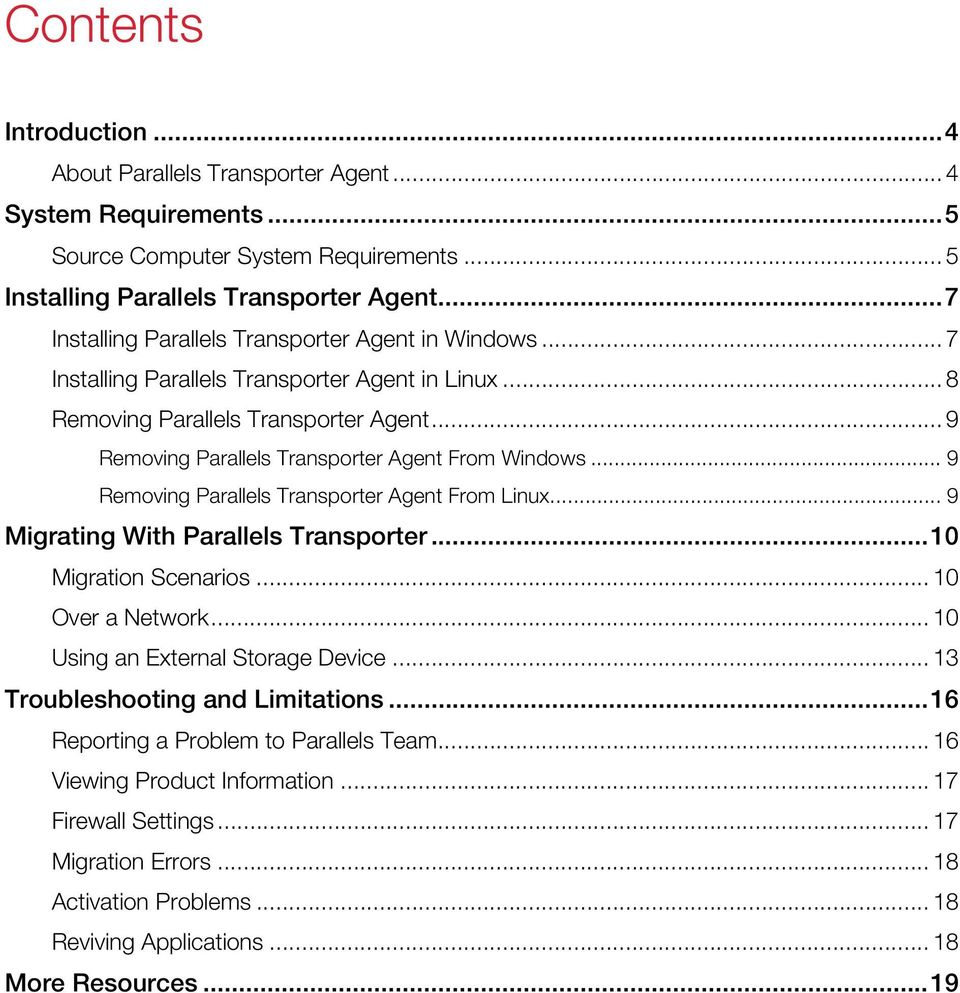
3 Contents Introduction...4 About Parallels Transporter Agent...4 System Requirements...5 Source Computer System Requirements... 5 Installing Parallels Transporter Agent...7 Installing Parallels Transporter Agent in Windows... 7 Installing Parallels Transporter Agent in Linux... 8 Removing Parallels Transporter Agent... 9 Removing Parallels Transporter Agent From Windows... 9 Removing Parallels Transporter Agent From Linux... 9 Migrating With Parallels Transporter...10 Migration Scenarios Over a Network Using an External Storage Device Troubleshooting and Limitations...16 Reporting a Problem to Parallels Team Viewing Product Information Firewall Settings Migration Errors Activation Problems Reviving Applications More Resources...19
4 C HAPTER 1 Introduction This chapter provides basic information about Parallels Transporter Agent. In This Chapter About Parallels Transporter Agent... 4 About Parallels Transporter Agent Parallels Desktop 10 for Mac allows you to migrate Windows and Linux physical computers to Parallels virtual machines. Parallels Transporter Agent is an application that is installed on the remote physical computer you are migrating (the source computer). It collects essential system data from the source computer and transfers it to Parallels Desktop over network or an external storage device. All the detailed information on how to install Parallels Transporter Agent and how to perform various types of migration is given in this guide.
5 C HAPTER 2 System Requirements This chapter lists system and network requirements for the source computer. Before you start migrating, make sure that it meets them. In This Chapter Source Computer System Requirements... 5 Source Computer System Requirements To migrate data from a physical computer, you need to install Parallels Transporter Agent on it. Parallels Transporter Agent can be downloaded from the Parallels Download Center and installed on computers that meet the following requirements. Hardware Requirements 700 (or higher) MHz x86 or x64 processor (Intel or AMD). 256 MB or more of RAM. 70 MB of hard disk space for installing the Parallels Transporter Agent package. Ethernet or WiFi network adapter for migrating over network. Supported Windows Systems OS Name 32-bit 64-bit Migration Method Windows 8 Windows 7 Windows Vista Ultimate, Enterprise, Business, Home SP0, SP1, SP2 Windows Server 2003 Standard, Enterprise, Web SP2 Windows XP Home, Professional SP2, SP3 Network, External Storage Network, External Storage Network, External Storage Network, External Storage Network, External Storage
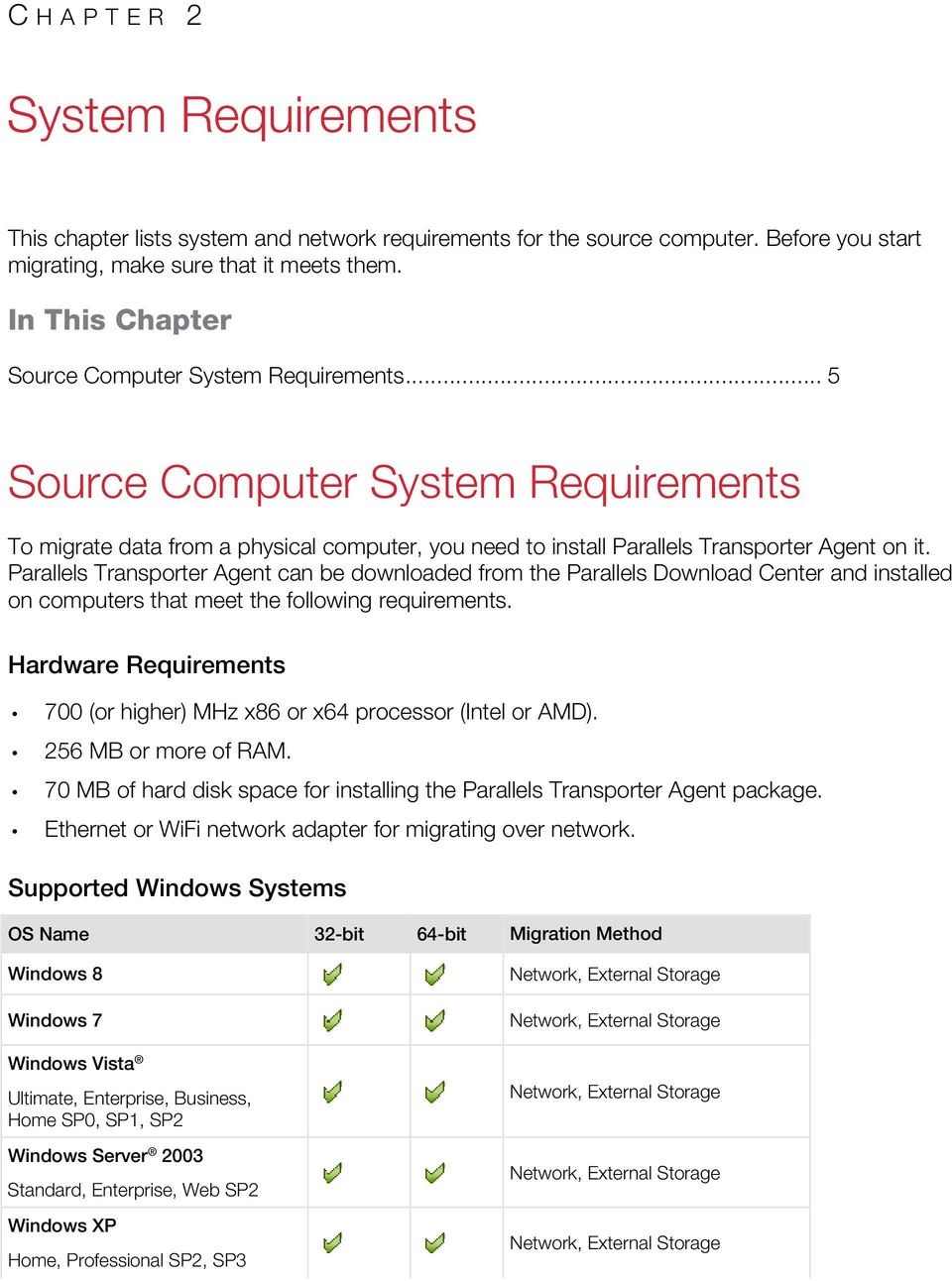
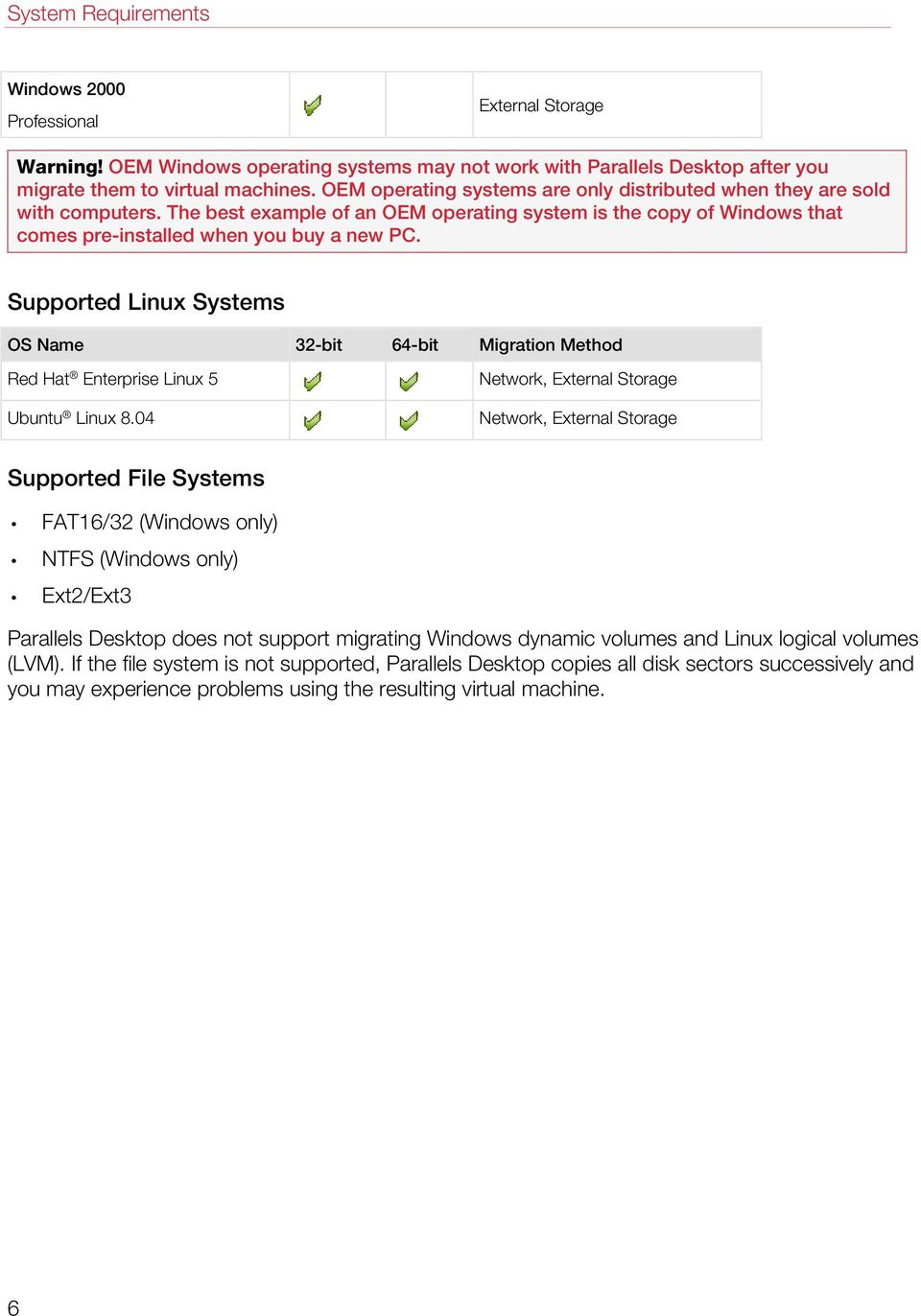
6 System Requirements Windows 2000 Professional External Storage Warning! OEM Windows operating systems may not work with Parallels Desktop after you migrate them to virtual machines. OEM operating systems are only distributed when they are sold with computers. The best example of an OEM operating system is the copy of Windows that comes pre-installed when you buy a new PC. Supported Linux Systems OS Name 32-bit 64-bit Migration Method Red Hat Enterprise Linux 5 Ubuntu Linux 8.04 Network, External Storage Network, External Storage Supported File Systems FAT16/32 (Windows only) NTFS (Windows only) Ext2/Ext3 Parallels Desktop does not support migrating Windows dynamic volumes and Linux logical volumes (LVM). If the file system is not supported, Parallels Desktop copies all disk sectors successively and you may experience problems using the resulting virtual machine. 6
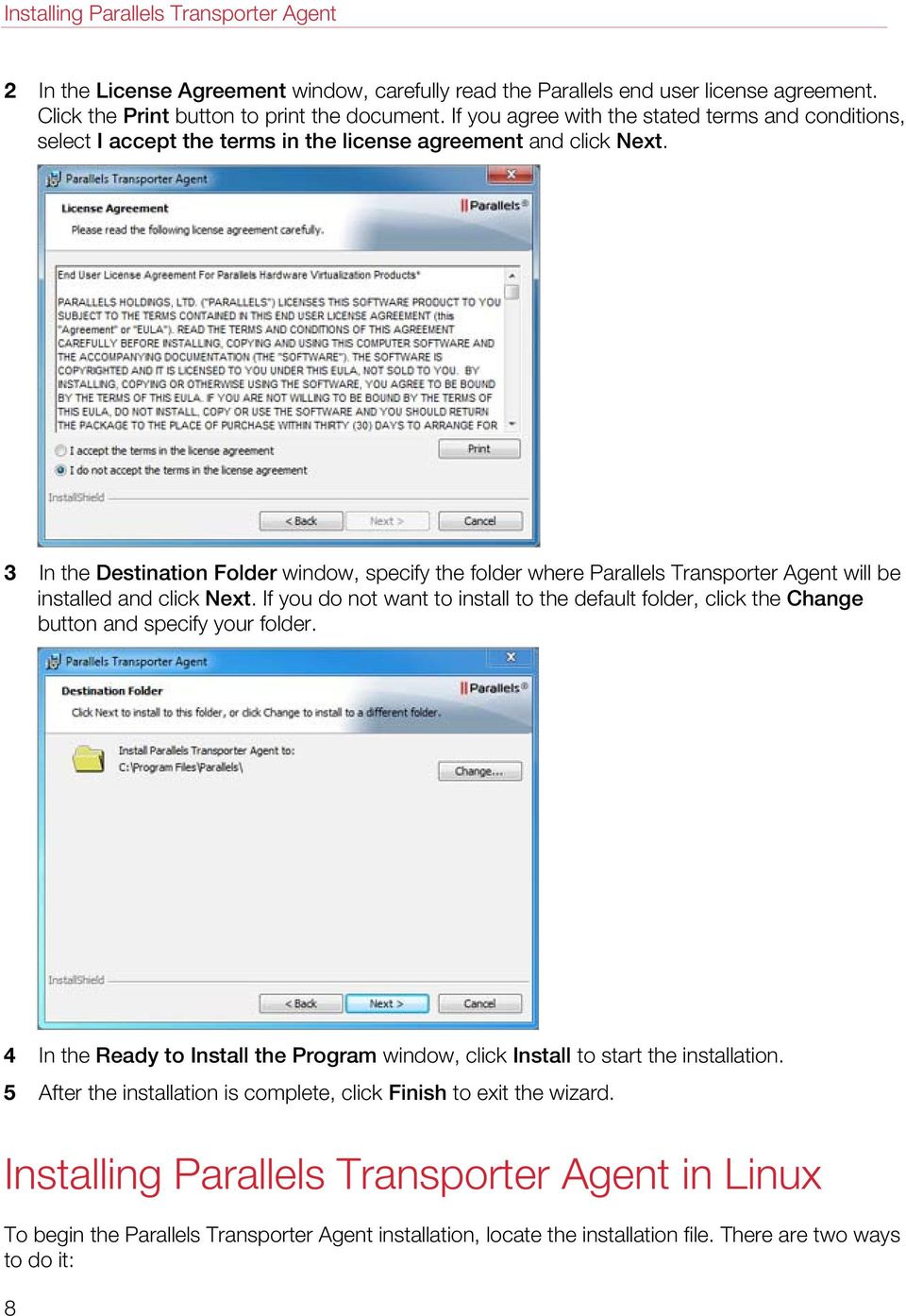
7 C HAPTER 3 Installing Parallels Transporter Agent This chapter provides instructions on installing and removing Parallels Transporter Agent. In This Chapter Installing Parallels Transporter Agent in Windows... 7 Installing Parallels Transporter Agent in Linux... 8 Removing Parallels Transporter Agent... 9 Installing Parallels Transporter Agent in Windows To begin the Parallels Transporter Agent installation, insert the installation DVD in your CD/DVD- ROM drive and the installation will start automatically. If it does not start automatically, locate the Parallels Transporter Agent.exe file on the disk. If your computer cannot read DVD discs, download Parallels Transporter Agent for Windows from the Parallels Download Center. Note: You must have administrator rights to install Parallels Transporter Agent. Installing Parallels Transporter Agent If the Parallels Transporter Agent installation has not started automatically, double-click the installation file. Parallels Transporter Agent connects to the Parallels update server and checks for available updates. If there is a newer version of Parallels Transporter Agent available, you will be offered the most recent version of Parallels Transporter Agent. If you want to install the most recent version, click Download and install new version. If you want to install the current version, click Install current. If there is no update available or your computer is not connected to the internet, Parallels Transporter Agent will be installed from the current installation source. 1 In the Welcome window, click Next.

8 Installing Parallels Transporter Agent 2 In the License Agreement window, carefully read the Parallels end user license agreement. Click the Print button to print the document. If you agree with the stated terms and conditions, select I accept the terms in the license agreement and click Next. 3 In the Destination Folder window, specify the folder where Parallels Transporter Agent will be installed and click Next. If you do not want to install to the default folder, click the Change button and specify your folder. 4 In the Ready to Install the Program window, click Install to start the installation. 5 After the installation is complete, click Finish to exit the wizard. Installing Parallels Transporter Agent in Linux To begin the Parallels Transporter Agent installation, locate the installation file. There are two ways to do it: 8
9 Installing Parallels Transporter Agent Insert the Parallels Desktop installation DVD in your CD/DVD-ROM drive and locate the parallels-transporter-agent-i386.run file (if you're going to migrate a 32-bit Linux PC) or the parallels-transporter-agent-amd64.run file (if you're going to migrate a 64-bit Linux PC) in the /Linux directory on the disc. If your computer cannot read DVD discs, download Parallels Transporter Agent for Linux from the Parallels Download Center. Note: You must have root privileges to install Parallels Transporter Agent in Linux. Installing Parallels Transporter Agent 1 Execute the Parallels Transporter Agent installation file (with the.run extension). 2 In the introduction window, select Next and press Enter. 3 Carefully read the Parallels end user license agreement. If you agree with the terms of the license agreement, select Accept and press Enter to start installing Parallels Transporter Agent on your computer. Note: Choosing Decline terminates the installation. 4 After Parallels Transporter Agent has been successfully installed, select Exit and press Enter to complete the installation. Removing Parallels Transporter Agent This section provides instructions on removing Parallels Transporter Agent from your source computer. Removing Parallels Transporter Agent From Windows To remove Parallels Transporter Agent, do one of the following: Remove Parallels Transporter Agent like any Windows program. Double-click the Parallels Transporter Agent installation file. The Setup wizard starts and it will help you to remove the program. Note: You must have administrator rights to remove Parallels Transporter Agent. Removing Parallels Transporter Agent From Linux To remove Parallels Transporter Agent from Linux: 1 Execute the Parallels Transporter Agent installation file (this is the same file you used for installing Parallels Transporter Agent). 9

10 Migrating With Parallels Transporter 2 In the introduction window, select Next and press Enter. 3 In the next window, select Remove and press Enter. 4 When Parallels Transporter Agent is successfully removed, select Exit and press Enter to close the wizard. Migrating With Parallels Transporter Read this chapter to learn how you can migrate your data from a remote PC to Mac. Migration Scenarios Parallels Transporter Agent allows you to migrate data (files, applications, etc) from a remote Windows or Linux PC to a Mac. Once the migration is complete, you can continue working with your Windows or Linux apps and files as if they were installed on the Mac. You can choose one of the following ways to migrate data. Migrating Over Network (p. 10) Migrating over network assumes that your remote computer and Mac are connected to the Internet. If they are connected to the same network, you can migrate data using a passcode. If they are connected to different networks, use the IP address of the remote computer. Migrating Using an External Storage Device (p. 13) If your remote computer or Mac isn't connected to the Internet, you can migrate data using an external storage. In this case, first you need to connect an external storage to the remote PC and collect all its data. Then connect the storage to Mac and transfer all collected data. Over a Network Important: After importing your data, you may need to reactivate some of your Windows programs using the activation keys you received when you purchased the programs. To import your data from a PC over a network: 1 Turn on your Mac and your Windows PC and log in. 10

11 Migrating With Parallels Transporter 2 Make sure that Windows Firewall (p. 17) is turned off. You can turn it on again after the import is finished. 3 On the Windows PC, open Parallels Transporter Agent by clicking the Start menu and choosing All Programs > Parallels > Parallels Transporter Agent. 4 On your Mac, open Parallels Desktop and choose File > New. 5 Select Migrate Windows from a PC and click Continue. 6 Select Network and click Continue. 7 Find the passcode displayed in Parallels Wizard on your Mac and enter it in Parallels Transporter Agent on your Windows PC. 11

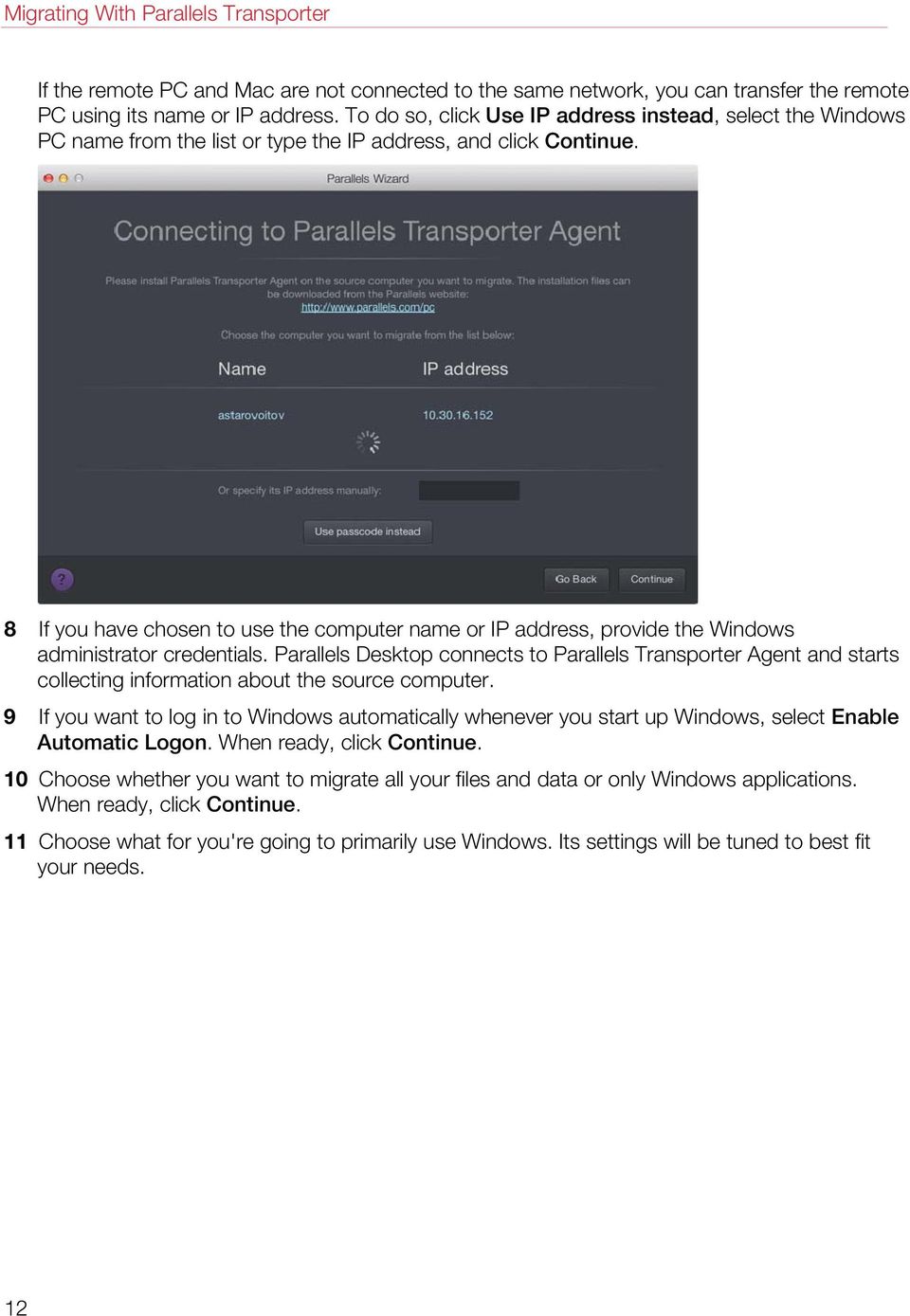
12 Migrating With Parallels Transporter If the remote PC and Mac are not connected to the same network, you can transfer the remote PC using its name or IP address. To do so, click Use IP address instead, select the Windows PC name from the list or type the IP address, and click Continue. 8 If you have chosen to use the computer name or IP address, provide the Windows administrator credentials. Parallels Desktop connects to Parallels Transporter Agent and starts collecting information about the source computer. 9 If you want to log in to Windows automatically whenever you start up Windows, select Enable Automatic Logon. When ready, click Continue. 10 Choose whether you want to migrate all your files and data or only Windows applications. When ready, click Continue. 11 Choose what for you're going to primarily use Windows. Its settings will be tuned to best fit your needs. 12
13 Migrating With Parallels Transporter 12 Choose where you want to install your data. You can also click Customize and select which Windows volumes to migrate. When ready, click Continue. 13 In the next step there's a warning about Windows activation that might be required when you start using it. To proceed, read this message, select I want to continue and click Continue. 14 Once the migration is complete, click Done. 15 Start Windows. 16 When Windows boots up, choose Actions > Install Parallels Tools and follow the onscreen instructions. Note: To be able to install Parallels Tools, you must be logged in to Windows as an administrator. Using an External Storage Device Important: After importing your data, you may need to reactivate some of your Windows programs using the activation keys you received when you purchased the programs. To import your data from a PC using an external storage device: 1 Connect an external storage device to your Windows PC. 2 On the Windows PC, open Parallels Transporter Agent by clicking the Start menu and choosing All Programs > Parallels > Parallels Transporter Agent. 13

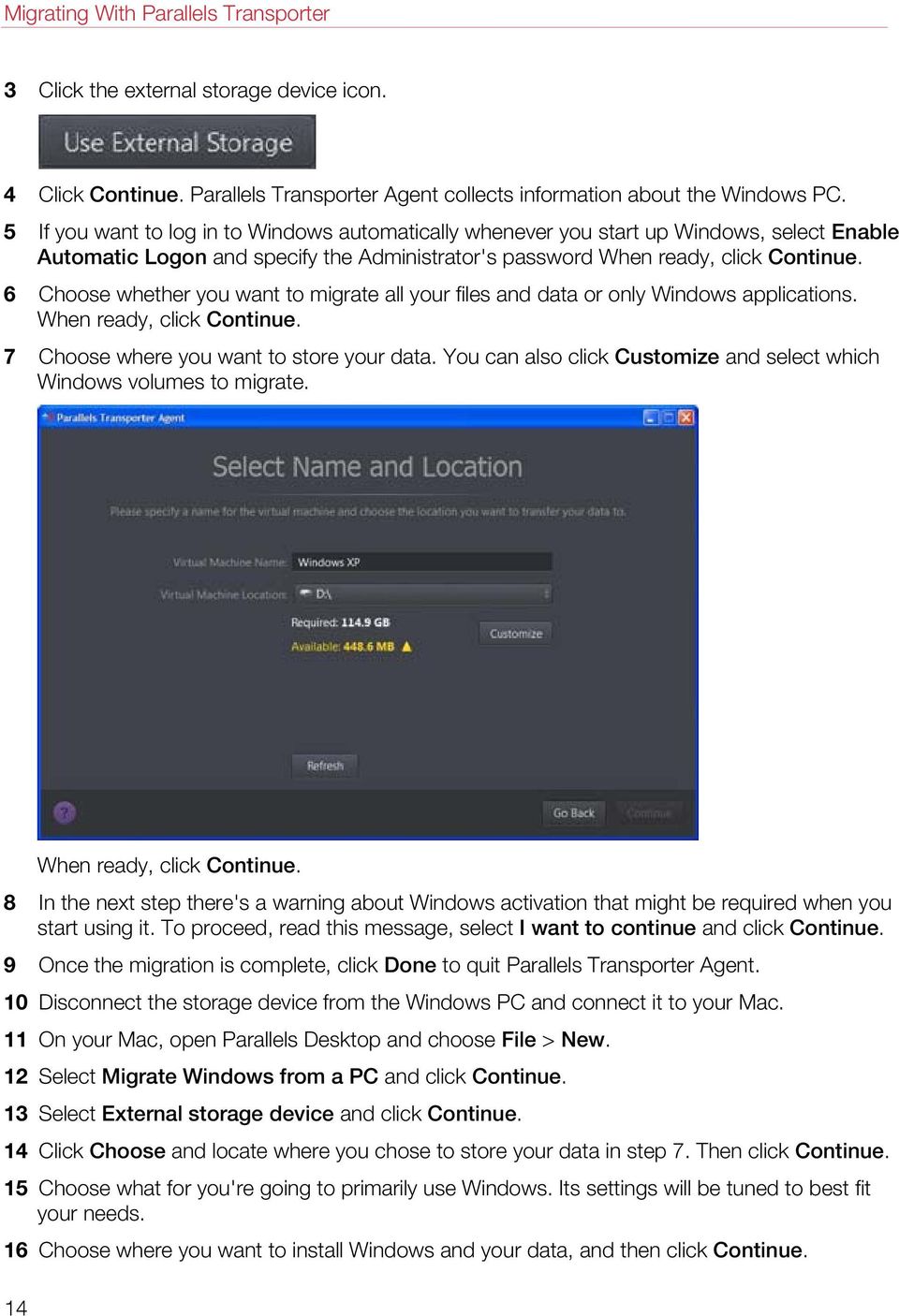
14 Migrating With Parallels Transporter 3 Click the external storage device icon. 4 Click Continue. Parallels Transporter Agent collects information about the Windows PC. 5 If you want to log in to Windows automatically whenever you start up Windows, select Enable Automatic Logon and specify the Administrator's password When ready, click Continue. 6 Choose whether you want to migrate all your files and data or only Windows applications. When ready, click Continue. 7 Choose where you want to store your data. You can also click Customize and select which Windows volumes to migrate. When ready, click Continue. 8 In the next step there's a warning about Windows activation that might be required when you start using it. To proceed, read this message, select I want to continue and click Continue. 9 Once the migration is complete, click Done to quit Parallels Transporter Agent. 10 Disconnect the storage device from the Windows PC and connect it to your Mac. 11 On your Mac, open Parallels Desktop and choose File > New. 12 Select Migrate Windows from a PC and click Continue. 13 Select External storage device and click Continue. 14 Click Choose and locate where you chose to store your data in step 7. Then click Continue. 15 Choose what for you're going to primarily use Windows. Its settings will be tuned to best fit your needs. 16 Choose where you want to install Windows and your data, and then click Continue. 14
15 Migrating With Parallels Transporter 17 Once the migration is complete, click Done. 18 Start Windows. 19 When Windows boots up, choose Actions > Install Parallels Tools and follow the onscreen instructions. Note: To be able to install Parallels Tools, you must be logged in to Windows as an administrator. 15
16 C HAPTER 4 Troubleshooting and Limitations This chapter provides troubleshooting scenarios for some known issues. If you encounter an issue not described here, visit the Parallels support team web page ( In This Chapter Reporting a Problem to Parallels Team Viewing Product Information Firewall Settings Migration Errors Activation Problems Reviving Applications Reporting a Problem to Parallels Team If some fatal error occurs with Parallels Transporter Agent, you will see the Problem Report for Parallels Transporter Agent window. In this window, you should fill out the form to create a problem report. Such problem reports help us improve the product quality. When you see the problem report window, do the following to create a problem report: 1 Write a short problem description. 2 In the Name and fields, type your name and . This information will be used by the Parallels support team to address you for more technical details, if needed. You can review the problem report components that will be sent to the Parallels support team and deselect some of them in the Parallels Problem Report Details window, if desired. To open this window, click See Details. 3 When ready, click Send Report. The report will receive its unique id number and will be sent to the Parallels support team. Note: Parallels team collects problem reports and uses them for identifying performance issues, but does not respond to them. If you need assistance in resolving the issue, visit Parallels forum or Support page, or log us a support call.

17 Troubleshooting and Limitations Viewing Product Information You can find basic product information, such as the build number and trademarks, in the About Parallels Transporter Agent window. To open this window, start Parallels Transporter Agent, right-click the title bar and choose About Parallels Transporter Agent. Firewall Settings Firewall applications may block connections between Parallels Desktop and Parallels Transporter Agent. Firewall problems in Mac OS X If Parallels Desktop fails to find Parallels Transporter Agent, the reason may be that the built-in Mac firewall blocks the connection to Parallels Transporter Agent. To enable connections between Parallels Desktop and Parallels Transporter Agent and prevent further blocking, either turn off the firewall or add Parallels Desktop and Parallels Transporter Agent to the firewall exceptions. For example, you can configure the firewall settings in Mac OS X Leopard by doing the following: 1 From the Apple menu, choose System Preferences, and select Security. 2 In the Security window, choose the Firewall tab. 3 Configure the necessary settings. If you try to search for Parallels Transporter Agent by typing the source computer IP address manually, you may receive a message saying that Parallels Transporter Agent is blocked. Click the Unblock button to enable the connection between Parallels Desktop and Parallels Transporter Agent. Firewall problems in Windows Microsoft Windows operating system has a built-in firewall that blocks connections from and to other computers. When starting Parallels Transporter Agent for the fist time, you may get the message that Windows Firewall has blocked some features of the program. Click the Unblock button to enable the connection between Parallels Desktop and Parallels Transporter Agent. To prevent this problem in the future, add Parallels Desktop and/or Parallels Transporter Agent to the firewall exceptions (the list of applications allowed to communicate through the firewall): 1 From the Start menu, choose Control Panel > Network Connections. 17
18 Troubleshooting and Limitations 2 In the Network Tasks pane, click Change Windows Firewall Settings. 3 Add Parallels Desktop and/or Parallels Transporter Agent to the firewall exceptions list. Migration Errors If you experience any problems when migrating a remote Windows computer, make sure that the snapman.sys driver is installed in C:\WINDOWS\system32\drivers\. If the snapman.sys driver is not installed, follow these steps: 1 Uninstall Parallels Transporter Agent. 2 Restart your source Windows computer. 3 Reinstall Parallels Transporter Agent. 4 Restart your source Windows computer again. 5 Ensure that Parallels Desktop and Parallels Transporter Agent run properly and try to migrate the source computer again. Activation Problems If you migrate from a Windows physical computer to a bootable Parallels virtual machine, the operating system may detect a hardware change and ask for reactivation. Reviving Applications Applications that severely depend on specific hardware may not work in a virtual machine, because virtual machine hardware is different from the hardware used on the source computer. Make sure that the application paths are set correctly after migration. If they are not, update them and see if the application works properly. If this didn't help, contact the Parallels support team 18
19 C HAPTER 5 More Resources For more information and help using Parallels Desktop and Parallels Transporter Agent, see the following resources: Help buttons. In most windows, you will find a help button opening the corresponding help page. Parallels website. Explore the Support web page that includes product help files and the FAQ section. Parallels Knowledge Base. This online resource provides troubleshooting for problems that may occur when using Parallels Desktop and other Parallels products. Feedback Parallels welcomes your feedback on how to make our documentation more helpful. You can submit feedback using the Documentation Feedback form on our website (
Getting Started With Parallels Desktop 9
 Getting Started With Parallels Desktop 9 Copyright 1999-2013 Parallels IP Holdings GmbH and its affiliates. All rights reserved. Parallels IP Holdings GmbH Vordergasse 59 8200 Schaffhausen Switzerland
Getting Started With Parallels Desktop 10
 Getting Started With Parallels Desktop 10 Copyright 1999-2015 Parallels IP Holdings GmbH and its affiliates. All rights reserved. Parallels IP Holdings GmbH Vordergasse 59 8200 Schaffhausen Switzerland
Getting Started With Parallels Desktop 8
 Getting Started With Parallels Desktop 8 Copyright 1999-2012 Parallels IP Holdings GmbH and its affiliates. All rights reserved. Parallels IP Holdings GmbH. Vordergasse 59 CH8200 Schaffhausen Switzerland
Parallels Desktop 7 for Mac
 Parallels Desktop 7 for Mac User's Guide Copyright 1999-2011 Parallels Holdings, Ltd. and its affiliates. All rights reserved. Parallels Holdings, Ltd. c/o Parallels International GMbH. Parallels International
Getting Started With Parallels Desktop 7
 Getting Started With Parallels Desktop 7 Copyright 1999-2011 Parallels Holdings, Ltd. and its affiliates. All rights reserved. Parallels Holdings, Ltd. c/o Parallels International GMbH. Parallels International
Parallels Desktop 8 for Mac
 Parallels Desktop 8 for Mac User's Guide Copyright 1999-2012 Parallels IP Holdings GmbH and its affiliates. All rights reserved. Parallels IP Holdings GmbH. Vordergasse 59 CH8200 Schaffhausen Switzerland
Parallels Desktop Enterprise Edition
 Parallels Desktop Enterprise Edition Running Parallels Desktop as a Virtual Machine Server Build 9.0.23350 or later Copyright 1999-2014 Parallels IP Holdings GmbH and its affiliates. All rights reserved.
Parallels Desktop 11 for Mac
 Parallels Desktop 11 for Mac User's Guide Copyright 1999-2015 Parallels IP Holdings GmbH and its affiliates. All rights reserved. Parallels IP Holdings GmbH Vordergasse 59 8200 Schaffhausen Switzerland
Parallels Desktop 9 for Mac
 Parallels Desktop 9 for Mac User's Guide Copyright 1999-2014 Parallels IP Holdings GmbH and its affiliates. All rights reserved. Parallels IP Holdings GmbH Vordergasse 59 8200 Schaffhausen Switzerland
Parallels Desktop 10 for Mac
 Parallels Desktop 10 for Mac User's Guide Copyright 1999-2015 Parallels IP Holdings GmbH and its affiliates. All rights reserved. Parallels IP Holdings GmbH Vordergasse 59 8200 Schaffhausen Switzerland
Parallels Containers for Windows 6.0
 Parallels Containers for Windows 6.0 Upgrade Guide June 11, 2014 Copyright 1999-2014 Parallels IP Holdings GmbH and its affiliates. All rights reserved. Parallels IP Holdings GmbH Vordergasse 59 8200 Schaffhausen
Parallels Virtual Automation 6.1
 Parallels Virtual Automation 6.1 Installation Guide for Windows April 08, 2014 Copyright 1999-2014 Parallels IP Holdings GmbH and its affiliates. All rights reserved. Parallels IP Holdings GmbH. c/o Parallels
Parallels Remote Application Server
 Parallels Remote Application Server Parallels Client for Windows Phone User's Guide v15 Copyright 1999-2016 Parallels IP Holdings GmbH and its affiliates. All rights reserved. Parallels IP Holdings GmbH
Getting Started with VMware Fusion
 Getting Started with VMware Fusion VMware Fusion for Mac OS X 2008 2012 EN-000933-00 2 Getting Started with VMware Fusion You can find the most up-to-date technical documentation on the VMware Web site
Parallels Virtual Automation 6.0
 Parallels Virtual Automation 6.0 Installation Guide for Windows Copyright 1999-2012 Parallels IP Holdings GmbH and its affiliates. All rights reserved. Parallels IP Holdings GmbH. c/o Parallels International
Getting Started with VMware Fusion. VMware Fusion for Mac OS X
 Getting Started with VMware Fusion VMware Fusion for Mac OS X 2 Getting Started with VMware Fusion Getting Started with VMware Fusion Item: EN-000189-00 You can find the most up-to-date technical documentation
Parallels Cloud Server 6.0
 Parallels Cloud Server 6.0 Upgrade Guide Copyright 1999-2013 Parallels IP Holdings GmbH and its affiliates. All rights reserved. Parallels IP Holdings GmbH. Vordergasse 59 CH8200 Schaffhausen Switzerland
About Parallels Desktop 7 for Mac
 About Parallels Desktop 7 for Mac Parallels Desktop 7 for Mac is a major upgrade to Parallels' award-winning software for running Windows on a Mac. About this Update This update for Parallels Desktop for
Parallels Containers for Windows 6.0
 Parallels Containers for Windows 6.0 Readme June 30, 2014 Copyright 1999-2014 Parallels IP Holdings GmbH and its affiliates. All rights reserved. Contents About This Document... 3 About Parallels Containers
Parallels Desktop for Mac
 Parallels Software International, Inc. Parallels Desktop for Mac Quick Start Guide 3.0 (c) 2005-2007 Copyright 2006-2007 by Parallels Software International, Inc. All rights reserved. Parallels and Parallels
Parallels Server Bare Metal 5.0
 Parallels Server Bare Metal 5.0 Getting Started Guide Copyright 1999-2011 Parallels Holdings, Ltd. and its affiliates. All rights reserved. Parallels Holdings, Ltd. c/o Parallels International GMbH. Parallels
Product Manual. MDM On Premise Installation Version 8.1. Last Updated: 06/07/15
 Product Manual MDM On Premise Installation Version 8.1 Last Updated: 06/07/15 Parallels IP Holdings GmbH Vordergasse 59 8200 Schaffhausen Switzerland Tel: + 41 52 632 0411 Fax: + 41 52 672 2010 www.parallels.com
Parallels Virtualization SDK ReadMe -------------------------------------------------------------------------------- CONTENTS:
 Parallels Virtualization SDK ReadMe CONTENTS: 1. About Parallels Virtualization SDK 2. System Requirements 2.1. Mac OS Client Computers 2.2. Windows Client Computers 2.3. Linux Client Computers 3. Network
VMware Horizon FLEX User Guide
 Horizon FLEX 1.5 This document supports the version of each product listed and supports all subsequent versions until the document is replaced by a new edition. To check for more recent editions of this
Mac OS X 10.6 Snow Leopard Installation and Setup Guide
 Mac OS X 10.6 Snow Leopard Installation and Setup Guide Read this document before you install Mac OS X. It includes important information about installing Mac OS X. For more information about Mac OS X,
About Parallels Desktop 10 for Mac
 About Parallels Desktop 10 for Mac Parallels Desktop 10 for Mac is a major upgrade to Parallels award-winning software for running Windows on a Mac. About this Update This update for Parallels Desktop
AdminToys Suite. Installation & Setup Guide
 AdminToys Suite Installation & Setup Guide Copyright 2008-2009 Lovelysoft. All Rights Reserved. Information in this document is subject to change without prior notice. Certain names of program products
Key-Systems Registrar Plug-in PBA Configuration Guide Revision 1.1
 Key-Systems Registrar Plug-in PBA Configuration Guide Revision 1.1 1999-2012 1/13 Parallels IP Holdings GmbH. Vordergasse 59 CH8200 Schaffhausen Switzerland Tel: + 41 526320 411 Fax: + 41 52672 2010 www.parallels.com
Parallels Virtuozzo Containers 4.6 for Windows
 Parallels Parallels Virtuozzo Containers 4.6 for Windows Upgrade Guide Copyright 1999-2010 Parallels Holdings, Ltd. and its affiliates. All rights reserved. Parallels Holdings, Ltd. c/o Parallels International
VMware Virtual Machine Importer User s Manual
 VMware Virtual Machine Importer User s Manual Please note that you will always find the most up-to-date technical documentation on our Web site at http:///support/. VMware, Inc. 3145 Porter Drive Palo
Installation Instructions
 Avira Secure Backup Installation Instructions Trademarks and Copyright Trademarks Windows is a registered trademark of the Microsoft Corporation in the United States and other countries. All other brand
Converting a Parallels Virtual Machine to Run in VMware Fusion VMware Fusion 1.0
 Technical Note Converting a Parallels Virtual Machine to Run in VMware Fusion VMware Fusion 1.0 This technical note describes the process for moving a virtual machine from Parallels Desktop for Mac to
Parallels Virtuozzo Containers 4.7 for Linux Readme
 Parallels Virtuozzo Containers 4.7 for Linux Readme This document provides the first-priority information about Parallels Virtuozzo Containers 4.7 for Linux and supplements the included documentation.
Parallels Mac Management for Microsoft SCCM 2012
 Parallels Mac Management for Microsoft SCCM 2012 Administrator's Guide v3.0 Copyright 1999-2014 Parallels IP Holdings GmbH and its affiliates. All rights reserved. Parallels IP Holdings GmbH Vordergasse
Fiery E100 Color Server. Welcome
 Fiery E100 Color Server Welcome 2011 Electronics For Imaging, Inc. The information in this publication is covered under Legal Notices for this product. 45098226 27 June 2011 WELCOME 3 WELCOME This Welcome
Parallels Virtual Automation 6.1
 Parallels Virtual Automation 6.1 Getting Started Guide April 08, 2014 Copyright 1999-2014 Parallels IP Holdings GmbH and its affiliates. All rights reserved. Parallels IP Holdings GmbH. c/o Parallels International
Boot Camp Installation & Setup Guide
 Boot Camp Installation & Setup Guide 1 Contents 3 Boot Camp 3 Introduction 4 What You Need 5 If You ve Already Used a Beta Version of Boot Camp 5 Upgrading Windows XP to Windows Vista 6 Installation Overview
Instructions for installing Microsoft Windows Small Business Server 2003 R2 on HP ProLiant servers
 Instructions for installing Microsoft Windows Small Business Server 2003 R2 on HP ProLiant servers integration note Abstract... 2 Installation requirements checklists... 3 HP ProLiant server checklist...
VERITAS Backup Exec 9.1 for Windows Servers Quick Installation Guide
 VERITAS Backup Exec 9.1 for Windows Servers Quick Installation Guide N109548 Disclaimer The information contained in this publication is subject to change without notice. VERITAS Software Corporation makes
How to Install MS SQL Server Express
 How to Install MS SQL Server Express EventTracker v8.x Publication Date: Jun 8, 2016 EventTracker 8815 Centre Park Drive Columbia MD 21045 www.eventtracker.com Abstract This guide helps users to install
About Parallels Desktop 9 for Mac
 About Parallels Desktop 9 for Mac Parallels Desktop 9 for Mac is a major upgrade to Parallels' award-winning software for running Windows on a Mac. About this Update This update for Parallels Desktop 9
Chief Architect X6. Download & Installation Instructions. Chief Architect, Inc. 6500 N. Mineral Dr. Coeur d Alene, Idaho 83815 www.chiefarchitect.
 Chief Architect X6 Download & Installation Instructions Chief Architect, Inc. 6500 N. Mineral Dr. Coeur d Alene, Idaho 83815 www.chiefarchitect.com Contents Chapter 1: Installation What s Included with
Lab - Dual Boot - Vista & Windows XP
 Lab - Dual Boot - Vista & Windows XP Brought to you by RMRoberts.com After completing this lab activity, you will be able to: Install and configure a dual boot Windows XP and Vista operating systems. Explain
Parallels Business Automation 5.5
 Parallels Business Automation 5.5 Trustwave SSL Plug-in Configuration Guide Revision 1.2 (June 20, 2014) Copyright 1999-2014 Parallels IP Holdings GmbH and its affiliates. All rights reserved. Parallels
How To Run Paragon Boot Camp Backup On A Mac Computer (Windows) On A Pc Or Mac (Windows 2) On An Ntos 2 (Windows 3) On Your Computer Or Ipad (Windows 1) On Pc Or Ipa
 PARAGON Software GmbH Heinrich-von-Stephan-Str. 5c 79100 Freiburg, Germany Tel. +49 (0) 761 59018201 Fax +49 (0) 761 59018130 Internet www.paragon-software.com Email [email protected] Paragon
Hypercom Key Loading and Management (HKLM) RS232 PPP Key Injection PC Setup Guide
 Hypercom Key Loading and Management (HKLM) RS232 PPP Key Injection PC Setup Guide Hypercom Corporation 8888 East Raintree Drive Scottsdale, Arizona 85260 USA Corporate Telephone: 480.642.5000 Corporate
A+ Guide to Software: Managing, Maintaining, and Troubleshooting, 5e. Chapter 3 Installing Windows
 : Managing, Maintaining, and Troubleshooting, 5e Chapter 3 Installing Windows Objectives How to plan a Windows installation How to install Windows Vista How to install Windows XP How to install Windows
Operating System Installation Guide
 Operating System Installation Guide This guide provides instructions on the following: Installing the Windows Server 2008 operating systems on page 1 Installing the Windows Small Business Server 2011 operating
PARALLELS SERVER 4 BARE METAL README
 PARALLELS SERVER 4 BARE METAL README This document provides the first-priority information on Parallels Server 4 Bare Metal and supplements the included documentation. TABLE OF CONTENTS 1 About Parallels
Avira Secure Backup INSTALLATION GUIDE. HowTo
 Avira Secure Backup INSTALLATION GUIDE HowTo Table of contents 1. Introduction... 3 2. System Requirements... 3 2.1 Windows...3 2.2 Mac...4 2.3 ios (iphone, ipad and ipod touch)...4 3. Avira Secure Backup
Boot Camp Installation & Setup Guide
 Boot Camp Installation & Setup Guide Contents 4 Introduction 5 What You Need 6 Installation Overview 6 Step 1: Check for updates. 6 Step 2: Open Boot Camp Assistant. 6 Step 3: Install Windows. 6 Step 4:
HP MediaSmart Server Software Upgrade from v.1 to v.3
 HP MediaSmart Server Software Upgrade from v.1 to v.3 Table of Contents Upgrade Your Server Software to HP MediaSmart Server v.3 2 Before You Begin 3 What's New... 3 Features That Will Change... 4 Prepare
AuthorizeNet Plug-in Configuration Guide
 AuthorizeNet Plug-in Configuration Guide Parallels Plesk Automation Billing Revision 1.1 Copyright 1999-2013 Parallels IP Holdings GmbH and its affiliates. All rights reserved. Parallels IP Holdings GmbH.
Parallels Cloud Server 6.0
 Parallels Cloud Server 6.0 Getting Started Guide March 17, 2015 Copyright 1999-2015 Parallels IP Holdings GmbH and its affiliates. All rights reserved. Parallels IP Holdings GmbH Vordergasse 59 8200 Schaffhausen
Document authored by: Native Instruments GmbH Hardware version: Traktor Kontrol X1 MK2 (01/2013)
 Setup Guide Disclaimer The information in this document is subject to change without notice and does not represent a commitment on the part of Native Instruments GmbH. The software described by this document
Reconfiguring VMware vsphere Update Manager
 Reconfiguring VMware vsphere Update Manager vsphere Update Manager 5.5 This document supports the version of each product listed and supports all subsequent versions until the document is replaced by a
Windows Vista /Windows 7 Installation Guide
 Windows Vista / 7 Installation Guide Before you can use the machine, you must set up the hardware and install the driver. Please read the Quick Setup Guide and this Windows Vista / 7 Installation Guide
For the latest information, check the product home page (http://www.pfu.fujitsu.com/ en/products/rack2_smart).
 Getting Started Thank you for purchasing Rack2-Filer Smart! This Getting Started describes an overview of Rack2-Filer Smart, the installation, and the structure of the manuals. We hope that this manual
Deploying the Parallels Containers Update Server in a Local Network
 Deploying the Parallels Containers Update Server in a Local Network Deploying the Parallels Containers Update Server in a Local Network 1999-2008 Parallels Holdings Ltd. All rights reserved. Distribution
Introduction 1-1 Installing FAS 500 Asset Accounting the First Time 2-1 Installing FAS 500 Asset Accounting: Upgrading from a Prior Version 3-1
 Contents 1. Introduction 1-1 Supported Operating Environments................ 1-1 System Requirements............................. 1-2 Security Requirements........................ 1-3 Installing Server
VERITAS Backup Exec TM 10.0 for Windows Servers
 VERITAS Backup Exec TM 10.0 for Windows Servers Quick Installation Guide N134418 July 2004 Disclaimer The information contained in this publication is subject to change without notice. VERITAS Software
Image Assistant. User Guide. Image Assistant. Laplink Software, Inc. User Guide. The ONLY Way to Restore an Old Image to a New PC!
 1 Image Assistant Laplink Software, Inc. Customer Service/Technical Support: Web: http://www.laplink.com/help E-mail: [email protected] Laplink Software, Inc. 14335 NE 24th Street, Suite 201
FAS Asset Accounting FAS CIP Accounting FAS Asset Inventory SQL Server Installation & Administration Guide Version 2011.1
 FAS Asset Accounting FAS CIP Accounting FAS Asset Inventory SQL Server Installation & Administration Guide Version 2011.1 2011 Sage Software, Inc. All rights reserved. Published by Sage 2325 Dulles Corner
Operating Instructions Driver Installation Guide
 Operating Instructions Driver Installation Guide For safe and correct use, be sure to read the Safety Information in "Read This First" before using the machine. TABLE OF CONTENTS 1. Introduction Before
FileMaker Server 8. Administrator s Guide
 FileMaker Server 8 Administrator s Guide 1994-2005 FileMaker, Inc. All Rights Reserved. FileMaker, Inc. 5201 Patrick Henry Drive Santa Clara, California 95054 FileMaker is a trademark of FileMaker, Inc.,
Parallels Virtuozzo Containers 4.7 for Linux
 Parallels Virtuozzo Containers 4.7 for Linux Deploying Clusters in Parallels-Based Systems Copyright 1999-2011 Parallels Holdings, Ltd. and its affiliates. All rights reserved. Parallels Holdings, Ltd.
HP MediaSmart Server Software Upgrade from v.2 to v.3
 HP MediaSmart Server Software Upgrade from v.2 to v.3 Table of Contents Table of Contents Upgrade Your Server Software to HP MediaSmart Server v.3 2 Before You Begin 3 What's New 3 Features That Will
Installation & Licensing Guide. AquiferTest Pro. An Easy-to-Use Pumping Test and Slug Test Data Analysis Package
 Installation & Licensing Guide AquiferTest Pro An Easy-to-Use Pumping Test and Slug Test Data Analysis Package Table of Contents Software Maintenance and Support... 3 How to Contact SWS... 3 System Requirements...
e-dpp 4.0.2 May 2013 Quick Installation Guide Microsoft Windows 2003 Server, XP, Vista, 7 Access Database
 e-dpp 4.0.2 May 2013 Microsoft Windows 2003 Server, XP, Vista, 7 Access Database ELTECHS Engineering and Consulting Co., Ltd., Japan www.eltechs.co.jp Tel No. +81 (47) 490-1010 Fax No. +81 (47) 490-1011
VMware Horizon FLEX User Guide
 Horizon FLEX 1.1 This document supports the version of each product listed and supports all subsequent versions until the document is replaced by a new edition. To check for more recent editions of this
Paragon Backup Retention Wizard
 Paragon Backup Retention Wizard User Guide Getting Started with the Paragon Backup Retention Wizard In this guide you will find all the information necessary to get the product ready to use. System Requirements
DOE VPN Client Installation and Setup Guide March 2011
 DOE VPN Client Installation and Setup Guide March 2011 Table of Contents Introduction... 3 System Requirements... 3 Microsoft Windows... 3 Mac OS X... 4 Windows... 4 Installation for the Cisco AnyConnect
Guide to Installing BBL Crystal MIND on Windows 7
 Guide to Installing BBL Crystal MIND on Windows 7 Introduction The BBL Crystal MIND software can not be directly installed on the Microsoft Windows 7 platform, however it can be installed and run via XP
FreeAgent DockStar Network Adapter User Guide
 FreeAgent DockStar Network Adapter User Guide FreeAgent DockStar Network Adapter User Guide 2010 Seagate Technology LLC. All rights reserved. Seagate, Seagate Technology, the Wave logo, and FreeAgent are
VMware Horizon FLEX User Guide
 Horizon FLEX 1.0 This document supports the version of each product listed and supports all subsequent versions until the document is replaced by a new edition. To check for more recent editions of this
Spontania User Setup Guide
 Spontania User Setup Guide ClearOne 5225 Wiley Post Way Suite 500 Salt Lake City, UT 84116 Telephone 1.800.945.7730 1.801.975.7200 Spontania Support 1.801.974.3612 TechSales 1.800.705.2103 FAX 1.801.977.0087
Getting Started with ESXi Embedded
 ESXi 4.1 Embedded vcenter Server 4.1 This document supports the version of each product listed and supports all subsequent versions until the document is replaced by a new edition. To check for more recent
JAMF Software Server Installation Guide for Linux. Version 8.6
 JAMF Software Server Installation Guide for Linux Version 8.6 JAMF Software, LLC 2012 JAMF Software, LLC. All rights reserved. JAMF Software has made all efforts to ensure that this guide is accurate.
Migrating a Windows PC to Run in VMware Fusion VMware Fusion 2.0
 Technical Note Migrating a Windows PC to Run in VMware Fusion VMware Fusion 2.0 This technical note describes the process for migrating an existing Windows PC to run as a virtual machine with VMware Fusion
ESET NOD32 Antivirus 4 for Linux Desktop. Quick Start Guide
 ESET NOD32 Antivirus 4 for Linux Desktop Quick Start Guide ESET NOD32 Antivirus 4 provides state-of-the-art protection for your computer against malicious code. Based on the ThreatSense scanning engine
Lexia Network Installation Instructions
 Lexia Network Installation Instructions For Lexia Early Reading 3.x, Primary Reading 1.x, Foundation Reading 1.x, Strategies for Older Students 4.x, Cross-Trainer 1.x and Quick Reading Test 2.x (NOT for
F-Secure Online Backup Quick Installation Guide
 F-Secure Online Backup Quick Installation Guide TOC 3 Contents F-Secure Online Backup Quick Installation Guide...5 Introduction...6 System Requirements...7 Installation...10 Installation on a Windows computer...10
User Guide. Laplink Software, Inc. User Guide MN-LLE-EN-05 (REV. 2/2010) h t t p : / / w w w. l a p l i n k. c o m / h e l p
 1 Laplink Software, Inc. Customer Service/Technical Support: Web: http://www.laplink.com/help E-mail: [email protected] User Guide Laplink Software, Inc. 14335 NE 24th Street, Suite 201 Bellevue,
CODESOFT Installation Scenarios
 CODESOFT Installation Scenarios NOTES: CODESOFT is a separate install from existing versions of CODESOFT. You will need to make note of your current settings (default directories, etc.) so you can duplicate
Secure Agent Quick Start for Windows
 Secure Agent Quick Start for Windows 1993-2015 Informatica Corporation. No part of this document may be reproduced or transmitted in any form, by any means (electronic, photocopying, recording or otherwise)
2.6.1 Creating an Acronis account... 11 2.6.2 Subscription to Acronis Cloud... 11. 3 Creating bootable rescue media... 12
 USER'S GUIDE Table of contents 1 Introduction...3 1.1 What is Acronis True Image 2015?... 3 1.2 New in this version... 3 1.3 System requirements... 4 1.4 Install, update or remove Acronis True Image 2015...
USER GUIDE. Ethernet Configuration Guide (Lantronix) P/N: 2900-300321 Rev 6
 KRAMER ELECTRONICS LTD. USER GUIDE Ethernet Configuration Guide (Lantronix) P/N: 2900-300321 Rev 6 Contents 1 Connecting to the Kramer Device via the Ethernet Port 1 1.1 Connecting the Ethernet Port Directly
Magaya Software Installation Guide
 Magaya Software Installation Guide MAGAYA SOFTWARE INSTALLATION GUIDE INTRODUCTION Introduction This installation guide explains the system requirements for installing any Magaya software, the steps to
Parallels Desktop Upgrade to Windows 7
 Parallels Desktop Upgrade to Windows 7 User's Guide Copyright 1999-2010 Parallels Holdings, Ltd. and its affiliates. All rights reserved. Parallels Holdings, Ltd. c/o Parallels International GMbH. Parallels
Symantec Backup Exec TM 11d for Windows Servers. Quick Installation Guide
 Symantec Backup Exec TM 11d for Windows Servers Quick Installation Guide September 2006 Symantec Legal Notice Copyright 2006 Symantec Corporation. All rights reserved. Symantec, Backup Exec, and the Symantec
Install Pocket Inventory in a Windows Server 2003 R2 Standard Environment
 One Blue Hill Plaza, 16th Floor, PO Box 1546 Pearl River, NY 10965 1-800-PC-AMERICA, 1-800-722-6374 (Voice) 845-920-0800 (Fax) 845-920-0880 Install Pocket Inventory in a Windows Server 2003 R2 Standard
Core Protection for Virtual Machines 1
 Core Protection for Virtual Machines 1 Comprehensive Threat Protection for Virtual Environments. Installation Guide e Endpoint Security Trend Micro Incorporated reserves the right to make changes to this
Verizon Remote Access User Guide
 Version 17.12 Last Updated: August 2012 2012 Verizon. All Rights Reserved. The Verizon names and logos and all other names, logos, and slogans identifying Verizon s products and services are trademarks
STATISTICA VERSION 10 STATISTICA ENTERPRISE SERVER INSTALLATION INSTRUCTIONS
 Notes: STATISTICA VERSION 10 STATISTICA ENTERPRISE SERVER INSTALLATION INSTRUCTIONS 1. The installation of the STATISTICA Enterprise Server entails two parts: a) a server installation, and b) workstation