
Michigan Web Account Manager. MiWAM Toolkit. for Employers
|
|
|
- Donna Bell
- 10 years ago
- Views:
Transcription
1 MiWAM Toolkit for Employers

2 MiWAM Toolkit Inside Introducing MiWAM...2 Frequently Asked Questions....3 MiWAM Logon Instructions Navigating MiWAM Letters and Correspondence in MiWAM...14 Other MiWAM Functions Protesting Benefit Charges Filing Form UIA Visa Wages Wage Report File Format Out of State Wages File Format Visa Wages File Format...27 Yearly Wage Breakdown Payment Features Information for Service Providers...34 Frequently Asked Questions for Service Providers...35 Bulk Report Filing Formats Export File Formats...40 Power of Attorney Client File Formats Who to Contact Phone: UIAOEO ( ) or (313) [email protected] For technical support, please contact MiWAM Support at (313) or [email protected] Page 1

3 Introducing MiWAM The Michigan Web Account Manager (MiWAM) is the UIA s new and improved system for managing your unemployment account electronically. MiWAM replaces the Employer Web Account Manager (EWAM) and makes doing business with the UIA simpler, faster and more efficient. MiWAM has a cleaner look and is more user-friendly. MiWAM allows you to perform routine transactions such as filing reports, paying taxes, viewing statements, and updating your unemployment tax account information online. There is no charge to employers and the system is accessible 24 hours a day, seven days a week. For employers, managing your account online is secure, accurate, provides faster processing, and allows for more real-time interaction with UIA staff. For the UIA, MiWAM helps lower the costs of processing, decreases paper and scanning costs and reduces keypunching and other errors. What You Can Do With MiWAM»» Access UIA Account Information including your tax report and payment history»» File quarterly wage/tax/payroll reports»» Make a UIA tax payment»» Pay reimbursements»» File a UIA tax protest»» Create Out-of-State Service Provider access»» Request a seeking work waiver»» Respond to fact-finding questions»» File Power of Attorney authorizations»» Schedule recurring payments»» Report discontinuance or transfer of business»» and more... Page 2

4 Frequently Asked Questions Q. What happens when I register for MiWAM? A. When you register for MiWAM you will receive a 10-day temporary password granting you limited access to your account within minutes. The temporary password allows you to make payments, file reports, and update your user profile. You will receive your authorization code in the mail within 10 days of sign up for full MiWAM access. Q. What do I do if I forgot my username or password? A. Click the link Forgot your Password? Forgot Your Username? under the Online Services for Employers section and follow the steps. If you forgot your password, you must enter your username. You may retrieve your username by providing your address, ID, and answer to your secret question. Q. What happens if I lost or never received my authorization code? A. You must request a new code by clicking on Lost/Never Received Authorization on the log in screen. If you do not have an authorization code after your 10-day limited access expires, you must request a new authorization code be mailed to you. You will be unable to log on to MiWAM without an authorization code. Q. Will another representative from my company be able to access my account and perform functions on my behalf? A. Yes. When registering for MiWAM you have the option to establish an added user web account. This type of account would be essential for another representative within your company (who does not have an account with the UIA) to perform various functions on behalf of an employer. This new account allows you the ability to designate the appropriate level of authority for your added user. Q. Will I be able to electronically protest a determination or respond to Agency correspondence? A. Yes. You will access the account services tab to either protest a determination or respond to any open factfinding issues. Q. What s the difference between an Added User and an Employer Representative? A. An Added User is generally someone inside your company or business such as an employee who has been granted access to submit, view, or change information regarding your account on your behalf. An Employer Representative is someone outside of your company such as a service provider or accountant not an employee of your company. The Employer Representative requires Power of Attorney to act on your behalf. Q. Does my password expire? A. Yes, your password expires annually. As a result, you will be required to change it after one year. Q. What if I need help? A. To view help for individual elements on a window, click the Help icon in the upper right corner of any window. You can also click Help on the left sidebar, or look for the i. Q. Who do I contact if I have questions or need help with the system? A. Contact the Office of Employer Ombudsman at UIAOEO ( ) or (313) or by at [email protected]. For technical support, please contact MiWAM Support at (313) or [email protected]. Page 3

5 MiWAM Logon Instructions Page 4 Step 1 Go to UIA s website: Click on the MiWAM logo or the link for Michigan Web Account Manager for Claimants and Employers Page 4

6 Step 2 If you do not have a MiWAM account, click the link Sign Up for Employer Online Services. or If you already have a MiWAM account, enter your username and password in the Log in to MiWAM section and click Sign In. Step 3 To continue as a new user; click Start Here Note: Please see the legend on the right side of the screen for navigation tips. Page 5

7 Step 4 Select the option that best describes your reason for signing up for MiWAM. To select the Employer option, you must have a UIA employer account number. If you will be acting as an employer representative and are also an employer, select the Employer Representative option. Step 5 If you select Employer you must enter your UIA account number and the zip code of the physical location of your business. Page 6
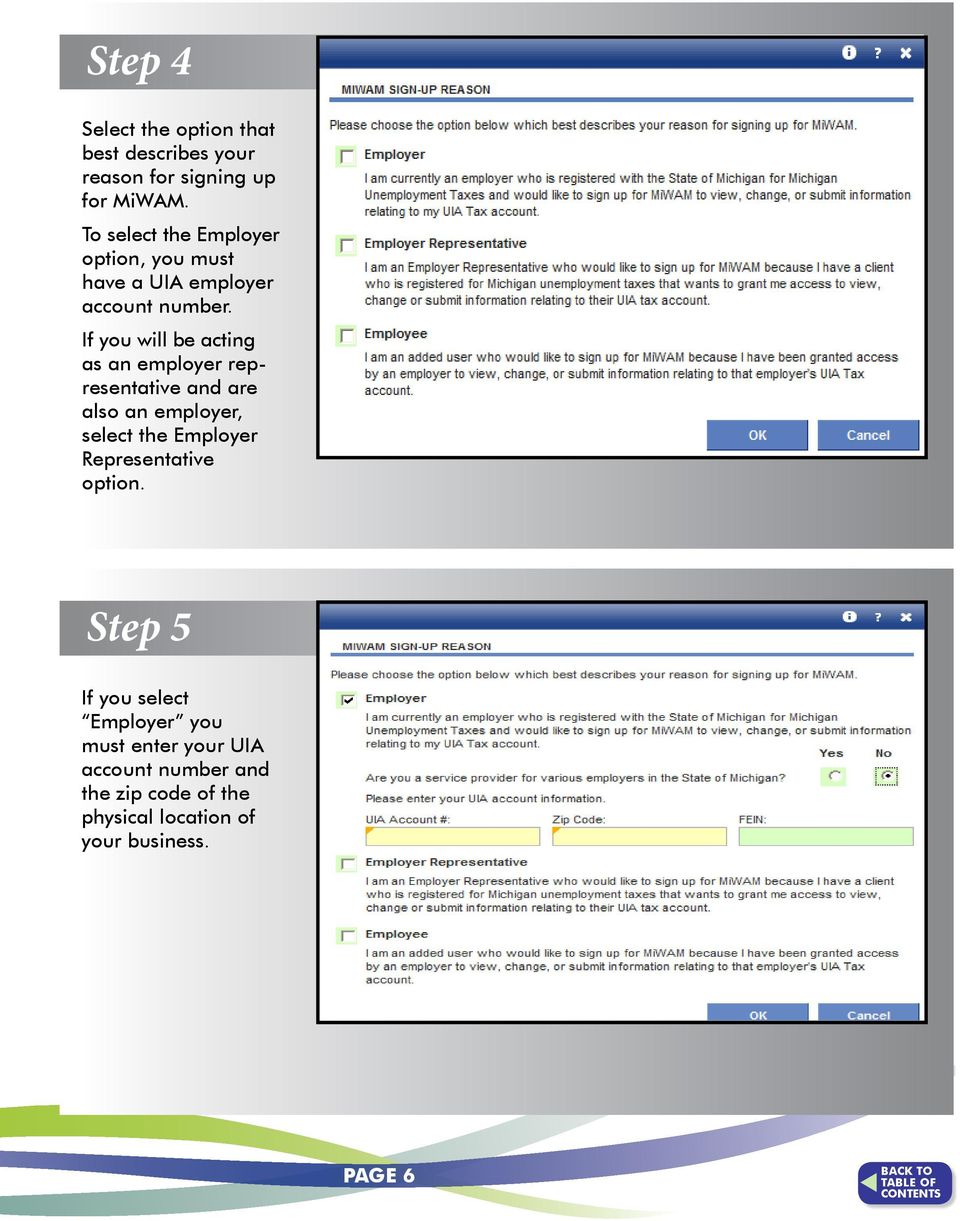
8 Step 6 If you select Employer Representative and you answer Yes to the question about whether you have a UIA employer account number, you must enter the UIA account number and zip code of the physical location of your business. Step 7 If you select the option of Employer Representative and you answer No to the question about whether you have a UIA employer account number, you must answer the question about whether you have a Federal Employer Identification Number (FEIN). If you answer Yes then you must provide the FEIN along with a UIA employer account number and zip code of the physical business location of one of your clients. Page 7
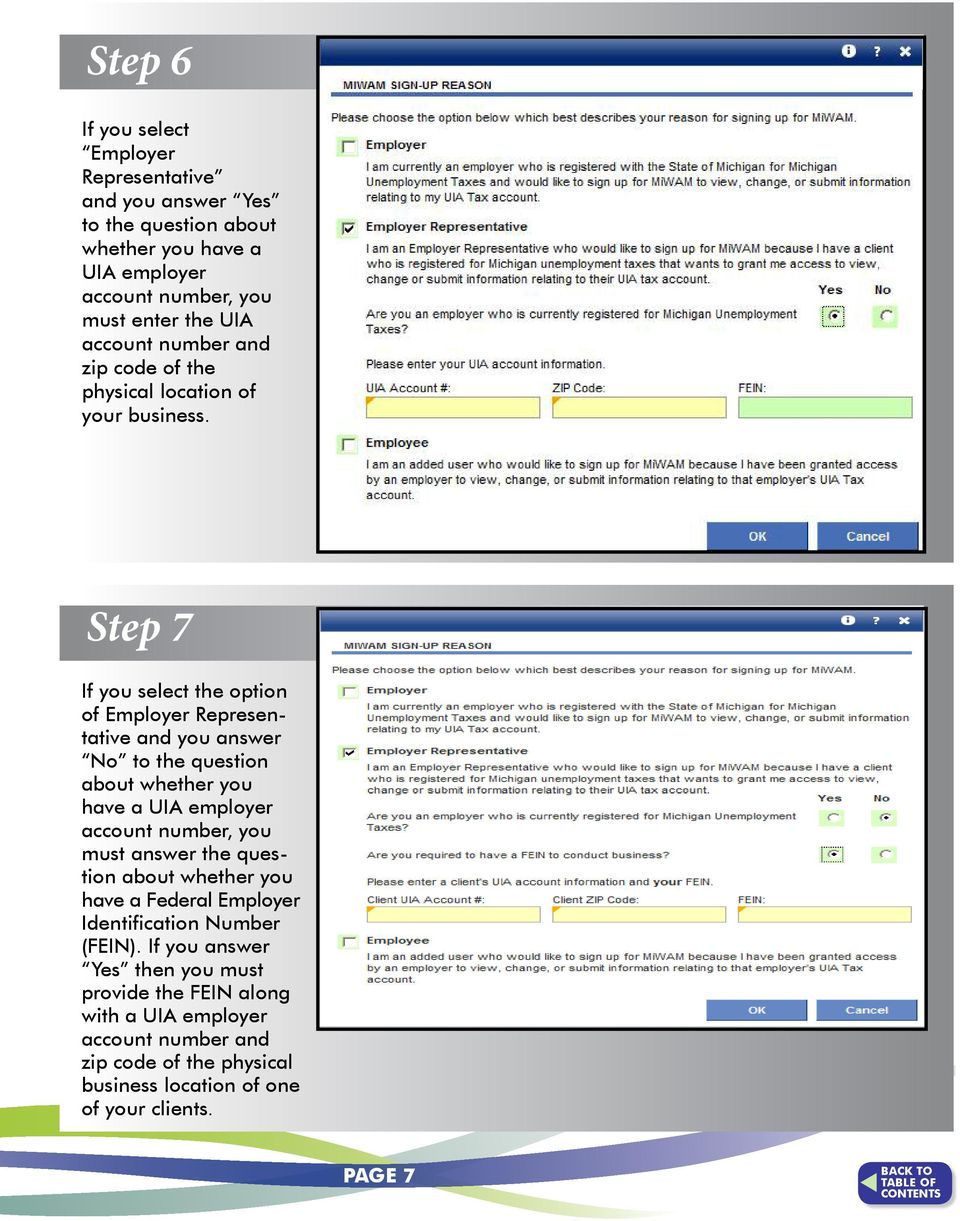
9 Step 8 If you select Employer Representative and you answer No to the question about whether you have a UIA employer account number, you must answer the question about whether you have a Federal Employer Identification Number (FEIN). If you answer No that you do not have a FEIN, then you must provide your Social Security Number along with a UIA employer account number and zip code of the physical business location of one of your clients. Step 9 Only select Employee if you have been added by either an employer or employer representative to their web account. In that circumstance you must enter and re-enter the authorization code. The authorization code was ed when access was added for the employee by the employer or employer representative. Page 8

10 Step 10 Fill in the required User Information. This should be the person who will be using the MiWAM account for the business. Page 9

11 Step 11 Click Security Agreement. Step 12 Select Yes or No if you agree to the security agreement (you must agree in order to establish your web account). Page 10

12 Step 13 You will receive a confirmation page with your username and confirmation number displayed. Select OK. You are now ready to begin using your MiWAM account with temporary access. For the next 10 calendar days you may submit Form UIA 1028 and make tax or reimbursement payments through your MiWAM account. Look for your authorization code to be mailed to the business address UIA has on file for your business within the next 7 10 business days. Once you receive the authorization code and enter it when logging into your MiWAM account, you will have full access to all of the services for which you have been granted permission within MiWAM. Page 11

13 Navigating MiWAM Different computer programs have different ways of navigating. This tip sheet should help you find your way through the system. FIELD COLORS Field colors are used to denote important information regarding what you can or cannot enter into that data field. WHITE (Default) This field is in an inquiry or view-only mode that will not accept data entry. RED (Error) This field is in error and has failed validation. Hovering over the fields in error with the mouse will show what is incorrect. YELLOW (Required) This field is mandatory. You must enter a value in this field before the information can be saved or proceed to the next screen. If yellow fields are not completed, MiWAM will not save the record. GREEN (User Enabled) This field is optional. The information is not required but keep in mind that it is often beneficial to complete as much information as possible. TABS Quarters The Activities tab keeps a log of all actions that the employer has taken on their account. Notices inform employers of pertinent information related to their account. Reports and payment history The Account Services tab is where each employer will be able to view rate information, apply for credits or seasonal designations, request a transfer of business, and manage any other facets of their account. The Letters tab indicates any correspondence sent to the employer from the UIA. Please note: Sub-tabs will change as tabs are selected. Page 12

14 Navigating MiWAM NAVIGATION You will find the navigation links on the top right side of your screen. These links allow quick access to existing windows. You should always use these links to return to the previous screen don t use the back button! LEGEND When entering data into MiWAM, always look for the following symbols: Page 13

15 Letters and Correspondence in MiWAM MiWAM allows you to review, keep track and respond to your notices and letters related to your UI tax account. Each letter you receive from UIA will have a Letter ID number, making it easier to search for correspondence on specific topics. With MiWAM you can: View Web notices Send account inquiries to the UIA Set a web mail preference select this option if you would like to receive UIA correspondence electronically only Create reminders for specific tasks Search by letter ID for correspondence sent from UIA See the status of your protest Here are some samples of what you ll encounter in MiWAM: SEARCH BY LETTER ID Use filter to go to a specific letter or form Page 14

16 Other MiWAM Functions SET MAIL PREFERENCES SET UP REMINDERS Page 15

17 Other MiWAM Functions STATUS OF TAX PROTESTS OR APPEALS To view the status of tax protests or appeals, click on the Account Services tab, then the Tax issues and Assessments sub-tab. Then click the link for Tax Protest. BENEFIT SERVICES Employers can review and respond to a monetary determination that may affect their tax rate and review benefits that have been charged to their accounts. Page 16

18 Other MiWAM Functions REGISTRATION AND SEEKING WORK WAIVER Employers may request a Registration and Seeking Work Waiver for employees that are temporarily laid off for not more than 45 days. This request must be received before the layoff occurs (no later than the week prior to the layoff). Page 17

19 Protesting Benefit Charges in MiWAM Each week, employers receive statements of charges and credits that have been made to their accounts on Form UIA 1136 Statement of Unemployment Benefits Charged or Credited to Employer s Account. If the employer disputes the accuracy of the statement, or believes the reported earning or other information is wrong, they may protest the benefit charges. With MiWAM, you can see the form and protest the benefit charges right away. Select the Benefit Services tab. Form UIA 1136 The listing of benefits paid is a determination that the involved claimant was not unemployed or underemployed, able to work, available for work, and had remuneration, (e.g., excessive earnings, lost earnings) as reported on Form UIA 1136 for the week(s) paid and has certified truthfully. Since the benefit payment listing is a determination, it may be protested in relation to the issues listed above. This form is also available in electronic format (see p.40). Page 18

20 Filing Form UIA 1028 Select the Employer Account Number (EAN) link under the ID column. This will bring you to the Quarters tab for this EAN. Select the File Now option for the appropriate quarter. This will bring you to the Quarterly Wage/Tax Report Screen. The Attention Needed Tab is the default for quarters with balances and unfiled quarters. The Search Tab provides a history of quarters. Page 19

21 Filing Form UIA 1028 Enter your information in the green fields. The monthly count of the number of employees and the wage detail fields are in green. MiWAM will calculate the total wage figures for you. Select the Submit button to submit the 1028 report. If no errors are identified, you will be prompted to enter your MiWAM password. Then click Submit for confirmation. Reports that have been submitted and processed can be viewed under the Quarters/Search tab. A report can be amended if View Report is selected, and the Change button on the left sidebar is selected. Page 20
22 Filing Form UIA 1028 Visa Wages Enter visa wages for J-1 and H-2B wages under the Visa Wages tab. The obligation assessment due on these wages is automatically calculated and when saved will be added to the obligation assessment amount due on the 1028 screen. Page 21
23 FILING 1028 AS AN UPLOAD Michigan Web Account Manager Filing Form UIA 1028 Wage Report File Format You have the option to submit a 1028 file using the Wage Report file format. This format is available on the Quarterly Wage/Tax Report screen. Select the View File Format link in the upper right corner (shown on previous page). You can file the 1028 report with an imported file you created. Select the Import button at the top or bottom of the Quarterly Wage/Tax Report screen and browse for the file location. When the file is selected, import and submit through MiWAM. Wage Reporting File Specifications (72 byte records) Max Import Records: 25,000 employees. Note: If import file exceeds 25,000 employees, the Bulk File option is available to submit the Quarterly/ Wage Tax Report. Electronic Reporting Employers who want to import Wage Detail information using this method must review all requirements and specifications in this document before submitting wage detail information electronically. Specifications Overview Record Size = 72, Fixed length ASCII Coding Scheme UIA EMPLOYER ACCOUNT NUMBER (Location 2-11) A separate Wage Import File must be submitted for each 10-digit UIA Employer Account Number. The UIA Employer Account Number consists of an assigned seven (7) digit account number plus a three (3) digit location/multi-unit number. The location/multi-unit number is three (3) zeros unless you have submitted a request for chargeable locations. All wages paid for the quarter under a single 10 digit UIA Employer Account Number must be submitted on one report for the quarter. For instance, all hourly and salary employees, if employed under one 10-digit UIA Employer Account Number, must be reported on the same import file for the quarter, unless a location number greater than 000 has been assigned. LOCATION NUMBER A location number is assigned for each business location or employment type upon the employer s request. If an employer wants wage and benefit charge data recorded separately by business location or by employment type (i.e. hourly, salary or executive), you may submit a request online through your MiWAM account by submitting a web notice. Page 22
24 Filing Form UIA 1028 Wage Report File Format The Social Security Number or Individual Taxpayer Identification Number (ITIN) identifies the S or O or V record and must be provided for each employee record in the detail. Zeros must not be entered for an employee s Social Security Number. SOCIAL SECURITY NUMBER (Location 17-25, S Record or O Record or V Record) The wage data cannot be processed if the social security number or ITIN is missing or zero filled. Employers should have the social security number or ITIN of each individual in their employ. You must provide the social security number or ITIN for each employee for which you are reporting wages. A social security number or ITIN can only be entered once per UIA 10-digit UA Employer Account Number on the W and V wage records for a quarter. Since an employee may work in more than one state in a quarter, more than one O record per UIA 10-digit Employer Account Number can be submitted if the state indicated is different on each of the record(s) submitted for the employee. If an employee works for a business at several different locations during the quarter, and each location has the same location (multi-unit) number, all wages for the employee are to be totaled and reported under the 10-digit UIA Employer Account Number. If an employee works for a business at several different locations during the quarter, and each location has a different location (multi-unit) number, wages for each location must be reported under each 10-digit UA Employer Account Number. GROSS WAGES (Location 62-71, S Record Location 63-72, O Record) Wage detail information should be provided for every covered employee to whom wages were paid during the calendar quarter. Do not report wages that were earned but not actually paid during the calendar quarter. Also, do not report wages of an employee whose services are excluded from coverage under Section 43 of the MES Act. Page 23
25 Filing Form UIA 1028 Wage Report File Format Include wages paid either in cash or in a medium other than cash, such as the cash equivalent of meals furnished on the employer s premises and the cash equivalent of lodging provided by the employer as a condition of employment. Also included as wages are commissions and bonuses, awards and prizes, severance pay, vacation and holiday pay, sick pay when paid to liquidate a worker s balance of sick pay at the time of separation from employment, tips actually reported by the worker to the employer and the cash value of a cafeteria plan if the employee has the option under the plan to choose cash. Do not include as wages such payments as: profit-sharing, sick pay under an employer plan on account of sickness, contributions to a retirement plan, discounts on purchases from the employer, or reimbursements to employees of expenses incurred on behalf of the employer. When reporting gross wages, enter the total amount of wages paid to each employee during the calendar quarter. FAMILY STATUS (Location 72, S Record) This field should contain one of two values; a blank or an F for family employment. Leave blank unless you are a family owned business in which the majority interest is owned by the employee, their spouse, child, or parent (if the employee is under the age of 18 at the time the work is performed). If so, place an F in this field. Refer to Sections 46(g) and (h) of the MES Act for more information on family employment. Page 24
26 Filing Form UIA 1028 Employer Header Record There must be one Header record preceding each set of Detail records. Location Field Name Picture Description 1 Record Identifier X(01) "E" Wage Report File Format 2-8 Employer Number 9(07) UIA Account Number. Cannot be all zeros. Must match the employer number on the wage detail record(s) Location/Multi- Unit Number 9(03) UA Multi Unit number. May be all zeros. Must match the multi- unit/location number on the wage detail record(s) Year 9(04) Filing year in CCYY form, where CCYY is the year with century. CCYY must be a valid year such as 2012, 2013, 2014, etc. CCYY cannot be all zeros. 16 Quarter 9(01) Filing calendar quarter: must be 1, 2, 3 or Filler X(24) Number of Employees 9(07) Number of employees on this 1017, right justified and left padded with zeros. This should match the number of wage detail records (Record Identifier="S", O, and V ) that follow this header record. Cannot be negative. May be all zeros Total Wages 9(11)V99 Total amount of wages reported on following wage detail records, right justified and left padded with zeros. This should match the total of the Employee Gross Wages column found in the Detail Records (Record Identifier="S", O, and V ). Cannot be negative. May be all zeros Filler X(12) Employee Detail Record Employee Detail Record There may be zero or more detail records after each Header record. There may be zero or more detail records after each Header record. Location Field Name Picture Description Record Identifier Identifier Employer Number Employer Location/Multi Number Unit Number X(01) X(01) "S" "S" 9(07) UIA Account Number. Cannot be all zeros. Must match the employer number on the header record. 9(07) UIA Account Number. Cannot be all zeros. Must match the employer number on the header record. 9(03) UIA Location/Multi Unit number. May be all zeros. Must match the multi- unit/location number on the header detail record Year 9(04) Filing year in CCYY form, where CCYY is the year with century. CCYY must be a valid year such as 2012, 2013, 2014, etc. CCYY cannot be all zeros. 16 Quarter 9(01) Filing calendar quarter: must be 1, 2, 3 or Social Security Number 9(09) Employee's Social Security number or Individual Taxpayer Identification Number (ITIN). Do not zero fill.* Filler X(7) Employee Last Name X(16) Last name of the employee Employee First Name X(12) First name of the employee. 61 Employee Middle Initial X(01) Middle initial of employee's name Employee Gross Wages 9(08)V99 Total quarterly gross wages for employee, right justified and left padded with zeros. Cannot be negative. May be all zeros. 72 Family Status Indicator X(01) "F" if employee is a family member; blank otherwise. Out of State Wage Detail Record There may be zero or more detail records after each Header record. Location Field Name Picture Description Page 25
27 Filing Form UIA 1028 Out of State Wages File Format Out-of-State (OOS) wages are utilized to off-set UI tax liability on subsequent Michigan wages up to Michigan s taxable wage limit of $9,500. This is to acknowledge the payment of UI taxes in another state for the same calendar year. Wages should be reported in both categories (OOS and in-state) only on the quarter where the employee first had earnings in Michigan. The YTD OOS wages used will be limited to the Taxable Wage Limit for the state where the OOS wages were reported. The sum of the Out of State field for all quarters will not exceed the YTD OOS field amount. The sum of the Out of State fields plus the Taxable fields will not exceed Michigan s Taxable Wage Limit of $9,500. o If taxable OOS wages meet or exceed $9,500, no Michigan wages are taxable. o If taxable OOS wages are lower than $9,500, Michigan wages are taxed to reach the taxable wage limit. OOS are to be reported as a year-to-date figure on the same quarter when Michigan wages are first being reported. This should only occur once. The OOS wages should not include Michigan wages. The taxable wage limits for all the states are in the system, allowing us to ensure that Michigan s taxable wage limit of $9,500 is reached. Localization of employment rules still apply to employees who perform services in more than one state throughout the year. Below is the file format for the single wage report import process. Out of State Wage Detail Record There may be zero or more detail records after each Header record. Location Field Name Picture Description 1 Record Identifier X(01) "O" 2-8 Employer Number 9(07) UIA Account Number. Cannot be all zeros. Must match the employer number on the header record Location/Multi Unit Number 9(03) UIA Location/Multi Unit number. May be all zeros. Must match the multi- unit/location number on the header detail record Year 9(04) Filing year in CCYY form, where CCYY is the year with century. CCYY must be a valid year such as 2012, 2013, 2014, etc. CCYY cannot be all zeros. 16 Quarter 9(01) Filing calendar quarter: must be 1, 2, 3 or Social Security Number 9(09) Employee's Social Security number or Individual Taxpayer Identification Number (ITIN). Do not zero fill.* Filler X(6) Employee Last Name X(16) Last name of the employee Employee First Name X(12) First name of the employee. 60 Employee Middle Initial X(01) Middle initial of employee's name State X(02) Identifies the state/region the wages were earned previous to Michigan. (Includes District of Columbia, Virgin Islands, and Puerto Rico.) Cannot be blank Employee Gross Out of State Wages 9(08)V99 Total quarterly gross out of state wages for employee, right justified and left padded with zeros. Cannot be negative. May be all zeros. Page 26
28 Filing Form UIA 1028 Visa Wages File Format Public Act 241 of 2014 provides new exclusions from unemployment benefits for services performed by certain categories of workers. This amendment became effective August 26, Beginning (retroactively) January 1, 2014, unemployment benefits will no longer be payable to: (1) a holder of an H-2B visa, which covers workers admitted to the United States temporarily to perform non-agricultural services, and (2) a holder of a J-1 visa, which covers workers admitted under the exchange visitor program. However, only the following categories of J-1 visa holder are excluded: international visitors, government visitors, camp counselors, and au pairs. When services are excluded, the employer is not required to pay state unemployment taxes on those services. However, the employer is still required to report the wages as Visa Wages since obligation assessment is still due on those wages. These visa wages can be reported through MIWAM through data entry on the UIA 1028 page, through submission of a new V record type for the Wage Report file format for single employers, or through the Bulk Report file format for all other employers. Below is the file format for the single Wage Report import process. Visa Wage Detail Record There may be zero or more detail records after each Header record. Location Field Name Picture Description 1 Record Identifier X(01) "V" 2-8 Employer Number 9(07) UIA Account Number. Cannot be all zeros. Must match the employer number on the header record Location/Multi Unit Number 9(03) UIA Location/Multi Unit number. May be all zeros. Must match the multi- unit/location number on the header detail record Year 9(04) Filing year in CCYY form, where CCYY is the year with century. CCYY must be a valid year such as 2012, 2013, 2014, etc. CCYY cannot be all zeros. 16 Quarter 9(01) Filing calendar quarter: must be 1, 2, 3 or Social Security Number 9(09) Employee's Social Security number or Individual Taxpayer Identification Number (ITIN). Do not zero fill.* Filler X(6) Employee Last Name X(16) Last name of the employee Employee First Name X(12) First name of the employee. 60 Employee Middle Initial X(01) Middle initial of employee's name Visa Type 9(02) Enter 01 for an employee with a J-1 visa. Enter 02 for an employee with a H-2B visa. Cannot be zero filled Employee Quarterly Wages 9(08)V99 Total quarterly gross wages for employee, right justified and left padded with zeros. Cannot be negative. May be all zeros. Page 27
29 Yearly Wage Breakdown The Wage Breakdown feature allows employers to access wage details for all their employees for an entire calendar year. This tool is intended to assist in the identification of wages that may be listed incorrectly. This will aid in determining the validity of the information reported on Form UIA 1107, Notice of Error Reported Wages/ Taxes. The initial presentation of the data is sorted by Social Security Number (SSN), from lowest to highest, to match the requirements for filing of Form UIA 1028, Employer s Quarterly Wage/Tax Report. The initial sort of SSNs will allow the location by line of the employee to be compared to their location by line on the employer file. The 10th record should match when the same sort is applied to both sets of records. This will identify those instances where an employee s SSN may need to be corrected. An additional level of detail is available for each employee when the Social Security Number link is selected. The most recent Last Name UIA received for that SSN will be displayed on the Yearly Wage Breakdown grid. If the SSN is selected, an additional window will appear with information on that individual. This will identify instances where a name change might have occurred during the year. This level can also be used to verify that the amount of wages reported for the employee is allocated accurately. Service Providers must have the MiWAM permission of Reports and Payments for their clients to view the Yearly Wage Breakdown results. The Filter line can be used to review a smaller sub-set of the Yearly Wage Breakdown. o If you filter on SUS=True the results will list all the employees who have a single quarter with wages and the employees who have last names that changed during the calendar year. This will identify those instances where a long-term employee s SSN may need to be corrected. o You may enter a name or part of a name to view the results. o You may also filter by one of the figures. If you filter on YTD Wages>20000 the return will be all employees who have a YTD Wage figure over $20,000. o If you filter on q=1 all lines with wages in a single quarter will be listed. o If you wish to display the entire file, the Filter line can be cleared and Enter selected. Page 28
30 Yearly Wage Breakdown Accessing the Wage Breakdown Control The Wage Breakdown control is located on the Account Springboard under the Account Services tab. MiWAM security of File/Pay is needed to access this control, and any service provider with File and Pay access can utilize it. 1. From MiWAM, click the Account ID hyperlink. 2. Click the Account Services tab. 3. Click the Reports and Payments sub-tab. 4. Click the Yearly Wage Evaluation hyperlink. 5. Click the appropriate calendar year. Page 29
31 Payment Features Employers can set up a payment profile, make payments and set up a payment plan through MiWAM. Payments can also be mailed to the UIA. There is no need to include a copy of the report. Please include your Employer Account Number (EAN) on the check and on the Form UIA 4101, Employer s Quarterly Tax Payment Coupon, to assist in proper processing and mail to: UIA, Tax Office, P.O. Box 33598, Detroit, MI, The MiWAM account holder establishes a payment profile that is used anytime a payment is authorized. Page 30
32 Payment Features Employers may also request a payment plan quote to pay delinquencies. This requires a payment profile to be established. Page 31
33 Payment Features Once the web notice is received, the ability to actually establish the payment plan is provided through the Add a Payment Plan link. Page 32
34 Payment Features Once a payment plan is established, automated payments are initiated using the MiWAM Payment Profile. It is unneccessary fo rthe employer to schedule payments manually. Page 33
35 Information for Service Providers Page 34
36 Frequently Asked Questions for Service Providers Q. Is MiWAM available for Third Party Administrators or must each of their Michigan clients fill out the Power of Attorney (POA)? A. Service providers will be able to establish their own web account and upload a client file to obtain access to electronic services for their clients. The client file will serve as the POA. Q. As a Service Provider, will I be able to access my client s account and perform functions on their behalf? A. Yes. When registering for MiWAM, there is the option to establish an Employer Representative web account. This type of account is essential for employer representatives (who do not have an account with the UIA) to perform various functions on behalf of an employer. If you alrady have a MiWAM account and need to be designated as a service provider, please contact MiWAM support. Q. Are there special requirements for Electronic Bulk Filing? Are third party service providers able to send a single file or process a single file upload for their clients? A. If the service provider has permission to file for their clients electronically, bulk files may contain no more than 999 employer records; however, you may submit as many bulk files as necessary. This limit is set to assure good response time and performance for all. Q. Will MiWAM provide unemployment tax rates for our clients through an online download? A. If the service provider has been given permission to view tax rates for their clients, the service provider can opt in for a service that provides the information detailed in the rate exchange file. On a quarterly basis, this is a file that will be placed on the service provider s web account. Q. Do I enter excess earnings for reimbursing? A. No. Excess earnings do not apply to reimbursing. Page 35
37 Bulk Report Filing Formats Bulk filing is an option for inputting multiple files at one time for companies with any number of employees or Service Providers, which usually represent several companies. The specs below represent one bulk file of reports in MiWAM. The file header will summarize all batches in the file including total number of combined reports and the total gross wages. The Tax portion of the file format will serve as a summary of the Wage portion of the file. The following file format is listed in order of submission. Below are the specifications for the fixed length bulk file report format for use in MiWAM. The file header ( F record) summarizes all H records in the file. Each file can only contain one F record. Each UIA 1028 being filed for an employer must include an H record. A maximum of 999 H records are permitted per bulk report file. If there are no Michigan wages for the quarter, there will be no W, O or V records following the H record for the specific employer and quarter. If there are Michigan wages for the quarter, each H record must be followed by the applicable wage records ( W, O, or V ) for the specific employer and quarter. All record types must be grouped together. See Sample file for example on the grouping required. All integer and currency fields in the file format below should be right justified and padded to the left with zeroes. All string fields are left justified and padded to the right with spaces. Max file size is 5 megabytes. File Header Field Name Data Type Size Format Description Record Type String 1 X(1) Enter F. Identifies the file header Number of Combined Reports Integer 7 9(7) Recon Field - Should match the total number of H records in the file. Total Gross Wages Integer 13 9(11)V99 Employer Employer Tax Tax Report Report 21 Page 36 Recon Field - Should match the sum of the Total Gross Wage for all H records in the file. Field Name Field Name Data Type Data Type Size Size Format Format Description Description Record Type Record Type String String 1 1 X(1) X(1) Enter H. Identifies the employer tax report. Enter H. Identifies the employer tax report. Sequence Sequence Integer Integer 3 3 9(3) 9(3) Sequence of the tax report in the file. Sequence of the tax report in the file. Employer Number Employer Number Integer Integer (10) 9(10) The first seven digits are the employer number, the last three digits are the The first seven digits are the employer number, the last three digits are the location (multi-unit number). location (multi-unit number). Quarter Quarter Ending Ending Integer Integer 5 5 QCCYY QCCYY Valid Valid values values are are 1, 1, 2, 2, 3 3 or or Gross Gross Wages Wages Integer Integer (11)V99 9(11)V99 Gross Gross Wages Wages field field on on the the tax tax portion portion of of the the Excess Excess Wages Wages Integer Integer (11)V99 Excess Excess Wages Wages field field on on the the Workers 1st 1st Month Integer 66 9(6) 9(6) Number entered in in the the 1st 1st Month field field of of the the Workers 2nd 2nd Month Integer 66 9(6) Number entered in in the the 2nd 2nd Month field of of the the Report1028. Workers 3rd Month Integer 66 9(6) Number entered in in the the 3rd Month field of of the the Final Report Integer 11 9(1) Final Report Check Box, enter 11 for for Yes, 00 for for No. Apportionment Integer 11 9(1) Apportionment Check Box, enter 11 for for Yes, 00 for for No. Amended Integer 11 9(1) Amended Check Box, enter 11 for for Yes, 00 for for No. Number of of Wage Records Integer 77 9(7) 9(7) Total Total Gross Gross Wages Wages Integer Integer (11)V99 Wage portion of the Recon Field - - Should match the the total number of of Wage Records, Out Out of of State Records, and and Visa Visa Records for for this this Recon Recon Field Field - - Should match match the the sum sum of of the the Gross Gross Wages fields fields from from the the Wage Wage Records, Records, Out Out of of State State Records, Records, and and Visa Visa Records Recordsfor for this this Field Name Data Type Size Format Description Record Type String 1 X(1) Enter W. Identifies the Wage Data report. Employer Number Integer 10 9(10) The first seven digits are the employer number, the last three digits are the location (multi-unit number).
38 Bulk Report Filing Formats Wage portion of the 1028 Field Name Data Type Size Format Description Record Type String 1 X(1) Enter W. Identifies the Wage Data report. Employer Number Integer 10 9(10) Quarter Ending Integer 5 QCCYY Valid values are 1, 2, 3 or 4 SSN Integer 9 9(9) Employee Last Name String 16 X(16) Employee Last Name. Employee First Name String 12 X(12) Employee First Name. The first seven digits are the employer number, the last three digits are the location (multi-unit number). Employee Social Security Number or Individual Taxpayer Identification Number (ITIN). Do not zero fill. No spaces or dashes. Employee Middle In String 1 X(1) Employee Middle Initial. May be a blank space. Employee Gross Wages Currency 10 9(8)V99 Employee Gross Wages. Family Status Indicator String 1 X(1) Family Status Indicator, enter 1 for Yes, 0 for No. May also be blank for No. Out of State records for the Wage portion of the 1028 Out of State records for the Wage portion of the 1028 Field Name Data Type Size Format Description 65 Field Record Name Type Data String Type Size 1 X(1) Format Enter Description O. Identifies it as Out of State wage data. Record Type Employer Number String Integer 1 10 X(1) 9(10) The first Enter seven O. Identifies digits are the it as employer Out of State number, wage the data. last three digits are the location (multi-unit number). Quarter Employer Ending Number Integer Integer 5 10 QCCYY 9(10) The first seven digits are the employer number, the last three digits are the Valid values are 1, 2, 3 or 4 location (multi-unit number). SSN Quarter Ending Integer Integer 9 5 9(9) QCCYY Employee Social Security Number or Individual Taxpayer Identification Number Valid (ITIN). values Do not are zero 1, 2, fill. 3 or No 4spaces or dashes. Employee Last Name String 16 X(16) Employee Employee Last Name. Social Security Number or Individual Taxpayer Identification SSN Integer 9 9(9) Number (ITIN). Do not zero fill. No spaces or dashes. Employee First Name String 12 X(12) Employee First Name. Employee Employee Middle Last Name In String String 1 16 X(1) X(16) Employee Employee Middle Last Initial. Name. May be a blank space. Employee First Name String 12 X(12) Identifies Employee the state/region First Name. the wages were earned previous to Michigan. State String 2 X(2) (Includes District of Columbia, Virgin Islands, and Puerto Rico). Cannot be Employee Middle In String 1 X(1) blank. Employee Middle Initial. May be a blank space. Employee State Gross Out of Currency String (8)V99 X(2) Year-to-date Identifies Employee the state/region Gross Out the of wages State (non-michigan) were earned previous Wages. to Michigan. State Wages Visa records for the Wage portion of the 1028 Visa records for the Wage portion of the Field Name Data Type Size Format Description Field Record Name Type Data Type String Size 1 Format X(1) Description Enter V. Identifies it as Visa wage data. Record Type String 1 X(1) Enter V. Identifies The firstit seven as Visa digits wage are data. the employer number, the last three digits are the Employer Number Integer 10 9(10) The first seven location digits (multi-unit are the employer number). number, the last three digits are the Employer Number Integer 10 9(10) location (multi-unit number). Quarter Ending Integer 5 QCCYY Valid values are 1, 2, 3 or 4 Quarter Ending Integer 5 QCCYY Valid values are 1, 2, 3 or 4 Employee Social Security Number or Individual Taxpayer Identification SSN Integer 9 9(9) Employee Social Security Number or Individual Taxpayer Identification SSN Integer 9 9(9) Number (ITIN). Do not zero fill. No spaces or dashes. Number (ITIN). Do not zero fill. No spaces or dashes. Employee Last Name Employee Last Name String String X(16) X(16) Employee Last Name. Employee Last Name. Employee First Name Employee First Name String String X(12) X(12) Employee First Name. Employee First Name. Employee Middle In String 1 X(1) Employee Middle Initial. May be a blank space. Visa Type String 2 X(2) Employee Gross Visa Wages Currency 10 9(8)V99 Gross visa wages for employee. 66 Enter 01 for J1 visa wages. Enter 02 for H-2B visa wages. Cannot be blank or zero filled. Page 37
39 Bulk Report Filing Formats Sample Files Sample Bulk Report without Out of State or Visa Wages F H001NNNNNNN000QCCYY WNNNNNNN000QCCYY LASTNAME FIRSTNAME M WNNNNNNN000QCCYY LASTNAME FIRSTNAME M WNNNNNNN000QCCYY LASTNAME FIRSTNAME M WNNNNNNN000QCCYY LASTNAME FIRSTNAME M Sample Bulk Report with Out of State Wages (using State of Ohio) F H001NNNNNNN000QCCYY WNNNNNNN000QCCYY LASTNAME FIRSTNAME M WNNNNNNN000QCCYY LASTNAME FIRSTNAME M WNNNNNNN000QCCYY LASTNAME FIRSTNAME M ONNNNNNN000QCCYY LASTNAME FIRSTNAME AOH ONNNNNNN000QCCYY LASTNAME FIRSTNAME AOH Sample Bulk Report with Visa Wages F H001NNNNNNN000QCCYY WNNNNNNN000QCCYY LASTNAME FIRSTNAME M WNNNNNNN000QCCYY LASTNAME FIRSTNAME M WNNNNNNN000QCCYY LASTNAME FIRSTNAME M VNNNNNNN000QCCYY LASTNAME FIRSTNAME A VNNNNNNN000QCCYY LASTNAME FIRSTNAME A Sample Bulk Report with Out of State Wages (using State of Ohio) and Visa Wages F H001NNNNNNN000QCCYY WNNNNNNN000QCCYY LASTNAME FIRSTNAME M WNNNNNNN000QCCYY LASTNAME FIRSTNAME M WNNNNNNN000QCCYY LASTNAME FIRSTNAME M ONNNNNNN000QCCYY LASTNAME FIRSTNAME AOH ONNNNNNN000QCCYY LASTNAME FIRSTNAME AOH VNNNNNNN000QCCYY LASTNAME FIRSTNAME A Page 38
40 Bulk Payment File Format The Bulk file Payment format below Filerepresents one bulk file of payments in MiWAM including a file/batch header and a payment detail section. The below represents one bulk file of payments in MiWAM including a file/batch header and a payment detail section. Payment Batch/File Header Field Name Data Type Size Format Description Record Type String 1 X(1) Identifies the record as a header record ("H") Number of Payments Integer 7 9(7) Recon Field - Should match the total number of "P" records in the batch, right justified and padded with zeros to the left. Total Payment Amount Integer 13 9(11)V99 Recon Field - Should match the total amount of all payments in the "P" records in the batch, right justified and padded with zeros to the left. 21 Payment Detail Record Field Name Data Type Size Format Description Record Type String 1 X(1) Identifies the record as a detail record ("P") Employer Number Integer 10 9(10) Combines the employer number and multi-unit number. No spaces or dashes. Quarter Ending Integer 5 QCCYY Q = 1,2,3 or 4 Payment Amount Integer 13 9(11)V99 Amount of payment designated to this employer, right justified and padded with zeros to the left Payment Type String 1 X(1) R = Report, L = Loose, A = Amended Report, V = Voluntary, W = Warrant 30 Page 39
41 Export File Formats With these export file formats, employers can download the information from Form UIA 1136, which is exported weekly, and the rate export files, which are available on a quarterly basis prior to the issue of the Rate Exchange File Layout Rate Tape Export File Field Name Data Type Size Format Description UIA 1136 Export File Field Name Data Type Size Format Description This file is available on Tuesday of every week. Page 40
42 Power of Attorney Client File Format The POA client format is used for: Setting permissions in MiWAM for account access for clients Establishing start dates for client level reporting for PEOs and to satisfy the UIA requirement for client level PEO reporting Creating and submitting Work Opportunity Tax Credit (WOTC) applications-please refer to the WOTC Toolkit for more information Accessing other unemployment matters Power of Attorney (POA) Client File Page 41
43 N = No Account Maintenance Alpha 1 Y = Yes Single Report Filing (including amendeds) Bulk Report Filing (including amendeds) Michigan Web Account Manager N = No Field Name Data Type Size Format Description Single Payment Power of Attorney Schedule for Automated / Recurring Payment Payment Plan Bulk Payment Filing Create epayment Account Profile Access Yearly Wage Breakdown Client File Format This is a permission field. If set to yes, this gives the third party permission to a subset of services categorized as Account Maintenance Disclosure of Account Tax Rate History IRS Certification of Accounts Discontinuance of Business 1772 Standalone Request for Transfer of Business Apply for Refunds / Overpayment Application for Designation as a Seasonal Employer Employer Application for Determination of Employment Status Michigan Tax Credit Power of Attorney (POA) Client File Tax Issues and Assessments Benefit Services WOTC Alpha 1 Y = Yes N = No Alpha 1 Y = Yes N = No Alpha 1 Y = Yes N = No This is a permission field. If set to yes, this gives the third party permission to a subset of services categorized as Tax Issues and Assessments View Assessment / Collection Activity Clearance of Account Tax Protest Request for Removal of Penalty and Interest This is a permission field. If set to yes, this gives the third party permission to a subset of services categorized as Benefit Services View Benefit Charges and Credits /1136/1136 File Export Non-Monetary Benefit Protest / General Protest Response for Separation Information for Non-Monetary Issues (UIA 1713 Process) Request for Registration and Seeking Work Waiver (RSW) This is a permission field. If set to yes, this gives the third party permission to a subset of services categorized as WOTC Work Opportunity Tax Credit (WOTC) Work Opportunity Tax Credit (WOTC) POA - IRS 2848 The begin date can either be in the future or the past WOTC Begin Date Date 8 MMDDYYYY WOTC End Date Date 8 MMDDYYYY The end date must be greater than the start date. Confidential Information Alpha 1 Y = Yes Power of Attorney selection: N = No Inspect or receive confidential information regarding the client. Oral/written presentation Alpha 1 Y = Yes Power of Attorney selection: N = No Represent the client and make oral/written presentation of fact or argument. Sign Returns Alpha 1 Y = Yes; N = No Power of Attorney selection: Sign reports on the clients behalf. Agreements Alpha 1 Y = Yes Power of Attorney selection: N = No Enter into agreements for the client. Receive Tax Forms Alpha 1 Y = Yes Power of Attorney selection: N = No Receive Client Tax Forms Receive Claims Control Forms Alpha 1 Y = Yes Power of Attorney selection: N = No Receive Client Claims Control Forms. Receive Contested Claims Forms Alpha 1 Y = Yes Power of Attorney selection: N = No Receive Client Contested Claims Forms. UIA POA End Date Date 8 MMDDYYYY Used for limited term POA'sThe end date must be greater upload date PEO Client Reporting Begin Date 8 MMDDYYYY Date client level reporting to begin for a Professional Employer Organization client account Action Alpha 1 A = ADD When adding a new client this field should be marked with an 'A' M = Modify When making any modifications to a client this field should be marked with a 'M' D = Delete When deleting a client this field should be marked with a 'D' and all permission fields should be set to 'No' Total 64 Fixed Width Page 42
44 Rick Snyder, Governor State of Michigan TALENT INVESTMENT AGENCY Stephanie Comai, Director Sharon Moffett-Massey, Director The Unemployment Insurance Agency is an equal opportunity employer/program. Auxiliary aids, services and other reasonable accommodations are available upon request to individuals with disabilities. June 2015
Client Level Reporting. Toolkit For. Professional Employer Organizations
 Toolkit For Professional Employer Organizations Toolkit For Professional Employer Organizations Inside About Client Level Reporting.... 3-4 Registration Process.... 5 Online Reporting through MiWAM...
Michigan Web Account Manager. MiWAM Toolkit. for Claimants
 MiWAM Toolkit for Claimants MiWAM Toolkit Inside Introducing MiWAM... 2 MiWAM Logon Instructions.... 3 Navigating MiWAM.... 6 Field Colors... 7 Understanding TABS in MiWAM......................................................8
Left Intentionally Blank
 Left Intentionally Blank Table of Contents UIA Telephone Numbers and Website... 2 Frequently Asked Questions...3-4 Do s and Don ts of Wage Filing...4-5 Introduction to Wage Reporting... 6 Reporting Requirements...6-7
Michigan Web Account Manager. MiWAM Toolkit. for Claimants
 MiWAM Toolkit for Claimants MiWAM Toolkit Inside Introducing MiWAM... 2 MiWAM Logon Instructions.... 3 Navigating MiWAM.... 6 Understanding TABS in MiWAM......................................................6
for Sage 100 ERP Payroll Overview Document
 for Sage 100 ERP Payroll Document 2012 Sage Software, Inc. All rights reserved. Sage Software, Sage Software logos, and the Sage Software product and service names mentioned herein are registered trademarks
ONLINE MERCHANT PORTAL USER GUIDE
 ONLINE MERCHANT PORTAL USER GUIDE MARCH 2015 Content 1. Introduction... 3 1.1. Payments History... 3 2. Getting Started... 4 2.1. Registration... 4 2.2. Logging into Your Account... 6 3. Home Page... 7
LCTCB ereporting Website Instructions
 Lancaster County Tax Collection Bureau 1845 William Penn Way Lancaster, PA 17601 Phone (717) 569-4521 www.lctcb.org LCTCB ereporting Website Instructions Revised December 07, 2012 What s New! These instructions
City of Kansas City, Missouri - Revenue Division WAGE EARNER RETURN EARNINGS TAX. (816) 513-1120 www.kcmo.org/revenue Middle Name:
 Phone: E-file: First Name: SSN: (816) 513-1120 www.kcmo.orgrevenue Middle Name: Last Name: Street Address: Unit: Account ID: City: State: ZIP: Period From: Period To: 1. Enter "X" in box if amended return
WITHHOLDING TAX. Utah State Tax Commission
 Slide 1 WITHHOLDING TAX Utah State Tax Commission Thank you for contacting the Utah State Tax Commission. Today we are going to discuss the Employer Withholding Tax. This presentation will include how
Profile. 2 On the Expense Settings menu on the left
 Section 1: Getting Started Step 1: Log on to Concur Expense 1 In the User Name field, enter your user name. 2 In the Password field, enter your password. 3 Click Login. If you are not sure how to start
USER MANUAL FOR INTERNET BANKING (IB) SERVICE
 USER MANUAL FOR INTERNET BANKING (IB) SERVICE Content: Introduction and General questions. Accessing and using Internet Banking. 1. Log In, Log Out and Printing screen/transaction information 2. Inquiries
Concur Expense Guide: Version 2
 Concur Expense Guide: Version 2 Welcome to Concur Expense...3 Log on to Concur...3 Explore the My Concur Page...4 Update Your Expense Profile...5 Step 1: Change Your Password...5 Step 2: Review Your Expense
State of Nevada Unemployment Insurance Tax. Guide to Online Employer Self Service
 State of Nevada Unemployment Insurance Tax Guide to Online Employer Self Service 09/25/2015 Table of Contents Guide to Online Employer Self Service Getting Started... 4 Introduction... 4 Getting Help...
Quarterly Wage Reporting System QWRS. User s Manual
 Quarterly Wage Reporting System QWRS Visual Basic Version 3.0.0 User s Manual STATE OF HAWAII DEPARTMENT OF LABOR & INDUSTRIAL RELATIONS UNEMPLOYMENT INSURANCE DIVISION September 2006 Table of Contents
MyTax Illinois Help. General use information... 5. Access and logon information... 12
 MyTax Illinois Help General use information... 5 Install Adobe Reader... 5 Enable Pop-ups in My Browser... 5 Determine Your Current Browser... 6 Change Browser Font Size... 6 Browsers that You Can Use...
A Help Guide. Applying for Unemployment Insurance (UI) online
 Applying for Unemployment Insurance (UI) online A Help Guide For information on the Alaska Unemployment Insurance program visit: labor.alaska.gov/unemployment 1 Applying for UI over the Internet is fast,
ELECTRONIC FUNDS TRANSFER PROGRAM
 ELECTRONIC FUNDS TRANSFER PROGRAM DE 27 Rev. 14 (7-14) (INTERNET) Front cover + 18 pages CU For Assistance If you have questions regarding the Electronic Funds Transfer (EFT) program, you may access the
HSA EMPLOYER RESOURCE GUIDE. Fifth Third Bank Health Savings Account Revision 3
 HSA EMPLOYER RESOURCE GUIDE Fifth Third Bank Health Savings Account Revision 3 CONTENTS Welcome... 3 About Your HSA... 4 Benefits to You... 4 Benefits to Your Employees... 4 Your HSA Implementation Checklist...
End User s Guide. Electronic Filing
 End User s Guide Electronic Filing Rev: August 2014 This end user s guide has been skillfully created by smartech.net through meetings with the Clerk of the Circuit Court of Cook County and Online Information
1.4.27 RECURRING CREDIT CARDS POLICY
 1.4.27 RECURRING CREDIT CARDS POLICY Effective 06/01/04 Revised 04/11/11 OBJECTIVE Standardize the processing of automatic charges to a donor s credit card as a payment option. The donor must submit a
Sage One Payroll Getting Started
 Payroll Getting Started Contents Contents...2 Introduction...3 Summary Screen...3 Importing data manually...4 Setting up the payroll from scratch...5 Setting up employee Pay Days...5 Adding Employees...6
TD F 90-22.1 (Rev. January 2012) Department of the Treasury
 TD F 90-22.1 (Rev. January 2012) Department of the Treasury REPORT OF FOREIGN BANK AND FINANCIAL ACCOUNTS OMB No. 1545-2038 1 This Report is for Calendar Year Ended 12/31 Do not use previous editions of
Online Payroll: Set Up Checklist for Regions Customers
 Getting started with Regions Online Payroll is easy. Our setup process is completely self guided we make it easy! No tutorials or training are required in order to complete setup and run payroll. We even
End User Training Guide
 End User Training Guide October 2013 2005-2013 ExpenseWire LLC. All rights reserved. 1 expensewire.com Use of this user documentation is subject to the terms and conditions of the applicable End- User
User Guide Overview to Access, Passwords, Navigation and Notifications
 OVERVIEW This User Guide is an overview to understand how to access the isupplier Portal, navigate through the system and understand the notification sent from the automatic system email notification to
Business Online. Quick Reference Guide
 Business Online Quick Reference Guide . All rights reserved. This work is confidential and its use is strictly limited. Use is permitted only in accordance with the terms of the agreement under which it
QuickStart Guide. Concur Expense
 QuickStart Guide Concur Expense PROPRIETARY STATEMENT This document contains proprietary information and data that is the exclusive property of Concur Technologies, Inc, Redmond, Washington If you are
Utility Billing Software Manual
 Utility Billing Software Manual Table of Contents Avitar Utility Billing System... 1 Important Concepts... 1 Starting the Application... 5 Utility Billing Main Window... 5 Toolbar Buttons... 7 Edit an
ufiling system user guide
 ufiling system user guide Table of Contents Table of Contents... 2 Introduction... 5 Background... 5 Purpose... 5 Quick Links... 6 ufiling Activation Process... 7 Domestic Activation Process... 8 Commercial
Employer Portal User Guide Last Updated: October 2015
 Employer Portal User Guide Last Updated: October 2015 San Francisco City Option PO Box 194367 San Francisco, CA 94119-4367 Phone: 1(415) 615-4492 Fax: 1(415) 615-4392 Email: [email protected]
User Guide Setup, sales, purchase and support information for your Clear Books account
 User Guide Setup, sales, purchase and support information for your Clear Books account Digital Edition Contents 4 Chapter 1: Customising your Dashboard 7 Chapter 2: Setting up a Bank Account 12 Chapter
Concur Expense System. User Reference Guide
 Concur Expense System User Reference Guide February, 2009 Table of Contents HOW TO GET SETUP IN THE CONCUR EXPENSE SYSTEM... 1 LOG IN... 1 CHANGE YOUR PASSWORD... 1 VIEW AND EDIT YOUR PROFILE INFORMATION...
PowerSchool Parent Portal User Guide. PowerSchool 7.x Student Information System
 PowerSchool 7.x Student Information System Released December 2011 Document Owner: Documentation Services This edition applies to Release 7.1 of the [product name] software and to all subsequent releases
CAQH ProView. Practice Manager Module User Guide
 CAQH ProView Practice Manager Module User Guide Table of Contents Chapter 1: Introduction... 1 CAQH ProView Overview... 1 System Security... 2 Chapter 2: Registration... 3 Existing Practice Managers...
About Data File Exchange
 Methods for Service Providers to maintain accurate employer data September 2012 Tax and General Accounting Unemployment Insurance State of Wisconsin Contents Introduction Submitting a File through Secure
Welcome to SharpConnect
 Welcome to SharpConnect User Guide for Sharp Health Plan Brokers Version 1.1 www.sharphealthplan.com SharpConnect User Guide for Brokers page 1 TABLE OF CONTENTS Page I. Introduction to SharpConnect...
CitiDirect User Guide Department of Defense Travel
 CitiDirect User Guide Department of Defense Travel AOPC November 2013 Version 13.3 Treasury and Trade Solutions CCMS Department of Defense User Guide Table of Contents Table of Contents User Guide... 2
U S E R S G U I D E Last Modified: 12/06/2012 1
 USER S GUIDE Last Modified: 12/06/2012 1 Contents 2 Welcome 3 User Service Activation 4 Introduction 4 Purpose 5 Key Features 6 Activate 8 Using the System 8 Login 9 Credit Sale 10 For Swipe Capable Devices
UI Online Claimant User Guide. Claimant Activities
 UI Online Claimant User Guide Claimant Activities Massachusetts UI Online System Department of Unemployment Assistance (DUA) Commonwealth of Massachusetts Version 1.01 June 25, 2013 Document Revision History
Offline Remittance Processing Standalone, Service-Based, Multi-Client, Attorney Options
 Offline Remittance Processing Standalone, Service-Based, Multi-Client, Attorney Options User Manual 911 Central Parkway North, Suite 200 San Antonio, Texas 78232 (210) 403-8670 www.acttax.com Contents
My Business Account. User Guide: Getting Started
 My Business Account User Guide: Getting Started Last Updated: 6/2013 Verizon Wireless 2013 1 Logging in 3 Create a Secret Question and Answer (first time logging in only) 5 Terms of Use Page (first time
What Payroll Coordinators Need to Know
 What Payroll Coordinators Need to Know What Payroll Coordinators Need to Know About Trust Advantage & QuickLink Trust Advantage allows employees to pay premiums for WEA Member Benefits (Member Benefits)
mywcb Online User Guide
 WCB REV NOVEMBER, 2014 mywcb Online User Guide for Employers ebusiness Support Team Phone: 780-498-7688 Fax: 780-498-7866 Email: [email protected] Hours: 8:00 a.m. to 4:30 p.m., Monday through
Worker s Self-Service User Guide
 John R. Kasich, Governor Cynthia C. Dungey, Director Worker s Self-Service User Guide Ohio Unemployment Benefits for Workers Information at Your Fingertips Why Use Self-Service? Worker (Claimant) Self-Service
Concur Expense Quick Reference Guide
 Content Section 1: Section 2: Section 3: Section 4: Section 4a: Section 4b: Section 4c: Getting Started, Login Explore My Concur tab Update Your Profile, Add an Expense Delegate Create a New Expense Report
Payco, Inc. Evolution and Employee Portal. Payco Services, Inc.., 2013. 1 Home
 Payco, Inc. Evolution and Employee Portal Payco Services, Inc.., 2013 1 Table of Contents Payco Services, Inc.., 2013 Table of Contents Installing Evolution... 4 Commonly Used Buttons... 5 Employee Information...
- 2 - V13 - PIP User Guide 080205.doc
 THE PAYMENT INTERCEPT PROGRAM In March, 1998, Governor Cellucci signed legislation refining the statute under which DOR intercepts insurance claim payments and uses them to pay past-due child support obligations.
District of Columbia Department of Employment Services ICESA Tax and Wage Reporting Part 1: General Instructions Revised: February 27, 2012
 Part 1: General Instructions I. MAGNETIC MEDIA WAGE REPORTING REQUIREMENTS AND PROCEDURES This booklet contains the District of Columbia s specifications and instructions for Insurance contribution and
Virtual EMS User Guide
 EMS Workplace 5.1 EMS Campus 2.1 EMS Enterprise 5.1 EMS Legal 5.1 Dean Evans & Associates, Inc. Copyright Copyright 2009 Dean Evans & Associates, Inc. All rights reserved. No part of this document may
Wisconsin Medicaid Electronic Health Record Incentive Program for Eligible Hospitals
 P-00358D Wisconsin Medicaid Electronic Health Record Incentive Program for Eligible Hospitals User Guide i Table of Contents 1 Introduction... 1 2 Before You Begin... 2 2.1 Register with Centers for Medicare
Paychex Online Payroll
 Paychex Online Payroll Common Tasks Reference Guide ABOUT THIS GUIDE Use these resources in conjunction with the Paychex Online Payroll Training site, which is available when you log in to www.paychexonline.com.
Center for Educational Performance and Information (CEPI) Student Data System (SDS)
 Center for Educational Performance and Information (CEPI) Student Data System (SDS) Training Manual Questions? Contact: 517.335.0505 E-mail: [email protected] Table of Contents MODULE 1 STUDENT DATA SYSTEM
Unemployment Insurance Data Validation Operations Guide
 Unemployment Insurance Data Validation Operations Guide ETA Operations Guide 411 U.S. Department of Labor Employment and Training Administration Office of Unemployment Insurance TABLE OF CONTENTS Chapter
UCB erequest IIS Requestor - Quick Reference Guide
 UCB erequest - CONTENTS 1 INTRODUCTION... 3 2 HOW TO REGISTER AND LOG-IN... 3 2.1 REGISTER TO RECEIVE AN EXTERNAL REQUESTOR USER ID AND PASSWORD... 3 2.2 LOGIN WITH USER ID AND PASSWORD... 5 3 HOW TO SUBMIT
Supply Chain Finance WinFinance
 Supply Chain Finance WinFinance Customer User Guide Westpac Banking Corporation 2009 This document is copyright protected. Apart from any fair dealing for the purpose of private study, research criticism
STATE OF DELAWARE UNEMPLOYMENT INSURANCE
 FROM DELAWARE DEPARTMENT OF LABOR DIVISION OF UNEMPLOYMENT INSURANCE P.O. BOX 9953 WILMINGTON, DE 19809-0953 OFFICIAL BUSINESS PENALTY FOR PRIVATE USE $300 FIRST-CLASS MAIL U.S. POSTAGE PAID DE UNEMPLOYMENT
for Sage 100 ERP Accounts Payable Overview Document
 for Sage 100 ERP Accounts Payable Document 2012 Sage Software, Inc. All rights reserved. Sage Software, Sage Software logos, and the Sage Software product and service names mentioned herein are registered
Contents INDEX...61 ECRM...1
 ecrm Guide 111011 2011 Blackbaud, Inc. This publication, or any part thereof, may not be reproduced or transmitted in any form or by any means, electronic, or mechanical, including photocopying, recording,
Introduction to Client Online. Factoring Guide
 Introduction to Client Online Factoring Guide Contents Introduction 3 Preparing for Go live 3 If you have any questions 4 Logging In 5 Welcome Screen 6 Navigation 7 Navigation continued 8 Viewing Your
KANSAS TRUCK ROUTING INTELLIGENT PERMITTING SYSTEM
 KANSAS TRUCK ROUTING INTELLIGENT PERMITTING SYSTEM KS Company User Guide This user guide describes the operational procedures for K-TRIPS and the screens encountered by users during those procedures. Motor
INVESTOR360º CLIENT USER GUIDE
 INVESTOR360º CLIENT USER GUIDE TABLE OF CONTENTS 1. About Investor360 3 1.1 What does Investor360 provide? 3 1.2 Security 3 2. Logging in to Investor360 4 3. Welcome to Investor360 7 4. Navigating in Investor360
Florida Department of Environmental Protection Office of Technology and Information Services
 Florida Department of Environmental Protection Office of Technology and Information Services Industrial and Domestic Wastewater EzDMR (Discharge Monitoring Reporting) External User s Guide Prepared by:
New Employee Registry Program. Cover + 10 pages. DE 340 Rev. 4 (1-13) (INTERNET)
 New Employee Registry Program Cover + 10 pages If you have questions concerning the New Employee Registry (NER) Program, you may access the Employment Development Department s (EDD) New Hire Reporting
ONLINE FILING INSTRUCTIONS FOR HAWAII UNEMPLOYMENT INSURANCE EXPRESS
 ONLINE FILING INSTRUCTIONS FOR HAWAII UNEMPLOYMENT INSURANCE EXPRESS STATE OF HAWAII DEPARTMENT OF LABOR AND INDUSTRIAL RELATIONS UNEMPLOYMENT INSURANCE DIVISION MARCH 2009 TABLE OF CONTENTS I. INTRODUCTION...
Wisconsin Medicaid Electronic Health Record Incentive Program for Eligible Professionals
 P- Wisconsin Medicaid Electronic Health Record Incentive Program for Eligible Professionals June 15,2015 User Guide i Table of Contents 1 Introduction... 1 2 Before You Begin... 2 2.1 Register
efiling and Reporting for Sage ERP MAS 90 and 200
 Product: Sage ERP MAS 90 and MAS 200 Description This document contains a detailed overview of Sage ERP MAS 90 and 200's Tax efiling and Reporting feature in v4.3 and above. The state and federal payroll
Employer Handbook. State of Michigan Unemployment Insurance Agency. Department of Licensing and Regulatory Affairs
 Employer Handbook State of Michigan Unemployment Insurance Agency Department of Licensing and Regulatory Affairs November 2014 A TABLE OF CONTENTS Purpose of this chapter... 1 Contributing employers...
A Guide to Submitting Invoices for Related Services
 A Guide to Submitting Invoices for Related Services and SETSS via the Vendor Portal Updated 3/2013 Table of Contents Chapter 1 Overview Pages 1 6 Chapter 2 Vendor Portal Registration Pages 7 9 Chapters
Rochester Institute of Technology. Oracle Training: Advanced Financial Application Training
 Rochester Institute of Technology Oracle Training: Advanced Financial Application Training Table of Contents Introduction Lesson 1: Lesson 2: Lesson 3: Lesson 4: Creating Journal Entries using Excel Account
Table of Contents 1. Contents...1
 Table of Contents 1. Contents...1 1.1 Introduction/Getting Started...1 1.1.1 Creating an Account...1 1.1.2 Logging In...2 1.1.3 Forgotten Password...2 1.1.4 Creating a New Project...3 1.2 My Projects...3
Ad-hoc Reporting Report Designer
 Ad-hoc Reporting Report Designer AD- H O C R E P O R T D E S I G N E R M A N U A L 2012 NonProfit Technologies, Inc. All Rights Reserved. This document contains proprietary information which is protected
Virginia Department of Taxation Specifications for Web Upload Server to Server Processing for Virginia Department of Taxation Forms
 Virginia Department of Taxation Specifications for Web Upload Server to Server Processing for Virginia Department of Taxation Forms Rev. 07/14 TABLE OF CONTENTS Purpose... 3 Filing Reminders and Changes...
Cyber Pay ONLINE Product Manual Payroll Administrator User Guide
 -1- Cyber Pay ONLINE Product Manual Payroll Administrator User Guide -2- Table of Contents 1. Overview 3 2. Logging In 4 a. The Log In Screen 4 b. Forgotten Password 5 3. Basic Interface 5 4. Payroll Entry
Banner Web Time Entry. Banner Web Time Entry (WTE) Time Entry User Guide
 Banner Web Time Entry Banner Web Time Entry (WTE) Time Entry User Guide Overview Banner s Web Time Entry module automates the time entry collection, calculation and approval process for job assignments.
Introductory Guide Web Purchase Orders for Sage 200
 Introductory Guide Web Purchase Orders for Sage 200 Create POs in Sage 200 via a web interface Multiple concurrent users entering POs into Sage 200 in real time Powerful account/stock search View and print
Online Bill Payment & Presentment User Guide
 Table of Contents Alerts and Notifications... 4 Add an email Notification...4 Cancel an email Notification...5 Automatic Payments... 6 Add a Standard Automatic Payment Rule...6 Add an Automatic Payment
Personal Internet Banking FAQs
 Enrollment How do I enroll for Consumer Internet Banking and are there any fees? - This service is free to all of our consumer customers. (Please note, internet service provider fees may apply.) Simply
MINISTRY MOBILIZER. Paperless Risk Management Solution. Client Manual
 MINISTRY MOBILIZER Paperless Risk Management Solution Client Manual April 2015 Ministry Mobilizer Paperless Risk Management Solution Ministry Mobilizer requires no technical expertise. If you can use the
Campus Solutions Self Service: Student Quick Reference Guide
 Campus Solutions Self Service: Student Table of Contents Introduction to Step Sheets... 4 Getting Started in CUNYfirst... 5 Activate My CUNYfirst Account... 6 Log into My CUNYfirst Account... 10 Sign Out
OHIO DEPARTMENT OF EDUCATION Connected Ohio Records for Educators (CORE) My Educator Profile User Manual
 OHIO DEPARTMENT OF EDUCATION Connected Ohio Records for Educators (CORE) My Educator Profile User Manual CON N E C T E D O H I O R E C O R D S F O R E D U C A T O R S My Educator Profile User Manual September
Georgia Department of Revenue. georgia tax center. Quick Reference Guide
 georgia tax center Quick Reference Guide 1 Table of Contents 1. Forgot Password or Username.. 3 2. Create a New GTC Profile.. 4 3. Register a New GA Business.. 5 4. Add Accounts to my GTC Profile. 6 5.
U N I V E R S I TY. FormFire Broker Guides and Training Videos. FormFire Broker Guides. Welcome and Introduction Guide - Click to view
 F O R M F I R E U N I V E R S I TY FormFire Broker Guides and Training Videos FormFire Broker Guides Welcome and Introduction Guide - Click to view 1. New Broker Setup Guide - Click to view 2. Adding Clients
Online Banking User Guide
 Online Banking User Guide If you need assistance, please call 315.477.2200 or 800.462.5000 M-F 7:30am - 6:00pm Sat 9:00am - 1:00pm empowerfcu.com 315.477.2200 800.462.5000 Table of Contents Online Banking
Accounts Payable User Manual
 Accounts Payable User Manual Confidential Information This document contains proprietary and valuable, confidential trade secret information of APPX Software, Inc., Richmond, Virginia Notice of Authorship
UFiling Bulk employee Registration
 Systems user guide and operational process flow for: UFiling Bulk employee Registration Bulk registration User Guide Page 2 Table of Contents Introduction...3 Purpose...3 Downloading the bulk employee
State of Nevada Unemployment Insurance. Guide to Online Claimant Self Service
 State of Nevada Unemployment Insurance Guide to Online Claimant Self Service Table of Contents Guide to Online Claimant Self Service Getting Started... 3 Introduction... 3 Getting Help... 3 Basic System
Table of Contents. Getting Started...1. Chart of Accounts...1. Sales Tax...3. Setting Up Sales Tax the big picture... 3
 Table of Contents Table of Contents Getting Started...1 Chart of Accounts...1 Sales Tax...3 Setting Up Sales Tax the big picture... 3 Using Sales Tax the big picture... 4 Create individual tax items...
NYS-45-I (10/14) Instructions for Form NYS-45. Quarterly Combined Withholding, Wage Reporting, and Unemployment Insurance Return
 New York State Department of Taxation and Finance Important information For returns due on or after April 30th, 2015, you must electronically file your quarterly returns and pay any balance due. If you
HOW TO GUIDE MONEY MANAGEMENT
 MONEY MANAGEMENT CONTENTS Introduction... 2 Launch Money Management... 3 Add Accounts... 4 Delete Accounts... 6 Transaction History... 7 Sorting Transaction History... 7 Deleting Transactions (Manual Only)...
ProExtra eclaiming User Guide
 ProExtra eclaiming User Guide Welcome to ProExtra eclaiming. You can use this system to submit claims to ProCare, for the services you have provided to patients referred to you by their GPs. You will need
User s Guide & Resource Manual. In partnership with
 User s Guide & Resource Manual In partnership with Table of Contents Introduction: Senior Corps and VolunteerMatch 5 Why partner with VolunteerMatch? 5 Why should I include VolunteerMatch in my volunteer
School Online Payments Parent User Guide
 School Online Payments Parent User Guide Copyright Rycor Solutions Inc. 2015 Table of Contents Table of Contents................................................... 2 Create a New Parent Account.........................................
Version 1.2 05202013 PLAN SPONSOR ADMINISTRATIVE MANUAL
 Version 1.2 05202013 PLAN SPONSOR ADMINISTRATIVE MANUAL TABLE OF CONTENTS WELCOME OVERVIEW 4 HOW TO USE THIS MANUAL 4 UPDATING THIS MANUAL 4 ENROLLMENT OVERVIEW 6 PAPER ENROLLMENT DESCRIPTION 7 PAPER ENROLLMENT
Governmental Entity Collection Programs Guide Setoff Debt and Government Entity Accounts Receivable (GEAR) SOUTH CAROLINA DEPARTMENT OF REVENUE
 Governmental Entity Collection Programs Guide Setoff Debt and Government Entity Accounts Receivable (GEAR) SOUTH CAROLINA DEPARTMENT OF REVENUE MAY 2015 TABLE OF CONTENTS INTRODUCTION... 2 South Carolina
SAP Business Intelligence ( BI ) Financial and Budget Reporting. 2nd Edition. (Best Seller Over 1,000,000 copies sold)
 SAP Business Intelligence ( BI ) Financial and Budget Reporting 2nd Edition (Best Seller Over 1,000,000 copies sold) August 2009 Table of Contents Log In... 1 Initial Variable Screen... 4 Fund Center Hierarchy
County of Henrico ACCOUNTS PAYABLE ORACLE UPGRADE R12
 County of Henrico ACCOUNTS PAYABLE ORACLE UPGRADE R12 08/01/2014 ACCOUNTS PAYABLE Oracle Payables Invoice Types... 3 Query Invoice Records... 4 Create Invoice Batches... 6 Enter a Direct Pay Invoice...
Munis Self Service. Employee Self Service User Guide Version 9.3. For more information, visit www.tylertech.com.
 Munis Self Service Employee Self Service User Guide Version 9.3 For more information, visit www.tylertech.com. TABLE OF CONTENTS Employee Self Service... 4 Employee Self Service Users... 4 ESS Navigation...