
User Guide AT&T Wireless Home Phone and Internet. AT&T Home Base
|
|
|
- Lorena Carr
- 10 years ago
- Views:
Transcription
1 User Guide AT&T Wireless Home Phone and Internet AT&T Home Base

2 Welcome to AT&T Thank you for purchasing the AT&T Home Base. To get the most from your new device, check out our videos and interactive tutorials at att.com/homebasesupport. Welcome i

3 ii Contents Getting Started...1 In the Box...1 Getting to Know Your Device... 2 How It Works... 4 Device Installation... 4 Voic Setup Message Waiting...11 Retrieving Messages...11 Remote Retrieval...11 Transferring a Phone Number...12 AT&T Home Base Manager...12 Using Your Device Calling Making Calls Three-Way Calling Call Waiting Call Forwarding...15 Call Log...15 Internet Access Connect Other Devices Changing Wi-Fi Network Name and Password...17 Important Messages...17 Managing Connected Devices...17 Checking Your Voice and Data Usage Contents iii

4 Helpful Tips...20 Home Answering Machines...20 Adjusting Volume...21 Powering On/Off...21 TTY Support...21 Important Information E911 Service Power Outages Device Compatibility In-Home Wiring...23 Frequently Asked Questions Troubleshooting General Phone Internet Device Configuration...34 Wi-Fi Settings Basic Connections Security WPS Network Connections APN Firewall Mac/IP/Port Filtering Port Forwarding DMZ Advanced Administrator Router Time/Date Device Reset Specifications Safety Instructions Radio Frequency (RF) Energy FCC Regulations RF Exposure Information CTIA Warranty How to Get Warranty Service Other Warranty Programs iv Contents Contents v

5 AT&T Home Base AT&T Home Base Getting Started In the Box The package should contain the following items: The AT&T Home Base Phone Cable (Optional) Back-up Battery Power Cord Also Included Quick Start AT&T Wireless Home Phone and Internet User Guide AT&T Wireless Home Phone and Internet Quick Start User Guide vi Getting Started 1

6 Getting to Know Your Device LED Indicators The table below describes possible states for each of the LED indicators. Key Icon Name Indicator Status Green steady On Green blinking Battery: More than 50% Power Yellow blinking Battery: 20 50% Red blinking Battery: Less than 20% Off No power Power Signal Strength Voic Green blinking Off New voic No new voic Voic Wi-Fi Information (See AT&T Home Base Manager on page 12) Information Green blinking Check the AT&T Home Base Manager see messages Off No unread messages Wi-Fi Green steady Green flickering Wi-Fi on Data transferring Off Wi-Fi off WPS* Telephone Ports Ethernet Power Input On/Off Signal Strength Green steady Yellow steady Red steady Red blinking Strong signal Moderate signal No service No service or SIM error * Allows WPS-enabled devices to be connected via Wi-Fi without typing a Wi-Fi password. For detailed instructions, please refer to page Getting Started Getting Started 3

7 How It Works The AT&T Home Base uses the AT&T cellular network to provide phone service to your cordless and corded home phone(s) and Internet access to your computer and Wi-Fi enabled devices. Place it anywhere in your home where you have a strong wireless signal. It does not require the use of a home phone wall jack like traditional home phone service. The AT&T Home Base provides many calling services, such as voic , Caller Number ID, Call Waiting, Call Forwarding, and 3-way Calling for your home phone(s). It also includes a back-up battery in case of a power outage. Device Installation Before You Begin The AT&T Home Base works exclusively with the AT&T cellular network and DOES NOT use your home phone wall jacks. Your device should be located: Where you have a strong signal from a cell tower, typically near a window or outside wall. Signal strength may vary in different parts of your home. Near an electrical wall outlet. In the general area where you ll be using your home phone, computer, or Wi-Fi enabled devices. Select which phone and computer/wi-fi enabled device you will use with the AT&T Home Base: A cordless phone system with multiple handsets should be used to place phones throughout your home. If using an existing phone, unplug it from the wall jack. For Internet access, you may connect up to 10 devices via Wi-Fi and one via Ethernet simultaneously. 4 Getting Started STEP 1: Set Up Your Device A Install the Back-up Battery 1. Remove the bottom of the device by pushing the entire cover in the direction of the arrow. Ports 2. Insert the back-up battery. Battery 3. Replace the cover. NOTES: The back-up battery is intended for backup purposes only and may take approximately eighteen (18) hours to fully charge. Charge time may be impacted by environmental factors and the backup battery will stop charging when the ambient temperature is outside of the temperature range allowed for charging (32 F F). Getting Started 5

8 STEP 1: Set Up Your Device (continued) STEP 2: Connect Your Phone B Turn on Your Device 1. Plug the power cord into an electrical wall outlet. 2. Connect the other end of the power cord into the Power Input port on the back of your AT&T Home Base. 3. Press and hold down the round On/Off button for 3 full seconds until the power light stays steady green. A Unplug your Phone from the Wall Jack The AT&T Home Base is not used with your home phone wall jack. NOTE: If you have a cordless phone, keep it plugged into a power outlet. C Check the Wireless Signal Wait a few seconds for the signal strength light to turn on, while your device connects to the cellular network. Confirm signal strength light is green for optimal performance. Yellow indicates a moderate signal and may be sufficient. On/Off Hold 3 seconds Signal Strength NOTE: If you do not see a green light, you may want to choose another location in your home, such as near a window or outside wall. 6 Getting Started B Connect your Phone to the Device Plug your phone into the Phone 1 port on the AT&T Home Base, using your existing phone cable or the included phone cable. NOTE: Do not plug the device into your home phone wall jack. Getting Started 7

9 Use the following information to connect to the Internet: Network Name: ATT-HOMEBASE-XXXX Password: XXXXXXXX Helpful service information: The light will blink green when you have an important message from AT&T about your service plan. On any device connected to the AT&T Home Base, go to: URL: Login: attadmin STEP 2: Connect Your Phone (continued) STEP 3: Connect to the Internet C Place a Test Call Place a test call from your connected home phone. Make sure to dial the 10-digit phone number, including area code. For best results, place the cordless phone base at least 12 inches from the AT&T Home Base. Important Phone Tips Voic is included with your service. Dial 1 to set up and access. If using an answering machine, set it to fewer than five (5) rings. To place phones throughout your home, use a cordless phone system with multiple handsets. Wall jacks are not used with the AT&T Home Base. The Phone 2 port can be used to connect an additional phone or answering machine. It uses the same phone number as the Phone 1 port. Your AT&T Home Base does not support incoming/outgoing fax service or home alarm systems. Your AT&T Home Base does not support rotary or pulse-dialing phones. Details on using voic and transferring a landline phone number can be found on pages Getting Started A B Select Your Internet Connection To Connect via Wi-Fi: 1. Open the Wi-Fi network manager on your computer or Wi-Fi enabled device. 2. Find and select the AT&T Home Base Wi-Fi network name (SSID) (e.g., ATT-HOMEBASE-XXXX). To Connect via Ethernet: Wi-Fi Access Wi-Fi Networks ATT-HOMEBASE-XXXX Other Network Guest WiFi Free Public WiFi Use an Ethernet cable (not included) to connect your computer or other device to the Ethernet port on the back of your AT&T Home Base. Go to att.net (or your favorite website) to confirm your Internet connection. Skip Steps 3B and 3C. To connect via WPS, see page 16. Enter Wi-Fi Network Password When prompted, enter the Wi-Fi password found on the bottom of the AT&T Home Base. Getting Started 9

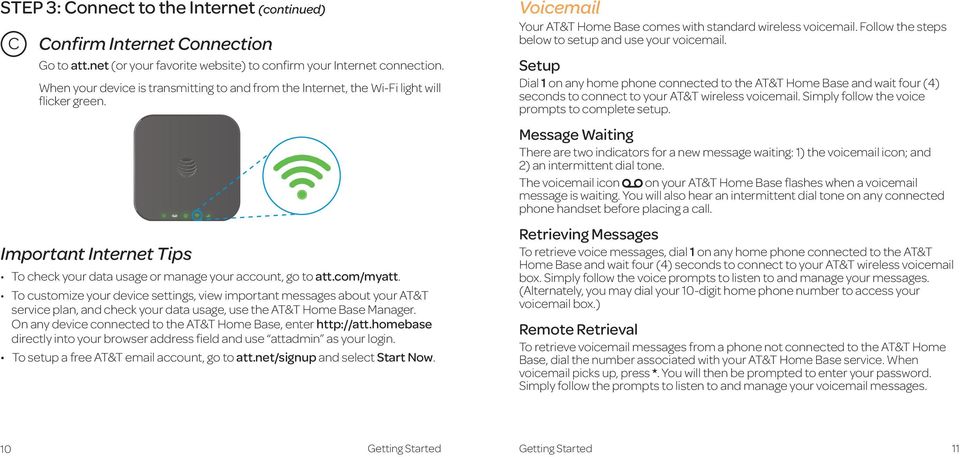
10 STEP 3: Connect to the Internet (continued) C Confirm Internet Connection Go to att.net (or your favorite website) to confirm your Internet connection. When your device is transmitting to and from the Internet, the Wi-Fi light will flicker green. Important Internet Tips To check your data usage or manage your account, go to att.com/myatt. To customize your device settings, view important messages about your AT&T service plan, and check your data usage, use the AT&T Home Base Manager. On any device connected to the AT&T Home Base, enter directly into your browser address field and use attadmin as your login. To setup a free AT&T account, go to att.net/signup and select Start Now. Voic Your AT&T Home Base comes with standard wireless voic . Follow the steps below to setup and use your voic . Setup Dial 1 on any home phone connected to the AT&T Home Base and wait four (4) seconds to connect to your AT&T wireless voic . Simply follow the voice prompts to complete setup. Message Waiting There are two indicators for a new message waiting: 1) the voic icon; and 2) an intermittent dial tone. The voic icon on your AT&T Home Base flashes when a voic message is waiting. You will also hear an intermittent dial tone on any connected phone handset before placing a call. Retrieving Messages To retrieve voice messages, dial 1 on any home phone connected to the AT&T Home Base and wait four (4) seconds to connect to your AT&T wireless voic box. Simply follow the voice prompts to listen to and manage your messages. (Alternately, you may dial your 10-digit home phone number to access your voic box.) Remote Retrieval To retrieve voic messages from a phone not connected to the AT&T Home Base, dial the number associated with your AT&T Home Base service. When voic picks up, press *. You will then be prompted to enter your password. Simply follow the prompts to listen to and manage your voic messages. 10 Getting Started Getting Started 11
11 Transferring a Phone Number Transferring a landline phone number to your AT&T Home Base can take five (5) days or more. Outgoing calls can be made immediately using your AT&T Home Base, however incoming calls will continue through your old service until the transfer is complete. It is recommended that a phone be kept connected to your wall jack or prior service to continue to receive incoming calls until the transfer is complete. To check the status of your transfer, visit att.com/port. AT&T Home Base Manager The AT&T Home Base Manager allows you to easily manage your AT&T Home Base. You can: Customize settings Change your Wi-Fi network name and password Check signal strength, data usage, and important messages from AT&T Get help and information To access the AT&T Home Base Manager, first connect to your AT&T Home Base. In your browser address field, enter and log in using attadmin (Note: You can customize the login that is used to access the AT&T Home Base Manager by going to Settings > Advanced > Administrator). The AT&T Home Base Manager includes a navigation panel on the left side of the screen, which contains the following sections: Home displays general device information and help. Connected Devices view devices currently connected to your AT&T Home Base and block/unblock devices from connecting. Data Used check your billing month-to-date data usage and days remaining in your billing cycle. Call Log view incoming, outgoing, and missed calls placed to and from your AT&T Home Base. Messages view messages from AT&T about your service plan (See Important Messages on page 17). Settings customize your device s Wi-Fi and security settings (See Device Configuration on page 34). About Your Home Base get details regarding current device status and information. AT&T Software Update view software updates that are delivered automatically over the AT&T cellular network. 12 Getting Started Getting Started 13

12 Using Your Device Calling Making Calls Using a phone connected to your AT&T Home Base, place and receive calls as you normally would. The AT&T Home Base supports both cordless and corded phone dialing methods. Note: Make sure to dial the 10-digit phone number, including area code. Three-Way Calling While on an existing call, press the Flash (or Talk) key on your phone to put the first party on hold. When you hear a dial tone, dial the second party s number (wait up to four [4] seconds). When the second party answers, press the Flash (or Talk) key again to complete the three-way connection. If the second party does not answer, press the Flash (or Talk) key to end the connection and return to the first party. Note: If your phone does not have a Flash (or Talk) key, use the off-hook mechanism supported by your phone instead. Call Waiting You will hear two tones if someone calls while you are already on a call. To hold the current call and accept the waiting call, press the Flash (or Talk) key. You can press the Flash (or Talk) key anytime to switch back and forth between calls. To clear the current call and accept the waiting call, enter 1 and press the Flash (or Talk) key. To reject (User Busy) the waiting call, enter 0 and press the Flash (or Talk) key. Notes: Your AT&T Home Base comes with standard three-way calling and call waiting. Operation of these features will vary depending on your home phone equipment. If your phone does not have a Flash (or Talk) key, then use the off-hook mechanism supported by your phone. Call Forwarding To forward all calls, dial: 1. *21* 2. The 10-digit number to which you wish to forward your calls 3. # key (Example: *21* # forwards your calls to the phone number ) Please wait at least three (3) seconds and you hear a confirmation tone for the forwarding to complete before hanging up. To un-forward calls, dial #21#, please wait at least three (3) seconds and you hear a confirmation tone for the un-forwarding to complete before hanging up. Note: Applicable wireless minute plan rates apply to forwarded calls. Call Log You can view incoming and outgoing calls placed to and from your AT&T Home Base at att.com/myatt, or on the AT&T Home Base Manager. To view call details on the AT&T Home Base Manager, enter directly into your browser address field on any device that is connected to your AT&T Home Base. Log in using attadmin (or your customized login) and go to Call Log. 14 Using Your Device Using Your Device 15

13 Internet Access Connect Other Devices You can connect up to 10 Wi-Fi enabled devices simultaneously to your AT&T Home Base, including smartphones, tablets, laptops, etc. 1. Open the Wi-Fi network manager on your Wi-Fi enabled device. 2. Find and select the Wi-Fi network name (SSID) ATT-HOMEBASE-XXXX. 3. When prompted, enter the Wi-Fi password found on the bottom of the AT&T Home Base. Connect WPS devices Wi-Fi Protected Setup (WPS) allows WPS-enabled devices to be connected to a Wi-Fi network without having to type a Wi-Fi password. 1. With the AT&T Home Base powered on, press and hold the WPS button for one (1) second. 2. Within two (2) minutes, press the WPS button on the wireless device you want to connect. 3. Your AT&T Home Base and the wireless device will communicate and establish the connection. Connect via Ethernet To connect via Ethernet, plug one end of your Ethernet cable into the Ethernet port on your computer and the other end into the Ethernet port on the back of the AT&T Home Base. Changing Wi-Fi Network Name and Password You can customize your AT&T Home Base Wi-Fi network name (SSID) and password using the AT&T Home Base Manager. On any device that is connected to the AT&T Home Base, enter directly into your browser address field and log in using attadmin (or your customized login). Go to Settings > Wi-Fi > Basic to change your network name and Settings > Wi-Fi > Security to change your password. Note: You will need to reconnect all Wi-Fi devices using the new information. Important Messages Your AT&T Home Base is able to receive important messages from AT&T regarding new software updates and your service plan. You are not able to respond or reply to these messages. To view your messages, use any device that is connected to the AT&T Home Base and enter directly into your browser address field. Log in using attadmin (or your customized login), and go to Messages. Managing Connected Devices You can view devices currently connected to your AT&T Home Base and block and unblock devices using the AT&T Home Base Manager. On any device that is connected to the AT&T Home Base, enter directly into your browser address field. Log in using attadmin (or your customized login), and go to Connected Devices. 16 Using Your Device Using Your Device 17

14 Checking Your Voice and Data Usage You can check your voice and data plan usage for your current billing cycle by either downloading the free myat&t app to your smartphone or tablet, or visiting att.com/myatt on your computer. To download the myat&t app, visit your device app store or simply text EASY to 8758 to receive a link to download the app. Once downloaded, you will need to log in to manage your account and review usage details. Data and messaging rates may apply. Once you have logged on to your account, your voice and data usage will be displayed. If you only have wireless service with AT&T, a summary of your usage will be displayed on the home screen (see below): If you go to att.com/myatt on your computer, you will need to select Wireless and then log in to manage your account and review usage details. If you have multiple services with AT&T, you will need to select Wireless and then the tab with your AT&T Home Base phone number to view usage details. If you don t already have a User ID and password, select Don t have a User ID? Register today! Then, select Wireless as the account type and enter your wireless number and billing zip code. Next, enter the last four digits of your social security number. You will need to request an Online Registration Code be sent to you via text message or ; enter that code on the screen. You will then create an AT&T Access ID a single User ID and password to manage all of your AT&T accounts. 18 Using Your Device Using Your Device 19

15 If you did not provide an address for notifications when you purchased your AT&T Home Base, you can do so at att.com/myatt. Once you have logged on to your account, go to Profile and enter a valid address. You will receive notifications when you are approaching your data plan limit or if you have exceeded your data plan limit. If you have a limited voice plan, you will also receive notifications as you are approaching your voice plan limit or if you have exceeded your voice plan limit. You can also use the AT&T Home Base Manager to check your data plan usage and view data usage notifications. On any device that is connected to your AT&T Home Base, enter directly into your browser address field. Log in using attadmin (or your customized login). To check your data usage and the days remaining in your billing cycle, go to Data Used. To view data usage notifications, go to Messages. The i light on your AT&T Home Base will blink green when you have a new notification. Note: Actual billed usage can be higher than the estimated data usage displayed in the usage meter. Helpful Tips Home Answering Machines If you choose not to use the voic provided by your AT&T Home Base, you can use your home answering machine by plugging it into the Phone 2 port on the back of your AT&T Home Base. Then, set your answering machine to pick up calls in fewer than five (5) rings. Alternately, you can call AT&T Customer Service at to turn off the network voic feature. 20 Using Your Device Adjusting Volume Use your home phone s volume adjustment if available. Alternately, the volume of the AT&T Home Base can be adjusted if necessary. Six volume levels are available (level 1 to level 6) with the default setting at level 3. While on a call, press ** to decrease volume or press ## to increase volume. Each time ** or ## is pressed, the volume level is decreased or increased one volume level. To exit Volume Setting Mode, press any other key or wait five (5) seconds. Powering On/Off The On/Off button is used to turn your AT&T Home Base on or off. When powered off, the AT&T Home Base will no longer send or receive calls, but it will continue to charge the back-up battery if still connected to the wall outlet. To turn on your AT&T Home Base, press and hold the On/Off button for three (3) seconds until the power light stays steady green, if connected to a power supply (it will flash green if on back-up battery). To turn off your AT&T Home Base, press and hold the On/Off button for three (3) seconds until all the lights turn off. TTY Support TTY (Text Telephony) and TDD (Telecommunications Device for the Deaf) are supported by the AT&T Home Base. In order to use the TTY network, you must have a TTY-compatible phone and be in TTY mode. Note that most digital wireless devices are TTY-compatible. Dial *983*889*n# to set the TTY mode. n = 0: TTY off mode. The standard voice speaking mode and listening mode. This is the default setting. n = 1: TTY full mode. Transmit and receive the TTY characters. n = 2: VCO mode. Receive TTY characters but transmit by speaking into the speaker. n = 3: HCO mode. Transmit TTY characters but receive by listening to the receiver. Using Your Device 21

16 Important Information E911 Service For emergency calls, you may have to provide your location address to the 911 operator. Power Outages The AT&T Home Base has a back-up battery in the event of a power outage, with talk time of up to 100 minutes depending on environmental factors. However, a landline phone requiring separate electric power to operate (e.g., cordless phones) connected to a Home Base will not place or receive calls (including 911 calls) during a power outage. The AT&T Home Base will disable Wi-Fi to conserve power while using the backup battery when there are no devices connected. To re-enable Wi-Fi while using the back-up battery, press the On/Off button for one (1) second. Or, if power is available, plug the AT&T Home Base into an electrical wall outlet. If you experience a power outage and your battery is fully depleted, it will be necessary to restart your device when power is restored by pressing and holding the On/Off button for three (3) seconds until the power light stays steady green. Device Compatibility The AT&T Home Base is not compatible with wireless messaging services, home security systems, fax service, medical alert systems, medical monitoring systems, credit card machines, IP/PBX Phone systems, or dial-up Internet service. May not be compatible with your DVR/Satellite systems; please check with your provider. DSL customers should contact their provider before transferring a phone number to ensure uninterrupted DSL Internet service. The AT&T Home Base cannot be used to make 500, 700, 900, 976, 0+ collect, operator-assisted, or dial-around calls (e.g XXXX). In-Home Wiring Interconnecting to home telephone wiring is not necessary, but is possible; however, it is not recommended unless you possess sufficient knowledge of electrical systems. Use with home wiring requires the physical disconnection from other services, including the landline coming into your home. Use of a qualified licensed electrician is highly recommended. Improper installation may result in phone equipment damage or even a fire. 22 Important Information Important Information 23

17 Frequently Asked Questions What kind of phone do I need to work with the AT&T Home Base? Most standard touch-tone phones may be used. Rotary phones are not supported. Expandable cordless phone systems provide the most flexibility and allow you to easily place additional handsets throughout your home. Cordless phone systems still need to be plugged into a power outlet. A standard corded phone can be used if you just need one phone in your home. During a power outage, a standard corded phone which doesn t require electrical power is required. How do I install my AT&T Home Base? Refer to pages 4-10 of this guide for the most common installation methods. Other helpful information: Installation near a window or outside wall is strongly recommended to ensure the strongest possible wireless signal in order to maximize voice/data performance. If the AT&T Home Base signal strength indicator does not display high signal strength (Green) or voice/data performance is unacceptable, you may need to relocate the device to another part of the home with a stronger wireless signal. Will my AT&T Home Base work in areas with no or low wireless signal strength? A strong wireless signal (Green) is recommended for optimal performance. A moderate signal (Yellow) may be sufficient. If you do not see a green light, you may want to choose an alternate location. Does the AT&T Home Base support both voice and data? Yes, you can use your AT&T Home Base for both voice and data, as long as you subscribe to AT&T Wireless Home Phone and Wireless Home Internet plans for the Home Base. Why don t I see the name of the caller on caller ID? The AT&T Home Base only supports calling number identification. However, contact names stored on your home phone may display for incoming calls. Can I move my AT&T Home Base and use it in another location? Yes, your device can be moved to another location; however, your device should be used in a location where AT&T is authorized to provide wireless service. If your device is used while on other carrier networks, AT&T s off-net usage restrictions apply. Please see section 4.5 of your Wireless Customer Agreement for details. When I dial a seven-digit number using the AT&T Home Base, I get a message that the number cannot be completed as dialed. Does the AT&T Home Base support seven-digit dialing? The AT&T Home Base requires 10-digit dialing for domestic calls in most areas. Can I make international calls with my AT&T Home Base? Yes. To add international calling to your account, please call 611 from your connected phone, or Can I use my AT&T Home Base internationally? No. Use is limited to the United States, Puerto Rico, U.S. Virgin Islands, Guam, and Northern Mariana Islands. What is the warranty on the AT&T Home Base? The AT&T Home Base has a 12-month limited warranty. For details, see page 54. I can t make or receive calls with my AT&T Home Base. What should I do? Please follow the troubleshooting steps in this User Guide. If further assistance is required, call Frequently Asked Questions Frequently Asked Questions 25

18 How many devices can I connect to my AT&T Home Base? There are two phone ports to connect your phone or answering machine. For data, you can connect up to 10 devices via Wi-Fi simultaneously and one device via Ethernet. How can I check my data speed? You can check your data speed by visiting att.com/speedtest. Will connecting additional devices affect my data speed? Yes, active use of multiple devices will decrease your data speeds. Can I change my Wi-Fi network name and password? Yes, you can change your Wi-Fi network name and password using the AT&T Home Base Manager. From any connected device, enter directly into your browser address field and log in using attadmin (or your customized login). Go to Settings > Wi-Fi > Basic to change your network name and Settings > Wi-Fi > Security to change your password. How do I know how much data I ve used? To check your data plan usage for your current billing cycle, go to att.com/myatt. You can also view your data usage and the days remaining in your billing cycle using the AT&T Home Base Manager. From any connected device, enter homebase directly into your browser address field and log in using attadmin (or your customized login), and go to Data Used. Once I ve reached the maximum amount of data in my plan, can I continue to use my AT&T Home Base for data? Yes, but overage charges will apply. To upgrade your data plan, visit att.com/myatt. Troubleshooting General Problem None of the LEDs are illuminated Red signal strength indicator Flashing Red signal strength indicator SIM Card doesn t work in my mobile device Possible Solution Make sure there is AC power to the AT&T Home Base. Do not connect to an AC outlet controlled by a wall switch. Press and hold the On/Off button on the back of the AT&T Home Base for three (3) seconds until the Power light stays steady green. Move your device to another area of the home with a strong wireless signal. SIM is missing or not installed properly. 1 ) Remove the bottom of the device and back-up battery. 2) Locate the SIM card slot and insert the SIM card into the slot until secure. The SIM card will click and lock in place when properly installed in the correct orientation. SIM card may be invalid or damaged and need to be replaced. The SIM card provided with your AT&T Home Base is intended for use only in your specific AT&T Home Base and cannot be used in a mobile handset. 26 Frequently Asked Questions Troubleshooting 27

19 Phone Phone Problem No dial tone No caller ID name My answering machine won t pick up calls Possible Solution Make sure there is AC power to the AT&T Home Base. Do not connect to an AC outlet controlled by a wall switch. Make sure your AT&T Home Base is powered on. Press and hold the On/Off button on the back of your device for three (3) seconds until the Power light stays steady green. Make sure your cordless phone has power and is connected properly to the AT&T Home Base. Move the AT&T Home Base to an area with sufficient network signal (Green or Yellow Signal Strength light). Like all wireless services, only the calling number is displayed with Caller ID. Your home phone may support the display of names stored in its contacts memory. Set your answering machine settings to pick up calls before network voic , which is approximately five (5) rings. Alternately the network voic setting can be increased; dial 1 to access the voic platform and follow the prompts to increase the number of rings. To remove network voic from your account, call AT&T Customer Care by dialing 611 or Problem Poor voice quality Message Waiting indicator on my home phone doesn t light Possible Solution Install using the phone cable included with the AT&T Home Base. Make sure all connections are firmly in place. Move your AT&T Home Base to an area with sufficient network signal (Green or Yellow Signal Strength light). Increase the distance away from other electronic devices and the AT&T Home Base (including cordless base stations, Wi-Fi routers, and cell phones). Move the AT&T Home Base near a window with a clear unobstructed view of the sky and remove any objects that may be obstructing the wireless signal. Make sure the home phone that is connected to the AT&T Home Base is of good quality and in good working order. Voice quality may degrade with a low battery charge when operating with back-up battery. Connect to an AC power source to recharge when power is available. The AT&T Home Base does not support this functionality with your home phone. The AT&T Home Base has a dedicated voic light that will flash when you have a new voice message; you will also hear an intermittent dial tone when you pick up your handset. 28 Troubleshooting Troubleshooting 29

20 Phone Internet Problem I hear an intermittent dial tone My phone doesn t ring when a call comes in I hear a constant low frequency tone (not dial tone) when I try to place a call Possible Solution You will hear an intermittent dial tone when you have a new voic message waiting. Dial 1 from your home phone that is connected to the AT&T Home Base to listen to your voice messages. If you recently transferred your landline phone number, you will continue to receive incoming calls on your previous service until the transfer is complete. To check transfer status, visit att.com/port. Make sure your AT&T Home Base is NOT connected to your in-home phone wiring. Make sure your home phone is powered on and connected to the AT&T Home Base. Your AT&T Home Base number may be set to Call Forward. Dial #21# to un-forward calls. Hang up your home phone to restore dial tone. Problem Can t access the Internet Possible Solution Make sure your AT&T Home Base is powered on. Press and hold the On/Off button on the back of your device for three (3) seconds until the Power light stays steady green. For Wi-Fi: Make sure your AT&T Home Base is located in the general area of your Wi-Fi enabled device(s). Check that your device is connected to the AT&T Home Base Wi-Fi network (ATT-HOMEBASE-XXXX) and you are using the correct Wi-Fi Password. For Ethernet: Make sure the Ethernet cable is securely inserted into the Ethernet port on the back of the AT&T Home Base and your computer (or other device). Move the AT&T Home Base to an area with sufficient network signal (Green or Yellow Signal Strength light). Make sure the Wi-Fi light is on. If not, restart your AT&T Home Base. Press and hold the On/Off button for three (3) seconds until all lights turn off. Then, press and hold the On/Off button for three (3) seconds until the power light stays steady green. Check the following on the AT&T Home Base Manager ( Under Settings > Wi-Fi > Basic: Wi-Fi Broadcast is set to On Under Settings > Network > APN: Profile selection is set to ATT Phone Under Settings > Firewall > Mac/IP/Port Filtering: Check that the IP and MAC address of your device are not blocked by the firewall. 30 Troubleshooting Troubleshooting 31

21 Internet Internet Problem Download or upload speeds are slow The AT&T Home Base Network does not appear in the wireless network list Possible Solution Check your speed at att.com/speedtest. Check your signal strength light. If not green or yellow, choose an alternate location. Other connected devices may be transferring a large amount of data. To view and block other connected devices, go to the AT&T Home Base Manager ( under Connected Devices. A phone call in progress may slow down the data speed. Check your wireless network connection using the AT&T Home Base Manager ( 4G LTE offers the fastest data speeds and if available, the AT&T Home Base should be located in a covered area. Make sure the AT&T Home Base is powered on. Power light should be steady green if connected to a power outlet (or blinking green if on back-up battery). Refresh the network list on the device you are trying to connect. Restart your AT&T Home Base: Press and hold the On/ Off button for three (3) seconds until all lights turn off. Then, press and hold the On/Off button for three (3) seconds until the power light stays steady green. Problem Can t connect to my AT&T Home Base Can t access the AT&T Home Base Manager Possible Solution Check that you are connecting to your AT&T Home Base Wi-Fi network name (SSID) (e.g. ATT-HOMEBASE-XXXX). If connected via Ethernet, make sure the Ethernet cables are firmly attached. Make sure you entered the correct Wi-Fi password found on the bottom of your device or your customized password, if you changed it. Make sure you are trying to access on a device that is currently connected to your AT&T Home Base either via Wi-Fi or Ethernet connection. Make sure you have entered the correct URL ( or directly into your browser address field on your connected device. Make sure you have entered the correct login, either attadmin or your customized login. If you changed the login and forgot it, you will need to restore the device to the factory default settings. Remove the bottom cover of your device and using a ballpoint pen, press and hold the RESET button for five (5) seconds. You may then log in using the default login attadmin. 32 Troubleshooting Troubleshooting 33
22 Device Configuration You can manage your AT&T Home Base settings using the AT&T Home Base Manager. To access, first connect to your AT&T Home Base and enter directly into your browser address field. Log in using attadmin (or your customized login). Wi-Fi Settings You can manage your AT&T Home Base Wi-Fi Settings under Settings > Wi-Fi. Wi-Fi - Basic Wi-Fi Broadcast: Enable or disable Wi-Fi connectivity. Network Mode: Indicates which mode is active for connecting via Wi-Fi. The default is b/g/n Mixed Mode. Network Name (SSID): Shows the Wi-Fi network name (SSID), which is broadcast by the device to allow Wi-Fi enabled devices to identify and connect to it. You can change the Network Name by typing the desired name directly into the text box. Broadcast Network Name (SSID): If this setting is enabled, the AT&T Home Base appears in the list of available Wi-Fi networks on your Wi-Fi enabled devices. If disabled, the network will not appear. 34 Device Configuration Frequency (Channel): This should be left on Automatic unless you need to choose a particular channel for your environment. Maximum Wi-Fi Devices: Specify how many devices can simultaneously connect to the AT&T Home Base. Be sure to click Apply after you ve made changes. Wi-Fi - Connections View devices that are currently connected to your AT&T Home Base and block and unblock devices from having access. The following information is displayed for each connected device: Device Name: If you have assigned a name to the connected device, the assigned name will appear. If the device name is unavailable, you will need to refer to the MAC Address to identify your device. MAC Address: A unique network identifier for the connected device. IP Address: IP address of the connected device. Block a Device: Checking the Block Access box and clicking Apply disconnects the connected device and prevents it from re-connecting to the AT&T Home Base. The blocked device will then appear in the Blocked Wi-Fi devices list. Blocked Wi-Fi Devices List: Lists any devices you have blocked from having access to your AT&T Home Base. Note that since these devices are not currently connected and are blocked from connecting, they do not have an IP address. Instead, they are identified by their MAC Address. Unblock: Checking the Unblock Access box and clicking Apply unblocks a previously blocked device, freeing it to connect to the AT&T Home Base again. The unblocked device is deleted from the Blocked Wi-Fi devices list and will reappear in the Connected Devices list when it connects. Device Configuration 35
23 Wi-Fi - Security Security settings will apply to all connected devices. If you change these settings, existing connected devices may lose their connection. Security Mode: Select the desired Wi-Fi security option. WPA-PSK/WPA2-PSK is the latest and most secure method and should be used if possible. No encryption allows other people to monitor your Wi-Fi traffic and use your data plan to access the Internet. If at all possible, its use should be avoided. Wi-Fi Password (Network Key): If WPA-PSK/WPA2-PSK was selected in the Security Mode field, a Wi-Fi password is displayed. This password will need to be entered on any device needing to connect to the AT&T Home Base via Wi-Fi. You can change the Wi-Fi password by typing a new password directly into the text box. Password Visibility: If this setting is enabled (On), the Wi-Fi password is readable on the screen. If disabled (Off), the password appears as. Wi-Fi - WPS WPS, or Wi-Fi Protected Setup, is a standard that allows easy establishment of a secure wireless home network. This feature is set to Enable by default. If you change these settings, existing connected devices may lose their connection. WPS: You may Enable or Disable WPS by selecting the desired option and clicking Apply. When enabled, the following secondary options will appear: WPS Mode: You may select either PIN or PBC (Push-Button Connection) by selecting the desired option and clicking Apply. PIN: If selected, you will need to specify a 4-digit or 8-digit PIN that other devices will require to connect via this method. Enter the desired PIN in the Client PIN field, then click Apply. PBC: If selected, this will act in the same way as manually pushing the WPS button on the back of the AT&T Home Base. Within two (2) minutes, you will need to activate WPS on the device you wish to connect to the AT&T Home Base via a physical or virtual button in order to complete the connection process. Note: Refer to your connecting device s documentation for specific information on how to complete the WPS process on the desired device. 36 Device Configuration Device Configuration 37
24 Network These settings affect the connection to the mobile (wide area) network or WAN. Network - Connections The AT&T Home Base automatically selects the optimal mobile network. In some cases, you can also select a network manually (Manual Network Selection). This feature is only useful if multiple networks are available. If this setting is enabled, the device connects only to the specified network. Network - APN This APN is pre-configured to access the AT&T network. You should not change the APN unless you have a corporate account (with your own APN). If you need to manually add an APN, click Add, fill in the appropriate information described below, click Save, and when selected in Profile Selection, you can click Set Default to make it the default APN used by the AT&T Home Base. WAN (Wide Area Network) Connection Mode: Indicates if Automatic or Manual Network Selection is in use. If you want to select Manual, you must first click the Turn Internet Off button on the AT&T Home Base Manager Home screen to disconnect from the Internet. Then, return to this section and select Manual and click Apply. Note: You will need to return to the Home screen and click Turn Internet On to re-enable your Internet connection. Signal Strength: Indicates the type of network connection the AT&T Home Base is currently using. There is also a Signal Strength value based on current conditions. 38 Device Configuration Profile Selection: The default profile is the AT&T network, ATT Phone, and cannot be edited. Profile Name: The desired name used to select your custom APN from the Profile Selection drop down list. APN: The APN associated with the selected profile. Enter the appropriate APN here. DNS: Select Auto DNS or Manual DNS. Use this setting to enable or disable the Manual DNS feature. If enabled, provide the following data: Primary DNS: Enter the IP address of the desired primary DNS. This address is required if you select the Manual DNS check box. Secondary DNS: Enter the IP address of the desired secondary DNS. This address is optional and may be left blank if desired. Device Configuration 39
25 Network - APN (continued) Authentication: Select the option specified by your service provider: None CHAP PAP Username: If the Authentication is None, this can be left blank. Otherwise, enter the value specified by your service provider. Password: If the Authentication is None, this can be left blank. Otherwise, enter the value specified by your service provider. Set Default: After choosing one of the saved profiles from the Profile Selection dropdown, click Set Default to set it as your default APN used whenever AT&T Home Base powers on. Save: Any changes made to the currently selected profile (except the default ATT Phone APN profile) can be saved. Add: Click this button to create a new profile in the dropdown called Add new which you can then modify and save. Delete: Deletes the currently selected profile. A dialog box will pop up allowing you to confirm or cancel deleting the selected profile. Firewall A firewall protects your connected devices against malicious incoming traffic from the Internet. The firewall cannot be disabled, but the following settings are available. Firewall - MAC/IP/Port Filtering You can Enable or Disable the MAC/IP/Port Filtering feature as needed to block certain Internet traffic. If this setting is enabled, you can then choose whether traffic is Accepted or Dropped by default by selecting the appropriate option from the Default Policy dropdown. Default Policy: Accepted: Internet traffic is allowed by default. Only traffic from the selected applications will be blocked from accessing the Internet. Traffic is identified by port numbers. Some applications are pre-defined. You can define additional applications by clicking the Add Custom Application button, but you need to know details of the traffic used and generated by the applications you wish to define. In particular, you need to know the port numbers and the protocol (TCP, UDP) used by outgoing traffic. Dropped: Internet traffic is blocked by default. Only traffic from the selected pre-defined or custom applications are allowed to access the Internet. Applications: Use these check boxes to deny or allow access to the Internet for each application, as an exception to the selected Default Policy of accepting or dropping Internet traffic. 40 Device Configuration Device Configuration 41
26 Firewall - MAC/IP/Port Filtering (continued) Custom Applications: This feature allows you to define your own applications. Once defined, these applications can be enabled and disabled the same way as pre-defined applications. To define an application, you need to know the ports and protocol (TCP, UDP) used by the application for outgoing traffic. To start, click the Add Custom Application button, then provide the following data: MAC Address: A network identifier unique to each device s hardware. Destination IP Address: The internal IP address where traffic will be filtered to. Source IP Address: The source IP address that traffic will be filtered from. Protocol: You can select from None/TCP/UDP/ICMP as the traffic type you would like to filter. Destination Port Range: The range of ports that traffic will be filtered to. Enter the beginning and end of the port range for each application. For a single port, enter the port number in both fields. For a port range, enter the beginning of the range in the first field and the end of the range in the second field. Source Port Range: The range of ports that traffic will be filtered from. Action: Selecting Drop or Accept will determine if the rule will allow or block traffic based on the criteria specified. Comment: Here you will need to add a name or description to the rule in order to click Apply to save and implement the rule. Firewall - Port Forwarding Port Forwarding allows for specific external ports on the AT&T Home Base to be mapped to specific ports on a specific device on the internal network. You can have a maximum of 10 Port Forwarding/Virtual Server rules in the system. You can enable or disable Port Forwarding to allow certain devices to act as virtual servers within the internal AT&T Home Base network. If you select Enable, the Virtual Server Settings will appear: IP Address: Enter the internal IP address (i.e ) that you would like traffic from a specific external port directed to internally. Port Range: Enter the starting and ending port numbers that will be directed to the internal device. Protocol: You may pick TCP, UDP, or TCP+UDP traffic types to be directed. Comment: Enter a comment or label to be saved with this custom port forwarding rule. Be sure to click Apply to confirm your configuration. 42 Device Configuration Device Configuration 43
27 Firewall - DMZ The DMZ, or De-Militarized Zone, is a selected internal IP address of a device that allows full access and connectivity from outside traffic, through the firewall, to a specific internal device without being filtered or blocked by the AT&T Home Base. DMZ Settings: You may choose to enable or disable the DMZ setting here. DMZ is set to Disabled by default. DMZ IP Address: Enter the internal IP address of the desired device that will be directly accessible from outside the firewall. Advanced Advanced - Administrator This page allows you to change the default login (attadmin) that is used to access the AT&T Home Base Manager. Current Login: Enter the current login for the AT&T Home Base Manager in this field. The default login is attadmin. New Login: Enter the new login, using only letters, numbers, and standard punctuation symbols. The password must be at least four (4) characters long. The maximum length is 32 characters. Verify New Login: Re-enter the new login in this field, then click Apply. Note: Once you change the default login, there is no way to retrieve the new login. You must reset the AT&T Home Base to its factory settings to restore the login to the default login attadmin. Remove the bottom cover of your AT&T Home Base and using a ballpoint pen, press and hold the RESET button for eight (8) seconds. 44 Device Configuration Device Configuration 45
28 Advanced Router IP Address: The IP address for this device as seen from the local network. This is set to a default value. Subnet Mask: The default value is standard for small (class C ) networks. MAC Address: The MAC Address is a network identifier. This read-only field displays the MAC Address for the Wi-Fi interface on this device. DHCP Server: This option is set to Enable by default. The DHCP server allocates an IP address to each Connected Device. DHCP IP Pool: This is the IP address range used by the DHCP server. This indicates the range of IP addresses which may be allocated to connected devices. DHCP Lease Time: This specifies the time period (in hours) for how long each device is assigned an internal IP address. UPNP: Universal Plug and Play (UPNP) is a set of networking protocols that permits networked devices to discover each other s presence on the network. The default value for this setting is Disable. VPN Passthrough: This feature allows VPN client software on connected devices to connect through this device to remote VPN servers. Normally, this option should be set to Enabled. Advanced Time/Date Current Local Time: Displays the current date and time on the device. Time Set Mode: Select from Manual Set Time or SNTP Auto Synchronization to determine how the AT&T Home Base determines local time. Manual Set Time Selecting this option will allow you to manually set the Month, Day, Year, Hour, Minute, and AM/PM parameters for your local time. Click Apply for changes to take effect. SNTP Auto Synchronization SNTP, or Simple Network Time Protocol, is used to allow synchronization of the date and time between your device and the system time on the network. You can pick up to three SNTP Servers you want your device to synchronize with, including specifying a server not listed by selecting Other from the dropdown and typing in the server address. You can also set the Time Zone and Daylight Saving Time status. Advanced Device Reset This screen provides the ability to reset all settings to the factory default values and restart the device. Device Reset: Click the Reset button to reset all settings to their factory default values. This causes a restart, and changes the current Wi-Fi settings if they do not match the factory default values. In this case, all connected devices need to reconnect using the default Wi-Fi settings. Restart Device: Click the Restart button to power off and restart the device. 46 Device Configuration Device Configuration 47
29 Specifications Dimensions (W D H) 5.43" (W) 5.43" (D) 1.18" (H) Weight oz. (including back-up battery) Back-up Battery 1,500 mah Talk time up to 100 minutes Standby time up to 18 hours Note: The value of the talk time or standby time varies with the actual environment. 48 Specifications Safety Instructions Some electronic devices may be susceptible to electromagnetic interference. Locate the router away from TV set, radio and other electronic equipment to avoid electromagnetic interference. The router may interfere with medical devices like hearing aids and pacemakers. Consult a physician or the manufacturer of the medical device before using the router. Please keep yourself at least eight (8) inches away from router. Do not use your router in dangerous environments such as oil terminals or chemical factories where there are explosive gases or explosive products being processed. Please use original accessories or accessories that are authorized by ZTE. Unauthorized accessories may affect the router performance, damage the router or cause danger to you. Do not attempt to dismantle the router. There are no user serviceable parts. Do not allow the router or accessories to come into contact with liquid or moisture at any time. Do not immerse the router in any liquid. Do not place objects on top of the router. This may lead to overheating of the device. The device must be placed in ventilated environment for use. Do not expose the router to direct sunlight or store it in hot areas. High temperature can shorten the life of electronic devices. Do not allow children to play with the router or charger. Keep the length of the cable between the router and the phone less than 1 1 yards. The router is for indoor use only. Do not use the router outside. Do not connect telephone extensions which run outside of the building. These can result in lightning damage to your unit. Safety Instructions 49
30 Radio Frequency (RF) Energy This device meets the government s requirements for exposure to radio waves. This device is designed and manufactured not to exceed the emission limits for exposure to radio frequency (RF) energy set by the Federal Communications Commission of the U.S. Government: The exposure standard for wireless mobile devices employs a unit of measurement known as the Specific Absorption Rate, or SAR. The SAR limit set by the FCC is 1.6 W/kg.* While there may be differences between the SAR levels of various devices and at various positions, they all meet the government requirement. The FCC has granted an Equipment Authorization for this device with all reported SAR levels evaluated as in compliance with the FCC RF exposure guidelines. SAR information on this device is on file with the FCC and can be found under the Display Grant section of after searching FCC ID: Q78-Z700. * Tests for SAR are conducted using standard operating positions accepted by the FCC with the device transmitting at its highest certified power level in all tested frequency bands. Although the SAR is determined at the highest certified power level, the actual SAR level of the device while operating can be well below the maximum value. This is because the device is designed to operate at multiple power levels so as to use only the power required to reach the network. In general, the closer you are to a wireless base station antenna, the lower the power output. FCC Regulations This device complies with part 15 of the FCC Rules. Operation is subject to the following two conditions: (1) This device may not cause harmful interference, and (2) this device must accept any interference received, including interference that may cause undesired operation. This device has been tested and found to comply with the limits for a Class B digital device, pursuant to Part 15 of the FCC Rules. These limits are designed to provide reasonable protection against harmful interference in a residential installation. This equipment generates, uses and can radiate radio frequency energy and, if not installed and used in accordance with the instructions, may cause harmful interference to radio communications. However, there is no guarantee that interference will not occur in a particular installation. If this equipment does cause harmful interference to radio or television reception, which can be determined by turning the equipment off and on, the user is encouraged to try to correct the interference by one or more of the following measures: Reorient or relocate the receiving antenna. Increase the separation between the equipment and receiver. Connect the equipment into an outlet on a circuit different from that to which the receiver is connected. Consult the dealer or an experienced radio/tv technician for help. Changes or modifications not expressly approved by the party responsible for compliance could void the user s authority to operate the equipment. 50 Radio Frequency (RF) Energy FCC Regulations 51
31 RF Exposure Information This device meets the government s requirements for exposure to radio waves. This device is designed and manufactured not to exceed the emission limits for exposure to radio frequency (RF) energy set by the Federal Communications Commission of the U.S. Government. This device complies with FCC radiation exposure limits set forth for an uncontrolled environment. CTIA Do not disassemble or open, crush, bend or deform, puncture or shred. Do not modify or remanufacture, attempt to insert foreign objects into the battery, immerse or expose to water or other liquids, expose to fire, explosion or other hazard. Only use the battery for the system for which it is specified. Only use the battery with a charging system that has been qualified with the system per CTIA Certification Requirements for Battery System Compliance to IEEE Use of an unqualified battery or charger may present a risk of fire, explosion, leakage, or other hazard. Do not short circuit a battery or allow metallic conductive objects to contact battery terminals. Replace the battery only with another battery that has been qualified with the system per this standard, IEEE-Std Use of an unqualified battery may present a risk of fire, explosion, leakage, or other hazard. Promptly dispose of used batteries in accordance with local regulations Battery usage by children should be supervised. Avoid dropping the phone or battery. If the phone or battery is dropped, especially on a hard surface, and the user suspects damage, take it to a service center for inspection. Improper battery use may result in a fire, explosion, or other hazard. For those host devices that utilize a USB port as a charging source, the host device s user manual shall include a statement that the phone shall only be connected to CTIA certified adapters, products that bear the USB-IF logo or products that have completed the USB-IF compliance program. 52 RF Exposure Information CTIA 53
32 Warranty ZTE offers you a limited warranty that the enclosed subscriber unit and its enclosed accessories will be free from defects in material and workmanship for a period that expires one (1) year from the date of sale of the Product to you, provided that you are the original end-user purchaser of the Product and provided that your purchase was made from a supplier authorized by the Seller. Transfer or resale of a Product will automatically terminate warranty coverage with respect to that Product. This limited warranty is not transferable to any third party, including but not limited to any subsequent purchaser or owner of the Product. This limited warranty is applicable only to end users in the United States. This product or phone is warranted for 12 months from date of purchase. For warranty service information, please call ZTE service number (877) (toll-free). The manufacturer s website, is also available for assistance. This warranty only applies if the product has been used in accordance with the manufacturer s instructions under normal use and with reasonable care. What this warranty does not cover: a) Defects or damages resulting from the misuse of this product. b) Defects or damages from abnormal use, abnormal conditions, improper storage, exposure to moisture, dampness or corrosive environments, unauthorized modifications, unauthorized repair, neglect, rough handling, abuse, accident, alteration, improper installation, incorrect voltage application, food or liquid spoilage, acts of God. c) Normal wear and tear. d) If the Product has been opened, modified or repaired by anyone other than a warranty service center or if it is repaired using unauthorized spare parts. e) If the serial number or mobile accessory date code has been removed, erased, defaced, altered, or are illegible in any way subject to sole judgment of ZTE. 54 Warranty LIMITED WARRANTY TO THE EXTENT PERMITTED BY APPLICABLE LAW, THIS LIMITED WARRANTY IS YOUR SOLE AND EXCLUSIVE REMEDY AGAINST ZTE AND ZTE S SOLE AND EXCLUSIVE LIABILITY IN RESPECT OF DEFECTS IN PRODUCT. HOWEVER, THIS LIMITED WARRANTY SHALL NOT EXCLUDE NOR LIMIT ANY OF YOUR LEGAL (STATUTORY) RIGHTS UNDER THE APPLICABLE NATIONAL LAWS. TO THE EXTENT PERMITTED BY APPLICABLE LAW ZTE DOES NOT ASSUME ANY LIABILITY FOR LOSS OF OR DAMAGE TO OR CORRUPTION OF DATA, FOR ANY LOSS OF PROFIT, LOSS OF USE OF PRODUCTS OR FUNCTIONALITY, LOSS OF BUSINESS, LOSS OF REVENUES OR LOSS OF ANTICIPATED PROFIT, INCREASED COSTS OR EXPENSES OR FOR ANY INDIRECT, OR SPECIAL OR CONSEQUENTIAL LOSS OR DAMAGE. TO THE EXTENT PERMITTED BY APPLICABLE LAW, ZTE S LIABILITY SHALL BE LIMITED TO THE PURCHASE VALUE OF THE PRODUCT. THE ABOVE LIMITATIONS SHALL NOT APPLY TO DEATH OR PERSONAL INJURY CAUSED BY DEFECT OF PRODUCT IN MATERIAL, DESIGN, AND WORKMANSHIP. How to Get Warranty Service To obtain warranty service, please call (877) Please have the following information available when you send the device in for repair: A valid Proof of Purchase Return address Daytime phone number or fax number Model # IMEI # (Look for the 15-digit IMEI # behind the back-up battery of the device.) Complete description of the problem Transportation prepaid Other Warranty Programs You may have other warranty programs with your purchase, such as warranty exchange. If so, please refer to equipment package or the original point of sale. Warranty 55
33 AT&T Home Base ( Home Base ) is a mobile device. It may be used in the U.S. with home phone equipment, computers, and other Wi-Fi compatible devices in different locations. For emergency calls, you may have to provide your location address to the 911 operator. Home Base has a back-up battery in the event of a power outage. However, a landline phone requiring separate electric power to operate (e.g., cordless phones) connected to a Home Base will not place or receive calls (including 911 calls) during a power outage. Landline home phone equipment and Internet capable devices are not included. Provides voice and mobile broadband Internet access service. Not compatible with wireless messaging services, home security systems, fax service, medical alert systems, medical monitoring systems, credit card machines, IP/PBX Phone systems, or dial-up Internet service. May not be compatible with your DVR/Satellite systems; please check with your provider. DSL customers should contact their provider before transferring a phone number to ensure uninterrupted DSL Internet service. Mobile broadband not available everywhere. Home Base sold for use on the AT&T wireless network and cannot be activated on other carriers wireless networks. Service provided by AT&T Mobility. Portions 2013 AT&T Intellectual Property. All rights reserved. AT&T, the AT&T logo and all other AT&T marks contained herein are trademarks of AT&T Intellectual Property and/or AT&T affiliated companies. All other marks contained herein are the property of their respective owners. Portions Copyright 2013 ZTE CORPORATION. All rights reserved. No part of this publication may be excerpted, reproduced, translated or utilized in any form or by any means, electronic or mechanical, including photocopying and microfilm, without the prior written permission of ZTE Corporation. The manual is published by ZTE Corporation. We reserve the right to make modifications on print errors or update specifications without prior notice. Version No. : R 1.0 Edition Time: Manual No. :
Wireless Home Phone Base. A Guide to Your Service and Device
 Wireless Home Phone Base A Guide to Your Service and Device 2 TABLE OF CONTENTS Introduction 3 About Your Service 4 7 About Your Device 8 9 Device Installation 10 13 How It Works 14 15 Voicemail 16 Using
ZTE WIRELESS HOME PHONE BASE USER GUIDE
 ZTE WIRELESS HOME PHONE BASE USER GUIDE INTRODUCTION HOW IT WORKS Thank you for choosing Consumer Cellular! We know you re excited to use your new Wireless Home Phone Base and this short guide will help
User Guide. AT&T Wireless Home Phone Base
 User Guide AT&T Wireless Home Phone Base Wireless Home Phone ( WHP ) is a mobile device designed to provide service consistent with other AT&T wireless devices. 9 11 calls are routed based on the wireless
User Guide. AT&T Wireless Home Phone Base
 User Guide AT&T Wireless Home Phone Base Not compatible with home security systems, wireless messaging and data services, fax service, DVR/Satellite systems, or medical alert systems, credit card machines,
User Guide. AT&T Wireless Home Phone
 User Guide AT&T Wireless Home Phone Wireless Home Phone ( WHP ) device is a mobile device that may be used with home phone equipment in different locations in the U.S. WHP device has a backup battery in
How To Use A U.S. Cell Phone At Home
 U.S. Cellular Home Phone 1 Contents Getting to Know Your Device...5 Appearance... 5 LED Indicators... 6 Device Installation...7 Before You Begin... 7 Installing the Battery... 7 Installing the Power Adapter...
OM2260VW2 USER MANUAL VERIZON WIRELESS HOME PHONE CONNECT
 OM2260VW2 USER MANUAL VERIZON WIRELESS HOME PHONE CONNECT Welcome to Verizon Wireless Thank you for choosing Verizon Wireless Home Phone Connect. You re now connected to the power of America s most reliable
How To Use A Modem On A Pc Or Mac Or Ipad (For A Laptop)
 CLEAR MODEM with Wi-Fi USER GUIDE GET TO KNOW YOUR CLEAR MODEM WITH WI-FI 3 WHAT S IN THE BOX? 3 INFORMATIVE LED INDICATORS 3 USE WITH CARE 3 SET UP THE MODEM 4 PLACE THE MODEM ON A FLAT, STABLE SURFACE
MN-700 Base Station Configuration Guide
 MN-700 Base Station Configuration Guide Contents pen the Base Station Management Tool...3 Log ff the Base Station Management Tool...3 Navigate the Base Station Management Tool...4 Current Base Station
User Guide VERIZON WIRELESS HOME PHONE CONNECT
 User Guide VERIZON WIRELESS HOME PHONE CONNECT label Welcome to Verizon Wireless Thank you for choosing Verizon Wireless Home Phone Connect. You re now connected to America s most reliable wireless network.
CPEi 800/825 Series. User Manual. * Please see the Introduction Section
 CPEi 800/825 Series User Manual * Please see the Introduction Section Contents Introduction...iii Chapter 1: CPEi 800/825 User Guide Overview... 1-1 Powerful Features in a Single Unit... 1-2 Front of the
Digital Phone Installation & User Guide
 Digital Phone Installation & User Guide Telephone #1 Voicemail PIN Telephone #2 Voicemail PIN skybeam high speed internet digital phone We would like you to verify that the 911 address we have for you
Hardware Overview. Ooma Linx devices These are installed around the office and are used to connect phones and other devices to your Ooma Office system
 Quick Start Guide Introduction Installation Overview Setting up the Ooma Office system in your business is easy. You should have your first extensions up and running in about 20 minutes. Ooma Office blends
Broadband Phone Gateway BPG510 Technical Users Guide
 Broadband Phone Gateway BPG510 Technical Users Guide (Firmware version 0.14.1 and later) Revision 1.0 2006, 8x8 Inc. Table of Contents About your Broadband Phone Gateway (BPG510)... 4 Opening the BPG510's
Features Phone Access... 1. Features Web Access... 3. emta Quick Reference Guide...14. Troubleshooting...15. Quick Reference Guide...
 Phone TABLE OF CONTENTS Features Phone Access... 1 Features Web Access... 3 emta Quick Reference Guide...14 Troubleshooting...15 Quick Reference Guide...16 Features Phone Access Caller ID Feature that
Home Phone Quick Start Guide. Review these helpful instructions to understand your Midco home phone service and its many convenient features.
 Home Phone Quick Start Guide Review these helpful instructions to understand your Midco home phone service and its many convenient features. 1 Contents Equipment and Features.......................................................
Phone Adapter. with 2 Ports for Voice-over-IP. Installation and Troubleshooting Guide. Model No. PAP2 Ver. 2. Voice
 Phone Adapter with 2 Ports for Voice-over-IP Voice Installation and Troubleshooting Guide Model No. PAP2 Ver. 2 Copyright and Trademarks Specifications are subject to change without notice. Linksys is
Quick Start Guide. Vonage VWR Device
 Quick Start Guide Vonage VWR Device Before you begin 1. If you purchased your Vonage Device from a retail store, you must first activate your Vonage phone service. (You will need to provide the MAC ID
Contents. WOW! Phone Reference Guide
 WOW! Phone Reference Guide Intro to WOW! Phone P-1 WOW! Phone Features P-1 Call Waiting P-1 Call Forwarding P-1 3-Way Calling P-1 Call Return P-1 Anonymous Call Rejection P-2 Caller ID P-2 Caller ID Block
Quick Start Guide: Iridium GO! Advanced Portal
 Quick Start Guide: Iridium GO! Advanced Portal Contents Set-Up... 3 Overview... 4 Main Tab 1: General... 5 Status.... 5 Settings... 8 Audio.... 8 GPS.... 9 Tab 2: Communication... 9 Wi-Fi... 9 Satellite...
P-2612HNU-Fx. 802.11n ADSL2+ VoIP IAD DEFAULT LOGIN DETAILS. Firmware V3.00 Edition 1, 1/2010. Password: 1234 User Name: admin Password: 1234
 P-2612HNU-Fx 802.11n ADSL2+ VoIP IAD Firmware V3.00 Edition 1, 1/2010 DEFAULT LOGIN DETAILS IP Address: User Login: Administrator Login: http://192.168.1.1 User Name: user Password: 1234 User Name: admin
IMPORTANT NOTICE CONCERNING EMERGENCY 911 SERVICES
 IMPORTANT NOTICE CONCERNING EMERGENCY 911 SERVICES Your service provider, not the manufacturer of the equipment, is responsible for the provision of phone services through this equipment. Any services
Nokia Siemens Networks. CPEi-lte 7212. User Manual
 Nokia Siemens Networks CPEi-lte 7212 User Manual Contents Chapter 1: CPEi-lte 7212 User Guide Overview... 1-1 Powerful Features in a Single Unit... 1-2 Front of the CPEi-lte 7212... 1-2 Back of the CPEi-lte
Getting Started. Getting Started with Time Warner Cable Business Class. Voice Manager. A Guide for Administrators and Users
 Getting Started Getting Started with Time Warner Cable Business Class Voice Manager A Guide for Administrators and Users Table of Contents Table of Contents... 2 How to Use This Guide... 3 Administrators...
VSG1432. User Setup Guide. 802.11n Wireless VDSL2 4-port Gateway. Default Login Details. www.zyxel.com. Firmware Version 1.10 Edition 1, 10/2011
 VSG1432 User Setup Guide 802.11n Wireless VDSL2 4-port Gateway Default Login Details IP Address http://192.168.1.254 Username admin Password telus Firmware Version 1.10 Edition 1, 10/2011 www.zyxel.com
Quick Start Guide. Cisco SPA232D Mobility Enhanced ATA
 Quick Start Guide Cisco SPA232D Mobility Enhanced ATA Package Contents Analog Telephone Adapter Ethernet Cable Phone Cable Power Adapter Quick Start Guide Product CD-ROM Welcome Thank you for choosing
Quick & Easy Set-Up of Packet8 Internet Phone Service
 For the Way You Live & Work Quick & Easy Set-Up of Packet8 Internet Phone Service Welcome to Packet8 Internet Phone Service. Soon, you ll be able to make all your calls over the Internet and save a bundle
Digital Voice Services Residential User Guide
 Digital Voice Services Residential User Guide 2 P a g e * Feature Access Codes *11 Broadworks Anywhere (pulling call to alternate phone) *62 Access Voicemail *72 Call Forwarding Always Activation *73 Call
Clear Choice Communications. Digital Voice Services User Guide
 Clear Choice Communications Digital Voice Services User Guide 2 P a g e * Feature Access Codes *62 Access Voicemail *72 Call Forwarding Always Activation *73 Call Forwarding Always Deactivation *90 Call
Quick Start Guide. Vonage Device Motorola VT2142
 Quick Start Guide Vonage Device Motorola VT2142 Before you begin 1. If you purchased your Vonage Device from a retail store, you must first activate your Vonage phone service. (You will need to provide
B890 4G LTE Smart Hub Getting Started Guide
 B890 4G LTE Smart Hub Getting Started Guide HUAWEI TECHNOLOGIES CO., LTD. Thank You for Purchasing the B890 4G LTE Smart Hub! Before You Begin What s in the Box : 1. B890 4G LTE Smart Hub 2. Power adapter
Getting started guide Turbo Hub
 Getting started guide Turbo Hub NETGEAR MVBR1210C Welcome and thanks for choosing Bell. Your new Turbo Hub will enable you to connect to the Internet and make voice calls using a landline phone. This guide
Linksys Gateway SPA2100-SU Manual
 Linksys Gateway SPA2100-SU Manual Manuel de l'utilisateur Table of Contents Looking for Basic Setup Instructions?... 3 Most Recent Version of this Manual... 3 Advanced Setup Instructions... 4 Wiring Your
Hands-on MESH Network Exercise Workbook
 Hands-on MESH Network Exercise Workbook Santa Clara County RACES Date: 18 March 2015 Version: 1.0 scco_wifi_intro_exonly_v150318.docx 1 Table of Contents HANDS ON! Exercise #1: Looking at your Network
Cisco SPA302D Mobility Enhanced Cordless Handset
 USER GUIDE Cisco SPA30D Mobility Enhanced Cordless Handset Contents Chapter 1: Getting Started 1 Overview 1 Understanding Your Cisco SPA30D Cisco SPA30D Display Screen 4 Turning the Handset On and Off
WAP3205 v2. User s Guide. Quick Start Guide. Wireless N300 Access Point. Default Login Details. Version 1.00 Edition 2, 10/2015
 WAP3205 v2 Wireless N300 Access Point Version 1.00 Edition 2, 10/2015 Quick Start Guide User s Guide Default Login Details Web Address http://zyxelsetup Password www.zyxel.com 1234 Copyright 2014 ZyXEL
Welcome. Unleash Your Phone
 User Manual Welcome Unleash Your Phone For assistance with installation or troubleshooting common problems, please refer to this User Manual or Quick Installation Guide. Please visit www.vonage.com/vta
Get to Know Your Device 4G LTE BROADBAND ROUTER WITH VOICE
 Get to Know Your Device 4G LTE BROADBAND ROUTER WITH VOICE FRONT VIEW The Verizon 4G LTE Broadband Router with Voice is a wireless device that delivers Internet connectivity and telephone service. You
IMPORTANT NOTICE CONCERNING EMERGENCY 911 SERVICES
 IMPORTANT NOTICE CONCERNING EMERGENCY 911 SERVICES Your service provider, not the manufacturer of the equipment, is responsible for the provision of phone services through this equipment. Any services
Digital Voice Services User Guide
 Digital Voice Services User Guide 2 P a g e * Feature Access Codes *11 Broadworks Anywhere (pulling call to alternate phone) *62 Access Voicemail *72 Call Forwarding Always Activation *73 Call Forwarding
Here s your guide to easy installation. Get the most out of Verizon High Speed Internet.
 Here s your guide to easy installation. Get the most out of Verizon High Speed Internet. Congratulations on choosing Verizon High Speed Internet. In this guide, you ll find everything you need to set up
Networking. General networking. Networking overview. Common home network configurations. Wired network example. Wireless network examples
 Networking General networking Networking overview A network is a collection of devices such as computers, printers, Ethernet hubs, wireless access points, and routers connected together for communication
AC750 WiFi Range Extender
 Model EX6100 User Manual April 2014 202-11307-03 350 East Plumeria Drive San Jose, CA 95134 USA Support Thank you for selecting NETGEAR products. After installing your device, locate the serial number
Prestige 202H Plus. Quick Start Guide. ISDN Internet Access Router. Version 3.40 12/2004
 Prestige 202H Plus ISDN Internet Access Router Quick Start Guide Version 3.40 12/2004 Table of Contents 1 Introducing the Prestige...3 2 Hardware Installation...4 2.1 Rear Panel...4 2.2 The Front Panel
SwannEye HD Security Camera Wi-Fi Connections Quick Setup Guide. Welcome! Lets get started.
 EN SwannEye HD Security Camera Wi-Fi Connections Quick Setup Guide Welcome! Lets get started. 1 1 Introduction 1 2 3 4 Congratulations on your purchase of this SwannEye HD Wi-Fi Security Camera from Swann!
N300 WiFi Range Extender
 Model EX2700 User Manual July 2014 202-11395-01 350 East Plumeria Drive San Jose, CA 95134 USA Support Thank you for selecting NETGEAR products. After installing your device, locate the serial number on
Are apps available for Virtual Water Assistant? No. We use a mobile website.
 What is a battery backup unit (BBU) sump pump? A battery backup unit (BBU) sump pump is a secondary sump pump powered by a 12V deep cycle battery that automatically protects your basement if power goes
P-2302HWUDL-P1. Quick Start Guide. 802.11g Wireless VoIP Station Gateway. with Built-in DECT Base Station
 P-2302HWUDL-P1 802.11g Wireless VoIP Station Gateway with Built-in DECT Base Station Quick Start Guide Version 3.60 Edition 1 3/2007 Overview The P-2302HWUDL-P1 model is a router with IEEE 802.11g wireless
VoIP Adapter User Guide
 VoIP Adapter User Guide This guide is meant to help you set up your VIRTUAL PhoneFusion One phone number and PhoneFusion VoIP Adapter. It will also provide you some tips and shortcuts. Note that PhoneFusion
Business Wireless Internet quick install guide
 Read me first Business Wireless Internet quick install guide Wi-Fi and email set-up instructions included Actiontec Wireless Gateway TELUS Internet account information Record your personal account information
Voicemail Plus User Guide
 Voicemail Plus User Guide Version: 2.0_US Revised: 25 September 2007 Notices Copyright 2007 Vonage. All rights reserved. No part of this documentation may be reproduced in any form or by any means or used
Digital Phone @ Home Tutorial
 Digital Phone @ Home Tutorial 2 Table of Contents Quick Start Guide... 4 Making Phone Calls... 5 Voicemail Setup... 6 Setup instructions:... 6 To Check Messages:... 6 Quick Key Reference:... 6 Customer
SOYO G668 VOIP IP PHONE USER MANUAL
 SOYO G668 VOIP IP PHONE USER MANUAL Inglos Networks Industrial Global Solutions Teléfono: +1 (585) 217-9864, Fax: + 1 (585) 872-9627, Email: [email protected] Table of Content SAFETY INFORMATION... 1 INTRODUCTION...
BigPond Wi-Fi 4G Advanced II AirCard 790S User Manual
 AirCard 790S User Manual October 2014 202-11471-02 350 East Plumeria Drive San Jose, CA 95134 USA Support Contact your Internet service provider for technical support. Compliance For regulatory compliance
USING YOUR DMX PROFUSION
 Set Up Guide USING YOUR DMX PROFUSION io FOR 1 Connect 2 Set Up 3 Listen SIMPLE PERSONALIZED UNLIMITED ECONOMICAL LICENSED Welcome Thank you for choosing DMX to provide your Pandora listening experience
UIP1868P User Interface Guide
 UIP1868P User Interface Guide (Firmware version 0.13.4 and later) V1.1 Monday, July 8, 2005 Table of Contents Opening the UIP1868P's Configuration Utility... 3 Connecting to Your Broadband Modem... 4 Setting
Ethernet Radio Configuration Guide
 Ethernet Radio Configuration Guide for Gateway, Endpoint, and Repeater Radio Units April 20, 2015 Customer Service 1-866-294-5847 Baseline Inc. www.baselinesystems.com Phone 208-323-1634 FAX 208-323-1834
Linksys WAP300N. User Guide
 User Guide Contents Contents Overview Package contents 1 Back view 1 Bottom view 2 How to expand your home network 3 What is a network? 3 How to expand your home network 3 Where to find more help 3 Operating
Digital Telephone User Guide
 Digital Telephone User Guide 1 Proud to provide Conway s Electric, Water, Cable, Internet and Telephone services. Welcome to Conway Corporation Digital Telephone Service We take pride in providing superior
Telstra Pre-Paid 4G My Pocket Wi-Fi Ultimate User Manual
 Telstra Pre-Paid 4G My Pocket Wi-Fi Ultimate User Manual April 2014 202-11387-01 350 East Plumeria Drive San Jose, CA 95134 USA Support Contact your Internet service provider for technical support. Compliance
Installation Guide. EarthLink
 Installation Guide EarthLink Welcome to EarthLink DSL & Home Phone Service Congratulations! You ve made the smart choice for super-fast DSL and super-simple phone service. Follow the instructions in this
Quick Start. Nighthawk X8 AC5300 Tri-Band WiFi Router Model R8500. Package Contents. NETGEAR, Inc. 350 East Plumeria Drive San Jose, CA 95134 USA
 Support Thank you for purchasing this NETGEAR product. You can visit www.netgear.com/support to register your product, get help, access the latest downloads and user manuals, and join our community. We
your Gateway Windows network installationguide 802.11b wireless series Router model WBR-100 Configuring Installing
 your Gateway Windows network installationguide 802.11b wireless series Router model WBR-100 Installing Configuring Contents 1 Introduction...................................................... 1 Features...........................................................
Nighthawk X4 AC2350 Smart WiFi Router
 Nighthawk X4 AC2350 Smart WiFi Router Model R7500 User Manual August 2014 202-11384-01 350 East Plumeria Drive San Jose, CA 95134 USA Support Thank you for selecting NETGEAR products. After installing
Home Wi-Fi Gateway Instructions
 Home Wi-Fi Gateway Instructions 1. Connect the gateway. Use the coaxial cable provided by BendBroadband to connect the cable port (A) to your cable outlet. 2. Connect your computer to the cable modem gateway
Intermedia Cloud Softphone. User Guide
 Intermedia Cloud Softphone User Guide FOR MORE INFO VISIT: CALL US EMAIL US intermedia.net +1.800.379.7729 [email protected] 1 Contents 1 Introduction... 3 1.1 Cloud Softphone Features... 3 2 Installation...
User's Guide. [Home Network] app. Model No.
![User's Guide. [Home Network] app. Model No.](/thumbs/26/8329814.jpg "User's Guide. [Home Network] app. Model No.") User's Guide [Home Network] app Model No. Table of Contents Table of Contents 1 Welcome to the Panasonic Home Network System!...5 1.1 What is the Panasonic Home Network System?...5 1.2 What can I use it
User's Guide [Home Network] app Model No. Table of Contents Table of Contents 1 Welcome to the Panasonic Home Network System!...5 1.1 What is the Panasonic Home Network System?...5 1.2 What can I use it
Quick Start. Guide. The area s ONLY 100% fiber optic network. epbfi.com
 Quick Start Guide The area s ONLY 100% fiber optic network epbfi.com Welcome to Fi Phone SM from EPB Fiber Optics SM With your new Fi Phone service, you ll enjoy crystal clear call quality and many great
1. Power Light: indicates whether AC power is available to the unit. 2. DS (Downstream): indicates downstream connectivity
 Wave Phone works just like other home phone services you may be used to, though it does require some equipment that you may not be familiar with. A Wave Technician will connect a small device called a
Adapter GL386. User Manual is available in other languages at
 Adapter GL386 User Manual is available in other languages at www.glipfone.com GL386 User Manual Contents: Chapter 1 Introduction ---------------------------------------------------------------- 1 Chapter
P160S SIP Phone Quick User Guide
 P160S SIP Phone Quick User Guide Version 2.2 TABLE OF CONTENTS 1.0 INTRODUCTION... 1 2.0 PACKAGE CONTENT... 1 3.0 LIST OF FIGURES... 2 4.0 SUMMARY OF KEY FUNCTIONS... 3 5.0 CONNECTING THE IP PHONE... 4
Welcome to life on. Get started with this easy Self-Installation Guide.
 Welcome to life on Get started with this easy Self-Installation Guide. Welcome to a network that s light years ahead. Welcome to life on FiOS. Congratulations on choosing Verizon FiOS! You re just a few
Setup Guide. CapTel 840i 305-018800 9/13. Catch every word with CapTel from Access Comm
 CapTel 840i Setup Guide 305-018800 9/13 Catch every word with CapTel from Access Comm About Your New CapTel 840i Your new CapTel 840i is like any other telephone in many ways: it connects to a telephone
2100 Series VoIP Phone
 2100 Series VoIP Phone Installation and Operations Manual Made in the USA 3 Year Warranty N56 W24720 N. Corporate Circle Sussex, WI 53089 RP8500SIP 800-451-1460 262-246-4828 (fax) Ver. 4 www.rathmicrotech.com
BEC 6200WZL. 4G/LTE Cellular Broadband Router. Quick Start Guide
 BEC 6200WZL 4G/LTE Cellular Broadband Router Quick Start Guide 1 BEC 6200WZL 4G/LTE Cellular Broadband Router PLEASE READ THE QUICK START GUIDE AND FOLLOW THE STEPS CAREFULLY. THIS QUICK START GUIDE WILL
Fibe Internet Connection Hub Reference Guide
 Fibe Internet Connection Hub Reference Guide FibeInternet_ConnectionHub_ReferenceGuide_Eng_V7 1 Bell Internet Service Agreement Use of the Bell Internet service is subject to the terms and conditions of
High-Speed Internet Quick Start Guide
 High-Speed Internet Quick Start Guide Connect Your World. NEED HELP? Call 1.800.239.4430 or visit Frontier.com/HelpCenter Contents PART #1: Wi-Fi Router Setup... 4 PART #2: Configure Wi-Fi Router... 8
Wireless VoIP Phone User s Manual
 Wireless VoIP Phone User s Manual Table of Contents Chapter 1 Overview of the WiFi phone... 5 1.1 Front Panel and Keypad...5 1.2 Removing and Installing the Battery...7 1.3 Charging the WIFI PHONE...8
Owning your dialtone The signature ooma dialtone is music to your ears. It means you have unlimited calling within the US with no monthly fees.
 Quick Start guide GET READY TO SAY HELLO TO: Everything you need to get started is inside this box, and everything you need to know about installation is in your hands. Don t be fooled by the size of this
Wireless Router Setup Manual
 Wireless Router Setup Manual NETGEAR, Inc. 4500 Great America Parkway Santa Clara, CA 95054 USA 208-10082-02 2006-04 2006 by NETGEAR, Inc. All rights reserved. Trademarks NETGEAR is a trademark of Netgear,
Northland Phone Service RESIDENTIAL AND BUSINESS USER GUIDE
 Northland Phone Service RESIDENTIAL AND BUSINESS USER GUIDE Important 911 Information Access to 911 emergency services via our Home Phone service is very similar to traditional 911 service access, but
Getting Started...2 Landline vs. Non-landline... 2 Provisioning (Landline version only)... 2
 User Guide table of contents iii Getting Started...2 Landline vs. Non-landline... 2 Provisioning (Landline version only)... 2 Basic Calling...4 Verify ooma Service is Working... 4 Placing Calls... 4 Answering
Quick Start Guide NVR DS-7104NI-SL/W NVR. www.hikvision.com. First Choice For Security Professionals
 Quick Start Guide NVR DS-7104NI-SL/W NVR NOTE: For more detailed information, refer to the User s Manual on the CD-ROM. You must use your PC or MAC to access the files. www.hikvision.com Quick Start 1.
Quick Start Guide. RV 120W Wireless-N VPN Firewall. Cisco Small Business
 Quick Start Guide Cisco Small Business RV 120W Wireless-N VPN Firewall Package Contents Wireless-N VPN Firewall Ethernet Cable Power Adapter Quick Start Guide Documentation and Software on CD-ROM Welcome
DSL-2600U. User Manual V 1.0
 DSL-2600U User Manual V 1.0 CONTENTS 1. OVERVIEW...3 1.1 ABOUT ADSL...3 1.2 ABOUT ADSL2/2+...3 1.3 FEATURES...3 2 SPECIFICATION...4 2.1 INDICATOR AND INTERFACE...4 2.2 HARDWARE CONNECTION...4 2.3 LED STATUS
Frequently Asked Questions
 FAQs Frequently Asked Questions Connecting your Linksys router to the Internet 1 What computer operating systems does my Linksys router support? 1 Why can t I connect my computer or device to my router?
PLANET is a registered trademark of PLANET Technology Corp. All other trademarks belong to their respective owners.
 Trademarks Copyright PLANET Technology Corp. 2004 Contents subject to revise without prior notice. PLANET is a registered trademark of PLANET Technology Corp. All other trademarks belong to their respective
PLA4231. User s Guide. Quick Start Guide. 500 Mbps Powerline Wireless N Extender. Default Login Details. Version 1.00 Edition 1, 12/2012
 PLA4231 500 Mbps Powerline Wireless N Extender Version 1.00 Edition 1, 12/2012 Quick Start Guide User s Guide Default Login Details LAN IP Address http://192.168.1.2 Password 1234 www.zyxel.com Copyright
Installation Guide (No Router)
 Installation Guide (No Router) This installation guide will show you how to get your voip phone service working. This installation guide should be used if you have a standard DSL or cable modem and no
How To Set Up An Optus Wireless Broadband Connection On A Pc Or Mac Or Ipad (For Pc Or Ipa) For A Small Money (For Mac) Or Ipo (For Ipo) For Free (For A Small Amount)
 User Guide for InZone E960 Thank you for choosing Optus Wireless This guide is here to help you set-up your Optus Wireless service. Contents 1 About the InZone E960 device 3 2 6 Step set-up guide 4 3 Setting
English version. LW320/LW321 Sweex Wireless 300N Router. Package Contents. Terminology list
 LW320/LW321 Sweex Wireless 300N Router Do not expose the Sweex Wireless 300N Router to extreme temperatures. Do not place the device in direct sunlight or in the direct vicinity of heating elements. Do
Front LEDs... 2 Rear Ports... 3 BASIC INSTALLATION... 4 Connecting Your Router... 5 Network Configuration... 6
 0 P a g e Table of contents Front LEDs... 2 Rear Ports... 3 BASIC INSTALLATION... 4 Connecting Your Router... 5 Network Configuration... 6 Gateway Configuration... 11 Accessing your gateway... 11 Displaying
Chapter 1 Configuring Internet Connectivity
 Chapter 1 Configuring Internet Connectivity This chapter describes the settings for your Internet connection and your wireless local area network (LAN) connection. When you perform the initial configuration
Mitel IP Phone User Reference Guide Release 5.0
 830 Parkview Drive North, El Segundo, CA 90245 Tel: 310 747 3232 Fax: 310 747 3233 WWW.UNIVOIP.COM OfficeConnect Mitel IP Phone User Reference Guide Release 5.0 Note: The information contained in this
User s manual. Corded telephone. w w w.v t e c h c a n a d a. c o m. Big Button Big Display. Model:CD1281 DIR CID
 User s manual w w w.v t e c h c a n a d a. c o m DIR CID Model:CD1281 Corded telephone Big Button Big Display Congratulations on purchasing your new VTech product. Before using this telephone, please read
Vonage Voicemail Plus. User Guide
 Vonage Voicemail Plus User Guide Version:. Revised 08 DEC 006 Vonage documentation is considered proprietary and is made available for business operations and review by employees and regulatory agencies.
4G LTE Router with Voice. User Manual. U.S. Cellular Customer Service 1 1-888-944-9400
 4G LTE Router with Voice User Manual U.S. Cellular Customer Service 1 1-888-944-9400 LEGAL INFORMATION Copyright 2014 ZTE CORPORATION. All rights reserved. No part of this publication may be excerpted,
TP-LINK TD-W8901G. Wireless Modem Router. Advanced Troubleshooting Guide
 TP-LINK TD-W8901G Wireless Modem Router Advanced Troubleshooting Guide Released on 2009.09.25 Version 1.0 Content Summary... 3 Troubleshooting Flow Chart and Resolutions... 3 Check 1... 3 Check 2... 4
Technical and Troubleshooting. Guide AIRAVE 2.5
 Technical and Troubleshooting Guide AIRAVE 2.5 Welcome! Sprint is committed to developing technologies addressing in-home coverage and ensuring you have a great wireless experience. This booklet provides
Chapter 6 Using Network Monitoring Tools
 Chapter 6 Using Network Monitoring Tools This chapter describes how to use the maintenance features of your Wireless-G Router Model WGR614v9. You can access these features by selecting the items under