
ZTE WIRELESS HOME PHONE BASE USER GUIDE
|
|
|
- Norma Clark
- 10 years ago
- Views:
Transcription
1 ZTE WIRELESS HOME PHONE BASE USER GUIDE
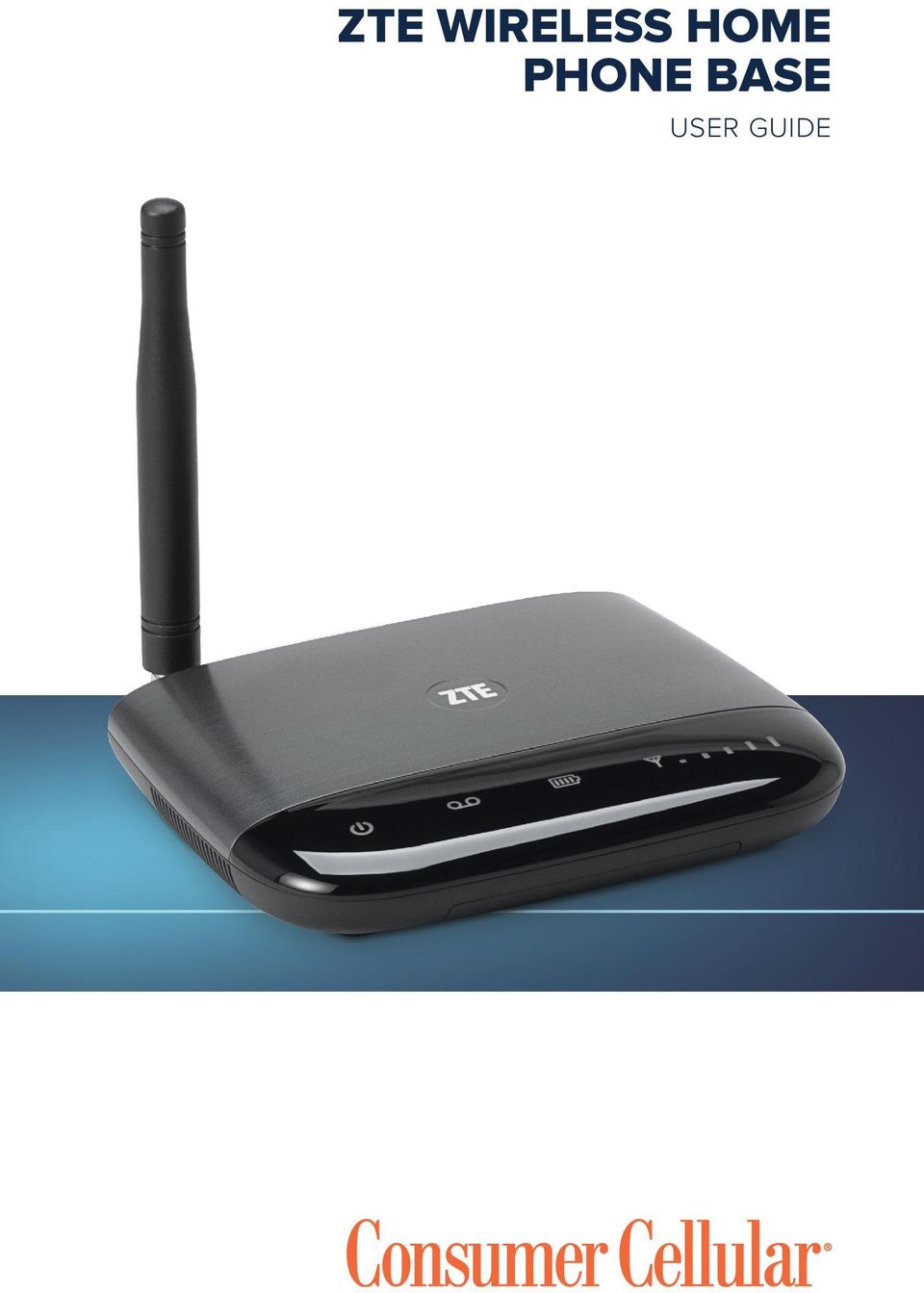
2 INTRODUCTION HOW IT WORKS Thank you for choosing Consumer Cellular! We know you re excited to use your new Wireless Home Phone Base and this short guide will help you get familiar with it, so you can start using it as soon as possible. Each section includes instructions and pictures to make it easy to start using your device. If you would like to learn more, turn to the back of this guide where you ll find the CONTACT US section. We re always happy to help you! We hope you enjoy your new Wireless Home Phone Base. Need More Information? Visit our website at ConsumerCellular.com/Support Call us at (800) TABLE OF CONTENTS Introduction How It Works Getting to Know Your Device Initial Set-Up Calling Features Voic and Message Retrieval Home Answering Machines About Your Service Important Device and Service Information Frequently Asked Questions Troubleshooting Specifications Safety Instructions Radio Frequency (RF) Energy FCC Compliance Warranty and Returns Helpful Tips Contact Us HOW IT WORKS The Wireless Home Phone Base uses Consumer Cellular service to provide phone service to your cordless or corded home phone(s). Place it anywhere in your house where you have a wireless signal. It does not require the use of a home phone wall jack like traditional home phone service. BEFORE YOU BEGIN Your device works exclusively with Consumer Cellular service and does not use home phone wall jacks. Your device should be located: Where you have a strong cellular signal, typically near a window or outside wall. Signal strength may vary in different parts of your home Near an electrical wall outlet Select which phone you will use with the Wireless Home Phone Base: A cordless phone system with multiple handsets should be used to place phones throughout your home If using a single, corded phone, unplug it from the wall jack 2 3

3 GETTING TO KNOW YOUR DEVICE GETTING TO KNOW YOUR DEVICE GETTING TO KNOW YOUR DEVICE BACK OF UNIT On/Off switch Phone ports Antenna Power input Service port BOTTOM OF UNIT LED INDICATORS Antenna 1 Power Solid green: On Light off: No power 2 Voic Blinking green: New message waiting Light off: No new messages 3 Battery charge Solid green: High Solid yellow: Medium Solid red: Low Blinking light (any color): Battery currently in use Rapid blinking red: No battery installed Light off: No charge 4 Signal strength Solid green (1 5 bars): Signal strength (low to high) Blinking red: Check SIM card Light off: No service Battery cover Icon key 4 5

4 INITIAL SET-UP INITIAL SET-UP INITIAL SET-UP INSERT THE BATTERY CONNECT THE POWER CORD Insert the small end of the power cord into the Power Input port on the back of your device. Plug the power cord into an electrical wall outlet that is not powered by a wall switch. Slide the On/Off Switch to the On position. INSTALL THE BATTERY COVER NOTE: The battery must be installed at all times for your Wireless Home Phone Base to operate properly, even when plugged into a power source. It may take 5 hours to fully charge. The battery will charge inside the device while connected to a power supply. CHECK THE WIRELESS SIGNAL Raise the Antenna to an upright position and check the signal strength. More green bars indicate a stronger signal. Your device can be relocated in your home for best performance. 6 7

5 INITIAL SET-UP CALLING FEATURES CONNECT THE DEVICE TO A PHONE Important: Before you begin, unplug your phone from your home phone wall jack. Plug your phone into the Phone 1 Port on the Wireless Home Phone Base, using your existing phone cable or the included phone cable. ACTIVATE DEVICE AND PLACE A TEST CALL After connecting your device, call us at (888) to begin the activation process. If you are not transferring your home phone number, you do not need to call to activate. For best results, if using a cordless phone, place the cordless phone base approximately 12 inches from the device. To ensure your device is working, you can place a test call free of charge to our test line at (888) " CALLING FEATURES MAKING CALLS Using a phone connected to the Wireless Home Phone Base allows you to place and receive calls as you normally would. The Wireless Home Phone Base supports both cordless and corded phone dialing methods. CALL WAITING You will hear two tones if someone calls while you are already on a call. To hold the current call and accept the waiting call, press the Flash (Phone/Talk) key on your phone. You can press the Flash (Phone/Talk) key at any time to switch back and forth between calls. To clear the current call and accept the waiting call, enter 1 and press the Flash (Phone/Talk) key. To reject (User Busy) the waiting call, enter 0 and press the Flash (Phone/Talk) key. REMINDER: You will always need to dial full 10 digit phone numbers, even for local calls. 8 9

6 CALLING FEATURES THREE-WAY CALLING While on an existing call, press the Flash (Phone/Talk) key on your phone to put the first party on hold. When you hear a dial tone, dial the second party s number (wait for up to 4 seconds). When the second party answers, press the Flash (Phone/Talk) key again to complete the three-way connection. If the second party does not answer, press the Flash (Phone/ Talk) key to end the connection and return to the first party. NOTE: If your phone does not have a Flash (Phone/Talk) key, use the off-hook mechanism supported by your phone instead. VOIC AND MESSAGE RETRIEVAL VOIC AND MESSAGE RETRIEVAL Voic is just like a virtual answering machine, and it comes free with your Wireless Home Phone Base service. When you miss a call or choose not to answer, calls are sent to your voic the same way they would be sent to your answering machine. Follow the steps below to set-up and use your voic . VOIC SET-UP Press 1 on any home phone connected to the Wireless Home Phone Base and wait 4 seconds to connect to your Consumer Cellular voic . Simply follow the voice prompts to complete set-up. To enable remote voic retrieval and for added security, be sure to create a password during set-up. MESSAGE WAITING There are two indicators to let you know that you have received a new voic message. The Voic icon on the Wireless Home Phone Base (shown below) will blink when a new voic message is waiting. You will also hear an intermittent dial tone on any connected phone handset before placing a call if any new voic messages are waiting. Voic icon 10 11

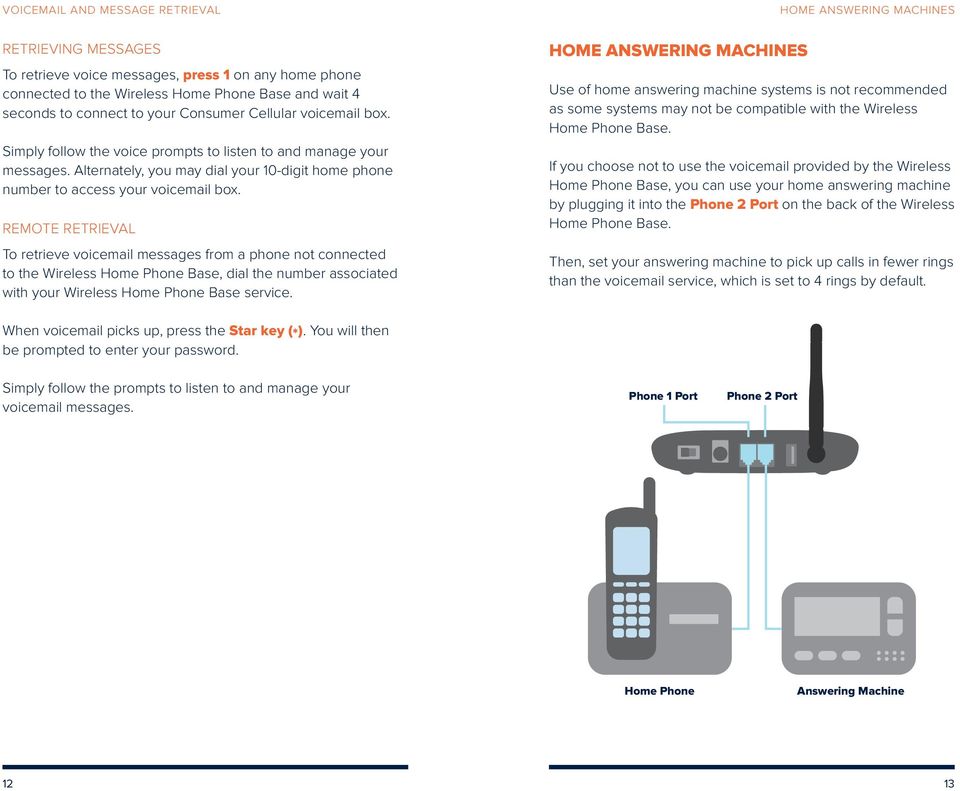
7 VOIC AND MESSAGE RETRIEVAL RETRIEVING MESSAGES To retrieve voice messages, press 1 on any home phone connected to the Wireless Home Phone Base and wait 4 seconds to connect to your Consumer Cellular voic box. Simply follow the voice prompts to listen to and manage your messages. Alternately, you may dial your 10-digit home phone number to access your voic box. REMOTE RETRIEVAL To retrieve voic messages from a phone not connected to the Wireless Home Phone Base, dial the number associated with your Wireless Home Phone Base service. HOME ANSWERING MACHINES HOME ANSWERING MACHINES Use of home answering machine systems is not recommended as some systems may not be compatible with the Wireless Home Phone Base. If you choose not to use the voic provided by the Wireless Home Phone Base, you can use your home answering machine by plugging it into the Phone 2 Port on the back of the Wireless Home Phone Base. Then, set your answering machine to pick up calls in fewer rings than the voic service, which is set to 4 rings by default. When voic picks up, press the Star key (*). You will then be prompted to enter your password. Simply follow the prompts to listen to and manage your voic messages. Phone 1 Port Phone 2 Port Home Phone Answering Machine 12 13
8 ABOUT YOUR SERVICE ABOUT YOUR SERVICE ABOUT YOUR SERVICE COVERAGE AREA Your Consumer Cellular plan covers calls to and from anywhere in the United States (including Puerto Rico and U.S. Virgin Islands) with no long distance or roaming charges. TRANSFERRING A PHONE NUMBER Transferring a landline phone number to the Wireless Home Phone Base is typically completed within 5 days. Outgoing calls can be made immediately using the device, however incoming calls will continue through your old service until the transfer is complete. It is recommended that a phone be kept connected to your existing home wiring or prior service to continue to receive incoming calls until the transfer is complete. TTY SUPPORT TTY (Text Telephony) and TDD (Telecommunications Device for the Deaf) are supported by the Wireless Home Phone Base. In order to use the TTY network, you must have a TTY-compatible phone and be in TTY mode. Note that most digital wireless devices are TTY-compatible. Dial *983*889*n# to set the TTY mode. n = 0: TTY off mode. The standard voice speaking mode and listening mode. This is the default setting. n = 1: TTY full mode. Transmit and receive the TTY characters. n = 2: VCO mode. Receive TTY characters but transmit by speaking into the speaker. n = 3: HCO mode. Transmit TTY characters but receive by listening to the receiver. To check the status of your transfer, please call Consumer Cellular customer support at (800) INTERNATIONAL CALLING To make an international call using your Wireless Home Phone Base, please dial: (401) and follow the prompts. Our international rates start at just 4 cents per minute plus standard usage fees. For more information about our international rates please visit ConsumerCellular.com/Int 14 15

9 IMPORTANT DEVICE AND SERVICE INFORMATION IMPORTANT DEVICE AND SERVICE INFORMATION IMPORTANT DEVICE AND SERVICE INFORMATION E911 SERVICE For emergency calls, you may have to provide your location address to the 911 operator. POWER OUTAGES The Wireless Home Phone Base has a battery in the event of a power outage with talk time of approximately 3 hours depending on environmental factors. However, a landline phone requiring separate electric power to operate (e.g., cordless phones) connected to a Wireless Home Phone Base will not place or receive calls (including 911 calls) during a power outage. IN-HOME WIRING Interconnecting to home telephone wiring is not necessary, but is possible; however, it is not recommended unless you possess sufficient knowledge of electrical systems. Use with home wiring requires the physical disconnection from other services, including the landline coming into your home. Use of a qualified licensed electrician is highly recommended. Improper installation may result in phone equipment damage or even a fire. If you experience a power outage and your battery is fully depleted, it will be necessary to restart your device when power is restored by sliding the On/Off switch off and on. DEVICE COMPATIBILITY The Wireless Home Phone Base is not compatible with data or messaging services, home security systems, fax service, medical alert systems, medical monitoring systems, credit card machines, IP/PBX Phone systems, or dial-up Internet service. May not be compatible with your DVR/Satellite systems, please check with your provider. DSL customers should contact their provider before transferring a phone number to ensure uninterrupted DSL Internet service. The Wireless Home Phone Base cannot be used to make 500, 700, 900, 976, 0+ collect, operator assisted, or dial-around calls (e.g XXXX)

10 FREQUENTLY ASKED QUESTIONS FREQUENTLY ASKED QUESTIONS FREQUENTLY ASKED QUESTIONS What kind of phone do I need to work with the Wireless Home Phone Base? Most standard touch-tone phones may be used. Rotary phones are not supported. Cordless phone systems provide the most flexibility and allow you to easily place additional handsets throughout your home. Cordless phone systems still need to be plugged into a power outlet. During a power outage, a standard corded phone which doesn t require electrical power is needed. How do I install my Wireless Home Phone Base? Refer to pages 6-8 of this guide for the most common installation methods. Other helpful information: Installation near a window or outside wall is strongly recommended to ensure the strongest possible wireless signal in order to maximize voice quality. If your voice quality is unacceptable, your device may not have sufficient signal strength (green bars). You may need to relocate the device to another area of your home with a stronger wireless signal. Will my Wireless Home Phone Base work in areas with no or low wireless signal strength? A strong wireless signal (three to five green bars) is recommended for optimal performance. A moderate signal (one to two green bars) may be sufficient. If you do not see three to five green bars, you may want to choose an alternate location. Does the Wireless Home Phone Base support data or text messaging? No, only voice services are supported. Why don t I see the name of the caller on Caller ID? The Wireless Home Phone Base, similar to other wireless devices, supports calling number identification. However, contact names stored on your cordless home phone may display for incoming calls. Do I need broadband Internet service for the Wireless Home Phone Base to work? No, the service is provided through the Consumer Cellular wireless network. Can I move my Wireless Home Phone Base and use it in another location? Yes, you can use your device anywhere in the U.S. where Consumer Cellular is authorized to provide wireless services. All you need is an available wireless signal and power outlet. When I dial a seven-digit number using the Wireless Home Phone Base, I get a message that the number cannot be completed as dialed. Does the Wireless Home Phone Base support seven-digit dialing? The Wireless Home Phone Base requires 10-digit dialing for domestic calls in most areas

11 FREQUENTLY ASKED QUESTIONS Can I make international calls with my Wireless Home Phone Base? Yes. To add international calling to your account, please call 611 from your connected phone, or (800) Can I use my Wireless Home Phone Base internationally? No. Use is limited to the United States, Puerto Rico, and U.S. Virgin Islands. What is the warranty on the Wireless Home Phone Base? Consumer Cellular Wireless Home Phone Base has a 12-month limited warranty. For details, see page 31. I can t make or receive calls with my Wireless Home Phone Base. What should I do? Please follow the troubleshooting steps found on the following pages. If further assistance is required, call (800) TROUBLESHOOTING Problem No dial tone Possible Solution TROUBLESHOOTING Make sure the battery is installed in your Wireless Home Phone Base. Make sure the device is turned on (Power indicator light is green) and there is AC power to the Wireless Home Phone Base. Do not connect to an AC outlet controlled by a wall switch. Move the device to an area with sufficient network signal (at least 1 to 2 green bars are displayed). Make sure your home telephone equipment has power and is connected properly to the Wireless Home Phone Base. Caller Number ID only Battery LED is off Like all wireless services, only the calling number is displayed with Caller ID. Your home phone equipment may support the display of names stored in its contacts memory. Plug your Wireless Home Phone Base into a power outlet to charge the battery

12 TROUBLESHOOTING TROUBLESHOOTING Problem Possible Solution Problem Possible Solution Poor voice quality Make sure all connections are firmly in place. Make sure the external antenna is installed and securely fastened. Move your device to another area of the home with a strong wireless signal (3 green bars or more), typically near a window or outside wall. Make sure the home phone that is connected to the Wireless Home Phone Base is of good quality and in good working order. Connect your phone using the phone cable included with the Wireless Home Phone Base. Make sure the antenna is in a vertical position and increase the distance away from other electronic devices and the Wireless Home Phone Base (including cordless base stations, Wi-Fi routers, and cell phones). Voice quality may degrade with a low battery charge (red). Connect to an AC power source to recharge when power is available. Wireless Service indicator displays a red antenna and no bars are lit Solid red Wireless Service indicator (all other indicators solid green) Blinking red Wireless Service indicator Make sure the external antenna is installed and securely fastened. Move your device to another area with sufficient network signal (at least 1 to 2 green bars are displayed). A software update is in progress and may take up to 7 minutes to complete. Once complete, the LEDs on your Wireless Home Phone Base will return to normal state. SIM is missing or not installed properly. 1) Remove the battery cover and battery. 2) Locate the SIM card slot and insert the SIM card into the slot until secure. For a replacement SIM card, call Consumer Cellular customer support at (800) Wireless Service indicator is blinking green The Wireless Home Phone Base is connected to a 3G MicroCell, and is operating properly

13 TROUBLESHOOTING TROUBLESHOOTING Problem Possible Solution Problem Possible Solution Can t connect to my 3G MicroCell (Wireless Service indicator is not flashing green) SIM card doesn t work in my mobile device Message Waiting indicator on my home phone equipment doesn t light I hear an intermittent dial tone Add the phone number associated with your Wireless Home Phone Base to your 3G MicroCell Approved User List. Power cycle your 3G MicroCell as well as your Wireless Home Phone Base. Make sure the Wireless Home Phone Base is within range of the 3G MicroCell. The SIM card provided with your Wireless Home Phone Base is intended for use only in your specific Wireless Home Phone Base and cannot be used in a mobile handset. The Wireless Home Phone Base does not support this functionality with your home phone equipment. The Wireless Home Phone Base has a dedicated Message Waiting indicator light and will flash when you have a new voice message. You will also hear an intermittent dial tone when you pick up your handset. You will hear an intermittent dial tone when you have a new voic message waiting. Dial 1 from your home phone equipment connected to the Wireless Home Phone Base to review your voice messages. My phone doesn t ring when a call comes in My answering machine won t pick up calls I hear a constant low frequency tone (not dial tone) when I try to place a call Make sure the battery is installed in your Wireless Home Phone Base. If you recently transferred your landline number, you will continue to receive incoming calls on your previous service until the transfer is complete. To check transfer status, call Consumer Cellular customer support at (800) Make sure your Wireless Home Phone Base is NOT connected to your in-home phone wiring. Make sure your home phone is powered on and connected to the Wireless Home Phone Base. Your Wireless Home Phone Base number may be set to Call Forward. Dial #21# to un-forward calls. Charges may apply for Call Forwarding. Set your answering machine settings to pick up calls before network voic , which is approximately four (4) rings. Or, you can have network voic removed from your account by calling Consumer Cellular customer support. Dial 611 from your connected phone or (800) Hang up your home phone to restore dial tone

14 SPECIFICATIONS SAFETY INSTRUCTIONS SPECIFICATIONS Dimensions (W D H) Weight Battery 5.51" (W) 4.33" (D) 1.18" (H) 8.26 oz. (including antenna and battery) 1,900 mah Talk time Approximately 3 hours (2G and 3G) Standby time NOTE: Up to 25 hours The value of the talk time or standby time varies with the actual environment. SAFETY INSTRUCTIONS Some electronic devices are susceptible to electromagnetic interference sent by devices that may not be adequately shielded. For best performance, position the Wireless Home Phone Base as far from these types of devices (TV sets, radios and other automated office equipment) as possible (at least 8 feet) so as to avoid possible electromagnetic interference. Do not use the device in hospitals. Do not use the device on board aircraft. Operating of the device may interfere with medical devices like hearing aids and pacemakers. Consult a physician or the manufacturer of the medical device before using. Be aware of usage limitations when using the device at places such as oil warehouses or chemical factories, where there are explosive gases or explosive products being processed. Even if your terminal is in idle state, it still transmits radio frequency (RF) energy. Keep the antenna free from obstructions and position the antenna straight up. This will ensure best call quality. Please put the device in a safe place. The device may cause injury if used as a toy by children. Do not put other things on the terminal to avoid overheating. Please use original accessories or accessories that are approved by vendor. Using any unapproved accessories may affect your device s performance, damage your terminal, or even cause danger to you and violate related national regulations about telecom terminals

15 SAFETY INSTRUCTIONS Because the device can produce an electromagnetic field, do not place it near magnetic items such as computer disks. Do not expose the device to direct sunlight or store it in hot areas. High temperatures can shorten the life of electronic devices. Prevent liquids from leaking into the device. Do not attempt to disassemble the device by yourself. Non-expert handling of the device may cause bodily injury or device damage. Do not install or remove the SIM card when the power is on. RADIO FREQUENCY (RF) ENERGY RADIO FREQUENCY (RF) ENERGY This device meets the government s requirements for exposure to radio waves. This device is designed and manufactured not to exceed the emission limits for exposure to radio frequency (RF) energy set by the Federal Communications Commission of the U.S. Government: The exposure standard for wireless mobile devices employs a unit of measurement known as the Specific Absorption Rate, or SAR. The SAR limit set by the FCC is 1.6 W/kg.* While there may be differences between the SAR levels of various devices and at various positions, they all meet the government requirement. The FCC has granted an Equipment Authorization for this device with all reported SAR levels evaluated as in compliance with the FCC RF exposure guidelines. SAR information on this device is on file with the FCC and can be found under the Display Grant section of after searching FCC ID: SRQ-WF721. * Tests for SAR are conducted using standard operating positions accepted by the FCC with the device transmitting at its highest certified power level in all tested frequency bands. Although the SAR is determined at the highest certified power level, the actual SAR level of the device while operating can be well below the maximum value. This is because the device is designed to operate at multiple power levels so as to use only the power required to reach the network. In general, the closer you are to a wireless base station antenna, the lower the power output

16 FCC COMPLIANCE WARRANTY AND RETURNS FCC COMPLIANCE This device complies with part 15 of the FCC Rules. Operation is subject to the condition that this device does not cause harmful interference. CAUTION: Changes or modifications not expressly approved by the manufacturer could void the user s authority to operate the equipment. NOTE: This equipment has been tested and found to comply with the limits for a Class B digital device, pursuant to part 15 of the FCC Rules. These limits are designed to provide reasonable protection against harmful interference in a residential installation. This equipment generates, uses, and can radiate radio frequency energy and, if not installed and used in accordance with the instructions, may cause harmful interference to radio communications. However, there is no guarantee that interference will not occur in a particular installation. If this equipment does cause harmful interference to radio or television reception, which can be determined by turning the equipment off and on, the user is encouraged to try to correct the interference by one or more of the following measures: Reorient or relocate the receiving antenna. Increase the separation between the equipment and receiver. Connect the equipment into an outlet on a circuit different from that to which the receiver is connected. Consult the dealer or an experienced radio/tv technician for help. WARRANTY This product is guaranteed for a period of 12 months from the date of purchase. In the unlikely event of a fault occurring during this period, please contact the place of purchase. Proof of purchase is required for any service or support needed during the guarantee period. This guarantee will not apply to a fault caused by an accident or a similar incident or damage, liquid ingress, negligence, abnormal usage, non-maintenance or any other circumstances on the user s part. Furthermore, this guarantee will not apply to any fault caused by a thunderstorm or any other voltage fluctuations. As a matter of precaution, we recommend disconnecting the charger during a thunderstorm. Batteries are consumables and are not included in any guarantee. HASSLE-FREE RETURN PROCESS Returns must include the Wireless Home Phone Base, accessories, user manuals, all original packaging and a copy of your sales receipt. All items must be in new condition. Call (888) to start the return process

17 HELPFUL TIPS HELPFUL TIPS HELPFUL TIPS ADJUSTING VOLUME Use your home phone s volume adjustment if available. Alternately, the volume of the Wireless Home Phone Base can be adjusted if necessary. While on a call, press the Star key (*) twice or the Pound key (#) twice to enter Volume Setting Mode. Press the Star key (*) to decrease volume. Press the Pound key (#) to increase volume. POWERING ON/OFF The On/Off Switch is used to turn the Wireless Home Phone Base off when still connected to the power supply. When powered off, the Wireless Home Phone Base will no longer send or receive calls, but it will continue to charge the back-up battery if still connected to the wall outlet. To turn the Wireless Home Phone Base device on, slide the On/Off Switch to the On position. To turn it off, slide the On/Off Switch to the Off position. Four volume levels are available (level 1 to level 4). By default the volume is set to the loudest level (level 4). Your home phone(s) may have a separate volume level setting that is independent of the Wireless Home Phone Base. To exit Volume Setting Mode press any other key or wait 5 seconds after adjusting the volume. On/Off Switch 32 33

18 CONTACT US CONTACT US If you have any questions, our friendly U.S. based customer service representatives will be happy to help you. You will be connected to a representative for free by contacting us the following ways: 1. Dialing 611 from your phone connected to a Wireless Home Phone Base 2. Calling (800) from any phone If you re calling for assistance with your home phone connected to a Wireless Home Phone Base, it is best that you call us from a different phone using the toll-free phone number listed above so that we may help you troubleshoot. You can also go online to find answers to frequently asked questions by visiting ConsumerCellular.com/Support 34

19 ConsumerCellular.com 2015 Consumer Cellular, Inc. Consumer Cellular and the Consumer Cellular logo are trademarks of Consumer Cellular, Inc. ZTE and the ZTE logos are trademarks of the ZTE Corporation. Wi-Fi is a registered trademark of Wi-Fi Alliance.

How To Use A U.S. Cell Phone At Home
 U.S. Cellular Home Phone 1 Contents Getting to Know Your Device...5 Appearance... 5 LED Indicators... 6 Device Installation...7 Before You Begin... 7 Installing the Battery... 7 Installing the Power Adapter...
Wireless Home Phone Base. A Guide to Your Service and Device
 Wireless Home Phone Base A Guide to Your Service and Device 2 TABLE OF CONTENTS Introduction 3 About Your Service 4 7 About Your Device 8 9 Device Installation 10 13 How It Works 14 15 Voicemail 16 Using
User Guide. AT&T Wireless Home Phone Base
 User Guide AT&T Wireless Home Phone Base Wireless Home Phone ( WHP ) is a mobile device designed to provide service consistent with other AT&T wireless devices. 9 11 calls are routed based on the wireless
User Guide. AT&T Wireless Home Phone Base
 User Guide AT&T Wireless Home Phone Base Not compatible with home security systems, wireless messaging and data services, fax service, DVR/Satellite systems, or medical alert systems, credit card machines,
User Guide. AT&T Wireless Home Phone
 User Guide AT&T Wireless Home Phone Wireless Home Phone ( WHP ) device is a mobile device that may be used with home phone equipment in different locations in the U.S. WHP device has a backup battery in
WF720 Wireless Home Phone User Manual
 WF720 Wireless Home Phone User Manual Content Getting to Know Your Device... 3 Appearance...3 LED Indicator...4 Device Installation... 5 Before You Begin...5 Installing the SIM Card and the Battery...5
OM2260VW2 USER MANUAL VERIZON WIRELESS HOME PHONE CONNECT
 OM2260VW2 USER MANUAL VERIZON WIRELESS HOME PHONE CONNECT Welcome to Verizon Wireless Thank you for choosing Verizon Wireless Home Phone Connect. You re now connected to the power of America s most reliable
User Guide VERIZON WIRELESS HOME PHONE CONNECT
 User Guide VERIZON WIRELESS HOME PHONE CONNECT label Welcome to Verizon Wireless Thank you for choosing Verizon Wireless Home Phone Connect. You re now connected to America s most reliable wireless network.
User Guide AT&T Wireless Home Phone and Internet. AT&T Home Base
 User Guide AT&T Wireless Home Phone and Internet AT&T Home Base Welcome to AT&T Thank you for purchasing the AT&T Home Base. To get the most from your new device, check out our videos and interactive tutorials
CS55H HOME EDITION... WIRELESS HEADSET SYSTEM
 CS55_HO_606.qxd /6/06 : PM Page ii WARRANTY Limited Warranty This warranty covers defects in materials and workmanship of products manufactured, sold or certified by Plantronics which were purchased and
GETTING TO KNOW YOUR TELSTRA PRE-PAID 3G WI-FI
 GETTING TO KNOW YOUR TELSTRA PRE-PAID 3G WI-FI LET S GET THIS SHOW ON THE ROAD You must be excited about your brand new Telstra Pre-Paid 3G Wi-Fi. This guide will help you get connected as quickly and
ITC-BTTN Cellular Bluetooth Gateway. Owner s Manual 1
 ITC-BTTN Cellular Bluetooth Gateway Owner s Manual 1 2 Table of Contents Introduction...3 Package Contents...3 XLink Connections Diagram...4 Setup...5 Pairing your Bluetooth Cell Phone to the XLink...6
2013 VTech Printed in China 91-009656-000 US
 Rechargeable Power Pack User s Manual 2013 VTech Printed in China 91-009656-000 US INTRODUCTION The Rechargeable Power Pack makes it easier than ever to keep the InnoTab 3 or InnoTab 3S charged and ready
Sprint Phone Connect 2 User Guide
 Sprint Phone Connect 2 User Guide 2012 Sprint. Sprint and the logo are trademarks of Sprint. Other marks are trademarks of their respective owners. Table of Contents Introduction... 1 Package Contents...
GETTING TO KNOW YOUR PRE-PAID TELSTRA WI-FI 4G
 GETTING TO KNOW YOUR PRE-PAID TELSTRA WI-FI 4G LET S GET THIS SHOW ON THE ROAD You must be excited about your brand new Pre-Paid Telstra Wi-Fi 4G. This guide will help you get connected as quickly and
AIRAVE 2.5 User Guide
 AIRAVE 2.5 User Guide 2012 Sprint. Sprint and the logo are trademarks of Sprint. Other marks are trademarks of their respective owners. 911702 Rev. 51.13 Important Messages IMPORTANT: Sprint s policies
Model 70A00-1. GSM Cellular Communications Center
 Home Automation, Inc. Model 70A00-1 GSM Cellular Communications Center Operation Manual Document Number 70I00-1 Rev A August, 2009 Contents Description... 1 Use with security systems...1 Everyday use...2
ReadyNet Easy Jack 2 Voice/Data and Data Only Owner s Manual PX-211d and PX-211v
 ReadyNet Easy Jack 2 Voice/Data and Data Only Owner s Manual PX-211d and PX-211v Phonex Broadband Corporation dba ReadyNet 6952 High Tech Drive Midvale, Utah 84047 801.566.0100 Phone 801.566.0880 Fax www.readynetsolutions.com
3.5 mm Audio Jack. Manual innoxplore ix B24 A2DP Stereo Bluetooth Audio Adapter Dongle 3.5mm Audio Jack [ix B24] Contents
![3.5 mm Audio Jack. Manual innoxplore ix B24 A2DP Stereo Bluetooth Audio Adapter Dongle 3.5mm Audio Jack [ix B24] Contents](/thumbs/40/20932712.jpg "3.5 mm Audio Jack. Manual innoxplore ix B24 A2DP Stereo Bluetooth Audio Adapter Dongle 3.5mm Audio Jack [ix B24] Contents") 3.5 mm Audio Jack Manual innoxplore ix B24 A2DP Stereo Bluetooth Audio Adapter Dongle 3.5mm Audio Jack [ix B24] Contents 1 Safety Information.. 2 1.1. Electronic Devices 2 1.2 Aircraft..2 1.3 Medical Instruments..2
3.5 mm Audio Jack Manual innoxplore ix B24 A2DP Stereo Bluetooth Audio Adapter Dongle 3.5mm Audio Jack [ix B24] Contents 1 Safety Information.. 2 1.1. Electronic Devices 2 1.2 Aircraft..2 1.3 Medical Instruments..2
InnoMedia ESBC 9380-4B. Quick Install Guide. www.innomedia.com 1
 InnoMedia ESBC 9380-4B Quick Install Guide www.innomedia.com 1 Table of Contents Introduction 2 Package Contents 2 CAUTION 2 Installation 3 Wall-Mounting Instructions 5 Troubleshooting 6 Appendix A. LED
GETTING TO KNOW YOUR TELSTRA PRE-PAID 3G USB + WI-FI
 FOR MORE INFORMATION CALL 125 8880 or FROM A NON-TELSTRA PHONE, CALL 13 2200 AND SAY PRE-PAID VISIT telstra.com/ppmbb VISIT A TELSTRA STORE OR PARTNER GETTING TO KNOW YOUR TELSTRA PRE-PAID 3G USB + WI-FI
User Guide Microsoft Screen Sharing for Lumia Phones (HD-10)
 User Guide Microsoft Screen Sharing for Lumia Phones (HD-10) Issue 1.1 EN User Guide Microsoft Screen Sharing for Lumia Phones (HD-10) Contents Safety 3 About your accessory 4 Keys and parts 5 Connect
InnoMedia ESBC 9580-4B. Quick Install Guide. www.innomedia.com 1
 InnoMedia ESBC 9580-4B Quick Install Guide www.innomedia.com 1 Table of Contents Introduction 2 Package Contents 2 CAUTION 2 Installation 3 Wall-Mounting Instructions 5 Troubleshooting 6 Appendix A. LED
Key. ➍ Micro USB Port ➎ Operating System Toggle Keys ➏ Foam Screen Protectors. ➊ On/Off switch ➋ Bluetooth Connect Button (flashes when searching)
 INSTRUCTION MANUAL ➏ ➋ ➊ Product Features ➎ ➍ ➌ Built-in wireless Bluetooth 3.0 keyboard Compatible across ios, Android, and Windows, enabling you to mix and match with devices Ultra-thin, lightweight
Caller-ID on your TV!
 TM Caller-ID on your TV! User s Manual and Installation Guide Copyright 1998 NetMedia Inc., All rights reserved. Rev. 061898 Thank you for your purchase of Caller-TV! You are now ready to enjoy the convenience
User Guide. www.sprint.com
 User Guide www.sprint.com 2010 Sprint. SPRINT and the logo are trademarks of Sprint. Other marks are the property of their respective owners. Airvana and the logo are trademarks of Airvana. 8/12/10 Consejo:
Dock-N-Talk U S E R S G U I D E. Forming a New World of Communication. SM
 Dock-N-Talk U S E R S G U I D E Forming a New World of Communication. SM 2 UNIVERSAL DOCKING STATION USER S GUIDE INTRODUCTION...3 INSTALLATION...5 Line Pair Switch... 6 Extension Telephone Sets... 7 Warning:
USER GUIDE CS50/55... WIRELESS OFFICE HEADSET SYSTEM
 USER GUIDE CS50/55... WIRELESS OFFICE HEADSET SYSTEM TABLE OF CONTENTS PACKAGE CONTENTS Package Contents Features Setup Setup - Handset Lifter (Optional) Charging Positioning Adjusting Fit Making/Answering/Ending
Wireless Travel Mouse with 5-Buttons User Manual
 Wireless Travel Mouse with 5-Buttons User Manual Product Features 1. Radio frequency 27MHz wireless transmission 2. Use of 256 ID codes to prevent interference between several wireless mice being used
125 8880 telstra.com/ppmbb visit a telstra store or partner GETTING TO KNOW YOUR
 FOR MORE INFORMATIoN: 125 8880 telstra.com/ppmbb visit a telstra store or partner GETTING TO KNOW YOUR Telstra PRE-paid 4G wi-fi LET S GET THIS SHOW ON THE ROad WHAT S INSIDE Your Telstra Pre-Paid 4G Wi-Fi
Thank you for choosing our mobile phone! Please read this manual before use.
 Thank you for choosing our mobile phone! Please read this manual before use. We reserve the right to upgrade the software and product and/or to make changes to this user manual without prior notice. from
Wireless Alarm System. Alarm Siren. User s Manual. Choice ALERT. Control all Sensors & accessories from one location
 45136 Wireless Alarm System Alarm Siren User s Manual Low Batt On Armed ON/OFF LEARN Choice ALERT Control all Sensors & accessories from one location Table of Contents Important Safeguards 4 Introduction
User Guide Microsoft Screen Sharing for Lumia Phones (HD-10)
 User Guide Microsoft Screen Sharing for Lumia Phones (HD-10) Issue 1.1 EN-US User Guide Microsoft Screen Sharing for Lumia Phones (HD-10) Contents Safety 3 About your accessory 4 Keys and parts 5 Connect
Getting started guide Turbo Hub
 Getting started guide Turbo Hub NETGEAR MVBR1210C Welcome and thanks for choosing Bell. Your new Turbo Hub will enable you to connect to the Internet and make voice calls using a landline phone. This guide
Bluetooth Stereo Headphone. User Guide. Hive
 Bluetooth Stereo Headphone User Guide Hive 1. Product Description Avantree Hive is a Bluetooth stereo headphone with MIC from the Avantree family. It delivers clear voice transmission and high quality
CS70 WARRANTY MAINTENANCE TECHNICAL SUPPORT
 WARRANTY Limited Warranty This warranty covers defects in materials and workmanship of products manufactured, sold or certified by Plantronics which were purchased and used in the United States. This warranty
INSTALLATION GUIDE ConnectLine TV Adapter Getting started
 INSTALLATION GUIDE ConnectLine TV Adapter Getting started PURPOSE OF THIS GUIDE READ THIS FIRST Before your hearing instruments can receive sound from the TV, the adapter must be connected to the TV and
GETTING TO KNOW YOUR 4G USB
 GETTING TO KNOW YOUR Telstra Pre-paid 4G USB LET S GET THIS SHOW ON THE ROAD WHAT S INSIDE Your Telstra Pre-Paid 4G USB has been tested to the highest standards to deliver you the best possible coverage
SP1790JK 900MHz Wireless Indoor/Outdoor Speakers. User Manual INTRODUCTION FEATURES IMPORTANT SAFETY INFORMATION
 SP1790JK 900MHz Wireless Indoor/Outdoor Speakers INTRODUCTION This 900 MHz digital hybrid wireless speaker system uses the latest wireless technology that enables you to enjoy music and TV sound anywhere
Energy Smart Electric Water Heater Controller
 Installation, Operation and Troubleshooting Instructions Energy Smart Electric Water Heater Controller Table of Contents Installation and Setup, 2 Operation, 5 Troubleshooting, 7 Regulatory Notices, 11
USER GUIDE. BLUETOOTH HEADSET system
 USER GUIDE Plantronics VOYAGER 510-USB BLUETOOTH HEADSET system 0 0 0 TABLE OF CONTENTS PACKAGE CONTENTS Package Contents 3 Features 4 Charging 5 Powering 6 Pairing 7 Installing PerSono Suite Software
466-1936 Rev E October 2004 ZZZ*(6HFXULW\FRP. Part No: 60-883-95R. CareGard. User Guide
 ) *(6HFXULW\ 466-1936 Rev E October 2004 ZZZ*(6HFXULW\FRP Part No: 60-883-95R CareGard User Guide FCC Notices FCC Part 15 Information to the User Changes or modifications not expressly approved by GE Security
Digital Phone Installation & User Guide
 Digital Phone Installation & User Guide Telephone #1 Voicemail PIN Telephone #2 Voicemail PIN skybeam high speed internet digital phone We would like you to verify that the 911 address we have for you
Hardware Overview. Ooma Linx devices These are installed around the office and are used to connect phones and other devices to your Ooma Office system
 Quick Start Guide Introduction Installation Overview Setting up the Ooma Office system in your business is easy. You should have your first extensions up and running in about 20 minutes. Ooma Office blends
Model: 616-146v2 Quick Setup Guide DC: 071015 Atomic Projection Alarm with Indoor and Outdoor Temperature
 Model: 616-146v2 Quick Setup Guide DC: 071015 Atomic Projection Alarm with Indoor and Outdoor Temperature Snooze/Backlight BUTTONS Time, Alarm with Snooze, & Calendar Projection Arm Rotates 180 Indoor/Outdoor
User Guide for the Wireless Headset (HS-11W) 9235346 Issue 1
 User Guide for the Wireless Headset (HS-11W) 9235346 Issue 1 DECLARATION OF CONFORMITY We, NOKIA CORPORATION declare under our sole responsibility that the product HS-11W is in conformity with the provisions
FUTURE CALL PICTURE CARE PHONE MODEL: FC-1007 USER MANUAL
 FUTURE CALL PICTURE CARE PHONE MODEL: FC-1007 USER MANUAL Please follow instructions for repairing if any otherwise do not alter or repair any parts of device except specified. IMPORTANT SAFETY INSTRUCTIONS
User manual. Your best protection against theft and loss. (Android) Made for
 User manual Made for Your best protection against theft and loss (Android) Warranty SCOPE OF THE WARRANTY Subject to legal provisions, the responsibility of SECU4 under this warranty is limited to the
QUICK START GUIDE CX-MC200LE-VZ
 QUICK START GUIDE CX-MC200LE-VZ LTE/EV-DO Business-Grade Modem For use with Juniper Networks CX111 3G/4G Bridge with Enhanced Performance and Reliability GETTING READY TO USE YOUR CX-MC200LE-VZ MODEM Thank
IMPORTANT NOTICE CONCERNING EMERGENCY 911 SERVICES
 IMPORTANT NOTICE CONCERNING EMERGENCY 911 SERVICES Your service provider, not the manufacturer of the equipment, is responsible for the provision of phone services through this equipment. Any services
Weather Radio Alarm Clock
 1200093 User s Guide Weather Radio Alarm Clock Thank you for purchasing your Weather Radio Alarm Clock from RadioShack. Please read this user s guide before installing, setting up, and using your new weather
B890 4G LTE Smart Hub Getting Started Guide
 B890 4G LTE Smart Hub Getting Started Guide HUAWEI TECHNOLOGIES CO., LTD. Thank You for Purchasing the B890 4G LTE Smart Hub! Before You Begin What s in the Box : 1. B890 4G LTE Smart Hub 2. Power adapter
Features Phone Access... 1. Features Web Access... 3. emta Quick Reference Guide...14. Troubleshooting...15. Quick Reference Guide...
 Phone TABLE OF CONTENTS Features Phone Access... 1 Features Web Access... 3 emta Quick Reference Guide...14 Troubleshooting...15 Quick Reference Guide...16 Features Phone Access Caller ID Feature that
BOSE. Link AL8 HOMEWIDE WIRELESS AUDIO LINK
 BOSE Link AL8 HOMEWIDE WIRELESS AUDIO LINK Français English SAFETY INFORMATION Please read this owner s guide Please take the time to follow the instructions in this owner s guide carefully. It will help
Get to Know Your Device 4G LTE BROADBAND ROUTER WITH VOICE
 Get to Know Your Device 4G LTE BROADBAND ROUTER WITH VOICE FRONT VIEW The Verizon 4G LTE Broadband Router with Voice is a wireless device that delivers Internet connectivity and telephone service. You
Business Audio System: Music & Messaging MP3 Player. by Grace Digital Audio. User Guide. Model No. GDI-USBM10
 Business Audio System: Music & Messaging MP3 Player by Grace Digital Audio User Guide Model No. GDI-USBM10 User Guide Contents Introduction 2 Safety & General Use Information 2 Features 3 Set Up & Operation
1. Power Light: indicates whether AC power is available to the unit. 2. DS (Downstream): indicates downstream connectivity
 Wave Phone works just like other home phone services you may be used to, though it does require some equipment that you may not be familiar with. A Wave Technician will connect a small device called a
Digital Phone Features Guide
 Digital Phone Features Guide WELCOME TO BLUE RIDGE DIGITAL PHONE Congratulations on subscribing to Blue Ridge Digital Phone. We are confident that you will find great savings in the unlimited local and
Dialog Telephone Interface Module Installation Sheet
 Dialog Telephone Interface Module Installation Sheet Description The Dialog Telephone Module (DTIM), model number 60-879- 95R, is a battery operated communication link between the security system control
Welcome to Cogeco Home Phone Service
 Welcome Welcome to Cogeco Home Phone Service By choosing to get your phone service from Cogeco, you have made an important decision about the quality of your connections. Unlike third-party voice over
Contents. WOW! Phone Reference Guide
 WOW! Phone Reference Guide Intro to WOW! Phone P-1 WOW! Phone Features P-1 Call Waiting P-1 Call Forwarding P-1 3-Way Calling P-1 Call Return P-1 Anonymous Call Rejection P-2 Caller ID P-2 Caller ID Block
Bluetooth Wireless Stereo Solution. User Manual (GBMA201, GBMH201, GBMHKIT)
 Bluetooth Wireless Stereo Solution User Manual (GBMA201, GBMH201, GBMHKIT) Welcome Now you can experience the most comfortable way to listen to your favorite music without wires! IOGEAR s wireless Bluetooth
Panasonic. Proprietary Telephone for Electronic Modular Switching System MODEL NO. KX-17030. Illustrated Model: White 1
 Panasonic Proprietary Telephone for Electronic Modular Switching System MODEL NO. KX-17030 Illustrated Model: White 1 KX-T7030 is compatible with all of the Panasonic Electronic Modular Switching Systems
2.4 GHz Dual Handset Cordless Telephone Answering System 2255 with Caller ID/Call Waiting
 USER S MANUAL Part 2 2.4 GHz Dual Handset Cordless Telephone Answering System 2255 with Caller ID/Call Waiting Please also read Part 1 Important Product Information AT&T and the globe symbol are registered
PORTABLE ALARM CLOCK. Dual Alarm. FM Radio. Wake-up Sounds. USB Phone Charger G-1CR
 G-BUZZ PORTABLE ALARM CLOCK Dual Alarm FM Radio Wake-up Sounds USB Phone Charger G-1CR Welcome Alarm clocks can be boring. Get ready to shake things up with your new G-BUZZ. Slap the snooze for more ZZZ
What is Bitdefender BOX?
 Quick Setup Guide What is Bitdefender BOX? Think about Bitdefender BOX like an antivirus for your network. It s a hardware device that sits next to your Wi-Fi router and protects all Internet connected
INSTRUCTION MANUAL PLEASE READ ALL THE INSTRUCTIONS COMPLETELY BEFORE USE AND SAVE THIS MANUAL FOR FUTURE REFERENCE
 INSTRUCTION MANUAL PLEASE READ ALL THE INSTRUCTIONS COMPLETELY BEFORE USE AND SAVE THIS MANUAL FOR FUTURE REFERENCE m Before Use Please read IMPORTANT SAFETY INSTRUCTIONS on page 10 before use. It is important
Contents. Product Code -------------------------------------------------------15. Page 1
 Contents Important Safety Instructions -------------------------------------2 BT HP01 --------------------------------------------------------------4 BT HP01 Anatomy ---------------------------------------------------5
WLAN600 Wireless IP Phone Administrator s Guide
 WLAN600 Wireless IP Phone Administrator s Guide Trademark Acknowledgement All brand names are trademarks or registered trademarks of their respective companies. Disclaimer This document is supplied by
USB Modem User Guide ZTE MF823
 Need any help? Please visit www.bt.com/business/help/mobilebroadband Xxx BT Business Mobile Broadband USB Modem User Guide ZTE MF823 1 Contents Contents Quick Start Set-up / What s In Your Pack 3 Minimum
Model 25423/24. 4-Line Intercom Speakerphone User s Guide. Quick Guide on Pgs. 7-14
 4-Line Intercom Speakerphone User s Guide Quick Guide on Pgs. 7-14 Please read this manual before operating product for the first time. Model 25423/24 Important Information Equipment Approval Information
Conference Phone UserÕs Manual. Part No. 54-2070-01R1 Printed in Korea. 2002 Bogen Communications, Inc.
 Part No. 54-2070-01R1 Printed in Korea. 2002 Bogen Communications, Inc. UserÕs Manual Notice Every effort was made to ensure that the information in this guide was complete and accurate at the time of
User s manual. Corded telephone. w w w.v t e c h c a n a d a. c o m. Big Button Big Display. Model:CD1281 DIR CID
 User s manual w w w.v t e c h c a n a d a. c o m DIR CID Model:CD1281 Corded telephone Big Button Big Display Congratulations on purchasing your new VTech product. Before using this telephone, please read
Personal Assistance System Owner's Guide
 Owner's Guide PSC07 READ THIS FIRST This equipment generates and uses radio frequency energy, and if not installed and used properly, that is, in strict accordance with the manufacturers instructions,
SPL 2-00/-01 OPERATION INSTRUCTIONS
 SPL 2-00/-01 OPERATION INSTRUCTIONS Powerline Ethernet Adapter 500 Mbps EN Read and keep Operation Instructions SPL 2-00/-01 Safety Notes Do NOT use this product near water, for example, in a wet basement
4 Line Intercom Speakerphone User s Guide. Please read this manual before operating this product for the first time.
 4 Line Intercom Speakerphone User s Guide Please read this manual before operating this product for the first time. Model 25413/14 Important Information Equipment Approval Information Your telephone equipment
IMPORTANT SAFETY INSTRUCTIONS
 IMPORTANT SAFETY INSTRUCTIONS Before you install or use the apparatus, you must read and understand these Important Safety Instructions. At all times when using the apparatus you must follow these Important
20 minutes to unlimited calling within the US
 Quick Start Guide i YOU RE ALMOST READY TO Everything you need to get started is in this box, and everything you need to know about your ooma setup is in your hands. Don t be fooled by the size of this
Model: 308-1412 Manual DC: 080215 WIRELESS COLOR FORECAST STATION
 Model: 308-1412 Manual DC: 080215 WIRELESS COLOR FORECAST STATION FRONT VIEW SENSOR TX141TH-Bv2 LED TX Sensor Battery Cover Sensor Battery Compartment 2 AA Buttons Battery Compartment 3 AAA BACK VIEW Battery
Introduction. Setting Up Your Remote Installing the Battery. Contents. System Requirements
 410-1681-001F / AMP13US 1 YEAR LIMITED WARRANTY: We pride ourselves on the quality of our products. For complete warranty details and a list of our worldwide offices, please visit www.targus.com. Features
How To Get At&T Local Service On The Phone
 Your AT&T Local Service Guide INSIDE: Customer Service Information Calling Feature Instructions Keep this guide for future reference. AT&T Local Service CONTENTS General Information 3 Troubleshooting Tip
Intruder Alarm System
 Intruder Alarm System GSM & PSTN Wireless and Wired Touch Model 2013-01 V1.0.0 Statment This equipment must be installed and used in strict accordance with the instructions given in this user documentation.
Jarv Nmotion BTHL-201 Bluetooth Stereo Earbuds Users Guide
 Jarv Nmotion BTHL-201 Bluetooth Stereo Earbuds Users Guide Features: Bluetooth wireless technology Comfortable lightweight in-ear design with detachable sports ear hooks for added support High Definition
Welcome to Cogeco Business Digital Phone Service
 Welcome Welcome to Cogeco Business Digital Phone Service Congratulations on choosing Cogeco Business Digital Phone Service. 1 Your decision to subscribe to our digital quality phone service is a smart
THE NEW GENERATION IN TECHNOLOGY. NI-3103A Alarm Clock w/fm Radio ipod & iphone Docking. Operating Instructions
 THE NEW GENERATION IN TECHNOLOGY NI-3103A Alarm Clock w/fm Radio ipod & iphone Docking Operating Instructions Table of Contents Important Safeguards... 3 Parts... 6 Controls... 6 To Set Up... 7 ipod/iphone
User Guide Nokia Bluetooth Headset BH-222
 User Guide Nokia Bluetooth Headset BH-222 Issue 1.0 EN-US BC User Guide Nokia Bluetooth Headset BH-222 Contents Safety 3 About your headset 4 Keys and parts 5 Charge your headset 6 Switch your headset
SoftRAID 5 QUICK START GUIDE. for OWC ThunderBay
 SoftRAID 5 QUICK START GUIDE for OWC ThunderBay TABLE OF CONTENTS INTRODUCTION...1 1.1 MINIMUM SYSTEM REQUIREMENTS 1.2 FEATURES 1.3 ABOUT THIS MANUAL SYSTEM SETUP...2 2.1 GETTING STARTED 2.2 INITIALIZING,
Quick start guide E5827 5.8 GHz corded/cordless telephone/answering system with caller ID/ call waiting
 Quick start guide E5827 5.8 GHz corded/cordless telephone/answering system with caller ID/ call waiting Battery installation & charging After installing the battery, you may be able to make or receive
InTouch TM 5000. Internet Call Waiting with VoiceAnnounce. Caller ID. Users Guide
 InTouch TM 5000 Internet Call Waiting with VoiceAnnounce Users Guide Caller ID 1 2 Table of Contents If you have questions about the operation and use of your InTouch 5000, be sure to check out the troubleshooting
Northland Phone Service RESIDENTIAL AND BUSINESS USER GUIDE
 Northland Phone Service RESIDENTIAL AND BUSINESS USER GUIDE Important 911 Information Access to 911 emergency services via our Home Phone service is very similar to traditional 911 service access, but
GETTING TO KNOW YOUR NEW TELSTRA MOBILE WI-FI 4G
 GETTING TO KNOW YOUR NEW TELSTRA MOBILE WI-FI 4G LET S GET THIS SHOW ON THE ROAD You must be excited about your brand new Telstra Mobile Wi-Fi 4G. This guide will help you get started as quickly and easily
Owning your dialtone The signature ooma dialtone is music to your ears. It means you have unlimited calling within the US with no monthly fees.
 Quick Start guide GET READY TO SAY HELLO TO: Everything you need to get started is inside this box, and everything you need to know about installation is in your hands. Don t be fooled by the size of this
Home Phone Quick Start Guide. Review these helpful instructions to understand your Midco home phone service and its many convenient features.
 Home Phone Quick Start Guide Review these helpful instructions to understand your Midco home phone service and its many convenient features. 1 Contents Equipment and Features.......................................................
The Third Rail System User Manual
 The Third Rail System User Manual System Contents: Slim Case and Smart Battery for iphone 4 Slim Case for iphone 4 Smart Battery micro-usb Cable USB Adapter Cable User Manual Smart Battery only Smart Battery
User s Manual. w w w. v t e c h p h o n e s. c o m. Model: ia5874, ia5876, ia5877
 User s Manual w w w. v t e c h p h o n e s. c o m Model: ia5874, ia5876, ia5877 Table of Contents GETTING STARTED................... 4 Before You Begin..................... 4 Parts Check List:...................
Quick Start Guide. Vonage VWR Device
 Quick Start Guide Vonage VWR Device Before you begin 1. If you purchased your Vonage Device from a retail store, you must first activate your Vonage phone service. (You will need to provide the MAC ID
WELCOME. Thank you for choosing the Boost Mobile Wi-Fi. To get the most from your
 WELCOME Thank you for choosing the Boost Mobile Wi-Fi. To get the most from your device and to keep it in the best condition please read this manual thoroughly. The following parts are supplied in the
Quick Start. Guide. The area s ONLY 100% fiber optic network. epbfi.com
 Quick Start Guide The area s ONLY 100% fiber optic network epbfi.com Welcome to Fi Phone SM from EPB Fiber Optics SM With your new Fi Phone service, you ll enjoy crystal clear call quality and many great
How To Set Up A Cell Phone With A Cellphone From A Celltower.Com
 Model 29875 Digital Answering System (with English or Spanish Voice Prompts) User s Guide 2 Equipment Approval Information Your telephone equipment is approved for connection to the Public Switched Telephone