
Networking. General networking. Networking overview. Common home network configurations. Wired network example. Wireless network examples
|
|
|
- Jasmine McDonald
- 10 years ago
- Views:
Transcription
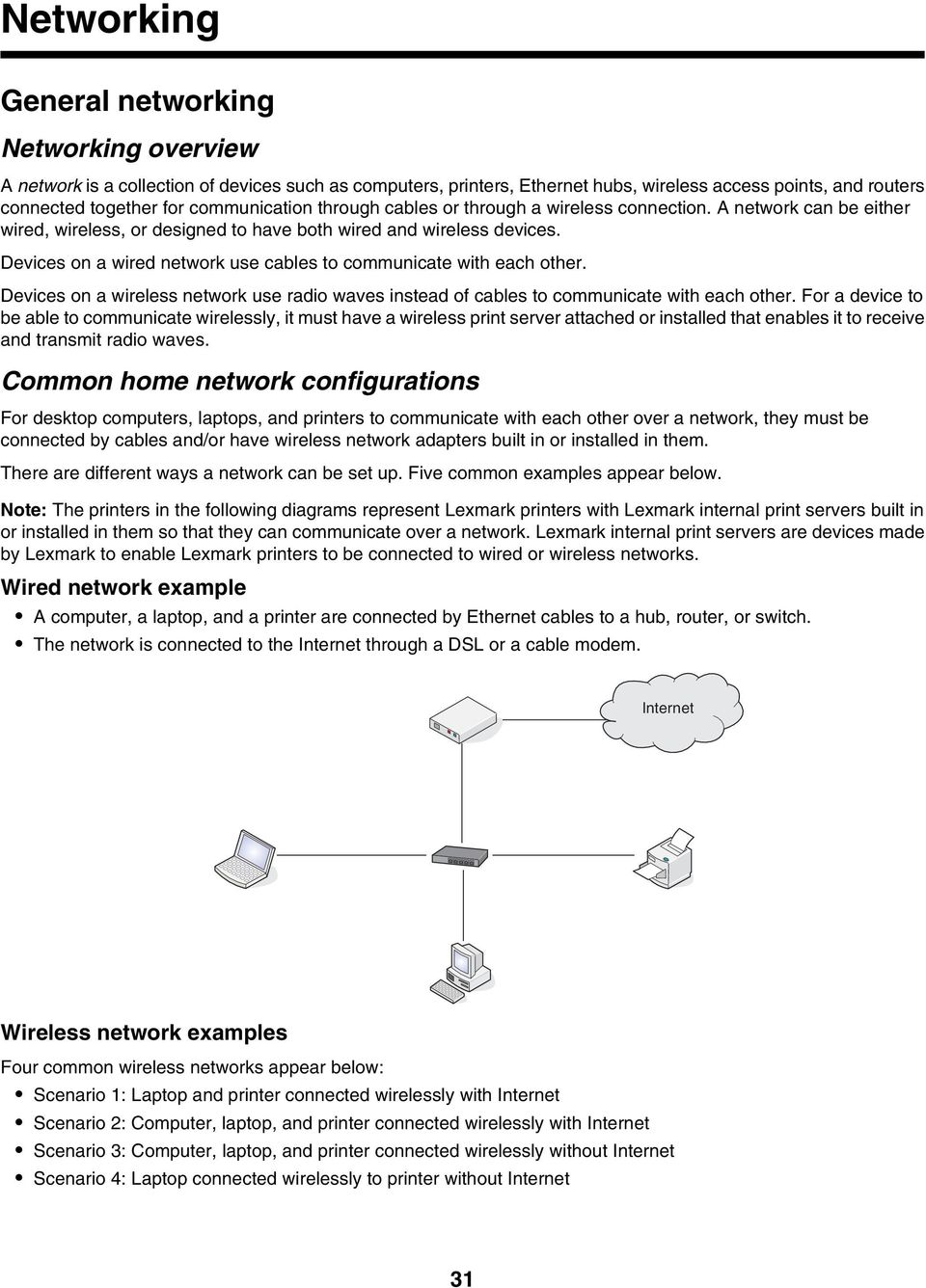
1 Networking General networking Networking overview A network is a collection of devices such as computers, printers, Ethernet hubs, wireless access points, and routers connected together for communication through cables or through a wireless connection. A network can be either wired, wireless, or designed to have both wired and wireless devices. Devices on a wired network use cables to communicate with each other. Devices on a wireless network use radio waves instead of cables to communicate with each other. For a device to be able to communicate wirelessly, it must have a wireless print server attached or installed that enables it to receive and transmit radio waves. Common home network configurations For desktop computers, laptops, and printers to communicate with each other over a network, they must be connected by cables and/or have wireless network adapters built in or installed in them. There are different ways a network can be set up. Five common examples appear below. Note: The printers in the following diagrams represent Lexmark printers with Lexmark internal print servers built in or installed in them so that they can communicate over a network. Lexmark internal print servers are devices made by Lexmark to enable Lexmark printers to be connected to wired or wireless networks. Wired network example A computer, a laptop, and a printer are connected by Ethernet cables to a hub, router, or switch. The network is connected to the Internet through a DSL or a cable modem. Internet Wireless network examples Four common wireless networks appear below: Scenario 1: Laptop and printer connected wirelessly with Internet Scenario 2: Computer, laptop, and printer connected wirelessly with Internet Scenario 3: Computer, laptop, and printer connected wirelessly without Internet Scenario 4: Laptop connected wirelessly to printer without Internet 31
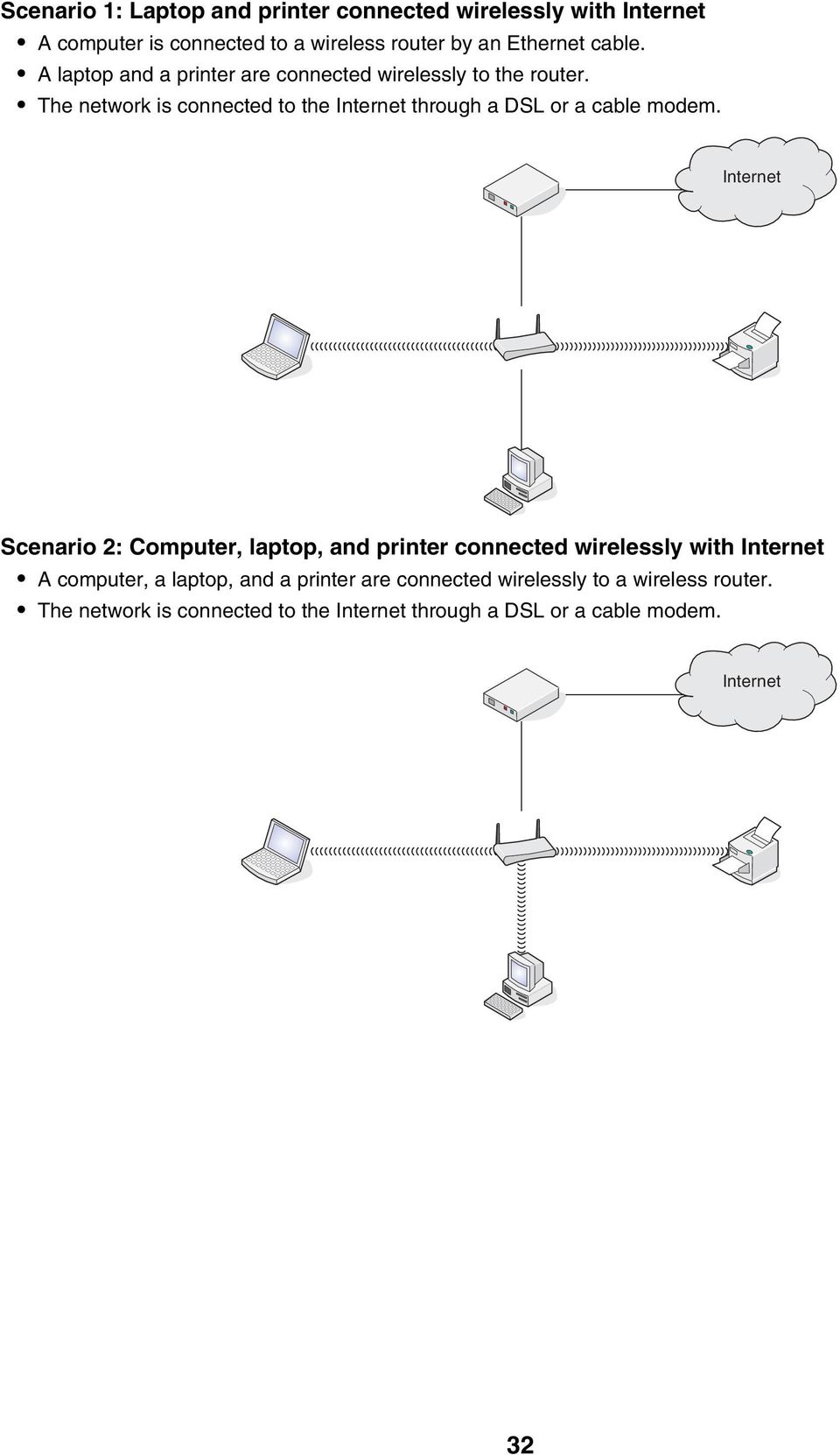
2 Scenario 1: Laptop and printer connected wirelessly with Internet A computer is connected to a wireless router by an Ethernet cable. A laptop and a printer are connected wirelessly to the router. The network is connected to the Internet through a DSL or a cable modem. Internet Scenario 2: Computer, laptop, and printer connected wirelessly with Internet A computer, a laptop, and a printer are connected wirelessly to a wireless router. The network is connected to the Internet through a DSL or a cable modem. Internet 32
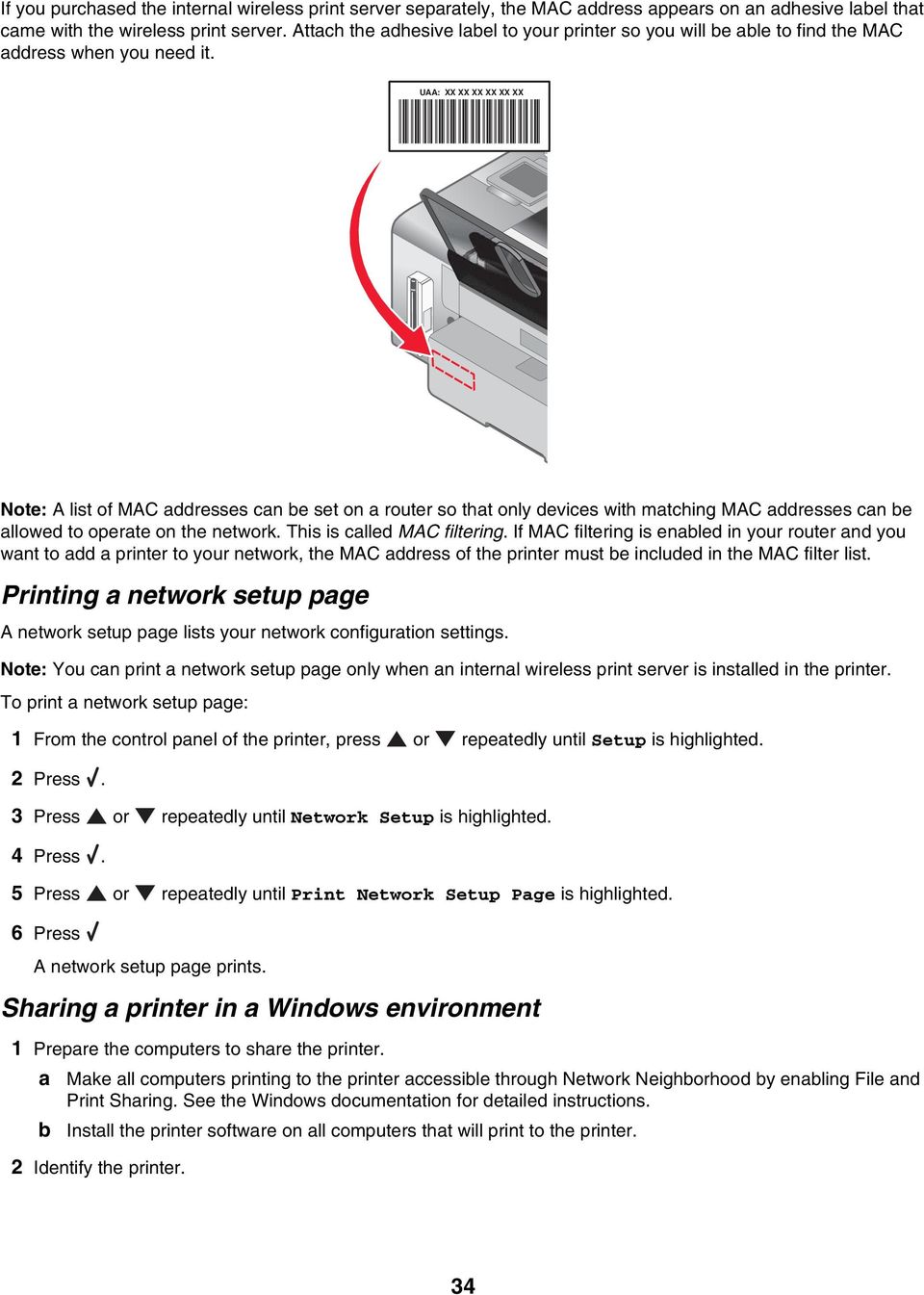
3 Scenario 3: Computer, laptop, and printer connected wirelessly without Internet A computer, a laptop, and a printer are connected wirelessly to a wireless access point. The network has no connection to the Internet. Scenario 4: Laptop connected wirelessly to printer without Internet A laptop is directly connected wirelessly to a printer without going through a wireless router. The network has no connection to the Internet. What information do I need and where do I find it? This printer may contain an internal wireless print server, which allows the printer to be used on a wireless network. You need the following settings from your existing wireless network: The network name, also known as the SSID The wireless mode (the type of wireless network you are using, either infrastructure or ad hoc) The type of security used on the network (WEP, WPA, or WPA2) Any applicable security keys or passwords used with the network security encryption type Note: You must know this information in order to properly set up the printer for use on the wireless network. To obtain these settings, see the documentation that came with your wireless router or consult the person who set up your wireless network. Finding the MAC address Most network equipment has a unique hardware identification number to distinguish it from other devices on the network. This is called the Media Access Control (MAC) address. If your printer has a factory installed internal wireless print server, the MAC address is a series of letters and numbers located on the back of your printer. 33

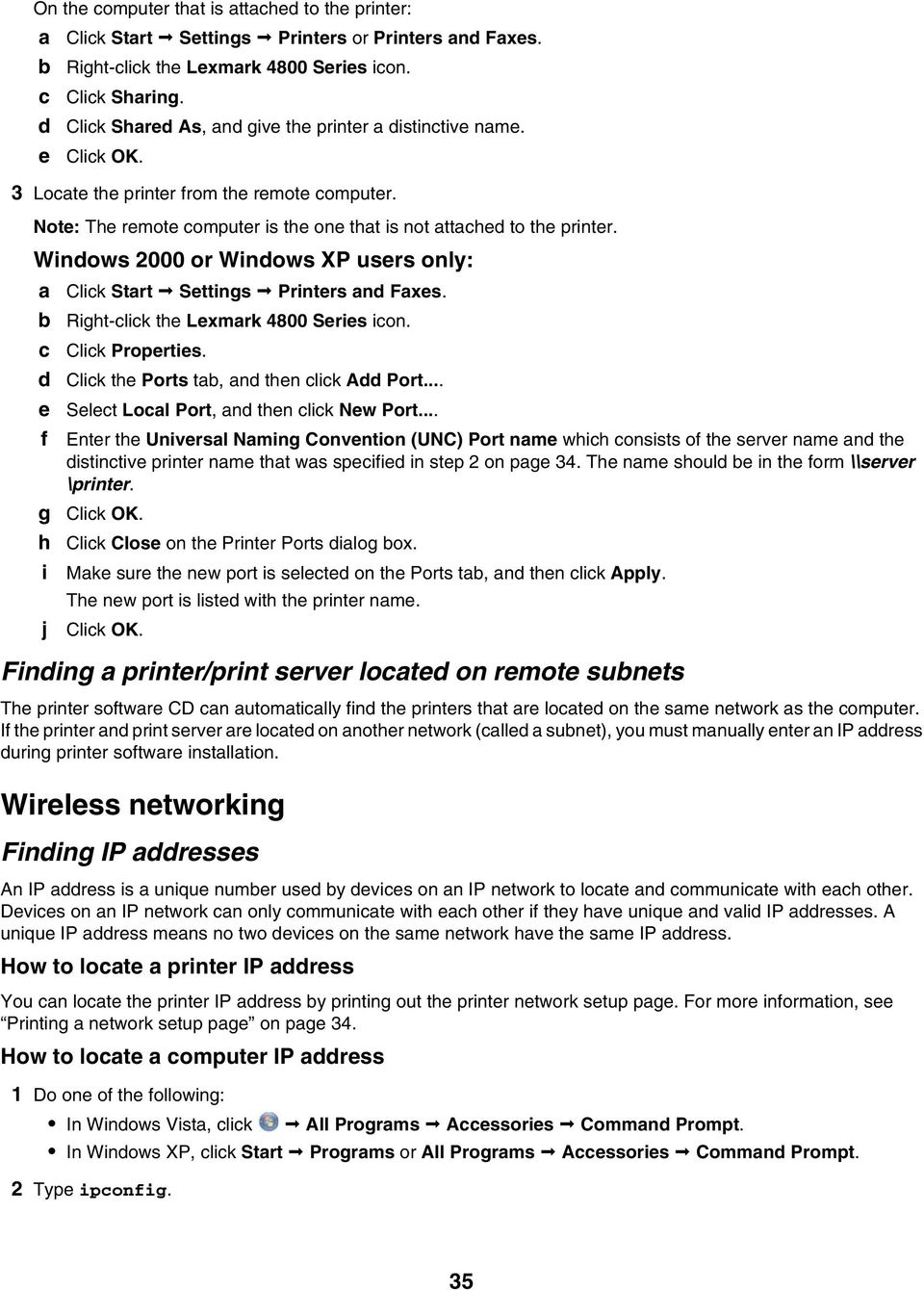
4 If you purchased the internal wireless print server separately, the MAC address appears on an adhesive label that came with the wireless print server. Attach the adhesive label to your printer so you will be able to find the MAC address when you need it. UAA: XX XX XX XX XX XX Note: A list of MAC addresses can be set on a router so that only devices with matching MAC addresses can be allowed to operate on the network. This is called MAC filtering. If MAC filtering is enabled in your router and you want to add a printer to your network, the MAC address of the printer must be included in the MAC filter list. Printing a network setup page A network setup page lists your network configuration settings. Note: You can print a network setup page only when an internal wireless print server is installed in the printer. To print a network setup page: 1 From the control panel of the printer, press or repeatedly until Setup is highlighted. 2 Press. 3 Press or repeatedly until Network Setup is highlighted. 4 Press. 5 Press or repeatedly until Print Network Setup Page is highlighted. 6 Press A network setup page prints. Sharing a printer in a Windows environment 1 Prepare the computers to share the printer. a b Make all computers printing to the printer accessible through Network Neighborhood by enabling File and Print Sharing. See the Windows documentation for detailed instructions. Install the printer software on all computers that will print to the printer. 2 Identify the printer. 34
5 On the computer that is attached to the printer: a b c d e Click Start Settings Printers or Printers and Faxes. Right-click the Lexmark 4800 Series icon. Click Sharing. Click Shared As, and give the printer a distinctive name. Click OK. 3 Locate the printer from the remote computer. Note: The remote computer is the one that is not attached to the printer. Windows 2000 or Windows XP users only: a b c d e f g h i j Click Start Settings Printers and Faxes. Right-click the Lexmark 4800 Series icon. Click Properties. Click the Ports tab, and then click Add Port... Select Local Port, and then click New Port... Enter the Universal Naming Convention (UNC) Port name which consists of the server name and the distinctive printer name that was specified in step 2 on page 34. The name should be in the form \\server \printer. Click OK. Click Close on the Printer Ports dialog box. Make sure the new port is selected on the Ports tab, and then click Apply. The new port is listed with the printer name. Click OK. Finding a printer/print server located on remote subnets The printer software CD can automatically find the printers that are located on the same network as the computer. If the printer and print server are located on another network (called a subnet), you must manually enter an IP address during printer software installation. Wireless networking Finding IP addresses An IP address is a unique number used by devices on an IP network to locate and communicate with each other. Devices on an IP network can only communicate with each other if they have unique and valid IP addresses. A unique IP address means no two devices on the same network have the same IP address. How to locate a printer IP address You can locate the printer IP address by printing out the printer network setup page. For more information, see Printing a network setup page on page 34. How to locate a computer IP address 1 Do one of the following: In Windows Vista, click All Programs Accessories Command Prompt. In Windows XP, click Start Programs or All Programs Accessories Command Prompt. 2 Type ipconfig. 35
6 3 Press Enter. The IP address appears as four sets of numbers separated by periods, such as Assigning an IP address An IP address may be assigned by the network using DHCP. The print object, created at the end of the installation, sends all print jobs across the network to the printer using this address. Many networks have the ability to automatically assign an IP address. Auto-IP is the ability for individual devices to assign themselves a unique IP address. Most networks use DHCP to assign addresses. During the Direct IP printing installation of printer software, the IP address is visible in the printer list only as it is being assigned. The print object that is created in the Printers folder of the operating system will reference the MAC address of the printer in the port name. If the IP address is not automatically assigned, you can try manually entering an address after selecting your printer from the available list. Configure IP address If you have lost communication with the printer over a network, select Use DHCP to reestablish communication with the printer. You must assign an IP address in any of the following situations: You manually assigned IP addresses for the other network devices. You want to assign a specific IP address. You move the printer to a remote subnet. The printer is listed as Unconfigured in the Configuration Utility. Contact your system support person for more information. Finding the signal strength Wireless devices have built-in antennas that transmit and receive radio signals. The signal strength listed on the printer network setup page indicates how strongly a transmitted signal is being received. Many factors can affect the signal strength. One factor is interference from other wireless devices or even other devices such as microwave ovens. Another factor is distance. The farther two wireless devices are from each other, the more likely it is that the communication signal will be weaker. Installing the printer on a network Follow the instructions for the networking method you want to use. Make sure the selected network is set up and working properly, and that all relevant devices are turned on. For more information on your specific network, see your network documentation or consult the person who set up the network. Sharing the printer on a network Sharing the printer on the network (on the host computer) Windows Vista users only: 1 For more information, see the setup information that came with your printer. 2 Click Start icon Control Panel Printers. 3 Right-click your printer icon, and select Sharing. 4 Click Change sharing options. 5 Click Continue. 36
7 6 Click Share this printer, and assign a name to your printer. 7 Follow the directions on the computer screen until installation is complete. Windows 2000 or Windows XP users only: 1 For more information, see the setup information that came with your printer. 2 Click Start Settings Printers. 3 Right-click your printer icon, and select Sharing. 4 Click Shared as, and assign a name to your printer. 5 Follow the directions on the computer screen until installation is complete. Installing the shared printer on other network computers (on the client computers) Using the peer-to-peer method 1 Go to a network computer that you want to enable to print to the shared printer. 2 Insert the printer software CD. 3 Agree to the license agreement, and then click Next. 4 Select Manual Setup. 5 From the Network Printer Setup dialog, select the Peer-to-Peer client option, and then click Next. 6 Select the appropriate printer from the list, and then click Next. 7 Select the software you want to install, and then click Next. 8 When setup is complete, click Finished. 9 Repeat this procedure for each network computer you want to access the shared printer. Using the point-and-print method 1 Go to a network computer that you want to enable to print to the shared printer. 2 Browse the Network Neighborhood until you find the name of the shared printer assigned in step 4 on page Right-click the printer icon, and select Open or Connect. 4 This will copy a subset of the printer software from the host computer. A printer object will be created in the Printers folder of the client. Configure network printers Configure To configure a network printer, select a printer from the list in the window. Click Configure to assign the printer an Internet Protocol (IP) address. Contact your system support person for more information. Add printers Specify remote subnets that may have direct network attached printers. If the software detects a direct network attached printer, you must first highlight the printer in the window, and then click Configure to manually assign an IP address to the printer. Contact your system support person for more information. Note: The software does not automatically configure printers found on remote subnets. Refresh Click Refresh to have the Configuration Utility automatically search to find and configure newly added printers. 37

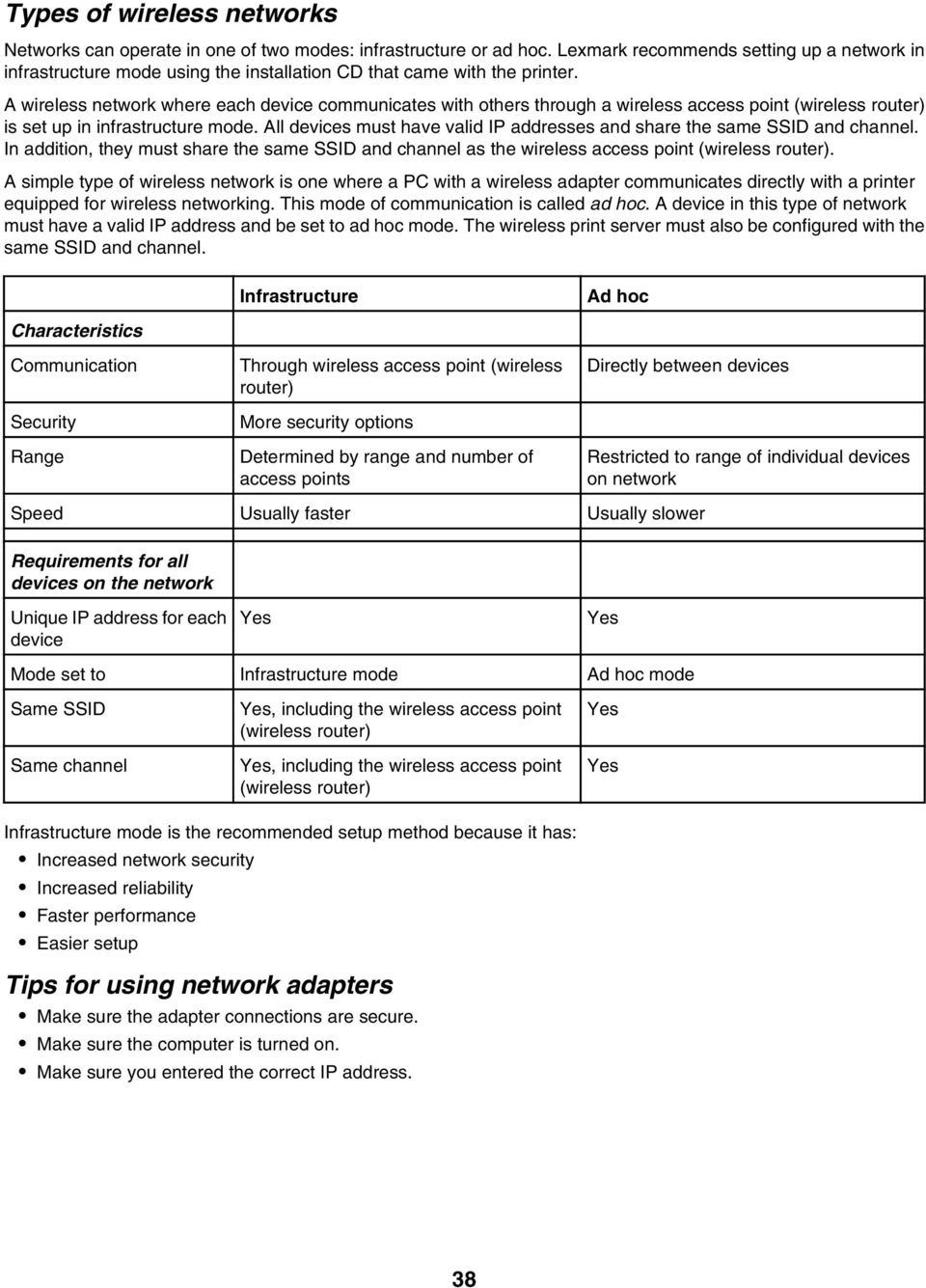
8 Types of wireless networks Networks can operate in one of two modes: infrastructure or ad hoc. Lexmark recommends setting up a network in infrastructure mode using the installation CD that came with the printer. A wireless network where each device communicates with others through a wireless access point (wireless router) is set up in infrastructure mode. All devices must have valid IP addresses and share the same SSID and channel. In addition, they must share the same SSID and channel as the wireless access point (wireless router). A simple type of wireless network is one where a PC with a wireless adapter communicates directly with a printer equipped for wireless networking. This mode of communication is called ad hoc. A device in this type of network must have a valid IP address and be set to ad hoc mode. The wireless print server must also be configured with the same SSID and channel. Characteristics Communication Security Range Infrastructure Through wireless access point (wireless router) More security options Determined by range and number of access points Ad hoc Directly between devices Speed Usually faster Usually slower Requirements for all devices on the network Restricted to range of individual devices on network Unique IP address for each device Yes Yes Mode set to Infrastructure mode Ad hoc mode Same SSID Same channel Yes, including the wireless access point (wireless router) Yes, including the wireless access point (wireless router) Yes Yes Infrastructure mode is the recommended setup method because it has: Increased network security Increased reliability Faster performance Easier setup Tips for using network adapters Make sure the adapter connections are secure. Make sure the computer is turned on. Make sure you entered the correct IP address. 38
9 Advanced wireless setup Creating an ad hoc wireless network using Windows The recommended way to set up your wireless network is to use a wireless access point (wireless router). A network set up this way is called an infrastructure network. If you have an infrastructure network in your home, you should configure your printer for use on that network. If you don't have a wireless access point (wireless router) or would like to set up a standalone network between your printer and a computer with a wireless network adapter, you can set up an ad hoc network. For Windows Vista users 1 Click Control Panel Network and Internet. 2 Under Network and Sharing Center, click Connect to a Network. 3 In the Connect to a Network dialog, click Set up a wireless ad-hoc (computer-to-computer) network, and then click Next. 4 Follow the instructions in the Set up a wireless ad hoc network wizard. As part of the setup: a b c Create a network name or SSID for the network between the computer and your printer. Write the name of your network in the space provided. Be sure to use the exact spelling and capitalization. Go to the Security Type drop-down, choose WEP, and create a security key (or password). d Note: WEP passwords must be either 5 or 13 characters. Write the password for your network in the space provided. Be sure to use the exact spelling and capitalization. Windows Vista will enable the ad hoc network for you. It will appear in the Connect to a network dialog under available networks, indicating that the computer is configured for the ad hoc network. 5 Close the Control Panel and any remaining windows. 6 Insert the printer CD into the computer and follow the direction for wireless installation. 7 When the available networks are displayed, provide the network name and the security information you created in step 4. The installer will configure the printer for use with the computer. 8 Store a copy of your network name and security information in a safe place for future reference. For Windows XP users 1 Click Start Settings Control Panel Network Connections. 2 Right-click Wireless Network Connections. 3 If Enable appears in the pop-up menu, click it. Note: If Enable does not appear, your wireless connection is already enabled. 4 Right-click the Wireless Network Connection icon. 5 Click Properties. 6 Click the Wireless Networks tab. Note: If the Wireless Networks tab does not appear, your computer has third-party software that controls your wireless settings. You must use that software to set up the ad hoc wireless network. For more information, see the documentation for that software to learn how to create an ad hoc network. 39
10 7 Select the Use Windows to configure my wireless network settings check box. 8 Under Preferred Networks, delete any existing networks. a b Click the network to be removed. Click the Remove button. 9 Click Add to create an ad hoc network. 10 In the Network Name (SSID) box, type the name you want to give your wireless network. 11 Write down the network name you chose so you can refer to it when running the wireless setup. Make sure you copy it down exactly, including capital letters. 12 If Network Authentication appears in the list, select Open. 13 In the Data encryption list, select WEP. 14 If necessary, deselect the The key is provided for me automatically check box. 15 In the Network Key box, type in a security code. 16 Write down the security code you chose so you can refer to it when running the wireless setup. Make sure you copy it down exactly, including any capital letters. Note: For more information about passwords (security keys), see Check your security keys in the Wireless troubleshooting section of the Troubleshooting chapter. 17 Type the same security code in the Confirm network key box. 18 Select the This is a computer-to-computer (ad hoc) network; wireless access points are not used. check box. 19 Click OK twice to close the two open windows. 20 It may take a few minutes for your computer to recognize the new settings. To check on the status of your network: a Right-click the Wireless Network Connections icon. b Select View Available Wireless Networks. If the network is listed but the computer is not connected, select the ad hoc network and then click the Connect button. If the network does not appear, wait a minute and then click the Refresh network list button. 21 Click Programs or All Programs Lexmark 4800 Series. 22 Click Wireless Setup Utility. Note: You may be prompted to connect the printer to the computer again using the installation cable as part of the setup process. 23 Follow the prompts on the computer screen. 24 Store your network name and security code in a safe place for future reference. Adding a printer to an existing ad hoc wireless network using Windows 1 Click Programs or All Programs Lexmark 4800 Series. 2 Click Wireless Setup. 3 Follow the instructions on the computer screen. 40

11 Troubleshooting If you set up your printer on a wireless network, make sure: The wireless network is working properly. The computer and printer are both connected to the same wireless network. The printer is within the range of the wireless network. The effective range for optimal performance is generally feet. The printer is located away from other electronic devices that may interfere with the wireless signal. The power supply is connected to the printer, and is lit. The Wi-Fi indicator light is green. The printer driver is installed on the computer from which you are performing a task. The correct printer port is selected. Setup Troubleshooting Incorrect language appears on the display These are possible solutions. Try one of the following: Change the language selection during initial setup After you select a language, Language appears again on the display. To change the selection: 1 Press or repeatedly until the language you want appears on the display. 2 Press to save. Select a different language after initial setup 1 From the control panel, press or repeatedly to choose Setup. 2 Press. 3 Press or repeatedly to choose Change Printer Default Settings. 4 Press. 5 Press or repeatedly to choose Language. 6 Press. 7 Press or repeatedly until the language you want appears on the display. 8 Press to save and exit. Note: If you cannot understand the language on the display, see Resetting the printer to factory default settings on page 57. Power button is not lit Press power button Make sure the printer is on by pressing. 101
12 Disconnect and reconnect the power cord 1 Disconnect the power cord from the wall outlet, and then from the printer. 2 Plug the cord all the way into the power supply on the printer. 2 3 Plug the cord into an electrical outlet that other electrical devices have been using. 4 If the light is not on, press. Software does not install Check your operating system The following operating systems are supported: Windows Vista, Windows XP, Windows 2000, and Mac OS X versions and 10.4 (not versions 10.0, 10.1, or 10.2). Note: Windows 2000 users should use Service Pack 3 or later. Check your system requirements Check that your computer meets the minimum system requirements listed on the printer box. Check USB connection 1 Check the USB cable for any obvious damage. 2 Firmly plug the square end of the USB cable into the back of the printer. 3 Firmly plug the rectangular end of the USB cable into the USB port of the computer. 1 The USB port is marked with the USB symbol. Check wireless connection Check that the Wi-Fi indicator light is on. For more information, see Understanding the parts of the printer on page 16. Reinstall the software 1 Turn off and then restart your computer. 2 Click Cancel on all New Hardware Found screens. 3 Insert the CD, and then follow the instructions on the computer screen to reinstall the software. 102

13 Reconnect power supply 1 Press to turn the printer off. 2 Disconnect the power cord from the wall outlet. 3 Gently remove the power supply from the printer. 4 Reconnect the power supply to the printer. 5 Plug the power cord into the wall outlet. 6 Press to turn the printer on. Disable anti-virus programs 1 Close all open software applications. 2 Disable any antivirus programs. 3 Double-click the My Computer icon. In Windows XP, click Start to access the My Computer icon. 4 Double-click the CD ROM drive icon. 5 If necessary, double-click setup.exe. 6 Follow the instructions on the computer screen to install the software. Uninstall and reinstall software Uninstall the printer software, and then reinstall it. For more information, see Removing and reinstalling the software on page 105. Page does not print Check messages If an error message is displayed, resolve the error before trying to print again. Check power If the light is not on, make sure the printer is plugged into a properly grounded outlet. Make sure the power cord is properly connected to the printer. Reload paper Remove and then load paper. Check ink Check the ink levels, and install new print cartridges if necessary. 103
14 Check cartridges 1 Remove the print cartridges. 2 Make sure the sticker and tape have been removed Reinsert the cartridges. Check printer default and pause settings 1 Do one of the following: In Windows Vista, click Control Panel. In Windows XP, click Start. 2 Click Printers Printers and Faxes. 3 Double-click the printer queue device. 4 Click Printer. Make sure no check mark appears next to Pause Printing. If a check mark does not appear next to Set As Default Printer, you must select the print queue device for each file you want to print. Reconnect power supply 1 Press to turn the printer off. 2 Disconnect the power cord from the wall outlet. 3 Gently remove the power supply from the printer. 4 Reconnect the power supply to the printer. 5 Plug the power cord into the wall outlet. 6 Press to turn the printer on. Remove and reinstall the software Uninstall the printer software, and then reinstall it. Understanding Warning levels A green check indicates system requirements were met. A yellow question mark indicates system requirements were not met. Most major functions will work, but you may experience some performance impact. A red question mark indicates system requirements were not met. Most major functions may not work. A red X indicates system requirements were not met. Installation will not continue. For proper installation, make sure the computer supports all system requirements. System requirements are located on the printer box. 104
15 Removing and reinstalling the software If the printer is not functioning properly, or if a communications error message appears when you try to use the printer, you may need to remove and reinstall the printer software. 1 In Windows Vista, click. In Windows XP or earlier, click Start. 2 Click Programs or All Programs Lexmark 4800 Series. 3 Select Uninstall. 4 Follow the instructions on the computer screen to remove the printer software. 5 Restart the computer before reinstalling the printer software. 6 Click Cancel on all New Hardware Found screens. 7 Insert the CD, and then follow the instructions on the computer screen to reinstall the software. Note: If the install screen does not appear automatically after you restart your computer, click Start Run, and then type D:\setup, where D is the letter of your CD-ROM drive. If the software still does not install correctly, visit our Web site at to check for the latest software. 1 In all countries or regions except the United States, select your country or region. 2 Click the links for drivers or downloads. 3 Select your printer family. 4 Select your printer model. 5 Select your operating system. 6 Select the file you want to download, and then follow the directions on the computer screen. Enabling the USB port To confirm that the USB port is enabled on the computer: 1 Open the Device Manager. In Windows Vista: a Click Control Panel. b Click System and Maintenance System. c Click Device Manager. In Windows XP: a Click Start. b Click Control Panel Performance and Maintenance System. c From the Hardware tab, click Device Manager. In Windows 2000: a Click Start. b c Click Settings Control Panel System. From the Hardware tab, click Device Manager. 2 Click the plus sign (+) beside Universal Serial Bus Controller. If USB Host Controller and USB Root Hub are listed, then the USB port is enabled. 105
16 For more information, see the computer documentation. Solving printer communication problems The printer and the computer cannot exchange data. Establish bidirectional communication between the printer and the computer For more information, see Bidirectional communication is not established on page 135. Make sure the printer is not in sleep mode If the power light is blinking on and off slowly, the printer is in sleep mode. 1 Unplug the power cable from the wall outlet. 2 Wait ten seconds, and then insert the power cable into the wall outlet. 3 Press to turn the printer on. Wireless troubleshooting How do I find out what type of security my network is using? You must know the security key and security mode in order to properly set up the printer for use on the wireless network. To obtain this information, see the documentation that came with your wireless router, see the Web page associated with the router, or consult the person who set up your wireless network. Check your security keys A security key is like a password. All devices on the same network share the same security key. Note: Make sure you copy down the security key exactly, including any capital letters, and store it in a safe place for future reference. The security key must follow the following criteria. WEP key Exactly 10 or 26 hexadecimal characters. Hexadecimal characters are A F and 0 9. Exactly 5 or 13 ASCII characters. ASCII characters are letters, numbers, and symbols found on a keyboard. WPA-PSK or WPA2-PSK key Up to 64 hexadecimal characters. Hexadecimal characters are A F and 0 9. Between 8 and 64 ASCII characters. ASCII characters are letters, numbers, and symbols found on a keyboard. Printer is configured correctly, but cannot be found on the network Make sure: The printer has power and the light is on. The printer is within range of the wireless network. The printer is located away from other electronic devices that may interfere with the wireless signal. Your wireless network is using a unique network name (SSID). If not, it is possible that the printer/print server is communicating over a different, nearby network that uses the same network name. The printer has a valid IP address on the network. 106

17 Wireless network printer does not print Check power Make sure the light is on. Check cable Make sure the power cable is connected to the printer and to the electrical outlet. Make sure the USB cable or the installation cable is not connected. Check Wi-Fi indicator light Make sure the Wi-Fi indicator light is green. If it is not green, see Wi-Fi indicator light is orange or Wi-Fi indicator light is blinking orange during installation in Wireless troubleshooting. Check if printer driver is installed Make sure the printer driver is installed on the computer from which you are sending the print job. 1 Do one of the following: In Windows Vista, click: Control Panel Printers. In Windows XP, click:start Settings Printers and Faxes. In Windows 2000 and earlier, click: Start Settings Printers. If you cannot find the icon for your printer, then the printer driver is not installed. 2 If the printer driver is not installed, insert the installation software CD into your computer. 3 Follow the instructions on the computer screen. Note: You must install the printer driver on each computer that uses the network printer. Check if printer is connected to the wireless network 1 Print a network setup page. For more information, see Printing a network setup page. 2 Check to see if Status: Connected appears under Network Card. Reboot the computer Turn off and restart the computer. Check printer ports Make sure the correct printer port is selected. 1 Click: In Windows Vista: Control Panel Printers. In Windows XP: Start Settings Printers and Faxes. In Windows 2000 and earlier: Start Settings Printers. 2 Right-click the Lexmark 4800 Series icon. 3 Click Properties Ports. 107
18 4 Verify that XXXX_Series_nnnnnn_P1 is selected, where XXXX is the model series number of your printer and nnnnnn is the last six numbers of the MAC address of your printer. Note: The MAC address is located at the back of the printer beside the serial number. 5 If USB is selected instead: a Select the port name from step 4. b c Click Apply. Close the window, and try printing again. Reinstall software Uninstall and then reinstall the printer software. Note: If more than one printer appears in the Select your printer list, pick the printer with the MAC address that matches the address on the back of your printer. Wi-Fi indicator is not lit Check power Make sure the printer power light is on. For more information, see Power button is not lit. Remove and reinstall the optional internal print server Note: This solution does not apply to printers that came with the internal wireless print server already installed. Reinstall the internal wireless print server. For more information, see Installing an optional internal wireless print server. Wi-Fi indicator light is blinking orange during installation When the Wi-Fi indicator light is blinking orange, it indicates that the printer has been set up for wireless networking but cannot connect to the network for which it has been configured. The printer may be unable to join the network because of interference or its distance from the wireless access point (wireless router), or until its settings are changed. Make sure the access point is on Check the access point and, if necessary, turn it on. Move your wireless access point (wireless router) to minimize interference There may be temporary interference from other devices such as microwave ovens or other appliances, cordless phones, baby monitors, and security system cameras. Make sure your wireless access point (wireless router) is not positioned too closely to these devices. Try adjusting external antennas Generally, antennas work best if they are pointing straight up. You may find, however, that reception improves if you experiment with different angles for your printer and/or wireless access point (wireless router) antennas. 108
19 Move your computer and/or printer Move the computer and/or printer closer to the wireless access point (wireless router). Although the possible distance between devices in b or g networks is 300 feet, the effective range for optimal performance is generally feet. You can find the signal strength of the network on the network setup page. For information on how to print a setup page, see Printing a network setup page on page 34. Check security keys Make sure security keys are correct. For more information, see Check your security keys on page 106. Check MAC address If your network uses MAC address filtering, provide the MAC address for the printer to your network. If you need help finding the MAC address, see Finding the MAC address on page 33. Ping the wireless access point (wireless router) to make sure the network is working 1 If you do not already know it, find the IP address of the access point. a b c Click: In Windows Vista: All Programs Accessories Command Prompt. In Windows XP and earlier: Start Programs or All Programs Accessories Command Prompt. Type ipconfig. Press Enter. The Default Gateway entry is typically the wireless access point (wireless router). The IP address appears as four sets of numbers separated by periods, such as Your IP address might also start with the numbers 10 or 169. This is determined by your operating system or wireless network software. 2 Ping the wireless access point (wireless router). a b c Click: In Windows Vista: All Programs Accessories Command Prompt. In Windows XP and earlier: Start Programs or All Programs Accessories Command Prompt. Type ping followed by a space and the IP address of the wireless access point (wireless router). For example: ping Press Enter. 3 If the wireless access point (wireless router) responds, you will see several lines appear that start with Reply from. Turn off and restart the printer. 4 If the wireless access point (wireless router) does not respond, it will take several seconds and then you will see Request timed out. Try the following: a Click: In Windows Vista: Control Panel Network and Internet Network and Sharing Center In Windows XP and earlier: Start Settings or Control Panel Network Connection 109
20 b c Select the appropriate connection from the ones shown. Note: If the computer is connected to the access point (router) by an Ethernet cable, the connection may not include the word wireless in its name. Right-click the connection, and then click Repair. Run the wireless setup again If your wireless settings have changed, you must run the printer wireless setup again. Some reasons your settings may have changed include your having manually changed your WEP or WPA keys, channel, or other network settings; or the wireless access point (wireless router) having been reset to factory defaults. Notes: If you change network settings, change them on all the network devices before changing them for the wireless access point (wireless router). If you have already changed the wireless network settings on your wireless access point (wireless router), you must change the settings on all the other network devices before you can see them on the network. 1 Click: In Windows Vista:. In Windows XP and earlier: Start. 2 Click Programs or All Programs Lexmark 4800 Series. 3 Click Wireless Setup. Note: You may be prompted to connect the printer to the computer again using the installation cable as part of the setup process. 4 Follow the instructions on the computer screen. Wi-Fi indicator light is orange Check cable Make sure the installation cable is not connected to the printer. Configure the optional internal wireless print server Note: This solution does not apply to printers that have a pre-installed internal wireless print server. If you purchased the optional internal wireless print server after your printer was already set up, see Configuring the optional internal wireless print server in the Setting up the printer chapter. Check network name Make sure your network does not have the same name as another network near you. For example, if you and your neighbor both use a manufacturer's default network name, your printer could be connecting to your neighbor's network. If you are not using a unique network name, consult the documentation for your wireless access point (wireless router) to learn how to set a network name. If you set a new network name, you must reset the printer and computer SSID to the same network name. For more information, see Checking your network name in the Wireless troubleshooting section. 110
21 Check security keys Make sure security keys are correct. For more information, see Check your security keys on page 106. Move your computer and/or printer Move the computer and/or printer closer to the wireless access point (wireless router). Although the possible distance between devices in b or g networks is 300 feet, the effective range for optimal performance is generally feet. You can find the signal strength of the network on the network setup page. For information on how to print a setup page, see Printing a network setup page on page 34. Check MAC address If your network uses MAC address filtering, provide the MAC address for the printer to your network. If you need help finding the MAC address, see Finding the MAC address on page 33. Wireless printer is no longer working Check power Make sure the printer power light is on. For more information, see Power button is not lit in the Troubleshooting chapter. Make sure the wireless access point (wireless router) is on. Move your wireless access point (wireless router) to minimize interference There may be temporary interference from other devices such as microwaves or other appliances, cordless phones, baby monitors, and security system cameras. Make sure your wireless access point (wireless router) is not positioned too closely to these devices. Move your computer and/or printer Move the computer and/or printer closer to the wireless access point (wireless router). Although the possible distance between devices in b or g networks is 300 feet, the effective range for optimal performance is generally feet. You can find the signal strength of the network on the network setup page. For more information, see Printing a network setup page in the Networking chapter. Try adjusting external antennas Generally, antennas work best if they are pointing straight up. You may find, however, that reception improves if you experiment with different angles for your printer and/or wireless access point (wireless router) antennas. Check network name The network name, or SSID (Service Set Identifer) is a setting on a wireless device that allows devices to join the same wireless network. For more information, see Checking your network name for Windows or Mac in the Wireless troubleshooting section. Reboot the computer Turn off and restart the computer. 111
22 Ping the wireless access point Ping the wireless access point (wireless router) to make sure the network is working. For more information, see Ping the access point for Windows or Mac in the Wireless troubleshooting section Ping the printer Ping the printer to make sure it is on the network. For more information, see Ping the printer for Windows or Mac in the Wireless troubleshooting section. Run the wireless setup again If your wireless settings have changed, you will need to run the printer wireless setup again. Some reasons your settings may have changed include your having manually changed your WEP or WPA keys, channel, or other network settings, or the wireless access point (wireless router) having been reset to factory defaults. Notes: If you change network settings, change them on all the network devices before changing them for the wireless access point (wireless router). If you have already changed the wireless network settings on your wireless access point (wireless router), you must change the settings on all the other network devices before you can see them on the network. For more information, see Run the Wireless Setup Utility for Windows or Run the Wireless Setup Assistant for Mac. Network printer does not show up in the printer selection list during installation Check whether the printer is on the same wireless network as the computer The SSID of the printer must match the SSID of the wireless network. 1 If you do not know the SSID of the network, use the following steps to obtain it before rerunning the Wireless Setup Utility. a Enter the IP address of your wireless access point (wireless router) into the Web address field of your browser. If you do not know the IP address of the wireless access point (wireless router): 1 Do one of the following: In Windows Vista, click All Programs Accessories Command Prompt. In Windows XP, click Start Programs or All Programs Accessories Command Prompt. 2 Type ipconfig. 3 Press Enter. The Default Gateway entry is typically the wireless access point (wireless router). The IP address appears as four sets of numbers separated by periods, such as b c d e Enter your user name and password when prompted. Click OK. On the main page, click Wireless or any other selection where settings are stored. The SSID will be displayed. Write down the SSID, security type, and the security keys if they are shown. Note: Make sure you copy them down exactly, including any capital letters. 112
23 2 Click Programs or All Programs Lexmark 4800 Series. 3 Click Wireless Setup. Note: You may be prompted to connect the printer to the computer again using the installation cable as part of the setup process. 4 Follow the instructions on the computer screen, including typing in the SSID of the wireless access point (wireless router) and the security keys when prompted. 5 Store the SSID and the security keys in a safe place for future reference. Printer cannot connect to the wireless network Make sure your computer is connected to your wireless access point (wireless router) See whether you have access to the Internet by opening your Web browser and accessing any site. If there are other computers or resources on your wireless network, check to see if you can access them from your computer. Move the computer and/or printer closer to the wireless router Although the possible distance between devices in b or g networks is 300 feet, the effective range for optimal performance is generally feet. Try setting up the printer again by rerunning the Wireless Setup Utility. 1 Select one of the following: In Windows Vista, click. In Windows XP and earlier: Click Start. 2 Click Programs or All Programs Lexmark 4800 Series. 3 Click Wireless Setup. Note: You may be prompted to connect the printer to the computer again using the installation cable as part of the setup process. 4 Follow the instructions on the computer screen. Check whether the printer is on the same wireless network as the computer The SSID of the printer must match the SSID of the wireless network. If you do not know the SSID of the network, use the following steps to obtain it, and then rerun the Wireless Setup Utility to set up the printer again. 1 Enter the IP address of your wireless access point (wireless router) into your browser's Web address field. If you do not know the IP address of the wireless access point (wireless router): a Click: In Windows Vista: All Programs Accessories Command Prompt. In Windows XP and earlier: Start Programs or All Programs Accessories Command Prompt. b Type ipconfig. 113
24 c Press Enter. The Default Gateway entry is typically the wireless access point (wireless router). The IP address appears as four sets of numbers separated by periods, such as Your IP address might also start with the numbers 10 or 169. This is determined by your operating system or wireless network software. 2 Enter your user name and password when prompted. 3 Click OK. 4 On the main page, click Wireless or other selection where settings are stored. The SSID will be displayed. 5 Write down the SSID, security type, and the security keys if they are shown. Note: Make sure you copy them down exactly, including any capital letters. 6 Store the SSID and the security keys in a safe place for future reference. Check your security keys A security key is like a password. All devices on the same network will share the same security key. If you are using the WPA type of security, make sure you entered the correct key. Security keys are case sensitive. If you are using the WEP type of security, you should enter the key as a series of digits (0 9) and letters (A F). Note: If you do not know this information, see the documentation that came with the wireless network, or contact the person who set up your wireless network. Check your advanced security settings If you are using MAC address filtering to limit access to your wireless network, you must add the printer's MAC address to the list of addresses allowed to connect to your wireless access point (wireless router). If you set your wireless access point (wireless router) to issue a limited number of IP addresses, you must change this so that the printer can be added. Note: If you do not know how to make these changes, see the documentation that came with the wireless network, or contact the person who set up your wireless network. Wireless Setup Utility cannot communicate with the printer during installation (Windows users only) These are possible solutions for Windows users. Try one or more of the following: Check power If the light is not on, see Power button is not lit. Check the installation cable 1 Disconnect the installation cable and check it for any obvious damage. 2 Firmly plug the rectangular end of the USB cable into the USB port of the computer. The USB port is marked with the USB symbol. 3 Firmly plug the square end of the USB cable into the USB port on the back of the printer. 4 Cancel the software installation. 5 Click Programs or All Programs Lexmark 4800 Series. 114
25 6 Click Wireless Setup Utility. 7 Follow the prompts on the computer screen to reinstall the software. Checking your network name (Windows users only) Make sure your network does not have the same name as another network near you. For example, if you and your neighbor both use a manufacturer's default network name, your printer could be connecting to your neighbor's network. If you are not using a unique network name, consult the documentation for your wireless access point (wireless router) to learn how to set a network name. If you set a new network name, you must reset the printer and computer SSID to the same network name. To reset the computer network name, see the documentation that came with your computer. To reset the printer name: 1 Click Programs or All Programs Lexmark 4800 Series. 2 Click Wireless Setup Utility. 3 Follow the instructions on the computer screen, and enter the new network name when prompted. Ping the access point 1 If you do not already know it, find the IP address of the wireless access point (wireless router). a b c Do one of the following: In Windows Vista, click All Programs Accessories Command Prompt. In Windows XP, click Start Programs or All Programs Accessories Command Prompt. Type ipconfig. Press Enter. The Default Gateway entry is typically the wireless access point (wireless router). The IP address appears as four sets of numbers separated by periods, such as Ping the wireless access point (wireless router). a b c Do one of the following: In Windows Vista, click All Programs Accessories Command Prompt. In Windows XP, click Start Programs or All Programs Accessories Command Prompt. Type ping followed by a space and the IP address of the wireless access point (wireless router). For example: ping Press Enter. 3 If the wireless access point (wireless router) responds, you will see several lines appear that start with Reply from. Turn off and restart the printer. 4 If the wireless access point (wireless router) does not respond, after several seconds you will see Request timed out. a Do one of the following: In Windows Vista, click the Control Panel Network and Internet Network and Sharing Center. In Windows XP, click Start Settings or Control Panel Network Connection. 115
26 b c Select the appropriate connection from the ones shown. Note: If the computer is connected to the access point (router) by an Ethernet cable, the connection may not include the word wireless in its name. Right-click the connection, and then click Repair. Ping the printer 1 Do one of the following: In Windows Vista, click All Programs Accessories Command Prompt. In Windows XP, click Start Programs or All Programs Accessories Command Prompt. 2 Type ping followed by the IP address of the printer. For example, ping Press Enter. 4 If the printer responds, you will see several lines appear that start with Reply from. Turn off and restart the printer, and then try resending your print job. 5 If the printer does not respond, you will see Request timed out. a b Check that the computer has a wireless IP address. 1 Do one of the following: In Windows Vista, click All Programs Accessories Command Prompt. In Windows XP, click Start Programs or All Programs Accessories Command Prompt. 2 Type ipconfig. 3 Press Enter. 4 Check the Windows IP Configuration screen that appears for the wireless IP address of the computer. Note: Your computer may have an IP address for a wired network, a wireless network, or both. 5 If your computer does not have an IP address, see the documentation that came with your wireless access point (wireless router) to learn how to connect your computer to the wireless network. The printer may need to be reconfigured for new wireless network settings. For more information, see Run the Wireless Setup Utility. Run the Wireless Setup Utility (Windows users only) 1 Click Programs or All Programs Lexmark 4800 Series. 2 Click Wireless Setup Utility. Note: You may be prompted to connect the printer to the computer again using the installation cable as part of the setup process. 3 Follow the instructions on the computer screen. Changing wireless settings after installation To change your password, network name, or other wireless setting, rerun the wireless setup. For more information, see Run the Wireless Setup Utility for Windows or the Run the Wireless Setup Assistant for Mac. 116
27 Resetting an internal wireless print server to factory default settings 1 From the control panel, press or repeatedly until Setup appears. 2 Press. 3 Press or repeatedly until Network Setup appears. 4 Press. 5 Press or repeatedly until Reset Network Adapter Defaults appears. 6 Press. The following message appears: This will reset all wireless network settings. Are you sure? 7 Press to select Yes. The message Clearing Network Settings appears. Check printer ports (Windows users only) Make sure the correct printer port is selected. 1 Click Start Control Panel Printers. 2 Right-click Lexmark XXXX, where XXXX is the model series number of your printer. 3 Click Properties Ports. 4 Verify that XXXX_Series_nnnnnn_P1 is selected, where XXXX is the model series number of your printer and nnnnnn is the last six numbers of the MAC address of your printer. Note: The MAC address is located at the back of the printer beside the serial number. 5 If USB is selected instead: a Select the port name from step 4. b c Click Apply. Close the window, and try printing again. Print troubleshooting Partial 4 x 6 in. (10 x 15 cm) photo prints when using a PictBridge-enabled digital camera Make sure photo size and paper size are set correctly The printer displays Paper Mismatch when your chosen photo size does not match the paper size that is set. This typically happens when you are trying to print from your PictBridge-enabled digital camera. You may have left the printer control panel Photo Size menu item setting at 8.5 x 11 in. or 5 x 7 in. size, but your camera has a print size of 4 x 6 in. or L. You need to make sure your chosen photo size on the printer is 4 x 6 in. or 10 x 15 cm, depending on the typically used photo size for your country or region. Make sure the 4 x 6 in. (10 x 15 cm) photo paper is loaded correctly in the paper support. If your camera lets you change the print size setting, change the print size selection to 4 x 6 in. (10 x 15 cm) on the PictBridge-enabled digital camera. 117
28 If your camera does not allow you to change the paper size setting, use the control panel to change the paper size to 4 x 6 in. (10 x 15 cm). 1 Insert the USB cable that came with your camera into the camera, and insert the other end into the PictBridge port on the front of the printer. 2 Turn the camera on, and choose your first photo using the camera control panel. 3 Wait for PictBridge Printing to appear on the display of the printer control panel. Notes: If Paper Mismatch appears, press to make changes in the Paper Handling screen. Press or to return to the Photo Print Settings Menu. 4 Press. 5 Press or repeatedly until Photo Size appears. 6 Press. 7 Press or repeatedly until 10 x 15 cm or 4 x 6 in. appears. 8 Press. 9 Press or repeatedly until Paper Setup appears. 10 Press. 11 Press or repeatedly until Paper Size appears. 12 Press. 13 Press or repeatedly until 10 x 15 cm or 4 x 6 in. appears. 14 Press. 15 Press Start Color or Start Black. Improving print quality Check paper Use the appropriate paper for the document. If you are printing photos or other high-quality images, for best results use Lexmark Photo Paper or Lexmark PerfectFinish Photo Paper. Do not use Lexmark Premium Photo Paper. Your print cartridges are not compatible with this type of paper. Use a paper that is a heavier weight or bright white. Select a higher print quality 1 Press or to choose Copy, Scan, or Photo. 2 Press. 3 Press or repeatedly to choosequality. 4 Press. 5 Press or repeatedly to choose the quality that you want. 6 Press. 118
29 Check print cartridges If the document still does not have the print quality you want, follow these steps: 1 Align the print cartridges. For more information, see Aligning print cartridges on page 97. If print quality has not improved, continue to the next step. 2 Clean the print cartridge nozzles. For more information, see Cleaning the print cartridge nozzles on page 97. If print quality has not improved, continue to the next step. 3 Remove and reinsert the print cartridges. For more information, see Removing a used print cartridge on page 96. If print quality has not improved, continue to the next step. 4 Wipe the print nozzles and contacts. For more information, see Wiping the print cartridge nozzles and contacts on page 97. If print quality is still not satisfactory, replace the print cartridges. For more information, see Ordering supplies on page 99. Poor text and graphic quality Blank pages Dark print Faded print Incorrect colors Light and dark bands in print Skewed lines Smudges Streaks White lines in print Check ink Check the ink levels, and install new print cartridges if necessary. Remove sheets as they are printed To avoid ink smudging when you are working with the following media, remove each sheet as it exits, and allow it to dry: Documents with graphics or images Photo paper Heavyweight matte or glossy paper Transparencies Labels Envelopes Iron-on transfers Note: Transparencies may take up to 15 minutes to dry. Use a different brand of paper Each paper brand accepts ink differently and prints with color variations. If you are printing photos or other high-quality images, for best results use Lexmark photo papers. Check paper condition Use only new, unwrinkled paper. 119
30 Removing and reinstalling the software Software may not be installed correctly. Poor quality at the edges of the page Check minimum print settings Unless you are using the borderless feature, use these minimum print margin settings: Left and right margins: 6.35 mm (0.25 in.) for letter-size paper 3.37 mm (0.133 in.) for all paper sizes except letter Top margin: 1.7 mm (0.067 in.) Bottom margin: 12.7 mm (0.5 in.) Select the Borderless print feature 1 From the software application, click File Print. 2 Click Properties, Preferences, Options, or Setup. 3 Click Print Layout. 4 Click Borderless. Select the Borderless resize feature (when copying) 1 From the control panel, press or repeatedly to choose Copy. 2 Press. 3 Press or repeatedly to choose Resize. 4 Press. 5 Press or repeatedly to choose Borderless. 6 Press. 7 Press Start, or press to temporarily save settings. Select the Borderless photo feature (when printing photos) 1 From the control panel, press or repeatedly to choose Photo. 2 Press. 3 Press or repeatedly to choose Layout. 4 Press. 5 Press or repeatedly to choose Borderless. 6 Press. 7 Press Start, or press to temporarily save settings. 120
31 Make sure you use photo paper Borderless printing requires photo paper. Small margins are printed when you select the Borderless feature when you are printing on plain paper. Make sure the paper size matches the printer setting 1 From the software application, click File Print. 2 Click Properties, Preferences, Options, or Setup. 3 Click Paper Setup. 4 Check the paper size. Print speed is slow Maximize computer processing speed Close all applications not in use. Minimize the number and size of graphics and images in the document. Remove as many unused fonts as possible from your system. Add memory Consider purchasing more RAM. Select a lower print quality 1 From the software application, click File Print. 2 Click Properties, Preferences, Options, or Setup. 3 Click Quality/Copies. 4 From the Quality/Speed area, select a lower print quality. Remove and reinstall the software It is sometimes helpful to remove the existing printer software and reinstall it. Partial document or photo prints Check document placement Make sure the document or photo is loaded facedown on the scanner glass in the lower right corner. Check paper size Make sure the paper size being used matches the document or photo size you selected. Photo smudges or scratches To prevent photo smudging or scratching, avoid touching the printed surface with your fingers or sharp objects. For best results, remove each printed sheet individually from the paper exit tray, and allow the prints to dry at least 24 hours before stacking, displaying, or storing. 121
32 Checking the print cartridges Are the print cartridges properly installed? For more information, see Installing print cartridges on page 94. Are the sticker and tape removed from the cartridges? Lift the scanner unit. Press down on the cartridge carrier latches to raise the cartridge carrier lids. Are the cartridges low on ink? 1 Do one of the following: In Windows Vista, click. In Windows XP and earlier, click Start. 2 Click Programs or All Programs Lexmark 4800 Series. 3 Click Solution Center. 4 If an exclamation point (!) appears on a cartridge, the ink level is low. Install a new cartridge. For more information, see Installing print cartridges on page 94. For cartridge-ordering information, see Ordering supplies on page 99. Ink levels seem incorrect Are you printing graphics or photos? When you print documents with a large number of graphics, or with the Photo Quality/Speed setting, the printer uses more ink. The type of documents you print and the print quality you select affect the amount of ink the printer uses. Are you printing a large file? The ink levels displayed in the printer software are not updated during a print job; they represent the ink level at the beginning of a print job. The ink levels may seem inconsistent in the Printing Status window when you are printing a large file. Ink levels seem to go down too quickly Are you printing photos or documents with a large number of graphics? Because photos and graphics require more ink than text documents, ink usage increases when you print photos or graphics. Are you printing with the Best Quality/Speed setting? To reduce ink usage, select Best only when you are printing on photo or heavyweight matte paper. All other paper types print best at a lower Quality/Speed setting. Use the Quick Print or Normal setting to print most text documents. A blank or incorrect page prints Remove the sticker and tape from the print cartridges Lift the scanner unit, and remove the print cartridges from the print cartridge carrier. Make sure the sticker and tape are removed from the print nozzles located on the bottom of the cartridges. 122
33 Make sure the cartridges are properly installed With the front of the printer facing you, check for proper print cartridge installation. If you are using a color cartridge, make sure it is properly installed in the right carrier. If you are using a black or photo cartridge, make sure it is properly installed in the left carrier. Check the USB connection 1 Check that the USB cable is connected to the computer. The USB port on the back of the computer is marked by the USB symbol. Plug the long, flat end of the USB cable into this port. 2 Make sure that the smaller, more square end of the USB cable is plugged into the back of the printer. 3 Check that the USB cable is not damaged and that the light is on. Close other open files before printing Before sending a file to print, close all other open files in the program you are using. The printer prints a blank page when too many files are open in the same program. Characters on printout are missing or unexpected Make sure the fonts are applied correctly in the program Most programs do not print a stretched or resized font. Make sure the TrueType font is available on the computer The font you are trying to print may not be available in the program font selection box. Not all fonts are designed to be printed; make sure the font is a TrueType font. See the program documentation for more information. Make sure the document was formatted or created for the printer Windows may substitute different fonts. Line and page breaks may change with the font. Use the program that created the document to fix these problems, and then save the changes for the next time you print. Colors on printout are faded or differ from colors on the screen Check the following. When you think you have solved the problem, test the solution by sending a document to print. Are the color and print speed settings correct? You may need to adjust the color and print speed. Are the print cartridges low on ink? 1 Do one of the following: In Windows Vista, click Control Panel. In Windows XP or 2000, click Start. 2 Click Programs or All Programs Lexmark 4800 Series. 123
34 3 Click Solution Center. 4 If an exclamation point (!) appears on either of the print cartridges, the ink level is low. Install a new cartridge. Glossy photo paper or transparencies stick together Do photos or transparencies dry and stick together on the paper exit tray? Remove the photos or transparencies from the paper exit tray as they exit the printer. Allow them to dry before stacking. It takes longer for the ink to dry on the surface of photo paper or transparencies than it does on most printouts. Are you using a transparency or photo paper designed for an inkjet printer? For information on ordering supplies, see Choosing compatible specialty paper types on page 50. Page prints with different fonts Make sure the correct printer is selected When printing from an application, make sure the selected printer is the correct printer you want to use to print your job. It is useful to have the default printer set to be the printer you use most often for printing. Make sure the TrueType font is available on the computer The font you are trying to print may not be available in the program font selection box. Not all fonts are designed to be printed; make sure the font is a TrueType font. See the program documentation for more information. Make sure the fonts are applied correctly in the program Most programs do not print a stretched or resized font. Print is too dark or smudged Make sure the ink dry before handling the paper Remove the paper as it exits, and let the ink dry before handling. Make sure the Quality/Speed setting is appropriate for the paper type loaded in the printer The Photo Quality/Speed setting may cause smearing if used with plain paper. If you are using plain paper, try using the Normal setting. Make sure the print cartridge nozzles are clean You may need to clean the print cartridge nozzles. 124
35 Printed characters are improperly formed or are not aligned correctly Have you added spaces at the left margin? If the print is not aligned correctly, make sure you have not added spaces by pressing Enter or the spacebar (hardcoded spaces). Do you need to align the print cartridges? The cartridges may be out of alignment. 1 Do one of the following: In Windows Vista, click Control Panel. In Windows XP or 2000, click Start. 2 Click Programs or All Programs Lexmark 4800 Series. 3 Click Solution Center. 4 Click the Maintenance tab. 5 Click Align to fix blurry edges. Are the print cartridges clean? You may need to clean the print cartridge nozzles. Printouts have alternating bands of light and dark print If the printer pauses frequently during a print job and prints pages with alternating bands of light and dark print, it is printing data faster than the computer can send it. Banded printing occurs when the printer pauses frequently. You may need to change the printer software settings, or the problem may be that the printer and the computer are not able to communicate properly. Are the printer and the computer able to communicate data? Check the printer status: 1 Do one of the following: In Windows Vista, click Control Panel. In Windows XP or 2000, click Start. 2 Click Programs or All Programs Lexmark 4800 Series. 3 Click Solution Center. 4 If the Printer Status is: Cannot Communicate, the problem could be hardware or printer software settings. Ready or Busy Printing, the problem may be with the printer software settings. Transparencies or photos contain white lines Adjust the Quality/Speed settings 1 With a document or photo open, click File Print. 2 Click Properties, Preferences, Options, or Setup. 125
36 3 From the Quality/Copies tab, select: Photo when printing photos Normal when printing transparencies Check the program settings Use a different fill pattern in the program. For more information, see the program documentation. Perform maintenance on the print catridges You may need to clean the print cartridge nozzles. Vertical straight lines are not smooth Adjust the Quality/Speed settings 1 With a document or photo open, click File Print. 2 Click Properties, Preferences, Options, or Setup. 3 From the Quality/Copies tab, select: Photo when printing photos Normal when printing transparencies Align the print cartridges 1 Do one of the following: In Windows Vista, click Control Panel. In Windows XP or 2000, click Start. 2 Click Programs or All Programs Lexmark 4800 Series. 3 Click Solution Center. 4 Click the Maintenance tab. 5 Click Align to fix blurry edges. White lines appear in graphics or solid black areas Adjust the Quality/Speed settings For excellent print quality and reduced print speed, select Photo. For good print quality and average print speed, select Normal. For reduced print quality and faster print speed, select Quick Print. Adjust the program settings for the document Use a different fill pattern in the program. For more information, see the program documentation. Perform maintenance on the print catridges You may need to clean the print cartridge nozzles. 126
37 Checking the printer status Windows Vista users only 1 Click Control Panel Printer. 2 Make sure: The printer icon does not say Paused. If the printer is paused, right-click the icon, and then click Resume Printing. The printer icon says Ready. If it says Offline, right-click the icon, and then click Use Printer Online. The printer icon has a check mark indicating that the printer is set as the default printer. If it is not, right-click the icon, and then click Set as Default. Windows XP users only 1 Click Start Settings Printers and Faxes. 2 Make sure: The printer icon does not say Paused. If the printer is paused, right-click the icon, and then click Resume Printing. The printer icon says Ready. If it says Offline, right-click the icon, and then click Use Printer Online. The printer icon has a check mark indicating that the printer is set as the default printer. If it is not, right-click the icon, and then click Set as Default. Windows 2000 users only 1 Click Start Settings Printers. 2 Right-click the Lexmark 4800 Series icon. 3 Make sure: Set as Default Printer is selected. Pause Printing is not selected. Use Printer Offline is not selected. Settings are not saved Change time-out settings If you press to select a setting, an * appears next to the selected setting. The printer reverts to the default setting after two minutes of inactivity or if the printer is turned off. Save settings If you press to select a setting, an * appears next to the selected setting. Checking printer readiness The printer may not be ready to print. Check the following. When you think you have solved the problem, test the solution by sending a document to print. Make sure the printer has paper and is properly loaded Make sure you have followed the correct loading instructions for your printer. 127
38 Remove the sticker and tape from the print cartridges 1 Lift the scanner unit. 2 Remove the print cartridges from the print cartridge carrier. 3 Make sure the sticker and tape are removed from the bottom and back of the cartridges. Do the print cartridges have ink? 1 Do one of the following: In Windows Vista, click. In Windows XP and earlier, click Start. 2 Click Programs or All Programs Lexmark 4800 Series. 3 Click Solution Center. If an exclamation point (!) appears on either of the print cartridges, the ink level is low. Install a new cartridge. Check the USB connection 1 Check that the USB cable is connected to the computer. The USB port on the back of the computer is marked by the USB symbol. Plug the long, flat end of the USB cable into this port. 2 Make sure that the smaller, more square end of the USB cable is plugged into the back of the printer. 3 Check that the USB cable is not damaged and that the light is on. Checking the Spool Settings for banner printing Banner printing is not possible if certain Spool Settings are selected. Verify that you have the right settings selected. 1 For Windows Vista, click Control Panel Printer. For Windows XP, click Start Settings Printers or Printers and Faxes. 2 Right-click the Lexmark 4800 Series icon. 3 Select Properties. 4 Click the Advanced tab. 5 At the bottom of the Advanced tab, click Print Processor. 6 Verify that the Default data type is LEMF. If it is not, select LEMF from the available choices, and then click OK. Resolving font problems Have you applied the fonts correctly in the program? Most programs do not print a stretched or resized font. Is the font a TrueType font? Is it available on the computer? The font you are trying to print may not be available in the program font selection box. Not all fonts are designed to be printed; make sure the font is a TrueType font. See the program documentation for more information. 128
39 Was the document formatted or created for the printer? Windows may substitute different fonts. Line and page breaks may change with the font. Use the program that created the document to fix these problems, and then save the changes for the next time you print. Printer is busy printing another job Wait until the printer has finished printing all other print jobs before sending this job to print. Ready or Busy Printing is listed as the status If Ready or Busy Printing is listed as the Printer Status on the Status tab of the Solution Center while you are attempting to print, try the suggestions below. Next, test the solution by sending a document to print. Is there a problem with the connections? 1 Check that the USB cable is connected to the computer. The USB port on the back of the computer is marked by the USB symbol. Plug the long, flat end of the USB cable into this port. 2 Make sure that the smaller, more square end of the USB cable is plugged into the back of the printer. 3 Check that the USB cable is not damaged and that the light is on. Do you need to adjust the Quality/Speed settings? Select Photo from the Quality/Copies tab in Printing Preferences. 1 Click File Print. 2 Click Properties, Preferences, Options, or Setup. 3 From the Quality/Copies tab, make changes as needed. 4 Click OK to close any dialog boxes that are open. Is the problem with the program? Try printing a different image. If it prints correctly, the problem may be with the program you are using. For more information, see the program documentation. Printing a test page 1 Do one of the following: In Windows Vista, click. In Windows XP and earlier, click Start. 2 Click Programs or All Programs Lexmark 4800 Series. 3 Click Solution Center. 4 From the Maintenance tab, click Print a test page. 5 Compare the printed page to the image displayed on the computer screen. If the printed image matches the image displayed on the screen, then you are finished. 6 If the test page did not print at all or has quality problems, attend to any error messages that appear on the screen. 129
40 Test page does not print Make sure the printer is receiving power If is not on, the printer may not be receiving power. Press. Plug the printer into a different electrical outlet. If the printer is plugged into a surge protector, unplug the printer, and plug it directly into an electrical outlet. Check the USB connection 1 Check that the USB cable is connected to the computer. The USB port on the back of the computer is marked by the USB symbol. Plug the long, flat end of the USB cable into this port. 2 Make sure that the smaller, more square end of the USB cable is plugged into the back of the printer. 3 Check that the USB cable is not damaged and that the light is on. Make sure the cartridges are properly installed With the front of the printer facing you, check for proper print cartridge installation. If you are using a color cartridge, make sure it is properly installed in the right carrier. If you are using a black cartridge or photo cartridge, make sure it is properly installed in the left carrier. Make sure the sticker and tape are removed from the print cartridges: 1 Lift the scanner unit. 2 Remove the print cartridges from the print cartridge carrier. 3 Make sure the sticker and tape are removed from the bottom and back of the print cartridges. Try printing a test page again 1 Do one of the following: In Windows Vista, click Control Panel. In Windows XP or 2000, click Start. 2 Click Programs or All Programs Lexmark 4800 Series. 3 Click Solution Center. 4 Click the Maintenance tab. 5 Click Print a test page. External print server is not working If there is an external device connected between the computer and the printer, make sure it supports bidirectional communication. Disconnect the printer from the external device, and connect it directly to the computer. If the printer works, there may be a problem with the print server. See the documentation that shipped with the print server. There may be a problem with the USB cable. Try a different cable. 130
41 Duplex unit does not operate correctly Check paper size and type Check the paper size and type to make sure the paper is supported by the printer. If you are using automatic duplexing, use only letter- or A4-size plain paper. Check for paper jams Check for and clear any paper jams. For more information, see Paper jam in the duplex unit on page 139. Make sure the duplex unit is properly installed Remove the duplex unit and reinstall it. For more information, see Paper jam in the duplex unit on page 139. Removing an external print server 1 Press to turn the printer off. 2 Make sure the power to the print server is off. 3 Remove the USB cable from the external print server. 4 Disconnect the external print server from the computer. 5 Connect the printer USB cable to the printer. 6 Press to turn the printer back on. Cable is not connected, is loose, or is damaged The printer cable must be fully connected and undamaged for proper communication. Make sure the USB cable is connected to the USB port on the back of the computer The USB port on the back of the computer is marked by port.. Plug the long, flat end of the USB cable into this Make sure the other end of the USB cable is connected to the back of the printer Plug the smaller, more square end of the USB cable into the back of the printer. Make sure the cable is not damaged or loose Make sure: The USB cable is not damaged. The light is on. For more information, see the related topic below. Printer is plugged in but does not print Make sure the printer is set as the default printer Try printing a test page. 131
42 Make sure the print queue is ready to print Make sure the printer is set as the default printer and is not being held or paused. Printer is trying to print to File If the computer is sending the print jobs to File rather than to the printer connected to the computer, first make sure the printer is attached with a USB cable to a USB port on the computer. To verify the USB port: 1 In Windows Vista, click Control Panel Printers (under Hardware and Sound). In Windows XP, click Start Settings Printers and Faxes. 2 Right-click the Lexmark 4800 Series icon. 3 From the sidebar menu, select Properties. 4 Click the Ports tab. 5 Make sure: The port is set to a USB port. File is not set as the port. If the document still does not print, then the USB port may not be enabled in the computer. For more information, see the related topic, Enabling the USB port. Cannot print documents from a memory card or flash drive Check the type of files contained on the memory card or flash drive The printer recognizes: Files that have the following extensions:.doc (Microsoft Word).xls (Microsoft Excel).ppt (Microsoft PowerPoint).pdf (Adobe Portable Document Format).rtf (Rich Text Format).docx (Microsoft Word Open Document Format).xlsx (Microsoft Excel Open Document Format).pptx (Microsoft PowerPoint Open Document Format).wps (Microsoft Works).wpd (WordPerfect) Photos Check the memory card or flash drive Make sure the memory card or flash drive is not corrupted. Remove memory devices properly from the printer to avoid corruption or loss of data. Check network connections and power Make sure the printer is connected to your computer through a USB cable, and that both the printer and the computer are turned on. You cannot print documents from a memory card or flash drive through a wireless network. Applications supporting the formats listed above must be on the connected computer. 132
43 Cannot print from digital camera using PictBridge Enable PictBridge printing from camera Enable PictBridge printing on the camera by selecting the correct USB mode. If the camera USB selection is incorrect, the camera will be detected as a USB storage device, or an error message will be displayed on the control panel of the printer. For more information, see the digital camera documentation. Make sure the camera is a PictBridge-enabled digital camera 1 Disconnect the camera. 2 Connect a PictBridge-enabled digital camera to the PictBridge port. See the digital camera documentation to determine whether it is PictBridge-enabled. Check USB cable Use only the USB cable that came with the camera. Remove memory cards Remove any memory cards from the printer. Check messages If an error message appears on the display, see Error messages on the computer screen on page 153. Printer cannot communicate with computers over peer-to-peer network Check the status of the host computer and printer Make sure: The host computer is on and is directly connected to the printer. The host computer can print to the printer. The printer is shown as Shared in the Printers and Faxes folder (Windows XP and Windows 2000) or Printers folder (Windows Vista) on the host computer. Check the printer status Windows Vista users: 1 Click: (default Start menu) (Classic Start menu) Settings Printers. Control Panel Printers. 2 Right-click the Lexmark 4800 Series icon. 3 Click Sharing. 4 Click Change Sharing Options, and confirm the Windows prompt. 5 Select Share this printer, and then give the printer a distinctive name. 6 Click OK. 133
44 Windows XP users: 1 Click Start Settings Printers and Faxes. 2 Right-click the Lexmark 4800 Series icon. 3 Click Sharing. 4 Select Share this printer, and then give the printer a distinctive name. 5 Click OK. Windows 2000 users: 1 Click Start Settings Printers. 2 Right-click the Lexmark 4800 Series icon. 3 Click Sharing. 4 Select Shared as, and then give the printer a distinctive name. 5 Click OK. Try to locate the printer from the remote computer If the printer is shown as Shared on the host computer, but you still cannot print, try to locate the printer from the remote computer. Windows 2000, Windows XP, or Windows Vista users: 1 Open the Printers or Printers and Faxes folder. 2 Right-click the Lexmark 4800 Series icon. 3 Click Properties. 4 Click the Ports tab, and then click the Add Port button. 5 Select Local Port, and then click the New Port button. 6 Type the Universal Naming Convention (UNC) Port name, which consists of the server name and the distinctive printer name. The name should be in the form \\server\printer. 7 Click OK. 8 Click Close. 9 Make sure the new port has been selected on the Ports tab, and then click Apply. The new port is listed with the printer name. 10 Click OK. Restart the host computer and the remote computer Try printing again. Printer is not able to communicate with the computer The printer and computer are not able to exchange data. Verify that the printer is plugged in, and the light is on. 134
45 Problems when copying, scanning, or faxing Close other software Close all programs not being used. Change the scanning resolution to a lower value 1 Load an original document facedown on the scanner glass. 2 From the desktop, double-click the Productivity Studio icon. 3 From the left pane of the Welcome screen, click Scan. 4 Click Custom Settings. 5 Select a lower scan resolution. 6 Click Start. Is the original document loaded correctly on the scanner glass? Make sure the original document is placed in the upper left corner of the scanner glass. Place the item you want to copy facedown on the scanner glass. Make sure the upper left corner of the front of the item lines up with the arrows in the corner of the scanner glass. Wrong printer is attached The printer attached to the computer is not the correct printer. See the setup documentation for help attaching the printer. Updating the printer software The printer software needs to be updated to run properly. 1 Start Windows. 2 When the desktop appears, insert the software CD for Windows. The installation screen appears. 3 Click Install. 4 When the Existing Printer Driver Found dialog box appears, select Update the existing driver software. Bidirectional communication is not established The printer and computer may not be able to exchange data. Check the USB connection 1 Check that the USB cable is connected to the computer. The USB port on the back of the computer is marked by the USB symbol. Plug the long, flat end of the USB cable into this port. 2 Make sure that the smaller, more square end of the USB cable is plugged into the back of the printer. 3 Check that the USB cable is not damaged and that the light is on. 135
46 Make sure the printer is receiving power If the button is not lit, the printer may not be receiving power. Plug the printer into a different outlet. If the printer is plugged into a surge protector, unplug the printer, and plug it directly into an electrical outlet. Make sure the external print server is working If the printer is connected to an external print server, the problem may be with this print server. Check to make sure the device is working properly and that the printer is connected to the network. Experiencing poor quality or incorrect output See the topic that best describes the problem. Print is too dark or smudged Vertical straight lines are not smooth White lines appear in graphics or solid black areas Characters are missing or unexpected Colors on printout are faded or differ from colors on the screen Printouts have alternating bands of light and dark print Page prints with different fonts Printed characters are improperly formed or are not aligned correctly at the left margin Transparencies or photos contain white lines Glossy photo paper or transparencies stick together Checking the port setting 1 Click Start Settings Printers or Printers and Faxes. 2 Right-click the Lexmark 4800 Series icon. 3 From the sidebar menu, select Properties. 4 Click the Details tab if you are using Windows 98/Me, or click the Ports tab if you are using Windows 2000 or Windows XP. 5 Make sure: The port is set to a USB port. File is not set as the port. Jams and misfeeds troubleshooting How to clear and avoid paper jams To clear the paper path: 1 Pull firmly on the paper to remove it. If you cannot reach the paper because it is too far into the printer, lift the scanner unit to open the printer. 2 Pull the paper out. 3 Close the scanner unit. 136
47 4 Press. 5 Reprint any missing pages. To avoid paper jams, do not force paper into the printer. Paper jam in the printer Eject the paper automatically To remove the paper jam, eject the paper: 1 Press and hold. 2 Remove the paper from the paper exit tray. Remove the paper manually 1 Press to turn off the printer. 2 Firmly grasp the paper, and gently pull it out. 3 Press to turn the printer back on. Paper jam in the paper support 1 Press to turn off the printer. 2 Firmly grasp the paper, and gently pull it out. 3 Press to turn the printer back on. Paper or specialty media misfeeds These are possible solutions if paper or specialty media misfeeds or skews, or if multiple sheets feed or stick together. Try one or more of the following: Check paper condition Use only new, unwrinkled paper. Check paper loading Load a smaller amount of paper into the printer. Load paper with the print side facing you. (If you are not sure which side is the printable side, see the instructions that came with the paper.) See Loading paper on page 41 and its related topics for information about: Maximum loading amounts per paper type Specific loading instructions for supported paper and specialty media Remove each page as it is printed Remove each page as it exits, and let it dry completely before stacking. 137
48 Adjust the paper guides Adjust the paper guides: When using media less than 8.5 inches wide To rest against the edges of the paper or media, making sure it does not buckle Printer does not feed paper, envelopes, or specialty media Check for paper jams Check for and clear any paper jams. For more information, see Jams and misfeeds troubleshooting on page 136. Check media loading Verify that the specialty media is loaded correctly. For more information, see Loading paper on page 41. Try loading one page, envelope, or sheet of specialty media at a time. Check printer default and pause settings 1 In Windows Vista, click Control Panel Printers (under Hardware and Sound). In Windows XP, click Start Settings Printers and Faxes. 2 Double-click the print queue device. 3 Click Printer. Make sure no check mark appears next to Pause Printing. If a check mark does not appear next to Set As Default Printer, you must select the print queue device for each file you want to print. Banner paper jams Clear banner paper jams 1 Press to turn off the printer. 2 Remove the jammed banner paper from the printer. Review banner printing checklist Use only the number of sheets needed for the banner. Select the following settings to enable the printer to feed paper continuously without jamming: 1 With a document open, click File Print. 2 Click Properties, Preferences, Options, or Setup. 3 Select the Paper Setup tab. 4 From the Paper Size area, select Banner. 138
49 5 Select Letter Banner or A4 Banner as the paper size. 6 Select Portrait or Landscape. 7 Click OK. 8 Click OK or Print. Paper continues to jam Are you using paper designed for an inkjet printer? Check the type of paper you are using. Some low-quality papers may be too thin or too slick to be fed correctly into the printer. For more information, see Choosing compatible specialty paper types on page 50. Are you loading the paper correctly? For more information, see Loading paper on page 41. Note: Do not force paper into the printer. Paper jam in the duplex unit 1 Push down on the duplex latch as you grasp the duplex unit. 2 Pull out the duplex unit. 139
50 3 Firmly grasp the paper, and gently pull it out. 4 Push down on the duplex latch as you reinstall the duplex unit. 5 Press. 6 On your computer, delete or stop the print job, and then try resending the print job again. Memory card troubleshooting Memory card cannot be inserted Check memory card type Make sure that the type of memory card you are using can be used in the printer. Check memory card placement Make sure you have inserted the memory card in the correct slot. Nothing happens when memory card is inserted Reinsert the memory card The memory card may have been inserted too slowly. Remove and then reinsert the memory card quickly. Check memory card placement Make sure you have inserted the memory card in the correct slot. For more information, see Inserting a memory card on page
51 Check memory card type Make sure that the type of memory card you are using can be used in the printer. For more information, see Inserting a memory card on page 60. Check to see if the memory card is damaged Check that there is no obvious damage to the memory card. Check to see if the memory card contains photos Insert a memory card that contains photos. Make sure the USB cable is connected If the printer is connected to the computer through a USB cable: 1 Check the USB cable for any obvious damage. 2 Firmly plug the square end of the USB cable into the back of the printer. 3 Firmly plug the rectangular end of the USB cable into the USB port of the computer. The USB port is marked with the USB symbol. Check the network connection If the printer and computer are connected over a network, make sure that the correct host and device are communicating. Select the printer from the computer or the computer from the printer. Photos do not transfer from a memory card across a wireless network Select the printer on your wireless network Windows users only If you have more than one printer and use Windows, you must select your wireless network printer. 1 Do one of the following: In Windows Vista, click Control Panel Printers. In Windows XP and earlier, click Start Settings Printers and Faxes. 2 From the list shown, select the printer on your wireless network. Note: To select the printer, right click the printer, and then select Set as Default Printer. 3 Insert the memory card in the printer. 4 From the control panel, press. 5 Press to choose Select Computer. 6 Press. 7 From the list shown, select the computer on your wireless network. 8 Follow the prompts on the computer screen. For more information, see the Working with photos chapter in the User's Guide: Comprehensive Version. 141
52 Check memory card placement Make sure you inserted the memory card into the correct slot. Check memory card type Make sure that the type of memory card you are using can be used in the printer. Check to see if the memory card is damaged Check to see that there is no obvious damage to the memory card. Remove memory cards properly from the printer to avoid corruption of data. Check to see if the memory card contains photos Insert a memory card that contains photos. The printer reads photos that are in the JPEG format. For more information, see the documentation that came with your camera. Check to see if your printer or the computer is turned on Make sure that your printer and your computer are turned on. Make sure that Windows is open. Check to see if your wireless connection is active Make sure that your wireless network is connected and active. Note: If your wireless connection is down, use your configuration cable to connect your printer to your computer. Copy troubleshooting Copier does not respond Check messages Resolve all error messages. Check power If the light is not on, make sure the printer is plugged into a properly grounded outlet. Make sure the power cord is properly connected to the printer. Scanner unit does not close 1 Lift the scanner unit. 2 Remove any obstruction keeping the scanner unit open. 3 Lower the scanner unit. 142
53 Poor copy quality Blank pages Checkerboard pattern Distorted graphics or pictures Missing characters Faded print Dark print Skewed lines Smudges Streaks Unexpected characters White lines in print Check messages If an error message is displayed, see Error messages on the computer screen on page 153. Check ink Check the ink levels, and install a new print cartridge if necessary. Clean the scanner glass If the scanner glass is dirty, gently wipe it with a clean, lint-free cloth dampened with water. Review steps to improve print quality See Improving print quality on page 118. Adjust the brightness of the copy 1 Load the document facedown on the scanner glass. 2 From the control panel, press or repeatedly to choose Copy. 3 Press. 4 Press repeatedly to choose Lighter/Darker. 5 Press or repeatedly to lighten or darken the copy. 6 Press Start. Check quality of original document If the quality of the original document is not satisfactory, try using a clearer version of the document or image. Are you scanning from photo or glossy paper, a magazine, or a newspaper? If you are copying or scanning from photo or glossy paper, a magazine, or a newspaper, see Removing wavy patterns from scanned photos, magazines, or newspapers on page 70. Check document placement Make sure the document or photo is loaded facedown on the scanner glass in the lower right corner. 143
54 W I F I PRINTING Copied item does not match the original item Is the original document loaded correctly on the scanner glass? Make sure the original document is placed in the lower right corner of the scanner glass. Place the item you want to copy facedown on the scanner glass. Make sure the lower right corner of the front of the item lines up with the arrows in the lower right corner of the scanner glass. Partial document or photo copies Check document placement Make sure the document or photo is loaded facedown on the scanner glass in the lower right corner. Check paper size Make sure the paper size being used matches the size you selected. Check Original Size setting Make sure that the Original Size setting is Automatic or the size of the original document that you are copying. Scan troubleshooting Scanner does not respond Check messages Resolve all error messages. Check power If the light is not on, make sure the printer is plugged into a properly grounded outlet. Make sure the power cord is properly connected to the printer. 144
55 Check printer default and pause settings 1 Do one of the following: In Windows Vista, click Control Panel. In Windows XP, click Start. 2 Click Printer or Printers and Faxes. 3 Double-click the printer you want to check. 4 Click Printer. 5 Make sure no check mark appears next to Pause Printing. If a check mark appears next to Set As Default Printer, you must select the correct printer from a list each time you print. Removing and reinstalling the software For more information, see Removing and reinstalling the software on page 105. Scan was not successful Check USB cable connection 1 Check the USB cable for any obvious damage. 2 Firmly plug the square end of the USB cable into the back of the printer. 3 Firmly plug the rectangular end of the USB cable into the USB port of the computer. The USB port is marked with the USB symbol. Restart computer Turn off and then restart your computer. Scanning takes too long or freezes the computer Close other software Close all programs not being used. Change the scanning resolution to a lower value 1 Load an original document facedown on the scanner glass. 2 From the desktop, double-click the Productivity Studio icon. 3 From the Welcome Screen, click Scan. 4 Click Custom Settings. 5 From the Scan Resolution drop-down list, select a lower scan resolution. 6 Click Start. 145
56 Poor scanned image quality Check messages If an error message is displayed, see Error messages on the printer display on page 147. Clean the scanner glass If the scanner glass is dirty, gently wipe it with a clean, lint-free cloth dampened with water. Adjust the quality of the scan 1 Load an original document facedown on the scanner glass. 2 From the desktop, double-click the Productivity Studio icon. 3 From the Welcome screen, click Scan. 4 Click Custom Settings. 5 Select a higher scan resolution. 6 Click Start. Review steps to improve print quality See Improving print quality on page 118. Are you scanning from photo or glossy paper, a magazine, or a newspaper? If you are copying or scanning from photo or glossy paper, a magazine, or a newspaper, see Removing wavy patterns from scanned photos, magazines, or newspapers on page 70. Check quality of original document If the quality of the original document is not satisfactory, try using a clearer version of the document or image. Check document placement Make sure the document or photo is loaded facedown on the scanner glass in the lower right corner. Partial document or photo scans Check document placement Make sure the document or photo is loaded facedown on the scanner glass in the lower right corner. Check paper size Make sure the paper size being used matches the size you selected. Check Original Size setting Make sure the Original Size setting is Auto Detect or the size of the original document you are scanning. Cannot scan to a computer over a network See Scanning to a computer over a network using the control panel on page
57 Error messages on the printer display Alignment Error Remove tape from print cartridge 1 Remove the print cartridge. 2 Make sure the sticker and tape have been removed Reinsert the cartridge. 4 Press to align the cartridge. For more information, see Aligning print cartridges on page 97. Use new paper Load only plain, unmarked paper for aligning the cartridge. The printer will read any markings on used paper, which could cause the alignment error message to appear. Cartridge Error (1102, 1203, 1204, or 120F) 1 Remove the print cartridges, and close the cartridge carrier lids. 2 Close the scanner unit. 3 Disconnect the power cord from the electrical outlet. 4 Reconnect the power cord to the electrical outlet. 5 If the button is not lit, press. 6 Reinsert the print cartridges and close the cartridge carrier lids. 7 Close the scanner unit. If the error does not reappear, the problem has been corrected. If the problem reappears, one of the cartridges is not working properly. Continue with the following procedure to determine which cartridge is not working properly. 1 Remove the print cartridges, and close the cartridge carrier lids. 2 Close the scanner unit. 3 Disconnect the power cord from the electrical outlet. 4 Reconnect the power cord to the electrical outlet. 5 If the button is not lit, press. 6 Reinsert the black (or photo) print cartridge and close the cartridge carrier lid. 7 Close the scanner unit. 147
58 W I F I PRINTING 8 If the error: Reappears, replace the black (or photo) print cartridge with a new one, close the cartridge carrier lid, and close the scanner unit. Does not reappear, reinsert the color print cartridge, close the cartridge carrier lid, and close the scanner unit. 9 If the error reappears, replace the color print cartridge with a new one, close the cartridge carrier lid, and close the scanner unit. Black Ink Low / Color Ink Low / Photo Ink Low 1 Check the indicated ink level or levels, and install a new print cartridge or cartridges if necessary. To order supplies, see Ordering paper and other supplies on page Press to continue. Clear Carrier Jam Remove any obstructions 1 Raise the scanner unit. 2 Remove any objects blocking the path of the print cartridge carrier. 3 Make sure the cartridge carrier lids are closed. 4 Close the scanner unit. 5 Press. Cover Open Make sure that the scanner unit is closed. Error Remove the print cartridges. 2 Reinstall the black cartridge or the photo cartridge in the left carrier. 3 Reinstall the color cartridge in the right carrier. Invalid Device The device attached to the printer is not supported. Attach a supported device, or use other printer features. 148
59 Left Cartridge Error / Right Cartridge Error This message may also appear as Error 1205 (Left Cartridge) or Error 1206 (Right Cartridge). 1 Remove the indicated print cartridge and close the cartridge carrier lid. 2 Close the scanner unit. 3 Disconnect the power cord from the electrical outlet. 4 Reconnect the power cord to the electrical outlet. 5 If the button is not lit, press. 6 Reinsert the print cartridge and close the cartridge carrier lid. 7 Close the scanner unit. 8 If the error: Does not reappear, the problem has been corrected. Reappears, replace the print cartridge with a new one, close the cartridge carrier lid, and close the scanner unit. Left Cartridge Incorrect / Right Cartridge Incorrect 1 Remove the indicated print cartridge and close the cartridge carrier lid. 2 Close the scanner unit. 3 Disconnect the power cord from the electrical outlet. 4 Reconnect the power cord to the electrical outlet. 5 If the button is not lit, press. 6 Reinsert the print cartridge and close the cartridge carrier lid. 7 Close the scanner unit. 8 If the error: Does not reappear, the problem has been corrected. Reappears, replace the print cartridge with a new one, close the cartridge carrier lid, and close the scanner unit. Left Cartridge Missing / Right Cartridge Missing One or both print cartridges are missing or not installed properly. For more information, see Installing print cartridges on page 94. Notes: You can make a color copy with only the color cartridge installed. You can print a black-and-white document with only the black cartridge installed. You cannot copy or print when only the photo cartridge is installed. To remove the error message, press. 149
60 Memory Failure Reduce memory use If applicable: Print pending received faxes. Send fewer pages. Select the After Dial setting 1 From the desktop, double-click the Productivity Studio icon. 2 From the Welcome Screen, click Fax History and Settings. 3 Click Adjust speed dial list and other fax settings. 4 Click the Dialing and Sending tab. 5 From the Sending options area, select After Dial from the When to scan document section. 6 Click OK. 7 Resend the fax. No images have been selected You have not selected any of the options on step 1 of the photo proof sheet you printed and scanned. 1 Make sure you completely fill in your selected circle or circles. 2 Press to continue. No photo/paper size selection has been made You have not selected any of the options on step 2 of the photo proof sheet you printed and scanned. 1 Make sure you completely fill in your selected circle or circles. 2 Press to continue. Could not detect a proof sheet The document placed on the scanner glass is not a valid proof sheet. For more information, see Printing photos stored on a memory device using the proof sheet on page 74. No proof sheet information The photo proof sheet you printed and scanned is no longer valid. You may have removed the memory card or flash drive from the printer, or turned off the printer, before scanning the photo proof sheet. For more information, see Printing photos stored on a memory device using the proof sheet on page 74. No valid photo image files detected No supported images have been found on the memory card or flash drive. The printer supports Baseline JPEG files (including Exif) ending with the extensions JPEG, JPE, and JPG. 150
61 The following TIFF formats as read from a camera card or USB flash drive are supported: RGB uncompressed data: Baseline TIFF Rev. 6.0 RGB Full Color Images YCbCr uncompressed data: TIFF Rev. 6.0 Extensions YCbCr Images Only TIFF files created directly from digital cameras and not modified by computer software are supported. Only one photo enhancement may be chosen at a time You have selected more than one option on step 2 of the photo proof sheet you printed and scanned. 1 Make sure you completely fill in only one circle for each option. 2 Press to continue. Only one photo/size selection can be chosen at a time You have selected more than one option on step 2 of the photo proof sheet you printed and scanned. 1 Make sure you completely fill in only one circle for each option. 2 Press to continue. Paper Mismatch The size of the paper loaded in the printer is not supported by the current mode. 1 Load the correct paper. 2 Press. Paper Jam For more information, see Jams and misfeeds troubleshooting on page 136. Paper Out 1 Load paper. 2 Press. Paper or Photo Size error One or more photos selected for printing have a size that does not match the size of the paper loaded in the printer. Change the photo size to match the size of the paper loaded in the printer, or change the paper size to match the photo size. Paper Size/Type error The paper loaded in the printer is not supported for duplex printing. Load plain letter- or A4-size paper. Photo size error. Photo must fit on page. There are one or more photos larger than the paper size you selected on the printer menu. 1 Press to clear the error message. 2 Press or repeatedly until Paper Size appears on the display. 3 Press. 151
62 4 Press or repeatedly to select the paper size option that will fit your largest photo size. 5 Press Start Color or Start Black to begin printing. PictBridge Communication Error Remove and then reinsert the USB cable that came with the camera into the PictBridge port on the front of the printer. Please remove the camera card. The printer can read either a PictBridge-enabled digital camera or a memory card, but not both at the same time. 1 Remove both the PictBridge-enabled digital camera and the memory card. 2 Reinsert only one of the devices mentioned above. Printer Carrier Stall 1 Check the printer carrier for any obstructions. 2 Press. For more information, see Jams and misfeeds troubleshooting on page 136. Proof Sheet Error The error may include any of the following causes listed below. Cause The printer could not detect a proof sheet. No images have been selected for printing. Solution Make sure that: The proof sheet is filled completely. The proof sheet is loaded facedown in the lower right corner of the scanner glass. The paper is not skewed. Make sure that images are selected for printing. No photo size or paper size selection has been made. Make sure that a paper size or photo size is selected. More than one photo size or paper size was chosen. Select only one photo size or paper size. There is no selection indicated anywhere on the proof sheet. A photo or photos have been removed from the memory device by the computer. More than one photo enhancement was chosen. Some photos removed from card by host. Make sure that the proof sheet is filled completely. Select a different photo. Select only one photo-enhancement option. Some of the photos on the photo proof sheet were deleted from the memory card through the computer. You must print a new photo proof sheet. For more information, see Printing photos stored on a memory device using the proof sheet on page 74. Problems reading the memory card See Memory card cannot be inserted on page 140. See Nothing happens when memory card is inserted on page
63 Two-sided paper type error You have not selected the correct paper type or size for duplex printing. 1 Select. 2 Press to choose Paper Handling. 3 Press to choose Type or Size. 4 Press or to choose the correct selection. Note: Use only plain paper in letter or A4 size. The printer will not make duplex copies on envelopes, card stock, or photo paper. Two-sided printing is not supported on the current paper size The paper size is not supported for duplex printing. 1 Select. 2 Press to choose Paper Handling. 3 Press to choose Size. 4 Press or to choose the correct paper size. Note: The printer supports duplex printing only on Letter and A4. Two-sided printing is not supported on the current paper type The paper type is not supported for duplex printing. 1 Select. 2 Press to choose Paper Handling. 3 Press to choose Type. 4 Press or to choose the correct paper type. Note: The printer supports duplex printing only on plain paper. Error messages on the computer screen Clearing error messages 1 Correct the error condition explained in the error message. Click Help on the error message dialog box for specific instructions. 2 After correcting the error condition, click Continue to resume printing. If the error remains, but you want to clear the error message: 1 Click Cancel Printing. The error message closes, and the Canceling Printing dialog box appears. 2 Follow the instructions on the Canceling Printing dialog box. 153
64 Left/Right Cartridge Missing? This message indicates that one of the necessary cartridges is missing. You need to install a print cartridge. Communication not available The printer and computer may not be able to exchange data. Is the printer receiving power? If is not lit, the printer may not be receiving power. Plug the printer into a different outlet. If the printer is plugged into a surge protector, unplug the printer, and plug it directly into an electrical outlet. Is there a problem with the connections? If the printer is connected to an external device, the problem may be with the device. Check the setup information that came with the device to make sure it is properly installed. If printing using a USB cable, make sure the cable is securely attached to both the printer and the computer. Before you print, you may need to restart the computer. General Printing Problem You cannot receive a more specific error message because the printer and the computer do not have bidirectional communication. To receive a more specific error message, see Bidirectional communication is not established on page 135. To find the problem without establishing bidirectional communication, see Checking printer readiness on page 127. Ink Low A print cartridge is almost out of ink. Install a new cartridge. For more information, see Installing print cartridges on page 94. To order a new cartridge, see Ordering supplies on page 99. Out of Memory The printer software cannot obtain enough memory to print. 154
65 Try the following: Before sending a document to print, close any other open programs. The printer may print a blank page when too many programs are open on the computer. Follow the instructions on the error screen. These instructions reduce the amount of memory needed to print. Out of Paper 1 Load paper. 2 Press to continue printing. Note: Do not force paper into the printer. Fixing a printing failure Follow the instructions on the computer screen. If the printer still does not print: 1 Do one of the following: In Windows Vista, click. In Windows XP and earlier, click Start. 2 Click Programs or All Programs Lexmark 4800 Series. 3 Click Solution Center, and then click the Contact Information tab. Paper Jam The printer has a paper jam, and you must clear the paper path. Note: To avoid paper jams, do not force paper into the printer. Multiple All-In-Ones found Multiple Lexmark printers, attached either locally or over a network, have been detected on your computer. You can choose which printer you want to use: 1 Select the printer from the list. 2 Click OK. Print File Error To use the Print Files function, your printer must be connected to a computer, and both the printer and computer must be on. The error may include any of the following causes listed below. Cause The printer failed to find an application or software on the computer to print the file or files stored on the memory device. The printer failed to retrieve the file or files stored on the memory device. Solution Make sure you have software installed on your computer that can open files with the desired file extensions. Make sure that: The memory device has not been removed. The memory card or flash drive is not damaged or corrupted. 155
66 Networking glossary ad hoc mode ad hoc network AutoIP address BSS (Basic Service Set) channel DHCP (Dynamic Host Configuration Protocol) DHCP IP address DHCP server infrastructure mode installation cable internal wireless print server IP (Internet Protocol) address A setting for a wireless device that lets it communicate directly with other wireless devices without an access point or router A wireless network that does not use an access point An IP address automatically assigned by a network device. If the device is set to use DHCP, but no DHCP server is available, an AutoIP address may be assigned by the device. Basic Service Set describes the type of wireless network that you are using. The BSS type can be one of the following: Infrastructure network or Ad-Hoc network. A specific radio frequency used by two or more wireless devices to communicate with each other. All devices on the network must use the same channel. A language used by DHCP servers An IP address automatically assigned by a DHCP server A computer or router that gives a unique IP address to each device on the network. Unique addresses prevent conflicts. A setting for a wireless device that lets it communicate directly with other wireless devices using an access point or router Connects the printer to the computer temporarily during some methods of installation. A device that lets computers and printers talk to each other over a network without cables The network address of a computer or printer. Each device on the network has its own network address. The address may be assigned manually by you (Static IP address), automatically by the DHCP server (DHCP IP address), or automatically by the device (AutoIP address). ipconfig A command that displays the IP address and other network information of a Windows computer MAC (Media Access Control) address A hardware address that uniquely identifies each device on a network. You can usually find the MAC address printed on the device. MAC filtering A method of limiting access to your wireless network by specifying which MAC addresses may communicate on the network. This setting may be specified on wireless routers or access points. network adapter/card A device that lets computers or printers talk to each other over a network network hub A device that connects multiple devices on a wired network network name See SSID (Service Set Identifier) on page 166 ping A test to see if your computer can communicate with another device printer nickname The name you assign to your printer so that you and others can identify it on the network router A device that shares a single Internet connection with multiple computers or other devices. The basic router controls network traffic. security key signal strength SSID (Service Set Identifier) Static IP address switch A password, such as a WEP key or a WPA pass phrase, used to make a network secure Measure of how strongly a transmitted signal is being received The name of a wireless network. When you connect a printer to a wireless network, the printer needs to use the same SSID as the network. Also referred to as network name or BSS (Basic Service Set). An IP address assigned manually by you A device similar to a network hub that can connect different networks together 166
67 UAA (Universally Administered Address) USB cable USB port WEP (Wired Equivalent Privacy) wireless access point wireless router Wi-Fi WPA (Wi-Fi Protected Access) WPA2 An address assigned to a network printer or print server by the manufacturer. To find the UAA, print a network setup page and look for the UAA listing. A lightweight, flexible cable that lets the printer communicate with the computer at much higher speeds than parallel cables A small, rectangular port on the back of the computer that connects the peripheral devices using a USB cable, and lets them communicate at high speeds A security setting that helps prevent unauthorized access to a wireless network. Other possible security settings are WPA and WPA2. A device that connects wireless devices together to form a wireless network A router that also serves as a wireless access point An industry term that describes the technology used to create an interoperable wireless local area network (WLAN). A security setting that helps prevent unauthorized access to a wireless network. WPA is not supported on ad hoc wireless networks. Other possible security settings are WEP and WPA2. A newer version of WPA. Older routers are less likely to support this. Other possible security settings are WPA and WEP. 167
68 Index A ad hoc wireless network adding a printer using Windows 40 creating using Windows 39 adjusting brightness automatically 68, 70 adjusting the hue of a photo 69 adjusting the saturation of a photo 69 Advanced button 25 aligning print cartridges 97 alignment error 147 assigning IP address 36 B banner paper jams 138 banner paper, loading 43 banner printing problems checking spool settings 128 banner, printing 53 bidirectional communication, establishing 135 black ink low 148 blank or incorrect page prints 122 blurring photo 68 booklet, assembling 52 booklets printing 52 box contents 15 Brightness automatic adjustment 68, 70 Brightness / Contrast setting changing 70 buttons, control panel Back arrow 26 Cancel 26 Down arrow 26 Left arrow 26 Menu 26 Power 26 Right arrow 26 Select 26 Start 26 Two-sided 26 Up arrow 26 buttons, Productivity Studio Copy Fax 23 Photo Greeting Cards 23 Photo Packages 23 Poster 23 Scan 23 Transfer Photos 23 using 23 buttons, Solution Center Advanced 25 How To 25 Maintenance 25 Troubleshooting 25 using 25 C cable connections checking 129, 131 camera connecting 59 canceling scan job 87 canceling print jobs 48 cannot print from a flash drive 132 cannot print from digital camera using PictBridge 133 cannot scan to computer over network 146 cards loading 42 memory card 60 printing 50 carrier jam error 148 cartridge error 147 cartridge missing error 154 cartridges, print aligning 97 cleaning 97 installing 94 ordering 99 preserving 98 removing 96 using genuine Lexmark 96 wiping 97 CD printing photos from 71 transferring all photos using computer 64 transferring selected photos using the computer 64 Change Printer Default Settings submenu 56 changing temporary files preferences 65 changing default settings copy 82 scan 90 changing screen preferences 92 changing gamma value of a photo or image 69 changing library preferences 66 Changing photo resolution/size 67 changing scan settings 90 changing searched folders preferences 65 changing temporary files preferences 65 changing transfer settings 66 changing wireless settings after installation 116 characters on printout are missing or unexpected 123 check printer ports (Windows) 117 checking external devices 130 checking printer readiness 127 checking your network name (Windows) 115 cleaning exterior of the printer 99 cleaning print cartridge nozzles 97 collating copies 80 color effects applying 70 color ink low 148 colors on paper do not match colors on the screen 123 communication not available error 154 communication problems establishing bidirectional communication 135 connecting cables 129, 131 contents, box 15 control panel 16 Copy Mode menu 83 navigating menus 27 Photo Card Mode menu 58 PictBridge menu 62 Print Files Mode menu 48 saving settings 28 Scan menu 88 using 26 copied item does not match original
69 copier does not respond 142 copy making 77 Copy button 23 copy quality, adjusting 79 copy troubleshooting copier does not respond 142 partial document or photo copies 144 poor copy quality 143 scanner unit does not close 142 copying 77 adjusting quality 79 changing default settings 82 cloning an image 81 collating copies 80 customizing settings 83 enlarging an image 78 in black and white 83 in color 83 making a color or black-and-white copy 77 making a copy lighter or darker 79 multiple pages on one sheet 82 N-up 82 on both sides of paper 81 photos 77 reducing an image 78 repeating an image 81 copying a photo 78 could not detect a proof sheet 150 cover open 148 creating and viewing slideshow 75 cropping photo 66 customizing settings copy 83 scan 88 custom-size paper, loading 43 custom-size paper, printing 52 D default settings saving 28 shown with asterisk 28 using 28 defaults resetting printer software to factory defaults 56 resetting printer to factory defaults 57 Scan menu 88 defaults, change Photo Card Mode menu 58 Print Files Mode menu 48 descreening 70 Despeckle change setting 69 digital camera printing photos using the computer 71 documents attaching to 92 ing 92 faxing using the software 93 loading on scanner glass 44 making color or black-and-white scan 86 printing 45 scanning images for editing 85 scanning text for editing 85 scanning using the computer 84 scanning using the control panel 84 duplex unit 17 does not operate correctly 131 duplexing automatically 54 manually 55 understanding 54 duplexing copies 81 E editing document text (OCR) 85 photos using control panel 66 scanned images 85 emission notices 157, 158, 159, 160 Enhancements tab blur 68 enhance 69 hue 69 saturation 69 selecting color effect 70 sharpen 68 enhancing photo 69 enlarging an image 78 envelopes loading 41 printing 50 error error error error messages alignment error 147 black ink low 148 cartridge error 147 cartridge missing 154 clear carrier jam 148 clearing 153 color ink low 148 communication not available 154 could not detect a proof sheet 150 error error error general printing problem 154 ink low 154 Invalid Device 148 left cartridge error 149 left cartridge incorrect 149 left cartridge missing 149 memory full 150 no images have been selected 150 no photo/paper size selection has been made 150 no proof sheet information 150 no valid photo image files detected 150 only one photo enhancement may be chosen at a time 151 only one photo/size selection can be chosen at a time 151 out of memory 154 out of paper 155 paper jam 155 paper or photo size error 151 paper out 151 photo ink low 148 photo size error 151 PictBridge communication error 152 please remove the camera card 152 printing failure 155 problem reading memory card 152 proof sheet error 152 right cartridge error 149 right cartridge incorrect 149 right cartridge missing 149 some photos removed from card by host 152 two-sided paper type error 153 two-sided printing not supported on current paper size 153 two-sided printing not supported on current paper type 153 error messages troubleshooting cover open error 148 paper jam
70 paper mismatch 151 paper size/type error 151 print file error 155 printer carrier stall 152 Exposure changing setting 70 exterior of the printer cleaning 99 external devices checking 130 attaching a scanned image 91 attaching files 91 button 23 screen preferences changing 92 ing an image 92 F factory default settings resetting internal wireless print server 117 resetting printer software 56 resetting printer to 57 faded colors 123 fax receiving automatically 93 Fax button 23 faxing using the software 93 FCC notices 157 files attaching to message 91 finding information 11 publications 11 Web site 11 flash drive inserting 60 printing documents from 49 printing files from 49 printing photos using the computer 71 printing photos using the proof sheet 74 transferring all photos using computer 64 transferring selected photos using the computer 64 fonts resolving problems 128 G gamma value changing 69 general printing problem error 154 getting a document to print 132 glossy paper, loading 41 glossy photo paper or transparencies stick together 124 greeting cards loading 42 printing 50 H heavyweight matte paper, loading 41 How To button 25 I image, changing gamma value 69 images ing 92 incorrect language appears on display 101 index cards loading 42 printing 50 information, finding 11 ink levels seem incorrect 122 ink levels seem to go down quickly 122 ink low error 154 inserting flash drives 60 memory cards 60 installing network printer 36 print cartridges 94 printer on a network 36 printer software 29, 105 software and sharing printer on network 36 internal wireless print server resetting to factory default settings 117 Invalid Device 148 IP address, assigning 36 iron-on transfers, loading 43 iron-on transfers, printing 53 J jams and misfeeds troubleshooting banner paper jams 138 paper jam in the duplex unit 139 paper jam in the paper support 137 paper jam in the printer 137 paper or specialty media misfeeds 137 printer does not feed paper, envelopes, or specialty media 138 L labels, loading 42 language changing 101 last page first 47 left cartridge error 149 left cartridge incorrect 149 left cartridge missing 149 Lexmark Productivity Studio creating and viewing slideshow 75 library preferences changing 66 loading banner paper 43 custom-size paper 43 documents on the scanner glass 44 envelopes 41 glossy paper 41 greeting cards 42 heavyweight matte paper 41 index cards 42 iron-on transfers 43 labels 42 paper 41 photo cards 42 photo paper 41 photos on the scanner glass 44 postcards 42 transparencies 43 M MAC address 33 magazine articles, loading on the scanner glass 44 Maintenance button 25 memory card inserting 60 printing documents from 49 printing files from 49 printing photos using the computer 71 printing photos using the proof sheet 74 transferring all photos using the computer 63 transferring selected photos using the computer 63 memory card cannot be inserted
71 memory card slots 16 memory card troubleshooting memory card cannot be inserted 140 nothing happens when memory card is inserted 140 memory full error message 150 moire patterns, removing from scanned images 70 N network adapters using 38 network printer installing 36 network printer does not show up in printer selection list during installation (Windows) 112 network printers configuring 37 network scanning 89 network setup page, printing 34 networking installing printer 36 IP addresses 35 using the peer-to-peer method 37 using the point-and-print method 37 newspapers, loading on the scanner glass 44 no images selected error 150 no photo/paper size error 150 no proof sheet information error 150 no valid photo image files detected 150 noise emission levels 160 nothing happens when memory card is inserted 140 notices 157, 158, 159, 160, 161 N-up copies 82 N-up feature 47 O OCR, editing document text 85 One-Click Auto Fix 68 only one photo enhancement may be chosen at a time 151 only one photo/size selection can be chosen at a time 151 ordering paper and other supplies 99 out of memory error 154 out of paper error 155 P page does not print 103 page prints with different fonts 124 paper choosing specialty 50 paper and other supplies ordering 99 paper continues to jam 139 paper exit tray 16 paper feed guard 16 paper guide 16 Paper Handling submenu 44 paper jam 151 paper jam error 155 paper jam in the duplex unit 139 paper jam in the paper support 137 paper jam in the printer 137 paper mismatch 151 paper or photo size error 151 paper or specialty media misfeeds 137 paper out error 151 paper size/type error 151 paper support 16 paper type choosing automatically 41 paper, loading 41 partial 4x6in. (10x15cm) photo prints when using PictBridge 117 partial document or photo copies 144 partial document or photo prints 121 partial document or photo scans 146 parts control panel 16 duplex unit 17 memory card slots 16 paper exit tray 16 paper feed guard 16 paper guide 16 paper support 16 PictBridge port 16 power supply port 17 print cartridge carrier 17 scanner glass 16 scanner unit 17 top cover 16 USB port 17 Wi-Fi indicator 16 pausing print jobs 48 PDF creating from a scan 87 peer-to-peer method 37 photo adjusting hue 69 adjusting saturation 69 applying color effect 70 blurring 68 cropping 66 enhancing 69 sharpening 68 Photo Card Mode menu 58 photo cards, loading 42 Photo Greeting Cards button 23 photo ink low 148 Photo Packages 72 Photo Packages button 23 photo paper, loading 41 Photo resolution/size changing 67 photo scratches 121 photo size error 151 photo smudges 121 photo, changing gamma value 69 photos automatic red-eye reduction 68 copying 78 copying photos 77 editing using control panel 66 loading on the scanner glass 44 printing a photo or selected photos 73 printing all 74 printing from a Web page 46 printing from CD using the computer 71 printing from digital camera using DPOF 75 printing from digital camera using the computer 71 printing from removable storage device using the computer 71 printing using the proof sheet 74 red-eye reduction 68 rotating 67 scanning multiple photos at one time using computer 86 scanning to Work with Documents and Photos 85 scratches, preventing 121 smudges, preventing 121 transferring all photos from CD or flash drive using computer 64 transferring all photos from memory card using the computer
72 transferring from memory card to flash drive 65 transferring from memory device using control panel 62 transferring selected photos from CD or flash drive using the computer 64 transferring selected photos from memory card using the computer 63 viewing a slideshow on control panel display 73 photos do not print from memory card across wireless network 141 photos removed from card by host 152 PictBridge communication error 152 PictBridge menu 62 PictBridge port 16 PictBridge-enabled camera, connecting 59 ping the printer (Windows) 116 ping the wireless access point (Windows) 115 please remove the camera card 152 point-and-print method 37 poor copy quality 143 poor quality at the edges of the page 120 poor scanned image quality 146 poor text and graphic quality 119 port setting checking 136 postcards loading 42 printing 50 poster 51 Poster button 23 posters, printing 51 power button is not lit 101 power supply port 17 preferences, screen changing 92 preferences, library changing 66 preferences, searched folders changing 65 preferences, temporary files changing 65 previewing jobs 28 print cartridge checking 122 print cartridge carrier 17 print cartridge nozzles, cleaning 97 print cartridges aligning 97 cleaning 97 installing 94 ordering 99 preserving 98 refilling 96 removing 96 using genuine Lexmark 96 wiping 97 print file error 155 Print Files Mode menu 48 print is dark or smudged 124 print jobs canceling 48 print settings saving and deleting 55 print speed is slow 121 print troubleshooting cannot print from a flash drive 132 duplex unit does not operate correctly 131 improving print quality 118 ink levels seem incorrect 122 ink levels seem to go down quickly 122 partial 4x6in. (10x15cm) photo prints when using PictBridge 117 partial document or photo prints 121 photo scratches 121 photo smudges 121 poor quality at the edges of the page 120 poor text and graphic quality 119 print speed is slow 121 printed characters are improperly formed or not aligned 125 printer no communication 134 sharing 34 sharing in Windows 34 printer cannot communicate over peer-to-peer network 133 printer cannot connect to wireless network 113 printer carrier stall 152 printer does not feed paper, envelopes, or specialty media 138 printer plugged in but does not print 131 printer software installing 29 reinstalling 105 removing 105 updating 135 printer status checking 127 printing a photo or selected photos 73 all photos 74 banner 53 booklets 52 cards 50 collate 47 custom-size paper 52 document 45 documents from memory card or flash drive 49 envelopes 50 files from memory card or flash drive 49 greeting cards 50 index cards 50 iron-on transfers 53 last page first 47 multiple pages on one sheet 47 network setup page 34 on both sides of the paper 54, 55 Photo Packages 72 photos from CD using the computer 71 photos from digital camera using DPOF 75 photos from digital camera using the computer 71 photos from Productivity Studio 71 photos from removable storage device using the computer 71 photos from the Productivity Studio 71 photos using the proof sheet 74 postcards 50 poster 51 posters 51 reverse page order 47 test page 129 transparencies 53 two-sided 54, 55 Web page 45 Web page, photos only 46 printing failure error 155 printouts have alternating bands of light and dark print
73 problem reading memory card error 152 problems when copying, scanning, or faxing 135 Productivity Studio printing photos 71 viewing photos 71 Productivity Studio buttons Copy Fax 23 Photo Greeting Cards 23 Photo Packages 23 Scan 23 Transfer Photos 23 understanding 23 Productivity Studio, understanding 23 proof sheet error 152 proof sheet, using 74 publications, finding 11 Q quality settings, checking 129 Quick Fixes tab using One-Click Auto Fix 68 R ready or busy printing is listed as status 129 receiving a fax automatically 93 recycling WEEE statement 160 reducing an image 78 red-eye automatic reduction 68 manual reduction 68 refilling print cartridges 96 removing an external device 131 removing print cartridges 96 repeating an image 81 reverse page order 47 right cartridge error 149 right cartridge incorrect 149 right cartridge missing 149 rotating photo 67 run the Wireless Setup Utility (Windows) 116 S safety information 2 saving a scanned image 89 saving and deleting print settings 55 Scan menu 88 scan and edit text 85 Scan button 23 Scan Enhancements tab Brightness / Contrast 70 Brightness / Contrast setting 70 Despeckle setting 69 Exposure setting 70 scan settings changing 90 scan troubleshooting cannot scan to computer over network 146 partial document or photo scans 146 poor scanned image quality 146 scan was not successful 145 scanner does not respond 144 scanning takes too long or freezes the computer 145 scan was not successful 145 scanned image attaching to message 91 scanned images saving 89 scanner does not respond 144 scanner glass 16 cleaning 99 loading documents 44 scanner unit 17 scanner unit does not close 142 scanning canceling a scan 87 changing default settings 90 creating a PDF from a scan 87 customizing settings 88 customizing settings using computer 87 editing images 85 editing text 85 from magazines and newspapers 70 making color or black-and-white scan 86 multiple photos at one time using computer 86 over a network 89 photo to Work with Documents and Photos 85 removing wavy (moire) patterns 70 to computer 89 using the computer 84 using the control panel 84 scanning takes too long or freezes the computer 145 scratching, preventing in photos 121 searched folders preferences changing 65 security information 30 security keys 106 settings are not saved 127 settings, saving 28 Setup menu Change Printer Default Settings submenu 56 Paper Handling submenu 44 setup troubleshooting cannot print from digital camera using PictBridge 133 incorrect language appears on display 101 page does not print 103 power button is not lit 101 software does not install 102 shared printing peer-to-peer method 36 point-and-print method 36 sharing printer in Windows 34 sharpening photo 68 slideshow creating and viewing 75 viewing photos on control panel display 73 smudging, preventing in photos 121 software Productivity Studio 23 removing and reinstalling 105 Solution Center 25 software does not install 102 software settings, printer resetting to factory defaults 56 Solution Center understanding 25 Solution Center buttons Advanced 25 How To 25 Maintenance 25 Troubleshooting 25 understanding 25 solving printer communication problems 106 speed settings, checking 129 T test page printing
74 test page does not print 130 Toolbar printing a Web page 45 printing only the photos from a Web page 46 top cover 16 Transfer Photos button 23 transfer settings changing 66 transferring photos from CD using computer 64 from CD using the computer 64 from flash drive using computer 64 from flash drive using the computer 64 from memory card to flash drive 65 from memory card using the computer 63 from memory device using control panel 62 transparencies loading 43 printing 53 transparencies or photos contain white lines 125 troubleshooting blank or incorrect page prints 122 cartridge missing error 154 characters on printout are missing or unexpected 123 checking port setting 136 checking printer status 127 checking quality/speed settings 129 colors on paper do not match colors on the screen 123 communication not available error 154 copied item does not match original 144 establishing bidirectional communication 135 external devices, checking 130 faded colors 123 font selections 123 general printing problem error 154 getting document to print 132 glossy photo paper or transparencies stick together 124 ink low error 154 out of memory error 154 out of paper error 155 page prints with different fonts 124 paper continues to jam 139 paper jam error 155 port setting 136 print is dark or smudged 124 printed characters are improperly formed or not aligned 125 printer cannot communicate over peer-to-peer network 133 printer communication problems 106 printer is trying to print to file 132 printer not communicating with computer 134 printer plugged in but does not print 131 printer status 127 printing failure error 155 printouts have alternating bands of light and dark print 125 problems when copying, scanning, or faxing 135 ready or busy printing is listed as status 129 removing an external device 131 resolving font problems 128 test page does not print 130 transparencies or photos contain white lines 125 vertical straight lines are not smooth 126 white lines appear in graphics or black areas 126 wrong printer attached 135 Troubleshooting button 25 troubleshooting, copy copier does not respond 142 partial document or photo copies 144 poor copy quality 143 scanner unit does not close 142 troubleshooting, error messages alignment error 147 black ink low 148 cartridge error 147 clear carrier jam 148 color ink low 148 could not detect a proof sheet 150 cover open 148 error error error Invalid Device 148 left cartridge error 149 left cartridge incorrect 149 left cartridge missing 149 memory full 150 no images have been selected 150 no photo/paper size selection has been made 150 no proof sheet information 150 no valid photo image files detected 150 only one photo enhancement may be chosen at a time 151 only one photo/size selection can be chosen at a time 151 paper jam 151 paper mismatch 151 paper or photo size error 151 paper out 151 paper size/type error 151 photo ink low 148 photo size error 151 PictBridge communication error 152 please remove the camera card 152 print file error 155 printer carrier stall 152 problem reading memory card 152 proof sheet error 152 right cartridge error 149 right cartridge incorrect 149 right cartridge missing 149 some photos removed from card by host 152 two-sided paper type error 153 two-sided printing not supported on current paper size 153 two-sided printing not supported on current paper type 153 troubleshooting, jams and misfeeds banner paper jams 138 paper jam in the duplex unit 139 paper jam in the paper support 137 paper jam in the printer 137 paper or specialty media misfeeds 137 printer does not feed paper, envelopes, or specialty media
75 troubleshooting, memory card memory card cannot be inserted 140 nothing happens when memory card is inserted 140 troubleshooting, print cannot print from a flash drive 132 duplex unit does not operate correctly 131 improving print quality 118 ink levels seem incorrect 122 ink levels seem to go down quickly 122 partial 4x6in. (10x15cm) photo prints when using PictBridge 117 partial document or photo prints 121 photo scratches 121 photo smudges 121 poor quality at the edges of the page 120 poor text and graphic quality 119 print speed is slow 121 troubleshooting, scan cannot scan to computer over network 146 partial document or photo scans 146 poor scanned image quality 146 scan was not successful 145 scanner does not respond 144 scanning takes too long or freezes the computer 145 troubleshooting, setup cannot print from digital camera using PictBridge 133 incorrect language appears on display 101 page does not print 103 power button is not lit 101 software does not install 102 troubleshooting, wireless changing wireless settings after installation 116 check printer ports (Windows) 117 checking network name (Windows) 115 network printer does not show up in printer selection list during installation (Windows) 112 photos do not print from memory card across wireless network 141 ping printer (Windows) 116 ping wireless access point (Windows) 115 printer cannot connect to wireless network 113 run Wireless Setup Utility (Windows) 116 wireless network printer does not print 107 wireless printer is no longer working 111 Wireless Setup Utility cannot communicate with printer during installation 114 Wi-Fi indicator is not lit 108 Wi-Fi indicator light is blinking orange 108 Wi-Fi indicator light is orange 110 two-sided paper type error 153 two-sided printing automatic method 54 manual method 55 understanding 54 two-sided printing not supported on current paper size 153 two-sided printing not supported on current paper type 153 U updating printer software 135 USB port 17 enabling 105 using One-Click Auto Fix 68 Quick Fixes tab 68 V vertical straight lines are not smooth 126 viewing photos from Productivity Studio 71 photos in the Productivity Studio 71 voice notification turning on or off 29 W Web page printing 45 printing only the photos 46 Web site finding 11 white lines appear in graphics or black areas 126 wireless network adding a printer to existing ad hoc network using Windows 40 common home configurations 31 creating an ad hoc network using Windows 39 MAC address 33 networking overview 31 printing a network setup page 34 security keys 106 signal strength 36 types of wireless networks 38 wireless network compatibility 14 wireless network printer does not print 107 wireless printer is no longer working 111 Wireless Setup Utility cannot communicate with printer during installation 114 wireless troubleshooting changing wireless settings after installation 116 check printer ports (Windows) 117 checking network name (Windows) 115 network printer does not show up in printer selection list during installation (Windows) 112 photos do not print from memory card across wireless network 141 ping printer (Windows) 116 ping wireless access point (Windows) 115 printer cannot connect to wireless network 113 run Wireless Setup Utility (Windows) 116 wireless network printer does not print 107 wireless printer is no longer working 111 Wireless Setup Utility cannot communicate with printer during installation 114 Wi-Fi indicator is not lit 108 Wi-Fi indicator light is blinking orange 108 Wi-Fi indicator light is orange 110 Wi-Fi indicator 16 Wi-Fi indicator is not lit
76 Wi-Fi indicator light is blinking orange 108 Wi-Fi indicator light is orange 110 Wi-Fi indicator lights description 29 Work with Documents and Photos scanning a photo to 85 wrong printer attached
Lexmark 1400 Series. Getting Started
 Lexmark 1400 Series Getting Started February 2007 www.lexmark.com Lexmark and Lexmark with diamond design are trademarks of Lexmark International, Inc., registered in the United States and/or other countries.
Network Installation Guide. Artisan 810 Series
 Network Installation Guide Artisan 810 Series Before You Begin Make sure you installed ink cartridges and loaded paper as described on the Start Here sheet. Then follow the instructions in this guide to
2 Setting Up the Hardware for a Wired Ethernet Network... 13. 3 Setting Up the Software for an Ethernet Network... 21
 Contents 1 Networking Basics............................................... 1 Selecting a network connection........................................ 2 Wired Ethernet network...........................................
Network Installation Guide. WorkForce 610 Series Artisan 710 Series
 Network Installation Guide WorkForce 610 Series Artisan 710 Series Contents Before You Begin.......................................... 3 Choose Your Connection Type................................ 4 Wireless.............................................
N600 WiFi USB Adapter
 Model WNDA3100v3 User Manual December 2014 202-11470-01 350 East Plumeria Drive San Jose, CA 95134 USA Support Thank you for selecting NETGEAR products. After installing your device, locate the serial
Wireless Setup Guide
 Wireless Setup Guide Edition notice October 2008 The following paragraph does not apply to any country where such provisions are inconsistent with local law: THIS PUBLICATION IS PROVIDED AS IS WITHOUT
3500-4500 Series All-In-One
 3500-4500 Series All-In-One Getting Started March 2007 www.lexmark.com Lexmark and Lexmark with diamond design are trademarks of Lexmark International, Inc., registered in the United States and/or other
SATO Network Interface Card Configuration Instructions
 SATO Network Interface Card Configuration Instructions Table of Contents 1. Reset of wired/wireless interface card... 3 2. Installing the All-In-One Utility (recommended)... 4 3. Configuring wired/wireless
Home Wi-Fi Gateway Instructions
 Home Wi-Fi Gateway Instructions 1. Connect the gateway. Use the coaxial cable provided by BendBroadband to connect the cable port (A) to your cable outlet. 2. Connect your computer to the cable modem gateway
HL2170W Windows Network Connection Repair Instructions
 Difficulty printing from your PC can occur for various reasons. The most common reason a networked Brother machine may stop printing, is because the connection between the computer and the Brother machine
Contents. Section A Networking Basics... 1. 1 Learning the Basics... 3. Section B Wired Ethernet Networking... 17
 Contents Section A Networking Basics...................................... 1 1 Learning the Basics............................................. 3 Selecting a network connection........................................
Frequently Asked Questions
 FAQs Frequently Asked Questions Connecting your Linksys router to the Internet 1 What computer operating systems does my Linksys router support? 1 Why can t I connect my computer or device to my router?
HP Photosmart Wireless series - B109
 HP Photosmart Wireless series - B109 Apply sticker to printer Important! Do NOT connect the USB cable until prompted by the software (Windows users only) 1 Verify box contents 2 Insert the CD for guided
A6210 WiFi USB Adapter 802.11ac USB 3.0 Dual Band User Manual
 802.11ac USB 3.0 Dual Band User Manual August 2014 202-11373-01 350 East Plumeria Drive San Jose, CA 95134 USA Support Thank you for selecting NETGEAR products. After installing your device, locate the
Network Installation Guide. WorkForce 600 Series Artisan 700 Series Artisan 800 Series
 Network Installation Guide WorkForce 600 Series Artisan 700 Series Artisan 800 Series Before You Begin Make sure you installed ink cartridges and loaded paper as described on the Start Here poster. Then
Movie Cube. User s Guide to Wireless Function
 Movie Cube User s Guide to Wireless Function Table of Contents 1. WLAN USB Adapter Connection...3 2. Wireless Setup...4 2.1 Infrastructure (AP)...5 2.2 Peer to Peer (Ad Hoc)...7 2.3 Settings for PC...8
WebSTAR Model DPW700 PCMCIA Wireless LAN Card and WebSTAR Model DPW730 USB Wireless Adapter User s Guide
 WebSTAR Model DPW700 PCMCIA Wireless LAN Card and WebSTAR Model DPW730 USB Wireless Adapter User s Guide Introduction Are you tired of tripping over or fumbling with countless computer wires? The solution
1-Port Wireless USB 2.0 Print Server Model # APSUSB201W. Quick Installation Guide. Ver. 2A
 1-Port Wireless USB 2.0 Print Server Model # APSUSB201W Quick Installation Guide Ver. 2A Section 1 Step 1Connect one end of the Ethernet cable to the RJ-45 port of the Print Server and attach the other
Network Installation Guide
 Network Installation Guide Before You Begin Make sure you installed ink cartridges and loaded paper as described on the Start Here sheet. Then follow the instructions in this guide to set up the printer
How do I configure the wireless printer using a USB or Ethernet cable and install the printer driver in Windows?
 How do I configure the wireless printer using a USB or Ethernet cable and install the printer driver in Windows? STEP I: Gather the wireless network settings of your wireless access point or wireless router
Using the Control Panel for Wireless Network Installation. WorkForce 600 Series Artisan 700 Series
 Using the Control Panel for Wireless Network Installation WorkForce 600 Series Artisan 700 Series Before You Begin Make sure you installed ink cartridges and loaded paper in the printer as described on
c. Securely insert the Ethernet cable from your cable or DSL modem into the Internet port (B) on the WGT634U. Broadband modem
 Start Here Follow these instructions to set up your router. Verify That Basic Requirements Are Met Assure that the following requirements are met: You have your broadband Internet service settings handy.
HP Photosmart C4700 series
 HP Photosmart C4700 series 1 Unpack Important! Do NOT connect the USB cable until prompted by the software! 2 Set up Insert the software CD to start the software installation. For computers without a CD/DVD
MFC8890DW Vista Network Connection Repair Instructions
 Difficulty printing from your PC can occur for various reasons. The most common reason a networked Brother machine may stop printing, is because the connection between the computer and the Brother machine
Configuring the WT-4 for ftp (Ad-hoc Mode)
 En Configuring the WT-4 for ftp (Ad-hoc Mode) Windows XP Introduction This document provides basic instructions on configuring the WT-4 wireless transmitter and a Windows XP Professional SP2 ftp server
The range of Wi-Fi coverage and usage. Hub Computers which can
 300Mbps Wireless LAN Repeater Quick Start Guide Version:MZK-EX300N_QIG-A_V1.1 In order to guarantee the correct usage of our products, this guide gives instructions on how to set and use our products.
Setting up Digi Connect Wi-SP or Digi ConnectPort TS W Devices On a Secured Wireless Network for use with Veriteq viewlinc
 Setting up Digi Connect Wi-SP or Digi ConnectPort TS W Devices On a Secured Wireless Network for use with Veriteq viewlinc Contents Before You Start the Installation...2 Introduction...2 Veriteq vnet and
A Division of Cisco Systems, Inc. GHz 2.4 802.11g. Wireless-G. USB Network Adapter with RangeBooster. User Guide WIRELESS WUSB54GR. Model No.
 A Division of Cisco Systems, Inc. GHz 2.4 802.11g WIRELESS Wireless-G USB Network Adapter with RangeBooster User Guide Model No. WUSB54GR Copyright and Trademarks Specifications are subject to change without
SmartSolutions User's Guide
 SmartSolutions User's Guide 2011 www.lexmark.com Contents About SmartSolutions...4 What are SmartSolutions?...4 Recommended system requirements...5 Understanding the Solution Center...7 Understanding the
Network Setup Guide. Introduction. Setting up for use over LAN
 Network Setup Guide This manual contains the setup information required to use the machine over wired LAN. If you use the machine with USB connection, refer to your setup sheet. Introduction To use the
Wireless and Wired Network Guide
 Wireless and Wired Network Guide HP all-in-one Network Guide Copyright 2004 Hewlett-Packard Development Company, L.P. The information contained herein is subject to change without notice. Reproduction,
Software Installation Guide
 Software Installation Guide This manual explains how to install the software over a USB or network connection. Network connection is not available for models SP 200/200S/203S/203SF/204SF. To manually configure
Ralink Utility User Guide/PC/MAC
 /PC/MAC Connecting through Ralink Utility Before you can access the Ralink Utility, please connect the Powerlink USB adapter to your computer, and disable your previous WiFi adapter which is built-in on
MFC6490CW Windows Network Connection Repair Instructions
 Difficulty printing from your PC can occur for various reasons. The most common reason a networked Brother machine may stop printing, is because the connection between the computer and the Brother machine
Wireless Router Setup Manual
 Wireless Router Setup Manual NETGEAR, Inc. 4500 Great America Parkway Santa Clara, CA 95054 USA 208-10082-02 2006-04 2006 by NETGEAR, Inc. All rights reserved. Trademarks NETGEAR is a trademark of Netgear,
Linksys Gateway SPA2100-SU Manual
 Linksys Gateway SPA2100-SU Manual Manuel de l'utilisateur Table of Contents Looking for Basic Setup Instructions?... 3 Most Recent Version of this Manual... 3 Advanced Setup Instructions... 4 Wiring Your
STEP III: Enable the Wireless Network Card. STEP IV: Print out the Printer Settings pages to determine the IP Address
 Title: How do I configure the wireless printer without a network cable and install the printer driver in Windows? NOTE: For successful wireless setup, you MUST know your network security settings. STEP
PLA4231. User s Guide. Quick Start Guide. 500 Mbps Powerline Wireless N Extender. Default Login Details. Version 1.00 Edition 1, 12/2012
 PLA4231 500 Mbps Powerline Wireless N Extender Version 1.00 Edition 1, 12/2012 Quick Start Guide User s Guide Default Login Details LAN IP Address http://192.168.1.2 Password 1234 www.zyxel.com Copyright
Preparing the Computers for TCP/IP Networking
 Configuration Preparing the Computers for TCP/IP Networking Configuring Windows 98, and ME for TCP/IP Networking Verifying TCP/IP Properties Configuring Windows 2000 or XP for IP Networking Install or
MN-700 Base Station Configuration Guide
 MN-700 Base Station Configuration Guide Contents pen the Base Station Management Tool...3 Log ff the Base Station Management Tool...3 Navigate the Base Station Management Tool...4 Current Base Station
What is a Home Network? A home network is a collection of two or more home computers connected together through a wired or wireless connection.
 Building A Home Network What is a Home Network? A home network is a collection of two or more home computers connected together through a wired or wireless connection. Why should I network my computers
Software Installation Guide
 Software Installation Guide This manual explains how to install the software over a USB or network connection. Network connection is not available for models SP 200/200S/203S/203SF/204SF. Flowchart The
Step-by-Step Setup Guide Wireless File Transmitter FTP Mode
 EOS Step-by-Step Setup Guide Wireless File Transmitter FTP Mode Ad Hoc Setup Windows XP 2012 Canon U.S.A., Inc. All Rights Reserved. Reproduction in whole or in part without permission is prohibited. 1
Troubleshooting Sprint Mobile Broadband USB Modem by Novatel Wireless TM (Ovation TM U727)
 Troubleshooting Sprint Mobile Broadband USB Modem by Novatel Wireless TM (Ovation TM U727) If you are unable to resolve your issue using the Troubleshooting steps below, please contact Sprint Customer
Ethernet Radio Configuration Guide
 Ethernet Radio Configuration Guide for Gateway, Endpoint, and Repeater Radio Units April 20, 2015 Customer Service 1-866-294-5847 Baseline Inc. www.baselinesystems.com Phone 208-323-1634 FAX 208-323-1834
You may refer the Quick Installation Guide in the package box for more information.
 Hardware Installation: 1. Turn off your modem. 2. Use one Ethernet cable to connect your modem to WAN port (Blue) port of BR-6228nC. 3. Use another Ethernet cable to connect your PC to one LAN Port (Yellow)
The Wireless LAN (Local Area Network) USB adapter can be operated in one of the two following networking configurations :
 SAGEM Wi-Fi 11g USB ADAPTER Quick Start Guide About this guide This Quick Start Guide describes how to install and operate your SAGEM Wi-Fi 11g USB ADAPTER. Please read this manual before you install the
DATA PROJECTOR XJ-A135/XJ-A145/XJ-A235/ XJ-A245
 DATA PROJECTOR XJ-A135/XJ-A145/XJ-A235/ XJ-A245 E Data Projector Wireless Function Guide Be sure to read the precautions in the User s Guide (Basic Operations) that comes with the Data Projector. Be sure
CANON FAX L360 SOFTWARE MANUAL
 CANON FAX L360 SOFTWARE MANUAL Before You Begin the Installation: a Checklist 2 To ensure a smooth and successful installation, take some time before you begin to plan and prepare for the installation
Fibe Internet Connection Hub Reference Guide
 Fibe Internet Connection Hub Reference Guide FibeInternet_ConnectionHub_ReferenceGuide_Eng_V7 1 Bell Internet Service Agreement Use of the Bell Internet service is subject to the terms and conditions of
How To Set up and Configure the WNA-100 Wireless Network Adapter
 How To Set up and Configure the WNA-100 Wireless Network Adapter Section 1: Set up and Connect the Adapter to a Computer, Then Configure the Computer to Communicate With the Adapter Before the adapter
PJ-673 Mobile Printer USER S GUIDE
 USER S GUIDE PJ-673 Mobile Printer Before using this printer, be sure to read this Users Guide. We suggest that you keep this manual in a handy place for future reference. Version 0 ENG Introduction 0
TCC INTERNET. Setup and Configuration. Comtrend DSL Modem with built-in Wireless Router
 TCC INTERNET Setup and Configuration Comtrend DSL Modem with built-in Wireless Router Guide Contents The Basics: Lights & Plug-ins Security: WEP Setup USB Driver Installation Troubleshooting & Support
NOTICE. All brand and product names are the trademarks of their respective owners. Copyright 2011 All rights reserved.
 X7N USER MANUAL NOTICE This document contains proprietary information protected by copyright, and this Manual and all the accompanying hardware, software, and documentation are copyrighted. No part of
CPEi 800/825 Series. User Manual. * Please see the Introduction Section
 CPEi 800/825 Series User Manual * Please see the Introduction Section Contents Introduction...iii Chapter 1: CPEi 800/825 User Guide Overview... 1-1 Powerful Features in a Single Unit... 1-2 Front of the
Linksys WAP300N. User Guide
 User Guide Contents Contents Overview Package contents 1 Back view 1 Bottom view 2 How to expand your home network 3 What is a network? 3 How to expand your home network 3 Where to find more help 3 Operating
Configuring the WT-4 for Upload to a Computer (Ad-hoc Mode)
 En Configuring the WT-4 for Upload to a Computer (Ad-hoc Mode) This document provides basic instructions on configuring the WT-4 wireless transmitter and a computer for transmission over an ad-hoc (peer-to-peer)
If you are unable to set up your Linksys Router by using one of the above options, use the steps below to manually configure your router.
 This article describes how to manually configure a Linksys Router for broadband DSL that uses PPPoE (Point-to-Point Protocol over Ethernet) for authentication. For automatic configuration options, please
Wireless N 150 USB Adapter with 10dBi High Gain Antenna. Model # AWLL5055 User s Manual. Rev. 1.0
 Wireless N 150 USB Adapter with 10dBi High Gain Antenna Model # AWLL5055 User s Manual Rev. 1.0 Table of Contents 1. Introduction...2 1.1 Package Contents...2 1.2 Features...2 2. Install Wireless USB Adapter...3
NETWORK USER S GUIDE. Multi-Protocol On-board Ethernet Print Server and Wireless Ethernet Print Server
 Multi-Protocol On-board Ethernet Print Server and Wireless Ethernet Print Server NETWORK USER S GUIDE This Network User's Guide provides useful information of wired and wireless network settings and security
Chapter 15: Advanced Networks
 Chapter 15: Advanced Networks IT Essentials: PC Hardware and Software v4.0 1 Determine a Network Topology A site survey is a physical inspection of the building that will help determine a basic logical
DATA PROJECTOR XJ-A146/XJ-A246/XJ-A256
 DATA PROJECTOR XJ-A146/XJ-A246/XJ-A256 E Data Projector Wireless Function Guide Be sure to read the precautions in the Setup Guide that comes with the Data Projector. Be sure to keep all user documentation
Wireless N 300 Mini USB Adapter. Model # AWLL6086 User s Manual. Rev. 1.0
 Wireless N 300 Mini USB Adapter Model # AWLL6086 User s Manual Rev. 1.0 Table of Contents 1. Introduction...2 1.1 Package Contents...2 1.2 Features...2 2. Install the Wireless Adapter...3 3. Install the
Quick Start Guide NVR DS-7104NI-SL/W NVR. www.hikvision.com. First Choice For Security Professionals
 Quick Start Guide NVR DS-7104NI-SL/W NVR NOTE: For more detailed information, refer to the User s Manual on the CD-ROM. You must use your PC or MAC to access the files. www.hikvision.com Quick Start 1.
Configuring the WT-4 for Upload to a Computer (Infrastructure Mode)
 En Configuring the WT-4 for Upload to a Computer (Infrastructure Mode) Windows XP This document provides basic instructions on configuring the WT-4 wireless transmitter and a Windows XP Professional SP2
Wightman Telecom Wireless Router Quick Reference Booklet
 Wightman Telecom Wireless Router Quick Reference Booklet Thank you for choosing Wightman Internet. The information in this booklet will guide you through the process of connecting to the internet with
Epson Stylus CX9475Fax. Start Here
 Epson Stylus CX9475Fax Start Here Unpack Caution: Do not open ink cartridge packages until you are ready to install the ink. Cartridges are vacuum packed to maintain reliability. If anything is missing,
IEEE 802.11b WLAN PC Card
 IEEE 802.11b WLAN PC Card User s Guide Version: 1.3 August 2001 Please install the Utility/Driver first before inserting the PCMCIA Card. FCC Class B Radio Frequency Interference Statement The manufacturer
ZLUHOHVVVHUYHU ERRN 3DJH L )ULGD\ 0D\ 30 User s Guide
 User s Guide Copyright Notice All rights reserved. No part of this publication may be reproduced, stored in a retrieval system, or transmitted in any form or by any means, electronic, mechanical, photocopying,
Configuring the WT-4 for Upload to a Computer (Ad-hoc Mode)
 En Configuring the WT-4 for Upload to a Computer (Ad-hoc Mode) Windows XP This document provides basic instructions on configuring the WT-4 wireless transmitter and a Windows XP Professional SP2 computer
Chapter 1 Downloading Images to Your Computer (Windows)
 Software User Guide For the safe use of your camera, be sure to read the Safety Precautions thoroughly before use. Types of software installed on your computer varies depending on the method of installation
MFC7840W Windows Network Connection Repair Instructions
 Difficulty printing from your PC can occur for various reasons. The most common reason a networked Brother machine may stop printing, is because the connection between the computer and the Brother machine
4-441-095-12 (1) Network Camera
 4-441-095-12 (1) Network Camera SNC easy IP setup Guide Software Version 1.0 Before operating the unit, please read this manual thoroughly and retain it for future reference. 2012 Sony Corporation Table
LPT1 Printer Connector. External Power Supply Connector Power Indicator
 AXIS 1650 Set-up Instructions Page 3 Unpack box Verify that you have all the items listed below: LPT1 Printer Connector Network Indicator Ethernet Connector External Power Supply Connector Power Indicator
Getting Your Multifunction Back On Your Network After A Router Or Network Change
 Getting Your Multifunction Back On Your Network After A Router Or Network Change PIXMA MX860 Windows OS 1 If any of the following situations exist, you will need to Uninstall and Re-Install the MP Drivers
PLA4201 v2. User s Guide. Quick Start Guide. 500 Mbps Mini Powerline Ethernet Adapter. Version 1.00 Edition 1, 01/2013
 PLA4201 v2 500 Mbps Mini Powerline Ethernet Adapter Version 1.00 Edition 1, 01/2013 Quick Start Guide User s Guide www.zyxel.com Copyright 2013 ZyXEL Communications Corporation IMPORTANT! READ CAREFULLY
Configuring the WT-4 for Upload to a Computer (Infrastructure Mode)
 Introduction En Configuring the WT-4 for Upload to a Computer (Infrastructure Mode) This document provides basic instructions on configuring the WT-4 wireless transmitter and a computer for transmission
Quick Installation Guide DAP-1360. Wireless N 300 Access Point & Router
 DAP-1360 Wireless N 300 Access Point & Router BEFORE YOU BEGIN Delivery Package Access point DAP-1360 Power adapter DC 12V Ethernet cable (CAT 5E) (brochure). If any of the items are missing, please contact
VSG1432. User Setup Guide. 802.11n Wireless VDSL2 4-port Gateway. Default Login Details. www.zyxel.com. Firmware Version 1.10 Edition 1, 10/2011
 VSG1432 User Setup Guide 802.11n Wireless VDSL2 4-port Gateway Default Login Details IP Address http://192.168.1.254 Username admin Password telus Firmware Version 1.10 Edition 1, 10/2011 www.zyxel.com
Step-by-Step Setup Guide Wireless File Transmitter FTP Mode
 EOS Step-by-Step Setup Guide Wireless File Transmitter FTP Mode Infrastructure Setup Windows XP 2012 Canon U.S.A., Inc. All Rights Reserved. Reproduction in whole or in part without permission is prohibited.
BT Business Total Broadband Fibre User Guide
 BT Business Total Broadband Fibre User Guide Fibre Contents Learn about 4 Your Fibre Hub and BT Business Total Broadband Fibre service. Extra features 7 Setting up extra features once you re online security,
PLA Series. User s Guide. Quick Start Guide. Powerline Ethernet Adapters. PLA4101, PLA4111, PLA4201, PLA4201 v2, PLA5205, PLA5215, PLA5206, PLA5405
 PLA Series Powerline Ethernet Adapters PLA4101, PLA4111, PLA4201, PLA4201 v2, PLA5205, PLA5215, PLA5206, PLA5405 Utility Version 7.0.1 Edition 1, 05/2014 Default Network Name: HomePlugAV Quick Start Guide
USER GUIDE AC2400. DUAL BAND GIGABIT Wi Fi ROUTER. Model# E8350
 USER GUIDE AC2400 DUAL BAND GIGABIT Wi Fi ROUTER Model# E8350 Table of Contents Product overview E8350..................................... 1 Setting Up Your E-Series Router Where to find more help.........................
Print Server Application Guide. This guide applies to the following models.
 Print Server Application Guide This guide applies to the following models. TL-WR842ND TL-WR1042ND TL-WR1043ND TL-WR2543ND TL-WDR4300 CONTENTS Chapter 1. Overview... 1 Chapter 2. Before Installation...
Omni 56K USB Lite Quick Start Guide
 Omni 56K USB Lite Quick Start Guide ZyXEL TOTAL INTERNET ACCESS SOLUTION 1. Hardware Installation Connect your modem to your analog phone or fax. Use the phone cord included to connect to the phone jack
Quick-Start Guide 007-SE01-001. Gigaset. Residential Wireless Gateway SE567/SE568. Gigaset Communications GmbH is a trademark licensee of Siemens AG
 Quick-Start Guide 007-SE01-001 Gigaset Residential Wireless Gateway SE567/SE568 Gigaset Communications GmbH is a trademark licensee of Siemens AG Before you begin... Verify that the following items came
Link Link sys E3000 sys RE1000
 User Guide High Performance Extender Wireless-N Router Linksys Linksys RE1000 E3000Wireless-N Table of Contents Contents Chapter 1: Product Overview 1 Front 1 Top 1 Bottom 1 Back 2 Chapter 2: Advanced
ZyAIR G-2000 Plus 802.11g Wireless 4-port Router Quick Start Guide
 ZyAIR G-2000 Plus 802.11g Wireless 4-port Router Quick Start Guide Version 3.60 3/2005 Table of Contents 1 Introducing the ZyAIR... 3 2 Hardware Connections... 4 2.1 Side Panel and Connections... 4 2.2
Additional Requirements for ARES-G2 / RSA-G2. One Ethernet 10 Base T/100 Base TX network card required for communication with the instrument.
 TA Instruments TRIOS Software Installation Instructions Installation Requirements Your TRIOS Instrument Control software includes all the components necessary to install or update the TRIOS software, as
FX-BTCVT Bluetooth Commissioning Converter Commissioning Guide
 FX-BTCVT Bluetooth Commissioning Converter Commissioning Guide FX-BTCVT-1 (Bluetooth Commissioning Converter) Code No. LIT-12011665 Issued December 5, 2014 Refer to the QuickLIT website for the most up-to-date
Start Here USB. (802.11) (Ethernet)
 Start Here 1 USB 802.11 Ethernet USB cable users: Do not connect the USB cable until Section A. USB A USB Wireless (802.11) or wired (Ethernet) network users : you must follow the instructions in this
Quick Installation Guide DSL-2750U/NRU. 3G/ADSL/Ethernet Router with Wi-Fi and Built-in Switch
 DSL-2750U/NRU 3G/ADSL/Ethernet Router with Wi-Fi and Built-in Switch BEFORE YOU BEGIN Delivery Package Router DSL-2750U/NRU Power adapter RJ-11 telephone cable Straight-through Ethernet cable (CAT 5E)
Configuring the WT-4 for ftp (Infrastructure Mode)
 Introduction En Configuring the WT-4 for ftp (Infrastructure Mode) This document provides basic instructions on configuring the WT-4 wireless transmitter and a ftp server for transmission over an infrastructure
Quick Installation Guide
 V48.01 Model: FI8919W Quick Installation Guide Outdoor Pan/Tilt Wireless IP Camera For Windows OS ------- Page 1 For MAC OS ------- Page 15 ShenZhen Foscam Intelligent Technology Co., Ltd Quick Installation
HP-1000 Powerline USB Adapter
 HP-1000 Powerline USB Adapter User s manual BEFORE INSTALLATION Plan ahead the installation of your powerline network. Note: You will need at least two powerline adapters to create a powerline network.
Wi-Fi Settings Guide. Model No. SP 212/SP 213 Series
 Wi-Fi Settings Guide Model No. SP 212/SP 213 Series Introduction There are two wireless LAN modes: infrastructure mode for connection through an access point and ad-hoc mode for establishing direct connection
HP-1000 Powerline Ethernet Adapter
 HP-1000 Powerline Ethernet Adapter User s manual BEFORE INSTALLATION Plan ahead the installation of your powerline network. Note: You will need at least two powerline adapters to create a powerline network.
your Gateway Windows network installationguide 802.11b wireless series Router model WBR-100 Configuring Installing
 your Gateway Windows network installationguide 802.11b wireless series Router model WBR-100 Installing Configuring Contents 1 Introduction...................................................... 1 Features...........................................................