
SwannEye HD Security Camera Wi-Fi Connections Quick Setup Guide. Welcome! Lets get started.
|
|
|
- Tamsyn Carter
- 10 years ago
- Views:
Transcription
1 EN SwannEye HD Security Camera Wi-Fi Connections Quick Setup Guide Welcome! Lets get started. 1
2 1 Introduction Congratulations on your purchase of this SwannEye HD Wi-Fi Security Camera from Swann! The SwannEye HD Wi-Fi Security Camera works with your home Internet connection and wireless router. This quick setup guide will walk you through two ways of connecting your new camera to your home Wi-Fi network. If your wireless router supports Wi-Fi Protected Setup (WPS), read section 2 to learn how you can easily connect your camera to your Wi-Fi network by pressing the WPS button. If your wireless router does not have the WPS feature, read section 3 to learn how to connect to your Wi-Fi network using your mobile device and the Ethernet cable. 1
3 2 Connect to Wi-Fi using WPS Connection If you use a wireless router compatible with Wi-Fi Protected Setup (WPS), you can easily create a WPS connection to the camera. WPS is a quick way of securely connecting devices to a wireless network without all that fussing about with IP addresses or security keycodes. To use WPS, your Wi-Fi network must be secured with either WPA (Wi-Fi Protected Access) or WPA2 encryption standard. Most WPS-compatible routers will not connect using the WPS method if encryption is set to WEP (it s an older and less secure security protocol) or OPEN (which means no security at all). Before you begin: Make sure the wireless router is turned on. Make sure the camera is plugged into an electrical outlet and is within coverage of your Wi-Fi network. When you set up for the first time, we recommend placing the camera near the wireless router so that the Wi-Fi signal is strong and reliable between the router and the camera. Google your Wi-Fi router model, for example, Airport Extreme WPS setup and leave this page open on your screen, this will give you hints and tips on how best to connect your SwannEye HD camera to your Wi-Fi. 2
4 2A Locate and press the WPS button on your wireless router for about 2 seconds (the time varies with different routers). The WPS light on your wireless router may blink while it actively scans for Wi-Fi devices. WPS For some wireless routers, the WPS feature is a clickable button in a wizard interface or utility screen that you would access from a web page or application that might say add WPS printer or similar. See your router s manual for help or just google your router together with the term WPS to find instructions on adding wireless clients or devices (such as this camera) with WPS. 3
5 2B Within a minute or two (the time varies with different routers), press the WPS (or WPS/Reset for some models) button on the back of your camera for at least 3 seconds. Once your wireless router detects and secures a connection with your camera, the WPS light on your wireless router should turn solid and then may go out after a while. This process can take up to 2 minutes to complete. 1 WPS / RESET You can now proceed to register the camera through the following platforms: SwannEye HD app, SwannEye HD Pro software or website. 4
6 3 Connect to Wi-Fi using SwannEye HD app If you have trouble connecting with WPS, or if your wireless router doesn t support it, you can manually configure Wi-Fi settings for your camera through your mobile device with the SwannEye HD app. Before you begin: Make sure the wireless router is turned on. Make sure there is an unused network port (LAN) on your wireless router. Take note of the Wi-Fi network name (SSID) and password for your Wi-Fi network (these are often found on a label on the bottom of your router or Wi-Fi access point). Make sure the camera is plugged into an electrical outlet and is within coverage of your Wi-Fi network. When you set up for the first time, we recommend placing the camera near the wireless router so that the Wi-Fi signal is strong and reliable between the router and the camera. Install the SwannEye HD app on your mobile device. The SwannEye HD app can be downloaded from the Apple App Store and Google Play Store. 5
7 3A Connect your camera directly to your router via the Ethernet cable. Wait 1-2 minutes for a connection to be established between your wireless router and camera. 1 WPS Internet 4 3 Ethernet 2 6
8 3B Connect your mobile device to your Wi-Fi network, and then locate the SwannEye HD app and tap the icon to run the app. 7
9 3C On the Login screen, tap Settings. 8
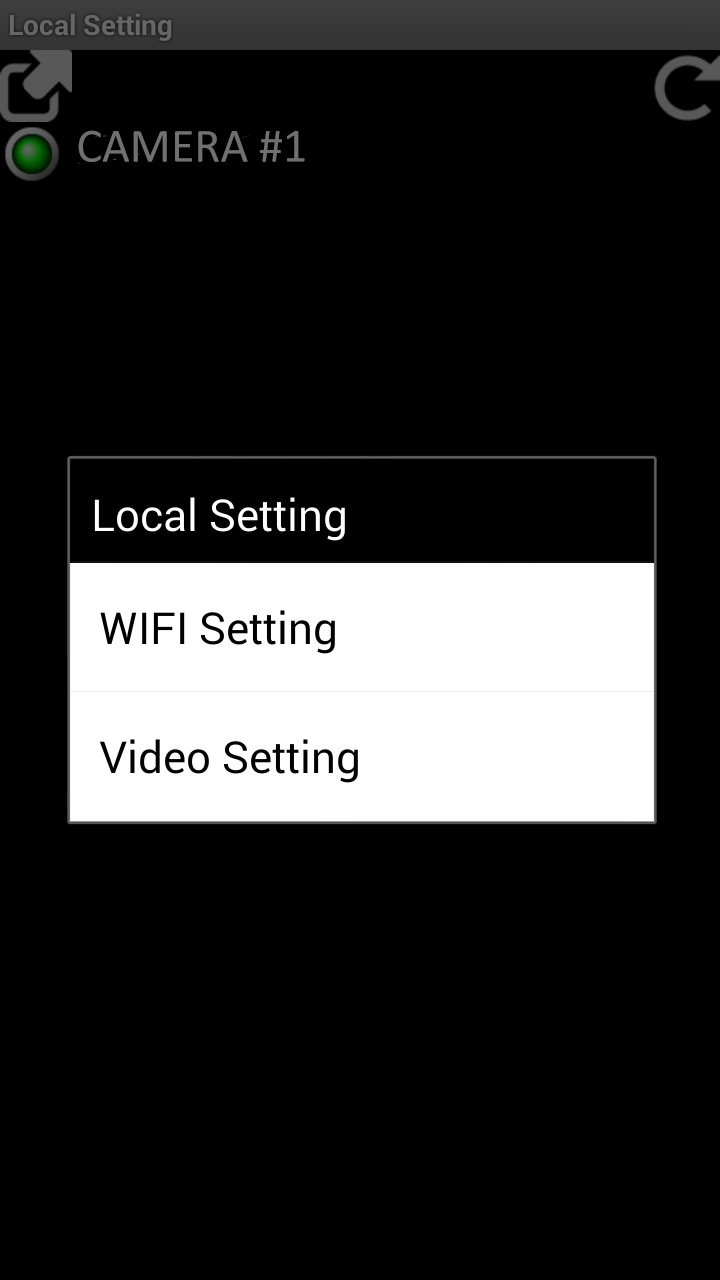
10 3D Select your camera from the list and then tap WiFi setting on the popup menu. iphone/ipad Android 9
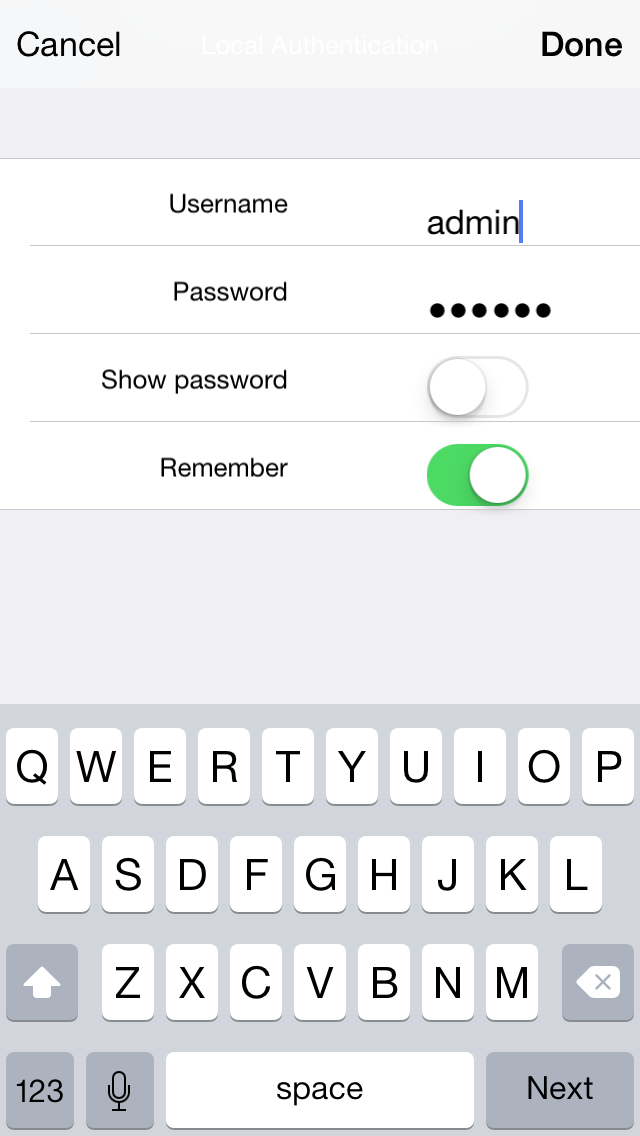
11 3E Enter your camera username (default is admin) and password (default is ), and then tap Done / OK. iphone/ipad Android If you want the password revealed on the screen, slide the Show Password switch to the right. If you want to keep your camera s credentials the next time you come to this screen, slide the Remember switch to the right. 10

12 3F Your camera scans for Wi-Fi networks your camera can detect and displays the names of those found. Tap your network name from the list of available networks. iphone/ipad Android 11
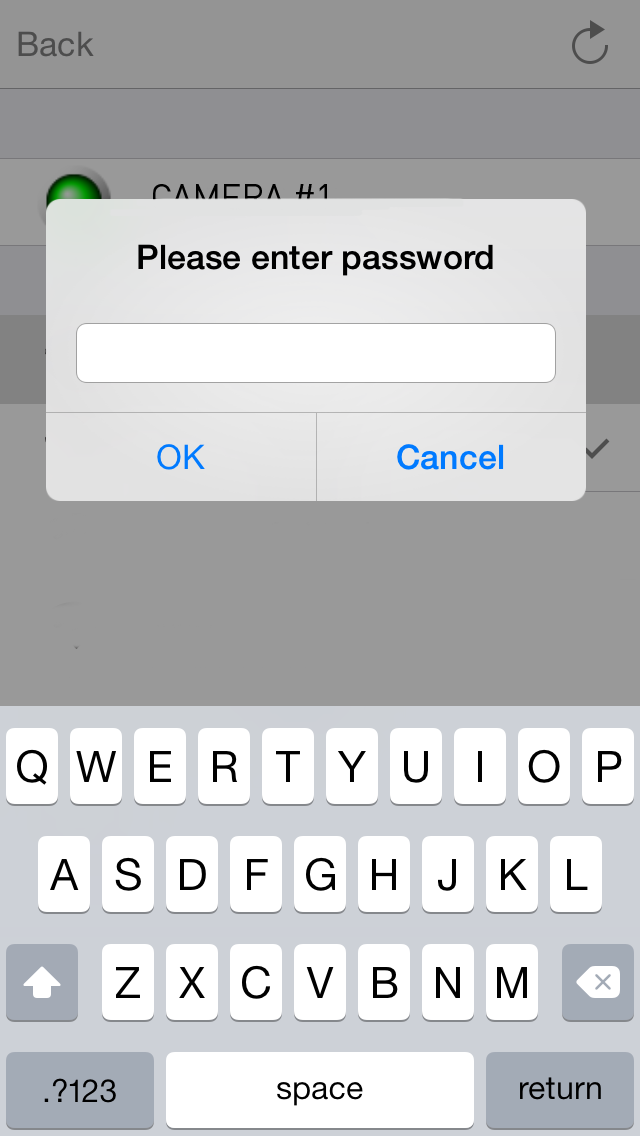
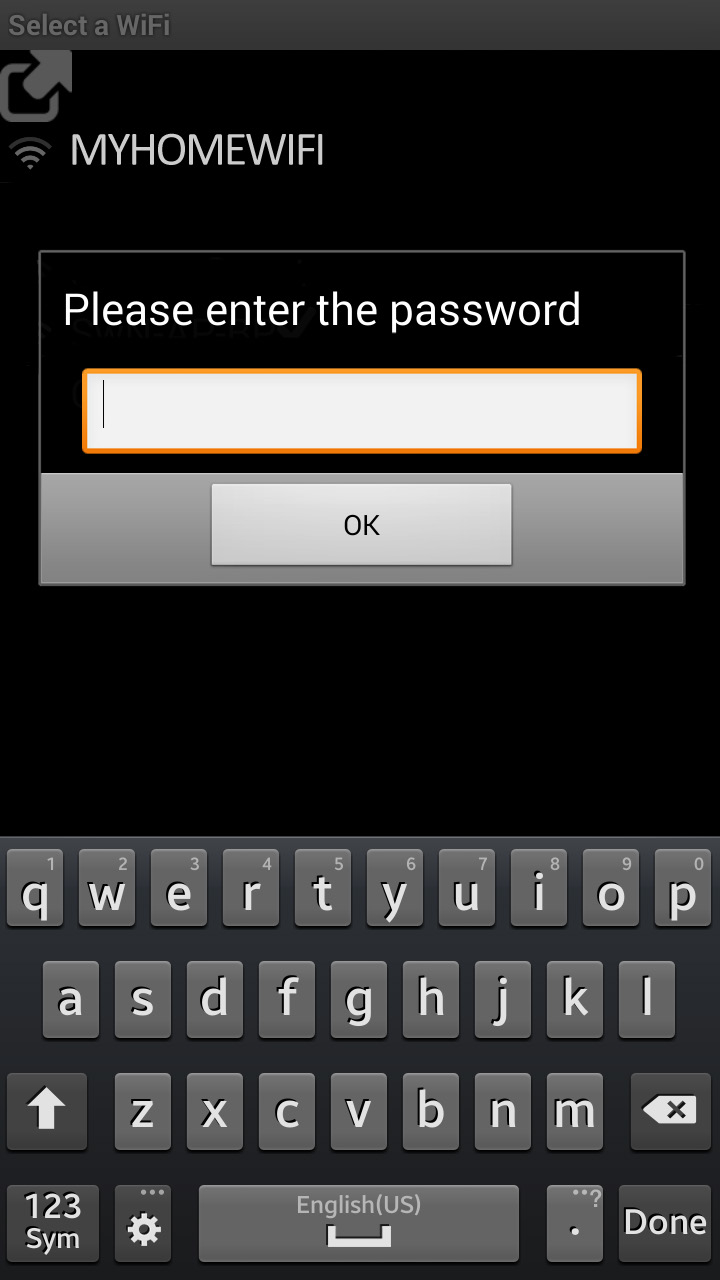
13 3G Enter the Wi-Fi password and then tap OK to save the Wi-Fi settings for your camera. Unplug the Ethernet cable. Before you can start watching your camera, you will need to register it - just tap Register on the Login screen and fill in the details. iphone/ipad Android Test if your camera is connected to your Wi-Fi network by restarting your camera (power off then on) and then repeating step 3C. Your Wi-Fi camera should appear in the list as per step 3D. 12

14 4 Securing your Live Video Stream If you re concerned about unauthorised access to your video stream, you can enable video encryption. Any user who wants to watch your encrypted video stream will require a password to gain access. We recommend using a password that is different to your SwannEye account. On the Login screen, tap Settings iphone/ipad, select your camera and then tap Video setting. Android Turn on Video Encryption. Enter a password. Before you can access live video on your mobile device, you will be prompted to enter this password. 13
15 5 Troubleshooting Q: On the SwannEye HD mobile app, I cannot access the Wi-Fi or video settings. A: For security purposes you only have access to the Wi-Fi and video settings if your mobile device is connected to the same Wi-Fi network as your SwannEye HD camera. This will not work if you are connected from a remote location. If you want to change settings your devices must be connected directly to the same network. Q: I have forgotten my SwannEye account password. A: Tap the Forgot Password button on your SwannEye HD mobile app and submit your SwannEye account username. We will retrieve your password and send it to your registered address. Q: I am unable to create an account for my camera through the SwannEye HD app. A: Have you already registered your camera through the SwannEye HD Pro on your computer? You can just use your existing SwannEye account username and password to log in through the SwannEye HD app on your mobile device. 14
16 Troubleshooting Q: How do I create a new SwannEye account for a camera that s already registered to another account? A: If you re trying to create a new account for a camera which has previously been registered with another account, you will first have to reset the account. Click on the Reset Account link either on the website or the SwannEye HD Pro software. Once you reset your account, you will not be able to use the previous account details to log in. Q: I have forgotten the username and password of the camera. A: The default username / password is admin / If you have changed the username and password to something different, you will need to reset the camera back to its default factory settings. To reset the camera, unplug the power adapter from the power socket then press and hold the Reset button while you reconnect the power adapter to the power socket. Release the Reset button after a few seconds and all settings will have been restored to factory default including passwords and any other custom settings. Q: I have signed into the SwannEye HD app but I can t get my camera to display. A: Assuming your camera is plugged into power, your camera could be experiencing network connectivity issues. Do the following: 15
17 Troubleshooting Check that you have entered the correct Wi-Fi password in step 3G Make sure your mobile device is connected to the same Wi-Fi network as your camera. Check the strength of your Wi-Fi network. Certain wireless products - specifically those that operate in the 2.4GHz range such as Bluetooth systems, baby monitors or cordless telephones, may cause interference with the camera. If possible, place the camera at least 5 meters away from these types of devices to improve reception between the router and the camera. If you are viewing your camera away from home, there could be an issue with your mobile device s internet data connection. Check if there is 3G or 4G network connection on your mobile device. (If you re on the EDGE mobile network, it ll be too slow to stream video from the camera). Try going to a website like via the Internet browser on your mobile device to check if the Internet works. If the problem persists, restart your camera by disconnecting and reconnecting the camera s power adapter and then sign into your SwannEye HD mobile app again to check if this fixes the problem. 16
18 6 Need Help? Swann Technical Support All Countries Telephone Helpdesk USA Toll Free USA Parts & Warranty (Option 1) (M-F, 9am-5pm US PT) AUSTRALIA NEW ZEALAND Toll Free UK
19 QSSWEYEHD050614E Swann Communications 2014
SwannSecure Monitoring System
 EN SwannSecure Monitoring System Wi-Fi Connections Quick Setup Guide Welcome! Lets get started. QWIFISS130814E Swann Communications 2014 1 INTRODUCTION 1 2 3 4 By default, the SwannSecure Monitoring System
SwannEye HD Plug & Play Wi-Fi Security Camera Quick Start Guide Welcome! Lets get started.
 EN SwannEye HD Plug & Play Wi-Fi Security Camera Quick Start Guide Welcome! Lets get started. QHADS453080414E Swann 2014 1 1 Introduction Congratulations on your purchase of this SwannEye HD Plug & Play
How to setup EW-7438RPn with a Windows computer to extend an existing Wi-Fi network
 2 How to setup EW-7438RPn with a Windows computer to extend an existing Wi-Fi network Note: 1. This instruction use pictures from EW-7438RPn firmware v1.13. 2. If you need to restore to the default settings,
SwannSecure Wi-Fi Monitoring System
 EN SwannSecure Wi-Fi Monitoring System Setup Wizard Quick Start Guide QW470KIT050115E Swann 2015 1 Welcome The Setup Wizard automatically launches the first time you turn on the Wi-Fi Monitor and walks
Quick Start Guide. Business Wireless Gateway. WiFi Devices. Model Number: DPC3939B. Business Wireless Gateway
 Business Wireless Gateway Model Number: DPC3939B Quick Start Guide WiFi Devices Business Wireless Gateway Set up your Private and Public WiFi networks About the Business Wireless Gateway Model Number:
WiFi DSL Modem Router
 Support Thank you for purchasing this NETGEAR product. After installing your device, locate the serial number on the label of your product and use it to register your product at https://my.netgear.com.
You may refer the Quick Installation Guide in the package box for more information.
 Hardware Installation: 1. Turn off your modem. 2. Use one Ethernet cable to connect your modem to WAN port (Blue) port of BR-6228nC. 3. Use another Ethernet cable to connect your PC to one LAN Port (Yellow)
FI8910W Quick Installation Guide. Indoor MJPEG Pan/Tilt Wireless IP Camera
 Model: FI8910W Quick Installation Guide (For Windows OS) (For MAC OS please go to page 17) Indoor MJPEG Pan/Tilt Wireless IP Camera Black White Package Contents IP Camera FI8910W with IR-Cut.x 1 DC Power
Experience Next-Generation WiFi
 Do More Experience Next-Generation WiFi Your new WiFi extender supports the 802.11ac networking standard. This new standard offers better speed, improved reliability, and more range than older WiFi networking
Quick Installation Guide
 Quick Installation Guide Cloud Camera, 300Mbps Wi-Fi 7106505077 REV1.0.3 NC200 Configuring the Camera Via Smartphone: 9V=0.6A ETHERNET 1 Connecting the camera Connect the camera to the network your smartphone
Quick Installation Guide
 Quick Installation Guide (For Windows & Mac OS) Outdoor Wireless IP Camera Package Contents V1.1 IP Camera Power Adapter Resource CD Ethernet Cable Mounting Bracket(except FI8919) Wi-Fi Antenna Quick Installation
What is Bitdefender BOX?
 Quick Setup Guide What is Bitdefender BOX? Think about Bitdefender BOX like an antivirus for your network. It s a hardware device that sits next to your Wi-Fi router and protects all Internet connected
Let s go. Get your Ultra Broadband ready modem up and running
 Let s go Get your Ultra Broadband ready modem up and running Contents TELECOM HOME MODEM ULTRA BROADBAND READY 1 2 3 4 5 6 7 8 9 10 11 12 13 14 15 16 Equipment Check 2 Getting Started 3 Setting Up Fibre
Frequently Asked Questions
 FAQs Frequently Asked Questions Connecting your Linksys router to the Internet 1 What computer operating systems does my Linksys router support? 1 Why can t I connect my computer or device to my router?
SwannEye HD INSTRUCTION MANUAL
 SwannEye HD INSTRUCTION MANUAL EN 1 Important Information FCC Verification This equipment has been tested and found to comply with the limits for Class B digital device, pursuant to part 15 of the FCC
Technical Support. Package Contents. D6300 WiFi ADSL Modem Router Installation Guide
 Technical Support Thank you for selecting NETGEAR products. After installing your device, locate the serial number on the label of your product and use it to register your product at NETGEAR.com/register.
Quick Installation Guide
 V2.01 Model: FI9821W Quick Installation Guide Indoor HD Pan/Tilt Wireless IP Camera Black White For Windows OS ------- Page 1 For MAC OS ------- Page 16 ShenZhen Foscam Intelligent Technology Co., Ltd
Quick Start. Nighthawk X8 AC5300 Tri-Band WiFi Router Model R8500. Package Contents. NETGEAR, Inc. 350 East Plumeria Drive San Jose, CA 95134 USA
 Support Thank you for purchasing this NETGEAR product. You can visit www.netgear.com/support to register your product, get help, access the latest downloads and user manuals, and join our community. We
AC750 WiFi Range Extender
 Model EX6100 User Manual April 2014 202-11307-03 350 East Plumeria Drive San Jose, CA 95134 USA Support Thank you for selecting NETGEAR products. After installing your device, locate the serial number
Introduction. Overview. Contents. Linksys AC1200 Max Wi-Fi Range Extender. Front
 User Guide RE6500 Linksys AC1200 Max Wi-Fi Range Extender Introduction This User Guide can help you connect the extender to your network and solve common setup issues. You can find more help from our award-winning,
Configuring the wireless security of your Linksys Wireless-N router through the web-based setup page
 Contents Configuring the wireless security of your Linksys Wireless-N router through the web-based setup page.. 2 Checking the Linksys router s wireless settings through the web-based setup page and adding
N750 WiFi DSL Modem Router Premium Edition
 Support Thank you for purchasing this NETGEAR product. After installing your device, locate the serial number on the label of your product and use it to register your product at https://my.netgear.com.
SocialPet TM System. Installation and Operations Guide
 1 SocialPet TM System Installation and Operations Guide Refer to the Quick Start Guide included with the system or read this entire guide before installation. Contents FCC COMPLIANCE... 4 CUSTOMER CARE...
N300 WiFi Range Extender
 Model EX2700 User Manual July 2014 202-11395-01 350 East Plumeria Drive San Jose, CA 95134 USA Support Thank you for selecting NETGEAR products. After installing your device, locate the serial number on
Homeguard Wireless Home Camera Quick Start Guide
 Homeguard Wireless Home Camera Quick Start Guide Congratulations on your purchase of this Homeguard Wireless Home Camera. This leaflet will guide you through setting up your camera for basic use with a
Ultra Dashcam. with Smartphone app control INSTRUCTION MANUAL
 Ultra Dashcam with Smartphone app control EN INSTRUCTION MANUAL 1 Getting to know the Dashcam GPS Receiver Slot 1 Camera Lens Micro HDMI Port 2 Speaker 1 For future application 2 Requires Micro HDMI to
Nighthawk AC1900 WiF Range Extender
 Nighthawk AC1900 WiF Range Extender Model EX7000 User Manual December 2014 202-11469-01 350 East Plumeria Drive San Jose, CA 95134 USA Nighthawk AC1900 WiF Range Extender Support Thank you for selecting
USER GUIDE AC2400. DUAL BAND GIGABIT Wi Fi ROUTER. Model# E8350
 USER GUIDE AC2400 DUAL BAND GIGABIT Wi Fi ROUTER Model# E8350 Table of Contents Product overview E8350..................................... 1 Setting Up Your E-Series Router Where to find more help.........................
Home Wi-Fi Gateway Instructions
 Home Wi-Fi Gateway Instructions 1. Connect the gateway. Use the coaxial cable provided by BendBroadband to connect the cable port (A) to your cable outlet. 2. Connect your computer to the cable modem gateway
If you are unable to set up your Linksys Router by using one of the above options, use the steps below to manually configure your router.
 This article describes how to manually configure a Linksys Router for broadband DSL that uses PPPoE (Point-to-Point Protocol over Ethernet) for authentication. For automatic configuration options, please
Quick Installation Guide
 V48.01 Model: FI8919W Quick Installation Guide Outdoor Pan/Tilt Wireless IP Camera For Windows OS ------- Page 1 For MAC OS ------- Page 15 ShenZhen Foscam Intelligent Technology Co., Ltd Quick Installation
Business Wireless Internet quick install guide
 Read me first Business Wireless Internet quick install guide Wi-Fi and email set-up instructions included Actiontec Wireless Gateway TELUS Internet account information Record your personal account information
TE100-P21/TEW-P21G Windows 7 Installation Instruction
 Hardware Installation TE100-P21/TEW-P21G Windows 7 Installation Instruction 1. Go to http://www.trendnet.com/downloads/ to download the Windows 7 Utility. Save the file to your desktop. 2. Right click
Installation. N300 WiFi Range Extender Model WN3100RP
 Installation N300 WiFi Range Extender Model WN3100RP Getting Started The NETGEAR WiFi Range Extender increases the distance of a WiFi network by boosting the existing WiFi signal and enhancing the overall
Assign a static IP address 192.168.1.100 for your computer. Please refer to the T3 in Troubleshooting guide if you need assistance.
 Assign a static IP address 192.168.1.100 for your computer. Please refer to the T3 in Troubleshooting guide if you need assistance. Connect to the Access Point with the Ethernet cable or via wireless.the
Setting Up Your Wireless Network
 Setting Up Your Wireless Network 1 TABLE OF CONTENTS Wireless Tips... 3 Terminology... 4 Motorola 2247... 5 Logging In:... 5 Changing the SSID/network name... 6 Westell Model 7500... 12 Configuration of
Networking. General networking. Networking overview. Common home network configurations. Wired network example. Wireless network examples
 Networking General networking Networking overview A network is a collection of devices such as computers, printers, Ethernet hubs, wireless access points, and routers connected together for communication
DRG700 Quick Installation Guide. This guide applies to all DRG700 models
 DRG700 Quick Installation Guide This guide applies to all DRG700 models Contents 1. DRG700 overview... 2. Installation... 3. Network setup... 4. Wireless setup... 5. Configuring your DRG700... 6. Troubleshooting...
Fibe Internet Connection Hub Reference Guide
 Fibe Internet Connection Hub Reference Guide FibeInternet_ConnectionHub_ReferenceGuide_Eng_V7 1 Bell Internet Service Agreement Use of the Bell Internet service is subject to the terms and conditions of
Internet and Email Help. Table of Contents:
 Internet and Email Help The following tips are provided to assist you in troubleshooting and managing your Plex Internet and email services. For additional issues or concerns, you may also call our Product
Support. Package Contents. D6200 WiFi DSL Modem Router Installation Guide
 Support Thank you for selecting NETGEAR products. After installing your device, locate the serial number on the label of your product and use it to register your product at https://my.netgear.com. You
Quick Reference Guide
 Welcome to BT Business Total Broadband Quick Reference Guide Read the information in this Quick Reference Guide to help you start using your new BT Business Total Broadband service powered by fibre. The
Question How do I access the router s web-based setup page? Answer
 http://linksys.custhelp.com/cgi-bin/linksys.cfg/php/enduser/std_adp.php?p_faqid=3676 Question How do I access the router s web-based setup page? Answer All Linksys routers have a built-in web-based setup
Quick Start Guide. Vonage VWR Device
 Quick Start Guide Vonage VWR Device Before you begin 1. If you purchased your Vonage Device from a retail store, you must first activate your Vonage phone service. (You will need to provide the MAC ID
Linksys WAP300N. User Guide
 User Guide Contents Contents Overview Package contents 1 Back view 1 Bottom view 2 How to expand your home network 3 What is a network? 3 How to expand your home network 3 Where to find more help 3 Operating
N300 WiFi Range Extender WN2000RPT User Manual
 N300 WiFi Range Extender WN2000RPT User Manual December 2013 202-11333-01 350 East Plumeria Drive San Jose, CA 95134 USA Support Thank you for selecting NETGEAR products. After installing your device,
LET S GO. Get your Ultra Broadband ready Business gateway up and running
 LET S GO Get your Ultra Broadband ready Business gateway up and running CONTENTS BUSINESS GATEWAY ULTRA BROADBAND READY 1 2 3 4 5 6 7 8 9 10 11 12 13 14 15 Equipment Check 2 Getting Started 3 Setting Up
Here s your guide to easy installation. Get the most out of Verizon High Speed Internet.
 Here s your guide to easy installation. Get the most out of Verizon High Speed Internet. Congratulations on choosing Verizon High Speed Internet. In this guide, you ll find everything you need to set up
If no telephone is needed, please connect the LINE port of the Modem Router to the wall jack using the telephone line directly.
 Note Please use only wired network connections to configure the Router. Power down all of your network devices, including your computer(s) and the Modem Router. If you currently use a modem, disconnect
This guide is intended to help you troubleshoot problems connecting a wireless device to the Gogo Biz network.
 This guide is intended to help you troubleshoot problems connecting a wireless device to the Gogo Biz network. TABLE OF CONTENTS Windows Operating System... 3 Blackberry... 5 Android... 6 Apple Macbook...
Installation. Note Please use only wired network connections to configure the router.
 Installation Note Please use only wired network connections to configure the router. Power down all your network devices, including your computer(s) and the Modem Router. If you currently use a modem,
SAS-IPCAM115 MANUAL IP CAMERA
 SAS-IPCAM115 MANUAL IP CAMERA Table of contents Introduction: Safety precautions: Packaging content: System requirements: Product description: User instructions: Maintenance: Warranty: Disclaimer: Disposal:
PLA4231. User s Guide. Quick Start Guide. 500 Mbps Powerline Wireless N Extender. Default Login Details. Version 1.00 Edition 1, 12/2012
 PLA4231 500 Mbps Powerline Wireless N Extender Version 1.00 Edition 1, 12/2012 Quick Start Guide User s Guide Default Login Details LAN IP Address http://192.168.1.2 Password 1234 www.zyxel.com Copyright
A quick Guide to your Super Hub 2ac
 A quick Guide to your Super Hub 2ac HELLO. W el c o m e t o t h i s h a n d y g u i d e t o y o u r n ew v i r g i n m e d i a b u s i n e s s b r o a d b a n d. What s inside Getting to know your Super
ALL0237R. Wireless N 300Mbit Access Point/Repeater. User s Manual
 ALL0237R Wireless N 300Mbit Access Point/Repeater User s Manual ALLNET ALL0237R User Manual Table of Contents About the Device... 3 Minimum System Requirements... 5 Package Contents... 5 Device Overview...
Installation Guide Wireless 4-Port USB Sharing Station. GUWIP204 Part No. M1172-a
 Installation Guide Wireless 4-Port USB Sharing Station 1 GUWIP204 Part No. M1172-a 2011 IOGEAR. All Rights Reserved. PKG-M1172-a IOGEAR, the IOGEAR logo, MiniView, VSE are trademarks or registered trademarks
Quick Reference Guide
 Welcome to BT Business Total Broadband Quick Reference Guide Follow the steps in this Quick Reference Guide to set up and start using your new BT Business Total Broadband service. The CD will help you
Hello Modem. Today I would like
 Quick Setup Guide Hello Modem. Today I would like to Start from scratch 1 Plug Modem in 3 Connect a computer to Modem 7 Learn how to view Modem settings 21 Change my wireless network name 22 Change my
EM6230 e-camview HD outdoor IP camera
 EM6230 e-camview HD outdoor IP camera 2 ENGLISH EM6230 e-camview HD outdoor IP camera Table of contents 1.0 Introduction... 3 1.1 Packing contents... 3 1.2 Requirements to access the camera.... 3 1.3 Major
How To Set up and Configure the WNA-100 Wireless Network Adapter
 How To Set up and Configure the WNA-100 Wireless Network Adapter Section 1: Set up and Connect the Adapter to a Computer, Then Configure the Computer to Communicate With the Adapter Before the adapter
User s manual for Android Application
 Motorised IP Video surveillance camera for smartphones, tablets and PC / MAC. Protect your home and family remotely! User s manual for Android Application Thanks We thank you for choosing Aquila Vizion.
Technical Support. Package Contents. CENTRIA WNDR4700/WNDR4720 Installation Guide
 Technical Support After installing your device, locate the serial number on the label of your product and use it to register your product at https://my.netgear.com. You must register your product before
Assign a static IP address 192.168.1.100 for your computer. Please refer to the T3 in Troubleshooting guide if you need assistance.
 Note The product model shown in this QIG is TL-WA701ND, as an example. Assign a static IP address 192.168.1.100 for your computer. Please refer to the T3 in Troubleshooting guide if you need assistance.
Thank you for purchasing the Mobile WiFi. This Mobile WiFi brings you a high speed wireless network connection.
 Quick Start Thank you for purchasing the Mobile WiFi. This Mobile WiFi brings you a high speed wireless network connection. This document will help you understand your Mobile WiFi so you can start using
N600 WiFi USB Adapter
 Model WNDA3100v3 User Manual December 2014 202-11470-01 350 East Plumeria Drive San Jose, CA 95134 USA Support Thank you for selecting NETGEAR products. After installing your device, locate the serial
DATA PROJECTOR XJ-A147/XJ-A247/XJ-A257 XJ-M146/XJ-M156 XJ-M246/XJ-M256. XJ-A Series. XJ-M Series. Network Function Guide
 DATA PROJECTOR EN XJ-A Series XJ-A147/XJ-A247/XJ-A257 XJ-M Series XJ-M146/XJ-M156 XJ-M246/XJ-M256 Network Function Guide In this manual, XJ-A Series and XJ-M Series refer only to the specific models listed
Thank you for purchasing the Mobile WiFi. This Mobile WiFi brings you a high speed wireless network connection.
 Quick Start Thank you for purchasing the Mobile WiFi. This Mobile WiFi brings you a high speed wireless network connection. This document will help you understand your Mobile WiFi so you can start using
INSTALLING YOUR MODEM
 1 INSTALLING YOUR NEW wireless MODEM Thank you for choosing Orcon In this box you ll find your new Orcon Wireless modem. Just follow the instructions below and you will soon be up and running with high
Installation Steps Follow these steps to install the network camera on your local network (LAN):
 1. Description The Network Camera supports the network service for a sensor image with progressive scan, which can be monitored on a real-time screen regardless of distances and locations. By using its
Business Broadband Kit Quick Installation Guide
 Business Broadband Kit Quick Installation Guide Business Broadband Kit Quick Installation Guide 1 Thank you for choosing the Business Broadband Kit from Telecom New Zealand. Our new broadband is designed
Wightman Telecom Wireless Router Quick Reference Booklet
 Wightman Telecom Wireless Router Quick Reference Booklet Thank you for choosing Wightman Internet. The information in this booklet will guide you through the process of connecting to the internet with
Software and Settings Instructions
 SoelTech Automation Inc. Software and Settings Instructions Select the blue disclosure button that is associated with the network name you want to connect the Mobile GDO to (Blue >). It would normally
Live Streaming Camera GV-LS2 / GV-LS1. Connection Guide. Other information can be found in the Reference Manual.
 C2N LYT2644-002A 0513YHM-YH-OT Live Streaming Camera GV-LS2 / GV-LS1 Connection Guide This PDF will give you the steps in order to connect the Live Streaming Camera to your network and digital devices.
Powerwifi USB Router in combination with the Powerwifi USB outdoor antenna
 INSTALLATION MANUAL Powerwifi USB Router in combination with the Powerwifi USB outdoor antenna INTRODUCTION The Powerwifi USB Router can be used together with the Powerwifi USB outdoor antenna. This creates
How to convert a wireless router to be a wireless. access point
 How to convert a wireless router to be a wireless access point Thanks for purchasing Edimax Wireless Router. This instruction can be applied if you want to keep your wired router and you need Edimax Wireless
Installation. The product model shown in this QIG is TD-W8961ND, as an example.
 Installation The product model shown in this QIG is TD-W8961ND, as an example. Please use only wired network connections to configure the router. Power down all your network devices, including your computer(s)
Easy Start Guide. Version 1.0 DSL8800GR(S) WIRELESS-N DUALBAND CONCURRENT GIGABIT ROUTER WITH BUILT-IN ADSL2+ MODEM
 Easy Start Guide Version 1.0 DSL8800GR(S) WIRELESS-N DUALBAND CONCURRENT GIGABIT ROUTER WITH BUILT-IN ADSL2+ MODEM Contents SECTION 1: Package Contents SECTION 2: Setting Up your Device Setup for ADSL
Quick Start Guide. Vonage Device Motorola VT2142
 Quick Start Guide Vonage Device Motorola VT2142 Before you begin 1. If you purchased your Vonage Device from a retail store, you must first activate your Vonage phone service. (You will need to provide
AC750 WiF Range Extender
 Model EX3700 User Manual May 2015 202-11487-01 350 East Plumeria Drive San Jose, CA 95134 USA Support Thank you for selecting NETGEAR products. After installing your device, locate the serial number on
AC1200 WiFi Range Extender
 Model EX6200 User Manual February 2014 202-11298-01 350 East Plumeria Drive San Jose, CA 95134 USA Support Thank you for selecting NETGEAR products. After installing your device, locate the serial number
ADSL2+ BROABDAND INTERNET
 ADSL2+ BROABDAND INTERNET Your modem comes pre-configured, so simply plug it in as per the instructions received with the modem and it should be working. A diagram of what a typical set up might look like
How To Connect To A Wireless Network On Your Computer (Wired) Or Ipv) On A Computer (Wireless) On Your Ipv Or Ipa (Wired Or Wireless) On An Ipv (Wired/Wired) On Pc Or Mac
 HI-SPEED INTERNET USER GUIDE Wireless Modem Router - 2704R 2013-11 VERSION 1-800-360-8555 TABLE OF CONTENTS 1. Installing Your Wireless Modem Router...4 1.1 Hardware Provided...4 1.2 Connecting Your Modem
Wireless Router Setup Manual
 Wireless Router Setup Manual NETGEAR, Inc. 4500 Great America Parkway Santa Clara, CA 95054 USA 208-10082-02 2006-04 2006 by NETGEAR, Inc. All rights reserved. Trademarks NETGEAR is a trademark of Netgear,
BT Business Total Broadband Fibre User Guide
 BT Business Total Broadband Fibre User Guide Fibre Contents Learn about 4 Your Fibre Hub and BT Business Total Broadband Fibre service. Extra features 7 Setting up extra features once you re online security,
High-Speed Internet Quick Start Guide
 High-Speed Internet Quick Start Guide Connect Your World. NEED HELP? Call 1.800.239.4430 or visit Frontier.com/HelpCenter Contents PART #1: Wi-Fi Router Setup... 4 PART #2: Configure Wi-Fi Router... 8
Thank you for purchasing the Mobile WiFi. This Mobile WiFi brings you a high speed wireless network connection.
 Quick Start Thank you for purchasing the Mobile WiFi. This Mobile WiFi brings you a high speed wireless network connection. This document will help you understand your Mobile WiFi so you can start using
Designing AirPort Extreme Networks
 Designing AirPort Extreme Networks Contents 1 Getting Started 5 About AirPort 5 How AirPort Works 6 How Wireless Internet Access Is Provided 6 Configuring AirPort Extreme Base Station Internet Access
AC1900, N900, and N450 WiFi Cable Data Gateways
 AC1900, N900, and N450 WiFi Cable Data Gateways Models C6300BD, CG4500BD, and CG3000Dv2 User Manual March 2015 202-11434-03 350 East Plumeria Drive San Jose, CA 95134 USA Support Thank you for selecting
AC1200 Smart WiFi Router
 Trademarks NETGEAR, the NETGEAR logo, and Connect with Innovation are trademarks and/or registered trademarks of NETGEAR, Inc. and/or its subsidiaries in the United States and/or other countries. Information
H.264 Quick Start Guide
 Version 1.0 the world in my eyes R H.264 Quick Start Guide Contents Hardware Connection 2 ios View 2 Android View 5 PC View 8 Last, but not least 11 NOTE: Certain functions, appearance or structure mentioned
How to setup CV-7428nS Wi-Fi Ethernet Bridge on a Windows PC
 How to setup CV-7428nS Wi-Fi Ethernet Bridge on a Windows PC CV-7428nS is a WiFi bridge which catches your home network s WiFi signal and converts it to Ethernet ports. Plug your Ethernet devices like
wireless broadband information
 wireless broadband information what is wireless? contents When we talk about a Wireless connection we are referring to the way you connect your PC or laptop to your router. Wireless broadband, also known
Please use only wired network connections to configure the Router.
 Note Please use only wired network connections to configure the Router. Power down all of your network devices, including your computer(s) and the Modem Router. If you currently use a modem, disconnect
Using your ios device, open the App Store, Search for, download and install the WeMo App.
 Setting up WeMo is incredibly simple. All you need is: Your WeMo Switch and WeMo Motion An appliance you'd like to control iphone, ipod Touch or ipad Wi-Fi Router Using your ios device, open the App Store,
Support Package Contents AC1600 WiFi VDSL/ADSL Ethernet cable Trademarks Modem Router Compliance Phone cable Modem router
 Support Thank you for purchasing this NETGEAR product. After installing your device, locate the serial number on the label of your product and use it to register your product at https://my.netgear.com.
GETTING TO KNOW YOUR TELSTRA PRE-PAID 3G WI-FI
 GETTING TO KNOW YOUR TELSTRA PRE-PAID 3G WI-FI LET S GET THIS SHOW ON THE ROAD You must be excited about your brand new Telstra Pre-Paid 3G Wi-Fi. This guide will help you get connected as quickly and
125 8880 telstra.com/ppmbb visit a telstra store or partner GETTING TO KNOW YOUR
 FOR MORE INFORMATIoN: 125 8880 telstra.com/ppmbb visit a telstra store or partner GETTING TO KNOW YOUR Telstra PRE-paid 4G wi-fi LET S GET THIS SHOW ON THE ROad WHAT S INSIDE Your Telstra Pre-Paid 4G Wi-Fi
Quick Installation Guide DIR-620. Multifunction Wireless Router Supporting GSM, CDMA, WiMAX with Built-in 4-port Switch
 DIR-620 Multifunction Wireless Router Supporting GSM, CDMA, WiMAX with Built-in 4-port Switch BEFORE YOU BEGIN Delivery Package Multifunction wireless router DIR-620 Power adapter DC 5V/2.5A Ethernet cable
IN THIS GUIDE YOU WILL LEARN HOW TO GET YOUR WIFI CABLE MODEM GOING IN NO TIME
 IN THIS GUIDE YOU WILL LEARN HOW TO GET YOUR WIFI CABLE MODEM GOING IN NO TIME THE INCREDIBLY EASY GUIDE TO SETTING UP YOUR CG3000 WIFI CABLE MODEM A MAKE SURE YOU HAVE THESE BITS AND BOBS HANDY Your new
MANUAL IP Baby and Child Monitor
 KN-BM60 MANUAL IP Baby and Child Monitor Table of contents Introduction 2 Safety precautions 2 Packaging content 2 System requirements 2 Product description 3 User instructions 3 Maintenance 23 Warranty