
OM2260VW2 USER MANUAL VERIZON WIRELESS HOME PHONE CONNECT
|
|
|
- Philip Lynch
- 10 years ago
- Views:
Transcription
1 OM2260VW2 USER MANUAL VERIZON WIRELESS HOME PHONE CONNECT

2 Welcome to Verizon Wireless Thank you for choosing Verizon Wireless Home Phone Connect. You re now connected to the power of America s most reliable wireless network. This guide will help you understand your new wireless device and all the things you can do with it. So let s get started.
3 Contents 1 Introduction... 1 Package Contents... 1 Top View... 2 Bottom View Installation... 4 Installing the Battery... 4 Installing the Antenna... 5 Installing the Power Adapter... 5 Connecting the Device to a Telephone... 6 Mounting the Device General Functions... 8 Powering on the Device... 8 Activating the Device... 8 Understanding the Indicators... 9 Making Calls... 9 Making a 3-Way Call...10 Receiving Calls...10 Using Voice Mail...11 Important Facts About Your Home Phone Connect...11 Assistive Communication Devices Troubleshooting...13
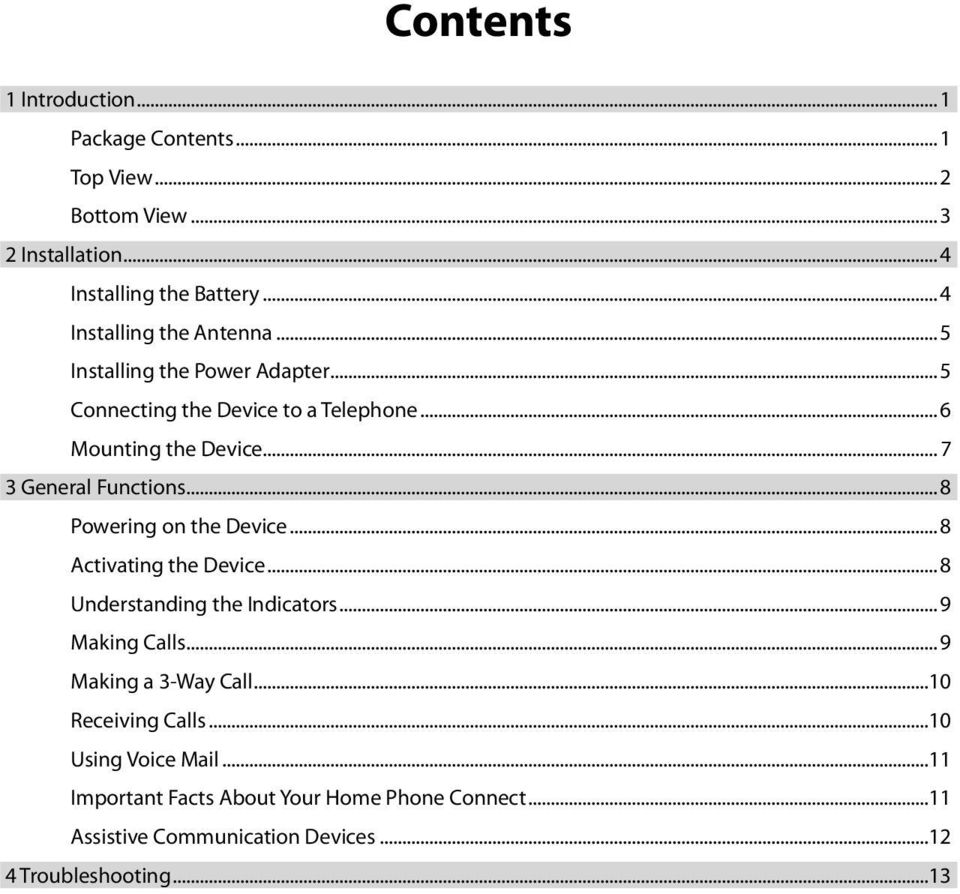
4 1 Introduction Package Contents The package should contain the following items. Please contact Verizon Wireless if any of the items are missing or damaged. Verizon Wireless Home Phone Connect Antenna Battery User Manual Quick Reference Guide Product Safety and Warranty Information Power Adapter User Manual Quick Reference Guide Product Safety and Warranty Information 1
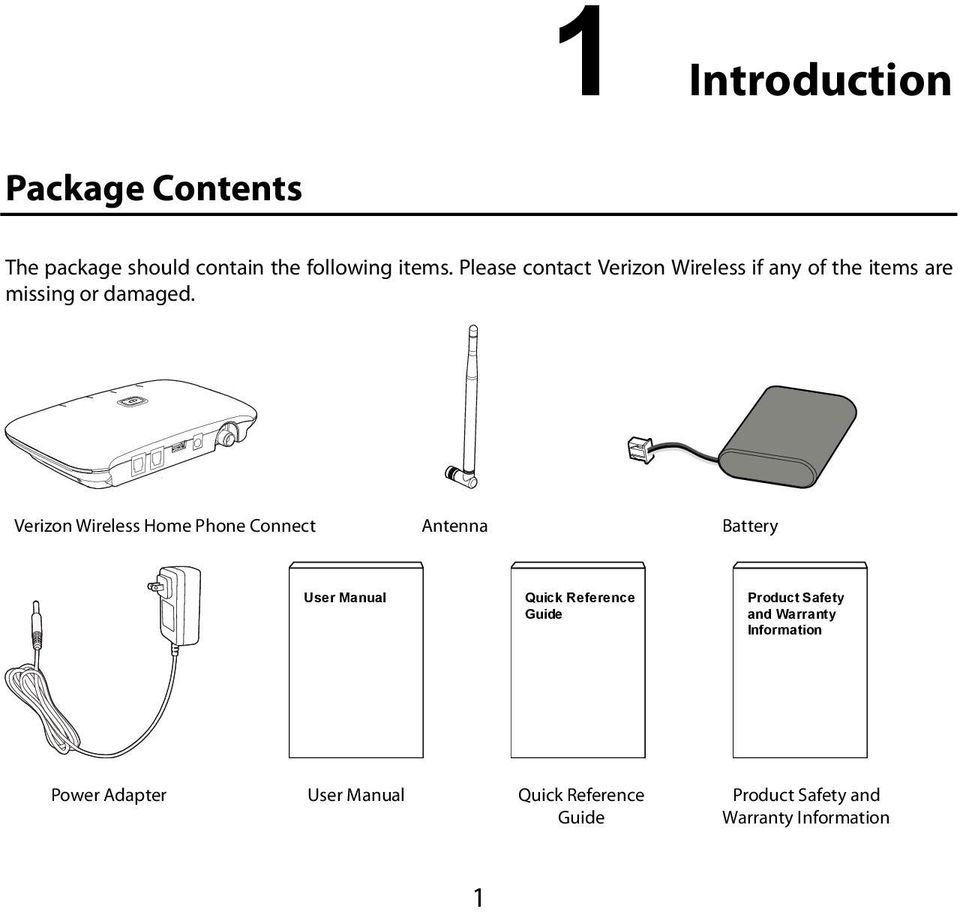
5 Top View Note: The figures are only for your reference, the actual shape and color of the product may differ slightly Power on/off switch 6 Antenna port 2 Telephone port 1 7 Signal strength indicators 3 Telephone port 2 8 Battery indicator 4 USB port* 9 Power indicator 5 DC 12V power port 10 Voice mail indicator * Note: Never place a USB-based device into the USB port of the Home Phone Connect under any circumstances. Doing so may damage the device and negate its warranty. The port was designed for diagnostic purposes only; it is not intended for customer use. 2
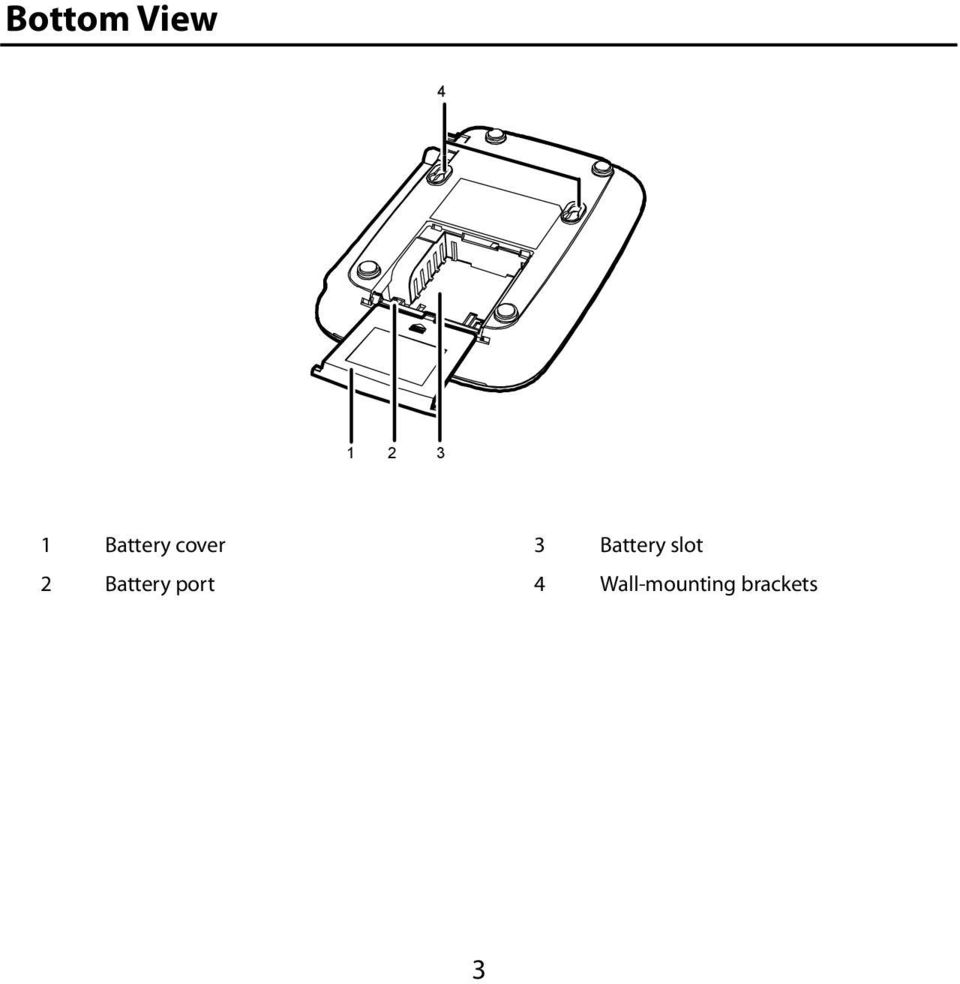
6 Bottom View Battery cover 3 Battery slot 2 Battery port 4 Wall-mounting brackets 3
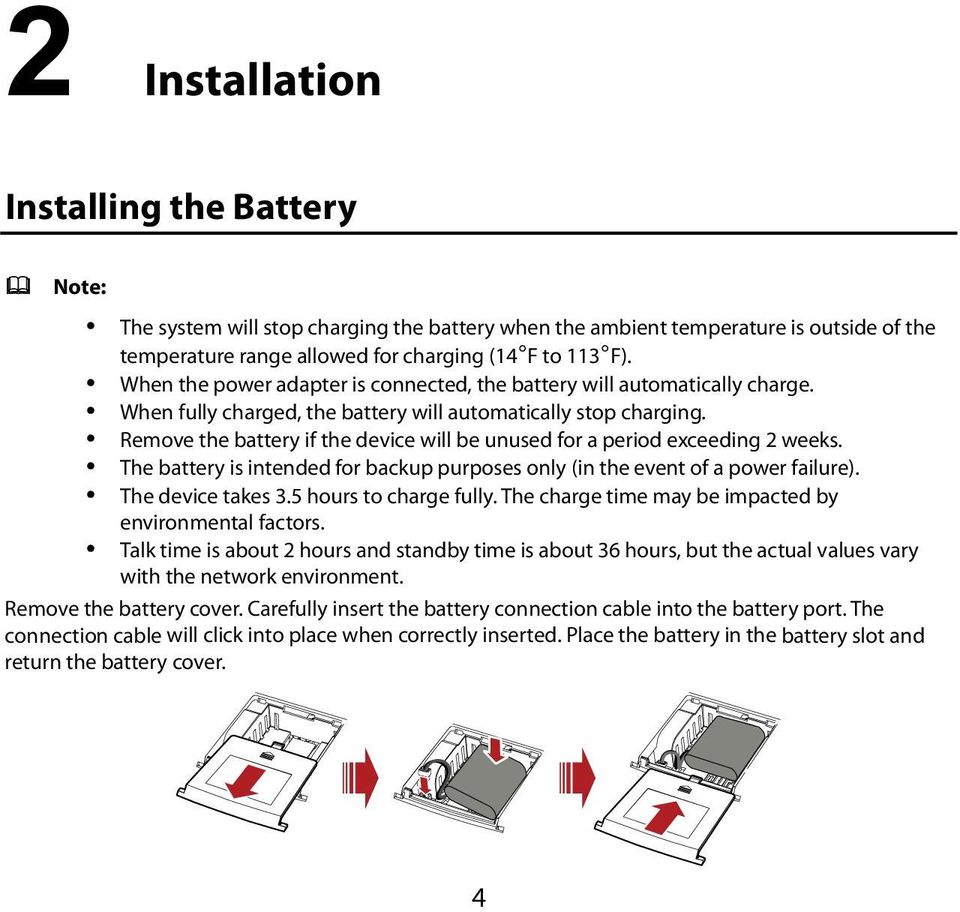
7 2 Installation Installing the Battery Note: The system will stop charging the battery when the ambient temperature is outside of the temperature range allowed for charging (14 F to 113 F). When the power adapter is connected, the battery will automatically charge. When fully charged, the battery will automatically stop charging. Remove the battery if the device will be unused for a period exceeding 2 weeks. The battery is intended for backup purposes only (in the event of a power failure). The device takes 3.5 hours to charge fully. The charge time may be impacted by environmental factors. Talk time is about 2 hours and standby time is about 36 hours, but the actual values vary with the network environment. Remove the battery cover. Carefully insert the battery connection cable into the battery port. The connection cable will click into place when correctly inserted. Place the battery in the battery slot and return the battery cover. 4
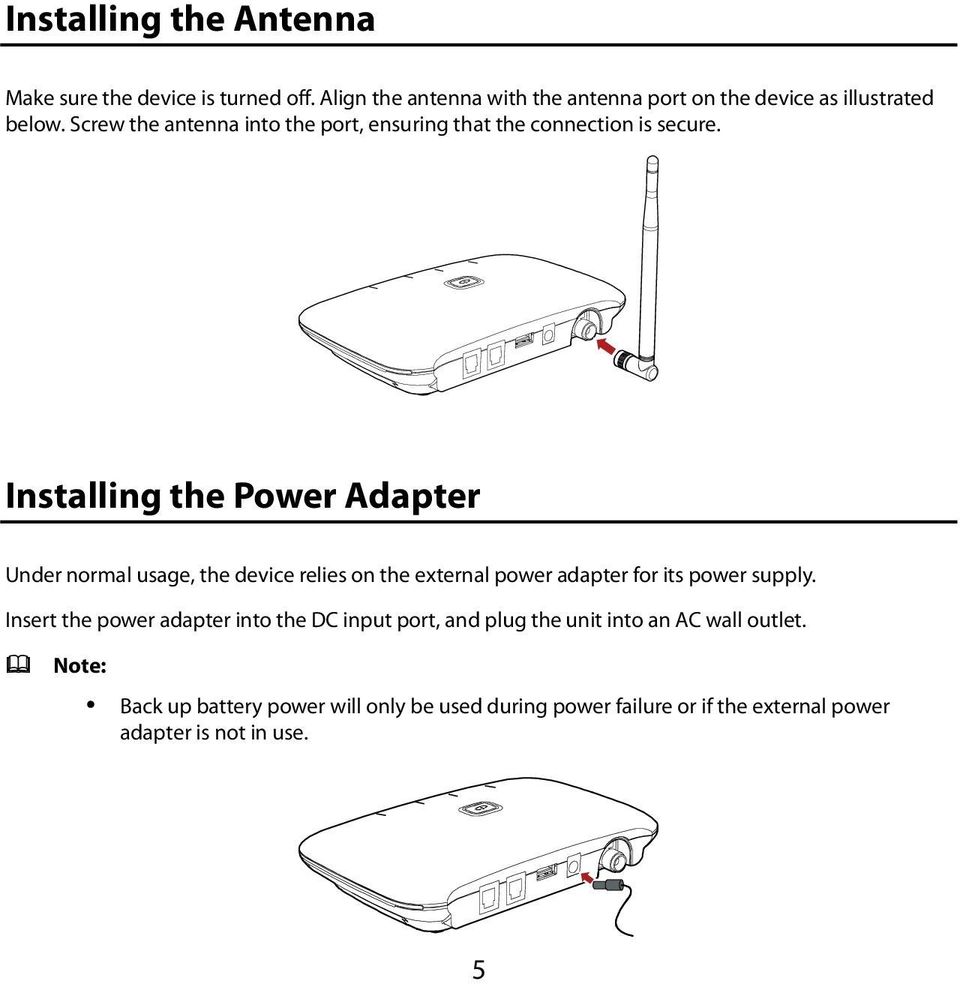
8 Installing the Antenna Make sure the device is turned off. Align the antenna with the antenna port on the device as illustrated below. Screw the antenna into the port, ensuring that the connection is secure. Installing the Power Adapter Under normal usage, the device relies on the external power adapter for its power supply. Insert the power adapter into the DC input port, and plug the unit into an AC wall outlet. Note: Back up battery power will only be used during power failure or if the external power adapter is not in use. 5
9 Connecting the Device to a Telephone The device provides two telephone ports. The ports use the same telephone number. Plug one end of a telephone cable (RJ11) into a telephone port and the other end into the back of a home telephone or home telephone base unit. Do not plug Home Phone Connect into your telephone wall jack. This configuration is not supported unless you have taken steps to disconnect the landline wires coming into your home. Note: The telephone cable is not included. The device and telephone cable are for indoor use only. Only corded telephones connected directly to the Home Phone Connect will receive service. If the Home Phone Connect is connected to a cordless phone base station, any extension phones compatible with that base station will also receive service. 6

10 Mounting the Device Horizontal Mounting Place the device on a smooth surface with good ventilation. Place it at least 4 inches away from other objects. Vertical Mounting Fix two wall screws into the wall with the screw heads extending approximately 0.1 inches from the surface of the wall. The diameter of a screw head should be between 0.22 inches and 0.28 inches. The distance between two screws should be 3 inches. Align the mounting brackets with the screws, push the device towards the wall, and connect the brackets with the screws ensuring that the device is stable. 7

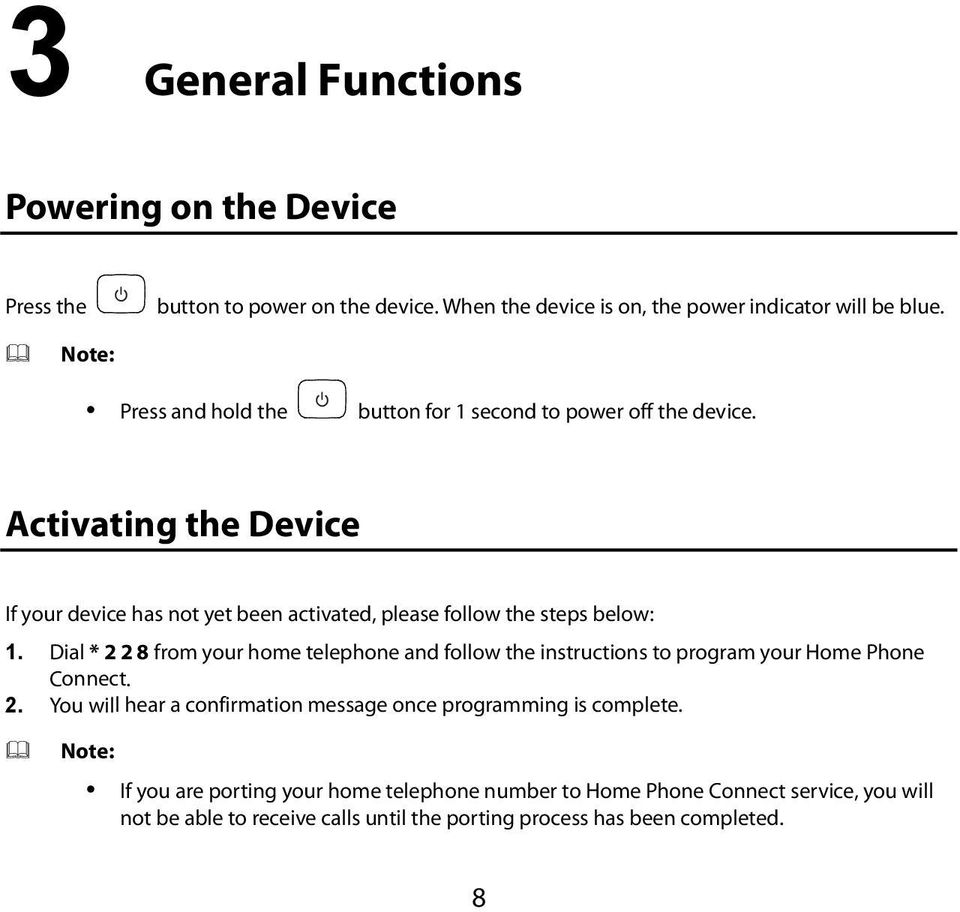
11 3 General Functions Powering on the Device Press t he button to pow er on the device. When the device is on, the power indicator will be blue. No te: Press and hold the button for 1 second to power off the device. Activating the Device If your device has not yet been activated, please follow the steps below: 1. Dial * from your home telephone and follow the instructions to program your Home Phone C onnect. 2. You will hear a confirmation message once programming is complete. Note: If you are porting your home telephone number to Home Phone Connect service, you will not be able to receive calls until the porting process has been completed. 8
12 Understanding the Indicators The table below describes possible states for each of the device indicators. Icon Indicator Status Voice mail Blinking Blue New Message Blue Full Charge Battery Blinking Blue Partial Charge Blinking Red Low Charge Both Blue Strong Signal Strength One Blue Moderate One Blinking Blue Weak Power Blue The device is on Making Calls 1. Before making a call, make sure at least one signal strength indicator ( ) is lit up (or blinking). 2. Place a call by entering the desired telephone number. The number will be dialed automatically. 3. When your call is complete, hang up or return the phone to the receiver to ensure that you can receive calls. 9

13 Making a 3-Way Call You can talk with two parties at the same time by using the 3-way call feature on your Home Phone Connect. Airtime and other charges, which may include toll or long distance charges will apply for all simultaneous calls. Not available in some areas. 1. While on the first call, dial the 10-digit number of the second party. 2. Press FLASH; the first party is automatically put on hold while the call is made. 3. When the 2nd party answers, press FLASH to initiate the 3-way call. 4. If the second party does not answer, press the FLASH key twice to end the connection and return to the first party. 5. To end both conversations, press the FLASH key. Note: 3-Way Calling is an included feature that is typically added to your account when you first activate service. If you wish to confirm you have this feature, sign in to My Verizon to view the calling features available on your account. Receiving Calls Lift the handset or press "talk" to answer an incoming call. Note: While the Home Phone Connect adapter has a backup battery, if the landline device requires external power to operate, service (including the ability to make and receive 911 calls) will not be available during a power outage. 10
14 Using Voice Mail 1. The voice mail indicator ( ) will blink blue to indicate that you have one or more unheard voice mail messages. 2. Dial * 8 6 to access your voice mail. 3. Follow the system prompts to listen to and manage your voice mails. Note: Please refer to the Troubleshooting section for additional details on accessing voice mail, or if you would like to use a home telephone answering machine as your preferred method to manage your voice mail messages. Important Facts About Your Home Phone Connect Dialing Your Verizon Wireless Home Phone Connect requires 10-digit dialing. Please dial the three digit Area Code when calling local and long distance numbers. Your Verizon Wireless Home Phone Connect does not support rotary or pulse dialing phones. Call Forwarding Verizon Wireless Home Phone Connect allows customers to forward calls to another phone number, including your mobile phone or office number. Your home phone will not ring until you deactivate the service. Airtime applies to forwarded calls even if you send the call to wire line telephones. When forwarding calls to phone numbers outside your local calling area, you will be billed for any toll, long distance and airtime charges incurred. Additional per-minute charges may apply to all forwarded calls. This feature is also known as Immediate Call Forwarding. 11
15 To Activate Call Forwarding: 1. Dial * Immediately enter the phone number where you want calls to be forwarded (e.g. * ). 3. You will hear a confirmation tone. 4. Hang up your home phone or return the phone receiver to its base. To Deactivate Call Forwarding: 1. Dial * You will hear a confirmation tone. 3. Hang up your home phone or return the phone receiver to its base. Fax Machine Compatibility Your Verizon Wireless Home Phone Connect does not support incoming or outgoing fax service. Home Security Systems Your Verizon Wireless Home Phone Connect may not be compatible with certain Home Security systems. Please check with your security system provider to confirm the compatibility requirements of your Home Security system. Assistive Communication Devices TTY (Text Telephony) and TDD (Telecommunications Device for the Deaf) allow individuals who are deaf, hard of hearing, or have speech or language disabilities to communicate by telephone. When a user types his or her conversation on a TTY keyboard, it is transmitted as tones through the telephone. Tones are received by the other person s TTY, translated into text and displayed on the screen. In order to use the TTY network, you must have a TTY-compatible phone and be in the TTY mode to place or receive calls. Note that most digital wireless devices are TTY-compatible. 12
16 I am not getting a dial tone on my handset. 4 Troubleshooting 1. Ensure that the power adaptor is properly connected (refer to page 5 of the User Manual) and that the power indicator is illuminated (refer to page 9 of the User Manual). 2. Check to make sure the telephone cable is securely plugged in (refer to page 6 of the User Manual). 3. Check to make sure you are not roaming outside of the Verizon Wireless network. How do I check my voice messages? Dial * 8 6 to access your voice mail messages. Refer to page 11 of the User Manual for additional details. Can I create a shortcut to access my voice mail? The availability of a shortcut feature to access voice mail messages depends solely on the capabilities of the corded or cordless phone that you use with Home Phone Connect. Please refer to the user material that came with your phone. If your home phone does not support a shortcut feature to access voice messages, you may have the option to save your voice mail number into the address book on the handset and assign that number to the #1 speed dial position on your phone's keypad. Remember, you can always dial * 8 6 to access your voice mail. 13
17 Can I use my telephone answering device instead of voice mail? Yes. Set the answering device to fewer rings in order to pick up the call before Verizon Wireless voice mail. Alternatively, turn off your home answering machine or increase the number of rings if you would like to use the Verizon Wireless voice mail service. Please refer to the user material provided by the Home Answering Machine manufacturer for instructions. Does 911 work on this device? Yes, but since the Home Phone Connect Adaptor is designed for an indoor environment, please be prepared to provide your location inside the premises to public service personnel. The GPS chipset embedded in this device will work best if the device is located near a window or other opening. Does this product work during a power outage? While the Home Phone Connect Adaptor has a backup battery, if the landline device requires external power to operate, service (including the ability to make and receive 911 calls) will not be available during a power outage. Service will only be available during a power outage if the home telephone connected to the device does not rely on external power to operate (as is the case with many corded phones). How long is the battery life of Home Phone Connect? Talk time is about 2 hours and standby time is about 36 hours, but the actual values vary with the network environment. How does Caller ID (CID) work? Caller ID works the same way it does on your Verizon Wireless Mobile Phone. CID allows you to see the caller's phone number before you take the call. CID may display the number of the person calling you (for all unblocked numbers). It may also display the name of the person if you've stored it in your phone's memory. 14

18 My Caller ID does not display the name of the incoming caller. The Home Phone Connect service is not currently compatible with calling name delivery. Caller name information will be displayed if the incoming caller's contact information is saved in your home phone address book. The volume is too loud. You can adjust the volume using your telephone connected to the Home Phone Connect device. Four volume levels are available, with level 1 being the softest and level 4 the loudest. The default setting is level Take the phone off the hook so you can hear the dial tone and verify that telephone service is available. 2. Press # # 1 to adjust the volume. 3. Press keys 1 to 4 to select the desired volume. 4. After selecting the desired volume, press the * key to save it. If you hear a single confirmation tone, you have successfully set the volume level. Note: If you hear a double tone you have pressed an incorrect key. The system will return to the off-hook state, and you can try adjusting the volume again when you hear the dial tone. How to set the TTY mode? Enter the keys # # 5 6 * n # to set the TTY mode. n=0: TTY off mode. The standard voice speaking mode and the listening mode. This is the default setting. n=1: TTY full mode. Transmit and receive the TTY characters. n=2: VCO mode. Receive TTY characters but transmit by speaking into the speaker. n=3: HCO mode. Transmit TTY characters but receive by listening to the receiver. Version: V100R001_03 15 Part Number: 31010DJH
19

User Guide VERIZON WIRELESS HOME PHONE CONNECT
 User Guide VERIZON WIRELESS HOME PHONE CONNECT label Welcome to Verizon Wireless Thank you for choosing Verizon Wireless Home Phone Connect. You re now connected to America s most reliable wireless network.
How To Use A U.S. Cell Phone At Home
 U.S. Cellular Home Phone 1 Contents Getting to Know Your Device...5 Appearance... 5 LED Indicators... 6 Device Installation...7 Before You Begin... 7 Installing the Battery... 7 Installing the Power Adapter...
Sprint Phone Connect 2 User Guide
 Sprint Phone Connect 2 User Guide 2012 Sprint. Sprint and the logo are trademarks of Sprint. Other marks are trademarks of their respective owners. Table of Contents Introduction... 1 Package Contents...
ZTE WIRELESS HOME PHONE BASE USER GUIDE
 ZTE WIRELESS HOME PHONE BASE USER GUIDE INTRODUCTION HOW IT WORKS Thank you for choosing Consumer Cellular! We know you re excited to use your new Wireless Home Phone Base and this short guide will help
User Guide. AT&T Wireless Home Phone Base
 User Guide AT&T Wireless Home Phone Base Wireless Home Phone ( WHP ) is a mobile device designed to provide service consistent with other AT&T wireless devices. 9 11 calls are routed based on the wireless
Features Phone Access... 1. Features Web Access... 3. emta Quick Reference Guide...14. Troubleshooting...15. Quick Reference Guide...
 Phone TABLE OF CONTENTS Features Phone Access... 1 Features Web Access... 3 emta Quick Reference Guide...14 Troubleshooting...15 Quick Reference Guide...16 Features Phone Access Caller ID Feature that
Wireless Home Phone Base. A Guide to Your Service and Device
 Wireless Home Phone Base A Guide to Your Service and Device 2 TABLE OF CONTENTS Introduction 3 About Your Service 4 7 About Your Device 8 9 Device Installation 10 13 How It Works 14 15 Voicemail 16 Using
User Guide. AT&T Wireless Home Phone Base
 User Guide AT&T Wireless Home Phone Base Not compatible with home security systems, wireless messaging and data services, fax service, DVR/Satellite systems, or medical alert systems, credit card machines,
User Guide AT&T Wireless Home Phone and Internet. AT&T Home Base
 User Guide AT&T Wireless Home Phone and Internet AT&T Home Base Welcome to AT&T Thank you for purchasing the AT&T Home Base. To get the most from your new device, check out our videos and interactive tutorials
WF720 Wireless Home Phone User Manual
 WF720 Wireless Home Phone User Manual Content Getting to Know Your Device... 3 Appearance...3 LED Indicator...4 Device Installation... 5 Before You Begin...5 Installing the SIM Card and the Battery...5
Digital Phone Installation & User Guide
 Digital Phone Installation & User Guide Telephone #1 Voicemail PIN Telephone #2 Voicemail PIN skybeam high speed internet digital phone We would like you to verify that the 911 address we have for you
Four-Line Intercom Speakerphone 955
 1 USER S Revised: August 3, 2000 MANUAL Part 2 Four-Line Intercom Speakerphone 955 2000 Advanced American Telephones. All rights reserved. Printed in Indonesia. 850004037 Issue 1AT&T 8/00 Please also read
Get to Know Your Device 4G LTE BROADBAND ROUTER WITH VOICE
 Get to Know Your Device 4G LTE BROADBAND ROUTER WITH VOICE FRONT VIEW The Verizon 4G LTE Broadband Router with Voice is a wireless device that delivers Internet connectivity and telephone service. You
The Axesstel TX240G is a dual-band (800/1900Mhz) fixed wireless voice terminal that is perfect for a
 1 INTRODUCTION OVERVIEW The Axesstel TX240G is a dual-band (800/1900Mhz) fixed wireless voice terminal that is perfect for a seamless land-line like service. TX240G is designed to provide a simple phone
User Guide. AT&T Wireless Home Phone
 User Guide AT&T Wireless Home Phone Wireless Home Phone ( WHP ) device is a mobile device that may be used with home phone equipment in different locations in the U.S. WHP device has a backup battery in
How To Use A Ppanasonic Cell Phone With A Cell Phone From A Cellphone From Alexa (Panasonic) For A Long Distance Phone From An Older Model (Panoramos) For An Extra Money (Panamontani
 INTERCOM PLEASE READ BEFORE USE AND SAVE. Integrated Telephone System Operating Instructions Model No. KX-TS8B KX-TS8W Pulse-or-tone dialing capability KX-TS8W LINE Caller ID Compatible Panasonic World
2.4 GHz Dual Handset Cordless Telephone Answering System 2255 with Caller ID/Call Waiting
 USER S MANUAL Part 2 2.4 GHz Dual Handset Cordless Telephone Answering System 2255 with Caller ID/Call Waiting Please also read Part 1 Important Product Information AT&T and the globe symbol are registered
2-Line CapTel User Guide
 2-Line CapTel User Guide This information is provided as a supplement for CapTel users who wish to use 2-line capabilities. For more complete information about using your CapTel, please refer to the CapTel
Four-Line Intercom Speakerphone 964
 1 USER S MANUAL Part 2 Four-Line Intercom Speakerphone 964 2000 Advanced American Telephones. All rights reserved. Printed in Indonesia. 850002940 Issue 1AT&T 6/00 Please also read Part 1 Important Product
Instruction Manual. CORTELCO 2700 Single-Line / Multi-Feature Set
 1 Instruction Manual CORTELCO 2700 Single-Line / Multi-Feature Set Table of Contents Why VoiceManager SM with Cortelco Phones?... 2 Cortelco 2700 Set Features... 3 Telephone Set Part Identification...
Home Phone Quick Start Guide. Review these helpful instructions to understand your Midco home phone service and its many convenient features.
 Home Phone Quick Start Guide Review these helpful instructions to understand your Midco home phone service and its many convenient features. 1 Contents Equipment and Features.......................................................
User s manual. Corded telephone. w w w.v t e c h c a n a d a. c o m. Big Button Big Display. Model:CD1281 DIR CID
 User s manual w w w.v t e c h c a n a d a. c o m DIR CID Model:CD1281 Corded telephone Big Button Big Display Congratulations on purchasing your new VTech product. Before using this telephone, please read
1. Power Light: indicates whether AC power is available to the unit. 2. DS (Downstream): indicates downstream connectivity
 Wave Phone works just like other home phone services you may be used to, though it does require some equipment that you may not be familiar with. A Wave Technician will connect a small device called a
Getting started guide Turbo Hub
 Getting started guide Turbo Hub NETGEAR MVBR1210C Welcome and thanks for choosing Bell. Your new Turbo Hub will enable you to connect to the Internet and make voice calls using a landline phone. This guide
Home and Small Business 308 Mini-PABX Start up guide
 Home and Small Business 308 Mini-PABX Start up guide We would like to thank you for purchasing the Mini-PABX Kit; it is a very powerful solution for small business and home office scenarios. This guide
USER GUIDE. Cisco Small Business Pro. SPA 500 Series IP Phones Models 504G, 508G, and 509G. Provided by
 USER GUIDE Cisco Small Business Pro SPA 500 Series IP Phones Models 504G, 508G, and 509G Provided by Understanding Your Phoneʼs Lines and Buttons Use the following graphic and table to identify the parts
Model SPA 303G Quick Start Guide
 mydatavo Model SPA 303G Quick Start Guide Welcome Thank you for choosing Datavo as your business solutions provider. This guide describes how to install your phone and how to perform some basic tasks.
Personal USB VoIP Gateway User s Guide
 Personal USB VoIP Gateway User s Guide Contents Contents... 2 Welcome... 3 Package Contents...4 Requirements... 5 USB Gateway Installation... 6 Enabling USB GATEWAY... 18 USB GATEWAY States... 20 USB Gateway
DIGITAL PHONE SERVICE. Customer Reference Guide
 DIGITAL PHONE SERVICE Customer Reference Guide Scottsboro Electric Power Board P.O. Box 550 404 E. Willow Street Scottsboro, Alabama 35768 Office Hours: Monday - Friday 8:00 am - 4:30 pm Phone: 256-574-2680
DPH-50U VoIP USB Phone Adapter Quick User Guide
 DPH-50U VoIP USB Phone Adapter Quick User Guide Version 1.0 TABLE OF CONTENTS 1. INTRODUCTION...3 2. PACKAGE CONTENTS...4 3. REQUIREMENTS...5 4. DPH-50U INSTALLATION...6 5. ENABLING DPH-50U...16 6. DPH-50U
Four-Line Intercom Speakerphone 944
 1 USER S MANUAL Part 2 Four-Line Intercom Speakerphone 944 Please also read Part 1 Important Product Information AT&T and the globe symbol are registered trademarks of AT&T Corp. licensed to Advanced American
Operating Instructions. Telephone System tiptel 1/8 fax clip tiptel 2/8 clip. (Release 2) tiptel
 Operating Instructions (UK) Telephone System tiptel 1/8 fax clip tiptel 2/8 clip (Release 2) tiptel Table of Contents Connection of 8 extensions..........3 Connection of 7 extensions and 1 door intercom................4
Getting Started...2 Landline vs. Non-landline... 2 Provisioning (Landline version only)... 2
 User Guide table of contents iii Getting Started...2 Landline vs. Non-landline... 2 Provisioning (Landline version only)... 2 Basic Calling...4 Verify ooma Service is Working... 4 Placing Calls... 4 Answering
Quick Start Guide. Cisco SPA232D Mobility Enhanced ATA
 Quick Start Guide Cisco SPA232D Mobility Enhanced ATA Package Contents Analog Telephone Adapter Ethernet Cable Phone Cable Power Adapter Quick Start Guide Product CD-ROM Welcome Thank you for choosing
Quick Start Guide to Your IP Phone
 Quick Start Guide to Your IP Phone SPA 300 Series IP Phone Models SPA 301 and SPA 303 SPA 300 Series IP phone Phone stand RJ-45 Ethernet cable Quick start guide Product CD-ROM Welcome Thank you for choosing
Cisco SPA 525G. Quick Start guide. Business
 Cisco SPA 525G Quick Start guide Business Cisco Small Business SPA IP Phone Model SPA 525G/SPA 525G2 Package Contents IP telephone (Fig. 1) Desk Stand RJ-45 Ethernet Cable Setup CD-ROM Quick Start Guide
USER GUIDE. Cisco Small Business Pro. SPA 504G IP Phone for 8x8 Virtual Office
 USER GUIDE Cisco Small Business Pro SPA 504G IP Phone for 8x8 Virtual Office Cisco and the Cisco Logo are trademarks of Cisco Systems, Inc. and/or its affiliates in the U.S. and other countries. A listing
How To Use An Ip Phone On A Cell Phone On An Ipphone On A Sim Sim Sim (Cisco) Or Ip Phone (Ip Phone) On A Iphone Or Ipphone (Ipphone) On An Iphon Or Ip
 USER GUIDE Cisco Small Business SPA 300 Series IP Phones Models 301 and 303 Contents Chapter 1: Getting Started 6 About This Document 6 Overview of the Cisco Small Business 300 Series IP Phones 8 Caring
Cisco SPA 500 Series IP Phones
 Cisco SPA 500 Series IP Phones Cisco Small Business Pro SPA 500 Series IP Phones Models 502G, 504G, 508G, and 509G Cisco SPA 500 Series IP Phones User Guide 1 P age Table of Contents Getting Started...
GSM WIRELESS DIGITAL ALARM SYSTEM USER GUIDE. Please read it carefully before installation and operation
 GSM WIRELESS DIGITAL ALARM SYSTEM USER GUIDE Please read it carefully before installation and operation Your New Diamond Designs Alarm works with a GSM SimCard via the cellular phone,system to call up
The following is a set of definitions used in FAQs for the Partner product line:
 Frequently Asked Questions Office Switching Systems Partner/Partner II/Partner Plus The following is a set of definitions used in FAQs for the Partner product line: PR1 = Partner Release 1 PR2,3,4 = Partner
Hardware Overview. Ooma Linx devices These are installed around the office and are used to connect phones and other devices to your Ooma Office system
 Quick Start Guide Introduction Installation Overview Setting up the Ooma Office system in your business is easy. You should have your first extensions up and running in about 20 minutes. Ooma Office blends
OfficeSuite Mitel IP Phone User Reference Guide Release 4.1
 OfficeSuite Mitel IP Phone User Reference Guide Release 4.1 2004-2009 Broadview Networks & Natural Convergence Inc. All rights reserved. Table of Contents TABLE OF CONTENTS...I INTRODUCTION...4 WHAT'S
Technical Note. TN: 00001 Technical note for phone access of HMS system. Rev. a
 Phone scenarios covered: A. Access with a hard-wired house phone connected to a completed, properly wired OnQ telecom system. B. Access with a cordless house phone connected to a completed, properly wired
Northland Phone Service RESIDENTIAL AND BUSINESS USER GUIDE
 Northland Phone Service RESIDENTIAL AND BUSINESS USER GUIDE Important 911 Information Access to 911 emergency services via our Home Phone service is very similar to traditional 911 service access, but
Automatic Phone-Out Home Monitoring Systems
 Automatic Phone-Out Home Monitoring Systems Power Outage and Freeze Alarm Model Number: THP202 Power Outage, Freeze and Flood Alarm Product Description Model Number: THP201 These monitoring systems are
Model No. KX-TGP500. Model No. KX-TGP550
 User Guide SIP Cordless Phone Model No. KX-TGP500 Model No. KX-TGP550 Model shown is KX-TGP500. Model shown is KX-TGP550. Thank you for purchasing a Panasonic product. You can configure some of the features
Cisco Model SPA 303 Quick Start Guide
 Cisco Model SPA 303 Quick Start Guide Welcome Thank you for choosing the Cisco Small Business IP phone. This guide describes how to install your phone and how to perform some basic tasks. 1 Installing
Quick start guide to your IP phone
 Quick start guide to your IP phone IP Phone Models SPA501G, SPA502G, SPA504G, SPA508G, and SPA509G Welcome Thank you for choosing the Cisco Small Business IP Phone. This guide describes how to install
B890 4G LTE Smart Hub Getting Started Guide
 B890 4G LTE Smart Hub Getting Started Guide HUAWEI TECHNOLOGIES CO., LTD. Thank You for Purchasing the B890 4G LTE Smart Hub! Before You Begin What s in the Box : 1. B890 4G LTE Smart Hub 2. Power adapter
Venture Multiline Communications System
 THREE LINE TELEPHONE User Guide Venture Multiline Communications System Introduction...1 Your Venture phone... 2 Key descriptions... 3 Unpacking the phone... 4 Getting started...5 Preparing for the installation...
Using Your CapTel Model 200
 Using Your CapTel Model 200 305-014207 5/09 IMPORTANT! Dialing 911 in an Emergency To reach help as quickly as possible in an emergency, all 1-Line CapTel calls placed to 911 connect directly to Emergency
Mitel IP Phone User Reference Guide Release 5.0
 830 Parkview Drive North, El Segundo, CA 90245 Tel: 310 747 3232 Fax: 310 747 3233 WWW.UNIVOIP.COM OfficeConnect Mitel IP Phone User Reference Guide Release 5.0 Note: The information contained in this
ITC-BTTN Cellular Bluetooth Gateway. Owner s Manual 1
 ITC-BTTN Cellular Bluetooth Gateway Owner s Manual 1 2 Table of Contents Introduction...3 Package Contents...3 XLink Connections Diagram...4 Setup...5 Pairing your Bluetooth Cell Phone to the XLink...6
IMPORTANT NOTICE CONCERNING EMERGENCY 911 SERVICES
 IMPORTANT NOTICE CONCERNING EMERGENCY 911 SERVICES Your service provider, not the manufacturer of the equipment, is responsible for the provision of phone services through this equipment. Any services
3 Residential VoIP Service
 User Guide 3 Residential VoIP Service Content 1.0 About VoIP Service 1.1 System Requirement 1.2 Enquiry and Support 2.0 VoIP Access Device 2.1 Hardware Description 2.2 Connection Map 2.3 Connection Steps
IMPORTANT NOTICE CONCERNING EMERGENCY 911 SERVICES
 IMPORTANT NOTICE CONCERNING EMERGENCY 911 SERVICES Your service provider, not the manufacturer of the equipment, is responsible for the provision of phone services through this equipment. Any services
Clear Choice Communications. Digital Voice Services User Guide
 Clear Choice Communications Digital Voice Services User Guide 2 P a g e * Feature Access Codes *62 Access Voicemail *72 Call Forwarding Always Activation *73 Call Forwarding Always Deactivation *90 Call
Model No. KX-TGP500. Model No. KX-TGP550
 Panasonic Telephone Systems KX-TGP500/KX-TGP550 KX-TGP500, KXTGP500, TGP500, KX-TGP550, KXTGP550, TGP550 www.voicesonic.com Phone 877-289-2829 User Guide SIP Cordless Phone Model No. KX-TGP500 Model No.
USER GUIDE Cisco Small Business
 USER GUIDE Cisco Small Business SPA 300 Series IP Phones Models 301 and 303 August 2013 Cisco and the Cisco logo are trademarks or registered trademarks of Cisco and/or its affiliates in the U.S. and other
Dialog 4220 Lite/Dialog 4222 Office
 Dialog 4220 Lite/Dialog 4222 Office System telephones for MD110 Communication System User Guide Flinders University Table of Contents Description 2 Incoming Calls... 10 Outgoing Calls... 12 During Calls
Owning your dialtone The signature ooma dialtone is music to your ears. It means you have unlimited calling within the US with no monthly fees.
 Quick Start guide GET READY TO SAY HELLO TO: Everything you need to get started is inside this box, and everything you need to know about installation is in your hands. Don t be fooled by the size of this
Quick start guide. ML17939/17959 Two-line corded telephone/ answering system with caller ID/call waiting
 Quick start guide ML17939/17959 Two-line corded telephone/ answering system with caller ID/call waiting Installation preparation You must install the power adapter before using the telephone. See pages
Vista. Vista 150 User Guide
 Vista Vista 150 User Guide TABLE of CONTENTS Call Waiting Display 1 Installing your Vista telephone 2 Checking your telephone 2 Key reference 3 Personalizing your telephone 3 Options 4 Visual Call Waiting
Welcome to life on. Get started with this easy Self-Installation Guide.
 Welcome to life on Get started with this easy Self-Installation Guide. Welcome to a network that s light years ahead. Welcome to life on FiOS. Congratulations on choosing Verizon FiOS! You re just a few
User s manual. w w w. v t e c h p h o n e s. c o m. Models: mi6885/mi6889/mi6890
 User s manual w w w. v t e c h p h o n e s. c o m Models: mi6885/mi6889/mi6890 Table of contents Getting started...................... 5 Parts checklist for mi6885............... 5 Parts checklist for
silhouette Cloud-Based Phone System Mitel IP Phone User Reference Guide Release 5.0 Final
 silhouette Cloud-Based Phone System Mitel IP Phone User Reference Guide Release 5.0 Final Contents Introduction...1 Setting your language...1 Setting your language for the web interface...1 Setting your
SETUP GUIDE. CapTel. 2400i 305-019452 3/15
 SETUP GUIDE CapTel 2400i 305-019452 3/15 Important Note As you set up your new CapTel phone, be sure to follow the directions on the display screen for registering your phone. Per a recent ruling by the
Quick Start Guide. Vonage VWR Device
 Quick Start Guide Vonage VWR Device Before you begin 1. If you purchased your Vonage Device from a retail store, you must first activate your Vonage phone service. (You will need to provide the MAC ID
AVAYA 9608/9611G SIP DESKPHONE INSTRUCTIONS
 AVAYA 9608/9611G SIP DESKPHONE INSTRUCTIONS MESSAGE WAITING INDICATOR PHONE DISPLAY NAVIGATION ARROWS and the OK BUTTON PHONE BUTTON MESSAGE BUTTON CONTACTS HISTORY HOME HEADSET SPEAKER VOLUME BUTTON MUTE
 DO NOT RETURN THIS PRODUCT TO THE STORE! Please read the following important information For Siemens Customer Care, product operation information, or for problem resolution, call toll-free 1-888-777-0211
For customers in AL, FL, GA, KS, SC, TN. wowforbusiness.com MATRIX USER GUIDE. For Cisco SPA504 & SPA509 IP Phones MGCP.U.1304.O
 wowforbusiness.com MATRIX USER GUIDE For Cisco SPA504 & SPA509 IP Phones MGCP.U.1304.O Matrix User Guide Table of Contents Getting Started...3 CommPortal...3 Support...3 Understanding Your Phone s Lines
Contents. WOW! Phone Reference Guide
 WOW! Phone Reference Guide Intro to WOW! Phone P-1 WOW! Phone Features P-1 Call Waiting P-1 Call Forwarding P-1 3-Way Calling P-1 Call Return P-1 Anonymous Call Rejection P-2 Caller ID P-2 Caller ID Block
DERYtelecom telephony guide
 1 2 Table of contents Introduction Support Services Customer service Technical support 611 Message relay centre for the deaf Operator service 0 Emergency services 911 Directory assistance service 411 Phone
Bizfō n 680. Administrator's Guide
 Bizfō n 680 Administrator's Guide Bizfon, Inc. 50 Stiles Road Salem, NH 03079 Tel 800.282.6163 Fax 877.603.4149 www.bizfon.com Notice 2005 Bizfon, Inc. All rights reserved. This document is subject to
Quick start guide to your IP phone
 Quick start guide to your IP phone IP Phone Model SPA 525G/ SPA 525G2 Note The features available on your phone depend on the type of system to which your phone is connected. Contact your system administrator
Quick start guide. CL4939 Big button big display telephone/answering system with caller ID/ call waiting
 Quick start guide CL4939 Big button big display telephone/answering system with caller ID/ call waiting Introduction This quick start guide provides you basic installation and use instructions A limited
Cisco IP 7961 Telephone & Unity Voicemail User s Guide
 Cisco IP 7961 Telephone & Unity Voicemail User s Guide Office of Information Technology Telecommunications and Network Operations Table of Contents General Information...1 Understanding Lines vs. Calls...2
SETUP GUIDE. CapTel. 2400i 305-019451 2/13
 SETUP GUIDE CapTel 2400i 305-019451 2/13 Important Note As you set up your new CapTel phone, be sure to follow the directions on the display screen for registering your phone. Per a recent ruling by the
MITEL IP PHONE USER REFERENCE GUIDE Release 4.0
 MITEL IP PHONE USER REFERENCE GUIDE Release 4.0 Simple as your phone. Smart as the internet. NOTICE The information contained in this document is believed to be accurate in all respects but is not warranted
Residential. Telephony. Page. Residential telephony guide Tel. : 819.843.0611 1 866.552.9466. axion.ca
 1 Residential Telephony axion.ca Table of Contents Introduction Support Services Customer service Technical support 611 Message relay centre for the deaf Operator service 0 Emergency services 911 Directory
InnoMedia ESBC 9380-4B. Quick Install Guide. www.innomedia.com 1
 InnoMedia ESBC 9380-4B Quick Install Guide www.innomedia.com 1 Table of Contents Introduction 2 Package Contents 2 CAUTION 2 Installation 3 Wall-Mounting Instructions 5 Troubleshooting 6 Appendix A. LED
Ericsson W25. Mobile Networks. Quick Installation Guide
 Ericsson W25 Fixed Wireless Terminal for WCDMA/HSDPA Mobile Networks Quick Installation Guide Table of Contents INTRODUCTION... 3 Package Contents... 3 Requirements... 3 INSTALLATION... 4 Unit Preparation...
Telephone User Guide. 02921 678 544/[email protected]
 Telephone User Guide seethelight.co.uk 02921 678 544/[email protected] Contents and Introduction 1. Your fibre equipment 3 2. Setting up your telephone 6 2.1 A connection through a telephone
Digital Phone Features Guide
 Digital Phone Features Guide WELCOME TO BLUE RIDGE DIGITAL PHONE Congratulations on subscribing to Blue Ridge Digital Phone. We are confident that you will find great savings in the unlimited local and
Digital Voice Services Residential User Guide
 Digital Voice Services Residential User Guide 2 P a g e * Feature Access Codes *11 Broadworks Anywhere (pulling call to alternate phone) *62 Access Voicemail *72 Call Forwarding Always Activation *73 Call
User s Manual. w w w. v t e c h p h o n e s. c o m. Model: ia5874, ia5876, ia5877
 User s Manual w w w. v t e c h p h o n e s. c o m Model: ia5874, ia5876, ia5877 Table of Contents GETTING STARTED................... 4 Before You Begin..................... 4 Parts Check List:...................
How To Use An Ooma System Without A Landline Phone Without A Backup Plan
 User Guide i table of contents iii Getting Started...2 Using the ooma System with a Landline... 2 Landline Provisioning... 2 Basic Calling...4 Verify ooma Service is Working... 4 Placing Calls... 4 Answering
User Guide for Cisco Unified IP Phones 7961G and 7941G
 User Guide for Cisco Unified IP Phones 7961G and 7941G Common Phone Tasks Softkey Definitions View online help on the phone Press. Place a call Redial a number Switch to the handset during a call Switch
ISDN 970 Telephone USER MANUAL. Copyright 1999 Lucent Technologies Inc. All rights reserved. Printed in Mexico. Issue L3 847937794
 ISDN 970 Telephone USER MANUAL Copyright 1999 Lucent Technologies Inc. All rights reserved. Printed in Mexico. Issue L3 847937794 Table of Contents ABOUT ISDN... 3 ISDN TERMS... 3 A GUIDE TO THIS MANUAL...
P-2024. Quick Start Guide. VoIP Analog Telephone Adaptor DEFAULT LOGIN. IP Address http://192.168.5.1 Password 1234. Version 3.60 7/2007 Edition 1
 P-2024 VoIP Analog Telephone Adaptor Quick Start Guide Version 3.60 7/2007 Edition 1 DEFAULT LOGIN IP Address http://192.168.5.1 Password 1234 Copyright 2007. All rights reserved. Overview Use your P-2024
User s Guide. DECT 6.0 Cordless / Corded Phones with Answering System. Warning
 User s Guide L702C / L703C / L704C / L705C / L706C L702CM / L703CM / L704CM / L705CM / L706CM DECT 6.0 Cordless / Corded Phones with Answering System Warning Use only the adapter and telephone line cord
WELCOME TO VERIZON HIGH SPEED INTERNET FOR BUSINESS
 WELCOME TO VERIZON HIGH SPEED INTERNET FOR BUSINESS For a better online experience, start here today. YOUR GUIDE TO INSTALLING AND USING VERIZON HIGH SPEED INTERNET. Congratulations on choosing Verizon
USER GUIDE Cisco Small Business
 USER GUIDE Cisco Small Business Cisco SPA50X and SPA51X SIP IP Phones Models SPA501G, SPA502G, SPA504G, SPA508G, SPA509G, SPA512G, and SPA514G Contents Chapter 1: Getting Started 6 About This Document
USER GUIDE Cisco Small Business
 USER GUIDE Cisco Small Business Cisco Unified Communications Manager Express for IP Phone Models 30X August 2013 Cisco and the Cisco logo are trademarks or registered trademarks of Cisco and/or its affiliates
OfficeSuite Cloud-Based Phone System Mitel IP Phone User Reference Guide Release 5.0 Final
 OfficeSuite Cloud-Based Phone System Mitel IP Phone User Reference Guide Release 5.0 Final Note: The information contained in this document is the property of Broadview Networks Inc. and is disclosed to
Digital Voice Services User Guide
 Digital Voice Services User Guide 2 P a g e * Feature Access Codes *11 Broadworks Anywhere (pulling call to alternate phone) *62 Access Voicemail *72 Call Forwarding Always Activation *73 Call Forwarding
Table Of COnTenT. 1 Advanced Cable Communications. Contact Us...2. Welcome...3. Calling Features...4-11. Frequently Asked Questions...
 Table Of COnTenT Contact Us...2 Welcome...3 Calling Features...4-11 Frequently Asked Questions...12-17 Other Services...18 1 Advanced Cable Communications CONTACT US EMAIL US: [email protected] TelePHOne