
High-Speed Internet Quick Start Guide
|
|
|
- Cuthbert Page
- 9 years ago
- Views:
Transcription
1 High-Speed Internet Quick Start Guide Connect Your World. NEED HELP? Call or visit Frontier.com/HelpCenter
2
3 Contents PART #1: Wi-Fi Router Setup... 4 PART #2: Configure Wi-Fi Router... 8 PART #3: Frontier Setup How To Connect Wireless Devices Frontier Secure...17 Need Help?... 18
4 STEP 1 Verifying you have all Self-Installation Kit parts. After you unpack the Self-Installation Kit, please verify that you have the following parts: 3 In-Line Filters Ethernet Cable (larger connector) Phone Cord (smaller connector) Power Supply D Wi-Fi Router Welcome to Frontier. READY, SET, BEGIN! In less than 30 minutes, you will be connected! PART #1: Wi-Fi Router Setup E You may set up your Internet connection with a desktop or laptop using the included Ethernet Cable or via a wireless device, such as a tablet or smartphone. Note: Before beginning your installation, you will need to have access to the primary address and password you were provided at the time of your service signup. You will also need your primary billing telephone number for this account. If you do not have access to this information, please call STEP 2 Disconnecting your current Internet service. (If you do not currently have dial-up or other Internet service, please skip to Step 3) If you will no longer be using your current Internet service, use one of the following options: If you currently have dial-up (receive Internet service through your telephone line), unplug the phone cord from your computer and the wall jack. Set the phone cord aside. If you currently have other Internet service and use a router, disconnect the Ethernet cable (See example Step 4, ) from the computer that it is connected to, the old router and ANY computer in the home that was Page 4 PART #1: Wi-Fi Router Setup
5 DSL RESET E1 DC 12V connected to a router or Wi-Fi Router. Your new Frontier Wi-Fi Router has built-in wireless capabilities, which allows you to connect additional computers to your network without the need for cables. If you are replacing a current Frontier Wi-Fi Router, unplug the Ethernet cable from your old router and plug it into the new Wi-Fi Router. STEP 3 Installing In-Line Filters on your Frontier phone service device(s). Three In-Line Filters are included in your Self-Installation Kit. Install filters on ALL phone devices. Do not install filters on phone jacks that are not in use. Connect the PHONE side of the In-Line Filter to: Phones Answering machines Caller ID units Fax machines Satellite receivers DVRs Meter readers TTY devices Emergency medical devices Security systems Some disruption in phone clarity and Internet service may occur if devices are left unfiltered. Additional filters (including wall-mount filters) are available free of charge by calling Note: Do not install filters on phone jacks that are not in use. Connecting your Phone Cord. Connect Phone Cord to the DSL port on the Wi-Fi Router E and to the DSL port on the In-Line Filter. Wall jack Wi-Fi Router Power outlet In-Line Filter A E ETHERNET E2 E3 E4 POWER D Power Supply Phone Cord C Connect the Power Supply D to the Wi-Fi Router and plug it into a power outlet. PART #1: Wi-Fi Router Setup Page 5
6 DSL RESET ETHERNET E1 E2 E3 E4 DC 12V POWER Turn the power switch located on the back of the Wi-Fi Router to the ON position. You will now see the DSL light blinking. Wait for the DSL light to turn solid green before continuing the installation process. STEP 4 Skip to Step 5 for Wireless Setup if you are not connecting via Ethernet cable. Connecting your Ethernet cable Ethernet port to your computer. B to your new Wi-Fi Router 1 E and the Ethernet port Wi-Fi Router E Ethernet cable B 1 Do not use the new Wi-Fi Router s Port 1 for initial setup. Use Ethernet ports 2, 3 or 4. STEP 5 Verifying your High-Speed Internet connectivity. If the DSL light doesn t turn solid green after 2 minutes, please verify the physical setup has been completed as shown in the Final Setup Example and all connections are secure. If you are still unable to connect, please call DSL light Power outlet D Power Supply Page 6 PART #1: Wi-Fi Router Setup
7 DSL RESET ETHERNET E1 DC 12V Final Setup Example Power outlet Wall jack Power Supply D In-Line Filter A Wi-Fi Router E POWER Phone (Optional) C Phone Cord E2 E3 E4 B Ethernet cable B Tablet (Your router and computer may look different than those depicted in this example.) On your router, do not use Port 1 for initial setup. Use Ethernet ports 2, 3 or 4. Note: For optimal Wi-Fi signal, your Wi-Fi router should be located in a centralized location, away from other radio devices (portable phones, baby monitors, etc.), fish tanks and microwave ovens. If you are using a wireless device (such as a tablet, smartphone, or laptop that does not have an Ethernet port) to connect and configure the Wi-Fi Router, please refer to instructions beginning on page 14 (How to Connect Wireless Devices). NEED HELP? PART #1: Wi-Fi Router Setup Page 7
8 PART #2: Configure Wi-Fi Router YOU RE HALFWAY THERE! STEP 1 Completing the Set-up Wizard From your computer/laptop, tablet, or smartphone, after the physical Wi-Fi Router connections have been made, open your preferred Web browser. Internet Explorer Mozilla Firefox Google Chrome Safari STEP 2 On the page that appears, enter the phone number on which your new service resides. Please enter your phone number in the box and click Submit to proceed. STEP 3 Does the name in the box appear to be the name associated with your account? Keep in mind that the name that appears on the account may be another member of your household or business. If the name is correct, click Yes. Page 8 PART #2: Configure Wi-Fi
9 STEP 4 If you have an ipad, tablet, laptop, PlayStation or other wireless device, you may enjoy the benefits of wireless connectivity. Select Yes if you wish to utilize wireless connectivity with your new high speed service. If you select NO, proceed to STEP 7. If you are setting up your service with a tablet or other wireless device, please select NO and proceed to STEP 7. STEP 5 Please enter a username in the Wireless SSID field. This will be a name of your choosing and will become the name of your wireless network. This must be composed of numbers and letters only. Then, enter a password in the Wireless Key field. This will be a password of your choosing and will be the password for your wireless network. The password you create will be case sensitive and must be at least 8 characters in length. STEP 6 You will now be provided with a recap of the SSID (your wireless network name) and wireless key you entered earlier. Please write the SSID and wireless key down and keep them in a safe place. This information is required to connect any wireless device (smartphone, tablet, laptop) to the wireless router. Click the Next button. STEP 7 Before you can use Frontier s High-Speed Internet service, you will need to agree to Frontier s Acceptable Use Policy. Click Yes to agree. Note: You must agree to this policy to proceed. PART #2: Configure Wi-Fi Page 9
10 Your Wi-Fi Router configuration is complete! You are now connected to your Frontier High-Speed Internet. To take advantage of your FREE Frontier account, follow the Setup in Part #3. For the setup of additional wireless computers and devices, refer back to the SSID name in Step 4 and the WPA key in Step 6. NEED HELP? Page 10 PART #2: Configure Wi-Fi

11 PART #3: Frontier Setup ONE LAST STEP TO GO! Accessing Frontier STEP 1 In the address bar of your Web browser, type the following address: webmail.frontier.com. Push the Enter/Return key on your keyboard. Terms & Conditions STEP 2 Please read through the Frontier Terms & Conditions. If you agree to the terms, please check the box and click I Accept to continue. Note: You will need to agree to the Frontier standard Terms & Conditions to advance with your setup. Registering Your Account STEP 3 Please select your Date Of Birth and Gender from the appropriate pull-down lists. Enter your five-digit zip code in the Zip Code field. Click Submit to continue. Note: Due to federal regulations, your birth date is required to be Children s Online Privacy Protection Act (COPPA) compliant. For more information on this, please visit PART #2: Configure Wi-Fi Page 11
12 Logging In STEP 4 You will now be prompted to log back in to Frontier . Please enter your Address and Password in the appropriate fields. Click Login to continue. You will now be able to send and receive from your new account. NOW YOU RE DONE! ENJOY YOUR ONLINE EXPERIENCE! For more information on Frontier Webmail, please visit: If you are interested in setting up an client such as Outlook, Windows Mail, Mac Mail, etc., instructions can be found here: NEED HELP? Page 12 PART #3: Frontier Setup


13 How to Connect Wireless Devices Use the SSID provided for your wireless network and the WPA for your security key, which is found on the bottom of the Wi-Fi Router if it was not changed. Follow the wireless setup guide on the following pages to continue connecting your tablet, laptop or smartphone to Frontier High-Speed Internet. Please choose from the following sets of instructions depending on which type of wireless device you are connecting to your wireless network. Please note: The icons on your device may differ from the ones depicted throughout the guide. Apple/iOS device (iphone /ipad ) 1. Find and tap on the Settings icon on the device s home screen. 2. Select the network name (SSID) that corresponds to your router. 3. Once you select the network name (SSID), you will be prompted to enter the Password (WPA, from the bottom of the router). Type it in and tap on Join. 4. Once you ve connected, you will see a checkmark next to the network name (SSID). 5. Please refer to PART #2, STEP 1 of your Configure Wi-Fi Router to continue the installation process. How to Connect Wireless Devices Page 13

14 Windows 8/8.1 device 1. Move the cursor to the right-hand side, swipe in from the right (if using a touch screen), or use the keyboard command Windows-C. Tap on the Settings icon to bring up the Wi-Fi settings. 2. Tap on the Wi-Fi icon to access wireless networks. 3. Ensure that Airplane mode is turned off. Select the network name (SSID) that corresponds to your router by tapping on it. 4. Once the network is selected you will be prompted to enter the Password (WPA, from the bottom of the router). After you enter it, tap Next. 5. You will then see that you are connected. 6. Please refer to PART #2, STEP 1 of your Configure Wi-Fi Router to continue the installation process. Page 14 How to Connect Wireless Devices
15 Android device 1. Swipe down from the top of the screen and tap on the Settings icon to bring up your Wi-Fi settings. 2. Make sure your Wi-Fi is turned On, then select the network name (SSID) that corresponds to your router. 3. After selecting the network name (SSID), you will be prompted to enter the Password (WPA, from the bottom of your router). Type it in and tap on Connect. 4. Once you ve connected, the device will indicate this by saying Connected next to the network name (SSID). 5. Please refer to PART #2, STEP 1 of your Configure Wi-Fi Router to continue the installation process. How to Connect Wireless Devices Page 15
16 Amazon Kindle 1. Tap on the Settings icon on the device s home screen. 2. Select the Wi-Fi icon. 3. Select the network name (SSID) that corresponds to your router by tapping on it. 4. Once you select the SSID, you will be prompted to enter the WPA shared key (from the bottom of the router). Type it in and tap on the bottom left button on the keyboard. 5. Tap on Connect. 6. Once you ve connected, you will see the Wi-Fi icon light up and the network name (SSID) will say Connected. 7. Please refer to PART #2, STEP 1 of your Configure W-Fi Router to continue the installation process. NEED HELP? Page 16 How to Connect Wireless Devices
17 Cloud-Based Backup and Sharing Keep your Frontier High-Speed Internet fully protected with Frontier Secure. With help that is always there when you need it, Frontier Secure safeguards your digital life and equipment. Protect yourself, your family, your equipment - all in one place: AWARD-WINNING COMPUTER SECURITY Protects against viruses, spyware, rootkits and other malware; filtering, firewall protection, URL blocking, parental control and protection from new threats. CONTENT ANYWHERE Save and share files anywhere, anytime, from any device. Space in your own personal cloud for pictures, videos, music, documents and more. IDENTITY PROTECTION Additional safeguards are needed to protect one s identity as identity thieves become more sophisticated and prevalent in today s digital world. Our services provide you with the tools you need to detect fraudulent activity early and respond fast if your identity is compromised. PREMIUM TECHNICAL SUPPORT 24/7 unlimited, remote access to technical support for troubleshooting and device/software installation; PC tune-ups, malware removal and more. FRONTIER SECURE PERSONAL SECURITY PLUS BUNDLE CALL OR VISIT Already a Frontier Secure customer? Now is the time to make sure that your protection services are fully activated. Call us today and we can help! Page 17 Frontier Secure
18 NEED HELP? Call Frontier Tech Support 24 Hours a Day, 7 Days a Week or chat with us at Frontier.com/HelpCenter/Contact-US
19
20 Printed on recycled paper Frontier Communications Corporation. FR_HSI_QSG_ENG_0116
Here s your guide to easy installation. Get the most out of Verizon High Speed Internet.
 Here s your guide to easy installation. Get the most out of Verizon High Speed Internet. Congratulations on choosing Verizon High Speed Internet. In this guide, you ll find everything you need to set up
2016 Frontier Communications. Here s your guide to easy installation. Get the most out of Frontier High-Speed Internet.
 2016 Frontier Communications Here s your guide to easy installation. Get the most out of Frontier High-Speed Internet. Congratulations on choosing Frontier High-Speed Internet. In this guide, you ll find
WELCOME TO VERIZON HIGH SPEED INTERNET. For a better online experience, start here today.
 WELCOME TO VERIZON HIGH SPEED INTERNET. For a better online experience, start here today. Congratulations on choosing Verizon High Speed Internet the best value in broadband. First of all, be sure to retain
Configuring the wireless security of your Linksys Wireless-N router through the web-based setup page
 Contents Configuring the wireless security of your Linksys Wireless-N router through the web-based setup page.. 2 Checking the Linksys router s wireless settings through the web-based setup page and adding
Internet and Email Help. Table of Contents:
 Internet and Email Help The following tips are provided to assist you in troubleshooting and managing your Plex Internet and email services. For additional issues or concerns, you may also call our Product
SwannEye HD Security Camera Wi-Fi Connections Quick Setup Guide. Welcome! Lets get started.
 EN SwannEye HD Security Camera Wi-Fi Connections Quick Setup Guide Welcome! Lets get started. 1 1 Introduction 1 2 3 4 Congratulations on your purchase of this SwannEye HD Wi-Fi Security Camera from Swann!
Business Wireless Internet quick install guide
 Read me first Business Wireless Internet quick install guide Wi-Fi and email set-up instructions included Actiontec Wireless Gateway TELUS Internet account information Record your personal account information
Installation Guide. shipping label. your activation information DN006669
 Installation Guide Please do not attempt installation until after 8pm on your activation date. Your activation date, account number and order number are printed on the shipping label attached to the top
WELCOME TO VERIZON HIGH SPEED INTERNET FOR BUSINESS
 WELCOME TO VERIZON HIGH SPEED INTERNET FOR BUSINESS For a better online experience, start here today. YOUR GUIDE TO INSTALLING AND USING VERIZON HIGH SPEED INTERNET. Congratulations on choosing Verizon
PSC Defective Customer Equipment Return Policy
 Copyright 2010 PSC PSC Defective Customer Equipment Return Policy Customer Equipment purchased from PSC can be returned with proof of purchase for identical or comparable equipment, at no cost to you within
Wireless Setup Guide. Before you start please ensure:
 To use the AirPlay feature, must be connected to your existing home network (from now on referred to as your home network ). The following procedure will give you a step-by-step guide to set up the AirPlay
How to setup EW-7438RPn with a Windows computer to extend an existing Wi-Fi network
 2 How to setup EW-7438RPn with a Windows computer to extend an existing Wi-Fi network Note: 1. This instruction use pictures from EW-7438RPn firmware v1.13. 2. If you need to restore to the default settings,
Broadband DSL Quick Start Set Up Guide
 Broadband DSL Quick Start Set Up Guide Index What s in the box?... 1 Applying the DSL filters... 2 What devices must be filtered... 3 Connecting the DSL modem... 3-5 Connecting a computer... 5 Setting
Quick Start Guide. Business Wireless Gateway. WiFi Devices. Model Number: DPC3939B. Business Wireless Gateway
 Business Wireless Gateway Model Number: DPC3939B Quick Start Guide WiFi Devices Business Wireless Gateway Set up your Private and Public WiFi networks About the Business Wireless Gateway Model Number:
20 minutes to unlimited calling within the US
 Quick Start Guide i YOU RE ALMOST READY TO Everything you need to get started is in this box, and everything you need to know about your ooma setup is in your hands. Don t be fooled by the size of this
Frequently Asked Questions
 FAQs Frequently Asked Questions Connecting your Linksys router to the Internet 1 What computer operating systems does my Linksys router support? 1 Why can t I connect my computer or device to my router?
Owning your dialtone The signature ooma dialtone is music to your ears. It means you have unlimited calling within the US with no monthly fees.
 Quick Start guide GET READY TO SAY HELLO TO: Everything you need to get started is inside this box, and everything you need to know about installation is in your hands. Don t be fooled by the size of this
Error! Bookmark not defined. Error! Bookmark not defined. Error! Bookmark not defined.
 Remote Lighting Kit Table of Contents Lighting Kit Overview 2 System Requirements 3 Basic Concepts of Wireless Routers and Networks 4 Basic Concepts of Network Light Bulbs 8 Planning Your Lighting Network
Introduction. Overview. Contents. Linksys AC1200 Max Wi-Fi Range Extender. Front
 User Guide RE6500 Linksys AC1200 Max Wi-Fi Range Extender Introduction This User Guide can help you connect the extender to your network and solve common setup issues. You can find more help from our award-winning,
Home Wi-Fi Gateway Instructions
 Home Wi-Fi Gateway Instructions 1. Connect the gateway. Use the coaxial cable provided by BendBroadband to connect the cable port (A) to your cable outlet. 2. Connect your computer to the cable modem gateway
Quick Start Guide. Vonage VWR Device
 Quick Start Guide Vonage VWR Device Before you begin 1. If you purchased your Vonage Device from a retail store, you must first activate your Vonage phone service. (You will need to provide the MAC ID
N750 WiFi DSL Modem Router Premium Edition
 Support Thank you for purchasing this NETGEAR product. After installing your device, locate the serial number on the label of your product and use it to register your product at https://my.netgear.com.
High Speed Internet, Welcome Kit. If your apartment is served by Ethernet: How do I connect to the network if not using a router?:
 High Speed Internet, Welcome Kit We provide a WIRED High Speed Internet connection to your apartment. Your apartment will be served by a DSL modem or Ethernet jack. If you have multiple users in your apartment
If you are unable to set up your Linksys Router by using one of the above options, use the steps below to manually configure your router.
 This article describes how to manually configure a Linksys Router for broadband DSL that uses PPPoE (Point-to-Point Protocol over Ethernet) for authentication. For automatic configuration options, please
Actiontec GT784WN Router
 Table of Contents General Information...1 Verify Computer Settings...1 Router Installation...3 Configuring Your Router...3 Configuring Your Computer...7 Configuring Your Email...9 General Information Router
Networking. General networking. Networking overview. Common home network configurations. Wired network example. Wireless network examples
 Networking General networking Networking overview A network is a collection of devices such as computers, printers, Ethernet hubs, wireless access points, and routers connected together for communication
Quick Start Guide. Comwave Home Phone Adapter. iphone Connections. Home Phone Adapter. Package Contents
 Quick Start Guide Comwave Home Phone Adapter Important: This guide describes the supported configuration for Comwave Home Phone Service. When calling Comwave s Technical Support Team, your network must
MobileLite Wireless G2 5-in-1 Mobile Companion User Manual
 MobileLite Wireless G2 5-in-1 Mobile Companion User Manual Document No. 480-MLWG2-021315.A00 Kingston MobileLite Wireless Page 1 of 21 Table of Contents Introduction... 3 What s Included:... 3 Getting
Quick Installation Guide
 V48.01 Model: FI8919W Quick Installation Guide Outdoor Pan/Tilt Wireless IP Camera For Windows OS ------- Page 1 For MAC OS ------- Page 15 ShenZhen Foscam Intelligent Technology Co., Ltd Quick Installation
FAMILY. Reference Guide. Pogoplug Family. Reference Guide. 2012 Cloud Engines, Inc. All Rights Reserved.
 Reference Guide Pogoplug Family Reference Guide Table of Contents Table of Contents 1. What s Included 2. Setting Up Your Pogoplug Device 3. Back Up a. Backing Up Your Computers b. Backing Up Your Mobile
Hello Modem. Today I would like
 Quick Setup Guide Hello Modem. Today I would like to Start from scratch 1 Plug Modem in 3 Connect a computer to Modem 7 Learn how to view Modem settings 21 Change my wireless network name 22 Change my
Wightman Telecom Wireless Router Quick Reference Booklet
 Wightman Telecom Wireless Router Quick Reference Booklet Thank you for choosing Wightman Internet. The information in this booklet will guide you through the process of connecting to the internet with
WiFi DSL Modem Router
 Support Thank you for purchasing this NETGEAR product. After installing your device, locate the serial number on the label of your product and use it to register your product at https://my.netgear.com.
For assistance with your computer, software or router we have supplied the following information: Tech Support 1-855-546-5000, press 1
 For assistance with your computer, software or router we have supplied the following information: Tech Support 1-855-546-5000, press 1 Talk America Services Customer Service 1-855-546-5000, press 3 TALK
OPS Data Quick Start Guide
 OPS Data Quick Start Guide OPS Data Features Guide Revision: October, 2014 Technical Support (24/7) - (334) 705-1605 http://www.opelikapower.com Quick Start Guide OPS Data: Beginning today, you have access
Comtrend 4 Port Router Installation Guide CT-5361T
 Comtrend 4 Port Router Installation Guide CT-5361T 1 Installing Access Point s DSL Service with a Comtrend Router Thank you for selecting Access Point, Inc. to be your Internet service provider. This guide
Manual Wireless Extender Setup Instructions. Before you start, there are two things you will need. 1. Laptop computer 2. Router s security key
 1 Manual Wireless Extender Setup Instructions Before you start, there are two things you will need. 1. Laptop computer 2. Router s security key Setting up LAN Static IP on PC We need to set up a Static
Quick Installation Guide
 V46.01 Model: FI8918W Quick Installation Guide Indoor Pan/Tilt Wireless IP Camera Black White For Windows OS ------- Page 1 For MAC OS ------- Page 11 ShenZhen Foscam Intelligent Technology Co., Ltd Quick
DSL Self-install Kit Instructions
 DSL Self-install Kit Instructions Cover and installation notes Page 1 1. Verify your system requirements Page 2 2. Verify the contents of your DSL Self-Install kit Page 2 3. Install filters on your telephone
Internet Quick Start Guide. Get the most out of your Midco internet service with these handy instructions.
 Internet Quick Start Guide Get the most out of your Midco internet service with these handy instructions. 1 Contents Internet Security................................................................ 4
FreeAgent GoFlex Home User Guide
 FreeAgent GoFlex Home User Guide FreeAgent GoFlex Home User Guide 2011 Seagate Technology LLC. All rights reserved. Seagate, Seagate Technology, the Wave logo, and FreeAgent are trademarks or registered
LMi.net DSL Modem Self-Install Guide
 LMi.net DSL Modem Self-Install Guide Welcome to LMi.net! Here are the steps to complete your DSL installation. If you need any help with any of these steps call our Tech Support line at 510-843-6389 x300
High-Speed Broadband Internet Guide
 High-Speed Broadband Internet Guide Welcome Welcome to SkyBest High-Speed Broadband Internet. SkyBest High-Speed Broadband Internet allows for rapid downloading of large files, such as music and graphics.
Fibe Internet Connection Hub Reference Guide
 Fibe Internet Connection Hub Reference Guide FibeInternet_ConnectionHub_ReferenceGuide_Eng_V7 1 Bell Internet Service Agreement Use of the Bell Internet service is subject to the terms and conditions of
Installation Guide (No Router)
 Installation Guide (No Router) This installation guide will show you how to get your voip phone service working. This installation guide should be used if you have a standard DSL or cable modem and no
Let s go. Get your Ultra Broadband ready modem up and running
 Let s go Get your Ultra Broadband ready modem up and running Contents TELECOM HOME MODEM ULTRA BROADBAND READY 1 2 3 4 5 6 7 8 9 10 11 12 13 14 15 16 Equipment Check 2 Getting Started 3 Setting Up Fibre
Quick Installation Guide
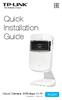 Quick Installation Guide Cloud Camera, 300Mbps Wi-Fi 7106505077 REV1.0.3 NC200 Configuring the Camera Via Smartphone: 9V=0.6A ETHERNET 1 Connecting the camera Connect the camera to the network your smartphone
Time Warner Cable Internet. Easy Connect Guide. Enjoy surfing at your own speed. Super fast.
 Time Warner Cable Internet Easy Connect Guide Enjoy surfing at your own speed. Super fast. Instant access anytime you feel like connecting. Experience smooth, fast Internet. TWC Internet is simple to set
DSL Self-install Kit Instructions. SpeedStream 5360
 DSL Self-install Kit Instructions SpeedStream 5360 Cover and installation notes Page 1 1. Verify your system requirements Page 2 2. Verify the contents of your DSL Self-Install kit Page 2 3. Install filters
Quick Start Guide. Vonage Device Motorola VT2142
 Quick Start Guide Vonage Device Motorola VT2142 Before you begin 1. If you purchased your Vonage Device from a retail store, you must first activate your Vonage phone service. (You will need to provide
ShareLink 200 Setup Guide
 ShareLink 00 Setup Guide This guide provides instructions for installing and connecting the Extron ShareLink 00. The ShareLink USB 00 Wireless Collaboration Gateway allows anyone to present content from
AC750 WiFi Range Extender
 Model EX6100 User Manual April 2014 202-11307-03 350 East Plumeria Drive San Jose, CA 95134 USA Support Thank you for selecting NETGEAR products. After installing your device, locate the serial number
Troubleshooting Guide
 Troubleshooting Guide Before you start troubleshooting: Power down the Tooway modem for 60 seconds. Connect a computer directly (via Ethernet cable) to the Tooway modem Power the Tooway modem and wait
Vehicle Monitoring Quick Reference Guide
 Vehicle Monitoring Quick Reference Guide Powered by Delphi Welcome You re about to experience a powerful device that will deliver a new level of convenience and peace of mind with your vehicle. When combined
AkrutoSync 4.0 User Guide
 AKRUTO AkrutoSync 4.0 User Guide Welcome Thank you for choosing AkrutoSync. AkrutoSync can synchronize your Contacts, Calendar and Tasks between Outlook on your computer and your Windows Phone. AkrutoSync
Welcome to life on. Get started with this easy Self-Installation Guide.
 Welcome to life on Get started with this easy Self-Installation Guide. Welcome to a network that s light years ahead. Welcome to life on FiOS. Congratulations on choosing Verizon FiOS! You re just a few
Let s Get Connected. Getting started with your Wireless Modem.
 Let s Get Connected. Getting started with your Wireless Modem. Contents. Page: 2 What s in this kit? 3 Your computer 3 Connecting the filters 4 Plugging in your modem 5 Connecting your modem to the computer
Cox High Speed InternetSM Connect to your online world faster than you can imagine. Plus, access a whole host of tools to make your Internet
 Cox High Speed InternetSM Connect to your online world faster than you can imagine. Plus, access a whole host of tools to make your Internet experience friendlier, easier and more cutting edge. 43 Connecting
TCC INTERNET. Setup and Configuration. Comtrend DSL Modem with built-in Wireless Router
 TCC INTERNET Setup and Configuration Comtrend DSL Modem with built-in Wireless Router Guide Contents The Basics: Lights & Plug-ins Security: WEP Setup USB Driver Installation Troubleshooting & Support
HomeNet. Gateway User Guide
 HomeNet Gateway User Guide Gateway User Guide Table of Contents HomeNet Gateway User Guide Gateway User Guide Table of Contents... 2 Introduction... 3 What is the HomeNet Gateway (Gateway)?... 3 How do
P-2612HNU-Fx. 802.11n ADSL2+ VoIP IAD DEFAULT LOGIN DETAILS. Firmware V3.00 Edition 1, 1/2010. Password: 1234 User Name: admin Password: 1234
 P-2612HNU-Fx 802.11n ADSL2+ VoIP IAD Firmware V3.00 Edition 1, 1/2010 DEFAULT LOGIN DETAILS IP Address: User Login: Administrator Login: http://192.168.1.1 User Name: user Password: 1234 User Name: admin
DSL Self-Install Kit Instructions
 DSL Self-Install Kit Instructions Please follow these instructions carefully. Pacific Online assumes no responsibility for any personal injury or property damage which may result form your installation
USER GUIDE AC2600 MU-MIMO GIGABIT ROUTER. Model# EA8500
 USER GUIDE AC2600 MU-MIMO GIGABIT ROUTER Model# EA8500 Table of Contents Product overview EA8500.....................................1 Setting Up Your Router Where to find more help.........................
Frontier DSL SelfConnect Guide
 Frontier DSL SelfConnect Guide Frontier DSL Self-Installation Guide Table of Contents Getting Started...2 Customer and Computer Requirements...2...3 STEP 1: Install Microfilters...3 STEP 2: Install Your
Quick Start Guide. RV 120W Wireless-N VPN Firewall. Cisco Small Business
 Quick Start Guide Cisco Small Business RV 120W Wireless-N VPN Firewall Package Contents Wireless-N VPN Firewall Ethernet Cable Power Adapter Quick Start Guide Documentation and Software on CD-ROM Welcome
Comtrend 1 Port Router Installation Guide CT-5072T
 Comtrend 1 Port Router Installation Guide CT-5072T 1 Installing Access Point s DSL Service with a Comtrend Router Thank you for selecting Access Point, Inc. to be your Internet service provider. This guide
Quick Reference for:
 Quick Reference for: Optimum Online Boost Plus Optimum Link SM Optimum app Advanced Wireless Router Por español, vea al revérso Version 1.0 9815001CAP0311COL Table of Contents Optimum Online Boost Plus...................
ADSL2+ BROABDAND INTERNET
 ADSL2+ BROABDAND INTERNET Your modem comes pre-configured, so simply plug it in as per the instructions received with the modem and it should be working. A diagram of what a typical set up might look like
You will find the following information contained in this document: Requirements for performing a Self-Install of your Internet service
 Subject : Internet Self-Install You will find the following information contained in this document: Requirements for performing a Self-Install of your Internet service Step-by-step instruction on connecting
Time Warner Cable Home Phone. Easy Connect Guide. Better conversations begin with better Home Phone.
 Time Warner Cable Home Phone Easy Connect Guide Better conversations begin with better Home Phone. Enjoy unlimited calling and unlimited control. You re about to experience total freedom and connect with
NETGEAR genie Apps. User Manual. 350 East Plumeria Drive San Jose, CA 95134 USA. August 2012 202-10933-04 v1.0
 User Manual 350 East Plumeria Drive San Jose, CA 95134 USA August 2012 202-10933-04 v1.0 Support Thank you for choosing NETGEAR. To register your product, get the latest product updates, get support online,
quick reference guide
 quick reference guide / Product Overview Product Overview Wireless (Blue) The Wireless LED lights up when the wireless feature is enabled. It flashes when the Valet sends or receives data over the wireless
Setting Up Your Wireless Network
 Setting Up Your Wireless Network 1 TABLE OF CONTENTS Wireless Tips... 3 Terminology... 4 Motorola 2247... 5 Logging In:... 5 Changing the SSID/network name... 6 Westell Model 7500... 12 Configuration of
Technical Support. Package Contents. CENTRIA WNDR4700/WNDR4720 Installation Guide
 Technical Support After installing your device, locate the serial number on the label of your product and use it to register your product at https://my.netgear.com. You must register your product before
10/2011 - English Edition 1. Quick Start Guide. NWA1100N-CE CloudEnabled Business N Wireless Access Point
 10/2011 - English Edition 1 Quick Start Guide NWA1100N-CE CloudEnabled Business N Wireless Access Point Package Contents - 1 x ZyXEL NWA1100N-CE Access Point - 2 x Detachable Antennas - 1 x Power Adapter
SwannEye HD Plug & Play Wi-Fi Security Camera Quick Start Guide Welcome! Lets get started.
 EN SwannEye HD Plug & Play Wi-Fi Security Camera Quick Start Guide Welcome! Lets get started. QHADS453080414E Swann 2014 1 1 Introduction Congratulations on your purchase of this SwannEye HD Plug & Play
High-Speed Broadband Internet Guide
 High-Speed Broadband Internet Guide Welcome Welcome to SkyBest High-Speed Broadband Internet. SkyBest High-Speed Broadband Internet allows for rapid downloading of large files, such as music and graphics.
Quick Start Guide For Vera Small Business Solution
 Quick Start Guide For Vera Small Business Solution Congratulations on Your Purchase of the Vera Small Business Solution You ve taken the first step to begin enjoying the ease, convenience, energy savings
Quick Installation Guide DAP-1360. Wireless N 300 Access Point & Router
 DAP-1360 Wireless N 300 Access Point & Router BEFORE YOU BEGIN Delivery Package Access point DAP-1360 Power adapter DC 12V Ethernet cable (CAT 5E) (brochure). If any of the items are missing, please contact
Home Internet Filter User Guide
 Home Internet Filter User Guide TABLE OF CONTENTS About Home Internet Filter... 2 How Home Internet Filter help you?... 2 Setting up the Residential Gateway and accessing to SingTel Home Internet Filter
LET S GO. Get your Ultra Broadband ready Business gateway up and running
 LET S GO Get your Ultra Broadband ready Business gateway up and running CONTENTS BUSINESS GATEWAY ULTRA BROADBAND READY 1 2 3 4 5 6 7 8 9 10 11 12 13 14 15 Equipment Check 2 Getting Started 3 Setting Up
Install and End User Reference Guide for Direct Access to Citrix Applications
 Install and End User Reference Guide for Direct Access to Citrix Applications Version 1.0 7/26/2013 This remote access end user reference guide provides an overview of how to install Citrix receiver (a
Getting started guide Turbo Hub
 Getting started guide Turbo Hub NETGEAR MVBR1210C Welcome and thanks for choosing Bell. Your new Turbo Hub will enable you to connect to the Internet and make voice calls using a landline phone. This guide
This guide is intended to help you troubleshoot problems connecting a wireless device to the Gogo Biz network.
 This guide is intended to help you troubleshoot problems connecting a wireless device to the Gogo Biz network. TABLE OF CONTENTS Windows Operating System... 3 Blackberry... 5 Android... 6 Apple Macbook...
SHC Client Remote Access User Guide for Citrix & F5 VPN Edge Client
 SHC Client Remote Access User Guide for Citrix & F5 VPN Edge Client Version 1.1 1/15/2013 This remote access end user reference guide provides an overview of how to install Citrix receiver (a required
DSL Self-install Kit Instructions. SpeedStream 4100
 DSL Self-install Kit Instructions SpeedStream 4100 Cover and installation notes Page 1 1. Verify your system requirements Page 2 2. Verify the contents of your DSL Self-Install kit Page 2 3. Install filters
CM500 High Speed Cable Modem User Manual
 User Manual February 2015 202-11472-04 350 East Plumeria Drive San Jose, CA 95134 USA Support Thank you for selecting NETGEAR products. After installing your device, locate the serial number on the label
Quick Start. Nighthawk X8 AC5300 Tri-Band WiFi Router Model R8500. Package Contents. NETGEAR, Inc. 350 East Plumeria Drive San Jose, CA 95134 USA
 Support Thank you for purchasing this NETGEAR product. You can visit www.netgear.com/support to register your product, get help, access the latest downloads and user manuals, and join our community. We
Technology Services Group Procedures. IH Anywhere guide. 0 P a g e
 VDI Pilot Technology Services Group Procedures IH Anywhere guide 0 P a g e Installation Disable Apple Security Table of Contents IH Anywhere for Apple OSX (MAC)... 2 1. Installation... 2 Disable Apple
Get to Know Your Device 4G LTE BROADBAND ROUTER WITH VOICE
 Get to Know Your Device 4G LTE BROADBAND ROUTER WITH VOICE FRONT VIEW The Verizon 4G LTE Broadband Router with Voice is a wireless device that delivers Internet connectivity and telephone service. You
FI8910W Quick Installation Guide. Indoor MJPEG Pan/Tilt Wireless IP Camera
 Model: FI8910W Quick Installation Guide (For Windows OS) (For MAC OS please go to page 17) Indoor MJPEG Pan/Tilt Wireless IP Camera Black White Package Contents IP Camera FI8910W with IR-Cut.x 1 DC Power
Enjoy Music over Your Wi-Fi Network
 Personal Audio System Enjoy Music over Your Wi-Fi Network Read this document first. Enjoy Music over Your Wi-Fi Network GB SRS-X7 This manual introduces how to play music connecting this unit to your Wi-Fi
SocialPet TM System. Installation and Operations Guide
 1 SocialPet TM System Installation and Operations Guide Refer to the Quick Start Guide included with the system or read this entire guide before installation. Contents FCC COMPLIANCE... 4 CUSTOMER CARE...
Hardware Overview. Ooma Linx devices These are installed around the office and are used to connect phones and other devices to your Ooma Office system
 Quick Start Guide Introduction Installation Overview Setting up the Ooma Office system in your business is easy. You should have your first extensions up and running in about 20 minutes. Ooma Office blends
Flexible Identity Federation
 Flexible Identity Federation User guide version 1.0.1 Publication History Date Description Revision 2015.09.25 initial release 1.0.0 2015.12.10 minor corrections 1.0.1 Copyright Orange Business Services
Thank you for choosing Zoom Internet!
 Thank you for choosing Zoom Internet! We know you are going to love the speed, convenience and reliability of Zoom s super fast, always on connectivity to the Web! This guide provides helpful information
Static Business Class HSI Basic Installation NETGEAR 7550
 Static Business Class HSI Basic Installation Table of Contents Multiple LAN Support... 3 Full BHSI Install Summary... 7 Physical Connections... 8 Auto Configuration... 9 Auto Configuration... 9 Gateway
AC1900, N900, and N450 WiFi Cable Data Gateways
 AC1900, N900, and N450 WiFi Cable Data Gateways Models C6300BD, CG4500BD, and CG3000Dv2 User Manual March 2015 202-11434-03 350 East Plumeria Drive San Jose, CA 95134 USA Support Thank you for selecting
UAFS Housing and Residential Life Internet & Cable TV Resident User Guide
 UAFS Housing and Residential Life Internet & Cable TV Resident User Guide UAFS Housing and Residential Life has partnered with Cox Communications to provide you with High Speed Internet and Cable TV Powered
Installation Guide. EarthLink
 Installation Guide EarthLink Welcome to EarthLink DSL & Home Phone Service Congratulations! You ve made the smart choice for super-fast DSL and super-simple phone service. Follow the instructions in this