
Niko Home Control. Installation Manual
|
|
|
- Cuthbert Hicks
- 10 years ago
- Views:
Transcription
1 Niko Home Control Installation Manual

2 Niko Home Control: Table of contents Warnings regarding installation...2 Guarantee provisions...3 CE...4 Key of symbols Installation preparations Controller Power supply Rail coupler Wall-mounted printed circuit boards and push buttons Push buttons with display Switching modules Universal dim module Electricity measuring modules Pulse counter IP interface Gateway Touchscreen Touchscreen External video unit Indoor motion detector Outdoor motion detector Ventilation module Heating or cooling module Motor module Analogue sensor module Digital potential-free sensor module Analogue control module 0-10 V Analogue control module 1-10 V Push-button interface Nikobus interface RF interface Easywave HVAC interface Niko Home Control: Table of contents 1

3 Warnings regarding installation The installation should be carried out by a registered installer and in compliance with the statutory regulations. This manual should be presented to the user. It should be included in the electrical installation file, and it should be passed on to any new owners. Additional copies are available on the Niko website or via the Niko support service. The latest manual for this product is available on the Niko website at any time. During installation, the following should be taken into account (non-exhaustive list): the statutory laws, standards and regulations. the technology currently available at the time of installation. this manual, which only states general regulations and should therefore be read within the scope of each specific installation. the rules of proper workmanship. In case of doubt or for the specific exchange procedure in case of a possible defect, contact the Niko support service in Belgium at or your wholesaler/installer. Contact details and more information can be found at under the Help and advice section. 2 Warnings regarding installation

4 Guarantee provisions The period of guarantee is four years from the date of delivery. The delivery date is the invoice date of purchase of the product by the consumer. If there is no invoice, the date of production applies. The consumer is obliged to inform Niko in writing about the non-conformity, within two months after stating the defect. In case of a non-conformity, the consumer only has the right to a product repair or replacement free of charge, which shall be decided by Niko. Niko shall not be held liable for a defect or damage resulting from incorrect installation, improper or careless use, incorrect operation, transformation of the product, maintenance that does not adhere to the maintenance instructions or an external cause, such as damage due to moisture or overvoltage. The compulsory regulations of the national legislation concerning the sale of consumer goods and the protection of the consumer in the countries where Niko sells, directly or via sister companies, subsidiaries, chain stores, distributors, agents or permanent sales representatives, take priority over the above-mentioned rules and regulations. Certain Niko Home Control products and software are subject to licence terms and copyright provisions of third parties, which you are deemed to accept and which can be found at Guarantee provisions 3

5 CE This product complies with all of the relevant European guidelines and regulations. If applicable, you can find the EC declaration of conformity regarding this product at 4 CE

6 Key of symbols L N t a μ ε cos φ line neutral rated ambient temperature; maximum temperature at which the product may be operated continuously under normal conditions of use microgap switch; switches of microgap construction have a distance between contacts in the open position less than 1.2 mm without contact gap (semiconductor switch) power factor Key of symbols 5

7 1. Installation preparations Follow the guidelines below when installing Niko Home Control. Bus cable guidelines Use a bus cable with at least two wires. Choose two wires (two colours) and use these throughout the entire installation. The bus cabling used for connecting the control elements is non-polarised. The copper diameter of each wire should be between 0.5 to 1 mm. The cross-sectional area of the copper wire selected will determine the maximum permitted cable length between the master power supply and the furthest control element in the installation. Copper diameter Cross-sectional area of the copper Maximum permitted cable length to the master 0.5 mm 0.20 mm² (e.g. UTP, FTP, STP, at least AWG24) 100 m 0.6 mm 0.25 mm² (e.g. TPVF) 150 m 0.8 mm 0.50 mm² (e.g. SVV, JYSTY) 250 m The bus cable to the control points has a free topology, which means that bus cables can be laid out in a star or in a bus topology, or in a combination of both. The rule of thumb is that at least two bus cable wires must be used between the electrical cabinet and the control points per power supply. Do not loop cables. The total length of the bus cable used in a single installation should not exceed 1000 m. Control point guidelines Push buttons with or without status LED: to be installed at 90 to 110 cm above floor level. to be mounted onto a single or multiple wall-mounted printed circuit board (one flush-mounting box will suffice for a multiple wall-mounted printed circuit board). to be connected to a two-wire bus cable. Push buttons with display (thermostat, HVAC thermostat, mood control, eco-display): to be installed at 120 to 150 cm above floor level. to be mounted onto a standard single flush-mounting box. to be connected to a two-wire bus cable. For the best results it is recommended to limit the number of push buttons with display to 20. A maximum of 20 (HVAC) thermostats and five eco-displays can be used per installation. Indoor motion detectors: to be installed at 90 to 110 cm above floor level. to be mounted onto a standard single flush-mounting box. to be connected to a two-wire bus cable Installation preparations

8 Touchscreens: to be installed at eye level. to be mounted onto a standard single flush-mounting box. to be connected to an IP cable (twisted pair) and to a 26 Vdc power supply cable. A total of ten touchscreens, smartphone or PC applications can be used per installation. See IP interface on page 91. Electrical cabinet set-up regulations The standard Niko Home Control installation includes one power supply and one controller. Other modules are available separately. The internal layout of the electrical cabinet uses a left to right assembly system. First install the power supply, followed by the controller. Then mount any other Niko Home Control modules onto the DIN rail and interlink them using a sliding contact. A maximum of 12 Niko Home Control modules can be interconnected per DIN rail. A rail coupler, or a second power supply if needed, should be used first on every new DIN rail. Connect all four connection terminals (+,, B1, B2) to the corresponding connection terminals of the rail coupler or the power supply on the previous and next rails. A maximum of three power supplies can be used per installation. To determine the number of power supplies required for your installation, follow the calculation instructions under Power supply on page 13. A maximum of 20 DIN rails can be used per installation. One installation may include several electrical cabinets. Connect the electrical cabinets in the same way as the rail couplers or power supplies inside the cabinet, i.e. using four wires. If the cable length between the electrical cabinets exceeds 20 m, you use a new power supply for the second cabinet. A second controller may be used to operate as a back-up and to take over should the first controller become faulty. Make sure that low-voltage signal cables, such as the bus cable, the IP cable and any cables connected to SELV components are kept separate from 230V cables to avoid crosstalk and signal disruptions. Programming guidelines Program the installation via computer. The software is compatible with PC and Mac. The installation can be temporarily programmed manually during the testing phase. Manual programming options are limited and will be overwritten as soon as you program the installation via computer. New! Go to for the Niko Home Control Software Guide. This online guide offers extra help with the programming of the Niko Home Control installation, both on the construction site itself and at home when you prepare the installation. A practical search function allows you to navigate easily to the information that you need to program the installation fully tailored to your customer: from programming basic functions and popular scenarios for the set-up and realisation of the electrical cabinet to frequently asked questions. The Software Guide is updated permanently with new functionalities and scenarios. You always find the most recent version online. 1. Installation preparations 7

9 2. Controller Description The controller operates the Niko Home Control installation based on the pre-programmed settings stored in the system. Overview H G F A B C D E A. Sliding contact The sliding contact is used for connecting the next module, which means that the bus and the power supply are then also interconnected. B. TEST LED The TEST LED lights up when the controller is in TEST mode. C. TEST button Press this button to activate TEST mode on the controller. D. PROG LED The PROG LED lights up when the controller is in manual PROGRAM mode. E. PROG button Press this button to activate or deactivate manual PROGRAM mode on the controller. F. RJ45 port Connect your computer to this port to program the installation. G. ETHERNET LED The ETHERNET LED lights up during Ethernet communication via the TCP/IP protocol. H. STATUS LED The STATUS LED lights up in TEST mode when the module is connected correctly and is functioning properly. If an error occurs, the LED will blink to indicate an error code. See Error codes on page Controller

10 Installation Wiring diagram L N 230V~ 16A Mounting instructions One controller is required per installation. A second controller may be used to operate as a back-up. Follow the steps below to mount the controller: Ensure that the installation is disconnected from the power mains Mount the controller in a visible location and ensure that the RJ45 port is easily accessible. 1 Press the controller onto the DIN rail until it clicks into place. Preferably position the controller right next to the power supply. 2 Mount the other modules onto the rail, from left to right. When there is no room left on the rail or the maximum number of 12 modules per rail has been reached, you simply continue on the rail above. A power supply or a rail coupler must be used at the left beginning of every DIN rail. 3 Connect the controller to the module before it. Slide the sliding contact of this module to the right until it clicks into the controller. This will ensure that the bus and the power supply are connected. 2. Controller 9

11 Testing the installation Only the POWER LED of the power supply and the ETHERNET LED of the IP module will be lit when the Niko Home Control installation is functioning properly. The remaining LEDs are not lit, to reduce energy consumption. If an error occurs, simply switch the installation to TEST mode to check the status of the modules. First press the TEST button on the controller to switch the installation to TEST mode. The STATUS LEDS indicate the status of each module and each output. Exit TEST mode by pressing the TEST button once more. Alternatively, the installation will automatically exit TEST mode if no buttons are pressed during a two-minute interval. Programming the installation manually A number of basic functions can be temporarily programmed manually. This allows you to test the lighting options or operate the roll-down shutters during the construction of your dwelling. Follow the steps below to manually program the installation: 1 Connect the installation to the mains power supply. 2 Press the TEST button and verify that the STATUS LED of each module lights up. 3 Press the PROG button. The PROG LED lights up and the controller is in manual PROGRAM mode. 4 Press the action button to which you will assign the output of your choice. This only applies to Niko Home Control action buttons. A potential-free push button connected via the push-button interface cannot be programmed manually. 5 Press the button of the contact on the module that you wish to connect. For example, press button one or button two on the dim module. 6 Press the PROG button. The PROG LED is no longer lit and the controller exits manual PROGRAM mode. Repeat steps 3 to 6 for each function you wish to program. The manually programmed outputs will be overwritten once you start programming the installation via computer. As soon as the installation has been programmed via computer, you can no longer program the installation manually. If you manually operate outputs via the buttons on the modules, the controller may modify your input at any time Controller

12 Programming the installation Program the installation after it has been completed. If the installation is expanded and additional modules are added, you will need to reprogram the installation. Follow the steps below to program the installation: 1 Connect the installation to the mains power supply. 2 Press the TEST button and verify that the STATUS LED of each module lights up. 3 Connect the computer to the controller via the RJ45 port. 4 Start up the programming software and select your installation project. 5 Select Realisation from the menu bar and follow the on-screen instructions until all the steps of the programming process are completed. 6 Disconnect the computer from the controller. All programmed outputs are stored in the controller. Create a back-up on your computer and provide the resident with a copy. Error codes When the module is functioning properly, the STATUS LED will light up in TEST mode only. If one or several errors occur, the LED will blink to indicate the error code of the error with the highest priority. The table below provides an overview of all error codes. LED ACTION ERROR POSSIBLE CAUSES STATUS LED Blinks one pulse per two seconds. Software error Wrong software version.* *Download the latest software version from the Niko website to upgrade the module. TEST LED No error codes applicable. Not applicable PROG LED No error codes applicable. ETHERNET LED No error codes applicable. 2. Controller 11

13 Technical data with a TEST button to verify the status LEDs of the modules with a PROG button for temporary basic programming dimensions: DIN 2U sliding contact to connect the module to the following module on the DIN rail RJ45 port for PC programming built-in memory chip CE marked ambient temperature: 0-45 C product in accordance with over-voltage category III and pollution degree Controller

14 3. Power supply Description The power supply provides an input voltage of 26 Vdc to the bus, the modules and the controls of the installation. Several power supplies can be connected in parallel in one single installation. Overview I H G A B C F D E A. +/- screw terminals The power supply provides secondary extra low voltage via these terminals. B. B1/B2 screw terminals This is where the bus is connected. C. Sliding contact The sliding contact is used for connecting the next module, which means that the bus and the power supply are then also interconnected. D. MASTER LED The MASTER LED lights up in TEST mode on the master power supply. E. MASTER address button If the installation includes more than one power supply, you can manually select a master. See Selecting a master power supply on page 17. F. L/N screw terminals This is where the 230 V mains voltage is connected. G. POWER LED The POWER LED lights up when the power supply is connected to the mains voltage. H. BUS LED The BUS LED lights up when the bus is communicating information. I. STATUS LED The STATUS LED lights up in TEST mode when the module is connected correctly and is functioning properly. If an error occurs, the LED will blink to indicate an error code. See Error codes on page 18. Sizing Rule of thumb The following rule of thumb can be applied to calculate the number of power supplies required: a maximum of 24 modules inside the electrical cabinet and a maximum of 70 controls (of which 20 with status LED) per power supply. Depending on the size and layout of your installation, you will need to install one, two or three power supplies. This rule of thumb leaves a considerable margin for error. 3. Power supply 13

15 Exact calculation Each control and module consumes a specific amount of energy. This consumption is expressed in points. One power supply is needed for every 800 points. Add the points of all the controls and modules of your installation and divide this sum by 800 to determine the number of power supplies required. A maximum of three power supplies can be used per installation. Calculate the exact number of power supplies required based on the table below. Modules Reference code Name Points Width Controller 60 2U IP interface 70 2U Switching module (6x) 5 4U Switching module (3x) 5 2U Motor module 5 4U Universal dim module (2 x 400 W) 5 4U Ventilation module 5 2U Heating or cooling module 5 4U Electricity measuring module (1 channel) 20 2U Electricity measuring module (3 channels) 20 4U Analogue sensor module 10 2U Digital potential-free sensor module 10 2U Analogue control module 0-10 V 20 2U Analogue control module 1-10 V 20 4U Pulse counter 10 2U Nikobus interface 10 2U RF interface Easywave 20 2U X HVAC interface 0 7U Power supply

16 Controls Reference code Name Points X + 1XX Indoor motion detector Outdoor motion detector 10 1XX Single push button 3 1XX Single push button with LED 4 1XX Double push button 3 1XX Double push button with LED 5 1XX fold push button 3 1XX fold push button with LED 5 1XX fold push button 3 1XX fold push button with LED Push button interface 3 1XX Single motor control 3 1XX Single motor control with LED 5 1XX Double motor control 3 1XX Double motor control with LED 5 1XX Single dimming control 3 1XX Single dimming control with LED 5 1XX Double dimming control 3 1XX Double dimming control with LED 5 1XX Ventilation control with LED X Thermostat X HVAC thermostat X Mood control X Eco-display Power supply 15

17 Installation Wiring diagram N L 230V~ Power supply

18 Each power supply has a capacity of 10 W. Determine the exact number of power supplies required prior to commencing the installation process. See Sizing on page 13. Follow the steps below to connect and mount a power supply: Observe the guidelines with regard to the layout of the electrical cabinet while mounting and connecting the power supply. See Installation preparations on page 6. Ensure that the installation is disconnected from the mains while mounting and connecting the power supply. 1 Mount the power supply onto a DIN rail in the bottom left of the electrical cabinet. 2 Mount the other modules onto the rail, from left to right. Start with the controller. When there is no room left on the rail or the maximum number of 12 modules per rail has been reached, you simply continue on the rail above. A power supply or a rail coupler must be used at the left beginning of every DIN rail. 3 Connect all four connection terminals (+,, B1, B2) to the corresponding connection terminals of the rail coupler or the power supply on the previous and next rails. 4 Each module is fitted with a sliding contact. Slide the sliding contact to the right until it clicks into the next module. This will ensure that the bus and the power supply are connected. 5 Connect the L phase wire and the N neutral to the L and N screw terminals respectively. Selecting a master power supply When several power supplies are used in a single electrical installation, you can manually select one of these modules to act as the master power supply. The remaining power supplies will then act as slaves. One of the power supplies will automatically be selected as the master if no manual selection is made. The power supply supplies voltage to the bus, the modules and the controls. The slaves supply voltage to the modules but not to the bus. The maximum permitted cable length between the master power supply and the control points must be observed. See Installation preparations on page 6. Should the master power supply become defective, then one of the slaves will automatically be selected as the new master. This may cause certain functions to become inoperable. Follow the steps below to manually select a master power supply: 1 Connect the installation to the mains voltage. 2 Locate the MASTER address button on the module that you wish to select as the master power supply and press and hold for two seconds. Several power supplies may have been used across more than one electrical cabinet. Select the module with the most central location as the master power supply. These settings will be stored and will remain unaffected when the installation is disconnected from the mains. 3. Power supply 17

19 Error codes When the module is functioning properly, the STATUS LED will light up in TEST mode only. If one or several errors occur, the LED will blink to indicate the error code of the error with the highest priority. The table below provides an overview of all error codes. Press the TEST button on the controller to activate TEST mode. LED ACTION ERROR POSSIBLE CAUSES STATUS LED Blinks one pulse per two seconds. Software error Wrong software version.* *Download the latest software version from the Niko website to upgrade the module. Technical data Blinks two pulses per two seconds. Overload or short circuit Blinks three pulses per two Overheating seconds. MASTER LED No error codes applicable. Not applicable BUS LED No error codes applicable. POWER LED No error codes applicable. The bus is connected incorrectly. The bus voltage is too low. Bus overload. Check all points. One of the bus members is defect. The temperature inside the electrical cabinet is too high. available power: 10 W input voltage: 230 Vac ± 10%, 50 Hz output voltage: 26 Vdc, 400 ma (SELV, safety extra-low voltage) dimensions: DIN 4U sliding contact to connect the module to the following module on the DIN rail 4 screw terminals at the top to connect the power supply with the rail coupler on the next DIN rail CE marked ambient temperature: 0-45 C short-circuit, over-voltage, faulty connection and overheating protection Power supply

20 4. Rail coupler Description The rail coupler interconnects the power supply voltage and the bus of the rail below to the modules via the sliding contact. Overview A B A. +/- screw terminals B. B1/B2 screw terminals C C. Sliding contact A B Installation A power supply or a rail coupler must be used at the left beginning of every DIN rail. Follow the steps below to install the rail coupler: 1 Click the rail coupler onto the left beginning of the DIN rail. 2 Connect all four connection terminals (+,, B1, B2) to the corresponding connection terminals of the rail coupler or the power supply on the previous and next rails. 3 Each module is fitted with a sliding contact. Slide the sliding contact to the right until it clicks into the next module. This will ensure that the bus and the power supply are connected. Bus cables can be used between terminals B1/B2 of any rail coupler and a control point. A rail coupler can be interconnected to another rail coupler located in a different electrical cabinet. The cable length between both rail couplers should not exceed 20 m. If the distance between the electrical cabinets exceeds 20 m, you use a new power supply for the second cabinet. 4. Rail coupler 19

21 Technical data dimensions: DIN 2U sliding contact to connect the module to the following module on the DIN rail 2 x 4 screw terminals for 3 x 1.5 mm² or 2 x 2.5 mm² or 1 x 4 mm² CE marked ambient temperature: 0-45 C Rail coupler
22 5. Wall-mounted printed circuit boards and push buttons 5.1. Wall-mounted printed circuit boards Description A wall-mounted printed circuit board includes all the electrical and mechanical components required to connect one or several push buttons to the Niko Home Control installation. Niko offers horizontal, vertical, single or multiple printed circuit boards. Choose the type of printed circuit board depending on the number of action buttons required and on a horizontal or vertical assembly. The printed circuit board can be easily replaced by a larger one at a later stage if the need arises to expand the installation. Reference codes : double wall-mounted printed circuit board (centre distance 71 mm, horizontal) : double wall-mounted printed circuit board (centre distance 60 mm, vertical) : double wall-mounted printed circuit board (centre distance 71 mm, vertical) : 3-fold wall-mounted printed circuit board (centre distance 71 mm, horizontal) : 3-fold wall-mounted printed circuit board (centre distance 60 mm, vertical) : 3-fold wall-mounted printed circuit board (centre distance 71 mm, vertical) : 4-fold wall-mounted printed circuit board (centre distance 71 mm, horizontal) : connection unit for multiple wall-mounted printed circuit board : single wall-mounted printed circuit board with connector : single wall-mounted printed circuit board with bridge : set of claws for wall-mounted printed circuit board : set of claws for connection unit 5. Wall-mounted printed circuit boards and push buttons 21
23 Installation Connecting single wall-mounted printed circuit boards A. Double plug-in connector B. Two contacts with two openings each A B The double plug-in connector is used for connecting the bus cable to the wall-mounted printed circuit board and for establishing a connection to the next control element. It has two contacts with two openings each. To connect single wall-mounted printed circuit boards, you connect the bus using two wires from the bus cable. Connect each wire separately to one of the contacts. Each contact is marked by the letter B. The wall-mounted printed circuit board is now connected. Use the other opening of the contact to establish a connection to the next control element if required. Strip the wires of the bus cable 9-10 mm. A maximum of two wires with a diameter of mm each can be connected per contact. Connecting multiple wall-mounted printed circuit boards You need one connection unit for each multiple wall-mounted printed circuit board you wish to connect. Connection units are available separately. The connection unit includes a double plug-in connector, which allows you to connect the bus cable and establish a connection to the next control element. The connector has two contacts with two openings each. To connect multiple wall-mounted printed circuit boards: 1 Connect two wires of the bus cable to the contacts of the connection unit. The connection unit is now connected. Use the other opening of the contact to establish a connection to the next control element if required. Strip the wires of the bus cable 9-10 mm. A maximum of two wires with a diameter of mm each can be connected per contact. 2 Remove the transparent tape from the wall-mounted printed circuit board where the connection unit will be mounted. This connection unit is mounted closest to the flush-mounting box. 3 Press the connection unit onto the wall-mounted printed circuit board until it clicks into place. Secure the connection unit using two screws Wall-mounted printed circuit boards and push buttons
24 Assembly A B C D A. Single flush-mounting box (not a Niko product) B. Single wall-mounted printed circuit board C. Push button D. Flush surround plate Installation diagram for single wall-mounted printed circuit boards A B C D E A. Single flush-mounting box (not a Niko product) B. Connection unit C. Multiple wall-mounted printed circuit board D. Push button E. Flush surround plate Installation diagram for multiple wall-mounted printed circuit boards To mount the wall-mounted printed circuit board, press the unit onto a single flush-mounting box until it clicks into place. Secure using screws. Use a set of claws if no screw holes are provided in the flush-mounting box. Sets of claws for single and multiple wall-mounted printed circuit boards are available separately. Secure the sides of larger wall-mounted printed circuit boards onto the wall using the screw holes provided in the wall-mounted printed circuit board. Use a single wall-mounted printed circuit board with metal bridge on very uneven walls or in combination with other Niko flush-mounting units with bridge The bridges can be clicked together. 5. Wall-mounted printed circuit boards and push buttons 23
25 Technical data wall-mounted printed circuit board material: epoxy material thickness: 1 mm one double connector connection unit dimensions: 51 x 43 x 22 mm (HxWxD) 5.2. Generic push buttons Description Single, double, 4-fold and 6-fold push buttons are available with or without status LED. These push buttons include one or more action buttons that allow the resident to operate the Niko Home Control functions. Overview 1XX XX XX XX XX XX XX XX Operation Each action button can either control a light point or a light circuit, dim a dimmable light point or activate a mood setting. A mood setting is a combination of pre-programmed output settings. Action buttons with status LED will indicate the status of their respective output. Using the programming software, you can program the LEDs to light up when the output is either activated or deactivated Wall-mounted printed circuit boards and push buttons
26 Installation The control element consists of a push button and one or more action buttons. Complete the installation using the flush surround plate of your choice from our series Niko Pure, Niko Intense or Niko Original. A B C D A. Single flush-mounting box (not a Niko product) B. Single wall-mounted printed circuit board C. Push button D. Flush surround plate Installation diagram for single wall-mounted printed circuit boards To mount the push button, press the unit onto a Niko Home Control wall-mounted printed circuit board until it clicks into place. The push button is now secure. The functions of the action buttons can be assigned while programming the installation by linking each function to the unique address of each action button during the addressing phase. This information is then stored in the controller. Technical data resting potential: 26 Vdc (SELV, safety extra-low voltage) ambient temperature: 0-50 C 5. Wall-mounted printed circuit boards and push buttons 25
27 5.3. Specific push buttons Push buttons for dimming Description Push buttons for dimming are available in a single-row (three action buttons) or double-row (six action buttons) configuration, with or without status LED. They allow the resident to operate one or two light points respectively, or groups of light points, via the Niko Home Control installation. Overview A B C A B C A B C 1XX XX A B C A B C A B C 1XX XX Operation The specific action buttons on each push button are arranged in groups of three. Each group consists of the following buttons: A, B and C. Action buttons with status LED will indicate the status of their respective output. Using the programming software, you can program the LEDs to light up when the output is either activated or deactivated Wall-mounted printed circuit boards and push buttons
28 The table below provides an overview of all action button functions. Before status Action After status Light off Briefly press "A" (< 0.4 s) Memory off means the light intensity level will reach 100%. Memory on means the light intensity level will return to the previous setting, which is the last used light intensity level prior to the dimmer being switched off. The Memory off or Memory on option can be selected during the programming phase of the installation. Light off Briefly press "B" (< 0.4 s) Preference setting (standard 50%) Light off Briefly press "C" (< 0.4 s) The light is switched on. The light intensity level remains at the lowest setting. Light off Press and hold "A" ( 0.4 s) The light intensity level will increase until the button is released or until the maximum level is reached. Light off Press and hold "B" ( 0.4 s Preference setting (standard 50%) and < 3 s) Light off Press and hold "B" (> 3 s) The current light intensity level is now saved as the new preference setting. Light off Press and hold "C" ( 0.4 s) The light is switched on. The light intensity level remains at the lowest setting. Light on Briefly press "A" (< 0.4 s) The light intensity level will reach 100%. Light on Briefly press "B" (< 0.4 s) Preference setting (standard 50%) Light on Briefly press "C" (< 0.4 s) The light is switched off. Light on Press and hold "A" ( 0.4 s) The light intensity level will increase until the button is released or until the maximum level is reached. Light on Press and hold "B" (< 3 s) Preference setting (standard 50%) Light on Press and hold "B" (> 3 s) The current light intensity level is now saved as the new preference setting. Light on Press and hold "C" ( 0.4 s) The light intensity level will decrease until the button is released or until the minimum level is reached. 5. Wall-mounted printed circuit boards and push buttons 27
29 Installation See Installation on page 25. Technical data resting potential: 26 Vdc (SELV, safety extra-low voltage) ambient temperature: 0-50 C Push button for ventilation Description The push button for ventilation allows the resident to operate the central ventilation system (type C or D) via the Niko Home Control installation. Overview 1XX Operation The push button includes four action buttons: one for each setting of the central ventilation system (low, normal, high) and one that activates the boost function. When the boost function is activated, the ventilation system will operate at the highest setting during a preset amount of time before returning to the previous setting. Installation See Installation on page 25. Technical data resting potential: 26 Vdc (SELV, safety extra-low voltage) ambient temperature: 0-50 C Wall-mounted printed circuit boards and push buttons
30 Push buttons for motor control Description Push buttons for motor control are available in a single-row (three action buttons) or double-row (six action buttons) configuration They allow the resident to operate the motors of one or two groups of roll-down shutters, sun blinds or venetian blinds integrated in the Niko Home Control installation. Overview A B C A B C A B C 1XX XX A B C A B C A B C 1XX XX Operation The specific action buttons on each push button are arranged in groups of three. Each group consists of the following buttons: "A", "B" and "C". Action buttons with status LED will indicate the status of their respective output. Using the programming software, you can program the LEDs to light up when the output is either activated or deactivated. 5. Wall-mounted printed circuit boards and push buttons 29
31 The table below provides an overview of all action button functions. Before status Action After status No motion Briefly press "A" (< 0.4 s) Fully open / upward motion No motion Briefly press "B" (< 0.4 s) Preference setting (standard 50%) No motion Briefly press "C" (< 0.4 s) Fully closed / downward motion No motion Press and hold "A" ( 0.4 s) Opens / upward motion until the button is released. No motion Press and hold "B" (> 3 s) The current position is now saved as the new preference setting. No motion Press and hold "C" ( 0.4 s) Closes / downward motion until the button is released. In motion Briefly press "A" (< 0.4 s) Stops In motion Briefly press "B" (< 0.4 s) Stops In motion Briefly press "C" (< 0.4 s) Stops In motion Press and hold "A" ( 0.4 s) Stops In motion Press and hold "B" ( 0,4 s) Stops In motion Press and hold "C" ( 0.4 s) Stops Installation See Installation on page 25. Technical data resting potential: 26 Vdc (SELV, safety extra-low voltage) ambient temperature: 0-50 C Wall-mounted printed circuit boards and push buttons
32 6. Push buttons with display Description Four types of push buttons with display are available: thermostat HVAC thermostat mood control eco-display Installation Push buttons with display are integrated in a bridge. The bridge is mounted onto a standard flush-mounting box using screws. 1 Connect the push button to the two-wire bus cable using the double plug-in connector (marked BB) on the back of the control element. Connect each wire separately to one of the contacts. Strip the wires of the bus cable 9-10 mm. A maximum of two wires with a diameter of mm each can be connected per contact. The push button with display is now connected. Use the other opening of the contact to establish a connection to the next control element if required. 2 Mount the bridge onto the single flush-mounting box using screws in order to secure the push button with display. Use a bridge with a set of claws if no screw holes are provided in the flush-mounting box. Three types of bridges are available: bridge 60 x 71 mm with claw connection bridge 71 x 71 mm with screw connection bridge 60 x 71 mm with screw connection 3 Complete the installation using a flush surround plate from our series Niko Pure, Niko Intense or Niko Original. A B C A. Single flush-mounting box (not a Niko product) B. Push button with display C. Flush surround plate Installation diagram for push button with display 6. Push buttons with display 31
33 6.1. Thermostat Description Using the thermostat function, you can select heating or cooling options for several different zones or rooms. The thermostat operates in conjunction with a heating or cooling module. See Heating or cooling module on page 149. A maximum of 20 thermostats can be used in one Niko Home Control installation. Overview A B C D E A. Display B. Higher setting, or navigation button (up) C. Confirm/Menu D. Lower setting, or navigation button (down) E. Bridge Operation Each thermostat can be programmed independently. There are three weekly programmes to choose from: two for the heating function and one for the cooling function. In addition, there are five fixed temperature settings (DAY, NIGHT, ECO, COOL, and OFF). You can use the pre-programmed settings or enter your personal settings. Follow the steps below to select one of the pre-programmed weekly programmes or temperature settings: 1 Touch one of the buttons to light up the display. When not in use, the display is dimmed to reduce energy consumption. 2 Press and hold button "C" to view the menu. The following screen will appear: Push buttons with display
34 3 Navigate to the weekly programme or temperature setting of your choice and press button "C". The following temperature factory settings are pre-programmed into the system: DAY 21 C NIGHT 16 C ECO 18 C COOL 24 C OFF 7 C The following weekly programmes are pre-programmed into the system: PROG1 PROG2 PROG3 Weekday 06:00 => 08:00 DAY 08:00 => 16:00 NIGHT 16:00 => 18:00 ECO 18:00 => 22:00 DAY 22:00 => 06:00 NIGHT Weekend: 08:00 => 22:00 DAY 22:00 => 08:00 NIGHT Weekday: 08:00 => 22:00 DAY 22:00 => 08:00 NIGHT Weekend: 08:00 => 22:00 DAY 22:00 => 08:00 NIGHT Weekday: 16:00 => 19:00 COOL 19:00 => 16:00 OFF Weekend: 10:00 => 19:00 COOL 19:00 => 10:00 OFF Residents can modify these settings according to their needs. 6. Push buttons with display 33
35 Modifying pre-programmed settings To modify one of the pre-programmed settings: 1 Touch one of the buttons to light up the display. When not in use, the display is dimmed to reduce energy consumption. 2 Press button "C" until the following screen appears: 3 Make sure PROGRAMS is selected and press button "C". The following screen will appear: You can now select and modify the weekly programme or temperature level of your choice Push buttons with display
36 Modifying fixed temperature settings To modify one of the fixed temperature settings: 1 Navigate to the temperature setting you wish to modify. 2 Press button "C". The following screen will appear: 3 Enter the temperature setting of your choice using the navigation buttons. Press button "C". The new temperature setting is now saved and you will be redirected to the previous screen. 6. Push buttons with display 35
37 Modifying weekly programmes Weekly programmes include one or more daily programmes. These can be modified or added individually. To select a daily programme: 1 Navigate to the weekly programme you wish to modify. 2 Press button "C". The following screen will appear: On this screen, the top row represents the week while the bottom row represents the weekend. 3 Select either the week or the weekend if you wish to modify an existing daily programme. Select add if you wish to add a new daily programme Push buttons with display
38 4 Press button "C". The daily programme will appear: You can now modify the daily programme, add new time and temperature settings, or delete existing settings. To modify a daily programme: 1 Select week or weekend and press button "C". The following screen will appear: 2 Use the navigation buttons to navigate the days of the week. Press button "C" to activate or deactivate the days of your choice. 6. Push buttons with display 37
39 3 Select back using the navigation buttons and press button "C". The following screen will appear: 4 Select the time and temperature setting you wish to modify and press button "C". The following screen will appear: 5 Select the new temperature setting and press button "C". The following screen will appear: Enter the new time setting using the navigation buttons. Press button "C" when you have completed the process Push buttons with display
40 6 Select the new temperature setting and press button "C". The following screen will appear: If you do not select a temperature setting, the system will automatically select OFF. The new temperature setting is now saved and you will be redirected to the previous screen. 7 Select back until you reach the following screen: 8 Repeat steps 4 to 7 for each time setting and temperature setting you wish to modify or add. 6. Push buttons with display 39
41 Setting the date and time Date and time settings that are modified via the thermostat will apply to the entire Niko Home Control installation. The date and time can also be modified via the programming or user software. 1 Select DATE on the following screen: 2 Press button "C". You can now modify the year, month, day, hour and minutes. 3 Select the settings you wish to modify and press button "C". 4 Use the navigation buttons to enter a new setting and press button "C". 5 Select back using the navigation buttons and press button "C" Push buttons with display
42 Calibrating the clock thermostat If the thermostat temperature differs from the actual temperature, the thermostat must be calibrated. Only calibrate the thermostat after the installation has been in use for at least two hours as this will ensure that the temperature displayed has stabilised. Do not calibrate the thermostat temperature under extreme temperature conditions. 1 Measure the temperature in the centre of the room using a thermometer. 2 Select CALIBRATION on the following screen: 3 Press button "C". 4 Use the navigation buttons until the temperature on the display corresponds to the temperature measured in the centre of the room. Press button "C". You can increase or decrease the temperature on the display by six degrees. 5 Select back using the navigation buttons and press button "C". 6. Push buttons with display 41
43 Installation A thermostat can be mounted in any room fitted with a floor-heating system, radiator, heating unit or cooling unit. It controls the heating or cooling for the room in which it is mounted. The thermostat only functions properly when the temperature within the room can be measured accurately. Try to eliminate as many factors as you can that may inhibit the thermostat s ability to accurately control the room temperature x 1,50m DO NOT mount the thermostat: in direct sunlight. on an exterior wall. within the immediate vicinity of a heat generating source (heater, radiator, etc.) or electrical equipment that may radiate heat (TV, computer, etc.). behind a curtain. Do not allow air to circulate behind the thermostat. If needed, fill in any gaps in the flush-mounting box or bus cable duct using PU foam. See Installation on page Push buttons with display
44 Technical data back-lit colour display resting potential: 26 Vdc (SELV, safety extra-low voltage) ambient temperature: 5-40 C dimensions of the display: 45 x 45 x 32 mm (HxWxD) flush-mounting depth: 20 mm daily/weekly programmes 5 temperature settings: day, night, eco, off (frost-free) and cool temperature accuracy: 0.5 C in conformity with IEC , EN , EN and EN protection rating: IP HVAC thermostat Description The HVAC thermostat allows you to control the air conditioning system (HVAC system) within a zone or room. The HVAC thermostat and the air conditioning system communicate via an HVAC interface (CoolMaster). See HVAC interface on page 181. The HVAC thermostat can be operated locally or remotely via a touchscreen, smartphone or tablet. Unlike the HVAC thermostat, the thermostat as described in section 6.1 can operate in combination with a heating or cooling module. See Heating or cooling module on page 149. A maximum of 20 HVAC thermostats can be used in one Niko Home Control installation. 6. Push buttons with display 43
45 Overview A B C D A. Display B. Higher setting, or navigation button (up) C. Confirm/Menu D. Lower setting, or navigation button (down) Operation Each HVAC thermostat can be programmed independently. There are three adjustable temperature settings (DAY, NIGHT and CUSTOM) and two weekly programmes to choose from. You can use the pre-programmed settings or enter your personal settings. Each temperature setting has two values depending on the operating mode that has been activated (COOLING or HEATING). In addition, there are three status options (ECO, PROTECT and ON/OFF) as well as the option to enter the temperature of your choice. Statuses ECO and PROTECT cannot be selected via the HVAC thermostat. Follow the steps below to select one of the temperature settings or pre-programmed weekly programmes: 1 Touch one of the buttons to light up the display. When not in use, the display is dimmed to reduce energy consumption. 2 Press button "C" to view the menu. The following screen will appear: 3 Navigate to the temperature setting or the weekly programme of your choice and press button "C" Push buttons with display
46 The following temperature factory settings are pre-programmed: TEMPERATURE SETTING COOLING HEATING DAY 21 C 24 C NIGHT 18 C 27 C CUSTOM 19 C 25 C The following weekly programmes are pre-programmed: PROG1 PROG2 Weekday: 06:00 => 22:00 DAY 22:00 => 06:00 NIGHT Weekend: 06:00 => 22:00 DAY 22:00 => 06:00 NIGHT Weekday 06:00 => 08:00 DAY 08:00 => 16:00 NIGHT 16:00 => 18:00 CUSTOM 18:00 => 22:00 DAY 22:00 => 06:00 NIGHT Weekend: 08:00 => 22:00 DAY 22:00 => 08:00 NIGHT The following settings for the HVAC thermostat are pre-programmed: POWER FAN MODE TEMPERATURE SETTING (off) (high) (heating) (day) Residents can modify these settings according to their needs. 6. Push buttons with display 45
47 Modifying temperature settings Both the temperature setting for COOLING and the temperature setting for HEATING can be modified. To modify one of the temperature settings: 1 Press button "C" until the following screen appears: 2 Press button "C". The following screen will appear: Push buttons with display
48 3 Navigate to the temperature setting you wish to modify. Press button "C". The following screen will appear: 4 Navigate to the value of the temperature setting you wish to modify (COOLING or HEATING). Press button "C". 5 Enter the temperature setting of your choice using the navigation buttons. Press button "C". The new temperature setting is now saved. Select back to return to the start screen. There is always at least one degree difference between the value selected for cooling and the value selected for heating. Each temperature setting has two values depending on the operating mode that has been activated (COOLING or HEATING). 6. Push buttons with display 47
49 Modifying weekly programmes Weekly programmes include one or more daily programmes. These can be modified or added individually. To select a daily programme: 1 Press button "C" until the following screen appears: 2 Press button "C". The following screen will appear: Push buttons with display
50 3 Navigate to the weekly programme you wish to modify (PROG1 or PROG2). Press button "C". The following screen will appear: On this screen, the top row represents the week while the bottom row represents the weekend. 4 Select either the week or the weekend if you wish to modify an existing daily programme. Select add if you wish to add a new daily programme. 5 Press button "C". The daily programme will appear: You can now modify the daily programme, add new time and temperature settings, or delete existing settings. 6. Push buttons with display 49
51 To modify a daily programme: 1 Select week or weekend and press button "C". The following screen will appear: 2 Use the navigation buttons to navigate through the days of the week. Press button "C" to activate or deactivate the days of your choice. 3 Select back using the navigation buttons and press button "C". The following screen will appear: Push buttons with display
52 4 Select the time and temperature setting you wish to modify and press button "C". The following screen will appear: 5 Select the new temperature setting and press button "C". The following screen will appear: Enter the new time setting using the navigation buttons. Press button "C" when you have completed the process. 6 Select the new temperature setting and press button "C". The following screen will appear: If you do not select a temperature setting, the system will automatically select OFF. 6. Push buttons with display 51
53 The new temperature setting is now saved and you will be redirected to the previous screen. 7 Select back until you reach the following screen: 8 Repeat steps 4 to 7 for each time setting and temperature setting you wish to modify or add. Modifying the temperature setting for a certain length of time The temperature setting can be modified for a certain length of time. To modify the temperature setting: 1 Touch one of the buttons to light up the display. 2 Press any navigation button. The following screen will appear: Push buttons with display
54 3 Increase or decrease the temperature setting using the navigation buttons. Press button "C". The new temperature setting is now saved. 4 Enter the new time setting using the navigation buttons. Press button "C". The temperature setting is now saved and you will be redirected to the start screen. 6. Push buttons with display 53
55 Setting the date and time Date and time settings that are modified via the thermostat will apply to the entire Niko Home Control installation. The date and time can also be modified via the programming or user software. 1 Select DATE on the following screen: 2 Press button "C". You can now modify the year, month, day, hour and minutes. 3 Select the settings you wish to modify and press button "C". 4 Use the navigation buttons to enter a new setting and press button "C". 5 Select back using the navigation buttons and press button "C" Push buttons with display
56 Changing the ventilation speed Fans in indoor units have three available speed options. To change the ventilation speed: 1 Select FAN on the following screen: 2 Increase or decrease the ventilation speed setting using button C. The new ventilation speed setting is now saved. 3 Select back to return to the start screen. Changing the operating mode (cooling or heating) To change the operating mode: 1 Select MODE on the following screen: 2 Change the operating mode using button C. The new operating mode is now saved. 3 Select back to return to the start screen. 6. Push buttons with display 55
57 Switching off the HVAC thermostat When the HVAC thermostat is switched off, all indoor units within the zone of the HVAC thermostat will also be switched off. When the HVAC thermostat is switched off, only the temperature will be displayed on the screen. This is read from the HVAC system. No temperature will be displayed if the temperature cannot be read. To switch off the HVAC thermostat: 1 Select POWER on the following screen: 2 Press button "C". The various options on this screen can no longer be selected: 3 Select back to return to the start screen Push buttons with display
58 Installation An HVAC thermostat can be mounted in any room fitted with indoor units of the HVAC system. It controls the heating or cooling for the room in which it is mounted. The HVAC thermostat only functions properly when the temperature within the room can be measured accurately. Try to eliminate as many factors as you can that may inhibit the thermostat s ability to accurately control the room temperature x 1,50 m DO NOT mount the HVAC thermostat: in direct sunlight. on an exterior wall. within the immediate vicinity of a heat generating source (heater, radiator, etc.) or electrical equipment that may radiate heat (TV, computer, etc.). behind a curtain. Do not allow air to circulate behind the HVAC thermostat. If needed, fill in any gaps in the flush-mounting box or bus cable duct using PU foam. See Installation on page Push buttons with display 57
59 Technical data back-lit colour display resting potential: 26 Vdc (SELV, safety extra-low voltage) ambient temperature: 5-45 C dimensions of the display: 45 x 45 x 32 mm (HxWxD) flush-mounting depth: 20 mm daily/weekly programmes 2 operating modes: cooling and heating 3 temperature settings with a value for cooling and a value for heating 3 statuses: eco, protect and on/off temperature accuracy: 1 C in conformity with IEC , EN , EN and EN protection rating: IP Mood control Description The mood control is used by the resident to select one of the pre-programmed mood settings. A mood setting is a combination of output settings with regard to lighting, roll-down shutters, sun blinds, etc Push buttons with display
60 Overview A B C D E A. Display B. Navigation button (up) C. Activate D. Navigation button (down) E. Bridge Operation Mood settings are stored during the programming stage of the installation. The software includes 20 pictograms of which a maximum of eight pictograms can be selected. One or more actions are then linked to each one of those eight pictograms to help create the ideal mood for each occasion. To activate a mood setting: 1 Touch one of the buttons to light up the display. When not in use, the display is dimmed to reduce energy consumption. 2 Press the navigation buttons until the pictogram appears for the mood setting of your choice. 3 Press button "C". The pictogram will change to an amber colour and will remain that way for as long as the mood setting is activated. Mood settings can also be activated by sensors integrated in the Niko Home Control installation. You can select this option while programming the installation. Installation See Installation on page 31. Technical data back-lit colour display resting potential: 26 Vdc (SELV, safety extra-low voltage) ambient temperature: 0-50 C dimensions of the display: 45 x 45 x 32 mm (HxWxD) flush-mounting depth: 20 mm 6. Push buttons with display 59
61 6.4. Eco-display Description The eco-display allows residents to monitor the energy and water consumption as well as the amount of energy generated (if applicable) in their home. It can also be used to activate the eco-function or presence simulation function. A maximum of five eco-displays can be used in one Niko Home Control installation. Overview A. Display B. Presence simulation button A B C D E C. Confirm/Menu/Cycle through screens D. Eco-button E. Bridge Operation Consumption details The eco-display shows information on the electricity, gas and water consumption as well as the electricity production in the home. See Electricity measuring modules on page 74. The type of information displayed will depend on the types of measuring modules installed. The electricity measuring module measures the electricity consumption or electricity production. The pulse counter communicates the electricity, gas and water consumption. The current electricity consumption is expressed in W or kw, while gas consumption is expressed in m³. The total energy consumption for that week expressed in EUR or GBP is displayed underneath. To view the rates: 1 Touch one of the buttons to light up the display. When not in use, the display is dimmed to reduce energy consumption Push buttons with display
62 2 Press and hold button "C" to view the menu. The following screen will appear: 3 Press button C to select RATES. The following screen will appear: 4 Select ELECTRICITY, GAS or WATER and press button "C". The selected rate will appear. You can modify the rate at this stage. 5 Select back using the navigation buttons and press button "C". Eco-function The eco-function applies to all the lights and connected circuits that the resident wishes to switch off upon leaving the home. You can determine the outputs that are to be included in this function while programming the installation. Press the eco-button to activate the eco-function. The reduction in energy consumption will be registered immediately. Presence simulation The presence simulation function allows the resident to have the lights switch on automatically at certain times. This way, it looks as though someone is home. While programming the installation, you can personally determine which lights should be included in the presence simulation as well as when they should switch on and how long they should be left on for. Press the presence simulation button to activate the presence simulation function. 6. Push buttons with display 61
63 Installation Mount the eco-display: away from direct sunlight. near the door most commonly used by the resident to exit the home. See Installation on page 31. Technical data back-lit colour display resting potential: 26 Vdc (SELV, safety extra-low voltage) ambient temperature: 5-45 C dimensions of the display: 45 x 45 x 32 mm (HxWxD) flush-mounting depth: 20 mm weekly energy consumption in EUR or GBP in conformity with IEC , EN , EN and EN Push buttons with display
64 7. Switching modules Description You can use three-fold or six-fold switching modules to connect three or six switching circuits respectively. Overview A B A B A H C H C G D E G D E A F A F A A. N screw terminals This is where the neutral is connected. B. Screw terminals 1-3 or 1-6 This is where you connect the phase wire from the load that is connected to output 1 up to 3 or 1 up to 6. C. Sliding contact The sliding contact is used for connecting the next module, which means that the bus and the power supply are then also interconnected. D. CHANNEL LEDs One LED per channel. The CHANNEL LED lights up in TEST mode when the output is activated. E. Buttons 1-3 or 1-6 These buttons are used for activating or deactivating each individual output. Please remember that the activation or deactivation is only temporary as it will be overruled by the next bus communication. F. L screw terminals This is where the phase of the 230 V mains voltage is connected. G. ADDRESS button 1 The function of this button is twofold. In addition to the function described under E, this button is also used while programming the installation to send the unique address of the module during the addressing phase. H. STATUS LED The STATUS LED lights up in TEST mode when the module is connected correctly and is functioning properly. If an error occurs, the LED will blink to indicate an error code. See Error codes on page Switching modules 63
65 Operation The bus signal of the controller activates one or several outputs of the switching module. Alternatively, the outputs can be activated or deactivated manually using the buttons on the switching module. Please remember that the activation or deactivation is only temporary as it will be overruled by the next bus communication. The outputs are activated or deactivated via low-energy bistable relays in the switching module. The status of the relay only changes when a data pulse is generated by the controller or by one of the switch buttons. Permitted loads Check the table below to find out the maximum load for each type of lighting. Type of lighting economy lamps (CFLi), LEDs and HF fluo lamps with electronic control gear ECG fluorescent lamps (parallel compensated) fluorescent lamps (non-compensated or serial-compensated) low-voltage halogen lamps with a ferromagnetic or an electronic transformer incandescent lamps, 230V halogen lamps (resistive loads) Maximum RMS current 3 A 6A 10 A 10 A 16 A Switching modules
66 Installation Wiring diagrams L N 230V~ 16A Three-fold switching module 16A L N 230V~ Six-fold switching module 7. Switching modules 65
67 Ensure that the installation is disconnected from the power mains when setting up the electrical cabinet. Observe all AREI regulations in force when connecting the load. Only one phase can be connected to each switching module. Use automatic fuses of 16 A max. for the switching module. Mount the fuses in front of the Niko Home Control module. Verify whether each load corresponds to the specifications of the switching module. Do not connect loads that are outside the permitted range directly to this module. The total load should not exceed 32 A-230 V for a six-fold switching module and 40 A-230 V for a three-fold switching module. Follow the steps below to install the module: 1 Press the switching module onto the DIN rail until it clicks into place. 2 Make a single-phase connection from the mains voltage to the L screw terminals. The three-fold switching module has three independent L screw terminals, which means three power circuits can be connected. In the six-fold switching module, all six screw terminals at the bottom are looped into two groups of three, which means two power circuits can be connected. 3 The switching circuits you wish to connect can now be connected to screw terminals 1-3 or Group all neutrals and connect these to an N screw terminal. 5 Connect the switching module to the module before it. Slide the sliding contact of this module to the right until it clicks into the switching module. This will ensure that the bus and the power supply voltage are connected. Error codes When the module is functioning properly, the STATUS LED will light up in TEST mode only. If one or several errors occur, the LED will blink to indicate the error code of the error with the highest priority. The table below provides an overview of all error codes. LED ACTION ERROR POSSIBLE SOLUTIONS STATUS LED Blinks one pulse per two seconds. Software error Wrong software version.* *Download the latest software version from the Niko website to upgrade the module Switching modules
68 Technical data Three-fold switching module maximum load: 230 V 16 A per switching contact maximum load for the entire module: 230 V 40 A 3 independent switching circuits possible on the same phase dimensions: DIN 2U sliding contact to connect the module to the following module on the DIN rail 2 x 4 screw terminals for 3 x 1.5 mm² or 2 x 2.5 mm² or 1 x 4 mm² CE marked ambient temperature: 0-45 C Six-fold switching module maximum load: 230 V 16 A per switching contact maximum load for the entire module: 230 V 32 A 2 groups with 3 switching contacts each dimensions: DIN 4U sliding contact to connect the module to the following module on the DIN rail 2 x 8 screw terminals for 3 x 1.5 mm² or 2 x 2.5 mm² or 1 x 4 mm² CE marked ambient temperature: 0-45 C 7. Switching modules 67
69 8. Universal dim module Description The universal dim module has two channels for dimming light circuits. Overview A J I B C H D G F E A. L 1/N and L 2/N screw terminals These screw terminals are used for connecting dimmable loads. B. Sliding contact The sliding contact is used for connecting the next module, which means that the bus and the power supply are then also interconnected. C. Potentiometer Use the potentiometer to manually select the minimum light intensity. D. Buttons 1-2 These buttons are used for activating or deactivating each individual output. Please remember that the activation or deactivation is only temporary as it will be overruled by the next bus communication. E. N screw terminals This is where the neutral is connected. F. L screw terminals This is where the phase of the 230 V mains voltage is connected. G. DIP switches These switches are used to manually select the type of lighting you wish to dim. H. ADDRESS button 1 The function of this button is twofold. In addition to the function described under D, this button is also used while programming the installation to send the unique address of the module during the addressing phase. I. CHANNEL LEDs One LED per channel. The CHANNEL LED lights up in TEST mode when the output is activated. If an error occurs, the LED will blink to indicate an error code. See Error codes on page 72. J. STATUS LED The STATUS LED lights up in TEST mode when the module is connected correctly and is functioning properly. If an error occurs, the LED will blink to indicate an error code. See Error codes on page Universal dim module
70 Operation The transmission signal of the controller activates one or several outputs on the dim module. These outputs can also be activated or deactivated manually using the buttons on the dim module. Please remember that the activation or deactivation is only temporary as it will be overruled by the next bus communication. After a power failure, the dim module will restore the settings from before the power failure. You can select the type of lighting you wish to dim by adjusting the DIP switches on the front of the module. Use the potentiometer to select the minimum light intensity for each channel on the front of the module. See Installation on page 70. Permitted loads Check the table below to find out the maximum load for each type of lighting at an ambient temperature of 45 C. CFLi* dimmable LED lamp* Max. 400 W 400 W 400 W 200 W 200 W Min. 5 W 5 W 20 W 5 W 5 W * Connect maximum 10 lamps. Do not use the dim module to adjust motors used in the installation. The dimmer is fitted with a thermal protection device. If the temperature rises too much due to an overload, the dimmer will automatically switch itself off. In that case: verify that the load does not exceed the maximum permitted load. Remember to take into account the reactive power of ferromagnetic transformers. check the temperature inside the electrical cabinet (45 C maximum). check whether mixed loads are being used. verify that the setting for the minimum light intensity is not too low. check whether the correct type of lighting has been selected. 8. Universal dim module 69
71 Installation Wiring diagram A L N 230V~ Ensure that the installation is disconnected from the power mains when setting up the electrical cabinet. Observe all AREI regulations in force when connecting the load. Preferably position the dim modules at the bottom of the electrical cabinet, yet not underneath heat-sensitive elements such as the controller, the power supply and the IP interface. Check the temperature inside the electrical cabinet. Provide extra ventilation if the temperature exceeds 35 C. If necessary, install a fan. Ensure that any air is adequately vented at the top of the electrical cabinet Universal dim module
72 Follow the steps below to install the module: 1 Press the dim module onto the DIN rail until it clicks into place. 2 Connect the L phase wire and the N neutral to the L and N screw terminals respectively. 3 Connect the circuits you wish to dim to the outputs. 4 Connect the dim module to the module before it. Slide the sliding contact of this module to the right until it clicks into the dim module. This will ensure that the bus and the power supply voltage are connected. Selecting the type of lighting Adjust the position of the DIP switch to manually select the type of lighting you wish to dim. Follow the instructions in the diagram below. incandescent lamp / 230 V halogen lamp halogen lamp with an electronic transformer halogen lamp with a ferromagnetic transformer dimmable LED lamp reverse phase control dimmable LED lamp phase control dimmable economy lamp (CFLi) reverse phase control dimmable economy lamp (CFLi) phase control 8. Universal dim module 71
73 Selecting the minimum light intensity Use a screwdriver to manually adjust the minimum light intensity. Turn the potentiometer clockwise to increase the minimum light intensity. Turn the potentiometer counter-clockwise to decrease the minimum light intensity. Follow the instructions in the diagram below. ACTION CHECK CONCLUSION ACTION CHECK Dimming to minimum level on the control Minimum dimming level OK / X Minimum dimming level too high OR X Minimum dimming level too low Error codes When the module is functioning properly, the STATUS LED will light up in TEST mode only. If one or several errors occur, the LED will blink to indicate the error code of the error with the highest priority. The table below provides an overview of all error codes. LED ACTION ERROR POSSIBLE CAUSES STATUS LED Blinks one pulse per two seconds. Software error Wrong software version.* *Download the latest software version from the Niko website to upgrade the module. CHANNEL LED Blinks one pulse per two seconds. Blinks two pulses per two seconds. Blinks three pulses per two seconds. Blinks four pulses per two seconds. Overvoltage Short circuit Overload Overheating The mains voltage is disconnected. The load is disconnected. The power is too high. The lamp or cable used is faulty. The thermal protection has been activated. There is no transmission signal. The minimum light intensity is set too low. A combination of the above. Blinks rapidly. Module error Universal dim module
74 Technical data input voltage: 230 Vac ± 10%, 50 Hz ambient temperature: 0-45 C for use in an environment with non-condensing atmospheric humidity (30% - 70%) dimming capacity per channel: VA (at 45 C) or VA (at 35 C) minimum light intensity and phase control or reverse phase control can be adjusted manually 2 x 4 screw terminals for 3 x 1.5 mm² or 2 x 2.5 mm² or 1 x 4 mm² sliding contact to connect the module to the following module on the DIN rail in conformity with EN short-circuit and overheating protection CE marked dimensions: DIN 4U 8. Universal dim module 73
75 9. Electricity measuring modules Description The electricity measuring module is available with one channel or three channels and is used for measuring the consumption or electricity production on one or several switching circuits or phases. Typical applications for these modules: measuring the total electricity consumption of the dwelling that is connected to a single-phase supply network. measuring the total electricity consumption of the dwelling that is connected to a three-phase supply network 3N 400 Vac. measuring the total electricity consumption of the dwelling that is connected to a three-phase supply network 3 x 230 Vac, if it is possible to divide this network into three single-phase circuits. measuring the amount of energy generated by photovoltaic solar panels. measuring the consumption of specific circuits, such as the upper floor of a house, for instance. assessing which devices are heavy electricity users. Overview A A G F E B C G F E B C D D A. +/- screw terminals This is where you connect the accompanying current clamps. B. Sliding contact The sliding contact is used for connecting the next module, which means that the bus and the power supply are then also interconnected. C. Current clamps Connect these current clamps to the conductors of the switching circuit of which the electricity consumption or production is to be measured. D. L/N screw terminals This is where you connect the phase whose voltage is to be measured Electricity measuring modules
76 E. ADDRESS button This button is used while programming the installation to send the unique address of the module during the addressing phase. F. CHANNEL LEDs One LED per channel. The CHANNEL LED lights up in TEST mode when the consumption or production of that channel exceeds 20 W. If an error occurs in the channel, the LED will blink to indicate an error code. See Error codes on page 84. G. STATUS LED The STATUS LED lights up in TEST mode when the module is connected correctly and is functioning properly. If an error occurs, the LED will blink to indicate an error code. See Error codes on page 84. Operation The measuring module measures the electrical current in one or several conductors via the current clamps supplied. The module measures the voltage of the phase to be measured via the connection terminals. By measuring both electrical current and voltage, the installation can accurately assess how much electricity is consumed or produced in the home. All values measured are sent to the Niko Home Control installation. The eco-display shows the total electricity consumption and the electricity production, if applicable. A detailed overview of these data can be requested via the touchscreen, a smartphone or the Niko Home Control energy software. If you want to keep track of your home s past electricity consumption, then the installation must be fitted with an IP module that logs the measuring data. The measuring module should not be used for billing purposes. Only the data recorded by the meter of the energy supplier are valid for billing purposes. The data recorded by the measuring module should be used for information purposes only. Do not use the measuring module to measure direct current components. Only use the current clamps supplied with the module to ensure that measurements are accurate. Selecting the correct measuring module Select an electricity measuring module with one channel or an electricity measuring module with three channels, based on the number and type of channels you wish to measure. Alternatively, the electricity consumption can be measured by a pulse counter provided that the electricity meter is fitted with a pulse output. See Pulse counter on page 87. A maximum of 20 channels can be measured per installation. The electricity measuring module with three channels can be used for: measuring a three-phase connection (3N 400 Vac). measuring three individual switching circuits (1 x 230 Vac). Use the programming software to select the operating mode of the electricity measuring module with three channels. 9. Electricity measuring modules 75
77 Make a selection based on the table below: Required for measuring total consumption and production Electricity measuring module with one channel Single-phase connection 1 - Single-phase connection with solar Minimum 2 1 panels* Three-phase connection (3N 400 Vac) - 1 Three-phase connection (3N 400 Vac) 1 1 with single-phase solar panels Single-phase connection with three-phase solar panels - 2 Electricity measuring module with three channels * In this case, use several measuring modules with one channel, or one measuring module with three channels. If the Niko Home Control installation is fitted with an IP module, then this module can be used to store measuring data. How long the IP module will store these data for will depend on the number of channels in the installation. An overview is provided in the table below. If the resident wishes to store these data for an extended period of time, then he or she must back up these data using the Niko Home Control energy software before the existing data will be overwritten. Number of channels Storage capacity of the IP module 3 9 years 9 3 years years 20 1 year Electricity measuring modules
78 Installation Wiring diagrams for measuring modules with one channel Measuring the total consumption of the installation * Maximum of 63 A with the current clamp supplied. Can be increased to 120 A with current clamp Electricity measuring modules 77
79 Measuring the amount of energy generated by the solar panels * Maximum of 63 A with the current clamp supplied. Can be increased to 120 A with current clamp Electricity measuring modules
80 Measuring one or several switching circuits * Maximum of 63 A with the current clamp supplied. Can be increased to 120 A with current clamp Electricity measuring modules 79
81 Wiring diagrams for measuring modules with three channels N L1 L2 L3 L K L K L K kwh Measuring the total consumption on a connection of 3N 400 Vac * Maximum of 63 A with the current clamp supplied. Can be increased to 120 A with current clamp Electricity measuring modules
82 230 Vac 230 Vac 230 Vac L1 L2 L3 F1 L F2 L F3 K K L K kwh Measuring the total consumption on a connection of 3 x 230 Vac, only possible if divided into three single-phase circuits * Maximum of 63 A with the current clamp supplied. Can be increased to 120 A with current clamp Electricity measuring modules 81
83 L L K K L N L1 L2 L3 16A K 20A 16A 20A kwh Measuring three individual circuits * Maximum of 63 A with the current clamp supplied. Can be increased to 120 A with current clamp Electricity measuring modules
84 Follow the steps below to install the electricity measuring module: Ensure that the installation is disconnected from the mains. Always measure voltage and current on the same phase. The cable of the current clamp supplied with the module is calibrated. Do not shorten or extend this cable. 1 Press the measuring module onto the DIN rail until it clicks into place. 2 Clip the current clamp around the conductor(s) of the switching circuit(s) of which the electricity consumption or production is to be measured. The L side of the current clamp must point away from the main meter. The K side of the clamp must point towards the main meter. Several switching circuits on the same phase can be measured by one single current clamp. One current clamp can be fitted around several different conductors. Remember to take into account the direction of the current. 3 Connect the wires of the current clamp to the +/- screw terminals of the measuring module. Observe the polarity of the wires: connect the red wire to the + screw terminal and the black wire to the - screw terminal. 4 Connect the switching circuit(s) to the L/N screw terminals of the measuring module. If you wish to measure the electricity consumption or production of several switching circuits on the same phase, you simply need to connect one of the switching circuits to the module. 5 Connect the measuring module to the module before it. Slide the sliding contact of this module to the right until it clicks into the measuring module. This will ensure that the bus and the power supply voltage are connected. Swapping of: the L/N screw terminals of the measuring module, or the +/- screw terminals of the current clamp, or the L side and K side of the current clamp will not damage the measuring module nor the installation. However, doing so will reverse the sign of the value measured, which means that the graphs displayed may contain errors. Provided that everything is installed correctly, the electricity consumption will always be displayed as a positive number while the amount of electricity generated (e.g. by solar panels) will always be displayed as a negative number. You can verify this via the eco-display, the touchscreen or the energy software. 9. Electricity measuring modules 83
85 Programming measuring modules Use the programming software to select the currency of your choice: EUR or GBP. The following settings can be selected per channel: channel name. single-phase or three-phase use. channel type: global (meter from the energy supplier), consumer, amount generated. If the voltage at the power supply of the Niko Home Control installation is disrupted, no data will be logged, even if electricity is still being consumed or produced by the switching circuits measured. You will lose all data of a channel if you use the programming software to: remove the channel. change the energy type (electricity/gas/water). change the measurement type. change the load type. Error codes When the module is functioning properly, the STATUS LED will light up in TEST mode only. If one or several errors occur, the LED will blink to indicate the error code of the error with the highest priority. The table below provides an overview of all error codes. LED ACTION ERROR POSSIBLE CAUSES STATUS LED Blinks one pulse per two seconds. Software error Wrong software version.* *Download the latest software version from the Niko website to upgrade the module. CHANNEL LED Blinks rapidly. Module error The module is faulty. No voltage is provided to the L/N screw terminals Electricity measuring modules
86 Technical data Electricity measuring module with one channel measurement range with the current clamp supplied: W, 22 ma 63 A measurement range with current clamp : W, 400 ma 120 A input voltage: 230 Vac 1 current clamp (included) accuracy: IEC class 1 (R), class 2 (L) single-phase connection: 230 Vac, 50 Hz maximum cable thickness for the current clamp supplied: 1 x 10 mm² or 6 x 2.5 mm² or 9 x 1.5 mm² maximum cable thickness for current clamp : 4 x 10 mm² or 12 x 2.5 mm² or 20 x 1.5 mm² length of the connector cable at the current clamp: 100 cm not suitable for measuring direct current components measuring data for informative purposes only, not valid for invoicing 4 screw terminals to measure the voltage of the connected switching circuit 2 screw terminals to connect the current clamp supplied sliding contact to connect the module to the following module on the DIN rail dimensions: DIN 2U CE marked ambient temperature: 0-45 C Electricity measuring module with three channels measurement range with the current clamps supplied: W, 22 ma 63 A measurement range with current clamp : W, 400 ma 120 A maximum measurement range for the total measuring module: W input voltage: 230 Vac 3 current clamps (included) accuracy: IEC class 1 (R), class 2 (L) connection: three-phase: 3N 400 Vac, 50 Hz single-phase: three switching circuits of 230 Vac, 50 Hz maximum cable thickness for the current clamps supplied: 1 x 10 mm² or 6 x 2.5 mm² or 9 x 1.5 mm² maximum cable thickness for current clamp : 4 x 10 mm² or 12 x 2.5 mm² or 20 x 1.5 mm² length of the connector cable at each current clamp: 100 cm 9. Electricity measuring modules 85
87 not suitable for measuring direct current components measuring data for informative purposes only, not valid for invoicing 3 x 2 screw terminals to measure the voltage of the connected switching circuits 3 x 2 screw terminals to connect the current clamps supplied sliding contact to connect the module to the following module on the DIN rail dimensions: DIN 4U CE marked ambient temperature: 0-45 C Current clamp 120 A expands the measuring range of the measuring modules up to W, 400 ma 120 A per channel specify the type of current clamp during programming can be locked/unlocked up to ± 100 times length of the connector cable at the current clamp: 100 cm (may not be shortened or lengthened) maximum cable thickness for the current clamp: 4 x 10 mm² or 12 x 2.5 mm² or 20 x 1.5 mm² accuracy: IEC class 1 (R), class 2 (L) minimum insulation resistance: 100 MΩ (between core and output terminals) weight: 75 g ambient temperature: C dimensions: 55 x 29.5 x 31 mm (HxWxD) CE marked Electricity measuring modules
88 10. Pulse counter Description The pulse counter allows you to monitor gas, water and electricity consumption as well as electricity production. Overview A F E D B C A. Screw terminals 1-3 This is where you can connect three pulse inputs. Each pulse input must be connected to the pulse output of a meter. B. Screw terminal COM This is where you connect the mass of the pulse output. C. Sliding contact The sliding contact is used for connecting the next module, which means that the bus and the power supply are then also interconnected. D. ADDRESS button This button is used while programming the installation to send the unique address of the module during the addressing phase. E. CHANNEL LEDs One LED per channel. The CHANNEL LED lights up in TEST mode when the pulse counter detects a pulse from the meter. F. STATUS LED The STATUS LED lights up in TEST mode when the module is connected correctly and is functioning properly. If an error occurs, the LED will blink to indicate an error code. See Error codes on page 90. Operation This module has three pulse inputs and can be connected to up to three meters. The pulse counter counts the pulses and converts the sum into m³ or kwh. The scale factor of the pulses (e.g. 1 pulse = 10 litres) and the meter type (gas, water or electricity) can be selected via the programming software. The eco-display shows the total electricity consumption and the electricity production, if applicable. If you want to keep track of your home s past electricity consumption, then the installation must be fitted with an IP module that logs the measuring data. A detailed overview of these data can be requested via the touchscreen, a smartphone or the Niko Home Control energy software. The pulse counter should not be used for billing purposes. Only the data recorded by the meter of the energy supplier are valid for billing purposes. The data recorded by the pulse counter should be used for information purposes only. 10. Pulse counter 87
89 A 30 C Qn2,5 m³/h D Selecting the correct measuring module There are a few options available for measuring electrical data. Based on the number and type of channels you wish to measure, you can either select an electricity measuring module with one channel, an electricity measuring module with three channels, or a pulse counter for three channels in conjunction with a meter with pulse output. See Electricity measuring modules on page 74. A maximum of 20 channels can be measured per installation. If the Niko Home Control installation is fitted with an IP module, then this module can be used to store measuring data. How long the IP module will store this data for will depend on the number of channels in the installation. An overview is provided in the table below. If the resident wishes to store this data for an extended period of time, then he or she must back up this data using the Niko Home Control energy software before the existing data will be overwritten. Number of channels Storage capacity of the IP module 3 9 years 9 3 years years 20 1 year Installation Wiring diagram Pulse counter
90 Fitting a meter with pulse output There are three options for fitting a meter with pulse output: An add-on device is available from the wholesaler s for most gas meters supplied by the energy supplier. This device clips onto the meter housing and generates a pulse whenever a certain amount of gas has been used. In a lot of cases, this add-on device can also be used on existing meters. Contact the gas meter manufacturer for more information. For a newly constructed dwelling, you can ask the building supervisor to request a gas or water meter with pulse output from the energy supplier. You can ask the installer of the heating or sanitary system to install a separate gas or water meter with pulse output. Connecting and mounting the pulse counter Follow the steps below to mount and connect the pulse counter: Ensure that the installation is disconnected from the mains. The cable distance between the module and the pulse output should not exceed 50 m. A maximum of three meters can be connected to each module. If you establish a connection with the gas meter, make sure that the pulse output is galvanically isolated from the meter housing. In most cases, an add-on meter interface that generates pulses via an internal magnetic contact switch (reed contact) can be clipped onto the meter. 1 Press the module onto the DIN rail until it clicks into place. Preferably position the pulse counter in the top row inside the electrical cabinet to keep the SELV cables separate from the 230V cables. 2 Connect the pulse outputs to screw terminals Connect the mass of the pulse outputs to the common screw terminal COM. 4 Connect the module to the module before it. Slide the sliding contact of this module to the right until it clicks into the pulse counter. This will ensure that the bus and the power supply voltage are connected. 10. Pulse counter 89
91 Programming the pulse counter Use the programming software to select the currency of your choice: EUR or GBP. Gas and water consumption are expressed in m³, and electricity in kwh. The following settings can be selected per channel: channel name. channel type: gas, water, electricity. pulse conversion factor: pulses/m³ for gas and water pulses/kwh for electricity. for electricity: global, consumer, amount generated. If the voltage at the power supply of the Niko Home Control installation is disrupted, no data will be logged, even if electricity is still being consumed or produced by the switching circuits measured. You will lose all data of a channel if you use the programming software to: remove the channel. change the energy type (electricity/gas/water). change the measurement type. Error codes When the module is functioning properly, the STATUS LED will light up in TEST mode only. If one or several errors occur, the LED will blink to indicate the error code of the error with the highest priority. The table below provides an overview of all error codes. LED ACTION ERROR POSSIBLE CAUSES STATUS LED Blinks one pulse per two Communication The module is faulty or nothing has been seconds. error connected to the connection terminals. Technical data maximum pulse frequency per input: 10 Hz minimum pulse duration: 30 ms only for meters with a pulse output isolated from the mains in accordance with SELV (safety extra-low voltage) requirements 4 screw terminals for 3 x 1.5 mm² or 2 x 2.5 mm² or 1 x 4 mm² sliding contact to connect the module to the following module on the DIN rail dimensions: DIN 2U CE marked ambient temperature: 0-45 C Pulse counter
92 11. IP interface Description The IP interface connects the Niko Home Control installation to a local IP network. Possible applications: establishing a connection with the Niko Home Control touchscreen, with a smartphone or tablet via the WiFi router, with the user software stored on a local network computer and with a gateway to control the Niko Home Control installation via a smartphone or tablet from outside the home as well. The IP interface is also required for logging energy data. Overview E D C B A A. Sliding contact The sliding contact is used for connecting the next module, which means that the bus and the power supply are then also interconnected. B. RJ45 port Use this port to establish a connection between the resident s home network and the IP interface. C. ADDRESS button This button is used while programming the installation to send the unique address of the module during the addressing phase. D. ETHERNET LED The ETHERNET LED lights up when the ethernet cable is connected and blinks during ethernet communication via the TCP/IP protocol. E. STATUS LED The STATUS LED lights up in TEST mode when the module is connected correctly and is functioning properly. If an error occurs, the LED will blink to indicate an error code Operation The IP interface is connected to the resident s home network via the RJ45 port. An IP address will be assigned to the IP interface by the network router. The computer, touchscreen(s) and external IP system(s) connected to the same network can then communicate with the installation via the IP interface. The IP interface is not a router and does not assign IP addresses to other IP devices. Based on the user software, the resident can modify certain settings via the IP interface. Based on the energy software, the resident can view all energy consumption and energy production data logged by the system. 11. IP interface 91
93 Installation Wiring diagrams With smartphone With touchscreen L N * twisted pair cable (UTP, FTP or STP) IP interface
94 Connecting and mounting the IP interface Follow the steps below to mount the IP interface: Ensure that the installation is disconnected from the mains. Ensure that the RJ45 port is easy to reach. Use a shielded network cable and keep it separate from 230 V cables to avoid crosstalk. Run the network cable alongside the SELV cables, for instance. Preferably use an STP cable. Connect a maximum of 10 Niko Home Control IP devices (touchscreen, touchscreen 2, smartphone, tablet) to the IP interface. Incorporate a wireless router or wireless access point if you want to communicate with the IP interface via a smartphone. The resident must ensure that the WiFi network is secure. 1 Press the IP interface onto the DIN rail until it clicks into place. Preferably position the IP interface at the bottom of the electrical cabinet. 2 Connect the network cable to the RJ45 port. 3 Connect the IP interface to the module before it. Slide the sliding contact of this module to the right until it clicks into the IP interface. This will ensure that the bus and the power supply voltage are connected. You can use the Niko Media Kit Ethernet over twisted pair to set up the IP network. Technical data resting potential: 26 Vdc (SELV, safety extra-low voltage) dimensions: DIN 2U sliding contact to connect the module to the following module on the DIN rail RJ45 port at the bottom of the module for IP communication with the Niko Home Control installation Ethernet connection speed: Mbit/s CE marked ambient temperature: 0-45 C 11. IP interface 93
95 12. Gateway Description The Niko Home Control installation is connected to the Internet via the gateway to ensure that the remote control service can be used. This service allows residents to safely operate their Niko Home Control installation remotely (except for access control), using the smartphone or tablet application available for Android and ios operating systems via mobile networks, such as 3G, GPRS or a WiFi hotspot. Overview A B G F E D C A. WAN-port Connect an ethernet cable to this RJ45 port to connect the module with the local router and to establish a connection with the Internet. B. USB-ports These USB ports are currently not required for the use of the remote control service. C. L/N screw terminals This is where the 230V mains voltage is connected using the connector. D. IP interface port Connect the ethernet cable (supplied) to this RJ45 port to connect the module with the IP interface of the Niko Home Control installation. E. SERVICE button This button is used during the registration process. The steps to be taken by the resident are explained via the portal of the remote control service. F. GATEWAY LED Provides information on the module status. G. SERVER LED Provides information on the server status. Operation The gateway is fitted with an RJ45 port to establish a connection with the IP interface. Use an ethernet cable to connect this port with the Niko Home Control IP interface. The gateway is powered separately and does not include a sliding contact. This allows you to add the gateway anywhere in the electrical cabinet. The gateway includes a second RJ45 port, which serves as a WAN port. Use an ethernet cable to connect this port with the local router and to establish a connection with the Internet Gateway
96 Installation Wiring diagram * * N 230 Vac L Internet * * twisted pair cable (UTP, FTP or STP) Connecting and mounting the gateway Ensure that the RJ45 port is easy to reach. Peferably, use a shielded network cable and keep it separate from 230 V cables to avoid crosstalk. Run the network cable alongside the SELV cables, for instance. Do not connect more than one gateway to the Niko Home Control installation. The resident must ensure that the WiFi network is secure. Follow the steps below to mount the gateway: 1 Press the gateway anywhere onto the DIN rail until it clicks into place. Ensure that the gateway is within reach of the IP interface and the local router. 2 Press the green connector (supplied) onto the bottom of the gateway near the L/N connection, until it clicks into place. 3 Connect the L phase wire and the N neutral to the L and N screw terminals respectively. 4 Use the ethernet cable (supplied) to connect the lower RJ45 port with the IP interface of the Niko Home Control installation. When both ports are connected correctly, the ETHERNET LED on the IP interface will light up. 5 Use a second ethernet cable to connect the upper RJ45 port to an available port on the local router. 12. Gateway 95
97 6 Remember to give the resident the information listed on the sticker or to place the sticker in a clearly visible location on the gateway or inside the electrical cabinet. The sticker includes the Mac address and serial number of the gateway. The resident will need this information to register via This is a Class A product. In a domestic environment, this product can cause radio interference in which case the resident may be required to take adequate measures. Error codes When the module and the Internet connection are functioning properly, the SERVER LED and GATEWAY LED of that module will light up green. The table below provides an overview of all error codes. LED ACTION ERROR POSSIBLE SOLUTIONS SERVER LED Lights up orange. The Internet connection is OK but Contact the customer support department. there is a problem with the communication with the server. Blinks orange. The Internet connection is disrupted. Verify that the Internet connection is still active or contact the customer support department. GATEWAY LED Blinks orange. Internet connection specifications The required specifications are standard settings of a new WiFi router, i.e.: for DNS access: outgoing port 53 open for data traffic: outgoing ports 80, 443 and 22 open for (S)NTP: outgoing port 123 open Technical data No error code. The gateway software is being updated. The Internet connection will be re-established after 20 minutes max. Contact the customer support department if the GATEWAY LED keeps blinking. input voltage: 230 Vac ± 10%, 50 Hz maximum power consumption: 0.06 A maximum stand-by consumption: 3.5 W RJ45 port at the bottom of the module for connection to the Niko Home Control IP interface (Ethernet cable included) RJ45 port at the top of the module for connection to the Internet ambient temperature: 0-45 C dimensions: DIN 8U CE marked Gateway
98 13. Touchscreen This touchscreen does not support access control. For access control in a Niko Home Control installation, you should use touchscreen 2 ( ). Consult chapter 14 for more information. Description The Niko Home Control touchscreen offers residents a user-friendly interface to operate all functions within their Niko Home Control installation. The symbol displayed next to each action represents the current status of that action. In addition, the touchscreen provides a detailed overview of the electricity, gas and water consumption in the home, provided that these functions have been included in the installation. Overview A B C D E F A. Start screen Displays the date, time and (provided this function has been activated) the measurement of the overall electricity consumption in the home. The start screen also displays four tabs, i.e. control, favourites, energy and settings. B. Control Displays the standard symbols of the locations and actions that you programmed via the programming software. C. Favourites Displays the favourites that you entered via the settings tab. D. Energy Displays the values measured for gas, water and electricity consumption. E. Settings This is where you can modify the settings for the control and favourites tabs, and where you can view the system information as well as the notes and alarms log file. F. Reset button Use this button to reset the touchscreen. The button is located in the centre at the bottom of the touchscreen. 13. Touchscreen 97
99 Operation The symbols on the touchscreen are used by the resident to operate the functions that you assigned while programming the installation. The resident can also use the touchscreen to request more information about the electricity, gas and water consumption in the home. Using the touchscreen 1 Touch the touchscreen. The start screen will appear. If you do not touch the touchscreen within 30 s, the display will be dimmed to reduce energy consumption. 2 Touch the corresponding tab to select control, favourites, energy or settings". Using the control tab 1 Select the control tab. 2 Select the location of your choice. 3 Select the function you wish to activate or deactivate Touchscreen
100 Using the favourites tab To be able to use favourites, these favourites must have been entered first via the settings tab. 1 Select the favourites tab. 2 Select the function you wish to control. Using the energy tab The installation must be fitted with an IP interface (see IP interface on page 91) and an electricity measuring module (see Electricity measuring modules on page 74) or a pulse counter (see Pulse counter on page 87) to be able to display the measuring data for gas, water and electricity. If you are only using a pulse counter, live data for gas, water and electricity consumption will not be available. 1 Select the energy tab. 13. Touchscreen 99
101 2 Select the type of measuring data you wish to display: electricity, gas or water. 3 Select the period of your choice: live, day, week, month or year. 4 Select the display mode for the period you selected: consumption or cost (for live readings, the cost in Euro display mode is not available). Using the settings tab 1 Select the settings tab. alarms 2 Do one of the following: Select control to select different symbols for the various locations. Select favourites to add or remove actions from the list of favourites. Select system info to view the system information. Select "alarms" to view the notes and alarms log file Touchscreen
102 Installation Wiring diagrams The Niko Home Control installation must be fitted with an IP interface (see IP interface on page 91) to enable communication with the touchscreen. The touchscreen can be connected to the IP interface either directly or via the home network. Ensure that the touchscreen is on the same network as the IP interface. Use a twisted pair cable, such as a UTP, FTP or STP cable. Both the touchscreen and the IP interface have an RJ45 port. You will need to fix RJ45 connectors onto the cable to be able to connect one end of the cable to the IP interface, and the other end to the touchscreen. The touchscreen can be supplied with power using Power over Ethernet (PoE) via the same twisted pair cable, for which you use the Niko PoE power supply ( ). Alternatively, you can provide a separate power supply cable, which you connect to a separate 24 Vdc power supply in the electrical cabinet. In that case, you will need a 24 V power supply cable such as an SVV, JYSTY, TPVF or UTP cable in addition to the twisted pair cable With Power over Ethernet power supply (PoE) * twisted pair cable (UTP, FTP or STP) L N 13. Touchscreen 101
103 With 24V power supply * twisted pair cable (UTP, FTP or STP) Take into account the dimensions of the mounting bracket and the touchscreen in the images below to determine the exact location of the touchscreen on the wall. Horizontally, the centre of the flush-mounting box must be at a distance of at least 130 mm from other walls, doors, etc. Mounting bracket dimensions Touchscreen
104 Touchscreen dimensions Mount the touchscreen: at eye level for optimum visibility (± 150 cm). Do NOT mount the touchscreen: in direct sunlight. within the immediate vicinity of a fireplace, heater, or any other heat-generating source. in damp locations. The touchscreen itself is not suitable for flush mounting. Mount the touchscreen onto the wall using a standard flush-mounting box with a depth of at least 40 mm. A total of ten touchscreens, smartphone or PC applications can be used per installation. 13. Touchscreen 103
105 Use a drill (with a 6 mm diameter) to drill a hole of 40 mm for each connector. If you are drilling in timber, you will not need to use the connectors, and only a drill hole of 20 mm with a 3 mm diameter will be required. Follow the steps below to mount the touchscreen: 1 Screw the assembly plate onto the wall using the four screws and connectors supplied. Min. 1,50m Mount the assembly plate in a central position on top of the flush-mounting box. Make sure the assembly plate is level. The unevenness of walls cannot exceed 2 mm. 2 Connect the green screw terminal supplied to the 24V power supply cable while observing the polarity as indicated on the back of the touchscreen. If you are using a PoE power supply, you do not need a separate 24V power supply cable. Only use the Niko PoE power supply of type IEEE802.3af. This power supply provides voltage via the free pairs. The green screw terminal supplied (24V power supply) is suitable for a maximum copper diameter of maximum 1.5 mm². 3 Attach an RJ45 connector to the twisted pair cable (UTP, STP or FTP) according to the T568B standard Touchscreen
106 4 Put the RJ45 connector and, if applicable, the 24V power supply cable, in the touchscreen. 5 Hang the touchscreen onto the assembly plate and press it down against the wall in one smooth motion. 6 Tighten the touchscreen using the Allen key supplied and remove the protective foil. 13. Touchscreen 105
107 Programming the touchscreen Add the touchscreen at the beginning of the project. The touchscreen can display a maximum of 256 actions across 100 locations. Several touchscreens used in one single installation cannot be programmed differently. When you add the touchscreen to the project of the installation via the programming software, all pre-programmed actions will automatically be linked to the touchscreen. The programming software allows you to create locations and link actions to each location. This will give you a better overview of the home. If an action is not linked to a location, the software will link the action to a virtual location. When all actions have been linked, click the touchscreen symbol to open the overview. In this overview, you can remove any actions that you do not want to be displayed on the touchscreen. Touchscreen maintenance Use a soft dry or slightly damp cloth to clean the touchscreen. Do not use detergents or other cleaning agents. Troubleshooting Problem Possible cause Solution Nothing is displayed on the screen. Communication error Check whether network communication is possible between the touchscreen and the IP interface. You can t operate the installation. Reset the touchscreen. Use an unfolded paperclip to press the reset button. There is no need to disassemble the touchscreen Touchscreen
108 Technical data Touchscreen power supply voltage: 24 Vdc (± 10%) (SVV, JYSTY, TPVF, UTP, etc.) or Power over Ethernet (PoE) (UTP, STP, FTP) (48 Vdc) power consumption: 300 ma (24 Vdc) or 150 ma (PoE 48 Vdc) ambient temperature: in use: C storage and transport: C Ethernet connection speed: Mbit/s in conformity with EN A11 CE marked dimensions: 140 x 200 x 22 mm (HxWxD) screen size: 7 screen resolution: 800 x 480 weight: 934 g (excluding connectors and screws) PoE power supply suitable for touchscreen ( ), touchscreen 2 ( ) and external video unit ( , , ) type IEEE 802.3af input voltage: Vac output voltage: 48 V output power: 15.4 W data in via RJ45 port data and power out via RJ45 port indication LEDs: LED 1 (ON): green in case of correct input voltage LED 2 (FAULT): red in case of error message LED 3 (CONNECT): green in case of successful detection and connection operating temperature: 0-40 C storage temperature: C dimensions: 36 x 65 x 140 mm (HxWxD) CE marked 13. Touchscreen 107
109 14. Touchscreen 2 Description Thanks to the Niko Home Control touchscreen 2, access control is also possible via the Niko Home Control external video unit (see External video unit on page 123). This gives the resident direct control over the entry door or gate. On the screen he can see who is standing at the door and can decide to take the call or not. He can further check who was at the door during his absence: the integrated HD camera on the external video unit automatically generates a video recording ten seconds before someone rings the bell. Thanks to the wired connection to the home network, you can always count on the touchscreen. This is why we recommend providing at least one touchscreen 2 in the installation, on top of the mobile devices. This touchscreen 2 gives the resident an improved user interface to operate all functions of the Niko Home Control installation. The symbol displayed next to each action represents the current status of that action. Just like its predecessor, this touchscreen also provides a detailed overview of the electricity, gas and water consumption, provided that these functions have been included in the installation. Overview A B C D E F Saturday :01 14 W 20 control favourites energy access G Touchscreen 2
110 A. Start screen Displays the date, the time, the measurement of the overall electricity consumption (provided this function has been activated), two symbols for a muted chime and ringtone sound, the number of missed calls and the presence of notifications in the log file. The start screen also displays five tabs, i.e. control, favourites, energy, access and (indicated by a symbol) settings. B. Control Displays the standard symbols of the locations and actions that you programmed via the programming software. C. Favourites Displays the favourite actions that you entered via the control tab. D. Energy Displays the values measured for gas, water and electricity consumption. E. Access Displays all recent calls and their video recordings. Here you can also adjust the sound settings of the chime and ringtone. F. Settings This is where you can modify the settings for access control and where you can view the system information as well as the notifications log file. G. Reset button Use this button to reset touchscreen 2. The button is located at the bottom left of touchscreen 2. Operation The symbols on touchscreen 2 are used by the resident to operate the functions that you assigned while programming the installation. The resident can also use touchscreen 2 to request more information about the electricity, gas and water consumption in the home. Using touchscreen 2 1 Touch touchscreen 2. The start screen will appear. If you do not touch touchscreen 2 within one minute, the display will be dimmed to reduce energy consumption. 2 Touch the corresponding tab to select control, favourites, energy, access or settings". 14. Touchscreen 2 109
111 Using the control tab 1 Select the control tab. control airco living room kitchen all off lights on terrace desk entrance bedroom parents 2 Select on the left-hand side the location of your choice. 3 Select on the right-hand side the function you wish to activate or deactivate. Using the favourites tab To be able to use favourites, these favourites must have been entered first per action via the control tab. 1 Select the favourites tab. control favourites energy access settings favourites start/stop living room control favourites energy access settings 2 Select the function you wish to control Touchscreen 2
112 Using the energy tab The installation must be fitted with an IP interface (see IP interface on page 91) and an electricity measuring module (see Electricity measuring modules on page 74) or a pulse counter (see Pulse counter on page 87) to be able to display the measuring data for gas, water and electricity. If you are only using a pulse counter, live data for gas, water and electricity consumption will not be available. 1 Select the energy tab. energy split view m³ ? March 2014 April 2014 gas reading studio month consumption control favourites energy access settings 2 Select the type of measuring data you wish to display: electricity, gas or water. 3 Select the period of your choice: live, day, week, month or year. 4 Select the display mode for the period you selected: consumption or cost (for live readings, the cost in Euro display mode is not available). 5 Compare two consumption periods of an energy reading with one another via the button "split view" at the top right. 14. Touchscreen 2 111
113 Using the access tab 1 Select the access tab. access 20 recent calls chime sound ringtone sound ringtone 40% control favourites energy access settings 2 Do one of the following: Select recent calls to display the last calls of all touch buttons. Per call you can also view the video recording. Select chime sound to deactivate the sound of the chime (if present in the installation). Select ringtone sound to deactivate the sound of the ringtone. Select ringtone to adjust the volume of the ringtone. Using the settings tab 1 Select the settings tab. settings! notifications access control info terms and conditions reset control favourites energy access settings 2 Do one of the following: Select "notifications" to view the notifications log file Touchscreen 2
114 Select "access control" to set the external video unit(s) and/or change the settings on the unit(s), or to select the chime that rings together with touchscreen 2 when the bell is rung. Select "info" to view the system information. Select "terms and conditions" to view the general terms of use. Select reset to reset all settings of the external video unit(s) to factory settings. All favourite actions set, the symbols that the resident has selected for each location and the order of the actions per location will disappear. 14. Touchscreen 2 113
115 Installation Wiring diagrams The Niko Home Control installation must be fitted with an IP interface (see IP interface on page 91) to enable communication with touchscreen 2. Touchscreen 2 can be connected to the IP interface either directly or via the home network. Ensure that touchscreen 2 is on the same network as the IP interface. Use a twisted pair cable, such as a UTP, FTP or STP cable. Both touchscreen 2 and the IP interface have an RJ45 port. You will need to fix RJ45 connectors onto the cable to be able to connect one end of the cable to the IP interface, and the other end to touchscreen 2. Touchscreen 2 can be supplied with power using Power over Ethernet (PoE) via the same twisted pair cable, for which you use the Niko PoE power supply ( ). Alternatively, you can provide a separate power supply cable, which you connect to a separate 24 Vdc power supply in the electrical cabinet. In that case, you will need a 24 V power supply cable such as an SVV, JYSTY, TPVF or UTP cable in addition to the twisted pair cable. * * * * L N With Power over Ethernet power supply (PoE) * twisted pair cable (UTP, FTP or STP) Touchscreen 2
116 24V DC * * * With 24V power supply * twisted pair cable (UTP, FTP or STP) Take into account the dimensions of the mounting bracket and touchscreen 2 in the images below to determine the exact location of touchscreen 2 on the wall. Horizontally, the centre of the flush-mounting box must be at a distance of at least 130 mm from other walls, doors, etc. 14. Touchscreen 2 115
117 Min. 130 Min Mounting bracket dimensions 100 Min Touchscreen 2 dimensions Touchscreen 2
118 Mount touchscreen 2: at eye level for optimum visibility (± 150 cm). Do NOT mount touchscreen 2: in direct sunlight. within the immediate vicinity of a fireplace, heater, or any other heat-generating source. in damp locations. Touchscreen 2 itself is not suitable for flush mounting. Mount touchscreen 2 onto the wall using a standard flush-mounting box with a depth of at least 40 mm. A total of ten touchscreens, smartphone or PC applications can be used per installation. 14. Touchscreen 2 117
119 Use a drill (with a 6 mm diameter) to drill a hole of 40 mm for each connector. If you are drilling in timber, you will not need to use the connectors, and only a drill hole of 20 mm with a 3 mm diameter will be required. Follow the steps below to mount touchscreen 2: 1 Screw the assembly plate onto the wall using the four screws and connectors supplied. Min. 1,50 m Mount the assembly plate in a central position on top of the flush-mounting box. Make sure the assembly plate is level. The unevenness of walls cannot exceed 2 mm. 2 Connect the green screw terminal supplied to the 24V power supply cable while observing the polarity as indicated on the back of touchscreen 2. If you are using a PoE power supply, you do not need a separate 24V power supply cable. Only use a PoE power supply of type IEEE802.3af. The green screw terminal supplied (24V power supply) is suitable for a maximum copper diameter of maximum 1.5 mm². 3 Attach an RJ45 connector to the twisted pair cable (UTP, STP or FTP) according to the T568B standard Touchscreen 2
120 4 Put the RJ45 connector and, if applicable, the 24V power supply cable, in touchscreen 2. 5 Hang touchscreen 2 onto the assembly plate and press it down against the wall in one smooth motion. 14. Touchscreen 2 119
121 6 Tighten touchscreen 2 using the Allen key supplied and remove the protective foil. Programming touchscreen 2 Add touchscreen 2 at the beginning of the project. Touchscreen 2 can display a maximum of 256 actions across 100 locations. Several touchscreens 2 used in one single installation cannot be programmed differently (with the exception of access control). When you add touchscreen 2 to the project of the installation via the programming software, all pre-programmed actions will automatically be linked to touchscreen 2. The programming software allows you to create locations and link actions to each location. This will give you a better overview of the home. If an action is not linked to a location, the software will link the action to a virtual location. When all actions have been linked, click the touchscreen symbol to open the overview. In this overview, you can remove any actions that you do not want to be displayed on touchscreen 2. Touchscreen 2 maintenance Use a soft dry or slightly damp cloth to clean touchscreen 2. Do not use detergents or other cleaning agents Touchscreen 2
122 Troubleshooting Problem Possible cause Solution Nothing is displayed on the screen. Communication error Check whether network communication is possible between touchscreen 2 and the IP interface. You can t operate the installation. Reset touchscreen 2. Use an unfolded paperclip to press the reset button. There is no need to disassemble touchscreen Touchscreen 2 121
123 Technical data Touchscreen 2 power supply voltage: 24 Vdc (± 10%) (SVV, JYSTY, TPVF, UTP, etc.) or Power over Ethernet (PoE) (UTP, STP, FTP) (48 Vdc) power consumption: 350 ma (24 Vdc) or 175 ma (PoE 48 Vdc) ambient temperature: in use: 0-40 C storage and transport: C Ethernet connection speed: Mbit/s CE marked dimensions: 132 x 200 x 20 mm (HxWxD) screen size: 7 screen resolution: 1024 x 600 weight: 720 g (excluding connectors and screws) PoE power supply suitable for touchscreen ( ), touchscreen 2 ( ) and external video unit ( , , ) type IEEE 802.3af input voltage: Vac output voltage: 48 V output power: 15.4 W data in via RJ45 port data and power out via RJ45 port indication LEDs: LED 1 (ON): green in case of correct input voltage LED 2 (FAULT): red in case of error message LED 3 (CONNECT): green in case of successful detection and connection operating temperature: 0-40 C storage temperature: C dimensions: 36 x 65 x 140 mm (HxWxD) CE marked Touchscreen 2
124 15. External video unit Description With this external video unit for flush mounting, the resident can see and communicate with the visitor. If a door lock is linked to the Niko Home Control installation, the resident can also allow the visitor to enter. At the same time he can activate one manual action himself that is linked to the ring of the incoming call. Ten seconds before the visitor rings the bell, the integrated camera automatically starts a video recording. This external video unit is available with one, two or four touch buttons. There is always a suitable alternative for use in a variety of situations. For example: an individual residence a residence with a private and a practice section a residence with lettable rooms a city residence with a shop on the ground floor and an apartment above Overview A A A B C B C B C D D D A. HD camera The resident sees the visitor via the HD camera. B. Microphone The visitor communicates with the resident via the microphone. C. Touch button(s) The visitor uses these button(s) to make a call. D. Speaker The resident communicates with the visitor via a full-duplex speech connection. 15. External video unit 123
125 Operation When the visitor calls by pressing one of the touch buttons, the HD camera and the full-duplex speech connection are activated. The visitor automatically hears the Niko on-hold music as confirmation of the call. The touch buttons are piezo buttons which are resistant to wear and vandalism and which also react if the visitor is wearing gloves. The call is sent to the Niko Home Control touchscreen 2 or to the smartphone or tablet with Android (version 4.0 or later) or ios (version 6.0 or later) via the Ethernet switch (e.g. Niko Media Kit Ethernet over twisted pair) and the gateway. We recommend providing at least one touchscreen 2 on top of the smartphones and/or tablets, because a wired device is always more reliable than a mobile one. The gateway acts as an SIP server (telephone exchange). See Gateway on page 94. The resident sees the visitor on the screen, and a pop-up appears with the call screen in the Niko Home Control application. With the Niko Home Control application, the resident can: see who is at the door. accept or reject the call. communicate with the visitor. There are no interruptions in the speech traffic since speech is possible in two directions simultaneously thanks to the full-duplex speech connection. Interfering ambient noises are reduced to a minimum. allow the visitor to enter if a door lock is linked to the Niko Home Control installation. adjust the speech volume of the visitor. adjust the volume of his own microphone (mute, unmute). see who has been at the door thanks to the integrated HD camera. The camera automatically starts a video recording as soon as the visitor rings the bell. activate one manual Niko Home Control action if this action is linked to a bell. This allows him to open the garage door or switch on the driveway lighting at the moment of the incoming call External video unit
126 Installation Wiring diagram 15. External video unit 125
127 Dimensions Connecting and mounting the video external unit Each external video unit can only be connected to one Niko Home Control installation. The Niko Home Control installation must have a gateway for communication with the video external unit. The resident must have a secured WiFi network (if the Niko Home Control application is used). A maximum of three external video units may be connected per Niko Home Control installation. Connect a maximum of 10 Niko Home Control IP devices (touchscreen 2, external video unit, smartphone, tablet) to the IP interface External video unit
128 1 Flush mount the flush-mounting box for the external video unit in the outside wall. 2 Draw a twisted pair cable (UTP, FTP or STP) to the flush-mounting box. 3 Connect the wires from the cable to the plug-in terminals of the external video unit. 4 Mount the external video unit onto the flush-mounting box using screws. Respect the bending radius of the twisted pair cable. 5 Engrave the text chosen by the user on the rear of the nameplate in mirror writing. 15. External video unit 127
129 6 Affix the nameplate with the double-sided tape provided. 7 On the side of the electrical cabinet, attach an RJ45 connector to the cable according to the T568B standard. Connect the RJ45 connector to the output of the Power over Ethernet power supply (PoE) ( ). The PoE power supply acts as the power supply for the external video unit. 8 Use an RJ45-RJ45 patch cord to connect the PoE power supply to the Ethernet switch or router. Choose the Ethernet switch or the router based on the number of free ports that are available. 9 Use a RJ45-RJ45 patch cord to connect the Ethernet switch or router to the WAN connection port at the top of the gateway. 10 Use a RJ45-RJ45 patch cord to connect the gateway (via the connection port at the bottom of this module) to the IP interface of the Niko Home Control installation. This patch cord is supplied with the gateway. For the connection of touchscreen 2, see Touchscreen 2 on page 108. As soon as you have completed the installation, switch on the power to program the settings of the external video unit. After approximately 1 minute, you will hear a brief signal tone at the external video unit External video unit
130 Setting touchscreen 2, the tablet or the smartphone for access control If using a smartphone or tablet, make sure that you have the latest version of the Niko Home Control application. To set up access control: 1 Select the settings tab. The following screen will appear: settings! notifications access control info terms and conditions reset 2 Select "access control". The following screen will appear: control favourites energy access settings access control external video unit settings select chime control favourites energy access settings 3 Do one of the following: Select external video unit settings to set the external video unit(s) and/or change the settings on the unit(s). Select the chime that rings together with touchscreen 2 when the bell is rung. 15. External video unit 129
131 To set the external video unit(s) and/or change the settings on the unit(s): 1 Select an external video unit from the list of external video units. external video unit settings external video units 001d _000 control favourites energy access settings The following screen will appear: external video unit settings reload image name: 001d _000 bell: bell: bell: control favourites energy access settings External video unit
132 2 Do one of the following: Press the refresh button to call up the current camera image if the image is insufficient. Select name to change the name of the external video unit. A keyboard will appear on which you can enter the new name. Select the bell of the external video unit to change its settings. More bells will be displayed if it concerns an external video unit with more than one touch button. The following screen will appear: edit bell name: bell select ringtone select manual action select door lock receive calls from this button control favourites energy access settings From this screen, you can adjust the name of the bell, select the ringtone on touchscreen 2 for this bell, select one manual action that the resident activates himself when this bell will be rung and determine the door lock that is controlled when this bell will be rung. If touchscreen 2 must receive a call from the selected bell, you have to check "receive calls from this button". The door lock actions, an extra chime, an extra doorbell and a manual action must have been correctly named in the programming software. A door lock action has the prefix #door#. 15. External video unit 131
133 Troubleshooting Problem Possible cause Solution The visitor does not hear the Niko on-hold music. The resident does not receive any calls from the external video unit on touchscreen 2, smartphone or tablet. The resident hears only a brief signal tone (± 1s) at the external video unit. The audio and video quality is inferior. No door lock action appears in the pop-up on the call screen. The door lock list is empty. The resident receives no video or call signal. The resident sees the video signal but does not hear the call signal. Bad contact at a connection terminal Incorrect connection Poor or absent WiFi signal receptio Outdated operating system Poor WiFi reception Overloaded network Bad contact at a connection terminal No door lock action was selected from the external video unit settings submenu. The door lock actions have not been named or have been incorrectly named. The Niko Home Control application is completely shut down. The mute function (mute, unmute) of touchscreen 2, the smartphone or the tablet is activated. Check the connections of the cables to the connection terminals. Check whether the cables are connected correctly: from the OUT port on the PoE power supply to the external video unit. from the IN port on the PoE power supply to the router or Ethernet switch. Both of the green LEDs on the PoE power supply ports must be illuminated. Check whether: the correct WiFi network has been selected. the WiFi signal is sufficiently powerful. Make sure that one of the following operating systems is installed: ios version 6.0 (or later) Android version 4.0 (or later) for video and audio (Android version 2.3 for audio only) Check whether the WiFi signal is sufficiently powerful. Check the connections of the cables to the connection terminals. See Setting touchscreen 2, the tablet or the smartphone for access control on page 129. Correctly name the door lock actions in the programming software (names must begin with #door#). Open the Niko Home Control application. Let the Niko Home Control application run in the background at all times. Switch off this function of the device External video unit
134 Technical data External video unit power supply voltage: 48 Vdc ± 10% power consumption: 5 W ambient temperature: C dimensions flush-mounting box: 239 x 89 x 47 mm (HxWxD) dimensions external unit: 256 x 110 mm (HxW) HD camera resolution: 720 horizontal TV lines camera angle: 130 light sensitivity: 1 lux mounting: flush-mounting protection degree: IP53 CE marked PoE power supply suitable for touchscreen ( ), touchscreen 2 ( ) and external video unit ( , , ) type IEEE 802.3af input voltage: Vac output voltage: 48 V output power: 15.4 W data in via RJ45 port data and power out via RJ45 port indication LEDs: LED 1 (ON): green in case of correct input voltage LED 2 (FAULT): red in case of error message LED 3 (CONNECT): green in case of successful detection and connection operating temperature: 0-40 C storage temperature: C dimensions: 36 x 65 x 140 mm (HxWxD) CE marked 15. External video unit 133
135 16. Indoor motion detector Description The indoor motion detector detects moving heat sources and activates or deactivates Niko Home Control functions. Overview A B A. Manual mode button / address button The function of this button is twofold: the button activates manual mode. while programming the installation, this button sends the unique address of the motion detector during the addressing phase. B. Sensor The sensor lights up when manual mode is activated. Consists of two components: (base) and 1XX (sensor) Operation The indoor motion detector detects moving heat sources by using Passive Infrared Technology (PIR). When motion is detected, the motion detector activates or deactivates certain Niko Home Control functions. These functions are assigned while programming the installation by linking functions to the unique address of each indoor motion detector. When a person enters the detection area, the motion detector initiates the starting behaviour. When the person has left the detection area or remains motionless within the area (up to 10 s after last detection) the stopping behaviour will be initiated. The indoor motion detector includes a manual mode option. In manual mode, the indoor motion detector will behave as if there were permanent motion. Press the manual mode button to activate or deactivate this mode. If manual mode is not deactivated, the function linked to that motion detector will remain active for 4 hours Indoor motion detector
136 Installation The indoor motion detector consists of two parts: the sensor and the base. Both elements are mounted onto a standard flush-mounting box using screws. A B C D A. Single flush-mounting box (not a Niko product) B. Base C. Sensor D. Flush surround plate Installation diagram for indoor motion detectors SIDEVIEW TOPVIEW Vertical detection angle (side view) and horizontal detection angle (top view) 16. Indoor motion detector 135
137 The indoor motion detector is for indoor use only. Mount the indoor motion detector at cm above floor level. The maximum detection range is 8 m. To install the indoor motion detector: 1 Connect the base to the two-wire bus cable. There are two B1 contacts and two B2 contacts at the back of the base. Connect each individual wire to one B1 contact and one B2 contact. Strip the wires of the bus cable 9-10 mm. A maximum of one wire with a diameter of mm can be connected per contact. In this case, polarity does not matter. The base is now connected. Use the other B1 and B2 contacts to establish a connection to the next control element if required. 2 Mount the base onto the single flush-mounting box using screws. Use a bridge with a set of claws if no screw holes are provided in the flush-mounting box. Three types of bridges are available: bridge 60 x 71 mm with claw connection bridge 71 x 71 mm with screw connection bridge 60 x 71 mm with screw connection 3 Press the sensor onto the base until it clicks into place. Selecting the indoor motion detector settings The potentiometer underneath the cover of the sensor can be used for changing the light sensitivity setting to any value between 5 and 1200 lux. To change these settings: 1 Open the cover. 2 Use a screwdriver to turn the potentiometer to the desired setting. Turn the potentiometer clockwise to decrease the light sensitivity (up to a maximum of 1200 lux or daylight). Turn the potentiometer counter-clockwise to increase the light sensitivity (up to a minimum of 5 lux or night-time) Indoor motion detector
138 Technical data resting potential: 26 Vdc (SELV, safety extra-low voltage) CE marked detection angle: 180 horizontal, 60 vertical detection range: 8 m (horizontal) light sensitivity: lux manual mode option ambient temperature: C 16. Indoor motion detector 137
139 17. Outdoor motion detector Description The outdoor motion detector detects moving heat sources and activates or deactivates Niko Home Control functions. Outdoor motion detectors are typically used near driveways, outdoor patios, garden areas and garages. Overview A B C D A. Ceiling mounting bracket Use this bracket to mount the outdoor motion detector to a ceiling. (not included) B. Cover Protects the sensor and the connection terminals. C. Housing Contains the sensor and the connection terminals for connecting the outdoor motion detector to the installation. D. Sensor Detects motion and light. Operation The outdoor motion detector detects motion by using Passive Infrared Technology (PIR). It detects motion within a 180 angle and within an area between 0 and 14 m (if mounted at a height of 2.5 m). It also includes an integrated light sensor. You can change the settings of the outdoor motion detector via the module itself to activate or deactivate Niko Home Control functions during the day, in the evening or during the night. These functions are assigned while programming the installation by linking functions to the unique address of each outdoor motion detector. After a power failure, the outdoor motion detector will still function properly after the installation has been restarted Outdoor motion detector
140 Installation Connecting and mounting the outdoor motion detector The outdoor motion detector is more sensitive when mounted laterally to the walking direction. Mount the outdoor motion detector at a height of 2-3 m. Do not mount the outdoor motion detector near trees with branches and leaves that may blow in front of the outdoor motion detector. Do not mount the outdoor motion detector near heat sources or air currents. Do not position the outdoor motion detector towards the light source it is meant to activate. 17. Outdoor motion detector 139
141 Opening the outdoor motion detector Insert the tip of a screwdriver into the holes provided to remove the cover. Open the outdoor motion detector. Mounting the outdoor motion detector onto a wall 1 Guide the bus cable through the holes provided in the housing and connect the sensor. 2 Mount the housing onto the wall using the screws supplied. 3 Reposition the cover on top of the housing until it clicks into place Outdoor motion detector
142 Mounting the outdoor motion detector onto a ceiling Ceiling mounting brackets are available separately for the installation of outdoor motion detectors onto ceilings. 1 Push the ceiling mounting bracket onto the housing until it clicks into place. 2 Guide the bus cable through the holes provided in the housing and connect the sensor as shown in the image. 3 Reposition the cover on top of the housing until it clicks into place. 4 Mount the outdoor motion detector onto the ceiling using the screws supplied. 17. Outdoor motion detector 141
143 Selecting the outdoor motion detector settings Below are the factory settings for the light sensitivity, switch-off delay and detection range of the device: Light sensitivity Switch-off delay Detection range maximum 7 min 14 m The potentiometers underneath the cover can be used for changing the settings as follows: Light sensitivity Switch-off delay Detection range 5 lux to infinity 8 s - 30 min 0-14 m To change these settings, simply open the cover and use a screwdriver to turn each potentiometer to the desired setting. The sensor can be rotated horizontally within a 25 angle to modify the direction of detection Outdoor motion detector
144 If you do not want the motion detector to detect any motion or light within a certain section of the detection range, simply cover the sensor lens using the cover cap supplied. Follow the instructions in the image. 180 Range Maintenance of the outdoor motion detector Dirt and grime may prevent the outdoor motion detector from functioning properly. Make sure the lens is clean at all times. Use a damp cloth and water with some detergent to clean the lens. Do not use a lot of pressure to wipe the lens clean. Replace the outdoor motion detector if the lens or other parts of the outdoor motion detector are faulty. Reading the addresses of several outdoor motion detectors while programming the installation Switch the light sensitivity of all outdoor motion detectors to the minimum setting before reading the addresses. To read the address of an outdoor motion detector: 1 Switch the light sensitivity of the outdoor motion detector to the maximum setting and wave your arms in front of the lens. 2 Switch the light sensitivity to the minimum setting again. 3 Repeat steps 1 and 2 for each outdoor motion detector. 17. Outdoor motion detector 143
145 Troubleshooting Problem Possible cause Action The outdoor motion detector is not activated. No/little detection during the walk-by test. Technical data The outdoor motion detector is not connected properly. The outdoor motion detector is not mounted properly. The lens is covered, dirty or faulty. resting potential: 26 Vdc (SELV, safety extra-low voltage) CE marked detection angle: 180 detection range: semi-circle, up to 14 m max. (if mounted at a height of 2.5 m) light sensitivity: 5 lux to infinity hysteresis on light sensitivity: +10% switch-off delay: 8 s - 30 min mounting height: 2.5 m cable inlet: 2 x 12.5 mm protection degree: IP54 ambient temperature: C in conformity with EN accessories: ceiling mounting bracket ( ) Connect the outdoor motion detector as described in the manual. Mount the outdoor motion detector as described in the manual. Remove the cover cap and/or clean the lens. Replace the sensor if the lens is faulty Outdoor motion detector
146 18. Ventilation module Description The ventilation module controls the central ventilation system via the Niko Home Control installation. The module is suitable for use with type C systems (mechanical extract ventilation) or type D systems (mechanical supply and extract ventilation with heat recovery). Connect the ventilation system to the ventilation module as opposed to the three or four-way switch supplied with the system. Overview A H G A B F C D E A. N screw terminals This is where the neutral is connected (many ventilation systems do not require this). B. Screw terminals 1-3 This is where you connect the control wires of the ventilation unit for the different settings (low (eco), normal and high). C. Sliding contact The sliding contact is used for connecting the next module, which means that the bus and the power supply are then also interconnected. D. CHANNEL LEDs One LED per channel. The CHANNEL LED lights up in TEST mode when the output is activated. E. Buttons 1-3 These buttons are used for activating an output. The others will be deactivated. Please remember that the activation is only temporary as it will be overruled by the next bus communication. F. L screw terminals This is where each terminal is connected to the common of the ventilation unit. G. ADDRESS button 1 The function of this button is twofold. In addition to the function described under E, this button is also used while programming the installation to send the unique address of the module during the addressing phase. H. STATUS LED The STATUS LED lights up in TEST mode when the module is connected correctly and is functioning properly. If an error occurs, the LED will blink to indicate an error code. 18. Ventilation module 145
147 Operation The bus signal of the controller activates one of the outputs on the ventilation module. Each output corresponds with one setting on the ventilation unit: low (eco), normal or high. The outputs can also be activated manually via the buttons on the ventilation module. Please remember that the activation is only temporary as it will be overruled by the next bus communication. The outputs are activated or deactivated via low-energy bistable relays in the module. Use the specific push buttons for ventilation (see Wall-mounted printed circuit boards and push buttons on page 21) to operate the ventilation system in the home. The ventilation function can also be incorporated in mood settings. Installation Contact the HVAC installer prior to commencing the installation process. Contact the manufacturer of these systems for more information on how to properly adjust the settings. Wiring diagram Ventilation unit LOW MID HIGH COMMON Ventilation module
148 Follow the steps below to install the module: Ensure that the installation is disconnected from the mains. Refer to the manual of the ventilation unit to check whether it should be connected using two or three control wires. A ventilation unit can generally be connected in two different ways: With two-wire control, you connect the common terminal from the ventilation unit in between two control wires. If no control wire is selected, the ventilation system will function at the lowest setting.* With three-wire control, you connect the common terminal from the ventilation unit in between three control wires. Each control wire represents one specific ventilation setting.. Ventilation setting Three-wire Two-wire low (eco) contact 1 * normal contact 2 contact 2 high contact 3 contact 3 1 Press the module onto the DIN rail until it clicks into place. 2 Connect ventilation setting low (eco) to screw terminal 1 (only for systems with three-wire control), normal to screw terminal 2 and high to screw terminal 3. 3 Connect the common terminal from the ventilation unit to the L screw terminals. 4 Connect the ventilation module to the module before it. Slide the sliding contact of this module to the right until it clicks into the ventilation module. This will ensure that the bus and the power supply voltage are connected. Programming the ventilation module Use the programming software to select when and for how long the ventilation system should remain activated for each setting, i.e. low (eco), normal and high. You can also select how long the highest setting should remain activated in boost mode. Furthermore, ventilation control can be incorporated in other Niko Home Control functions, such as the eco-function or calendar-based functions. Error codes When the module is functioning properly, the STATUS LED will light up in TEST mode only. If one or several errors occur, the LED will blink to indicate the error code of the error with the highest priority. The table below provides an overview of all error codes. LED ACTION ERROR POSSIBLE SOLUTIONS STATUS LED Blinks one pulse per two seconds. Software error Wrong software version.* *Download the latest software version from the Niko website to upgrade the module. 18. Ventilation module 147
149 Technical data maximum load: 230 Vac 16 A per channel screw terminals to control 3 settings: low (eco), normal or high 2 x 4 screw terminals for 3 x 1.5 mm² or 2 x 2.5 mm² or 1 x 4 mm² dimensions: DIN 2U sliding contact to connect the module to the following module on the DIN rail CE marked ambient temperature: 0-45 C Ventilation module
150 19. Heating or cooling module Description The heating or cooling module controls the heating or cooling in four zones or rooms. Overview A B C J I H D E G F A. Screw terminals 1-4 This is where you connect control valves, pumps, electric heating units or individual cooling units. B. Screw terminals H/C This is where you connect the switching contact of the boiler or the cooling unit. C. Sliding contact The sliding contact is used for connecting the next module, which means that the bus and the power supply are then also interconnected. D. H/C LED The H/C LED lights up in TEST mode when a heating or cooling request is received from the Niko Home Control thermostat. E. H/C button This button allows you to manually send a heating or cooling request. F. Screw terminals H/C This is where you connect the boiler or the cooling unit to the mains voltage or to the safety extra-low voltage (SELV), or where you interconnect the screw terminals. See Installation on page 151. G. Screw terminals N and COM This is where you connect the mains voltage or the safety extra-low voltage (SELV). H. Buttons 1-4 These buttons are used for activating or deactivating the connected outputs on screw terminals 1-4. Please remember that the activation or deactivation is only temporary as it will be overruled by the next bus communication. I. ADDRESS button 1 The function of this button is twofold. In addition to the function described under H this button is also used while programming the installation to send the unique address of the module during the addressing phase. 19. Heating or cooling module 149
151 J. CHANNEL LEDs One LED per channel. The CHANNEL LED lights up in TEST mode when the output is activated. K. STATUS LED The STATUS LED lights up in TEST mode when the module is connected correctly and is functioning properly. If an error occurs, the LED will blink to indicate an error code. See Error codes on page 154. Operation The module has four outputs to operate control valves (e.g. zone valves at 230 Vac or 24 Vdc), pumps, electric heating units or individual cooling units (e.g. air-conditioning units or fan convectors) in four different zones or rooms. This allows you to apply different heating or cooling settings to each one of the four zones or rooms fitted with a Niko Home Control thermostat. The module uses one output to control the heating or cooling system. When the module receives a heating or cooling request from the Niko Home Control thermostat in one of the zones or rooms, the H/C contact of all the modules will be closed which then activates the central boiler or cooling unit. The most centrally located boilers or cooling units are fitted with an input contact (e.g. a telephone or boiler contact) for this purpose. If not, a special regulation module will be added to the central boiler or cooling unit. In installations with a hot water reservoir, the circulation pump will be activated. To avoid conflict in the installation, the module takes into account the opening and closing times of the zone valves as well as the lag time of the heating or cooling system. The module does not change the settings of the heating or cooling system. Sizing Each module controls the heating or cooling in four different zones or rooms but cannot perform both functions at the same time. Two separate modules will be required to use the heating function at the same time as the cooling function. One extra module is required for every four additional zones or rooms to be heated or cooled. A maximum of 12 zones or rooms can be heated and cooled. In other words, a maximum of six modules can be used per installation. If a heating or cooling request is received for one of the zones, the H/C contacts of all modules will be closed. This setting cannot be changed. Permitted loads The module can be used to switch potential-free boiler contacts. Check the table below to find out the maximum load for each type. Type of load inductive loads (circulation pumps ) capacitive loads resistive loads (electric heating units ) Maximum RMS current 6 A 10 A 16 A Heating or cooling module
152 Installation Contact the HVAC installer prior to commencing the installation process. The installer will provide the heating or cooling system with control valves (e.g. zone valves at 230 Vac or 24 Vdc on the heating manifold or radiator) and will verify which type of contact to use for the connection of the central boiler or cooling unit. Furthermore, the installer will ensure that the central boiler or cooling unit (boiler, control or telephone contact, etc.) or the circulation pump can be connected. Contact the manufacturer of these systems for more information on how to properly adjust the settings. Wiring diagrams * heating unit underfloor heating * * radiator * * or boiler contact manifold zone valve * * * * * * *bypass mixed circuit L N or SELV circuit, 12 Vdc/24 Vdc * to be supplied by the HVAC installer Installation with central heating boiler 19. Heating or cooling module 151
153 heating unit * * underfloor heating * * solar panel * * * manifold zone valve * * * circulation pump hot water reservoir L N or SELV circuit, 12 Vdc/24 Vdc * to be supplied by the HVAC installer Installation with hot water reservoir and circulation pump Heating or cooling module
154 Ensure that the installation is disconnected from the power mains when setting up the electrical cabinet. Follow the steps below to install the module: 1 Press the switching module onto the DIN rail until it clicks into place. 2 Connect the control valves, pumps, electric heating units or individual cooling units (e.g. air-conditioning units or fan convectors) to screw terminals 1-4. Ideally, a dedicated control unit is used for the cooling unit. All four connections must use the same voltage. Do not use both 230 Vac and 24 Vdc on the same module. A maximum of 16 A should be distributed by the module. If the electric heating unit uses more power, you will need to use an external relay contact. The cooling unit must have a potential-free input contact. If you are using electric heating units or individual cooling units, the H/C contact will lose its function. 3 Connect the boiler or cooling unit to screw terminals H/C. 4 Depending on the heating or cooling system used in the home, you need to connect the safety extra-low voltage (SELV) to screw terminals H/C or connect screw terminal H/C to the screw terminal next to it. 5 Connect the safety extra-low voltage (SELV) for the control valves, pumps, electric heating units or individual cooling units (e.g. air-conditioning units or fan convectors). Zone valves on 24 Vdc should not be powered by the bus power supply. 6 Connect the heating or cooling module to the module before it. Slide the sliding contact of this module to the right until it clicks into the heating or cooling module. This will ensure that the bus and the power supply voltage are connected. Programming the heating or cooling module Use the programming software to change the following settings for the heating or cooling module. The response time of the control valves connected to outputs 1-4. What is this? The time required for the control valves to open or close. Why is this necessary? To avoid conflict with the central boiler or cooling unit. The module first opens the control valve for the zone specified before activating the central boiler or cooling unit. Standard setting 1 minute Details If you are using electric heating units or individual cooling units, the response time must be zero. 19. Heating or cooling module 153
155 The response time applies to all valves connected to the heating or cooling module. Choose similar valves for each output. Lag time of the central boiler or cooling unit. What is this? The time required by the central boiler or cooling unit to stop heating or cooling. Why is this necessary? To release residual heat or cold. The control valve for the zone will remain open for the time selected to allow the central boiler or cooling unit to release its residual heat or cold. Standard setting 3 minutes Details If you are using electric heating units or individual cooling units, the lag time must be zero. If the central boiler or cooling unit is fitted with a circulation pump, the lag time must be zero. Error codes When the module is functioning properly, the STATUS LED will light up in TEST mode only. If one or several errors occur, the LED will blink to indicate the error code of the error with the highest priority. The table below provides an overview of all error codes. LED ACTION ERROR POSSIBLE SOLUTIONS STATUS LED Blinks one pulse per two seconds. Software error Wrong software version.* *Download the latest software version from the Niko website to upgrade the module. Technical data each zone or room should be equipped with a Niko Home Control thermostat maximum current per module: 16 A screw terminals to control 4 zone valves at 230 Vac or 24 Vdc (do not use both 230 Vac and 24 Vdc on the same module) 2 x 7 screw terminals for 3 x 1.5 mm² or 2 x 2.5 mm² or 1 x 4 mm² dimensions: DIN 4U sliding contact to connect the module to the following module on the DIN rail CE marked ambient temperature: 0-45 C Heating or cooling module
156 20. Motor module Description The motor module can operate three applications that are motor-controlled, such as roll-down shutters, venetian blinds or sun blinds. Overview A H G F A B E A A C D A. N screw terminals This is where the neutral is connected. B. Screw terminals 1-3 This is where you connect the load that is connected to output 1 up to 3. C. Sliding contact The sliding contact is used for connecting the next module, which means that the bus and the power supply are then also interconnected. D. Buttons These buttons are used for activating or deactivating an output. Please remember that the activation or deactivation is only temporary as it will be overruled by the next bus communication. E. L screw terminals This is where the phase of the 230 V mains voltage is connected. The L screw terminals are internally linked in groups of two. F. ADDRESS button The function of this button is twofold. In addition to the function described under D, this button is also used while programming the installation to send the unique address of the module during the addressing phase. G. CHANNEL LEDs One LED per channel. The CHANNEL LED lights up in TEST mode when the output is activated. H. STATUS LED The STATUS LED lights up in TEST mode when the module is connected correctly and is functioning properly. If an error occurs, the LED will blink to indicate an error code. See Error codes on page Motor module 155
157 Operation Each module can operate up to three motors. The desired opening and closing times can be entered via the programming software. This will ensure that the exact position of the roll-down shutter is known at all times, and it allows you to enter the position of your preference. Buttons D can be used to manually activate or deactivate the motors from the motor module via low-energy bistable relays in the module. The status of the relay only changes when a data pulse is generated by the controller or by one of the switch buttons. Please remember that the manual activation or deactivation is only temporary as it will be overruled by the next bus communication. Use the specific push buttons (see Wall-mounted printed circuit boards and push buttons on page 21) to operate the motor module. This function can also be incorporated in a mood setting Motor module
158 Installation Wiring diagrams V DC MOTOR POWER SUPPLY L N 230V~ 16A For venetian blinds For roll-down shutters and sun blinds Ensure that the installation is disconnected from the power mains when setting up the electrical cabinet. Observe all AREI regulations in force when connecting the load. Only one phase can be connected to each motor module. Use automatic fuses of 16 A max. for the motor module. Mount the fuses in front of the Niko Home Control module. The maximum power for each channel is 6 A. Do not connect different voltages to the same motor module. Follow the steps below to install the module: 1 Press the motor module onto the DIN rail until it clicks into place. 2 Make a single-phase connection from the mains voltage to the L screw terminals. 20. Motor module 157
159 3 The switching circuits you wish to connect can now be connected to the outputs. 4 Group all neutrals and connect these to one N screw terminal. 5 Connect the motor module to the module before it. Slide the sliding contact of this module to the right until it clicks into the motor module. This will ensure that the bus and the power supply voltage are connected. A 230 Vac or 24 Vdc motor is used for the operation of venetian blinds or vertical blinds. Keep in mind the following when installing the motor module: Venetian blinds are operated with a 230 Vac motor in the same way as roll-down shutters. To operate venetian blinds using a 24 Vdc motor, you will need two switching contacts (not a Niko product) per venetian blind or vertical blind. Error codes When the module is functioning properly, the STATUS LED will light up in TEST mode only. If one or several errors occur, the LED will blink to indicate the error code of the error with the highest priority. The table below provides an overview of all error codes. LED ACTION ERROR POSSIBLE SOLUTIONS STATUS LED Blinks one pulse per two seconds. Software error Wrong software version.* *Download the latest software version from the Niko website to upgrade the module. Technical data switching delay: 0.5 s maximum number of motors allowed: 3 maximum load: 230 V 6 A per switching contact dimensions: DIN 4U sliding contact to connect the module to the following module on the DIN rail 2 x 8 screw terminals for 3 x 1.5 mm² or 2 x 2.5 mm² or 1 x 4 mm² CE marked ambient temperature: 0-45 C Motor module
160 21. Analogue sensor module Description The analogue sensor module allows you to connect up to three external analogue sensors to the Niko Home Control installation. These sensors must be suitable for applications with a safety extra-low voltage (SELV), such as sensors for measuring sunlight, wind, rain, CO 2, humidity, or temperature. In function of the values measured, applications such as sun blinds, roll-down shutters, and lights can be operated automatically. Overview G F A B C D E A. Screw terminals 1-3 Connect one sensor with an output voltage between 0 and 10 V per screw terminal. B. Screw terminal COM Common terminal used for connecting the mass of the sensors. C. Sliding contact The sliding contact is used for connecting the next module, which means that the bus and the power supply are then also interconnected. D. CHANNEL LEDs One LED per channel. The CHANNEL LED lights up in TEST mode when the input voltage exceeds 1 V. E. Buttons 1-3 These buttons are used for simulating the activation of a sensor. F. ADDRESS button 1 The function of this button is twofold. In addition to the function described under E this button is used for transmitting the unique address of the module during the addressing phase while programming the installation. G. STATUS LED The STATUS LED lights up in TEST mode when the module is connected correctly and is functioning properly. If an error occurs, the LED will blink to indicate an error code. Operation When a connected sensor is activated, the corresponding input will receive a signal between 0 and 10 V and the module will forward this value and the address to the controller, which then activates one or several pre-programmed actions. Each value corresponding to a certain input voltage is set via the programming software. Activation of a connected sensor can be simulated by pressing the button. The real input will in that case be deactivated for two minutes. 21. Analogue sensor module 159
161 Installation Wiring diagram... C SENSOR... % RH Follow the steps below to install the module: Ensure that the installation is disconnected from the mains. The distance between the sensors and the module should not exceed 100 m. A maximum of three sensors can be connected per module. Up to 10 modules can be connected per installation. Always use sensors that are suitable for applications with a safety extra-low voltage (SELV). If the sensor uses an SELV (24 Vdc) power supply, then it is always suitable. If the sensor uses a 230 Vac power supply, then it must have a galvanically isolated output (SELV). 1 Press the module onto the DIN rail until it clicks into place. Preferably position the module in the top row inside the electrical cabinet to keep the SELV cables separate from the 230 V cables. 2 Connect the sensors to one of the screw terminals Connect the mass of the sensors to the common screw terminal COM. 4 Connect the analogue sensor module to the module before it. Slide the sliding contact of this module to the right until it clicks into the analogue sensor module. This will ensure that the bus and the power supply voltage are connected Analogue sensor module
162 Error codes When the module is functioning properly, the STATUS LED will light up in TEST mode only. If one or several errors occur, the LED will blink to indicate the error code of the error with the highest priority. The table below provides an overview of all error codes. LED ACTION ERROR POSSIBLE SOLUTIONS STATUS LED Blinks one pulse per two seconds. Software error Wrong software version.* *Download the latest software version from the Niko website to upgrade the module. Technical data maximum distance between sensors and sensor module: 100 m 4 screw terminals for 3 x 1.5 mm² or 2 x 2.5 mm² or 1 x 4 mm² dimensions: DIN 2U sliding contact to connect the module to the following module on the DIN rail ambient temperature: 0-45 C CE marked 21. Analogue sensor module 161
163 22. Digital potential-free sensor module Description The digital potential-free sensor module allows you to connect up to three sensors to the Niko Home Control installation. These sensors must be suitable for applications with a safety extra-low voltage (SELV), such as twilight switches, smoke detectors, motion detectors, door communication systems or door lock contacts, telephone interfaces, alarm installations, etc. Overview G F A B C D E A. Screw terminals 1-3 Connect one NO contact or NPN transistor output of a sensor per screw terminal. B. Screw terminal COM Common terminal used for connecting the mass of the sensors. C. Sliding contact The sliding contact is used for connecting the next module, which means that the bus and the power supply are then also interconnected. D. CHANNEL LEDs One LED per channel. The CHANNEL LED lights up in TEST mode when the external contact is connected. E. Buttons 1-3 These buttons are used for simulating the activation of a sensor. F. ADDRESS button 1 While programming the installation, this button is used for transmitting the unique address of the module during the addressing phase. G. STATUS LED The STATUS LED lights up in TEST mode when the module is connected correctly and is functioning properly. If an error occurs, the LED will blink to indicate an error code. Operation When a connected sensor is activated, the module sends the address to the controller, which then activates one or several pre-programmed actions. The contact can be temporarily closed manually by pressing the button to simulate a particular status. The real input will in that case be deactivated for two minutes Digital potential-free sensor module
164 Installation Wiring diagram ALARM 22. Digital potential-free sensor module 163
165 Follow the steps below to install the module: Ensure that the installation is disconnected from the mains. The distance between the sensors and the module should not exceed 50 m. A maximum of three sensors can be connected per module. Always use sensors that are suitable for applications with a safety extra-low voltage (SELV). If the sensor uses an SELV (24 Vdc) power supply, then it is always suitable. If the sensor uses a 230 Vac power supply, then it must have a galvanically isolated output (SELV), or an intermediate relay must be used. 1 Press the module onto the DIN rail until it clicks into place. Preferably position the module in the top row inside the electrical cabinet to keep the SELV cables separate from the 230 V cables. 2 Connect the sensors to one of the screw terminals 1-3 using the NO contact or the NPN transistor output. 3 Connect the mass of the sensors to the common screw terminal COM. 4 Connect the digital potential-free sensor module to the module before it. Slide the sliding contact of this module to the right until it clicks into the digital potential-free sensor module. This will ensure that the bus and the power supply voltage are connected. Error codes When the module is functioning properly, the STATUS LED will light up in TEST mode only. If one or several errors occur, the LED will blink to indicate the error code of the error with the highest priority. The table below provides an overview of all error codes. LED ACTION ERROR POSSIBLE SOLUTIONS STATUS LED Blinks one pulse per two seconds. Software error Wrong software version.* *Download the latest software version from the Niko website to upgrade the module. Technical data maximum distance between sensors and sensor module: 50 m 4 screw terminals for 3 x 1.5 mm² or 2 x 2.5 mm² or 1 x 4 mm² dimensions: DIN 2U sliding contact to connect the module to the following module on the DIN rail ambient temperature: 0-45 C CE marked Digital potential-free sensor module
166 23. Analogue control module 0-10 V Description Up to three high-power dimmers can be connected to the Niko Home Control installation using the analogue control module 0-10 V. Three dimmers with an analogue input of 0-10 V can be connected to the module. Useful Niko reference codes: , , , , , Overview G F A B C D E A. Screw terminals 1-3 Connect one dimmer per screw terminal. B. Screw terminal COM Common terminal used for connecting the mass of the dimmers. C. Sliding contact The sliding contact is used for connecting the next module, which means that the bus and the power supply are then also interconnected. D. CHANNEL LEDs One LED per channel. The CHANNEL LED lights up in TEST mode when the output is activated. E. Buttons 1-3 These buttons are used for activating or deactivating each individual output. Please remember that the activation or deactivation is only temporary as it will be overruled by the next bus communication. F. ADDRESS button 1 The function of this button is twofold. In addition to the function described under E this button is used for transmitting the unique address of the module during the addressing phase while programming the installation. G. STATUS LED The STATUS LED lights up in TEST mode when the module is connected correctly and is functioning properly. If an error occurs, the LED will blink to indicate an error code. 23. Analogue control module 0-10 V 165
167 Operation The output will send a signal between 0 and 10 V to control the connected dimmer, which allows programmed actions or mood settings to be activated. By pressing the corresponding button, the status of each output can be changed manually and temporarily to connect a light. Please remember that the activation or deactivation is only temporary as it will be overruled by the next bus communication. Installation Wiring diagram DIM 0-10 V DIM 0-10 V DIM 0-10 V Follow the steps below to install the module: Ensure that the installation is disconnected from the mains. The distance between the dimmers and the module should not exceed 50 m. A maximum of three dimmers can be connected per module. 1 Press the module onto the DIN rail until it clicks into place. Preferably position the module in the top row inside the electrical cabinet to keep the SELV cables separate from the 230 V cables. 2 Connect the dimmers to one of the screw terminals Connect the mass of the dimmers to the common screw terminal COM. 4 Connect the analogue control module 0-10 V to the module before it. Slide the sliding contact of this module to the right until it clicks into the analogue control module 0-10 V. This will ensure that the bus and the power supply voltage are connected Analogue control module 0-10 V
168 Error codes When the module is functioning properly, the STATUS LED will light up in TEST mode only. If one or several errors occur, the LED will blink to indicate the error code of the error with the highest priority. The table below provides an overview of all error codes. LED ACTION ERROR POSSIBLE SOLUTIONS STATUS LED Blinks one pulse per two seconds. Software error Wrong software version.* *Download the latest software version from the Niko website to upgrade the module. Technical data 3 outputs: 0-10 V (FELV, functional extra-low voltage), voltage-controlled (U) maximum distance between dimmers and module: 50 m maximum load: 10 ma per channel short-circuit protection per channel 4 screw terminals for 3 x 1.5 mm² or 2 x 2.5 mm² or 1 x 4 mm² dimensions: DIN 2U sliding contact to connect the module to the following module on the DIN rail ambient temperature: 0-45 C CE marked 23. Analogue control module 0-10 V 167
169 24. Analogue control module 1-10 V Description Up to three high-power dimmers and/or switching devices can be connected to the Niko Home Control installation using the analogue control module 1-10 V: dimmers with an analogue input of 1-10 V for dimming monochrome LEDs. electronic control gear for fluorescent lights. high-power dimmers with an analogue input of 1-10 V. Useful Niko reference codes: , , , , Overview F E D C A A B A. Screw terminals 1-3 This is where you connect a dimmer. B. Sliding contact The sliding contact is used for connecting the next module, which means that the bus and the power supply are then also interconnected. C. Buttons 1-3 These buttons are used for activating or deactivating each individual output. Please remember that the activation or deactivation is only temporary as it will be overruled by the next bus communication. D. ADDRESS button 1 The function of this button is twofold. In addition to the function described under C this button is used for transmitting the unique address of the module during the addressing phase while programming the installation. E. CHANNEL LEDs One LED per channel. The CHANNEL LED lights up in TEST mode when the output is activated. F. STATUS LED The STATUS LED lights up in TEST mode when the module is connected correctly and is functioning properly. If an error occurs, the LED will blink to indicate an error code Analogue control module 1-10 V
170 Operation The output will send a signal between 1 and 10 V to control the connected dimmer/electronic control gear, which allows programmed actions or mood settings to be activated. By pressing the corresponding button, the status of each output can be changed manually and temporarily to connect a light. Please remember that the activation or deactivation is only temporary as it will be overruled by the next bus communication. Installation Wiring diagram 1-10 V 1-10 V 1-10 V L 230 Vac N 16 A or SELV circuit, 12 Vdc/24 Vdc 24. Analogue control module 1-10 V 169
171 Follow the steps below to install the module: Ensure that the installation is disconnected from the mains. The distance between the dimmers and the module should not exceed 50 m. A maximum of three dimmers can be connected per module. 1 Press the module onto the DIN rail until it clicks into place. Preferably position the module in the top row inside the electrical cabinet to keep the SELV cables separate from the 230 V cables. 2 Connect the dimmers to one of the screw terminals 1-3. It is possible to connect three individual phases. 3 Connect the analogue control module 1-10 V to the module before it. Slide the sliding contact of this module to the right until it clicks into the analogue control module 1-10 V. This will ensure that the bus and the power supply voltage are connected. Error codes When the module is functioning properly, the STATUS LED will light up in TEST mode only. If one or several errors occur, the LED will blink to indicate the error code of the error with the highest priority. The table below provides an overview of all error codes. LED ACTION ERROR POSSIBLE SOLUTIONS STATUS LED Blinks one pulse per two seconds. Software error Wrong software version.* *Download the latest software version from the Niko website to upgrade the module. Technical data 3 outputs: 1-10 V (FELV, functional extra-low voltage), current-controlled (I) option of connecting 3 individual phases maximum distance between dimmers and module: 50 m maximum load: 20 ma per channel, protected from 50 ma per channel and maximum 11 V galvanic isolation when connecting the power circuit (6 A per channel) 2 x 6 screw terminals for 3 x 1.5 mm² or 2 x 2.5 mm² or 1 x 4 mm² dimensions: DIN 4U sliding contact to connect the module to the following module on the DIN rail ambient temperature: 0-45 C CE marked Analogue control module 1-10 V
172 25. Push-button interface Description The push-button interface is used for connecting potential-free push buttons and NPN transistor outputs to the Niko Home Control installation. The interface converts the switching impulse of the push buttons into a Niko Home Control bus command. Overview B A. Connection wires C These are used for connecting potential-free push buttons and NPN transistor outputs. The blue wire is the common. The other four wires are used for connecting the external push buttons. B. B screw terminals This is where you connect the Niko Home Control bus and possibly loop to other control elements of the Niko Home Control installation. A Operation The push-button interface sends a command when the push button is activated. The interface comes with bus voltage detection, which verifies that all communications with the Niko Home Control installation are functioning properly. Potential-free push buttons connected via this push-button interface cannot be programmed manually. See Programming the installation manually on page Push-button interface 171
173 Installation Wiring diagrams L N 24 Vac 230 Vac L N 230 Vac 24 Vac 24V 25VA µ 24V Only connect the push-button interface to an SELV (safety extra-low voltage) contact and NOT to the 230 V mains voltage. Ensure that there is no contact between loose wires and other wires. The cable length between the push-button interface and the push button or transistor output should not exceed 2 m. The push-button interface can be used in an outdoor environment provided that the unit is fitted with splash-proof housing (e.g. New Hydro). When connecting the Mysterious wave control, a deeper flush-mounting box (61 mm) is required than the standard flush-mounting box supplied with the flush-mounting system. To connect the push-button interface: 1 Connect the bus wire to the B screw terminals. Loop to other control elements of the Niko Home Control installation if required. 2 Connect the potential-free push button or NPN transistor output. Technical data maximum distance to the push button: 2 m resting potential: 26 Vdc (SELV) dimensions: 40 x 27 x 5 mm (HxWxD) CE marked ambient temperature: C Push-button interface
174 26. Nikobus interface Description The Nikobus interface allows you to expand the existing Nikobus installation by adding several functions of the Niko Home Control installation. Note that programming via PC must be enabled within the Nikobus installation, i.e. at least PC Link, PC Logic or a feedback module is required. Overview E D C A B A. B1/B2 screw terminals This is where you connect the Nikobus bus cable. B. Sliding contact The sliding contact is used for connecting the next module, which means that the bus and the power supply are then also interconnected. C. ADDRESS button This button is used while programming the installation to send the unique address of the module during the addressing phase. D. NIKOBUS LED The NIKOBUS LED lights up when the Nikobus is live and blinks briefly when communication is detected on the Nikobus system. E. STATUS LED The STATUS LED lights up in TEST mode when the module is connected correctly and is functioning properly. If an error occurs, the LED will blink to indicate an error code. See Error codes on page 175. Operation The Nikobus interface allows you to operate Niko Home Control functions using Nikobus control elements, and vice versa. Functions of the Nikobus installation can only be operated via the generic push buttons of the Niko Home Control installation. Specific push buttons such as push buttons for dimming, motor and ventilation control, or push buttons with display, cannot be used. Feedback is not possible between the acting elements of the Nikobus installation and those of the Niko Home Control installation. Specific Niko Home Control push buttons or push buttons with display cannot be used to operate the functions of a Nikobus installation. A maximum of 100 Nikobus controls can be used per installation. In other words, a maximum of 100 Niko Home Control action buttons can be assigned to one Nikobus installation. A maximum of 100 virtual Nikobus push buttons can be used per installation. In other words, a maximum of 100 Nikobus buttons can be assigned to one Niko Home Control installation. If you need to reprogram the Niko Home Control installation, you do not need to reprogram the Nikobus installation provided that the Nikobus addresses of the Nikobus control and of the virtual Nikobus push buttons have not been modified. 26. Nikobus interface 173
175 Operating a Nikobus module using a Niko Home Control action button 1 Link the Nikobus control to an action in the Niko Home Control installation. This Nikobus control behaves like an output, but instead of controlling a contact, the Nikobus interface sends an address to the Nikobus installation. Use one Nikobus control for each Niko Home Control action. If you use a push button with six action buttons, you will need to provide six Nikobus controls. The address you need to select or enter in the Nikobus software can be found under the parameters of the Nikobus control for this action button. 2 Use the Nikobus software to manually add one virtual Nikobus push button per Nikobus control. The virtual push button can be connected to any Nikobus module with single or dual-button mode: Select dual-button mode if you want to activate and deactivate the action via the Niko Home Control action button. Select single-button mode if the action is only to be started via the Niko Home Control action button. 3 Go to the Address/Parameters tab sheet in the Nikobus software to add the address you selected or received while programming the Niko Home Control installation to this virtual push button. Operating a Niko Home Control module using a Nikobus push button 1 Find the address of the Nikobus push button that you wish to use. 2 While programming the Niko Home Control installation, add a virtual Nikobus push button for the action you wish to execute. Link the Nikobus push buttons to the virtual Nikobus push button. The same method as with all other Niko Home Control push buttons is used to assign and address this virtual push button. Enter the following parameters for the virtual Nikobus push button: the address of the Nikobus push button. the actual button on the Nikobus push button that you want to use for activating the action: A, B, C or D Nikobus interface
176 Installation Wiring diagram Ensure that the installation is disconnected from the power mains when setting up the electrical cabinet. The bus cables of the Nikobus installation are not compatible with those of the Niko Home Control installation. Connecting cables from both systems to one another may cause damage. Follow the steps below to install the Nikobus interface: 1 Press the Nikobus interface onto the DIN rail until it clicks into place. Preferably position the interface in the top row inside the electrical cabinet to keep the cables separate from the 230V cables. 2 Connect the Nikobus cables to screw terminals B1 and B2. Error codes When the module is functioning properly, the NIKOBUS LED will light up in rest mode and the STATUS LED of the module will light up in TEST mode only. If one or several errors occur, the STATUS LED will blink to indicate the error code of the error with the highest priority. The table below provides an overview of all error codes. LED ACTION ERROR POSSIBLE SOLUTIONS STATUS LED Blinks one pulse per two seconds. Software error Wrong software version.* *Download the latest software version from the Niko website to upgrade the module. NIKOBUS LED Blinks two pulses per two seconds. Does not light up. No Nikobus voltage detected. Check the cables. Check whether the Nikobus installation is functioning properly. Add a Nikobus module to supply bus power. 26. Nikobus interface 175
177 Technical data dimensions: DIN 2U sliding contact to connect the module to the following module on the DIN rail 2 screw terminals for 3 x 1.5 mm² or 2 x 2.5 mm² or 1 x 4 mm² CE marked in conformity with EN ambient temperature: 0-45 C short-circuit and overheating protection Nikobus interface
178 27. RF interface Easywave Description The RF interface Easywave lets you use Niko wireless Easywave controls in the Niko Home Control installation. This module can receive Easywave radio signals, which allows the use of those controls: where this would not normally be possible, e.g. on glass or concrete surfaces. for the renovation of heritage-listed buildings. for expansions of existing installations where drilling or channelling work is not permitted. in office areas with movable partition walls. when complex cabling is to be avoided. Overview E D C A B A. Sliding contact The sliding contact is used for connecting the next module, which means that the bus and the power supply are then also interconnected. B. ANTENNA connection Connection for the external antenna (supplied in the box). C. ADDRESS button This button is used while programming the installation to send the unique address of the module during the addressing phase. D. LED for communication This LED will blink when communication is received from an Easywave control. E. STATUS LED The STATUS LED lights up in TEST mode when the module is connected correctly and is functioning properly. If an error occurs, the LED will blink to indicate an error code. 27. RF interface Easywave 177
179 Operation This modular receiver allows a connection to be established between Niko wireless Easywave controls and the Niko Home Control installation. The remote control, or wireless control, operates on the basis of signal transmission via radio waves on the licence-free ISM frequency band MHz according to the European standard. This frequency only allows products that emit signals no more than 1% per hour or 36 seconds, which reduces the risk of interrupted signals to an absolute minimum. The system consists of a modular set-up including transmitters and one receiver. The wall transmitters are shaped like switches and are mounted onto the wall. The hand-held transmitters are shaped like traditional remote controls. These products comply in particular to the European directive 1999/5/EC for radio devices and telecommunications terminal equipment, also referred to as the R&TTE directive. Use single-button controls only. Program a different button for each action. Detection range The operation of devices that are controlled via a remote control, such as TVs or video and audio devices, is not disrupted by an Easywave hand-held transmitter. You are not required to optically aim the hand-held transmitter at the wireless Easywave receiver. The indoor detection range is approximately 30 m. In open spaces, a detection range of 100 m is attained. The range of the hand-held transmitter depends on the materials used in the residence. A B C D A. brick, concrete Loss of 20 to 40% B. wooden walls, plasterboard walls Loss of 5 to 20% C. reinforced concrete Loss of 40 to 90% D. confined metal space Loss of 90 to 100% You can use a diagnostic device (05-370) to determine the wireless signal strength in a given area. The device recognises all MHz signals. Nine indication LEDs will display the reception quality of the transmission signal or the strength of the interference signals present. This way you can determine whether the range of the hand-held transmitter is sufficient RF interface Easywave
180 Compatibility The following wireless Easywave switches/controls are compatible for use with the RF interface Easywave: switch with two control buttons ( ) switch with four control buttons ( ) switch with eight control buttons ( ) mini RF hand-held transmitter with one channel, one control button (05-311) remote control with five channels, three control buttons (05-313) mini RF hand-held transmitter with one channel, four control buttons (05-314) mini transmitter interface with battery (05-315) Installation Wiring diagram Follow the steps below to install the module: Ensure that the installation is disconnected from the mains. Position the antenna outside the electrical cabinet on a metal surface of at least 15 x 15 cm for a maximum signal range. 1 Press the module onto the DIN rail until it clicks into place. 2 Connect the external antenna (supplied in the box) to the module. The external antenna includes a connection cable of 2 m. 3 Connect the RF interface Easywave to the module before it. Slide the sliding contact of this module to the right until it clicks into the RF interface Easywave. This will ensure that the bus and the power supply voltage are connected. 27. RF interface Easywave 179
181 Error codes When the module is functioning properly, the STATUS LED will light up in TEST mode only. If one or several errors occur, the LED will blink to indicate the error code of the error with the highest priority. The table below provides an overview of all error codes. LED ACTION ERROR POSSIBLE SOLUTIONS STATUS LED Blinks one pulse per two seconds. Software error Wrong software version.* *Download the latest software version from the Niko website to upgrade the module. Technical data one RF interface Easywave per installation use with the external antenna supplied position the antenna on a metal surface of at least 15 x 15 cm reception range: ± 30 m indoors, 100 m in open spaces dimensions: DIN 2U sliding contact to connect the module to the following module on the DIN rail ambient temperature: 0-45 C CE marked RF interface Easywave
182 28. HVAC interface Description The HVAC Universal Interface allows you to connect a VRV, VRF or multi-split air conditioning system (HVAC system) to the Niko Home Control installation. This module acts as the interface between the air conditioning system and the Niko Home Control gateway and allows communication between both devices. Overview USB host (not applicable) 2 power supply connection 3 power supply connection via transformer (included) 4 RS232 port 5 HVAC line 6 HVAC line 7 HVAC line 8 ethernet port (not applicable) 9 GPIOs (not applicable) 10 HVAC line 11 HVAC line 12 HVAC line 13 HVAC line 14 USB port 15 DIP switches P,Q,R,S 16 lcd with touchscreen 17 green LED 18 orange LED X [X = 1-4, 6-9] 28. HVAC interface 181
183 Reference codes : HVAC interface for Daikin VRV : HVAC interface for Sanyo (Panasonic) VRF : HVAC interface for Toshiba VRF : HVAC interface for Mitsubishi Electric VRF : HVAC interface for LG VRF : HVAC interface for Fujitsu (Atlantic) VRF : HVAC interface for Mitsubishi Heavy VRF : HVAC interface for Hitachi VRF Visit (under Products > Niko Home Control) to find out which HVAC systems are supported. Operation The HVAC interface allows you to control an HVAC system using a Niko Home Control HVAC thermostat. See Push buttons with display on page 31. Only one HVAC interface is needed for the different HVAC systems. Only one HVAC interface can be connected to an HVAC system. To connect a multi-split air conditioning system, you will need an additional module in each indoor unit. To connect the HVAC interface to the Niko Home Control installation, the installation requires an IP interface and a gateway. See IP interface on page 91 and Gateway on page 94. It is not possible to combine different brands of air conditioning systems into one Niko Home Control installation. It is not possible to connect an additional heating element to the HVAC thermostat. The HVAC interface synchronises the Niko Home Control installation and the HVAC system every 10 minutes and after every action from the installation. The parameters that will be synchronised are: heating/cooling, on/off, ventilation speed, desired temperature and temperature settings. A maximum of 20 HVAC thermostats can be connected to the Niko Home Control installation. This means you can create up to 20 zones. The Niko Home Control installation can control a maximum of 8 indoor units per zone/hvac thermostat. The HVAC system has its own order of priority when responding to various commands from different zones HVAC interface
184 Installation Wiring diagrams To avoid crosstalk in new installations, connect all SELV cables on the left inside the electrical cabinet and all high-voltage cables to the right inside the electrical cabinet. Group all low-voltage modules together, such as the Nikobus interface or the Easywave RF interface, to ensure that the Nikobus cable or the antenna can run alongside the SELV cable. HVAC bus * * * RS232-USB Internet HVAC thermostat * N L 230 Vac Cabling example for one single electrical cabinet * twisted pair cable (UTP, FTP of STP) 28. HVAC interface 183
185 Electrical cabinet 1 Electrical cabinet 2 HVAC thermostat N L 230 Vac * RS232-USB HVAC bus * N L 230 Vac * * Internet * Cabling example for two electrical cabinets * twisted pair cable (UTP, FTP of STP) Connecting and mounting the gateway Ensure that the RJ45 port is easy to reach. Preferably, use a shielded network cable and keep it separate from 230 V cables to avoid crosstalk. Run the network cable alongside the SELV cables, for instance. Preferably, use an HVAC system that is galvanically isolated from the mains. Do not connect more than one gateway and one HVAC interface to the Niko Home Control installation. The Niko Home Control installation requires an IP interface and a gateway to enable communication with the HVAC interface. The end-user must ensure that the WiFi network is secure. This security is necessary for using the app on a smartphone or tablet. Follow the steps below to mount the gateway: 1 Press the gateway anywhere onto the DIN rail until it clicks into place. Ensure that the gateway is within reach of the IP interface and the local router or ethernet switch (Niko Media Kit Ethernet over twisted pair). 2 Press the green connector (supplied) onto the bottom of the gateway near the L/N connection, until it clicks into place. 3 Connect the L phase wire and the N neutral wire to the L and N screw terminals respectively. 4 Use the ethernet cable (supplied) to connect the lower RJ45 port with the IP interface of the Niko Home Control installation HVAC interface
186 When both ports are connected correctly, the ETHERNET LED on the IP interface will light up. The IP interface must be connected directly to the gateway. The gateway is the device that is connected to the home network and to which other IP devices are connected as well. 5 Use a second ethernet cable to connect the upper RJ45 port to an available port on the local router or use an ethernet switch (Niko Media Kit Ethernet over twisted pair) to establish this connection. If you are using a Niko Media Kit Ethernet over twisted pair: Use a third ethernet cable to connect the media kit to the local router. Use a fourth ethernet cable to connect the touchscreen to the media kit. Use the 9V DC power adapter (supplied) to connect the media kit to the mains. When the gateway establishes a connection to the Internet for the first time, the module will automatically upgrade to the latest software version. This may take a few minutes. Ensure that the Internet connection is not interrupted during the upgrade process. See Gateway on page 94. Connecting and mounting the HVAC interface The ventilation speed control and room temperature monitoring functions are not available when the HVAC interface is connected to a Daikin KRP with DTA D3 interface. Hitachi models do not transfer temperature to the thermostat 1 To connect the HVAC interface to a VRV or VRF air conditioning system or a multi-split air conditioning system: HVAC system To connect the HVAC interface to a VRV or VRF air conditioning system, connect the HVAC interface via a two-wire HVAC bus cable to the indoor unit(s). The following table provides an overview of the bus connection to the indoor unit(s) for each type of HVAC system: Communication network Bus connection Polarity No. of indoor units No. of outdoor units Shielded network cable Daikin D3 Net F1 F2 None Not required Toshiba TCC Link U1 U2 None Required Sanyo S3 Net U1 U2 None Required (Panasonic) Mitsubishi M-Net (TB3,TB7) M1 M2 None Required Electric Fujitsu (Atlantic) VRF transmission line X1 X2 None Required Mitsubishi Heavy Super Link New Super Link A B None Required Hitachi H Link, H Link None Required LG Inter A, Inter B None Required (only outdoor) 28. HVAC interface 185
187 The HVAC interface has seven connections: L1 L7. Five of these seven connections can be controlled simultaneously, but L2 and L6 cannot because they share the same electronics. The next table gives an overview of which connection on the HVAC interface must be used for which system. HVAC Abbreviation usb L1 L2 L3 L4 L5 L6 L7 manufacturer Daikin DK Mitsubishi Electric ME Sanyo SA (Panasonic) Toshiba TO Hitachi HT Fujitsu (Atlantic) LG LG Mitsubishi Heavy MH Industries Gree GR To connect the HVAC interface with a multi-split air conditioning system, you must first connect an additional module (PCB connection) for each indoor unit. The HVAC interface cannot be connected directly to the indoor unit(s) of a multi-split air conditioning system. The supplier of the HVAC system should supply these additional module(s) to be connected to the two-wire HVAC bus cable. 2 Open the cover at the top right of the HVAC interface and make sure that the DIP switches are set as follows. P Q R S DIP switch P Switch On Off P3 L6 active, L2 inactive L2 active, L6 inactive P4 production mode normal operating mode HVAC interface
188 DIP switches Q HVAC type DIP switch Q - HVAC line L1 Q1 Q2 Q3 Q4 DK ON OFF ON OFF ME OFF OFF OFF OFF TO OFF ON OFF ON SA OFF ON OFF ON DIP switches R HVAC type DIP switch Q - HVAC line L2 R1 R2 R3 R4 DK ON OFF ON OFF ME OFF OFF OFF OFF TO OFF ON OFF ON SA OFF ON OFF ON If all DIP switches R1, R2, R3 and R4 are placed in the ON position, the HVAC interface goes into BOOT mode. DIP switches S Switch ON OFF S1, S2 turn on DC output on HVAC line L1 turn off DC output on HVAC line L1 S3, S4 turn on DC output HVAC line L2 turn off DC output on HVAC line L2 Switch S1 must always be in the same position as S2; switch S3 in the same position as S4. These settings only apply if you have to connect the HVAC interface to a non-vrf system via a KRP- or MAC adapter. 3 Press the HVAC interface anywhere onto the DIN rail until it clicks into place. Ensure that the module is within reach of the gateway. 28. HVAC interface 187
189 4 Connect the bus of the HVAC system to the green interface connector (included). Click the green interface connector at the bottom/top on the HVAC interface on line L1, L2, L3, L4, L5, L6 or L7, depending on the type of indoor unit that is used. 5 Connect the cables supplied (RS232 cable and RS232 USB cable) to each other. 6 Connect the RS232 connector to the HVAC interface and the USB connector of the RS232 USB cable to an available USB port on the gateway. RS232-USB 7 Connect the power adapter to the HVAC interface and connect the adapter to the mains HVAC interface
190 The display and the green LED will light up. The orange LEDs blink: during data transfer from the HVAC thermostat to the HVAC interface only if line L1, L2, L3, L4, L5, L6, L7 is connected to an indoor unit. LED colour status status connection green on off good connection no connection activity orange blinking data transfer 28. HVAC interface 189
191 Information on the display When there is communication with the HVAC system, the display provides extra information about the installation. Below, you can see an example of this type of display. The values shown in the example are only indicative and could differ from actual values. Information shown on the display with the status of the indoor units: ETH link Down A B C D E F G H Value displayed Value range Symbol Value in the example display A. Line to which indoor unit is L1 L7 L1 connected B. Address of the indoor unit 100 HVAC XYY type range DK ME C. Power supply on - off D. Desired temperature setting C 23 C E. Measured room temperature C 25 C HVAC interface
192 Value displayed Value range Symbol Value in the example display F. Ventilation speed on/off low normal high high G. Mode Cool Heat Cool H. Error status OK OK error code displayed Information shown on the display with the number of indoor units and zones: ETH link Down A B C D Value displayed Symbol Value in the example display A. No. of recognised indoor units U 10 B. No. of groups G 8 C. Error code A3 D. Error code U4 28. HVAC interface 191
193 Troubleshooting Problem Possible cause Solution No information appears on the Malfunctioning power supply Verify that there is a steady signal from the display. 9V DC power adapter. The number of indoor units displayed on the display is not correct. Technical data It may take a few minutes before the HVAC system is recognised. There is a problem with communication to the HVAC system. Wait five minutes. Check communication to the HVAC system. The orange LED must blink. Check the connection between the HVAC bus cable and the HVAC system. power supply voltage: 9 24 V DC installation method: wall mounting or DIN rail mounting operating conditions: ambient temperature: 0 45 C air moisture: less than 85 % RH dimensions: 90 x 155 x 33 mm (H x B x D) weight: 270 g maximum number of indoor units and outdoor units: depends on the manufacturer (see the table in Connecting and mounting the HVAC interface on page 185) maximum length of the RS232 cable: 25 m maximum length of the ethernet cable: 100 m CE marking HVAC interface
194 nv Niko Industriepark West 40 BE-9100 Sint-Niklaas tel fax PM R15104
Product and Applications Description. Application Programs. Example of Operation. GAMMA instabus Technical Product-Information.
 Product and Applications Description The power supply units N 125/x2 can supply DC 24 V power from an additional pair of terminals (yellowwhite). This DC 24 V output voltage can be used to power e.g. an
Product and functional description
 Product and functional description The KNX / DALI gateway N 141/02 is a 4 MU wide, DINrail mounted KNX device with one DALI interface to which up to 64 DALI actuators (e.g. DALI ballasts) can be connected
IntesisBox KNX - LON
 IntesisBox KNX - Gateway for integration of devices into KNX systems. Integrate Air Conditioning from the main manufacturers (DAIKIN, Mitsubishi Electric, Mitsubishi Heavy Industries, Toshiba, Fujitsu,
IntesisBox KNX Modbus TCP master
 IntesisBox KNX TCP master Gateway for integration of TCP slave devices into KNX control systems. Integrate any TCP slave device into KNX. KNX TCP slave EIB Bus IntesisBox Ethernet slave LinkBoxEIB Configuration
IntesisBox KNX Modbus RTU master
 IntesisBox KNX RTU master Gateway for integration of RTU devices into KNX control systems. Integrate RTU devices (Chillers, Roof Tops, electricity meters, heating floors, heat pumps, PLCs ) into KNX control
Application/Connection Examples
 This Quick Start Guide is designed to familiarize the user with the connection and configuration of the DTS-305 DIN rail mounted single / 3 phase power & energy meter with RS-485 or TCP communications.
B.IQ push button 3-5gang with room thermostat and display V2, flush-mounted 7566359x, 7566459x, 7566559x
 B.IQ push button 3-5gang with room Product name: Design: ETS search path: B.IQ push button 3-, 4-, 5gang with room thermostat and display V2 Flush-mounted Push button / B.IQ / B.IQ push button xgang with
KNX Lighting Control System
 KNX Lighting Control System Part 1 - Specification Lighting control system A. The following specification details the minimum standards for performance of components, material and operation of lighting
How To Use A Power Supply On A Powerline 2.2 (Ai)
 KNX/EIB Product documentation Issue: 05.08.2010 629x1220 Push button sensor 3 comfort 1-gang Push button sensor 3 comfort 2-gang (1+1) Push button sensor 3 comfort 3-gang Push button sensor 3 comfort 4-gang
HERZ-Thermal Actuators
 HERZ-Thermal Actuators Data Sheet 7708-7990, Issue 1011 Dimensions in mm 1 7710 00 1 7710 01 1 7711 18 1 7710 80 1 7710 81 1 7711 80 1 7711 81 1 7990 00 1 7980 00 1 7708 11 1 7708 10 1 7708 23 1 7709 01
KNX Panasonic Air Conditioners
 IntesisBox KNX Panasonic Air Conditioners Gateway for Panasonic ECOi and PACi system integration into KNX networks Up to 30 Outdoor units Up to 64 Indoor units PA-AC-KNX-64/128 EIA485 U1U2 line U1U2 line
FL ballasts Electronic dimming. PCA T5 BASIC lp Y II, 14 80 W BASIC T5
 T5 TC-L PCA T5 BASIC lp Y II, 1 80 W BASIC T5 Product description Processor-controlled ballast with y II inside Highest possible energy class CELMA EEI = A1 BAT 1 Noise-free precise control via DSI signal,
PCS0100en 02.2008. Persy Control Services B.V. Netherlands
 P-Bus Gateway PBGW2.128 Universal gateway between the P-bus protocol and open standard protocols. The variety of available electrical interfaces on the gateway offers a wide range of possibilities for
Product and Application Description
 Technical Product - Information Product and Application Description The room temperature controller UP 237K and UP 252K are available in the following colors, matching the design of the wall switch design
RVL470. Heating Controller. Building Technologies HVAC Products. Series B
 2 522 Heating Controller Series B RVL470 Multifunctional heating controller for use in residential and non-residential buildings; suitable for weather-dependent flow temperature control of heating zones
Drayton Digistat +2RF/+3RF
 /+3RF Programmable Room Thermostat Wireless Model: RF700/22090 Model: RF701/22092 Power Supply: Battery - Thermostat Mains - Digistat SCR Invensys Controls Europe Customer Service Tel: 0845 130 5522 Customer
REB 1 REB 3 REB 5 REB 6 REB 8 REB 10 REB 12 REB 16
 REB 1 REB 3 REB 5 REB 6 REB 8 REB 10 REB 12 REB 16 Manually Operated Electronic Speed Controller Single Phase For all applications using suitably specified single-phase induction motor fans 1 GENERAL The
IntesisBox Modbus Server SAMSUNG Air Conditioners
 IntesisBox Modbus Server SAMSUNG Air Conditioners Gateway for monitoring and control of Samsung NASA compatible Air Conditioning Systems from any Modbus master device TCP or RTU (BMS, PLC, SCADA, HMI,
Heating Controller. Building Technologies HVAC Products
 2 474 Heating Controller RVP300 Multifunctional heating controller for use in residential and non-residential buildings; suitable for weather-dependent flow temperature control of heating zones with or
SEZ220. Signal Converter. Synco 200. With preprogrammed standard applications Freely programmable Menu-driven operation. Use
 s 5 146 Synco 200 Signal Converter SEZ220 With preprogrammed standard applications Freely programmable enu-driven operation Use The signal converter is for use in HVAC plant to provide minimum / maximum
Electronic Control Devices The European Product Catalogue 2007
 FX14 Field Controller (1/4) FX14 Field Controller The FX14 is an equipment field controller in the Facility Explorer range of products. The controller is designed specifically for commercial Heating, Ventilating,
Climate Ready Shade Operating Systems for residential applications.
 Climate Ready Shade Operating Systems for residential applications. This brochure contains examples of home plan configurations and how Climate Ready Shade Operating Systems can be applied and what is
KNX Gateway RGK02-5023E-01
 KNX Gateway RGK02-5023E-01 Table of contents Page 1 General Information 1.1 Technical data 5 1.2. Intended Use 6 1.3 Specifications 6 1.4 Compatibility 6 1.5 Scope of delivery 6 2 Information about the
Outdoor 33.6W Dual Port Passive Power-over-Ethernet Midspan For External Security Cameras and Wireless Access Points
 Outdoor 33.6W Dual Port Passive Power-over-Ethernet Midspan For External Security Cameras and Wireless Access Points Features SELV Compliant No Detection Passive Injector Gigabit Compatible Full Protection
Duct Humidity Transmitter
 SDC-H Duct Humidity Transmitter Features Replaceable sensor element Humidity measurement for air ducts Minimum and maximum value memory 0 0V, 0 0mA or 0V, 4 0mA measuring signals selectable with jumpers
Inwall 4 Input / 4 Output Module
 Inwall 4 Input / 4 Output Module IO44C02KNX Product Handbook Product: Inwall 4 Input / 4 Output Module Order Code: IO44C02KNX 1/27 INDEX 1. General Introduction... 3 2. Technical data... 3 2.1 Wiring Diagram...
HMI display Installation Guide
 HMI display Installation Guide Product Description Specifications Important Information o Package Contents o Related Documents o Accessories Cautions and Warnings Mounting and Dimensions o BAC-DIS-ENC
Push button 2, 3, 5gang with room thermostat (RTR) and display flush-mounted 756627xx, 756637xx, 756657xx
 756627xx, 756637xx, 756657xx Documentation Product name: Push button 2-, 3-, 5- gang RTR + display Design: UP (flush-mounting type) ETS search path: Push button / Push button xgang / Push button xgang
DUAL SENSING DIGITAL THERMOSTAT PRODUCT INSTRUCTIONS. Construction Automotive Industry
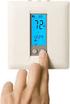 DUAL SENSING DIGITAL THERMOSTAT PRODUCT INSTRUCTIONS www.rehau.com Construction Automotive Industry SCOPE This guide gives instruction regarding REHAU Programmable Digital Thermostat installation and operation.
Current valve. for AC 24 V pulse/pause control of electrical loads up to 30 kw
 4 937 DESIO Current valve for AC 24 V pulse/pause control of electrical loads up to 30 kw SEA45.1 Use The current valve is used for the control of electric heating elements in heating, ventilation and
TABLE 1: Wiring Terminals. Connect to... 1C 1H 2C 2H 1H1C 2H1C 2H2C 3H2C
 Installation TURN OFF POWER TO THE SYSTEM AT THE MAIN POWER PANEL TO AVOID ELECTRICAL SHOCK. Installation should be carried out by an electrician or a qualified technician. 1.1 Find a Location for the
Transmitter Actuator 230V wave UP 560. Operation
 Transmitter ctuator 230V wave UP 560 5WG3 560-201 Product- and pplication Description Diagram The transmitter actuator 230V wave UP 560 (Diagram ) is a flush-mounted device with radio communication for
40.3. Control Relays and Timers
 .3 Contents EASY500/700/800 Intelligent Relays........ EASY/MFD Expansion Modules............ MFD Intelligent Relays................... EASY/MFD Communication Modules....... EASY/MFD Power Supplies, Accessories
ABB i-bus EIB Shutter Actuators JA/S 2.230.1, JA/S 4.230.1, JA/S 8.230.1, JA/S 4.230.1M, JA/S 8.230.1M, JA/S 4.24.1
 Product Manual ABB i-bus EIB Shutter Actuators JA/S 2.230.1, JA/S 4.230.1, JA/S 8.230.1, JA/S 4.230.1M, JA/S 8.230.1M, JA/S 4.24.1 Intelligent Installation Systems Contents Page 1 Introduction.......................................
33.6W Power over Ethernet Waterproof Adapter PoE Plus Single Port Injector for Outdoor Application
 33.6W Power over Ethernet Waterproof Adapter PoE Plus Single Port Injector for Outdoor Application Features Compliant with the IEEE802.3at Standard -40 to +60 C Temperature Range Diagnostic LEDs Full Protection
THERMONET UNDERFLOOR HEATING STANDARD THERMOSTAT KIT STOCK CODE 5260
 THERMONET UNDERFLOOR HEATING STANDARD THERMOSTAT KIT STOCK CODE 5260 STANDARD THERMOSTAT KIT 1.0 KIT CONTENTS Parts included: 1 x Thermostat 1 x Wall plate 2 x Mounting box screws 1 x Floor temperature
INSTALLATION GUIDE 1
 INSTALLATION GUIDE 1 Setting information MAC-558IF-E address(mac) MAC-558IF-E serial number(id) MAC-558IF-E code(pin) Indoor unit model name Indoor unit serial number Outdoor unit model name Outdoor unit
Digital input modules
 8 172 TX-I/O Digital input modules TXM1.8D TXM1.16D Two fully compatible versions: TXM1.8D: 8 inputs, each with a three-color LED (green, yellow or red) TXM1.16D: As TXM1.8X, but 16 inputs, each with a
High PoE Midspans NPD-6001A NPD-9501A. en Installation Manual
 High PoE Midspans NPD-6001A NPD-9501A en Installation Manual High PoE Midspans Table of Contents en 3 Table of contents 1 Safety 4 1.1 About this Manual 4 1.2 Legal Information 4 1.3 Safety Precautions
Operating instructions. RCD flat 4-fold, 6-fold
 Operating instructions 1. Safety instructions Electrical equipment must be installed and fitted by qualified electricians only. Observe the current accident prevention regulations. Failure to observe the
Operating instructions. AS-i Profibus gateway AC1411 / AC1412 7390884/00 04/2014
 Operating instructions AS-i Profibus gateway AC1411 / AC1412 7390884/00 04/2014 Contents 1 Preliminary note 4 1.1 Notes on this document 4 1.2 Symbols used 4 2 Safety instructions 4 2.1 General 4 2.2 Installation
IntesisBox KNX LG Air Conditioning
 IntesisBox KNX LG Air Conditioning Gateway for integration of LG Air Conditioners with KNX control systems. 1. Main Features Direct connection to KNX TP-1 (EIB) bus. Direct connection to LG outdoor unit
Lighting Management solutions
 Lighting Management solutions Best practice guide for office buildings PUTTING A STOP TO ENERGY WASTE INTRODUCTION Table of contents 1 Lighting control Best Practice Guide for Office Buildings 2 Guide
Product Manual. ABB i-bus KNX IP Interface IPS/S 2.1. Intelligent Installation Systems ABB
 Product Manual ABB i-bus KNX IP Interface IPS/S 2.1 Intelligent Installation Systems ABB This manual describes the function of the IP Interface IPS/S 2.1 with the application program IP Interface. Subject
OPERATING INSTRUCTIONS (TRANSLATION OF THE ORIGINAL) SUPPLEMENTARY OPERATING INSTRUCTIONS FOR YOUR AIR CURTAIN SYSTEM. Serial number: Year: --- Page 1
 --- OPERATING INSTRUCTIONS (TRANSLATION OF THE ORIGINAL) SUPPLEMENTARY OPERATING INSTRUCTIONS FOR YOUR AIR CURTAIN SYSTEM Serial number: Year: Please quote this number when contacting customer service!
RI-215A Operator s Manual. Part Number: 71-0045RK Revision 0 Released: 10/3/05
 RI-215A Operator s Manual Part Number: 71-0045RK Revision 0 Released: 10/3/05 Warranty RKI Instruments, Inc., warrants gas alarm equipment sold by us to be free from defects in materials and workmanship,
User Manual THR840DUK Digital Thermostat
 User Manual THR840DUK Digital Thermostat 50051982-001 Rev. A WARNING: This product must be correctly installed and configured to work properly (see pages 12-24). If you are not experienced in wiring electrical
T0118 T2118 T3118. Instruction Manual
 Programmable indoor transmitter of temperature T0118 Programmable indoor transmitter of atmospheric pressure T2118 Programmable indoor transmitter of temperature, relative humidity and other derived humidity
FX07 Field Controller
 Product Bulletin FX07 Field Controller Issue Date March 25, 2008 FX07 Field Controller The FX07 is a high performance field controller designed specifically for commercial Heating, Ventilating, Air Conditioning,
PHASED OUT. Digital dimmable ballasts for fluorescent lamps ECO series. PCA TCL ECO, 18 80 W Compact and T5c fluorescent lamps
 Product description Noise-free precise control via DSI signal or switchdim CELMA energy class A1 1) Interfaces DSI switchdim Integrated SMART-Interface Functions Optimum filament heating in any dimmer
DALI RC BASIC SO. Control unit Operating instructions
 DALI RC BASIC SO Control unit Operating instructions Contents Safety... 4 General instructions 4 Safety instructions 4 Description... 5 Purpose and application 5 Function 5 Light control 5 Brightness
DRM75A 230V 20/100A DIN rail single phase two wire energy meter
 DRM75A 230V 20/100A DIN rail single phase two wire energy meter 1.1 Safety instruction 1.2 Foreword 1.3 Performance criteria 1.4 Specifications 1.5 Basic errors 1.6 Description 1.7 Dimensions 1.8 Installation
OZS164... Web server. For LPB/BSB plants
 s 5 711 Web server For LPB/BSB plants OZS164... Remotely operate and monitor a LPB or BSB device Web browser operation via PC/laptop or Smartphone SMS operation via mobile phone (OZS164.23) 2 digital inputs
Class 2 transformer (TBT) Low Tension Conform to EN 60742. A LED turns ON when the current exceeds 1 A at the 14V output connector
 Technical notice TECHNICAL CHARACTERISTICS Power Class 2 transformer (TBT) Low Tension Conform to EN 60742 Rechargeable battery 16 Vac, 50-60Hz 50 Va min. 250 Va max 12 V, 7AH Protection A LED turns ON
Basics of Dimming. ISC Learning Centre
 ISC Learning Centre July 2009 > Dimmers Contents What is a dimmer? Dimmers & customer benefits Dimmers at home Dimmers at the office Dimmers: technical choices Overview of the Schneider Electric offer
Busch-Watchdog Presence EIB Type: 6131-74-102-500
 Type: 6131-74-102-500 Contents Technical data 2-2 Application programs (List) 2-3 Circuit diagrams 2-3 in combination with Bus coupler FM (6120-102): Switch Value Cyclic Monitoring /3 2-4 Switch Value
Programmable Room Thermostat 7 Day (5-2 Day) Models: 22083 / 22087 Power Supply: Battery / Mains
 Drayton Programmable Room Thermostat 7 Day (5-2 Day) Models: 22083 / 22087 Power Supply: Battery / Mains Invensys Controls Europe Technical Helpline: +44 (0) 845 130 7722 www.draytoncontrols.co.uk Installation
3.1.1 Full Type Tests & Routine Tests according to Clause 8 2 & 8 3. 4.0 Instructions For Installation, Operation & Maintenance
 SPECIFICATION FOR LOW VOLTAGE SWITCHBOARD SEN I N D E X Description 10 STANDARD TECHNICAL REQUIREMENTS 11 Standards 12 General Operating Conditions 13 General Description Of Switchboard 131 Structure 132
BIBUS VOP. large blocks of flats with switchboard and mixed mainly audio systems. Ideal for door phone systems with up to 250 users.
 BIBUS VOP Advice for use: large blocks of flats with switchboard and mixed mainly audio systems Ideal for door phone systems with up to 250 users VOP technology Easy creation of mixed audio and video door
FL ballasts Electronic dimming. PCA T5 EXCEL one4all lp Y, 3x14/24 W and 4x14/24 W EXCEL T5
 F ballasts T PCA T EXCE oneall lp Y, x1/ W and x1/ W EXCE T Product description Processor-controlled ballast with y inside Highest possible energy class CEMA EEI = A1 BAT 1 oise-free precise control via
AXIS T81B22 DC 30W Midspan
 INSTALLATION GUIDE AXIS T81B22 DC 30W Midspan ENGLISH About this Document This document includes instructions for installing AXIS T81B22 on your network. Previous experience of networking will be beneficial
2013 Wireless Video Intercom INSTALLATION GUIDE
 2013 Wireless Video Intercom INSTALLATION GUIDE INDEX System configuration and wiring VL-SWD501 System Component.. 4 VL-SWD501EX wiring schematic diagram VL-SWD501EX wiring type and length... 5.... 6 Door
C-Bus Solutions. Complete commercial control. Make the most of your energy SM
 C-Bus Solutions Complete commercial control Make the most of your energy SM Complete Control C-Bus control systems from Schneider Electric will put you in control of your lighting levels, your comfort,
contents Leading the way in intelligent automation INELS Wireless? Why Click Accessories Complete control
 Wireless Control Systems Accessories Leading the way in intelligent automation contents Range Overview Typical Installations Transmitters Combined Modules Accessories Programming Switching & Dimmer Functions
Energy Communication Unit (ECU)
 Altenergy Power System Energy Communication Unit (ECU) Installation and User Manual (For ECU-3 V3.8) ALTENERGY POWER SYSTEM INC. All rights reserved TABLE OF CONTENTS 1.0 Introduction... 2 2.0 Installation...
FriendlyNet Hub 5-Port or 8-Port Ethernet Hub User s Manual
 FriendlyNet Hub 5-Port or 8-Port Ethernet Hub User s Manual Asanté Technologies, Inc. 821 Fox Lane San Jose, CA 95131 Copyright Notice Copyright 1997 by Asanté Technologies, Inc. All rights reserved. No
Controller board and power supply for vivimat III systems
 Controller board and power supply for vivimat III systems Ref: VIVIMAT-3.0 The controller board and power supply vivimat 3.0, is the central core of the vivimat III home automation system. The vivimat
T7560A,B,C Digital Wall Module
 T7560A,B,C Digital Wall Module HONEYWELL EXCEL 5000 OPEN SYSTEM BEFORE INSTALLATION All wiring must comply with local electrical codes and ordinances or as specified on installation wiring diagrams. Digital
Thermostat with display
 H/LN4691-0 674 59-64170 Thermostat with display RA00118AA_I-01PC-13W39 www.homesystems-legrandgroup.com Thermostat with display Contents Thermostat with display 1 Introduction 4 1.1 Warnings and recommendations
AN500T, AN1000, AN1000T, AN1500, AN1500T AN2000, AN2000T
 Product Instruction Manual Accona AN500T, AN1000, AN1000T, AN1500, AN1500T AN2000, AN2000T Panel heater v16.5/5 Version 3.2 Jan 2015 Contents 1. Important safety points 2. Installation 2.1. Wall mounting
ES-CAM2AU IP Camera. www.etiger.com
 ES-CAM2AU IP Camera www.etiger.com EN Box content Connect your smartphone to the camera - ES-CAM2AU x1 - Mounting bracket x1 - AC Adaptor x1 - User Manual x1 and apps Before using the ES-CAM2AU, download
IPThermo206G. Offline/online data collector, SMS alarm sender, watchdog terminal for IPThermo Pro network
 IPThermo206G Offline/online data collector, SMS alarm sender, watchdog terminal for IPThermo Pro network IPThermo 206G is the central data handling terminal of the IPThermo Pro measurement network. This
A project to optimise quality and energy efficiency must include metering
 EMDX 3 : Energy Metering A project to optimise quality and energy efficiency must include metering Metering upstream identifies the critical points and ensures optimum targeting of the actions to be taken,
PHASED OUT. Digital dimmable ballasts for fluorescent lamps EXCEL one4all series. PCA TCL EXCEL one4all, 18 80 W Compact and T5c fluorescent lamps
 EXCEL oneall series Product description Noise-free precise control via DSI signal, switchdim, corridorfunction or DALI DALI-MEMORY Extended DALI commands CELMA energy class A1 1) Interfaces DALI DSI switchdim
Modular I/O System Analog and Digital Interface Modules
 OPERATING INSTRUCTIONS Modular I/O System Analog and Digital Interface Modules Installation Operation Maintenance Document Information Document ID Title: Operating Instructions Modular I/O System Part
ModBus Server - KNX. Gateway for integration of KNX equipment into Modbus (RTU and TCP) control systems.
 IntesisBox ModBus Server - KNX Gateway for integration of KNX equipment into Modbus (RTU and TCP) control systems. Integrate KNX based lighting control into your SCADA, BMS, PLC "talking" Modbus. Master
FX07 Field Controller
 Product Bulletin FX07 Field Controller Issue Date May 5, 2011 FX07 Field Controller The FX07 is a high performance field controller designed specifically for commercial Heating, Ventilating, Air Conditioning,
INSTALLER S & OWNER S MANUAL
 INSTALLER S & OWNER S MANUAL HVAC INSTALLER: PLEASE LEAVE MANUAL FOR HOMEOWNER DEH 3000 DEH 3000 Part No. 4028539 Dehumidifier & Ventilation System Controller P.O. Box 8680 Madison, WI 53708 TOLL-FREE
MAKING MODERN LIVING POSSIBLE. AK-SC255 On-Site Installation Guide DANFOSS ELECTRONIC CONTROLS & SENSORS
 MAKING MODERN LIVING POSSIBLE AK-SC255 On-Site Installation Guide DANFOSS ELECTRONIC CONTROLS & SENSORS How to Use This Guide Read this Guide completely as you install and start up your new AK-SC 255 controller.
Daker DK 1, 2, 3 kva. Manuel d installation Installation manual. Part. LE05334AC-07/13-01 GF
 Daker DK 1, 2, 3 kva Manuel d installation Installation manual Part. LE05334AC-07/13-01 GF Daker DK 1, 2, 3 kva Index 1 Introduction 24 2 Conditions of use 24 3 LCD Panel 25 4 Installation 28 5 UPS communicator
ABB i-bus EIB / KNX Analogue Input AE/S 4.2
 Product Manual ABB i-bus EIB / KNX Analogue Input AE/S 4.2 Intelligent Installation Systems This manual describes the functionality of Analogue Input AE/S 4.2. Subject to changes and errors excepted. Exclusion
Taurus Super-S3 LCM. Dual-Bay RAID Storage Enclosure for two 3.5-inch Serial ATA Hard Drives. User Manual March 31, 2014 v1.2 www.akitio.
 Dual-Bay RAID Storage Enclosure for two 3.5-inch Serial ATA Hard Drives User Manual March 31, 2014 v1.2 www.akitio.com EN Table of Contents Table of Contents 1 Introduction... 1 1.1 Technical Specifications...
PASSIVE INFRARED INTRUSION DETECTOR PASSIVE INFRAROOD DETECTOR DETECTEUR D INTRUSION PASSIF INFRAROUGE
 MODEL HAA51 PASSIVE INFRARED INTRUSION DETECTOR PASSIVE INFRAROOD DETECTOR DETECTEUR D INTRUSION PASSIF INFRAROUGE OPERATING MANUAL HAA51 PASSIVE INFRARED INTRUDER DETECTOR INTRODUCTION HAA51 Passive Infrared
16/32 Channel 1U Rack Mount CCTV Power Supply
 16/32 Channel 1U Rack Mount CCTV Power Supply Manual PH-A3224-GUQ Shown 16-Channel 32-Channel PTC PH-A1612-PUQ PH-A3224-PUQ Glass Fuse PH-A1612-GUQ PH-A3224-GUQ Industrial design 12 Amp 3 Amps per channel
FL ballasts Electronic dimming. PCA T5 ECO lp Y II, 14 80 W ECO T5
 EL PCA ECO lp Y II, 1 80 W ECO Product description Processor-controlled ballast with y II inside Highest possible energy class CELMA EEI = A1 BAT 1 Noise-free precise control via DALI or DSI signal, switchdim
TCP/IP MODULE CA-ETHR-A INSTALLATION MANUAL
 TCP/IP MODULE CA-ETHR-A INSTALLATION MANUAL w w w. c d v g r o u p. c o m CA-ETHR-A: TCP/IP Module Installation Manual Page Table of Contents Introduction...5 Hardware Components... 6 Technical Specifications...
DOMUSBOX. User guide. Index
 DOMUSBOX User guide Index Introduction... 2 1. Installing SEAV DOMUS... 4 1.1 Activating DomusBox... 4 1.2Drawing the environments in DomusWeb... 5 1.3Connecting DomusBox to the devices...9 1.4Configuration
EM6556 e-domotica Mini Switch
 EM6556 e-domotica Mini Switch EM6556 e-domotica Mini Switch 2 ENGLISH Table of contents 1.0 Introduction...2 1.1 Functions and features...2 1.2 Packing contents...2 2.0 Using the mini switch...3 2.1 Use
Product Manual. ABB i-bus KNX Data Logging Unit BDB/S 1.1. Intelligent Installation Systems ABB
 Product Manual ABB i-bus KNX Data Logging Unit BDB/S 1.1 Intelligent Installation Systems ABB This manual describes the function of the Data Logging Unit BDB/S 1.1. Subject to changes and errors excepted.
RDJ10RF/SET. Wireless room temperature controller with 24-hour time switch and LCD. Programmable, for heating systems
 3 072 RDJ10RF RCR10/433 Wireless room temperature controller with 24-hour time switch and LCD Programmable, for heating systems RDJ10RF/SET Operating modes: Automatic, Comfort, Energy Saving, and Frost
Quick Installation Guide 24-port PoE switch with 2 copper Gigabit ports and 2 Gigabit SFP ports (af Version 15.4W)
 Quick Installation Guide 24-port PoE switch with 2 copper Gigabit ports and 2 Gigabit SFP ports (af Version 15.4W) Table of Contents Introduction.. Power Over Ethernet (PoE) & Features.... Unpacking and
Tebis application software
 Tebis application software Input products / ON / OFF output / RF dimmer Electrical / Mechanical characteristics: see product user manual Product reference Product designation TP device RF devices WYC81xQ
ConneXium Ethernet Switches TCSESU0 F N0 Quick Reference Guide
 31007950 7/2009 ConneXium Ethernet Switches TCSESU0 F N0 Quick Reference Guide 7/2009 31007950.02 www.schneider-electric.com NOTICE Read these instructions carefully, and look at the equipment to become
Auto Dialer. Manual E-921APQ E-921GPQ
 Troubleshooting: Auto dialer will not arm/disarm Auto dialer will not dial out Unit doesn t respond to a call-back Difficulty in activating room monitor by telephone remote control Make sure that you have
Mounting and Operating Instructions. TV gateway 2610..
 Mounting and Operating Instructions TV gateway 2610.. Table of contents Device description... 3 Connection to a television... 4 Connection to a BK system (cable connection)... 5 Connection to the world
Quick Start Guide. RV0xx Series Routers
 Quick Start Guide RV0xx Series Routers RV042 Dual WAN VPN Router RV042G Gigabit Dual WAN VPN Router RV082 Dual WAN VPN Router RV016 Multi-WAN VPN Router Package Contents VPN Router Power Adapter (Cisco
Electronic Control Devices The European Product Catalogue 2007
 FX07 Field Controller (1/4) FX07 Field Controller Display Model Dimensions in mm (inches) The FX07 is a terminal unit controller in the Facility Explorer range of products. The controller is designed specifically
Electrical data Nominal voltage AC/DC 24 V Nominal voltage frequency
 echnical data sheet NV24A--RE Communicative globe valve actuator for 2-way and 3-way globe valves Actuating force 1000 N Nominal voltage AC/DC 24 V Control Modulating DC (0)2...10 V Variable Nominal stroke
IntesisBox Modbus Server Fidelio IP
 IntesisBox Server Fidelio IP Gateway for integration of Micros Fidelio Ho management system into (RTU and TCP) enabled control systems. Integrate your Micros Fidelio Ho management system into your master
RadioRA 2 (QS) Lighting and Climate Control. g! 5.4 Fan Controller: g! 6.4.200 RadioRA2 Inclusive Software v5.0.8 or newer
 Manufacturer: Model Number(s): Minimum Core Module Version: Comments: Lutron Document Revision Date: 8/5/2013 OVERVIEW AND SUPPORTED FEATURES Integration Note RadioRA 2 (QS) Lighting and Climate Control