
HP Integrity rx2660 Server Installation Guide
|
|
|
- Lora Heath
- 10 years ago
- Views:
Transcription
1 HP Integrity rx2660 Server Installation Guide HP Part Number: AB C Published: November 2007
2 Copyright 2007 Hewlett-Packard Development Company, L.P Legal Notices The information contained herein is subject to change without notice. The only warranties for HP products and services are set forth in the express warranty statements accompanying such products and services. Nothing herein should be construed as constituting an additional warranty. HP shall not be liable for technical or editorial errors or omissions contained herein. Printed in U.S.A. Intel, Pentium, Intel Inside, Itanium, and the Intel Inside logo are trademarks or registered trademarks of Intel Corporation or its subsidiaries in the United States and other countries. Linux is a U.S. registered trademark of Linus Torvalds. Microsoft and Windows are U.S. registered trademarks of Microsoft Corporation. Localized Documentation This Installation Guide has been translated to the following languages:

3 Table of Contents About This Document...9 Intended Audience...9 New and Changed Information in This Edition...9 Publishing History...9 Document Organization...9 Typographic Conventions...10 HP-UX Release Name and Release Identifier...11 Warranty Information...11 Related Information...11 HP Encourages Your Comments Installing the Server...13 Safety Information...13 Installation Sequence and Checklist...14 Unpacking and Inspecting the Server...14 Verifying Site Preparation...14 Inspecting the Shipping Containers for Damage...15 Unpacking the Server...15 Checking the Inventory...15 Returning Damaged Equipment...15 Unloading the Server With a Lifter...15 Installing Additional Components...16 Introduction...16 Installing a SAS Hard Drive and Removing a SAS Hard Drive Filler...16 Removing a SAS Hard Drive Filler...16 Installing a SAS Hard Drive...17 Installing a Hot-Swappable Power Supply...18 Power Supply Loading Guidelines...18 Installing a Power Supply...19 Removing the Top Cover...19 Removing the Airflow Guide...20 Installing System Memory...22 Memory Installation Conventions...22 Supported DIMM Sizes...22 Memory Pairs...23 Memory Loading Rules and Guidelines...23 Installing Memory...24 Installing a Processor...24 Processor Load Order...24 Required Tools...25 Replacing the Airflow Guide...29 Installing Additional PCIe/PCI-X Cards...30 Removing the I/O Backplane from the Server...30 Installing a PCIe/PCI-X Card...32 Replacing the I/O Backplane Card Cage...33 Installing the SAS Smart Array and PCIe Expansion Boards...33 Installing the PCIe Expansion Board...33 Installing the SAS Smart Array P400 Controller and RAID Battery...34 Replacing the Top Cover...35 Installing the Server into a Rack or Pedestal...36 Table of Contents 3

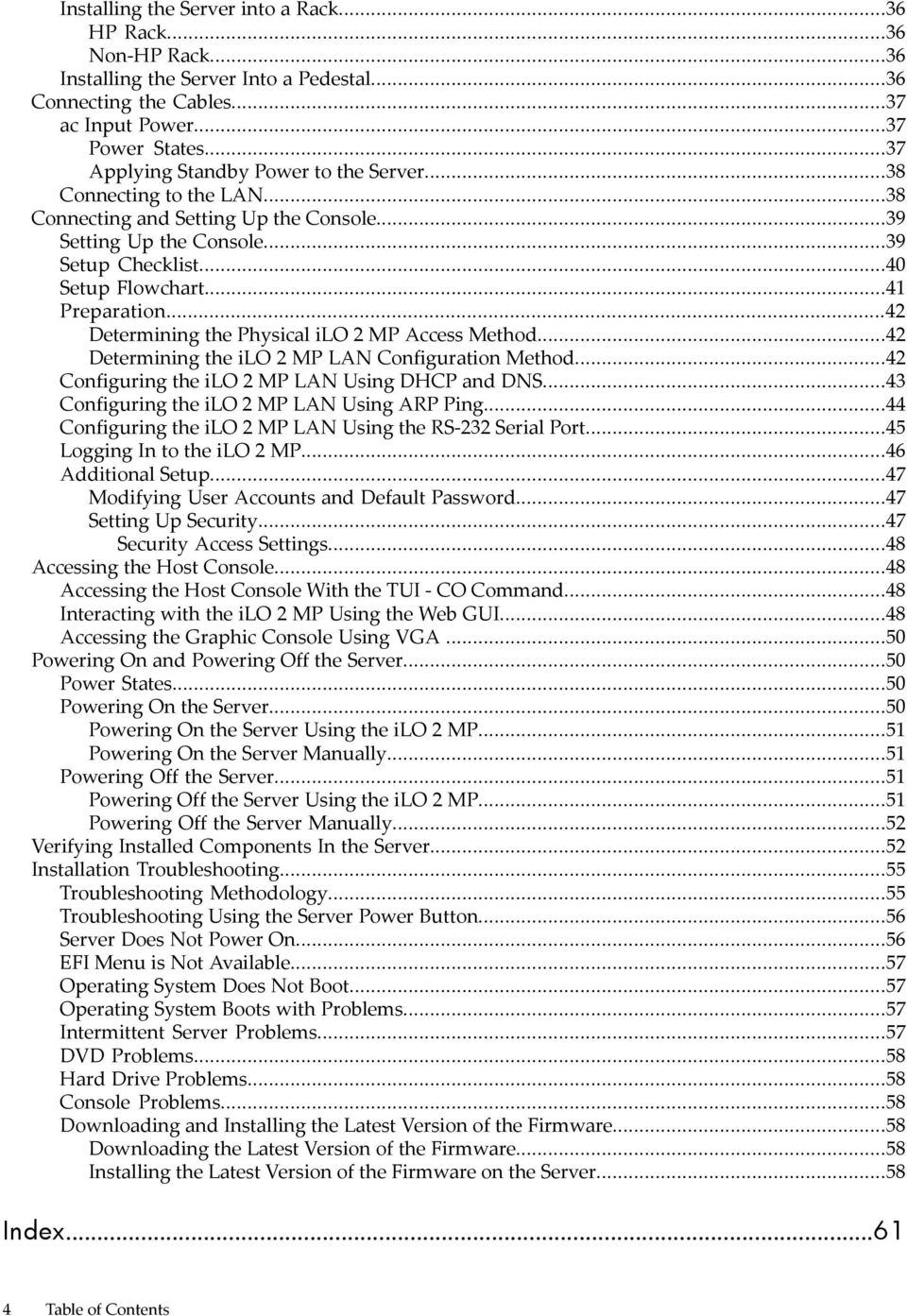
4 Installing the Server into a Rack...36 HP Rack...36 Non-HP Rack...36 Installing the Server Into a Pedestal...36 Connecting the Cables...37 ac Input Power...37 Power States...37 Applying Standby Power to the Server...38 Connecting to the LAN...38 Connecting and Setting Up the Console...39 Setting Up the Console...39 Setup Checklist...40 Setup Flowchart...41 Preparation...42 Determining the Physical ilo 2 MP Access Method...42 Determining the ilo 2 MP LAN Configuration Method...42 Configuring the ilo 2 MP LAN Using DHCP and DNS...43 Configuring the ilo 2 MP LAN Using ARP Ping...44 Configuring the ilo 2 MP LAN Using the RS-232 Serial Port...45 Logging In to the ilo 2 MP...46 Additional Setup...47 Modifying User Accounts and Default Password...47 Setting Up Security...47 Security Access Settings...48 Accessing the Host Console...48 Accessing the Host Console With the TUI - CO Command...48 Interacting with the ilo 2 MP Using the Web GUI...48 Accessing the Graphic Console Using VGA...50 Powering On and Powering Off the Server...50 Power States...50 Powering On the Server...50 Powering On the Server Using the ilo 2 MP...51 Powering On the Server Manually...51 Powering Off the Server...51 Powering Off the Server Using the ilo 2 MP...51 Powering Off the Server Manually...52 Verifying Installed Components In the Server...52 Installation Troubleshooting...55 Troubleshooting Methodology...55 Troubleshooting Using the Server Power Button...56 Server Does Not Power On...56 EFI Menu is Not Available...57 Operating System Does Not Boot...57 Operating System Boots with Problems...57 Intermittent Server Problems...57 DVD Problems...58 Hard Drive Problems...58 Console Problems...58 Downloading and Installing the Latest Version of the Firmware...58 Downloading the Latest Version of the Firmware...58 Installing the Latest Version of the Firmware on the Server...58 Index Table of Contents
5 List of Figures 1-1 Removing a Hard Drive Filler Installing a SAS Hard Drive Power Supply Location Installing a Power Supply Removing the Top Cover Removing the Airflow Guide Fan Carrier Handle Memory Location and Slot IDs Processor Cage Handle Processor Cage Open ZIF Socket, Alignment Holes and Posts, and Slot Locations ZIF Socket Processor Power Connectors Replacing the Airflow Guide I/O Backplane Assembly Screw Locations I/O Backplane Assemblies SAS Smart Array P400 Controller and PCIe Expansion Board Slots Board Lock Installing the RAID battery Replacing the Top Cover Rear Panel Control, Port, and LED Locations ilo 2 MP Setup Flowchart ilo 2 MP Web Login Page Status Summary Page

6 6

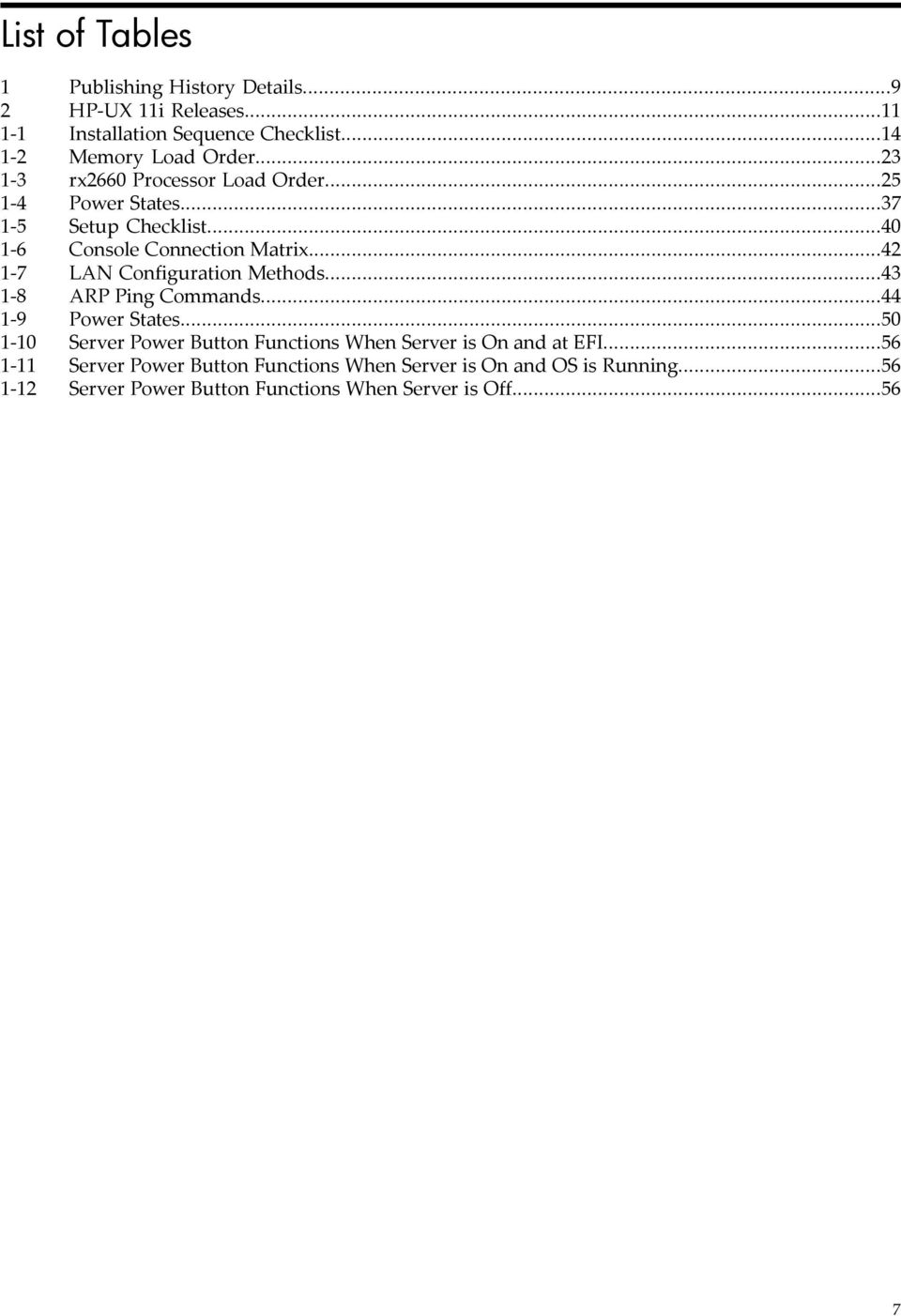
7 List of Tables 1 Publishing History Details HP-UX 11i Releases Installation Sequence Checklist Memory Load Order rx2660 Processor Load Order Power States Setup Checklist Console Connection Matrix LAN Configuration Methods ARP Ping Commands Power States Server Power Button Functions When Server is On and at EFI Server Power Button Functions When Server is On and OS is Running Server Power Button Functions When Server is Off
8 8

9 About This Document This document describes how to unpack the HP Integrity rx2660 server, install additional components, install the server into a standard rack or pedestal configuration, power on the server, and start a server console session. The document printing date and part number indicate the document s current edition. The printing date changes when a new edition is printed. Minor changes may be made at reprint without changing the printing date. The document part number changes when extensive changes are made. Document updates may be issued between editions to correct errors or document product changes. To ensure you receive the updated or new editions, you should subscribe to the appropriate product support service. See your HP sales representative for details. The latest version of this document can be found on the HP website at: Intended Audience This document is intended to provide technical product and support information for customers, authorized service providers, system administrators, and HP support personnel. New and Changed Information in This Edition This document has been updated to comply with the latest HP formatting standards. Publishing History The publishing history below identifies the edition dates of this manual. Updates are made to this publication on an unscheduled, as needed, basis. The updates will consist of a complete replacement manual and pertinent online or CD documentation. Table 1 Publishing History Details Manufacturing Part Number AB A AB B AB C Supported Operating Systems HP-UX, Microsoft Windows Linux OpenVMS HP-UX, Microsoft Windows Linux OpenVMS HP-UX, Microsoft Windows Linux OpenVMS Publication Date December 2006 May 2007 November 2007 Document Organization The HP Integrity rx2660 Installation Guide is divided into several sections that contain information about installing the HP Integrity rx2660 server. Safety Information Provides high-level safety information for server installation. Intended Audience 9

10 Installation Sequence and Checklist Provides the installation sequence and an installation checklist. Unpacking and Inspecting the Server Provides information about unpacking and inspecting the server. Installing Additional Components Provides procedures on installing additional components purchased with the server that were not factory installed. Installing the Server Into a Rack or Pedestal Provides procedures to mount the server into a rack or pedestal configuration. Connecting Cables Provides procedures to connect external cables to the server. Connecting and Setting up the Console Provides procedures to start a console session on a newly installed server. Accessing the Host Console Provides information and instructions on the different ways to access the host console. Powering On and Powering Off the Server Provides procedures to power the server on. Verifying Installed Components In the Server Provides procedures to verify the components installed in your server. Installation Troubleshooting Provides high-level troubleshooting procedures when installing the server. Typographic Conventions This document uses the following conventions. WARNING! A warning lists requirements that you must meet to avoid personal injury. CAUTION: A caution provides information required to avoid losing data or to avoid losing system functionality. NOTE: A note highlights useful information such as restrictions, recommendations, or important details about HP product features. Book Title The title of a book. On the web and on the Instant Information CD, it may be a link to the book itself. KeyCap The name of a keyboard key. Return and Enter both refer to the same key. Emphasis Text that is emphasized. Bold Text that is strongly emphasized. Term The defined use of an important word or phrase. ComputerOut Text displayed by the computer. UserInput Commands and other text that you type. Command A command name or qualified command phrase. Option An available option. Variable The name of a variable that you can replace in a command or function or information in a display that represents several possible values. [ ] The contents are optional in formats and command descriptions. If the contents are a list separated by, you must select one of the items. { } The contents are required in formats and command descriptions. If the contents are a list separated by, you must select one of the items.... The preceding element may be repeated an arbitrary number of times. 10

11 Separates items in a list of choices. HP-UX Release Name and Release Identifier Each HP-UX 11i release has an associated release name and release identifier. Theuname (1)command with the-roption returns the release identifier. This table shows the releases available for HP-UX 11i. Table 2 HP-UX 11i Releases Release Identifier B B B B B Release Name HP-UX 11i v1 HP-UX 11i v1.5 HP-UX 11i v1.6 HP-UX 11i v2 HP-UX 11i v3 Supported Processor Architecture PA-RISC Intel Itanium Intel Itanium Intel Itanium Intel Itanium Warranty Information The latest versions of the BCS Global Limited Warranty and Technical Support documentation is posted on the HP website in the Enterprise Servers, Workstations, and System Hardware collection under each server to which it applies, at: Related Information You can find other information on HP server hardware management, Microsoft Windows, and diagnostic support tools in the following publications. Web Site for HP Technical Documentation: Server Hardware Information: Windows Operating System Information You can find information about administration of the Microsoft Windows operating system at the following websites, among others: Diagnostics and Event Monitoring: Hardware Support Tools Complete information about HP hardware support tools, including online and offline diagnostics and event monitoring tools, is available on the HP website at: This site has manuals, tutorials, FAQs, and other reference material. Web Site for HP Technical Support: Books about HP-UX Published by Prentice Hall The website lists the HP books that Prentice Hall currently publishes, such as: HP-UX 11i System Administration Handbook HP-UX Virtual Partitions HP books are available worldwide through bookstores, online booksellers, and office and computer stores. HP Encourages Your Comments HP encourages your comments concerning this document. We are truly committed to providing documentation that meets your needs. HP-UX Release Name and Release Identifier 11

12 Send comments to: Include the title, manufacturing part number, and any comment, error found, or suggestion for improvement you have concerning this document. Also, please include what we did right so we can incorporate it into other documents. 12

13 1 Installing the Server This chapter provides information and procedures for installing the HP Integrity rx2660 server. This chapter addresses the following topics: Safety Information (page 13) Installation Sequence and Checklist (page 14) Unpacking and Inspecting the Server (page 14) Installing Additional Components (page 16) Installing the Server into a Rack or Pedestal (page 36) Connecting the Cables (page 37) Connecting and Setting Up the Console (page 39) Accessing the Host Console (page 48) Powering On and Powering Off the Server (page 50) Verifying Installed Components In the Server (page 52) Installation Troubleshooting (page 55) Safety Information Use care to prevent injury and equipment damage when performing removal and replacement procedures. Voltages can be present within the server. Many assemblies are sensitive to damage by electrostatic discharge (ESD). Follow the safety conventions listed below to ensure safe handling of components, to prevent injury, and to prevent damage to the server: When removing or installing any server component, follow the instructions provided in this guide. If installing a hot-swappable or hot-pluggable component when power is applied (fans are running), reinstall the server cover immediately to prevent overheating. If installing a hot-pluggable component, complete the required software intervention prior to removing the component. If installing an assembly that is neither hot-swappable nor hot-pluggable, disconnect the power cable from the external server power receptacle before starting the installation. WARNING! Ensure that the system is powered off and all power sources are disconnected from the server prior to removing or installing server hardware (unless you are removing or installing a hot-swappable or hot-pluggable component). Voltages are present at various locations within the server whenever an ac power source is connected. This voltage is present even when the main power switch is off. Failure to observe this warning can result in personal injury or equipment damage. Do not wear loose clothing that can snag or catch on the server or on other components. Do not wear clothing subject to static charge buildup, such as wool or synthetic materials. If installing an internal assembly, wear an antistatic wrist strap and use a grounding mat, such as those included in the Electrically Conductive Field Service Grounding Kit (HP ). Handle accessory boards and components by the edges only. Do not touch any metal edge connectors or any electrical components on accessory boards. Safety Information 13

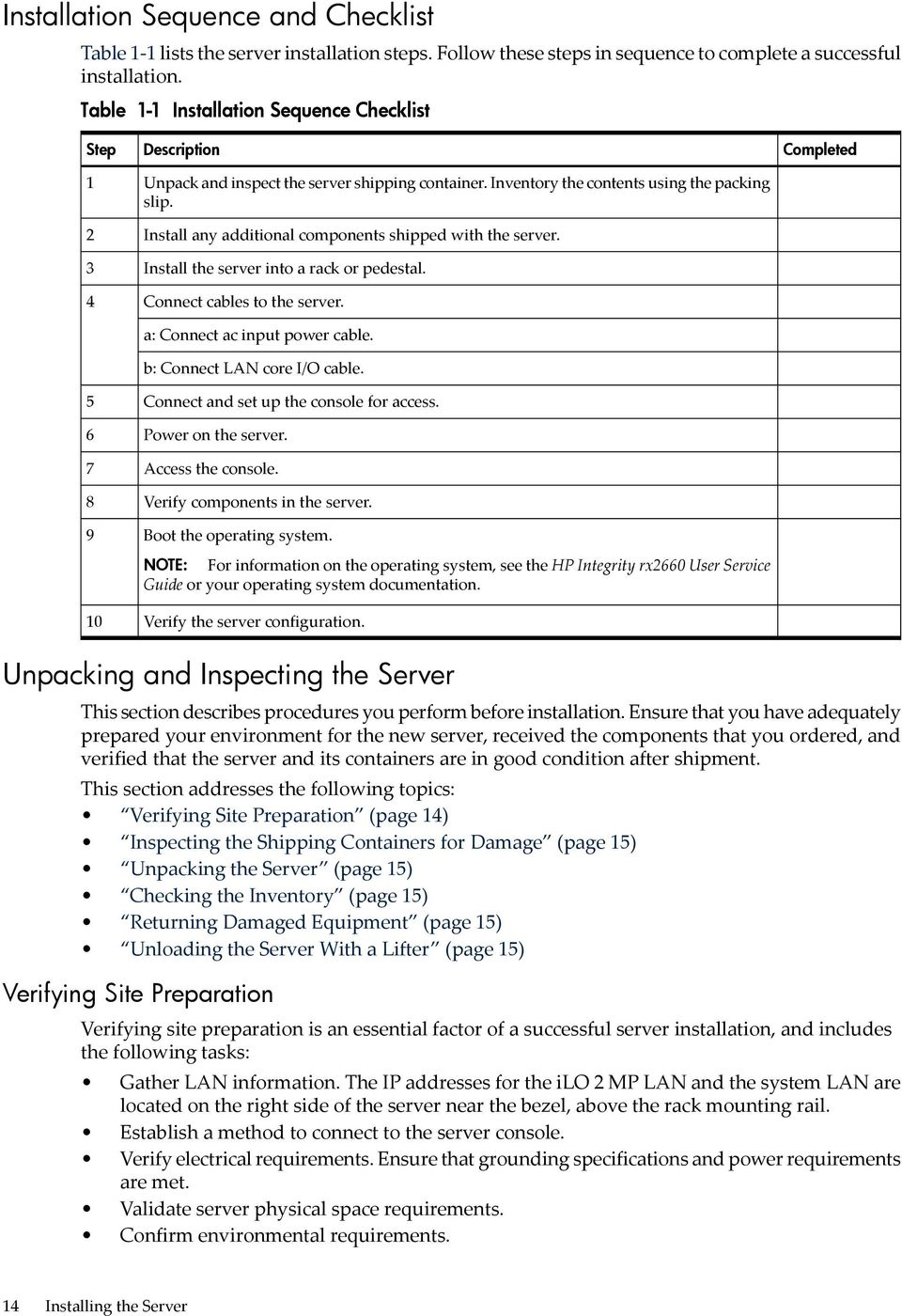
14 Installation Sequence and Checklist Table 1-1 lists the server installation steps. Follow these steps in sequence to complete a successful installation. Table 1-1 Installation Sequence Checklist Step Description Unpack and inspect the server shipping container. Inventory the contents using the packing slip. Install any additional components shipped with the server. Install the server into a rack or pedestal. Connect cables to the server. a: Connect ac input power cable. b: Connect LAN core I/O cable. Connect and set up the console for access. Power on the server. Access the console. Verify components in the server. Boot the operating system. NOTE: For information on the operating system, see the HP Integrity rx2660 User Service Guide or your operating system documentation. Verify the server configuration. Completed Unpacking and Inspecting the Server This section describes procedures you perform before installation. Ensure that you have adequately prepared your environment for the new server, received the components that you ordered, and verified that the server and its containers are in good condition after shipment. This section addresses the following topics: Verifying Site Preparation (page 14) Inspecting the Shipping Containers for Damage (page 15) Unpacking the Server (page 15) Checking the Inventory (page 15) Returning Damaged Equipment (page 15) Unloading the Server With a Lifter (page 15) Verifying Site Preparation Verifying site preparation is an essential factor of a successful server installation, and includes the following tasks: Gather LAN information. The IP addresses for the ilo 2 MP LAN and the system LAN are located on the right side of the server near the bezel, above the rack mounting rail. Establish a method to connect to the server console. Verify electrical requirements. Ensure that grounding specifications and power requirements are met. Validate server physical space requirements. Confirm environmental requirements. 14 Installing the Server
15 For more information on server electrical, physical space, and environmental requirements, see the HP Integrity rx2660 Site Preparation Guide. Inspecting the Shipping Containers for Damage HP shipping containers protect their contents under normal shipping conditions. After the equipment arrives, carefully inspect each carton for signs of shipping damage. Shipping damage constitutes moderate to severe damage, such as punctures in the corrugated carton, crushed boxes, or large dents. Normal wear or slight damage to the carton is not considered shipping damage. If you find shipping damage to the carton, contact your HP customer service representative immediately. Unpacking the Server To unpack the server, follow these steps: 1. Follow the instructions printed on the outside top flap of the carton to remove the banding and the outer carton from the server pallet. 2. Remove all inner accessory cartons and the top foam cushions, leaving only the server. IMPORTANT: Inspect each carton for shipping damage as you unpack the server. Checking the Inventory The sales order packing slip lists all the equipment shipped from HP. Use this packing slip to verify that all of the equipment has arrived. NOTE: To identify each item by part number, refer to the sales order packing slip. Returning Damaged Equipment If the equipment is damaged, contact your HP customer service representative immediately. The service representative initiates appropriate action through the transport carrier or the factory and assists you in returning the equipment. Unloading the Server With a Lifter WARNING! Use caution when using a lifter. Because of the weight of the HP Integrity rx2660 server, you must center the server on the lifter forks before lifting it off the pallet to avoid injury. NOTE: HP recommends that you follow your local guidelines when lifting equipment. To unload the server from the pallet using a lifter (if necessary), follow these steps: 1. Unpack the server. 2. Unroll the bottom corrugated tray corresponding to the side on which the lifter will be placed, and slide the server as close to that edge of the pallet as possible. 3. Break off any foam packaging that can prevent the lifter from being fully inserted under the server. Do not remove the foam packaging from the corners of the server. This foam is required to elevate the server and to enable the forks of the lifter to be placed under the server. 4. Insert the lifter forks under the server. 5. Carefully roll the lifter forward until it is fully positioned against the side of the server. 6. Slowly raise the server off the pallet until it clears the pallet cushions. 7. Carefully roll the lifter and server away from the pallet. Do not raise the server any higher than necessary when moving it over to the rack. Unpacking and Inspecting the Server 15
16 Installing Additional Components Introduction This section describes how to install components into the server that are not factory-installed. If you have additional components to install, be sure to install the additional components before installing the server into your rack or pedestal configuration. Most servers are pre-configured with all components installed prior to shipping from the HP factory. This section addresses the following topics: Introduction (page 16) Installing a SAS Hard Drive and Removing a SAS Hard Drive Filler (page 16) Installing a Hot-Swappable Power Supply (page 18) Removing the Top Cover (page 19) Removing the Airflow Guide (page 20) Installing System Memory (page 22) Installing a Processor (page 24) Replacing the Airflow Guide (page 29) Installing Additional PCIe/PCI-X Cards (page 30) Installing the SAS Smart Array and PCIe Expansion Boards (page 33) Replacing the Top Cover (page 35) The rx2660 server contains external components (installable without removing the top cover), and internal components that are accessed by removing the top cover. The externally accessible components are as follows: SAS hard drives Power supplies The internal components are as follows: System memory Processors PCIe/PCI-X cards WARNING! Ensure that the system is powered off and all power sources are disconnected from the server prior to removing or installing server hardware (unless you are removing or installing a hot-swappable or hot-pluggable component). Voltages are present at various locations within the server whenever an ac power source is connected. This voltage is present even when the main power switch is turned off. Failure to observe this warning can result in personal injury or damage to the equipment. Installing a SAS Hard Drive and Removing a SAS Hard Drive Filler There are eight hot-pluggable SAS hard drive slots located on the front of the server. Slots without SAS hard drives installed have slot fillers installed for cooling purposes. To install a SAS disk drive you must first remove the hard drive filler. Removing a SAS Hard Drive Filler To remove a hard drive filler, follow these steps: 1. Squeeze the tabs on the front of the filler to release it from the slot in the drive bay (1). 16 Installing the Server
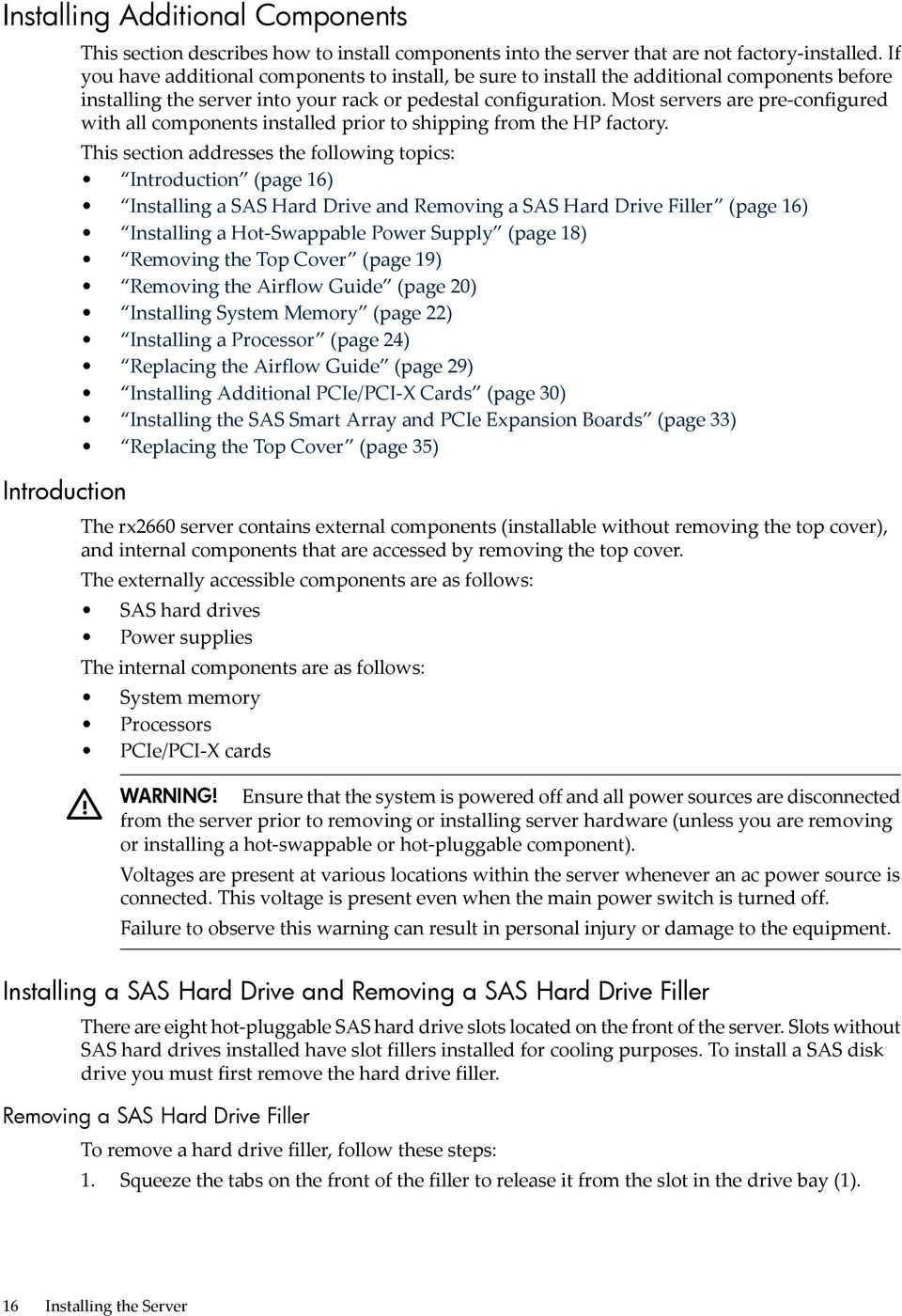
17 2. Pull gently until the filler slides out of the server (2). Figure 1-1 Removing a Hard Drive Filler NOTE: SAS hard drives are loaded in order, starting with slot 8, going from right to left, to slot 1. Save the SAS hard drive filler for future use. For airflow purposes, always place hard drive fillers in slots that do not contain SAS disk drives. Installing a SAS Hard Drive To install a SAS hard drive, follow these steps. 1. Insert the hard drive into the slot guides, and slide the drive into the slot until it seats into the socket on the disk backplane (1). Installing Additional Components 17
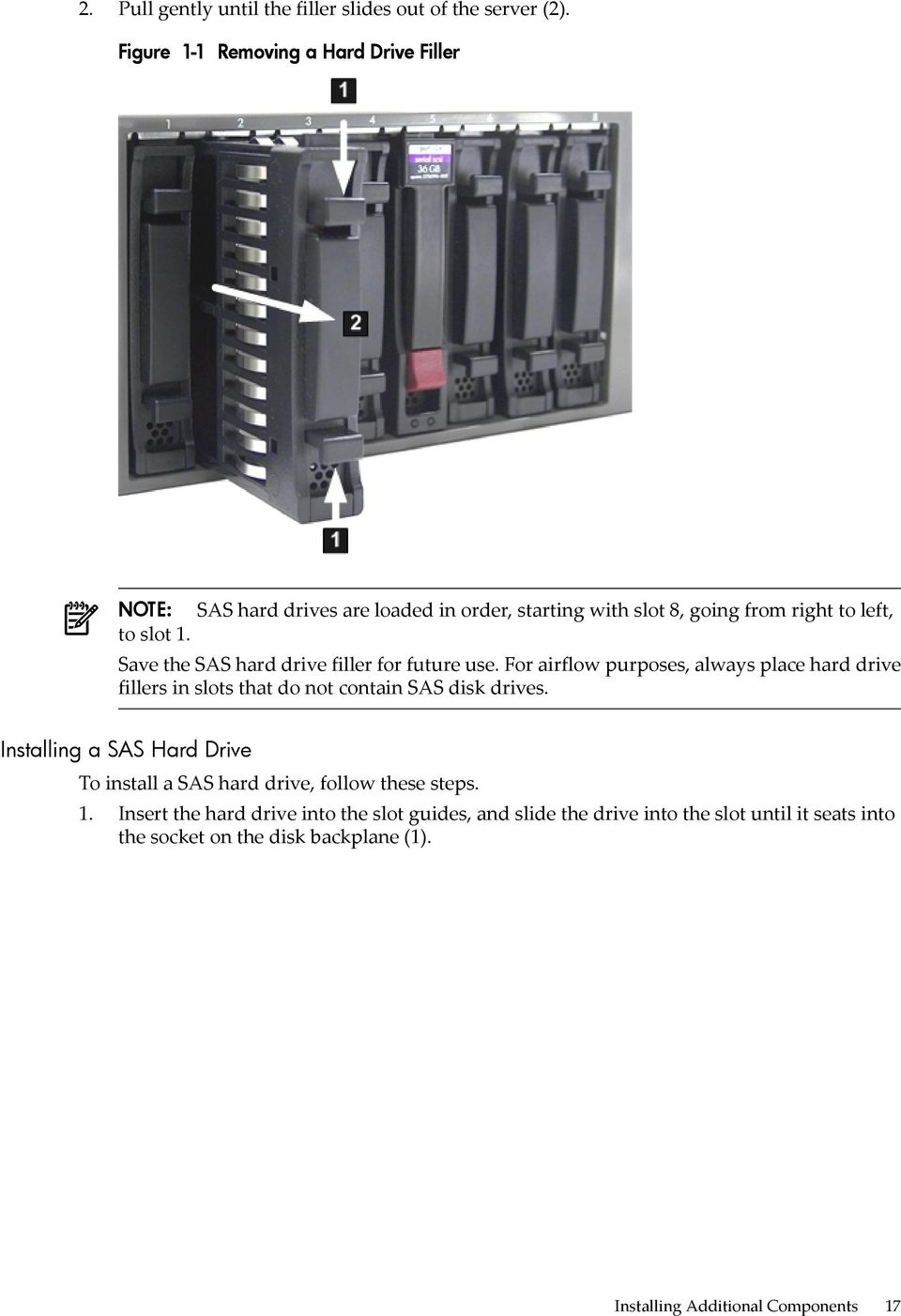
18 2. Close the drive extraction handle by pushing it downward until it clicks into place (2). Figure 1-2 shows how to install a SAS hard drive. Figure 1-2 Installing a SAS Hard Drive Installing a Hot-Swappable Power Supply The Data Center server has at least one hot-swappable power supply installed before shipping. This power supply is located at the rear of the server. You can install a second, optional power supply to provide 1+1 capability. Use the following procedures to install an additional power supply. CAUTION: Observe all ESD safety precautions before attempting this procedure. Failure to follow ESD safety precautions can result in damage to the server. NOTE: If you have an Office Friendly server, you have two power supplies already installed. You do not need to perform this procedure. NOTE: The power supply is a hot-swappable device. It does not require interaction with the operating system before the it is removed from or installed into the server. Power Supply Loading Guidelines The supported configuration of the server requires a minimum of one power supply installed in slot P1. The right slot (viewed from the rear of the server) is slot P1, and the left slot is P2. 18 Installing the Server
19 Figure 1-3 Power Supply Location 1 Power supply 1 2 Power supply 2 CAUTION: If you do not purchase a second power supply, the empty power supply slot must remain covered with the supplied metal filler panel. Failure to observe this caution can result in server shutdown due to overheating. Installing a Power Supply To install a power supply, follow these steps. 1. Remove the metal slot filler by pulling it straight out of the server using the finger holes (1). 2. Support the power supply with both hands, and slide it into the empty slot until it clicks into place (2). IMPORTANT: Ensure the power supply is flush with the adjacent power supply. Figure 1-4 shows how to install a power supply. Figure 1-4 Installing a Power Supply Removing the Top Cover When installing internal components into the server, you must first remove the top cover. Figure 1-5 (page 20) shows how to remove the top cover. Installing Additional Components 19

20 To remove the top cover, follow these steps. 1. Unlock the cover release lever (if necessary) by turning the cam approximately 90 degrees counterclockwise with the Allen wrench provided on the rear panel of the server (1). 2. Pull up on the cover release lever to disengage the top cover from the chassis (2). 3. Slide the cover toward the rear of the server until the tabs release from the slots in the chassis (3). 4. Lift the cover off the chassis (4). Figure 1-5 Removing the Top Cover Removing the Airflow Guide The airflow guide in the rx2660 server directs airflow from eight of the system fans to the processors and the system memory on the system board. To install an additional processor or system memory, you must remove the airflow guide (and optionally, the RAID battery). To remove the airflow guide from the server, follow these steps: 1. Remove the top cover. 20 Installing the Server

21 2. If the RAID battery is connected to the airflow guide, remove it before removing the airflow guide. To remove the RAID battery, follow these steps: a. Pull the RAID battery lock away from the RAID battery (1). b. Slide the RAID battery toward the front of the server to disengage it from the airflow guide (2). c. Pull straight up on the RAID battery to remove it from the airflow guide. Figure 1-6 Removing the Airflow Guide 3. Lift up on the fan carrier handle approximately 5 cm (2 in) to allow the airflow guide to be lifted out of the server (1). Installing Additional Components 21
22 4. Lift the airflow guide straight up and out of the server (2). Figure 1-7 shows the Data Center fan carrier. Figure 1-7 Fan Carrier Handle Installing System Memory The rx2660 server has eight system memory (DIMM) slots located on the system board. CAUTION: Observe all ESD safety precautions before attempting this procedure. Failure to follow ESD safety precautions can result in damage to the server. Memory Installation Conventions Before installing memory, read and understand the following memory installation conventions: Supported DIMM sizes and memory configurations DIMM load order DIMM slot IDs Supported DIMM Sizes System DIMMs seat onto the memory boards. The minimum server configuration requires at least one memory pair (group of two DIMMs). 22 Installing the Server
23 The supported DIMM sizes for the server are as follows: 512 MB 1 GB 2 GB 4 GB Memory Pairs When installing memory, use a minimum of one pair of like-sized DIMMs. You can install additional DIMMs later. Install DIMMs into the appropriate slots on the system board; each slot has a unique ID. Figure 1-8 shows the DIMM slot IDs. Figure 1-8 Memory Location and Slot IDs CAUTION: Failure to observe the following cautions results in system degradation or failure: Do not mix DIMM sizes or types within a pair. Load DIMM pairs in order of size from largest to smallest. For example, if you have a pair of 4 GB DIMMs and a pair of 1 GB DIMMs, install the pair of 4 GB DIMMs first. Table 1-2 lists the memory load order. Table 1-2 Memory Load Order Pair Number Memory Slots A; 0B 1A; 1B 2A; 2B 3A; 3B Memory Loading Rules and Guidelines Use the following rules and guidelines when installing memory: Install DIMMs in pairs Ensure that DIMMs within a pair are identical Install DIMM pairs in order of size from largest to smallest Install DIMM pairs in the specified order shown in Table 1-2 Installing Additional Components 23
24 Installing Memory To install memory, follow these steps: 1. Remove the top cover from the server. See Removing the Top Cover (page 19). 2. Remove the airflow guide. See Removing the Airflow Guide (page 20). 3. Complete the following memory installation prerequisite tasks before installing the memory: a. Determine the DIMM load order. For more information, see Memory Load Order (page 23). b. See Figure 1-8 (page 23) to determine which DIMM slots to populate. c. Read, understand, and follow the general guidelines to install memory in the server.. 4. Install each DIMM. a. Align the DIMM with the slot located on the memory board, and align the key in the connector with the notch in the DIMM. b. Firmly and evenly push on each end of the DIMM until it seats into the slot. c. Ensure the extraction levers are in the fully closed position. 5. Replace the airflow guide if you are finished installing additional components. See Replacing the Airflow Guide (page 29). 6. Replace the top cover if you are finished installing additional components. See Replacing the Top Cover (page 35). Otherwise, continue with installing components. Installing a Processor The rx2660 server utilizes single- or dual-core processors. Dual-core processors contain two cores that function as separate processors. Dual-core processors double the processing power of the processor while maintaining the physical dimensions of a single processor. The server holds one or two single- or dual-core processors that provide the following configuration options: 1P/1C (One processor / one core) 1P/2C (One processor / two cores) 2P/2C (Two processors / two cores) 2P/4C (Two processors / four cores) The server has one processor installed in slot Module 0 before shipping. Install the additional processor in slot Module 1. CAUTION: Intel Montvale processors cannot be intermixed with similar Montecito processors. Processor speed and cache size must be identical for all processors in a system. To ensure compatibility whether upgrading, replacing, or adding an additional processor, use processors with identical part numbers. Failure to observe this caution results in performance degradation or system failure. To ensure compatibility, use processors with identical part numbers. CAUTION: Observe all ESD safety precautions before attempting this procedure. Failure to follow ESD safety precautions can result in damage to the server. Processor Load Order The server holds up to two single- or dual-core processors on the processor board. The slots on the processor board are labeled Module 0 and Module 1. If the server has only one processor, it is installed in slot Module 0. Install the second processor in slot Module 1. Table 1-3 lists the processor load sequence. 24 Installing the Server
25 Table 1-3 rx2660 Processor Load Order Processor Slot 0 1 Module 0 Module 1 Required Tools To install processors, use the processor install tool fastened to the airflow guide. TIP: Prior to installing a processor into the server, read the following instructions carefully and refer to the figures in this section for a complete understanding of this process. To install a processor, follow these steps: 1. Remove the top cover. See Removing the Top Cover (page 19) 2. Remove the airflow guide. See Removing the Airflow Guide (page 20) Installing Additional Components 25
26 3. Open the processor cage. a. Grasp the processor cage handle and apply adequate force to rotate the handle upward. Figure 1-9 shows the processor cage handle open. Figure 1-9 Processor Cage Handle b. Use the handle to rotate the cage closure approximately 90 degrees toward the front of the assembly until it stops. Figure 1-10 shows the processor cage fully open. Figure 1-10 Processor Cage Open IMPORTANT: Ensure the processor slot is entirely exposed. The processor must clear the cage enclosure for proper installation. 4. Locate the slot Module 1 on the system board for the processor installation. 26 Installing the Server
27 Figure 1-11 shows the slot locations on the system board. Figure 1-11 ZIF Socket, Alignment Holes and Posts, and Slot Locations 1 Alignment hole on the processor 6 Processor slot 1 on the system board 2 Access hole for the ZIF socket (Module 1) 3 Processor 0 7 ZIF socket on the system board 4 Alignment hole on the processor 8 Processor socket dust cover 5 Alignment post on the system 9 Alignment post on the system board board 10 Module 1 label on the system board 5. Remove the plastic airflow blocker covering the processor slot (if installed). 6. Remove the protective dust cover from the processor socket (if installed). 7. Ensure the cam on the ZIF socket is in the unlocked, counterclockwise position. Figure 1-12 shows the unlocked ZIF socket. Installing Additional Components 27
28 Figure 1-12 ZIF Socket CAUTION: The ZIF socket for the processor is locked and unlocked by half a full turn of the processor install tool. The counterclockwise 180 degree rotation (half turn) unlocks the socket. A clockwise 180 degree rotation locks the socket. Attempting to turn the locking mechanism more than 180 degrees can severely damage the socket. 8. Remove any protective packaging from the processor. NOTE: use. Protective covers are installed to protect connector pins. Save these covers for future 9. Inspect the processor pins to verify the pins are not bent. 10. Align the alignment holes on the processor with the alignment posts on the processor cage, and carefully lower the processor onto the processor socket. Figure 1-11 (page 27) shows the alignment holes and posts on the processor and system board. CAUTION: Do not press the processor into the socket. When properly aligned, the processor pins seat into the socket. No additional pressure is required. Damage to the pins may occur if pressure is applied. 11. Lock the processor into the socket on the processor board. a. Remove the processor install tool (2.5 mm driver) from the tool holder on the airflow guide. b. Insert the processor tool into the hole that runs down the side of the heatsink. c. Rotate the processor tool clockwise 180 degrees to lock the ZIF socket. d. Refasten the processor install tool (2.5 mm driver) to the tool holder on the airflow guide. 12. Connect the processor power cable into the connector cable that attaches directly to the system board. Figure 1-13 shows the processor power cable connectors. 28 Installing the Server
29 Figure 1-13 Processor Power Connectors 1 Processor power 2 System board power 3 Processor cable and connector cable and connector 13. Close the processor cage. a. Grasp the processor cage handle and rotate the cage closure inward toward the rear of the assembly until it is completely closed. b. Apply adequate force to push the handle down until it is flush with the cage. 14. Replace the airflow guide if you are finished installing additional components. See Replacing the Airflow Guide (page 29). 15. Replace the top cover if you are finished installing additional components. See Replacing the Top Cover (page 35) Replacing the Airflow Guide Use this procedure to replace the airflow guide in the server when you are finished installing additional equipment into the server. To replace the airflow guide, follow these steps: 1. Ensure the fan carrier handle is raised approximately 5 cm (2 in) to allow clearance for the airflow guide replacement. 2. Place the airflow guide on the edge of the fan carrier and set it down into place on the processor cage (1). 3. Push the fan carrier handle down until it is flush against the airflow guide (2). Figure 1-14 shows the fan carrier handle raised. Installing Additional Components 29
30 Figure 1-14 Replacing the Airflow Guide 4. Ensure the fans have not become disconnected when opening the fan carrier handle by pushing down on all the fans to make sure they are seated properly. Installing Additional PCIe/PCI-X Cards The rx2660 server supports PCI-X cards and PCI-Express (PCIe) cards. There are three PCIe/PCI-X slots in the I/O backplane located on the system board. Depending on your server configuration, you have one of the following I/O backplane assemblies, with the included riser board: PCI-X riser board: Three full-length PCI-X public slots PCIe/PCI-X riser board: Two PCIe x8 public slots and one full-length PCI-X public slot NOTE: Wake-on-LAN is not enabled on any of the PCIe/PCI-X slots. PCIe/PCI-X hot-plugging is not supported on the rx2660 server. Removing the I/O Backplane from the Server To install an additional PCIe/PCI-X card into the server, you must first remove the I/O backplane from the system board. To remove the I/O backplane assembly, follow these steps: 1. Remove the top cover. See Removing the Top Cover (page 19). 30 Installing the Server
31 2. Loosen the two captive screws on the I/O backplane assembly. Follow these steps to loosen the captive screws: a. Press the blue button to release the black knob. Figure 1-15 shows the location of the I/O backplane assembly captive screws. Figure 1-15 I/O Backplane Assembly Screw Locations b. Turn the black knob counterclockwise until the captive screw is free from the server. Installing Additional Components 31
32 3. Lift the assembly straight up and out of the server. NOTE: Depending on your configuration, you have one of the I/O backplane assemblies shown in Figure The top I/O backplane assembly is a PCIe/PCI-X backplane assembly, and the bottom is a PCI-X backplane assembly. Figure 1-16 I/O Backplane Assemblies 1 Slot 1 (top, PCIe; bottom PCI-X) 5 Guide tabs 2 Slot 2 (top, PCIe; bottom PCI-X) 6 Gate latches (for full-length cards) 3 Slot 3 (PCI-X) 7 Bulkhead fillers 4 I/O backplane riser board (top, PCIe; bottom PCI-X) 8 Sheet metal enclosure Installing a PCIe/PCI-X Card To install a PCIe/PCI-X card, follow these steps: 1. Select an empty slot that is appropriate for the card you are installing. X shows both a PCI-X and PCIe/PCI-X riser boards. 2. Remove the PCIe/PCI-X bulkhead filler by unscrewing the blue captive screw using a Torx-T15 screwdriver. 32 Installing the Server
33 3. Insert the PCIe/PCI-X card into the empty slot, and exert even pressure to seat the card in the slot. CAUTION: Ensure that you fully seat the card into the slot or the card can fail after power is applied to the slot. 4. Close the gate latch to secure the end of the card if it is full length. 5. Attach the PCIe/PCI-X card to the I/O backplane by tightening the T-15 screw on the I/O backplane. Replacing the I/O Backplane Card Cage To replace the I/O backplane card cage into the server, follow these steps: 1. Align the tabs with the guide slots in the server and slide the I/O backplane assembly into place. 2. Tighten the two captive screws. a. Press the black knob down while turning it clockwise until it is fully tightened. b. While holding the black knob and pressing down, press and release the blue button to lower the black knob to the locked position. 3. If you are done installing additional components, replace the top cover. See Replacing the Top Cover (page 35). If you have more components to install, continue on to the next section. Installing the SAS Smart Array and PCIe Expansion Boards The rx2660 server has two slots dedicated for the SAS Smart Array P400 controller and PCIe expansion boards. If you purchase the RAID option, you must install these boards on the system board. See for the slot locations on the system board. Installing the PCIe Expansion Board To install the PCIe expansion board into the server, follow these steps: 1. Pinch the board locking guides to expose the slot guides to the system board slot (1) (see Figure 1-17). 2. Guide the PCIe expansion board down the rails and push into the slot on the system board (2). Figure 1-17 shows the location of the SAS Smart Array P400 controller and PCIe expansion board. Installing Additional Components 33
34 Figure 1-17 SAS Smart Array P400 Controller and PCIe Expansion Board Slots NOTE: The board and slot are keyed, so the board only fits one way into the slot. 3. Close the board locking guides to lock the PCIe expansion board into place on the system board. Installing the SAS Smart Array P400 Controller and RAID Battery To install the SAS Smart Array P400 controller and the battery into the server, follow these steps: 1. Open the blue SAS Smart Array P400 controller board lock on the rear panel of the server. See Figure 1-18 (page 34) shows the location of the board lock. 2. Install the SAS Smart Array P400 controller into the slot on the system board as shown in Figure Close the board lock over the tab on the SAS Smart Array P400 controller and snap it shut. 4. Attach the SAS cables to the SAS Smart Array P400 controller. Figure 1-18 Board Lock 34 Installing the Server
35 1 RAID battery port on the SAS Smart Array controller 3 SAS Smart Array P400 controller 4 SAS cable ports on the SAS Smart Array P400 controller 2 SAS Smart Array P400 controller board lock 5. To install the RAID battery onto the airflow guide, follow these steps: a. Align the tabs on the RAID battery with the slots on the airflow guide. b. Slide the RAID battery toward the rear of the server until the locking clip locks the RAID battery in place (1). Figure 1-19 shows how to lock the RAID battery onto the airflow guide. Figure 1-19 Installing the RAID battery 6. Connect one end of the RAID battery cable to the battery on the airflow guide. 7. Connect the other end of the RAID battery cable to the SAS Smart Array P400 controller. CAUTION: When disconnecting the SAS cables, note the labeling on the cables. When reconnecting these cables, match each cable with the appropriate socket on the SAS Smart Array P400 controller board. If the cables are mismatched, the server may not reboot. Both cables and sockets are clearly marked with the correct channels. Replacing the Top Cover To replace the top cover, follow these steps: 1. Ensure the cover release lever is in the open position. 2. Align the tabs of the top cover with the corresponding slots in the chassis and insert the tabs into the slots (1). 3. Slide the cover forward until it is flush with the front of the chassis (2). 4. Push the cover release lever down into the latched position (3). Installing Additional Components 35
36 5. Lock the cover release lever (if necessary) by turning the cam approximately 90 degrees clockwise. Figure 1-20 shows how to replace the top cover. Figure 1-20 Replacing the Top Cover Installing the Server into a Rack or Pedestal This section provides instructions on how to install the server into a rack or a pedestal. Installing the Server into a Rack HP Rack Non-HP Rack The following sections describe how to install the server into an HP rack or an approved non-hp rack. HP servers that are installed into racks are shipped with equipment mounting slides. An installation guide comes with each set of slides: HP 2U Quick Deploy Rail System Installation Instructions for HP Products. Follow the steps in this installation guide to determine where and how to install the server into the rack. The Mounting in non-hp racks guide enables you to evaluate the installation of HP equipment into non-hp racks. Use this guide when you need to qualify whether you can install, maintain, and service any HP equipment in a non-hp rack. The guide is located on the HP website at: on the HP Integrity and HP 9000 Servers infrastructure page. Click the Rack Systems/E link. Select Mounting information from the menu, then select the guide titled Mounting in non-hp racks. Installing the Server Into a Pedestal The server ships with a pedestal mount if you order the rackless configuration option. The pedestal mount is packaged in a separate carton which is attached to the server carton. 36 Installing the Server
37 To change the server from a rack mount to a rackless configuration, you need a Server Rackless Mount Kit. The rackless mount kit comes with the HP Integrity rx2660 Server Pedestal Installation Guide. Follow the steps in this installation guide to attach the pedestal to the server. Connecting the Cables This section describes the cables to connect to power the server and to provide LAN connectivity for the server. ac Input Power Power States The server can receive ac input from two different ac power sources. The power receptacles are located at the rear of the chassis. They are labeled Power Supply 1 and Power Supply 2. For the Data Center server, you can install a maximum of two power supplies in the server. Installing two power supplies in the server provides 1+1 redundancy, meaning that if one power supply fails, there is still enough power supplied to the server to operate. You must promptly replace the failed power supply to restore 1+1 functionality. A minimum of one power supply is required to power the server. If only one power supply is installed in the server, there is no 1+1 capability. For the Office Friendly server, two power supplies are required to power the server. The office friendly server can run on one power supply, but runs quieter and more efficiently with two power supplies installed. The server has three power states: Standby power Full power Off Table 1-4 lists the server power states. Table 1-4 Power States Power States Power Cable Plugged Into Receptacle? Power Activated through the ilo 2 MP PC Command; or Front Panel Power Button Activated? Standby dc Voltage Applied? dc Voltage Applied? Standby power Yes No Yes No Full power Yes Yes Yes Yes Off No No No No CAUTION: If the server is expected to remain in standby mode for more than 30 minutes, ac power should be completely removed from the server. You can do this by switching off the circuit breakers which are part of the building installation, disconnecting or switching off a power distribution unit, or by physically removing all power cords from the server. NOTE: If the power restore feature is set to Always On through the ilo 2 MP PR command, the server automatically powers on to the full power state when the power cord is plugged in to the server. Figure 1-21 shows the ports and power supplies located on the rear panel of the server. Connecting the Cables 37
38 Figure 1-21 Rear Panel Control, Port, and LED Locations 1 Power supply 1 and LED 6 Auxiliary serial port 10 ilo 2 MP LAN port 2 Power supply 2 and LED 7 VGA port 11 ilo 2 MP status LEDs 3 PCI-X/PCIe slots 8 USB ports 12 ilo 2 MP reset 4 Core LAN ports 9 Console serial port 13 UID button/led 5 Smart Array P400 controller slot NOTE: The Office Friendly server is shown in Figure 1-21 (page 38). The Data Center server may only have one power supply installed. Applying Standby Power to the Server To apply standby power to the server, follow these steps: 1. If the server has one power supply installed in slot P1, plug the power cord into that receptacle. Plug the other end of the power cord into an appropriate outlet. NOTE: The LED on the power supply does not illuminate in the standby power state. The LED illuminates green when the server is powered on to full power. If the power restore feature is set to Always On through the ilo 2 MP PR command, the server automatically powers on to the full power state when the power cord is plugged into the server. 2. If the server has two power supplies, plug the second power cord into the power supply in slot P2. Plug the other end of the power cord into an appropriate outlet. Connecting to the LAN The server has two LAN ports that provide network connectivity. Figure 1-21 (page 38) shows the available LAN ports for the server. To enable general network connectivity for the server, follow these steps: 1. Obtain valid IP addresses for each LAN port you plan to activate. 38 Installing the Server
39 2. Connect the LAN cable from an available LAN port into a live connection on the network. Connecting and Setting Up the Console This section describes how to set up and start a console session on an rx2660 server, and addresses the following topics: Setting Up the Console (page 39) Setup Checklist (page 40) Setup Flowchart (page 41) Preparation (page 42) Configuring the ilo 2 MP LAN Using DHCP and DNS (page 43) Configuring the ilo 2 MP LAN Using ARP Ping (page 44) Configuring the ilo 2 MP LAN Using the RS-232 Serial Port (page 45) Logging In to the ilo 2 MP (page 46) Additional Setup (page 47) Setting Up the Console Setting up the console includes the following steps: Determine the physical access method to connect cables. There are two physical connections to the ilo 2 MP: RS-232 LAN. Configure the Integrity ilo 2 MP and assign an IP address if necessary. Though there are several methods to configuring the LAN, DHCP with DNS is the preferred method. DHCP with DNS comes preconfigured with default factory settings, including a default user account and password. Other options include: ARP Ping Local RS-232 serial port Remote/modem port Connecting and Setting Up the Console 39
40 Setup Checklist Use the checklist in Table 1-5 to assist with the Integrity ilo 2 MP setup process. Table 1-5 Setup Checklist Step Standard Setup Action X Preparation Configure the ilo 2 MP LAN Log on to the ilo 2 MP Change default user name and password Set up user accounts Set up security access 1. Determine an access method to select and connect the cables. 2. Determine a LAN configuration method and assign an IP address if necessary. Choose one of the three methods to configure the LAN for ilo 2 MP access: DHCP with DNS ARP Ping RS-232 serial port Log in to the ilo 2 MP from a supported web browser or command line using the default user name and password. Change the default user name and password on the administrator account to your predefined selections. Set up the user accounts if you are using the local accounts feature. Set up the security access settings. Advanced Setup 1 Activate Advanced Pack Features Activate advanced features by entering a license key. 40 Installing the Server
41 Setup Flowchart Use this flowchart as a guide to assist in the ilo 2 MP setup process. Figure 1-22 ilo 2 MP Setup Flowchart Connecting and Setting Up the Console 41
42 Preparation You must perform the following tasks before you can configure the ilo 2 MP LAN. Determine the physical access method to select and connect cables. Determine the ilo 2 MP LAN configuration method and assign an IP address if necessary. Determining the Physical ilo 2 MP Access Method Before you can access the ilo 2 MP, you must first determine the correct physical connection method. The ilo 2 MP has a separate LAN port from the system LAN port. It requires a separate LAN drop, IP address, and networking information from that of the port used by the operating system. See Figure 1-21 (page 38) for rear panel console connection port identification and cable connection information. Table 1-6 lists the appropriate connection method, required connection components, and connectors to the host console. Use Table 1-6 to determine your physical connection method. Table 1-6 Console Connection Matrix Operating System HP-UX Linux OpenVMS Windows Console Connection Method Local RS-232 serial port Remote/modem port LAN port Local RS-232 serial port Remote/modem port LAN port Local RS-232 serial port Remote/modem port LAN port VGA Port (no ilo 2 MP access; EFI only) LAN port Required Connection Components 1. RS-232 DB-9F to DB-9F modem eliminator cable 2. Console device (for example, a laptop or ASCII terminal) 10/100 LAN cable 1. RS-232 DB-9F to DB-9F modem eliminator cable 2. Console device (for example, a laptop or ASCII terminal) 10/100 LAN cable 1. RS-232 DB-9F to DB-9F modem eliminator cable 2. Console device (for example, a laptop or ASCII terminal) 10/100 LAN cable 1. Monitor (VGA) 2. Keyboard (USB) 3. Mouse (USB) 10/100 LAN cable Determining the ilo 2 MP LAN Configuration Method To access the ilo 2 MP through the ilo 2 MP LAN, the ilo 2 MP must acquire an IP address. The way the ilo 2 MP acquires an IP address depends on whether DHCP is enabled or disabled on the server, and if DHCP and DNS services are available to the server. (See Table 1-7 for possible scenarios.) Once you have determined the ilo 2 MP access, you must determine how you will configure the ilo 2 MP LAN to acquire an IP address using the following methods: DHCP/DNS ARP Ping Local RS-232 serial port Remote/modem port Table 1-7 provides all the possible scenarios. Use this table to help you select the appropriate LAN configuration method to obtain an IP address. 42 Installing the Server
43 Table 1-7 LAN Configuration Methods DHCP DNS RS-232 Serial Port (ilo 2 MP LC command) LAN Configuration Method Yes Yes No DHCP Yes Yes Yes DHCP, RS-232 serial port, or remote/modem port No No No ARP Ping No Yes No ARP Ping No Yes Yes ARP Ping, RS-232 serial port, or remote/modem port Yes No Yes RS-232 serial port, or remote/modem port No No Yes RS-232 serial port, remote/modem port, or ARP Ping Yes No No Cannot set up the LAN. Reconsider your criteria. Once you have determined how you will configure the ilo 2 MP LAN in order to acquire an IP address, you must configure the ilo 2 MP LAN using the selected method. Configuring the ilo 2 MP LAN Using DHCP and DNS Dynamic Host Configuration Protocol (DHCP) automatically configures all DHCP-enabled servers with IP addresses, subnet masks, and gateway addresses. All HP Integrity entry class servers with ilo 2 MP are shipped from the factory with DHCP enabled. TIP: HP recommends using the DHCP and Domain Name Server (DNS) method to simplify access to the ilo 2 MP. When you use DHCP and DNS, you can connect to the ilo 2 MP by typing the default host name in your browser rather than an IP address only if the following conditions apply: DHCP must be enabled (DHCP is enabled by default) You are using a DHCP server that provides the domain name and the primary DNS server IP address The primary DNS server accepts dynamic DNS (DDNS) updates The primary DNS server IP address has been configured through the DHCP server To configure the ilo 2 MP using DHCP and DNS, follow these steps: 1. Obtain the factory-set host name from the ilo 2 MP Media Access Protocol (MAC) address label on the right side of the server above the rail. The default host name is 14 characters long, consisting of the letters mp followed by the 12 characters of the MAC address, for example: mp0014c29c064f. This address is assigned to the ilo 2 MP hardware. The ilo 2 MP hardware has a unique MAC address that identifies the hardware on the network. IMPORTANT: Make sure you obtain the MAC address to the ilo hardware and not the MAC address to the server core LAN card. 2. Connect the LAN cable into the ilo 2 MP port on the rear of the server. Figure 1-21 (page 38) shows the location of the ilo 2 MP port. 3. Connect the LAN cable from the server to an active network port. 4. Apply ac power to the server (if not already done). 5. Open a browser, telnet, or SSH client and enter the ilo 2 MP IP address. The ilo 2 MP Log In window opens. Connecting and Setting Up the Console 43
44 Configuring the ilo 2 MP LAN Using ARP Ping The Address Resolution Protocol (ARP) and Packet Internet Grouper (Ping) utility uses ARP packets to ping, or discover, a device on the local network segment. The IP address you assign to the server must use the same network segment, or subnet, as the computer assigning the address. ARP does not work across routed or switched networks. ARP Ping operational issues include the following: You can use ARP Ping regardless of the status of DHCP, unless an IP address has ever been acquired using DHCP When ARP Ping is successful, DHCP status is disabled Some DHCP server options can cause the apparent issuance of ARP Ping to the ilo 2 MP which will negate the DHCP/DDNS method The PC and the server must be on the same physical subnet When a new server is first booted, DHCP is automatically available ( the factory-set default), but ARP Ping does not start until three minutes after the ilo 2 MP is booted. This applies to every subsequent boot of the ilo 2 MP until an IP address is obtained by DHCP or has been assigned using the LC command, or ARP Ping succeeds There are two ways to use the ARP Ping utility: Connect a PC to the network that is on the same physical subnet as the server and run the ARP Ping commands from the PC. Locate an existing server on the network, log into it, and run the ARP Ping commands from the server. Table 1-8 lists the ARP Ping commands. Table 1-8 ARP Ping Commands Command arp -s ping Description This command assigns an IP address to the ilo 2 MP MAC address. This ARP table entry maps the MAC address of the ilo 2 MP LAN interface to the static IP address designated for that interface. This command tests network connections. It verifies that the ilo 2 MP LAN port is configured with the appropriate IP address. The following procedure explains how to use the ARP Ping utility using a PC that is connected to the network that is on the same physical subnet as the server. To configure a static IP address using the ARP Ping utility, follow these steps: 1. Obtain the ilo 2 MP MAC address. To set the IP address using ARP, you must know the MAC address of the ilo 2 MP LAN. You can find the MAC address of the ilo 2 MP LAN on the label located on the server front panel. IMPORTANT: Make sure you obtain the MAC address of the ilo 2 MP LAN and not the MAC address of the server core LAN. 2. Verify that an active LAN cable on the local subnet is connected to the ilo 2 MP LAN port on the server. 3. Access a PC on the same physical subnet as the server. 4. Open a DOS window on the PC. 5. At the DOS prompt, enter arp -s to assign the IP address to the ilo MAC address. arp -s<ip address you assign to the ilo MAC address> <ilo MAC address> For example: arp -s c-07-ac Installing the Server
45 6. At the DOS prompt, enter ping followed by the IP address to verify that the ilo 2 MP LAN port is configured with the appropriate IP address. The destination address is the IP address that is mapped to the ilo MAC address. Perform this task from the PC that has the ARP table entry. ping <IP address you assigned to the ilo MAC address> For example: ping Connect to the ilo 2 MP LAN using this IP address. 8. Use web or telnet access to connect to the ilo 2 MP from a host on the local subnet and finish setting up the LAN parameters (gateway and subnet). Configuring the ilo 2 MP LAN Using the RS-232 Serial Port The following procedure shows how to configure the ilo 2 MP LAN using the RS-232 serial port. IMPORTANT: Do not configure duplicate IP addresses on different servers within the same network. Duplicate server IP addresses conflict and the servers cannot connect to the network. TheLCcommand enables you to configure an IP address, host name, subnet mask, and gateway address. IMPORTANT: Ensure you have a console connection through the RS-232 serial port or a network connection through the LAN to access the ilo 2 MP and use the LC command. To assign a static IP address using the LC command, follow these steps: 1. Ensure the emulation software device is properly configured. The terminal emulation device runs software that interfaces with the server. The software emulates console output as it would appear on an ASCII terminal screen and displays it on a console device screen. 2. To ensure the emulation software is correctly configured, verify the following: a. Verify that the communication settings are configured as follows: 8/none (parity) 9600 baud None (receive) None (transmit) b. Verify that the terminal type is configured appropriately. Supported terminal types are as follows: hpterm vt100 vt100+ vt-utf8 IMPORTANT: Do not use hpterm and vt100 terminal types at the same time. There are many different emulation software applications. Consult the help section of your emulation software application for instructions on how to configure the software options. 3. Use Table 1-6 to determine the required connection components and the ports used to connect the server to the console device. Connecting and Setting Up the Console 45
46 4. Connect the cables. a. Connect the DB-9 end of the RS-232 serial port female-to-female cable to the console RS-232 serial port. b. Connect the other end of the DB-9 female-to-female cable to the console device. 5. Start the emulation software on the console device. 6. Log in to the ilo 2 MP. See Logging In to the ilo 2 MP (page 46). 7. At the MP Main Menu, enter CM and press Enter to select command mode. 8. At the command mode prompt, enter LS and press Enter. The screen displays the default LAN configuration values. Write down the default values or log the information to a file for future troubleshooting. 9. Use the LC command to disable DHCP. a. From the LC command menu, enter D and press Enter. b. Follow the instructions on the screen to change the DHCP status from Enabled to Disabled. c. Enter XD -R to reset the ilo 2 MP. 10. Use the LC command to enter information for the IP address, host, subnet mask, gateway parameters, and so on. 11. Enter XD -R to reset the ilo 2 MP. 12. After the ilo 2 MP resets, log in to the ilo 2 MP again and enter CM at the MP> prompt. 13. Enter LS to confirm that DHCP is disabled and display a list of updated LAN configuration settings. Logging In to the ilo 2 MP To log in to the ilo 2 MP, follow these steps: 1. Access the ilo 2 MP using the LAN, RS-232 serial port, telnet, SSH, or web method. The ilo 2 MP login prompt appears. 2. Log in using the default the ilo 2 MP user name and password (Admin/Admin). The MP Main Menu screen appears. TIP: For security reasons, HP strongly recommends that you modify the default settings during the initial login session. See Modifying User Accounts and Default Password (page 47). Following is the MP Main Menu screen: MP MAIN MENU: CO: Console VFP: Virtual Front Panel CM: Command Menu CL: Console Logs SL: Show Event Logs HE: Main Menu Help X: Exit Connection This example shows the MP Main Menu accessed through the local serial port. The list of commands displayed on the screen can be different depending on the method of access to the ilo 2 MP. When logging in using the local or remote RS-232 serial ports, the login prompt may not display if another user is logged in through these ports. Use Ctrl-B to access the MP Main Menu and the ilo 2 MP prompt (MP>). 46 Installing the Server
47 Additional Setup This section provides additional information to help you set up the ilo 2 MP. Modifying User Accounts and Default Password The ilo 2 MP comes preconfigured with default factory settings, including a default user account and password. The two default user accounts at initial login are as follows: All Rights (Administrator) level user: login = Admin password = Admin Console Rights (Operator) level user: login = Oper password = Oper NOTE: User account and password are case sensitive. IMPORTANT: For security reasons, HP strongly recommends that you modify the default settings during the initial login session. Make the following changes using any of the ilo 2 MP user interfaces. To modify default account configuration settings, follow these steps: 1. Log in as the administrator. You must log in as the administrator in order to modify default user configuration settings. 2. To modify default passwords, follow these steps: a. Access the MP Main Menu. b. Enter CM at the MP> prompt. c. Enter UC at the MP:CM> prompt and follow the prompts to modify default passwords. 3. To set up user accounts, follow these steps: a. Access the MP Main Menu. b. Enter CM at the MP> prompt. c. Enter UC at the MP:CM> prompt and follow the prompts to modify user accounts. Setting Up Security For greater security and reliability, HP recommends that ilo 2 MP management traffic be on a separate dedicated management network and that only administrators be granted access to that network. This not only improves performance by reducing traffic load across the main network, it also acts as the first line of defense against security attacks. A separate network enables administrators to physically control which workstations are connected to the network. HP also strongly recommends that you modify the default settings during the initial login session and determine the security access required and what user accounts and privileges are needed. Create local accounts or use directory services to control user access. See Modifying User Accounts and Default Password (page 47). Connecting and Setting Up the Console 47
48 Security Access Settings CAUTION: When DHCP is enabled, the system is vulnerable to security risks because anyone can access the ilo 2 MP until you change the default user name and password. HP strongly recommends you assign user groups and rights before proceeding. Determine the security access required and user accounts and privileges needed. The ilo 2 MP provides options to control user access. Select one of the following options to prevent unauthorized access to the ilo 2 MP: Change the default user name and password. See Modifying User Accounts and Default Password (page 47). Create local accounts. You can store up to 19 user names and passwords to manage ilo 2 MP access. This is ideal for small environments such as labs and small-to-medium sized businesses. Use directory services. Use the corporate directory to manage ilo 2 MP user access. This is ideal for environments with a large number of frequently changing users. If you plan to use directory services, HP recommends leaving at least one local account enabled as an alternate method of access. Accessing the Host Console This section describes the different ways to access the host console of the rx2660 server. Accessing the Host Console With the TUI - CO Command This section describes the steps to access the host console using the text user interface (TUI). To access the host console through the ilo 2 MP, follow these steps: 1. Log in using your user account name and password at the login page. 2. At the ilo 2 MP login prompt (MP>), enter the CO command to switch the console terminal from the MP Main Menu to mirrored/redirected console mode. All mirrored data displays. 3. To return to the ilo 2 MP command interface, enter Ctrl-B or Esc and + and press Enter. Interacting with the ilo 2 MP Using the Web GUI Web browser access is an embedded feature of the ilo 2 MP. The ilo 2 MP has a separate LAN port from the system LAN port. It requires a separate LAN drop, IP address, and networking information from that of the port used by the operating system. IMPORTANT: Make sure you use the MAC address to the ilo 2 MP LAN, and not the MAC address to the server core LAN. Before starting this procedure, you must have the following information: IP address for the ilo 2 MP LAN Host name (used when messages are logged or printed) To interact with the ilo 2 MP through the web GUI, follow these steps: 48 Installing the Server
49 1. Open a web browser and enter the host name or the IP address for the ilo 2 MP. The ilo 2 MP Login page appears (Figure 1-23). Figure 1-23 ilo 2 MP Web Login Page 2. Log in using your user account name and password. 3. Click Sign In. The Status Summary page appears (Figure 1-24). Figure 1-24 Status Summary Page 4. Select the web interface functions by clicking the Function tabs at the top of the page. Each function lists options in the Navigation Bar on the left side of the page. 5. Click an option link to display data in the screen. 6. Click Refresh to update the display. The ilo 2 MP web interface has a robust help system. To launch ilo 2 MP help, click Help or click the question mark key (?) at the top right corner of each page to display help about that page. Accessing the Host Console 49
50 Accessing the Graphic Console Using VGA VGA is a method you can use to access the graphic console. NOTE: You cannot access the ilo 2 MP using VGA. This method requires three elements: Monitor (VGA connector) Keyboard (USB connector) Mouse (USB connector) The graphic console output displays on the monitor screen. IMPORTANT: The server console output does not display on the console device screen until the server boots to the EFI Shell. Start a console session using the RS-232 serial port method to view console output prior to booting to the EFI Shell or to access the ilo 2 MP. See Configuring the ilo 2 MP LAN Using the RS-232 Serial Port (page 45). To access the graphic console with VGA, follow these steps: 1. Connect the monitor, keyboard, and mouse cables. a. Connect the monitor VGA cable to the appropriate VGA port on your server. b. Connect the keyboard USB cable to the appropriate USB port on your server. c. Connect the mouse USB cable to the appropriate USB port on your server. 2. Power on the server. The EFI Shell prompt appears. Powering On and Powering Off the Server Power States This section provides information and procedures for powering on and powering off the server. The server has three power states: Standby power Full power Off Table 1-9 lists the server power states. Table 1-9 Power States Power States Power Cable Plugged Into Receptacle? Power Activated through the ilo 2 MP PC Command; or Front Panel Power Button Activated? Standby dc Voltage Applied? dc Voltage Applied? Standby power Yes No Yes No Full power Yes Yes Yes Yes Off No No No No NOTE: If the power restore feature is set to Always On through the ilo 2 MP PR command, the server automatically powers on to the full power state when the power cord is plugged in to the server. Powering On the Server Power on the server to full power using the following methods if the server is in the standby power state: 50 Installing the Server
51 ilo 2 MP PC command Power button Powering On the Server Using the ilo 2 MP NOTE: If the power restore feature is set to Always On through the ilo 2 MP PR command, the server automatically powers on to the full power state when the power cord is plugged in to the server. To power on the server using the ilo 2 MP, follow these steps: 1. Plug all power cables into the receptacles on the rear panel of the server. 2. Initiate a console session, and access the MP Main Menu. 3. Enter CM to enable command mode. 4. Enter PC to use the remote power control command. 5. Enter ON to power on the server, and enter YES when prompted to confirm the action. 6. Start the operating system. For information on how to start the operating system, see the HP Integrity rx2660 User Service Guide or your operating system documentation. Powering On the Server Manually NOTE: If the power restore feature is set to Always On through the ilo 2 MP PR command, the server automatically powers on to the full power state when the power cord is plugged in to the server. To manually power on the server, follow these steps: 1. Plug all power cables into the receptacles on the rear panel of the server. 2. Press the Power button to start the server. 3. Start the operating system. For information on how to start the operating system, see the HP Integrity rx2660 User Service Guide or your operating system documentation. Powering Off the Server Power off the server using the following methods if the server is in the standby or full power state: ilo 2 MP PC command Power button Powering Off the Server Using the ilo 2 MP To power off the server using the ilo 2 MP, follow these steps: 1. Gracefully shut down the operating system. For information on how to shut down the operating system, see the HP Integrity rx2660 User Service Guide or your operating system documentation. 2. Initiate a console session, and access the MP Main Menu. 3. Enter CM to enable command mode. 4. Enter PC to use the remote power control command. 5. Enter OFF to power off the server, and enter YES when prompted to confirm the action. CAUTION: The main dc voltage is now removed from the system; however, ac voltage for standby power is still present in the server. 6. Unplug all power cables from the receptacles on the rear panel of the server. Powering On and Powering Off the Server 51
52 Powering Off the Server Manually To manually power off the server, follow these steps: 1. Gracefully shut down the operating system. For information on how to shut down the operating system, see the HP Integrity rx2660 User Service Guide or your operating system documentation. 2. Press the Power button to power off the server. CAUTION: The main dc voltage is now removed from the system; however, ac voltage for standby power is still present in the server. 3. Unplug all power cables from the receptacles on the rear panel of the server. Verifying Installed Components In the Server This section describes how to verify that the components installed in the server are recognized by the server. Use the following procedure to verify that the components you have installed into the rx2660 server are recognized by the server. NOTE: The processor cache information in the Processor Module Information below shows the L3 Cache Size per logical CPU. Since there are two logical CPUs per processor (dual-core), a reading of 6 MB for the L3 cache means that the cache size is 12 MB. 1. Select EFI Boot Option from the EFI Boot Manager menu. 2. Wait for the EFI Shell prompt to display. 52 Installing the Server
53 3. Enter info all from the EFI Shell prompt. The following displays: Shell> Live Console info all SYSTEM INFORMATION Date/Time: Mar 6, :00:10 (20:07:03:06:13:00:10) Manufacturer: hp Product Name: server rx2660 Product Number: AB419A Serial Number: US UUID: B6DDD02D-774F-11DB AF09A183 System Bus Frequency: 266 MHz PROCESSOR MODULE INFORMATION # of L3 L4 Family/ CPU Logical Cache Cache Model Processor Module CPUs Speed Size Size (hex.) Rev State GHz 12 MB None 20/00 C1 Active CPU threads are turned off. MEMORY INFORMATION ---- DIMM A DIMM B DIMM Current DIMM Current MB Active 1024MB Active MB Active 1024MB Active 2 512MB Active 512MB Active 3 512MB Active 512MB Active Active Memory : 6144 MB Installed Memory : 6144 MB I/O INFORMATION BOOTABLE DEVICES Order Media Type Path CDROM Acpi(HWP0002,PNP0A03,0)/Pci(2 1)/Usb(0, 0)/CDROM(Entry0) 2 HARDDRIVE Acpi(HWP0002,PNP0A03,200)/Pci(1 0)/Sas(Addr500000E011B1E0) 3 HARDDRIVE Acpi(HWP0002,PNP0A03,200)/Pci(1 0)/Sas(Addr500000E011B1E0) 4 HARDDRIVE Acpi(HWP0002,PNP0A03,200)/Pci(1 0)/Sas(Addr5000C500003A05) 5 HARDDRIVE Acpi(HWP0002,PNP0A03,200)/Pci(1 0)/Sas(Addr5000C500003A05) 6 HARDDRIVE Acpi(HWP0002,PNP0A03,200)/Pci(1 0)/Sas(Addr500000E0119F9C) 7 HARDDRIVE Acpi(HWP0002,PNP0A03,200)/Pci(1 0)/Sas(Addr500000E0119F9C) Seg Bus Dev Fnc Vendor Device Slot # # # # ID ID # Path x103C 0x1303 XX Acpi(HWP0002,PNP0A03,0)/Pci(1 0) x103C 0x1302 XX Acpi(HWP0002,PNP0A03,0)/Pci(1 1) x103C 0x1048 XX Acpi(HWP0002,PNP0A03,0)/Pci(1 2) x1033 0x0035 XX Acpi(HWP0002,PNP0A03,0)/Pci(2 0) x1033 0x0035 XX Acpi(HWP0002,PNP0A03,0)/Pci(2 1) x1033 0x00E0 XX Acpi(HWP0002,PNP0A03,0)/Pci(2 2) x1002 0x515E XX Acpi(HWP0002,PNP0A03,0)/Pci(3 0) x1000 0x0054 XX Acpi(HWP0002,PNP0A03,200)/Pci(1 0) x14E4 0x1648 XX Acpi(HWP0002,PNP0A03,200)/Pci(2 0) x14E4 0x1648 XX Acpi(HWP0002,PNP0A03,200)/Pci(2 1) x1133 0xB Acpi(HWP0002,PNP0A03,300)/Pci(1 0) x13F6 0x Acpi(HWP0002,PNP0A03,600)/Pci(1 0) x8086 0x Acpi(HWP0002,PNP0A03,700)/Pci(1 0) x8086 0x Acpi(HWP0002,PNP0A03,700)/Pci(1 1) Fast initialization: Disabled Verifying Installed Components In the Server 53
54 System Wake-On-LAN: Enabled BOOT INFORMATION Monarch CPU: Current Preferred Monarch Monarch CPU CPU Module/ Module/ Logical Logical Warnings /0 0/0 AutoBoot: OFF - Timeout is disabled Boottest: BOOTTEST Settings Default Variable OS is not speedy boot aware. Selftest Setting early_cpu Run this test late_cpu Run this test platform Run this test chipset Run this test io_hw Run this test mem_init Run this test mem_test Run this test LAN Address Information: LAN Address Path *Mac(0017A4990DFB) Acpi(HWP0002,PNP0A03,200)/Pci(2 0)/Mac(0017A4990DFB) Mac(0017A4990DFA) Acpi(HWP0002,PNP0A03,200)/Pci(2 1)/Mac(0017A4990DFA) Mac( FE0) Acpi(HWP0002,PNP0A03,700)/Pci(1 0)/Mac( FE0) Mac( FE1) Acpi(HWP0002,PNP0A03,700)/Pci(1 1)/Mac( FE1) FIRMWARE INFORMATION *System Firmware A Revision: 1.05 [4645] PAL_A: 7.31/7.46 PAL_B: 8.30 EFI Spec: 1.10 EFI Intel Drop: EFI Build: 5.65 SAL Spec: 3.20 SAL_A: 2.00 SAL_B: 1.05 POSSE: 0.21 ACPI: 7.00 SMBIOS: 2.3.2a System Firmware B Revision: 1.04 [4645] BMC Revision: 5.06 IPMI: 1.00 Management Processor Revision: F Updatable EFI Drivers: Floating-Point Software Assistance Handler: Broadcom Gigabit Ethernet Driver: SCSI Bus Driver: SCSI Tape Driver: Usb Ohci Driver: USB Bus Driver: USB Bot Mass Storage Driver: Generic USB Mass Storage Driver: * Indicates active system firmware image WARNING AND STOP BOOT INFORMATION 54 Installing the Server
55 CHIP REVISION INFORMATION Chip Logical Device Chip Type ID ID Revision Memory Controller Root Bridge Host Bridge e 0032 Host Bridge e 0032 Host Bridge ee 0011 Host Bridge ee 0011 Host Bridge ee 0011 Other Bridge Other Bridge Baseboard MC SYSTEM SECURITY CONFIGURATION Trusted Boot: Not Supported TPM: Activated TPM Next Boot Status: Activated TPM Vendor ID: 0x15D1 TPM Product ID: 0x0006 TPM TCG Spec Version: Shell> Installation Troubleshooting This section provides basic server troubleshooting information. It is designed to help you diagnose common issues that can occur during server installation. This section addresses the following topics: Troubleshooting Methodology (page 55) Server Does Not Power On (page 56) Troubleshooting Using the Server Power Button (page 56) EFI Menu is Not Available (page 57) Operating System Does Not Boot (page 57) Operating System Boots with Problems (page 57) Intermittent Server Problems (page 57) DVD Problems (page 58) Hard Drive Problems (page 58) Console Problems (page 58) Downloading and Installing the Latest Version of the Firmware (page 58) Troubleshooting Methodology The server was tested prior to shipping. Failures encountered during installation can be due to damage that occurred in transit. Re-seating connectors can clear problems that result from rough handling. If you are installing components or assemblies, compatibility problems or incorrect installations can be the cause of the problems. If you are installing components or assemblies, check that items are correctly installed and that all connectors are fully engaged. If the unit does not power on, check the power source before proceeding. If a problem is encountered during initial operation, remove any add-in or optional components and retest the server before continuing. Verify basic server operation before installing additional cards and configuring software and hardware for the server requirements. Troubleshooting is based on observation of server status indications and error messages, and by checking system event logs. You can observe the LED indicators on the front and rear of the server. Error messages are displayed on local and remote consoles. System history (console, event, and history logs) is available through the management processor, and is accessed through Installation Troubleshooting 55
56 the console. Additional information about troubleshooting is available on the CD provided with the server. Offline troubleshooting programs are available on the resource CD that is shipped with the server. To troubleshoot the server, you must be familiar with the Offline Diagnostics Environment (ODE) which runs in the Extensible Firmware Interface (EFI). Descriptions and user information about offline troubleshooting tools are available at The offline tools are available for downloading at Troubleshooting Using the Server Power Button The server Power button on the front panel operates differently depending on how long the button is held in, and on what the system is doing when the button is pressed. You must be aware of its uses to properly troubleshoot the system. Table 1-10 describes what happens when the server is at EFI, and you press the Power button. Table 1-10 Server Power Button Functions When Server is On and at EFI Action 1-3 seconds 5 seconds or longer Reaction System power turns off immediately (hard power off) System power turns off immediately (hard power off) Table 1-11 describes what happens when the server is on with the operating system running, and you press the Power button. Table 1-11 Server Power Button Functions When Server is On and OS is Running Action 1-3 seconds 5 seconds or longer Reaction System power turns off (software controlled power off) System power turns off immediately (hard power off) If the server is off, and power is not connected to server power supplies, pressing the Power button has no effect. If the server is off, and power is connected to server power supplies, the front panel power LED blinks at a 1 Hz rate. In this state, standby power is available to server circuits, but main power is off. Table 1-12 describes what happens when the server is off, and you press the Power button. Table 1-12 Server Power Button Functions When Server is Off Action 1-3 seconds Reaction System power turns on Server Does Not Power On The server Power button on the front panel operates differently depending on how long the button is held, and on what the system is doing when the button is pressed. You must be aware of its uses to properly troubleshoot the system. 56 Installing the Server
57 NOTE: If the server is off, and power is not connected to server power supplies, pressing the Power button has no effect. Power problems during installation are usually related to the installation process. If the server does not power on, check the LED indicators on the power supply rear panels and follow these steps. If the ac power LED on the power supply on the rear panel of the server is lit, power is available to the server. If the ac power LED is not lit, the server is either in standby power mode, or there is a problem. Re-seat the power supply. If the problem persists, remove and re-seat the board within the server. If the problem persists, replace the power supply or the power supply interface board. If the console shows that the server is powered on, but server LEDs indicate that power is off, remove and re-seat connectors on the LED status board. If the problem persists, replace the LED status board. If the console shows that the server is not powered on (server is off), remove and re-seat connectors on the system board. If the problem persists, replace the power supply interface board, or the system board. EFI Menu is Not Available If you cannot access the EFI from either the main disk partition or the CD, use the following tools to help solve the problem: Front panel LEDs Management processor (ilo 2 MP) Console messages System event logs (SEL) Operating System Does Not Boot If the operating system does not boot, but you are able to reach the EFI from either the main disk partition or the CD, use the following tools to help solve the problem: Using the EFI Shell, check the system logs and analyze any error messages. Offline Diagnostic Environment (ODE) For information on the operating system, see the HP Integrity rx2660 User Service Guide or your operating system documentation. Operating System Boots with Problems If the operating system is running and you are experiencing problems, use the following tools to help solve the problem: LEDs Error Messages and event logs Intermittent Server Problems You can usually trace intermittent problems that occur during installation to power source problems, a loose connector, or some other hardware problem. If you are experiencing intermittent problems, follow these steps: 1. Check ilo 2 MP logs and analyze the problem. Determine if there is more than one symptom and if the problem is random. 2. Verify that the ac power source is stable. 3. Re-seat all rear panel connectors. 4. Re-seat all hot-swappable fans and power supplies. Installation Troubleshooting 57
58 5. Re-seat all main memory DIMMs. 6. Re-seat all cable harnesses and board connectors. DVD Problems DVD problems that occur during installation are usually related to faulty connections. If you are experiencing DVD problems, follow these steps: 1. Remove and reinsert the disk. 2. Replace the disk. 3. Remove and reinstall the DVD drive. Check that connectors are fully engaged. 4. Replace the DVD drive. Hard Drive Problems Hard drive problems that occur during installation are usually due to rough handling. The drive may not be correctly seated or may have been damaged in transit. If you are experiencing hard drive problems, follow these steps: 1. Remove and reinsert the faulty hard drive. 2. Swap the hard drive with one from another slot or with a known good spare. 3. Remove and reinstall the hard drive backplane. Check that connectors are fully engaged. 4. Replace the hard drive backplane. Console Problems Console problems during installations can be caused by faulty interconnections. If you are experiencing monitor, keyboard, or mouse problems, follow these steps: 1. Check the monitor controls. Adjust contrast and brightness as required. 2. Inspect all power and interconnecting cables. Check that all console connectors are fully engaged. 3. Check that all ilo 2 MP board connectors are fully engaged. 4. Exercise the appropriate self-test features of the console software. Downloading and Installing the Latest Version of the Firmware HP makes every effort to provide you with the most current version of firmware. However, there can be instances when this is not the case. To ensure you have the latest version of the firmware running on the server, download the latest version of the firmware from the web, and create a CD to install the firmware on the server. Downloading the Latest Version of the Firmware To download the latest version of the firmware from the web, follow these steps: 1. Go to: 2. Select download drivers and software. 3. Select Itanium-based serversfrom the Server category. 4. Select your product from the servers listed. 5. Select your operating system. 6. Select the firmware package you want to download. 7. Download the firmware package, and follow the instructions for updating the firmware included in the release notes. Installing the Latest Version of the Firmware on the Server To install the latest version of the firmware on the server, follow these steps: 58 Installing the Server
59 1. Initiate a server console session. 2. Insert the CD with the copy of the latest version of the firmware. 3. Using the EFI Boot Manager menu, boot to the drive that contains the CD with the updated firmware. 4. Follow the instructions to update the firmware. Installation Troubleshooting 59
60 60
61 Index A ac power Data Center server, 37 input, 37 Office Friendly server, 37 ac power inputs A0, 37 A1, 37 B0, 37 B1, 37 audience, 9 C checklist, server installation, 14 CM command, 51 command mode (see CM) console problems occur, 58 console session determining connection method, 42 using VGA, 50 cover, top remove, 19 removing and replacing, 19 replace, 35 CPU (see processor) D DHCP and DNS, 43 defined, 43 DHCP-enabled security risk, 48 DNS defined, 43 Domain Name Server (see DNS) dual-core processing defined, 24 dual-core processor (see processor) DVD problems occur, 58 Dynamic Host Configuration Protocol (see DHCP) E emulation device configuring, 45 H hard drive replacing, 17 hard drive problems occur, 58 Hard Drive, Hot-Plug, 16 Replace, 17 I ilo 2 MP logging in, 46 Main Menu, 46 PC command, 51 initial observations interval one, 38 interval three, 38 interval two, 38 intermittent server problems, 57 IP address ilo how ilo acquires, 42 L load order memory, 23 processor, 24 logging in to the ilo 2 MP, 46 M management processor (see ilo 2 MP) memory installation conventions, 22 installing, 24 load order, 23 supported DIMM sizes, 22 MP (see ilo 2 MP) N N+1 capability, 37 O operating system will boot or will not boot, 57 P PC command, 51 PCIe/PCI-X card installation, 32 Pedestal Converting from Rack Mount, 36 power full state, defined, 50 off state, defined, 50 PR command, 50 sources, 37 standby state, defined, 50 states, 37, 50 power button, 56 power problems, 56 power reset command (see PR) power supply load order, 18 Power Supply, Hot-Swap, 18 Replace, 19 powering off the server, 51 manually, 52 using the ilo 2 MP PC command, 51 powering on the server, 51 61
62 manually, 51 using the ilo 2 MP PC command, 51 PR command, 50 processor configuration options, 24 installing, 24 load order, 24 required service tools, 25 restrictions, 24 R Rack Installing Into, 36 Remove and Replace Hard Drive, Hot-Plug, 16 PCI/PCI-X Cards, 30 Power Supply, Hot-Swap, 18 S safety information, general, 13 security risk with DHCP enabled, 48 server installation checklist, 14 static IP address assigning with ARP Ping, 44 assigning with LC command, 45 T top cover (see cover, top) troubleshooting console problems occur, 58 DVD problems occur, 58 hard drive problems occur, 58 methodology, 55 operating system, 57 U Unpacking, Inspecting for Damage, 15 V VGA console session, 50 W web interface interacting with, Index
HP ProLiant DL165 G7 Server. Installation Instructions
 HP ProLiant DL165 G7 Server Installation Instructions Identifying server components Front panel components Figure 1 Front Panel Components / 4 3.5 HDD Item 1 Thumbscrews for rack mounting 2 Drive status
HP AD397A rx2660 SAS Smart Array P400 Controller Installation Guide Manufacturing Part Number: AD397-9001A February 2007
 HP AD397A rx2660 SAS Smart Array P400 Controller Installation Guide Manufacturing Part Number: AD397-9001A February 2007 United States Copyright 2007 Hewlett-Packard Development Company L.P.. Legal Notices
Express5800/120Ed. Rack Mount Kit Installation Procedures PN: 455-01607-001
 Express5800/120Ed Rack Mount Kit Installation Procedures PN: 455-01607-001 Proprietary Notice and Liability Disclaimer The information disclosed in this document, including all designs and related materials,
HP Pavilion All-in-One MS200 series PC. Upgrading and Servicing Guide. Printed in
 HP Pavilion All-in-One MS200 series PC *579907-001* *579907-001* Printed in Upgrading and Servicing Guide Replacing a Wireless Keyboard or Mouse...2 Before You Begin... 2 Replacing the Keyboard or Mouse...
HP UPS R1500 Generation 3
 HP UPS R1500 Generation 3 Installation Instructions Part Number 650952-001 NOTE: The rating label on the device provides the class (A or B) of the equipment. Class B devices have a Federal Communications
UPGRADING AND SERVICING GUIDE
 UPGRADING AND SERVICING GUIDE HPTouchSmart 610 PC Computer features may vary by model. Removing and Replacing a CD/DVD Drive...2 Removing the CD/DVD Drive... 2 Installing a New CD/DVD Drive... 5 Removing
HP SATA/SAS hard drive and Solid State Drive installation
 HP SATA/SAS hard drive and Solid State Drive installation This document describes how to install Serial ATA (SATA) and Serial Attached SCSI (SAS) hard drives or Solid State Drives (SSD) in an internal
StorTrends 3400 Hardware Guide for Onsite Support
 StorTrends 3400 Hardware Guide for Onsite Support MAN-3400-SS 11/21/2012 Copyright 1985-2012 American Megatrends, Inc. All rights reserved. American Megatrends, Inc. 5555 Oakbrook Parkway, Building 200
Dell Inspiron 660s Owner s Manual
 Dell Inspiron 660s Owner s Manual Computer model: Inspiron 660s Regulatory model: D06S Regulatory type: D06S001 Notes, Cautions, and Warnings NOTE: A NOTE indicates important information that helps you
Processor Cage Fans, Front and Rear Replacement Instructions
 apple Mac Pro Processor Cage Fans, Front and Rear Replacement Instructions First Steps 1 Shut down computer. Note: Follow these instructions carefully. Failure to do so could damage your equipment and
ProLiant DL380 Generation 2 Server Maintenance and Service Guide
 ProLiant DL380 Generation 2 Server Maintenance and Service Guide Second Edition (June 200) Part Number 203840-002 Spare Part Number 228520-00 Compaq Computer Corporation Notice 200 Compaq Computer Corporation
Wall-Mounting your HP computer. User Guide
 Wall-Mounting your HP computer User Guide The only warranties for Hewlett-Packard products and services are set forth in the express statements accompanying such products and services. Nothing herein should
Upgrading and Servicing Guide
 Upgrading and Servicing Guide The only warranties for Hewlett-Packard products and services are set forth in the express statements accompanying such products and services. Nothing herein should be construed
Intel NUC Kit DC3217IYE User Guide. Intel NUC Kit DC3217IYE
 Intel NUC Kit DC3217IYE User Guide 1 Before You Begin CAUTIONS The procedures in this user guide assume familiarity with the general terminology associated with personal computers and with the safety practices
Memory Modules User Guide
 Memory Modules User Guide Copyright 2008 Hewlett-Packard Development Company, L.P. The information contained herein is subject to change without notice. The only warranties for HP products and services
Cascade Profiler Fibre Channel SAN Attached Storage Installation Guide. Version 8.2 March 2009
 Cascade Profiler Fibre Channel SAN Attached Storage Installation Guide Version 8.2 March 2009 Trademarks Riverbed, the Riverbed logo, Riverbed Cascade, and Cascade are trademarks of Riverbed Technology,
HP 22-in-1 Media Card Reader
 HP 22-in-1 Media Card Reader Introduction This document describes how to install the HP 22-in-1 Media Card Reader into an HP Workstations adapter bracket, and then install the media card reader and bracket
HP ProLiant DL380 G6 Carrier-Grade Server Read Before Install
 HP ProLiant DL380 G6 Carrier-Grade Server Read Before Install Carrier-Grade Instructions HP Part Number: AM275-9001A Published: July 2012 Edition: 3 Copyright 2009, 2012 Hewlett-Packard Development Company,
Compaq Presario Desktop Products. Upgrading and Servicing Guide
 Compaq Presario Desktop Products Upgrading and Servicing Guide The information in this document is subject to change without notice. Hewlett-Packard Company makes no warranty of any kind with regard to
Intel RAID Maintenance Free Backup Unit 4 Quick Installation User's Guide
 Intel RAID Maintenance Free Backup Unit 4 Quick Installation User's Guide Thank you for buying an Intel RAID Maintenance Free Backup Unit 4. The Intel RAID Maintenance Free Backup Unit 4 supports the Intel
Front Panel Board Cable Replacement Instructions
 apple Mac Pro Front Panel Board Cable Replacement Instructions First Steps 1 Shut down computer. Note: Follow these instructions carefully. Failure to do so could damage your equipment and void its warranty.
Memory Modules. Document Part Number: 407947-001. This guide explains how to replace and upgrade memory in the computer. May 2006
 Memory Modules Document Part Number: 407947-001 May 2006 This guide explains how to replace and upgrade memory in the computer. Contents 1 Adding or replacing memory modules Adding or replacing a memory
How to Set Up Your NSM4000 Appliance
 How to Set Up Your NSM4000 Appliance Juniper Networks NSM4000 is an appliance version of Network and Security Manager (NSM), a software application that centralizes control and management of your Juniper
Tyan Computer. Transport PX22. Service Engineer s Manual
 Tyan Computer Transport PX22 Service Engineer s Manual 1 Precaution To read through the user manual, check all assembly and follow setup process before any operation on this server To keep paper clips,
Small form factor bay converter and hard drive installation
 Small form factor bay converter and hard drive installation HP xw6600 and HP xw8600 Workstations This document describes how to convert HP xw6600 and HP xw8600 Workstation 3.5-inch hard drive bays to hold
PS6500 Storage Arrays Rack Mount Instructions
 PS6500 Storage Arrays Rack Mount Instructions Part Number: R724M Rev. A01 Copyright 2010 Dell, Inc. All rights reserved. Dell is a trademark of Dell, Inc. EqualLogic is a registered trademark. All trademarks
5-Slot Housing and FrameSaver 9000 Series Access Carrier AC Power Supply Installation Instructions
 TM 5-Slot Housing and FrameSaver 9000 Series Access Carrier AC Power Supply Installation Instructions Document Number 9000-A2-GN17-30 August 1998 Before You Begin Both the 5-slot housing and the FrameSaver
HP StorageWorks 8Gb Simple SAN Connection Kit quick start instructions
 HP StorageWorks 8Gb Simple SAN Connection Kit quick start instructions Congratulations on your purchase of the 8Gb Simple SAN Connection Kit. This guide provides procedures for installing the kit components,
EasyNote TJ Series. Disassembly Manual
 EasyNote TJ Series Disassembly Manual CHAPTER3 Replacing notebook components Preventing static electricity discharge Preparing the work space Required tools Preparing the notebook Adding or replacing memory
Getting Started. rp5800, rp5700 and rp3000 Models
 Getting Started rp5800, rp5700 and rp3000 Models Copyright 2011 Hewlett-Packard Development Company, L.P. The information contained herein is subject to change without notice. Microsoft, Windows, and Windows
Refer installation of power supplies to qualified service personnel.
 AC Power Supply For 5-Slot Housing and 9000 Series Access Carrier Installation Instructions Document Number 9000-A2-GN17-50 August 2000 Before You Begin Both the 5-slot housing and the 9000 Series Access
MaxAttach NAS 4000 Series OS 2.2 Hard Disk Drive Replacement
 MaxAttach NAS 4000 Series MaxAttach NAS 4000 Series OS 2.2 Hard Disk Drive Replacement DOCUMENT OVERVIEW Who Should Use This Instruction Set This MaxAttach NAS 4000 Series by Maxtor HDD Replacement Instruction
Inspiron 15. Service Manual. 3000 Series
 Inspiron 15 3000 Series Service Manual Computer Model: Inspiron 15 3541/Inspiron 15 3542/Inspiron 15 3543 Regulatory Model: P40F Regulatory Type: P40F001/P40F002 Notes, Cautions, and Warnings NOTE: A NOTE
Memory Modules. Document Part Number: 396849-001. This guide explains how to replace and upgrade memory in the computer.
 Memory Modules Document Part Number: 396849-001 March 2006 This guide explains how to replace and upgrade memory in the computer. Contents 1 Adding or replacing memory modules Adding a memory module to
Inspiron 13. Service Manual. 7000 Series. Computer Model: Inspiron 13 7348 Regulatory Model: P57G Regulatory Type: P57G001
 Inspiron 13 7000 Series Service Manual Computer Model: Inspiron 13 7348 Regulatory Model: P57G Regulatory Type: P57G001 Notes, Cautions, and Warnings NOTE: A NOTE indicates important information that helps
Hard Disk Drive (HDD)
 Installation Instructions Hard Disk Drive (HDD) Catalog Number 6189V-35HDDST80, 6189V-35HDDST160 Topic Page About This Publication 1 Important User Information 2 Electrostatic Discharge (ESD) Precautions
Installation Guide. Wyse C Class Conversion to WES7. Wyse USB Firmware Tool TM Release 1.10. Issue: 102910 PN: 883887-17L Rev. B
 Installation Guide Wyse C Class Conversion to WES7 Wyse USB Firmware Tool TM Release 1.10 Issue: 102910 PN: 883887-17L Rev. B Copyright Notices 2010, Wyse Technology Inc. All rights reserved. This manual
Intel RAID Module RMS3CC080/ RMS3CC040 and Intel RAID Maintenance Free Backup Unit 5 Quick Installation User's Guide
 Intel RAID Module RMS3CC080/ RMS3CC040 and Intel RAID Maintenance Free Backup Unit 5 Quick Installation User's Guide Thank you for buying an Intel RAID Module. Your Intel RAID Module provides reliability,
Service Guide. Gateway M275
 Service Guide Gateway M275 Contents Replacing Gateway M275 Components.................................... 1 Identifying the convertible tablet PC model...................................... 2 Identifying
Installing Your 960 or 980 Server into a Rackmount Cabinet
 Installing Your 960 or 980 Server into a Rackmount Cabinet 1 2 Contents Installing Your Gateway Server into a Rackmount Cabinet...1 Identifyingpartsintheaccessorykit...2 Rackmounthandlekit... 2 Rackmountrailkit...
DD670, DD860, and DD890 Hardware Overview
 DD670, DD860, and DD890 Hardware Overview Data Domain, Inc. 2421 Mission College Boulevard, Santa Clara, CA 95054 866-WE-DDUPE; 408-980-4800 775-0186-0001 Revision A July 14, 2010 Copyright 2010 EMC Corporation.
Replacing Redundant AC Power Supplies in an EX4500 Ethernet Switch Without Disrupting Service
 Replacing Redundant AC Power Supplies in an EX4500 Ethernet Switch Without Disrupting Service This field replacement guide provides instructions for replacing the two AC power supplies in an EX4500 Ethernet
HP Integrity cx2600 Operations and Maintenance Guide
 HP Integrity cx2600 Operations and Maintenance Guide HP Part Number: AB216-90006 Published: December 2010 Edition: 2 Copyright 2006, 2010 Hewlett-Packard Development Company, L.P Legal Notices The information
DE1600 DSA E-Series iscsi Disk Arrays. Installation Manual
 DE1600 DSA E-Series iscsi Disk Arrays en Installation Manual DE1600 DSA E-Series iscsi Disk Arrays Table of Contents en 3 Table of Contents 1 Safety Precautions 4 1.1 Warning Notices 4 1.2 Caution Notices
Taurus Super-S3 LCM. Dual-Bay RAID Storage Enclosure for two 3.5-inch Serial ATA Hard Drives. User Manual March 31, 2014 v1.2 www.akitio.
 Dual-Bay RAID Storage Enclosure for two 3.5-inch Serial ATA Hard Drives User Manual March 31, 2014 v1.2 www.akitio.com EN Table of Contents Table of Contents 1 Introduction... 1 1.1 Technical Specifications...
HP ProLiant BL660c Gen9 Server Blade User Guide
 HP ProLiant BL660c Gen9 Server Blade User Guide Abstract This document is for the person who installs, administers, and troubleshoots servers and storage systems. HP assumes you are qualified in the servicing
DF-7506 1-to-2 SATA II RAID Box
 DF-7506 1-to-2 SATA II RAID Box Version 1.0 Table of Contents Chapter 1 Product Introduction...3 1.1 Features...3 1.1.1 Shipping Package Content...3 1.2 Front View...4 1.3 Rear View...6 1.4 Disk Drive
Backup Battery Kit Install Guide: Intel Storage Controller AXXSCM3S
 Backup Battery Kit Install Guide: Intel Storage Controller AXXSCM3S A Guide for Technically Qualified Assemblers of Intel Identified Subassemblies/ Products Intel Order Number: E13860-004 Disclaimer Information
Replacement Instructions. Warning: During this procedure, keep small parts away from children.
 apple Power Mac G4 / Macintosh Server G4 ATA Hard Drive Replacement Instructions Follow the instructions in this sheet carefully. Failure to follow these instructions could damage your equipment and void
Using GIGABYTE Notebook for the First Time
 Congratulations on your purchase of the GIGABYTE Notebook! This Manual will help you to get started with setting up your notebook. For more detailed information, please visit our website at http://www.gigabyte.com.
How to register. Who should attend Services, both internal HP and external
 mm Servicing HP Rack and Tower Server Solutions - Rev 12.31 Course data sheet Certification: Exam(s): The Learning Center: Format: Recommended Duration: How to register HP ATP - Rack and Tower Server Solutions
High Density RocketRAID 2711 + Rocket EJ220 Device Board Data RAID Installation Guide
 High Density RocketRAID 2711 + Rocket EJ220 Device Board Data RAID Installation Guide Introduction The HighPoint High Density Storage Solutions hammer down high density storage cost over a single mini-
Quick Setup Guide. Tandberg Data DPS1000 Series Model: DPS1100 and DPS1200, Release: 1.3
 Quick Setup Guide Tandberg Data DPS1000 Series Model: DPS1100 and DPS1200, Release: 1.3 DPS1000 Series is a data protection solution that enables Internet Small Computer System Interface (iscsi) desktop
HP LaserJet MFP Analog Fax Accessory 300 Fax Guide
 HP LaserJet MFP Analog Fax Accessory 300 Fax Guide Copyright and License 2008 Copyright Hewlett-Packard Development Company, L.P. Reproduction, adaptation, or translation without prior written permission
Taurus - RAID. Dual-Bay Storage Enclosure for 3.5 Serial ATA Hard Drives. User Manual
 Dual-Bay Storage Enclosure for 3.5 Serial ATA Hard Drives User Manual v1.0 August 23, 2007 EN Table of Contents CHAPTER 1 - INTRODUCTION 1 CHAPTER 3 - SYSTEM SET UP 9 ICON KEY 1 THE TAURUS RAID 1 AVAILABLE
Mercury Helios 2 ASSEMBLY MANUAL & USER GUIDE
 Mercury Helios 2 ASSEMBLY MANUAL & USER GUIDE TABLE OF CONTENTS INTRODUCTION...1 1.1 MINIMUM SYSTEM REQUIREMENTS 1.1.1 Apple Mac Requirements 1.1.2 PC Requirements 1.1.3 Supported PCIe Cards 1.2 PACKAGE
HP ProLiant DL380 G5 High Availability Storage Server
 HP ProLiant DL380 G5 High Availability Storage Server installation instructions *5697-7748* Part number: 5697 7748 First edition: November 2008 Legal and notice information Copyright 1999, 2008 Hewlett-Packard
is605 Dual-Bay Storage Enclosure for 3.5 Serial ATA Hard Drives FW400 + FW800 + USB2.0 Combo External RAID 0, 1 Subsystem User Manual
 is605 Dual-Bay Storage Enclosure for 3.5 Serial ATA Hard Drives FW400 + FW800 + USB2.0 Combo External RAID 0, 1 Subsystem User Manual (English/Deutsch/ 中 文 ) v1.0 August 23, 2007 Table of Contents CHAPTER
430 Power/Electronics Replacement
 Replacing the main board WARNING Before proceeding, turn off the main power switch and unplug the power cord. Caution Make sure you are properly grounded with an ESD strap before continuing. The main printed
HP 36-Port InfiniBand Switch Cable Management Kit Installation Guide
 HP 36-Port InfiniBand Switch Cable Management Kit Installation Guide HP Part Number: 574412-doc Published: May 2009 Copyright 2009 Hewlett-Packard Development Company, L.P. The information contained herein
HP 16/18-Port Cable Management Kit Installation Guide
 HP 16/18-Port Cable Management Kit Installation Guide Abstract This document describes how to attach the HP 16 Port or 18 Port Cable Management Kit to an HP rack. The cable management bracket is designed
Internal Modem Installation with Windows 95
 Internal Modem Installation with Windows 95 You will need these items from your U.S. Robotics modem box: modem phone cord Plus: a screwdriver (not included) Determining Available Resources Your U.S. Robotics
HP ProLiant BL460c Gen9 Server Blade User Guide
 HP ProLiant BL460c Gen9 Server Blade User Guide Abstract This document is for the person who installs, administers, and troubleshoots servers and storage systems. HP assumes you are qualified in the servicing
MCR1900 Media Converter 19-Slot Chassis
 MCR1900 Media Converter 19-Slot Chassis Installation Guide Part #5500304-11 Copyright Statement This document must not be reproduced in any way whatsoever, either printed or electronically, without the
Replacing the Gateway M320 Keyboard
 Replacing the Gateway M320 Keyboard This package includes a replacement keyboard for your Gateway M320 notebook and these printed instructions. Tools you need You need a small Phillips and a small flat-blade
Rack Mount Kit Install Guide: Intel Entry Server Chassis SC5295-E UP/DP/WS/BRP Intel Entry Server Chassis SC5299-E DP/WS/BRP
 Rack Mount Kit Install Guide: Intel Entry Server Chassis SC5295-E UP/DP/WS/BRP Intel Entry Server Chassis SC5299-E DP/WS/BRP A Guide for Technically Qualified Assemblers of Intel Identified Subassemblies/Products
HP StoreVirtual 4630 Storage Maintenance Guide
 HP StoreVirtual 4630 Storage Maintenance Guide Abstract This guide explains how to back up, restore, upgrade, and otherwise maintain the HP StoreVirtual 4630 storage system and solution components. The
Using GIGABYTE Notebook for the First Time
 Congratulations on your purchase of the GIGABYTE Notebook. This manual will help you to get started with setting up your notebook. The final product configuration depends on the model at the point of your
2 Bay FireWire 800/400/USB RAID Solution RAID 0, RAID 1, & JBOD. User Manual
 2 Bay FireWire 800/400/USB RAID Solution RAID 0, RAID 1, & JBOD User Manual CalDigit, Inc. 1941 Miraloma Ave, Unit B Placentia, CA 92870 USA www.caldigit.com The information of the products in this manual
HP Optical Bay Hard Drive Bracket
 HP Optical Bay Hard Drive Bracket Introduction This document describes how to install 8.89 cm (3.5 inch) hard drives in the HP optical bay hard drive bracket and install the bracket in the optical drive
Out-of-box comparison between Dell and HP blade servers
 Out-of-box comparison between and blade servers TEST REPORT JUNE 2007 Executive summary Inc. () commissioned Principled Technologies (PT) to compare the out-of-box experience of a PowerEdge 1955 Blade
OPTICAL HEADEND PLATFORM OTOHP-NMS NETWORK MONITORING MODULE INSTRUCTION MANUAL
 OPTICAL HEADEND PLATFORM OTOHP-NMS NETWORK MONITORING MODULE INSTRUCTION MANUAL Phone: (209) 586-1022 (800) 545-1022 Fax: (209) 586-1026 OTOHP-NMS Rev. X1 E-Mail: [email protected] www.olsontech.com
Cisco NAC Appliance Hardware Platforms
 1 CHAPTER This chapter provides general information on the Cisco NAC Appliance network access control system, as well as hardware specifications for all Clean Access Manager (CAM) and Clean Access Server
McAfee Data Loss Prevention
 Hardware Guide Revision B McAfee Data Loss Prevention 1650, 3650, 4400, 5500 This guide describes the features and capabilities of McAfee Data Loss Prevention (McAfee DLP) appliances to help you to manage
42U/45U 28" Wide Rack Installation & Service Guide
 42U/45U 28" Wide Rack Installation & Service Guide 96-00171-005 Rev B Important Information Information in this document is subject to change without notice and does not represent a commitment on the part
Quick Setup Guide RAID Array 8000/ESA12000 Fibre Channel Storage Subsystem for Hewlett Packard HP-UX
 Quick Setup Guide RAID Array 8000/ESA12000 Fibre Channel Storage Subsystem for Hewlett Packard HP-UX AA RFBCA TE 387373-001 Before You Begin In this Quick Setup Guide we tell you how to create an initial
Quick Start Guide. Cisco Small Business. 300 Series Managed Switches
 Quick Start Guide Cisco Small Business 300 Series Managed Switches Welcome Thank you for choosing the Cisco 300 Series Managed Switch, a Cisco Small Business network communications device. This device
HP ProLiant DL380 G4 Storage Server installation guide
 HP ProLiant DL380 G4 Storage Server installation guide This guide provides installation and configuration information for the HP ProLiant DL380 G4 Storage Server with Microsoft Windows Storage Server 2003
Replacement Instructions. Warning: During this procedure, keep small parts away from children.
 apple ibook G4 Memory Card Replacement Instructions Follow the instructions in this sheet carefully. Failure to follow these instructions could damage your equipment and void its warranty. Note: Written
4x3.5" Hot-Swap Drive Cage Kit Installation Guide for Intel Server Chassis/System
 4x3.5" Hot-Swap Drive Cage Kit Installation Guide for Intel Server Chassis/System Order Number: G23758-002 G23758-002 This document provides instructions for installing the following accessory kit: FUP4X35HSDK
HP Advanced Wireless Docking Station. User Guide
 HP Advanced Wireless Docking Station User Guide Copyright 2014, 2015 Hewlett-Packard Development Company, L.P. Intel is a trademark of Intel Corporation in the U.S. and other countries. Windows and Windows
Set Up Your MXI -Express x1 System
 Set Up Your MXI -Express x1 System Terminology This document explains what is needed to set up various MXI-Express x1 hardware configurations. The products covered by this guide are the NI PCI-8361, NI
Rack Installation Instructions
 Rack Installation Instructions Guidelines This publication provides information about how to install your server into a standard rack cabinet using the rail kit shipped with your server. If you no longer
HP 2400/2500 Ultra Light Docking Station User Guide
 HP 2400/2500 Ultra Light Docking Station User Guide Copyright 2007 Hewlett-Packard Development Company, L.P. Microsoft is a U.S. registered trademark of Microsoft Corporation. The information contained
SERVICE GUIDE. Gateway Notebook
 SERVICE GUIDE Gateway Notebook Contents Replacing Gateway Notebook Components...................................1 Identifying the notebook model......................................... 2 Identifying
Changing the SIM in a BANDIT Product s GSM Card
 encor! enetworks TM Version A.2, January 2013 2013 Encore Networks, Inc. All rights reserved. Changing the SIM in a BANDIT Product s GSM Card Wireless connections use radiofrequencies (RFs) through airwaves
Hardware Reference Guide. HP Compaq 8100 Elite Small Form Factor Business PC and HP Z200 Small Form Factor Workstation
 Hardware Reference Guide HP Compaq 8100 Elite Small Form Factor Business PC and HP Z200 Small Form Factor Workstation Copyright 2010 Hewlett-Packard Development Company, L.P. Microsoft, Windows, and Windows
RAID-01 (ciss) B.11.31.1005 mass storage driver release notes, edition 2
 RAID-01 (ciss) B.11.31.1005 mass storage driver release notes, edition 2 HP-UX 11i v3 HP Part Number: 5991-0448_ed2 Published: August 2010 Edition: 2 Copyright 2010 Hewlett-Packard Development Company,
HP ProLiant Moonshot Cartridge User and Maintenance Guide
 HP ProLiant Moonshot Cartridge User and Maintenance Guide Abstract This document is for the person who installs, administers, services, and troubleshoots cartridges. This guide describes identification
Job Aid: Replacing the Hard Drive on the Avaya S8710 Media Servers R2.2 or Later
 Job Aid: Replacing the Hard Drive on the Avaya S8710 Media Servers R2.2 or Later This job aid describes the steps required to replace the hard drive on an Avaya S8710 Media Servers running Release 2.2
Windows Server 2008 R2 for Itanium-Based Systems offers the following high-end features and capabilities:
 Overview NOTE: HP no longer sells Microsoft Windows Server 2008/2008 R2 on Integrity servers. HP will continue to support Microsoft Windows Server 2008/2008 R2 until Microsoft's end of mainstream support
Installation Guide. Wyse C Class 2-GB RAM Upgrade Option Kit. Issue: 092910 PN: 883884-13L Rev. A
 Installation Guide Wyse C Class 2-GB RAM Upgrade Option Kit Issue: 092910 PN: 883884-13L Rev. A Copyright Notices 2010, Wyse Technology Inc. All rights reserved. This manual and the software and firmware
How To Install A Power Supply (Uplast) With A Battery Pack
 APC Smart-UPS RT SURTA48XLBP/SURTA48XLBPJ External Battery Pack User Manual Introduction/Before Installation About this Manual The APC Smart-UPS RT external battery pack (SURTA48XLBP or SURTA48XLBPJ) connects
Hydra Super-S Combo. 4-Bay RAID Storage Enclosure (3.5 SATA HDD) User Manual July 29, 2009 - v1.3
 4-Bay RAID Storage Enclosure (3.5 SATA HDD) User Manual July 29, 2009 - v1.3 EN Introduction 1 Introduction 1.1 System Requirements 1.1.1 PC Requirements Minimum Intel Pentium III CPU 500MHz, 128MB RAM
HP Integrity BL860c i4, BL870c i4 & BL890c i4 Server Blade User Service Guide
 HP Integrity BL860c i4, BL870c i4 & BL890c i4 Server Blade User Service Guide Abstract This document contains specific information that is intended for users of this HP product. HP Part Number: 5900-2663
HP ProLiant ML350 Gen9 Server User Guide
 HP ProLiant ML350 Gen9 Server User Guide Abstract This document is for the person who installs, administers, and troubleshoots servers and storage systems. HP assumes you are qualified in the servicing
Installing Windows 95 Drivers and Utilities for the Cisco Aironet 340/350 Series Client Adapters
 Installing Windows 95 Drivers and Utilities for the Cisco Aironet 340/350 Series Client Adapters Document ID: 12134 You need a valid Cisco.com account in order to download Cisco Aironet drivers, firmware,
Installing your upgrade processor
 Installing your upgrade processor This processor upgrade kit contains the following: Pentium processor with heat sink attached Processor retention bracket Voltage regulator module (VRM) Electrostatic discharge
Memory Installation Guide
 Memory Installation Guide For ASUSTOR 6 Series NAS Ver.1.0.0.1204 Table of Contents 1. Introduction... 3 1.1. Notes and Precautions... 3 1.2. Parts and Tools Needed... 4 2. Installation Guide... 5 2.1.