
Mercury Helios 2 ASSEMBLY MANUAL & USER GUIDE
|
|
|
- Clement Greene
- 10 years ago
- Views:
Transcription
1 Mercury Helios 2 ASSEMBLY MANUAL & USER GUIDE

2 TABLE OF CONTENTS INTRODUCTION MINIMUM SYSTEM REQUIREMENTS Apple Mac Requirements PC Requirements Supported PCIe Cards 1.2 PACKAGE CONTENTS 1.3 ABOUT THIS MANUAL 1.4 FRONT VIEW 1.5 REAR VIEW 1.6 SPECIFICATIONS DEVICE SETUP ASSEMBLY 2.2 CONNECTION 2.3 NOTES Windows 7 Compatibility Note SUPPORT RESOURCES TROUBLESHOOTING 3.2 CONTACTING TECHNICAL SUPPORT TABLE OF CONTENTS

3 INTRODUCTION 1.1 MINIMUM SYSTEM REQUIREMENTS Apple Mac Requirements Thunderbolt port, OS X or later Supported PCIe Cards PC Requirements Thunderbolt port, Windows 7 or later* *See Section for full information Up to two Thunderbolt-compatible PCIe 2.0 cards (see Section 1.6 for details). 1.2 PACKAGE CONTENTS Mercury Helios 2 Power Supply and cable Thunderbolt cable Thunderbolt cable lock 1.3 ABOUT THIS MANUAL Firmware, images, and descriptions may vary slightly between this manual and the unit shipped. Functions and features may change depending on the firmware version. Please visit the product webpage for the most recent product specifications. 1.4 FRONT VIEW 1 1. LED Power Indicator This LED illuminates when there is an active data connection between the Helios 2 and the computer. If the Helios 2 is unplugged from power or if the Thunderbolt cable is unplugged, the Helios 2 will power off and the LED power indicator will also turn off. 1 INTRODUCTION

4 1.5 REAR VIEW PCIe slot covers Note that there are three total PCIe slot covers, but the third slot cover is used to accomodate a double-width PCIe card, not to install a third PCIe card. The Helios 2 contains two PCIe 2.0 slots. 2. Thunderbolt ports Connect the included Thunderbolt cable between one of these ports and another Thunderbolt port on your computer. The other Thunderbolt port can be used to chain additional Thunderbolt devices. Thunderbolt device chains can contain up to six total Thunderbolt devices. 3. DC power input Connect the included 12V DC power supply here. 1.6 SPECIFICATIONS Interface Ports Two Thunderbolt 2 (20Gb/s) ports Expansion Slots Two PCIe 2.0 (one x8 slot, one x16 slot, both operate at x4) Supported PCIe Cards Power to Each PCIe Slot Two half-length (up to 7.75 ), full-height, single-width PCIe cards up to x8; OR One half-length, full-height, single width card and one half-length, full-height, double width card 25W Power Adapter AC Input: V, ~50-60Hz 2.0A DC Output: 12V, 7.5A (90W) Dimensions Weight (Without PCIe Cards) 6.5 in. x 11 in. x 4.6 in. (16.5 cm x 27.9 cm x 11.7 cm) 3.7 lbs. (1.7 kg) Operating Temperatures 32 F to 95 F (0 C to 35 C) Compliances FCC part 15, RoHS 2 INTRODUCTION

5 DEVICE SETUP These are static-sensitive devices. They are susceptible to invisible damage if not protected during assembly. We recommend proper grounding by using a grounding strap. Make sure to work in a clean and static-free area, and avoid wearing clothing that retains static charges. 2.1 ASSEMBLY 1. Remove the OWC Mercury Helios 2 from its packaging and place it upside down on a soft surface, as shown below. 2. Remove the four Phillips screws from the outer enclosure, as circled below in red. 3 DEVICE SETUP

6 3. Flip the Helios 2 over and set it on its feet. Push on the inner chassis at the rear to get the inner chassis to begin sliding out of the outer enclosure, as shown below. When the inner chassis has moved far enough, pull on the front of the inner chassis to remove it fully from the outer enclosure. 4. Turn the inner chassis so that the PCIe slots are facing up, as shown below. Remove the Phillips screw holding one of the PCIe slot covers in place, circled below in red. 4 DEVICE SETUP

7 5. Remove the PCIe slot cover from the inner chassis, as shown below. Lift the PCIe slot cover directly up. It will come out easily. 6. If you are installing a second PCIe card and/or a double-width PCIe card, repeat step 4 and step 5 to remove the remaining PCIe slot covers, as necessary. 7. Install the PCIe card as shown below. Line up the connectors on the PCIe card with the PCIe slot, and make sure that the edge of the metal bracket on the PCIe card fits into the gap between the circuit board and the metal back of the inner chassis of the Helios 2. NOTE: Handle the PCIe card only by its edges. Do not touch any of the components on the face of the PCIe card or the golden connectors. 5 DEVICE SETUP

8 8. Press down on the PCIe card to seat the connectors into the Helios PCIe slot, as shown below. Press straight down; do not twist or rock the card. If the card does not seat fully, do not force it in. Remove the card, check to make sure there is no damage to the card or the slot, then try again. 9. Use the screw that you removed in step 4 to secure the PCIe card to the inner chassis, as circled below. Do not overtighten the screw. 10. If you are installing a second PCIe card, repeat steps DEVICE SETUP

9 11. Turn the inner chassis back to its original position, then slide it back into the outer enclosure, as shown below. 12. Flip the device upside down and use the four screws removed in step 2 to secure the inner chassis to the outer enclosure, as shown below. Assembly is now complete. Proceed to Section 2.2 for information on connecting the Helios 2 to a computer and to other Thunderbolt devices. 2.2 CONNECTION 1. Connect the included Thunderbolt cable between the Helios 2 and your computer. If you intend to chain more Thunderbolt devices, connect a cable between the other Thunderbolt port on the Helios 2 and a Thunderbolt port on the device you would like to add to the chain. 7 DEVICE SETUP

10 2. If you would like to secure the Thunderbolt cables to the Helios 2, use a Phillips screwdriver to install the optional Thunderbolt cable lock, as shown below. Note that the Thunderbolt cable lock is not compatible with optical Thunderbolt cables. If you are using one or more optical Thunderbolt cables, skip this step. 3. Make any necessary cable connections to the PCIe cards you have installed. 4. Connect the power adapter to the Helios 2 and into a power outlet. 2.3 NOTES The Helios 2 does not have an on/off switch. As long as the power supply is connected, the Helios 2 will turn on when it receives a data signal through the Thunderbolt cable. If there is no Thunderbolt cable connected, or if the computer is off or in a sleep or hibernation mode, the Helios 2 will turn off. Thunderbolt chains can contain up to six total Thunderbolt devices. Make sure that all installed PCIe cards are Thunderbolt compatible, either natively or through a Thunderbolt-compatible driver from the manufacturer. Never install a PCIe card while the Helios 2 is connected to power or to a computer. Doing so carries a risk of injury as well as damage to the PCIe card, the Helios 2, and the computer. While the Helios 2 supports up to two PCIe cards, it can be used with a single PCIe card installed. If installing only one card, it does not matter which PCIe slot is used Windows 7 Compatibility Note Windows 7 has limited compatibility with the Helios 2. When using the Helios 2 in Windows 7, only one PCIe card may be installed. If two cards are installed, only one will be recognized by the operating system. Later Windows versions do not have this limitation. 8 DEVICE SETUP

11 SUPPORT RESOURCES 3.1 TROUBLESHOOTING Begin your troubleshooting by verifying that the power cable is connected to the Helios 2 and to a power source. If the power cable is connected to a power strip, make sure that the power switch on the strip is turned on. Then, verify that both ends of your Thunderbolt cable are properly plugged into the computer and the Helios 2. Try to confirm that the Helios 2 and any installed PCIe cards are seen correctly by the computer. In Windows, go to Device Manager (right-click on Computer or This PC, select Manage, then select Device Manager ). In OS X, go to System Information (click on the Apple logo on the left of the menu bar, hold down the Option key, then select System Information ). In OS X, the Helios 2 will show up under Thunderbolt if it is connected correctly. Any installed PCIe cards will show up under PCI Cards. If you do not see the Helios, try using a different Thunderbolt cable. If you do not see your PCIe card, unplug the Helios and follow the assembly steps in Section 2.1 to remove and re-install the PCIe card. If you do see the PCIe card in System Information, check the Tunnel Compatible section. If it says No, the PCIe card is not currently using a Thunderbolt-compatible driver. Check with the PCIe card manufacturer for a Thunderbolt-compatible driver. In Windows, it is less immediately obvious that the Helios or any installed PCIe cards are seen by the computer. The Helios 2 will show up under System Devices as multiple PCI-to-PCI bridges. The computer s Thunderbolt ports also show up as PCI-to-PCI bridges, so the best way to determine if the Helios is communicating with the computer is to see if the number of PCI-to-PCI bridges changes when the Helios is connected and disconnected. If the number of PCI-to-PCI bridges does not change, try using a different Thunderbolt cable. Installed PCIe cards will show up in the appropriate subsection of Device Manager, though there is no way in Device Manager to determine if a PCIe card is using a Thunderbolt-compatible driver. If problems persist, consult Section 3.2 for OWC technical support. 3.2 TECHNICAL SUPPORT INFORMATION Hours: 8am to 8pm (CT) Monday - Friday Telephone: (North America) +1 (815) (International) Live Chat: SUPPORT RESOURCES

12 Changes: The material in this document is for information purposes only and subject to change without notice. While reasonable efforts have been made in the preparation of this document to assure its accuracy, Other World Computing and its officers and employees assume no liability resulting from errors or omissions in this document, or from the use of the information contained herein. Other World Computing reserves the right to make changes or revisions in the product design or the product manual without reservation and without obligation to notify any person of such revisions and changes. FCC Statement: Warning! Modifications not authorized by the manufacturer may void the user s authority to operate this device. NOTE: This equipment has been tested and found to comply with the limits for a Class A digital device, pursuant to Part 15 of the FCC Rules. These limits are designed to provide reasonable protection against harmful interference when the equipment is operated in a commercial environment. This equipment generates, uses, and can radiate radio frequency energy and, if not installed and used in accordance with the instruction manual, may cause harmful interference with radio communications. Operation of this equipment in a residential area is likely to cause harmful interference, in which case the user will be required to correct the interference at his own expense. NOTE: This equipment has been tested and found to comply with the limits for a Class B digital device, pursuant to Part 15 of the FCC Rules. These limits are designed to provide reasonable protection against harmful interference in a residential installation. This equipment generates, uses and can radiate radio frequency energy and, if not installed and used in accordance with the instructions, may cause harmful interference to radio communications. However, there is no guarantee that interference will not occur in a particular installation. If this equipment does cause harmful interference with radio or television reception, which can be determined by turning the equipment off and on, the user is encouraged to try to correct the interference by one or more of the following measures: Reorient or relocate the receiving antenna. Increase the separation between the equipment and receiver. Connect the equipment to an outlet on a circuit different from that to which the receiver is connected. Health And Safety Precautions: Use proper anti-static precautions while performing the installation of your hard drives into this drive enclosure. Failure to do so can cause damage to your drive mechanisms and/or the hard drive enclosure. Read this user guide carefully and follow the correct procedures when setting up the device. Do not attempt to disassemble or modify the device. To avoid any risk of electrical shock, fire, short-circuiting or dangerous emissions, never insert any metallic object into the device. If it appears to be malfunctioning, contact Other World Computing technical support. Never expose your device to rain, or use it near water or in damp or wet conditions. Never place objects containing liquids on the drive, as they may spill into its openings. Doing so increases the risk of electrical shock, short-circuiting, fire or personal injury. General Use Precautions: To avoid damage, do not expose the device to temperatures outside the range of 5 C to 40 C (41 F to 104 F). Always unplug the device from the electrical outlet if there is a risk of lightning or if it will be unused for an extended period of time. Otherwise, there is an increased risk of electrical shock, short-circuiting or fire. Do not use the device near other electrical appliances such as televisions, radios or speakers. Doing so may cause interference which will adversely affect the operation of the other products. Do not place the device near sources of magnetic interference, such as computer displays, televisions or speakers. Magnetic interference can affect the operation and stability of hard drives. Do not place heavy objects on top of the device. Protect your device from excessive exposure to dust during use or storage. Dust can build up inside the device, increasing the risk of damage or malfunction. Do not block any ventilation openings on the device. These help to keep the device cool during operation. Blocking the ventilation openings may cause damage to the device and cause an increased risk of short-circuiting or fire. For up-to-date product and warranty information, please visit the product webpage. Copyrights and Trademarks: 2015 OWC Digital. All rights reserved. No part of this publication may be reproduced, stored in a retrieval system, or transmitted in any form or by any means, electronic, mechanical, photocopying, recording or otherwise, without the prior written consent of Other World Computi. Mercury Helios, Other World Computing, and OWC are trademarks of New Concepts Development Corporation, registered in the U.S. Patent and Trademark Office and in Canada. The OWC logo and OWC Digital are trademarks of New Concepts Development Corporation. Apple, FireWire, Mac, and OS X are trademarks of Apple Inc., registered in the U.S. and other countries. Thunderbolt and Thunderbolt 2 are trademarks of Intel Corporation in the U.S. and/or other countries. Windows is a registered trademark of Microsoft Corporation in the U.S. and other countries. Other marks may be the trademark or registered trademark property of their owners. R5D 07/23/15 DM Copyright 2015 Other World Computing. All Rights Reserved. Other World Computing s Limited Warranty is not transferable and subject to limitations. OWCMANHELIOS2

Aura SSD. for the 2013 Apple Mac Pro INSTALLATION GUIDE
 Aura SSD for the 2013 Apple Mac Pro INSTALLATION GUIDE TABLE OF CONTENTS 1. INTRODUCTION...1 1.1 SYSTEM REQUIREMENTS 1.2 PACKAGE CONTENTS 1.3 ABOUT THIS MANUAL 2. INSTALLATION...2 2.1 PREPARING THE MAC
SoftRAID 5 QUICK START GUIDE. for OWC ThunderBay
 SoftRAID 5 QUICK START GUIDE for OWC ThunderBay TABLE OF CONTENTS INTRODUCTION...1 1.1 MINIMUM SYSTEM REQUIREMENTS 1.2 FEATURES 1.3 ABOUT THIS MANUAL SYSTEM SETUP...2 2.1 GETTING STARTED 2.2 INITIALIZING,
OWC Mercury Elite Pro Dual ASSEMBLY MANUAL & USER GUIDE
 OWC Mercury Elite Pro Dual ASSEMBLY MANUAL & USER GUIDE TABLE OF CONTENTS 1. INTRODUCTION...1 1.1 MINIMUM SYSTEM REQUIREMENTS 1.1.1 Apple Mac Requirements 1.1.2 PC Requirements 1.1.3 Supported Drives 1.2
NuMount VESA Adapter for imac ASSEMBLY MANUAL
 NuMount VESA Adapter for imac ASSEMBLY MANUAL TABLE OF CONTENTS 1. INTRODUCTION...1 1.1 COMPATIBILITY 1.2 PACKAGE CONTENTS 1.3 ABOUT THIS MANUAL 2. ASSEMBLY & SETUP...2 2.1 ATTACHING THE ADAPTER TO YOUR
Guardian MAXimus ASSEMBLY MANUAL & USER GUIDE
 Guardian MAXimus ASSEMBLY MANUAL & USER GUIDE TABLE OF CONTENTS 1. INTRODUCTION...1 1.1 MINIMUM SYSTEM REQUIREMENTS 1.1.1 Apple Mac Requirements 1.1.2 PC Requirements 1.1.3 Supported Drives 1.2 PACKAGE
OWC Mercury Elite Pro Qx2 ASSEMBLY MANUAL & USER GUIDE
 OWC Mercury Elite Pro Qx2 ASSEMBLY MANUAL & USER GUIDE TABLE OF CONTENTS 1. INTRODUCTION...1 1.1 MINIMUM SYSTEM REQUIREMENTS 1.1.1 Apple Mac Requirements 1.1.2 PC Requirements 1.1.3 Supported Hard Drives
2013 VTech Printed in China 91-009656-000 US
 Rechargeable Power Pack User s Manual 2013 VTech Printed in China 91-009656-000 US INTRODUCTION The Rechargeable Power Pack makes it easier than ever to keep the InnoTab 3 or InnoTab 3S charged and ready
FUSION R400 RAID USB 3.0
 FUSION R400 RAID USB 3.0 1U Rackmount 4-Drive Hardware RAID 5 SATA Storage System with USB 3.0 Interface User s Guide For Windows Contents 1 Fusion R400 RAID USB 3.0 Features 1 2 Drive Installation and
Front Panel Board Cable Replacement Instructions
 apple Mac Pro Front Panel Board Cable Replacement Instructions First Steps 1 Shut down computer. Note: Follow these instructions carefully. Failure to do so could damage your equipment and void its warranty.
esata 6G RAID PCIe 2.0 Controller Card
 esata 6G RAID PCIe 2.0 Controller Card User Manual Table of Contents Part 1: Introduction Page 3 a. Overview Page 3 b. MAXPower esata 6G RAID Features Page 3 c. What is esata 6Gb/s? Page 3 d. What is RAID?
Processor Cage Fans, Front and Rear Replacement Instructions
 apple Mac Pro Processor Cage Fans, Front and Rear Replacement Instructions First Steps 1 Shut down computer. Note: Follow these instructions carefully. Failure to do so could damage your equipment and
4 Port PCI Express Low Profile High Speed USB Card
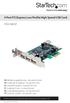 4 Port PCI Express Low Profile High Speed USB Card PEXUSB4DP DE: Bedienungsanleitung - de.startech.com FR: Guide de l'utilisateur - fr.startech.com ES: Guía del usuario - es.startech.com IT: Guida per
Mini PCI Express FireWire Adapter Card
 MPEX1394B3 Instruction Manual Mini PCI Express FireWire Adapter Card 3-Port Mini PCI Express to 1394b FireWire Adapter Card Manual Revision:01/10/2011 For the most up-to-date information, please visit
Wall-Mounting your HP computer. User Guide
 Wall-Mounting your HP computer User Guide The only warranties for Hewlett-Packard products and services are set forth in the express statements accompanying such products and services. Nothing herein should
TM Advanced Tracking Technologies, Inc. 2003 ATTI All rights reserved
 TM Advanced Tracking Technologies, Inc. 2003 ATTI All rights reserved Copyright 2003, Advanced Tracking Technologies, Inc. All rights reserved. No part of this publication may be reproduced or transmitted
ATTENTION RISQUE D ÉLECTROCUTION! NE PAS OUVRIR!
 Quick Start Guide ATTENTION RISQUE D ÉLECTROCUTION! NE PAS OUVRIR! CAUTION: TO REDUCE THE RISK OF ELECTRIC SHOCK, DO NOT REMOVE COVER (OR BACK). NO USER-SERVICEABLE PARTS INSIDE. REFER SER- VICING TO QUALIFIED
PCI Express USB 2.0 Adapter Card
 PEXUSB400 Instruction Manual PCI Express USB 2.0 Adapter Card 4-Port (Independent) PCI Express to High Speed USB 2.0 Adapter Card FCC Compliance Statement This equipment has been tested and found to comply
StorTrends 3400 Hardware Guide for Onsite Support
 StorTrends 3400 Hardware Guide for Onsite Support MAN-3400-SS 11/21/2012 Copyright 1985-2012 American Megatrends, Inc. All rights reserved. American Megatrends, Inc. 5555 Oakbrook Parkway, Building 200
7 High-Resolution Digital Photo Frame
 TM 16-1003 User s Guide 7 High-Resolution Digital Photo Frame One demo photo included, as illustrated Please read this user s guide before using your new photo frame. Package contents Photo Frame AC Adapter
4 Port PCIe 2.0 SATA III 6Gbps RAID Controller
 4 Port PCIe 2.0 SATA III 6Gbps RAID Controller PEXSAT34SFF *actual product may vary from photos DE: Bedienungsanleitung - de.startech.com FR: Guide de l'utilisateur - fr.startech.com ES: Guía del usuario
Wireless Internet Keyboard and Laser Mouse
 Wireless Internet Keyboard and Laser Mouse User s Manual Model KB1045LSR FCC STATEMENT KB1045LSR This device complies with part 15 of FCC Rules. Operation is subject to the following two conditions: (1)
IMPORTANT SAFETY INSTRUCTIONS
 IMPORTANT SAFETY INSTRUCTIONS Before you install or use the apparatus, you must read and understand these Important Safety Instructions. At all times when using the apparatus you must follow these Important
HP SuperSpeed USB 3.0 PCIe x1 Card. User Guide
 HP SuperSpeed USB 3.0 PCIe x1 Card User Guide Copyright 2010 Hewlett-Packard Development Company, L.P. The information contained herein is subject to change without notice. Microsoft, Windows, and Windows
User Manual. RK-2d / RK-2t. dedicated KVM switch and rackmount screen technology. Designed and manufactured by Austin Hughes
 dedicated KVM switch and rackmount screen technology User Manual RK-2d / RK-2t 1U Short Depth Keyboard Drawer Designed and manufactured by Austin Hughes 751 Legal Information First English printing, October
NFC Communication Tray Model: HHX-IT3-Z
 INSTRUCTION MANUAL NFC Communication Tray Model: HHX-IT3-Z ENGLISH CONTENTS Introduction...3 Important safety information...4 Know your unit...6 Transferring data to the PC...7 Care and maintenance...8
BIG GAMES HOME VIDEO ARCADE ASSEMBLY INSTRUCTIONS
 TM BIG GAMES HOME VIDEO ARCADE ASSEMBLY INSTRUCTIONS IN-HOME ASSEMBLY OF YOUR BIGGAMES HOME VIDEO ARCADE MAY BE AVAILABLE IN YOUR AREA FOR AN ADDITIONAL CHARGE. FOR INFORMATION, PLEASE CALL (800) 749-4345.
Serial ATA Hard Drive Enclosure
 SAT2510U2E SAT2510BU2E Instruction Manual Serial ATA Hard Drive Enclosure 2.5 esata/usb External Hard Drive Enclosure for Serial ATA Hard Drives FCC Compliance Statement This equipment has been tested
2 Bay USB 3.0 RAID 3.5in HDD Enclosure
 2 Bay USB 3.0 RAID 3.5in HDD Enclosure SAT3520U3SR *actual product may vary from photos DE: Bedienungsanleitung - de.startech.com FR: Guide de l'utilisateur - fr.startech.com ES: Guía del usuario - es.startech.com
iosafe Solo External Hard Drive
 Users Manual & Limited Warranty iosafe Solo External Hard Drive USB 2.0 Fireproof Waterproof FloSafe Cooling Technology Data Recovery Service 910-10841-00 REV 7.1 2 COPYRIGHTS Copyright iosafe, Inc. 2009.
USB 2.0 Peripheral Switch USER MANUAL US221A / US421A
 USB 2.0 Peripheral Switch USER MANUAL US221A / US421A FCC Information This equipment has been tested and found to comply with the limits for a Class B digital device, pursuant to Part 15 of the FCC Rules.
Rocket 750. 40-Channel SATA 6Gb/s PCI-Express 2.0 x8 HBA
 Rocket 750 40-Channel SATA 6Gb/s PCI-Express 2.0 x8 HBA Quick Installation Guide v1.0 Dec. 17, 2012 1 Table of Contents HighPoint Rocket 750 HBA... 3 Kit Contents... 3 Board Layout... 4 Hardware Installation...
AXIS 291 1U Video Server Rack Installation Guide
 AXIS 291 1U Video Server Rack Installation Guide About This Document This document describes how to install Axis blade video servers in the AXIS 291 1U Video Server Rack. Updated versions of this document
USER MANUAL VS92A / VS94A / VS98A
 Video Splitter USER MANUAL VS92A / VS94A / VS98A FCC Information This equipment has been tested and found to comply with the limits for a Class B digital device, pursuant to Part 15 of the FCC Rules. These
3.5 USB 3.0 to SATA III HDD Enclosure with UASP Support
 3.5 USB 3.0 to SATA III HDD Enclosure with UASP Support S3510BMU33 S3510SMU33 *actual product may vary from photos DE: Bedienungsanleitung - de.startech.com FR: Guide de l'utilisateur - fr.startech.com
FUTURE CALL PICTURE CARE PHONE MODEL: FC-1007 USER MANUAL
 FUTURE CALL PICTURE CARE PHONE MODEL: FC-1007 USER MANUAL Please follow instructions for repairing if any otherwise do not alter or repair any parts of device except specified. IMPORTANT SAFETY INSTRUCTIONS
Business Audio System: Music & Messaging MP3 Player. by Grace Digital Audio. User Guide. Model No. GDI-USBM10
 Business Audio System: Music & Messaging MP3 Player by Grace Digital Audio User Guide Model No. GDI-USBM10 User Guide Contents Introduction 2 Safety & General Use Information 2 Features 3 Set Up & Operation
MCR1900 Media Converter 19-Slot Chassis
 MCR1900 Media Converter 19-Slot Chassis Installation Guide Part #5500304-11 Copyright Statement This document must not be reproduced in any way whatsoever, either printed or electronically, without the
Removable 2.5 SATA HDD Backup System
 Removable 2.5 SATA HDD Backup System SAT2510U3REM SAT2510U3S *actual product may vary from photos DE: Bedienungsanleitung - de.startech.com FR: Guide de l'utilisateur - fr.startech.com ES: Guía del usuario
ReadyNet Easy Jack 2 Voice/Data and Data Only Owner s Manual PX-211d and PX-211v
 ReadyNet Easy Jack 2 Voice/Data and Data Only Owner s Manual PX-211d and PX-211v Phonex Broadband Corporation dba ReadyNet 6952 High Tech Drive Midvale, Utah 84047 801.566.0100 Phone 801.566.0880 Fax www.readynetsolutions.com
Taurus Super-S3 LCM. Dual-Bay RAID Storage Enclosure for two 3.5-inch Serial ATA Hard Drives. User Manual March 31, 2014 v1.2 www.akitio.
 Dual-Bay RAID Storage Enclosure for two 3.5-inch Serial ATA Hard Drives User Manual March 31, 2014 v1.2 www.akitio.com EN Table of Contents Table of Contents 1 Introduction... 1 1.1 Technical Specifications...
USB 3.0 to 3.5 SATA III Upright HDD Enclosure with UASP
 USB 3.0 to 3.5 SATA III Upright HDD Enclosure with UASP S3510BMU33B *actual product may vary from photos DE: Bedienungsanleitung - de.startech.com FR: Guide de l'utilisateur - fr.startech.com ES: Guía
Instruction Guide. 2/4/6-port PCI USB 2.0 card PCI225USB PCI425USB PCI625USB2I. The Professionals Source For Hard-to-Find Computer Parts
 USB 2.0 CARD 2/4/6-port PCI USB 2.0 card PCI225USB PCI425USB PCI625USB2I Instruction Guide *PCI225USB shown * Actual product may vary from photo The Professionals Source For Hard-to-Find Computer Parts
HP SATA/SAS hard drive and Solid State Drive installation
 HP SATA/SAS hard drive and Solid State Drive installation This document describes how to install Serial ATA (SATA) and Serial Attached SCSI (SAS) hard drives or Solid State Drives (SSD) in an internal
IDE ATA/133 Controller
 IDE ATA/133 Controller 2 Port PCI ATA-133 IDE Adapter Card PCIIDE2 Actual product may vary from photo FCC Compliance Statement This equipment has been tested and found to comply with the limits for a Class
USB Dual Handset Adapter for Nortel 1100-Series IP Phones
 1021 USB Dual Handset Adapter for Nortel 1100-Series IP Phones User Guide Document#: 90-00039 [email protected] [email protected] www.algosolutions.com Table of Contents Algo 1021 USB Dual
Intel RAID Maintenance Free Backup Unit 4 Quick Installation User's Guide
 Intel RAID Maintenance Free Backup Unit 4 Quick Installation User's Guide Thank you for buying an Intel RAID Maintenance Free Backup Unit 4. The Intel RAID Maintenance Free Backup Unit 4 supports the Intel
ZaapTV HD509N. User s Guide. How to use the HD509N set-top box
 ZaapTV HD509N User s Guide How to use the HD509N set-top box Contents 1. Safety... 1 2. Appearance... 4 3. Rear Panel Connection... 5 4. Remote... 7 5 First Time Set-Up... 9 6. Network Settings... 10 6.1
DVI Video Splitter USER MANUAL VS-162 / VS-164
 DVI Video Splitter USER MANUAL VS-162 / VS-164 FCC Information This equipment has been tested and found to comply with the limits for a Class B digital device, pursuant to Part 15 of the FCC Rules. These
CAUTION RISK OF ELECTRIC SHOCK DO NOT OPEN
 BeoLab 4 Guide CAUTION RISK OF ELECTRIC SHOCK DO NOT OPEN CAUTION: To reduce the risk of electric shock, do not remove cover (or back). No User-serviceable parts inside. Refer servicing to qualified service
ES-3305P V2 / ES-3308P V2. Quick Installation Guide. 09-2013 / v1.0
 ES-3305P V2 / ES-3308P V2 Quick Installation Guide 09-2013 / v1.0 1 COPYRIGHT Copyright Edimax Technology Co., Ltd. all rights reserved. No part of this publication may be reproduced, transmitted, transcribed,
Compaq Presario Desktop Products. Upgrading and Servicing Guide
 Compaq Presario Desktop Products Upgrading and Servicing Guide The information in this document is subject to change without notice. Hewlett-Packard Company makes no warranty of any kind with regard to
User s Manual Model KB990W
 Wireless Internet Keyboard & Optical Mouse User s Manual Model KB990W FCC Statement This device complies with part 15 of FCC Rules. Operation is subject to the following two conditions: (1) this device
PCI Express USB 3.0 Controller Adapter Card
 PEXUSB3S2 Instruction Manual PCI Express USB 3.0 Controller Adapter Card 2-Port PCI Express SuperSpeed USB 3.0 Controller Adapter Card FCC Compliance Statement This equipment has been tested and found
Installation Guide. Wyse VX0L and VX0LE Thin Clients 1-GB RAM Upgrade Option Kit. Issue: 022808 PN: 883884-07L Rev. A
 Installation Guide Wyse VX0L and VX0LE Thin Clients 1-GB RAM Upgrade Option Kit Issue: 022808 PN: 883884-07L Rev. A ii Copyright Notice 2008, Wyse Technology Inc. All rights reserved. This manual and the
Point of View Mobii 10 Tegra Tablet. Notice... 2
 TABLE OF CONTENTS Notice... 2 1.0 Preface... 2 2.0 Getting to know the basics... 4 3.0 How to Start... 7 3.1 Home Shell... 7 3.1.1 Home Shell > Widgets (Search RSS Weather)... 8 3.1.2 Home Shell > Widgets,
Digital Satellite Receiver
 USER GUIDE Digital Satellite Receiver Models DSR207, DSR317, DSR505, and DSR530 CONTENTS IMPORTANT SAFETY INSTRUCTIONS...1 DSR BASICS SYMBOLS/ICONS...6 Front Panel...6 Back Panel...7 CONNECTING YOUR DSR...10
When you switch off your system, or mute the sound, the red indicator light appears immediately, indicating that the subwoofer is not in use.
 BeoLab 11 Guide WARNING: To reduce the risk of fire or electric shock, do not expose this appliance to rain or moisture. Do not expose this equip ment to dripping or splashing and ensure that no objects
Express5800/120Ed. Rack Mount Kit Installation Procedures PN: 455-01607-001
 Express5800/120Ed Rack Mount Kit Installation Procedures PN: 455-01607-001 Proprietary Notice and Liability Disclaimer The information disclosed in this document, including all designs and related materials,
Wireless Travel Mouse with 5-Buttons User Manual
 Wireless Travel Mouse with 5-Buttons User Manual Product Features 1. Radio frequency 27MHz wireless transmission 2. Use of 256 ID codes to prevent interference between several wireless mice being used
110244-003. PrintPAD CN3/4/3e/4e. User Guide
 110244-003 PrintPAD CN3/4/3e/4e User Guide TABLE OF CONTENTS PrintPAD CN3/4 & PrintPAD CN3e/4e Printer Views...1 Open View...1 Closed View...1 Using Batteries: General Guidelines...1 Installing and/or
VS-0202 VS-0204. User Manual
 User Manual VS-0202 VS-0204 Read this guide thoroughly and follow the installation and operation procedures carefully in order to prevent any damage to the units and/or any devices that connect to them.
COMPANION 20 MULTIMEDIA SPEAKER SYSTEM. Owner s Guide Guía de usuario Notice d utilisation
 COMPANION 20 MULTIMEDIA SPEAKER SYSTEM Owner s Guide Guía de usuario Notice d utilisation Safety and Regulatory Information Please read this owner s guide Please take the time to follow the instructions
user s manual Battery Case model #: SPB3200 Battery Case Charger for Samsung Galaxy S 4
 user s manual model #: SPB3200 Charger for Samsung Galaxy S 4 What s Included Unpack the battery case and make sure all accessories are put aside so they will not be lost. hello. USB to Micro USB Cable
THE NEW GENERATION IN TECHNOLOGY. NI-3103A Alarm Clock w/fm Radio ipod & iphone Docking. Operating Instructions
 THE NEW GENERATION IN TECHNOLOGY NI-3103A Alarm Clock w/fm Radio ipod & iphone Docking Operating Instructions Table of Contents Important Safeguards... 3 Parts... 6 Controls... 6 To Set Up... 7 ipod/iphone
Duo Pro Drive User Guide document version 1.0 (071011)
 Duo Pro Drive User Guide document version 1.0 (071011) Copyright 2007 Fabrik, Inc. All rights reserved. This publication is protected by copyright and international treaty. No part of this publication
MP3 Digital On-Hold Audio Systems
 TELEPHONE MAN OF AMERICA Earning Your Business Every Step of the Way! Specializing in Telecom Equipment of all Brands, Carrier Services, Technician Services, Maintenance Agreements & Purchasing Excess
RocketStor SMART RAID
 RocketStor SMART RAID User Guide v1.0 1 Copyright HighPoint Technologies Inc., 1995-2012. All rights reserved. OS X and Macintosh are registered trademarks of Apple Corporation. All other trademarks and
Model 70A00-1. GSM Cellular Communications Center
 Home Automation, Inc. Model 70A00-1 GSM Cellular Communications Center Operation Manual Document Number 70I00-1 Rev A August, 2009 Contents Description... 1 Use with security systems...1 Everyday use...2
dedicated KVM switch and rackmount screen technology User Manual IP-S101 Combo KVM Extender Designed and manufactured by Austin Hughes
 dedicated KVM switch and rackmount screen technology User Manual IP-S101 Combo KVM Extender Designed and manufactured by Austin Hughes 751 Legal Information First English printing, October 2002 Information
CAUTION RISK OF ELECTRIC SHOCK DO NOT OPEN
 BeoLab 7-6 Guide CAUTION RISK OF ELECTRIC SHOCK DO NOT OPEN CAUTION: To reduce the risk of electric shock, do not remove cover (or back). No User-serviceable parts inside. Refer servicing to qualified
Wave/PC Interactive System USB Adapter Kit. Installation Guide
 Wave/PC Interactive System USB Adapter Kit Installation Guide Safety Information 1. Read these instructions for all components before using this product. 2. Keep these instructions for future reference.
BeoLab 7-1 BeoLab 7-2. Guide
 BeoLab 7-1 BeoLab 7-2 Guide CAUTION: To reduce the risk of electric shock, do not remove cover (or back). No User-serviceable parts inside. Refer servicing to qualified service personnel. WARNING: To prevent
LF-IRX. Limited Warranty LF-IRX. Remote Control Extender OWNER S MANUAL
 Limited Warranty OWNER S MANUAL Audiovox Corporation (Audiovox) warrants this product against defects in materials or workmanship for one (1) year from the date of purchase. During this period, this product
7 Port PCI USB Card Adapter
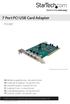 7 Port PCI USB Card Adapter PCIUSB7 *actual product may vary from photos DE: Bedienungsanleitung - de.startech.com FR: Guide de l'utilisateur - fr.startech.com ES: Guía del usuario - es.startech.com IT:
CS55H HOME EDITION... WIRELESS HEADSET SYSTEM
 CS55_HO_606.qxd /6/06 : PM Page ii WARRANTY Limited Warranty This warranty covers defects in materials and workmanship of products manufactured, sold or certified by Plantronics which were purchased and
User Manual AUDIO OUT OFF 9V DC USB POWER. Digital On-Hold Audio System with analog line capability
 MP On-Hold Audio System User Manual memory card IMPEDANCE PHONE LINES on speaker off ON OFF 9V DC USB AUDIO OUT 8Ω 6Ω // /4 POWER Digital On-Hold Audio System with analog line capability al /06 Before
User s Manual. Home CR-H212. 2.5 2-BAY RAID Storage Enclosure
 User s Manual Home CR-H212 2.5 2-BAY RAID Storage Enclosure 1 Introduction 1.1 Features - 2-Bay Bus Powered Portable RAID Enclosure -Works with SATA HDD or SSD -Supports Big (JBOD), RAID0, RAID1, and Normal
User s Manual. Copyright 2014 Trick Technologies Oy
 User s Manual Copyright 2014 Trick Technologies Oy Catchbox Pro Module Catchbox Cover Contents 1 Safety Instructions...4-5 2 Quick Start... 6-15 3 Product Description... 16-18 Overview...16 Compatibility...17
Alarm Clock USER GUIDE
 Alarm Clock USER GUIDE Jazwares, Inc. 2012 CONTENTS Please read the instructions along with the Alarm Clock carefully before you use it, so that you can operate it conveniently. WELCOME & Warnings Page
Intelli-Time Alarm Clock model 13027
 Instruction Manual Intelli-Time Alarm Clock model 13027 CONTENTS Unpacking Instructions... 2 Package Contents... 2 Product Registration... 2 Features & Benefits... 3 Clock Setup... 4 Intelli-Time Clock...
Wireless Optical Mouse
 Wireless Optical Mouse User s Manual Model PD950P FCC STATEMENT PD950P This device complies with part 15 of FCC Rules. Operation is subject to the following two conditions: (1) this device may not cause
Wireless Mouse USER GUIDE. for Mac. www.targus.com/us/formac ONE YEAR LIMITED WARRANTY N2953
 AMW43US / 410-1514-001C N2953 www.targus.com/us/formac 2008 Manufactured or imported by Targus Group International, Inc. (for U.S. sales: 1211 North Miller Street, Anaheim, CA 92806 USA, for Australia
PCI USB 2.0 Card PCI225USB PCI225USB_LP PCI425USB PCI625USB2I. Instruction Manual. Actual product may vary from photo
 PCI USB 2.0 Card 2 Port High-Speed USB 2.0 PCI Card 2 Port High-Speed USB 2.0 Low-Profile PCI Card 4 Port High-Speed USB 2.0 PCI Card 6 Port High-Speed USB 2.0 PCI Card PCI225USB PCI225USB_LP PCI425USB
3.5 esata USB 2.0 to IDE SATA External Hard Drive Enclosure
 3.5 esata USB 2.0 to IDE SATA External Hard Drive Enclosure UNI3510U2EB UNI3510UEBEU UNI3510UEBGB *actual product may vary from photos DE: Bedienungsanleitung - de.startech.com FR: Guide de l'utilisateur
TG-3468 Gigabit PCI Express Network Adapter
 TG-3468 Rev:2.0.0 1910010580 COPYRIGHT & TRADEMARKS Specifications are subject to change without notice. is a registered trademark of TP-LINK TECHNOLOGIES CO., LTD. Other brands and product names are trademarks
Replacement Instructions. Warning: During this procedure, keep small parts away from children.
 apple Power Mac G4 / Macintosh Server G4 ATA Hard Drive Replacement Instructions Follow the instructions in this sheet carefully. Failure to follow these instructions could damage your equipment and void
Installation Guide. APA-1460 SlimSCSI. PCMCIA-to-SCSI Host Adapter
 R Installation Guide APA-1460 SlimSCSI PCMCIA-to-SCSI Host Adapter Introduction This document explains how to install and use Adaptec s APA -1460 SlimSCSI PCMCIA-to-SCSI adapters. The SlimSCSI adapters
USB 3.0/eSATA Dual 3.5 SATA HDD Enclosure
 USB 3.0/eSATA Dual 3.5 SATA HDD Enclosure S3520BU33ER / S3520WU33ER *actual product may vary from photos DE: Bedienungsanleitung - de.startech.com FR: Guide de l'utilisateur - fr.startech.com ES: Guía
SMART Board 8055i and 8055i-SMP
 SMART Board 8055i and 8055i-SMP Interactive flat panel Installation guide Product registration If you register your SMART product, we ll notify you of new features and software upgrades. Register online
User Guide USB 2.0 LAPTOP DOCKING STATION WITH VIDEO N2953
 USB 2.0 LAPTOP DOCKING STATION WITH VIDEO 410-1864-001B / ACP51US 1 YEAR LIMITED WARRANTY: We pride ourselves on the quality of our products. For complete warranty details and a list of our worldwide offices,
Daily use. Never use alcohol or other solvents to clean any part of the loudspeakers!
 BeoLab 6002 Guide WARNING: To reduce the risk of fire or electric shock, do not expose this appliance to rain or moisture. Do not expose this equip ment to dripping or splashing and ensure that no objects
B100. single-line business telephone
 users guide B100 single-line business telephone B100 TELEPHONE DIAGRAM TABLE OF CONTENTS 1) FEATURES......2 1.1 FLASH 1.2 LAST NUMBER REDIAL 1.3 MUTE 1.4 HANDSET VOLUME CONTROL 1.5 DATA PORT 1.6 HEARING
Evolution Digital HD Set-Top Box Important Safety Instructions
 Evolution Digital HD Set-Top Box Important Safety Instructions 1. Read these instructions. 2. Keep these instructions. 3. Heed all warnings. 4. Follow all instructions. 5. Do not use this apparatus near
CAUTION RISK OF ELECTRIC SHOCK NO NOT OPEN
 Evolution Digital HD Set-Top Box Important Safety Instructions 1. Read these instructions. 2. Keep these instructions. 3. Heed all warnings. 4. Follow all instructions. 5. Do not use this apparatus near
Disclaimers. Important Notice
 Disclaimers Disclaimers Important Notice Copyright SolarEdge Inc. All rights reserved. No part of this document may be reproduced, stored in a retrieval system, or transmitted, in any form or by any means,
Power Supply Guide Version 1.0 for D-Show
 Power Supply Guide Version 1.0 for D-Show Digidesign 2001 Junipero Serra Boulevard Daly City, CA 94014-3886 USA tel: 650 731 6300 fax: 650 731 6399 Technical Support (USA) tel: 650 731 6100 fax: 650 731
BroadBand PowerShield. User Manual
 BroadBand PowerShield User Manual 990-0375G 12/2006 Chapter 1 General Information The PowerShield provides a power source for broadband telephony and other DC applications. Safety This Safety Guide contains
User Guide Nokia Portable Wireless Charging Plate DC-50
 User Guide Nokia Portable Wireless Charging Plate DC-50 Issue 1.1 EN User Guide Nokia Portable Wireless Charging Plate DC-50 Contents For your safety 3 About your accessory 4 Keys and parts 5 Top up your
Targus Wireless RF Mouse USER S GUIDE. Making Your Mobile Life Easier.
 Targus Wireless RF Mouse Visit our Web site at: www.targus.com Features and specifications are subject to change without notice. 2004 Targus Group International and Targus, Inc.. 400-0111-001B USER S GUIDE
AIRAVE 2.5 User Guide
 AIRAVE 2.5 User Guide 2012 Sprint. Sprint and the logo are trademarks of Sprint. Other marks are trademarks of their respective owners. 911702 Rev. 51.13 Important Messages IMPORTANT: Sprint s policies