
SPROG II User Guide 1. SPROG II DCC Decoder Programmer User Guide
|
|
|
- Gregory Lloyd
- 9 years ago
- Views:
Transcription

1 SPROG II User Guide 1 SPROG II DCC Decoder Programmer User Guide Firmware version 2.x December 2007

2 SPROG II User Guide 2 Table of Contents Introduction... 4 Requirements... 4 Requirements... 4 Features... 4 Specification/Operating Conditions... 4 Installation... 6 Install the Java Runtime Environment (JRE)... 6 Install DecoderPro... 7 Connect the Power Supply... 7 Install SPROG II USB drivers... 7 Edit DecoderPro Preferences Connect the Programming Track Getting Started With DecoderPro Using the DecoderPro Throttle Speed Matching of Locos Measuring Loco Current Getting Started With PanelPro Layout Control with SPROG II...35 SPROG Command Station Mode Short (one byte) Versus Extended (two byte) Addressing How Many Locos Can Be Controlled? Using an External Booster with SPROG II Connecting and Using Multiple SPROG IIs...41 Determining the SPROG II Firmware Version...42 Updating SPROG II With the Bootloader...43 Troubleshooting Useful Links... 45

3 SPROG II User Guide 3

4 SPROG II User Guide 4 Introduction SPROG II is a DCC decoder programmer for connection to the serial port of a personal computer or similar device. SPROG II is supported by DecoderPro and PanelPro, both part of the JMRI project ( which, by use of the java programming language, allows platform independent support of a wide range of DCC hardware. JMRI is shareware available as a free download. SPROG II is also capable of operating a small layout using the features of DecoderPro and PanelPro. A larger layout can be driven by using an external booster. Requirements Java programming language JRE from Sun Microsystems sun.com DecoderPro from Regulated DC Power Supply (see Table 1) Short length or small oval of track for programming and/or test running Features Programs virtually all NMRA compliant DCC decoders No extra hardware required for programming sound decoders (e.g. QSI, Soundtraxx) Easy to use graphical interface with DecoderPro USB interface for easy connection to PC USB activity LED shows communication with the PC Power LED flashes when programming track power is live

5 SPROG II User Guide 5 Specification/Operating Conditions Parameter Minimum Nominal Maximum Units Note DC Input supply 10V 15V V 1 voltage Vin supply current 50 ma not programming Vin supply current 300 ma 2 programming Vin supply current 1 A 3 Operating Layout Operating 25 C Temperature Range Output Load ma 2 programming Output Load Operating Layout 1 A 3 Notes: 1. Minimum supply voltage depends upon the requirements of the decoder being programmed. In general it is safer to use as low a voltage as possible in case of problems with a newly installed decoder. 2. SPROG II will remove track power if output current exceeds 250mA as measured 100ms after applying power. Surge current during decoder power-up may be considerably greater than this. 3. Depends upon required DCC current. 4. SPROG II is protected against reverse polarity connection of the power supply but will not work unless the polarity is correct. SPROG II is not protected against track and power connections!being interchanged. Table 1 Specification/Operating Conditions

6 SPROG II User Guide 6 Installation The following steps are required to install SPROG II before you can use it for the first time: Install the Java Runtime Environment (JRE) Install DecoderPro Connect the Power Supply Install SPROG II USB drivers Edit DecoderPro preferences Connect the Programming Track For a successful installation, the JRE must be installed before DecoderPro!is installed. This document gives brief installation instructions for the Windows Operating System. For full instructions and for instructions to install the JRE and DecoderPro on Linux or MACOS, please refer to the Install Guides on the JMRI website at Look out for the animated SPROG II Show Me How! guides on the!sprog II website in the near future. Install the Java Runtime Environment (JRE) The Java Runtime Environment is not required for MACOS, which has Java support as standard. For Windows and Linux it must be installed first, either from the CD-ROM supplied or from a downloaded copy. To install from the CD-ROM, use My Computer or Windows Explorer to browse to the directory specific to your operating system.


7 SPROG II User Guide 7 Double click the j2re executable file and follow the on-screen instructions to install. Install DecoderPro DecoderPro should then be installed from the CD-ROM or a downloaded copy. A newer version of DecoderPro than that supplied on the CD-ROM may be available from the JMRI download page DecoderPro versions with an even sub-version number, e.g., 1.8, are stable production releases that have been well tested and should have no major issues. Odd sub-version numbers, e.g., 1.9.1, are test releases that are generally stable but may exhibit issues, especially with new features that may still be under development. To install from the CD-ROM, browse to the directory specific to your operating system (as per the previous step). Double click on the JMRI.1.x.exe file and follow the on-screen instructions to install. Connect the Power Supply Observe the correct polarity (marked as 0V and +V) when connecting the power supply to the pluggable terminal block. SPROG II is protected against reverse polarity connection of the power supply but will not work unless the polarity is correct. The power LED will illuminate steadily when the SPROG II is powered up and


8 SPROG II User Guide 8 the USB connected to the host computer (next step). The power LED will flash when the programming track is powered up. Install SPROG II USB drivers Use the supplied USB cable to connect SPROG II to the host computer. The power LED should be lit. The first time you do this you will see the Found new Hardware Wizard. Follow the steps below to install the SPROG II drivers and then the USB Serial port drivers. USB Drivers Click No, not this time then Next >.

9 SPROG II User Guide 9 Click Install from a list or specific location then Next >. Click Search for the best driver in these locations then Include this location

10 SPROG II User Guide 10 in the search and then click the Browse button to find the driver directory on the CD-ROM supplied with SPROG II. Click Next >. Click Continue Anyway.

11 SPROG II User Guide 11 Click Finish USB Serial Port Drivers Click No, not this time then Next >


12 SPROG II User Guide 12 Click Install from a list or specific location then Next >


13 SPROG II User Guide 13 Click Search for the best driver in these locations then Include this location in the search and then Browse to find the driver directory on the CD-ROM supplied with SPROG II. Click Next > Click Continue Anyway


14 SPROG II User Guide 14 Click Finish Edit DecoderPro Preferences The next step is to the DecoderPro preferences in order to allow the software to connect to the SPROG II. First you must ascertain which COM port was assigned to SPROG II during the driver installation. Open the System Properties from the Windows Control Panel (you may need to switch to classic view. Alternatively, right click on the Desktop My Computer Icon and select Properties. Select the Hardware tab:


15 SPROG II User Guide 15 Click Device Manager Click the + to open the Ports (COM & LPT) category and note the COM port assignment for the SPROG II (COM4 in this example).


16 SPROG II User Guide 16 Now start DecoderPro by double clicking the icon that was placed on the Windows desktop during the installation. Open the Edit -> Preferences dialog from the menu Click the arrow in the Layout connections field and scroll down to select SPROG

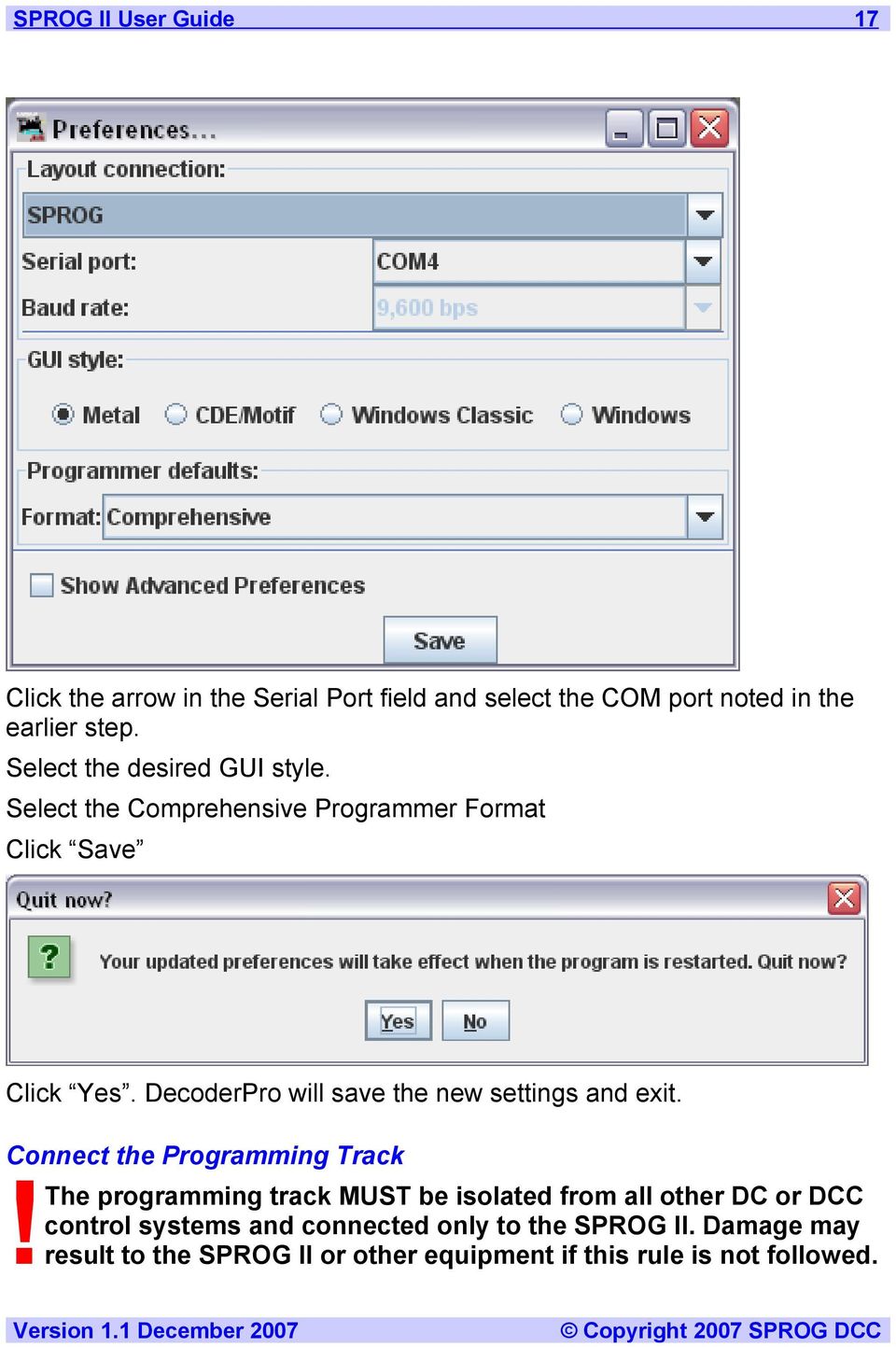
17 SPROG II User Guide 17 Click the arrow in the Serial Port field and select the COM port noted in the earlier step. Select the desired GUI style. Select the Comprehensive Programmer Format Click Save Click Yes. DecoderPro will save the new settings and exit. Connect the Programming Track The programming track MUST be isolated from all other DC or DCC control systems and connected only to the SPROG II. Damage may!result to the SPROG II or other equipment if this rule is not followed.
18 SPROG II User Guide 18 Connect the SPROG II to the programming track using the Track terminals of the pluggable terminal block. There is no requirement to observe any particular polarity when connecting the programming track. The DCC output voltage will be approximately 1V below the power supply voltage. During programming the track current is sensed 100ms after the programming track is powered up. If the current exceeds 250mA then the programming track power is removed to avoid potential damage to an incorrectly installed decoder.


19 SPROG II User Guide 19 Getting Started With DecoderPro See the DecoderPro website for updates and latest information. Join the JMRI Yahoo group for help from other DecoderPro users and the team who develop it. Ensure that all software and drivers are installed and that DecoderPro preferences have been setup. Start DecoderPro. The main window will open and show the current connection method as set by the preferences. In the following example Connected via SPROG on COM4 : Click Service Mode (Programming Track) Programmer to open the Programmer Setup window. The new window shows a list of decoder manufacturers.


20 SPROG II User Guide 20 Clicking the control or double clicking the folder icon next to a manufacturer name will open a list of decoder types from that manufacturer. You can always manually select a decoder type in this way. In most cases, DecoderPro can determine the manufacturer and decoder type automatically. Place a decoder equipped loco on the programming track and click on Read type from decoder. In the example below, DecoderPro has identified a QSI Industries BLI F7. Sometimes DecoderPro can identify the manufacturer but not exact model of decoder fitted. In these cases it will be necessary to select the decoder type manually.


21 SPROG II User Guide 21 Once the decoder type has been selected, click Open Programmer. The service mode programmer window opens with a selection of tabs, grouped in rows below the menu bar, Clicking on a tab selects a group of CVs to be programed, related to the title of the tab. The selection of tabs available will vary depending upon the features supported by your decoder and the CVs available. On the Roster Entry tab you may enter arbitrary details of the loco to be saved on the PC for future reference. The DCC address field will be filled in by DecoderPro once the decoder has been read or programmed. If you wish to use the Roster then you should make sure to click Save on the Roster

22 SPROG II User Guide 22 Entry tab when you have finished programming the decoder. The Roster is especially useful if the decoder loses it s settings as seems to happen occasionally with some decoders. Alternatively, you may wish to program a second loco with similar CV settings.
23 SPROG II User Guide 23 Click on the Basic tab and you will see the most basic settings for the decoder including the address. Initially, all of the data fields are coloured red or yellow to show that no data has been read from or written to the decoder. There are eight read and write buttons at the bottom of the window. Click Read full sheet to read the data for the current tab from the decoder. Clicking Read all sheets will read every CV from the decoder and may!take a considerable time to complete. Each data field should return to white or the background colour of the window.

24 SPROG II User Guide 24 To change to locos address, type a new address in the Active DCC Address followed by carriage return. The address field will turn orange, indicating that the address has been changed but not yet written to the decoder. Select the type of address to be set (short or extended). Click Write changes on sheet to write the new address to the decoder. The address will turn red and then white as it is written to the decoder. You can set other basic properties such as the direction and DC operation on this tab. The other tabs work in a very similar way. You may find it useful to have the decoder documentation available when setting more complex or manufacturer specific features. Next we ll look at the Speed Control tab that allows you to fine tune the way the loco responds to the throttle. Click on the Speed Control tab.

25 SPROG II User Guide 25 The decoder in this example has a choice between Use Straight-Line response and Use QSI table or User table in CVs 67 through 94. The look and feel of this tab will vary between decoders but most recent decoders support the use of a speed table. It is left as an exercise for the reader to experiment with the sliders for setting the speed table and the buttons just below. The Force Straight option will give a linear relationship between the throttle position and the speed of the loco. Constant ratio curve will give little change in speed at low throttle settings, greater change at higher throttle. Remember to write the changes on each sheet before moving to a new one. Next, click on the Function Map tab.

26 SPROG II User Guide 26 The Function Map allows you (in those decoders that support it) to control which throttle function key is mapped to each output wire or operation (e.g. sound effect) of the decoder.

27 SPROG II User Guide 27 DecoderPro comes into its own for programming the many and varied options in a sound decoder. Here is an example Sound tab from the BLI F7 where the volume of individual effects may be set. Again, remember to write your changes. Hovering over an item with the cursor will often show a short description for that item, but It is highly recommended that you read the documentation for your decoder to get the best from it with DecoderPro.

28 SPROG II User Guide 28 Using the DecoderPro Throttle Using a DecoderPro throttle, it is possible to test run a loco after programming CVs, e.g., to test the effect of changing the speed table of function mapping. Using a rolling road or a continuous loop of track for programming is recommended for test running. Using PanelPro and the throttle, it is possible to control a small one engine in steam layout, including control of accessories (e.g. point motors) with SPROG II. More than one loco may be present on the layout but only one may be selected on the throttle and driven at one time.! Care should be taken when using the service mode programmer that only one loco is on the layout during programming, or that the layout is isolated except for a short section of track for programming. If a programming operation is performed whilst the whole layout is connected, then incorrect data will be read from CVs and all locos on the layout will be re-programmed. On the main DecoderPro window, click on the Tools menu item and then select Throttles and New Throttle SPROG II, when used as a programmer, supports the use of one DecoderPro throttle. See Layout Control with SPROG II for details of how to use SPROG

29 SPROG II User Guide 29 II as a command station with multiple throttles. When the throttle window opens, enter the loco address and click Set. With SPROG II, loco address less than 128 are assumed to be short (2 digit) addresses. Addresses greater than 127 are assumed to be extended (4 digit) addresses. Setting the loco address will enable the function buttons and speed slider. The LED icon in the centre of the menu bar is the track power control and must be clicked until it is green to turn on the track power. The SPROG II power LED will flash when the track power is live. Note: After programming using the service mode programmer, the track power is always left in the off state and must be turned on again from the throttle power control before the loco can be run.!the function keys have a latching operation. Click once to turn a function on, click again to turn the function off.
30 SPROG II User Guide 30 To control the loco speed, click and drag the slider caret (the pointy bit!). For fine control of speed, click on the slider just above or below the caret. The STOP! button will stop the loco but does not turn off the track power. To set a different loco address, click the Dispatch or Release button. These two buttons have the same effect with SPROG II. Speed Matching of Locos To come in a future release of this document Measuring Loco Current Loco current may be measured by using SPROG II in command station mode and using the slot monitor, see Layout Control with SPROG II.

31 SPROG II User Guide 31 Getting Started With PanelPro The PanelPro tool included with JMRI allows SPROG II to be used for the control of DCC accessory decoders for point (turnout) control.! The limited output voltage and current capability of SPROG II means that it is not suitable for use with accessory decoders that take power from DCC. Accessory decoders should be chosen that take commands from DCC but use a separate power input for the point motors. This is only a very brief introduction, see the PanelPro homepage at for more details. On the main DecoderPro window, click on the Panels menu item and then select New Panel

32 SPROG II User Guide 32 A blank Panel and the Panel Editor window will open You can set the panel name to be used when saving the panel. Use the File menu in the panel editor to save the panel. You can draw a background track plan in a graphical editing tool and then load the image as the background for the panel. It may take some experimenting to get the track spacing correct to match the panel icons.

33 SPROG II User Guide 33 To add a turnout, click in the box next to the Add right/left-hand turnout button. Enter the accessory address of the turnout and click the appropriate Add button. A turnout icon will be added to the panel. The icon may be repositioned by clicking and holding the right mouse button and dragging the icon to its new position. In the example below, a right-hand turnout has been added and moved. The pop-up menu shows the accessory address prefixed with ST for SPROG Turnout. The turnout may be rotated, disabled or removed using the same menu. Clicking the Add icon button will add a straight track section In the next step two straight line segments and a left hand turnout (address 2) have been added and aligned to represent the layout of a passing loop.

34 SPROG II User Guide 34 Left clicking on a turnout icon will change the icon and send the appropriate DCC accessory command to change the turnout on the layout. Here, both turnouts have been clicked to select the route into and out of the passing loop. The track power must be on for any accessory commands generated from!the panel to be effective.

35 SPROG II User Guide 35 Layout Control with SPROG II SPROG Command Station Mode A new feature in DecoderPro versions from onward is the ability to use SPROG II as a command station with control of multiple locos through on screen throttles. When operating in this mode, SPROG II is no longer a service mode (programming track) programmer. CVs may still be written in operations mode (also known as on the main programming) but the contents of CVs cannot be read back. To use SPROG II as a command station, you must first modify the DecoderPro preferences in a similar manner as was done during initial installation of the SPROG II. Open the Edit -> Preferences dialog from the menu
36 SPROG II User Guide 36 Click the arrow in the Layout connections field and scroll down to select SPROG Command Station. Click Save Click Yes. DecoderPro will save the new settings and exit. Start DecoderPro again. You may now open multiple throttles, one for each loco you wish to control. See below for a note on the limit to the number of locos that can be controlled. Use the power control in any of the throttles to turn the track power on or off. An additional feature in Command Station mode is the slot monitor which is accessed from the SPROG menu in the main DecoderPro window

37 SPROG II User Guide 37 The top portion of the slot monitor contains a checkbox to control whether unused slots are displayed, a button to force an emergency stop of all locos and the output current being supplied by the SPROG II. The output current reading will not reflect the layout current if an external!booster is being used. The output current readings are filtered and averaged over a number of readings by SPROG II and the display in the slot monitor will change more slowly than the actual output current. The remainder of the slot monitor is the list of slots, at least one slot is associated with each throttle (see below).

38 SPROG II User Guide 38 In this example, SPROG II is supplying 163mA to the layout. A loco with address 997 is running in reverse at speed step 35 and a loco with address 1 is running forwards at speed step 43 When you use a function button on a throttle, you will see an extra slot occupied momentarily with the address of the loco on that throttle and speed 0. This indicates that the function command is being sent to the loco. To allow for errors in reception, function commands are repeated three times. After the third copy is sent, the slot will be cleared.
39 SPROG II User Guide 39 Short (one byte) Versus Extended (two byte) Addressing The DCC specification allows two forms of loco address: Short addresses in the range Extended addresses in the range Most DCC system impose their own arbitrary limits on these address ranges. In SPROG Command Station mode the allowable address ranges are: Short addresses TBD Long addresses TBD How Many Locos Can Be Controlled? Sixteen slots are available, but SPROG II is not capable of operating sixteen locos without an external booster. Run each loco individually with a representative load and note the current reading. The total required for your layout will depend upon the diversity or how many, and which, locos are to be operated at the same time. It should be possible to run at least 3 or 4 modern HO, 00 or N lightly loaded locos. Some slots should always be left free for sending function control commands. These free will be shared between throttles as required, it is not necessary to have a free slot for every throttle.
40 SPROG II User Guide 40 Using an External Booster with SPROG II Yes, it is possible. To come in a future release of this document
41 SPROG II User Guide 41 Connecting and Using Multiple SPROG IIs At the present time it is not possible to use the alternate connection method in DecoderPro to connect a second SPROG II. It is, however, possible to run two (or more) separate instances of DecoderPro connected to two (or more) SPROG IIs, e.g. One SPROG II in command station mode running the layout One SPROG II in normal or command station mode running PanelPro to control accessories One SPROG II in normal mode connected to a programming track If used this way, the programming track should be wired via a DPDT switch so that it can be connected to the main layout (to allow locos to be driven on to it) or connected to the SPROG II programmer, not both at the same time. Never connect more than one SPROG II or a SPROG II and any other!booster or DC controller to the same section of track.
42 SPROG II User Guide 42 Determining the SPROG II Firmware Version To Come in a future release of this document
43 SPROG II User Guide 43 Updating SPROG II With the Bootloader To Come in a future release of this document
44 SPROG II User Guide 44 Troubleshooting Before reporting any problems please check the SPROG II homepage for any bug reports or updates. There is a SPROG II FAQ page which will be updated to reflect the most common questions people have about SPROG. If you have problems with programming a decoder, or operating DecoderPro throttles, for instance, please turn on the SPROG command monitor How to do it (in pictures) will be in a future release of this document (found under the SPROG menu in DecoderPro), recreate the problem and send the output of the command monitor to [email protected] with a description of the problem.
45 SPROG II User Guide 45 Useful Links SPROG homepage for the latest information, updates, downloads, etc., for SPROG II. SPROG DCC Yahoo group for latest news and discussion of DecoderPro. Java Model railroad Interface for DecoderPro. JMRI Yahoo group for latest news and discussion of DecoderPro. Sun Microsystems to download the Java programming language JRE required by DecoderPro.
SPROG II User Guide for DecoderPro 2.12 1. SPROG II DCC Decoder Programmer User Guide For use with DecoderPro Version 2.12
 SPROG II User Guide for DecoderPro 2.12 1 SPROG II DCC Decoder Programmer User Guide For use with DecoderPro Version 2.12 SPROG II User Guide for DecoderPro 2.12 2 Table of Contents Table of Contents...
SPROG DCC Decoder Programmer
 SPROG DCC Decoder Programmer Operating Manual Firmware Version 3.4 April 2004 2004 Andrew Crosland web: http://www.sheerstock.fsnet.co.uk/dcc/sprog e-mail: [email protected] Disclaimer You build,
GAUGEMASTER PRODIGY EXPRESS
 GAUGEMASTER PRODIGY EXPRESS DCC01 USER MANUAL Version 1.1 2011 T A B L E O F C O N T E N T S 1 Getting Started Introduction Specifications and Features Quick Start Connecting to Your Layout Running a Loco
PRODUCTIVITY THROUGH INNOVATION 600 CONTROL DIRECT DRIVE TECHNICAL/OPERATION MANUAL
 Rev. D PRODUCTIVITY THROUGH INNOVATION 600 CONTROL DIRECT DRIVE TECHNICAL/OPERATION MANUAL 10 BORIGHT AVENUE, KENILWORTH NEW JERSEY 07033 TELEPHONE: 800-524-0273 FAX: 908-686-9317 TABLE OF CONTENTS Page
 UX3600/NT/NTL/NTS Quick Start Guide This Quick Start Guide will explain how to connect and communicate with the EAW UX3600, NTL720, NTS250, KFNT, and JFNT powered speakers. Table of Contents 1. Downloading
Complete Train Control. Run Your Trains, Not Your Track! 1 PR3 Programmer 1 USB Cable 1 This Instruction sheet
 PR3 Complete Train Control Run Your Trains, Not Your Track! PR3 Decoder Programmer USB Programmer/Interface PR3 Features n Multifunction USB 2.0 PC connectivity for your railroad n Digitrax SoundLoader
Windows XP.. ELITE Firmware Update procedures.. v1.41
 Windows XP.. ELITE Firmware Update procedures.. v1.41 Download and Extract the ELITE update. Note.. Please ensure you are logged in to Windows as an Administrator before carrying out the instructions in
Midland BT Updater BTUpdater Program Program file (x86) ), Midland
 Midland BT Updater After you downloaded the BT Updater setup application from the web site, double click on it and follow the installation procedure. The BTUpdater application is automatically installed
Select Correct USB Driver
 Select Correct USB Driver Windows often installs updated drivers automatically, and defaults to this latest version. Not all of these drivers are compatible with our software. If you are experiencing communications
Connecting your Omega/BetaPAT PLUS to a PC via a USB
 Connecting your Omega/BetaPAT PLUS to a PC via a USB Install software Windows XP and below Insert the disc into your computers disc drive and run through the setup wizard. Windows Vista & 7 1. Insert the
KI6501 Data Manager. Software User Manual
 KI6501 Data Manager Software User Manual CONTENTS 1. Installation of USB Virtual COM Port driver software... 2 2. Installation of KI6501 Manager Software... 2 3. Connecting KI6501 to PC (Personal Computer)
OPERATION MANUAL. MV-410RGB Layout Editor. Version 2.1- higher
 OPERATION MANUAL MV-410RGB Layout Editor Version 2.1- higher Table of Contents 1. Setup... 1 1-1. Overview... 1 1-2. System Requirements... 1 1-3. Operation Flow... 1 1-4. Installing MV-410RGB Layout
TestManager Administration Guide
 TestManager Administration Guide RedRat Ltd July 2015 For TestManager Version 4.57-1 - Contents 1. Introduction... 3 2. TestManager Setup Overview... 3 3. TestManager Roles... 4 4. Connection to the TestManager
SA-9600 Surface Area Software Manual
 SA-9600 Surface Area Software Manual Version 4.0 Introduction The operation and data Presentation of the SA-9600 Surface Area analyzer is performed using a Microsoft Windows based software package. The
RS485 Adapters. User Manual October 26, 2008 V1.02 Copyright Light O Rama, Inc. 2006, 2007, 2008 SC485 USB485B USB485 USB485-ISO
 SC485 USB485B USB485 USB485-ISO User Manual October 26, 2008 V1.02 Copyright Light O Rama, Inc. 2006, 2007, 2008 This page intentionally blank Table of Contents Introduction... 4 What s in the Box... 5
Install Device Drivers and Toolkit for Windows 7
 Install Device Drivers and Toolkit for Windows 7 The USB driver is required for all installations to assure that the computer communicates with the digitizer. Note: Installation instructions for Windows
Deposit Direct. Getting Started Guide
 Deposit Direct Getting Started Guide Table of Contents Before You Start... 3 Installing the Deposit Direct application for use with Microsoft Windows Vista... 4 Running Programs in Microsoft Windows Vista...
User Guide. Introduction to 3M Digital Designs. User Guide Contents: Installing 3M Digital Designs Software. Setting up a Plotter
 User Guide June 2008 Introduction to 3M Digital Designs 3M Digital Designs provides you with a convenient system for precision cutting of paint protection film kits. When these cut pieces are applied to
Introduction to MS WINDOWS XP
 Introduction to MS WINDOWS XP Mouse Desktop Windows Applications File handling Introduction to MS Windows XP 2 Table of Contents What is Windows XP?... 3 Windows within Windows... 3 The Desktop... 3 The
Installation and Operation Manual Portable Device Manager, Windows version
 Installation and Operation Manual version version About this document This document is intended as a guide for installation, maintenance and troubleshooting of Portable Device Manager (PDM) and is relevant
DAS202Tools v1.0.0 for DAS202 Operating Manual
 DAS202Tools v1.0.0 for DAS202 Operating Manual DAT102Tools 1.0.0 Manual Table of context 2 Table of Contents 1 General Information... 3 2 PC... Configuration Requirements 3 3 Software Installation... 3
QUICK START GUIDE. SG2 Client - Programming Software SG2 Series Programmable Logic Relay
 QUICK START GUIDE SG2 Client - Programming Software SG2 Series Programmable Logic Relay SG2 Client Programming Software T he SG2 Client software is the program editor for the SG2 Series Programmable Logic
Table of Contents. 1. Overview... 3. 1.1 Materials Required. 3 1.2 System Requirements. 3 1.3 User Mode 3. 2. Installation Instructions..
 Table of Contents 1. Overview..... 3 1.1 Materials Required. 3 1.2 System Requirements. 3 1.3 User Mode 3 2. Installation Instructions.. 4 2.1 Installing the On Call Diabetes Management Software. 4 2.2
Model 288B Charge Plate Graphing Software Operators Guide
 Monroe Electronics, Inc. Model 288B Charge Plate Graphing Software Operators Guide P/N 0340175 288BGraph (80207) Software V2.01 100 Housel Ave PO Box 535 Lyndonville NY 14098 1-800-821-6001 585-765-2254
SOFTWARE MANUAL. Please ensure that you read the instruction manual carefully before use. About software
 SOFTWARE MANUAL Please ensure that you read the instruction manual carefully before use Software Notes The attached software is a camera driver and image editing software tool for Windows. Under no circumstances
Centurion PLUS CPC4 Download Guide
 Centurion PLUS CPC4 Download Guide using C4 File Transfer Utility. 1010537 03 01 10 Section 50 1.0 Background: 1.1 The Centurion PLUS Control system consists of a Centurion PLUS Core (CPC4 1) and Color
Merging Labels, Letters, and Envelopes Word 2013
 Merging Labels, Letters, and Envelopes Word 2013 Merging... 1 Types of Merges... 1 The Merging Process... 2 Labels - A Page of the Same... 2 Labels - A Blank Page... 3 Creating Custom Labels... 3 Merged
Tutorial: Configuring GOOSE in MiCOM S1 Studio 1. Requirements
 Tutorial: Configuring GOOSE in MiCOM S1 Studio 1. Requirements - Two (2) MiCOM Px4x IEDs with Version 2 implementation of IEC 61850 - Two (2) Cat 5E Ethernet cable - An Ethernet switch 10/100 Mbps - MiCOM
Capacitive Touch Lab. Renesas Capacitive Touch Lab R8C/36T-A Family
 Renesas Capacitive Touch Lab R8C/36T-A Family Description: This lab will cover the Renesas Touch Solution for embedded capacitive touch systems. This lab will demonstrate how to setup and run a simple
SnagIt Add-Ins User Guide
 Version 8.1 User Guide By TechSmith Corp. User Guide User Guide Contents User s Guide 1 Overview...1 Word, PowerPoint, and Excel Add-Ins...2 Outlook Add-In...2 Internet Explorer / Windows Explorer Add-In...2
If this PDF has opened in Full Screen mode, you can quit by pressing Alt and F4, or press escape to view in normal mode. Click here to start.
 You are reading an interactive PDF. If you are reading it in Adobe s Acrobat reader, you will be able to take advantage of links: where text is blue, you can jump to the next instruction. In addition you
ABB solar inverters. Installation and setup instruction Aurora Manager TL software and ABB PVI-USB-RS232_485 adapter
 ABB solar inverters Installation and setup instruction Aurora Manager TL software and ABB PVI-USB-RS232_485 adapter Introduction This document details the procedure for the installation on a user s computer
1. Check the Accessories
 This Quick User Guide helps you get started with the IRIScan Book Executive 3 scanner. This scanner is supplied with the software applications Readiris Pro 14 (Windows and Mac ), IRIScan Direct and IRISCompressor
Choosing your Preferred Colours in Windows
 Choosing your Preferred Colours in Windows Some people will occasionally find certain text and background combinations difficult to read, while others prefer to always have a certain colour combination
BIGPOND ONLINE STORAGE USER GUIDE Issue 1.1.0-18 August 2005
 BIGPOND ONLINE STORAGE USER GUIDE Issue 1.1.0-18 August 2005 PLEASE NOTE: The contents of this publication, and any associated documentation provided to you, must not be disclosed to any third party without
Introduction To Microsoft Office PowerPoint 2007. Bob Booth July 2008 AP-PPT5
 Introduction To Microsoft Office PowerPoint 2007. Bob Booth July 2008 AP-PPT5 University of Sheffield Contents 1. INTRODUCTION... 3 2. GETTING STARTED... 4 2.1 STARTING POWERPOINT... 4 3. THE USER INTERFACE...
Iridium Extreme TM Satellite Phone. Data Services Manual
 Iridium Extreme TM Satellite Phone Data Services Manual Table of Contents 1 OVERVIEW... 1 2 HOW IT WORKS... 1 3 BEFORE INSTALLING... 2 4 USB DRIVER INSTALLATION... 3 5 MODEM INSTALLATION AND CONFIGURATION...
IGSS. Interactive Graphical SCADA System. Quick Start Guide
 IGSS Interactive Graphical SCADA System Quick Start Guide Page 2 of 26 Quick Start Guide Introduction This guide is intended to get you up and running with the IGSS FREE50 license as fast as possible.
Doc. no.lec-om05101. PRODUCT NAME Controller setting kit install manual (bundled with CD-ROM) MODEL/ Series LEC-W2
 Doc. no.lec-om05101 PRODUCT NAME Controller setting kit install manual (bundled with CD-ROM) MODEL/ Series LEC-W2 LEC-W2 procedure for installing driver and software 0. Preparation Prepare the following
Cart Interface Installation & Control Board Manual for M38 XP and RX Carts and Legacy M39 Carts
 Rubbermaid Medical Solutions Cart Interface Installation & Control Board Manual for M38 XP and RX Carts and Legacy M39 Carts REVISED FEBRUARY 25, 2010 Filename: Cart Interface Installation & Control Board
PIGCHAMP MOBILE. PigCHAMP Knowledge Software. Installation Guide for Mobile Units
 PIGCHAMP MOBILE PigCHAMP Knowledge Software Installation Guide for Mobile Units Table of Contents: Important Note:... 4 Chapter 1: PC Setup... 5 A. Install PigCHAMP Mobile Manager on Windows XP...5 B.
TBS Help Index / On Board Software User Manual
 TBS Help Index / On Board Software User Manual The TBS 2000 Functional Testing Systems Software has a convenient, quick and easy access on board software help manual. While a hard copy of on board TBS
Creating a Poster in PowerPoint 2010. A. Set Up Your Poster
 View the Best Practices in Poster Design located at http://www.emich.edu/training/poster before you begin creating a poster. Then in PowerPoint: (A) set up the poster size and orientation, (B) add and
itunes Basics Website: http://etc.usf.edu/te/
 Website: http://etc.usf.edu/te/ itunes is the digital media management program included in ilife. With itunes you can easily import songs from your favorite CDs or purchase them from the itunes Store.
Printer Support Guide. FedEx Ship Manager Software
 Printer Support Guide FedEx Ship Manager Software Printer FAQs Installing Printer Drivers How do I download and install the Zebra printer drivers? To download and install the current Zebra printer drivers
Barco service bulletin
 Serial Number: InfoT621 Date: 15/07/2005 Product: icon H600 Priority code*: D 1. ICON FIRMWARE V1.10 AND NETWORK SOFTWARE V1.31 1.1 Introduction CAUTION: First read following notes on V1.10 implications!
TouchKit Software User manual for Windows 7 Version: 5.10.5
 TouchKit Software User manual for Windows 7 Version: 5.10.5 TouchKit V5.10.5 0 CONTENT CHAPTER 1. INSTALLING TOUCHKIT 2 CHAPTER 2. USING TOUCHKIT UTILITY...9 2.1 General...9 2.2 Tool...11 2.3 Setting...14
EASE Scan Tool Customers. SECTION I - Installation
 Please Install Your EASE Scan Tool DVD Before Installing Any Other Software That Came With Your Package. SECTION I - Installation ATTENTION: Do NOT connect an EASE Vehicle Interface Device to your Computer
5. Tutorial. Starting FlashCut CNC
 FlashCut CNC Section 5 Tutorial 259 5. Tutorial Starting FlashCut CNC To start FlashCut CNC, click on the Start button, select Programs, select FlashCut CNC 4, then select the FlashCut CNC 4 icon. A dialog
Instructions for Installing and Using the FOCUS DL-15 Data Transfer Software
 27 March 2015 Instructions for Installing and Using the FOCUS DL-15 Data Transfer Software Introduction This guide will walk you through the process of transferring data from the FOCUS DL-15 to the computer
JustClust User Manual
 JustClust User Manual Contents 1. Installing JustClust 2. Running JustClust 3. Basic Usage of JustClust 3.1. Creating a Network 3.2. Clustering a Network 3.3. Applying a Layout 3.4. Saving and Loading
Installation of USB Virtual COM. Version 1.02
 Installation of USB Virtual COM Version 1.02 RELEASE NOTES Version Date Notes 1.02 May 13, 2014 Modified: Install USB Virtual COM Drivers files on CD updated 1.01 Dec. 10, 2009 Supports driver for Windows
Installing S500 Power Monitor Software and LabVIEW Run-time Engine
 EigenLight S500 Power Monitor Software Manual Software Installation... 1 Installing S500 Power Monitor Software and LabVIEW Run-time Engine... 1 Install Drivers for Windows XP... 4 Install VISA run-time...
Chapter 1 Downloading Images to Your Computer (Windows)
 Software User Guide For the safe use of your camera, be sure to read the Safety Precautions thoroughly before use. Types of software installed on your computer varies depending on the method of installation
Thank you for purchasing Qwizdom Remotes.
 Thank you for purchasing Qwizdom Remotes. Now that you ve received your set, you re probably thinking, What do I do now? We have prepared this quick-start guide to help you get up and running with your
Test Generator. Creating Tests
 Test Generator Creating Tests Table of Contents# Cognero Overview... 1 Cognero Basic Terminology... 2 Logging On to Cognero... 3 Test Generator Organization... 4 Question Sets Versus Tests... 4 Editing
CAMPUSCALL 3.9 Station Setup
 CAMPUSCALL 3.9 Station Setup VoIP Setup... 2 1. Software Installation... 2 2. Connections to the call station... 2 Analog Setup (Way2Call Hi-Phone)... 2 1. Connections to the call station... 2 2. Connections
Centurion C4 Transfer Guide using C4 File Transfer Utility
 Centurion C4 Transfer Guide using C4 File Transfer Utility 1010536 02 23 11 Section 50 1.0 Background: 1.1 A valid configuration is required for the Centurion system. Configuration files are downloaded
PN-L702B LCD MONITOR TOUCH PANEL DRIVER OPERATION MANUAL. Version 2.1
 PN-L702B LCD MONITOR TOUCH PANEL DRIVER OPERATION MANUAL Version 2.1 Contents Setting up the PC...3 Installing the touch panel driver...3 Touch Panel Settings...4 How to configure settings...4 Calibration...5
3. USB DRIVER. 3-1. Installation of USB driver. 3-1-1. Driver for Infinity SD Data Logger. INFINITY Series Acquisition Tools Manual
 3. USB DRIVER 3-1. Installation of USB driver Before you launch this software, the driver should be once surely registered. Access between the instrument and a PC through the USB cable supplied by us as
Windows Movie Maker 2012
 Windows Movie Maker 2012 Open Windows Movie Maker A shortcut for Movie Maker should be on the desktop, but if it is not, you can search for the program by touching the right edge of the screen and swiping
CCNA Discovery 4.0.3.0 Networking for Homes and Small Businesses Student Packet Tracer Lab Manual
 4.0.3.0 Networking for Homes and Small Businesses Student Packet Tracer Lab Manual This document is exclusive property of Cisco Systems, Inc. Permission is granted to print and copy this document for non-commercial
H-ITT CRS V2 Quick Start Guide. Install the software and test the hardware
 H-ITT CRS V2 Quick Start Guide Revision E Congratulations on acquiring what may come to be one of the most important technology tools in your classroom! The H-ITT Classroom Response System is quite easy
STIM202 Evaluation Kit
 Table of contents: 1 FEATURES... 2 2 GENERAL DESCRIPTIONS AND SYSTEM CONTENTS... 2 3 SYSTEM REQUIREMENTS... 2 4 GETTING STARTED... 3 4.1 INSTALLATION OF NI-SERIAL CABLE ASSEMBLY DRIVER... 3 4.2 INSTALLATION
Jacobsen Declaration Exhibit AY
 Jacobsen Declaration Exhibit AY Train Tools Software Model railroad software for command and control Decoder Commander suite Why play with toys when you can use the prototype? SM Networked or stand alone
Internet Explorer 7. Getting Started The Internet Explorer Window. Tabs NEW! Working with the Tab Row. Microsoft QUICK Source
 Microsoft QUICK Source Internet Explorer 7 Getting Started The Internet Explorer Window u v w x y { Using the Command Bar The Command Bar contains shortcut buttons for Internet Explorer tools. To expand
INDEX. Trademarks All name and product s trademarks mentioned below are the property of their respective companies.
 USB2.0 EASY IDE ADAPTER INDEX Trademarks ---------------------------------------------------------------------------- Introduction ---------------------------------------------------------------------------
Document authored by: Native Instruments GmbH Hardware version: Traktor Kontrol X1 MK2 (01/2013)
 Setup Guide Disclaimer The information in this document is subject to change without notice and does not represent a commitment on the part of Native Instruments GmbH. The software described by this document
Quick Start Guide Simple steps for editing and manipulating your photo.
 PhotoPlus Quick Start Guide Simple steps for editing and manipulating your photo. In this guide, we will refer to specific tools, toolbars, tabs, or menus. Use this visual reference to help locate them
Keep it Simple Timing
 Keep it Simple Timing Support... 1 Introduction... 2 Turn On and Go... 3 Start Clock for Orienteering... 3 Pre Start Clock for Orienteering... 3 Real Time / Finish Clock... 3 Timer Clock... 4 Configuring
Installing Global Logger USB Drivers
 Installing Global Logger USB Drivers For 32-bit Windows 8, skip to the section labeled, Continue with Driver Installation. For 64-bit Windows 8, start the process here. At the time of this writing, the
By: John W. Raffensperger, Jr. Revision: 0.1 Date: March 14, 2008
 Introduction Page 1 of 13 So, you got your AX-12+ servos, you got your USB2Dynamixel, you connected things up, fire up the software, and wala! Nothing happens. Welcome to the club! There are at least four
Using These Manuals. How to Use the. Software User Guide. Display examples: 1. Understanding How to Use Your Camera.
 Software User Guide For the safe use of your camera, be sure to read the Safety Precautions thoroughly before use. Types of software installed on your computer varies depending on the method of installation
Installation Manual LATC-W1
 Installation Manual PRODUCT NAME Controller Setting Software MODEL / Series / Product Number LATC-W1 [Before using this product] Read the "End-User License Agreement" shown on the next page carefully and
Guide to Installing BBL Crystal MIND on Windows 7
 Guide to Installing BBL Crystal MIND on Windows 7 Introduction The BBL Crystal MIND software can not be directly installed on the Microsoft Windows 7 platform, however it can be installed and run via XP
WebPlus X8. Quick Start Guide. Simple steps for designing your site and getting it online.
 WebPlus X8 Quick Start Guide Simple steps for designing your site and getting it online. In this guide, we will refer to specific tools, toolbars, tabs, or options. Use this visual reference to help locate
Points Position Indicator (PPI1) for Points Motors with Common Ground
 Points Position Indicator (PPI1) for Points Motors with Common Ground Monitors Points Action and Operates Leds on a Control Panel Monitors the brief positive operating voltage across points motors when
Installing Remote Desktop Connection
 SETTING UP YOUR REMOTE DESKTOP This section will assist you in setting you Remote Desktop Connection. This will allow you to create an icon for easy access to your virtual desktop. DISCLAIMER: All images
SOFTWARE USER GUIDE. Aleratec. Part No. 330113, 330113EU. 1:10 USB 3.0 Copy Cruiser Mini
 SOFTWARE USER GUIDE Aleratec 1:10 USB 3.0 Copy Cruiser Mini Part No. 330113, 330113EU Copyright/Model Identification The content of this manual is for informational purposes only and is subject to change
Network Probe User Guide
 Network Probe User Guide Network Probe User Guide Table of Contents 1. Introduction...1 2. Installation...2 Windows installation...2 Linux installation...3 Mac installation...4 License key...5 Deployment...5
Plug-in Installation Instruction Xenon 1900/1902 Scanner
 Plug-in Installation Instruction Xenon 1900/1902 Scanner Table of Contents Introduction...2 Installing EZConfig-Scanning Software...3 Some features related to Xenon 1902:...5 Installing Plug-in...6 Licensing
CODESOFT Installation Scenarios
 CODESOFT Installation Scenarios NOTES: CODESOFT is a separate install from existing versions of CODESOFT. You will need to make note of your current settings (default directories, etc.) so you can duplicate
Working with SQL Server Integration Services
 SQL Server Integration Services (SSIS) is a set of tools that let you transfer data to and from SQL Server 2005. In this lab, you ll work with the SQL Server Business Intelligence Development Studio to
User Manual Network connection and Mobics Dashboard (MIS) software for Dryer Controller M720
 User Manual Network connection and Mobics Dashboard (MIS) software for Dryer Controller Manual version : v1.00 Networking and MIS Manual Dryer controller Page 1 of 16 Document history Preliminary version
Installing PowerLink on Windows 7 64-bit
 Instruction Manual Version 1.0, Code No. 20 751 806 1 Introduction... 3 2 Installing Virtual PC... 3 3 Configuring Windows XP Mode... 5 4 Installing Powerlink to Virtual XP... 8 5 Run PowerLink software
UF Health SharePoint 2010 Introduction to Content Administration
 UF Health SharePoint 2010 Introduction to Content Administration Email: [email protected] Web Page: http://training.health.ufl.edu Last Updated 2/7/2014 Introduction to SharePoint 2010 2.0 Hours
SMART CONSOLE Software and Firmware Upgrade Procedure
 Smart Console Technical Document 114-01 20/04/07 SMART CONSOLE Software and Firmware Upgrade Procedure Overview Professional and Elite Series This document describes the process of upgrading both the software
StrikeRisk v6.0 IEC/EN 62305-2 Risk Management Software Getting Started
 StrikeRisk v6.0 IEC/EN 62305-2 Risk Management Software Getting Started Contents StrikeRisk v6.0 Introduction 1/1 1 Installing StrikeRisk System requirements Installing StrikeRisk Installation troubleshooting
USB Driver Installation for Windows XP
 USB Driver Installation for Windows XP USB Serial Converter Driver Installation for Windows XP CAUTION: You must use the drivers on the CD-ROM supplied with your USB Device. DO NOT download drivers from
The serial port is another kind of transmission mode in some outdated PC as a supplementary in failure of USB transmission.
 Page 1 of 21 OWON Oscilloscope Installation and Use Guide Welcome to use Oscilloscope analysis software. The kind of communication software is use to acquire, store, analyze and display the data. The instruction
How to connect your Victron to a computer with VE Bus Quick Configure
 How to connect your Victron to a computer with VE Bus Quick Configure Before connecting your Victron to a computer the following is important: - Only identical models with VE Bus software (see sticker
JROTC CURRICULUM MANAGER INSTALLATION GUIDE VERSION 2.0
 JROTC CURRICULUM MANAGER INSTALLATION GUIDE VERSION 2.0 Updated November 24, 2014 Table of Contents Curriculum Manager Installation Instructions... 6 Set-up Steps... 6 Step 1... 7 Pre-Install Instructions...
User Guide Win7Zilla
 User Guide Win7Zilla Table of contents Section 1: Installation... 3 1.1 System Requirements... 3 1.2 Software Installation... 3 1.3 Uninstalling Win7Zilla software... 3 Section 2: Navigation... 4 2.1 Main
USER GUIDE. Ethernet Configuration Guide (Lantronix) P/N: 2900-300321 Rev 6
 KRAMER ELECTRONICS LTD. USER GUIDE Ethernet Configuration Guide (Lantronix) P/N: 2900-300321 Rev 6 Contents 1 Connecting to the Kramer Device via the Ethernet Port 1 1.1 Connecting the Ethernet Port Directly
Installation Instructions
 Installation Instructions Windows USB driver for Installation If a Diagnostic Interface with USB is connected to a PC with a Windows operating system 98, ME, XP or Vista for the first time, it is necessary
Pro Flight Rudder Pedals
 1 of 5 19/12/2006 16:43 Pro Flight Rudder Pedals USER MANUAL GETTING STARTED Introduction The Saitek Pro Flight Rudder Pedals are solid 3-axis rudder pedals designed to maximise realism by enabling foot
Transmitter Interface Program
 Transmitter Interface Program Operational Manual Version 3.0.4 1 Overview The transmitter interface software allows you to adjust configuration settings of your Max solid state transmitters. The following
Networking. General networking. Networking overview. Common home network configurations. Wired network example. Wireless network examples
 Networking General networking Networking overview A network is a collection of devices such as computers, printers, Ethernet hubs, wireless access points, and routers connected together for communication
POINTS POSITION INDICATOR PPI4
 POINTS POSITION INDICATOR PPI4 Advanced PPI with Adjustable Brightness & Simplified Wiring Monitors the brief positive operating voltage across points motors when they are switched Lights a corresponding
Contents Installing the ucal Software on your PC/Laptop ucal Programmer Version Connecting the ucal Programmer to your PC/Laptop
 Contents Installing the ucal Software on your PC/Laptop 1 ucal Programmer Version 1 Connecting the ucal Programmer to your PC/Laptop 1 Optional USB Adapter Kit (for ucal) 1 Installing the USB Driver for