
SnagIt Add-Ins User Guide
|
|
|
- Anissa Warner
- 9 years ago
- Views:
Transcription
1 Version 8.1 User Guide By TechSmith Corp.
2 User Guide

3 User Guide Contents User s Guide 1 Overview...1 Word, PowerPoint, and Excel Add-Ins...2 Outlook Add-In...2 Internet Explorer / Windows Explorer Add-In...2 FrameMaker Add-In...3 Disabling the Add-Ins During the SnagIt Installation...3 Disabling and Enabling the after the Installation...4 Using the SnagIt Add-In for Microsoft Word...4 Selecting the Word Add-In Capture Options...4 Customizing your Microsoft Word Capture...6 Using the SnagIt Add-In for Microsoft Outlook...7 Selecting the Outlook Add-In Capture Options...7 Customizing your Microsoft Outlook Capture...9 Using the SnagIt Add-In for Microsoft PowerPoint...10 Insert Flash into Presentation...11 Selecting the PowerPoint Add-In Capture Options...11 Customizing your Microsoft PowerPoint Capture...13 Using the SnagIt Add-In for Microsoft Excel...14 Selecting the Excel Add-In Capture Options...14 Customizing your Microsoft Excel Capture...16 Using the SnagIt Add-In for Internet Explorer...17 Customizing your Internet Explorer Capture...18 Selecting the Internet Explorer Add-In Capture Options...18 Selecting the Internet Explorer Add-In Output Options...20 Using the SnagIt Plug-In for Adobe FrameMaker...21 Contents i
4 User Guide Selecting the FrameMaker Plug-In Input Type Options...21 Customizing your Adobe FrameMaker Capture...23 Frequently Asked Questions...24 What is the Difference Between the SnagIt Add-ins and SnagIt?...25 How do I install the SnagIt add-ins?...25 How do I disable or enable the SnagIt add-ins?...25 I don't see the SnagIt add-in toolbar in Internet Explorer / Windows Explorer. Where is it?...26 How do I turn off or hide the SnagIt add-in toolbar?...26 A message in Word XP says that my SnagIt Add-in has been disabled. How do I enable it again?...26 Same Menu Item Appears for All Internet Explorer Tool Band Objects...26 Why do I have to manually paste the capture into the document?...26 SnagIt Support...27 Index 29 ii Contents
5 User Guide User s Guide Overview SnagIt add-ins are small custom toolbars in your Microsoft Word, PowerPoint, Excel, Internet Explorer, Windows Explorer, and Adobe FrameMaker applications. With just one click of the mouse, SnagIt add-ins make it simple to capture anything on your screen while giving you complete control over every aspect of the screen capture process all from within your familiar desktop working environment. Frequently Asked Questions With the SnagIt add-ins, you can: Capture a region, window, object, or menu. Capture scrolling windows and regions. Save your capture to the clipboard for use in any Windows application. Easily integrate product screenshots into your software documentation without ever leaving the Office environment. Quickly insert your screenshots into Word, PowerPoint, and Excel as a linked file or from the clipboard. Insert your new capture into PowerPoint as a new slide or into the current layout. Open an existing graphic and insert it into PowerPoint as a new slide. Send captured images via support within Internet Explorer /Windows Explorer. View your capture within the Capture Preview window and take advantage of the SnagIt advanced editing options such as arrows, accents, text boxes, and edge effects to enhance your captures. Click the links below to learn more about the functionality provided by the SnagIt add-ins in specific programs: Word, PowerPoint, and Excel Add-Ins Outlook Add-In Internet Explorer / Windows Explorer Add-In FrameMaker Add-In Overview 1
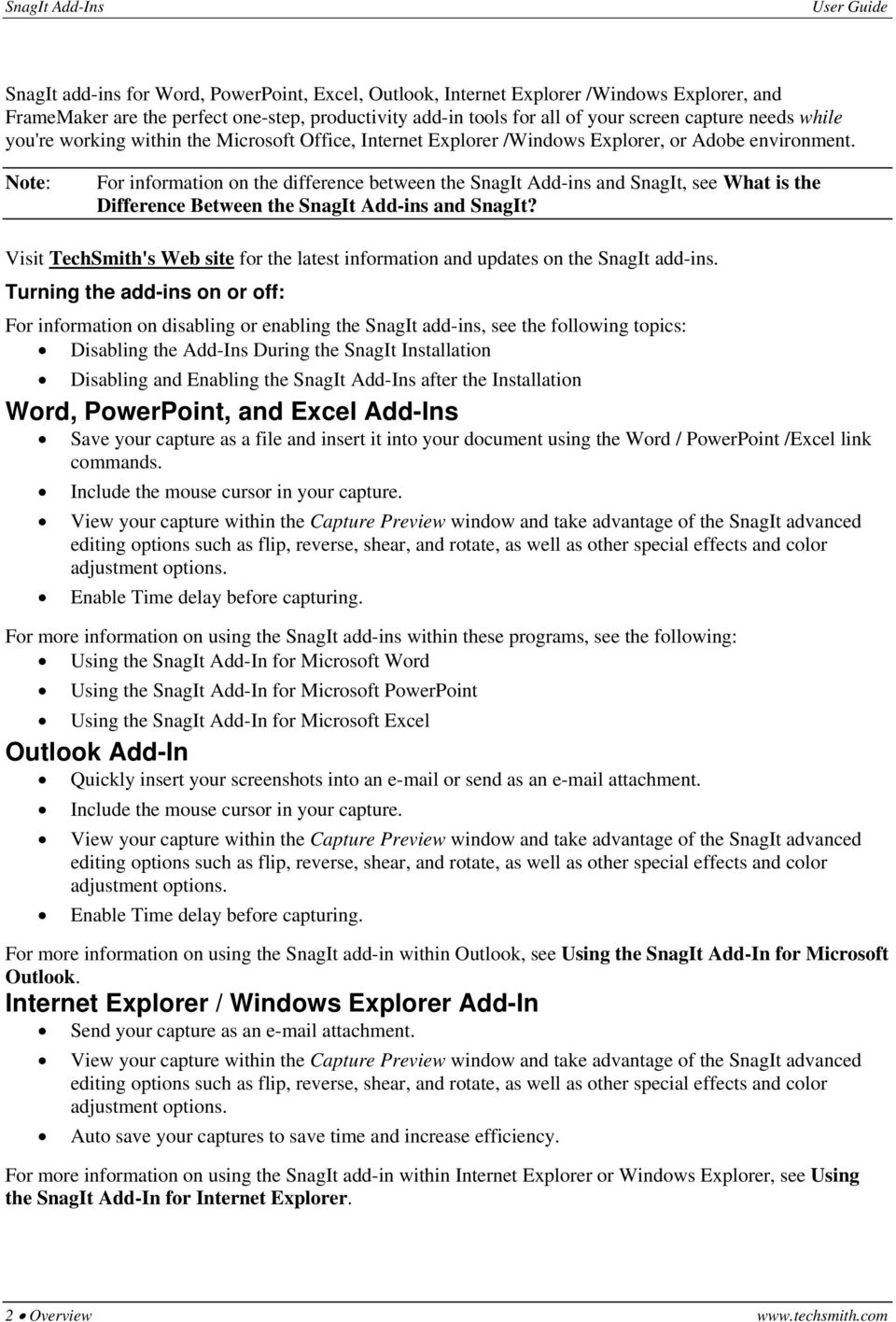
6 User Guide SnagIt add-ins for Word, PowerPoint, Excel, Outlook, Internet Explorer /Windows Explorer, and FrameMaker are the perfect one-step, productivity add-in tools for all of your screen capture needs while you're working within the Microsoft Office, Internet Explorer /Windows Explorer, or Adobe environment. Note: For information on the difference between the SnagIt Add-ins and SnagIt, see What is the Difference Between the SnagIt Add-ins and SnagIt? Visit TechSmith's Web site for the latest information and updates on the SnagIt add-ins. Turning the add-ins on or off: For information on disabling or enabling the SnagIt add-ins, see the following topics: Disabling the Add-Ins During the SnagIt Installation Disabling and Enabling the after the Installation Word, PowerPoint, and Excel Add-Ins Save your capture as a file and insert it into your document using the Word / PowerPoint /Excel link commands. Include the mouse cursor in your capture. View your capture within the Capture Preview window and take advantage of the SnagIt advanced editing options such as flip, reverse, shear, and rotate, as well as other special effects and color adjustment options. Enable Time delay before capturing. For more information on using the SnagIt add-ins within these programs, see the following: Using the SnagIt Add-In for Microsoft Word Using the SnagIt Add-In for Microsoft PowerPoint Using the SnagIt Add-In for Microsoft Excel Outlook Add-In Quickly insert your screenshots into an or send as an attachment. Include the mouse cursor in your capture. View your capture within the Capture Preview window and take advantage of the SnagIt advanced editing options such as flip, reverse, shear, and rotate, as well as other special effects and color adjustment options. Enable Time delay before capturing. For more information on using the SnagIt add-in within Outlook, see Using the SnagIt Add-In for Microsoft Outlook. Internet Explorer / Windows Explorer Add-In Send your capture as an attachment. View your capture within the Capture Preview window and take advantage of the SnagIt advanced editing options such as flip, reverse, shear, and rotate, as well as other special effects and color adjustment options. Auto save your captures to save time and increase efficiency. For more information on using the SnagIt add-in within Internet Explorer or Windows Explorer, see Using the SnagIt Add-In for Internet Explorer. 2 Overview
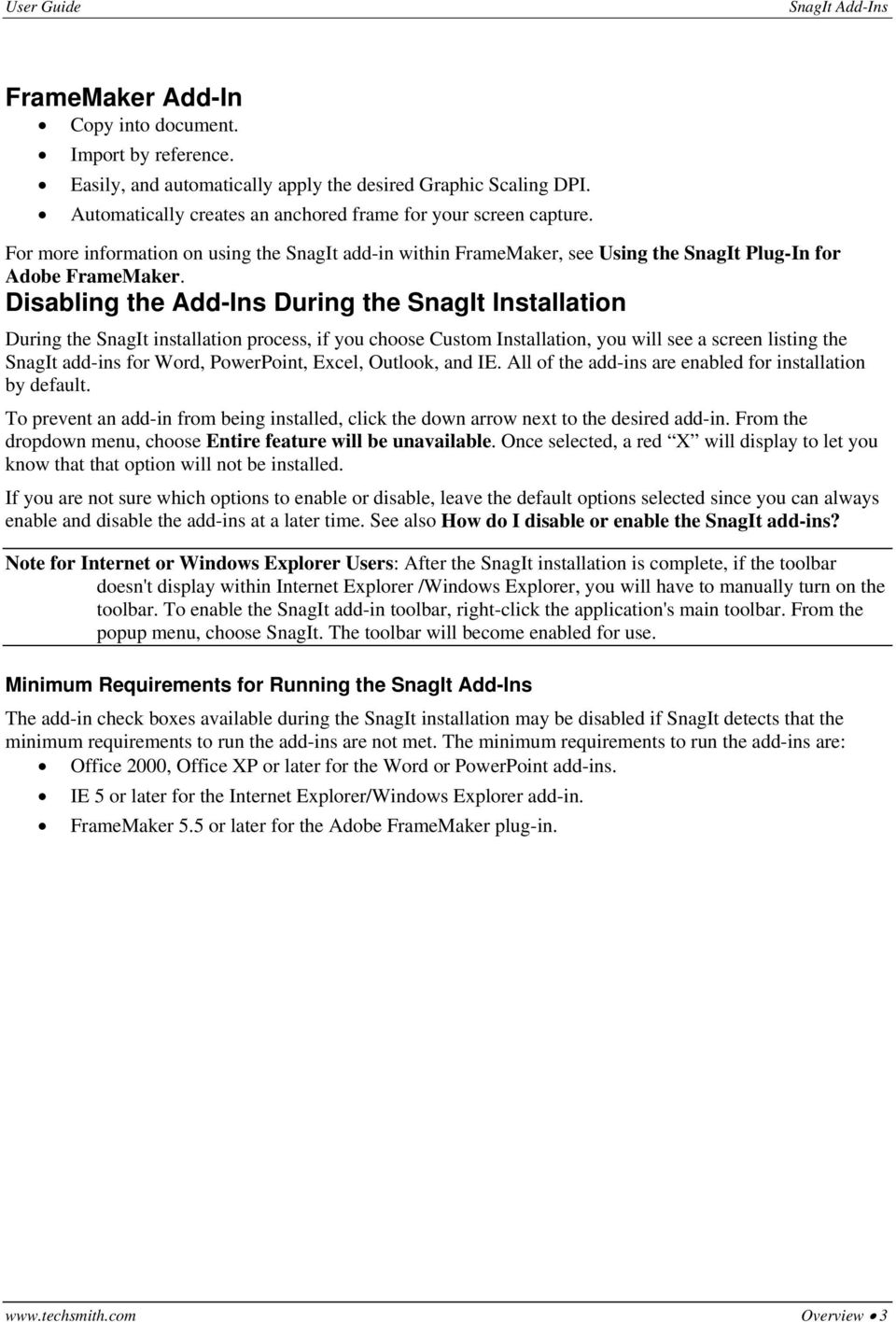
7 User Guide FrameMaker Add-In Copy into document. Import by reference. Easily, and automatically apply the desired Graphic Scaling DPI. Automatically creates an anchored frame for your screen capture. For more information on using the SnagIt add-in within FrameMaker, see Using the SnagIt Plug-In for Adobe FrameMaker. Disabling the Add-Ins During the SnagIt Installation During the SnagIt installation process, if you choose Custom Installation, you will see a screen listing the SnagIt add-ins for Word, PowerPoint, Excel, Outlook, and IE. All of the add-ins are enabled for installation by default. To prevent an add-in from being installed, click the down arrow next to the desired add-in. From the dropdown menu, choose Entire feature will be unavailable. Once selected, a red X will display to let you know that that option will not be installed. If you are not sure which options to enable or disable, leave the default options selected since you can always enable and disable the add-ins at a later time. See also How do I disable or enable the SnagIt add-ins? Note for Internet or Windows Explorer Users: After the SnagIt installation is complete, if the toolbar doesn't display within Internet Explorer /Windows Explorer, you will have to manually turn on the toolbar. To enable the SnagIt add-in toolbar, right-click the application's main toolbar. From the popup menu, choose SnagIt. The toolbar will become enabled for use. Minimum Requirements for Running the The add-in check boxes available during the SnagIt installation may be disabled if SnagIt detects that the minimum requirements to run the add-ins are not met. The minimum requirements to run the add-ins are: Office 2000, Office XP or later for the Word or PowerPoint add-ins. IE 5 or later for the Internet Explorer/Windows Explorer add-in. FrameMaker 5.5 or later for the Adobe FrameMaker plug-in. Overview 3
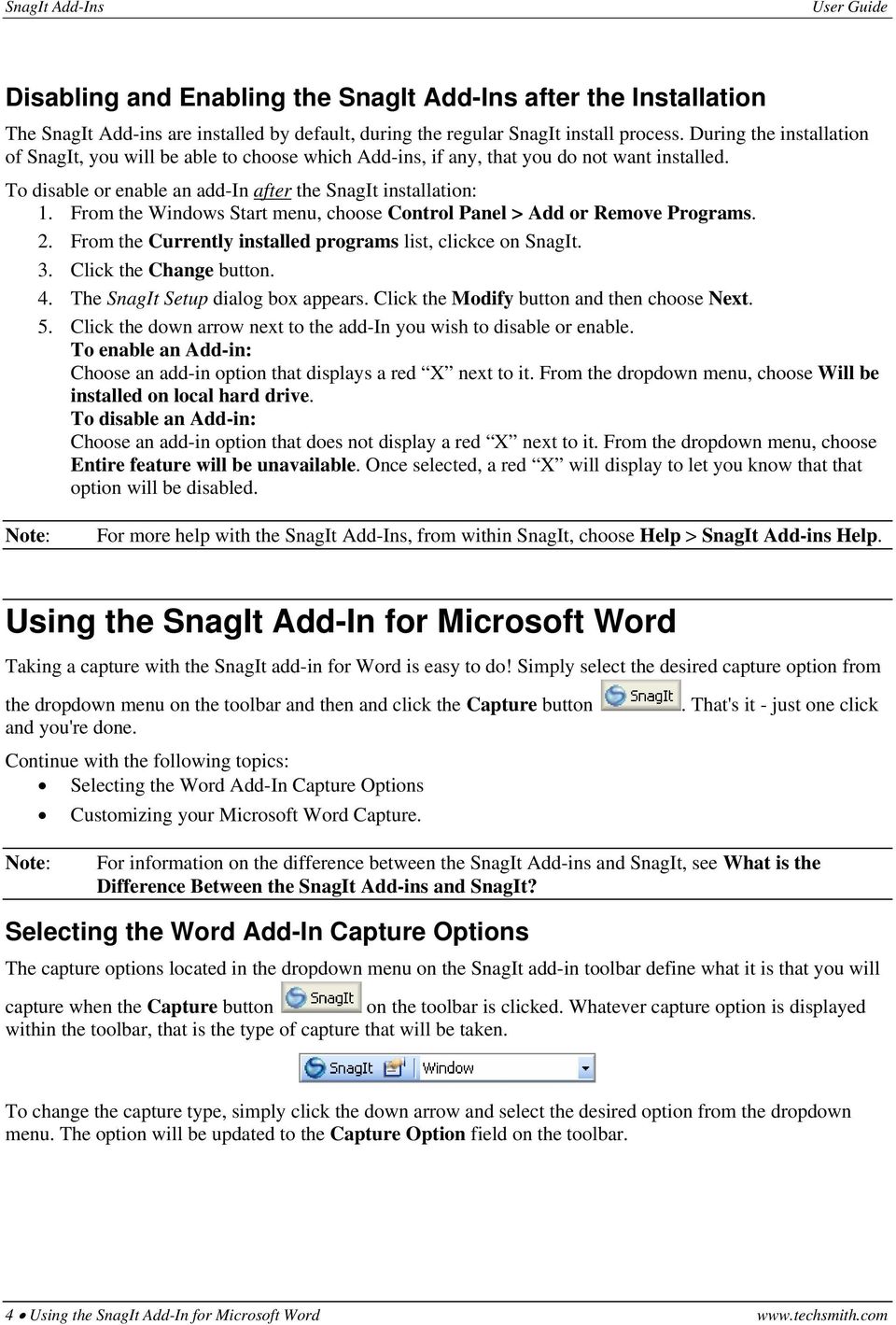
8 User Guide Disabling and Enabling the after the Installation The SnagIt Add-ins are installed by default, during the regular SnagIt install process. During the installation of SnagIt, you will be able to choose which Add-ins, if any, that you do not want installed. To disable or enable an add-in after the SnagIt installation: 1. From the Windows Start menu, choose Control Panel > Add or Remove Programs. 2. From the Currently installed programs list, clickce on SnagIt. 3. Click the Change button. 4. The SnagIt Setup dialog box appears. Click the Modify button and then choose Next. 5. Click the down arrow next to the add-in you wish to disable or enable. To enable an Add-in: Choose an add-in option that displays a red X next to it. From the dropdown menu, choose Will be installed on local hard drive. To disable an Add-in: Choose an add-in option that does not display a red X next to it. From the dropdown menu, choose Entire feature will be unavailable. Once selected, a red X will display to let you know that that option will be disabled. Note: For more help with the, from within SnagIt, choose Help > SnagIt Add-ins Help. Using the SnagIt Add-In for Microsoft Word Taking a capture with the SnagIt add-in for Word is easy to do! Simply select the desired capture option from the dropdown menu on the toolbar and then and click the Capture button and you're done. Continue with the following topics: Selecting the Word Add-In Capture Options Customizing your Microsoft Word Capture.. That's it - just one click Note: For information on the difference between the SnagIt Add-ins and SnagIt, see What is the Difference Between the SnagIt Add-ins and SnagIt? Selecting the Word Add-In Capture Options The capture options located in the dropdown menu on the SnagIt add-in toolbar define what it is that you will capture when the Capture button on the toolbar is clicked. Whatever capture option is displayed within the toolbar, that is the type of capture that will be taken. To change the capture type, simply click the down arrow and select the desired option from the dropdown menu. The option will be updated to the Capture Option field on the toolbar. 4 Using the SnagIt Add-In for Microsoft Word
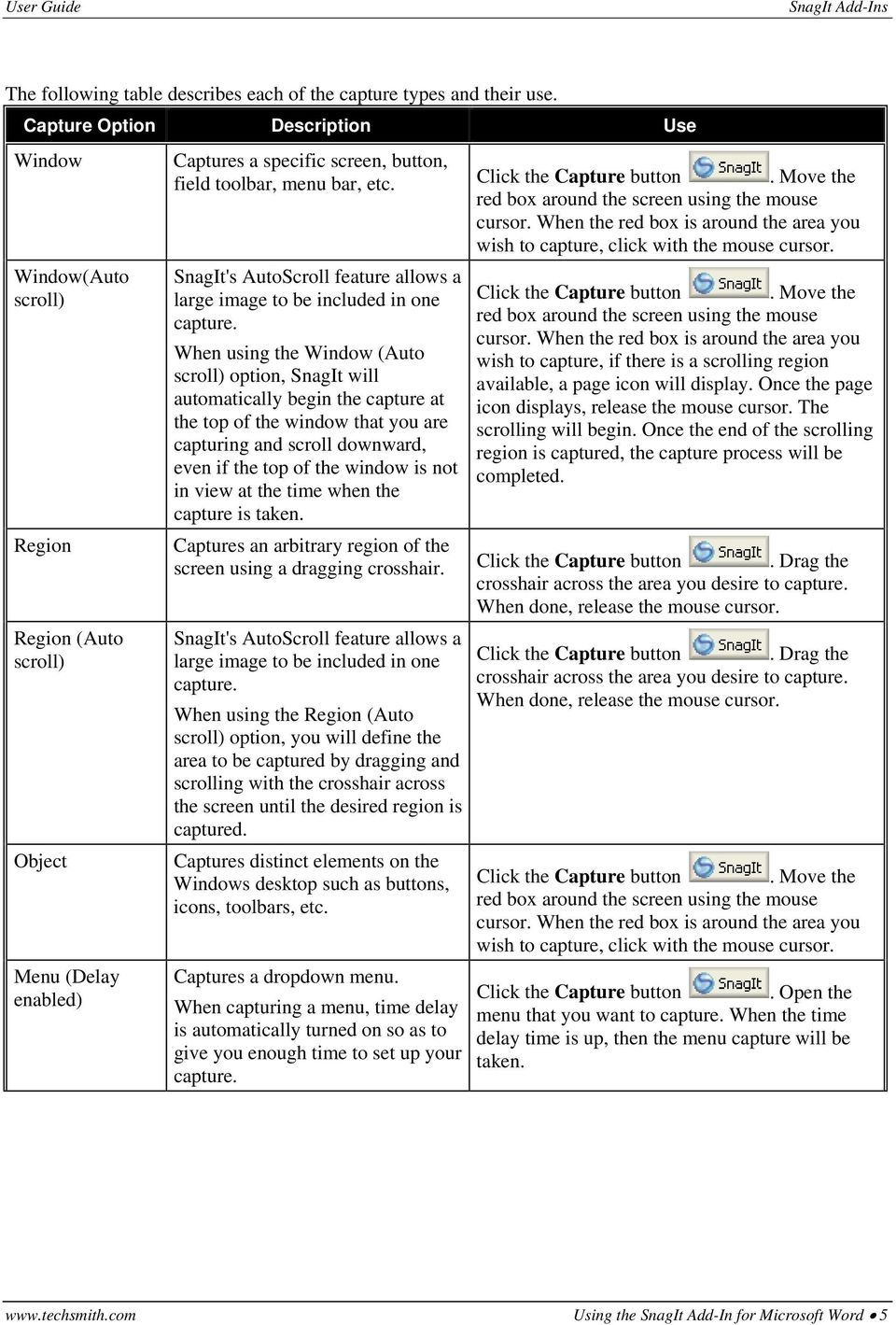
9 User Guide The following table describes each of the capture types and their use. Capture Option Description Use Window Window(Auto scroll) Region Region (Auto scroll) Object Menu (Delay enabled) Captures a specific screen, button, field toolbar, menu bar, etc. Click the Capture button. Move the red box around the screen using the mouse cursor. When the red box is around the area you wish to capture, click with the mouse cursor. SnagIt's AutoScroll feature allows a large image to be included in one capture. When using the Window (Auto scroll) option, SnagIt will automatically begin the capture at the top of the window that you are capturing and scroll downward, even if the top of the window is not in view at the time when the capture is taken. Click the Capture button. Move the red box around the screen using the mouse cursor. When the red box is around the area you wish to capture, if there is a scrolling region available, a page icon will display. Once the page icon displays, release the mouse cursor. The scrolling will begin. Once the end of the scrolling region is captured, the capture process will be completed. Captures an arbitrary region of the screen using a dragging crosshair. Click the Capture button. Drag the crosshair across the area you desire to capture. When done, release the mouse cursor. SnagIt's AutoScroll feature allows a large image to be included in one capture. When using the Region (Auto scroll) option, you will define the area to be captured by dragging and scrolling with the crosshair across the screen until the desired region is captured. Captures distinct elements on the Windows desktop such as buttons, icons, toolbars, etc. Click the Capture button. Drag the crosshair across the area you desire to capture. When done, release the mouse cursor. Click the Capture button. Move the red box around the screen using the mouse cursor. When the red box is around the area you wish to capture, click with the mouse cursor. Captures a dropdown menu. Click the Capture button. Open the When capturing a menu, time delay menu that you want to capture. When the time is automatically turned on so as to delay time is up, then the menu capture will be give you enough time to set up your taken. capture. Using the SnagIt Add-In for Microsoft Word 5
10 User Guide Capture Option Description Use Graphic File Brings up the Open dialog box which allows you to select and insert a graphic into your document. Text (Auto scroll) SnagIt's Text AutoScroll feature allows text to be captured from dialog boxes, web pages, error message boxes, and much more. When working with the text capture option, you cannot save the text to a file. Instead, the text will always be pasted into your Word document. Click the Capture button. The Open dialog box displays. Browse for and then select the image you want to insert into Word. Choose Open to insert the graphic. Note: This option is very useful when used in conjunction with the Preview Window option. Using both of these together, you can open a graphic from within Word, view it in the Capture Preview window, add special effects such as a dropdown shadow, save the file, and then have the new graphic inserted into your document. Overall, this is a perfect solution for adding shadows, edges, and other special effects to preexisting captures, all from within Word. Click the Capture button. Move the red box around the screen using the mouse cursor. When the red box is around the area you wish to capture, if there is a scrolling region available, a page icon will display. Once the page icon displays, release the mouse cursor. The scrolling will begin. Once the end of the scrolling region is captured, the capture process will be completed and the text will be pasted into your document. Customizing your Microsoft Word Capture SnagIt add-in captures for Word are completely customizable using the options found in the SnagIt Add-in Setup dialog box. To access the Setup dialog box, click the Setup button on the toolbar box displays.. The Setup dialog To customize your capture, simply click the desired option within the Setup dialog box and then choose OK. The following table describes each of the Word add-in customization options. Option Include Cursor Time delay before capturing Delay (seconds) Clipboard File Description Includes the mouse cursor in the capture. Delays the capture by the indicated number of seconds. Note: Menu captures will always use the time delay option. This allows the time necessary to set up the capture. Enter the number of seconds to delay before the capture is taken. Copies the capture to the clipboard. Enable this option if you would like to save your capture as a file. Once the capture is taken, you will be prompted to save your file. 6 Using the SnagIt Add-In for Microsoft Word

11 User Guide Option Enable Preview Window Copy into document Link to File Copy into document & Link to File used in conjunction with each other. Minimize Word before capturing OK Cancel Help Description Enable this option to display your capture in the Capture Preview window before you send it to its output destination. Within the Capture Preview window, you can add special edge effects such as a drop shadow or torn edge. You can also add other special effects or resize your graphic. Inserts a copy of the capture into the document. Saves the capture as a file and inserts it as a link. When inserting as a link, the capture is not actually saved within the document, it is only referenced through a field code. Any changes to the graphic file will be updated to the image seen in the document. With this option, in order to view and/or share the Word document, you must also share the image files. Used together, these options will save a copy of the capture in the document as well as in a file. When copying into the document and linking to a file, if changes are made to the image file, the image within the document may be updated by updating all fields. Enable this option to hide Word before you take your capture. Choose OK to save the current configuration and to exit this dialog box. Choose Cancel to exit this dialog box without saving any changes. Choose Help to access the SnagIt Add-in's online help. Using the SnagIt Add-In for Microsoft Outlook Taking a capture with the SnagIt add-in for Outlook is easy to do! Simply select the desired capture option from the dropdown menu on the toolbar and then and click the Capture button click and you're done. Continue with the following topics: Selecting the Outlook Add-In Capture Options Customizing your Microsoft Outlook Capture. That's it - just one Note: For information on the difference between the SnagIt Add-ins and SnagIt, see What is the Difference Between the SnagIt Add-ins and SnagIt? Selecting the Outlook Add-In Capture Options The capture options located in the dropdown menu on the SnagIt add-in toolbar define what it is that you will capture when the Capture button on the toolbar is clicked. Whatever capture option is displayed within the toolbar, that is the type of capture that will be taken. Using the SnagIt Add-In for Microsoft Outlook 7
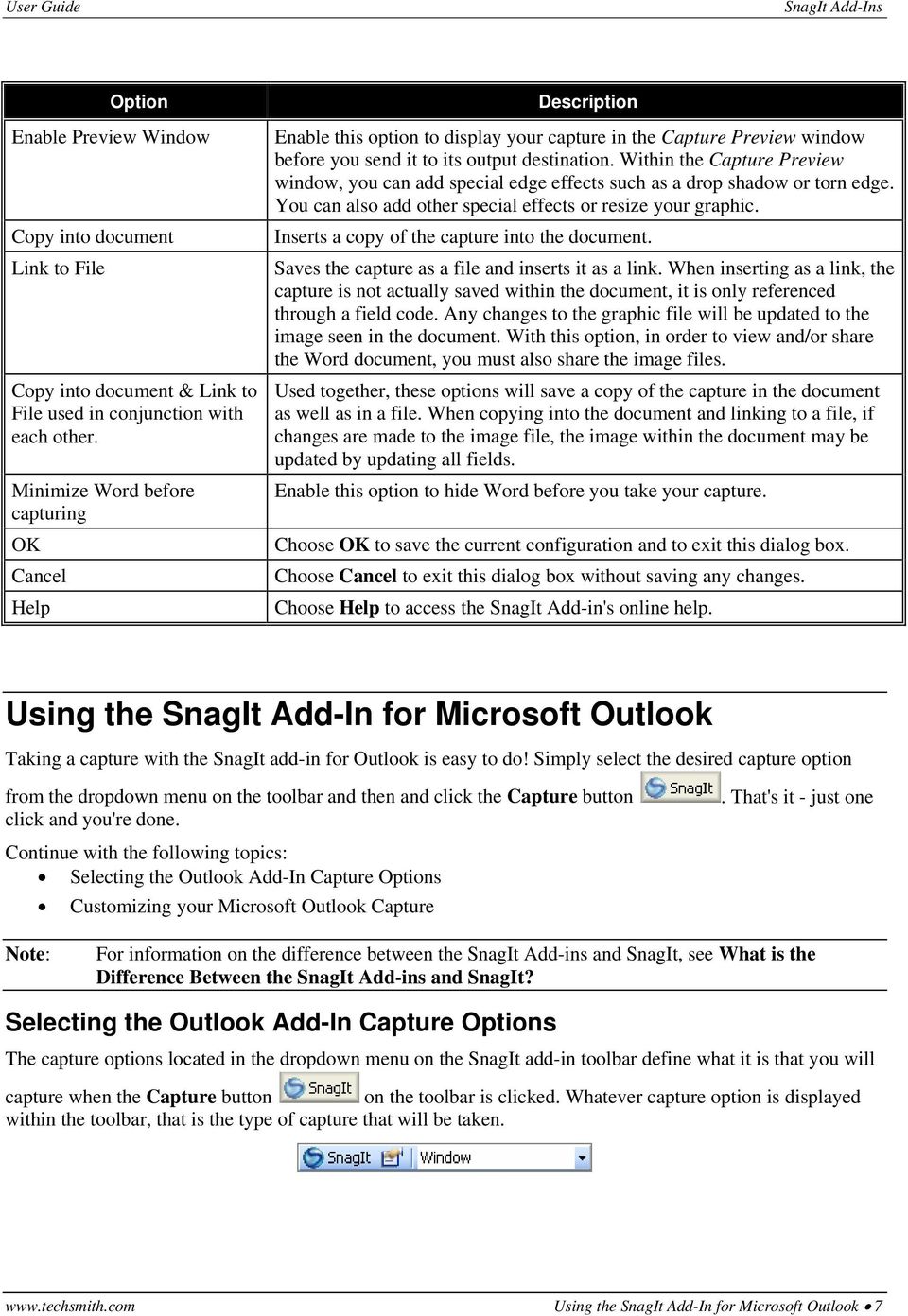
12 User Guide To change the capture type, simply click the down arrow and select the desired option from the dropdown menu. The option will be updated to the Capture Option field on the toolbar. The following table describes each of the capture types and their use. Capture Option Description Use Window Window(Auto scroll) Region Region (Auto scroll) Object Menu (Delay enabled) Captures a specific screen, button, field toolbar, menu bar, etc. SnagIt's AutoScroll feature allows a large image to be included in one capture. When using the Window (Auto scroll) option, SnagIt will automatically begin the capture at the top of the window that you are capturing and scroll downward, even if the top of the window is not in view at the time when the capture is taken. Captures an arbitrary region of the screen using a dragging crosshair. SnagIt's AutoScroll feature allows a large image to be included in one capture. When using the Region (Auto scroll) option, you will define the area to be captured by dragging and scrolling with the crosshair across the screen until the desired region is captured. Captures distinct elements on the Windows desktop such as buttons, icons, toolbars, etc. Captures a dropdown menu. When capturing a menu, time delay is automatically turned on so as to give you enough time to set up your capture. Click the Capture button. Move the red box around the screen using the mouse cursor. When the red box is around the area you wish to capture, click with the mouse cursor. Click the Capture button. Move the red box around the screen using the mouse cursor. When the red box is around the area you wish to capture, if there is a scrolling region available, a page icon will display. Once the page icon displays, release the mouse cursor. The scrolling will begin. Once the end of the scrolling region is captured, the capture process will be completed. Click the Capture button. Drag the crosshair across the area you desire to capture. When done, release the mouse cursor. Click the Capture button. Drag the crosshair across the area you desire to capture. When done, release the mouse cursor. Click the Capture button. Move the red box around the screen using the mouse cursor. When the red box is around the area you wish to capture, click with the mouse cursor. Click the Capture button. Open the menu that you want to capture. When the time delay time is up, then the menu capture will be taken. 8 Using the SnagIt Add-In for Microsoft Outlook

13 User Guide Capture Option Description Use Graphic File Text (Auto scroll) Brings up the Open dialog box which allows you to select and insert a graphic into your message. SnagIt's Text AutoScroll feature allows text to be captured from dialog boxes, web pages, error message boxes, and much more. When working with the text capture option, you cannot save the text to a file. Instead, the text will always be pasted into your Outlook message. Customizing your Microsoft Outlook Capture Click the Capture button. The Open dialog box displays. Browse for and then select the image you want to insert into Outlook. Choose Open to insert the graphic. Note: This option is very useful when used in conjunction with the Preview Window option. Using both of these together, you can open a graphic from within Outlook, view it in the Capture Preview window, add special effects such as a dropdown shadow, save the file, and then have the new graphic inserted into your message. Overall, this is a perfect solution for adding shadows, edges, and other special effects to preexisting captures, all from within Outlook. Click the Capture button. Move the red box around the screen using the mouse cursor. When the red box is around the area you wish to capture, if there is a scrolling region available, a page icon will display. Once the page icon displays, release the mouse cursor. The scrolling will begin. Once the end of the scrolling region is captured, the capture process will be completed and the text will be pasted into your message. SnagIt add-in captures for Outlook are completely customizable using the options found in the SnagIt Add-in Setup dialog box. To access the Setup dialog box, click the Setup button on the toolbar box displays.. The Setup dialog To customize your capture, simply click the desired option within the Setup dialog box and then choose OK. The following table describes each of the Outlook add-in customization options. Option Include Cursor Time delay before capturing Delay (seconds) Clipboard File Description Includes the mouse cursor in the capture. Delays the capture by the indicated number of seconds. Note: Menu captures will always use the time delay option. This allows the time necessary to set up the capture. Enter the number of seconds to delay before the capture is taken. Copies the capture to the clipboard. Enable this option if you would like to save your capture as a file. Once the capture is taken, you will be prompted to save your file. Using the SnagIt Add-In for Microsoft Outlook 9
14 User Guide Enable Preview Window Copy into document Attach to Document Minimize Outlook before capturing OK Cancel Help Enable this option to display your capture in the Capture Preview window before you send it to its output destination. Within the Capture Preview window, you can add special edge effects such as a drop shadow or torn edge. You can also add other special effects or resize your graphic. Inserts a copy of the capture directly into the body of the message. Used in conjunction with the Clipboard output option. Your capture will be automatically inserted only if you use Microsoft Word as your default editor for . This only works for messages. Saves the capture as a file and inserts it as an attachment in the message. Used in conjunction with the File output option. Enable this option to hide Outlook before you take your capture. Choose OK to save the current configuration and to exit this dialog box. Choose Cancel to exit this dialog box without saving any changes. Choose Help to access the SnagIt Add-in's online help. Using the SnagIt Add-In for Microsoft PowerPoint Taking a capture with the SnagIt add-in for PowerPoint is easy to do! Simply select the desired capture option from the dropdown menu on the toolbar and then and click the Capture button. That's it - just one click and you're done. The default selection of capture options will take a capture that retains links and hotspots and paste the capture right into your PowerPoint presentation. SnagIt Add-In for PowerPoint Toolbar The default toolbar is made up of the following buttons: Button Button Name Description Perform a SnagIt Capture Set up a SnagIt Capture Click to start taking a screen capture. Click to open the SnagIt Add-In for Internet Explorer dialog box where you can define the setup options for captures performed with the add-in. Select the Capture Type Insert Flash into presentation Use this dropdown menu to select the type of capture. See Selecting the PowerPoint Add-In Capture Options for more information. Click to quickly and easily insert a Flash file (.swf) into a PowerPoint presentation. See Insert Flash into Presentation for more information. 10 Using the SnagIt Add-In for Microsoft PowerPoint
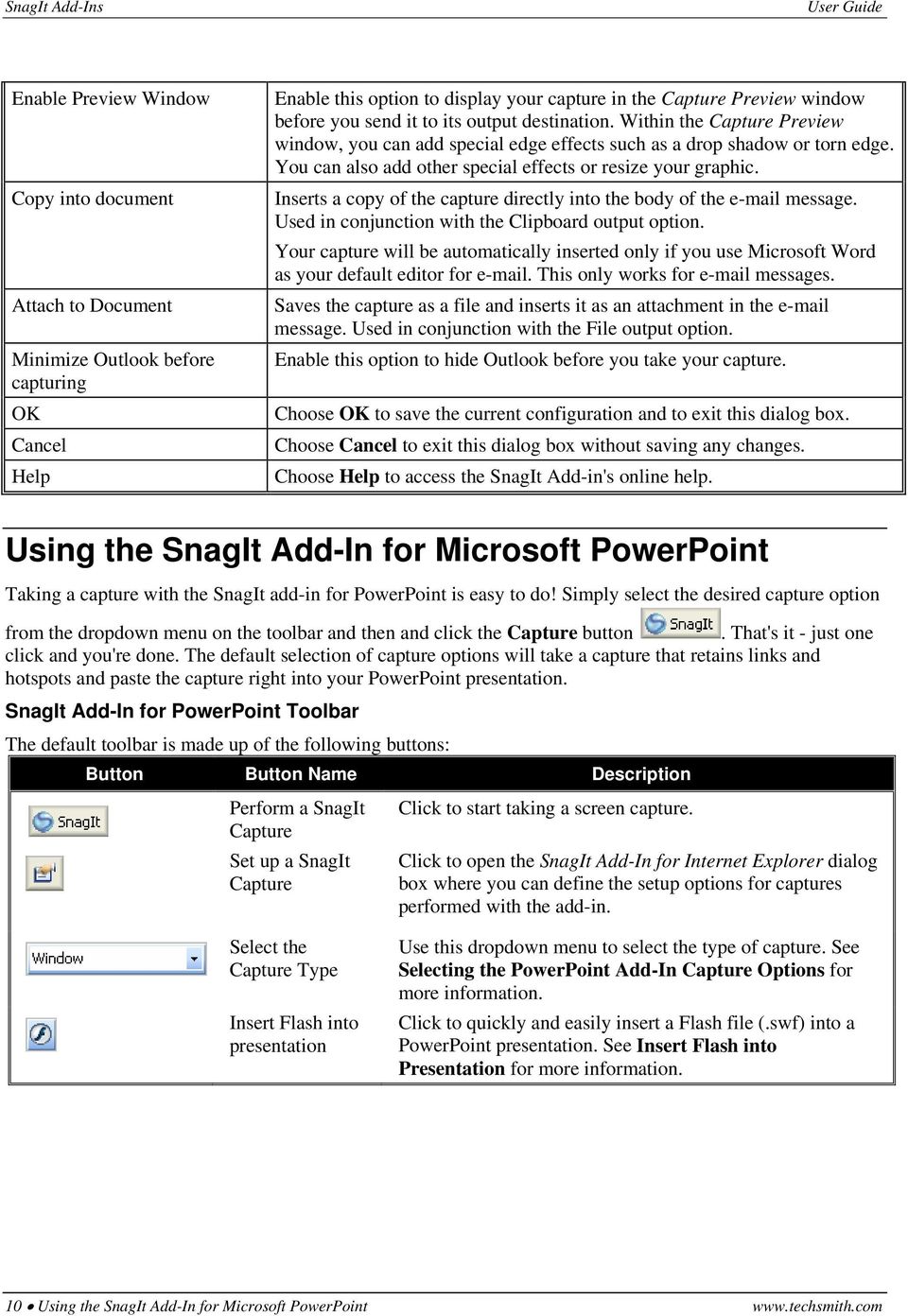
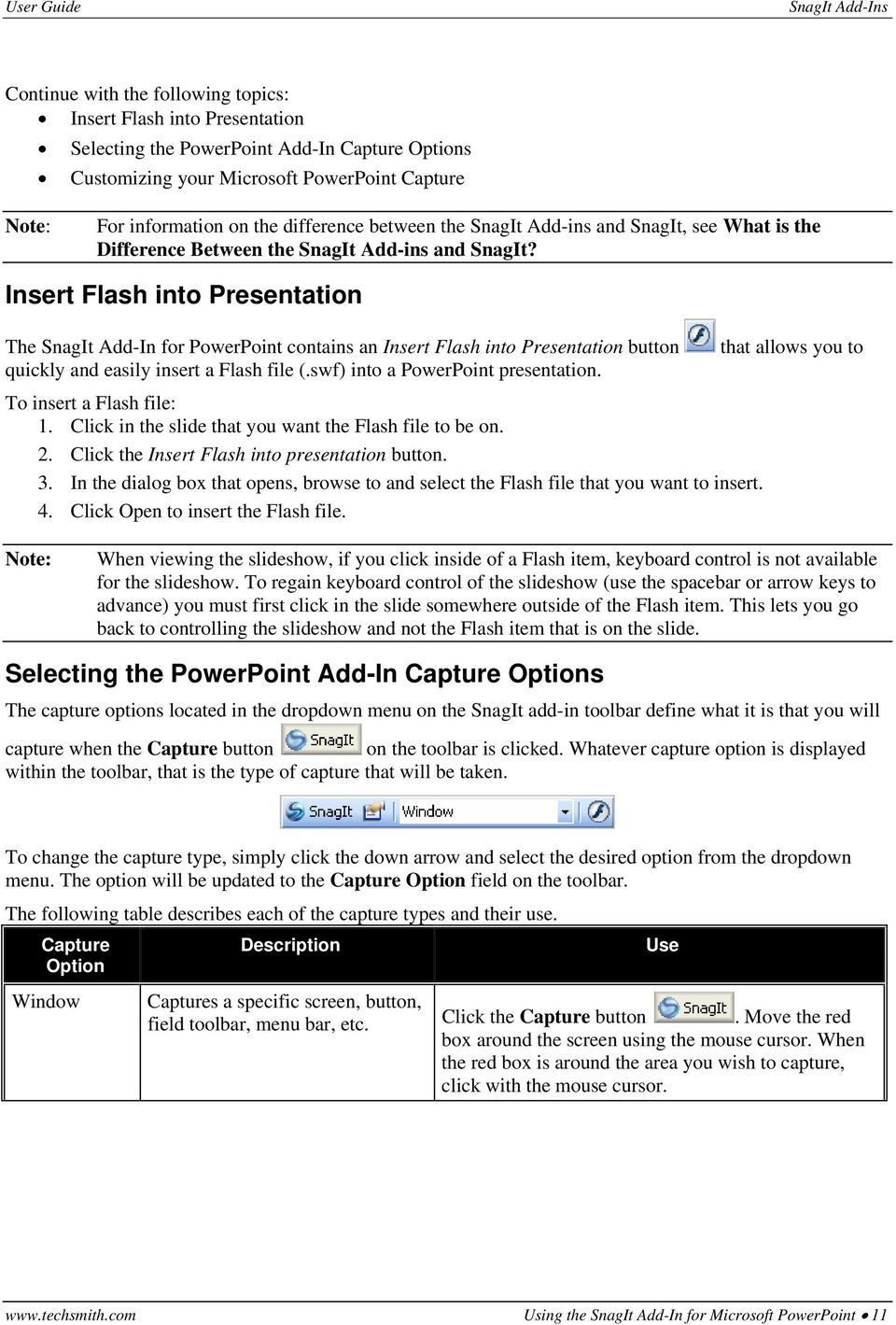
15 User Guide Continue with the following topics: Insert Flash into Presentation Selecting the PowerPoint Add-In Capture Options Customizing your Microsoft PowerPoint Capture Note: For information on the difference between the SnagIt Add-ins and SnagIt, see What is the Difference Between the SnagIt Add-ins and SnagIt? Insert Flash into Presentation The SnagIt Add-In for PowerPoint contains an Insert Flash into Presentation button quickly and easily insert a Flash file (.swf) into a PowerPoint presentation. To insert a Flash file: 1. Click in the slide that you want the Flash file to be on. 2. Click the Insert Flash into presentation button. 3. In the dialog box that opens, browse to and select the Flash file that you want to insert. 4. Click Open to insert the Flash file. that allows you to Note: When viewing the slideshow, if you click inside of a Flash item, keyboard control is not available for the slideshow. To regain keyboard control of the slideshow (use the spacebar or arrow keys to advance) you must first click in the slide somewhere outside of the Flash item. This lets you go back to controlling the slideshow and not the Flash item that is on the slide. Selecting the PowerPoint Add-In Capture Options The capture options located in the dropdown menu on the SnagIt add-in toolbar define what it is that you will capture when the Capture button on the toolbar is clicked. Whatever capture option is displayed within the toolbar, that is the type of capture that will be taken. To change the capture type, simply click the down arrow and select the desired option from the dropdown menu. The option will be updated to the Capture Option field on the toolbar. The following table describes each of the capture types and their use. Capture Option Window Description Captures a specific screen, button, field toolbar, menu bar, etc. Click the Capture button. Move the red box around the screen using the mouse cursor. When the red box is around the area you wish to capture, click with the mouse cursor. Use Using the SnagIt Add-In for Microsoft PowerPoint 11
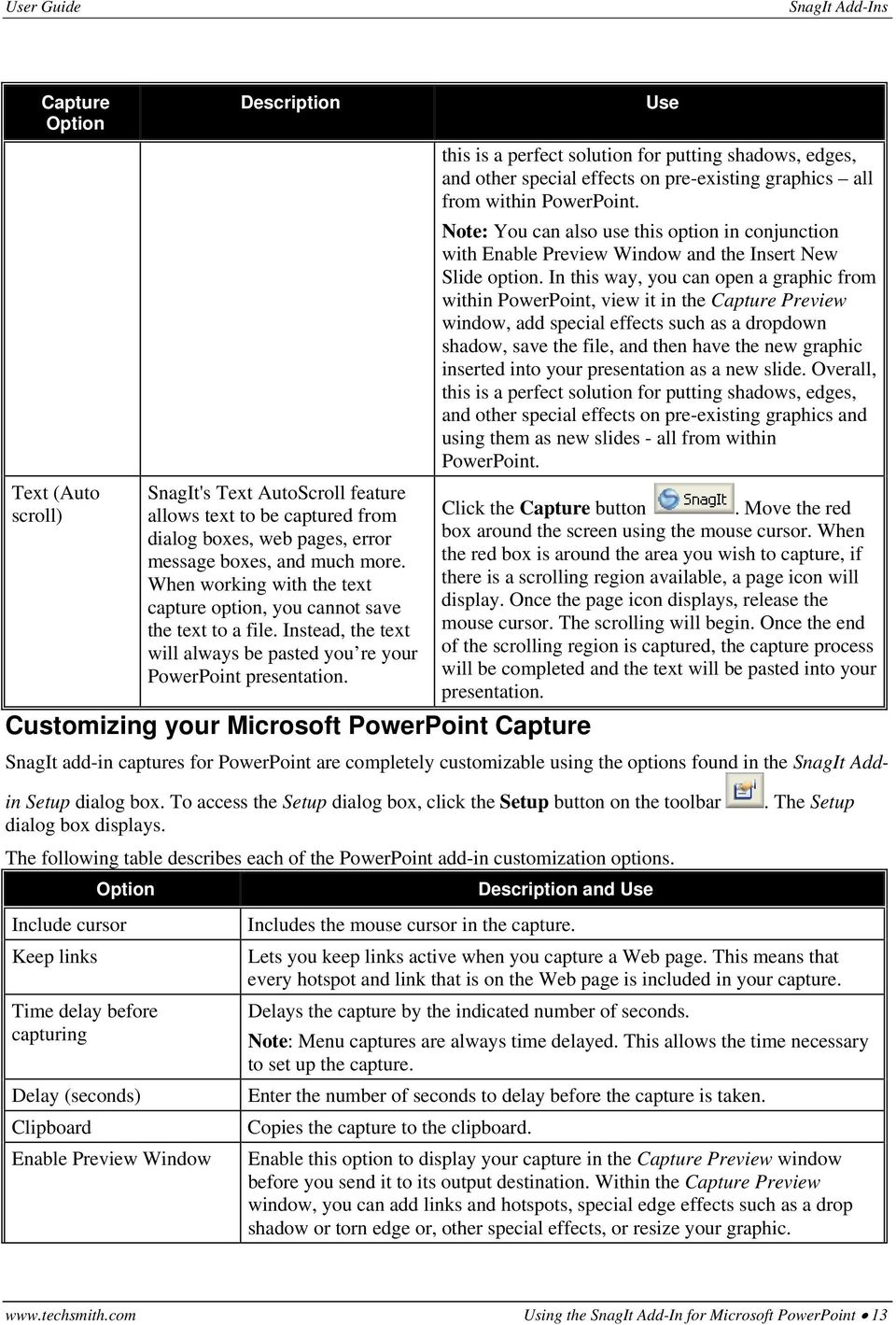
16 User Guide Capture Description Use Option Window(Auto scroll) Region Region (Auto scroll) Object Menu (Delay enabled) Graphic File SnagIt's AutoScroll feature allows a large image to be included in one capture. When using the Window (Auto scroll) option, SnagIt will automatically begin the capture at the top of the window that you are capturing and scroll downward, even if the top of the window is not in view at the time when the capture is taken. Click the Capture button. Move the red box around the screen using the mouse cursor. When the red box is around the area you wish to capture, if there is a scrolling region available, a page icon will display. Once the page icon displays, release the mouse cursor. The scrolling will begin. Once the end of the scrolling region is captured, the capture process will be completed. Captures an arbitrary region of the screen using a dragging crosshair. Click the Capture button. Drag the crosshair across the area you desire to capture. When done, release the mouse cursor. SnagIt's AutoScroll feature allows a large image to be included in one capture. When using the Region (Auto scroll) option, you will define the area to be captured by dragging and scrolling with the crosshair across the screen until the desired region is captured. Captures distinct elements on the Windows desktop such as buttons, icons, toolbars, etc. Captures a dropdown menu. Note: When capturing a menu, time delay is automatically turned on so as to give you enough time to set up your capture. Brings up the Open dialog box which allows you to select and insert a graphic into your presentation. Click the Capture button. Drag the crosshair across the area you desire to capture. When done, release the mouse cursor. Click the Capture button. Move the red box around the screen using the mouse cursor. When the red box is around the area you wish to capture, click with the mouse cursor. Click the Capture button. Open the menu that you want to capture. When the time delay time is up, then the menu capture will be taken. Click the Capture button. The Open dialog box displays. Browse for and then select the image you want to insert into PowerPoint. Choose Open to insert the graphic. Note: This option is very useful when used in conjunction with the Enable Preview Window option. Using both of these together, you can open a graphic from within PowerPoint, view it in the Capture Preview window, add special effects such as a dropdown shadow, save the file, and then have the new graphic inserted into your presentation. Overall, 12 Using the SnagIt Add-In for Microsoft PowerPoint

17 User Guide Capture Description Use Option Text (Auto scroll) SnagIt's Text AutoScroll feature allows text to be captured from dialog boxes, web pages, error message boxes, and much more. When working with the text capture option, you cannot save the text to a file. Instead, the text will always be pasted you re your PowerPoint presentation. Customizing your Microsoft PowerPoint Capture this is a perfect solution for putting shadows, edges, and other special effects on pre-existing graphics all from within PowerPoint. Note: You can also use this option in conjunction with Enable Preview Window and the Insert New Slide option. In this way, you can open a graphic from within PowerPoint, view it in the Capture Preview window, add special effects such as a dropdown shadow, save the file, and then have the new graphic inserted into your presentation as a new slide. Overall, this is a perfect solution for putting shadows, edges, and other special effects on pre-existing graphics and using them as new slides - all from within PowerPoint. Click the Capture button. Move the red box around the screen using the mouse cursor. When the red box is around the area you wish to capture, if there is a scrolling region available, a page icon will display. Once the page icon displays, release the mouse cursor. The scrolling will begin. Once the end of the scrolling region is captured, the capture process will be completed and the text will be pasted into your presentation. SnagIt add-in captures for PowerPoint are completely customizable using the options found in the SnagIt Addin Setup dialog box. To access the Setup dialog box, click the Setup button on the toolbar dialog box displays. The following table describes each of the PowerPoint add-in customization options. Option Include cursor Keep links Time delay before capturing Delay (seconds) Clipboard Enable Preview Window Description and Use. The Setup Includes the mouse cursor in the capture. Lets you keep links active when you capture a Web page. This means that every hotspot and link that is on the Web page is included in your capture. Delays the capture by the indicated number of seconds. Note: Menu captures are always time delayed. This allows the time necessary to set up the capture. Enter the number of seconds to delay before the capture is taken. Copies the capture to the clipboard. Enable this option to display your capture in the Capture Preview window before you send it to its output destination. Within the Capture Preview window, you can add links and hotspots, special edge effects such as a drop shadow or torn edge or, other special effects, or resize your graphic. Using the SnagIt Add-In for Microsoft PowerPoint 13
18 User Guide File Option Copy into document Link to File Copy into document & Link to File used in conjunction with each other. Minimize PowerPoint before capturing Insert as a New Slide Slide Type Description and Use Enable this option if you would like to save your capture as a file. Once the capture is taken, you will be prompted to save your file. Inserts a copy of the capture into the document. Saves the capture as a file and inserts it as a link. When inserting as a link, the capture is not actually saved within the presentation, it is only referenced through a field code. Any changes to the graphic file will be updated to the image seen in the presentation. With this option, in order to view and/or share the PowerPoint presentation, you must also share the image files. Used together, these options will save a copy of the capture in the presentation as well as in a file. When copying into the document and linking to a file, if changes are made to the image file, the image within the presentation may be updated by updating all fields. Enable this option to hide PowerPoint before you take your capture. Will insert the capture as a new slide using the current design template. Choose the type of slide you want to insert. A layout refers to the way things are arranged on a slide. Using the SnagIt Add-In for Microsoft Excel Taking a capture with the SnagIt add-in for Excel is easy to do! Simply select the desired capture option from the dropdown menu on the toolbar and then and click the Capture button and you're done. Continue with the following topics: Selecting the Excel Add-In Capture Options Customizing your Microsoft Excel Capture. That's it - just one click Note: For information on the difference between the SnagIt Add-ins and SnagIt, see What is the Difference Between the SnagIt Add-ins and SnagIt? Selecting the Excel Add-In Capture Options The capture options located in the dropdown menu on the SnagIt add-in toolbar define what it is that you will capture when the Capture button on the toolbar is clicked. Whatever capture option is displayed within the toolbar, that is the type of capture that will be taken. To change the capture type, simply click the down arrow and select the desired option from the dropdown menu. The option will be updated to the Capture Option field on the toolbar. 14 Using the SnagIt Add-In for Microsoft Excel
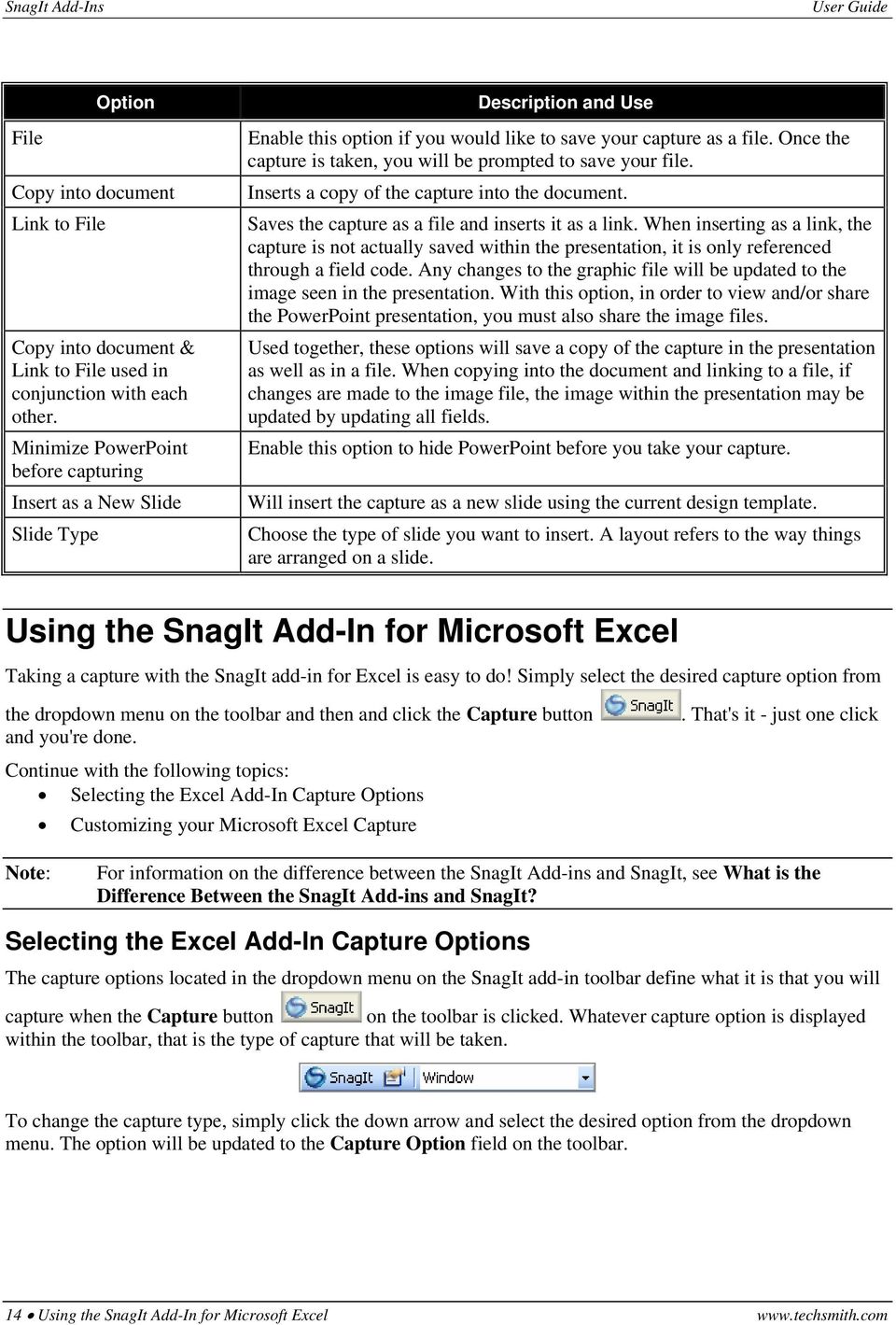
19 User Guide The following table describes each of the capture types and their use. Capture Option Description Use Window Window(Auto scroll) Region Region (Auto scroll) Object Menu (Delay enabled) Captures a specific screen, button, field toolbar, menu bar, etc. Click the Capture button. Move the red box around the screen using the mouse cursor. When the red box is around the area you wish to capture, click with the mouse cursor. SnagIt's AutoScroll feature allows a large image to be included in one capture. When using the Window (Auto scroll) option, SnagIt will automatically begin the capture at the top of the window that you are capturing and scroll downward, even if the top of the window is not in view at the time when the capture is taken. Click the Capture button. Move the red box around the screen using the mouse cursor. When the red box is around the area you wish to capture, if there is a scrolling region available, a page icon will display. Once the page icon displays, release the mouse cursor. The scrolling will begin. Once the end of the scrolling region is captured, the capture process will be completed. Captures an arbitrary region of the screen using a dragging crosshair. Click the Capture button. Drag the crosshair across the area you desire to capture. When done, release the mouse cursor. SnagIt's AutoScroll feature allows a large image to be included in one capture. When using the Region (Auto scroll) option, you will define the area to be captured by dragging and scrolling with the crosshair across the screen until the desired region is captured. Captures distinct elements on the Windows desktop such as buttons, icons, toolbars, etc. Captures a dropdown menu. Note: When capturing a menu, time delay is automatically turned on so as to give you enough time to set up your capture. Click the Capture button. Drag the crosshair across the area you desire to capture. When done, release the mouse cursor. Click the Capture button. Move the red box around the screen using the mouse cursor. When the red box is around the area you wish to capture, click with the mouse cursor. Click the Capture button. Open the menu that you want to capture. When the time delay time is up, then the menu capture will be taken. Using the SnagIt Add-In for Microsoft Excel 15

20 User Guide Capture Option Description Use Graphic File Text (Auto scroll) Brings up the Open dialog box which allows you to select and insert a graphic into your spreadsheet. SnagIt's Text AutoScroll feature allows text to be captured from dialog boxes, web pages, error message boxes, and much more. When working with the text capture option, you cannot save the text to a file. Instead, the text will always be pasted into your Excel document using a tabular data spreadsheet format. Customizing your Microsoft Excel Capture Click the Capture button. The Open dialog box displays. Browse for and then select the image you want to insert into Excel. Choose Open to insert the graphic. Note: This option is very useful when used in conjunction with the Enable Preview Window option. Using both of these together, you can open a graphic from within Excel, view it in the Capture Preview window, add special effects such as a dropdown shadow, save the file, and then have the new graphic inserted into your spreadsheet. Overall, this is a perfect solution for putting shadows, edges, and other special effects on pre-existing graphics all from within Excel. Click the Capture button. Move the red box around the screen using the mouse cursor. When the red box is around the area you wish to capture, if there is a scrolling region available, a page icon will display. The scrolling will begin. Once the end of the scrolling region is captured, the capture process will be completed and the text will be pasted into your spreadsheet. SnagIt add-in captures for Excel are completely customizable using the options found in the SnagIt Add-in Setup dialog box. To access the Setup dialog box, click the Setup button on the toolbar box displays. The following table describes each of the Excel add-in customization options. Option Include Cursor Time delay before capturing Delay (seconds) Clipboard File Description and Use. The Setup dialog Includes the mouse cursor in the capture. Delays the capture by the indicated number of seconds. Note: Menu captures are always time delayed. This allows the time necessary to set up the capture. Enter the number of seconds to delay before the capture is taken. Copies the capture to the clipboard. Enable this option if you would like to save your capture as a file. Once the capture is taken, you will be prompted to save your file. 16 Using the SnagIt Add-In for Microsoft Excel
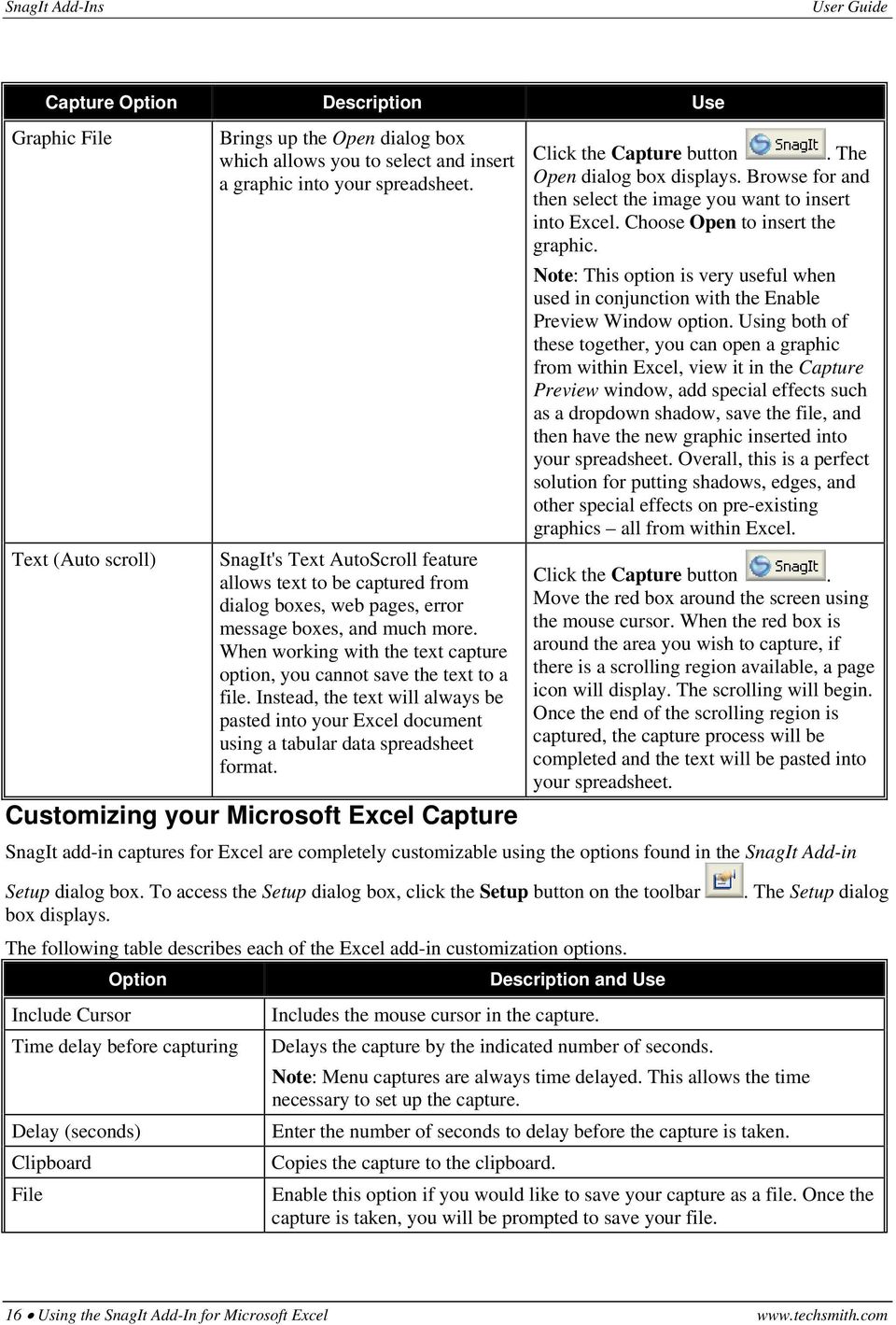
21 User Guide Enable Preview Window Copy into document None Minimize Excel before capturing OK Cancel Help Enable this option to display your capture in the Capture Preview window before you send it to its output destination. Within the Capture Preview window, you can add special edge effects such as a drop shadow or torn edge. You can also add other special effects or resize your graphic. Inserts a copy of the capture into the document. Enable this option to save the capture as a file. This option will not insert the capture into your spreadsheet. Enable this option to hide Excel before you take your capture. Choose OK to save the current configuration and to exit this dialog box. Choose Cancel to exit this dialog box without saving any changes. Choose Help to access the SnagIt Add-in's online help. Using the SnagIt Add-In for Internet Explorer Note: The options that are available for Internet Explorer are the same as those for Windows Explorer. When setting the options for Windows Explorer, use the information found within the following topics. Taking a capture with the SnagIt add-in for Internet Explorer is easy to do! Simply click the Capture button. That's it - just one click and you're done. SnagIt Add-In for Internet Explorer Toolbar The default toolbar is made up of the following buttons: Button Button Name Description Perform a SnagIt Capture Click to start taking a screen capture. Keep Links Set Up a SnagIt Capture Enable to retain all links and hotspot in your capture. Click to open the SnagIt Add-In for Internet Explorer dialog box where you can define the setup options for captures performed with the add-in. Continue with the following topics: Customizing your Internet Explorer Capture Selecting the Internet Explorer Add-In Capture Options Selecting the Internet Explorer Add-In Output Options Note: For information on the difference between the SnagIt Add-ins and SnagIt, see What is the Difference Between the SnagIt Add-ins and SnagIt? Using the SnagIt Add-In for Internet Explorer 17
22 User Guide Customizing your Internet Explorer Capture SnagIt add-in captures for Internet Explorer are completely customizable using the options found in the SnagIt Add-in Setup dialog box. To access the Setup dialog box, click the Setup button on the toolbar. The Setup dialog box displays. The following table describes each of the Internet Explorer add-in customization options. Option Select a capture type Show capture type on toolbar Description and Use Select the type of capture you want to take. Enable this option if you would like the ability to choose the capture type from the toolbar. This places a dropdown menu on the toolbar. Select an output type Select where you would like to send the image after capture. Show output type on toolbar Enable this option if you would like the ability to choose the output type from the toolbar. This places a dropdown menu on the toolbar. Enable Preview Window Image file type Keep Links file type Output folder File prefix Enable this option to display your capture in the Capture Preview window before you send it to its output destination. Within the Capture Preview window, you can add special edge effects such as a drop shadow or torn edge. You can also add other special effects or resize your graphic. Used in conjunction with file output types. Select the desired image file type when saving the output to a file. Select the desired image file type that supports keeping links active when saving the output to a file. Used in conjunction with the Automatic File Name output type. Select the desired folder for saving the output to a file. Used in conjunction with the Automatic File Name output type. Select the desired prefix, if any, when automatically saving the output to a file. Selecting the Internet Explorer Add-In Capture Options The capture options located in the SnagIt Add-in Setup dialog box (and in the dropdown menu in the SnagIt add-in toolbar if that option has been enabled) define what it is that you will capture when the Capture button on the toolbar is clicked. To change the capture type, simply click the down arrow and select the desired option from the dropdown menu. If the Capture Option field has been enabled to display on the add-in toolbar, then the selected option will be updated to that field as well. 18 Using the SnagIt Add-In for Internet Explorer
23 User Guide The following table describes each of the capture types and their use. Capture Option Description Use Window Window [Auto Scroll] Region Region [Auto Scroll] Object Captures a specific screen, button, field toolbar, menu bar, etc. Click the Capture button. Move the red box around the screen using the mouse cursor. When the red box is around the area you wish to capture, click with the mouse cursor. SnagIt's Auto Scroll feature allows a large image to be included in one capture. When using the Window (Auto Scroll) option, SnagIt will automatically begin the capture at the top of the window that you are capturing and scroll downward, even if the top of the window is not in view at the time when the capture is taken. Click the Capture button. Move the red box around the screen using the mouse cursor. When the red box is around the area you wish to capture, if there is a scrolling region available, a page icon will display. Once the page icon displays, release the mouse cursor. The scrolling will begin. Once the end of the scrolling region is captured, the capture process will be completed. Captures an arbitrary region of the screen using a dragging crosshair. Click the Capture button. Drag the crosshair across the area you desire to capture. When done, release the mouse cursor. SnagIt's AutoScroll feature allows a large image to be included in one capture. When using the Region (Auto scroll) option, you will define the area to be captured by dragging and scrolling with the crosshair across the screen until the desired region is captured. Captures distinct elements on the Windows desktop such as buttons, icons, toolbars, etc. Click the Capture button. Drag the crosshair across the area you desire to capture. When done, release the mouse cursor. Click the Capture button. Move the red box around the screen using the mouse cursor. When the red box is around the area you wish to capture, click with the mouse cursor. Using the SnagIt Add-In for Internet Explorer 19
24 User Guide Capture Option Description Use Text [Auto Scroll] SnagIt's Text AutoScroll feature allows text to be captured from dialog boxes, web pages, error message boxes, and much more. Click the Capture button. Move the red box around the screen using the mouse cursor. When the red box is around the area you wish to capture, if there is a scrolling region available, a page icon will display. Once the page icon displays, release the mouse cursor. The scrolling will begin. Once the end of the scrolling region is captured, the capture process will be completed. Once the capture is completed, you will be prompted to save the capture as a text file. Selecting the Internet Explorer Add-In Output Options The output options located in the SnagIt Add-in Setup dialog box (and in the dropdown menu in the SnagIt add-in toolbar if that option has been enabled) define what you will do with your capture once it is taken. To change the capture type, simply click the down arrow and select the desired option from the dropdown menu. If the Capture Option field has been enabled to display on the add-in toolbar, then the selected option will be updated to that field as well. The following table describes each of the capture types and their use. Capture Option Ask for File Name Automatic File Name Description Choose this option to save your capture as a file. With this option, you will be prompted for a file name after each capture. This option is used in conjunction with the Image file type field in the Setup dialog box, allowing you to select the desired image file type when saving the output to a file. This option is used in conjunction with the Keep Links file type field in the Setup dialog box, allowing you to select the desired image file type when saving the output to a file that contains active links and/or hotspots. Choose this option to automatically name and sequentially number your saved image files. With this option, you will not be prompted for a file name after each capture. This option is used in conjunction with the Image file type field in the Setup dialog box, allowing you to select the desired image file type when saving the output to a file. This option is used in conjunction with the Keep Links file type field in the Setup dialog box, allowing you to select the desired image file type when saving the output to a file that contains active links and/or hotspots. This option is used in conjunction with the Output folder field in the Setup dialog box, allowing you to select the desired folder for saving the output to a file. This option is also used in conjunction with the File prefix field in the Setup dialog box, allowing you to select the desired prefix, if any, when automatically saving the output to a file. 20 Using the SnagIt Add-In for Internet Explorer
25 User Guide Capture Option Send Mail Clipboard None Description Choose this option to send your capture as an attachment. This option is used in conjunction with the Image File Type field in the Setup dialog box, allowing you to select the desired image file type when sending the capture as an attachment. This option is used in conjunction with the Keep Links file type field in the Setup dialog box, allowing you to select the desired image file type when sending the capture as an attachment that contains active links and/or hotspots. Copies the capture to the clipboard for use in any other Windows application. Opens the capture in the Capture Preview window. Using the SnagIt Plug-In for Adobe FrameMaker Taking a capture with the SnagIt plug-in for FrameMaker is easy to do! Simply select the desired capture option from the SnagIt > Set Up a SnagIt Capture menu option and then click SnagIt > Perform a SnagIt Capture. Once you have your capture preference set up, all it takes is just one click and you're done. Continue with the following topics: Selecting the FrameMaker Plug-In Input Type Options Customizing your Adobe FrameMaker Capture Note: For information on the difference between the SnagIt Add-ins and SnagIt, see What is the Difference Between the SnagIt Add-ins and SnagIt? Selecting the FrameMaker Plug-In Input Type Options The Input Type options located in SnagIt > Input Type define what it is that you will capture when the Perform a SnagIt Capture option is selected. Whatever capture option is enabled within the dropdown menu, that is the type of capture that will be taken. To change the capture type, simply click SnagIt > Input Type and select the desired option from the fly-out menu. The option will be updated with a checkmark. The following table describes each of the capture types and their use. Capture Option Description Use Window Captures a specific screen, button, field toolbar, menu bar, etc. Choose SnagIt > Perform a SnagIt Capture. Move the red box around the screen using the mouse cursor. When the red box is around the area you wish to capture, click with the mouse cursor. Using the SnagIt Plug-In for Adobe FrameMaker 21
26 User Guide Capture Option Description Use Window(Auto scroll) Region Region (Auto scroll) Object Menu (Delay enabled) SnagIt's AutoScroll feature allows a large image to be included in one capture. When using the Window (Auto scroll) option, SnagIt will automatically begin the capture at the top of the window that you are capturing and scroll downward, even if the top of the window is not in view at the time when the capture is taken. Captures an arbitrary region of the screen using a dragging crosshair. SnagIt's AutoScroll feature allows a large image to be included in one capture. When using the Region (Auto scroll) option, you will define the area to be captured by dragging and scrolling with the crosshair across the screen until the desired region is captured. Captures distinct elements on the Windows desktop such as buttons, icons, toolbars, etc. Captures a dropdown menu. Note: When capturing a menu, time delay is automatically turned on so as to give you enough time to set up your capture. Choose SnagIt > Perform a SnagIt Capture. Move the red box around the screen using the mouse cursor. When the red box is around the area you wish to capture, if there is a scrolling region available, a page icon will display. Once the page icon displays, release the mouse cursor. The scrolling will begin. Once the end of the scrolling region is captured, the capture process will be completed. Choose SnagIt > Perform a SnagIt Capture. Drag the crosshair across the area you desire to capture. When done, release the mouse cursor. Choose SnagIt > Perform a SnagIt Capture. Drag the crosshair across the area you desire to capture. When done, release the mouse cursor. Choose SnagIt > Perform a SnagIt Capture. Move the red box around the screen using the mouse cursor. When the red box is around the area you wish to capture, click with the mouse cursor. Choose SnagIt > Perform a SnagIt Capture. Open the menu that you want to capture. When the time delay time is up, then the menu capture will be taken. 22 Using the SnagIt Plug-In for Adobe FrameMaker
27 User Guide Capture Option Description Use Graphic File Text (Auto scroll) Brings up the Open dialog box which allows you to select and insert a graphic into your document. SnagIt's Text AutoScroll feature allows text to be captured from dialog boxes, web pages, error message boxes, and much more. When working with the text capture option, you cannot save the text to a file. Instead, the text will always be pasted into the FrameMaker document. Choose SnagIt > Perform a SnagIt Capture. The Open dialog box displays. Browse for and then select the image you want to insert into your document. Choose Open to insert the graphic. Note: This option is very useful when used in conjunction with the Enable Preview Window option. Using both of these together, you can open a graphic from within FrameMaker, view it in the Capture Preview window, add special effects such as a dropdown shadow, save the file, and then have the new graphic inserted into your document. Overall, this is a perfect solution for putting shadows, edges, and other special effects on pre-existing graphics all from within FrameMaker. Move to the beginning of the area you want to capture. Choose SnagIt > Perform a SnagIt Capture. You will see a red box and if there is a scrolling region available, a page icon will display. Click down and drag the cursor. The scrolling will begin. When you would like to complete the capture, simply release the mouse button. The capture process will then be completed and the text will be pasted into your document. Customizing your Adobe FrameMaker Capture SnagIt plug-in captures for FrameMaker are completely customizable using the options found in the SnagIt Plug-in Setup for Adobe FrameMaker dialog box. To access this dialog box, choose SnagIt > Setup a SnagIt Capture. The Setup dialog box displays. The following table describes each of the FrameMaker plug-in customization options. Option Include Cursor Time delay before capturing Delay (seconds) Clipboard File Description and Use Includes the mouse cursor in the capture. Delays the capture by the indicated number of seconds. Note: Menu captures are always time delayed. This allows the time necessary to set up the capture. Enter the number of seconds to delay before the capture is taken. Copies the capture to the clipboard. Enable this option if you would like to save your capture as a file. Once the capture is taken, you will be prompted to save your file. Using the SnagIt Plug-In for Adobe FrameMaker 23
28 User Guide Option Enable Preview Window Copy into document Import by reference None Minimize FrameMaker before capturing Custom image scaling (dpi) OK Cancel Help Description and Use Enable this option to display your capture in the Capture Preview window before you send it to its output destination. Within the Capture Preview window, you can add special edge effects such as a drop shadow or torn edge. You can also add other special effects or resize your graphic. Inserts a copy of the capture into the document. Importing by reference keeps the graphics linked to the source file. FrameMaker stores the pathname to the source file in the document. Each time you open the document, FrameMaker locates the file on the disk and redisplays it. If the source file was revised, FrameMaker updates the document with the latest version. Importing by reference can reduce total file size because it lets you use the same material in several places without storing the contents of imported images in the FrameMaker document. When using this option, after the capture is taken, a standard Save As dialog box displays. Choose the path and filename for your capture. Choose OK. From within the Imported Graphic Scaling dialog box, choose the desired options and then click Set. The capture will be updated to the document. Enable this option to save the capture as a file. This option will not insert the capture into your document. Enable this option to hide FrameMaker before you take your capture. Available with the Copy into document, Import by reference, or None options. When using this option, after the capture is taken, the desired image scaling percentage is automatically applied to the capture. Choose OK to save the current configuration and to exit this dialog box. Choose Cancel to exit this dialog box without saving any changes. Choose Help to access the SnagIt Plug-in's online help. Frequently Asked Questions The following chapter contains frequently asked questions concerning the SnagIt add-ins. See the following questions. What is the Difference Between the SnagIt Addins and SnagIt? How do I disable or enable the SnagIt add-ins? A message in Word XP says that my SnagIt Add-in has been disabled. How do I enable it again? Why do I have to manually paste the capture into the document? How do I install the SnagIt add-ins? How do I turn off or hide the SnagIt add-in toolbar? Same Menu Item Appears for All Internet Explorer Tool Band Objects SnagIt Support For the latest FAQs on SnagIt, visit the TechSmith support web site or click here: FAQ. 24 Frequently Asked Questions
29 User Guide What is the Difference Between the SnagIt Add-ins and SnagIt? You can use the SnagIt add-ins to give you quick access to the most common capture features right from within Word, PowerPoint, Excel, Outlook, Internet Explorer / Windows Explorer, and Adobe FrameMaker. The SnagIt add-ins allow you to quickly incorporate screenshots into your documents and presentations and to capture content right from your browser in Internet Explorer or Windows Explorer. Use SnagIt directly to access all image and text capture options, including video and web capture, adding annotations in SnagIt Studio, viewing your captures in SnagIt Catalog Browser, and much, much more. While SnagIt still gives you all of the great functionality that you have come to rely on, the SnagIt add-ins help you increase your productivity by allowing you to perform the most common captures right from within one application. There are a couple of important things to remember while using the SnagIt add-ins: The add-ins cannot do everything SnagIt can do. If you want to capture video, capture shapes, create a web page, etc., you must use SnagIt. The add-in settings are independent of what the SnagIt settings are. Changing the Input / Output options or other settings in SnagIt will not change the add-in's settings. How do I install the SnagIt add-ins? During the SnagIt installation process, you will see a screen listing the SnagIt add-ins for Word, PowerPoint, Excel, Outlook, and IE. All of the add-ins are enabled for installation by default. To prevent an add-in from being installed, click the down arrow next to the desired add-in. From the dropdown menu, choose Entire feature will be unavailable. Once selected, a red X will display to let you know that that option will not be installed. If you are not sure which options to enable or disable, leave the default options selected since you can always enable and disable the add-ins at a later time. See also How do I disable or enable the SnagIt add-ins? Note for Internet or Windows Explorer Users: After the SnagIt installation is complete, if the toolbar doesn't display within Internet Explorer /Windows Explorer, you will have to manually turn on the toolbar. To enable the SnagIt add-in toolbar, right-click the application's main toolbar. From the popup menu, choose SnagIt. The toolbar will become enabled for use. How do I disable or enable the SnagIt add-ins? The SnagIt Add-ins are installed by default, during the regular SnagIt install process. During the installation of SnagIt, you will be able to choose which Add-ins, if any, that you do not want installed. To disable or enable an add-in after the SnagIt installation: 1. From the Windows Start menu, choose Control Panel > Add or Remove Programs. 2. From the Currently installed programs list, clickce on SnagIt. 3. Click the Change button. 4. The SnagIt Setup dialog box appears. Click the Modify button and then choose Next. 5. Click the down arrow next to the add-in you wish to disable or enable. To enable an Add-in: Choose an add-in option that displays a red X next to it. From the dropdown menu, choose Will be installed on local hard drive. To disable an Add-in: Choose an add-in option that does not display a red X next to it. From the dropdown menu, choose Entire feature will be unavailable. Once selected, a red X will display to let you know that that option will be disabled. Frequently Asked Questions 25
30 User Guide Note: For more help with the, from within SnagIt, choose Help > SnagIt Add-ins Help. I don't see the SnagIt add-in toolbar in Internet Explorer / Windows Explorer. Where is it? After the SnagIt installation is complete, if the toolbar doesn't display within Internet Explorer or Windows Explorer, you will have to manually turn on the toolbar. To enable the SnagIt add-in toolbar, right-click the application's main toolbar. From the popup menu, choose SnagIt. The toolbar will become enabled for use. How do I turn off or hide the SnagIt add-in toolbar? You can hide the SnagIt add-in toolbar from within Microsoft Word, PowerPoint, Excel, Outlook, Internet Explorer / Windows Explorer by right-clicking on the main toolbar and selecting SnagIt. Display the add-in toolbar once again by repeating this process. Overall, when the toolbar is enabled, a checkmark will display next to the word SnagIt. When the add-in toolbar is hidden, no checkmark will be displayed. It is important to note that this process only hides or displays the SnagIt add-in toolbar, it does not enable or disable the actual add-ins. A message in Word XP says that my SnagIt Add-in has been disabled. How do I enable it again? In order to work with the SnagIt add-ins in the Windows XP environment, you must have the add-ins option enabled within Word. To enable add-ins in Word XP, from the menu bar, choose Help > About Microsoft Word. The About Microsoft Word dialog box displays. Click the Disabled Items button. Choose SnagIt Add-ins from the list and choose the Enable button. Click the Close button to close this dialog box. Same Menu Item Appears for All Internet Explorer Tool Band Objects Microsoft has confirmed that this is a bug in the Microsoft Internet Explorer 5 and Microsoft Internet Explorer 5.5. This problem was corrected in Windows For more information, see: Why do I have to manually paste the capture into the document? You must manually paste your capture into appointments, tasks, journal entries, etc. due to technical limitations in Outlook. Your capture will be automatically inserted only if you use Microsoft Word as your default editor for . This only works for messages. To make Word your editor, from within Outlook, choose Tool > Options > Mail Format > Use Microsoft Word to messages. 26 Frequently Asked Questions
31 User Guide SnagIt Support If you have a question pertaining to SnagIt, we recommend that you first search the built-in help file to find the information that you need. If you still need technical support help, you can get free support by searching our Web site s support database. 1. Make sure that you are logged on to the Internet. 2. From within SnagIt, choose Help > Support. 3. Select the TechSmith Support Website link. Diagnostic Information When working with technical support, you could be asked to or fax SnagIt diagnostics. If so: 1. Select Help > Support. 2. The diagnostic information will be highlighted. Choose Copy to Clipboard and then paste the information into an message, along with any other information requested by the Technical Support team. 3. Alternatively, save the diagnostic information to a file by clicking Save to File, then attach the file to your or print the data and fax ( ) it to SnagIt support, along with any other information requested by the Technical Support team. 4. Click OK to close the SnagIt Support window. SnagIt Support 27
32 User Guide 28 SnagIt Support
33 User Guide Index A A message in Word XP says that my SnagIt Add-in has been disabled. How do I enable it again? 26 Add-Ins for Microsoft Excel 14 Add-Ins for Microsoft Outlook 7 Add-Ins for Microsoft PowerPoint 10 Add-Ins for Microsoft Word 4 Adobe FrameMaker 21 Adobe FrameMaker Capture 23 Ask for File Name 20 Automatic File Name 20 Clipboard 16, 21, 23 Customizing your Adobe FrameMaker Capture 23 Customizing your Internet Explorer Capture 18 Customizing your Microsoft Excel Capture 16 Customizing your Microsoft Outlook Capture 9 Customizing your Microsoft PowerPoint Capture 13 Customizing your Microsoft Word Capture 6 C D Delay (seconds) 6, 9, 13, 16, 23 Disabling and Enabling after the Installation 4 Disabling the Add-Ins During the SnagIt Installation 3 E Enabling after the Installation 4 Excel Add-In Capture Options 14 File Prefix 18, 20 File Type 18, 20, 21 Flash 10, 11 FrameMaker Capture 23 FrameMaker Plug-in 21 FrameMaker Plug-In Input Type Options 21 Frequently Asked Questions 24 F H Hide FrameMaker before capturing 24 Hide PowerPoint before capturing 17 How do I disable or enable the SnagIt add-ins? 25 How do I install the SnagIt add-ins? 25 How do I turn off or hide the SnagIt add-in toolbar? 26 Include Cursor 6, 9, 13, 16, 23 Input Type Options FrameMaker 21 Insert as a New Slide 14 Insert Flash into presentation 10 Insert Flash into Presentation 11 Internet Explorer Add-In Capture Options 18, 20 Internet Explorer Capture 18 Keep Links 18 Link to File 7, 14 I K L M Menu (Delay enabled) 5, 8, 12, 15, 20, 22 Microsoft Excel Capture 16 Microsoft PowerPoint Capture 11, 13 Minimize Word before capturing 7, 10, 14 Minimum Requirements for Running the 3 O Object 5, 8, 12, 15, 19, 22 Outlook Add-In Capture Options 7 Output Folder 18, 20 P PowerPoint 11 PowerPoint Add-In Capture Options 11 Preview Window 18 R Region 5, 8, 12, 15, 19, 22 Region (Auto scroll) 5, 8, 12, 15, 19, 22 Requirements for Running the 3 Running the 3 Select a capture type 18 Select output type 18 Selecting the Excel Add-In Capture Options 14 Selecting the FrameMaker Plug-In Input Type Options 21 S Index 29
34 User Guide Selecting the Internet Explorer Add-In Capture Options 18, 20 Selecting the Outlook Add-In Capture Options 7 Selecting the PowerPoint Add-In Capture Options 11 Selecting the Word Add-In Capture Options 4 Send Mail 21 Show capture type on toolbar 18 Show output type on toolbar 18 Slide Type 14 for Internet Explorer 17 for Microsoft Excel 14 for Microsoft Outlook 7 for Microsoft PowerPoint 10 for Microsoft Word 4 SnagIt Plug-In for Adobe FrameMaker 21 SnagIt Support 27 Support 27 SWF 10, 11 T Time delay before capturing 6, 9, 13, 16, 23 Using the for Internet Explorer 17 Using the for Microsoft Excel 14 Using the for Microsoft Outlook 7 Using the for Microsoft PowerPoint 10 Using the for Microsoft Word 4 Using the SnagIt Plug-In for Adobe FrameMaker 21 U W Window 5, 8, 11, 15, 19, 21 Window(Auto scroll) 5, 8, 12, 15, 19, 22 Word Add-In Capture Options 4 30 Index
Snagit 10. Snagit Add-Ins. By TechSmith Corporation
 Snagit Add-Ins By TechSmith Corporation TechSmith License Agreement TechSmith Corporation provides this manual "as is", makes no representations or warranties with respect to its contents or use, and
Copyright 2006 TechSmith Corporation. All Rights Reserved.
 TechSmith Corporation provides this manual as is, makes no representations or warranties with respect to its contents or use, and specifically disclaims any expressed or implied warranties or merchantability
SnagIt 8.2.2. Help File E-Book. By TechSmith Corporation
 SnagIt 8.2.2 Help File E-Book By TechSmith Corporation TechSmith License Agreement TechSmith Corporation provides this manual "as is", makes no representations or warranties with respect to its contents
Handout: Word 2010 Tips and Shortcuts
 Word 2010: Tips and Shortcuts Table of Contents EXPORT A CUSTOMIZED QUICK ACCESS TOOLBAR... 2 IMPORT A CUSTOMIZED QUICK ACCESS TOOLBAR... 2 USE THE FORMAT PAINTER... 3 REPEAT THE LAST ACTION... 3 SHOW
Done. Click Done to close the Capture Preview window.
 The Capture Preview window allows you to preview, edit, and customize a screen capture before it is saved to a file, inserted into your document, attached to an e-mail, or sent to a variety of other Output
Using PowerPoint s Advanced Features. What Are Advanced Features? Basic Skills:
 Using PowerPoint s Advanced Features September, 2003 Suzanne Czurylo [email protected] For questions about using PowerPoint, please contact Software Support at [email protected] What Are Advanced
SnagIt Online Help Guide
 Version 8.1 SnagIt Online Help Guide By TechSmith Corp. SnagIt Online Help Guide Online Help Guide SnagIt Contents Getting Started With SnagIt 1 Welcome to SnagIt!...1 Taking Your First Capture...3 SnagIt
Section 1: Ribbon Customization
 WHAT S NEW, COMMON FEATURES IN OFFICE 2010 2 Contents Section 1: Ribbon Customization... 4 Customizable Ribbon... 4 Section 2: File is back... 5 Info Tab... 5 Recent Documents Tab... 7 New Documents Tab...
Word basics. Before you begin. What you'll learn. Requirements. Estimated time to complete:
 Word basics Word is a powerful word processing and layout application, but to use it most effectively, you first have to understand the basics. This tutorial introduces some of the tasks and features that
Snagit 10. Getting Started Guide. March 2010. 2010 TechSmith Corporation. All rights reserved.
 Snagit 10 Getting Started Guide March 2010 2010 TechSmith Corporation. All rights reserved. Introduction If you have just a few minutes or want to know just the basics, this is the place to start. This
Introduction to Computers: Session 3 Files, Folders and Windows
 Introduction to Computers: Session 3 Files, Folders and Windows Files and folders Files are documents you create using a computer program. For example, this document is a file, made with a program called
Creating a Poster in PowerPoint 2010. A. Set Up Your Poster
 View the Best Practices in Poster Design located at http://www.emich.edu/training/poster before you begin creating a poster. Then in PowerPoint: (A) set up the poster size and orientation, (B) add and
Merging Labels, Letters, and Envelopes Word 2013
 Merging Labels, Letters, and Envelopes Word 2013 Merging... 1 Types of Merges... 1 The Merging Process... 2 Labels - A Page of the Same... 2 Labels - A Blank Page... 3 Creating Custom Labels... 3 Merged
Importing Contacts to Outlook
 Importing Contacts to Outlook 1. The first step is to create a file of your contacts from the National Chapter Database. 2. You create this file under Reporting, Multiple. You will follow steps 1 and 2
Microsoft PowerPoint 2010
 Microsoft PowerPoint 2010 Starting PowerPoint... 2 PowerPoint Window Properties... 2 The Ribbon... 3 Default Tabs... 3 Contextual Tabs... 3 Minimizing and Restoring the Ribbon... 4 The Backstage View...
Microsoft PowerPoint 2010 Handout
 Microsoft PowerPoint 2010 Handout PowerPoint is a presentation software program that is part of the Microsoft Office package. This program helps you to enhance your oral presentation and keep the audience
Content Author's Reference and Cookbook
 Sitecore CMS 6.5 Content Author's Reference and Cookbook Rev. 110621 Sitecore CMS 6.5 Content Author's Reference and Cookbook A Conceptual Overview and Practical Guide to Using Sitecore Table of Contents
PowerPoint 2013: Basic Skills
 PowerPoint 2013: Basic Skills Information Technology September 1, 2014 1 P a g e Getting Started There are a variety of ways to start using PowerPoint software. You can click on a shortcut on your desktop
Windows XP Pro: Basics 1
 NORTHWEST MISSOURI STATE UNIVERSITY ONLINE USER S GUIDE 2004 Windows XP Pro: Basics 1 Getting on the Northwest Network Getting on the Northwest network is easy with a university-provided PC, which has
Inking in MS Office 2013
 VIRGINIA TECH Inking in MS Office 2013 Getting Started Guide Instructional Technology Team, College of Engineering Last Updated: Fall 2013 Email [email protected] if you need additional assistance after
6. If you want to enter specific formats, click the Format Tab to auto format the information that is entered into the field.
 Adobe Acrobat Professional X Part 3 - Creating Fillable Forms Preparing the Form Create the form in Word, including underlines, images and any other text you would like showing on the form. Convert the
SMART Ink 1.5. Windows operating systems. Scan the following QR code to view the SMART Ink Help on your smart phone or other mobile device.
 SMART Ink 1.5 Windows operating systems User s guide Scan the following QR code to view the SMART Ink Help on your smart phone or other mobile device. Trademark notice SMART Ink, SMART Notebook, SMART
Advanced Presentation Features and Animation
 There are three features that you should remember as you work within PowerPoint 2007: the Microsoft Office Button, the Quick Access Toolbar, and the Ribbon. The function of these features will be more
To Begin Customize Office
 To Begin Customize Office Each of us needs to set up a work environment that is comfortable and meets our individual needs. As you work with Office 2007, you may choose to modify the options that are available.
What is a Mail Merge?
 NDUS Training and Documentation What is a Mail Merge? A mail merge is generally used to personalize form letters, to produce mailing labels and for mass mailings. A mail merge can be very helpful if you
PowerPoint 2007 Basics Website: http://etc.usf.edu/te/
 Website: http://etc.usf.edu/te/ PowerPoint is the presentation program included in the Microsoft Office suite. With PowerPoint, you can create engaging presentations that can be presented in person, online,
Microsoft Access 2010 handout
 Microsoft Access 2010 handout Access 2010 is a relational database program you can use to create and manage large quantities of data. You can use Access to manage anything from a home inventory to a giant
Florence School District #1
 Florence School District #1 Module 2: SMART Board Basics and Beyond 1 SMART Board Software and Beyond In SMART Notebook software, you can create or open SMART Notebook software (.notebook) files. After
Sample Table. Columns. Column 1 Column 2 Column 3 Row 1 Cell 1 Cell 2 Cell 3 Row 2 Cell 4 Cell 5 Cell 6 Row 3 Cell 7 Cell 8 Cell 9.
 Working with Tables in Microsoft Word The purpose of this document is to lead you through the steps of creating, editing and deleting tables and parts of tables. This document follows a tutorial format
Microsoft Word 2010 Tutorial
 1 Microsoft Word 2010 Tutorial Microsoft Word 2010 is a word-processing program, designed to help you create professional-quality documents. With the finest documentformatting tools, Word helps you organize
Microsoft Word 2010. Quick Reference Guide. Union Institute & University
 Microsoft Word 2010 Quick Reference Guide Union Institute & University Contents Using Word Help (F1)... 4 Window Contents:... 4 File tab... 4 Quick Access Toolbar... 5 Backstage View... 5 The Ribbon...
Microsoft Migrating to PowerPoint 2010 from PowerPoint 2003
 In This Guide Microsoft PowerPoint 2010 looks very different, so we created this guide to help you minimize the learning curve. Read on to learn key parts of the new interface, discover free PowerPoint
Adobe Acrobat X Pro Creating & Working with PDF Documents
 Adobe Acrobat X Pro Creating & Working with PDF Documents Overview Creating PDF documents is useful when you want to maintain the format of your document(s). As a PDF document, your file maintains its
Microsoft PowerPoint Tutorial
 Microsoft PowerPoint Tutorial Contents Starting MS PowerPoint... 1 The MS PowerPoint Window... 2 Title Bar...2 Office Button...3 Saving Your Work... 3 For the first time... 3 While you work... 3 Backing
Microsoft Office PowerPoint 2013
 Microsoft Office PowerPoint 2013 Navigating the PowerPoint 2013 Environment The Ribbon: The ribbon is where you will access a majority of the commands you will use to create and develop your presentation.
Content Author's Reference and Cookbook
 Sitecore CMS 6.2 Content Author's Reference and Cookbook Rev. 091019 Sitecore CMS 6.2 Content Author's Reference and Cookbook A Conceptual Overview and Practical Guide to Using Sitecore Table of Contents
Introduction to Microsoft Word 2003
 Introduction to Microsoft Word 2003 Sabeera Kulkarni Information Technology Lab School of Information University of Texas at Austin Fall 2004 1. Objective This tutorial is designed for users who are new
WHAT S NEW IN WORD 2010 & HOW TO CUSTOMIZE IT
 WHAT S NEW IN WORD 2010 & HOW TO CUSTOMIZE IT The Ribbon... 2 Default Tabs... 2 Contextual Tabs... 2 Minimizing and Restoring the Ribbon... 3 Customizing the Ribbon... 3 A New Graphic Interface... 5 Live
Quick Start Guide. Microsoft Publisher 2013 looks different from previous versions, so we created this guide to help you minimize the learning curve.
 Quick Start Guide Microsoft Publisher 2013 looks different from previous versions, so we created this guide to help you minimize the learning curve. Quick Access Toolbar Add your favorite commands to the
Getting Started Guide
 MadCap Software Getting Started Guide Capture 7 Copyright 2015 MadCap Software. All rights reserved. Information in this document is subject to change without notice. The software described in this document
PEMBINA TRAILS SCHOOL DIVISION. Information Technology Department
 Information Technology Department Intro to Microsoft PowerPoint 2003 INFORMATION TECHNOLOGY DEPT. Introduction to Microsoft PowerPoint 2003 Ivone B. Kordic Instructional Technology Assistant Information
Adobe Acrobat 6.0 Professional
 Adobe Acrobat 6.0 Professional Manual Adobe Acrobat 6.0 Professional Manual Purpose The will teach you to create, edit, save, and print PDF files. You will also learn some of Adobe s collaborative functions,
INTRODUCTION TO COMPUTER CONCEPTS CSIT 100 LAB: MICROSOFT POWERPOINT
 INTRODUCTION TO COMPUTER CONCEPTS CSIT 100 LAB: MICROSOFT POWERPOINT Starting PowerPoint 1. Click the Start button 2. Click on Microsoft Office PowerPoint on the Programs menu. If you don t see it there,
MS Word 2007 practical notes
 MS Word 2007 practical notes Contents Opening Microsoft Word 2007 in the practical room... 4 Screen Layout... 4 The Microsoft Office Button... 4 The Ribbon... 5 Quick Access Toolbar... 5 Moving in the
ACS Version 10.6 - Check Layout Design
 ACS Version 10.6 - Check Layout Design Table Of Contents 1. Check Designer... 1 About the Check Design Feature... 1 Selecting a Check Template... 2 Adding a Check Template... 2 Modify a Check Template...
Create Mailing Labels from an Electronic File
 Create Mailing Labels from an Electronic File Microsoft Word 2002 (XP) Electronic data requests for mailing labels will be filled by providing the requester with a commadelimited text file. When you receive
Introduction To Microsoft Office PowerPoint 2007. Bob Booth July 2008 AP-PPT5
 Introduction To Microsoft Office PowerPoint 2007. Bob Booth July 2008 AP-PPT5 University of Sheffield Contents 1. INTRODUCTION... 3 2. GETTING STARTED... 4 2.1 STARTING POWERPOINT... 4 3. THE USER INTERFACE...
Migrating to Excel 2010 from Excel 2003 - Excel - Microsoft Office 1 of 1
 Migrating to Excel 2010 - Excel - Microsoft Office 1 of 1 In This Guide Microsoft Excel 2010 looks very different, so we created this guide to help you minimize the learning curve. Read on to learn key
Power Point 2003 Table of Contents
 Power Point 2003 Table of Contents Creating a Presentation... 2 Selecting Background and Format for Slide... 3 Creating the Title Slide... 4 Adding a New Slide... 5 Types of Text for a Slide: Taken from
Introduction to Microsoft PowerPoint
 Introduction to Microsoft PowerPoint School of Medicine Library University of South Carolina WHAT IS POWERPOINT? PowerPoint (PPT) is a powerful, easy-to-use presentation graphics software program which
Word 2007 WOWS of Word Office 2007 brings a whole new basket of bells and whistles for our enjoyment. The whistles turn to wows.
 WOWS of Word Office brings a whole new basket of bells and whistles for our enjoyment. The whistles turn to wows. [email protected] Templates Click on the Office Button PDF and select New. You can now change
This Skill Builder demonstrates how to define and place sketched symbols in drawings.
 Sketched Symbols This Skill Builder demonstrates how to define and place sketched symbols in drawings. A sketched symbol is a user-defined symbol. You create sketched symbols in the sketch environment
IT Quick Reference Guides Using Windows 7
 IT Quick Reference Guides Using Windows 7 Windows Guides This sheet covers many of the basic commands for using the Windows 7 operating system. WELCOME TO WINDOWS 7 After you log into your machine, the
Software User's Guide
 PT-18R/PT-2430PC/PT-9600/ PT-9700PC/PT-9800PCN Software User's Guide The contents of this guide and the specifications of this product are subject to change without notice. Brother reserves the right to
Microsoft PowerPoint 2011
 Microsoft PowerPoint 2011 Starting PowerPoint... 2 Creating Slides in Your Presentation... 3 Beginning with the Title Slide... 3 Inserting a New Slide... 3 Adding an Image to a Slide... 4 Downloading Images
Microsoft Word 2013 Tutorial
 Microsoft Word 2013 Tutorial GETTING STARTED Microsoft Word is one of the most popular word processing programs supported by both Mac and PC platforms. Microsoft Word can be used to create documents, brochures,
Using Acrobat Comment and Markup tools
 Using Acrobat Comment and Markup tools In Adobe Acrobat 9 and Adobe Reader, a comment is a note, highlight, stamp, or any other markup you add to your PDF document by using the comment and markup tools.
STARTING WEBSTER...3 GETTING STARTED WITH WEBSTER TOOLS...5
 Table of Contents STARTING WEBSTER...3 GETTING STARTED WITH WEBSTER TOOLS...5 WEBSTER SMARTBOARD ICONS...5 THE WEBSTER SOFTWARE MAIN WINDOW...6 THE WEBSTER COMMAND TOOLBAR...7 THE PROJECTION TOOLBAR...8
Maximizing the Use of Slide Masters to Make Global Changes in PowerPoint
 Maximizing the Use of Slide Masters to Make Global Changes in PowerPoint This document provides instructions for using slide masters in Microsoft PowerPoint. Slide masters allow you to make a change just
Outlook Plugin. What is MangoApps for Outlook?
 MangoApps for Outlook Plugin Windows - MangoApps for Windows is a single app that integrates Messenger, Outlook and Office Plugins into one unit and combines it with the secure, robust document management
Snagit 12. Snagit 12 Help. Version 12.4.1. August 2015 2015 TechSmith Corporation
 12 Version 12.4.1 August 2015 2015 TechSmith Corporation All rights reserved This manual, as well as the software described in it, is furnished under license and may be used or copied only in accordance
Software User's Guide
 Software User's Guide Brother QL-series The contents of this guide and the specifications of this product are subject to change without notice. Brother reserves the right to make changes without notice
Excel basics. Before you begin. What you'll learn. Requirements. Estimated time to complete:
 Excel basics Excel is a powerful spreadsheet and data analysis application, but to use it most effectively, you first have to understand the basics. This tutorial introduces some of the tasks and features
Introduction to MS WINDOWS XP
 Introduction to MS WINDOWS XP Mouse Desktop Windows Applications File handling Introduction to MS Windows XP 2 Table of Contents What is Windows XP?... 3 Windows within Windows... 3 The Desktop... 3 The
Menus and Toolbars: Using and customizing those common to all OpenOffice.org components
 Menus and Toolbars: Using and customizing those common to all OpenOffice.org components Title: Menus and Toolbars: Using and customizing those common to all OpenOffice.org components Version: 1.0 First
CREATING AN IMAGE FROM AUTOCAD CADD NOTE 16. MENU: AutoCAD, File, Plot COMMAND: plot ICON:
 CADD NOTE 16 This CADD Note provides instructions on creating an image from an AutoCAD drawing that can be pasted into another application (e.g., Word, Powerpoint, etc.). These instructions assume the
POWERPOINT BASICS: MICROSOFT OFFICE 2013
 University of North Carolina at Chapel Hill Libraries Carrboro Cybrary Chapel Hill Public Library Durham County Public Library POWERPOINT BASICS: MICROSOFT OFFICE 2013 GETTING STARTED PAGE 02 Prerequisites
Appointment Scheduler
 EZClaim Appointment Scheduler User Guide Last Update: 11/19/2008 Copyright 2008 EZClaim This page intentionally left blank Contents Contents... iii Getting Started... 5 System Requirements... 5 Installing
Choosing your Preferred Colours in Windows
 Choosing your Preferred Colours in Windows Some people will occasionally find certain text and background combinations difficult to read, while others prefer to always have a certain colour combination
Microsoft Office PowerPoint 2003. Identify components of the PowerPoint window. Tutorial 1 Creating a Presentation
 Microsoft Office PowerPoint 2003 Tutorial 1 Creating a Presentation 1 Identify components of the PowerPoint window You will recognize some of the features of the PowerPoint window that are common to Windows
Microsoft PowerPoint 2008
 Microsoft PowerPoint 2008 Starting PowerPoint... 2 Creating Slides in Your Presentation... 3 Beginning with the Title Slide... 3 Inserting a New Slide... 3 Slide Layouts... 3 Adding an Image to a Slide...
Auto Clicker Tutorial
 Auto Clicker Tutorial This Document Outlines Various Features of the Auto Clicker. The Screenshot of the Software is displayed as below and other Screenshots displayed in this Software Tutorial can help
Manual. OIRE Escuela de Profesiones de la Salud. Power Point 2007
 Power Point 2007 Manual OIRE Escuela de Profesiones de la Salud Power Point 2007 2008 The New Power Point Interface PowerPoint is currently the most common software used for making visual aids for presentations.
Introduction to Word 2007
 Introduction to Word 2007 You will notice some obvious changes immediately after starting Word 2007. For starters, the top bar has a completely new look, consisting of new features, buttons and naming
Introduction to Microsoft Excel 2010
 Introduction to Microsoft Excel 2010 Screen Elements Quick Access Toolbar The Ribbon Formula Bar Expand Formula Bar Button File Menu Vertical Scroll Worksheet Navigation Tabs Horizontal Scroll Bar Zoom
Microsoft Migrating to Word 2010 from Word 2003
 In This Guide Microsoft Word 2010 looks very different, so we created this guide to help you minimize the learning curve. Read on to learn key parts of the new interface, discover free Word 2010 training,
Microsoft Word 2010 Prepared by Computing Services at the Eastman School of Music July 2010
 Microsoft Word 2010 Prepared by Computing Services at the Eastman School of Music July 2010 Contents Microsoft Office Interface... 4 File Ribbon Tab... 5 Microsoft Office Quick Access Toolbar... 6 Appearance
Create a Poster Using Publisher
 Contents 1. Introduction 1. Starting Publisher 2. Create a Poster Template 5. Aligning your images and text 7. Apply a background 12. Add text to your poster 14. Add pictures to your poster 17. Add graphs
Word 2010: The Basics Table of Contents THE WORD 2010 WINDOW... 2 SET UP A DOCUMENT... 3 INTRODUCING BACKSTAGE... 3 CREATE A NEW DOCUMENT...
 Word 2010: The Basics Table of Contents THE WORD 2010 WINDOW... 2 SET UP A DOCUMENT... 3 INTRODUCING BACKSTAGE... 3 CREATE A NEW DOCUMENT... 4 Open a blank document... 4 Start a document from a template...
Quick Guide. Passports in Microsoft PowerPoint. Getting Started with PowerPoint. Locating the PowerPoint Folder (PC) Locating PowerPoint (Mac)
 Passports in Microsoft PowerPoint Quick Guide Created Updated PowerPoint is a very versatile tool. It is usually used to create multimedia presentations and printed handouts but it is an almost perfect
Internet Explorer 7. Getting Started The Internet Explorer Window. Tabs NEW! Working with the Tab Row. Microsoft QUICK Source
 Microsoft QUICK Source Internet Explorer 7 Getting Started The Internet Explorer Window u v w x y { Using the Command Bar The Command Bar contains shortcut buttons for Internet Explorer tools. To expand
Microsoft Excel 2010. Understanding the Basics
 Microsoft Excel 2010 Understanding the Basics Table of Contents Opening Excel 2010 2 Components of Excel 2 The Ribbon 3 o Contextual Tabs 3 o Dialog Box Launcher 4 o Quick Access Toolbar 4 Key Tips 5 The
Excel 2007 Basic knowledge
 Ribbon menu The Ribbon menu system with tabs for various Excel commands. This Ribbon system replaces the traditional menus used with Excel 2003. Above the Ribbon in the upper-left corner is the Microsoft
PowerPoint 2013 Basics of Creating a PowerPoint Presentation
 Revision 4 (01-31-2014) PowerPoint 2013 Basics of Creating a PowerPoint Presentation MICROSOFT POWERPOINT PowerPoint is software that lets you create visual presentations. PowerPoint presentations are
Chapter 12 Creating Web Pages
 Getting Started Guide Chapter 12 Creating Web Pages Saving Documents as HTML Files Copyright This document is Copyright 2010 2012 by its contributors as listed below. You may distribute it and/or modify
Text Basics. Introduction
 Text Basics Introduction PowerPoint includes all the features you need to produce professionallooking presentations. When you create a PowerPoint presentation, it is made up of a series of slides. The
Reduced Quality Sample
 Access 2007 Essentials PART ONE Mobile MOUSe Access 2007 Essentials Version # 1.1 Part One 08/08/2010 11:20 About this Course Microsoft Access is the database application included with Microsoft Office.
Camtasia Studio. Creating Screen Videos
 Camtasia Studio Creating Screen Videos WORKSHOP DESCRIPTION... 1 Overview 1 Prerequisites 1 Objectives 1 INTRODUCTION... 1 WHY USE CAMTASIA STUDIO?... 2 WHERE CAN I GET CAMTASIA STUDIO?... 2 HOW TO USE
Microsoft Word 2011: Create a Table of Contents
 Microsoft Word 2011: Create a Table of Contents Creating a Table of Contents for a document can be updated quickly any time you need to add or remove details for it will update page numbers for you. A
How To Insert Hyperlinks In Powerpoint Powerpoint
 Lesson 5 Inserting Hyperlinks & Action Buttons Introduction A hyperlink is a graphic or piece of text that links to another web page, document, or slide. By clicking on the hyperlink will activate it and
CREATE AN ANIMATED AQUARIUM IN POWERPOINT
 Introduction: PowerPoint is a fairly new way to animate in the digital world. Microsoft has made it easy for people of all ages to make animations with the easy tools they provide. Power Point 2007 Instructions:
Introduction to dobe Acrobat XI Pro
 Introduction to dobe Acrobat XI Pro Introduction to Adobe Acrobat XI Pro is licensed under the Creative Commons Attribution-NonCommercial-NoDerivatives 4.0 International License. To view a copy of this
Windows 10: A Beginner s Guide
 Windows 10: A Beginner s Guide Copyright 2014 Conceptual Kings. All are rights reserved. This book or any portion thereof may not be reproduced or used in any manner whatsoever without the express written
Adobe Dreamweaver CC 14 Tutorial
 Adobe Dreamweaver CC 14 Tutorial GETTING STARTED This tutorial focuses on the basic steps involved in creating an attractive, functional website. In using this tutorial you will learn to design a site
National RTAP Marketing Transit Toolkit Customizing Templates in Microsoft Publisher
 National RTAP Marketing Transit Toolkit Customizing Templates in Microsoft Publisher Customizing the Templates in Microsoft Publisher Microsoft Publisher is part of the Microsoft Office Suite, so most
Google Sites: Site Creation and Home Page Design
 Google Sites: Site Creation and Home Page Design This is the second tutorial in the Google Sites series. You should already have your site set up. You should know its URL and your Google Sites Login and
PowerPoint 2013 Basics for Windows Training Objective
 PowerPoint 2013 Basics for Windows PowerPoint 2013 Basics for Windows Training Objective To learn the tools and features to get started using PowerPoint more efficiently and effectively. What you can expect
Computer Training Centre University College Cork. Excel 2013 Level 1
 Computer Training Centre University College Cork Excel 2013 Level 1 Table of Contents Introduction... 1 Opening Excel... 1 Using Windows 7... 1 Using Windows 8... 1 Getting Started with Excel 2013... 2
DataPA OpenAnalytics End User Training
 DataPA OpenAnalytics End User Training DataPA End User Training Lesson 1 Course Overview DataPA Chapter 1 Course Overview Introduction This course covers the skills required to use DataPA OpenAnalytics