
PN-L702B LCD MONITOR TOUCH PANEL DRIVER OPERATION MANUAL. Version 2.1
|
|
|
- Dwayne Patrick
- 9 years ago
- Views:
Transcription
1 PN-L702B LCD MONITOR TOUCH PANEL DRIVER OPERATION MANUAL Version 2.1

2 Contents Setting up the PC...3 Installing the touch panel driver...3 Touch Panel Settings...4 How to configure settings...4 Calibration...5 Properties...6 Uninstalling the Driver Software...8 This manual explains the installation and configuration of the touch panel driver Important Information This software has been shipped after strict quality control and product inspection. If, however, you find any failure or malfunction, contact your product dealer. Please understand that SHARP CORPORATION bears no responsibility for errors made during use by the customer or a third party, nor for any other malfunctions or damage to this software arising during use, except where indemnity liability is recognized under law. Transcribing or duplicating part or all of this manual and/or this software without permission from our company is not permitted. As a part of our policy of continuous improvement, SHARP reserves the right to make design and specification changes for product improvement without prior notice. The performance specification figures indicated are nominal values of production units. There may be some deviations from these values in individual units. The contents or details may vary depending on the screen configuration and OS version, etc. Only an English version of the touch panel driver is provided. The screens shown in the manual are the screens that appear in the English OS. This manual does not contain basic operating instructions for Windows. Trademarks Microsoft, Windows, and Windows Vista are either registered trademarks or trademarks of Microsoft Corporation in the United States and/or other countries. All other brand and product names are trademarks or registered trademarks of their respective holders. E 2
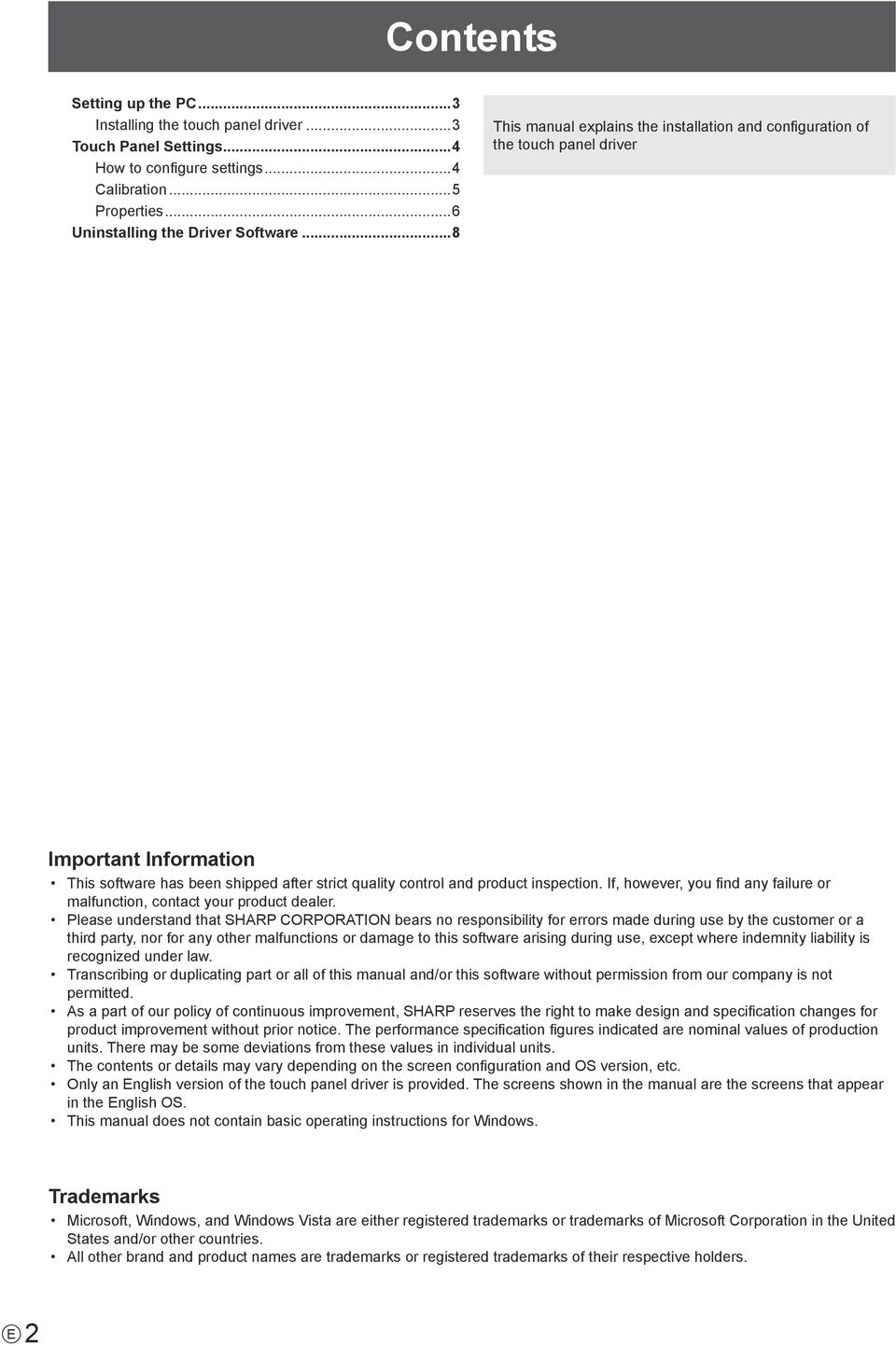
3 Setting up the PC To use the touch panel, the touch panel driver must be installed from the supplied CD-ROM and the touch panel must be connected to your PC. Installing the touch panel driver The touch panel driver is a program that enables you to use the touch panel to operate the PC that is connected to the touch panel. Caution This can only be done by a user with administrator authority. If an older version of the touch panel driver is installed, remove (uninstall) the old version before installing the touch panel driver. (See page 8.) If you are using a USB hub, use a self-powered hub (a hub capable of supplying a 500 ma current). The touch panel will not operate correctly if a bus-powered USB hub is used. Do not touch the touch panel when connecting the USB cable. If you touch the touch panel, this may be detected as an element failure in the infrared transmitter/receiver and malfunctioning will result. In this case, disconnect and then reconnect the USB cable. 1. Start your PC. 2. Exit all applications that are running. 3. Connect the USB cable for the touch panel to the PC. After it has been connected, the touch panel will be automatically recognized. To the USB terminal of the PC USB port USB cable (Supplied) 4. Insert the supplied CD-ROM into the CD-ROM drive of your PC. 5. Open the CD-ROM drive in Computer or My Computer. 6. Double-click the TouchPanel folder. 7. Double-click the install file. If you are using a 32-bit operating system, double-click TPDriverSetup32.exe. If you are using a 64-bit operating system, double-click TPDriverSetup64.exe. When the User Account Control screen appears, click Yes (or Allow ). 8. Click Next. Follow the on-screen instructions to install the driver. If the Windows Security screen appears, click Install (or Install this driver software anyway ). If the Software Installation screen appears, click Continue Anyway. If the Touch Panel Driver Files in Use screen appears, click Continue. 9. When the installation finished screen appears, click Close. 10. If a screen appears prompting you to restart your PC, click Yes. This completes the installation of the touch panel driver. Each time the PC is started, the touch panel driver will start automatically to enable the touch panel to be used. The first time you use the touch panel, perform calibration (position adjustment). (See page 5.) 3 E
4 Touch Panel Settings The touch panel driver starts automatically and the icon ( ) appears on the taskbar. Caution When using the touch panel, set the SIZE of the monitor to WIDE, NORMAL, or Dot by Dot. The touch panel cannot be used when the SIZE is set to ZOOM1 or ZOOM2. In Windows 7, if the display screen size is set to NORMAL or Dot by Dot, the touch panel cannot be used in a vertical installation. How to configure settings 1. Click the touch panel driver icon ( ) on the taskbar. 2. Click a menu to change a setting. Current Screen Resolution: The current screen resolution appears. Calibration: See page 5. Properties: See page 6. Hardware Information: Select this to specify Test Information Display, Rotate Mode, and Disable TP Driver. - Test Information Display: Select to view operating conditions. (For service technicians.) - Rotate Mode: (Not used with the monitor.) Select when the image has been rotated on a PC that has a video card capable of image rotation. - Disable TP Driver: Select to disable the touch panel function. If Dual is enabled in the Touch Mode Setting (page 7) and you wish to disable the touch panel functions, remove the checkmark from Use your finger as an input device in Pen and touch in Control Panel. Version Information: Shows the version of the touch panel driver. Exit: Exit the touch panel driver. (When this is selected, it will no longer be possible to use the touch panel function.) E 4
5 Touch Panel Settings Calibration Calibration is used to perform position alignment so that the mouse cursor moves to the correct position when the screen is touched. Do not perform calibration in Tablet PC Settings in Control Panel. Calibration will not take place correctly. Calibration Method Simple Select the currently displayed screen size ( WIDE, NORMAL, Dot by Dot ), and calibration takes place automatically. Calibrate using advanced calibration if the mouse cursor is out of position when the touch pen is used. When a key has been assigned to the Easy Change hot key setting, the key can be pressed to successively change a setting. Advanced Calibration can be performed manually. Click OK to open the settings. Follow the on-screen instructions. (To cancel during calibration, press the [ESC] key on the keyboard.) Hot Key Setting Hot keys can be set to perform the operations below. The [Ctrl] and [Shift] keys are fixed as hot keys. One of the A to Z or 0 to 9 keys can be selected for the third hot key. Easy Change : The calibration method can be changed to Simple by pressing the hot key. Settings can be successively Calibration changed by pressing the hot key. : The hot key can be pressed to open the Select Calibration screen. 5 E

6 Touch Panel Settings Properties Settings for the touch pen can be configured in the properties. Select a tab to change a setting on that tab. Double Click Range Setting (Single touch mode) Set how much the position can shift between the first touch and the second touch and still be recognized as a double-click. Set the range based on how you use the touch pen. To return the setting to the default setting, click Default. Changing this setting also changes the effective double-click range when the mouse is used. Double Click Speed Setting (Single touch mode) Set the time that is recognized as a double-click. When a second touch occurs within the set time after the first touch, it is recognized as a double-click. Speed Setting (Auto) The inside of the frame can be touched twice (double-clicked) to set the speed automatically based on the interval between the touches. Set Manually The speed can be set manually from Slow (about 1 second) to Fast (about 0.3 seconds). Test When the inside of the frame is double-clicked by touching it twice, the screen changes. If the screen does not change, repeat the setting. Default Click to restore the default setting. Changing this setting also changes the mouse double-click speed of Windows. Depending on the software application, changing the setting may not have any effect (for example, if the setting is set separately in the application). E 6
7 Touch Panel Settings Operation Setting Function Button 1 Set the function that activates when function button 1 is pressed with the touch pen. RightClick : Functions as a right click. Disable : Disables function button 1. Function Button 2 Set the function that activates when function button 2 is pressed with the touch pen. Pen Software Link : Functions as a link button for a Pen Software function. Disable : Disables function button 2. The Pen Software function that links to function button 2 is set in the Pen Software. Input Mode Setting Set the input mode for the touch panel. It is normally recommended that you use Standard. Standard : Automatically switches between pen mode and handwriting mode. HandWrite : Select this when you only wish to use your finger and will not be using the touch pen function. Pen : Select this for operation by touch pen only. Only the touch pen can be used; your finger cannot be used. Touch Mode Setting Select the touch mode (Single touch mode or Dual touch mode). For information on the touch modes, see the monitor operation manual. Single : Use Single touch mode. Dual : Use Dual touch mode. (Windows 7 only) When the input mode is Pen, Dual cannot be selected. Detect Eraser Area Specify whether the area (rectangle) of a touched item is detected. The application must support area detection. Resolution Change Notice Enable : When the screen resolution is changed, a message is displayed regarding the calibration setting. Disable : When the screen resolution is changed, the previously set calibration values are automatically applied. When a resolution is used for the first time, the message regarding the calibration setting will appear. Optimize HTML For normal operation and writing text by hand, this setting is not necessary. When manipulating a document with a small click range for HTML links, enable this and adjust the effective Click range. 7 E
8 Uninstalling the Driver Software Caution This can only be done by a user with administrator authority. 1. Click the touch panel driver icon ( ) on the taskbar and click Exit. If a confirmation window appears, click Yes. 2. Disconnect the USB cable. 3. Select Control Panel from the Start menu. 4. Click Uninstall a program. If you are using icon view (Classic View), double-click Programs and Features. In Windows XP, click Add or Remove Programs. (In the Classic View, double-click Add or Remove Programs.) 5. Remove SHARP Touch Panel Driver. Follow the on-screen instructions. When the User Account Control screen appears, click Yes (or Allow ). When the The following applications should be closed before continuing the install message appears, click OK. 6. If a screen appears prompting you to restart your PC, restart your PC. This completes the uninstallation. E 8
9 PN-L702B D EN11H(1)

LCD MONITOR TOUCH PANEL DRIVER 2 OPERATION MANUAL. for Mac. Version 1.0 PN-L703A/PN-70TA3/PN-L703B/PN-70TB3/PN-L603A/PN-60TA3/PN-L603B/PN-60TB3
 LCD MONITOR TOUCH PANEL DRIVER 2 OPERATION MANUAL for Mac Version 1.0 Applicable models PN-L703A/PN-70TA3/PN-L703B/PN-70TB3/PN-L603A/PN-60TA3/PN-L603B/PN-60TB3 Contents Introduction...3 System Requirements...3
LCD MONITOR TOUCH PEN UTILITY OPERATION MANUAL. Version 1.0
 LCD MONITOR TOUCH PEN UTILITY OPERATION MANUAL Version 1.0 Applicable models (as of March 2014) PN-L703A/PN-L603A/PN-70TA3/PN-60TA3/PN-ZL01/PN-ZL02 (Available models differ according to region.) Contents
LCD MONITOR TOUCH DISPLAY DRIVER OPERATION MANUAL. for Mac. Version 1.0 PN-K322B/PN-K322BH/LL-S201A. Applicable models
 LCD MONITOR TOUCH DISPLAY DRIVER OPERATION MANUAL for Mac Version 1.0 Applicable models PN-K322B/PN-K322BH/LL-S201A Contents Introduction...3 System Requirements...3 Setting up the Computer...4 Installing
PN-T321 LCD MONITOR. USB Flash Drive Media Tool OPERATION MANUAL
 PN-T321 LCD MONITOR USB Flash Drive Media Tool OPERATION MANUAL Contents Introduction...2 Installing/Uninstalling the Software...3 System Requirements...3 Installing the Software...3 Uninstalling...3 Using
Screen Capture. User s Guide. For ClassPad Series. http://edu.casio.com. http://edu.casio.com/products/classpad/ http://edu.casio.
 For ClassPad Series E Screen Capture User s Guide CASIO Education website URL http://edu.casio.com ClassPad website URL http://edu.casio.com/products/classpad/ ClassPad register URL http://edu.casio.com/dl/
CANON FAX L360 SOFTWARE MANUAL
 CANON FAX L360 SOFTWARE MANUAL Before You Begin the Installation: a Checklist 2 To ensure a smooth and successful installation, take some time before you begin to plan and prepare for the installation
Chapter 1 Downloading Images to Your Computer (Windows)
 Software User Guide For the safe use of your camera, be sure to read the Safety Precautions thoroughly before use. Types of software installed on your computer varies depending on the method of installation
SHARP Digital Signage Software Pro PN-SS05 OPERATION MANUAL
 SHARP Digital Signage Software Pro PN-SS05 Version 4.1 OPERATION MANUAL Contents Introduction... 2 Precautions on Use...2 Trademarks...2 How to Read this Manual...3 Definitions...3 Installing/Launching...
PCLinq2 Hi-Speed USB Bridge-Network Cable. Quick Network Setup Guide
 PCLinq2 Hi-Speed USB Bridge-Network Cable Congratulations! Quick Network Setup Guide For Windows 98/ME/2000/XP Congratulations for installing the PCLinq2 Hi-Speed USB Bridge-Network Cable. This Quick Network
User Manual. Windows 7 / Vista / XP. iotablet Driver
 User Manual Windows 7 / Vista / XP iotablet Driver I. General Information 2 1. Overview 2 2. Pen Tablet Function 2 3. System Requirements 2 4. Driver Installation 3 5. Hardware Installation 3 6. Verifying
EasyPen i405x. MousePen i608x. User Manual For Windows 7/Vista/XP
 EasyPen i405x MousePen i608x User Manual For Windows 7/Vista/XP *The driver may already be updated to a newer version before/after packaging. If your installation screen does not match the contents of
DIGITAL FULL COLOR MULTIFUNCTIONAL SYSTEM. Software Setup Guide
 DIGITAL FULL COLOR MULTIFUNCTIONAL SYSTEM Software Setup Guide BEFORE INSTALLING THE SOFTWARE SETUP IN A WINDOWS ENVIRONMENT SETUP IN A MACINTOSH ENVIRONMENT TROUBLESHOOTING Thank you for purchasing this
DIGITAL MULTIFUNCTIONAL SYSTEM
 MODEL: MX-M283N MX-M363N MX-M453N MX-M503N DIGITAL MULTIFUNCTIONAL SYSTEM Software Setup Guide BEFORE INSTALLING THE SOFTWARE SETUP IN A WINDOWS ENVIRONMENT SETUP IN A MACINTOSH ENVIRONMENT TROUBLESHOOTING
How to install USB driver (MICRO/I)
 How to install USB driver (MICRO/I) Install on Windows XP 1. Connect the USB port on HG3G series and the USB port on PC. 2. Windows displays Found new Hardware Wizard. Select No, not this time and press
Colorfly Tablet Upgrade Guide
 Colorfly Tablet Upgrade Guide (PhoenixSuit) 1. Downloading the Firmware and Upgrade Tool 1. Visit the official website http://www.colorful.cn/, choose 产 品 > 数 码 类 > 平 板 电 脑, and click the product to be
Elo 1725L 17 Touch Screen Monitor Installation Guide. Product Name: Elo 1725L 17- inch Monitor
 Elo 1725L 17 Touch Screen Monitor Installation Guide Product Name: Elo 1725L 17- inch Monitor 0621407 Copyright 2007 McKesson Corporation. All rights reserved. This documentation is an unpublished work
Yamaha 01V96 Version2 Upgrade Guide
 Yamaha 01V96 Version2 Upgrade Guide This document explains how to upgrade the 01V96 system software to V2.00 or later. Precautions (please be sure to read these precautions) The user assumes full responsibility
Upgrading Your PhoneTree Software
 Upgrading Your PhoneTree Software For PhoneTree 2100/2500/3500, VoiceWave Series, Patient/Dental/Veterinary Messaging, and HealthWave models upgrading from 6.12.80 or older to 6.13 or newer Question: How
Motorola Phone Tools. Quick Start
 Motorola Phone Tools Quick Start Contents Minimum Requirements...2 Before Installing Motorola Phone Tools...3 Installing Motorola Phone Tools...4 Mobile Device Installation and Configuration...5 Online
How To Use An Easymp Network Projector On A Computer Or Network Projection On A Network Or Network On A Pc Or Mac Or Ipnet On A Laptop Or Ipro Or Ipo On A Powerbook On A Microsoft Computer On A Mini
 EasyMP Network Projection Operation Guide Contents 2 Before Use Functions of EasyMP Network Projection....................... 5 Sharing the Projector....................................................
SMART Ink 1.5. Windows operating systems. Scan the following QR code to view the SMART Ink Help on your smart phone or other mobile device.
 SMART Ink 1.5 Windows operating systems User s guide Scan the following QR code to view the SMART Ink Help on your smart phone or other mobile device. Trademark notice SMART Ink, SMART Notebook, SMART
How to Download Images Using Olympus Auto-Connect USB Cameras and Olympus Master
 How to Download Images Using Olympus Auto-Connect USB Cameras and Olympus Master Introduction Auto-Connect USB is a feature that allows Olympus digital cameras to emulate a Hard disk drive when connected
Windows 7 Printer Driver Installation procedure
 Windows 7 Printer Driver Installation procedure This is to explain how to install Windows Vista printer driver for Mitsubishi digital printer to Windows 7. * Although CP9550D/DW is shown through this document,
SOFTWARE SETUP GUIDE DIGITAL MULTIFUNCTIONAL SYSTEM 1 ABOUT THE SOFTWARE. Contents 2 BEFORE INSTALLATION
 SOFTWARE SETUP GUIDE DIGITAL MULTIFUNCTIONAL SYSTEM Page Contents 1 ABOUT THE SOFTWARE BEFORE INSTALLATION INSTALLING THE SOFTWARE 3 CONNECTING TO A COMPUTER 10 CONFIGURING THE PRINTER DRIVER 11 TROUBLESHOOTING
Important. Please read this User s Manual carefully to familiarize yourself with safe and effective usage.
 Important Please read this User s Manual carefully to familiarize yourself with safe and effective usage. About ScreenManager Pro for LCD... 3 1. Setting Up... 4 1-1. System Requirements...4 1-2. Installing
SHARP Pen Software. Version 2.8 OPERATION MANUAL
 SHARP Pen Software Version 2.8 OPRATION MANUAL Contents Introduction...3 Starting and xiting the Software...4 Pen Software modes and how to start the modes...4 xiting the software...5 Layout of Basic Screen...6
EPSON Stylus COLOR 740. USB Software Installation Guide (Windows 98/iMac ) USB Setup Guide (imac)
 EPSON Stylus COLOR 740 TM USB Software Installation Guide (Windows 98/iMac ) USB Setup Guide (imac) This guide includes USB setup instructions for your imac computer, as well as software installation instructions
FileMover 1.2. Copyright Notice. Trademarks. Patents
 FileMover 1.2 Copyright Notice No part of this publication may be reproduced, transmitted, transcribed, stored in a retrieval system, or translated into any human or computer language, in any form or by
Installing/Uninstalling Logitech desktop for Bluetooth on my computer
 Installing/Uninstalling Logitech desktop for Bluetooth on my computer 2005 Logitech, Inc. Contents Introduction 3 Before you start 3 I have a computer without Bluetooth. What should I do? 4 I have or I
USB2VGA. Instruction Manual. USB to VGA Adapter. USB 2.0 to VGA External Multi Monitor Video Adapter
 USB to VGA Adapter USB2VGA Instruction Manual USB 2.0 to VGA External Multi Monitor Video Adapter FCC Compliance Statement This equipment has been tested and found to comply with the limits for a Class
Virtual COM Port Driver Installation Manual
 Virtual COM Port Driver Installation Manual Installing the virtual COM port driver software on a computer makes possible CAT communication via a USB cable to the FT-991 transceiver. This will allow computer
Virtual COM Port Driver Installation Manual
 Virtual COM Port Driver Installation Manual Installing the virtual COM port driver software on a computer makes possible CAT communication via a USB cable to the SCU-17 or an enabled transceivers. This
Installation Instructions
 Installation Instructions Windows USB driver for Installation If a Diagnostic Interface with USB is connected to a PC with a Windows operating system 98, ME, XP or Vista for the first time, it is necessary
USB-MIDI Setup Guide. Operating requirements
 About the software The most recent versions of the applications contained on the accessory disc can be downloaded from the Korg website (http://www.korg.com). -MIDI Setup Guide Please note before use Copyright
ENPS-MF1. 1 USB Port. Multifunctional Print Server. Quick Installation Guide V1.0
 ENPS-MF1 1 USB Port Multifunctional Print Server V1.0 Specifications or features are subject to change without prior notice. All brand names or trademarks are the property of their respective owners. Packing
TouchKit Software User manual for Windows 7 Version: 5.10.5
 TouchKit Software User manual for Windows 7 Version: 5.10.5 TouchKit V5.10.5 0 CONTENT CHAPTER 1. INSTALLING TOUCHKIT 2 CHAPTER 2. USING TOUCHKIT UTILITY...9 2.1 General...9 2.2 Tool...11 2.3 Setting...14
SMART BOARD USER GUIDE FOR PC TABLE OF CONTENTS I. BEFORE YOU USE THE SMART BOARD. What is it?
 SMART BOARD USER GUIDE FOR PC What is it? SMART Board is an interactive whiteboard available in an increasing number of classrooms at the University of Tennessee. While your laptop image is projected on
e-dpp 4.0.2 May 2013 Quick Installation Guide Microsoft Windows 2003 Server, XP, Vista, 7 Access Database
 e-dpp 4.0.2 May 2013 Microsoft Windows 2003 Server, XP, Vista, 7 Access Database ELTECHS Engineering and Consulting Co., Ltd., Japan www.eltechs.co.jp Tel No. +81 (47) 490-1010 Fax No. +81 (47) 490-1011
MF Driver Installation Guide
 English MF Driver Installation Guide User Software CD-ROM................................................................... 1 About the Drivers and Software...................................................................
BrightLink Pro. Quick Reference. BrightLink Interaction. BrightLink Pro Features. 1 Turning on and Calibrating the Projector
 BrightLink Pro BrightLink Interaction Three interactive modes are available: Whiteboard mode Quick Reference This card will help you get started using your BrightLink Pro interactive projector. Use one
OPERATION MANUAL. IWB Setup Software/EyeRIS NEC edition
 IWB Setup Software/EyeRIS NEC edition OPERATION MANUAL This manual describes installation and operation procedures of the driver / the calibration software Supported model NP03Wi NP04Wi UM352W (for the
Prolific USB to SATA Bridge Controller Backup Software User s Manual
 Prolific USB to SATA Bridge Controller Backup Software User s Manual For Windows XP/Vista/7 For Software version 3.9.2.00 (6/28/2011) Contents About Prolific Backup Software System Requirements Using the
On-line Manual Video Capture Software
 On-line Manual Video Capture Software LITE VERSION IMPORTANT INFORMATION SV Photo Capture SV Card Link Troubleshooting Please read this operation manual carefully before using your software. IMPORTANT
USB DRIVER INSTALLATION GUIDE
 USB DRIVER INSTALLATION GUIDE Use these instructions to install the USB drivers and Microsoft synchronization software for your Pathfinder 6057 printer. You need these utilities for your printer and computer
Installation of USB Virtual COM. Version 1.02
 Installation of USB Virtual COM Version 1.02 RELEASE NOTES Version Date Notes 1.02 May 13, 2014 Modified: Install USB Virtual COM Drivers files on CD updated 1.01 Dec. 10, 2009 Supports driver for Windows
Guide to Installing BBL Crystal MIND on Windows 7
 Guide to Installing BBL Crystal MIND on Windows 7 Introduction The BBL Crystal MIND software can not be directly installed on the Microsoft Windows 7 platform, however it can be installed and run via XP
ENLTV-FM3. PCI TV Tuner Adapter with FM Radio. User s Guide
 ENLTV-FM3 PCI TV Tuner Adapter with FM Radio User s Guide User s Notice No part of this manual, including the products and software described in it, may be reproduced, transmitted, transcribed, stored
SMART Board Software for Macintosh FAQ
 SMART Board Software for Macintosh FAQ NOTE: The following FAQs relate to the latest SMART Board Software for Macintosh release and apply only to Macintosh computers. SMART Board Software for Macintosh
Start Here. BrightLink Interaction. 1 Connect your computer and turn on the projector
 BrightLink Interaction The BrightLink interactive pens turn any wall or table into an interactive area, either with or without a computer. With a computer, you can use Easy Interactive Tools (dual pens).
USB 2.0 VGA ADAPTER USER MANUAL
 USB 2.0 VGA ADAPTER USER MANUAL CONTENTS INTRODUCTION... 3 FEATURES... 3 SYSTEM REQUIREMENTS... 3 PACKAGE CONTENTS... 3 SUPPORTED COMMON DISPLAY RESOLUTION... 4 TECHNICAL SPECIFICATIONS... 4 INSTALLATION
USB DRIVER INSTALLATION GUIDE
 USB DRIVER INSTALLATION GUIDE Please read this installation guide before installing the USB driver. This installation guide describes how to install the USB driver included in the Icom product s CD. If
OFFICE KEYBOARD (MT1210 & MT1405) OFFICE FEATURES
 OFFICE KEYBOARD (MT1210 & MT1405) OFFICE FEATURES Thank you for purchasing OFFICE KEYBOARD. This User s manual contains all information that helps you to operate your keyboard. Please keep the software
ScanShell.Net Install Guide
 ScanShell.Net Install Guide Please install the software first - DO NOT PLUG IN THE SCANNER The scanner has been carefully packaged to avoid damage during transportation. Before operating the scanner, please
Doc. no.lec-om05101. PRODUCT NAME Controller setting kit install manual (bundled with CD-ROM) MODEL/ Series LEC-W2
 Doc. no.lec-om05101 PRODUCT NAME Controller setting kit install manual (bundled with CD-ROM) MODEL/ Series LEC-W2 LEC-W2 procedure for installing driver and software 0. Preparation Prepare the following
Magic Control Technology Corporation. Android Mirror KM-C6105. User Manual
 Magic Control Technology Corporation Android Mirror KM-C6105 Table of Contents Features... 3 Specifications... 3 Getting Started... 4 Windows 7 / XP - First Time Installation... 4 Windows 7 Start the Andriod
Magaya Software Installation Guide
 Magaya Software Installation Guide MAGAYA SOFTWARE INSTALLATION GUIDE INTRODUCTION Introduction This installation guide explains the system requirements for installing any Magaya software, the steps to
Select Correct USB Driver
 Select Correct USB Driver Windows often installs updated drivers automatically, and defaults to this latest version. Not all of these drivers are compatible with our software. If you are experiencing communications
PP8X Printer Driver Installation Instruction
 PP8X Printer Driver Installation Instruction Pinnacle Technology Corp. CONTENTS 1 BT Device Installation... 1 2 Printer Driver Installation... 6 3 How to Know the Connecting Port... 10 4 How to Configure
How To Use An Easymp Network Projection Software On A Projector On A Computer Or Computer
 EasyMP Network Projection Operation Guide Contents 2 Before Use Functions of EasyMP Network Projection....................... 5 Sharing the Projector....................................................
Podium View TM 2.0 Visual Presenter Image Software User Manual - English (WINDOWS)
 Podium View TM 2.0 Visual Presenter Image Software User Manual - English (WINDOWS) Table of Contents 1. Introduction... 2 2. System Requirements... 2 3. Installing Podium View... 3 4. Connection to the
ActiView. Visual Presenter Image Software User Manual - English
 ActiView Visual Presenter Image Software User Manual - English Date: 05/02/2013 Table of Contents 1. Introduction... 3 2. System Requirements... 3 3. Install ActiView - Windows OS... 4 4. Install ActiView
WebEx Remote Access User s Guide
 About This Guide This guide introduces you to WebEx Remote Access and its features. This guide assumes that you have a user account for your Remote Access service. Note To obtain a user account, contact
Mac OS X USB driver, Pairing Tool Operation guide Interactive Plasma Display
 Mac OS X USB driver, Pairing Tool Operation guide Interactive Plasma Display Table of Contents Installing the software... 4 Removing the software... 4 Names and Uses of the Electronic Pen Parts... 5 Operating
Network Setup Guide. Introduction. Setting up for use over LAN
 Network Setup Guide This manual contains the setup information required to use the machine over wired LAN. If you use the machine with USB connection, refer to your setup sheet. Introduction To use the
USB 3.0 to HDMI/DVI Dual Display Adapter Installation Guide
 USB 3.0 to HDMI/DVI Dual Display Adapter Installation Guide Introduction The USB 3.0 to HDMI/DVI Dual Display Adapter lets you easily and quickly add dual displays to your USB 3.0 enabled system. Key Features
Acer LCD Monitor Driver Installation Guide
 1 Contents 1 Contents... 1 2 Introduction... 2 3 Installation Guide... 2 3.1 PC requirements... 2 3.2 Installing the Acer LCD Monitor Driver on Windows Vista... 3 3.2.1 Hardware first install... 3 3.2.2
Getting Started. rp5800, rp5700 and rp3000 Models
 Getting Started rp5800, rp5700 and rp3000 Models Copyright 2011 Hewlett-Packard Development Company, L.P. The information contained herein is subject to change without notice. Microsoft, Windows, and Windows
NTI Backup Now EZ v2 User s Guide
 NTI Backup Now EZ v2 User s Guide GMAA00423010 11/12 2 Copyright statement This guide is copyrighted by Toshiba Corporation with all rights reserved. Under the copyright laws, this guide cannot be reproduced
GSM Ready 56K FAX/MODEM PC Card
 GSM Ready 56K FAX/MODEM PC Card Quick Installation Guide M73-APO02-110 INTRODUCTIONS The GSM-Ready 56K Fax/Modem PC Card provides you both fax and data connection via GSM cellular networks. With this combo
NOTICE WELCOME MESSAGE
 WELCOME MESSAGE Thank you for choosing the U-Print CDP78 CD/DVD Printer. The U-Print is compact and extremely easy to use, giving you the ability to customize your CDs and DVDs by directly printing onto
10.3.1.9 Lab - Configure a Windows Vista Firewall
 5.0 10.3.1.9 Lab - Configure a Windows Vista Firewall Print and complete this lab. In this lab, you will explore the Windows Vista Firewall and configure some advanced settings. Recommended Equipment Step
OPERATION MANUAL. MV-410RGB Layout Editor. Version 2.1- higher
 OPERATION MANUAL MV-410RGB Layout Editor Version 2.1- higher Table of Contents 1. Setup... 1 1-1. Overview... 1 1-2. System Requirements... 1 1-3. Operation Flow... 1 1-4. Installing MV-410RGB Layout
JEROME COMMUNICATIONS SOFTWARE (JCS) INSTALLATION and OPERATION MANUAL V1.02 for Windows XP
 AZI P/N 700-0042-B Last update May 2009 USER MANUAL JEROME COMMUNICATIONS SOFTWARE (JCS) INSTALLATION and OPERATION MANUAL V1.02 for Windows XP May 2009 ARIZONA INSTRUMENT LLC 3375 N Delaware Street Chandler,
Celluon Laserkey - User Guide for Microsoft Windows XP
 Celluon Laserkey - User Guide for Microsoft Windows XP INDEX 1. System Requirements... 2 2. Installation / Uninstalling the Driver... 2 3. Bluetooth dongle software settings... 3 4. Connection Method...4
910 Series Photo Jetprinter. Setup Solutions
 910 Series Photo Jetprinter Setup Solutions Edition: September 2004 The following paragraph does not apply to any country where such provisions are inconsistent with local law: LEXMARK INTERNATIONAL, INC.,
DOE VPN Client Installation and Setup Guide March 2011
 DOE VPN Client Installation and Setup Guide March 2011 Table of Contents Introduction... 3 System Requirements... 3 Microsoft Windows... 3 Mac OS X... 4 Windows... 4 Installation for the Cisco AnyConnect
Use Remote Desktop capabilities to Access your Work PC from home over VPN
 Use Remote Desktop capabilities to Access your Work PC from home over VPN With Remote Desktop on Windows XP Professional, you can have access to a Windows session that is running on your computer when
HP External Hard Disk Drive Backup Solution by Seagate User Guide. November 2004 (First Edition) Part Number 373652-001
 HP External Hard Disk Drive Backup Solution by Seagate User Guide November 2004 (First Edition) Part Number 373652-001 Copyright 2004 Hewlett-Packard Development Company, L.P. The information contained
DisplayPort 2-Port KVM Switch Installation Guide
 DisplayPort 2-Port KVM Switch Installation Guide Introduction The DisplayPort 2-Port KVM Switch shares one DisplayPort display between two DisplayPort computers. Key Features and Benefits Access multiple
All data and information contained in the software program and the manual have been checked and tested extensively.
 Contents All parts of this documentation, the data as well as the software are protected by copyright laws. All rights reserved. Any duplication or distribution, complete or partial, is prohibited. No
Windows XP Home Edition / Windows XP Professional
 Windows XP Home Edition / Windows XP Professional COOLPIX990/880 This manual is for those users of the COOLPIX 990/880 who are running Nikon View 4 (Version4.3.1) under Windows XP Home Edition / Professional.
SMART Board TM SBID 6052i Interactive Display Troubleshooting Guide
 SMART Board TM SBID 6052i Interactive Display Troubleshooting Guide Introduction This document helps you to identify and resolve different issues that customers might have with the SMART Board TM SBID
Windows 10.1 Tablet (UB-15MS10 and UB-15MS10SA) FAQ December 2014
 Windows 10.1 Tablet (UB-15MS10 and UB-15MS10SA) FAQ December 2014 Navigation... 2 Question 1: What are charms used for?... 2 Question 2: How do I navigate while using a mouse or trackpad?... 3 Question
3M Occupational Health and Environmental Safety 3M E-A-Rfit Validation System. Version 4.2 Software Installation Guide (Upgrade) 1 P age
 3M Occupational Health and Environmental Safety 3M E-A-Rfit Validation System Version 4.2 Software Installation Guide (Upgrade) 1 P age Contents Important Information Read First... 3 Software Download...
PRINTER DRIVER GUIDE (KODAK 305 Photo Printer)
 PRINTER DRIVER GUIDE () Microsoft, Windows, Windows XP, Windows Vista and Windows 7 are registered trademarks of Microsoft Corporation in the United States and/or other countries. Adobe, Adobe Photoshop
EasyMP Network Projection Operation Guide
 EasyMP Network Projection Operation Guide Contents 2 About EasyMP Network Projection Functions of EasyMP Network Projection....................... 5 Various Screen Transfer Functions.......................................
Printer Driver Installation Guide
 Fujitsu Dot Matrix Printer DL Series Printer Driver Installation Guide - Windows 7 - Windows Server 2008 R2 Rev.01: April 12, 2010 IMPORTANT NOTE TO USERS For Windows 7 / Windows Server 2008 R2, install
Hi-Speed USB Flash Disk User s Manual Guide
 Hi-Speed USB Flash Disk User s Manual Guide System Requirements Windows 98, ME, 2000, XP, Mac OS 10.1, Linux 2.4 or above AMD or Intel Pentium 133MHz or better based computer USB 1.1, USB 2.0 or higher
VisTablet Manual. For 12 VT Original and Mini Mouse
 VisTablet Manual For 12 VT Original and Mini Mouse I n d e x 1. Before using your VisTablet ------------------------------------------------------------------------------- Page#3 2. How to install Pen
Thuraya XT-DUAL. Software Upgrade Manual
 Thuraya XT-DUAL Software Upgrade Manual Version 1 / February 2012 1. INTRODUCTION... 3 2. SOFTWARE UPGRADE WITH WINDOWS 7... 4 2.1 Installation of the Upgrader Package... 4 2.2 Manual detection (optional
EasyMP Network Projection Operation Guide
 EasyMP Network Projection Operation Guide Contents 2 Before Use Functions of EasyMP Network Projection... 5 Sharing the Projector... 5 Various Screen Transfer Functions... 5 Installing the Software...
Canvio Home FAQ. is designed to be very easy to install and use to back up, share, and remotely access the files from your computers.
 What is a Canvio Home device? Canvio Home is a Network-Attached Storage device that is designed to be very easy to install and use to back up, share, and remotely access the files from your computers.
ASUS GPU Tweak User Manual
 ASUS GPU Tweak User Manual Q6866 First Edition December 0 Contents I. Introduction... a. Knowing ASUS GPU Tweak... II. III. b. System requirements... c. Installing ASUS GPU Tweak... Quick start... a. Launching
AXIS 1440 Print Server For EPSON Printers: Product Update. Important Information for Windows
 Important Information for Windows AXIS 1440 Print Server For EPSON Printers: Product Update Important Information for Windows If you are using Windows 95, Windows 98, or Windows NT 4.0, you need to turn
Connecting your Omega/BetaPAT PLUS to a PC via a USB
 Connecting your Omega/BetaPAT PLUS to a PC via a USB Install software Windows XP and below Insert the disc into your computers disc drive and run through the setup wizard. Windows Vista & 7 1. Insert the
JVC Monitor Calibration 2 User's Guide
 JVC Monitor Calibration 2 User's Guide Table of Contents 1. What is JVC Monitor Calibration 2? 2. System Requirement 3. Installation (JVC Monitor Calibration 2) 4. Uninstall 5. Installation (EyeOne Display
Installing a Westell USB Network Adapter
 Installing a Westell USB Network Adapter Before You Begin Before you begin installing your Westell USB Network adapter: 1. Make sure the computer with the USB adapter meets the minimum system requirements
hp digital home networking wireless USB network adapter hn210w quick start guide
 hp digital home networking wireless USB network adapter hn210w quick start guide Revision #: 15 Page: 1 of 11 Printed: 08/15/01 04:44 PM The Hewlett-Packard Company makes no warranty of any kind with regard
How to install USB driver (MICRO/I)
 How to install USB driver (MICRO/I) HG2G-5S 1. The HG2G-5S USB driver installation wizard will start when Automation Organizer installation is complete. Click the Next button. 2. Read the license agreement
Interactive Whiteboard Functionality Overview... 4. Choosing Pen Style... 5. Erasing / Modifying Writing... 6. Undo / Redo... 6. Email...
 Quick Start Guide 1 Stand-alone Usage Interactive Whiteboard Functionality Overview... 4 Choosing Pen Style... 5 Erasing / Modifying Writing... 6 Undo / Redo... 6 Email... 7 Import / Open file... 7 Saving