
Plug-in Installation Instruction Xenon 1900/1902 Scanner
|
|
|
- Charlene Lawrence
- 9 years ago
- Views:
Transcription
1 Plug-in Installation Instruction Xenon 1900/1902 Scanner Table of Contents Introduction...2 Installing EZConfig-Scanning Software...3 Some features related to Xenon 1902:...5 Installing Plug-in...6 Licensing Plug-in...7 Finalizing Installation Plug-in Control Tools Removing Plug-in Troubleshooting HSM Serial Emulation Driver installation on Windows 7 and Vista Operating Systems D Technology Group, Inc. Page 1

2 Introduction This Guide provides information about installation and licensing the 2DTG s IcEveryCode TM DPM Decoder for Xenon 1900/1902 Scanner integrated by means of Honeywell's TotalFreedom Plug-In Software Development Kit. Please note that some of the Plug-In features, described here, are available only with the latest version of the Xenon firmware, dated March 15-16, It is recommended to disable system s Data Matrix decoder before or after Plug-In installation to speed-up reading. It can be done by reading configuration code or sending appropriate command from the Command Center as it is described in the Honeywell Xenon 1900/1902 User s Guide (p. 7-47): IDMENA0 - temporarily disables System s Data Matrix Decoder The system decoder can be enabled at any time if necessary by reading configuration code (or sending appropriate command from Command Center) IDMENA1 (page 7-47). 2D Technology Group, Inc. Page 2

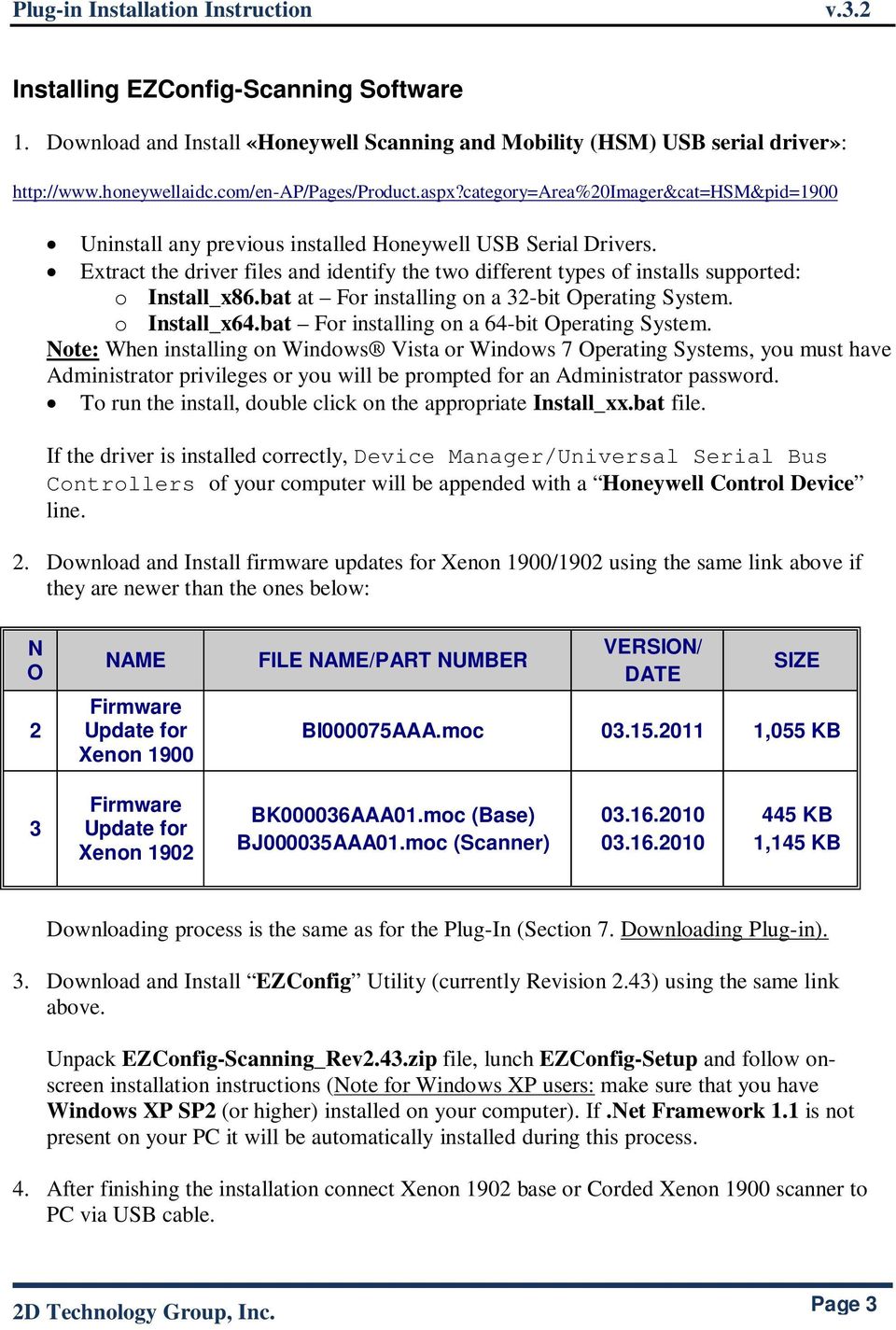
3 Installing EZConfig-Scanning Software 1. Download and Install «Honeywell Scanning and Mobility (HSM) USB serial driver»: Uninstall any previous installed Honeywell USB Serial Drivers. Extract the driver files and identify the two different types of installs supported: o Install_x86.bat at For installing on a 32-bit Operating System. o Install_x64.bat For installing on a 64-bit Operating System. Note: When installing on Windows Vista or Windows 7 Operating Systems, you must have Administrator privileges or you will be prompted for an Administrator password. To run the install, double click on the appropriate Install_xx.bat file. If the driver is installed correctly, Device Manager/Universal Serial Bus Controllers of your computer will be appended with a Honeywell Control Device line. 2. Download and Install firmware updates for Xenon 1900/1902 using the same link above if they are newer than the ones below: N O 2 NAME Firmware Update for Xenon 1900 FILE NAME/PART NUMBER VERSION/ DATE SIZE BI000075AAA.moc ,055 KB 3 Firmware Update for Xenon 1902 BK000036AAA01.moc (Base) BJ000035AAA01.moc (Scanner) KB 1,145 KB Downloading process is the same as for the Plug-In (Section 7. Downloading Plug-in). 3. Download and Install EZConfig Utility (currently Revision 2.43) using the same link above. Unpack EZConfig-Scanning_Rev2.43.zip file, lunch EZConfig-Setup and follow onscreen installation instructions (Note for Windows XP users: make sure that you have Windows XP SP2 (or higher) installed on your computer). If.Net Framework 1.1 is not present on your PC it will be automatically installed during this process. 4. After finishing the installation connect Xenon 1902 base or Corded Xenon 1900 scanner to PC via USB cable. 2D Technology Group, Inc. Page 3
4 Note for Xenon 1902 users: Plug Xenon 1902 scanner in the base to establish a link. The green LED on the base flashes to indicate the scanner s battery is charging. If the scanner and base have previously been linked, you will not receive any feedback. If this is the first time that the scanner and base are linked, both devices emit a short chirp when their radios link. At this point, one scanner is linked to one base. 5. Double-click EZConfig-Scanning icon on your Desktop. You will see the message: Scan TRMUSB130. configuration barcode on page 2-5 of the Honeywell Xenon 1900/1902 User s Guide. You will see a small window in the right-low corner of the screen Found new hardware Xenon 1900 and then Your new hardware is ready for use. Note: At this point Device Manager of your computer will be updated with 2 new lines: Xenon 1900 Area-Imaging Scanner - under Universal Serial Bus Controllers and Xenon 1900 Area-Imaging Scanner (COM##) - under Ports (COM & LPT). Click on File-> Preferences when ScanData is highlighted. Click on the Com Port dropdown list and select the appropriate COM port for your device (often the last in the list on the picture it is Com9 Xenon 1902 ). Click OK. If you are still having difficulty connecting to a device, click Device/Connect in the top menu. (See also Connecting to a Device article in the on-line Help in the Application Explorer window). 2D Technology Group, Inc. Page 4

5 Some features related to Xenon 1902: I. The syntax of the commands sent to a Xenon 1902 scanner is different from the ones used for Xenon You must use prefix :*: in order to send command directly to the scanner, otherwise it will be send to the base: :*:<Command> - if the command is intended for the scanner <Command> - if the command is going to the base For example, you must send :*:RESET_. to reset the scanner otherwise the RESET_. will be sent to base. II. Most commands available for a scanner are duplicated in the base III. Scanner reads base settings when synchronizing with the base and considers them as "default" settings. Therefore, when you restart the scanner it accepts (after its synchronization with the base) parameter values that are set in the base, replacing its own data if it is not the same. These scanner settings, of course, can be changed after that by sending appropriate commands directly into the scanner (e.g., with the prefix :*: for example, :*: PLGDCE1), but after you run the command :*:RESET_. or disconnect USB-cable from the PC all setting will reset back to the ones in the base. IV. Plug-in settings in the scanner s base do not reset when disconnecting USB-cable or by sending command RESET_. to the base - similar to how it is arranged in Xenon V. Name of configuration file in the Licenses / Plug-in (Apps) window of the EZConfig program is linked with the value parameter of the PLGDCN <Config File Name>command in the base when synchronizing the program with the base. Therefore, in order to set configuration file in EZConfig you should send this command to the base through the Command Center, then restart EZConfig. VI. Plug-in directory is located in the scanner - not in the base! Therefore, all the commands relating to the current state of the plug-in should be sent directly to the scanner using the prefix «:*:». This "current" status changes when you reboot, as indicated in the preceding paragraphs. VII. All 2DTG s Plug-in commands utilize special prefix "990009C72". In accordance with Section VI, all of our commands should be sent only to the scanner - the base will not accept them. Therefore, the syntax of this commands for Xenon 1902 is: <:*:990009C72><command>. VIII. Cleaning the Plug-in directory (:*: PLGDEL.) does not remove it from the scanner s memory. To remove Plug-in from the memory, you must run the command :*: RESET_. 2D Technology Group, Inc. Page 5

6 Installing Plug-in 6. Unpack received from 2DTG iceverycode_yyyymmdd.zip file containing Plugin MOCfiles for Xenon 1900/1902. The content of the ZIP-file is as follows: N O 1 NAME Plug-in MOC-files FILE NAME/PART NUMBER iceverycode.moc iceverycode _RF.moc VERSION/ DATE SIZE 189 KB 189 KB 7. Downloading Plug-in. Click on Download in the Application Explorer window. In the Firmware Download section of the opened Download Window browse to the folder where you have placed iceverycode.moc ( iceverycode_rf.moc for Xenon 1902) file, supplied by 2DTG, and click Open. Then click on Download to Device. Wait until download process is finished and scanner stopped to generate different sounds, than click OK in the Successfully flashed window. 2D Technology Group, Inc. Page 6

7 8. Enabling downloaded Plug-In and setting configuration file. Send command PLGDCNicEveryCode. to set configuration file. Send command PLGDCE1. to ensure decode class plug-ins are enabled. Reset the scanner by sending the RESET_. command (:*:RESET_. for Xenon 1902) to the scanner. Note: Use Command Center to send command to the scanner: To call the Command Center, click Scan Data in the Application Explorer window, than select View Serial Command Window from the main menu. Type command name in the Enter Command field and click Send Command. 9. Verifying Installation (optional). Switch scanner into Debug Mode by sending PLGDBG1. command. Send C72PLG?. (Xenon 1900 scanner) or :*:990009C72PLG?. (Xenon 1902 scanner) command to the scanner. You should see a return like this: [PLGUIN_DEBUG [ CR][ LF] [PLGUIN_DEBUG MatrixPluginProcessingBarcode[ CR][ LF] [PLGUIN_DEBUG Menu Data is: PLG?.[ CR][ LF] [PLGUIN_DEBUG Plugun mode = 0[ CR][ LF] C72PLG?.[ACK] It means that scanner accepts commands with <990009C72>-prefix now, but it is not linked with the Decoder, because it is not licensed yet. Licensing Plug-in 10. License for each scanner is generated using proprietary encryption mechanism which uses Scanner s Serial Number (SN) as an input parameter and returns License key (alphanumeric string of 20 characters). Scanner will call check license function by passing the SN as parameter every time the scanner is powered on. For RF scanner, it will check plug-in license before it established link with base. The syntax for the license command to send to scanner is: <Prefix>LIC#<License key>, where <Prefix>:= for Xenon 1900 or <Prefix>:=:*: for Xenon 1902 Note: Do not use LOW CASE characters for this command. 2D Technology Group, Inc. Page 7

8 There are two options how to send this command to the scanner: Using Command Center, or Scanning configuration barcode supplied by 2DTG as part of the delivery package (looking similar to the one on the right): Note: this option currently is not supported for Xenon You should see a return like this ( AE2F47C5C49D is a License key) after sending the command: :*:990009C72LIC# AE2F47C5C49D. [PLGUIN_DEBUG [ CR][ LF] [PLGUIN_DEBUG MatrixPluginProcessingBarcode[ CR][ LF] [PLGUIN_DEBUG Menu Data is: LIC# AE2F47C5C49D.[ CR][ LF] C72LIC# AE2F47C5C49D.[ACK] 11. Reset the scanner by sending the RESET_. command (:*:RESET_. for Xenon 1902). At this point the scanner is linked with the Decoder - Plug-in is turned ON. For Xenon 1900 you should see a return like this after sending the command: RESET_. [PLGUIN_DEBUG Core section allocation order:[ CR][ LF] [PLGUIN_DEBUG [ HT].text[ CR][ LF] [PLGUIN_DEBUG [ HT].text._Z9isECC_200ii[ CR][ LF] [PLGUIN_DEBUG [ HT].rodata[ CR][ LF] [PLGUIN_DEBUG [ HT].rodata.str1.4[ CR][ LF] [PLGUIN_DEBUG [ HT].symtab[ CR][ LF] [PLGUIN_DEBUG [ HT].strtab[ CR][ LF] [PLGUIN_DEBUG [ HT].data[ CR][ LF] [PLGUIN_DEBUG [ HT].this_plugin[ CR][ LF] [PLGUIN_DEBUG [ HT].bss[ CR][ LF] [PLGUIN_DEBUG Init section allocation order:[ CR][ LF] [PLGUIN_DEBUG [ HT].init_array[ CR][ LF] [PLGUIN_DEBUG final section addresses:[ CR][ LF] [PLGUIN_DEBUG [ HT]0x808a40d0.text[ CR][ LF] [PLGUIN_DEBUG [ HT]0x808c41d8.text._Z9isECC_200ii[ CR][ LF] [PLGUIN_DEBUG [ HT]0x808c4478.rodata[ CR][ LF] [PLGUIN_DEBUG [ HT]0x808c50b0.rodata.str1.4[ CR][ LF] [PLGUIN_DEBUG [ HT]0x803f4910.init_array[ CR][ LF] [PLGUIN_DEBUG [ HT]0x808cacd8.data[ CR][ LF] [PLGUIN_DEBUG [ HT]0x808cb5dc.this_plugin[ CR][ LF] [PLGUIN_DEBUG [ HT]0x808cb8f0.bss[ CR][ LF] [PLGUIN_DEBUG [ HT]0x808c5634.symtab[ CR][ LF] [PLGUIN_DEBUG [ HT]0x808c8e04.strtab[ CR][ LF] [PLGUIN_DEBUG 9, 0x803f4910, 1[ CR][ LF] 2D Technology Group, Inc. Page 8

9 [PLGUIN_DEBUG /***************************/[ CR][ LF] [PLGUIN_DEBUG Init Decode Plugin[ CR][ LF] [PLGUIN_DEBUG /***************************/[ CR][ LF] [PLGUIN_DEBUG Serial Number: 10266B016E[ CR][ LF] [PLGUIN_DEBUG Licensed = YES[ CR][ LF] For Xenon 1902 just double beep 12. Verify a content of the Plug-in folder in the scanner. Send PLGDIR. (or :*:PLGDIR. for Xenon 1902) command. The return should be like this: :*:PLGDIR...[ CR][ LF]...[ CR][ LF] iceverycode.plugin [ CR][ LF] iceverycode 864[ CR][ LF] Lic.key 10[ CR][ LF] OptModes 164[ CR][ LF] total, free, used[ CR][ LF] PLGDIR[ACK]. 13. In order to see the name of the new configuration file in the EZConfig Configer- >Licenses / Plug-ins (Apps) Window you have to restart the EZConfig tool, as follows: Click Enable Decode Apps checkbox IMPORTANT as shown on the figure above. Close EZConfig Scanning program Disconnect scanner/base from the USB port Start EZConfig Scanning program Connect scanner/base to the USB port 2D Technology Group, Inc. Page 9
![The return should be like this: :*:PLGDIR...[ CR][ LF]...[ CR][ LF] iceverycode.plugin 191664[ CR][ LF] iceverycode 864[ CR][ LF] Lic.](/docs-images/49/17422555/images/page_9.jpg "key 10[ CR][ LF] OptModes 164[ CR][ LF] 2097152 total,1904450 free,192702 used[ CR][ LF] PLGDIR[ACK]. 13.")
10 Finalizing Installation 14. Check DPM Decoder. If you can read Data Matrix symbols below, installation was successful. Test1 Data Matrix xxx In the Debug Mode the return should be like this: [PLGUIN_DEBUG Plugin decode process[ CR][ LF] [PLGUIN_DEBUG Call system decoder for menuing[ CR][ LF] [PLGUIN_DEBUG Plugin decode process[ CR][ LF] [PLGUIN_DEBUG Next decoder is system decoder[ CR][ LF] [PLGUIN_DEBUG Plugin decode process[ CR][ LF] [PLGUIN_DEBUG Next decoder is a plugin[ CR][ LF] [PLGUIN_DEBUG ==== Focus: 0 ==== Dotpeen Decoding OK [ CR][ LF] Data Matrix xxx 15. Switch scanner back into Operational Mode by sending PLGDBG0. command. 16. Switch scanner from EzConfig to Human Interface Device Mode - send a command TRMUSB124. using the Command Center (Alternatively, you can scan Configuration code on the right). After that you can receive Scan Data both in EzConfig and any regular applications like, Notepad, Excel, etc. Note: Command Center becomes disabled in this mode. To re-connect scanner with the Command Center scan the TRMUSB130 programming barcode to set the base/scanner to USB serial mode ( Xenon 1900/1902 User s Guide p. 2-5): Note: It is recommended to disable the system decoder (or just system s Data Matrix decoder) while reading DPM marks to speed-up reading. It can be done by reading configuration code (or sending appropriate command from Command Center): ALLENA0 on page 7-2 of the Xenon 1900/1902 User s Guide temporarily disables the whole System Decoder, or 2D Technology Group, Inc. Page 10
![decode process[ CR][ LF] [PLGUIN_DEBUG Next decoder is system decoder[ CR][ LF] [PLGUIN_DEBUG Plugin decode process[ CR][ LF] [PLGUIN_DEBUG Next decoder is a plugin[ CR][ LF] [PLGUIN_DEBUG ====](/docs-images/49/17422555/images/page_10.jpg "Focus: 0 ==== -------------- Dotpeen Decoding OK -------------[ CR][ LF] Data Matrix xxx 15. Switch scanner back into Operational Mode by sending PLGDBG0. command. 16.")
11 IDMENA0 (p. 7-47) - temporarily disables System s Data Matrix Decoder After DPM reading is finished the system decoder can be enabled by reading configuration code (or sending appropriate command from Command Center) ALLENA1 (page 7-2), or IDMENA1 (page 7-47). Plug-in Control Tools There is a number of useful commands allowing to monitor and control Plug-in. Most of them shall be executed in a Debug mode for the results to be displaced. To switch scanner into the Debug mode use PLGDBG command in the Command Center: PLGDBG1 turns Debug mode ON PLGDBG0 turns Debug mode OFF Plugin commands built by 2DTG use a special <Prefix>, as follows: <Prefix>:= for Xenon 1900 or <Prefix>:=:*: for Xenon Reading Data Matrix symbol in Debug mode. The return will be like this: [PLGUIN_DEBUG Plugin decode process[ CR][ LF] [PLGUIN_DEBUG Call system decoder for menuing[ CR][ LF] [PLGUIN_DEBUG Plugin decode process[ CR][ LF] [PLGUIN_DEBUG Next decoder is system decoder[ CR][ LF] [PLGUIN_DEBUG Plugin decode process[ CR][ LF] [PLGUIN_DEBUG Next decoder is a plugin[ CR][ LF] [PLGUIN_DEBUG ==== Focus: 0 ==== Dotpeen Decoding OK [ CR][ LF] Data Mat******* 2. Printing the list of files in the Plug-In directory of the scanner - PLGDIR :*:PLGDIR...[ CR][ LF]...[ CR][ LF] iceverycode.plugin [ CR][ LF] iceverycode 864[ CR][ LF] Lic.key 10[ CR][ LF] OptModes 164[ CR][ LF] total, free, used[ CR][ LF] PLGDIR[ACK]. 3. Printing Plug-in information PLGINF 2D Technology Group, Inc. Page 11

12 Plug-in control Information: Majorrevivion year (yy) Minorrevivision indicate the Date of the installed plug-in file month (mm) Build date (dd) Mainroutineorder indicates the order of the Plug-in in the decode routine (AFTER or BEFORE the system decoder) 4. Turning Plug-in ON / OFF : <Prefix>PLG0 temporally switches Plug-In OFF (if scanner is power-cycled, the initial state of Plug-In will be restored). Default Plug-In Mode is ON. <Prefix>PLG1 switches Plug-In ON <Prefix>PLG? Query of Plug-in State (result is visible in Debug Mode only) Return: :*:990009C72PLG?. [PLGUIN_DEBUG [ CR][ LF] [PLGUIN_DEBUG MatrixPluginProcessingBarcode[ CR][ LF] [PLGUIN_DEBUG Menu Data is: PLG?.[ CR][ LF] [PLGUIN_DEBUG Plugun mode = 0[ CR][ LF] 2D Technology Group, Inc. Page 12

13 Or: C72PLG?.[ACK] :*:990009C72PLG?. [PLGUIN_DEBUG [ CR][ LF] [PLGUIN_DEBUG MatrixPluginProcessingBarcode[ CR][ LF] [PLGUIN_DEBUG Menu Data is: PLG?.[ CR][ LF] [PLGUIN_DEBUG Plugun mode = 1[ CR][ LF] C72PLG?.[ACK] Removing Plug-in There are 2 Plug-in removing procedures: Procedure 1 - Removes Plug-in and configuration files (like iceverycode.plugin and iceverycode - example 2 of this Section), only. Should be used BEFORE installing the Plug-in with a new name into the scanner. This procedure preserves License settings in the scanner. PLGDEL<plugin file name>.<plugin>- removes <plugin file name> Plug-in ONLY (without removing other files and license) - can be done ONLY if it s scanned from configuration barcode (Command Center does not accept the commands containing the period in the middle of the command). PLGDEL<plugin file name> - removes <plugin file name> - configuration file. Note: This command requires :*: -prefix when used on Xenon Procedure 2 Removes all files from Plug-In folder: PLGDLA removes all files from Plug-In directory of the scanner (this includes removing License). You have to reset scanner by sending the RESET_. command (:*:RESET_. for Xenon 1902) after each of this procedures. After performing PLGDLA operation it is recommended to return scanner to its default settings by reading 2 configuration barcodes on page 1-10 of the Honeywell Xenon 1900/1902 User s Guide : DEFOVR (Remove Custom Defaults) and DEFALT (Activate Defaults). 2D Technology Group, Inc. Page 13
![.[ACK] Removing Plug-in There are 2 Plug-in removing procedures: Procedure 1 - Removes Plug-in and configuration files (like iceverycode.plugin and iceverycode - example 2 of this Section), only.](/docs-images/49/17422555/images/page_13.jpg "Should be used BEFORE installing the Plug-in with a new name into the scanner. This procedure preserves License settings in the scanner. PLGDEL<plugin file name>.")
14 Troubleshooting HSM Serial Emulation Driver installation on Windows 7 and Vista Operating Systems 1. Download the latest released driver: US/forms/HSMDownloadForm.aspx?df=CatalogDocuments/HSM%20USB%20Seria l%20driver%20r1.9.zip NOTE 1: Please make sure that you are logged into your system as a Local Administrator on that PC. NOTE 2: DO NOT PLUG THE SCANNER IN FIRST AND THEN USE THE WINDOWS INSTALL WIZARD!! 2. Before installing/uninstalling the HSM Serial Emulation Driver, make sure that you have Admin rights on the computer. Then follow the instruction below to set UAC to never notify position. To stop the continuous confirmation prompts on Windows 7 when installing the WHQL USB Serial driver. a. Windows 7 and Windows Server 2008 have 'User Account Control' (UAC) that is set to notify whenever a program tries to make a change to the computer. Changes can be made to the UAC to 'lower' or 'never' notify to avoid the confirmation prompt. By lowering this setting the HSM driver will go through the installation smoothly without all the prompts and has a better chance of getting a full, clean installation. Please follow the steps below to make these changes if wanted. b. Open Control panel and type UAC in the search field at the top right hand corner of the Control Panel Window. c. Select the option found to Change User Account Control Settings. d. User the slider control to set the notify level lower or to set it to 'never'. e. Click OK to apply the changes. Note: Make sure to re-enable UAC if required by your network admin 3. Uninstall the HSM Serial Emulation driver if it currently installed - run both: a. UnInstall_86.bat For uninstalling on a 32-bit Operating System, and b. UnInstall_64.bat For uninstalling on a 64-bit Operating System. Right-click on the appropriate UnInstall_xx.bat file and choose Run as Administrator NOTE: If you get message Access Denied - try to run Uninstal_xx.bat in the Command Prompt window. If you get this message again try 2-3 times more it will go through. 4. Identify the two different types of installs supported: a. Install_86.bat For installing on a 32-bit Operating System. 2D Technology Group, Inc. Page 14

15 b. Install_64.bat For installing on a 64-bit Operating System. Note: When installing on Windows Vista or Windows 7 Operating Systems, you must have Administrator privileges or you will be prompted for an Administrator password. 5. To run the install, right-click on the appropriate Install_xx.bat file file and chouse Run as Administrator. NOTE: If you get message Access Denied - try to run Instal_xx.bat in the Command Prompt window. If you get this message again try 2-3 times more it will go through. 6. Plug the Xenon Scanner into a USB port directly on your computer (not a hub). The driver autoinstalls for the device. 7. Scan the attached USB Serial programming bar code it will permanently switch scanner to the Serial Emulation mode. Note: Do not use VISMN3 programming code, described in the EZConfig User s Guide.This code is a temporary USB Serial programming code. If you unplug the scanner it defaults back to USB Keyboard. More than that, VISMN3 does not allow uploading firmware into the scanner the operation will timeout. 8. Open Device Manager you should be able to see your device in the Universal Serial Bus Controllers and Ports (COM & LPT) sections: 2D Technology Group, Inc. Page 15

16 9. If you still do not see the device, go into MS Windows Devices and Printers. Make sure nothing has a yellow exclamation point (similar to this picture): 10. If it does; right click on it and choose properties 11. Click on the Hardware tab. Choose the device with the exclamation point and then choose Properties 12. In the newly opened window choose the Driver tab and then Update Driver 13. In the Update Driver Software wizard select Browse my computer for driver software 14. Point to the correct x86 (32bit) or 64 bit driver folder (downloaded in step # 1) -> choose Next and then Finish 15. Re-enable UAC if required by your network admin. 2D Technology Group, Inc. Page 16

Installation Instructions
 Installation Instructions Windows USB driver for Installation If a Diagnostic Interface with USB is connected to a PC with a Windows operating system 98, ME, XP or Vista for the first time, it is necessary
Installing Global Logger USB Drivers
 Installing Global Logger USB Drivers For 32-bit Windows 8, skip to the section labeled, Continue with Driver Installation. For 64-bit Windows 8, start the process here. At the time of this writing, the
CANON FAX L360 SOFTWARE MANUAL
 CANON FAX L360 SOFTWARE MANUAL Before You Begin the Installation: a Checklist 2 To ensure a smooth and successful installation, take some time before you begin to plan and prepare for the installation
Troubleshooting Sprint Mobile Broadband USB Modem by Novatel Wireless TM (Ovation TM U727)
 Troubleshooting Sprint Mobile Broadband USB Modem by Novatel Wireless TM (Ovation TM U727) If you are unable to resolve your issue using the Troubleshooting steps below, please contact Sprint Customer
Iridium Extreme TM Satellite Phone. Data Services Manual
 Iridium Extreme TM Satellite Phone Data Services Manual Table of Contents 1 OVERVIEW... 1 2 HOW IT WORKS... 1 3 BEFORE INSTALLING... 2 4 USB DRIVER INSTALLATION... 3 5 MODEM INSTALLATION AND CONFIGURATION...
Network Setup Guide. Introduction. Setting up for use over LAN
 Network Setup Guide This manual contains the setup information required to use the machine over wired LAN. If you use the machine with USB connection, refer to your setup sheet. Introduction To use the
Volume AIG. AGKSOFT ActiveSync Inventory Guide. ActiveSync Inventory Guide
 Volume AIG AGKSOFT ActiveSync Inventory Guide ActiveSync Inventory Guide Introduction T he Microsoft ActiveSync or Windows Mobile Device Center can be used to synchronize your Windows PC with your Portable
Installing ABACUS ELECTRICS USB Optical Probes under Windows 7
 Installing ABACUS ELECTRICS USB Optical Probes under Windows 7 AN17a This note assumes that you are installing the drivers on to a clean system, i.e. one on which ABACUS ELECTRICS Optical Probe drivers
Hosting Users Guide 2011
 Hosting Users Guide 2011 eofficemgr technology support for small business Celebrating a decade of providing innovative cloud computing services to small business. Table of Contents Overview... 3 Configure
Transferring Scans from your Dolphin into Destiny
 Transferring Scans from your Dolphin into Destiny Summary: This article is intended to provide Destiny users with an overview of the following tasks 1. Downloading the Dolphin Transfer Utility to their
Contents. Hardware Configuration... 27 Uninstalling Shortcuts Black...29
 Contents Getting Started...1 Check your Computer meets the Minimum Requirements... 1 Ensure your Computer is Running in Normal Sized Fonts... 7 Ensure your Regional Settings are Correct... 9 Reboot your
Networking. General networking. Networking overview. Common home network configurations. Wired network example. Wireless network examples
 Networking General networking Networking overview A network is a collection of devices such as computers, printers, Ethernet hubs, wireless access points, and routers connected together for communication
MFC8890DW Vista Network Connection Repair Instructions
 Difficulty printing from your PC can occur for various reasons. The most common reason a networked Brother machine may stop printing, is because the connection between the computer and the Brother machine
LPT1 Printer Connector. External Power Supply Connector Power Indicator
 AXIS 1650 Set-up Instructions Page 3 Unpack box Verify that you have all the items listed below: LPT1 Printer Connector Network Indicator Ethernet Connector External Power Supply Connector Power Indicator
HL2170W Windows Network Connection Repair Instructions
 Difficulty printing from your PC can occur for various reasons. The most common reason a networked Brother machine may stop printing, is because the connection between the computer and the Brother machine
Shearwater Research Dive Computer Software Manual
 Shearwater Research Dive Computer Software Manual Revision 1.3 Table of Contents 1. Basic overview of components 2. O/S IrDA driver installation 2.1 USB IrDA installation for Windows XP Home/Pro editions
Colorfly Tablet Upgrade Guide
 Colorfly Tablet Upgrade Guide (PhoenixSuit) 1. Downloading the Firmware and Upgrade Tool 1. Visit the official website http://www.colorful.cn/, choose 产 品 > 数 码 类 > 平 板 电 脑, and click the product to be
Print Server Application Guide. This guide applies to the following models.
 Print Server Application Guide This guide applies to the following models. TL-WR842ND TL-WR1042ND TL-WR1043ND TL-WR2543ND TL-WDR4300 CONTENTS Chapter 1. Overview... 1 Chapter 2. Before Installation...
User Manual. Thermo Scientific Orion
 User Manual Thermo Scientific Orion Orion Star Com Software Program 68X637901 Revision A April 2013 Contents Chapter 1... 4 Introduction... 4 Star Com Functions... 5 Chapter 2... 6 Software Installation
 UX3600/NT/NTL/NTS Quick Start Guide This Quick Start Guide will explain how to connect and communicate with the EAW UX3600, NTL720, NTS250, KFNT, and JFNT powered speakers. Table of Contents 1. Downloading
CODESOFT Installation Scenarios
 CODESOFT Installation Scenarios NOTES: CODESOFT is a separate install from existing versions of CODESOFT. You will need to make note of your current settings (default directories, etc.) so you can duplicate
PIGCHAMP MOBILE. PigCHAMP Knowledge Software. Installation Guide for Mobile Units
 PIGCHAMP MOBILE PigCHAMP Knowledge Software Installation Guide for Mobile Units Table of Contents: Important Note:... 4 Chapter 1: PC Setup... 5 A. Install PigCHAMP Mobile Manager on Windows XP...5 B.
Printer Support Guide. FedEx Ship Manager Software
 Printer Support Guide FedEx Ship Manager Software Printer FAQs Installing Printer Drivers How do I download and install the Zebra printer drivers? To download and install the current Zebra printer drivers
MF Driver Installation Guide
 English MF Driver Installation Guide User Software CD-ROM.................................................................. 1 About the Drivers and Software..................................................................
PL2303HXA/XA Windows 8 Update Driver Installation. How to Update Driver to Support PL2303HXA/XA in Windows 8 Operating Systems
 How to Update Driver to Support PL2303HXA/XA in Windows 8 Operating Systems Requirements USB Device with embedded PL2303HX (Rev A) or PL2303X (Rev A) chip version Driver Installer & Build date: 1.5.0 (10/21/2011)
InventoryControl for use with QuoteWerks Quick Start Guide
 InventoryControl for use with QuoteWerks Quick Start Guide Copyright 2013 Wasp Barcode Technologies 1400 10 th St. Plano, TX 75074 All Rights Reserved STATEMENTS IN THIS DOCUMENT REGARDING THIRD PARTY
MyNetFone Virtual Fax. Virtual Fax Installation
 Table of Contents MyNetFone Virtual Fax MyNetFone Virtual Fax Installation... 1 Changing the SIP endpoint details for the fax driver... 11 Uninstalling Virtual Fax... 13 Virtual Fax Installation Follow
Thuraya XT-DUAL. Software Upgrade Manual
 Thuraya XT-DUAL Software Upgrade Manual Version 1 / February 2012 1. INTRODUCTION... 3 2. SOFTWARE UPGRADE WITH WINDOWS 7... 4 2.1 Installation of the Upgrader Package... 4 2.2 Manual detection (optional
Installing PowerLink on Windows 7 64-bit
 Instruction Manual Version 1.0, Code No. 20 751 806 1 Introduction... 3 2 Installing Virtual PC... 3 3 Configuring Windows XP Mode... 5 4 Installing Powerlink to Virtual XP... 8 5 Run PowerLink software
CLEARONE DOCUMENT 801-000-002 (REVISION 1.0) October, 2008. with Converge Pro Units
 APPLICATION NOTES Converge Pro Products CLEARONE DOCUMENT 801-000-002 (REVISION 1.0) October, 2008. Troubleshooting USB Connections with Converge Pro Units Description This document explains how to connect
USB TO UART DRIVER INSTALLATION INSTRUCTIONS FOR EAGLE FIRMWARE VERSION 2.XXX
 USB TO UART DRIVER INSTALLATION INSTRUCTIONS FOR EAGLE FIRMWARE VERSION 2.XXX All files mentioned in this document are located at the Model 599 section of the Transceiver Downloads web page on the TEN-TEC
Supplemental USB Driver Installation Guide
 Windows 2000/XP/Vista/7 Installation Supplemental USB Driver Installation Guide 1) Do not plug in your Auterra USB OBD Adapter until after the driver is installed. 2) The USB driver is located on the your
Guide to Installing BBL Crystal MIND on Windows 7
 Guide to Installing BBL Crystal MIND on Windows 7 Introduction The BBL Crystal MIND software can not be directly installed on the Microsoft Windows 7 platform, however it can be installed and run via XP
Table of Contents. 1. Overview... 3. 1.1 Materials Required. 3 1.2 System Requirements. 3 1.3 User Mode 3. 2. Installation Instructions..
 Table of Contents 1. Overview..... 3 1.1 Materials Required. 3 1.2 System Requirements. 3 1.3 User Mode 3 2. Installation Instructions.. 4 2.1 Installing the On Call Diabetes Management Software. 4 2.2
EASE Scan Tool Customers. SECTION I - Installation
 Please Install Your EASE Scan Tool DVD Before Installing Any Other Software That Came With Your Package. SECTION I - Installation ATTENTION: Do NOT connect an EASE Vehicle Interface Device to your Computer
Installation Notes for Prolific PL-2303 USB Driver for USB - RS232 Adaptor Cable 1. Uninstall Existing USB-Serial Adaptor Drivers
 41 Vine Street Magill SA 5072 Phone: 08 8332 9044 Fax: 08 8332 9577 [email protected] Installation Notes for Prolific PL-2303 USB Driver for USB - RS232 Adaptor Cable 1. Uninstall Existing USB-Serial Adaptor
SATO Network Interface Card Configuration Instructions
 SATO Network Interface Card Configuration Instructions Table of Contents 1. Reset of wired/wireless interface card... 3 2. Installing the All-In-One Utility (recommended)... 4 3. Configuring wired/wireless
SAPIP GUI INSTALLATION. Table of Contents
 QUICK START GUIDE SAPIP GUI INSTALLATION Table of Contents 1. Install CSU cable driver for SapIP..2-3 2. Check for pre-requisite for SAPIP GUI install......2 3. Check for pre-requisite for SAPIP GUI install...2-6
Printer Driver Installation Manual
 Printer Driver Installation Manual Copyrights Any unauthorized reproduction of the contents of this document, in part or whole, is strictly prohibited. Limitation of Liability SATO Corporation and its
NETWORK PRINT MONITOR User Guide
 NETWORK PRINT MONITOR User Guide Legal Notes Unauthorized reproduction of all or part of this guide is prohibited. The information in this guide is subject to change without notice. We cannot be held liable
USB Driver Installation for Windows XP
 USB Driver Installation for Windows XP USB Serial Converter Driver Installation for Windows XP CAUTION: You must use the drivers on the CD-ROM supplied with your USB Device. DO NOT download drivers from
MFC6490CW Windows Network Connection Repair Instructions
 Difficulty printing from your PC can occur for various reasons. The most common reason a networked Brother machine may stop printing, is because the connection between the computer and the Brother machine
USB DRIVER INSTALLATION GUIDE
 USB DRIVER INSTALLATION GUIDE Use these instructions to install the USB drivers and Microsoft synchronization software for your Pathfinder 6057 printer. You need these utilities for your printer and computer
Metrologic Barcode Scanner Desktop Installation
 Metrologic Barcode Scanner Desktop Installation There is only one model of portable scanner that can be used with SMART Metrologic Optimus S SP5500 (Worldwide Technology P/N MK5502-79B639). It is highly
HP Photosmart Wireless series - B109
 HP Photosmart Wireless series - B109 Apply sticker to printer Important! Do NOT connect the USB cable until prompted by the software (Windows users only) 1 Verify box contents 2 Insert the CD for guided
Centurion PLUS CPC4 Download Guide
 Centurion PLUS CPC4 Download Guide using C4 File Transfer Utility. 1010537 03 01 10 Section 50 1.0 Background: 1.1 The Centurion PLUS Control system consists of a Centurion PLUS Core (CPC4 1) and Color
To perform Ethernet setup and communication verification, first perform RS232 setup and communication verification:
 PURPOSE Verify that communication is established for the following products programming option (488.2 compliant, SCPI only): DCS - M9C & DCS M130, DLM M9E & DLM-M9G & DLM M130, DHP - M9D, P series, SG,
TE100-P21/TEW-P21G Windows 7 Installation Instruction
 Hardware Installation TE100-P21/TEW-P21G Windows 7 Installation Instruction 1. Go to http://www.trendnet.com/downloads/ to download the Windows 7 Utility. Save the file to your desktop. 2. Right click
Trax Attendance Manager Full Installation (Windows XP, 32 bit Windows Vista, or 32 bit Windows 7)
 Trax Attendance Manager Full Installation (Windows XP, 32 bit Windows Vista, or 32 bit Windows 7) NOTE: There are separate instructions for 64 bit Windows Vista, 64 bit Windows 7, and clients in Canada.
Pendragon Forms Industrial
 Pendragon Forms Industrial Version 7 Installation & Reference Guide for Android Devices Contents What Is Pendragon Forms Industrial?... 2 Installing Pendragon Forms Industrial... 2 Installing Pendragon
HP Photosmart C4700 series
 HP Photosmart C4700 series 1 Unpack Important! Do NOT connect the USB cable until prompted by the software! 2 Set up Insert the software CD to start the software installation. For computers without a CD/DVD
GE Healthcare Life Sciences UNICORN 5.31. Administration and Technical Manual
 GE Healthcare Life Sciences UNICORN 5.31 Administration and Technical Manual Table of Contents Table of Contents 1 Network setup... 1.1 Network terms and concepts... 1.2 Network environment... 1.3 UNICORN
INSTALLING AND USING ENTEL PROGRAMMER IN WINDOWS 7 Technical Support Bulletin
 INSTALLING AND USING ENTEL PROGRAMMER IN WINDOWS 7 Rev 1.1 Technical Support Bulletin 1 GENERAL DESCRIPTION: Due to the structural changes in Windows 7 compared to previous Windows versions the following
Maintaining the Content Server
 CHAPTER 7 This chapter includes the following Content Server maintenance procedures: Backing Up the Content Server, page 7-1 Restoring Files, page 7-3 Upgrading the Content Server, page 7-5 Shutting Down
FX-BTCVT Bluetooth Commissioning Converter Commissioning Guide
 FX-BTCVT Bluetooth Commissioning Converter Commissioning Guide FX-BTCVT-1 (Bluetooth Commissioning Converter) Code No. LIT-12011665 Issued December 5, 2014 Refer to the QuickLIT website for the most up-to-date
Chapter 1 Downloading Images to Your Computer (Windows)
 Software User Guide For the safe use of your camera, be sure to read the Safety Precautions thoroughly before use. Types of software installed on your computer varies depending on the method of installation
Important Notes for WinConnect Server VS Software Installation:
 Important Notes for WinConnect Server VS Software Installation: 1. Only Windows Vista Business, Windows Vista Ultimate, Windows 7 Professional, Windows 7 Ultimate, Windows Server 2008 (32-bit & 64-bit),
Deposit Direct. Getting Started Guide
 Deposit Direct Getting Started Guide Table of Contents Before You Start... 3 Installing the Deposit Direct application for use with Microsoft Windows Vista... 4 Running Programs in Microsoft Windows Vista...
Installing and Using USB Programming Cables EASY-USB-CAB EASY800-USB-CAB EU4A-RJ45-USB-CAB1
 Application note 01/13 AN_USBDriverInst_EN Installing and Using USB Programming Cables EASY-USB-CAB EASY800-USB-CAB EU4A-RJ45-USB-CAB1 All brand and product names are trademarks or registered trademarks
Replacing a MealTime Point of Sale Computer
 Meal service solutions that work! Replacing a MealTime Point of Sale Computer Overview Use these instructions only when you are replacing the MealTime Point of Sale computer that hosts the MealTime database
Legal Notes. Regarding Trademarks. 2012 KYOCERA Document Solutions Inc.
 Legal Notes Unauthorized reproduction of all or part of this guide is prohibited. The information in this guide is subject to change without notice. We cannot be held liable for any problems arising from
Midland BT Updater BTUpdater Program Program file (x86) ), Midland
 Midland BT Updater After you downloaded the BT Updater setup application from the web site, double click on it and follow the installation procedure. The BTUpdater application is automatically installed
Page 1 S5.5 Monitoring Software Manual Rev 1.2 for Software Ver 1.0
 Trantec S5.5 Monitoring Software Manual Initial Setup Minimum PC Requirements 1.6 GHz CPU, 256 MB Memory, 1 available USB port, Windows XP Recommended PC >2.0 GHz CPU, 512 MB (XP) 1 GB (Vista) memory,
Installing/Uninstalling Logitech desktop for Bluetooth on my computer
 Installing/Uninstalling Logitech desktop for Bluetooth on my computer 2005 Logitech, Inc. Contents Introduction 3 Before you start 3 I have a computer without Bluetooth. What should I do? 4 I have or I
3 Setting up Databases on a Microsoft SQL 7.0 Server
 3 Setting up Databases on a Microsoft SQL 7.0 Server Overview of the Installation Process To set up GoldMine properly, you must follow a sequence of steps to install GoldMine s program files, and the other
MF Driver Installation Guide
 English MF Driver Installation Guide User Software CD-ROM................................................................... 1 About the Drivers and Software..............................................................
Virtual COM Port Driver Installation Manual
 Virtual COM Port Driver Installation Manual Installing the virtual COM port driver software on a computer makes possible CAT communication via a USB cable to the FT-991 transceiver. This will allow computer
Avalanche Enabler 5.3 User Guide
 Avalanche Enabler 5.3 User Guide 30/05/2012 ii Copyright 2012 by Wavelink Corporation. All rights reserved. Wavelink Corporation 10808 South River Front Parkway, Suite 200 South Jordan, Utah 84095 Telephone:
QUICK START GUIDE Bluetooth Cordless Hand Scanner (CHS)
 QUICK START GUIDE Bluetooth Cordless Hand Scanner (CHS) 1D Imager Models CHS 7Ci, 7Di, 7DiRx LED Trigger button Power button (also for ios Keyboard Pop-up) Model shown: CHS 7Di This document pertains to
Installation Guide Wireless 4-Port USB Sharing Station. GUWIP204 Part No. M1172-a
 Installation Guide Wireless 4-Port USB Sharing Station 1 GUWIP204 Part No. M1172-a 2011 IOGEAR. All Rights Reserved. PKG-M1172-a IOGEAR, the IOGEAR logo, MiniView, VSE are trademarks or registered trademarks
Huawei E169 & E220 Status Lights
 Huawei E169 & E220 Status Lights 3G Wireless Troubleshooting Connection Issues 1. Have you correctly inserted the SIM card into the USB Modem? Please ensure the SIM card is correctly inserted. The gold
WhatsUp Gold v16.1 Database Migration and Management Guide Learn how to migrate a WhatsUp Gold database from Microsoft SQL Server 2008 R2 Express
 WhatsUp Gold v16.1 Database Migration and Management Guide Learn how to migrate a WhatsUp Gold database from Microsoft SQL Server 2008 R2 Express Edition to Microsoft SQL Server 2005, 2008, or 2008 R2
LabelWriter. Print Server. User Guide
 LabelWriter Print Server User Guide Copyright 2010 Sanford, L.P. All rights reserved. 08/10 No part of this document or the software may be reproduced or transmitted in any form or by any means or translated
Windows Mobile 6.5 Classic Pocket Inventory Install and Setup in Windows Vista / 7
 One Blue Hill Plaza, 16 th Floor, PO Box 1546 Pearl River, NY 10965 1-800-PC-AMERICA, 1-800-722-6374 (Voice) 845-920-0800 (Fax) 845-920-0880 Windows Mobile 6.5 Classic Pocket Inventory Install and Setup
How do I configure the wireless printer using a USB or Ethernet cable and install the printer driver in Windows?
 How do I configure the wireless printer using a USB or Ethernet cable and install the printer driver in Windows? STEP I: Gather the wireless network settings of your wireless access point or wireless router
Virtual Office Remote Installation Guide
 Virtual Office Remote Installation Guide Table of Contents VIRTUAL OFFICE REMOTE INSTALLATION GUIDE... 3 UNIVERSAL PRINTER CONFIGURATION INSTRUCTIONS... 12 CHANGING DEFAULT PRINTERS ON LOCAL SYSTEM...
QUICK GUIDE FOR. Installing Nokia Connectivity Cable Drivers
 QUICK GUIDE FOR Installing Nokia Connectivity Cable Drivers Contents 1. Introduction...1 2. Must haves...1 3. Installing Nokia Connectivity Cable Drivers...1 3.1 Before installation...1 3.2 Installing
1. TIB388 about the Windows compatibility of all Mutoh devices subdivided in
 WINDOWS Windows compatibility COMPATIBILITY overview OVERVIEW Dear Customer, The questions are rising regarding the compatibility of our Mutoh products with Windows 7. We would like to take the advantage
Print Server Application Guide
 Print Server Application Guide TD W8968 TD W8970 / TD W8970B TD W8980 / TD W8980B Rev: 1.0.0 1910010772 Contents Overview...1 Installation for Windows OS...2 Application for Windows OS...7 How to launch/exit
Connecting your Omega/BetaPAT PLUS to a PC via a USB
 Connecting your Omega/BetaPAT PLUS to a PC via a USB Install software Windows XP and below Insert the disc into your computers disc drive and run through the setup wizard. Windows Vista & 7 1. Insert the
Possum HC2006 SERO! Telephone. Firmware Upgrade and Software Manual firmware version 2.00+
 Possum HC2006 SERO! Telephone Firmware Upgrade and Software Manual firmware version 2.00+ POSSUM LIMITED, 2009 8 FARMBROUGH CLOSE STOCKLAKE PARK INDUSTRIAL ESTATE AYLESBURY BUCKS HP20 1DQ TELEPHONE (from
Select Correct USB Driver
 Select Correct USB Driver Windows often installs updated drivers automatically, and defaults to this latest version. Not all of these drivers are compatible with our software. If you are experiencing communications
DIRECT INTERNET DATA. User s Guide
 DIRECT INTERNET DATA User s Guide Iridium Satellite LLC Rev. 2; June 15, 2001 DIRECT INTERNET DATA ------------------------------------------------------------------------------------- TABLE OF CONTENTS
DataSuite Installation and Activation Guide
 DataSuite Installation and Activation Guide This document provides a detailed overview of the installation and activation procedure for the DataSuite v2.4.0.0 software. DataSuite allows you to configure
Installation and Operation Manual Portable Device Manager, Windows version
 Installation and Operation Manual version version About this document This document is intended as a guide for installation, maintenance and troubleshooting of Portable Device Manager (PDM) and is relevant
Docufide Client Installation Guide for Windows
 Docufide Client Installation Guide for Windows This document describes the installation and operation of the Docufide Client application at the sending school installation site. The intended audience is
The following pages will help you to solve issues linked to the installation and first use of the Wintech Manager software and Wintech USB computer.
 WINTECH MANAGER FAQ The purpose of this document is not to replace the complete user guide delivered on the Wintech Manager s CD. Most of the common question you may have about the use of the Wintech Manager
Windows Mobile 6.5 Classic Pocket Inventory Install and Setup in Windows 8
 One Blue Hill Plaza, 16 th Floor, PO Box 1546 Pearl River, NY 10965 1-800-PC-AMERICA, 1-800-722-6374 (Voice) 845-920-0800 (Fax) 845-920-0880 Windows Mobile 6.5 Classic Pocket Inventory Install and Setup
Secret Server Installation Windows 8 / 8.1 and Windows Server 2012 / R2
 Secret Server Installation Windows 8 / 8.1 and Windows Server 2012 / R2 Table of Contents Table of Contents... 1 I. Introduction... 3 A. ASP.NET Website... 3 B. SQL Server Database... 3 C. Administrative
PLEASE NOTE: The client data used in these manuals is purely fictional.
 Welcome! CAREWare Quick Start guides will walk you through the basics of setting up, managing and using the main CAREWare functions. It is intended for non-technical users who just need to get basic information
Install Device Drivers and Toolkit for Windows 7
 Install Device Drivers and Toolkit for Windows 7 The USB driver is required for all installations to assure that the computer communicates with the digitizer. Note: Installation instructions for Windows
STATISTICA VERSION 9 STATISTICA ENTERPRISE INSTALLATION INSTRUCTIONS FOR USE WITH TERMINAL SERVER
 Notes: STATISTICA VERSION 9 STATISTICA ENTERPRISE INSTALLATION INSTRUCTIONS FOR USE WITH TERMINAL SERVER 1. These instructions focus on installation on Windows Terminal Server (WTS), but are applicable
Global VPN Client Getting Started Guide
 Global VPN Client Getting Started Guide 1 Notes, Cautions, and Warnings NOTE: A NOTE indicates important information that helps you make better use of your system. CAUTION: A CAUTION indicates potential
CISCO VPN CLIENT INSTALL AND UPDATE INSTRUCTIONS
 CISCO VPN CLIENT INSTALL AND UPDATE INSTRUCTIONS * If you are installing the VPN client for the first time skip the Uninstall section and start with the Install procedure on page 3. Uninstall: Prior to
Desktop Deposit through Wells Fargo Business Online Quick Start Guide. A guide to setting up your check scanner and making your first deposit
 Desktop Deposit through Wells Fargo Business Online Quick Start Guide A guide to setting up your check scanner and making your first deposit This page left intentionally blank Contents ii Scanner kit contents
PCLinq2 Hi-Speed USB Bridge-Network Cable. Quick Network Setup Guide
 PCLinq2 Hi-Speed USB Bridge-Network Cable Congratulations! Quick Network Setup Guide For Windows 98/ME/2000/XP Congratulations for installing the PCLinq2 Hi-Speed USB Bridge-Network Cable. This Quick Network
Network Storage Link
 A Division of Cisco Systems, Inc. WIRED Network Storage Link for USB 2.0 Disk Drives User Guide Model No. NSLU2 Copyright and Trademarks Specifications are subject to change without notice. Linksys is
To use your Brother machine in an ad hoc network, complete the steps listed below:
 Description of Problem 100000028554 How do I join the Brother machine to an Adhoc Wireless Network? Description of Solution 200000036605 An Ad-hoc network allows each wireless device to communicate directly
STATISTICA VERSION 11 CONCURRENT NETWORK LICENSE WITH BORROWING INSTALLATION INSTRUCTIONS
 data analysis data mining quality improvement web-based analytics Notes STATISTICA VERSION 11 CONCURRENT NETWORK LICENSE WITH BORROWING INSTALLATION INSTRUCTIONS 1. The installation of the Concurrent network
Software and driver installation
 Software and driver installation Note: It is good practice to make regular backups of your data on your PC, particularly before installing drivers. Installing the VNWA software and drivers is by no means