
ABB industrial drives. Quick start-up guide Drive Manager for SIMATIC
|
|
|
- Moris Andrews
- 9 years ago
- Views:
Transcription
1 ABB industrial drives Quick start-up guide Drive Manager for SIMATIC
2 List of related manuals Drive firmware manuals and guides FPBA-01 PROFIBUS DP adapter module user s manual RPBA-01 PROFIBUS DP Adapter Module User s Manual FENA-01/-11 Ethernet adapter module User s Manual ABB Drives Profibus DP control SimaticS7 ABB Drives function blocks for Siemens PLC s Quick start-up guide Code (English) 3AFE AFE AUA AUA AXD You can find manuals and other product documents in PDF format on the Internet. See section Document library on the Internet on the inside of the back cover. For manuals not available in the Document library, contact your local ABB representative.

3 Drive Manager for SIMATIC Quick start-up guide 2016 ABB Oy. All Rights Reserved. 3AXD Rev B EN EFFECTIVE:
4

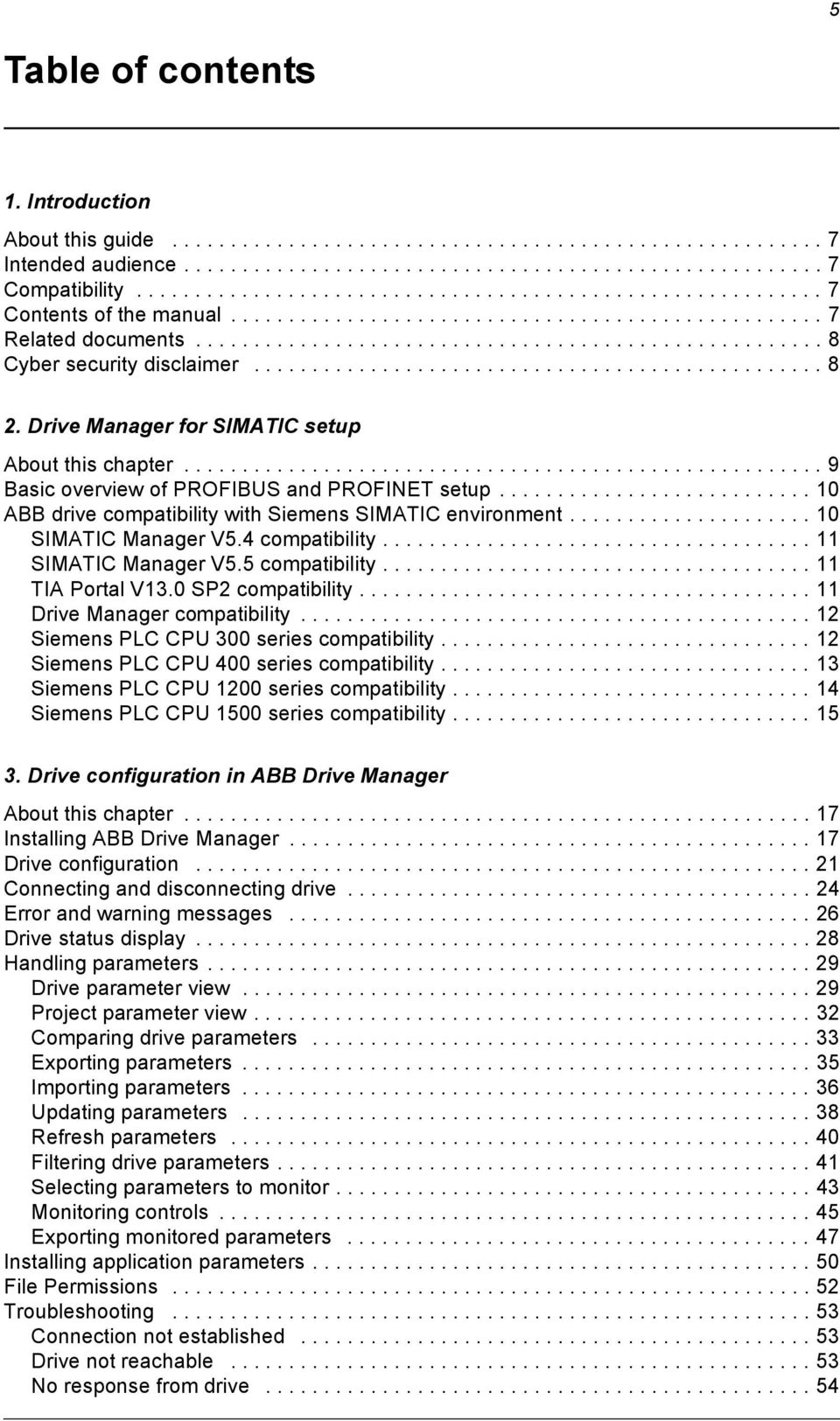
5 5 Table of contents 1. Introduction About this guide Intended audience Compatibility Contents of the manual Related documents Cyber security disclaimer Drive Manager for SIMATIC setup About this chapter Basic overview of PROFIBUS and PROFINET setup ABB drive compatibility with Siemens SIMATIC environment SIMATIC Manager V5.4 compatibility SIMATIC Manager V5.5 compatibility TIA Portal V13.0 SP2 compatibility Drive Manager compatibility Siemens PLC CPU 300 series compatibility Siemens PLC CPU 400 series compatibility Siemens PLC CPU 1200 series compatibility Siemens PLC CPU 1500 series compatibility Drive configuration in ABB Drive Manager About this chapter Installing ABB Drive Manager Drive configuration Connecting and disconnecting drive Error and warning messages Drive status display Handling parameters Drive parameter view Project parameter view Comparing drive parameters Exporting parameters Importing parameters Updating parameters Refresh parameters Filtering drive parameters Selecting parameters to monitor Monitoring controls Exporting monitored parameters Installing application parameters File Permissions Troubleshooting Connection not established Drive not reachable No response from drive
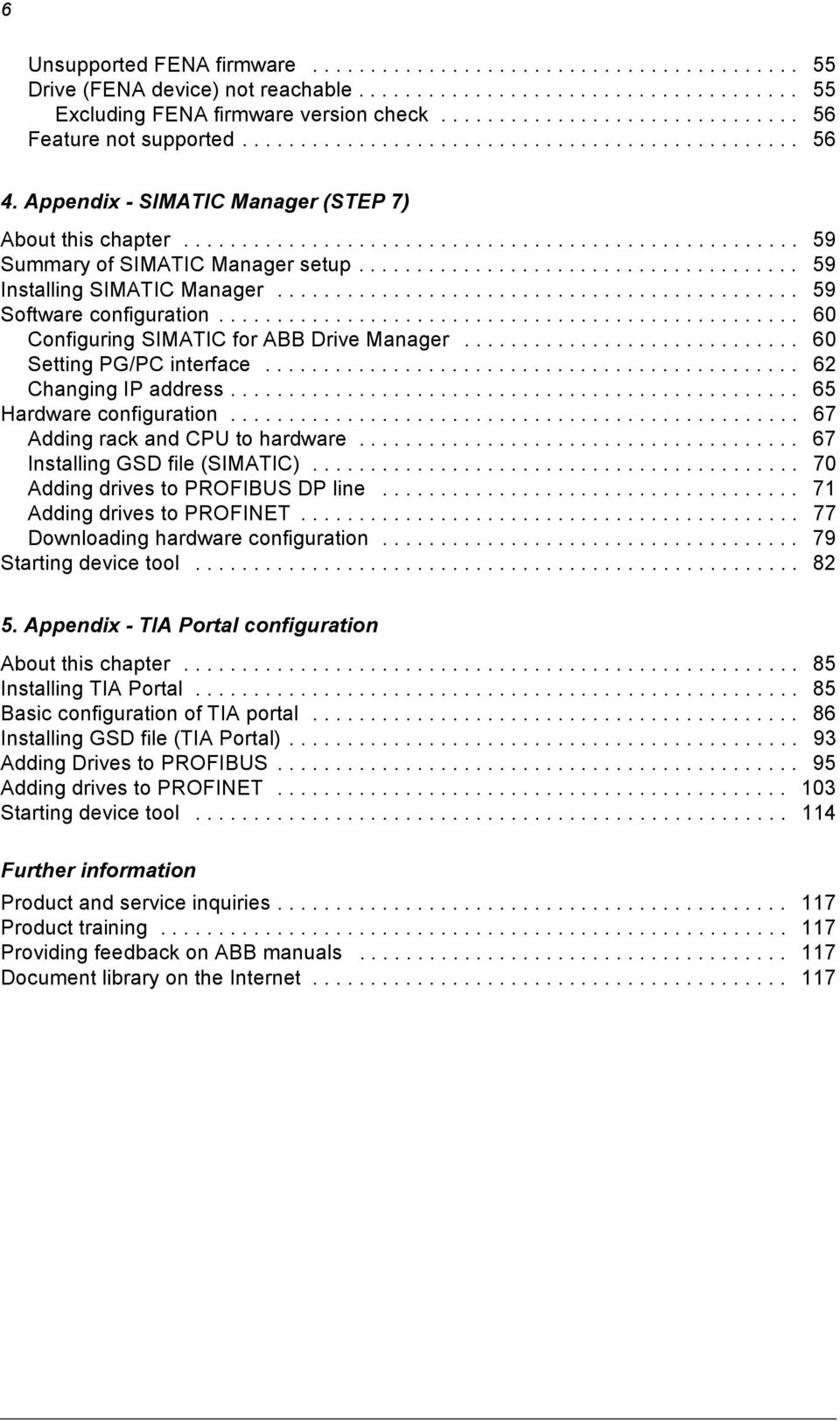
6 6 Unsupported FENA firmware Drive (FENA device) not reachable Excluding FENA firmware version check Feature not supported Appendix - SIMATIC Manager (STEP 7) About this chapter Summary of SIMATIC Manager setup Installing SIMATIC Manager Software configuration Configuring SIMATIC for ABB Drive Manager Setting PG/PC interface Changing IP address Hardware configuration Adding rack and CPU to hardware Installing GSD file (SIMATIC) Adding drives to PROFIBUS DP line Adding drives to PROFINET Downloading hardware configuration Starting device tool Appendix - TIA Portal configuration About this chapter Installing TIA Portal Basic configuration of TIA portal Installing GSD file (TIA Portal) Adding Drives to PROFIBUS Adding drives to PROFINET Starting device tool Further information Product and service inquiries Product training Providing feedback on ABB manuals Document library on the Internet
7 Introduction 7 1 Introduction About this guide This guide provides the procedure to configure ABB drives with Siemens SIMATIC S7 PLC environment using PROFIBUS and PROFINET network. Intended audience The reader of this manual is expected to have a basic knowledge of ABB products, terminologies, standard electrical wiring practices, electronic components and electrical schematic symbols. Compatibility This manual is compatible with SIMATIC Manager V5.4, V5.5, TIA Portal V13.0 and Drive Manager 1.1. Contents of the manual This quick start-up guide consists of the following chapters: Drive Manager for SIMATIC setup provides the basic overview of PROFIBUS and PROFINET setup and the compatibility limitations of ABB drive library. Drive configuration in ABB Drive Manager describes the procedure to install ABB Drive Manager and to configure drives in ABB Drive Manager. Appendix - SIMATIC Manager (STEP 7) describes the procedure to configure SIMATIC Manager with ABB Drive Manager. Appendix - TIA Portal configuration describes the procedure to configure TIA Portal with ABB Drive Manager.
8 8 Introduction Related documents A list of related manuals is printed on the inside of the front cover. Cyber security disclaimer This product is designed to be connected to and to communicate information and data via a network interface. It is Customer's sole responsibility to provide and continuously ensure a secure connection between the product and Customer network or any other network (as the case may be). Customer shall establish and maintain any appropriate measures (such as but not limited to the installation of firewalls, application of authentication measures, encryption of data, installation of anti-virus programs, etc) to protect the product, the network, its system and the interface against any kind of security breaches, unauthorized access, interference, intrusion, leakage and/or theft of data or information. ABB and its affiliates are not liable for damages and/or losses related to such security breaches, any unauthorized access, interference, intrusion, leakage and/or theft of data or information.

9 Drive Manager for SIMATIC setup 9 2 Drive Manager for SIMATIC setup About this chapter This chapter provides the basic overview of PROFIBUS and PROFINET setup and the compatibility limitations of ABB drive compatibility with Siemens CPU.
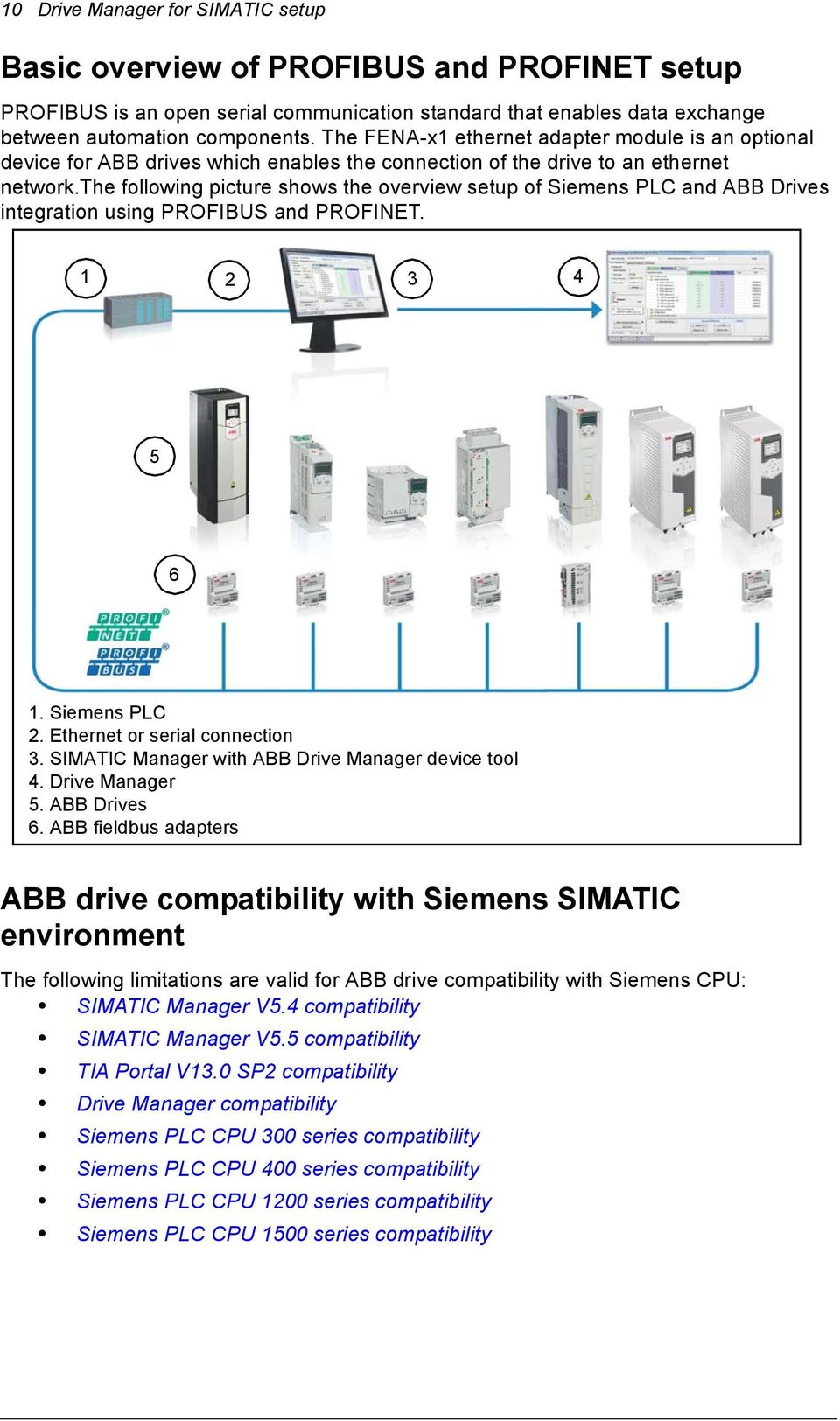
10 10 Drive Manager for SIMATIC setup Basic overview of PROFIBUS and PROFINET setup PROFIBUS is an open serial communication standard that enables data exchange between automation components. The FENA-x1 ethernet adapter module is an optional device for ABB drives which enables the connection of the drive to an ethernet network.the following picture shows the overview setup of Siemens PLC and ABB Drives integration using PROFIBUS and PROFINET Siemens PLC 2. Ethernet or serial connection 3. SIMATIC Manager with ABB Drive Manager device tool 4. Drive Manager 5. ABB Drives 6. ABB fieldbus adapters ABB drive compatibility with Siemens SIMATIC environment The following limitations are valid for ABB drive compatibility with Siemens CPU: SIMATIC Manager V5.4 compatibility SIMATIC Manager V5.5 compatibility TIA Portal V13.0 SP2 compatibility Drive Manager compatibility Siemens PLC CPU 300 series compatibility Siemens PLC CPU 400 series compatibility Siemens PLC CPU 1200 series compatibility Siemens PLC CPU 1500 series compatibility
11 Drive Manager for SIMATIC setup 11 SIMATIC Manager V5.4 compatibility The following limitations are valid for SIMATIC Manager V5.4 SP5 compatibility. PROFIBUS DP protocol: DP-V1. PROFINET IO communication profile: ABB drives. Drive types: All PROFIBUS compatible ABB drives. Application types: Speed/frequency control or torque control. PPO types: Only PPO types with consistent data are supported. For example, PPO-06, 0 PKW + 10 PZD are supported. ABB_DRIVE_LIB function block is supported only for PROFIBUS DP. SIMATIC Manager V5.5 compatibility The following limitations are valid for SIMATIC Manager V5.5 compatibility. PROFIBUS DP protocol: DP-V1. PROFINET IO communication profile: ABB drives. Drive types: All PROFIBUS compatible ABB drives. Application types: Speed/frequency control or torque control. PPO types: Only PPO types with consistent data are supported. For example, PPO-06, 0 PKW + 10 PZD are supported. ABB_DRIVE_LIB function block is supported only for PROFIBUS DP Note: PPO types without consistent data, example, PPO-06, 0 PKW + ( ) PZD or PPO-06, 0 PKW +NoCons. 10 PZD are not supported. TIA Portal V13.0 SP2 compatibility The following limitations are valid for TIA Portal V13.0 compatibility. PROFIBUS DP protocol: DP-V1. PROFINET IO communication profile: ABB drives. Drive types: All PROFIBUS compatible ABB drives. Application types: Speed/frequency control or torque control. PPO types: Only PPO types with consistent data are supported. For example, PPO-06, 0 PKW + 10 PZD are supported. Note: PPO types without consistent data, example, PPO-06, 0 PKW + ( ) PZD or PPO-06, 0 PKW +NoCons. 10 PZD are not supported.
12 12 Drive Manager for SIMATIC setup Drive Manager compatibility The following limitations are valid for Drive Manager compatibility. PROFIBUS DP protocol: DP-V1. PROFINET IO communication profile: ABB drives. Drive types: ACS355, ACS380, ACS550 (only for PROFIBUS), ACS580, ACQ810, ACS850, ACS880, ACSM1 Speed, ACSM1 Motion. Application types: Speed/Frequency control, Torque control or Motion control. PC to PLC online interface: Ethernet and serial communication. PC operating system for SIMATIC Manager V5.5 are Windows XP 32 bit, Windows 7 32 bit and Windows 7 64 bit. PC operative system for TIA Portal V13.0 are Windows XP 32 bit and Windows 7 32 bit. Siemens PLC CPU 300 series compatibility The following S7-300 CPU s are compatible. CPU Version CPU 313C-2 DP V3.3 CPU 314C-2 DP V3.3 CPU 314C-2 PN/DP V3.3 CPU DP V3.3 CPU 315F-2 DP V3.0 CPU PN/DP V3.2 CPU 315F-2 PN/DP V3.2 CPU DP V3.3 CPU 317F-2 DP V3.3 CPU PN/DP V3.2 CPU 317F-2 PN/DP V3.2 CPU PN/DP V3.2 CPU 319F-3 PN/DP V3.2 IM154-8 PN/DP CPU V3.2 IM154-8F PN/DP CPU V3.2 IM154-8FX PN/DP CPU V3.2 IM151-8 PN/DP CPU V3.2 IM151-8F PN/DP CPU V3.2

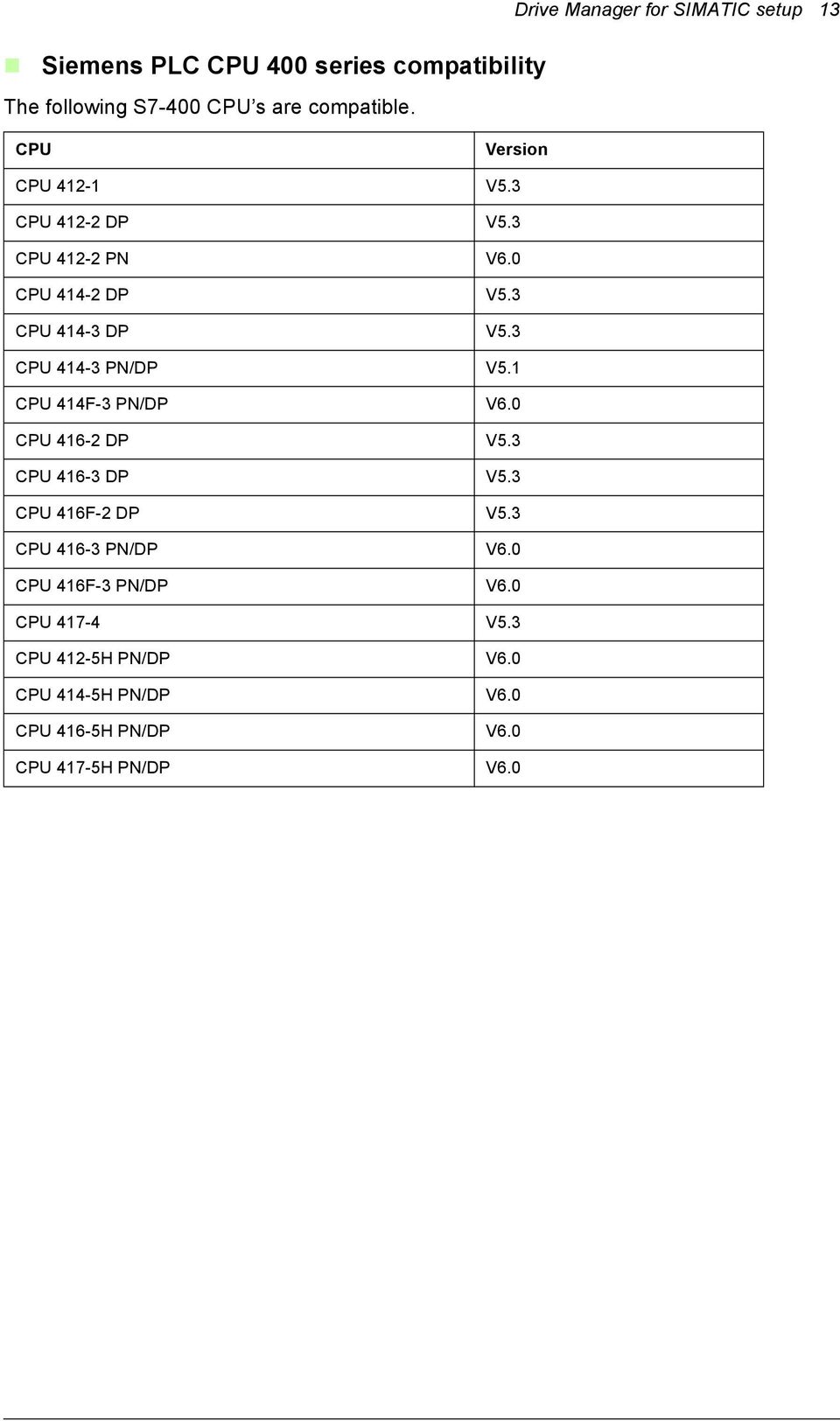
13 Siemens PLC CPU 400 series compatibility The following S7-400 CPU s are compatible. Drive Manager for SIMATIC setup 13 CPU Version CPU V5.3 CPU DP V5.3 CPU PN V6.0 CPU DP V5.3 CPU DP V5.3 CPU PN/DP V5.1 CPU 414F-3 PN/DP V6.0 CPU DP V5.3 CPU DP V5.3 CPU 416F-2 DP V5.3 CPU PN/DP V6.0 CPU 416F-3 PN/DP V6.0 CPU V5.3 CPU 412-5H PN/DP V6.0 CPU 414-5H PN/DP V6.0 CPU 416-5H PN/DP V6.0 CPU 417-5H PN/DP V6.0
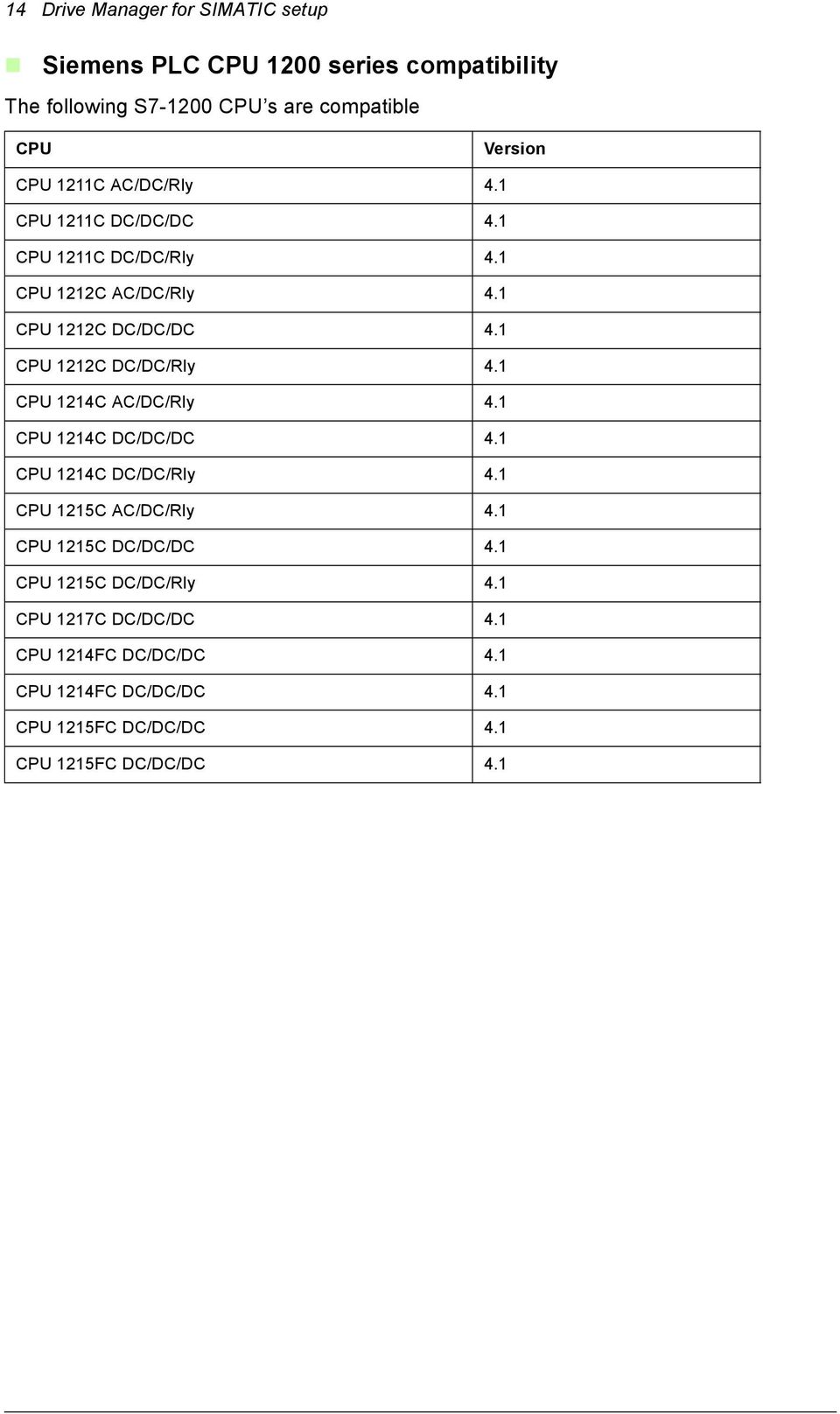
14 14 Drive Manager for SIMATIC setup Siemens PLC CPU 1200 series compatibility The following S CPU s are compatible CPU Version CPU 1211C AC/DC/Rly 4.1 CPU 1211C DC/DC/DC 4.1 CPU 1211C DC/DC/Rly 4.1 CPU 1212C AC/DC/Rly 4.1 CPU 1212C DC/DC/DC 4.1 CPU 1212C DC/DC/Rly 4.1 CPU 1214C AC/DC/Rly 4.1 CPU 1214C DC/DC/DC 4.1 CPU 1214C DC/DC/Rly 4.1 CPU 1215C AC/DC/Rly 4.1 CPU 1215C DC/DC/DC 4.1 CPU 1215C DC/DC/Rly 4.1 CPU 1217C DC/DC/DC 4.1 CPU 1214FC DC/DC/DC 4.1 CPU 1214FC DC/DC/DC 4.1 CPU 1215FC DC/DC/DC 4.1 CPU 1215FC DC/DC/DC 4.1
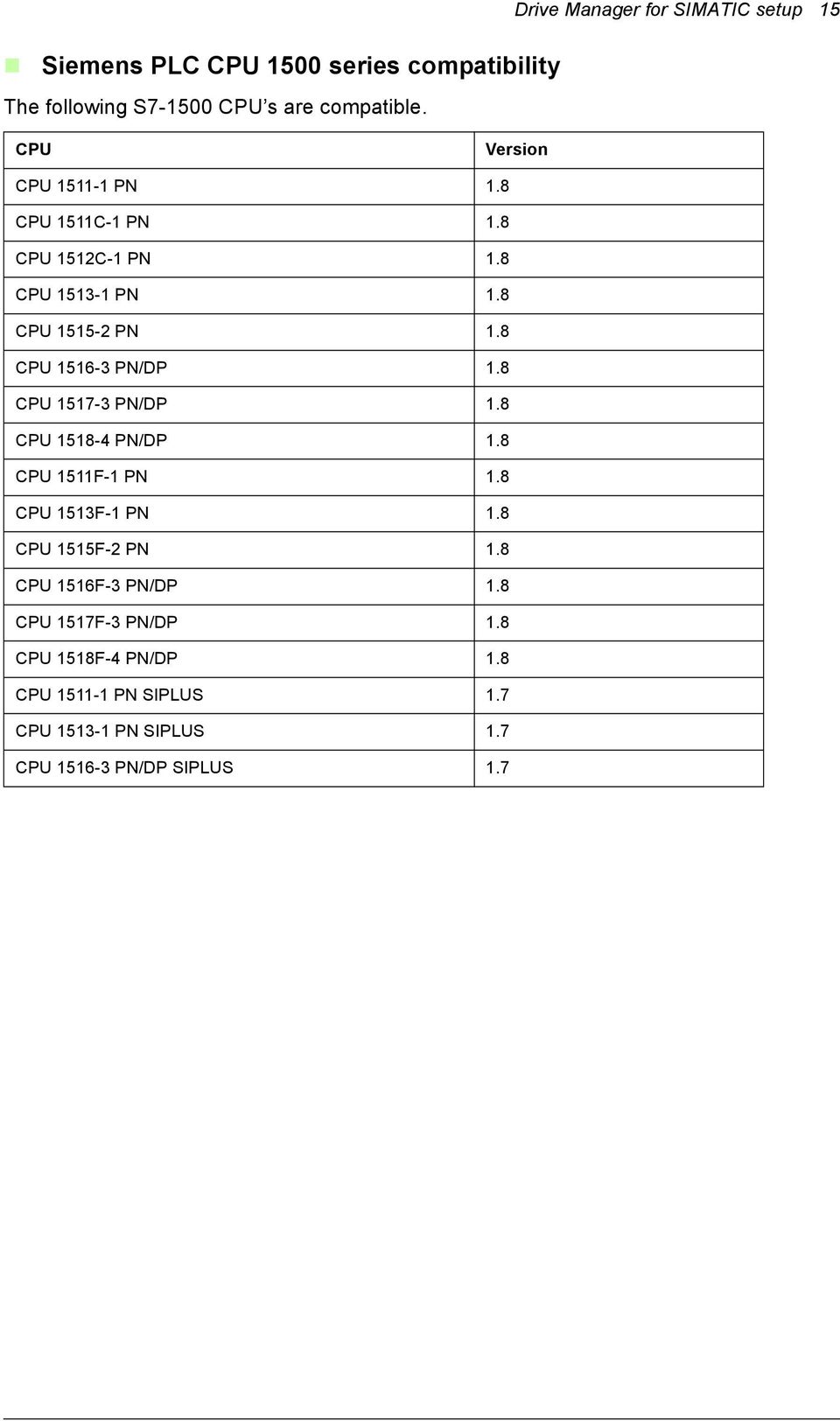
15 Siemens PLC CPU 1500 series compatibility The following S CPU s are compatible. Drive Manager for SIMATIC setup 15 CPU Version CPU PN 1.8 CPU 1511C-1 PN 1.8 CPU 1512C-1 PN 1.8 CPU PN 1.8 CPU PN 1.8 CPU PN/DP 1.8 CPU PN/DP 1.8 CPU PN/DP 1.8 CPU 1511F-1 PN 1.8 CPU 1513F-1 PN 1.8 CPU 1515F-2 PN 1.8 CPU 1516F-3 PN/DP 1.8 CPU 1517F-3 PN/DP 1.8 CPU 1518F-4 PN/DP 1.8 CPU PN SIPLUS 1.7 CPU PN SIPLUS 1.7 CPU PN/DP SIPLUS 1.7
16 16 Drive Manager for SIMATIC setup

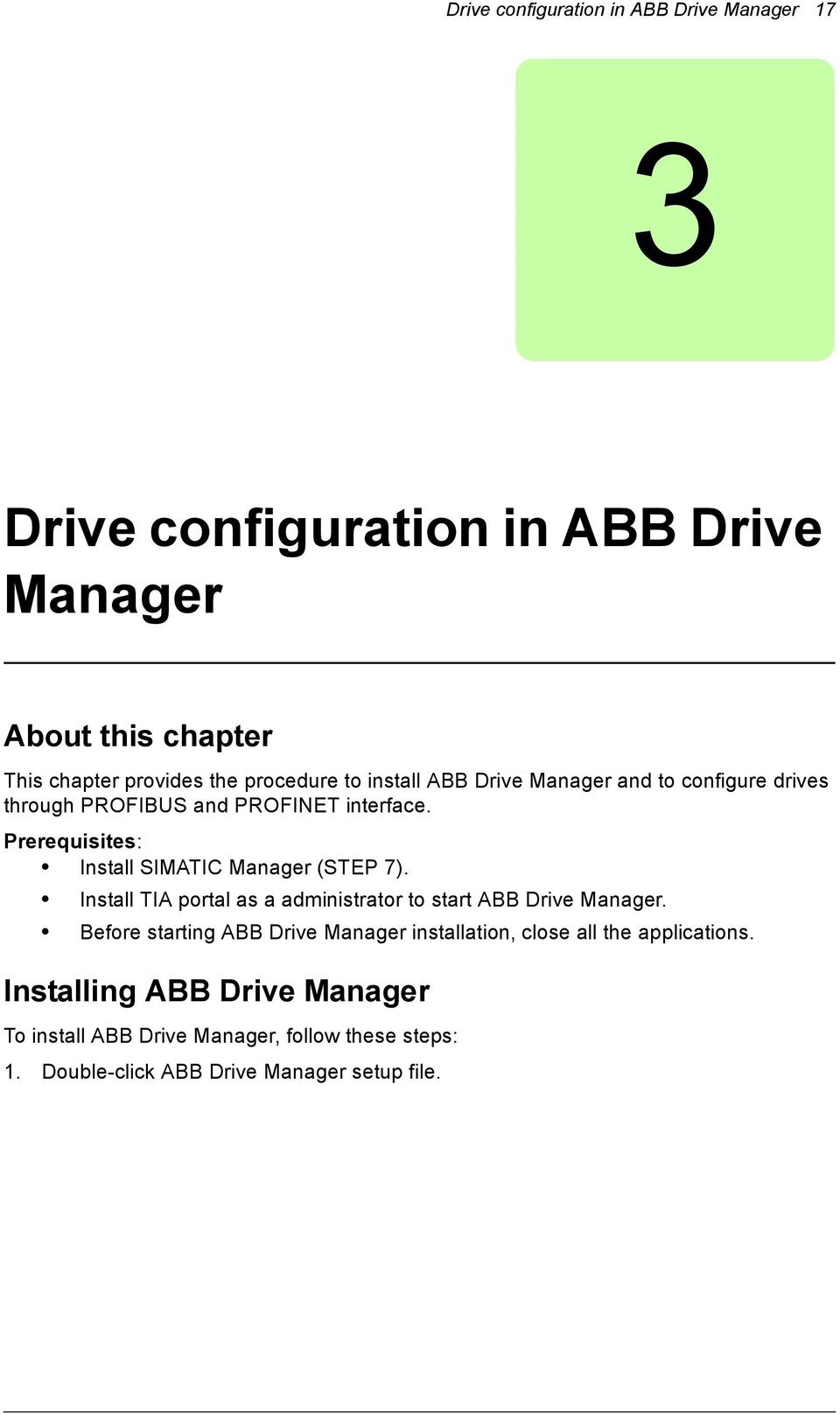
17 Drive configuration in ABB Drive Manager 17 3 Drive configuration in ABB Drive Manager About this chapter This chapter provides the procedure to install ABB Drive Manager and to configure drives through PROFIBUS and PROFINET interface. Prerequisites: Install SIMATIC Manager (STEP 7). Install TIA portal as a administrator to start ABB Drive Manager. Before starting ABB Drive Manager installation, close all the applications. Installing ABB Drive Manager To install ABB Drive Manager, follow these steps: 1. Double-click ABB Drive Manager setup file.
18 18 Drive configuration in ABB Drive Manager 2. In DriveManager for SIMATIC window, click Next.

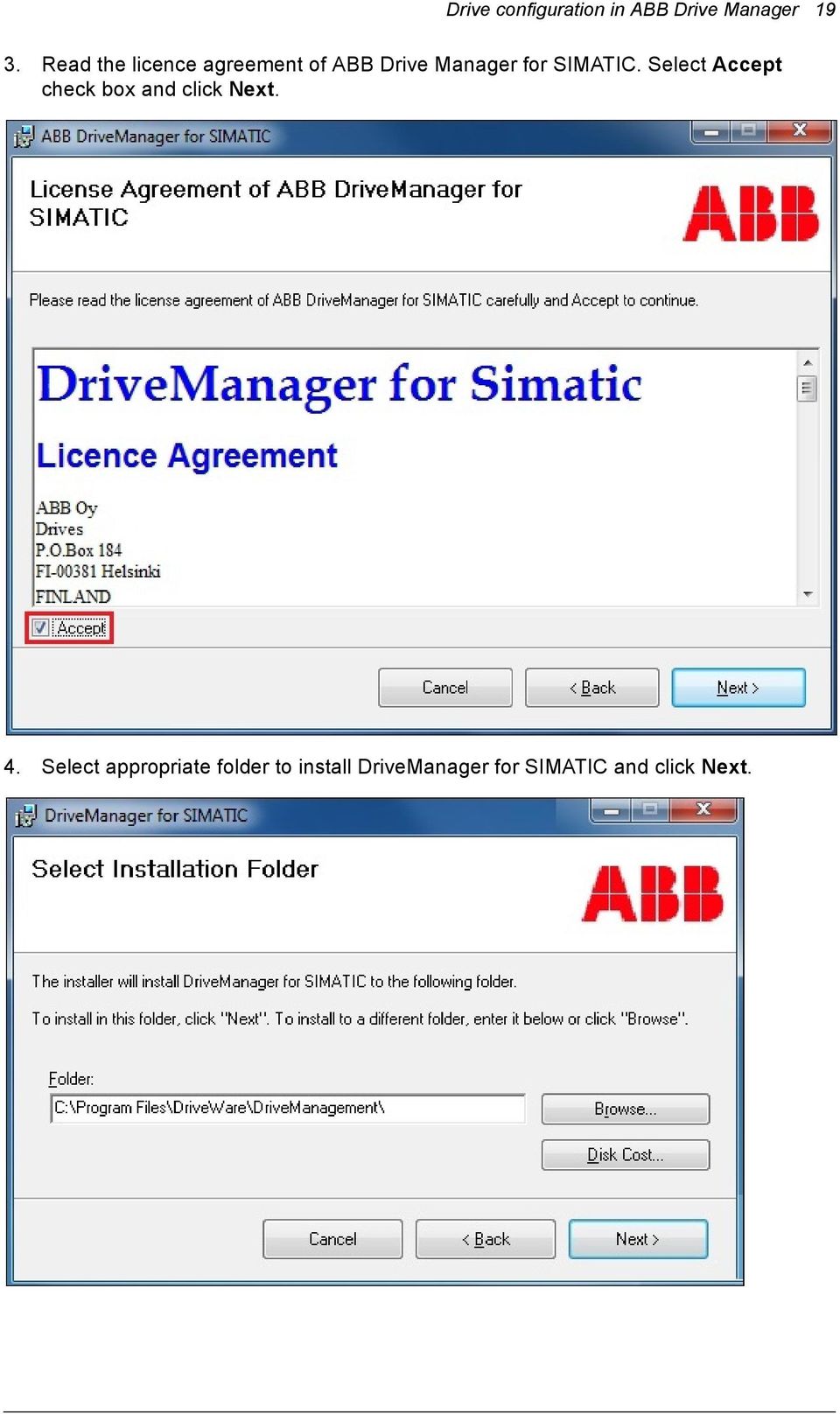
19 Drive configuration in ABB Drive Manager Read the licence agreement of ABB Drive Manager for SIMATIC. Select Accept check box and click Next. 4. Select appropriate folder to install DriveManager for SIMATIC and click Next.
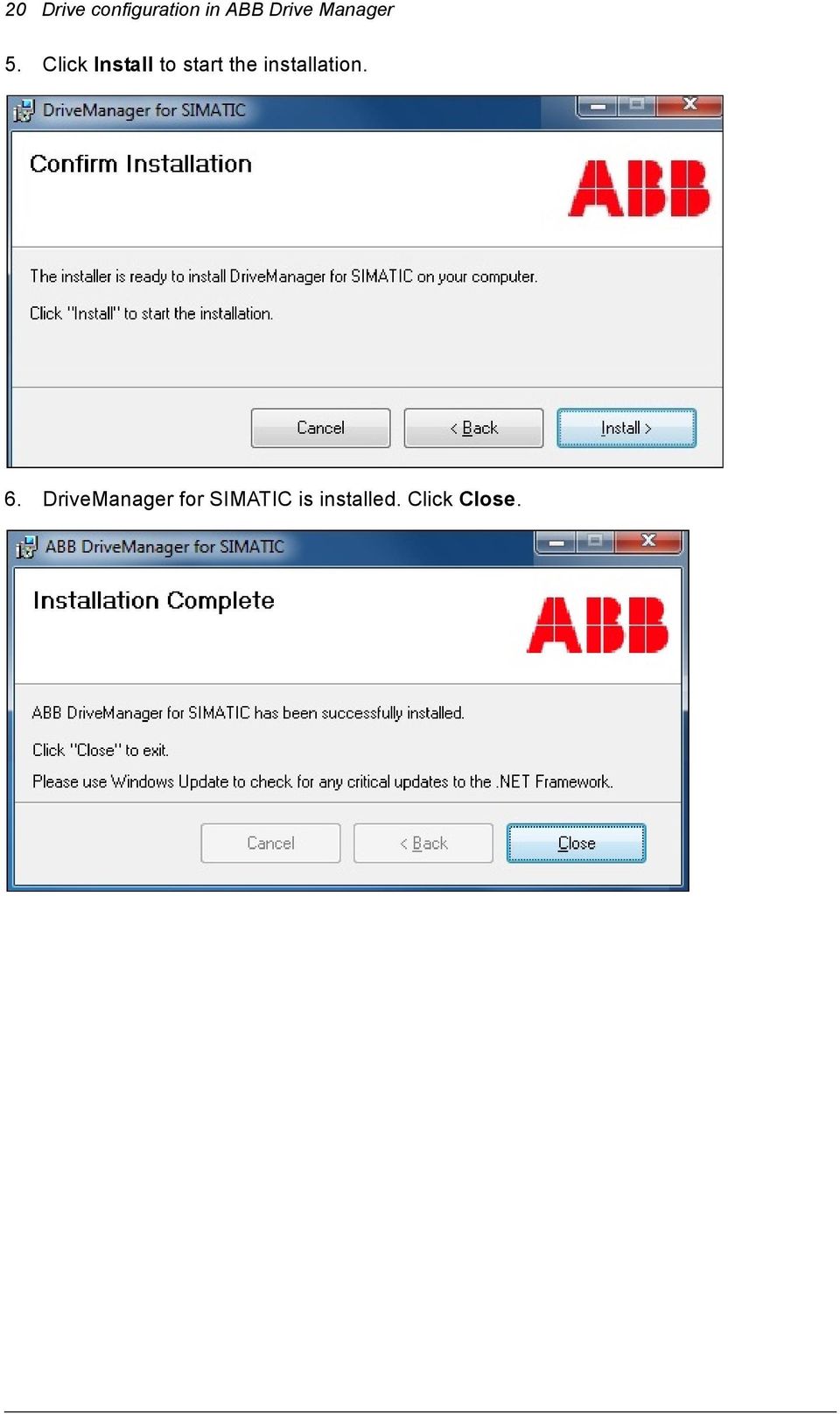
20 20 Drive configuration in ABB Drive Manager 5. Click Install to start the installation. 6. DriveManager for SIMATIC is installed. Click Close.
21 Drive configuration in ABB Drive Manager 21 Drive configuration Before launching ABB Drive Manager, ensure Appendix - SIMATIC Manager (STEP 7) and Appendix - TIA Portal configuration are configured. The ABB Drive Manager menu bar contains the following: File: To exit ABB Drive Manager window. Tools: To install application parameters to different firmwares and to exclude FINA firmware version. Help: To view contents, import license file and the product information. To configure ABB Drive Manager, follow these steps: 1. In the ABB Drive Manager window, click Drive Management tab.
22 22 Drive configuration in ABB Drive Manager 2. To configure the drive analog input channel settings for current/voltage configuration based on the hardware settings of the drive, click Settings. 3. Select the required Analog inputs from the drop-down list and click OK. Note: Analog inputs settings are applicable for ACQ810, ACS850 and ACSM1 drives. Whereas in ACS355 drives, localization settings are available. For ACS380, ACS580 and ACS880 drives, only Parameter locking settings are available. 4. Select the check boxes to disable editing of the motor data and fieldbus parameter and click OK.
23 Drive configuration in ABB Drive Manager Click Parameter locking to prevent accidental changes of the motor data and fieldbus parameters. ABB Drive Manager is configured.
24 24 Drive configuration in ABB Drive Manager Connecting and disconnecting drive To connect (online) and disconnect (offline) drive from the ABB Drive Manager user interface, follow these steps: 1. In the Drive Management tab click Connect. The configured drive connects. 2. To disconnect the drive, click Disconnect.
25 Drive configuration in ABB Drive Manager 25 If you activate Read all before disconnect check-box, ABB Drive Manager reads all the parameters before disconnecting the drive. 3. On disconnecting, the ABB Drive Manager checks the changes to drive parameters which have not been stored to permanent memory. Click Yes to complete uploading all the parameter values.
26 26 Drive configuration in ABB Drive Manager Error and warning messages The following errors are noticed when you try to connect to a drive: Different drive type: If the configured drive type is different from the actual drive connected, an error Different drive type is displayed and shows the actual drive type.
27 Drive configuration in ABB Drive Manager 27 Different firmware version: If the configured drive firmware version is different from the actual drive firmware version, the drive may be connected but the ABB Drive Manager displays a warning message Different firmware and also displays the actual drive firmware version.
28 28 Drive configuration in ABB Drive Manager Drive status display The ABB Drive Manager shows the following drive status messages: Stopped: Drive is in stop mode. Running forward: Drive is running in the forward direction. Running reverse: Drive is running in the reverse direction. Faulted: Drive fault status and fault code.
29 Drive configuration in ABB Drive Manager 29 Handling parameters This section provides instructions to handle parameters in the ABB Drive Manager. Drive parameter view Parameter types can be numeric, enumerated list, bit pointer and value pointer. In the Drive Management tab, click Drive to display the connected drive parameter groups and parameter values.
30 30 Drive configuration in ABB Drive Manager To edit a numeric parameter value, double-click parameter value and change the required value. To change a enumerated parameter value, select a value from the drop-down list.
31 Drive configuration in ABB Drive Manager 31 To change bit pointer parameter value, double-click bit pointer value field and select the bit pointer parameter and then click OK. To change value pointer parameter value, double-click value pointer field and select the parameter value and then click OK.
32 32 Drive configuration in ABB Drive Manager Project parameter view The ABB Drive Manager allows to view, change and save the drive parameters of the configured drive in the offline/project view mode. This set of parameters are visible even when the drive is not connected. You can select required parameters from the list and download to the drive which is connected. In the Drive Management tab, click Project to open the offline/project parameter view.
33 Drive configuration in ABB Drive Manager 33 Comparing drive parameters Compare operation displays the difference in parameter settings of the Project in offline mode and Drive in online mode. 1. In the Drive Management tab, click Compare to compare drive parameter values and project parameter values.
34 34 Drive configuration in ABB Drive Manager The groups and parameters appear in bold when values of Project in offline mode and Drive in online mode are different. A check box appears to against the parameter with difference in values. 2. Click Copy >> to write parameters to offline Project view from online Drive view. 3. Click << Copy to write parameters to online Drive view from offline Project view.
35 Drive configuration in ABB Drive Manager 35 Exporting parameters The ABB Drive Manager allows to export the parameter values to the respective drive parameter file format (.dsp,.dwp,.dcparams). The file format for saving the file is automatically selected based on the drive configuration. 1. In the ABB Drive Manager window, select Drive or Project view. 2. Click Export to File (represents appropriate file format) and save the file to the desired location.
36 36 Drive configuration in ABB Drive Manager Importing parameters The ABB Drive Manager allows to import the parameter values from the computer only in these file formats.dsp,.dwp,.dcparams. Note: Import function works only in Project view. 1. In the Project view, click Import values drop-down and click Browse file to select the appropriate parameter file.
37 Drive configuration in ABB Drive Manager To copy imported parameter values to project parameter view, select the parameter value and click << Copy. The imported values are copied to the Project view.
38 38 Drive configuration in ABB Drive Manager Updating parameters To update and save the parameter changes to the drive, follow these steps: 1. Right-click on a parameter group and select either Update all parameters or Update parameters in this group.
39 Drive configuration in ABB Drive Manager Click Make changes permanent to save the parameter changes to the drive. The parameter values are saved in the ABB Drive Manager.
40 40 Drive configuration in ABB Drive Manager Refresh parameters In the Drive Management tab, click to refresh the drives parameters.
41 Drive configuration in ABB Drive Manager 41 Filtering drive parameters The ABB Drive Manager allows to filter the parameters and create subset views. You can create up to three subsets. 1. In the ABB Drive Manager window, click Parameters (filtered). 2. Select the required parameter subset in the Choose subset filter list. 3. Click Customize subset to configure the selected subset.
42 42 Drive configuration in ABB Drive Manager 4. Select the required parameters from Parameter list to Selected parameters screen and click Ok to create subset. 5. In the Parameter (filtered) tab, select the required subset to monitor.
43 Drive configuration in ABB Drive Manager 43 Selecting parameters to monitor To select the parameters to monitor, follow these steps: 1. In the ABB Drive Manager window, click Monitoring tab and then click Select Parameters to add required parameters. 2. Select the required parameters from Parameter list to Selected parameters screen and click Ok. Note: Maximum of 12 parameters are allowed.
44 44 Drive configuration in ABB Drive Manager After adding Parameters list to Selected parameters screen, the Visible check boxes are selected by default. 3. In the Monitoring tab, select the required parameter color from the drop-down list. 4. To remove parameters from monitoring, deselect the specific check boxes. 5. Minimum, Maximum, Alarm Low and Alarm High values can be edited based on preferences.
45 Drive configuration in ABB Drive Manager 45 Monitoring controls To understand the monitoring controls, follow the steps: After selecting required parameters, click to start monitoring parameters. Click to pause monitoring parameters.
46 46 Drive configuration in ABB Drive Manager Click to stop monitoring the parameters. From the Active Signal drop-down list, select a parameter to monitor as active signal.
47 Drive configuration in ABB Drive Manager 47 Exporting monitored parameters 1. Click Export to.csv file to export monitored parameter file. 2. Select the desired file location in the file system. The default file name will be Projectname_drivename.csv. 3. Click to select parameter Export settings. An Export Options window is displayed.
48 48 Drive configuration in ABB Drive Manager In the Export Options window, you can do the following settings: You can check or uncheck the desired parameters in Select Parameters To Export pane. Select Full set of samples from start of plotting to stop option and click Ok to filter the graph. If you select Always latest samples based on count option, the tool displays number of samples already in the memory and the Latest Samples text box with the same number. Note: You are not allowed to select more than samples and the value automatically changes to in the Latest Samples text box.
49 Drive configuration in ABB Drive Manager 49 If you select Samples based on time stamp option, the tool displays Start and Stop Plotting Duration of samples present in the memory. You can edit Sample Range with Start and Stop duration of samples present in the memory and click Ok. Note: If you change the duration time more than the available time, system prompts a message Value not in the range. After plotting is stopped, click Select Parameters to change the parameter selection. System prompts to save the monitored data.
50 50 Drive configuration in ABB Drive Manager Installing application parameters The ABB Drive Manager allows to install application specific parameters to the Drive Manager. 1. In the Automation Builder main menu, click Tools -> Options -> Install application parameters. 2. Select the application parameters file (.dsp or.dcparamsbak) in the file system. 3. Select the required firmwares to which these parameters are installed and click Ok.
51 Drive configuration in ABB Drive Manager 51 After installing application parameters to ABB Drive Manager, a success message is displayed in the Messages. 4. Restart ABB Drive Manager to get the updated list of firmware to which applications parameters are installed.
52 52 Drive configuration in ABB Drive Manager After selecting CustomProgrammed firmware, you can see the application parameters. For example, group 9. File Permissions Ensure all actual users have the appropriate access permissions to use the PC or application. For example: C:\ProgramFiles\DriveWare\DriveManagement\data\devdesc\Profibus_Drives\ACS_880\A CS880_PB.devdesc.xml. Check the actual fieldbus and drive type.
53 Drive configuration in ABB Drive Manager 53 Troubleshooting Connection not established The ABB Drive Manager displays an error message Connection request rejected when SIMATIC and TIA portal does not run as administrator or if the project has an invalid data. By clicking on More info displays the workarounds to resolve this issue. Drive not reachable The ABB Drive Manager displays an error message Drive not reachable when a connection request receives timeout response.
54 54 Drive configuration in ABB Drive Manager By clicking on More info displays the workarounds to resolve this issue. No response from drive The ABB Drive Manager displays an error message Unable to reach drive when there is no response from the drive after connection request. By clicking on More info displays the workarounds to resolve this issue.
55 Drive configuration in ABB Drive Manager 55 Unsupported FENA firmware The ABB Drive Manager displays an error message Unsupported FENA firmware when a FENA device which is configured on the drive has a firmware version lower than version By clicking on More info displays the workarounds to resolve this issue. Drive (FENA device) not reachable The ABB Drive Manager displays an error message Drive (FENA device) not reachable when I&M (identification and maintenance) request which is used to identify the firmware of FENA device does not get any response.
56 56 Drive configuration in ABB Drive Manager By clicking on More info displays the workarounds to resolve this issue. Excluding FENA firmware version check The ABB Drive Manager allows you to activate Exclude FENA firmware version check when you are using FENA device firmware in VPN connection. In the ABB Drive Manager menu bar, click Tools-> Settings. Feature not supported The ABB Drive Manager displays an error message Feature not supported when this feature is not supported by online interface which is set in SIMATIC or TIA portal.
57 Drive configuration in ABB Drive Manager 57 By clicking on More info displays the workarounds to resolve this issue.
58 58 Drive configuration in ABB Drive Manager
59 Appendix - SIMATIC Manager (STEP 7) 59 4 Appendix - SIMATIC Manager (STEP 7) About this chapter This chapter describes the procedure to install SIMATIC Manager (STEP 7) and to configure SIMATIC Manager with ABB Drive Manager. Summary of SIMATIC Manager setup The SIMATIC manger setup includes the following steps: 1. Installing SIMATIC Manager 2. Software configuration 3. Hardware configuration 4. Starting device tool 5. Starting device tool For detailed steps, refer the individual sections. Installing SIMATIC Manager To install SIMATIC Manager (STEP 7) V5.4 or V5.5, refer Installation procedure in the SIMATIC installation manual (referring Siemens website).
60 60 Appendix - SIMATIC Manager (STEP 7) Software configuration Configuring SIMATIC for ABB Drive Manager To configure SIMATIC Manager for the ABB Drive Manager, follow these steps: 1. Launch SIMATIC Manager. In the STEP 7 Wizard: "New Project" window click Next. 2. Select appropriate CPU (for example CPU315-2 PN/DP) and click Next.
61 Appendix - SIMATIC Manager (STEP 7) Block name OB1 is selected by default. Click Next. 4. Enter the project name and click Finish.
62 62 Appendix - SIMATIC Manager (STEP 7) After completing the basic configuration, a SIMATIC Manager main screen appears with the project structure. Setting PG/PC interface PG/PC interface is a programming cable to connect PC to PLC. To set PG/PC interface for online connection between PC and PLC using ethernet connection, follow these steps. 1. Select the Local Area Connection to which PLC is connected. 2. Double-click Internet protocol Version 4 (TCP/IPv4) option.
63 Appendix - SIMATIC Manager (STEP 7) Enter the default IP address of a Siemens PLC The default values of other fields are updated. Click OK. Note: To change the IP address, refer to Changing IP address. 4. From the menu bar, click Options and select Set PG/PC Interface.
64 64 Appendix - SIMATIC Manager (STEP 7) 5. Select the connected interface and click OK. The PG/PC interface between PC and PLC using ethernet connection is configured.
65 Appendix - SIMATIC Manager (STEP 7) 65 Changing IP address To change IP address of a Siemens PLC, follow these steps: 1. From the hardware configuration window, click PLC and select Ethernet > Edit Ethernet Node option.
66 66 Appendix - SIMATIC Manager (STEP 7) 2. Browse to select MAC address. Click Assign Configuration and close the window. IP address of the selected Siemens PLC is changed.
67 Appendix - SIMATIC Manager (STEP 7) 67 Hardware configuration Adding rack and CPU to hardware To add rack and CPU to hardware, follow these steps: 1. In the SIMATIC Manager window, select SIMATIC 300 Station and double-click Hardware. 2. In the hardware configuration window, expand SIMATIC 300 project structure and open Rack-300 folder. Drag and drop Rail to the SIMATIC configuration screen.
68 68 Appendix - SIMATIC Manager (STEP 7) 3. In the hardware configuration section, expand CPU315F-2 PN/DP folder and select the specific version. Drag and drop required version to the slot 2 of the rack. Note: Slot 1 is not supported for CPU configuration. 4. In the Ethernet interface window, enter the IP address of the CPU and click New.
69 Appendix - SIMATIC Manager (STEP 7) In the New subnet Industrial Ethernet window, click OK to activate the new subnet. The rack, CPU and the Ethernet connections are configured.
70 70 Appendix - SIMATIC Manager (STEP 7) Installing GSD file (SIMATIC) The following GSD files for ABB drives are available in ABB library or from the package. ABB gsd for FPBA-01 PROFIBUS DP-V1 ABB gsd for RPBA-01 PROFIBUS DP-V1 ABB-FENA for PROFINET After adding rack and CPU to hardware, install the GSD file. To install the GSD file for ABB drives PROFIBUS and GSDML file for ABB drives PROFINET, follow these steps: 1. In the hardware configuration window, click Options and select Install GSD File.
71 Appendix - SIMATIC Manager (STEP 7) Browse and select the appropriate folder. Select the GSD file for PROFIBUS or GSDML file for PROFINET and click Install. After the installation is complete close the window. The GSD or GSDML file for ABB drives PROFIBUS or for PROFINET are installed respectively. Adding drives to PROFIBUS DP line After the GSD file installation, a new PROFIBUS DP module displays in the hardware library. To add drives to PROFIBUS DP line, follow these steps: 1. Double-click MPI/DP in the hardware configuration window.
72 72 Appendix - SIMATIC Manager (STEP 7) 2. Select PROFIBUS from the Interface drop-down list and click Properties. 3. In the Properties window, click New.
73 Appendix - SIMATIC Manager (STEP 7) In the New subnet PROFIBUS window, enter new subnet Name and click OK. 5. In the hardware library, expand PROFIBUS DP and select the required ABB Drive. Drag and drop the selected drive (example ABB Drives FPBA-01 DP-V1) module with DP-V1mode to your actual fieldbus module type. Note: Other DP modes are not supported by drive manager.
74 74 Appendix - SIMATIC Manager (STEP 7) 6. Set the PROFIBUS node address for the fieldbus module and click OK. 7. With the Drive node selected, drag and drop desired PPO type to slot 1 of the module. Note: PPO types with consistent data, example, PPO-06, 0 PKW + 10 PZD are only supported by ABB_DRIVE_LIB.
75 Appendix - SIMATIC Manager (STEP 7) 75 Drive receives peripheral memory areas for data input and output (process data will be sent between the PLC and the drive). In this example, 20 byte long peripheral memory area starts from 256. Double-click PPO type of actual drive to change the value.
76 76 Appendix - SIMATIC Manager (STEP 7) 8. If you want to change the name of the node, right-click Drive, select Object Properties. 9. Repeat the procedure to add more drives if needed. 10. Click Save and Compile. ABB Drive is configured and added to PROFIBUS.
77 Appendix - SIMATIC Manager (STEP 7) 77 Adding drives to PROFINET To add drives to PROFINET, follow these steps: 1. In the hardware library, expand PROFINET and select the required ABB Drive. Drag and drop the selected drive (example FENA PPO types) module to your actual fieldbus module type. 2. Double-click on ABB drive (FENA). In the Properties - FENA window, rename the Device name if needed. Select the check box Assign IP Address via IO controller. Select the required Node Device number and click OK.
78 78 Appendix - SIMATIC Manager (STEP 7) 3. With the ABB drive (FENA) node selected, drag and drop desired PPO type to slot 1 of the module. 4. Repeat the procedure to add more drives if needed. 5. Click Save and Compile. ABB Drive is configured and added to PROFINET.
79 Downloading hardware configuration To download hardware configuration, follow these steps: 1. From the hardware library, click PLC and select Download. Appendix - SIMATIC Manager (STEP 7) In the Select Target Module window, select the required PLC and click OK.
80 80 Appendix - SIMATIC Manager (STEP 7) 3. In the Select Node Address window, click View to select the IP address. Click OK. 4. PLC is to set to RUN mode and Stop Target Modules message displays, click OK.
81 Appendix - SIMATIC Manager (STEP 7) Click OK in the Download pop-up window to set the PLC in RUN mode. Hardware configuration for SIMATIC Manager is downloaded.
82 82 Appendix - SIMATIC Manager (STEP 7) Starting device tool Start device tool option is used to launch the ABB Drive Manager. 1. To start device tool, right-click on Drive node. 2. Click Start Device Tool and click ABB Drive Management.
83 Appendix - SIMATIC Manager (STEP 7) If you are activating the application for the first time, the License Activation pop-up window appears. Enter the license activation key and click Activate. Note: If you do not have a license activation key, close the License Activation pop-up window and click OK in the Drive Manager for Simatic pop-up window to run the application in trial version for a specific period of 30 days. Only one ABB Drive Manager can be opened in trial period. To open ABB Drive Manager for a different drive, close the existing ABB Drive Manager. or If you already activated the application, ABB Drive Manager window displays.
84 84 Appendix - SIMATIC Manager (STEP 7)
85 Appendix - TIA Portal configuration 85 5 Appendix - TIA Portal configuration About this chapter This chapter provides the procedure to configure Siemens PLC with ABB Drive Manager using TIA Portal V13.0. Installing TIA Portal To install TIA Portal V13.0, refer Installation procedure in the TIA Portal V13.0 installation manual (referring Siemens website).
86 86 Appendix - TIA Portal configuration Basic configuration of TIA portal To configure TIA Portal with the PLC and ABB Drive Manager, follow these steps: 1. Launch TIA Portal V Click Create new project and enter the project name and path. Click Create. 3. Select Configure a device from the Start options.
87 Appendix - TIA Portal configuration In the TIA Portal V13 window, select Add new device. 5. From the Add new device screen, select required PLC and click Add.
88 88 Appendix - TIA Portal configuration 6. Go to Project view and double-click Devices & networks. In the Network view, select PLC_1 and double-click Ethernet. 7. From the Network view screen, click General tab and select Ethernet addresses.
89 Appendix - TIA Portal configuration In the Ethernet address screen, click Add new subnet to add the subnet. Set IP Address in the IP protocol. A new Subnet is added.
90 90 Appendix - TIA Portal configuration 9. In the Network view, select PLC_1 and double-click MPI/DP. 10. From the Network view, click General tab and select PROFIBUS address.
91 Appendix - TIA Portal configuration In the PROFIBUS address screen, select required Interface type and Address parameters from the drop-down list. Click Add new subnet. 12. Interface networked with subnet is added and configured.
92 92 Appendix - TIA Portal configuration After completing the basic configuration, a TIA Portal window displays with PLC connections.
93 Appendix - TIA Portal configuration 93 Installing GSD file (TIA Portal) This topic provides step by step procedure to install the GSD file. 1. In the Devices & Networks screen, click Options. Select Install general station description file (GSD). 2. Browse and select the appropriate folder. Select the GSD files for PROFIBUS or GSDML files for PROFINET and click Install. After the installation is complete close the window.
94 94 Appendix - TIA Portal configuration 3. Click YES in the popup window. 4. After GSD file installation, system prompts to close the TIA Portal application, click Close TIA Portal.
95 Appendix - TIA Portal configuration 95 Adding Drives to PROFIBUS 1. Launch TIA Portal. In the main screen, click Open existing project. Select the existing project and click Open. 2. Click Open the project view from the Start options.
96 96 Appendix - TIA Portal configuration 3. Double-click Device & networks in Project tree screen. 4. From the Hardware catalog screen, select the required ABB Drive. Drag and drop to the PLC screen.
97 Appendix - TIA Portal configuration In the Slave_1 screen, select Drive. 6. From the General tab, click PROFIBUS address. Select PROFIBUS_1 in Subnet drop-down menu and select the required value in Address drop-down field.
98 98 Appendix - TIA Portal configuration 7. In the ABB Drive, click Not assigned and select PLC_1.MP/DP interface_1. The selected PLC is assigned to the ABB Drive.
99 Appendix - TIA Portal configuration From the Device view, select Slave_1 in the Device selection drop-down menu. 9. In the Hardware catalog, double-click the required PPO type. The selected PPO type appears in the Device overview pane.
100 100 Appendix - TIA Portal configuration 10. In the Device overview, select PPO type and in the menu bar click Compile. 11. Click Download to device.
101 Appendix - TIA Portal configuration From the Extended download to device window, select PG/PC interface and Connection to subnet from the drop-down list. The Load preview window displays the PLC ready for loading. 13. Select the required PLC device and click Load.
102 102 Appendix - TIA Portal configuration 14. In the Load results screen, select Start all and click Finish. The selected ABB drives are added to PLC.
103 Appendix - TIA Portal configuration 103 Adding drives to PROFINET 1. Launch TIA Portal. In the main screen, click Open existing project. Select the existing project and click Open. 2. Click Open the project view from the Start options.
104 104 Appendix - TIA Portal configuration 3. In the Hardware catalog section, select the required PLC. Drag and drop to the Network view. 4. In the Network view, select PLC_1 and double-click Ethernet.
105 Appendix - TIA Portal configuration From the Network view, click General tab and select Ethernet addresses. 6. In the Ethernet address screen, click Add new subnet to add the subnet. Set IP Address in the IP protocol.
106 106 Appendix - TIA Portal configuration After adding PLC and the Ethernet address, TIA Portal window displays PLC connections. 7. From the Hardware catalog section, select the required ABB Drive. Drag and drop to the PLC screen.
107 Appendix - TIA Portal configuration In the ABB Drive, click Not assigned and select PLC_1.PROFINET interface_1. The selected PLC is assigned to the ABB Drive. 9. Select FENA drive (PROFINET).
108 108 Appendix - TIA Portal configuration 10. From the General tab, click Ethernet address. Select PN/IE_1 in Subnet drop-down menu and set IP address in the IP protocol. 11. In the Device view, right-click DP_NORM and select Assign device name. Assign PROFINET device name window displays.
109 Appendix - TIA Portal configuration In the Assign PROFINET device name window, select the appropriate accessible devices in the network list and click Assign Name.
110 110 Appendix - TIA Portal configuration 13. From the main menu, click Online and select Download to device. A Load preview window displays. Note: A load preview window starts compiling before downloading a device. 14. In the Load preview window, select the required PLC device and click Load.
111 15. In the Load results screen, select Start all and click Finish. Appendix - TIA Portal configuration 111
112 112 Appendix - TIA Portal configuration 16. In the Project tree, expand PLC_1 (CPU xxx) > PLC tags folder and double-click Default tag table. Add a new default tag to the table. For example, cw. 17. In the Project tree, expand PLC_1 (CPU xxx) > Watch and force tables folder and double-click Watch table_1. Select the default tag value cw in the right pane and click Monitor all.
113 Appendix - TIA Portal configuration To modify watch table value, double-click the value in Modify value field and add the new values.
114 114 Appendix - TIA Portal configuration Starting device tool Start device tool option is used to launch the ABB Drive Manager. 1. In the Network view, right-click on Drive and select Start device tool. 2. In the Start device tool window, select ABB Drive Management and click Start.
115 Appendix - TIA Portal configuration If you are activating the application for the first time, the License Activation pop-up window appears. Enter the license activation key and click Activate. Note: If you do not have a license activation key, close the License Activation pop-up window and click OK in the Drive Manager for Simatic pop-up window to run the application in trial version for a specific period of 30 days. Only one ABB Drive Manager can be opened in trial period. To open ABB Drive Manager for a different drive, close the existing ABB Drive Manager. or If you already activated the application, ABB Drive Manager window displays.
116 116 Appendix - TIA Portal configuration
117 Further information Product and service inquiries Address any inquiries about the product to your local ABB representative, quoting the type designation and serial number of the unit in question. A listing of ABB sales, support and service contacts can be found by navigating to Product training For information on ABB product training, navigate to new.abb.com/service/training. Providing feedback on ABB manuals Your comments on our manuals are welcome. Navigate to new.abb.com/drives/manuals-feedback-form. Document library on the Internet You can find manuals and other product documents in PDF format on the Internet at
118 Contact us 3AXD Rev B (EN)
1 Application Description... 3. 1.1 Objective... 3 1.2 Goals... 3
 Contents Moxa Technical Support Team [email protected] 1 Application Description... 3 1.1 Objective... 3 1.2 Goals... 3 2 System Topology... 3 3 Hardware and Software Requirements... 4 4 Configuration...
Presentation, 12.11.2014. Drive Manager for SIMATIC Presentation
 Presentation, 12.11.2014 Drive Manager for SIMATIC Presentation Drive Manager for SIMATIC Efficient drive engineering Drive Manager for SIMATIC (DM4S-01) ABB Device tool integrated seamless to Siemens
Service & Support. How can you establish a connection between an S7-1200 PLC and SIMATIC NET OPC? S7-1200 PLC, SIMATIC NET OPC.
 Cover How can you establish a connection between an S7-1200 PLC and SIMATIC NET OPC? S7-1200 PLC, SIMATIC NET OPC FAQ January 2010 Service & Support Answers for industry. This entry is from the Service&Support
Service & Support. How can you establish a connection between a S7-1200 PLC and SIMATIC NET OPC? S7-1200 PLC, SIMATIC NET OPC.
 Cover How can you establish a connection between a S7-1200 PLC and SIMATIC NET OPC? S7-1200 PLC, SIMATIC NET OPC FAQ November 2009 Service & Support Answers for industry. Question This entry is from the
Training Document for Comprehensive Automation Solutions Totally Integrated Automation (T I A) MODUL E04
 Training Document for Comprehensive Automation Solutions Totally Integrated Automation (T I A) MODUL PROFINET with IO Controller CPU 315F-2 PN/DP and IO Device ET 200S T I A Training Document Page 1 of
PROFINET IRT: Getting Started with The Siemens CPU 315 PLC
 PROFINET IRT: Getting Started with The Siemens CPU 315 PLC AN-674 Application Note This document shows how to demonstrate a working design using the PROFINET isochronous real-time (IRT) device firmware.
Using the WAGO 750-340 PROFINET Coupler as Remote I/O with a Siemens S7 PLC
 Using the WAGO 750-340 PROFINET Coupler as Remote I/O with a Siemens S7 PLC, English Version 1.0.0 2 General Copyright 2007 by WAGO Kontakttechnik GmbH & Co. KG All rights reserved. WAGO Kontakttechnik
TECHNICAL NOTE TNOI34
 TECHNICAL NOTE TNOI Title: Communication with Siemens S7-00 PLCs via Ethernet Product(s): G, MC, and DSP ABSTRACT Crimson.0 provides advanced Ethernet communication capabilities for Red Lion Products,
Training Document for Comprehensive Automation Solutions Totally Integrated Automation (T I A) MODULE A5 Programming the CPU 314C-2DP
 Training Document for Comprehensive Automation Solutions Totally Integrated Automation (T I A) MODULE T I A Training Document Page 1 of 25 Module This document has been written by Siemens AG for training
ABB solar inverters. User s manual ABB Remote monitoring portal
 ABB solar inverters User s manual ABB Remote monitoring portal List of related manuals Title ABB Remote monitoring portal User s manual NETA-01 Ethernet adapter module User s manual Code (English) 3AUA0000098904
PROCESS AUTOMATION PLANNING AND INTEGRATION INFORMATION LB8106* Integration in Siemens SIMATIC PCS 7
 PROCESS AUTOMATION PLANNING AND INTEGRATION INFORMATION LB8106* Integration in Siemens SIMATIC PCS 7 With regard to the supply of products, the current issue of the following document is applicable: The
Profinet to EDV111 Series LED Signs Siemens Function Block Software Manual
 Electronic Displays, Inc. EDV111 Series LED Signs Siemens TIA Portal 11, Step 7 Pro Function Block Version Control Version Date Author Change Description 1.0 11/21/2014 d.fox Initial release EDV111 Series
USER GUIDE. Ethernet Configuration Guide (Lantronix) P/N: 2900-300321 Rev 6
 KRAMER ELECTRONICS LTD. USER GUIDE Ethernet Configuration Guide (Lantronix) P/N: 2900-300321 Rev 6 Contents 1 Connecting to the Kramer Device via the Ethernet Port 1 1.1 Connecting the Ethernet Port Directly
VMware Horizon FLEX User Guide
 Horizon FLEX 1.5 This document supports the version of each product listed and supports all subsequent versions until the document is replaced by a new edition. To check for more recent editions of this
How-To-Do. Hardware Configuration SLIO CPU 014
 How-To-Do Hardware Configuration SLIO CPU 014 With the SIMATIC Manager from the SIEMENS AG Content 1 General... 2 1.1 Information... 2 1.2 Reference... 2 2 Step by step Hardware Configuration... 3 2.1
Application Note Profinet Modules
 BusWorks XT Series XT1xx3-000 I/O Models for Profinet 10/100MB Industrial Ethernet I/O Modules Application Note Profinet Modules Communicating with Acromag Model XTxxx3-000 Profinet I/O Modules From a
ABB drives. User s manual Start-up and maintenance PC tool Drive composer
 ABB drives User s manual Start-up and maintenance PC tool Drive composer List of related manuals Drive firmware manuals and guides ACS880 primary control program firmware manual ACS580-01 user s manual
BASLER ACE QUICK INSTALLATION GUIDE
 BASLER ACE QUICK INSTALLATION GUIDE Rev. 01 Quick installation Guide V1 1 Introduction The installation procedures in this guide assume that you want to get your camera operational and begin capturing
The goal is to program the PLC and HMI to count with the following behaviors:
 PLC and HMI Counting Lab The goal is to program the PLC and HMI to count with the following behaviors: 1. The counting should be started and stopped from buttons on the HMI 2. The direction of the count
WinCC. Communication Manual. Manual 2. This manual is part of the documentation package with the order number: 6AV6392-1CA05-0AB0 C79000-G8276-C156-01
 WinCC Communication Manual Manual 2 This manual is part of the documentation package with the order number: 6AV6392-1CA05-0AB0 Release: September 1999 WinCC, SIMATIC, SINEC, STEP are trademarks of Siemens.
ABB solar inverters. User s manual ABB Remote monitoring portal
 ABB solar inverters User s manual ABB Remote monitoring portal List of related manuals Title Code (English) ABB Remote monitoring portal user s manual 3AUA0000098904 NETA-01 Ethernet adapter module user
Siemens S7 PLC and FC 300 Profibus
 Introduction This application note describes how to set up a PROFIBUS system between a Danfoss Drives FC 300 frequency converter and S7 PLC 315-2 from Siemens. It is assumed that you are already familiar
Applications & Tools. Configuration of Messages and Alarms in WinCC (TIA Portal) WinCC (TIA Portal) Application description December 2012
 Cover Configuration of Messages and Alarms in WinCC (TIA Portal) WinCC (TIA Portal) Application description December 2012 Applications & Tools Answers for industry. Siemens Industry Online Support This
Validity 1. Improvements in STEP 7 2. Improvements in WinCC 3. Simatic. Readme. Readme
 Validity 1 Improvements in STEP 7 2 Simatic Improvements in WinCC 3 2012 Legal information Warning notice system This manual contains notices you have to observe in order to ensure your personal safety,
HTML Code Generator V 1.0 For Simatic IT Modules CP 443-1 IT, 343-1 IT, 243-1 IT
 HTML Code Generator V 1.0 For Simatic IT Modules CP 443-1 IT, 343-1 IT, 243-1 IT Manual This manual and program are freeware. Every user can use, copy or forward this program and documentation FREE OF
1 Application Description... 2 2 System Topology... 2 3 Hardware and Software Requirements... 3
 Contents Moxa Technical Support Team [email protected] 1 Application Description... 2 2 System Topology... 2 3 Hardware and Software Requirements... 3 3.1 Hardware Requirement... 3 3.2 Software Equipment...
Motion Control Products Application note Exporting AC500 tags for use with Panel Builder
 Motion Control Products Application note Exporting AC500 tags for use with Panel Builder AN00238-001 Save significant time developing CP600 HMI applications by exporting tags from your AC500 PLC project
Getting Started - SINAMICS Startdrive. Startdrive. SINAMICS Getting Started - SINAMICS Startdrive. Introduction 1
 Introduction 1 Connecting the drive unit to the PC 2 Startdrive SINAMICS Getting Started - SINAMICS Startdrive Getting Started Creating a project 3 Going online and incorporating devices 4 Commissioning
4.0 SP2 (4.0.2.0) May 2015 702P03296. Xerox FreeFlow Core Installation Guide: Windows Server 2008 R2
 4.0 SP2 (4.0.2.0) May 2015 702P03296 Installation Guide: Windows Server 2008 R2 2015 Xerox Corporation. All rights reserved. Xerox, Xerox and Design, and FreeFlow are trademarks of Xerox Corporation in
CPU 317-2 PN/DP: Configuring an ET. 200S as PROFINET IO device SIMATIC. PROFINET CPU 317-2 PN/DP: Configuring an ET 200S as PROFINET IO device
 CPU 317-2 PN/DP: Configuring an ET 200S as PROFINET IO device SIMATIC PROFINET CPU 317-2 PN/DP: Configuring an ET 200S as PROFINET IO device Introduction 1 Preparation 2 Learning units 3 Further Information
Creating the program. TIA Portal. SIMATIC Creating the program. Loading the block library. Deleting program block Main [OB1] Copying program blocks
![Creating the program. TIA Portal. SIMATIC Creating the program. Loading the block library. Deleting program block Main [OB1] Copying program blocks](/thumbs/37/17675850.jpg "Creating the program. TIA Portal. SIMATIC Creating the program. Loading the block library. Deleting program block Main [OB1] Copying program blocks") Loading the block library 1 Deleting program block Main [OB1] 2 TIA Portal SIMATIC Getting Started Copying program blocks 3 Cyclic interrupt OB 4 Copying tag tables 5 Compiling a project 6 Load project
Loading the block library 1 Deleting program block Main [OB1] 2 TIA Portal SIMATIC Getting Started Copying program blocks 3 Cyclic interrupt OB 4 Copying tag tables 5 Compiling a project 6 Load project
IGSS. Interactive Graphical SCADA System. Quick Start Guide
 IGSS Interactive Graphical SCADA System Quick Start Guide Page 2 of 26 Quick Start Guide Introduction This guide is intended to get you up and running with the IGSS FREE50 license as fast as possible.
SLC 5/05 Processors Firmware/Operating System ControlFLASH Upgrade
 Installation Instructions SLC 5/05 Processors Firmware/Operating System ControlFLASH Upgrade Catalog Numbers 1747-DU501 Topic Page System Requirements 3 Install ControlFLASH 3 Prior to Running ControlFLASH
Installing S500 Power Monitor Software and LabVIEW Run-time Engine
 EigenLight S500 Power Monitor Software Manual Software Installation... 1 Installing S500 Power Monitor Software and LabVIEW Run-time Engine... 1 Install Drivers for Windows XP... 4 Install VISA run-time...
Configuring the WT-4 for Upload to a Computer (Ad-hoc Mode)
 En Configuring the WT-4 for Upload to a Computer (Ad-hoc Mode) Windows XP This document provides basic instructions on configuring the WT-4 wireless transmitter and a Windows XP Professional SP2 computer
About This Guide SolarEdge Configuration Tool Software Guide. About This Guide
 About This Guide 3 About This Guide This user guide is intended for Photovoltaic (PV) system owners, installers, technicians, maintainers, administrators and integrators who are authorized to configure
GE Healthcare Life Sciences UNICORN 5.31. Administration and Technical Manual
 GE Healthcare Life Sciences UNICORN 5.31 Administration and Technical Manual Table of Contents Table of Contents 1 Network setup... 1.1 Network terms and concepts... 1.2 Network environment... 1.3 UNICORN
Configuring the WT-4 for Upload to a Computer (Infrastructure Mode)
 En Configuring the WT-4 for Upload to a Computer (Infrastructure Mode) Windows XP This document provides basic instructions on configuring the WT-4 wireless transmitter and a Windows XP Professional SP2
Application Note Siemens PLC and SIMATIC STEP 7 / TIA Portal
 Application Note Siemens PLC and SIMATIC STEP 7 / TIA Portal This document guides you through the setup of proprietary vendor specific software installed on your PC. Your supervisor may provide you with
Configuring the WT-4 for Upload to a Computer (Infrastructure Mode)
 Page 1 of 25 Configuring the WT-4 for Upload to a Computer (Infrastructure Mode) Windows 7 Configuring the WT-4 for Upload to a Computer (Infrastructure Mode) This document provides basic instructions
MANUFACTURER RamSoft Incorporated 243 College St, Suite 100 Toronto, ON M5T 1R5 CANADA
 All Information provided in this document and in the accompanying software is subject to change without notice and does not represent a commitment on the part of RamSoft. RamSoft assumes no responsibility
AS-525. AxTrax Access Control Management Software. Software Manual
 AS-525 AxTrax Access Control Management Software Software Manual August 2010 Table of Contents Table of Contents 1. Introduction... 5 1.1 System Features... 5 1.1.1. Access Control... 6 1.1.2. Access
Applications & Tools. Connecting a SINAMICS G120 Drive to an S7-300/400 CPU in TIA Portal V11 SINAMICS G120 (CU 240E-2 PN(-F)), SIMATIC S7-300/400
 Cover Connecting a SINAMICS G0 Drive to an S7-300/400 CPU in TIA Portal V SINAMICS G0 (CU 40E- PN(-F)), SIMATIC S7-300/400 Application Description May 0 Applications & Tools Answers for industry. Siemens
PROFINET IO Diagnostics 1
 PROFINET IO is a very cost effective and reliable technology. However, extensive installations can have thousands of PROFINET IO devices operating on many networks. The reliable operation of these networks
User Manual. Onsight Management Suite Version 5.1. Another Innovation by Librestream
 User Manual Onsight Management Suite Version 5.1 Another Innovation by Librestream Doc #: 400075-06 May 2012 Information in this document is subject to change without notice. Reproduction in any manner
FAQ about Drive Technology
 FAQ about Drive Technology Technology CPU FAQ Operation of SINAMICS S120 (Firmware V2.2) with the Technology CPU (S7 Technology V2.0 SP1) SINAMICS S120 at Technology CPU Entry ID: 21767896 Table of Contents
Remote Access for Siemens S7-300 & 400 PLCs, and their VIPA equivalents S300 SPEED7.
 ewon Application Guide AUG 037 / Rev 2.2 Contents Remote Access for Siemens S7-300 & 400 PLCs, and their VIPA equivalents S300 SPEED7. This guide explains in a few steps how to configure your ewon, your
Configuring the WT-4 for ftp (Infrastructure Mode)
 Introduction En Configuring the WT-4 for ftp (Infrastructure Mode) This document provides basic instructions on configuring the WT-4 wireless transmitter and a ftp server for transmission over an infrastructure
1 How configure S7 PLC in the configuration tool
 Quick Start Rev Date File Name Industrial Ethernet communication with Siemens S7-300 and S7-400 PLCs 1.1 29/01/07 QuickStart_IndusEthernet comm with Siemens S7-300 and S7-400 PLC Description Product concerned:
Sage Intelligence Financial Reporting for Sage ERP X3 Version 6.5 Installation Guide
 Sage Intelligence Financial Reporting for Sage ERP X3 Version 6.5 Installation Guide Table of Contents TABLE OF CONTENTS... 3 1.0 INTRODUCTION... 1 1.1 HOW TO USE THIS GUIDE... 1 1.2 TOPIC SUMMARY...
Protection and Control IED Manager PCM600 Getting Started Guide
 Protection and Control IED Manager PCM600 Document ID: 1MRS757866 Issued: 2013-04-11 Revision: A Product version: 2.5 or later Copyright 2013 ABB. All rights reserved Copyright This document and parts
Deployment Guide: Transparent Mode
 Deployment Guide: Transparent Mode March 15, 2007 Deployment and Task Overview Description Follow the tasks in this guide to deploy the appliance as a transparent-firewall device on your network. This
Multi-Site 4200. Remote Viewing Software. User Guide
 Multi-Site 4200 Remote Viewing Software User Guide Document 800-12064V1 Rev A 09/2012 User Guide Revisions Issue Date Revisions A 07/2012 New document. V1 Rev A 09/2012 Updated the description of the
GE Proficy Machine Edition Profibus/Profinet SARTUP GUIDE
 GE Proficy Machine Edition Profibus/Profinet SARTUP GUIDE G1028 Published 8/28/2013 Table of Contents Table of Contents... 1 About This Guide... 2 Required Parts... 3 Hardware... 3 Software... 3 Target
AXIS Camera Station Quick Installation Guide
 AXIS Camera Station Quick Installation Guide Copyright Axis Communications AB April 2005 Rev. 3.5 Part Number 23997 1 Table of Contents Regulatory Information.................................. 3 AXIS Camera
File Management Utility. T u t o r i a l
 File Management Utility T u t o r i a l Contents System Requirements... 2 Preparing Files for Transfer to GlobalMark... 2 Application Launch... 2 Printer Setup... 2 Communication Status... 4 Communication
Training Document for Comprehensive Automation Solutions Totally Integrated Automation (T I A) MODULE E05
 Training Document for Comprehensive Automation Solutions Totally Integrated Automation (T I A) MODULE PROFINET with IO-Controller CP343-1 Advanced and IO-Device ET 200S T I A Training Document Page 1 of
Getting Started with Vision 6
 Getting Started with Vision 6 Version 6.9 Notice Copyright 1981-2009 Netop Business Solutions A/S. All Rights Reserved. Portions used under license from third parties. Please send any comments to: Netop
Sage Fixed Assets. for Depreciation, Tracking, Planning, and Reporting. Network Installation 2015.1 Administrator Guide
 for Depreciation, Tracking, Planning, and Reporting Network Installation 2015.1 Administrator Guide This is a publication of Sage Software, Inc. Version 2015 Copyright 2015 Sage Software, Inc. All rights
TOSHIBA GA-1310. Printing from Windows
 TOSHIBA GA-1310 Printing from Windows 2009 Electronics for Imaging, Inc. The information in this publication is covered under Legal Notices for this product. 45081979 04 February 2009 CONTENTS 3 CONTENTS
Andover Continuum Remote Communication Configuration Guide
 Andover Continuum Remote Communication Configuration Guide 2010, Schneider Electric All Rights Reserved No part of this publication may be reproduced, read or stored in a retrieval system, or transmitted,
ivms-5200 Professional Web Manager User Manual
 ivms-5200 Professional Web Manager User Manual UD.6L0202D1651A01 Hikvision ivms-5200 Professional Web Manager User Manual This manual, as well as the software described in it, is furnished under license
Configuring Allen-Brandly ControlLogix PLC with Moxa MGate 5105-MB-EIP. 1 Application Description... 3. 1.1 Objective... 3 1.2 Goals...
 Moxa MGate 5105-MB-EIP Contents Moxa Technical Support Team [email protected] 1 Application Description... 3 1.1 Objective... 3 1.2 Goals... 3 2 System Topology... 3 3 Hardware and Software Requirements...
Colligo Email Manager 6.2. Offline Mode - User Guide
 6.2 Offline Mode - User Guide Contents Colligo Email Manager 1 Benefits 1 Key Features 1 Platforms Supported 1 Installing and Activating Colligo Email Manager 3 Checking for Updates 4 Updating Your License
Digital Sentry DS ControlPoint
 O P E R A T I O N Digital Sentry DS ControlPoint C3674M-I (5/11) 2 C3674M-I (5/11) C3674M-I (5/11) 3 Contents Description...........................................................................................................
Global VPN Client Getting Started Guide
 Global VPN Client Getting Started Guide 1 Notes, Cautions, and Warnings NOTE: A NOTE indicates important information that helps you make better use of your system. CAUTION: A CAUTION indicates potential
EasyMP Multi PC Projection Operation Guide
 EasyMP Multi PC Projection Operation Guide Contents Introduction to EasyMP Multi PC Projection... 7 EasyMP Multi PC Projection Features... 7 Connection to Various Devices... 7 Four-Panel Display... 8
Networking. General networking. Networking overview. Common home network configurations. Wired network example. Wireless network examples
 Networking General networking Networking overview A network is a collection of devices such as computers, printers, Ethernet hubs, wireless access points, and routers connected together for communication
Wireless LAN 802.11g USB Adapter
 Wireless LAN 802.11g USB Adapter User s Guide Version 1.0 User s Guide 0 Copyright statement No part of this publication may be reproduced, stored in a retrieval system, or transmitted in any form or by
Chapter 1 Downloading Images to Your Computer (Windows)
 Software User Guide For the safe use of your camera, be sure to read the Safety Precautions thoroughly before use. Types of software installed on your computer varies depending on the method of installation
VMware Horizon FLEX User Guide
 Horizon FLEX 1.1 This document supports the version of each product listed and supports all subsequent versions until the document is replaced by a new edition. To check for more recent editions of this
NVMS-1200. User Manual
 NVMS-1200 User Manual Contents 1 Software Introduction... 1 1.1 Summary... 1 1.2 Install and Uninstall... 1 1.2.1 Install the Software... 1 2 Login Software... 3 2.1 Login... 3 2.2 Control Panel Instruction...
Configuration Manager 1.6
 Configuration Manager 1.6 en Manual Configuration Manager 1.6 Table of Contents en 1 Table of Contents 1 Introduction 3 1.1 About this manual 3 1.2 Conventions in this manual 3 1.3 System requirements
1-Port Wireless USB 2.0 Print Server Model # APSUSB201W. Quick Installation Guide. Ver. 2A
 1-Port Wireless USB 2.0 Print Server Model # APSUSB201W Quick Installation Guide Ver. 2A Section 1 Step 1Connect one end of the Ethernet cable to the RJ-45 port of the Print Server and attach the other
Configuring the WT-4 for Upload to a Computer (Infrastructure Mode)
 Introduction En Configuring the WT-4 for Upload to a Computer (Infrastructure Mode) This document provides basic instructions on configuring the WT-4 wireless transmitter and a computer for transmission
Installation and Operation Manual Portable Device Manager, Windows version
 Installation and Operation Manual version version About this document This document is intended as a guide for installation, maintenance and troubleshooting of Portable Device Manager (PDM) and is relevant
A6210 WiFi USB Adapter 802.11ac USB 3.0 Dual Band User Manual
 802.11ac USB 3.0 Dual Band User Manual August 2014 202-11373-01 350 East Plumeria Drive San Jose, CA 95134 USA Support Thank you for selecting NETGEAR products. After installing your device, locate the
Test Center Enterprise. ios Device Onboarding Guide
 Test Center Enterprise ios Device Onboarding Guide Copyright Copyright 2012 Keynote DeviceAnywhere. All Rights Reserved. March 2012. Notice 2012 Keynote DeviceAnywhere. All rights reserved. THE INFORMATION
4.0 SP1 (4.0.1.0) November 2014 702P03296. Xerox FreeFlow Core Installation Guide: Windows Server 2008 R2
 4.0 SP1 (4.0.1.0) November 2014 702P03296 Installation Guide: Windows Server 2008 R2 2014 Xerox Corporation. All rights reserved. Xerox, Xerox and Design, FreeFlow, and VIPP are trademarks of Xerox Corporation
TRBOnet Enterprise 3.0
 TRBOnet Enterprise 3.0 Installation and Configuration Guide TRBOnet Enterprise Installation and Configuration Guide 2 Contents: Architecture Overview 1 1.1. Architecture Overview 1 1.2. System Diagram
Microsoft Dynamics GP Release
 Microsoft Dynamics GP Release Workflow Installation and Upgrade Guide February 17, 2011 Copyright Copyright 2011 Microsoft. All rights reserved. Limitation of liability This document is provided as-is.
Colligo Contributor File Manager 4.6. User Guide
 Colligo Contributor File Manager 4.6 User Guide Contents Colligo Contributor File Manager Introduction... 2 Benefits... 2 Features... 2 Platforms Supported... 2 Installing and Activating Contributor File
Configuring the WT-4 for ftp (Ad-hoc Mode)
 En Configuring the WT-4 for ftp (Ad-hoc Mode) Windows XP Introduction This document provides basic instructions on configuring the WT-4 wireless transmitter and a Windows XP Professional SP2 ftp server
Installing and Configuring vcloud Connector
 Installing and Configuring vcloud Connector vcloud Connector 2.0.0 This document supports the version of each product listed and supports all subsequent versions until the document is replaced by a new
Application about Communication
 Application about Communication Integration of ET200S PROFIBUS I/O in a Rockwell CompactLogix Controller Configuration Example Warranty, liability and support Note The application examples are not binding
FX-BTCVT Bluetooth Commissioning Converter Commissioning Guide
 FX-BTCVT Bluetooth Commissioning Converter Commissioning Guide FX-BTCVT-1 (Bluetooth Commissioning Converter) Code No. LIT-12011665 Issued December 5, 2014 Refer to the QuickLIT website for the most up-to-date
Model 288B Charge Plate Graphing Software Operators Guide
 Monroe Electronics, Inc. Model 288B Charge Plate Graphing Software Operators Guide P/N 0340175 288BGraph (80207) Software V2.01 100 Housel Ave PO Box 535 Lyndonville NY 14098 1-800-821-6001 585-765-2254
WebSTAR Model DPW700 PCMCIA Wireless LAN Card and WebSTAR Model DPW730 USB Wireless Adapter User s Guide
 WebSTAR Model DPW700 PCMCIA Wireless LAN Card and WebSTAR Model DPW730 USB Wireless Adapter User s Guide Introduction Are you tired of tripping over or fumbling with countless computer wires? The solution
SCE Training Curriculum for Integrated Automation Solutions Totally Integrated Automation (TIA)
 SCE Training Curriculum for Integrated Automation Solutions Totally Integrated Automation (TIA) Siemens Automation Cooperates with Education TIA Portal Module 010-080 HMI Panel KTP600 with SIMATIC S7-1200
Symantec Enterprise Vault
 Symantec Enterprise Vault Guide for Microsoft Outlook 2003/2007 Users 10.0 Light Outlook Add-In Symantec Enterprise Vault: Guide for Microsoft Outlook 2003/2007 Users The software described in this book
About This Guide SolarEdge Configuration Tool Software Guide. About This Guide
 Version 2.0 About This Guide 2 About This Guide This user guide is intended for Photovoltaic (PV) system owners, installers, technicians, maintainers, administrators, and integrators who are authorized
CPUs - CPU 315-2 PN/DP
 Overview The CPU with a medium program memory and quantity framework High processing performance in binary and floating-point arithmetic Used as a central controller on production lines with central and
BIGPOND ONLINE STORAGE USER GUIDE Issue 1.1.0-18 August 2005
 BIGPOND ONLINE STORAGE USER GUIDE Issue 1.1.0-18 August 2005 PLEASE NOTE: The contents of this publication, and any associated documentation provided to you, must not be disclosed to any third party without
@ptitude Observer. Installation Manual. Part No. 32170700 Revision G
 Part No. 32170700 Revision G Installation Manual Copyright 2012 by SKF Reliability Systems All rights reserved. Aurorum 30, 977 75 Lulea Sweden Telephone: +46 (0) 31 337 10 00, Fax: +46 (0) 920 134 40
Only smart people read the manual.
 Only smart people read the manual. Contents Getting Started... 1 Installing the FreeAgent Tools... 1 Using the FreeAgent Tools Icons... 9 Using the System Tray Icon... 10 Disconnecting the FreeAgent Drive...
026-1010 Rev 7 06-OCT-2011. Site Manager Installation Guide
 026-1010 Rev 7 06-OCT-2011 Site Manager Installation Guide Retail Solutions 3240 Town Point Drive NW, Suite 100 Kennesaw, GA 30144, USA Phone: 770-425-2724 Fax: 770-425-9319 Table of Contents 1 SERVER
F9 Integration Manager
 F9 Integration Manager User Guide for use with QuickBooks This guide outlines the integration steps and processes supported for the purposes of financial reporting with F9 Professional and F9 Integration
Web server SIMATIC. S7-1500 Web server. Preface. Documentation guide. General information. Websites 3. Function Manual 12/2014 A5E03484625-AD
 Preface Documentation guide 1 SIMATIC S7-1500 General information 2 Websites 3 Function Manual 12/2014 A5E03484625-AD Legal information Warning notice system This manual contains notices you have to observe
OPERATION MANUAL. MV-410RGB Layout Editor. Version 2.1- higher
 OPERATION MANUAL MV-410RGB Layout Editor Version 2.1- higher Table of Contents 1. Setup... 1 1-1. Overview... 1 1-2. System Requirements... 1 1-3. Operation Flow... 1 1-4. Installing MV-410RGB Layout