
Configuring the WT-4 for Upload to a Computer (Infrastructure Mode)
|
|
|
- Daniela Lewis
- 9 years ago
- Views:
Transcription
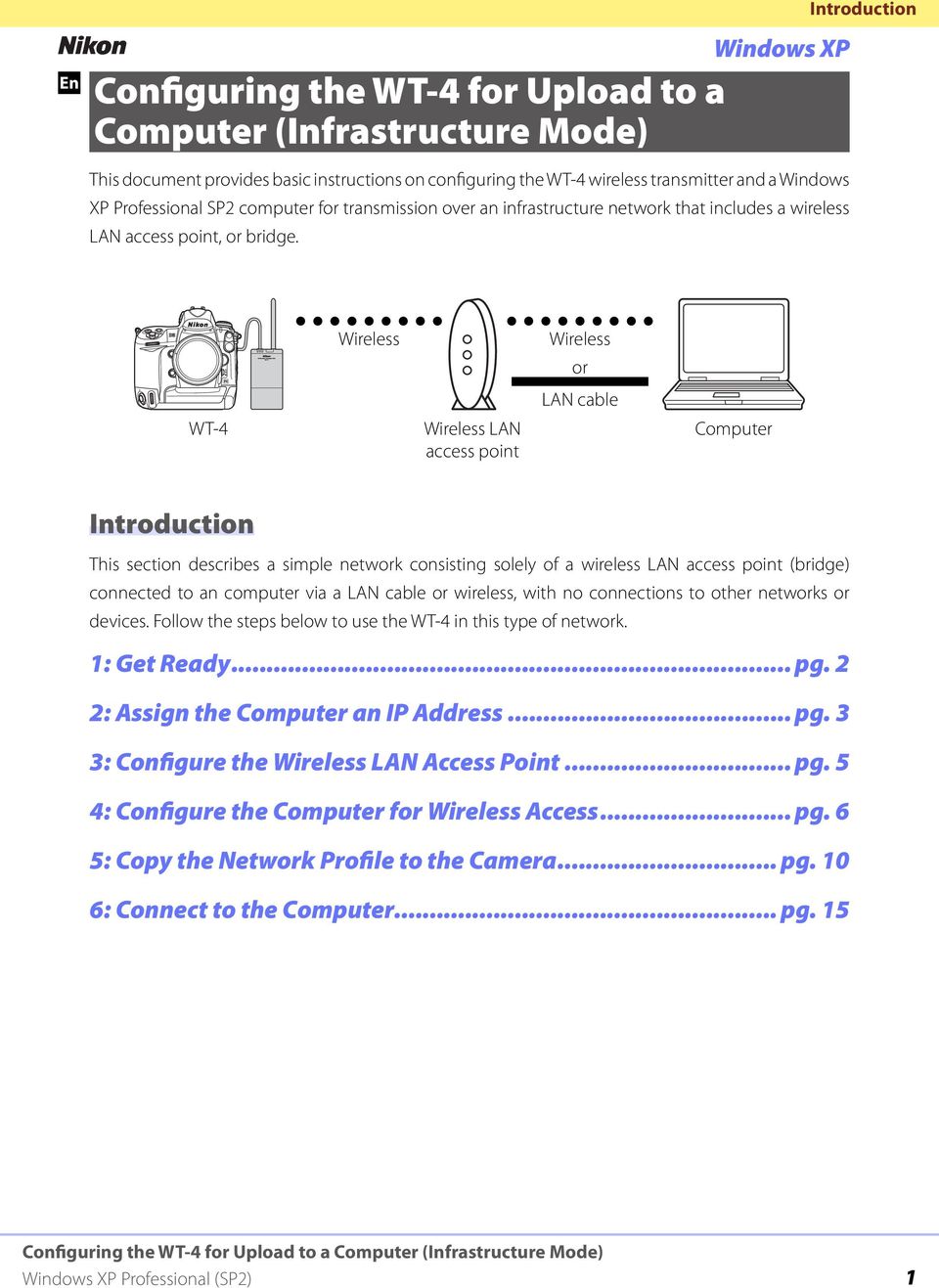
1 En Configuring the WT-4 for Upload to a Computer (Infrastructure Mode) Windows XP This document provides basic instructions on configuring the WT-4 wireless transmitter and a Windows XP Professional SP2 computer for transmission over an infrastructure network that includes a wireless LAN access point, or bridge. Introduction WT-4 Wireless Wireless LAN access point Wireless or LAN cable Computer Introduction This section describes a simple network consisting solely of a wireless LAN access point (bridge) connected to an computer via a LAN cable or wireless, with no connections to other networks or devices. Follow the steps below to use the WT-4 in this type of network. 1: Get Ready... pg. 2 2: Assign the Computer an IP Address... pg. 3 3: Configure the Wireless LAN Access Point... pg. 5 4: Configure the Computer for Wireless Access... pg. 6 5: Copy the Network Profile to the Camera... pg. 10 6: Connect to the Computer... pg. 15 1
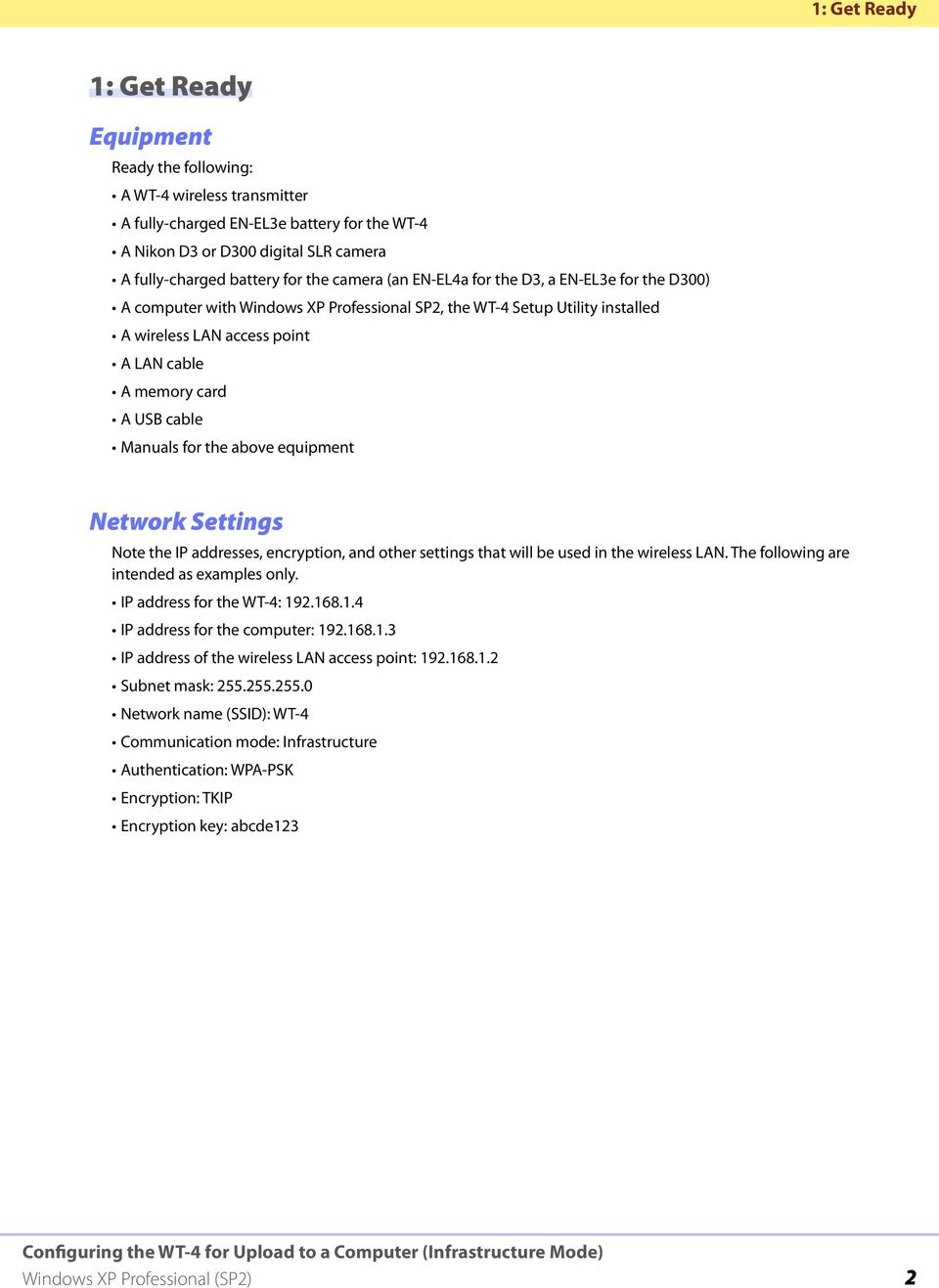
2 1: Get Ready 1: Get Ready Equipment Ready the following: A WT-4 wireless transmitter A fully-charged EN-EL3e battery for the WT-4 A Nikon D3 or D300 digital SLR camera A fully-charged battery for the camera (an EN-EL4a for the D3, a EN-EL3e for the D300) A computer with Windows XP Professional SP2, the WT-4 Setup Utility installed A wireless LAN access point A LAN cable A memory card A USB cable Manuals for the above equipment Network Settings Note the IP addresses, encryption, and other settings that will be used in the wireless LAN. The following are intended as examples only. IP address for the WT-4: IP address for the computer: IP address of the wireless LAN access point: Subnet mask: Network name (SSID): WT-4 Communication mode: Infrastructure Authentication: WPA-PSK Encryption: TKIP Encryption key: abcde123 2
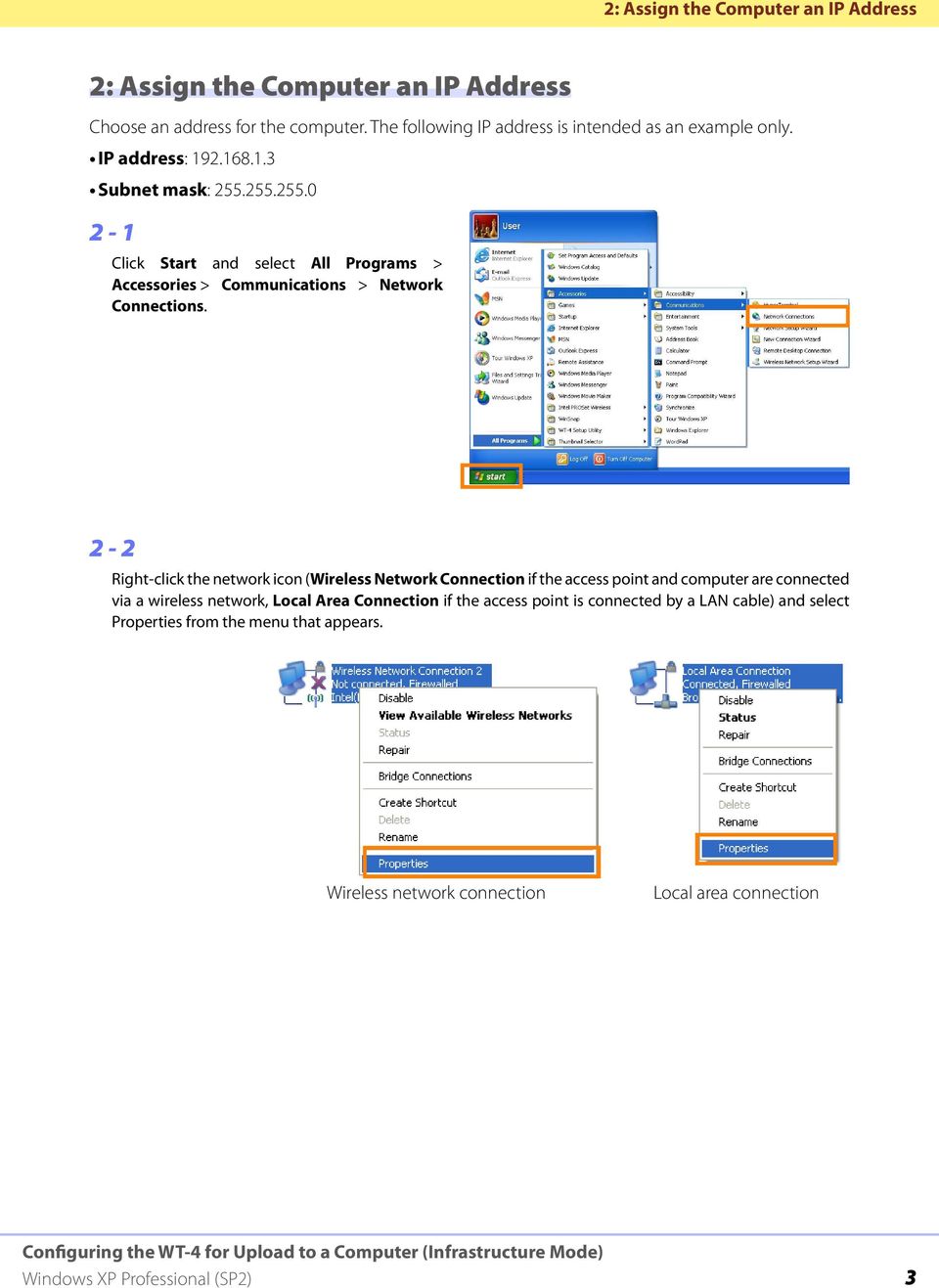
3 2: Assign the Computer an IP Address 2: Assign the Computer an IP Address Choose an address for the computer. The following IP address is intended as an example only. IP address: Subnet mask: Click Start and select All Programs > Accessories > Communications > Network Connections. 2-2 Right-click the network icon (Wireless Network Connection if the access point and computer are connected via a wireless network, Local Area Connection if the access point is connected by a LAN cable) and select Properties from the menu that appears. Wireless network connection Local area connection 3
4 2: Assign the Computer an IP Address 2-3 Select Internet Protocol (TCP/IP) and click Properties. 2-4 Select Use the following IP address and enter the IP address and subnet mask for the computer. Click OK to exit and then click OK to close the properties dialog. This completes the process of assigning an IP address to the computer. 4

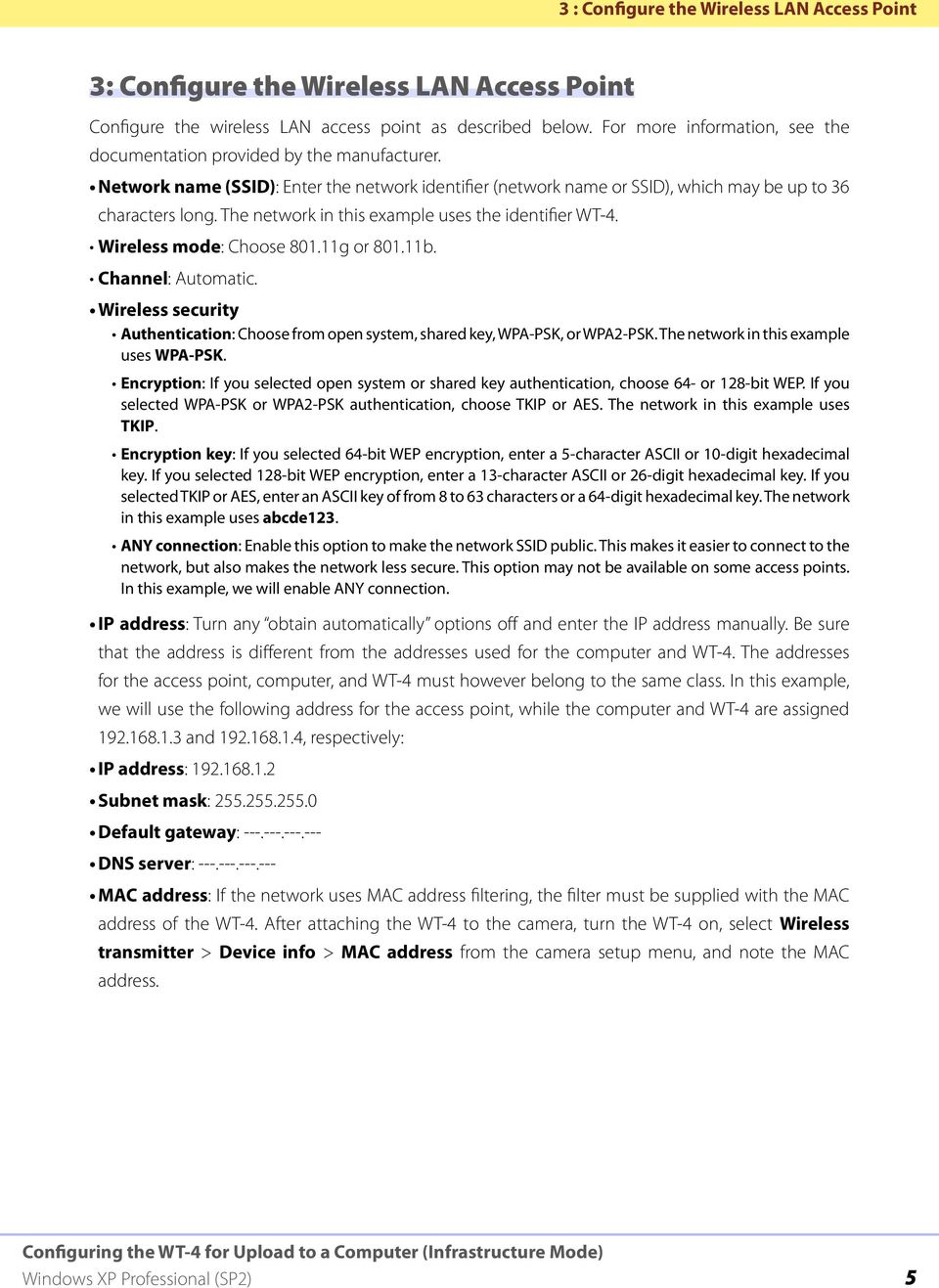
5 3 : Configure the Wireless LAN Access Point 3: Configure the Wireless LAN Access Point Configure the wireless LAN access point as described below. For more information, see the documentation provided by the manufacturer. Network name (SSID): Enter the network identifier (network name or SSID), which may be up to 36 characters long. The network in this example uses the identifier WT-4. Wireless mode: Choose g or b. Channel: Automatic. Wireless security Authentication: Choose from open system, shared key, WPA-PSK, or WPA2-PSK. The network in this example uses WPA-PSK. Encryption: If you selected open system or shared key authentication, choose 64- or 128-bit WEP. If you selected WPA-PSK or WPA2-PSK authentication, choose TKIP or AES. The network in this example uses TKIP. Encryption key: If you selected 64-bit WEP encryption, enter a 5-character ASCII or 10-digit hexadecimal key. If you selected 128-bit WEP encryption, enter a 13-character ASCII or 26-digit hexadecimal key. If you selected TKIP or AES, enter an ASCII key of from 8 to 63 characters or a 64-digit hexadecimal key. The network in this example uses abcde123. ANY connection: Enable this option to make the network SSID public. This makes it easier to connect to the network, but also makes the network less secure. This option may not be available on some access points. In this example, we will enable ANY connection. IP address: Turn any obtain automatically options off and enter the IP address manually. Be sure that the address is different from the addresses used for the computer and WT-4. The addresses for the access point, computer, and WT-4 must however belong to the same class. In this example, we will use the following address for the access point, while the computer and WT-4 are assigned and , respectively: IP address: Subnet mask: Default gateway: DNS server: MAC address: If the network uses MAC address filtering, the filter must be supplied with the MAC address of the WT-4. After attaching the WT-4 to the camera, turn the WT-4 on, select Wireless transmitter > Device info > MAC address from the camera setup menu, and note the MAC address. 5
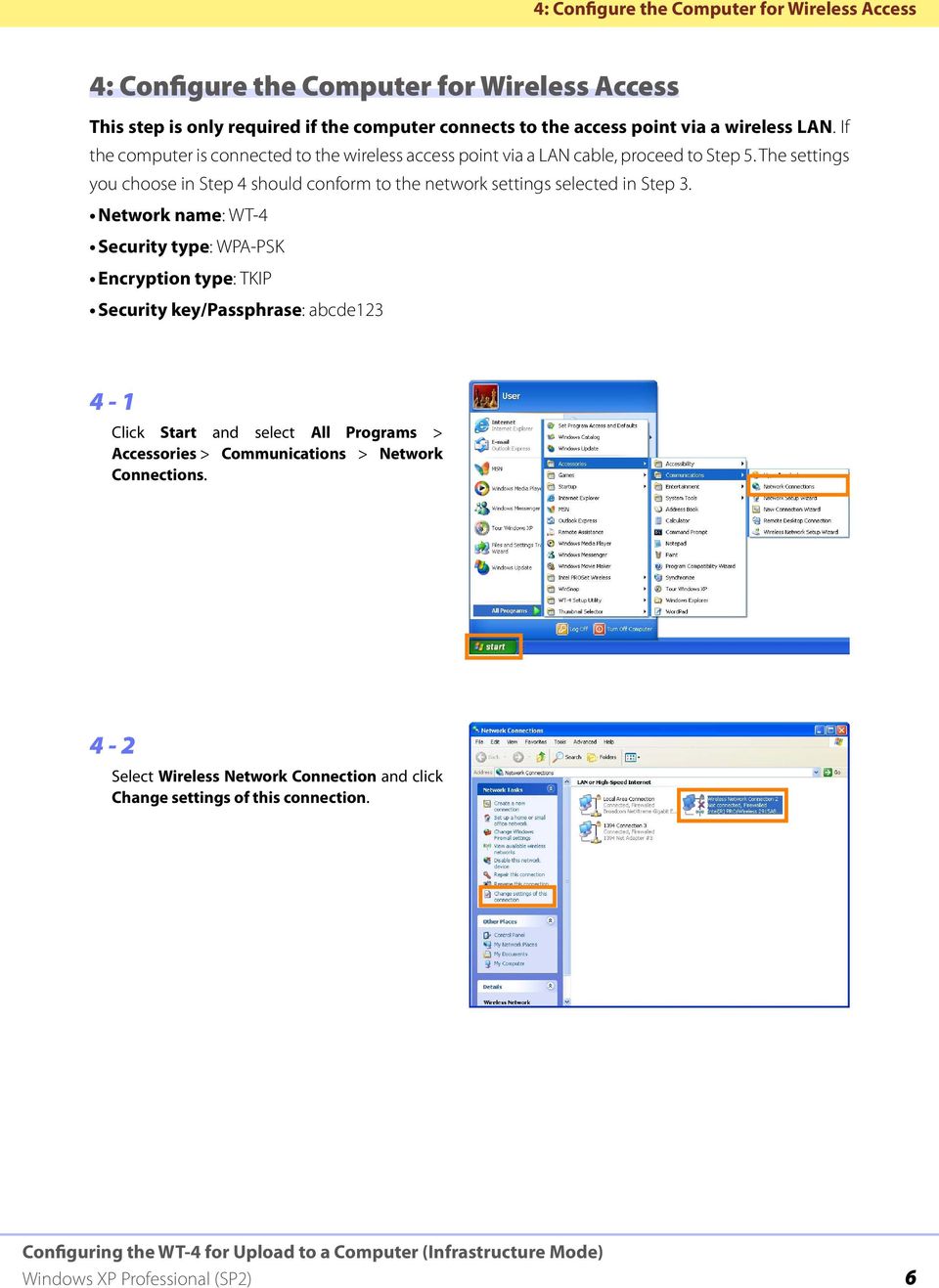
6 4: Configure the Computer for Wireless Access 4: Configure the Computer for Wireless Access This step is only required if the computer connects to the access point via a wireless LAN. If the computer is connected to the wireless access point via a LAN cable, proceed to Step 5. The settings you choose in Step 4 should conform to the network settings selected in Step 3. Network name: WT-4 Security type: WPA-PSK Encryption type: TKIP Security key/passphrase: abcde Click Start and select All Programs > Accessories > Communications > Network Connections. 4-2 Select Wireless Network Connection and click Change settings of this connection. 6
7 4: Configure the Computer for Wireless Access 4-3 Click the Wireless Networks tab. If a third-party wireless connection program is installed, the Wireless Networks tab will not be displayed. Choose authentication, encryption, and a security key as described in the documentation for the wireless LAN adapter. The Wireless Networks tab may also not be displayed if Wireless Network Connection is disabled, or if Wireless Zero Configuration is active in the Performance and Maintenance > Administrative Tools > Services Control Panel. 4-4 Select Use Windows to configure my wireless network settings. 7

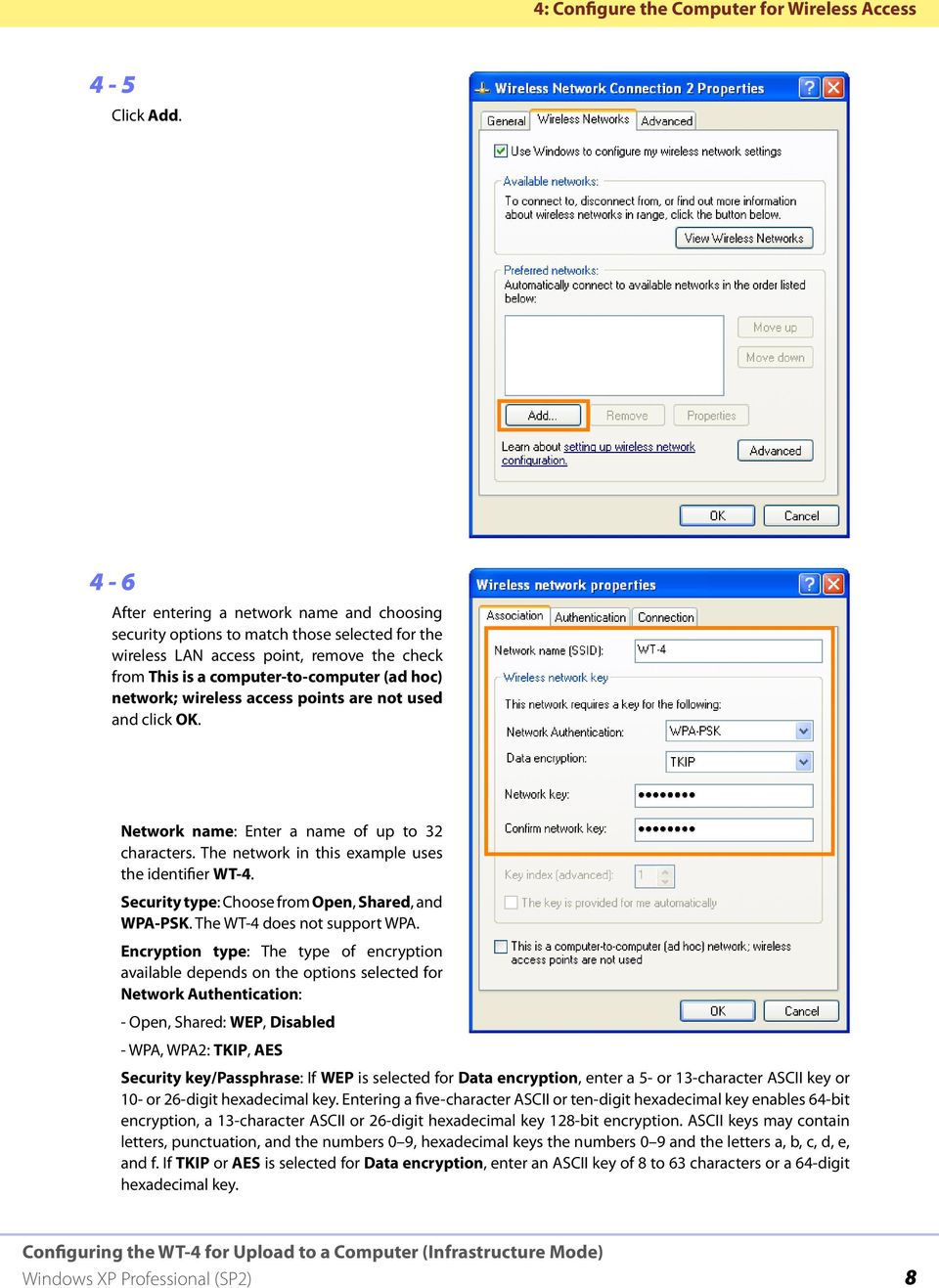
8 4: Configure the Computer for Wireless Access 4-5 Click Add. 4-6 After entering a network name and choosing security options to match those selected for the wireless LAN access point, remove the check from This is a computer-to-computer (ad hoc) network; wireless access points are not used and click OK. Network name: Enter a name of up to 32 characters. The network in this example uses the identifier WT-4. Security type: Choose from Open, Shared, and WPA-PSK. The WT-4 does not support WPA. Encryption type: The type of encryption available depends on the options selected for Network Authentication: - Open, Shared: WEP, Disabled - WPA, WPA2: TKIP, AES Security key/passphrase: If WEP is selected for Data encryption, enter a 5- or 13-character ASCII key or 10- or 26-digit hexadecimal key. Entering a five-character ASCII or ten-digit hexadecimal key enables 64-bit encryption, a 13-character ASCII or 26-digit hexadecimal key 128-bit encryption. ASCII keys may contain letters, punctuation, and the numbers 0 9, hexadecimal keys the numbers 0 9 and the letters a, b, c, d, e, and f. If TKIP or AES is selected for Data encryption, enter an ASCII key of 8 to 63 characters or a 64-digit hexadecimal key. 8
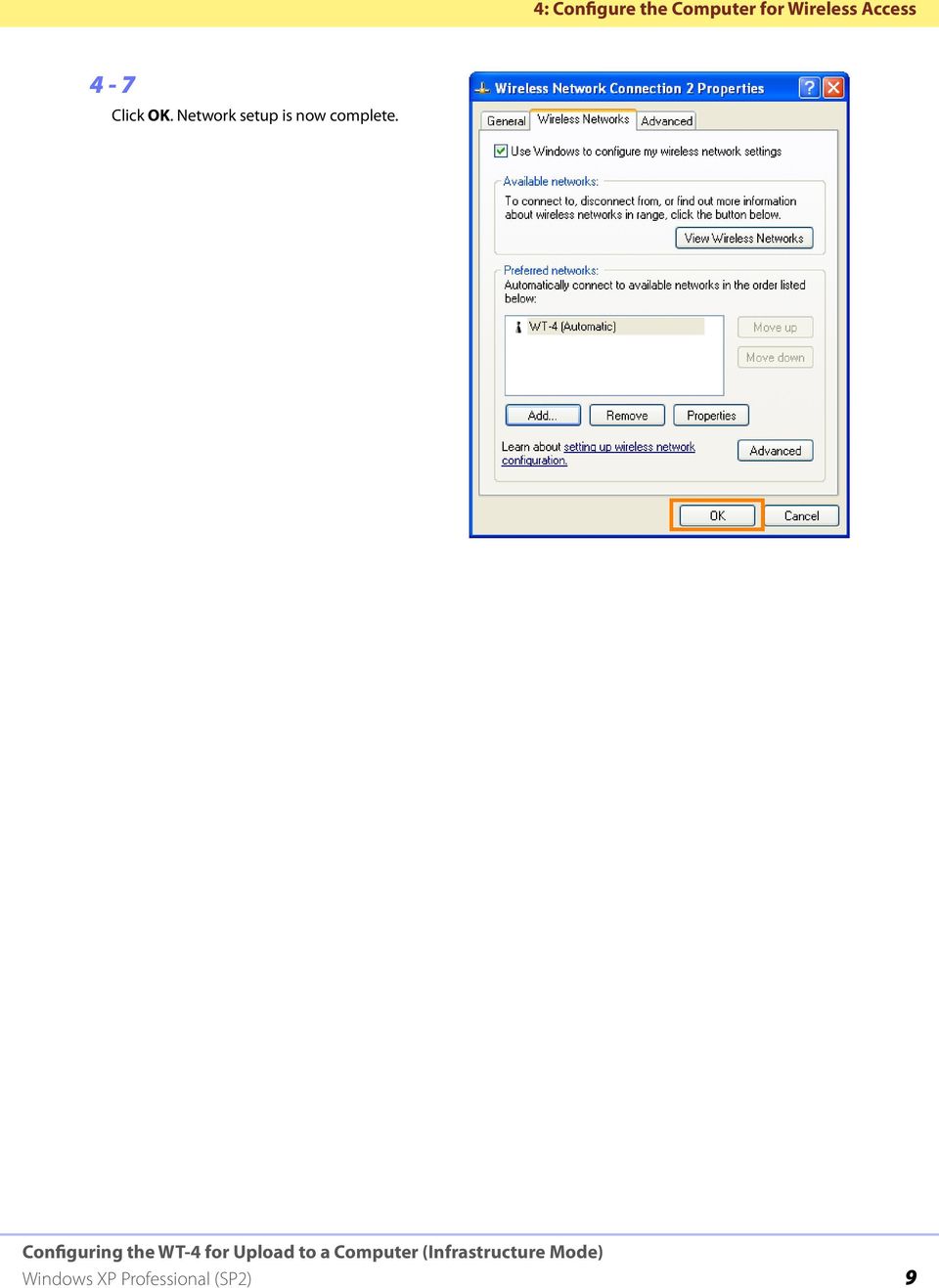
9 4: Configure the Computer for Wireless Access 4-7 Click OK. Network setup is now complete. 9
10 5: Copy the Network Profile to the Camera 5: Copy the Network Profile to the Camera Use the WT-4 setup utility to copy the network profile to the camera. Before proceeding, make sure that MTP/PTP is selected for the USB option in the camera setup menu. 5-1 After starting the computer, use the supplied USB cable to connect the camera and turn the camera on. 5-2 Double-click the WT-4 Setup Utility icon on the desktop. 5-3 The dialog shown below will be displayed; click Next. 10

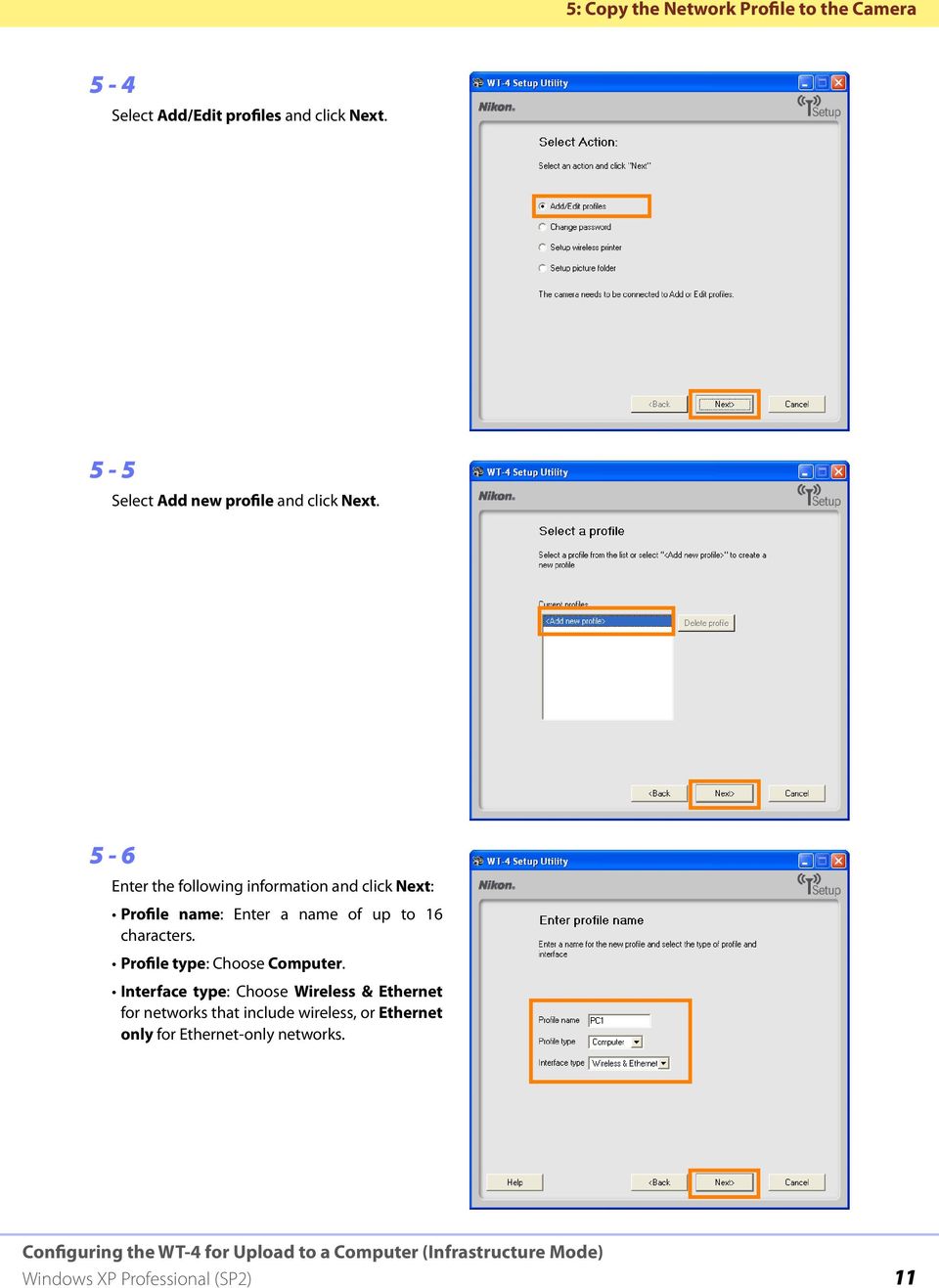
11 5: Copy the Network Profile to the Camera 5-4 Select Add/Edit profiles and click Next. 5-5 Select Add new profile and click Next. 5-6 Enter the following information and click Next: Profile name: Enter a name of up to 16 characters. Profile type: Choose Computer. Interface type: Choose Wireless & Ethernet for networks that include wireless, or Ethernet only for Ethernet-only networks. 11
12 5: Copy the Network Profile to the Camera 5-7 Select Manual setup and click Next. 5-8 Enter the following information and click Next. Network name (SSID): WT-4 Communication mode: Infrastructure Authentication: WPA-PSK Encryption: TKIP Encryption key: abcde123 12

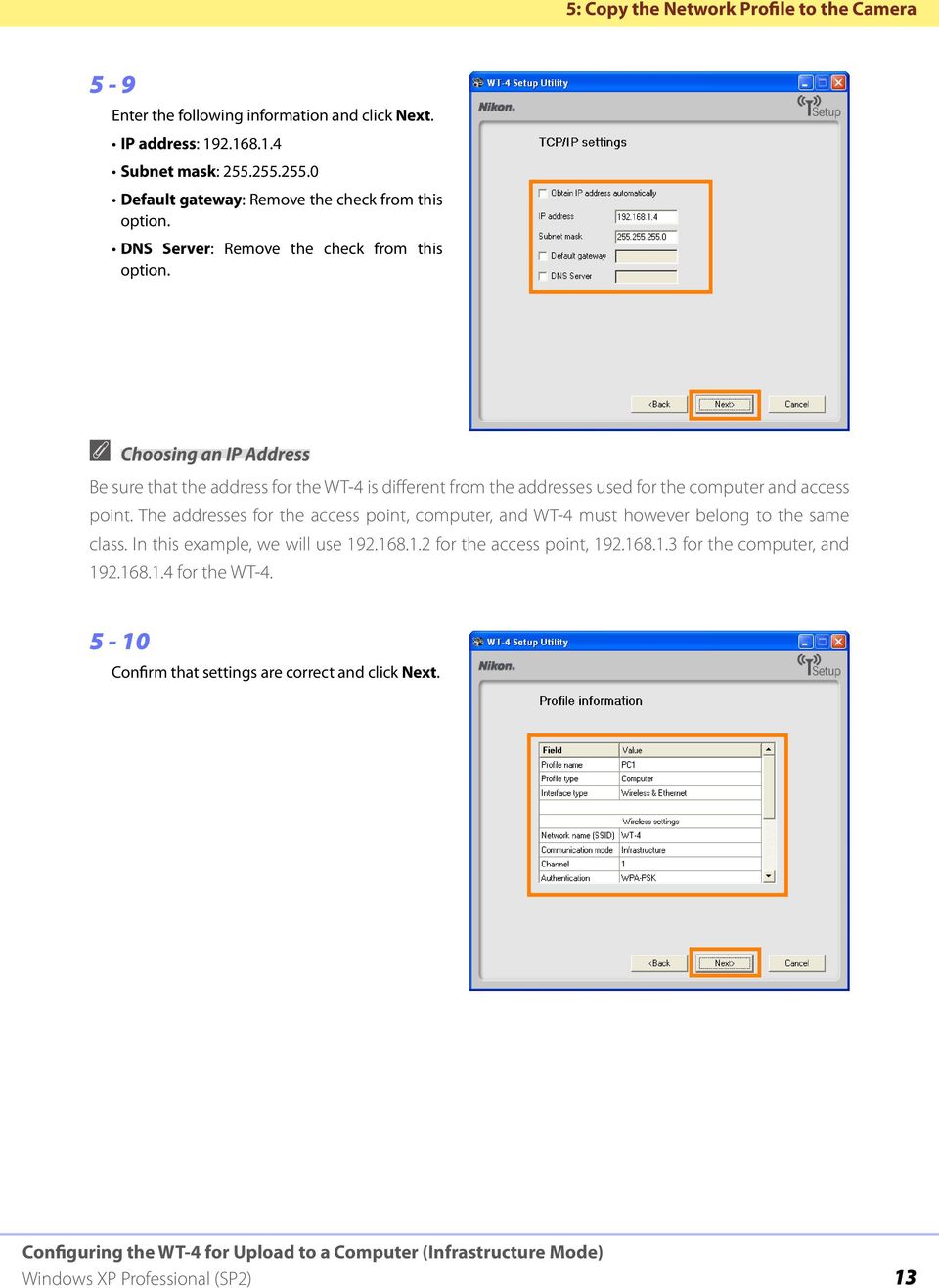
13 5: Copy the Network Profile to the Camera 5-9 Enter the following information and click Next. IP address: Subnet mask: Default gateway: Remove the check from this option. DNS Server: Remove the check from this option. A Choosing an IP Address Be sure that the address for the WT-4 is different from the addresses used for the computer and access point. The addresses for the access point, computer, and WT-4 must however belong to the same class. In this example, we will use for the access point, for the computer, and for the WT Confirm that settings are correct and click Next. 13
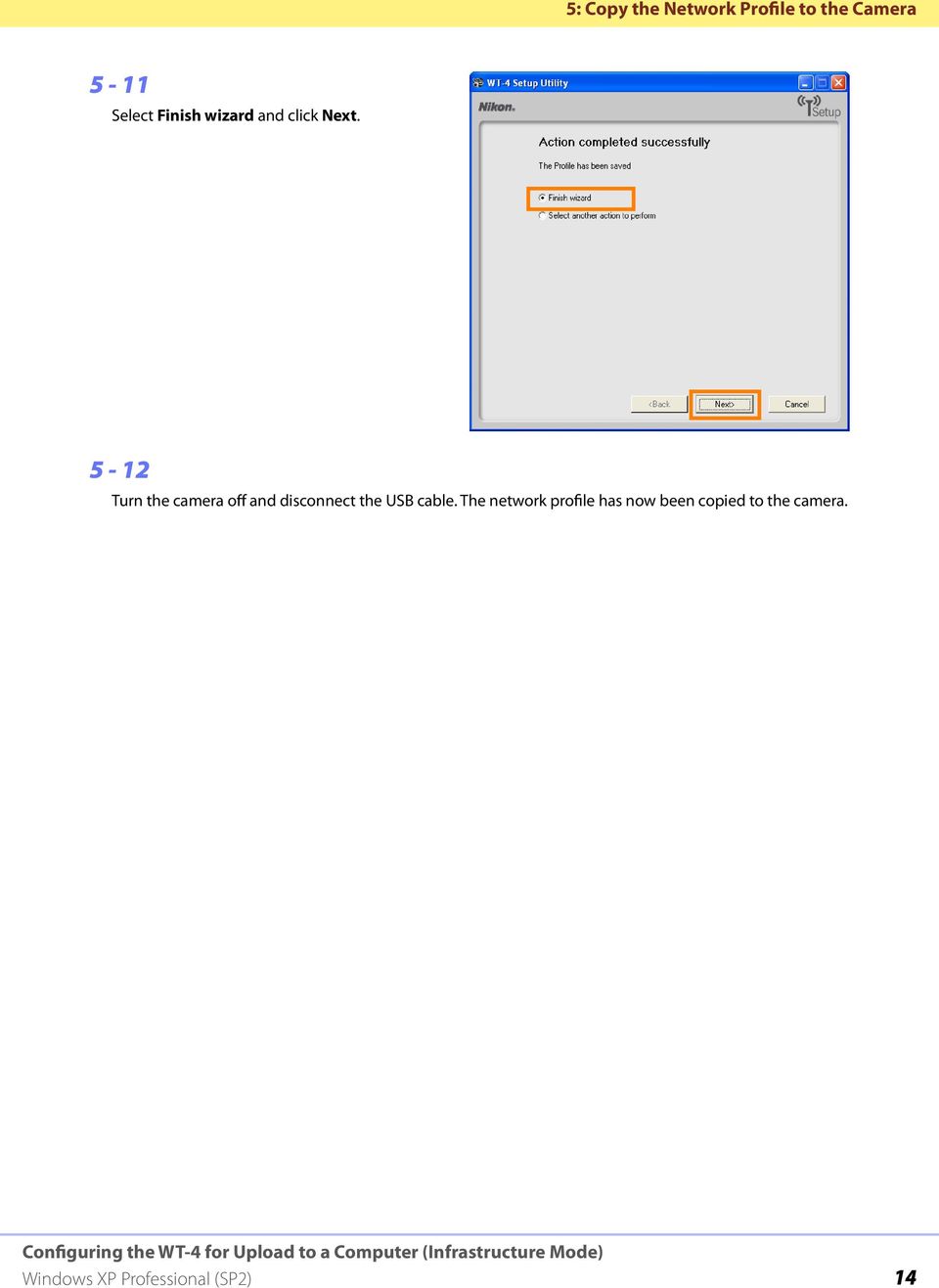
14 5: Copy the Network Profile to the Camera 5-11 Select Finish wizard and click Next Turn the camera off and disconnect the USB cable. The network profile has now been copied to the camera. 14
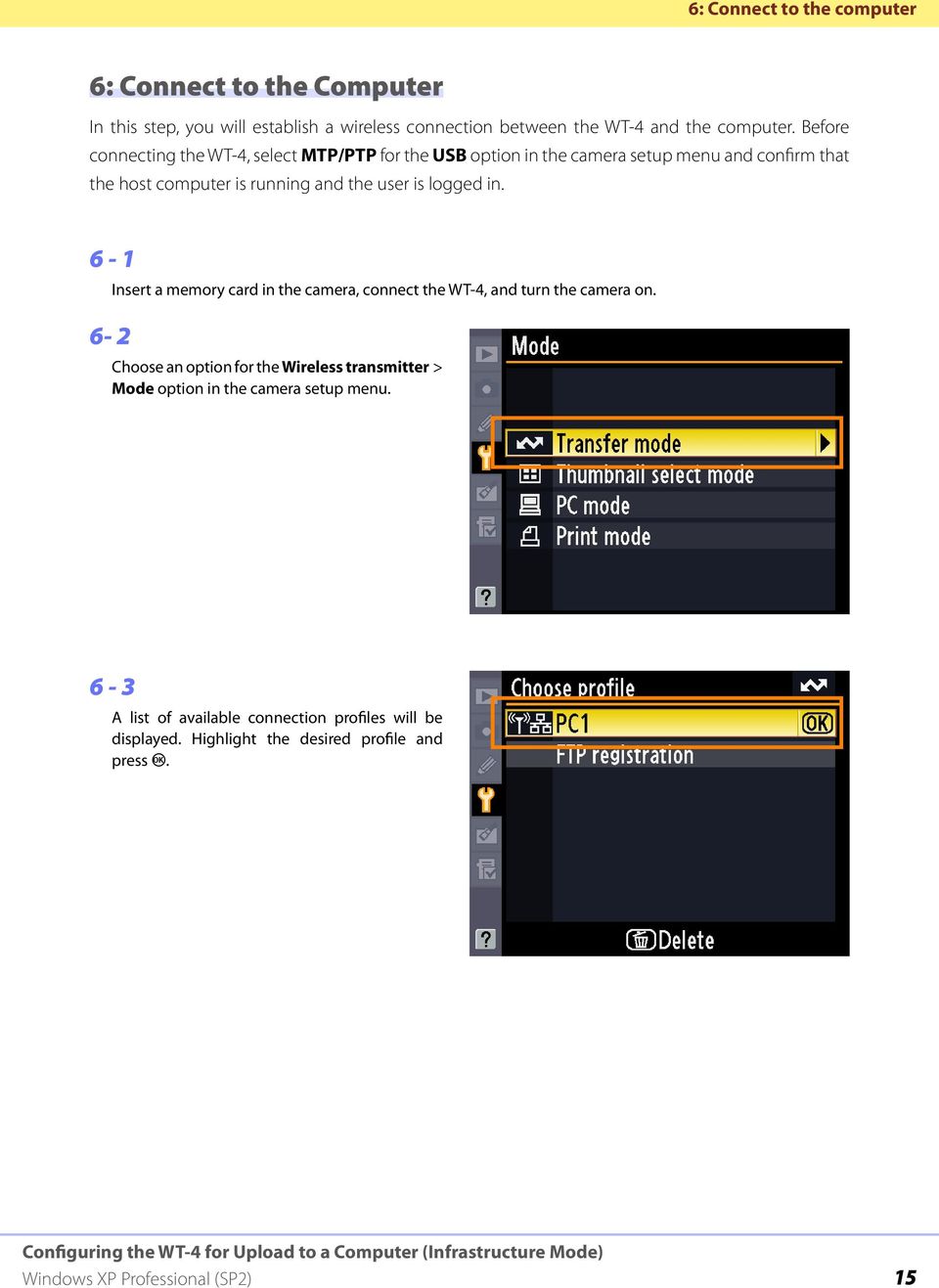
15 6: Connect to the computer 6: Connect to the Computer In this step, you will establish a wireless connection between the WT-4 and the computer. Before connecting the WT-4, select MTP/PTP for the USB option in the camera setup menu and confirm that the host computer is running and the user is logged in Insert a memory card in the camera, connect the WT-4, and turn the camera on. Choose an option for the Wireless transmitter > Mode option in the camera setup menu. 6-3 A list of available connection profiles will be displayed. Highlight the desired profile and press J. 15
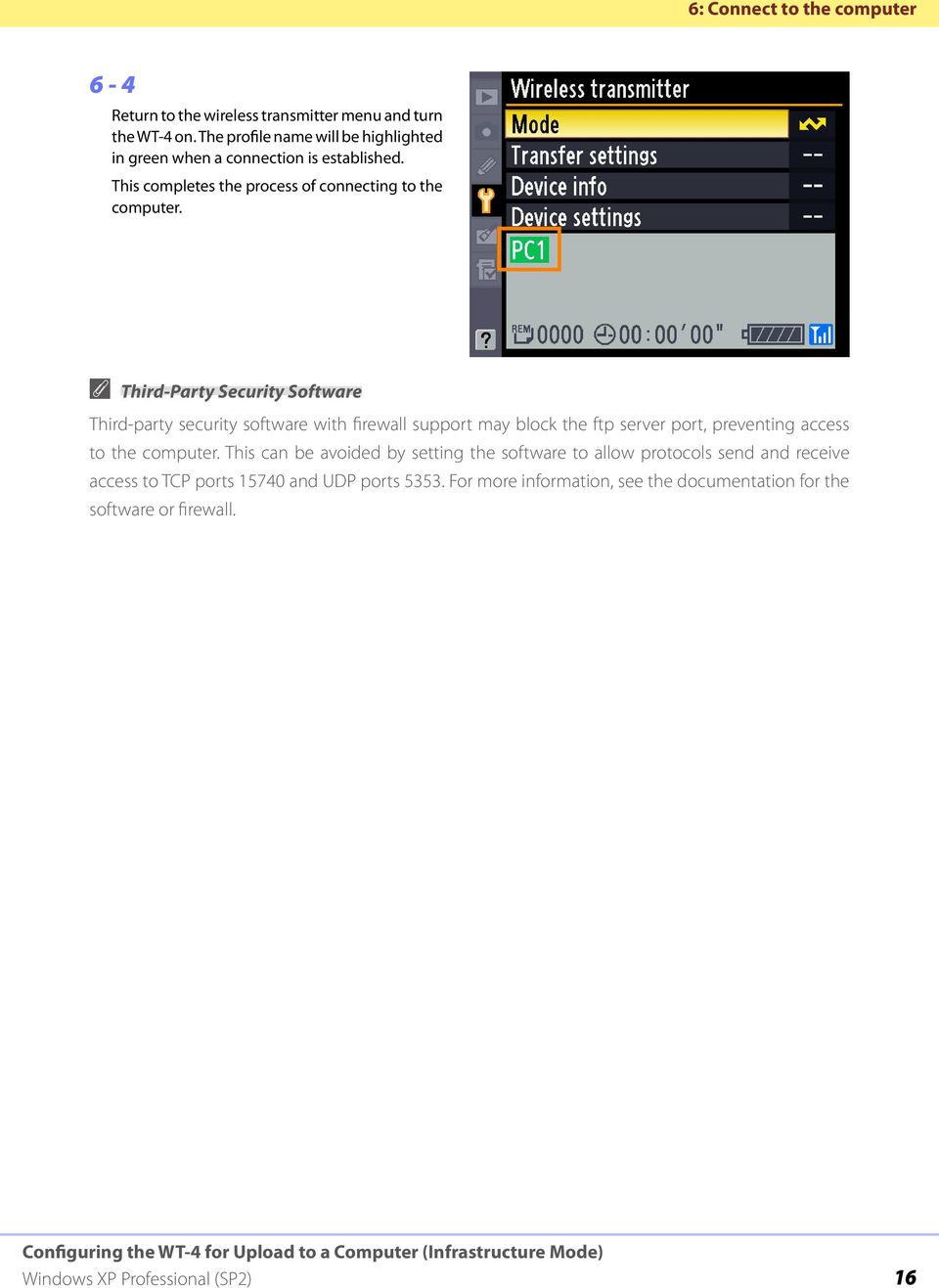
16 6: Connect to the computer 6-4 Return to the wireless transmitter menu and turn the WT-4 on. The profile name will be highlighted in green when a connection is established. This completes the process of connecting to the computer. A Third-Party Security Software Third-party security software with firewall support may block the ftp server port, preventing access to the computer. This can be avoided by setting the software to allow protocols send and receive access to TCP ports and UDP ports For more information, see the documentation for the software or firewall. 16
Configuring the WT-4 for Upload to a Computer (Ad-hoc Mode)
 En Configuring the WT-4 for Upload to a Computer (Ad-hoc Mode) Windows XP This document provides basic instructions on configuring the WT-4 wireless transmitter and a Windows XP Professional SP2 computer
Configuring the WT-4 for Upload to a Computer (Infrastructure Mode)
 Page 1 of 25 Configuring the WT-4 for Upload to a Computer (Infrastructure Mode) Windows 7 Configuring the WT-4 for Upload to a Computer (Infrastructure Mode) This document provides basic instructions
Configuring the WT-4 for Upload to a Computer (Ad-hoc Mode)
 En Configuring the WT-4 for Upload to a Computer (Ad-hoc Mode) This document provides basic instructions on configuring the WT-4 wireless transmitter and a computer for transmission over an ad-hoc (peer-to-peer)
Configuring the WT-4 for Upload to a Computer (Infrastructure Mode)
 Introduction En Configuring the WT-4 for Upload to a Computer (Infrastructure Mode) This document provides basic instructions on configuring the WT-4 wireless transmitter and a computer for transmission
Configuring the WT-4 for ftp (Ad-hoc Mode)
 En Configuring the WT-4 for ftp (Ad-hoc Mode) Windows XP Introduction This document provides basic instructions on configuring the WT-4 wireless transmitter and a Windows XP Professional SP2 ftp server
Configuring the WT-4 for ftp (Infrastructure Mode)
 Introduction En Configuring the WT-4 for ftp (Infrastructure Mode) This document provides basic instructions on configuring the WT-4 wireless transmitter and a ftp server for transmission over an infrastructure
Configuring the WT-4 for ftp (Ad-hoc Mode)
 En Configuring the WT-4 for ftp (Ad-hoc Mode) Mac OS X Introduction This document provides basic instructions on configuring the WT-4 wireless transmitter and a Mac OS X (10.5.2) ftp server for transmission
Step-by-Step Setup Guide Wireless File Transmitter FTP Mode
 EOS Step-by-Step Setup Guide Wireless File Transmitter FTP Mode Infrastructure Setup Windows XP 2012 Canon U.S.A., Inc. All Rights Reserved. Reproduction in whole or in part without permission is prohibited.
Step-by-Step Setup Guide Wireless File Transmitter FTP Mode
 EOS Step-by-Step Setup Guide Wireless File Transmitter FTP Mode Ad Hoc Setup Windows XP 2012 Canon U.S.A., Inc. All Rights Reserved. Reproduction in whole or in part without permission is prohibited. 1
Step-by-Step Setup Guide Wireless File Transmitter FTP Mode
 EOS Step-by-Step Setup Guide Wireless File Transmitter FTP Mode Ad Hoc Network Windows 7 2012 Canon U.S.A., Inc. All Rights Reserved. Reproduction in whole or in part without permission is prohibited.
Preparing the Computers for TCP/IP Networking
 Configuration Preparing the Computers for TCP/IP Networking Configuring Windows 98, and ME for TCP/IP Networking Verifying TCP/IP Properties Configuring Windows 2000 or XP for IP Networking Install or
Step-by-Step Setup Guide Wireless File Transmitter
 EOS Step-by-Step Setup Guide Wireless File Transmitter EOS UTility Mode Infrastructure or Ad Hoc Networks Windows XP / Windows 7 Professional 2012 Canon U.S.A., Inc. All Rights Reserved. Reproduction in
2 Setting Up the Hardware for a Wired Ethernet Network... 13. 3 Setting Up the Software for an Ethernet Network... 21
 Contents 1 Networking Basics............................................... 1 Selecting a network connection........................................ 2 Wired Ethernet network...........................................
1 Upload existing photos and movies
 Network Guide En What Networks Can Do for You This manual describes how to connect to a network, access the camera remotely, and upload images to computers and ftp servers over Ethernet connections. Once
Networking. General networking. Networking overview. Common home network configurations. Wired network example. Wireless network examples
 Networking General networking Networking overview A network is a collection of devices such as computers, printers, Ethernet hubs, wireless access points, and routers connected together for communication
Step-by-Step Setup Guide Wireless File Transmitter FTP Mode
 EOS Step-by-Step Setup Guide Wireless File Transmitter FTP Mode Infrastructure & Ad Hoc Networks Mac OS X 10.5-10.6 2012 Canon U.S.A., Inc. All Rights Reserved. Reproduction in whole or in part without
The Wireless LAN (Local Area Network) USB adapter can be operated in one of the two following networking configurations :
 SAGEM Wi-Fi 11g USB ADAPTER Quick Start Guide About this guide This Quick Start Guide describes how to install and operate your SAGEM Wi-Fi 11g USB ADAPTER. Please read this manual before you install the
Step-by-Step Setup Guide Wireless File Transmitter FTP Mode
 EOS Step-by-Step Setup Guide Wireless File Transmitter FTP Mode Infrastructure Setup Windows 7 2012 Canon U.S.A., Inc. All Rights Reserved. Reproduction in whole or in part without permission is prohibited.
How To Set Up Wireless Network Security Part 1: WEP Part 2: WPA-PSK Part 3-1: RADIUS Server Installation Part 3-2: 802.1x-TLS Part 3-3: WPA
 How To Set Up Wireless Network Security Part 1: WEP Part 2: WPA-PSK Part 3-1: RADIUS Server Installation Part 3-2: 802.1x-TLS Part 3-3: WPA You can secure your wireless connection using one of the methods
Using the Control Panel for Wireless Network Installation. WorkForce 600 Series Artisan 700 Series
 Using the Control Panel for Wireless Network Installation WorkForce 600 Series Artisan 700 Series Before You Begin Make sure you installed ink cartridges and loaded paper in the printer as described on
DATA PROJECTOR XJ-A135/XJ-A145/XJ-A235/ XJ-A245
 DATA PROJECTOR XJ-A135/XJ-A145/XJ-A235/ XJ-A245 E Data Projector Wireless Function Guide Be sure to read the precautions in the User s Guide (Basic Operations) that comes with the Data Projector. Be sure
SOHO 6 Wireless Installation Procedure Windows 95/98/ME with Internet Explorer 5.x & 6.0
 SOHO 6 Wireless Installation Procedure Windows 95/98/ME with Internet Explorer 5.x & 6.0 Before You Begin Before you install the SOHO 6 Wireless, you must have: A computer with a 10/100BaseT Ethernet card
HW550-3G. 3G Mobile Broadband plus 4-Port Wireless-N Router
 HW550-3G 3G Mobile Broadband plus 4-Port Wireless-N Router Table of Contents About the Product...4 Features...5 Requirements...6 Package Content...7 Device Design...8 Getting Started...11 Plan Your Network...12
Easy Setup Guide for the Sony Network Camera
 -878-191-11 (1) Easy Setup Guide for the Sony Network Camera For setup, a computer running the Microsoft Windows Operating System is required. For monitoring camera images, Microsoft Internet Explorer
DATA PROJECTOR XJ-A146/XJ-A246/XJ-A256
 DATA PROJECTOR XJ-A146/XJ-A246/XJ-A256 E Data Projector Wireless Function Guide Be sure to read the precautions in the Setup Guide that comes with the Data Projector. Be sure to keep all user documentation
NBG2105. User s Guide. Quick Start Guide. Wireless Mini Travel Router. Default Login Details. Version 1.00 Edition 1, 11/2012
 NBG2105 Wireless Mini Travel Router Version 1.00 Edition 1, 11/2012 Quick Start Guide User s Guide LAN IP Address Default Login Details 192.168.1.1 (Router Mode) 192.168.1.2 (Other Modes) Passwordwww.zyxel.com
The following sections describe the Gateway configuration pages in the SBG1000 Setup Program.
 Configuration Gateway > WAN Page Gateway: LAN nat config Page Gateway: LAN dhcp server config Page Gateway LOG Page Preparing the Network Preparing the Computers for TCP/IP Networking Configuring TCP/IP
A Division of Cisco Systems, Inc. GHz 2.4 802.11g. Wireless-G. PCI Adapter with RangeBooster. User Guide WIRELESS WMP54GR. Model No.
 A Division of Cisco Systems, Inc. GHz 2.4 802.11g WIRELESS Wireless-G PCI Adapter with RangeBooster User Guide Model No. WMP54GR Copyright and Trademarks Specifications are subject to change without notice.
Setting up a SQ20xx WIFI and Laptop for a Peer-to-peer (Ad-hoc) connection
 Setting up a SQ20xx WIFI and Laptop for a Peer-to-peer (Ad-hoc) connection Setting up the logger for a Peer-to-peer (Ad-hoc) connection The SQ20xx WIFI needs to be powered by an external supply. Connect
1-Port Wireless USB 2.0 Print Server Model # APSUSB201W. Quick Installation Guide. Ver. 2A
 1-Port Wireless USB 2.0 Print Server Model # APSUSB201W Quick Installation Guide Ver. 2A Section 1 Step 1Connect one end of the Ethernet cable to the RJ-45 port of the Print Server and attach the other
TECH BULLETIN NETGEN1 DOOR CONTROLLER WI-FI NETWORK CONFIG
 TECH BULLETIN NETGEN1 DOOR CONTROLLER WI-FI NETWORK CONFIG February 12, 2008 The factory default network configuration for BlueWave Security s Wi-Fi NetGen1 door controllers is a dynamic DHCP IP address,
Wireless-N. User Guide. PCI Adapter WMP300N (EU) WIRELESS. Model No.
 2,4 GHz WIRELESS Wireless-N PCI Adapter User Guide Model No. WMP300N (EU) Copyright and Trademarks Specifications are subject to change without notice. Linksys is a registered trademark or trademark of
How to configure your Thomson SpeedTouch 780WL for ADSL2+
 How to configure your Thomson SpeedTouch 780WL for ADSL2+ Connecting up your router This guide assumes that you have successfully: unpacked your router connected it up to your phone socket using the DSL
WUA-0605 300Mbps Wireless USB Network Adapter
 WUA-0605 300Mbps Wireless USB Network Adapter User Manual V1.0 Certification FCC CE FCC Statement This equipment has been tested and found to comply with the limits for a Class B digital device, pursuant
Step-by-Step Setup Guide Wireless File Transmitter
 EOS Step-by-Step Setup Guide Wireless File Transmitter Server Mode Infrastructure & Ad Hoc Networks for Apple ios Devices 2012 Canon U.S.A., Inc. All Rights Reserved. Reproduction in whole or in part without
Self Help Guide IMPORTANT! F5D7330 - Setting Up An Ad Hoc Connection. Please read the following carefully;
 IMPORTANT! This Guide refers to the following Products: F5D7330 - Setting Up An Ad Hoc Connection Please read the following carefully; Synopsis: This guide is designed to assist in you in forming an ad
Step-by-Step Setup Guide Wireless File Transmitter
 EOS Step-by-Step Setup Guide Wireless File Transmitter Server Mode Infrastructure & Ad Hoc Networks Macintosh OS X 10.5-10.6 2012 Canon U.S.A., Inc. All Rights Reserved. Reproduction in whole or in part
WRE6505. User s Guide. Quick Start Guide. Wireless AC750 Range Extender. Default Login Details. Version 1.00 Edition 1, 4 2014
 WRE6505 Wireless AC750 Range Extender Version 1.00 Edition 1, 4 2014 2.4G 5G Quick Start Guide User s Guide Default Login Details LAN IP Address 192.168.1.2 User Name admin www.zyxel.com Password 1234
Detective. Family. HPGe-Based Portable Nuclide Identifiers. Wireless Remote Operation With SOTI s Pocket Controller Software
 Detective Family HPGe-Based Portable Nuclide Identifiers Wireless Remote Operation With SOTI s Pocket Controller Software This document tells how to set up the Detective-EX/DX, Micro-Detective, Micro-trans-SPEC,
Using the Nikon D2H WiFi camera over BGAN
 Using the Nikon D2H WiFi camera over BGAN Version 1 6 June 2008 inmarsat.com/bgan Whilst the information has been prepared by Inmarsat in good faith, and all reasonable efforts have been made to ensure
Network Installation Guide. WorkForce 600 Series Artisan 700 Series Artisan 800 Series
 Network Installation Guide WorkForce 600 Series Artisan 700 Series Artisan 800 Series Before You Begin Make sure you installed ink cartridges and loaded paper as described on the Start Here poster. Then
TECHNICAL BULLETIN. Configuring Wireless Settings in an i-stat 1 Wireless Analyzer
 i-stat TECHNICAL BULLETIN Configuring Wireless Settings in an i-stat 1 Wireless Analyzer Before configuring wireless settings, please enable the wireless functionality by referring to the Technical Bulletin
N600 WiFi USB Adapter
 Model WNDA3100v3 User Manual December 2014 202-11470-01 350 East Plumeria Drive San Jose, CA 95134 USA Support Thank you for selecting NETGEAR products. After installing your device, locate the serial
SATO Network Interface Card Configuration Instructions
 SATO Network Interface Card Configuration Instructions Table of Contents 1. Reset of wired/wireless interface card... 3 2. Installing the All-In-One Utility (recommended)... 4 3. Configuring wired/wireless
EnGenius ERB9250 300M Range Extender. Quick Start Guide
 EnGenius ERB9250 300M Range Extender Quick Start Guide Package Contents One ERB9250 300M Range Extender One 12V/1A power adapter Two 2dBi 2.4GHz SMA antennas One Ethernet cable One CD-ROM with user s manual
Wireless Client Configuration Guide. for third-party wireless Ethernet adapters
 Wireless Client Configuration Guide for third-party wireless Ethernet adapters Notice to Users 2002 2Wire, Inc. All rights reserved. This manual in whole or in part, may not be reproduced, translated,
Network Installation Guide. WorkForce 610 Series Artisan 710 Series
 Network Installation Guide WorkForce 610 Series Artisan 710 Series Contents Before You Begin.......................................... 3 Choose Your Connection Type................................ 4 Wireless.............................................
WebSTAR Model DPW700 PCMCIA Wireless LAN Card and WebSTAR Model DPW730 USB Wireless Adapter User s Guide
 WebSTAR Model DPW700 PCMCIA Wireless LAN Card and WebSTAR Model DPW730 USB Wireless Adapter User s Guide Introduction Are you tired of tripping over or fumbling with countless computer wires? The solution
Network Installation Guide. Artisan 810 Series
 Network Installation Guide Artisan 810 Series Before You Begin Make sure you installed ink cartridges and loaded paper as described on the Start Here sheet. Then follow the instructions in this guide to
Canon WFT-E1 (A) Wireless File Transmitter. Network Support Guide
 1 Canon WFT-E1 (A) Wireless File Transmitter Network Support Guide Windows XP - Infrastructure Wireless Mode Connection 2 Setting up the WFT-E1A on Windows XP Home or Professional Infrastructure Wireless
Creating an Ad hoc Network in Windows XP
 Creating an Ad hoc Network in Windows XP Building an ad hoc 802.11b/g wireless network using the graphical user interface (GUI) in Windows XP takes just a few minutes. Because it's powered by wireless
Network Installation Guide
 Network Installation Guide Before You Begin Make sure you installed ink cartridges and loaded paper as described on the Start Here sheet. Then follow the instructions in this guide to set up the printer
A6210 WiFi USB Adapter 802.11ac USB 3.0 Dual Band User Manual
 802.11ac USB 3.0 Dual Band User Manual August 2014 202-11373-01 350 East Plumeria Drive San Jose, CA 95134 USA Support Thank you for selecting NETGEAR products. After installing your device, locate the
Motorola AP-5131 Access Point Quick Setup Guide
 Motorola AP-5131 Access Point Quick Setup Guide Ishida / Rice Lake Wireless Communications P/N 109422 Getting Started 1. These instructions were written for the AP-5131 using firmware version 1.1.0.0-045R.
Movie Cube. User s Guide to Wireless Function
 Movie Cube User s Guide to Wireless Function Table of Contents 1. WLAN USB Adapter Connection...3 2. Wireless Setup...4 2.1 Infrastructure (AP)...5 2.2 Peer to Peer (Ad Hoc)...7 2.3 Settings for PC...8
A Division of Cisco Systems, Inc. GHz 2.4 802.11g. Wireless-G. USB Network Adapter with RangeBooster. User Guide WIRELESS WUSB54GR. Model No.
 A Division of Cisco Systems, Inc. GHz 2.4 802.11g WIRELESS Wireless-G USB Network Adapter with RangeBooster User Guide Model No. WUSB54GR Copyright and Trademarks Specifications are subject to change without
Ralink Utility User Guide/PC/MAC
 /PC/MAC Connecting through Ralink Utility Before you can access the Ralink Utility, please connect the Powerlink USB adapter to your computer, and disable your previous WiFi adapter which is built-in on
MFC7840W Windows Network Connection Repair Instructions
 Difficulty printing from your PC can occur for various reasons. The most common reason a networked Brother machine may stop printing, is because the connection between the computer and the Brother machine
A Division of Cisco Systems, Inc. GHz 2.4 802.11g. Wireless-G. PCI Adapter. User Guide WIRELESS WMP54G. Model No.
 A Division of Cisco Systems, Inc. GHz 2.4 802.11g WIRELESS Wireless-G PCI Adapter User Guide Model No. WMP54G Copyright and Trademarks Specifications are subject to change without notice. Linksys is a
Network Interface Table of Contents
 User Manual Network Interface Rev. 1.05 SLP-TX400 / TX400E SLP-TX403 / TX403E SLP-TX420 / TX420E SLP-TX423 / TX423E SLP-TX220 / TX220E SLP-TX223 / TX223E SLP-DX420 / DX420E SLP-DX423 / DX423E SLP-DX220
Wireless USB Adapter
 Wireless USB Adapter User s Manual 1 Table of Contents USER S MANUAL... 1 WELCOME... 3 PACKAGE CONTENTS... 3 WIRELESS USB ADAPTER OVERVIEW... 4 INTERFACE... 4 LED DESCRIPTION... 4 WPS BUTTON... 4 WIRELESS
NETWORK USER S GUIDE. Multi-Protocol On-board Ethernet Multi-function Print Server and Wireless Ethernet Multi-function Print Server
 Multi-Protocol On-board Ethernet Multi-function Print Server and Wireless Ethernet Multi-function Print Server NETWORK USER S GUIDE This Network User's Guide provides useful information of wired and wireless
Wi-Fi Settings Guide. Model No. SP 212/SP 213 Series
 Wi-Fi Settings Guide Model No. SP 212/SP 213 Series Introduction There are two wireless LAN modes: infrastructure mode for connection through an access point and ad-hoc mode for establishing direct connection
STEP III: Enable the Wireless Network Card
 How do I configure the wireless printer without a network cable and install the printer driver in Macintosh OS X? NOTE: For successful wireless setup, you MUST know your network security settings. STEP
Wireless-G Business PCI Adapter with RangeBooster
 Wireless-G Business PCI Adapter with RangeBooster USER GUIDE BUSINESS SERIES Model No. WMP200 Wireless Model Model No. No. Copyright and Trademarks Specifications are subject to change without notice.
N300 WiFi Range Extender WN2000RPT User Manual
 N300 WiFi Range Extender WN2000RPT User Manual December 2013 202-11333-01 350 East Plumeria Drive San Jose, CA 95134 USA Support Thank you for selecting NETGEAR products. After installing your device,
Check Your Package Contents. CD-ROM containing Manual and Warranty
 This product can be set up using any current web browser, i.e., Internet Explorer 6 or Netscape Navigator 6.2.3. DVA-G3340S Wireless VoIP Router Before You Begin If you purchased this Router to share your
Quick Start Guide. WRV210 Wireless-G VPN Router with RangeBooster. Cisco Small Business
 Quick Start Guide Cisco Small Business WRV210 Wireless-G VPN Router with RangeBooster Package Contents WRV210 Router Ethernet Cable Power Adapter Product CD-ROM Quick Start Guide Welcome Thank you for
Wireless LAN 802.11g USB Adapter
 Wireless LAN 802.11g USB Adapter User s Guide Version 1.0 User s Guide 0 Copyright statement No part of this publication may be reproduced, stored in a retrieval system, or transmitted in any form or by
C54RU Conceptronic Wireless 54Mbps USB Adapter Manual
 C54RU Conceptronic Wireless 54Mbps USB Adapter Manual Rev. 04072901 Contents PACKAGE CONTENTS... 1 INTRODUCTION... 2 PRODUCT FEATURES... 2 FIRST TIME SETUP WINDOWS 2000, 98, NT, AND ME... 4 INSTALLING
BASIC INSTRUCTIONS TO CONFIGURE ZYXEL P8701T CPE USING THE WEB INTERFACE
 BASIC INSTRUCTIONS TO CONFIGURE ZYXEL P8701T CPE USING THE WEB INTERFACE 12/11/2012 Index 1 INTRODUCTION... 1-1 2 FACTORY DEFAULT SETTINGS... 2-1 3 CPE BASIC OPERATIONS... 3-1 3.1 PASSWORD MODIFICATION...
Customer Installation Guide NBG-4615 v2 ZyXEL Wireless Router
 Customer Installation Guide NBG-4615 v2 ZyXEL Wireless Router Form #496PTC Rev. 09/2013 Hardware Installation 1. First, connect the DSL modem to the WAN port, located on the back of the NBG-4615 v2, on
Wireless and Wired Network Guide
 Wireless and Wired Network Guide HP all-in-one Network Guide Copyright 2004 Hewlett-Packard Development Company, L.P. The information contained herein is subject to change without notice. Reproduction,
What is a Home Network? A home network is a collection of two or more home computers connected together through a wired or wireless connection.
 Building A Home Network What is a Home Network? A home network is a collection of two or more home computers connected together through a wired or wireless connection. Why should I network my computers
NETWORK USER S GUIDE. Multi-Protocol On-board Ethernet Multi-function Print Server and Wireless Ethernet Multi-function Print Server
 Multi-Protocol On-board Ethernet Multi-function Print Server and Wireless Ethernet Multi-function Print Server NETWORK USER S GUIDE This Network User's Guide provides useful information of wired and wireless
A Division of Cisco Systems, Inc. Wireless A/G. USB Network Adapter. User Guide WIRELESS WUSB54AG. Model No.
 A Division of Cisco Systems, Inc. WIRELESS Wireless A/G USB Network Adapter User Guide Model No. WUSB54AG Copyright and Trademarks Specifications are subject to change without notice. Linksys is a registered
Canon WFT-E1 (A) Wireless File Transmitter. Network Support Guide
 1 Canon WFT-E1 (A) Wireless File Transmitter Network Support Guide Apple Macintosh 2 Setting up the WFT-E1A on the Apple Macintosh This document will take you through the process of setting up the WFT-E1A
Configuration. Windows 98 and Me Configuration
 Configuration Windows 98 and Me Configuration Installing the TCP/IP Protocol Windows 2000 Configuration Windows XP Configuration Wireless Configuration 128-Bit Encryption Wireless Security in Windows XP
Setting up a WiFi Network (WLAN)
 Setting up a WiFi Network (WLAN) How to set up Wi-Fi on your Huawei E960 InZone Step 1: In the address field on your internet browser, type http://192.168.1.1/ Step 2: Type admin into the Password box
Network User s Guide
 Network User s Guide Multi-Protocol On-board Ethernet Multi-function Print Server and Wireless Multi-function Print Server This Network User s Guide provides useful information of wired and wireless network
STEP III: Enable the Wireless Network Card. STEP IV: Print out the Printer Settings pages to determine the IP Address
 Title: How do I configure the wireless printer without a network cable and install the printer driver in Windows? NOTE: For successful wireless setup, you MUST know your network security settings. STEP
Quick Installation Guide DAP-1360. Wireless N 300 Access Point & Router
 DAP-1360 Wireless N 300 Access Point & Router BEFORE YOU BEGIN Delivery Package Access point DAP-1360 Power adapter DC 12V Ethernet cable (CAT 5E) (brochure). If any of the items are missing, please contact
English version. LW320/LW321 Sweex Wireless 300N Router. Package Contents. Terminology list
 LW320/LW321 Sweex Wireless 300N Router Do not expose the Sweex Wireless 300N Router to extreme temperatures. Do not place the device in direct sunlight or in the direct vicinity of heating elements. Do
Quick Installation Guide DSL-2640U. Wireless N 150 ADSL2+ Modem Router
 DSL-2640U Wireless N 150 ADSL2+ Modem Router BEFORE YOU BEGIN Delivery Package Wireless router DSL-2640U Power adapter DC 12V/0.5A RJ-11 telephone cable Straight-through Ethernet cable (CAT 5E) Splitter
Connecting to Wireless in Windows Vista
 Connecting to Wireless in Windows Vista Reference: http://www.microsoft.com/technet/community/columns/cableguy/cg0406.mspx http://www.microsoft.com/technet/network/evaluate/hiddennet.mspx http://www.csd.toshiba.com/cgibin/tais/su/su_sc_dtlview.jsp?soid=1524510&moid=null&bv_sessionid=@@@@0175
Exploring the world of Canon EOS photography. EOSmagazineQ. from July-September 2009. Wireless world Communication without cables
 Exploring the world of Canon EOS photography EOSmagazineQ from July-September 2009 Wireless world Communication without cables Technique Wireless Transmitters DIGITAL 00-00 Wireless world Canon s wireless
First of all Let's look at how you would connect your laptop via Ethernet, as it is the easier of the two methods.
 How to get a Internet Connection on your laptop This guide will help you to get an internet connection on your laptop either via Wi-Fi (e.g. in a café or hotel) or via Ethernet (the RJ45 type connector
Pre-lab and In-class Laboratory Exercise 10 (L10)
 ECE/CS 4984: Wireless Networks and Mobile Systems Pre-lab and In-class Laboratory Exercise 10 (L10) Part I Objectives and Lab Materials Objective The objectives of this lab are to: Familiarize students
Advanced Configuration Guide. Vodafone Mobile Broadband Hotspot Vodafone MiFi 2352
 Vodafone MiFi 2352 Table of Contents Welcome... 4 1. Getting Started... 5 1.1 Overview... 6 1.2 Power sources for the... 7 1.3 Install SIM Card and Battery... 8 1.4 Battery Tips... 9 1.5 LED States...
Table of Contents. Cisco Wi Fi Protected Access 2 (WPA 2) Configuration Example
 Table of Contents Wi Fi Protected Access 2 (WPA 2) Configuration Example...1 Document ID: 67134...1 Introduction...1 Prerequisites...1 Requirements...1 Components Used...2 Conventions...2 Background Information...2
Network Setup Guide. Introduction. Setting up for use over LAN
 Network Setup Guide This manual contains the setup information required to use the machine over wired LAN. If you use the machine with USB connection, refer to your setup sheet. Introduction To use the
Configuring Your Network s Security
 Configuring Your Network s Security Security is an important issue when using a wireless home network. Because radio waves are used to transfer information between your networked computers, it's possible
Kvaser BlackBird Getting Started Guide
 Kvaser BlackBird Getting Started Guide Copyright 2007-2011 Kvaser AB, Mölndal, Sweden http://www.kvaser.com Last updated Wednesday, 18 September 2013 We believe that the information contained herein was
4-441-095-12 (1) Network Camera
 4-441-095-12 (1) Network Camera SNC easy IP setup Guide Software Version 1.0 Before operating the unit, please read this manual thoroughly and retain it for future reference. 2012 Sony Corporation Table
HG658c Home Gateway. User Guide HUAWEI TECHNOLOGIES CO., LTD.
 HG658c Home Gateway User Guide HUAWEI TECHNOLOGIES CO., LTD. HG658c Home Gateway V100R001 User Guide Issue 01 Date 2012-10-19 Part Number 202537 Huawei Technologies Co., Ltd. provides customers with comprehensive
LevelOne User Manual WPC-0600 N_One Wireless CardBus Adapter
 LevelOne User Manual WPC-0600 N_One Wireless CardBus Adapter V2.0.0-0712 Safety FCC WARNING This equipment has been tested and found to comply with the limits for a Class B digital device, pursuant to
Configuring Network Load Balancing with Cerberus FTP Server
 Configuring Network Load Balancing with Cerberus FTP Server May 2016 Version 1.0 1 Introduction Purpose This guide will discuss how to install and configure Network Load Balancing on Windows Server 2012
USER GUIDE. Ethernet Configuration Guide (Lantronix) P/N: 2900-300321 Rev 6
 KRAMER ELECTRONICS LTD. USER GUIDE Ethernet Configuration Guide (Lantronix) P/N: 2900-300321 Rev 6 Contents 1 Connecting to the Kramer Device via the Ethernet Port 1 1.1 Connecting the Ethernet Port Directly