
Mobile Programming (MIT App Inventor 2)
|
|
|
- Rudolph Wilkins
- 9 years ago
- Views:
Transcription
1 Mobile Programming (MIT App Inventor 2) Contents 1. Understanding the working environment (Page 1) 2. First Android Program (HelloPurr) (Page 4) 3. Completing HelloPurr (Page 8) 4. PaintPot (Page 10) 5. Basic Android Programming (Page 14) 6. MoleMash (Page 19) 7. Further Skills (Page 21) (Screen properties, Changing Screen Display, Multiple Screens, Camera, List and Database, Image Picker, Player, Text To Speech, Speech Recognizer) Understanding the working environment 1. Create an account in Google. ( -OR- Using the provided Gmail account as below. User name: <your registration (e.g. Password: <your HKID card number> (e.g. A ) 2. Open the MIT App Inventor ( with the Google Chrome browser and log in with your Gmail account. 3. Click the "Guide" hyperlink. Page 1 of 29

2 4. Click "Resources" Get Started and read the Setup Instructures. There are three options to test your build apps. In option one; an app should be installed in the mobile device, what is the name of the app? In the lessons, students should use option two and install the App Inventor Setup Software. Page 2 of 29
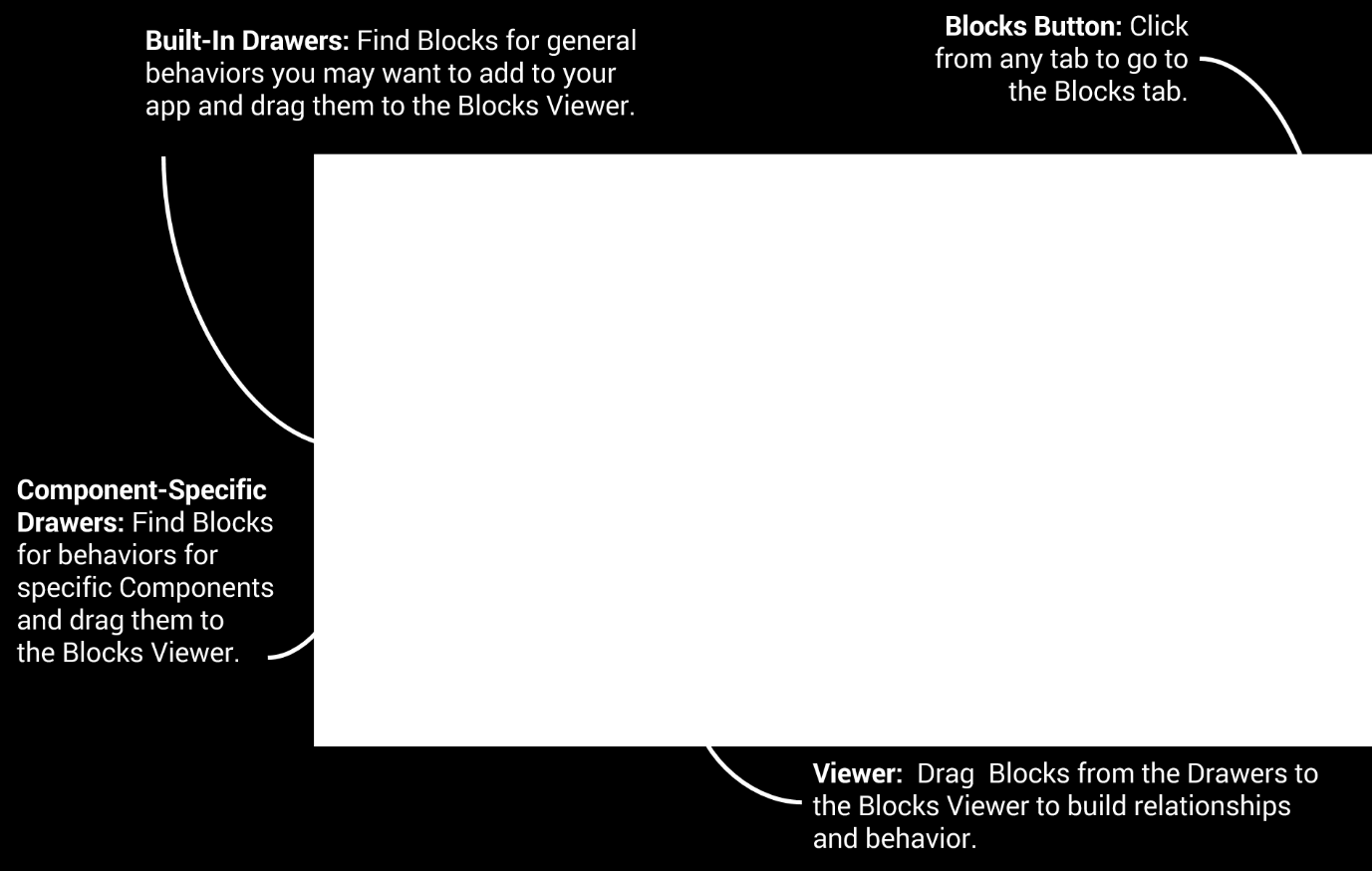

3 App Inventor consists of the Designer and the Blocks Editor. (i) App Inventor Designer Design the App's User Interface by arranging both on and off-screen components. (ii) App Inventor Blocks Editor Program the app's behavior by putting blocks together. Page 3 of 29


4 First Android Program 1. Download the kitty picture (kitty.png) from the following web site 2. Click New Project button on the left side. Enter the project name as HelloPurr. 3. Drag and drop the Button component to Screen1. The name of the component will be Button1. 4. Click on Button1 and add the kitty picture as the image property. 5. Delete Text for Button1 listed under the Text property. Page 4 of 29


5 1. Run the aistarter program. 2. Click Connect and then Emulator. Wait for a few minutes. 3. Now you can run the program in the emulator. Page 5 of 29

6 Alternatively, you can test the apps with an Android device with the following steps. 1. Install the app "MIT AI2 Companion" in the Android device. 2. Click Reset Connection if you have opened the emulator. 3. Click Connect and then AI Companion. 4. Use the "MIT AI2 Companion" to scan the QR Code. Page 6 of 29


7 To run the program in the android device, you can download the package (an apk file) and install it in an Android device. 1. Click Build and then App. 2. Use the "MIT AI2 Companion" to scan the QR Code. 3. Complete the installation process in the Android device. You can use the HelloPurr app in the Android device with two methods (use the Connect and Build menus). What is the difference between them? Project Management 1. Click My Projects at the right hand side. 2. Select the HelloPurr project. 3. Click Project and then you can export or import the project file. Note: You can find the above project (HelloPurr.aia) in Page 7 of 29


8 Completing HelloPurr 1. Select the HelloPurr project. 2. Click Project and then Save project as. 3. Name the new project as Complete_HelloPurr. 4. Open the Complete_HelloPurr project. 5. Add a Label component. Its name is Label1. 6. Enter Pet the Kitty in the Text property of Label1. 7. Change the BackgroundColor, TextColor and FontSize properties of Label1. 8. Expand the Media section and drag and drop the Sound component to Screen1. Its name will be Sound1. 9. Download the mp3 file (meow.mp3) from and set meow.mp3 as the Source property of Sound1. Page 8 of 29


9 10. Open the Blocks Editor. 11. Click Button1 and drag and drop the when Button1.Click do block onto the editor. 12. Click Sound1 and drag the call Sound1.Play block onto the editor as shown below. 13. Run the program with the emulator. You can click the kitty picture and hear the kitty meow. Page 9 of 29
10 PaintPot 1. Open the MIT App Inventor ( and log in with your Google account. 2. Complete the PaintPot program. The demonstration videos can be found in Part 1: Component Name Property Value HorizontalArrangement ThreeButtons Width Fill parent Button ButtonRed BackgroundColor Red Text Red Button ButtonGreen BackgroundColor Green Text Green Button ButtonBlue BackgroundColor Blue Text Blue Canvas DrawingCanvas BackgroundImage Kitty.png Width Fill parent Height 300 pixels Button ButtonWipe Text Wipe Page 10 of 29

11 Study the Block Editor carefully; can you identify the following elements? 1. Event 2. Command 3. Argument You can use the copy and paste method to make similar blocks. Note Show your work to your teacher. Page 11 of 29


12 Part 2: Add three new components. Component Name Property Value HorizontalArrangement HorizontalArrangement1 Button ButtonBig Text Big Dots Button ButtonSmall Text Small Dots Modify the following event. Change this argument Page 12 of 29


13 First, define a new variable called dotsize. Use the value of dotsize to draw the circle. Define two new events to modify the value of dotsize. More to do Using the following command and add two new buttons such that we can draw thick lines and thin lines. Show your work to your teacher. Page 13 of 29
14 Basic Android Programming App Inventor Designer Some standard user interface components. Component Event Description Click() User tapped and released the button. LongClick() User held the button down. Changed() Detect user taps and can change their Boolean state in response. Component Properties Description Picture The file name of the picture. Visible Text FontSize TextColor Visible Text Enabled TextAlignment Specifies whether the component should be visible on the screen. Text to display on label. Point size for label text. Color for label text. Specifies whether the component should be visible on the screen. The text in the input box. Whether the user can enter text into this input box. Whether the text should be left justified, centered, or right justified. App Inventor Block Editor Some Build in Blocks Math Addition, subtraction, multiplication and division operators. Find the power. Relational operators. The result is either True or False. Page 14 of 29

15 Logic Two logic values. Logical operators. Control Selection. Looping. Variables Initialize new variable. Set and get the value of a variable. Procedure Define and call a procedure. Define and call a procedure that will return a result. Page 15 of 29

16 Example The following app can display the total price when buying some apples. The unit price of apple is $5. Discount will be given when buying more apples (details in the following table). Number of apples purchased Discount percentage 1-9 0% % 20 or above 20% At the beginning, the Text property of the Label 'Results' should be blank. Then, enter the number of apples in the TextBox 'Apples' and click Button1. Page 16 of 29
17 The app can only allow the input of numbers. How can this be achieved? You can download the above source program from More to do 1. Add the dollar sign ($) in the results. 2. Prevent the input of negative numbers. 3. The unit price of apple may be changed from time to time. Suggest one modification such that the app can be used for changing unit price. Note Show your app to your teacher. Page 17 of 29
18 App Design 1 In general, if we deposit principal $P for n periods with the interest compounded r% per period, then the amount $A can be calculated by the following formula. A = P x (1 + r%) n And, the compound interest $I is given by the following formula. I = A P Design an app to accept the inputs of principal ($P), interest rate (r%) and number of periods (n), and output the amount ($A) and compound interest ($I). App Design 2 Study the following salaries tax table. Salaries tax based on the net chargeable income (2008/09) Net chargeable income Tax rate Salaries tax ($) On the first $ % 800 On the next $ % 2800 On the next $ % 4800 Remainder 17% -- Design an app to input the net chargeable income and output the salaries tax payable. Note Show your apps to your teacher. Page 18 of 29

19 MoleMash 1. Download the mole picture (mole.png) from the web site 2. Open the MIT App Inventor ( and log in with your Google account. 3. Complete the MoleMash program. The demonstration videos can be found in Component Name Property Value Screen Screen1 Title MoleMash Canvas MyCanvas Width 300 pixels Height 300 pixels ImageSprite Mole Picture Mole.png Label ScoreLabel Text Score: 0 Button ResetButton Text Reset Sound Notify Clock MoleTimer TimerInterval 1000 Page 19 of 29

20 Open the Block Editor. 1. The variable score is defined to store the score of the game. 2. Two procedures MoveMole and UpdateScore are defined such that they can be called again and again. In the MoveMole procedure, the random fraction will generate a random number from 0 to 1 such that the Mole can get the new x and y coordinates. 3. When the MoleTimer is triggered (every 500ms), the MoveMole procedure is called. 4. When touching the Mole, one mark will be added to the score and other consequences will be triggered. 5. Finally, the reset button can reset the score to 0. Page 20 of 29

21 More to do 1. Add a sound effect when the Mole is touched. 2. Add one more moving Mole (with different moving speed) in the game. (Hint: Add one more ImageSprite and one more Clock component.) 3. When touching the two different Moles, different scores can be obtained. 4. If the Mole cannot be touched, one mark should be deducted. (Hint: Use the following event and the following logical test Deduct the score here. to check whether it is failed to touch any ImageSprite on the Canvas.) Further Skills (A) Screen Properties Study the meanings of various properties. Page 21 of 29


22 (B) Changing Screen Display Use the TableArrangement component to store some components such that we can show or hide these components by changing the Visible attribute of TableArrangement to true or false accordingly. You can download the above source program from (C) Multiple Screens App Inventor supports multiple screens. Use the Add Screen button to create a new screen. Then use the open another screen command to open a new screen. However, the open another screen command cannot be used in the emulator. You have to test this app in an Android device. Page 22 of 29

23 Something to do Create an app with the following requirements. 1. Landscape screen orientation. 2. Screen title is "Animals". 3. Yellow colour background. 4. Two buttons to show a dog and a cat respectively. (D) Camera Invisible component Camera is used to activate the camera function. Click Button1 to take a photo. After taking the photo, the photo is displayed as the background image of Canvas1. However, the Camera component cannot be used in the emulator. Page 23 of 29

24 You can use the skills in PaintPot to draw on the canvas. To save the background image of the canvas, first enter the file name in TextBox1 and then click Button2. If the file name is not empty, the picture will be stored in a folder called AI2. Notifier component can be used to pop up a message on the screen. You can download the above source program from (E) List and Database Two invisible components TinyDB and Notifier are used in the app. TindyDB is a database component and it can store data in the Android device permanently. ListPicker component can display an item in a list. Lists store data temporarily. Page 24 of 29

25 Two lists are defined to store the names and birthdays respectively. (A list contains multiple items.) Two databases (NameDB and BirthdayDB) are used to store the above two lists respectively. List Database Name NameDB Birthday BirthdayDB Page 25 of 29

26 Command TinyDB1.GetValue is used to read the stored data from the database when the app is opened. We should not assign the read data to the two lists directly. Do you know why? Click Button1 to add the name and birthday to the two lists respectively. Then store the two lists in the corresponding databases. Page 26 of 29

27 The ListPicker component can pick up an item in the list. Do you understand the above program block? You can download the above source program from More to do 1. Can you write a block to delete the wrong data? Hint Add another ListPicker and use the following command to remove the items in the two lists and update the two databases. 2. Use the component to input the birthday in order to reduce input mistakes. Page 27 of 29

28 (F) More Components ImagePicker Pick an image in the device's image gallery. Player You have to specify the source of the player. You can download a song (song.mp3) from You can Start, Pause or Stop the Player. TextToSpeech Use it to speak out the text. Page 28 of 29

29 SpeechRecognizer Use it to convert the spoken sound to text. You can download the above source program from Page 29 of 29
PaintPot. Figure 2-1. The PaintPot app
 Chapter 2 PaintPot This tutorial introduces the Canvas component for creating simple, two-dimensional (2D) graphics. You ll build PaintPot, an app that lets the user draw on the screen in different colors,
CHAPTER 1 HelloPurr. The chapter covers the following topics:
 CHAPTER 1 HelloPurr This chapter gets you started building apps. It presents the key elements of App Inventor, the Component Designer and the Blocks Editor, and leads you through the basic steps of creating
Hello Purr. What You ll Learn
 Chapter 1 Hello Purr This chapter gets you started building apps. It presents the key elements of App Inventor the Component Designer and the Blocks Editor and leads you through the basic steps of creating
Introduction to Android Programming
 S3 Computer Literacy 2 nd Term P.16 Introduction to Android Programming Programming languages can be classified into low-level languages and high-level languages. Low-level language High-level language
What You ll Build. CHAPTER 3 MoleMash
 CHAPTER 3 MoleMash This chapter shows you how to create MoleMash, a game inspired by the arcade classic Whac-A-Mole, in which mechanical critters pop out of holes, and players score points when they successfully
Mobile Apps with App Inventor
 Mobile Apps with App Inventor written for 91.113 Michael Penta Table of Contents Mobile Apps... 4 Designing Apps in App Inventor... 4 Getting Started... 5 App Inventor Layout... 5 Your First App... 7 Making
Named Memory Slots. Properties. CHAPTER 16 Programming Your App s Memory
 CHAPTER 16 Programming Your App s Memory Figure 16-1. Just as people need to remember things, so do apps. This chapter examines how you can program an app to remember information. When someone tells you
App Inventor Tutorial 4 Cat & Mouse Game
 App Inventor Tutorial 4 Cat & Mouse Game This is an app that will let you get familiar with using image sprites, canvas, sound, clock and the accelerometer (Movement Sensor) within a Game in App Inventor.
App Inventor Beginner Tutorials
 App Inventor Beginner Tutorials 1 Four Simple Tutorials for Getting Started with App Inventor 1.1 TalkToMe: Your first App Inventor app 4 1.2 TalkToMe Part 2: Shaking and User Input 23 1.3 BallBounce:
MIT App Inventor Getting Started Guide
 MIT App Inventor Getting Started Guide What is App Inventor? App Inventor lets you develop applications for Android phones using a web browser and either a connected phone or an on-screen phone emulator.
TalkToMe: A beginner App Inventor app
 TalkToMe: A beginner App Inventor app This step-by-step picture tutorial will guide you through making a talking app. To get started, sign up for a free Google Account: http://accounts.google.com/signup
Or working offline with the local server: Once you have the App Inventor running type into your browser http://localhost:8888
 App Inventor Tutorial 10 Calculator This tutorial will help you develop a calculator using If statements and a ListPicker. You will be asked to enter 2 numbers, Number1 and Number2. When you have entered
Xylophone. What You ll Build
 Chapter 9 Xylophone It s hard to believe that using technology to record and play back music only dates back to 1878, when Edison patented the phonograph. We ve come so far since then with music synthesizers,
App Inventor Drum Machine Instructions (Project #1) (Version 2 of App Inventor) Description:
 App Inventor Drum Machine Instructions (Project #1) (Version 2 of App Inventor) Description: App Inventor is a web based tool that allows the user to create apps for Android devices. The user interface
Android Programming Family Fun Day using AppInventor
 Android Programming Family Fun Day using AppInventor Table of Contents A step-by-step guide to making a simple app...2 Getting your app running on the emulator...9 Getting your app onto your phone or tablet...10
I Have a Dream, a Two-Part Introductory Tutorial
 I Have a Dream, a Two-Part Introductory Tutorial Most people have never even dreamed of building an app; software is this mysterious world of 0s and 1s and computer nerds. The goal of this lesson is to
Mobile App Design Tool for Smartphones: A Tutorial
 Mobile App Design Tool for Smartphones: A Tutorial Hak. J. Kim and Jonathan Modell Abstract The paper presents the basics of mobile application creation for smartphones using the visual programming tool,
Getting started 7. Designing interfaces 27
 Contents Contents 1 2 3 Getting started 7 Introducing Android 8 Installing Java 10 Installing App Inventor 12 Beginning your first app 14 Adding components 16 Adding behavior 18 Preparing devices 20 Running
Ladybug Chase. What You ll Build. What You ll Learn
 Chapter 5 Ladybug Chase Games are among the most exciting mobile phone apps, both to play and to create. The recent smash hit Angry Birds was downloaded 50 million times in its first year and is played
CHAPTER 14 Understanding an App s Architecture
 CHAPTER 14 Understanding an App s Architecture Figure 14-1. This chapter examines the structure of an app from a programmer s perspective. It begins with the traditional analogy that an app is like a recipe
Educational App Development Toolkit for Teachers and Learners
 Educational App Development Toolkit for Teachers and Learners Educational App Development Toolkit for Teachers and Learners Ishan Sudeera Abeywardena The Commonwealth of Learning (COL) is an intergovernmental
Creating Animated Apps
 Chapter 17 Creating Animated Apps This chapter discusses methods for creating apps with simple animations objects that move. You ll learn the basics of creating two-dimensional games with App Inventor
App Inventor 2 Workbook. Quiz Development
 App Inventor 2 Workbook Quiz Development Contents Contents... 2 Setting up App Inventor... 3 Creating the Interface: Main Menu... 4 Creating the Interface: Populate Quiz... 6 Creating the Interface: Take
PlanGrid. User Guide. www.plangrid.com [email protected]
 PlanGrid User Guide www.plangrid.com [email protected] Table of Contents Create a New Project Connecting Cloud Storage Partial Downloading ios Web Viewer and Web Markups Viewing Markups on your device
Fusion Voicemail Plus User Guide For Android Devices
 Welcome to Fusion Voicemail Plus! Fusion Voicemail Plus User Guide For Android Devices Fusion Voicemail Plus (FVM+) is a replacement for the ordinary voicemail that you use with your cellular phone company.
American Sign Language Alphabet App (Project #2) (Version 2 of App Inventor) Description:
 American Sign Language Alphabet App (Project #2) (Version 2 of App Inventor) Description: This App will take text input and then translate each letter of the text to the corresponding American Sign Language
2342-4. Scientific m-learning. 4-7 June 2012. Mobile Application Development using App Inventor for Android Devices
 2342-4 Scientific m-learning 4-7 June 2012 Mobile Application Development using App Inventor for Android Devices TRIVEDI Kirankumar Rajnikant Shantilal Shah Engineering College New Sidsar Campu, PO Vartej
Getting Started. Version 3.1 Last updated 2014/3/10. Orbweb ME: Getting Started
 Information in this document is subject to change without notice. Companies, names, and data used in examples herein are fictitious unless otherwise noted. No part of this document may be reproduced or
You can learn more about Stick around by visiting stickaround.info and by finding Stick Around on social media.
 Stick Around Play, design, and share sorting and labeling puzzles! Stick Around comes with an assortment of example puzzles, including ordering decimals and classifying rocks. It's the player's job to
Netigate User Guide. Setup... 2. Introduction... 5. Questions... 6. Text box... 7. Text area... 9. Radio buttons...10. Radio buttons Weighted...
 Netigate User Guide Setup... 2 Introduction... 5 Questions... 6 Text box... 7 Text area... 9 Radio buttons...10 Radio buttons Weighted...12 Check box...13 Drop-down...15 Matrix...17 Matrix Weighted...18
Using the owncloud Android App
 Using the owncloud Android App Accessing your files on your owncloud server via the Web interface is easy and convenient, as you can use any Web browser on any operating system without installing special
Online Testing Checklist for Summer 2016 Ohio s State Test Administrations
 Online Testing Checklist for Summer 2016 Ohio s State Test Administrations Test administrators must use this checklist when administering Ohio s State Tests online. It includes step-by-step directions,
Adobe Connect and Zoom are web conferencing tools with many features. Google Hangouts and Skype are primarily for voice calling or text chat.
 Group Work Options The group work options listed below can be used during IVC course sessions. Students will have to have a pair of headphones and a microphone for all of these options. Individual groups
WEB MAPPING TOOL DOCUMENTATION
 ENTERPRISE ZONES RE DESIGNATION WEB MAPPING TOOL DOCUMENTATION January 26, 2015 COVER PAGE TABLE OF CONTENTS INTRODUCTION 1 APPLICATION LAYOUT 2 WEB MAP NAVIGATION 3 LOCATION SEARCH 4 MAP LEGEND 5 BASEMAP
LEARNING RESOURCE CENTRE. Guide to Microsoft Office Online and One Drive
 LEARNING RESOURCE CENTRE Guide to Microsoft Office Online and One Drive LEARNING RESOURCE CENTRE JULY 2015 Table of Contents Microsoft Office Online... 3 How to create folders... 6 How to change the document
P WEBSITE P CATALOGUES P PRICE GUIDES P ONLINE CLOUD STORAGE P e-commerce System. Printed and Electronic (e-documents) Users Guide. vbradug-15.10.
 P WEBSITE P CATALOGUES P PRICE GUIDES P ONLINE CLOUD STORAGE P e-commerce System Printed and Electronic (e-documents) vbradug-5.0.02 Users Guide 205 Bradfield Trading Ltd. All rights reserved. Reproduction
Mobility with Eye-Fi Scanning Guide
 Mobility with Eye-Fi Scanning Guide Scan and Transfer Images Wirelessly with Eye-Fi This document is to be used in addition to the scanner s user guide located on the installation disc. The instructions
Technology guides for the classroom. File Sharing. (using QR Codes and Dropbox in the ipad classroom)
 Technology guides for the classroom (using and in the ipad classroom) Cheryl Burgemeister Bushfire Press Illustrated by Bradfield Dumpleton Contents Overview A new way of classroom organisation Classroom
Ohio University Computer Services Center August, 2002 Crystal Reports Introduction Quick Reference Guide
 Open Crystal Reports From the Windows Start menu choose Programs and then Crystal Reports. Creating a Blank Report Ohio University Computer Services Center August, 2002 Crystal Reports Introduction Quick
Apps for Android. Apps for iphone & ipad INS584-3
 Apps for iphone & ipad INS584-3 Apps for Android Android is a trademark of Google Inc. iphone is a trademark of Apple Inc., registered in the U.S. and other countries. ipad is a trademark of Apple Inc.,
Cloud Storage Service
 Cloud Storage Service User Guide (Web Interface, Android App) Table of Content System Requirements...4 1.1Web Browser... 4 1.2Mobile Apps... 4 Accessing Cloud Storage using a Web Browser... 4 The Web Home
SweetPea3R-200 User Guide Version 1.1
 SweetPea3R-200 User Guide Version 1.1 For safety and warranty information, please refer to the Quick Start Guide included in the box with your unit. Thank you for purchasing a SweetPea3. As this is a new
Mobile Print/Scan Guide for Brother iprint&scan (Android )
 Mobile Print/Scan Guide for Brother iprint&scan (Android ) Before You Use Your Brother Machine Definitions of Notes We use the following symbol and convention throughout this User's Guide: Tips icons indicate
Kaldeera Workflow Designer 2010 User's Guide
 Kaldeera Workflow Designer 2010 User's Guide Version 1.0 Generated May 18, 2011 Index 1 Chapter 1: Using Kaldeera Workflow Designer 2010... 3 1.1 Getting Started with Kaldeera... 3 1.2 Importing and exporting
Mobile Print/Scan Guide for Brother iprint&scan
 Mobile Print/Scan Guide for Brother iprint&scan Version K ENG Definitions of notes We use the following note style throughout this user s guide: specifies the operating environment, conditions for installation,
User Guide. Chapter 6. Teacher Pages
 User Guide Chapter 6 s Table of Contents 1. Introduction... 4 I. Enhancements... 5 II. Tips... 6 2. Key Information... 7 3. How to Add a... 8 4. How to Edit... 10 I. SharpSchool s WYSIWYG Editor... 11
This guide describes features that are common to most models. Some features may not be available on your tablet.
 User Guide Copyright 2013 Hewlett-Packard Development Company, L.P. Bluetooth is a trademark owned by its proprietor and used by Hewlett-Packard Company under license. Google, Android, AdWords, Gmail,
DESIGNING YOUR WEBSITE. The following guide will show you how to setup your music website using www.weebly.com:
 DESIGNING YOUR WEBSITE All music majors are required to have their own music website. This website functions as a portfolio and shows potential employers what you have accomplished as a performer, educator,
Samsung Xchange for Mac User Guide. Winter 2013 v2.3
 Samsung Xchange for Mac User Guide Winter 2013 v2.3 Contents Welcome to Samsung Xchange IOS Desktop Client... 3 How to Install Samsung Xchange... 3 Where is it?... 4 The Dock menu... 4 The menu bar...
GOOGLE FINANCE PORTFOLIO INSTRUCTIONS
 (1) www.google.com/finance (2) Click Sign in. GOOGLE FINANCE PORTFOLIO INSTRUCTIONS At www.investedok.org on every STARS page is a STARS Resource box. A video created by subjectmatter expert Matt Ingram
CTvox for Android. Version 1.5
 CTvox for Android Version 1.5 Contents Introduction... 1 Background... 1 Volume rendering... 1 Multi-volume rendering... 2 Transfer function... 2 Installing CTvox... 3 Creating and transferring volume
CHAPTER 11 Broadcast Hub
 CHAPTER 11 Broadcast Hub Figure 11-1. FrontlineSMS is a software tool used in developing countries to monitor elections, broadcast weather changes, and connect people who don t have access to the Web but
RDM+ Remote Desktop for Android. Getting Started Guide
 RDM+ Remote Desktop for Android Getting Started Guide RDM+ (Remote Desktop for Mobiles) is a remote control tool that offers you the ability to connect to your desktop or laptop computer from Android device
Using the T&D Thermo App with TR-7wf Data Loggers
 Using the T&D Thermo App with TR-7wf Data Loggers T&D Thermo The T&D Thermo App from T&D Corporation can be used to accomplish a variety of functions with the TR-7wf Series of Wi-Fi enabled wireless Data
MicroStrategy Quick Guide: Creating Prompts ITU Data Mart Support Group, Reporting Services
 MicroStrategy Quick Guide: Creating Prompts ITU Data Mart Support Group, Reporting Services Prompts Prompts are questions the report user must answer in order to run the report. Some prompts are required
MICROSOFT OUTLOOK 2011 GETTING STARTED AND HELP RESOURCES
 MICROSOFT OUTLOOK 2011 GETTING STARTED AND HELP RESOURCES Lasted Edited: 2012-07-10 1 Introduction... 4 Getting Started... 4 Tour of the Outlook 2011 Interface... 4 Start Outlook 2011... 5 Configure E-mail
SMART Board Tips & Tricks (version 9.0) Getting Started. SMART Tools vs. SMART Notebook software
 SMART Board Tips & Tricks (version 9.0) Getting Started SMART Tools vs. SMART Notebook software Click the SMART Board icon (in the system tray at the bottom right of your screen) to access the SMART Board
Downloading the GAIG Annuity App. Log In Screen. Home Page
 Downloading the GAIG Annuity App ios users: https://itunes.apple.com/us/app/gaig-annuity/id925743711?ls=1&mt=8 Android users: https://play.google.com/store/apps/details?id=com.gaig.annuity.app.mobile.android.agent
SMART Board Menu. Full Reference Guide
 SMART Board Full Reference Guide Start-Up After entering Windows, click on the desktop icon SMART Board Tools. The SMART Board icon will appear in the system tray on the bottom right of the screen. Turn
Create a Poster Using Publisher
 Contents 1. Introduction 1. Starting Publisher 2. Create a Poster Template 5. Aligning your images and text 7. Apply a background 12. Add text to your poster 14. Add pictures to your poster 17. Add graphs
ipad Basics Tips from the October 16, 2014 ipad Basics Class Tip No. 1 Apple ID Where is it found? Settings>iCloud>Apple ID
 ipad Basics Tips from the October 16, 2014 ipad Basics Class Tip No. 1 Apple ID Where is it found? Settings>iCloud>Apple ID 1 2 At the ipad home screen tap on the Settings tab. Now tap on the icloud file
TalkToMe Part 2: Shaking and User Input
 TalkToMe Part 2: Shaking and User Input This tutorial shows you how to extend the basic TalkToMe app so that it responds to shaking, and so that the user can make the phone say any phrase s/he types in.
How To Use Textbuster On Android (For Free) On A Cell Phone
 www.textbuster.com 1 Applications and Account Manager Dashboard User Guide For Android phones www.textbuster.com 2 Downloading the TextBuster applications After the TextBuster device is installed into
How To Sync Google Drive On A Mac Computer With A Gmail Account On A Gcd (For A Student) On A Pc Or Mac Or Mac (For An Older Person) On An Ipad Or Ipad (For Older People) On
 Installation and Setup of Google Drive for Students on Mac OS X Purpose: This guide will lead you through the Google Drive Installation and Configuration. Pre-requisites: 1) ODU Student Gmail account 2)
HELPDESK SYSTEM (HDS) USER MANUAL
 HELPDESK SYSTEM (HDS) USER MANUAL Release No.: 2.0 prepared by OMESTI Berhad. TABLE OF CONTENTS 1.0 HOW TO ACCESS THE HELPDESK SYSTEM (HDS)... 1 2.0 HOW TO REGISTER NEW USER... 2 3.0 HOW TO RECOVER PASSWORD...
www.quicklessons.com User Guide January 10
 The e-learning platform for creating online courses fast and easy www.quicklessons.com User Guide January 10 1111 Brickell Avenue 11th floor - Miami, Florida 33131 - United States - Phone +1 305 847 2159
Setting up AI Prime or Hydra HD. There are two ways to connect the Hydra HD 52/26 or Prime.
 Setting up AI Prime or Hydra HD There are two ways to connect the Hydra HD 52/26 or Prime. 1. Direct Local Connection You can connect directly to the light/s via your IOS or Android device App or from
Tutorial for Android users *with the CONNECTED WATCH App
 Tutorial for Android users *with the CONNECTED WATCH App 8 July 2014 Table of Contents 1. How to use the watch 2. How to pair the watch to your device 1. Step 1: Prepare your watch for pairing 2. Step
Online Tools Training Lesson Plan
 Online Tools Training Lesson Plan Reading grade 5 Assessment Development, OSPI, Washington State Table of Contents Purpose Statement... 2 Disclaimer... 2 Lesson Objectives... 2 Lesson Overview... 2 Lesson
Once you have obtained a username and password you must open one of the compatible web browsers and go to the following address to begin:
 CONTENT MANAGER GUIDELINES Content Manager is a web-based application created by Scala that allows users to have the media they upload be sent out to individual players in many locations. It includes many
Secure Share (Novell Filr) Remote Teacher Video Sharing Process School Year 2014-2015
 Secure Share (Novell Filr) Remote Teacher Video Sharing Process School Year 2014-2015 UTHealth Secure Share (Novell Filr) is a Family Educational Rights and Privacy Act (FERPA) compliant online system
www.novell.com/documentation User Guide Novell iprint 1.1 March 2015
 www.novell.com/documentation User Guide Novell iprint 1.1 March 2015 Legal Notices Novell, Inc., makes no representations or warranties with respect to the contents or use of this documentation, and specifically
Using Flow Control with the HEAD Recorder
 03/15 Using with the HEAD Recorder The HEAD Recorder is a data acquisition software program that features an editable Flow Control function. This function allows complex program sequences to be predefined,
This guide describes features that are common to most models. Some features may not be available on your tablet.
 User Guide Copyright 2013 Hewlett-Packard Development Company, L.P. Bluetooth is a trademark owned by its proprietor and used by Hewlett-Packard Company under license. Google is a trademark of Google Inc.
action sports game tutorial for App Inventor 2
 G al ai2...an action sports game tutorial for App Inventor 2 The Goal ai2 app you code as part of this tutorial demonstrates techniques required to build an action game with App Inventor 2. Coding involves
How to create database in GlycomcsPortal?
 How to create database in GlycomcsPortal? 1. Log- in Log in through Log in 2. Submit Content Click Submit Content on the menu. 3. Choose Database Choose Database as a type of entry you desire to create.
Using Devices. Chapter 3
 Chapter 3 Using Devices es The Devices page lists all the devices you have enrolled in the Centrify identity platform and lets you send commands to the devices. Device related tasks that you can perform
ASUS WebStorage Client-based for Windows [Advanced] User Manual
![ASUS WebStorage Client-based for Windows [Advanced] User Manual](/thumbs/40/21159954.jpg "ASUS WebStorage Client-based for Windows [Advanced] User Manual") ASUS WebStorage Client-based for Windows [Advanced] User Manual 1 Welcome to ASUS WebStorage, your personal cloud space Our function panel will help you better understand ASUS WebStorage services. The
ASUS WebStorage Client-based for Windows [Advanced] User Manual 1 Welcome to ASUS WebStorage, your personal cloud space Our function panel will help you better understand ASUS WebStorage services. The
Initial Setup of Microsoft Outlook with Google Apps Sync for Windows 7. Initial Setup of Microsoft Outlook with Google Apps Sync for Windows 7
 Microsoft Outlook with Initial Setup of Concept This document describes the procedures for setting up the Microsoft Outlook email client to download messages from Google Mail using Internet Message Access
XMEye Android Mobile Monitoring Client English Manual
 XMEye Android Mobile Monitoring Client English Manual Written by: The test department Prepared Date: 2014-03-25 Version: V1.0 目 录 1. Introduction... 3 1.1. Brief Introduction... 3 1.2. Main Functions...
E-Loader Operation Manual
 Multi-Function Tools for E-MU Instruments Revision A _ Before you Begin - Read and follow the instructions given in the READ BEFORE INSTALLING file that comes with the E-Loader installer program. E-Loader
Educational (Android) App Development Toolkit for Students
 Educational (Android) App Development Toolkit for Students A Report on 8th, 9th and 11th April, 2015 Organised by Commonwealth Educational Media Centre for Asia in collaboration with Kulachi Hansraj Model
Accessing Derbyshire County Council s Outlook Web Access (OWA) Service. Smart Phone App version
 Accessing Derbyshire County Council s Outlook Web Access (OWA) Service Smart Phone App version Contents About this guide... 2 Before accessing Outlook Web Access... 3 Accessing Outlook Web Access (OWA)
Sample only. Unit 4a Lesson 1: Pop game 50 minutes. Cross-curricular links. Overview. Learning objectives. Success Criteria. Key words. 1.
 Cross-curricular links Unit 4a Lesson 1: Pop game 50 minutes Maths: addition, multiplication, time Overview In this lesson children will be introduced to variables and how they can be used in computer
REFERENCE GUIDE 1. INTRODUCTION
 1. INTRODUCTION Scratch is a new programming language that makes it easy to create interactive stories, games, and animations and share your creations with others on the web. This Reference Guide provides
Organizational Development Qualtrics Online Surveys for Program Evaluation
 The purpose of this training unit is to provide training in an online survey tool known as Qualtrics. Qualtrics is a powerful online survey tool used by many different kinds of professionals to gather
How To Use Senior Systems Cloud Services
 Senior Systems Cloud Services In this guide... Senior Systems Cloud Services 1 Cloud Services User Guide 2 Working In Your Cloud Environment 3 Cloud Profile Management Tool 6 How To Save Files 8 How To
App Inventor Tutorial 11 QR Code Reader
 App Inventor Tutorial 11 QR Code Reader This is an app which will demonstrate the use of the phone s built in camera as an input device for a QR Code scanner. Note this app will not work on the emulator
How To Write A Cq5 Authoring Manual On An Ubuntu Cq 5.2.2 (Windows) (Windows 5) (Mac) (Apple) (Amd) (Powerbook) (Html) (Web) (Font
 Adobe CQ5 Authoring Basics Print Manual SFU s Content Management System SFU IT Services CMS Team ABSTRACT A summary of CQ5 Authoring Basics including: Setup and Login, CQ Interface Tour, Versioning, Uploading
Store & Share Quick Start
 Store & Share Quick Start What is Store & Share? Store & Share is a service that allows you to upload all of your content (documents, music, video, executable files) into a centralized cloud storage. You
Backups User Guide. for Webroot SecureAnywhere Essentials Webroot SecureAnywhere Complete
 Backups User Guide for Webroot SecureAnywhere Essentials Webroot SecureAnywhere Complete Webroot Software, Inc. 385 Interlocken Crescent Suite 800 Broomfield, CO 80021 www.webroot.com Version 8.0.1 Webroot
The Tacx Cycling app (ios and Android) Quick start guide
 The Tacx Cycling app (ios and Android) Quick start guide Introduction This manual describes how to use the Tacx Cycling app. Chapter 1 Getting started is important to read before starting a training session,
Go Kiwi Internet Content Management System Version 5.0 (K5) TRAINING MANUAL
 Go Kiwi Internet Content Management System Version 5.0 (K5) TRAINING MANUAL K5 CMS The K5 Content Management System (CMS), previously known as Kwik-Az Updating, is a small downloadable program that permits
Task Card #2 SMART Board: Notebook
 Task Card #2 SMART Board: Notebook Objectives: Participants will learn how to utilize the SMART Notebook. Table of Contents: Launching The SMART Notebook Page 1 Entering Text Page 1 Top Toolbar Page 2
a basic guide to video conversion using SUPER
 a basic guide to video conversion using SUPER This is a basic guide to video conversion using the freeware video conversion tool SUPER, from erightsoft. SUPER is a graphic front end to several free, powerful,
Secure Share (Novell Filr) Remote Teacher Video Sharing Process School Year 2014-2015
 Secure Share (Novell Filr) Remote Teacher Video Sharing Process School Year 2014-2015 UTHealth Secure Share (Novell Filr) is a Family Educational Rights and Privacy Act (FERPA) compliant online system
You will need your District Google Mail username (e.g. [email protected]) and password to complete the activation process.
 As a courtesy to the Palm Beach County School District employees, the Division of IT is now providing District Google Mail access for personal mobile devices. Although we do not have the staffing to accept
Please refer to the guide below to use the latest Android version of the UCam247Live app.
 Please refer to the guide below to use the latest Android version of the UCam247Live app. IMPORTANT: If you already have a camera installed and working on your network using our older app please follow