
Using the T&D Thermo App with TR-7wf Data Loggers
|
|
|
- Darleen Benson
- 9 years ago
- Views:
Transcription
1 Using the T&D Thermo App with TR-7wf Data Loggers T&D Thermo The T&D Thermo App from T&D Corporation can be used to accomplish a variety of functions with the TR-7wf Series of Wi-Fi enabled wireless Data Loggers. This convenient App is available for free download from Apple s App Store for ios devices, or from Google Play for Android devices, and can be used on both Smart Phones and Tablets. Once installed, the App can be used to set up a TR-7wf logger, make device settings for the logger itself, configure T&D s free WebStorage Service, download recorded data for viewing, local archiving and sharing with colleagues. Using the T&D Thermo App, it is entirely possible to utilize most functions of a TR-7wf Data Logger with T&D s WebStorage Service without a PC. I) Set up a WebStorage Service Account Some of the TR-7wf s most useful features, such as automatic data uploading or warning notifications, require integration with T&D s free WebStorage Service. Although you can use the TR-7wf as a simple USB Connected logger, the device relies on connection to the WebStorage Service for its complete functionality. 1. Using your browser go to This can be a browser on your Smart Phone or Tablet, or on a PC if you prefer. 2. Click on Get a User ID. 3. Enter an Address and a Password. 4. Your User ID will be sent to this address. Note that this is also the address to which warning notifications will be sent, if enabled, so choose it accordingly.
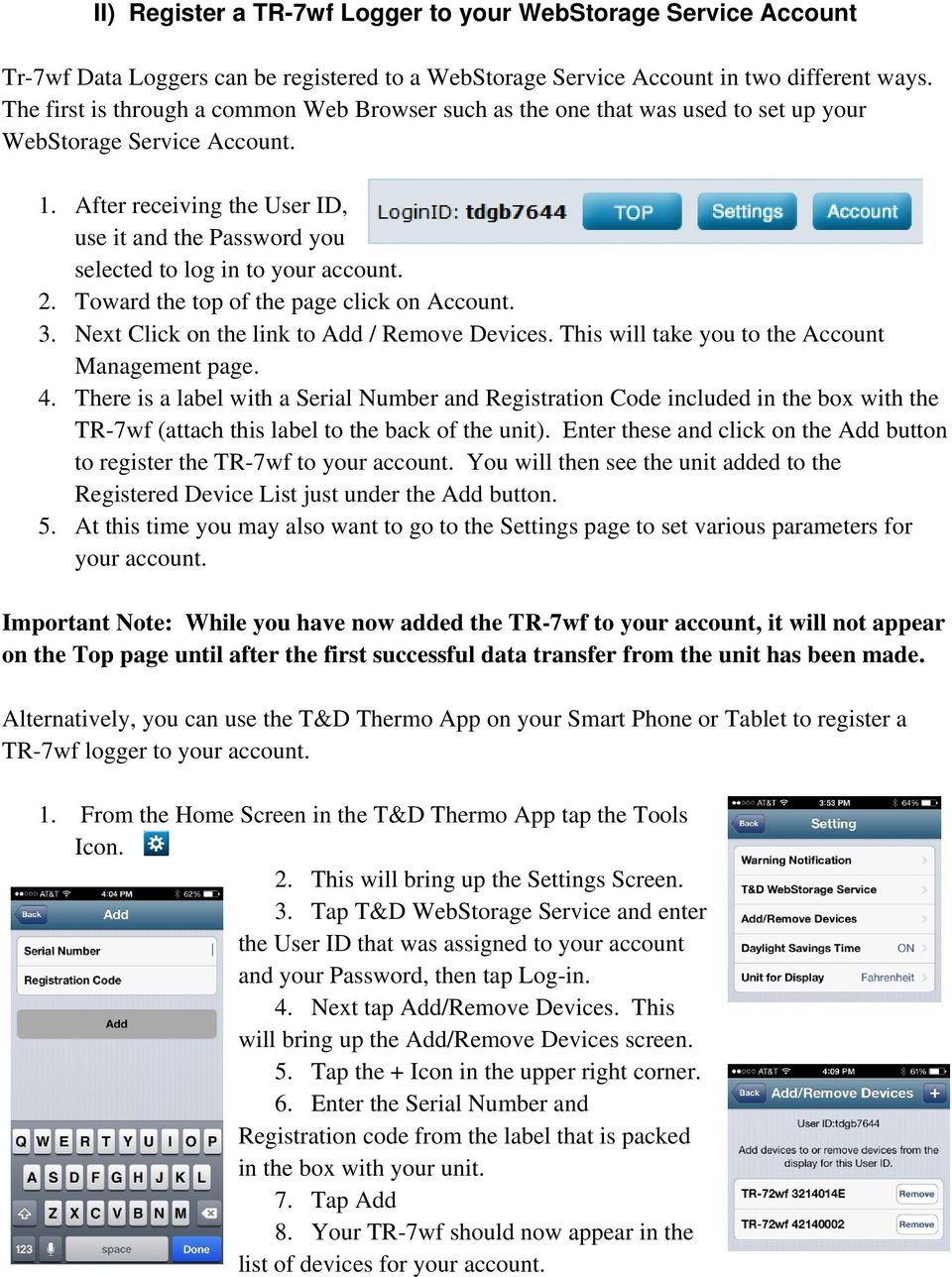
2 II) Register a TR-7wf Logger to your WebStorage Service Account Tr-7wf Data Loggers can be registered to a WebStorage Service Account in two different ways. The first is through a common Web Browser such as the one that was used to set up your WebStorage Service Account. 1. After receiving the User ID, use it and the Password you selected to log in to your account. 2. Toward the top of the page click on Account. 3. Next Click on the link to Add / Remove Devices. This will take you to the Account Management page. 4. There is a label with a Serial Number and Registration Code included in the box with the TR-7wf (attach this label to the back of the unit). Enter these and click on the Add button to register the TR-7wf to your account. You will then see the unit added to the Registered Device List just under the Add button. 5. At this time you may also want to go to the Settings page to set various parameters for your account. Important Note: While you have now added the TR-7wf to your account, it will not appear on the Top page until after the first successful data transfer from the unit has been made. Alternatively, you can use the T&D Thermo App on your Smart Phone or Tablet to register a TR-7wf logger to your account. 1. From the Home Screen in the T&D Thermo App tap the Tools Icon. 2. This will bring up the Settings Screen. 3. Tap T&D WebStorage Service and enter the User ID that was assigned to your account and your Password, then tap Log-in. 4. Next tap Add/Remove Devices. This will bring up the Add/Remove Devices screen. 5. Tap the + Icon in the upper right corner. 6. Enter the Serial Number and Registration code from the label that is packed in the box with your unit. 7. Tap Add 8. Your TR-7wf should now appear in the list of devices for your account.
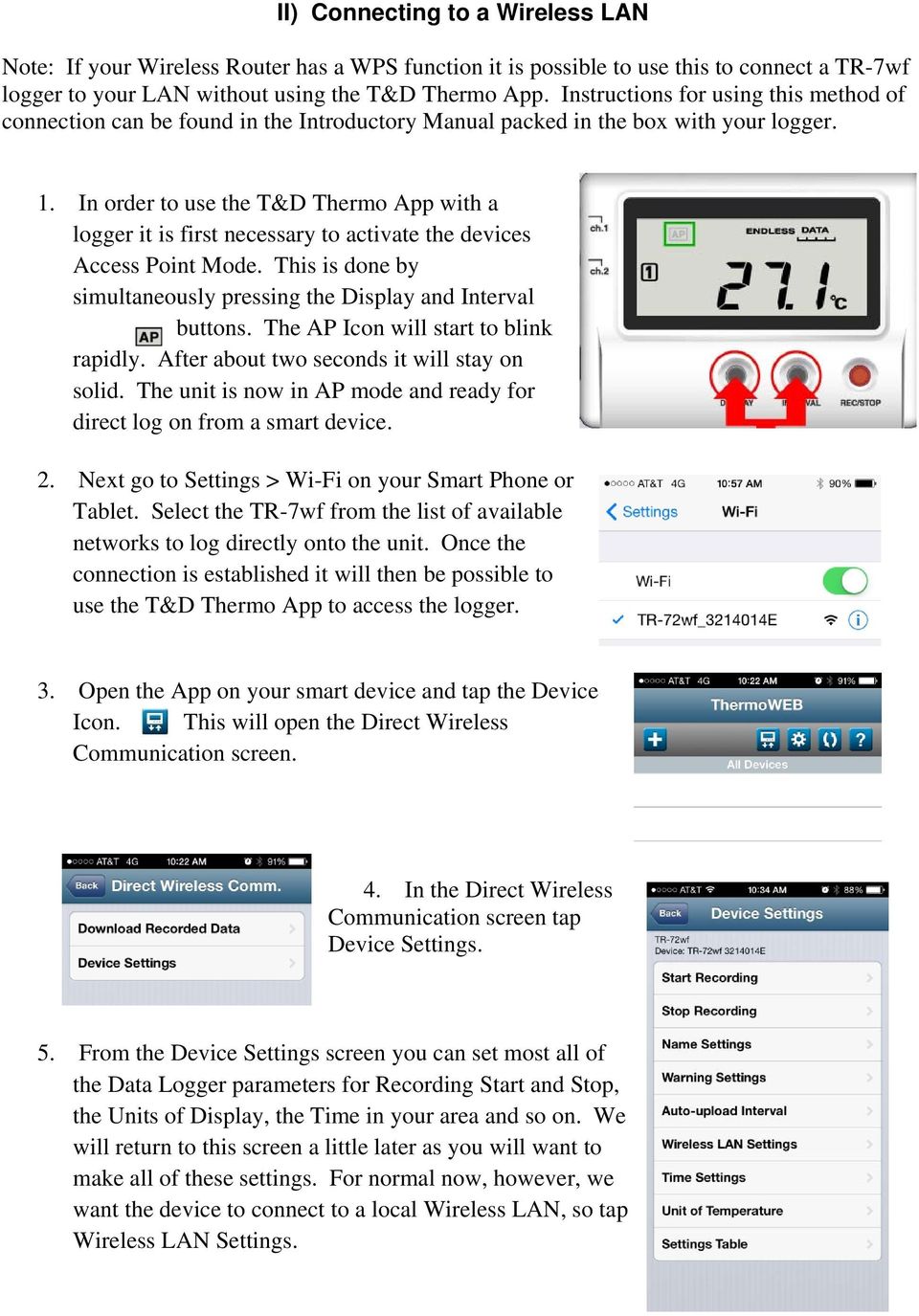
3 II) Connecting to a Wireless LAN Note: If your Wireless Router has a WPS function it is possible to use this to connect a TR-7wf logger to your LAN without using the T&D Thermo App. Instructions for using this method of connection can be found in the Introductory Manual packed in the box with your logger. 1. In order to use the T&D Thermo App with a logger it is first necessary to activate the devices Access Point Mode. This is done by simultaneously pressing the Display and Interval buttons. The AP Icon will start to blink rapidly. After about two seconds it will stay on solid. The unit is now in AP mode and ready for direct log on from a smart device. 2. Next go to Settings > Wi-Fi on your Smart Phone or Tablet. Select the TR-7wf from the list of available networks to log directly onto the unit. Once the connection is established it will then be possible to use the T&D Thermo App to access the logger. 3. Open the App on your smart device and tap the Device Icon. This will open the Direct Wireless Communication screen. 4. In the Direct Wireless Communication screen tap Device Settings. 5. From the Device Settings screen you can set most all of the Data Logger parameters for Recording Start and Stop, the Units of Display, the Time in your area and so on. We will return to this screen a little later as you will want to make all of these settings. For normal now, however, we want the device to connect to a local Wireless LAN, so tap Wireless LAN Settings.
4 6. From the Wireless LAN Settings screen you can configure the TR-7wf to log on to up to three different connection points or networks. To start tap Setting In the Wireless LAN Setting screen enter the SSID for the first network that you would like to connect to. Set the Security Mode and Password, and most of the time you will want to enable DHCP, unless your network requires a fixed IP address. Tap Setting to send the Wireless LAN log on information to the logger. You should see a Setting Completed notification. Tap Back four times to disconnect the App from the logger. The logger will exit the AP mode and now attempt to log onto the Wireless LAN. You will see the Wireless Icon blink a few times while connection with the Wireless LAN is established. When connection is established the icon will stop blinking and remain on. If you do not see this, log back on to the logger from the App and double check the Security Mode and Password to make sure they are compatible with your Wireless LAN router. The WEB Icon may continue to blink. This is because a connection to T&D s WebStorage Service hasn t been established yet. Do not worry about this for now. Important Note: The TR-7wf does not support Enterprise Mode W-Fi Security.

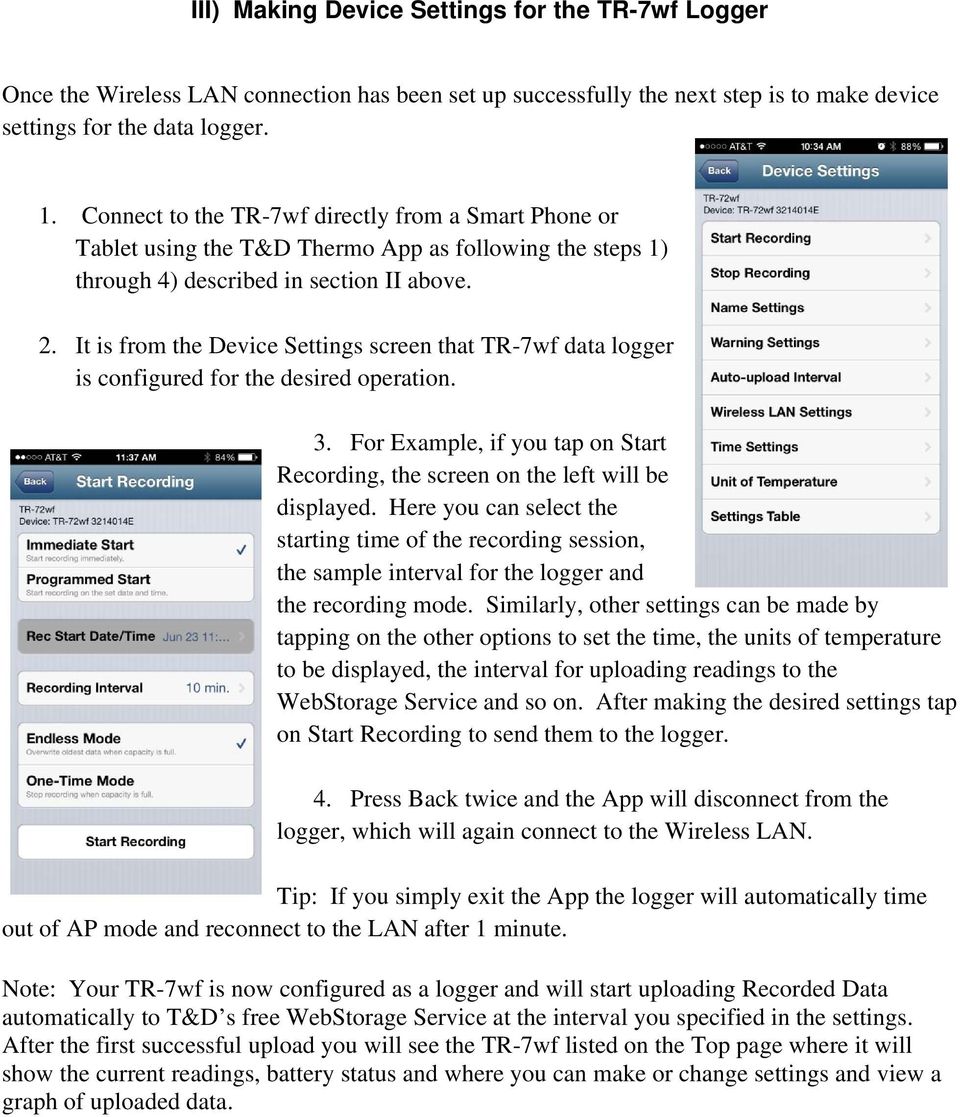
5 III) Making Device Settings for the TR-7wf Logger Once the Wireless LAN connection has been set up successfully the next step is to make device settings for the data logger. 1. Connect to the TR-7wf directly from a Smart Phone or Tablet using the T&D Thermo App as following the steps 1) through 4) described in section II above. 2. It is from the Device Settings screen that TR-7wf data logger is configured for the desired operation. 3. For Example, if you tap on Start Recording, the screen on the left will be displayed. Here you can select the starting time of the recording session, the sample interval for the logger and the recording mode. Similarly, other settings can be made by tapping on the other options to set the time, the units of temperature to be displayed, the interval for uploading readings to the WebStorage Service and so on. After making the desired settings tap on Start Recording to send them to the logger. 4. Press Back twice and the App will disconnect from the logger, which will again connect to the Wireless LAN. Tip: If you simply exit the App the logger will automatically time out of AP mode and reconnect to the LAN after 1 minute. Note: Your TR-7wf is now configured as a logger and will start uploading Recorded Data automatically to T&D s free WebStorage Service at the interval you specified in the settings. After the first successful upload you will see the TR-7wf listed on the Top page where it will show the current readings, battery status and where you can make or change settings and view a graph of uploaded data.
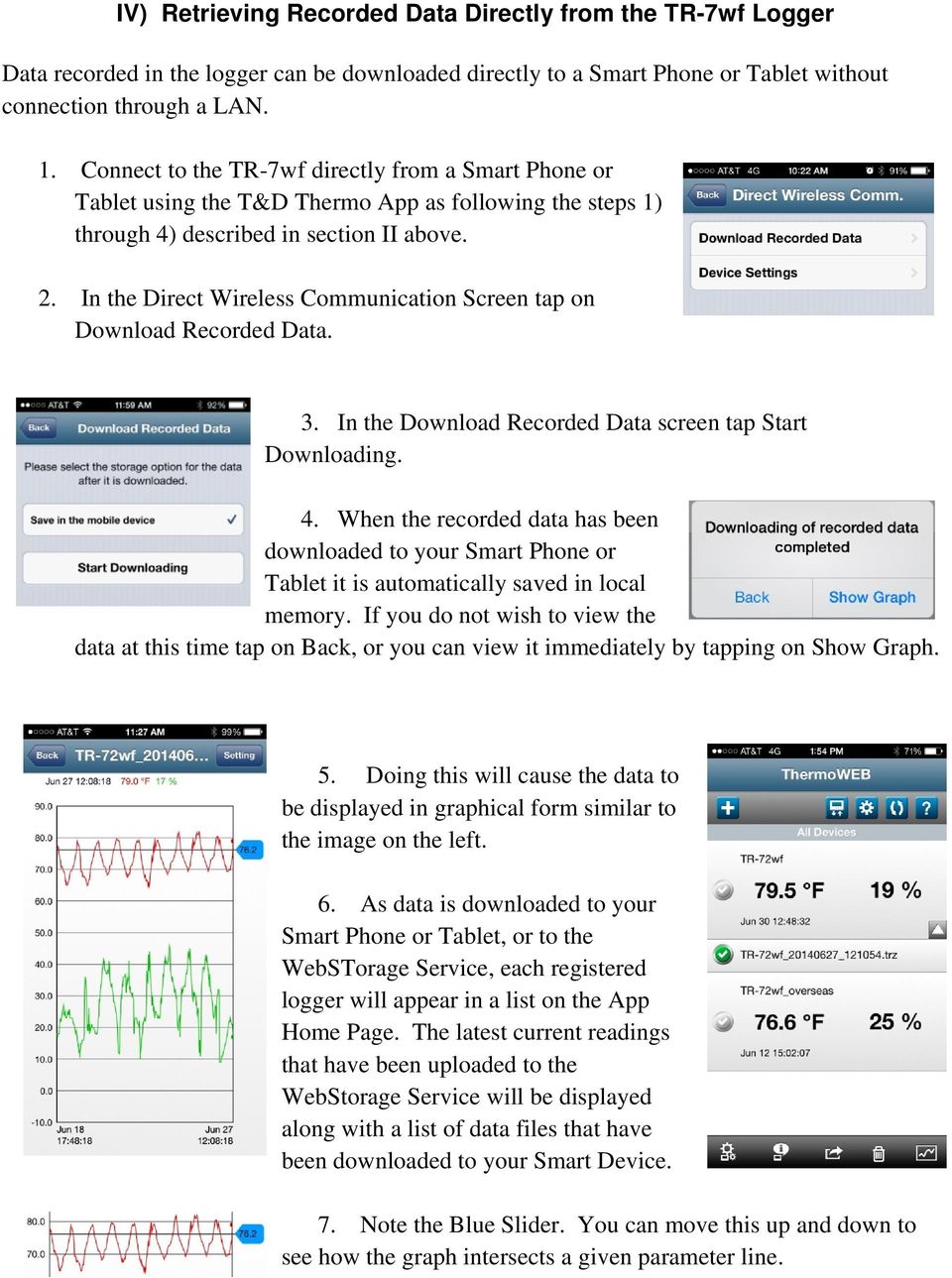
6 IV) Retrieving Recorded Data Directly from the TR-7wf Logger Data recorded in the logger can be downloaded directly to a Smart Phone or Tablet without connection through a LAN. 1. Connect to the TR-7wf directly from a Smart Phone or Tablet using the T&D Thermo App as following the steps 1) through 4) described in section II above. 2. In the Direct Wireless Communication Screen tap on Download Recorded Data. 3. In the Download Recorded Data screen tap Start Downloading. 4. When the recorded data has been downloaded to your Smart Phone or Tablet it is automatically saved in local memory. If you do not wish to view the data at this time tap on Back, or you can view it immediately by tapping on Show Graph. 5. Doing this will cause the data to be displayed in graphical form similar to the image on the left. 6. As data is downloaded to your Smart Phone or Tablet, or to the WebSTorage Service, each registered logger will appear in a list on the App Home Page. The latest current readings that have been uploaded to the WebStorage Service will be displayed along with a list of data files that have been downloaded to your Smart Device. 7. Note the Blue Slider. You can move this up and down to see how the graph intersects a given parameter line.
7 V) The T&D Thermo App Home Screen When the T&D Thermo App first opens it will default to the Home Screen. Here you will find a list of all TR-7wf loggers that have been registered, a list of data files that have been downloaded to your Smart Phone or Tablet and two rows of buttons for invoking various actions. Some helpful information about these elements follows below: A) Top Row Buttons 1. Add / Remove Devices: Tapping on this button will bring up the Add/Remove Devices Screen. From here you can register new TR-7wf logger to your device / account or remove old ones. 2. Direct Device Communications: Tapping this will bring up the Direct Wireless Communications Screen. From this screen you can log directly on to a TR-7wf in AP mode and download recorded data to your Smart Phone or Tablet, or make device settings for the data logger. 3. Tools Icon: By tapping this Icon you will call up a Setting Screen where you can manage various App functions on your Smart Device, such as enabling warning notifications. You can also add or remove WebStorage Service registered loggers for monitoring on your Smart Device. Once a logger is added, the App will automatically update the logger display on the Home Screen with the latest readings from the WebStorage Service. 4. Sort Data: Tapping on this Icon will open the Sort Data Screen. This will be helpful once there are a number of data files downloaded to your Smart Device. It allows for the files to be sorted in a variety of ways, such as Device Name, Date, Model, etc. 5. Help: Tapping on this Icon will bring up the T&D Thermo App Help Menu. This screen will show a number of useful links such as FAQ, Support, Version Level, etc. B) Device & Data Windows: These are the main informational windows on the T&D Thermo Homescreen. The larger windows show the TR-7wf loggers that are registered on your Smart Device. These will show the latest reading from the most recent connection to either the logger or to the WebStorage Service The smaller windows represent data files that have been downloaded from the logger shown immediately above. Selecting any of these windows by tapping on them will allow you to use the bottom row buttons to perform various functions.
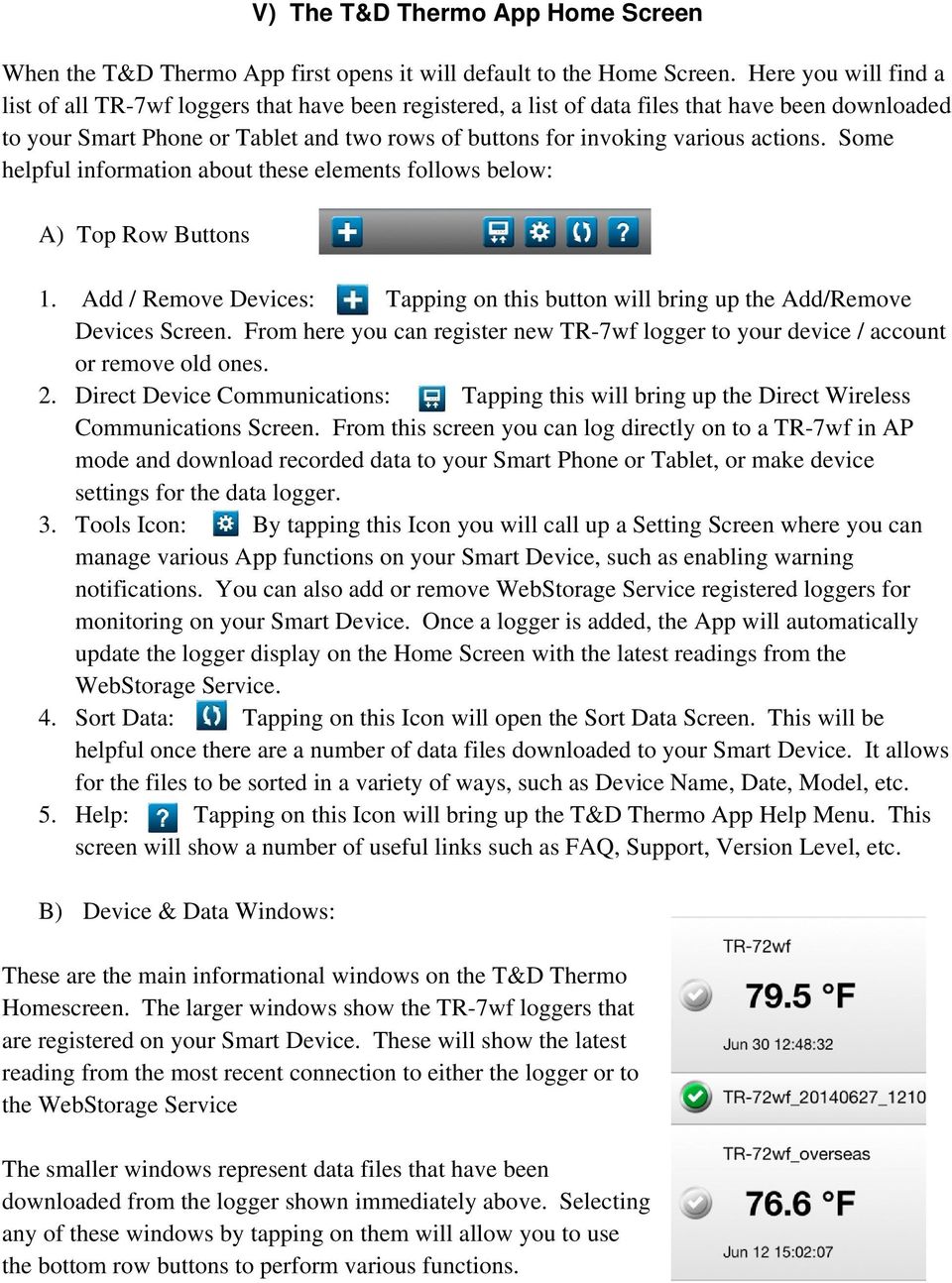
8 C) Bottom Row Buttons 1. Device Settings: To use this Icon first select a TR-7wf logger by tapping on its window. The check mark will turn green to confirm selections. Then, tapping this button will bring up the Device Settings Window. From this screen you can make / change all of the data logger settings that you made earlier in section III). 2. Info Button: This button can be used with both Data Logger windows and Data File Windows. If a Data Logger window is selected the Info button will show a number of details related to the logger and its settings. If a Data File window is selected details for the selected file and the logger that generated it will be shown. 3. Send Button: This button is used to Send data files that reside on your Smart Device. Files can be either uploaded to the WebStorge Service or can be sent via Delete Button: This is used to delete Downloaded Data Files that you no longer wish to retain on your Smart Device. 5. Graph Button: This button will show a graph of the currently selected Downloaded Data File. Hint: For an expanded view you can tilt your Smart Phone or Tablet into Landscape mode:

En Wireless Mobile Utility (Android) User s Manual. D610, D600, D7100, D5300, D5200, D3300, Df 0 2 26
 1 En Wireless Mobile Utility (Android) User s Manual Install the Wireless Mobile Utility on your smart device (smartphone or tablet) to download pictures from a camera or take pictures remotely. The Wireless
EOS 750D (W) Wi-Fi/NFC Function Instruction Manual ENGLISH INSTRUCTION MANUAL
 EOS 750D (W) Wi-Fi/NFC Function Instruction Manual ENGLISH INSTRUCTION MANUAL Introduction What You Can Do Using the Wireless LAN Functions This camera s wireless LAN functions let you perform a range
EZ RMC Remote HMI App Application Guide for Android Devices
 EZ RMC Remote HMI App Application Guide for Android Devices The EZ RMC Remote HMI App is an application designed for your Android devices to enable the monitoring and control of your EZTouch HMIs from
Step-by-Step Setup Guide Wireless File Transmitter
 EOS Step-by-Step Setup Guide Wireless File Transmitter Server Mode Infrastructure & Ad Hoc Networks for Apple ios Devices 2012 Canon U.S.A., Inc. All Rights Reserved. Reproduction in whole or in part without
Thank you for choosing the HUAWEI EC5805 Wireless Modem (E5).
 Thank you for choosing the HUAWEI EC5805 Wireless Modem (E5). Note: Supported functions and actual appearance depend on the specific models you purchased. The following illustrations are provided for your
USER GUIDE FOR ANDROID DEVICES
 USER GUIDE FOR ANDROID DEVICES Compatibility: Android 2.3 or higher 1. Overview... 4 2. Install and Set Up... 4 2.1. Download Emtec Connect App... 4 2.2. Connect your Wi-Fi HDD to your smartphones/ tablets
Quick Start. Nighthawk X8 AC5300 Tri-Band WiFi Router Model R8500. Package Contents. NETGEAR, Inc. 350 East Plumeria Drive San Jose, CA 95134 USA
 Support Thank you for purchasing this NETGEAR product. You can visit www.netgear.com/support to register your product, get help, access the latest downloads and user manuals, and join our community. We
Grandstream Networks, Inc.
 Grandstream Networks, Inc. GXV3240 IP Multimedia Phone for Android TM Microsoft Lync Application Setup Guide GXV3240 Microsoft Lync Setup Guide GXV3240 Microsoft Lync Setup Guide Index INTRODUCTION...
N750 WiFi DSL Modem Router Premium Edition
 Support Thank you for purchasing this NETGEAR product. After installing your device, locate the serial number on the label of your product and use it to register your product at https://my.netgear.com.
융프라우 수출향 RAC APP_IB_E_34261A(2).indd 18 2012-02-17 오후 2:10:18
 융프라우 수출향 RAC APP_IB_E_34261A(2).indd 18 2012-02-17 오후 2:10:18 Smart A/C application Air Conditioner user manual imagine the possibilities E S F I P D G Bu Ro Cr Se Po Hu Sk DB98-34261A(2) 융프라우 수출향 RAC
DATA PROJECTOR XJ-A147/XJ-A247/XJ-A257 XJ-M146/XJ-M156 XJ-M246/XJ-M256. XJ-A Series. XJ-M Series. Network Function Guide
 DATA PROJECTOR EN XJ-A Series XJ-A147/XJ-A247/XJ-A257 XJ-M Series XJ-M146/XJ-M156 XJ-M246/XJ-M256 Network Function Guide In this manual, XJ-A Series and XJ-M Series refer only to the specific models listed
SwannEye HD Security Camera Wi-Fi Connections Quick Setup Guide. Welcome! Lets get started.
 EN SwannEye HD Security Camera Wi-Fi Connections Quick Setup Guide Welcome! Lets get started. 1 1 Introduction 1 2 3 4 Congratulations on your purchase of this SwannEye HD Wi-Fi Security Camera from Swann!
VIVA 4G LTE Mini Router. Quick Start Guide
 VIVA 4G LTE Mini Router Quick Start Guide Thank you for choosing the VIVA 4G LTE Mini Router (hereinafter referred to as the E57) The supported functions and actual appearance are subject to the product
NAS 242 Using AiMaster on Your Mobile Devices
 NAS 242 Using AiMaster on Your Mobile Devices Learn to use AiMaster on your mobile devices A S U S T O R C O L L E G E COURSE OBJECTIVES Upon completion of this course you should be able to: 1. Use AiMaster
H.264 Quick Start Guide
 Version 1.0 the world in my eyes R H.264 Quick Start Guide Contents Hardware Connection 2 ios View 2 Android View 5 PC View 8 Last, but not least 11 NOTE: Certain functions, appearance or structure mentioned
4G LTE router: MIFI-4G
 4G LTE router: MIFI-4G 1. Introduction MIFI-4G is a multi-function device: WIFI router & power bank. It support 3G/4G internet, WIFI repeater and Ethernet, support 10 users simultaneously. Any terminal
Please refer to the guide below to use the latest Android version of the UCam247Live app.
 Please refer to the guide below to use the latest Android version of the UCam247Live app. IMPORTANT: If you already have a camera installed and working on your network using our older app please follow
AC1200 Smart WiFi Router
 Trademarks NETGEAR, the NETGEAR logo, and Connect with Innovation are trademarks and/or registered trademarks of NETGEAR, Inc. and/or its subsidiaries in the United States and/or other countries. Information
Not a smoke detector! STK3350 instructions
 Not a smoke detector! STK3350 instructions Table of contents Features list 1: Direct Connection from WiFi 2: Enable AP Client 3: Installing the micro SD Card (Not included) 4: Configure the camera using
Amcrest 960H DVR Quick Start Guide
 Amcrest 960H DVR Quick Start Guide Welcome Thank you for purchasing our Amcrest 960H DVR! This quick start guide will help you become familiar with our DVR in a very short time. Before installation and
Step-by-Step Setup Guide Wireless File Transmitter
 EOS Step-by-Step Setup Guide Wireless File Transmitter Server Mode Infrastructure & Ad Hoc Networks Macintosh OS X 10.5-10.6 2012 Canon U.S.A., Inc. All Rights Reserved. Reproduction in whole or in part
Thank you for purchasing the Mobile WiFi. This Mobile WiFi brings you a high speed wireless network connection.
 Quick Start Thank you for purchasing the Mobile WiFi. This Mobile WiFi brings you a high speed wireless network connection. This document will help you understand your Mobile WiFi so you can start using
1 CONNECT & CREATE CHAMBERLAIN INTERNET GATEWAY USER S GUIDE. Featuring MyQ Technology
 CHAMBERLAIN INTERNET GATEWAY USER S GUIDE Featuring MyQ Technology This User s Guide will help you get the most from your Chamberlain MyQ enabled products when using a smartphone, tablet, or computer to
genie app and genie mobile app
 genie app and genie mobile app User Manual 350 East Plumeria Drive San Jose, CA 95134 USA June 2012 202-10933-02 v1.0 2012 NETGEAR, Inc. All rights reserved No part of this publication may be reproduced,
Business Media Platform (BMP)
 (BMP) The BWW (BMP) is an in-house BWW communications platform, controlled, developed and owned by BWW, utilizing and maximizing Apple, Cloud and Internet technologies, compatible with ios and Android
Novell Filr 1.0.x Mobile App Quick Start
 Novell Filr 1.0.x Mobile App Quick Start February 2014 Novell Quick Start Novell Filr allows you to easily access all your files and folders from your desktop, browser, or a mobile device. In addition,
E21 Mobile Users Guide
 E21 Mobile Users Guide E21 Mobile is the Mobile CRM companion to TGI s Enterprise 21 ERP software. Designed with the mobile sales force in mind, E21 Mobile provides real-time access to numerous functions
Support. Package Contents. D6200 WiFi DSL Modem Router Installation Guide
 Support Thank you for selecting NETGEAR products. After installing your device, locate the serial number on the label of your product and use it to register your product at https://my.netgear.com. You
How to setup the UCW232C Serial WiFi adapter
 How to setup the UCW232C Serial WiFi adapter (based on Windows 7, 32/64-bit) This step-by-step guide explains how to get started using the Serial RS232 WiFi Adapter part UCW232C and Serial RS485 / RS422
HOBOmobile User s Guide Android
 HOBOmobile User s Guide Android Onset Computer Corporation 470 MacArthur Blvd. Bourne, MA 02532 www.onsetcomp.com Mailing Address: P.O. Box 3450 Pocasset, MA 02559 3450 Phone: 1 800 LOGGERS (1 800 564
MobileLite Wireless G2 5-in-1 Mobile Companion User Manual
 MobileLite Wireless G2 5-in-1 Mobile Companion User Manual Document No. 480-MLWG2-021315.A00 Kingston MobileLite Wireless Page 1 of 21 Table of Contents Introduction... 3 What s Included:... 3 Getting
Powerline 500 WiFi Access Point (XWNB5201) Installation Guide
 Powerline 500 WiFi Access Point (XWNB5201) Installation Guide Support Thank you for selecting NETGEAR products. After installing your device, locate the serial number on the label of your product and use
NETVIGATOR Wireless Modem Setup Guide. (TG789Pvn)
 NETVIGATOR Wireless Modem Setup Guide (TG789Pvn) Configure the NETVIGATOR Wireless Modem Make sure that system meets the following requirement prior to NETVIGATOR Wireless Modem usage: - Subscribers who
4P359542-1H. Wireless LAN Connecting Adapter <BRP069A41> Installation Manual
 4P359542-1H Wireless LAN Connecting Adapter Installation Manual Wireless LAN Connecting Adapter Installation Manual Homepage: http://www.onlinecontroller.daikineurope.com For details
USER GUIDE FOR ANDROID DEVICES
 USER GUIDE FOR ANDROID DEVICES Compatibility: Android 2.3 or higher 1. Overview... 4 2. Install and Set Up... 4 2.1. Charge your Power Connect... 4 2.2. Charge your smartphone battery with Power Connect...
Thank you for purchasing the Mobile WiFi. This Mobile WiFi brings you a high speed wireless network connection.
 Quick Start Thank you for purchasing the Mobile WiFi. This Mobile WiFi brings you a high speed wireless network connection. This document will help you understand your Mobile WiFi so you can start using
Support Package Contents AC1600 WiFi VDSL/ADSL Ethernet cable Trademarks Modem Router Compliance Phone cable Modem router
 Support Thank you for purchasing this NETGEAR product. After installing your device, locate the serial number on the label of your product and use it to register your product at https://my.netgear.com.
BlackVue Cloud App Overview...3. Getting Started...6. Basic Menu Screens...15. BlackVue Cloud...24. BlackVue Wi-Fi...40. Internal Memory...
 Table of Contents BlackVue Cloud App Overview...3 Key Functions When Cloud is Connected...4 Key Functions When Wi-Fi Connection is Made...4 Key Features of Internal Memory...4 Supported Devices...5 Getting
Qsync Install Qsync utility Login the NAS The address is 192.168.1.210:8080 bfsteelinc.info:8080
 Qsync Qsync is a cloud based file synchronization service empowered by QNAP Turbo NAS. Simply add files to your local Qsync folder, and they will be available on your Turbo NAS and all its connected devices.
User s manual for Android Application
 Motorised IP Video surveillance camera for smartphones, tablets and PC / MAC. Protect your home and family remotely! User s manual for Android Application Thanks We thank you for choosing Aquila Vizion.
Student BYOD - Olathe Public Schools
 Student BYOD - Olathe Public Schools Connecting a Personally-Owned Device to the District s Wireless Network Students may attach ONE personal electronic device to the Olathe Public Schools wireless network
Once you have obtained a username and password you must open one of the compatible web browsers and go to the following address to begin:
 CONTENT MANAGER GUIDELINES Content Manager is a web-based application created by Scala that allows users to have the media they upload be sent out to individual players in many locations. It includes many
Apps for Android. Apps for iphone & ipad INS584-3
 Apps for iphone & ipad INS584-3 Apps for Android Android is a trademark of Google Inc. iphone is a trademark of Apple Inc., registered in the U.S. and other countries. ipad is a trademark of Apple Inc.,
Powerline 500 WiFi Access Point (XWN5001) Installation Guide
 Powerline 500 WiFi Access Point (XWN5001) Installation Guide Support Thank you for selecting NETGEAR products. After installing your device, locate the serial number on the label of your product and use
WiFi DSL Modem Router
 Support Thank you for purchasing this NETGEAR product. After installing your device, locate the serial number on the label of your product and use it to register your product at https://my.netgear.com.
En Wireless Mobile Utility (Android) User s Manual. D750, D610, D600, D7200, D7100, D5500, D5300, D5200, D3300, Df 0 2 31
 1 En Wireless Mobile Utility (Android) User s Manual Install the Wireless Mobile Utility on your smart device (smartphone or tablet) to download pictures from a camera or take pictures remotely. The Wireless
EZ RMC Remote HMI App Application Guide for ios
 EZ RMC Remote HMI App Application Guide for ios The EZ RMC Remote HMI App is an application designed for your ios devices to enable the monitoring and control of your EZTouch HMIs from EZAutomation.net.
How to Configure your Energate Foundation Wi-Fi USNAP Radio Module.
 How to Configure your Energate Foundation Wi-Fi USNAP Radio Module. This guide is to be used when using a Foundation Smart Thermostat and Home Energy Gateway with version 1.4 and Energate Wi-Fi USNAP RM42W.
Thank you for purchasing the Huawei E5332 Mobile WiFi. This quick start guide will help you to get started right away.
 Thank you for purchasing the Huawei E5332 Mobile WiFi. This quick start guide will help you to get started right away. You can connect your Huawei E5332 to the internet through any WiFi enabled device
Student Quick Start Guide
 Student Quick Start Guide Welcome to Top Hat! This guide will help you register a student account and understand how to use Top Hat for your class. Creating an Account 1. If you don t already have a previous
Setup guide for ebanking
 Setup guide for ebanking SETUP GUIDE This setup guide will take you through your initial logon to ebanking with Access ID. At the end of the setup guide, you will also find detailed contact information
Thank you for purchasing the Mobile WiFi. This Mobile WiFi brings you a high speed wireless network connection.
 Quick Start Thank you for purchasing the Mobile WiFi. This Mobile WiFi brings you a high speed wireless network connection. This document will help you understand your Mobile WiFi so you can start using
Installing your UmtPlus Max Software on an Android Device
 Installing your UmtPlus Max Software on an Android Device Requirements... Page 2 STEP 1: Installing the UmPlus Max package onto your PC... Page 2 STEP 2: Allow installation of non-market applications...
ReadyNAS Remote. User Manual. June 2013 202-11078-03. 350 East Plumeria Drive San Jose, CA 95134 USA
 User Manual June 2013 202-11078-03 350 East Plumeria Drive San Jose, CA 95134 USA Support Thank you for selecting this NETGEAR product. After installing your device, locate the serial number on the label
Lenovo Multi-mode WiFi Storage F800 Quick Guide
 Lenovo Multi-mode WiFi Storage F800 Quick Guide Please read carefully before use Lenovo Multi-mode WiFi Storage F800 integrates wireless hard drive, wireless router and mobile power into one multifunctional
CRESTRON-APP-ANDROID Control App for Android
 1 Introduction The app from Crestron provides a Smart Graphics touch screen user interface on Android devices. Fully integrated with Crestron programming software including Crestron Studio, VT Pro-e, and
Enterprise Analytics. (Also known as Pyramid Analytics or BI Office) Mobile Device Support
 Enterprise Analytics (Also known as Pyramid Analytics or BI Office) Mobile Device Support Mobile Device Support Overview Enterprise Analytics provides mobile support for ios, Android and Windows Phone.
Connecting Your Device to a Wireless Network
 Connecting Your Device to a Wireless Network This manual is designed to be a tutorial for our customers seeking to connect their electronic devices to their home Internet network. This manual will include
Frequently Asked Questions: Cisco Jabber 9.x for Android
 Frequently Asked Questions Frequently Asked Questions: Cisco Jabber 9.x for Android Frequently Asked Questions (FAQs) 2 Setup 2 Basics 4 Connectivity 8 Calls 9 Contacts and Directory Search 14 Voicemail
mybullard Personal Control Panel User Guide
 Page 1 mybullard Personal Control Panel User Guide Go to www.bullard.com/mybullard and click on the setup file in order to download the mybullard installer to your PC. Your browser / anti-virus software
EM6230 e-camview HD outdoor IP camera
 EM6230 e-camview HD outdoor IP camera 2 ENGLISH EM6230 e-camview HD outdoor IP camera Table of contents 1.0 Introduction... 3 1.1 Packing contents... 3 1.2 Requirements to access the camera.... 3 1.3 Major
Store & Share Quick Start
 Store & Share Quick Start What is Store & Share? Store & Share is a service that allows you to upload all of your content (documents, music, video, executable files) into a centralized cloud storage. You
How do I Install and Configure MS Remote Desktop for the Haas Terminal Server on my Mac?
 Enterprise Computing & Service Management How do I Install and Configure MS Remote Desktop for the Haas Terminal Server on my Mac? In order to connect remotely to a PC computer from your Mac, we recommend
Home Station ADSL. You may also use the following address (regardless of whether you have changed the primary address or not):
 TABLE OF CONTENTS 1 Introduction 1 2 User interface overview 2 3 LAN and WLAN settings 8 4 Setting the Internet connection 11 5 Settings and status of devices connected to your router 13 6 Configure applications
----------------------------------------------------------------------------------------------------------------------
 ZMODO Zsight Android User Manual ---------------------------------------------------------------------------------------------------------------------- Contents 1 Software Installation... 3 1.1 Product
AC1200 WiFi Range Extender
 Model EX6200 User Manual February 2014 202-11298-01 350 East Plumeria Drive San Jose, CA 95134 USA Support Thank you for selecting NETGEAR products. After installing your device, locate the serial number
DroboAccess User Manual
 DroboAccess User Manual Release 8.2 The DroboAccess developers June 02, 2016 CONTENTS 1 DroboAccess 8.2 User Manual Introduction 1 2 Configuration of DroboAccess 8.2 3 2.1 Users, passwords and share management................................
HRG App for Android Devices. User Guide
 HRG App for Android Devices User Guide Document 800-12218 Rev A 07/2012 Revisions Issue Date Revisions A 07/2012 New document. Contents 3 Contents 1 1 Introduction...............................................
ShareLink 200 Setup Guide
 ShareLink 00 Setup Guide This guide provides instructions for installing and connecting the Extron ShareLink 00. The ShareLink USB 00 Wireless Collaboration Gateway allows anyone to present content from
Password Depot for Android
 Password Depot for Android Table Of Contents Table Of Contents... 2 User interface... 3 Action Bar... 3 Overflow Menu... 4 Entry menu... 5 Context Bar... 6 Settings... 7 Creating a password file... 8 Opening
Chapter 1 Connecting the Router to the Internet
 Chapter 1 Connecting the Router to the Internet This chapter describes how to set up the router on your Local Area Network (LAN) and connect to the Internet. It describes how to set up your wireless ADSL
MXview ToGo Quick Installation Guide
 MXview ToGo Quick Installation Guide First Edition, July 2015 2015 Moxa Inc. All rights reserved. P/N: 18020000000C0 Overview MXview ToGo allows you to use your mobile devices to monitor network devices
CRESTRON-APP/CRESTRON-APP-PAD Control App for Apple ios
 1 Introduction The Crestron apps CRESTRON-APP and CRESTRON-APP-PAD provide a Smart Graphics touch screen user interface on Apple devices running the ios operating system. CRESTRON-APP can also provide
Axis 360 Guides Table of Contents. Axis 360 & Blio ebooks with Android Devices (1/30/14)
 Axis 360 Guides Table of Contents Axis 360 & Blio ebooks with Android Devices (1/30/14) Axis 360 & Blio ebooks with eread Devices or a Computer (1/30/14) Axis 360 & Blio ebooks with ios Devices (1/30/14)
Step-by-Step Setup Guide Wireless File Transmitter FTP Mode
 EOS Step-by-Step Setup Guide Wireless File Transmitter FTP Mode Infrastructure & Ad Hoc Networks Mac OS X 10.5-10.6 2012 Canon U.S.A., Inc. All Rights Reserved. Reproduction in whole or in part without
All IUH Facilites Staff Physicians (does not include residents/fellows)
 Topic: Facility: Audience: Overview: Clinical IS Update Diagnotes: Frequently Asked Questions All IUH Facilites Staff Physicians (does not include residents/fellows) For anyone who is not a staff physician
Data Loggers for Real Time Temperature Monitoring - WiFi
 Data Loggers for Real Time Temperature Monitoring - WiFi Main Features Complete standalone system. Even if computer/network does not operate the recording system will continue to record without any interruption.
supervisorapp A GUIDE TO USING THE SUPERVISOR APP For version 3.0.0
 supervisorapp A GUIDE TO USING THE SUPERVISOR APP For version 3.0.0 New to Supervisor app? Learn the basics. For version 3.0.0 What is the Supervisor App? The Supervisor App lets you submit job seeker
Thank you for choosing Huwei E589 4G Mobile WiFi
 Thank you for choosing Huwei E589 4G Mobile WiFi This guide briefly describes the functions of your Huawei E589 4G Mobile WiFi. For more details, see help on the web management page. See Accessing the
Mobility with Eye-Fi Scanning Guide
 Mobility with Eye-Fi Scanning Guide Scan and Transfer Images Wirelessly with Eye-Fi This document is to be used in addition to the scanner s user guide located on the installation disc. The instructions
Experience Next-Generation WiFi
 Do More Experience Next-Generation WiFi Your new WiFi extender supports the 802.11ac networking standard. This new standard offers better speed, improved reliability, and more range than older WiFi networking
FreeAgent DockStar Network Adapter User Guide
 FreeAgent DockStar Network Adapter User Guide FreeAgent DockStar Network Adapter User Guide 2010 Seagate Technology LLC. All rights reserved. Seagate, Seagate Technology, the Wave logo, and FreeAgent are
Software and Settings Instructions
 SoelTech Automation Inc. Software and Settings Instructions Select the blue disclosure button that is associated with the network name you want to connect the Mobile GDO to (Blue >). It would normally
Quick Start Guide. Business Wireless Gateway. WiFi Devices. Model Number: DPC3939B. Business Wireless Gateway
 Business Wireless Gateway Model Number: DPC3939B Quick Start Guide WiFi Devices Business Wireless Gateway Set up your Private and Public WiFi networks About the Business Wireless Gateway Model Number:
Monnit Wi-Fi Sensors. Quick Start Guide
 Monnit Wi-Fi Sensors Quick Start Guide Inside the Box You should find the following items in the box: Monnit Wi-Fi (MoWi ) Sensors 2 x AA Batteries for Each MoWi Sensor Quick Start Guide Note: A MoWi USB
Telstra Wi-Fi 4GX Advanced III AirCard 810S User Manual
 AirCard 810S User Manual July 2015 202-11529-02 350 East Plumeria Drive San Jose, CA 95134 USA Support Contact Telstra at livechat.telstra.com for technical support. Compliance For regulatory compliance
FAQs. Conserve package. Gateway... 2 Range Extender... 3 Smart Plug... 3 Thermostat... 4 Website... 7 App and Mobile Devices... 7
 FAQs Conserve package Gateway... 2 Range Extender... 3 Smart Plug... 3 Thermostat... 4 Website... 7 App and Mobile Devices... 7 FAQs Gateway Can I have someone install my system for me? If you are concerned
Mobile App: Synthes International Installation Guide
 Mobile App: Synthes International Installation Guide Version: 1.0 Datum: June 15, 2011 Autor: Urs Heller Table of Contents 1. Requirements 3 1.1 Hardware 3 1.2 Software 3 2. Do I have an Apple ID? Is my
How do I Install and Configure MS Remote Desktop for the Haas Terminal Server on my Mac?
 How do I Install and Configure MS Remote Desktop for the Haas Terminal Server on my Mac? In order to connect remotely to a PC computer from your Mac, we recommend the MS Remote Desktop for Mac client.
NAS 243 Using AiData on Your Mobile Devices
 NAS 243 Using AiData on Your Mobile Access and manage files on your NAS with ios and Android devices A S U S T O R C O L L E G E COURSE OBJECTIVES Upon completion of this course you should be able to:
Smarter Balanced Assessment Consortium:
 Smarter Balanced Assessment Consortium: For the Spring 2014 Field Test Administration Updated March 26, 2014 Prepared by the American Institutes for Research Smarter Balanced Assessment Consortium, 2014
Setting up Wireless ipad Control of your DEWETRON Computer-based System
 Setting up Wireless ipad Control of your DEWETRON Computer-based System There are a few important things that you need to do in order to use remote desktop applications, such as the itap RDP on the new
Acano solution. Acano Clients v1.7 Getting Started Guide. June 2015 76-1047-03-D
 Acano solution Acano Clients v1.7 Getting Started Guide June 2015 76-1047-03-D Contents Contents 1 Introduction... 4 1.1 cospaces... 4 1.2 cospace Users... 4 1.3 The Acano Client... 5 2 Overview... 6 2.1
Homeguard Wireless Home Camera Quick Start Guide
 Homeguard Wireless Home Camera Quick Start Guide Congratulations on your purchase of this Homeguard Wireless Home Camera. This leaflet will guide you through setting up your camera for basic use with a
1. Smart phone requirements. Hardware / Operating System OS - Android 2.3/4.0/4.1 CPU RAM. Network. Video Codec - H.264 Recommended Smart Phones
 SmartCam for Android SNH-1011N English With SmartCam app, you can monitor what matters to you directly from your smart phone. Download the application from the Play Store and install it on your smart phone.
How to connect to NAU s WPA2 Enterprise implementation in a Residence Hall:
 How to connect to NAU s WPA2 Enterprise implementation in a Residence Hall: General Settings To connect to the ResNet-Secure SSID, a device is needed that supports 802.1X authentication and WPA2 Enterprise.
DIGITUS Plug&View IP cameras
 DIGITUS Plug&View IP cameras Quick Installation Guide (QIG) What's in the box 1 X Plug&View IP camera 1 X power supply with cable 1 X Ethernet cable 1 X Quick Installation Guide 1 X CD with utilities 1
FAQ for Transformer TF201
 FAQ for Transformer TF201 Managing files... 2 How do I access my data stored in microsd, SD card and USB device?... 2 How do I move the selected file to another folder?... 2 How do I copy and paste the
User Manual ELECTRONIC KEYPAD LEVERSET WITH BLUETOOTH PROGRAMMING. ASSA ABLOY, the global leader in door opening solutions
 User Manual ELECTRONIC KEYPAD LEVERSET WITH BLUETOOTH PROGRAMMING ASSA ABLOY, the global leader in door opening solutions ELECTRONIC KEYPAD LEVERSET WITH BLUETOOTH PROGRAMMING Lever buttons Keyed Cylinder
Manual Instruction for. AU06-DL13W/RGB/30K MiLight Wifi LED Controller
 Important: Read all instructions prior to installation. Manual Instruction for AU06-DL13W/RGB/30K MiLight Wifi LED Controller After completing this simple setup using just your smartphone or tablet and