
App Inventor Drum Machine Instructions (Project #1) (Version 2 of App Inventor) Description:
|
|
|
- Kerry Armstrong
- 9 years ago
- Views:
Transcription

1 App Inventor Drum Machine Instructions (Project #1) (Version 2 of App Inventor) Description: App Inventor is a web based tool that allows the user to create apps for Android devices. The user interface design is assembled in a web browser and the programming of the app objects are done in a block based environment. App Inventor provides a platform to prototype App ideas and experiment with the elements of Mobile Application design such as buttons, text boxes, events, sound, and animation. Elements of App Design: A mobile application has three parts; Control, Model, and View:

2 User Interface Design in Web Browser: We design the user layout of the App in a web based application found at: There are four windows in the web based user interface editor: Palette: Contains element such as Buttons, Labels, TextBoxes, Sounds, Sensors Viewer: Contains a representation of the App Screen Components: User Interface elements currently in App. Properties: The specific settings and values associated with the selected element.

3 Programming The App: To program the actions of an App, the Blocks Editor. Each block represents an event, value, or function. The example below shows the blocks that will direct the Sound objects to play when a specific button is clicked:


4 Process: 1. Go to and login with your Marist Google account. Click Allow if needed. 2. You should see a screen that looks like this: Click New to create a new App Project.


5 3. Type LastnameDrumMachine in the Project Name Box and click OK. 4. You now see the User Interface design screen. We need to make a 2 x 4 array to hold 4 button objects. All objects in App Screens must be contained inside a screen arrangement. On the Palette, click Layout and drag a Table Arrangement to the Screen.


6 5. We now need to set the properties for the table arrangement. On the right hand side of the screen in the Properties window, change the following values: Columns: 2 Rows: 4 Width: Fill parent (takes up the whole screen) Height: Automatic


7 6. We are now going to place 4 Button objects. Click on the User Interface tab in the Palette and drag 4 Button objects to the Table Arrangement. Notice how they show in the Components View as an outline: 7. We need to set the properties for these buttons. We are going to set the following properties: Width: 150 Pixels Height: 150 Pixels Click on each button and set the width and the height in the Properties window:


8 The result should look like:

9 8. We now need to import the Sound objects. The Sound objects will hold the sounds we want to play when we press the buttons. Click on the Media tab in the Palette and Drag 4 Sound objects to the phone screen. Note that you will not see them on the screen, but they will show up in the Components outline. Sound objects appear in outline view. However, they are not visible on the App Screen 9. We now need 4 sounds for the sound objects. You may search for sounds (instrument, animal...) on the internet or you may use sounds I have set aside for practice on Apps. (Located at: ) To get to the App Inventor Media collection, open a new tab on your browser and go to the Computational Media Page. On the Links section of the page find the link for Media for App Inventor Projects

10 10. Once you click on the link you will see a screen listing Backgrounds, Costumes, and Sounds: 11. Click on Sounds and select a folder. (I am going to select Instruments ). To listen to the sounds, click the link. The page will change and the sound will play. To get back to the sounds, use the back button.


11 12. After you have listed to some sounds. Select one and right click on the link. Select Save Link As 13. Navigate to you Computational Media / App Inventor folder and save the sound to that folder.

12 14. Save at least 4 sounds and for images to your App Inventor Folder. (Images can be found in Costumes )

13 15. Go back to the App Inventor website. Go to the bottom of the page in the Components window and find the Media section. We need to upload the 4 sounds and 4 images to the project so we can use them in the App. Click the Upload New button. 16. Navigate to the folder where you stored the images and sounds by clicking Choose File


14 17. Select an image or sound and click Open 18. Click OK to upload the image or sound.

15 19. You will need to repeat steps 15 to 19 to upload your 4 images and sounds. When you are done you sound see your images and sounds in the Media area: 20. We now need to map each sound to the sound objects. Click on Sound1 in the Components View:


16 21. On the Properties window, click Source and the list of media will appear. Select a sound to be the source for Sound1 and click OK :


17 22. I selected the Dijjeridoo.mp3 for the sound for Sound1. Now click rename in the Components Window and rename Sound1 to match the name of the sound we assigned. Note the use of capital letters and spacing. Object names should have a lowercased starting letter and then use upper case for new words in the middle of the name. This is the convention for computer programming.

18 23. Assign a sound to each sound object and rename according to the sound using good naming conventions. All sounds assigned and each Sound object has a unique name.


19 24. We now need to assign images and names for the buttons. The procedure is similar to the Sound objects. Click on Button1 and set the following properties: Image: You Choose based on your images Text: Remove the Text for Button1 so the text does not appear. Rename the button based on the image.


20 25. Assign images and names to the other three buttons. Remember to use good naming conventions.

21 26. With the Media assigned and the Button and Sound objects named, we are ready to write the program and run this on a phone or emulator. To program the phone we need to use the Blocks Editor. Make sure in this process you read carefully the messages the computer sends. 27. First, click the Blocks in the upper right of the User Interface Design page.

22 28. You will see a screen that looks like this.

23 29. On the left hand side of the Blocks Editor you will see tabs reading Built-In, My Blocks, and Advanced. Click on the My Blocks. You should see the button and sound objects from your app listed on the left.

24 30. We will now program the first button. Click on one of your buttons (I am going to choose buttonbananas). When you click on the button you will see a list of available blocks.

25 31. Drag a (when button.click) block to the programming area. Remember, the names of your buttons might not match this example.

26 32. Select one of your sounds from the left and click to reveal its blocks. Drag a sound.play block into the button.clicked block. Note the names might be different depending on what you named them during the design phase. 33. We now want to test this App on the Phone or Emulator. An Emulator is a virtual phone that runs on your computer and allows you to test your App without having an actual Android device on hand. Remember, you need to have installed the App Inventor software for this to work. (Refer to directions at: ) if you have not installed the software. 34. Find the Icon for aistarter on your desktop. Double click the Icon to start the App Inventor helper program. You will see a black command window open. Do not close this window while using App Inventor. You may minimize the window if needed.

27 35. Click Connect in the App Inventor Menu. Select Emulator. It might take several minutes for the Emulator to start for the first time. You will see a message like this:
28 36. To see the emulator, click on the Android icon located on your TaskBar. ( )

29 37. After a few minutes, your computer and the emulator will open communications and you should see the App in the Emulator. Sometimes this takes several minutes to start. Be patient You should be able to click on one of the buttons (the one you programmed) and it should make the sound. Do a celebratory fist pump if you got this right!!! Do NOT close the emulator. Leave it running while you work so you can continue to test your App.

30 39. You now need to program the other buttons to play their sounds. Select each button s.click event and place the sound.play block inside the event. The emulator should automatically update to run your App. 40. To complete this assignment you will need to modify the App: a. The Drum App needs at least 8 Buttons with Images (Hint you will need to change the Table Arrangement to a 2x4 Table) (Hint #2 change the properties of the Buttons to make them smaller...) (Hint #3 Use Small images (Search for 64 by 64 pixel images in Google Images) b. The Drum App needs 8 sounds for the images. c. The Sounds and Button Images should make sense (Have a theme such as animal sounds, movie sounds...) 41. Make sure you upload an image of the Code Blocks and the App on the Emulator to your Google Site. No credit for this project will be earned if the content is not on your Google Site. (For students with non-functioning Google Sites See Mr. Michaud for alternative turn in procedures)
Or working offline with the local server: Once you have the App Inventor running type into your browser http://localhost:8888
 App Inventor Tutorial 10 Calculator This tutorial will help you develop a calculator using If statements and a ListPicker. You will be asked to enter 2 numbers, Number1 and Number2. When you have entered
American Sign Language Alphabet App (Project #2) (Version 2 of App Inventor) Description:
 American Sign Language Alphabet App (Project #2) (Version 2 of App Inventor) Description: This App will take text input and then translate each letter of the text to the corresponding American Sign Language
Hello Purr. What You ll Learn
 Chapter 1 Hello Purr This chapter gets you started building apps. It presents the key elements of App Inventor the Component Designer and the Blocks Editor and leads you through the basic steps of creating
Joomla Article Advanced Topics: Table Layouts
 Joomla Article Advanced Topics: Table Layouts An HTML Table allows you to arrange data text, images, links, etc., into rows and columns of cells. If you are familiar with spreadsheets, you will understand
What is OneDrive for Business at University of Greenwich? Accessing OneDrive from Office 365
 This guide explains how to access and use the OneDrive for Business cloud based storage system and Microsoft Office Online suite of products via a web browser. What is OneDrive for Business at University
CHAPTER 1 HelloPurr. The chapter covers the following topics:
 CHAPTER 1 HelloPurr This chapter gets you started building apps. It presents the key elements of App Inventor, the Component Designer and the Blocks Editor, and leads you through the basic steps of creating
Mobile Apps with App Inventor
 Mobile Apps with App Inventor written for 91.113 Michael Penta Table of Contents Mobile Apps... 4 Designing Apps in App Inventor... 4 Getting Started... 5 App Inventor Layout... 5 Your First App... 7 Making
2342-4. Scientific m-learning. 4-7 June 2012. Mobile Application Development using App Inventor for Android Devices
 2342-4 Scientific m-learning 4-7 June 2012 Mobile Application Development using App Inventor for Android Devices TRIVEDI Kirankumar Rajnikant Shantilal Shah Engineering College New Sidsar Campu, PO Vartej
Making the Most of Files & Folders. Schoolwires Centricity2
 Making the Most of Schoolwires Centricity2 Table of Contents Introduction... 1 How Files are Stored in... 1 Access... 1 The Window... 2 Folders... 2 Files... 3 Using... 4 Link Existing Text to a File...
MICROSOFT OUTLOOK 2011 READ, SEARCH AND PRINT E-MAILS
 MICROSOFT OUTLOOK 2011 READ, SEARCH AND PRINT E-MAILS Lasted Edited: 2012-07-10 1 Find the Inbox... 3 Check for New Mail... 4 Manually check for new messages... 4 Change new incoming e-mail schedule options...
App Inventor Beginner Tutorials
 App Inventor Beginner Tutorials 1 Four Simple Tutorials for Getting Started with App Inventor 1.1 TalkToMe: Your first App Inventor app 4 1.2 TalkToMe Part 2: Shaking and User Input 23 1.3 BallBounce:
Steps to Create a Database
 Steps to Create a Database Design the Database In order for a database to be effective some time should be spent on the layout of the table. Additionally, time should be spent on what the purpose of the
Using Adobe Dreamweaver CS4 (10.0)
 Getting Started Before you begin create a folder on your desktop called DreamweaverTraining This is where you will save your pages. Inside of the DreamweaverTraining folder, create another folder called
GOOGLE DOCS APPLICATION WORK WITH GOOGLE DOCUMENTS
 GOOGLE DOCS APPLICATION WORK WITH GOOGLE DOCUMENTS Last Edited: 2012-07-09 1 Navigate the document interface... 4 Create and Name a new document... 5 Create a new Google document... 5 Name Google documents...
Creating a Website with Google Sites
 Creating a Website with Google Sites This document provides instructions for creating and publishing a website with Google Sites. At no charge, Google Sites allows you to create a website for various uses,
Microsoft Access Rollup Procedure for Microsoft Office 2007. 2. Click on Blank Database and name it something appropriate.
 Microsoft Access Rollup Procedure for Microsoft Office 2007 Note: You will need tax form information in an existing Excel spreadsheet prior to beginning this tutorial. 1. Start Microsoft access 2007. 2.
Step by Step. Use the Cloud Login Website
 Step by Step HOW TO Use the Cloud Login Website This How To article will show you how to use the Cloud Login Website to upload and download your files from the cloud. For a complete list of available How
Initial Setup of Microsoft Outlook with Google Apps Sync for Windows 7. Initial Setup of Microsoft Outlook with Google Apps Sync for Windows 7
 Microsoft Outlook with Initial Setup of Concept This document describes the procedures for setting up the Microsoft Outlook email client to download messages from Google Mail using Internet Message Access
CONTENTM WEBSITE MANAGEMENT SYSTEM. Getting Started Guide
 CONTENTM WEBSITE MANAGEMENT SYSTEM Getting Started Guide Table of Contents CONTENTM WEBSITE MANAGEMENT SYSTEM... 1 GETTING TO KNOW YOUR SITE...5 PAGE STRUCTURE...5 Templates...5 Menus...5 Content Areas...5
EBOX Digital Content Management System (CMS) User Guide For Site Owners & Administrators
 EBOX Digital Content Management System (CMS) User Guide For Site Owners & Administrators Version 1.0 Last Updated on 15 th October 2011 Table of Contents Introduction... 3 File Manager... 5 Site Log...
How To Connect Your Cloud
 How To Connect Your Cloud This tutorial will show you how to connect ncrypted Cloud to multiple cloud storage accounts after installation. This will allow you to apply privacy to all cloud data right from
Android Programming Family Fun Day using AppInventor
 Android Programming Family Fun Day using AppInventor Table of Contents A step-by-step guide to making a simple app...2 Getting your app running on the emulator...9 Getting your app onto your phone or tablet...10
Google Sites: Creating, editing, and sharing a site
 Google Sites: Creating, editing, and sharing a site Google Sites is an application that makes building a website for your organization as easy as editing a document. With Google Sites, teams can quickly
Quick Start Guide Mobile Entrée 4
 Table of Contents Table of Contents... 1 Installation... 2 Obtaining the Installer... 2 Installation Using the Installer... 2 Site Configuration... 2 Feature Activation... 2 Definition of a Mobile Application
ADOBE DREAMWEAVER CS3 TUTORIAL
 ADOBE DREAMWEAVER CS3 TUTORIAL 1 TABLE OF CONTENTS I. GETTING S TARTED... 2 II. CREATING A WEBPAGE... 2 III. DESIGN AND LAYOUT... 3 IV. INSERTING AND USING TABLES... 4 A. WHY USE TABLES... 4 B. HOW TO
Utilizing SASED OneDrive Cloud Storage
 Utilizing SASED OneDrive Cloud Storage Technology Department 5/29/15 The purpose of this document is to provide guidance on how to transfer and access SASED documents and folders on your SASED provided
Tantalis GATOR Expanded Image Help Guide
 Tantalis GATOR Expanded Image Help Guide Instructions for Increasing Image Resolution and Large size Printing The following are suggestions for printing an image using the Enabled MrSID plug-in and for
ADA Applicant Business Process Guide
 Objectives ADA Applicant Business Process Guide The purpose of this document is to give you an understanding of how to apply and maintain an applicant account at the American Dental Association (ADA).
Using OwnCloud. OwnCloud is a very easy to use file storage and sharing system that you can access anywhere you have an internet connection.
 Using OwnCloud OwnCloud is a very easy to use file storage and sharing system that you can access anywhere you have an internet connection. 1. Contact the IT Department to set up your account. 2. Once
TRIM: Web Tool. Web Address The TRIM web tool can be accessed at:
 TRIM: Web Tool Accessing TRIM Records through the Web The TRIM web tool is primarily aimed at providing access to records in the TRIM system. While it is possible to place records into TRIM or amend records
Microsoft PowerPoint 2008
 Microsoft PowerPoint 2008 Starting PowerPoint... 2 Creating Slides in Your Presentation... 3 Beginning with the Title Slide... 3 Inserting a New Slide... 3 Slide Layouts... 3 Adding an Image to a Slide...
Creating a Website with Google Sites
 Creating a Website with Google Sites This document provides instructions for creating and publishing a website with Google Sites. At no charge, Google Sites allows you to create a website for various uses,
Umbraco Content Management System (CMS) User Guide
 Umbraco Content Management System (CMS) User Guide Content & media At the bottom-left of the screen you ll see 2 main sections of the CMS Content and Media. Content is the section that displays by default
Learn how to create web enabled (browser) forms in InfoPath 2013 and publish them in SharePoint 2013. InfoPath 2013 Web Enabled (Browser) forms
 Learn how to create web enabled (browser) forms in InfoPath 2013 and publish them in SharePoint 2013. InfoPath 2013 Web Enabled (Browser) forms InfoPath 2013 Web Enabled (Browser) forms Creating Web Enabled
DRUPAL WEB EDITING TRAINING
 LOGIN AND VIEW CONTENT Work in Firefox DRUPAL WEB EDITING TRAINING the black logo in the upper right corner to log into Drupal The User Work Area will come up: General Information My Recent Edits the content
Create a Google Site in DonsApp
 Create a Google Site in DonsApp 1 Google Web Site Interactive. Constructivist. Collaborative. Communities. WHAT IS GOOGLE SITE? With one single click, you can create a website without any knowledge of
Go Kiwi Internet Content Management System Version 5.0 (K5) TRAINING MANUAL
 Go Kiwi Internet Content Management System Version 5.0 (K5) TRAINING MANUAL K5 CMS The K5 Content Management System (CMS), previously known as Kwik-Az Updating, is a small downloadable program that permits
App Inventor Tutorial 4 Cat & Mouse Game
 App Inventor Tutorial 4 Cat & Mouse Game This is an app that will let you get familiar with using image sprites, canvas, sound, clock and the accelerometer (Movement Sensor) within a Game in App Inventor.
Initial Setup of Microsoft Outlook 2011 with IMAP for OS X Lion
 Initial Setup of Microsoft Outlook Concept This document describes the procedures for setting up the Microsoft Outlook email client to download messages from Google Mail using Internet Message Access Protocol
Attach receipt options:
 Attaching Receipts and Receipt Store There are a few ways to attach receipts to an expense report. You will only need to choose one of the following options when attaching receipts. You can add receipts
Google Apps for Sharing Folders and Collecting Assignments
 Google Apps for Sharing Folders and Collecting Assignments The Google Drive is cloud (online) storage space, and it is also where you create and work with Google Docs, Sheets, Slides, etc. Create a Folder
Microsoft OneDrive. How to login to OneDrive:
 Microsoft OneDrive The beauty of OneDrive is that it is accessible from anywhere you have an Internet connection. You can access it from a Mac or Windows computer. You can even access it on your Smartphone
Flash MX Image Animation
 Flash MX Image Animation Introduction (Preparing the Stage) Movie Property Definitions: Go to the Properties panel at the bottom of the window to choose the frame rate, width, height, and background color
Working with Office Applications and ProjectWise
 Working with Office Applications and ProjectWise The main Microsoft Office Applications (Word, Excel, PowerPoint and Outlook) are all integrated with ProjectWise. These applications are aware that ProjectWise
PE Content and Methods Create a Website Portfolio using MS Word
 PE Content and Methods Create a Website Portfolio using MS Word Contents Here s what you will be creating:... 2 Before you start, do this first:... 2 Creating a Home Page... 3 Adding a Background Color
User Guide. What is AeroFS. Installing AeroFS. Learn How to Install AeroFS and get started syncing and sharing securely INTRODUCTION
 User Guide Learn How to Install AeroFS and get started syncing and sharing securely What is AeroFS INTRODUCTION AeroFS is a file sharing and syncing tool that allows you to share files with other people
Recreate your Newsletter Content and Layout within Informz (Workshop) Monica Capogna and Dan Reade. Exercise: Creating two types of Story Layouts
 Recreate your Newsletter Content and Layout within Informz (Workshop) Monica Capogna and Dan Reade Exercise: Creating two types of Story Layouts 1. Creating a basic story layout (with title and content)
App Operating Instructions Manual ES File Explorer
 App Operating Instructions Manual ES File Explorer 2013/5 ES File Explorer (for Android only) In addition to managing local / shared / FTP / and Bluetooth file folders, you can also directly manage a variety
Google Sites. How to create a site using Google Sites
 Contents How to create a site using Google Sites... 2 Creating a Google Site... 2 Choose a Template... 2 Name Your Site... 3 Choose A Theme... 3 Add Site Categories and Descriptions... 3 Launch Your Google
Adding A Student Course Survey Link For Fully Online Courses Into A Canvas Course
 Adding A Student Course Survey Link For Fully Online Courses Into A Canvas Course Instructors who teach fully online courses using Canvas can add a link to the online course survey for their class to their
Zoho CRM and Google Apps Synchronization
 Zoho CRM and Google Apps Synchronization Table of Contents End User Integration Points 1. Contacts 2. Calendar 3. Email 4. Tasks 5. Docs 3 6 8 11 12 Domain-Wide Points of Integration 1. Authentication
Basic Pivot Tables. To begin your pivot table, choose Data, Pivot Table and Pivot Chart Report. 1 of 18
 Basic Pivot Tables Pivot tables summarize data in a quick and easy way. In your job, you could use pivot tables to summarize actual expenses by fund type by object or total amounts. Make sure you do not
TalkToMe: A beginner App Inventor app
 TalkToMe: A beginner App Inventor app This step-by-step picture tutorial will guide you through making a talking app. To get started, sign up for a free Google Account: http://accounts.google.com/signup
Teacher Training Session 1. Adding a Sub-Site (New Page) Editing a page and page security. Adding content cells. Uploading files and creating folders
 Teacher Training Session 1 Adding a Sub-Site (New Page) Editing a page and page security Adding content cells Uploading files and creating folders Adding Sub Sites Sub Sites are the same as Sub Groups
Qvidian Playbooks & Salesforce Setup Guide. Fall Release 2013
 Qvidian Playbooks & Salesforce Setup Guide Fall Release 2013 Last Updated: 11/12/2013 Introduction Welcome to Qvidian Sales Playbooks & Analytics! This guide is directed toward CRM Administrators, Playbook
Upon Installation, Soda
 Upon Installation, Soda Prompts you to create your user profile to register for a new profile Note: Asks your for your particulars Prompts you to select a password. You would need to provide this password
Table of Contents. Welcome... 2. Login... 3. Password Assistance... 4. Self Registration... 5. Secure Mail... 7. Compose... 8. Drafts...
 Table of Contents Welcome... 2 Login... 3 Password Assistance... 4 Self Registration... 5 Secure Mail... 7 Compose... 8 Drafts... 10 Outbox... 11 Sent Items... 12 View Package Details... 12 File Manager...
B&SC Office 365 Email
 B&SC Office 365 Email Microsoft Office 365 In its continuous efforts to provide the highest quality student experience, Bryant & Stratton College is giving students access to a new tool for accessing email.
Adobe Dreamweaver CC 14 Tutorial
 Adobe Dreamweaver CC 14 Tutorial GETTING STARTED This tutorial focuses on the basic steps involved in creating an attractive, functional website. In using this tutorial you will learn to design a site
PC Agent Quick Start. Open the Agent. Autonomy Connected Backup. Version 8.8. Revision 0
 T E C H N I C A L N O T E Autonomy Connected Backup Version 8.8 PC Agent Quick Start Revision 0 Use this document as a quick reference for common Connected Backup PC Agent tasks. If the Agent is not on
Document Management Quick Reference Guide
 Documents Area The Citadon CW folders have the look and feel of Windows Explorer. The name of the selected folder appears above, and the folder's contents are displayed in the right frame. Corresponding
Quick Start Guide. Installation and Setup
 Quick Start Guide Installation and Setup Introduction Velaro s live help and survey management system provides an exciting new way to engage your customers and website visitors. While adding any new technology
Introduction to Android Programming
 S3 Computer Literacy 2 nd Term P.16 Introduction to Android Programming Programming languages can be classified into low-level languages and high-level languages. Low-level language High-level language
Export / Import using itunes File Sharing
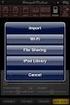 Export to itunes File Sharing Access Edit Mode Tap the pencil button on the bottom toolbar to access Edit Mode. Select a Button or a Folder Select to the button(s) you want to export/ import. A checkmark
PaintPot. Figure 2-1. The PaintPot app
 Chapter 2 PaintPot This tutorial introduces the Canvas component for creating simple, two-dimensional (2D) graphics. You ll build PaintPot, an app that lets the user draw on the screen in different colors,
(CP) Claim Processing Electronic Select Short Cut Key (F12) Type in Menu Id:
 Manual Section 4 Claim Processing (CP) Claim Processing Electronic Select Short Cut Key (F12) Type in Menu Id: CP and enter The # symbol will generate the next Claim ID Process Type: Proof (This will check
Remote Desktop Web Access. Using Remote Desktop Web Access
 Remote Desktop Web Access What is RD Web Access? RD Web Access is a Computer Science service that allows you to access department software and machines from your Windows or OS X computer, both on and off
MIT App Inventor Getting Started Guide
 MIT App Inventor Getting Started Guide What is App Inventor? App Inventor lets you develop applications for Android phones using a web browser and either a connected phone or an on-screen phone emulator.
How to use FTP Commander
 FTP (File Transfer Protocol) software can be used to upload files and complete folders to your web server. On the web, there are a number of free FTP programs that can be downloaded and installed onto
WA2262 Applied Data Science and Big Data Analytics Boot Camp for Business Analysts. Classroom Setup Guide. Web Age Solutions Inc.
 WA2262 Applied Data Science and Big Data Analytics Boot Camp for Business Analysts Classroom Setup Guide Web Age Solutions Inc. Copyright Web Age Solutions Inc. 1 Table of Contents Part 1 - Minimum Software
User s Guide For Department of Facility Services
 Doc s File Server User s Guide For Department of Facility Services For Ver : 7.2.88.1020 Rev : 1_05-27-2011 Created by : Elliott Jeyaseelan 2 Table of Contents SERVER LOGIN & AUTHENTICATION REQUIREMENTS
How to Configure Windows 8.1 to run ereports on IE11
 How to Configure Windows 8.1 to run ereports on IE11 Description: Windows 8.1 ships with IE10, but can be updated to IE11. There is a special mode in IE11 called Enterprise Mode that can be used to emulate
How to Add Social Media Icons to Your Website
 How to Add Social Media Icons to Your Website Introduction For this tutorial, I am assuming that you have a self-hosted WordPress website/blog. I will be using the Twenty Eleven Theme which ships with
STUDENT ACTIVITY 1.1-1.2_KEY: CONFIGURING CONTROL PANEL OPTIONS AND DESKTOP SETTINGS
 STUDENT ACTIVITY 1.1-1.2_KEY: CONFIGURING CONTROL PANEL OPTIONS AND DESKTOP SETTINGS MTA Course: 10753 Windows Operating System Fundamentals Topic: Configuring Control Panel options and desktop settings
Microsoft PowerPoint 2010
 Microsoft PowerPoint 2010 Starting PowerPoint... 2 PowerPoint Window Properties... 2 The Ribbon... 3 Default Tabs... 3 Contextual Tabs... 3 Minimizing and Restoring the Ribbon... 4 The Backstage View...
Appendix A How to create a data-sharing lab
 Appendix A How to create a data-sharing lab Creating a lab involves completing five major steps: creating lists, then graphs, then the page for lab instructions, then adding forms to the lab instructions,
Introduction to Macromedia Dreamweaver MX
 Introduction to Macromedia Dreamweaver MX Macromedia Dreamweaver MX is a comprehensive tool for developing and maintaining web pages. This document will take you through the basics of starting Dreamweaver
DESIGNING YOUR WEBSITE. The following guide will show you how to setup your music website using www.weebly.com:
 DESIGNING YOUR WEBSITE All music majors are required to have their own music website. This website functions as a portfolio and shows potential employers what you have accomplished as a performer, educator,
Faculty Web Site with WCM
 Faculty Web Site with WCM WORKSHOP DESCRIPTION... 1 Overview 1 Prerequisites 1 Objectives 1 FACULTY WEB SITE WITH WCM... 2 Introduction 2 Getting Started 3 Understanding the Template 4 The WCM Layout
Getting started 7. Designing interfaces 27
 Contents Contents 1 2 3 Getting started 7 Introducing Android 8 Installing Java 10 Installing App Inventor 12 Beginning your first app 14 Adding components 16 Adding behavior 18 Preparing devices 20 Running
Google Sites: Site Creation and Home Page Design
 Google Sites: Site Creation and Home Page Design This is the second tutorial in the Google Sites series. You should already have your site set up. You should know its URL and your Google Sites Login and
ITP 101 Project 3 - Dreamweaver
 ITP 101 Project 3 - Dreamweaver Project Objectives You will also learn how to make a website outlining your company s products, location, and contact info. Project Details USC provides its students with
Initial Setup of Mozilla Thunderbird with IMAP for OS X Lion
 Initial Setup of Mozilla Thunderbird Concept This document describes the procedures for setting up the Mozilla Thunderbird email client to download messages from Google Mail using Internet Message Access
Module 1. 4 Login-Send Message to Teacher
 Module 1. 4 Login-Send Message to Teacher Students, in this lesson you will 1. Learn to login to your InterAct account. 2. Learn how to send an email message. Logging on to Students Online 1. Launch the
To Begin Customize Office
 To Begin Customize Office Each of us needs to set up a work environment that is comfortable and meets our individual needs. As you work with Office 2007, you may choose to modify the options that are available.
Joomla! 2.5.x Training Manual
 Joomla! 2.5.x Training Manual Joomla is an online content management system that keeps track of all content on your website including text, images, links, and documents. This manual includes several tutorials
KFUPM. Web Content Management System powered by SharePoint 2010. www.kfupm.edu.sa 1
 KFUPM Web Content Management System powered by SharePoint 2010 1 Sample Department Site Site Actions Steps to login for administrators Navigate to your website and type in the url /admin.aspx
I. Setting Listserv password
 I. Setting Listserv password Before you can manage the Listserv lists that you own, you will need to set up a Listserv password. This is a one- time procedure, although for security purposes it is a good
Virto SharePoint Gantt Chart App for Office 365 Release 1.0.3. User and Installation Guide
 Virto SharePoint Gantt Chart App for Office 365 Release 1.0.3 User and Installation Guide 2 Table of Contents OVERVIEW... 3 FEATURES LIST... 3 SYSTEM/DEVELOPER REQUIREMENTS... 3 OPERATING SYSTEM... 3 SERVER...
Setting Up Monthly Reporter
 Setting Up Monthly Reporter April 11, 2014 I. HOW IT WORKS A QUICK OVERVIEW A. AuditWare Development Company maintains a powerful, sophisticated server on which a portion of memory is assigned to each
Remote Desktop Solution, (RDS), replacing CITRIX Home Access
 Remote Desktop Solution, (RDS), replacing CITRIX Home Access RDS Applications on a Computer Overview RDS has replaced citrix for remote access at home for College staff and pupils. This does not replace
Agile ICT Website Starter Guides
 Agile ICT Website Guide V1.0 1 Agile ICT Website Starter Guides 2 The purpose of this guide is to show you how to edit some of the basics of the website you have purchased through Agile ICT. The website
Document From MAXIMUM BUSINESS INFORMATION TECHNOLOGY ON A. OwnCloud User Manual. TO I Cafe`
 Document From MAXIMUM BUSINESS INFORMATION TECHNOLOGY ON A OwnCloud User Manual TO I Cafe` DATED 20 Sep 2014 User Manual Guid For Owncloud I. Accessing the owncloud Web Interface To access the owncloud
All V7 registers support barcode printing, except the Sharp 410/420 1A ROM and that limitation is based upon the register.
 Tools Section Barcode Printing These are basic instructions for Version 7 Polling barcode printing. Users will need to have a PLU/UPC file containing either UPC-A, UPC-E, EAN 13 or EAN 8 numbers, label