
FI8910W Quick Installation Guide. Indoor MJPEG Pan/Tilt Wireless IP Camera
|
|
|
- Beverly Farmer
- 9 years ago
- Views:
Transcription
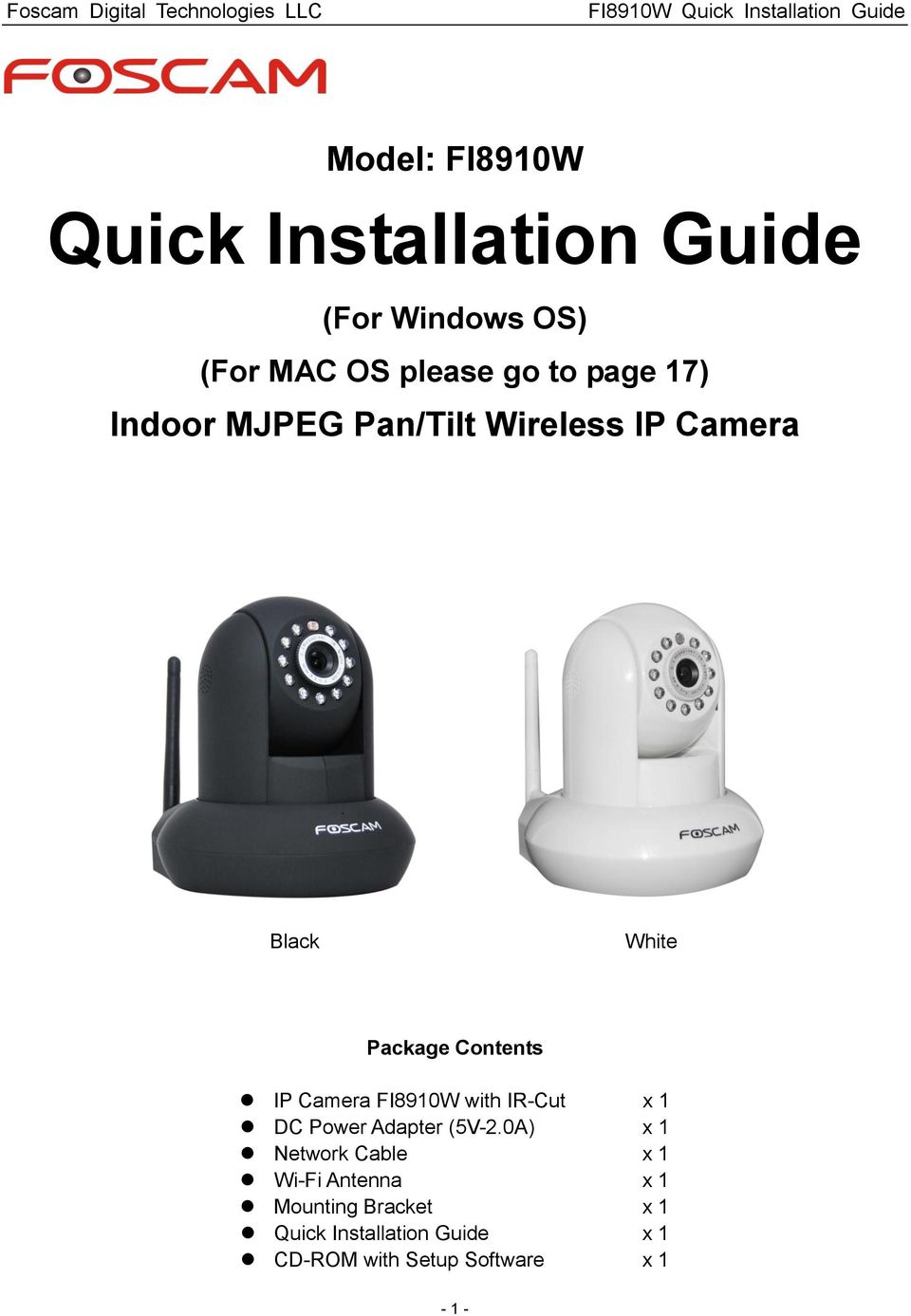
1 Model: FI8910W Quick Installation Guide (For Windows OS) (For MAC OS please go to page 17) Indoor MJPEG Pan/Tilt Wireless IP Camera Black White Package Contents IP Camera FI8910W with IR-Cut.x 1 DC Power Adapter (5V-2.0A).x 1 Network Cable x 1 Wi-Fi Antenna.x 1 Mounting Bracket.x 1 Quick Installation Guide x 1 CD-ROM with Setup Software.x 1-1 -
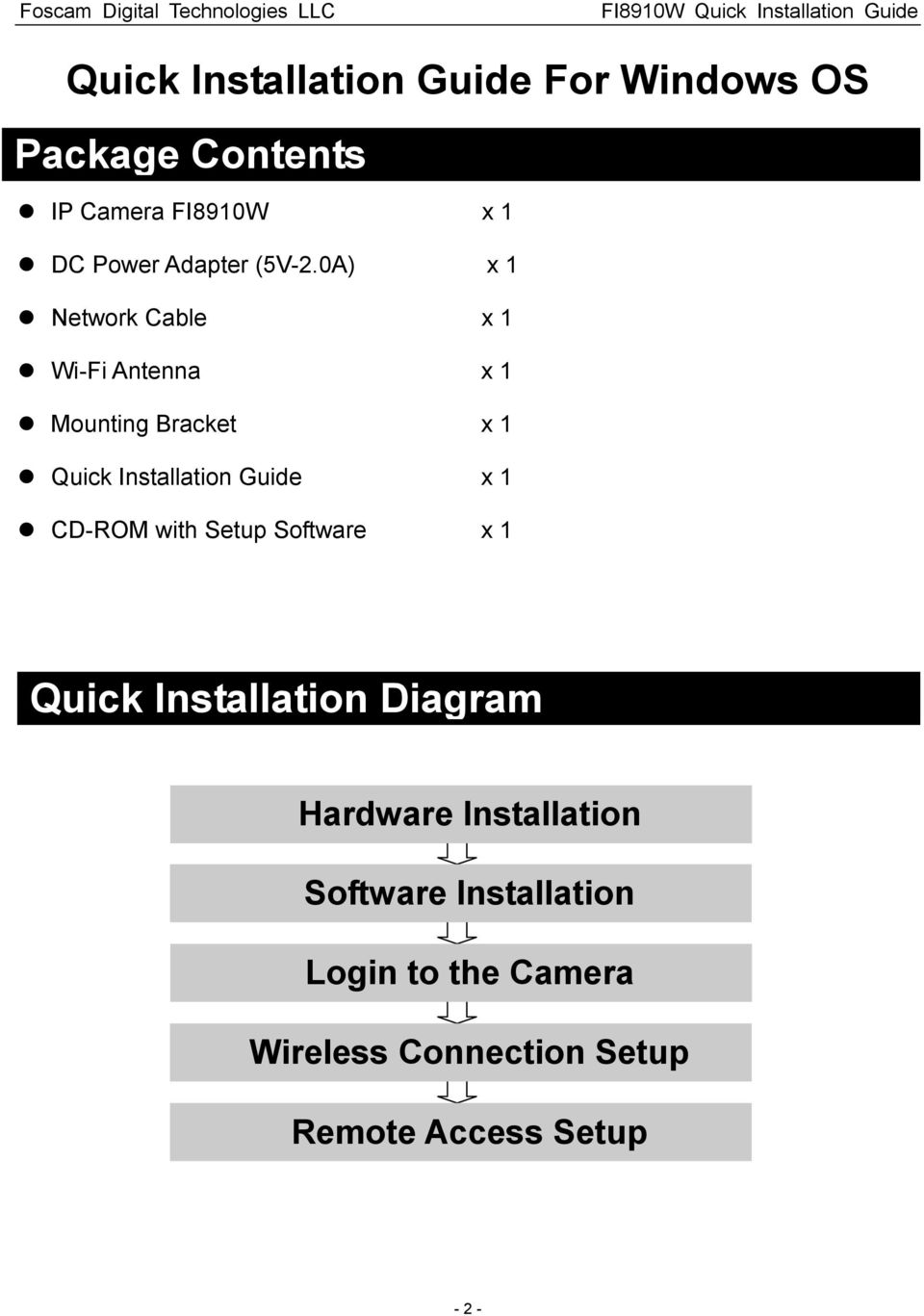
2 Quick Installation Guide For Windows OS Package Contents IP Camera FI8910W x 1 DC Power Adapter (5V-2.0A) x 1 Network Cable x 1 Wi-Fi Antenna.x 1 Mounting Bracket.x 1 Quick Installation Guide x 1 CD-ROM with Setup Software.x 1 Quick Installation Diagram Quick Installation Guide Flow Chart Hardware Installation Software Installation Login to the Camera Wireless Connection Setup Remote Access Setup P
3 Start Installation 1. Hardware Installation 1) Open the package. Take the camera out of the box carefully. 2) Mount the antenna. Then take the Wi-Fi antenna, mount it on the SMA connector on the back of the camera, screw the antenna into the port, and make the antenna stand vertically. Mount the antenna Plug in the network cable 3) Get the camera connected to the router, and insert the power plug. Use the network cable to connect the camera to the router or the switch in the LAN network at your home or your office. Plug in the power. The green network light at the rear of the camera will blink and the camera will automatically pan/tilt. The red power light will also turn on. 2. Software Installation Insert the CD into the CD drive of your computer and find the folder For Windows OS. Copy the IP camera tool to your computer and start the program or double click on the setup file to install. IP Camera Tool icon - 3 -

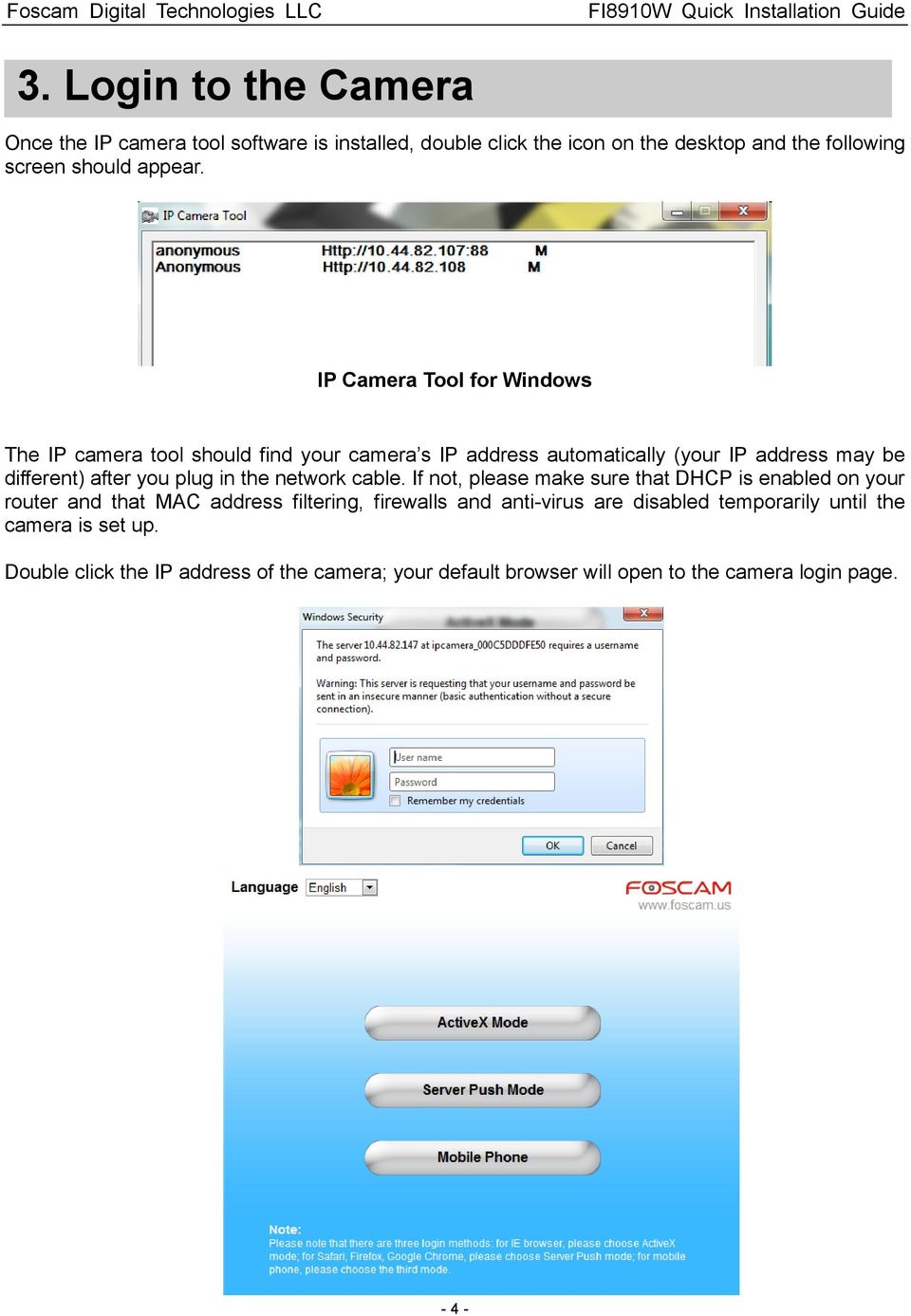
4 3. Login to the Camera Once the IP camera tool software is installed, double click the icon on the desktop and the following screen should appear. IP Camera Tool for Windows The IP camera tool should find your camera s IP address automatically (your IP address may be different) after you plug in the network cable. If not, please make sure that DHCP is enabled on your router and that MAC address filtering, firewalls and anti-virus are disabled temporarily until the camera is set up. Double click the IP address of the camera; your default browser will open to the camera login page
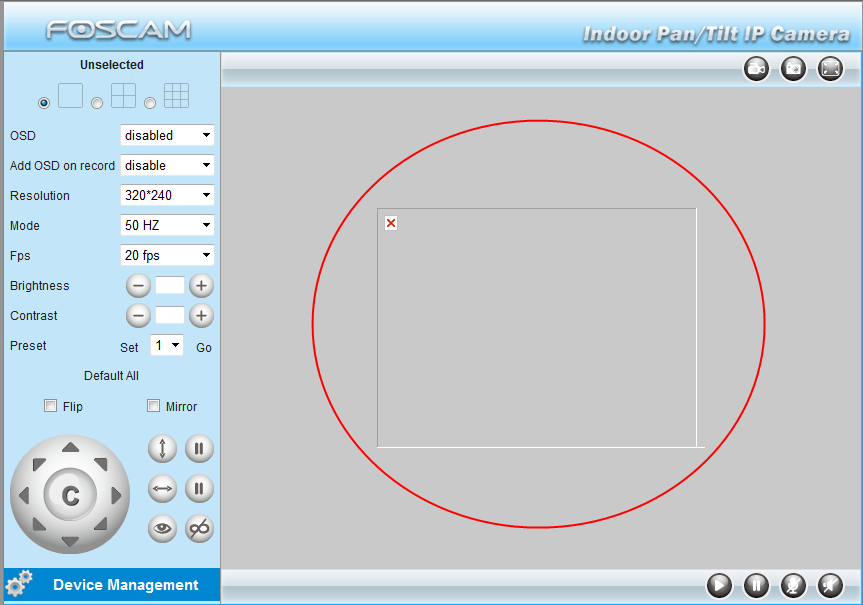
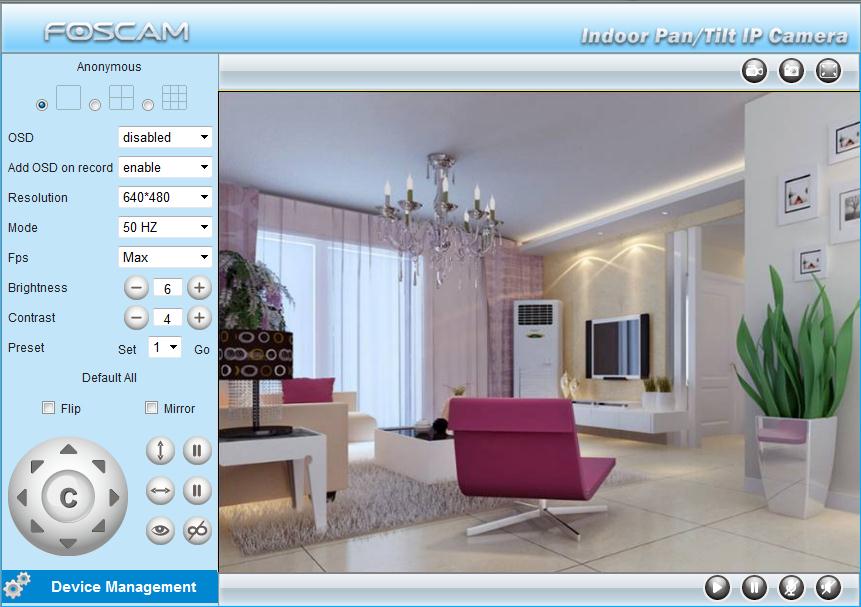
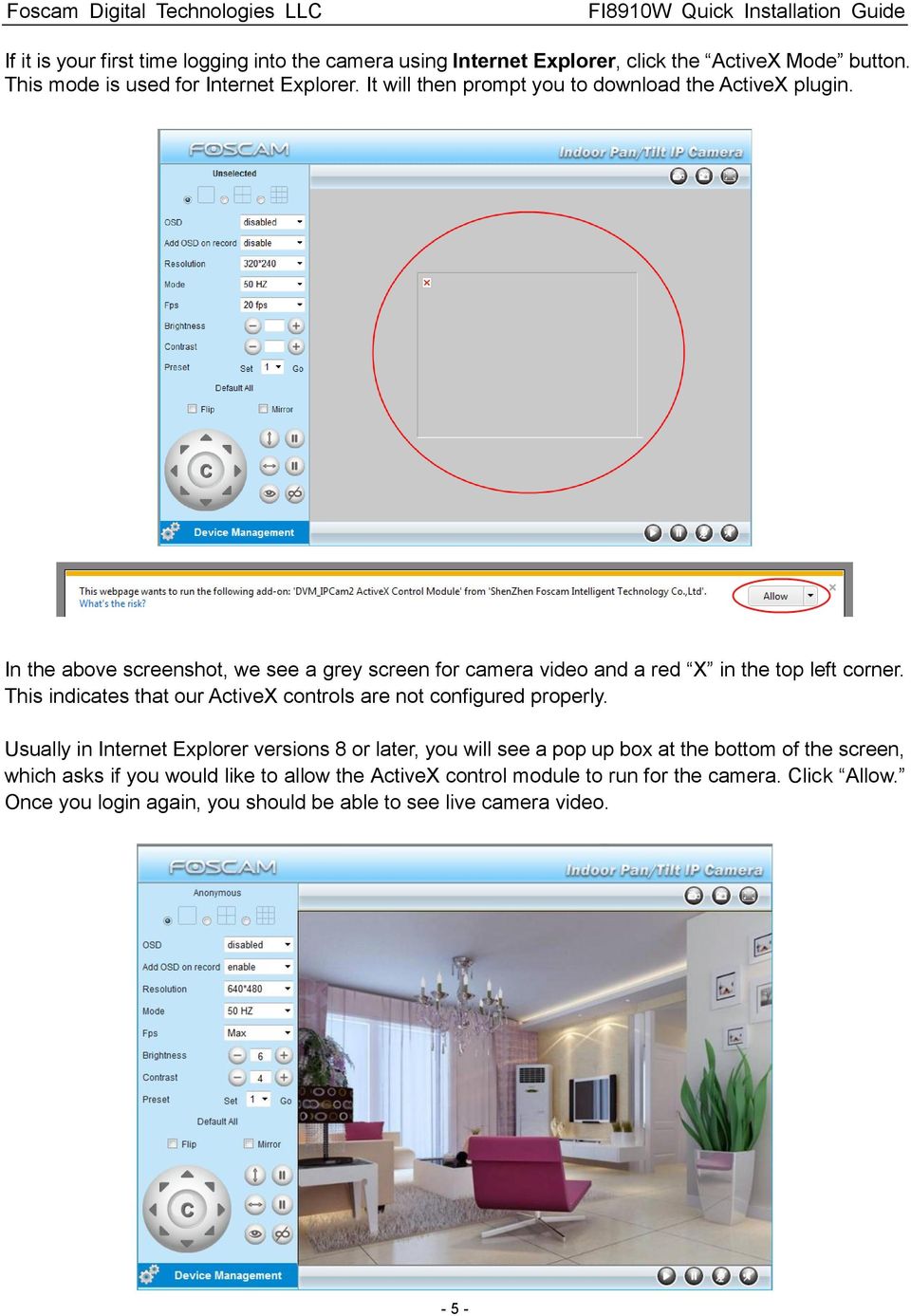
5 If it is your first time logging into the camera using Internet Explorer, click the ActiveX Mode button. This mode is used for Internet Explorer. It will then prompt you to download the ActiveX plugin. In the above screenshot, we see a grey screen for camera video and a red X in the top left corner. This indicates that our ActiveX controls are not configured properly. Usually in Internet Explorer versions 8 or later, you will see a pop up box at the bottom of the screen, which asks if you would like to allow the ActiveX control module to run for the camera. Click Allow. Once you login again, you should be able to see live camera video
6 If you are logging into the camera using a server-push browser like Google Chrome or Mozilla Firefox, you would click on the Server Push Mode button, which is used for these browsers. In Chrome or Firefox you will need to push the second login button on the login page. From there, you will be prompted to enter the username and password for the camera. Type in admin for the username, and leave the password field blank. Then push enter or click Log In. Once logged in, click the Live Video button on the left side of the page and it will take you to the live video feed for the camera

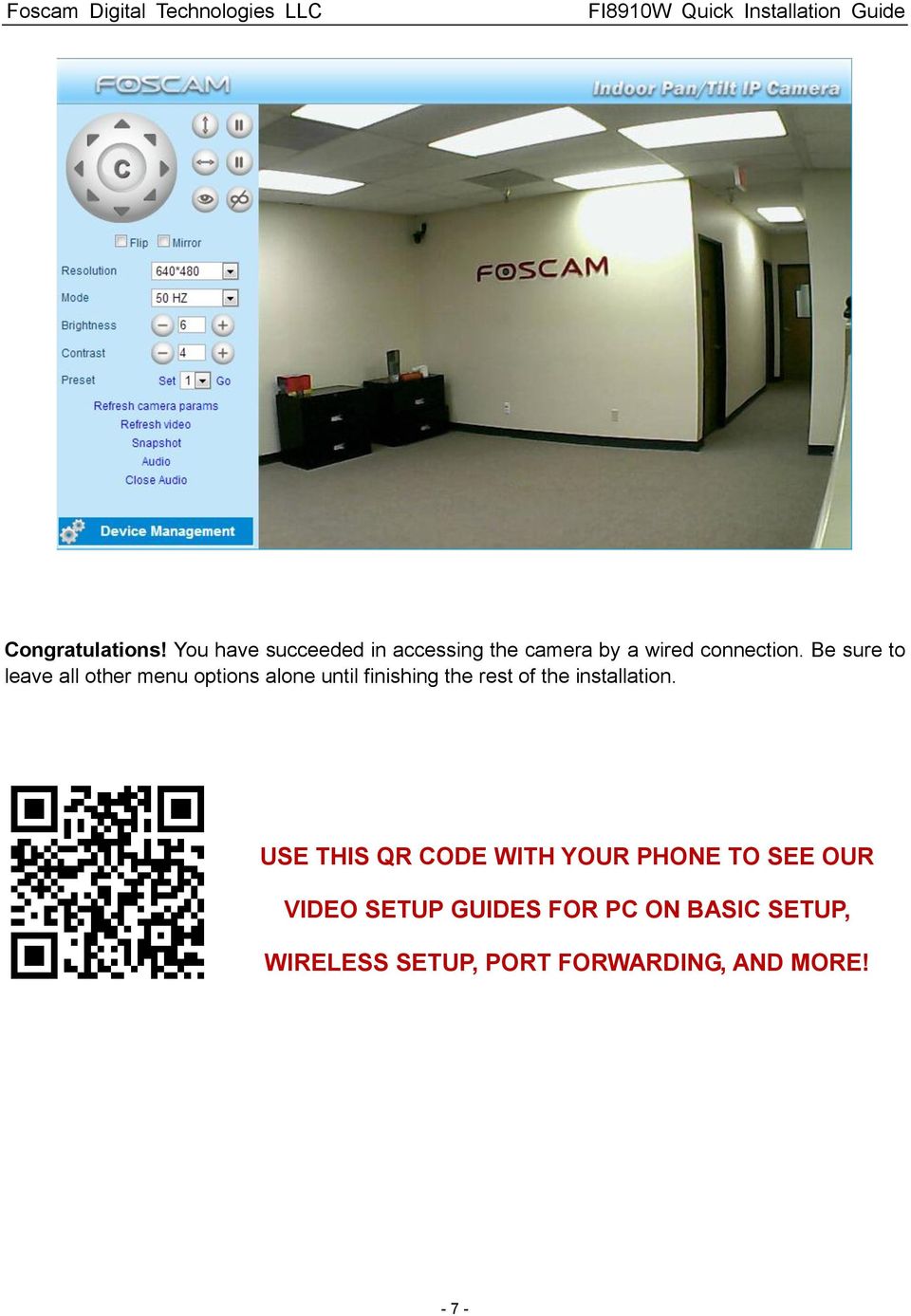
7 Congratulations! You have succeeded in accessing the camera by a wired connection. Be sure to leave all other menu options alone until finishing the rest of the installation. USE THIS QR CODE WITH YOUR PHONE TO SEE OUR VIDEO SETUP GUIDES FOR PC ON BASIC SETUP, WIRELESS SETUP, PORT FORWARDING, AND MORE! - 7 -
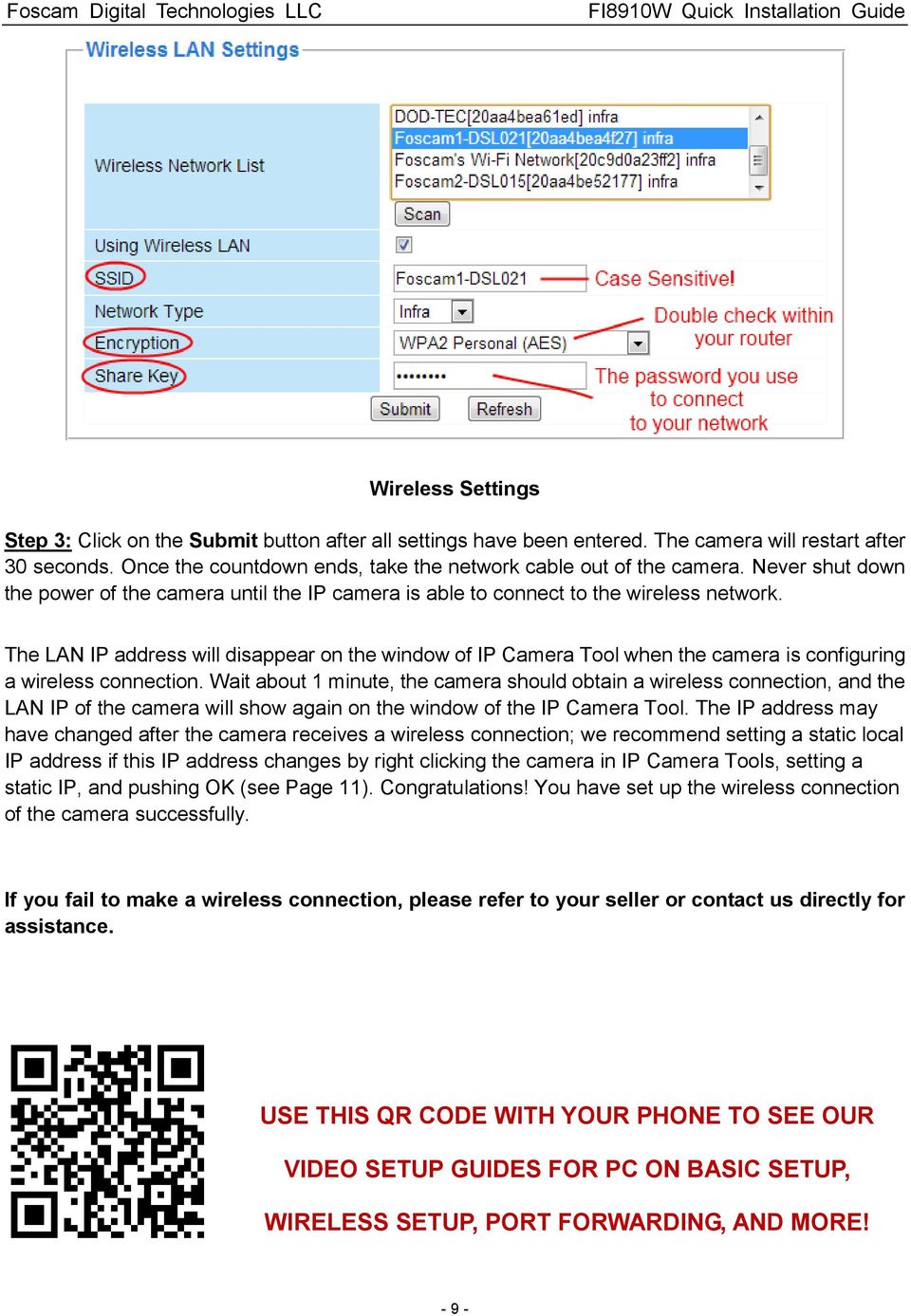
8 4. Wireless Connection Setup 4.1 Infrastructure Mode Step 1: Choose For Administrator or Device Management on the live video page, and then click on the Wireless LAN Settings option on the left side of the screen. You can click Scan here to scan for wireless networks, which should display your own network. Make sure you are not hiding your SSID, or it will not be detected. Step 2: Click the SSID (name of your router) in the list, the corresponding information related to your network, such as the name and the encryption, will be filled into the relevant fields automatically. NOTE: Sometimes the information filled in may differ from your true network settings. If you are unable to connect wirelessly make sure the encryption within your router is correct and the encryption selected on the page for your wireless network is correct. Try using different encryptions if you aren t able to connect with a certain type of encryption. You will only need to fill in the password of your network. This is listed as Share Key on the wireless settings page. If your password to connect to the internet for your router is , you would put in the Share Key field. On the same note, if your password is something like foscam12345, you would put in foscam12345 in the field. Again, make sure that the SSID, Encryption and the password you filled in are exactly the same for your router

9 Wireless Settings Step 3: Click on the Submit button after all settings have been entered. The camera will restart after 30 seconds. Once the countdown ends, take the network cable out of the camera. Never shut down the power of the camera until the IP camera is able to connect to the wireless network. The LAN IP address will disappear on the window of IP Camera Tool when the camera is configuring a wireless connection. Wait about 1 minute, the camera should obtain a wireless connection, and the LAN IP of the camera will show again on the window of the IP Camera Tool. The IP address may have changed after the camera receives a wireless connection; we recommend setting a static local IP address if this IP address changes by right clicking the camera in IP Camera Tools, setting a static IP, and pushing OK (see Page 11). Congratulations! You have set up the wireless connection of the camera successfully. If you fail to make a wireless connection, please refer to your seller or contact us directly for assistance. USE THIS QR CODE WITH YOUR PHONE TO SEE OUR VIDEO SETUP GUIDES FOR PC ON BASIC SETUP, WIRELESS SETUP, PORT FORWARDING, AND MORE! - 9 -
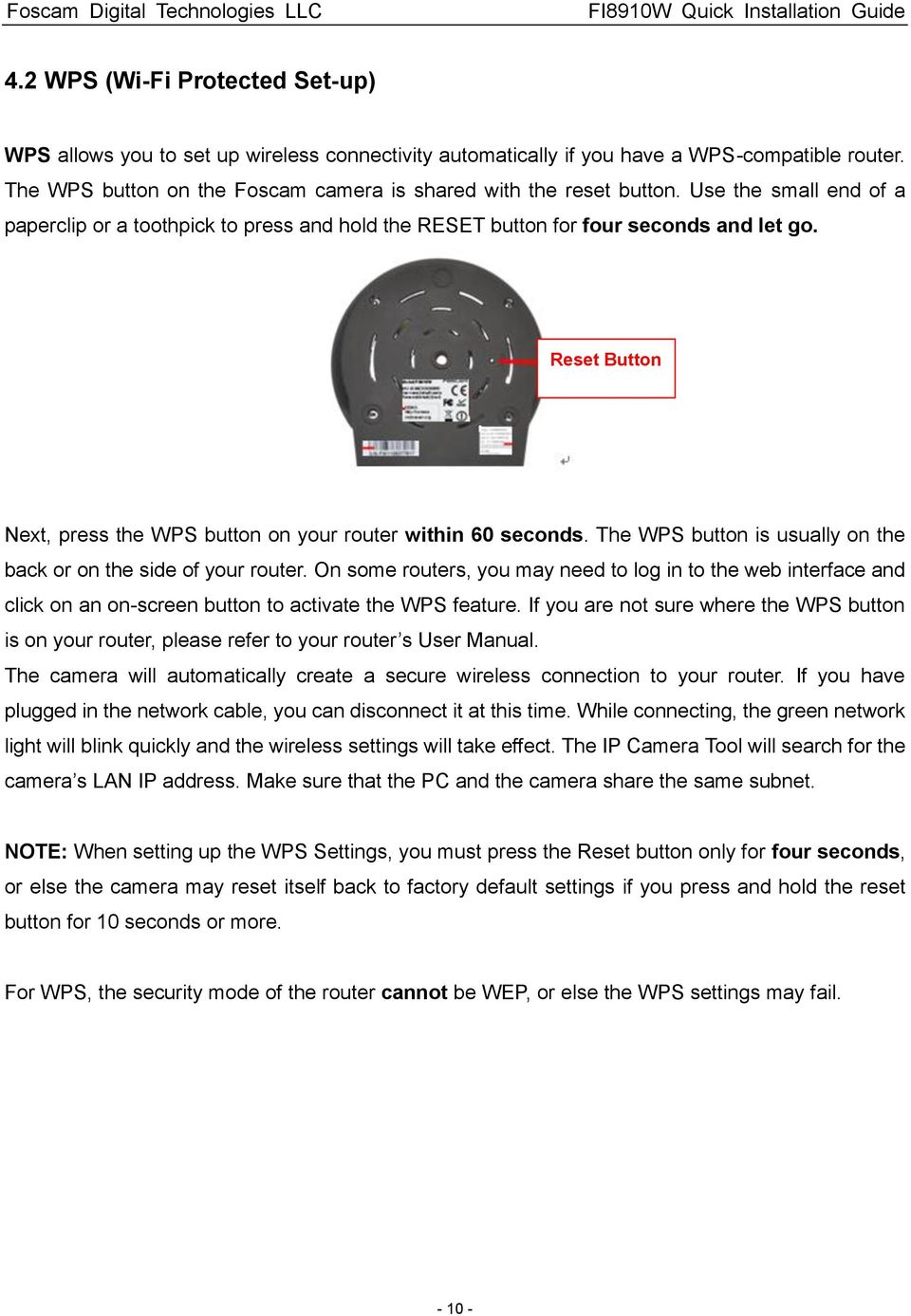
10 4.2 WPS (Wi-Fi Protected Set-up) WPS allows you to set up wireless connectivity automatically if you have a WPS-compatible router. The WPS button on the Foscam camera is shared with the reset button. Use the small end of a paperclip or a toothpick to press and hold the RESET button for four seconds and let go. Reset Button Next, press the WPS button on your router within 60 seconds. The WPS button is usually on the back or on the side of your router. On some routers, you may need to log in to the web interface and click on an on-screen button to activate the WPS feature. If you are not sure where the WPS button is on your router, please refer to your router s User Manual. The camera will automatically create a secure wireless connection to your router. If you have plugged in the network cable, you can disconnect it at this time. While connecting, the green network light will blink quickly and the wireless settings will take effect. The IP Camera Tool will search for the camera s LAN IP address. Make sure that the PC and the camera share the same subnet. NOTE: When setting up the WPS Settings, you must press the Reset button only for four seconds, or else the camera may reset itself back to factory default settings if you press and hold the reset button for 10 seconds or more. For WPS, the security mode of the router cannot be WEP, or else the WPS settings may fail
11 5. Remote Access Setup We have been able to access the camera within the LAN network, and have set up a wireless connection, but how do we access the camera via WAN or from outside networks through the internet to view from anywhere in the world or on our smart phones? We have to set up Remote Access via Port Forwarding before we can access the camera outside of our own local area network. What is the HTTP Port? The HTTP Port is used to access the camera remotely. All cameras have the default HTTP port of 80. For example, if the LAN IP address of the camera is this means that the camera s HTTP port is 80. Since port 80 is set by default, if you input the IP address at with a colon and 80 at the end, it will default back to This is because it is understood that any time you are entering an IP address without a colon and port number at the end, it is defaulting to port 80 no matter what, so the colon and port 80 are taken out of the end of the link because of this. It is recommended to change port 80 to a different port, usually in the 4 digit range. The reason for this is because some other devices, such as your router, also share port 80. If this is the case you may experience slow speeds on the camera, or you may not even be able to connect at all. It is best to assign a specific port to your camera so that only your camera is using that specified port number. We usually suggest changing your port to 8080, 8090, or any type of 4 digit number, just as long as it is not at port 80. You can set the port anywhere between 1000 and How do you assign a new HTTP port and a Static Local IP Address? Open the IP Camera Tool, and select the camera you would like to change the port for. Right click on the IP address, and click on Network Configuration, this brings up the network configuration box as shown:
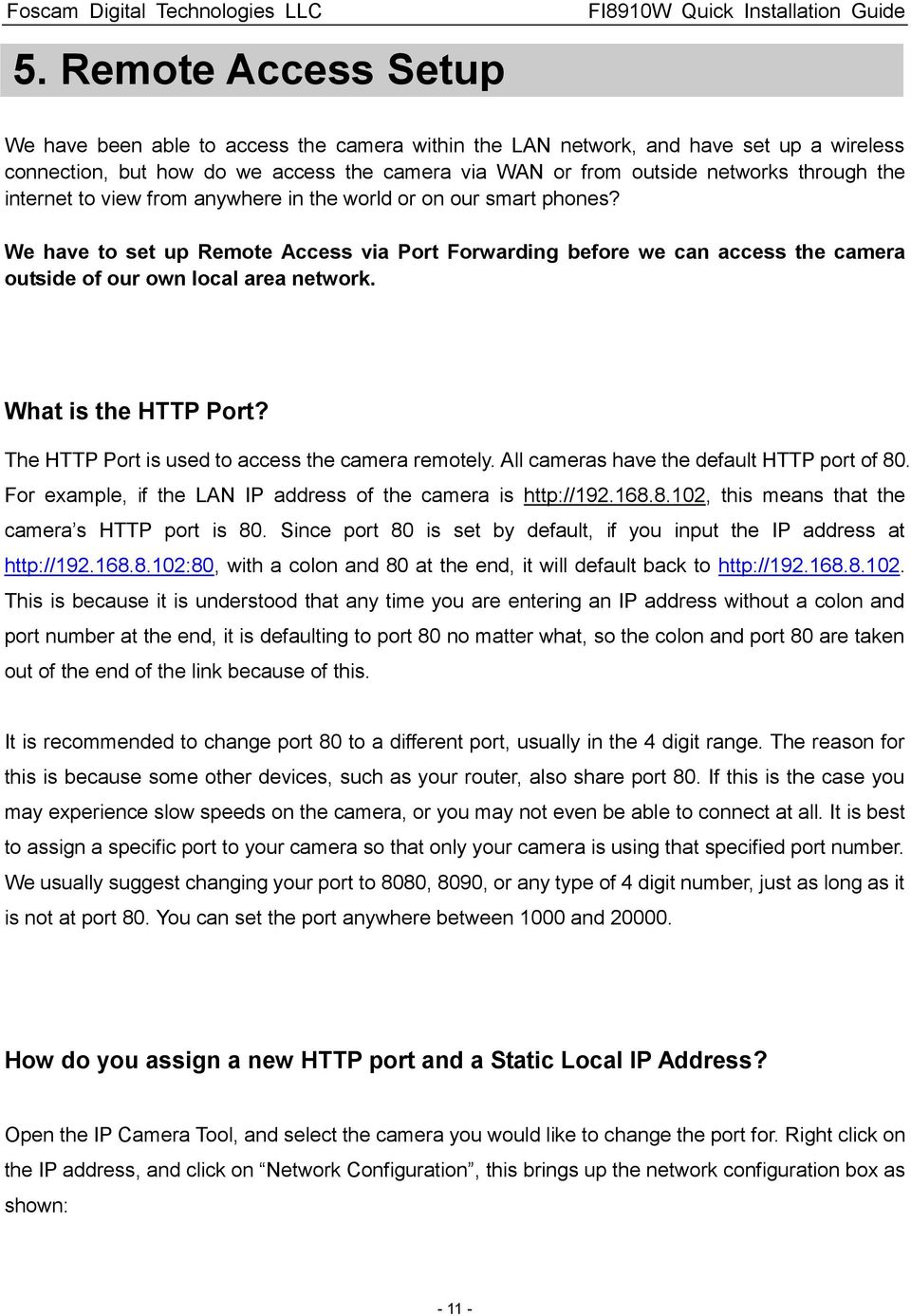
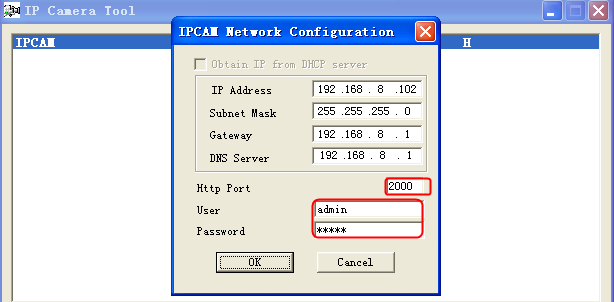
12 Select which camera you d like to change the port for, and right click Click on Network Configuration Modify the HTTP Port to a four digit number other than 80 Enter the Username and Password, and then click OK Changing the port in IP Camera Tool Enter the username and password of the Administrator (default username is admin with a blank password), and click OK to apply changes. Wait around 10 seconds or wait for the camera to reboot; you ll see that the camera s LAN IP address has changed. In our example it was changed to 2000, so we see in IP Camera Tool. Also, the LAN IP address is now fixed at a static IP address of This IP address will not change even if the camera is powered off and back on, the camera will remain on this LAN IP address. This is very important that a static LAN IP address is set, or you may have problems later with remote access and seeing the camera remotely if the camera loses power and reconnects on a different LAN IP address. Make sure you set a static LAN IP address!
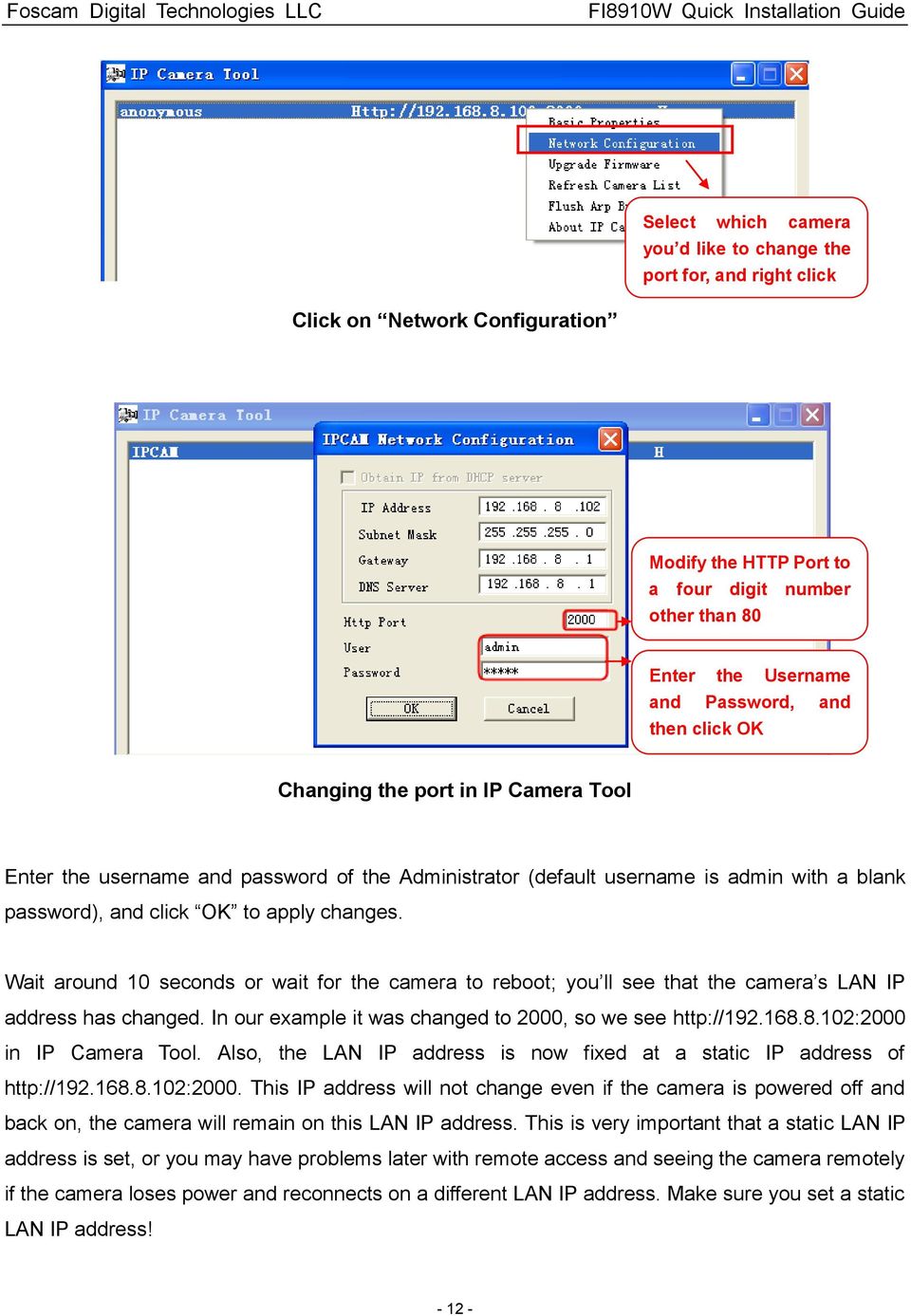
13 Static IP address and port 2000 set in IP Camera Tool Setting up Remote Access First, check to see if your ISP (Internet Service Provider) provides a Static WAN IP address service or a Dynamic WAN IP address service. This guide has been divided into two different sections of setting up remote access, one for Static IP addresses and one for Dynamic IP addresses. If your ISP provides a Static WAN IP Address, continue reading below. If your ISP provides Dynamic WAN IP Address please go to Chapter 5.2 directly (Page 14). 5.1 Static IP Addresses Users who have static IP addresses do not need to set DDNS service settings for remote access. When you have finished connecting the camera using the LAN IP address and port forwarding, you can access the camera directly from the Internet using the WAN IP address and port number. How to Obtain the WAN IP address from a public website To obtain your WAN IP address, you can go to Google at and search What is my IP address. It will offer you your public IP address, which is your WAN (External) IP address. You can also use if needed. This is your public WAN IP address (external IP address)

14 5.2 Dynamic IP Addresses DDNS is a service that allows your IP Camera, especially when assigned with a dynamic IP address, to have a fixed host and domain name. This means that even though your WAN IP address is constantly changing, you will have a fixed hostname you can use to access your cameras at all times. You can access the camera directly from the Internet using the hostname and port number. Foscam offers many different DDNS providers, the most popular being No-IP and DynDNS. You can sign up for the following DDNS providers at the below websites: What is Port Forwarding? If you have never done port forwarding before, you can open and view the following link to understand the basic concept. Port forwarding allows for outside connections to access a specific device on your network from anywhere in the world. Every router automatically blocks any incoming connections for safety purposes. Using port forwarding, you are telling your router to allow a connection through a certain port (you can think of it as a gateway) into your router. You set this port to a specific device, in our case an IP Camera, so it can be accessed from anywhere in the world. Click this link to learn more about port forwarding: How do we configure Port Forwarding? For this section, we will be using an example: Let s say the camera s LAN IP address is Login to the router, and go to your router s port forwarding or port triggering menu. Sometimes this is also under the name of Virtual Server or NAT. Using the Linksys brand router as an example, we would log into the router, and go to the Applications & Gaming menu. We would then click on the Single Port Forwarding sub-menu
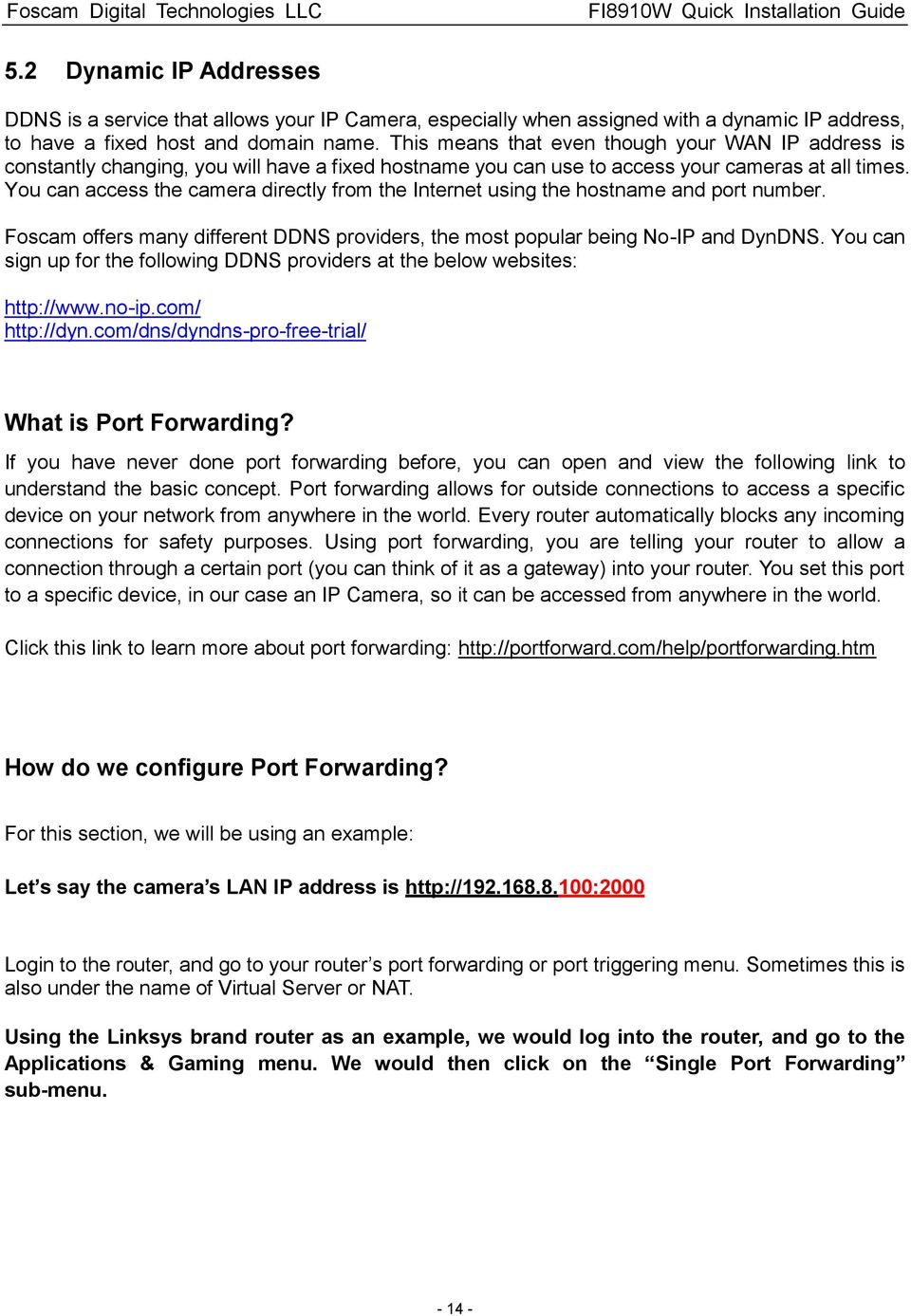
15 Create a new column using the LAN IP address & HTTP Port of the camera within the router as shown below, and then push OK or Submit to save your settings: Assign a name for the port forward setting here Fill the HTTP Port of the camera in the columns of External Port and Internal Port. Example: 2000 Fill in this section with the LAN IP of the camera; we would enter 100 for our example. Port forwarding in a Linksys Router Using the embedded DDNS to access the camera via the Internet Some Foscam cameras have an embedded unique DDNS domain name, the format of this domain name is xxxxxx.myfoscam.org. On the bottom of the camera, you can see the domain name sticker with this information on it, or it should appear on the DDNS Settings page in your camera. DDNS Settings page

16 So for example, once port forwarding is set up correctly and you have a DDNS (optional) you can use the three following methods to access the camera remotely: Foscam s DDNS: Port For example: Using Third Party DDNS (No-IP, DynDNS) For example:: Using External IP: Address:HTTP Port - For example: If you do not have a DDNS set up, you can use the third method to log into your camera. NOTE: If you are still unable to access the camera remotely, try checking to see if your port forwarding is working correctly by going to Input your port number and click check to see if the port is opened properly. If you have done port forwarding correctly, but the port is being blocked you may need to contact your ISP and request the port be unblocked for your usage. If you want to use a Third Party Domain like DynDNS or No-IP, please read the DDNS Service Settings section in the User Manual on how to set it up. USE THIS QR CODE WITH YOUR PHONE TO SEE OUR VIDEO SETUP GUIDES FOR PC ON BASIC SETUP, WIRELESS SETUP, PORT FORWARDING, AND MORE! Congratulations! You have finished the quick installation guide of the camera for PC. Please refer to the electronic user manual in the CD-ROM for other settings such as Alarm Settings, Settings, User Settings, and much more! Foscam Digital Technologies LLC Memorial Dr. #132, Houston, TX Telephone: Sales: [email protected] Support: [email protected]
17 Model: FI8910W Quick Installation Guide (For Mac OS) Indoor MJPEG Pan/Tilt Wireless IP Camera Black White Package Contents IP Camera FI8910W with IR-Cut.x 1 DC Power Adapter (5V-2.0A).x 1 Network Cable x 1 Wi-Fi Antenna.x 1 Mounting Bracket.x 1 Quick Installation Guide x 1 CD-ROM with Setup Software.x

18 Quick Installation Guide For Mac OS Package Contents IP Camera FI8910W x 1 DC Power Adapter (5V-2.0A) x 1 Network Cable x 1 Wi-Fi Antenna.x 1 Mounting Bracket.x 1 Quick Installation Guide x 1 CD-ROM with Setup Software.x 1 Quick Installation Diagram Quick Installation Guide Flow Chart Hardware Installation Software Installation Login to the Camera Wireless Connection Setup Remote Access Setup P

19 Start Installation 1. Hardware Installation 1) Open the package. Take the camera out of the box carefully. 2) Mount the antenna. Take the Wi-Fi antenna, and mount it on the SMA connector on the back of the camera, screw in the antenna, and make the antenna stand vertically. Mount the antenna Plug in the network cable 3) Get the camera connected to the router, and insert the power plug. Use the network cable to connect the camera to the router or the switch in the LAN network at your home or your office. Plug in the power. The green network light at the rear of the camera will blink and the camera will automatically pan/tilt. The red power light will also turn on. 2. Software Installation Insert the CD into the CD drive of your Mac and find the folder For MAC OS. Copy the IP camera tool to your MAC and start the program. IP Camera Tool Icon for Mac

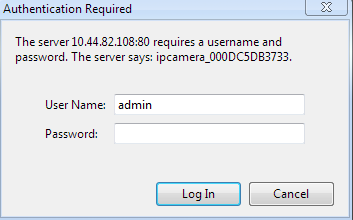
20 3. Login to the Camera Double click the IP Camera Tool icon and the following screen should appear. IP Camera Tool for Mac The IP camera tool should find the camera s IP address automatically after you plug in the network cable. If not, please make sure that DHCP is enabled on your router and that MAC address filtering, firewalls and anti-virus are disabled temporarily until the camera is set up. Double click the IP address of the camera; Safari will prompt you for a username and a password. Enter the username admin and leave the password field blank. This is the default login information. You will then see the camera s login page
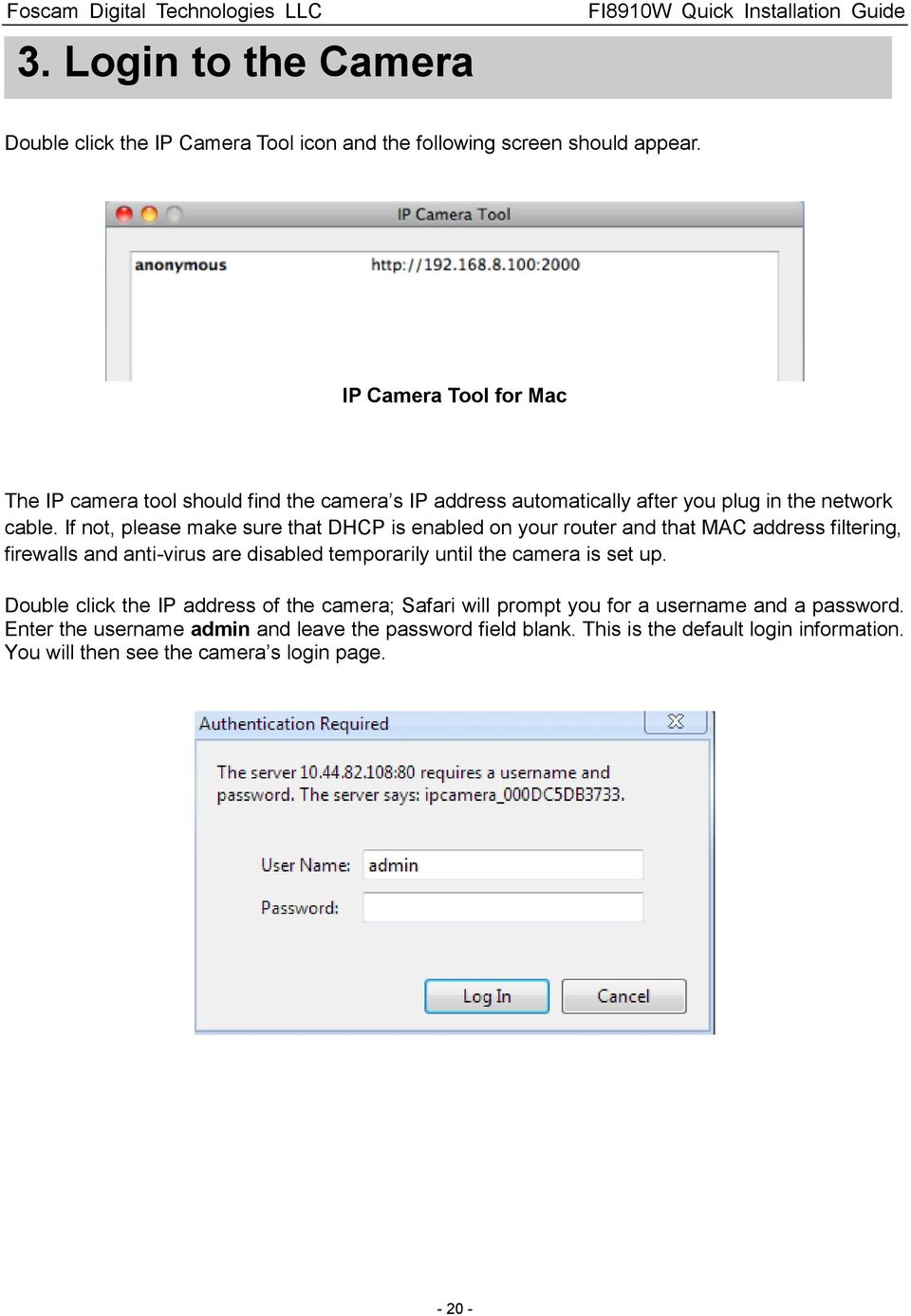
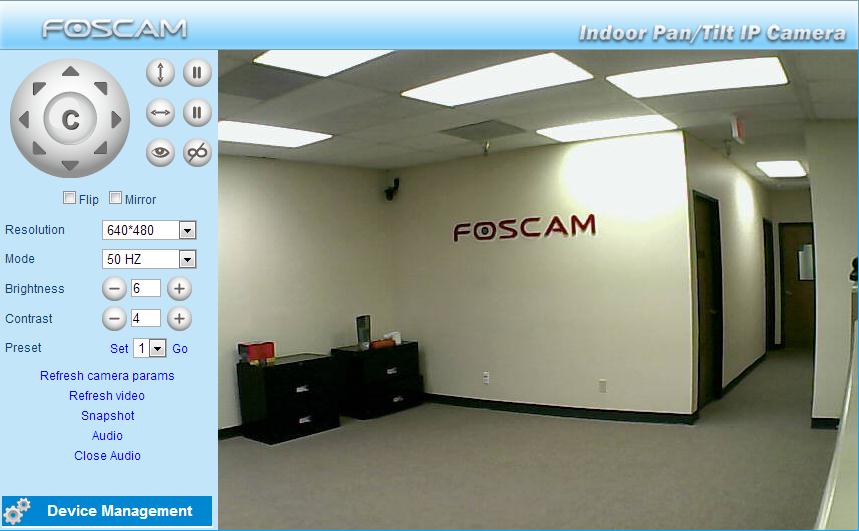
21 The Login Screen Since ActiveX mode is not compatible on Mac, you will always click the Server Push Mode option to access the camera, whether you are on Safari, Chrome, or Firefox. Once you click on Server Push Mode, you should be taken to the live video screen immediately. The Live Video Page
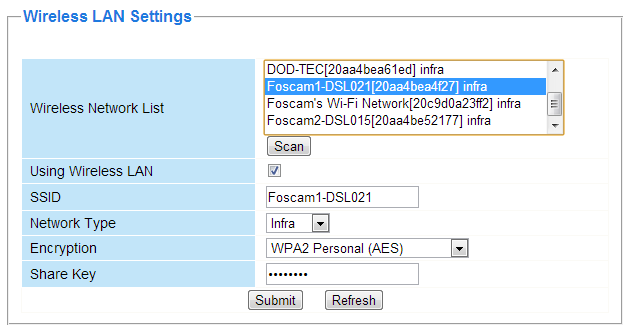
22 4. Wireless Connection Setup 4.1 Infrastructure Mode Step 1: Choose For Administrator or Device Management on the live video page, and then click on the Wireless LAN Settings option on the left side of the screen. You can click Scan here to scan for wireless networks, which should display your own network. Make sure you are not hiding your SSID, or it will not be detected. Step 2: Click the SSID (name of your router) in the list, the corresponding information related to your network, such as the name and the encryption, will be filled into the relevant fields automatically. NOTE: Sometimes the information filled in may differ from your actual network settings. If you are unable to connect wirelessly make sure the encryption within your router is correct and the encryption selected on the page for your wireless network is correct. Try using different encryptions if you aren t able to connect with a certain type of encryption. You will only need to fill in the password of your network. This is listed as Share Key on the wireless settings page. If your password to connect to the internet for your router is , you would put in the Share Key field. On the same note, if your password is something like foscam12345, you would put in foscam12345 in the field. Again, make sure that the SSID, Encryption and the password you filled in are exactly the same for your router
23 Wireless Settings Step 3: Click on the Submit button after all settings have been entered. The camera will restart after 30 seconds. Once the countdown ends, take the network cable out of the camera. Never shut down the power of the camera until the IP camera is able to connect to the wireless network. The LAN IP address will disappear on the window of IP Camera Tool when the camera is configuring a wireless connection. Wait about 1 minute, the camera should obtain a wireless connection, and the LAN IP of the camera will show again on the window of the IP Camera Tool. The IP address may have changed after the camera receives a wireless connection; we recommend setting a static local IP address if this IP address changes by right clicking the camera in IP Camera Tools, setting a static IP, and pushing OK (see Page 11). Congratulations! You have set up the wireless connection of the camera successfully. If you fail to make a wireless connection, please refer to your seller or contact us directly for assistance. USE THIS QR CODE WITH YOUR PHONE TO SEE OUR VIDEO SETUP GUIDES FOR MAC ON BASIC SETUP, WIRELESS SETUP, PORT FORWARDING, AND MORE!
24 4.2 WPS (Wi-Fi Protected Set-up) WPS allows you to set up wireless connectivity automatically if you have a WPS-compatible router. The WPS button on the Foscam camera is shared with the reset button. Use the small end of a paperclip or a toothpick to press and hold the RESET button for four seconds and let go. Reset Button Next, press the WPS button on your router within 60 seconds. The WPS button is usually on the back or on the side of your router. On some routers, you may need to log in to the web interface and click on an on-screen button to activate the WPS feature. If you are not sure where the WPS button is on your router, please refer to your router s User Manual. The camera will automatically create a secure wireless connection to your router. If you have plugged in the network cable, you can disconnect it at this time. While connecting, the green network light will blink quickly and the wireless settings will take effect. The IP Camera Tool will search for the camera s LAN IP address. Make sure that the PC and the camera share the same subnet. NOTE: When setting up the WPS Settings, you must press the Reset button only for four seconds, or else the camera may reset itself back to factory default settings if you press and hold the reset button for 10 seconds or more. For WPS, the security mode of the router cannot be WEP, or else the WPS settings may fail
25 5. Remote Access Setup We have been able to access the camera within the LAN network, and have set up a wireless connection, but how do we access the camera via WAN or from outside networks through the internet to view from anywhere in the world or on our smart phones? We have to set up Remote Access via Port Forwarding before we can access the camera outside of our own local area network. What is the HTTP Port? The HTTP Port is used to access the camera remotely. All cameras have the default HTTP port of 80. For example, if the LAN IP address of the camera is this means that the camera s HTTP port is 80. Since port 80 is set by default, if you input the IP address at with a colon and 80 at the end, it will default back to This is because it is understood that any time you are entering an IP address without a colon and port number at the end, it is defaulting to port 80 no matter what, so the colon and port 80 are taken out of the end of the link because of this. It is recommended to change port 80 to a different port, usually in the 4 digit range. The reason for this is because some other devices, such as your router, also share port 80. If this is the case you may experience slow speeds on the camera, or you may not even be able to connect at all. It is best to assign a specific port to your camera so that only your camera is using that specified port number. We usually suggest changing your port to 8080, 8090, or any type of 4 digit number, just as long as it is not at port 80. You can set the port anywhere between 1000 and How do you assign a new HTTP port and a Static Local IP Address? Open the IP Camera Tool, and select the camera you would like to change the port for. Right click on the IP address, and click on Network Configuration, this brings up the network configuration box as shown:
26 Select which camera you d like to change the port for, and right click Click on Network Configuration Modify the HTTP port. Enter the Username and password, click OK. Changing the port in IP Camera Tool Enter the username and password of the Administrator (default username is admin with a blank password), and click OK to apply changes. Wait around 10 seconds or wait for the camera to reboot; you ll see that the camera s LAN IP address has changed. In our example it was changed to 2000, so we see in IP Camera Tool. Also, the LAN IP address is now fixed at a static IP address of This IP address will not change even if the camera is powered off and back on, the camera will remain on this LAN IP address. This is very important that a static LAN IP address is set, or you may have problems later with remote access and seeing the camera remotely if the camera loses power and reconnects on a different LAN IP address. Make sure you set a static LAN IP address!
27 Static IP address and port 2000 set in IP Camera Tool Setting up Remote Access First, check to see if your ISP (Internet Service Provider) provides a Static WAN IP address service or a Dynamic WAN IP address service. This guide has been divided into two different sections of setting up remote access, one for Static IP addresses and one for Dynamic IP addresses. If your ISP provides a Static WAN IP Address, continue reading below. If your ISP provides Dynamic WAN IP Address please go to Chapter 5.2 directly (Page 28). 5.1 Static IP Addresses Users who have static IP addresses do not need to set DDNS service settings for remote access. When you have finished connecting the camera using the LAN IP address and port forwarding, you can access the camera directly from the Internet using the WAN IP address and port number. How to Obtain the WAN IP address from a public website To obtain your WAN IP address, you can go to Google at and search What is my IP address. It will offer you your public IP address, which is your WAN (External) IP address. You can also use if needed. This is your public WAN IP address (external IP address)
28 5.2 Dynamic IP Addresses DDNS is a service that allows your IP Camera, especially when assigned with a dynamic IP address, to have a fixed host and domain name. This means that even though your WAN IP address is constantly changing, you will have a fixed hostname you can use to access your cameras at all times. You can access the camera directly from the Internet using the hostname and port number. Foscam offers many different DDNS providers, the most popular being No-IP and DynDNS. You can sign up for the following DDNS providers at the below websites: What is Port Forwarding? If you have never done port forwarding before, you can open and view the following link to understand the basic concept. Port forwarding allows for outside connections to access a specific device on your network from anywhere in the world. Every router automatically blocks any incoming connections for safety purposes. Using port forwarding, you are telling your router to allow a connection through a certain port (you can think of it as a gateway) into your router. You set this port to a specific device, in our case an IP Camera, so it can be accessed from anywhere in the world. Click this link to learn more about port forwarding: How do we configure Port Forwarding? For this section, we will be using an example: For our Linksys example, let s say the camera s IP address is For our Apple Router example, let s say the camera s IP address is Login to the router, and go to your router s port forwarding or port triggering menu. Sometimes this is also under the name of Virtual Server or NAT. Using an Airport Express router as an example, we would open the Airport Utility program, and then edit our Apple router s information as seen in the following screenshots First we will go over how to port forward within a Linksys router in case you do not have an Apple brand router
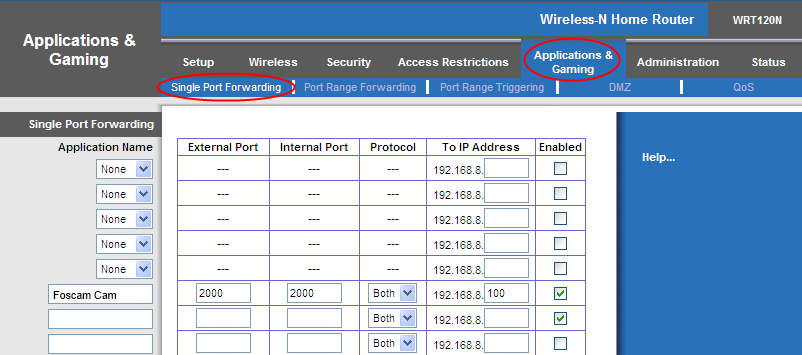
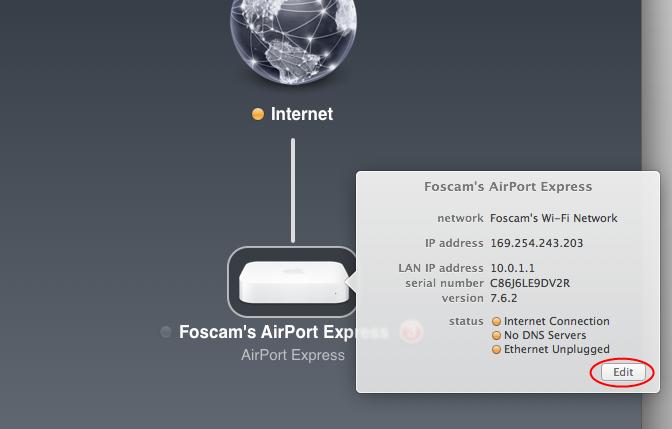
29 For Linksys: Create a new column using the LAN IP address & HTTP Port of the camera within the router as shown below, and then push OK or Submit to save your settings: Assign a name for the port forward setting here Fill the HTTP Port of the camera in the columns of External Port and Internal Port. Example: 2000 Fill in this section with the LAN IP of the camera; we would enter 100 for our example. Port forwarding in a Linksys Router For Apple Routers: Open Airport Utility as shown above, then click on your Apple router, and click Edit

30 Click on the Network tab at the top, we will be editing the Port Settings section of the Network page which is where port forwarding is done. Click the + symbol which will add a port forwarding rule. As you can see, we are inputting the port forwarding information such as the port, IP address, and the name of the port forwarding rule. Fill these fields in accordingly based on what information you would like to include in terms of the port you want to forward, your local IP address of the camera, and the custom name you would like to provide
31 Once the port forwarding rule has been created, you will see it in the list where the Port Settings section is. This confirms that you have successfully added a port forwarding rule. Next, click Update. You will be prompted if you would like to continue, the router will most likely update its settings for a few seconds and come back online. Once it comes back online your port forwarding settings will be confirmed. Congratulations, port forwarding should now be done! Using the embedded DDNS to access the camera via the Internet Some Foscam cameras have an embedded unique DDNS domain name, the format of this domain name is xxxxxx.myfoscam.org. On the bottom of the camera, you can see the domain name sticker with this information on it, or it should appear on the DDNS Settings page in your camera. DDNS Settings page
32 So for example, once port forwarding is set up correctly and you have a DDNS (optional) you can use the three following methods to access the camera remotely: Foscam s DDNS: Port For example: Using Third Party DDNS (No-IP, DynDNS) For example: Using External IP: Address:HTTP Port - For example: If you do not have a DDNS set up, you can use the third method to log into your camera. NOTE: If you are still unable to access the camera remotely, try checking to see if your port forwarding is working correctly by going to Input your port number and click check to see if the port is opened properly. If you have done port forwarding correctly, but the port is being blocked you may need to contact your ISP and request the port be unblocked for your usage. If you want to use a Third Party Domain like DynDNS or No-IP, please read the DDNS Service Settings section in the User Manual on how to set it up. USE THIS QR CODE WITH YOUR PHONE TO SEE OUR VIDEO SETUP GUIDES FOR MAC ON BASIC SETUP, WIRELESS SETUP, PORT FORWARDING, AND MORE! Congratulations! You have finished the quick installation guide of the camera. Please refer to the electronic user manual in the CD-ROM for other settings such as Alarm Settings, Settings, User Settings, and much more! Foscam Digital Technologies LLC Memorial Dr. #132, Houston, TX Telephone: Sales: [email protected] Support: [email protected]
Quick Installation Guide
 V2.01 Model: FI9821W Quick Installation Guide Indoor HD Pan/Tilt Wireless IP Camera Black White For Windows OS ------- Page 1 For MAC OS ------- Page 16 ShenZhen Foscam Intelligent Technology Co., Ltd
Quick Installation Guide
 V48.01 Model: FI8919W Quick Installation Guide Outdoor Pan/Tilt Wireless IP Camera For Windows OS ------- Page 1 For MAC OS ------- Page 15 ShenZhen Foscam Intelligent Technology Co., Ltd Quick Installation
Quick Installation Guide
 V46.01 Model: FI8918W Quick Installation Guide Indoor Pan/Tilt Wireless IP Camera Black White For Windows OS ------- Page 1 For MAC OS ------- Page 11 ShenZhen Foscam Intelligent Technology Co., Ltd Quick
Quick Installation Guide
 Model: FI8905E Quick Installation Guide Ourdoor POE Network Camera For Windows OS ------- Page 1 For MAC OS ------- Page 14 ShenZhen Foscam Intelligent Technology Co., Ltd Quick Installation Guide - For
Quick Installation Guide
 IP Wireless / Wired Camera Quick Installation Guide (For Windows OS) Model:FI8908W Color: Black Model:FI8908W Color: White ShenZhen Foscam Intelligent Technology Co., Ltd Packing List FI8908W Quick Installation
Quick Installation Guide
 V2.01 IP Wired / Wireless Camera Quick Installation Guide (For Windows OS) Model: FI8602/FI8602W ShenZhen Foscam Intelligent Technology Co., Ltd Packing List Quick Installation Guide 1) IP CAMERA X 1 2)
Quick Installation Guide
 Packing List Quick Installation Guide Quick Installation Guide 1) IP CAMERA X 1 2) Wi-Fi Antenna (only available for wireless model) 3) DC Power Supply X 1 4) Network Cable X 1 5) Mounting bracket 1 6)
Quick Installation Guide
 Quick Installation Guide (For Windows & Mac OS) Outdoor Wireless IP Camera Package Contents V1.1 IP Camera Power Adapter Resource CD Ethernet Cable Mounting Bracket(except FI8919) Wi-Fi Antenna Quick Installation
Quick Installation Guide-For MAC users
 Quick Installation Guide-For MAC users Packing List 1) IP CAMERA X 1 2) Wi-Fi Antenna (only available for wireless model) 3) DC Power Supply X 1 4) Network Cable X 1 5) Mounting bracket 1 6) CD X 1 (Include
Quick Installation Guide
 IP Wireless / Wired Camera Quick Installation Guide (For Mac OS) Model:FI8908W Color: Black Model:FI8908W Color: White ShenZhen Foscam Intelligent Technology Co., Ltd Quick Installation Guide-For MAC users
Quick Installation Guide For Mac users
 Quick Installation Guide For Mac users Packing List 1) IP CAMERA X 1 2) Wi-Fi Antenna (only available for wireless model) 3) DC Power Supply X 1 4) Network Cable X 1 5) Mounting bracket 1 6) CD X 1 (Include
Quick Installation Guide
 Packing List Quick Installation Guide FI8918W Quick Installation Guide 1) IP CAMERA X 1 2) Wi-Fi Antenna (only available for wireless model) 3) DC Power Supply X 1 4) Network Cable X 1 5) Mounting bracket
Quick Installation Guide
 V2.01 Wired Camera Quick Installation Guide (For Windows OS) FI8620 ShenZhen Foscam Intelligent Technology Co., Ltd Packing List Quick Installation Guide FI8620 Quick Installation Guide 1) IP CAMERA X
Quick Installation Guide
 Wired/Wireless IP Camera Quick Installation Guide (IE Browser) Model: APM-J803-WS Black White Shenzhen Apexis Electronic Co., Ltd. Step 1: Hardware Installation. 1. Install the Wi-Fi antenna. 2. Plug the
Wireless IP Camera. Quick Installation Guide
 Wireless IP Camera Quick Installation Guide 1 Packing List IP Camera X1 DC Power Supply X1 CD X1 Certificate of Quality X1 Warranty Card X1 Mounting bracket X1 Mounting screw X1 Key Features 1.720P HD
7 6.2 Windows Vista / Windows 7. 10 8.2 IP Address Syntax. 12 9.2 Mobile Port. 13 10.2 Windows Vista / Windows 7. 17 13.2 Apply Rules To Your Device
 TABLE OF CONTENTS ADDRESS CHECKLIST 3 INTRODUCTION 4 WHAT IS PORT FORWARDING? 4 PROCEDURE OVERVIEW 5 PHYSICAL CONNECTION 6 FIND YOUR ROUTER S LOCAL NETWORK IP ADDRESS 7 6.1 Windows XP 7 6.2 Windows Vista
CONTENTS. 1. Outline of how to use.1 2. How to setup each step...1
 CONTENTS 1. Outline of how to use.1 2. How to setup each step...1 2.1 Connect your IP Camera to the LAN..1 2.2 Install the following software before view video.....2 2.3 Basic configuration setting...2
 1 I have forgotten the administrator username and/or password. To reset the administrator username and password, Press and hold down the RESET BUTTON for 5 seconds. Release the power button and the username
Foscam Digital Technologies LLC FI8910W User Manual IP Wired / Wireless Camera www.foscam.us [email protected] Page 0 1-800-930-0949
 Foscam Digital Technologies LLC FI8910W User Manual IP Wired / Wireless Camera www.foscam.us [email protected] Page 0 1-800-930-0949 Thank You for Your Purchase! Foscam IP Cameras are designed and equipped
MJPEG INDOOR SERIES B E F OR E Y OU B E GIN. WiFi indoor IP Camera
 MJPEG INDOOR SERIES WiFi indoor IP Camera B E F OR E Y OU B E GIN Please unpack the box carefully and identify that all the parts are present. The Camera is suitable for indoor use. Check the voltage of
Installation Steps Follow these steps to install the network camera on your local network (LAN):
 1. Description The Network Camera supports the network service for a sensor image with progressive scan, which can be monitored on a real-time screen regardless of distances and locations. By using its
Third Party Domain Name Settings
 Validity Queries: Check the validity of embedded domain name. Now you can use http:// Domain name + HTTP Port to access the camera via internet. Take hostname camera.myfoscam.org and HTTP Port no. 88 for
SwannEye HD Security Camera Wi-Fi Connections Quick Setup Guide. Welcome! Lets get started.
 EN SwannEye HD Security Camera Wi-Fi Connections Quick Setup Guide Welcome! Lets get started. 1 1 Introduction 1 2 3 4 Congratulations on your purchase of this SwannEye HD Wi-Fi Security Camera from Swann!
Connecting EWS using DDNS
 Application Note 013 a Visual Plus Corporation Company Connecting EWS using DDNS ver.1.0 This application note explains how to establish communication between PROS and EWS over internet, in case EWS is
NETWORK SET UP GUIDE FOR
 NETWORK SET UP GUIDE FOR USZ11ZS USX21ZS USX31ZAND DVRX16D DVRX32D HDDX13D SUPPORTING ROUTER D-Link Linksys NETGEAR BELKI IP Addresses on the Internet When you connect to the Internet, through dialup connection,
Configuration Manual English version
 Configuration Manual English version Frama F-Link Configuration Manual (EN) All rights reserved. Frama Group. The right to make changes in this Installation Guide is reserved. Frama Ltd also reserves the
Quick Installation Guide DIR-620. Multifunction Wireless Router Supporting GSM, CDMA, WiMAX with Built-in 4-port Switch
 DIR-620 Multifunction Wireless Router Supporting GSM, CDMA, WiMAX with Built-in 4-port Switch BEFORE YOU BEGIN Delivery Package Multifunction wireless router DIR-620 Power adapter DC 5V/2.5A Ethernet cable
How to setup EW-7438RPn with a Windows computer to extend an existing Wi-Fi network
 2 How to setup EW-7438RPn with a Windows computer to extend an existing Wi-Fi network Note: 1. This instruction use pictures from EW-7438RPn firmware v1.13. 2. If you need to restore to the default settings,
P-870HN-51b. 802.11n VDSL2 4-port Gateway DEFAULT LOGIN DETAILS. Firmware v1.00 Edition 1, 9/2009. IP Address: http://192.168.1.1.
 P-870HN-51b 802.11n VDSL2 4-port Gateway Firmware v1.00 Edition 1, 9/2009 DEFAULT LOGIN DETAILS IP Address: http://192.168.1.1 Username: admin Password: 1234 www.zyxel.com Copyright 2009 ZyXEL Communications
Quick Start Guide. RV 120W Wireless-N VPN Firewall. Cisco Small Business
 Quick Start Guide Cisco Small Business RV 120W Wireless-N VPN Firewall Package Contents Wireless-N VPN Firewall Ethernet Cable Power Adapter Quick Start Guide Documentation and Software on CD-ROM Welcome
Basics of Port Forwarding on a Router for Security DVR s
 Basics of Port Forwarding on a Router for Security DVR s The basic concept of setting up your router to allow for Off Site access to your DVR involves setting up the two necessary ports the Security DVR
Access the GV-IP Camera through a broadband modem
 Access the GV-IP Camera through a broadband modem Applied to All GV-IP Cameras Article ID: GV15-12-03-26 Release Date: 03/26/2012 Introduction The document introduces how to connect your GV-IP Camera to
SwannEye HD Plug & Play Wi-Fi Security Camera Quick Start Guide Welcome! Lets get started.
 EN SwannEye HD Plug & Play Wi-Fi Security Camera Quick Start Guide Welcome! Lets get started. QHADS453080414E Swann 2014 1 1 Introduction Congratulations on your purchase of this SwannEye HD Plug & Play
AXIS Camera Companion Internet access
 AXIS Camera Companion AXIS Camera Companion Internet access AXIS Camera Companion 2.0 introduces a new way to access sites and cameras remotely. When installing AXIS Camera Companion on a PC with internet
This section will focus on basic operation of the interface including pan/tilt, video, audio, etc.
 Catalogue Basic Operation... 2 For Internet Explorer... 2 For Other Non-IE Web Browsers... 5 Camera Settings... 6 System... 6 About... 6 PT Setting... 7 Backup and Restore Setup... 8 NTP Setting... 8 System
Quick Installation Guide
 Wired/Wireless IP Camera Quick Installation Guide Model: AJ-C2WA-C118 0 Step 1: Hardware Installation 1. Install the Wi-Fi antenna. 2. Plug the power adaptor into camera. 3. Plug the network cable into
Software and Settings Instructions
 SoelTech Automation Inc. Software and Settings Instructions Select the blue disclosure button that is associated with the network name you want to connect the Mobile GDO to (Blue >). It would normally
MJPEG Camera Client User Manual
 MJPEG Camera Client User Manual CONTENTS User Manual 1 WELCOME... 3 1.1Features... 3 1.2Installation Requirements... 3 1.3 Software Installation... 3 2 Software Operation... 5 2.1 Tab bar... 6 2.2 Device
PePWave Surf Series PePWave Surf Indoor Series: Surf 200, AP 200, AP 400
 PePWave Surf Series PePWave Surf Indoor Series: Surf 200, AP 200, AP 400 PePWave Surf Outdoor Series: Surf AP 200/400-X, PolePoint 400-X, Surf 400-DX User Manual Document Rev. 1.2 July 07 COPYRIGHT & TRADEMARKS
How to convert a wireless router to be a wireless. access point
 How to convert a wireless router to be a wireless access point Thanks for purchasing Edimax Wireless Router. This instruction can be applied if you want to keep your wired router and you need Edimax Wireless
User Manual for ios App
 User Manual for ios App Shenzhen Foscam Intelligent Technology Co.,Ltd. Table of Contents Table of Contents...1 1 Overview...2 2 Access the IP Camera...2 3 Install App... 2 4 Introduction to IPCam Management
How to Remotely View Security Cameras Using the Internet
 How to Remotely View Security Cameras Using the Internet Introduction: The ability to remotely view security cameras is one of the most useful features of your EZWatch Pro system. It provides the ability
TENVIS Technology Co., LTD. User Manual. For MJPEG Cameras. Version 1.0.2
 TENVIS Technology Co., LTD User Manual For MJPEG Cameras Version 1.0.2 Catalogue Basic Setup... 4 Hardware Installation... 4 For Windows... 4 Advanced Mode... 4 LAN View... 6 For Mac... 10 Basic Operation...
How to Remotely Access Hikvision Devices User Manual
 HIKVISION EUROPE B.V. How to Remotely Access Hikvision Devices User Manual (Use to remotely access Hikvision DVR s, NVR s and IP Cameras) Name: Remote Access Publisher: HIKVISION EUROPE B.V. Type: Information
Configuring Routers and Their Settings
 Configuring Routers and Their Settings When installing a router on your home network the routers settings are usually defaulted to automatically protect your home, and simplify setup. This is done because
SATO Network Interface Card Configuration Instructions
 SATO Network Interface Card Configuration Instructions Table of Contents 1. Reset of wired/wireless interface card... 3 2. Installing the All-In-One Utility (recommended)... 4 3. Configuring wired/wireless
WLAN Outdoor CPE For 2.4G. Quick Installation Guide
 WLAN Outdoor CPE For 2.4G Quick Installation Guide Part I: External Installation Direction A. Check the parts in your box CPE SET 1 DC 12V/1.5A Power Adapter 1 PoE DC Injector 1 Hose Clamps 2 Manual &
Business Wireless Internet quick install guide
 Read me first Business Wireless Internet quick install guide Wi-Fi and email set-up instructions included Actiontec Wireless Gateway TELUS Internet account information Record your personal account information
10/2011 - English Edition 1. Quick Start Guide. NWA1100N-CE CloudEnabled Business N Wireless Access Point
 10/2011 - English Edition 1 Quick Start Guide NWA1100N-CE CloudEnabled Business N Wireless Access Point Package Contents - 1 x ZyXEL NWA1100N-CE Access Point - 2 x Detachable Antennas - 1 x Power Adapter
Quick Start Guide NVR DS-7104NI-SL/W NVR. www.hikvision.com. First Choice For Security Professionals
 Quick Start Guide NVR DS-7104NI-SL/W NVR NOTE: For more detailed information, refer to the User s Manual on the CD-ROM. You must use your PC or MAC to access the files. www.hikvision.com Quick Start 1.
MiraCosta College now offers two ways to access your student virtual desktop.
 MiraCosta College now offers two ways to access your student virtual desktop. We now feature the new VMware Horizon View HTML access option available from https://view.miracosta.edu. MiraCosta recommends
Quick Installation Guide DAP-1360. Wireless N 300 Access Point & Router
 DAP-1360 Wireless N 300 Access Point & Router BEFORE YOU BEGIN Delivery Package Access point DAP-1360 Power adapter DC 12V Ethernet cable (CAT 5E) (brochure). If any of the items are missing, please contact
How To Use A Wireless Pan & Tilt Camera On A Pc Or Mac Or Ipad (For Pc) For Free (For Mac) For A Week (For A Week) For $99.99) For Two Weeks (For Ipad)
 User Manual Wireless Pan & Tilt Camera CIPCAMPTIWL v1.0 Index 1 INTRODUCTION... 4 1.1 THE PACKAGE INCLUDES... 4 1.2 FUNCTION AND FEATURES... 4 1.3 TECHNICAL SPECIFICATIONS... 4 2 APPEARANCE AND INTERFACE...
Quick Installation Guide DSL-2750U/NRU. 3G/ADSL/Ethernet Router with Wi-Fi and Built-in Switch
 DSL-2750U/NRU 3G/ADSL/Ethernet Router with Wi-Fi and Built-in Switch BEFORE YOU BEGIN Delivery Package Router DSL-2750U/NRU Power adapter RJ-11 telephone cable Straight-through Ethernet cable (CAT 5E)
SETTING UP REMOTE ACCESS FOR Q-SEE DVR SYSTEMS MODEL NUMBER: QC40198
 Accessing the DVR from a Computer Attached to the Same Router: If you are only going to access the DVR from a computer that is attached to the same router as the DVR you only need to setup the information
Almond. Quick Setup Guide
 Almond Quick Setup Guide 2 Contents 1 Introduction 1.1 Getting to know your Almond 2 Connecting your Almond as a Range Extender (Repeater) 3 Connecting your Almond as a Router 3.1 Using your Almond with
Amcrest 960H DVR Quick Start Guide
 Amcrest 960H DVR Quick Start Guide Welcome Thank you for purchasing our Amcrest 960H DVR! This quick start guide will help you become familiar with our DVR in a very short time. Before installation and
Wifi Pan/Tilt IP Camera User Manual
 Wifi Pan/Tilt IP Camera User Manual Rev. 3.0 Software Version 3.00 May. 25 th.2009 Table of Contents 1. PRODUCT VIEWS...3 1.1. PRONT PANEL...3 1.2. BACK PANEL...3 1.3. ACCESSORIES...4 2. SETUP AND STARTUP...5
Chapter 1 Installing the Gateway
 Chapter 1 Installing the Gateway This chapter describes how to set up the wireless voice gateway on your Local Area Network (LAN), connect to the Internet, and perform basic configuration. For information
IP Camera (L series) User manual 2013-05 V1.1
 Dear users, the configuration for this camera is professional, so please read the user manual carefully before using the camera. IP Camera (L series) User manual 2013-05 V1.1 Statement If the user manual
NetLINE Wireless Broadband Gateway
 NetLINE Setup Guide Farallon s NetLINE connects to your cable/dsl modem, allowing computers on your local wired and wireless networks to share a single broadband connection to the Internet. This Setup
Network Setup Guide. 1 Glossary. 2 Operation. 1.1 Static IP. 1.2 Point-to-Point Protocol over Ethernet (PPPoE)
 Network Setup Guide 1 Glossary 1.1 Static IP Computers are communicated and recognized by their own unique IP addresses over the Internet. Static IP provided by your ISP (Internet Service Provider) means
Networking. General networking. Networking overview. Common home network configurations. Wired network example. Wireless network examples
 Networking General networking Networking overview A network is a collection of devices such as computers, printers, Ethernet hubs, wireless access points, and routers connected together for communication
Dear users, the configuration for this camera is professional, so please read the user manual carefully before using the camera. 2012-11 V4.
 Dear users, the configuration for this camera is professional, so please read the user manual carefully before using the camera. IP Camera (B series) User manual 2012-11 V4.19 Statement If the user manual
USER GUIDE AC2600 MU-MIMO GIGABIT ROUTER. Model# EA8500
 USER GUIDE AC2600 MU-MIMO GIGABIT ROUTER Model# EA8500 Table of Contents Product overview EA8500.....................................1 Setting Up Your Router Where to find more help.........................
AC1900, N900, and N450 WiFi Cable Data Gateways
 AC1900, N900, and N450 WiFi Cable Data Gateways Models C6300BD, CG4500BD, and CG3000Dv2 User Manual March 2015 202-11434-03 350 East Plumeria Drive San Jose, CA 95134 USA Support Thank you for selecting
OUTDOOR IR NETWORK CAMERA Series
 OUTDOOR IR NETWORK CAMERA Series INSTALLATION GUIDE Please read instructions thoroughly before operation and retain it for future reference. 1. OVERVIEW 1.1 Package Content Network camera Installation
B Series Robot Model. IP Camera 2013-7 V4.18. User Manual
 B Series Robot Model IP Camera 2013-7 V4.18 User Manual Index 1 INTRODUCTION... 3 2 APPEARANCE AND INTERFACE... 5 3 VISIT IP CAMERA FROM LAN... 6 4 VISIT IP CAMERA FROM WAN... 10 5 OTHER SETTINGS... 12
Step-by-Step Setup Guide Wireless File Transmitter FTP Mode
 EOS Step-by-Step Setup Guide Wireless File Transmitter FTP Mode Infrastructure & Ad Hoc Networks Mac OS X 10.5-10.6 2012 Canon U.S.A., Inc. All Rights Reserved. Reproduction in whole or in part without
USER GUIDE AC2400. DUAL BAND GIGABIT Wi Fi ROUTER. Model# E8350
 USER GUIDE AC2400 DUAL BAND GIGABIT Wi Fi ROUTER Model# E8350 Table of Contents Product overview E8350..................................... 1 Setting Up Your E-Series Router Where to find more help.........................
You may refer the Quick Installation Guide in the package box for more information.
 Hardware Installation: 1. Turn off your modem. 2. Use one Ethernet cable to connect your modem to WAN port (Blue) port of BR-6228nC. 3. Use another Ethernet cable to connect your PC to one LAN Port (Yellow)
Designing AirPort Extreme Networks
 Designing AirPort Extreme Networks Contents 1 Getting Started 5 About AirPort 5 How AirPort Works 6 How Wireless Internet Access Is Provided 6 Configuring AirPort Extreme Base Station Internet Access
Steltronic Focus. Main Desk Internet connection
 Steltronic Focus Main Desk Steltronic S.p.A. Via Artigianale 34, 25082 Botticino Sera Brescia - Italy Tel: +39 030 2190811 fax: +39 030 2190798 Service: + 39 030 2190830 http: www.steltronic.com Service:
Link Link sys E3000 sys RE1000
 User Guide High Performance Extender Wireless-N Router Linksys Linksys RE1000 E3000Wireless-N Table of Contents Contents Chapter 1: Product Overview 1 Front 1 Top 1 Bottom 1 Back 2 Chapter 2: Advanced
Nighthawk AC1900 WiF Range Extender
 Nighthawk AC1900 WiF Range Extender Model EX7000 User Manual December 2014 202-11469-01 350 East Plumeria Drive San Jose, CA 95134 USA Nighthawk AC1900 WiF Range Extender Support Thank you for selecting
1. Hardware Installation
 4 Port 10/100M Internet Broadband Router with USB Printer server Quick Installation Guide #4824904AXZZ0 1. Hardware Installation A. System Requirement Before you getting started, make sure that you meet
Linksys E2500 Wireless-N Router Configuration Guide
 Linksys E2500 Wireless-N Router Configuration Guide Revision 1.0 Copyright 2012 Maretron, LLP All Rights Reserved Maretron, LLP 9014 N. 23 rd Ave #10 Phoenix, AZ 85021-7850 http://www.maretron.com Maretron
IP Wireless / Wired Camera NIGHT VISION & REMOTE PAN/TILT ROTATE. User Manual
 IP Wireless / Wired Camera NIGHT VISION & REMOTE PAN/TILT ROTATE User Manual WELCOME This model IP Camera is an integrated wireless IP Camera solution. It combines a high quality digital Video Camera with
Quick Start Guide. the world in my eyes
 2013 the world in my eyes Quick Start Guide For security s sake, please update the default user name and password of your IP camera. The exact process is on page 5 & 9. Please download the latest Quick
Troubleshooting Guide
 Troubleshooting Guide Before you start troubleshooting: Power down the Tooway modem for 60 seconds. Connect a computer directly (via Ethernet cable) to the Tooway modem Power the Tooway modem and wait
BT Business Total Broadband Fibre User Guide
 BT Business Total Broadband Fibre User Guide Fibre Contents Learn about 4 Your Fibre Hub and BT Business Total Broadband Fibre service. Extra features 7 Setting up extra features once you re online security,
ShareLink 200 Setup Guide
 ShareLink 00 Setup Guide This guide provides instructions for installing and connecting the Extron ShareLink 00. The ShareLink USB 00 Wireless Collaboration Gateway allows anyone to present content from
From a Finder window choose Applications (shown circled in red) and then double click the Tether icon (shown circled in green).
 From a Finder window choose Applications (shown circled in red) and then double click the Tether icon (shown circled in green). You will be presented with a dialog box asking for you to enter an ad-hoc
Quick Start Guide. WRV210 Wireless-G VPN Router with RangeBooster. Cisco Small Business
 Quick Start Guide Cisco Small Business WRV210 Wireless-G VPN Router with RangeBooster Package Contents WRV210 Router Ethernet Cable Power Adapter Product CD-ROM Quick Start Guide Welcome Thank you for
Verizon Remote Access User Guide
 Version 17.12 Last Updated: August 2012 2012 Verizon. All Rights Reserved. The Verizon names and logos and all other names, logos, and slogans identifying Verizon s products and services are trademarks
AC750 WiFi Range Extender
 Model EX6100 User Manual April 2014 202-11307-03 350 East Plumeria Drive San Jose, CA 95134 USA Support Thank you for selecting NETGEAR products. After installing your device, locate the serial number
Quick Start Guide. Business Wireless Gateway. WiFi Devices. Model Number: DPC3939B. Business Wireless Gateway
 Business Wireless Gateway Model Number: DPC3939B Quick Start Guide WiFi Devices Business Wireless Gateway Set up your Private and Public WiFi networks About the Business Wireless Gateway Model Number:
How To Remotely View Your Security Cameras Through An Ezwatch Pro Dvr/Camera Server On A Pc Or Ipod (For A Small Charge) On A Network (For An Extra $20) On Your Computer Or Ipo (For Free
 How to Remotely View Security Cameras Using the Internet Introduction: The ability to remotely view security cameras is one of the most useful features of your EZWatch Pro system. It provides the ability
P-2612HNU-Fx. 802.11n ADSL2+ VoIP IAD DEFAULT LOGIN DETAILS. Firmware V3.00 Edition 1, 1/2010. Password: 1234 User Name: admin Password: 1234
 P-2612HNU-Fx 802.11n ADSL2+ VoIP IAD Firmware V3.00 Edition 1, 1/2010 DEFAULT LOGIN DETAILS IP Address: User Login: Administrator Login: http://192.168.1.1 User Name: user Password: 1234 User Name: admin
802.11n Wireless Broadband Router WNRT-625
 802.11n Wireless Broadband Router WNRT-625 Quick Installation Guide Table of Contents Introduction... 3 Package Content... 4 Hardware Installation... 5 Web Configuration... 8 Further Configuration...11
How To Use 1Bay 1Bay From Awn.Net On A Pc Or Mac Or Ipad (For Pc Or Ipa) With A Network Box (For Mac) With An Ipad Or Ipod (For Ipad) With The
 1-bay NAS User Guide INDEX Index... 1 Log in... 2 Basic - Quick Setup... 3 Wizard... 3 Add User... 6 Add Group... 7 Add Share... 9 Control Panel... 11 Control Panel - User and groups... 12 Group Management...
Installation Guide Wireless 4-Port USB Sharing Station. GUWIP204 Part No. M1172-a
 Installation Guide Wireless 4-Port USB Sharing Station 1 GUWIP204 Part No. M1172-a 2011 IOGEAR. All Rights Reserved. PKG-M1172-a IOGEAR, the IOGEAR logo, MiniView, VSE are trademarks or registered trademarks
Actiontec GT784WN Router
 Table of Contents General Information...1 Verify Computer Settings...1 Router Installation...3 Configuring Your Router...3 Configuring Your Computer...7 Configuring Your Email...9 General Information Router
Wireless Router Setup Manual
 Wireless Router Setup Manual NETGEAR, Inc. 4500 Great America Parkway Santa Clara, CA 95054 USA 208-10082-02 2006-04 2006 by NETGEAR, Inc. All rights reserved. Trademarks NETGEAR is a trademark of Netgear,
How to configure Linksys SPA 941 942 for VOIP Connections
 How to configure Linksys SPA 941 942 for VOIP Connections Congratulations. Welcome to VOIP Connections family. 1.) Connect the phone properly. Make sure the phone is connected securely to your router or
CIPCAM720PTIWL,CIPCAM720OD,CIPCAM720ODWDR,CIPDC AM720OD
 Wireless Network Camera User Manual CIPCAM720PTIWL,CIPCAM720OD,CIPCAM720ODWDR,CIPDC AM720OD V1.0 Default DEFAULT SETTINGS IP Address 192.168.1.58 User/Password admin/123456 Notice 1 Installation Environment
How To. Simply Connected. XWR-1750 Basic Configuration INTRODUCTION
 XWR-1750 Basic Configuration How To DOCUMENT INTRODUCTION This document will guide you through the initial setup of the XWR-1750 for basic functionality. What should I do? We recommend, you change your
Quick Installation Guide DSL-2640U. Wireless N 150 ADSL2+ Modem Router
 DSL-2640U Wireless N 150 ADSL2+ Modem Router BEFORE YOU BEGIN Delivery Package Wireless router DSL-2640U Power adapter DC 12V/0.5A RJ-11 telephone cable Straight-through Ethernet cable (CAT 5E) Splitter
Network Setup Guide. Introduction. Setting up for use over LAN
 Network Setup Guide This manual contains the setup information required to use the machine over wired LAN. If you use the machine with USB connection, refer to your setup sheet. Introduction To use the
TENVIS Technology Co., Ltd. User Manual. For H.264 Cameras. Version 2.0.0
 TENVIS Technology Co., Ltd User Manual For H.264 Cameras Version 2.0.0 Catalogue Basic Operation... 3 Hardware Installation... 3 Search Camera... 3 Get live video... 5 Camera Settings... 8 System... 8