
1. Hardware Installation
|
|
|
- Scott Barber
- 9 years ago
- Views:
Transcription
1 4 Port 10/100M Internet Broadband Router with USB Printer server Quick Installation Guide # AXZZ0 1. Hardware Installation A. System Requirement Before you getting started, make sure that you meet the following requirements. 1. An Internet connection via cable or DSL modem 2. A computer with an Ethernet network card installed 3. Your Windows CD, if your computer is running Windows 95, 98, or ME 4. UTP network cable with RJ-45 connector 5. Either Microsoft Internet Explorer 4.0 (or above version) or Netscape Navigator 4.0 (or above version) B. Setting Hardware Connection Step 1. Power all devices down. This should include your PCs, Cable or DSL modem and the Router. Step 2. Connect the Router to your PCs. Connecting Computers: Connect computers directly to the Router on ports 1~4 on the rear panel. If you have more than 4 computers need to be connected, connect a hub or a switch (using its uplink port) and connect additional computers to that device. Step 3. Connecting a Cable Modem or DSL Modem: Connect your Cable or DSL modem to the WAN port on the rear panel. Step 4. Connecting a Printer: If you have a printer that you want to share between computers, connect it to the Printer port using a standard USB Cable. Step. 5 Power: Plug the power cord into the power jack. And power on computers. Notebook PC PC Router 2. Configure your computer Windows 95/98/ME Step 1. TCP/IP Configuration Switch/Hub Cable/DSL Modem USB Printer Internet From the Windows desktop, click the Start button and

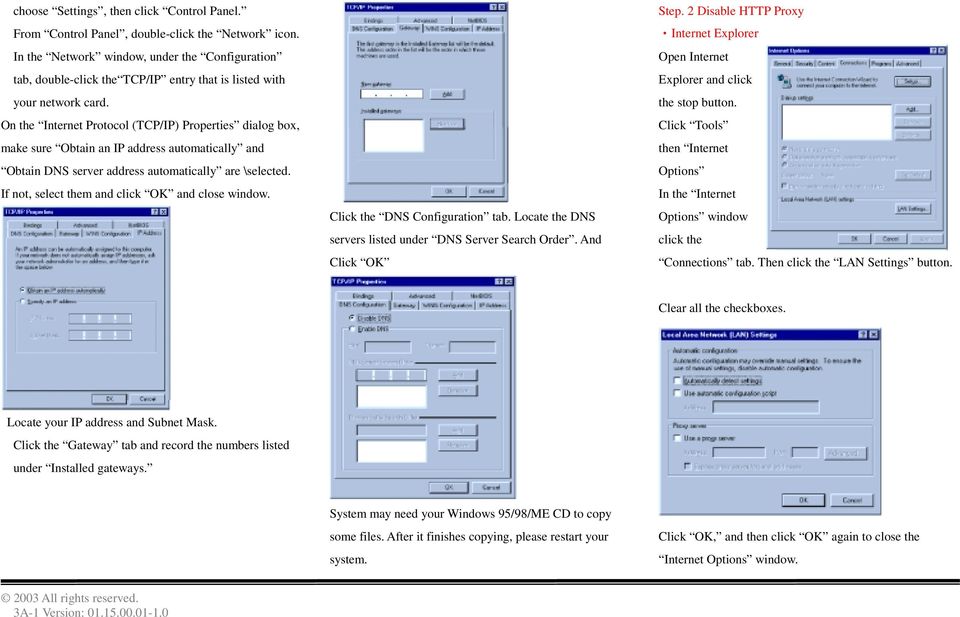
2 choose Settings, then click Control Panel. From Control Panel, double-click the Network icon. In the Network window, under the Configuration tab, double-click the TCP/IP entry that is listed with your network card. On the Internet Protocol (TCP/IP) Properties dialog box, make sure Obtain an IP address automatically and Obtain DNS server address automatically are \selected. If not, select them and click OK and close window. Click the DNS Configuration tab. Locate the DNS servers listed under DNS Server Search Order. And Click OK Step. 2 Disable HTTP Proxy Internet Explorer Open Internet Explorer and click the stop button. Click Tools then Internet Options In the Internet Options window click the Connections tab. Then click the LAN Settings button. Clear all the checkboxes. Locate your IP address and Subnet Mask. Click the Gateway tab and record the numbers listed under Installed gateways. System may need your Windows 95/98/ME CD to copy some files. After it finishes copying, please restart your system. Click OK, and then click OK again to close the Internet Options window.

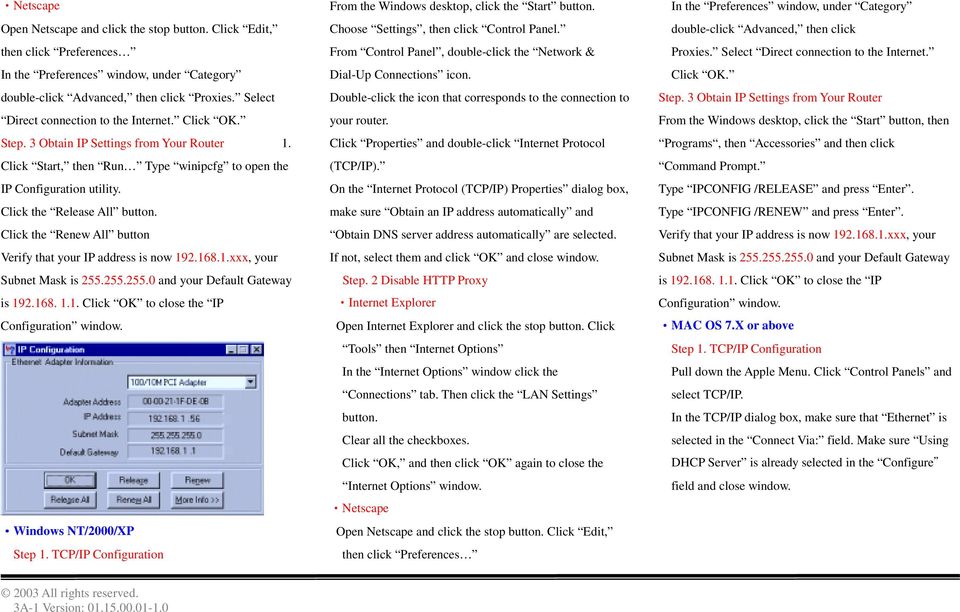
3 Netscape Open Netscape and click the stop button. Click Edit, then click Preferences In the Preferences window, under Category double-click Advanced, then click Proxies. Select Direct connection to the Internet. Click OK. Step. 3 Obtain IP Settings from Your Router 1. Click Start, then Run Type winipcfg to open the IP Configuration utility. Click the Release All button. Click the Renew All button Verify that your IP address is now xxx, your Subnet Mask is and your Default Gateway is Click OK to close the IP Configuration window. Windows NT/2000/XP Step 1. TCP/IP Configuration From the Windows desktop, click the Start button. Choose Settings, then click Control Panel. From Control Panel, double-click the Network & Dial-Up Connections icon. Double-click the icon that corresponds to the connection to your router. Click Properties and double-click Internet Protocol (TCP/IP). On the Internet Protocol (TCP/IP) Properties dialog box, make sure Obtain an IP address automatically and Obtain DNS server address automatically are selected. If not, select them and click OK and close window. Step. 2 Disable HTTP Proxy Internet Explorer Open Internet Explorer and click the stop button. Click Tools then Internet Options In the Internet Options window click the Connections tab. Then click the LAN Settings button. Clear all the checkboxes. Click OK, and then click OK again to close the Internet Options window. Netscape Open Netscape and click the stop button. Click Edit, then click Preferences In the Preferences window, under Category double-click Advanced, then click Proxies. Select Direct connection to the Internet. Click OK. Step. 3 Obtain IP Settings from Your Router From the Windows desktop, click the Start button, then Programs, then Accessories and then click Command Prompt. Type IPCONFIG /RELEASE and press Enter. Type IPCONFIG /RENEW and press Enter. Verify that your IP address is now xxx, your Subnet Mask is and your Default Gateway is Click OK to close the IP Configuration window. MAC OS 7.X or above Step 1. TCP/IP Configuration Pull down the Apple Menu. Click Control Panels and select TCP/IP. In the TCP/IP dialog box, make sure that Ethernet is selected in the Connect Via: field. Make sure Using DHCP Server is already selected in the Configure field and close window.
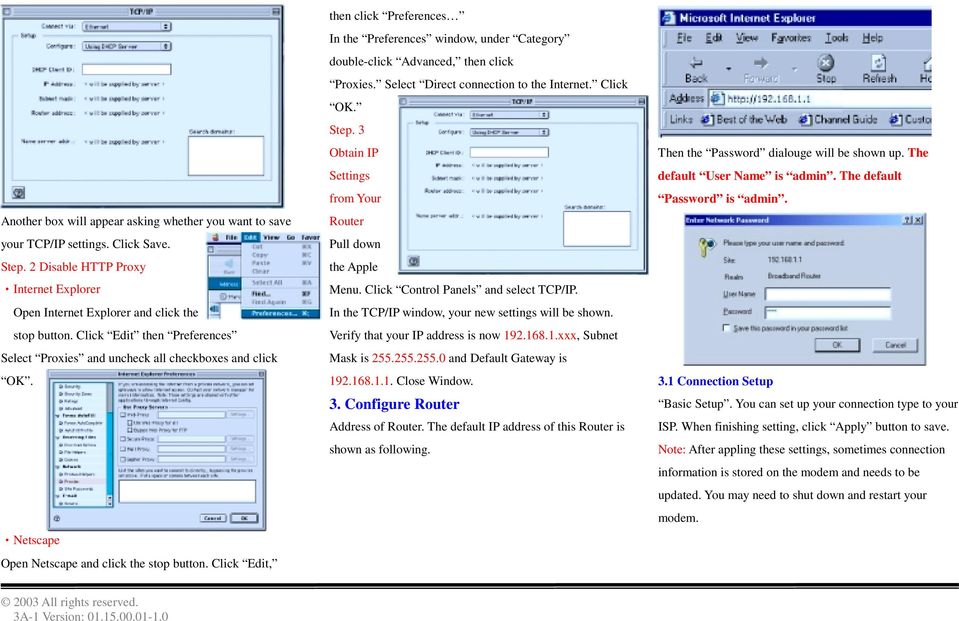
4 Another box will appear asking whether you want to save your TCP/IP settings. Click Save. Step. 2 Disable HTTP Proxy Internet Explorer Open Internet Explorer and click the stop button. Click Edit then Preferences Select Proxies and uncheck all checkboxes and click OK. Netscape Open Netscape and click the stop button. Click Edit, then click Preferences In the Preferences window, under Category double-click Advanced, then click Proxies. Select Direct connection to the Internet. Click OK. Step. 3 Obtain IP Settings from Your Router Pull down the Apple Menu. Click Control Panels and select TCP/IP. In the TCP/IP window, your new settings will be shown. Verify that your IP address is now xxx, Subnet Mask is and Default Gateway is Close Window. 3. Configure Router Address of Router. The default IP address of this Router is shown as following. Then the Password dialouge will be shown up. The default User Name is admin. The default Password is admin. 3.1 Connection Setup Basic Setup. You can set up your connection type to your ISP. When finishing setting, click Apply button to save. Note: After appling these settings, sometimes connection information is stored on the modem and needs to be updated. You may need to shut down and restart your modem.
5 Choose one of connection type, DHCP or PPPoE or Static IP Address or PPTP. DHCP If your IP Address is provided by your ISP dynamically, choose this option. A. Host Name & Domain Name Some ISPs required these names as identification. You may check with your ISP to see if your Broadband Internet Service has been configured with a host and domain name (like CX ). In most cases, leaving fields blank will work. B. Private IP Address IP Address of this router used by the internal LAN. The default value is for IP Address and for Subnet Mask. In most applications, you should not change the IP address from the default ( ). However, if you are implementing your router into an existing network, you may need to change it to match your current addressing scheme. C. Public IP Address The Public IP Address and Subnet Mask of this router are used by external users of the Internet (including your ISP). PPPoE User Name: Your User Name provided by your ISP. Password: Your password provided by your ISP. ISP Name: Your ISP name. Connect on Demand: When you enable this function, then the router will connect to your ISP under your command. Disconnect when network idle: You can set the network idle time to disconnect. If you setthe time 0, this function will be disable. Connect State: This entry will show you the router connection status. You can connect to your ISP manually by click Connect Manually button. Static IP Address Static IP Address: Enter the IP Address provide by your ISP. Public Subnet Mask: Enter the Subnet Mask provide by your ISP. Default Gateway IP Address: Enter the Gateway IP Address provide by your ISP. Domain Name Server 1: Enter the Domain Name server Address provided by your ISP.

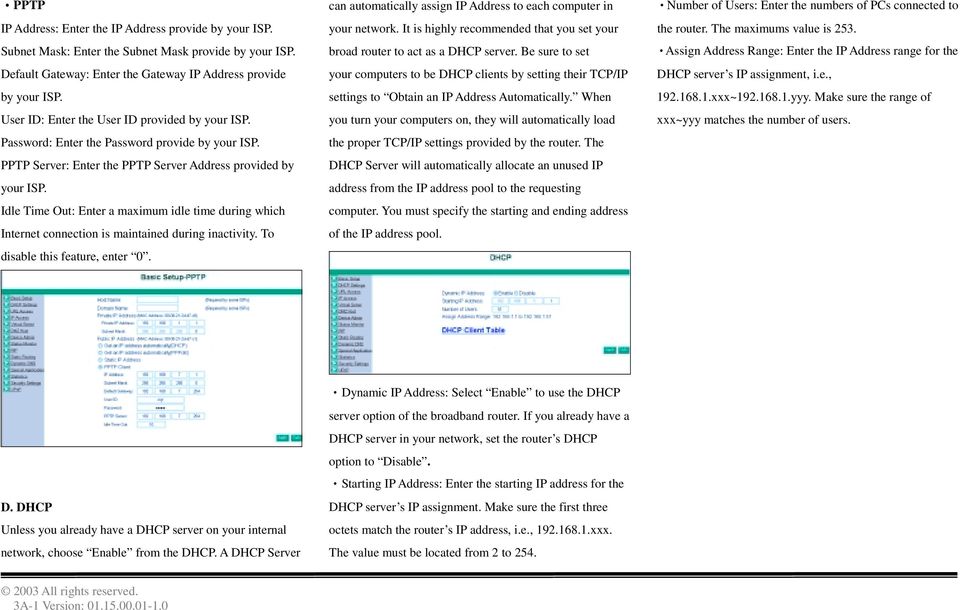
6 PPTP IP Address: Enter the IP Address provide by your ISP. Subnet Mask: Enter the Subnet Mask provide by your ISP. Default Gateway: Enter the Gateway IP Address provide by your ISP. User ID: Enter the User ID provided by your ISP. Password: Enter the Password provide by your ISP. PPTP Server: Enter the PPTP Server Address provided by your ISP. Idle Time Out: Enter a maximum idle time during which Internet connection is maintained during inactivity. To disable this feature, enter 0. can automatically assign IP Address to each computer in your network. It is highly recommended that you set your broad router to act as a DHCP server. Be sure to set your computers to be DHCP clients by setting their TCP/IP settings to Obtain an IP Address Automatically. When you turn your computers on, they will automatically load the proper TCP/IP settings provided by the router. The DHCP Server will automatically allocate an unused IP address from the IP address pool to the requesting computer. You must specify the starting and ending address of the IP address pool. Number of Users: Enter the numbers of PCs connected to the router. The maximums value is 253. Assign Address Range: Enter the IP Address range for the DHCP server s IP assignment, i.e., xxx~ yyy. Make sure the range of xxx~yyy matches the number of users. D. DHCP Unless you already have a DHCP server on your internal network, choose Enable from the DHCP. A DHCP Server Dynamic IP Address: Select Enable to use the DHCP server option of the broadband router. If you already have a DHCP server in your network, set the router s DHCP option to Disable. Starting IP Address: Enter the starting IP address for the DHCP server s IP assignment. Make sure the first three octets match the router s IP address, i.e., xxx. The value must be located from 2 to 254.
Prestige 314 Read Me First
 Prestige 314 Read Me First Console WAN 10M PORT Prestige Rear Panel Connections CONNECTION Use an RS-232 console cable. Use the cable that came with your broadband modem. LAN 10/100M Port Number COMPUTER
Wireless G Broadband quick install
 Wireless G Broadband Router quick install guide Model 503693 INT-503693-QIG-0608-02 Thank you for purchasing the INTELLINET NETWORK SOLUTIONS Wireless G Broadband Router, Model 503693. This quick install
Prestige 650R-31/33 Read Me First
 Prestige 650R-31/33 Read Me First Prestige Rear Panel Connections PORT DSL CONSOLE LAN 10/100M POWER Connect to a telephone jack using a telephone wire. CONNECTION Connect to a serial port (COM port) on
NetLINE Wireless Broadband Gateway
 NetLINE Setup Guide Farallon s NetLINE connects to your cable/dsl modem, allowing computers on your local wired and wireless networks to share a single broadband connection to the Internet. This Setup
Chapter 2 Preparing Your Network
 Chapter 2 Preparing Your Network This document describes how to prepare your network to connect to the Internet through a router and how to verify the readiness of your broadband Internet service from
Prestige 660R-6x Read Me First
 Prestige 660R-6x Read Me First Prestige Rear Panel Connections DSL PORT CONNECTION Connect the DSL port on the Prestige to the wall jack using the included DSL cable (telephone wire). Connect the micro
Prestige 324. Prestige 324. Intelligent Broadband Sharing Gateway. Version 3.60 January 2003 Quick Start Guide
 Prestige 324 Intelligent Broadband Sharing Gateway Version 3.60 January 2003 Quick Start Guide 1 Introducing the Prestige The Prestige is a broadband sharing gateway with a built-in four-port 10/100 Mbps
Omni 56K USB Lite Quick Start Guide
 Omni 56K USB Lite Quick Start Guide ZyXEL TOTAL INTERNET ACCESS SOLUTION 1. Hardware Installation Connect your modem to your analog phone or fax. Use the phone cord included to connect to the phone jack
Broadband Router ALL1294B
 Broadband Router ALL1294B Broadband Internet Access 4-Port Switching Hub User's Guide Table of Contents CHAPTER 1 INTRODUCTION... 1 Broadband Router Features... 1 Package Contents... 3 Physical Details...
LevelOne. User Manual. FBR-1430 VPN Broadband Router, 1W 4L V1.0
 LevelOne FBR-1430 VPN Broadband Router, 1W 4L User Manual V1.0 Table of Contents CHAPTER 1 INTRODUCTION... 1 VPN BROADBAND ROUTER FEATURES... 1 Internet Access Features... 1 Advanced Internet Functions...
Prestige 324 Quick Start Guide. Prestige 324. Intelligent Broadband Sharing Gateway. Version V3.61(JF.0) May 2004 Quick Start Guide
 Prestige 324 Intelligent Broadband Sharing Gateway Version V3.61(JF.0) May 2004 Quick Start Guide 1 1 Introducing the Prestige The Prestige is a broadband sharing gateway with a built-in four-port 10/100
TW100-BRF114 Firewall Router. User's Guide. Cable/DSL Internet Access. 4-Port Switching Hub
 TW100-BRF114 Firewall Router Cable/DSL Internet Access 4-Port Switching Hub User's Guide Table of Contents CHAPTER 1 INTRODUCTION...1 TW100-BRF114 Features...1 Package Contents...3 Physical Details...
TW100-BRV204 VPN Firewall Router
 TW100-BRV204 VPN Firewall Router Cable/DSL Internet Access 4-Port Switching Hub User's Guide Table of Contents CHAPTER 1 INTRODUCTION... 1 TW100-BRV204 Features... 1 Package Contents... 3 Physical Details...
Internet Broadband Router XRT-501. Quick Installation Guide
 Internet Broadband Router XRT-501 Quick Installation Guide Table of Contents 1. Requirements... 3 2. Before Startup... 3 2.1 Physical Installation... 3 2.2 Configuration... 4 3. Quick Installation... 5
Prestige 623R-T. Quick Start Guide. ADSL Dual-link Router. Version 3.40
 Prestige 623R-T ADSL Dual-link Router Quick Start Guide Version 3.40 February 2004 Introducing the Prestige The Prestige 623R-T ADSL Dual-link Router is the ideal all-in-one device for small networks connecting
Self Help Guide IMPORTANT! Configuring Your Router With Your Modem. Please read the following carefully; This Guide refers to the following Products:
 IMPORTANT! This Guide refers to the following Products: Configuring Your Router With Your Modem Please read the following carefully; Synopsis: A standard (Wireless) Router does not come equipped with the
2 Setting Up the Hardware for a Wired Ethernet Network... 13. 3 Setting Up the Software for an Ethernet Network... 21
 Contents 1 Networking Basics............................................... 1 Selecting a network connection........................................ 2 Wired Ethernet network...........................................
Contents. Section A Networking Basics... 1. 1 Learning the Basics... 3. Section B Wired Ethernet Networking... 17
 Contents Section A Networking Basics...................................... 1 1 Learning the Basics............................................. 3 Selecting a network connection........................................
Internet for Everyone In-Room Instructions January 2011 Version 1.3
 Internet for Everyone In-Room Instructions January 2011 Version 1.3 Everywhere Internet 2006 Page 1 of 17 Connecting your computer to the Everywhere Internet network in your room 1. You need a network
EDGE FX Network configuration
 Page 1 of 16 TITLE: Category: EDGE FX Network configuration GERBER EDGE Document Number: 4280 Supplied by: Gerber Service Last Modified: April 14, 2011 Summary: In order to connect an EDGE FX to your PC
DSL Installation Guide
 DSL Installation Guide Thank you for choosing Integra Telecom s DSL service! Introduction This guide will walk you through the DSL installation process and will help you configure a computer to access
STATIC IP SET UP GUIDE VERIZON 7500 WIRELESS ROUTER/MODEM
 STATIC IP SET UP GUIDE VERIZON 7500 WIRELESS ROUTER/MODEM Verizon High Speed Internet for Business Verizon High Speed Internet for Business SETTING UP YOUR NEW STATIC IP CONNECTION AND IP ADDRESS(ES) This
Linksys Gateway SPA2100-SU Manual
 Linksys Gateway SPA2100-SU Manual Manuel de l'utilisateur Table of Contents Looking for Basic Setup Instructions?... 3 Most Recent Version of this Manual... 3 Advanced Setup Instructions... 4 Wiring Your
Connecting the DG-102S VoIP Gateway to your network
 Contents of Package: DG-102S VoIP Station Gateway Power adapter CD-ROM, including User s Manual Quick Install Guide Requirements: RS-232 Console Cable Two RJ-45 CAT-5 Straight-Through Cables For more information
47611 GT4. Internet Gateway. Broadband Internet Access. 4-Port Switch. User's Manual
 47611 GT4 Internet Gateway Broadband Internet Access 4-Port Switch User's Manual Table of Contents CHAPTER 1 INTRODUCTION... 1 Internet GatewayFeatures... 1 Package Contents... 3 Physical Details... 4
Actiontec GT784WN Router
 Table of Contents General Information...1 Verify Computer Settings...1 Router Installation...3 Configuring Your Router...3 Configuring Your Computer...7 Configuring Your Email...9 General Information Router
BROADBAND INTERNET ROUTER USER S MANUAL. Version 1.0. - Page 1 of 13 -
 Version 1.0 - Page 1 of 13 - 10/100M Broadband Router GETTING TO KNOW 2 3 4 1 5 7 6 - Page 2 of 13 - LED Indicator S/N Indicator Function 1 Power LED (Green) LED lights up steadily indicate that the power
DI-634M. Check Your Package Contents. This product can be set up using any current web browser, i.e., Internet Explorer 6 or Netscape Navigator 7.
 This product can be set up using any current web browser, i.e., Internet Explorer 6 or Netscape Navigator 7. DI-634M 108G MIMO Wireless Router Before You Begin 1. If you purchased this router to share
Internet Guide. Prepared for 55 John Street
 Internet Guide Prepared for 55 John Street I. Internet Service How do I connect to the Internet? WiFi (Wireless Connectivity) is available throughout the building. In order to connect, you will need a
Building Networks For People. DIR-100 Ethernet Broadband Router User Manual
 Building Networks For People DIR-100 Ethernet Broadband Router User Manual CONTENTS About This User s Guide... iii Before You Start... iii Installation Notes... iv Installation Information... v INTRODUCTION...1
your Gateway Windows network installationguide 802.11b wireless series Router model WBR-100 Configuring Installing
 your Gateway Windows network installationguide 802.11b wireless series Router model WBR-100 Installing Configuring Contents 1 Introduction...................................................... 1 Features...........................................................
Application Note Configuring the UGate 3000 for use with ClipMail Pro and ClipExpress
 Application Note Configuring the UGate 3000 for use with Introduction This Application Note guides the ClipMail user through the UGate gateway configuration process by using a simple dial up connection
DVG-2101SP VoIP Telephone Adapter
 This product can be set up using any current web browser, i.e., Internet Explorer 6 or Netscape Navigator 6.2.3. DVG-2101SP VoIP Telephone Adapter Before You Begin 1. If you purchased this VoIP Telephone
PC/POLL SYSTEMS Version 7 Polling SPS2000 Cash Register TCP/IP Communications
 PC/POLL SYSTEMS Version 7 Polling SPS2000 Cash Register TCP/IP Communications PC/POLL SYSTEMS supports native TCP/IP polling for the SPS2000 cash register. It is recommended users have the register updated
OfficeConnect Internet Firewall 25 Internet Firewall DMZ. QuickStart Guide (3C16770, 3C16771)
 OfficeConnect Internet Firewall 25 Internet Firewall DMZ QuickStart Guide (3C16770, 3C16771) Checking Package Contents Getting Started Thank you for purchasing the OfficeConnect Internet Firewall. The
NETWORK SETUP INSTRUCTIONS
 NETWORK SETUP INSTRUCTIONS How to Connect AVTECH Product to Internet To connect AVTECH DVR or network camera to Internet, you need to: 1). Figure out your network environment, and have related IP information
Check Your Package Contents. CD-ROM containing Manual and Warranty
 This product can be set up using any current web browser, i.e., Internet Explorer 6 or Netscape Navigator 6.2.3. DVA-G3340S Wireless VoIP Router Before You Begin If you purchased this Router to share your
Using a simple crossover RJ45 cable, you can directly connect your Dexter to any computer.
 Dexter is a network device using the Ethernet protocol to connect and communicate with other devices on the network: Computers, routers, DHCP servers. Thus you have to setup your Dexter and your network
Designing AirPort Extreme Networks
 Designing AirPort Extreme Networks Contents 1 Getting Started 5 About AirPort 5 How AirPort Works 6 How Wireless Internet Access Is Provided 6 Configuring AirPort Extreme Base Station Internet Access
Model:BL-WDR3750 750Mbps Wireless Dual Band 11AC Router
 Quick Installation Guide Model:BL-WDR3750 750Mbps Wireless Dual Band 11AC Router 1.Connecting the device Note: Please use wired network connections only to configure the Router. 1 Connect the WAN port
TL-R460 Cable/DSL Router
 Cable/DSL Router Rev: 2.0.0 1910010471 COPYRIGHT & TRADEMARKS Specifications are subject to change without notice. is a registered trademark of TP-LINK TECHNOLOGIES CO., LTD. Other brands and product names
BR-6104K / BR-6104KP Fast Ethernet Broadband Router User s Manual
 BR-6104K / BR-6104KP Fast Ethernet Broadband Router User s Manual 1 Introduction... 4 Features... 4 Minimum Requirements... 4 Package Content... 4 Note... 4 Get to know the Broadband Router... 4 Back Panel...
Belkin Wireless Cable/DSL Gateway Router
 Belkin Wireless Cable/DSL Gateway Router User Manual F5D6230-3 Table of Contents Introduction................................................ 1-3 Knowing your Belkin Router....................................
Connecting to the Internet. LAN Hardware Requirements. Computer Requirements. LAN Configuration Requirements
 Connecting to the Internet LAN Hardware Requirements Computer Requirements LAN Configuration Requirements Installation Performed by Time Warner Cable Technician Connecting via Ethernet Connecting via USB
Load Balancer LB-2. User s Guide
 Load Balancer LB-2 User s Guide TABLE OF CONTENTS 1: INTRODUCTION...1 Internet Features...1 Other Features...3 Package Contents...4 Physical Details...4 2: BASIC SETUP...8 Overview...8 Procedure...8 3:
NF1Adv VOIP Setup Guide (for Pennytel)
 NF1Adv VOIP Setup Guide (for Pennytel) Configuring your NF1Adv for VOIP Service The following steps will take you through the process of setting up your VOIP connection. Step 1: Checking Computer Network
3.5 EXTERNAL NETWORK HDD. User s Manual
 3.5 EXTERNAL NETWORK HDD User s Manual Table of Content Before You Use Key Features H/W Installation Illustration of Product LED Definition NETWORK HDD Assembly Setup the Network HDD Home Disk Utility
Chapter 1 Configuring Basic Connectivity
 Chapter 1 Configuring Basic Connectivity This chapter describes the settings for your Internet connection and your wireless local area network (LAN) connection. When you perform the initial configuration
Software Installation Guide
 Software Installation Guide This manual explains how to install the software over a USB or network connection. Network connection is not available for models SP 200/200S/203S/203SF/204SF. To manually configure
BROADBAND FIREWALL ROUTER WITH 1-USB + 1-PARALLEL PRINT SERVER PORT
 BROADBAND FIREWALL ROUTER WITH 1-USB + 1-PARALLEL PRINT SERVER PORT USER S MANUAL V1.0 Trademarks Windows 95/98/Me and Windows NT/2000/XP are registered trademarks of Microsoft Corporation. All other brands
Chapter 15: Advanced Networks
 Chapter 15: Advanced Networks IT Essentials: PC Hardware and Software v4.0 1 Determine a Network Topology A site survey is a physical inspection of the building that will help determine a basic logical
Broadband Router User s Manual
 Broadband Router User s Manual Table of Contents Chapter 1 Introduction...4 1.1 The Broadband Router......4 1.2 Physical Features of Broadband Router...4 1.3 Non-Physical Features of Broadband Router..
Software Installation Guide
 Software Installation Guide This manual explains how to install the software over a USB or network connection. Network connection is not available for models SP 200/200S/203S/203SF/204SF. Flowchart The
TL-R402M Cable/DSL Router
 Cable/DSL Router Rev: 3.0.2 1910010053 COPYRIGHT & TRADEMARKS Specifications are subject to change without notice. is a registered trademark of TP-LINK TECHNOLOGIES CO., LTD. Other brands and product names
P-660R-TxC Series. ADSL2+ Access Router. Quick Start Guide
 P-660R-TxC Series ADSL2+ Access Router Quick Start Guide Version 3.40 Edition 1 2/2006 Overview The P-660R-TxC ADSL2+ access router is the ideal device for small networks connecting to the Internet via
SOHO 6 Wireless Installation Procedure Windows 95/98/ME with Internet Explorer 5.x & 6.0
 SOHO 6 Wireless Installation Procedure Windows 95/98/ME with Internet Explorer 5.x & 6.0 Before You Begin Before you install the SOHO 6 Wireless, you must have: A computer with a 10/100BaseT Ethernet card
Multi-Homing Dual WAN Firewall Router
 Multi-Homing Dual WAN Firewall Router Quick Installation Guide M73-APO09-400 Multi-Homing Dual WAN Firewall Router Overview The Multi-Homing Dual WAN Firewall Router provides three 10/100Mbit Ethernet
ASUS WL-5XX Series Wireless Router Internet Configuration. User s Guide
 ASUS WL-5XX Series Wireless Router Internet Configuration User s Guide Contents Chapter 1 Introduction:...1 Chapter 2 Connecting the wireless router...1 Chapter 3 Getting to know your Internet connection
Network Setup Guide. 1 Glossary. 2 Operation. 1.1 Static IP. 1.2 Point-to-Point Protocol over Ethernet (PPPoE)
 Network Setup Guide 1 Glossary 1.1 Static IP Computers are communicated and recognized by their own unique IP addresses over the Internet. Static IP provided by your ISP (Internet Service Provider) means
BiPAC 7404V series. VoIP/(802.11g) ADSL2+ (VPN) Firewall Router. Quick Start Guide
 BiPAC 7404V series VoIP/(802.11g) ADSL2+ (VPN) Firewall Router Quick Start Guide VoIP/(802.11g) ADSL2+ (VPN) Firewall Router For more detailed instructions on configuring and using the Billion VoIP/(802.11g)
NF1Adv VOIP Setup Guide (for Generic VoIP Setup)
 NF1Adv VOIP Setup Guide (for Generic VoIP Setup) Configuring your NF1Adv for VOIP Service The following steps will take you through the process of setting up your VOIP connection. Step 1: Checking Computer
c. Securely insert the Ethernet cable from your cable or DSL modem into the Internet port (B) on the WGT634U. Broadband modem
 Start Here Follow these instructions to set up your router. Verify That Basic Requirements Are Met Assure that the following requirements are met: You have your broadband Internet service settings handy.
How to Configure a DIR-120 Broadband Router
 CONTENTS About This User s Guide...iv Before You Start...iv Installation Notes...v Installation Information...vi INTRODUCTION... 1 Router Description and Operation...1 Front Panel...3 Rear Panel...4 CONNECTING
Apple Mac. AT&T DSL Internet Service Implementation Planner Apple Mac PC Configuration Guide Version 1.2 Page 1
 Apple Mac Page 1 Apple Mac Setup Welcome to AT&T DSL Internet Service! This guide is designed to help you configure your Mac to access the Internet quickly and easily using AT&T DSL. Before You Begin First,
Firewall VPN Router. Quick Installation Guide M73-APO09-380
 Firewall VPN Router Quick Installation Guide M73-APO09-380 Firewall VPN Router Overview The Firewall VPN Router provides three 10/100Mbit Ethernet network interface ports which are the Internal/LAN, External/WAN,
CS 326e F2002 Lab 1. Basic Network Setup & Ethereal Time: 2 hrs
 CS 326e F2002 Lab 1. Basic Network Setup & Ethereal Time: 2 hrs Tasks: 1 (10 min) Verify that TCP/IP is installed on each of the computers 2 (10 min) Connect the computers together via a switch 3 (10 min)
Prestige 202H Plus. Quick Start Guide. ISDN Internet Access Router. Version 3.40 12/2004
 Prestige 202H Plus ISDN Internet Access Router Quick Start Guide Version 3.40 12/2004 Table of Contents 1 Introducing the Prestige...3 2 Hardware Installation...4 2.1 Rear Panel...4 2.2 The Front Panel
ACT High Speed WiMAX Internet
 ACT High Speed WiMAX Internet Internet Configuration Manual This manual walks you through the steps of configuring your computer for High Speed WiMAX Internet service with Windows 7, Vista, XP, 2000, And
Symphony Network Troubleshooting
 Symphony Network Troubleshooting Step 1) Review the Networking 101 presentation on the CD included with the Symphony. A basic understanding of networks is essential to this procedure. Step 2) Identify
OUTDOOR IR NETWORK CAMERA Series
 OUTDOOR IR NETWORK CAMERA Series INSTALLATION GUIDE Please read instructions thoroughly before operation and retain it for future reference. 1. OVERVIEW 1.1 Package Content Network camera Installation
Load Balancing Router. User s Guide
 Load Balancing Router User s Guide TABLE OF CONTENTS 1: INTRODUCTION... 1 Internet Features... 1 Other Features... 3 Package Contents... 4 Physical Details... 4 2: BASIC SETUP... 8 Overview... 8 Procedure...
How to Remotely View Security Cameras Using the Internet
 How to Remotely View Security Cameras Using the Internet Introduction: The ability to remotely view security cameras is one of the most useful features of your EZWatch Pro system. It provides the ability
Broadband Router ESG-103. User s Guide
 Broadband Router ESG-103 User s Guide FCC Warning This equipment has been tested and found to comply with the limits for Class A & Class B digital device, pursuant to Part 15 of the FCC rules. These limits
Volume. Instruction Manual
 Volume 1 Instruction Manual Networking EVERFOCUS ELECTRONICS CORPORATION Networking Instruction Guide 2004 Everfocus Electronics Corp 2445 Huntington Drive Phone 626.844.8888 Fax 626.844.8838 All rights
Easy Setup Guide for the Sony Network Camera
 -878-191-11 (1) Easy Setup Guide for the Sony Network Camera For setup, a computer running the Microsoft Windows Operating System is required. For monitoring camera images, Microsoft Internet Explorer
Wireless Mobile Router User s Manual Model WMR1000B
 Wireless Mobile Router User s Manual Model WMR1000B 990-1691 Copyright 2003 American Power Conversion. All rights reserved. APC is a registered trademark of American Power Conversion. All other trademarks
Internet Access Setup
 Internet Access Setup Introduction In the Quick Setup group, you can configure the router to access the Internet with differnet modes (e.g. PPPoE, PPTP or Dynamic/Static IP). For most users, Internet access
Network & Internet Installation & Information Guide Fall 2004 Edition. Campus Ethernet For PCs using Windows 2000 & XP
 Network & Internet Installation & Information Guide Fall 2004 Edition Campus Ethernet For PCs using Windows 2000 & XP Table of Contents Overview... 2 Requirements... 2 Physically connect your computer
If you are unable to set up your Linksys Router by using one of the above options, use the steps below to manually configure your router.
 This article describes how to manually configure a Linksys Router for broadband DSL that uses PPPoE (Point-to-Point Protocol over Ethernet) for authentication. For automatic configuration options, please
Multifunctional Broadband Router User Guide. Copyright Statement
 Copyright Statement is the registered trademark of Shenzhen Tenda Technology Co., Ltd. Other trademark or trade name mentioned herein are the trademark or registered trademark of above company. Copyright
XRT-401C XRT-402C XRT-204C
 XRT-401C XRT-402C XRT-204C Copyright Copyright (C) 2003 PLANET Technology Corp. All rights reserved. The products and programs described in this User s Manual are licensed products of PLANET Technology,
Wireless Broadband Router. Manual
 Wireless Broadband Router Manual 1 Introduction... 4 Features... 4 Minimum Requirements... 4 Package Content... 4 Note... 4 Get to know the Broadband Router... 5 Back Panel... 5 Front Panel... 6 Setup
Deploying Windows Streaming Media Servers NLB Cluster and metasan
 Deploying Windows Streaming Media Servers NLB Cluster and metasan Introduction...................................................... 2 Objectives.......................................................
P-660R-T1/T3 v2 Quick Start Guide
 P-660R-T1/T3 v2 ADSL2+ Access Router Quick Start Guide Version 3.40 Edition 1 12/2006 0 Overview P-660R-T1/T3 v2 Quick Start Guide This Quick Start Guide shows you how to: 1 Connect the Hardware 2 Set
Initial Access and Basic IPv4 Internet Configuration
 Initial Access and Basic IPv4 Internet Configuration This quick start guide provides initial and basic Internet (WAN) configuration information for the ProSafe Wireless-N 8-Port Gigabit VPN Firewall FVS318N
Quick Installation Guide DAP-1360. Wireless N 300 Access Point & Router
 DAP-1360 Wireless N 300 Access Point & Router BEFORE YOU BEGIN Delivery Package Access point DAP-1360 Power adapter DC 12V Ethernet cable (CAT 5E) (brochure). If any of the items are missing, please contact
Steltronic Focus. Main Desk Internet connection
 Steltronic Focus Main Desk Steltronic S.p.A. Via Artigianale 34, 25082 Botticino Sera Brescia - Italy Tel: +39 030 2190811 fax: +39 030 2190798 Service: + 39 030 2190830 http: www.steltronic.com Service:
DIR-100. Before You Begin. Check Your Package Contents. Triple Play Router
 This product can be set up using a current web browser. DIR-100 Triple Play Router Before You Begin Make sure you have all the necessary information and equipment on hand before beginning the installation.
Chapter 3 Connecting the Router to the Internet
 Chapter 3 Connecting the Router to the Internet This chapter describes how to set up the router on your Local Area Network (LAN) and connect to the Internet. It describes how to configure your DG834GT
How To Set Up A Computer With A Network Connection On A Cdrom 2.5 (For A Pc) Or Ipad (For Mac) On A Pc Or Mac Or Ipa (For Pc) On An Ipad Or Ipro (
 Connect the supplied power-adapter to the power inlet port and connect it to a wall outlet. Then, the router automatically enters the self-test phase. During self-test phase, RNX-EasyN400 s Power LED will
NF5 VOIP Setup Guide (for Generic)
 NF5 VOIP Setup Guide (for Generic) Configuring your NF5 for VOIP Service The following steps will take you through the process of setting up your VOIP connection. Step 1: Checking Computer Network Settings:
Please use only wired network connections to configure the router.
 Note Please use only wired network connections to configure the router. Connect the WAN port on your Router to the Modem s LAN port with an Ethernet cable. Note If connecting the TL-WR543G to the WISP
Apple s Time Capsule
 FOREVERWARM CONSULTING INC Self-Help Series How to setup Apple s Time Capsule in your Microsoft Windows based Small Business or Home Office A step-by-step guide to installing Apple s Time Capsule in your
Cisco 831 Router and Cisco SOHO 91 Router Cabling and Setup Quick Start Guide
 English CHAPTER 1 Cisco 831 Router and Cisco SOHO 91 Router Cabling and Setup Quick Start Guide Cisco One-Year Limited Hardware Warranty Terms Easy Installation: Try These Steps First! (CRWS Users) Overview
Preparing the Computers for TCP/IP Networking
 Configuration Preparing the Computers for TCP/IP Networking Configuring Windows 98, and ME for TCP/IP Networking Verifying TCP/IP Properties Configuring Windows 2000 or XP for IP Networking Install or
Chapter 7 Troubleshooting
 Chapter 7 Troubleshooting This chapter provides troubleshooting tips and information for your ProSafe VPN Firewall 200. After each problem description, instructions are provided to help you diagnose and
Quick Installation Guide DSL-2750U/NRU. 3G/ADSL/Ethernet Router with Wi-Fi and Built-in Switch
 DSL-2750U/NRU 3G/ADSL/Ethernet Router with Wi-Fi and Built-in Switch BEFORE YOU BEGIN Delivery Package Router DSL-2750U/NRU Power adapter RJ-11 telephone cable Straight-through Ethernet cable (CAT 5E)