
802.11n Wireless Broadband Router WNRT-625
|
|
|
- Louise Garrett
- 9 years ago
- Views:
Transcription
1 802.11n Wireless Broadband Router WNRT-625 Quick Installation Guide

2 Table of Contents Introduction... 3 Package Content... 4 Hardware Installation... 5 Web Configuration... 8 Further Configuration...11

3 Introduction Thank you for purchasing PLANET n Wireless Broadband Router, WNRT-625. In this Quick Installation Guide, it illustrates the hardware installation and the basic configuration.
4 Package Content 1 x WNRT x Ethernet Cable 1 x Power Adapter 1 x CD Disk 1 x Quick Installation Guide Note If any of the above items are missing or damaged, contact your local dealer for support.
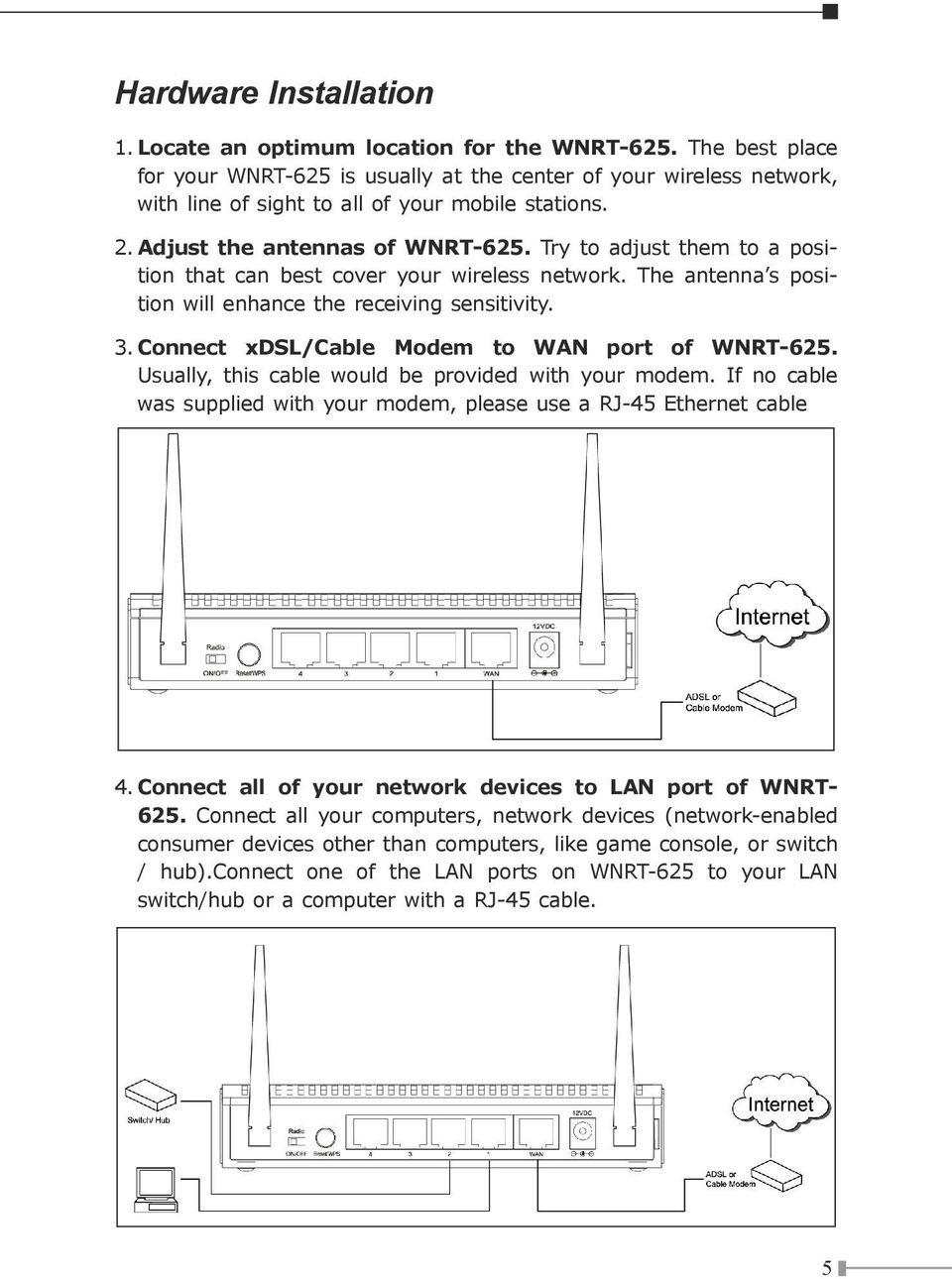
5 Hardware Installation 1. Locate an optimum location for the WNRT-625. The best place for your WNRT-625 is usually at the center of your wireless network, with line of sight to all of your mobile stations. 2. Adjust the antennas of WNRT-625. Try to adjust them to a position that can best cover your wireless network. The antenna s position will enhance the receiving sensitivity. 3. Connect xdsl/cable Modem to WAN port of WNRT-625. Usually, this cable would be provided with your modem. If no cable was supplied with your modem, please use a RJ-45 Ethernet cable 4. Connect all of your network devices to LAN port of WNRT Connect all your computers, network devices (network-enabled consumer devices other than computers, like game console, or switch / hub).connect one of the LAN ports on WNRT-625 to your LAN switch/hub or a computer with a RJ-45 cable.
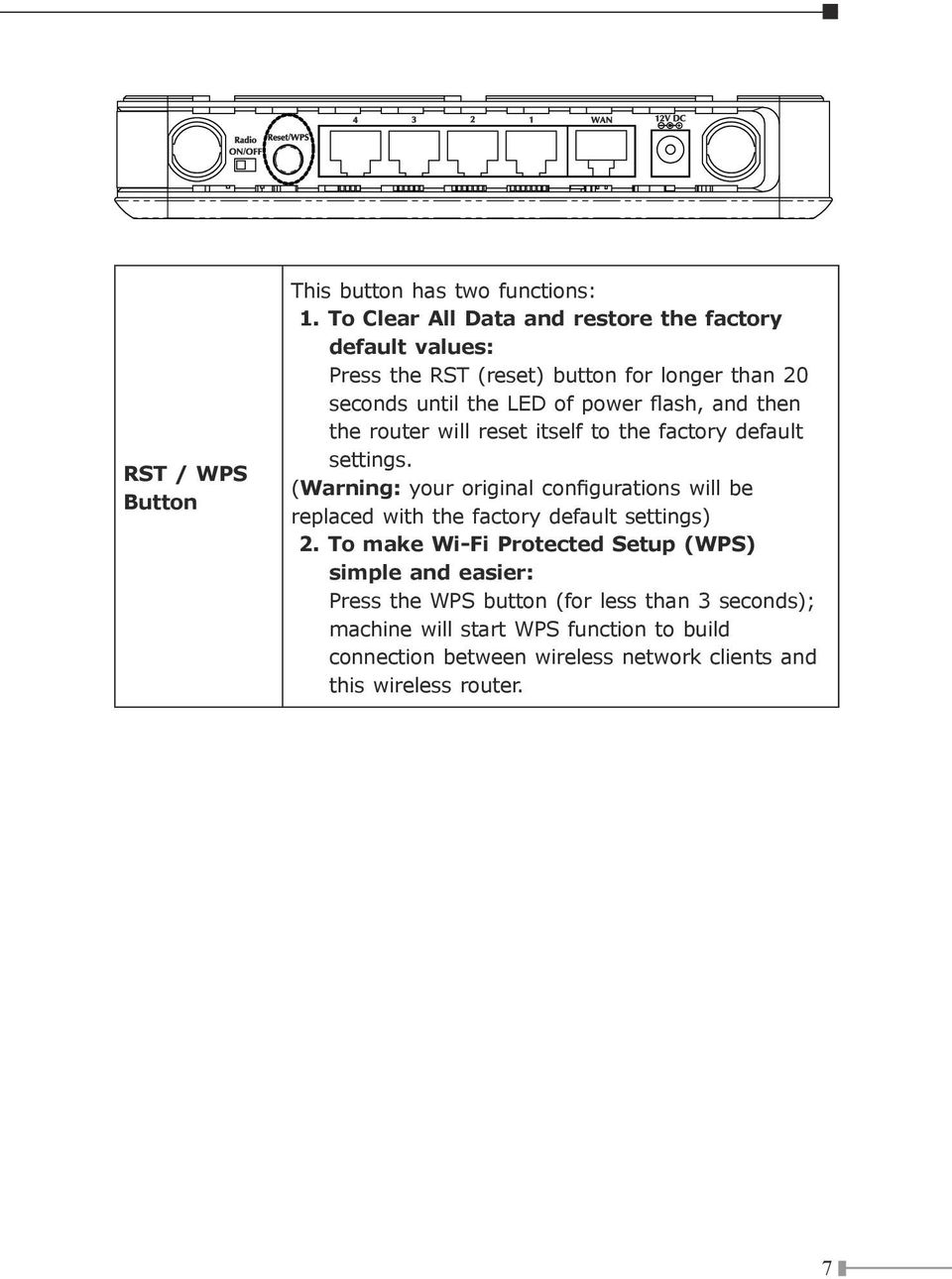
6 5. Plug in power adapter and connect to power source. After power on, WNRT-625 will start to operate. 6. Please check all LEDs on the front panel. PWR LED should be steadily on. WAN and LAN LEDs should be on if the computer / network device connected to the respective port of the router is powered on and correctly connected. If PWD LED is not on, or any LED you expected is not on, please recheck the cabling, or jump to Troubleshooting on manual for possible reasons and solution. Other outlook interface: Radio ON/ OFF Enable/disable wireless signal button. ** In case switching wireless signal via Radio ON/ OFF button to OFF situation, the functions of wireless settings on web UI will be unavailable.

7 RST / WPS Button This button has two functions: 1. To Clear All Data and restore the factory default values: Press the RST (reset) button for longer than 20 seconds until the LED of power flash, and then the router will reset itself to the factory default settings. (Warning: your original configurations will be replaced with the factory default settings) 2. To make Wi-Fi Protected Setup (WPS) simple and easier: Press the WPS button (for less than 3 seconds); machine will start WPS function to build connection between wireless network clients and this wireless router.
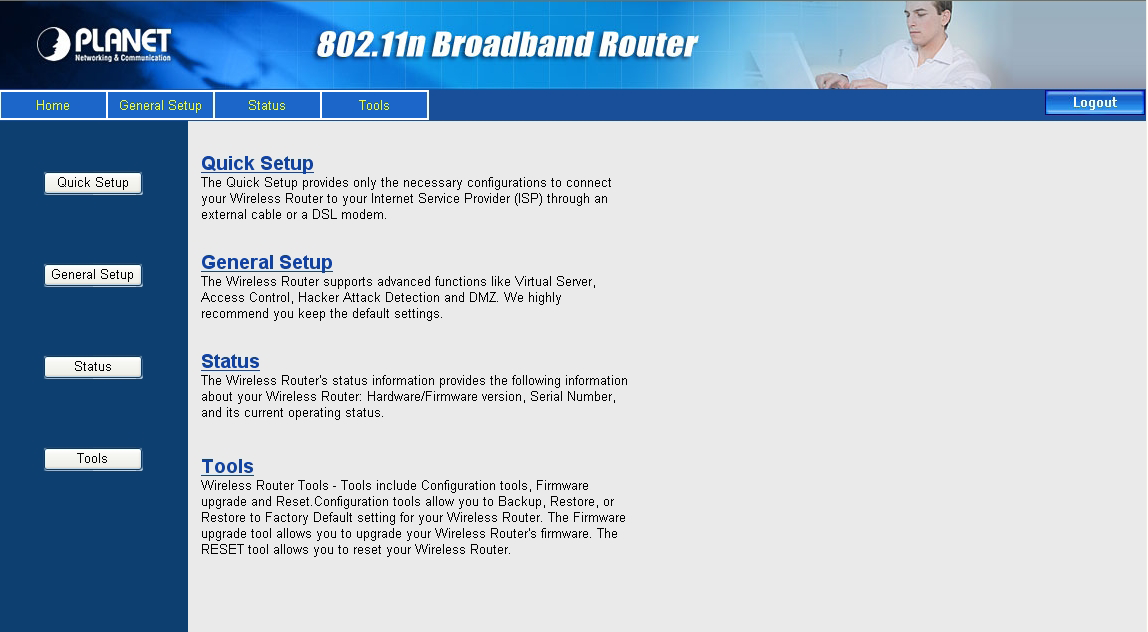
8 Web Configuration WNRT-625 provides a user friendly interface for users to configure it via web browser. Please follow the steps below to configure WNRT-625 basic settings. 1. Open your web browser and type WNRT-625 default IP address ( into the Address Field of you web browser. Before configuration, please make sure your PC s IP address is under the same IP range with WNRT After enter the IP address and press Enter key, you can see the dialog box appear as below, please enter the User name and Password with admin. Then press OK. 3. Please click Quick Setup on the left panel to setup your WNRT-625.


9 4. Select a Time Zone that corresponds to your country. Time Zone setting will affect functions such as Log entries and Firewall. You may keep the default Time Server address or set a new Time Server s IP address for WNRT-625 to adjust it s time on the Internet. Please click Next to continue. 5. The WNRT-625 supports six Internet connection types. This information must be provided by your local ISP. 6. The IP Address Info page appears after you choose suitable Broadband Type. Different Broadband Type will have different IP settings. You must obtain all necessary information from your local ISP and enter the correct parameters in this page.

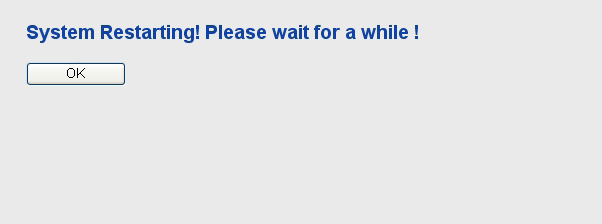
10 7. Click Apply to save the settings. 8. Please wait for 30 seconds for WNRT-625 restart. Then click OK. 10

11 Further Configuration If you want to configure WNRT-625 with more detail settings, please refer to our manual in the CD-ROM and configure with your Web Browser. If you have any difficulty on resolving the problem while installing or using WNRT-625, please feel free to contact PLANET for support. 11
12 This page is intentionally left blank

801.11n Wireless Broadband Router
 801.11n Wireless Broadband Router WNRT-626 Quick Installation Guide Table of Contents Hardware Installation... 4 Web Configuration... 6 Further Configuration... 8 Thank you for purchasing PLANET 801.11n
BiPAC 7800NL. Wireless-N ADSL2+ Firewall Router. Quick Start Guide
 BiPAC 7800NL Wireless-N ADSL2+ Firewall Router Quick Start Guide BiPAC 7800NL Wireless-N ADSL2+ Firewall Router Billion BiPAC 7800NL Wireless-N ADSL2+ Firewall Router PLEASE READ THE QUICK START GUIDE
You may refer the Quick Installation Guide in the package box for more information.
 Hardware Installation: 1. Turn off your modem. 2. Use one Ethernet cable to connect your modem to WAN port (Blue) port of BR-6228nC. 3. Use another Ethernet cable to connect your PC to one LAN Port (Yellow)
Wireless Router Quick Start Guide Rev. 1.0a Model: WR300NQ
 Wireless Router Quick Start Guide Rev. 1.0a Model: WR300NQ 1 Step One: Hardware Connection 1. If you have xdsl Broadband internet access, connect your hardware as shown in the following diagram: 2. If
DVG-2101SP VoIP Telephone Adapter
 This product can be set up using any current web browser, i.e., Internet Explorer 6 or Netscape Navigator 6.2.3. DVG-2101SP VoIP Telephone Adapter Before You Begin 1. If you purchased this VoIP Telephone
How to setup EW-7438RPn with a Windows computer to extend an existing Wi-Fi network
 2 How to setup EW-7438RPn with a Windows computer to extend an existing Wi-Fi network Note: 1. This instruction use pictures from EW-7438RPn firmware v1.13. 2. If you need to restore to the default settings,
Wightman Telecom Wireless Router Quick Reference Booklet
 Wightman Telecom Wireless Router Quick Reference Booklet Thank you for choosing Wightman Internet. The information in this booklet will guide you through the process of connecting to the internet with
BEC 6200WZL. 4G/LTE Cellular Broadband Router. Quick Start Guide
 BEC 6200WZL 4G/LTE Cellular Broadband Router Quick Start Guide 1 BEC 6200WZL 4G/LTE Cellular Broadband Router PLEASE READ THE QUICK START GUIDE AND FOLLOW THE STEPS CAREFULLY. THIS QUICK START GUIDE WILL
BiPAC 7404V series. VoIP/(802.11g) ADSL2+ (VPN) Firewall Router. Quick Start Guide
 BiPAC 7404V series VoIP/(802.11g) ADSL2+ (VPN) Firewall Router Quick Start Guide VoIP/(802.11g) ADSL2+ (VPN) Firewall Router For more detailed instructions on configuring and using the Billion VoIP/(802.11g)
WiFi-SB-L3 300M WiFi Router WiFi Bridge WiFi Repeater. WiFi Router WiFi Repeater WiFi Bridge WiFi-SB-L3 Quick Setting Guide
 300M WiFi Router WiFi Repeater WiFi Bridge WiFi-SB-L3 Quick Setting Guide 1 Chapter 1 Router Mode Quick Setup Guide 1. Let WiFi-SB-L3 be powered on. 2.Turn on wireless network connection, disabled local
DIR-100. Before You Begin. Check Your Package Contents. Triple Play Router
 This product can be set up using a current web browser. DIR-100 Triple Play Router Before You Begin Make sure you have all the necessary information and equipment on hand before beginning the installation.
P-870HN-51b. 802.11n VDSL2 4-port Gateway DEFAULT LOGIN DETAILS. Firmware v1.00 Edition 1, 9/2009. IP Address: http://192.168.1.1.
 P-870HN-51b 802.11n VDSL2 4-port Gateway Firmware v1.00 Edition 1, 9/2009 DEFAULT LOGIN DETAILS IP Address: http://192.168.1.1 Username: admin Password: 1234 www.zyxel.com Copyright 2009 ZyXEL Communications
1. Hardware Installation
 4 Port 10/100M Internet Broadband Router with USB Printer server Quick Installation Guide #4824904AXZZ0 1. Hardware Installation A. System Requirement Before you getting started, make sure that you meet
Home Wi-Fi Gateway Instructions
 Home Wi-Fi Gateway Instructions 1. Connect the gateway. Use the coaxial cable provided by BendBroadband to connect the cable port (A) to your cable outlet. 2. Connect your computer to the cable modem gateway
If you are unable to set up your Linksys Router by using one of the above options, use the steps below to manually configure your router.
 This article describes how to manually configure a Linksys Router for broadband DSL that uses PPPoE (Point-to-Point Protocol over Ethernet) for authentication. For automatic configuration options, please
BROADBAND INTERNET ROUTER USER S MANUAL. Version 1.0. - Page 1 of 13 -
 Version 1.0 - Page 1 of 13 - 10/100M Broadband Router GETTING TO KNOW 2 3 4 1 5 7 6 - Page 2 of 13 - LED Indicator S/N Indicator Function 1 Power LED (Green) LED lights up steadily indicate that the power
Internet Telephony PBX system IPX-1980
 Internet Telephony PBX system IPX-1980 Quick Installation Guide Table of Contents 1. Package Contents... 3 2. Hardware Installation... 4 2.1 Safety Instruction... 4 2.2 Front panel... 4 2.3 LED & Button
Applies to: F1PG200ENau Belkin Analogue Telephone Adapter (ATA) Firmware release notes
 Applies to: F1PG200ENau Belkin Analogue Telephone Adapter (ATA) Firmware release notes 1. Voice over IP registration indicator and error codes 2. Error 482 loop detected fixed. This error is caused if
Quick Installation Guide
 V48.01 Model: FI8919W Quick Installation Guide Outdoor Pan/Tilt Wireless IP Camera For Windows OS ------- Page 1 For MAC OS ------- Page 15 ShenZhen Foscam Intelligent Technology Co., Ltd Quick Installation
HP-1000 Powerline Ethernet Adapter
 HP-1000 Powerline Ethernet Adapter User s manual BEFORE INSTALLATION Plan ahead the installation of your powerline network. Note: You will need at least two powerline adapters to create a powerline network.
HP-1000 Powerline USB Adapter
 HP-1000 Powerline USB Adapter User s manual BEFORE INSTALLATION Plan ahead the installation of your powerline network. Note: You will need at least two powerline adapters to create a powerline network.
Easy Start Guide. Version 1.0 DSL8800GR(S) WIRELESS-N DUALBAND CONCURRENT GIGABIT ROUTER WITH BUILT-IN ADSL2+ MODEM
 Easy Start Guide Version 1.0 DSL8800GR(S) WIRELESS-N DUALBAND CONCURRENT GIGABIT ROUTER WITH BUILT-IN ADSL2+ MODEM Contents SECTION 1: Package Contents SECTION 2: Setting Up your Device Setup for ADSL
Connecting the DG-102S VoIP Gateway to your network
 Contents of Package: DG-102S VoIP Station Gateway Power adapter CD-ROM, including User s Manual Quick Install Guide Requirements: RS-232 Console Cable Two RJ-45 CAT-5 Straight-Through Cables For more information
DI-634M. Check Your Package Contents. This product can be set up using any current web browser, i.e., Internet Explorer 6 or Netscape Navigator 7.
 This product can be set up using any current web browser, i.e., Internet Explorer 6 or Netscape Navigator 7. DI-634M 108G MIMO Wireless Router Before You Begin 1. If you purchased this router to share
SETTING UP REMOTE ACCESS ON EYEMAX PC BASED DVR.
 SETTING UP REMOTE ACCESS ON EYEMAX PC BASED DVR. 1. Setting up your network to allow incoming connections on ports used by Eyemax system. Default ports used by Eyemax system are: range of ports 9091~9115
Wireless G Broadband quick install
 Wireless G Broadband Router quick install guide Model 503693 INT-503693-QIG-0608-02 Thank you for purchasing the INTELLINET NETWORK SOLUTIONS Wireless G Broadband Router, Model 503693. This quick install
Aolynk DR814Q ADSL2+ Broadband Router Quick Start
 Aolynk DR814Q ADSL2+ Broadband Router 1 Packing List Quick Start Unpack the shipping carton carefully and check the following items listed below: One Aolynk DR814Q ADSL2+ Broadband Router One power adapter
Apple AirPort Extreme (ME918ZP/A) Router Guide (MAC OS version)
 Apple AirPort Extreme (ME918ZP/A) Router Guide (MAC OS version) 0 1 Get to know the Apple AirPort Extreme Router... 2 2 Connecting Apple AirPort... 3 A. Setting up Internal Wi-Fi network with the Apple
Quick Start Guide. RV 120W Wireless-N VPN Firewall. Cisco Small Business
 Quick Start Guide Cisco Small Business RV 120W Wireless-N VPN Firewall Package Contents Wireless-N VPN Firewall Ethernet Cable Power Adapter Quick Start Guide Documentation and Software on CD-ROM Welcome
Check Your Package Contents. CD-ROM containing Manual and Warranty
 This product can be set up using any current web browser, i.e., Internet Explorer 6 or Netscape Navigator 6.2.3. DVA-G3340S Wireless VoIP Router Before You Begin If you purchased this Router to share your
Installation Guide (No Router)
 Installation Guide (No Router) This installation guide will show you how to get your voip phone service working. This installation guide should be used if you have a standard DSL or cable modem and no
ASUS WL-5XX Series Wireless Router Internet Configuration. User s Guide
 ASUS WL-5XX Series Wireless Router Internet Configuration User s Guide Contents Chapter 1 Introduction:...1 Chapter 2 Connecting the wireless router...1 Chapter 3 Getting to know your Internet connection
ADSL Router Quick Installation Guide Revised, edited and illustrated by Neo
 ADSL Router Quick Installation Guide Revised, edited and illustrated by Neo A typical set up for a router PCs can be connected to the router via USB or Ethernet. If you wish to use a telephone with the
TE100-P21/TEW-P21G Windows 7 Installation Instruction
 Hardware Installation TE100-P21/TEW-P21G Windows 7 Installation Instruction 1. Go to http://www.trendnet.com/downloads/ to download the Windows 7 Utility. Save the file to your desktop. 2. Right click
NetLINE Wireless Broadband Gateway
 NetLINE Setup Guide Farallon s NetLINE connects to your cable/dsl modem, allowing computers on your local wired and wireless networks to share a single broadband connection to the Internet. This Setup
Software Installation Guide
 Software Installation Guide This manual explains how to install the software over a USB or network connection. Network connection is not available for models SP 200/200S/203S/203SF/204SF. To manually configure
Configuration and Access of FTP Server
 Configuration and Access of FTP Server TL-WR1042ND TL-WR1043ND TL-WR2543ND TL-WR842ND This guide applies to all the models above. Rev: 1.0.0 1910010521 CONTENTS Chapter 1. Topology and USB Device...2 1.1
Chapter 1 Installing the Gateway
 Chapter 1 Installing the Gateway This chapter describes how to set up the wireless voice gateway on your Local Area Network (LAN), connect to the Internet, and perform basic configuration. For information
WLAN Outdoor CPE For 2.4G. Quick Installation Guide
 WLAN Outdoor CPE For 2.4G Quick Installation Guide Part I: External Installation Direction A. Check the parts in your box CPE SET 1 DC 12V/1.5A Power Adapter 1 PoE DC Injector 1 Hose Clamps 2 Manual &
Quick Installation Guide DIR-620. Multifunction Wireless Router Supporting GSM, CDMA, WiMAX with Built-in 4-port Switch
 DIR-620 Multifunction Wireless Router Supporting GSM, CDMA, WiMAX with Built-in 4-port Switch BEFORE YOU BEGIN Delivery Package Multifunction wireless router DIR-620 Power adapter DC 5V/2.5A Ethernet cable
FTP Server Application Guide REV: 1.1.0 1910010819
 FTP Server Application Guide REV: 1.1.0 1910010819 CONTENTS Chapter 1. Topology and USB Device... 1 1.1 Typical Topology... 1 1.2 Special Topology... 2 1.3 USB Device... 3 Chapter 2. Configuration of the
Please use only wired network connections to configure the router.
 Note Please use only wired network connections to configure the router. Connect the WAN port on your Router to the Modem s LAN port with an Ethernet cable. Note If connecting the TL-WR543G to the WISP
Turn off all of your network devices, including your computer, Modem and the Router.
 Note Please use only wired network connections to configure the Router. Turn off all of your network devices, including your computer, Modem and the Router. Connect the WAN port on your Router to the Modem
How to setup CV-7428nS Wi-Fi Ethernet Bridge on a Windows PC
 How to setup CV-7428nS Wi-Fi Ethernet Bridge on a Windows PC CV-7428nS is a WiFi bridge which catches your home network s WiFi signal and converts it to Ethernet ports. Plug your Ethernet devices like
Quick Installation Guide
 Quick Installation Guide TEW-432BRP H/W: v.d1.0r Table of Contents... 1 1. Before You Start... 1 2. Install Router... 2 3. Replacing an existing router... 5 4. Adding the router behind an existing router...
Turn off all of your network devices, including your computer, Modem and the Router.
 Note The product model shown in this part is TL-R460, as an example. Turn off all of your network devices, including your computer, Modem and the Router. Connect the WAN port on your Router to the Modem
Quick Installation Guide
 V2.01 IP Wired / Wireless Camera Quick Installation Guide (For Windows OS) Model: FI8602/FI8602W ShenZhen Foscam Intelligent Technology Co., Ltd Packing List Quick Installation Guide 1) IP CAMERA X 1 2)
How do I configure the wireless printer using a USB or Ethernet cable and install the printer driver in Windows?
 How do I configure the wireless printer using a USB or Ethernet cable and install the printer driver in Windows? STEP I: Gather the wireless network settings of your wireless access point or wireless router
Quick Installation Guide. Live! Titanium
 Quick Installation Guide Live! Titanium Contents 1. Live! overview... 2. Installation... 3. Network setup... 4. Wireless setup... 5. Configuring your Live!... 6. Troubleshooting... 2 4 7 8 9 10 1 1. Live!
System Requirements. Package Contents
 System Requirements Computers with Windows, Macintosh, or Linux-based operating systems and an installed Ethernet Adapter Internet Explorer version 7.0 or Firefox 3.0 or higher (for configuration) Package
Comtrend 1 Port Router Installation Guide CT-5072T
 Comtrend 1 Port Router Installation Guide CT-5072T 1 Installing Access Point s DSL Service with a Comtrend Router Thank you for selecting Access Point, Inc. to be your Internet service provider. This guide
Front LEDs... 2 Rear Ports... 3 BASIC INSTALLATION... 4 Connecting Your Router... 5 Network Configuration... 6
 0 P a g e Table of contents Front LEDs... 2 Rear Ports... 3 BASIC INSTALLATION... 4 Connecting Your Router... 5 Network Configuration... 6 Gateway Configuration... 11 Accessing your gateway... 11 Displaying
IN THIS GUIDE YOU WILL LEARN HOW TO GET YOUR WIFI CABLE MODEM GOING IN NO TIME
 IN THIS GUIDE YOU WILL LEARN HOW TO GET YOUR WIFI CABLE MODEM GOING IN NO TIME THE INCREDIBLY EASY GUIDE TO SETTING UP YOUR CG3000 WIFI CABLE MODEM A MAKE SURE YOU HAVE THESE BITS AND BOBS HANDY Your new
FI8910W Quick Installation Guide. Indoor MJPEG Pan/Tilt Wireless IP Camera
 Model: FI8910W Quick Installation Guide (For Windows OS) (For MAC OS please go to page 17) Indoor MJPEG Pan/Tilt Wireless IP Camera Black White Package Contents IP Camera FI8910W with IR-Cut.x 1 DC Power
Broadband Router ALL1294B
 Broadband Router ALL1294B Broadband Internet Access 4-Port Switching Hub User's Guide Table of Contents CHAPTER 1 INTRODUCTION... 1 Broadband Router Features... 1 Package Contents... 3 Physical Details...
2 Setting Up the Hardware for a Wired Ethernet Network... 13. 3 Setting Up the Software for an Ethernet Network... 21
 Contents 1 Networking Basics............................................... 1 Selecting a network connection........................................ 2 Wired Ethernet network...........................................
Internet Broadband Router XRT-501. Quick Installation Guide
 Internet Broadband Router XRT-501 Quick Installation Guide Table of Contents 1. Requirements... 3 2. Before Startup... 3 2.1 Physical Installation... 3 2.2 Configuration... 4 3. Quick Installation... 5
Connecting to the Internet. LAN Hardware Requirements. Computer Requirements. LAN Configuration Requirements
 Connecting to the Internet LAN Hardware Requirements Computer Requirements LAN Configuration Requirements Installation Performed by Time Warner Cable Technician Connecting via Ethernet Connecting via USB
Contents. Section A Networking Basics... 1. 1 Learning the Basics... 3. Section B Wired Ethernet Networking... 17
 Contents Section A Networking Basics...................................... 1 1 Learning the Basics............................................. 3 Selecting a network connection........................................
UK Quick Install Guide
 BiPAC 7800 and 7800N ADSL2/2+ Modem/Routers QoS Firewall Wired/Wireless Multi-GigaPort Switching Hub UK Quick Install Guide i This guide covers only the initial Internet set-up. Please refer to the full
Document No. FO1004 Issue Date: Draft: Work Group: FibreOP Technical Team July 23, 2013 Final: Single Static IP Customer Owned LAN Router Support
 Document No. FO1004 Issue Date: Draft: Work Group: FibreOP Technical Team July 23, 2013 Final: Title: Single Static IP Customer Owned LAN Router Support Version 1.0 Summary: Use the following method to
NETCOMM LIBERTY SERIES. 3G WiFi Router. Quick Start Guide
 NETCOMM LIBERTY SERIES 3G WiFi Router Quick Start Guide Connecting to the Router using 1an Ethernet cable SIM Card Computer 1. Insert an active 3G SIM card into the USIM slot on the back of the device.
P-2612HNU-Fx. 802.11n ADSL2+ VoIP IAD DEFAULT LOGIN DETAILS. Firmware V3.00 Edition 1, 1/2010. Password: 1234 User Name: admin Password: 1234
 P-2612HNU-Fx 802.11n ADSL2+ VoIP IAD Firmware V3.00 Edition 1, 1/2010 DEFAULT LOGIN DETAILS IP Address: User Login: Administrator Login: http://192.168.1.1 User Name: user Password: 1234 User Name: admin
P-660R-T1 v3 QUICK START GUIDE. ADSL2+ Access Router DEFAULT LOGIN DETAILS. Firmware v3.40 Edition 1, 09/2008. IP Address: http://192.168.1.
 P-660R-T1 v3 QUICK START GUIDE ADSL2+ Access Router Firmware v3.40 Edition 1, 09/2008 DEFAULT LOGIN DETAILS IP Address: http://192.168.1.1 Username: admin Password: 1234 www.zyxel.com Copyright C 2008
If no telephone is needed, please connect the LINE port of the Modem Router to the wall jack using the telephone line directly.
 Note Please use only wired network connections to configure the Router. Power down all of your network devices, including your computer(s) and the Modem Router. If you currently use a modem, disconnect
HL2170W Windows Network Connection Repair Instructions
 Difficulty printing from your PC can occur for various reasons. The most common reason a networked Brother machine may stop printing, is because the connection between the computer and the Brother machine
P-660HN-51. 802.11n Wireless ADSL2+ 4-port Gateway DEFAULT LOGIN DETAILS. Firmware Version 1.10 Edition 1, 9/2010. IP Address: http://192.168.1.
 P-660HN-51 802.11n Wireless ADSL2+ 4-port Gateway Firmware Version 1.10 Edition 1, 9/2010 DEFAULT LOGIN DETAILS IP Address: http://192.168.1.1 User Name: admin Password: 1234 www.zyxel.com Copyright 2010
The Gigaset SX762 WLAN dsl... 7
 First steps Contents Contents The Gigaset SX762 WLAN dsl.................. 7 Do your part for the environment (ECO)................................. 8 Local area networks with Gigaset products..................................
P-660HNU-Tx. Wireless N ADSL2+ 4-port Gateway DEFAULT LOGIN DETAILS. Firmware v1.02 Edition 1, 11/2011. IP Address: http://192.168.1.1.
 P-660HNU-Tx Wireless N ADSL2+ 4-port Gateway with USB Firmware v1.02 Edition 1, 11/2011 DEFAULT LOGIN DETAILS IP Address: http://192.168.1.1 User: admin Password: 1234 www.zyxel.com Copyright 2011 ZyXEL
PC/POLL SYSTEMS Version 7 Polling SPS2000 Cash Register TCP/IP Communications
 PC/POLL SYSTEMS Version 7 Polling SPS2000 Cash Register TCP/IP Communications PC/POLL SYSTEMS supports native TCP/IP polling for the SPS2000 cash register. It is recommended users have the register updated
Self Help Guide IMPORTANT! Configuring Your Router With Your Modem. Please read the following carefully; This Guide refers to the following Products:
 IMPORTANT! This Guide refers to the following Products: Configuring Your Router With Your Modem Please read the following carefully; Synopsis: A standard (Wireless) Router does not come equipped with the
How To Set Up A Computer With A Network Connection On A Cdrom 2.5 (For A Pc) Or Ipad (For Mac) On A Pc Or Mac Or Ipa (For Pc) On An Ipad Or Ipro (
 Connect the supplied power-adapter to the power inlet port and connect it to a wall outlet. Then, the router automatically enters the self-test phase. During self-test phase, RNX-EasyN400 s Power LED will
EnGenius ERB9250 300M Range Extender. Quick Start Guide
 EnGenius ERB9250 300M Range Extender Quick Start Guide Package Contents One ERB9250 300M Range Extender One 12V/1A power adapter Two 2dBi 2.4GHz SMA antennas One Ethernet cable One CD-ROM with user s manual
Chapter 1 Connecting the Router to the Internet
 Chapter 1 Connecting the Router to the Internet This chapter describes how to set up the router on your Local Area Network (LAN) and connect to the Internet. It describes how to set up your wireless ADSL
Chapter 7 Troubleshooting
 Chapter 7 Troubleshooting This chapter provides troubleshooting tips and information for your ProSafe VPN Firewall 200. After each problem description, instructions are provided to help you diagnose and
Quick Installation Guide DSL-2750U/NRU. 3G/ADSL/Ethernet Router with Wi-Fi and Built-in Switch
 DSL-2750U/NRU 3G/ADSL/Ethernet Router with Wi-Fi and Built-in Switch BEFORE YOU BEGIN Delivery Package Router DSL-2750U/NRU Power adapter RJ-11 telephone cable Straight-through Ethernet cable (CAT 5E)
P-660HW-Tx v3. Quick Start Guide. 802.11g Wireless ADSL 2+ 4-port Gateway. Version 3.40 10/2008 Edition 1
 P-660HW-Tx v3 802.11g Wireless ADSL 2+ 4-port Gateway Quick Start Guide Version 3.40 10/2008 Edition 1 P-660HW-Tx v3 Quick Start Guide Overview The P-660HW-Tx v3 is an ADSL router with a four-port built-in
P-660R-D Series. ADSL2+ Router. Quick Start Guide. Version 3.40 6/2006 Edition 1
 P-660R-D Series ADSL2+ Router Quick Start Guide Version 3.40 6/2006 Edition 1 Copyright 2006 ZyXEL Communications Corporation. All rights reserved. Overview The P-660R-D is an ADSL router. See your User
CPEi 800/825 Series. User Manual. * Please see the Introduction Section
 CPEi 800/825 Series User Manual * Please see the Introduction Section Contents Introduction...iii Chapter 1: CPEi 800/825 User Guide Overview... 1-1 Powerful Features in a Single Unit... 1-2 Front of the
P-791R v2. Quick Start Guide. G.SHDSL.bis Router DEFAULT LOGIN. Administrator Password 1234. User Password. Version 1.00 4/2007 Edition 1
 P-791R v2 G.SHDSL.bis Router Quick Start Guide Version 1.00 4/2007 Edition 1 DEFAULT LOGIN IP Address http://192.168.1.1 Administrator Password 1234 User Password user Copyright 2007. All rights reserved.
P-2302HWUDL-P1. Quick Start Guide. 802.11g Wireless VoIP Station Gateway. with Built-in DECT Base Station
 P-2302HWUDL-P1 802.11g Wireless VoIP Station Gateway with Built-in DECT Base Station Quick Start Guide Version 3.60 Edition 1 3/2007 Overview The P-2302HWUDL-P1 model is a router with IEEE 802.11g wireless
TW100-BRV204 VPN Firewall Router
 TW100-BRV204 VPN Firewall Router Cable/DSL Internet Access 4-Port Switching Hub User's Guide Table of Contents CHAPTER 1 INTRODUCTION... 1 TW100-BRV204 Features... 1 Package Contents... 3 Physical Details...
MN-700 Base Station Configuration Guide
 MN-700 Base Station Configuration Guide Contents pen the Base Station Management Tool...3 Log ff the Base Station Management Tool...3 Navigate the Base Station Management Tool...4 Current Base Station
Sweex Wireless BroadBand Router + 4 port switch + print server
 Sweex Wireless BroadBand Router + 4 port switch + print server Advantages Internet Sharing - A broadband internet connection makes it possible for several PCs to use the internet simultaneously. Wireless
Please use only wired network connections to configure the Router.
 Note Please use only wired network connections to configure the Router. Power down all of your network devices, including your computer(s) and the Modem Router. If you currently use a modem, disconnect
USER GUIDE AC2600 MU-MIMO GIGABIT ROUTER. Model# EA8500
 USER GUIDE AC2600 MU-MIMO GIGABIT ROUTER Model# EA8500 Table of Contents Product overview EA8500.....................................1 Setting Up Your Router Where to find more help.........................
c. Securely insert the Ethernet cable from your cable or DSL modem into the Internet port (B) on the WGT634U. Broadband modem
 Start Here Follow these instructions to set up your router. Verify That Basic Requirements Are Met Assure that the following requirements are met: You have your broadband Internet service settings handy.
UK Quick Install Guide
 BiPAC 8800NL ADSL2/2+ Modem VDSL2 Modem (FFTC Fibre) Wireless N Router 3 x10/100 switch plus 1 x GigaPort UK Quick Install Guide This guide covers only the initial Internet set-up and other basic configuration.
OfficeConnect Internet Firewall 25 Internet Firewall DMZ. QuickStart Guide (3C16770, 3C16771)
 OfficeConnect Internet Firewall 25 Internet Firewall DMZ QuickStart Guide (3C16770, 3C16771) Checking Package Contents Getting Started Thank you for purchasing the OfficeConnect Internet Firewall. The
Document No. FO1001 Issue Date: Draft: Work Group: FibreOP Technical Team October 1, 2013 Final:
 Document No. FO1001 Issue Date: Draft: Work Group: FibreOP Technical Team October 1, 2013 Final: Title: Single Static IP Basic Set-up Version 1.1 Summary: Use the following method to perform the basic
GWA501 package contains: 1 Wireless-G Broadband Gateway 1 Power Adapter 1 Ethernet Cable 1 Manual CD 1 Quick Start Guide 1 Warranty/Registration Card
 Wireless-G Broadband Gateway GWA501 Quick Start Guide Read this guide thoroughly and follow the installation and operation procedures carefully to prevent any damage to the unit and/or any of the devices
GWA502 package contains: 1 Wireless-G Broadband Router 1 Power Adapter 1 Ethernet Cable 1 Manual CD 1 Quick Start Guide 1 Warranty/Registration Card
 Wireless-G Broadband Router GWA502 Quick Start Guide Read this guide thoroughly and follow the installation and operation procedures carefully to prevent any damage to the unit and/or any of the devices
Multi-Homing Dual WAN Firewall Router
 Multi-Homing Dual WAN Firewall Router Quick Installation Guide M73-APO09-400 Multi-Homing Dual WAN Firewall Router Overview The Multi-Homing Dual WAN Firewall Router provides three 10/100Mbit Ethernet
To use your Brother machine in an ad hoc network, complete the steps listed below:
 Description of Problem 100000028554 How do I join the Brother machine to an Adhoc Wireless Network? Description of Solution 200000036605 An Ad-hoc network allows each wireless device to communicate directly
DSL-G604T Wireless ADSL Router
 This product can be set up using any current web browser, i.e., Internet Explorer 6 or Netscape Navigator 6.2.3. DSL-G604T Wireless ADSL Router Before You Begin 1. If you purchased this Router to share
Installation. Note Please use only wired network connections to configure the router.
 Installation Note Please use only wired network connections to configure the router. Power down all your network devices, including your computer(s) and the Modem Router. If you currently use a modem,
1. Do I need to upgrade my Broadband at Home modem firmware?
 1. Do I need to upgrade my Broadband at Home modem firmware? Please follow the steps below to ensure you have the most up to date firmware for your Broadband at Home modem. 1. Make sure that you have connected
P-660HWP-Dx. Quick Start Guide. 802.11g HomePlug AV ADSL2+ Gateway. Version 3.40 7/2007 Edition 1. Copyright 2007. All rights reserved.
 P-660HWP-Dx 802.11g HomePlug AV ADSL2+ Gateway Quick Start Guide Version 3.40 7/2007 Edition 1 Copyright 2007. All rights reserved. Overview The P-660HWP-Dx is a gateway which combines high-speed ADSL
D-Link DAP-1360 Repeater Mode Configuration
 D-Link DAP-1360 Repeater Mode Configuration Outline 1. Package Contents 2. System Requirements 3. Hardware Overview Connections LED s WPS LED/Button 4. Default Settings 5. Configuring your LAN Adapter
Quick Setup Guide - AirStation WHR-G54S Wireless Cable/DSL Smart Router
 Quick Setup Guide - AirStation WHR-G54S Wireless Cable/DSL Smart Router Package Contents WHR-G54S AirStation Antenna Base AC adapter and power cable CAT5 LAN cable Utility CD with Manual Quick Setup Guides