
Quick Start Guide. the world in my eyes
|
|
|
- Chastity Austin
- 9 years ago
- Views:
Transcription
1 2013 the world in my eyes Quick Start Guide For security s sake, please update the default user name and password of your IP camera. The exact process is on page 5 & 9. Please download the latest Quick Start Guide from

2 Contents Chapter 1: Let s get started What s in the box Let s show you around How it works Chapter 2: Let s get PC view 2 8 For windows For MAC Chapter 3: Let s get mobile view 11 For iphone 12 For Android 14 For others Chapter 4: Last, but not least 16 FAQ 17 Learn more 17 Support

3 Chapter 1: Let s get started What s in the box Wireless IP Camera x 1 Wi-Fi Antenna x 1 Power Adapter x 1 User Manual x 1 CD x 1 Mounting Bracket(set) x 1 Screws and Plastic Screw Anchors Stickers Let s show you around Lan Audio Out Reset WIFI Power Lan Reset Power Lan WIFI Power Reset How it works Wired LAN View PC/MAC Wired Wired Mobile Phone LAN WIFI IP Camera Wirelesss Router PAD 1

4 Wireless LAN View PC/MAC Wired Wireless Mobile Phone LAN WIFI IP Camera Wirelesss Router PAD Internet View PC/MAC ADSL Modem Wired or Wireless Internet 3G/4G or WIFI Mobile Phone Wirelesss Router IP Camera PAD LAN means Local Area Network Chapter 2: Let s get PC view For Windows Wired LAN View 1. Insert the CD or download the software from 2. Open the CD and use autorun to install. Then click. 3. After installation, please double click. 4. Open the wizard and select the installation mode. Wizard Mode is recommended for first time users or non-tech users. If you select the Advanced Mode, please visit to find the Advanced User Guide. 2

5 5. Please make sure both the IP camera and your computer are connected with the wireless router. 6. Search and select your camera. xxxx You can find this label on the camera 7. Set the IP address of the camera. If a red arrow appears, it means you could visit your camera with your internal network through the browser. If not appear, please click One Key Set. If the red arrow still not appear, please contact us. 3

6 Please save the Access URL in your memo Tips: IP Camera Web Server will detect the type of your browser and match the correct sign-in mode accordingly. Please install the plug-in of the IE browser for the first time [18:43:05] If you can view the scene, congratulations! Now you can view the live video from your LAN. 4

7 For the security, please update the default user name and password of your IP camera. The exact process is as below. If you only use wired LAN view, you could exit now. Wireless LAN View 8. Please come back to the IP Camera Wizard page, fulfill the factory setting to continue. You can find this label on the camera 9. Please make sure the Using Wireless Lan is checked if you want to enable WIFI. And then click the Scan button until you find your own wireless router ID. When the scanning is finished, please select your WIFI network, and enter the password in Share Key text box. Then click Apply. The camera will be restarting, and the network cable need to be disconnected. Please scan for multiple times! Now move back to your browser. If you can view the scene, congratulations! You have set the wireless successfully. If you don t use internet, now you could exit the IP Camera Wizard. 5

8 Internet View 10.If the DDNS checking succeed, please click Next. If failed, please recheck the Internet connecting. If still not connected, please contact your own Internet Service Provider. 11. If the port forwarding succeed, please click Next. If failed, please click Set port forwarding. 6

9 Please enter the router s username and password Select your router brand, input the user name and password of your router, then click OK. If failed again, and the below 3 problems occur, please contact your Internet Service Provider or router provider. 1) You are not sure about the username or password. 2) You are not sure about your router brand; 3) You still can t set successful. If you still have problem with port forwarding, please contact us by the support information on Page If succeed, below screen will show. If you want to add more cameras, please click Next and Yes. xxxx Please save this important information in your memo Now move back to your browser. Input your internet access URL. If you can view the scene, Congratulations! You have finished Internet view setting successfully. Now you can monitor what is happening anywhere anytime from internet. 7

10 For Mac 1. Insert the CD or download the software from 2. Click. 3. If you see the scene 1, please continue. If you see the scene 2, first skip to page 10 and modify the camera s IP address, and refresh to scene 1 to continue. scene 1 scene 2 4. Double click the IP address listed in the search result window. Default browser will be opened automatically to display the camera login page. You can find this label on the camera 8

11 5. Access the camera via browser directly by typing in the camera's IP address. Tips: IP Camera Web Server will detect the type of your browser and match the correct sign-in mode accordingly. Congratulations! You have finished wired LAN view for MAC successfully. For the security, please update the default user name and password of your IP camera. The exact process is as below. If you need wireless LAN view or Internet view for MAC, please visit 9

12 Solution procedure to the scene 2 on page 8 Take the secondary click (right click) and select Network Configuration to set the IP address of the camera to the same subnet as LAN. PIC 1 PIC 2 Make sure there s no IP address conflict. PIC 1 and 2 can be found by the following steps: Setting 10

13 Chapter 3: Let s get mobile view For iphone 1. Open the app store, and search tenvis, then install CamViewer for IP Webcams. Or visit to know more. 2. Run CamViewer for IP Webcams. Then click For LAN view, please fulfill them below. For windows, this address is LAN access URL which you can find on page 7 You can find this label on the camera For Internet view, please fulfill them below. xxxx For windows, this address is Internet access URL which you can find on page 7 xxxx You can find this label on the camera Tips: The IP address and hostname in the snapshot is just for your reference. For the MAC user, please visit for more info. 11

14 4. Select the camera you added and view the images from the camera. Congratulations! You have finished iphone view successfully, now you can view the live video from your iphone anywhere anytime. For Android 1. Search IP Cam Viewer in Google Play, you could install IP Cam Viewer Lite for simple use. Or visit to know more. Click + and select IP Camera, DVR, NVR. 12

15 2. If your camera model doesn t show in the list, you could choose JPT3815. For LAN view, please fulfill them below. For windows, this address is LAN access URL which you can find on page 7 You can find this label on the camera For Internet view, please fulfill them below. For windows, this address is Internet access URL which you can find on page 7 xxxx xxxx You can find this label on the camera Tips: The IP address and hostname in the snapshot is just for your reference. 13

16 3.Click test and save it. Then Click to view the live video. Congratulations! You have finished Android view successfully, now you can view the live video from your phone. For Others Symbian, Windows Phone, Blackberry OS and all others 1. Open in your mobile phone browser. 2. Register an account of TENVIS video surveillance system if you do not have. 3. Login with your own account. 14

17 4. Please select Management for the first time of logining the video surveillance system. Then s elect add to continue. 5. Input camera S/N and camera s username and password. xxxx You can find the label on the cameras 6. Select Single Channel to view camera from Internet. Congratulations! You have finished internet view successfully, now you can view the live video from your phone. 15

18 Chapter 5: Last, but not least FAQ 1. Why my computer or security software said the software is dangerous and it is a virus? The wizard will detect device in your network, and it seems like a virus. Please ignore the warning and continue. 2. Why the wizard could not detect the camera? Please make sure the network cable is in normal and turn off firewall and security software in your computer. 3. Why the wizard said The camera can not be accessed, please choose one key set or manual setting after we already done One key set and Manual setting? Please connect the camera to your router or ADSL router, and DO NOT connect it to your PC directly. 4. Why the camera always ask username and password, or it said Incorrect User? The camera's default username is admin, and please leave password blank. If you forget your username or password, you could reset the camera to factory settings to get the default username and password. 5. How can I reset the camera to factory settings? Please press the reset button under or on the camera about 1 minute until the camera reboot. Please make sure the power supply is connected to the camera when you are doing it. 6. Why there is no audio and video from the camera (Only indoor camera support audio)? No audio: Please sign in ActiveX mode for IE or VLC mode for all web browsers. No video: IE does not support Server Push mode and other web browser does not support ActiveX mode, please login the correct mode for video. TENVIS mobile application support video but not support audio, you could find some 3rd party application support audio for TENVIS IP camera. 7. Why the image is blurry? Please tear down the preservative on the lens and rotate the lens of the camera if you could get clear image. 16

19 8. Why the camera could not pan/tile properly? Maybe the camera is stuck. Please rotate its head manually to fix it. 9. Why the camera always lost wireless connection? Please tighten the antenna of the camera. Make sure it is not far away from the router and there is no big barrier between the camera and the router. 10. The comparison of different browsers. Video Record IE Yes Yes Firefox, Chorme, Safari in all platform Yes No Alarm Record Alarm by or FTP Multiple View Audio Yes(Only in live video page) Yes Yes 2 Way No Yes No No Learn more You can find more information, watch demos and learn more about TENVIS IP Camera at Support If you have any problem of the camera settings, please visit our forum to search your problem or post thread for help. China Worldwide Customer Service Time: 9:00-18:00 BJT Monday-Friday Telephone #: [email protected] USA Local Customer Service Time: 7:00-15:00 MST Monday-Friday Telephone #: 1 (505) Skype: tenvis_us_support [email protected] 17

20 the world in my eyes TENVIS Technology Co., Ltd How are we doing? Welcome to our COO via for any suggestion or complaint. Thanks for choosing TENVIS!

Wireless IP Camera. Quick Installation Guide
 Wireless IP Camera Quick Installation Guide 1 Packing List IP Camera X1 DC Power Supply X1 CD X1 Certificate of Quality X1 Warranty Card X1 Mounting bracket X1 Mounting screw X1 Key Features 1.720P HD
H.264 Quick Start Guide
 Version 1.0 the world in my eyes R H.264 Quick Start Guide Contents Hardware Connection 2 ios View 2 Android View 5 PC View 8 Last, but not least 11 NOTE: Certain functions, appearance or structure mentioned
Quick Installation Guide
 Quick Installation Guide (For Windows & Mac OS) Outdoor Wireless IP Camera Package Contents V1.1 IP Camera Power Adapter Resource CD Ethernet Cable Mounting Bracket(except FI8919) Wi-Fi Antenna Quick Installation
Quick Installation Guide
 V48.01 Model: FI8919W Quick Installation Guide Outdoor Pan/Tilt Wireless IP Camera For Windows OS ------- Page 1 For MAC OS ------- Page 15 ShenZhen Foscam Intelligent Technology Co., Ltd Quick Installation
Quick Installation Guide
 V2.01 Model: FI9821W Quick Installation Guide Indoor HD Pan/Tilt Wireless IP Camera Black White For Windows OS ------- Page 1 For MAC OS ------- Page 16 ShenZhen Foscam Intelligent Technology Co., Ltd
This section will focus on basic operation of the interface including pan/tilt, video, audio, etc.
 Catalogue Basic Operation... 2 For Internet Explorer... 2 For Other Non-IE Web Browsers... 5 Camera Settings... 6 System... 6 About... 6 PT Setting... 7 Backup and Restore Setup... 8 NTP Setting... 8 System
Quick Installation Guide
 V46.01 Model: FI8918W Quick Installation Guide Indoor Pan/Tilt Wireless IP Camera Black White For Windows OS ------- Page 1 For MAC OS ------- Page 11 ShenZhen Foscam Intelligent Technology Co., Ltd Quick
FI8910W Quick Installation Guide. Indoor MJPEG Pan/Tilt Wireless IP Camera
 Model: FI8910W Quick Installation Guide (For Windows OS) (For MAC OS please go to page 17) Indoor MJPEG Pan/Tilt Wireless IP Camera Black White Package Contents IP Camera FI8910W with IR-Cut.x 1 DC Power
Quick Installation Guide
 Wired/Wireless IP Camera Quick Installation Guide (IE Browser) Model: APM-J803-WS Black White Shenzhen Apexis Electronic Co., Ltd. Step 1: Hardware Installation. 1. Install the Wi-Fi antenna. 2. Plug the
EM6230 e-camview HD outdoor IP camera
 EM6230 e-camview HD outdoor IP camera 2 ENGLISH EM6230 e-camview HD outdoor IP camera Table of contents 1.0 Introduction... 3 1.1 Packing contents... 3 1.2 Requirements to access the camera.... 3 1.3 Major
Quick Installation Guide
 IP Wireless / Wired Camera Quick Installation Guide (For Windows OS) Model:FI8908W Color: Black Model:FI8908W Color: White ShenZhen Foscam Intelligent Technology Co., Ltd Packing List FI8908W Quick Installation
Quick Installation Guide
 Packing List Quick Installation Guide Quick Installation Guide 1) IP CAMERA X 1 2) Wi-Fi Antenna (only available for wireless model) 3) DC Power Supply X 1 4) Network Cable X 1 5) Mounting bracket 1 6)
Quick Installation Guide
 V2.01 IP Wired / Wireless Camera Quick Installation Guide (For Windows OS) Model: FI8602/FI8602W ShenZhen Foscam Intelligent Technology Co., Ltd Packing List Quick Installation Guide 1) IP CAMERA X 1 2)
Quick Installation Guide
 Wired/Wireless IP Camera Quick Installation Guide Model: AJ-C2WA-C118 0 Step 1: Hardware Installation 1. Install the Wi-Fi antenna. 2. Plug the power adaptor into camera. 3. Plug the network cable into
Quick Installation Guide
 V2.01 Wired Camera Quick Installation Guide (For Windows OS) FI8620 ShenZhen Foscam Intelligent Technology Co., Ltd Packing List Quick Installation Guide FI8620 Quick Installation Guide 1) IP CAMERA X
EM6225 e-camview Pan/Tilt HD IP camera
 EM6225 e-camview Pan/Tilt HD IP camera 2 ENGLISH EM6225 e-camview Pan/Tilt HD IP camera Table of contents 1.0 Introduction... 3 1.1 Packing contents... 3 1.2 Requirements to access the camera.... 3 1.3
Quick Installation Guide
 Model: FI8905E Quick Installation Guide Ourdoor POE Network Camera For Windows OS ------- Page 1 For MAC OS ------- Page 14 ShenZhen Foscam Intelligent Technology Co., Ltd Quick Installation Guide - For
TENVIS Technology Co., Ltd. User Manual. For H.264 Cameras. Version 2.0.0
 TENVIS Technology Co., Ltd User Manual For H.264 Cameras Version 2.0.0 Catalogue Basic Operation... 3 Hardware Installation... 3 Search Camera... 3 Get live video... 5 Camera Settings... 8 System... 8
OUTDOOR IR NETWORK CAMERA Series
 OUTDOOR IR NETWORK CAMERA Series INSTALLATION GUIDE Please read instructions thoroughly before operation and retain it for future reference. 1. OVERVIEW 1.1 Package Content Network camera Installation
Dear users, the configuration for this camera is professional, so please read the user manual carefully before using the camera. 2012-11 V4.
 Dear users, the configuration for this camera is professional, so please read the user manual carefully before using the camera. IP Camera (B series) User manual 2012-11 V4.19 Statement If the user manual
CIPCAM720PTIWL,CIPCAM720OD,CIPCAM720ODWDR,CIPDC AM720OD
 Wireless Network Camera User Manual CIPCAM720PTIWL,CIPCAM720OD,CIPCAM720ODWDR,CIPDC AM720OD V1.0 Default DEFAULT SETTINGS IP Address 192.168.1.58 User/Password admin/123456 Notice 1 Installation Environment
Access the GV-IP Camera through a broadband modem
 Access the GV-IP Camera through a broadband modem Applied to All GV-IP Cameras Article ID: GV15-12-03-26 Release Date: 03/26/2012 Introduction The document introduces how to connect your GV-IP Camera to
SwannEye HD Plug & Play Wi-Fi Security Camera Quick Start Guide Welcome! Lets get started.
 EN SwannEye HD Plug & Play Wi-Fi Security Camera Quick Start Guide Welcome! Lets get started. QHADS453080414E Swann 2014 1 1 Introduction Congratulations on your purchase of this SwannEye HD Plug & Play
NETWORK SET UP GUIDE FOR RVH1004/US411 RVH1008/US811 RVH1016/US611. 1 st G/2 nd G/3 rd G UGI H.264 DVR. SUPPORTING ROUTER DLINK LINKSYS NETGEAR Belkin
 NETWORK SET UP GUIDE FOR RVH1004/US411 RVH1008/US811 RVH1016/US611 1 st G/2 nd G/3 rd G UGI H.264 DVR SUPPORTING ROUTER DLINK LINKSYS NETGEAR Belkin Network Setup- p1 Introduction Thank you for purchasing
Step by Step Guide for Upgrading Your NetCamPro Camera to Cloud Mode Using an Android Device
 Step by Step Guide for Upgrading Your NetCamPro Camera to Cloud Mode Using an Android Device Table of Contents Introduction...2 Backing Out Cloud Mode...2 Indoor Camera Factory Reset...2 Outdoor Camera
Easy Setup Guide for the Sony Network Camera
 -878-191-11 (1) Easy Setup Guide for the Sony Network Camera For setup, a computer running the Microsoft Windows Operating System is required. For monitoring camera images, Microsoft Internet Explorer
B Series Robot Model. IP Camera 2013-7 V4.18. User Manual
 B Series Robot Model IP Camera 2013-7 V4.18 User Manual Index 1 INTRODUCTION... 3 2 APPEARANCE AND INTERFACE... 5 3 VISIT IP CAMERA FROM LAN... 6 4 VISIT IP CAMERA FROM WAN... 10 5 OTHER SETTINGS... 12
EM6220 e-camview Pan/Tilt IP camera
 EM6220 e-camview Pan/Tilt IP camera EM6220 e-camview Pan/Tilt IP camera Table of contents 2 ENGLISH 1.0 Introduction... 3 1.1 Packaging contents... 3 1.2 Requirements to access the camera.... 3 1.3 Major
7. Mobile Phone Support
 7. Mobile Phone Support A state-of-the-art feature of this DVR device is transmitting live feed from the CCTV cameras to your mobile phone, so that you can have on the go access to your surveillance system
CONTENTS. 1. Outline of how to use.1 2. How to setup each step...1
 CONTENTS 1. Outline of how to use.1 2. How to setup each step...1 2.1 Connect your IP Camera to the LAN..1 2.2 Install the following software before view video.....2 2.3 Basic configuration setting...2
IP Camera (L series) User manual 2013-05 V1.1
 Dear users, the configuration for this camera is professional, so please read the user manual carefully before using the camera. IP Camera (L series) User manual 2013-05 V1.1 Statement If the user manual
How to Install a Business Internet Video Camera
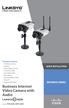 Package Contents 2300 Series Camera Stand Kit Power Supply (12V 1A) 6 Ethernet Cable Lens Adapter Ring Allen Wrench Quick Installation Guide Setup CD Antenna (WVC2300) Business Internet Video Camera with
How To Remotely View Your Security Cameras Through An Ezwatch Pro Dvr/Camera Server On A Pc Or Ipod (For A Small Charge) On A Network (For An Extra $20) On Your Computer Or Ipo (For Free
 How to Remotely View Security Cameras Using the Internet Introduction: The ability to remotely view security cameras is one of the most useful features of your EZWatch Pro system. It provides the ability
Configuration Manual English version
 Configuration Manual English version Frama F-Link Configuration Manual (EN) All rights reserved. Frama Group. The right to make changes in this Installation Guide is reserved. Frama Ltd also reserves the
7 6.2 Windows Vista / Windows 7. 10 8.2 IP Address Syntax. 12 9.2 Mobile Port. 13 10.2 Windows Vista / Windows 7. 17 13.2 Apply Rules To Your Device
 TABLE OF CONTENTS ADDRESS CHECKLIST 3 INTRODUCTION 4 WHAT IS PORT FORWARDING? 4 PROCEDURE OVERVIEW 5 PHYSICAL CONNECTION 6 FIND YOUR ROUTER S LOCAL NETWORK IP ADDRESS 7 6.1 Windows XP 7 6.2 Windows Vista
Homeguard Wireless Home Camera Quick Start Guide
 Homeguard Wireless Home Camera Quick Start Guide Congratulations on your purchase of this Homeguard Wireless Home Camera. This leaflet will guide you through setting up your camera for basic use with a
How To Use A Wireless Pan & Tilt Camera On A Pc Or Mac Or Ipad (For Pc) For Free (For Mac) For A Week (For A Week) For $99.99) For Two Weeks (For Ipad)
 User Manual Wireless Pan & Tilt Camera CIPCAMPTIWL v1.0 Index 1 INTRODUCTION... 4 1.1 THE PACKAGE INCLUDES... 4 1.2 FUNCTION AND FEATURES... 4 1.3 TECHNICAL SPECIFICATIONS... 4 2 APPEARANCE AND INTERFACE...
Quick Installation Guide
 IP Wireless / Wired Camera Quick Installation Guide (For Mac OS) Model:FI8908W Color: Black Model:FI8908W Color: White ShenZhen Foscam Intelligent Technology Co., Ltd Quick Installation Guide-For MAC users
IPCam Client User Manual For X10 IP Camera models XX34A, XX36A, XX39A, XX40A
 IPCam Client User Manual For X10 IP Camera models XX34A, XX36A, XX39A, XX40A Contents 1. INSTALLATION... 3 2. SOFTWARE OPERATION... 5 2.1. Login... 5 2.2. For Multi-windows... 6 2.3. System Settings...
Quick Installation Guide-For MAC users
 Quick Installation Guide-For MAC users Packing List 1) IP CAMERA X 1 2) Wi-Fi Antenna (only available for wireless model) 3) DC Power Supply X 1 4) Network Cable X 1 5) Mounting bracket 1 6) CD X 1 (Include
PLEASE READ THIS FIRST
 PLEASE READ THIS FIRST X10 P2P camera setup using Airsight iphone App Introduction You can access your camera's live video feed from your web browser or through software on your computer, your tablet,
P2P&Push video Manual
 P2P&Push video Manual 1. Overview P2P is short for "plug-in and play" in English, also known as "Plug and play", is a kind of new network technology, are widely used in the download, online video watching,
Quick Installation Guide For Mac users
 Quick Installation Guide For Mac users Packing List 1) IP CAMERA X 1 2) Wi-Fi Antenna (only available for wireless model) 3) DC Power Supply X 1 4) Network Cable X 1 5) Mounting bracket 1 6) CD X 1 (Include
Index. 4.1 INTERNET CONNECTION...13 4.2 PORT FORWARDING...13 4.3 DDNS...14 4.3.1 Manufacturer s DDNS...14 4.3.2 Third Party DDNS...
 "This product is meant for providing convenience for baby monitoring. The manufacturer is not responsible for any legal liability caused by negligence. " ibaby Monitor Model: M3 User Manual Index 1 INTRODUCTION...4
IP Camera (M series) User manual 2013-06 V4.0
 Dear users, the configuration for this camera is professional, so please read the user manual carefully before using the camera. IP Camera (M series) User manual 2013-06 V4.0 Statement If the user manual
Before You Begin You must have at least the following: Web Browser Wired Hub/Switch/Router OR Wireless 802.11b Router CD-ROM Drive
 This product can be set up using any current Web browser, i.e., Internet Explorer 6.0 or Netscape Navigator 7.0 DCS-1000W D-Link 2.4Ghz Wireless Internet Camera Before You Begin You must have at least
How to Remotely View Security Cameras Using the Internet
 How to Remotely View Security Cameras Using the Internet Introduction: The ability to remotely view security cameras is one of the most useful features of your EZWatch Pro system. It provides the ability
You may refer the Quick Installation Guide in the package box for more information.
 Hardware Installation: 1. Turn off your modem. 2. Use one Ethernet cable to connect your modem to WAN port (Blue) port of BR-6228nC. 3. Use another Ethernet cable to connect your PC to one LAN Port (Yellow)
User Manual. Mobile Viewer. Mobile Manager Software (MMS)
 Mobile Viewer Mobile Manager Software (MMS) User Manual The picture might differ according to the specification and model. Contents of this manual are protected under copyrights and computer program laws.
Note: This is a general guide for initial setup and use. For detailed help please refer to the resource links below.
 How to Setup, Use and Troubleshoot the UCam247 WiFi Cloud NVR Note: This is a general guide for initial setup and use. For detailed help please refer to the resource links below. Step-By-Step Guides &
User Manual for ios App
 User Manual for ios App Shenzhen Foscam Intelligent Technology Co.,Ltd. Table of Contents Table of Contents...1 1 Overview...2 2 Access the IP Camera...2 3 Install App... 2 4 Introduction to IPCam Management
Wireless Pan&Tilt Network Camera. User Manual CIPCAMPTIWL V2.0
 Wireless Pan&Tilt Network Camera User Manual CIPCAMPTIWL V2.0 1 Installation Environment Keep away from the places for high-temperature, heat source and direct sunlight; Keep away from water and when get
----------------------------------------------------------------------------------------------------------------------
 ZMODO Zsight Android User Manual ---------------------------------------------------------------------------------------------------------------------- Contents 1 Software Installation... 3 1.1 Product
Quick Guide of DDNS Settings
 Quick Guide of DDNS Settings Solution: With the development of surveillance systems, more and more users want to use ADSL to realize video surveillance through network. But ADSL gives dynamic IP addresses
Mobile Device Manual for 3G DVRs
 Mobile Device Manual for 3G DVRs The 3G DVR can be monitored with APPS for supported mobile device operating systems. Please refer to the table below for your specific mobile device application. Please
Quick Installation Guide
 Packing List Quick Installation Guide FI8918W Quick Installation Guide 1) IP CAMERA X 1 2) Wi-Fi Antenna (only available for wireless model) 3) DC Power Supply X 1 4) Network Cable X 1 5) Mounting bracket
How to configure Linksys SPA 941 942 for VOIP Connections
 How to configure Linksys SPA 941 942 for VOIP Connections Congratulations. Welcome to VOIP Connections family. 1.) Connect the phone properly. Make sure the phone is connected securely to your router or
MJPEG INDOOR SERIES B E F OR E Y OU B E GIN. WiFi indoor IP Camera
 MJPEG INDOOR SERIES WiFi indoor IP Camera B E F OR E Y OU B E GIN Please unpack the box carefully and identify that all the parts are present. The Camera is suitable for indoor use. Check the voltage of
Installation Guide. Mobile Surveillance Distance makes no difference. eagleeyes_quick_v1.5
 Installation Guide Mobile Surveillance Distance makes no difference eagleeyes_quick_v1.5 IMPORTANT SAFEGUARD All lead-free products offered by the company comply with the requirements of the European law
Foscam Digital Technologies LLC FI8910W User Manual IP Wired / Wireless Camera www.foscam.us [email protected] Page 0 1-800-930-0949
 Foscam Digital Technologies LLC FI8910W User Manual IP Wired / Wireless Camera www.foscam.us [email protected] Page 0 1-800-930-0949 Thank You for Your Purchase! Foscam IP Cameras are designed and equipped
Qvis Security Technical Support Field Manual LX Series
 Table of Contents Page 1: Motion Detection 1.0 Configuring Motion Detection for LX Apollo / LX Zeus DVRs 2 1.1 Motion Playback on LX Apollo / LX Zeus DVRs 3 1.2 Scheduling Motion and Continuous Recording
Installation Steps Follow these steps to install the network camera on your local network (LAN):
 1. Description The Network Camera supports the network service for a sensor image with progressive scan, which can be monitored on a real-time screen regardless of distances and locations. By using its
genie app and genie mobile app
 genie app and genie mobile app User Manual 350 East Plumeria Drive San Jose, CA 95134 USA June 2012 202-10933-02 v1.0 2012 NETGEAR, Inc. All rights reserved No part of this publication may be reproduced,
NETVIGATOR Wireless Modem Setup Guide. (TG789Pvn)
 NETVIGATOR Wireless Modem Setup Guide (TG789Pvn) Configure the NETVIGATOR Wireless Modem Make sure that system meets the following requirement prior to NETVIGATOR Wireless Modem usage: - Subscribers who
ShareLink 200 Setup Guide
 ShareLink 00 Setup Guide This guide provides instructions for installing and connecting the Extron ShareLink 00. The ShareLink USB 00 Wireless Collaboration Gateway allows anyone to present content from
LOREX CLIENT 2.2 Integrated Remote Agent Software
 LOREX CLIENT 2.2 Integrated Remote Agent Software Instruction Manual English Version 1.0 MODEL: L15LD420 / L17LD420 Series Copyright 2008 LOREX Technology Inc. www.lorexcctv.com Table of Contents Table
Amcrest 960H DVR Quick Start Guide
 Amcrest 960H DVR Quick Start Guide Welcome Thank you for purchasing our Amcrest 960H DVR! This quick start guide will help you become familiar with our DVR in a very short time. Before installation and
720P AP Series Network IP Camera (For PC View)
 720P AP Series Network IP Camera (For PC View) User Manual 0 Thank you for buying our products This security camera can offer you the freedom to get your home or business surveillance via network anytime
Mobile Surveillance. User Manual
 Mobile Surveillance User Manual Contents 1 Network Configuration... 1 1.1 Access Device via WLAN... 1 1.2 Access Device via 3G Network... 1 2 By Phones with iphone OS... 2 2.1 Installation Instruction...
NETWORK SET UP GUIDE FOR
 NETWORK SET UP GUIDE FOR USZ11ZS USX21ZS USX31ZAND DVRX16D DVRX32D HDDX13D SUPPORTING ROUTER D-Link Linksys NETGEAR BELKI IP Addresses on the Internet When you connect to the Internet, through dialup connection,
N750 WiFi DSL Modem Router Premium Edition
 Support Thank you for purchasing this NETGEAR product. After installing your device, locate the serial number on the label of your product and use it to register your product at https://my.netgear.com.
DIGITUS Plug&View IP cameras
 DIGITUS Plug&View IP cameras Quick Installation Guide (QIG) What's in the box 1 X Plug&View IP camera 1 X power supply with cable 1 X Ethernet cable 1 X Quick Installation Guide 1 X CD with utilities 1
801.11n Wireless Broadband Router
 801.11n Wireless Broadband Router WNRT-626 Quick Installation Guide Table of Contents Hardware Installation... 4 Web Configuration... 6 Further Configuration... 8 Thank you for purchasing PLANET 801.11n
SwannEye HD Security Camera Wi-Fi Connections Quick Setup Guide. Welcome! Lets get started.
 EN SwannEye HD Security Camera Wi-Fi Connections Quick Setup Guide Welcome! Lets get started. 1 1 Introduction 1 2 3 4 Congratulations on your purchase of this SwannEye HD Wi-Fi Security Camera from Swann!
Not a smoke detector! STK3350 instructions
 Not a smoke detector! STK3350 instructions Table of contents Features list 1: Direct Connection from WiFi 2: Enable AP Client 3: Installing the micro SD Card (Not included) 4: Configure the camera using
3.5 LAN HDD Enclosure User s Manual
 3.5 LAN HDD Enclosure User s Manual NOTE: 1. USB and LAN can t be used at the same time. 2. HDD should be formatted as FAT32. Please check Disk utility section in this manual. 3. For internet FTP usage,
Powerwifi USB Router in combination with the Powerwifi USB outdoor antenna
 INSTALLATION MANUAL Powerwifi USB Router in combination with the Powerwifi USB outdoor antenna INTRODUCTION The Powerwifi USB Router can be used together with the Powerwifi USB outdoor antenna. This creates
Quick Installation Guide
 Quick Installation Guide Cloud Camera, 300Mbps Wi-Fi 7106505077 REV1.0.3 NC200 Configuring the Camera Via Smartphone: 9V=0.6A ETHERNET 1 Connecting the camera Connect the camera to the network your smartphone
SAS-IPCAM115 MANUAL IP CAMERA
 SAS-IPCAM115 MANUAL IP CAMERA Table of contents Introduction: Safety precautions: Packaging content: System requirements: Product description: User instructions: Maintenance: Warranty: Disclaimer: Disposal:
Installation. The product model shown in this QIG is TD-W8961ND, as an example.
 Installation The product model shown in this QIG is TD-W8961ND, as an example. Please use only wired network connections to configure the router. Power down all your network devices, including your computer(s)
storageoptions.com/support 1
 storageoptions.com/support 1 HomeGuard IP Camera Instruction Manual CAUTION RISK OF ELECTRIC SHOCK DO NOT OPEN TO REDUCE THE RISK OF ELECTRIC SHOCK, DO NOT REMOVE THE COVER. NO USER SERVICABLE PARTS INSIDE.
EM6561/EM6564 Wireless Internet Camera
 EM6561/EM6564 Wireless Internet Camera 2 ENGLISH EM6561/EM6564 Wireless Internet Camera Table of contents 1.0 Introduction... 3 1.1 Functions and features... 3 1.2 Packing contents... 4 2.0 Installing
MXview ToGo Quick Installation Guide
 MXview ToGo Quick Installation Guide First Edition, July 2015 2015 Moxa Inc. All rights reserved. P/N: 18020000000C0 Overview MXview ToGo allows you to use your mobile devices to monitor network devices
4-441-095-12 (1) Network Camera
 4-441-095-12 (1) Network Camera SNC easy IP setup Guide Software Version 1.0 Before operating the unit, please read this manual thoroughly and retain it for future reference. 2012 Sony Corporation Table
Live Streaming Camera GV-LS2 / GV-LS1. Connection Guide. Other information can be found in the Reference Manual.
 C2N LYT2644-002A 0513YHM-YH-OT Live Streaming Camera GV-LS2 / GV-LS1 Connection Guide This PDF will give you the steps in order to connect the Live Streaming Camera to your network and digital devices.
1-Port Wireless USB 2.0 Print Server Model # APSUSB201W. Quick Installation Guide. Ver. 2A
 1-Port Wireless USB 2.0 Print Server Model # APSUSB201W Quick Installation Guide Ver. 2A Section 1 Step 1Connect one end of the Ethernet cable to the RJ-45 port of the Print Server and attach the other
Wired / Wireless / PoE. CMOS Internet Camera ICA-107 / ICA-107W / ICA-107P. Quick Installation Guide
 Wired / Wireless / PoE CMOS Internet Camera ICA-107 / ICA-107W / ICA-107P Quick Installation Guide Table of Contents 1. Package Contents... 3 2. System Requirements... 4 3. Outlook... 5 Front panel of
NETGEAR Trek N300 Travel Router and Range Extender
 NETGEAR Trek N300 Travel Router and Range Extender PR2000 Installation Guide NETGEAR Reset /LAN LAN Contents Get Started........................................... 3 Connect on the Go..................................
Outdoor HD IP Camera. Model: 2864-232 V1.4
 Outdoor HD IP Camera Model: 2864-232 V1.4 Table of Contents Table of Contents... 1 1 Overviews... 1 1.1 Key Features... 1 1.3 Read Before Use... 2 1.4 Packing Contents... 2 1.5 Physical Description...
Mini P2P IP camera IPC-2016W
 Mini P2P IP camera IPC-2016W Features 1/4 CMOS,0.3 Mega pixel MJPEG Compression P2P mobile viewing One way audio Send pictures to FTP$E-mail when motion detect Support wireless connection:ieee802.11b/g/n
SkyIPCam 250W Wireless Network Camera. Model # AIC250W. User s Manual
 SkyIPCam 250W Wireless Network Camera Model # AIC250W User s Manual Ver. 1B Table of Contents 1. Introduction... 4 2. Getting Started... 5 3. Installing the Setup Wizard... 6 4. Gathering Information...
Quick Start Guide NVR DS-7104NI-SL/W NVR. www.hikvision.com. First Choice For Security Professionals
 Quick Start Guide NVR DS-7104NI-SL/W NVR NOTE: For more detailed information, refer to the User s Manual on the CD-ROM. You must use your PC or MAC to access the files. www.hikvision.com Quick Start 1.
Quick Start Guide. WAP371 Wireless AC/N Dual Radio Access Point with Single Point Setup Quick Start Guide. Cisco Small Business
 Quick Start Guide Cisco Small Business WAP371 Wireless AC/N Dual Radio Access Point with Single Point Setup Quick Start Guide Versión en Español para México en el CD Version en français sur CD Versione
Multifunctional Broadband Router User Guide. Copyright Statement
 Copyright Statement is the registered trademark of Shenzhen Tenda Technology Co., Ltd. Other trademark or trade name mentioned herein are the trademark or registered trademark of above company. Copyright
Quick Start Guide. Cisco SPA232D Mobility Enhanced ATA
 Quick Start Guide Cisco SPA232D Mobility Enhanced ATA Package Contents Analog Telephone Adapter Ethernet Cable Phone Cable Power Adapter Quick Start Guide Product CD-ROM Welcome Thank you for choosing
User s manual for Android Application
 Motorised IP Video surveillance camera for smartphones, tablets and PC / MAC. Protect your home and family remotely! User s manual for Android Application Thanks We thank you for choosing Aquila Vizion.
Support. Package Contents. D6200 WiFi DSL Modem Router Installation Guide
 Support Thank you for selecting NETGEAR products. After installing your device, locate the serial number on the label of your product and use it to register your product at https://my.netgear.com. You
Installation Guide. shipping label. your activation information DN006669
 Installation Guide Please do not attempt installation until after 8pm on your activation date. Your activation date, account number and order number are printed on the shipping label attached to the top
Using the T&D Thermo App with TR-7wf Data Loggers
 Using the T&D Thermo App with TR-7wf Data Loggers T&D Thermo The T&D Thermo App from T&D Corporation can be used to accomplish a variety of functions with the TR-7wf Series of Wi-Fi enabled wireless Data