
Configuration Manual English version
|
|
|
- Polly McDowell
- 10 years ago
- Views:
Transcription
1 Configuration Manual English version
2 Frama F-Link Configuration Manual (EN) All rights reserved. Frama Group. The right to make changes in this Installation Guide is reserved. Frama Ltd also reserves the right to change and/or adapt parts of this Installation Guide and/or the product at any time without prior notice. The shown postal rates and other only partly valid information serve solely as examples and represent no claim to being up to date. 2

3 Safety precautions and warnings Thank you for deciding to use the Frama F-Link. The information in this guide is intended to support you during the configuration of the Frama F-Link unit. This networking unit meets currently valid safety regulations. Inappropriate use, however, can lead to personal injury or damage to property. With this in mind, please first read this guide before you put the unit into service. By doing so, you will protect yourself and avoid damaging the unit. Store this guide carefully and pass it along to any subsequent owner. Symbols used This configuration guide uses the following symbols: Danger! This symbol points to dangers and safety risks when handling, operating or servicing the F-Link unit which could result in personal injury. Note! This symbol points to valuable guidelines and instructions for handling the F-Link unit which can eliminate the risk of damage to the F-Link, the franking system, the mail items or the immediate surroundings. Tip! Interesting notes and tips for efficient handling of the F-Link. 3
4 Table of Contents 1 INTRODUCTION CONFIGURATION WIRED OPERATION DHCP MODE DHCP MODE WITH PROXY SERVER IDENTIFYING THE DYNAMIC IP ADDRESS OF AN F-LINK DEVICE STATIC MODE WIRELESS OPERATION CONFIGURATION PAGE FEATURES LOGIN CONFIGURATION PAGE MANAGEMENT MODEM S91 SETTING (ONLY APPLICABLE TO F-LINK A/B VERSIONS) CONFIGURATION PAGE LAN SETTINGS DHCP HOSTNAME PROXY SETTINGS CONFIGURATION PAGE WIRELESS SETTINGS CONFIGURATION PAGE SITE SURVEY CONFIGURATION PAGE ADMINISTRATION STATUS CONFIGURATION PAGE ADMINISTRATION SYSTEM LOG CONFIGURATION PAGE ADMINISTRATION EVENT LOG CONFIGURATION PAGE ADMINISTRATION F-LINK LOG TROUBLESHOOTING NO ACCESS TO THE CONFIGURATION PAGES OLD CONFIGURATION PAGE VALUES F-LINK LED STATUS NO ACCESS TO FRAMA FO2 BACKEND SERVER RESET THE CONFIGURATION CONNECTING F-LINK TO ANOTHER FRANKING SYSTEM SUPPORTED SPECIAL CHARACTERS STATUS MESSAGES
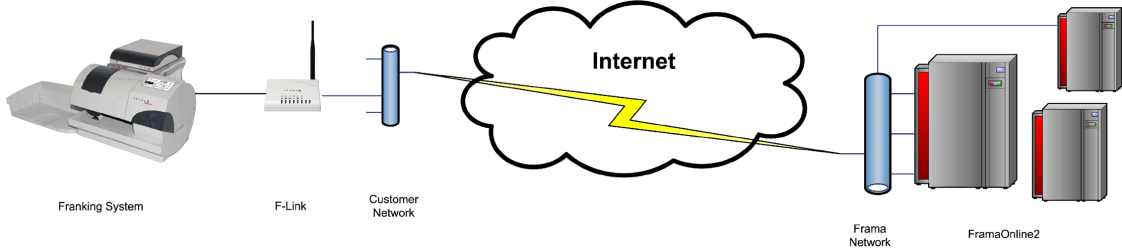
5 1 Introduction This manual describes the configuration of the device F-Link for the operation with a Frama franking system. To install the F-Link on a Frama franking system the installation manual shipped with the device [F-Link Installation Manual, Order-Nr: ] shall be used. The F-Link can be configured via the configuration page. For configuration tasks an additional PC with internet web browser is needed. The F-Link configuration pages are supported by the following internet web browsers: Mozilla Firefox 13.0 and newer Microsoft Internet Explorer 9.0 and newer Google Chrome 20.0 and newer Apple Safari and newer This version of the configuration manual is based on the screenshots and features of firmware release version F-Link / Image Configuration The F-Link can be connected either in wired or in wireless mode to an existing network. The F-Link is preconfigured for wired operation in a LAN network with a DHCP server. In this case, normally no additional configuration is required. During first connection to the Frama FO2 backend system the F-Link will be configured (e.g. country code, language, time ) automatically. Thus the very first connection takes longer time than subsequent ones. The following illustration gives an overview about the different modes and how they can be configured: Start Wired (Chap. 2.1) Connection Type? Wireless (Chap. 2.2) DHCP? No (Chap ) Connect PC direct to F-Link Yes (Chap ) Proxy Server? Yes Find out dynamic IP address of F-Link (Chap ) Do manual network configuration (Chap. 3) No End 5
6 2.1 Wired operation The F-Link supports operation with dynamic IP address assigned by a DHCP server or with a static IP address configured via configuration page DHCP Mode The factory default LAN connection type is DHCP (auto configuration). The F-Link can be connected to the network with an active DHCP server as is described in the installation manual. After powering-up the F- Link gets an IP address from the DHCP server in the LAN network. In most cases no additional configuration is required and the F-Link operates with the franking system DHCP Mode with Proxy Server If the internet connection is handled via proxy server, the proxy configuration has to be setup first. For connecting to the configuration pages of the F-Link device, the dynamic assigned IP address has to be known. Chapter outlines, how this IP address can be identified. The determined IP address can now be typed into the browsers address field to access the F-Link configuration page. See Chapter 3 for further details Identifying the dynamic IP address of an F-Link device Identifying this address can be done in several ways: A) The IP address is shown as a part of the error message on the franking system. If the F-Link device is not able to connect with the Frama FO2 server, a corresponding error message will be displayed. Several messages show a hint for configuring of the F-Link. This hint includes the current IP address of the device! B) The IP address can be find out by consulting a listing (e.g. arp table) which shows the assignments between MAC and IP addresses inside a DHCP network. The MAC address of the F-Link can be found at the sticker at the bottom of the device. C) Finding the DHCP IP of the F-Link with the Frama F-Link IP Finder tool in your network. Download the Frama F-Link IP Finder tool, which can be found at (downloads), to your PC (Only Windows operating systems like Windows XP, Windows 7 are supported) Start the Frama F-Link IP Finder tool Enter the MAC address of the F-Link, which can be found at the sticker at the bottom of the device. Press the Search button The Frama F-Link IP Finder tool scans all IP addresses in your network. If an F-Link was found with this MAC address an entry will be showed in the result list. The F-Link configuration page can be opened now with the default internet web browser on your PC by clicking on the IP address in the list 6
7 2.1.4 Static Mode The F-Link device can operate with a static IP address. The factory default LAN connection type is DHCP (auto configuration). Remark! If the F-Link was used with LAN connection type DHCP or STATIC before for connections, the access to the F-Link configuration page by the default IP address and a direct LAN cable is only possible after a reset of F-Link. Changing to a static IP address is done in following steps: 1. Connect the F-Link device directly with a LAN cable to a PC (A cross-wired LAN cable is needed if the PC doesn t support auto-mdix). 2. Note the PC LAN network settings for later use. Set the PC LAN network settings as follow: IP address: Subnet mask: Turn on the F-Link and wait until the Ready LED of the F-Link is on. 4. Open internet web browser on PC. 5. Insert the F-Link default IP into address field. 6. Login with username and password. (Default username: admin and password: admin ). 7. Open configuration page LAN Settings. 8. Change LAN connection type to STATIC (fixed IP). 7
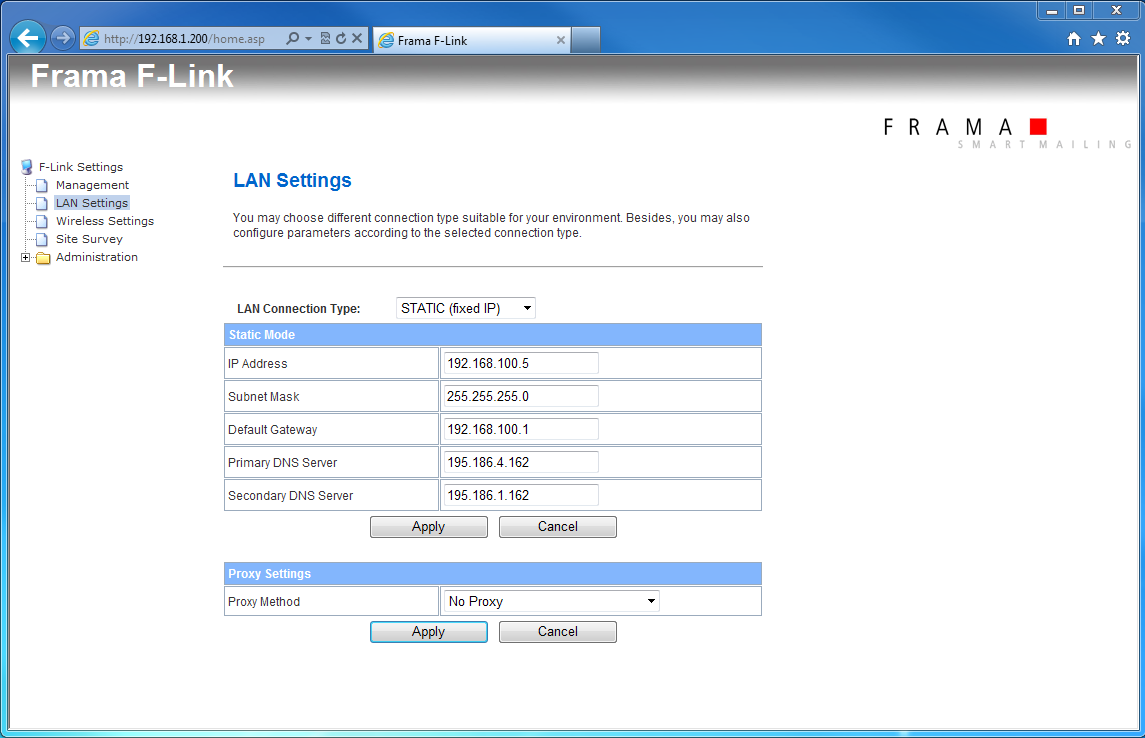
8 9. Enter the IP settings for F-Link accordingly to your network. Example: Press button Apply. -> F-Link reboots. Wait until Ready LED of the F-Link is on again. (The execution of the command may need to be confirmed in the internet web browser) 10. Turn off F-Link. 11. Disconnect direct LAN network cable between F-Link and PC. 12. Set the LAN network settings of the PC back to the previous values (refer to your notes). 13. Connect the F-Link device to the LAN network for the operation with the franking system. 14. Turn on the franking system and the F-Link. 15. Execute business processes on the franking system when the Ready LED of the F-Link is on. It s also possible to change to a static IP address when F-Link uses currently a DHCP IP address. In this case the dynamic assigned IP address has to be entered into the browser address field. Processes for finding out this address are described in Chapter


9 2.2 Wireless operation The F-Link device can also operate with a wireless network. By default the F-Link is configured to operate with a wired connection. Refer to the install manual for information about installing the F-Link on the franking system for wireless operation. Access Point Remark! If the F-Link was used with LAN connection type DHCP or STATIC before for connections, the access to the F-Link configuration page by the default IP address and a direct LAN cable is only possible after a reset of F-Link. Configuring the F-Link for wireless operation is done in following steps. 1. Connect the F-Link device directly with a LAN cable to a PC (A cross-wired LAN cable is needed when the PC doesn t support auto-mdix). 2. Note the PC LAN network settings for later use. Set the PC LAN network settings as follows: IP address: Subnet mask: Turn on the F-Link and wait until the Ready LED of the F-Link is on. 4. Open internet web browser on PC. 5. Insert the F-Link default IP into address field. 6. Login with username and password. (Default username: admin and password: admin ). 7. Open configuration page Wireless Settings. 9
10 8. Press button Wireless ON -> Please wait. The wireless function will be enabled. (The execution of the command may need to be confirmed in the internet web browser) 9. Wait until Ready LED of the F-Link is switched on again. Wait until home site is displayed again. Open configuration page Site Survey 10. Press button Scan AP 11. Select the wireless network which shall be used. Press button Next. If your wireless network uses Hidden-SSID then press button Next without selecting a wireless network. 12. Select the channel, security mode and encryption type for your wireless network. Insert the passphrase / security keys for your wireless network. Insert also the SSID of your wireless network even if it uses Hidden-SSID. 10
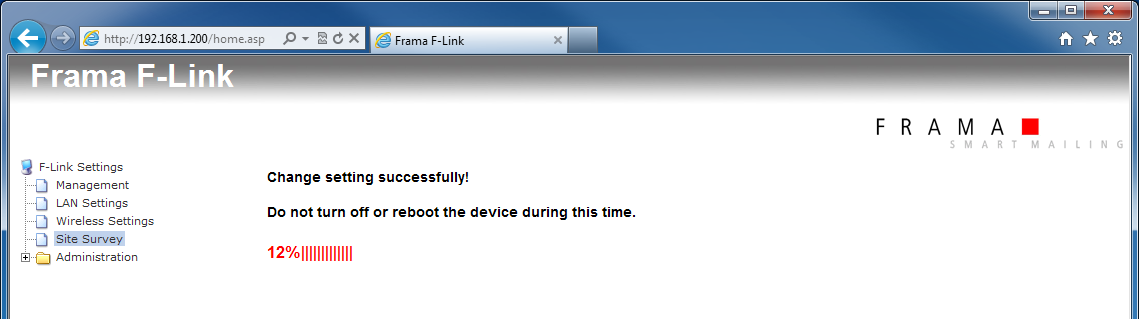
11 13. Press button Apply. -> Please wait. The wireless network will be connected. (The execution of the command may need to be confirmed in the internet web browser) 14. Wait until Ready LED of the F-Link is switched on again. 15. When F-Link is able to build-up a wireless connection to your access point, the connection over the LAN port will be closed. The F-Link configuration page can therefore not be opened again by default IP and a direct LAN cable connection. If the configuration page was reloaded in your internet web browser with the default IP the F-Link has no access to your wireless network. Check the wireless signal strength at the F-Link position and the wireless settings of F-Link (SSID, pass phrase, key, channel, ) 16. Disconnect direct LAN network cable between F-Link and PC. 17. Set the LAN network settings of the PC back to the previous values. 18. Execute business processes on the franking system. Optional additional steps: 19. The F-Link configuration page can now only opened by an access via wireless network and the assigned DHCP IP address for F-Link. For identifying the DHCP IP address of the F-Link see chapter Open internet web browser on a PC that is also connected to the same wireless network as the F- Link. Enter the DHCP IP address of F-Link into the address field of the internet web browser. 11

12 21. Open configuration page Administration Status. Check if F-Link gets the correct IP settings from the wireless network. 22. Check the F-Link status. Must be Ready To Connect. 23. Execute business processes on the franking system. Don t enable the wireless function, when F-Link is connected to a LAN network with DHCP server! Connect the F-Link device directly to a PC for configuring it for wireless operation. Remark! After enabling the wireless function the F-Link still uses the default IP on the LAN connection as long as the wireless network connection was not successfully build up. 12
13 3 Configuration Page Features 3.1 Login Enter the IP address of the F-Link into the address field of the internet web browser. Enter the username and the password into the login window: (Default username: admin and password: admin ) Press button OK. Now you are on the home screen. Over the configuration page you can change the settings of the F-Link, display the actual status and the logged data. Use the menu on the left side to navigate. All changes on the configuration page are stored only when you press the Apply button below the settings fields. 13
14 3.2 Configuration Page Management On the configuration page Management you can set your own administrator username and password for the access to the F-Link configuration page Modem S91 setting (only applicable to F-Link a/b versions) The modem S91 setting changes the attenuation of the internal modem in F-Link. This option is only relevant for Frama franking systems of the Matrix F series range. The attenuation can be switched between two values: S91 OFF S91 ON default attenuation higher attenuation The higher attenuation / S91 ON is only recommended if you experience problems with the modem communication between F-Link and the Matrix F series franking system (frequently no answer / no connection build up or connection lost during communication). The first pressing of the S91 ON button after a reset of F-Link initializes this feature internally only. Press the S91 ON button a second time to change the value. The current status shows the actually state of the modem S91 setting. If the modem S91 setting was changed try multiple connections before estimate the effect. In special cases also a decreasing of the modem speed on the Matrix F series franking system might also help to get a more stable communication performance. 14

15 3.3 Configuration Page LAN Settings On the configuration page LAN Settings you can change the LAN connection type, set values for the LAN connection type and set the proxy settings for F-Link. The usage of the connection type is descibed in chapter DHCP hostname An optional hostname for the F-Link can be set on DHCP mode into the field Hostname, e.g. FLINK. 15

16 3.4 Proxy Settings When F-Link is forced to use a proxy server without authentication then set the proxy method to Proxy Without Authentication. Enter the IP address of the proxy server into the field Proxy Host. Enter the port number of the proxy server into the field Proxy Port. When F-Link is forced to use a proxy server with authentication then set the proxy method to Proxy With Basic Authentication. Enter the IP address of the proxy server into the field Proxy Host. Enter the port number of the proxy server into the field Proxy Port. Enter the proxy username into the field Proxy User and the proxy user password into the field Proxy Password. Consider also chapter
17 3.5 Configuration Page Wireless Settings Enable or disable the wireless function over the configuration page Wireless Settings. 3.6 Configuration Page Site Survey When the wireless function is enabled you may scan for access points using the configuration page Site Survey. The value RRSI show the signal level of the wireless network. If this value is too low, no stable network connection is possible. Try to find a better position for F-Link where the signal level is higher. When you have selected a wireless network and have pressed the button Next the additional configuration page for the wireless network will be shown. Select the right channel, security mode and encryption type for your wireless network. Normally you must only enter the pass phrase or security key for your wireless network here. The other settings should be left to the automatically detected values. 17

18 3.7 Configuration Page Administration Status The status of F-Link is showed on the configuration page Administration Status. F-Link state: Ready To Connect Connected Ready No Internet HTTP Error Description: F-Link is in operation. A connection to the FO2 backend system can be started. F-Link is connected to the FO2 backend system and transfers data. F-Link is in operation, but has no connection to the internet via the wired or wireless network. F-Link is in operation, but a HTTP error has occurred when F-Link connected to the FO2 backend system. 18

19 3.8 Configuration Page Administration System Log The F-Link writes a log file of the system (Linux). You can display the log entries when you open the configuration page Administration System Log and press the button Refresh. 3.9 Configuration Page Administration Event Log The F-Link writes an event log file. You can display the log entries when you open the configuration page Administration Event Log and press the button Refresh. There you can see the events and results of business processes of the franking system. 19

20 3.10 Configuration Page Administration F-Link Log The F-Link writes an operation log file. You can display the log entries when you open the configuration page Administration F-Link Log and press the button Refresh. 20
21 4 Troubleshooting 4.1 No access to the configuration pages When the access to the configuration pages is not possible then different reasons are possible. 1. Network errors Are you sure that you use the right IP address for the F-Link? Try a ping to the IP address of the F-Link from the console of a PC in the same network (if ping is working in your network). When you get no answer from the F-Link then check your network. 2. Proxy configuration errors It is possible that you use a Proxy server in your network for internet browsing. You must configure the proxy settings of your PC that the local IP address of F-Link is bypassed / excluded by the proxy server. 3. Login fails / lost login values If you don t know the username and password for the F-Link configuration page access anymore, you can reset the F-Link. After the reset the administrator username and password are on the default values username: admin and password: admin. 4. No access by default IP If the F-Link was used before for connections with LAN connection type DHCP or STATIC the access over the default IP address is not possible. Perform a reset of F-Link without a connected network cable (see chapter 4.5). The default IP is now active again for a configuration by a direct LAN cable connection. 4.2 Old configuration page values Internet web browsers store data from web pages for offline mode and caches data to show web pages faster. It is possible that not the actual data are displayed on a configuration page of F-Link. You can clear the offline and cached data of your browser normally over a menu entry of the browser. Restart the browser after you clear the offline and cached data and try again. 4.3 F-Link LED status The different status of the LED s from F-Link are described in the installation manual [F-Link Installation Manual, Order-Nr: ]. 4.4 No access to Frama FO2 backend server For a successful connection to the Frama FO2 backend server the following network configurations are required: Open firewall ports: 53 DNS 443 HTTPS Allow access to URL: fo2.frama.com The IP address of the URL fo2.frama.com can be found either by using the ping command ping fo2.frama.com in a command line window (if ping is allowed in your network) or by a DNS lookup service in the internet. Proxy servers using SSL-interception require a specific rule in order to allow transparent communication (franking system via F-Link to FramaOnline2) via https port 443. The specific rule grants correct identification of FramaOnline2 (https certificate) for the franking system. 4.5 Reset the configuration The configuration of the F-Link can be reset. Disconnect the LAN cable from F-Link. Press the RESET switch at the back of the device for a minimum of 10 seconds. After this process the F-Link restores the factory configuration and all previous configuration settings will be lost. After the reset, the F-Link reboots and is ready to be reconfigured when the Ready LED is on again. 21
22 4.6 Connecting F-Link to another franking system Always reset F-Link if the device is connected to a different franking system. It is not possible to use F-Link for more than one franking system at the same time. Ignoring this may lead to wrong configuration settings for the franking system rendering successful connections to FramaOnline2 impossible. 4.7 Supported special characters The F-Link does not support all kind of characters as values in the input fields on the configuration page. The following special characters can be used in all input fields:! # $ % ( ) * + -. / [ ] ^ _ ` { } ~ 22
23 4.8 Status Messages In case of operation errors the F-Link shows a status message on the display of the franking system. Status Message on franking system Description / Troubleshooting F001 F002 F003 F004 F005 F006 F007 No WAN (internet) available. Check network or settings using a web browser on {ipaddress} Refer to manual for further info. No DHCP IP address assigned. Change network settings using a browser on {ipaddress} Refer to manual for further info. No WAN (internet) available. Check local network /-settings. Please refer to manual for further info. FramaOnline2 (fo2.frama.com) is temporarily unavailable. Please try again later. Please refer to manual for further information. FramaOnline2 (fo2.frama.com) is temporarily unavailable. Please try again later. Please refer to manual for further information. FramaOnline2 (fo2.frama.com) is temporarily unavailable. Please try again later. Please refer to manual for further information. FramaOnline2 (fo2.frama.com) is temporarily unavailable. Please try again later. Please refer to manual for further information. F-Link is connected to the network and gets a valid IP address in the network. F-Link is unable to access the internet and the FO2 backend server. Please check your internet access with another device in the same network and check the network settings of F-Link over the configuration page. The network configuration of F-Link is invalid. F-Link changes the settings back to the default values. Please configure the F-Link network settings properly. To set the configuration you can access to the F-Link configuration page over the default IP address F-Link cannot open the network communication. Please configure the F-Link network settings properly, check the cable connection and try to connect to your network with another device in the same network. The FO2 backend server cannot handle the request of F-Link at the moment. The response on the request is HTTP error code 503 Service unavailable. Try again later. This message is triggered when the FO2 backend server is busy or is shut down for maintenance. If this error stays on for longer time call the FramaOnline2 hotline. The request of F-Link was responded with a HTTP error code (more codes are possible). The HTTP error code can be found in the event log of F-Link. Try again later. This message is triggered when the FO2 backend server is busy or is shut down for maintenance. If this error stays on for longer time call the FramaOnline2 hotline. F-Link gets no answer from the FO2 backend server on its request. Possible cause is a loss of the network connection while a connection to the FO2 backend server was running. Try again later. If this error stays on for longer time call the FramaOnline2 hotline. F-Link is connected to the network and has got a valid IP from the network. F-Link has access to the internet. But F- Link has no access to the FO2 backend server. Try again later. If this error stays on for longer time call the FramaOnline2 hotline. 23
24 F008 F009 F010 F011 F-Link Status: F008 F-Link updates the firmware! DO NOT SWITCH OFF F-Link! Wait until READY LED is switched on again and retry! No answer from DHCP server Change F-Link DHCP settings on {ipaddress} Please refer to manual for further information. Proxy error. Change F-Link Proxy settings on {ipaddress} or update Proxy Server. Refer to manual for further info. F-Link Status: F011 Currently no WAN (internet). Check local DNS, local firewall and local Proxy-Server. Refer to manual for further info. F-Link updates its firmware instead of processing your operation (inspection, credit loading). After the complete download of the firmware from the FO2 backend server the installation of the firmware is running and this message is displayed on the franking system. Do not switch of the F-Link is this state. F-Link reboots automatically to startup with the new firmware. Wait until the Ready LED is light up stable again. Then please repeat your operation. F-Link checks for a firmware upgrade on each call to the FO2 backend server. F-Link is configured to get a dynamically IP address from a DHCP server in your network. But F-Link gets no dynamically IP address from a DHCP server. Please configure the F-Link network settings properly. To set the configuration you may access the F-Link configuration pages over the displayed IP address. Please check the operation of the DHCP server in your network. The request of F-link is responded with a HTTP error code (more codes are possible) of local proxy server. The HTTP error code can be found in the event log of F-Link. Please configure the F-Link proxy settings properly. To set the configuration you may access the F-Link configuration pages over the displayed IP address. Possible cause for HTTP error code 305 Use Proxy: The internet is only accessible over the local proxy server. Possible cause for HTTP error code 407 Proxy Authentication Required: The username and password for access to the local proxy server is wrong. Possible cause for HTTP error code 502 Bad Gateway: The proxy server cannot communicate with the FO2 backend server. F-Link is connected to the network and has got a valid IP address in the network. F-Link had access to the internet and to the FO2 backend server in the past. Currently, F- Link has no access to the internet and to the FO2 backend server. Please check your internet access with another device in the same network and try again. 24
25 25
26 Frama AG CH-3438 Lauperswil Switzerland F-Link R01.12/
IP Configuration Manual
 IP Configuration Manual Safety precautions and warnings Thank you for deciding to use a Frama Franking System. The information in this guide is intended to support you during the configuration of the franking
FI8910W Quick Installation Guide. Indoor MJPEG Pan/Tilt Wireless IP Camera
 Model: FI8910W Quick Installation Guide (For Windows OS) (For MAC OS please go to page 17) Indoor MJPEG Pan/Tilt Wireless IP Camera Black White Package Contents IP Camera FI8910W with IR-Cut.x 1 DC Power
Initial Access and Basic IPv4 Internet Configuration
 Initial Access and Basic IPv4 Internet Configuration This quick start guide provides initial and basic Internet (WAN) configuration information for the ProSafe Wireless-N 8-Port Gigabit VPN Firewall FVS318N
Quick Installation Guide
 V48.01 Model: FI8919W Quick Installation Guide Outdoor Pan/Tilt Wireless IP Camera For Windows OS ------- Page 1 For MAC OS ------- Page 15 ShenZhen Foscam Intelligent Technology Co., Ltd Quick Installation
Chapter 6 Using Network Monitoring Tools
 Chapter 6 Using Network Monitoring Tools This chapter describes how to use the maintenance features of your Wireless-G Router Model WGR614v9. You can access these features by selecting the items under
Quick Installation Guide
 Quick Installation Guide (For Windows & Mac OS) Outdoor Wireless IP Camera Package Contents V1.1 IP Camera Power Adapter Resource CD Ethernet Cable Mounting Bracket(except FI8919) Wi-Fi Antenna Quick Installation
Chapter 1 Configuring Internet Connectivity
 Chapter 1 Configuring Internet Connectivity This chapter describes the settings for your Internet connection and your wireless local area network (LAN) connection. When you perform the initial configuration
Chapter 6 Using Network Monitoring Tools
 Chapter 6 Using Network Monitoring Tools This chapter describes how to use the maintenance features of your RangeMax Wireless-N Gigabit Router WNR3500. You can access these features by selecting the items
Quick Installation Guide
 V2.01 Model: FI9821W Quick Installation Guide Indoor HD Pan/Tilt Wireless IP Camera Black White For Windows OS ------- Page 1 For MAC OS ------- Page 16 ShenZhen Foscam Intelligent Technology Co., Ltd
Quick Start Guide. RV 120W Wireless-N VPN Firewall. Cisco Small Business
 Quick Start Guide Cisco Small Business RV 120W Wireless-N VPN Firewall Package Contents Wireless-N VPN Firewall Ethernet Cable Power Adapter Quick Start Guide Documentation and Software on CD-ROM Welcome
c. Securely insert the Ethernet cable from your cable or DSL modem into the Internet port (B) on the WGT634U. Broadband modem
 Start Here Follow these instructions to set up your router. Verify That Basic Requirements Are Met Assure that the following requirements are met: You have your broadband Internet service settings handy.
How To Check If Your Router Is Working Properly On A Nr854T Router (Wnr854) On A Pc Or Mac) On Your Computer Or Ipad (Netbook) On An Ipad Or Ipa (Networking
 Chapter 7 Using Network Monitoring Tools This chapter describes how to use the maintenance features of your RangeMax NEXT Wireless Router WNR854T. These features can be found by clicking on the Maintenance
Hands-on MESH Network Exercise Workbook
 Hands-on MESH Network Exercise Workbook Santa Clara County RACES Date: 18 March 2015 Version: 1.0 scco_wifi_intro_exonly_v150318.docx 1 Table of Contents HANDS ON! Exercise #1: Looking at your Network
User Manual Network Interface
 User Manual Network Interface Rev. 1.00 SRP-350plusll SRP-352plusll http://www.bixolon.com Table of Contents 1. Manual Information...3 2. Specifications...3 2-1 Hardware version...3 2-2 Configuration Tool...3
WiFi-SB-L3 300M WiFi Router WiFi Bridge WiFi Repeater. WiFi Router WiFi Repeater WiFi Bridge WiFi-SB-L3 Quick Setting Guide
 300M WiFi Router WiFi Repeater WiFi Bridge WiFi-SB-L3 Quick Setting Guide 1 Chapter 1 Router Mode Quick Setup Guide 1. Let WiFi-SB-L3 be powered on. 2.Turn on wireless network connection, disabled local
Configuring a BEC 7800TN Wireless ADSL Modem
 Configuring a BEC 7800TN Wireless ADSL Modem Setting Up the PC Logging into BEC Configuring Wireless Setup Setup Static IP Setup Main Port Finished Firmware Update ATTENTION! Before the modem is programmed
Document No. FO1001 Issue Date: Draft: Work Group: FibreOP Technical Team October 1, 2013 Final:
 Document No. FO1001 Issue Date: Draft: Work Group: FibreOP Technical Team October 1, 2013 Final: Title: Single Static IP Basic Set-up Version 1.1 Summary: Use the following method to perform the basic
How To Check If Your Router Is Working Properly
 Chapter 6 Using Network Monitoring Tools This chapter describes how to use the maintenance features of your RangeMax Dual Band Wireless-N Router WNDR3300. You can access these features by selecting the
Quick Installation Guide
 V46.01 Model: FI8918W Quick Installation Guide Indoor Pan/Tilt Wireless IP Camera Black White For Windows OS ------- Page 1 For MAC OS ------- Page 11 ShenZhen Foscam Intelligent Technology Co., Ltd Quick
Chapter 3 Management. Remote Management
 Chapter 3 Management This chapter describes how to use the management features of your ProSafe 802.11a/g Dual Band Wireless Access Point WAG102. To access these features, connect to the WAG102 as described
AP6511 First Time Configuration Procedure
 AP6511 First Time Configuration Procedure Recommended Minimum Configuration Steps From the factory, all of the 6511 AP s should be configured with a shadow IP that starts with 169.254.xxx.xxx with the
STATIC IP SET UP GUIDE
 STATIC IP SET UP GUIDE VERIZON D-LINK 2750B & ACTIONTEC GT784 WNV WIRELESS GATEWAY Verizon High Speed Internet for Business Verizon High Speed Internet for Business YOUR NEW STATIC IP CONNECTION AND SET
Quick Installation Guide DIR-620. Multifunction Wireless Router Supporting GSM, CDMA, WiMAX with Built-in 4-port Switch
 DIR-620 Multifunction Wireless Router Supporting GSM, CDMA, WiMAX with Built-in 4-port Switch BEFORE YOU BEGIN Delivery Package Multifunction wireless router DIR-620 Power adapter DC 5V/2.5A Ethernet cable
Chapter 1 Configuring Basic Connectivity
 Chapter 1 Configuring Basic Connectivity This chapter describes the settings for your Internet connection and your wireless local area network (LAN) connection. When you perform the initial configuration
Chapter 4 Managing Your Network
 Chapter 4 Managing Your Network This chapter describes how to perform network management tasks with your ADSL2+ Modem Wireless Router. Backing Up, Restoring, or Erasing Your Settings The configuration
Wireless G Broadband quick install
 Wireless G Broadband Router quick install guide Model 503693 INT-503693-QIG-0608-02 Thank you for purchasing the INTELLINET NETWORK SOLUTIONS Wireless G Broadband Router, Model 503693. This quick install
Quick Installation Guide
 0, Total 18 Quick Installation Guide Sep, 2013 1, Total 18 Thank you for purchasing Enterprise High Gain Outdoor CPE. This manual will instruct you how to configure and manage this CPE, enable you to use
STATIC IP SET UP GUIDE VERIZON 7500 WIRELESS ROUTER/MODEM
 STATIC IP SET UP GUIDE VERIZON 7500 WIRELESS ROUTER/MODEM Verizon High Speed Internet for Business Verizon High Speed Internet for Business SETTING UP YOUR NEW STATIC IP CONNECTION AND IP ADDRESS(ES) This
Chapter 4 Management. Viewing the Activity Log
 Chapter 4 Management This chapter describes how to use the management features of your NETGEAR WG102 ProSafe 802.11g Wireless Access Point. To get to these features, connect to the WG102 as described in
User Manual Version 4.0.0.5. User Manual A20 / A50 / A100 / A250 / A500 / A1000 / A2000 / A4000
 User Manual Version 4.0.0.5 User Manual A20 / A50 / A100 / A250 / A500 / A1000 / A2000 / A4000 I Endpoint Protector Appliance User Manual Table of Contents 1. Endpoint Protector Appliance Setup... 1 1.1.
Quick Installation Guide DAP-1360. Wireless N 300 Access Point & Router
 DAP-1360 Wireless N 300 Access Point & Router BEFORE YOU BEGIN Delivery Package Access point DAP-1360 Power adapter DC 12V Ethernet cable (CAT 5E) (brochure). If any of the items are missing, please contact
Chapter 8 Router and Network Management
 Chapter 8 Router and Network Management This chapter describes how to use the network management features of your ProSafe Dual WAN Gigabit Firewall with SSL & IPsec VPN. These features can be found by
How To Set Up A Computer With A Network Connection On A Cdrom 2.5 (For A Pc) Or Ipad (For Mac) On A Pc Or Mac Or Ipa (For Pc) On An Ipad Or Ipro (
 Connect the supplied power-adapter to the power inlet port and connect it to a wall outlet. Then, the router automatically enters the self-test phase. During self-test phase, RNX-EasyN400 s Power LED will
User Manual. User Manual Version 4.0.0.0
 User Manual User Manual Version 4.0.0.0 I Endpoint Protector Virtual Appliance User Manual Table of Contents 1. Endpoint Protector Virtual Appliance Formats1 1.1. Available Formats of the Virtual Appliance...
PePWave Surf Series PePWave Surf Indoor Series: Surf 200, AP 200, AP 400
 PePWave Surf Series PePWave Surf Indoor Series: Surf 200, AP 200, AP 400 PePWave Surf Outdoor Series: Surf AP 200/400-X, PolePoint 400-X, Surf 400-DX User Manual Document Rev. 1.2 July 07 COPYRIGHT & TRADEMARKS
Configuring NXT Hardware with Mercury Inside into Doors.NET TM Application Note
 1.0 Installing the Mercury SCP Gateway The MSC/SCP gateway must be installed to interface with Mercury hardware. This gateway must be chosen during the installation of the software, or it can be added
1. Do I need to upgrade my Broadband at Home modem firmware?
 1. Do I need to upgrade my Broadband at Home modem firmware? Please follow the steps below to ensure you have the most up to date firmware for your Broadband at Home modem. 1. Make sure that you have connected
StarMOBILE Network Configuration Guide. A guide to configuring your StarMOBILE system for networking
 StarMOBILE Network Configuration Guide A guide to configuring your StarMOBILE system for networking INTRODUCTION... 3 BEFORE YOU BEGIN... 3 1) CONFIRM YOU HAVE THE LATEST SOFTWARE... 3 2) INSTALL THE STARMOBILE
WRE6505. User s Guide. Quick Start Guide. Wireless AC750 Range Extender. Default Login Details. Version 1.00 Edition 1, 4 2014
 WRE6505 Wireless AC750 Range Extender Version 1.00 Edition 1, 4 2014 2.4G 5G Quick Start Guide User s Guide Default Login Details LAN IP Address 192.168.1.2 User Name admin www.zyxel.com Password 1234
7 6.2 Windows Vista / Windows 7. 10 8.2 IP Address Syntax. 12 9.2 Mobile Port. 13 10.2 Windows Vista / Windows 7. 17 13.2 Apply Rules To Your Device
 TABLE OF CONTENTS ADDRESS CHECKLIST 3 INTRODUCTION 4 WHAT IS PORT FORWARDING? 4 PROCEDURE OVERVIEW 5 PHYSICAL CONNECTION 6 FIND YOUR ROUTER S LOCAL NETWORK IP ADDRESS 7 6.1 Windows XP 7 6.2 Windows Vista
Linksys Gateway SPA2100-SU Manual
 Linksys Gateway SPA2100-SU Manual Manuel de l'utilisateur Table of Contents Looking for Basic Setup Instructions?... 3 Most Recent Version of this Manual... 3 Advanced Setup Instructions... 4 Wiring Your
Link Link sys E3000 sys RE1000
 User Guide High Performance Extender Wireless-N Router Linksys Linksys RE1000 E3000Wireless-N Table of Contents Contents Chapter 1: Product Overview 1 Front 1 Top 1 Bottom 1 Back 2 Chapter 2: Advanced
BASIC INSTRUCTIONS TO CONFIGURE ZYXEL P8701T CPE USING THE WEB INTERFACE
 BASIC INSTRUCTIONS TO CONFIGURE ZYXEL P8701T CPE USING THE WEB INTERFACE 12/11/2012 Index 1 INTRODUCTION... 1-1 2 FACTORY DEFAULT SETTINGS... 2-1 3 CPE BASIC OPERATIONS... 3-1 3.1 PASSWORD MODIFICATION...
Linksys WAP300N. User Guide
 User Guide Contents Contents Overview Package contents 1 Back view 1 Bottom view 2 How to expand your home network 3 What is a network? 3 How to expand your home network 3 Where to find more help 3 Operating
NETVIGATOR Wireless Modem Setup Guide. (TG789Pvn)
 NETVIGATOR Wireless Modem Setup Guide (TG789Pvn) Configure the NETVIGATOR Wireless Modem Make sure that system meets the following requirement prior to NETVIGATOR Wireless Modem usage: - Subscribers who
Static Business Class HSI Basic Installation NETGEAR 7550
 Static Business Class HSI Basic Installation Table of Contents Multiple LAN Support... 3 Full BHSI Install Summary... 7 Physical Connections... 8 Auto Configuration... 9 Auto Configuration... 9 Gateway
Applies to: F1PG200ENau Belkin Analogue Telephone Adapter (ATA) Firmware release notes
 Applies to: F1PG200ENau Belkin Analogue Telephone Adapter (ATA) Firmware release notes 1. Voice over IP registration indicator and error codes 2. Error 482 loop detected fixed. This error is caused if
WAP3205 v2. User s Guide. Quick Start Guide. Wireless N300 Access Point. Default Login Details. Version 1.00 Edition 2, 10/2015
 WAP3205 v2 Wireless N300 Access Point Version 1.00 Edition 2, 10/2015 Quick Start Guide User s Guide Default Login Details Web Address http://zyxelsetup Password www.zyxel.com 1234 Copyright 2014 ZyXEL
Movie Cube. User s Guide to Wireless Function
 Movie Cube User s Guide to Wireless Function Table of Contents 1. WLAN USB Adapter Connection...3 2. Wireless Setup...4 2.1 Infrastructure (AP)...5 2.2 Peer to Peer (Ad Hoc)...7 2.3 Settings for PC...8
User Guide. Cloud Gateway Software Device
 User Guide Cloud Gateway Software Device This document is designed to provide information about the first time configuration and administrator use of the Cloud Gateway (web filtering device software).
4-441-095-12 (1) Network Camera
 4-441-095-12 (1) Network Camera SNC easy IP setup Guide Software Version 1.0 Before operating the unit, please read this manual thoroughly and retain it for future reference. 2012 Sony Corporation Table
Installation & Operations Manual. VoIP Interface 2100-VOIPLC. 2100-VoIPLC
 Installation & Operations Manual VoIP Interface 2100-VOIPLC 2100-VoIPLC Made in the USA 3 Year Warranty N56 W24720 N. Corporate Circle Sussex, WI 53089 800-451-1460 262-246-4828 (fax) www.rathmicrotech.com
CHANGE NETWORK SETTINGS Technicolor TG582n
 CHANGE NETWORK SETTINGS Technicolor TG582n Changing the TG582n Network Settings This document will guide you through the process of changing the gateway address and/or DHCP pool settings of your Technicolor
D-Link DAP-1360 Repeater Mode Configuration
 D-Link DAP-1360 Repeater Mode Configuration Outline 1. Package Contents 2. System Requirements 3. Hardware Overview Connections LED s WPS LED/Button 4. Default Settings 5. Configuring your LAN Adapter
Multifunctional Broadband Router User Guide. Copyright Statement
 Copyright Statement is the registered trademark of Shenzhen Tenda Technology Co., Ltd. Other trademark or trade name mentioned herein are the trademark or registered trademark of above company. Copyright
Allworx Installation Course
 VPN Hello and welcome. In the VPN section we will cover the steps for enabling the VPN feature on the Allworx server and how to set up a VPN connection to the Allworx System from your PC. Page 1 VPN The
Click Main on the left hand side then click on Password at the top of the page.
 Q: How do I change the password on my router? A: Step 1. Log into the router by entering its IP address into a browser. The default IP address is http://192.168.1.1. The default username is admin with
How to Remotely Access Hikvision Devices User Manual
 HIKVISION EUROPE B.V. How to Remotely Access Hikvision Devices User Manual (Use to remotely access Hikvision DVR s, NVR s and IP Cameras) Name: Remote Access Publisher: HIKVISION EUROPE B.V. Type: Information
User Manual. Onsight Management Suite Version 5.1. Another Innovation by Librestream
 User Manual Onsight Management Suite Version 5.1 Another Innovation by Librestream Doc #: 400075-06 May 2012 Information in this document is subject to change without notice. Reproduction in any manner
NBG6815. User s Guide. AC2200 MU-MIMO Dual-Band Wireless Gigabit Router. Quick Start Guide. Default Login Details. Version 1.00 Edition 1, 02/2016
 NBG6815 AC2200 MU-MIMO Dual-Band Wireless Gigabit Router Version 1.00 Edition 1, 02/2016 Quick Start Guide User s Guide Default Login Details LAN IP http://192.168.1.1 Address (Router Mode) www.zyxel.comhttp://192.168.1.2
your Gateway Windows network installationguide 802.11b wireless series Router model WBR-100 Configuring Installing
 your Gateway Windows network installationguide 802.11b wireless series Router model WBR-100 Installing Configuring Contents 1 Introduction...................................................... 1 Features...........................................................
801.11n Wireless Broadband Router
 801.11n Wireless Broadband Router WNRT-626 Quick Installation Guide Table of Contents Hardware Installation... 4 Web Configuration... 6 Further Configuration... 8 Thank you for purchasing PLANET 801.11n
SonicOS Enhanced 5.7.0.2 Release Notes
 SonicOS Contents Platform Compatibility... 1 Key Features... 2 Known Issues... 3 Resolved Issues... 4 Upgrading SonicOS Enhanced Image Procedures... 6 Related Technical Documentation... 11 Platform Compatibility
Wireless Presentation System User s Manual
 Wireless Presentation System User s Manual (Model Name: WPS-Dongle) Version: 3.0 Date: August 19, 2009 Table of Contents 1. Overview...3 2. Quick Start...4 3. Windows Client Utility...7 3.1 Starting Program...7
DSL-G604T Install Guides
 Internet connection with NAT...2 Internet connection with No NAT, IP Un-number...6 Port Forwarding...12 Filtering & Firewall Setup...20 Access Control... 21 DMZ Setup... 26 Allow Incoming Ping... 27 How
Acellus Lab Cart. User s Manual. Version 4B. Acellus Corporation www.acellus.com. Copyright 2010 Acellus Corporation. All Rights Reserved.
 Acellus Lab Cart User s Manual Version 4B Acellus Corporation www.acellus.com 1 Table of Contents Using Acellus... 3 Acellus Lab Cart and Server... 3 Acellus Laptops... 3 Acellus Updates... 4 Accessing
Wireless Presentation Adaptor User s Manual
 Wireless Presentation Adaptor User s Manual (Model Name: WPS-Dongle 2) Version: 2.0 Date: Apr. 28, 2011 1 Table of Contents 1. Overview... 4 2. Quick Start... 6 3. Windows Client Utility... 9 3.1 Starting
GV-Data Capture V3 Series User's Manual
 GV-Data Capture V3 Series User's Manual Before attempting to connect or operate this product, please read these instructions carefully and save this manual for future use. 2006 GeoVision, Inc. All rights
Please use only wired network connections to configure the router.
 Note Please use only wired network connections to configure the router. Connect the WAN port on your Router to the Modem s LAN port with an Ethernet cable. Note If connecting the TL-WR543G to the WISP
Remote Desktop How-To. How to log into your computer remotely using Windows XP, etc.
 Remote Desktop How-To How to log into your computer remotely using Windows XP, etc. Overview How XP Remote Desktop works, its features Unattended usage, drag n drop between computers How to set it all
DV230 Web Based Configuration Troubleshooting Guide
 DV230 Web Based Configuration Troubleshooting Guide 1. Login settings After getting a DHCP IP address from your P1 W1MAX Modem DV-230), open any Internet browser and type in the URL address: http://10.1.1.254
EW-7438RPn V2 User Manual
 EW-7438RPn V2 User Manual 09-2013 / v1.0 CONTENTS I. Product Information... 1 I-1. Package Contents... 1 I-2. System Requirements... 1 I-3. LED Status... 1 I-4. Hardware Overview... 3 I-5. Safety Information...
TP-LINK TD-W8901G. Wireless Modem Router. Advanced Troubleshooting Guide
 TP-LINK TD-W8901G Wireless Modem Router Advanced Troubleshooting Guide Released on 2009.09.25 Version 1.0 Content Summary... 3 Troubleshooting Flow Chart and Resolutions... 3 Check 1... 3 Check 2... 4
SATO Network Interface Card Configuration Instructions
 SATO Network Interface Card Configuration Instructions Table of Contents 1. Reset of wired/wireless interface card... 3 2. Installing the All-In-One Utility (recommended)... 4 3. Configuring wired/wireless
10/2011 - English Edition 1. Quick Start Guide. NWA1100N-CE CloudEnabled Business N Wireless Access Point
 10/2011 - English Edition 1 Quick Start Guide NWA1100N-CE CloudEnabled Business N Wireless Access Point Package Contents - 1 x ZyXEL NWA1100N-CE Access Point - 2 x Detachable Antennas - 1 x Power Adapter
DSL-2600U. User Manual V 1.0
 DSL-2600U User Manual V 1.0 CONTENTS 1. OVERVIEW...3 1.1 ABOUT ADSL...3 1.2 ABOUT ADSL2/2+...3 1.3 FEATURES...3 2 SPECIFICATION...4 2.1 INDICATOR AND INTERFACE...4 2.2 HARDWARE CONNECTION...4 2.3 LED STATUS
WRE2205. User s Guide. Quick Start Guide. Wireless N300 Range Extender. Default Login Details. Version 1.00 Edition 1, 06/2012
 WRE2205 Wireless N300 Range Extender Version 1.00 Edition 1, 06/2012 Quick Start Guide User s Guide Default Login Details LAN IP Address http://192.168.1.2 User Name admin Passwordwww.zyxel.com 1234 Copyright
How to setup EW-7438RPn with a Windows computer to extend an existing Wi-Fi network
 2 How to setup EW-7438RPn with a Windows computer to extend an existing Wi-Fi network Note: 1. This instruction use pictures from EW-7438RPn firmware v1.13. 2. If you need to restore to the default settings,
Setting Up Your Wireless Network
 Setting Up Your Wireless Network 1 TABLE OF CONTENTS Wireless Tips... 3 Terminology... 4 Motorola 2247... 5 Logging In:... 5 Changing the SSID/network name... 6 Westell Model 7500... 12 Configuration of
MN-700 Base Station Configuration Guide
 MN-700 Base Station Configuration Guide Contents pen the Base Station Management Tool...3 Log ff the Base Station Management Tool...3 Navigate the Base Station Management Tool...4 Current Base Station
Chapter 7 Troubleshooting
 Chapter 7 Troubleshooting This chapter provides troubleshooting tips and information for your ProSafe VPN Firewall 200. After each problem description, instructions are provided to help you diagnose and
Full Install Setup Guide Actiontec F2250 Gateway
 Full Install Setup Guide tec F2250 Gateway ACTIONTEC F2250 GATEWAY... 2 OVERVIEW... 2 AVAILABLE TRAINING... 2 REQUIRED INSTALL STEPS... 2 GOOD THINGS TO KNOW... 2 SETUP GUIDE: RESIDENTIAL, DYNAMIC AND
Installation Guide Wireless 4-Port USB Sharing Station. GUWIP204 Part No. M1172-a
 Installation Guide Wireless 4-Port USB Sharing Station 1 GUWIP204 Part No. M1172-a 2011 IOGEAR. All Rights Reserved. PKG-M1172-a IOGEAR, the IOGEAR logo, MiniView, VSE are trademarks or registered trademarks
Using Cisco UC320W with Windows Small Business Server
 Using Cisco UC320W with Windows Small Business Server This application note explains how to deploy the Cisco UC320W in a Windows Small Business Server environment. Contents This document includes the following
How to configure your Thomson SpeedTouch 780WL for ADSL2+
 How to configure your Thomson SpeedTouch 780WL for ADSL2+ Connecting up your router This guide assumes that you have successfully: unpacked your router connected it up to your phone socket using the DSL
Connecting to the Internet. LAN Hardware Requirements. Computer Requirements. LAN Configuration Requirements
 Connecting to the Internet LAN Hardware Requirements Computer Requirements LAN Configuration Requirements Installation Performed by Time Warner Cable Technician Connecting via Ethernet Connecting via USB
DRO-210i LOAD BALANCING ROUTER. Review Package Contents
 DRO-210i LOAD BALANCING ROUTER Review Package Contents Make sure that the package contains the following items. DRO-210i Load Balancing Router 2 Straight Ethernet Cables 1 Cross Over Ethernet Cable 1 Power
This section will focus on basic operation of the interface including pan/tilt, video, audio, etc.
 Catalogue Basic Operation... 2 For Internet Explorer... 2 For Other Non-IE Web Browsers... 5 Camera Settings... 6 System... 6 About... 6 PT Setting... 7 Backup and Restore Setup... 8 NTP Setting... 8 System
Chapter 4 Customizing Your Network Settings
 . Chapter 4 Customizing Your Network Settings This chapter describes how to configure advanced networking features of the Wireless-G Router Model WGR614v9, including LAN, WAN, and routing settings. It
You may refer the Quick Installation Guide in the package box for more information.
 Hardware Installation: 1. Turn off your modem. 2. Use one Ethernet cable to connect your modem to WAN port (Blue) port of BR-6228nC. 3. Use another Ethernet cable to connect your PC to one LAN Port (Yellow)
SkyIPCam 250W Wireless Network Camera. Model # AIC250W. User s Manual
 SkyIPCam 250W Wireless Network Camera Model # AIC250W User s Manual Ver. 1B Table of Contents 1. Introduction... 4 2. Getting Started... 5 3. Installing the Setup Wizard... 6 4. Gathering Information...
AXIS Camera Companion Internet access
 AXIS Camera Companion AXIS Camera Companion Internet access AXIS Camera Companion 2.0 introduces a new way to access sites and cameras remotely. When installing AXIS Camera Companion on a PC with internet
NOTICE. All brand and product names are the trademarks of their respective owners. Copyright 2011 All rights reserved.
 X7N USER MANUAL NOTICE This document contains proprietary information protected by copyright, and this Manual and all the accompanying hardware, software, and documentation are copyrighted. No part of
Virtual Appliance for VMware Server. Getting Started Guide. Revision 2.0.2. Warning and Disclaimer
 Virtual Appliance for VMware Server Getting Started Guide Revision 2.0.2 Warning and Disclaimer This document is designed to provide information about the configuration and installation of the CensorNet
Home Wi-Fi Gateway Instructions
 Home Wi-Fi Gateway Instructions 1. Connect the gateway. Use the coaxial cable provided by BendBroadband to connect the cable port (A) to your cable outlet. 2. Connect your computer to the cable modem gateway
Digicom Remote Control for the SRT
 Digicom Remote Control for the SRT To operate the SRT remotely, use Remote Desktop; this is available free for Linux, Mac OS-X (from Microsoft), and is included with Windows XP and later. As RD uses a
Actiontec GT784WN Router
 Table of Contents General Information...1 Verify Computer Settings...1 Router Installation...3 Configuring Your Router...3 Configuring Your Computer...7 Configuring Your Email...9 General Information Router
Manual Wireless Extender Setup Instructions. Before you start, there are two things you will need. 1. Laptop computer 2. Router s security key
 1 Manual Wireless Extender Setup Instructions Before you start, there are two things you will need. 1. Laptop computer 2. Router s security key Setting up LAN Static IP on PC We need to set up a Static
User Manual. PePWave Surf / Surf AP Indoor Series: Surf 200, E200, AP 200, AP 400. PePWave Mesh Connector Indoor Series: MC 200, E200, 400
 User Manual PePWave Surf / Surf AP Indoor Series: Surf 200, E200, AP 200, AP 400 PePWave Mesh Connector Indoor Series: MC 200, E200, 400 PePWave Surf AP Series: Surf AP 200-X, E200-X, 400-X PePWave Surf
How to configure Linksys SPA 941 942 for VOIP Connections
 How to configure Linksys SPA 941 942 for VOIP Connections Congratulations. Welcome to VOIP Connections family. 1.) Connect the phone properly. Make sure the phone is connected securely to your router or