
Installation Steps Follow these steps to install the network camera on your local network (LAN):
|
|
|
- Earl Blankenship
- 10 years ago
- Views:
Transcription
1 1. Description The Network Camera supports the network service for a sensor image with progressive scan, which can be monitored on a real-time screen regardless of distances and locations. By using its dedicated program, many users are able to have an access to the Network Camera at once or a single user can monitor various network cameras at the same time. It also enables users to play, store and retrieve a monitoring image by using a PC. All the settings and real-time monitoring screens are also provided through an access to the web. The Network Camera is fully featured for security surveillance and remote monitoring needs. It is based on the DSP compression chip, and makes it available on the network as real-time, full frame rate Motion JPEG and H.264 (or MPEG-4) video streams. Installation Steps Follow these steps to install the network camera on your local network (LAN): 1. Check the package contents against the list below. 2. Connect the Network Camera. See page Set an IP address. See page Set the password. See page 7. Package Component The system comes with the following components: Contents in the installation CD 1. The Network camera User s Manual 2. The SmartManager User s Manual 3. The NCTitanium User s Manual 4. The SmartManager Installation software 5. The NCTitanium Installation software Note: Check your package to make sure that you received the complete system, including all components shown above.

2 Layout NO Name Description 1 Alarm Cable Cable for Alarm input and output 2 Power Cable Cable for Power source (DC 12V) 3 Ethernet Cable Cable for Ethernet l Camera Dimension See the diagrams below for the exact dimension Dimensions Unit: mm 2

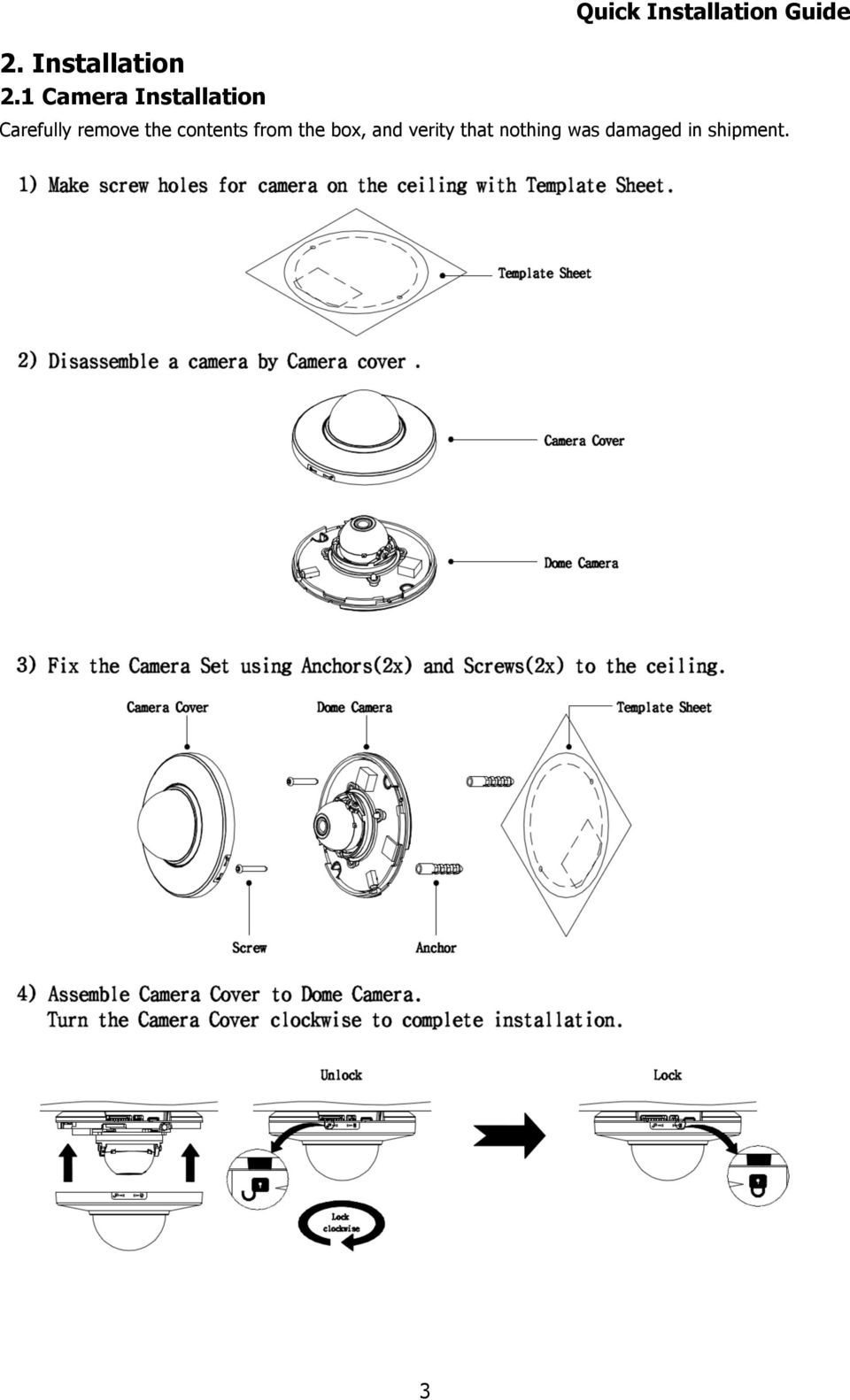
3 2. Installation 2.1 Camera Installation Quick Installation Guide Carefully remove the contents from the box, and verity that nothing was damaged in shipment. 3
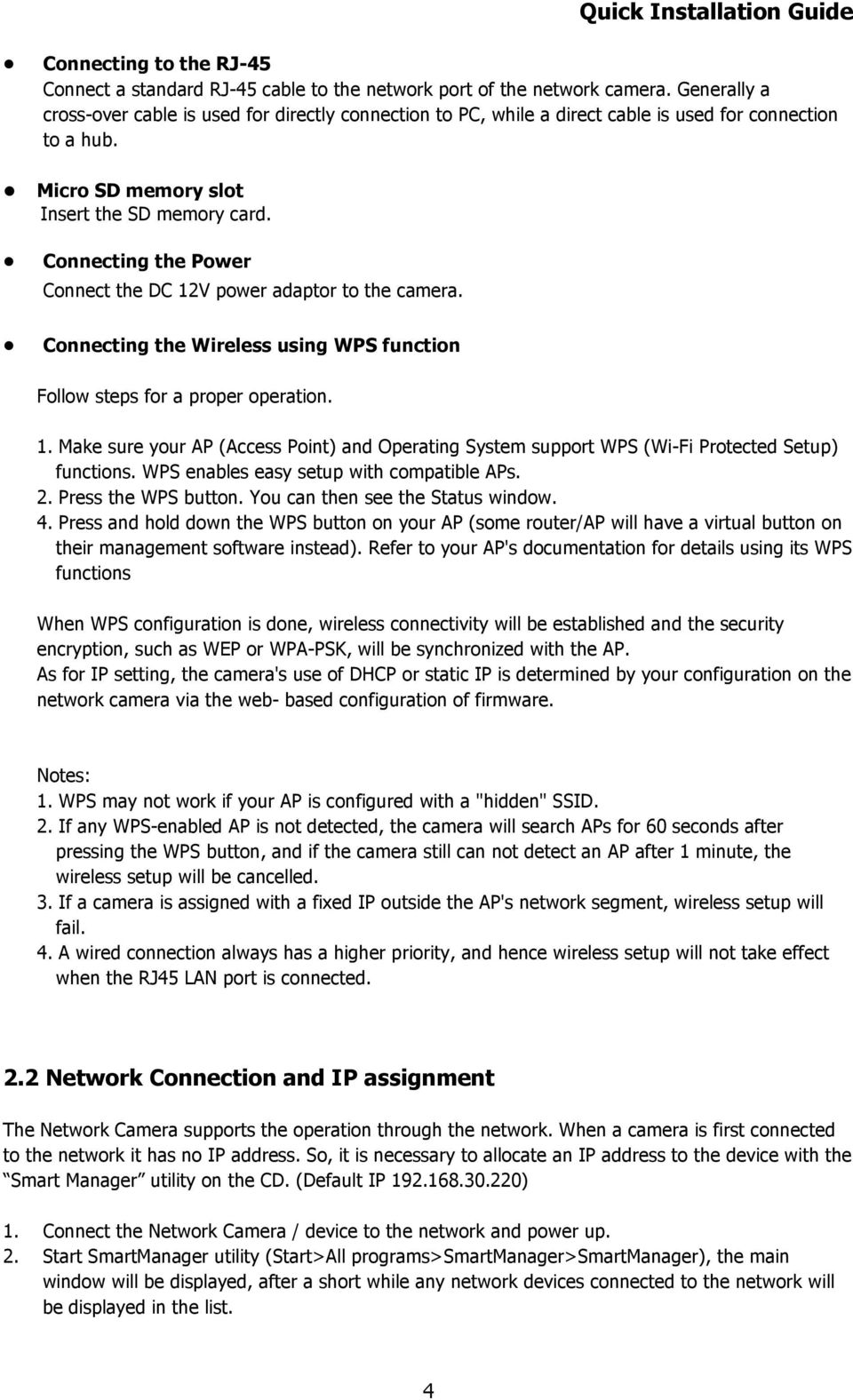
4 Connecting to the RJ-45 Connect a standard RJ-45 cable to the network port of the network camera. Generally a cross-over cable is used for directly connection to PC, while a direct cable is used for connection to a hub. l Micro SD memory slot Insert the SD memory card. Connecting the Power Connect the DC 12V power adaptor to the camera. Connecting the Wireless using WPS function Follow steps for a proper operation. 1. Make sure your AP (Access Point) and Operating System support WPS (Wi-Fi Protected Setup) functions. WPS enables easy setup with compatible APs. 2. Press the WPS button. You can then see the Status window. 4. Press and hold down the WPS button on your AP (some router/ap will have a virtual button on their management software instead). Refer to your AP's documentation for details using its WPS functions When WPS configuration is done, wireless connectivity will be established and the security encryption, such as WEP or WPA-PSK, will be synchronized with the AP. As for IP setting, the camera's use of DHCP or static IP is determined by your configuration on the network camera via the web- based configuration of firmware. Notes: 1. WPS may not work if your AP is configured with a "hidden" SSID. 2. If any WPS-enabled AP is not detected, the camera will search APs for 60 seconds after pressing the WPS button, and if the camera still can not detect an AP after 1 minute, the wireless setup will be cancelled. 3. If a camera is assigned with a fixed IP outside the AP's network segment, wireless setup will fail. 4. A wired connection always has a higher priority, and hence wireless setup will not take effect when the RJ45 LAN port is connected. 2.2 Network Connection and IP assignment The Network Camera supports the operation through the network. When a camera is first connected to the network it has no IP address. So, it is necessary to allocate an IP address to the device with the Smart Manager utility on the CD. (Default IP ) 1. Connect the Network Camera / device to the network and power up. 2. Start SmartManager utility (Start>All programs>smartmanager>smartmanager), the main window will be displayed, after a short while any network devices connected to the network will be displayed in the list. 4
5 3. Select the camera on the list and click right button of the mouse. You can see the pop-up menu below. 4. Select Assign IP. You cam see a Assign IP window. Enter the required IP address. Note: For more information, refer to the Smart Manger User s Manual. 5

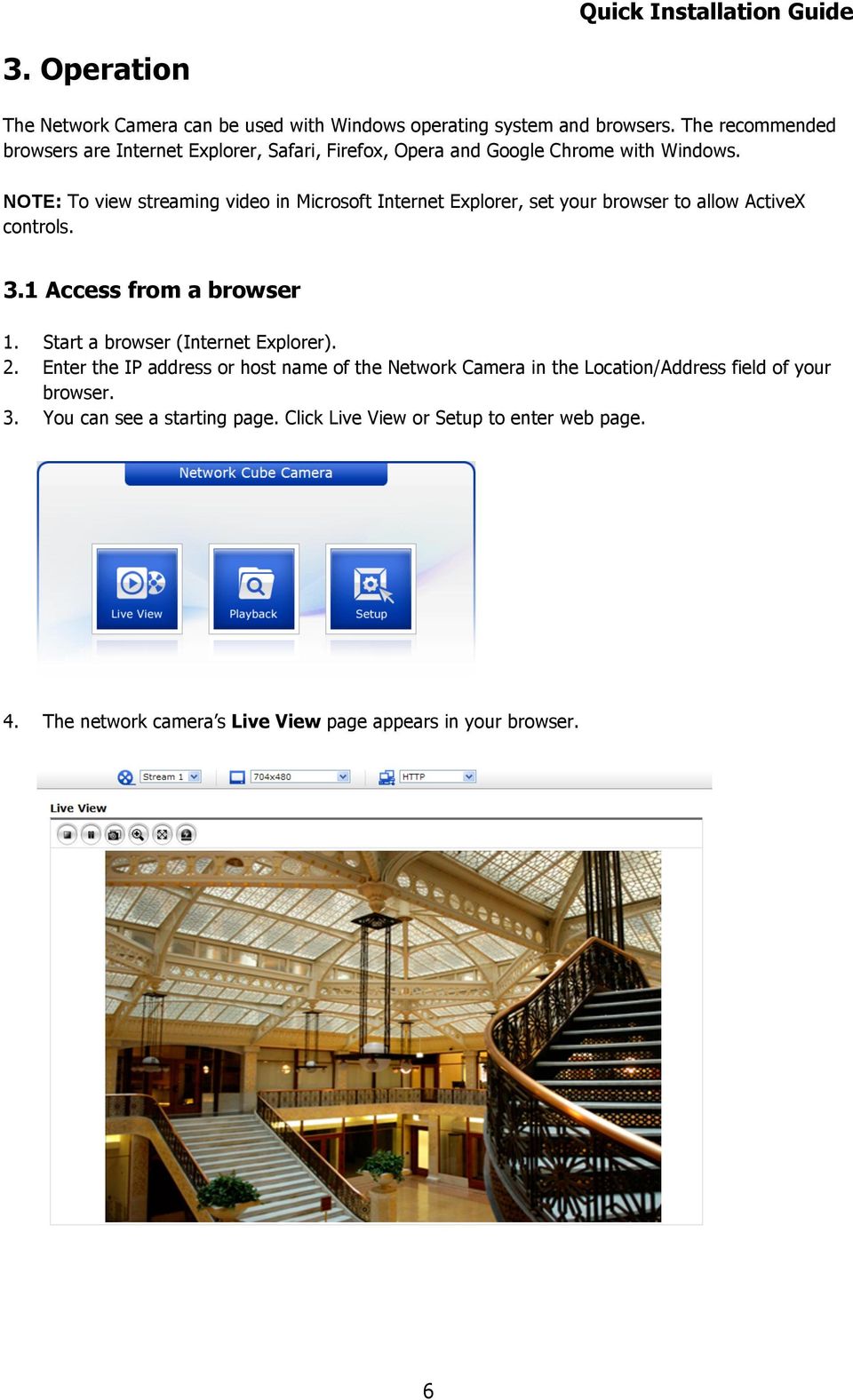
6 3. Operation The Network Camera can be used with Windows operating system and browsers. The recommended browsers are Internet Explorer, Safari, Firefox, Opera and Google Chrome with Windows. NOTE: To view streaming video in Microsoft Internet Explorer, set your browser to allow ActiveX controls. 3.1 Access from a browser 1. Start a browser (Internet Explorer). 2. Enter the IP address or host name of the Network Camera in the Location/Address field of your browser. 3. You can see a starting page. Click Live View or Setup to enter web page. 4. The network camera s Live View page appears in your browser. 6
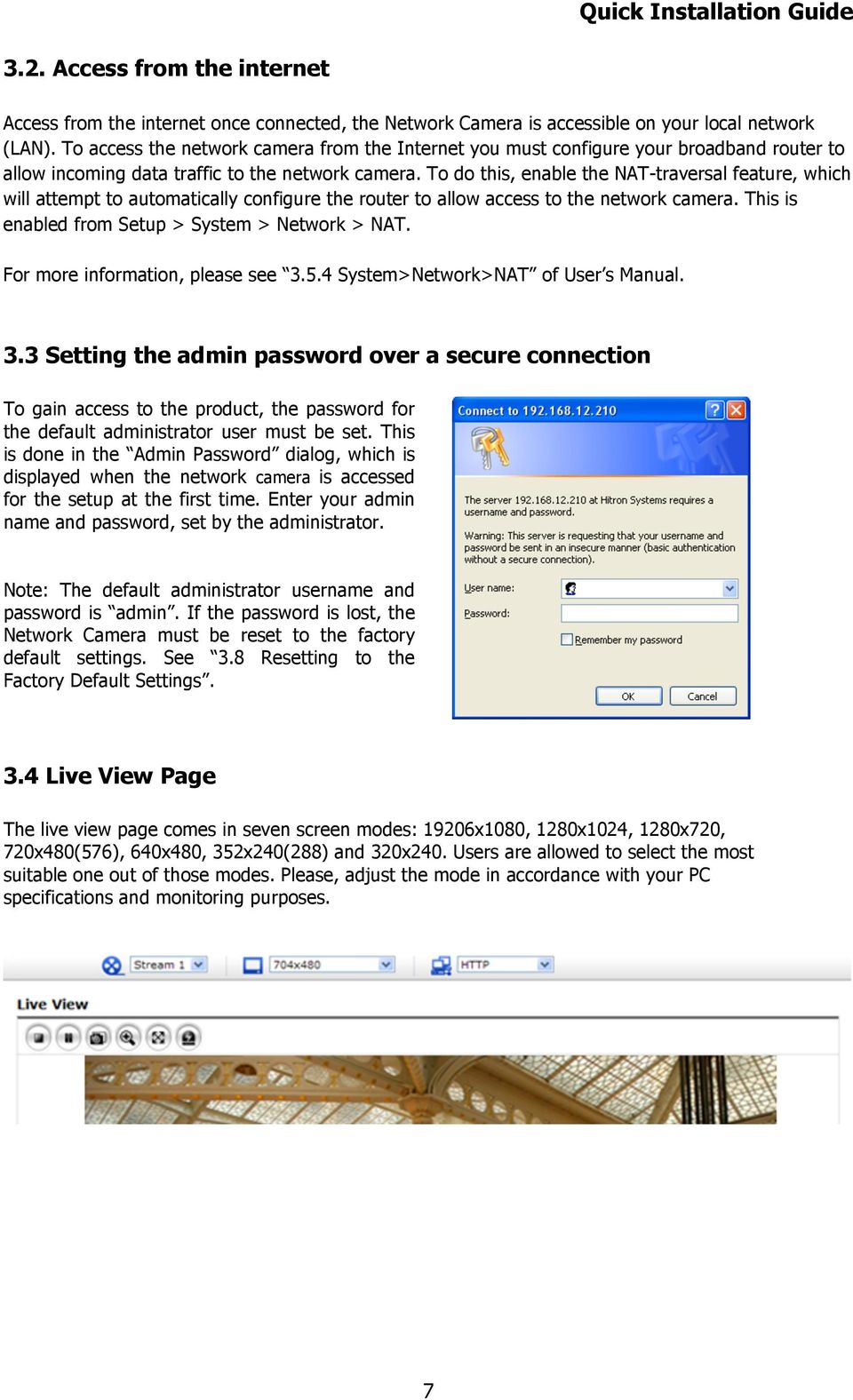
7 3.2. Access from the internet Access from the internet once connected, the Network Camera is accessible on your local network (LAN). To access the network camera from the Internet you must configure your broadband router to allow incoming data traffic to the network camera. To do this, enable the NAT-traversal feature, which will attempt to automatically configure the router to allow access to the network camera. This is enabled from Setup > System > Network > NAT. For more information, please see System>Network>NAT of User s Manual. 3.3 Setting the admin password over a secure connection To gain access to the product, the password for the default administrator user must be set. This is done in the Admin Password dialog, which is displayed when the network camera is accessed for the setup at the first time. Enter your admin name and password, set by the administrator. Note: The default administrator username and password is admin. If the password is lost, the Network Camera must be reset to the factory default settings. See 3.8 Resetting to the Factory Default Settings. 3.4 Live View Page The live view page comes in seven screen modes: 19206x1080, 1280x1024, 1280x720, 720x480(576), 640x480, 352x240(288) and 320x240. Users are allowed to select the most suitable one out of those modes. Please, adjust the mode in accordance with your PC specifications and monitoring purposes. 7
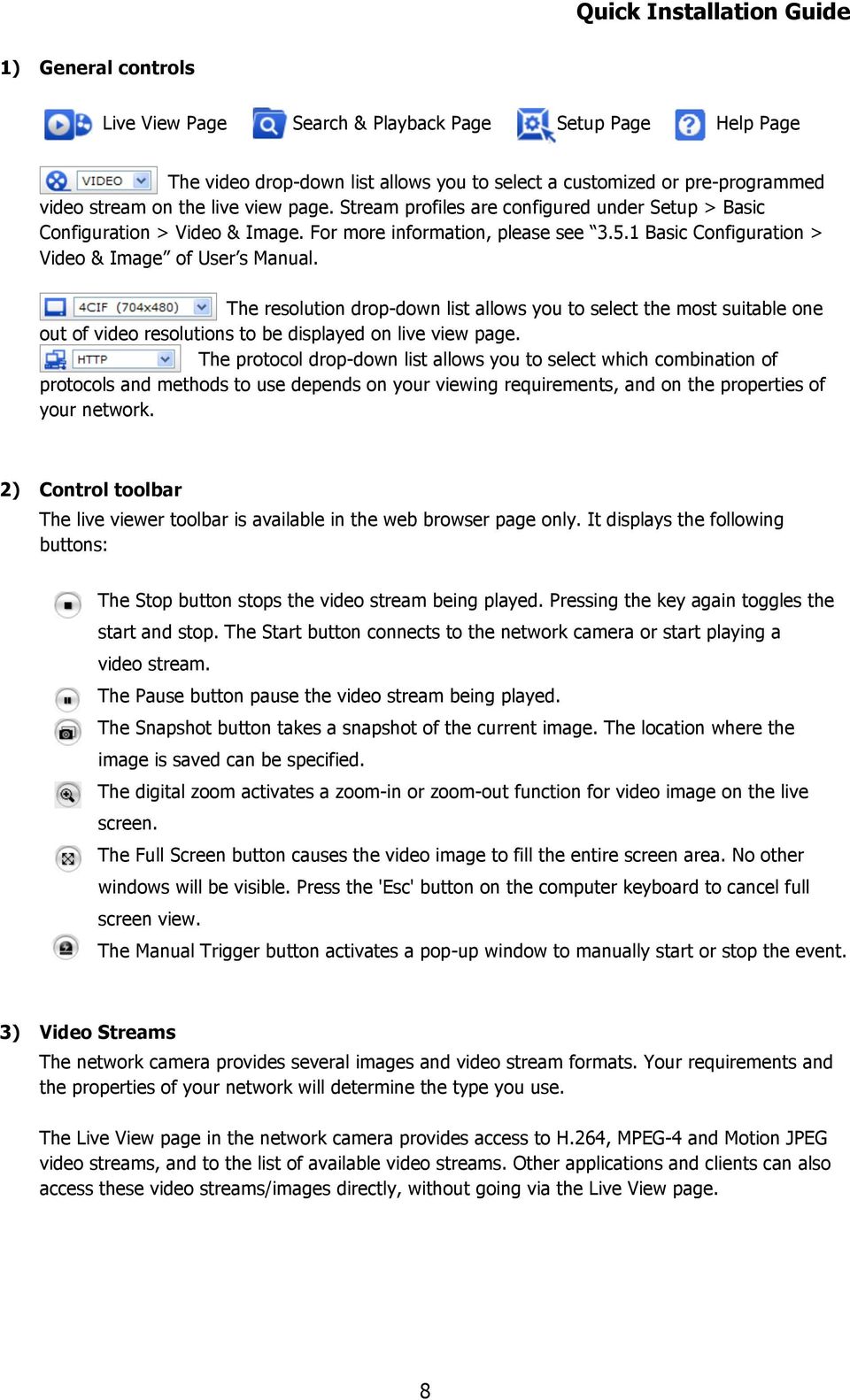
8 1) General controls Live View Page Search & Playback Page Setup Page Help Page The video drop-down list allows you to select a customized or pre-programmed video stream on the live view page. Stream profiles are configured under Setup > Basic Configuration > Video & Image. For more information, please see Basic Configuration > Video & Image of User s Manual. The resolution drop-down list allows you to select the most suitable one out of video resolutions to be displayed on live view page. The protocol drop-down list allows you to select which combination of protocols and methods to use depends on your viewing requirements, and on the properties of your network. 2) Control toolbar The live viewer toolbar is available in the web browser page only. It displays the following buttons: The Stop button stops the video stream being played. Pressing the key again toggles the start and stop. The Start button connects to the network camera or start playing a video stream. The Pause button pause the video stream being played. The Snapshot button takes a snapshot of the current image. The location where the image is saved can be specified. The digital zoom activates a zoom-in or zoom-out function for video image on the live screen. The Full Screen button causes the video image to fill the entire screen area. No other windows will be visible. Press the 'Esc' button on the computer keyboard to cancel full screen view. The Manual Trigger button activates a pop-up window to manually start or stop the event. 3) Video Streams The network camera provides several images and video stream formats. Your requirements and the properties of your network will determine the type you use. The Live View page in the network camera provides access to H.264, MPEG-4 and Motion JPEG video streams, and to the list of available video streams. Other applications and clients can also access these video streams/images directly, without going via the Live View page. 8
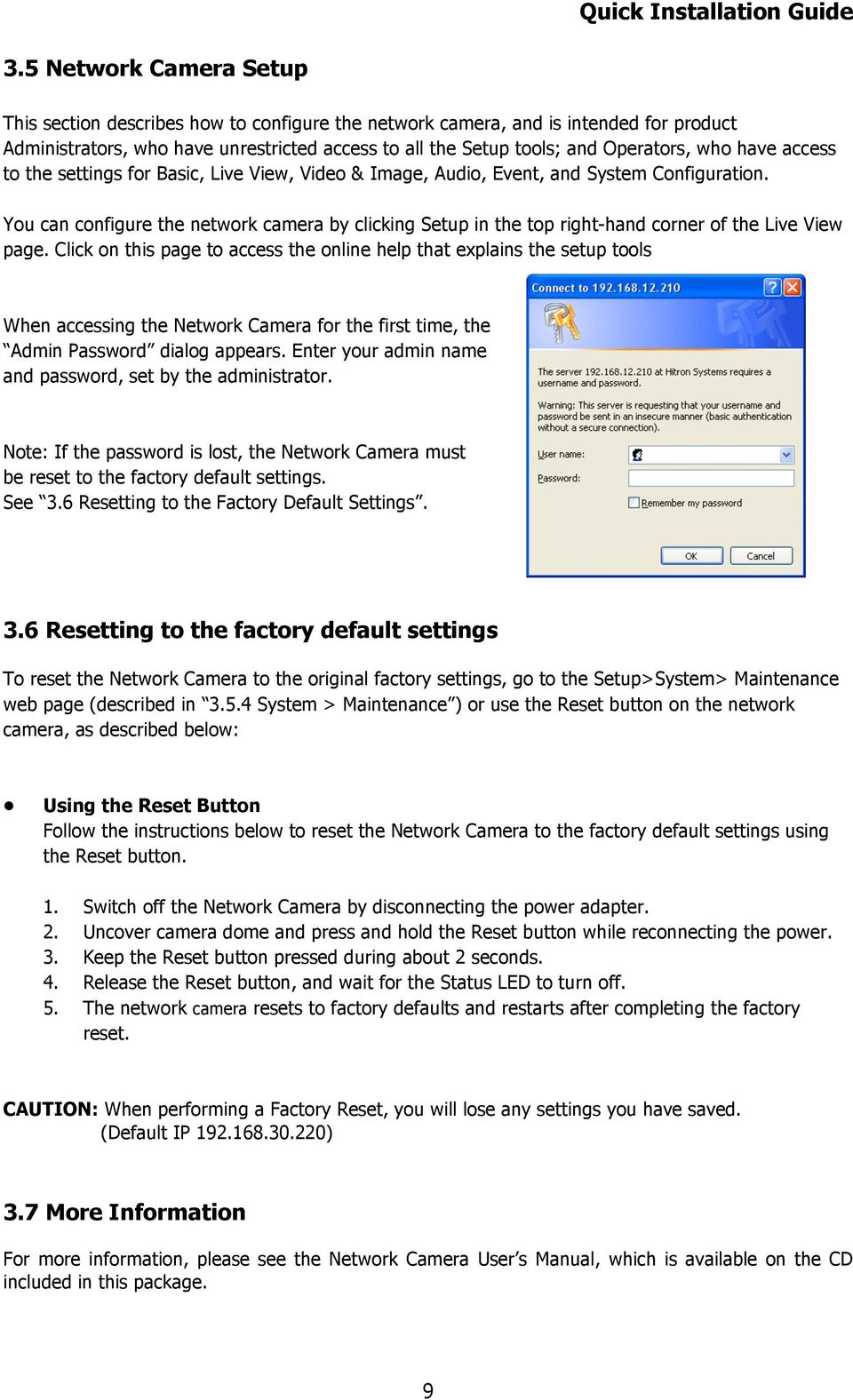
9 3.5 Network Camera Setup This section describes how to configure the network camera, and is intended for product Administrators, who have unrestricted access to all the Setup tools; and Operators, who have access to the settings for Basic, Live View, Video & Image, Audio, Event, and System Configuration. You can configure the network camera by clicking Setup in the top right-hand corner of the Live View page. Click on this page to access the online help that explains the setup tools When accessing the Network Camera for the first time, the Admin Password dialog appears. Enter your admin name and password, set by the administrator. Note: If the password is lost, the Network Camera must be reset to the factory default settings. See 3.6 Resetting to the Factory Default Settings. 3.6 Resetting to the factory default settings To reset the Network Camera to the original factory settings, go to the Setup>System> Maintenance web page (described in System > Maintenance ) or use the Reset button on the network camera, as described below: Using the Reset Button Follow the instructions below to reset the Network Camera to the factory default settings using the Reset button. 1. Switch off the Network Camera by disconnecting the power adapter. 2. Uncover camera dome and press and hold the Reset button while reconnecting the power. 3. Keep the Reset button pressed during about 2 seconds. 4. Release the Reset button, and wait for the Status LED to turn off. 5. The network camera resets to factory defaults and restarts after completing the factory reset. CAUTION: When performing a Factory Reset, you will lose any settings you have saved. (Default IP ) 3.7 More Information For more information, please see the Network Camera User s Manual, which is available on the CD included in this package. 9
Quick Installation Guide
 V48.01 Model: FI8919W Quick Installation Guide Outdoor Pan/Tilt Wireless IP Camera For Windows OS ------- Page 1 For MAC OS ------- Page 15 ShenZhen Foscam Intelligent Technology Co., Ltd Quick Installation
FI8910W Quick Installation Guide. Indoor MJPEG Pan/Tilt Wireless IP Camera
 Model: FI8910W Quick Installation Guide (For Windows OS) (For MAC OS please go to page 17) Indoor MJPEG Pan/Tilt Wireless IP Camera Black White Package Contents IP Camera FI8910W with IR-Cut.x 1 DC Power
Quick Installation Guide
 Quick Installation Guide (For Windows & Mac OS) Outdoor Wireless IP Camera Package Contents V1.1 IP Camera Power Adapter Resource CD Ethernet Cable Mounting Bracket(except FI8919) Wi-Fi Antenna Quick Installation
Quick Start Guide NVR DS-7104NI-SL/W NVR. www.hikvision.com. First Choice For Security Professionals
 Quick Start Guide NVR DS-7104NI-SL/W NVR NOTE: For more detailed information, refer to the User s Manual on the CD-ROM. You must use your PC or MAC to access the files. www.hikvision.com Quick Start 1.
Quick Installation Guide
 V2.01 Model: FI9821W Quick Installation Guide Indoor HD Pan/Tilt Wireless IP Camera Black White For Windows OS ------- Page 1 For MAC OS ------- Page 16 ShenZhen Foscam Intelligent Technology Co., Ltd
DATA PROJECTOR XJ-A147/XJ-A247/XJ-A257 XJ-M146/XJ-M156 XJ-M246/XJ-M256. XJ-A Series. XJ-M Series. Network Function Guide
 DATA PROJECTOR EN XJ-A Series XJ-A147/XJ-A247/XJ-A257 XJ-M Series XJ-M146/XJ-M156 XJ-M246/XJ-M256 Network Function Guide In this manual, XJ-A Series and XJ-M Series refer only to the specific models listed
Quick Installation Guide
 V46.01 Model: FI8918W Quick Installation Guide Indoor Pan/Tilt Wireless IP Camera Black White For Windows OS ------- Page 1 For MAC OS ------- Page 11 ShenZhen Foscam Intelligent Technology Co., Ltd Quick
4. Rear View. Function Switches 1. Fixed IP 2. DHCP Floating IP 3. Auto IRIS (DC Driver LENS) 4. Fixed LENS (AES)
 4. Rear View 5 1.STATIC IP 2.DHCP 3.DC IRIS Mini USB 1 2 3 4 5 6 1. ALM-RST 2. ALM-IN 3. ALM-OUT 4. GND 5. RS485-6. RS485 + 1 2 3 4 5 6 7 DC Power Input: DC Jackψ2.1, DC12V---0.5A or higher. LAN/WAN Network
SwannEye HD Security Camera Wi-Fi Connections Quick Setup Guide. Welcome! Lets get started.
 EN SwannEye HD Security Camera Wi-Fi Connections Quick Setup Guide Welcome! Lets get started. 1 1 Introduction 1 2 3 4 Congratulations on your purchase of this SwannEye HD Wi-Fi Security Camera from Swann!
SwannEye HD Plug & Play Wi-Fi Security Camera Quick Start Guide Welcome! Lets get started.
 EN SwannEye HD Plug & Play Wi-Fi Security Camera Quick Start Guide Welcome! Lets get started. QHADS453080414E Swann 2014 1 1 Introduction Congratulations on your purchase of this SwannEye HD Plug & Play
Mini P2P IP camera IPC-2016W
 Mini P2P IP camera IPC-2016W Features 1/4 CMOS,0.3 Mega pixel MJPEG Compression P2P mobile viewing One way audio Send pictures to FTP$E-mail when motion detect Support wireless connection:ieee802.11b/g/n
Wifi Pan/Tilt IP Camera User Manual
 Wifi Pan/Tilt IP Camera User Manual Rev. 3.0 Software Version 3.00 May. 25 th.2009 Table of Contents 1. PRODUCT VIEWS...3 1.1. PRONT PANEL...3 1.2. BACK PANEL...3 1.3. ACCESSORIES...4 2. SETUP AND STARTUP...5
P-870HN-51b. 802.11n VDSL2 4-port Gateway DEFAULT LOGIN DETAILS. Firmware v1.00 Edition 1, 9/2009. IP Address: http://192.168.1.1.
 P-870HN-51b 802.11n VDSL2 4-port Gateway Firmware v1.00 Edition 1, 9/2009 DEFAULT LOGIN DETAILS IP Address: http://192.168.1.1 Username: admin Password: 1234 www.zyxel.com Copyright 2009 ZyXEL Communications
USING YOUR DMX PROFUSION
 Set Up Guide USING YOUR DMX PROFUSION io FOR 1 Connect 2 Set Up 3 Listen SIMPLE PERSONALIZED UNLIMITED ECONOMICAL LICENSED Welcome Thank you for choosing DMX to provide your Pandora listening experience
ImagineWorldClient Client Management Software. User s Manual. (Revision-2)
 ImagineWorldClient Client Management Software User s Manual (Revision-2) (888) 379-2666 US Toll Free (905) 336-9665 Phone (905) 336-9662 Fax www.videotransmitters.com 1 Contents 1. CMS SOFTWARE FEATURES...4
Quick Installation Guide DIR-620. Multifunction Wireless Router Supporting GSM, CDMA, WiMAX with Built-in 4-port Switch
 DIR-620 Multifunction Wireless Router Supporting GSM, CDMA, WiMAX with Built-in 4-port Switch BEFORE YOU BEGIN Delivery Package Multifunction wireless router DIR-620 Power adapter DC 5V/2.5A Ethernet cable
PC-ZViewer User Manual
 PC-ZViewer User Manual For further help, please visit www.zmodo.com Contents Preface... 3 Statement... 3 Intended Reader... 3 Terms in this Manual... 3 Software Introduction... 3 Operating Environment...
Click Main on the left hand side then click on Password at the top of the page.
 Q: How do I change the password on my router? A: Step 1. Log into the router by entering its IP address into a browser. The default IP address is http://192.168.1.1. The default username is admin with
Quick installation guide for the Vista Quantum QNVR Network Video Recorder
 QNVR range Quick Instalation guide Quick installation guide for the Vista Quantum QNVR Network Video Recorder Full manual found on the CD supplied with the NVR Contents SCOPE OF USE... 3 1. FRONT PANEL
Network Setup Guide. 1 Glossary. 2 Operation. 1.1 Static IP. 1.2 Point-to-Point Protocol over Ethernet (PPPoE)
 Network Setup Guide 1 Glossary 1.1 Static IP Computers are communicated and recognized by their own unique IP addresses over the Internet. Static IP provided by your ISP (Internet Service Provider) means
Wireless Day / Night Cloud Camera TV-IP751WIC (v1.0r)
 (v1.0r) TRENDnet s Wireless Day / Night Cloud Camera, model, takes the work out of viewing video over the internet. Previously to view video remotely, users needed to perform many complicated and time
IP Camera (L series) User manual 2013-05 V1.1
 Dear users, the configuration for this camera is professional, so please read the user manual carefully before using the camera. IP Camera (L series) User manual 2013-05 V1.1 Statement If the user manual
This section will focus on basic operation of the interface including pan/tilt, video, audio, etc.
 Catalogue Basic Operation... 2 For Internet Explorer... 2 For Other Non-IE Web Browsers... 5 Camera Settings... 6 System... 6 About... 6 PT Setting... 7 Backup and Restore Setup... 8 NTP Setting... 8 System
Quick Installation Guide DAP-1360. Wireless N 300 Access Point & Router
 DAP-1360 Wireless N 300 Access Point & Router BEFORE YOU BEGIN Delivery Package Access point DAP-1360 Power adapter DC 12V Ethernet cable (CAT 5E) (brochure). If any of the items are missing, please contact
MJPEG INDOOR SERIES B E F OR E Y OU B E GIN. WiFi indoor IP Camera
 MJPEG INDOOR SERIES WiFi indoor IP Camera B E F OR E Y OU B E GIN Please unpack the box carefully and identify that all the parts are present. The Camera is suitable for indoor use. Check the voltage of
Full HD WDR Mini Bullet IP Camera
 Full HD WDR Mini Bullet IP Camera User s Manual DN-16083-1 Ver. 1.0 Table of Contents 1. Overview... 2 1.1 Features... 2 1.2 Package Contents... 3 1.3 Dimensions... 4 1.4 Function Cables... 5 1.6 microsd
CONNECTING THE RASPBERRY PI TO A NETWORK
 CLASSROOM CHALLENGE CONNECTING THE RASPBERRY PI TO A NETWORK In this lesson you will learn how to connect the Raspberry Pi computer to a network with both a wired and a wireless connection. To complete
Wireless PTZ Cloud Camera TV-IP851WC (v1.0r)
 (v1.0r) TRENDnet s Wireless PTZ Cloud Camera, model, takes the work out of viewing video over the internet. Previously to view video remotely, users needed to perform many complicated and time consuming
NETVIGATOR Wireless Modem Setup Guide. (TG789Pvn)
 NETVIGATOR Wireless Modem Setup Guide (TG789Pvn) Configure the NETVIGATOR Wireless Modem Make sure that system meets the following requirement prior to NETVIGATOR Wireless Modem usage: - Subscribers who
AC750 WiFi Range Extender
 Model EX6100 User Manual April 2014 202-11307-03 350 East Plumeria Drive San Jose, CA 95134 USA Support Thank you for selecting NETGEAR products. After installing your device, locate the serial number
Quick Installation Guide
 Model: FI8905E Quick Installation Guide Ourdoor POE Network Camera For Windows OS ------- Page 1 For MAC OS ------- Page 14 ShenZhen Foscam Intelligent Technology Co., Ltd Quick Installation Guide - For
SwannSecure Wi-Fi Monitoring System
 EN SwannSecure Wi-Fi Monitoring System Setup Wizard Quick Start Guide QW470KIT050115E Swann 2015 1 Welcome The Setup Wizard automatically launches the first time you turn on the Wi-Fi Monitor and walks
WLAN Outdoor CPE For 2.4G. Quick Installation Guide
 WLAN Outdoor CPE For 2.4G Quick Installation Guide Part I: External Installation Direction A. Check the parts in your box CPE SET 1 DC 12V/1.5A Power Adapter 1 PoE DC Injector 1 Hose Clamps 2 Manual &
Amcrest 960H DVR Quick Start Guide
 Amcrest 960H DVR Quick Start Guide Welcome Thank you for purchasing our Amcrest 960H DVR! This quick start guide will help you become familiar with our DVR in a very short time. Before installation and
Wireless Network IP-Camera 150N WL-405. Full Manual
 Wireless Network IP-Camera 150N WL-405 Full Manual Table of Contents 1. Introduction... 3 Overview... 3 Features... 3 Physical Details... 4 Front - Network Camera... 4 Rear - Network Camera... 5 Description
CNet IP Camera Configuration Document
 CNet IP Camera Configuration Document CIC-901W CIC-901L Brief Description: CIC-901L- IP Surveillance Camera Features Motion JPEG video compression Built-in web server for monitoring via standard browser
Network Projector Operation Guide
 Network Projector Operation Guide Table of contents Preparation...3 Connecting the projector with your computer...3 Wired connection... 3 Wireless connection (for selective models)... 4 QPresenter...7
SAS-IPCAM115 MANUAL IP CAMERA
 SAS-IPCAM115 MANUAL IP CAMERA Table of contents Introduction: Safety precautions: Packaging content: System requirements: Product description: User instructions: Maintenance: Warranty: Disclaimer: Disposal:
DVR-4TL/8TL/16TL Setup Guide
 Package Content DVR-4TL/8TL/16TL Setup Guide Inspect the DVR s packaging. Make sure that the DVR-4TL/8TL/16TL is packed properly. Remove all items from the box and make sure it contains the following items.
Quick Installation Guide DSL-2750U/NRU. 3G/ADSL/Ethernet Router with Wi-Fi and Built-in Switch
 DSL-2750U/NRU 3G/ADSL/Ethernet Router with Wi-Fi and Built-in Switch BEFORE YOU BEGIN Delivery Package Router DSL-2750U/NRU Power adapter RJ-11 telephone cable Straight-through Ethernet cable (CAT 5E)
Dear users, the configuration for this camera is professional, so please read the user manual carefully before using the camera. 2012-11 V4.
 Dear users, the configuration for this camera is professional, so please read the user manual carefully before using the camera. IP Camera (B series) User manual 2012-11 V4.19 Statement If the user manual
Hills Professional Series NVRs and Cameras
 FAQs Hills Professional Series NVRs and Cameras (V1.1) 1. What is the default NVR resolution? By Default NVR video output resolution is 1080P. Resolution may be changed if necessary to suit the attached
Quick Installation Guide
 0, Total 18 Quick Installation Guide Sep, 2013 1, Total 18 Thank you for purchasing Enterprise High Gain Outdoor CPE. This manual will instruct you how to configure and manage this CPE, enable you to use
Quick Installation Guide
 V2.01 IP Wired / Wireless Camera Quick Installation Guide (For Windows OS) Model: FI8602/FI8602W ShenZhen Foscam Intelligent Technology Co., Ltd Packing List Quick Installation Guide 1) IP CAMERA X 1 2)
Network Video Recorder. Operation Manual
 Network Video Recorder Operation Manual Content 1 Product Description... 1 1.1 Product Overview... 1 1.2 Specification... 1 2 Product Structure Introduction... 2 2.1 Back Interface... 2 2.2 Front Panel...
SEC-IPCAM100B(W) SEC-IPCAM105B(W) MANUAL (p. 2) IP camera 2013-07-30
 SEC-IPCAM100B(W) SEC-IPCAM105B(W) MANUAL (p. 2) IP camera 2013-07-30 IP camera FULL MANUAL Table of contents: Introduction (p. 2) Safety precautions (p. 2) Packaging content (p. 2) System requirements
DIGITUS Plug&View IP cameras
 DIGITUS Plug&View IP cameras User Guide 1 Introduction: The Plug&View IP camera series by DIGITUS offers P2P cloud services in order to avoid the complicated network configuration for the camera installation.
7 6.2 Windows Vista / Windows 7. 10 8.2 IP Address Syntax. 12 9.2 Mobile Port. 13 10.2 Windows Vista / Windows 7. 17 13.2 Apply Rules To Your Device
 TABLE OF CONTENTS ADDRESS CHECKLIST 3 INTRODUCTION 4 WHAT IS PORT FORWARDING? 4 PROCEDURE OVERVIEW 5 PHYSICAL CONNECTION 6 FIND YOUR ROUTER S LOCAL NETWORK IP ADDRESS 7 6.1 Windows XP 7 6.2 Windows Vista
How to setup EW-7438RPn with a Windows computer to extend an existing Wi-Fi network
 2 How to setup EW-7438RPn with a Windows computer to extend an existing Wi-Fi network Note: 1. This instruction use pictures from EW-7438RPn firmware v1.13. 2. If you need to restore to the default settings,
WAP3205 v2. User s Guide. Quick Start Guide. Wireless N300 Access Point. Default Login Details. Version 1.00 Edition 2, 10/2015
 WAP3205 v2 Wireless N300 Access Point Version 1.00 Edition 2, 10/2015 Quick Start Guide User s Guide Default Login Details Web Address http://zyxelsetup Password www.zyxel.com 1234 Copyright 2014 ZyXEL
Quick Installation Guide DSL-2640U. Wireless N 150 ADSL2+ Modem Router
 DSL-2640U Wireless N 150 ADSL2+ Modem Router BEFORE YOU BEGIN Delivery Package Wireless router DSL-2640U Power adapter DC 12V/0.5A RJ-11 telephone cable Straight-through Ethernet cable (CAT 5E) Splitter
The service note describes the basic steps to install a ip camera for the DVR670
 Tech note Description Adding IP camera to DVR670 General The service note describes the basic steps to install a ip camera for the DVR670 Steps involved: 1) Configuration Manager application 2) Camera
IP Camera (M series) User manual 2013-06 V4.0
 Dear users, the configuration for this camera is professional, so please read the user manual carefully before using the camera. IP Camera (M series) User manual 2013-06 V4.0 Statement If the user manual
CIPCAM720PTIWL,CIPCAM720OD,CIPCAM720ODWDR,CIPDC AM720OD
 Wireless Network Camera User Manual CIPCAM720PTIWL,CIPCAM720OD,CIPCAM720ODWDR,CIPDC AM720OD V1.0 Default DEFAULT SETTINGS IP Address 192.168.1.58 User/Password admin/123456 Notice 1 Installation Environment
Wireless Router Setup Manual
 Wireless Router Setup Manual NETGEAR, Inc. 4500 Great America Parkway Santa Clara, CA 95054 USA 208-10082-02 2006-04 2006 by NETGEAR, Inc. All rights reserved. Trademarks NETGEAR is a trademark of Netgear,
User Manual v.1.0 YWS-01D
 User Manual v.1.0 YWS-01D 1/33 Content PREFACE... 3 I. PRODUCT SPECIFICATIONS... 3 II. PRODUCT INSTALLATION... 4 A. HARDWARE INSTALLATION... 5 B. IP ASSIGNMENT... 5 C. INSTALL ACTIVEX CONTROL (INSTALL
AXIS Camera Station Quick Installation Guide
 AXIS Camera Station Quick Installation Guide Copyright Axis Communications AB April 2005 Rev. 3.5 Part Number 23997 1 Table of Contents Regulatory Information.................................. 3 AXIS Camera
Networking. General networking. Networking overview. Common home network configurations. Wired network example. Wireless network examples
 Networking General networking Networking overview A network is a collection of devices such as computers, printers, Ethernet hubs, wireless access points, and routers connected together for communication
P-2812HNU(L)-Fx Series
 P-2812HNU(L)-Fx Series Quick Start Guide 802.11n Wireless VDSL2 VoIP Combo WAN IAD Firmware Version 3.10 Edition 1, 3/2011 DEFAULT LOGIN DETAILS IP Address: http://192.168.1.1 Username: Admin account:
User Manual V1.0. Remote Software
 User Manual V1.0 Notice: The information in this manual was current when published. The manufacturer reserves the right to revise and improve its products. All specifications are therefore subject to change
Quick Installation Guide
 Packing List Quick Installation Guide Quick Installation Guide 1) IP CAMERA X 1 2) Wi-Fi Antenna (only available for wireless model) 3) DC Power Supply X 1 4) Network Cable X 1 5) Mounting bracket 1 6)
EM6230 e-camview HD outdoor IP camera
 EM6230 e-camview HD outdoor IP camera 2 ENGLISH EM6230 e-camview HD outdoor IP camera Table of contents 1.0 Introduction... 3 1.1 Packing contents... 3 1.2 Requirements to access the camera.... 3 1.3 Major
Quick Installation Guide DSL-2750U. 3G/ADSL/Ethernet Router with Wi-Fi and Built-in Switch
 DSL-2750U 3G/ADSL/Ethernet Router with Wi-Fi and Built-in Switch BEFORE YOU BEGIN Delivery Package Router DSL-2750U Power adapter DC 12V/1A RJ-11 telephone cable Ethernet cable (CAT 5E) Splitter (brochure).
DVR4C Remote Viewer Operation Manual Table of Contents EN 3 1. OVERVIEW...5 1.1 MINIMUM PC REQUIREMENTS...5 2. INSTALLING THE PROGRAM...
 DVR4x4RemoteViewer.book Page 3 Tuesday, February 15, 2005 9:19 AM DVR4C Remote Viewer Operation Manual Table of Contents EN 3 1. OVERVIEW...5 1.1 MINIMUM PC REQUIREMENTS...5 2. INSTALLING THE PROGRAM...5
PLA4231. User s Guide. Quick Start Guide. 500 Mbps Powerline Wireless N Extender. Default Login Details. Version 1.00 Edition 1, 12/2012
 PLA4231 500 Mbps Powerline Wireless N Extender Version 1.00 Edition 1, 12/2012 Quick Start Guide User s Guide Default Login Details LAN IP Address http://192.168.1.2 Password 1234 www.zyxel.com Copyright
WiFi-SB-L3 300M WiFi Router WiFi Bridge WiFi Repeater. WiFi Router WiFi Repeater WiFi Bridge WiFi-SB-L3 Quick Setting Guide
 300M WiFi Router WiFi Repeater WiFi Bridge WiFi-SB-L3 Quick Setting Guide 1 Chapter 1 Router Mode Quick Setup Guide 1. Let WiFi-SB-L3 be powered on. 2.Turn on wireless network connection, disabled local
Live Streaming Camera GV-LS2 / GV-LS1. Connection Guide. Other information can be found in the Reference Manual.
 C2N LYT2644-002A 0513YHM-YH-OT Live Streaming Camera GV-LS2 / GV-LS1 Connection Guide This PDF will give you the steps in order to connect the Live Streaming Camera to your network and digital devices.
GV-Data Capture V3 Series User's Manual
 GV-Data Capture V3 Series User's Manual Before attempting to connect or operate this product, please read these instructions carefully and save this manual for future use. 2006 GeoVision, Inc. All rights
Access the GV-IP Camera through a broadband modem
 Access the GV-IP Camera through a broadband modem Applied to All GV-IP Cameras Article ID: GV15-12-03-26 Release Date: 03/26/2012 Introduction The document introduces how to connect your GV-IP Camera to
Table of Contents. Chapter1. Introduction...1. 1.1 Before Installation... 1 1.2 System Requirements... 1
 Table of Contents Chapter1. Introduction...1 1.1 Before Installation... 1 1.2 System Requirements... 1 Chapter2. IVS-110 1-Channel Internet Video Server...2 2.1 Package Content... 2 2.2 Physical Installation...
Movie Cube. User s Guide to Wireless Function
 Movie Cube User s Guide to Wireless Function Table of Contents 1. WLAN USB Adapter Connection...3 2. Wireless Setup...4 2.1 Infrastructure (AP)...5 2.2 Peer to Peer (Ad Hoc)...7 2.3 Settings for PC...8
How To Set Up Flir Cloud Client For Pc Or Mac Or Mac (For Pc Or Ipad) On A Pc Or Pc Or Mouse (For Mac) On An Iphone Or Ipa) On Pc Or Tv (For Ipa
 Instruction Manual FLIR Cloud Services Client Instruction Manual FLIR Cloud Services Client #LX400018; r. 2.0/14567/14568; en-us iii Table of contents 1 Setting up FLIR Cloud Client for PC or Mac...1
P-2612HNU-Fx. 802.11n ADSL2+ VoIP IAD DEFAULT LOGIN DETAILS. Firmware V3.00 Edition 1, 1/2010. Password: 1234 User Name: admin Password: 1234
 P-2612HNU-Fx 802.11n ADSL2+ VoIP IAD Firmware V3.00 Edition 1, 1/2010 DEFAULT LOGIN DETAILS IP Address: User Login: Administrator Login: http://192.168.1.1 User Name: user Password: 1234 User Name: admin
Quick Installation Guide of WLAN Broadband Router
 To avoid users without access right through your WLAN Broadband Router, suggest that use security mechanism like WEP, WPA or set ID/password for web configuration login IP address 192.168.1.254. Preparation
Mobile Surveillance. User Manual
 Mobile Surveillance User Manual Contents 1 Network Configuration... 1 1.1 Access Device via WLAN... 1 1.2 Access Device via 3G Network... 1 2 By Phones with iphone OS... 2 2.1 Installation Instruction...
N300 WiFi Range Extender
 Model EX2700 User Manual July 2014 202-11395-01 350 East Plumeria Drive San Jose, CA 95134 USA Support Thank you for selecting NETGEAR products. After installing your device, locate the serial number on
DSL-2600U. User Manual V 1.0
 DSL-2600U User Manual V 1.0 CONTENTS 1. OVERVIEW...3 1.1 ABOUT ADSL...3 1.2 ABOUT ADSL2/2+...3 1.3 FEATURES...3 2 SPECIFICATION...4 2.1 INDICATOR AND INTERFACE...4 2.2 HARDWARE CONNECTION...4 2.3 LED STATUS
WIRED/WIRELESS IP CAMERA USER MANUAL V1.0
 WIRED/WIRELESS IP CAMERA USER MANUAL V1.0 CATALOGUE 1.DESCRIPTION OF PRODUCT -------------------------------------------------------------------------1 1.1 Packing ------------------------------------------------------------------------------------------------------2
IDDERO TOUCH PANELS. Video door phone configuration. www.iddero.com 120130-02
 IDDERO TOUCH PANELS Video door phone configuration www.iddero.com 120130-02 TABLE OF CONTENTS 1 INTRODUCTION... 3 2 INSTALLATION... 3 3 INITIAL CONFIGURATION... 4 4 2N HELIOS IP VIDEO DOOR PHONES... 5
How To Set Up A Network Camera On A Network Cable Extender (Rj45) With A Network Cam (Cms) On A Pc Or Mac) With An Ipad Or Ipad (For Awn) With The Power Cable (
 OUTDOOR IR NETWORK CAMERA SERIES Installation Guide Please read instructions thoroughly before operation and retain it for future reference. TABLE OF CONTENTS 1. OVERVIEW... 1 1.1 Package Content... 1
IDDERO TOUCH PANELS. Video door phone configuration. www.iddero.com 120719-02
 IDDERO TOUCH PANELS Video door phone configuration www.iddero.com 120719-02 TABLE OF CONTENTS 1 INTRODUCTION... 3 2 INSTALLATION... 3 3 INITIAL CONFIGURATION... 4 4 2N HELIOS IP VIDEO DOOR PHONES... 5
Home Wi-Fi Gateway Instructions
 Home Wi-Fi Gateway Instructions 1. Connect the gateway. Use the coaxial cable provided by BendBroadband to connect the cable port (A) to your cable outlet. 2. Connect your computer to the cable modem gateway
Wired / Wireless / PoE. CMOS Internet Camera ICA-107 / ICA-107W / ICA-107P. Quick Installation Guide
 Wired / Wireless / PoE CMOS Internet Camera ICA-107 / ICA-107W / ICA-107P Quick Installation Guide Table of Contents 1. Package Contents... 3 2. System Requirements... 4 3. Outlook... 5 Front panel of
AXIS 211A Network Camera
 PRODUCT REVIEW GUIDE TABLE OF CONTENTS 1 PRODUCT BRIEF... 3 2 REQUIREMENTS FOR TEST... 4 3 INSTALLATION... 5 3.1 Installing the AXIS 211A... 5 3.2 Set the IP address with AXIS IP Utility... 5 3.2.1 Automatic
TENVIS Technology Co., Ltd. User Manual. For H.264 Cameras. Version 2.0.0
 TENVIS Technology Co., Ltd User Manual For H.264 Cameras Version 2.0.0 Catalogue Basic Operation... 3 Hardware Installation... 3 Search Camera... 3 Get live video... 5 Camera Settings... 8 System... 8
LOREX CLIENT Remote Software 4.0
 LOREX CLIENT Remote Software 4.0 Instruction Manual English Version 2.0 MODEL: L20WD800 Series www.lorexcctv.com Copyright 2008 LOREX Technology Inc. Table of Contents Table of Contents Software Installation...
Link Link sys E3000 sys RE1000
 User Guide High Performance Extender Wireless-N Router Linksys Linksys RE1000 E3000Wireless-N Table of Contents Contents Chapter 1: Product Overview 1 Front 1 Top 1 Bottom 1 Back 2 Chapter 2: Advanced
Mobile Device Manual for 3G DVRs
 Mobile Device Manual for 3G DVRs The 3G DVR can be monitored with APPS for supported mobile device operating systems. Please refer to the table below for your specific mobile device application. Please
StarMOBILE Network Configuration Guide. A guide to configuring your StarMOBILE system for networking
 StarMOBILE Network Configuration Guide A guide to configuring your StarMOBILE system for networking INTRODUCTION... 3 BEFORE YOU BEGIN... 3 1) CONFIRM YOU HAVE THE LATEST SOFTWARE... 3 2) INSTALL THE STARMOBILE
Linksys WAP300N. User Guide
 User Guide Contents Contents Overview Package contents 1 Back view 1 Bottom view 2 How to expand your home network 3 What is a network? 3 How to expand your home network 3 Where to find more help 3 Operating
Access to remote DVR from IE USER S MANUAL CONTENT
 Access to remote DVR from IE CONTENT... 2 Preface... 2 1. Introduction... 2 2. System requirement and executing environment... 2 2.1. Supported operating System:... 2 2.2. Hardware requirement (recommend):...
MN-700 Base Station Configuration Guide
 MN-700 Base Station Configuration Guide Contents pen the Base Station Management Tool...3 Log ff the Base Station Management Tool...3 Navigate the Base Station Management Tool...4 Current Base Station
10/2011 - English Edition 1. Quick Start Guide. NWA1100N-CE CloudEnabled Business N Wireless Access Point
 10/2011 - English Edition 1 Quick Start Guide NWA1100N-CE CloudEnabled Business N Wireless Access Point Package Contents - 1 x ZyXEL NWA1100N-CE Access Point - 2 x Detachable Antennas - 1 x Power Adapter
B Series Robot Model. IP Camera 2013-7 V4.18. User Manual
 B Series Robot Model IP Camera 2013-7 V4.18 User Manual Index 1 INTRODUCTION... 3 2 APPEARANCE AND INTERFACE... 5 3 VISIT IP CAMERA FROM LAN... 6 4 VISIT IP CAMERA FROM WAN... 10 5 OTHER SETTINGS... 12
Powerwifi USB Router in combination with the Powerwifi USB outdoor antenna
 INSTALLATION MANUAL Powerwifi USB Router in combination with the Powerwifi USB outdoor antenna INTRODUCTION The Powerwifi USB Router can be used together with the Powerwifi USB outdoor antenna. This creates
How To Set up and Configure the WNA-100 Wireless Network Adapter
 How To Set up and Configure the WNA-100 Wireless Network Adapter Section 1: Set up and Connect the Adapter to a Computer, Then Configure the Computer to Communicate With the Adapter Before the adapter
How To Connect To Your Dvr On A Pc Or Mac (For A Dv) With A Dvr (For An Ipad) On A Dvd) On Pc Or Ipad (For Pc Or Pc) On An Ipa Or
 Lorex Edge LH300 Series DVR: Frequently Asked Questions Monitor/Display: 2 Q: Why can t I see an image when I connect my monitor to the DVR? 2 Remote Access and Software: 3 Q: What is my ID and password?
IC-3115W User Manual
 IC-3115W User Manual 07-2012 / v1.1 COPYRIGHT Copyright Edimax Technology Co., Ltd. all rights reserved. No part of this publication may be reproduced, transmitted, transcribed, stored in a retrieval system,
ShareLink 200 Setup Guide
 ShareLink 00 Setup Guide This guide provides instructions for installing and connecting the Extron ShareLink 00. The ShareLink USB 00 Wireless Collaboration Gateway allows anyone to present content from
Wireless Pan&Tilt Network Camera. User Manual CIPCAMPTIWL V2.0
 Wireless Pan&Tilt Network Camera User Manual CIPCAMPTIWL V2.0 1 Installation Environment Keep away from the places for high-temperature, heat source and direct sunlight; Keep away from water and when get