
Zenith Bank Corporate Internet Banking User Guide. Zenith Bank Corporate Internet Banking User Guide
|
|
|
- Duane Miles Blake
- 10 years ago
- Views:
Transcription
1 Zenith Bank Corporate Internet Banking User Guide 1

2 STEP-BY-STEP USER GUIDE The following information will help you make the most of your Corporate Internet Banking (CIB). Table of Contents i. Brief on CIB 4 ii. Login Process 4 iii. Payment Types 7 iv. Making Single Payments 8 v. Making Bulk Payments 10 vi. Making Foreign Payments 12 vii. Payment Exceptions 14 viii. Verify/Authorize Payment 15 ix. Payment Status 16 x. Amend Payment 17 xi. Payment Confirmation (NEFT Report) 18 xii. Import Duty Payment 19 xiii. Single Cheque Confirmation 20 xiv. Bulk Cheque Confirmation 21 xv. Authorize Cheque Confirmation 22 2

3 3

4 Corporate I-Bank is Zenith Bank s Internet Banking platform specifically for corporate customers. It is a fully secure online real time electronic banking system, providing convenient access to customers accounts over the Internet and enabling them perform a wide variety of financial transactions from their offices, homes or on the go. Corporate I-Bank is protected by the highest level of online security available in the industry, a secret PIN and a Token that generates random One Time Passwords. Essentially, this means your online banking experience with Corporate I-Bank is completely worry-free. 1. LOGIN PROCESS a. Go to 4

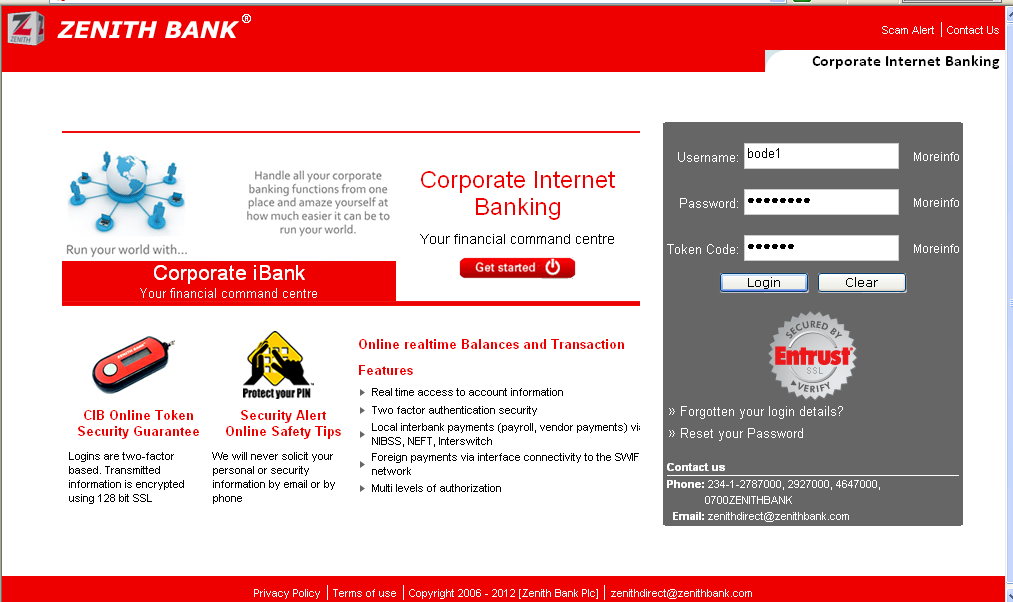
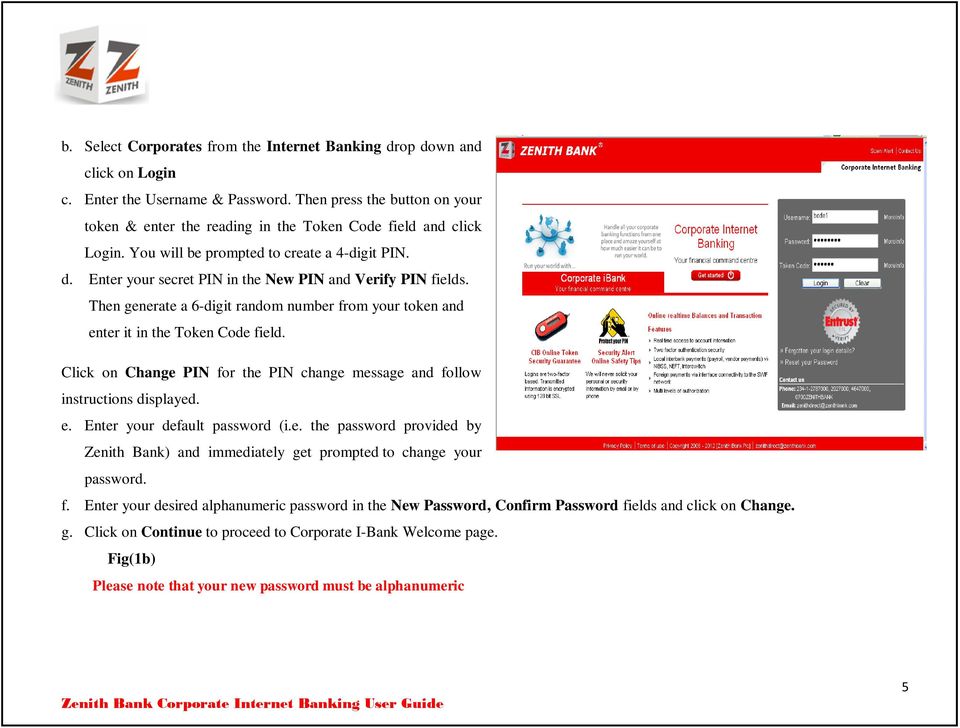
5 b. Select Corporates from the Internet Banking drop down and click on Login c. Enter the Username & Password. Then press the button on your token & enter the reading in the Token Code field and click Login. You will be prompted to create a 4-digit PIN. d. Enter your secret PIN in the New PIN and Verify PIN fields. Then generate a 6-digit random number from your token and enter it in the Token Code field. Click on Change PIN for the PIN change message and follow instructions displayed. e. Enter your default password (i.e. the password provided by Zenith Bank) and immediately get prompted to change your password. f. Enter your desired alphanumeric password in the New Password, Confirm Password fields and click on Change. g. Click on Continue to proceed to Corporate I-Bank Welcome page. Fig(1b) Please note that your new password must be alphanumeric 5

6 Fig (1c) Fig (1d) 6

7 PAYMENT TYPES There are different payment types on Corporate Internet Banking and they each serve a different purpose. These different payment types have been designed to cater for the different situations and circumstances that may arise in the course of business and are categorized according to the beneficiary s banking situation. Find below the four categories of beneficiary on Corporate Internet Banking and their corresponding payment types viz: a. Zenith Bank Beneficiary - Zenith/Beneficiary b. Other Bank Beneficiary - Interbank/Beneficiary - Interswitch/Beneficiary c. Foreign Currency Beneficiary - Foreign/Beneficiary d. Cash Payment Beneficiary - Draft/Issuance The different payment types are listed below. (i) (ii) (iii) (iv) (v) Zenith/Beneficiary This payment type is used when the beneficiary of the payment is a Zenith Bank account holder. Value is transmitted instantly to the beneficiary. Interbank/Beneficiary This payment type is used when the beneficiary is an account holder with a bank other than Zenith Bank. The beneficiary receives value within twenty four hours. Interswitch/Beneficiary This payment type is also for use when paying a beneficiary in a bank other than Zenith Bank. But with this type, the beneficiary receives value instantly. Foreign/Beneficiary When making a foreign currency payment to a beneficiary in a bank other than Zenith Bank, this is the payment type to use. Beneficiary ideally receives value within twenty four hours. Note that when making a foreign currency transfer to a Zenith beneficiary, the payment type to use is Zenith/Beneficiary. Draft/Issuance This payment type is used when making a payment intended to be cashed over the counter rather than paid into an account. The pick-up branch is selected when making the payment and the Beneficiary name box is filled as Cash/Beneficiary Name e.g. Cash/Emeka Tunde Hassan. Cash pick-up for this payment type is only available at Zenith Bank branches and cash is available for pick-up immediately at the specified branch. 7


8 PAYMENTS 2. MAKING SINGLE PAYMENTS: This feature enables you make single payments without needing to first add the beneficiary. However, adding beneficiaries is most useful when you need to pay those beneficiaries repeatedly. a) Log in to CIB and click Payment then select Single Payment. b) Select the Source Account from the dropdown menu. c) Enter Bank Name and Account Number then click Validate Account. The validation should provide the account holder s name. Supply the name yourself if the validation fails. d) Select the Payment Type, fill in Payment Amount, and Payment Reference. If making a foreign payment you will also need to fill in Purpose as well. Fig (2a-e) e) Click Submit then OK to continue. f) Enter your Token Code (combination of PIN and token reading) and click Submit to complete. Fig (2f) 8

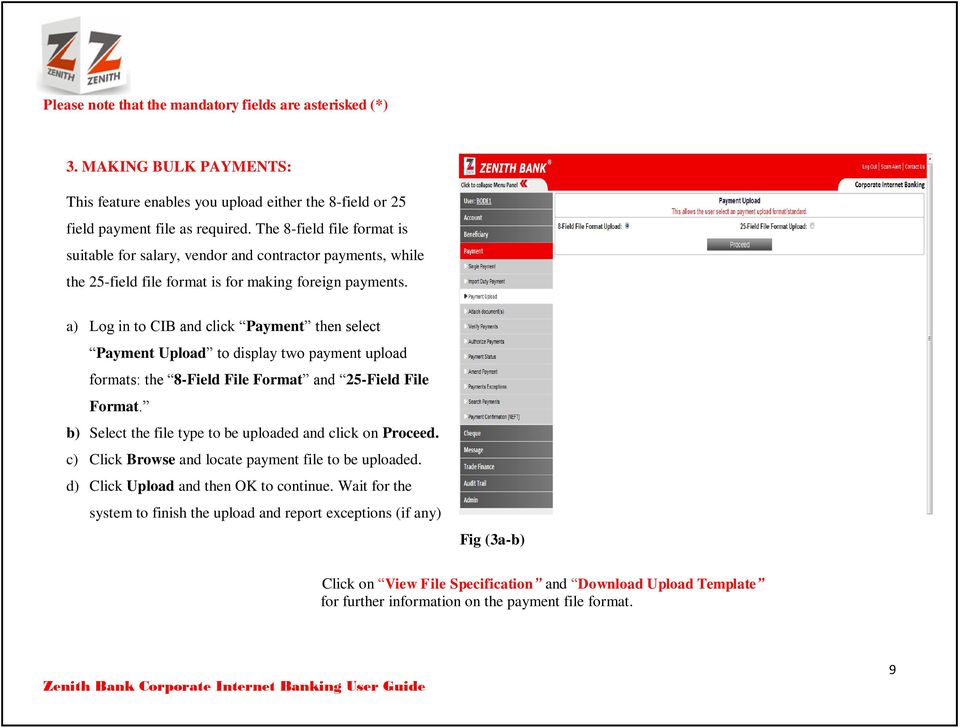
9 Please note that the mandatory fields are asterisked (*) 3. MAKING BULK PAYMENTS: This feature enables you upload either the 8-field or 25 field payment file as required. The 8-field file format is suitable for salary, vendor and contractor payments, while the 25-field file format is for making foreign payments. a) Log in to CIB and click Payment then select Payment Upload to display two payment upload formats: the 8-Field File Format and 25-Field File Format. b) Select the file type to be uploaded and click on Proceed. c) Click Browse and locate payment file to be uploaded. d) Click Upload and then OK to continue. Wait for the system to finish the upload and report exceptions (if any) Fig (3a-b) Click on View File Specification and Download Upload Template for further information on the payment file format. 9

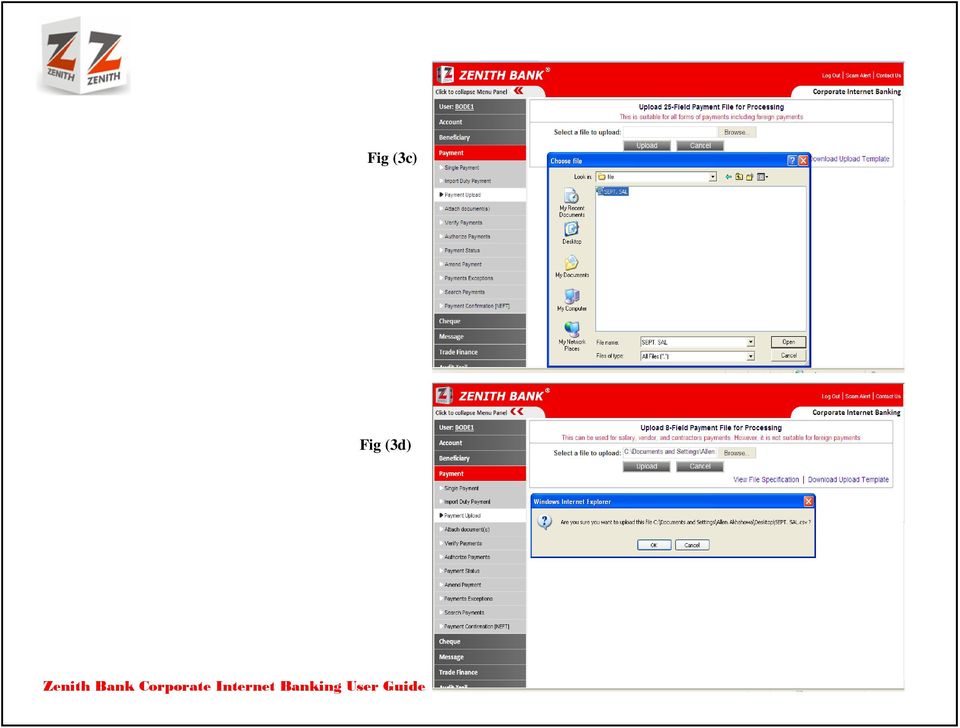
10 Fig (3c) Fig (3d) 10
11 4. MAKING FOREIGN PAYMENTS This feature enables you make foreign currency transfers. When making a foreign currency payment to a beneficiary in a bank other than Zenith Bank, Foreign/Beneficiary is the payment type to use. a) Click on Payment on the menu b) Select Single Payment c) Fill in the fields with the required information d) For Payment Type select Foreign/Beneficiary e) More fields will be populated f) On the Charge Option tick All Charges if you want to bear both the Local Charge (Zenith Bank charges) and the Offshore charges Fig (4a k) g) Or select Local Withdrawal Charge Only if you want to bear only the Zenith Bank charges. h) Fill in the fields with Beneficiary Address and Beneficiary City. i) Fill in the fields for Bank Sort Code/Routing Number and Swift Code. 11
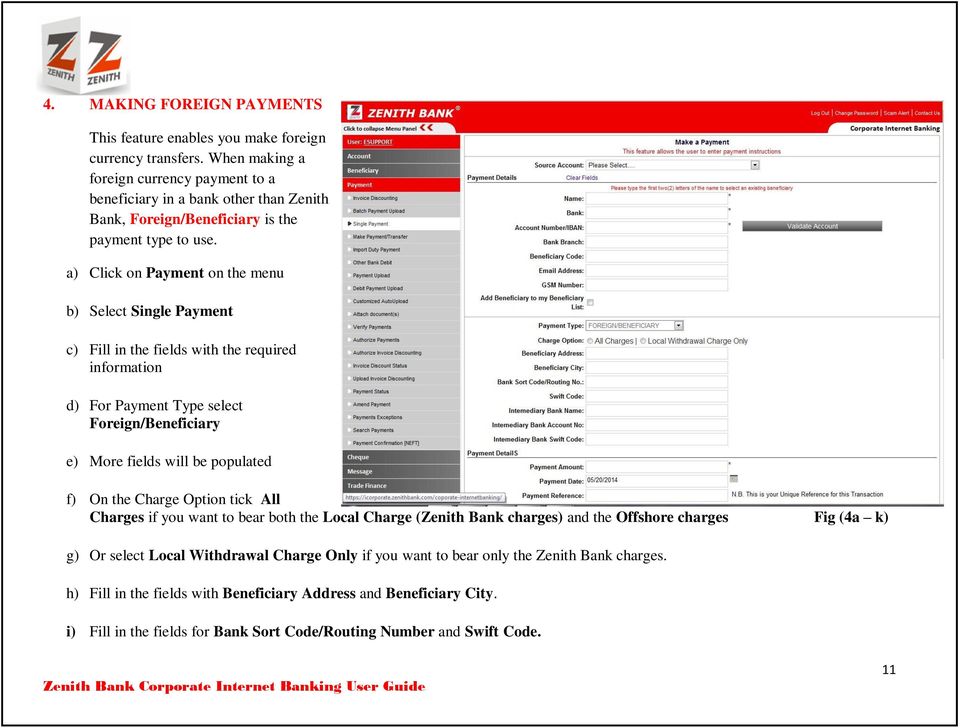
12 j) Intermediary Bank Name, Intermediary Bank Account No and Intermediary Bank Swift Code are optional. k) Fill in the Amount, Payment Due Date and Purpose (Purpose must be descriptive) Note that when making a foreign currency transfer to a Zenith beneficiary, the payment type to use is Zenith/Beneficiary. l) Click on Payment on the menu m) Select Single Payment n) Fill in the fields with the beneficiary information o) For Payment Type select Zenith/Beneficiary p) Fill in the Amount, Payment Due Date and Purpose (Purpose must be descriptive) Fig (4l p) 12

13 5. PAYMENT EXCEPTIONS: With this feature you can view the details of uploaded payment instructions which did not comply with the specified format. a) Select the Batch and the Uploader from the dropdown menus. The default value is all. b) Select the Transaction Date range using the Date Picker. c) Define other parameters (where necessary) d) Click on Download XLS or Search to download the result in Excel or display the result (read-only) respectively. F i Fig (5a-d) 13


14 6. VERIFY/AUTHORIZE PAYMENTS: Fig (6a-b) This feature enables you check payment instructions and approve the payments. Also, the Uploader can use this right to submit payment instructions after attaching documents. a) To select the payments to verify or authorize, click on the check box(es) for the required payment(s) b) Click on Approve Selected Item (s) to authorize the selected payment (s) and click OK to confirm, or c) Click on Approve all Item(s) to authorize all payment on your queue. The pop-up screen shows the list of items to be approved and the total amount. d) Click on Reject Selected Item(s) or Delete Selected Item (s) to perform those actions respectively. Note that you have to fill in the REASON FOR REJECTION box before payment (s) can be rejected. Fig (6c) 14


15 7. PAYMENT STATUS: This feature allows you view the status of each payment. The screen displays various windows namely: a) Payments Awaiting Approval: Payments that are yet to be sent to Zenith Bank for processing. b) Pending Payments: Payments that you have approved but are yet to be processed by Zenith Bank c) Processed Payments: Payments that have been processed by Zenith Bank and your account has been debited d) Failed Payments: Payments that failed as a result of various reasons like insufficient funds the debit account, invalid beneficiary s account number etc. Fig (7a-g) e) Rejected Payments: Payments that were rejected by you with reasons. Please note that rejected payments can be recalled for approval. f) Deleted Payments: Payment(s) deleted by you. These payments are irreversible(i.e. they cannot be recalled for approval) g) All Payments: This queue comprises all the afore-mentioned payments made on the platform by you. 15


16 8. AMEND PAYMENT: Fig (8c) This feature enables an Uploader amend details of a payment that is awaiting approval. a) Click Payment Status to display the list of payments awaiting approval b) Click the Details icon of the payment to be amended which will trigger a pop up c) Click Send Payment for Amendment on the pop up then close Fig (8a-b) d) Click Amend Payment to display the list of payment (s) sent for amendment. e) Locate the payment to be amended and click the Edit icon on the right of the payment. f) Make the necessary corrections and then click Update Payment Details then Close. Fig (8f) 16


17 9. PAYMENT CONFIRMATION (NEFT REPORT) This feature enables you view and print Evidence of NEFT (NIBSS Electronic Funds Transfer) transmission for local payments to other Nigerian Banks. a) Select the Debit Account Number from the Debit Account dropdown b) Define other parameters where necessary c) Click on Search to display the result. F F Fig (9a-c) 17


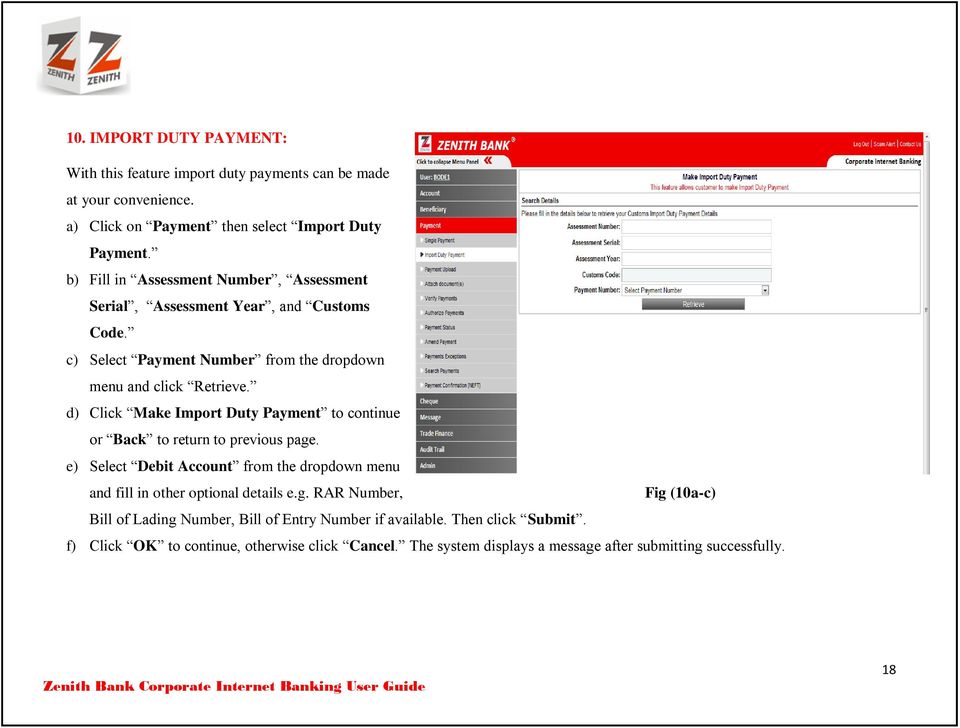
18 10. IMPORT DUTY PAYMENT: With this feature import duty payments can be made at your convenience. a) Click on Payment then select Import Duty Payment. b) Fill in Assessment Number, Assessment Serial, Assessment Year, and Customs Code. c) Select Payment Number from the dropdown menu and click Retrieve. d) Click Make Import Duty Payment to continue or Back to return to previous page. e) Select Debit Account from the dropdown menu and fill in other optional details e.g. RAR Number, Fig (10a-c) Bill of Lading Number, Bill of Entry Number if available. Then click Submit. f) Click OK to continue, otherwise click Cancel. The system displays a message after submitting successfully. 18

19 11. CHEQUECONFIRMATION: This feature allows you confirm cheques that are issued by the company. Please note that every cheque confirmation requires authorization. a) Key in details of the cheque and then submit. Please note that Remark is optional10a b) Click OK to send the cheque confirmation for authorization Fig (11a-b) 19

20 12. BULK CHEQUE CONFIRMATION: This feature allows you upload bulk numbers of cheque details that require confirmation. a) Click on Browse and locate the file to be uploaded b) Click on Upload to upload the cheque confirmation file. Kindly note that the optional field REMARK can be used to state any other means of Identification the beneficiary can show the bank. Fig (12a-b) 20

21 13. AUTHORIZE CHEQUE CONFIRMATION: This feature allows the signatory(s) in a company to authorise cheque confirmation keyed in. a) You can either select specific beneficiary for cheque confirmation or select Approve all to approve. b) The approved cheques confirmed are sent for processing. Fig (13a) Fig (13b) 21
USER MANUAL FOR INTERNET BANKING (IB) SERVICE
 USER MANUAL FOR INTERNET BANKING (IB) SERVICE Content: Introduction and General questions. Accessing and using Internet Banking. 1. Log In, Log Out and Printing screen/transaction information 2. Inquiries
Updated 08/2015. Wire Transfer User Guide
 Updated 08/2015 Wire Transfer User Guide Wire Transfers The Wire section provides you with the ability to create one-time wires or set up template-based wires for ongoing use. Wiring Funds The tasks you
Cathay Business Online Banking
 Cathay Business Online Banking A QUICK GUIDE TO CATHAY BUSINESS ONLINE BANKING R6119 CATHAY 8_5x11 Cover V2.indd 1 6/11/13 5:50 PM Welcome Welcome to Cathay Business Online Banking (formerly known as Cathay
Wealth and Investment Management Intermediaries. Online Banking. Bulk Payments User guide
 Wealth and Investment Management Intermediaries Online Banking Bulk Payments User guide Contents Contents 1. Introduction 3 2. Log in steps 4 3. Make BACS payments 5 3.1 Select BACS from account 6 3.2
Wires. z Go to https://www.bellbanks.com z From the Secure login to drop-down, select Business Online Banking z Enter Username and Password
 Wires This tab allows you to perform all the necessary functions to create and submit domestic and international wires online. For companies utilizing the online wire function, all business online banking
business online plus payments user guide
 business online plus payments user guide 1 payments What s included pg 4 pg 5-6 pg 7 pg 8-13 pg 14 pg 15 pg 16 pg 17 pg 18 pg 19 pg 20 pg 21 pg 22 pg 23 Payments : Home menu Payments : Transaction types
USER GUIDE: INTERNET BANKING. Version 2.0
 USER GUIDE: INTERNET BANKING Version 2.0 About Internet Banking (IBank) Guaranty Trust Bank Internet Banking, is a secure online system designed to make our banking service readily available to our customers.
User Guide for Payroll Service (APS+)
 User Guide for Payroll Service (APS+) Sept 2015 No part of this document may be reproduced, stored in a retrieval system of transmitted in any form or by any means, electronic, mechanical, chemical, photocopy,
MPCB E-Banking CORPORATE USER MANUAL
 MPCB E-Banking CORPORATE USER MANUAL - 1 - LOGIN TO MPCB E-BANKING o How do I access to MPCB E-Banking? Connect to our MPCB Website: www.mpcb.mu Upon click on Corporate Sign-in, MPCB E-Banking login page
Business Internet Banking System Customers User Guide
 Business Internet Banking System Customers User Guide Version 1.1 Table of Contents Table of Contents... 2 Introduction... 3 Using Business Internet Banking... 4 Accessing the Website... 4 Logging onto
ANZ Internet Banking for Business. Customer User Guide 03.13
 ANZ Internet Banking for Business Customer User Guide 03.13 Contents Viewing your accounts and activity 3 Logging on to ANZ Internet Banking for Business 3 Viewing account activity 3 Downloading account
Quick Reference Guide
 Quick Reference Guide Business Internet Banking COMMERCIAL BANKING 3 Summary of Business Internet Banking functionalities Utilities Authorisation module Access and security controls Cash Management Account
Introduction to Client Online. Factoring Guide
 Introduction to Client Online Factoring Guide Contents Introduction 3 Preparing for Go live 3 If you have any questions 4 Logging In 5 Welcome Screen 6 Navigation 7 Navigation continued 8 Viewing Your
Wire Transfer. itreasury Module User Guide. It s time to expect more. Regions Bank 032013. Member FDIC
 Wire Transfer itreasury Module User Guide It s time to expect more. Regions Bank 032013 Member FDIC 1 Welcome to Regions itreasury Welcome to Regions itreasury online banking. The itreasury suite of services
Business Online Banking ACH Reference Guide
 Business Online Banking ACH Reference Guide Creating an ACH Batch Select ACH Payments on the left-hand side of the screen. On the Database List screen, locate the Database to be processed, and place a
How To Create An Overseas Telegraphic Transfer
 VELOCITY@OCBC 2.0 BUSINESS INTERNET BANKING USER GUIDE 1 of 131 1 Contents 1. Log in to Velocity@ocbc 2.0 4 2. View Trade Finance portfolio 12 3. View and download a bank statement 15 4. Create a Letter
Creating international money transfers
 Creating international money transfers About this guide This guide takes you through the process of creating international money transfers (IMT) through CommBiz. Important information If you are making
NAB Trade Finance Online Customer User Guide
 NAB Trade Finance Online Customer User Guide Contents Introduction Scope... 2 How to Use This Guide... 2 Users of NAB Trade Finance Online... 3 Resources... 3 Your Profile... 4 Introduction... 4 Roles...
MyState Business Internet Banking User Guide
 MyState Business Internet Banking User Guide 1 Welcome to MyState Business Internet Banking The following links and information will help you make the most of your MyState Business Internet Banking. Contents
New Version Internet Banking Frequently Asked Questions (FAQ)
 New Version Internet Banking Frequently Asked Questions (FAQ) How to apply for Internet banking? Download the Internet Banking application from our website www.syndicatebank.in and submit it to your branch.
e-ambiz User Guide N A V I G A T I O N INTRODUCTION Page 1 from 35
 INTRODUCTION Page 1 from 35 e-ambiz is your Online Banking facility that keeps you up to date on your company s account status. It also gives you the control you need to manage your day-to-day transactions
Online Statements. About this guide. Important information
 Online Statements About this guide This guide shows you how to: View online statements, including CommBiz Activity Statements (Billing summaries) and online statements for Transaction Accounts, Credit
account multiple solutions
 Start Guide Salary Payments for Sage Pastel Payroll & HR 1 Our easy to use guide will get you up and running in no time! Sage Pay allows you to seamlessly transfer your salary payments from Sage Pastel
Deutsche Bank Global Transaction Banking. Internet Bankieren. Entering Payments and Collections. www.deutschebank.nl
 Deutsche Bank Global Transaction Banking Internet Bankieren Entering Payments and Collections www.deutschebank.nl Internet Bankieren Entering Payments and Collections 2 Entering payments and collections
Enhanced Call Processor (ECP) User Guide
 Enhanced Call Processor (ECP) User Guide Overview The Enhanced Call Processing Mailbox (ECP), also referred to as Callers Menu, allows callers to route themselves to specific persons, departments, mailboxes
End User s Guide. Electronic Filing
 End User s Guide Electronic Filing Rev: August 2014 This end user s guide has been skillfully created by smartech.net through meetings with the Clerk of the Circuit Court of Cook County and Online Information
How to Add Users 1. 2.
 Administrator Guide Contents How to Add Users... 2 How to Delete a User... 9 How to Create Sub-groups... 12 How to Edit the Email Sent Out to New Users... 14 How to Edit and Add a Logo to Your Group's
BUSINESS 24 Banking BCR. User manual
 BUSINESS 24 Banking BCR User manual Contents 1. Description of the service 2. Definitions 3. The TOKEN DIGIPASS device 3.1. PIN code 3.2. OTP code 3.3. DS code 3.4. Synchronization of the TOKEN device
Business Internet Banking
 Business Internet Banking user guide COMMERCIAL BANKING Business Internet Banking / USER GUIDE 1 Dear Customer, Thank you for choosing Business Internet Banking (BIB) from HSBC to conduct your business
BANKOH BUSINESS CONNECTIONS WIRE TRANSFER GUIDE
 BANKOH BUSINESS CONNECTIONS WIRE TRANSFER GUIDE Revision 2/2013 1 of 35 Contents GENERAL INFORMATION... 3 Wire Transfers... 3 Types of Wires... 3 Wire Templates... 3 Bankoh Business Connections Wire Cut-off
Schools CPD Online General User Guide Contents
 Schools CPD Online General User Guide Contents New user?...2 Access the Site...6 Managing your account in My CPD...8 Searching for events...14 Making a Booking on an Event...20 Tracking events you are
Contents. Park Sterling Bank 2
 Contents View Accounts... 4 Account Summary... 4 Details and Transactions... 5 Download Transactions... 6 Download Types... 7 Transfer Funds... 8 Making a Loan Payment... 9 Pending Transfers and History...
HBZefx Online Trading Guide
 HBZefx Online Trading Guide This document outlines standardized operational procedures intended to be used globally across Habib Bank AG Zurich, its Subsidiaries and Affiliates. However, due to varying
10 Step Guide to Getting Started with BOI Business On Line. Business On Line. 10 Step Guide to Getting Started. A BOL Setup Guide. v.
 Business On Line 10 Step Guide to Getting Started A BOL Setup Guide v.11/13 This Document is published by Bank of Ireland, and both it, and its contents, are the property of Bank of Ireland. Page 1 of
Transactions User Guide (Internet)
 Version Oct 2011 Pg 1 of 256 Table of Contents Purpose...5 1. Transaction Flow Overview...5 2. Bulk Import...6 2.1. Import...6 2.2. Batch Instructions...8 3. Create Transaction From Template...10 4. Copy
Straight2Bank Payments Initiation User Guide
 Straight2Bank Payments Initiation User Guide Last Updated: June 2014 Table of Contents PURPOSE... 4 1. OVERVIEW OF PAYMENT SERVICES ON STRAIGHT2BANK... 5 2. MAKING PAYMENTS ON STRAIGHT2BANK... 7 3. USING
CalREDIE Browser Requirements
 CalREDIE Browser Requirements Table of Contents Section 1: Browser Settings... 2 Section 2: Windows Requirements... 11 Section 3: Troubleshooting... 12 1 Section 1: Browser Settings The following browser
Asgard Employer Online Transact (EOL Transact) User guide for employers
 Asgard Employer Online Transact (EOL Transact) User guide for employers What s inside 3 Introduction 4 Welcome to Employer Online Transact 5 How EOL Transact works 6 Logging onto EOL Transact 8 Internet
Welcome to FX Express On MB Web Express
 Welcome to FX Express On MB Web Express Please follow this reference guide to help you navigate through FX Express. You will find helpful information for the following tasks: 1. Setup 2. Creating FX trades
10 Step Guide to Getting Started with BOI Business On Line. Business On Line. 10 Step Guide to Getting Started. A BOL Setup Guide. ROI Only. v.
 Business On Line 10 Step Guide to Getting Started A BOL Setup Guide ROI Only v.01/14 This Document is published by Bank of Ireland, and both it, and its contents, are the property of Bank of Ireland. Page
Kotak Mahindra Corporate NetBanking. User Guide
 Kotak Mahindra Corporate NetBanking User Guide This internal document has been created for the benefit of Kotak Mahindra Corporate NetBanking Users, to familiarise them with the features. The information
BT Online Employer Easy User Guide. November 2010
 BT Online Employer Easy User Guide November 2010 Contents I Introduction 3 Getting started 3 Register for BTOE 3 Login to BTOE 3 If you forget your password 4 Where to get help in BTOE? 4 Manage your BT
account multiple solutions
 Quick Start Guide 1 Our easy to use guide will get you up and running in no time! The guide will assist you with: Generating your Sage Pay login Navigation Creating contacts Creating system users Setting
USER GUIDE 2014 AGILE NETWORK, LLC ALL RIGHTS RESERVED
 Customer Portal USER GUIDE 2014 AGILE NETWORK, LLC ALL RIGHTS RESERVED Customer Portal TABLE OF CONTENTS Customer Support Process 3 Logging-in to Your Account... 4 Navigating the Portal. 5 Maintaining
RITS Training. Accessing RITS Password Administration Certificate Administration
 RITS Training Accessing RITS Password Administration Certificate Administration Contents Accessing RITS Setting up your PC Network and internet access to RITS Connectivity testing Security features Logging
UniFLOW Print and Copy Instructions for Students
 UniFLOW Print and Copy Instructions for Students Getting Started, Setting up your PIN Page 2 Purchasing Credits for printing and Photocopying Page 4 How to use the MFD Page 8 Photocopying Page 10 Printing
Business Online Banking Quick Users Guide
 Business Online Banking Quick Users Guide Business Online Banking Quick Users Guide Table of Contents Overview 2 First Time Login 2 Security 4 Contact Points 4 Registering your Browser / Computer 5 Adding,
STEP BY STEP GUIDE TO USING LARGE BUSINESS TOKENS. Large Token (Vasco DP250) Activation on Account. Activate Token Once Obtained
 a refreshing attitude to banking STEP BY STEP GUIDE TO USING LARGE BUSINESS TOKENS Large Token (Vasco DP250) Activation on Account Activate Token Once Obtained 1. On token press the arrow key. ( ) 2. Enter
How To Connect To Ecs.Org From A Pc Or Mac Or Ipad (For A Laptop) With A Network Connection (For Mac) With The Ipad Or Ipa (For Pc Or Ipac) With An Ipa Or Ip
 1) Getting a Windows username and password... 2 2) Download VPN Client... 4 3) Installing VPN... 11 4) Configure VPN... 18 5) Firewall... 20 6) Connecting using VPN... 20 7) Setting up a default connection...
ACH Manager User Guide 2015
 Login to Business Online Banking Choose Business Online Banking > Enter the Access ID > Unlock the Token > Enter OTP + PIN If you experience any login issues, refer to the procedures in the Security Token
Core Training Quick Reference Guide Version 2.0
 Core Training Quick Reference Guide Version 2.0 Page 1 of 34 Contents Changes from Previous Version... 3 Introduction... 5 Guidance for Professional Users based in Colleges/ Schools/ Departments... 5 Logging
Novo Nordisk Secure File Transfer User Guide
 hehe Novo Nordisk Secure File Transfer User Guide Table of Contents 1. Purpose of this document... 2 2. Getting Access... 2 3. Installing the Upload/Download Wizard (first time only)... 2 4. Uploading
account multiple solutions
 Start Guide Salary Payments for Sage VIP Payroll & HR 1 Our easy to use guide will get you up and running in no time! Sage Pay allows you to seamlessly transfer your salary payments from Sage VIP Payroll
Patient Portal. Accessing the Patient Portal. How to Begin: Enter first and last name, date of birth and create a user name and password.
 Patient Portal How to Begin: If you provided an email address when you registered as a patient, you can expect an email after your discharge that will be sent directly from CPSI, our Electronic Health
Submitting a Claim in New MIPS Sponsor of Day Care Homes (more detailed instructions found in back of document)
 Submitting a Claim in New MIPS Sponsor of Day Care Homes (more detailed instructions found in back of document) Log into MIPS (using same Authorization Number and Password as before). **Be sure to take
HSBC. Business Internet Banking. User Guide. Issued by HSBC Bank (Vietnam) Ltd.
 1 HSBC Business Internet Banking User Guide Issued by HSBC Bank (Vietnam) Ltd. Contents 1. INTRODUCTION 2. OVERVIEW 2.1. Users 2.2. Administration Control 3. HOW TO START 3.1. Application 3.2. Registration
TRANS-TASMAN ANZ TRANSACTIVE AUSTRALIA AND NEW ZEALAND 01.2012. Simplifying and connecting your transaction banking across Australia and New Zealand
 TRANS-TASMAN ANZ TRANSACTIVE User GUIDE AUSTRALIA AND NEW ZEALAND 01.2012 Simplifying and connecting your transaction banking across Australia and New Zealand contents Notes...4 Introduction to the ANZ
REPORTING CENTRAL EXTERNAL USER GUIDE FEDERAL RESERVE SYSTEM
 REPORTING CENTRAL EXTERNAL USER GUIDE FEDERAL RESERVE SYSTEM February 2016 Version 3.1 Table of Contents I. Overview.... Page 3 II. Accessing and Logging Into Reporting Central..... Pages 4-5 III. Reporting
MySagePay. User Manual. Page 1 of 48
 MySagePay User Manual Page 1 of 48 Contents About this guide... 4 Getting started... 5 Online help... 5 Accessing MySagePay... 5 Supported browsers... 5 The Administrator account... 5 Creating user accounts...
Our website Internet Banking
 Our website Internet Banking A safe and efficient way of accessing your People s Choice Credit Union accounts, paying bills and transferring money. 1 Contents 1. Security, system requirements and cookies...3
Internet Banking User Guide
 Internet Banking User Guide Contents Introduction... 1 Verification Methods... 1 General User Guide... 1 Login... 1 Change Password... 2 Reissue password... 2 Digital Signature Manual... 2 Install BKAV
Supply Chain Finance WinFinance
 Supply Chain Finance WinFinance Customer User Guide Westpac Banking Corporation 2009 This document is copyright protected. Apart from any fair dealing for the purpose of private study, research criticism
Document Services Online Customer Guide
 Document Services Online Customer Guide Logging in... 3 Registering an Account... 3 Navigating DSO... 4 Basic Orders... 5 Getting Started... 5 Attaching Files & Print Options... 7 Advanced Print Options
Dues & Billing. Dues & Billing. I. Dues and Billing Overview. Welcome to Dues and Billing!
 Dues & Billing I. Dues and Billing Overview Welcome to Dues and Billing! This feature allows you to create batches of invoices and specify members as recipients. The current functionality allows you to
Class Climate Online Evaluation Instructions
 I: GETTING STARTED II: IMPORTING MULTIPLE INSTRUCTORS AND COURSES III: CREATING and/or EDITING INDIVIDUAL USERS IV: ADDING and/or EDITING INDIVIDUAL COURSES V: IMPORTING E-MAIL ADDRESSES (BULK) VI: ADDING
1.0 Registration on EBankig 8. 0.0. Registration on EBankig 7
 1 Contents: 1.0. Registration on EBankig 5 1.0. Registration on EBankig 6 0.0. Registration on EBankig 7 1.0 Registration on EBankig 8 1.0. Login on Ebanking.9 2.0. Login on Ebanking......10 2.0. Login
Your Archiving Service
 It s as simple as 1, 2, 3 This email archiving setup guide provides you with easy to follow instructions on how to setup your new archiving service as well as how to create archiving users and assign archiving
Blackbaud FundWare Accounts Receivable Guide VOLUME 1 SETTING UP ACCOUNTS RECEIVABLE
 Blackbaud FundWare Accounts Receivable Guide VOLUME 1 SETTING UP ACCOUNTS RECEIVABLE VERSION 7.50, JULY 2008 Blackbaud FundWare Accounts Receivable Guide Volume 1 USER GUIDE HISTORY Date Changes June 2000
Cathay Business Online Banking. User Guide. Version 1.0
 Cathay Business Online Banking User Guide Version 1.0 07/2013 Disclaimer: The information and materials in these pages, including text, graphics, links, or other items are provided as is and available.
Straight2Bank Invoice Finance
 Straight2Bank Invoice Finance Client User Guide Import & Export Invoice Finance Version April 2015 Overview This guide contains information which will help users navigate and familiarise with the functions
Internet Banking Frequently Asked Questions (FAQs) Version 1.0
 Internet Banking Frequently Asked Questions (FAQs) Version 1.0 1 Table of Contents 1. What is SyndicateBank Internet Banking?... 4 2. What are the Pre-requisites for using Internet Banking facility?...
Swedbank Business Internet Banking User Manual
 Swedbank Business Internet Banking User Manual Content Introduction 1. HOW TO START 1.1 USING INTERNET BANKING 1.2 TERMINATING INTERNET BANKING SESSION 2. INTERNET BANKING SECURITY 2.1 PASSWORD SYSTEM
User manual for the Sberbank Online Banking application
 User manual for the Sberbank Online Banking application Manual version: 1.12 June 2015. Sberbank d.d. Page 1 TABLE OF CONTENTS 1 INTRODUCTION... 3 2 FIRST LOGIN... 4 3 USAGE OF THE SBERBANK ONLINE BANKING
SQ TRADING STATION User Guide & Installation
 SQ TRADING STATION User Guide & Installation Table of content 1. Downloading the SQ Trading Station 2 2. Launching the SQ Trading Station 3 3. The SQ Trading Station User Interface 4 4. How to place a
Cash Management. Getting Started Guide
 Cash Management Getting Started Guide Table of Contents Accessing Cash Management Online... 3 Multifactor Authentication... 3 Navigation... 5 Administration... 5 Manage Users... 6 User Activity Reports...
PICO Portal Integrado del Comerciante (Integrated Merchant Portal) User Manual
 PICO Portal Integrado del Comerciante (Integrated Merchant Portal) User Manual August, 2015 Table of Contents PICO Home Page... 4 New User... 5 Create User steps... 6 User log in... 9 User name recovery...
EFT Processing. (Automatic Electronic Payment Processing) Section Contents
 EFT Processing Accounts Receivable (Automatic Electronic Payment Processing) Section Contents EFT Processing Concepts & Terminology Related Setup Tables User Group Security Options How To Setup customer
Internet Banking - FAQ -
 Internet Banking - FAQ - About Hong Leong Connect services Q1. What is Hong Leong Connect? A1. Hong Leong Connect brings you a host of digital banking services offered by Hong Leong Bank (Cambodia) Plc.
Getting Started Guide - Desktop
 Getting Started Guide - Desktop 1. Sign Up PERSONAL OPENTEXT CORE ACCOUNT To get started sharing and collaborating on your files from a Mac or Windows browser, you ll need to sign up for your OpenText
FIRST HOPE BANK BUSINESS ONLINE BANKING DIRECT CONNECT WITH QUICKBOOKS
 FIRST HOPE BANK BUSINESS ONLINE BANKING DIRECT CONNECT WITH QUICKBOOKS Turning Hope Into Reality 2 Contents Set Up: Configuring Quickbooks for Online Services... 4 Set Up: Adding Bill Payments to an Existing
Rocky Mountain Health Plans Provider Documentation
 Rocky Mountain Health Plans Provider Documentation 1.1 Logging In Once you have obtained a Username and Password, go to http://providers.rmhp.org and click the Log In link. At the login page, enter your
Table of Contents. 2 Copyright 2009 Bank of American Fork. All Rights Reserved.
 Table of Contents Logging In... 3 Changing Your Password... 4 Cash User Login Screen... 5 Navigation... 6 Account Access Page... 7 Account Activity Options... 8 Transactions... 9 Download... 10 Statements...
Oracle FLEXCUBE Direct Banking Release 12.0.1.0.0 Retail Transfer and Payments User Manual. Part No. E52306-01
 Oracle FLEXCUBE Direct Banking Release 12.0.1.0.0 Retail Transfer and Payments User Manual Part No. E52306-01 Retail Transfer and Payments User Manual Table of Contents 1. Transaction Host Integration
Westpac Live Quick Reference Guides
 Westpac Live Quick Reference Guides Accounts Overview How do I conduct a transaction search? How do I generate an online service fees report? How do I look up a merchant for a transaction? How do I dispute
WildBlue Internet Services. Subscriber AdminTool User Guide
 WildBlue Internet Services Subscriber AdminTool User Guide August 2004 How to Use the AdminTool 2 1. Introduction to this Guide 3 2. Login to the AdminTool 3 Return to login screen if inactive for two
Core Portal Claimant User Guide. Core Expense
 Core Portal Claimant User Guide Core Expense 1 1 CONTENTS 2 Logging onto the system... 4 3 Payment... 5 3.1.1 Payslips... 6 3.1.2 P60s... 8 3.1.3 PRD60s... 10 3.1.4 Important Dates... 11 4 Entering and
Oracle FLEXCUBE Security Management System User Manual Release 5.0.2.0.0 Part No E52129-01
 Oracle FLEXCUBE Security Management System User Manual Release 5.0.2.0.0 Part No E52129-01 Security Management System User Manual Table of Contents (index) 1. SMS... 3 1.1. 7011 - Event Log Inquiry...
Our website Internet Banking
 Our website Internet Banking A safe and efficient way of accessing your People s Choice Credit Union accounts, paying bills and transferring money. 1 Contents 1. Security, system requirements and cookies...3
Telstra Wholesale Digital Certificates
 Telstra Wholesale Digital Certificates LinxOnline User Guide Issue Number 2, 31 July 2007 Version 2, 31 July 2007 TW Digital Certificate Management User Guide Copyright 2007, Telstra Corporation Limited.
Guide to setting up IRIS AE Suite TM & IRIS OpenSpace online
 18/02/2014 Guide to setting up IRIS AE Suite TM & IRIS OpenSpace online IRIS Payroll 01/09/2015 Contents What is IRIS OpenEnrol?... 4 What will IRIS OpenEnrol do for me?... 4 How does IRIS OpenEnrol work?...
Remote Storage Area (RSA) Basics
 Remote Storage Area (RSA) Basics Table of Contents Remote Storage Area Overview... 3 What is Remote Storage Area?... 3 Who has access to RSA?... 3 How much space is available?... 3 Basic RSA Use... 4 How
DocuSign Connect for Salesforce Guide
 Information Guide 1 DocuSign Connect for Salesforce Guide 1 Copyright 2003-2013 DocuSign, Inc. All rights reserved. For information about DocuSign trademarks, copyrights and patents refer to the DocuSign
International payments in Fiji
 International payments in Fiji Follow this guide to create a payment to a beneficiary who has an account outside of Fiji. Please note, payments from accounts in Fiji cannot include a mixture of domestic
peoplesbancorp.com 800.374.6123 Option 6 Business Online Banking User Guide
 peoplesbancorp.com 800.374.6123 Option 6 Business Online Banking User Guide BUSINESS ONLINE BANKING USER GUIDEQuickBooks Windows 2009-2011 OVERVIEW The information in this User Guide will concentrate on
User Guide Manufacturer
 User Guide Manufacturer Page 1 of 18 Document control Change control table: Version Description Release date Reason for change Reviewer 2.6 Manufacturer User Guide 2.6.1 Manufacturer User Guide 2.7 Manufacturer
How To Import Credit Card Charges Into Concur
 Importing Credit Card Expenses into Concur For faster expense reporting and less manual data entry, try importing your credit card charges into Concur. Step 1: Download Credit Card Data Log onto your credit
Eastern Bank TreasuryConnect Money Transfer User Manual
 Eastern Bank TreasuryConnect Money Transfer User Manual This user manual provides instructions for setting up new users and accessing services found within the Money Trans Admin group and the Money Transfer
Business Manager Company Administrator s Guide Peoples Bank Customer Support 800.584.8859
 Peoples Bank Business Manager Company Administrator s Guide Peoples Bank Customer Support 800.584.8859 Revised 08/2012 Table of Contents About Business Manager... 4 Overview... 4 Access Business Manager...
Mojebanka. First steps with Mojebanka service
 Mojebanka First steps with Mojebanka service CONTENTS: What Mojebanka offers to you 3 Login 4 How to display transaction history 5 Sending a payment 5 Multiple authorizations of payment orders 7 How to