
Quick Start Guide for Optus Wireless Voice Box
|
|
|
- Caren Wright
- 9 years ago
- Views:
Transcription
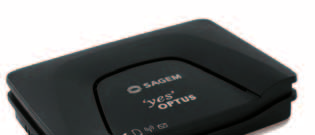
1 Quick Start Guide for Optus Wireless Voice Box
2 Thank you for choosing Optus Wireless Telephony This guide is here to help you set up and use your Optus Wireless Telephony service and Voice Box device. It s important to read through the Security and Usage sections. As an Optus Wireless Telephony customer, you can enjoy a range of Optus services, including Call Waiting, Call Divert (All Calls), Caller ID, Call Barring (Arranged via Customer Service) and Voic . This pack includes: Optus Voice Box (Sagem RL302) Power adaptor Quick Start Guide About the Optus Voice Box device The Voice Box device is a stand-alone unit and does not need to be plugged into your telephone wall socket. Voice Box device 1. SIM Card Slot 2. Power Supply 3. Phone Input (RJ11 port) 4. Phone Handset indicator 5. SIM indicator 6. Antenna indicator 7. Voic
3 Voice Box lights what do they mean? Phone Handset SIM Antenna Voic Light Is? OFF Power Off The SIM Card is missing Searching for the network No message ON Blinking Power On Slow: Handset is in use Fast: Unconditional Call Forwarding activated The SIM Card is OK N/A N/A Strong network reception Weak network reception N/A New Message Important Information The Voice Box does not have a battery backup and will not operate in the event of a mains power failure and in such event you will not be able to use the service to make or receive calls, including for example, to emergency services. This service may not be suitable for you if: You require disability services; You have a back to base home alarm system; or You require an uninterrupted phone line. It is recommended that you purchase an uninterruptible power supply (battery backup) if you are relying on your service to be unaffected by a power failure. The Optus Wireless Telephony service does not allow you to preselect another long distance service provider (for national, international and calls to mobiles). Customer Service Guarantee does not apply to the Optus Wireless Telephony service, as it does not apply to services using a mobile network. 3
4 Getting Started Set up Step 1: Activation If you receive your SIM card via courier, call to activate your service. Our lines are open: Monday-Tuesday and Thursday-Friday: 9am to 5.30pm Wednesday: 10am to 5.30pm Step 2: Insert the SIM card! Caution: When inserting or removing the SIM card, you must disconnect the power adaptor from the device. Insert the Optus SIM card into the SIM card slot with the golden contact of the SIM card facing downwards. Optus supplied SIM card
5 Step 3: Placement For best signal strength, we recommend you place your Voice Box and telephone in a location within your premises that is close to a window. The Voice Box can sit in a horizontal position or be mounted on the wall. The Antenna light signal on the front of the Voice Box will stay constant when the reception is good.! Caution: Optus recommends that you place all other electrical devices at least one metre away from the Voice Box to avoid electrical interference. Step 4: Connect the Power Adaptor and Phone Handset! Caution: Use only the power adaptor supplied to prevent damage to your device. 1. Plug the power adaptor cable into the power supply at the back of the Voice Box. 2. Plug your phone handset or cradle directly into the phone input at the back of the Voice Box. 3. Plug the power adapter into the power point.! Note: To find out what your local number is, dial A voice recording will read out your number. 5
6 Using the service Making Calls To make a call: 1. Ensure your Voice Box is set up as per the Getting Started section. 2. When you hear the dial tone, dial the number you wish to call. 3. After you have dialled the number, you will experience a slight delay before you hear the ringing tone; this is normal for this type of service. To reduce this delay, press # after you have dialled the number. 4. The call disconnects as soon as you put the receiver down. Using Voic With our Voic service, you can check your messages while you re at your premises or out and about. Setting up Voic 1. Optus Voic is already set up on your service. 2. You can personalise your Voic by dialling *96# and following the prompts. 3. To deactivate Optus Voic , lift the handset and dial #22#. 4. To reactivate Optus Voic , lift the handset and dial *77*321# or for other Voic options please refer to the instructions in the Quick Reference table. Retrieving Voic 1. If you have received a Voic message, you will hear a stutter dial tone when you lift the handset. 2. To listen to your new message, dial *96# and follow the prompts. Alternatively, if you have an Optus handset or compatible phone with a Voic button, press the Voic button followed by the # key. Retrieving Voic when you re away from home 1. Dial from any phone. 2. Enter your Voic number (your phone number, including area code) and press #. e.g. press XXXX#.
7 3. Enter your Voic PIN and press #. This is the PIN number you created during your Voic setup. Deleting, replaying and saving messages Once you have heard each message, you will be given these options: To delete, press 3. To replay, press 7. To save, press 5. Call Waiting Call Waiting lets you know if someone is calling while you re on another call. You can put your first call on hold, take the second call, and switch back again. 1. If you are on a call and another person tries to call you, you will hear two beeps in the background. 2. To pick up the second call press the Recall button. Note: The RECALL button may be labelled with R, F or FLASH depending on your handset. For Optus handsets or compatible handsets with a Call Waiting button, the Call Waiting button can be used instead of RECALL. Call Forwarding 1. To activate Call Forward lift the handset and dial *78* followed by the destination phone number including the area code. You will hear a confirmation tone if this was successful. You will also hear a different dial tone when this feature is active. 2. To deactivate Call Forward, simply lift the handset and dial #22# and then hang up. Note this will also cancel Call Forwarding on No Reply to Voic . To turn this feature on dial *77*321#. 7
8 Quick Reference Table - Call Feature Codes for the Voice Box Call Features Operation using handset 1 Call Hold (single party) ^ Press R key, Hold or re-activate call 2 Call Waiting activate Dial *43# to activate 3 Call Waiting de-activate Dial #43# to de-activate 4 Reject a Call Waiting ^ Press R followed by 0 key when call waiting beeps are heard 5 Accept a Call Waiting ^ Press R key when call waiting beeps are heard 6 Alternate between held and active call ^ Press R key 7 End Active Call ^ 8 Call Forwarding Unconditional 9 Call Forwarding on Busy 10 Call Forwarding on No Reply Press R followed by 0 key when call waiting beeps are heard Dial *78* followed by a destination phone number including area code # confirmation tone Dial *76* followed by a destination phone number including area code # confirmation tone Dial *77* followed by a destination phone number including area code then # confirmation tone 11 Call Forwarding Unconditional to Voic Dial *78* followed by 321# confirmation tone 12 Call Forwarding on Busy to Voic Dial *76* followed by 321# confirmation tone 13 Call Forwarding on No Reply to Voic Dial *77* followed by 321# confirmation tone 14 De-Activate all Call Forward Dial #22# confirmation tone 15 Voic access Dial *96# 16 Caller ID block per call 17 Caller ID send per call Dial 1831 followed by destination phone number including area code then # Dial 1832 followed by destination phone number including area code then # ^Note: You cannot use the Call Waiting feature if your handset does not have a RECALL button. The RECALL button may be labelled with R, F or FLASH. For Optus handsets or compatible handsets with a Call Waiting button, the Call Waiting button can be used instead of RECALL.
9 Handy Hints The Voice Box is a stand-alone unit and does not need to be plugged into your telephone wall socket. The Voice Box is compatible with cordless phones. In order to connect multiple handsets (up to 3) on the one service number you can purchase an RJ11 triple adaptor from most electronic supplies retailers. Where you have connected multiple handsets: If you receive a call and want to use another phone in your premises, leave the first phone off the hook until you have picked up the second phone. Troubleshooting Problem Possible Cause How to solve it Cannot make a call Cannot receive a call Network Coverage Power Failure Voice Box is not set up completely Network Coverage Call forward unconditional is active Power Failure Voice Box is not set up completely Check the antenna light signal, on the front of the Voice Box, to see if it is blinking. If so, move the Voice Box to a new position to get a constant light signal. The closer to the window the better. In the event of a power failure you will not be able to make a call. Check the Voice Box is plugged into the power socket on the wall and that your phone is plugged into the Voice Box. Check the antenna light signal, on the front of the Voice Box, to see if it is blinking. If so, move the Voice Box to a new position to get a constant light signal. The closer to the window the better. Check if the phone handset light signal is blinking on the front of the Voice Box. If so, then all calls have been forwarded to Voic . To reset call forwarding to the default option, dial #22# and hang up. Lift the handset and dial *77*321# and wait for a confirmation tone. In the event of a power failure you will not be able to receive a call. Check the Voice Box is plugged into the power socket on the wall and that your phone is plugged into the Voice Box. 9
10 Safety Precautions Read this manual and the safety precautions carefully before use. Explain their contents to your children and/or employees, and potential hazards associated with using the telephone. Only use the main units supplied. Do not use the Voice Box in environments subject to explosion hazards (e.g. auto paint shops). The operation of medical appliances may be affected. Be aware of the technical conditions within the particular environment (e.g. doctor s practices). All electrical and electronic products should be disposed of separately from the municipal waste stream via designated collection facilities appointed by the government or local authorities. The correct disposal and separation collection of your old appliance will help prevent negative consequences for the environment and human health. It is a precondition for re-use and recycling of the used electrical and electronic equipment. For more detailed information about this disposal of your old appliance, please contact your local council, waste disposal service or the shop where you purchased the product. Not suitable to use equipment in flammable atmospheres such as petrol stations and chemical factories. The handset connecting to this Voice Box may cause an intrusive hum in some hearing aids. The Voice Box should not be placed near other electronic appliances as it may cause interference. Do not install the Voice Box in a bathroom or shower room as it is not splash-proof.
11 Handling of customer complaints Optus Statement on Customer Service Standards INTRODUCTION Optus aims to provide the highest level of customer service, which includes the handling of complaints. This statement outlines Optus procedures for the handling of customer complaints in relation to our products and services. It sets out our current complaint handling policy, which is compliant with the ACIF Industry Code on Complaint Handling. YOUR LEGAL RIGHTS Nothing in this Statement of Customer Service Standards limits or detracts from your rights under the Standard Terms and Conditions for your service, the Telecommunications Act, the Trade Practices Act or any other laws. You do not have to follow the complaint handling procedures in this Statement. You are always free to take independent action to enforce your rights. However, we believe that our complaint handling procedures will provide a quick and effective resolution of your concerns and difficulties. COMPLAINT HANDLING PROCEDURES HOW OPTUS HANDLES COMPLAINTS Optus aims to provide an efficient, fair and accessible mechanism for handling customer complaints. Optus Customer Service will be your main point of contact within Optus whether you wish to register a complaint about technical difficulties, billing problems, Optus dealers and staff, or you merely want information about Optus services. Our aim is to ensure that our complaint handling process is accessible to all customers. Please call us on: Residential Customer Care on Small Business Customer Care on Providing customers with easy access and a point of contact to lodge a complaint is a fundamental element of our overall complaint policy. Each person you deal with at Optus Customer Service will identify himself or herself by their first name so you know with whom you are speaking. Our objective is to resolve the vast majority of enquiries and complaints during the customer s first call. Our Customer Service Representatives have the training and authority to deal with most of the problems or enquiries, which customers may have on the spot. Senior management will stand behind agreements reached with customers by our Customer Service Representatives. 11

12 Technical Help For general billing, faults or technical assistance, please call one of our helpful Optus Customer Care Specialists: Optus Wireless Telephony and Optus Wireless yes Fusion For Residential Customers: For Small Business Customers: /08
How To Set Up An Optus Wireless Broadband Connection On A Pc Or Mac Or Ipad (For Pc Or Ipa) For A Small Money (For Mac) Or Ipo (For Ipo) For Free (For A Small Amount)
 User Guide for InZone E960 Thank you for choosing Optus Wireless This guide is here to help you set-up your Optus Wireless service. Contents 1 About the InZone E960 device 3 2 6 Step set-up guide 4 3 Setting
Telephone User Guide. 02921 678 544/[email protected]
 Telephone User Guide seethelight.co.uk 02921 678 544/[email protected] Contents and Introduction 1. Your fibre equipment 3 2. Setting up your telephone 6 2.1 A connection through a telephone
OM2260VW2 USER MANUAL VERIZON WIRELESS HOME PHONE CONNECT
 OM2260VW2 USER MANUAL VERIZON WIRELESS HOME PHONE CONNECT Welcome to Verizon Wireless Thank you for choosing Verizon Wireless Home Phone Connect. You re now connected to the power of America s most reliable
Model PBX 416+ Programming & User Guide
 Model PBX 416+ Programming & User Guide 1 Introduction... 5 Installation hints... 5 Wall mounting... 5 System programming... 6 System password... 6 Changing the password... 6 Exchange line set up... 6
How To Use A U.S. Cell Phone At Home
 U.S. Cellular Home Phone 1 Contents Getting to Know Your Device...5 Appearance... 5 LED Indicators... 6 Device Installation...7 Before You Begin... 7 Installing the Battery... 7 Installing the Power Adapter...
Model PBX 308 System Administration Guide
 Model PBX 308 System Administration Guide Introduction 4 Installation Hints 4 Wall Mounting System Programming 5 System Password Changing the Password IMPORTANT Exchange Lines 6 1 Exchange Line connected:
Features Phone Access... 1. Features Web Access... 3. emta Quick Reference Guide...14. Troubleshooting...15. Quick Reference Guide...
 Phone TABLE OF CONTENTS Features Phone Access... 1 Features Web Access... 3 emta Quick Reference Guide...14 Troubleshooting...15 Quick Reference Guide...16 Features Phone Access Caller ID Feature that
WHAT ELSE CAN YOUR HOME PHONE DO?
 visit a Telstra store 13 2200 telstra.com/home-phone WHAT ELSE CAN YOUR HOME PHONE DO? Everything you need to know about the features that make your home phone more helpful, flexible and useful C020 FEB16
User Guide VERIZON WIRELESS HOME PHONE CONNECT
 User Guide VERIZON WIRELESS HOME PHONE CONNECT label Welcome to Verizon Wireless Thank you for choosing Verizon Wireless Home Phone Connect. You re now connected to America s most reliable wireless network.
Model PBX816ex. Programming & User Guide
 Model PBX816ex Programming & User Guide 1 Introduction... 5 Installation hints... 5 Expanding Your System 5 System programming... 6 System password... 6 Changing the password... 6 Exchange line set up...
WIRELESS LANDLINE FEATURES USER GUIDE
 WIRELESS LANDLINE FEATURES USER GUIDE TABLE OF CONTENTS Overview Calling...1. Feature set available with Wireless Landline...1. How to configure your Wireless Landline feature settings...2. MySpark...2.
System Administration Guide. Model KS 832. Expandable up to 1664
 System Administration Guide Model KS 832 Expandable up to 1664 Introduction 4 Installation Hints 4 System Programming 5 - System Password 5 - Changing Password 5 Exchange Line Set up 6 - Caller Display
B890 4G LTE Smart Hub Getting Started Guide
 B890 4G LTE Smart Hub Getting Started Guide HUAWEI TECHNOLOGIES CO., LTD. Thank You for Purchasing the B890 4G LTE Smart Hub! Before You Begin What s in the Box : 1. B890 4G LTE Smart Hub 2. Power adapter
This is a guide to the Vodafone Red Network. This is how to get started
 This is a guide to the Vodafone Red Network This is how to get started Welcome to the Red Network. This uses the latest technology to help us provide your business with faster response times and an even
RESIDENTIAL PHONE FEATURES
 RESIDENTIAL PHONE FEATURES User Guide Athens-Dec 9/10 Caller ID The Telephone display screen will show you the caller s name and telephone number, usually after the first complete ring. The service also
Model PBX 416 Plus System Administration Guide
 Model PBX 416 Plus System Administration Guide Introduction 4 Installation Hints 4 System Programming 5 - System Password 5 - Changing Password 5 - Entering password in Direct 5 Dial Mode Exchange Line
Model PBX 308 Plus System Administration Guide
 Model PBX 308 Plus System Administration Guide Introduction 4 Installation Hints 4 System Programming 5 - System Password 5 - Changing Password 5 Exchange Line Set up 6 - Caller Display 6 - Setting Date
Home Phone. Features Guide. Features Guide. Find out how to use the Home Phone call features. Voicemail 1571. Contents.
 Home Phone Find out how to use the Home Phone call features Contents Voicemail 1571 Three way calling Reminder Call Ring Back 1471 (Last Number Called) 141 Number Withhold 1471 Erasure Caller Display Call
V.106. www.cprcallblocker.com
 US E R GU I D E V.106 www.cprcallblocker.com Thank you for purchasing CPR Call Blocker. You are now in control of your privacy. The CPR Team INTRODUCTION 1 Congratulations on your new purchase! Before
Home and Small Business 308 Mini-PABX Start up guide
 Home and Small Business 308 Mini-PABX Start up guide We would like to thank you for purchasing the Mini-PABX Kit; it is a very powerful solution for small business and home office scenarios. This guide
Model PBX 308 Plus System Administration Guide
 Model PBX 308 Plus System Administration Guide Introduction 3 Installation Hints 4 System Programming 5 IMPORTANT Exchange Lines 6 Assign Incoming calls to ring Nominated Extensions 7 Cascade Ringing Of
Your Optus Local Access Telephony User Guide.
 Your Optus Local Access Telephony User Guide. Full of handy hints. P/N 202-10819-02 4114645E 04/11 4114645E 0411 166323.indd 1 Welcome It s great to have you with us and we ll certainly do all we can to
1. Power Light: indicates whether AC power is available to the unit. 2. DS (Downstream): indicates downstream connectivity
 Wave Phone works just like other home phone services you may be used to, though it does require some equipment that you may not be familiar with. A Wave Technician will connect a small device called a
UK s best selling phone brand. User Guide. BT Big Button 200 Corded Phone
 UK s best selling phone brand User Guide BT Big Button 200 Corded Phone 2 Welcome. to your BT Big Button 200 telephone Large buttons for easy, accurate and more comfortable dialling Large display to assist
Home Phone Quick Start Guide. Review these helpful instructions to understand your Midco home phone service and its many convenient features.
 Home Phone Quick Start Guide Review these helpful instructions to understand your Midco home phone service and its many convenient features. 1 Contents Equipment and Features.......................................................
GSM1000 The Orchid Mobile Gateway. Benefits & Feature List
 GSM1000 The Orchid Mobile Gateway. Benefits & Feature List The Gateway to cost savings A Fixed Cellular terminal with Full Call Divert - getting the most Benefits from your mobile phone s free minutes
ZTE WIRELESS HOME PHONE BASE USER GUIDE
 ZTE WIRELESS HOME PHONE BASE USER GUIDE INTRODUCTION HOW IT WORKS Thank you for choosing Consumer Cellular! We know you re excited to use your new Wireless Home Phone Base and this short guide will help
Digital Voice Services User Guide
 Digital Voice Services User Guide * Feature Access Codes *72 Call Forwarding Always Activation *73 Call Forwarding Always Deactivation *90 Call Forwarding Busy Activation *91 Call Forwarding Busy Deactivation
For assistance or questions, call the Voice Messaging Help Desk at (513) 565-6006.
 Welcome to Voice Mail! Cincinnati Bell s Voice Messaging services are the best way for you to keep in contact with family and friends or business associates and customers. We re pleased you have chosen
Model PBX 206 Programming & User Guide
 Model PBX 206 Programming & User Guide www.orchid-telecom.com V1.1 1 Contents Page Programming & Set Up General Information 3 Incoming Ringing 3 Do you Have 1 or 2 exchange Lines? 3 Auto Attendant (DISA)
UK s best selling phone brand. User Guide. BT Decor 2200 Corded Phone
 UK s best selling phone brand User Guide BT Decor 2200 Corded Phone 2 This User Guide provides you with all the information you need to get the most from your phone. Before you make your first call you
Model PBX 206 System User Guide
 Model PBX 206 System User Guide Introduction 3 Installation Hints 3 System Programming 3 IMPORTANT Exchange Lines 4 Assign Incoming calls to ring Nominated Extensions 4 Call Barring / Call Restrictions
Call Forwarding Forward your calls to a number of your choosing. All calls forwarded to a long distance number will be charged to your bill.
 The services listed in this guide are for Integrated Voice Services and may not be available or work the same on other technologies. Some features are web-enabled and others work only through the phone.
GSM Desktop phone DPH101. User manual v1.00
 GSM Desktop phone DPH101 User manual v1.00 LEGAL NOTICE Copyright 2011 TELTONIKA Ltd. All rights reserved. Reproduction, transfer, distribution or storage of part or all of the contents in this document
Analogue Telephone User Guide
 Analogue Telephone User Guide IP COMMUNICATIONS PLATFORM FOR THE SMALL BUSINESS Specifications subject to change without notice. Facilities described may or may not be supported by your network. This documentation
Star Access Codes. Feature Access Code Instruction Call Forwarding No Answer Activation
 Automatic Callback Deactivation ex. #8 1. Lift Telephone handset. Press the assigned access code (ex.#8). 2. Replace telephone handset 3. The Automatic Callback Deactivation is now off Call Forwarding
Contents. WOW! Phone Reference Guide
 WOW! Phone Reference Guide Intro to WOW! Phone P-1 WOW! Phone Features P-1 Call Waiting P-1 Call Forwarding P-1 3-Way Calling P-1 Call Return P-1 Anonymous Call Rejection P-2 Caller ID P-2 Caller ID Block
How To Set Up A Phone On A Btv 206 (Bta) On A Cell Phone Or Landline) On An Iphone Or Ipad Or Ipa (Phone) On The Btva) On Sim Sims 2
 Model PBX 206 User Guide 1 Contents Page General Information 3 Incoming Ringing 3 Do you Have 1 or 2 exchange Lines? 3 Auto Attendant (DISA) 3 To Record Out Going Message (OGM) 4 To Set System for DISA
Model PBX 206 Programming & User Guide
 Model PBX 206 Programming & User Guide 1 Contents Page For Quick Plug and Play install Guide see page 10 Programming & Set Up General Information 3 Incoming Ringing 3 Do you Have 1 or 2 exchange Lines?
VIP (Traditional) Home Phone Calling Features
 VIP (Traditional) Home Phone Calling Features This document details each calling feature and its usage. Please note that this document applies only to our VIP Home Phone service for Kitchener-Waterloo,
Digital Voice Services Residential User Guide
 Digital Voice Services Residential User Guide 2 P a g e * Feature Access Codes *11 Broadworks Anywhere (pulling call to alternate phone) *62 Access Voicemail *72 Call Forwarding Always Activation *73 Call
PLAN B. Call Forwarding Allows you to redirect all calls to another telephone number.
 989-453-4321 * 1-800-292-0614 * E-mail: [email protected] SERVING: PIGEON, TWINING, ALBA, AND LAKES OF THE NORTH PLAN B Automatic Recall This feature allows a subscriber to place a call to the source of
OnQ 2x10 KSU/PBX Telephone System P/N 364565-01. User s Guide P/N 1307724 Rev. A
 OnQ 2x10 KSU/PBX Telephone System P/N 364565-01 User s Guide P/N 1307724 Rev. A For information regarding any of the products discussed in this user s guide, contact your local OnQ product installer or
Home Phone with Answering Machine Sonus 1500. Quick set-up and user guide
 Home Phone with Answering Machine Sonus 1500 Quick set-up and user guide 2 Important please read first Only use the line cord, power supply and rechargeable batteries supplied with your phone. Make sure
Northland Phone Service RESIDENTIAL AND BUSINESS USER GUIDE
 Northland Phone Service RESIDENTIAL AND BUSINESS USER GUIDE Important 911 Information Access to 911 emergency services via our Home Phone service is very similar to traditional 911 service access, but
Calling FEATURES. User s Guide. Call *123 or 336-463-5022 or visit yadtel.com
 Calling FEATURES User s Guide Call * or 6-6-50 or visit yadtel.com Table of Contents QUICK REFERENCE GUIDE... KEEP IN TOUCH Call Waiting.... 5 Cancel Call Waiting.... 5 Three-Way Calling.... 6 Usage Sensitive
Converse 320. Userfriendly Guide
 Converse 0 Userfriendly Guide Return Diversion Minder On Off At a glance IMPORTANT Next Inserts a space in a number when storing numbers in the memory. Clear Used to edit numbers when pre-dialling or when
Standard Features What it does Price Exc VAT Price Inc VAT Page. Number Withhold Allows you to withhold your number Free Free 2
 Feature Guide Zen Line Rental Included Features Summary: Standard Features What it does Price Exc VAT Price Inc VAT Page Last Number Called Tells you the number that called last and call return Free Free
Digital Cordless Telephone. Motorola S3. For S3001, S3002, S3003 and S3004. Warning: Charge the handset for 24 hours before use.
 Digital Cordless Telephone Motorola S3 For S3001, S3002, S3003 and S3004 Warning: Charge the handset for 24 hours before use. Welcome... to your new Motorola S3000 Digital Cordless Telephone! All handsets
Calling Feature Instructions
 Rainier Connect Calling Feature Instructions Anonymous Call Rejection (*77) Call Forward Busy (*90) Call Forward No Answer (*92) Also known as Block the Blocker and Privacy Block it blocks private or anonymous
WF720 Wireless Home Phone User Manual
 WF720 Wireless Home Phone User Manual Content Getting to Know Your Device... 3 Appearance...3 LED Indicator...4 Device Installation... 5 Before You Begin...5 Installing the SIM Card and the Battery...5
CENTREX service. user reference guide. Clearly different.
 CENTREX service user reference guide Clearly different. TABLE OF CONTENTS This user s guide provides instructions for using Centrex features. A check in the circle next to a feature means that your Centrex
Edition 4 26 March 97. Response 130 telephone and answering machine. User guide
 Edition 4 26 March 97 Response 130 telephone and answering machine User guide At a glance Directory label For making a note of numbers stored in the memories. One-touch dial memory buttons Allows you to
Calling Features User Guide
 Calling Features User Guide Enjoy Great Pay-Per-Use Features No matter what TDS phone service you have, you can also enjoy these great pay-per-use features: *66 Repeat Dialing Tired of receiving a busy
GeoSIM Global SIM Card User Guide IMPORTANT PLEASE READ BEFORE INSERTING YOUR SIM CARD
 GeoSIM Global SIM Card User Guide IMPORTANT PLEASE READ BEFORE INSERTING YOUR SIM CARD Thank you for purchasing GeoSIM, a global GSM service for mobile phones. GeoSIM will reduce your mobile roaming charges
Digital Phone Installation & User Guide
 Digital Phone Installation & User Guide Telephone #1 Voicemail PIN Telephone #2 Voicemail PIN skybeam high speed internet digital phone We would like you to verify that the 911 address we have for you
Feature Reference. Features: Call Forwarding Call Waiting Conference Calling Outbound Caller ID Block Last Call Return VoiceMail
 Feature Reference This document will provide you with information on and how to use the following features of your phone service with Standard Broadband. Features: Call Forwarding Call Waiting Conference
Ascotel IntelliGate Communications Systems A150 A300 2025 2045 2065. Office 60IP User s Guide
 Ascotel IntelliGate Communications Systems A150 A300 2025 2045 2065 Office 60IP User s Guide Operating and Display Elements Operating and Display Elements 1 4 5 6 7 2 8 9 10 16 11 12 13 17 14 15 3 Operating
Telephone Features can only be used with the following engin products: engin Voice Box and the engin Voice Box Series 2.
 Features User Guide Telephone Features Telephone Features can only be used with the following engin products: engin Voice Box and the engin Voice Box Series 2. Turbo Dialling When making a call, you can
Telstra HomeLine Features User Guide. More information. The smart way to make your phone work harder for you
 More information If you need further assistance with any of these Telstra HomeLine Features, please visit www.telstra.com or call us on 13 2200. The smart way to make your phone work harder for you Trade
Operating Instructions. Telephone System tiptel 1/8 fax clip tiptel 2/8 clip. (Release 2) tiptel
 Operating Instructions (UK) Telephone System tiptel 1/8 fax clip tiptel 2/8 clip (Release 2) tiptel Table of Contents Connection of 8 extensions..........3 Connection of 7 extensions and 1 door intercom................4
Clear Choice Communications. Digital Voice Services User Guide
 Clear Choice Communications Digital Voice Services User Guide 2 P a g e * Feature Access Codes *62 Access Voicemail *72 Call Forwarding Always Activation *73 Call Forwarding Always Deactivation *90 Call
ACN CALLING PLAN FEATURES ALABAMA GEORGIA FLORIDA KENTUCKY LOUISIANA NORTH CAROLINA SOUTH CAROLINA TENNESSEE
 ACN CALLING PLAN FEATURES ALABAMA GEORGIA FLORIDA KENTUCKY LOUISIANA NORTH CAROLINA SOUTH CAROLINA TENNESSEE USING YOUR NEW FEATURES ACN customers can select from a variety of calling features each designed
This service allows you to talk to the 3rd party before transferring the original called party to them. To use Attended Call transfer:
 Calling Features Attend Call Transfer Auto Redial Anonymous Call Rejection Call Blocking Call Forward Busy Line Call Forward Don't Answer Call Forwarding Remote Access Call Forwarding Universal Call Holding
3 Residential VoIP Service
 User Guide 3 Residential VoIP Service Content 1.0 About VoIP Service 1.1 System Requirement 1.2 Enquiry and Support 2.0 VoIP Access Device 2.1 Hardware Description 2.2 Connection Map 2.3 Connection Steps
UK s best selling phone brand. Quick Set-up and User Guide. BT3510 Digital Cordless Phone with Answering Machine
 UK s best selling phone brand Quick Set-up and User Guide BT3510 Digital Cordless Phone with Answering Machine 2 Important please read first Only use the line cord, power supply and rechargeable batteries
UK s best selling phone brand. User Guide. BT3710 Digital Cordless Phone With Answering Machine
 UK s best selling phone brand User Guide BT3710 Digital Cordless Phone With Answering Machine 2 This User Guide provides you with all the information you need to get the most from your phone You must set
UK s best selling phone brand. User Guide. BT Decor 2500 Corded Phone
 UK s best selling phone brand User Guide BT Decor 2500 Corded Phone 2 This User Guide provides you with all the information you need to get the most from your phone. Before you make your first call you
GSM Alarm System User Manual
 GSM Alarm System User Manual For a better understanding of this product, please read this user manual thoroughly before using it. Quick Guider After getting this alarm system, you need to do the following
Calling Features User Guide 1
 Calling Features User Guide 1 The services listed in this guide are for traditional telephone service and may not be available or work the same on other technologies. Call 611 from your Lumos Networks
Bristol: (276) 821-6200 Abingdon: (276) 698-3210 Toll Free: 877-835-1272 www.bvu-optinet.com
 Bristol: (276) 821-6200 Abingdon: (276) 698-3210 Toll Free: 877-835-1272 www.bvu-optinet.com TABLE OF CONTENTS Contact Information...1 Safety Line...1 Favorite Five...2 Caller ID...2 Call Forwarding...2
Business Phone Service. Calling Features & Instruction Guide
 Business Phone Service Calling Features & Instruction Guide HUNTING Hunting is a system that routes phone calls through your phone lines until an idle line is found. CALLER ID PER CALL BLOCKING (67) Pressing
Cox Digital Telephone Quick Guide
 Cox Digital Telephone Quick Guide Managing Your Calls Voice Mail Phone Tools Quick Reference Guides 2010 CoxCom, Inc. dba Cox Communications Arizona. All rights reserved. Welcome People love choices. Digital
For customers in IN, IL, OH, MI. wowforbusiness.com. Business Services PHONE FEATURES. User Guide BPGM.U.1506.R
 wowforbusiness.com Business Services PHONE FEATURES User Guide BPGM.U.1506.R Anonymous Call Rejection 1. It s easy to activate and start blocking anonymous calls. Simply lift the receiver and press *77.
The following is a set of definitions used in FAQs for the Partner product line:
 Frequently Asked Questions Office Switching Systems Partner/Partner II/Partner Plus The following is a set of definitions used in FAQs for the Partner product line: PR1 = Partner Release 1 PR2,3,4 = Partner
Digital Voice Services User Guide
 Digital Voice Services User Guide 2 P a g e * Feature Access Codes *11 Broadworks Anywhere (pulling call to alternate phone) *62 Access Voicemail *72 Call Forwarding Always Activation *73 Call Forwarding
Motorola C12A. Digital Cordless Telephone with Digital Answering Machine. For C1211A, C1212A, C1213A and C1214A
 Digital Cordless Telephone with Digital Answering Machine Motorola C12A For C1211A, C1212A, C1213A and C1214A Warning: Charge the handset for 24 hours before use. Welcome... to your new Motorola C12A Digital
Featureline and Featureline Corporate
 Featureline and Featureline Corporate Site User Guide Offices worldwide The telecommunications services described in this publication are subject to availability and may be modified from time to time.
User Guide BT CONVERSE 425
 User Guide BT CONVERSE 425 This product is intended for connection to analogue public switched telephone networks and private switchboards in the United Kingdom. Please open this page for an At a glance
Calling Feature Guide
 Calling Feature Guide Automatic Call Back *66 Mid Century Automatic Call Back will continually dial a busy number automatically for up to 30 minutes. When the line becomes free your phone will ring alerting
Cox Digital Telephone Enjoy making more calls with a crystal-clear connection. Chat with friends and family on a service that has all of your
 Cox Digital Telephone Enjoy making more calls with a crystal-clear connection. Chat with friends and family on a service that has all of your favorite features, including ones to simplify your life. 53
VOICEMAIL FOR MOBILE USER GUIDE
 Contents: 2.0 Ways to access your Voicemail 2.1 Non Spark purchased Device Change the Voicemail number 2.2 Setting up for the first time 2.3 Change your greeting 3.0 Checking Your Messages 4.0 PIN Numbers
Person Calling dials Main line number First additional number Second additional number
 Call Waiting While you re on a call, Call Waiting alerts you that you have another incoming call. s If two calls are on a line at one time, anyone calling will receive a busy signal. The Call Waiting beep
Phone Services Summary. Optimum. Essential. Basic Local Calling. Unlimited Unlimited. Unlimited Domestic Long Distance. Unlimited. 7 /minute 7 /minute
 Phone Service Guide TABLE OF CONTENTS GRANDE PHONE SERVICE 1 CALLING PLANS 2 SERVICES 3-4 YOUR ONLINE PHONE MANAGER 5-6 USING YOUR CALLING FEATURES 7-18 YOUR VOICEMAIL SERVICE 19-23 UNDERSTANDING YOUR
All Rights Reserved. Release 5.6, March 2009
 All Rights Reserved The use, disclosure, modification, transfer or transmittal of this work for any purpose, in any form, or by any means, without the written permission from IDT/Net2Phone is strictly
www.metrocast.com/business
 www.metrocast.com/business All Rights Reserved The use, disclosure, modification, transfer or transmittal of this work for any purpose, in any form, or by any means, without the written permission from
COMCAST DIGITAL VOICE USER GUIDE
 COMCAST DIGITAL VOICE USER GUIDE WELCOME TO COMCAST DIGITAL VOICE Go ahead. Pick up your phone. Call your neighbor. Your best friend across the country. Or your cousin in Europe. Now that you have Comcast
BT Big Button 100. User Guide
 BT Big Button 100 User Guide Welcome to your BT Big Button 100 phone Large buttons for easy dialling. Handsfree make and receive calls using the loudspeaker. One-touch 1571 button dials your network answering
BT Freestyle 750. User Guide
 BT Freestyle 750 User Guide Welcome to your BT Freestyle 750 Digital Cordless Telephone Answering Machine Answering machine with up to 15 minutes digital recording time and helpful voice prompts. 50 Name
Citynet Telephone Features
 Citynet Telephone Features Feature Activate De-Activate NOTES Activation/De-Activation Calling Number Calling Name Caller ID Block *67 Caller ID unblock *82 Call reject *77 *87 Call Waiting *70 Calling
INTRODUCTION TO YOUR BT MICRO... 2 WELCOME... 2 BT MICRO FEATUREPHONE... 2 HOW TO USE YOUR BT MICRO FEATURE PHONE... 3
 Table of Contents INTRODUCTION TO YOUR BT MICRO... 2 WELCOME... 2 BT MICRO FEATUREPHONE... 2 HOW TO USE YOUR BT MICRO FEATURE PHONE... 3 Phone setup... 3 Answering and making calls... 3 Transferring calls...
Model PBX308. System Administrators Guide
 Model PBX308 System Administrators Guide Contents Introduction 1 System Programming 1 IMPORTANT Exchange Lines 2 Assign Incoming calls to ring Nominated Extensions 3 To assign an Exchange Line exclusively
For customers in AL, FL, GA, SC, TN. wowforbusiness.com. Business Services PHONE FEATURES. User Guide BPG.U.1303.O
 wowforbusiness.com Business Services PHONE FEATURES User Guide BPG.U.0.O ANONYMOUS CALL REJECTION. It s easy to activate and start blocking anonymous calls. Simply lift the receiver and press *.. When
2.4 GHz Dual Handset Cordless Telephone Answering System 2255 with Caller ID/Call Waiting
 USER S MANUAL Part 2 2.4 GHz Dual Handset Cordless Telephone Answering System 2255 with Caller ID/Call Waiting Please also read Part 1 Important Product Information AT&T and the globe symbol are registered
Reject calls from callers who block their Caller ID information so their calls don't even ring on your line.
 Anonymous Call Rejection Reject calls from callers who block their Caller ID information so their calls don't even ring on your line. TO ACTIVATE ANONYMOUS CALL REJECTION 1. 2. Press *77 (on a rotary phone,
User Guide. BT Graphite 2500. Think before you print!
 BT Graphite 2500 User Guide This new interactive user guide lets you navigate easily through the pages and allows you to be directed straight to any websites or email addresses that are referenced Simply
PhoneMail TM, an answering machine for your fixed line
 PhoneMail TM, an answering machine for your fixed line Your callers are routed to your PhoneMail after 5 or 6 ring signals if you are unable to pick up the phone or you are not at home. You can reduce
YOUR HOME PHONE. Horry Telephone Cooperative, Inc.
 YOUR HOME PHONE Horry Telephone Cooperative, Inc. CONTENTS Calling Features Anonymous Call Rejection page 4 Automatic Busy Redial page 4 Automatic Call Return page 5 Call Forwarding page 6 Call Forwarding