
How To Use A Captel 840I Phone
|
|
|
- Barry Patrick
- 5 years ago
- Views:
Transcription
1 CapTel 840i How-to Guide /13

2 Emergency Dialing Instructions: With CapTel 840i, calls to 111 are handled exactly the same as if you called from any other phone connected to your telephone service, plus you get captions of the call directly from the CapTel Captioning Service (during Captioning Service operating hours). General instructions for dialing 111 are listed below. For detailed instructions about your phone service and 111, please check with your telephone service provider. To Dial 111: 1. Pick up handset and dial 111. Your call will be directly connected to the Initial Call Answering Platform to extend to the relevant Emergency Service Organisation for your local area. 2. Make sure the Caption button is on. If not, press the Caption button to turn the captions on. During Captioning Service hours, you will receive captions of everything the 111 Emergency Service Operator says. 3. When 111 answers, state your emergency and confirm your location. If you turn captions on in the middle of a call to 111, there will be a brief delay before the captions begin while the CapTel phone connects to the Captioning Service. During that time the 111 Emergency Service Operator will be able to hear everything you say. If necessary, tell the 111 operator you are reading captions. IMPORTANT NOTICE: Under power failure conditions, this telephone does not operate. Please ensure that a separate telephone, not dependent on local power, is available for emergency use. WARNING: The grant of a Telepermit for any item of terminal equipment indicates only that Telecom has accepted that the item complies with minimum conditions for connection to its network. It indicates no endorsement of the product by Telecom, nor does it provide any sort of warranty. Above all, it provides no assurance that any item will work correctly in all respects with another item of Telepermitted equipment of a different make or model, nor does it imply that any product is compatible with all of Telecom's network services.

3 Congratulations on Choosing CapTel! Welcome to the Captioned Telephone CapTel! With CapTel, you can see captions of everything people say over the phone, letting you enjoy calls with confidence. Please take a moment to read this guide and learn: How to start using your CapTel phone How your CapTel phone works How to get help when you have questions We want the CapTel phone to be enjoyable and convenient for you. As you use your new phone, we welcome your questions and comments. If we can help, please call! Thanks again for choosing CapTel. Sincerely, CapTel Customer Service Freephone: (voice) Online: [email protected] NOTE: The CapTel phone is intended for use by people with hearing loss. People who do not need captioning support should only use CapTel with the CAPTIONS featured turned off. Customer Service: CONGRATUL ATIONS 1

4 T A B L E O F C O N T E N T S Overview How CapTel Works...4 Section 1: Getting Started...5 What is in the box...5 Overview of CapTel 840i phone...6 Using a headset or neckloop (optional)...11 Setting up your CapTel 840i...12 Getting help...20 Section 2: Making and Answering Calls...21 Dialing a phone number directly...22 Calling using the Speed Dial buttons...23 Calling a number in the Phone Book...24 Answering an incoming call...25 Turning captions on/off during a call...26 Adjusting the volume...26 Adjusting the sound TONE...27 Knowing what sounds are on the line...28 Section 3: Viewing Captions...29 Turning captions on/off during a call...30 Viewing corrections...30 Reviewing captions during a call...31 Changing the caption font size...32 Setting the colour of the captions...34 Setting how captions scroll across the Display Screen...36 Adjusting the brightness of the Display Screen...38 Section 4: Call History...40 Using Call History to see recent calls...41 Clearing all Caller ID entries TABLE OF CONTENTS Customer Service:

5 Section 5: Using the Answering Machine...44 Turning Answering Machine on/off...45 Playing your Answering Machine messages...46 Clearing all messages...49 Recording a personal greeting message...50 Setting the number of rings before answering...52 Making incoming messages audible/silent...53 Section 6: Using the Phone Book...54 Adding a new contact to your Phone Book...55 Dialing a phone number from the Phone Book...57 Editing an existing contact in the Phone Book...58 Removing a contact from your Phone Book...60 Section 7: Using Speed Dial Buttons...61 About the Speed Dial buttons...61 Saving phone numbers in the Speed Dial buttons...62 Editing phone numbers in the Speed Dial buttons...63 Dialing with the Speed Dial buttons...64 Section 8: Settings...65 Setting the Captions button to on/off...66 Adjusting the volume of the Ringer...68 Setting the pitch of the Ringer...69 Turning keypad lights on/off...70 Saving the captions volume...72 Setting your CapTel phone for Tone/Pulse dialing...74 Changing the network settings...75 Removing saved networks...77 Editing saved networks...78 Setting the Time and Date...81 Using Call Waiting...82 Dialing 111 with your CapTel 840i...83 Updating your CapTel phone...84 Problem Solving...85 Care & Maintenance/Safety Instructions...86 Index...89 Customer Service: TABLE OF CONTENTS 3

6 OVERVIEW How CapTel Works The CapTel 840i connects to both your telephone service and to your Internet service. Every time you make a telephone call, the phone uses the Internet connection to access a free Captioning Service. An operator at the Captioning Service uses voice recognition technology to generate captions of everything your caller says, and sends the captions back to your CapTel 840i phone. You can enjoy conversations over the phone with the added help of written captions in case you miss anything. NOTE: The CapTel 840i phone does not generate captions of the phone call on its own. The phone works with the Captioning Service (over the Internet) to display captions during your calls. 4 HOW CAPTEL WORKS Customer Service:

7 SECTION 1 Getting Started This section explains how to start using your new CapTel 840i phone. TOPICS: What is in the Box Overview of CapTel 840i Phone Using a Headset or Neckloop (Optional) Setting up your CapTel 840i What is in the Box? Your CapTel 840i includes the following parts: CapTel 840i Phone Telephone Cord Power Adapter to plug into a wall outlet Important! Use only the power adapter that came in the box with your CapTel 840i Ethernet Cable to connect to Internet service (not necessary for WiFi installations) CapTel Setup Guide and CapTel How-to Guide Customer Service: GETTING STARTED 5

8 Overview of CapTel 840i Phone GETTING STARTED Customer Service:

9 1. Display Screen Shows captions, Caller ID, Answering Machine messages, Phone Book entries and more. 2. Information Bar Gives you instructions and helpful tips. 3. YES Button Allows you to select items that are highlighted in the Options list, and respond Yes to questions or commands on the display screen. 4. UP Arrow Button Allows you to move up through items in the Options list and move through entries in your Phone Book, Answering Machine messages, or Call History. Also lets you go back during a call to review captions that have already scrolled off the display screen. 5. NO (Exit) Button Allows you to respond No to questions or commands on the display screen and to Exit out of the Options list. 6. DOWN Arrow Button Allows you to move down through items in the Options list and move through entries in your Phone Book, Answering Machine messages, or Call History. Customer Service: GETTING STARTED 7

10 7. CUSTOMER SERVICE Button Our helpful customer service team is happy to help you set up and use your CapTel 840i telephone we re only a button push away. Pressing the CUST SERV button will automatically dial the CapTel help line. In an office, you may need to dial 1 first. NOTE: Help materials are also available online at 8. SPEED DIAL Buttons You can quickly dial up to three frequently-called phone numbers, just by pressing a speed dial button. 9. REDIAL Button Lets you dial up to 10 most-recently called phone numbers. Lift the handset and press REDIAL button to dial the last phone number called. Leave the handset down and press the REDIAL button to review/dial up to the last 10 numbers called. 10. FLASH (Recall) Button Some telephone service features like Call Waiting require a hook flash or Recall. The hook flash is a very brief interruption of the connection like hanging up the phone for one second. There is a brief click or silence on the line. The Recall facility of CapTel 840i may not always operate correctly on some parts of the Telecom network or on some PABXs available on the market. If this is the case, then Recall can be activated by flashing the switch-hook or repeat use of the FLASH button. 11. MUTE Button Silences the sound from your end of the conversation. When the MUTE button is pressed (red light around the button is ON), the person on the other end of your call will not be able to hear you. You will still be able to hear the caller and get captions of everything they say. To turn the Mute feature off, press the MUTE button again (red light around the button is OFF). 8 GETTING STARTED Customer Service:

11 12. TONE Button Allows you to adjust the sound settings of the call, letting you enhance LOW, MED, or HIGH frequency tones to find the range that you hear best. 13. CAPTIONS Button To see captions during your call, make sure the red light around the CAPTIONS button is on. Your call will automatically be connected over the Internet to the free Captioning Service. Captions can be turned on or off at any time during a call. To turn the captions off, just press the CAPTIONS button to turn the red light off. 14. VOLUME Bar Lets you adjust the volume to a comfortable level, up to a 40 db gain from min/max for captioned calls. To increase the volume, press the right side of the VOLUME bar. To decrease the volume, press the left side of the VOLUME bar. There are 12 volume levels. Watch the light panel above the VOLUME bar to know what the current volume setting is. WARNING: The maximum volume setting on captioned calls is extremely loud. People who do not need amplification should not use the phone at the highest volume setting. The volume level automatically returns to a mid-range setting whenever the phone is hung up. To save your volume setting so that it will be used during every captioned call, see Saving the Captions Volume on page 72. Customer Service: GETTING STARTED 9

12 Back (top) edge view of CapTel 840i Features 1. Telephone Line Plug the telephone cord here (RJ11 jack). Phone cord can be for analogue, VOIP, FIOS, Digital Cable service, or analogue with DSL service. Does not work with PBX system unless an analogue port is available. 2. Ethernet Jack Plug the Ethernet cable (provided) here to connect to your Internet Service. NOTE: If you are connecting to the Internet using a WiFi network, you do not need to connect the Ethernet cable. 3. Ethernet Status Light Lets you know if your Ethernet cable is connected to the Internet and whether activity is on the line. NOTE: The LNK/ACT indicator does not light up when using a WiFi connection. 4. Power Jack Plug the AC power adapter here. Use only the AC power adapter that came with your CapTel phone. 10 GETTING STARTED Customer Service:

13 Using a Headset or Neckloop (Optional) Audio Jacks (2.5 mm/3.5 mm) You can use earphones, a headset, neckloop, or other type of listening device with the CapTel 840i to maximize the audio quality or to enjoy your new phone hands-free. Simply plug the headset/assistive device into the appropriate 2.5 mm or 3.5 mm audio jack located on the right edge of the CapTel 840i phone. Open the protective cover to reach the jacks. Customer Service: GETTING STARTED 11

14 Setting up Your CapTel 840i For complete instructions, please see the Setup Guide. Requirements 1. High-speed Internet access using a DSL or Digital Cable modem (the CapTel 840i connects either via a WiFi network or with an Ethernet cable). Depending on your Internet setup, a router may also be required to allow you to connect more than one device to your Internet service. 2. Telephone service (can be analogue line, DSL with filter, VOIP, FIOS, or Digital Cable phone service). CapTel does not work with digital Private Branch Exchange (PBX) systems found in some office environments, residential facilities, and hotels, unless an analogue port is available. 3. Standard electrical power (AC adapter plugs into standard wall outlet). Select a location Set up the CapTel 840i in a place where: There is a high-speed Internet (Ethernet) jack or your wireless router is located nearby. There is a telephone jack nearby (can be analogue line, DSL with filter, VOIP, FIOS, or Digital Cable phone service). There is an electrical outlet nearby. The surface it will be set on, or mounted to, is stable and secure. The area is protected from excessive heat or humidity. NOTE: The outlets for power, the phone line, and the Ethernet connection should all be located nearby, as each cord needs to plug into your CapTel 840i. If your Internet access is located in a different room than where you plan to use the CapTel 840i, a WiFi setup is recommended. Please see the Setup Guide or contact CapTel Customer Service for help setting everything up. 12 GETTING STARTED Customer Service:

15 Connect to your telephone service 1. Plug one end of the telephone cord into the telephone jack labeled Line 1 located on the back (top) edge of the CapTel 840i. Use the telephone cord included with your new CapTel 840i phone. 2. Plug the other end of the telephone cord into a telephone wall outlet. NOTE: An ADSL filter may be required. Please see page 91 for details. Connect to a power outlet 1. Plug the power adapter cord into the socket labeled Power located on the back (top) edge of the CapTel 840i. 2. Plug the power adapter into a wall outlet. The CapTel display screen will light up to let you know power is connected. NOTE: Under power failure conditions, the CapTel 840i will not operate. WARNING: Be sure to use only the power adapter that came with your CapTel 840i. Using any other power adapter may damage your phone. Once you plug in the power, your CapTel phone will automatically check that everything is connected and working properly. You can follow along on the CapTel display screen, which will tell you what is happening during the setup process. Customer Service: GETTING STARTED 13

16 Connect to your Internet service There are two ways to connect to your Internet service: Option 1: Wired use an Ethernet cable to connect to the Internet. Please follow instructions for Wired Installations below. Option 2: Wireless use your home/office WiFi network to reach the Internet. Please follow instructions for Wireless/WiFi Installations on page 16. For Wired Installations 1. Plug one end of the Ethernet cable into the jack labeled Ethernet. Located on the back (top) edge of the CapTel 840i. Be sure to use the Ethernet cable that came with your new CapTel 840i phone. 2. Connect the other end of the Ethernet cable into the jack you use to access your Internet service. Depending on how your Internet service is set up for your home/office, you could be plugging into any of the following: An available Ethernet jack on a digital cable modem An available Ethernet jack on a DSL modem An available Ethernet jack on a router in your home An available Ethernet jack in a wall outlet NOTE: When connected properly, LNK/ACT indicator light will glow. The LNK/ACT indicator light is located next to the Ethernet jack on the back (top) edge of the CapTel 840i. Use the examples on the following pages to match your setting with the correct installation method. 14 GETTING STARTED Customer Service:

17 All Outlets Located Together (Wired Setup) Example 1: All of the connection outlets (telephone, Internet, and power) are available in the same room that you are planning to use the CapTel 840i. Example 2: If there is not an available Ethernet jack in your DSL or Cable Modem, you will need a router or switch that lets you connect more than one device to the Internet. Contact your Internet Service Provider to learn what router or switch will work with your modem. The router should support DHCP. Connect the router to your DSL/Cable Modem. Then connect the CapTel 840i to the router or switch using the Ethernet cable as shown below. If your Internet outlet is in a different room from where you plan to use CapTel, see the Setup Guide for instructions. Customer Service: GETTING STARTED 15

18 For Wireless/WiFi Installations If you have a wireless ( WiFi ) network in your home or office, your CapTel phone can connect to the Internet using the WiFi network. You do not need to plug in an Ethernet cable. To set up your CapTel for WiFi use, you will need to know the name of your wireless network (also called the SSID [Service Set Identifier]) as well as any passwords that may be necessary to access the network. The way you access your WiFi network with CapTel will be very similar to how you access the network from a computer or mobile device. 16 GETTING STARTED Customer Service:
![To set up your CapTel for WiFi use, you will need to know the name of your wireless network (also called the SSID [Service Set Identifier]) as well as](/docs-images/41/7016931/images/page_18.jpg "any passwords that may be necessary to access the network.")
19 NOTE: If someone helped install the wireless network in your home or office, it may be helpful to consult with them as you set up your CapTel phone. To set up your WiFi connection: 1. The display asks, Press SETUP - CONNECT TO INTERNET YES for WiFi Setup. Press the YES button. 2. Your CapTel checks if any wireless networks have been Please plug in Ethernet Cable. Or Press YES for WiFi Setup used previously and are already saved in memory. If no previous Press YES for WiFi Setup networks are detected, CapTel SETUP - WIFI scans for available networks in your location. Scanning for WiFi Networks 3. CapTel lists any WiFi networks detected, in order of the strongest signal strength to the weakest signal strength. Press YES to accept or NO to exit Use the UP/DOWN arrows to highlight the wireless network you want to use. Press the YES button to select. 2WIRE269 OfficeNet WPA WPA NOTE: CapTel may detect wireless networks in your location that you do not recognize such as a wireless network from a neighbor or nearby office. Be sure to select the SSID (Service Set Identifier) that matches your WiFi network. SSID Security Ch. Signal ACBRDBAND WPA 06 NETWORK1 WPA 04 Refresh Network List Enter Network Manually Press YES to Select a Wireless Network Press NO To Refresh Network List If you do not see the network you want listed, try moving your CapTel phone to an area closer to your wireless router and selecting Refresh Network List. CapTel will re-scan for available networks. See the Setup Guide for additional directions. Customer Service: GETTING STARTED 17

20 4. If required, CapTel asks for the password to access your WiFi network. NOTE: Where to find your WiFi password? This is the same password you need to access the WiFi network from any computer or mobile device. The password (sometimes called a pass phrase or network key ) is assigned by your Internet Service Provider or by whomever set up your wireless network. In some cases, the password may be listed directly on your wireless router. Use the dialing pad to enter the letters or numbers of your password. Look for the letters listed on the number keys to know which number key to press. For some letters/numbers, you will need to press the number key several times until the correct letter/number appears on the display screen. For special characters (i.e., %, &, #) press the 1 key repeatedly. Please Enter WPA Password: _ SETUP - WiFi Press YES to Accept for Shift, for Backspace, # for Space TIP: Some passwords are case-sensitive. Press the UP arrow button to shift lock for capital letters. Press the UP arrow button again to return to lower case. Example: To enter the letter R, press the UP arrow key to set shift-lock to capital letters, then press the number 7 key three times until you see R on the display screen. NOTE: Depending on the type of security on your wireless network, you may not be asked to enter a password. TIP: After you have typed your password, double-check that you have all the letters and numbers listed correctly, and that any capital/lower case letters are entered properly. If the password is not correct, CapTel will not be able to connect to your WiFi network. 5. After you have entered the password, press the YES button to accept. CapTel will save your network settings, and connect to your wireless network. NOTE: If you want to use your new CapTel phone at the same wall jack as a signaler, please see page 87 for instructions. 18 GETTING STARTED Customer Service:

21 NOTE: Once your CapTel phone connects to the Internet, it automatically checks to make sure that you have the most current software version. If needed, your phone will automatically update its software over the Internet connection. Watch the display screen to follow the progress. Your CapTel phone may reboot as part of the update process. Once the entire process is completed, you will be able to continue with the installation. Set Time and Date 1. CapTel shows you the current time and date setting. Use the UP or DOWN arrow buttons to move the blue highlight over the number that you want to change. 2. On the dialing pad, press the key that lists the number you want to use. Example: To set the time for 11:30, press the 1 key twice, then press the 3 key followed by the 0 key. SET THE TIME AND DATE 12:13 AM 01/01/2012 Use 2 for AM Use 7 for PM Use the keypad to enter the Time and Date Press YES to accept or NO to exit SET THE TIME AND DATE 12:13 AM 10/12/2012 Use 2 for AM Use 7 for PM Use the keypad to enter the Time and Date Press YES to accept or NO to exit TIP: To change the time from AM to PM, make sure the AM/PM section is highlighted, then press the 2 key for AM and the 7 key for PM. Note: When you enter the date setting, only the last two numbers in the year can be changed. 3. When you have set the time and date, press the YES key to save. For complete setup instructions, please see the CapTel 840i Setup Guide. Customer Service: GETTING STARTED 19
22 Getting Help If you have any questions or comments as you use your new CapTel 840i, we re here to help. Use any of these ways to contact us: CUST SERV Button Pick up the handset and press the CUST SERV button to automatically speed dial directly to our helpful Customer Service team. If you are in an office setting, you may need to dial a number such as 1 first to get an outside line first and then press the CUST SERV button. Help materials are also available online at our website. Freephone: (voice) Fax: Address: P O Box , Auckland 1143 Helpdesk Website: [email protected] 20 GETTING STARTED Customer Service:
23 SECTION 2 Making and Answering Calls This section explains how to place outgoing calls and how to answer incoming calls with your CapTel 840i. TOPICS: Dialing a Phone Number Directly Calling Using the Speed Dial Buttons Calling a Number in the Phone Book Answering an Incoming Call Turning Captions On/Off During a Call Adjusting the Volume Adjusting the Sound TONE Knowing What Sounds are on the Line Customer Service: MAKING AND ANSWERING CALLS 21
24 Dialing a Phone Number Directly Before you dial, check whether the CAPTIONS button is on (red light on). You can turn captions on/off at any time during your call by pressing the CAPTIONS button. 1. Lift the handset. 2. Dial the phone number of the person you wish to call. Dial a Number or Press Speed Dial 3. As you dial, the display screen shows the status as your CapTel phone connects to the captioning service, letting you know when captions are ready. 4. Listen or watch the signal meter to know when someone answers. Watch the display screen for captions. Begin your conversation as you normally would. When you have finished with your call, hang up the handset. Dialing: 555 Waiting for Captions Stage 7 of 8 ******** 10/12 11:16 AM ******** (CapTel CA# C1234) (Tones) Ringing (M) Hello this is John who is calling please Press to Review the Conversation 22 MAKING AND ANSWERING CALLS Customer Service:
25 Calling Using the Speed Dial Buttons NOTE: You must save telephone numbers in the Speed Dial buttons before they can be used to dial. Please see page 62 for directions. 1. Make sure that the CAPTIONS button is on (red light on). 2. Press the SPEED DIAL button with the number that you want to call. Dial a Number or Press Speed Dial 3. Lift the handset. Your CapTel phone will dial the phone number for you automatically. As you dial, the display screen shows the status as your CapTel phone connects to the captioning service, letting you know when captions are ready. Dialing: Mary Waiting for Captions Stage 7 of 8 4. Listen or watch the signal meter to know when someone answers. Watch the display screen for captions. Begin your conversation as you normally would. When you have finished with your call, hang up the handset. ******** 10/12 11:16 AM ******** (CapTel CA# C1234) (Tones) Ringing (F) Hello this is Mary who is calling please Press to Review the Conversation Signal Meter Customer Service: MAKING AND ANSWERING CALLS 23
26 Calling a Number in the Phone Book NOTE: Phone numbers must already be saved in the Phone Book before you can use the Phone Book to dial. Please see page 55 for directions. 1. Make sure that the CAPTIONS button is on (red light on). 2. With the handset hung up, press the YES button to see the Options menu. 3. Check that Dial from Phone Book is highlighted. Press the YES button to select. 4. Press the UP arrow or DOWN arrow buttons to find the person you want to call.? OPTIONS Dial from Phone Book Answering Machine Call History Edit Phone Book Settings Press YES to select or press NO to exit Options PHONE BOOK (3 of 3) Name: Mary Number: UP DOWN 5. Pick up the handset. Your CapTel phone dials the number for you automatically. 6. Listen or watch the signal meter to know when someone answers. Watch the display screen for captions. Begin your conversation as you normally would. When you have finished with your call, hang up the handset. Please lift handset to dial this number or Press NO to exit Dialing: Mary Waiting for Captions Stage 7 of 8 24 MAKING AND ANSWERING CALLS Customer Service:
27 Answering an Incoming Call 1. When your CapTel phone rings, the display will light up to alert you to an incoming call. NOTE: If you have Caller ID service, you will see the name and/or the phone number of the person calling. 2. Pick up the handset, and answer the call as you normally would. 3. Check to make sure the CAPTIONS button is on (red light on) if you would like captions during the call. Press the CAPTIONS button to turn it on or off. 4. Listen or watch the signal meter for a response. Watch the display screen for captions. Waiting for Captions ******** 10/12 11:16 AM ******** (CapTel CA# C1234) (F) Hi mom it s Mary calling Press to Review the Conversation TIP: If you answer on an extension telephone and want to get captions, just pick up the CapTel handset and press any of the number keys. Your CapTel phone will connect to the Captioning Service, and you will be able to view captions of the call on the CapTel display screen. Customer Service: MAKING AND ANSWERING CALLS 25
28 Turning Captions On/Off During a Call You can turn captions on/off at any time during your call by pressing the CAPTIONS button. When the red light around the CAPTIONS button is lit, you will see captions of everything the other party says. To turn captions off, press the CAPTIONS button again. The red light around the CAPTIONS button will go off. Adjusting the Volume You can increase the volume of the person s voice coming through the handset, up to a 40 db gain from min/max on captioned calls (when the Captions button is off, the maximum amplification is 18 db gain). Watch the lights above the VOLUME bar to see what level the volume is set to. To increase the volume (make sounds louder) during a call, press the right side of the VOLUME bar. To decrease the volume (make sounds softer) during a call, press the left side of the VOLUME bar. WARNING: The maximum volume setting on captioned calls is extremely loud. People who do not need amplification should not use the phone at its highest volume setting. The volume level automatically returns to a mid-range setting whenever the phone is hung up. To save your volume setting so that it will be used during every captioned call, see Saving the Captions Volume on page MAKING AND ANSWERING CALLS Customer Service:
29 Adjusting the Sound TONE You can adjust the Tone setting to a frequency range that works best for your hearing level to emphasize HIGH, MEDIUM, or LOW frequency sounds. The Tone setting can be adjusted during, before, or after a call. The setting will remain in effect until you change it again. If you hear low-frequency tones better, press the TONE button repeatedly until you see Tone is Low on the display screen. Tone is Low If you hear mid-range frequency tones better, press the TONE button repeatedly until you see Tone is Medium on the display screen. Tone is Medium If you hear high-frequency tones better, press the TONE button repeatedly until you see Tone is High on the display screen. Tone is High NOTE: You can also use a headset or neckloop to enhance the sound quality. Please see page 11 for instructions. Customer Service: MAKING AND ANSWERING CALLS 27
30 Knowing What Sounds Are on the Line The display screen tells you what sounds are occurring during your call with two visual indicators: the Signal meter and the Outgoing Volume meter. These meters only appear during captioned calls. The Signal Meter This helpful meter lights up to indicate sounds on the handset, such as the caller s voice or a busy signal. It shows whenever a sound is coming through the handset, even if the sound is not loud enough for you to hear. The size of this meter expands and contracts with the volume of the sound. Very loud sounds cause the meter to completely light up the whole box. Quiet sounds may cause just a single dot on the display to light up. This meter can help you gauge when a person is finished speaking or initially answers a call. The Outgoing Volume Meter This meter helps you see how loudly you are speaking. More of the bar lights up if you speak loudly. Less of the bar lights up if you speak quietly. You can use the volume meter to gauge the volume of your own voice during a call. ******** 10/12 11:16 AM ******** (CapTel CA# C1234) (Tones) Ringing (M) Hello this is John who is calling please Press to Review the Conversation Signal Meter ******** 10/12 11:16 AM ******** (CapTel CA# C1234) (Tones) Ringing (M) Hello this is John who is calling please Press to Review the Conversation NOTE: If the Outgoing Volume Meter is filling completely or consistently turns red, you may be speaking too loudly or are holding the telephone handset too close to your mouth. Outgoing Volume Meter 28 MAKING AND ANSWERING CALLS Customer Service:
31 SECTION 3 Viewing Captions This section explains how to adjust and review conversation captions. TOPICS: Turning Captions On/Off During a Call Viewing Corrections Reviewing Captions During a Call Changing the Caption Font Size Setting the Colour of the Captions Setting how Captions Scroll Across the Display Screen Adjusting the Brightness of the Display Screen Customer Service: VIEWING CAPTIONS 29
32 Turning Captions On/Off During a Call You can turn captions on/off at any time during your call by pressing the CAPTIONS button. When the red light around the CAPTIONS button is lit, you will see captions of everything the other party says. When the light is off, you will not receive captions. If you turn captions on in the middle of a call, there will be a brief delay as your CapTel 840i phone connects to the Captioning Service. Then, captions will begin. During this time, you may still talk/listen to the other party. You do not need to wait for captions to begin if you can hear the other party well enough to carry on the conversation. You can speak at any time even if captions are not present. Viewing Corrections On occasion, word errors may appear in the captions due to the voice recognition system the Captioning Service uses. The Captioning Service will try to correct any word errors as they occur. The corrected word appears in a different colour than the rest of the captions, to let you know a correction has been made. There may be a slight delay before the word error is corrected. If you are unclear about what was said, ask your caller to clarify. NOTE: You can change the colour of the captions and corrections in the Set Conversation Colors option in the CapTel menu. ******** 10/12 11:16 AM ******** (CapTel CA# 1234) (F) we re looking forward to seeing you tonight let s meet at the restaurant lever on should be there by 8 o clock Word Error Press to Review the Conversation ******** 10/12 11:16 AM ******** (CapTel CA# 1234) (F) we re looking forward to seeing you tonight let s meet at the restaurant everyone should be there by 8 o clock Correction Press to Review the Conversation 30 VIEWING CAPTIONS Customer Service:
33 Reviewing Captions During a Call While on a call, press the UP arrow button to scroll back through captions that appeared earlier in the conversation. You can continue talking or listening while you review captions. Everything the other party says will continue to be captioned, even while you are looking back at earlier captions. ******** 10/12 11:16 AM ******** (CapTel CA# 1234) (F) Hi mom how are you I am fine the weather is so nice outside and I am getting the garden ready what have you been up to oh that is nice did you have fun oh he s fine he s getting bigger mom he grew another inch ***Press NO to return to Conversation*** When you are ready to return to the live conversation captions, press the NO button. Anything the other party said during the time you were reviewing captions will appear, and the live captions will continue as usual. You can go back, again, at any time during the call to review what was said. Just press the UP arrow button. Customer Service: VIEWING CAPTIONS 31
34 Changing the Caption Font Size You can adjust the font size of the conversation captions to be larger or smaller, making the captions easier to read. You need to change the font size before or after a call; you cannot change the font size during a live captioned call. NOTE: Changing the font size applies only to conversation captions. The font size and style for your CapTel 840i Options menu always remains the same. To change the caption font size: 1. With the handset hung up, press the YES button to see the Options menu. 2. Press the DOWN arrow button repeatedly until Settings is highlighted. Press the YES button to select. 3. Press the DOWN arrow button repeatedly until Display Settings is highlighted. Press the YES button to select.? OPTIONS Dial from Phone Book Answering Machine Call History Edit Phone Book Settings Press YES to select or press NO to exit Options SETTINGS Caption Settings Phone Settings Display Settings Network Settings Set the Time and Date Update Phone Press YES to select or press NO to exit 4. Press the DOWN arrow button until Set Conversation Font Size is highlighted. Press the YES button to select. DISPLAY SETTINGS LCD Brightness Set Conversation Colors Set Conversation Font Size Conversation Smooth Scroll Press YES to select or press NO to exit 32 VIEWING CAPTIONS Customer Service:
35 5. The display screen shows what the current font size setting is. 6. Press UP or DOWN arrow buttons to select the font size you want: SMALL, MEDIUM, LARGE or EXTRA LARGE. 7. Once you ve selected the font size, press the YES button to accept or press the NO button to exit. SET CONVERSATION FONT SIZE Conversation Font is: SMALL Use or to select Conversation Fonts Press YES to accept Font or NO to exit SET CONVERSATION FONT SIZE Conversation Font is: Medium 8. Press the NO button repeatedly to exit out of the menu system. NOTE: You need to adjust/select the caption font size before or after a call. You cannot adjust the caption font size during a live call. Use or to select Conversation Fonts Press YES to accept Font or NO to exit SET CONVERSATION FONT SIZE Conversation Font is: LARGE Use or to select Conversation Fonts Press YES to accept Font or NO to exit SET CONVERSATION FONT SIZE Conversation Font is: EXTRA LARGE Use or to select Conversation Fonts Press YES to accept Font or NO to exit Customer Service: VIEWING CAPTIONS 33
36 Setting the Colour of the Captions You can change the colour of the caption font, corrections, and the background colour on the display screen to a colour combination that you prefer. You need to set the conversation colours before or after a call. You cannot change the caption colours during a live captioned call. Color choices include: WHITE, RED, GREEN, BLUE, CYAN, MAGENTA, GRAY, BLACK, ORANGE or YELLOW. NOTE: Changing the font colours applies only to conversation captions. The font size and style for your CapTel 840i menu Options always remains the same. To change the caption font, background, or correction colours: 1. With the handset hung up, press the YES button to see the Options menu. 2. Press the DOWN arrow button repeatedly until Settings is highlighted. Press the YES button to select.? OPTIONS Dial from Phone Book Answering Machine Call History Edit Phone Book Settings Press YES to select or press NO to exit Options 3. Press the DOWN arrow button repeatedly until Display Settings is highlighted. Press the YES button to select. SETTINGS Caption Settings Phone Settings Display Settings Network Settings Set the Time and Date Update Phone Press YES to select or press NO to exit 4. Press the DOWN arrow button repeatedly until Set Conversation Colors is highlighted. Press the YES button to select. DISPLAY SETTINGS LCD Brightness Set Conversation Colors Set Conversation Font Size Conversation Smooth Scroll Press YES to select or press NO to exit 34 VIEWING CAPTIONS Customer Service:
37 5. The display screen shows what the current text colour, background colour, and correction colour are set to, with an pointing toward the Text Color setting. Press the YES button to select Text Color. 6. A colour palette appears on the bottom of the display. Use the UP and DOWN arrow keys to move through the various font colour choices. When you find a font colour you prefer, press the YES button to accept. 7. The display moves down to indicate Background Color. Press the UP and DOWN arrow keys to move through the various background colour choices. When you find a background colour you prefer, press the YES button to accept. 8. The display moves down to indicate Correction Color. Press the UP and DOWN arrow keys to move through the colour choices. When you find a correction colour you prefer, press the YES button to accept. 9. Press the NO button repeatedly to exit out of the menu system. SET CONVERSATION COLORS Text Color: BLUE Background Color: WHITE Correction Color: CYAN NOTE: Whichever colour you select for text or corrections will not be available as a background colour choice. or to select Text, Background, or Correction Colors Press YES to change Colors or NO to exit SET CONVERSATION COLORS Text Color: BLUE Background Color: WHITE Correction Color: CYAN Use or to select Conversation Colors Press YES to accept Colors or NO to exit SET CONVERSATION COLORS Text Color: BLUE Background Color: WHITE Correction Color: CYAN Use or to select Conversation Colors Press YES to accept Colors or NO to exit SET CONVERSATION COLORS Text Color: GRAY Background Color: WHITE Correction Color: CYAN Use or to select Conversation Colors Press YES to accept Colors or NO to exit Customer Service: VIEWING CAPTIONS 35
38 Setting How Captions Scroll Across the Display Screen You can control how the captions appear on your display screen: either appear ing word-by-word as each word is captioned or by scrolling line-by-line in a continuous movement. The default setting is word-by-word. To turn on scrolling: 1. With the handset hung up, press the YES button to see the Options menu. 2. Press the DOWN arrow button repeatedly until Settings is highlighted. Press the YES button to select. 3. Press the DOWN arrow button repeatedly until Display Settings is highlighted. Press the YES button to select. 4. Press the DOWN arrow button repeatedly until Conversation Smooth Scroll is highlighted. Press the YES button to select.? OPTIONS Dial from Phone Book Answering Machine Call History Edit Phone Book Settings Press YES to select or press NO to exit Options SETTINGS Caption Settings Phone Settings Display Settings Network Settings Set the Time and Date Update Phone Press YES to select or press NO to exit DISPLAY SETTINGS LCD Brightness Set Conversation Colors Set Conversation Font Size Conversation Smooth Scroll Press YES to select or press NO to exit 36 VIEWING CAPTIONS Customer Service:
39 5. Press the UP or DOWN arrow button to highlight CONVERSATION SMOOTH SCROLL on or off. Conversation Smooth Scroll On rolls captions across the display screen line-by-line in a continuous movement. CONVERSATION SMOOTH SCROLL CURRENTLY OFF Conversation Smooth Scroll On Conversation Smooth Scroll Off Press YES to accept or NO to exit Conversation Smooth Scroll Off displays captions word-byword as each word is captioned. 6. After making your selection, press the YES button to accept or press the NO button to exit. 7. Press the NO button repeatedly to exit out of the menu system. NOTE: This setting will remain On/Off until you change it again. Customer Service: VIEWING CAPTIONS 37
40 Adjusting the Brightness of the Display Screen You can adjust the brightness of your CapTel 840i display screen to make it easier to read in well-lit or dimly-lit environments. NOTE: You need to adjust the brightness of the Display Screen before or after a call. You cannot set the display screen brightness during a live captioned call. To adjust the brightness of the Display Screen: 1. With the handset hung up, press the YES button to see the Options menu. 2. Press the DOWN arrow button repeatedly until Settings is highlighted. Press the YES button to select.? OPTIONS Dial from Phone Book Answering Machine Call History Edit Phone Book Settings Press YES to select or press NO to exit Options 3. Press the DOWN arrow button repeatedly until Display Settings is highlighted. Press the YES button to select. SETTINGS Caption Settings Phone Settings Display Settings Network Settings Set the Time and Date Update Phone Press YES to select or press NO to exit 4. Check that LCD Brightness is highlighted. Press the YES button to select. DISPLAY SETTINGS LCD Brightness Set Conversation Colors Set Conversation Font Size Conversation Smooth Scroll Press YES to select or press NO to exit 38 VIEWING CAPTIONS Customer Service:
41 5. The display screen shows what the current brightness level is set to: Minimum, Medium, or Maximum. Use the UP and DOWN arrows to highlight the level of brightness you would like. Press the YES button to select. NOTE: The display screen will change brightness levels as you select the options. 6. Press the NO button repeatedly to exit out of the Options menu. LCD BRIGHTNESS CURRENTLY MAXIMUM Minimum Medium Maximum Press YES to accept or NO to exit Customer Service: VIEWING CAPTIONS 39
42 SECTION 4 Call History This section explains how to use Call History to see who has called you and to see any incoming calls that you may have missed. TOPICS: Using Call History to See Recent Calls Clearing All Caller ID Entries NOTE: Call History requires Caller ID service from your Telecom provider. If your telephone service does not include Caller ID, you will not be able to view Call History with your CapTel 840i. 40 CALL HISTORY Customer Service:
43 Using Call History to See Recent Calls Your CapTel 840i phone keeps a list of the most recent incoming phone calls, including calls you may have missed. Your CapTel phone stores up to 99 incoming phone calls. The CapTel display screen automatically shows you the phone number of the person who called you most recently, even if you were not there to answer the call. Depending on your Caller ID service, the display screen may also list the name of the caller. To see other callers information saved in Call History, press the DOWN arrow button to scroll back through recently received calls. Missed Calls Any unanswered calls appear as New Calls in the display screen. 1. To review calls, press the DOWN arrow button. 2. Use the UP and DOWN arrow buttons to move backwards and forwards through previous call listings. DOWN 2 New Calls to view Press YES for Options CALL HISTORY (1 OF 2) SMITH AUTO SHOP /02 08:38 AM 12:53 PM DOWN Press YES delete or NO to exit Customer Service: CALL HISTORY 41
44 Previous Calls You can review Call History information from previous calls at any time. To review recent calls in Call History: 1. With the handset hung up press the YES button to see the Options menu. 2. Press the DOWN arrow button repeatedly until Call History is highlighted. Press the YES button to accept. 3. The CapTel display screen will show you a list of phone numbers of calls to your CapTel 840i, listing the most recent call first and going back in chronological order. 4. Use the UP and DOWN arrow buttons to move backward and forwards through previous call listings. NOTE: You can delete Caller ID entries as you review them by pressing the YES button. 5. When you have finished, press the NO button repeatedly to exit out of Call History.? OPTIONS Dial from Phone Book Answering Machine Call History Edit Phone Book Settings Press YES to select or press NO to exit Options CALL HISTORY (2 OF 3) UP TRI-STATE DENTAL /06 09:45 AM DOWN Press YES to delete or NO to exit CALL HISTORY (3 OF 3) UP JOE S DRY CLEANING /06 10:15 AM Press YES to delete or NO to exit 42 CALL HISTORY Customer Service:
45 Clearing All Caller ID Entries You can delete individual Caller ID entries as you review them (see page 42) or you can erase all Caller ID records at one time. To clear (delete) all Caller ID entries: 1. With the handset hung up, press the YES button to see the Options menu. 2. Press the DOWN arrow button repeatedly until Call History is highlighted. Press the YES button to select.? OPTIONS Dial from Phone Book Answering Machine Call History Edit Phone Book Settings Press YES to select or press NO to exit Options 3. Use the DOWN arrow button to highlight Clear All Caller ID Records. Press the YES button to select. 4. The display asks Would You Like to Clear All Caller ID? Press YES to erase all Caller ID listings. 5. Press the NO button repeatedly to exit out of the Options menu. CALLER ID OPTIONS View Caller ID History Clear All Caller ID Press YES to select or press NO to exit Options CLEAR CALLER ID Would You Like to Clear All Caller ID? Press YES to erase or press NO to exit Customer Service: CALL HISTORY 43
46 SECTION 5 Using the Answering Machine This section explains how to use the built-in Answering Machine to see messages that people leave for you. You can hear the voice recording and read captions of the message. TOPICS: Turning Answering Machine On/Off Playing Your Answering Machine Messages Clearing All Messages Recording a Personal Greeting Message Setting the Number of Rings Before Answering Making Incoming Messages Audible/Silent 44 USING THE ANSWERING MACHINE Customer Service:
47 Turning Answering Machine On/Off Your CapTel phone comes with a built-in answering machine that will answer calls and take messages for you when you are unavailable. The Answering Machine records both the voice message and captions, so that you can listen to the message with the benefit of reading the captions. Up to 63 recordable messages can be saved, each message can be up to 2 minutes long. To turn the Answering Machine On: 1. With the handset hung up, press the YES button to see the Options menu. 2. Press the DOWN arrow button until Answering Machine is highlighted. Press the YES button to select.? OPTIONS Dial from Phone Book Answering Machine Call History Edit Phone Book Settings Press YES to select or press NO to exit Options 3. Check that Answering Machine On/Off is highlighted. Press the YES button to select. 4. Use the UP or DOWN arrow buttons to highlight Answering Machine On or Off. Press the YES button to select. 5. Press the NO button repeatedly to Exit. The Answering Machine will stay on or off until you change this setting. ANSWERING MACHINE Answering Machine On/Off Play Messages Clear All Messages Greeting Message Answer Ring Count Incoming Messages Press YES to select or press NO to exit ANSWERING MACHINE CURRENTLY ON Answering Machine On Answering Machine Off Press YES to accept or NO to exit TIP: When the phone is not in use, the Answering Machine icon ( ) appears in the CapTel display screen whenever the Answering Machine is turned on, letting you quickly check at a glance if the Answering Machine is turned on or off. Customer Service: USING THE ANSWERING MACHINE 45
48 Playing your Answering Machine Messages You can listen to your Answering Machine messages over the CapTel handset, while at the same time reading captions of what the messages say. There are two ways to play your Answering Machine messages: Option 1: From CapTel Display Screen 1. The CapTel display lets you know when there are new messages waiting for you. Press the UP button to listen to new messages. 2 New Messages UP to view 2. Follow the directions on the display screen to lift the CapTel handset and listen to your messages. Captions of the messages will appear on the display screen while the messages are playing. TIP: If you have Caller ID service, information about the caller will appear along with the message. Press YES for Options 3. When you are finished listening to each message, you can: Press YES to erase the message; Press NO to replay the current message; Press UP arrow button to review previous messages; Press DOWN arrow button to move to the next message 12:53 PM PLAY ANSWERING MACHINE MESSAGES Please Lift Handset to Listen to Answering Machine Messages 2 New Messages 3 Old Messages Press NO to exit ******** 10/12 11:16 AM ******** (CapTel CA# C3280) (F) Hi jackie calling I just wanted to check in and see if we are still on for dinner tonight? we are really looking forward to it give me a call and let me know thanks bye Jackie Jones /12 12:28 PM YES Erase, NO Replay, Previous, Next 4. Hang up the handset when you are finished playing your messages. NOTE: The CapTel display screen stays ON whenever there is a new answering machine message that has not been reviewed, alerting you to new messages (unless the Keypad Light Timeout feature is set then the display screen will go off after 60 seconds of non-use.) 46 USING THE ANSWERING MACHINE Customer Service:
49 Option 2: From the Options Menu 1. With the handset hung up, press the YES button to see the Options menu. 2. Press the DOWN arrow button until Answering Machine is highlighted. Press the YES button to select. 3. Press the DOWN arrow button to highlight Play Messages. Press the YES button to select. 4. Follow the directions on the display screen to lift the CapTel handset and listen to your messages. Captions of the messages will appear on the display screen while the messages are playing.? OPTIONS Dial from Phone Book Answering Machine Call History Edit Phone Book Settings Press YES to select or press NO to exit Options ANSWERING MACHINE Answering Machine On/Off Play Messages Clear All Messages Greeting Message Answer Ring Count Incoming Messages Press YES to select or press NO to exit PLAY ANSWERING MACHINE MESSAGES Please Lift Handset to Listen to Answering Machine Messages 2 New Messages 3 Old Messages Press NO to exit doing a little shopping after the kids get done with school so if you want to meet me please go ahead and give me a call back and we will set something up alright MARY SMITH /12 10:30 AM Press YES to Erase or Press NO to Skip Message Customer Service: USING THE ANSWERING MACHINE 47
50 To erase the message after it plays, press the YES button. Press the NO button to save the message and move on to the next one. 5. When you are finished playing your messages, hang up the CapTel handset. Would You Like to Erase This Message? Press YES to Erase or Press NO to Listen To The Next Message FINISHED PLAYING MESSAGES Hang Up the Phone to Exit 48 USING THE ANSWERING MACHINE Customer Service:
51 Clearing All Messages In addition to erasing messages one at a time as you play them, you can also erase all your saved Answering Machine messages at one time. To clear all your Answering Machine messages: 1. With the handset hung up, press the YES button to see the Options menu. 2. Press the DOWN arrow button until Answering Machine is highlighted. Press the YES button to select.? OPTIONS Dial from Phone Book Answering Machine Call History Edit Phone Book Settings Press YES to select or press NO to exit Options 3. Press the DOWN arrow button repeatedly to highlight Clear All Messages. Press the YES button to select. ANSWERING MACHINE Answering Machine On/Off Play Messages Clear All Messages Greeting Message Answer Ring Count Incoming Messages Press YES to select or press NO to exit 4. Press the YES button to erase all saved Answering Machine messages. If you don t want to erase all messages, press the NO button to exit. 5. CapTel confirms that your Answering Machine messages have been erased. CLEAR MESSAGES Press YES to Erase All Answering Machine Messages Press NO to exit Press YES to accept or NO to exit Customer Service: USING THE ANSWERING MACHINE 49
52 Recording a Personal Greeting Message Before you begin making/receiving calls, you may want to record a personal greeting message for the CapTel 840i Answering Machine. If you do not want to record a personal greeting, the Answering Machine will use a pre-recorded greeting that says, Hello. No one is available to take your call. Please leave a message after the tone. To record a personal greeting message: 1. With the handset hung up, press the YES button to see the Options menu. 2. Press the DOWN arrow button to highlight Answering Machine. Press YES to select.? OPTIONS Dial from Phone Book Answering Machine Call History Edit Phone Book Settings Press YES to select or press NO to exit Options 3. Press the DOWN arrow button to highlight Greeting Message. Press YES to select. ANSWERING MACHINE Answering Machine On/Off Play Messages Clear All Messages Greeting Message Answer Ring Count Incoming Messages Press YES to select or press NO to exit 4. Press the DOWN arrow button to highlight Record New Greeting. Press YES to select. GREETING MESSAGE Play Current Greeting Record New Greeting Use Default Greeting Press YES to select or press NO to exit 50 USING THE ANSWERING MACHINE Customer Service:
53 5. Lift the CapTel handset and watch the display screen to know when to start speaking. When you see the REC message, begin speaking into the handset to record your greeting message. 6. When you are finished, press the YES button to stop. Your new message will be played back over the handset for you to review. If you d like to re-record your greeting, press the NO key to begin recording again. 7. When you are satisfied with your new greeting, hang up the telephone handset. CapTel will send out your personal greeting whenever the Answering Machine picks up a call. RECORD NEW GREETING Lift Handset to Record Greeting or Press NO to exit RECORD NEW GREETING Message Is Recording Speak Into the Handset Press YES to End Recording Customer Service: USING THE ANSWERING MACHINE 51
54 Setting the Number of Rings Before Answering You can set the approximate number of times the CapTel will ring before the Answering Machine answers the call. The default setting is four (4) rings, but you can set it to be any number of rings between three and eight. NOTE: The ring count may be slightly different in telephone systems that use distinctive ring patterns. Please experiment with this setting as needed for your specific phone system. To set the number of rings before answering: 1. With the handset hung up, press the YES button to see the Options menu. 2. Press the DOWN arrow button until Answering Machine is highlighted. Press the YES button to select.? OPTIONS Dial from Phone Book Answering Machine Call History Edit Phone Book Settings Press YES to select or press NO to exit Options 3. Press the DOWN arrow button repeatedly until Answer Ring Count is highlighted. Press the YES button to accept 4. Use the UP or DOWN arrow buttons to select the number of rings, from 3 rings up to 8 rings. Press the YES button to select. 5. Press the NO button repeatedly to exit. On incoming calls, your CapTel phone will ring this number of times before the Answering Machine picks up the call. ANSWERING MACHINE Answering Machine On/Off Play Messages Clear All Messages Greeting Message Answer Ring Count Incoming Messages Press YES to select or press NO to exit NUMBER OF RINGS BEFORE ANSWERING: 3 3 Rings 4 Rings 5 Rings 6 Rings 7 Rings 8 Rings Press YES to accept or NO to exit 52 USING THE ANSWERING MACHINE Customer Service:
55 Making Incoming Messages Audible/Silent Just like with other Answering Machines, you can screen callers by having incoming messages played aloud on the CapTel phone for you to hear and read before you answer the call. While this is a convenient feature, there may be times when you do not want incoming messages to be played aloud, but instead taken silently for you to review at a later time. The default setting is for incoming messages to be muted (silent). To make incoming calls audible or set them to be silent: 1. With the handset hung up, press the YES button to see the Options menu. 2. Press the DOWN arrow button until Answering Machine is highlighted. Press the YES button to select.? OPTIONS Dial from Phone Book Answering Machine Call History Edit Phone Book Settings Press YES to select or press NO to exit Options 3. Press the DOWN arrow button repeatedly until Incoming Messages is highlighted. Press the YES button to accept. 4. Press the UP or DOWN arrow button to highlight Incoming Messages Audible or Muted. Incoming Messages Audible: will play incoming messages aloud on the CapTel phone as the message is being taken for you to hear/screen as they are recorded. Incoming Messages Muted: will take incoming messages silently, you will not be able to hear the message as it is being taken. You will be able to hear and review the message after it has been recorded. ANSWERING MACHINE Answering Machine On/Off Play Messages Clear All Messages Greeting Message Answer Ring Count Incoming Messages Press YES to select or press NO to exit INCOMING MESSAGES CURRENTLY MUTED Incoming Messages Audible Incoming Messages Muted Press YES to accept or NO to exit Customer Service: USING THE ANSWERING MACHINE 53
56 SECTION 6 Using the Phone Book This section explains how to save frequently-called phone numbers into your phone book for easy dialing. TOPICS: Adding a New Contact to your Phone Book Dialing a Phone Number from the Phone Book Editing an Existing Contact in the Phone Book Removing a Contact from your Phone Book 54 USING THE PHONE BOOK Customer Service:
57 Adding a New Contact to your Phone Book You can save 97 names and phone numbers in the CapTel 840i Phone Book. To add a new contact to the Phone Book: 1. With the handset hung up, press the YES button to see the Options menu. 2. Press the DOWN arrow button repeatedly until Edit Phone Book is highlighted. Press the YES button to select. 3. Press the DOWN arrow button until Add a New Contact is highlighted. Press the YES button to select. 4. Use the dialing pad to enter the letters of the name of the person you wish to add. Look for the letters listed on the number keys to know which number key to press. For some letters, press the number key several times until the correct letter appears on the display screen.? OPTIONS Dial from Phone Book Answering Machine Call History Edit Phone Book Settings Press YES to select or press NO to exit Options PHONE BOOK Edit Existing Contact Add a New Contact Remove a Contact Press YES to select or press NO to exit EDIT PHONE BOOK Name: Mary_ Number: Press YES to edit number or NO to exit for Shift, for Backspace, # for Space Example: To enter the letter L, press the number 5 key three times until you see L on the display screen. Customer Service: USING THE PHONE BOOK 55
58 Example: To enter the name Mary, press the 6 key for the letter M, the 2 key for the letter a, the 7 key three times for the letter r, then the 9 key three times for the letter y. You may need to wait for the cursor to change from to _ when entering letters that are on the same number key. TIP: Press the DOWN arrow button for a backspace. Press the # button to add a space. Press the UP arrow button to shift lock for capital letters. Press UP again to return to lower case. 5. Once you have entered the contact name, press the YES button to advance to the Number section. 6. Enter in the phone number by using the dialing pad. Use the DOWN arrow button to backspace. CapTel automatically inserts a hyphen as you enter the phone number. Name: Mary Number: _ EDIT PHONE BOOK Press YES to accept or NO to exit for Backspace, for 2 second delay NOTE: If a dialing prefix is required to get an outside line, enter in the dialing prefix first, then the phone number. Use the UP button to add a 2-second delay. 7. When you have finished entering the phone number, press the YES button to save your new contact information. Press the YES button to enter more contact names/phone numbers, or press the NO button repeatedly to exit the menu system. EDIT PHONE BOOK Name: Mary Number: _ Press YES to accept or NO to exit for Backspace, for 2 second delay NOTE: Phone book entries are stored alphabetically by the first letter of the name. 56 USING THE PHONE BOOK Customer Service:
59 Dialing a Phone Number from the Phone Book To quickly dial any phone number listed in your Phone Book: 1. With the handset hung up, press the YES button to see the Options menu. 2. Press the DOWN arrow button to highlight Dial from Phone Book. Press the YES button to select.? OPTIONS Dial from Phone Book Answering Machine Call History Edit Phone Book Settings Press YES to select or press NO to exit Options 3. The display screen shows you the first contact name and number listed in your Phone Book. Use the UP and DOWN arrows to move through the contacts in your Phone Book. 4. When you see the contact listing you want to dial, simply lift the handset. The CapTel phone will dial the number for you automatically. PHONE BOOK (3 of 4) Name: Mary Number: UP DOWN Please lift handset to dial this number or Press NO to exit Dialing: Mary Waiting for Captions Stage 6 of 8 Customer Service: USING THE PHONE BOOK 57
60 Editing an Existing Contact in the Phone Book To make changes to an existing contact in the Phone Book: 1. With the handset hung up, press the YES button to see the Options menu. 2. Press the DOWN arrow button repeatedly until Edit Phone Book is highlighted. Press the YES button to accept. 3. Check that Edit Existing Contact is highlighted. 4. Press the YES button to select.? OPTIONS Dial from Phone Book Answering Machine Call History Edit Phone Book Settings Press YES to select or press NO to exit Options PHONE BOOK Edit Existing Contact Add a New Contact Remove a Contact 5. The display screen will show you the first listing in your Phone Book. Use the UP and DOWN arrow buttons to move through the various contacts in your Phone Book. When you find the contact you wish to change, press the YES button to select it. Press YES to select or press NO to exit PHONE BOOK (1 of 7) Name: Mary Number: UP DOWN Press YES to edit name or NO to exit 58 USING THE PHONE BOOK Customer Service:
61 6. To edit the name, use the DOWN arrow button as a backspace to erase letters. You can enter new/different letters using the dialing pad. Look for the letters listed on the number keys to know which number key to press. For some letters, press the same number key several times until the correct letter appears on the display screen. 7. When you have finished editing the name, press the YES button to move to the Number. To edit the phone number, use the DOWN arrow button as a backspace to erase numbers. You can enter new/different numbers using the dialing pad. Use the UP arrow button to insert a 2-second delay. NOTE: If a dialing prefix is required to get an outside line, enter in the dialing prefix first, then the phone number. 8. When you have finished editing the phone number, press the YES button to save your changes. EDIT PHONE BOOK Name: Mary at Home_ Number: Press YES to edit number or NO to exit for Shift, for Backspace, # for Space EDIT PHONE BOOK Name: Mary at Home Number: _ Press YES to accept or NO to exit for Backspace, for 2 second delay Name: Mary at Home Number: **Saved** 9. Press the YES button to edit more contacts in your Phone Book, or press the NO button repeatedly to exit the menu system. Customer Service: USING THE PHONE BOOK 59
62 Removing a Contact from your Phone Book To remove a contact from your Phone Book: 1. With the handset hung up, press the YES button to see the Options menu. 2. Press the DOWN arrow button repeatedly until Edit Phone Book is highlighted. Press the YES button to select. 3. Press the DOWN arrow button repeatedly until Remove a Contact is highlighted. Press the YES button to select. 4. The display screen will show you the first listing in your Phone Book. Use the UP and DOWN arrow buttons to move through the various contacts in your Phone Book until you see the contact listing you wish to delete. 5. Press the YES button to remove the contact listing. The name and phone number of the contact person will be deleted from the Phone Book. 6. Press the NO button repeatedly to exit out of the Options menu.? OPTIONS Dial from Phone Book Answering Machine Call History Edit Phone Book Settings Press YES to select or press NO to exit Options PHONE BOOK Edit Existing Contact Add a New Contact Remove a Contact Press YES to select or press NO to exit PHONE BOOK (1 of 7) Name: Mary Number: UP DOWN Press YES to delete name or NO to exit 60 USING THE PHONE BOOK Customer Service:
63 SECTION 7 Using Speed Dial Buttons This section tells you how to set up and use the three Speed Dial buttons on your CapTel phone. TOPICS: About the Speed Dial Buttons Saving Phone Numbers in the Speed Dial Buttons Editing Phone Numbers in the Speed Dial Buttons Dialing with the Speed Dial Buttons About the Speed Dial Buttons You can set up three speed dial buttons on your CapTel phone to easily dial your most frequently-called phone numbers. You may want to use these buttons for emergency speed dial buttons to call the fire department or police, or to quickly reach the phone numbers you call most often. Customer Service: USING SPEED DIAL BUTTONS 61
64 Saving Phone Numbers in the Speed Dial Buttons 1. With the handset hung up, press the SPEED DIAL button you want to programme. 2. Press the YES button to edit. Name: Number: SPEED DIAL 3 3. Use the dialing pad to enter the letters of the name of the person you wish to add. Use the letters on the number keys to know which key to press. Example: To enter the name Mary, press the 6 key for the letter M, the 2 key for the letter a, the 7 key three times for the letter r, then the 9 key three times for the letter y. You may need to wait for the cursor to change from to _ when entering letters that are on the same number key. 4. Press the YES button to advance the selection to the Number section. Name: _ Number: Press YES to edit or NO to exit EDIT SPEED DIAL Press YES to edit number or NO to exit for Shift, for Backspace, # for Space Name: Mary Number: _ EDIT SPEED DIAL Press YES to accept or NO to exit for Backspace, for 2 second delay 5. Enter in the phone number by using the dialing pad. (Note: If a dialing prefix is required to get an outside line, enter in the dialing prefix then the numbers.) Use the DOWN arrow button to backspace. Use the UP arrow button to insert a 2-second delay. CapTel will automatically insert a hyphen as you enter the phone number. 6. Press the YES button to save it. 62 USING SPEED DIAL BUTTONS Customer Service:
65 Editing Phone Numbers in the Speed Dial Buttons 1. Press the SPEED DIAL button you wish to edit. 2. Press the YES button to edit the name. 3. Use the DOWN arrow button to backspace/erase letters in the current name. Use the number pad keys to enter a new letter or name. Press the YES button when you have finished editing the name. 4. The cursor moves to the Number entry. Use the DOWN arrow button to backspace/erase numbers in the current listing. Use the number pad key to change/enter a new phone number. Use the UP arrow button to insert a 2-second delay. 5. When you are finished making changes, press the YES button to accept. SPEED DIAL 1 Name: Mary Number: Please lift handset to dial this number Press YES to edit or NO to exit EDIT SPEED DIAL Name: Mary Cell_ Number: Press YES to edit number or NO to exit for Shift, for Backspace, # for Space EDIT SPEED DIAL Name: Mary Cell Number: _ Press YES to accept or NO to exit for Backspace, for 2 second delay Customer Service: USING SPEED DIAL BUTTONS 63
66 Dialing with the Speed Dial Buttons 1. Make sure that the CAPTIONS button is on (red light on). 2. Press the SPEED DIAL key with the number that you want to call. 3. Lift the handset. Your CapTel phone will dial the phone number for you automatically. SPEED DIAL 1 Name: Mary Cell Number: Please lift handset to dial this number Press YES to edit or NO to exit Dialing: Mary Cell Listen or watch the signal meter to know when someone answers. Watch the display screen for captions. Begin your conversation as you normally would. ******** 10/12 11:16 AM ******** (CapTel CA# 1234) (F) Hello this is Mary Oh hi Mom how are you When you have finished with your call, hang up the handset. Press to Review the Conversation 64 USING SPEED DIAL BUTTONS Customer Service:
67 SECTION 8 Settings This section explains how to adjust settings on your phone to fit your preferences. TOPICS: Setting the Captions Button to On/Off Adjusting the Volume of the Ringer Setting the Pitch of the Ringer Turning Keypad Lights On/Off Saving the Captions Volume Setting your CapTel Phone for Tone/Pulse Dialing Changing the Network Settings Removing Saved Networks Editing Saved Networks Setting the Time and Date Using Call Waiting Dialing 111 with Your CapTel 840i Updating your CapTel Phone Customer Service: SETTINGS 65
68 Setting the Captions Button to On/Off You can change the default setting of your CapTel 840i to always have the CAPTIONS button set to ON or to always have the CAPTIONS button set to OFF. Your CapTel 840i comes with the Captions button default set to ON. NOTE: No matter how you set the Captions button default, you can always turn the captions ON or OFF by pressing the CAPTIONS button at any point in the conversation. Captions Button Default On When the Captions button default is set to ON, every call (incoming or outgoing) is automatically connected to the Captioning Service. The light around the CAPTIONS button remains lit. You will receive captions on every call. You can still turn the captions off by pressing the CAPTIONS button at any time during the call. Captions Button Default Off When the Captions button default is set to OFF, calls are not automatically connected to the Captioning Service. The light around the CAPTIONS button stays off. Calls are treated exactly like any regular telephone call, with you and the other party talking over the telephone line and no captions involved. Even with the Captions button default set to off, you can turn captions on by pressing the CAPTIONS button at any time during the call. NOTE: When the CAPTIONS button is off (red light is off) the maximum amplification level is not available. 66 SETTINGS Customer Service:
69 To change the Captions button setting: 1. With the handset hung up, press the YES button to see the Options menu. 2. Press the DOWN arrow button repeatedly to highlight Settings. 3. Press the YES button to select. 4. Check that Caption Settings is highlighted. Press the YES button to select. 5. Check that Captions Button is highlighted. Press the YES button to select. 6. Press the UP or DOWN arrow button to select Captions On or Captions Off. Captions On: Captions will automatically be on every call. Captions Off: You will need to press the Captions button to turn the Captions feature on and off for each call. 6. Press the YES button to accept.? SETTINGS Caption Settings Phone Settings Display Settings Network Settings Set the Time and Date Update Phone Press YES to select or press NO to exit CAPTION SETTINGS Captions Button Spanish Captions Press YES to select or press NO to exit CAPTIONS BUTTON CURRENTLY ON Captions On Captions Off OPTIONS Dial from Phone Book Answering Machine Call History Edit Phone Book Settings Press YES to select or press NO to exit Options 7. Press the NO button repeatedly to exit out of the Options menu. Press YES to accept or NO to exit Customer Service: SETTINGS 67
70 Adjusting the Volume of the Ringer You can set the volume of the CapTel 840i ringer to the volume that you hear best: Choose from minimum volume (105 db), medium volume (111 db), maximum volume (117 db), or Mute (turns Ringer off). To set the Ringer volume: 1. With the handset hung up, press the YES button to see the Options menu. OPTIONS? 2. Press the DOWN arrow button until Settings is highlighted. Press the YES button to select. Dial from Phone Book Answering Machine Call History Edit Phone Book Settings Press YES to select or press NO to exit Options SETTINGS Caption Settings Phone Settings Display Settings Network Settings Set the Time and Date Update Phone 3. Press the DOWN arrow button to highlight Phone Settings. Press the YES button to select. 4. Check that Ringer Volume is highlighted. Press YES to select or press NO to exit 5. Press the YES button to select. 6. Press the UP or DOWN arrow button to select your desired Ringer Volume level. To turn the Ringer off entirely, select Mute. PHONE SETTINGS ABC Ringer Volume Ringer Pitch Keypad Lights Save Captions Volume Tone or Pulse Dialing Press YES to select or press NO to exit RINGER VOLUME CURRENTLY MINIMUM 7. When the volume setting you want is highlighted, press the YES button to accept. 8. Press the NO button repeatedly to exit out of the Options menu. 68 SE T TI NGS Mute Minimum Medium Maximum Press YES to accept or NO to exit Customer Service:
71 ABC Setting the Pitch of the Ringer You can select the Ringer Pitch that helps you hear best, selecting from Low, Medium, or High frequency pitch. To set the Ringer pitch: 1. With the handset hung up, press the YES button to see the Options menu. 2. Press the DOWN arrow button until Settings is highlighted. Press the YES button to select.? OPTIONS Dial from Phone Book Answering Machine Call History Edit Phone Book Settings Press YES to select or press NO to exit Options 3. Press the DOWN arrow button to highlight Phone Settings. Press the YES button to select. 4. Press the DOWN arrow button until Ringer Pitch is highlighted. Press the YES button to select. 5. Press the UP or DOWN arrow button to select your desired Ringer Pitch level. The ringer will ring briefly as you switch levels. 6. When the Ringer Pitch level that you want is highlighted, press the YES button to accept. 7. Press the NO button repeatedly to exit out of the Options menu. PHONE SETTINGS Ringer Volume Ringer Pitch Keypad Lights Save Captions Volume Tone or Pulse Dialing Press YES to select or press NO to exit RINGER PITCH CURRENTLY LOW Low Medium High SETTINGS Caption Settings Phone Settings Display Settings Network Settings Set the Time and Date Update Phone Press YES to select or press NO to exit Press YES to accept or NO to exit Customer Service: SETTINGS 69
72 ABC Turning Keypad Lights On/Off The CapTel 840i dialing keypad is lit to make it easier to see the number keys. The lights on the number keypad can be turned off in the CapTel Options menu. When Keypad Lights Timeout is selected, the lights on the number keypad go off automatically after approximately 60 seconds of non-use. To turn the lights on the number keypad off: 1. With the handset hung up, press the YES button to see the Options menu. 2. Press the DOWN arrow button until Settings is highlighted. Press the YES button to select.? OPTIONS Dial from Phone Book Answering Machine Call History Edit Phone Book Settings Press YES to select or press NO to exit Options 3. Press the DOWN arrow button to highlight Phone Settings. Press the YES button to select. SETTINGS Caption Settings Phone Settings Display Settings Network Settings Set the Time and Date Update Phone Press YES to select or press NO to exit 4. Press the DOWN arrow button repeatedly until Keypad Lights is highlighted. Press the YES button to select. PHONE SETTINGS Ringer Volume Ringer Pitch Keypad Lights Save Captions Volume Tone or Pulse Dialing Press YES to select or press NO to exit 70 SETTINGS Customer Service:
73 ABC ABC 4. Press the UP or DOWN arrow button to turn Keypad Lights Always On or Keypad Lights Timeout. NOTE: When Keypad Lights Timeout is selected, the dialing keypad lights will go off whenever the display is blank (after approximately 60 seconds of non-use). The lights will remain on when the phone is in use. 5. Press the YES button to select your option, or press the NO button to exit. 6. Press the NO button repeatedly to exit out of the Options menu. NOTE: The CapTel display screen typically stays on whenever you have new answering machine messages that have not been reviewed. If you set Keypad Light Timeout, however, the CapTel display screen will also turn off after approximately 60 seconds of non-use. KEYPAD LIGHTS CURRENTLY TIMEOUT Keypad Lights Always On Keypad Lights Timeout Press YES to accept or NO to exit Customer Service: SETTINGS 71
74 ABC Saving the Captions Volume The volume level automatically returns to a mid-range setting each time you hang up the CapTel phone. You can set the CapTel to remember and use your preferred volume level on every captioned call. The saved volume only applies when the CAPTIONS button is on. When the CAPTIONS button is off, your CapTel phone will return to a mid-range volume every time you hang up. To save your volume setting for captioned calls: 1. With the handset hung up, press the YES button to see the Options menu. 2. Press the DOWN arrow button repeatedly until Settings is highlighted. Press the YES button to select. 3. Press the DOWN arrow button until Phone Settings is highlighted. Press the YES button to select.? OPTIONS Dial from Phone Book Answering Machine Call History Edit Phone Book Settings Press YES to select or press NO to exit Options SETTINGS Caption Settings Phone Settings Display Settings Network Settings Set the Time and Date Update Phone Press YES to select or press NO to exit 4. Press the DOWN arrow button repeatedly until Save Captions Volume is highlighted. Press the YES button to select. PHONE SETTINGS Ringer Volume Ringer Pitch Keypad Lights Save Captions Volume Tone or Pulse Dialing Press YES to select or press NO to exit 72 SETTINGS Customer Service:
75 5. Use the UP or DOWN arrow buttons to highlight Save Captions Volume or Do Not Save Captions Volume. Press YES to select. CURRENTLY NOT SAVING CAPTIONS VOLUME Save Captions Volume Do Not Save Captions Volume 6. Press the NO button repeatedly to exit. Press YES to accept or NO to exit Now, during your next call with captions, experiment with the volume button to find a level that works best for you. Whatever volume setting you choose will be saved in CapTel memory, and will be used for every call that has the CAPTIONS button lit. During non-captioned calls (CAPTIONS button off), the volume will automatically start at a mid-range setting, and will have to be adjusted manually. NOTE: This setting will remain in effect until you go through the process again to select Do Not Save Captions Volume. Customer Service: SETTINGS 73
76 ABC Setting your CapTel Phone for Tone/Pulse Dialing The dialing mode of your CapTel 840i phone is set to Tone dialing. To set the dialing mode to Pulse dialing: 1. With the handset hung up, press the YES button to see the Options menu. 2. Press the DOWN arrow button repeatedly until Settings is highlighted. Press the YES button to select. 3. Press the DOWN arrow button to highlight Phone Settings. Press the YES button to select. 4. Press the DOWN arrow button repeatedly until Tone or Pulse Dialing is highlighted. 5. Press the YES button to select. 6. Press the UP or DOWN arrow button to select Tone Dialing or Pulse Dialing.? OPTIONS Dial from Phone Book Answering Machine Call History Edit Phone Book Settings Press YES to select or press NO to exit Options SETTINGS Caption Settings Phone Settings Display Settings Network Settings Set the Time and Date Update Phone Press YES to select or press NO to exit PHONE SETTINGS Ringer Volume Ringer Pitch Keypad Lights Save Captions Volume Tone or Pulse Dialing Press YES to select or press NO to exit 7. When the dialing mode you want is highlighted, press the YES button to accept. 8. Press the NO button to exit out of the Options menu. CURRENTLY TONE DIALING Tone Dialing Pulse Dialing Press YES to accept or NO to exit 74 SETTINGS Customer Service:
77 Changing the Network Settings If you are connected to the Internet using a WiFi network and if you want to move your CapTel 840i to a different location, you may need to change the network settings. 1. With the handset hung up, press the YES key to see the Options menu. 2. Press the DOWN arrow button repeatedly until Settings is highlighted. Press the YES button to select. 3. Press the DOWN arrow button repeatedly until Network Settings is highlighted. Press the YES button to select.? OPTIONS Dial from Phone Book Answering Machine Call History Edit Phone Book Settings Press YES to select or press NO to exit Options SETTINGS Caption Settings Phone Settings Display Settings Network Settings Set the Time and Date Update Phone Press YES to select or press NO to exit 4. To view your current Network Settings, check that View Current Network is highlighted. Press YES to select. NETWORK SETTINGS View Current Network Change Network Connection Remove Saved Networks Edit Saved Networks Press YES to select or press NO to exit Customer Service: SETTINGS 75
78 CapTel shows you your current network configuration. Press NO to exit. CURRENT NETWORK INFORMATION SSID: 2WIRE269 Security: WPA-PERSONAL Channel: 8 Power: -56dBm Press NO to exit 5. Press the DOWN arrow button to highlight Change Network Configuration. Press the YES button to select. NETWORK SETTINGS View Current Network Change Network Connection Press YES to select or press NO to exit 6. CapTel asks Are You Sure You Want To Leave This Network? Press the YES button to leave current network. Or, press NO to exit. NOTE: If you leave the current network setting, all saved information about your network will be erased. The CapTel will go through the Network Setup process again to re-establish a connection over the Internet. See the CapTel 840i Setup Guide for details about re-setting up a network configuration. NETWORK SETTINGS Are You Sure You Want To Leave This Network? All Saved Network Settings Will Be Erased Press YES to accept or NO to exit NETWORK SETTINGS Leaving Network Press YES to accept or NO to exit 76 SETTINGS Customer Service:
79 Removing Saved Networks You can remove previously-saved WiFi networks from CapTel memory. To remove saved networks: 1. With the handset hung up, press the YES button to see the Options menu. 2. Press the DOWN arrow button repeatedly until Settings is highlighted. Press the YES button to select. 3. Press the DOWN arrow button repeatedly until Network Settings is highlighted. Press the YES button to select. 4. Press the DOWN arrow button until Edit Saved Networks is highlighted. Press YES to select. 5. Use the UP or DOWN arrow buttons to highlight the network you want to remove. Press the YES button to select.? OPTIONS Dial from Phone Book Answering Machine Call History Edit Phone Book Settings Press YES to select or press NO to exit Options SETTINGS Caption Settings Phone Settings Display Settings Network Settings Set the Time and Date Update Phone Press YES to select or press NO to exit NETWORK SETTINGS View Current Network Change Network Connection Remove Saved Networks Edit Saved Networks Press YES to select or press NO to exit 6. CapTel removes the network from memory. NOTE: You cannot remove the network connection that is currently being used by CapTel. NETWORK SETTINGS 2WIRE269 Mom Home Network Press YES to select or press NO to exit Customer Service: SETTINGS 77
80 Editing Saved Networks You can make changes to any WiFi network configurations that are already saved in CapTel memory. This is helpful, for example, if your WiFi password changes and you need to edit the password in CapTel memory. To edit a saved networks: 1. With the handset hung up, press the YES button to see the Options menu. 2. Press the DOWN arrow button repeatedly until Settings is highlighted. Press the YES button to select. 3. Press the DOWN arrow button repeatedly until Network Settings is highlighted. Press the YES button to select. 4. Press the DOWN arrow button until Edit Saved Networks is highlighted. Press YES to select. 5. Use the UP or DOWN arrow buttons to highlight the network you want to change. Press the YES button to select.? OPTIONS Dial from Phone Book Answering Machine Call History Edit Phone Book Settings Press YES to select or press NO to exit Options SETTINGS Caption Settings Phone Settings Display Settings Network Settings Set the Time and Date Update Phone Press YES to select or press NO to exit NETWORK SETTINGS View Current Network Change Network Connection Remove Saved Networks Edit Saved Networks Press YES to select or press NO to exit NETWORK SETTINGS 2WIRE269 Mom Home Network Press YES to select or press NO to exit 78 SETTINGS Customer Service:
81 6. CapTel shows you the current SSID (Service Set Identifier). To edit the SSID name, use the DOWN arrow button as a backspace to erase letters in the current name. Use the dialing pad to enter the letters or numbers you want for your SSID (Service Set Identifier). Use the # key to insert a space. Use the 1 key for special characters (such as %, $, SETUP - WiFi Please Enter the SSID: 2WIRE269_ Press YES to Accept for Shift, for Backspace, # for Space TIP: Please see the helpful tips for entering names/passwords on page 18. When the SSID (Service Set Identifier) is correct, press the YES button to accept. 7. CapTel shows you the network Security options. Use the UP or DOWN arrow buttons to highlight the security setting you want. Press the YES button to select. NOTE: WPA/WPA2 is recommended for best security. 8. If a password is required, CapTel shows you the current password saved with this network. To change the password, use the DOWN arrow button as a backspace to erase letters in the current password. Then use the SETUP - WiFi No Security WPA/WPA2 Security WEP Security Press YES to select or press NO to exit SETUP - WiFi Please Enter WPA Password: _ Press YES to Accept for Shift, for Backspace, # for Space number keys (as described above) to enter the new password. When the password is entered, press YES to select. Customer Service: SETTINGS 79
82 TIP: After you have typed your password, double-check that you have all the letters and numbers listed correctly and that any capital/lower case letters are entered properly. If the password is not correct, CapTel will not be able to connect to your WiFi network. 9. CapTel saves your new network settings, then re-sets up your WiFi connection using your new changes. NETWORK SETTINGS 2WIRE ** Saved ** SETUP - WiFi Checking Previous Saved Network 2WIRE269 Connecting to WiFi Network...OK Getting DHCP Information...OK Resolving Caption via DNS SETTINGS Customer Service:
83 Setting the Time and Date To set the time and date: 1. With the handset hung up, press the YES button to see the Options menu. 2. Press the DOWN arrow button repeatedly until Settings is highlighted. Press the YES button to select. 3. Press the DOWN arrow button repeatedly until Set the Time and Date is highlighted. Press the YES button to select. 4. CapTel shows you the current time and date setting. Use the UP/DOWN arrow buttons to move the blue highlight over the number that you want to change. 5. On the dialing pad, press the key that lists the number you want to use.? OPTIONS Dial from Phone Book Answering Machine Call History Edit Phone Book Settings Press YES to select or press NO to exit Options SETTINGS Caption Settings Phone Settings Display Settings Network Settings Set the Time and Date Update Phone Press YES to select or press NO to exit SET THE TIME AND DATE 12:13 AM 01/01/2012 Use 2 for AM Use 7 for PM Use the keypad to enter the Time and Date Press YES to accept or NO to exit Example: To set the time for 11:30, press the 1 key twice, then press the 3 key followed by the 0 key. NOTE: When setting the date, only the last two numbers in the year can be changed. 6. When you have set the time and date, press the YES button to save. TIP: To change the time from AM to PM, press the 2 key for AM and the 7 key for PM. Customer Service: SETTINGS 81
84 Using Call Waiting You can use enhanced telephone features such as Call Waiting that you may have from your Telecom provider as part of your telephone service. With the CapTel 840i, you will see captions during your first conversation and during the second Call Waiting conversation as well. To use Call Waiting: 1. During a conversation, listen for the beep or see (TONES) in the captions. It may indicate an incoming call with Call Waiting. 2. Inform the party you are speaking with on the initial call that you have another call on Call Waiting and ask if they wouldn't mind holding. 3. Press the FLASH button to switch to the second call (you will receive captions of this call as well). 4. Press the FLASH button to return to the first call if appropriate. ******** 10/12 11:16 AM ******** I am getting the garden ready what have you been up to oh that is wonderful (TONES) did you have a chance to ask about those new seeds (TONES) Press to Review the Conversation 82 SETTINGS Customer Service:
85 Dialing 111 with Your CapTel 840i With CapTel 840i, calls to 111 are handled exactly the same as if you called from any other phone connected to your telephone service, plus you get captions of the call directly from the CapTel Captioning Service (during Captioning Service operating hours). General instructions for dialing 111 are listed below. For detailed instructions about your phone service and 111, please check with your telephone service provider. To Dial 111: 1. Pick up handset and dial 111. Your call will be directly connected to the Initial Call Answering Platform to extend to the relevant Emergency Service Organisation for your local area. 2. Make sure the Caption button is on. If not, press the Caption button to turn the captions on. During Captioning Service hours, you will receive captions of everything the 111 Emergency Service Operator says. 3. When 111 answers, state your emergency and confirm your location. If you turn captions on in the middle of a call to 111, there will be a brief delay before the captions begin while the CapTel phone connects to the Captioning Service. During that time the 111 Emergency Service Operator will be able to hear everything you say. If necessary, tell the 111 operator you are reading captions. IMPORTANT NOTICE: Under power failure conditions, this telephone does not operate. Please ensure that a separate telephone, not dependent on local power, is available for emergency use. Customer Service: SETTINGS 83
86 Updating Your CapTel Phone Occasionally, changes are made to the CapTel 840i software. Your phone can check whether new software is available and then perform an update as needed over the Internet connection. This process ensures you will always have the latest technology for as long as you own your CapTel 840i. OPTIONS To update your CapTel 840i software: 1. With the handset hung up, press the YES button to see the Options menu. 2. Press the DOWN arrow button repeatedly until Settings is highlighted. Press the YES button to select. 3. Press the DOWN arrow button repeatedly until Update Phone is highlighted. Press the YES button to select.? Dial from Phone Book Answering Machine Call History Edit Phone Book Settings Press YES to select or press NO to exit Options SETTINGS Caption Settings Phone Settings Display Settings Network Settings Set the Time and Date Update Phone Press YES to select or press NO to exit UPDATE PHONE 4. Press the YES button to begin updating your phone, or press the NO button to exit. Press YES to Update Phone 5. The CapTel phone checks to make sure that your software is up to date. If a new software version is available, your CapTel phone updates to the most current version, then resets (reboots) itself so you are ready to make calls. Press NO to exit SETUP - UPDATE CAPTEL Contacting Update Server. OK. Downloading Update Press NO to exit 84 SETTINGS Customer Service:
87 Problem Solving My CapTel 840i does not ring Check that the RINGER is not set to Mute in the Options menu. See page 68. I want to make captioned calls at work, but I don t hear a dial tone when I pick up the handset. If you need to dial a 1 or another number to get an outside line, then you must dial the 1 before placing your call. When programming a Speed Dial button, be sure to include the dialing prefix before the phone number. What does No Network Connection prompt on my screen mean? It means that the CapTel 840i is not able to send and receive data over the Internet. Check your connections again to confirm that you are connected to Internet service, and that your Internet service is working properly. If the problem persists, please contact CapTel Customer Service for help. Can I use the Internet on my computer at the same time that I am on the CapTel 840i phone with captions? Yes. At times, you may experience slightly slower captions. But there should be no major difficulty using both the Internet with your computer and using your CapTel phone at the same time. Leaving messages on answering machines You may begin leaving your message as soon as you see (BEEP) on the display screen or hear the recorded greeting end. If you receive no further information, you may assume your message was recorded. If the answering machine is capable of confirming that a message was left, you will see the confirmation message on the CapTel display. Customer Service: PROBLEM SOLVING 85
88 Using automated (touchtone) systems With CapTel, you can easily navigate through automated phone menu systems (example: press 1 for sales, press 2 for shipping, etc.). You can press number buttons at any time during a call to make selections. You do not need to wait for captions prior to pressing your selection. The captioning service continuously transcribes anything that is said over the phone, regardless of what you are saying or which buttons you press. NOTE: Some automated systems have very short response times which may disconnect you. If this happens, simply hang up and try the call again. Difficulty hearing over the CapTel 840i handset Try adjusting the volume setting by pressing the VOLUME bar. To increase the volume, press and hold the right side of the bar. Watch the status lights above the VOLUME bar to know what the setting is. See page 26. Try adjusting the TONE setting to enhance different frequency sounds. Press the TONE key to emphasize HIGH, MEDIUM, or LOW frequency sounds. See page 27 for details. Display screen seems to be stuck at Waiting for Captions status bar. Nothing seems to be happening. Press the CAPTIONS button off and then on again. Hang up your CapTel 840i phone and try to place the call again. If you are still experiencing the problem, unplug your CapTel 840i from the power adapter, wait 10 seconds, then plug the power back in again. This resets the CapTel 840i, in the same way you might reset your computer. Try making the call again. Warning: resetting the phone will erase any conversations saved in memory. Try resetting the network connection by unplugging the CapTel AC adapter, then turning off the Router and the Internet modem. Wait a few seconds, then turn on the modem (make sure it s fully reset, with lights going steady). Next, turn on the Router, making sure it is fully reset. Then plug in the CapTel 840i AC adapter, all in that order. Wait for the logo screen to appear. If the problem still persists, please contact CapTel Customer Service for help. 86 PROBLEM SOLVING Customer Service:
89 I sometimes see a word in blue in the middle of the captions. Why is the word a different colour than the rest of the captions? At times, the captioning service may correct word errors that occur in the captions. The corrected word appears in a different colour to let you know a correction has been made. There may be a slight delay before the word error is corrected. If you are unclear about what was said, ask your caller to clarify. Sharing a Telephone Line Jack Devices such as signalers or life line devices often have to be hooked up to the same telephone line as your CapTel phone. If a separate, unused telephone extension is not available/close by, you can use a splitter (also called a duplex jack ) to connect the CapTel to the phone line. Plug both the CapTel and the other device into the splitter and plug the splitter in at the wall (see illustration). If you need to connect more than two devices at the same phone jack, please contact CapTel Customer Service for assistance. You can purchase a splitter at any store that sells telephones. Customer Service: PROBLEM SOLVING 87
90 C A R E & M A I N T E N A N C E Cleaning Never use liquid or aerosol cleaners. Unplug the CapTel and wipe with a damp cloth. If necessary, use a small amount of mild soap such as dishwashing soap on the cloth. S A F E T Y I N S T R U C T I O N S When using your CapTel, basic safety precautions should always be followed to reduce the risk of fire, electric shock, and injury to persons. 1. Read and understand all instructions. 2. Follow all warnings and instructions on the CapTel. 3. Unplug the CapTel from the wall outlet before cleaning. Do not use liquid or aerosol cleaners. Use a damp cloth for cleaning. 4. Do not use the CapTel near water, for example, near a bath tub, wash bowl, kitchen sink, laundry tub, in a wet basement or near a swimming pool. 5. Do not place the CapTel on an unstable cart, stand or table. The CapTel may fall, causing serious damage to the phone. 6. The CapTel should be operated only from the type of power source indicated on the marking label. If you are not sure of the type of power supply to your home, consult your dealer or local power company. 7. Do not allow anything to rest on the power cord. Do not locate the CapTel where people can walk on the cord. 8. Do not overload wall outlets and extension cords. This overloading can result in a fire or electric shock. 9. To reduce the risk of electric shock, do not disassemble the CapTel, but take it to a qualified service person when service or repair work is required. Opening or removing covers may expose you to dangerous voltages or other risks. Incorrect re-assembly can cause electric shock when the CapTel is subsequently used. 10. Avoid using a telephone (other than a cordless type) during an electrical storm. There is a remote risk of electric shock from lightning. 11. Pressing the volume button may subject the user to dangerous volume levels. 12. Unplug the CapTel from the wall outlet and refer servicing to qualified service personnel under the following conditions: a. When the power supply cord or plug is damaged or frayed. b. If liquid has been spilled into the telephone. c. If the telephone has been exposed to rain or water. d. If the telephone does not operate normally by following the operating instructions. Adjust only those controls that are covered by the operating instructions. Improper adjustment of other controls may result in damage and will often require extensive work by a qualified technician to restore the telephone to normal operation. e. If the telephone has been dropped and/or damaged. f. If the telephone exhibits a distinct change in performance. 13. Do not use the telephone to report a gas leak in the vicinity of the leak. 88 CARE AND SAFETY Customer Service:
91 I N D E X Answering a call...25 on an extension telephone...25 Answering Machine...44 clearing messages...49 making messages audible...53 playing messages...46 record personal greeting...50 setting number of rings...52 turning on/off...45 Assistive listening devices...11, 27 using with CapTel 840i...11, 27 Audio jacks...11 Buttons Captions...6, 9, 22, 23, 24,...25, 26, 30, 64, 66, 83 CUST SERV (Customer Service)...8, 20 Flash (Recall)...6, 8, 82 Mute...6, 8 Redial...6, 8 Tone...6, 9, 27 Calls...21 Making/answering calls Using Call History to see recent calls Call History...40 clearing all Caller ID entries...43 deleting Caller ID entries...42, 43 reviewing Caller ID entries...41, 42 Call Waiting...8, 82 Captions button...9, 22, 23, 24, 25,...26, 30, 64, 66, 83 changing colour of captions...34 changing size of captions...32 corrections...30 reviewing captions during a call...31 seeing captions of answering machine messages...46 turning captions On/Off...9, 22, 25, 26 Conversations smooth scroll...36 Corrections...30 changing colour of...34 Customer Service button...8, 20 calling for help...8, 20 Dialing a phone number directly...22 dialing 9 in an office setting...56, 59 from the Phone Book...24, 57 using Speed Dial buttons...23, 64 Display Screen adjusting the brightness...38 Flash button (Recall)...8, 82 Headsets, using with CapTel 840i...11 Customer Service: INDEX 89
92 Internet connecting to the Internet requirements...12 using a router...15 using WiFi Lights, on keypad...70 Messages, Answering Machine clearing messages...49 making messages audible/silent...53 playing messages...46 Mute button...8 Neckloop, using with...11, 27 Network change settings...75 view current settings...75 wireless/wifi...16 Phone Book adding a new contact to the phone book...55 dialing from the phone book...24, 57 editing names/numbers in the phone book...58 removing a contact from the phone book...60 Options Answering Machine Call History...40 Dial from Phone Book...24, 57 Edit Phone Book...58 Settings...65 Redial button...8 Reset (problem solving)...82 Reviewing Calls...31 Ringer adjusting pitch...69 adjusting volume...68 turning off (mute)...68 Scroll, captions on display...36 Set up...12 help with set up...20 requirements...12 using a router...14, 15 using wireless/wifi...16 Sharing a telephone line...87 Speed Dial buttons adding a name/number to Speed Dial...62 dialing with the Speed Dial buttons...23, 64 editing a name/number in Speed Dial...67 Telephone service requirements...12 Time and date, setting...19, 81 Tone adjusting for different frequencies...27, 86 button...27, 86 Update CapTel software...84 Volume adjusting the volume...9, 26, 86 remembering on captioned calls...72 Volume bar...9, 26 Wireless/WiFi network , 77, 78 editing saved networks...78 removing saved networks INDEX
93 CapTel 840i Specifications Physical Dimensions Size: mm x mm x mm Weight: 1.19 kg Power AC Adapter: 6 VDC, 1670 ma (barrel is negative) IMPORTANT NOTICE: This equipment will be inoperable when mains power fails. Please ensure that a separate telephone, not dependent on local power, is available for emergency use. Dial Pad Large Keys: mm x mm Display 7" Backlit, graphical LCD colour display pixels Function Buttons 3 Programmable Speed Dial 1 Customer Service Speed Dial Redial Flash (Recall) Mute Tone Caption Volume Up/Down/Yes/No Controls Conversation: Amplification when Captions on: 0-40 db gain when Captions off: 0-18 db gain Tone Ringer: off, low, medium, high (0-87 db at 1 meter) Indicator Lights Mute Volume Levels (1 through 12) Captions On/Off Handset Type: HAC (Hearing Aid Compatible) Style: K-style NOTE: Handset includes a small magnet which may attract light metal objects Dialing Phone Book (97 entries) Speed Dial (3 entries) Redial (Last 10 dialed numbers) Captions 4 Caption font sizes Small 3.81 mm Medium 5.08 mm Large 6.35 mm Extra Large 8.38 mm Adjustable colours for background, font, and corrections Connections Telephone line: requires RJ11 connection (can be standard analogue line, VOIP, DSL with filter, FIOS. Does not support digital PBX system unless analogue port available). NOTE: ADSL filter may be required Maximum number of telephones on a telephone line is 5 RN = mm Neckloop/Headset 2.5 mm Headset with microphone Ethernet or WiFi wireless network AC power Meets all EMC C-tick regulations, including: EN55022: 2010 AS/NZS CISPR 22: 2009 EN : A1: A2: 2009 EN : 2008 Answering Machine 60 Recordable messages (2 minute max per message) Recordable greeting Selectable number of rings before answer NOTE: CapTel 840i does not fully meet Telecom s noise requirements. Upload or Download DSL performance limitations may occur. If so, please install an ADSL filter in series with the telephone line. Telecom will accept no responsibility should difficulties arise in such circumstances. 91
94 Getting Help If you have any questions or comments as you use your new CapTel 840i, we re here to help. Use any of these ways to contact us: CUST SERV Button Pick up the handset and press the CUST SERV button to automatically speed dial directly to our helpful Customer Service team. If you are in an office setting, you may need to dial a number such as 1 first to get an outside line first and then press the CUST SERV button. Help materials are also available online at our website. Freephone: (voice) Fax: Address: P O Box , Auckland 1143 Helpdesk Website: [email protected] CapTel is the latest innovation from CapTel NZ PO Box Auckland 1143 Freephone: (voice) Fax: Website: Helpdesk [email protected] 2013 Ultratec, Inc. All rights reserved. Ultratec and CapTel are registered trademarks of Ultratec, Inc.
CapTel 800i. How-to Guide 305-016605 11/11
 CapTel 800i How-to Guide 305-016605 11/11 CapTel 800i Specifications Physical Dimensions Size: 9" x 6.5" x 7.5" Weight: 2 lb. 10 oz. Power AC Adapter: 6 VDC, 1670 ma (barrel is negative) Adapter is UL/CSA
Setup Guide. CapTel 840i 305-018800 9/13. Catch every word with CapTel from Access Comm
 CapTel 840i Setup Guide 305-018800 9/13 Catch every word with CapTel from Access Comm About Your New CapTel 840i Your new CapTel 840i is like any other telephone in many ways: it connects to a telephone
SETUP GUIDE. CapTel. 2400i 305-019452 3/15
 SETUP GUIDE CapTel 2400i 305-019452 3/15 Important Note As you set up your new CapTel phone, be sure to follow the directions on the display screen for registering your phone. Per a recent ruling by the
CapTel 840i 305-018203 1/14. Setup Guide
 CapTel 840i 305-018203 1/14 Setup Guide About Your New CapTel 840i Your new CapTel 840i is like any other telephone in many ways: it connects to a telephone line, you talk and listen to your callers, and
CapTel 840i. Setup Guide 305-018200 2/12
 CapTel 840i Setup Guide 305-018200 2/12 About Your New CapTel 840i Your new CapTel 840i is like any other telephone in many ways: it connects to a telephone line, you talk and listen to your callers, and
SETUP GUIDE. CapTel. 2400i 305-019451 2/13
 SETUP GUIDE CapTel 2400i 305-019451 2/13 Important Note As you set up your new CapTel phone, be sure to follow the directions on the display screen for registering your phone. Per a recent ruling by the
Using Your CapTel Model 200
 Using Your CapTel Model 200 305-014207 5/09 IMPORTANT! Dialing 911 in an Emergency To reach help as quickly as possible in an emergency, all 1-Line CapTel calls placed to 911 connect directly to Emergency
CATCH EVERY WORD. CapTel 800i. Installation Guide 305-017301 6/11
 CapTel 800i CATCH EVERY WORD Installation Guide 305-017301 6/11 About Your New CapTel 800i from Access Comm Your new CapTel 800i is like any other telephone in many ways: it connects to a telephone line,
CapTel 800i. Installation Guide 305-016702-A 11/09
 CapTel 800i Installation Guide 305-016702-A 11/09 About Your New CapTel 800i Your new CapTel 800i is like any other telephone in many ways: it connects to a telephone line, you talk and listen to your
CapTel 800i. Installation Guide 305-016705 5/11
 CapTel 800i Installation Guide 305-016705 5/11 About Your New CapTel 800i Your new CapTel 800i is like any other telephone in many ways: it connects to a telephone line, you talk and listen to your callers,
2-Line CapTel User Guide
 2-Line CapTel User Guide This information is provided as a supplement for CapTel users who wish to use 2-line capabilities. For more complete information about using your CapTel, please refer to the CapTel
Life Is Calling. Meet Your New CaptionCall Phone. Spoken Words into Captions. Free Service Means No Cost to You. 2 CaptionCall
 setup guide Life Is Calling Meet Your New CaptionCall Phone We d like to introduce you to CaptionCall. Your new CaptionCall phone looks and works pretty much like an ordinary telephone, but with one big
Welcome to the GreatCall Family.
 pms2603 pms1235 pms226 pms298 How-To Guide Welcome to the GreatCall Family. Thank you for choosing the Jitterbug. At GreatCall, we ve made it easy for you to stay Orange - pms 143 connected to friends
Finding What You Need... 4 Setting Up the Wireless Network Feature... 6 Practice Using the Touchscreen Display... 15
 user guide Table of Contents Getting Started Finding What You Need... 4 Setting Up the Wireless Network Feature... 6 Practice Using the Touchscreen Display... 15 Using Your Phone Making Captioned Phone
Four-Line Intercom Speakerphone 944
 1 USER S MANUAL Part 2 Four-Line Intercom Speakerphone 944 Please also read Part 1 Important Product Information AT&T and the globe symbol are registered trademarks of AT&T Corp. licensed to Advanced American
User s manual. Corded telephone. w w w.v t e c h c a n a d a. c o m. Big Button Big Display. Model:CD1281 DIR CID
 User s manual w w w.v t e c h c a n a d a. c o m DIR CID Model:CD1281 Corded telephone Big Button Big Display Congratulations on purchasing your new VTech product. Before using this telephone, please read
2.4 GHz Dual Handset Cordless Telephone Answering System 2255 with Caller ID/Call Waiting
 USER S MANUAL Part 2 2.4 GHz Dual Handset Cordless Telephone Answering System 2255 with Caller ID/Call Waiting Please also read Part 1 Important Product Information AT&T and the globe symbol are registered
Quick Start Guide. Vonage VWR Device
 Quick Start Guide Vonage VWR Device Before you begin 1. If you purchased your Vonage Device from a retail store, you must first activate your Vonage phone service. (You will need to provide the MAC ID
OM2260VW2 USER MANUAL VERIZON WIRELESS HOME PHONE CONNECT
 OM2260VW2 USER MANUAL VERIZON WIRELESS HOME PHONE CONNECT Welcome to Verizon Wireless Thank you for choosing Verizon Wireless Home Phone Connect. You re now connected to the power of America s most reliable
How To Use A Ppanasonic Cell Phone With A Cell Phone From A Cellphone From Alexa (Panasonic) For A Long Distance Phone From An Older Model (Panoramos) For An Extra Money (Panamontani
 INTERCOM PLEASE READ BEFORE USE AND SAVE. Integrated Telephone System Operating Instructions Model No. KX-TS8B KX-TS8W Pulse-or-tone dialing capability KX-TS8W LINE Caller ID Compatible Panasonic World
Optus VoIP IP Handset Quick Start Guide.
 Optus VoIP IP Handset Quick Start Guide. Congratulations on your new IP Handset The Linksys SPA-942 is a functionally powerful and easy to use business phone featuring a high resolution graphical display,
Cisco IP 7961 Telephone & Unity Voicemail User s Guide
 Cisco IP 7961 Telephone & Unity Voicemail User s Guide Office of Information Technology Telecommunications and Network Operations Table of Contents General Information...1 Understanding Lines vs. Calls...2
ISDN 970 Telephone USER MANUAL. Copyright 1999 Lucent Technologies Inc. All rights reserved. Printed in Mexico. Issue L3 847937794
 ISDN 970 Telephone USER MANUAL Copyright 1999 Lucent Technologies Inc. All rights reserved. Printed in Mexico. Issue L3 847937794 Table of Contents ABOUT ISDN... 3 ISDN TERMS... 3 A GUIDE TO THIS MANUAL...
Four-Line Small Business System Speakerphone 945
 945 CIB 2ATT 3/14/05 9:58 AM Page III USER S MANUAL Part 2 Four-Line Small Business System Speakerphone 945 Please also read Part 1 Important Product Information 2005 Advanced American Telephones. All
The following is a set of definitions used in FAQs for the Partner product line:
 Frequently Asked Questions Office Switching Systems Partner/Partner II/Partner Plus The following is a set of definitions used in FAQs for the Partner product line: PR1 = Partner Release 1 PR2,3,4 = Partner
Four-Line Intercom Speakerphone 955
 1 USER S Revised: August 3, 2000 MANUAL Part 2 Four-Line Intercom Speakerphone 955 2000 Advanced American Telephones. All rights reserved. Printed in Indonesia. 850004037 Issue 1AT&T 8/00 Please also read
Optus VoIP IP Handset Quick Start Guide.
 Optus VoIP IP Handset Quick Start Guide. Congratulations on your new IP Handset The Linksys SPA-942 is a functionally powerful and easy to use business phone featuring a high resolution graphical display,
Quick start guide. CL4939 Big button big display telephone/answering system with caller ID/ call waiting
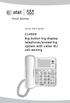 Quick start guide CL4939 Big button big display telephone/answering system with caller ID/ call waiting Introduction This quick start guide provides you basic installation and use instructions A limited
Instruction Manual. CORTELCO 2700 Single-Line / Multi-Feature Set
 1 Instruction Manual CORTELCO 2700 Single-Line / Multi-Feature Set Table of Contents Why VoiceManager SM with Cortelco Phones?... 2 Cortelco 2700 Set Features... 3 Telephone Set Part Identification...
User s manual. 993 Two-line speakerphone with caller ID/call waiting
 User s manual 993 Two-line speakerphone with caller ID/call waiting Congratulations on purchasing your new AT&T product Before using this AT&T product, please read the Important product information on
USER GUIDE. Cisco Small Business Pro. SPA 500 Series IP Phones Models 504G, 508G, and 509G. Provided by
 USER GUIDE Cisco Small Business Pro SPA 500 Series IP Phones Models 504G, 508G, and 509G Provided by Understanding Your Phoneʼs Lines and Buttons Use the following graphic and table to identify the parts
AT&T Small Business System Speakerphone with Digital Answering System and Caller ID Call Waiting 984
 USER S MANUAL Part 2 AT&T Small Business System Speakerphone with Digital Answering System and Caller ID Call Waiting 984 Please also read Part 1 Important Product Information 2004 Advanced American Telephones.
Quick Start Guide. Comwave Home Phone Adapter. iphone Connections. Home Phone Adapter. Package Contents
 Quick Start Guide Comwave Home Phone Adapter Important: This guide describes the supported configuration for Comwave Home Phone Service. When calling Comwave s Technical Support Team, your network must
TABLE: The 2420 Telephone Components
 2420 Telephone TABLE: The 2420 Telephone Components 1. Display, Call Appearance and Feature buttons: Call Appearance Keys allow the user to handle multiple calls and the display shows call information.
AVAYA 9608 & 9611G IP DESKPHONE INSTRUCTIONS
 AVAYA 9608 & 9611G IP DESKPHONE INSTRUCTIONS 1 MESSAGE WAITING INDICATOR PHONE DISPLAY NAVIGATION ARROWS and the OK BUTTON PHONE BUTTON MESSAGE BUTTON CONTACTS HISTORY HOME HEADSET SPEAKER VOLUME BUTTON
Home Phone - VoIP. Installation Guide
 Home Phone - VoIP Installation Guide Package Contents Package Contents D-link DG-102S VoIP Adapter 1 2 3 4 5 6 Serial Cable Ethernet Cable Power Adapter 1 2 3 4 5 6 Power Adapter Serial Cable Used only
IP Phone System: Cisco 7960G and 7940G
 IP Phone System: Cisco 7960G and 7940G Table of Contents: IP Phone System 7940G and 7960G CISCO IP PHONE ROAD MAP...1 NAVIGATE THE PHONE SYSTEM AND USE THE LCD SCREEN...2 SOFT KEYS... 2 USE THE NAVIGATION
User s manual. ML17929 Two-line corded telephone with caller ID/call waiting
 User s manual ML17929 Two-line corded telephone with caller ID/call waiting Congratulations on purchasing your new AT&T product. Before using this AT&T product, please read Important safety information
Quick start guide to your IP phone
 Quick start guide to your IP phone IP Phone Model SPA 525G/ SPA 525G2 Note The features available on your phone depend on the type of system to which your phone is connected. Contact your system administrator
Vista. Vista 150 User Guide
 Vista Vista 150 User Guide TABLE of CONTENTS Call Waiting Display 1 Installing your Vista telephone 2 Checking your telephone 2 Key reference 3 Personalizing your telephone 3 Options 4 Visual Call Waiting
How To Use A 9608 Phone On A Cell Phone On Sim Sims 2 (Satellite) On A Sims 3 (Cell Phone) On An Iphone Or Ipad Or Ipa 2 (Cellphone) On Sims 4
 AVAYA 9608 SIP DESKPHONE INSTRUCTIONS MESSAGE WAITING INDICATOR YOUR PHONE 9608 PHONE INSTRUCTIONS If there are messages in your Avaya Voice Mailbox, the light on the top right corner of your telephone
Model No. KX-TGP500. Model No. KX-TGP550
 User Guide SIP Cordless Phone Model No. KX-TGP500 Model No. KX-TGP550 Model shown is KX-TGP500. Model shown is KX-TGP550. Thank you for purchasing a Panasonic product. You can configure some of the features
AVAYA VOICE OVER INTERNET PROTOCOL (VOIP) TELEPHONE USER MANUAL. Revised by Leeward CC IT October 2012. University of Hawaiʻi Community Colleges
 AVAYA VOICE OVER INTERNET PROTOCOL (VOIP) TELEPHONE USER MANUAL Revised by Leeward CC IT October 2012 University of Hawaiʻi Community Colleges Hawaiian Telecom Copyright 2012 Table of Contents PLACING
User Guide VERIZON WIRELESS HOME PHONE CONNECT
 User Guide VERIZON WIRELESS HOME PHONE CONNECT label Welcome to Verizon Wireless Thank you for choosing Verizon Wireless Home Phone Connect. You re now connected to America s most reliable wireless network.
AVAYA 9608/9611G SIP DESKPHONE INSTRUCTIONS
 AVAYA 9608/9611G SIP DESKPHONE INSTRUCTIONS MESSAGE WAITING INDICATOR PHONE DISPLAY NAVIGATION ARROWS and the OK BUTTON PHONE BUTTON MESSAGE BUTTON CONTACTS HISTORY HOME HEADSET SPEAKER VOLUME BUTTON MUTE
Cisco SPA 525G. Quick Start guide. Business
 Cisco SPA 525G Quick Start guide Business Cisco Small Business SPA IP Phone Model SPA 525G/SPA 525G2 Package Contents IP telephone (Fig. 1) Desk Stand RJ-45 Ethernet Cable Setup CD-ROM Quick Start Guide
Telephone User Guide. 02921 678 544/[email protected]
 Telephone User Guide seethelight.co.uk 02921 678 544/[email protected] Contents and Introduction 1. Your fibre equipment 3 2. Setting up your telephone 6 2.1 A connection through a telephone
For customers in AL, FL, GA, KS, SC, TN. wowforbusiness.com MATRIX USER GUIDE. For Cisco SPA504 & SPA509 IP Phones MGCP.U.1304.O
 wowforbusiness.com MATRIX USER GUIDE For Cisco SPA504 & SPA509 IP Phones MGCP.U.1304.O Matrix User Guide Table of Contents Getting Started...3 CommPortal...3 Support...3 Understanding Your Phone s Lines
Quick Start Guide to Your IP Phone
 Quick Start Guide to Your IP Phone SPA 300 Series IP Phone Models SPA 301 and SPA 303 SPA 300 Series IP phone Phone stand RJ-45 Ethernet cable Quick start guide Product CD-ROM Welcome Thank you for choosing
Printed in China. Issue 4 AT&T 12/11. Message Guard is a registered trademark of Advanced American Telephones.
 www.telephones.att.com 2011 Advanced American Telephones. All Rights Reserved. AT&T and the AT&T logo are trademarks of AT&T Intellectual Property licensed to Advanced American Telephones, San Antonio,
AT&T Small Business System Speakerphone with Intercom and Caller ID/Call Waiting 974
 974CIB_(Rev11-12)ml24.05.06 5/24/06 9:29 PM Page II USER S MANUAL Part 2 AT&T Small Business System Speakerphone with Intercom and Caller ID/Call Waiting 974 For Customer Service Or Product Information,
Quick Start Guide. Vonage Device Motorola VT2142
 Quick Start Guide Vonage Device Motorola VT2142 Before you begin 1. If you purchased your Vonage Device from a retail store, you must first activate your Vonage phone service. (You will need to provide
-Helping to make your life betterwww.person-to-person.net
 Household Telephone Management System Built on Interceptor ID Technology Owner/Operation Manual Telephone Management System- Model P2P101 Call Receiver - Model P2P301 (Receiver may be sold separately)
Four-Line Intercom Speakerphone 964
 1 USER S MANUAL Part 2 Four-Line Intercom Speakerphone 964 2000 Advanced American Telephones. All rights reserved. Printed in Indonesia. 850002940 Issue 1AT&T 6/00 Please also read Part 1 Important Product
Information Systems Cisco 7945 IP Phone Quick Reference Guide
 Information Systems Cisco 7945 IP Phone Quick Reference Guide Contents Cisco 7945 IP Phone Quick Reference Guide Contents Page 2 Introduction 3 Overview of Phone 3 How Do I: 4 Place a Call? 4 Put a Call
Quick start guide to your IP phone
 Quick start guide to your IP phone IP Phone Models SPA501G, SPA502G, SPA504G, SPA508G, and SPA509G Welcome Thank you for choosing the Cisco Small Business IP Phone. This guide describes how to install
Cisco SPA 500 Series IP Phones
 Cisco SPA 500 Series IP Phones Cisco Small Business Pro SPA 500 Series IP Phones Models 502G, 504G, 508G, and 509G Cisco SPA 500 Series IP Phones User Guide 1 P age Table of Contents Getting Started...
Quick & Easy Set-Up of Packet8 Internet Phone Service
 For the Way You Live & Work Quick & Easy Set-Up of Packet8 Internet Phone Service Welcome to Packet8 Internet Phone Service. Soon, you ll be able to make all your calls over the Internet and save a bundle
Motorola C12A. Digital Cordless Telephone with Digital Answering Machine. For C1211A, C1212A, C1213A and C1214A
 Digital Cordless Telephone with Digital Answering Machine Motorola C12A For C1211A, C1212A, C1213A and C1214A Warning: Charge the handset for 24 hours before use. Welcome... to your new Motorola C12A Digital
SIP-6002 User Guide SIP-6002. User Guide
 SIP-6002 User Guide 1 Directory 1. Welcome---------------------------------------------------------------------------------3 2. Installation-------------------------------------------------------------------------------3
Dialog 4220 Lite/Dialog 4222 Office
 Dialog 4220 Lite/Dialog 4222 Office System telephones for MD110 Communication System User Guide Flinders University Table of Contents Description 2 Incoming Calls... 10 Outgoing Calls... 12 During Calls
How To Use A Mitel 5340 Ip Phone
 silhouette Mitel IP Phone User Reference Guide Release 4.0 Final Contents Introduction...1 Setting your language...1 Setting your language for the web interface...1 Setting your language for the phone
VoIP Handset User Manual. Digital Voice Quality Business Grade Handset Easy Plug & Play
 Digital Voice Quality Business Grade Handset Easy Plug & Play Table of Contents 1.0 Getting Started... 1 1.1 Unpacking the box... 1 1.2 Assembling the Phone... 2 2.0 Phone Button Features... 3 3.0 Phone
EP4300 4 Line Intercom Speakerphone with Caller ID and Jumbo Pivoting Display
 EP4300 4 Line Intercom Speakerphone with Caller ID and Jumbo Pivoting Display User s Guide Please read before using telephone Getting Started Congratulations! You ve purchased a HGC EP4300 System Intercom
HPUG_1014. Shaw Home Phone. User Guide
 HPUG_1014 Shaw Home Phone. User Guide Hello. Welcome to the wonderful world of Shaw Home Phone. This tiny book tells you every detail you need to know to use all of your new phone features like a superstar.
OfficeSuite Mitel IP Phone User Reference Guide Release 4.1
 OfficeSuite Mitel IP Phone User Reference Guide Release 4.1 2004-2009 Broadview Networks & Natural Convergence Inc. All rights reserved. Table of Contents TABLE OF CONTENTS...I INTRODUCTION...4 WHAT'S
Quick Start Guide. Cisco SPA232D Mobility Enhanced ATA
 Quick Start Guide Cisco SPA232D Mobility Enhanced ATA Package Contents Analog Telephone Adapter Ethernet Cable Phone Cable Power Adapter Quick Start Guide Product CD-ROM Welcome Thank you for choosing
Model No. KX-TGP500. Model No. KX-TGP550
 Panasonic Telephone Systems KX-TGP500/KX-TGP550 KX-TGP500, KXTGP500, TGP500, KX-TGP550, KXTGP550, TGP550 www.voicesonic.com Phone 877-289-2829 User Guide SIP Cordless Phone Model No. KX-TGP500 Model No.
Venture Multiline Communications
 THREE LINE TELEPHONE WITH ANSWERING User Guide Venture Multiline Communications Welcome to Venture the 3 Line phone/system with a built-in Telephone Answering Device (TAD). The Venture is a fully customizable
Digital Phone Installation & User Guide
 Digital Phone Installation & User Guide Telephone #1 Voicemail PIN Telephone #2 Voicemail PIN skybeam high speed internet digital phone We would like you to verify that the 911 address we have for you
Features Phone Access... 1. Features Web Access... 3. emta Quick Reference Guide...14. Troubleshooting...15. Quick Reference Guide...
 Phone TABLE OF CONTENTS Features Phone Access... 1 Features Web Access... 3 emta Quick Reference Guide...14 Troubleshooting...15 Quick Reference Guide...16 Features Phone Access Caller ID Feature that
Polycom SoundPoint IP 650
 Polycom SoundPoint IP 650 User Guide For training/documentation, please visit us @ http://customertraining.verizonbusiness.com or call 1 800 662 1049 2009 Verizon. All Rights Reserved. The Verizon and
TELEPHONE BUTTONS & ICONS TOUCHSCREEN OVERVIEW
 This Telephone Guide describes the various features available to you. Telephone Buttons and Icons describe the physical buttons and keys on the phone, the Touchscreen Overview outlines basic functions,
Do you have difficulty hearing on the phone?
 Do you have difficulty hearing on the phone? We ve got a solution for you... Free Captioned Telephone Services n CapTel 840 n CapTel 840i n CapTel 880i n Federal CapTel What is Captioned Telephone Service?
This Document Contains:
 Instructional Documents Video Conference >> PolyCom >> VSX 7000 Extension Computing Technology Unit This Document Contains: A Device Description An Installation Guide Instructions for Use Best Practices
AT&T MERLIN COMMUNICATIONS SYSTEM ADMINISTRATION MANUAL: MODELS 206 AND 410 WITH FEATURE PACKAGE 1
 AT&T MERLIN COMMUNICATIONS SYSTEM ADMINISTRATION MANUAL: MODELS 206 AND 410 WITH FEATURE PACKAGE 1 Table of Contents Page How to Use This Manual The MERLIN Voice Terminal Setting the Control Unit Model
AT&T. MERLIN Plus COMMUNICATIONS SYSTEM. Training Manual
 AT&T MERLIN Plus COMMUNICATIONS SYSTEM Training Manual 1986 AT&T All Rights Reserved Printed in USA Issue 1 December 1986 NOTICE The information in this document is subject to change without notice. AT&T
BT Paragon 550. User Guide
 BT Paragon 550 User Guide Section Welcome to your BT Paragon 550 corded digital telephone and answering machine Directory lets you store up to 100 names and numbers for easy dialling. Send and receive
Installation Guide (No Router)
 Installation Guide (No Router) This installation guide will show you how to get your voip phone service working. This installation guide should be used if you have a standard DSL or cable modem and no
DO MORE WITH YOUR HOME PHONE
 CALL 13 2200 VISIT A TELSTRA STORE telstra.com/homephone HOME FEATURES USER GUIDE DO MORE WITH YOUR HOME PHONE C020 JAN13 XXXXXXXX PHONE FEATURES THAT MAKE LIFE EASIER Our home features make it easy for
Information Systems Cisco 7965 IP Phone Quick Reference Guide
 Information Systems Cisco 7965 IP Phone Quick Reference Guide Contents Cisco 7965 IP Phone Quick Reference Guide Contents Page 2 Introduction 3 Overview of Phone 3 How Do I: 4 Place a Call? 4 Put a Call
Home Phone with Answering Machine Sonus 1500. Quick set-up and user guide
 Home Phone with Answering Machine Sonus 1500 Quick set-up and user guide 2 Important please read first Only use the line cord, power supply and rechargeable batteries supplied with your phone. Make sure
Polycom SoundPoint IP 550
 Polycom SoundPoint IP 550 User Guide For training/documentation, please visit us @ http://customertraining.verizonbusiness.com or call 1 800 662 1049 2009 Verizon. All Rights Reserved. The Verizon and
User Guide for the Orchid Key Phones KP416 & KP832
 User Guide for the Orchid Key Phones KP416 & KP832 Contents Page Introduction 2 Setting Up 2 Setting Date & Time 2 Making & Answering Calls 2 Call Pick 3 Call Transfer 3 Calls On Hold 3 Caller Display
Phone Adapter. with 2 Ports for Voice-over-IP. Installation and Troubleshooting Guide. Model No. PAP2 Ver. 2. Voice
 Phone Adapter with 2 Ports for Voice-over-IP Voice Installation and Troubleshooting Guide Model No. PAP2 Ver. 2 Copyright and Trademarks Specifications are subject to change without notice. Linksys is
Avaya one-x Deskphone Edition for 9630/9630G IP Telephone User Guide
 Avaya one-x Deskphone Edition for 9630/9630G IP Telephone User Guide 16-300700 Issue 3 May 2007 Contents Contents Notices... 5 Introduction to the 9630/9630G IP Telephone... 7 Overview... 7 Scrolling and
Installation Guide. EarthLink
 Installation Guide EarthLink Welcome to EarthLink DSL & Home Phone Service Congratulations! You ve made the smart choice for super-fast DSL and super-simple phone service. Follow the instructions in this
3102 Business Telephone Guide for 3Com Asterisk. Part Number 900-0469-01 Rev AB Published January 2008 http://www.3com.com/
 3102 Business Telephone Guide for 3Com Asterisk Part Number 900-0469-01 Rev AB Published January 2008 http://www.3com.com/ 3Com Corporation 350 Campus Drive Marlborough, MA 01752-3064 Copyright 2007-2008,
Cisco VoIP 8961/9951/9971 Phones Reference Guide ICIT Technology Training and Advancement [email protected]
 Cisco VoIP 8961/9951/9971 Phones Reference Guide ICIT Technology Training and Advancement [email protected] Updated on 8/1/2014 TABLE OF CONTENTS Phone Overview... 4 Phone Terms... 5 Operating Your Phone...
CaptionCall 67TB Phone
 CaptionCall 67TB Phone User Guide Contents Welcome... 7 How CaptionCall Works... 9 Phone Features... 9 Key Parts of Your CaptionCall Phone... 11 The Back of Your CaptionCall Phone...12 Touchscreen... 14
Cloud Voice Service Remote Extension for Cisco Unified IP Phone 7942G User Guide
 Cloud Voice Service Remote Extension for Cisco Unified IP Phone 7942G User Guide (Version 1.0) Table of Content 1. Phone Set Features and Functions... 2 1.1 Setup the IP Phone... 3 1.2 Adjusting the Height
Polycom VVX 300/310 Desk Phone Owner s Manual V.1
 Polycom VVX 300/310 Desk Phone Owner s Manual V.1 1 Table of Contents Contents Table of Contents... 5 1 Introduction... 8 Using this Document... 8 Typographical conventions... 8 Special messages... 8 Definition...
Hosted VoIP User Guide
 Hosted VoIP User Guide Cisco 500 series Handset Cisco 500 series handset 1 Hosted VoIP Services Welcome to GCI Hosted VoIP services. Detailed below is a basic user guide outlining the simplicity of the
Owning your dialtone The signature ooma dialtone is music to your ears. It means you have unlimited calling within the US with no monthly fees.
 Quick Start guide GET READY TO SAY HELLO TO: Everything you need to get started is inside this box, and everything you need to know about installation is in your hands. Don t be fooled by the size of this
silhouette Cloud-Based Phone System Mitel IP Phone User Reference Guide Release 5.0 Final
 silhouette Cloud-Based Phone System Mitel IP Phone User Reference Guide Release 5.0 Final Contents Introduction...1 Setting your language...1 Setting your language for the web interface...1 Setting your
UK s best selling phone brand. User Guide. BT Decor 2200 Corded Phone
 UK s best selling phone brand User Guide BT Decor 2200 Corded Phone 2 This User Guide provides you with all the information you need to get the most from your phone. Before you make your first call you
ACC 1137- PUG. Polycom 4 and 6-Line Phones Owner s Manual V.1. Owner s Manual
 ACC 1137- PUG Polycom 4 and 6-Line Phones V.1 1 Table of Contents 1 Introduction... 5 Using this Document... 5 Basic Requirements... 6 2 Getting to know your Hosted PBX system... 7 Before you Begin Your
Using your VOIP Phone
 Introduction Using your VOIP Phone Congratulations on installing the VOIP system provided by DigitalFire Inc. You now have access to one of the most sophisticated telephone systems on the planet. The phone