
Quick Start Guide to Your IP Phone
|
|
|
- Lindsay Shields
- 10 years ago
- Views:
Transcription
1 Quick Start Guide to Your IP Phone SPA 300 Series IP Phone Models SPA 301 and SPA 303 SPA 300 Series IP phone Phone stand RJ-45 Ethernet cable Quick start guide Product CD-ROM
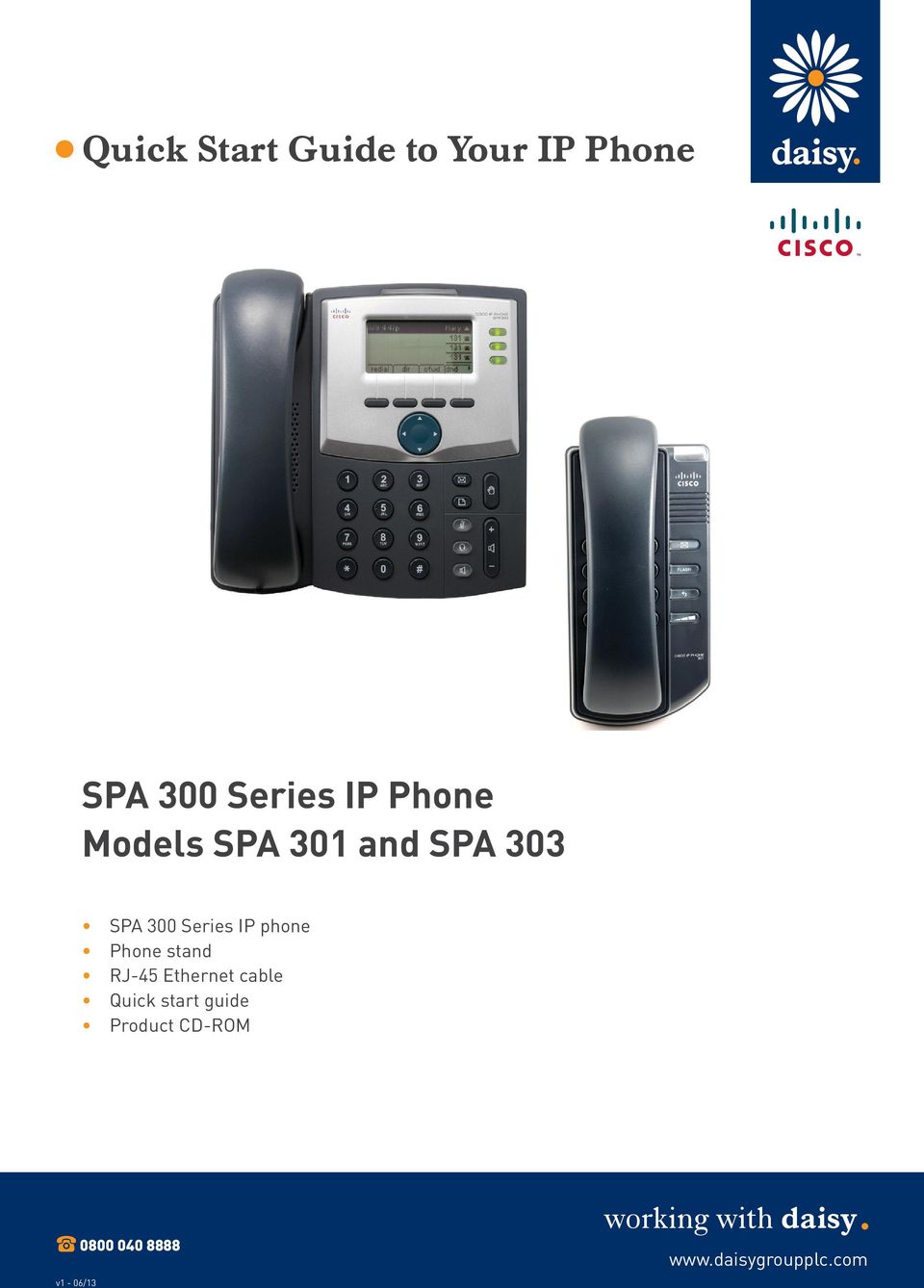
2 Welcome Thank you for choosing the Cisco SPA 300 Series IP Phone. This guide describes how to physically install your Cisco SPA 300 Series IP Phone and how to perform some basic tasks. Before you begin Make sure that your internet telephony service is configured and active. For example, your phone will be registered to a device, such as a Cisco Unified Communications 500 Series or a third-party application server, that provides your phone service. Getting to know your Cisco SPA 301 IP Phone # Phone feature Description 1 Receiver Pick up to place or answer a call. 2 Message waiting/status indicator The LED colour indicates the phone or message status. A solid red LED indicates that you have a new voic message. 3 Ringer button Push to turn ringer on or off. 4 Voic button Press to access voic (this must be set up by your phone administrator). 5 Flash button Press to place a call on hold and open another line. 6 Redial button Press to redial the last number called. 7 Volume Press repeatedly to increase the volume of the handset when the receiver is off the hook, or the ringer volume when the receiver is in place. 8 Keypad Use to dial phone numbers.

3 Installing the Cisco SPA 301 IP Phone Step 1 Turn the phone body over to expose the ports on the back of the unit. Step 2 Insert the long end of the phone cord into the handset port on the phone body that is marked with a phone symbol (labelled 2). Step 4 Connect your phone to the network using one of the methods below: Using an Ethernet connection Insert one end of the Ethernet cable into the network port on the phone body marked WAN (labelled 3). Insert the other end of the Ethernet cable into the appropriate device, such as a network switch, on your network. Using a wireless connection You can use a Cisco WBP54G Wireless-G Bridge with the IP phone to create a wireless connection between the phone and the network. See the WBP54G documentation on Step 3 Insert the other end of the phone cord into the port at the bottom of the receiver. Step 5 Insert one end of the power cord into an outlet and insert the other end of the power cord into the power port on the phone body (labelled 1). NB To power the phone through the Ethernet connection, use the optional Cisco POES5 5-Volt Power Over Ethernet Splitter accessory. See the Cisco POES5 documentation on Step 6 (Optional) To install the phone on a vertical surface, use the Cisco MB100 Wall Mount bracket. See the Cisco Small Business IP Phone SPA 300 Series User Guide (SIP) or the Cisco Unified Communications Manager Express for the Cisco Small Business IP Phone SPA 300 Series documents on for more information. After your phone is successfully connected to the network and receives a basic configuration, you should hear a dial tone when picking up the receiver.

4 Getting to know the Cisco SPA 303 IP Phone # Phone feature Description 1 Receiver Pick up to place or answer a call. 2 Message waiting indicator Displays solid red when you have a new voic message. Flashes red during an incoming call or when the phone s firmware is being updated. 3 LCD screen Displays date and time, phone station name, line extensions, and soft key options. 4 Line keys Indicates phone line status - see below for colour codes. 5 Soft key buttons Press a soft key button to perform the action shown on the label on the LCD screen above. Soft keys vary depending on your phone system. See your phone user guide for more information. 6 Navigation buttons Press an arrow to scroll left, right, up or down through items shown on the LCD screen. 7 Messages button Press repeatedly to increase the volume of the handset (when the receiver is off the hook) or ringer volume (when the receiver is in place). 8 Hold button Press to access voic (must be set up by your phone system administrator). 9 Set-up button 10 Mute button Press to access a menu to configure features and preferences (such as your directory and speed dials), access your call history, and set up functions (such as call forwarding). Press to mute or unmute the phone. When the phone is muted, the button glows red. A flashing mute button indicates the network connection cannot be found. 11 Headset button Push to turn the headset on or off. When the headset is on, the button glows green. 12 Volume button Press '+' to increase the volume and '-' to lower the volume of the handset, headset, speaker (when the receiver is off the phone), or ringer volume (when the receiver is on the phone). 13 Speaker button Push to turn the speaker on or off. When the speaker is on, the button glows green. 14 Keypad Use to dial phone numbers, enter letters and choose menu items. Line key colour codes Green - Line is idle Red (steady) - Line is active or in use Red (blinking) - Line is on hold Orange - Line is unregistered and cannot be used Note - Line key colours depend on your phone system and can vary. These keys can also be programmed by your phone system administrator to perform functions such as speed dial, call pickup, or monitoring and extension.

5 Installing the Cisco SPA 303 IP Phone Use these steps to install the phone and connect it to your network. Step 1 Turn the phone body over to expose the ports on the back of the unit. Step 6 Connect your phone to the network using one of the methods below: Using an Ethernet connection Insert one end of the Ethernet cable into the network port on the phone body marked SW (labelled 3). Insert the other end of the Ethernet cable into the appropriate device, such as a network switch, on your network. Using a wireless connection You can use a Cisco WBP54G Wireless-G Bridge with the IP phone to create a wireless connection between the phone and the network. See the WBP54G documentation on Step 2 Insert the long end of the phone cord into the receiver port on the phone body that is marked with a phone symbol (labelled 5). Step 3 (Optional) Route the phone cord through the cable slot (labelled 4). Step 4 Insert the other end of the phone cord into the port at the bottom of the receiver. Step 5 Connect the phone stand by lining up the tabs on the stand with the slots on the phone body. Slide the bottom tabs into the lower slots on the phone body (labelled 1) and lightly press down on the stand. It should easily slide into the upper stand slots. Do not force. Step 7 Insert one end of the power cord into an outlet and insert the other end of the power cord into the power port on the phone body (labelled 6). NB To power the phone through the Ethernet connection, use the optional Cisco POES5 5-Volt Power Over Ethernet Splitter accessory. See the Cisco POES5 documentation on Step 8 (Optional) To provide network access to a PC, connect one end of an additional Ethernet cable (not provided) to the PC port on the back of the phone body (labelled 2). Connect the other end of the Ethernet cable to the network port on your PC.

6 After your phone is successfully connected to the network and receives a basic configuration, you should hear a dial tone when picking up the receiver or pressing the speaker phone button, and your phone line keys should glow green (depending on your phone system). Using your IP phone Placing or answering calls Pick up the receiver and dial (SPA 301/303), or press the speaker or headset button (SPA 303). Putting a call on hold To put a call on hold, press the Flash (SPA 301) or Hold (SPA 303) button. The caller hears a series of three rapid beeps or music while on hold. To resume the call, press Flash (SPA 301) or the flashing red line button for the call (SPA 303). Ending a call If you are using the receiver, hang up (SPA 301/303). If you are using the speakerphone function (SPA 303), press the speaker button. If you are using the headset (SPA 303), press the headset button.

Quick start guide to your IP phone
 Quick start guide to your IP phone IP Phone Models SPA501G, SPA502G, SPA504G, SPA508G, and SPA509G Welcome Thank you for choosing the Cisco Small Business IP Phone. This guide describes how to install
Model SPA 303G Quick Start Guide
 mydatavo Model SPA 303G Quick Start Guide Welcome Thank you for choosing Datavo as your business solutions provider. This guide describes how to install your phone and how to perform some basic tasks.
Cisco Model SPA 303 Quick Start Guide
 Cisco Model SPA 303 Quick Start Guide Welcome Thank you for choosing the Cisco Small Business IP phone. This guide describes how to install your phone and how to perform some basic tasks. 1 Installing
Quick start guide to your IP phone
 Quick start guide to your IP phone IP Phone Model SPA 525G/ SPA 525G2 Note The features available on your phone depend on the type of system to which your phone is connected. Contact your system administrator
How To Use An Ip Phone On A Cell Phone On An Ipphone On A Sim Sim Sim (Cisco) Or Ip Phone (Ip Phone) On A Iphone Or Ipphone (Ipphone) On An Iphon Or Ip
 USER GUIDE Cisco Small Business SPA 300 Series IP Phones Models 301 and 303 Contents Chapter 1: Getting Started 6 About This Document 6 Overview of the Cisco Small Business 300 Series IP Phones 8 Caring
Cisco SPA 525G. Quick Start guide. Business
 Cisco SPA 525G Quick Start guide Business Cisco Small Business SPA IP Phone Model SPA 525G/SPA 525G2 Package Contents IP telephone (Fig. 1) Desk Stand RJ-45 Ethernet Cable Setup CD-ROM Quick Start Guide
USER GUIDE Cisco Small Business
 USER GUIDE Cisco Small Business SPA 300 Series IP Phones Models 301 and 303 August 2013 Cisco and the Cisco logo are trademarks or registered trademarks of Cisco and/or its affiliates in the U.S. and other
USER GUIDE Cisco Small Business
 USER GUIDE Cisco Small Business Cisco Unified Communications Manager Express for IP Phone Models 30X August 2013 Cisco and the Cisco logo are trademarks or registered trademarks of Cisco and/or its affiliates
USER GUIDE. Cisco Small Business. SPA 303 IP Phone for 8x8 Virtual Office
 USER GUIDE Cisco Small Business SPA 303 IP Phone for 8x8 Virtual Office May 2011 Cisco and the Cisco Logo are trademarks of Cisco Systems, Inc. and/or its affiliates in the U.S. and other countries. A
USER GUIDE Cisco Small Business
 USER GUIDE Cisco Small Business Cisco Unified Communications Manager Express for IP Phone Models 30X June 2010 Cisco and the Cisco Logo are trademarks of Cisco Systems, Inc. and/or its affiliates in the
USER GUIDE. Cisco Small Business Pro. SPA 504G IP Phone for 8x8 Virtual Office
 USER GUIDE Cisco Small Business Pro SPA 504G IP Phone for 8x8 Virtual Office Cisco and the Cisco Logo are trademarks of Cisco Systems, Inc. and/or its affiliates in the U.S. and other countries. A listing
USER GUIDE Cisco Small Business
 USER GUIDE Cisco Small Business Cisco SPA50X and SPA51X SIP IP Phones Models SPA501G, SPA502G, SPA504G, SPA508G, SPA509G, SPA512G, and SPA514G Contents Chapter 1: Getting Started 6 About This Document
Cisco 504 IP Phone. Quick User guide. Produced by: The Nomis Support Desk. [email protected]
 Cisco 504 IP Phone Quick User guide Produced by: The Nomis Support Desk 0844 880 0018 [email protected] Nomis Connections, Connections House, 11a Kings Road, Fleet, Hampshire, GU51 3AA 0844
How To Use An Ip Phone On A Cell Phone On An Ip Cell Phone
 USER GUIDE Cisco Small Business Cisco SPA50X and SPA51X SIP IP Phones Models SPA501G, SPA502G, SPA504G, SPA508G, SPA509G, SPA512G, and SPA514G Contents Chapter 1: Getting Started 6 About This Document
Cisco IP Phones User Guides
 Cisco IP Phones User Guides Cisco Small Business Cisco SPA50X and SPA51X SIP IP Phones Models SPA501G, SPA502G, SPA504G, SPA508G, SPA509G, SPA512G, and SPA514G Contents Chapter 1: Getting Started 6 About
USER GUIDE Cisco Small Business
 USER GUIDE Cisco Small Business Cisco SPA50X and SPA51X SIP IP Phones Models SPA501G, SPA502G, SPA504G, SPA508G, SPA509G, SPA512G, and SPA514G Contents Chapter 1: Getting Started 6 About This Document
CISCO SMALL BUSINESS PRO IP PHONE
 CISCO SMALL BUSINESS PRO IP PHONE For Models: SPA501G, SPA502G, SPA504G, SPA508G, and SPA509G Business Communications Solutions 9910 Irvine Center Drive Irvine, CA 92618 www.bcsconsultants.com [ m ] 949.333.1000
Cisco VoIP IP SPA504G Setup & User Guide
 Cisco VoIP IP SPA504G Setup & User Guide About This Guide This guide is intended to show you how to install your phone and describes how to use some of the basic functions and features. The features available
USER GUIDE Cisco Small Business
 USER GUIDE Cisco Small Business IP Phone Models SPA50X (SPCP) Contents Chapter 1: Getting Started 4 About This Document 4 Overview of the Cisco Small Business IP Phones 6 Caring for Your Phone 7 Understanding
USER GUIDE Cisco Small Business
 USER GUIDE Cisco Small Business IP Phone Model SPA92X, SPA94X, and SPA962 Contents Chapter 1: Getting Started 6 Overview of the Cisco SPA9000 Voice System IP Phones 6 SPA921/922 IP Phone 8 SPA941/942 IP
USER GUIDE Cisco Small Business
 USER GUIDE Cisco Small Business SPA50X and SPA51X Series SPCP IP Phones Models SPA501G, SPA502G, SPA504G, SPA508G, SPA509G, SPA512G, and SPA514G Contents Chapter 1: Getting Started 4 About This Document
USER GUIDE. Cisco Small Business Pro. SPA 500 Series IP Phones Models 504G, 508G, and 509G. Provided by
 USER GUIDE Cisco Small Business Pro SPA 500 Series IP Phones Models 504G, 508G, and 509G Provided by Understanding Your Phoneʼs Lines and Buttons Use the following graphic and table to identify the parts
Hosted VoIP User Guide
 Hosted VoIP User Guide Cisco 500 series Handset Cisco 500 series handset 1 Hosted VoIP Services Welcome to GCI Hosted VoIP services. Detailed below is a basic user guide outlining the simplicity of the
USER GUIDE Cisco Small Business
 USER GUIDE Cisco Small Business SPA50X and SPA51X Series SPCP IP Phones Models SPA501G, SPA502G, SPA504G, SPA508G, SPA509G, SPA512G, and SPA514G Contents Chapter 1: Getting Started 4 About This Document
How To Use A Cisco Small Business Pro Ip Phone 50X (Ip Phone)
 USER GUIDE Cisco Small Business Cisco Unified Communications Manager Express for IP Phone Models SPA 50X (SPCP) FCC and IC Statement Federal Communication Commission Interference Statement This equipment
Cisco SPA 500 Series IP Phones
 Cisco SPA 500 Series IP Phones Cisco Small Business Pro SPA 500 Series IP Phones Models 502G, 504G, 508G, and 509G Cisco SPA 500 Series IP Phones User Guide 1 P age Table of Contents Getting Started...
For customers in AL, FL, GA, KS, SC, TN. wowforbusiness.com MATRIX USER GUIDE. For Cisco SPA504 & SPA509 IP Phones MGCP.U.1304.O
 wowforbusiness.com MATRIX USER GUIDE For Cisco SPA504 & SPA509 IP Phones MGCP.U.1304.O Matrix User Guide Table of Contents Getting Started...3 CommPortal...3 Support...3 Understanding Your Phone s Lines
USER GUIDE Cisco Small Business
 USER GUIDE Cisco Small Business IP Phone Model SPA92X, SPA94X, and SPA962 Contents Chapter 1: Getting Started 6 Overview of the Cisco SPA9000 Voice System IP Phones 6 SPA921/922 IP Phone 8 SPA941/942 IP
USER GUIDE Cisco Small Business Pro
 USER GUIDE Cisco Small Business Pro SPA500 Series IP Phones Models 501G, 502G, 504G, 508G, and 509G CCDE, CCENT, CCSI, Cisco Eos, Cisco HealthPresence, Cisco IronPort, the Cisco logo, Cisco Lumin, Cisco
Overview of IP Phone Notes:
 Overview of IP Phone 1 Handset Pick up to place or answer a call. 2 LCD Screen Displays date and time, phone station name, line extensions, and soft key options. 3 Line Keys/Additional Line Keys Indicates
Cisco Unified IP Phone 3905 User Guide for Cisco Unified Communications Manager Express Version 8.8 (SIP)
 Cisco Unified IP Phone 3905 User Guide for Cisco Unified Communications Manager Express Version 8.8 (SIP) First Published: July 22, 2011 Last Modified: July 22, 2011 Americas Headquarters Cisco Systems,
USER GUIDE. Cisco Small Business. SPA 500 Series IP Phones Model SPA 525G/SPA 525G2. Provided by
 USER GUIDE Cisco Small Business SPA 500 Series IP Phones Model SPA 525G/SPA 525G2 Provided by +"*.#)%+$%&'/01*'230%"4.'5$%".')%+'61##0%. Understanding Your Phoneʼs Lines and Buttons Use the following graphic
VoIP Handset User Manual. Digital Voice Quality Business Grade Handset Easy Plug & Play
 Digital Voice Quality Business Grade Handset Easy Plug & Play Table of Contents 1.0 Getting Started... 1 1.1 Unpacking the box... 1 1.2 Assembling the Phone... 2 2.0 Phone Button Features... 3 3.0 Phone
USER GUIDE Cisco Small Business Pro
 USER GUIDE Cisco Small Business Pro SPA 500 Series IP Phones Models 501G, 502G, 504G, 508G, and 509G CCDE, CCENT, CCSI, Cisco Eos, Cisco HealthPresence, Cisco IronPort, the Cisco logo, Cisco Lumin, Cisco
Overview of IP Phone. 1 Handset Pick up to place or answer a call. 2 Message Waiting Indicator
 Overview of IP Phone 1 Handset Pick up to place or answer a call. 2 Message Waiting Indicator Displays solid red when you have a new voice mail message. Flashes red during an incoming call. 3 LCD Screen
IP Phone 7941/7961 User Manual
 IP Phone 7941/7961 User Manual IP Phone User Manual IP Phone User Manual...2 IP Phone Introduction...3 Setting Up Your IP Phone...3 Locating Buttons and Hardware...5 Using Help on Your Phone...7 Choosing
Information Systems Cisco 7965 IP Phone Quick Reference Guide
 Information Systems Cisco 7965 IP Phone Quick Reference Guide Contents Cisco 7965 IP Phone Quick Reference Guide Contents Page 2 Introduction 3 Overview of Phone 3 How Do I: 4 Place a Call? 4 Put a Call
Cisco IP Phone 7942 User Training Guide
 Cisco IP Phone 2 User Training Guide 1 1 Key to the Cisco 2: 1 2 = Line Buttons = Foot Adjust Button = Message Button = Mute Button = Headset Button = Volume Button = Directories Button = Help Button =
Cisco 504 IP phone. An Administrator's Guide
 Cisco 504 IP phone An Administrator's Guide Contents Introduction to Horizon... 4 SETTING UP YOUR PHONE... 5 What you ll need... 5 Assembling the phone... 5 Connecting your router... 6 Connecting the service...
Polycom SoundPoint IP 550
 Polycom SoundPoint IP 550 User Guide For training/documentation, please visit us @ http://customertraining.verizonbusiness.com or call 1 800 662 1049 2009 Verizon. All Rights Reserved. The Verizon and
Linksys Voice over IP Products Guide: SIP CPE for Massive Scale Deployment
 Linksys Voice over IP Products Guide: SIP CPE for Massive Scale Deployment Corporate Headquarters Linksys 121 Theory Drive Irvine, CA 92617 USA http://www.linksys.com Tel: 949 823-1200 800 546-5797) Fax:
Features of Your Cisco Unified IP Phone
 Cisco Unified IP Phone 8961, page 1 Cisco Unified IP Phone 9951, page 9 Cisco Unified IP Phone 9971, page 18 General Phone Information, page 27 Cisco Unified IP Phone 8961 The following sections describe
Information Systems Cisco 7940/7942 IP Phone Quick Reference Guide
 Information Systems Cisco 7940/7942 IP Phone Quick Reference Guide Contents Page: Cisco 7940/7942 IP Phone Quick Reference Guide Contents 2 Introduction 3 Phone Overview 3 How Do I: 4 Place a Call? 4 Put
Using Basic Call Management Functions
 Using Basic Call Management Functions This chapter provides instructions on using your basic phone functions. It includes the following sections: Managing the Audio Source and Volume, page 28 Answering
Cisco Phone Overview. Voicemail: Internal Hit messages (Envelope) button or dial 10000
 Cisco Phone Overview Providence School Department extensions are 5 digits. Dial 8 to place an outside call. Voicemail: Internal Hit messages (Envelope) button or dial 10000 To place a call, choose one
How To Use A Cisco Phone With A Cell Phone On A Small Business Ip Phone (Pa300) Or A Small Cell Phone (Ppa500) With A Microsoft Ip Phone (Spa500) On A Business Plan (Small Business)
 USER GUIDE Cisco Small Business Cisco SPA300 Series and SPA500 Series IP Phones with Cisco Unified Communications UC320W Phone Models: SPA301, SPA303, SPA501G, SPA502G, SPA504G, SPA508G, SPA509G, SPA525G,
Polycom SoundPoint IP 650
 Polycom SoundPoint IP 650 User Guide For training/documentation, please visit us @ http://customertraining.verizonbusiness.com or call 1 800 662 1049 2009 Verizon. All Rights Reserved. The Verizon and
Cloud Voice Service Cisco Unified IP Phone 6921 User Guide. (Version 1.0)
 Cisco Unified IP Phone 6921 User Guide (Version 1.0) Table of Content 1 Phone Set Features and Functions... 3 1.1 Operation for IP Phone 6921... 3 2 Location of Control... 4 3 Preference Setup... 6 3.1
Information Systems Cisco 7945 IP Phone Quick Reference Guide
 Information Systems Cisco 7945 IP Phone Quick Reference Guide Contents Cisco 7945 IP Phone Quick Reference Guide Contents Page 2 Introduction 3 Overview of Phone 3 How Do I: 4 Place a Call? 4 Put a Call
Quick Start Guide Cisco 7940/7960 IP Telephone
 Quick Start Guide Cisco 7940/7960 IP Telephone Contents: Cisco 7960/7940 IP Phone Feature and Key Overview...2 Basic Features...5 Installing the IP Phone and Connecting to the Network...5 Adjusting the
How To Use A 9608 Phone On A Cell Phone On Sim Sims 2 (Satellite) On A Sims 3 (Cell Phone) On An Iphone Or Ipad Or Ipa 2 (Cellphone) On Sims 4
 AVAYA 9608 SIP DESKPHONE INSTRUCTIONS MESSAGE WAITING INDICATOR YOUR PHONE 9608 PHONE INSTRUCTIONS If there are messages in your Avaya Voice Mailbox, the light on the top right corner of your telephone
USER GUIDE Cisco Small Business Pro
 USER GUIDE Cisco Small Business Pro Cisco Unified Communications Manager Express for IP Phone Models SPA50X (SPCP) CCDE, CCENT, CCSI, Cisco Eos, Cisco HealthPresence, Cisco Ironport, the Cisco logo, Cisco
Quick Start Guide Cisco 7912 IP Telephone
 Quick Start Guide Cisco 7912 IP Telephone Contents: Cisco 7912 IP Phone Feature and Key Overview...3 Basic Features...5 Installing the IP Phone and Connecting to the Network...5 Placing a Call...5 Answering
Training Guide For 7960 & 7940 Series Cisco IP Phones
 Training Guide For 7960 & 7940 Series Cisco IP Phones Prepared by: Corporate Technologies, LLC 2000 44 th Street SW, Suite 100 Fargo, ND 58103 (701) 893-4000 1 Table of Contents: Section I: GETTING STARTED
Cisco SPA300 Series and SPA500 Series IP Phones with Cisco Unified Communications UC320W
 USER GUIDE Cisco Small Business Cisco SPA300 Series and SPA500 Series IP Phones with Cisco Unified Communications UC320W Phone Models: SPA301, SPA303, SPA501G, SPA502G, SPA504G, SPA508G, SPA509G, SPA525G,
Optus VoIP IP Handset Quick Start Guide.
 Optus VoIP IP Handset Quick Start Guide. Congratulations on your new IP Handset The Linksys SPA-942 is a functionally powerful and easy to use business phone featuring a high resolution graphical display,
User Guide for Cisco Unified IP Phones 7961G and 7941G
 User Guide for Cisco Unified IP Phones 7961G and 7941G Common Phone Tasks Softkey Definitions View online help on the phone Press. Place a call Redial a number Switch to the handset during a call Switch
SNOM 370: phone overview
 User Guide SNOM 370 Content Phone overview Basic telephony features How to place a call How to answer a call How to terminate a call How to redial a number How to mute a call How to set a call on hold
Cisco VoIP 79XX Phones Reference Guide ICIT Technology Training and Advancement [email protected]. Updated on 7/11/2014
 Cisco VoIP 79XX Phones Reference Guide ICIT Technology Training and Advancement [email protected] Updated on 7/11/2014 1 TABLE OF CONTENTS 2 Phone Overview... 4 2.1 Phone Terms... 5 3 Operating Your Phone...
Ipiphony Phone System. User Manual. 1 P a g e
 Ipiphony Phone System User Manual 1 P a g e About this Guide This guide explains how to use the basic features of your new Aastra phones. Not all features listed are available by default. Contact your
Optus VoIP IP Handset Quick Start Guide.
 Optus VoIP IP Handset Quick Start Guide. Congratulations on your new IP Handset The Linksys SPA-942 is a functionally powerful and easy to use business phone featuring a high resolution graphical display,
This chapter describes the features of the Cisco Unified IP Phone 6921, 6941, 6945, and 6961.
 This chapter describes the features of the Cisco Unified IP Phone 69, 694, 6945, and 696. Cisco Unified IP Phone 69 The Cisco Unified IP Phone 69 provides these features: Phone connections Buttons and
MNF VPBX Quickstart Guide (without PoE Switch)
 MNF VPBX Quickstart Guide (without PoE Switch) - 1 - Connecting the Phone to the PoE Switch Linksys Phone (SPA 922, 942, and 962) 1 - Find the end of the coiled phone cord that has the longer straightened
Cisco Unified IP Phone 8961, 9951, and 9971 User Guide for Cisco Unified Communications Manager 8.0 (SIP)
 Cisco Unified IP Phone 8961, 9951, and 9971 User Guide for Cisco Unified Communications Manager 8.0 (SIP) Americas Headquarters Cisco Systems, Inc. 170 West Tasman Drive San Jose, CA 95134-1706 USA http://www.cisco.com
Napa Valley College Cisco Telephone User Guide
 Napa Valley College Cisco Telephone User Guide Button Legend 1 Programmable buttons Depending on configuration, programmable buttons provide access to: Phone lines (line buttons) Speed-dial numbers (speed-dial
Quick Reference Guide for SPA9x2 Phones QUICK REFERENCE BUSINESS SERIES. Linksys IP Phone Models: SPA962, SPA942 and SPA922
 Quick Reference Guide for SPA9x2 Phones QUICK REFERENCE BUSINESS SERIES Linksys IP Phone Models: SPA962, SPA942 and SPA922 Phone Buttons and Features Handset Message Waiting Indicator LCD Screen Line Keys
If you are having a problem or technical issue regarding your IP Telephone, please call the UAA IT Call Center at 907.786.4646
 If you are having a problem or technical issue regarding your IP Telephone, please call the UAA IT Call Center at 907.786.4646 1 Physical Layout. 3-4 Connecting Your Phone. 5 Adjusting the Handset Rest
Cisco Unified IP Phone 6921
 Cisco Unified IP Phone 691 The Cisco Unified IP Phone 691 provides these features: Phone connections Buttons and hardware Phone screen Footstand Handset rest Audio and Sound Level Volume Control Phone
7971 Basic Phone Overview
 7971 Basic Phone Overview 1 Programmable buttons Configurable buttons that provide access to various phone features 2 Footstand button Allows you to adjust the angle of the phone base. Awakens the touchscreen
MNF VPBX Quickstart Guide (using PoE Switch)
 MNF VPBX Quickstart Guide (using PoE Switch) - 1 - 1. Setting up the PoE Switch Upon taking delivery of the MNF Virtual PBX the first task is to connect the AC power cord to the Power Port of the Linksys
Ultra-elegant Gigabit IP Phone
 Ultra-elegant Gigabit IP Phone SIP-T48G Quick Start Guide (V7340) wwwyealinkcom Applies to firmware version 3573040 or later Packaging Contents The following items are included in your package If you find
Cisco Unified IP Phone 6945 User Guide for Cisco Unified Communications Manager Express Version 8.8 (SCCP)
 Cisco Unified IP Phone 6945 User Guide for Cisco Unified Communications Manager Express Version 8.8 (SCCP) First Published: July 22, 2011 Last Modified: July 22, 2011 Americas Headquarters Cisco Systems,
Introducing Your Cisco IP Phone
 CHAPTER 1 A Cisco IP Phone is a full-feature telephone that provides voice communication over the same data network that your computer uses. This phone functions much like a traditional analog phone, allowing
Cisco VoIP 8961/9951/9971 Phones Reference Guide ICIT Technology Training and Advancement [email protected]
 Cisco VoIP 8961/9951/9971 Phones Reference Guide ICIT Technology Training and Advancement [email protected] Updated on 8/1/2014 TABLE OF CONTENTS Phone Overview... 4 Phone Terms... 5 Operating Your Phone...
CISCO IP PHONE 6945 Series User Guide
 CISCO IP PHONE 6945 Series User Guide Notes Page 15 VOICE MAIL Setting up Voice Mail for the First Time: Press the messages key on your phone. Follow the recorded instruction to record your name, record
Cloud Voice Service Remote Extension for Cisco Unified IP Phone 7942G User Guide
 Cloud Voice Service Remote Extension for Cisco Unified IP Phone 7942G User Guide (Version 1.0) Table of Content 1. Phone Set Features and Functions... 2 1.1 Setup the IP Phone... 3 1.2 Adjusting the Height
AVAYA 9608/9611G SIP DESKPHONE INSTRUCTIONS
 AVAYA 9608/9611G SIP DESKPHONE INSTRUCTIONS MESSAGE WAITING INDICATOR PHONE DISPLAY NAVIGATION ARROWS and the OK BUTTON PHONE BUTTON MESSAGE BUTTON CONTACTS HISTORY HOME HEADSET SPEAKER VOLUME BUTTON MUTE
SIP-T22P User s Guide
 SIP-T22P User s Guide Thank you for choosing this T-22 Enterprise IP Phone. This phone is especially designed for active users in the office environment. It features fashionable and sleek design, and abundant
USER GUIDE Cisco Small Business
 USER GUIDE Cisco Small Business SPA525G and SPA525G2 SIP IP Phones Contents Chapter 1: Getting Started 8 Overview 8 Caring for Your Phone 10 Understanding Your Phone Lines and Buttons 10 Softkey Buttons
Polycom 2-Line Desk Phone Quick Reference Guide
 Polycom 2-Line Desk Phone Quick Reference Guide ACC-1142 PUG Table of Contents INTRODUCTION TO YOUR POLYCOM 2-LINE DESK PHONE... 2 WELCOME... 2 DESK PHONE... 2 HOW TO USE YOUR POLYCOM 2-LINE DESK PHONE...
2 Session buttons. 1 Phone Screen
 1 Phone Screen 2 Session buttons Shows information about your phone, including directory number (extension), call information (for example caller ID, icons for an active call or call on hold) and available
USER GUIDE Cisco Small Business
 USER GUIDE Cisco Small Business SPA 500 Series IP Phones Model SPA 525G/SPA 525G2 Power Adapter Statement This product is intended to be supplied by a Listed Direct Plug-In Power Unit marked Class 2" or
Cloud Voice Service. Cisco Unified IP Phone 7942G User Guide. (Version 1.0)
 Cisco Unified IP Phone 7942G User Guide (Version 1.0) Table of Content 1. Phone Set Features and Functions... 2 1.1 Operation for IP Phone 7942G... 3 1.2 Adjusting the Height of the Footstand... 4 2. Preference
VoIP User Guide. Polycom IP331 Handset. Polycom IP331 Handset 1
 VoIP User Guide Polycom IP331 Handset Polycom IP331 Handset 1 Hosted VoIP Services Welcome to GCI Hosted VoIP services. Detailed below is a basic user guide outlining the simplicity of the service. Depending
Hosted Voice Quick Start Guide
 Hosted Voice Quick Start Guide EATEL 225-621-4100 Welcome Welcome to Hosted Voice from EATEL! This guide is intended to get you up and running for the basic features associated with the product. Pages
How To Use A Cell Phone On A Sim Sims 2.2 (Sprinting) And Sims 1 (Cell Phone) With A Sims 3.2.2 On A Iphone Or Ipod) With An Ipod
 LINKSYS SPA941 / SPA942 User Guide Emergency To dial 911 for emergency service, you must dial the Outside Access Digit first (usually 9) + 911. Customer Service / Technical Support (919) 459-2300, option
Cisco SPA302D Mobility Enhanced Cordless Handset
 USER GUIDE Cisco SPA30D Mobility Enhanced Cordless Handset Contents Chapter 1: Getting Started 1 Overview 1 Understanding Your Cisco SPA30D Cisco SPA30D Display Screen 4 Turning the Handset On and Off
Cisco Unified IP Phone 8961, 9951, and 9971 User Guide for Cisco Unified Communications Manager 8.6 (SIP)
 Cisco Unified IP Phone 8961, 9951, and 9971 User Guide for Cisco Unified Communications Manager 8.6 (SIP) Americas Headquarters Cisco Systems, Inc. 170 West Tasman Drive San Jose, CA 95134-1706 USA http://www.cisco.com
Cisco Unified IP Phone 8961, 9951, and 9971 User Guide for Cisco Unified Communications Manager 7.1(3) (SIP)
 Cisco Unified IP Phone 8961, 9951, and 9971 User Guide for Cisco Unified Communications Manager 7.1(3) (SIP) Americas Headquarters Cisco Systems, Inc. 170 West Tasman Drive San Jose, CA 95134-1706 USA
Vertical 4-Line Desk Phone Quick Reference Guide ACC-1145 PUG
 ACC-1145 PUG Vertical 4-Line Desk Phone Quick Reference Guide Table of Contents INTRODUCTION TO YOUR XCELERATOR DESK PHONE... 2 WELCOME... 2 DESK PHONE... 2 HOW TO USE YOUR XCELERATOR DESK PHONE... 3 Answering
Cisco IP Phone 7960G and Cisco IP Phone 7940G for Cisco IOS Telephony Services
 CHAPTER 1 Cisco IP Phone 7960G and Cisco IP Phone 7940G for Cisco IOS Telephony Services Button Legend The Cisco IP Phone 7960G and the Cisco IP Phone 7940G differ only in the number of available line
End User Phone Training 7945/7965 Reference Guide
 End User Phone Training 7945/7965 Reference Guide Page 1 Navigation (Scroll) The user may display his/her last calls out using the blue navigation button. Please note that the phone handset will display
Getting to Know Your Cisco VoIP Phone 303G, 504G, 508G and 514G
 Getting to Know Your Cisco VoIP Phone 303G, 504G, 508G and 514G Getting to know your new phone is easy. This guide will help you get started. You ll learn how to: Use the feature buttons Navigate your
Using the Cisco IP Phone System
 Using the Cisco IP Phone System Chapter 0 The Cisco IP Phones 7970 and 7960G are full-feature telephones that provide voice communication over the same data network that your computer uses, allowing you
Basic Features. Placing a Call. Answering a Call. Ending a Call. Placing a Call on Hold. Redialing a Call. Press the Phone button. Dial the number.
 Basic Features Placing a Call Press the Phone button. Dial the number. Answering a Call Press the Phone button or the Answer softkey. The active call appears in the active call list in the LCD screen.
1 VoIP/PBX Axxess Server
 - 1 1 VoIP/PBX Axxess Server The Axxess Server supports comprehensive Voice Over Internet Protocol network services, which are based on the Open Source Asterisk VoIP software. The Axxess Server VoIP telephony
Cisco VoIP 8941/8945 Phones Reference Guide ICIT Technology Training and Advancement [email protected]
 Cisco VoIP 8941/8945 Phones Reference Guide ICIT Technology Training and Advancement [email protected] Updated on 7/31/2014 TABLE OF CONTENTS Phone Overview... 4 Phone Terms... 5 Operating Your Phone...
Cisco Phone and Voicemail. End User Training 2014
 Cisco Phone and Voicemail End User Training 2014 Agenda Index Cisco IP Phone Models Phone Functions Receiving a Call Secondary Numbers Call Waiting Place a Call and End a Call Divert Hold Forward Conference
Setting up & using your IP Telephone
 Setting up & using your IP Telephone Version: 1.8 Last Edited: 09/02/15 Welcome to your new IP Telephone! In order to help you get acquainted with your new phone this helpsheet provides a basic description
How To Use A Cisco Phone On A Cell Phone On An Ipod Or Ipod (For A Cell) On A Pc Or Ipo (For An Ipo) On An Iphone Or Ipok (For Pc Or Mac)
 Cisco IP Communications Solutions End User Training Course Outline Introducing your IP phone Using common telephone features Using telephone feature buttons Voicemail Cisco 7942 Model This full-featured