
Operating Instructions. Telephone System tiptel 1/8 fax clip tiptel 2/8 clip. (Release 2) tiptel
|
|
|
- Susanna Hart
- 10 years ago
- Views:
Transcription
1 Operating Instructions (UK) Telephone System tiptel 1/8 fax clip tiptel 2/8 clip (Release 2) tiptel

2 Table of Contents Connection of 8 extensions Connection of 7 extensions and 1 door intercom Terminal connection Wall mounting Installation Reach of the internal wiring Telephone numbers of the extension Initial operation procedure Factory Pre-set Telephone sets Connection of other telecommunication equipment Connection of devices with CLIP function Door Intercom Other options Internal calls Internal dialling, incoming calls, call retrieval Internal conference calls Automatic call-back External calls Dialling, dialling on a specific CO line...14 Continued dialling, recall function on the CO line Incoming calls Placing a call on hold to make enquiries Pulse dialling, Tone dialling Reserving the CO line Switching between the two CO lines Pulse/Tone dialling telephones Transferring calls Pager call Table for the pager signals Urgency call Do not disturb function Room monitoring Call forwarding Delayed ringing Direct connection with the door intercom Tone dialling for data transfer, music-on-hold Fax function (for tiptel 1/8 fax clip only) General information Fax connection Fax function on/off Application Operating guide Programmable Parameters Access to the CO line Automatic CO line access Dialling restrictions/call blocking Activation of dialling restrictions Deactivation of dialling restrictions Activation of external blocking Deactivation of external blocking Entering blocked numbers Deleting blocked numbers Entering exception numbers Deleting exception numbers Transmission of CLIP to telephones Call waiting Doorbell ring Door opener Day/night mode Music on hold Return to the factory pre-set Short messages (SMS) Overview functions/code numbers Overview tone and ring signals Touble shooting Table from programmable parameters.62 Technical Data Important Information Appendix Index
3 Connection of 8 extensions 3

4 Connection of 7 extensions and 1 door intercom 4

5 Terminal connection 5

6 Wall mounting Mount the telephone system near a telephone wall socket in a dry room with an ambient temperature of 0-40 C. The telephone system includes 2 dowels and 2 screws. This equipment facilitates the wall mounting installation. 1. On a vertical line place two marks on the wall 17,5 cm apart. 2. Drill two (6 mm) holes into the wall. Then plug the holes with the dowels. Be careful not to drill into any electrical supply network. 3. The upper screw should be screwed in so that 5 mm remain showing. 4. Hang the telephone system from the upper hole on the upper screw. 5. Remove the terminal connection cover. 6. In the connection area screw in the lower screw. 6

7 Installation Before installing the internal wiring, disconnect the AC adapter and the telephone plug. Local telephone network restrictions must be observed when installing. Changes in the telephone system may only be made in so far as they are described in the operating instructions. Any equipment (for example, telephones, answering machines, and fax machines) which are to be connected to the telephone system must be approved by the relevant authorities. The installation must be completed professionally. This PABX has a CLIP function. It will work solely on networks using the most common CLIP standard in Europe (e.g. Germany, Austria, Switzerland, France, Belgium). Reach of the internal wiring The reach of the internal wiring is dependent on the diameter of the telephone cables used. A maximum of 60 ohms in both directions are allowed on the line at anyone time. This maximum of 60 ohms corresponds to an installation wire length of: 0,4 mm diameter : 200 m reach 0,6 mm diameter : 450 m reach 0,8 mm diameter : 800 m reach Telephone numbers of the extension Extension Number

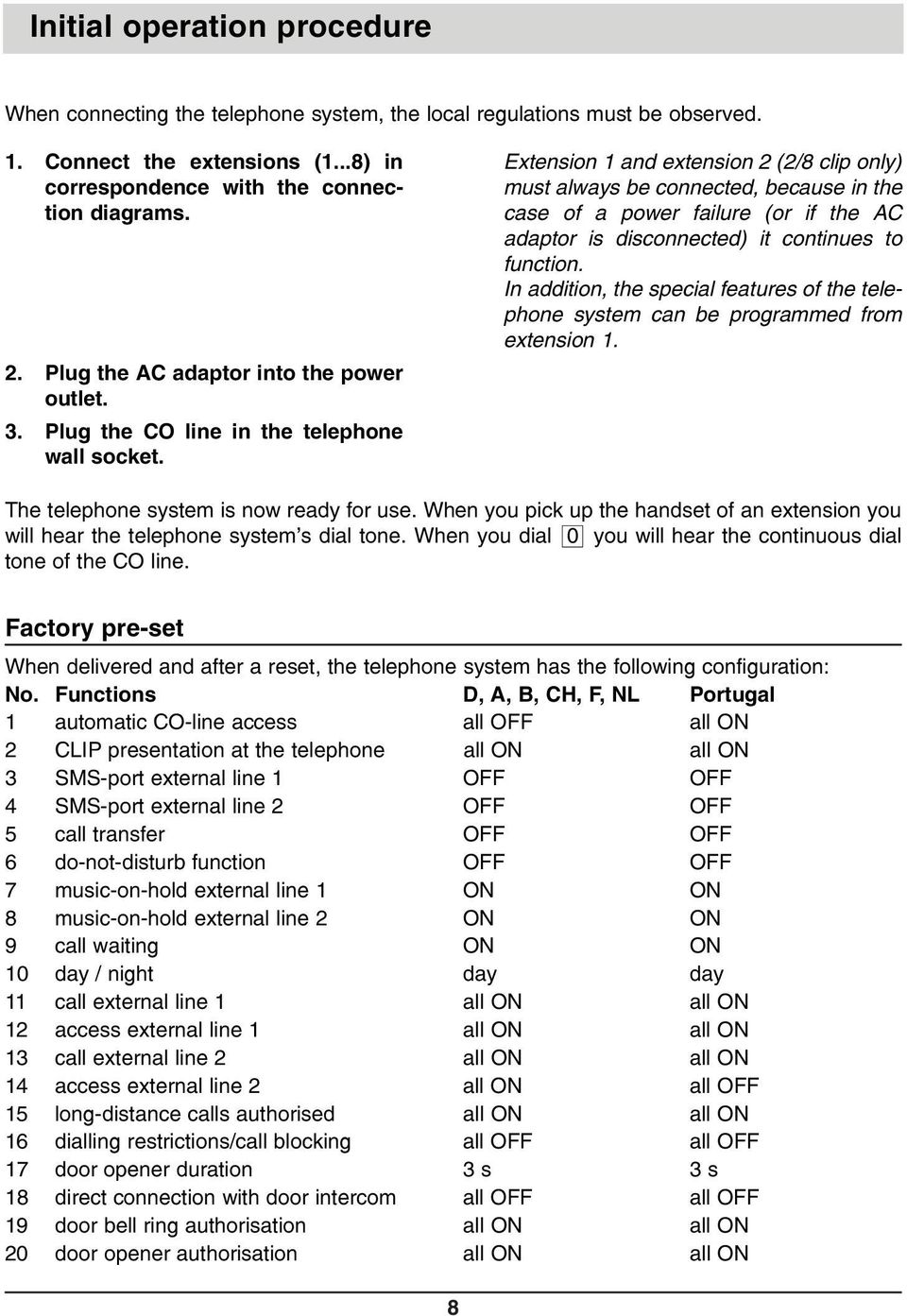
8 Initial operation procedure When connecting the telephone system, the local regulations must be observed. 1. Connect the extensions (1...8) in correspondence with the connection diagrams. 2. Plug the AC adaptor into the power outlet. 3. Plug the CO line in the telephone wall socket. Extension 1 and extension 2 (2/8 clip only) must always be connected, because in the case of a power failure (or if the AC adaptor is disconnected) it continues to function. In addition, the special features of the telephone system can be programmed from extension 1. The telephone system is now ready for use. When you pick up the handset of an extension you will hear the telephone system s dial tone. When you dial 0 you will hear the continuous dial tone of the CO line. Factory pre-set When delivered and after a reset, the telephone system has the following configuration: No. Functions D, A, B, CH, F, NL Portugal 1 automatic CO-line access all OFF all ON 2 CLIP presentation at the telephone all ON all ON 3 SMS-port external line 1 OFF OFF 4 SMS-port external line 2 OFF OFF 5 call transfer OFF OFF 6do-not-disturb function OFF OFF 7 music-on-hold external line 1 ON ON 8 music-on-hold external line 2 ON ON 9 call waiting ON ON 10 day / night day day 11 call external line 1 all ON all ON 12 access external line 1 all ON all ON 13 call external line 2 all ON all ON 14 access external line 2 all ON all OFF 15 long-distance calls authorised all ON all ON 16dialling restrictions/call blocking all OFF all OFF 17 door opener duration 3 s 3 s 18 direct connection with door intercom all OFF all OFF 19 door bell ring authorisation all ON all ON 20 door opener authorisation all ON all ON 8
9 Telephone sets Telephones with either tone or pulse dialling can be connected. The telephone system will automatically recognise the tone/pulse setting. The telephones, from which you make outgoing calls, must have the same dialling mode as the local network. If the dialling mode does not correspond to the telephone network you will only be able to make internal calls. For telephone sets with tone dialling, a recall button is necessary when placing a call on hold to make inquiries. Telephone sets with pay-phone indication will display the toll for CO line calls. Note: When an external call is placed on hold the pay-phone indication will stop, and the toll is not counted. In this case, the real toll will not correspond with the indicated toll. The minutes on hold are not counted, but you will be charged for the time placed on hold. To store an external telephone number in the memory of your telephone you must first enter a 0, then a 2 second pause followed by the telephone number. Cordless telephones can be connected to all extensions. Connection of other telecommunication equipment Other telecommunications equipment, for example answering machines, fax machines, telephone computers, modems, etc. can be connected to the extensions 1 through 8. Only type approved devices have to be connected. Connection of devices with CLIP function This PABX supports CLIP functionality solely for devices using the most common CLIP standard in Europe (e.g. Germany, Austria, Switzerland, France, Belgium). Other devices may not work properly regarding CLIP. Connection of devices with CNIP function* This telephone system supports the transmission of names in addition to the phone number. The FSK-CLIP mode which is most frequently used allover Europe (e. g. Germany, Austria, Switzerland, France, Belgium) is applied for this purpose (message type 80h, parameter 07h). If devices are operated that do not work according to this standard, a name will most probably not be displayed in case of an incoming call. Please note that your network operator also has to transmit the CNIP information according to this standard. Connection of devices with MWI-function (message waiting indication)* This telephone system uses the MWI function of the network operator in order to signal new messages received by your network-answering machine. The FSK-CLIP mode which is most frequently used allover Europe (e. g. in Germany, Austria, Switzerland, France, Belgium) is applied for this purpose (message type 82h, parameter 0Bh). If devices are operated that do not work according to this standard, a corresponding message will most probably not be displayed in case of an incomig call. Please note that your network operator also has to transmit MWIinformation according to this standard. * This function is not available for all country versions of your telephone system. For details, please contact your local retailer or the importing company. 9

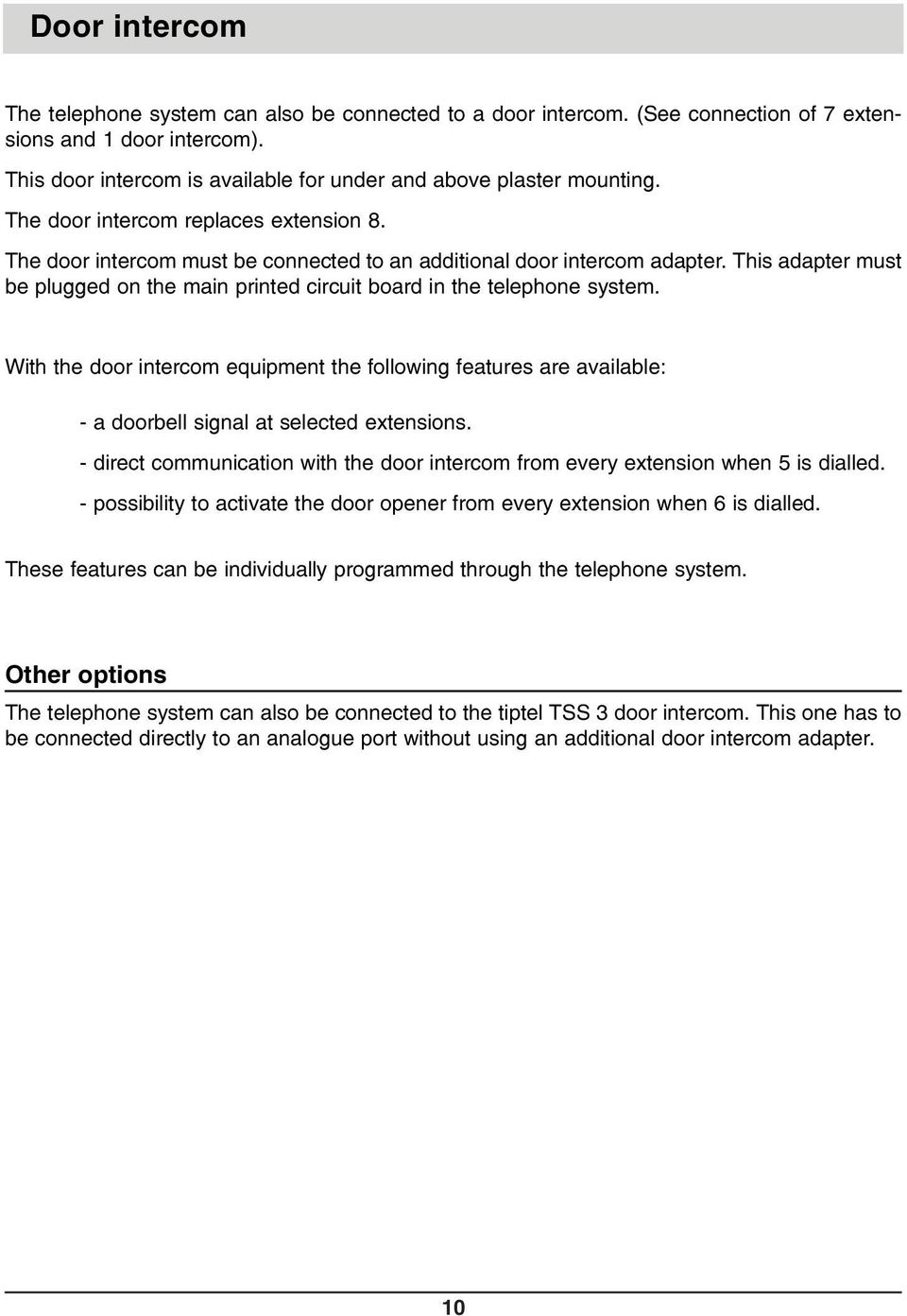
10 Door intercom The telephone system can also be connected to a door intercom. (See connection of 7 extensions and 1 door intercom). This door intercom is available for under and above plaster mounting. The door intercom replaces extension 8. The door intercom must be connected to an additional door intercom adapter. This adapter must be plugged on the main printed circuit board in the telephone system. With the door intercom equipment the following features are available: - a doorbell signal at selected extensions. - direct communication with the door intercom from every extension when 5 is dialled. - possibility to activate the door opener from every extension when 6 is dialled. These features can be individually programmed through the telephone system. Other options The telephone system can also be connected to the tiptel TSS 3 door intercom. This one has to be connected directly to an analogue port without using an additional door intercom adapter. 10
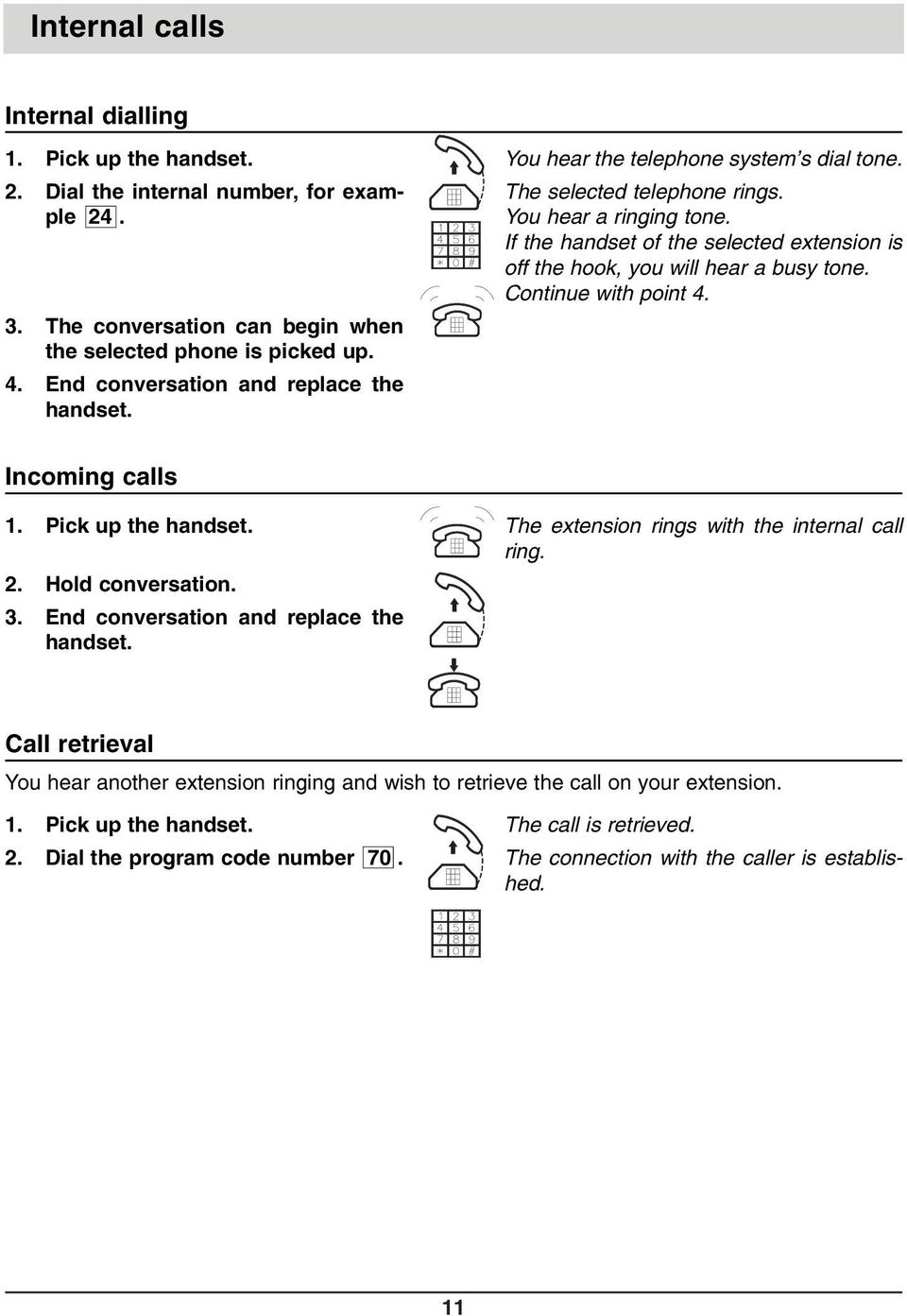
11 Internal calls Internal dialling 1. Pick up the handset. 2. Dial the internal number, for example The conversation can begin when the selected phone is picked up. 4. End conversation and replace the handset. You hear the telephone system s dial tone. The selected telephone rings. You hear a ringing tone. If the handset of the selected extension is off the hook, you will hear a busy tone. Continue with point 4. Incoming calls 1. Pick up the handset. 2. Hold conversation. 3. End conversation and replace the handset. The extension rings with the internal call ring. Call retrieval You hear another extension ringing and wish to retrieve the call on your extension. 1. Pick up the handset. 2. Dial the program code number 70. The call is retrieved. The connection with the caller is established. 11
12 Internal conference calls A third party can be called into an existing conversation. Conference calls are only possible internally. The door intercom cannot take part in a conference call. Everyone who partakes in the conversation can call in another third party. As a conference call is private, no third party can channel uninvited into the call. Example: Two parties are talking and wish to have a third party join the conversation and form a conference call. 1. Dial the internal number of the third party. 2. Hold conversation. 3. To leave the conference call, replace the handset. The third party s extension rings (maximum 20 sec.). Both of the original callers hear the ringing tone. If the extension is off the hook, a busy tone will be heard for 3 seconds. The conference call is established as soon as the selected extension is picked up. The conversation can continue. 12

13 Automatic call-back If you are trying to reach an extension but it is busy, the telephone system will automatically call you back once the selected handset has been replaced. This function is only possible internally. 1. Pick up the handset. You hear the telephone system s dial tone. 2. Dial the internal number, for example 24. The selected extension is off the hook. You hear a busy tone. 3. Dial 91. You hear an acknowledgement tone. 4. Replace the handset. The automatic call-back is programmed. 5. Once the selected extension is free, your extension will ring. 6. Pick up the handset. 7. Hold conversation. The selected extension rings. You hear the ringing tone. The selected person picks up. 13

14 External calls Dialling 1. Pick up the handset. 2. Dial the external CO line number Dial the telephone number, for example When the selected party picks up, hold conversation. 5. End conversation and replace the handset. You hear the telephone system s dial tone. You hear the CO line dial tone. The telephone system automatically seeks an unoccupied CO line. If none of the CO lines are in use or if your extension is not authorised to use the CO line, you will hear a busy tone. When dialling in the pulse mode there should not be a pause longer than 12 seconds between the digits. After a 12 second pause the dialled number will be recognised as an internal number or function. Should you wish to continue dialling after a 12 second pause, then you must follow the instructions given for continued dialling. Dialling on a specific CO line (for tiptel 2/8 clip) You can choose to use one specific CO line. To do so dial the code number 94 for CO line 1 and 95 for CO line 2 instead of the CO line number 0. If the specific CO line is being used, you will hear a busy tone. 14
15 External calls Continued dialling (for pulse dialling only) In order to continue dialling after a 12 second pause, you must dial the continue dialling code number. 1. Dial the continue dialling code number Then continue to dial the number. Recall function on the CO line (i. e. for use with call waiting) In case of a CO-line connection, the telephone system intercepts a flash-signal (R-key) which therefore is not transferred to the external line. In order to send a flash-signal from a telephone to the public exchange, this has to be set accordingly within the telephone system before. 1. The extension has a CO-line connection You are connected to the public exchange. 2. Press the R-key (flash). You hear the dial tone of the telephone system. 3. Dial # (in Portugal dial the digit 1). You are connected to the public exchange. 4. Press the R-key (flash). Now, the flash signal is sent to the public exchange. The function is only available for a DTMF phone. The flash time of the telephone has to be below the maximum loop interruption time for the termination of a connection by the public exchange. The maximum loop interruption time is 500 ms. Sending on the CO line (i.e. for CLIR) * If you want to send on the CO line to start changing features in the public exchange it is * necessary to wait for 5 seconds after hearing the dial tone of the CO line (automatic or manual CO-line access). If you press before, the PABX will return to the internal dial tone. * 15
16 Incoming calls Example 1: Your extension sounds with the incoming call ring. 1. Pick up the handset. 2. Hold conversation. 3. End conversation and replace the handset. Example 2: Retrieval of call. You hear another telephone ringing and wish to retrieve the call on your extension. 1. Pick up the handset. 2. Dial Hold conversation. 4. End conversation and replace handset. You hear the telephone system s dial tone. The call is retrieved. The connection with the caller is established. Example 3: During an internal call a call waiting signal indicates that there is an incoming external call. The incoming call can be answered as follows. 1. End conversation and replace handset. 2. Pick up the handset. The extension will sound with an external incoming call ring. You are connected with the external caller. During a conversation with the door intercom, the call waiting signal does not function. 16
17 Placing a call on hold to make enquiries An external call can be placed on hold. This hold function enables you to make an enquiry in the room, or to call another internal number. Your telephone partners cannot hear the enquiry. They will hear music on hold. Note: - The hold function is dependent on the dialling mode of your telephone. - The hold function can only be used 12 seconds after the last number was dialled. - If you replace the handset during the hold function your extension will ring for 45 seconds as a reminder that someone is waiting on hold. If the external call is not retrived during this time, then the call will be disconnected. Pulse dialling 1. Dial To retrieve the external call dial 1 again. The external call is placed on hold. You hear the telephone system s dial tone. Make your inquiry in the room or make an internal call. The extension is reconnected to the external call. Tone dialling 1. Press the RECALL button. 2. To retrieve the external call press the RECALL button again. The external call is placed on hold. You hear the telephone system s dial tone. Make your enquiry in the room or make an internal call. The extension is reconnected to the external call. 17
18 Reserving the CO line If the CO line is busy, you have the possibility of reserving a CO line. As soon as a CO line is free, it will be automatically transferred to your extension. 1. Pick up the handset. You hear the telephone system s dial tone. 2. Dial the CO line code number Dial 90 to reserve the line. 4. Replace the handset. 5. Your extension will ring when the CO line is free. 6. Pick up the handset. 7. Dial the telephone number. You hear a busy tone. The CO line is busy. To confirm the reservation you hear an acknowledgement signal. If you do not hear an acknowledgement signal, this indicates that the CO line has already been reserved. Only one reservation is possible at a time. Your extension is connected to the CO line. You hear the dial tone. You do not need to dial the CO line code number 0, as you are already connected to the CO line. 18

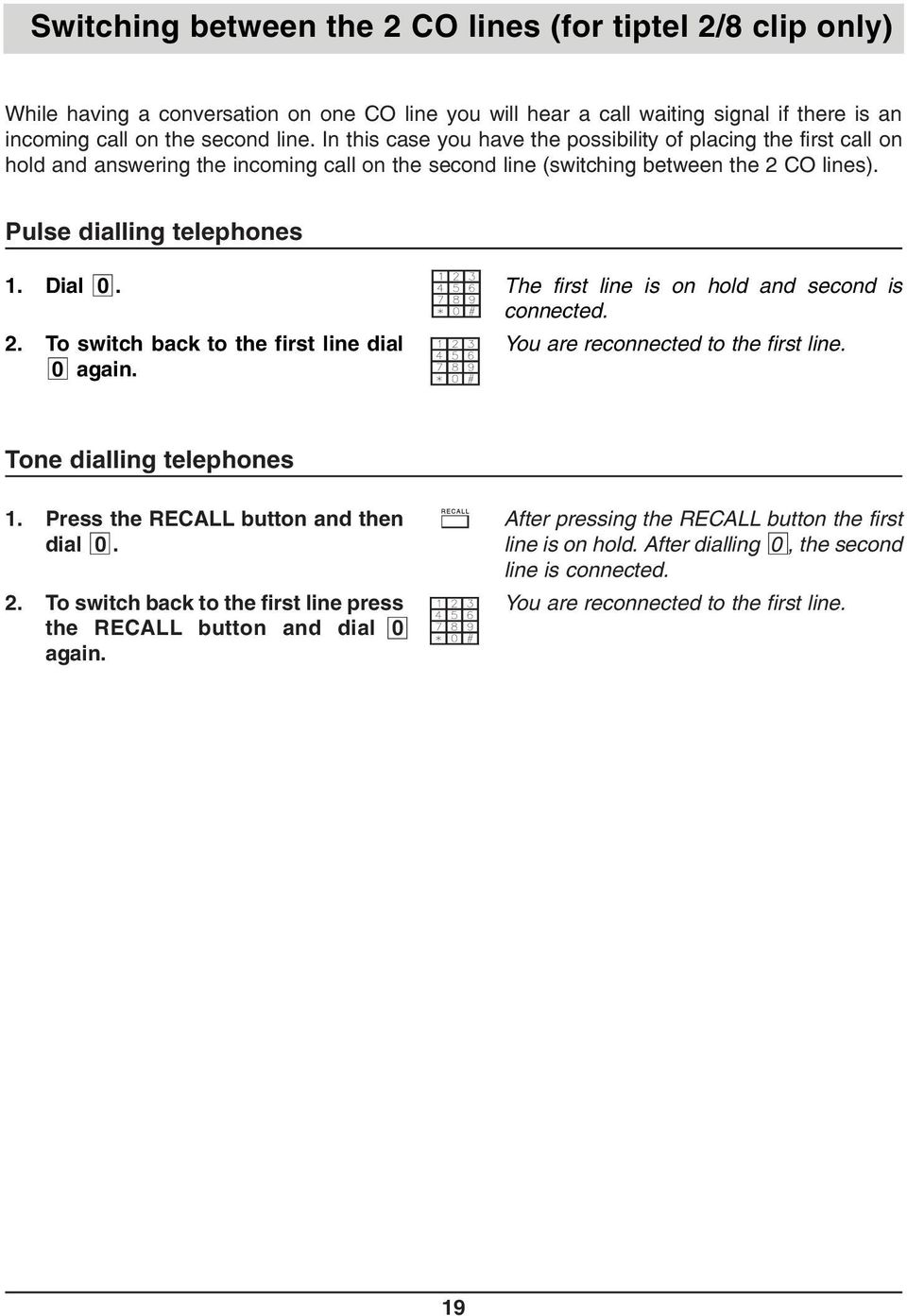
19 Switching between the 2 CO lines (for tiptel 2/8 clip only) While having a conversation on one CO line you will hear a call waiting signal if there is an incoming call on the second line. In this case you have the possibility of placing the first call on hold and answering the incoming call on the second line (switching between the 2 CO lines). Pulse dialling telephones 1. Dial To switch back to the first line dial 0 again. The first line is on hold and second is connected. You are reconnected to the first line. Tone dialling telephones 1. Press the RECALL button and then dial To switch back to the first line press the RECALL button and dial 0 again. After pressing the RECALL button the first line is on hold. After dialling 0, the second line is connected. You are reconnected to the first line. 19
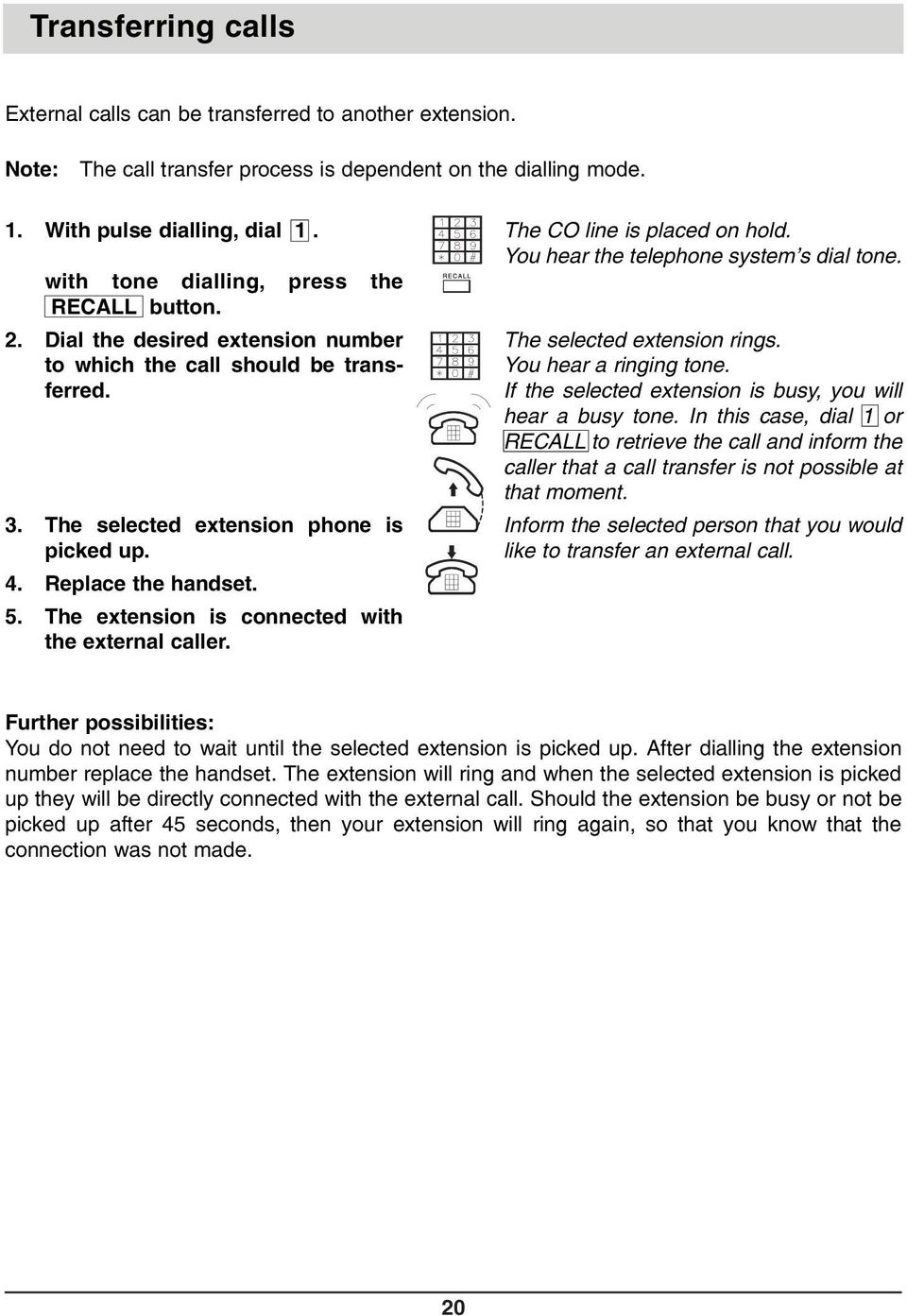
20 Transferring calls External calls can be transferred to another extension. Note: The call transfer process is dependent on the dialling mode. 1. With pulse dialling, dial 1. with tone dialling, press the RECALL button. 2. Dial the desired extension number to which the call should be transferred. 3. The selected extension phone is picked up. 4. Replace the handset. 5. The extension is connected with the external caller. The CO line is placed on hold. You hear the telephone system s dial tone. The selected extension rings. You hear a ringing tone. If the selected extension is busy, you will hear a busy tone. In this case, dial 1 or RECALL to retrieve the call and inform the caller that a call transfer is not possible at that moment. Inform the selected person that you would like to transfer an external call. Further possibilities: You do not need to wait until the selected extension is picked up. After dialling the extension number replace the handset. The extension will ring and when the selected extension is picked up they will be directly connected with the external call. Should the extension be busy or not be picked up after 45 seconds, then your extension will ring again, so that you know that the connection was not made. 20
21 Pager call You have the possibility of paging individual people with your tiptel telephone system. Each user can be assigned an individual pager signal. After dialling the pager code number all extensions will ring with a special tone. When an individual recognises his personal pager signal he can pick up the handset and be directly connected to the person who wanted to reach him. Table for the pager signals Pager number Pager signal To activate the pager 1. Pick up the handset. You hear the telephone system s dial tone. 2. Dial the desired pager number, for example 72. The pager signal rings on all extensions. You hear the same signal from your handset. 3. The person recognises his pager signal and picks up the handset. The connection is established. 21
22 Urgency call If you wish to inform the users of the telephone system of an urgent message, dial the urgent call code number. The urgent call ring will sound on all extensions...(without a pause). This can be a signal for an agreed reaction (for example, a company meeting). To activate the urgency call 1. Pick up the handset. You hear the telephone system s dial tone. 2. Dial the urgent call number 77. All extensions sound with the urgent call ring. You hear the same signal from your handset. 3. The handset of an extension will be picked up. The connection is established. If no one responds to the urgency call and you replace the handset then the urgency call is ended. 22
23 Do not disturb function Every extension can be programmed so that it will not ring. This can be programmed by dialling a code number on the selected extension. Outgoing calls can still be made. To activate the do not disturb function 1. Pick up the handset. You hear the telephone system s dial tone. 2. Dial 78. You hear the fast signal tone which indicates that the do not disturb function is on. 3. Replace the handset. The extension will not ring for any calls: external, internal, pager, door intercom. The caller will hear a normal ringing tone. To switch the do not disturb function off 1. Pick up the handset. You hear the fast signal tone which indicates that the do not disturb function is On. 2. Dial 80 to switch this function Off. You hear the telephone system s dial tone. 3. Replace the handset. The extension rings for all calls. 23
24 Room monitoring The telephone system enables you to monitor a room, that is to say the area surrounding the handset. A telephone must be placed in the room you wish to monitor. Lift the handset and dial the code number. The handset should be placed directed towards the area to be monitored. Hereafter, it is possible to call this room monitoring telephone from every extension and to listen. Note: This is only an internal function. It is only possible to call this room monitoring telephone from an internal extension. 1. Pick up the handset. You hear the telephone system s dial tone. 2. Dial 86. You hear an acknowledgement signal. 3. Point the handset in the direction of the sound that is to be monitored. The room can now be monitored. To monitor the room 1. Pick up the handset. You hear the telephone system s dial tone. 2. Dial the number of the room monitoring telephone, for example 22. The connection is established. The sounds from the room can be heard through your handset. 3. Replace the handset. Hints: If the CO line is programmed to ring on only one extension, this extension should not be used for the room monitoring function. The room monitoring function will be ended if the handset of the room monitoring telephone is replaced. 24
25 Call forwarding The telephone system offers the possibility of forwarding calls to another extension. To Activate the call forwarding function 1. Pick up the handset. You hear the telephone system s dial tone. 2. Dial 8, followed by the extension number you wish to have calls forwarded to. For example, if calls are to be forwarded to extension 3, dial 823. All calls will be forwarded to the selected extension. As a reminder, you will hear a fast signal tone through the handset of the extension whose calls are being forwarded. 3. Replace handset. To cancel the call forwarding function 1. Pick up the handset. You hear the fast signal tone, as a reminder that call forwarding is activated. 2. Dial 80. You hear the telephone system s dial tone. 3. Replace handset. The call forwarding function is cancelled. 25
26 Delayed ringing With the delayed ringing function, an incoming external call will first ring on extensions 1 and 2. Extensions 3 to 8 will ring after 15 seconds. This gives you the opportunity to answer the calls on the extensions 1 and 2 before the call is forwarded to the extensions 3 to 8. To switch the delayed ringing function On 1. Pick up the handset from extension 1. You hear the telephone system s dial tone. 2. Dial the program code number You hear an acknowledgement signal. 3. Dial 19. As confirmation you hear an acknowledgement signal. 4. Replace the handset. The delayed ringing function is switched On. Incoming external calls will ring with a delay on extensions 3 to 8 15 sec. later. The programming is finished. To switch the delayed ringing function Off 1. Pick up the handset from extension 1. You will hear the telephone system s dial tone. 2. Dial the program code number You will hear an acknowledgement signal. 3. Dial 10. As confirmation you will hear an acknowledgement signal. The delayed ringing function is switched Off. Incoming external calls will ring on all extensions at the same time. 4. Replace the handset. The programming is finished. 26
27 Direct connection with the door intercom When the doorbell is pressed, the authorised extensions will ring with the doorbell signal. If an extension with the direct connection function is picked up, then the extension will be automatically connected with the door intercom. Dialling the door intercom code number 5 is not necessary. Messages can be left for visitors if an answering machine is connected to an extension with this function. Note: For this extension, the CO line signal must be switched Off, so that external incoming calls will not be answered by this door intercom answering machine. To switch the direct connection on and off 1. Pick up the handset from extension 1. You hear the telephone system s dial tone. 2. Dial the program code number You hear an acknowledgement signal. 3. Dial the desired code number according to the table below, for ex. 793, to activate the direct connection on extension 3. As confirmation you hear an acknowledgement signal. Extension 3 is in direct connection with the door intercom when the telephone is picked up after the doorbell rings. 4. Replace the handset. The programming is finished. Extension Direct connection On Direct connection Off Note: With the direct connection function, the door opener (code number 6) cannot be operated during an already existing connection with the door intercom. The Dutch country version is able to open the door even if this function is activated (on). To open the door in this case, replace the handset, pick up the handset, and dial the number 6. 27
28 Tone dialling for data transfer, music on hold Tone dialling for data transfer This function is only relevant for internal calls. The reaction of the telephone system to tone dialling signals can be switched off temporarily. This is important and necessary, for example, when you wish to remotely interrogate your answering machine with tone dialling or if you wish to transfer data. To switch Off the tone dialling detection press the (star) button. You can now press tone dialling buttons without having the telephone system interpret them as a code or an extension number. Music on hold While on hold an external caller will hear music. You can listen to this music for 30 seconds from extension Pick up the handset from extension 1. You hear the telephone system s dial tone. 2. Dial 176. You hear the music for 30 seconds. 28
29 Fax function (for tiptel 1/8 Fax only) General information In addition to the complete functions of a telephone system, the tiptel 1/8 FAX offers the possibility to handle telephone and fax communications conveniently. Additional features offered by tiptel 1/8 Fax: - recognition of the fax signal (CNG) - silent diversion of automatically sent fax messages - receipt of manually sent fax messages FAX function deactivated (default setting): In case an incoming fax is accepted by a telephone, it is necessary to manually forward this "call" to extension 4. Then, the telephone can be replaced again. FAX function activated: The PABX accepts any incoming call and tries to identify a fax signal (CNG signal). If an incoming fax is identified, the PABX automatically forwards it to extension 4. If it is a telephone call, the set extensions are addressed. Meanwhile, the caller is presented with ringing tone generated by the PABX. 29
30 Fax function - connection (for tiptel 1/8 fax clip only) 30
31 Fax function (for tiptel 1/8 fax clip only) Fax function activated 1. Pick up the handset of extension 1 or Dial the code number Replace the handset. You hear the telephone system s dial tone. You hear the confirmation signal. The fax function is on. Fax function deactivated 1. Pick up the handset. 2. Dial the code number Replace the handset. You hear the telephone system s dial tone. You hear the confirmation signal. The fax function is off. Only applicable for Switzerland Note: As an extra security measure it is necassary to enter the programming mode first. Instead of dialling 92 or 93 directly, exclusively the handset of extension 1 has to be used. On the first place dial and then 92 or
32 Fax function (for tiptel 1/8 fax clip only) Application Convenient fax reception as well as personal conversation. Connect the telephone, fax machine and the CO line according to the instructions: fax function - connection. Switch the fax function on. (see: Fax function on) * *Not available in Austria, Belgium and France. 32
33 Fax function (for tiptel 1/8 fax clip only) Operation guide 1. When the fax function is on and extension 4 is occupied (for example by an internal conversation) and if there is an incoming external call, then the fax function will not be carried out. To ensure correct automatic functioning of the fax function extension 4 should not be used when the fax function is on. 2. If the fax machine does not function properly, the fax function will be switched off automatically after three unsuccessful attempts. 3. If you wish to send a fax from extension 4, then the fax machine needs to dial the CO line code 0. Alternatively, it is possible to use automatic CO line access for extension To ensure that machines from various manufacturers function properly with the fax function, the following requirements need to be fulfilled: - Automatic connection to the telephone line after 1 or 2 ringing tones - External calls with CO line code 0 33
34 Programmable parameters The functions of the telephone system can be programmed to suit the individual user. All programmable parameters will be saved in the case of a power failure. The programmable parameters can only be set and changed from extension 1. Access to the CO line There are three forms of access to the CO line. 1. Full authorisation: You can receive and make external calls. - The CO line access is On. - The CO line ring is On. 2. Partial authorisation: You can receive external calls. It is not possible to make an external call. After dialling the CO line number 0 you will hear a busy tone. - The CO line access is Off. - The CO line ringing signal is On. 3. No authorisation: You cannot receive externals calls. It is not possible to make an external call. - The CO line access is Off. - The CO line ringing signal is Off. In the factory pre-set all of the telephone system s extensions have full authorisation. Access to the CO line permits making outgoing calls. For tiptel 2/8 only:1 Access to CO line 1 and CO line 2 can be limited independently for one another. To set CO line access on or off 1. Pick up the handset from extension Dial the program code number Dial the code number for the desired state of access according to the table below. For ex. 223 to block the access to CO line 1 for extension 3. Several code numbers can be entered one after another. 4. Replace the handset. You hear the telephone system s dial tone. You hear an acknowledgement signal. As confirmation you hear an acknowledgement signal. Extension 3 no longer has access to CO line 1. When the CO line code number 0 is dialled extension 3 will automatically be connected to CO line 2. The programming is finished. 34
35 Programmable parameters Extension all Access to CO line 1 On Access to CO line 1 Off Access to CO line 2 On for tiptel 2/8 only Access to CO line 2 Off for tiptel 2/8 only Automatic CO line access on / off If the automatic CO line access is activated and the handset is picked up, an external connection is immediately set up. By means of the "star"-key, it is possible to switch from the external to an internal line within 3 seconds. The automatic CO line access can be set for each telephone. The function is programmed at telephone 21. The programming codes are indicated in the below-mentioned table. In the default setting, the automatic CO line access is deactivated for all telephones. Example: the automatic CO line access should be programmed for telephone Pick up the handset of telephone Enter the programming code Enter code Replace the handset You hear the telephone system s dial tone. You hear an acknowledgement signal. As confirmation you hear an acknowledgement signal. Telephone 24 has automatic CO line access. If the handset of telephone 24 is picked up, an external connection is immediately set up. Telephone all Automatic CO line access on Automatic CO line access off
36 Programmable parameters Incoming external calls will sound with the CO line ring. This ring can be individually switched On or Off for each extension. To switch the CO line ring on or off 1. Pick up the handset from extension 21. You hear the telephone system s dial tone. 2. Dial the program code number You hear an acknowledgement signal. 3. Dial the code number for the desired state of CO line ring according to the table below. For ex. 323 to switch Off the CO line ring of the CO line 1 for extension 3. Several code numbers can be entered one after another. As confirmation you hear an acknowledgement signal. Incoming calls from CO line 1 will no longer ring on extension 3. However, with the call retrieval function 70 or call transfer it is possible to receive an external call. If the ring is switched Off for all extensions, then extension 1 will automatically ring as a safety measure. 4. Replace the handset. The programming is finished. Extension all* CO line ring line 1 On CO line ring line 1 Off CO line ring line 2 On for tiptel 2/8 only CO line ring line 2 Off for tiptel 2/8 only * if the CO line ring is Off then extension 1 will ring as a safety measure 36
37 Programmable parameters Dialling restrictions/call blocking Your telephone system allows you to block the dialling of certain phone numbers or phone number sections. 20 blocked numbers and 16 (+ 4 fix ) exception numbers are available for this purpose. If the dialling restriction function (with exception numbers) is activated, the dialled phone number will be verified first. If a blocked digit is identified, the connection set-up via COline to the requested party will be interrupted after the last digit and a busy tone can be heard. The phone numbers within the list of blocked numbers are only applicable in case of external calls. The CO-line access code (0, 94 or 95 additionally for tiptel 2/8 clip) does not belong to the phone number in the list of blocked numbers. The blocked numbers can be neutralised by a list of exception numbers. These exception numbers have a higher priority than the numbers indicated in the blocked numbers list. Furthermore, they can be dialled at any time via telephones with CO-line access authorisation. Example: The number 0190 is blocked. The digit sequence is entered in the list of exception numbers. Connection set-up with phone number : this dialling attempt is cancelled when the digit "2" is entered. Connection set-up with phone number : this dialling attempt is not influenced by the above entries. Connection set-up with phone number : this dialling attempt is not influenced by the above entries. 37
38 Programmable parameters Activation of dialling restrictions/call blocking 1. Pick up the handset of extension Enter the program code number You hear the dial tone of the telephone system. You hear the acknowledgement signal. 3. Dial the code number 811 m. m = 1...8: this is the last digit of the extension concerned. Example: in order to activate the call blocking/dialling restrictions for extension 24, enter the code number You hear the acknowledgement signal. For further entries, proceed with item Replace the handset of extension 21. Programming is terminated. Deactivation of dialling restrictions/call blocking 1. Pick up the handset of extension Enter the program code number You hear the dial tone of the telephone system. You hear the acknowledgement signal. 3. Dial the code number 810 m. m = 1...8: this is the last digit of the extension concerned. Example: in order to deactivate the call blocking/ dialling restrictions for extension 24, enter the code number You hear the acknowledgement signal. For further entries, proceed with item Replace the handset of extension 21. Programming is terminated. Extension all Dialling restrictions/call blocking ON Dialling restrictions/call blocking OFF
39 Programmable parameters Activation of external call blocking Telephone calls beginning with (0) are blocked. 1. Pick up the handset of extension Enter the program code number Dial code number 821 m. m = 1...8: this is the last digit of the extension concerned. Example: to activate the call blocking/dialling restrictions for extension 24, enter the code number Replace the handset of extension 21. You hear the dial tone of the telephone system. You hear the acknowledgement signal. You hear the acknowledgement signal. For further entries, proceed with item 3. Programming is terminated. Deactivation of external call blocking Telephone calls beginning with (0) can be made. 1. Pick up the handset of extension Enter the program code number Dial code number 820 m. m = 1...8: this is the last digit of the extension concerned. Example: to deactivate the external call blocking function for extension 24, enter the code number Replace the handset of extension 21. You hear the dial tone of the telephone system. You hear the acknowledgement signal. You hear the acknowledgement signal. For further entries, proceed with item 3. Programming is terminated. Extension all External call blocking ON External call blocking OFF
40 Programmable parameters Entering blocked numbers Blocked numbers are entered via extension 21 at connection 1 of the telephone system. A DTMF telephone with CLIP function is recommended for this purpose. To allow verification, the entered phone number is displayed afterwards. 20 blocked numbers with up to 6 digits each can be entered. 1. Pick up the handset of extension Enter the program code number You hear the dial tone of the telephone system. You hear the acknowledgement signal. 3. Dial code number 830 nn. nn = : this is the consecutive number of the blocked number. Example: for blocked number 5, enter code number Enter a blocked number, for example Replace the handset of extension Pick up the handset of extension Replace handset of extension 21. The blocked number may consist of the digits 1, 2, and of the characters * and #. A maximum of 6 digits is saved. All additional digits entered will be ignored. The entry of the blocked number is terminated. You are called back. The saved blocked number is displayed along with the indication of the storage location (index). You hear the acknowledgement signal.for further entries, proceed with item 3. Programming is terminated. 40
41 Programmable parameters Deleting blocked numbers 1. Pick up the handset of extension Enter the program code number You hear the dial tone of the telephone system. You hear the acknowledgement signal. 3. Dial code number 830 nn. nn = : this is the consecutive number of the blocked number. Example: for blocked number 5, dial code number Replace the handset of extension Pick up the handset of extension Replace the handset of extension 21. The blocked number is deleted. You are called back. The indication of the storage location (index) is displayed without blocked number. You hear the acknowledgement signal. For further entries, proceed with item 3. Programming is terminated. Entering exception numbers The exception numbers are entered via extension 21 at connection 1 of the telephone system. A DTMF telephone with CLIP function is recommended for this purpose. To allow verification, the entered phone number is displayed afterwards. A list of pre-set exception numbers is available. The last 4 entries in this list cannot be modified or deleted. 41
42 Programmable parameters The following pre-set exception numbers are applicable for the specific countries. no. Pre-set exception numbers comments D A CH NL B E F UK GR P cannot be deleted cannot be deleted cannot be deleted cannot be deleted 16 exception numbers with up to 17 digits each can be entered. 1. Pick up the handset of extension Enter the program code number You hear the dial tone of the telephone system. You hear the acknowledgement signal. 3. Dial code number 831 nn. nn = : this is the consecutive number of the exception number. Example: for exception number 8, dial code number Enter the exception number, for example, The exception number may consist of the digits, 1, 2, and of the characters * and #. A maximum of 17 digits is saved. All additional digits entered will be ignored. 42
43 Programmable parameters 5. Replace the handset of extension Pick up the handset of extension Replace the handset of extension 21. The entry of the exception number is terminated. You are called back. The saved exception number is displayed along with the indication of the storage location (index). You hear the acknowledgement signal. For further entries, proceed with item 3. Programming is terminated. Deleting exception numbers 1. Pick up the handset of extension Dial program code number You hear the dial tone of the telephone system. You hear the acknowledgement signal. 3. Enter code number 831 nn. nn = : this is the consecutive number of the exception number. Example: for exception number 5, dial code number Replace the handset of extension Pick up the handset of extension Replace the handset of extension 21. The exception number is deleted. You are called back. The indication of the storage location (index) is displayed without exception number. You hear the acknowledgement signal. For further entries, proceed with item 3. Programming is terminated. 43
44 Programmable parameters Transmission of Clip information to telephones on / off The transmission of CLIP information can be switched on or off individually for each telephone. The corresponding activation or deactivation is realised at telephone 21. The programming codes are indicated in the below-mentioned table. In the default setting, the transmission of CLIP information is activated for all telephones. Example: telephone 24 should not receive CLIP information 1. Pick up the handset from extension 21. You hear the telephone system s dial tone. 2. Dial the program code number You hear an acknowledgement signal. 3. Dial 364. As confirmation you hear an acknowledgement signal. Telephone 24 will no longer display CLIP information. 4. Replace the handset. The programming is finished. Now, the transmission of CLIP information has been deactivated for telephone 24. telephone all CLIP transmission on CLIP transmission off
45 Programmable parameters During a telephone conversation to indicate that an incoming call is waiting on line 1 or 2 you will hearing a call waiting signal, if this function is On. Note: When a door intercom adapter is installed and the door bell is pressed, you will hear a call waiting signal if this function is On. Call waiting On 1. Pick up the handset from extension 21. You hear the telephone system s dial tone. 2. Dial the program code number You hear an acknowledgement signal. 3. Dial 86. As confirmation you hear an acknowledgement signal. You hear a call waiting signal when an incoming call is waiting on line 1 or 2 and at least one extension is programmed with a CO line ring. 4. Replace the handset. The programming is finished. Call waiting Off 1. Pick up the handset from extension 21. You hear the telephone system s dial tone. 2. Dial the program code number You hear an acknowledgement signal. 3. Dial 87. As confirmation you hear an acknowledgement signal. No call waiting signal will be emitted when there is an external incoming call or the doorbell is pressed. 4. Replace the handset. The programming is finished. 45
46 Programmable parameters The doorbell can be signalled on the extensions, when a door intercom adapter is connected in the telephone system. This signal can be switched on and off for every extension. If the door bell is pressed during a telephone conversation you will hear a call waiting signal. (That is if the call waiting function is activated.) To switch the doorbell ring on or off 1. Pick up the handset from extension 21. You hear the telephone system s dial tone. 2. Dial the program code number You hear an acknowledgement signal. 3. Dial the code number for the desired doorbell ring status according to the table below. For ex. 503, to deactivate the doorbell ring for extension 23. As confirmation you hear an acknowledgement signal. Extension 3 will not ring when the doorbell is pressed. 4. Replace the handset. The programming is finished. Telephone all Doorbell ring On Doorbell ring Off
47 Programmable parameters When the door intercom adapter has been connected, the door opener can be activated from every extension. Authorisation to activate the door opener can be individually switched on or off. To switch the door opener authorisation on or off 1. Pick up the handset of extension 21. You hear the telephone system s dial tone. 2. Dial the program code number You hear an acknowledgement signal. 3. Dial the code number for the desired doorbell authorisation status according to the table below. For ex. 403, to deactivate the door opener authorised for extension 23. As confirmation you hear an acknowledgement signal. Extension 3 is no longer authorised to open the door. Dialling the door opener code number 6 the door opener will not be activated. You hear a busy tone. 4. Replace the handset. The programming is finished. Extension all Door opener authorisation On Door opener authorisation Off
48 Programmable parameters The door opener duration can be set for between 1 and 9 seconds. The telephone system is factory pre-set for 3 seconds. To set the door opener duration 1. Pick up the handset from extension 21. You hear the telephone system s dial tone. 2. Dial the program code number You hear the acknowledgement signal. 3. Dial the code number for the desired door opener duration according to the table below, for ex. 65, for a time of 5 seconds. 4. Replace the handset. As confirmation you hear an acknowledgement signal. The programming is finished. The door opener will be activated for the set time when the code number 6 is dialled. Door opener time 1 sec. 2 sec. 3 sec. 4 sec. 5 sec. 6 sec. 7 sec. 8 sec. 9 sec. Code number
49 Programmable parameters Once a function has been programmed it will be saved even in the case of a power failure. With the day/night mode you can store two sets of functions which can be called up as necessary, for example one program for day and the other for night. The system is factory pre-set to the day mode. To switch between day and night mode 1. Pick up the handset from extension 21. You hear the telephone system s dial tone. 2. Dial the program code number You hear the acknowledgement signal. 3. Dial 89 (night program). After switching mode you can program the functions below and call them up as necessary. 4. Dial 88 (day program). With this switch you return to the day mode. 5. Replace the handset. The programming is finished. The following functions can be programmed: - door opener authorisation - doorbell ring - direct connection with the door intercom - CO line ring - CO line access - Limiting long distance call (0...) access - Dialling restrictions access 49
50 Programmable parameters While on hold your telephone partner can hear music. You can switch this music on or off for both CO lines. To set music on hold on or off 1. Pick up the handset from extension 21. You hear the telephone system s dial tone. 2. Dial the program code number You hear the acknowledgement signal. 3. Dial the code number for the desired music status according to the table below. As confirmation you hear an acknowledgement signal. 4. Replace the handset. The programming is finished. CO line 1 2 Music on Music off
51 Programmable parameters The functions of the telephone system can be changed to the factory pre-set by dialling a code number from extension 1. Return to the factory pre-set 1. Pick up the handset from extension 21. You hear the telephone system s dial tone. 2. Dial the reset code number Replace the handset. You hear an acknowledgement signal. The telephone system is now back to the factory pre-set (for functions see initial operation procedure). The call transfer and the do not disturb functions will also be reset. Operation in case of a power failure. If there is a power failure or if the AC adapter is disconnected extension 1 remains connected with CO line 1. For tiptel 2/8, extension 2 remains connected with CO line 2. The other extensions will not function. The settings and functions will be saved and can be used once the power supply is restored. 51
52 Programmable parameters Short messages (SMS) Explanations on the feature "SMS in the fixed network" The SMS feature allows you to send short text messages to other terminal units or to receive such messages. The messages are not transferred directly to the requested terminal unit, but are sent via the service center of your network provider. One message may comprise up to 160 characters. However, in order to profit from the SMS feature, the CLIP function (calling line identification presentation) must be supported. Then, you simply have to subscribe to your service center and can start! In order to be able to send or receive short messages within the fixed network, you have to subscribe to your network provider correspondingly. Then, you have different possibilities for sending of SMS text messages. For example, you can send your short message to fax machines or to other users with terminal units that are not equipped for the receipt of SMS. In this case, the short message is played back as voice message. Furthermore, it is possible to have the receipt of a fixed-network-sms confirmed by the service center. More details and information on these functions and on additional features can be obtained from your network provider. So that short messages (SMS) can be received by and sent to your telephone system, a terminal unit equipped for the SMS functionality is required, for example tiptel easydect 3300 or 5500 or the professional answering machine tiptel 340 clip. Furthermore, the following pre-conditions have to be observed: Configuration of the telephone access Please check whether the features "phone number transfer and phone number presentation (CLIP for outgoing and incoming calls)" have been activated. Please contact your network provider whether these features can be provided at your telephone access. If necessary, please also check whether the CLIP function has been activated in the configuration of your telephone system as well as whether the phone number transfer is not restricted (CLIR function). Especially when subscribing, it is essential that the outgoing phone number is identical to the phone number by means of which the short message (SMS) should be received later. If, for example, both external lines of the tiptel 2/8 clip should be used for sending and receiving of SMS, it is necessary to separately subscribe for both numbers by means of the targeted CO-line access. Deactivate the Call Waiting function for the extension so as to avoid that SMS are not accepted in case several short messages are received simultaneously on both external lines. 52
53 Programmable parameters Subscribing/unsubscribing to the service center* If a SMS from the fixed network should be received by your telephone system, it is necessary to have the device registered at the service center of the network provider. In Germany, for example, the nation-wide number of the service center of the Deutsche Telekom is " ". This number has already been pre-set in the tiptel 340 clip, as well as the service center of phone number " " (SMS center 2). The subscription process may vary according to the individual provider. Please contact your network provider at this respect. With regard to the provider Deutsche Telekom, for example, the single subscription is free-ofcharge *. Send a SMS with the following content: "ANMELD" to the destination number 8888 (already pre-set in the tiptel 340 clip!). Then, you receive a free confirmation of the subscription by the service center of Deutsche Telekom. Now, it is possible to send and receive SMS by means of your tiptel 1/8 fax / 2/8 clip. If the message "ABMELD" is sent to the destination number 8888, the subscription of your phone number can be removed. All future SMS addressed to your phone number, will then be available as voice mail. * as per August 2002 Important, please note: If you should not succeed in creating a connection to the service center during the subscription process (the display shows "dialling...", and then "No connection"), please check whether your telephone access has generally been activated for the dialling of this special phone number. For example, the service center of the Deutsche Telekom cannot be reached from the networks of other providers. Many providers completely block the area code The consequence is that the service center of can neither be reached. In this case, please contact your network provider who can activate the area code (maybe this service is chargeable). Receiving short messages (SMS) For each external line, it is possible to determine one access for incoming SMS. A terminal unit equipped for SMS communication can then be connected to this access. This device accepts the incoming short messages. An individual SMS device can be configured for each external line. Furthermore, it is necessary to assign the CO-line access and the CO-line ring for the SMS connection to the relevant external lines. Deactivate the call waiting function if only one terminal unit with SMS functionality should be used for both external lines. Otherwise, it is possible that short messages coming in via the other external line are not accepted in case the SMS terminal unit is busy. 53
54 Programmable parameters Setting the SMS extension for CO line 1 Example: configuration of extension 21 for a SMS device for external line 1 1. Pick up the handset of extension 21. You hear the dial tone of the telephone system. 2. Enter the program code number Dial the code number 39 n. n = 1...8: this is the last digit of the SMS extension. Example: dial the code number 391 for extension 21. You hear the acknowledgement signal. The connection for the SMS-device is programmed.you hear the acknowledgement signal. Please make sure that only the external line 1 will be signalled at the selected extension (in this case 21) and that this extension realises the access to the CO-line only via external line 1. To do this, it is possible to use, for example, the targeted CO-line access with "94" instead of "0". Generally, it is recommended to carry out a clear and unequivocal assignment: 1. For the activation of the CO-line ring for external line 1, dial code number For the deactivation of the CO-line ring for external line 2, dial code number For the activation of the CO-line access for external line 1, dial code number For the deactivation of the CO-line access for external line 2, dial code number Replace the handset of extension 21. You hear the acknowledgement signal. You hear the acknowledgement signal. You hear the acknowledgement signal. You hear the acknowledgement signal. Programming is terminated. 54
55 Programmable parameters Deleting a SMS extension for CO line 1 1. Pick up the handset of extension Dial the program code number Dial code number Replace the handset of extension 21. You hear the dial tone of the telephone system. You hear the acknowledgement signal. The connection for the SMS device is deleted. You hear the acknowledgement signal. Programming is terminated. Please note that - if necessary - the CO-line ring and the CO-line access have to be re-established. Setting the SMS extension for CO line 2 Example: configuration of extension 22 for a SMS device for external line 2 1. Pick up the handset of extension Dial the program code number Dial the code number 30 n. n = 1...8: this is the last digit of the SMS extension. Example: Dial the code number 302 for extension 22. You hear the dial tone of the telephone system. You hear the acknowledgement signal. The connection for the SMS-device is programmed. You hear the acknowledgement signal. It is important to make sure that only external line 2 is signalled at the selected extension (in this case: 22) and that only external line 2 provides a CO line for this extension. For the latter, it is possible, for example, to use the targeted CO-line access with "95" instead of "0". Otherwise, it is recommended to carry out a clear and unequivocal assignment: 55
56 Programmable parameters 1. For the activation of the CO-line ring for external line 2, dial code number For the deactivation of the CO-line ring for external line 1, dial code number For the activation of the CO-line access for external line 2, dial code number For the deactivation of the CO-line access for external line 1, dial code number Replace the handset of extension 21. You hear the acknowledgement signal. You hear the acknowledgement signal. You hear the acknowledgement signal. You hear the acknowledgement signal. Programming is terminated. Deleting a SMS extension for CO line 2 1. Pick up the handset of extension Dial the program code number Dial code number Replace the handset of extension 21. You hear the dial tone of the telephone system. You hear the acknowledgement signal. The connection for the SMS-device is deleted. You hear the acknowledgement tone. Programming is terminated. Please note: The CO-line ring and the CO-line access possibly have to be re-established. 56
57 Programmable parameters Table of code numbers for the SMS extension Extension OFF SMS extension for external line SMS extension for external line
58 Overview of important functions and code numbers 0 Retrieve a CO line Extension Extension Extension Extension Extension Extension Extension Extension Door intercom Door opener Call retrieval Pager call Urgency call Do not disturb On Do not disturb Off Call forwarding cancelled Call forwarding to extension(1...8) Room monitoring Reserving the CO line Automatic call-back Fax function on Fax function off Dialling out on CO line Dialling out on CO line 2 (2/8 only) Code numbers for existing calls 1 Hold function (for pulse dialling ) FLASH Hold function (for tone dialling )17 0 Switching between CO lines (for pulse dialling) (2/8 only)..19 FLASH+0 Switching between CO lines (for tone dialling) (2/8 only) Continued dialling (for pulse dialling ) # Flash function on the CO line (for pulse dialling) * The start signal for the transfer of tone data K10 Delayed ringing function Off..26 K19 Delayed ringing function On..26 K21 X Access to line 1 On K22 X Access to line 1 Off K23 X Access to line 2 On (2/8 only).35 K24 X Access to line 2 Off (2/8 only).35 K31 X CO line ring for line 1 On K32 X CO line ring for line 1 Off K33 X CO line ring for line 2 On (2/8 only) K34 X CO line ring for line 2 Off (2/8 only) K35 X CLIP transmission on K36 X CLIP transmission off K37 X Automatic CO line access on K38 X Automatic CO line access off K40 X Door opener authorisation Off K49 X Door opener authorisation On K50 X Doorbell ring Off K59 X Doorbell ring On K6 Z Z= Door opener time (1-9 seconds) K70 X Direct connection with the door intercom Off K79 X Direct connection with the door intercom On K811 X Dialling restrictions On K821 X Long distance calls blocked (0...) K831 X Exception numbers On K86Call waiting signal On K87 Call waiting signal Off K88 Day program K89 Night program K841 Music on hold on line 1 On...44 K842 Music on hold on line 2 On (2/8 only) K851 Music on hold on line 1 Off...44 K852 Music on hold on line 2 Off (2/8 only) Testing the music on hold function Return to the factory pre-set..45 K = Program code number = X = Number of the extensions (1-8) Z = Door opener duration in seconds 58
59 Overview of the tone and ring signals Telephone system s dial tone Fast signal tone Busy tone Internal ring Call-back ring Acknowledgement signal Error tone Doorbell Pager call signal Urgency call signal... 59
60 Trouble Shooting (check) Description of Problem - You do not hear a dial tone, after having picked up the handset - You do not receive internal calls Possible Cause - Power failure - AC adapter is not plugged in - Faulty telephone plug - Faulty telephone - Trouble with the programming of the telephone system - Do not disturb function is On (can be recognised by the fast signal tone) - Call forwarding On (can be recognised by the fast signal tone) - AC adapter is not plugged in - Faulty telephone plug - Faulty telephone - Trouble with the programming of the telephone system Possible Solutions - Check if the power outlet supplies electricity (for example, by plugging in a lamp) - Plug in the AC adapter - Check the telephone wall socket, check the connection - Test the telephone at another telephone wall socket - Unplug and re-plug the AC adapter - Set the factory pre-set On - Switch the do not disturb function Off, see operating instructions - Switch the call forwarding function Off, see operating instructions - Plug in the AC adapter - Check the telephone wall socket, check connection - Test the telephone at another telephone wall socket - Unplug and re-plug the AC adapter 60
61 Trouble Shooting (check) Description of Problem - You do not receive external calls Possible Cause - See receiving no internal calls - The CO line is not connected - Faulty CO line? - Access to CO line is Off Possible Solutions - Solutions as suggested for receiving no internal calls - Plug the telephone plug into the telephone wall socket (?) - Plug a telephone directly into the telephone wall socket to test the CO line - Unplug the AC adapter and pick up the handset from extension 1. If you hear a CO line dial tone then the CO line and the connection are in order. - Switch access to the CO line On, see operating instructions 61
62 Table for programmable parameters You can have an overview of the features, which you have programmed for the telephone system, by filling in the table below. day night Extension Extension number Features Access to the CO line: line 1 / line 2 CO line ring: line 1 / line 2 Long distance calls blocked Dialling restrictions Door opener authorization Doorbell ring Direct connection with the door intercom Access to the CO line: line 1 / line 2 CO line ring: line 1 / line 2 Long distance calls blocked Dialling restrictions Door opener authorisation Doorbell ring Direct connection with the door intercom Music on hold line 1 Music on hold line 2 Door opener duration Call forwarding Call waiting 62
63 Technical data CO line Dielectric strength (Ri = 500Ω) : 20 V - / 10 Sek.: Call impedance (23-54 Hz) : >12 K Ω Voltage : 24 bis 60 V- Extension Supply voltage : 24 V-/ 42 V-* Supply current : 25 ma + 10% Call voltage : 52 V + / - 10%, 50 Hz Frequency of the signal tone : 440 Hz Reach of wires 0,4 mm Ø : 200 m 0,6 mm Ø : 450 m 0,8 mm Ø : 800 m Power Supply Voltage Power consumption : 230V (+ / - 10%), 50 Hz : 13 VA Dimensions L x W x H (measured in mm) : 220 x 180 x 40 Weight : 1,2 kg (inkl. Netzteil) Length of main circuit cable : 1,6 m Length of telephone line cable : 3 m Temperature range Operation Storage : 0 O C bis 40 O C : - 20 O C bis + 70 O C * depends on country version of the PABX 63
64 Important information To operate the telephone system only use the tiptel AC adapter type PS2 Art.-Article In case of trouble, disconnect the AC adapter and telephone plug. The telephone can be directly connected to the telephone wall socket to make calls. The telephone system can only be repaired by an authorised Tiptel technican. The guarantee is no longer valid once an unauthorised repair has been made. The telephone system may not be used in the following environment: - in humid or moist rooms - in direct sunlight - at temperatures more than 40 O C and less than 0 O C - where strong shakings or vibrations might occor - in a dusty environment - in rooms with danger of explosions. During power failures the telephone system does not work. In this case, extension 1 is connected directly to CO line 1 and extension 2 to CO line 2. Please ensure cables are laid safely. Avoid folding, pulling, and pressing of cables. Cleaning and maintenance The telephone system needs little maintenance. The housing surface should only be cleaned with a soft moist cloth. Avoid powdery or abrasive detergents. 64
65 Appendix Service You have purchased a modern product by Tiptel which was designed and manufac-tured in Ratingen near Düsseldorf. The high-tech manufacturing facilities "Made in Germany" grant a continuous level of the highest quality. This is even underlined by the certification according to DIN EN ISO Guarantee Please contact your local dealer or importer for details of guarantee for non EC countries. Within the European Community the following guarantee regulation applies: Your contact for services arising from guarantee obligations is the authorised dealer where you bought the device. Tiptel.com GmbH will grant a guarantee of 2 years from the date of handover for the material and for the manufacturing of the telecommunications terminal unit. Initially, the purchaser shall have only the right of subsequent performance. Subsequent performance entails either repair or the supply of an alternative product. Exchanged devices or parts shall become the property of the authorised dealer. If the subsequent performance fails, the purchaser can either demand a reduction in the purchase price or withdraw from the contract. The purchaser shall notify the dealer immediately of any defects found. Proof of the guarantee entitlement shall be furnished by standard proof of purchase (receipt or invoice). The guarantee entitlement shall expire if the purchaser or an unauthorised third party interferes with the device. Damage caused by inappropriate handling, operation, storage or by force majeure or other external influences shall not be covered by the guarantee. The guarantee shall not cover any consumable material (e.g. batteries) or defects that only slightly impair the value or the usability of the device. Claims for damage caused by transport shall be asserted to the delivery company. Notes on settlement: Repairs can only be conducted by the Tiptel Service. A warranty repair does not prolong the warranty period neither for the replaced parts nor for the device. This guarantee is not transferable and shall expire if the device is sold on to another party. It shall also expire if the device is interfered with by third parties or if the serial number on the device has been removed or made illegible. There is a guarantee seal on the tiptel 1/8 fax clip and tiptel 2/8 clip. Please do not damage or remove this seal because otherwise, your guarantee will expire. The General Terms and Conditions of Tiptel.com GmbH, which are part of the contract for a dealer, shall also apply. In the event of a complaint, the defective product shall be sent to the relevant Tiptel subsidiary, the importer or dealer along with a description of the defect and the proof of purchase. 65
66 Appendix CE sign This device is approved for the connection and use within the analogue public telephone networks in all EC countries according to the European Requirements. Due to technical deviations in individual countries, we cannot grant an unlimited guarantee for the successful operation at all types of telephone accesses. Tiptel.com GmbH hereby declares that the device complies with all fundamental requirements of the European directive 1999/5/EC. This conformity is confirmed by the CE sign on the device. Further details on the declaration of conformity can be found under the following internet address: Ecological information During the normal use of the telephone you will not have any contact to substances damaging to your health. The device is not battery-operated. The plastics used for manufacturing this device exclusively consist of partially recycled granules. The packaging materials do not consist of plastics but of partially recycled cardboard and paper. If you do not have further use of your tiptel 1/8 fax clip or 2/8 clip, Tiptel.com GmbH will take back the device without any charge. The device will be properly taken to pieces for recycling. 66
67 Appendix List of blocked numbers Index Prefix Blocked numbers (max 6 digits) Comments
68 Appendix List of exception numbers Index Prefix Exception numbers (max 17 digits) Comments pre-set config pres-et config pre-set config pre-set config. fix fix fix fix 68
69 Index Access to CO line ,35 Appendix Automatic call-back Automatic CO line access Blocked numbers Call blocking Call forwarding Call transfer Call waiting Ce-Sign Cleaning and maintenance CLIP CO line ring Connection Connection terminal Continued dialling Day/night mode Dialling mode Dialling on a specific CO line Dialling restrictions Direct connection with the door intercom.27 Do not disturb Door Intercom Door opener Doorbell ring Ecological information Enquiries Exception numbers External calls External call blocking Factory pre-set , 51 Flash (Recall) , 17 Fax function Important information Incoming calls , 16 Installation Internal conference call Internal dialling International calls , 16 Music on hold , 50 Overview functins/code numbers Overview tone and ring signals Pager call Programmable Parameters Pulse dialling mode Reserving the CO line Retrieval of calls Return to factory pre-set Room monitoring Service Service center , 54 Short messages (SMS) Switching between both CO lines Technical data Tone dialling for data transfer Tone dialling mode , 19 Transmission of CLIP to telephones Trouble shooting , 61 Urgency call Wall mounting Guarantee Hold function
70
71
72 Tiptel.com GmbH Business Solutions Halskestraße 1 D Ratingen Tel.: * Vanity Tel.: TIPTEL* Internet: International Internet: *gebührenpflichtig Tiptel b.v. Camerastraat 2 NL BC Almere Telefoon: BELTIPTEL of (niet gratis) Fax: [email protected] Internet: Tiptel sarl 23, avenue René Duguay Trouin F Voisins le Bretonneux Tél : Fax : [email protected] Internet : Tiptel NV/SA Leuvensesteenweg 510 bus 4 B Zaventem Telefoon: (1,12 Euro/ min) Fax: [email protected] Internet: Tiptel GmbH Tenschertstraße 5 A Wien Telefon: Fax: [email protected] Internet: Tiptel AG Bahnstrasse 46 CH Regensdorf Telefon: Fax: [email protected] Internet: 10/07 (UK) EDV
Model PBX 416 Plus System Administration Guide
 Model PBX 416 Plus System Administration Guide Introduction 4 Installation Hints 4 System Programming 5 - System Password 5 - Changing Password 5 - Entering password in Direct 5 Dial Mode Exchange Line
Model PBX 308 Plus System Administration Guide
 Model PBX 308 Plus System Administration Guide Introduction 4 Installation Hints 4 System Programming 5 - System Password 5 - Changing Password 5 Exchange Line Set up 6 - Caller Display 6 - Setting Date
System Administration Guide. Model KS 832. Expandable up to 1664
 System Administration Guide Model KS 832 Expandable up to 1664 Introduction 4 Installation Hints 4 System Programming 5 - System Password 5 - Changing Password 5 Exchange Line Set up 6 - Caller Display
Model PBX 416+ Programming & User Guide
 Model PBX 416+ Programming & User Guide 1 Introduction... 5 Installation hints... 5 Wall mounting... 5 System programming... 6 System password... 6 Changing the password... 6 Exchange line set up... 6
Model PBX 308 Plus System Administration Guide
 Model PBX 308 Plus System Administration Guide Introduction 3 Installation Hints 4 System Programming 5 IMPORTANT Exchange Lines 6 Assign Incoming calls to ring Nominated Extensions 7 Cascade Ringing Of
FORUM 100 PBX 1/8 with CLIP & CNIP USER MANUAL
 FORUM 100 PBX 1/8 with CLIP & CNIP USER MANUAL Dear Customer, Thank you for choosing the FORUM TM 100 PBX, a system designed for both the home and the office. The FORUM TM 100 manages 1 external and 8
Model PBX 308 System Administration Guide
 Model PBX 308 System Administration Guide Introduction 4 Installation Hints 4 Wall Mounting System Programming 5 System Password Changing the Password IMPORTANT Exchange Lines 6 1 Exchange Line connected:
Dialog 4220 Lite/Dialog 4222 Office
 Dialog 4220 Lite/Dialog 4222 Office System telephones for MD110 Communication System User Guide Flinders University Table of Contents Description 2 Incoming Calls... 10 Outgoing Calls... 12 During Calls
Model PBX 206 System User Guide
 Model PBX 206 System User Guide Introduction 3 Installation Hints 3 System Programming 3 IMPORTANT Exchange Lines 4 Assign Incoming calls to ring Nominated Extensions 4 Call Barring / Call Restrictions
Home and Small Business 308 Mini-PABX Start up guide
 Home and Small Business 308 Mini-PABX Start up guide We would like to thank you for purchasing the Mini-PABX Kit; it is a very powerful solution for small business and home office scenarios. This guide
Model PBX816ex. Programming & User Guide
 Model PBX816ex Programming & User Guide 1 Introduction... 5 Installation hints... 5 Expanding Your System 5 System programming... 6 System password... 6 Changing the password... 6 Exchange line set up...
User's Manual (UK) ISDN Telephone System
 User's Manual (UK) ISDN Telephone System tiptel.com 410 tiptel.com 810 tiptel.com 411 tiptel.com 811 tiptel.com 822 XT/Rack tiptel.compact 42/82 IP 8 tiptel.compact 84 Up4/Rack tiptel Table of Contents
Four-Line Intercom Speakerphone 944
 1 USER S MANUAL Part 2 Four-Line Intercom Speakerphone 944 Please also read Part 1 Important Product Information AT&T and the globe symbol are registered trademarks of AT&T Corp. licensed to Advanced American
Euroset 5005. Connections
 Euroset 5005 Connections 1 Repertory keys 2 Recall key 3 Redial key 4 Handset volume control key 5 Pause key 6 Speed dial key 7 Set key 8 Mute key 1 Touches d accès rapide 2 Touche de double appel 3 Touche
Professional answering machine with time control, SMS service and message transfer. Retell 540 office
 Manual (UK) Professional answering machine with time control, SMS service and message transfer Retell 540 office Safety instructions Safety instructions When installing, connecting and operating the Retell
OM2260VW2 USER MANUAL VERIZON WIRELESS HOME PHONE CONNECT
 OM2260VW2 USER MANUAL VERIZON WIRELESS HOME PHONE CONNECT Welcome to Verizon Wireless Thank you for choosing Verizon Wireless Home Phone Connect. You re now connected to the power of America s most reliable
Enterphone Solo. User/Installation Manual Part No. 421-2001
 Enterphone Solo User/Installation Manual Viscount Communication and Control Systems Inc. 4585 Tillicum Street, Burnaby, B.C., Canada V5J 5K9 Phone: (604) 327-9446 Toll Free: 1-800-476-3774 Fax: (604) 327-3859
Custom Calling Features
 Anonymous Call Rejection Anonymous Call Rejection rejects calls from callers who block their Caller ID information, so the calls don t even ring through on your line. To Activate Call Rejection: Pick up
2.4 GHz Dual Handset Cordless Telephone Answering System 2255 with Caller ID/Call Waiting
 USER S MANUAL Part 2 2.4 GHz Dual Handset Cordless Telephone Answering System 2255 with Caller ID/Call Waiting Please also read Part 1 Important Product Information AT&T and the globe symbol are registered
KX-T7735 KX-T7730 KX-T7720 KX-T7750
 Advanced H y b r i d S y s t e m KXTEB308 The telephone is your main source of communication your link to business partners, customers, friends, and even your family members both inside and outside the
Analogue Telephone User Guide
 Analogue Telephone User Guide IP COMMUNICATIONS PLATFORM FOR THE SMALL BUSINESS Specifications subject to change without notice. Facilities described may or may not be supported by your network. This documentation
Four-Line Intercom Speakerphone 955
 1 USER S Revised: August 3, 2000 MANUAL Part 2 Four-Line Intercom Speakerphone 955 2000 Advanced American Telephones. All rights reserved. Printed in Indonesia. 850004037 Issue 1AT&T 8/00 Please also read
Automated Telephone System
 Model SP- 308C (3 CO lines + 8 extensions) Model SP- 416C (4 CO lines + 16 extensions) Model SP- 432 (4 CO lines + 32 extensions) TABLE OF CONTENTS Section 1 SYSTEM FEATURES ------------------------------------------3
The following is a set of definitions used in FAQs for the Partner product line:
 Frequently Asked Questions Office Switching Systems Partner/Partner II/Partner Plus The following is a set of definitions used in FAQs for the Partner product line: PR1 = Partner Release 1 PR2,3,4 = Partner
AT&T MERLIN COMMUNICATIONS SYSTEM USER S GUIDE MODELS 206, 410 AND 820 WITH FEATURE PACKAGE 2
 AT&T MERLIN COMMUNICATIONS SYSTEM USER S GUIDE MODELS 206, 410 AND 820 WITH FEATURE PACKAGE 2 Table of Contents Page Page Available Features Key to Symbols Placing and Answering Calls Line Buttons and
AT&T MERLIN COMMUNICATIONS SYSTEM ADMINISTRATION MANUAL: MODELS 206 AND 410 WITH FEATURE PACKAGE 1
 AT&T MERLIN COMMUNICATIONS SYSTEM ADMINISTRATION MANUAL: MODELS 206 AND 410 WITH FEATURE PACKAGE 1 Table of Contents Page How to Use This Manual The MERLIN Voice Terminal Setting the Control Unit Model
18/11/99. Instructions for Telephone Users, Telephone Extension Facility Code Instruction Card
 18/11/99 Instructions for Telephone Users, Telephone Extension Facility Code Instruction Card Instructions for Telephone Users Instructions for Telephone Users Contents Facility Page Number 1 Tones 3 2
Mini-PBX Telephone Switching System User and Installation Guide
 Mini-PBX Telephone Switching System User and Installation Guide Model: TSS308GE-A NZ Imported, Distributed and Serviced by: Atlas Gentech (NZ) Limited 87 Carbine Road Mt Wellington Auckland NZ Ph: (09)
Welcome to BT Inspiration An introduction to your new BT Inspiration System and its documentation 6 Featurephone basics 7
 Contents PAGE Welcome to BT Inspiration An introduction to your new BT Inspiration System and its documentation 6 Featurephone basics 7 Your BT Inspiration Featurephone 7 Facility menus and scroll keys
Four-Line Intercom Speakerphone 964
 1 USER S MANUAL Part 2 Four-Line Intercom Speakerphone 964 2000 Advanced American Telephones. All rights reserved. Printed in Indonesia. 850002940 Issue 1AT&T 6/00 Please also read Part 1 Important Product
Centrepoint Technologies. Phone System Solutions for: Smart homes Home businesses Small offices Branch/Remote offices DESKTOP PHONE SYSTEM.
 Centrepoint Technologies DESKTOP PHONE SYSTEM Phone System Solutions for: Smart homes Home businesses Small offices Branch/Remote offices User Guide Table of Contents 1.0 Installing TalkSwitch 1.1 What's
SAMSUNG HANDSET USER GUIDE FOR DS-5007S / DS-5014S / DS-5038S / DS-5014D / DS-5021D ITP-5107 / ITP-5114D / ITP5121D
 SAMSUNG HANDSET USER GUIDE FOR DS-5007S / DS-5014S / DS-5038S / DS-5014D / DS-5021D ITP-5107 / ITP-5114D / ITP5121D FOR TECHNICAL TIPS PLEASE VISIT OUR WEBSITE www.prptelecom.co.uk 2 Table of Contents
Automatic Telephone Dialer TD-101(W)
 Automatic Telephone Dialer TD-101(W) The TD-101 is an automatic dialing device which can transmit prerecorded information via the telephone line. The dialer can send two different 10 second voice messages
Edition 4 26 March 97. Response 130 telephone and answering machine. User guide
 Edition 4 26 March 97 Response 130 telephone and answering machine User guide At a glance Directory label For making a note of numbers stored in the memories. One-touch dial memory buttons Allows you to
Instruction Manual. CORTELCO 2700 Single-Line / Multi-Feature Set
 1 Instruction Manual CORTELCO 2700 Single-Line / Multi-Feature Set Table of Contents Why VoiceManager SM with Cortelco Phones?... 2 Cortelco 2700 Set Features... 3 Telephone Set Part Identification...
How To Use A Cell Phone On A Cell (Cell Phone) On A Landline Phone On An Iphone Or Ipad Or Ipa (Cellphone)
 STANDARD TELEPHONE USER GUIDE idcs 500 DIGITAL COMMUNICATIONS SYSTEM November 2001 Samsung Telecommunications America reserves the right without prior notice to revise information in this guide for any
Common abbreviated dialling...2. Last number redial...2. To transfer a call...2. Enquiry calls...2. Group call pick-up...3
 To call another extension...2 To call the operator...2 To make an external call...2 Common abbreviated dialling...2 Last number redial...2 To transfer a call...2 Enquiry calls...2 Group call pick-up...3
USER MAUNAL Aristel Group CONTENT
 USER MAUNAL EW 1 General Description... 1 2 System Specification & Function... 2 2.1 Basic Specification... 2 2.2 System Specifications... 2 2.3 Electrical & Other Specifications... 3 2.4 System Features
Automatic Phone-Out Home Monitoring Systems
 Automatic Phone-Out Home Monitoring Systems Power Outage and Freeze Alarm Model Number: THP202 Power Outage, Freeze and Flood Alarm Product Description Model Number: THP201 These monitoring systems are
Model PBX 206 Programming & User Guide
 Model PBX 206 Programming & User Guide 1 Contents Page For Quick Plug and Play install Guide see page 10 Programming & Set Up General Information 3 Incoming Ringing 3 Do you Have 1 or 2 exchange Lines?
Introducing your Meridian Digital Telephone 1
 Contents Introducing your Meridian Digital Telephone 1 Meridian Digital Telephones 1 M3820 1 M3310 2 M3110 3 Selecting a position for your Meridian Digital Telephone 4 Parts of your Meridian Digital Telephone
Reject calls from callers who block their Caller ID information so their calls don't even ring on your line.
 Anonymous Call Rejection Reject calls from callers who block their Caller ID information so their calls don't even ring on your line. TO ACTIVATE ANONYMOUS CALL REJECTION 1. 2. Press *77 (on a rotary phone,
3 Residential VoIP Service
 User Guide 3 Residential VoIP Service Content 1.0 About VoIP Service 1.1 System Requirement 1.2 Enquiry and Support 2.0 VoIP Access Device 2.1 Hardware Description 2.2 Connection Map 2.3 Connection Steps
Four-Line Small Business System Speakerphone 945
 945 CIB 2ATT 3/14/05 9:58 AM Page III USER S MANUAL Part 2 Four-Line Small Business System Speakerphone 945 Please also read Part 1 Important Product Information 2005 Advanced American Telephones. All
User Guide Dialog 3210, 3211 and 3212 SYSTEM TELEPHONES
 User Guide, and SYSTEM TELEPHONES SYSTEM TELEPHONES, DIALOG, AND USER GUIDE EN/LZT 102 2552 RD Copyright 1999. Ericsson Business Networks AB. All rights reserved. This document contains proprietary information
STANDARD TELEPHONE USER GUIDE
 STANDARD TELEPHONE USER GUIDE for OfficeServ 100, OfficeServ 500 and OfficeServ 7000 Series September 2005 Samsung Telecommunications America reserves the right without prior notice to revise information
Advanced Hybrid System KX-TES824
 Advanced Hybrid System KXTES824 The Best Cost Effective Solution For All Your Communication Needs For voice conversation your telephone system is an integral part of your establishment and is your main
Model PBX 206 Programming & User Guide
 Model PBX 206 Programming & User Guide www.orchid-telecom.com V1.1 1 Contents Page Programming & Set Up General Information 3 Incoming Ringing 3 Do you Have 1 or 2 exchange Lines? 3 Auto Attendant (DISA)
User Guide. Response 75. Digital Answering Machine
 Response 75 Plus Digital Answering Machine User Guide This product is intended for connection to analogue public switched telephone networks and private switchboards in the United Kingdom. At a glance
Advanced Hybrid System KX-TES824 KX-TEM824
 Advanced Hybrid System KXTES8 KXTEM8 The Best Solution For Your Communication Needs The telephone is your main source of communication your link to business partners, customers, friends, and even your
managedip Hosted TDS Table of Contents Calling Features User Guide
 Table of Contents Anonymous Call Rejection... 2 Automatic Callback... 2 Call Forwarding... 3 Call Park/Directed Call Park... 7 Call Park Retrieve... 8 Call Pickup... 8 Call Retrieve... 8 Call Return...
Standard Telephone User Guide
 Standard Telephone User Guide STANDARD TELEPHONE USER GUIDE for OfficeServ 100, OfficeServ 500 and OfficeServ 7000 Series May 2009 Samsung Telecommunications America reserves the right without prior notice
Model PBX 308 Plus. Extension User Guide
 Model PBX 308 Plus Extension User Guide Introduction 3 Internal Calls 3 Making Outgoing Calls 3 - From Direct Dial Extensions - Last Number Redial Transferring Calls 4 - Manually - Automatically Calls
CENTREX service. user reference guide. Clearly different.
 CENTREX service user reference guide Clearly different. TABLE OF CONTENTS This user s guide provides instructions for using Centrex features. A check in the circle next to a feature means that your Centrex
VZE-RS-E-5/13. user guide. Instructions on Using Verizon Calling Features
 VZE-RS-E-5/13 user guide Instructions on Using Verizon Calling Features Table of Contents *69...2-3 Anonymous Call Rejection...4 Additional Lines...4 Busy Redial...4-5 Call Block...5 Call Forwarding...6
Model PBX308. System Administrators Guide
 Model PBX308 System Administrators Guide Contents Introduction 1 System Programming 1 IMPORTANT Exchange Lines 2 Assign Incoming calls to ring Nominated Extensions 3 To assign an Exchange Line exclusively
RESIDENTIAL PHONE FEATURES
 RESIDENTIAL PHONE FEATURES User Guide Athens-Dec 9/10 Caller ID The Telephone display screen will show you the caller s name and telephone number, usually after the first complete ring. The service also
Resale Features Guide (Verizon West Footprint)
 Resale Features Guide (Verizon West Footprint) Here are a few tips to assist you in using this guide The touch call/touch-tone pad is the numbered push button pad you use to dial. With some calling services,
AT&T Small Business System Speakerphone with Digital Answering System and Caller ID Call Waiting 984
 USER S MANUAL Part 2 AT&T Small Business System Speakerphone with Digital Answering System and Caller ID Call Waiting 984 Please also read Part 1 Important Product Information 2004 Advanced American Telephones.
Custom Calling Features 3 DEF 5. Custom Calling Features User s Manual
 Custom Calling Features 1 2 4 GHI 7 PQRS ABC 3 DEF 5 JKL 8 TUV * 0 6 MNO 9 WXYZ # Custom Calling Features User s Manual Table of Contents This user guide provides instruction for the following Custom-Advanced
Using Verizon Calling Features User Guide
 VZ-CFG-E-07-14 Instructions on Using Verizon Calling Features User Guide Table of Contents Before you begin...2 *69...2-3 Additional Lines... 4 Anonymous Call Rejection/Anonymous Call Block... 4 Busy Redial...4-5
User s Guide EKT-824
 User s Guide EKT-824 The Communiqué Telephone Station Table of Contents Introduction 3 About This Guide 3 The Basics Answering and Making Calls 4 Answering an External Call 4 Answering an Internal Call
DIGITAL TELEPHONE INTERFACE REF. R3615
 DIGITAL TELEPHONE INTERFACE REF. R3615 INSTALLATION GUIDE *G503180E* INDEX: 1. INTRODUCTION...3 2. DESCRIPTION OF THE DIGITAL TELEPHONE INTERFACE....4 2.1 Parts of the Digital Telephone Interface...4 2.2
32 Switchboard User Guide
 Speed Dial Numbers # Telephone Number Telephone Destination Hymax Service Information When you require service from any Hymax Service Centre, please ensure that you supply as much information as possible
YOUR HOME PHONE. Horry Telephone Cooperative, Inc.
 YOUR HOME PHONE Horry Telephone Cooperative, Inc. CONTENTS Calling Features Anonymous Call Rejection page 4 Automatic Busy Redial page 4 Automatic Call Return page 5 Call Forwarding page 6 Call Forwarding
AT&T Small Business System Speakerphone with Intercom and Caller ID/Call Waiting 974
 974CIB_(Rev11-12)ml24.05.06 5/24/06 9:29 PM Page II USER S MANUAL Part 2 AT&T Small Business System Speakerphone with Intercom and Caller ID/Call Waiting 974 For Customer Service Or Product Information,
How To Set Up A Phone On A Btv 206 (Bta) On A Cell Phone Or Landline) On An Iphone Or Ipad Or Ipa (Phone) On The Btva) On Sim Sims 2
 Model PBX 206 User Guide 1 Contents Page General Information 3 Incoming Ringing 3 Do you Have 1 or 2 exchange Lines? 3 Auto Attendant (DISA) 3 To Record Out Going Message (OGM) 4 To Set System for DISA
Ipiphony Phone System. User Manual. 1 P a g e
 Ipiphony Phone System User Manual 1 P a g e About this Guide This guide explains how to use the basic features of your new Aastra phones. Not all features listed are available by default. Contact your
CALL MANAGEMENT SERVICES. User Guide. 1 888 télébec telebec.com
 CALL MANAGEMENT SERVICES User Guide 888 télébec telebec.com QUICK REFERENCE Télébec Call Management Services - Important Codes Service Activation Cancellation Call Blocking 6 7 Call Forwarding 7 2 7 3
STANDARD TELEPHONE USER GUIDE
 STANDARD TELEPHONE USER GUIDE Release 1 COPYRIGHT 1993 TOSHIBA AMERICA INFORMATION SYSTEMS, INC. All rights reserved. No part of this manual may be reproduced in any form or by any means graphic, electronic,
Evolio AC Series Model: 208AC 308AC 416AC 432AC
 Evolio AC Series Model: 208AC 308AC 416AC 432AC Precautions 1. Keep the unit away from heating appliances and electrical noise generating devices such as motors and televisions. These noise sources can
UK s best selling phone brand. Quick Set-up and User Guide. BT3510 Digital Cordless Phone with Answering Machine
 UK s best selling phone brand Quick Set-up and User Guide BT3510 Digital Cordless Phone with Answering Machine 2 Important please read first Only use the line cord, power supply and rechargeable batteries
Advanced Hybrid Systems KX-TEA308 KX-TES824
 Advanced Hybrid Systems KXTEA308 KXTES84 For voice conversation your telephone system is an integral part of your establishment and is your main tool of communication. It is your primary link to your business
Gigaset DX800A all in one New and updated functions
 Gigaset DX800A all in one / en / A31008-xxxx-xxxx-x-xxxx / DX800A-aio-III-ReleaseNotesIVZ.fm / 08.11.2011 Gigaset DX800A all in one New and updated functions Gigaset DX800A all in one New and updated functions
IP PBX system USER MANUAL. ver. 2.01.02
 IP PBX system USER MANUAL ver. 2.01.02 Platan Prima IP PBX is a product manufactured by: PLATAN Sp. z o.o. sp.k., 81-855 Sopot, ul. Platanowa 2, Poland tel. +48 58 555 88 00, fax +48 58 555 88 01 e-mail:
Venture Multiline Communications System
 THREE LINE TELEPHONE User Guide Venture Multiline Communications System Introduction...1 Your Venture phone... 2 Key descriptions... 3 Unpacking the phone... 4 Getting started...5 Preparing for the installation...
Bizfō n 680. Administrator's Guide
 Bizfō n 680 Administrator's Guide Bizfon, Inc. 50 Stiles Road Salem, NH 03079 Tel 800.282.6163 Fax 877.603.4149 www.bizfon.com Notice 2005 Bizfon, Inc. All rights reserved. This document is subject to
Call Waiting. Cancel Call Waiting
 PhoneFeatures 1 Call Waiting Cancel Call Waiting 2 Three-Way Calling Personal Ringing 3 Speed Calling Call Transfer 4 Call Hold Call Forwarding 5 Call Forwarding Don t Answer Call Forwarding Busy Line
Motorola C12A. Digital Cordless Telephone with Digital Answering Machine. For C1211A, C1212A, C1213A and C1214A
 Digital Cordless Telephone with Digital Answering Machine Motorola C12A For C1211A, C1212A, C1213A and C1214A Warning: Charge the handset for 24 hours before use. Welcome... to your new Motorola C12A Digital
u s e r g u i d e Centrex
 user guide Centrex Welcome to your Centrex phone Congratulations! You are now using the Centrex service from Telecom. Centrex has many practical features to make using the phone easier. This Guide introduces
eircom advantage 4800 System Introduction
 eircom advantage 4800 System Introduction Specifications subject to change without notice. Facilities described may or may not be supported by your network. eircom advantage is the registered trademark
Calling Features. Connected. Instructional Manual. Your pathway to the world
 Calling Features Instructional Manual Connected Your pathway to the world 328 W Main St New Auburn, WI 54757 Phone (715)237-2605 Web: www.citizens-tel.net Call Waiting Allows you to never have to miss
TalkBroadband TM Quick Feature Guide
 5-way Calling To include an additional party or parties to the current call: Flash (press quickly and release) the receiver button The call is placed on hold and you hear dial tone. Dial the phone number
UX5000 Mobile Extension User Instructions
 UX5000 Mobile User Instructions A mobile extension is an external telephone (preferably a mobile phone) linked to the UX5000 via a Proxy Port in order to operate as an internal SLT extension. The features
Release Date Version Supersedes Description. June 2006 Initial Release Initial Release
 45p SLT User Guide Record of Revision Release Date Version Supersedes Description June 2006 Initial Release Initial Release Copyright XBLUE Networks, LLC 2006 XBLUE Networks reserves the right to make
How To Use A Key Phone (Blackberry) With A Cell Phone (Cell Phone) With An Iphone) With The Blackberry (Blackburn) With Blackberry) And Blackberry Phone (White) With Cell Phone) (Black
 1 GENERAL DESCRIPTION... 5 2 KEY PHONE SPECIFICATIONS... 5 2.1 KEY PHONE LAYOUT... 5 KEY PHONE MODEL COMPARISON... 6 KEY PHONE LED... 6 CO Line LED(Dual Color, Tri Status)... 6 Other Function Keys Display...
User Guide VERIZON WIRELESS HOME PHONE CONNECT
 User Guide VERIZON WIRELESS HOME PHONE CONNECT label Welcome to Verizon Wireless Thank you for choosing Verizon Wireless Home Phone Connect. You re now connected to America s most reliable wireless network.
BUSINESSLINE FEATURES USER GUIDE. Do more with your business phone
 BUSINESSLINE FEATURES USER GUIDE Do more with your business phone WELCOME TO TELSTRA BUSINESSLINE FEATURES Telstra BusinessLine Features are the smart way to manage your calls and stay connected to your
OPERATING INSTRUCTIONS
 Gemini Speakerphone OPERATING INSTRUCTIONS This Interquartz telephone has been manufactured to very high standards and is very easy to use. Please read this manual carefully to find out how to use the
Model SP-208 (2 lines x 8 extensions) Automated Telephone System
 Model SP-208 (2 lines x 8 extensions) Automated Telephone System SOHO-PBX is your ideal small or home office receptionist. The SP-208 is features packed and very easy to use. For more information please
Advanced Calling Features Guide
 Advanced Calling Features Guide AUTOMATIC CALLBACK Use: Save time by not calling busy numbers over and over. Description: Calls the last number dialed without having to redial the number. If the redialed
SPEAK TELEPHONY MANUAL
 SPEAK TELEPHONY MANUAL telephony instruction manual contents Eftel speak has a great range of telephony options available to tailor your phone service to your needs and requirements. Eftel provides you
Single Line Telephone User Guide
 Record of Revision Release Date Version Supersedes Description March 2008 Initial Release Initial Release Copyright 2006 We reserves the right to make changes in specifications at any time without notice.
Firmware version: 1.10 Issue: 7 AUTODIALER GD30.2. Instruction Manual
 Firmware version: 1.10 Issue: 7 AUTODIALER GD30.2 Instruction Manual Firmware version: 2.0.1 Issue: 0.6 Version of the GPRS transmitters configurator: 1.3.6.3 Date of issue: 07.03.2012 TABLE OF CONTENTS
Business User Guide. Western. /business
 Business User Guide Western /business Thank You for choosing Eastlink - One of Canada s 50 Best Managed Companies. Eastlink prides itself on delivering innovative and reliable business solutions to our
Part 2. Copyright 1998 Philips Consumer Communications L.P. All rights reserved. Printed in Mexico. Issue 1AT&T 848229506
 2 User's Manual for Two-Line Digital Answering System Telephone with Speakerphone 1872 Fold open this paper for information about this telephone's installation and operation. Please read Part 1 Important
Featureline and Featureline Corporate
 Featureline and Featureline Corporate Site User Guide Offices worldwide The telecommunications services described in this publication are subject to availability and may be modified from time to time.
LW-2000-3A. Wireless Auto Dial Alarm System. Sentry Plus User Manual By Global Gadgets
 LW-2000-3A Wireless Auto Dial Alarm System Sentry Plus User Manual By Global Gadgets Main Features Simple to use keypad for operation and control. The system can store up to 9 telephone numbers: positions