
Support. Package Contents. D6200 WiFi DSL Modem Router Installation Guide
|
|
|
- Walter Lawson
- 9 years ago
- Views:
Transcription
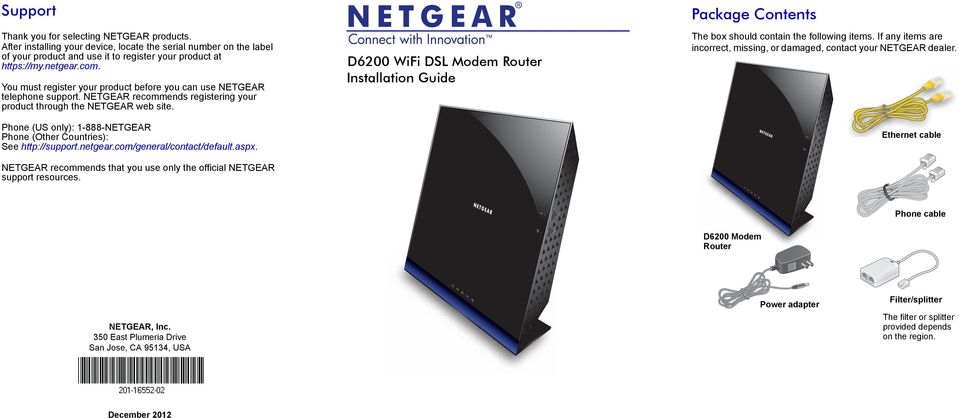
1 Support Thank you for selecting NETGEAR products. After installing your device, locate the serial number on the label of your product and use it to register your product at You must register your product before you can use NETGEAR telephone support. NETGEAR recommends registering your product through the NETGEAR web site. Phone (US only): NETGEAR Phone (Other Countries): See NETGEAR recommends that you use only the official NETGEAR support resources. D6200 WiFi DSL Modem Router Installation Guide Package Contents The box should contain the following items. If any items are incorrect, missing, or damaged, contact your NETGEAR dealer. Ethernet cable Phone cable D6200 Modem Router NETGEAR, Inc. 350 East Plumeria Drive San Jose, CA 95134, USA Power adapter Filter/splitter The filter or splitter provided depends on the region. December 2012
2 You can use this diagram to connect your modem router to ADSL or cable/fiber modem, or you can follow the instructions in this booklet. 4. Open browser User Manual You can get the user manual online at or through a link in the product s user interface. Compliance For the complete EU Declaration of Conformity, visit 1. ADSL Internet 2. Computer or cable/fiber modem* If the web page does not display, close and reopen the browser to in the address bar. Enter the user name admin and the password password. 3. Power After power on, wait for the WiFi LED to turn blue. *Note: Connect to the telephone line for ADSL Internet or to the cable/fiber modem from the Gigabit Ethernet WAN port. NETGEAR, the NETGEAR logo, and Connect with Innovation are trademarks and/or registered trademarks of NETGEAR, Inc. and/or its subsidiaries in the United States and/or other countries. Information is subject to change without notice. NETGEAR, Inc. All rights reserved. Intended for indoor use only in all EU member states, EFTA states, and Switzerland.

3 Contents Before You Begin (DSL Connection) Install Your Modem Router Connect the router to your Internet service Power on your router Connect a computer Open a web browser Preset Wireless Security Wireless Network Settings Join the Wireless Network WPS Method Manual Method Access the Router to Make Changes NETGEAR genie App NETGEAR genie Mobile App ReadySHARE Access ReadySHARE Printer Control Center Configuration Troubleshooting

4 Before You Begin (DSL Connection) If you are connecting to a DSL line, make sure that your DSL service is active before you install the modem router. You need the information listed here to install your DSL modem and connect to the Internet. Locate it and have it on hand before you start the installation procedure. DSL user name and password. These are included in the welcome letter your DSL Internet service provider (ISP) sent you when you signed up for your service. Record your DSL Internet service account user name and password here: User name: Password: Your telephone number or DSL account number. If you do not have voice service, you can use your DSL account number in place of a phone number. If you do not know or cannot locate your user name and password, call your DSL Internet service provider. Be specific when speaking with your DSL Internet service provider. For example, you could say: I need my DSL service user name and password. Can you help me? Note: If your provider says that they do not support NETGEAR devices, tell them you need only your DSL user name and password; you do not need support. 2
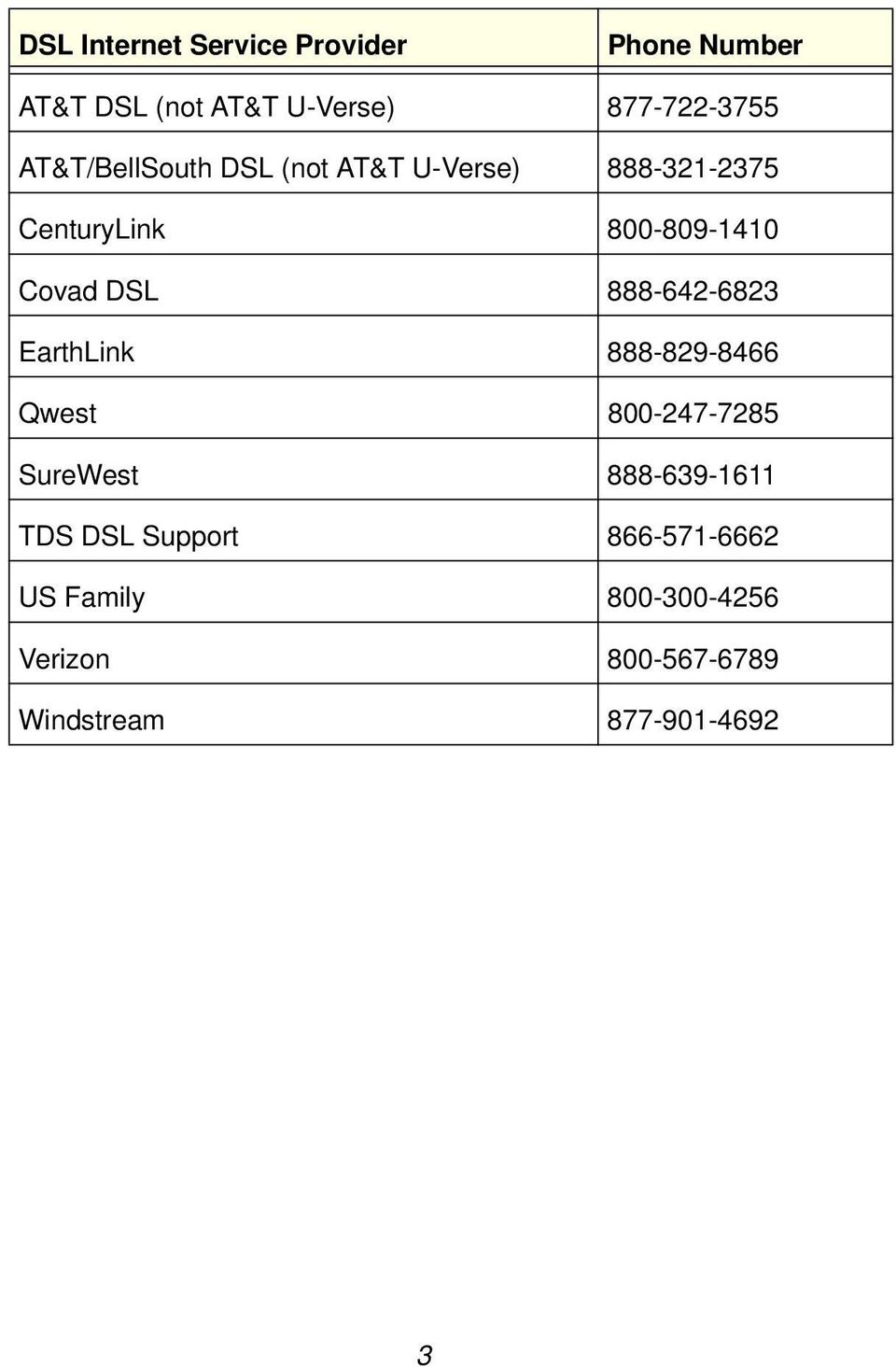
5 DSL Internet Service Provider Phone Number AT&T DSL (not AT&T U-Verse) AT&T/BellSouth DSL (not AT&T U-Verse) CenturyLink Covad DSL EarthLink Qwest SureWest TDS DSL Support US Family Verizon Windstream
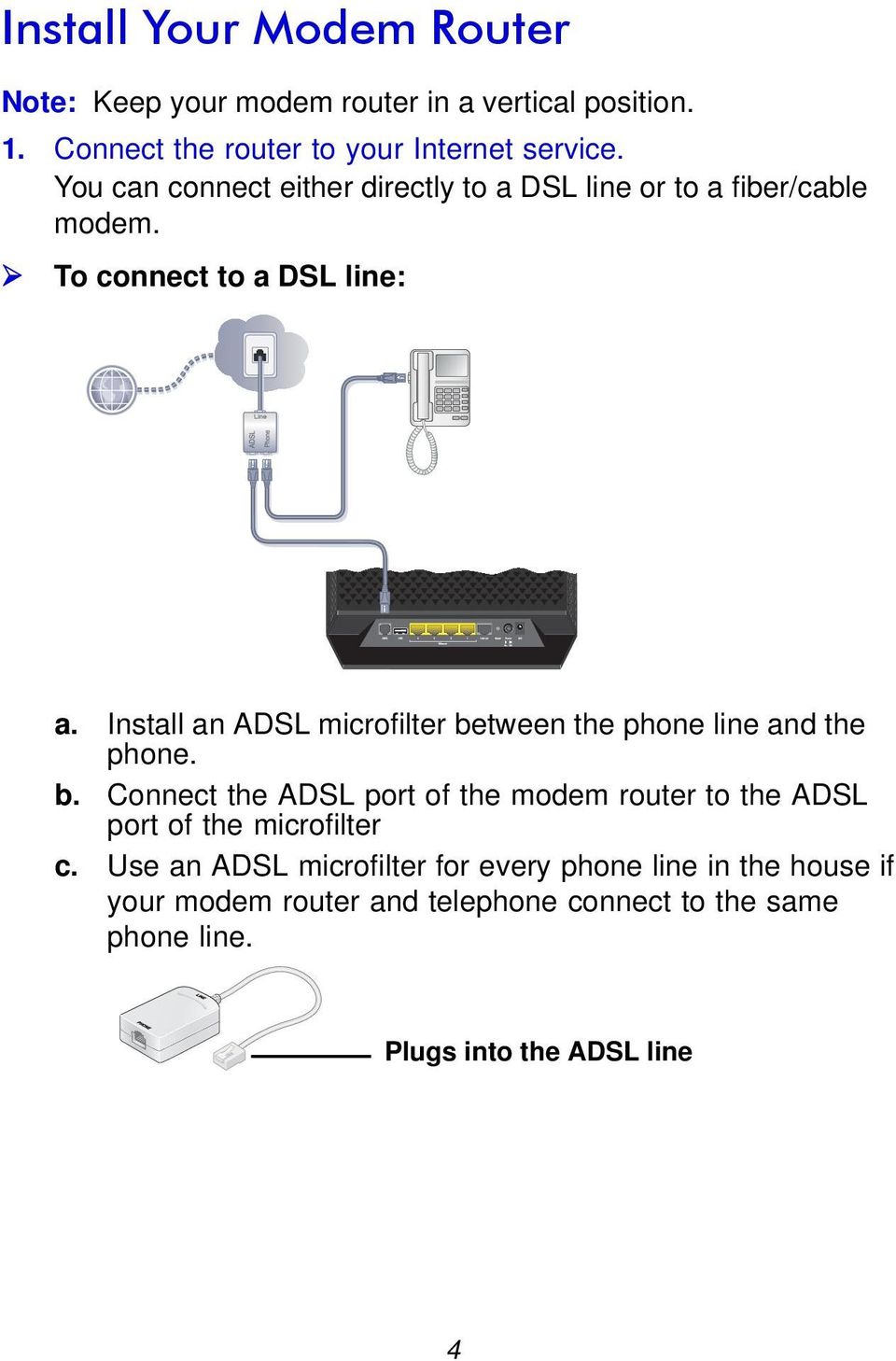
6 Install Your Modem Router Note: Keep your modem router in a vertical position. 1. Connect the router to your Internet service. You can connect either directly to a DSL line or to a fiber/cable modem. To connect to a DSL line: a. Install an ADSL microfilter between the phone line and the phone. b. Connect the ADSL port of the modem router to the ADSL port of the microfilter c. Use an ADSL microfilter for every phone line in the house if your modem router and telephone connect to the same phone line. Plugs into the ADSL line 4
7 To connect to a cable/fiber modem: Connect one end of the yellow Ethernet cable to the WAN port on the router, and connect the other end to your cable/fiber modem. 2. Power on your router. a. Connect the power adapter to the router, and plug the power adapter into an outlet. b. Wait until the WiFi LED turns solid blue. 5

8 3. Connect a computer. You can use an Ethernet cable or connect wirelessly. Use an Ethernet cable (not provided) to connect your computer to an Ethernet port on your router. Connect wirelessly by using the preset wireless security settings on the label on the bottom of the router. 4. Open a web browser. The NETGEAR genie installation wizard displays. D6200 6

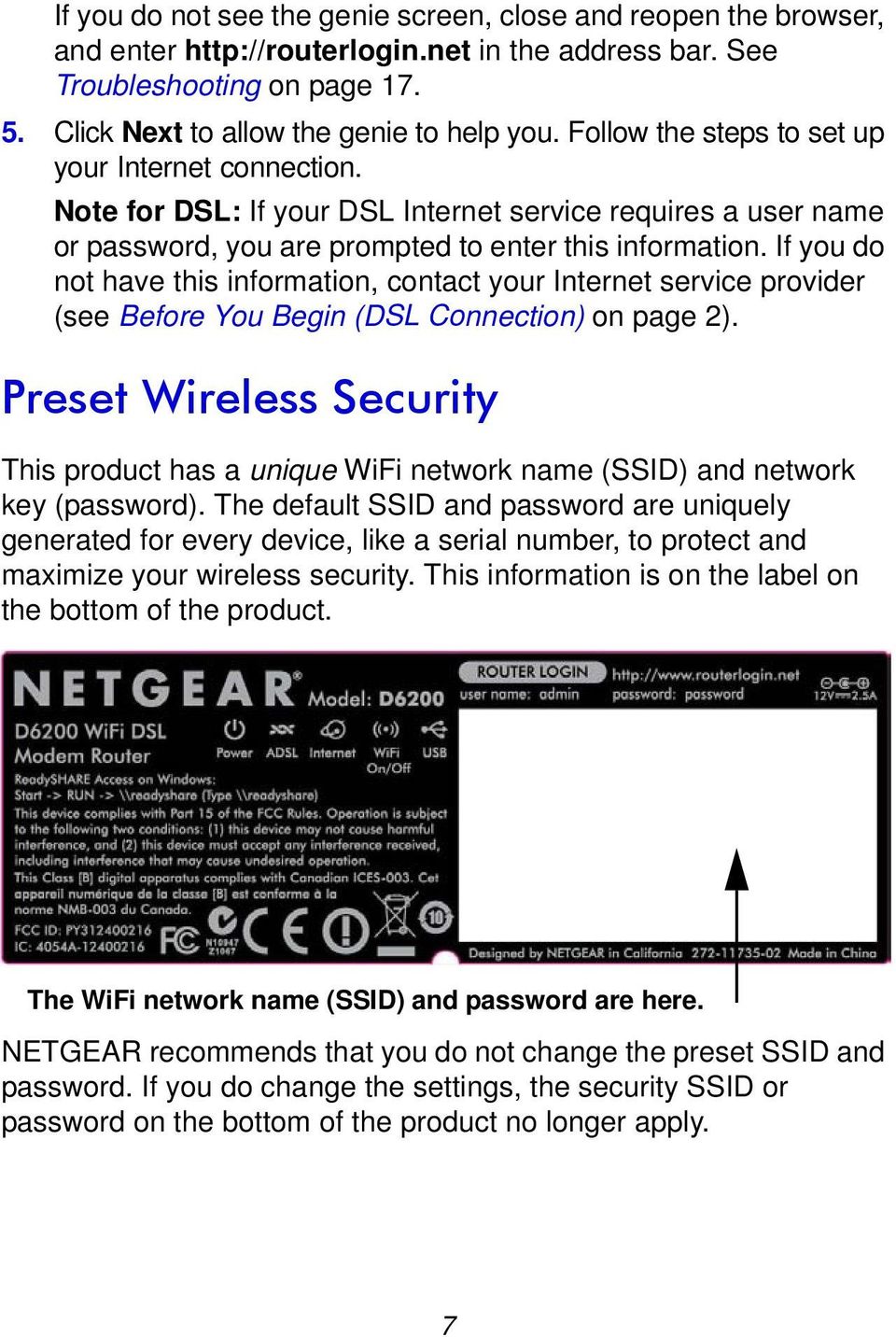
9 If you do not see the genie screen, close and reopen the browser, and enter in the address bar. See Troubleshooting on page Click Next to allow the genie to help you. Follow the steps to set up your Internet connection. Note for DSL: If your DSL Internet service requires a user name or password, you are prompted to enter this information. If you do not have this information, contact your Internet service provider (see Before You Begin (DSL Connection) on page 2). Preset Wireless Security This product has a unique WiFi network name (SSID) and network key (password). The default SSID and password are uniquely generated for every device, like a serial number, to protect and maximize your wireless security. This information is on the label on the bottom of the product. The WiFi network name (SSID) and password are here. NETGEAR recommends that you do not change the preset SSID and password. If you do change the settings, the security SSID or password on the bottom of the product no longer apply. 7
10 Note: Your network name (SSID) and password are case-sensitive. Your network name, security method, and password need to be the same for all the wireless devices that are connected to your router on a network. Wireless Network Settings Record the default preset wireless settings that are printed on the label in the spaces here for easy reference. 2.4 GHz WiFi network name (SSID): 2.4 GHz network key (password): 5 GHz WiFi network name (SSID): 5 GHz network key (password): If you change the default settings, record them here for easy reference, and then store this booklet in a safe place: 2.4 GHz WiFi network name (SSID): 2.4 GHz network key (password): 5 GHz WiFi network name (SSID): 5 GHz network key (Password): To retrieve or update your wireless password, type in a web browser and log in using the default user name (admin) and password (password). Select Basic > Wireless Settings to locate your wireless passwords. 8
11 Join the Wireless Network You can use either the Wi-Fi Protected Setup (WPS) method or the manual method to join your wireless network. WPS Method WPS lets you join your WiFi network without typing the password. If your wireless device supports WPS, the first time you join the network, you might be prompted to press the WPS button on the modem router. 1. Press the WPS button on the modem router. 2. Within 2 minutes, press the WPS button on the computer or wireless device that is trying to join the network. Follow the WPS instructions that came with your computer or wireless device to join the network. Note: Some older wireless computers or devices cannot use WPS. Manual Method 1. On your computer or wireless device, open the software that manages its wireless connections. This software scans for wireless networks in your area. 2. Look for the WiFi network name (SSID) on the list and select it. The SSID is on the label on the bottom of the modem router. Note: If you changed the name of your network during the setup process, look for that network name. 3. Enter the preset password (or your custom password if you changed it), and click Connect. 9
12 Access the Router to Make Changes After you use genie to set up the modem router, you can log in to the modem router to view or change its settings. To log in to the modem router: 1. Launch a web browser from a computer or wireless device that is connected to the modem router. 2. Type or in the address field of the browser. A login screen displays: 3. Enter admin for the user name and password for the password. The genie Home screen displays: D6200 See the user manual for information about the modem router screens and features. 10

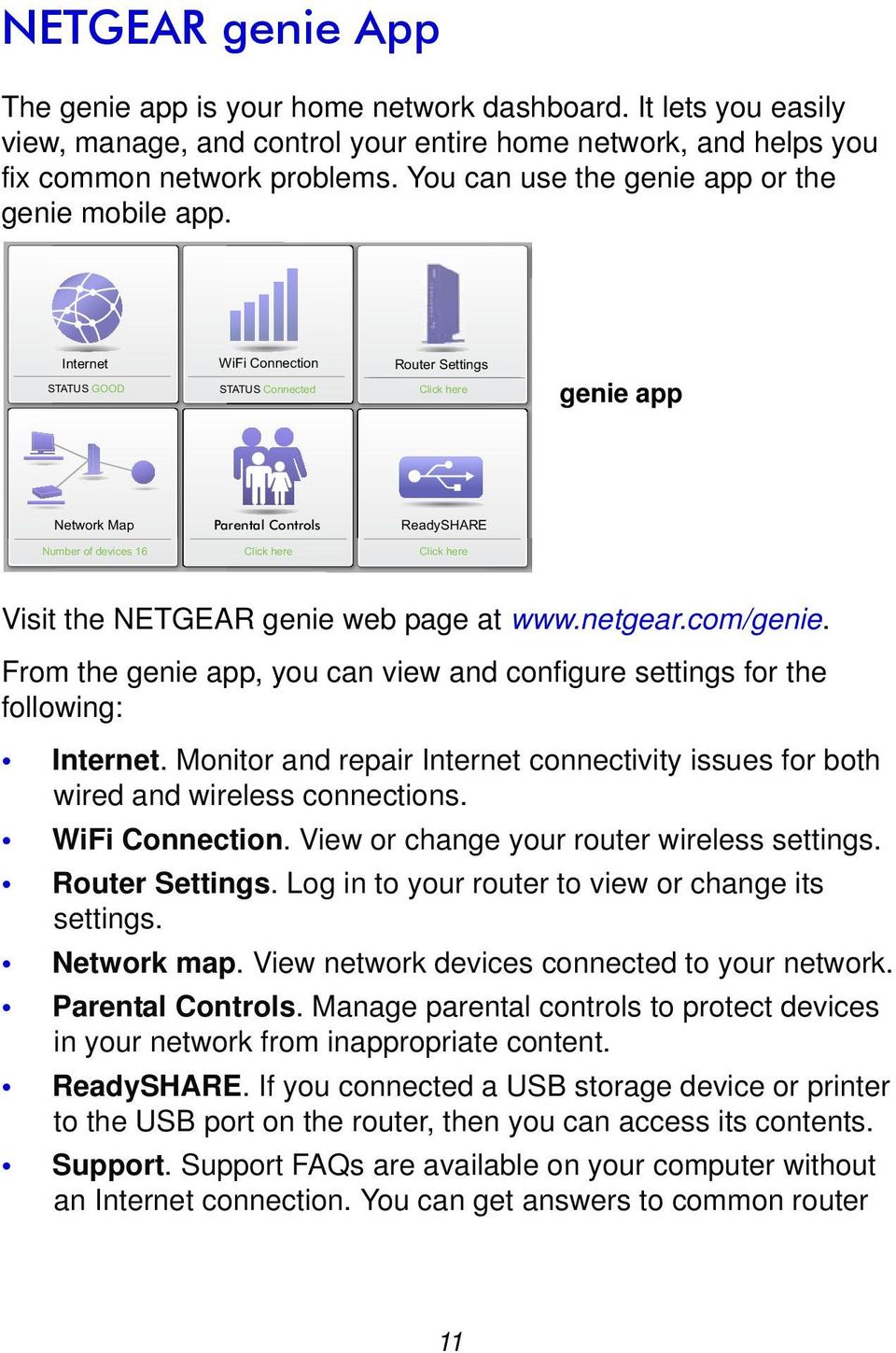
13 NETGEAR genie App The genie app is your home network dashboard. It lets you easily view, manage, and control your entire home network, and helps you fix common network problems. You can use the genie app or the genie mobile app. Internet STATUS GOOD WiFi Connection STATUS Connected Router Settings Click here genie app Network Map Parental Controls ReadySHARE Number of devices 16 Click here Click here Visit the NETGEAR genie web page at From the genie app, you can view and configure settings for the following: Internet. Monitor and repair Internet connectivity issues for both wired and wireless connections. WiFi Connection. View or change your router wireless settings. Router Settings. Log in to your router to view or change its settings. Network map. View network devices connected to your network. Parental Controls. Manage parental controls to protect devices in your network from inappropriate content. ReadySHARE. If you connected a USB storage device or printer to the USB port on the router, then you can access its contents. Support. Support FAQs are available on your computer without an Internet connection. You can get answers to common router 11
14 issues here. Some simple network tools are available to help you debug the network as well. NETGEAR genie Mobile App To install the genie mobile app: 1. Use your mobile device to navigate to the Apple AppStore or Google Play for Android and search for NETGEAR genie. You can use the following QR codes to speed up this process: ipad app iphone app Android app 2. Install the app on your ipad or phone. 12

15 3. Launch the app to display the dashboard screen. To use this app, you need a WiFi connection from your phone or ipad to your NETGEAR home network. Manage WiFi settings and guest access for your home network. View a map of your network. Set up or manage parental controls. Use the traffic meter to check your Internet usage. With My Media, play media on devices on your network. ReadySHARE Access After installation, you can insert a USB storage device into the USB port on the modem router and share the contents with others on the network. (If your USB device has special drivers, it is not compatible.) USB port on the rear 13

16 If your USB device needs a power supply, you have to use it when you connect the USB device to the USB port. It might take up to 2 minutes before the USB drive is ready for sharing after you connect it. To access your USB device: On Windows systems, use any of these methods: Select Start > Run and enter \\readyshare in the dialog box. Click OK. Open Explorer or Safari and enter \\readyshare in the address bar. Open My Network Places, and enter \\readyshare in the address bar. On Mac systems, do this: 1. Select Go > Connect to Server. 2. Enter smb://readyshare as the server address. 3. Click Connect. The readyshareconnect.exe file (for Windows) is available to download here: ReadySHARE Printer The USB Control Center utility allows you to control a shared USB device from the computer that is connected to the USB port on your router. The utility allows you to control a printer. Install the utility on each computer on your network from which you want to control the device. You can download this utility at 14
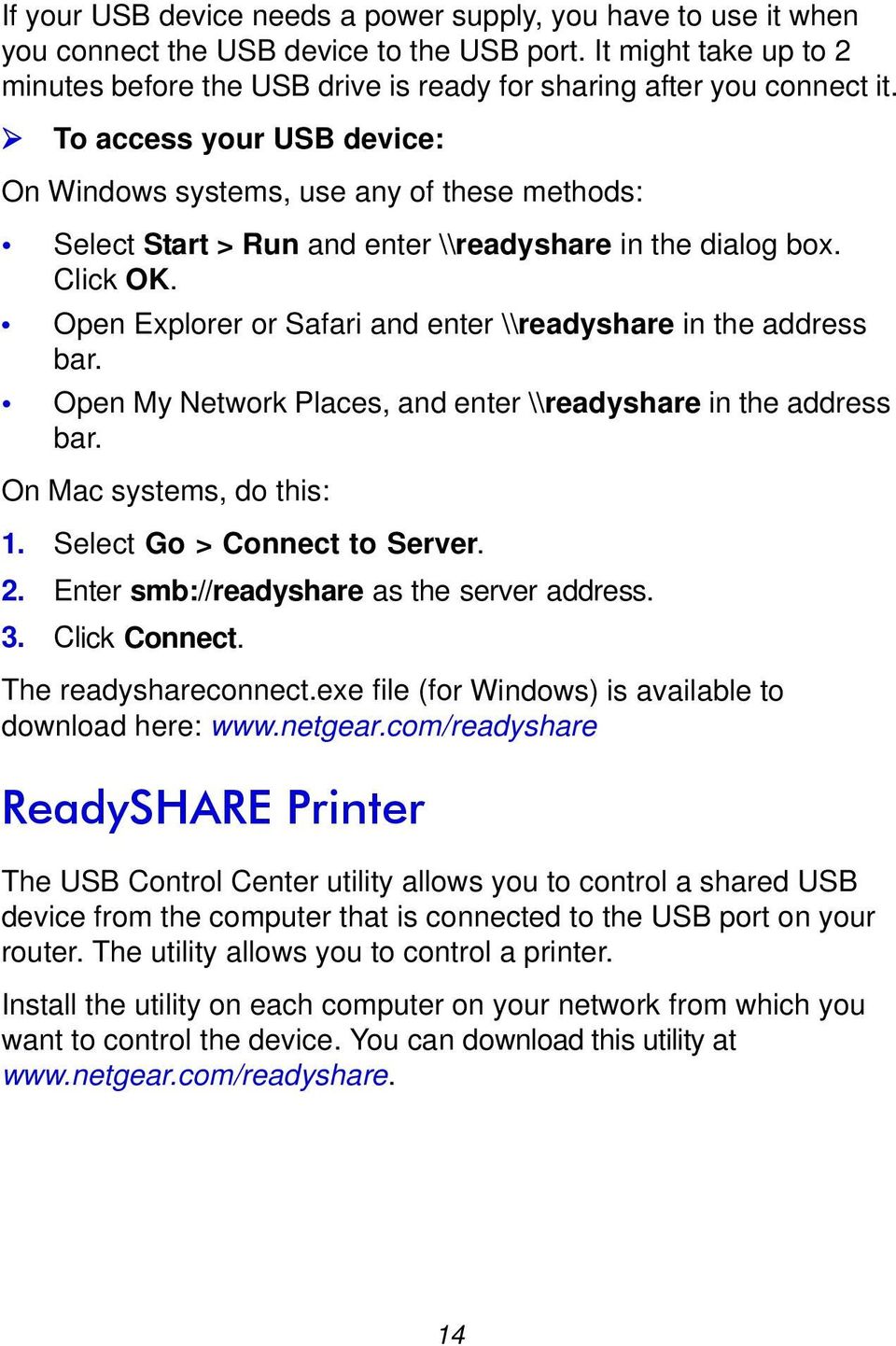
17 When you launch the USB Control Center utility, a screen similar to the following displays: The main screen shows a device icon, the description for this USB device, and its status. Available. The device is available from the computer that you are using. Waiting to Connect. You need to connect to this device from the computer that you are using. The first time you connect, you might be prompted to install the device driver. The following menu selections are available: System. Exit the utility. Tools. Access the Control Center - Configuration screen to set up your shared USB device. See the following section, Control Center Configuration. About. View details about the USB Control Center software. 15
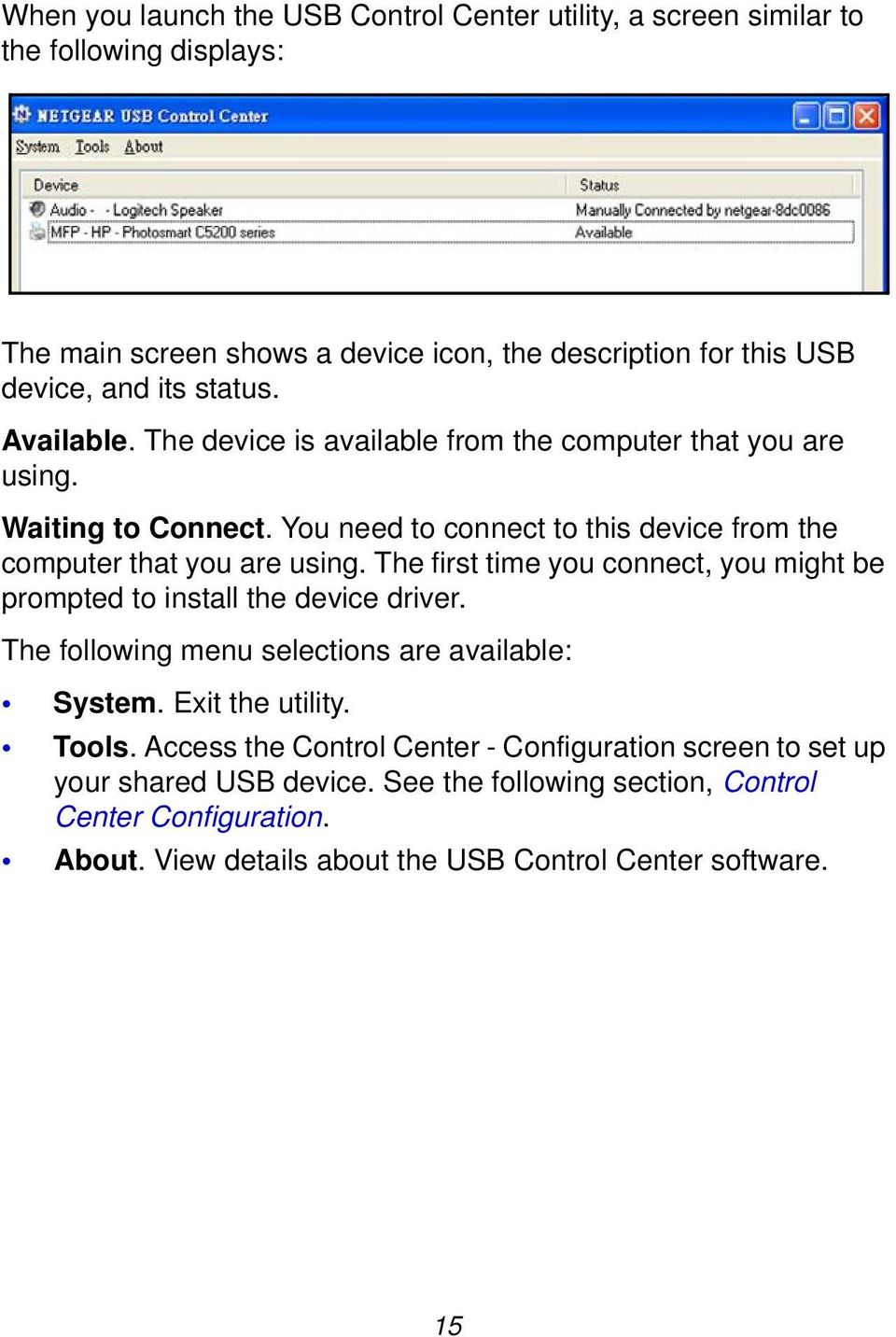
18 Control Center Configuration Select Tools > Configuration to display the following screen: Automatically execute when logging on Windows. Select this check box to have the utility start automatically when you are logged in to Windows. Timeout. Specify the time-out value for holding the USB resource when it is not in use. Language. Select the display language for this utility. 16
19 Troubleshooting If the browser does not display the web page: Make sure that the computer is connected to one of the four LAN Ethernet ports, or wirelessly to the router. Make sure that the modem router has power and that the WiFi LED is lit. Close and reopen the browser so the browser does not cache the previous page. Browse to If the computer is set to a static or fixed IP address (this is uncommon), change it to obtain an IP address automatically from the modem router. If the modem router does not power on: 1. Make sure that the On/Off button on the back of the modem router is in the on position. 2. Check your cables. Disconnect and reconnect each cable. There is usually an audible click when the cable is correctly connected. For ADSL connections, see if the telephone cable connecting your modem router to the wall jack is plugged into a filter. If you do not have telephone voice service, a filter is not required. A filter that is installed where it is not needed might eliminate your ADSL signal. 3. Power down your modem router, and then power it up again. a. Turn off the modem router. b. Unplug the power adapter cord and all other cables from the back of the modem router. c. Wait 30 seconds, then reconnect the cables and power adapter cord to your modem router, and turn it on. 17

20 d. Make sure that the Power LED is lit. If the LED is off, try plugging the power adapter cord into another power outlet. e. Wait for the WiFi LED to turn blue. 4. Open a web browser and try to access the Internet. If steps 1 4 do not resolve the problem: 5. Reset your modem router. To reset your modem router, use a pin or paper clip to press in and hold the Reset button. 18

21 Trademarks NETGEAR, the NETGEAR logo, and Connect with Innovation are trademarks and/or registered trademarks of NETGEAR, Inc. and/or its subsidiaries in the United States and/or other countries. Information is subject to change without notice. Other brand and product names are registered trademarks or trademarks of their respective holders. NETGEAR, Inc. All rights reserved. No part of this publication may be reproduced, transmitted, transcribed, stored in a retrieval system, or translated into any language in any form or by any means without the written permission of NETGEAR, Inc. Statement of Conditions In the interest of improving internal design, operational function, and/or reliability, NETGEAR reserves the right to make changes to the products described in this document without notice. NETGEAR does not assume any liability that may occur due to the use or application of the product(s) or circuit layout(s) described herein. 19
WiFi DSL Modem Router
 Support Thank you for purchasing this NETGEAR product. After installing your device, locate the serial number on the label of your product and use it to register your product at https://my.netgear.com.
N750 WiFi DSL Modem Router Premium Edition
 Support Thank you for purchasing this NETGEAR product. After installing your device, locate the serial number on the label of your product and use it to register your product at https://my.netgear.com.
Technical Support. Package Contents. D6300 WiFi ADSL Modem Router Installation Guide
 Technical Support Thank you for selecting NETGEAR products. After installing your device, locate the serial number on the label of your product and use it to register your product at NETGEAR.com/register.
AC1200 Smart WiFi Router
 Trademarks NETGEAR, the NETGEAR logo, and Connect with Innovation are trademarks and/or registered trademarks of NETGEAR, Inc. and/or its subsidiaries in the United States and/or other countries. Information
AC1600 Smart WiFi Router
 Trademarks NETGEAR, the NETGEAR logo, and Connect with Innovation are trademarks and/or registered trademarks of NETGEAR, Inc. and/or its subsidiaries in the United States and/or other countries. Information
Support Package Contents AC1600 WiFi VDSL/ADSL Ethernet cable Trademarks Modem Router Compliance Phone cable Modem router
 Support Thank you for purchasing this NETGEAR product. After installing your device, locate the serial number on the label of your product and use it to register your product at https://my.netgear.com.
Technical Support. Package Contents. CENTRIA WNDR4700/WNDR4720 Installation Guide
 Technical Support After installing your device, locate the serial number on the label of your product and use it to register your product at https://my.netgear.com. You must register your product before
Quick Start. Nighthawk X8 AC5300 Tri-Band WiFi Router Model R8500. Package Contents. NETGEAR, Inc. 350 East Plumeria Drive San Jose, CA 95134 USA
 Support Thank you for purchasing this NETGEAR product. You can visit www.netgear.com/support to register your product, get help, access the latest downloads and user manuals, and join our community. We
WNDR4500 User Guide. A Guide for Using ReadySHARE Printer ReadySHARE Access Desktop NETGEAR Genie with your WNDR4500 Router
 WNDR4500 User Guide A Guide for Using ReadySHARE Printer ReadySHARE Access Desktop NETGEAR Genie with your WNDR4500 Router 2011 NETGEAR, Inc. All rights reserved. Technical Support Thank you for selecting
WNDR4500 User Guide. A Guide for Using ReadySHARE Printer ReadySHARE Access Desktop NETGEAR Genie Time Machine with your WNDR4500 Router
 WNDR4500 User Guide A Guide for Using ReadySHARE Printer ReadySHARE Access Desktop NETGEAR Genie Time Machine with your WNDR4500 Router 2012 NETGEAR, Inc. All rights reserved. Technical Support Thank you
genie app and genie mobile app
 genie app and genie mobile app User Manual 350 East Plumeria Drive San Jose, CA 95134 USA June 2012 202-10933-02 v1.0 2012 NETGEAR, Inc. All rights reserved No part of this publication may be reproduced,
NETGEAR genie Apps. User Manual. 350 East Plumeria Drive San Jose, CA 95134 USA. August 2012 202-10933-04 v1.0
 User Manual 350 East Plumeria Drive San Jose, CA 95134 USA August 2012 202-10933-04 v1.0 Support Thank you for choosing NETGEAR. To register your product, get the latest product updates, get support online,
Experience Next-Generation WiFi
 Do More Experience Next-Generation WiFi Your new WiFi extender supports the 802.11ac networking standard. This new standard offers better speed, improved reliability, and more range than older WiFi networking
Desktop NETGEAR Genie
 User Manual 350 East Plumeria Drive San Jose, CA 95134 USA August 2011 202-10806-01 v1.0 2011 NETGEAR, Inc. All rights reserved No part of this publication may be reproduced, transmitted, transcribed,
N600 WiFi DSL Modem Router. AC750 WiFi DSL Modem Router. User Manual. Model D3600. Model D6000. March 2015 202-11386-01
 N600 WiFi DSL Modem Router Model D3600 AC750 WiFi DSL Modem Router Model D6000 User Manual March 2015 202-11386-01 350 East Plumeria Drive San Jose, CA 95134 USA Support Thank you for selecting NETGEAR
AC1600 WiFi VDSL/ADSL Modem Router
 AC1600 WiFi VDSL/ADSL Modem Router Model D6400 User Manual May 2015 202-11485-03 350 East Plumeria Drive San Jose, CA 95134 USA Support Thank you for selecting NETGEAR products. After installing your device,
WN1000RP WiFi Booster for Mobile Installation Guide
 WN1000RP WiFi Booster for Mobile Installation Guide Contents Getting Started......................................... 3 Meet Your WiFi Booster.................................. 4 Front Panel and Side Panel...........................
Technical Support. Trademarks
 Getting Started Technical Support Thank you for selecting NETGEAR products. After installing your device, locate the serial number on the label of your product and use it to register your product at https://my.netgear.com.
ReadySHARE Printer. Easy to Set Up: Instructions. 350 East Plumeria Drive San Jose, CA 95134 USA
 Easy to Set Up: Instructions 350 East Plumeria Drive San Jose, CA 95134 USA October 2011 2011 NETGEAR, Inc. All rights reserved No part of this publication may be reproduced, transmitted, transcribed,
NETGEAR Trek N300 Travel Router and Range Extender
 NETGEAR Trek N300 Travel Router and Range Extender PR2000 Installation Guide NETGEAR Reset /LAN LAN Contents Get Started........................................... 3 Connect on the Go..................................
N600 WiFi Range Extender
 Installation Guide N600 WiFi Range Extender Model WN2500RP Contents Getting Started......................................... 3 Meet Your Extender..................................... 4 Front Panel........................................
N300 WiFi Range Extender WN2000RPT User Manual
 N300 WiFi Range Extender WN2000RPT User Manual December 2013 202-11333-01 350 East Plumeria Drive San Jose, CA 95134 USA Support Thank you for selecting NETGEAR products. After installing your device,
Installation. N300 WiFi Range Extender Model WN3100RP
 Installation N300 WiFi Range Extender Model WN3100RP Getting Started The NETGEAR WiFi Range Extender increases the distance of a WiFi network by boosting the existing WiFi signal and enhancing the overall
Universal WiFi Range Extender WN3000RP Installation Guide
 Universal WiFi Range Extender WN3000RP Installation Guide 2011 NETGEAR, Inc. All rights reserved. No part of this publication may be reproduced, transmitted, transcribed, stored in a retrieval system,
EX6100 WiFi Range Extender Installation Guide
 EX6100 WiFi Range Extender Installation Guide Getting Started The NETGEAR WiFi Range Extender increases the distance of a WiFi network by boosting the existing WiFi signal and enhancing the overall signal
AC1200 WiFi Range Extender
 Model EX6200 User Manual February 2014 202-11298-01 350 East Plumeria Drive San Jose, CA 95134 USA Support Thank you for selecting NETGEAR products. After installing your device, locate the serial number
AC1900, N900, and N450 WiFi Cable Data Gateways
 AC1900, N900, and N450 WiFi Cable Data Gateways Models C6300BD, CG4500BD, and CG3000Dv2 User Manual March 2015 202-11434-03 350 East Plumeria Drive San Jose, CA 95134 USA Support Thank you for selecting
Powerline 500 WiFi Access Point (XWNB5201) Installation Guide
 Powerline 500 WiFi Access Point (XWNB5201) Installation Guide Support Thank you for selecting NETGEAR products. After installing your device, locate the serial number on the label of your product and use
Wireless Router Setup Manual
 Wireless Router Setup Manual NETGEAR, Inc. 4500 Great America Parkway Santa Clara, CA 95054 USA 208-10082-02 2006-04 2006 by NETGEAR, Inc. All rights reserved. Trademarks NETGEAR is a trademark of Netgear,
Powerline 500 WiFi Access Point (XWN5001) Installation Guide
 Powerline 500 WiFi Access Point (XWN5001) Installation Guide Support Thank you for selecting NETGEAR products. After installing your device, locate the serial number on the label of your product and use
AC1200 Smart WiFi Router with External Antennas
 AC1200 Smart WiFi Router with External Antennas Model R6220 User Manual November 2014 202-11443-01 350 East Plumeria Drive San Jose, CA 95134 USA Support Thank you for selecting NETGEAR products. After
Chapter 1 Installing the Gateway
 Chapter 1 Installing the Gateway This chapter describes how to set up the wireless voice gateway on your Local Area Network (LAN), connect to the Internet, and perform basic configuration. For information
Chapter 1 Connecting the Router to the Internet
 Chapter 1 Connecting the Router to the Internet This chapter describes how to set up the router on your Local Area Network (LAN) and connect to the Internet. It describes how to set up your wireless ADSL
NeoTV Streaming Player (NTV300) Installation Guide
 NeoTV Streaming Player (NTV300) Installation Guide Technical Support Thank you for selecting NETGEAR products. After installing your device, locate the serial number on the label of your product and use
N900 WiFi Router. Model WNDR4500v3 User Manual. January 2015 202-11400-01. 350 East Plumeria Drive San Jose, CA 95134 USA
 Model WNDR4500v3 User Manual January 2015 202-11400-01 350 East Plumeria Drive San Jose, CA 95134 USA Support Thank you for selecting NETGEAR products. After installing your device, locate the serial number
NETGEAR Trek N300 Travel Router and Range Extender
 NETGEAR Trek N300 Travel Router and Range Extender Model PR2000 User Manual NETGEAR Reset Internet/LAN LAN USB WiFi Internet Power USB April 2014 202-11343-02 350 East Plumeria Drive San Jose, CA 95134
Broadband ADSL2+ Modem Model DM111Pv2 Setup Manual
 Broadband ADSL2+ Modem Model DM111Pv2 Setup Manual NETGEAR, Inc. 350 East Plumeria Drive San Jose, CA 95134 USA October 2014 208-10256-02 v1.0 Support Thank you for selecting NETGEAR products. After installing
AC1750 Smart WiFi Router
 Model R6400 User Manual June 2015 202-11508-01 350 East Plumeria Drive San Jose, CA 95134 USA Support Thank you for selecting NETGEAR products. After installing your device, locate the serial number on
N300 WiFi Range Extender
 Model EX2700 User Manual July 2014 202-11395-01 350 East Plumeria Drive San Jose, CA 95134 USA Support Thank you for selecting NETGEAR products. After installing your device, locate the serial number on
CM500 High Speed Cable Modem User Manual
 User Manual February 2015 202-11472-04 350 East Plumeria Drive San Jose, CA 95134 USA Support Thank you for selecting NETGEAR products. After installing your device, locate the serial number on the label
A6210 WiFi USB Adapter 802.11ac USB 3.0 Dual Band User Manual
 802.11ac USB 3.0 Dual Band User Manual August 2014 202-11373-01 350 East Plumeria Drive San Jose, CA 95134 USA Support Thank you for selecting NETGEAR products. After installing your device, locate the
Powerline 500 WiFi Access Point XWN5001 Installation Guide
 Powerline 500 WiFi Access Point XWN5001 Installation Guide Technical Support Thank you for selecting NETGEAR products. After installing your device, locate the serial number on the label of your product
Nighthawk X4 AC2350 Smart WiFi Router
 Nighthawk X4 AC2350 Smart WiFi Router Model R7500 User Manual August 2014 202-11384-01 350 East Plumeria Drive San Jose, CA 95134 USA Support Thank you for selecting NETGEAR products. After installing
WiFi DSL Modem Router
 WiFi DSL Modem Router Model D6300 User Manual September 2014 202-11039-05 350 East Plumeria Drive San Jose, CA 95134 USA Support Thank you for selecting NETGEAR products. After installing your device,
N300 WiFi Range Extender
 Model WN3000RP User Manual September 2014 202-11409-01 350 East Plumeria Drive San Jose, CA 95134 USA Support Thank you for selecting NETGEAR products. After installing your device, locate the serial number
N300 Wireless ADSL2+ Modem Router DGN2200v4
 N300 Wireless ADSL2+ Modem Router DGN2200v4 User Manual March 2013 202-11157-01 350 East Plumeria Drive San Jose, CA 95134 USA Support Thank you for selecting NETGEAR products. After installing your device,
N300 Wireless ADSL2+ Modem Router DGN2200v3
 N300 Wireless ADSL2+ Modem Router DGN2200v3 User Manual 350 East Plumeria Drive San Jose, CA 95134 USA May 2013 202-10870-03 v1.0 Support Thank you for selecting NETGEAR products. After installing your
WiFi DSL Modem Router
 WiFi DSL Modem Router Model D6200 User Manual September 2014 202-11171-05 350 East Plumeria Drive San Jose, CA 95134 USA Support Thank you for selecting NETGEAR products. After installing your device,
WiFi DSL Modem Router
 WiFi DSL Modem Router Model D6300 User Manual December 2015 202-11039-06 350 East Plumeria Drive San Jose, CA 95134 USA Support Thank you for purchasing this NETGEAR product. You can visit www.netgear.com/support
Nighthawk X6 AC3200 Tri-Band WiFi Router
 Nighthawk X6 AC3200 Tri-Band WiFi Router Model R8000 User Manual July 2014 202-11398-01 350 East Plumeria Drive San Jose, CA 95134 USA Support Thank you for selecting NETGEAR products. Thank you for selecting
N600 Wireless Dual Band Gigabit ADSL2+ Modem Router DGND3700v2 User Manual
 N600 Wireless Dual Band Gigabit ADSL2+ Modem Router DGND3700v2 User Manual June 2014 202-10918-05 350 East Plumeria Drive San Jose, CA 95134 USA Support Thank you for selecting NETGEAR products. After
CM400 High Speed Cable Modem User Manual
 User Manual July 2015 202-11412-02 350 East Plumeria Drive San Jose, CA 95134 USA Support Thank you for selecting NETGEAR products. After installing your device, locate the serial number on the label of
N600 WiFi USB Adapter
 Model WNDA3100v3 User Manual December 2014 202-11470-01 350 East Plumeria Drive San Jose, CA 95134 USA Support Thank you for selecting NETGEAR products. After installing your device, locate the serial
Router Setup Manual. NETGEAR, Inc. 4500 Great America Parkway Santa Clara, CA 95054 USA 208-10060-01 2006-03-17
 NETGEAR, Inc. 4500 Great America Parkway Santa Clara, CA 95054 USA 208-10060-01 2006-03-17 2006 by NETGEAR, Inc. All rights reserved. Trademarks NETGEAR is a trademark of Netgear, Inc. Microsoft, Windows,
Universal WiFi Range Extender WN2000RPT Installation Guide
 Universal WiFi Range Extender WN2000RPT Installation Guide CONNECT WIRED DEVICES WIRELESSLY WIRELESS EXTENSION Extended Wireless Range Existing Router Range EXISTING ROUTER 2011 NETGEAR, Inc. All rights
Time Machine Setup for Routers
 User Manual August 2015 202-11590-02 350 East Plumeria Drive San Jose, CA 95134 USA Support Thank you for selecting NETGEAR products. After installing your device, locate the serial number on the label
CENTRIA WNDR4700/WNDR4720
 CENTRIA WNDR4700/WNDR4720 User Manual 350 East Plumeria Drive San Jose, CA 95134 USA December 2012 202-11016-02 v1.0 Support Thank you for choosing NETGEAR. After installing your device, locate the serial
AC1600 WiFi Cable Modem Router
 Model C6250 User Manual WiFi On/Off WPS February 2016 202-11533-01 350 East Plumeria Drive San Jose, CA 95134 USA Support Thank you for selecting NETGEAR products. After installing your device, locate
WiFi Booster for Mobile WN1000RP Installation Guide. Extended Wireless Range Router Range
 WiFi Booster for Mobile WN1000RP Installation Guide Extended Wireless Range Router Range Contents Hardware Features..................................... 3 Getting Started.........................................
AC750 WiFi Range Extender
 Model EX6100 User Manual April 2014 202-11307-03 350 East Plumeria Drive San Jose, CA 95134 USA Support Thank you for selecting NETGEAR products. After installing your device, locate the serial number
N450 Wireless Router WNR2500
 User Manual September 2013 202-11311-01 350 East Plumeria Drive San Jose, CA 95134 USA Support Thank you for purchasing this NETGEAR product. After installing your device, locate the serial number on the
D6300 WiFi DSL Modem Router
 D6300 WiFi DSL Modem Router User Manual 350 East Plumeria Drive San Jose, CA 95134 USA November 2012 202-11039-01 v1.0 Support Thank you for choosing NETGEAR. After installing your device, locate the serial
Nighthawk X4S AC2600 Smart WiFi Router User Manual
 Nighthawk X4S AC2600 Smart WiFi Router User Manual Model R7800 April 2016 202-11596-04 350 E. Plumeria Drive San Jose, CA 95134 USA Support Thank you for purchasing this NETGEAR product. You can visit
Dual Band 11ac WiFi Router R6200
 Dual Band 11ac WiFi Router R6200 User Manual 350 East Plumeria Drive San Jose, CA 95134 USA June 2012 202-11029-01 v1.0 2012 NETGEAR, Inc. All rights reserved. No part of this publication may be reproduced,
Quick Start. PowerLINE WiFi 1000 Models PL1000 and PLW1000
 Quick Start PowerLINE WiFi 1000 Models PL1000 and PLW1000 Package Contents In some regions, a resource CD is included with your product. 2 Get Started PowerLINE adapters give you an alternative way to
N300 Wireless Router WNR2000v4 User Manual
 User Manual March 2014 202-11229-03 350 East Plumeria Drive San Jose, CA 95134 USA Support Thank you for selecting NETGEAR products. After installing your device, locate the serial number on the label
Nighthawk AC1900 WiF Range Extender
 Nighthawk AC1900 WiF Range Extender Model EX7000 User Manual December 2014 202-11469-01 350 East Plumeria Drive San Jose, CA 95134 USA Nighthawk AC1900 WiF Range Extender Support Thank you for selecting
N600 Wireless Dual Band Gigabit VDSL2 Modem Router DGND3800B
 N600 Wireless Dual Band Gigabit VDSL2 Modem Router DGND3800B User Manual 350 East Plumeria Drive San Jose, CA 95134 USA June 2013 202-10941-03 v1.0 Support Thank you for selecting NETGEAR products. After
N750 Wireless Dual Band Gigabit Router
 N750 Wireless Dual Band Gigabit Router Model WNDR4300 User Manual September 2014 202-11031-07 350 East Plumeria Drive San Jose, CA 95134 USA Support Thank you for selecting NETGEAR products. After installing
N150 Wireless Router WNR1000 Setup Manual
 N150 Wireless Router WNR1000 Setup Manual NETGEAR, Inc. 350 E. Plumeria Drive Santa Jose, CA 95134 USA January 2009 208-10430-01 v1.0 2009 by NETGEAR, Inc. All rights reserved. Trademarks NETGEAR and the
AC750 WiF Range Extender
 Model EX3700 User Manual May 2015 202-11487-01 350 East Plumeria Drive San Jose, CA 95134 USA Support Thank you for selecting NETGEAR products. After installing your device, locate the serial number on
WiFi Booster for Mobile WN1000RP Installation Guide
 WiFi Booster for Mobile WN1000RP Installation Guide 2012 NETGEAR, Inc. All rights reserved. No part of this publication may be reproduced, transmitted, transcribed, stored in a retrieval system, or translated
N300 Wireless DSL Modem Router
 Performance & Use Built-in ADSL2+ Modem N300 WiFi speed Faster downloads & Internet gaming ReadySHARE USB Wirelessly access & share USB storage NETGEAR genie App Home networking simplified Ethernet WAN
AC1750 Smart WiFi Router
 AC1750 Smart WiFi Router Model R6300v2 User Manual May 2015 202-11440-02 350 East Plumeria Drive San Jose, CA 95134 USA Support Thank you for selecting NETGEAR products. After installing your device, locate
P-660HWP-Dx. Quick Start Guide. 802.11g HomePlug AV ADSL2+ Gateway. Version 3.40 7/2007 Edition 1. Copyright 2007. All rights reserved.
 P-660HWP-Dx 802.11g HomePlug AV ADSL2+ Gateway Quick Start Guide Version 3.40 7/2007 Edition 1 Copyright 2007. All rights reserved. Overview The P-660HWP-Dx is a gateway which combines high-speed ADSL
AC1750 WiFi Cable Modem Router
 Model C6300 User Manual November 2015 202-11238-02 350 East Plumeria Drive San Jose, CA 95134 USA Support Thank you for purchasing this NETGEAR product. You can visit www.netgear.com/support to register
SwannEye HD Security Camera Wi-Fi Connections Quick Setup Guide. Welcome! Lets get started.
 EN SwannEye HD Security Camera Wi-Fi Connections Quick Setup Guide Welcome! Lets get started. 1 1 Introduction 1 2 3 4 Congratulations on your purchase of this SwannEye HD Wi-Fi Security Camera from Swann!
N150 Wireless Micro USB Adapter WNA1000M Installation Guide
 N150 Wireless Micro USB Adapter WNA1000M Installation Guide This guide explains Express installation with the NETGEAR Smart Wizard and the Standalone Windows Driver installation. Note: For help with custom
If you are unable to set up your Linksys Router by using one of the above options, use the steps below to manually configure your router.
 This article describes how to manually configure a Linksys Router for broadband DSL that uses PPPoE (Point-to-Point Protocol over Ethernet) for authentication. For automatic configuration options, please
N600 Wireless Dual Band Gigabit ADSL2+ Modem Router DGND3700v2
 N600 Wireless Dual Band Gigabit ADSL2+ Modem Router DGND3700v2 User Manual 350 East Plumeria Drive San Jose, CA 95134 USA March 2012 202-10918-01 v1.0 2012 NETGEAR, Inc. All rights reserved No part of
c. Securely insert the Ethernet cable from your cable or DSL modem into the Internet port (B) on the WGT634U. Broadband modem
 Start Here Follow these instructions to set up your router. Verify That Basic Requirements Are Met Assure that the following requirements are met: You have your broadband Internet service settings handy.
R6200v2 Smart WiFi Router
 User Manual August 2013 202-11220-02 350 East Plumeria Drive San Jose, CA 95134 USA Support Thank you for selecting NETGEAR products. After installing your device, locate the serial number on the label
BigPond Wi-Fi 4G Advanced II AirCard 790S User Manual
 AirCard 790S User Manual October 2014 202-11471-02 350 East Plumeria Drive San Jose, CA 95134 USA Support Contact your Internet service provider for technical support. Compliance For regulatory compliance
N150 and N300 Wireless Routers User Manual
 User Manual Models: JNR1010v2 JWNR2000v5 JWNR2010v5 WNR614 WNR618 WNR1000v4 WNR2010 WNR2020 WNR2050 October 2014 202-11392-03 350 East Plumeria Drive San Jose, CA 95134 USA Support Thank you for selecting
1-Port Wireless USB 2.0 Print Server Model # APSUSB201W. Quick Installation Guide. Ver. 2A
 1-Port Wireless USB 2.0 Print Server Model # APSUSB201W Quick Installation Guide Ver. 2A Section 1 Step 1Connect one end of the Ethernet cable to the RJ-45 port of the Print Server and attach the other
USER GUIDE AC2600 MU-MIMO GIGABIT ROUTER. Model# EA8500
 USER GUIDE AC2600 MU-MIMO GIGABIT ROUTER Model# EA8500 Table of Contents Product overview EA8500.....................................1 Setting Up Your Router Where to find more help.........................
N150 Wireless Router Setup Manual
 N150 Wireless Router Setup Manual NETGEAR, Inc. 350 E. Plumeria Drive San Jose, CA 95134 USA July 2010 208-10679-01 v1.0 2010 by NETGEAR, Inc. All rights reserved. Trademarks NETGEAR and the NETGEAR logo
Thank you for purchasing the Mobile WiFi. This Mobile WiFi brings you a high speed wireless network connection.
 Quick Start Thank you for purchasing the Mobile WiFi. This Mobile WiFi brings you a high speed wireless network connection. This document will help you understand your Mobile WiFi so you can start using
N900 WiFi Dual Band Gigabit Router Premium Edition
 Performance & Use N900 900 DUAL BAND 450+450 RANGE Faster WiFi speed 450+450 Up to 900 Mbps Improves WiFi range for large homes Wirelessly access & share USB hard drive & printer IPv6 Compatible Future-proof
MyMedia With the Desktop genie App User Manual
 With the Desktop genie App User Manual February 2016 202-11630-01 350 East Plumeria Drive San Jose, CA 95134 USA Support Thank you for purchasing this NETGEAR product. You can visit www.netgear.com/support
Thank you for purchasing the Mobile WiFi. This Mobile WiFi brings you a high speed wireless network connection.
 Quick Start Thank you for purchasing the Mobile WiFi. This Mobile WiFi brings you a high speed wireless network connection. This document will help you understand your Mobile WiFi so you can start using
N600 Wireless Dual Band Router WNDR3400 Setup Manual
 N600 Wireless Dual Band Router WNDR3400 Setup Manual NETGEAR, Inc. 350 E. Plumeria Drive San Jose, CA 95134 USA March 2010 208-10532-03 v1.0 Trademarks NETGEAR and the NETGEAR logo are registered trademarks,
Chapter 3 Connecting the Router to the Internet
 Chapter 3 Connecting the Router to the Internet This chapter describes how to set up the router on your Local Area Network (LAN) and connect to the Internet. It describes how to configure your DG834GT
R6300v2 Smart WiFi Router User Manual
 User Manual March 2014 202-11202-03 350 East Plumeria Drive San Jose, CA 95134 USA Support Thank you for selecting NETGEAR products. After installing your device, locate the serial number on the label
N300 Wireless Gigabit Router Setup Manual
 N300 Wireless Gigabit Router Setup Manual NETGEAR, Inc. 350 E. Plumeria Drive San Jose, CA 95134 USA June 2010 208-10443-03 v1.0 2010 by NETGEAR, Inc. All rights reserved. Trademarks NETGEAR and the NETGEAR
Wireless-N Router Setup Manual
 Wireless-N Router Setup Manual NETGEAR, Inc. 4500 Great America Parkway Santa Clara, CA 95054 USA May 2008 208-10259-01 v1.0 2008 by NETGEAR, Inc. All rights reserved. Trademarks NETGEAR and the NETGEAR
N150 2-Port Wireless Router WNR612v3
 N150 2-Port Wireless Router WNR612v3 User Manual 350 East Plumeria Drive San Jose, CA 95134 USA August 2012 202-11019-01 v1.0 2012 NETGEAR, Inc. All rights reserved. No part of this publication may be
R6250 Smart WiFi Router
 User Manual April 2013 202-11215-01 350 East Plumeria Drive San Jose, CA 95134 USA Support Thank you for selecting NETGEAR products. After installing your device, locate the serial number on the label
Business Wireless Internet quick install guide
 Read me first Business Wireless Internet quick install guide Wi-Fi and email set-up instructions included Actiontec Wireless Gateway TELUS Internet account information Record your personal account information