
User Manual. Windows & Macintosh V1.02
|
|
|
- Christopher O’Brien’
- 9 years ago
- Views:
Transcription
1 User Manual Windows & Macintosh V1.02
2 Table of the Contents About This User s Manual... 2 Notes for This Manual... 2 Safety Information... 3 Care and Cleaning Using the Bundled Software System Requirements Introduction to Tablet Software Supporting Operating Systems Installing Tablet Software Product Introduction... 4 Package Contents... 5 Tablet... 6 Digital Pen Getting Started Installation Windows Mac OS Configuration Uninstalling Tablet Software Specification Summary Tablet Digital Pen Troubleshooting Testing your device FAQ Service and Technical Support Driver Download Windows Mac OS Using the Tablet Holding the Pen Working Area Positioning Clicking Dragging Pressure Control Appendix Declarations and Safety Statements FCC CE Ordering Components and Accessories Copyright Information Limitation of Liability
3 About This User s Manual You are reading the Kanvus Office 54 Graphic Tablet User Manual. This Manual provides information regarding the components in the Kanvus Graphic Tablet and how to use them. The following are major sections of this User s Manual : 1. Product Introduction Provides information on the Kanvus Graphic Tablet s components. 2. Getting Started Provides information on getting started with the Kanvus Graphic Tablet. 3. Using the Tablet Provides information on using the Kanvus Graphic Tablet. 4. Using the Bundled Software Provides information on using the Kanvus Graphic Tablet s utility. 5. Specification Summary Gives you specifications summary of Kanvus Graphic Tablet. 6. Troubleshooting Provides information on Kanvus Graphic Tablet, where you can find the answers to most common questions. Notes for This Manual A few notes and manuals are used throughout this guide, allowing you to complete certain tasks safely and effectively. 1. WARNING Important Information that must be followed for safe operation. 2. IMPORTANT Vital information that must be followed to prevent damage to data, components, or persons. 3. TIP Tips for completing tasks. 4. NOTE Information for special situations. 2
4 Safety Information Adhering to the following safety information will prolong the life of the Tablet. 1. DO NOT try to open the housing of the tablet and the digital pen. It will void your warranty. 2. DO NOT expose to or use near liquids, rain, or moisture. 3. DO NOT place or drop objects on top of the Tablet. 4. DO NOT expose to strong magnetic or electrical fields. 5. DO NOT throw the Tablet in municipal waste. The product has been designed for proper reuse and recycling of parts. The symbol of the crossed-out wheeled bin indicates that the product should not be placed in municipal waste. Check your local regulations for disposal of electronic products. Care and Cleaning 1. DO NOT expose to dirty or dusty environments to avoid wearing-down the surface of the tablet. 2. Regular cleaning of the tablet surface with a soft cloth will help expand the life span of your tablet. DO NOT use any kind of volatile liquid on the tablet surface, as it will damage the plastic case. 3. Store your tablet and the pen in a clean, dry place and avoid extreme temperatures. 3
5 1. Product Introduction -Package Contents -Tablet -Digital Pen 4
6 Package Contents Check your package for the following items. Kanvus Office 54 Digital Tablet Installation CD Digital Pen & 1.5V AAA Battery & Refills & Pen Clip Kanvus Tutorial DVD Quick Guide Pen Stand Office Kanvus Cover 5

7 Tablet Refer to the picture below. Hotspot Area USB Connector Working Area LED Indicator Descriptions 1 USB Connector : Connect to a USB port on your PC. 2 Working Area : Please refer to Working area section for detail descriptions. 3 LED Indicator : The green LED light on the tablet is the main indicator for hardware operation. This LED normally stays off, and will only be turned on/off in response to certain conditions. Pay attention to the states of the LED when you are encountering the following situations : (a) A built-in power saving function would execute the power saving mode for the pen if it is left unused for a period of time. Tap anywhere on the surface with the tip of the pen to wake it up if it has gone into power saving mode. 6
8 (b) When the pen tablet is re-activated, the LED light will go on for a moment, and will then turn off again. (c) When the tablet detects the digital pen, the LED will blink slowly. This happens when the pen tip is idling or is being placed within the working area on the tablet. (d) When you press a button on the pen barrel, the LED light will be turned on. (e) Moving the pen around the working area will cause the cursor on the screen to move accordingly. After the tablet s device driver has been properly installed, a small tablet icon will appear in the System Tray, which is normally at the lower right corner of the desktop. 4 Hotspot Area : The hotspot area is located at the edge of the working area. A hotspot is used as a hot key. Press the hotspot to start a default or user-defined application or function. 7
9 Digital Pen Refer to the pictures below. Button 2 Pen Stand Button 1 Pen Tip Descriptions 1 Button 2 : This button functions as the Right Click of the mouse (by default). 2 Button 1 : Functions like the scroll of the mouse, you can move up/down/left/right (by default). 3 Pen Tip : It is a pressure-sensitive freehand tool for image editing and creating pen strokes similar to real handwriting. Tap the Pen tip on tablet acts as the Left Click of the mouse (by default). 8


10 4 Pen Stand : Use the Pen stand to store the pen between tasks. Please refer to Configuration section for more detail settings. Changing the battery The power saving mode will be activated if the pen is left unused for about 3 minutes. To wake the pen up, please press the pen tip once anywhere on the surface before you start writing again. 9
11 2. Getting Started -Installation -Configuration 10
12 Installation Windows Installing the Driver Software on Windows Please follow the installation instructions below for Microsoft Windows XP, Vista and 7 operating systems : 1. Insert the packaged installation CD into CD-ROM drive. 2. The main installation window will appear automatically. If not, please start the installation manually by opening My Computer CD/DVD ROM then click on the Autorun program. 11
13 3. When installing the driver, please follow the installation instructions on screen and press the Enter key for each step. After the installation is completed, please reboot the computer (recommended). Hardware Installation Connect the tablet to a PC via an available USB port, after you have installed the driver and rebooted your PC. Driver must be installed before you connect the device. 12

14 Mac OS Installing the Driver Software on Mac OS Please follow the steps below to install the driver : 1. Place Tablet CD into the CD-ROM drive. 2. Click DriverSetup on the TABLET window. 13


15 3. Choose Driver Setup when the Setup Items dialog box appears. 4. Key-in your name and password (Mac computers require username and password). 5. Click Install when the OS X - PenTablet Driver message appears. 14
16 6. Click Quit once the system message showed that The software was successfully installed. Hardware Installation Connect the tablet to a PC via an available USB port, after you have installed the driver and rebooted your PC. Driver must be installed before you connect the device. 15
17 Configuration Windows To configure your tablet, please press Start Settings Control Panel, and double-tap the Tablet Setting icon. Or tap on the tablet icon ( ) in the System Tray (located at the lower right corner of the screen). There are 5 tabs : Info, Button, Scope, Hot Cells, Pressure. 16
18 1. Info The Info tab displays the version number of the driver and Tablet PC function. (1) Show Icon in System Tray : Tick the box beside it if you want to show the tablet icon ( ) in the system tray. (2) Support Tablet PC Feature : Tick the box Support Tablet PC Feature to enable the Tablet PC function of pressure sensitivity. Once the Tablet driver is installed in Windows, the Tablet PC setting will support pressure in MS Journal, OneNote (2003, 2007) etc. Even when the Tablet PC setting is disabled, the pen pressure for most of the art software packages (Photoshop, Illustrator, Corel Painter) will still be working, but the pen pressure will not function in MS Journal, OneNote (2003,2007) etc. 17
19 2. Button (1) Button Name You may configure the functions of Pen Tip, Barrel Button 1 and Barrel Button 2 by clicking the drop-down menu for Button Name. Assign a command according to the Mouse Command list. You can select No Action, Left Click, Left Double Click, Middle Click, Middle Double Click, Right Click, or Right Double Click. The Mouse Command is based on the three-button mouse model. 18

20 (2) Double Click Time Move the cursor towards Slow if you want a slower double-tapping time with the Pen Tip, or move towards Fast if you want it faster. You can achieve the same setting if you go to the Double-click Speed page displayed by selecting Start Control Panel Mouse Buttons, which allows you to adjust the speed setting. (3) Default Tap on the Default button to return to the factory default setting. 19

21 3. Scope (1) Full Area Tap on the Full Area button to enable the full working area. (2) Screen Ratio Set the tablet screen ratio. The screen ratio you set will then be the screen size of your working area. 20

22 (3) Reserve Edges Tap on the Reserve Edges button to allocate spaces for the tablet s hotspots. (4) Pen Area Dimensions This indicates the current height and width in the Pen Area Dimensions. Enter new values here if you wish to change the dimensions of the pen area. 21
23 (5) Pen Area Offset This indicates the horizontal and vertical distances from the upper left corner of the Pen Area to the upper left corner of the maximum Pen Area. Enter new values by typing in numbers or clicking the up/down arrows if you wish to adjust the offset distance. 22

24 4. Hotspot (1) Hot Pad Layout You can see the properties of the hot keys by clicking the blue blocks at the edges of the digital tablet. (2) Hot Edges There are four edges around the tablet for you to allocate the hot keys. (3) Define Press the Define key to configure hotspots for running programs, the Internet or hot keys. (a) Define Hotspot Run Run You may use the browse button to select a file and run it, or you may type in a file name with complete the path. Start in This is the initial folder from where the program starts to run. 23
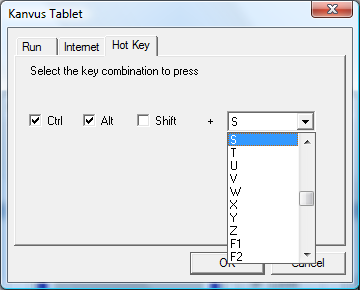
25 Parameters The string type will be passed to the program as parameters. For example, you may type in a document name here and it will be passed to a word processing program. Then it will be run as the Run option above. (b) Define Hotspot Internet Kind of Service You can select some Internet services, for example, browsing a website, newsgroup, sending an , or using other Internet services. The exact program to be initiated (for example, the browser program) depends on the system settings. Address The URL address for the selected service. For example, the Website or addresses. (c) Define Hotspot Hot Key Configure the key combination You may select any key such as alphabet, numeric key or cursor control key, to be combined with Shift, Ctrl and / or ALT key. 24
26 (4) Print Tap on the Print button to print an overview of all hot spot functions. (5) Clear Tapping on this button will clear up the definition of the selected Hotspot, so no action will be taken when the Hotspot is tapped later on. (6) Load Default Return to original default. 25

27 5. Pressure (1) Pressure Test You can click the slide bar below to adjust pressure sensitivity and there are 4 color choices for the pen : Black, Red, Green and Blue. There is a Pressure Test area to see the thickness of a line for a certain sensitivity of the pen tip on the tablet pad. The numerical value of the pressure level is shown in a box above the Clear button. (2) Clear Tap on the Clear button to clean up the space in the Pressure Test area. (3) Click Sensitivity You can tap with the pen tip or left-click the mouse to move the slider in order to adjust the sensitivity of the pen tip (it is assumed that you are in the default setting). Light allows the pen tip to react quickly with just a slight press, while Heavy means the pen needs greater pressure applied to it. 26


28 Mac OS Go to Tablet Setting Page 1.1 Click GO Applications 1.2 Click Pen Tablet Setting 27

29 1.3 Click Tablet Setting 28
30 There are 5 tabs : Info, Button, Scope, Hot Cells, Pressure. 1. Info The Info tab displays the version number of the driver and Tablet Mac information.. 29

31 2. Button (1) Button Name You may configure the commands of the pen tip and the two barrel buttons by selecting the button name from the drop down menu and assigning a command based on a traditional three-button mouse. You can select No Action, Left Click, Left Double Click, Right Click, or Right Double Click. (2) Default Tap on the Default button to return to the factory default settings. 30

32 3. Scope (1) Full Area Tap on the Full Area button to enable full working area. (2) Screen Ratio Set the screen ratio for the tablet working area. The screen ratio chosen will be the screen size for the working area. 31

33 (3) Reserve Edges Tap on the Reserve Edges button to allocate spaces for the tablet s hotspots. (4) Pen Area Dimensions This indicates the current height and width of the Pen Area Dimensions. Enter new values here if you wish to change the dimensions of the pen area. (5) Pen Area Offset This indicates the horizontal and vertical distances from the upper left corner of the Pen Area to the upper left corner of the maximum Pen Area. Enter new values by typing in numbers or clicking the up / down arrows if you wish to adjust the offset distance. 32

34 4. Hot Cells (1) Hot Pad Layout You can see the property of a hot key by clicking the blue cells surrounding the digital tablet. (2) Hot Edges There are four edges around the tablet where you can allocate your hot key locations. (3) Define Press the Define key to define Run, Internet or Hot Key functions. 33

35 (a) Define Hot Cells Run Run You may use the browse button to select a file and run it, or you may type in a file name with the complete path. (b) Define Hot Cells Internet Kind of Service You can select some Internet services, for example, browsing a website, newsgroup, sending an , or using other Internet services. The exact program to be initiated (for example, the browser program) depends on your system settings. Address The URL address for the selected service. For example, the Website or addresses. 34
36 (c) Define Hot Cells Hot Key Configure the key combination You may select any key such as alphabet, numeric key or cursor control key to be combined. (4) Clear Tapping on this button will clear up the definition of the selected Hot Cell, so there is no action will be taken when the Hot Cell is tapped later on. 35

37 5. Pressure (1) Pressure Test There are four different colors for selecting and the pressure sensitivity of the pen tablet can be adjusted in this tab. There is a test area to see the thickness of a line by pressing a certain pressure of pen tip on the tablet pad. The numerical value of the pressure level is shown in the field above the Clear button. (2) Clear Tap on the Clear button to clean the space up in the Pressure Test area. 36
38 (3) Click Sensitivity By default setting, tapping with the pen tip is equivalent to a left click of a mouse. Move the slider in the sensitivity bar to adjust the response of the pen tip. Light means when presses the pen tip that will be reacted very quickly with a slight power, but the heavy function is opposite. 37
39 3. Using the Tablet -Holding the Pen -Working Area -Positioning -Clicking -Dragging -Pressure Control 38

40 Holding the Pen Hold the digital pen as you would hold a pencil. Keep the buttons of the pen close to your index finger or thumb so that you can click the button easily. When the pen is not in use, place it in the pen stand or lay it flat on your desk. To maintain the sensitivity of your pen tip, do not store the pen in a container where it will rest on its tip. 39

41 Working Area Working area is the area of the tablet that can sense the movement of the digital pen. The working area of the tablet corresponds with the screen of your PC. Screen Area Working Area The cursor in the screen area indicates pen position, and the cursor follows the movement of the pen. 40

42 Positioning Use the digital pen to position the cursor on your PC screen. The distance between the pen tip and the tablet surface must be less than 10mm so that the tablet can sense the movement / location of the pen. The cursor location on the screen corresponds with the location of your pen tip on the tablet. Lift the pen tip and place the pen tip in a new location on the tablet. The cursor will jump to the new position. 41

43 Clicking One Click : Tapping the pen tip once on the tablet surface within the working area performs a click. A Click is used to select something. Double Click : A double tap with the pen tip in the working area performs a double-click. Double-Click is used to open something you select. You can also set the function of pen buttons to click or double-click. To assign new switch functions, see Configuration. 42

44 Dragging To drag an object, simply point to and click on the object (to highlight the object), then move the pen tip to the location you want to drag to. 43

45 Pressure Control The tablet comes with drawing applications that support pressure sensitivity, so you can change the thickness of the line you draw with different pressure, just as if you were using a real pen or pencil. To draw with pressure sensitivity, first select a pressure-sensitive tool from your application s tool bar. Then draw along the surface of the tablet while applying various amounts of pressure downward on the tip of the pen. Press hard for thick lines or thin lines or dense color. Press gently for thin lines or softer color. 44
46 4. Using the Bundled Software -System Requirements -Introduction to Tablet Software -Supporting Operating Systems -Installing Tablet Software -Uninstalling Tablet Software 45
47 System Requirements Operating System Windows XP, Vista or 7 CPU Pentium III or above Hard Disk 256 MB or Higher RAM (Memory) 256 MB (Windows XP), 1 GB (Windows Vista / 7) Equipments USB connector, CD/DVD ROM 46
48 Introduction to Tablet Software K-WorkInk Allows you to handwrite, make notes or put annotations on Microsoft Word documents and you can save the handwriting / notes. K-Notice You can take a snapshot of the pictures on the screen and then insert your selected text and pictures for use in presentations or s. K-Command Allows you to write down the command symbols directly on the digital pen tablet in order to execute computer commands or open files. K-Mail You can write your own signature for your s to family and friends. K-Signer Insert signatures or hand drawn graphics onto the document. 47
49 Supporting Operating Systems Operating System Windows Windows Windows Windows XP XP 64 Vista 7 K-Notice V V V V K-Mail V V V V K-WorkInk V V X X K-Command V V X X K-Signer V V V V K-WordInk : Suggestion! Windows Vista / 7 users are able to use the Annotation function through MS OFFICE 2003 or K-Command : Suggestion! Windows Vista / 7 users are able to use the handwriting and input function built-in under the Windows Vista / 7 system. 48
50 Installing Tablet Software To use the Tablet software, you need to install the Driver first and then install the Tablet Software. (For more information about the installation of driver, please refer to the included Driver Installation Manual.) 1. Open your computer and start the Windows. 2. Place the CD disc into the CD/DVD ROM driver and the installation program will be automatically activated (See figure to the right). Select Tablet Software Setup, and press the Enter key to start the Tablet Software installation. 3. The message box will come out with the software selection. Select the software you want to install and confirm the installation location. Then, press OK to install. 4. After the installation is completed, press OK to finish software installation. 49
51 When you run the installation with Windows Vista/7, after you finish step 4, please wait until you see the message box (see figure to the right) and select This program installed correctly. After your computer system has finished reading the data from the CD/DVD ROM, take the CD out and finish the installation. 50
52 Uninstalling Tablet Software In order to uninstall the Tablet Software, move your cursor to the lower left corner of the screen Start Programs Tablet Software Uninstall. 51
53 5. Specification Summary -Tablet -Digital Pen 52
54 Tablet Active area 5.5" X 4" Dimension (L X W X H) Weight Interface Resolution Report rate Pressure sensitivity Reading height Hotspot Power consumption USB cable length 204 X 191 X 9.2 mm 318g USB 1.1 (Full Speed) 2540 LPI 100 RPS 1024 Level 10 mm (From up case) 28 Hotspots (Top : 9, Bottom : 9, Left : 5, Right : 5) 0.35 W 1.5 m Windows OS Windows XP / Vista / 7 Macintosh OS Mac OS X 10.4 above 53
55 Digital Pen Dimension Weight Power supply Power consumption X 12 / 16.4 mm 9g (Except battery) One 1.5V AAA alkaline battery 180 uw Buttons 3 keys (Pen Tip, Side Button x 2) Power saving Mode Time to stand by Durability batteries Yes 5 ~ 30 Min Hr. 54
56 6. Troubleshooting -Testing your device -FAQ -Service and Technical Support -Driver Download 55
57 Testing your device Please do the following tests first to identify your problem. 1. Check the connection : After you connect the device to your computer, you should see a tablet icon in the system tray. If you do not see the icon, please follow these steps : (1) Make sure the USB cable is properly connected to a USB port. (2) Try connecting to another USB port. (3) If the device is connected to a USB Hub, please make sure the USB Hub is properly connected to a USB port. (4) Check if your USB controller is activated or not. 2. Diagnose the device : If the pen or the tablet still do not work properly, please follow these steps to help diagnose the problem with the device. (1) Pull off the tablet's USB plug from the computer. (2) Remove the Tablet driver from the system. (3) Re-connect the Tablet's USB to the computer. (a) Check whether the tablet's LED is blinking or not. If the LED is not on, that means there is an error with your tablet. (b) Test your wireless digital pen on the tablet working area. If it can work as a mouse, it 56
58 means the hardware is OK. If it does not work, try replacing the battery. (c) After changing the pen s battery, if it is still not working, this means there is an error with the hardware. (4) Download the latest version of the driver directly from our official website. You can also check the latest FAQ on our web site for other information. (5) After installing the new version of the driver, the system will require you to restart your computer. (6) After restarting your computer, you can find the tablet icon ( )at the bottom right of the screen. (a) If you cannot find the tablet icon ( ) at the bottom right of the screen, it means the driver failed during startup. This might be caused by an incompatibility issue. (b) Check from My Computer Properties Hardware Device Manager, if there is an exclamation mark, it means the installed tablet driver is incompatible with the windows system. If you have this problem, please contact us immediately for help. (7) By clicking the tablet icon ( ) at the bottom right of the screen, you can test the pressure sensitivity to see whether the pen pressure function works or not. (Refer to Configuration.) If you do not have the pen pressure, it means the pen itself might be faulty. 57
59 FAQ Question : Why is the LED of the tablet blinking continuously? Answer : It means that the USB port on your PC has a bad connection or the power supply is not stable. Please re-plug in your USB again. If the problem persists, try changing to another USB port. Question : How can I get the updated software? Answer : You can download the new driver from our website. 1. Uninstall your old driver : Click Start Programs Kanvus Tablet Uninstall 2. Download the latest version of the driver in the download section and save it onto your hard drive. 3. Unzip the file in a folder on your hard drive (with Windows built-in unzip utility or a program like Winzip for instance). 4. Double-click the Setup.exe in the folder where you unzipped the file. Question : How to install a new Pad-Cover? Answer : Please follow the steps below. 1. Remove the device from USB port. 2. Remove the current Pad-Cover. (need some force) 3. Clean the surface with a wet cloth to keep it clean and smooth. 4. Tear off the protective film on the double-sided tape of the new Pad-Cover. 5. Put the new Pad-Cover on the tablet 58
60 Question : Why can t I select K-WordInk or K-Command to install during installation? Answer : Because both K-WordInk and K-Command are for Windows 2000 or XP version only. For Windows Vista/7 user, Windows Vista/7 has built-in Annotation function through Office 2003 / 2007 which is similar to K-WordInk, and also the built-in Pen flicks function that can perform common actions as K-Command. We suggest users to use the built-in applications under the Windows Vista/7 system for more ensured compatibility. 59
61 Service and Technical Support If your tablet does not work properly, please check the Troubleshooting procedure and FAQ first. You can go to our web site to download the latest driver/software and check the updated FAQ. If your problem still remains unsolved, please contact our service and technical support staff. KWorld Computer Co., Ltd. Tel : /F, No. 113, Jian 2 nd Road Jhonghe City, Taipei County 235, Taiwan (R.O.C.) 60
62 Driver Download You can download the latest driver and e-documents from the following web sites. 61
63 A p p e n d i x -Declarations and Safety Statements -Ordering Components and Accessories -Copyright Information -Limitation of Liability 62
64 Declarations and Safety Statements FCC This device complies with Part 15 of the FCC Rules. Operation is subject to the following two conditions: (1) This device may not cause harmful interference, and (2) This device must accept any interference received, including interference that may cause undesired operation. This equipment has been tested and found to comply with the limits for a Class B digital device, according to Part 15 of FCC Rules. These limits are designed to provide reasonable protection against harmful interference in a residential installation. This equipment generates, uses, and can radiate radio frequency energy and, if not installed and used in accordance with the instructions, may cause harmful interference to radio communications. However, there is no guarantee that interference will not occur in a particular installation. You can determine whether the equipment is causing interference by disconnecting it from your computer. If the interference stops, it was probably caused by the equipment. If the equipment does cause interference to radio or television, you may be able to correct the interference by using one or more of the following measures : 1 Rotate the television or radio antenna until the interference stops. 2 Move the equipment farther away form the television or radio. 3 Plug the equipment and computer into an outlet that is on a different circuit form the television or radio. If necessary, consult with your dealer or an experienced radio/television technician for help. CE The Kanvus tablet has been tested and found to comply with the following harmonized European Norms : 1 EN55024 (electromagnetic immunity) 2 EN55022 (electromagnetic emissions) 63
65 Ordering Components and Accessories To purchase parts and accessories, please contact your local dealer or distributor. 64
66 Copyright Information No part of this manual, including the products and software contained in it, may be reproduced, transmitted, transcribed, stored in a retrieval system, or translated into any language in any form or by any means, without the legal, written permission of Kworld Computer Co.LTD. Kanvus PROVIDES THIS MANUAL AS IS WITHOUT WARRANTY OF ANY KIND, EITHER EXPRESSED OR IMPLIED, INCLUDING BUT NOT LIMITED TO THE IMPLIED WARRANTIES OR CONDITION OF MERCHANTABILITY FOR A PARTICULAR PURPOSE. IN NO EVENT SHALL KANVUS, ITS DIRECTORS, OFFICERS, EMPLOYEES OR AGENTS BE LIABLE FOR ANY direct or indirect, INCIDENTAL, OR CONSEQUENTIAL DAMAGES (INCLUDING DAMAGES FOR LOSS OF PROFIT, LOSS OF BUSINESS, LOSS OF DATA, INTERRUPTION OF BUSINESS AND THE LIKE), EVEN IF KANVUS HAS BEEN ADVISED OF THE POSSIBILITY OF SUCH DAMAGES ARISING FROM ANY DEFECT OR ERROR IN THIS MANUAL OR PRODUCT. Products and corporate names appearing in this manual may or may not be registered trademarks or copyrights of their respective companies and are used only for identification or explanation and to the owners benefit, without intent to infringe. SPECIFICATIONS AND INFORMATION CONTAINED IN THIS MANUAL ARE PROVIDED FOR INFORMATION ONLY AND ARE SUBJECT TO CHANGE WITHOUT NOTICE, AND SHOULD NOT BE CONSTRUED AS A COMMITMENT BY KANVUS. KANVUS ASSUMES NO RESPONSIBILITY OR LIABILITY FOR ANY ERRORS OR INACCURACIES THAT MAY APPEAR IN THIS MANUAL, INCLUDING THE PRODUCTS AND SOFTWARE DESCRIBED IN IT. Copyright 2009 Kworld Computer Co. Ltd. All Rights Reserved. 65
67 Limitation of Liability Circumstances may arise where because of a default on Kanvus part or other liability, you are entitled to recover damages from Kanvus. In each such instance, regardless of the basis on which you are entitled to claim damages from Kanvus, Kanvus is liable for no more than damages for bodily injury (including death), damage to real property and tangible personal property; or any other actual and direct damages resulted from omission or failure in performing legal duties under this warranty statement, up to the listed contract price of each product. Kanvus will only be responsible for or indemnify you for loss, damages or claims based on contract, tort or infringement under this Warranty Statement. This limit also applies to Kanvus suppliers and its distributors. It is the maximum for which Kanvus, its suppliers, and its distributors are collectively responsible. UNDER NO CIRCUMSTANCES IS KANVUS LIABLE FOR ANY OF THE FOLLOWING : (1) THIRD-PARTY CLAIMS AGAINST YOU FOR DAMAGES; (2) LOSS OF, OR DAMAGE TO, YOUR RECORDS OR DATA; OR (3) SPECIAL, INCIDENTAL, OR INDIRECT DAMAGES, OR FOR ANY ECONOMIC CONSEQUENTIAL DAMAGES (INCLUDING LOSS OF PROFITS OR SAVINGS), EVEN IF KANVUS, ITS SUPPLIERS OR DISTRIBUTORS ARE INFORMED OF THEIR POSSIBILITY. 66
User Manual. Windows 7 / Vista / XP. iotablet Driver
 User Manual Windows 7 / Vista / XP iotablet Driver I. General Information 2 1. Overview 2 2. Pen Tablet Function 2 3. System Requirements 2 4. Driver Installation 3 5. Hardware Installation 3 6. Verifying
EasyPen i405x. MousePen i608x. User Manual For Windows 7/Vista/XP
 EasyPen i405x MousePen i608x User Manual For Windows 7/Vista/XP *The driver may already be updated to a newer version before/after packaging. If your installation screen does not match the contents of
Tablet and Digital Pen Device
 Tablet and Digital Pen Device Wired Tablet (Wired Media Tablet) Wireless Tablet (Media Wireless Tablet) User Manual Windows 7 / Vista / XP Driver Version 5.02 Version:V5.02 Release Date:2011/11 Contents
ASUS GX900 Gaming Mouse
 ASUS GX900 Gaming Mouse User Manual 15G06S002000 E5887 First Edition (V1) July 20 Copyright 20 ASUSTeK Computer Inc. All Rights Reserved. No part of this manual, including the products and software described
USB 2.0 VGA ADAPTER USER MANUAL
 USB 2.0 VGA ADAPTER USER MANUAL CONTENTS INTRODUCTION... 3 FEATURES... 3 SYSTEM REQUIREMENTS... 3 PACKAGE CONTENTS... 3 SUPPORTED COMMON DISPLAY RESOLUTION... 4 TECHNICAL SPECIFICATIONS... 4 INSTALLATION
TL-PS310U Single USB 2.0 Port MFP and Storage Server
 TL-PS310U Single USB 2.0 Port MFP and Storage Server Rev: 2.0.0 1910010313 Contents Chapter 1 Introduction... 1 1.1 Product Overview...1 1.2 Network Management...1 1.3 Components and Features...1 1.4 Hardware
User s Manual Model KB990W
 Wireless Internet Keyboard & Optical Mouse User s Manual Model KB990W FCC Statement This device complies with part 15 of FCC Rules. Operation is subject to the following two conditions: (1) this device
E7495. Notebook PC. User Guide for Windows 8
 E7495 Notebook PC User Guide for Windows 8 e7495_win8_user_guide.indd 1 8/13/12 2:47:52 PM Copyright Information No part of this manual, including the products and software described in it, may be reproduced,
LCD MONITOR TOUCH PANEL DRIVER 2 OPERATION MANUAL. for Mac. Version 1.0 PN-L703A/PN-70TA3/PN-L703B/PN-70TB3/PN-L603A/PN-60TA3/PN-L603B/PN-60TB3
 LCD MONITOR TOUCH PANEL DRIVER 2 OPERATION MANUAL for Mac Version 1.0 Applicable models PN-L703A/PN-70TA3/PN-L703B/PN-70TB3/PN-L603A/PN-60TA3/PN-L603B/PN-60TB3 Contents Introduction...3 System Requirements...3
1. Check the Accessories
 This Quick User Guide helps you get started with the IRIScan Book Executive 3 scanner. This scanner is supplied with the software applications Readiris Pro 14 (Windows and Mac ), IRIScan Direct and IRISCompressor
2 Port USB Keyboard Mouse Switch Cable with File Transfer for PC and Mac
 2 Port USB Keyboard Mouse Switch Cable with File Transfer for PC and Mac SVKMS2 *actual product may vary from photos DE: Bedienungsanleitung - de.startech.com FR: Guide de l'utilisateur - fr.startech.com
USB2VGA. Instruction Manual. USB to VGA Adapter. USB 2.0 to VGA External Multi Monitor Video Adapter
 USB to VGA Adapter USB2VGA Instruction Manual USB 2.0 to VGA External Multi Monitor Video Adapter FCC Compliance Statement This equipment has been tested and found to comply with the limits for a Class
USB 2.0 Peripheral Switch USER MANUAL US221A / US421A
 USB 2.0 Peripheral Switch USER MANUAL US221A / US421A FCC Information This equipment has been tested and found to comply with the limits for a Class B digital device, pursuant to Part 15 of the FCC Rules.
SMART Ink 1.5. Windows operating systems. Scan the following QR code to view the SMART Ink Help on your smart phone or other mobile device.
 SMART Ink 1.5 Windows operating systems User s guide Scan the following QR code to view the SMART Ink Help on your smart phone or other mobile device. Trademark notice SMART Ink, SMART Notebook, SMART
Installing USB Drivers With Microsoft Windows XP
 Installing USB Drivers With Microsoft Windows XP Legal Notice No part of this guide may be reproduced, transmitted, transcribed, stored in a retrieval system, or translated into any computer language,
LabelWriter. Print Server. User Guide
 LabelWriter Print Server User Guide Copyright 2010 Sanford, L.P. All rights reserved. 08/10 No part of this document or the software may be reproduced or transmitted in any form or by any means or translated
If anything is damaged or missing, contact your dealer.
 User Manual UN-201 Read this guide thoroughly and follow the installation and operation procedures carefully in order to prevent any damage to the units and/or any devices that connect to them. This package
1. Open the battery compartment as shown in the image.
 This Quick User Guide helps you get started with the IRIScan Book 3 scanner. This scanner is supplied with the software applications Readiris Pro 12, IRIScan Direct and IRISCompressor. Corresponding Quick
USB to DVI-I Graphics Adapter CSV-2300D USER S MANUAL
 USB to DVI-I Graphics Adapter CSV-2300D USER S MANUAL 1 of 40 Table of contents Safety instructions 3 Copyright 4 Trademarks 4 Introduction 4 Features 5 Application 5 Package contents 6 System requirement
Wormhole Switch JUC400
 For MAC & Windows OS Wormhole Switch JUC400 User Manual JUC400 Ver4.0 Required Environments Windows - OS: Windows 7 / Vista / XP / 2000 - Available USB port (USB 2.0 is recommended) - CPU: Intel Pentium
USB to VGA Adapter USB2VGAE2. Instruction Manual. USB 2.0 to VGA Multi Monitor External Video Adapter
 USB to VGA Adapter USB2VGAE2 Instruction Manual USB 2.0 to VGA Multi Monitor External Video Adapter *Please ensure that the driver installation is complete prior to the physical installation of the USB
Checking the Package Contents. Installing the Printer Software. Connecting. Unpacking the. the Printer. Printer. Attaching
 Installing the Printer Software Checking the Package Contents Connecting the Printer Unpacking the Printer Installing the Ink Cartridges Plugging in the Printer Attaching the Printer Parts 4032216-00 EUL
LCD MONITOR TOUCH DISPLAY DRIVER OPERATION MANUAL. for Mac. Version 1.0 PN-K322B/PN-K322BH/LL-S201A. Applicable models
 LCD MONITOR TOUCH DISPLAY DRIVER OPERATION MANUAL for Mac Version 1.0 Applicable models PN-K322B/PN-K322BH/LL-S201A Contents Introduction...3 System Requirements...3 Setting up the Computer...4 Installing
Wireless Mouse USER GUIDE. for Mac. www.targus.com/us/formac ONE YEAR LIMITED WARRANTY N2953
 AMW43US / 410-1514-001C N2953 www.targus.com/us/formac 2008 Manufactured or imported by Targus Group International, Inc. (for U.S. sales: 1211 North Miller Street, Anaheim, CA 92806 USA, for Australia
User s Manual. Bluetooth Calculator Keypad. Page
 User s Manual Bluetooth Calculator Keypad Page Regulatory Compliance This device complies with Part 15 of the FCC Rules. Operation is subject to the following two conditions: (1) This device may not cause
USB to DVI Video Adapter
 USB2DVI Instruction Manual USB to DVI Video Adapter USB 2.0 to DVI External Multi Monitor Video Adapter FCC Compliance Statement This equipment has been tested and found to comply with the limits for a
Networking. General networking. Networking overview. Common home network configurations. Wired network example. Wireless network examples
 Networking General networking Networking overview A network is a collection of devices such as computers, printers, Ethernet hubs, wireless access points, and routers connected together for communication
User Guide Microsoft Screen Sharing for Lumia Phones (HD-10)
 User Guide Microsoft Screen Sharing for Lumia Phones (HD-10) Issue 1.1 EN User Guide Microsoft Screen Sharing for Lumia Phones (HD-10) Contents Safety 3 About your accessory 4 Keys and parts 5 Connect
Rapier V1. Laser Gaming Mouse. User Guide English
 Rapier V1 Laser Gaming Mouse User Guide English Contents Welcome 3 Whats in the Pack 3 Key Features 3 Button Assignment 3 Rapier V1 Installation 4 Software Introduction 4 Rapier V1 Gamer Toolkit 4 Funtion
MADRIX NEO Quick Start Guide & User Manual
 MADRIX NEO Quick Start Guide & User Manual 4 th Edition, Last Update: March 2011 Thank You for Purchasing MADRIX NEO Please read this manual carefully and thoroughly before using the MADRIX NEO. Make sure
TL-PS310U Single USB 2.0 Port MFP and Storage Server
 Single USB 2.0 Port MFP and Storage Server REV3.0.0 1910010947 COPYRIGHT & TRADEMARKS Specifications are subject to change without notice. is a registered trademark of TP-LINK TECHNOLOGIES CO., LTD. Other
User Guide USB 2.0 LAPTOP DOCKING STATION WITH VIDEO N2953
 USB 2.0 LAPTOP DOCKING STATION WITH VIDEO 410-1864-001B / ACP51US 1 YEAR LIMITED WARRANTY: We pride ourselves on the quality of our products. For complete warranty details and a list of our worldwide offices,
INSTALL GUIDE Making Your Mobile Life Easier.
 Targus USB Bluetooth Adapter Making Your Mobile Life Easier. Visit our Web site at: www.targus.com Features and specifications are subject to change without notice 2005 Targus Group International, Inc.
Installation Guide Wireless 4-Port USB Sharing Station. GUWIP204 Part No. M1172-a
 Installation Guide Wireless 4-Port USB Sharing Station 1 GUWIP204 Part No. M1172-a 2011 IOGEAR. All Rights Reserved. PKG-M1172-a IOGEAR, the IOGEAR logo, MiniView, VSE are trademarks or registered trademarks
How To Use An Easymp Network Projector On A Computer Or Network Projection On A Network Or Network On A Pc Or Mac Or Ipnet On A Laptop Or Ipro Or Ipo On A Powerbook On A Microsoft Computer On A Mini
 EasyMP Network Projection Operation Guide Contents 2 Before Use Functions of EasyMP Network Projection....................... 5 Sharing the Projector....................................................
How To Use An Easymp Network Projection Software On A Projector On A Computer Or Computer
 EasyMP Network Projection Operation Guide Contents 2 Before Use Functions of EasyMP Network Projection....................... 5 Sharing the Projector....................................................
ENLTV-FM3. PCI TV Tuner Adapter with FM Radio. User s Guide
 ENLTV-FM3 PCI TV Tuner Adapter with FM Radio User s Guide User s Notice No part of this manual, including the products and software described in it, may be reproduced, transmitted, transcribed, stored
Getting Started. Table of Contents. Quick User Guide - English
 Getting Started This Quick User Guide helps you get started with the IRIScan TM Anywhere Wifi. Please read this guide before operating this scanner and its software. All information is subject to change
Laptop USB KVM Switch USER MANUAL CS661
 Laptop USB KVM Switch USER MANUAL CS661 FCC Information This equipment has been tested and found to comply with the limits for a Class B digital device, pursuant to Part 15 of the FCC Rules. These limits
Congratulations on your HomePortal purchase. To install your HomePortal and configure your home network, follow these steps.
 Notice to Users 2003 2Wire, Inc. All rights reserved. This manual in whole or in part, may not be reproduced, translated, or reduced to any machine-readable form without prior written approval. 2WIRE PROVIDES
Diamond II v2.3 Service Pack 4 Installation Manual
 Diamond II v2.3 Service Pack 4 Installation Manual P/N 460987001B ISS 26APR11 Copyright Disclaimer Trademarks and patents Intended use Software license agreement FCC compliance Certification and compliance
Magic Wand Portable Scanner
 Magic Wand Portable Scanner PDS-ST470-VP User Manual Table of Contents 1. Key Features... 3 2. Functional Parts... 3 3. Explanation of the Status Icons... 5 4. Using the Scanner... 5 4.1. Charging up the
USB 3.0 to HDMI Adapter with 3-Port USB 3.0 Hub USB 3.0 to VGA Adapter with 3-Port USB 3.0 Hub
 USB 3.0 to HDMI Adapter with 3-Port USB 3.0 Hub USB 3.0 to VGA Adapter with 3-Port USB 3.0 Hub USB32HDEH3 / USB32VGAEH3 *actual product may vary from photos DE: Bedienungsanleitung - de.startech.com FR:
Diamante WiFi Wireless Communication User Guide. Linksys E1200
 Diamante WiFi Wireless Communication User Guide Linksys E1200 Release: February 2012; August 2011; February 2011 Patent Pending. Copyright 2012, Stenograph, L.L.C. All Rights Reserved. Printed in U.S.A.
Getting Started. rp5800, rp5700 and rp3000 Models
 Getting Started rp5800, rp5700 and rp3000 Models Copyright 2011 Hewlett-Packard Development Company, L.P. The information contained herein is subject to change without notice. Microsoft, Windows, and Windows
Features Reference. About Unified Communication System. Before Using This Machine. Starting a Meeting. What You Can Do During the Meeting
 Features Reference About Unified Communication System Before Using This Machine Starting a Meeting What You Can Do During the Meeting Leaving a Meeting Managing Address Book Changing Network Configuration
user manual IH-W350DB IH-W351DW MyLife webcam pro 5.0 megapixel max resolution
 IH-W350DB IH-W351DW MyLife webcam pro 5.0 megapixel max resolution Congratulations on the purchase of your new MyLife webcam pro. This product comes with a limited lifetime warranty. Before using your
Ash Capture Control User Guide
 Ash Capture Control User Guide Revision 1.4 Table of Contents Software Installation... 3 Hardware Installation... 6 System Block Diagram... 7 Using Ash Capture Control... 8 Launching the Application...
How To Run Qqripper On A Cd Or Mp3 Player (For Pc)
 QQripper The Autoloader Software Automates Music Disc Ripping with Windows Media Player or itunes For automated ripping of a stack of music CD; Convert audio tracks from music discs to hard disk or MP3
DCT-16 USB HD Audio Converter
 DCT-16 USB HD Audio Converter Operation Manual DISCLAIMERS The information in this manual has been carefully checked and is believed to be accurate. Cypress Technology assumes no responsibility for any
hp digital home networking wireless USB network adapter hn210w quick start guide
 hp digital home networking wireless USB network adapter hn210w quick start guide Revision #: 15 Page: 1 of 11 Printed: 08/15/01 04:44 PM The Hewlett-Packard Company makes no warranty of any kind with regard
Package Checklist. Overview. Features. USB Data Link Cable User s Manual. USB Data Link Cable User s Manual 1
 USB Data Link Cable User s Manual Congratulations on your purchase of the USB Data Link Cable adapter. This unique cable allows you to easily connect two computers with USB port and instantly transfer
Ethernet Radio Configuration Guide
 Ethernet Radio Configuration Guide for Gateway, Endpoint, and Repeater Radio Units April 20, 2015 Customer Service 1-866-294-5847 Baseline Inc. www.baselinesystems.com Phone 208-323-1634 FAX 208-323-1834
Package Content. Get Started
 Base unit USB Cable Digital Pen Pen Batteries Package Content Get Started STEP1 Charge the Battery For initial use, your base unit needs to be charged for about 3 hours. Connect your base unit to your
Installation Guide. APA-1460 SlimSCSI. PCMCIA-to-SCSI Host Adapter
 R Installation Guide APA-1460 SlimSCSI PCMCIA-to-SCSI Host Adapter Introduction This document explains how to install and use Adaptec s APA -1460 SlimSCSI PCMCIA-to-SCSI adapters. The SlimSCSI adapters
HDMI or Component Standalone Capture Device 1080p
 HDMI or Component Standalone Capture Device 1080p USB2HDCAPS *actual product may vary from photos DE: Bedienungsanleitung - de.startech.com FR: Guide de l'utilisateur - fr.startech.com ES: Guía del usuario
3.5in Black USB 2.0 IDE SATA External Hard Drive Enclosure
 3.5in Black USB 2.0 IDE SATA External Hard Drive Enclosure UNI3510U2 UNI3510U2EB UNI3510U2EB UNI3510UEBGB *actual product may vary from photos DE: Bedienungsanleitung - de.startech.com FR: Guide de l'utilisateur
Wireless Keyboard & Optical Mouse. User Manual
 Wireless Keyboard & Optical Mouse User Manual Table of Contents Introduction... 1 Software Compatibility... 1 Product Features... 2 Quick Installation Setup for PS/2 Connections (PC-only)... 5 Quick Installation
AXIS Camera Station Quick Installation Guide
 AXIS Camera Station Quick Installation Guide Copyright Axis Communications AB April 2005 Rev. 3.5 Part Number 23997 1 Table of Contents Regulatory Information.................................. 3 AXIS Camera
USER S MANUAL USB FILE TRANSFER CABLE
 1. Introduction USER S MANUAL USB FILE TRANSFER CABLE Congratulations on your purchase of the PC-Linq, an USB file transfer cable. This unique cable allows you to easily connect two computers with USB
EasyMP Network Projection Operation Guide
 EasyMP Network Projection Operation Guide Contents 2 Before Use Functions of EasyMP Network Projection... 5 Sharing the Projector... 5 Various Screen Transfer Functions... 5 Installing the Software...
User Guide Nokia Portable Wireless Charging Plate DC-50
 User Guide Nokia Portable Wireless Charging Plate DC-50 Issue 1.1 EN User Guide Nokia Portable Wireless Charging Plate DC-50 Contents For your safety 3 About your accessory 4 Keys and parts 5 Top up your
Duplex ID Card & License Scanner. User Guide
 Duplex ID Card & License Scanner User Guide CE Conformity and FCC Statement This equipment has been tested and found to comply with the limits of the European Council Directive on the approximation of
In-Site Motion Webcam
 In-Site Motion Webcam User s Manual Model IC825C FCC STATEMENT IC825C This device complies with part 15 of FCC Rules. Operation is subject to the following two conditions: (1) this device may not cause
Laser Wireless Rechargeable Mouse. User s Manual
 Laser Wireless Rechargeable Mouse Model #: LM8000WR User s Manual Rev. 060801 User s Record: To provide quality customer service and technical support, it is suggested that you keep the following information
Wireless Travel Mouse with 5-Buttons User Manual
 Wireless Travel Mouse with 5-Buttons User Manual Product Features 1. Radio frequency 27MHz wireless transmission 2. Use of 256 ID codes to prevent interference between several wireless mice being used
Diamante WiFi Wireless Communication User Guide. CradlePoint CTR35
 Diamante WiFi Wireless Communication User Guide CradlePoint CTR35 Release: July 2011; March 2011 Patent Pending. Copyright 2011, Stenograph, L.L.C. All Rights Reserved. Printed in U.S.A. Stenograph, L.L.C.
Acer LCD Monitor Driver Installation Guide
 1 Contents 1 Contents... 1 2 Introduction... 2 3 Installation Guide... 2 3.1 PC requirements... 2 3.2 Installing the Acer LCD Monitor Driver on Windows Vista... 3 3.2.1 Hardware first install... 3 3.2.2
ENGLISH. Polar IrDA USB Adapter and Bridge Driver User manual
 Polar IrDA USB Adapter and Bridge Driver User manual CONTENTS 1. GENERAL... 3 2. DRIVER INSTALLATION... 4 Driver Installation With Windows Vista and Windows 7 Operating Systems... 7 3. HARDWARE INSTALLATION...
SoftRAID 5 QUICK START GUIDE. for OWC ThunderBay
 SoftRAID 5 QUICK START GUIDE for OWC ThunderBay TABLE OF CONTENTS INTRODUCTION...1 1.1 MINIMUM SYSTEM REQUIREMENTS 1.2 FEATURES 1.3 ABOUT THIS MANUAL SYSTEM SETUP...2 2.1 GETTING STARTED 2.2 INITIALIZING,
Wrist Audio Player Link Soft for Macintosh. User s Guide
 Wrist Audio Player Link Soft for Macintosh User s Guide Trademarks Macintosh and Mac OS are registered trademarks of Apple Computer Inc. All other product, service and company names mentioned herein may
PN-L702B LCD MONITOR TOUCH PANEL DRIVER OPERATION MANUAL. Version 2.1
 PN-L702B LCD MONITOR TOUCH PANEL DRIVER OPERATION MANUAL Version 2.1 Contents Setting up the PC...3 Installing the touch panel driver...3 Touch Panel Settings...4 How to configure settings...4 Calibration...5
1.0. User s Guide & Manual USB 2.0 FLASH DRIVE
 1.0 USB 2.0 FLASH DRIVE User s Guide & Manual Index Introduction 1 CHAPTER1 Features & Specifications 2 CHAPTER2 System Requirements 4 CHAPTER3 Getting Started Installation of the Windows 98SE Driver 5
User Manual USB Laptop KVM Switch. GCS661U Part No. M1069
 User Manual USB Laptop KVM Switch 1 GCS661U Part No. M1069 2 Table of Contents User Notice 4 A Note About Terminology 5 Overview 6 Features 7 Package Contents 8 Requirements 9 Operating System Support
Table of Contents. Rebit 5 Help
 Rebit 5 Help i Rebit 5 Help Table of Contents Getting Started... 1 Making the First Recovery Point... 1 Don't Forget to Create a Recovery Media... 1 Changing Backup Settings... 1 What Does Rebit 5 Do?...
N600 WiFi USB Adapter
 Model WNDA3100v3 User Manual December 2014 202-11470-01 350 East Plumeria Drive San Jose, CA 95134 USA Support Thank you for selecting NETGEAR products. After installing your device, locate the serial
Wireless Optical Mouse
 Wireless Optical Mouse User s Manual Model PD950P FCC STATEMENT PD950P This device complies with part 15 of FCC Rules. Operation is subject to the following two conditions: (1) this device may not cause
EPSON USB/Parallel Adapter User s Guide
 EPSON USB/Parallel Adapter User s Guide EPSON Stylus COLOR 440 EPSON Stylus COLOR 800 EPSON Stylus COLOR 600 EPSON Stylus COLOR 850 EPSON Stylus COLOR 640 EPSON Stylus COLOR 1520 EPSON Stylus Photo EX
2-Disk RAID USB and esata External Hard Drive. User Guide English
 2-Disk RAID USB and esata External Hard Drive User Guide English 1 Contents Introduction 3 Drive Contents: IMPORTANT Notice 3 Nero BACKITUP 2 Software 3 Controls, Connectors and Indicators 4 Front Panel
reflecta Super 8 Scanner
 reflecta Super 8 Scanner User Manual 1 FEDERAL COMMUNICATIONS COMMISSION (FCC) STATEMENT This Equipment has been tested and found to comply with the limits for a class B digital device, pursuant to Part
Simple Computer Backup
 Title: Simple Computer Backup (Win 7 and 8) Author: Nancy DeMarte Date Created: 11/10/13 Date(s) Revised: 1/20/15 Simple Computer Backup This tutorial includes these methods of backing up your PC files:
Targus Bluetooth Keyboard for Tablets
 1 BLUETOOTH KEYBOARD for Tablets 410-2153-001B / AKB33US 1 YEAR LIMITED WARRANTY: We pride ourselves on the quality of our products. For complete warranty details and a list of our worldwide offices, please
Centran Version 4 Getting Started Guide KABA MAS. Table Of Contents
 Page 1 Centran Version 4 Getting Started Guide KABA MAS Kaba Mas Welcome Kaba Mas, part of the world-wide Kaba group, is the world's leading manufacturer and supplier of high security, electronic safe
Installing Remote Desktop Connection
 SETTING UP YOUR REMOTE DESKTOP This section will assist you in setting you Remote Desktop Connection. This will allow you to create an icon for easy access to your virtual desktop. DISCLAIMER: All images
Cleaning your Windows 7, Windows XP and Macintosh OSX Computers
 Cleaning your Windows 7, Windows XP and Macintosh OSX Computers A cleaning of your computer can help your computer run faster and make you more efficient. We have listed some tools and how to use these
EasyMP Network Projection Operation Guide
 EasyMP Network Projection Operation Guide Contents 2 About EasyMP Network Projection Functions of EasyMP Network Projection....................... 5 Various Screen Transfer Functions.......................................
ActiView. Visual Presenter Image Software User Manual - English
 ActiView Visual Presenter Image Software User Manual - English Date: 05/02/2013 Table of Contents 1. Introduction... 3 2. System Requirements... 3 3. Install ActiView - Windows OS... 4 4. Install ActiView
ViviCam 25 Digital Camera User s Manual
 ViviCam 25 Digital Camera User s Manual 2010 Sakar International, Inc. All rights reserved. Windows and the Windows logo are registered trademarks of Microsoft Corporation. All other trademarks are the
File Share Cable USER GUIDE. for Mac. www.targus.com/us/formac ONE YEAR LIMITED WARRANTY N2953
 N2953 USER GUIDE ACC9602US / 410-1486-001A www.targus.com/us/formac 2008 Manufactured or imported by Targus Group International, Inc. (for U.S. sales: 1211 North Miller Street, Anaheim, CA 92806 USA, for
Lenovo IdeaCentre Q180 Series
 Machine type: 10087/3110 Lenovo IdeaCentre Q180 Series User Guide Version 1.0 2011.09 31500665 Important Safety Information Before using this manual, it is important that you read and understand all of
USB VoIP Phone Adapter. User s Manual
 USB VoIP Phone Adapter User s Manual FCC Certifications This Equipment has been tested and found to comply with the limits for a Class B digital device, pursuant to part 15 and part 68 of the FCC Rules.
125 8880 telstra.com/ppmbb visit a telstra store or partner GETTING TO KNOW YOUR
 FOR MORE INFORMATIoN: 125 8880 telstra.com/ppmbb visit a telstra store or partner GETTING TO KNOW YOUR Telstra PRE-paid 4G wi-fi LET S GET THIS SHOW ON THE ROad WHAT S INSIDE Your Telstra Pre-Paid 4G Wi-Fi
OPERATION MANUAL. MV-410RGB Layout Editor. Version 2.1- higher
 OPERATION MANUAL MV-410RGB Layout Editor Version 2.1- higher Table of Contents 1. Setup... 1 1-1. Overview... 1 1-2. System Requirements... 1 1-3. Operation Flow... 1 1-4. Installing MV-410RGB Layout
Introduction Configuring Your HP Mouse Batteries Replacing the Batteries Mouse Sensor Technology Navigating the HP Mouse Control Center
 Introduction Congratulations on your purchase of an HP mouse. This mouse is the latest in a wide range of computer peripherals manufactured by HP. It is designed to provide you with the highest level of
Wireless Internet Keyboard and Laser Mouse
 Wireless Internet Keyboard and Laser Mouse User s Manual Model KB1045LSR FCC STATEMENT KB1045LSR This device complies with part 15 of FCC Rules. Operation is subject to the following two conditions: (1)
SMART Board User Guide for PC
 SMART Board User Guide for PC What is it? The SMART Board is an interactive whiteboard available in an increasing number of classrooms at the University of Tennessee. While your laptop image is projected