
reflecta Super 8 Scanner
|
|
|
- Camilla Blake
- 10 years ago
- Views:
Transcription
1 reflecta Super 8 Scanner User Manual 1

2 FEDERAL COMMUNICATIONS COMMISSION (FCC) STATEMENT This Equipment has been tested and found to comply with the limits for a class B digital device, pursuant to Part 15 of the FCC rules. These limits are designed to provide reasonable protection against harmful interference in a residential installation. This equipment generates uses and can radiate radio frequency energy and, if not installed and used in accordance with the instructions, may cause harmful interference to radio communications. However, there is no guarantee that interference will not occur in a particular installation. If this equipment does cause harmful interference to radio or television reception, which can be determined by turning the equipment off and on, the user is encouraged to try to correct the interference by one or more of the following measures: Re-orient or relocate the receiving antenna. Increase the separation between the equipment and receiver. Connect the equipment into an outlet on a circuit different from which the receiver is connected to. Consult the dealer or an experienced radio/tv technician for help. Warning: Use only shielded signal cables to connect I/O devices to this equipment. You are cautioned that changes or modifications not expressly approved by the party responsible for compliance could void your authority to operate the equipment. 2
3 Index TABLE OF CONTENTS Getting Started General Guidence Components Quick Installation Guide (QIG) Installing Software and Driver Installing Hardware First Calibration Install Super 8 Scanner How to install film to Super 8 Scanner How to clean your film with Super 8 Scanner Additional Features User Interface I Setting Window Area II Preview and Capture Film Window Area III Preview and Combine Movie Window Area How to Scan Super 8 Movie STEP 1 -Create a New Movie plan STEP 2- Capture Super 8 Film Image STEP 3 Preview and Setting Frame Rate STEP 4 Combine Movie STEP 5 - Exit How to Calibration Light Plate Technical Support Trouble Shutting

4 Getting Started Check the package content before getting started. For Quick Installation please refer to Quick Installation Guide. (Ref. Pg. 6) Important! Save the original box, receipt and packing material for future shipping needs. Package Contents Super 8 Scanner. Film Reel. Power Adapter Warning! Using any other power adapter may severely damage the scanner and will void the product warranty. Power Cord. USB 2.0 Cable. Quick Installation Guide CyberView S8 Application software CD with User Manual PDF file. Minimum System Requirements OS: Windows XP with Service Pack 2 or Windows Vista (32 bit & 64 bit) or Win 7 (32 bit & 64) or Win 8 (32 bit & 64) CPU: Intel Core 2 Duo /2G or higher processor Memory: 4G or more Hard Disk free space: 35GB or higher. Note: Reel Type Super 8 Film at Super 8 Film at Hard Disk Space Need 18 frames /second 24frames /second 50 feet(15 meters) 3.5 min 2.5 min 1 GB (0.45 GB for movie) 200 feet(60 meters) 13 min 10 min 4 GB (1.8 GB for movie) 300 feet(90 meters) 20 min 15 min 6 GB (2.7 GB for movie) 400 feet(120 meters) 26 min 20 min 8 GB (3.6 GB For movie) 600 feet(180meters) 40 min 30 min 12 GB (5.4 GB movie) Color monitor with 24-bit Color video card 1,024 x 768 monitor resolution GENERAL GUIDANCE: 4
5 Only use the supplied USB-Cable. Connect the computer to the scanner directly using the USB 2.0 cable. Do not use a hub or extension cable. Only use the USB ports on the rear of desktop computers. If there are any other devices (multifunction device, printers, scanners, webcam) connected to the computer through USB, disconnect them. A minimum of 4GB RAM is required. Operating Ambient Temperature Range 50º to 104ºF (10º to 40ºC) Note: Do not turn on the scanner unless it is within this range. If the scanner has been stored or transported outside of this range, allow it to return to within this range before turning it on. Operating Ambient Humidity Range 15% to 76% relative humidity (non-condensing) Note: If the scanner is stored or to be transported in cold temperature and then brought into a warm / humid environment condensation may occur. This device is designed solely for private use and is not intended for commercial use. The warranty is reduced from 2 years to 1 year if errors or defects arise from inappropriate use, improper operation or stresses occur. The guarantee period of the device for private use is 2 years or 400,000 scans. 5

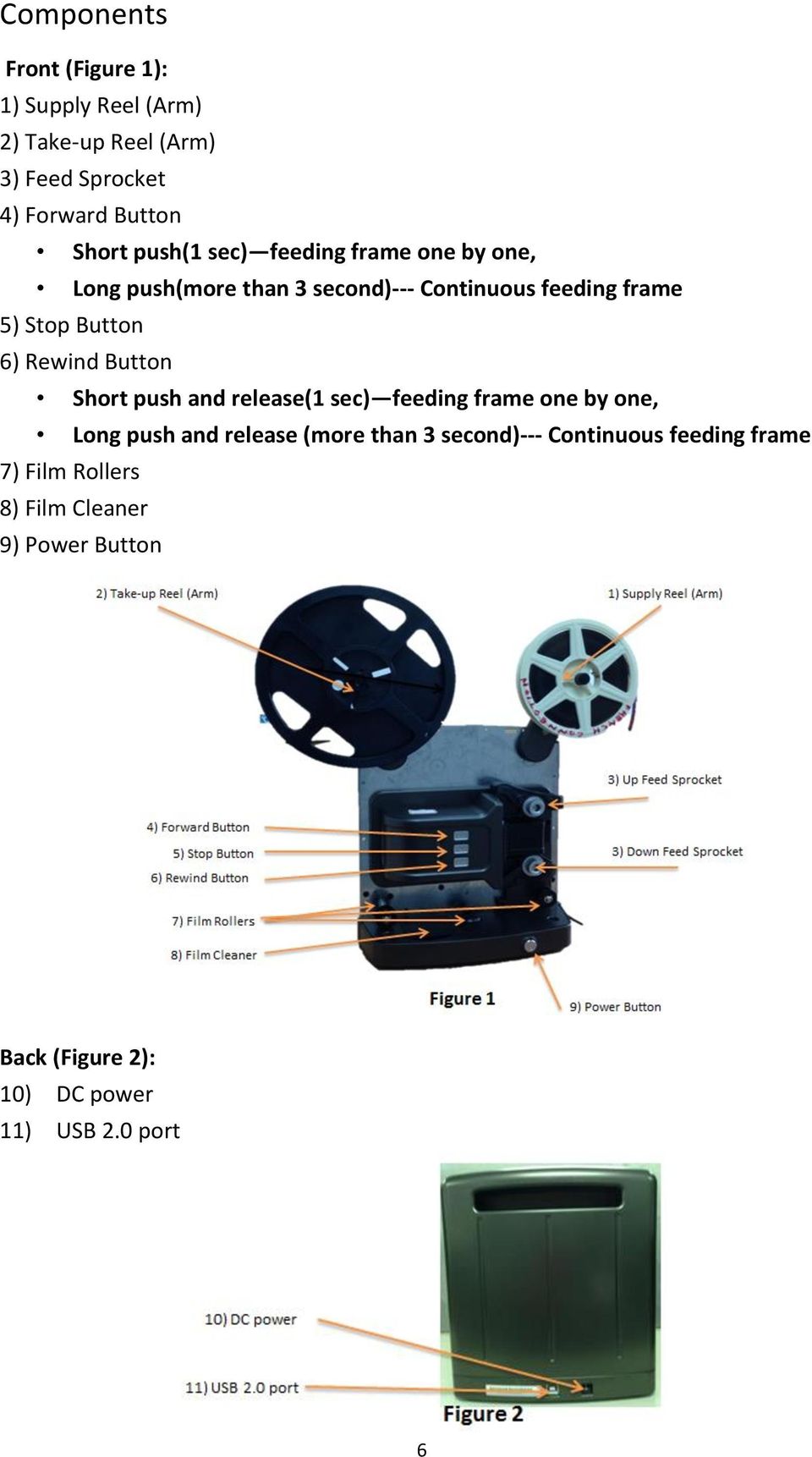
6 Components Front (Figure 1): 1) Supply Reel (Arm) 2) Take-up Reel (Arm) 3) Feed Sprocket 4) Forward Button Short push(1 sec) feeding frame one by one, Long push(more than 3 second)--- Continuous feeding frame 5) Stop Button 6) Rewind Button Short push and release(1 sec) feeding frame one by one, Long push and release (more than 3 second)--- Continuous feeding frame 7) Film Rollers 8) Film Cleaner 9) Power Button Back (Figure 2): 10) DC power 11) USB 2.0 port 6
7 Quick Installation Guide (QIG) Please check Hard Copy or PDF File in CD Installing Software and Driver Before Installing the Scanner Driver... Check your Super 8 Film Reel, Film and Hard Disk Space Film Reel : Super 8 Scanner support 1 ~8 standard Super 8 film reel Film: 1. Please make sure your film is smooth, if not please use cutter to repair and maintain to smooth 2. If your film is splicing, please check as below list before you insert film splicing parts and film hold are smooth The cement is fully dry or will damage super 8 scanner 3. Please use special solvent with Super 8 Scanner or will damage your film. Hard Disk Space Please check your hard disk space before you scan. The hard disk space list as below Reel Type Super 8 Film at Super 8 Film at Hard Disk Space Need 18 frames /second 24frames /second 50 feet(15 meters) 3.5 min 2.5 min 1 GB (0.45 GB for movie) 200 feet(60 meters) 13 min 10 min 4 GB (1.8 GB for movie) 300 feet(90 meters) 20 min 15 min 6 GB (2.7 GB for movie) 400 feet(120 meters) 26 min 20 min 8 GB (3.6 GB For movie) 600 feet(180meters) 40 min 30 min 12 GB (5.4 GB movie) Installing Software Driver a. Insert driver CD into the computer CD/DVD drive and explore the contents. b. Double click the CyberView S8 icon to begin the installation process. Follow the onscreen prompts to complete the installation process. NOTE: Make sure the scanner is NOT connected to the computer during the CyberView S8 driver installation. c. Restart computer once the installation process is complete. 7
8 Installing Hardware Connect the Super 8 Pro Scanner to a power source. 1. Locate the power switch on the lower left side of the scanner. 2. Plug the AC adapter into an AC power source FIRST before plugging it into the scanner. 3. Attach the USB cable to the computer using the standard USB adapter end. Attach the USB adapter end of the cable to back panel of the scanner. 4. Open the reel arm. Ensure the scanner does NOT have a film reel loaded, turn the scanner ON. MAKE SURE THERE IS ENOUGH ROOM IN FRONT OF THE SCANNER FOR THE REEL ARM TO EXTEND FULLY. Calibration Light Source (First time use) 1. Open the Case 2. Turn on Power 3. Connect to USB to PC 4. Wait for LED light to turn Orange 5. Activate the CyberView S8 Software 6. Create a New Movie Plan and click Next button 7. click Calibration button 8. After Finish Calibration click OK button to finish the calibration Note: Please make sure the film is not install to Super 8 Scanner when you do calibration function Install Super 8 Scanner 1. Open the Case 2. Open the Reel Arm 3. Install movie film reel to Supply Reel Arm and Take-up Reel Arm Note: Make Sure the Reel is securely installed 4. Turn on Power 5. Install film to Super 8 Scanner (Please see How to install film ) 6. Connect to USB to PC 7. Wait for LED light to turn Orange 8. Activate the CyberView S8 Software 9. Start to Digitize Your Super 8 Movie 8
9 How to install film to Super 8 Scanner 1. Turn on Power 2. Install movie film reel to Supply Reel Arm and Take-up Reel Arm 3. Press and hold Forward Button 4. Feeding film into Up Feed Sprocket 5. Film auto feeds out from Down Feed Sprocket 6. Feeding film into the Film Rollers, Lock your film onto the Take-up Reel 7. Scroll film until a sufficient length to Take-up Reel then press Stop Button 8. Feeding film into the Take-up Reel 9. Lock your film onto the Take-up Reel 10. Start to Digitize Your Super 8 Movie How to clean your film with Super 8 Scanner 1. Install you film as How to install film to Super 8 Scanner Step 1~5 2. Open the cover of the Film Cleaner 3. Add cleaning solvent to Wool Felt 4. Feed Film through the wool felt 5. Feeding film into the Take-up Reel 6. Click Stop Button 7. Activate the CyberView S8 Software 8. Click Clean Button to start cleaning your film Additional Features 1 How to clean your film with Super 8 Scanner 1.1 Feed the film from Take-up Reel to Supply Reel. 1.2 Press the Rewinding button for several and release. 1.3 The Digitizer will fast rewind film to Supply Reel 1.4 Add Cleaning Solvent to carton block of Film Cleaner 1.5 Open the UI and click film clean to clean you film Note: Please make sure the carton block is wetting, you can stop the machine and add enough cleaning solvent then continue clean your film If Carton Block is dirty please ask your distributor or connect Reflecta to buy a new one to change 2 How to fast rewind film 2.1 After finish digitize your movie or clean film, all the film will be reel rolled to Supply Reel. 9
10 2.2 Take the film from Supply Reel to Take-up Reel, lock your film on Take-up Reel. 2.3 Press Rewind Button, until all the film is reel rolled to Take-up Reel. 10

11 CyberView S8 introduction User Interface List I. Setting Window Area II. Preview and Capture Film Window Area 11
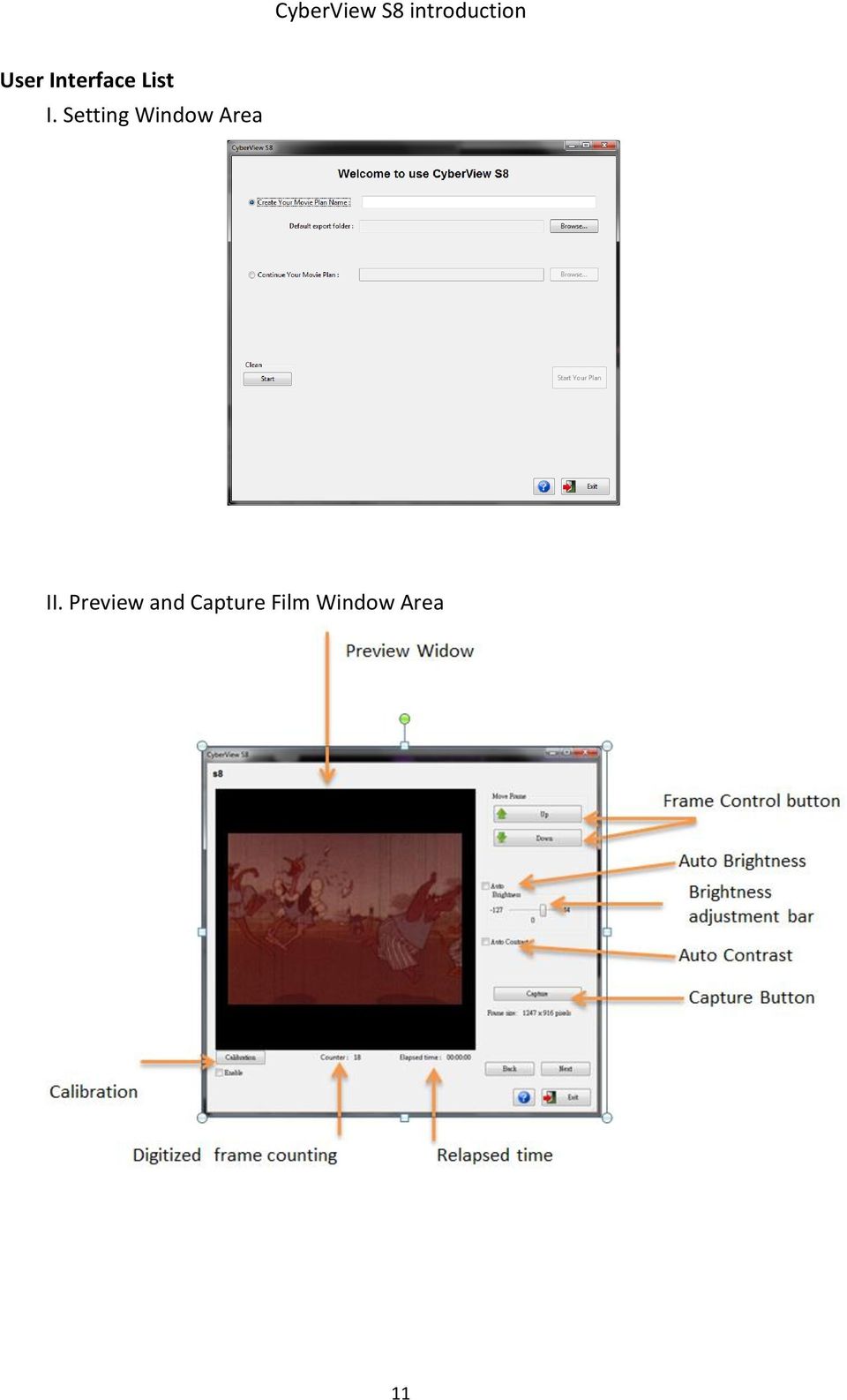
12 III. Preview and Combine Movie Window Area Preview Widow Output Size Combine Watch Video Frame Rate 12
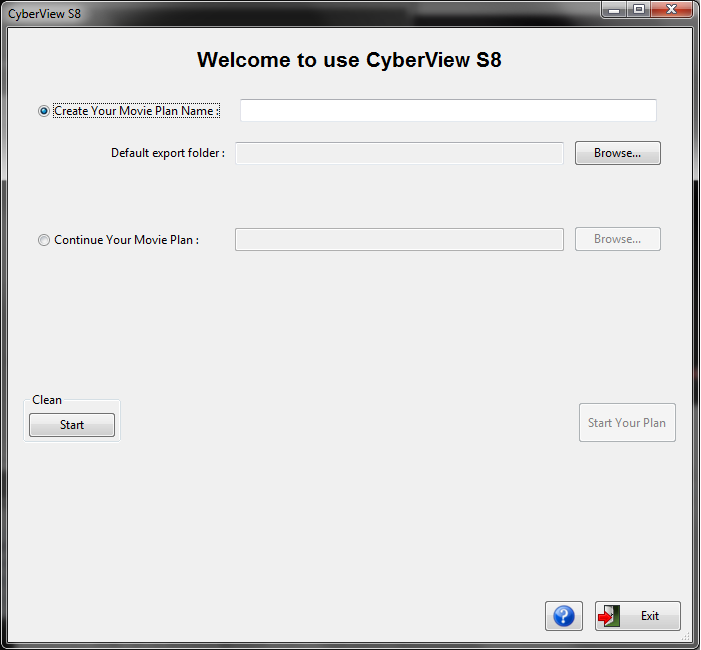
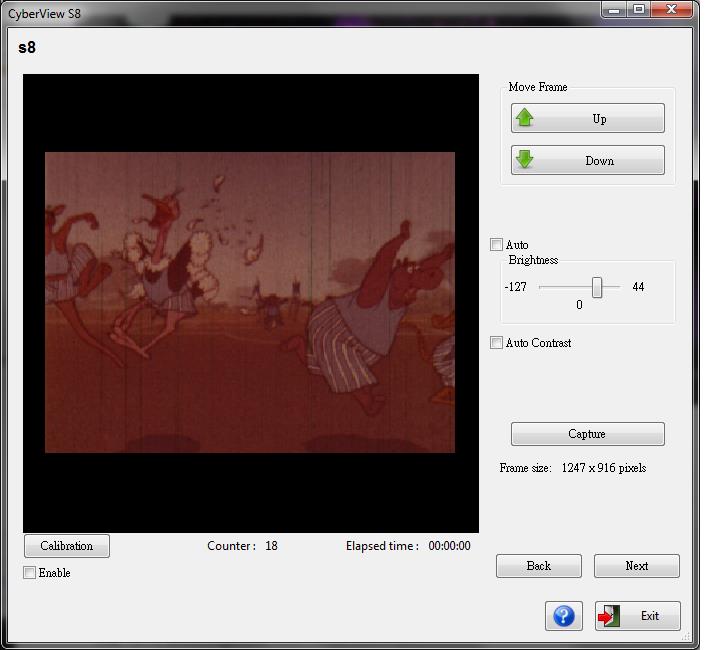
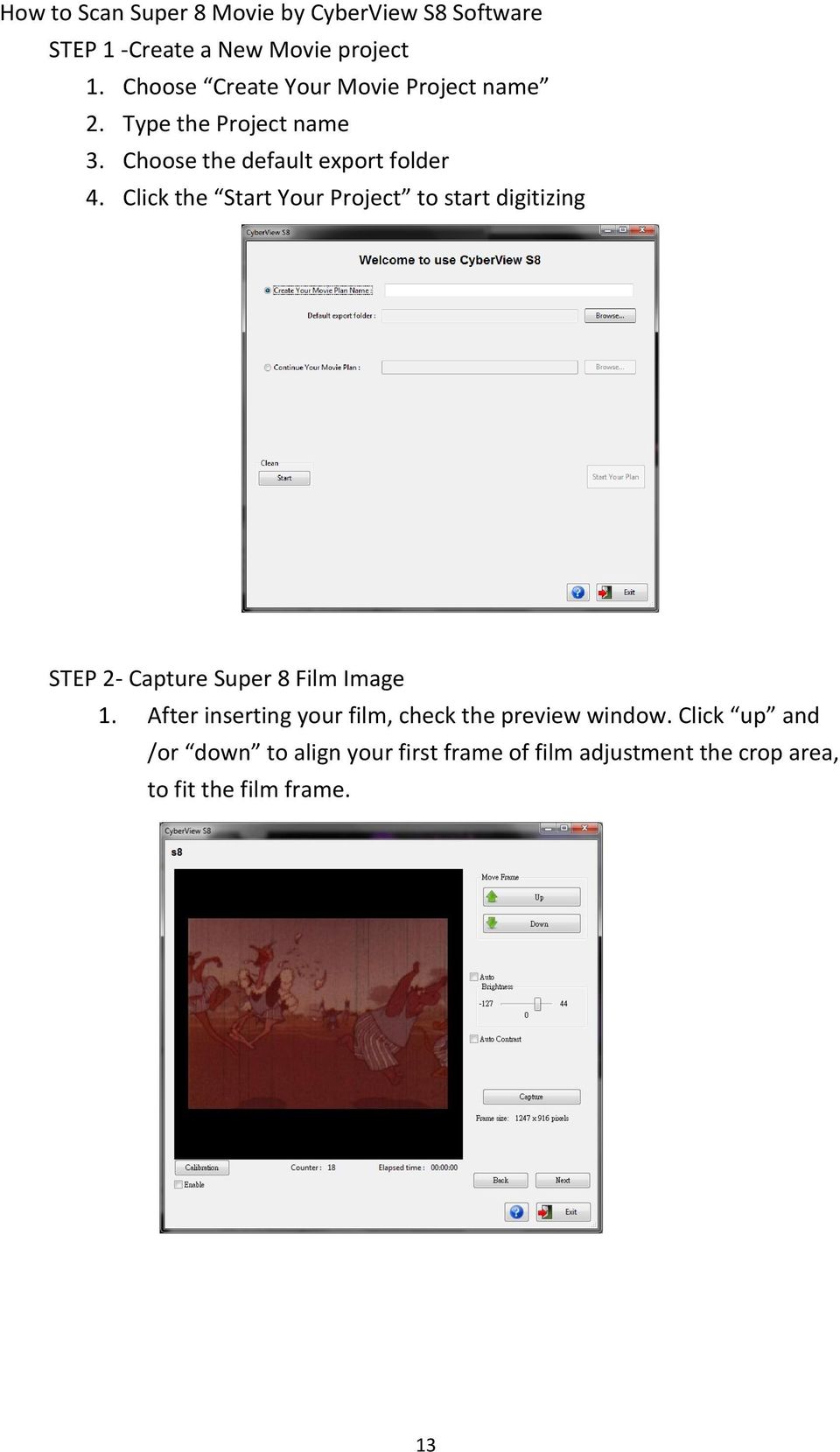
13 How to Scan Super 8 Movie by CyberView S8 Software STEP 1 -Create a New Movie project 1. Choose Create Your Movie Project name 2. Type the Project name 3. Choose the default export folder 4. Click the Start Your Project to start digitizing STEP 2- Capture Super 8 Film Image 1. After inserting your film, check the preview window. Click up and /or down to align your first frame of film adjustment the crop area, to fit the film frame. 13
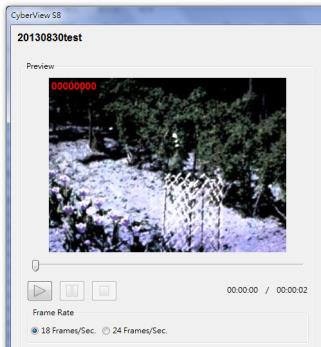
14 2. Choose Film type and adjustment exposure time, then Click Capture to start digitizing S8 movie. 3. After finishing the digitization of the S8 movie, the software will stop automatically. Click Next to preview and combine your movie. STEP 3 Preview and Set Frame Rate 1. Check the preview window 2. Choose your super 8 movie Frame Rate(18 or 24 frame rate/ sec) 3. Click the Play button to preview digitized frame STEP 4 Combine Movie 1 Choose Resolution Output size 1080p or 720p 14


15 2 Click Combine to transfer frame to your movie After combining the movie frames, you can click See Your Movie to watch the digitized super 8 movie STEP 5 Exit 15

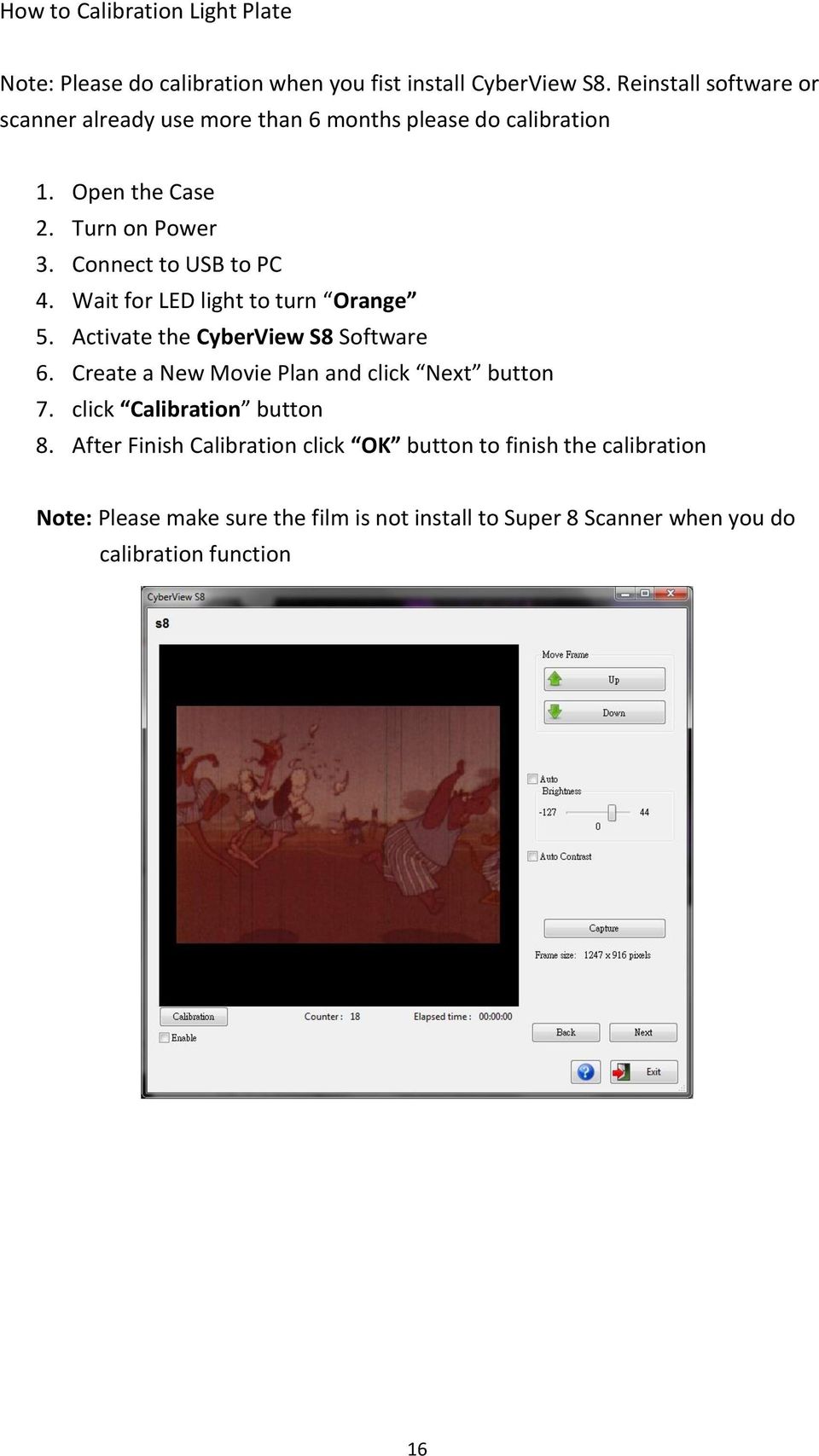
16 How to Calibration Light Plate Note: Please do calibration when you fist install CyberView S8. Reinstall software or scanner already use more than 6 months please do calibration 1. Open the Case 2. Turn on Power 3. Connect to USB to PC 4. Wait for LED light to turn Orange 5. Activate the CyberView S8 Software 6. Create a New Movie Plan and click Next button 7. click Calibration button 8. After Finish Calibration click OK button to finish the calibration Note: Please make sure the film is not install to Super 8 Scanner when you do calibration function 16
17 Technical Support CyberView S8 For information regarding the fi lm scanner and CyberView S8 driver, please visit ecta.de. Transportation For safety purposes, follow the procedure below before transporting the scanner (i.e. before moving the scanner from one location to another or packing and shipping the unit): 1. Plug in the power adaptor. Turn on the power switch. 2. Wait for the scanner to warm up (around 50 seconds). The LED indicator will always blink during warm up. 3. After LED indicator turns ON, turn off the power switch. 17
user manual IH-W350DB IH-W351DW MyLife webcam pro 5.0 megapixel max resolution
 IH-W350DB IH-W351DW MyLife webcam pro 5.0 megapixel max resolution Congratulations on the purchase of your new MyLife webcam pro. This product comes with a limited lifetime warranty. Before using your
Wireless Travel Mouse with 5-Buttons User Manual
 Wireless Travel Mouse with 5-Buttons User Manual Product Features 1. Radio frequency 27MHz wireless transmission 2. Use of 256 ID codes to prevent interference between several wireless mice being used
User s Manual. Home CR-H212. 2.5 2-BAY RAID Storage Enclosure
 User s Manual Home CR-H212 2.5 2-BAY RAID Storage Enclosure 1 Introduction 1.1 Features - 2-Bay Bus Powered Portable RAID Enclosure -Works with SATA HDD or SSD -Supports Big (JBOD), RAID0, RAID1, and Normal
Laser Wireless Rechargeable Mouse. User s Manual
 Laser Wireless Rechargeable Mouse Model #: LM8000WR User s Manual Rev. 060801 User s Record: To provide quality customer service and technical support, it is suggested that you keep the following information
ViviCam 25 Digital Camera User s Manual
 ViviCam 25 Digital Camera User s Manual 2010 Sakar International, Inc. All rights reserved. Windows and the Windows logo are registered trademarks of Microsoft Corporation. All other trademarks are the
Getting Started. Table of Contents. Quick User Guide - English
 Getting Started This Quick User Guide helps you get started with the IRIScan TM Anywhere Wifi. Please read this guide before operating this scanner and its software. All information is subject to change
Quick 1.3MP WebCam with Night Vision
 Quick 1.3MP WebCam with Night Vision Model #: WC1100BLU, WC1200RED WC1300BLK, WC1400YLW User s Manual PID # 031362/3/4/5-109281 Rev. 100524 All brand name and trademarks are the property of their respective
User Guide USB 2.0 LAPTOP DOCKING STATION WITH VIDEO N2953
 USB 2.0 LAPTOP DOCKING STATION WITH VIDEO 410-1864-001B / ACP51US 1 YEAR LIMITED WARRANTY: We pride ourselves on the quality of our products. For complete warranty details and a list of our worldwide offices,
USB 2.0 Peripheral Switch USER MANUAL US221A / US421A
 USB 2.0 Peripheral Switch USER MANUAL US221A / US421A FCC Information This equipment has been tested and found to comply with the limits for a Class B digital device, pursuant to Part 15 of the FCC Rules.
Business Audio System: Music & Messaging MP3 Player. by Grace Digital Audio. User Guide. Model No. GDI-USBM10
 Business Audio System: Music & Messaging MP3 Player by Grace Digital Audio User Guide Model No. GDI-USBM10 User Guide Contents Introduction 2 Safety & General Use Information 2 Features 3 Set Up & Operation
In-Site Motion Webcam
 In-Site Motion Webcam User s Manual Model IC825C FCC STATEMENT IC825C This device complies with part 15 of FCC Rules. Operation is subject to the following two conditions: (1) this device may not cause
High Speed File Share Cable USER GUIDE
 High Speed File Share Cable USER GUIDE Visit our Website at www.targus.com/emea Features and specifications are subject to change without notice. 2008 Targus Group International, Inc. and Targus, Inc.
FB-500A User s Manual
 Megapixel Day & Night Fixed Box Network Camera FB-500A User s Manual Quality Service Group Product name: Network Camera (FB-500A Series) Release Date: 2011/7 Manual Revision: V1.0 Web site: Email: www.brickcom.com
EPSON USB/Parallel Adapter User s Guide
 EPSON USB/Parallel Adapter User s Guide EPSON Stylus COLOR 440 EPSON Stylus COLOR 800 EPSON Stylus COLOR 600 EPSON Stylus COLOR 850 EPSON Stylus COLOR 640 EPSON Stylus COLOR 1520 EPSON Stylus Photo EX
EPSON USB/Parallel Adapter User s Guide
 EPSON USB/Parallel Adapter User s Guide EPSON Stylus COLOR 440 EPSON Stylus COLOR 1520 EPSON Stylus COLOR 600 EPSON Stylus COLOR 3000 EPSON Stylus COLOR 640 EPSON Stylus Photo 700 EPSON Stylus COLOR 660
Optical Wireless Mouse. User s Manual
 Optical Wireless Mouse Model : OM4000W User s Manual 110935-109154 Rev. 061101 User s Record: To provide quality customer service and technical support, it is suggested that you keep the following information
USB 3.0 to HDMI Adapter with 3-Port USB 3.0 Hub USB 3.0 to VGA Adapter with 3-Port USB 3.0 Hub
 USB 3.0 to HDMI Adapter with 3-Port USB 3.0 Hub USB 3.0 to VGA Adapter with 3-Port USB 3.0 Hub USB32HDEH3 / USB32VGAEH3 *actual product may vary from photos DE: Bedienungsanleitung - de.startech.com FR:
INSTALL GUIDE Making Your Mobile Life Easier.
 Targus USB Bluetooth Adapter Making Your Mobile Life Easier. Visit our Web site at: www.targus.com Features and specifications are subject to change without notice 2005 Targus Group International, Inc.
ES-3305P V2 / ES-3308P V2. Quick Installation Guide. 09-2013 / v1.0
 ES-3305P V2 / ES-3308P V2 Quick Installation Guide 09-2013 / v1.0 1 COPYRIGHT Copyright Edimax Technology Co., Ltd. all rights reserved. No part of this publication may be reproduced, transmitted, transcribed,
4-Port Pocket. USB KVM Switch with USB 2.0 Hub
 4-Port Pocket USB KVM Switch with USB 2.0 Hub Manual - 1 - Index 1. INTRODUCTION... 3 1.1 FEATURES... 3 1.2 PHYSICAL DIAGRAM... 4 1.3 PACKAGE CONTENTS... 4 2. SPECIFICATIONS... 5 2.1 ERAL... 5 2.2 LED
iosafe Solo External Hard Drive
 Users Manual & Limited Warranty iosafe Solo External Hard Drive USB 2.0 Fireproof Waterproof FloSafe Cooling Technology Data Recovery Service 910-10841-00 REV 7.1 2 COPYRIGHTS Copyright iosafe, Inc. 2009.
palm Switch 500 5 Port 10/100 Base-TX Switch with Auto MDI/MDI-X User Guide
 palm Switch 500 5 Port 10/100 Base-TX Switch with Auto MDI/MDI-X User Guide Rev. 1.0 June, 2003 User Guide 1. Introduction Welcome to the World of Mini-Networking. In the modern business society, communication
Congratulations on your HomePortal purchase. To install your HomePortal and configure your home network, follow these steps.
 Notice to Users 2003 2Wire, Inc. All rights reserved. This manual in whole or in part, may not be reproduced, translated, or reduced to any machine-readable form without prior written approval. 2WIRE PROVIDES
USB2VGA. Instruction Manual. USB to VGA Adapter. USB 2.0 to VGA External Multi Monitor Video Adapter
 USB to VGA Adapter USB2VGA Instruction Manual USB 2.0 to VGA External Multi Monitor Video Adapter FCC Compliance Statement This equipment has been tested and found to comply with the limits for a Class
Verbatim PowerBay Single USB and esata External Hard Drive Version 1.00
 Verbatim PowerBay Single USB and esata External Hard Drive Version 1.00 User Manual Table of Contents Introduction... 2 Controls, Connectors and Indicators... 2 About the Hard Drive... 2 Locating the Drive
Wave/PC Interactive System USB Adapter Kit. Installation Guide
 Wave/PC Interactive System USB Adapter Kit Installation Guide Safety Information 1. Read these instructions for all components before using this product. 2. Keep these instructions for future reference.
USB 2.0 to 10/100Mbps Ethernet Adapter UE-9521. User Manual
 USB 2.0 to 10/100Mbps Ethernet Adapter UE-9521 User Manual 1 Copyright Copyright 2004 by PLANET Technology Corp. All rights reserved. No part of this publication may be reproduced, transmitted, transcribed,
TL-PS310U Single USB 2.0 Port MFP and Storage Server
 TL-PS310U Single USB 2.0 Port MFP and Storage Server Rev: 2.0.0 1910010313 Contents Chapter 1 Introduction... 1 1.1 Product Overview...1 1.2 Network Management...1 1.3 Components and Features...1 1.4 Hardware
Wireless Mouse USER GUIDE. for Mac. www.targus.com/us/formac ONE YEAR LIMITED WARRANTY N2953
 AMW43US / 410-1514-001C N2953 www.targus.com/us/formac 2008 Manufactured or imported by Targus Group International, Inc. (for U.S. sales: 1211 North Miller Street, Anaheim, CA 92806 USA, for Australia
If anything is damaged or missing, contact your dealer.
 User Manual UN-201 Read this guide thoroughly and follow the installation and operation procedures carefully in order to prevent any damage to the units and/or any devices that connect to them. This package
Dual-Cool Notebook Cooler Pad. User s Manual
 Dual-Cool Notebook Cooler Pad Model #: CF4500U User s Manual Rev. 060801 User s Record: To provide quality customer service and technical support, it is suggested that you keep the following information
Duplex ID Card & License Scanner. User Guide
 Duplex ID Card & License Scanner User Guide CE Conformity and FCC Statement This equipment has been tested and found to comply with the limits of the European Council Directive on the approximation of
File Share Cable USER GUIDE. for Mac. www.targus.com/us/formac ONE YEAR LIMITED WARRANTY N2953
 N2953 USER GUIDE ACC9602US / 410-1486-001A www.targus.com/us/formac 2008 Manufactured or imported by Targus Group International, Inc. (for U.S. sales: 1211 North Miller Street, Anaheim, CA 92806 USA, for
1394 CardBus Quick Installation Guide
 1394 CardBus Quick Installation Guide Introducing the 1394 Cardbus The 1394 CardBus is designed to add FireWire (1394) interface to notebook computers for easy connection to DV camcorders, hard disk drives
user manual MyLife webcam 1.3 megapixel max resolution
 IH-W301DW IH-W303DN IH-W302DP IH-W304DR MyLife webcam 1.3 megapixel max resolution Congratulations on the purchase of your new MyLife webcam. This product comes with a limited lifetime warranty. Before
User s Manual Model KB990W
 Wireless Internet Keyboard & Optical Mouse User s Manual Model KB990W FCC Statement This device complies with part 15 of FCC Rules. Operation is subject to the following two conditions: (1) this device
USB to VGA Adapter USB2VGAE2. Instruction Manual. USB 2.0 to VGA Multi Monitor External Video Adapter
 USB to VGA Adapter USB2VGAE2 Instruction Manual USB 2.0 to VGA Multi Monitor External Video Adapter *Please ensure that the driver installation is complete prior to the physical installation of the USB
USER S MANUAL USB FILE TRANSFER CABLE
 1. Introduction USER S MANUAL USB FILE TRANSFER CABLE Congratulations on your purchase of the PC-Linq, an USB file transfer cable. This unique cable allows you to easily connect two computers with USB
INSTALLATION GUIDE ConnectLine TV Adapter Getting started
 INSTALLATION GUIDE ConnectLine TV Adapter Getting started PURPOSE OF THIS GUIDE READ THIS FIRST Before your hearing instruments can receive sound from the TV, the adapter must be connected to the TV and
WUA-0605 300Mbps Wireless USB Network Adapter
 WUA-0605 300Mbps Wireless USB Network Adapter User Manual V1.0 Certification FCC CE FCC Statement This equipment has been tested and found to comply with the limits for a Class B digital device, pursuant
Wolverine 35mm Film to Digital Converter. Model F2D USER MANUAL
 Wolverine 35mm Film to Digital Converter Model F2D USER MANUAL Version 1.01 December 2008 TABLE OF CONTENTS DESCRIPTION PAGE Table of Contents 1 Before Using the F2D Converter 3 FCC Certifications 3 Warning
Creatix 802.11g Adapter CTX405 V.1/V.2 User Manual
 Creatix 802.11g Adapter CTX405 V.1/V.2 User Manual 1 Safety instructions for Creatix 802.11g Adapter This equipment has been designed and tested in accordance with the requirements of Standard EN60950.
User s Manual. Bluetooth Calculator Keypad. Page
 User s Manual Bluetooth Calculator Keypad Page Regulatory Compliance This device complies with Part 15 of the FCC Rules. Operation is subject to the following two conditions: (1) This device may not cause
LabelWriter. Print Server. User Guide
 LabelWriter Print Server User Guide Copyright 2010 Sanford, L.P. All rights reserved. 08/10 No part of this document or the software may be reproduced or transmitted in any form or by any means or translated
User Guide. BLUETOOTH WIRELESS KEYBOARD for ipad
 BLUETOOTH WIRELESS KEYBOARD for ipad 410-2119-001A / AKB32US 1 YEAR LIMITED WARRANTY: We pride ourselves on the quality of our products. For complete warranty details and a list of our worldwide offices,
Dual Ports Serial PC Card User Manual
 Dual Ports Serial PC Card User Manual FCC COMPLIANCE STATEMENTS This equipment has been tested and found to comply with the limits for a Class B digital device, pursuant to Part 15 of the FCC Rules. These
PCI Sound Card Genius Sound Maker Value Series User Manual
 TABLE OF CONTENTS PCI Sound Card Genius Sound Maker Value Series User Manual Overview 2 Installing the sound card..4 Appendix A. Hardware Information 8 FCC and CE Radiation Norm FCC This equipment has
Targus Bluetooth Keyboard for Tablets
 1 BLUETOOTH KEYBOARD for Tablets 410-2153-001B / AKB33US 1 YEAR LIMITED WARRANTY: We pride ourselves on the quality of our products. For complete warranty details and a list of our worldwide offices, please
Fit Clip Plus Portable Media Player
 Fit Clip Plus Portable Media Player User Guide BL 8GB Thank you for purchasing a Fit Clip Plus Portable Media Player! To get the most out of your Fit Clip Plus, please read this entire user guide carefully.
Regulatory Compliance. IC Certification. FCC Certification. Declaration of Conformity
 VP6495 Regulatory Compliance This device complies with Part 15 of the FCC Rules. Operation is subject to the following two conditions: (1) This device may not cause harmful interference, and (2) This device
2 Port USB Keyboard Mouse Switch Cable with File Transfer for PC and Mac
 2 Port USB Keyboard Mouse Switch Cable with File Transfer for PC and Mac SVKMS2 *actual product may vary from photos DE: Bedienungsanleitung - de.startech.com FR: Guide de l'utilisateur - fr.startech.com
IEEE 802.11b WLAN PC Card
 IEEE 802.11b WLAN PC Card User s Guide Version: 1.3 August 2001 Please install the Utility/Driver first before inserting the PCMCIA Card. FCC Class B Radio Frequency Interference Statement The manufacturer
TL-PS310U Single USB 2.0 Port MFP and Storage Server
 Single USB 2.0 Port MFP and Storage Server REV3.0.0 1910010947 COPYRIGHT & TRADEMARKS Specifications are subject to change without notice. is a registered trademark of TP-LINK TECHNOLOGIES CO., LTD. Other
Evolution Digital HD Set-Top Box Important Safety Instructions
 Evolution Digital HD Set-Top Box Important Safety Instructions 1. Read these instructions. 2. Keep these instructions. 3. Heed all warnings. 4. Follow all instructions. 5. Do not use this apparatus near
CAUTION RISK OF ELECTRIC SHOCK NO NOT OPEN
 Evolution Digital HD Set-Top Box Important Safety Instructions 1. Read these instructions. 2. Keep these instructions. 3. Heed all warnings. 4. Follow all instructions. 5. Do not use this apparatus near
Wireless Optical Mouse
 Wireless Optical Mouse User s Manual Model PD950P FCC STATEMENT PD950P This device complies with part 15 of FCC Rules. Operation is subject to the following two conditions: (1) this device may not cause
9,'(2 #6(3$5$725 8VHU V#0DQXDO 96043;
 9,'(2 #6(3$5$725 8VHU V#0DQXDO 96043; Introduction 3 Features 3 Specifications 4 Installation 4 Stand-Alone Installation 4 Daisy-Chain Installation 5 Preventing Radio & TV Interference 6 Limited Warranty
TG-3468 Gigabit PCI Express Network Adapter
 TG-3468 Rev:2.0.0 1910010580 COPYRIGHT & TRADEMARKS Specifications are subject to change without notice. is a registered trademark of TP-LINK TECHNOLOGIES CO., LTD. Other brands and product names are trademarks
USB 2.0 4-Port Hub with USB Power Cable. User s Manual
 USB 2.0 4-Port Hub with USB Power Cable Model: UH2500 User s Manual 251104-109159 Rev. 061107 User s Record: To provide quality customer service and technical support, it is suggested that you keep the
Pebble. E-Paper Watch for iphone and Android. 1 Button A. 4 Button B. 5 Button C. 2 Display. 6 Button D. 3 Charge Port
 2 4 4 5 3 6 Button A 2 Display 4 Button B 5 Button C 3 Charge Port 6 Button D Page of 4 Certifications and Safety Approvals FCC Compliance Statement This device complies with Part 5 of the FCC Rules. Operation
Owner s Manual. Not suitable for mobile applications. Important Safety Instructions 2. Quick Installation 3. Basic Operation 4. Storage & Service 7
 Register online today for a chance to win a FREE Tripp Lite product! www.tripplite.com/warranty Owner s Manual Internet Office & BC Personal UPS Systems Not suitable for mobile applications. Important
Addonics. DVD±R/RW DigiCopier. Users Guide Revision 1.0
 Addonics T E C H N O L O G I E S DVD±R/RW DigiCopier Users Guide Revision 1.0 FCC Warning Statement This equipment has been tested and found to comply with the limits for a class B digital device pursuant
7 High-Resolution Digital Photo Frame
 TM 16-1003 User s Guide 7 High-Resolution Digital Photo Frame One demo photo included, as illustrated Please read this user s guide before using your new photo frame. Package contents Photo Frame AC Adapter
Point of View Mobii 10 Tegra Tablet. Notice... 2
 TABLE OF CONTENTS Notice... 2 1.0 Preface... 2 2.0 Getting to know the basics... 4 3.0 How to Start... 7 3.1 Home Shell... 7 3.1.1 Home Shell > Widgets (Search RSS Weather)... 8 3.1.2 Home Shell > Widgets,
HDMI or Component Standalone Capture Device 1080p
 HDMI or Component Standalone Capture Device 1080p USB2HDCAPS *actual product may vary from photos DE: Bedienungsanleitung - de.startech.com FR: Guide de l'utilisateur - fr.startech.com ES: Guía del usuario
Rocket 640L/644L 6Gb/s SATA Host Adapter Quick Installation Guide
 Rocket 640L/644L 6Gb/s SATA Host Adapter Quick Installation Guide v1.1 1 Contents HighPoint Rocket640L/644L...3 Hardware Installation...3 Using the Rocket64xL Adapter...4 Rocket 64xL BIOS...4 Driver and
Model: 616-146v2 Quick Setup Guide DC: 071015 Atomic Projection Alarm with Indoor and Outdoor Temperature
 Model: 616-146v2 Quick Setup Guide DC: 071015 Atomic Projection Alarm with Indoor and Outdoor Temperature Snooze/Backlight BUTTONS Time, Alarm with Snooze, & Calendar Projection Arm Rotates 180 Indoor/Outdoor
2.5/3.5 SATA HDD Docking Station
 SATADOCKU2 SATADOCKU2E SATADOCK22UE 2.5/3.5 SATA HDD Docking Station FCC Compliance Statement This equipment has been tested and found to comply with the limits for a Class B digital device, pursuant to
MANUAL. Go to our website and watch the setup video for set up instructions and to better understand your device: www.streamboxtv.
 MANUAL Go to our website and watch the setup video for set up instructions and to better understand your device: www.streamboxtv.com/setup Table of Contents 1. What s Inside your Shipping box...3 2. Streambox
Package Checklist. Overview. Features. USB Data Link Cable User s Manual. USB Data Link Cable User s Manual 1
 USB Data Link Cable User s Manual Congratulations on your purchase of the USB Data Link Cable adapter. This unique cable allows you to easily connect two computers with USB port and instantly transfer
Alarm Clock USER GUIDE
 Alarm Clock USER GUIDE Jazwares, Inc. 2012 CONTENTS Please read the instructions along with the Alarm Clock carefully before you use it, so that you can operate it conveniently. WELCOME & Warnings Page
Customer VFD pole display JP-8034 USB OPERATION MANUAL
 ISO 9001 Certified Lead with technology Win customers with service Customer VFD pole display JP-8034 USB OPERATION MANUAL Jarltech International Inc. 2007. All rights reserved. Under the copyright laws,
User Guide. Soft-Touch TM Bluetooth Laser Mouse N2953
 Soft-Touch TM Bluetooth Laser Mouse 410-XXXXXXXXXXX 1 YEAR LIMITED WARRANTY: We pride ourselves on the quality of our products. For complete warranty details and a list of our worldwide offices, please
AIM SOFTWARE AND USB DRIVER INSTALLATION PROCEDURE
 AIM SOFTWARE AND USB DRIVER INSTALLATION PROCEDURE CONTENTS AIM software and USB Driver installation Chapter 1 Installing AIM software and AIM USB driver... 2 Chapter 2 Installation under Microsoft Windows
Checking the Package Contents. Installing the Printer Software. Connecting. Unpacking the. the Printer. Printer. Attaching
 Installing the Printer Software Checking the Package Contents Connecting the Printer Unpacking the Printer Installing the Ink Cartridges Plugging in the Printer Attaching the Printer Parts 4032216-00 EUL
3-IN-1 DIGITAL MUSIC PLAYER
 3-IN-1 DIGITAL MUSIC PLAYER 1 Gateway digital music player 3-IN-1 DIGITAL MUSIC PLAYER Contents Preparing to Use Features 6 Package content 6 Product overview 7 LCD Panel 7 Button function table 8 Using
3.5 External Hard Drive Enclosure
 UNI3510U2E / UNI3510U2EGB UNI3510U2EB / UNI3510UEBGB Instruction Manual 3.5 External Hard Drive Enclosure 3.5 esata/usb 2.0 to IDE/SATA External Hard Drive Enclosure with One-Touch Backup FCC Compliance
How To Use A Brother Ql700
 User's Guide QL-700 Be sure to read and understand this guide before using the machine. We recommend that you keep this guide nearby for future reference. www.brother.com US ENG ver.0 Thank you for purchasing
SMART Response PE. Quick Start Guide. Safety and Compliance Information...2. Compliance...2. What s in the Box?...3. Environmental Considerations...
 SMART Response PE Quick Start Guide Safety and Compliance Information...2 Compliance...2 What s in the Box?...3 Environmental Considerations...3 Installing the Clicker Batteries...3 Installing SMART Response
USER GUIDE. USB 2.0 DVD/CD-ROM Slim External Drive
 USB 2.0 DVD/CD-ROM Slim External Drive USER GUIDE Visit our Website at www.targus.com Features and specifications subject to change without notice. 2007 Targus Group International, Inc. and Targus, Inc.
Instructions for A-5 Digital Game Camera
 I CAMERA OVERVIEW Instructions for A-5 Digital Game Camera THANK YOU for your purchase of. Please read this booklet before using unit. If you should have any questions about this product or any or Moultrie
USB to DVI Video Adapter
 USB2DVI Instruction Manual USB to DVI Video Adapter USB 2.0 to DVI External Multi Monitor Video Adapter FCC Compliance Statement This equipment has been tested and found to comply with the limits for a
SanDisk Connect Wireless Flash Drive QUICK START GUIDE
 SanDisk Connect Wireless Flash Drive QUICK START GUIDE GET STARTED 1. Charge your Wireless Drive Plug the Drive into a computer or USB-AC adaptor. A full charge can take up to 2 hours. 2) Turn on the
SSDNow For Desktops. Installation Guide
 Installation Guide Your purchase of the SSDNow with Accessory Kit will allow you to enjoy the benefits of increased system performance and reliability. All hardware and software necessary to replace your
USB Scrolling Optical Mini Mouse
 USB Scrolling Optical Mini Mouse Owner s Manual Please read before using this equipment. ˆ Contents Features... 3 System Requirements... 4 FCC Declaration of Conformity... 5 The FCC Wants You to Know...
Model: 308-1412 Manual DC: 080215 WIRELESS COLOR FORECAST STATION
 Model: 308-1412 Manual DC: 080215 WIRELESS COLOR FORECAST STATION FRONT VIEW SENSOR TX141TH-Bv2 LED TX Sensor Battery Cover Sensor Battery Compartment 2 AA Buttons Battery Compartment 3 AAA BACK VIEW Battery
FCC COMPLIANCE STATEMENT FOR AMERICAN USERS
 FCC COMPLIANCE STATEMENT FOR AMERICAN USERS This equipment has been tested and found to comply with the limits for a CLASS A digital device, pursuant to Part 15 of the FCC Rules. These limits are designed
ExpressCard USB 3.0 Controller Adapter Card
 ECUSB3S2 Instruction Manual ExpressCard USB 3.0 Controller Adapter Card 2-Port ExpressCard SuperSpeed USB 3.0 Controller Adapter Card FCC Compliance Statement This equipment has been tested and found to
PCMCIA Wireless LAN Card User s Manual
 PCMCIA Wireless LAN Card User s Manual Rev 1.0 Regulatory compliance FCC Warning This equipment has been tested and found to comply with the limits for a Class B digital device, pursuant to part 15 of
Net USER GUIDE MEDIA SHARING DEVICE
 FCC DECLARATION OF CONFORMANCE This device complies with Part 15 of the FCC Rules. Operation is subject to the following two conditions: (1) this device may not cause harmful interference, and (2) this
Installation Guide 1-port USB 2.0 Print Server 1 GPSU21
 Installation Guide 1-port USB 2.0 Print Server 1 GPSU21 2 Welcome Thank you for purchasing this 1-port USB 2.0 Print Server that allows any networked computer to share a USB printer. It complies with USB
GV-Keyboard. User's Manual V2.0
 GV-Keyboard User's Manual V2.0 Before attempting to connect or operate this product, please read these instructions carefully and save this manual for future use. 2007 GeoVision, Inc. All rights reserved.
500/600/1000. User Manual June 2011 Rev. 061311. 1 v061311
 500/600/1000 User Manual June 2011 Rev. 061311 1 v061311 http://shopping.netsuite.com/digitalcheck TABLE OF CONTENTS Contents Radio Frequency Interference... 3 About the SB Scanner... 3 SB Scanner Equipment...
www.iconnectivity.com
 www.iconnectivity.com USER GUIDE WARRANTY INFORMATION iconnectivity warrants to the original purchaser that this unit is free of defects in materials and workmanship under normal use and maintenance for
User Manual USB Laptop KVM Switch. GCS661U Part No. M1069
 User Manual USB Laptop KVM Switch 1 GCS661U Part No. M1069 2 Table of Contents User Notice 4 A Note About Terminology 5 Overview 6 Features 7 Package Contents 8 Requirements 9 Operating System Support
USB-2.0 Mobile Mini Hub USER S GUIDE. Making Your Mobile Life Easier. Making Your Mobile Life Easier.
 USB-2.0 Mobile Mini Hub Making Your Mobile Life Easier. Visit our Web site at: www.targus.com Features and specifications are subject to change without notice. 2002 Targus Corp. 400-0093-001A USER S GUIDE
DisplayPort 2-Port KVM Switch Installation Guide
 DisplayPort 2-Port KVM Switch Installation Guide Introduction The DisplayPort 2-Port KVM Switch shares one DisplayPort display between two DisplayPort computers. Key Features and Benefits Access multiple
Eclipse 180 User s Manual
 Eclipse 180 User s Manual Congratulations on purchasing your Eclipse Personal Media Player! To get the most out of your purchase, please take the time to carefully read through this manual. Foreword If
Oscar Mouse Editor Software. User s Guide
 Oscar Mouse Editor Software (Tailor-made to Simplify the Work) User s Guide www.a4tech.com Connecting the mouse Step 1: Insert the USB mouse connector into the USB port of your computer. Step 2: Your computer