
Features Reference. About Unified Communication System. Before Using This Machine. Starting a Meeting. What You Can Do During the Meeting
|
|
|
- Norma Douglas
- 10 years ago
- Views:
Transcription
1 Features Reference About Unified Communication System Before Using This Machine Starting a Meeting What You Can Do During the Meeting Leaving a Meeting Managing Address Book Changing Network Configuration Configuring the Machine Settings Troubleshooting Appendix For safe and correct use, be sure to read the Safety Information in "Read This First" before using the machine.

2

3 TABLE OF CONTENTS How to Read This Manual... 4 Symbols...4 About This Product...4 About This Machine... 4 Manuals for This Machine... 5 Introduction... 6 Disclaimer...6 Notes...6 Precautions for Use...7 Copyright Notice About Unified Communication System Overview of the Unified Communication System...9 Features Available on This Machine Features Available in Unified Communication System Settings Before Using This Machine About Screen...13 Screen Contents Contact List screen Menu screen...14 Checking the News...16 Logging in to Unified Communication System Settings Operating Environment Login...19 Logout Specifying the Name of the Machine and Your Password...21 Preparing for Screen Share...23 For Windows...23 For Mac OS X Starting a Meeting To Start a Meeting...27 Connecting to a Meeting...28 Connecting Answering a Call

4 Joining a Meeting in Progress...29 Connecting to a Private Meeting Connecting to Private Meeting Answering a Call Joining a Private Meeting in Progress What You Can Do During the Meeting Changing the Screen Layout Checking the Network Bandwidth Adjusting the Volume Sharing the Computer Screen For Windows...41 For Mac OS X Leaving a Meeting To Leave the Meeting...47 Leaving the Meeting Immediately Turn Off the Machine After You Leave the Meeting Managing Address Book About Address Book Registering a Contact...51 Accepting the Registration Request...52 Accepting the Registration Request from Unified Communication System Settings...52 Accepting the Registration Request from the machine Editing a Registered Contact...53 Deleting a Registered Contact Changing Network Configuration To Change Network Configuration...55 Wired/Wireless Network Configuration...57 Entering Characters...59 Available Characters...59 Character Input Screens...59 How to Enter Characters Testing the Network Connection...62 Checking the test results

5 Limiting the Network Bandwidth Changing the Port Settings Configuring the Machine Settings Checking the Sending and Receiving Picture Displaying Contact Names during a Meeting...76 Updating the Firmware Changing the Language and Time Zone...79 Checking System Information...80 Changing the Brightness of the Display Troubleshooting When the Machine Cannot Connect to the Network When the Message Displayed...84 Messages Displayed when Using the Machine Messages Displayed when Using Unified Communication System Settings Messages Displayed when Using PC Screen Share Appendix Managing Contacts As an Administrator...97 Precautions for Use Trademarks INDEX

6 How to Read This Manual Symbols This manual uses the following symbols: Indicates points to pay attention to when using the machine, and explanations of likely causes of damage to machine or loss of data. Be sure to read these explanations. Indicates supplementary explanations of the machine's features, and instructions on resolving user errors. [ ] Indicates the names of keys on the display or control panel. Some of the key names that appear in the on-screen instructions or messages might differ from those shown on the machine, depending on the region in which you live. The screen displays a key name, followed by the corresponding key mark. If the name of the key is different, use the corresponding mark to identify the key. About This Product In this document, the Unified Communication System services as a whole are collectively referred to as "this product". For details, see page 9 "Overview of the Unified Communication System". About This Machine In this document, the Unified Communication System P1000 is referred to as "this machine". 4
![[ ] Indicates the names of keys on the display or control panel.](/docs-images/50/15049549/images/page_6.jpg "Some of the key names that appear in the on-screen instructions or messages might differ from those shown on the machine, depending on the region in which you live.")
7 Manuals for This Machine Read this manual carefully before you use this machine. Refer to the manuals that are relevant to what you want to do with the machine. Read This First Before using the machine, be sure to read this manual entitled Safety Information. It also describes each regulation. Quick Guide Explains how to start a meeting. Device Reference Explains how to set up and operate the machine. This manual also describes the specifications of the machine and provides information about how to troubleshoot problems that occur. It also describes how to set up this product when using it for the first time. Features Reference (This Manual) Explains how to start a meeting and describes the features of the machine. This manual also provides information about how to troubleshoot feature and network problems that occur. 5

8 Introduction Disclaimer Contents of this manual are subject to change without prior notice. In no event will the company be liable for direct, indirect, special, incidental, or consequential damages as a result of handling or operating the machine. Notes The manufacturer shall not be responsible for any damage or expense that might result from the use of parts other than genuine parts from the manufacturer with your office products. Some illustrations in this manual might be slightly different from the machine. 6

9 Precautions for Use Copyright Notice Using this machine to perform any of the following acts, without permission from the copyright holder, for purposes other than personal use may constitute an infringement on the copyright and/or neighboring rights of the commercial video software or cable broadcasting program. These acts include broadcasting or transmitting commercial video software or cable broadcasting programs, modifying videos, such as by freezing, or resizing videos to be displayed in an aspect ratio different from the original. To avoid the risk of possible infringement, we advise you to obtain permission from the copyright holder and take all other measures necessary before performing any of the above-mentioned acts. 7

10 8

11 1. About Unified Communication System Overview of the Unified Communication System The Unified Communication System is a meeting system that connects this machine and other machines, both local and remote, to a service platform via the Internet. Service Platform (Ricoh equipments) Contact A Unified Communication System Device Contact ID: 1111 Unified Communication System Device (this machine) Video distribution server Unified Communication System Settings / Management Mode Contact ID: 2222 Contact B Unified Communication System Apps Contact ID: 3333 CZS030 The machine at each location is identified by a Contact ID, which serves as the destination for meeting and the account information for Unified Communication System Settings. The Contact ID is used to connect to the contacts whom you want to have a meeting with, so there is no need to set a specific network environment or location in which to use this machine. The Unified Communication System is made up of the following components: This machine Used to transmit video, capture video on the user side, and configure various settings for connecting to the network. For details about the available features on this machine, see page 10 "Features Available on This Machine". Contact ID A unique character string set on this machine and other parties' machines. The machine information is required to use the Unified Communication System. This information also used is to log in to Unified Communication System Settings. The Contact ID of the contact whom you want to have meeting with is required when registering the contact in Address Book. 9

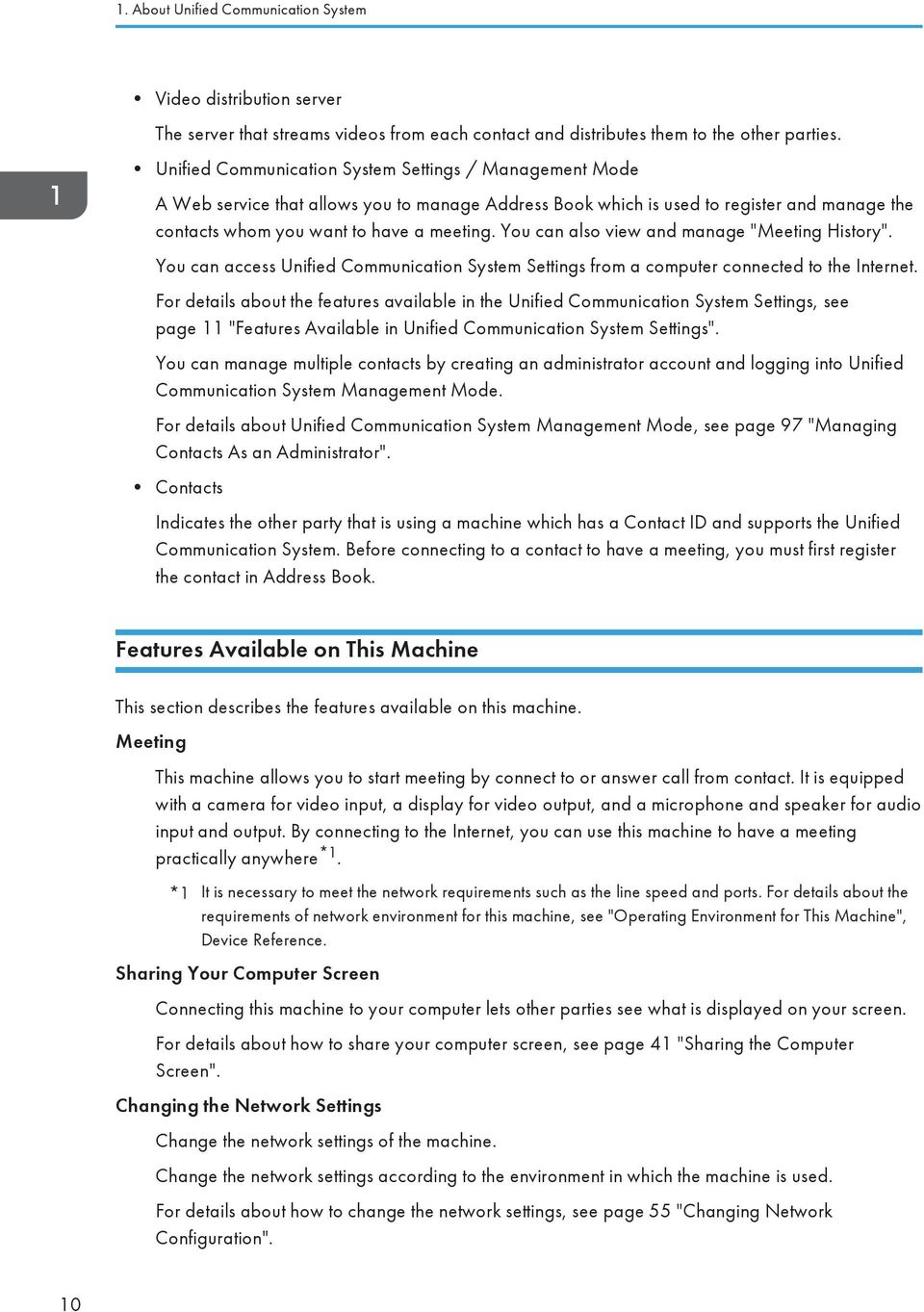
12 1. About Unified Communication System Video distribution server The server that streams videos from each contact and distributes them to the other parties. Unified Communication System Settings / Management Mode A Web service that allows you to manage Address Book which is used to register and manage the contacts whom you want to have a meeting. You can also view and manage "Meeting History". You can access Unified Communication System Settings from a computer connected to the Internet. For details about the features available in the Unified Communication System Settings, see page 11 "Features Available in Unified Communication System Settings". You can manage multiple contacts by creating an administrator account and logging into Unified Communication System Management Mode. For details about Unified Communication System Management Mode, see page 97 "Managing Contacts As an Administrator". Contacts Indicates the other party that is using a machine which has a Contact ID and supports the Unified Communication System. Before connecting to a contact to have a meeting, you must first register the contact in Address Book. Features Available on This Machine This section describes the features available on this machine. Meeting This machine allows you to start meeting by connect to or answer call from contact. It is equipped with a camera for video input, a display for video output, and a microphone and speaker for audio input and output. By connecting to the Internet, you can use this machine to have a meeting practically anywhere *1. *1 It is necessary to meet the network requirements such as the line speed and ports. For details about the requirements of network environment for this machine, see "Operating Environment for This Machine", Device Reference. Sharing Your Computer Screen Connecting this machine to your computer lets other parties see what is displayed on your screen. For details about how to share your computer screen, see page 41 "Sharing the Computer Screen". Changing the Network Settings Change the network settings of the machine. Change the network settings according to the environment in which the machine is used. For details about how to change the network settings, see page 55 "Changing Network Configuration". 10
13 Overview of the Unified Communication System Accepting a Registration Request for Address Book Accept a registration request for Address Book from other parties. For details about the Address Book and registration requests, see page 49 "About Address Book". For details about how to accept a registration request, see page 52 "Accepting the Registration Request". Updating the Firmware Update the machine's firmware. The firmware can only be updated when the machine is connected to a network. For details about how to update the firmware, see page 77 "Updating the Firmware". Features Available in Unified Communication System Settings This section describes the features available in Unified Communication System Settings. Managing Address Book You can send or accept registration requests and edit or delete registered contacts. For details about how to manage Address Book, see page 49 "Managing Address Book". Checking the Meeting History You can check Meeting History. The Meeting History lists the date, time, and joined contacts of each meeting. You can output Meeting History in CSV format. For details about how to check Meeting History, see Unified Communication System Settings Help. Changing the machine's name You can change the machine's name. For details about how to change the machine's name, see Unified Communication System Settings Help. Changing Your Login Password You can change the login password used to log in to Unified Communication System Settings. For details about how to change the login password, see Unified Communication System Settings Help. 11

14 12 1. About Unified Communication System

15 2. Before Using This Machine About Screen This section describes the main screens and how to operate them. The screens displayed might vary, depending on the machine you are using. The sample screens provided in this manual are displayed in XGA mode. For details about keys on the machine, see "Component Guides", Device Reference. Screen Contents The screen displays the feature menus, settings, and messages. Use the Cursor keys ([ ] [ ] key) on the control panel to select a feature menu or setting. The selected menu or setting is highlighted in orange. To activate the selection, press the [Enter] key/. Menus or settings are grayed out if it cannot be selected or cannot be confirmed. Contact List screen This screen is used to connect to or receive call from the contact. The machine's status switches to "Ready" only when the Contact List screen is displayed. This status allows you to start a meeting by connecting to or receive connection from contacts. For details about the machine's status, see page 28 "Connecting to a Meeting" CZS035 13
![Screen Contents The screen displays the feature menus, settings, and messages. Use the Cursor keys ([ ] [ ] key) on the control panel to select a feature menu or setting.](/docs-images/50/15049549/images/page_15.jpg "The selected menu or setting is highlighted in orange. To activate the selection, press the [Enter] key/. Menus or settings are grayed out if it cannot be selected or cannot be confirmed.")
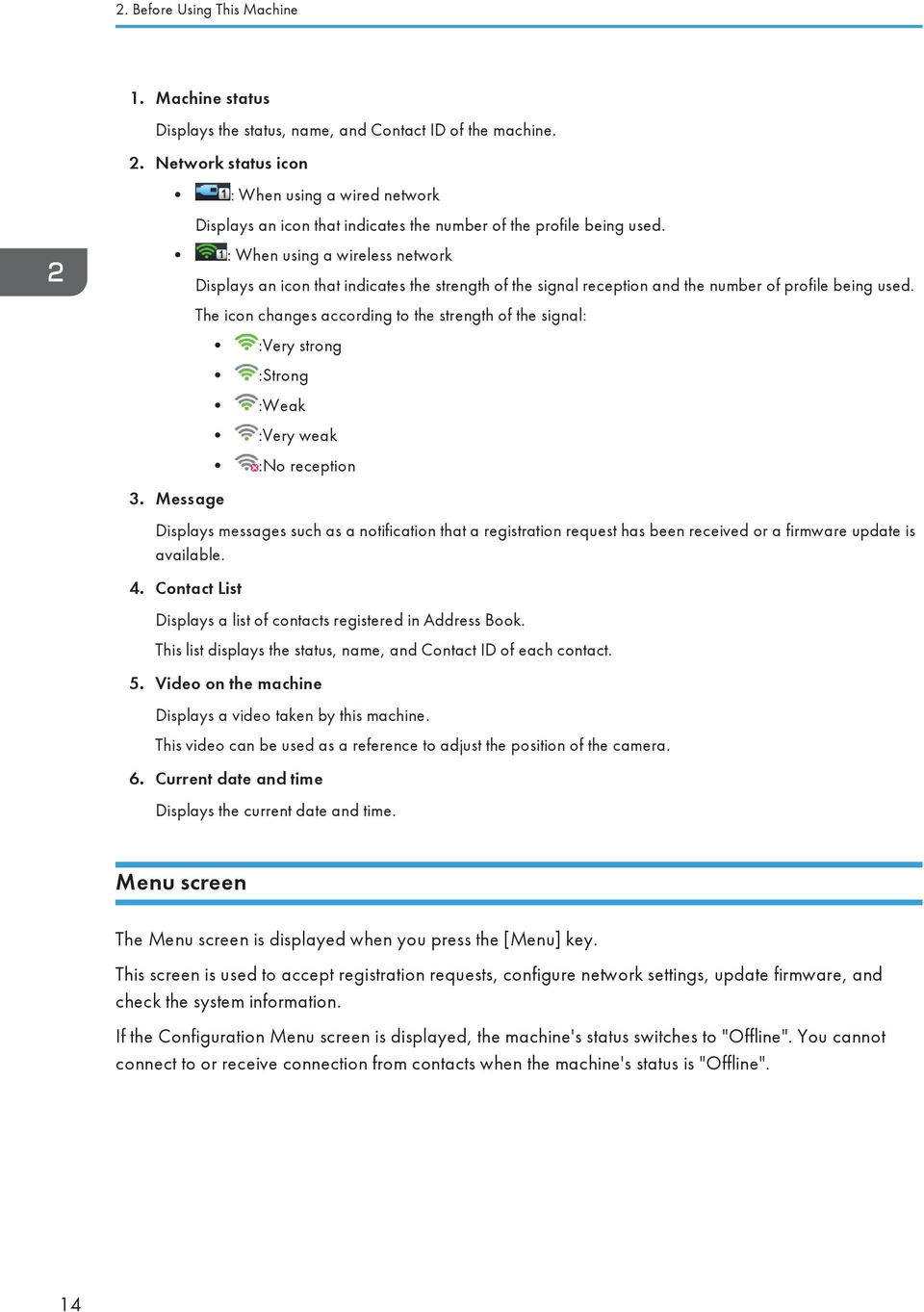
16 2. Before Using This Machine 1. Machine status Displays the status, name, and Contact ID of the machine. 2. Network status icon : When using a wired network Displays an icon that indicates the number of the profile being used. : When using a wireless network 3. Message Displays an icon that indicates the strength of the signal reception and the number of profile being used. The icon changes according to the strength of the signal: :Very strong :Strong :Weak :Very weak :No reception Displays messages such as a notification that a registration request has been received or a firmware update is available. 4. Contact List Displays a list of contacts registered in Address Book. This list displays the status, name, and Contact ID of each contact. 5. Video on the machine Displays a video taken by this machine. This video can be used as a reference to adjust the position of the camera. 6. Current date and time Displays the current date and time. Menu screen The Menu screen is displayed when you press the [Menu] key. This screen is used to accept registration requests, configure network settings, update firmware, and check the system information. If the Configuration Menu screen is displayed, the machine's status switches to "Offline". You cannot connect to or receive connection from contacts when the machine's status is "Offline". 14
17 About Screen 1 CZS Configuration items Displays configurations. Configuration Menu screen (When the machine cannot connect to the network during startup) If the machine cannot connect to the network during startup due to a problem with the network settings or the network environment, press the [Menu] key while the message "Connecting to the network..." is displayed. After doing this, the Features screen will appear. Select Configuration Menu, and then change Wired/Wireless Network Configuration or perform Network Diagnosis to connect to the network. The machine repeatedly attempts to connect to the network. If the machine successfully connects to the network, the message "Connection established." appears in the lower left of the Features screen. After this message appears, you can start a meeting. If the machine cannot connect to the network, see page 83 "When the Machine Cannot Connect to the Network". 15
![network environment, press the [Menu] key while the message "Connecting to the network..." is displayed. After doing this, the Features screen will appear.](/docs-images/50/15049549/images/page_17.jpg "Select Configuration Menu, and then change Wired/Wireless Network Configuration or perform Network Diagnosis to connect to the network. The machine repeatedly attempts to connect to the network.")
18 2. Before Using This Machine Checking the News When the machine receives notices about Unified Communication System services, a message is displayed on the screen. These notices often contain important information about services, such as the latest information about firmware updates and maintenance. Make sure to check the details of each notice when this message appears. 1. Press the [Menu] key/ if Contact List screen is displayed. If the Menu screen is displayed, proceed to step Press the [ ] [ ] key to select [News], and then press the [Enter] key/. CZS Press the [ ] [ ] key to select the news you want to check, and then press the [Enter] key/. 4. Check the details of the news. Press the [ ] key to select the news, and then press the [ ] [ ] key to scroll through the screen. 5. After checking the news, press the [Enter] key/. If the news is selected to scroll, press the [ ] key to select [Close], and then press the [Enter] key/. 6. Press the [Menu] key/. 16
![Make sure to check the details of each notice when this message appears. 1. Press the [Menu] key/ if Contact List screen is displayed. If the Menu screen is displayed, proceed to step 2.](/docs-images/50/15049549/images/page_18.jpg "2. Press the [ ] [ ] key to select [News], and then press the [Enter] key/. CZS031 3. Press the [ ] [ ] key to select the news you want to check, and then press the [Enter] key/. 4.")
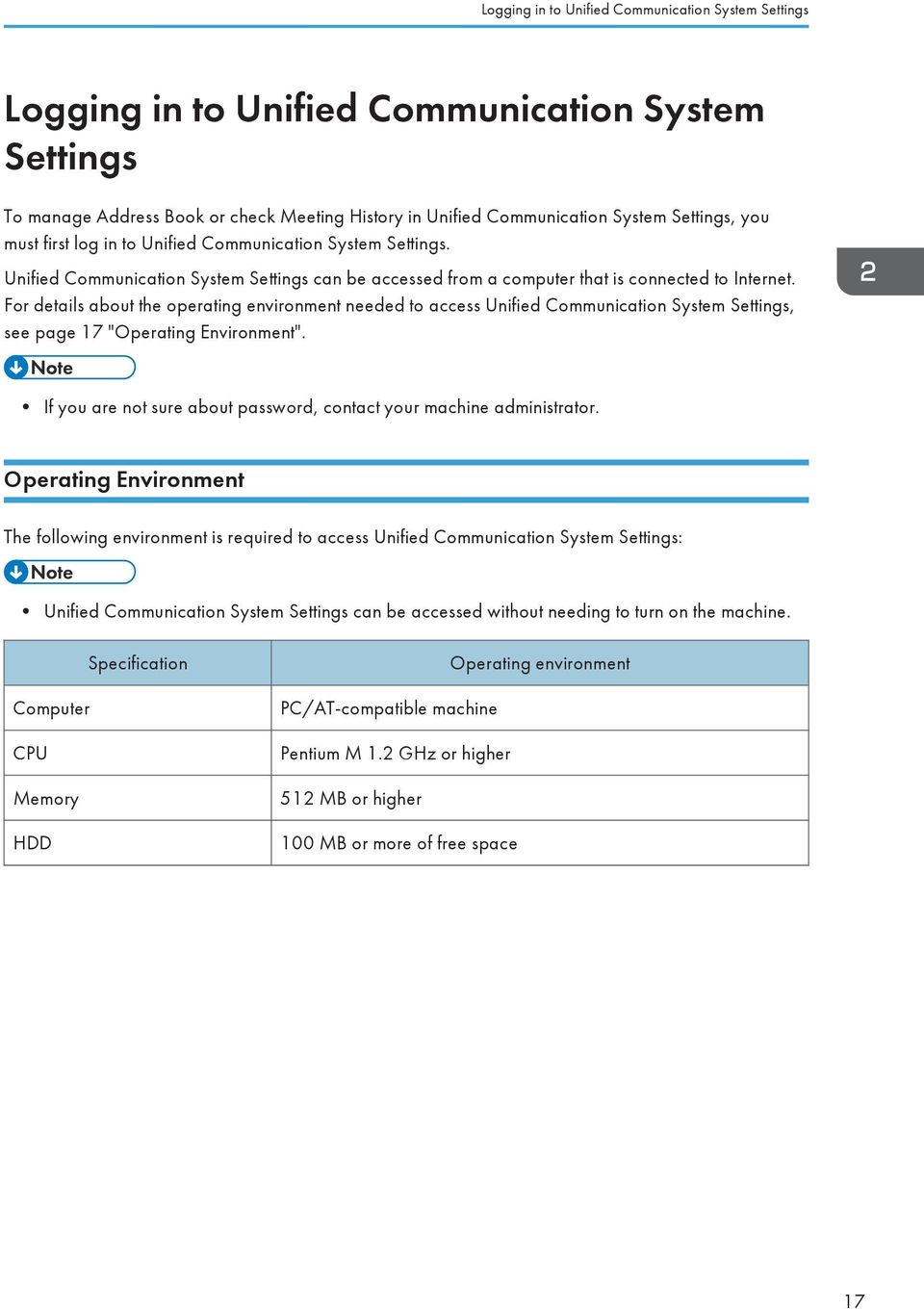
19 Logging in to Unified Communication System Settings Logging in to Unified Communication System Settings To manage Address Book or check Meeting History in Unified Communication System Settings, you must first log in to Unified Communication System Settings. Unified Communication System Settings can be accessed from a computer that is connected to Internet. For details about the operating environment needed to access Unified Communication System Settings, see page 17 "Operating Environment". If you are not sure about password, contact your machine administrator. Operating Environment The following environment is required to access Unified Communication System Settings: Unified Communication System Settings can be accessed without needing to turn on the machine. Specification Computer CPU Memory HDD Operating environment PC/AT-compatible machine Pentium M 1.2 GHz or higher 512 MB or higher 100 MB or more of free space 17
20 2. Before Using This Machine Specification Operating environment OS Windows XP (Service Pack 3 or later) Windows XP Home Edition Windows XP Professional Windows Vista (Service Pack 2 or later) Windows Vista Home Basic Windows Vista Home Premium Windows Vista Business Windows Vista Enterprise Windows Vista Ultimate Windows 7 Windows 7 Home Premium Windows 7 Professional Windows 7 Enterprise Windows 7 Ultimate Windows 8 Windows 8 Windows 8 Pro Windows 8 Enterprise Resolution XGA (1, pixels) or higher 64,000 colors or more (recommended) Web browser Internet Explorer 7, 8, or 9 Firefox 3.6 or later 18

21 Logging in to Unified Communication System Settings Security settings Specification Operating environment The following security settings must be enabled on your Web browser: Scripting Active scripting ActiveX controls and plug-ins Run ActiveX controls and plug-ins Script ActiveX controls marked Safe for scripting Binary and Script behaviors Downloads File downloads For details about security settings for web browser, see Web browser Help. Login 1. Start your Web browser. 2. Enter the following URL in the address bar of your Web browser to access Unified Communication System Settings Select the language. 4. Enter the Contact ID and the password. 5. Click [Login]. 19
22 2. Before Using This Machine Logout 1. Click [Logout]. You can logout from any page. 20
23 Specifying the Name of the Machine and Your Password Specifying the Name of the Machine and Your Password This section describes how to log in to Unified Communication System Settings to change the default password and specify the name of the machine. The specified name is displayed as the location name on the machine's screen and in Address Book. The default password is the preset login password used to access Unified Communication System Settings. Before using this product, use the Web browser on your computer to access Unified Communication System Settings and change the login password. In addition to changing the password, you can also specify or change the name of the machine. The specified name is displayed as the machine s contact name on the screen and in Address Book. Be sure to specify a login password that is different from the default password. If the name of the machine was already specified at the time of purchase and you want to change it, you must first change the default password before you can change the name. Unified Communication System Settings can be accessed from a computer that is connected to Internet. For details about the operating environment needed to access Unified Communication System Settings, see page 17 "Operating Environment". The following information is needed to log in to Unified Communication System Settings: Contact ID A unique character string set in this machine and other machines. The machine information is required to use the Unified Communication System. Default password The default password is used the first time you log in to Unified Communication System Settings. This password is the character string found on the bottom of the machine. It consists of eleven alphanumeric and symbol characters. If you are not sure about the Contact ID of this machine, you can check the Contact ID from the Contact List screen. For details about the Contact List screen, see page 13 "About Screen". 1. Log in to Unified Communication System Settings. For details about how to login to Unified Communication System Settings, see page 19 "Login". 21
24 2. Before Using This Machine 2. Click [Basic Settings]. To change the default password without specifying the name, go to Step Click the "Name:" field, and then enter the name of the machine. The machine name can be up to 100 characters in length. 4. Click the "Current Password" field, and then enter the default password. 5. Click the "New Password" field, and then enter a new login password. The login password must consist of at least eight characters. The login password can be up to 255 characters in length. You can use alphanumeric characters and symbols in the login password. 6. Click the "Confirmation Password" field, and the re-enter the login password you entered in Step Click [Save]. The message "The basic settings have been updated." appears to indicate the password has been successfully changed. 8. Click [Logout]. 22
25 Preparing for Screen Share Preparing for Screen Share For users in the United States of America: properly shielded and grounded cables and connectors must be used for connections to a host computer (and/or peripheral) in order to meet FCC emission limits. For Windows Operating Environment The following environment is required to use PC Screen Share: Specification Computer CPU Memory HDD Interface Operating environment PC/AT-compatible machine Pentium M 1.2 GHz or higher 512 MB or higher 100 MB or more of free space USB port 23
26 2. Before Using This Machine Specification Operating environment OS Windows XP (Service Pack 3 or later) Windows XP Home Edition Windows XP Professional Windows Vista (Service Pack 2 or later) Windows Vista Home Basic Windows Vista Home Premium Windows Vista Business Windows Vista Enterprise Windows Vista Ultimate Windows 7 Windows 7 Home Premium Windows 7 Professional Windows 7 Enterprise Windows 7 Ultimate Windows 8 Windows 8 Windows 8 Pro Windows 8 Enterprise Resolution XGA (1, pixels) or higher 64,000 colors or more (recommended) Installing To use the PC Screen Share, you must first install the driver for PC Screen Share on your computer. This example assumes that the driver for PC Screen Share is installed on a computer running Windows XP. If you are using another operating system, the screen displayed and names of key might vary slightly. For details, see the Windows Help. To install the driver for PC Screen Share, this machine must be connected to a network. Before installing the driver, make sure the machine is connected to a network via a wired or wireless LAN. Administrator privileges are required to install the driver for PC Screen Share. Log on to the computer as a member of the Administrators group. 24
27 Preparing for Screen Share 1. Turn the machine on. For details about how to turn the machine on, see "Turning On the Power", Device Reference. 2. Connect the mini-b connector end of the USB cable to the USB port (type mini-b) on this machine. 3. Connect the A connector end of the USB cable to the USB port (type A) on the computer. When the Add New Hardware Wizard appears, click [Cancel]. When the auto-play screen appears, close the screen. When the message "The driver for PC Screen Share has not been installed. Install the driver and then start the software." appears, click [OK]. If you are using Windows 7, the driver may begin installing automatically. If this happens, a dialog box indicating that the driver has not been installed correctly may appear. In such a case, click [Close] to close the dialog box and proceed to Step Open My Computer on your computer and right-click [PC Screen Share]. 5. Click [Install the 32-bit driver for PC Screen Share] or [Install the 64-bit driver for PC Screen Share]. Make sure to select the correct driver for your computer's OS. If neither choice appears, run dpinst32.exe (for 32-bit OS) or dpinst64.exe (for 64-bit OS). These files are located in the folder "driver" on the drive "PC Screen Share". 6. Follow the instructions given in the installation wizard to complete the installation. After the installation is complete, a dialog box indicating that the computer needs to be restarted may appear. If this is the case, restart your computer. If you want to uninstall the driver for PC Screen Share, uninstall the driver from "Add or Remove Programs". For details about "Add or Remove Programs", see Windows Help. Remove the USB cable from your computer before uninstalling the driver for PC Screen Share. If re-installing the driver for PC Screen Share, you must uninstall the driver once, and then install the driver again. For Mac OS X To use this feature, you must download the software from the Ricoh Web site, and then install it on your Macintosh notebook. Operating Environment The following environment is required to use the Screen Share software: 25
28 2. Before Using This Machine Specification Operating environment OS 10.7, 10.8 Interface USB port Installing This example assumes that the Screen Share software is installed on Macintosh notebook running Mac OS X If you are using a different operating system, the screen and key names may vary slightly. For details, see the OS Help. The network administrator's name and password are required to install this software. For details, consult your network administrator. For details about using a Macintosh notebook and its functions, see the Macintosh notebook manual. If the message ["Install" is from an unidentified developer and cannot be opened. ] appears while trying to install the Screen Share software on a Mac OS X 10.8, perform one of the following actions: To temporarily disable this warning, hold down the [Control] key and click on the install file. Next, select [Open] from the pop-up menu that appears. When the warning message appears, click [Open]. To change the security settings, first select [Security and Privacy], and then change the [Allow applications downloaded from] setting to [Anywhere]. After you change the setting, attempt to install the software again. 1. Double-click the installation file. 2. Click [Continue]. 3. The software license agreement appears. After reading the agreement, click [Continue]. 4. Click [Agree]. 5. Select the folder where you want to install the software, and then click [Install]. 6. If the Authentication dialog box appeared, enter the name and password, and then click [OK]. 7. Follow the instructions on the screen. 26
29 3. Starting a Meeting To Start a Meeting Before you turn on the machine, make sure the necessary equipment is properly connected. You can check the video of this machine to make sure there are no problems with holding meetings. For details about checking the video of this machine, see page 75 "Checking the Sending and Receiving Picture". For details about how to set up the machine, see "Preparing to Use the Machine", Device Reference. For details about how to turn on the machine, see "Turning On the Power", Device Reference. For details about how to troubleshoot network problems, see page 83 "When the Machine Cannot Connect to the Network". The contacts with whom you want to have a meeting must be registered in Address Book. For details about how to register contacts to Address Book, see page 51 "Registering a Contact". 27
30 3. Starting a Meeting Connecting to a Meeting Select the contact that you want to have a meeting and connect to the other party. There are two ways you can connect to the other party: by using the machine to connect or to receiving a call from the other party. The connection is established and the meeting starts when the receiving end answers the call. Connecting To connect, select the contact you want to connect to from the Contact List screen. The Contact List screen lists the registered contacts and their status. There are three status types: Ready Indicates the contact is online and waiting. Meeting Indicates the contact is having a meeting with another contact. Offline Indicates the machine at that contact is turned off, the Configuration Menu screen is displayed, or that the contact is not connected to the network. You can connect to contact whose status is "Ready" or "Meeting". 1. Press the [ ] or [ ] key to select the contact you want to have a meeting, and then press the [Enter] key/. 2. Press the [ ] or [ ] key to select [Connect], and then press the [Enter] key/. 28
31 Connecting to a Meeting The meeting begins when the other party answers the call. To cancel the call, press the [ ] or [ ] key to select [Cancel], and then press the [Enter] key/. If the other party refuses the call, the Contact ID and contact name of the party that refused the call appear with the message "Could not connect with the following contact.". You can use the speaker volume keys to adjust the volume of the tone when initiating a call. For details about how to adjust the volume, see page 40 "Adjusting the Volume". Answering a Call The machine cannot receive calls when error messages are displayed. For details about what to do when error messages are displayed, see page 84 "When the Message Displayed". 1. The incoming call sound rings and the message "Receiving" appears. Check that the message shows the party making the call. 2. Press the [ ] or [ ] key to select [Answer], and then press the [Enter] key/. The meeting starts. To refuse the call, press the [ ] or [ ] key to select [Refuse], and then press the [Enter] key/. If the call is not answered or refused within 15 seconds, the incoming call automatically times out. You can use the speaker volume keys to adjust the volume of the ring tone that rings when receiving a call. For details about how to adjust the volume, see page 40 "Adjusting the Volume". Joining a Meeting in Progress You can initiate a call to a participant currently having a meeting and join the meeting in progress. When you join a meeting in progress, you are directly connected to the meeting. No confirmation message is displayed at the contact having the meeting. 29
32 3. Starting a Meeting The status of a contact that is in a meeting is displayed as "Meeting". 1. Press the [ ] or [ ] key to select the contact already has a meeting, and then press the [Enter] key/. 2. Press the [ ] or [ ] key to select [Connect], and then press the [Enter] key/. The meeting starts. To cancel the call, press the [ ] or [ ] key to select [Cancel], and then press the [Enter] key/. 30
33 Connecting to a Private Meeting Connecting to a Private Meeting By specifying and sharing the meeting code in advance, multiple contacts can participate in the private meeting. Connecting to Private Meeting 1. Specify the meeting code. The meeting code must be a four-digit number. If you want to have a private meeting with multiple contacts, share the meeting code with the other parties in advance. If you want to have a private meeting with a contact only, you do not need to share the meeting code with the other party. 2. Press the [ ] or [ ] key to select the contact you want to have a meeting with, and then press the [Enter] key/. 3. Press the [ ] or [ ] key to select [Connect as Private Meeting], and then press the [Enter] key/. 31
34 3. Starting a Meeting 4. Press the cursor keys ([ ] [ ] [ ] [ ] keys) to select the meeting code specified in Step 1, and then press the [Enter] key/. 5. Press the cursor keys ([ ] [ ] [ ] [ ] keys) to select [Connect], and then press the [Enter] key/. The meeting begins when the other party answers the call. The status of the contacts that are having a private meeting is "Meeting". You can use the speaker volume keys to adjust the volume of the tone when initiating a call. For details about how to adjust the volume, see page 40 "Adjusting the Volume". Answering a Call The method for answering a private meeting call is the same as that for a normal meeting. For details about how to answer a call, see page 28 "Connecting to a Meeting". Joining a Private Meeting in Progress This section explains how to join a private meeting that is already in progress. You cannot join a private meeting if the meeting code you specify is incorrect. Enter the correct meeting code. 1. Check the meeting code of the meeting you want to join. Ask for the meeting code before the meeting starts. 2. Press the [ ] or [ ] key to select the contact you want to connect to, and then press the [Enter] key/. 3. Press the [ ] or [ ] key to select [Connect], and then press the [Enter] key/. 4. Press the cursor keys ([ ] [ ] [ ] [ ] keys) to select the meeting code specified in Step 1, and then press the [Enter] key/. 32
35 Connecting to a Private Meeting 5. Press the cursor keys ([ ] [ ] [ ] [ ] keys) to select [Connect], and then press the [Enter] key/. 33
36 34 3. Starting a Meeting
37 4. What You Can Do During the Meeting Changing the Screen Layout You can change the screen layouts as needed. Up to four contacts including you can be displayed simultaneously. The screen display changes according to the number of contacts that are joining the meeting. If three or more contacts are joining the meeting, the video of the contact that is talking is indicated to be the other party. The screen layouts are as follows: One larger window and multiple smaller windows The video of the other party is displayed in a larger window, while the videos of you and the other contacts appear in smaller windows. If only you and one other party are joining the meeting, the window size of each video is the same. Large window for all contacts The videos of the other contacts are displayed in large windows. Your video appears in a small window in the lower right of the screen. If three or more contacts including you are joining the meeting, the videos of all the other contacts are displayed in windows of the same size. 35
38 4. What You Can Do During the Meeting Other party only The video of the other party is displayed full screen. Your video only Your video is displayed full screen. Same size window for all contacts The videos from all the contacts, including you, are displayed in windows of the same size. Meeting Information screen A list of the names and Contact IDs of contacts joining the meeting is displayed. Note that the list only includes the names of one of the following: Contacts that are registered in Address Book Contacts to which you have sent a registration request Contacts from which you have received a registration request 36
39 Changing the Screen Layout One larger window of shared computer screen and multiple smaller windows (when a computer screen is being shared) The computer screen being shared is displayed in larger window, while the videos of you and the other contacts appear in smaller windows. Shared computer screen only (when a computer screen is being shared) The computer screen being shared is displayed full screen. 1. Press the [ ] or [ ] key to change the screen layout. For details about sharing the computer screen, see page 41 "Sharing the Computer Screen" Checking the Network Bandwidth If network conditions prevent the necessary network bandwidth from being secured during a meeting, the audio and video might become distorted or the connection with the other party lost. You can use Bandwidth Status during a meeting to view the network status of the machine and check that the network 37
40 4. What You Can Do During the Meeting environment meets the operating requirements for the machine. You can also check that the machine is able to hold meetings normally. Before using the machine, check the network environment to make sure a sufficient amount of network bandwidth is available. Bandwidth Status 1 2 CZS DOWN (Reception) Displays the network bandwidth available for reception, along with a numerical value and an icon that indicates one of five levels. 2. UP (Transmission) Displays the network bandwidth available for transmission, along with a numerical value and an icon that indicates one of five levels. The indicated level of currently used bandwidth varies according to the bandwidth status. Sufficient network bandwidth is currently available. The required network bandwidth is currently available. The currently available network bandwidth might not be sufficient for holding a stable meeting. The required network bandwidth is currently unavailable. The video or audio might become distorted. The required network bandwidth is currently unavailable. The machine might become unable to continue the meeting. 38
41 Changing the Screen Layout To display Bandwidth Status during a meeting, perform the following steps: 1. Press the [ ] key. 2. Check the current network bandwidth. Bandwidth Status automatically switches to the simplified display mode after 10 seconds has passed. 3. Press the [ ] key to close Bandwidth Status. To view Bandwidth Status after starting a meeting, wait at least one minute to allow the bandwidth to become stable. The maximum network bandwidth required for a meeting is 2 Mbps for both reception and transmission. Bandwidth Status cannot be displayed while the Meeting Information screen is displayed. 39
42 4. What You Can Do During the Meeting Adjusting the Volume You can adjust the audio volume and temporarily mute the microphone. For details about how to adjust the volume, see "Adjusting the Volume", Device Reference. If a digital audio input/output device is connected, the microphone volume and mute control must be adjusted from the microphone from the actual speaker. For details about how to mute or adjust the volume of the microphone, see the corresponding manual for the device. 40
43 Sharing the Computer Screen Sharing the Computer Screen For Windows Connecting the machine to your computer via a USB cable and using PC Screen Share allows you to share the screen displayed on your computer to the other party. When a screen is transmitted, the contents that are displayed on your computer can be shared in real time with the other party. This example assumes that PC Screen Share is used on a computer running Windows XP. If you are using another operating system, the screen displayed and names of key might vary slightly. For details, see the Windows Help. For details about the system requirements for sharing computer screens, see page 23 "Preparing for Screen Share". To use PC Screen Share, the driver for PC Screen Share must be installed. For details about how to install the driver for PC Screen Share, see page 23 "Preparing for Screen Share". Start Sharing Your Computer Screen 1. Connect the mini-b connector end of the USB cable to the USB port (type mini-b) on this machine. 2. Connect the A connector end of the USB cable to the USB port (type A) on the computer. PC Screen Share starts automatically. If it does not start automatically, open My Computer on your computer, right-click [PC Screen Share], and then click [Start PC Screen Share]. If [Start PC Screen Share] does not appear when you right-click [PC Screen Share], start "ScreenSender.exe". This file is located in the folder "app" on the drive "PC Screen Share". 3. Click [Start Sharing]. The screen layout of the machine is changed automatically to display your computer screen when PC Screen Share is started. 41
44 4. What You Can Do During the Meeting A shared computer does not automatically enter standby even if the timer is set. To put a shared computer into standby, press the corresponding shortcut key or close the laptop computer. Changing the Screen Mode The following modes can be used for screen sharing: These modes can be switched while the screen is being shared. Full Screen Displays the entire screen. Active Window Displays only the window selected. The following screen layouts can be specified while a screen is being shared. One larger window of shared screen and multiple smaller windows Shared screen only Stop Sharing Your Computer Screen 1. Display PC Screen Share dialog. 42
45 Sharing the Computer Screen 2. Click [Stop Sharing]. To start PC Screen Share again, click [Start Sharing]. Disconnect the computer 1. Display PC Screen Share dialog. 2. Click [Close] on the upper right of PC Screen Share dialog. 3. Click [OK]. 4. Remove the USB cable from the machine and the computer. For details about how to remove the USB cable from your computer, see your operating system's Help. Store the removed USB cable in the accessory bag. For Mac OS X Connecting the machine to your Macintosh notebook using a USB cable and the Screen Share software allows you to share the Macintosh notebook screen with the other party. When the screen is projected, the images that are displayed on your Macintosh notebook can also be displayed on the screen. Start Sharing Your Screen 1. Connect the mini-b connector end of the USB cable to the USB port (type mini-b) on this machine. 2. Connect the A connector end of the USB cable to the USB port (type A) on the Macintosh notebook. 3. Click [Screen Share] in the folder you have installed. 43
46 4. What You Can Do During the Meeting 4. Click [Start Sharing]. The screen layout of the machine is changed automatically to display your screen when Screen Share software is started. Changing the Screen Mode The following modes can be used for screen sharing: These modes can be switched while the screen is being shared. Full Screen Displays the entire screen. Active Window Displays only the window selected. The following screen layouts can be specified while a screen is being shared. One larger window of shared screen and multiple smaller windows Shared screen only 44
47 Sharing the Computer Screen A shared Macintosh notebook does not automatically enter standby mode even if the timer is set. To put a shared Macintosh notebook into standby mode, press the corresponding shortcut key or close the Macintosh notebook. Stop Sharing Your Screen 1. Display Screen Share dialog box. 2. Click [Stop Sharing]. To start Screen Share again, click [Start Sharing]. Disconnect 1. Display the Screen Share dialog box. 2. Click [Close] on the upper left of Screen Share dialog. You can also exit by selecting [Quit Screen Share] in the [Screen Share] menu. 3. Click [OK]. 4. Remove the USB cable from the machine and the Macintosh notebook. For details about how to remove the USB cable from your Macintosh notebook, see your Macintosh notebook Help. Store the removed USB cable in the accessory bag. 45
48 46 4. What You Can Do During the Meeting
49 5. Leaving a Meeting To Leave the Meeting Leaving the Meeting 1. Press the [Disconnect] key/. 2. Press the [ ] or [ ] key to select [Leave], and then press the [Enter] key/. You can also leave a meeting by pressing the [Disconnect] key/ twice in Step 1. Immediately Turn Off the Machine After You Leave the Meeting Press the [Power] key/ during a meeting to leave the meeting and immediately turn off the machine. 1. Press the [Power] key/. 2. Press the [ ] or [ ] key to select [Turn Off], and then press the [Enter] key/. You can also leave a meeting and immediately turn off the machine by pressing the [Power] key/ twice in Step 1. 47
50 48 5. Leaving a Meeting
51 6. Managing Address Book About Address Book Address Book in Unified Communication System Settings is used to manage the contacts whom you want to have meetings. The contacts registered in Address Book are synchronized with the contacts in the Contact List on the machine. When starting a meeting from the machine, you can only connect to a contact registered in Address Book. Address Book allows you to send a request to register a contact, accept registration requests from other contacts, change the names of registered contacts, and delete contacts that are no longer necessary. The Contact ID and name of a contact is registered in Address Book as the contact information. Contact names are used for Address Book and the machine only. The maximum number of contact entries in Address Book is 200. This number includes the number of registration requests waiting to be accepted. Address Book screen CTV List of registered contacts Displays a list of registered contacts. To sort rows by ID number, click the table column header [Contact ID]. To sort rows by reading order, click [Name]. Rows are sorted in alphabetical order by default. 2. Registration requests Displays both the contacts that have sent registration requests and the registration requests that have been received. Any registration request that has not been received or sent will not displayed. 49
52 6. Managing Address Book 3. Edit/Delete Used to edit or delete registered contacts. 50
53 Registering a Contact Registering a Contact Before having a meeting, you need to register the contact of the other party in Address Book in Unified Communication System Settings. Before registering a new contact in Address Book, you need to obtain permission from the party whose contact you want to register. Send a registration request to that individual and obtain permission to register the contact in Address Book. Before registering a contact, confirm the Contact ID of that party. 1. Log in to Unified Communication System Settings. For details about how to login to Unified Communication System Settings, see page 19 "Login". 2. Click [Address Book]. 3. Click [Register Contact]. 4. Click the "Contact ID" field, and then enter the Contact ID of the contact you want to register. 5. Click the "Name" field, and then enter the name of the contact you want to register. The machine name can be up to 100 characters in length. 6. Click [Send Request]. "Registration Request" appears at the top of Address Book if the request is successfully sent. If a request is accepted by the other party, their contact is added to Address Book. To cancel a registration request, click [Cancel]. The maximum number of contact entries in Address Book is 200. This includes the number of registration requests waiting to be accepted. 51
54 6. Managing Address Book Accepting the Registration Request This section describes how to accept a registration request from a new party. You can also accept these registration requests from the machine. Accepting the Registration Request from Unified Communication System Settings 1. Log in to Unified Communication System Settings. For details about how to login to Unified Communication System Settings, see page 19 "Login". 2. Click [Address Book]. "Registration Request" appears at the top of Address Book if a request is received. 3. Click [Accept] for the contact you want to accept. 4. Confirm the information of the contact, and then click [Accept]. The accepted contact is added to Address Book. To decline the registration request, click [Decline] in step 3. Accepting the Registration Request from the machine 1. Press the [Menu] key/ if Contact List screen is displayed. If the Menu screen is displayed, proceed to step Press the [ ] or [ ] key to select [Registration Request List], and then press the [Enter] key/. 3. Press the [ ] or [ ] key to select the contact you want to accept, and then press the [Enter] key/. 4. Press the [ ] or [ ] key to select [Accept], and then press the [Enter] key/. To decline the registration request, press the [ ] or [ ] key to select [Decline], and then press the [Enter] key/. To cancel the operation, press the [ ] or [ ] key to select [Cancel], and then press the [Enter] key/. 5. Press the [Enter] key/. The accepted contact is added to Address Book. 52
55 Editing a Registered Contact Editing a Registered Contact You can edit the name of any contact displayed in Address Book. Edited name of contact is only reflected in Address Book and the machine. 1. Log in to Unified Communication System Settings. For details about how to login to Unified Communication System Settings, see page 19 "Login". 2. Click [Address Book]. 3. Click [Edit] for the contact you want to edit. 4. Change the name, and then click [Save]. 53
56 6. Managing Address Book Deleting a Registered Contact 1. Log in to Unified Communication System Settings. For details about how to login to Unified Communication System Settings, see page 19 "Login". 2. Click [Address Book]. 3. Click [Delete] for the contact you want to delete. 4. Confirm the contact, and then click [Delete]. 54
57 7. Changing Network Configuration To Change Network Configuration Change the network settings according to the environment in which the machine is used. Use the machine to configure the network settings. About Profiles You can save the individual setting values for Wired Network Configuration or Wireless Network Configuration as part of a profile. A maximum of five profiles can be saved for each network configuration type. When you turn on the machine, it automatically selects a valid profile and connects to the network. By creating profiles that contain different network settings, you can use the machine in multiple network environments without changing the network settings. Wired / Wireless Network Configuration screen CZS Profile Displays the selected profile name. To change the profile, select the profile you want to change to. 2. Setting List Displays setting values for the selected profile. 3. Save Saves the selected profile. 4. Reset Returns all the settings of the selected profile to their default values. 5. Apply Saves and applies the selected profile. 55
58 7. Changing Network Configuration Ask the network administrator about which settings need to be specified in Wired/Wireless Network Configuration, and then enter the correct values. 1. Press the [Menu] key/ if Contact List screen is displayed. If the Menu screen is displayed, proceed to step Press the [ ] or [ ] key to select the [Wired Network Configuration] or [Wireless Network Configuration], and then press the [Enter] key/. 3. Press the [ ] or [ ] key to select [Profile], and then press the [Enter] key/. 4. Press the [ ] or [ ] key to select profile you want to save, and then press the [Enter] key/. 5. Press the [ ] or [ ] key to select setting you want to change, and then press the [Enter] key/. 6. Press the [ ] or [ ] key to change the setting, and then press the [Enter] key/. For details about settings, see page 57 "Wired/Wireless Network Configuration". 7. Press the [ ], [ ], or [ ] key to select [Apply], and then press the [Enter] key/ if you finish specifying the settings. If you want to save the profile without applying the settings, select the [Save], and then press the [Enter] key/. 56
59 Wired/Wireless Network Configuration Wired/Wireless Network Configuration Wired Network Configuration or Wireless Network Configuration contains the following settings that can be configured. Ask the network administrator about which settings need to be specified in Wired/Wireless Network Configuration, and then enter the correct values. Profile Select profile you want to change or apply. Wired Setting 1-5 (Wired Network Configuration) Wireless Setting 1-5 (Wireless Network Configuration) If a profile was applied the last time the machine was used, that profile is displayed as the currently selected profile. SSID (Wireless Network Configuration only) Specify the SSID that identifies the wireless LAN network. Select from the list Select the SSID from the list of available wireless LANs. Press the [ ] [ ] [ ] key to select the wireless LAN you want to use, and then press the [Enter] key /. The list is displayed in the order of the strong radio waves. Enter SSID Enter the SSID directly. Press the [ ] [ ] key to select [Enter], and then press the [Enter] key /. The SSID can be up to 32 alphanumeric characters and symbols in length. The SSID is case-sensitive. Authentication Method (Wireless Network Configuration only) Specify the authentication method for the wireless LAN. Network Authentication Encryption Method Encryption Key Character Set Encryption Key Key Index 802.1X Authentication: If "Encryption Method" is set to [WEP], specify the key index. 57
60 7. Changing Network Configuration If " Network Authentication " is set to [WPA-EAP] or [WPA2-EAP], specify 802.1X Authentication:. IP Address Specify the IP address, subnet mask, and default gateway settings for the machine on the network. IP Address Configuration Method IP Address Subnet Mask Default Gateway If "IP Address Configuration Method" is set to [Manual Configuration], enter the IP address, subnet mask, and default gateway. DNS Server Specify the DNS server. DNS Server Configuration Method Primary DNS Server Secondary DNS Server If "DNS Server Configuration Method" is set to [Manual Configuration], enter the IP address of the DNS server. If "IP Address Configuration Method" for "IP Address" is set to [Manual Configuration], you cannot set "DNS Server Configuration Method" for "DNS Server" to [Auto-Obtain]. Proxy Server Configure the proxy server. Use Proxy Server Address / IP Address Port Use Proxy Authentication User Name Password If "Use Proxy Server" is set to [Yes], enter the IP address or the host name and port number of the proxy server. If "Use Proxy Authentication" is set to [Yes], enter the user name and password. This machine only supports Basic authentication as proxy authentication. 58
61 Entering Characters Entering Characters Certain settings require you to enter characters. A character input screen appears when characters need to be entered. Available Characters You can enter the following characters: Alphabetic characters Symbols Numerals Character Input Screens There are two types of character input screens: the alphanumeric input screen, and the numeric input screen. The screen that appears depends on the setting. Alphanumeric input screen This screen allows you to enter alphanumeric characters and symbols. You can switch between [Alp.] and [Sy.] for the keyboard layout. [Alp.] Switches to the alphanumeric key and symbol key layout. [Sy.] Switches to the symbol key and numeric key layout. 59
62 7. Changing Network Configuration [Caps] Switches between upper-case and lower case alphabetic characters. [Space] Enters a space. [Clear All] Clears all the entered characters. [BS] Deletes one character to the left of the cursor. Numeric input screen This screen allows you to enter numeric characters. Moves the cursor to the left or right. If the cursor is moved and then a character is entered, the character is inserted to the left of the cursor. [BS] 60
63 Entering Characters Deletes one character to the left of the cursor. [Clear All] Clears all the entered characters. How to Enter Characters 1. Press the cursor keys ([ ] [ ] [ ] [ ] keys) to select the character you want to enter, and then press the [Enter] key/. 2. When you are finished entering characters, press the [ ] key to select [OK], and then press the [Enter] key/. 61
64 7. Changing Network Configuration Testing the Network Connection Network Diagnosis performs a connection test that allows you to check whether or not the machine can connect to a network and is ready to use services. The test is performed according to the Wired/ Wireless Network Configuration settings. Use Network Diagnosis in the following cases to determine the cause of the problem with the network configuration of the machine, the network environment, or the network itself. The machine is unable to connect to the network The network configuration has changed The network environment has changed 1. Press the [Menu] key/ if Contact List screen is displayed. If the Menu screen is displayed, proceed to step Press the [ ] or [ ] key to select the [Network Diagnosis], and then press the [Enter] key/. 3. Press the [ ] or [ ] key to select the [Start], and then press the [Enter] key/. To abort the connection test, select [Cancel] and press the [Enter] key/. 4. The Result of Network Diagnosis screen appears. Check the test results. If the large number of test results prevents them all from being displayed at the same time, press the [ ] key to select the test result, and then press the [ ] or [ ] keys to scroll through the results. 5. After checking the test result, make sure that [OK] is selected, and then press the [Enter] key/. If the test result is selected, press the [ ] key to select [OK], and then press the [Enter] key/. Checking the test results When a connection test is complete, a message appears indicating the test result and the corresponding test result code. When contacting the support desk, make sure to mention the test result code. When the connection test finishes, the following screen appears: 62
65 Testing the Network Connection CZS Test result Displays messages that indicate the test results and test result codes. 2. Test result icons : Indicates the item is operating normally. : Indicates there is a problem with the settings and that the test failed. Depending on the network settings of the machine or the network environment used, there might not be a problem with the connection even if is displayed, or there might be a problem even if is displayed. For details, contact your network administrator or the support desk. 3. Items tested / Item-specific test result Displays the items for which a connection test was performed and the results of each test. The message "Some tests failed." indicates the machine is not properly connected to the network due to a problem with one of the settings. For items marked with results., check the following network environment or settings and the item-specific test The items that are tested depend on the network configuration settings. 63
66 7. Changing Network Configuration Item tested Item-specific test result Network environment or setting to be checked NIC Link Down Displayed when the machine cannot connect to a wired network. Check the other items for which displayed. Network environment Check whether the LAN cable is correctly connected to the machine. is Wireless Network Access Point Wireless LAN is disabled. Timeout occurred before connecting. Displayed when the machine cannot connect to a wireless network. Check the other items for which displayed. Wireless Network Configuration SSID Authentication Method (Network Authentication) Authentication Method (Encryption Method) Authentication Method (Encryption Key Character Set) Authentication Method (Encryption Key) Authentication Method (Key Index) Authentication Method (802.1X Authentication) Network environment Wireless LAN access point Network security key is 64
67 Testing the Network Connection Item tested Item-specific test result Network environment or setting to be checked IP Address Failed to obtain information. Wired/Wireless Network Configuration IP Address (IP Address Configuration Method) IP Address (IP Address) IP Address (Subnet Mask) Timeout occurred. Wired/Wireless Network Configuration IP Address (IP Address Configuration Method) Network environment DHCP server DNS Server Failed to obtain information. Wired/Wireless Network Configuration DNS Server (DNS Server Configuration Method) DNS Server (Primary DNS Server) DNS Server (Secondary DNS Server) Network environment DHCP server Dynamic DNS server 65
68 7. Changing Network Configuration Item tested Item-specific test result Network environment or setting to be checked Default Gateway Ping failed. Even if is displayed for one of these patterns, there might not be a problem with the network connection. Wired/Wireless Network Configuration IP Address (IP Address) IP Address (Subnet Mask) IP Address (Default Gateway) Network environment General network environment (including hubs, routers, and network cables) 66
69 Testing the Network Connection Item tested Item-specific test result Network environment or setting to be checked TCP Port Some of the required ports are not open. Failed to resolve the name of the service. Closed *1 Failed to confirm status *1 Check the port numbers for which is displayed. Wired/Wireless Network Configuration DNS Server (DNS Server Configuration Method) DNS Server (Primary DNS Server) DNS Server (Secondary DNS Server) Network environment Contact the network administrator. Use a proxy when using this machine. Network environment Contact the network administrator. Use a proxy when using this machine. Network environment Contact the network administrator. Use a proxy when using this machine. 67
70 7. Changing Network Configuration UDP Port Item tested Item-specific test result Some of the required ports are not open. Failed to resolve the name of the service. Closed Network environment or setting to be checked Check the port numbers for which is displayed. Wired/Wireless Network Configuration DNS Server (DNS Server Configuration Method) DNS Server (Primary DNS Server) DNS Server (Secondary DNS Server) Network environment Contact the network administrator. Use a proxy when using this machine. Network environment Contact the network administrator. Use a proxy when using this machine. 68
71 Testing the Network Connection Proxy Server Item tested Connection to the Service Item-specific test result Failed to resolve the name of the server. Failed to connect. Timeout occurred before connecting. Failed to authenticate. Failed to establish HTTPS connection. Network environment or setting to be checked Wired/Wireless Network Configuration DNS Server (DNS Server Configuration Method) DNS Server (Primary DNS Server) DNS Server (Secondary DNS Server) Proxy Server (Address / IP Address) Wired/Wireless Network Configuration Proxy Server (Address / IP Address) Proxy Server (Port) Wired/Wireless Network Configuration Proxy Server (Address / IP Address) Proxy Server (Port) Wired/Wireless Network Configuration Proxy Server (Use Proxy Authentication) Proxy Server (User Name) Proxy Server (Password) Network environment Contact the network administrator. Use a proxy when using this machine. 69
72 7. Changing Network Configuration *1 The action to be taken depends on the port number for which is displayed. Read the following explanation and take the appropriate action. If is displayed for port number 443 If the port is closed, the machine cannot connect to the service. Contact your network administrator. If is displayed for port number or If either of these ports is closed, the machine cannot start normally in the environment being used. Use a proxy when using this machine or contact your network administrator. For details about Wired/Wireless Network Configuration, see page 55 "To Change Network Configuration" and page 57 "Wired/Wireless Network Configuration". If you are unsure what action to take after checking the test results, contact the support desk. 70
73 Limiting the Network Bandwidth Limiting the Network Bandwidth To accommodate the needs of your network environment, you can reduce the network bandwidth used during a meeting. This is useful when you want to prevent an increase in the load on the network line or reduce the amount of data transmitted. The network bandwidth can be limited when using Connection Check and when holding a video meeting. When limiting the network bandwidth, the maximum level of bandwidth for UP (send) and DOWN (receive) is less than 300 kbps. Before starting a meeting, use Connection Check to check whether video is available when limiting the network bandwidth. When this mode is used, the image quality of the meeting screen deteriorates. The image quality during screen sharing does not deteriorate when this mode is used. However, the screen does not update as quickly. Depending on the condition of the device or the network environment, the network bandwidth may exceed 300 kbps when this mode is used. You can hold a video meeting even if some of the contacts are not using this mode. Connection Check cannot be used to check the sound. 1. Press the [Menu] key/ if Contact List screen is displayed. If the Menu screen is displayed, proceed to step Press the [ ] or [ ] key to select [Video Meeting Detailed Configuration], and then press the [Enter] key/. 3. Press the [ ] or [ ] key to select a setting item from "Network Bandwidth:", and then press the [Enter] key/. 4. Press the [ ] or [ ] key to select [Limited] or [Unlimited], and then press the [Enter] key/. 71
74 7. Changing Network Configuration 5. Press the [ ] key to select [OK], and then press the [Enter] key/. The settings for this mode are saved and loaded the next time you start the machine. If you use the machine in a different environment change the settings for this mode. 6. Start Connection Check or the meeting. An icon is displayed on the Bandwidth Status during a meeting to indicate that the network bandwidth is being limited. 1 CZS Icon which indicates that the network bandwidth is being limited. 72
75 Changing the Port Settings Changing the Port Settings If the UDP port cannot be used for communication during a video meeting due to problems with the network environment, you can use the TCP port (443) instead. The port settings can be enabled when you use Connection Check and hold a video meeting. 1. Press the [Menu] key/ if Contact List screen is displayed. If the Menu screen is displayed, proceed to step Press the [ ] or [ ] key to select [Video Meeting Detailed Configuration], and then press the [Enter] key/. 3. Press the [ ] or [ ] key to select a setting item from "Video Stream:", and then press the [Enter] key/. 4. Press the [ ] or [ ] key to select [UDP Port] or [TCP Port (443)], and then press the [Enter] key/. 5. Press the [ ] key to select [OK], and then press the [Enter] key/. The settings for this mode are saved and loaded the next time you start the machine. If you use the machine in a different environment change the settings for this mode. 73
76 74 7. Changing Network Configuration
77 8. Configuring the Machine Settings Checking the Sending and Receiving Picture This feature allows you to check the image quality of a meeting by displaying a picture from the camera via a Ricoh data center. Sound cannot be played. No charge is required for this feature. The following features cannot be used: Changing the screen layout Checking the network bandwidth Sharing the computer screen 1. Press the [Menu] key/ if Contact List screen is displayed. If the Menu screen is displayed, proceed to step Press the [ ] or [ ] key to select [Connection Check], and then press the [Enter] key/. 3. Press the [Enter] key/. 4. Check the image displayed on the screen. Check whether image from the camera is displayed correctly. Sound cannot be played. 5. Press the [Disconnect] key/ when you have finished checking the image. The Connection Check screen will automatically close in one minute. If images are not displayed correctly, use Network Diagnosis to check the network environment. For details about Network Diagnosis, see page 62 "Testing the Network Connection". 75
78 8. Configuring the Machine Settings Displaying Contact Names during a Meeting You can choose whether to display the contact names during a meeting. If you choose to display the contact names, the names are displayed in the other parties' videos. Your contact name is also displayed in your video. If the contact of one of the parties in the meeting is not registered in your Address Book, the Contact ID is displayed in place of the contact name. If you select shared computer screen as the screen layout, the name will not be displayed. The maximum length of names displayed on screen is 30 characters. If the length of the name exceeds 30 characters, the extra characters will not be displayed. There are times the name might not be displayed, depending on the screen layout selected or the number of contacts displayed. 1. Press the [Menu] key/ if Contact List screen is displayed. If the Menu screen is displayed, proceed to step Press the [ ] or [ ] key to select [Video Meeting Detailed Configuration], and then press the [Enter] key/. 3. Press the [ ] or [ ] key to select a setting item from "Show Contact Name:", and then press the [Enter] key/. 4. Press the [ ] or [ ] key to select [Yes] or [No], and then press the [Enter] key/. 5. Press the [ ] key to select [OK], and then press the [Enter] key/. The settings for this mode are saved and loaded the next time you start the machine. 6. Start the meeting. 76
79 Updating the Firmware Updating the Firmware If a firmware update is available, the message "Update Available" appears on the screen. Check the update information and update the firmware to the newest version. Detailed update information is available on the following Web site: Perform the firmware update from the machine. Do not press and hold the [Power] key or remove the power cord during the update. The AC adapter must remain connected during the update. If the network connection is lost during an update, the update will fail. We recommend performing the update in a wired network environment. If a required firmware update is detected when the machine is turned on, the firmware update screen will appear automatically. If this is the case, you cannot start a meeting or accept a registration request until the update is complete. Check the update information, and then start the update immediately. 1. Press the [Menu] key/ if Contact List screen is displayed. If the Menu screen is displayed, proceed to step Press the [ ] or [ ] key to select [Firmware Update], and then press the [Enter] key/. 3. Press the [ ] or [ ] key to select [Update], and then press the [Enter] key/. 4. Press the [ ] or [ ] key to select [Update], and then press the [Enter] key/. The machine automatically restarts and begins the update. When updating the firmware to a version that is two levels higher or more, the update process repeats until all updates are complete. To cancel an update, select [Cancel], and then press the [Enter] key/ process is canceled, and then turn the machine off.. Wait until the update has 5. When the update is complete, press the [ ] or [ ] key to select [Turn Off] or [Restart], and then press the [Enter] key/. If you want to use the machine after the firmware update is complete, you must restart the machine. The time required to complete an update depends on the update. No other features can be used while an update is in progress. To use another feature, you must cancel the update and restart the machine. A firmware update doesn't change the machine's network settings and Address Book data. 77
80 8. Configuring the Machine Settings If an update fails, a message appears on the screen. If this is the case, follow the instructions in the message to resolve the problem. 78
81 Changing the Language and Time Zone Changing the Language and Time Zone Change the language, date, and time settings. 1. Press the [Menu] key/ if Contact List screen is displayed. If the Menu screen is displayed, proceed to step Press the [ ] or [ ] key to select [Language and Time Zone Configuration], and then press the [Enter] key/. 3. Press the [Enter] key/ to display the list of language. 4. Press the cursor keys ([ ] [ ] [ ] [ ] keys) to select the language, and then press the [Enter] key/. 5. Press the [ ] key to select the key for "Date and Time Format ", and then press the [Enter] key/. 6. Press the [ ] or [ ] key to select the language, and then press the [Enter] key/. Select the language to determine the data and time format. 7. Press the [ ] or [ ] key to select the format, and then press the [Enter] key/. 8. Press the [ ] key to select the key for "Time Zone", and then press the [Enter] key/. 9. Press the cursor keys ([ ] [ ] [ ] [ ] keys) to select the region, and then press the [Enter] key/. 10. Press the [ ] or [ ] key to select the time zone, and then press the [Enter] key/. 11. Press the [ ] key to select [OK], and then press the [Enter] key/ if you finish changing the settings. 79
82 8. Configuring the Machine Settings Checking System Information You can view the machine's system information, such as the Contact ID, current firmware version, and MAC address. The Contact ID and UI version do not appear if the machine is not connected to a network, or if it cannot connect to the service CRS Machine Information Model Name Displays the model name of the machine. Contact ID Displays the Contact ID of the machine. Firmware Version Displays the current firmware version. UI Version 2. Network Displays the current UI version. Wired Network MAC Address Displays the MAC address of the machine when it is connected to a wired network. Wireless Network MAC Address Displays the MAC address of the machine when it is connected to a wireless network. 3. Product Information Web Site URL Displays the URL of the Unified Communication System home page. Legal Notices You can view the copyright information for the software applications installed on this machine. Send a Report If there is a problem with the machine, send the operation log, system information, and other details about the machine to Ricoh for problem diagnosis. 80
83 Checking System Information Only send a report when requested to do so by the support desk. Save and Restore Configuration with the Card Do not use this feature normally. Only use this feature when requested to do so by the support desk. Follow the instructions given by the support desk to use this feature. 1. Press the [Menu] key/ if Contact List screen is displayed. If the Menu screen is displayed, proceed to step Press the [ ] or [ ] key to select [System Information], and then press the [Enter] key/. 3. Check the system information. If you want to check the legal notices, press the [ ] key to select [Legal Notices], and then press the [Enter] key/. If you want to send a report to Ricoh, press the [ ] and [ ] key to select [Send a Report], and then press the [Enter] key/. Next, press the [Enter] key/ to send a report. Before sending a report, carefully read the report service privacy statement that appears on the screen and agree to the stated terms and conditions. 4. After checking the system information, make sure that [Close] is selected, and then press the [Enter] key/. If [Legal Notices] or [Send a Report] is selected, press the [ ] key to select [Close], and then press the [Enter] key/. 81
84 8. Configuring the Machine Settings Changing the Brightness of the Display You can change the brightness of the display 1. Press the [Menu] key/ if Contact List screen is displayed. If the Menu screen is displayed, proceed to step Press the [ ] or [ ] key to select [Device Adjustment], and then press the [Enter] key/. 3. Press the [ ] or [ ] key to select a setting item from "Brightness:", and then press the [Enter] key/. 4. Press the [ ] or [ ] key to select [High], [Standard], or [Low (Energy Saving)], and then press the [Enter] key/. 5. Press the [ ] key to select [OK], and then press the [Enter] key/. The settings for this mode are saved and loaded the next time you start the machine. If you use the machine in a different environment change the settings for this mode. This feature cannot be changed while a video output device is connected. Change the brightness from the video output device. For details about how to change the brightness of the video output device, see the manual provided with the video output device. When you connect a video output device and then turn on the machine, the "Brightness:" setting will change to [Standard], which is the default setting. If you do not connect a video output device the next time you use the machine, change the "Brightness:" setting as needed. If you disconnect the video output device before you turn off the machine, check the "Brightness:" setting and change it if needed. 82
85 9. Troubleshooting This chapter describes network problems and messages. For details about common problems of the machine, see "Troubleshooting", Device Reference. When the Machine Cannot Connect to the Network If the message "Connecting to the network..." appears during startup, or if the message remains displayed in the Features screen when the machine cannot connect to the network, there is a problem preventing the machine from connecting to the network. If the machine cannot connect to the network, use Network Diagnosis to determine the problem. After you perform a connection test, check the test results and make the necessary changes to the network environment or Wired/Wireless Network Configuration. If the machine needs to be restarted after making the necessary changes to the network environment or network configurations, a message will appear instructing you to do so. Follow the instructions given in the message to restart the machine. Depending on the network environment you are using, it may take the machine one minute or more to connect to the network. For details about how to display the Configuration Menu screen when the machine cannot connect to the network, see page 13 "About Screen". For details about how to use Network Diagnosis and view test results, see page 62 "Testing the Network Connection". For details about Wired/Wireless Network Configuration, see page 55 "To Change Network Configuration" and page 57 "Wired/Wireless Network Configuration". 83
86 9. Troubleshooting When the Message Displayed This section describes common messages. If a different message is displayed, follow the instructions displayed. Each message is accompanied by an error number. When contacting Support Desk, make sure to describe the error messages that are displayed and their respective error numbers. Messages Displayed when Using the Machine Message Causes Solutions "Before Using The Machine" "The machine must be connected to the network. Currently no connection is available. Please check the network configuration." "The firmware must be updated before the meeting service can be used." "Connection Failed" "Could not connect with the following contact." "Discontinue Connection" "The other contact did not respond." The machine failed to connect to the network when starting for one of the following reasons: Wired/Wireless Network Configuration has not been specified. Wired/Wireless Network Configuration is incorrect. The network environment is not working normally. A required firmware update is detected. The contact has refused the call. The contact does not answer the call. Check the network environment that is being used. Perform one of the following actions. Check that the settings in Wired/ Wireless Network Configuration are correct. Contact the network administrator to check that the network environment is working normally. Check the update information, and then start the update immediately. Check with the contact. Check with the contact. 84
87 When the Message Displayed Message Causes Solutions "Call Failed" "The number of participating contacts has reached the maximum." "Call Failed" "Call again." "Machine Locked" "Please call the support desk." The maximum number of contacts in the meeting is reached. When initiating a call, the other party initiated a call or received from another contact. When initiating a call, the status of the contact changed. The Contact ID set for the machine is invalid. Check with the contacts. The maximum number of contacts that can join a meeting is 20. Make sure the other party's status is "Ready" or "Meeting". Contact the support desk. 85
88 9. Troubleshooting Message Causes Solutions "Failed to Connect to Network" "Failed to connect to the network. It may have been caused by the following. The network configuration is not correct. The wireless signal may be too weak. The network cable may be disconnected. Please check the network and then restart the machine." The machine failed to connect to the network when starting for one of the following reasons: Wired/Wireless Network Configuration is incorrect. The Ethernet cable is not connected to the machine correctly. The wireless signal may be too weak. The network environment is not working normally. Check the network environment that is being used. Perform one of the following actions, and then restart the machine: Check that the settings in Wired/ Wireless Network Configuration are correct. If a wired network is being used, check that the Ethernet cable is connected correctly. Or, remove the Ethernet cable and then reconnect it. If a wireless network is being used, turn off the machine and switch to a wired network. Move the machine to a locate with good wireless signal. For details about wireless network environment, see "Installation Requirements", Device Reference. Contact the network administrator to check that the network environment is working normally. 86
89 When the Message Displayed Message Causes Solutions "Disconnected from the Network" "The machine has been disconnected from the network. It may have been caused by the following. The network bandwidth may be insufficient. The wireless signal may be too weak. The network cable may be disconnected. Please check the network." The machine disconnected from the network when starting for one of the following reasons: The Ethernet cable is not connected to the machine correctly. The wireless signal may be too weak. The network bandwidth may be insufficient. The network environment is not working normally. Check the network environment that is being used. Perform one of the following actions, and then restart the machine: If a wired network is being used, check that the Ethernet cable is connected correctly. Or, remove the Ethernet cable and then reconnect it. If a wireless network is being used, turn off the machine and switch to a wired network. Move the machine to a locate with good wireless signal. For details about wireless network environment, see "Installation Requirements", Device Reference. Contact the network administrator to check that the network environment is working normally. 87
90 9. Troubleshooting Message Causes Solutions "Not Connected to the Network" "Failed to update the firmware. It may have been caused by the following. The wireless signal may be too weak. The network cable may be disconnected. Please check the network and then restart the machine and update the firmware again." The machine failed to connect to the network when restarting to update the firmware for one of the following reasons: Wired/Wireless Network Configuration is incorrect. The Ethernet cable is not connected to the machine correctly. The wireless signal may be too weak. The network environment is not working normally. Check the network environment that is being used. Perform one of the following actions, and then restart the machine. After restart the machine, update the firmware again. Check that the settings in Wired/ Wireless Network Configuration are correct. If a wired network is being used, check that the Ethernet cable is connected correctly. Or, remove the Ethernet cable and then reconnect it. If a wireless network is being used, turn off the machine and switch to a wired network. Move the machine to a locate with good wireless signal. For details about wireless network environment, see "Installation Requirements", Device Reference. Contact the network administrator to check that the network environment is working normally. 88
91 When the Message Displayed Message Causes Solutions "Network Connection Disconnected" "The machine has been disconnected from the network due to a network error. It may have been caused by the following. The wireless signal may be too weak. The network cable may be disconnected. Please check the network and then restart the machine." The machine disconnected from the network when starting for one of the following reasons: The Ethernet cable is disconnected. The wireless signal may be too weak. The network environment is not working normally. Check the network environment that is being used. Perform one of the following actions, and then restart the machine: If a wired network is being used, check that the Ethernet cable is connected correctly. Or, remove the Ethernet cable and then reconnect it. If a wireless network is being used, turn off the machine and switch to a wired network. Move the machine to a locate with good wireless signal. For details about wireless network environment, see "Installation Requirements", Device Reference. Contact the network administrator to check that the network environment is working normally. 89
92 9. Troubleshooting Message Causes Solutions "Network Connection Disconnected" "The machine has been disconnected from the network due to a network error. It may have been caused by the following. The wireless signal may be too weak. The network cable may be disconnected. Please check the network and then select [OK]. The machine will then try to connect to the network again." The machine disconnected from the network for one of the following reasons: The Ethernet cable is disconnected. The wireless signal may be too weak. The network environment is not working normally. Check the network environment that is being used. Perform one of the following actions: If a wired network is being used, check that the Ethernet cable is connected correctly. Or, remove the Ethernet cable and then reconnect it. If a wireless network is being used, turn off the machine and switch to a wired network. Move the machine to a locate with good wireless signal. For details about wireless network environment, see "Installation Requirements", Device Reference. Contact the network administrator to check that the network environment is working normally. 90
93 When the Message Displayed Message Causes Solutions "Failed to Obtain IP Address Automatically" "The configuration has been saved, but the machine failed to obtain the IP address. It may have been caused by the following. The configuration of the authentication method or SSID may be incorrect. There may be a problem with the DHCP environment. The wireless signal may be too weak. The network cable may be disconnected. If you are using a wireless network please first check the network configuration. If the configuration is correct or the network is wired then next please check the network." "Failed to Start Meeting" "There may be a problem either with the network or you and another party have performed an operation simultaneously. Please try again." The machine failed to connect to the network for one of the following reasons: Wired/Wireless Network Configuration is incorrect. The setting for SSID or Authentication Method in Wireless Network Configuration is incorrect. The DHCP environment is not working normally. The wireless signal may be too weak. The Ethernet cable is disconnected. The network environment is not working normally. The machine failed to start meeting for one of the following reasons: The network environment is not working normally. You and the contact start connecting at the same time Check the network environment that is being used. Perform one of the following actions: Check the settings for SSID or Authentication Method in Wireless Network Configuration. If a wired network is being used, check that the Ethernet cable is connected correctly. Or, remove the Ethernet cable and then reconnect it. Move the machine to a locate with good wireless signal. For details about wireless network environment, see "Installation Requirements", Device Reference. Contact your network administrator. Check the network environment that is being used, and then connect to the meeting again. If the same message displayed again, restart the machine. 91
94 9. Troubleshooting Message Causes Solutions "Disconnected from the Meeting" "The machine has been disconnected from the meeting due to a network error. It may have been caused by the following. The wireless signal may be too weak. The network cable may be disconnected. The network bandwidth may be insufficient. Please check the network and then start the meeting again." "Disconnected from the Meeting" "The machine has been disconnected from the meeting due to a network error. It may have been caused by the following. The wireless signal may be too weak. The network cable may be disconnected. Please check the network and then select [OK]. The machine will then try to connect to the network again." The machine disconnected from the meeting and leave the meeting automatically for one of the following reasons: The Ethernet cable is disconnected. The wireless signal may be too weak. The network bandwidth may be insufficient. The network environment is not working normally. The machine disconnected from the meeting and leave the meeting automatically for one of the following reasons: The Ethernet cable is disconnected. The network bandwidth may be insufficient. The network environment is not working normally. Check the network environment that is being used. Perform one of the following actions: If a wired network is being used, check that the Ethernet cable is connected correctly. Or, remove the Ethernet cable and then reconnect it. If a wireless network is being used, turn off the machine and switch to a wired network. Move the machine to a locate with good wireless signal. For details about wireless network environment, see "Installation Requirements", Device Reference. Contact the network administrator to check that the network environment is working normally. Check the network environment that is being used. Perform one of the following actions: If a wired network is being used, check that the Ethernet cable is connected correctly. Or, remove the Ethernet cable and then reconnect it. If a wireless network is being used, turn off the machine and switch to a wired network. Move the machine to a locate with good wireless signal. For details about wireless network environment, see "Installation Requirements", Device Reference. Contact the network administrator to check that the network environment is working normally. 92
95 When the Message Displayed Message Causes Solutions "Network Disconnected During Update" "The machine could not update the firmware. Please check the network, restart the machine and then update the firmware." "Due to the camera's high temperature the machine has temporarily shut it down." The machine disconnected from the network when updating the firmware for one of the following reasons: The Ethernet cable is disconnected. The wireless signal may be too weak. The network environment is not working normally. The internal temperature of the machine has risen because it is being used in a location exposed to direct sunlight or high temperatures, such as the inside of a car. Check the network environment that is being used. Perform one of the following actions, and then restart the machine: If a wired network is being used, check that the Ethernet cable is connected correctly. Or, remove the Ethernet cable and then reconnect it. If a wireless network is being used, turn off the machine and switch to a wired network. Move the machine to a locate with good wireless signal. For details about wireless network environment, see "Installation Requirements", Device Reference. Contact the network administrator to check that the network environment is working normally. Move the machine to a location with a low temperature, and then wait for a while. 93
96 9. Troubleshooting Message Causes Solutions "Connected USB Device is Inactive" "To use the external microphone speaker please connect it before starting the meeting." "The USB Device has been Disconnected" "Please do not disconnect the USB device during the meeting." The external microphone speaker cannot be used when connecting it at one of the followings; Connect the external microphone speaker after the meeting is started. Another external microphone speaker is being used in the meeting already. Audio input and output is disabled if disconnecting the external microphone speaker after the meeting is started. Connect the external microphone speaker before the meeting. Disconnect the external microphone speaker before the meeting or after the meeting. Messages Displayed when Using Unified Communication System Settings Message Causes Solutions "The number of contacts registered in the address book has reached the maximum." "Your request could not be sent because the number of contacts registered in the other party's address book has reached the maximum." The number of contacts in Address Book has reached the permissible limit. The number of contacts in the other party's Address Book has reached the permissible limit. Delete any unnecessary contacts. For details about Address Book, see page 49 "About Address Book". Ask the other party to delete any unnecessary contacts. For details about Address Book, see page 49 "About Address Book". 94
97 When the Message Displayed Message Causes Solutions "Data being sent to address books was modified simultaneously. Your request may not have been processed correctly, please update the screen and check it." "The entered Contact ID or password is incorrect." "The specified Contact ID is invalid." "A communication error occurred while processing the basic settings." "Failed to obtain xxx." (xxx indicates an appropriate Unified Communication System Settings screen.) "A system error occurred while xxx." (xxx indicates an appropriate Unified Communication System Settings screen.) "A communication error occurred while xxx." (xxx indicates an appropriate Unified Communication System Settings screen.) A registration or approval error has occurred in Address Book. The Contact ID or password that was entered is incorrect. The Contact ID of the contact to be registered to Address Book is incorrect. A communication error has occurred. A system error has occurred. A system error has occurred. A communication error has occurred. This message may not indicate an error, and the registration or approval may have actually succeeded. Click [Update] or [Reload] on the browser to refresh the screen, and then check the processing result. If the processing failed, try again. Check whether the Contact ID or password that was entered is correct. If you lost the password, contact support desk. Check the Contact ID of the party to be registered. Try to access again and check the processing result. If the processing failed, try to reconfigure the settings again. Retry access. Retry access. Retry access. 95
98 9. Troubleshooting Messages Displayed when Using PC Screen Share Message Causes Solutions "PC Screen Share was not started in the normal way. Please follow the guidance in the Operating Instruction and restart the software." "The driver for PC Screen Share has not been installed. Install the driver and then start the software." "An error occurred on the device. PC Screen Share will close." "A system error occurred while starting PC Screen Share." "A system error occurred while cancelling PC Screen Share." The firmware version of this machine does not match that of PC Screen Share. Update the firmware of this machine. The driver for PC Screen Share is not installed. An error occurred on the machine while using PC Screen Share. PC Screen Share is failed to start due to an error on the machine. PC Screen Share is failed to stop due to an error on the machine. Update the Firmware. For details about how to update the firmware, see page 77 "Updating the Firmware". If PC Screen Share has not been started from the machine, access the PC Screen Share drive and start PC Screen Share. For details about PC Screen Share, see page 23 "Preparing for Screen Share". Install the driver. For about how to install the driver, see page 23 "Preparing for Screen Share". Check that message displayed on this machine. Check that message displayed on this machine. Check that message displayed on this machine. 96
99 10. Appendix Managing Contacts As an Administrator You can manage multiple contacts by creating an administrator account and logging into Unified Communication System Management Mode. If the administrator manages multiple contacts, sending and acceptance of registration requests can be performed for contacts at one time. In addition, the meeting history of contacts can be checked. Accessing Unified Communication System Management Mode The URL for Unified Communication System Management Mode is as follows: You can also access to Unified Communication System Management Mode from Unified Communication System Settings. The two following links are displayed on the top page of Unified Communication System Settings and Unified Communication System Management Mode: CZQ Manage Single Contact (Unified Communication System Settings) The login page used to manage the address book or view the meeting histories of a contact. 2. Manage Multiple Contacts (Unified Communication System Management Mode) The login page used by the administrator to manage multiple contacts. Creating an administrator account Before logging into Unified Communication System Management Mode, an administrator account must be created. Access to Unified Communication System Management Mode, and then create an administrator account from [Create an administrator account for managing multiple contacts]. 97
100 10. Appendix For details about how to create an administrator account, see Unified Communication System Management Mode Help. What you can do with Unified Communication System Management Mode Adding, editing, and deleting contacts You can add, edit, and delete multiple managed contacts. You can also use an XLS or XLSX file containing contact information to add multiple contacts at one time. To add contacts to manage, the Contact IDs and the passwords of individual contacts are required. Mutual approval of contacts You can send and accept the registration requests for multiple managed contacts at one time. In addition, you can add multiple new contacts to the address books of individual contacts at one time. Viewing meeting histories You can view meeting histories for multiple managed contacts. You can also export detailed meeting histories as CSV files. For details about features in Unified Communication System Management Mode, see Unified Communication System Management Mode Help. 98
101 Precautions for Use Precautions for Use This section describes precautions for using the machine. It also provides additional information about the machine's specifications. Screen Meetings Do not connect a video output device after you turn on this machine. Doing so can distort the screen image. When a video output device is used, the video may be displayed out of place. If the video output device has a function for adjusting the screen position, use this function to adjust the position of the video displayed. If the machine is used in a poor network environment or the connection speed is slow, video from a meeting or PC Screen Share may lag or even stop. Depending on the status of the network band, video from you or the other contacts might not be displayed. As a result, you will only be able to hear the voices of the other contacts participating in the meeting. PC Screen Share Sometimes PC Screen Share may not start automatically when you connect the machine to the computer via a USB cable. If this is the case, the auto-play function on the computer might be disabled. Check whether the function has been disabled. If it has been disabled, enable it. The procedure for enabling and disabling the auto-play function differs depending on the operating system version or edition you are using. For details, see the Windows Help. 99
102 10. Appendix Trademarks Adobe, Acrobat, and Reader are either registered trademarks or trademarks of Adobe Systems Incorporated in the United States and/or other countries. Firefox is a registered trademark of the Mozilla Foundation. Macintosh and Mac OS are trademarks of Apple Inc., registered in the United States and other countries. Microsoft, Windows, Windows Vista, and Internet Explorer are either registered trademarks or trademarks of Microsoft Corporation in the United States and/or other countries. The proper names of Internet Explorer 7, 8 and 9 are as follows: Windows Internet Explorer 7 Windows Internet Explorer 8 Windows Internet Explorer 9 The proper names of the Windows operating systems are as follows: The product names of Windows XP are as follows: Microsoft Windows XP Professional Edition Microsoft Windows XP Home Edition The product names of Windows Vista are as follows: Microsoft Windows Vista Ultimate Microsoft Windows Vista Business Microsoft Windows Vista Home Premium Microsoft Windows Vista Home Basic Microsoft Windows Vista Enterprise The product names of Windows 7 are as follows: Microsoft Windows 7 Home Premium Microsoft Windows 7 Professional Microsoft Windows 7 Ultimate Microsoft Windows 7 Enterprise The product names of Windows 8 are as follows: Microsoft Windows 8 Microsoft Windows 8 Pro Microsoft Windows 8 Enterprise Other product names used herein are for identification purposes only and might be trademarks of their respective companies. We disclaim any and all rights to those marks. 100
103 INDEX B Bandwidth Settings...71 Bandwidth Status...37 C Cannot connect to the network Connecting...28 Connection Check...75 Contact ID...9, 21 Contact List screen...13 Contacts...9 Copyright notice... 7 D Default password Display Settings in Meeting E Entering characters...59 H How to read this manual...4 I Profile...55 S Screen Screen layout...35 Screen Share Send a Report...80 Symbols... 4 System Information T This machine...9 Time Zone Trademarks U Unifi ed Communication System Management Mode...97 Unified Communication System...9 Unified Communication System Settings...9, 11, 17 W Wired Network Configuration...55, 57 Wireless Network Configuration...55, 57 Introduction... 6 L Language Legal Notices...80 Login Logout...20 M Manuals for this machine...5 N Network Bandwidth Network Diagnosis... 62, 83 News P PC Screen Share Port Settings...73 Precautions for use...7 Private Meeting
104 102 MEMO
105 MEMO 103
106 MEMO 104 GB GB EN US EN AU E0A2-7039
107 2013 Ricoh Co., Ltd.
108 EN GB EN US EN AU E0A2-7039
How To Use An Easymp Network Projector On A Computer Or Network Projection On A Network Or Network On A Pc Or Mac Or Ipnet On A Laptop Or Ipro Or Ipo On A Powerbook On A Microsoft Computer On A Mini
 EasyMP Network Projection Operation Guide Contents 2 Before Use Functions of EasyMP Network Projection....................... 5 Sharing the Projector....................................................
EasyMP Monitor Operation Guide Ver.4.50
 EasyMP Monitor Operation Guide Ver.4.50 Notations Used in This Guide The following table shows the symbols used in this manual, along with descriptions of what they mean. Attention s Indicates procedures
EasyMP Monitor Operation Guide Ver.4.53
 EasyMP Monitor Operation Guide Ver.4.53 2 Notations Used in This Guide The following table shows the symbols used in this manual, along with descriptions of what they mean. q s Indicates additional information
EasyMP Monitor Operation Guide Ver.4.40
 EasyMP Monitor Operation Guide Ver.4.40 2 Notations Used in This Guide The following table shows the symbols used in this manual, along with descriptions of what they mean. Caution q s Indicates procedures
EasyMP Multi PC Projection Operation Guide
 EasyMP Multi PC Projection Operation Guide Contents Introduction to EasyMP Multi PC Projection... 7 EasyMP Multi PC Projection Features... 7 Connection to Various Devices... 7 Four-Panel Display... 8
Operating Instructions Driver Installation Guide
 Operating Instructions Driver Installation Guide For safe and correct use, be sure to read the Safety Information in "Read This First" before using the machine. TABLE OF CONTENTS 1. Introduction Before
Network Setup Guide. Introduction. Setting up for use over LAN
 Network Setup Guide This manual contains the setup information required to use the machine over wired LAN. If you use the machine with USB connection, refer to your setup sheet. Introduction To use the
DATA PROJECTOR XJ-A146/XJ-A246/XJ-A256
 DATA PROJECTOR XJ-A146/XJ-A246/XJ-A256 E Data Projector Wireless Function Guide Be sure to read the precautions in the Setup Guide that comes with the Data Projector. Be sure to keep all user documentation
How To Use An Easymp Network Projection Software On A Projector On A Computer Or Computer
 EasyMP Network Projection Operation Guide Contents 2 Before Use Functions of EasyMP Network Projection....................... 5 Sharing the Projector....................................................
DATA PROJECTOR XJ-A135/XJ-A145/XJ-A235/ XJ-A245
 DATA PROJECTOR XJ-A135/XJ-A145/XJ-A235/ XJ-A245 E Data Projector Wireless Function Guide Be sure to read the precautions in the User s Guide (Basic Operations) that comes with the Data Projector. Be sure
DATA PROJECTOR XJ-A147/XJ-A247/XJ-A257 XJ-M146/XJ-M156 XJ-M246/XJ-M256. XJ-A Series. XJ-M Series. Network Function Guide
 DATA PROJECTOR EN XJ-A Series XJ-A147/XJ-A247/XJ-A257 XJ-M Series XJ-M146/XJ-M156 XJ-M246/XJ-M256 Network Function Guide In this manual, XJ-A Series and XJ-M Series refer only to the specific models listed
EasyMP Network Projection Operation Guide
 EasyMP Network Projection Operation Guide Contents 2 Before Use Functions of EasyMP Network Projection... 5 Sharing the Projector... 5 Various Screen Transfer Functions... 5 Installing the Software...
EasyMP Network Projection Operation Guide
 EasyMP Network Projection Operation Guide Contents 2 About EasyMP Network Projection Functions of EasyMP Network Projection....................... 5 Various Screen Transfer Functions.......................................
User Guide HUAWEI UML397. Welcome to HUAWEI
 User Guide HUAWEI UML397 Welcome to HUAWEI 1 Huawei UML397 4G LTE Wireless Modem User Manual CHAPTER 1 BEFORE USING YOUR UML397 WIRELESS MODEM ABOUT THIS USER MANUAL...4 WHAT S INSIDE THE PRODUCT PACKAGE...4
Network Projector Operation Guide
 Network Projector Operation Guide Table of contents Preparation...3 Connecting the projector with your computer...3 Wired connection... 3 Wireless connection (for selective models)... 4 QPresenter...7
Camera Management Tool User Manual
 Network Camera Camera Management Tool User Manual The Operation Guide should be read before using the network camera. ENGLISH Introduction This manual describes how to configure and operate Camera Management
USB-MIDI Setup Guide. Operating requirements
 About the software The most recent versions of the applications contained on the accessory disc can be downloaded from the Korg website (http://www.korg.com). -MIDI Setup Guide Please note before use Copyright
RSM Web Gateway RSM Web Client INSTALLATION AND ADMINISTRATION GUIDE
 RSM Web Gateway RSM Web Client INSTALLATION AND ADMINISTRATION GUIDE Installation and Administration Guide RSM Web Client and RSM Web Gateway 17 August, 2004 Page 1 Copyright Notice 2004 Sony Corporation.
NETWORK PRINT MONITOR User Guide
 NETWORK PRINT MONITOR User Guide Legal Notes Unauthorized reproduction of all or part of this guide is prohibited. The information in this guide is subject to change without notice. We cannot be held liable
Network Installation Guide. Artisan 810 Series
 Network Installation Guide Artisan 810 Series Before You Begin Make sure you installed ink cartridges and loaded paper as described on the Start Here sheet. Then follow the instructions in this guide to
Kaspersky Password Manager
 Kaspersky Password Manager User Guide Dear User, Thank you for choosing our product. We hope that you will find this documentation useful and that it will provide answers to most questions that may arise.
SMART Classroom Suite 2011
 SMART Classroom Suite 2011 Windows operating systems System administrator s guide Trademark notice SMART Board, SMART Classroom Suite, SMART Notebook, SMART Response, SMART Sync, SMART Document Camera,
Network Installation Guide. WorkForce 610 Series Artisan 710 Series
 Network Installation Guide WorkForce 610 Series Artisan 710 Series Contents Before You Begin.......................................... 3 Choose Your Connection Type................................ 4 Wireless.............................................
All Rights Reserved. Copyright 2006
 All Rights Reserved Copyright 2006 The use, disclosure, modification, transfer, or transmittal of this work for any purpose, in any form, or by any means, without the written permission of the copyright
P3PC-3792-02ENZ0. Troubleshooting. (installation)
 P3PC-3792-02ENZ0 Troubleshooting (installation) Introduction Thank you for purchasing the color image scanner ScanSnap S1500/S1500M/S1300/S1100 (hereinafter referred to as "the ScanSnap"). This manual
Manuals for This Product
 Installation Guide Manuals for This Product Manuals for this product have the following structure. Read the manual according to your purpose for using this product. Disc Guides with this symbol are PDF
Legal Notes. Regarding Trademarks. 2012 KYOCERA Document Solutions Inc.
 Legal Notes Unauthorized reproduction of all or part of this guide is prohibited. The information in this guide is subject to change without notice. We cannot be held liable for any problems arising from
Networking. General networking. Networking overview. Common home network configurations. Wired network example. Wireless network examples
 Networking General networking Networking overview A network is a collection of devices such as computers, printers, Ethernet hubs, wireless access points, and routers connected together for communication
InventoryControl for use with QuoteWerks Quick Start Guide
 InventoryControl for use with QuoteWerks Quick Start Guide Copyright 2013 Wasp Barcode Technologies 1400 10 th St. Plano, TX 75074 All Rights Reserved STATEMENTS IN THIS DOCUMENT REGARDING THIRD PARTY
Chapter 1 Downloading Images to Your Computer (Windows)
 Software User Guide For the safe use of your camera, be sure to read the Safety Precautions thoroughly before use. Types of software installed on your computer varies depending on the method of installation
EasyMP Network Projection Operation Guide
 EasyMP Network Projection Operation Guide Contents 2 About EasyMP Network Projection Functions of EasyMP Network Projection....................... 5 Various Screen Transfer Functions.......................................
Administrator Operations Guide
 Administrator Operations Guide 1 What You Can Do with Remote Communication Gate S 2 Login and Logout 3 Settings 4 Printer Management 5 Log Management 6 Firmware Management 7 Installation Support 8 Maintenance
ACS CLIENT SOFTWARE USER MANUAL
 ACS CLIENT SOFTWARE USER MANUAL 1 ACS USER GUIDE 1.1 System Requirement Recommended System Requirement OS CPU VGA RAM HDD WindowXP, Vista Pentium 4, 2Ghz 1024*768, 64MB 24bit color graphic card 1GB 20MB
NEC Projector User Supportware 2 Software Utility Installation Guide
 NEC Projector User Supportware 2 Software Utility Installation Guide Image Express Utility 2.0 Desktop Control Utility 1.0 Ulead Photo Explorer 8.0 Viewer PPT Converter 2.0 PC Control Utility 3.0 To Our
Installing Your Multifunction to Your Network for the First Time
 > Installing Your Multifunction to Your Network for the First Time PIXMA MP499 Mac OS 1 > Installing Your Multifunction to Your Network for the First Time PIXMA MP499
OPERATION MANUAL. MV-410RGB Layout Editor. Version 2.1- higher
 OPERATION MANUAL MV-410RGB Layout Editor Version 2.1- higher Table of Contents 1. Setup... 1 1-1. Overview... 1 1-2. System Requirements... 1 1-3. Operation Flow... 1 1-4. Installing MV-410RGB Layout
Verizon Remote Access User Guide
 Version 17.12 Last Updated: August 2012 2012 Verizon. All Rights Reserved. The Verizon names and logos and all other names, logos, and slogans identifying Verizon s products and services are trademarks
Scholastic Reading Inventory Installation Guide
 Scholastic Reading Inventory Installation Guide For use with Scholastic Reading Inventory version 2.0.1 or later and SAM version 2.0.2 or later Copyright 2011 by Scholastic Inc. All rights reserved. Published
Wireless Presentation System User s Manual
 Wireless Presentation System User s Manual (Model Name: WPS-Dongle) Version: 3.0 Date: August 19, 2009 Table of Contents 1. Overview...3 2. Quick Start...4 3. Windows Client Utility...7 3.1 Starting Program...7
Sharp Remote Device Manager (SRDM) Server Software Setup Guide
 Sharp Remote Device Manager (SRDM) Server Software Setup Guide This Guide explains how to install the software which is required in order to use Sharp Remote Device Manager (SRDM). SRDM is a web-based
Network FAX Driver. Operation Guide
 Network FAX Driver Operation Guide About this Operation Guide This Operation Guide explains the settings for the Network FAX driver as well as the procedures that are required in order to use the Network
ELECOM Mouse Assistant Macintosh version
 ELECOM Mouse Assistant Macintosh version Thank you very much for purchasing this ELECOM mouse. This dedicated mouse function allocation software is intended to allocate the desired functions to the mouse
Using These Manuals. How to Use the. Software User Guide. Display examples: 1. Understanding How to Use Your Camera.
 Software User Guide For the safe use of your camera, be sure to read the Safety Precautions thoroughly before use. Types of software installed on your computer varies depending on the method of installation
Diamond II v2.3 Service Pack 4 Installation Manual
 Diamond II v2.3 Service Pack 4 Installation Manual P/N 460987001B ISS 26APR11 Copyright Disclaimer Trademarks and patents Intended use Software license agreement FCC compliance Certification and compliance
COPY. Projector Monitoring Software. User s Manual. Ver. 1.0.0
 Projector Monitoring Software Ver. 1.0.0 User s Manual Introduction "Projector Monitoring Software" (hereafter referred to as "this software") is a software that uniformly manages network-connected compliant
Imaging License Server User Guide
 IMAGING LICENSE SERVER USER GUIDE Imaging License Server User Guide PerkinElmer Viscount Centre II, University of Warwick Science Park, Millburn Hill Road, Coventry, CV4 7HS T +44 (0) 24 7669 2229 F +44
ES3452 MFP, ES5462 MFP,
 Configuration Guide This guide supports the following models: MC332dn, MC342dn, MC342dw, MC352dn, MC362dn, MC362dw, MC562dn, MC562dw, ES3452 MFP, ES5462 MFP, MPS2731mc PREFACE Every effort has been made
HP LaserJet MFP Analog Fax Accessory 300 Send Fax Driver Guide
 HP LaserJet MFP Analog Fax Accessory 300 Send Fax Driver Guide Copyright and License 2008 Copyright Hewlett-Packard Development Company, L.P. Reproduction, adaptation, or translation without prior written
ivms-4200 Client Software Quick Start Guide V1.02
 ivms-4200 Client Software Quick Start Guide V1.02 Contents 1 Description... 2 1.1 Running Environment... 2 1.2 Surveillance System Architecture with an Performance of ivms-4200... 3 2 Starting ivms-4200...
Copyright Pro Softnet Corporation. All rights reserved. 2 of 24
 Copyright Pro Softnet Corporation. All rights reserved. 2 of 24 Remote Access Helpdesk User Manual TABLE OF CONTENTS Introduction...4 Features...4 Administrator: Manage Technicians...5 Technician: Initiate
Table of Contents. 1. Overview... 3. 1.1 Materials Required. 3 1.2 System Requirements. 3 1.3 User Mode 3. 2. Installation Instructions..
 Table of Contents 1. Overview..... 3 1.1 Materials Required. 3 1.2 System Requirements. 3 1.3 User Mode 3 2. Installation Instructions.. 4 2.1 Installing the On Call Diabetes Management Software. 4 2.2
Important. Please read this User s Manual carefully to familiarize yourself with safe and effective usage.
 Important Please read this User s Manual carefully to familiarize yourself with safe and effective usage. About ScreenManager Pro for LCD... 3 1. Setting Up... 4 1-1. System Requirements...4 1-2. Installing
SHARP Digital Signage Software Pro PN-SS05 OPERATION MANUAL
 SHARP Digital Signage Software Pro PN-SS05 Version 4.1 OPERATION MANUAL Contents Introduction... 2 Precautions on Use...2 Trademarks...2 How to Read this Manual...3 Definitions...3 Installing/Launching...
Topaz Installation Sheet
 Topaz Installation Sheet P/N 460924001E ISS 08FEB12 Content Introduction... 3 Recommended minimum requirements... 3 Setup for Internet Explorer:... 4 Topaz installation... 10 Technical support... 14 Copyright
Network Connect Installation and Usage Guide
 Network Connect Installation and Usage Guide I. Installing the Network Connect Client..2 II. Launching Network Connect from the Desktop.. 9 III. Launching Network Connect Pre-Windows Login 11 IV. Installing
Contents. Preparation/SetUp...2
 LAN Control Utility User Manual (for MH850U) Contents Preparation/SetUp... Preparation before using the network function... Connection...3 Installation...3 Setting the IP address of the projector...5 When
Operating Instructions
 Operating Instructions (For Setting up the Printer Driver and the Panasonic Document Management System) Digital Imaging Systems Model No. DP-800P / 800E / 806P Installation Table of Contents Installation
DSG SoftPhone & USB Phone Series User Guide
 DSG SoftPhone & USB Phone Series User Guide Table of Contents Overview Before You Start Installation Step 1. Installing DSG SoftPhone Step 2. Installing USB Phone Step 3. System Check First Time Use Step
MF Driver Installation Guide
 English MF Driver Installation Guide User Software CD-ROM.................................................................. 1 About the Drivers and Software..................................................................
MULTIFUNCTIONAL DIGITAL SYSTEMS. Operator's Manual for TWAIN Driver/File Downloader
 MULTIFUNCTIONAL DIGITAL SYSTEMS Operator's Manual for TWAIN Driver/File Downloader 2008 KYOCERA MITA Corporation All rights reserved Preface Thank you for purchasing KYOCERA MITA Multifunctional Digital
Comodo LoginPro Software Version 1.5
 Comodo LoginPro Software Version 1.5 User Guide Guide Version 1.5.030513 Comodo Security Solutions 1255 Broad Street STE 100 Clifton, NJ 07013 Table of Contents 1.Introduction to Comodo LoginPro... 3 1.1.System
Image Express Utility 2 for Mac OS User s Guide
 PC CARD COMPONENT IN Cb/Pb SELECT USB LAN Cr/Pr L/MONO R 3D REFORM AUDIO IN AUDIO OUT AUTO ADJUST COMPUTER 3 IN MONITOR OUT SOURCE ON/STAND BY PC CARD LAMP STATUS POWER PC CONTROL AC IN NEC Projector Image
WebEx. Remote Support. User s Guide
 WebEx Remote Support User s Guide Version 6.5 Copyright WebEx Communications, Inc. reserves the right to make changes in the information contained in this publication without prior notice. The reader should
LOREX CLIENT Remote Software 4.0
 LOREX CLIENT Remote Software 4.0 Instruction Manual English Version 2.0 MODEL: L20WD800 Series www.lorexcctv.com Copyright 2008 LOREX Technology Inc. Table of Contents Table of Contents Software Installation...
User Manual V1.0. Remote Software
 User Manual V1.0 Notice: The information in this manual was current when published. The manufacturer reserves the right to revise and improve its products. All specifications are therefore subject to change
Getting Your Multifunction Back On Your Network After A Router Or Network Change
 Getting Your Multifunction Back On Your Network After A Router Or Network Change PIXMA MX860 Windows OS 1 If any of the following situations exist, you will need to Uninstall and Re-Install the MP Drivers
Operating Instructions
 Operating Instructions (For Setting Up) Digital Imaging Systems Installation Overview Model No. DP-8060 / 8045 / 8035 Table of Contents Setting Your Machine Installation Overview General Installation Overview...
How do I configure the wireless printer using a USB or Ethernet cable and install the printer driver in Windows?
 How do I configure the wireless printer using a USB or Ethernet cable and install the printer driver in Windows? STEP I: Gather the wireless network settings of your wireless access point or wireless router
Xerox 700 Digital Color Press with Integrated Fiery Color Server. Utilities
 Xerox 700 Digital Color Press with Integrated Fiery Color Server Utilities 2008 Electronics for Imaging, Inc. The information in this publication is covered under Legal Notices for this product. 45072726
Getting Started on the PC and MAC
 Getting Started on the PC and MAC Click on the topic you want to view. Download the Desktop App Download the ios or Android App Desktop App Home Screen Home Screen Drop Down Menu Home Screen: Upcoming
Print Server Application Guide. This guide applies to the following models.
 Print Server Application Guide This guide applies to the following models. TL-WR842ND TL-WR1042ND TL-WR1043ND TL-WR2543ND TL-WDR4300 CONTENTS Chapter 1. Overview... 1 Chapter 2. Before Installation...
AXIS Camera Station Quick Installation Guide
 AXIS Camera Station Quick Installation Guide Copyright Axis Communications AB April 2005 Rev. 3.5 Part Number 23997 1 Table of Contents Regulatory Information.................................. 3 AXIS Camera
UFR II Driver Guide. UFR II Driver Ver. 2.20 ENG
 UFR II Driver Guide UFR II Driver Ver. 2.20 Please read this guide before operating this product. After you finish reading this guide, store it in a safe place for future reference. ENG 0 Ot UFR II Driver
SMS (Server Management Software) Digital Video Recorder. User s Manual
 SMS (Server Management Software) Digital Video Recorder User s Manual Contents 1 - Introduction 2 1.1 About this manual 2 1.2 Configuration 2 1.3 SMS Functions 2 1.4 Product Information 2 1.5 System Requirements
Fuji Synapse PACS Installation Instructions Radiology Specialists of Denver, P.C.
 Fuji Synapse PACS Installation Instructions Radiology Specialists of Denver, P.C. Disclaimer & Synapse Use Agreement... 2 Authenticated Users... 2 Secure Connection to Radiology Specialists of Denver,
User Manual. Onsight Management Suite Version 5.1. Another Innovation by Librestream
 User Manual Onsight Management Suite Version 5.1 Another Innovation by Librestream Doc #: 400075-06 May 2012 Information in this document is subject to change without notice. Reproduction in any manner
MEDIA CONTROL SERVER 2.0
 MEDIA CONTROL SERVER 2.0 Version 2.0 Getting Started Guide This getting started guide will help you install and configure the Autonomic Controls Media Control Server and Mirage client. Contents OVERVIEW...
Projector Monitoring Software
 Projector Monitoring Software Ver. 1.0.0 User s Manual Introduction "Projector Monitoring Software" (hereafter referred to as "this software") is a software that uniformly manages network-connected compliant
SMART Sync 2011. Windows operating systems. System administrator s guide
 SMART Sync 2011 Windows operating systems System administrator s guide Trademark notice SMART Sync, smarttech and the SMART logo are trademarks or registered trademarks of SMART Technologies ULC in the
Virtual CD v10. Network Management Server Manual. H+H Software GmbH
 Virtual CD v10 Network Management Server Manual H+H Software GmbH Table of Contents Table of Contents Introduction 1 Legal Notices... 2 What Virtual CD NMS can do for you... 3 New Features in Virtual
Preface Version 1.0 (1808. rev. 2)
 A brand that is integrated into Samsung s network products, stands for a convenient world (Polis) made safe (Polis) through Samsung s superior network performance (Internet protocol). With products, clear
Docufide Client Installation Guide for Windows
 Docufide Client Installation Guide for Windows This document describes the installation and operation of the Docufide Client application at the sending school installation site. The intended audience is
How To Use Senior Systems Cloud Services
 Senior Systems Cloud Services In this guide... Senior Systems Cloud Services 1 Cloud Services User Guide 2 Working In Your Cloud Environment 3 Cloud Profile Management Tool 6 How To Save Files 8 How To
CANON FAX L360 SOFTWARE MANUAL
 CANON FAX L360 SOFTWARE MANUAL Before You Begin the Installation: a Checklist 2 To ensure a smooth and successful installation, take some time before you begin to plan and prepare for the installation
Polycom Converged Management Application (CMA ) Desktop for Mac OS X. Help Book. Version 5.1.0
 Polycom Converged Management Application (CMA ) Desktop for Mac OS X Help Book Version 5.1.0 Copyright 2010 Polycom, Inc. Polycom and the Polycom logo are registered trademarks and Polycom CMA Desktop
Getting Started with WebEx Access Anywhere
 Getting Started with WebEx Access Anywhere This guide provides basic instructions to help you start using WebEx Access Anywhere quickly. This guide assumes that you have a user account on your meeting
Last modified on 03-01-2010 for application version 4.4.4
 Last modified on 03-01-2010 for application version 4.4.4 RemotePC User Manual Table of Contents Introduction... 3 Features... 3 Install the Remote Access Host application... 4 Install the Remote Access
Welcome to MaxMobile. Introduction. System Requirements
 MaxMobile 10.5 for Windows Mobile Smartphone Welcome to MaxMobile Introduction MaxMobile 10.5 for Windows Mobile Smartphone provides you with a way to take your customer information on the road. You can
KX-NT700. Operating Instructions for Conferencing Phone Manager. IP Conferencing Phone. Model No.
 Operating Instructions for Conferencing Phone Manager IP Conferencing Phone Model No. KX-NT700 Thank you for purchasing this Panasonic product. Please read this document carefully before using this product
Installation and Operation Manual Portable Device Manager, Windows version
 Installation and Operation Manual version version About this document This document is intended as a guide for installation, maintenance and troubleshooting of Portable Device Manager (PDM) and is relevant
Using Avaya Flare Experience for Windows
 Using Avaya Flare Experience for Windows Release 9.0 Issue 02.01 September 2013 Contents Chapter 1: About Flare Experience... 5 About Flare Experience... 5 Main window... 6 Button descriptions... 10 Chapter
Getting Started with Microsoft Office Live Meeting. Published October 2007 Last Update: August 2009
 Getting Started with Microsoft Office Live Meeting Published October 2007 Last Update: August 2009 Information in this document, including URL and other Internet Web site references, is subject to change
Omron Health Management Software Ver1.3 User s Help Manual
 Omron Health Management Software Ver1.3 User s Help Manual Copyright 2006-2008 Omron Healthcare Co., Ltd. World Rights Reserved Visit http://software.omronhealthcare.com to register your customer information
Troubleshooting Sprint Mobile Broadband USB Modem by Novatel Wireless TM (Ovation TM U727)
 Troubleshooting Sprint Mobile Broadband USB Modem by Novatel Wireless TM (Ovation TM U727) If you are unable to resolve your issue using the Troubleshooting steps below, please contact Sprint Customer
Getting Started with Microsoft Office Live Meeting. Published October 2007
 Getting Started with Microsoft Office Live Meeting Published October 2007 Information in this document, including URL and other Internet Web site references, is subject to change without notice. Unless
How To Set Up Flir Cloud Client For Pc Or Mac Or Mac (For Pc Or Ipad) On A Pc Or Pc Or Mouse (For Mac) On An Iphone Or Ipa) On Pc Or Tv (For Ipa
 Instruction Manual FLIR Cloud Services Client Instruction Manual FLIR Cloud Services Client #LX400018; r. 2.0/14567/14568; en-us iii Table of contents 1 Setting up FLIR Cloud Client for PC or Mac...1
Konica Minolta s Optimised Print Services (OPS)
 Konica Minolta s Optimised Print Services (OPS) Document Collection Agent (DCA) Detailed Installation Guide V1.6 Page 1 of 43 Table of Contents Notes... 4 Requirements... 5 Network requirements... 5 System
MULTIFUNCTIONAL DIGITAL SYSTEMS. Network Fax Guide
 MULTIFUNCTIONAL DIGITAL SYSTEMS Network Fax Guide 2009 KYOCERA MITA Corporation All rights reserved Preface Thank you for purchasing Multifunctional Digital Color Systems. This manual explains the instructions
Lenovo IdeaCentre Q180 Series
 Machine type: 10087/3110 Lenovo IdeaCentre Q180 Series User Guide Version 1.0 2011.09 31500665 Important Safety Information Before using this manual, it is important that you read and understand all of
Cloud Voice Service Cloud Communicator User Guide. (Version 1.0)
 Cloud Voice Service Cloud Communicator User Guide (Version 1.0) Table of Content 1.0 Cloud Communicator Installation Guide... 3 1.1 Install Cisco AnyConnect VPN...3 1.2 Install Cisco IP Communicator...5